
HD-A1 - DVD player TOSHIBA - Free user manual and instructions
Find the device manual for free HD-A1 TOSHIBA in PDF.


| Product Type | HD DVD Player |
| Model | HD-A1 |
| Brand | Toshiba |
| Dimensions (W x H x D) | 17.1 x 3.5 x 12.5 inches |
| Weight | 13.2 lbs |
| Power Supply | AC 120V, 60Hz |
| Power Consumption | 45 W (standby: 0.5 W) |
| Disc Compatibility | HD DVD, DVD-Video, DVD-R/RW, DVD+R/RW, CD-DA, CD-R/RW |
| Video Outputs | HDMI (v1.1), Component video, Composite video |
| Audio Outputs | Digital optical, Digital coaxial, 2-channel analog |
| Video Resolution | Up to 1080p (HDMI), 480p/720p/1080i (Component) |
| Audio Decoding | Dolby Digital Plus, Dolby TrueHD, DTS-HD High Resolution |
| Playback Features | JPEG slideshow, MP3/WMA playback, DVD upscaling |
| Remote Control | Backlit remote with direct access buttons |
| Connections | Ethernet (for firmware updates), IR blaster input |
| Maintenance & Cleaning | Clean exterior with soft dry cloth; use lens cleaning disc for optics |
| Safety | Class 1 laser product; do not open casing |
| Spare Parts & Repairability | Contact Toshiba support for authorized service; some parts available online |
| General Information | First-generation HD DVD player; supports HDMI CEC |
Frequently Asked Questions - HD-A1 TOSHIBA
User questions about HD-A1 TOSHIBA
0 question about this device. Answer the ones you know or ask your own.
Ask a new question about this device
Download the instructions for your DVD player in PDF format for free! Find your manual HD-A1 - TOSHIBA and take your electronic device back in hand. On this page are published all the documents necessary for the use of your device. HD-A1 by TOSHIBA.
USER MANUAL HD-A1 TOSHIBA
Firmware Update Owner's Manual Supplement
HD-XA1 / HD-A1 / HD-D1
Firmware Version 2.1
Thank you for your updating your HD DVD player firmware.
With the update completed, please note the following changes to your Owner's Manual.
New setting items added to "Ethernet Setting".
Page 46 OWNER'S MANUAL
"Network Speed"
"Cookie Setting"
Follow the steps below to make the setting.
1 Press "SETUP" on the remote control.
2 Select "Ethernet Setting" by ▲/▼, then press "OK".
3 Select "Network Speed" by ▲/▼, then press "OK".
4 Select the type of your line by ▲/▼/◄/►, then press "OK".
5 Select "Cookie Setting" by ▲/▼, then press "OK".
6 Select "Accept" or "Not Accept" by ▲/▼, then press "OK".
"Accept": Cookies are used between the player and a Web page server.
"Not Accept": Cookies are not used. Convenience may be lost for some pages.
Cookie: A small text file of information that certain web sites attach to a user's hard drive while the user is browsing the web site. A Cookie can contain information such as user ID, user preference, etc.
| DHCP On | |
| Proxy | Off |
| Mac Address | |
| User Information | |
| NTP Server | Off |
| Network Speed | 56kbps Modem |
| Cookie Setting | Accept |
| Network Speed | |
| 28.8kbps Modem | 33.6kbps Modem |
| 56kbps Modem | 64kbps ISDN |
| 128kbps ISDN | 256kbps DSL/Cable |
| 384kbps DSL/Cable | 512kbps DSL/Cable |
| 768kbps DSL/Cable | 1 Mbps Cable |
| 1.5Mbps T1 | Over 1.0Mbps |
| Other | |
Cookie Setting
Accept
Not Accept
7 Press "SETUP" to exit.
5.1 channel Dolby TrueHD output realized.
Page 59 (revised) OWNER'S MANUAL
| Disc | Audio Format | Analog out 5.1ch/2ch | Digital out SPDIF | |
| Bitstream | PCM | |||
| HD DVD Video Standard contents | DD plus | 5.1ch/2ch | Bitstream | 2ch PCM |
| True HD 48kHz96kHz 2ch 2ch PCM*1192kHz 2ch 2ch PCM*1 2ch PCM*1 | 2ch PCM | 2ch PCM | ||
| dts-HD | 5.1ch/2ch | Bitstream | 2ch PCM | |
| L-PCM 48kHz96kHz192kHz 2ch 2ch PCM*1 2ch PCM*1 | YesYes | 2ch PCM 2ch PCM2ch PCM*1 2ch PCM*1 | PCMPCM*1 | |
5.1ch
5.1ch
up to 5.1ch PCM up to 5.1ch PCM*4
| Disc Audio Format | Digital out HDMI | |||||
| Auto | Bitstream | PCM Downmixed | PCM | |||
| HD DVD Video Standard contents | DD plus | Depend on HDMI receiver | Bitstream*2 | up to 5.1ch PCM*3 | 2ch PCM | |
| True HD | 48kHz | Depend on HDMI receiver | 2ch PCM | 2ch PCM | 2ch PCM | |
| 96kHz | Depend on HDMI receiver | 2ch PCM*1 | 2ch PCM*4 | 2ch PCM*1 | ||
| 192kHz | Depend on HDMI receiver | 2ch PCM*1 | 2ch PCM*4 | 2ch PCM*1 | ||
| dts-HD | Depend on HDMI receiver | Bitstream*2 | up to 5.1ch PCM*3 | 2ch PCM | ||
| L-PCM | 48kHz | Depend on HDMI receiver | 2ch PCM | Multi PCM | 2ch PCM | |
TOSHIBA
HD-A1SN
HD DVD player
natural_image
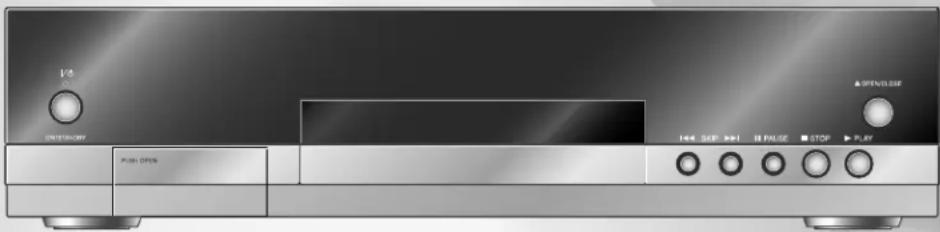
Front view of a silver CD-ROM front panel with control buttons and indicator lights (no visible text or symbols on the device body)OWNER'S MANUAL







SAFETY PRECAUTIONS
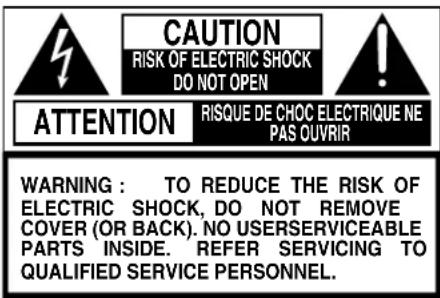

The lightning flash with arrowhead symbol, within an equilateral triangle, is intended to alert the user to the presence of uninsulated “dangerous voltage” within the product’s enclosure that may be of sufficient magnitude to constitute a risk of electric shock to persons.

The exclamation point within an equilateral triangle is intended to alert the user to the presence of important operating and maintenance (servicing) instructions in the literature accompanying the appliance.
WARNING: TO REDUCE THE RISK OF FIRE OR ELECTRIC SHOCK, DO NOT EXPOSE THIS APPLIANCE TO RAIN OR MOISTURE. DANGEROUS HIGH VOLTAGES ARE PRESENT INSIDE THE ENCLOSURE. DO NOT OPEN THE CABINET. REFER SERVICING TO QUALIFIED PERSONNEL ONLY.
CAUTION: TO PREVENT ELECTRIC SHOCK, MATCH WIDE BLADE OF PLUG TO WIDE SLOT, FULLY INSERT.
ATTENTION: POUR EVITER LES CHOCS ELECTRIQUES, INTRODUIRE LA LAME LA PLUS LARGE DE LA FICHE DANS LA BORNE CORRESPONDANTE DE LA PRISE ET POUSSER JUSQU'AU FOND.
CAUTION: This HD DVD player employs a Laser System.
To ensure proper use of this product, please read this owner's manual carefully and retain for future reference. Should the unit require maintenance, contact an authorized service location - see service procedure.
Use of controls or adjustments or performance of procedures other than those specified herein may result in hazardous radiation exposure.
To prevent direct exposure to laser beam, do not try to open the enclosure.
Visible and invisible laser radiation when open and interlocks defeated.
DO NOT STARE INTO BEAM.
FCC NOTICE: This equipment has been tested and found to comply with the limits for a Class B digital device, pursuant to part 15 of the FCC Rule. These limits are designed to provide reasonable protection against harmful interference in a residential installation.
This equipment generates, uses, and can radiate radio frequency energy and, if not installed and used in accordance with the instructions, may cause harmful interference to radio communications.
However, there is no guarantee that interference will not occur in a particular installation.
If this equipment does cause harmful interference to radio or television reception, which can be determined by turning the equipment off and on, the user is encouraged to try to correct the interference by one or more of the following measures:
- Reorient or relocate the receiving antenna.
- Increase the separation between the equipment and receiver.
- Connect the equipment into an outlet on a circuit different from that to which the receiver is connected.
- Consult the dealer or an experienced radio/TV technician for help.
WARNING: Changes or modifications made to this equipment, not expressly approved by Toshiba, or parties authorized by Toshiba, could void the user's authority to operate the equipment.
The instructions shall state that an ALL-POLE MAINS SWITCH with a contact separation of at least 3 mm in each pole shall be incorporated in the electrical installation of the building.
CAUTION:
These servicing instructions are for use by qualified service personnel only. To reduce the risk of electric shock do not perform any servicing other than that contained in the operating instructions unless you are qualified to do so.
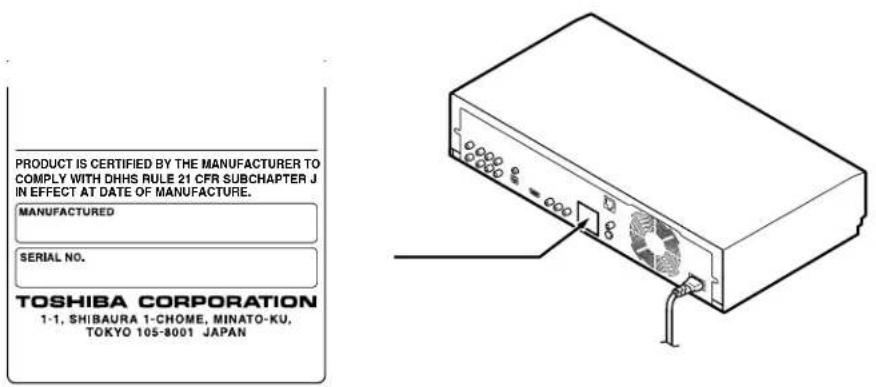
In the spaces provided below, record the Model and Serial No. located on the rear panel of your player.
Model No. Serial No.
Retain this information for future reference.
Location of the required label
IMPORTANT SAFETY INSTRUCTIONS
- Read these instructions.
- Keep these instructions.
- Heed all warnings.
- Follow all instructions.
- Do not use this apparatus near water.
- Clean only with dry cloth.
- Do not block any ventilation openings. Install in accordance with the manufacturer's instructions.
-
Do not install near any heat sources such as radiators, heat registers, stoves, or other apparatus (including amplifiers) that produce heat.
-
Do not defeat the safety purpose of the polarized or grounding-type plug. A polarized plug has two blades with one wider than the other. A grounding type plug has two blades and a third grounding prong. The wide blade or the third prong are provided for your safety. If the provided plug does not fit into your outlet, consult an electrician for replacement of the obsolete outlet.
- Protect the power cord from being walked on or pinched particularly at plugs, convenience receptacles, and the point where they exit from the apparatus.
- Only use attachments/accessories specified by the manufacturer.
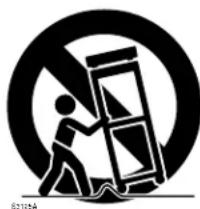
- Use only with the cart, stand, tripod, bracket, or table specified by the manufacturer, or sold with the apparatus. When a cart is used, use caution when moving the cart/apparatus combination to avoid injury from tip-over.
natural_image
Symbolic illustration of a person climbing a ladder inside a circle (no text or symbols)-
Unplug this apparatus during lightning storms or when unused for long periods of time.
-
Refer all servicing to qualified service personnel. Servicing is required when the apparatus has been damaged in any way, such as power-supply cord or plug is damaged, liquid has been spilled or objects have fallen into the apparatus, the apparatus has been exposed to rain or moisture, does not operate normally, or has been dropped.
ADDITIONAL SAFETY INSTRUCTIONS
- Do not overload wall outlets; extension cords, or integral convenience receptacles as this can result in a risk of fire or electric shock.
- Apparatus should not be exposed to dripping or splashing and no objects filled with liquids, such as vases, should not be placed on the apparatus.
- Keep your fingers well clear of the disc tray as it is closing. Neglecting to do so may cause serious personal injury.
- Do not place anything on top of this unit.
- Do not place the apparatus on amplifiers or equipment that may produce heat.
-
Do not cover the ventilating holes for the inside cooling fan.
-
Do not use a cracked, deformed, or repaired disc. These discs are easily broken and may cause serious personal injury and apparatus malfunction.
- If the apparatus should smoke or smell, immediately disconnect the power cord from the wall outlet. Wait until the smoke or smell stops, then ask your dealer for a check and repair. Neglecting to do so may cause fire.
- During thunderstorms, do not touch the connecting cables or the apparatus.
- Handling the cord on this product or cords associated with accessories sold with this product, will expose you to lead, a chemical known to the State of California to cause birth defects or other reproductive harm. Wash hands after handling.
Precautions
Notes on handling
- Never disconnect the power cord from a wall outlet while the player is turned on, unless it is in an emergency. Doing so may cause malfunction.
- When shipping the player, the original shipping carton and packing materials come in handy. For maximum protection, repack the unit as it was originally packed at the factory.
- Do not use volatile liquids, such as insect spray, near the player. Do not leave rubber or plastic products in contact with the player for a long time. They will leave marks on the fi nish.
- The top and rear panels of the player may become warm after a long period of use. This is not a malfunction.
When not in use
- For usual absence
Be sure to remove the disc from the player and turn off the power. - Prolonged absence
Unplug the player from a wall outlet.
Notes on locating
- Place the player on a level surface. Do not use it on a shaky or unstable surface such as a wobbly table or inclined stand. The loaded disc may dislodge from its proper position and cause damage to the player.
Before placing the player, make sure that the surface can stand the weight of the player. Never place the player in a high location to avoid damage to the product or person by an accidental fall of the player. - When you place this player near a TV, radio, or VCR, the playback picture may become poor and the sound may be distorted depending on the condition and location of said equipment. In such an event, place the player as far away much as possible from the TV, radio, or VCR.
- To avoid damage to this product, never place or store the unit in direct sunlight; hot, humid areas; or areas subject to excessive dust, oily smoke, cigarette smoke or vibration.
Notes on cleaning
Use a soft, dry cloth for cleaning.
- Do not use any type of solvent, such as thinner or benzine, as they may damage the surface of the player.
About the volume level
The volume level of some commercial DVD discs may seem lower than that of audio CDs, other software, etc. If you turn up the volume of the TV or amplifier to play such discs, be sure to turn it back down after playback fi nishes.
Playback restrictions
This owner's manual explains the basic instructions for this player. Some HD DVD discs or DVD video discs are produced in a manner that allows specific or limited operation during playback. As such, the player may not respond to all operating commands. This is not a defect in the player. Please refer to the notes on compatible discs later in this Introduction and to the discussion of DVD playback and features later in this manual.
" may appear on the TV screen during operation.
"means that the operation is not permitted by the player or the disc.
About software
Because of problems and errors that can occur during the creation of HD DVD, DVD and CD software and/or the manufacture of HD DVD, DVD and CD discs, Toshiba cannot assure that this player will successfully play every disc bearing the HD DVD, DVD and CD logos. If you happen to experience any difficulty playing an HD DVD, DVD and CD disc on this player, please contact Toshiba Customer Service.
Some differences
The HD DVD player operates more like a computer and differently than a standard DVD player. In addition to containing a microprocessor, it contains an operating system, random access memory (RAM), and an HD DVD drive. The operating system includes software that is transferred to the RAM when the machine is turned on and at other times during operation. This transfer can take time. Therefore, when you turn the HD DVD player on, it may take a little while before it is ready to use. Likewise, other functions may not be performed as quickly as they would on other AV equipment. Please take these factors into consideration as you use the HD DVD player.
Notes on moisture condensation
■ Moisture condensation damages the unit. Please read the following carefully.
Moisture condensation occurs, for example, when you pour a cold drink into a glass on a warm day. Drops of water form on the outside of the glass. In the same way, moisture may condense on the optical pick-up lens inside this unit, one of the most crucial internal parts of the unit.
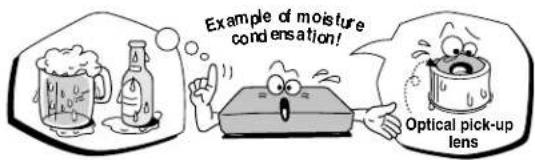
■ Moisture condensation occurs during the following cases.
- When you bring the unit directly from a cold place to a warm place.
- When you use the unit in a room where you just turned on the heater, or a place where the cold wind from the air conditioner directly hits the unit.
- In summer, when you use the unit in a hot and humid place just after you move the unit from an air conditioned room.
- When you use the unit in a humid place.
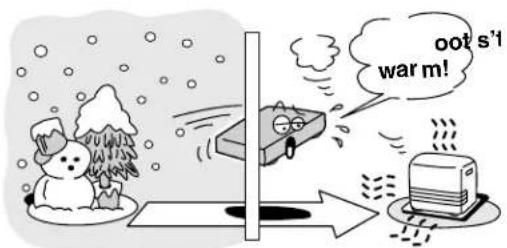
■ Do not use the unit when moisture condensation may occur.
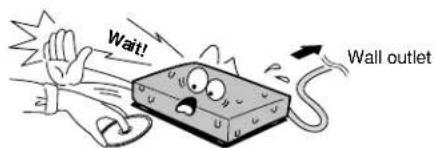
If you use the unit in such a situation, it may damage discs and internal parts. Connect the power cord of the unit to the wall outlet, turn on the unit, remove the disc, and leave it for two or three hours. After two or three hours, the unit will have warmed up and evaporated any moisture. Keep the unit connected to the wall outlet and moisture condensation will seldom occur.
Notes on copyright
- The unauthorized recording, use, display, distribution, or revision of television programs, videotapes, HD DVDs, DVDs, CDs and other materials, is prohibited under the Copyright Laws of the United States and other countries, and may subject you to civil and/or criminal liability.
- This product incorporates copyright protection technology that is protected by method claims of certain U.S. patents and other intellectual property rights owned by Macrovision Corporation and other rights owners. Use of this copyright protection technology must be authorized by Macrovision Corporation, and is intended for home and other limited viewing uses only unless otherwise authorized by Macrovision Corporation. Reverse engineering or disassembly is prohibited.
Manufactured under license from Dolby Laboratories. Dolby and the double-D symbol are trademarks of Dolby Laboratories.
Manufactured under license from Digital Theater Systems, Inc. U.S. Pat. No's. 5,451,942; 5,956,674; 5,974,380; 5,978,762; 6,226,616; 6,487,535 and other U.S. and world-wide patents issued and pending. "DTS" and "DTS Digital Surround" are registered trademarks of Digital Theater Systems, Inc. Copyright 1996, 2003 Digital Theater Systems, Inc. All Rights Reserved.
HDMI, the HDMI logo and High-Definition Multimedia Interface are trademarks or registered trademarks of HDMI Licensing LLC.
SHARC is a registered trademark and Melody is a trademark of Analog Devices, Inc.
All other brand and product names mentioned in this manual are trademarks and/or registered trademarks of their respective holders.
Features
Playback of HD DVD video discs
HD DVD video discs are high-density, high-capacity discs.
- The HD DVD disc standard has been approved by the DVD forum.
- HD DVD (single layer): 15 GB HD DVD (dual layer): Maximum capacity of 30 GB A single layer single sided disc (15 GB) has capacity of about 8 hours in 1125 line high definition picture; about 48 hours in 525 line standard definition picture (depending on bitrate of pre-recorded contents).
*1GB means 1,000,000,000 bytes.
- HD DVD Twin Format Discs have both HD DVD and DVD layers on one side. HD DVD Combination DVD Discs have HD DVD material on one side and standard DVD material on the other side. Because both disc types are new, such discs may not operate properly in this player.
- To view high-definition picture in HD DVD discs, an HDTV display (720p, 1080i) is required.
- Connect an HDTV set to the COMPONENT OUTPUT jacks or the HDMI OUTPUT jack on this player.
- Some discs may require use of HDMI OUTPUT for viewing of high resolution material.
Compatible with multiple disc types
- Playback of commercial HD DVD video disc, DVD video, and Audio CD
- Playback of DVD-RAM, DVD-RW (disc recorded in DVD VR mode or DVD video mode), and DVD-R
- Playback of CD-RW and CD-R (Audio CD of CD-DA format, MP3 fi le, WMA fi le)
Because HD DVD is a new format, disc compatibility issues with new and existing format discs are possible. Not all discs are compatible. If you experience compatibility problems, please contact Toshiba Customer Service.
Blu-ray Discs cannot be played on this player.
Internet connection feature (LAN port)
- Some HD DVD discs enable you to access special HD DVD sites. If an HD DVD site includes content such as movie trailers, you can watch the content on the player via the Internet if your internet connection provides sufficient bandwidth.
Compatibility notes
- For compatibility, see ➔ page 27.
Various output jacks
- An HDMI jack for connecting a single cable to output video and audio signals
- Component jacks
- 5.1 channel surround analog audio jacks
Certain system requirements
For high definition video playback:
- High definition display (720p and 1080i input capable).
• HD DVD disc with high definition content. - HDMI or HDCP capable DVI input on your display device required for some content (as specified by disc authors).
- For up-conversion of standard definition DVD, an HDMI or HDCP capable DVI input on your display device is required for copy protected content.
For Dolby® Digital Plus and DTS-HD (DTS core only) multi-channel audio playback:
- Receiver or processor/amp combination with 5.1 channel analog input or HDMI™ multi-channel LPCM capable audio input.
- Main, center, surround speakers and subwoofer as necessary for chosen format.
For on-line interactive features:
- Ethernet connection to customer supplied always-on broadband internet service.
- Some features may require higher bandwidth.
Customer support
To reach Toshiba Customer Support in the U.S., please call 1 (800) 319-6684 or visit
www.tacp.com/customersupport.
To reach Toshiba Customer Support in Canada, please call 1 (800) 268-3404 or visit www.toshiba.ca and click on support.
This HD DVD player is manufactured under the HD DVD Format adopted by DVD Forum. DVD Forum approved AACS (Advance Access Content System) as content protection system for HD DVD Format like it approved CSS (Content Scramble System) for DVD Format. Therefore, certain restrictions are imposed on play, analog signal output, etc. of AACS protected contents.
When you use pre-recorded contents, the contents may designate whether or not to apply such restrictions.
As those restrictions may be adopted and/or changed and announced by AACS after the production of this product, the operation of this product and restrictions thereon may vary depending on the time you purchase this product.
To obtain updated information about AACS and this product, please contact the following:
*In the U.S., please call 1 (800) 319-6684 or visit www.tacp.com/customersupport.
*In Canada, please call 1 (800) 268-3404 or visit www.toshiba.ca and click on support.
Accessories
Accessories
Check that the following accessories are supplied.
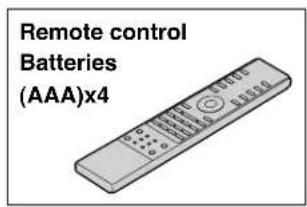
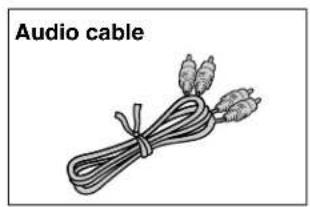
natural_image
Illustration of a cord tied with two earbuds, labeled 'Audio cable' (no other text or symbols)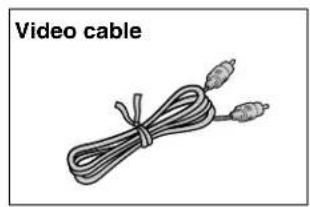
natural_image
Illustration of a video cable with two connectors and a string (no text or symbols)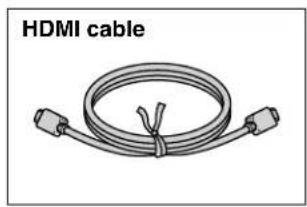
natural_image
Illustration of a HDMI cable with two connectors and a coiled cable (no text or symbols)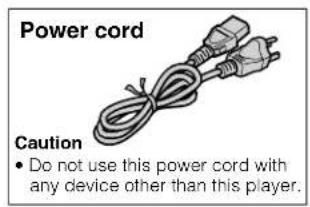
Table of Contents
1 Introduction
■ SAFETY PRECAUTIONS ...... 2
■ IMPORTANT SAFETY INSTRUCTIONS.... 4
■ Precautions 6
■ Features....8
■ Accessories....9
■ Index to parts and controls.... 12
- Front panel 12
- Rear panel....13
- Display .... 14
- Remote control....15
■ Preparation of the remote control.... 16
- Loading batteries .... 16
- Operating with the remote control....16
- Programming for TV control ....17
- Operating your TV with the remote control....17
■ Hint on reading this manual .... 18
- Icons for disc compatibility....18
- Instructions and actual buttons....18
2 Connections
■ Connecting to a TV 20
■ Connecting to a device with an HDMI input.... 21
■ Connecting to a TV with component video inputs 22
■ Connecting to an audio system 23
3 Playback (Basic)
■ Disc compatibility .... 26
■ Powering on/Loading a disc 28
■ Playing a disc.... 29
- Stopping playback / Pausing playback....29
- Playing from the top menu ....30
- Using A/B/C/D buttons .... 30
- Playing from a recorded title menu ....30
- Selecting the sound ....31
- Selecting the sound of a disc recorded in DVD VR mode....31
- Selecting subtitles....32
- Selecting the camera angle ....32
■ Playing at various speeds.... 33
- Locating by entering a section number ....34
- Locating by entering elapsed time ....34
- Resuming playback from the location last stopped (Title resume)....34
4 Playback (Advanced)
■ Playing repeatedly (Repeat playback) 36
■ Playing MP3/WMA files on a CD.... 37
- Playable files ....37
■ Using EXTENSION ports.... 38
■ Using the cursor function.... 38
- Checking the current status and settings.... 39
5 Internet connection
■ Internet connection feature (Outline).... 42
■ Internet connection feature (Preparation).... 44
■ Internet connection feature (Operation).... 47
9 Others
■ Customizing the function settings.... 50
● Picture ....52
- Audio ....53
- Language ....54
- Ethernet....55
- General....56
- Firmware update ....57
■ Language code list 58
■ Output sound conversion table.... 59
■ Before calling service personnel 60
■ Specification 61
■ Limited United States Warranty.... 62
■ CANADIAN WARRANTY INFORMATION 64
■ INFORMATION ON CUSTOMER SUPPORT ...... Back cover
Index to parts and controls
See pages with arrows for details.
Front panel
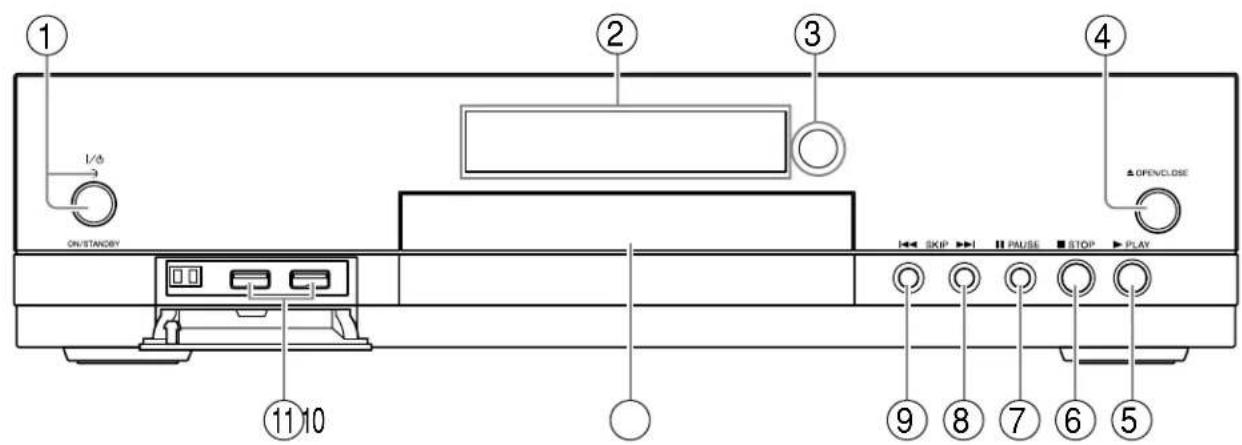
* The above illustration displays the front panel with the cover open. See below on how to open the cover.
① ON/STANDBY button / ON/STANDBY indicator ➔ page 28
Turns the power on/restores the unit to the standby mode.
② Front panel display ➕ page 14
③ Remote sensor ➔ page 16
④ OPEN/CLOSE button ➕ page 28
Opens and closes the disc tray.
⑤ ▶(PLAY) button □page 29
Starts playback.
⑥ ■ (STOP) button ➔ page 29
Stops playback.
⑦ II (PAUSE) button ➔ page 29
Stops playback momentarily.
⑧ ▶(SKIP) button page 33
Skips to the next chapter or track.
⑨ I◀SKIP) button page 33
Skips to the previous chapter or track.
⑩ Disc tray ➔ page 28
Loads a disc into the disc drive.
⑪ EXTENSION ports ➔ page 38
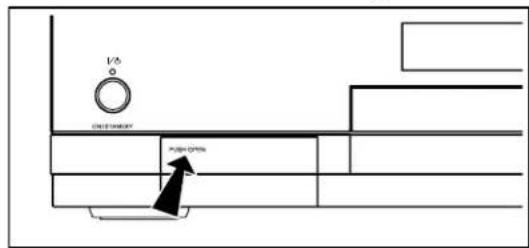
■ To open the cover on the front panel
Press PUSH OPEN on the left edge of the cover.
Note
- Do not place a heavy object on the cover while it is open. Doing so may damage the player.
Rear panel
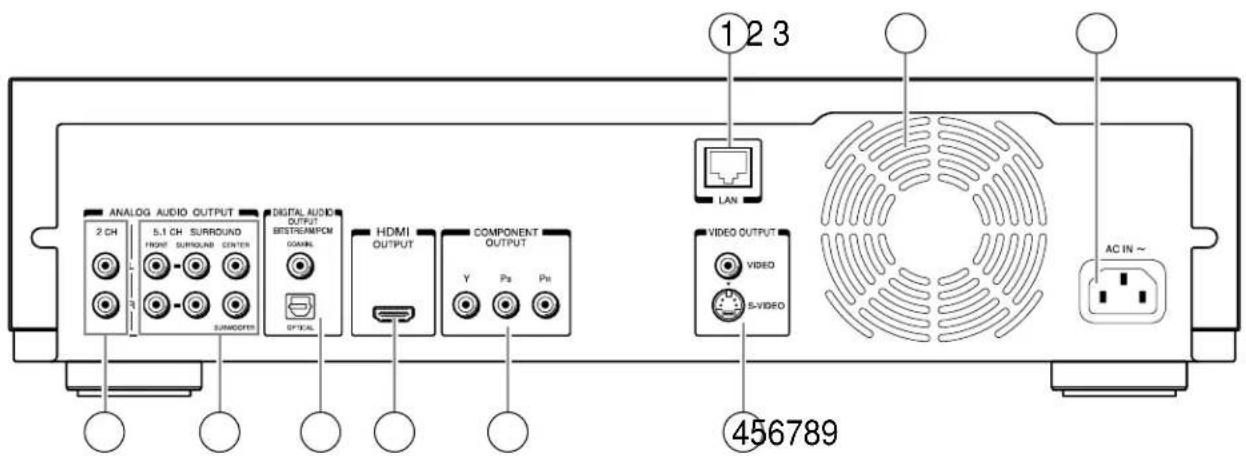
① LAN port ➞ page 44
Use this to connect to a network with an always-on broadband connection.
② Ventilation fan
Do not cover the ventilation holes.
③ AC IN socket page 20
Connect the supplied power cord.
Outputs video and audio signals to a connected TV or amplifier.
⑤ COMPONENT OUTPUT jacks ➕ page 22
Outputs video signals to a connected TV or monitor.
Connect to a TV or monitor equipped with component video jacks.
⑥ HDMI OUTPUT jack page 21
Outputs video/audio signals to a connected TV, monitor or AV amplifier.
Connect to a TV, monitor or AV amplifier equipped with HDMI input.
⑦ DIGITAL AUDIO OUTPUT BITSTREAM/PCM (OPTICAL/COAXIAL) jacks ➔ page 23
Outputs digital audio signals.
Connect to a digital audio input on an amplifier equipped with digital audio decoder.
When connecting the optional digital cable, fi t the connector into the jack fi rmly.
⑧ ANALOG AUDIO OUTPUT 5.1 CH SURROUND jacks page 23
Connect to an amplifier equipped with 5.1 CH audio input.
⑨ ANALOG AUDIO OUTPUT 2 CH jacks page 20
Outputs audio signals to a connected TV or AV amplifier.
Index to parts and controls (Continued)
Display
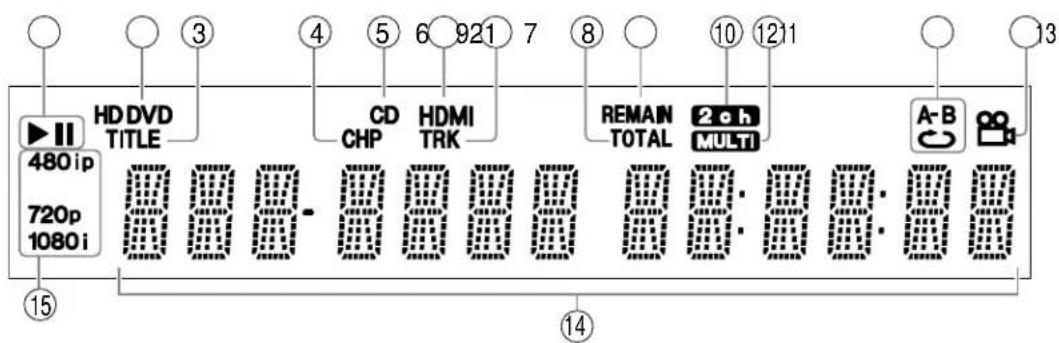
① Status indicator
▶ : Playing
II : Pausing
② Disc indicator
HD DVD : Illuminates when an HD DVD disc is loaded.
DVD : Illuminates when a DVD disc is loaded.
③ TITLE indicator
Illuminates when a title number is displayed.
④ CHP (Chapter) indicator
Illuminates when a chapter number is displayed.
⑤ CD indicator
Illuminates when a CD is loaded.
⑥ HDMI Indicator
Illuminates when selecting the HDMI output.
⑦ TRK (Track) indicator
Illuminates when a track number is displayed.
⑧ TOTAL indicator
Illuminates when the total playing time of the disc is displayed.
⑨ REMAIN (Remaining) indicator
Illuminates when a remaining playback time is displayed.
⑩ 2ch indicator
Illuminates when 2 channel (L/R) sound is output.
⑪ MULTI indicator
Illuminates when 5.1 channel sound is output.
⑫ Repeat mode indicator
Illuminates when playing in repeat mode.
⑬ Angle icon indicator
Illuminates when playing a scene recorded with multi angles.
⑭ Multi display
Displays the total playing time of the disc, elapsed time, remaining time, title number, chapter number or message, etc.
⑮ Video output format indicator
Displays the video output format currently selected.
480i : 480interlace
480p : 480 progressive
720p : 720 progressive
1080i : 1080interlace
■ Switching the display
Every time you press DISPLAY button on the remote control, the display changes the contents. The display may not change, depending on the disc conditions.
Dimming the display
Pressing DIMMER button on the remote control changes the brightness of the display.

- Turning off the power resets this setting.
Remote control
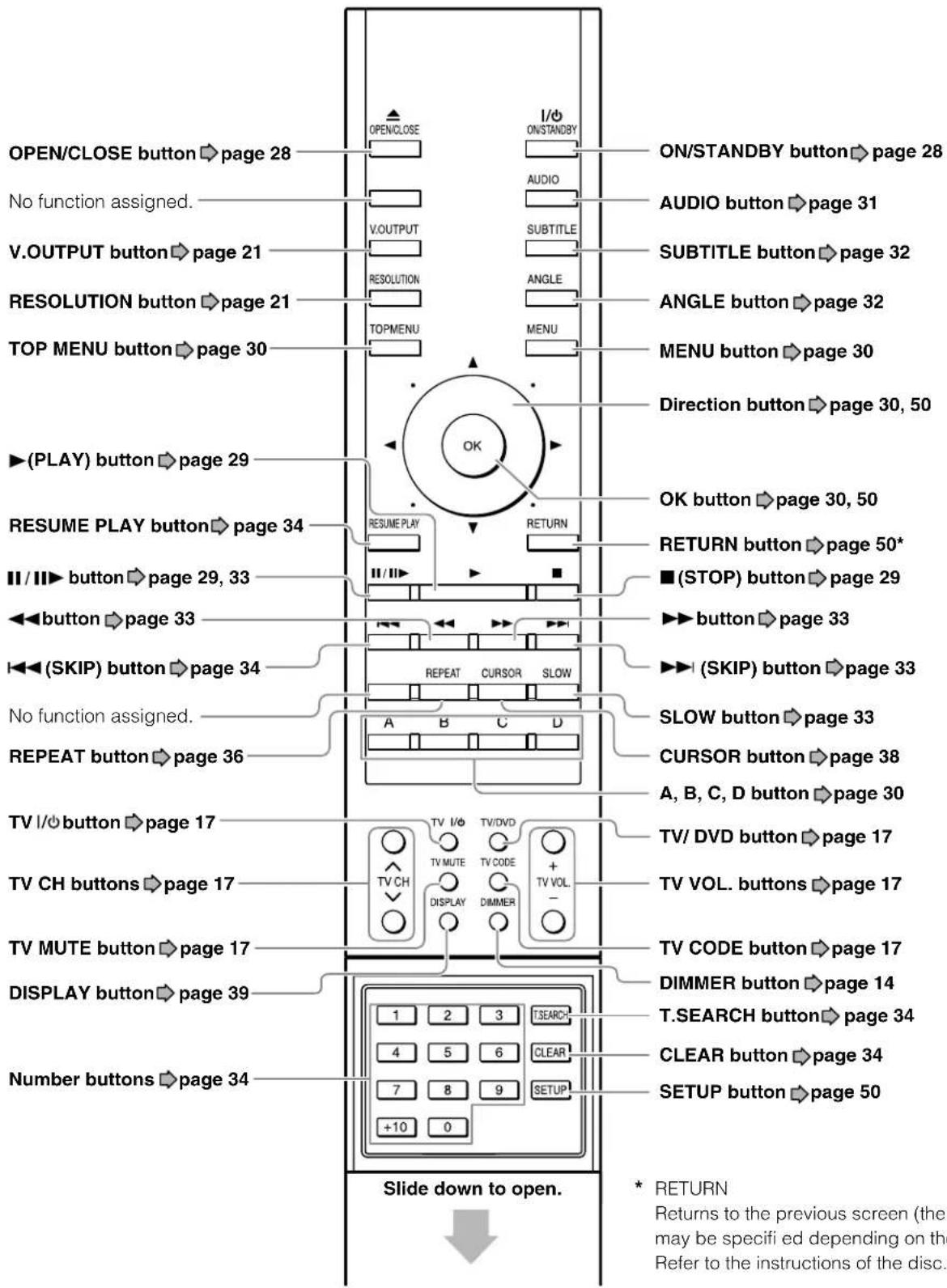
Preparation of the remote control
Set up the remote control to operate the player and your TV.
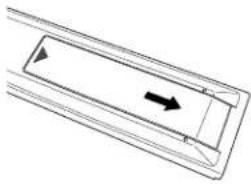
Loading batteries

Open the cover.
natural_image
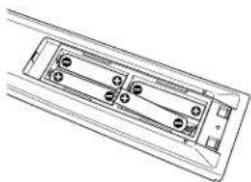
Pure technical diagram of a rectangular component with an arrow indicating direction (no text or symbols)Insert batteries.
natural_image
Technical line drawing of a mechanical component with multiple holes and mounting holes (no text or symbols)- Use 4 batteries (AAA sizes).
- Make sure to match the + and - on the batteries to the marks inside the battery compartment.
Close the cover.
Operating with the remote control
Point the remote control at the remote sensor and press the buttons.
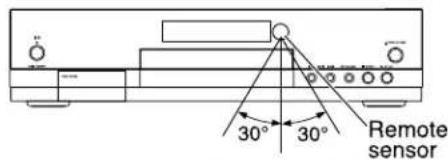
Distance : About 7 m (23 ft) from the front of the remote sensor
Within about 7 m (23 ft)
Angle : About 30^ in each direction of the front of the remote sensor
Notes
- Do not drop or give the remote control a shock.
- Do not leave the remote control near an extremely hot or humid place.
- Do not spill water or put anything wet on the remote control.
- Do not disassemble the remote control.
- Dispose of batteries in a designated disposal area.
- Batteries should always be disposed of with the environment in mind.
• Always dispose of batteries in accordance with applicable laws and regulations. - If the remote control does not operate correctly, or if the operating range becomes reduced, replace all batteries with new ones.
- When necessary to replace batteries in the remote control, always replace all batteries with new ones. Never mix battery types or use new and used batteries in combination.
- Be sure to use AAA size batteries.
- Always remove batteries from remote control if they are dead or if the remote control is not be used for an extended period of time. This will prevent battery acid from leaking into the battery compartment.
Caution
- Never throw batteries into a fire.
Programming for TV control

While holding TV CODE press the number buttons to enter a corresponding brand code (see below) of your TV.
e.g. To enter 0001

Hold down.
• Some brands have several codes. Try one by one until the remote control can operate your TV.
Release TV CODE
The brand code is memorized.
Notes
- TOSHIBA code is already set when you operate this player for the first time.
- When replacing the batteries of the remote control, re-enter the brand code of your TV.
Brand code table
Brand name Brand code
| Toshiba | 0001 0021 0071 0411 0431 0831 | ||||
| 0841 0851 1341 1611 1621 1781 | |||||
| 1951 2121 2491 4371 5951 5971 | |||||
| 6041 | |||||
| Bell & Howell | 0081 0431 | ||||
| Citizen | 0051 0381 | 0471 0551 0621 | 0851 | ||
| 1561 | |||||
| Curtis Mathes | 0051 0431 | 0531 | 0621 | 0851 | 1521 |
| 1561 6671 | |||||
| Emerson | 0051 0111 0121 0141 0151 0161 | ||||
| 0201 0211 0351 0381 | 0431 | 0521 | |||
| 0561 0621 0691 1241 1291 1371 | |||||
| 1561 2481 4861 | |||||
| Fisher | 0251 0401 0431 1151 2451 | ||||
| GE | 0051 0091 0181 0321 0371 0591 | ||||
| 0621 0711 0741 1041 1471 1521 | |||||
| 2481 4691 4881 4891 6671 | |||||
| Goldstar | 0051 0161 0231 0451 0501 | 0621 | |||
| 0661 0771 0961 1431 | 1561 | 2491 | |||
Operating your TV with the remote control
Point the remote control to your TV after you have entered the brand code. Operate your TV with the buttons below.
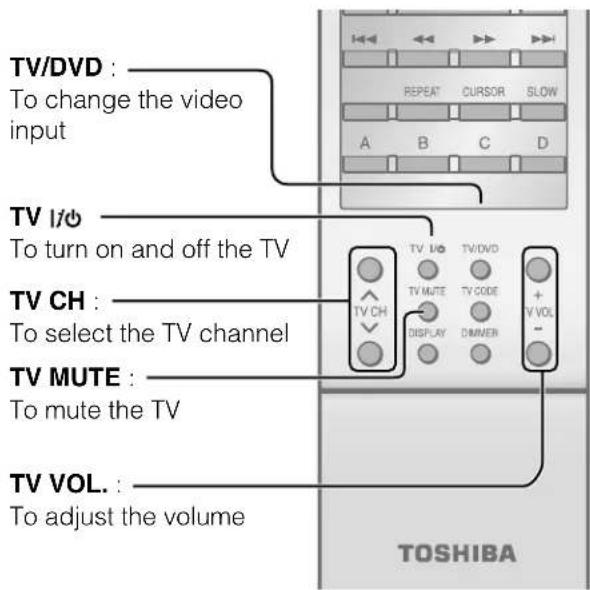
Notes
- For some TVs, pressing the volume button once may change the volume by more than one level.
- Even after the player's remote control is programmed, it may not operate some or all of the features on your other device.
If this happens and you wish to use those features, you will need to use the device's original remote control.
Brand name Brand code
| Hitachi | 0031 0051 0161 0191 0301 0601 |
| 0621 0641 0671 0811 0951 1011 | |
| 1061 1241 1361 1651 1711 1731 | |
| 1741 1751 2051 2131 2381 4121 | |
| 4731 4911 4961 | |
| Infinity | 0631 |
| JBL | 0631 |
| JVC | 0101 0161 0191 0241 0331 0511 |
| 0561 0601 0741 1321 1421 2161 | |
| 2171 4351 4701 4751 4771 4971 | |
| 5031 5041 5051 | |
| LXI | 0411 0431 0621 0631 1041 1171 |
| 1521 2491 6671 | |
| Magnavox | 0051 0271 0291 0341 0361 0421 |
| 0551 0621 0631 0661 0971 0981 | |
| 2221 5221 5231 5241 | |
| Marantz | 0051 0481 0621 0631 0641 2491 |
| Memorex | 0081 0431 0501 0621 2491 4421 |
| 5251 | |
| MGA | 0051 0251 0261 0371 0501 0621 |
| 0661 0761 |
(Continued)
Preparation of the remote control (Continued)
Brand name Brand code
| Mitsubishi | 0051 0251 0261 0371 0491 0501 | |||
| 0621 0661 0761 2231 5261 5271 | ||||
| MTC | 0051 0501 0621 0851 | |||
| NAD | 0411 0621 1061 | |||
| Optonica | 0541 1101 | |||
| Panasonic | 0631 0711 0741 1271 | 1351 1501 | ||
| 1701 1791 | 1801 2111 | 2151 2281 | ||
| 56615281 5301 | ||||
| Philco 0051 0161 0271 0291 | 0361 0421 | |||
| 0621 0631 | 0661 071105 | |||
| Philips 0051 0161 0271 0321 | 0361 0421 | |||
| 0631 0661 | 0711 214104 | |||
| 2351 5221 5401 5411 | 5431 5451 | |||
| 5481 5501 5531 | 5541 560154 | |||
| 5621 | ||||
| Pioneer 0051 0621 0681 | 0721 0751 1061 | |||
| 1241 | 1971 4081 | 41111581 | ||
| Proton 0051 0161 0621 | 0651 2491 | |||
| Quasar | 0711 0741 0801 | 1271 2281 | 5651 | |
| 5661 | ||||
| Radio Shack 0431 1521 | 2481 | |||
| Radio Shack/Realistic | 0051 0161 0381 | 0431 0541 | 0621 | |
| 1431 | 1561 6671 | |||
| RCA | 0051 0221 | 0501 0621 | 0661 | 0711 |
| 0871 0921 | 0941 1001 | 1041 | 1071 | |
| 1091 1181 | 1241 1301 | 1461 | 1521 | |
| 1531 2481 | 4361 4861 | 4881 | 5681 | |
| 6641 | 6671 | |||
| Realistic 0431 1521 | ||||
| Runco 0011 | ||||
Brand name Brand code
| Samsung | 0051 0161 0501 0531 | 0621 0661 | |||
| 1021 1141 | 1431 156108 | ||||
| 1771 1811 | 1821 18311591 | ||||
| 1931 2081 | 2101 23111841 | ||||
| 4011 4061 | |||||
| Sanyo | 0051 0261 0401 0431 0791 | 0901 | |||
| 1151 | |||||
| Sears | 0051 0151 0191 0251 | 0331 0401 | |||
| 0621 0661 | 1041 | 10810 | |||
| 1151 1481 1521 | 2481 6671 | ||||
| Sharp | 0051 0111 | 0161 0351 | 0541 0581 | ||
| 0731 | 0891 | 1101 156106 | |||
| 1721 1871 | 1881 | 1941 2181 | 2341 | ||
| 5741 5751 | |||||
| Sony | 0441 1111 | 1231 1511 | 1901 | 2061 | |
| Soundesign | 0381 0551 | 0621 24810051 | |||
| Sylvania 0051 0071 0271 | 0291 | 0341 0361 | |||
| 0621 | 0631 | 0661 | 08610 | ||
| 1441 2191 | 2201 | 4151 5481 | |||
| Tandy | 1101 | ||||
| Technics | 0741 | ||||
| Teknika | 0051 0081 0151 0161 | 0191 0341 | |||
| 0501 | 0551 | 0621 085103 | |||
| 1271 1561 | 2481 | ||||
| Wards | 0051 0081 0141 0151 | 0181 | 0211 | ||
| 0271 0321 | 0341 | 0361 | 0421 0501 | ||
| 0541 0621 | 0631 | 15210 | |||
| 2491 6671 | |||||
| Zenith | 0011 0051 | 0081 | 1281 | 15710 | |
| 2091 2251 | 2361 2441 | 4821 | 6151 | ||
| 6171 6181 | |||||
Hint on reading this manual
Icons for function applicability
The following icons are used in this manual to indicate features and/or functions that are applicable to various types of discs.
(For disc compatibility information, see ➔ page 26.)
| Icon Disc Icon Disc | |||
| HD DVD | HD DVD video disc | DVD-R | DVD-R |
| DVD Video | DVD video disc | CD | Audio CD |
| DVD-RAM | DVD-RAM | CD-RW (CD-DA) | CD-RW (CD-DA format) |
| DVD-RW | DVD-RW | CD-R (CD-DA) | CD-R (CD-DA format) |
Instructions and actual buttons
Most instructions are based on remote control operation, unless otherwise noted. You can use the buttons on the remote control and those on the main unit as well when they have the same function. Some functions are available only from the remote control.
2 Connections Connect your player to your A/V system.
Connecting to a TV
Connecting to a device with an HDMI input
Connecting to a TV with component video inputs
Connecting to an audio system
Connecting to a TV
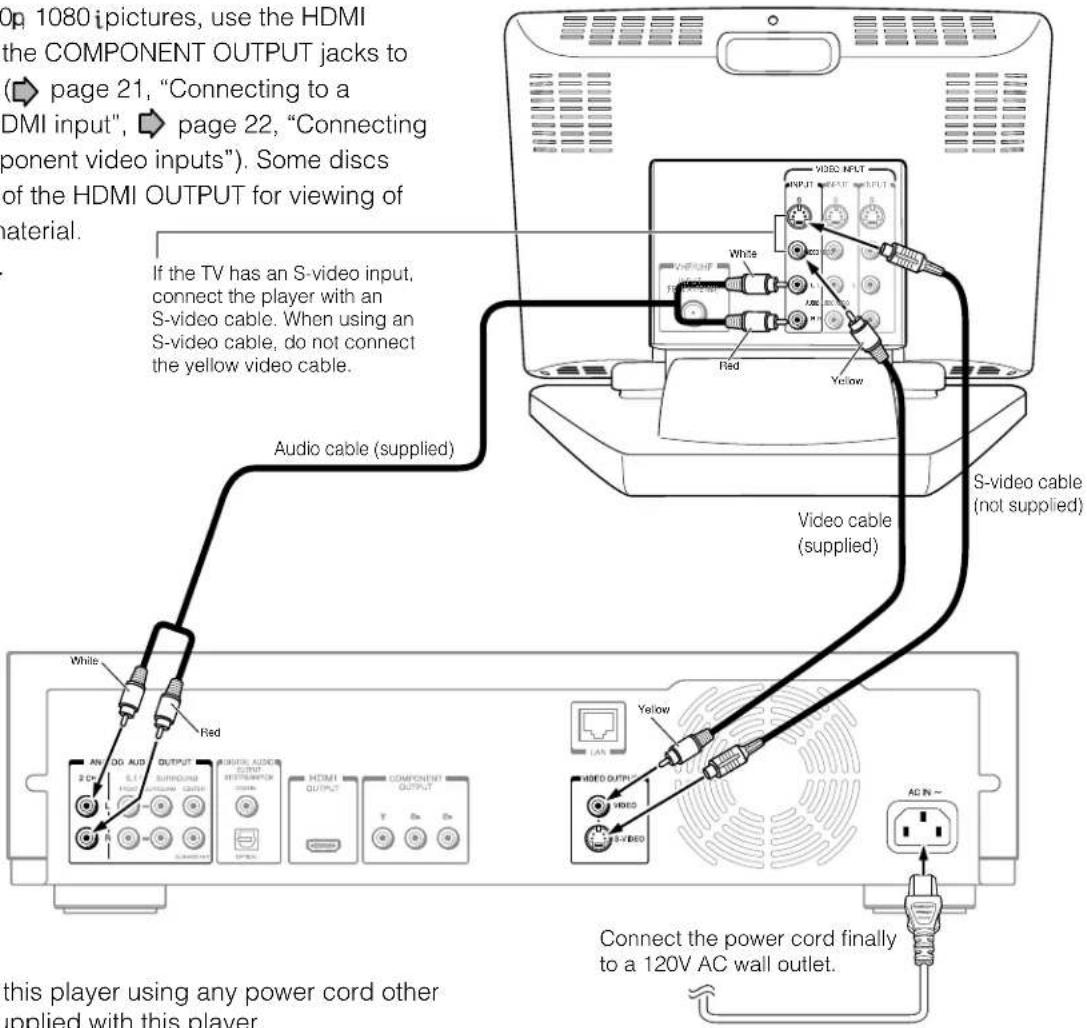
Connect the player to your TV to view disc contents.
To view 480p, 720p, 1080p pictures, use the HDMI OUTPUT jack or the COMPONENT OUTPUT jacks to connect to a TV. (→ page 21, "Connecting to a device with an HDMI input", → page 22, "Connecting to a TV with component video inputs"). Some discs may require use of the HDMI OUTPUT for viewing of high resolution material.
See ➔ page 21.
Caution
- Do not power this player using any power cord other than the one supplied with this player.
- Do not use the supplied power cord with any device other than this player.
Switching output signals and setting the resolution
Turn on the player (→ page 28) before you confi gure the following setting.

Press V. OUTPUT (remote control).
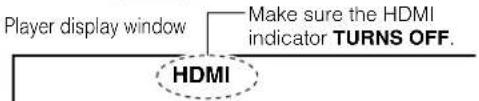

Press RE _SOLUTION repeatedly (remote control).
Set the resolution to output from the player in accordance with the scanning method (480i) of the connected TV. Select "480i" on the player display window.
Notes
- When you connect the player to your TV, be sure to turn off the power and unplug both units from the wall outlet before making any connections.
- Connect the player directly to your TV. If you connect the player to a VCR, TV/VCR combination, video selector or AV amplifier, the playback picture may be distorted due to copy protection.
Connecting to a device with an HDMI input
HDMI stands for High Definition Multimedia Interface. HDMI transfers digital audio and uncompressed digital video on a single cable. As a result, audio cables and video cables don't need to be connected separately to a device. The HDMI OUTPUT jack is designed to HDMI Version 1.1.
To view 480p, 720p, 1080 ipictures, use the HDMI OUTPUT jack or the COMPONENT OUTPUT jacks to connect to a TV (→ page 22, “Connecting to a TV with component video inputs”). Some discs may require use of the HDMI OUTPUT for viewing of high resolution material. See note regarding copy protection.
Note on copy protection and high definition viewing
HD DVD and DVD video disc creators have the option to include copy protection instructions in their discs that prohibit the output of some standard video or high definition video (original 720p or 1080i or up-converted 480i or 480p) from the COMPONENT OUTPUT jacks. If such instructions are present in the disc you are playing, you must use the HDMI OUTPUT jack to view the disc in a high definition format and the COMPONENT OUTPUT jacks, if activated, will output video only in 480i or 480p resolution.
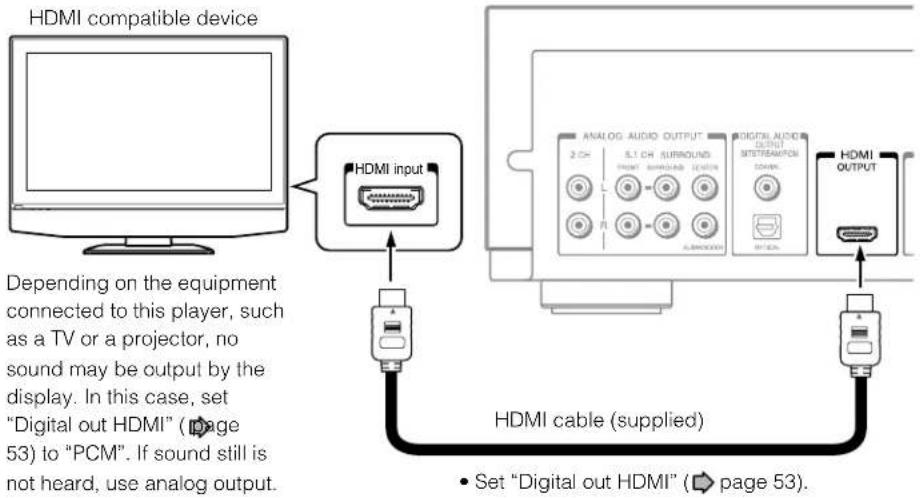
Switching output signals (Switching to HDMI output and setting the resolution)
Turn on the player (page 28) before you configure the following setting.

Press V.OUTPUT (remote control).
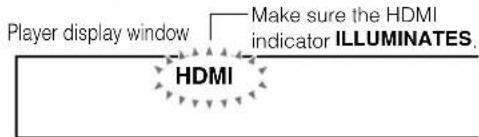
When the HDMI indicator illuminates, signals are being input from the HDMI OUTPUT jack. When HDMI output is selected, video cannot be displayed from the COMPONENT OUTPUT jacks, S-VIDEO jack, and VIDEO jack (yellow).

RESOLUTION
Press repeatedly (remote control).
Set the resolution to output from the player in accordance with the scanning method of the connected TV.
Pressing the button switches between 480p, 720p and 1080i. The setting is indicated on the player display window.
Notes
• Refer to the owner's manual for the TV to be connected to this player for more information concerning HDMI connections.
- When the HDMI connection is not verified, the error message appears on the front panel display. In this case, disconnect the HDMI cable then connect it again, or turn off the connected HDMI device then turn it on.
• HDMI output is digital only, DVI analog is not supported.
• HDMI is an evolving technology, so it is possible that some devices may not operate properly with this player.
- Be sure to use an HDMI cable with the HDMI logo 🐦 to connect an HDMI device.
- If your display does not support multi-channel audio, to use multi-channel audio you will need to either use an AV receiver that supports multi-channel audio over HDMI (set "Digital out HDMI" to "Auto" or to match the decoding capability of your equipment) or use a receiver that has a coaxial or optical SPDIF digital audio input (set "Digital audio SPDIF" to match the decoding capability of your equipment).
HDMI, the HDMI logo and High-Definition Multimedia Interface are trademarks or registered trademarks of HDMI Licensing LLC.
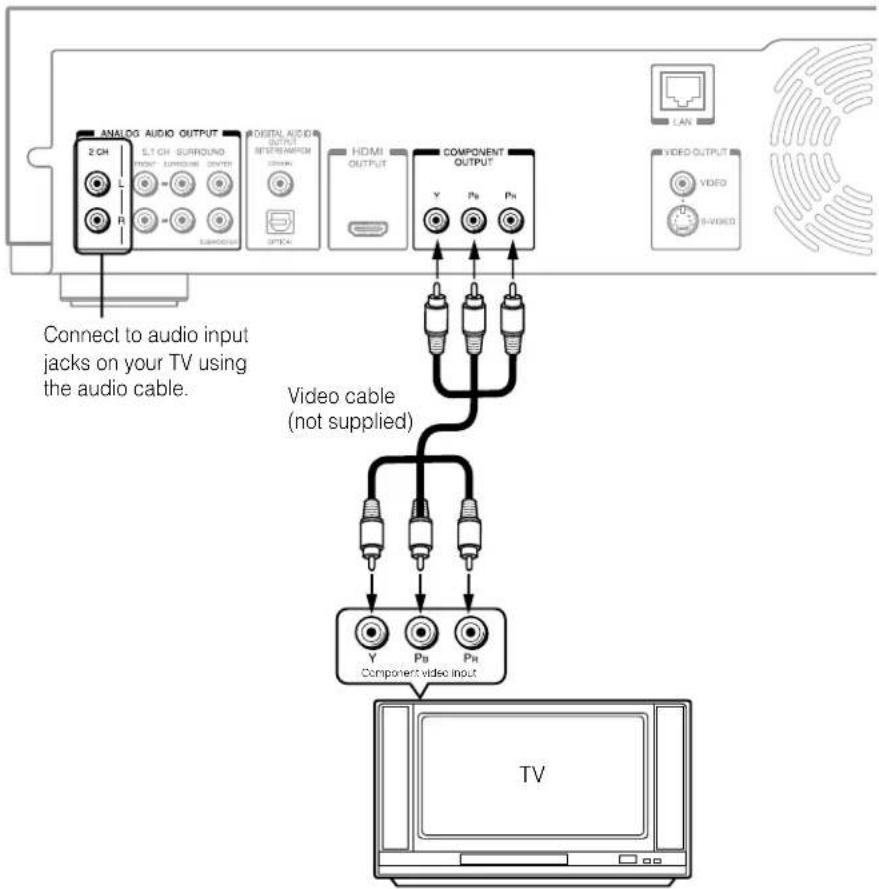
Connecting to a TV with component video inputs
If your TV has component video inputs, you can obtain pictures in better quality.
You may also view 480p, 720p, 1080 ipictures using the HDMI OUTPUT jack to connect to a TV ( ➔ page 21, "Connecting to a device with an HDMI input").
Note on copy protection and high definition viewing
HD DVD and DVD video disc creators have the option to include copy protection instructions in their discs that prohibit the output of some standard video or high definition video (original 720p or 1080i or up-converted 480i or 480p) from the COMPONENT OUTPUT jacks. If such instructions are present in the disc you are playing, you must use the HDMI OUTPUT jack to view the disc in a high definition format and the COMPONENT OUTPUT jacks, if activated, will output video only in 480i or 480p resolution.
flowchart
graph TD
    A["ANALOG AUDIO OUTPUT"] --> B["2 CH"]
    C["DISPLAY AUDIO OUTPUT"] --> D["L1 CH SURROUND HIGH SURROUND CENTER"]
    E["HDMI OUTPUT"] --> F["OPTIC"]
    G["COMPONENT OUTPUT"] --> H["Y"]
    G --> I["Pb"]
    G --> J["Pn"]
    K["VIDEO OUTPUT"] --> L["VEDO"]
    M["Video Cable"] --> N["Video cable (not supplied)"]
    O["Component video Input"] --> P["Y"]
    O --> Q["Pb"]
    O --> R["Pn"]
    S["TV"] --> T["Computer"]
Switching output signals (Switching to component video output and setting the resolution)
Turn on the player (page 28) before you configure the following setting.

Press V. OUTPUT (remote control).
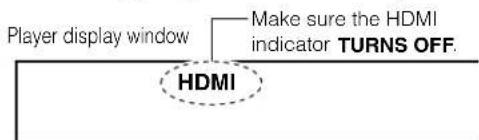
When the HDMI indicator turns off, signals are being output from the COMPONENT OUTPUT jacks.

RESOLUTION
Press repeatedly (remote control).
Set the resolution to output from the player in accordance with the scanning method of the connected TV.
Pressing the button switches between 480i, 480p, 720p and 1080i The setting is indicated on the player display window.
Notes
- When 1080i or 720p is selected, video cannot be displayed from the S-VIDEO jack nor VIDEO jack (yellow).
- Depending on a combination of the characteristics of the connected TV, resolution of the video source, and video output resolution of the player, high-resolution output may not provide the best picture. Change the output resolution according to your preferences.
Connecting to an audio system
You can enjoy multichannel surround-sound such as 5.1 channel by connecting to an amplifier compatible with Dolby ^® Digital and DTS ^® sound.
Via digital audio output
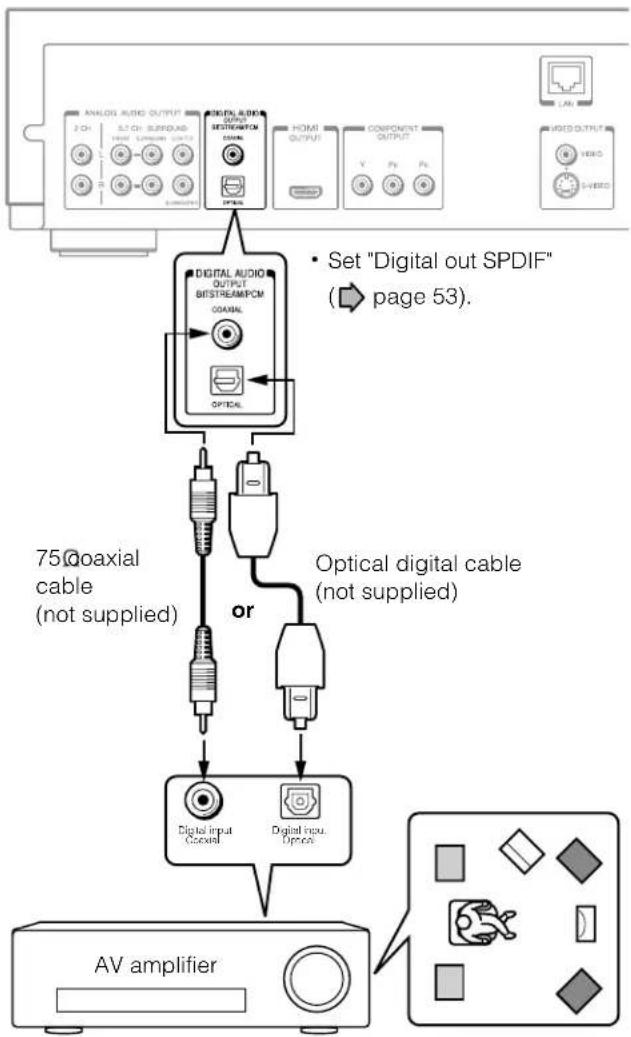
flowchart
graph TD
    A["ANALOG AUDIO OUTPUT"] --> B["75Coaxial cable (not supplied)"]
    C["Digital Audio OUTPUT"] --> D["Optical digital cable (not supplied)"]
    E["OUTPUT"] --> F["Digital input: Coaxial"]
    G["COMPONENT OUTPUT"] --> H["Digital input: Optic"]
    I["AV amplifier"] --> J["Analog output"]
    K["75Coaxial cable"] --> L["Optical digital cable"]
    M["75Coaxial cable"] --> N["Optical digital cable"]
    O["75Coaxial cable"] --> P["Optical digital cable"]
    Q["75Coaxial cable"] --> R["Optical digital cable"]
    S["75Coaxial cable"] --> T["Optical digital cable"]
    U["75Coaxial cable"] --> V["Optical digital cable"]
    W["75Coaxial cable"] --> X["Optical digital cable"]
    Y["75Coaxial cable"] --> Z["Optical digital cable"]
    AA["75Coaxial cable"] --> AB["Optical digital cable"]
    AC["75Coaxial cable"] --> AD["Optical digital cable"]
    AE["75Coaxial cable"] --> AF["Optical digital cable"]
    AG["75Coaxial cable"] --> AH["Optical digital cable"]
    AI["75Coaxial cable"] --> AJ["Optical digital cable"]
    AK["75Coaxial cable"] --> AL["Optical digital cable"]
    AM["75Coaxial cable"] --> AN["Optical digital cable"]
    AO["75Coaxial cable"] --> AP["Optical digital cable"]
    AQ["75Coaxial cable"] --> AR["Optical digital cable"]
    AS["75Coaxial cable"] --> AT["Optical digital cable"]
    AU["75Coaxial cable"] --> AV["Optical digital cable"]
    AW["AV amplifier"] --> AX["AV amplifier symbol"]
Caution
- When you are connecting (via the DIGITAL AUDIO OUTPUT BITSTREAM/PCM jack) an AV decoder that does not have Dolby Digital, DTS or MPEG decoding capability, be sure to set "Digital out SPDIF" (page 53) to "PCM". Otherwise, high volume sound may damage your hearing as well as the speakers.
Via 5.1ch analog audio output
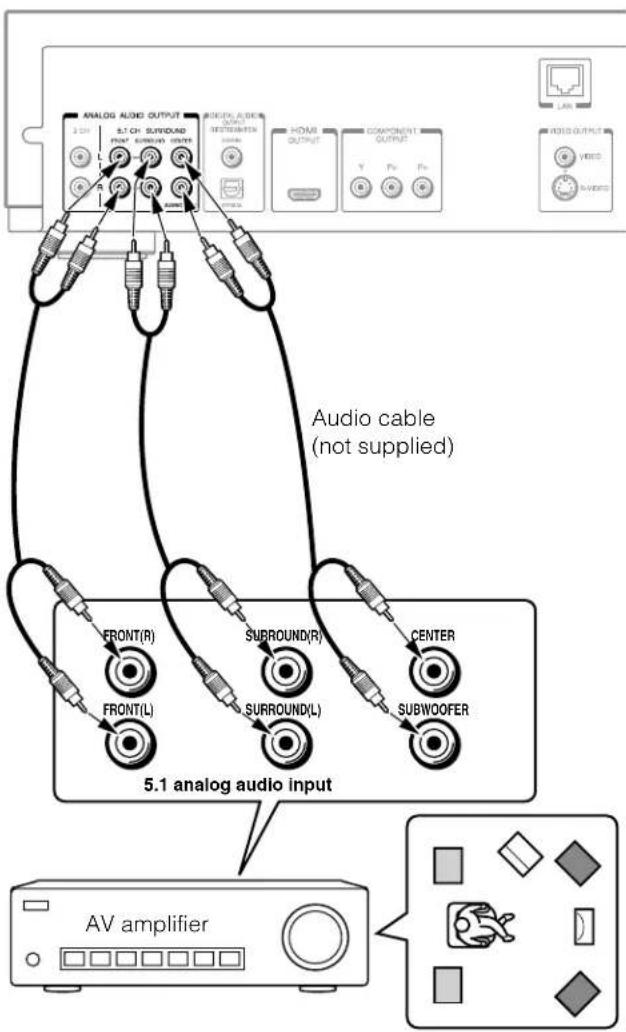
flowchart
graph TD
    A["AV amplifier"] --> B["5.1 analog audio input"]
    B --> C["FRONT(R)"]
    B --> D["FRONT(L)"]
    B --> E["SURROUND(R)"]
    B --> F["SURROUND(L)"]
    B --> G["CENTER"]
    B --> H["SUBWOOFER"]
    C --> I["ANALOG AUDIO OUTPUT"]
    D --> J["ASIGNI ASTROS"]
    E --> K["HOME OUTPUT"]
    F --> L["COMPONENT OUTPUT"]
    G --> M["ARL OUTPUT"]
    H --> N["AVIO OUTPUT"]
    style A fill:#f9f,stroke:#333
    style B fill:#ccf,stroke:#333
    style C fill:#cfc,stroke:#333
    style D fill:#cfc,stroke:#333
    style E fill:#cfc,stroke:#333
    style F fill:#cfc,stroke:#333
    style G fill:#cfc,stroke:#333
    style H fill:#cfc,stroke:#333
    style I fill:#fff,stroke:#333
    style J fill:#fff,stroke:#333
    style K fill:#fff,stroke:#333
    style L fill:#fff,stroke:#333
    style M fill:#fff,stroke:#333
    style N fill:#fff,stroke:#333
Manufactured under license from Dolby Laboratories. Dolby and the double-D symbol are trademarks of Dolby Laboratories.
Manufactured under license from Digital Theater Systems, Inc. U.S. Pat. No's. 5,451,942; 5,956,674; 5,974,380; 5,978,762; 6,226,616; 6,487,535 and other U.S. and world-wide patents issued and pending. "DTS" and "DTS Digital Surround" are registered trademarks of Digital Theater Systems, Inc. Copyright 1996, 2003 Digital Theater Systems, Inc. All Rights Reserved.
Connecting to an audio system (Continued)
Via HDMI output
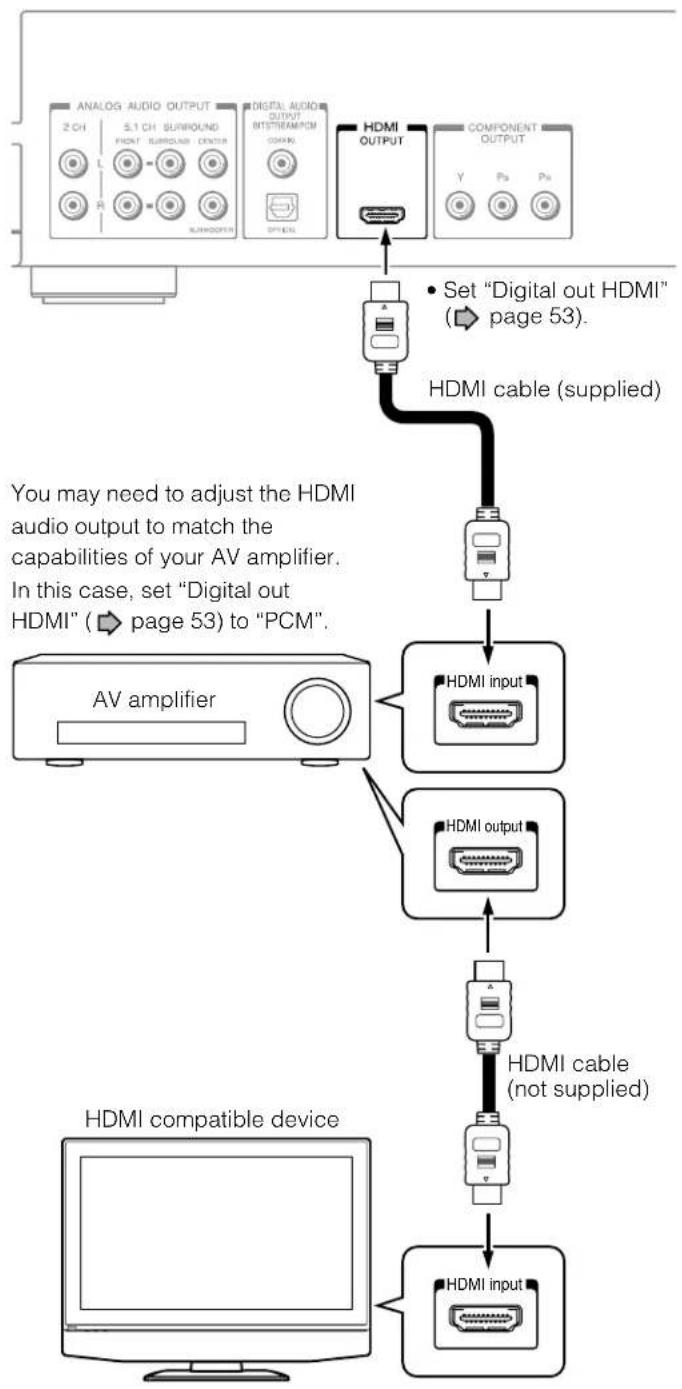
flowchart
graph TD
    A["ANALOG AUDIO OUTPUT 2 CH"] --> B["5.1 CH SURROUND HIGH SURROUND CENTER"]
    B --> C["HDMI OUT"]
    C --> D["COMPONENT OUTPUT Y"]
    D --> E["Digital Audio OUTPUT RT/TRAM/MON OFFENS"]
    E --> F["Set "Digital out HDMI" (→ page 53)."]
    F --> G["HDMI cable (supplied)"]
    G --> H["AV amplifier"]
    H --> I["HDMI input"]
    I --> J["HDMI output"]
    J --> K["HDMI cable (not supplied)"]
    K --> L["HDMI input"]
    L --> M["HDMI compatible device"]
Caution
- When you are connecting (via the HDMI OUTPUT jack) an AV decoder that does not have Dolby Digital or DTS decoding capability, be sure to set "Digital out HDMI" (page 53) to "PCM" or "Downmixed PCM". Otherwise, high volume sound may damage your hearing as well as the speakers.
Note about audio capabilities
- Dolby Digital Plus and DTS-HD (DTS core only) capability limited to 5.1 channels.
- DTS-HD processing of DTS core only. Full DTS-HD is not supported.
• Dolby TrueHD processing for two channels only.
3 Playback (Basic) Play your favorite disc.
Disc compatibility
Powering on/Loading a disc
Playing a disc
Playing at various speeds
Disc compatibility
Pre-recorded discs
| Disc Specifi cation | |
HD DVD video disc  | 12cm (43/4 in.)/8cm (3/4 in.) |
DVD video disc   | 12cm (43/4 in.)/8cm (3/4 in.)Region number 1 or ALL The region number of this HD DVD player is 1.If region numbers, corresponding to a specifi c playable area, are printed on your DVD videodisc and you do not find or the disc isencoded to permit playback only in regions otherthan Region 1, disc playback will not be allowedby the player. |
Audio CD • 12cm (4  ) ) | 3/4 in.)/8cm (3/4 in.) |
Recordable discs you can play on this player
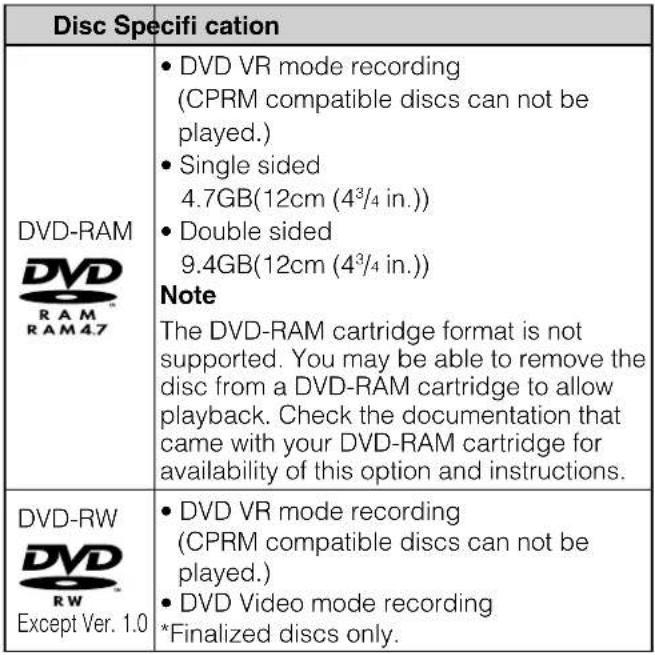 |
| Disc Specifi cation | |
| DVD-R | • DVD Video mode recording• 4.7GB For General*Finalized discs only. |
| CD-RW | • CD-DA (audio CD) format• MP3 fi le (→ page 37)• WMA fi le (→ page 37)*Finalized discs only. |
| CD-R | • CD-DA (audio CD) format• MP3 fi le• WMA fi le*Finalized discs only. |
Notes
- Because HD DVD is a new format, disc compatibility issues with new and existing format discs are possible. Not all discs are compatible. If you experience compatibility problems, please contact Toshiba Customer Service, See ➕ page 8 for more information about disc compatibility.
• This player can play pictures of the NTSC color system only.
• You cannot play non-standardized discs even if they may be labeled as above.
• Discs other than the above cannot be played. Even some of the above discs may not be able to be played depending on their state. - Blu-ray Discs cannot be played on this player.

is a trademark of DVD Format/Logo Licensing Corporation.
Compatibility notes
- Because HD DVD is a new format, certain disc, digital connection and other compatibility issues are possible. If you experience compatibility problems, please contact Toshiba Customer Service.
- Viewing high-definition content and up-converting standard DVD content may require an HDMI-capable input or HDCP-capable DVI input on your display device.
- Some HD DVD discs and DVD discs may restrict the use of some operation commands or features.
- Dolby Digital Plus and DTS-HD (DTS core only) capability limited to 5.1 channels.
- DTS-HD processing of DTS core only. Full DTS-HD is not supported.
- Dolby TrueHD processing for two channels only.
- Some DVD-R/DVD-RW and CD-R/CD-RW discs may be incompatible due to laser pick-up and disc design.
- DVD-R/DVD-RW discs must be recorded using DVD-Video method for video playback.
- CD-R/CD-RW discs must be recorded using CD-DA method for CD audio playback.
- This player may not support some MP3/WMA recordings due to differences in recording formats, disc structure or condition. (Use of CD-RW for MP3 fi les is not recommended.)
- The included remote control may not operate some or all features of your TV or monitor, so it may be necessary to use your original remote control.
- Certain features are subject to delayed availability.
- This product includes memory that is used to store some disc related information, including downloaded on-line content. The disc you are using will control how long this information is retained.
Note
• The firmware in this player can be updated.
See ➔ page 57 for details.
On handling discs
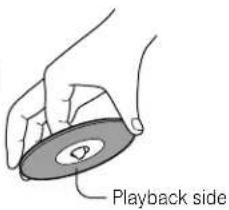
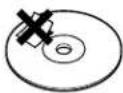
- Do not touch the playback side of the disc.
- Do not stick paper or tape to discs.
Yes
No
On cleaning discs
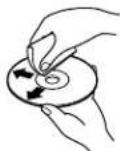
- Fingerprints and dust on the disc cause picture and sound deterioration. Wipe the disc from the center outwards with a soft cloth. Always keep the disc clean.
Yes
No
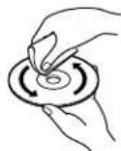
- Do not use any type of solvent such as thinner, benzine, commercially available cleaners or antistatic spray for vinyl LPs. It may damage the disc.
• Refer to the instructions of the disc as well.
On storing discs
- Do not store discs in a place subject to direct sunlight or near heat sources.
- Do not store discs in places subject to moisture and dust such as a bathroom or near a humidifier.
- Store discs vertically in a case. Stacking or placing objects on discs outside of their case may cause warping.
• Refer to the instructions of the disc as well.
Powering on/Loading a disc
Turning the power on

Press (front panel) or (remote control).

ON/STANDBY indicator
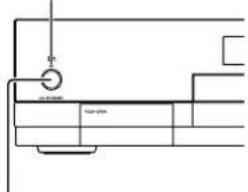
ON/STANDBY button
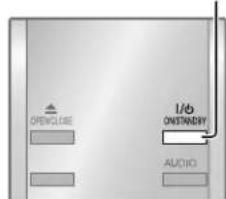
ON/STANDBY button
When the power turns on, ON/STANDBY indicator on the front panel changes color from red (standby mode) to green (operation).
Turning the power off

Press ON/STANDBY.
The power turns off and ON/STANDBY indicator on the front panel turns red (standby mode).
Note
- If the player freezes for about 15 minutes or more and will not respond to any buttons, holding down ON/STANDBY button on the front panel for about 10 seconds can force the player to turn off. However, this is an emergency measure, which may cause damage to the player. Avoid casual use of this measure.
Loading a disc

OPEN/CLOSE
Press (front panel) or (remote control).

The player opens the door and then the disc tray.

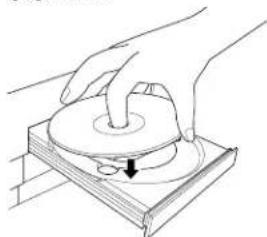
Place a disc in the hollow of the disc tray with the playback side down.
natural_image
Hand pressing a circular component on a wooden base, with a downward arrow indicating motion (no text or symbols)When using a double-sided disc, turn the label of the playing side up.
After placing a disc, press DOOR (see right) or OPEN/CLOSE.
Notes
- Use the button on the front panel or the remote control to open and close the disc tray. Do not push or hold the disc tray while it is moving. Doing so may cause the player to malfunction.
- Do not load a disc which is unplayable, or any object other than a playable disc.
- Do not apply downforce to the disc tray. Doing so may cause the player to malfunction.
- If the disc tray stops while closing, the mechanical protection system of this player will open it. Do not force it to close. Doing so may damage the disc tray.
- If the disc tray will not open, turn the player off, and press OPEN/CLOSE on the front panel. This may turn the player on and open the disc tray. If it still won't open, contact your nearest TOSHIBA dealer.
Playing a disc
| HD DVD | DVD-Video | CD |
| DVD-RAM | DVD-RW | DVD-R |
| CD-RW(CD-DA) | CD-R(CD-DA) |
Preparation
1 Turn on the TV or audio system and select the corresponding input source that the player is connected to.
2 Turn the power on. ( page 28)

Load a disc and close the disc tray.
(→ page 28)
Playback starts.
● If playback does not start
HD DVD DVD-Video
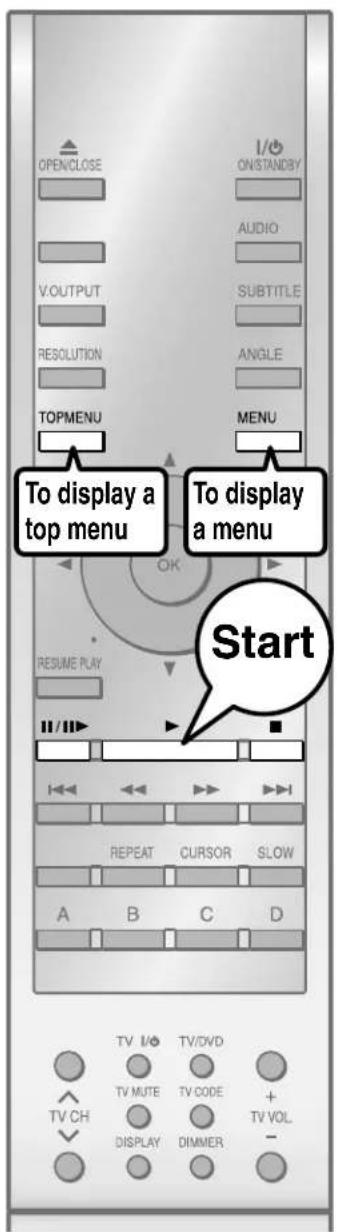
If a loaded disc contains a top menu, a top menu appears when you start playback.
Depending on the disc, you may need to press □ or □ to display a top menu.
("Playing from the top menu", page 30)
DVD-RAM DVD-RW DVD-R
If a loaded disc contains a title menu, you can display it to select a desired title.
("Playing from a recorded title menu", page 30)
CD
CD-RW (CD-DA)
CD-R CD-DA)
Playback starts automatically.
Stopping playback / Pausing playback
During playback, press □.
Playback stops.
Playback pauses.
To resume, press
Notes
- HD DVD video discs or DVD video discs provide high resolution pictures and a lot of information. Because of this, you may notice some fine picture noise on the TV screen, which you have never seen with a regular broadcast TV program. While the amount of noise depends on the TV you use with the player, you should generally reduce the sharpness adjustment on your TV when viewing HD DVD or DVD video discs.
Playing a disc (Continued)
Playing from the top menu
HD DVD
DVD-Video
Some DVD video discs may include a top menu, on which you can view the structure of contents or select a scene.

Press
TOPMENU

A top menu appears.
Press ▲/▼/◀▶ to select the title you want.
If the titles in the top menu are assigned a number, you can directly locate a specific title by pressing its designated number with the number buttons.
Press

Playback starts from chapter 1 of the selected title.
Notes
- The instructions above describe basic procedures which may vary depending on the contents of a disc. If different instructions appear on the TV screen, follow those instructions.
- If you display the top menu during playback and press TOP MENU button again without selecting any title, the player may resume playback from the point where you first pressed TOP MENU button (depending on the actual disc.)
- This method of locating a title is available only on a disc that contains a top menu.
- Instruction notes of discs may refer to the button that displays the top menu as TITLE button.
- Depending on a disc, MENU button may have to be pressed instead of TOP MENU button to display the top menu.
Using A/B/C/D buttons
HD DVD
Use these buttons as indicated by the video display during HD DVD disc playback. Depending on the disc contents, the functions of each button may differ.
Playing from a recorded title menu
DVD-RAM
DVD-RWD
Discs recorded on personal devices such as DVD recorders may contain title menus, on which titles can be easily selected.

Recorded contents are displayed.
Press ▲ ▼ ◀ ▶ to select the title you want.
Playback of the selected title starts.
Notes
- Disc menus vary depending on the disc or the recording device. Some discs may not contain a disc menu.
- Discs recorded in DVD VR mode display the recorded contents not in thumbnails but in a list. Select a title on the list and press OK.
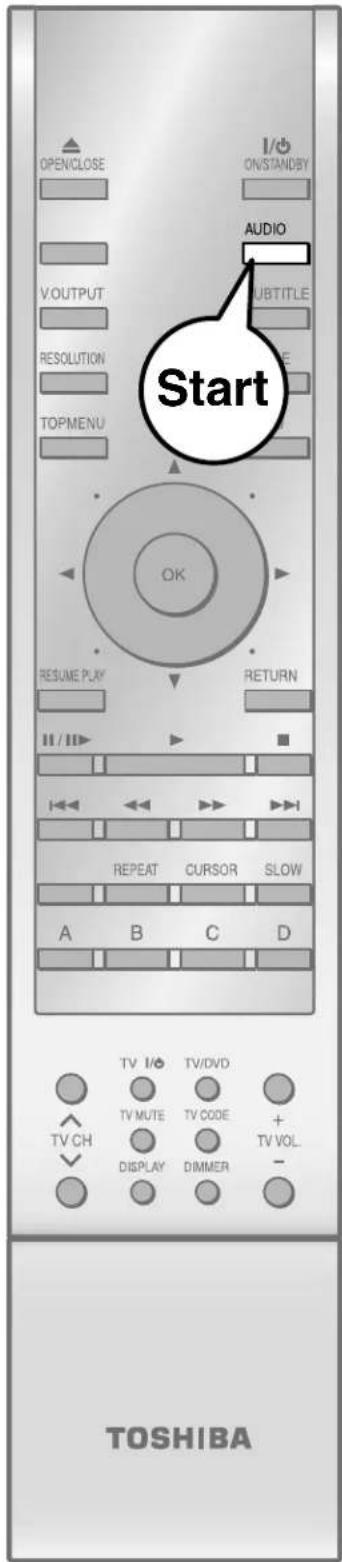
Selecting the sound
HD DVD DVD-Video DVD-RAM DVD-RW DVD-R
If a disc contains several languages, you can select a preferred language from them to hear.
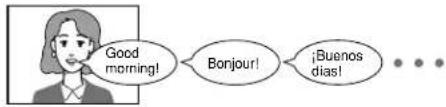
During playback, press
e.g.
AUDIO

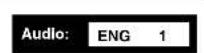
The current audio setting appears. The language code appears instead of the language name. Refer to the list of languages and their abbreviations.
(page 58)
Press AUDIO while the audio setting is displayed on the TV screen.
Notes
- Some discs allow you to change audio selections only via the disc menu. If this is the case, press MENU button and choose the appropriate language from the selections on the disc menu.
- When you turn on the player or replace a disc, the player returns to the initial default setting (⇨ page 55). Depending on a disc, a specific type of audio the disc has is output.
Selecting the sound of a disc recorded in DVD VR mode
DVD-RAM DVD-RW (DVD VR mode)
When playing a disc recorded in DVD VR mode, select the sound as follows.

During playback, press
AUDIO

• The current audio setting appears.
- The language code appears instead of the language name. Refer to the list of languages and their abbreviations. ( page 58)
Press AUDIO while the audio setting is displayed on the TV screen.
Depending on the disc or the type of broadcast, variation of sound differs.
DVD-RAM DVD-RW DVD-R
Stereo sound contents
"Stereo" or "LR" (Left main channel and right sub channel) → "L" (Left main channel) → "R" (Right sub channel) → Back to "Stereo" or "LR".
SAP sound contents
"Main" → "Sub" → "Main and Sub" → Back to "Main".
Playing a disc (Continued)
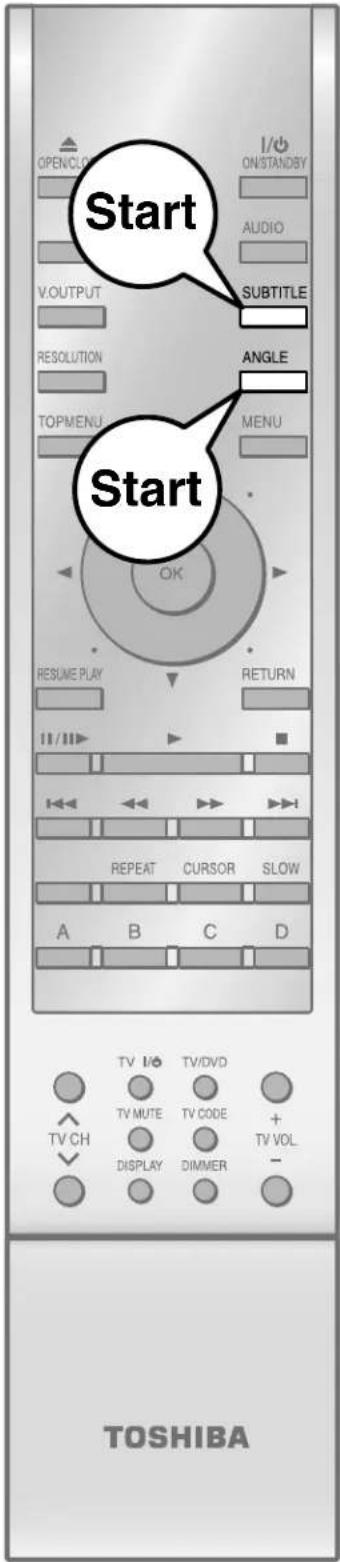
Selecting subtitles
HD DVD
DVD-Video
You can display subtitles on the TV and select a subtitle language from those included on the disc.
Press SUBTITLE during playback.
- The current subtitle setting appears.
e.g
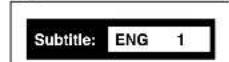
Each time you press ◀▶ view subtitles.
- The language code appears instead of the language name. Refer to the list of languages and their abbreviations. (page 58)
, "On" and "Off" alternate. Select "On" to
Press SUBTITLE while the subtitle setting is displayed on the TV screen.
Subtitle languages which do not appear in the setting are not included in the disc.
Notes
- Some DVD video discs are set to display subtitles automatically.
- Depending on the scene, subtitles may not appear immediately after you set the subtitle function to on.
- Some DVD video discs will allow you to change subtitle languages and turn subtitles on or off only via the disc menu.
- When you turn on the player or replace a disc, the player returns to the initial default setting (page 55). Depending on a disc, a specific type of subtitles the disc has is output.
- Depending on the scene, the subtitle language may not change immediately after selected.
Selecting the camera angle
HD DVD
DVD-Video
If the scene was recorded with multiple angles, you can easily change the camera angle of the scene you are watching.

Press ☐ while playing a scene recorded with multiple angles.
- While playing a scene recorded with multiple angles, the angle icon appears on the TV screen and on the front panel. Press ANGLE button while the angle icon is displayed.
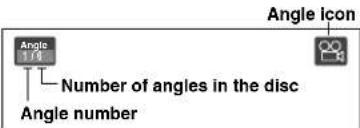
While the angle number is displayed, press ANGLE repeatedly to select the angle number.
Notes
- You can also change the camera angle during still playback. The camera angle changes to the new setting when you resume normal playback.
- If you pause a picture immediately after changing a camera angle, the resumed playback picture may not display the new camera angle.
Playing at various speeds
| HD DVD | DVD-Video | CD |
| DVD-RAM | DVD-RW DVD-R | |
| CD-RW (CD-DA) | CD-R (CD-DA) |
Playing frame by frame
During playback, press

Picture pauses.
If you press ☐ while a picture is paused, you can play the picture frame by frame.
• To resume normal playback, press
Some discs may not permit this operation.
Skipping chapters or tracks
Playback starts from the beginning of the current chapter or track. When you press twice, playback starts from the beginning of the previous chapter or track.

Page 34
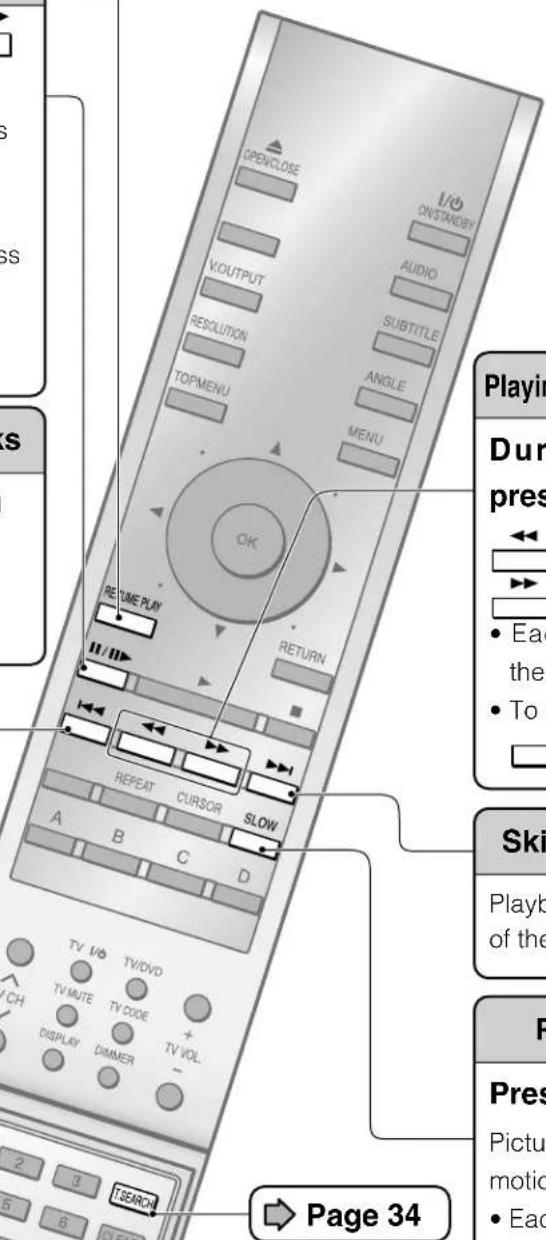
Playing in fast reverse or fast forward
During normal playback, press □/ ▶.
Fast reverse playback
Fast forward playback


• Each time you press the button, the playback speed changes.
• To resume normal playback, press
Skipping chapters or tracks
Playback starts from the beginning of the next chapter or track.
Playing in slow-motion
Press □ during playback.
Picture is played forward in slow-motion.
• Each time you press the button, the slow-motion speed changes.
• To resume normal playback, press
- Not available in CD playback.
Playing at various speeds (Continued)
Locating by entering a section number
| HD DVD | DVD-Video | CD DVD-RAM | DVD-RW |
| DVD-R | CD-RW(CD-DA) | CD-R(CD-DA) |
Normally titles, chapters, and tracks are numbered. By entering these numbers, you can access a desired section.

Press T.S.PREI repeatedly to select the area you want to input.
e.g. When you want to locate a chapter.
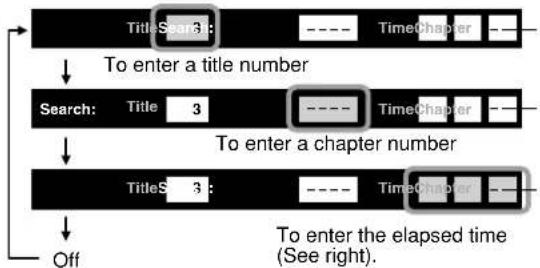
flowchart
graph TD
    A["Title Search"] --> B["To enter a title number"]
    B --> C["Search: Title 3"]
    C --> D["To enter a chapter number"]
    D --> E["Title Search 3"]
    E --> F["To enter the elapsed time (See right)."]
    F --> G["Off"]
- The actual display may vary depending on the disc.
The cursor shifts also by ◀/▶.
Press the number buttons to enter a number of the section.
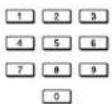
e.g. To enter chapter/track 25:
Press 2, then press 5
- Pressing CLEAR button resets the numbers. To turn off the display, press T.SEARCH several times (depending on the disc).
Press

Playback starts from the selected section.
Note
- Some discs may not permit these operations.
Locating by entering elapsed time
| HD DVD | DVD-Video | CD DVD-RAM | DVD-RW |
| DVD-R | CD-RW(CD-DA) | CD-R(CD-DA) |

Press
T.SEARCH
You may have to press repeatedly, depending on a disc. Press the button until the cursor moves to
"-- -- --" area.
e.g.

Press the number buttons to enter the desired time location on the disc.
1 2 3 4 5 6
e.g. To enter 1 hour, 25 minutes, and 30 seconds
7 8 9
0

- Pressing CLEAR button resets the numbers.
Press

Playback starts from the specified location.
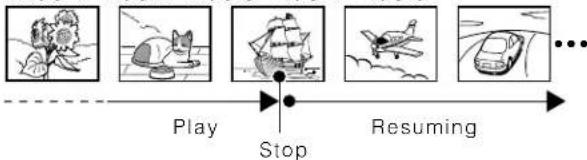
Resuming playback from the location last stopped (Title resume)
Title 1 Title 2 Title 3 Title 4 Title 5
flowchart
graph LR
    A["Play"] --> B["Stop"]
    B --> C["Resuming"]
You can resume playback from the location last stopped.
If you press □ after stopping playback, playback starts from the location last stopped.
If you press □ after stopping playback, the resume feature is canceled.
Notes
- Resume feature cannot function when:
- you select a disc menu language (⇨ page 54) or change the parental lock setting (⇨ page 56).
- you open the disc tray.
- There may be a difference in the location where playback resumes depending on the disc.
- It is possible to change the setting from the setup menu while the player retains a location in memory, however, the new setting can be valid only after the player clears the location memory, i.e., starts resume playback.
- Some discs or scenes may not permit this operation.
4
Playback (Advanced)
Playback variations and other functions.
Playing repeatedly (Repeat playback)
Playing MP3/WMA fi les on a CD
Using EXENSION ports
Using the cursor function
Checking the current status and settings
Playing repeatedly (Repeat playback)
| DVD-Video | CD | |
| DVD-RAM | DVD-RW | DVD-R |
| CD-RW(CD-DA) | CD-R(CD-DA) |
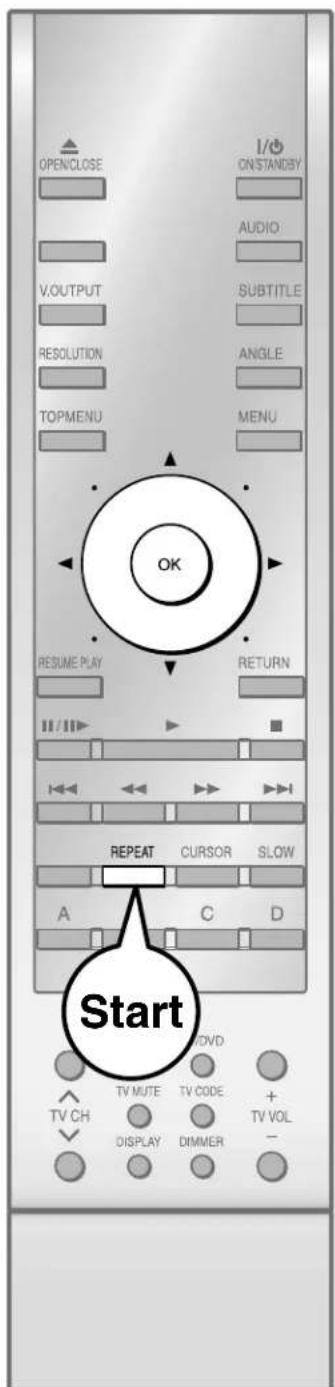
You can repeat a desired section.
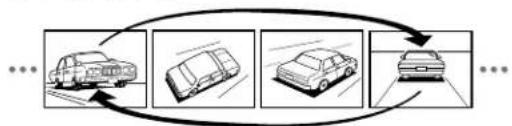
The repeat modes are listed.
Press ▲/▼ to select the repeat mode.
(The selections on the list vary depending on category or status of a disc.)
e.g.
| Repeat |
| All Repeat |
| Title Repeat |
| Chapter Repeat |
| A-B Repeat |
| Cancel |
All Repeat:
Repeats the entire disc.
(Not available in playback of a disc recorded in DVD VR mode.)
Title Repeat:
Repeats the same title.
Chapter Repeat:
Repeats the same chapter.
Track Repeat:
Repeats the same track.
Disc Repeat:
Repeats the entire disc.
A-B Repeat:
Repeats the specified segment.
Perform step 1) and 2) below and skip step 3.

1) While the above display appears, press OK at a start point of a segment where you want to repeat.
The display changes to "B Point".

2) Press OK at an end point of a segment where you want to repeat.
Playback returns to the point A and repeats between A and B.

Press

Repeat playback starts.
Notes
- Some discs may not permit repeat playback operation.
- You can cancel repeat playback also by pressing

Playing MP3/WMA fi les on a CD
CD-RW
(CD-DA)
CD-R
(CD-DA)
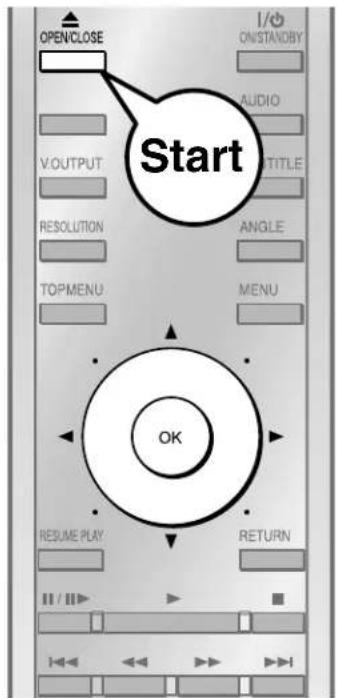
You can play MP3/WMA fi les that have been recorded on a CD-RW or CD-R on this player.

Load a CD that contains MP3/WMA files, and close the disc tray.
A menu appears.
Press ▲/▼ to select a file.
To go to the upper folder, select "Next Level Up" by pressing ▲ then press OK.
Press

Playback starts.
Notes
• Some disc cannot be played.
• WMA tracks that are copy-protected cannot be played.
- The DIGITAL AUDIO OUT BITSTREAM/PCM jack outputs MP3/WMA sounds in the linear PCM format regardless of the current "Digital Out" ( page 53) selection.
• Each file name is displayed up to 8 characters.
playable files
playable discs: CD-RW, CD-R
Sampling frequency: 44.1 kHz
Bitrate: WMA: 48 kbps - 192 kbps
MP3: 32 kbps - 320 kbps
Format: MODE 1
File system: ISO9660 Level 1
File name (MP3): A file name should be in alphabet and numerals only, and must incorporate "MP3" extension. (e.g. "*******.mp3")
Less than 50 bytes
File name (WMA): A file name should be in alphabet and numerals only, and must incorporate "WMA" extension. (e.g. "*******wma")
Less than 50 bytes
Total number of files: Less than 650
WMA codec version: V2, V7, V8, V9 (Stereo sound only)
This player requires discs/recordings to meet certain technical standards in order to achieve optimal playback quality. There are many different types of recordable disc formats (including CD-R containing MP3/WMA files). Not all recordable discs will produce optimal playback quality. The technical criteria set forth in this owner's manual are meant only as a guide. Use of CD-RW for MP3 files is not recommended.
You must obtain any required permission from copyright owners to download or use copyrighted content. Toshiba cannot and does not grant such permission.
Microsoft, Windows Media, and the Windows Logo are trademarks or registered trademarks of Microsoft Corporation in both the United States and other countries.

Using EXTENSION ports
HD DVD
Depending on the features of the disc you are using, you may be able to connect USB game controllers to the Extension ports to use some interactive features. Additional features may be supported in the future.
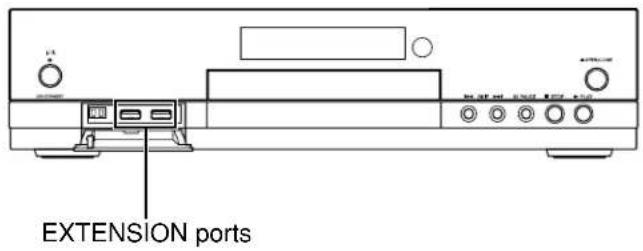
Using the cursor function
HD DVD
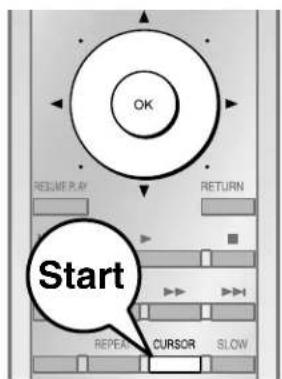
Available commercial HD DVD discs include game software and drawing software. You can use the cursor function for some software.
Press ☐ while a disc with support for cursor use is playing.
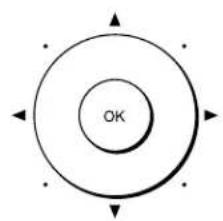
Use the eight direction buttons to move the cursor.
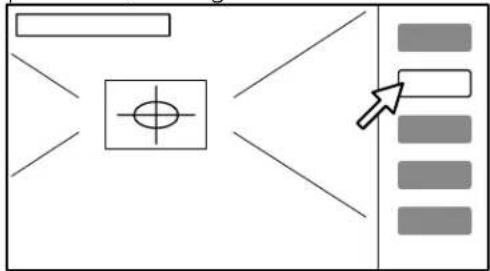
Example: Game/drawing software
flowchart
graph TD
    A["Start"] --> B{Decision Point}
    B -->|Yes| C["Process Step 1"]
    B -->|No| D["Process Step 2"]
    C --> E["Output"]
    D --> E
    E --> F["Final Output"]
Move the cursor to select the game target or selection item. For details on actual operations, also refer to the operations guide for the disc.
Checking the current status and settings
| HD DVD | DVD-Video | CD |
| DVD-RAM | DVD-RW | DVD-R |
| CD-RW(CD-DA) | CD-R(CD-DA) |
You can confirm operational status and setting details.
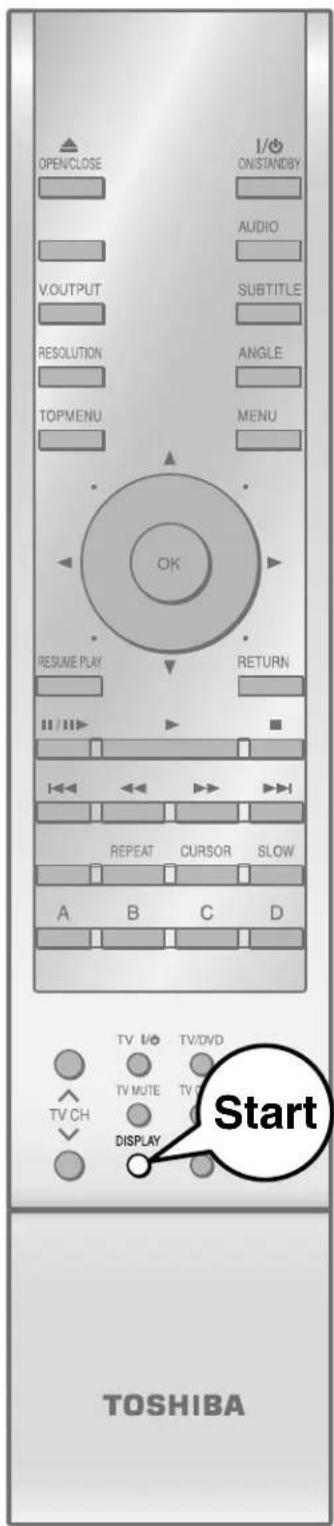

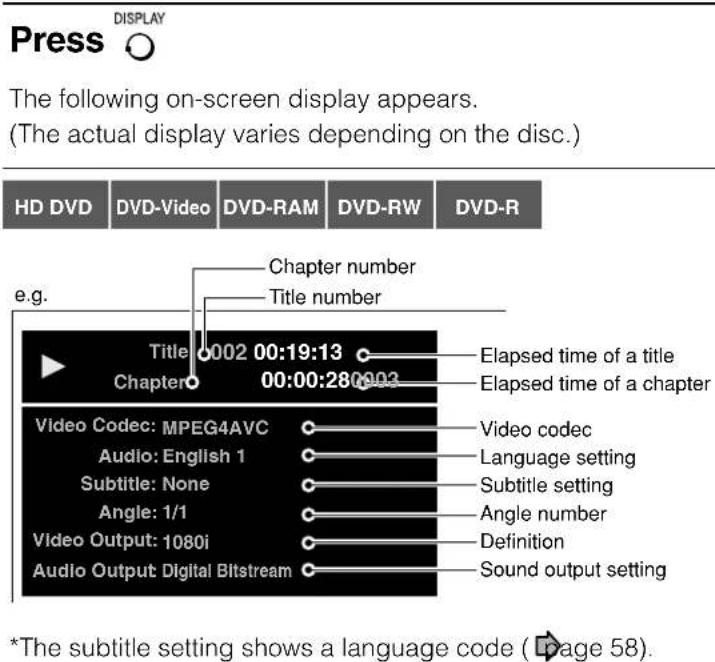
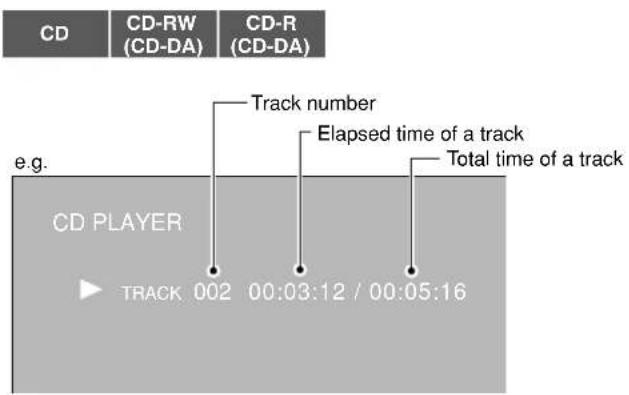
5 Internet connection Connect to a network with an always-on broadband connection and use special content.
Internet connection feature (Outline)
Internet connection feature (Preparation)
Internet connection feature (Operation)
Internet connection feature (Outline)
If you connect the player to the Internet via an always-on broadband connection, some HD DVD discs enable you to access special HD DVD sites, etc. For example, if an HD DVD site includes content such as movie trailers, you can watch the content on the player via the Internet. On such sites, downloading service of the control program (fi rmware) updates of the player is also available.
You do not need to connect to a PC to use this function.
You may also use the internet connection feature to update the player's firmware. See ➔ page 57.
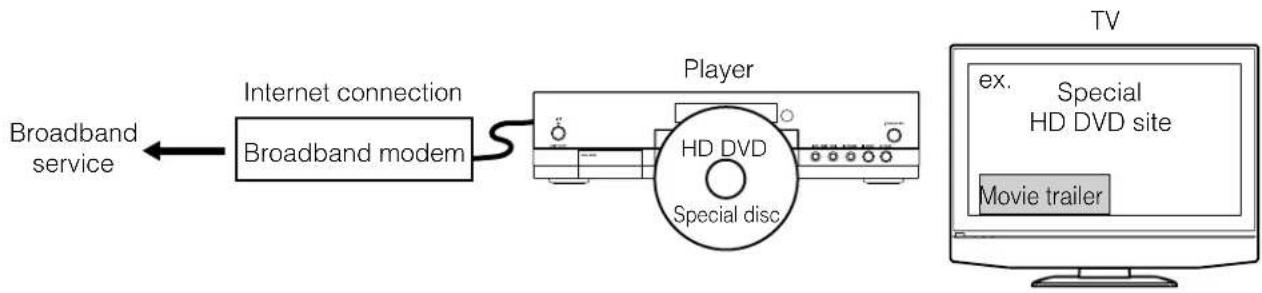
flowchart
graph LR
    A["Broadband service"] --> B["Internet connection"]
    B --> C["Broadband modem"]
    C --> D["Player"]
    D --> E["Special disc"]
    E --> F["TV"]
    F --> G["Movie trailer"]
    H["EX. Special HD DVD site"] --> F
Before using
- Before using this feature, please read and understand the important information in "Notes".
• This feature requires always-on broadband internet connection. - An HD DVD disc compatible with this feature (commercially available) is required. Not all HD DVD discs are compatible.
Connection requirement
Always-on internet broadband internet connection.
Note
- The above requirement may change without advance notice. In addition, all operations are not guaranteed.
Notes
- Toshiba is not responsible for any malfunction of the player and/or the internet connection feature due to communication errors/malfunctions associated with your broadband internet connection, or other connected equipment.
- Toshiba is not responsible for any trouble in your internet connection.
- If you use a wireless ethernet network, you will need to use a wireless LAN ethernet adapter to connect the player to the network.
- The features of HD DVD discs made available through the Internet Connection feature are not created or provided by Toshiba, and Toshiba is not responsible for their functionality or continued availability. Some disc related material available by the Internet Connection may not be compatible with this player. If you have questions about such content, please contact the producer of the disc.
-
Some internet contents may require a higher bandwidth connection.
-
Even if the player is properly connected and configured, some internet contents may not operate properly because of internet congestion, the quality or bandwidth of your internet service, problems at the provider of the content or compatibility issues.
- The communication features of this player comply with the Institute of Electrical and Electronic Engineers (IEEE) 802.3.
- Some internet connection operations may not be possible due to certain restrictions set by the Internet service provider (ISP) supplying your broadband Internet connection.
- Any fees charged by an ISP including, without limitation, connection charges are your responsibility.
- A 10 Base-T or 100 Base-TX LAN port is required for connection to this player. If your internet service does not allow for such a connection, you will not be able to connect the player.
- ADSL modem is required to use DSL service and a cable modem is required to use cable modem service. Depending on the access method of and subscriber agreement with your ISP, you may not be able to use the internet connection feature contained in this player or you may be limited to the number of devices you can connect at the same time. (If your ISP limits subscription to one device, this player may not be allowed to connect when a PC is already connected.)
- The use of a “Router” may not be allowed or its usage may be limited depending on the policies and restrictions of your ISP. For details, contact your ISP directly.
Internet connection feature (Preparation)
HD DVD
Connect the player to the Internet via an always-on broadband connection. In addition to accessing special HD DVD sites, this function is used when updates are available for the control program (fi rmware) of the player.
Connection
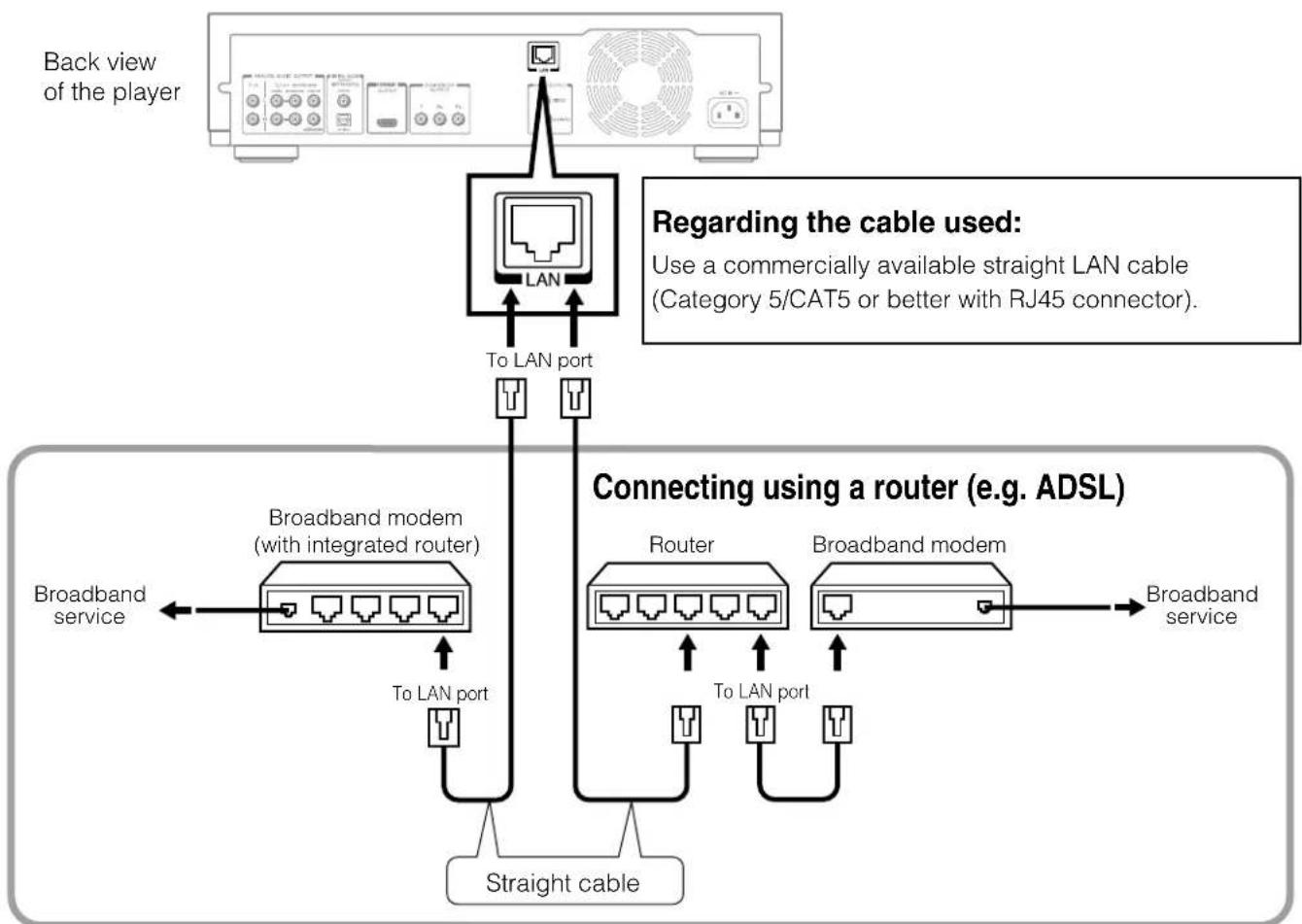
flowchart
graph TD
    A["Back view of the player"] --> B["LAN"]
    B --> C["To LAN port"]
    C --> D["Broadband modem (with integrated router)"]
    D --> E["Straight cable"]
    E --> F["Broadband service"]
    B --> G["Routing"]
    G --> H["Broadband modem"]
    H --> I["Broadband service"]
    style A fill:#f9f,stroke:#333
    style B fill:#ccf,stroke:#333
    style C fill:#cfc,stroke:#333
    style D fill:#fcc,stroke:#333
    style E fill:#cff,stroke:#333
    style F fill:#ffc,stroke:#333
    style G fill:#cfc,stroke:#333
    style H fill:#cfc,stroke:#333
    style I fill:#cfc,stroke:#333
Caution
- When plugging or unplugging the LAN cable, hold the plug portion of the cable. When unplugging, do not pull on the LAN cable but unplug while pressing down on the lock.
- Do not connect the modular phone cable to the LAN port.
- Since there are various connection confi gurations, please follow the specifi cations of your telecommunication carrier or internet service provider.
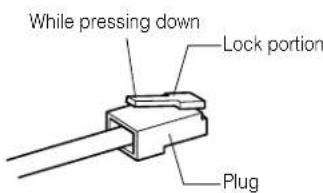
Note
- Depending on the internet service provider (ISP), the number of devices that can receive internet service may be limited by the applicable terms of service. For details, contact your ISP.
Internet connection setting procedure (Outline)
1st DHCP Setting
- Set "DHCP" to "On".
The network information is automatically set. - Set "DNS" to "On".
The DNS server is obtained automatically from the DHCP server.
If a connection cannot be established even if "DHCP" is set to "On".
- Set "DHCP" to "Off".
Set "IP Address", "Subnet Mask", and "Gateway" manually. - Set "DNS" to "Off".
Set the DNS server address manually.
2nd Proxy Setting
If the provider you are using requires a proxy setting to be configured, set the corresponding proxy server address.
3rd NTP Server Setting
The player automatically accesses an internet server to adjust its clock via the network time protocol.
1st DHCP Setting
1 Press SETUP button.
"SETUP MENU" appears.
2 Press ▲ ▼ buttons to select "Ethernet", then press OK button.
3 Set "DHCP" to "On", then press OK button.
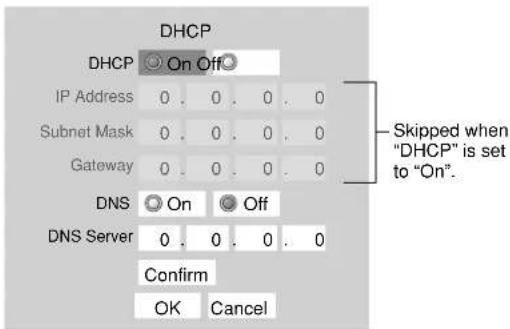
4 Set "DNS" to "On", then press OK button.
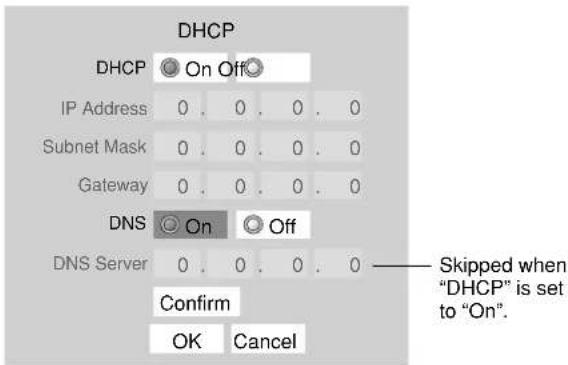
5 Select "Confir rm", then press OK button.
Confirming starts.
If the setup is successful, a message appears.
Press OK button.
If the setup is not successful:
a) Set "DHCP" to "Off" then press OK button.
b) Input the addresses into "IP Address", "Subnet Mask" and "Gateway" using the number buttons.
| IP Address Th | s sets a different address within the same subnet of the PC on your network.e.g.: If the IP address of the PC is 192.168.1.10, set 192.168.1.15 (or some other unused address). |
| Subnet Mask | This sets the subnet mask of the network environment that will be connected.e.g.: 225.255.255.0 |
| Gateway This | sets the gateway used by the player (e.g.: 192.168.11). |
c) Set "DNS" to "Off" then press OK button.
d) Input the address into "DNS Server".
This sets the DNS server to be used by the player.
e.g.: 192.168.1.1
Internet connection feature (Preparation) (Continued)
2nd
Proxy Setting
Enter the proxy server address when your provider requires proxy setting.
1 On "Ethernet" menu, press ▲/▼ buttons to select "Proxy setting" then press OK button.
2 Set "Proxy" to "On" then press OK button.
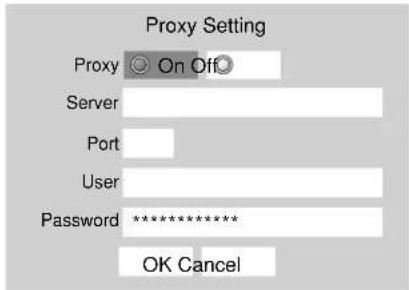
3 Press ▲/▼/◄/► buttons to input.
Server: Enter the specified data from the provider.
Port: Enter the specified data from the provider.
User: Enter the specified data from the provider.
Password: Enter the specified data from the provider.
4 Select "OK" then press OK button.
3rd
NTP Server Setting (Clock adjustment setting)
1 On "Ethernet" menu, press ▲/▼ buttons to select "NTP Server" then press OK button.
2 Select "On" or "Off" by pressing ▲/▼ buttons.
| On The player | automatically accesses an internet server to adjust time protocol. |
| Off The player | does not access an internet server to adjust its clock. |
3 Select "OK" then press OK button.
■User information setting
Although not directly related to the Internet connection, some HD DVD discs may require the following settings to be configured.
1 On "Ethernet" menu, press ▲/▼ buttons to select "User Information" then press OK button.
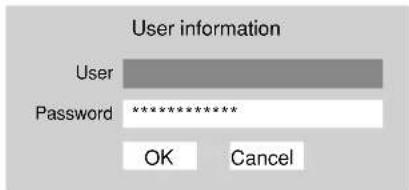
2 Select "User" then press OK button.
3 Input characters by pressing ▲/▼ buttons. To shift the position, press ◀/▶ buttons.
4 Select "Password" then press OK button. Input your password in the same manner as step 3.
5 Select "OK" then press OK button. - Use a password that others cannot easily guess.
■Mac Address
Displays the MAC address of the player.
It cannot be changed.
1 On "Ethernet" menu, press ▲/▼ buttons to select "MAC Address" then press OK button. The MAC address appears.
Notes
- Please contact the router manufacturer when the router DHCP feature is not operating properly (in such a case, an error will occur since the default gateway and the DNS server IP address cannot be obtained).
• The firmware in this player is updateable. See page 57 for information.
Internet connection feature (Operation)
HD DVD
Some HD DVD discs enable you to access special HD DVD sites. If an HD DVD site includes content such as movie trailers, you can watch the content on the player via the Internet if your internet connection provides sufficient bandwidth.
Preparation
Connect and confi gure the player to access the Internet beforehand (pages 44 to 46).
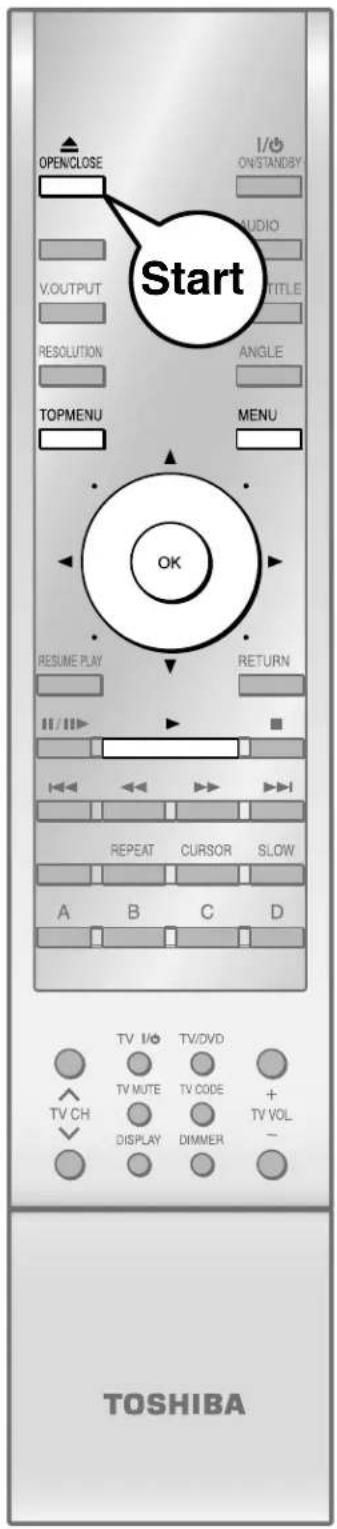

Insert the HD DVD disc and close the tray.
The disc begins to play.
If the disc does not begin to play, press .
Select an item from the menu.
- If the menu does not appear, press TOPMENU OR MENU
- To select an item, use the direction buttons to select the item and press .OK
- Use the cursor function for some discs (page 38).
For example, you can watch the latest trailers on the player via the Internet.
For details on actual operations, also refer to the operations guide for the disc.
6 Others This chapter includes de on troubleshooting prob
This chapter includes details on setting items and information on troubleshooting problems.
Customizing the function settings
Language code list
Output sound conversion table
Before calling service personnel
Specification
Limited United States Warranty
CANADIAN WARRANTY INFORMATION
INFORMATION ON CUSTOMER SUPPORT
Customizing the function settings
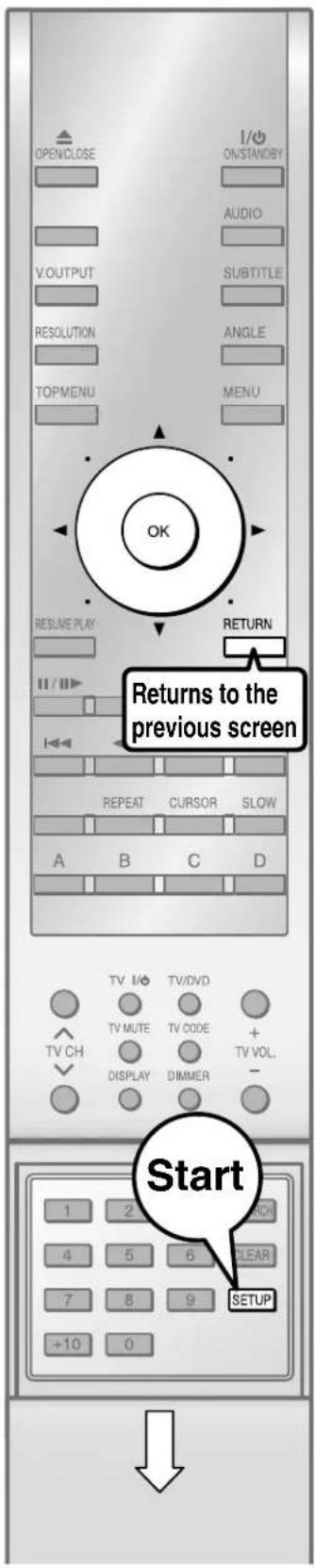
You can change the default settings to customize performance to your preference.

During stop, press SETUP
"SETUP MENU" appears.
Press ▲/▼ to select the group that contains a desired item, then press OK.
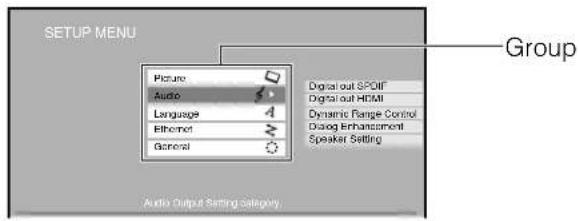
Press ▲/▼ to select the setting item, then press OK.
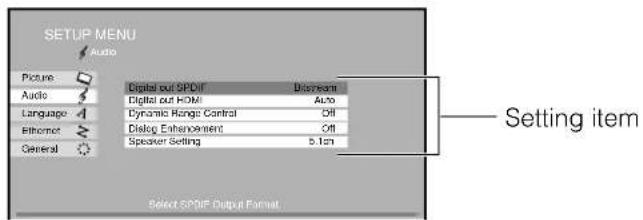
Refer to the explanations on pages beginning from 52, to change the selection by ▲/▼ or other buttons, then press OK.
Repeat step 3 and 4 to set other items if necessary.
Press SETUP.
"SETUP MENU" disappears and the setting is completed.
| SettingGroup | Details PageDisc | ||||||
| Picture | TV Shape To select a | HD DVD | DVD Video | CD | DVD-RAM | e aspect ratio of your TV. | 52 |
| DVD-RW | DVD-R | ||||||
| Enhanced Black Level | HD DVD | DVD Video | DVD-RAM | DVD-RW | To select the black level of playback pictures. | 52 | |
| DVD-R | |||||||
| Picture Mode | HD DVD | DVD Video | DVD-RAM | DVD-RW | To select the system of output signal corresponding to playback source. (Only when connected to a PROGRESSIVE TV.) | 52 | |
| DVD-R | |||||||
| Audio | Digital out SPDIF | HD DVD | DVD Video | CD | DVD-RAM | To select the output sound format when connecting the DIGITAL AUDIO OUTPUT jack. | 53 |
| DVD-RW | DVD-R | CD-RW(CD-DA) | CD-R(CD-DA) | ||||
| Digital out HDMI | HD DVD | DVD Video | CD | DVD-RAM | the HDMI OUTPUT jack. | 53To | |
| DVD-RW | DVD-R | CD-RW(CD-DA) | CD-R(CD-DA) | ||||
| Dynamic Range Control | HD DVD | DVD Video | DVD-RAM | DVD-RW | To turn on or off a function that makes faint sounds easier to hear even if you lower the volume during late-hour playback. | 53 | |
| DVD-R | |||||||
| Dialog Enhancement | HD DVD | DVD Video | CD | DVD-RAM | To turn on or off a function that increases dialog volume of a DVD video disc playback. | 53 | |
| DVD-RW | DVD-R | CD-RW(CD-DA) | CD-R(CD-DA) | ||||
| Speaker Setting | HD DVD | DVD Video | CD | DVD-RAM | To select various parameters for the analog 5.1ch output. | 54 | |
| DVD-RW | DVD-R | CD-RW(CD-DA) | CD-R(CD-DA) | ||||
| Language | Disc Menu Language | HD DVD | DVD Video | To select a preferred language for disc menus. | 54 | ||
| Subtitle Language | HD DVD | DVD Video | To select a preferred language for subtitles. | 54 | |||
| Audio Language | HD DVD | DVD Video | To select a preferred language for the sound track. | 55 | |||
| On Screen Language | HD DVD | DVD Video | CD | DVD-RAM | To select a preferred language for on-screen displays. | 55 | |
| DVD-RW | DVD-R | CD-RW(CD-DA) | CD-R(CD-DA) | ||||
| Ethernet | DHCP | HD DVD | To select the method to acquire network information. | 46 | |||
| Proxy Setting | HD DVD | To enter the proxy server address when your provider requires proxy setting. | 46 | ||||
| Mac Address | HD DVD | To display the MAC address of the player. | 46 | ||||
| User Information | HD DVD | To set a user name and a password to prevent improper access. | 46 | ||||
| NTP Server | HD DVD | To turn on or off a function that the player automatically accesses to the server to adjust its clock. | 46 | ||||
| General | Parental Lock | HD DVD | DVD Video | To turn the parental lock function on or off. | 56 | ||
| Clock Set | HD DVD | DVD Video | CD | DVD-RAM | To set the clock of the player. | 57 | |
| DVD-RW | DVD-R | CD-RW(CD-DA) | CD-R(CD-DA) | ||||
| OSD On/Off | HD DVD | DVD Video | CD | DVD-RAM | To activate or deactivate the operational status display on the TV screen. | 57 | |
| DVD-RW | DVD-R | CD-RW(CD-DA) | CD-R(CD-DA) | ||||
| Remote Controller Sound | HD DVD | DVD Video | CD | DVD-RAM | To turn on or off the confirmation beeper announcing when each remote command is received. | 57 | |
| DVD-RW | DVD-R | CD-RW(CD-DA) | CD-R(CD-DA) | ||||
| Screen Saver | HD DVD | DVD Video | CD | DVD-RAM | To turn on or off the screen saver (screen protection to prevent image burn). | 57 | |
| DVD-RW | DVD-R | CD-RW(CD-DA) | CD-R(CD-DA) | ||||
| Skin | HD DVD | DVD Video | CD | DVD-RAM | To select the pattern of the on screen controls. | 57 | |
| DVD-RW | DVD-R | CD-RW(CD-DA) | CD-R(CD-DA) | ||||
| Maintenance | HD DVD | DVD Video | CD | DVD-RAM | To select the player conditioning options, such as initializing of settings or firmware download. | 57 | |
| DVD-RW | DVD-R | CD-RW(CD-DA) | CD-R(CD-DA) | ||||
Customizing the function settings (Continued)
Picture
TV Shape
16:9
Select when a 16:9 wide TV is connected.
4:3
Select when a standard 4:3 TV is connected.
Displays pictures cropped to fill your TV screen. Either or both of the picture's sides are cut off.
4:3Letter Box
Select when a standard 4:3 TV is connected.
Displays theatrical images with masking bars above and below the picture.
Notes
- When an HD DVD disc or a DVD video disc has a particular available picture shape, the contents may not be compatible with other picture shapes.
- DVD video discs containing 4:3 picture only always display 4:3 pictures regardless of this setting.
- If "16:9" is selected while connecting a 4:3 TV, playback pictures may be distorted horizontally or shrink vertically. Make this setting according to your TV shape.
- Actual picture shape may depend on signal types of broadcasts or input sources, or settings on the connected TV. Refer to the owner's manual of your TV.
Enhanced Black Level
You can adjust the black level of the output signal.
On
To display deeper, richer black than in "Off" setting. (0 IRE)
Off
Normal black level. (7.5 IRE)
Picture Mode
There are two types of source content in pictures recorded in DVD video discs: fi lm content (pictures recorded from fi lms at 24 frames per second) and video content (video signals recorded at 30 frames per second). Make this selection according to the type of content being viewed.
Film
The player converts fi Im content pictures in the progressive output format appropriately. Suitable for playback of fi Im content pictures.
Video
The player filters video signal, and converts it in the progressive output format appropriately. Suitable for playback of video content pictures.
Auto
Select this position normally. The player automatically detects source content, fi lm or video, of playback source, and converts that signal in the progressive output format in an appropriate method.
Note
- Depending on a disc, "Auto" setting may not be able to detect source content. If pictures may be doubled, roughened, or may show other abnormality, "Film" or "Video" selection is recommended for possible improvement.
Audio
Digital out SPDIF
Selects the output sound format when an audio device such as an amplifier to the DIGITAL AUDIO OUTPUT BITSTREAM/PCM jack on this player.
For details about output sound selection, see ➤ page 59.
Bitstream
Select this when an amplifier equipped with built-in Dolby Digital, DTS or MPEG decoder is connected to this player. When you play a disc recorded in Dolby Digital or DTS format, digital audio signal (bitstream audio) is output.
PCM
Select this when a 2 channel digital stereo amplifier is connected to this player.
When you play an HD DVD or DVD video disc recorded in Dolby Digital, Dolby Digital Plus, Dolby TrueHD, DTS or DTS-HD format, sound is converted into PCM (2 channel) format to output.
Digital out HDMI
Select the output sound format when a device equipped with an HDMI terminal is connected to the HDMI OUTPUT jack on this player.
For details about output sound selection, see ➔ page 59.
Auto
Select this when an HDMI device equipped with built-in Dolby Digital, DTS, MPEG or linear PCM decoder is connected to this player.
When you play a disc recorded in Dolby Digital or DTS format, digital audio signal (bitstream audio) is output.
If a connected HDMI device does not support Dolby Digital, DTS or MPEG, sound is converted into linear PCM to output.
Bitstream
Select this when an HDMI device equipped with built-in Dolby Digital, DTS or MPEG decoder is connected to this player.
When you play a disc recorded in Dolby Digital, DTS or MPEG format, digital audio signal (bitstream audio) is output.
PCM
Select this when an HDMI device which has multi channel output is connected to this player.
When you play an HD DVD or DVD video disc recorded in multi channel in Dolby Digital, Dolby Digital Plus, Dolby TrueHD, DTS or DTS-HD format, the sound is decoded and output in multi channel in linear PCM format.
Downmixed PCM
Select this when a 2 channel digital stereo amplifier is connected to this player.
When you play a DVD video disc recorded in Dolby Digital, DTS, MPEG1 or MPEG2 format, sound is converted into PCM (2 channel) format to output.
Dynamic Range Control
To turn on or off a function that makes faint sounds easier to hear even if you lower the volume during late-hour playback.
On
This function is activated.
Off
This function is disabled.
Notes
- This function is effective only in playback of Dolby Digital recorded HD DVD or DVD video discs.
• The effect level of this function vary depending on the disc.
Dialog Enhancement
To turn on or off a function that increases dialog volume of a DVD video disc playback.
On
This function is activated.
Off
This function is disabled.
Notes
• This function is effective only in playback of Dolby Digital recorded HD DVD or DVD video discs.
- This function is effective only when "Speaker Setting" is set to "2ch".
• The effect level of this function vary depending on the disc.
Customizing the function settings (Continued)
Audio
Speaker Setting
To select various parameters for the analog 5.1 channel output.
5.1ch
When a 5.1 channel surround system is connected to this player.
Go to the next step (see below) for detailed selections.
2ch
When a 2 channel stereo system is connected to this player.
When you selected "5.1ch":
Set the speaker sizes, distance to each speaker and the crossover frequency.
1 Select a speaker by pressing ▲/▼/◄/► buttons, and press OK button.
2 Select the size by pressing ▲▼ buttons, and press OK button.
Front Left / Front Right
Small: Select if the speaker cannot output low frequency.
Large: Select if the speaker can output low frequency.
Center / L Surround / R Surround
Small: Select if the speaker cannot output low frequency.
Large: Select if the speaker can output low frequency.
None: When the speaker is not connected.
Subwoofer
Use: When a subwoofer is connected.
Don't Use: When a subwoofer is not connected.
Crossover Setting
Low frequency under which you set here will be of a subwoofer. Select one from 80 Hz/100 Hz/120 Hz.
Ft
Select a distance to each speaker from the listening position.
3 Select "Next" by pressing ▲/▼/ ◀/▶ buttons, and press OK button.
The next screen appears.
4 Select "Automatic Test Tone" by pressing ▲/ ▼/ ▶, buttons, and press OK button.
A test signal is sent to each speaker. Adjust each of the volumes by pressing ▲▼, selecting speakers by ◀▶, so that each speaker can sound at the same volume. For further adjustment, check the channel balance on the amplifier.
5 When complete, select "OK" and press OK button.
Language
Disc Menu Language
To select a preferred language for disc menus.
English
To display disc menus in English.
French
To display disc menus in French.
Japanese
To display disc menus in Japanese.
Others
To make a further language choice.
After pressing OK button, follow steps 1) - 4) below.
1) Obtain the language code of the preferred language from the Language code list (→ page 58).
2) Select the first character by pressing ▲/ ▼ buttons.
3) Press ◀/▶ buttons to shift. Select the second character by pressing ▲/▼ buttons.
4) Select "OK" and press OK button.
Note
- Some discs may be played in a different language from that you selected. A prior language may be programmed by the disc.
Subtitle Language
To select a preferred language for subtitles.
None
To disable subtitles.
English
To display subtitles in English.
French
To display subtitles in French.
Japanese
To display subtitles in Japanese.
Others
To make a further language choice.
After pressing OK button, follow steps 1) - 4) below.
1) Obtain the language code of the preferred language from the Language code list (→ page 58).
2) Select the first character by pressing ▲/▼ buttons.
3) Press ◀/▶ buttons to shift. Select the second character by pressing ▲/▼ buttons.
4) Select "OK" and press OK button.
Notes
- Some discs may be set to display subtitles in a different language from that you selected. A prior subtitle language may be programmed by the disc.
- Some discs allow you to change subtitle selections only via the disc menu. In this case, press MENU button and choose the appropriate subtitle language from the selection on the disc menu.
Audio Language
To select a preferred language for the sound track.
English
To display sound tracks recorded in English.
French
To display sound tracks recorded in French.
Japanese
To display sound tracks recorded in Japanese.
Others
To make a further language choice.
After pressing OK button, follow steps 1) - 4) below.
1) Obtain the language code of the preferred language from the Language code list (→ page 58).
2) Select the first character by pressing ▲ /▼ buttons.
3) Press ◀/▶ buttons to shift. Select the second character by pressing ▲▼ buttons.
4) Select "OK" and press OK button.
Note
- Some discs may be played in a different language from that you selected. A prior language may be programmed by the disc.
On Screen Language
To select a preferred language for on-screen displays.
English
To view on-screen display in English.
French
To view on-screen display in French.
Japanese
To view on-screen display in Japanese.
Ethernet
See the "Internet connection" chapter ( page 42).
Customizing the function settings (Continued)
General
Parental Lock
HD DVD and DVD video discs equipped with the Parental Lock function have a predetermined limitation level. The limitation level or limitation method may differ depending on the disc. For example the whole contents of a disc may not be played back, or an extreme violent scene may be cut or replaced automatically by another scene.
Important
Depending on discs, it may not be evident whether the disc is compatible with Parental Lock function. Make sure that Parental Lock function you set is activated correctly.
1 Enter a 4-digit password by using the number buttons, then press OK button.
When you use the player for the first time, set a new password of 4-digit. If you make a mistake entering your password, press CLEAR button before pressing OK button, and re-enter the correct password.
2 Set the details.
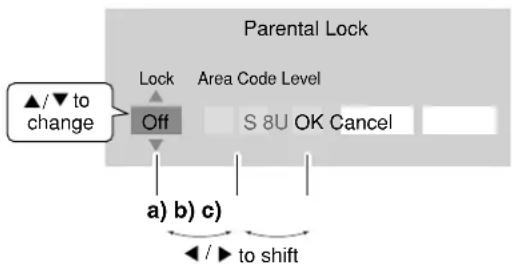
flowchart
graph TD
    A["▲/▼ to change"] --> B["Off"]
    B --> C["Lock"]
    C --> D["Area Code Level"]
    D --> E["S 8U OK Cancel"]
    F["a) b) c) --> G[/► to shift"]
a) Select "On" or "Off" by pressing ▲▼ buttons.
On
Select this to activate Parental Lock function or to change the setting.
Off
Deactivate the Parental Lock function. Skip step 3.
b) Press ▲▼ buttons to enter the code of a country/area whose standards were used to rate a disc, referring to the list below.
| Country/Area | Code |
| AUSTRALIA | AU |
| BELGIUM | BE |
| CANADA | CA |
| CHINA | CN |
| HINA HONG KONG | HK |
| DENMARK | DK |
| FINLAND | FI |
| FRANCE | FR |
| GERMANY | DE |
| INDONESIA | ID |
| ITALY | IT |
| JAPAN | JP |
| MALAYSIA | MY |
| NETHERLANDS | NL |
| NORWAY | NO |
| PHILIPPINES | PH |
| RUSSIAN FEDERATION | RU |
| SINGAPORE | SG |
| SPAIN | ES |
| SWEDEN | SE |
| SWITZERLAND | CH |
| TAIWAN | TW |
| THAILAND | TH |
| UNITED KINGDOM | GB |
| UNITED STATES | US |
c) Select the desired limitation level by pressing ▶▶ buttons.
Unless the Parental Lock function is set to "Off", a disc that has a higher limitation level than your selected limitation level cannot be played back. For example, if you select level 7, discs exceeding level 8 are locked and cannot be played back.
When "US" is selected, its limitation level corresponds to the following settings.
Level 7 : NC-17 Level 3 : PG
Level 6 : R Level 1 : G
Level 4 : PG13
4 Select "OK" then press OK button.
■ To change the limitation level of Parental Lock function
Follow step 1 - 3 above.
■ To change the password
1 At step 1, press STOP button 4 times then press OK button.
The password is cleared.
2 Enter a new 4-digit password by using the number buttons.
3 Press OK button.
Clock Set
To set the clock of the player.
1 Press ▲/▼/◄/► buttons to select the input area.
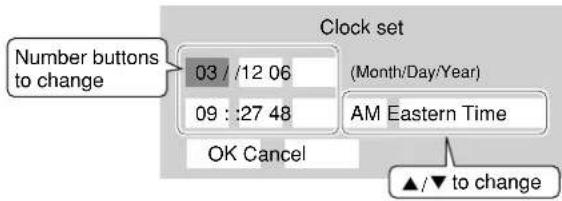
2 Press the number buttons to change the digit to set the date and time.
3 Press ▲ /▼ buttons to select "AM" or "PM" and your time zone.
4 Select "OK" and press OK button.
The clock starts.
OSD On/Off
To activate or deactivate the operational status display on the TV screen.
On
Activates the operational status display (e.g., ▶) on the TV screen.
Off
Deactivates the operational status display (e.g., ▶ on the TV screen.
Remote Controller Sound
To turn on or off the confirmation beeper announcing when each remote command is received.
On
Turns on the beep sound.
Off
Turns off the beep sound.
Screen Saver
To turn on or off the screen protection function to prevent image burn caused by prolonged still picture.
Auto Power Off
Turns the player off if picture pausing continues for about 20 minutes.
On
Activates the screen saver if picture pausing continues for about 20 minutes.
Off
Deactivates the screen saver.
Note
- Toshiba does not guarantee that this function protects the TV screen by all means.
Skin
To select the pattern of the on screen controls.
1:2:3
Maintenance (including internet fi rmware update)
Initialize
To reset all the settings listed on ➞ page 51 to factory set default.
Press ◀/▶ buttons to select "Yes" then press OK button.
Update (Firmware update)
You can use Ethernet communication to connect to the Internet and download the latest fi rmware from the Toshiba server.
Before you can use this function, the player needs to be connected to the Internet via an always-on broadband connection. For details on connecting, refer to the "Internet connection" chapter.
To update the fi rmware, select "Yes" and press OK. If there is no update available (in which case your player likely has the latest fi rmware), a message appears and the process is canceled after you select "Yes". Please check the support section of the Toshiba website for information about fi rmware updates (including information on how to obtain updates on disc rather than using the Internet Connection feature of the player).
Caution
- Do not unplug, turn off or use any other feature of the player during the download. The writing of the software being downloaded will be halted and the player may no longer work properly. If the player stops working, contact Toshiba Customer Service.
Language code list
| Abbreviation | Language |
| --- | No alternate language |
| CHI (ZH) | Chinese |
| DUT (NL) | Dutch |
| ENG (EN) | English |
| FRE (FR) | French |
| GER (DE) | German |
| ITA (IT) | Italian |
| JPN (JA) | Japanese |
| KOR (KO) | Korean |
| MAY (MS) | Malay |
| SPA (ES) | Spanish |
| AA | Afar |
| AB | Abkhazian |
| AF | Afrikaans |
| AM | Amharic |
| AR | Arabic |
| AS | Assamese |
| AY | Aymara |
| AZ | Azerbaijani |
| BA | Bashkir |
| BE | Belorussian |
| BG | Bulgarian |
| BH | Bihari |
| BI | Bislama |
| BN | Bengali, Bangla |
| BO | Tibetan |
| BR | Breton |
| CA | Catalan |
| CO | Corsican |
| CS | Czech |
| CY | Welsh |
| DA | Danish |
| DZ | Bhutani |
| EL | Greek |
| EO | Esperanto |
| ET | Estonian |
| EU | Basque |
| FA | Persian |
| FI | Finnish |
| FJ | Fiji |
| FO | Faroese |
| FY | Frisian |
| GA | Irish |
| GD | Scottish Gaelic |
| GL | Galician |
| Abbreviation | Language |
| GN | Guarani |
| GU | Gujarati |
| HA | Hausa |
| HI | Hindi |
| HR | Croatian |
| HU | Hungarian |
| HY | Armenian |
| IA | Interlingua |
| IE | Interlingue |
| IK | Inupiak |
| IN | Indonesian |
| IS | Icelandic |
| IW | Hebrew |
| JI | Yiddish |
| JW | Javanese |
| KA | Georgian |
| KK | Kazakh |
| KL | Greenlandic |
| KM | Cambodian |
| KN | Kannada |
| KS | Kashmiri |
| KU | Kurdish |
| KY | Kirghiz |
| LA | Latin |
| LN | Lingala |
| LO | Laotian |
| LT | Lithuanian |
| LV | Latvian, Lettish |
| MG | Malagasy |
| MI | Maori |
| MK | Macedonian |
| ML | Malayalam |
| MN | Mongolian |
| MO | Moldavian |
| MR | Marathi |
| MT | Maltese |
| MY | Burmese |
| NA | Nauru |
| NE | Nepali |
| NO | Norwegian |
| OC | Occitan |
| OM | (Afan) Oromo |
| OR | Oriya |
| PA | Panjabi |
| PL | Polish |
| PS | Pashto, Pushto |
| Abbreviation | Language |
| PT | Portuguese |
| QU | Quechua |
| RM | Rhaeto-Romance |
| RN | Kirundi |
| RO | Rumanian |
| RU | Russian |
| RW | Kinyarwanda |
| SA | Sanskrit |
| SD | Sindhi |
| SG | Sango |
| SH | Serbo-Croatian |
| SI | Singhalese |
| SK | Slovak |
| SL | Slovenian |
| SM | Samoan |
| SN | Shona |
| SO | Somali |
| SQ | Albanian |
| SR | Serbian |
| SS | Siswati |
| ST | Sesotho |
| SU | Sundanese |
| SV | Swedish |
| SW | Swahili |
| TA | Tami I |
| TE | Telugu |
| TG | Tajik |
| TH | Thai |
| TI | Tigrinya |
| TK | Turkmen |
| TL | Tagalog |
| TN | Setswana |
| TO | Tongan |
| TR | Turkish |
| TS | Tsonga |
| TT | Tatar |
| TW | Twi |
| UK | Ukrainian |
| UR | Urdu |
| UZ | Uzbek |
| VI | Vietnamese |
| VO | Volapük |
| WO | Wolof |
| XH | Xhosa |
| YO | Yo r u b a |
| ZU | Zulu |
Output sound conversion table
| Disc Audio Format | Analog out 5.1ch/2ch | Digital out SPDIF | |||
| Bitstream PCM | |||||
| HD DVD Video Standard contents | DD plus 5.1ch/2ch Bitstream 2ch PCM | ||||
| True HD 48kHz 2ch/2ch 96kHz 2ch 192kHz 2ch 2ch 2ch PCM*1 2ch PCM*1 | |||||
| dts-HD 5.1ch/2ch Bitstream 2ch PCM | |||||
| L-PCM | 48k | Yes | 2ch PCM 2ch PCM | ||
| 96k | Yes | 2ch PCM*1 2ch PCM*1 | |||
| 192k | 2ch/2ch 2ch PCM*1 2ch PCM*1 | ||||
| Advanced con. | 5.1ch/2ch | DTS Bitstream | 2ch PCM | ||
| DVD-Video | DD | 5.1ch/2ch Bitstream 2ch PCM | |||
| L-PCM | 48k | 2ch/2ch 2ch PCM 2ch PCM | |||
| 96k | 2ch/2ch 2ch PCM*1 2ch PCM*1 | ||||
| dts | 5.1ch/2ch Bitstream 2ch PCM | ||||
| MPEG | 2ch/2ch Bitstream 2ch PCM | ||||
| CD | L-PCM | 44.1kHz Yes | 2ch PCM | 2ch PCM | |
| dts | 44.1kHz Yes | Bitstream 2ch PCM | |||
| MP3 | 2ch/2ch 2ch PCM | 2ch PCM | |||
| WMA | 2ch/2ch 2ch PCM | 2ch PCM | |||
| DVD-VR | DD | Yes | Bitstream 2ch PCM | ||
| L-PCM | Yes | 2ch PCM | 2ch PCM | ||
| MPEG | Yes | Bitstream 2ch PCM | |||
| Disc Audio Format | Digital out HDMI | |||||
| Auto | Bitstream | PCM | Downmixed PCM | |||
| HD DVD Video Standard contents | DD plus | Depend on HDMI receiver | Bitstream*2 | upto 5.1ch PCM*3 | 2ch PCM | |
| True HD | 48kHz | Depend on HDMI receiver | 2ch PCM | 2ch PCM | 2ch PCM | |
| 96kHz | Depend on HDMI receiver | 2ch PCM | 2ch PCM | 2ch PCM*1 | ||
| 192kHz | Depend on HDMI receiver | 2ch PCM | 2ch PCM | 2ch PCM*1 | ||
| dts-HD | Depend on HDMI receiver | Bitstream*2 | upto 5.1ch PCM*3 | 2ch PCM | ||
| L-PCM | 48k | Depend on HDMI receiver | 2ch PCM | Multi PCM | 2ch PCM | |
| 96k | Depend on HDMI receiver | 2ch PCM*1 | Multi PCM | 2ch PCM*1 | ||
| 192k | Depend on HDMI receiver | 2ch PCM*1 | 2ch PCM | 2ch PCM*1 | ||
| MPEG | Depend on HDMI receiver | Bitstream | 2ch PCM | 2ch PCM | ||
| Advanced con. | Depend on HDMI receiver | DTS Bitstream | 96kHzMulti PCM | 2ch PCM*1 | ||
| DVD-Video | DD | Depend on HDMI receiver | Bitstream | Multi PCM | 2ch PCM | |
| L-PCM | 48k | Depend on HDMI receiver | 2ch PCM | 2ch PCM | 2ch PCM | |
| 96k | Depend on HDMI receiver | 2ch PCM*1 | 2ch PCM | 2ch PCM*1 | ||
| dts | Depend on HDMI receiver | Bitstream | Multi PCM | 2ch PCM | ||
| MPEG | Depend on HDMI receiver | Bitstream | 2ch PCM | 2ch PCM | ||
| CD | L-PCM | 44.1kHz | 2ch PCM | 2ch PCM | 2ch PCM | 2ch PCM |
| dts | 44.1kHz | Bitstream | Bitstream | Multi PCM | 2ch PCM | |
| MP3 | 2ch PCM | 2ch PCM | 2ch PCM | 2ch PCM | ||
| WMA | 2ch PCM | 2ch PCM | 2ch PCM | 2ch PCM | ||
| DVD-VR | DD | Depend on HDMI receiver | Bitstream | Multi PCM | 2ch PCM | |
| L-PCM | 2ch PCM | 2ch PCM | 2ch PCM | 2ch PCM | ||
| MPEG | Depend on HDMI receiver | Bitstream | 2ch PCM | 2ch PCM | ||
*1: Downsampling PCM.
*2: Bitstream audio output is possible only when the connected HDMI device has bitstream decoding function. If not, sound is output in PCM (48k) format.
*3: Multi channel PCM audio output is possible only when the connected HDMI device has multi channel decoding function.
Notes
- Some discs allow you to change audio selections only via the disc menu. If this is the case, press MENU button and choose the appropriate language from the selections on the disc menu.
- When you turn on the player or replace a disc, the player returns to the initial default setting. ( page 55)
Depending on a disc, a specific type of audio the disc has is output.
- Immediately after you have switched sounds, there may be a temporary discrepancy between the display and actual sound.
- The BITSTREAM/PCM jack may not output SAP sound you select. In this instance, set "Digital out SPDIF" to "PCM".
Before calling service personnel
If you experience any of the following difficulties while using this unit, check the list below before consulting your nearest Toshiba dealer.
| Symptom | Remedy |
| ■ No power. | → Is the power plug disconnected? Check the power connection. |
| ■ No picture. | → Is the cable for connecting the player and TV disconnected or not connected properly? Check the connections (⇨ page 20 - 23)→ Switch the input of the connected TV to the signal from the player.→ When the TV is connected via the component jacks or HDMI jacks, images from the player may temporarily not be able to be displayed because of the selected output and resolution. Use the V.OUTPUT and RESOLUTION buttons to change the output and resolution (⇨ pages 21 and 22). |
| ■ No sound. | → Is the audio cable disconnected? (⇨ page 20)→ Is the volume of the device turned down to the minimum level? Check the volume.→ Switch the audio input of the device connected by the audio cable to the input from the player.→ Set “Digital out SPDIF” or “Digital out HDMI” (⇨ page 53) properly in accordance with the connected device and connection procedure.→ The volume level is set to the minimum. Adjust the volume. (⇨ page 54)→ Is the HDMI output selected? To listen to HDMI audio, press V.OUTPUT and select HDM output. |
| ■ Multi channel sound is not output. | → Set “Speaker Setting” (⇨ page 53) to “5.1ch.” |
| ■ The disc does not play. | → Make sure the disc type can be played with the player (⇨ page 26).→ Is the disc dirty or scratched? Check or clean the disc. (⇨ page 27)→ If the disc is a DVD-RW or DVD-R disc, fi nalize the disc before attempting to play it with the player.→ If the disc includes parent lock support, playback is restricted while the parent lock of the player is set. Cancel Parental Lock (⇨ page 56) or change the restriction level. |
| ■ Playback picture has noise. | → If video from the player is watched via a video recorder or on a TV with a built-in video recorder, the copy guard may prevent images from being displayed properly. Be sure to connect the player directly to the TV. |
| ■ The remote control does not work. | → Are the batteries of the remote control dead? Replace the batteries. (⇨ page 16)→ Make sure the remote control is within range and pointed in the correct direction. |
| ■ Screen freezes and no buttons work. | → Pressing the ON/STANDBY button on the player for approximately ten seconds forces the player to turn off. Turn the player off and then on again. |
Specification
■ Power requirement
??.?W
Power supply
120V AC 60Hz
Mass
? . ?kg
■ External dimension
Width 437 x Height 115 x Depth ???mm
■ Signal system
Standard NTSC Color TV system
Laser
Semiconductor laser, Wavelength: 405nm/650nm/780nm
■ VIDEO output
1.0Vp-p (75Ω) Sync signal negative, Pin jack x 1 system
■ S-VIDEO output
(Y) 1.0Vp-p (75Ω) Sync signal negative,
(C) 0.286Vp-p (75Ω) 1 at rear
Mini DIN4 Pin x 1 systems
■ Component output (Y, P_B P_R )
Y output (green), 1.0Vp-p (75Ω) Sync signal negative, Pin jack x 1 system P_B , P_R output (blue, red), 0.7Vp-p (75Ω) Pin jack x 1 system each
■ Analog audio output
2.0V (rms), 2.2kΩr below, pin jack (L, R) x 2 systems 2.0V (rms), 2.2kΩ or below, pin jack Pin jack x 6
■ Digital audio output (BITSTREAM/PCM jack)
Optical connector x 1 system Coaxial pin jack x 1 system, 0.5Vp-p (75Ω)
■ LAN port
100BASE-TX/10BASE-T × 1
■ EXTENSION port
EXTENSION port × 2 systems
■ HDMI output
19 pin
■ Remote control
Wireless remote control (SE-R0237)
■ Operating conditions
Temperature: 41^ F \~ 95^ F ( 5^ C \~ 35^ C), Position: Horizontal
■ Clock accuracy
Quartz (monthly deviation: approximately ±30 seconds)
- This model complies with the above specifications.
- Designs and specifications are subject to change without notice.
- This model may not be compatible with features and/or specifications that may be added in the future.
- The Illustrations and screens described in this manual may be exaggerated or simplified for easy recognition and may be slightly different from the actual unit.
Limited United States Warranty
Digital Audio Video ("DAV") Product-Depot Repair Warranty
Toshiba America Consumer Products, L.L.C., ("TACP") makes the following limited warranties to original consumers in the United States. THESE LIMITED WARRANTIES EXTEND TO THE ORIGINAL CONSUMER PURCHASER OR ANY PERSON RECEIVING THIS DAV PRODUCT AS A GIFT FROM THE ORIGINAL CONSUMER PURCHASER AND TO NO OTHER PURCHASER OR TRANSFEREE.
DAV PRODUCTS PURCHASED IN THE U.S.A. AND USED ANYWHERE OUTSIDE OF THE U.S.A., INCLUDING, WITHOUT LIMITATION, CANADA AND MEXICO, ARE NOT COVERED BY THESE WARRANTIES.
DAV PRODUCTS PURCHASED ANYWHERE OUTSIDE OF THE U.S.A., INCLUDING, WITHOUT LIMITATION, CANADA AND MEXICO, AND USED IN THE U.S.A., ARE NOT COVERED BY THESE WARRANTIES.
Limited Ninety (90) Day Warranty on Labor\*
TACP warrants this DAV Product and its parts against defects in materials or workmanship for a period of ninety (90) days after the date of original retail purchase. DURING THIS PERIOD, TACP WILL, AT TACP's OPTION, REPAIR OR REPLACE A DEFECTIVE PART WITH A NEW OR REFURBISHED PART WITHOUT CHARGE TO YOU FOR PARTS OR LABOR.
Limited One (1) Year Warranty on Parts\*
TACP further warrants the parts in this DAV Product against defects in materials or workmanship for a period of one (1) year after the date of original retail purchase. DURING THIS PERIOD, TACP WILL, AT TACP 'S OPTION, REPAIR OR REPLACE A DEFECTIVE PART WITH A NEW OR REFURBISHED PART WITHOUT CHARGE TO YOU FOR THE PART, PROVIDED THAT IF A DEFECTIVE PART IS REPAIRED OR REPLACED AFTER NINETY (90) DAYS FROM THE DATE OF ORIGINAL RETAIL PURCHASE, THE CONSUMER SHALL PAY ALL LABOR CHARGES INVOLVED IN THE REPAIR OR REPLACEMENT THEREOF.
\*Rental Units
The warranty for DAV Product rental units begins on the date of the first rental or thirty (30) days after the date of shipment to the rental firm, whichever comes first.
\*Commercial Units
DAV Products sold and used for commercial purposes have a limited warranty for all parts and labor, which warranty begins on the date of original retail purchase and ends on the date that is ninety (90) days thereafter.
Owner's Manual and Product Registration Card
Read this owner's manual thoroughly before operating this DAV Product.
Complete and mail the enclosed product registration card or register your DAV Product on-line at www.tacp.toshiba.com/service as soon as possible. By registering your DAV Product you will enable TACP to bring you new products specifically designed to meet your needs and help us to contact you in the unlikely event a safety notification is required under the Consumer Product Safety Act. Failure to complete and return the product registration card does not diminish your warranty rights.
Your Responsibility
THE ABOVE WARRANTIES ARE SUBJECT TO THE FOLLOWING CONDITIONS:
(1) You must retain your bill of sale or provide other proof of purchase.
(2) All warranty servicing of this DAV Product must be made by the Depot Warranty Repair Center specified by the TACP Consumer Solutions Center.
(3) The warranties from TACP are effective only if the DAV Product is purchased and operated in the United States or Puerto Rico.
(4) Labor service charges for set installation, setup, adjustment of customer controls and installation or repair of antenna systems are not covered by this warranty. Reception problems caused by inadequate antenna systems are your responsibility.
(5) Warranties extend only to defects in materials or workmanship as limited above and do not extend to any DAV Product or parts that have been lost or discarded by you or to damage to DAV Product or parts caused by fires, misuse, accident, Acts of God, such as lightning or fluctuations in electric power, improper installation, improper maintenance or use in violation of instructions furnished by TACP; use or malfunction through simultaneous use of this DAV Product and connected equipment; or to units that have been modified or had the serial number removed, altered, defaced, or rendered illegible.
HowtoObtainWarrantyServices
If, after following all of the operating instructions in this manual and checking the section "Before calling service personnel", you find that service is needed:
(1) For instructions on how to obtain warranty service for your DAV Product, contact TACP's Consumer Solution Center toll-free at 1-800-319-6684.
(2) You must include a copy of original bill of sale or other proof of purchase along with the entire DAV Product to the Depot Warranty Repair Center specified by the TACP Consumer Solutions Center. You are responsible for all inbound transportation and insurance charges for the DAV Product to the Depot Warranty Repair Center specified by the TACP Consumer Solutions Center.
For additional information, visit TACP's web site: www.tacp.toshiba.com.
ALL WARRANTIES IMPLIED BY THE LAW OF ANY STATE OF THE U.S.A., INCLUDING THE IMPLIED WARRANTIES OF MERCHANTABILITY AND FITNESS FOR A PARTICULAR PURPOSE, ARE EXPRESSLY LIMITED TO THE DURATION OF THE LIMITED WARRANTIES SET FORTH ABOVE. WITH THE EXCEPTION OF ANY WARRANTIES IMPLIED BY THE LAW OF ANY STATE OF THE U.S.A. AS HEREBY LIMITED, THE FOREGOING WARRANTY IS EXCLUSIVE AND IN LIEU OF ALL OTHER WARRANTIES, GUARANTEES, AGREEMENTS, AND SIMILAR OBLIGATIONS OF TACP WITH RESPECT TO THE REPAIR OR REPLACEMENT OF ANY PARTS. IN NO EVENT SHALL TACP BE LIABLE FOR CONSEQUENTIAL OR INCIDENTAL DAMAGES (INCLUDING, BUT NOT LIMITED TO, LOST PROFITS, BUSINESS INTERRUPTION, OR MODIFICATION OR ERASURE OF RECORDED DATA CAUSED BY USE, MISUSE OR INABILITY TO USE THIS DAV PRODUCT).
No person, agent, distributor, dealer or company is authorized to change, modify or extend the terms of these warranties in any manner whatsoever. The time within which an action must be commenced to enforce any obligation of TACP arising under the warranty or under any statute, or law of the United States or of any state thereof, is hereby limited to ninety (90) days from the date you discovered or should have discovered, the defect. This limitation does not apply to implied warranties arising under state law.
THIS WARRANTY GIVES YOU SPECIFIC LEGAL RIGHTS AND YOU MAY ALSO HAVE OTHER RIGHTS WHICH MAY VARY FROM STATE TO STATE IN THE U.S.A. SOME STATES OF THE U.S.A. DO NOT ALLOW LIMITATIONS ON HOW LONG AN IMPLIED WARRANTY LASTS, WHEN AN ACTION MAY BE BROUGHT, OR THE EXCLUSION OR LIMITATION OF INCIDENTAL OR CONSEQUENTIAL DAMAGES, SO THE ABOVE PROVISIONS MAY NOT APPLY TO YOU UNDER SUCH CIRCUMSTANCES.
- IMPORTANT -
CANADIAN WARRANTY INFORMATION
GARANTIE CANADIENNE
TOSHIBA

STANDARD WARRANTY TYPE OF SET
DVD Player
DVD/VCR Combination
Home Theatre in a Box
DVD Recorder
Portable DVD
WARRANTY PERIOD
12 MONTHS
GARANTIE NORMALE TYPE D'APPAREIL
Lecteur DVD
DVD/magnétoscope combo
Toshiba of Canada Limited (TCL) makes the following limited warranties to original consumers in Canada.
Please retain your "Bill of Sale" as proof of purchase.
To obtain a "Canadian Warranty" please register online at www.toshiba.ca.
GARANTIE CANADIENNE
Canadian Warranty Information
Should service be required on this unit during the one year warranty period, TCL's option will be to repair or exchange the defective unit. It will be necessary to follow this procedure:
Contact: Toshiba of Canada Limited at the Consumer Electronics Group, customer support line.
Phone: 1-800-268-3404
Email: ceg_customer_support@toshiba.ca
All in-warranty repairs must be made by an authorized TCL service centre.
For service exchange TCL will arrange to have the unit picked up by courier and a replacement unit will be returned via same courier. (Note: A major credit card number will be required as a charge of \$25.00 will apply if no fault is found with the unit.)
During the first 3 months of ownership, a new unit will be supplied as a replacement. During the remainder of the warranty period a service-renewed unit will be supplied.
The original "Bill of Sale" must be provided as proof of purchase (it will be returned with the replacement unit.)
This 12-month warranty will be strictly adhered to.
Out of warranty units should be repaired by a TCL authorized service centre.
Note: It is the responsibility of the owner to ensure proper packaging. Should damage in shipping occur, due to poor packaging, a charge back for the repair will result.
This warranty applies to the original purchaser only and is not transferable.
This warranty does not apply to sets that have been subjected to misuse, neglect, accident, physical damage or acts of nature.
Sets with the serial number removed, altered, replaced or defaced will not be covered by this warranty.
The warranties from TCL are effective only if the product is purchased in Canada from an authorized TCL dealer and operated in Canada.
Products utilized for rental or commercial purposes are not covered by this warranty.
This warranty is in lieu of all other warranties, guaranties or agreements, whether expressed or implied, and no person, agent distributor, dealer, service centre or company is authorized to change, modify or extend its terms in any manner whatsoever.
HD DVD is a new and evolving format, so changes and improvements are possible. To obtain updated information about HD DVD and this product, as well as customer support information about this product, please contact Toshiba Customer Support:
* In the U.S., please call 1 (800) 319-6684 or visit www.tacp.com/customersupport.
* In Canada, please call 1 (800) 268-3404 or visit www.toshiba.ca and click on support.
- Firmware Update Owner's Manual Supplement
- HD-XA1 / HD-A1 / HD-D1
- Firmware Version 2.1
- "Network Speed"
- "Cookie Setting"
- channel Dolby TrueHD output realized.
- TOSHIBA
- HD-A1SN
- OWNER'S MANUAL
- SAFETY PRECAUTIONS
- CAUTION:
- Location of the required label
- IMPORTANT SAFETY INSTRUCTIONS
- ADDITIONAL SAFETY INSTRUCTIONS
- Precautions
- Notes on handling
- When not in use
- Notes on locating
- Notes on cleaning
- About the volume level
- Playback restrictions
- About software
- Some differences
- Notes on moisture condensation
- ■ Moisture condensation damages the unit. Please read the following carefully.
- ■ Moisture condensation occurs during the following cases.
- ■ Do not use the unit when moisture condensation may occur.
- Notes on copyright
- Features
- Playback of HD DVD video discs
- Compatible with multiple disc types
- Internet connection feature (LAN port)
- Compatibility notes
- Various output jacks
- Certain system requirements
- Customer support
- Accessories
- Table of Contents
- Introduction
- Connections
- Playback (Basic)
- Playback (Advanced)
- Internet connection
- Others
- Index to parts and controls
- Note
- Rear panel
- Index to parts and controls (Continued)
- Display
- ① Status indicator
- ② Disc indicator
- ③ TITLE indicator
- ④ CHP (Chapter) indicator
- ⑤ CD indicator
- ⑥ HDMI Indicator
- ⑦ TRK (Track) indicator
- ⑧ TOTAL indicator
- ⑨ REMAIN (Remaining) indicator
- ⑩ 2ch indicator
- ⑪ MULTI indicator
- ⑫ Repeat mode indicator
- ⑬ Angle icon indicator
- ⑭ Multi display
- ⑮ Video output format indicator
- ■ Switching the display
- Dimming the display
- Remote control
- Preparation of the remote control
- Loading batteries
- Close the cover.
- Operating with the remote control
- Notes
- Caution
- Programming for TV control
- While holding TV CODE press the number buttons to enter a corresponding brand code (see below) of your TV.
- Release TV CODE
- Brand code table
- Operating your TV with the remote control
- Preparation of the remote control (Continued)
- Hint on reading this manual
- Icons for function applicability
- Instructions and actual buttons
- Connections Connect your player to your A/V system.
- Connecting to a TV
- Connect the player to your TV to view disc contents.
- Switching output signals and setting the resolution
- Connecting to a device with an HDMI input
- Note on copy protection and high definition viewing
- Switching output signals (Switching to HDMI output and setting the resolution)
- Press V.OUTPUT (remote control).
- RESOLUTION
- Press repeatedly (remote control).
- Connecting to a TV with component video inputs
- Switching output signals (Switching to component video output and setting the resolution)
- Turn on the player (page 28) before you configure the following setting.
- Press V. OUTPUT (remote control).
- Connecting to an audio system
- Connecting to an audio system (Continued)
- Via HDMI output
- Note about audio capabilities
- Playback (Basic) Play your favorite disc.
- Disc compatibility
- On handling discs
- On cleaning discs
- On storing discs
- Powering on/Loading a disc
- Turning the power on
- Turning the power off
- Press ON/STANDBY.
- Loading a disc
- Playing a disc
- Preparation
- Load a disc and close the disc tray.
- (→ page 28)
- ● If playback does not start
- HD DVD DVD-Video
- DVD-RAM DVD-RW DVD-R
- Stopping playback / Pausing playback
- Playing a disc (Continued)
- Playing from the top menu
- HD DVD
- DVD-Video
- Press
- Press ▲/▼/◀▶ to select the title you want.
- Using A/B/C/D buttons
- Playing from a recorded title menu
- DVD-RAM
- DVD-RWD
- Press ▲ ▼ ◀ ▶ to select the title you want.
- Selecting the sound
- HD DVD DVD-Video DVD-RAM DVD-RW DVD-R
- During playback, press
- Press AUDIO while the audio setting is displayed on the TV screen.
- Selecting the sound of a disc recorded in DVD VR mode
- DVD-RAM DVD-RW (DVD VR mode)
- Stereo sound contents
- SAP sound contents
- Selecting subtitles
- Press SUBTITLE during playback.
- Press SUBTITLE while the subtitle setting is displayed on the TV screen.
- Selecting the camera angle
- Press ☐ while playing a scene recorded with multiple angles.
- While the angle number is displayed, press ANGLE repeatedly to select the angle number.
- Playing at various speeds
- Playing frame by frame
- Skipping chapters or tracks
- Page 34
- Playing in fast reverse or fast forward
- During normal playback, press □/ ▶.
- Playing in slow-motion
- Press □ during playback.
- Playing at various speeds (Continued)
- Locating by entering a section number
- Press T.S.PREI repeatedly to select the area you want to input.
- Press the number buttons to enter a number of the section.
- Locating by entering elapsed time
- Press the number buttons to enter the desired time location on the disc.
- Resuming playback from the location last stopped (Title resume)
- You can resume playback from the location last stopped.
- 4
- Playback (Advanced)
- Playing repeatedly (Repeat playback)
- Press ▲/▼ to select the repeat mode.
- All Repeat:
- Title Repeat:
- Chapter Repeat:
- Track Repeat:
- Disc Repeat:
- A-B Repeat:
- Playing MP3/WMA fi les on a CD
- Load a CD that contains MP3/WMA files, and close the disc tray.
- Press ▲/▼ to select a file.
- playable files
- Using EXTENSION ports
- Using the cursor function
- Checking the current status and settings
- Internet connection Connect to a network with an always-on broadband connection and use special content.
- Internet connection feature (Outline)
- Before using
- Connection requirement
- Internet connection feature (Preparation)
- Connection
- Internet connection setting procedure (Outline)
- 1st DHCP Setting
- 2nd Proxy Setting
- 3rd NTP Server Setting
- If the setup is not successful:
- Internet connection feature (Preparation) (Continued)
- 2nd
- Proxy Setting
- 3rd
- NTP Server Setting (Clock adjustment setting)
- ■User information setting
- ■Mac Address
- Internet connection feature (Operation)
- Insert the HD DVD disc and close the tray.
- Select an item from the menu.
- Others This chapter includes de on troubleshooting prob
- Customizing the function settings
- Customizing the function settings (Continued)
- Picture
- TV Shape
- 16:9
- 4:3
- 4:3Letter Box
- Enhanced Black Level
- On
- Off
- Picture Mode
- Film
- Video
- Auto
- Audio
- Digital out SPDIF
- Bitstream
- PCM
- Digital out HDMI
- Downmixed PCM
- Dynamic Range Control
- Dialog Enhancement
- Speaker Setting
- 5.1ch
- 2ch
- When you selected "5.1ch":
- Front Left / Front Right
- Center / L Surround / R Surround
- Subwoofer
- Crossover Setting
- Ft
- Language
- Disc Menu Language
- English
- French
- Japanese
- Others
- Subtitle Language
- None
- Audio Language
- On Screen Language
- Ethernet
- General
- Parental Lock
- Important
- Enter a 4-digit password by using the number buttons, then press OK button.
- Set the details.
- a) Select "On" or "Off" by pressing ▲▼ buttons.
- b) Press ▲▼ buttons to enter the code of a country/area whose standards were used to rate a disc, referring to the list below.
- c) Select the desired limitation level by pressing ▶▶ buttons.
- Select "OK" then press OK button.
- ■ To change the limitation level of Parental Lock function
- ■ To change the password
- At step 1, press STOP button 4 times then press OK button.
- Enter a new 4-digit password by using the number buttons.
- Press OK button.
- Clock Set
- OSD On/Off
- Remote Controller Sound
- Screen Saver
- Auto Power Off
- Skin
- Maintenance (including internet fi rmware update)
- Initialize
- Update (Firmware update)
- Output sound conversion table
- Before calling service personnel
- Specification
- ■ Power requirement
- Power supply
- Mass
- ■ External dimension
- ■ Signal system
- Laser
- ■ VIDEO output
- ■ S-VIDEO output
- ■ Component output (Y, P_B P_R )
- ■ Analog audio output
- ■ Digital audio output (BITSTREAM/PCM jack)
- ■ LAN port
- ■ EXTENSION port
- ■ HDMI output
- ■ Remote control
- ■ Operating conditions
- ■ Clock accuracy
- Limited United States Warranty
- Digital Audio Video ("DAV") Product-Depot Repair Warranty
- Limited Ninety (90) Day Warranty on Labor\*
- Limited One (1) Year Warranty on Parts\*
- \*Rental Units
- \*Commercial Units
- Owner's Manual and Product Registration Card
- Your Responsibility
- HowtoObtainWarrantyServices
- - IMPORTANT -
- CANADIAN WARRANTY INFORMATION
- GARANTIE CANADIENNE
Brand : TOSHIBA
Model : HD-A1
Category : DVD player