DS-K3B801 - Vidéo-surveillance Hikvision - Free user manual and instructions
Find the device manual for free DS-K3B801 Hikvision in PDF.


| Product Type | Box Network Camera |
| Brand | Hikvision |
| Model | DS-K3B801 |
| Dimensions | 67.5 x 61 x 155 mm (2.66 x 2.40 x 6.10 inches) |
| Weight | Approximately 0.6 kg (1.32 lbs) |
| Power Supply | DC 12V ±25% or PoE (802.3af) |
| Power Consumption | ≤ 7 W |
| Image Sensor | 1/2.8" Progressive Scan CMOS |
| Resolution | 1920 x 1080 (2 MP) |
| Frame Rate | 30 fps at 1080p |
| Minimum Illumination | Color: 0.01 Lux; B/W: 0.001 Lux |
| Lens | 3.6 mm or 6 mm (optional), fixed |
| Night Vision | IR up to 20 meters |
| Video Compression | H.265+, H.265, H.264+, H.264 |
| Network Interface | 1 RJ45 10M/100M self-adaptive Ethernet port |
| Alarm Interface | 1 input, 1 output (terminal block) |
| Storage | MicroSD/SDHC/SDXC card slot (up to 256 GB) |
| Protection Level | IK10 vandal-resistant, IP67 weatherproof |
| Operating Temperature | -30°C to +60°C (-22°F to +140°F) |
| Maintenance | Clean lens with soft dry cloth; check cable connections periodically |
| Safety Instructions | Use only approved power adapter; avoid exposure to rain or moisture; ensure proper grounding |
| Spare Parts & Repairability | No user-serviceable parts; contact authorized service center for repairs |
Frequently Asked Questions - DS-K3B801 Hikvision
User questions about DS-K3B801 Hikvision
0 question about this device. Answer the ones you know or ask your own.
Ask a new question about this device
Download the instructions for your Vidéo-surveillance in PDF format for free! Find your manual DS-K3B801 - Hikvision and take your electronic device back in hand. On this page are published all the documents necessary for the use of your device. DS-K3B801 by Hikvision.
USER MANUAL DS-K3B801 Hikvision
This manual applies to swing barrier.
| Product Name | Model | Descripon |
| Swing Barrier | DS-K3B801-L Series | Le Pedestal |
| DS-K3B801-M Series | Middle Pedestal | |
| DS-K3B801-R Series | Right Pedestal |
Note: L represents le pedestal, M represents middle pedestal, and R represents right pedestal. It includes instrucons on how to use the Product. The soware embodied in the Product is governed by the user license agreement covering that Product.
About this Manual
This Manual is subject to domesc and internaonal copyright protecon. Hangzhou Hikvision Digital Technology Co., Ltd. ("Hikvision") reserves all rights to this manual. This manual cannot be reproduced, changed, translated, or distributed, parally or wholly, by any means, without the prior written permission of Hikvision.
Trademarks
HIKVISION and other Hikvision marks are the property of Hikvision and are registered trademarks or the subject of applicaons for the same by Hikvision and/or its aliases. Other trademarks menoned in this manual are the properes of their respective owners. No right of license is given to use such trademarks without express permission.
Disclaimer
TO THE MAXIMUM EXTENT PERMITTED BY APPLICABLE LAW, HIKVISION MAKES NO WARRANTIES, EXPRESS OR IMPLIED, INCLUDING WITHOUT LIMITATION THE IMPLIED WARRANTIES OF MERCHANTABILITY AND FITNESS FOR A PARTICULAR PURPOSE, REGARDING THIS MANUAL. HIKVISION DOES NOT WARRANT, GUARANTEE, OR MAKE ANY REPRESENTATIONS REGARDING THE USE OF THE MANUAL, OR THE CORRECTNESS, ACCURACY, OR RELIABILITY OF INFORMATION CONTAINED HEREIN. YOUR USE OF THIS MANUAL AND ANY RELIANCE ON THIS MANUAL SHALL BE WHOLLY AT YOUR OWN RISK AND RESPONSIBILITY.
REGARDING TO THE PRODUCT WITH INTERNET ACCESS, THE USE OF PRODUCT SHALL BE WHOLLY AT YOUR OWN RISKS. OUR COMPANY SHALL NOT TAKE ANY RESPONSIBILITIES FOR ABNORMAL OPERATION, PRIVACY LEAKAGE OR OTHER DAMAGES RESULTING FROM CYBER ATTACK, HACKER ATTACK, VIRUS INSPECTION, OR OTHER INTERNET SECURITY RISKS; HOWEVER, OUR COMPANY WILL PROVIDE TIMELY TECHNICAL SUPPORT IF REQUIRED.
SURVEILLANCE LAWS VARY BY JURISDICTION. PLEASE CHECK ALL RELEVANT LAWS IN YOUR JURISDICTION BEFORE USING THIS PRODUCT IN ORDER TO ENSURE THAT YOUR USE CONFORMS THE APPLICABLE LAW. OUR COMPANY SHALL NOT BE LIABLE IN THE EVENT THAT THIS PRODUCT IS USED WITH ILLEGITIMATE PURPOSES.
IN THE EVENT OF ANY CONFLICTS BETWEEN THIS MANUAL AND THE APPLICABLE LAW, THE LATER PREVAILS.
Support
Should you have any quesons, please do not hesitate to contact your local dealer.
Regulatory Informaon
FCC Informaon
Please take aenon that changes or modicaon not expressly approved by the party responsible for compliance could void the user's authority to operate the equipment.
FCC compliance: This equipment has been tested and found to comply with the limits for a Class B digital device, pursuant to part 15 of the FCC Rules. These limits are designed to provide reasonable protecon against harmful interference in a residential installaon. This equipment generates, uses and can radiate radio frequency energy and, if not installed and used in accordance with the instrucons, may cause harmful interference to radio communicaons. However, there is no guarantee that interference will not occur in a parcular installaon. If this equipment does cause harmful interference to radio or television recepon, which can be determined by turning the equipment o and on, the user is encouraged to try to correct the interference by one or more of the following measures:
—Reorient or relocate the receiving antenna.
—Increase the separaon between the equipment and receiver.
—Connect the equipment into an outlet on a circuit dierent from that to which the receiver is connected.
—Consult the dealer or an experienced radio/TV technician for help.
This equipment should be installed and operated with a minimum distance 20cm between the radiator and your body.
FCC Conditions
This device complies with part 15 of the FCC Rules. Operaon is subject to the following two conditions:
- This device may not cause harmful interference.
- This device must accept any interference received, including interference that may cause undesired operaon.
EU Conformity Statement

This product and - if applicable - the supplied accessories too are marked with "CE" and comply therefore with the applicable harmonized European standards listed under the RE Directive 2014/53/EU, the EMC Direcve 2014/30/EU, the RoHS
Direcve 2011/65/EU.

2012/19/EU (WEEE direcve): Products marked with this symbol cannot be disposed of as unsorted municipal waste in the European Union. For proper recycling, return this product to your local supplier upon the purchase of equivalent new equipment, or dispose of it at designated collecon points. For more informaon see:
www.recyclethis.info

2006/66/EC (baery direcve): This product contains a baery that cannot be disposed of as unsorted municipal waste in the European Union. See the product documentaon for specic baery informaon. The baery is marked with this symbol, which may include leering to indicate cadmium (Cd), lead (Pb), or mercury (Hg). For proper recycling, return the baery to your supplier or to a designated collecon point. For more informaon see: www.recyclethis.info
Industry Canada ICES-003 Compliance
This device meets the CAN ICES-3 (B)/NMB-3(B) standards requirements.
This device complies with Industry Canada licence-exempt RSS standard(s). Operaon is subject to the following two conditions:
(1) this device may not cause interference, and (2) this device must accept any interference, including interference that may cause undesired operaon of the device.
Under Industry Canada regulaons, this radio transmier may only operate using an antenna of a type and maximum (or lesser) gain approved for the transmier by Industry Canada. To reduce potenal radio interference to other users, the antenna type and its gain should be so chosen that the equivalent isotropically radiated power (e.i.r.p.) is not more than that necessary for successful communicaon.
This equipment should be installed and operated with a minimum distance 20cm between the radiator and your body.
These instrucons are intended to ensure that user can use the product correctly to avoid danger or property loss.
The precauon measure is divided into Warnings and Cauons:
Warnings: Neglecng any of the warnings may cause serious injury or death.
Cauons: Neglecng any of the cauons may cause injury or equipment damage.
 |  |
| Warnings Follow these safeguards to prevent serious injury or death. | Cauons Follow these precautions to prevent potential injury or material damage. |

Warnings
- All the electronic operaon should be strictly compliance with the electrical safety regulaons, re prevenon regulaons and other related regulaons in your local region.
- Please make sure the device is connected to ground.
- Please use the power supply, which is provided by normal company. The power consumption cannot be less than the required value.
- Do not connect several devices to one power supply as the overload may cause over-heat or re hazard.
- Please make sure that the power has been disconnected before you wire, install or dismantle the device.
If the top caps should be open and the device should be powered on for maintenance, make sure:
- Power o the fan to prevent the operator from geng injured accidentally.
- Do not touch bare high-voltage components.
-
Make sure the switch's wiring sequence is correct aer maintenance.
-
When the product is installed on wall or ceiling, the device shall be rmly xed.
- If smoke, odors or noise rise from the device, turn off the power at once and unplug the power cable, and then please contact the service center.
- If the product does not work properly, please contact your dealer or the nearest service center. Never aempt to disassemble the device yourself. (We shall not assume any responsibility for problems caused by unauthorized repair or maintenance.)
- Exit the lane when the lane controller is reboong.

Cauons
● Stainless steel may be corroded in some circumstances. You need to clean and care the device by using the stainless steel cleaner. It is suggested to clean the device every month.
- Do not drop the device or subject it to physical shock, and do not expose it to high electromagnesm radiaon. Avoid the equipment installaon on vibraons surface or places subject to shock (ignorance can cause equipment damage).
- Do not place the device in extremely hot (refer to the specification of the device for the detailed operang temperature), cold, dusty or damp locaons, and do not expose it to high electromagnec radiaon.
● The device cover for indoor use shall be kept from rain and moisture.
- Exposing the equipment to direct sun light, low venlaon or heat source such as heater or radiator is forbidden (ignorance can cause re danger).
- Do not aim the device at the sun or extra bright places. A blooming or smear may occur otherwise (which is not a malfuncon however), and aecng the endurance of sensor at the same me.
- Please use the provided glove when open up the device cover, avoid direct contact with the device cover, because the acidic sweat of the ngers may erode the surface coang of the device cover.
- Please use a so and dry cloth when clean inside and outside surfaces of the device cover, do not use alkaline detergents.
- Please keep all wrappers aer unpack them for future use. In case of any failure occurred, you need to return the device to the factory with the original wrapper. Transportaon without the original wrapper may result in damage on the device and lead to additional costs.
- Improper use or replacement of the baery may result in hazard of explosion. Replace with the same or equivalent type only. Dispose of used baeries according to the instrucons provided by the baery manufacturer.
- Do not stay in the lane when the device is reboong.
- RISK OF EXPLOSION IF BATTERY IS REPLACED BY AN INCORRECT TYPE. DISPOSE OF USED BATTERIES ACCORDING TO THE INSTRUCTIONS.
● SUITABLE FOR MOUNTING ON CONCRETE OR OTHER NON-COMBUSTIBLE SURFACE ONLY.
Table of Contents
Chapter 1 Overview....1
1.1 Introduction ...... 1
1.2 Main Features .... 1
Chapter 2 Installaon....3
2.1 Disassembling before Installaon 3
2.2 Installing Device 7
Chapter 3 Disassembling before Maintenance....9
Chapter 4 Wiring....15
4.1 Components Introducon....15
4.2 Wiring Electric Supply 16
4.3 Wiring Interconnecng Cable 17
4.3.1 General Wiring....19
4.3.2 Wiring Face Recognition Terminal (Oponal) 20
4.4 Terminal Descripon 21
4.4.3 Master Control Board Terminal Descripon 21
4.4.4 Slave Control Board Terminal Descripon 21
4.4.5 Main Control Board Terminal Descripon 22
4.4.6 Main Control Board Serial Port ID Descripon 25
4.4.7 RS-485 Wiring 27
4.4.8 RS-232 Wiring 27
4.4.9 Wiegand Wiring 28
4.4.10 Barrier Control Wiring....29
4.4.11 Alarm Output Wiring....30
4.5 Wiring Lithium Battery (Oponal) 30
Chapter 5 Device Setngs ....33
5.1 Seng Closed Posion....33
5.2 Pairing Keyfob (Oponal) 34
5.3 Inializing Device 34
5.4 Switching RS-485/RS-232 Mode 35
5.5 Switching Relay Output Mode (NO/NC) 35
5.5.1 Barrier Control Relay Output Mode 35
5.5.2 Alarm Relay Output Mode (NO/NC) 36
Chapter 6 Device Acvaon....37
6.1 Acvang via SADP Soware 37
6.2 Acvang via Client Software 38
Chapter 7 Client Operaon 41
7.1 Funcon Module....41
7.2 Access Control Management 41
7.2.1 Adding Access Control Device 42
7.2.2 Viewing Device Status....53
7.2.3 Eding Basic Informaon 54
7.2.4 RS-485 Sengs....54
7.2.5 Authencang M1 Card Encrypon....55
7.2.6 Remote Conguration....56
7.3 Organizaon Management 66
7.3.1 Adding Organizaon....66
7.3.2 Modifying and Deleng Organizaon 66
7.4 Person Management....66
7.4.1 Adding Person 67
7.4.2 Managing Person....77
7.4.3 Issuing Card in Batch 78
7.5 Permission Conguraon....79
7.5.1 Adding Permission....80
7.5.2 Applying Permission....81
7.6 Advanced Funcons....82
7.6.1 Access Control Parameters....82
7.6.2 Card Reader Authencaon....86
7.6.3 Mulple Authencaon....87
7.6.4 Open Door with First Card 90
7.6.5 An-Passing Back 91
7.6.6 Cross-Controller An-passing Back 92
7.7 Searching Access Control Event 95
7.7.1 Searching Local Access Control Event 96
7.7.2 Searching Remote Access Control Event....96
7.8 Access Control Event Conguraon 97
7.8.1 Access Control Event Linkage 97
7.8.2 Access Control Alarm Input Linkage....98
7.8.3 Event Card Linkage 99
7.8.4 Cross-Device Linkage....102
7.9 Door Status Management....103
7.9.1 Access Control Group Management 103
7.9.2 An-control the Access Control Point (Door)....105
7.9.3 Status Duraon Conguraon 106
7.9.4 Real-me Card Swiping Record 108
7.9.5 Real-me Access Control Alarm....108
7.10 Arming Control....109
7.11 Time and Aendance....110
7.11.1 Shi Schedule Management....111
7.11.2 Aendance Handling....117
Appendix A Tips for Scanning Fingerprint....120
Appendix B DIP Switch Descripon 121
DIP Switch Introducon 121
DIP Switch Corresponded Funcons....121
Appendix C Table of Audio Index Related Content 122
Chapter 1 Overview
1.1 Introduction
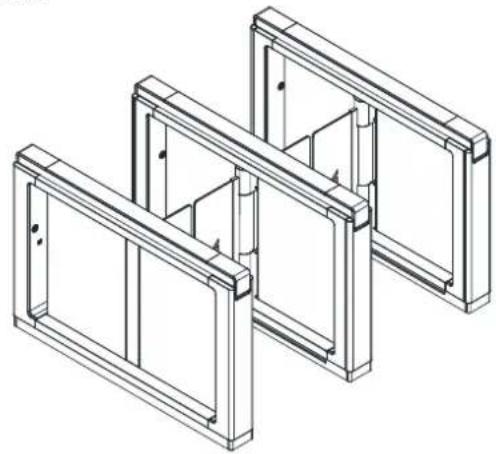
The swing barrier with two barriers and 12 IR lights is designed to detect unauthorized entrance or exit. By adopting the swing barrier integrated with the access control system, person should authenticate to pass through the lane via swiping IC or ID card, scanning QR code, etc. It is widely used in aracons, stadiums, construcon sites, residences, etc.
natural_image
Isometric line drawing of a structural frame assembly (no text or symbols)1.2 Main Features
● 32-bit high-speed processor
● TCP/IP network communicaon
The communicaon data is specially encrypted to relieve the concern of privacy leak
● Permissions validaon and an-tailgang
● Remaining open/closed mode selectable
● Bidireconal (Entering/Exing) lane
The barrier opening and closing speed can be congured according to the visitors ow
● The barrier will be locked or stop working when people are nipped.
● An-forced-accessing
The barrier will be locked automacally without open-barrier signal. It can bear the force of up to 120 Nm.
● Self-detecon, Self-diagnoscs, and automac alarm
● Audible and visual alarm will be triggered when detectcng intrusion, tailgang, reverse passing, climbing over barrier, and overstay.
- IP conict detecon
● Remote control and management
● Online/oine operaon
● LED indicates the entrance/exit and light bar indicates passing status.
- Barrier is in free status when powered down; If the device is installed with lithium baery (oponal), the barrier remains open when powered down
● Fire alarm passing
When the re alarm is triggered, the barrier will be open automacally for emergency evacuaon. - Valid passing duraon sengs
System will cancel the passing permission if a person does not pass through the lane within the valid passing duraon - Opens/closes barrier according to the schedule template
- Adds up to 3000 visitor cards and up to 60,000 cards except for visitor cards
- Stores up to 180000 card swiping records
● Supports an-passback of single lane and cross-controller an-passback
Chapter 2 Installation
2.1 Disassembling before Installation
Purpose:
Before installaon, you should disassemble the pedestal and remove some screws.
Notes:
- Keep the disassembled components and screws organized.
- You should prepare the following tools to disassemble the pedestal: 1. Pedestal Key (supplied); 2. Allen Wrench (2.5 mm); 3. Allen Wrench (3 mm); 4. Allen Wrench (4 mm).
Steps:
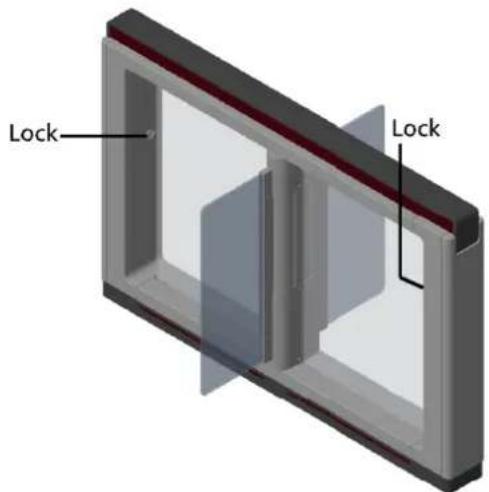
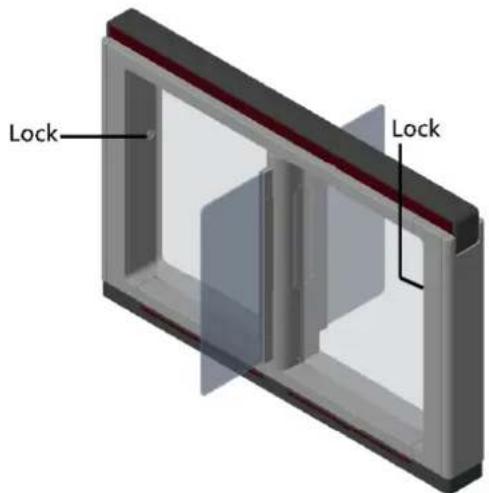
- Use the pedestal key to open the front and back components
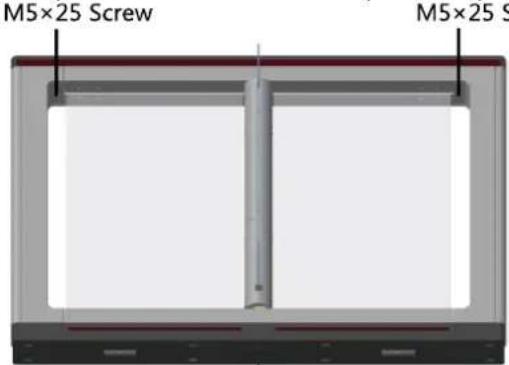
- Use the Allen wretch (4 mm) to loosen the 2 screws (M5 × 25) at the top of the device.
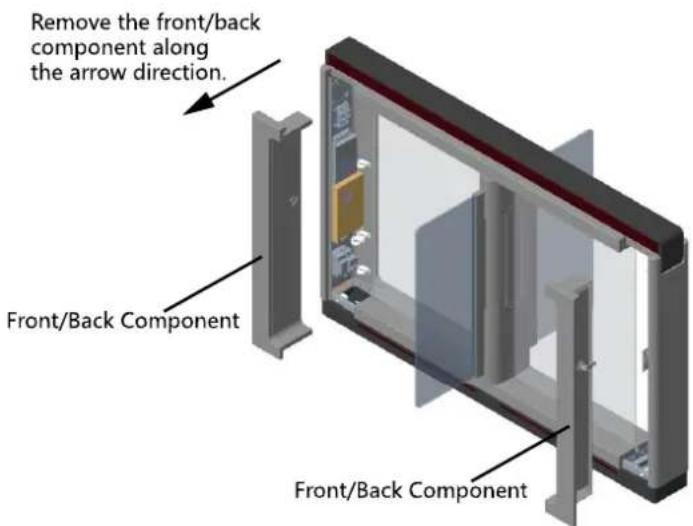
- Remove the components along the arrow direcon carefully.
- Loosen the wing bolt (M4 × 10) at the front and back of the pedestal, and remove the front and back base covers along the arrow direcon.
You can start installing the expansion screws to secure the device on the installaon surface.
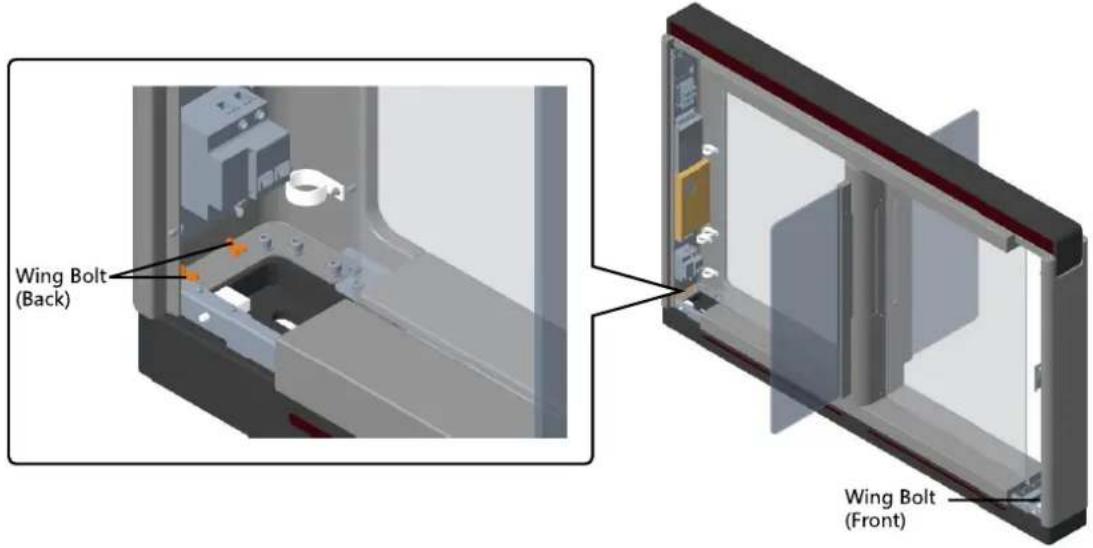
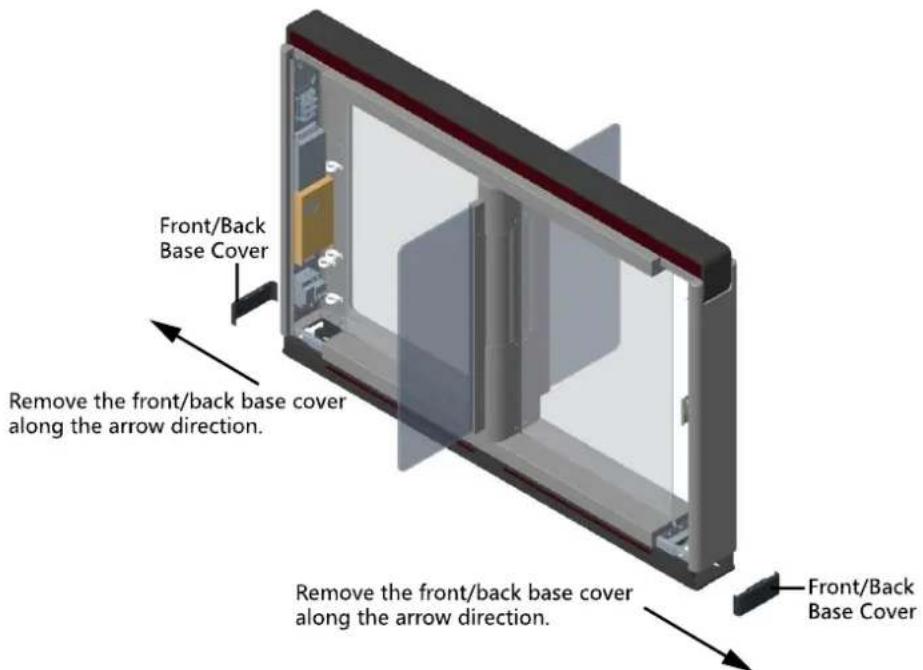
- Remove the motor boom cover.
1) Pull or push the barrier to the closed posion.
2) Use the Allen wretch (2.5 mm) to loosen the 4 screws (M4 × 8) on the motor boom cover.
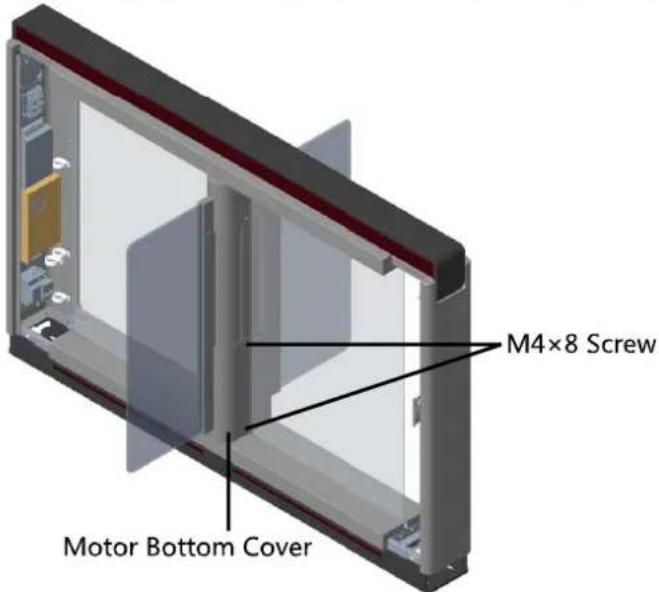
3) Pull or push the barrier to the open posion, and remove the motor boom cover.
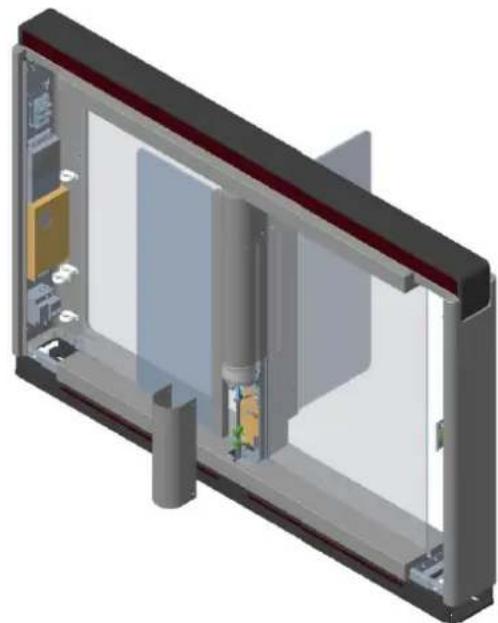
natural_image
3D cutaway view of a device showing internal components and structural layout (no text or symbols)Note: If dissembling the middle pedestal, you should dissemble two motor boom covers.
- Use the Allen wretch (4 mm) to loosen the 2 screws (M5 × 12) at the front or back of the pedestal base and remove the side base cover slowly.
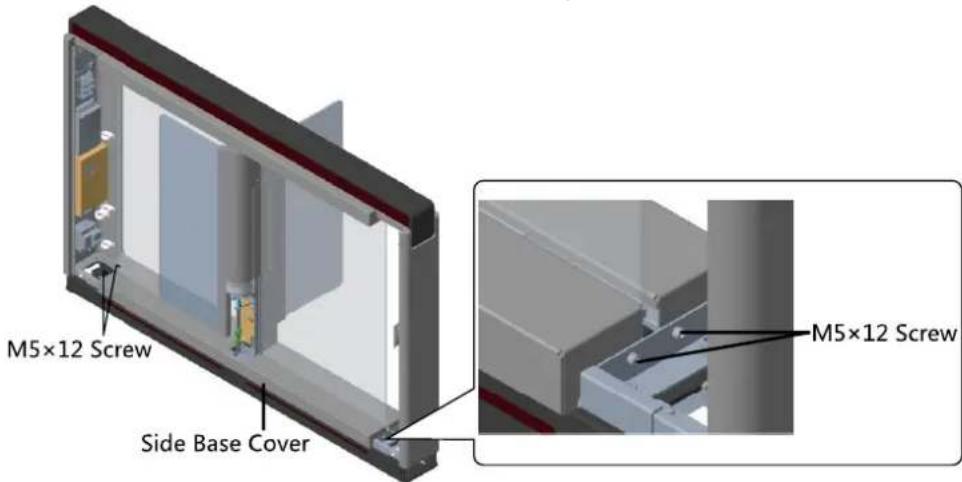
Note: If dissembling the middle pedestal, you should dissemble two side base covers.
- Disassemble the two protecve sheets at the bottom for wiring, and you can start wiring the interconnecng cable.
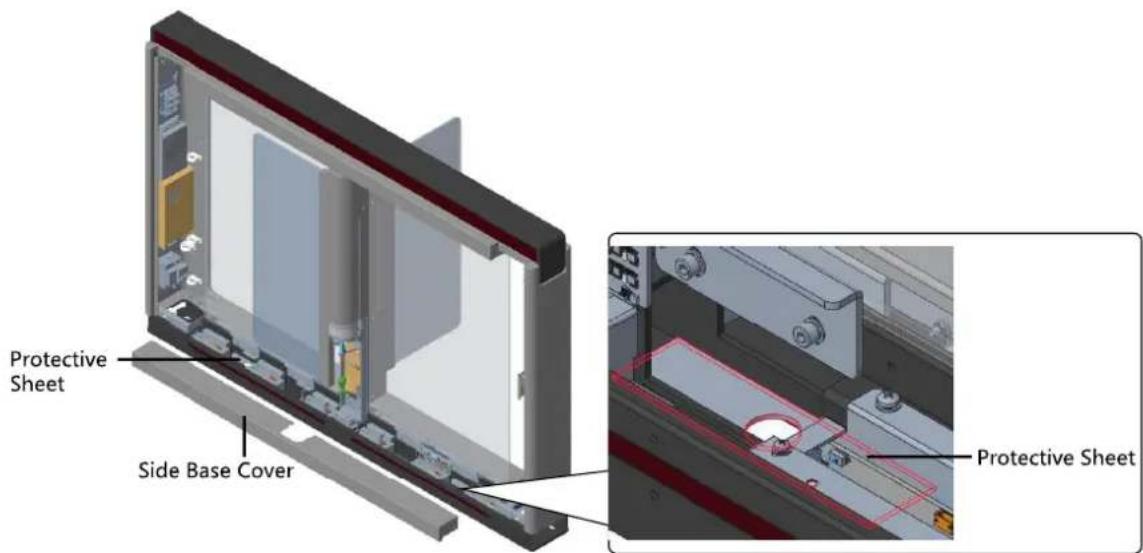
2.2 Installing Device
Before you start:
Prepare for the installaon tools, check the device and the accessories, and clear the installaon base.
Notes:
● SUITABLE FOR MOUNTING ON CONCRETE OR OTHER NON-COMBUSTIBLE SURFACE ONLY.
- In general, because of the limitaon of installaon and maintenance, the suggested distance between the wall and the pedestal is more than 50 mm.
Steps:
- Draw a line on central installation surface of the left or right pedestal.
- Draw another two parallel lines for installing the other two pedestals.
Note: The distance between the nearest two line is L+100 mm. L represents the lane width. - Drill holes on the ground according to the installaon holes on the pedestals and insert the expansion sleeves.
- Bury interconnecng cables for pedestal communicaon.
Note: For detailed informaon about burying and wiring interconnecng cables, see 4.3 Wiring Interconnecng Cable. - According to the entrance and exit marks on the pedestals, move the pedestals to the corresponded posions.
Note: Make sure the installaon holes on the pedestals and the base are aligned with each other. - Secure the pedestals with expansion bolts.
The installaon footprint is as follows:
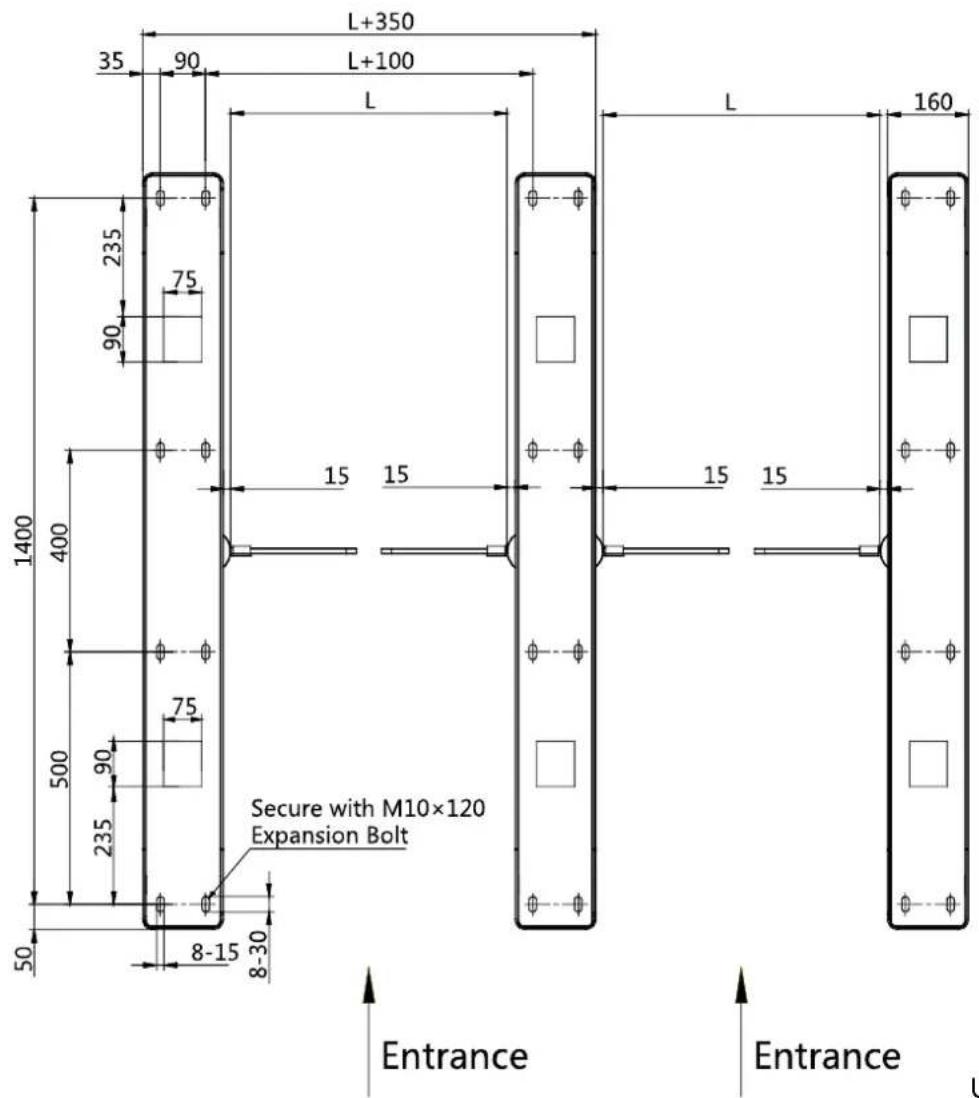
- Aer installaon, assemble the components and screws back to the pedestal in reverse order (except for protecve sheets).
Chapter 3 Disassembling before Maintenance
Purpose:
Before maintaining the inner components, you should disassemble the pedestal and remove some screws.
Notes:
- Keep the disassembled components and screws organized.
- You should prepare the following tools to disassemble the pedestal: 1. Pedestal Key (supplied); 2. Allen Wrench (2.5 mm); 3. Allen Wrench (3 mm); 4. Allen Wrench (4 mm).
Disassembling Front and Back Components
Purpose:
Aer disassembling the front and back components, you can maintain the front and back parts of the pedestal.
Steps:
- Use the pedestal key to open the front and back components.
- Use the Allen wretch (4 mm) to loosen the 2 screws (M5 × 25) at the top of the device.
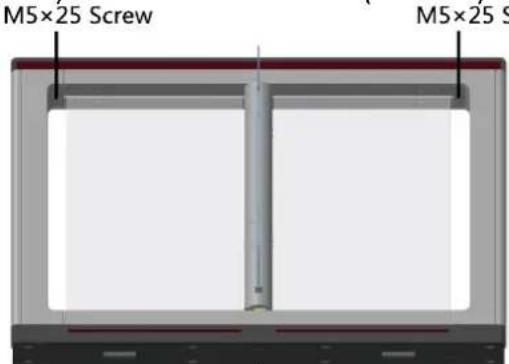
- Remove the components along the arrow direcon carefully.
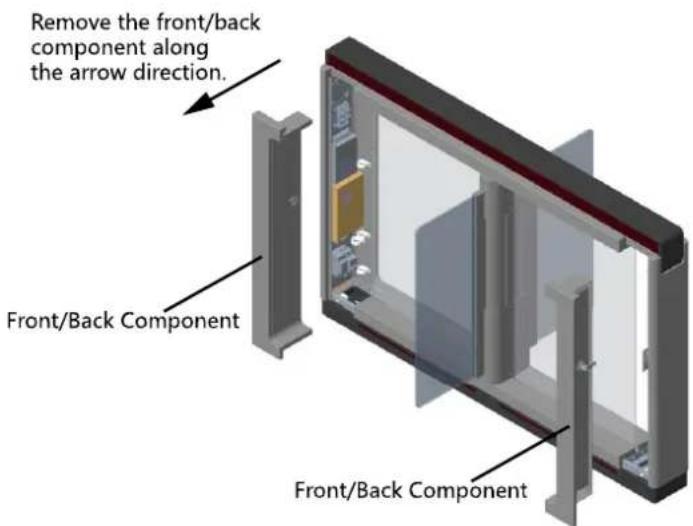
Disassembling Motor Bottom Cover
Purpose:
Aer disassembling the motor boom cover, you can maintain the lane control board and the barrier posion control board.
Steps:
- Pull or push the barrier to the closed posion.
- Use the Allen wretch (2.5 mm) to loosen the 4 screws (M4 × 8) on the motor bottom cover.
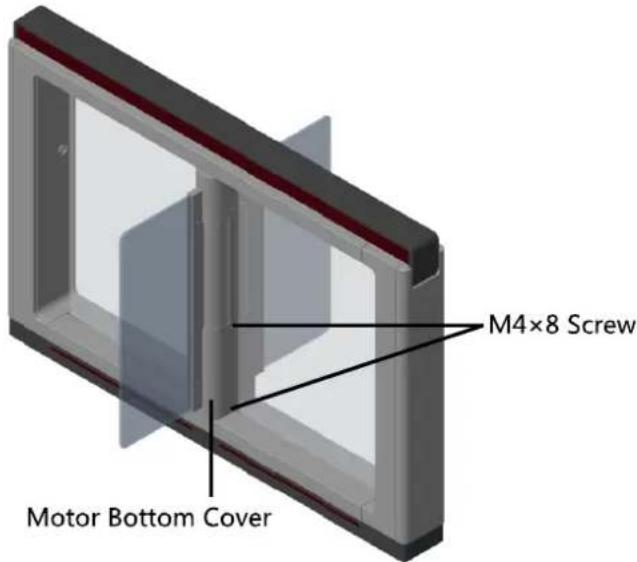
- Pull or push the barrier to the open posion, and remove the motor bottom cover.
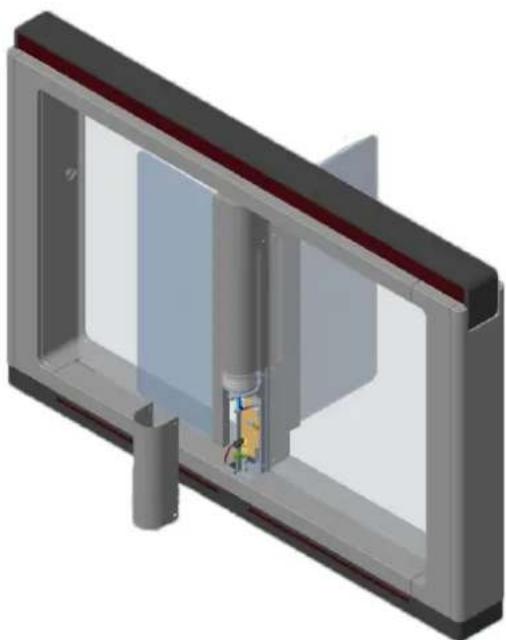
natural_image
3D rendering of a mechanical assembly with internal components and mounting brackets (no text or symbols visible)Note: If dissembling the middle pedestal, you should dissemble two motor boom covers.
Disassembling Side Base Cover
Purpose:
Aer disassembling the side base cover, you can maintain the IR sending/receiving board.
Steps:
- Use the pedestal key to open the front and back components.
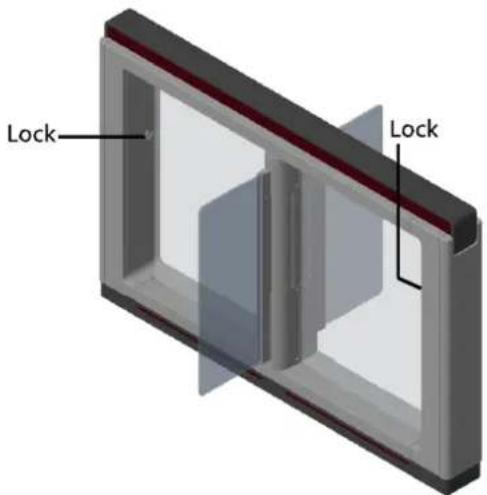
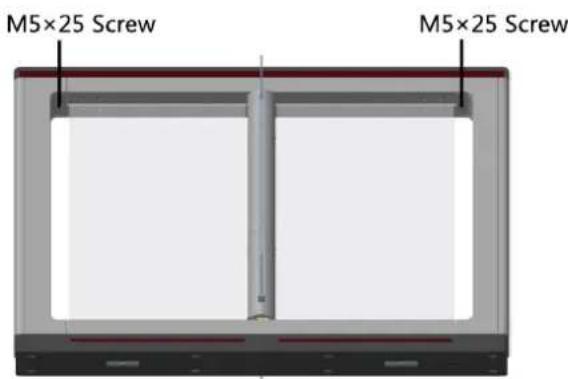
- Use the Allen wretch (4 mm) to loosen the 2 screws (M5 × 25) at the top of the device.
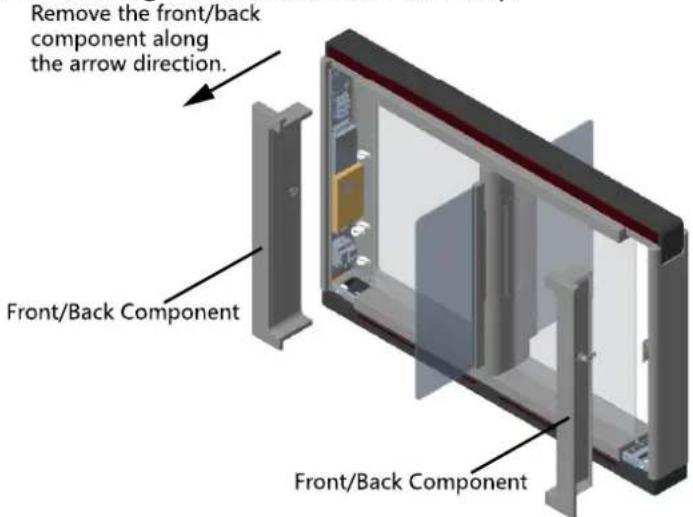
- Remove the components along the arrow direcon carefully.
- Use the Allen wretch (4 mm) to loosen the 2 screws (M5 × 12) at the front or back of the pedestal base and remove the side base cover slowly.
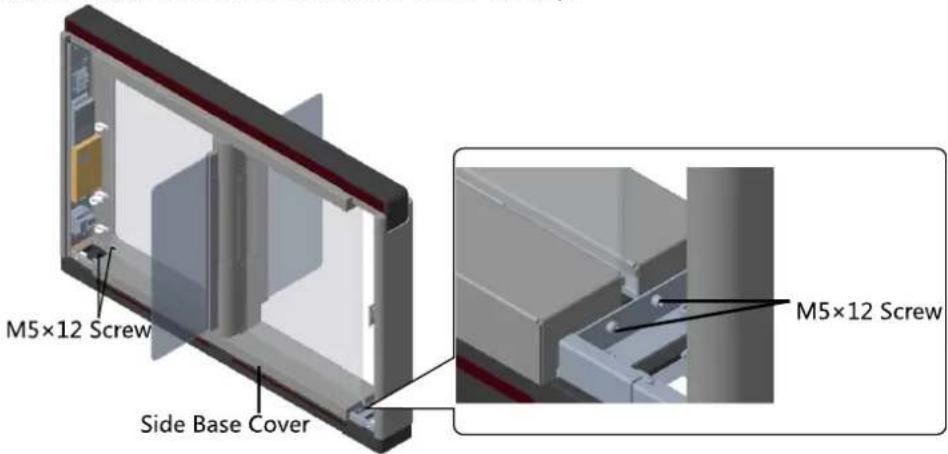
Note: If dissembling the middle pedestal, you should dissemble two side base covers.
Disassembling Top Cover
Purpose:
Aer disassembling the top cover, you can maintain the components at the top of the pedestal, the IR sending/receiving board and the IR adaptor for instance.
Steps:
- Use the Allen wretch (2.5 mm) to loosen the 4 capve panel screws at the top of the pedestal.
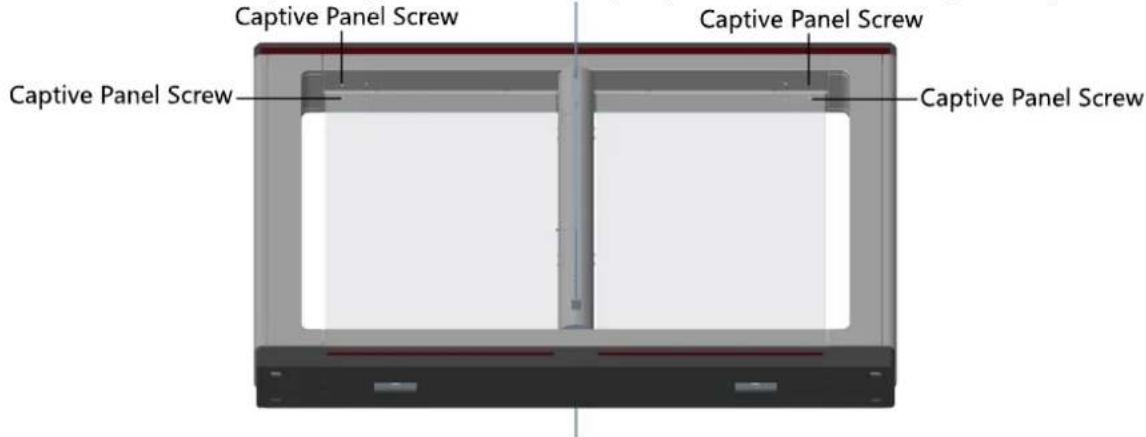
- Move the front and back top covers along the arrow 1's direcon for about 3 cm, and move them upwards to remove the front and back top covers.
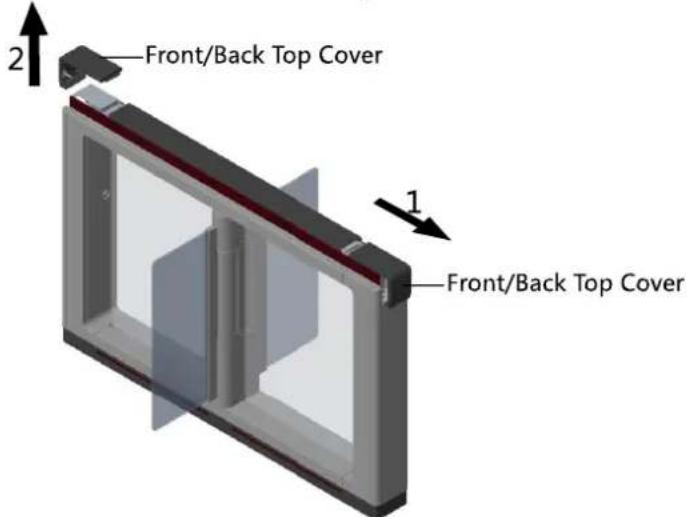
-
(Optional) If you should install the ingerprint modules in the pedestal, you should use the key to open and remove the front and back components, and cut o the ingerprint modules' power.
-
Use the Allen wrench (2.5 mm) to loosen the 2 capve panel screws displayed in the picture below.
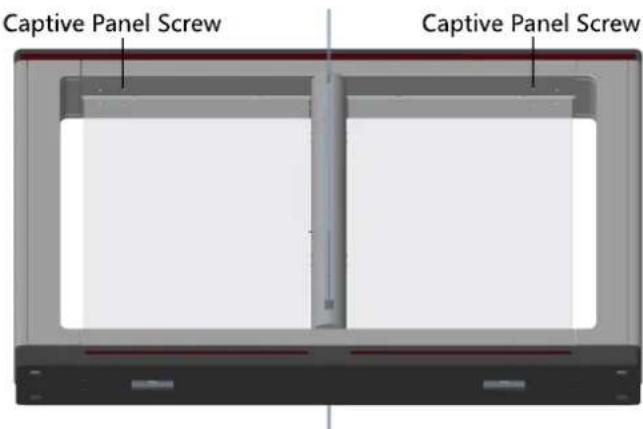
- Remove the top cover along the arrow's direcon.
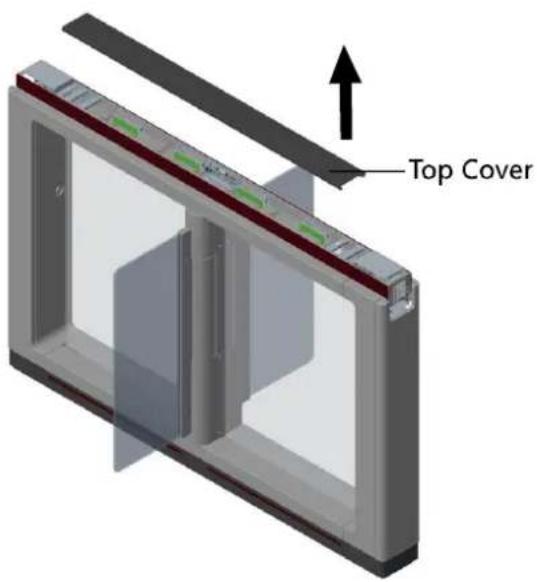
Chapter 4 Wiring
Notes:
- A readily accessible two-pole disconnect device shall be incorporated external to the equipment.
● The conductor sizes of protective earthing wire must be minimum 18AWG.
4.1 Components Introduction
Purpose:
By default, basic components of the swing barrier are connected well. The pedestals can realize communicaons between pedestals by the wirings of the interconnecng cables. And the swing barrier should wire to the AC electric supply for the whole system's power supply.
Note: The voltage octuaon of the electric supply is between 100 VAC and 220 VAC, 50 to 60 Hz.
The picture displayed below describes each component's posion on the swing barrier.
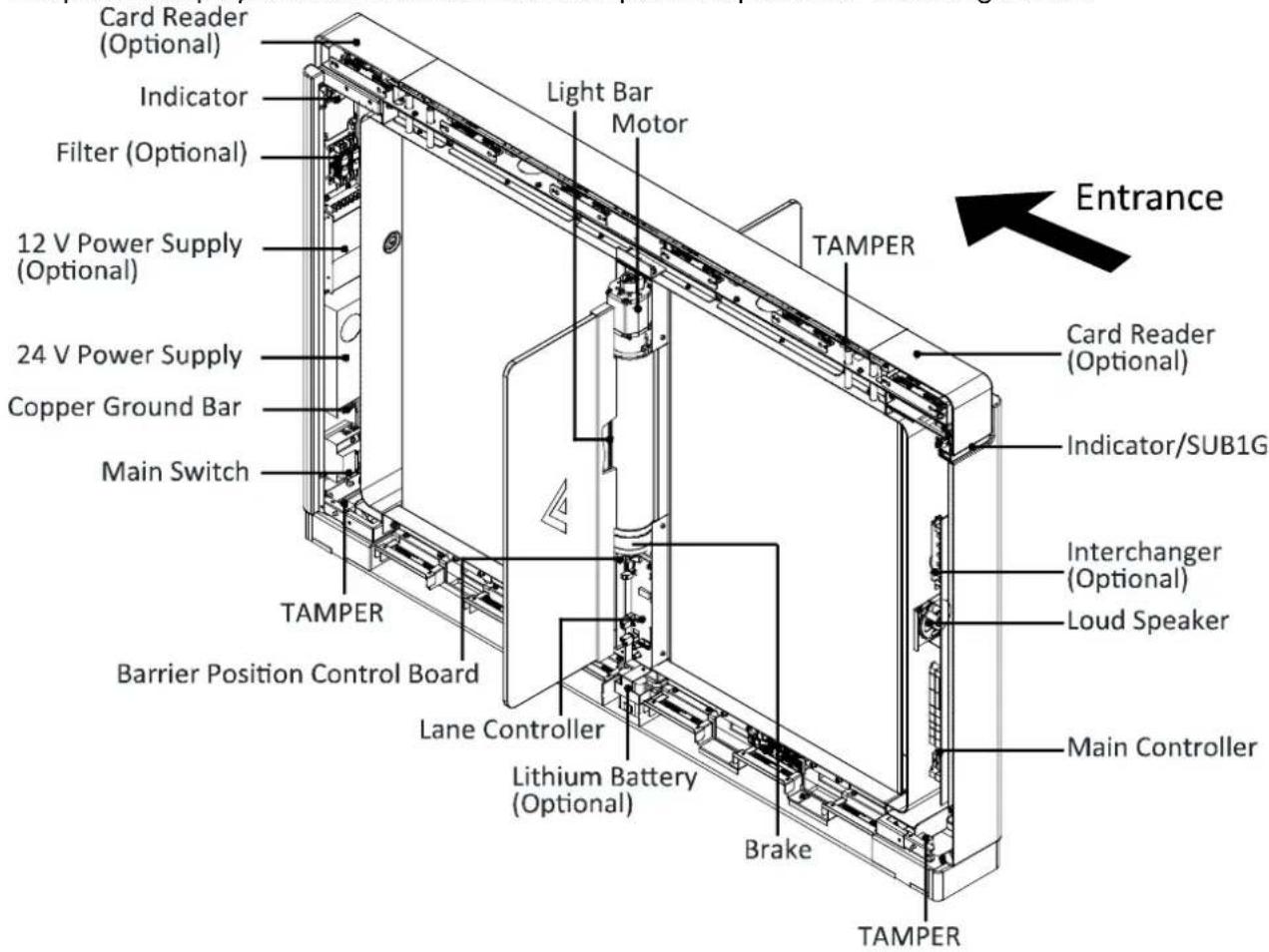
The posions of IR adaptor and IR sending/receiving board are as follows:
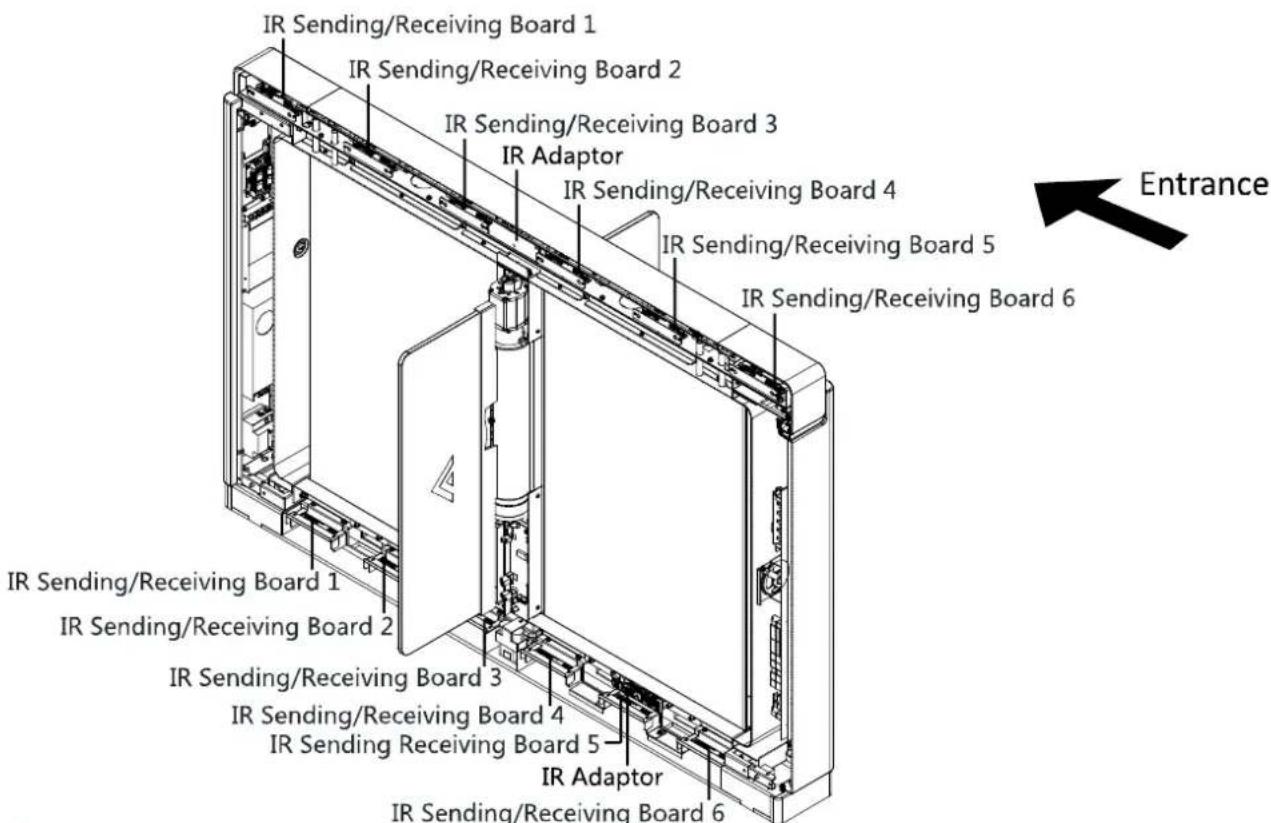
Note: When you stand at the entrance, the IR sending boards are in the le pedestal and the right side of the middle pedestal, the IR receiving boards are in the right pedestal and the le side of the middle pedestal.
4.2 Wiring Electric Supply
Wire electric supply with the switch in the pedestal. Terminal L and terminal N are on the main switch, while terminal PE should connect to a ground wire (yellow and green wire).
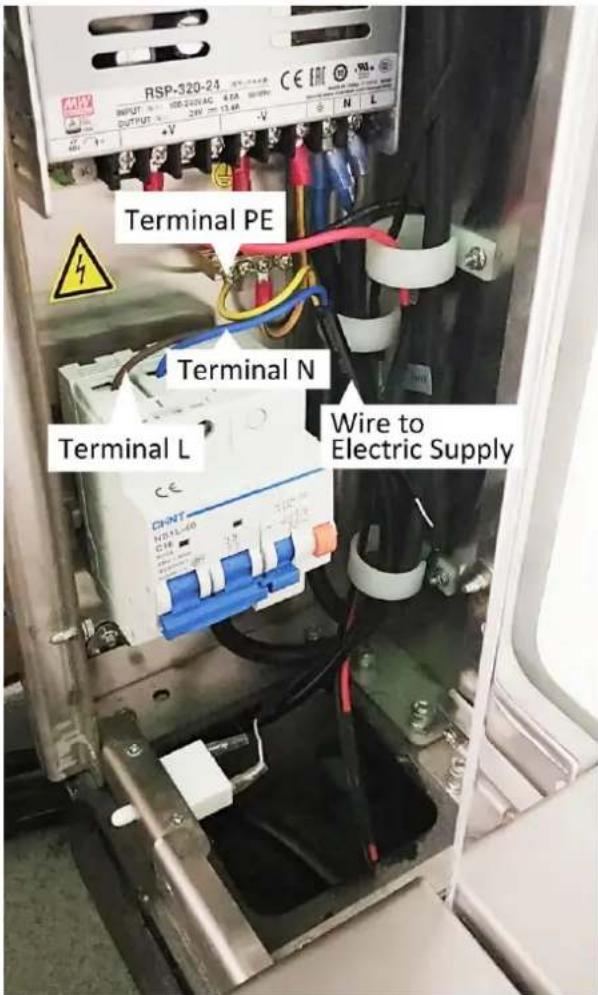
Notes:
The cable bare part should be no more than 8 mm. It is suggested that you can immerse the bare part into the liquid n. If possible, ware an insulaon cap at the end of the bare cable. Make sure there's no bare copper or cable aer the wiring.
☐ The Terminal L and the Terminal N cannot be wired reversely.
☐ Do not wire the input and output terminal reversely.
4.3 Wiring Interconnecting Cable
Purpose:
You should use interconnecng cables to connect the master lane board and the slave lane board for components communicaon.
The picture displayed below describes the cable hole's posion on the pedestals.
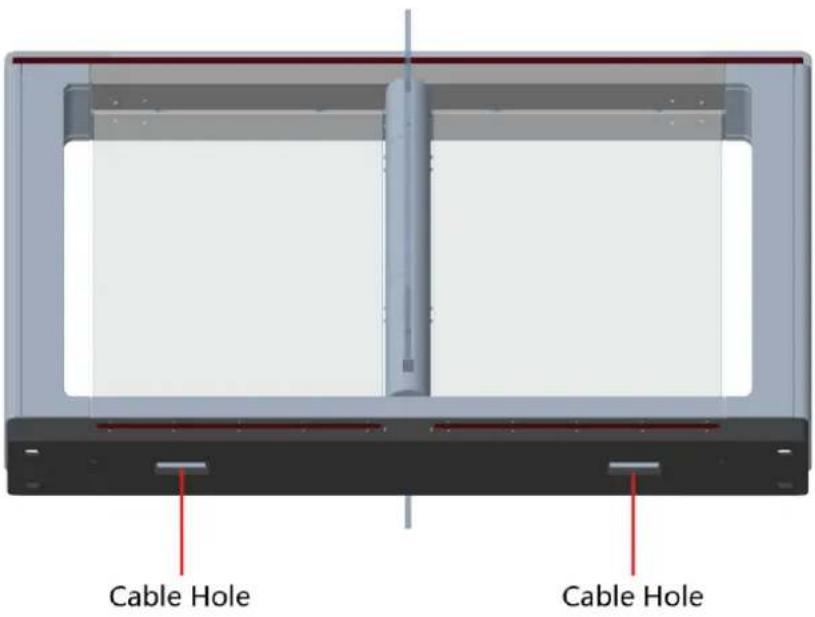
4.3.1 General Wiring
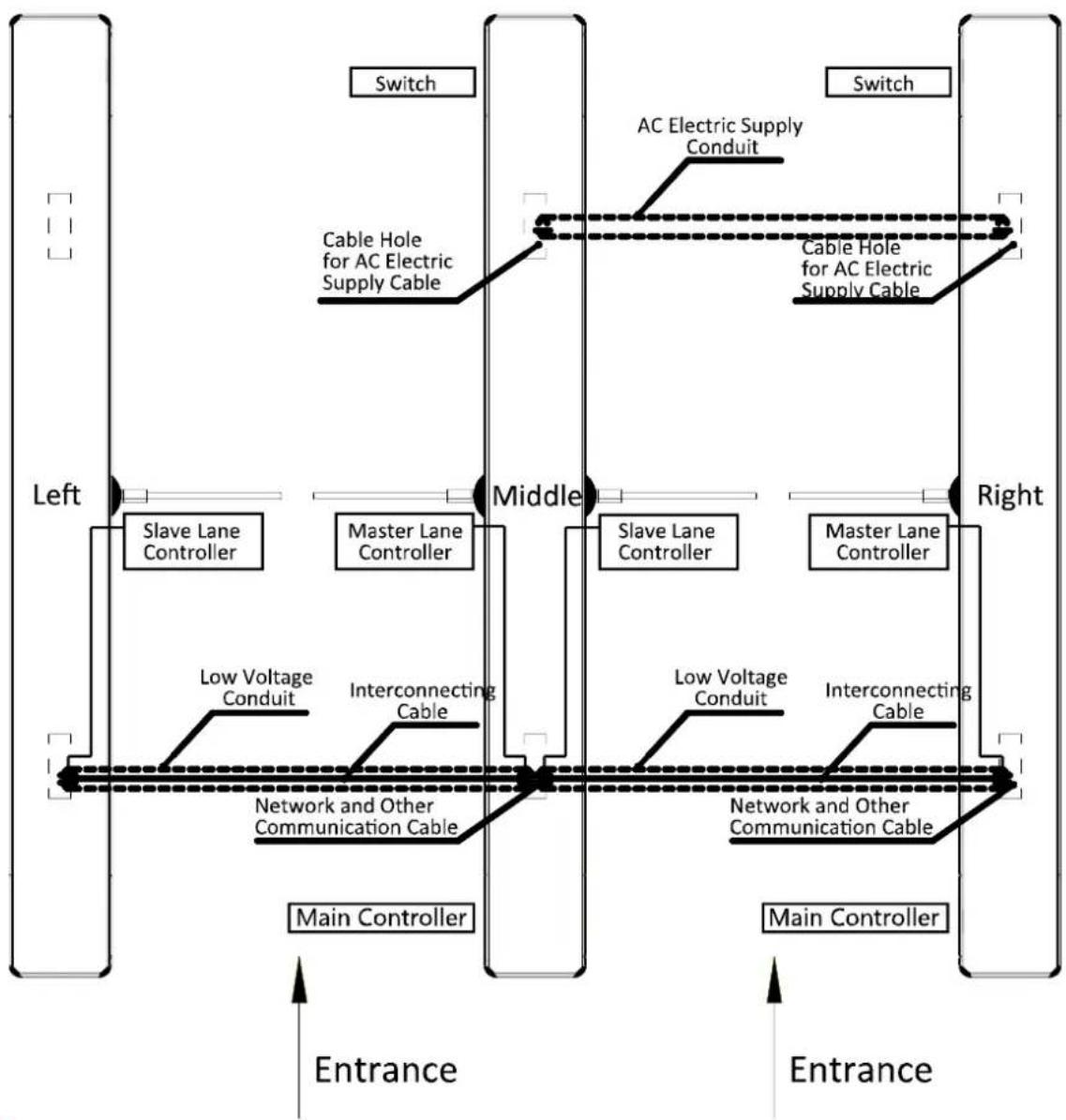
flowchart
graph TD
    subgraph Left
        A["Slave Lane Controller"] --> B["Main Controller"]
        C["Cable Hole for AC Electric Supply Cable"] --> D["Switch"]
        E["Master Lane Controller"] --> F["Main Controller"]
        G["Low Voltage Conduit"] --> H["Interconnecting Cable"]
        I["Network and Other Communication Cable"] --> J["Main Controller"]
    end

    subgraph Middle
        K["Slave Lane Controller"] --> L["Main Controller"]
        M["Cable Hole for AC Electric Supply Cable"] --> N["Switch"]
        O["Master Lane Controller"] --> P["Main Controller"]
        Q["Low Voltage Conduit"] --> R["Interconnecting Cable"]
        S["Network and Other Communication Cable"] --> T["Main Controller"]
    end

    subgraph Right
        U["Master Lane Controller"] --> V["Main Controller"]
        W["Switch"] --> X["AC Electric Supply Conduit"]
        Y["Interconnecting Cable"] --> Z["Main Controller"]
    end

    A --> C
    C --> G
    G --> U
    U --> X
    X --> Y
    Y --> Z
    Z --> W
    style Left fill:#f9f,stroke:#333
    style Middle fill:#ccf,stroke:#333
    style Right fill:#cfc,stroke:#333
Notes:
- The supplied interconnecng cable length is 3.75 m. If you need a longer one, ask our technique supports or sales and purchase 5.5 m interconnecng cables.
- If you want to bury both of the AC power cord and the low voltage cable at the same side, the two cables should be in separated conduits to avoid interference.
- If more peripherals are required to connect, you should increase the conduit diameter or bury another conduit for the external cable.
● The external AC power cord should be double-insulated. - The suggested network cable should be CAT5e or the network cable has better performance. And the suggested network cable length should be less than 100 m. If the communicaon length is more than 100 m, it is suggested to use opcal ber.
4.3.2 Wiring Face Recognition Terminal (Oponal)
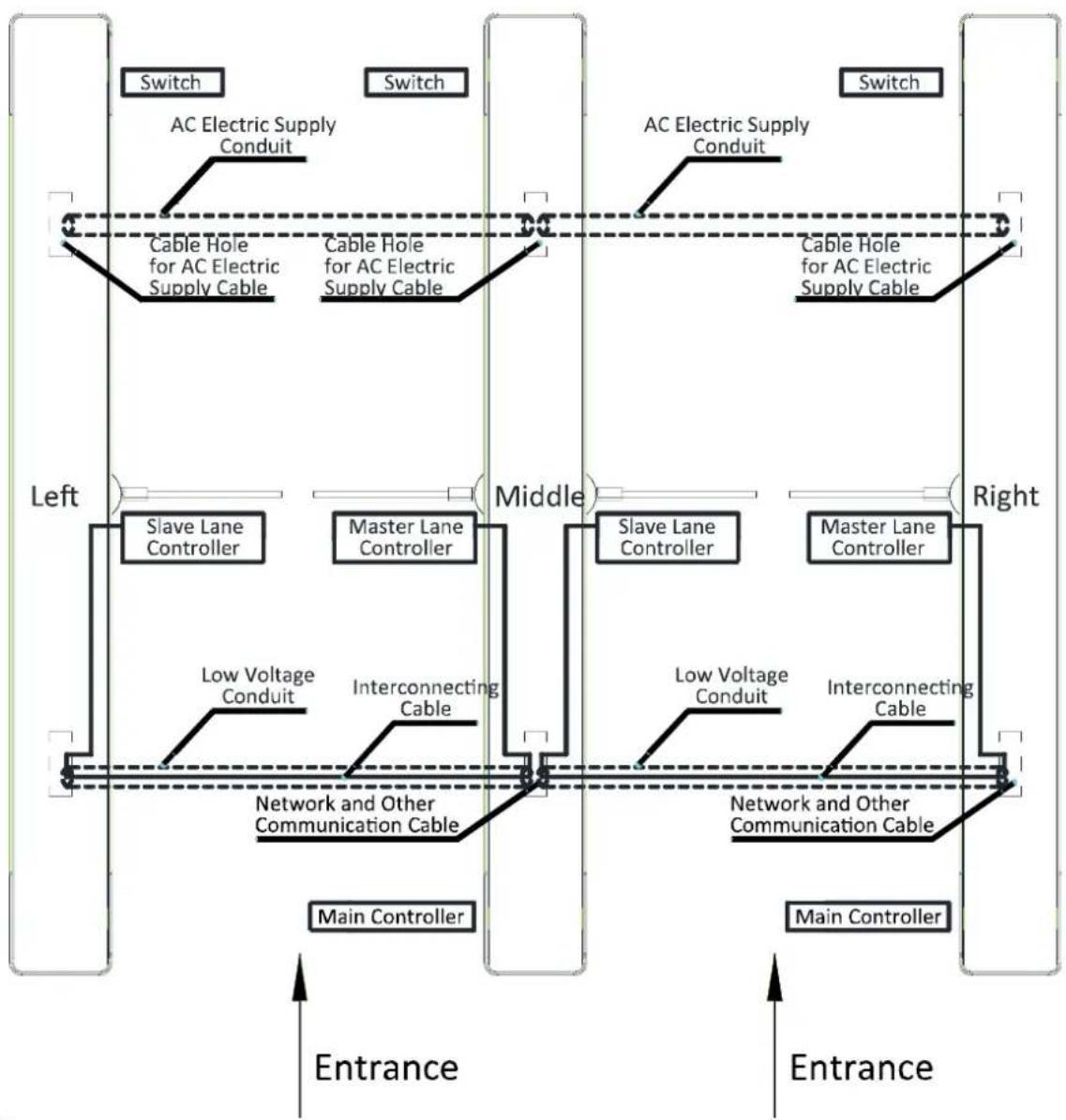
flowchart
graph TD
    subgraph Left
        A["Switch"] --> B["AC Electric Supply Conduit"]
        B --> C["Cable Hole for AC Electric Supply Cable"]
        C --> D["Cable Hole for AC Electric Supply Cable"]
        D --> E["AC Electric Supply Conduit"]
        E --> F["Cable Hole for AC Electric Supply Cable"]
    end
    subgraph Middle
        G["Slave Lane Controller"] --> H["Master Lane Controller"]
        H --> I["Low Voltage Conduit"]
        I --> J["Interconnecting Cable"]
        J --> K["Network and Other Communication Cable"]
        K --> L["Main Controller"]
    end
    subgraph Right
        M["Slave Lane Controller"] --> N["Master Lane Controller"]
        N --> O["Low Voltage Conduit"]
        O --> P["Interconnecting Cable"]
        P --> Q["Network and Other Communication Cable"]
        Q --> R["Main Controller"]
    end
    style Left fill:#f9f,stroke:#333
    style Middle fill:#ccf,stroke:#333
    style Right fill:#cfc,stroke:#333
Notes:
- The supplied interconnecng cable length is 3.75 m. If you need a longer one, ask our technique supports or sales and purchase 5.5 m interconnecng cables.
● The suggested inner diameters of the low voltage conduit should be larger than 30 mm. - If you want to bury both of the AC power cord and the low voltage cable at the entrance side, the two cables should be in separated conduits to avoid interference.
- If more peripherals are required to connect, you should increase the conduit diameter or bury another conduit for the external cable.
● The external AC power cord should be double-insulated. - The suggested network cable should be CAT5e or the network cable has been performance. And the suggested network cable length should be less than 100 m. If the communicaon length is more than 100 m, it is suggested to use opcal ber.
4.4 Terminal Description
Purpose:
The lane controller contains master lane controller and slave lane controller, which controls the IR beams, motor, and other components work.
4.4.3 Master Control Board Terminal Descripon
Purpose:
The master lane control board contains power supply interface, baery interface, motor drive interface, strip light interface, motor encoder interface, door open posion detecon interface, debug port, lane communicaon interface, interconnecng interface, and DIP switch.
The picture displayed below is the master control board diagram.
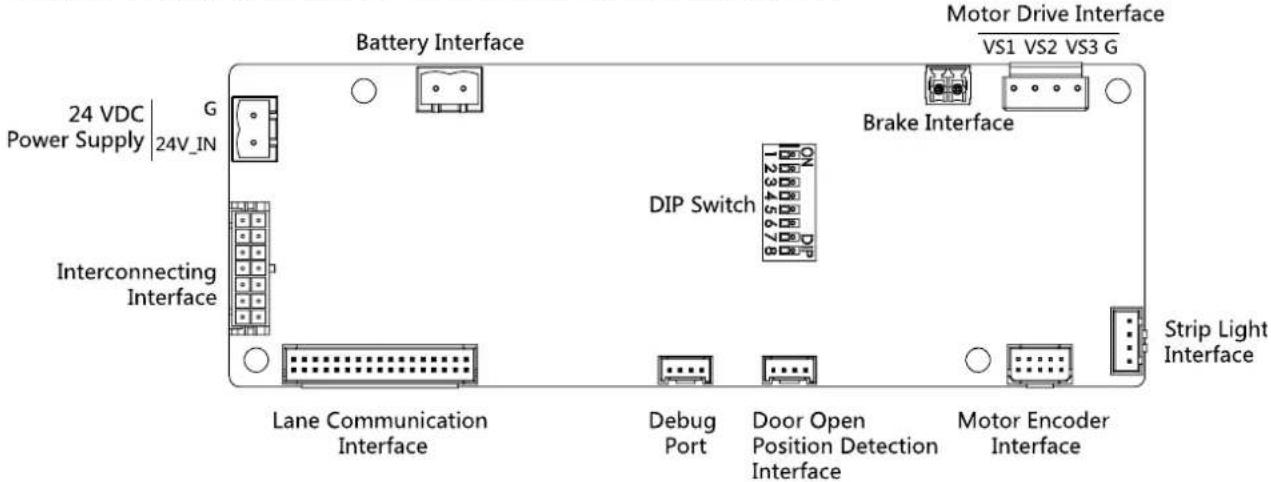
4.4.4 Slave Control Board Terminal Descripon
Purpose:
The slave lane control board contains power supply interface, baery interface, motor drive interface, strip light interface, motor encoder interface, door open posion detecon interface, debug port, lane communicaon interface, and interconnecng interface.
Note: The master control board contains a DIP switch, while the slave control board not.
The picture displayed below is the slave control board diagram.
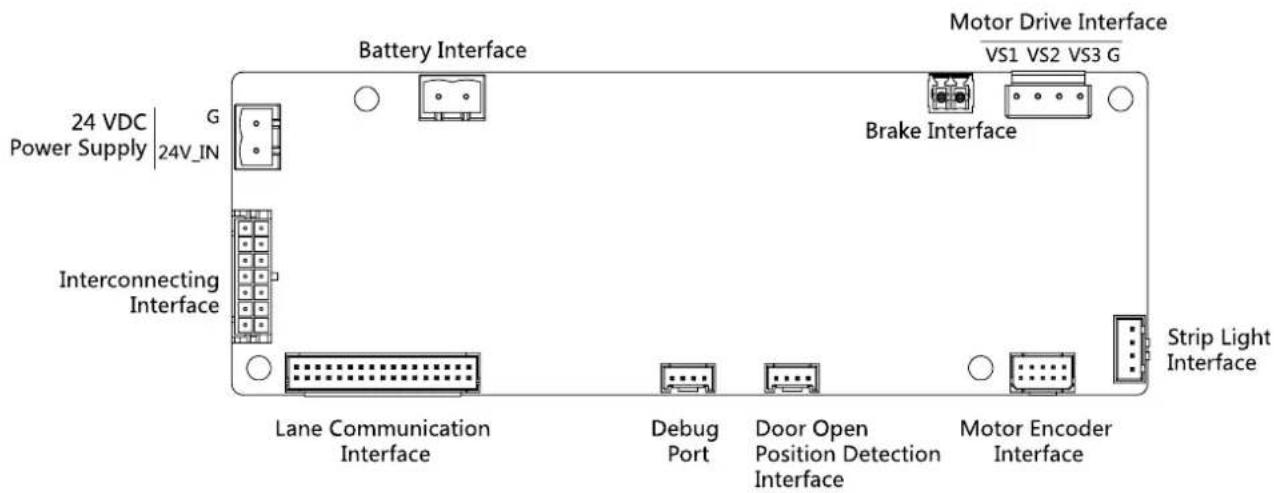
4.4.5 Main Control Board Terminal Descripon
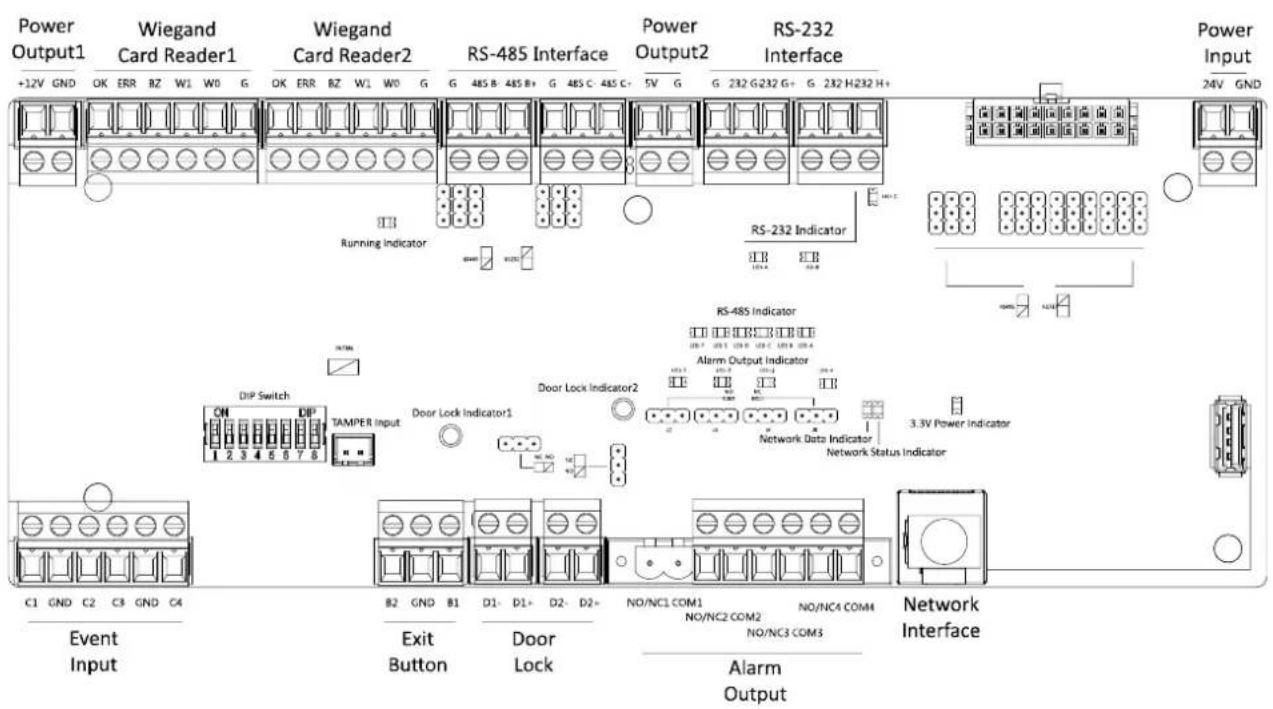
Table 4-1 Main Control Board Terminal Descripon
| Main Controlling Board Terminal Descripon | ||
| Power Output1 | +12V | Grounding |
| GND | Power Output | |
| Wiegand Card Reader1 | OK | Indicator of Card Reader Control Output (Invalid Card Output) |
| ERR | Indicator of Card Reader Control Output (Valid Card Output) | |
| BZ | Card Reader Buzzer Control Output | |
| W1 | Wiegand Head Read Data Input Data1 | |
| W0 | Wiegand Head Read Data Input Data0 | |
| GND | Grounding | |
| Wiegand Card Reader 2 | OK | Indicator of Card Reader Control Output (Invalid Card Output) |
| ERR | Indicator of Card Reader Control Output (Valid Card Output) | |
| BZ | Card Reader Buzzer Control Output | |
| W1 | Wiegand Head Read Data Input Data1 | |
| W0 | Wiegand Head Read Data Input Data0 | |
| GND | Grounding | |
| RS-485 Interface | GND | Grounding |
| RS-485 B- | Connect to Card Reader RS485- | |
| RS-485 B+ | Connect to Card Reader RS485+ | |
| GND | Grounding | |
| RS-485 C- | Connect to Card Reader RS485- | |
| RS-485 C+ | Connect to Card Reader RS485+ | |
| Power Output2 | 5V | 5 VDC Power Output |
| GND | 5 VDC Grounding | |
| RS-232 Interface | GND | Grounding |
| RS-232 G- | Connect to Card Reader RS232- | |
| RS-232 G+ | Connect to Card Reader RS232+ | |
| GND | Grounding | |
| RS-232 H- | Connect to Card Reader RS232- | |
| RS-232 H+ | Connect to Card Reader RS232+ | |
| Power Input | +12V | 12 VDC Power Input |
| GND | 12 VDC Grounding | |
| Event Input | C1 | Event Input |
| GND | Grounding | |
| C2 | Fire Input | |
| C3 | People Counng (Entrance) | |
| GND | Grounding | |
| C4 | People Counng (Exit) | |
| Exit Buon | B2 | Door 2 Signal Input |
| GND | Grounding | |
| B1 | Door 1 Signal Input | |
| Door Lock (Relay) | D1- | Door 1 Relay Output(Dry Contact) |
| D1+ | ||
| D2- | Door 2 Relay Output(Dry Contact) | |
| D2+ | ||
| Alarm Output | NO/NC1 | Alarm Output Relay 1(Dry Contact) |
| COM1 | ||
| NO/NC2 | Alarm Output Relay 2(Dry Contact) | |
| COM2 | ||
| NO/NC3 | Alarm Output Relay 3(Dry Contact) | |
| COM3 | ||
| NO/NC4 | Alarm Output Relay 4(Dry Contact) | |
| COM4 | ||
| Network Interface | LAN | Network Accessing |
Notes:
- The alarm input hardware interface is normally open by default. So only the normally open signal is allowed. It can be linked to the buzzer of the card reader and access controller, and the alarm relay output, open door relay output, and re alarm output.
- The DIP of RS485 card ID is set as 1 and 4 by default. 1 is for entering, and 4 is for exing. Set the DIP as 3 for connecng visitor card reader.
● The Wiegand card reader 1 and 2 respectively refer to the entering and exing card reader.
● The alarm output supports relay output. - For any requirements, the door lock can control the door barrier status of the third party. D1 controls the barrier opening for entrance, while D2 controls the door opening for exit. For details, see 5.5.1 Barrier Control Relay Output Mode.
- C3 and C4 in the event input is people counng interface. C3 controls people counng for entrance, while C4 controls people counng for exit. When the main control board detects signals in C3 and C4, the people number will be accumulated. For detailed informaon about people counng and people number, see Conguring People Counng Parameters in 7.2.6 Remote Conguraon.
- For detailed informaon about the DIP switch, see Appendix B DIP Switch Descripon.
4.4.6 Main Control Board Serial Port ID Descripon
Purpose:
You can use the jumper cap on the main control board to switch the interface communicaon mode. For details about switching between RS-232 and RS-485 communicaon type, see 5.4
Switching RS-485/RS-232 Mode.
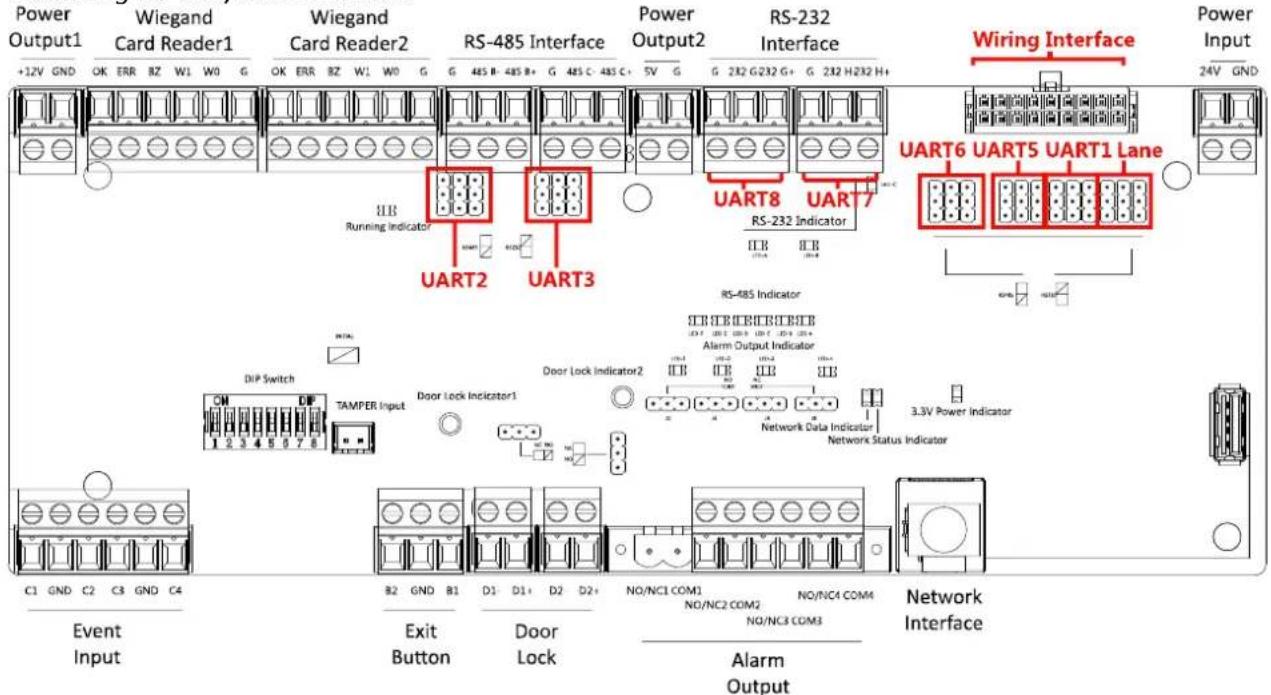
According to the picture above, the RS-485 serial port corresponds to UART2 and UART3. RS-232 serial port is corresponded to UART7 and UART8. Wiring Interface is corresponded to UART1, UART4, UART6, UART6, and Lane.
The main control board descripons are as follows:
UART2/UART3 Jumper Cap: Reserved serial port. Use the jumper cap to switch the serial port communicaon mode. You can switch between the RS-485 communicaon mode and the RS-232 communicaon mode. By default, it is in RS-485 communicaon mode.
UART6 Jumper Cap: Use the jumper cap to switch the serial port communicaon mode with the slave lane controller. You can switch between the RS-232 communicaon mode and the RS-485 communicaon mode. By default, it is in RS-232 communicaon mode.
UART5 Jumper Cap: Use the jumper cap to switch the serial port communicaon mode with the slave lane controller. You can switch between the RS-484 communicaon mode and the RS-232 communicaon mode. By default, it is in RS-485 communicaon mode.
| UART1 Jumper Cap: | Use the jumper cap to switch the serial port communicaon mode with the master lane controller. You can switch between the RS-484 communicaon mode and the RS-232 communicaon mode. By default, it is in RS-485 communicaon mode. |
| Lane: | Use the jumper cap to switch the serial port communicaon mode with the lane controller. By default, the interface is wired and it is in RS-485 communicaon mode.If wiring other controllers (compatible with Hikvision communicaon protocol), use the jumper cap to switch between RS-485 and RS-232 communicaon mode. |
| UART4: | The serial port is in the wiring interface according to the picture above, which has a xed RS-232 communicaon mode to communicate with the master lane controller. It contains no jumper cap and cannot change the communicaon mode. |
| UART7/UART8: | Reserved serial port. The serial port has a xed RS-232 communicaon mode. It contains no jumper cap and cannot change the communicaon mode. It can connect QR code scanner, card recycler, and text screen. |
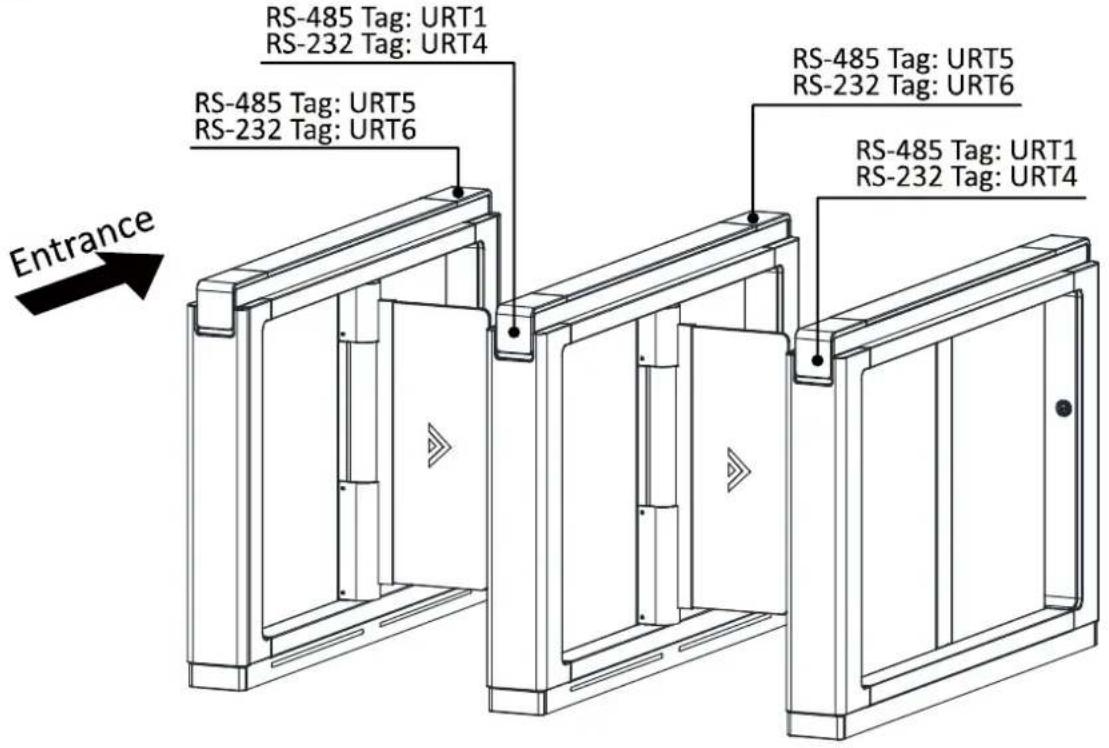
The reserved interface posions in the swing barrier and their corresponded UART No. are as follows:
4.4.7 RS-485 Wiring
Notes:
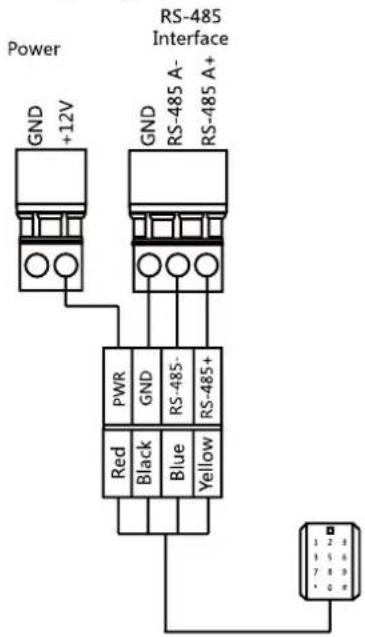
- There are ve RS-485 interfaces, which are for connecng ID card reader, IC card reader, QR code scanner, ngerprint and card reader, card recycler, text screen, ngerprint reader, and face recognition terminal. Take the wiring of RS-485 card reader as an example.
- For details about text screen, see Conguring Screen Parameters in 7.2.6 Remote Conguraon.
4.4.8 RS-232 Wiring
Note: There are three RS-232 interfaces (UART4, UART7, and UART8). UART7 and UART8 can connect QR code scanner, card recycler, and text screen, while UART4 can connect QR code scanner, card recycler, text screen, and face recognition terminal. For details about text screen, see Conguring Screen Parameters in 7.2.6 Remote Conguraon.
Take the wiring of face recognition terminal as an example.
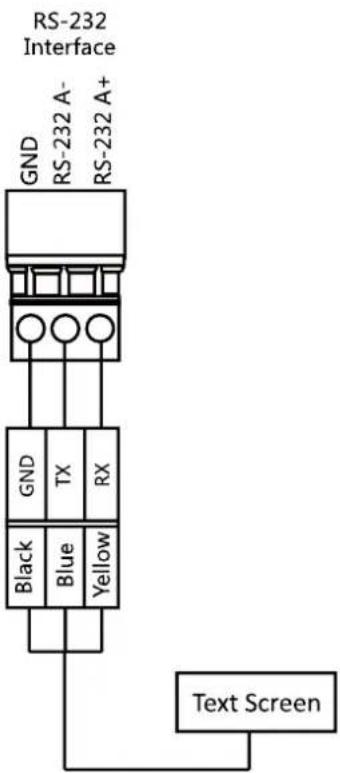
4.4.9 Wiegand Wiring
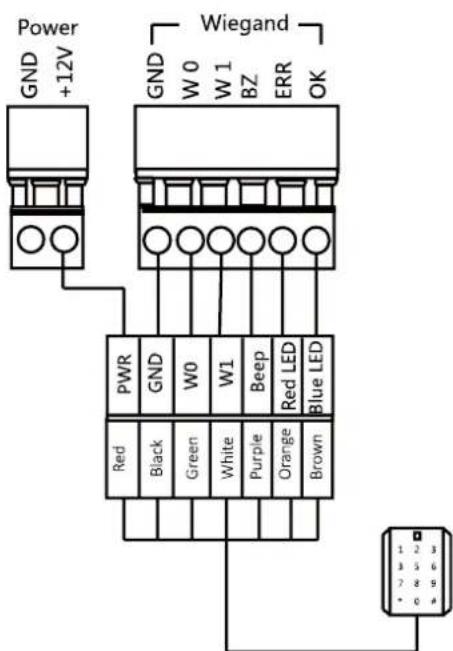
Note: You must connect the OK/ERR/BZ if using access controller to control the LED and buzzer of the Wiegand card reader.
4.4.10 Barrier Control Wiring
Purpose:
By default, the barrier has connected with the main control board. The lane control board can control the barrier status. If possible, the device can connect with a third party lane control board to control the third party barriers. Interface D1 controls barrier opening for entrance, while interface D2 controls barrier opening for exit.
Entering Wiring
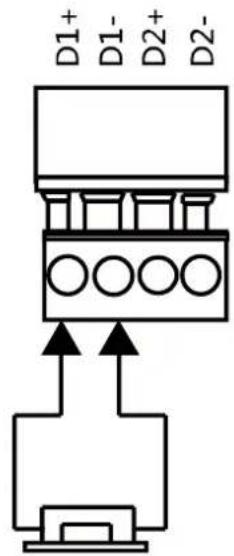
Exiting Wiring
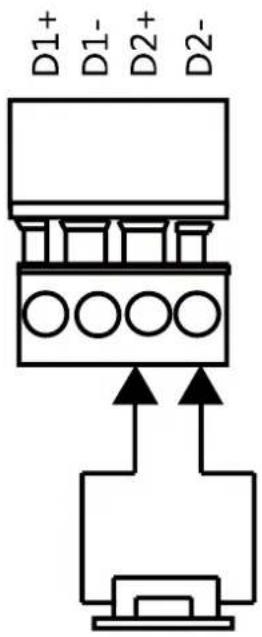
4.4.11 Alarm Output Wiring
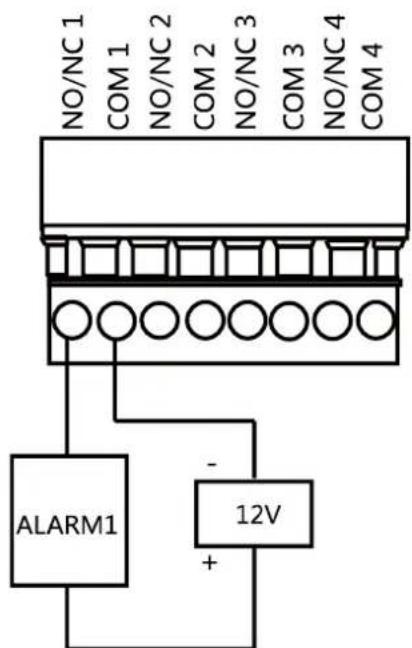
Note: For details about changing the relay output status via the jumper cap, see 5.5.2 Alarm Relay Output Mode (NO/NC).
4.5 Wiring Lithium Battery (Optional)
Purpose:
The lithium baery supplies power for master lane control board and slave lane control board when the device is powered o.
Notes:
● RISK OF EXPLOSION IF BATTERY IS REPLACED BY AN INCORRECT TYPE.
● DISPOSE OF USED BATTERIES ACCORDING TO THE INSTRUCTIONS.
Before you start:
Ask our technique support and sales and purchase for the lithium baery.
Steps:
- Install lithium baeries.
1) Remove the screws on the baery component to disassamle the battery component.
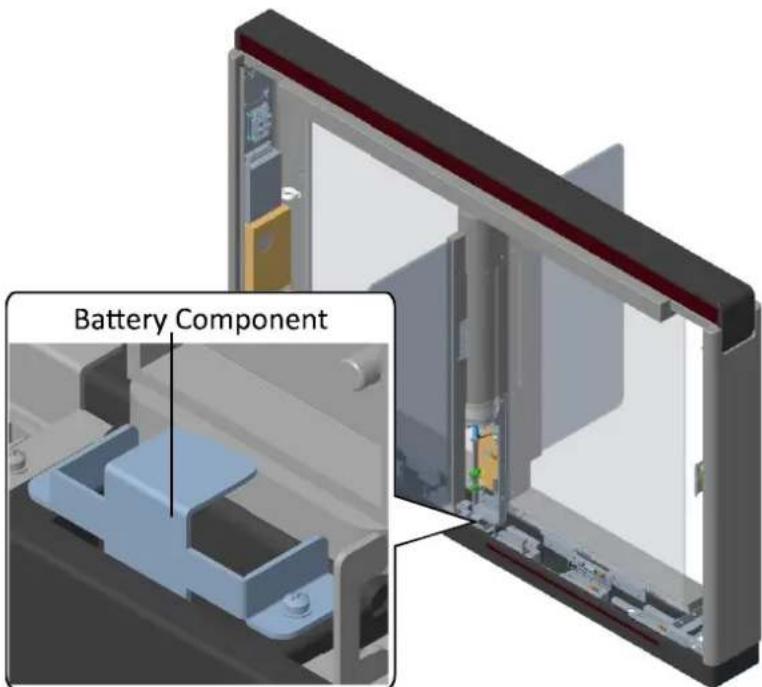
2) Put the lithium baery inside the component. 3) Tear the double sided adhesive tape and secure the components on the pedestal by the screws.
- Connect the baery connector to the battery interface on the lane control board.
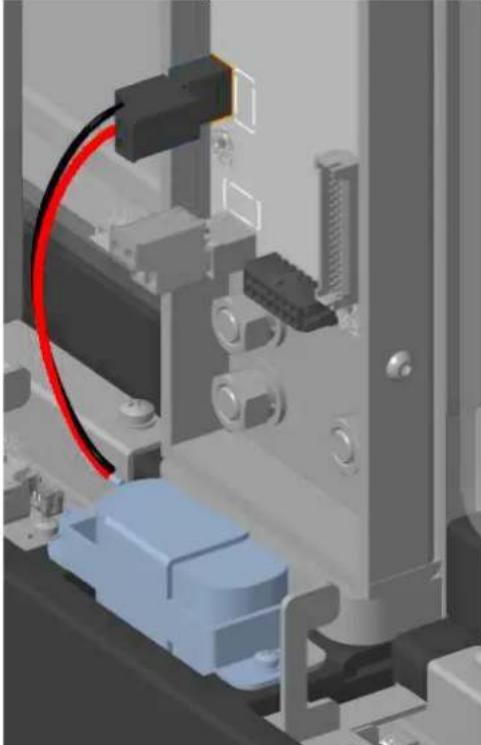
natural_image
3D mechanical assembly diagram showing a blue component and red cable inserted into a gray housing (no text or symbols visible)Note: There are battery interfaces on both of the master lane control board and slave lane control board.
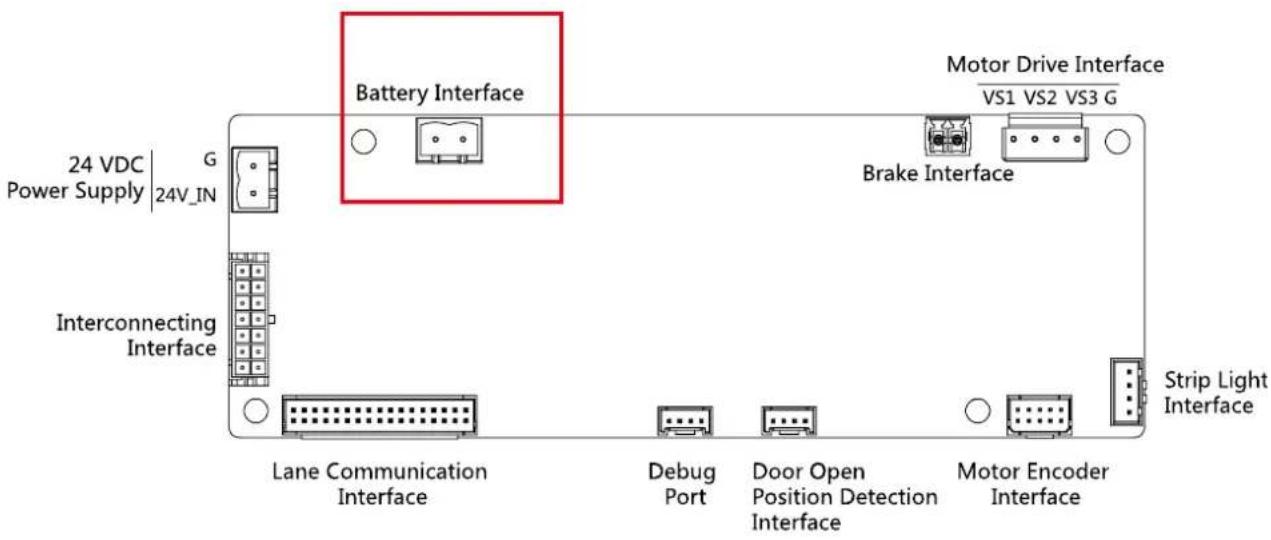
Chapter 5 Device Settings
Purpose:
Aer installaon and wiring completed, you should set the barriers closed posion (study mode) before entering the work mode.
You can also set the test mode, normal mode, passing mode and memory mode, pair the keyfob, inialize the hardware, switching between RS-485 communicaon mode and RS-232 communicaon mode, and view relay output NO/NC diagram by seng the DIP switch.
● Study Mode: The barrier will learn the closed posion.
- Normal Mode: The device will work properly. The barrier posion congured in study mode is the closed posion when the device is working normally.
- Test Mode: Test mode is the same as the normal mode except that the device cannot report the alarm or the event to the center.
- Passing Mode: There are 9 passing modes, including controlled bi-direcon, controlled entrance and prohibited exit, controlled entrance and free exit, free bi-direcon, free entrance and controlled exit, free entrance and prohibited exit, prohibited bi-direcon, prohibited entrance and free exit.
● Memory Mode: By default, the memory mode is enabled. When mulple cards are swiped and authenticated, it allows mulple persons passing through the lane. When it counts the passing people number is equal to the card swiped mes, or no person passing through the lane aer the last person passing, the barriers will be closed.
Note: You can control the acon of swiping card to open the barrier in alarm area via client soware. You can also set the DIP switch to control the entrance and exit controlling type, keyfob pairing, etc. For details about the DIP switch value, see Appendix B DIP Switch Descripon.
5.1 Setting Closed Position
Purpose:
Enter the study mode through DIP switching to set the closed posion of the device barrier.
Steps:
- Set The No.1 and No.2 switches of the 8-digit DIP Switch on the main controller by referring the following gure to enter the study mode.
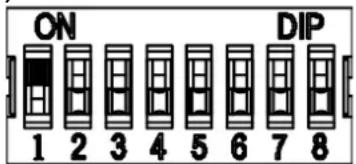
- Adjust the closed posion of the barrier.
- Power on the device.
The device will remember the current posion (closed posion) automacally.
- Power o the device.
- Set the No.1 and No.2 switches of the 8-digit DIP Switch on the main controller by referring to the following gure.
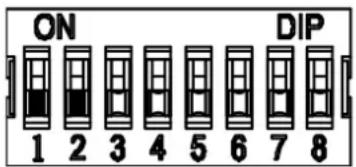
- Power on the device again.
The barrier will open automacally and turns back to the closed position. At this circumstance, the device enters the normal mode.
Note: For details about the DIP switch value and meaning, see Appendix B DIP Switch Descripon.
5.2 Pairing Keyfob (Optional)
Purpose:
Pair the keyfob to the device through DIP switch to open/close the barrier remotely.
Note: for details about the keyfob's operaons, see the related user manual.
Before you start:
Ask our technique supports or sales and buy the keyfob.
Steps:
- Power o the swing barrier.
- Set the No.4 switch of the 8-digit DIP Switch on the main control board according to the gure below.
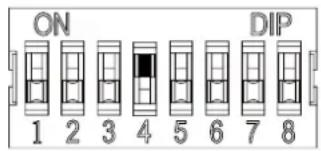
- Power on the swing barrier and it will enter the keyfob pairing mode.
- Hold the Close buon for more than 10 seconds.
The keyfob's indicator will ash twice if the pairing is completed.
- Set the DIP switch as OFF, and reboot the swing barrier to take eect.
Notes:
- You can also pair the keyfob via the client soware. For details, see Managing keyfob in 7.2.6 Remote Conguraon.
- Only one swing barrier can pair the keyfob. If mulple swing barriers are in the keyfob pairing mode, the keyfob will select only one of them to pair.
- For details about DIP switch value and meaning, see Appendix B DIP Switch Description.
5.3 Initializing Device
Steps:
- Remove the JP11 jumper cap.
- Disconnect the power and reboot the device. The device buzzer buzzes a long beep.
- When the beep stopped, plug the jumper cap back.
- Disconnect the power and reboot the device.
Note: The inializing of the device will restore all the parameters to the default seng and all
the device events are deleted.
5.4 Switching RS-485/RS-232 Mode
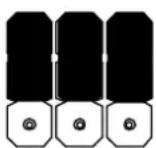
Take the UART2 and UART3 on the main control board as an example. If the Jumper cap's posion is like the picture displayed below. (The black part is the jumper cap.) The serial port is in RS-485 communicaon mode.

If the Jumper cap's posion is like the picture displayed below. (The black part is the jumper cap.) The serial port is in RS-232 communicaon mode.
5.5 Switching Relay Output Mode (NO/NC)
5.5.1 Barrier Control Relay Output Mode
The pins of the barrier control relay on the main control board is as below:
Entrance


Exit
The jumper cap's posion of barrier opening for entrance (NO) is as below:

The jumper cap's posion of barrier opening for exit (NO) is as below:

The jumper cap's posion of barrier closing for entrance (NC) is as below:

The jumper cap's posion of barrier closing for exit (NC) is as below:

5.5.2 Alarm Relay Output Mode (NO/NC)
Alarm Relay Output Mode (NO):
Alarm1 Alarm2 Alarm3 Alarm4

Alarm Relay Output Mode (NC):
Alarm1 Alarm2 Alarm3 Alarm4

Chapter 6 Device Activation
Purpose:
You are required to acvate the terminal rst before using it.
Acvaon via SADP, and acvaon via client soware are supported.
The default values of the control terminal are as follows.
● The default IP address: 192.0.0.64.
● The default port No.: 8000.
● The default user name: admin.
6.1 Activating via SADP Software
SADP soware is used for detectng the online device, acvang the device, and reseng the password.
Get the SADP soware from the supplied disk, and install the SADP according to the prompts. Follow the steps to acvate the control panel.
Steps:
- Run the SADP soware to search the online devices.
- Check the device status from the device list, and select an inacve device.
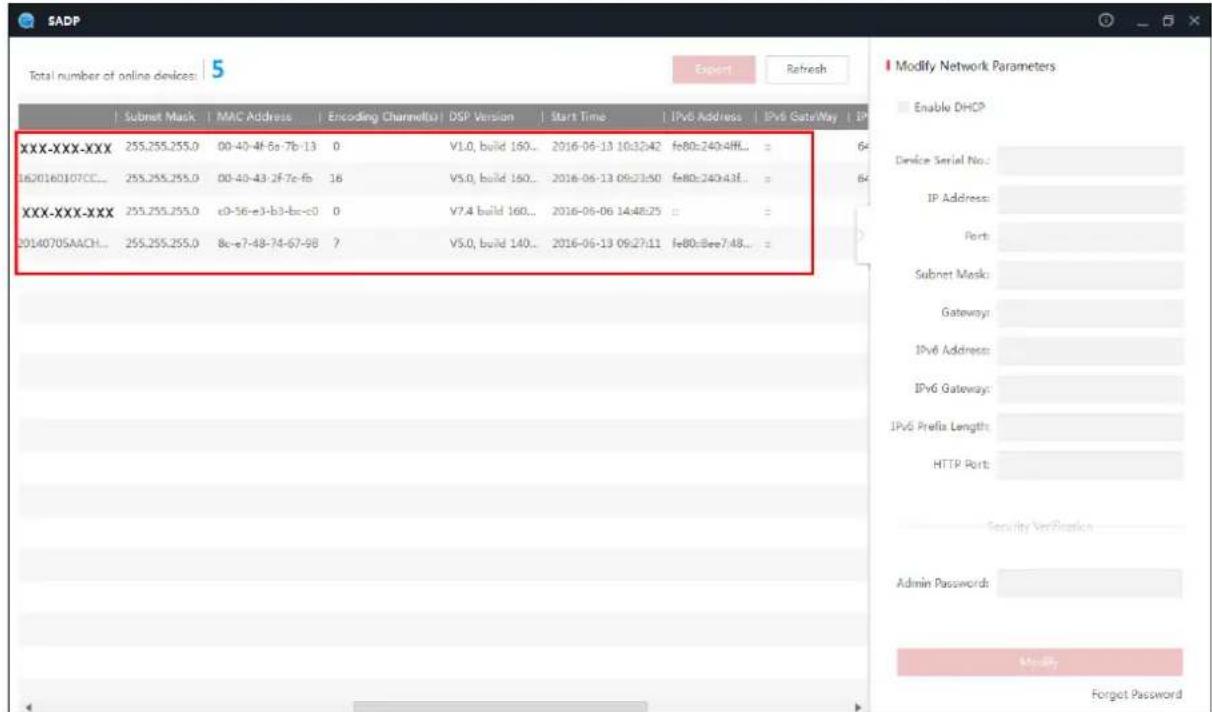
- Create a password and input the password in the password eld, and conrm the password.

STRONG PASSWORD RECOMMENDED— We highly recommend you create a strong password of your own choosing (using a minimum of 8 characters, including upper case leers, lower case leers, numbers, and special characters) in order to increase the security of your product. And we recommend you reset your password regularly, especially in the high security system, reseng the password monthly or weekly can beer protect your product.
-
Click Acvate to save the password.
-
Check the acvated device. You can change the device IP address to the same network segment with your computer by either modifying the IP address manually or checking the checkbox of Enable DHCP.
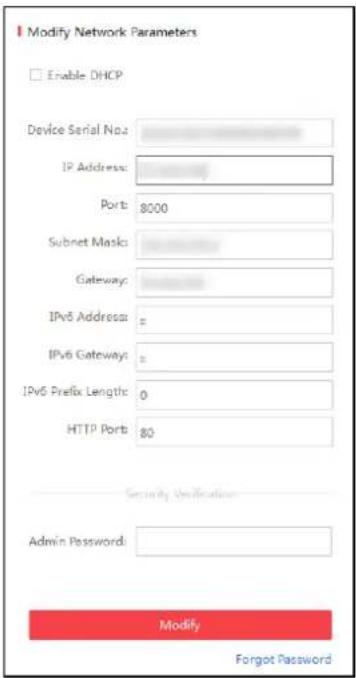
- Input the password and click the Modify buon to acvate your IP address modicaon.
6.2 Activating via Client Software
The client soware is versale video management soware for mulple kinds of devices.
Get the client soware from the supplied disk, and install the soware according to the prompts.
Follow the steps to acvate the control panel.
Steps:
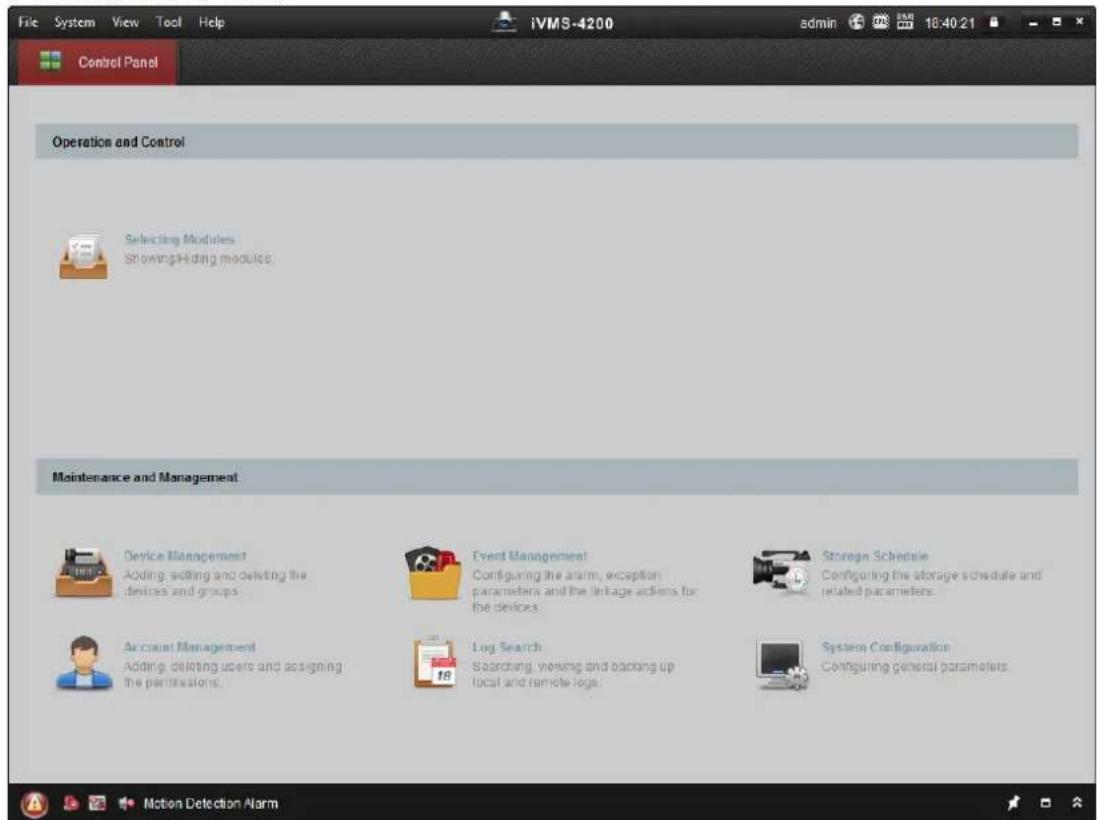
- Run the client soware and the control panel of the soware pops up, as shown in the gure below.
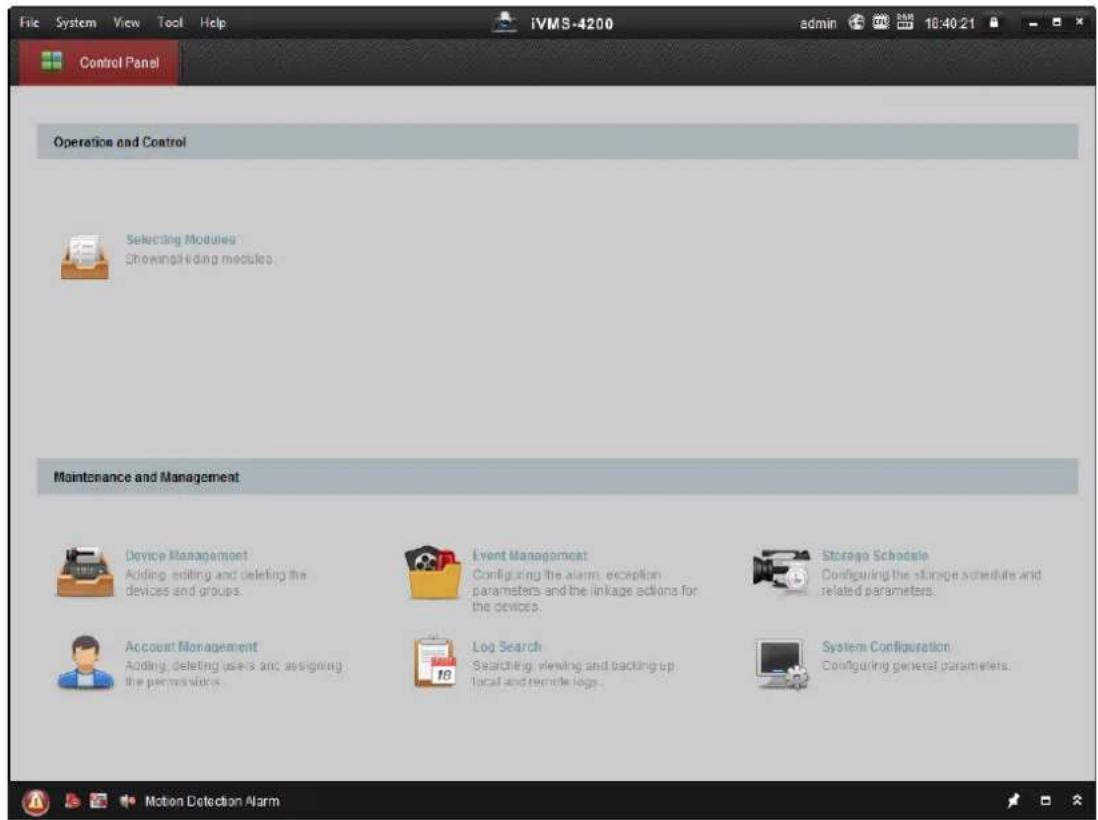
- Click Device Management to enter the Device Management interface.
- Check the device status from the device list, and select an inactive device.
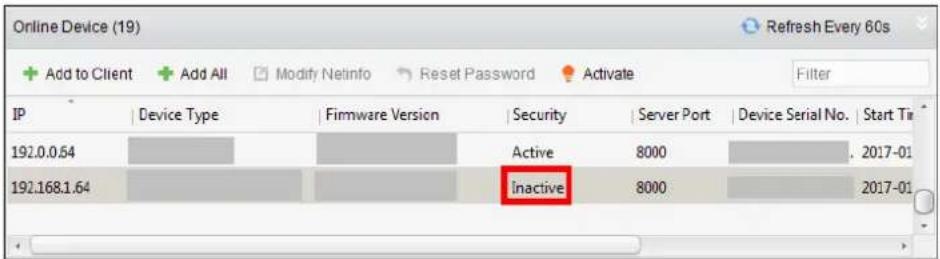
- Check the device status from the device list, and select an inacve device.
- Click the Acvate buon to pop up the Acvaon interface
- In the pop-up window, create a password in the password eld, and conrm the password.

STRONG PASSWORD RECOMMENDED- We highly recommend you create a strong password of your own choosing (using a minimum of 8 characters, including upper case leers, lower case leers, numbers, and special characters) in order to increase the security of your product. And we recommend you reset your password regularly, especially in the high security system, reseng the password monthly or weekly can beer protect your product.
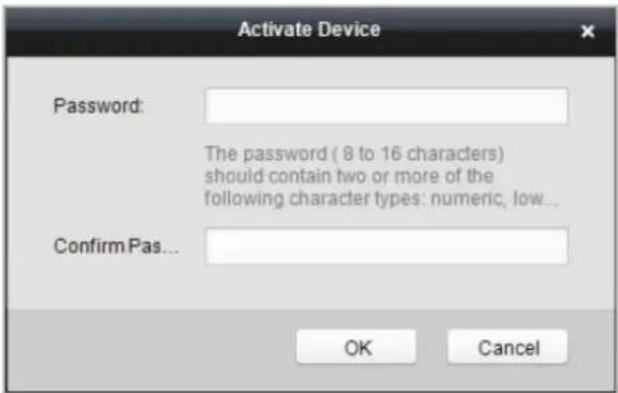
- Click OK buon to start acvaon.
- Click the Modify Nenfor buon to pop up the Network Parameter Modicaon interface.
- Change the device IP address to the same network segment with your computer by either modifying the IP address manually.
- Input the password and click the OK buon to save the settings.
Chapter 7 Client Operation
You can set and operate the access control devices via the client software. This chapter will introduce the access control device related operations in the client soware. For integrated operaons, refer to User Manual of iVMS-4200 Client Soware.
7.1 Function Module
Control Panel of iVMS-4200:
7.2 Access Control Management
Purpose:
The Access Control module is applicable to access control devices and video intercom. It provides multiple functionalities, including person and card management, permission conguraon, access control status management, video intercom, and other advanced funcons.
You can also set the event conguraon for access control and display access control points and zones on E-map.
Note: For the user with access control module permissions, the user can enter the Access Control module and congregate the access control sengs.
Click in the control panel, and check Access Control to add the Access Control module to the control panel.
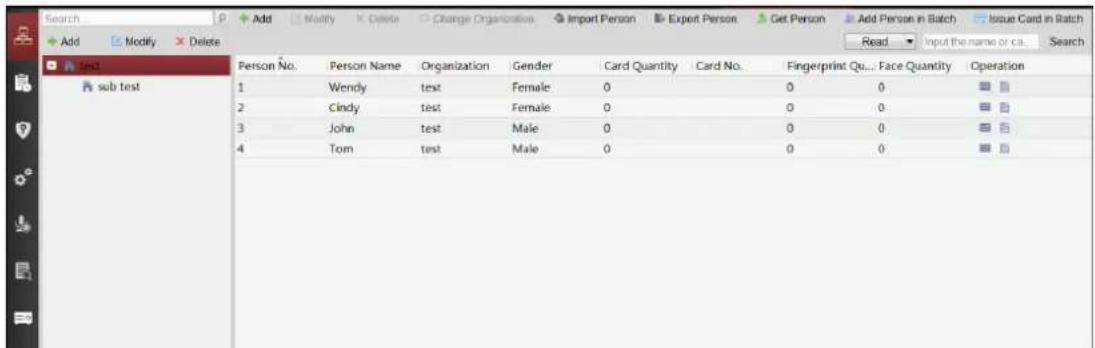
Click to enter the Access Control module.
Before you start:
For the rst me opening the Access Control module, the following dialog will pop up and you are required to select the scene according to the actual needs.
Non-residence: You can set the attendance rule when adding person, while set the access control parameters.
Residence: You cannot set the aendance rule when adding person.
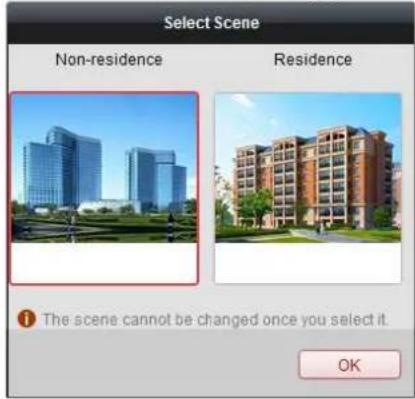
Note: Once the scene is congured, you cannot change it later.
7.2.1 Adding Access Control Device
Click in the Access Control module to enter the following interface.
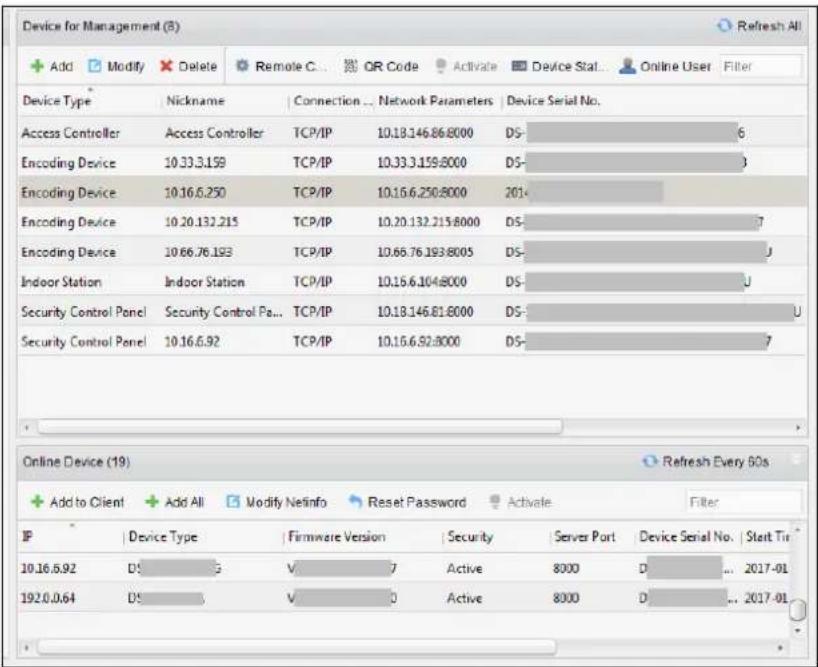
Note: Aer adding the device, you should check the device arming status in Tool – Device Arming Control. If the device is not armed, you should arm it, or you will not receive the real-me events via the client soware. For details about device arming control, refer 7.10 Arming Control.
Adding Online Device
Purpose:
The acve online devices in the same local subnet with the client soware will be displayed on the Online Device area. You can click the Refresh Every 60s button to refresh the informaon of the online devices.
Note: You can click 📋 to hide the Online Device area.
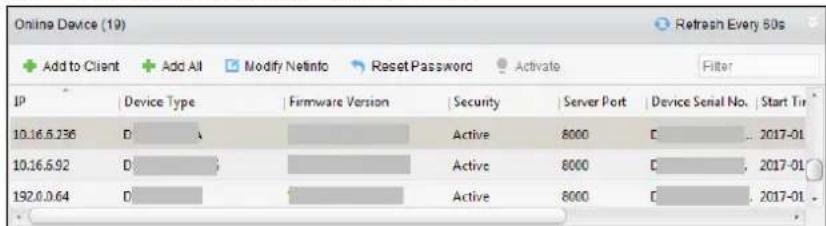
Steps:
- Select the devices to be added from the list.
Note: For the inacve device, you need to create the password for it before you can add the device properly.
-
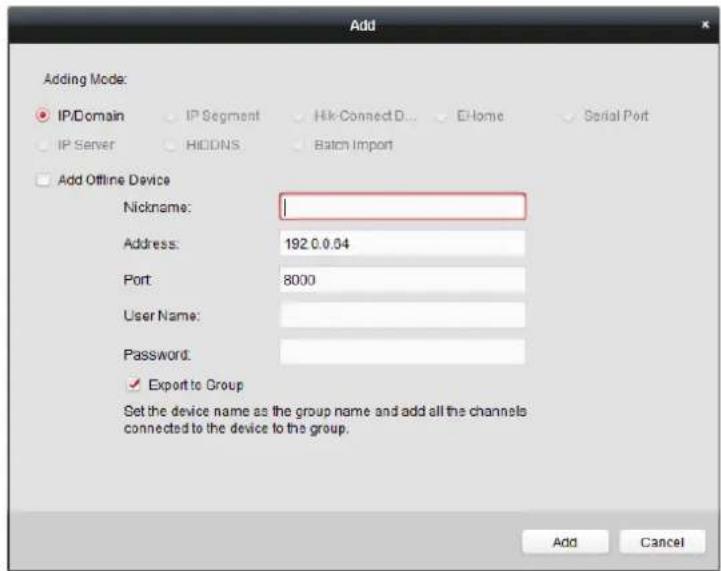
Click Add to Client to open the device adding dialog box.
-
Input the required informaon.
Nickname: Edit a name for the device as you want.
Address: Input the device's IP address. The IP address of the device is obtained automatically in this adding mode.
Port: Input the device port No. The default value is 8000.
User Name: Input the device user name. By default, the user name is admin.
Password: Input the device password.

STRONG PASSWORD RECOMMENDED— We highly recommend you create a strong password of your own choosing (using a minimum of 8 characters, including upper case leers, lower case leers, numbers, and special characters) in order to increase the security of your product. And we recommend you reset your password regularly, especially in the high security system, reseng the password monthly or weekly can beer protect your product.
- Oponally, check the Export to Group checkbox to create a group by the device name. You can import all the channels of the device to the corresponding group by default. Note: iVMS-4200 also provides a method to add the oine devices.
1) Check the Add Oine Device checkbox.
2) Input the required informaon, including the device channel number and alarm input number.
3) Click Add.
When the oine device comes online, the soware will connect it automacally.
- Click Add to add the device.
Adding Mulple Online Device
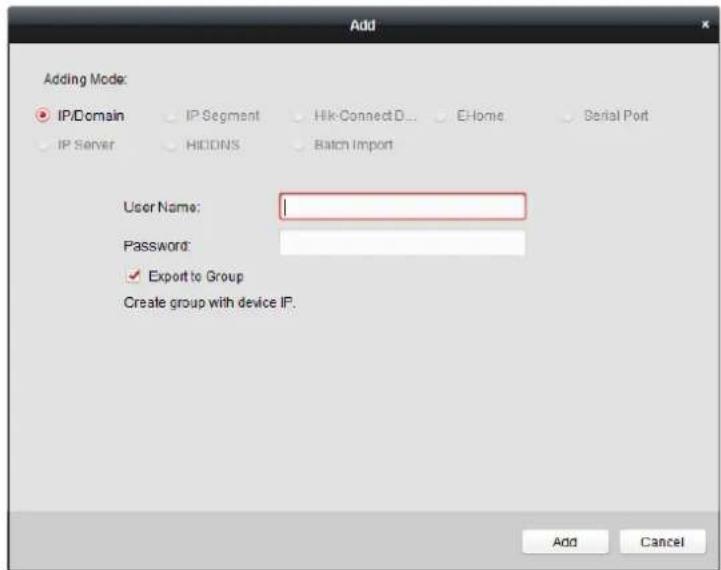
If you want to add mulple online devices to the client soware, click and hold Ctrl key to select mulple devices, and click Add to Client to open the device adding dialog box. In the pop-up message box, enter the user name and password for the devices to be added.
Adding All Online Devices
If you want to add all the online devices to the client soware, click Add All and click OK in the pop-up message box. Then enter the user name and password for the devices to be added.
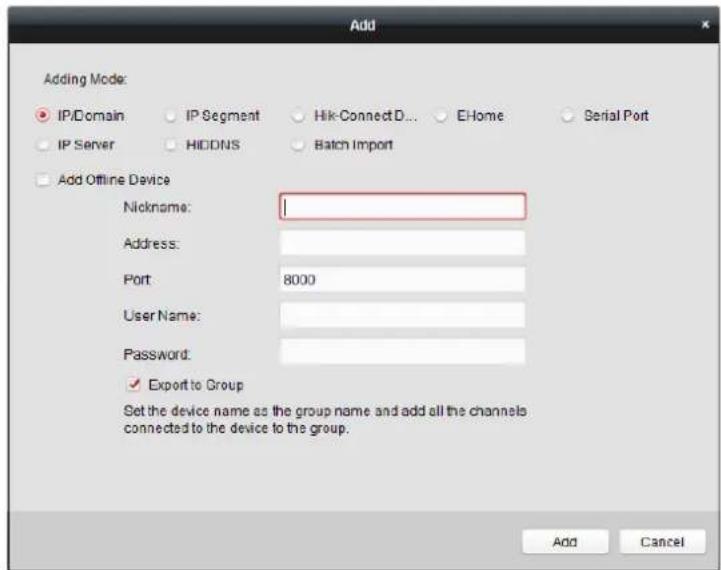
Adding Devices by IP or Domain Name
Steps:
- Click Add to open the device adding dialog box.
- Select IP/Domain as the adding mode.
- Input the required informaon.
Nickname: Edit a name for the device as you want.
Address: Input the device's IP address or domain name.
Port: Input the device port No. The default value is 8000.
User Name: Input the device user name. By default, the user name is admin.
Password: Input the device password.

STRONG PASSWORD RECOMMENDED- We highly recommend you create a strong password of your own choosing (using a minimum of 8 characters, including upper case leers, lower case leers, numbers, and special characters) in order to increase the security of your product. And we recommend you reset your password regularly, especially in the high security system, reseng the password monthly or weekly can beer protect your product.
- Oponally, check the Export to Group checkbox to create a group by the device name.
You can import all the channels of the device to the corresponding group by default.
Note: iVMS-4200 also provides a method to add the oine devices.
1) Check the Add Oine Device checkbox.
2) Input the required informaon, including the device channel number and alarm input number.
3) Click Add.
When the oine device comes online, the soware will connect it automacally.
- Click Add to add the device.
Adding Devices by IP Segment
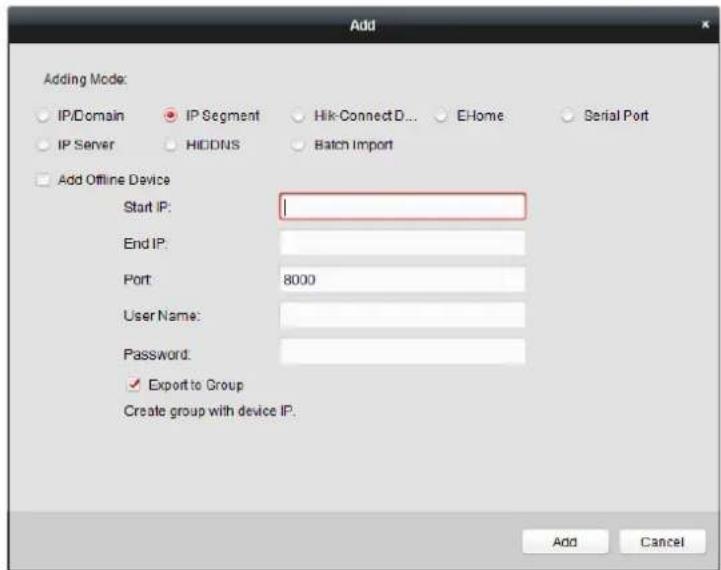
Steps:
- Click Add to open the device adding dialog box.
- Select IP Segment as the adding mode.
- Input the required informaon.
Start IP: Input a start IP address.
End IP: Input an end IP address in the same network segment with the start IP.
Port: Input the device port No. The default value is 8000.
User Name: Input the device user name. By default, the user name is admin.
Password: Input the device password.

STRONG PASSWORD RECOMMENDED- We highly recommend you create a strong password of your own choosing (using a minimum of 8 characters, including upper case leers, lower case leers, numbers, and special characters) in order to increase the security of your product. And we recommend you reset your password regularly, especially in the high security system, reseng the password monthly or weekly can beer protect your product.
- Oponally, check the Export to Group checkbox to create a group by the device name.
You can import all the channels of the device to the corresponding group by default.
Note: iVMS-4200 also provides a method to add the oine devices.
1) Check the Add Oine Device checkbox.
2) Input the required informaon, including the device channel number and alarm input number.
3) Click Add.
When the oine device comes online, the soware will connect it automacally.
- Click Add.
You can add the device which the IP address is between the start IP and end IP to the device list.
Adding Devices by Hik-Connect Domain
Purpose:
You can add the devices connected via Hik-Connect by inpung the Hik-Connect account and password.
Before you start:
Add the devices to Hik-Connect account via iVMS-4200, iVMS-4500 Mobile Client, or Hik-Connect rst. For details about adding the devices to Hik-Connect account via iVMS-4200, refer to the User Manual of iVMS-4200 Client Soware.
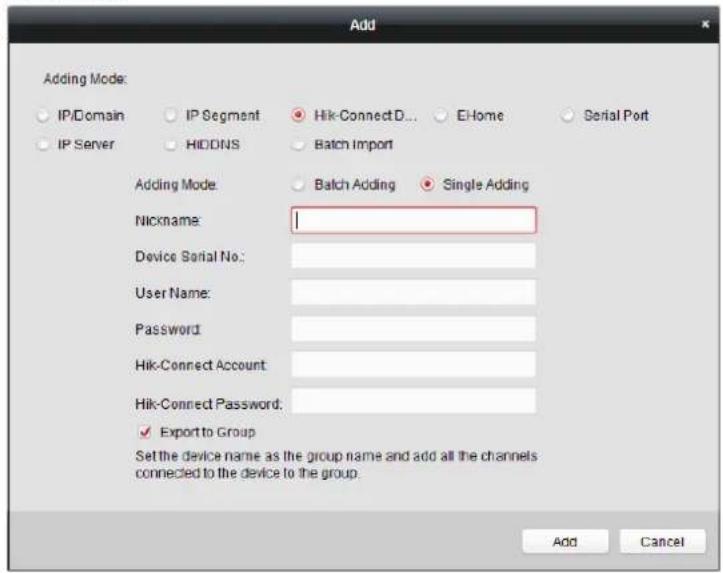
Add Single Device
Steps:
- Click Add to open the device adding dialog.
- Select Hik-Connect Domain as the adding mode.
- Select Single Adding.
- Input the required informaon.
Nickname: Edit a name for the device as you want.
Device Serial No.: Input the device serial No.
User Name: Input the device user name. By default, the user name is admin.
Password: Input the device password.

STRONG PASSWORD RECOMMENDED— We highly recommend you create a strong password of your own choosing (using a minimum of 8 characters, including upper case leers, lower case leers, numbers, and special characters) in order to increase the security of your product. And we recommend you reset your password regularly, especially in the high security system, reseng the password monthly or weekly can beer protect your product.
Hik-Connect Account: Input the Hik-Connect account.
Hik-Connect Password: Input the Hik-Connect password.
- Oponally, check the Export to Group checkbox to create a group by the device name.
You can import all the channels of the device to the corresponding group by default.
- Click Add to add the device.
Add Devices in Batch
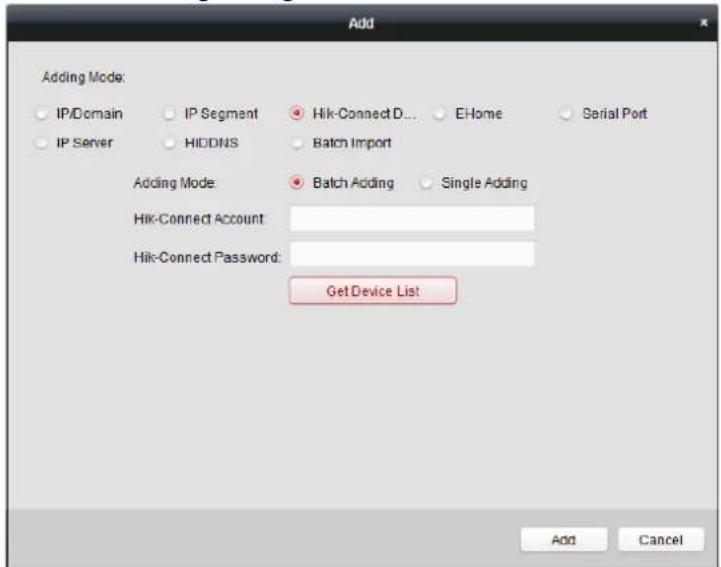
Steps:
- Click Add to open the device adding dialog.
-
Select Hik-Connect Domain as the adding mode.
-
Select Batch Adding.
-
Input the required informaon.
Hik-Connect Account: Input the Hik-Connect account.
Hik-Connect Password: Input the Hik-Connect password.
- Click Get Device List to show the devices added to Hik-Connect account.
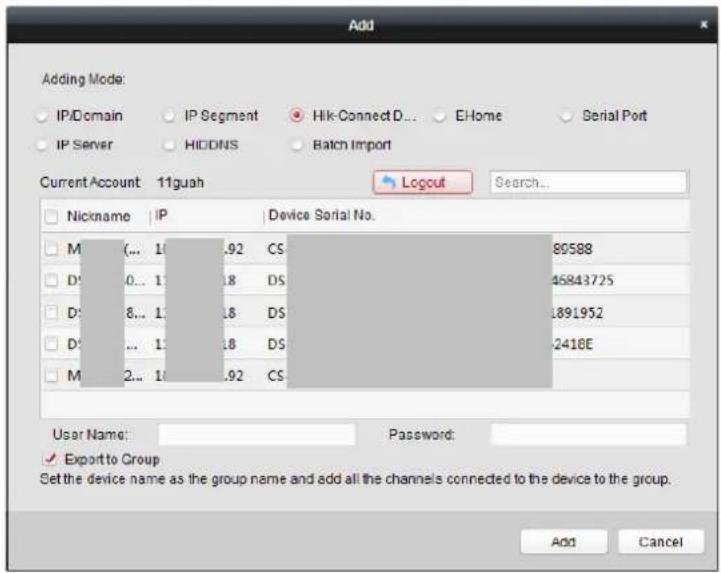
- Check the checkbox(es) to select the device as desired.
- Input the user name and password for the devices to be added.
- Oponally, check the Export to Group checkbox to create a group by the device name. You can import all the channels of the device to the corresponding group by default.
- Click Add to add the devices.
Adding Devices by Serial Port
Purpose:
You can add access control device connected via serial port.
Steps:
- Click Add to open the device adding dialog box.
- Select Serial Port as the adding mode.
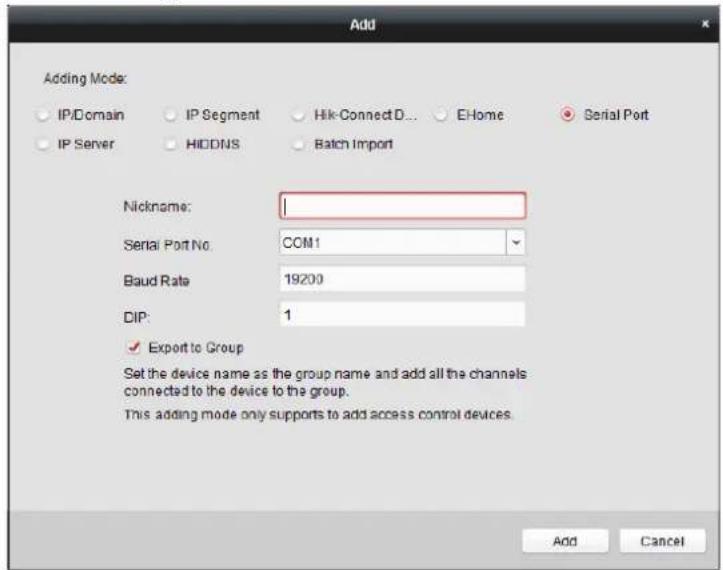
- Input the required informaon.
Nickname: Edit a name for the device as you want.
Serial Port No.: Select the device's connected serial port No.
Baud Rate: Input the baud rate of the access control device.
DIP: Input the DIP address of the device.
- Oponally, check the Export to Group checkbox to create a group by the device name.
You can import all the channels of the device to the corresponding group by default.
Note: iVMS-4200 also provides a method to add the oine devices.
1) Check the Add Oine Device checkbox.
2) Input the required informaon, including the device channel number and alarm input number.
3) Click Add.
When the oine device comes online, the soware will connect it automacally.
- Click Add to add the device.
Adding Devices by IP Server
Steps:
- Click Add to open the device adding dialog box.
- Select IP Server as the adding mode.
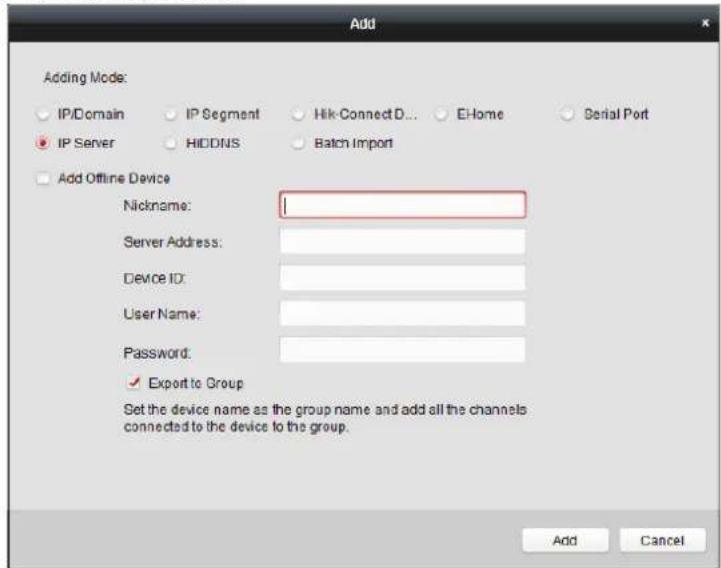
- Input the required informaon.
Nickname: Edit a name for the device as you want.
Server Address: Input the IP address of the PC that installs the IP Server.
Device ID: Input the device ID registered on the IP Server.
User Name: Input the device user name. By default, the user name is admin.
Password: Input the device password.

STRONG PASSWORD RECOMMENDED— We highly recommend you create a strong password of your own choosing (using a minimum of 8 characters, including upper case leers, lower case leers, numbers, and special characters) in order to increase the security of your product. And we recommend you reset your password regularly, especially in the high security system, reseng the password monthly or weekly can beer protect your product.
- Oponally, check the Export to Group checkbox to create a group by the device name.
You can import all the channels of the device to the corresponding group by default.
Note: iVMS-4200 also provides a method to add the oine devices.
1) Check the Add Oine Device checkbox.
2) Input the required informaon, including the device channel number and alarm input number.
3) Click Add.
When the oine device comes online, the soware will connect it automacally.
- Click Add to add the device.
Imporng Devices in Batch
Purpose:
The devices can be added to the soware in batch by inpung the device informaon in the pre-dened CSV le.
Steps:
- Click Add to open the device adding dialog box.
- Select Batch Import as the adding mode.
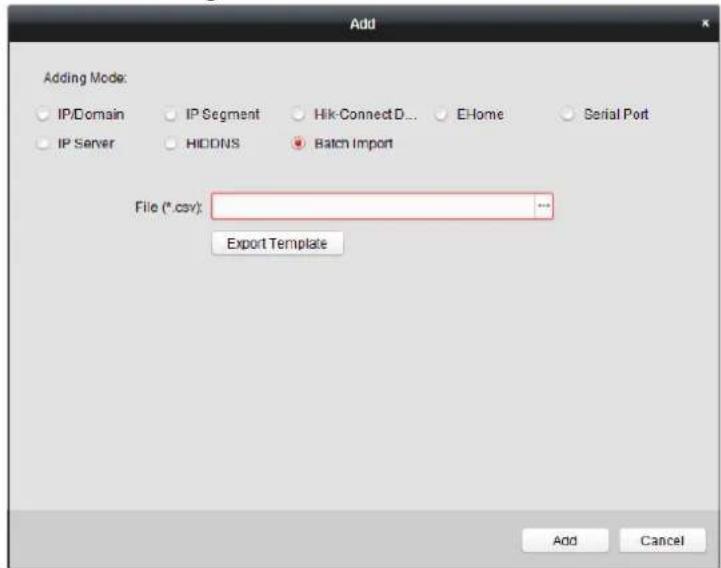
- Click Export Template and save the pre-dened template (CSV le) on your PC.
-
Open the exported template le and input the required informaon of the devices to be added on the corresponding column.
-
Nickname: Edit a name for the device as you want.
- Adding Mode: You can input 0, 2, 3, 4, 5, or 6 which indicated dierent adding modes. 0 indicates that the device is added by IP address or domain name; 2 indicates that the device is added via IP server; 3 indicates that the device is added via HiDDNS; 4 indicates that the device is added via EHome protocol; 5 indicates that the device is added by serial port; 6 indicates that the device is added via Hik-Connect Domain.
- Address: Edit the address of the device. If you set 0 as the adding mode, you should input the IP address or domain name of the device; if you set 2 as the adding mode, you should input the IP address of the PC that installs the IP Server; if you set 3 as the adding mode,
you should input www.hik-online.com.
- Port: Input the device port No.. The default value is 8000.
- Device Informaon: If you set 0 as the adding mode, this eld is not required; if you set 2 as the adding mode, input the device ID registered on the IP Server; if you set 3 as the adding mode, input the device domain name registered on HiDDNS server; if you set 4 as the adding mode, input the EHome account; if you set 6 as the adding mode, input the device serial No.
- User Name: Input the device user name. By default, the user name is admin.
- Password: Input the device password.

STRONG PASSWORD RECOMMENDED— We highly recommend you create a strong password of your own choosing (using a minimum of 8 characters, including upper case leers, lower case leers, numbers, and special characters) in order to increase the security of your product. And we recommend you reset your password regularly, especially in the high security system, reseng the password monthly or weekly can beer protect your product.
- Add Oine Device: You can input 1 to enable adding the oine device, and then the soware will automatically connect it when the oine device comes online. 0 indicates disabling this funcon.
- Export to Group: You can input 1 to create a group by the device name (nickname). All the channels of the device will be imported to the corresponding group by default. 0 indicates disabling this funcon.
- Channel Number: If you set 1 for Add Ofine Device, input the channel number of the device. If you set 0 for Add Oine Device, this eld is not required.
- Alarm Input Number: If you set 1 for Add Ofine Device, input the alarm input number of the device. If you set 0 for Add Oine Device, this eld is not required.
- Serial Port No.: If you set 5 as the adding mode, input the serial port No. for the access control device.
-
Baud Rate: If you set 5 as the adding mode, input the baud rate of the access control device.
● DIP: If you set 5 as the adding mode, input the DIP address of the access control device.
● Hik-Connect Account: If you set 6 as the adding mode, input the Hik-Connect account.
● Hik-Connect Password: If you set 6 as the adding mode, input the Hik-Connect password. -
Click and select the template le.
-
Click Add to import the devices.
The devices will be displayed on the device list for management aer added successfully. You can check the resource usage, HDD status, recording status, and other informaon of the added devices on the list.
Click Refresh All to refresh the informaon of all added devices. You can also input the device name in the Iter eld for search.
7.2.2 Viewing Device Status
In the device list, you can select the device and then click Device Status button to view its status.
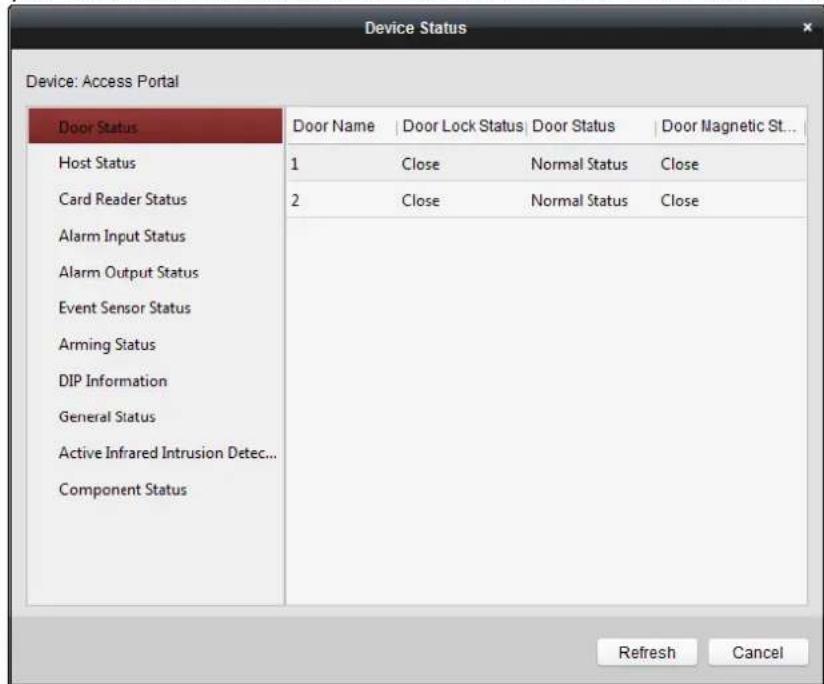
Note: The interface may dierent from the picture displayed above. Refer to the actual interface when adopng this funcon.
| Status Name | Description |
| Door Status | View the device door's status. |
| Host Status | View the device host's status, including the device power supply status, an-passing back status, host tampering status, etc. |
| Card Reader Status | View the card reader's status, including the online status, the tampering status, and the authencaon method. |
| Alarm Input Status | View the alarm input's status. |
| Alarm Output Status | View the alarm output's status. |
| Event Sensor Status | View the event sensor's status. |
| Arming Status | View the arming device's IP address and its arming type. |
| DIP Informaon | View the device local DIP informaon. |
| General Status | View the device general status, including the BUS synchronizaon status, IR people counng for entrance, authenticated people counng for entrance, etc. |
| Acve Infrared Intrusion Detector Status | View the status of acve infrared intrusion detector, receiving board, etc. |
| Component Status | View the device components' status, including the status of the motor sensor, brake status, etc. |
7.2.3 Eding Basic Informaon
Purpose:
Aer adding the access control device, you can edit the device basic informaon.
Steps:
- Select the device in the device list.
- Click Modify to pop up the modifying device informaon window.
- Click Basic Informaon tab to enter the Basic Informaon interface.
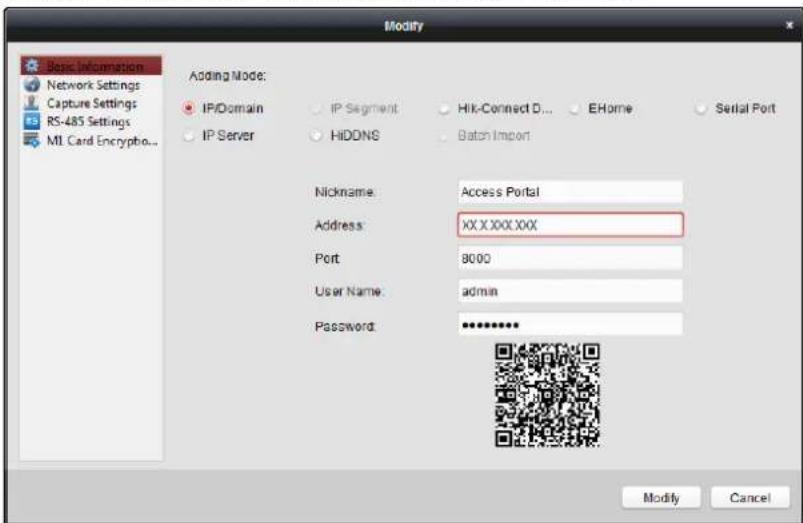
- Edit the device informaon, including the adding mode, the device name, the device IP address, port No., user name, and the password.
7.2.4 RS-485 Sengs
Purpose:
You can set the RS-485 parameters including the serial port, the baud rate, the data bit, the stop bit, the parity type, the communicaon mode, and the working mode.
Note: The RS-485 Sengs should be supported by the device.
Steps:
- Select the device in the device list, and click Modify to pop up the modifying device informaon window.
- Click RS-485 Sengs tab to enter the RS-485 settings interface.
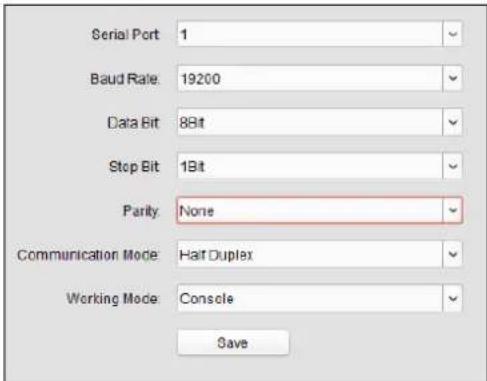
- Select the serial No. of the port from the dropdown list to set the RS-485 parameters.
- Set the baud rate, data bit, the stop bit, parity type, communicaon mode, and working mode in the dropdown list.
- Click Save to save the sengs and the congured parameters will be applied to the device automacally.
Note: Aer changing the working mode, the device will be rebooted. A prompt will be popped up aer changing the working mode.
7.2.5 Authencang M1 Card Encrypon
Before you start:
You should use the specied Hikvision card enrollment staon to issue card. For details, refer to Adding Person (Card) in Chapter 7.4.1 Adding Person.
Purpose:
The M1 Card Encrypon funcon increases the authencaon security level, which should be applied together with the card enrollment staon of our company via the client soware or the web client. Aer issuing the card, you can set the M1 card encrypon funcon on the controller.
Note: The funcon should be supported by the access control device and the card reader.
Steps:
- Select the device in the device list, and click Modify to pop up the modifying device informaon window.
- Click M1 Card Encrypon tab to enter the M1 Card Encrypon interface.
- In the M1 Card Encrypon interface, check Enable checkbox to enable the M1 card encryption funcon.
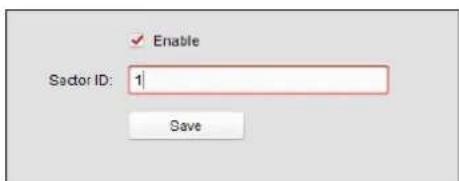
- Set the sector ID.
- Click Save to save the sengs.
Note: The sector ID ranges from 1 to 100.
7.2.6 Remote Conguraon
Purpose:
In the device list, select the device and click Remote Conguraon buon to enter the remote conguraon interface. You can set the detailed parameters of the selected device.
Checking Device Informaon
Steps:
- In the device list, you can click Remote Conguraon to enter the remote conguraon interface.
- Click System -> Device Informaon to check the device basic informaon and the device version informaon.
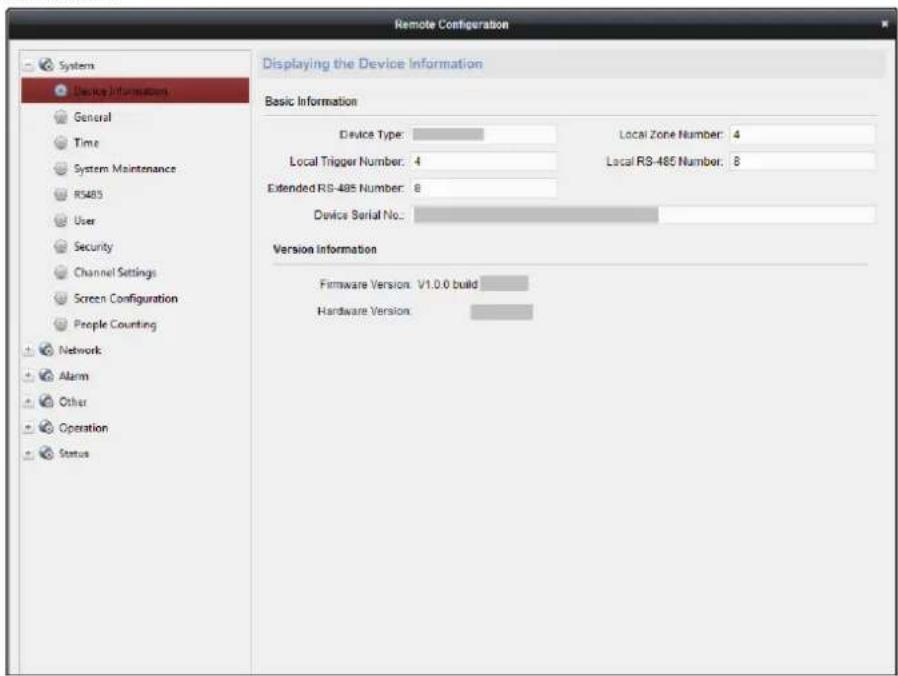
Eding Device Name
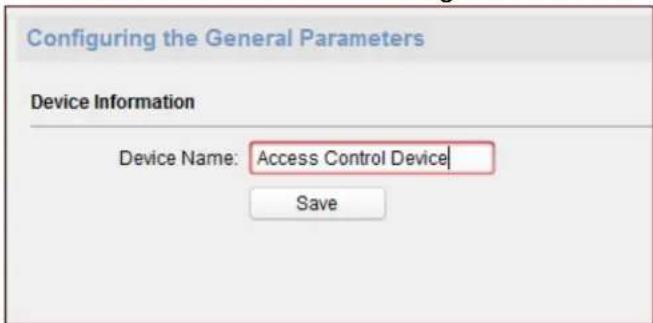
In the Remote Conguraon interface, click System -> General to congregate the device name and overwrite record les parameter. Click Save to save the sengs.
Eding Time
Steps:
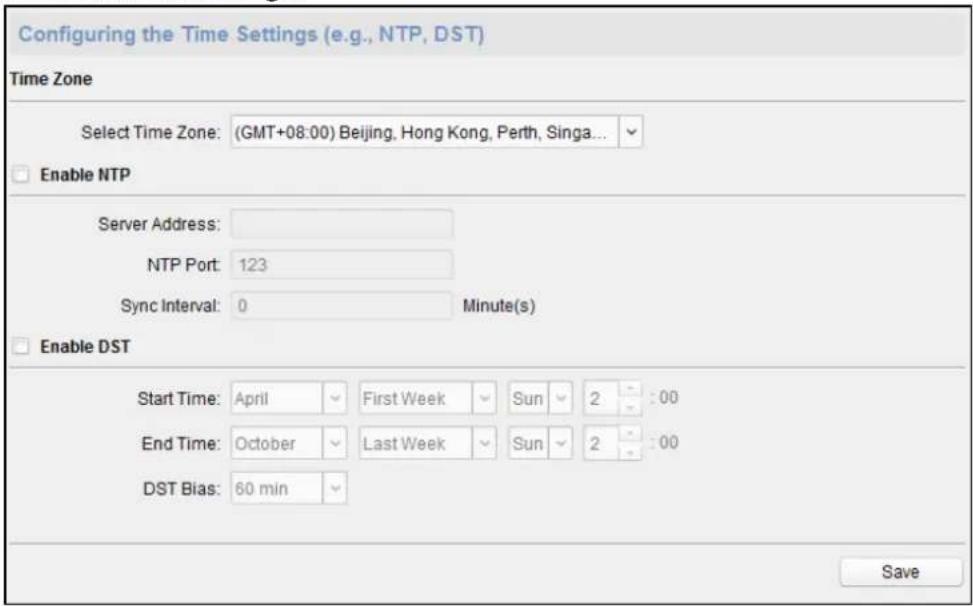
- In the Remote Conguraon interface, click System -> Time to congregate the me zone.
- (Optional) Check Enable NTP and congregate the NTP server address, the NTP port, and the synchronizaon interval.
- (Optional) Check Enable DST and congregate the DST star time, end me and the bias.
- Click Save to save the settings.
Seng System Maintenance
Purpose:
You can reboot the device remotely, restore the device to default sengs, import conguraon le, upgrade the device, etc.
Steps:
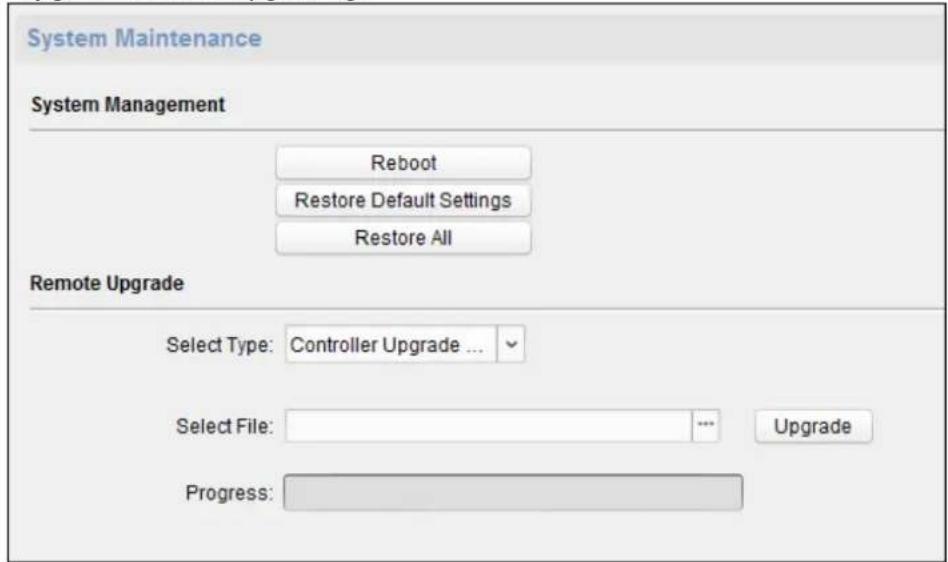
- In the Remote Conguraon interface, click System -> System Maintenance.
- Click Reboot to reboot the device.
Or click Restore Default Sengs to restore the device settings to the default ones, excluding the IP address.
Or click Restore All to restore the device parameters to the default ones. The device should be acvated aer restoring.
Note: The conguraon le contains the device parameters.
- You can also remote upgrade the device.
1) In the Remote Upgrade part, select Controller Upgrade File, Card Reader Upgrade File or Upgrade File of Lange Controller from the drop down list.
2) Upgrade File of Lange Controller from the drop down list.
Controller Upgrade File: Upgrade access controller.
Card Reader Upgrade File: Upgrade card reader. Only card readers connected via RS-485 can be upgraded remotely.
Upgrade File of Lane Controller: Select master lane controller or slave lane controller to upgrade.
3) Click to select the upgrade le.
4) Click Upgrade to start upgrading.
Seng RS-485 Parameters
You can set the RS-485 parameters in this page.
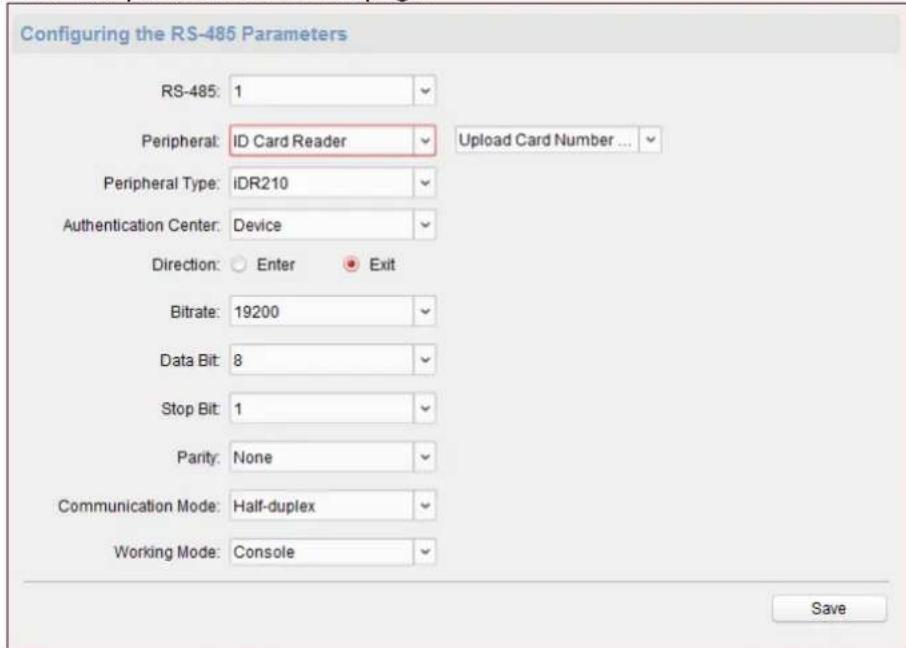
Notes:
● Supports 9 peripherals: ID card reader, IC card reader, QR code scanner, ingerprint and card reader, text screen, card recycler, ingerprint reader, and ID card idencaon terminal.
- If selecng ID card reader, QR code scanner, card recycler, text screen, or ngerprint reader as the peripheral, you should set the accessing direcon.
- If selecng IC card reader or ngerprint reader as the external device, you should set accessing direcon by seng the DIP switch.
● The system supports 3 authencaon centers: Device, Client and Unlimited Access.
If you select Unlimited Access, the swing barrier will open the door immediately aer any user's authencaon via the congured peripheral (except for the face recognition terminal) on this page. If connecng a face recognition terminal, the person should be added to the face picture library, or the funcon cannot be operated.
- The authencaon center type Client is mainly adopted by developers of the third party sware.
Managing Network User
Steps:
- In the Remote Conguraon interface, click System -> User -> Network User.
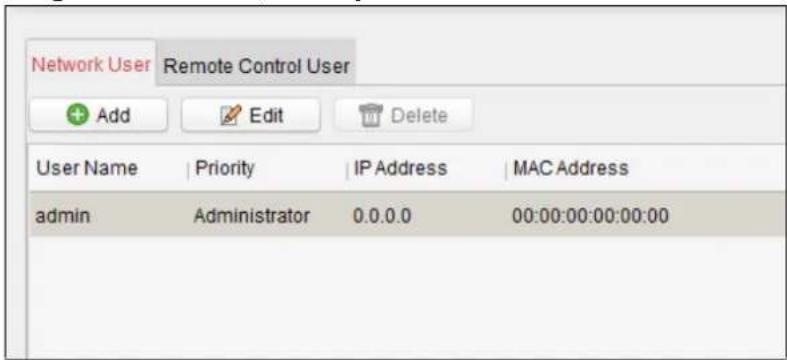
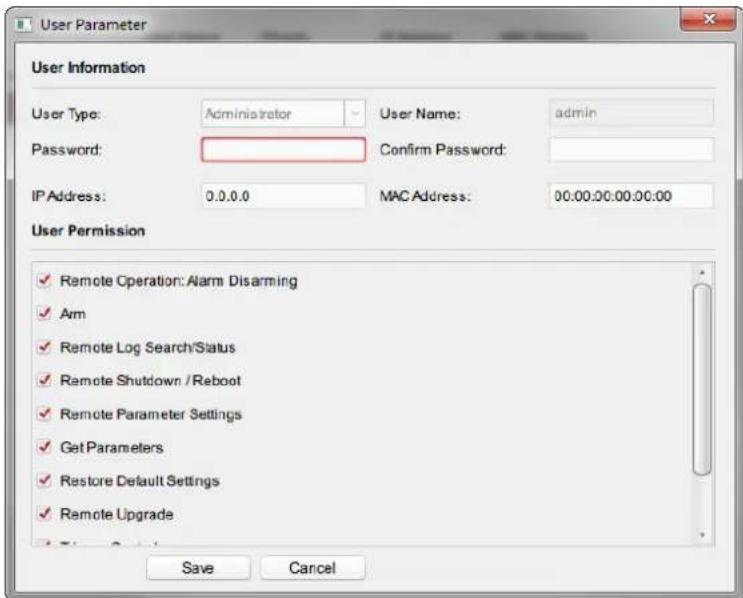
- Click Add to add the user (Do not support by the elevator controller).
Or select a user in the user list and click Edit to edit the user. You are able to edit the user password, the IP address, the MAC address and the user permission. Click OK to conrm eding.
Managing Remote Control User
Purpose:
You can match the remote control's code in this page. Aer the code is matched, you can control the device by the remote control.
Steps:
- In the Remote Conguraon interface, click System -> User -> Remote Control User.
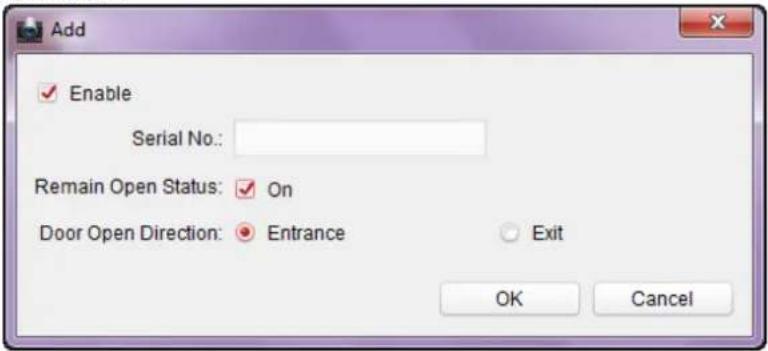
- Click Add to add the user.
-
Check Enable in the pop-up window and set the remote control's serial No.
-
(Optional) Enable the Remian Open Status of the swing barrier.
Note: If enabling this function, aer the remote control matching completed, you can control the bae remaining open by using the remote control.
-
Set the door open direcon.
-
Click OK to save the sengs.
Note: You can add up to 32 remote control users.
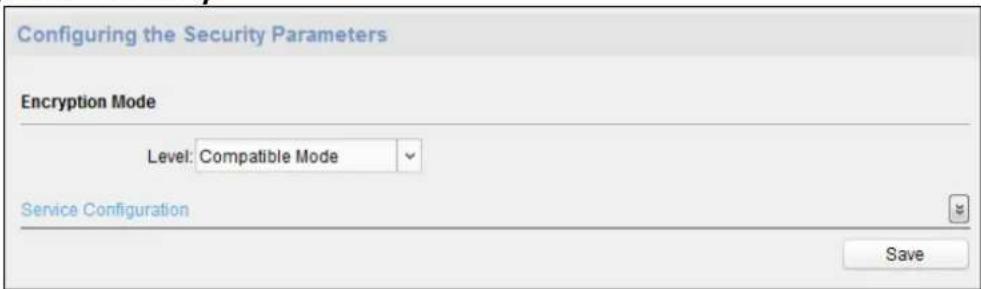
Seng Security
Purpose:
You can set the security parameters when logging in the device.
Steps:
- Click System -> Security.
-
Select the encrypon mode in the dropdown list.
You can select Compatible Mode or Encrypon Mode. -
Click Save to save the settings.
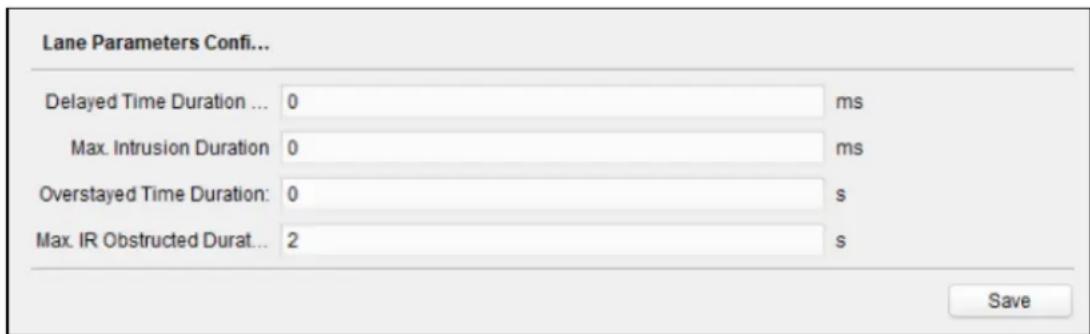
Conguring Passing Parameters
Purpose:
You can set the passing parameters for a person to pass through the device.
Click System -> Passing Sengs and set the parameters. Click Save to save the sengs.
The parameters descripons are as follows:
Delayed Time Duraon When Closing Barrier:
Set the delayed me duraon for barrier closing. The barrier will be closed aer the congured delayed me duraon.
Max. Intrusion Duraon:
If a person has entered the lane or passed through the
lane for more than the congured me duraon, an alarm will be triggered. 0 represents the funcon is disabled.
Note: The suggested minimum detecon meduraon is 2s.
Overstayed Time Duraon:
If the device detects persons or things staying in the lane for more than the congured me duraon, an alarm will be triggered.
Max. IR Obstructed Duraon:
Set the maximum me duraon for the obstrucon of the IR light. If the IR light is obstructed for more than the congured me duraon, the alarm will be triggered. 0 represents the funcon is disabled.
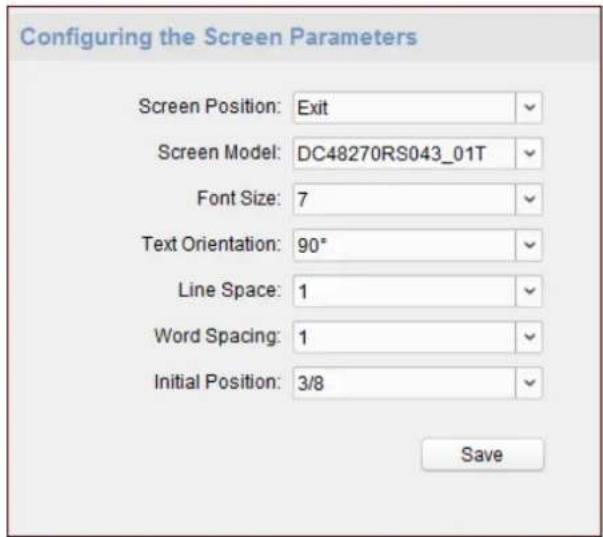
Conguring Screen Parameters
Purpose:
The device can connect to a text screen. You can set the display parameters on this page. Click System -> Screen Conguraon and set the parameters. Click Save to save the sengs.
Note: For beer performance, we suggest you to use the default parameters.
The parameters descripons are as follows:
| Screen Posion: | Select the screen’s posion on the device. |
| If select Exit from the drop-down list, the screen will be installed at the exit posion of the device. | |
| Screen Model: | Select the screen model from the drop-down list. |
| Font Size: | Select the text font size in the screen. |
| Text Orientaon: | Select the text orientaon on the screen. |
| Line Spacing: | Set the space between two lines. |
| Word Spacing: | Set the space between two words. |
| Inial Posion: | Set the rst character’s posion displayed on the screen. |
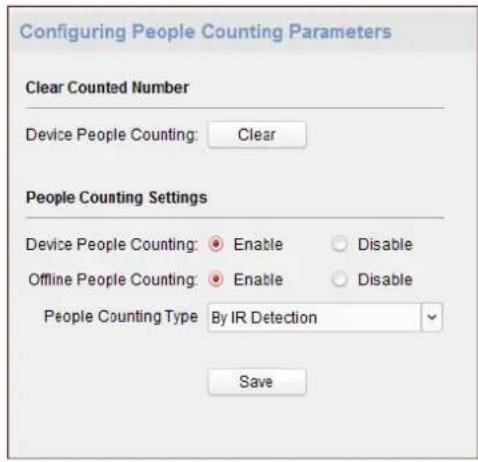
Conguring People Counng Parameters
Purpose:
You can set the people counng's parameters and aer the conguraon.
Click System -> People Counng and set the parameters. Click Save to save the sengs.
The parameters descripons are as follows:
Clear People Number: Click Clear and the counted people number will be restored to zero.
Device People Counng: Click Enable or Disable to enable or disable the people counng funcon.
Oine People Counng on Client: Click Enable or Disable to enable or disable funcon of the oine people counng on the client.
If enabling the funcon and if the device is oine, the device will connue counng the people and the number will be stored in the device. When the device is online, the client will read the updated number from the device automacally.
People Counng Type: You can select from Invalid, By IR Detecon, and By Authencaon Number.
None: The device will not count people.
If the device people counng funcon is enabled, the people counng funcon is sll disabled.
By IR Detecon: The device will count the people who passing through the device depending on the IR detecon.
By Authencaon Number: The device will count the people who authencang on the device.
The failed authencaon will also count as once.
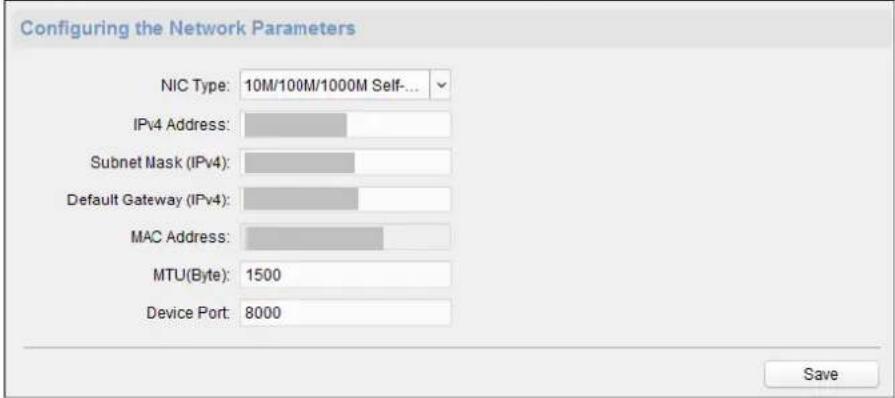
Conguring Network Parameters
Click Network -> General. You can congregate the NIC type, the IPv4 address, the subnet mask (IPv4), the default gateway (IPv4), MTU address, and the device port. Click Save to save the sengs.
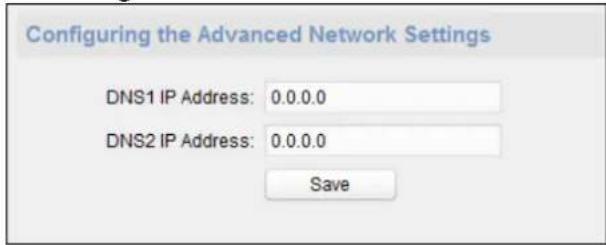
Conguring Advanced Network
Click Network -> Advanced Sengs. You can congregate the DNS 1 IP address and the DNS 2 IP address. Click Save to save the sengs.
Conguring Relay Parameters
Purpose:
Set the main controller alarm output's relay parameters.
Steps:
- Click Alarm -> Trigger.
You can view the trigger parameters.
| Configuring Relay Parameters | ||||
| Relay | Name | Output Delay(s) | Zone Linkage | Settings |
| 1 | 0 | None | ||
| 2 | 0 | None | ||
| 3 | 0 | None | ||
| 4 | 0 | None | ||
- Click to pop up the Trigger Parameters Sengs window.
- Set the trigger name and the output delay.
- Click Save to save the parameters.
Or click Copy to... to copy the relay informaon to other relays.
Conguring Audio File
Purpose:
You can relate the audio le to the corresponding playing scene. You can also export the audio le from the system and import the audio le from the local.
Steps:
- Click Other -> Audio File to enter the Audio File page.
Note: By default, the system contains the audio content. For details about the index related audio content, see Appendix BAppendix C Table of Audio Index Related Content.
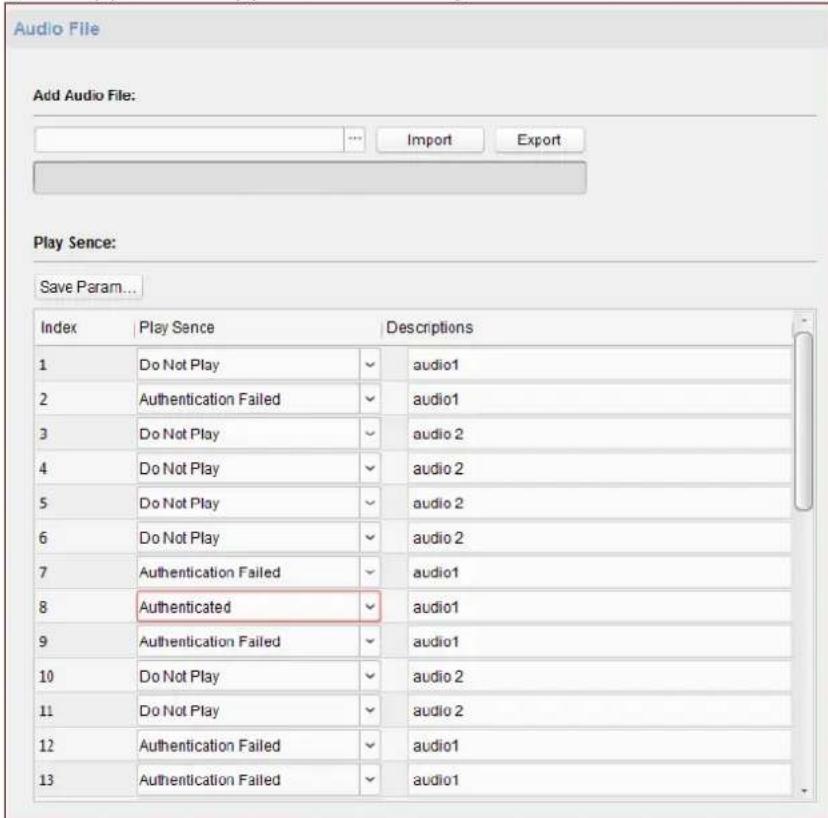
- Select the index (the playing content) corresponded play scene.
-
(Oponal) Input the descrpons of the play scene.
-
Click Save Parameters to save the relationship between the index (the playing content) and the play scene.
-
(Optional) Click Export to export the default audio le to the local computer.
-
(Optional) Clic ☐ and select audio file from the local computer. Click Import to import the le to the device.
Notes:
● The imported audio le should be in MEM format.
- For details about converng other format of the audio le to MEM format, see the audio conversion manual.
- If you use the third part soware to create or edit an audio le, the volume of the audio le should be no less than 0 × 68 . If the volume is less than the value, it will exceed the loudspeaker's power consumpon, so that damage the loudspeaker.
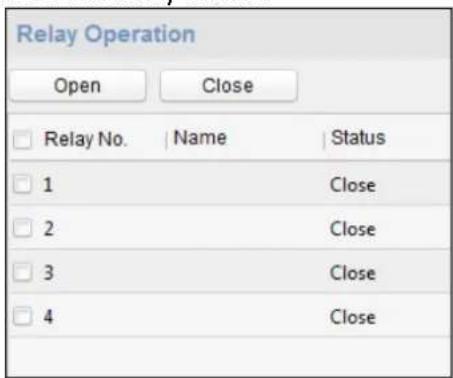
Operang Relay
Purpose:
Open or close the device main controller alarm output's relay.
Steps:
- Click Operaon -> Relay.
You can view the relay status.
-
Check the relay checkbox.
-
Click Open or Close to open or close the relay.
-
(Oponal) Click Refresh to refresh the relay status.
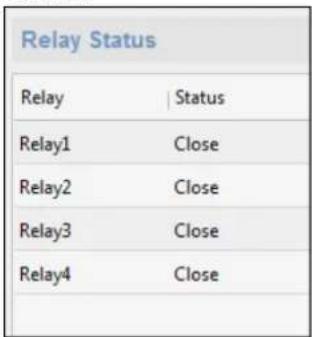
Viewing Relay Status
Click Status -> Relay to view the relay status.
7.3 Organization Management
You can add, edit, or delete the organizaon as desired.
Click tab to enter the Person and Card Management interface.
7.3.1 Adding Organizaon
Steps:
- In the organizaon list on the le, you should add a top organizaon as the parent organizaon of all organizaons.
Click Add buon to pop up the adding organizaon interface.
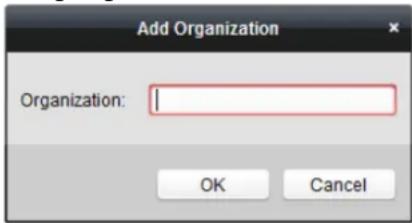
- Input the Organizaon Name as desired.
- Click OK to save the adding.
- You can add mulple levels of organizaons according to the actual needs.
To add sub organizaons, select the parent organizaon and click Add.
Repeat Step 2 and 3 to add the sub organizaon.
Then the added organizaon will be the sub-organizaon of the upper-level organizaon.
Note: Up to 10 levels of organizaons can be created.
7.3.2 Modifying and Deleng Organizaon
You can select the added organizaon and click Modify to modify its name.
You can select an organizaon, and click Delete buon to delete it.
Notes:
● The lower-level organizaons will be deleted as well if you delete an organizaon.
● Make sure there is no person added under the organizaon, or the organizaon cannot be deleted.
7.4 Person Management
Aer adding the organizaon, you can add person to the organizaon and manage the added person such as issuing cards in batch, imporng and exporng person informaon in batch, etc.
Note: Up to 10,000 persons or cards can be added.
7.4.1 Adding Person
Adding Person (Basic Informaon)
Steps:
- Select an organizaon in the organizaon list and click Add buon on the Person panel to pop up the adding person dialog.
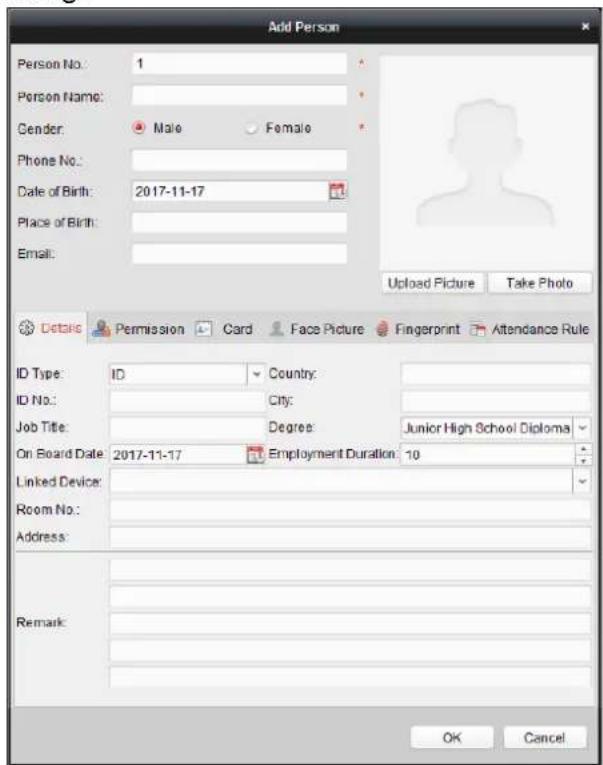
- The Person No. will be generated automacally and is not editable.
- Input the basic informaon including person name, gender, phone No., birthday details, and email address.
- Click Upload Picture to select the person picture from the local PC to upload it to the client.
Note: The picture should be in *.jpg format. - (Optional) You can also click Take Phone to take the person's photo with the PC camera.
- Click OK to nish adding.
Adding Person (Detailed Informaon)
Steps:
- In the Add Person interface, click Details tab.
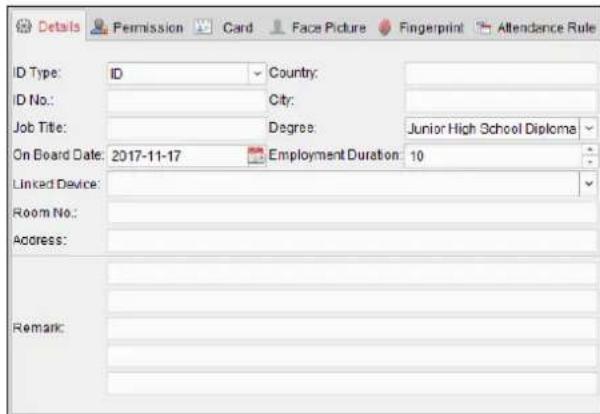
- Input the detailed informaon of the person, including person's ID type, ID No., country, etc., according to actual needs.
- Linked Device: You can bind the indoor staon to the person.
Note: If you select Analog Indoor Staon in the Linked Device, the Door Staon eld will display and you are required to select the door staon to communicate with the analog indoor staon.
● Room No.: You can input the room No. of the person.
- Click OK to save the sengs.
Adding Person (Permission)
You can assign the permissions (including operaon permissions of access control device and access control permissions) to the person when adding person.
Note: For setting the access control permission, refer to Chapter 7.5 Permission Conguraon.
Steps:
- In the Add Person interface, click Permission tab.
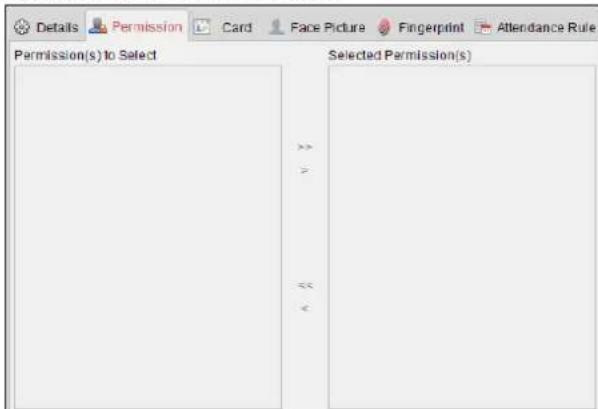
- In the Device Operaon Role eld, select the role of operating the access control device.
Normal User: The person has the permission to check-in/out on the device, pass the access control point, etc.
Administrator: The person has the normal user permission, as well as permission to congregate the device, including adding normal user, etc.
- In the Permission(s) to Select list, all the congured permissions display.
Check the permission(s) checkbox(es) and click > to add to the Selected Permission(s) list. (Optional) You can click >> to add all the displayed permissions to the Selected Permission(s)
list.
(Optional) In the Selected Permission(s) list, select the selected permission and click < to remove it. You can also click << to remove all the selected permissions.
- Click OK to save the sengs.
Adding Person (Card)
You can add card and issue the card to the person.
Adding General Card
Steps:
- In the Add Person interface, click Card tab.
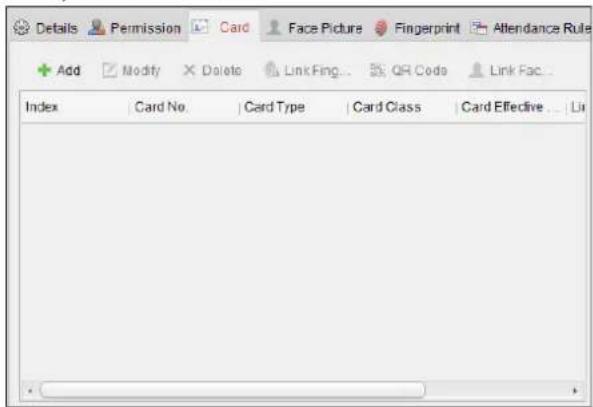
-
Click Add to pop up the Add Card dialog.
-
Click Card to enter the Card tab.
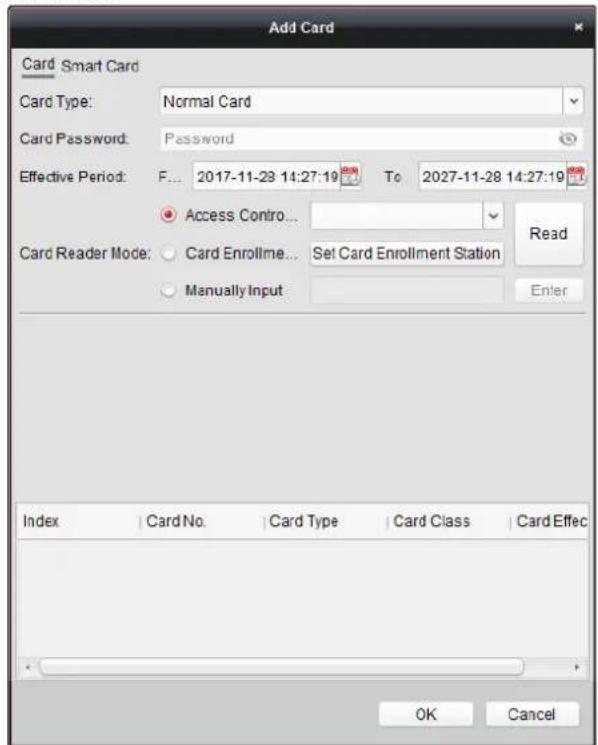
- Select the card type according to actual needs.
- Normal Card
- Card for Disabled Person: The door will remain open for the congured me period for the card holder.
- Card in Blacklist: The card swiping acon will be uploaded and the door cannot be opened.
● Patrol Card: The card swiping acon can used for checking the working status of the inspecon sta. The access permission of the inspecon sta is congorable.
- Duress Card: The door can open by swiping the duress card when there is duress. At the same me, the client can report the duress event.
● Super Card: The card is valid for all the doors of the controller during the congured schedule.
- Visitor Card: The card is assigned for visitors. For the Visitor Card, you can set the Max. Swipe Times.
Notes:
- The Max. Swipe Times should be between 0 and 255. When seng as 0, it means the card swiping is unlimited. - Up to 3000 visitor cards can be added.
- Input the password of the card itself in the Card Password eld. The card password should contain 4 to 8 digits.
Note: The password will be required when the card holder swiping the card to get enter to or exit from the door if you enable the card reader authencaon mode as Card and Password, Password and Fingerprint, and Card, Password, and Fingerprint. For details, Chapter 7.6.2 Card Reader Authencaon.
-
Click to set the eecve me and expiry me of the card.
-
Select the Card Reader Mode for reading the card No.
- Access Controller Reader: Place the card on the reader of the Access Controller and click Read to get the card No.
- Card Enrollment Station: Place the card on the Card Enrollment Staon and click Read to get the card No.
Note: The Card Enrollment Staon should connect with the PC running the client. You can click Set Card Enrollment Staon to enter the following dialog.
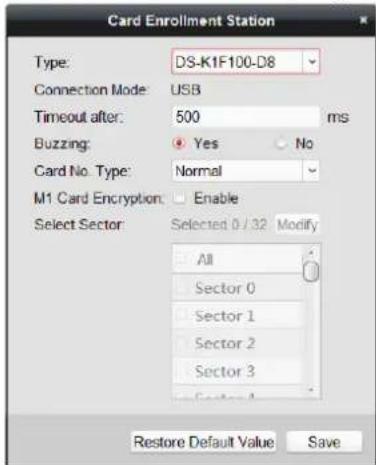
1) Select the Card Enrollment Staon type.
Note: Currently, the supported card reader types include DS-K1F100-D8, DS-K1F100-M,
DS-K1F100-D8E, and DS-K1F180-D8E.
2) Set the serial port No., the baud rate, the meout value, the buzzing, or the card No. type. If the card is M1 card, and if you need to enable the M1 Card Encrypon funcon, you should check Enable checkbox of M1 Card Encrypon and click Modify to select the sector.
3) Click Save buon to save the sengs. You can click Restore Default Value buon to restore the defaults.
- Manually Input: Input the card No. and click Enter to input the card No.
-
Click OK and the card(s) will be issued to the person.
-
(Optional) You can select the added card and click Modify or Delete to edit or delete the card.
-
(Oponal) You can generate and save the card QR code for QR code authencaon.
1) Select an added card and click QR Code to generate the card QR code.
2) In the QR code pop-up window, click Download to save the QR code to the local PC. You can print the QR code for authencaon on the specied device.
Note: The device should support the QR code authencaon funcon. For details about seng the QR code authencaon funcon, see the specied device user manual.
- (Oponal) You can click Link Fingerprint to link the card with the person's ingerprint, so that the person can place the nger on the scanner instead of swiping card when passing the door.
- (Oponal) You can click Link Face Picture to link the card with the face picture, so that the person can pass the door by scanning the face via the device instead of swiping card when passing the door.
- Click OK to save the sengs.
Adding Smart Card
Purpose:
You can store ingerprints and ID card infomraon in the smart card. When authencang, aer swiping the smart card on the device, you can scan your ingerprint or swipe your ID card on the device. The device will compare the ingerprint or ID card informaon in the smart card with the ones collected. If you use the smart card for authencaon, there is no need to store the ingerprints or ID card informaon in the device in advance.
Steps:
- In the Add Person page, set the person basic informaon.
- Click Card to enter the card tab.
- Click Add to pop up the Add Card dialog.
- Click Smart Card to enter the Smart Card tab.
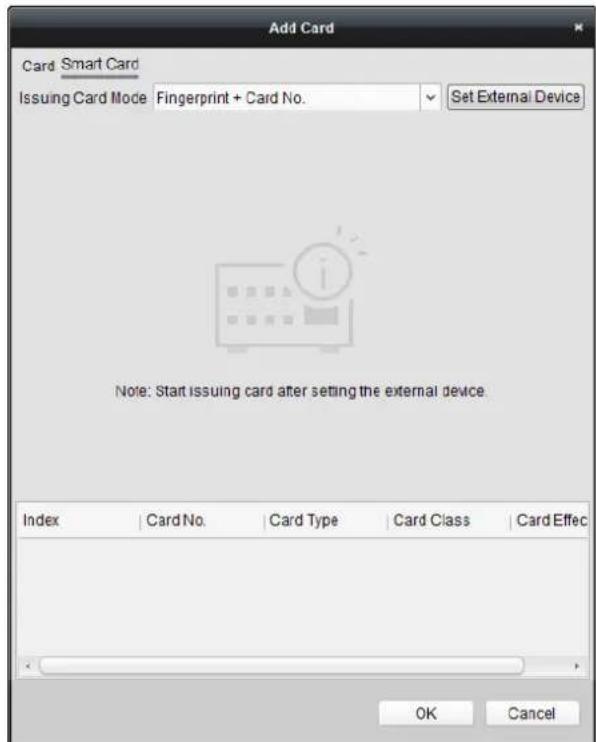
-
Select an issuing card mode from the dropdown list.
-
Set the external device.
1) Click Set External Device to enter the Set External Device page.
2) (Oponal) Select the issuing card mode again.
3) Set a card enrollment staon.
4) If you select "Fingerprint + Card No." as the issuing mode, set the ingerprint recorder model.
If you select "ID Card No. + Card No." as the issuing mode, set the ID card reader model. If you select "Fingerprint + ID Card No. + Card No." as the issuing mode, set the ingerprint recorder model and the ID card reader model.
5) Click OK save the sengs.
-
Select a card type for the smart card.
-
Normal Card
- Card for Disabled Person: The door will remain open for the congured me period for the card holder.
- Card in Blacklist: The card swiping acon will be uploaded and the door cannot be opened.
- Patrol Card: The card swiping acon can used for checking the working status of the inspecon sta. The access permission of the inspecon sta is congorable.
- Duress Card: The door can open by swiping the duress card when there is duress. At the same me, the client can report the duress event.
● Super Card: The card is valid for all the doors of the controller during the congured schedule. - Visitor Card: The card is assigned for visitors. For the Visitor Card, you can set the Max. Swipe Times.
Notes:
- The Max. Swipe Times should be between 0 and 255. When setting as 0, it means the card swiping is unlimited.
- Up to 3000 visitor cards can be added.
- Set other parameters of the card.
1) Set the card password.
2) Set the card eecve date.
3) Scan your ingerprint and swipe your ID card according to the prompt.
4) Swipe the smart card.
The added card informaon will display in the list below.
-
Click OK and the card(s) will be issued to the person.
-
(Optional) Select the added card and click Modify or Delete to edit or delete the card.
-
(Optional) Generate and save the card QR code for QR code authencaon.
1) Select an added card and click QR Code to generate the card QR code.
2) In the QR code pop-up window, click Download to save the QR code to the local PC.
You can print the QR code for authencaon on the specied device.
Note: The device should support the QR code authencaon funcon. For details about seng the QR code authencaon funcon, see the specied device user manual.
-
(Optional) Click Link Fingerprint to link the card with the person's ingerprint, so that the person can place the nger on the scanner instead of swiping card when passing the door.
-
(Optional) Click Link Face Picture to link the card with the face picture, so that the person can pass the door by scanning the face via the device instead of swiping card when passing the door.
-
Click OK to save the sengs.
Adding Person (Face Picture)
You can collect the face picture in two ways: Local Collecon and Remote Collecon.
● Local Collecon: Collect the face picture via face picture scanner.
● Remote Collecon: Collect the face picture via the access control terminal.
Note: The access control terminal should support face recognition funcon.
Steps:
- In the Add Person interface, click Face Picture tab
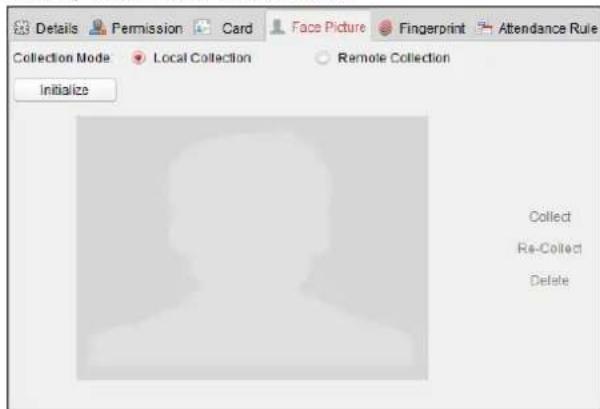
- To get the face picture via face picture scanner:
1) Select Local Collecon.
2) Connect the face picture scanner to the PC running the client.
3) Select the device type.
Note: Currently, the face picture scanner of DS2CS5432B-S is supported.
4) (Optional) You can click Initialize to initialize the face picture scanner.
- To get the face picture via access control terminal:
1) Select Remote Collecon.
2) Click Select Device to select the access control terminal which supports face recognition funcon.
- Click Collect to capture the face picture.
You can click Re-Collect the captured picture again.
You can click Delete to delete the captured picture.
- Click OK to save the sengs.
Adding Person (Fingerprint)
Steps:
- In the Add Person interface, click Fingerprint tab.
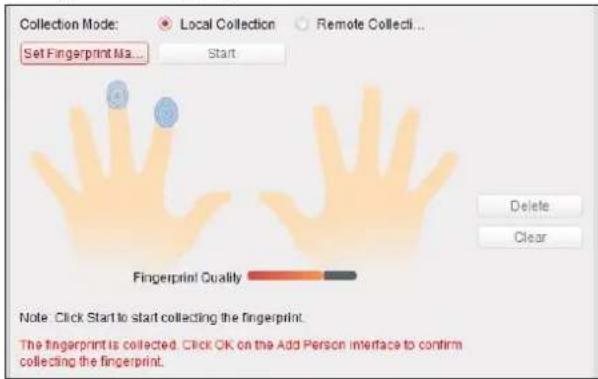
-
Select Local Collecon as desired.
-
Before inpung the ingerprint, you should connect the ingerprint machine to the PC and set its parameters rst.
Click Set Fingerprint Machine to enter the following dialog box.
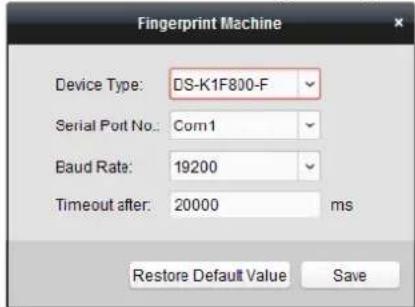
1) Select the device type.
Currently, the supported ingerprint machine types include DS-K1F800-F, DS-K1F810-F, DS-K1F820-F, and DS-K1F181-F.
2) For ngerprint machine type DS-K1F800-F, you can set the serial port number, baud rate, and overme parameters of the ngerprint machine.
3) Click Save buon to save the settings.
You can click Restore Default Value buon to restore the default settings.
Notes:
- The serial port number should correspond to the serial port number of PC. You can check the serial port number in Device Manager in your PC.
- The baud rate should be set according to the external ingerprint card reader. The default value is 19200.
-
Timeout aer eld refers to the valid ingerprint collecng time. If the user does not input a ingerprint or inputs a ingerprint unsuccessfully, the device will indicate that the ingerprint collecng is over.
-
Click Start buon, click to select the ngerprint to start collecng.
- Li and rest the corresponding ingerprint on the ingerprint scanner twice to collect the ingerprint to the client.
- (Optional) You can also click Remote Collecon to collect ingerprint from the device. Note: The funcon should be supported by the device.
- (Optional) You can select the registered ingerprint and click Delete to delete it. You can click Clear to clear all ingerprints.
- Click OK to save the ingerprints.
Adding Person (Aendance Rule)
You can set the aendance rule for the person.
Note: This tab page will display when you select Non-Residence mode in the applicaon scene when running the soware for the rst me.
Steps:
- In the Add Person interface, click Attendance Rule tab.
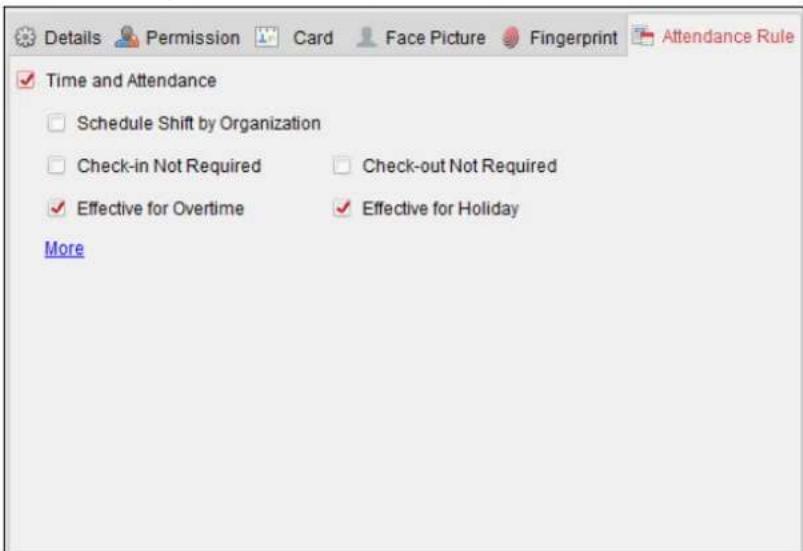
- If the person joins in the me and aendance, check the Time and Attendance checkbox to enable this funcon for the person. Then the person's card swiping records will be recorded and analyzed for me and aendance.
For details about Time and Aendance, click More to go to the Time and Aendance module.
- Click OK to save the sengs.
Imporng and Exporng Person Informaon
The person informaon can be imported and exported in batch.
Steps:
- Exporng Person: You can export the added persons' informaon in Excel format to the local PC.
1) Aer adding the person, you can click Export Person buon in the Person and Card tab to pop up the following dialog.
2) Click ☐ to select the path of saving the exported Excel le.
3) Check the checkboxes to select the person informaon to export.
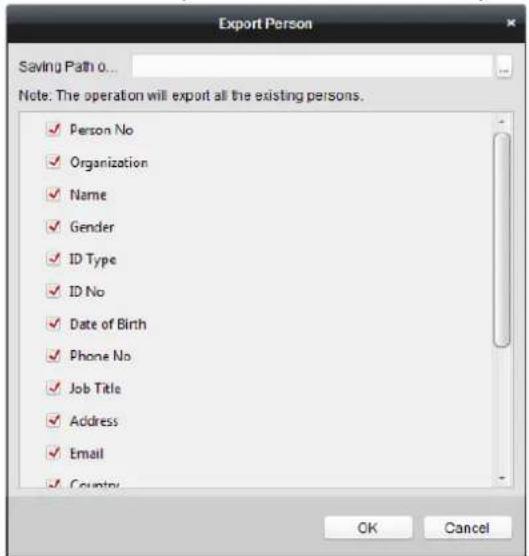
4) Click OK to start exporng.
- Imporng Person: You can import the Excel le with persons informaon in batch from the local PC
1) click Import Person buon in the Person and Card tab.
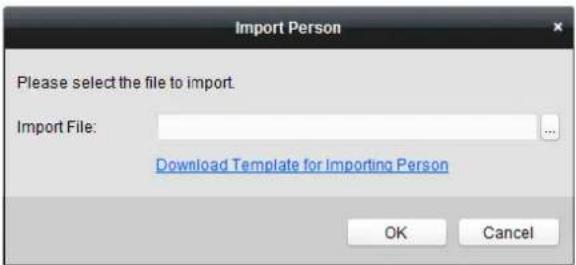
2) You can click Download Template for Imporng Person to download the template rst.
3) Input the person informaon to the downloaded template.
4) Click to select the Excel le with person informaon.
5) Click OK to start imporng.
Geng Person Informaon from Access Control Device
If the added access control device has been congured with person informaon (including person details, ngerprint, issued card informaon), you can get the person informaon from the device and import to the client for further operaon.
Note: This funcon is only supported by the device the conneccon method of which is TCP/IP when adding the device.
Steps:
- In the organizaon list on the le, click to select an organizaon to import the persons.
- Click Get Person buon to pop up the following dialog box.
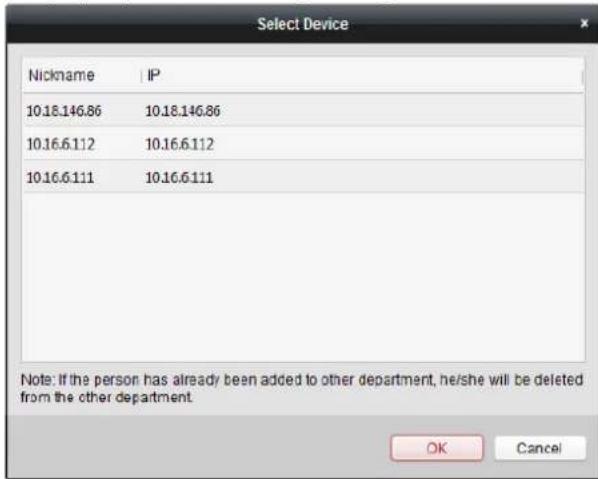
-
The added access control device will be displayed.
-
Click to select the device and then click OK to start getting the person informaon from the device.
You can also double click the device name to start geng the person informaon.
Notes:
- The person informaon, including person details, person's ngerprint informaon (if congured), and the linked card (if congured), will be imported to the selected organizaon.
- If the person name stored in the device is empty, the person name will be lled with the issued card No. aer imporng to the client.
● The gender of the persons will be Male by default.
● Up to 10000 persons can be imported.
7.4.2 Managing Person
Modifying and Deleng Person
To modify the person informaon and aendance rule, click or in the Operaon column, or select the person and click Modify to open the eding person dialog.
You can click to view the person's card swiping records.
To delete the person, select a person and click Delete to delete it.
Note: If a card is issued to the current person, the linkage will be invalid aer the person is deleted.
Changing Person to Other Organizaon
You can move the person to another organizaon if needed.
Steps:
- Select the person in the list and click Change Organization buon.
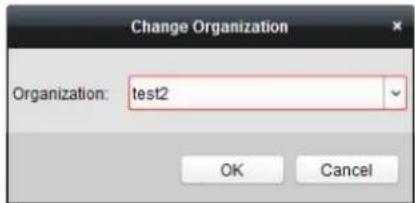
- Select the organizaon to move the person to.
- Click OK to save the sengs.
Searching Person
You can input the keyword of card No. or person name in the search eld, and click Search to search the person.
You can input the card No. by clicking Read to get the card No. via the connected card enrollment staon.
You can click Set Card Enrollment Staon in the dropdown list to set the parameters.
7.4.3 Issuing Card in Batch
You can issue mulple cards for the person with no card issued in batch.
Steps:
- Click Issue Card in Batch buon to enter the following dialog.
All the added person with no card issued will display in the Person(s) with No Card Issued list.
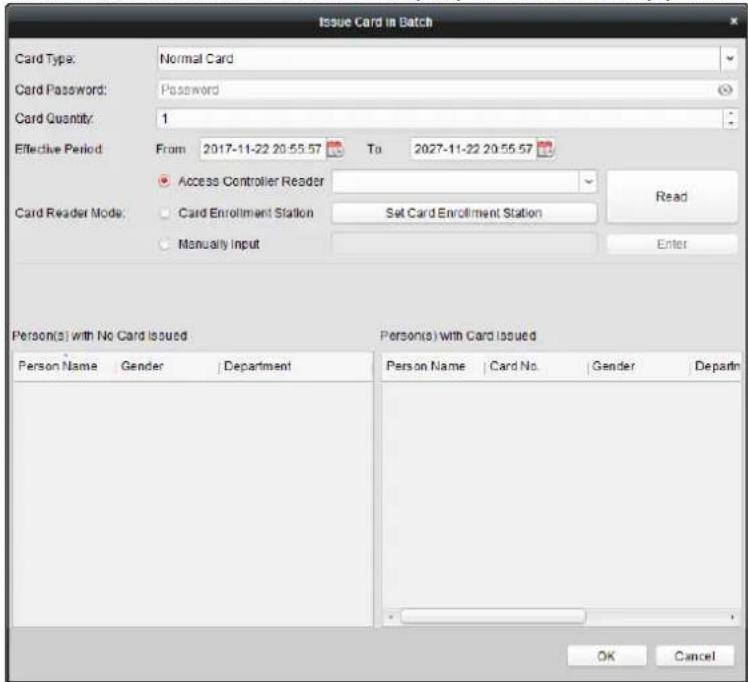
- Select the card type according to actual needs.
Note: For details about the card type, refer to Adding Person.
- Input the password of the card itself in the Card Password eld. The card password should contain 4 to 8 digits.
Note: The password will be required when the card holder swiping the card to get enter to or
exit from the door if you enable the card reader authencaon mode as Card and Password, Password and Fingerprint, and Card, Password, and Fingerprint. For details, refer to Chapter 7.6.2 Card Reader Authencaon.
- Input the card quantity issued for each person.
For example, if the Card Quantity is 3, you can read or enter three card No. for each person.
-
Click 📋 to set the eecve me and expiry me of the card.
-
In the Person(s) with No Card Issued list on the left, select the person to issue card.
Note: You can click on the Person Name, Gender, and Department column to sort the persons according to actual needs.
-
Select the Card Reader Mode for reading the card No.
-
Access Controller Reader: Place the card on the reader of the Access Controller and click Read to get the card No.
- Card Enrollment Station: Place the card on the Card Enrollment Staon and click Read to get the card No.
Note: The Card Enrollment Staon should connect with the PC running the client. You can click Set Card Enrollment Staon to enter the following dialog.
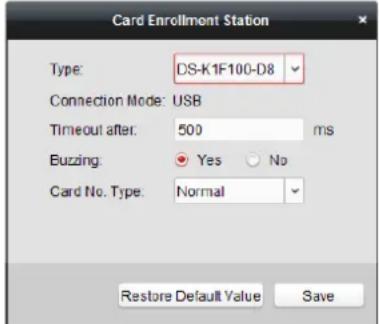
1) Select the Card Enrollment Staon type.
Note: Currently, the supported card reader types include DS-K1F100-D8, DS-K1F100-M, DS-K1F100-D8E, and DS-K1F180-D8E.
2) Set the parameters about the connected card enrollment staon.
If the card is M1 card, and if you need to enable the M1 Card Encrypon funcon, you should check Enable checkbox of M1 Card Encrypon and click Modify to select the sector.
3) Click Save buon to save the settings.
You can click Restore Default Value buon to restore the defaults.
- Manually Input: Input the card No. and click Enter to input the card No.
- Aer issuing the card to the person, the person and card informaon will display in the Person(s) with Card Issued list.
- Click OK to save the sengs.
7.5 Permission Configuration
In Permission Conguraon module, you can add, edit, and delete the access control permission, and then apply the permission sengs to the device to take eect.
Click icon to enter the Access Control Permission interface.
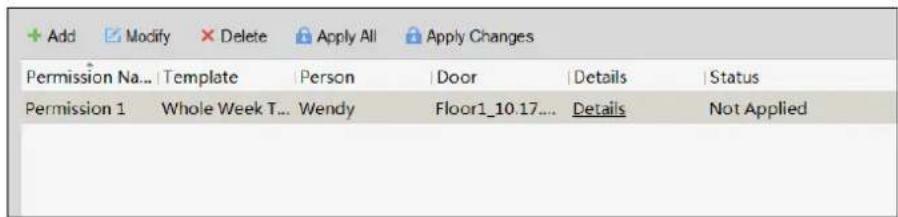
7.5.1 Adding Permission
Purpose:
You can assign permission for persons to enter/exist the access control points (doors) in this secon.
Notes:
● You can add up to 4 permissions to one access control point of one device.
● You can add up to 128 permissions in total.
Steps:
- Click Add icon to enter following interface.
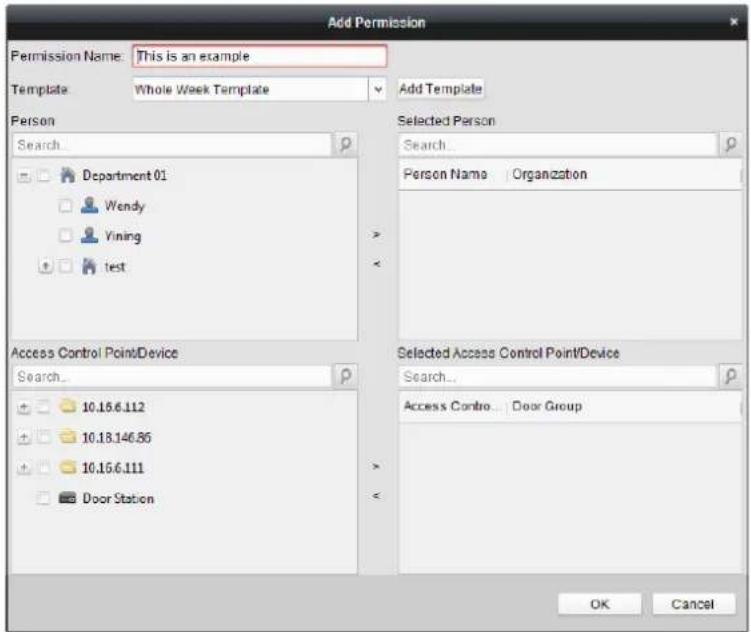
- In the Permission Name eld, input the name for the permission as desired.
-
Click on the dropdown menu to select a template for the permission.
Note: You should congregate the template before permission sengs. You can click Add Template buon to add the template. -
In the Person list, all the added persons display.
Check the checkbox(es) to select person(s) and click > to add to the Selected Person list. (Optional) You can select the person in Selected Person list and click < to cancel the selecon. -
In the Access Control Point/Device list, all the added access control points (doors) and door staons will display.
Check the checkbox(es) to select door(s) or door staon(s) and click > to add to the selected list.
(Optional) You can select the door or door staon in the selected list and click < to cancel the selecon.
-
Click OK buon to complete the permission adding. The selected person will have the permission to enter/exit the selected door/door staon with their linked card(s) or ngerprints.
-
(Optional) aer adding the permission, you can click Details to modify it. Or you can select the permission and click Modify to modify.
You can select the added permission in the list and click Delete to delete it.
7.5.2 Applying Permission
Purpose:
Aer conguring the permissions, you should apply the added permission to the access control device to take eect.
Steps:
- Select the permission(s) to apply to the access control device.
To select multiple permissions, you can hold the Ctrl or Shi key and select permissions.
- Click Apply All to start applying all the selected permission(s) to the access control device or door staon.
You can also click Apply Changes to apply the changed part of the selected permission(s) to the device(s).
- The following window will pop up, indicang the applying permission result.
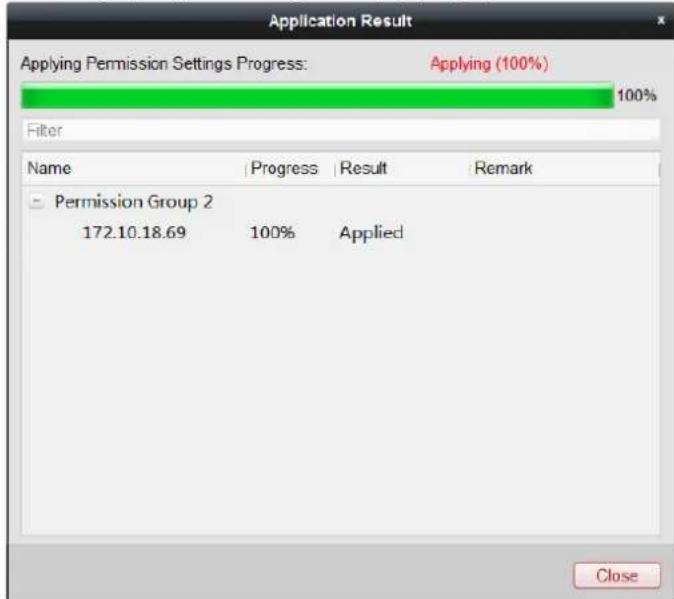
Notes:
- When the permission settings are changed, the following hint box will pop up.
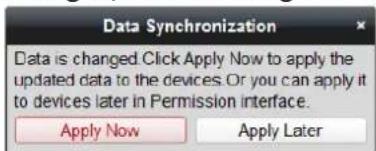
You can click Apply Now to apply the changed permissions to the device.
Or you can click Apply Later to apply the changes later in the Permission interface.
- The permission changes include changes of schedule and template, permission sengs, person's permission setngs, and related person sengs (including card No., ingerprint, face picture, linkage between card No. and ingerprint, linkage between card No. and ingerprint, card password, card eecve period, etc).
7.6 Advanced Functions
Purpose:
Aer conguring the person, template, and access control permission, you can congregate the advanced funcons of access control applicaon, such as access control parameters, authencaon password, and opening door with rst card, an-passing back, etc.
Note: The advanced funcons should be supported by the device.
Click Icon to enter the following interface.
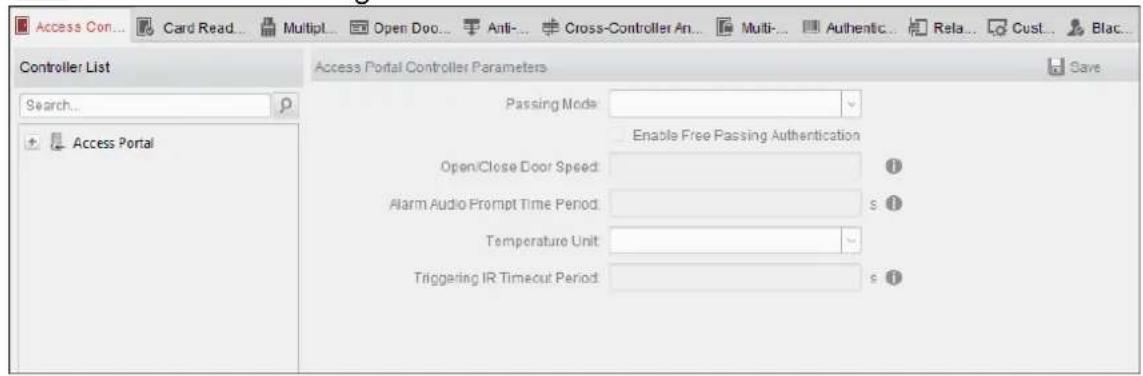
7.6.1 Access Control Parameters
Purpose:
Aer adding the access control device, you can congregate its access control point (door)'s parameters, and its card readers' parameters.
Click Access Control Parameters tab to enter the parameters sengs interface.
Door Parameters
Steps:
- In the controller list on the le, click +to expand the access control device, select the door (access control point) and you can edit the informaon of the selected door on the right.
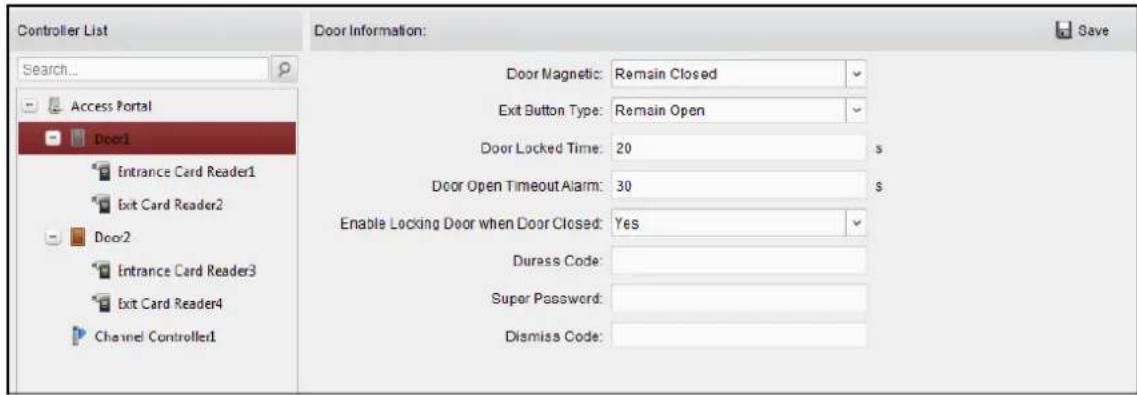
- You can edit the following parameters:
● Door Magnec: The Door Magnec is in the status of Remain Closed (excluding special conditions).
- Exit Buon Type: The Exit Button Type is in the status of Remain Open (excluding special conditions).
● Door Locked Time: Aer swiping the normal card and relay acon, the mer for locking the door starts working.
● Door Open Timeout Alarm: The alarm can be triggered if the door has not been close
- Enable Locking Door when Door Closed: The door can be locked once it is closed even if the Door Locked Time is not reached.
- Duress Code: The door can open by inputting the duress code when there is duress. At the same me, the client can report the duress event.
● Super Password: The specific person can open the door by inpung the super password.
- Dismiss Code: Input the dismiss code to stop the buzzer of the card reader.
Notes:
■ The duress code, Super password, and dismiss code should be different.
■ The duress code, super password, and the dismiss code should be dierent from the authencaon password.
■ The duress code, super password, and the dismiss code should contain 4 to 8 numerics.
- Click Save buon to save parameters.
Card Reader Parameters
Steps:
- In the device list on the le, click +to expand the door, select the card reader name and you can edit the card reader parameters on the right.
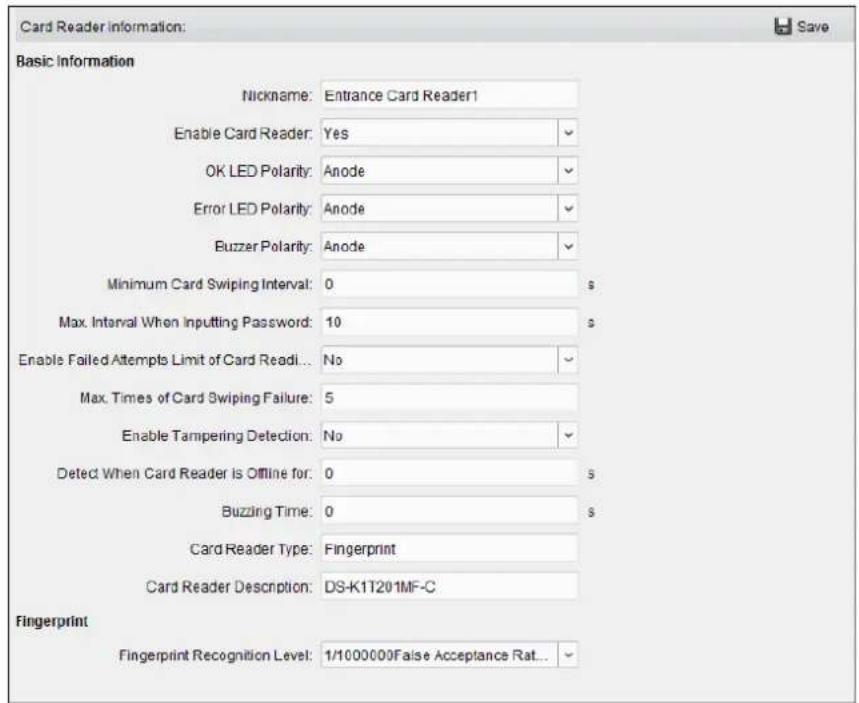
-
You can edit the following parameters:
-
Nickname: Edit the card reader name as desired.
● Enable Card Reader: Select Yes to enable the card reader.
● OK LED Polarity: Select the OK LED Polarity of the card reader mainboard.
● Error LED Polarity: Select the Error LED Polarity of the card reader mainboard.
● Buzzer Polarity: Select the Buzzer LED Polarity of the card reader mainboard.
● Minimum Card Swiping Interval: If the interval between card swiping of the same card is less than the set value, the card swiping is invalid. You can set it as 0 to 255.
● Max. Interval When Inpung Password: When you inpung the password on the card reader, if the interval between pressing two digits is larger than the set value, the digits you pressed before will be cleared automacally. - Enable Failed Aempts Limit of Card Reading: Enable to report alarm when the card reading aempts reach the set value.
● Max. Times of Card Swiping Failure: Set the max. failure aempts of reading card.
● Enable Tampering Detecon: Enable the an-tamper detecon for the card reader. - Detect When Card Reader is Oline for: When the access control device cannot connect with the card reader for longer than the set me, the card reader will turn of fine automacally.
- Buzzing Time: Set the card reader buzzing me. The available me ranges from 0 to 5999s. 0 represents connuous buzzing.
- Card Reader Type: Get the card reader's type.
-
Card Reader Description: Get the card reader descripon.
● Fingerprint Recognition Level: Select the ingerprint recognition level in the dropdown list. By default, the level is Low. -
Click the Save buon to save parameters.
Lane Controller Parameters
Steps:
- In the device list on the le, click +to expand the door, select a lane controller and you can edit the lane controller's parameters on the right.
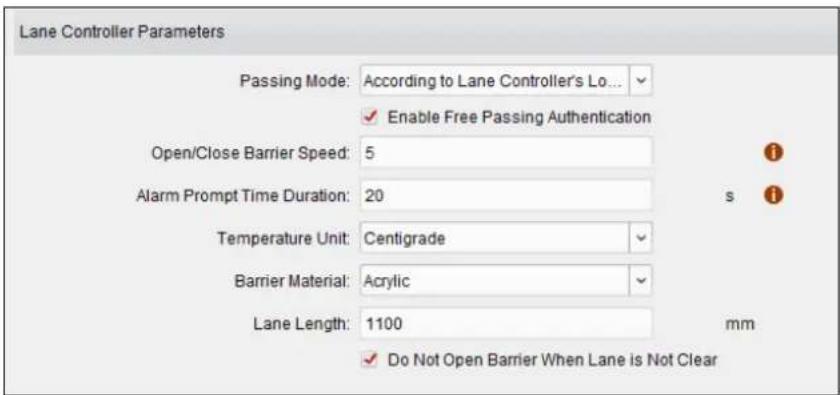
- You can edit the following parameters:
- Passing Mode: Select the controller which will control the barrier status of the device. If select According to Lane Controller's DIP Sengs, the device will follow the lane controller's DIP settings to control the barrier. The sengs on the soware system will be invalid.
If select According to Main Controller's Setngs, the device will follow the setngs of the soware system to control the barrier. The DIP sengs of the lane controller will be invalid.
Note: For details about seng the barrier status, see 7.9.2 An-control the Access Control Point (Door).
- Enable Free Passing Authencaon: If check the checkbox, when both entrance and exit's barrier mode is Remain Open, the pedestrians should authenticate each me passing through the lane. Or an alarm will be triggered.
- Open/Close Door Speed: Set the barrier's open and close speed. You can select from 1 to 10. The greater the value, the faster the speed.
Note: The suggested value is 6.
● Alarm Audio Prompt Time Duraon: Set the alarm audio prompt playing duraon.
Note: 0 refers to the alarm audio will be played until the alarm is ended.
● Temperature Unit: Select the temperature unit that displayed in the device status.
Note: For details about viewing device status, see 7.2.2 Viewing Device Status.
- Barrier Material: Select the material of the barrier gate. You can select the barrier material from the drop-down list.
Note: This parameter affects the working of the barrier gate. Please correctly set the material according to the actual situation so that the barrier can open and close properly.
● Lane Length: The width of the lane. You can set the lane width.
Note: This parameter aects the working of the barrier gate. Please correctly set the width according to the actual situation so that the barrier can open and close properly.
- Do Not Open Barrier in Authencates in Lane: If there is someone or something in the lane, the gate will not open even if the credenal is authenticated. This funcon is designed to avoid more than one person passing through the gate with only one authencaon.
- Click Save to save the lane controller's parameters.
7.6.2 Card Reader Authencaon
Purpose:
You can set the passing rules for the card reader of the access control device.
Steps:
- Click Card Reader Authencaon tab and select a card reader on the le.
- Click Conguraon button to select the card reader authencaon modes for seeing the schedule.
Notes:
● The available authencaon modes depend on the device type.
- Password refers to the card password set when issuing the card to the person in Chapter 7.4 Person Management.
1) Select the modes and click » to add to the selected modes list.
You can click or to adjust the display order.
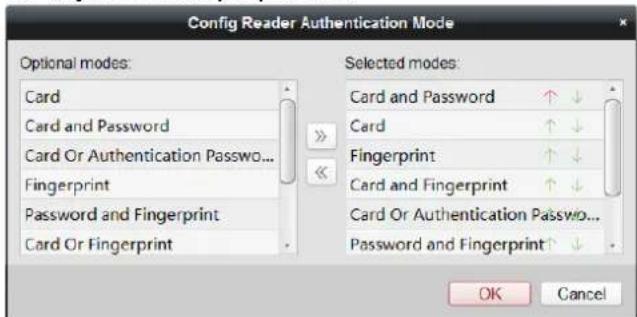
2) Click OK to conrm the selecon.
-
After selecng the modes, the selected modes will display as icons.
Click the icon to select a card reader authencaon mode. -
Click and drag your mouse on a day to draw a color bar on the schedule, which means in that period of me, the card reader authencaon is valid.
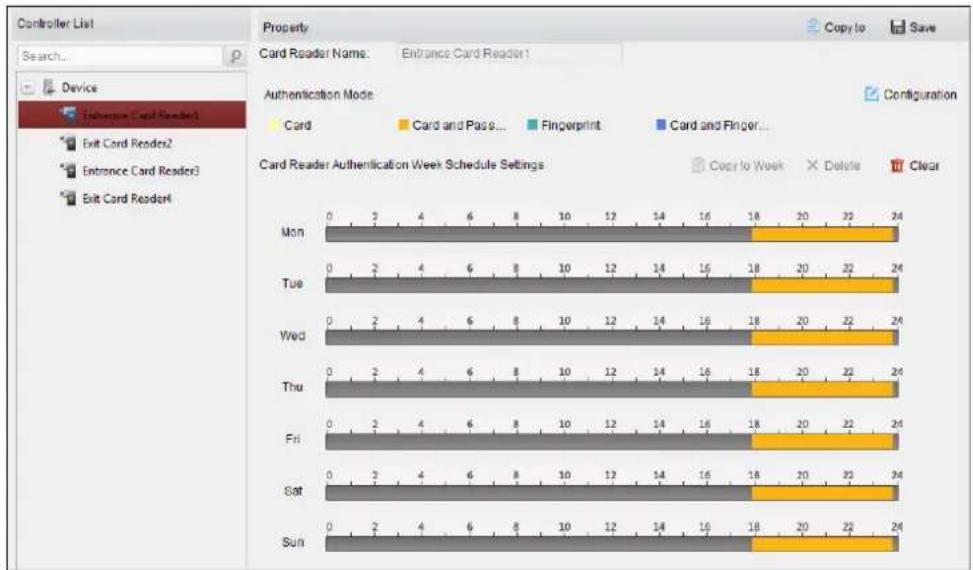
- Repeat the above step to set other me periods.
Or you can select a congured day and click Copy to Week buon to copy the same sengs to the whole week.
(Optional) You can click Delete buon to delete the selected me period or click Clear buon to delete all the congured me periods.
- (Optional) Click Copy to button to copy the settings to other card readers.
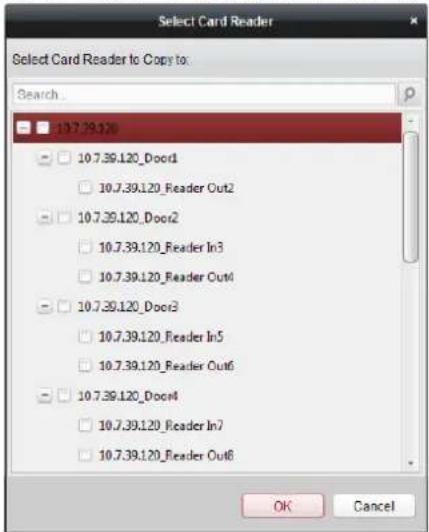
- Click Save buon to save parameters.
7.6.3 Mulple Authencaon
Purpose:
You can manage the cards by group and set the authencaon for mulple cards for one access control point (door).
Note: Please set the card permission and apply the permission seng to the access control device rst. For details, refer to Chapter 7.5 Permission Conguraon.
Steps:
- Click Mulple Authencaon tab to enter the following interface.
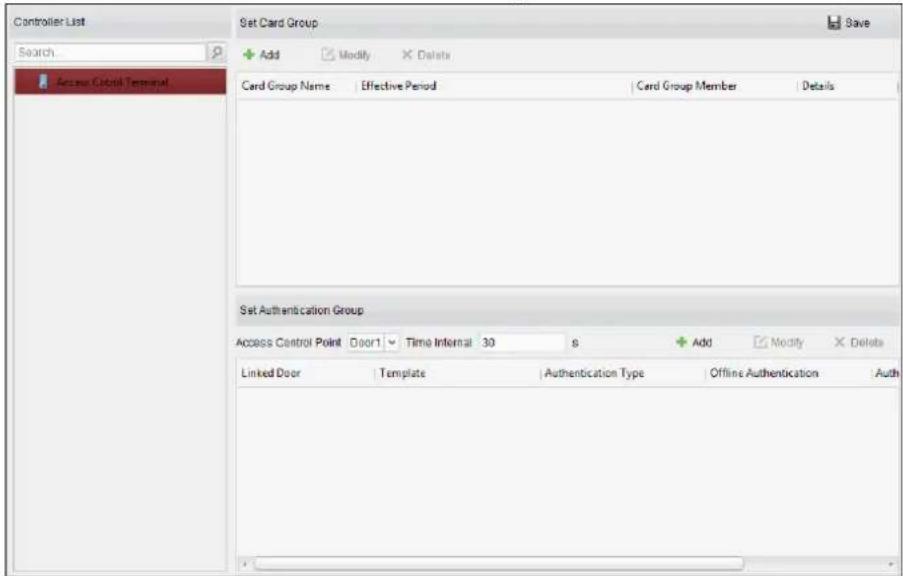
-
Select access control device from the list on the le.
-
In the Set Card Group panel on the right, click Add buon to pop up the following dialog:
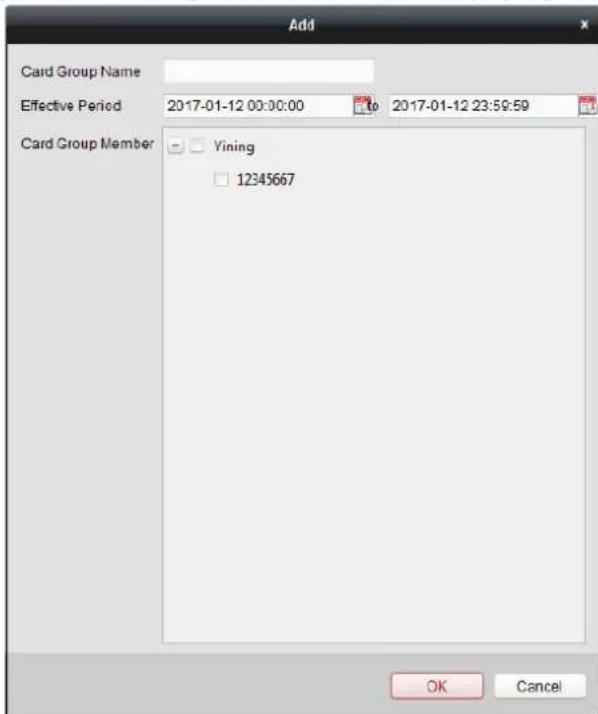
1) In the Card Group Name eld, input the name for the group as desired.
2) Click ☐ to set the eecve me and expiry me of the card group.
3) Check the checkbox(es) to select the card(s) to add the card group.
4) Click OK to save the card group.
- In the Set Authencaon Group panel, select the access control point (door) of the device for mulple authencaons.
- Input the me interval for card swiping.
- Click Add to pop up the following dialog.
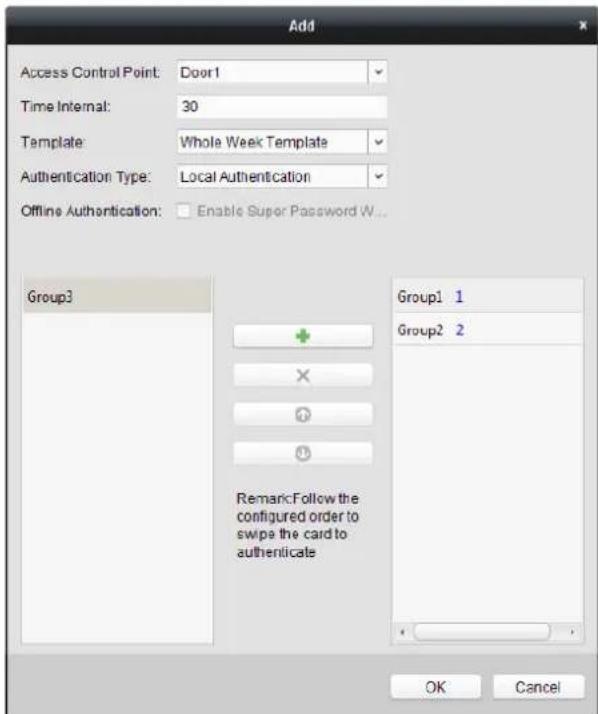
1) Select the template of the authencaon group from the dropdown list.
2) Select the authencaon type of the authencaon group from the dropdown list.
- Local Authencaon: Authencaon by the access control device.
- Local Authencaon and Remotely Open Door: Authentication by the access control device and by the client.
For Local Authencaon and Remotely Open Door type, you can check the checkbox to enable the super password authencaon when the access control device is disconnected with the client.
- Local Authencaon and Super Password: Authencaon by the access control device and by the super password.
3) In the list on the le, the added card group will display. You can click the card group and click to add the group to the authencaon group.
You can click the added card group and click ✗ to remove it from the authencaon group.
You can also click or to set the card swiping order.
4) Input the Card Swiping Times for the selected card group.
Notes:
- The Card Swiping Times should be larger than 0 and smaller than the added card quantity in the card group.
● The upper limit of Card Swiping Times is 16.
5) Click OK to save the sengs.
- Click Save to save and take eect of the new setngs.
Notes:
- For each access control point (door), up to 20 authencaon groups can be added.
- For the authencaon group which cercate type is Local Authencaon, up to 8 card groups can be added to the authencaon group.
- For the authencaon group which cercate type is Local Authencaon and Super Password or Local Authencaon and Remotely Open Door, up to 7 card groups can be added to the authencaon group.
7.6.4 Open Door with First Card
Purpose:
You can set mulple rst cards for one access control point. Aer the rst card swiping, it allows mulple persons access the door or other authencaon acons. The rst card mode contains Remain Open with First Card, Disable Remain Open with First Card, and First Card Authorizaon.
- Remain Open with First Card: The door remains open for the congured me duraon aer the rst card swiping unl the remain open duraon ends.
● Disable Remain Open with First Card: Disable the funcon. - First Card Authorizaon: All authencaons (except for the authencaons of super card, super password, duress card, and duress code) are allowed only aer the rst card authorizaon.
Notes:
■ The rst card authorizaon is eecve only on the current day. The authorizaon will be expired aer 24:00 on the current day.
■ You can swipe the rst card again to disable the rst card mode.
Steps:
- Click Open Door with First Card tab to enter the following interface.
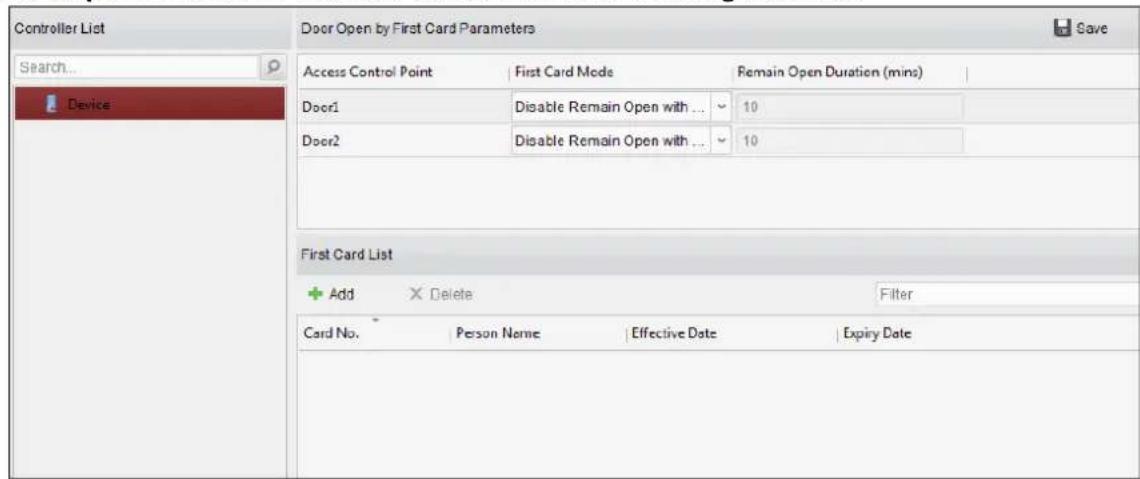
- Select an access control device from the list on the le.
- Select the rst card mode in the drop-down list for the access control point.
- (Oponal) If you select Remain Open with First Card, you should set remain open duraon.
Notes:
- The Remain Open Duraon should be between 0 and 1440 minutes. By default, it is 10 minutes.
- You can swipe the rst card again to disable the rst card mode.
- In the First Card list, Click Add button to pop up the following dialog box.
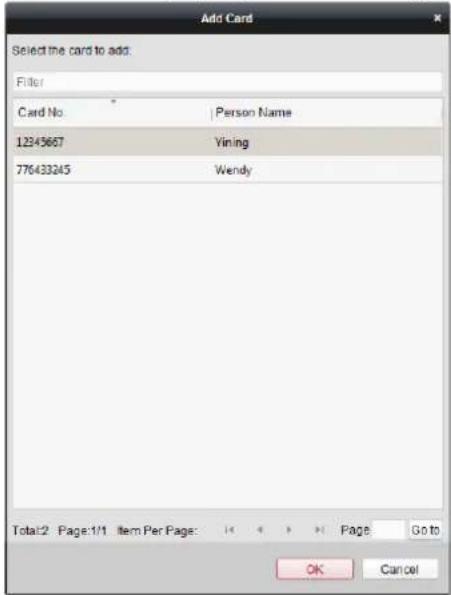
1) Select the cards to add as rst card for the door
Note: Please set the card permission and apply the permission seng to the access control device rst. For details, refer to Chapter 7.5 Permission Conguraon.
2) Click OK buon to save adding the card.
- You can click Delete buon to remove the card from the rst card list.
- Click Save to save and take effect of the new sengs.
7.6.5 An-Passing Back
Purpose:
You can set to only pass the access control point according to the specified path and only one person could pass the access control point aer swiping the card.
Notes:
- Either the an-passing back or mul-door interlocking funcon can be congured for an access control device at the same me.
- You should enable the an-passing back funcon on the access control device rst.
Steps:
- Click An-passing Back tab to enter the following interface.
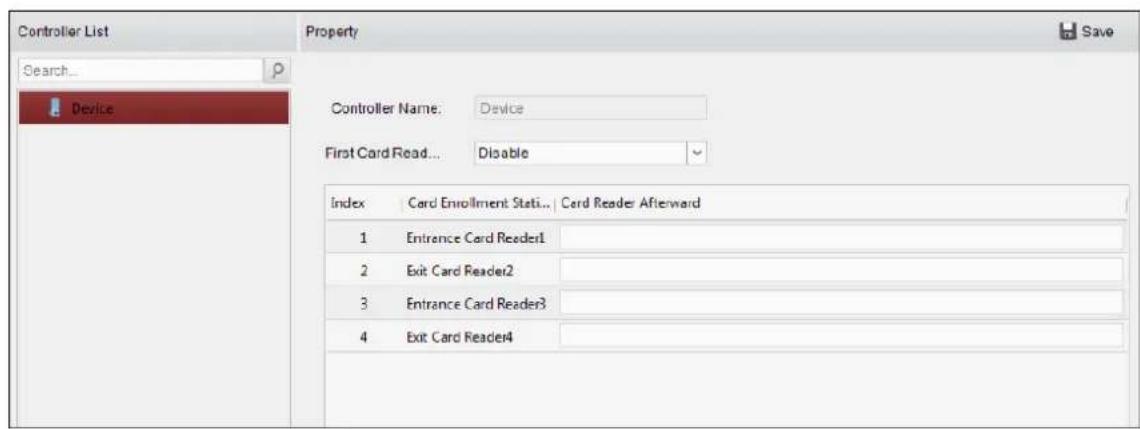
- Select an access control device from the device list on the left.
- In the First Card Reader field, select the card reader as the beginning of the path.
- In the list, click the text led of Card Reader Aerward and select the linked card readers. Example: If you select Reader In_01 as the beginning, and select Reader In_02, Reader Out_04 as the linked card readers. Then you can only get through the access control point by swiping the card in the order as Reader In_01, Reader In_02 and Reader Out_04.
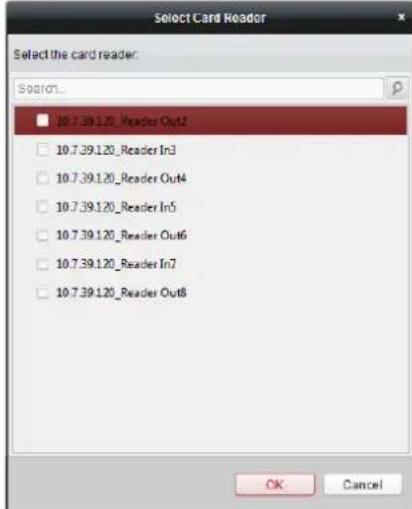
Note: Up to four aerward card readers can be added for one card reader.
- (Optional) You can enter the Select Card Reader dialog box again to edit its aerward card readers.
- Click Save to save and take effect of the new sengs.
7.6.6 Cross-Controller An-passing Back
Purpose:
You can set an-passing back for card readers in mulple access control devices. You should swipe the card according to the congured swiping card route. And only one person could pass the access control point aer swiping the card.
Note: The funcon should be supported by the device.
Click Cross-Controller An-passing Back to enter the Cross-Controller An-passing Back tab.
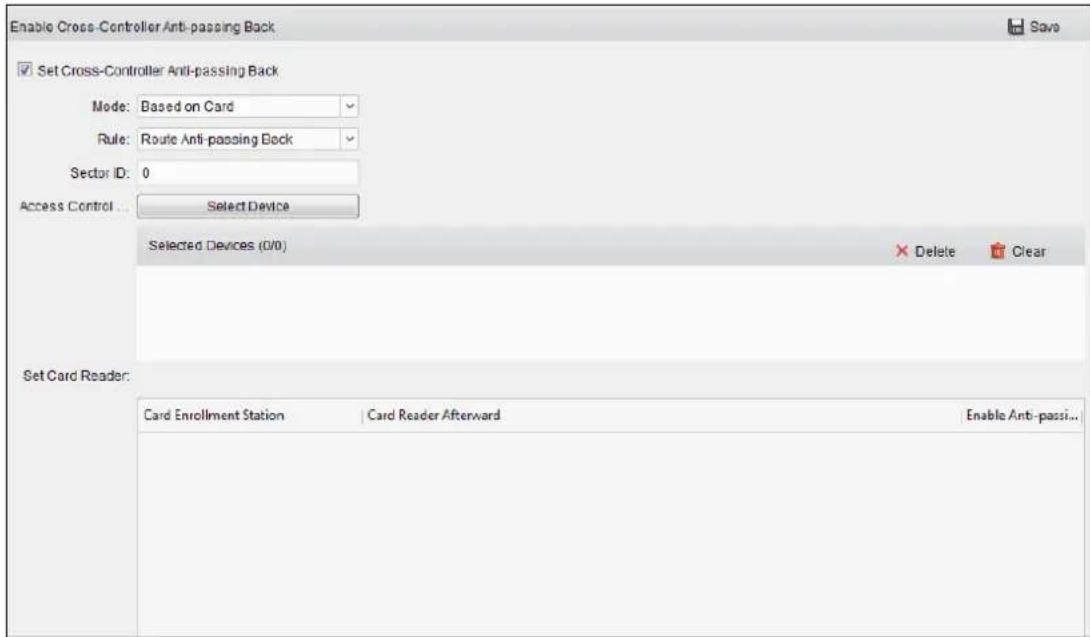
Seng Route An-passing Back
Purpose:
The route an-passing back depends on the card swiping route. You should set the rst card reader and the card readers aerwards.
Steps:
- Check the Enable Cross-Controller An-passing Back checkbox to enable the funcon.
- Set the an-passing back parameters.
Based on Card
Note: The system will judge the an-passing back according to the entrance and exit records on the card.
1) Select Based on Card as the an-passing back mode in the drop-down list.
2) Select Route An-passing Back as the rule.
3) Set the sector ID.
4) Click Select Access Controller to select a device in the pop-up window.
5) In the Card Reader area, click the icon on the le of the card reader column to select the rst card reader. The icon will turn to .
6) Click the card reader aerward input eld to select the card readers aerward in the pop-up window.
7) Check the checkbox in the Enable An-passing Back column to enable the an-passing back funcon.
Notes:
- The displayed card readers in the card reader aerward input eld should be in authencaon order.
- Up to 64 devices with an-passing back funcon can be added.
- Up to 16 card readers aerward can be added for each card reader.
- It supports M1 card at present and the sector cannot be encrypted.
Based on Network
Note: Authencate the an-passing back according to the entrance and exit informaon on the card reader.
1) Select Based on Network as the an-passing back mode in the drop-down list.
2) Select Route An-passing Back as the rule.
3) Select a server in the drop-down list for judging the an-passing back.
4) (Optional) You can click Delete Record and select the card in the pop-up window to delete the card swiping informaon in all devices.
The user should be start swiping card again from the rst card reader.
5) Click Select Access Controller to select a device in the pop-up window.
6) In the Card Reader area, click the icon on the le of the card reader column to select the rst card reader. The icon will turn to .
7) Click the card reader aerward input eld to select the card readers aerward in the pop-up window.
8) Check the checkbox in the Enable An-passing Back column to enable the anti-passing back funcon.
Notes:
- The displayed card readers in the card reader aerward input eld should be in authencaon order.
- Up to 64 devices with an-passing back funcon can be added.
- Up to 16 card readers aerward can be added for each card reader.
- Up to 5000 cards' swiping records can be stored in the selected server.
Seng Entrance/Exit An-passing Back
Purpose:
You can set the entrance card reader and the exit card reader only for entering and exing, without seng the rst card reader and the card readers aerwards.
Steps:
- In the Cross-Controller An-passing Back tab, check the Enable Cross-Controller An-passing Back checkbox to enable the funcon.
- Set the an-passing back parameters.
Based on Card
Note: The system will judge the an-passing back according to the entrance and exit records on the card.
1) Select Based on Card as the an-passing back mode in the drop-down list.
2) Select Entrance/Exit An-passing Back as the rule.
3) Set the sector ID.
4) Click Select Access Controller to select a device in the pop-up window.
5) In the Card Reader area, check the checkboxes in the Enable An-passing Back column to select the entrance card reader and the exit card reader.
6) Click Save to save the sengs.
Notes:
- Up to one entrance carder and one exit card reader should be checked.
- Up to 64 devices with an-passing back funcon can be added.
- It supports M1 card at present and the sector cannot be encrypted..
Based on Network
Note: Authencate the an-passing back according to the entrance and exit informaon on the card reader.
1) Select Based on Network as the an-passing back mode in the drop-down list.
2) Select Entrance/Exit An-passing Back as the rule.
3) Select the server in the dropdown list for judging the an-passing back.
4) (Optional) You can click Delete Record and select the card in the pop-up window to delete the card swiping informaon in all devices.
5) Click Select Access Controller to select a device in the pop-up window.
6) In the Card Reader area, check the checkboxes in the Enable An-passing Back column to select the entrance card reader and the exit card reader.
7) Click Save to save the sengs.
Notes:
- Up to one entrance carder and one exit card reader should be checked.
- Up to 64 devices with an-passing back funcon can be added.
- Up to 5000 cards' swiping records can be stored in the selected server.
7.7 Searching Access Control Event
Purpose:
You can search the access control history events including remote event and local event via the client.
Local Event: Search the access control event from the database of the control client.
Remote Event: Search the access control event from the device.
Click icon and click Access Control Event tab to enter the following interface.
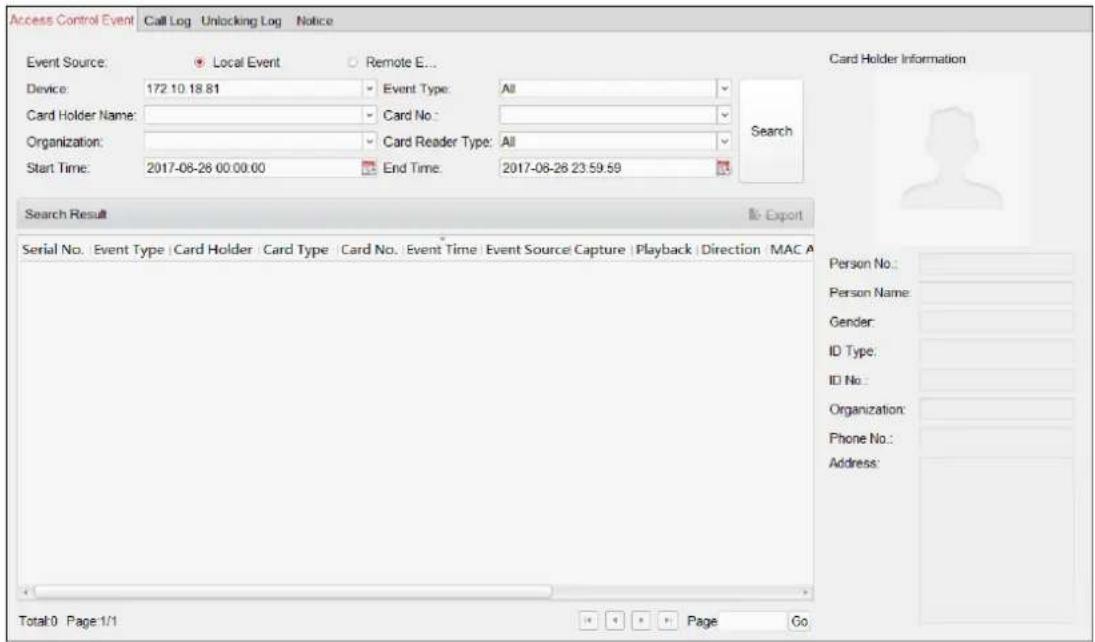
7.7.1 Searching Local Access Control Event
Steps:
-
Select the Event Source as Local Event.
-
Input the search condition according to actual needs.
-
Click Search. The results will be listed below.
-
For the access control event which is triggered by the card holder, you can click the event to view the card holder details, including person No., person name, organizaon, phone number, contact address and photo.
-
(Oponal) If the event contains linked pictures, you can click in the Capture column to view the captured picture of the triggered camera when the alarm is triggered.
-
(Oponal) If the event contains linked video, you can click in the Playback column to view the recorded video le of the triggered camera when the alarm is triggered.
Note: For seng the triggered camera, refer to Chapter 7.8.1 Access Control Event Linkage.
- You can click Export to export the search result to the local PC in *.csv file.
7.7.2 Searching Remote Access Control Event
Steps:
-
Select the Event Source as Remote Event.
-
Input the search condition according to actual needs.
-
(Oponal) You can check With Alarm Picture checkbox to search the events with alarm pictures.
- Click Search. The results will be listed below.
- You can click Export to export the search result to the local PC in *.csv le.
7.8 Access Control Event Configuration
Purpose:
For the added access control device, you can conjure its access control linkage including access control event linkage, access control alarm input linkage, event card linkage, and cross-device linkage.

Click the icon on the control panel,
or click Tool->Event Management to open the Event Management page.
7.8.1 Access Control Event Linkage
Purpose:
You can assign linkage acons to the access control event by seng up a rule. For example, when the access control event is detected, an audible warning appears or other linkage acons happen.
Note: The linkage here refers to the linkage of the client soware's own acons.
Steps:
- Click the Access Control Event tab.
- The added access control devices will display in the Access Control Device panel on the le. Select the access control device, or alarm input, or access control point (door), or card reader to conjure the event linkage.
- Select the event type to set the linkage.
- Select the triggered camera. The image or video from the triggered camera will pop up when the selected event occurs. To capture the picture of the triggered camera when the selected event occurs, you can also set the capture schedule and the storage in Storage Schedule.
- Check the checkboxes to acvate the linkage acons. For details, refer to Table 14.1 Linkage Acons for Access Control Event.
- Click Save to save the sengs.
- You can click Copy to button to copy the access control event to other access control device, alarm input, access control point, or card reader.
Select the parameters for copy, select the target to copy to, and click OK to conrm.
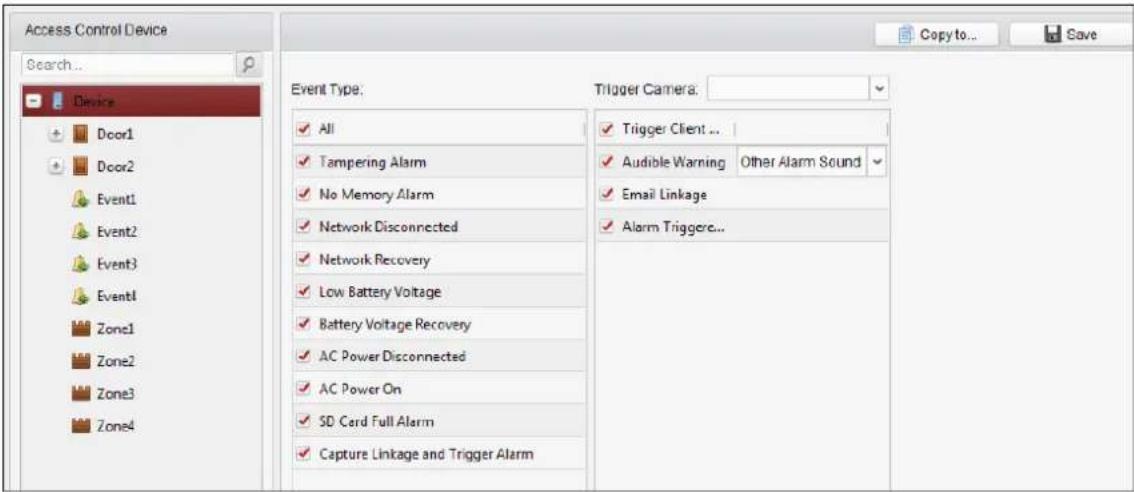
Table 1.1 Linkage Actions for Access Control Event
| Linkage Acons | Descripons |
| Audible Warning | The client soware gives an audible warning when alarm is triggered. You can select the alarm sound for audible warning. |
| Email Linkage | Send an email nocaon of the alarm informaon to one or more receivers. |
| Alarm Triggered Pop-up Image | The image with alarm informaon pops up when alarm is triggered. |
7.8.2 Access Control Alarm Input Linkage
Purpose:
The access control alarm inputs can be linked to some acons (e.g., alarm output, host buzzer) when it is triggered.
Note: The funcon should be supported by the device.
Steps:
- Click Access Control Alarm Input tab to enter the following interface.
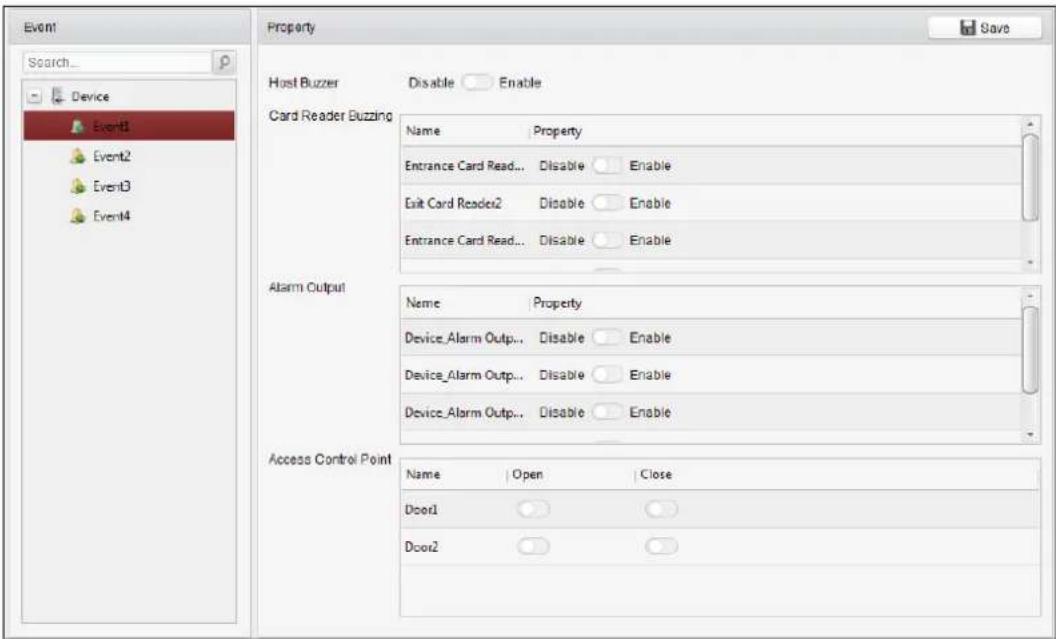
- In the event list on the le, select an alarm input.
- Switch the property from to to enable this acon.
Host Buzzer: The audible warning of controller will be triggered.
Card Reader Buzzer: The audible warning of card reader will be triggered.
Alarm Output: The alarm output will be triggered for nocaon.
Access Control Point (Open/Close): The door will be open or closed when the case is triggered.
Note: The door cannot be congured as open or closed at the same me.
- Click Save buon to save the settings.
7.8.3 Event Card Linkage
Click Event Card Linkage tab to enter the following interface.
Note: The Event Card Linkage should be supported by the device.
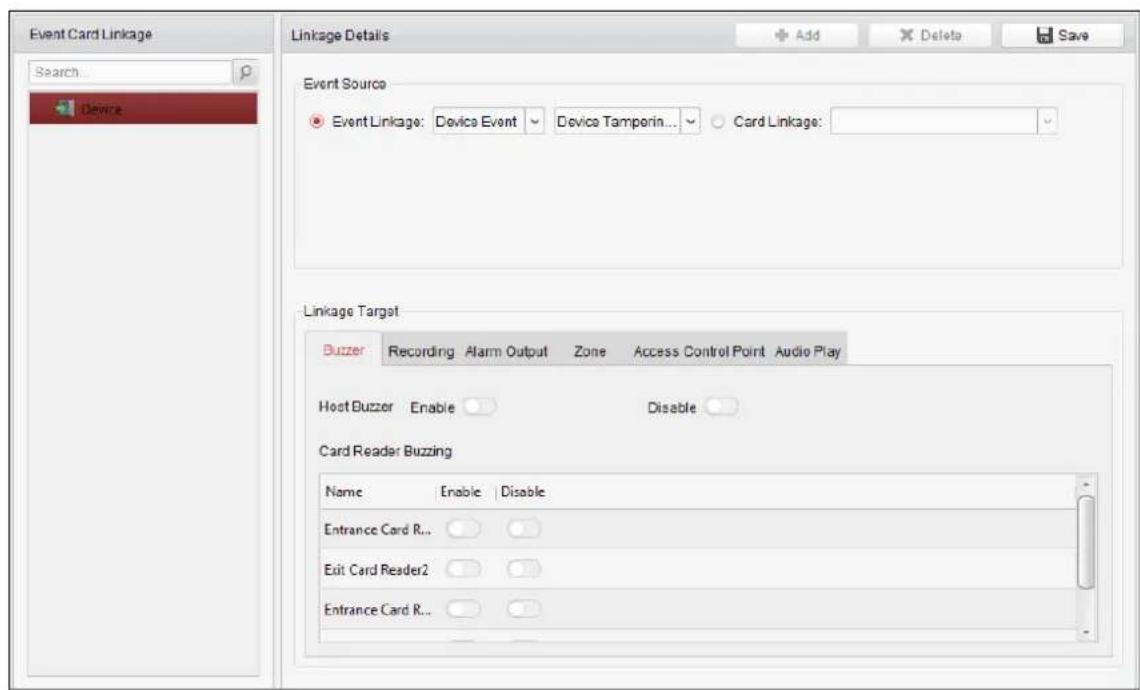
Select the access control device from the list on the le.
Click Add button to add a new linkage. You can select the event source as Event Linkage or Card Linkage.
Event Linkage
For the event linkage, the alarm event can be divided into four types: device event, alarm input, door event, and card reader event.
Steps:
-
Select a device on the le and click Add.
-
Click to select the linkage type as Event Linkage, and select the event type from the dropdown list.
-
For Device Event, select the detailed event type from the dropdown list.
- For Alarm Input, select the type as alarm or alarm recovery and select the alarm input name from the panel.
- For Door Event, select the detailed event type and select the source door from the panel.
-
For Card Reader Event, select the detailed event type and select the card reader from the panel.
-
Click dierent tabs to set dierent parameters. Switch the property from enable this funcon.
to
to
You can set the parameters of buzzer, recording, alarm output, zone, access control point, and audio play.
| Linkage Type | Linkage Target | Descripons |
| Buzzer | Host Buzzer | The audible warning of controller will be triggered. |
| Card Reader Buzzing | The audible warning of card reader will be triggered. | |
| Recording | Capture Status | The real-me capture will be triggered. |
| Alarm Output | Alarm Output | The alarm output will be triggered for nocaon. |
| Zone | Zone | The zone will be armed or disarmed according to your sengs. |
| Access Control Point | Access Control Point | The door status of open, close, remain open, and remain closed will be triggered.Notes:The door status of open, close, remain open, and remain close cannot be triggered at the same me.The target door and the source door cannot be the same one. |
| Audio Play | Audio Play Status | The audio prompt will be triggered. And the select audio index related audio content will be played according to the congured play mode.Note:For details about the audio index content, see Appendix C Table of Audio Index Related Content. |
- Click Save to save and take effect of the parameters.
Card Linkage
Steps:
- Click to select the linkage type as Card Linkage.
- Input the card No. or select the card from the dropdown list.
- Select the card reader from the panel for triggering.
- Click dierent tabs to set dierent parameters. Switch the property from enable this funcon.
to
to
You can set the parameters of buzzer, recording, alarm output, zone, access control point, and audio play.
| Linkage Type | Linkage Target | Descripons |
| Buzzer | Host Buzzer | The audible warning of controller will be triggered. |
| Card Reader Buzzing | The audible warning of card reader will be triggered. | |
| Recording | Capture Status | The real-me capture will be triggered. |
| Alarm Output | Alarm Output | The alarm output will be triggered for nocaon. |
| Zone | Zone | The zone will be armed or disarmed according to your sengs. |
| Access Control Point | Access Control Point | The door status of open, close, remain open, and remain closed will be triggered.Notes:● The door status of open, close, remain open, and remain close cannot be triggered at the sameme.● The target door and the source door cannot be the same one. |
| Audio Play | Audio Play Status | The audio prompt will be triggered. And the select audio index related audio content will be played according to the congured play mode.Note: For details about the audio index content, see Appendix C Table of Audio Index Related Content. |
- Click Save to save and take effect of the parameters.
7.8.4 Cross-Device Linkage
Purpose:
You can assign to trigger other access control device's action by setng up a rule when the access control event is triggered.
Click Cross-Device Linkage tab to enter the following interface.
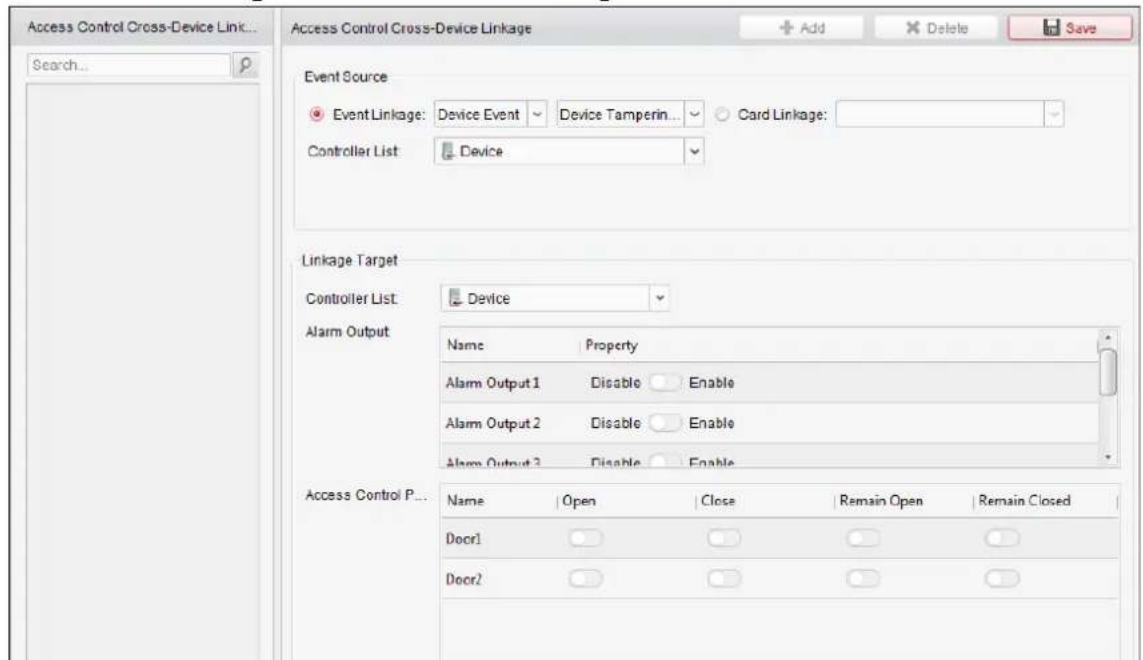
Click Add buon to add a new client linkage. You can select the event source as Event Linkage or Card Linkage.
Event Linkage
For the event linkage, the alarm event can be divided into four types: device event, alarm input, door event, and card reader event.
Steps:
- Click to select the linkage type as Event Linkage, select the access control device as event source, and select the event type from the dropdown list.
- For Device Event, select the detailed event type from the dropdown list.
- For Alarm Input, select the type as alarm or alarm recovery and select the alarm input name from the table.
- For Door Event, select the detailed event type and select the door from the table.
-
For Card Reader Event, select the detailed event type and select the card reader from the table.
-
Set the linkage target, select the access control device from the dropdown list as the linkage target, and switch the property from to to enable this funcon.
● Alarm Output: The alarm output will be triggered for nocaon.
- Access Control Point: The door status of open, close, remain open, and remain close will be triggered.
Note: The door status of open, close, remain open, and remain close cannot be triggered at the same me.
- Click Save buon to save parameters.
Card Linkage
Steps:
- Click to select the linkage type as Card Linkage.
- Select the card from the dropdown list and select the access control device as event source.
- Select the card reader from the table for triggering.
- Set the linkage target, select the access control device from the dropdown list as the linkage target, and switch the property from to to enable this funcon.
Alarm Output: The alarm output will be triggered for nocaon.
- Click Save buon to save parameters.
7.9 Door Status Management
Purpose:
The door status of the added access control device will be displayed in real me. You can check the door status and the linked event(s) of the selected door. You can control the status of the door and set the status duraon of the doors as well.
7.9.1 Access Control Group Management
Purpose:
Before controlling the door status and seng the status duraon, you are required to organize it into group for convenient management.
Perform the following steps to create the group for the access control device:
Steps:
-
Click on the control panel to open the Device Management page.
-
Click Group tab to enter the Group Management interface.
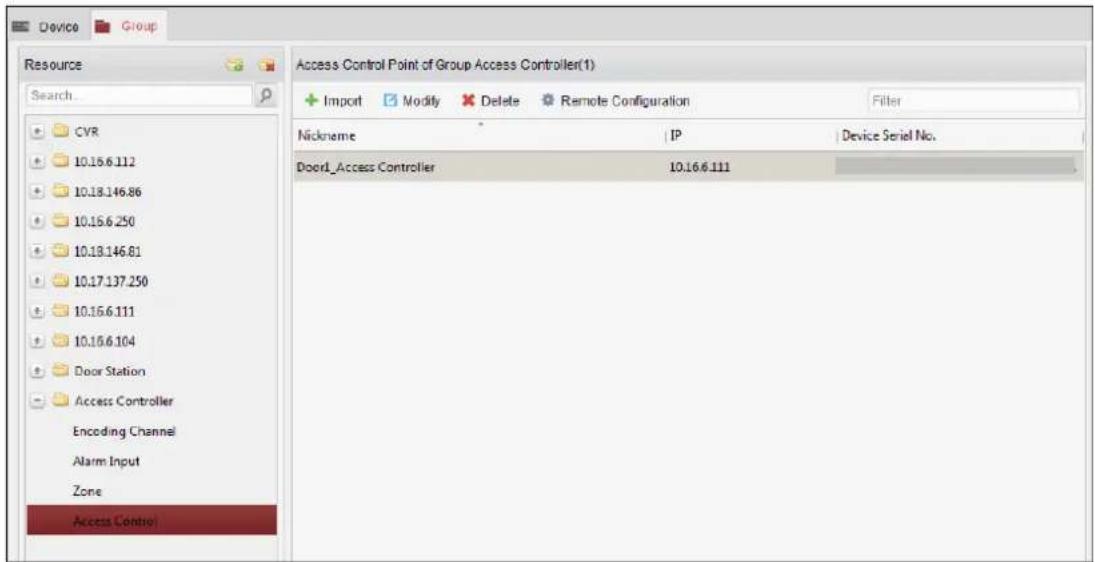
- Perform the following steps to add the group.
1) Click to open the Add Group dialog box.
2) Input a group name as you want.
3) Click OK to add the new group to the group list.
You can also check the checkbox Create Group by Device Name to create the new group by the name of the selected device.
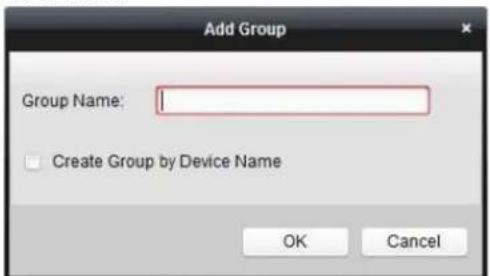
- Perform the following steps to import the access control points to the group:
1) Click Import on Group Management interface, and then click the Access Control tab to open the Import Access Control page.
Notes:
- You can also select Alarm Input tab and import the alarm inputs to group.
- For the Video Access Control Terminal, you can add the cameras as encoding channel to the group.
2) Select the names of the access control points in the list.
3) Select a group from the group list.
4) Click Import to import the selected access control points to the group.
You can also click Import All to import all the access control points to a selected group.
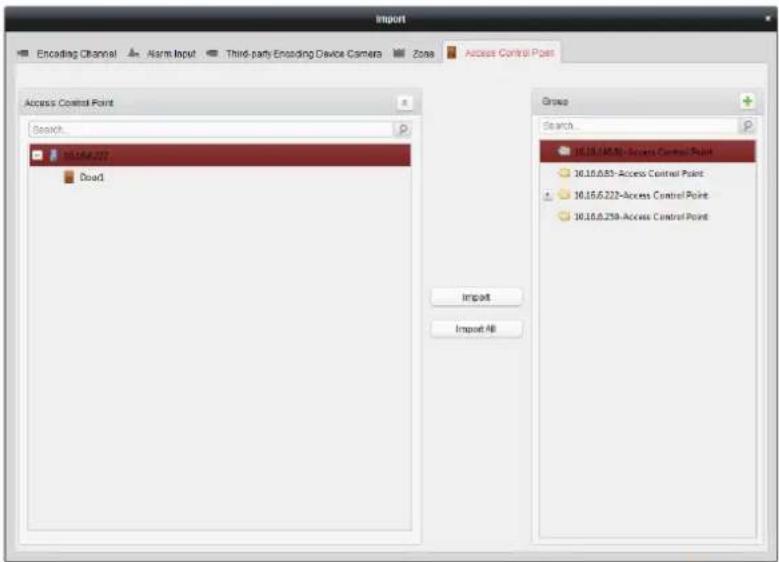
- Aer imporg the access control points to the group, you can click , or double-click the group/access control point name to modify it.
7.9.2 An-control the Access Control Point (Door)
Purpose:
You can control the status for a single access control point (a door), including opening door, closing door, remaining open, and remaining closed.
Click icon on the control panel to enter the Status Monitor interface.
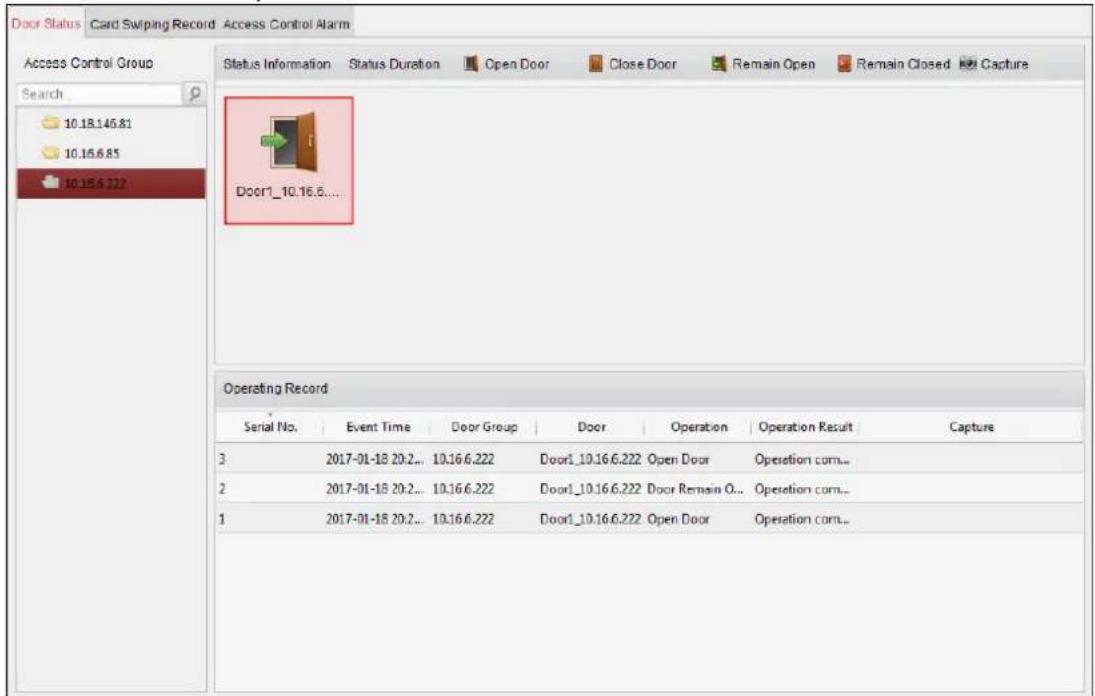
Steps:
- Select an access control group on the le. For managing the access control group, refer to Chapter 7.9.1 Access Control Group Management.
- The access control points of the selected access control group will be displayed on the right.
Click icon on the Status Informaon panel to select a door.
- Click the following buon listed on the Status Informaon panel to control the door.
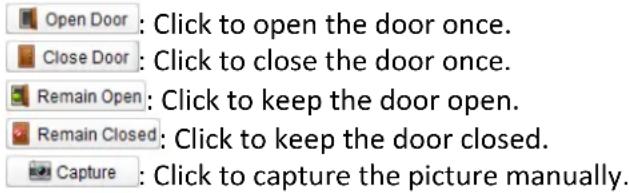
- You can view the an-control operaon result in the Operaon Log panel.
Notes:
- If you select the status as Remain Open/Remain Closed, the door will keep open/closed until a new an-control command being made.
- The Capture buon is available when the device supports capture funcon. And it cannot be realized until the storage server is congured.
- If the door is in remain closed status, only super card can open the door or open door via the client soware.
7.9.3 Status Duraon Conguraon
Purpose:
You can schedule weekly me periods for an access control point (door) to remain open or remain closed.
In the Door Status module, click Status Duraon buon to enter the Status Duraon interface.
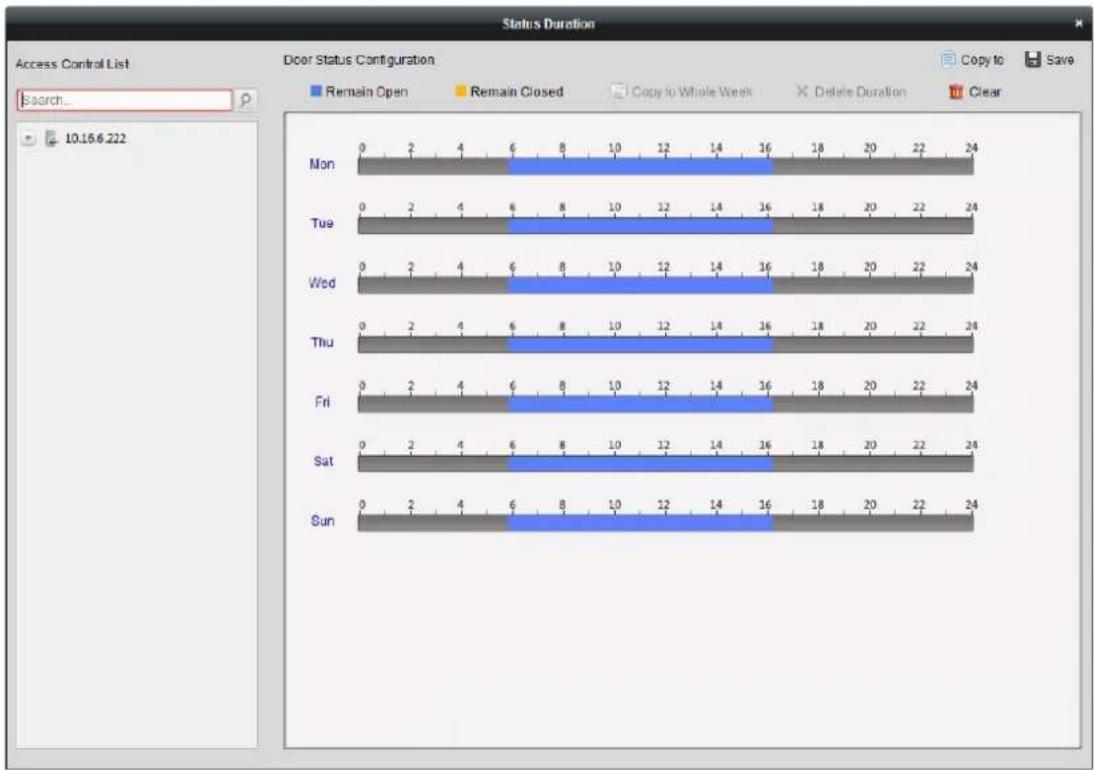
bar_stacked
| Day | Remain Open | Remain Closed | Copy to Whole Week | Delete Duration | Clear | |-------|-------------|---------------|--------------------|-----------------|-------| | Mon | 6 | 0 | 0 | 1 | 0 | | Tue | 6 | 0 | 0 | 1 | 0 | | Wed | 6 | 0 | 0 | 1 | 0 | | Thu | 6 | 0 | 0 | 1 | 0 | | Fri | 6 | 0 | 0 | 1 | 0 | | Sat | 6 | 0 | 0 | 1 | 0 | | Sun | 6 | 0 | 0 | 1 | 0 |Steps:
- Click to select a door from the access control device list on the left.
- On the Door Status Conguraon panel on the right, draw a schedule for the selected door.
1) Select a door status brush as


Remain Open: The door will keep open during the congured me period. The brush is marked as
Remain Closed: The door will keep closed during the congured duraon. The brush is marked as
2) Click and drag on the meline to draw a color bar on the schedule to set the duraon.
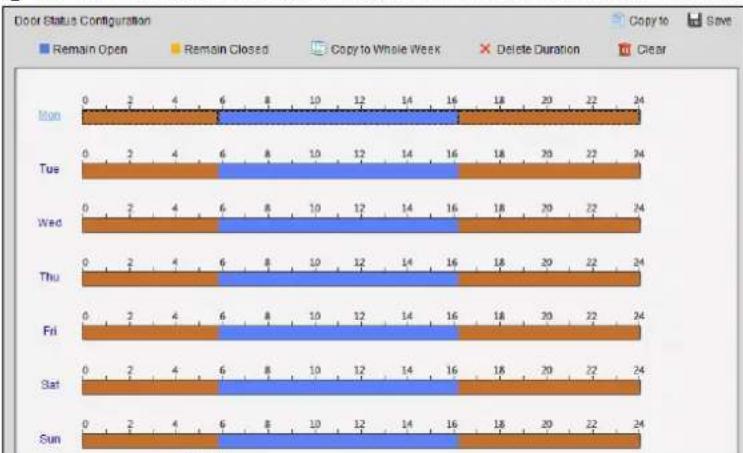
bar_stacked
Door Status Configuration | Day | Remain Open | Remain Closed | Copy to Whole Week | Delete Duration | Clear | |---|---|---|---|---|---| | Mon | 0 | 2 | 4 | 6 | 8 | | Tue | 0 | 2 | 4 | 6 | 8 | | Wed | 0 | 2 | 4 | 6 | 8 | | Thu | 0 | 2 | 4 | 6 | 8 | | Fri | 0 | 2 | 4 | 6 | 8 | | Sat | 0 | 2 | 4 | 6 | 8 | | Sun | 0 | 2 | 4 | 6 | 8 | The total number of door units per day is labeled as '24'. The values for each day are explicitly labeled on the bars.3) When the cursor turns to 📁, you can move the selected me bar you just edited. You can also edit the displayed me point to set the accurate me period.
When the cursor turns to , you can lengthen or shorten the selected me bar.
- Optionally, you can select the schedule me bar and click Copy to Whole Week to copy the
me bar sengs to the other days in the week.
- You can select the me bar and click Delete Duraon to delete the me period.
Or you can click Clear to clear all congured duraons on the schedule.
- Click Save to save the setngs.
- You can click Copy to buon to copy the schedule to other doors.
7.9.4 Real-me Card Swiping Record
Click Card Swiping Record tab to enter the following interface.
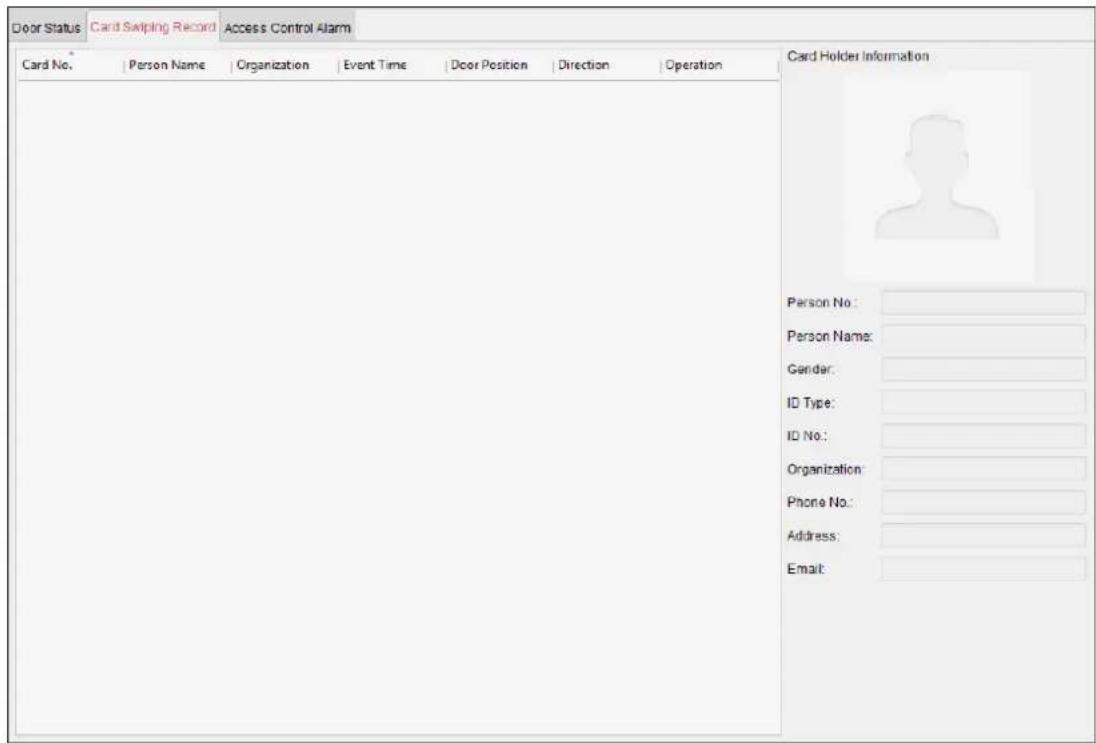
The logs of card swiping records of all access control devices will display in real me. You can view the details of the card swiping event, including card No., person name, organizaon, event me, etc.
You can also click the event to view the card holder details, including person No., person name, organizaon, phone, contact address, etc.
7.9.5 Real-me Access Control Alarm
Purpose:
The logs of access control events will be displayed in real me, including device excepon, door event, card reader event, and alarm input.
Click Access Control Alarm tab to enter the following interface.
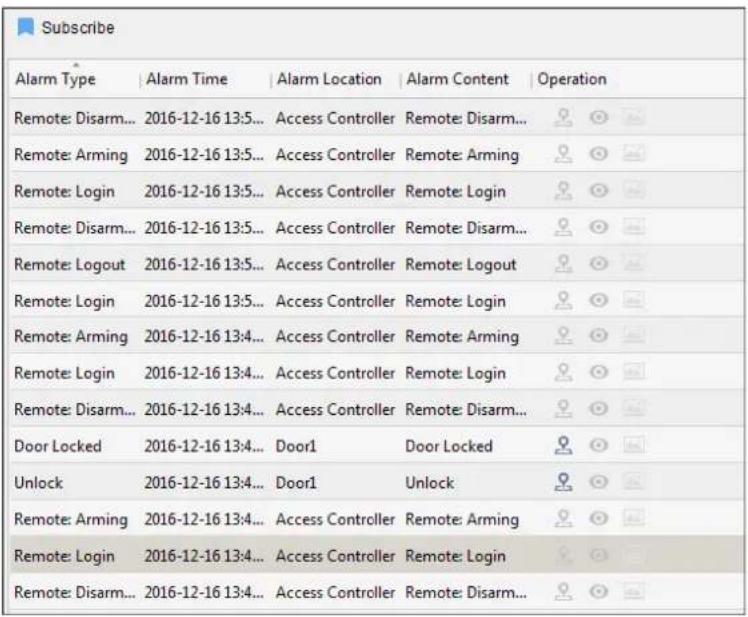
Steps:
- All access control alarms will display in the list in real me.
You can view the alarm type, alarm me, locaon, etc.
-
Click 🔒 to view the alarm on E-map.
-
You can click or to view the live view or the captured picture of the triggered camera when the alarm is triggered.
Note: For seng the triggered camera, refer to Chapter 7.8.1 Access Control Event Linkage.
- Click Subscribe to select the alarm that the client can receive when the alarm is triggered.
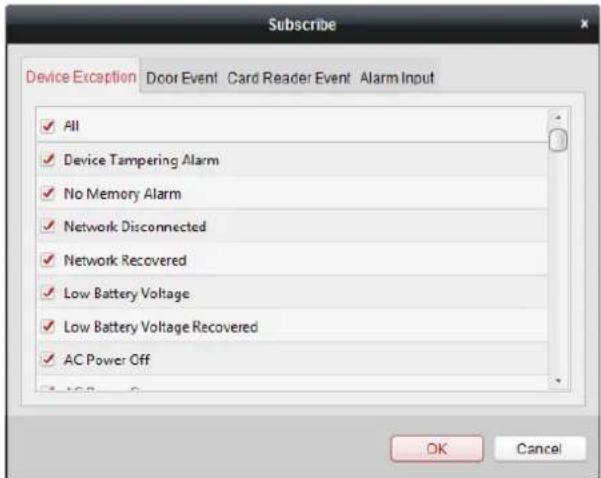
1) Check the checkbox(es) to select the alarm(s), including device exception alarm, door event alarm, card reader alarm, and alarm input.
2) Click OK to save the sengs.
7.10 Arming Control
Purpose:
You can arm or disarm the device. Aer arming the device, the client can receive the alarm informaon from the device.
Steps:
-
Click Tool->Device Arming Control to pop up the Device Arming Control window.
-
Arm the device by checking the corresponding checkbox.
Then the alarm informaon will be auto uploaded to the client soware when alarm occurs.
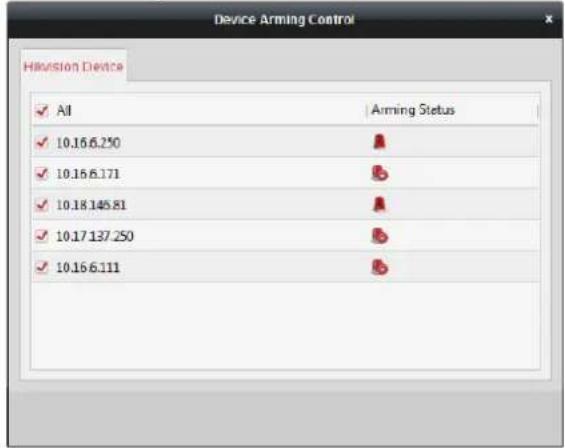
7.11 Time and Attendance
Purpose:
The Time and Aendance module provides mulple funconalies, including shi schedule management, aendance handling, aendance stascs and other advanced funcons.
Before you start:
You should add organizaon and person in Access Control module. For details, refer to Chapter 7.3.1 Adding Organizaon and Chapter 7.4.1 Adding Person.
Perform the following steps to access the Time and Aendance module.

Click to enter the Time and Aendance module as follows:
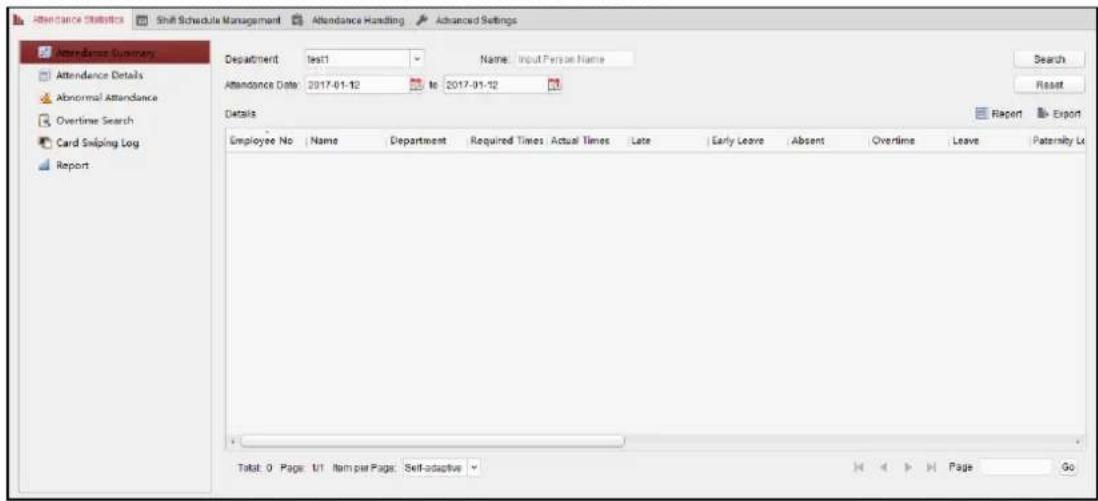
7.11.1 Shi Schedule Management
Open Time and Aendance module and click Shi Schedule Management to enter the Shi Schedule Management interface.
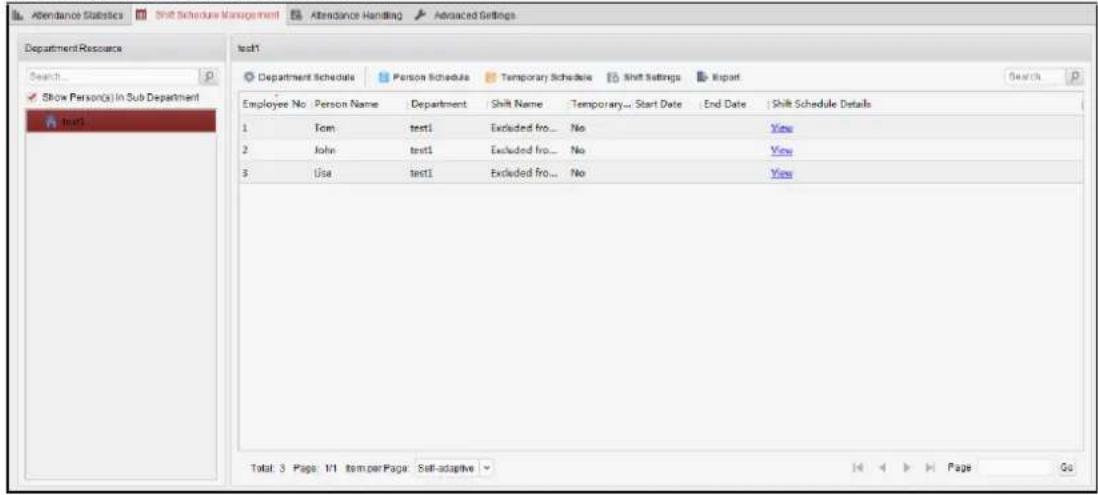
Shi Sengs
Purpose:
You can add me period and shi for the shi schedule.
Click Shi Sengs to pop up Shi Sengs dialog.
Adding Time Period
Steps:
- Click Time Period tab.
- Click Add.
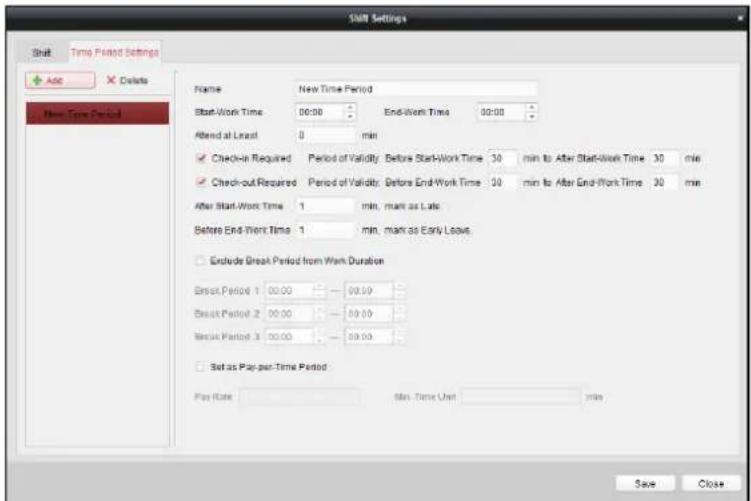
- Set the related parameters.
Name: Set the name for me period.
Start-Work / End-Work Time: Set the start-work me and end-work me.
Aend at Least: Set the minimum aendance me.
Check-in / Check-out Required: Check the checkboxes and set the valid period for check-in or check-out.
Mark as Late/Mark as Early Leave: Set the me period for late or early leave.
Exclude Break Period from Work Duraon: Check the checkbox and set the break period excluded.
Note: Up to 3 break periods can be set.
Set as Pay-per-Time Period: Check the checkbox and set the pay rate and minimum me unit.
- Click Save to save the setngs.
The added me period will display on the le panel of the dialog.
You can also click Delete to delete the me period.
Adding Shi
Steps:
-
Click Shi Tab.
-
Click Add.
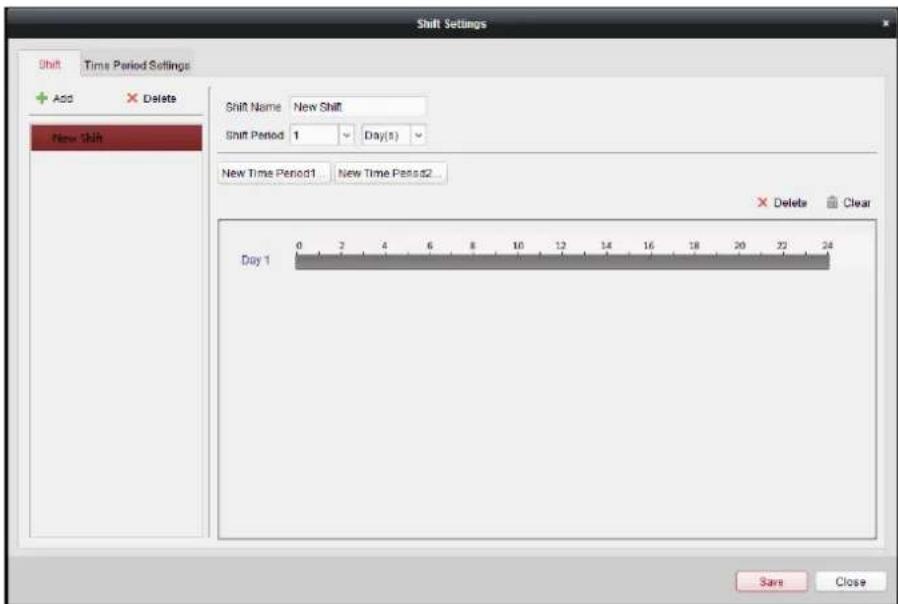
-
Set the name for shi.
-
Select the shi period from the drop-down list.
-
Congure the shi period with the added me period.
1) Select the me period.
2) Click the me bar to apply the me period for the select day.
You can click the me period on the bar and click or Delete to delete the period.
You can also click Clear to delete all days' me period.
- Click Save to save the sengs.
The added shi will display on the le panel of the dialog.
You can also click Delete on the le panel to delete the shi.
Shi Schedule Sengs
Purpose:
Aer seng the shi, you can set department schedule, person schedule and temporary schedule.
Note: The temporary schedule has higher priority than department schedule and person schedule.
Department Schedule
You can set the shi schedule for one department, and all the persons in the department will be assigned with the shi schedule.
Note: In Time and Aendance module, the department list is the same with the organizaon in Access Control. For seng the organizaon in Access Control, refer to Chapter 7.3 Organizaon Management.
Steps:
- Open the Shi Schedule Management interface and select the department on the le panel.
- Click Department Schedule to pop up Department Schedule dialog.
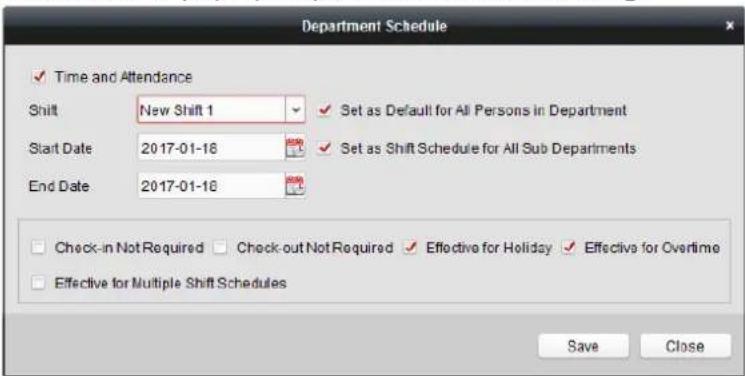
3. Check Time and Aendance checkbox.
All persons in the department expect those excluded from aendance will apply the aendance schedule.
-
Select the shi from the drop-down list.
-
Set the start date and end date.
-
(Oponal) Set other parameters for the schedule.
You can select Check-in Not Required, Check-out Not Required, Eecve for Holiday, Eecve for Overme, Eecve for Mulple Shi Schedules.
Notes:
- Mulple Shi Schedules contains more than one me periods. The person can check in/out in any of the me periods and the aendance will be eecve.
Example: If the mulple shi schedules contains three me periods: 00:00 to 07:00, 08:00 to 15:00 and 16:00 to 23:00. The aendance of the person adopng this mulple shi schedules will be eecve in any of the three me periods. If the person checks in at 07:50, it will apply the nearest me period 08:00 to 15:00 to the person's aendance.
- Aer checking the Effectve for Mulple Shi Schedules checkbox, you can select the eecve me period(s) from the added me periods for the persons in the department.
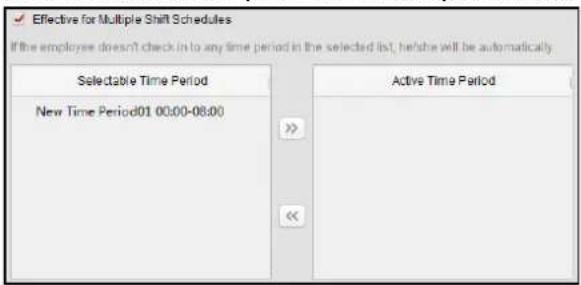
1) In the Selectable Time Period list on the le, click the added me period and click to add it to the right.

2) (Optional) To remove the selected me period, select it and click
- (Oponal) Check Set as Default for All Persons in Department checkbox.
All persons in the department will use this shi schedule by default.
- (Optional) If the selected department contains sub department(s), the Set as Shi Schedule for All Sub Departments checkbox will display. You can check it to apply the department schedule to its sub departments.
- Click Save to save the setngs.
➢ Person Schedule
Steps:
- Open the Shi Schedule Management interface and select the department on the le panel.
- Select the person(s) on the right panel.
- Click Person Schedule to pop up Person Schedule dialog.
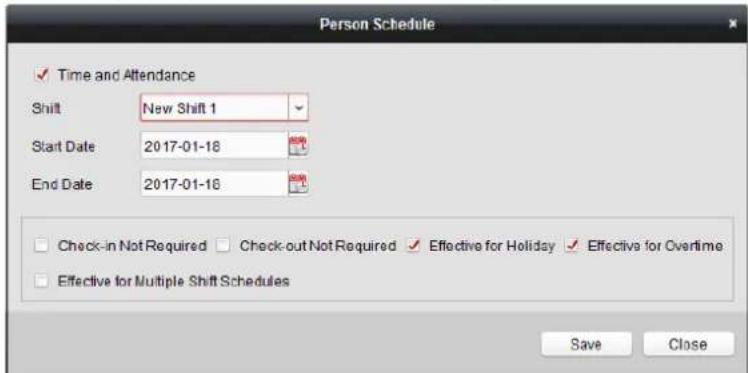
- Check Time and Aendance checkbox.
The congured person will apply the aendance schedule.
- Select the shi from the drop-down list.
- Set the start date and end date.
- (Oponal) Set other parameters for the schedule.
You can select Check-in Not Required, Check-out Not Required, Eecve for Holiday, Eecve for Overme, Eecve for Mulple Shi Schedules.
- Click Save to save the setngs.
Temporary Schedule
Steps:
- Open the Shi Schedule Management interface and select the department on the le panel.
- Select the person(s) on the right panel.
- Click Temporary Schedule to pop up Temporary Schedule dialog.
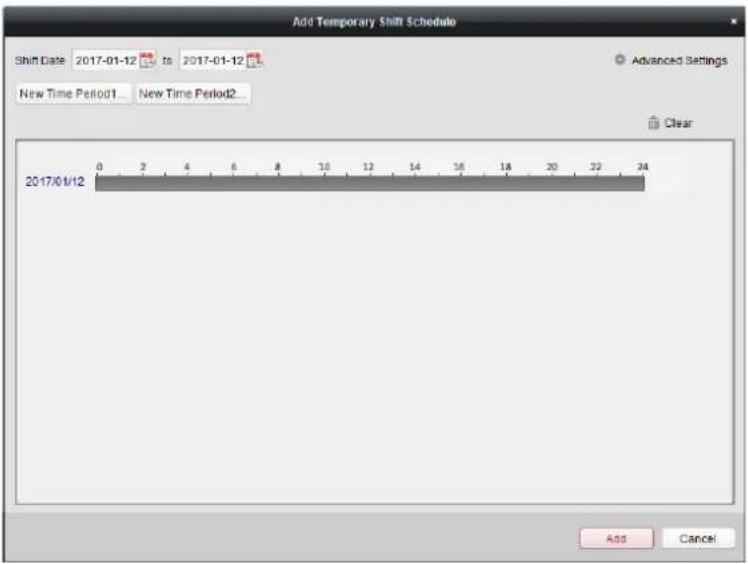
-
Click to set the shi date.
-
Congure the shi date with the added me period.
1) Select the me period.
2) Click the me bar to apply the me period for the select date.
You can click the me period on the bar and click to delete the period.
You can also click Clear to delete all days' me period.
- You can click Advanced Sengs to advanced attendance rules for the temporary schedule.
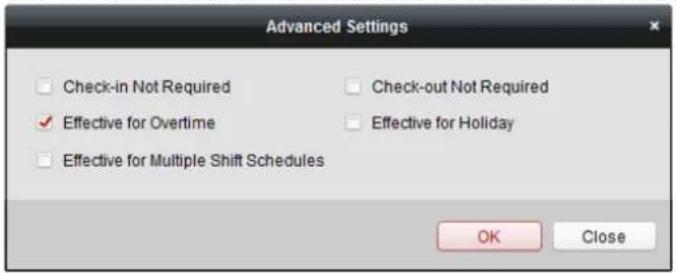
- Click Add to save the sengs.
> Checking Shi Schedule Details
Steps:
- On the Shi Schedule Management interface, select the department on the left panel.
- Select the person(s) on the right panel.
- Click View to pop up Shi Schedule Details dialog.
You can check the shi schedule details.
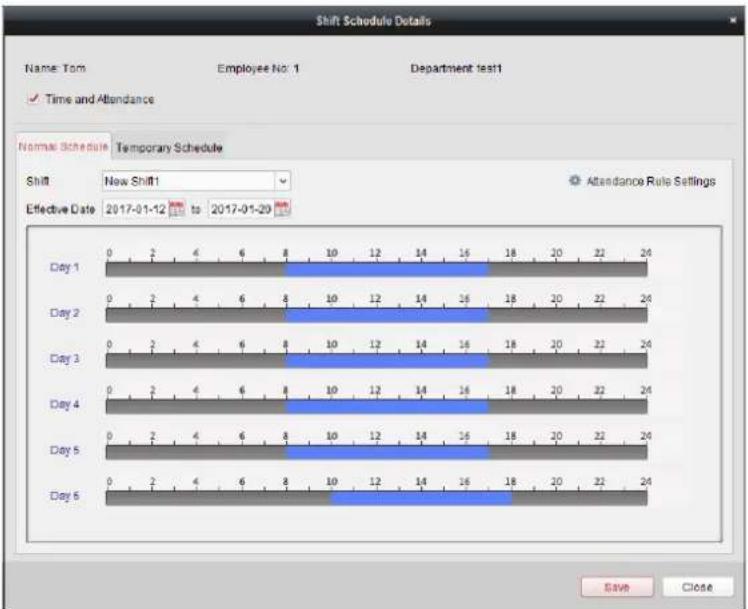
bar_stacked
| Day | Temporary Schedule | New Shift | |-------|--------------------|-----------| | Day 1 | 0 | 2 | | Day 1 | 2 | 4 | | Day 1 | 4 | 6 | | Day 1 | 6 | 8 | | Day 1 | 8 | 10 | | Day 1 | 10 | 12 | | Day 1 | 12 | 14 | | Day 1 | 14 | 16 | | Day 1 | 16 | 18 | | Day 1 | 18 | 20 | | Day 1 | 20 | 22 | | Day 1 | 22 | 24 | | Day 2 | 0 | 2 | | Day 2 | 2 | 4 | | Day 2 | 4 | 6 | | Day 2 | 6 | 8 | | Day 2 | 8 | 10 | | Day 2 | 10 | 12 | | Day 2 | 12 | 14 | | Day 2 | 14 | 16 | | Day 2 | 16 | 18 | | Day 2 | 18 | 20 | | Day 2 | 20 | 22 | | Day 2 | 22 | 24 | | Day 3 | 0 | 2 | | Day 3 | 2 | 4 | | Day 3 | 4 | 6 | | Day 3 | 6 | 8 | | Day 3 | 8 | 10 | | Day 3 | 10 | 12 | | Day 3 | 12 | 14 | | Day 3 | 14 | 16 | | Day 3 | 16 | 18 | | Day 3 | 18 | 20 | | Day 3 | 20 | 22 | | Day 3 | 22 | 24 | | Day 4 | 0 | 2 | | Day 4 | 2 | 4 | | Day 4 | 4 | 6 | | Day 4 | 6 | 8 | | Day 4 | 8 | 10 | | Day 4 | 10 | 12 | | Day 4 | 12 | 14 | | Day 4 | 14 | 16 | | Day 4 | 16 | 18 | | Day 4 | 18 | 20 | | Day 4 | 20 | 22 | | Day 4 | 22 | 24 | | Day 5 | 0 | 2 | | Day 5 | 2 | 4 | | Day 5 | 4 | 6 | | Day 5 | 6 | 8 | | Day 5 | 8 | 10 | | Day 5 | 10 | 12 | | Day 5 | 12 | 14 | | Day 5 | 14 | 16 | | Day 5 | 16 | 18 | | Day 5 | 18 | 20 | | Day 5 | 20 | 22 | | Day 5 | 22 | 24 | | Day 6 | 0 | 2 | | Day 6 | 2 | 4 | | Day 6 | 6 | 8 | | Day 6 | 8 | 10 | | Day 6 | 10 | 12 | | Day 6 | 12 | 14 | | Day 6 | 14 | 16 | | Day 6 | 16 | 18 | | Day 6 | 18 | 20 | | Day 6 | 20 | 22 | | Day 6 | 22 | 24 | Save Close4. Click Normal Schedule tab.
You can check and edit the normal schedule details.
1) Select the shi from the drop-down list.
2) Click Aendance Rule Sengs to pop up Aendance Rule Setngs dialog.
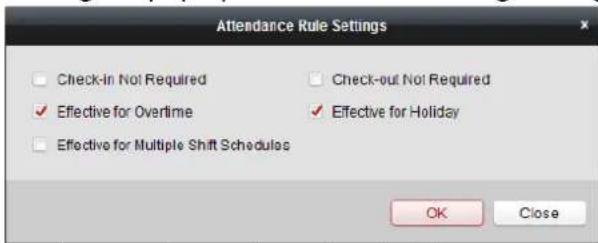
You can check the aendance rules as desired and click OK to save the sengs.
3) Click to set the eecve date.
4) Click Save to save the setngs.
5. (Optional) Click Temporary Schedule tab.
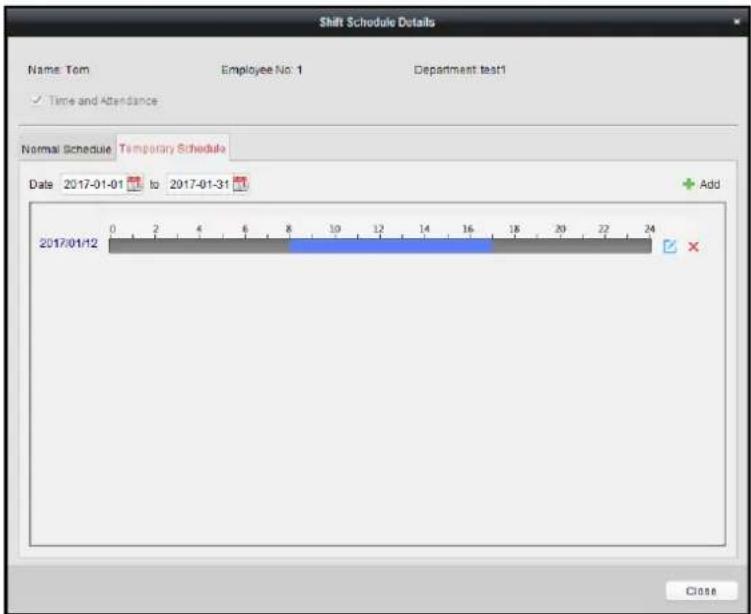
You can check and edit the temporary schedule details.
(Oponal) Click Add to add temporary schedule for the selected person.
(Oponal) Click to edit the me period.
(Oponal) Click to delete the temporary schedule.
Exporng Shi Schedule Details
On the Shi Schedule Management interface, select the department on the le panel and click Export to export all persons' shi schedule details to local PC.
Note: The exported details are saved in *.csv format.
7.11.2 Aendance Handling
Purpose:
You can handle the aendance, including check-in correcon, check-out correcon, leave and business trip, and manual calculaon of aendance.
Open Time and Aendance module and click Attendance Handling to enter the Aendance Handling interface.
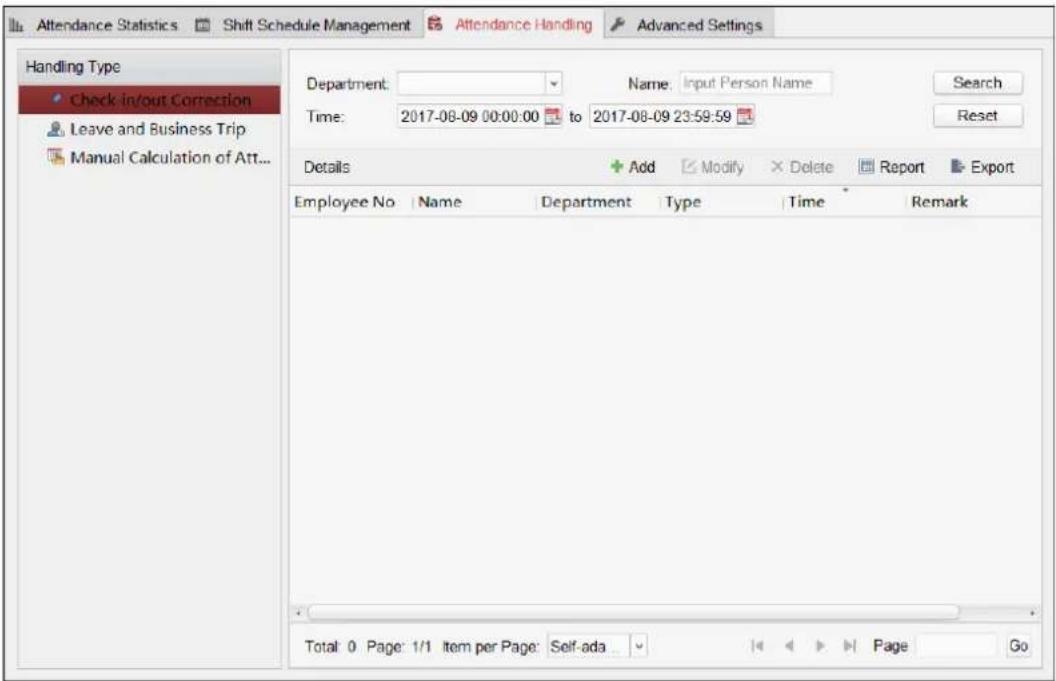
Check-in/out Correcon
Purpose:
You can add, edit, delete, search the check-in/out correcon and generate the related report. You can also export the check-in/out correcon details to local PC.
Add Check-in/out Correcon
Steps:
- Click Check-in/out Correcon tab.
- Click Add to pop up Add Check-in/out Correcon dialog.
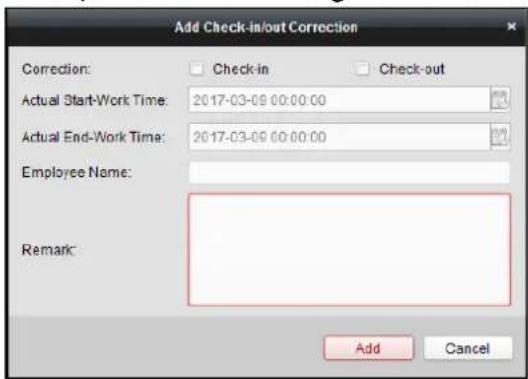
- Set the check-in/out correcon parameters.
For Check-in Correcon: Check Check-in checkbox and set the actual start-work me.
For Check-out Correcon: Check Check-out checkbox and set the actual end-work me.
- Click Employee Name eld and select the person.
You can also input the keyword and click to search the person you want.
- (Oponal) Input the remark informaon as desired.
- Click Add to add the check-in/out correcon.
The added check-in/out correcon will display on the Aendance Handling interface.
(Oponal) Select the check-in/out correcon and click Modify to edit the correcon.
(Oponal) Select the check-in/out correcon and click Delete to delete the correcon.
(Oponal) Click Report to generate the check-in/out correcon report.
(Oponal) Click Export to export the check-in/out correcon details to local PC.
Note: The exported details are saved in *.csv format.
Search Check-in/out Correcon
Steps:
- Click Check-in/out Correcon tab.
-
Set the searching conditions.
Department: Select the department from the drop-down list.
Name: Input the person name.
Time: Click to set the specied me as me range. -
Click Search to search the check-in/out correcons.
The check-in/out correcon details will display on the list.
You can also click Reset to reset the searching conditions.
Appendix A Tips for Scanning Fingerprint
Recommended Finger
Forenger, middle nger or the third nger.
Correct Scanning
The gure displayed below is the correct way to scan your nger:
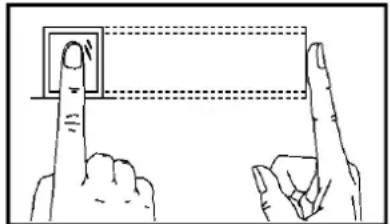
natural_image
Illustration of two hands pointing at a square button with dashed lines indicating alignment (no text or symbols)You should press your nger on the scanner horizontally. The center of your scanned nger should align with the scanner center.
Incorrect Scanning
The gures of scanning ngerprint displayed below are wrong:
Vercal
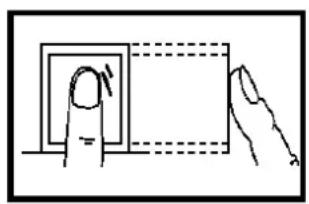
natural_image
Simple line drawing of a finger pressing a square button with dashed lines indicating alignment (no text or symbols)Side
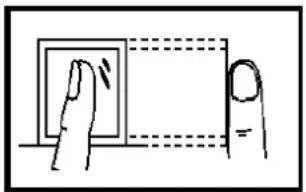
natural_image
Simple line drawing of a finger pressing a button on a screen (no text or symbols)Edge I
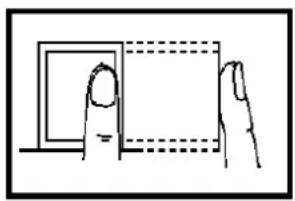
natural_image
Simple line drawing of a hand pressing a square button into a dashed rectangular frame (no text or symbols)Edge II
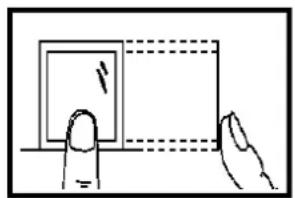
natural_image
Simple line drawing of a hand pressing a square on a horizontal surface, with dashed lines indicating hidden edges (no text or symbols)Environment
The scanner should avoid direct high light, high temperature, humid conditions and rain.
When it is dry, the scanner may not recognize your ingerprint successfully. You can blow your nger and scan again aer drying the nger.
Others
If your ngerprint is shallow, or it is hard to scan your ngerprint, we recommend you to use other authencaon methods.
If you have injuries on the scanned nger, the scanner may not recognize. You can change another nger and try again.
Appendix B DIP Switch Descripon
DIP Switch Introducon
There is a group of 8-bit DIP switch on the main controller. As the picture shown below, No.1 to No 8 is from the low bit to the high bit.
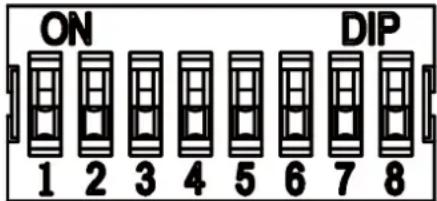
When the switch is towards ON, it means the binary value is 1. Otherwise, it is 0.
If you set the DIP switch like the gure displayed below, its binary value is 00001100, and its decimal value is 12.
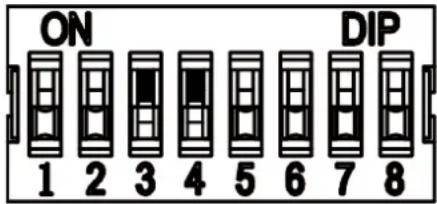
DIP Switch Corresponded Funcons
The 8-bit DIP switch corresponded funcons on the main controller are as follows:
| Bit | Device Mode | Function | Decimal Value | Binary Value |
| 1 to 2 | Work Mode | Normal Mode | 0 | 00 |
| Study Mode | 1 | 01 | ||
| Test Mode | 2 | 10 | ||
| 3 | Memory Mode | Enable Memory Mode | 0 | 0 |
| Disable Memory Mode | 1 | 1 | ||
| 4 | Keyfob Paring Mode | Enable Keyfob Paring Mode | 0 | 0 |
| Disable Keyfob Paring Mode | 1 | 1 | ||
| 5 to 8 | Passing Mode | Controlled Bi-direcon | 0 | 0000 |
| Controlled Entrance and Prohibit Exit | 1 | 0001 | ||
| Controlled Entrance and Free Exit | 2 | 0010 | ||
| Free Bi-direcon | 3 | 0011 | ||
| Free Entrance and Controlled Exit | 4 | 0100 | ||
| Free Entrance and Prohibit Exit | 5 | 0101 | ||
| Prohibited Bi-direcon | 6 | 0110 | ||
| Prohibit Entrance and Controlled Exit | 7 | 0111 | ||
| Prohibit Entrance and Free Exit | 8 | 1000 |
Appendix C Table of Audio Index Related Content
| Index | Content |
| 1 | Authencated. |
| 2 | Card No. does not exist. |
| 3 | Card No. and ngerprint mismatch. |
| 4 | Climbing over the barrier. |
| 5 | Reverse passing. |
| 6 | Passing meout. |
| 7 | Intrusion. |
| 8 | Force accessing. |
| 9 | Tailgang. |
| 10 | No permissions. |
| 11 | Authencaon me out. |
| 13 | Authencaon failed. |
| 14 | Expired card. |
010000001090116

See Far, Go Further