
CP-X417 - Video projector HITACHI - Free user manual and instructions
Find the device manual for free CP-X417 HITACHI in PDF.


| Product Type | Video Projector |
| Brand | Hitachi |
| Model | CP-X417 |
| Projection Technology | 3LCD |
| Native Resolution | XGA (1024 x 768) |
| Brightness | 3000 ANSI Lumens |
| Contrast Ratio | 500:1 |
| Lamp Type | UHP (typical 200W) |
| Lamp Life | 2000 hours (normal), 3000 hours (eco) |
| Dimensions (W x H x D) | 306 x 249 x 86 mm |
| Weight | 2.9 kg |
| Power Consumption | 300W (normal), 5W (standby) |
| Input Ports | RGB D-Sub 15-pin x2, S-Video, Composite, Audio (RCA) |
| Output Ports | RGB D-Sub 15-pin (monitor out), Audio out |
| Noise Level | 30 dB (normal), 26 dB (eco) |
| Keystone Correction | Vertical ±30 degrees |
| Maintenance | Clean air filter every 500 hours, replace lamp as needed |
| Safety Features | Auto power off, security lock slot |
| Spare Parts | Lamp (model: DT00611), filter (model: SP00AB) |
Frequently Asked Questions - CP-X417 HITACHI
User questions about CP-X417 HITACHI
0 question about this device. Answer the ones you know or ask your own.
Ask a new question about this device
Download the instructions for your Video projector in PDF format for free! Find your manual CP-X417 - HITACHI and take your electronic device back in hand. On this page are published all the documents necessary for the use of your device. CP-X417 by HITACHI.
USER MANUAL CP-X417 HITACHI
User's Manual (detailed)
Operating Guide
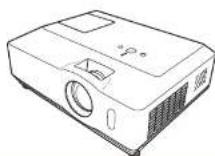
Thank you for purchasing this projector.
⚠ WARNING ▶ Before using this product, please read all manuals for this product. Be sure to read "Safety Guide" first. After reading them, store them in a safe place for future reference.
About this manual
Various symbols are used in this manual. The meanings of these symbols are described below.
WARNING
This symbol indicates information that, if ignored, could possibly result in personal injury or even death due to incorrect handling.
CAUTION
This symbol indicates information that, if ignored, could possibly result in personal injury or physical damage due to incorrect handling.

Please refer to the pages written following this symbol.
NOTE • The information in this manual is subject to change without notice. • The manufacturer assumes no responsibility for any errors that may appear in this manual. • The reproduction, transfer or copy of all or any part of this document is not permitted without express written consent.
Trademark acknowledgment
• Mac is registered trademarks of Apple Computer, Inc.
• VESA and SVGA are trademarks of the Video Electronics Standard Association.
• Windows is a registered trademark of Microsoft Corporation.
- HDMI, the HDMI loss and High Definition Multimodics Interface are trademarks
Contents

About this manual....1
Contents 2
Projector features ....3
Preparations ....3
Contents of package....3
Fastening the lens cover. . . . . . . . . 3
Part names .....4
Projector 4
Control panel. 5
Rear panel 5
Remote control 6
Setting up ....7
Arrangement....7
Connecting your devices. . . . . . . . 9
Using a USB storage ..... 12
Using an SD card....12
Connecting power supply ..... 13
Using the security bar and slot . . . . 13
Remote control .....14
Putting batteries 14
About the remote control signal . . . 14
Changing the frequency of remote control signal . . 15
Using as a simple PC mouse & keyboard . . 15
Power on/off 16
Turning on the power ..... 16
Turning off the power ..... 16
Operating 17
Adjusting the volume. 17
Temporarily muting the sound.....17
Selecting an input signal.....17
Searching an input signal ..... 18
Selecting an aspect ratio. . . . . . . . 18
Adjusting the projector's elevator . . 19
Adjusting the zoom and focus.....19
Using the automatic adjustment feature . . . 20
Adjusting the position ..... 20
Correcting the keystone distortions . . 21
Using the magnify feature.....21
Freezing the screen 22
Temporarily blanking the screen . . . 22
Using the menu function .....23
EASY MENU. 25
Aspect, Auto keystone ☐ execute,
k eystone , keystone , picture mode,
Brightness, ContrAst, Color, tint, s hArpness, Whisper, mirror, reset,
Filter time, lAnguAge, Go to Advanced Menu

PICTURE menu .....27
Brightness, ContrAst, gAmmA, Color temp, Color, tint, ShArpness, My memory
IMAGE menu .....30
Aspect, Over scAn, V position, h position, h phAse, h size, Auto Adjust execute
INPUT menu .....32
Progressive, Video nr, Color spAce, C component, Video FormAt, hdmi, FrAme lock, Computer in, resolution
SETUP menu .....35
Auto keystone execute, keystone , keystone ,Whisper, mirror, volume, SpeAker, Audio, hdmi Audio
SCREEN menu....38
lAnguAge, menu position, BlAnk, s tArt up, MyScreen MyScreen Lock messAge, Source nAme
OPTION menu 42
Auto seArch, Auto keystone Auto on, Auto off, lAmp time, Filter time, my Button, Service, Security
MIU menu 53
live mode, live mode setting, pc-less presentAtion, Setup, projector nAme, e-shot, InFormAtion, Service
C.C. (closed caption) menu .. 63
displAy, mode, ChAnnel
Maintenance....64
Replacing the lamp....64 Cleaning and replacing the air filter..66 Replacing the internal clock battery..68 Other care....69
Troubleshooting .....70
Related messages ..... 70 Regarding the indicator lamps ..... 71 Shutting the projector down ..... 72 Resetting all settings..... 72 Phenomena that may be easy to be mistaken for machine defects .. 73
Specifications 76
Projector features
This product realizes the large projection image of various image signals, even if in a small space. This product also can offer you convenience and various uses by the following features.
√ It is possible to project the images from an SD memory card or USB memory by the PC-LESS Presentation function of this projector.
√ This projector can be controlled and monitored via LAN connection.
√ Using the designated wireless network card (optional) realizes wireless LAN connection.
Preparations
Contents of package
Please see the "Contents of package" section in the User's Manual (concise) which is a book. Your projector should come with the items shown there. Contact immediately your dealer if anything is missing.
NOTE • Keep the original packing materials, for future reshipment. Be sure to use the original packing materials when moving the projector. Use special caution for the lens.
Fastening the lens cover
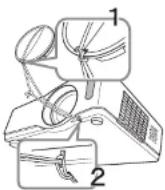
To avoid losing the lens cover, please fasten the lens cover to the projector using the enclosed strap.
- Fix the strap to the strap hole of the lens cover. Thread one end of the strap through the strap hole of the lens cover and make the loop at the end, and let the other end of the strap through the loop. Not have a knot in the strap at either end.
Part names
Projector
(1) Lamp cover (64). The lamp unit is inside.
(2) Focus ring (19)
(3) Zoom ring (19)
(4) Control panel (5)
(5) Elevator buttons (x 2) (19)
(6) Elevator feet (x 2) (19)
(7) Remote sensor (14)
(8) Lens (16, 69)
(9) Lens cover (3)
(10) Intake vents
(11) Filter cover 📄66)
The air filter and intake vent are inside.
(12) Speaker (36)
(13) Exhaust vent
(14) AC inlet (13)
(15) Power switch (16)
(16) Rear panel (5)
(17) Security bar (13)
(18) Security slot (13)
(19) SD card slot cover (68)
The internal clock battery is inside.
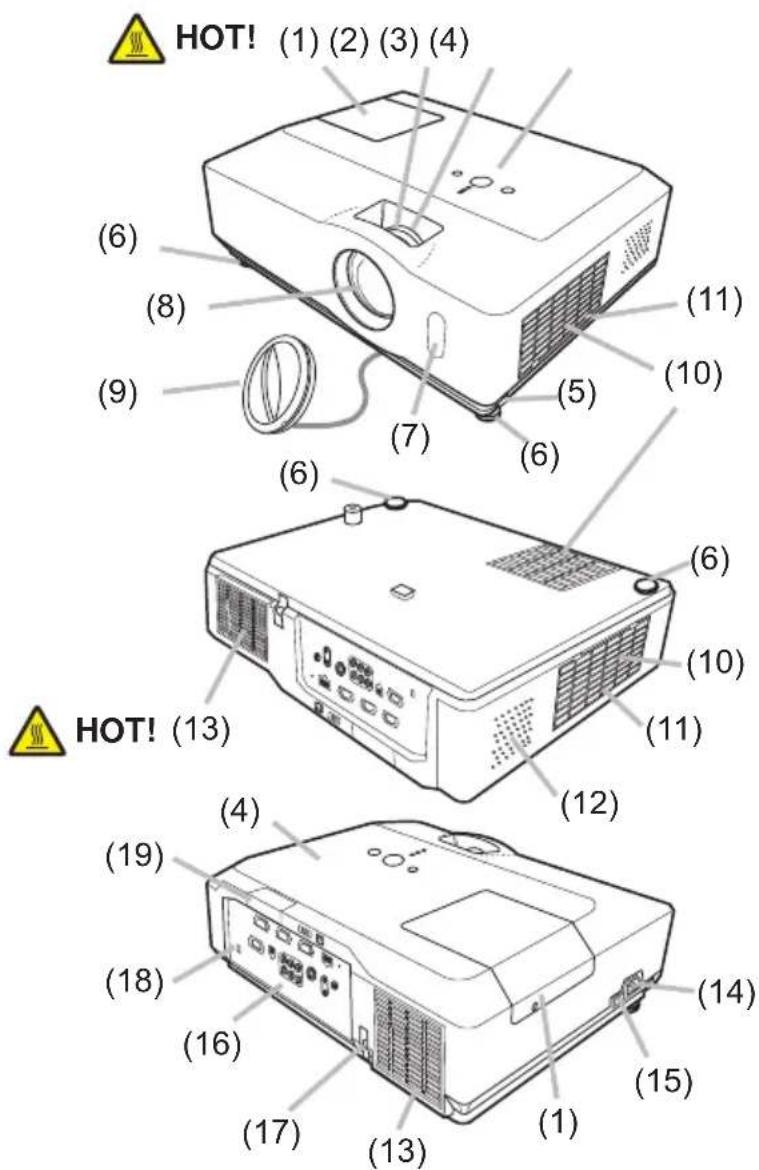
⚠ WARNING ▶HOT! : Do not touch around the lamp cover and the exhaust vents during use or just after use, since it is too hot.
▶ Do not look into the lens or vents while the lamp is on, since the strong light is not good for your eyes.
▶ Do not handle the elevator buttons without holding the projector, since the projector may drop down.
⚠️CAUTION ▶Maintain normal ventilation to prevent the projector from heating up. Do not cover, block or plug up the vents. Do not place anything that can stick or be sucked to the vents, around the intake vents. Clean the air filter periodically.
▶ Do not use the security bar and slot to prevent the projector from falling down, since it is not designed for it.
Control panel
(1) STANDBY/ON button (16)
(2) INPUT button (17, 23)
(3) MENU button (23)
It consists of four cursor buttons.
(4) POWER indicator (16, 71)
(5) TEMP indicator (71)
(6) LAMP indicator (71)
(6)

LAMP
(5)

TEMP
(4)

POWER
(1) (2)(3)
Rear panel
(1) AUDIO IN1 port (9)
(2) AUDIO IN2 port (9)
(3) AUDIO OUT port (9)
(4) COMPUTER IN1 port (9)
(5) COMPUTER IN2 port (9)
(6) MONITOR OUT port (9)
(7) Shutdown switch (72)
(8) CONTROL port (9)
(9) USB port (9)
(10) COMPONENT
(Y, Cb/Pb, Cr/Pr) ports (9)
(11) VIDEO port (9)
(12) S-VIDEO port (9)
(13) AUDIO IN3 (L,R) ports (9)
(14) LAN port (9)
(15) USB STORAGE port (9)
(16) SD card slot (9)
(17) HDMI port (9)
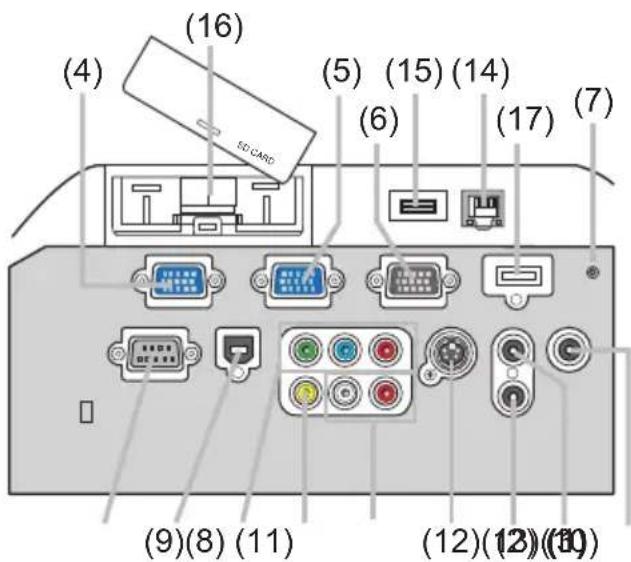
⚠️ CAUTION ▶ Use the shutdown switch only when the projector is not turned off by normal procedure, since pushing this switch stops operation of the projector without cooling it down.
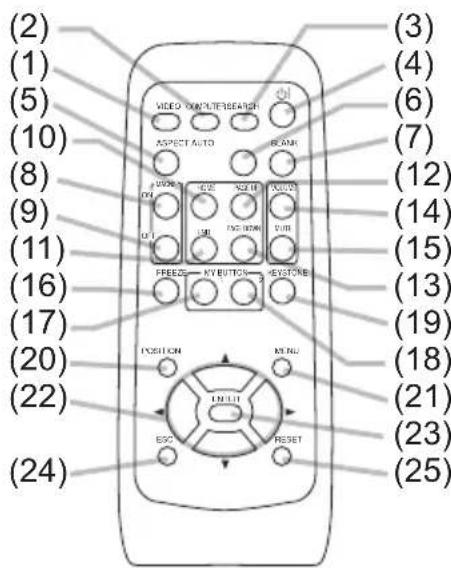
Remote control
(1) VIDEO button (18)
(2) COMPUTER button (17)
(3) SEARCH button (18)
(4) STANDBY/ON button (16)
(5) ASPECT button (18)
(6) AUTO button (20)
(7) BLANK button (22)
(8) MAGNIFY - ON button (21)
(9) MAGNIFY - OFF button (15, 21)
(10) HOME button (15)
(11) END button (15)
(12) PAGE UP button (15)
(13) PAGE DOWN button (15)
(14) VOLUME button (17)
(15) MUTE button (15, 17)
(16) FREEZE button (22)
(17) MY BUTTON - 1 button (44)
(18) MY BUTTON - 2 button (44)
(19) KEYSTONE button (21)
(20) POSITION button (20, 23)
(21) MENU button (23)
(22) ▲/▼/◄/► cursor buttons (15, 23, 24)
(23) ENTER button (15, 23, 24)
(24) ESC button (15, 23)
(25) RESET button (15, 23, 24)
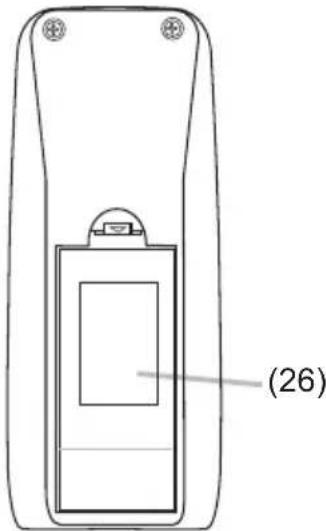
(26) Battery cover (14)
Back of the remote control
Setting up
Install the projector according to the environment and manner the projector will be used in.
Arrangement
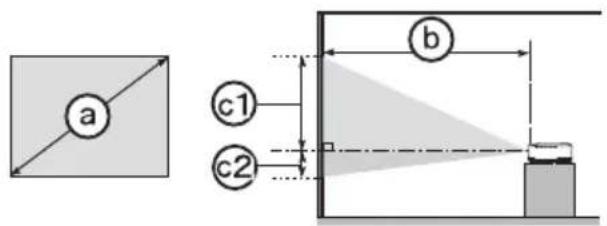
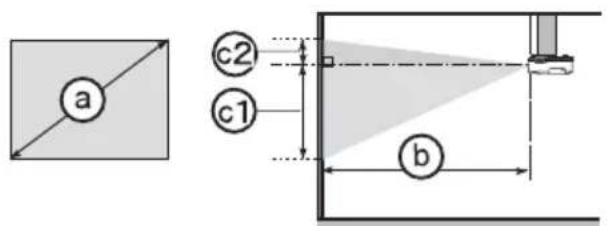
Refer to the illustrations and tables below to determine screen size and projection distance.
The values shown in the table are calculated for a full size screen: 1024×768
a Screen size (diagonal)
b Projection distance (±10%)
c1, c2 Screen height (±10%)
On a horizontal surface
Suspended from the ceiling
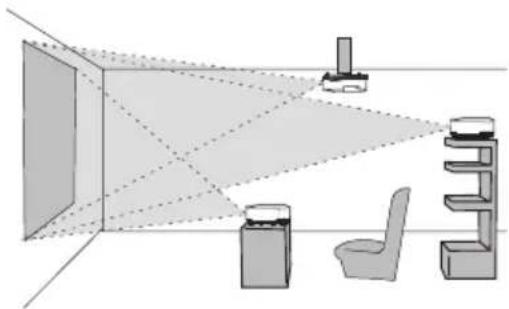
natural_image
Diagram of a room layout with furniture and lighting equipment, no text or symbols present- Keep a space of 30 cm or more between the sides of the projector and other objects such as walls.
- Consult with your dealer before a special installation such as suspending from a ceiling.
| aScreen size (diagonal) | 4:3 screen 16:9 screen | ||||||||||||||||
| bProjection distance | c1Screen height | c2Screen height | bProjection distance | c1Screen height | c2Screen height | ||||||||||||
| min. max. min. max. | |||||||||||||||||
| inch | m inch | m inch | m inch | m inch | m inch | m inch | m inch | m inch | m inch | ||||||||
| 30 | 0.8 | 0.9 | 34 | 1.1 | 41 | 41 | 16 | 5 | 2 | 1.0 | 38 | 1.1 | 45 | 39 | 15 | -1 | 0 |
| 40 | 1.0 | 1.2 | 46 | 1.4 | 56 | 55 | 22 | 6 | 2 | 1.3 | 50 | 1.5 | 615 | 120-2 | -1 | ||
| 501.3 | 1.5 | 581.8 | 70692 | 78 | 31.6 | 631.9 | 766425 | -2 | -1 | ||||||||
| 601.5 | 1.8 | 702.1 | 848 | 232 | 941.9 | 762.3 | 9177 | 30-2 | -1 | ||||||||
| 701.8 | 2.1 | 8 | 1 | 2.5 | 98 | 96 | 38 | 11 | 4 | 2.3 | 89 | 2.7 | 107 | 90 | 35 | -3 | |
| 80 | 2.0 | 2.4 | 93 | 2.8 | 112 | 110 | 43 | 12 | 5 | 2.6 | 102 | 3.1 | 122 | 103 | 41 | -3 | |
| 902.3 | 2.7 | 1 | 05 | 3.2 | 126 | 123 | 49 | 14 | 5 | 2.9 | 115 | 3.5 | 138 | 116 | 46 | -4 | |
| 100 | 2.5 | 3.0 | 1 | 17 | 3.6 | 140 | 137 | 54 | 15 | 6 | 3.2 | 127 | 3.9 | 153 | 129 | 51 | -4 |
| 120 | 3.0 | 3.6 | 1 | 40 | 4.3 | 169 | 165 | 65 | 18 | 7 | 3.9 | 153 | 4.7 | 184 | 154 | 61 | -5 |
| 150 | 3.8 | 4.5 | 1 | 76 | 5.4 | 211 | 206 | 81 | 23 | 9 | 4.9 | 192 | 5.8 | 230 | 193 | 76 | -6 |
| 200 | 5.1 | 6.0 | 2 | 35 | 7.2 | 282 | 274 | 108 | 30 | 12 | 6.5 | 256 | 7.8 | 307 | 257 | 101 | -8 |
| 250 | 6.4 | 7.5 | 2 | 94 | 9.0 | 353 | 343 | 135 | 38 | 15 | 8.1 | 320 | 9.8 | 384 | 322 | 127 | -10 |
| 300 | 7.6 | 9.0 | 3 | 5 | 2 | 10.8 | 423 | 411 | 162 | 46 | 18 | 9.8 | 384 | 11.7 | 461 | 386 | 152 |
Arrangement (continued)
⚠ WARNING ▶ Place the projector in a stable horizontal position. If the projector falls or is knocked over it could cause injury and/or damage to the projector. Using a damaged projector could then result in fire and/or electric shock.
- Do not place the projector on an unstable, slanted or vibrational surface such as a wobbly or inclined stand.
- Do not place the projector on its side, front or rear position.
- Consult with your dealer before a special installation such as suspending from a ceiling.
▶ Place the projector in a cool place, and ensure that there is sufficient ventilation. The high temperature of the projector could cause fire, burns and/or malfunction of the projector.
- Do not stop-up, block or otherwise cover the projector's vents.
- Keep a space of 30 cm or more between the sides of the projector and other objects such as walls.
- Do not place the projector on metallic thing or anything weak in heat.
- Do not place the projector on carpet, cushions or bedding.
- Do not place the projector in direct sunlight or near hot objects such as heaters.
- Do not anything near the projector lens or vents, or on top of the projector.
- Do not place anything that may be sucked into or stick to the vents on the bottom of the projector. This projector has some intake vents also on the bottom.
▶ Do not place the projector anyplace where it may get wet. Getting the projector wet or inserting liquid into the projector could cause fire, electric shock and/or malfunction of the projector.
- Do not place the projector in a bathroom or the outdoors.
- Do not place anything containing liquid near the projector.
⚠️ CAUTION ▶ Avoid placing the projector in smoky, humid or dusty place.
Placing the projector in such places could cause fire, electric shock and/or malfunction of the projector.
- Do not place the projector near humidifiers, smoking spaces or a kitchen.
▶ Position the projector to prevent light from directly hitting the projector's remote sensor.
Connecting your devices
Be sure to read the manuals for devices before connecting them to the projector. Make sure that all the devices are suitable to be connected with this product, and prepare the cables required to connect. Please refer to the following illustrations to connect them.
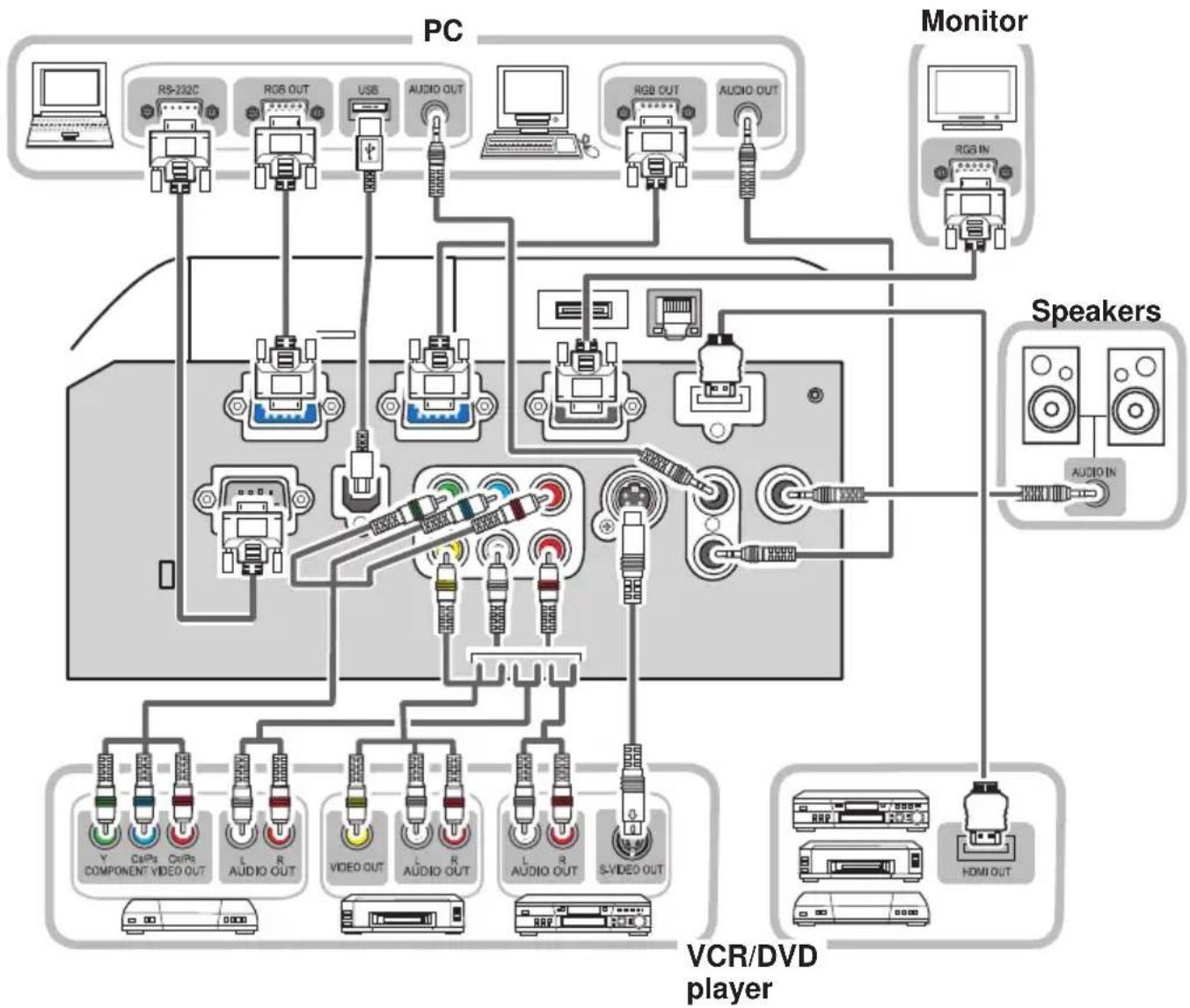
flowchart
graph TD
    subgraph PC
        A["PC"] --> B["Monitor"]
        B --> C[" Speakers"]
    end

    subgraph VCR/DVD Player
        D["PC"] --> E["Monitor"]
        E --> F[" Speakers"]
    end

    subgraph VCR/DVD Player
        G["Monitor"] --> H[" Speakers"]
    end

    D --> I["PC"]
    E --> J["Monitor"]

    style PC fill:#f9f,stroke:#333
    style VCR/DVD Player fill:#ccf,stroke:#333
(continued on next page)
Connecting your devices (continued)
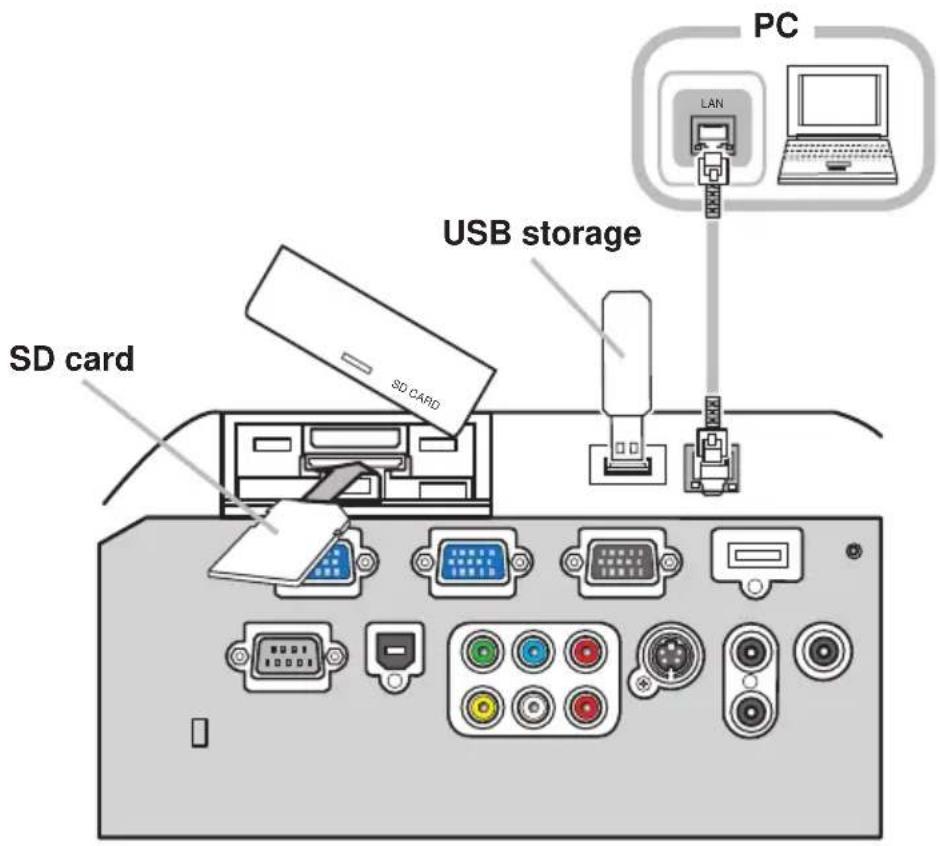
To use MIU (Multi Information processing Unit) function, please connect at least one of the devices drawn in the following illustration to the projector.
⚠ WARNING ▶ Do not disassemble or modify the projector and accessories.
▶ Be careful not to damage the cables, and do not use damaged cables.
⚠️ CAUTION ▶ Turn off all devices and unplug their power cords prior to connecting them to projector. Connecting a live device to the projector may generate extremely loud noises or other abnormalities that may result in malfunction or damage to the device and the projector.
▶ Use appropriate accessory or designated cables. Ask your dealer about non-accessory cables which may be required a specific length or a ferrite core by the regulations. For cables with a core only at one end, connect the end with the core to the projector.
▶ Make sure that devices are connected to the correct ports. An incorrect connection may result in malfunction or damage to the device and the projector.
(continued on next page)
Connecting your devices (continued)
NOTE • Be sure to read the manuals for devices before connecting them to the projector, and make sure that all the devices are suitable to be connected with this product. Before connecting to a PC, check the signal level, the signal timing, and the resolution.
- Be sure to consult to the administrator of the network. Do not connect LAN port to any network that might have the excessive voltage.
- Some signal may need an adapter to input this projector.
- Some PCs have multiple screen display modes that may include some signals which are not supported by this projector.
- Although the projector can display signals with resolution up to UXGA (1600X1200), the signal will be converted to the projector's panel resolution before being displayed. The best display performance will be achieved if the resolutions of the input signal and the projector panel are identical.
- While connecting, make sure that the shape of the cable's connector fits the port to connect with. And be sure to tighten the screws on connectors with screws.
- When connecting a laptop PC to the projector, be sure to activate the PC's external RGB output. (Set the laptop PC to CRT display or to simultaneous LCD and CRT display.) For details on how this is done, please refer to the instruction manual of the corresponding laptop PC.
- When the picture resolution is changed on a PC depending on an input, automatic adjustment function may take some time and may not be completed. In this case, you may not be able to see a check box to select “Yes/No” for the new resolution on Windows. Then the resolution will go back to the original. It might be recommended to use other CRT or LCD monitors to change the resolution.
- In some cases, this projector may not display a proper picture or display any picture on screen. For example, automatic adjustment may not function correctly with some input signals. An input signal of composite sync or sync on G may confuse this projector, so the projector may not display a proper picture.
- The HDMI port of this model is compatible with HDCP (High-bandwidth Digital Content Protection) and therefore capable of displaying a video signal from HDCP compatible DVD players or the like.
About Plug-and-Play capability
Plug-and-Play is a system composed of a PC, its operating system and peripheral equipment (i.e. display devices). This projector is VESA DDC 2B compatible. Plug-and-Play can be used by connecting this projector to a PC that is VESA DDC (display data channel) compatible.
• Take advantage of this feature by connecting an RGB cable to the COMPUTER IN1 port (DDC 2B compatible). Plug-and-Play may not work properly if any other type of connection is attempted.
- Please use the standard drivers in your PC as this projector is a Plug-and-Play monitor.
NOTE for HDMI
• The HDMI supports the following signals.
-Video signal : 525i(480i),525p(480p),625i(576i),750p(720p),1125i(1080i),1125p(1080p)
-PC signals : See User's Manual (detailed) Technical
-Audio signal : Format Linear PCM
Sampling Frequency 48kHz / 44.1kHz / 32kHz
- This projector can be connected with another equipment that has HDMI or DVI connector, but with some equipment the projector may not work properly, something like no video or no audio.
- Be sure to use an HDMI cable that has the HDMI logo.
- When the projector is connected with a device having DVI connector, use a DVI to HDMI cable to connect with the HDMI input and an audio cable to connect with one of the Audio input.
Connecting your devices (continued)
Using a USB storage
In order to view images stored in a USB storage, such as a USB memory, insert the device into the USB STORAGE slot.
Before removing the USB storage, be sure to perform the REMOVE MEDIA procedure using the PC-LESS PRESENTATION menu under the MIU menu.
Using an SD card
In order to view images stored in an SD storage, such as an SD memory card, insert the device into the SD card slot. Or, in order to use the wireless network function, load the internal clock battery (68) and insert the designated wireless network card into the SD card slot.
Inserting the SD card
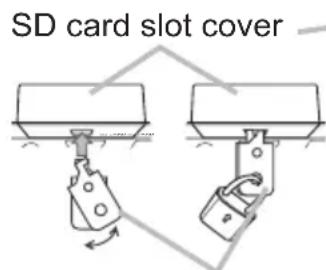
Slot cover lock
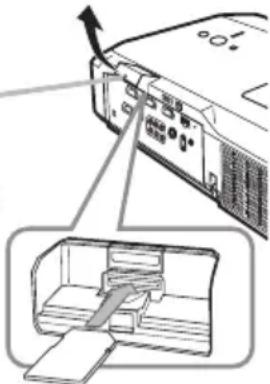
natural_image
Diagram showing a computer monitor with an open rear panel and a close-up of its internal structure (no text or symbols)- Make sure that the power code is not plugged into the projector for the wireless network card only.
- Remove the SD card slot cover. To remove it, it might be recommended to hook the edge of its side face upward.
- Slowly insert the SD card completely into the SD card slot. Make sure that the angled corner of the SD card is placed into the right side of the SD card slot, while inserting.
- Replace the SD card slot cover. It is recommended that the cover is slid sideways to the projector.
Using the slot cover lock for security
Using the enclosed slot cover lock can prevent the SD card slot cover from being opened.
- Open the two plates of the slot cover lock to put the tips of two plates together, and then insert the tips to the lock hole of the SD card slot cover.
- Put the body of the two plates together. Then, hook a padlock or combination lock to the hole of the slot cover lock.
Removing the SD card
- Perform the REMOVE MEDIA procedure using the PC-LESS PRESENTATION menu under the MIU menu for SD Storage card only.
- Turn the projector off and unplug the power code from the projector for the wireless network card only.
- Remove the SD card slot cover. After taking the SD card away, replace the SD card slot cover.
⚠ WARNING ▶ Do not disassemble or modify the projector and accessories.
▶ Do not touch the SD card while being accessed.
⚠️ CAUTION ▶ The designated wireless network card that is sold as an option is required to use the wireless network function of this projector.
The wireless network card is not permitted to be sold or used in some countries and regions. Use the card only in the country or region where you buy it. For more information, contact to your dealer.
NOTE • When using the projector with a wired LAN, please remove the wireless network card.
Connecting power supply
At first, make sure that the power switch of the projector is set to OFF position (marked "O").
- Put the connector of the power cord into the AC inlet of the projector.
- Firmly plug the power cord's plug into the outlet.
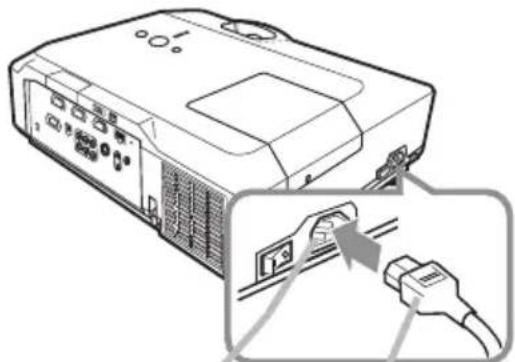
natural_image
Line drawing of a projector with an attached cable, showing internal components and wiring (no text or symbols)AC inlet Power cord
⚠ WARNING ▶ Please use extra caution when connecting the power cord, as incorrect or faulty connections may result in fire and/or electrical shock.
- Only use the power cord that came with the projector. If it is damaged, contact your dealer to newly get correct one.
- Only plug the power cord into an outlet whose voltage is matched to the power cord. The power outlet should be close to the projector and easily accessible.
Remove the power cord for complete separation. - Never modify the power cord.
Using the security bar and slot
A commercial anti-theft chain or wire up to 10 mm in diameter can be attached to the security bar on the projector.
Also this product has the security slot for the Kensington lock.
For details, see the manual of the security tool.
Anti-theft chain or wire
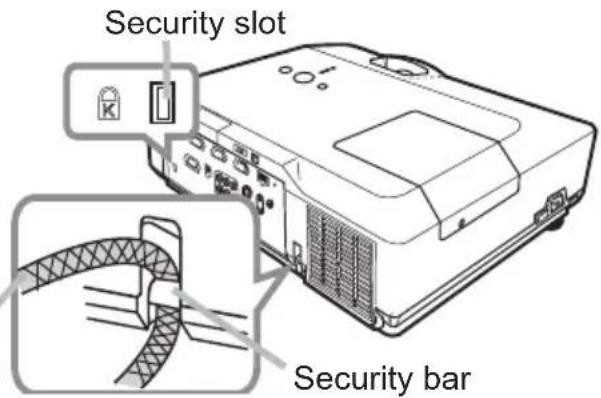
⚠ WARNING ▶ Do not use the security bar and slot to prevent the projector from falling down, since it is not designed for it.
⚠️ CAUTION ▶ Do not place anti-theft chain or wire near the exhaust vents. It may become too hot.
NOTE • The security bar and slot is not comprehensive theft prevention measures. It is intended to be used as supplemental theft prevention measure.
Remote control
Putting batteries
Please set the batteries to the remote control before using it. If the remote control starts to malfunction, try to replace the batteries. If you will not use the remote control for long period, remove the batteries from the remote control and store them in a safe place.
-
Holding the hook part of the battery cover, remove it.
-
Align and insert the two AA batteries (HITACHI MAXELL, Part No.LR6 or R6P) according to their plus and minus terminals as indicated in the remote control.
-
Replace the battery cover in the direction of the arrow and snap it back into place.
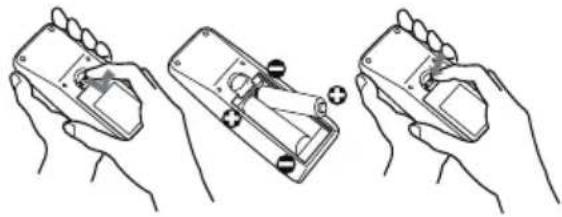
natural_image
Three hand-drawn illustrations of a handheld device with a handle, showing step-by-step assembly (no text or symbols)⚠ WARNING ▶ Always handle the batteries with care and use them only as directed. Improper use may result in battery explosion, cracking or leakage, which could result in fire, injury and/or pollution of the surrounding environment.
- Be sure to use only the batteries specified. Do not use batteries of different types at the same time. Do not mix a new battery with used one.
- Make sure the plus and minus terminals are correctly aligned when loading a battery.
- Keep a battery away from children and pets.
- Do not recharge, short circuit, solder or disassemble a battery.
- Do not allow a battery in a fire or water. Keep batteries in a dark, cool and dry place.
- If you observe battery leakage, wipe out the leakage and then replace a battery. If the leakage adheres to your body or clothes, rinse well with water immediately.
- Obey the local laws on disposing the battery.
About the remote control signal
The remote control works with the projector's remote sensor. This projector has a remote sensor on the front. The sensor senses the signal within the following range when the sensor is active:
60 degrees (30 degrees to the left and right of the sensor) within 3 meters about.
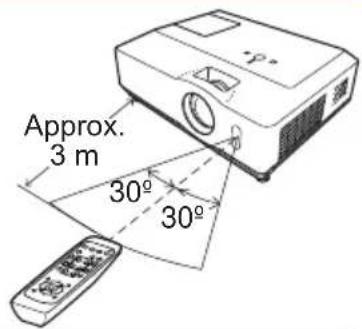
NOTE • The remote control signal reflected in the screen or the like may be available. If it is difficult to send the signal to the sensor directly, attempt to make the signal reflect.
- The remote control uses infrared light to send signals to the projector (Class 1 LED), so be sure to use the remote control in an area free from obstacles that could block the remote control's signal to the projector.
- The remote control may not work correctly if strong light (such as direct sun light) or light from an extremely close range (such as from an inverter fluorescent lamp) shines on the remote sensor of the projector. Adjust the position of projector avoiding those lights.
Changing the frequency of remote control signal
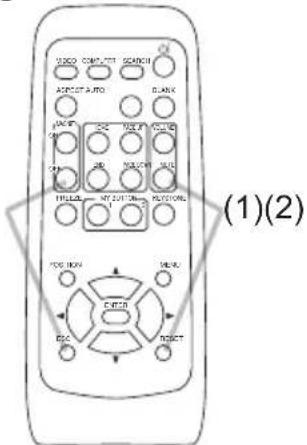
The accessory remote control has the two choices on signal frequency Mode 1:NORMAL and Mode 2:HIGH. If the remote control does not function properly, attempt to change the signal frequency. In order to set the Mode, please keep pressing the combination of two buttons listed below simultaneously for about 3 seconds.
(1) Set to Mode 1: NORMAL... MUTE and RESET buttons
(2) Set to Mode 2:HIGH... MAGNIFY OFF and ESC buttons
Please remember that the REMOTE FREQ. in the SERVICE item of the OPTION menu (46) of the projector to be controlled should be set to the same mode as the remote control.
Using as a simple PC mouse & keyboard
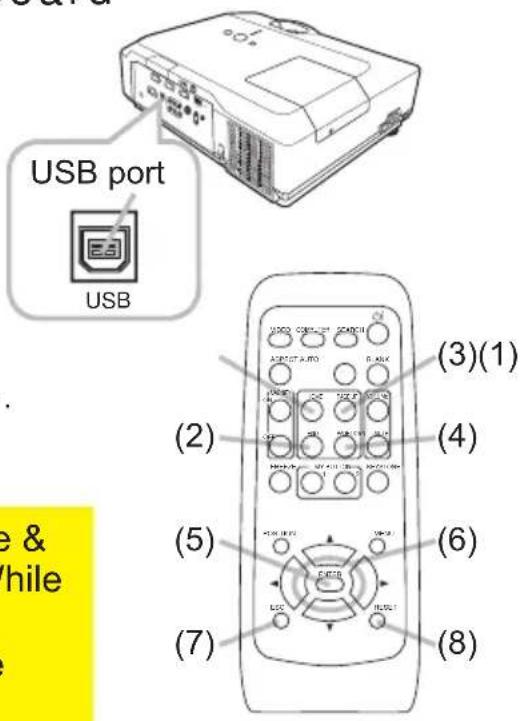
The accessory remote control works as a simple mouse and keyboard of the PC, when the projector's USB port (B type) connects with the PC's USB port (A type) port via a mouse cable.
(1) HOME key: Press HOME button.
(2) END key: Press END button.
(3) PAGE UP key: Press PAGE UP button.
(4) PAGE DOWN key: Press PAGE DOWN button.
(5) Mouse left button: Press ENTER button.
(6) Move pointer: Use the cursor buttons ▲, ▼, ◀ and ▶.
(7) ESC key: Press ESC button.
(8) Mouse right button: Press RESET button.
⚠ WARNING ▶ Improper use of the simple mouse & keyboard function could damage your equipment. While using this function, please connect this product only to a PC. Be sure to check your PC's manuals before connecting this product to the PC.
NOTE • When the simple mouse & keyboard function of this product does not work correctly, please check the following.
- When a USB cable connects this projector with a PC having a built-in pointing device (e.g. track ball) like a notebook PC, open BIOS setup menu, then select the external mouse and disable the built-in pointing device, because the built-in pointing device may have priority to this function.
- Windows 95 OSR 2.1 or higher is required for this function. And also this function may not work depending on the PC's configurations and mouse drivers.
- You cannot do things like press two buttons at once (for instance, pressing two buttons at the same time to move the mouse pointer diagonally).
- This function is activated only when the projector is working properly. This function is not available while the lamp is warming up (the POWER indicator blinks green), and while adjusting the volume and display, correcting for keystone, zooming in on the screen, using the BLANK function, or displaying the menu screen.
Power on/off
Turning on the power
- Make sure that the power cord is firmly and correctly connected to the projector and the outlet.
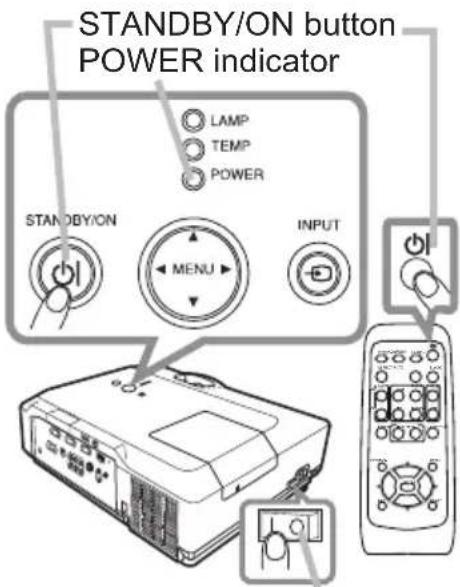
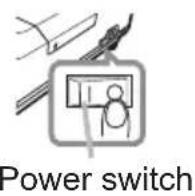
- Remove the lens cover, and set the power switch to ON position (marked "I").
The POWER indicator will light up in steady orange (71). Then wait several seconds because the buttons may not function for these several seconds. - Press STANDBY/ON button on the projector or the remote control.
The projection lamp will light up and POWER indicator will begin blinking in green. When the power is completely on, the indicator will stop blinking and light in steady green (71).
To display the picture, select an input signal according to the section "Selecting an input signal" (17).
Power switch
Turning off the power
- Press the STANDBY/ON button on the projector or the remote control. The message "Power off?" will appear on the screen for about 5 seconds.
2 Press the STANDBY/ON button again while the message appears. - The projector lamp will go off, and the POWER indicator will begin blinking in orange. Then POWER indicator will stop blinking and light in steady orange when the lamp cooling is complete (71).
- Make sure that POWER indicator lights in steady orange, and set the power switch to OFF position (marked "O").
POWER indicator will go off. Attach the lens cover.
Do not turn the projector on for about 10 minutes or more after turning it off. Turning the projector on again too soon could shorten the lifetime of some consumable parts of the projector.
⚠ WARNING ▶ A strong light is emitted when the projector's power is on. Do not look into the lens of the projector or look inside of the projector through any of the projector's openings.
▶ Do not touch around the lamp cover and the exhaust vents during use or just after use, since it is too hot.
NOTE • Turn the power on/off in right order. Please power on the projector prior to the connected devices.
- When the AUTO ON of the OPTION menu is set to the TURN ON, and the power was turned off by the power switch last time, turning the power switch on makes the projection lamp light on without pushing the STANDBY/ON button (42).
- Use the shutdown switch (72) only when the projector is not turned off by normal procedure.
Operating
Adjusting the volume
1 Press VOLUME button on the remote control.
A dialog will appear on the screen to aid you in adjusting the volume.
2 Use the ▲/▼ cursor buttons to adjust the volume.
2. To close the dialog and complete the operation, press the VOLUME button again. Even if you do not do anything, the dialog will automatically disappear after a few seconds.
- When ✗ is selected for current picture input port, the volume adjustment is disable. Please see AUDIO item of SETUP menu (37).
Temporarily muting the sound
1 Press MUTE button on the remote control.
A dialog will appear on the screen indicating that you have muted the sound. To restore the sound, press the MUTE or VOLUME button. Even if you do not do anything, the dialog will automatically disappear after a few seconds.
- When ✗ is selected for current picture input port, the sound is always muted. Please see AUDIO item of SETUP menu (37).
- When is selected to VIDEO or S-VIDEO port, the C.C. (Closed Caption) is automatically activated if the C.C. is set to AUTO in the DISPLAY of the C.C. menu and the input signal from the port supports the C.C. feature (63)
VOLUME button
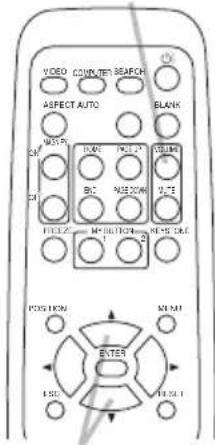
▲/▼ button
MUTE button
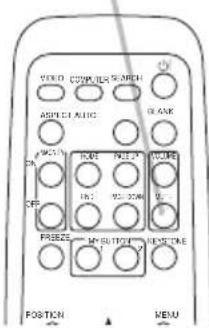
Selecting an input signal
1 Press INPUT button on the projector.
- Each time you press the button, the projector switches its input port from the current port as below.
→ COMPUTER IN 1 → COMPUTER IN 2 → HDMI → MIU VIDEO ← S-VIDEO ← COMPONENT (Y, Cb/Pb, Cr/Pr) ←
- While TURN ON is selected for AUTO SEARCH item in OPTION menu (42), the projector will keep checking the ports in above order repeatedly till an input signal is detected.
INPUT button
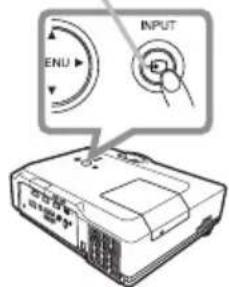
1 Press COMPUTER button on the remote control.
Each time you press the button, the projector switches its input port from the current port as below.
→ COMPUTER IN 1 → COMPUTER IN 2 → HDMI → MIU —
- While TURN ON is selected for AUTO SEARCH item in OPTION menu, the projector will keep checking every port sequentially till an input signal is detected (42). If COMPUTER button is pushed when VIDEO, S-VIDEO or COMPONENT port is selected, the projector will check COMPUTER IN1 port first.
COMPUTER button
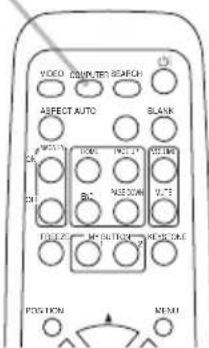
(continued on next page)
Selecting an input signal (continued)
1 Press VIDEO button on the remote control.
Each time you press the button, the projector switches its input port from the current port as below.
COMPONENT (Y, Cb/Pb, Cr/Pr) → S-VIDEO → VIDEO

VIDEO button
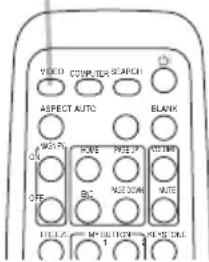
- While TURN ON is selected for AUTO SEARCH item in OPTION menu, the projector will keep checking every port sequentially till an input signal is detected (42). If VIDEO button is pushed when COMPUTER IN1, COMPUTER IN2, HDMI or MIU port is selected, the projector will check COMPONENT port first.
Searching an input signal
1 Press SEARCH button on the remote control.
- The projector will start to check its input ports as below in order to find any input signals.
When an input is found, the projector will stop searching and display the image. If no signal is found, the projector will return to the state selected before the operation.
SEARCH button
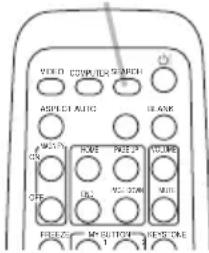

flowchart
graph TD
    A["→ COMPUTER IN 1 → COMPUTER IN 2 → HDMI → MIU"] --> B["VIDEO ← S-VIDEO ← COMPONENT (Y, Cb/Pb, Cr/Pr)"]
- While TURN ON is selected for AUTO SEARCH item in OPTION menu (42), the projector will keep checking the ports in above order repeatedly till an input signal is detected.
- The MIU input is skipped, as long as no image is sent from PC on the "Live Mode" of MIU (53).
Selecting an aspect ratio
1 Press ASPECT button on the remote control.
Each time you press the button, the projector switches the mode for aspect ratio in turn.
○ For a computer signal or MIU signal
NORMAL → 4:3 → 16:9 → SMALL

ASPECT button
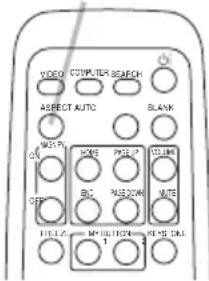
○ For a HDMI signal
NORMAL → 4:3 → 16:9 → 14:9 → SMALL

For a video signal, s-video signal or component video signal
4:3 → 16:9 → 14:9 → SMALL

○ For no signal
4:3 (fixed)
- ASPECT button does not work when no proper signal is inputted.
- NORMAL mode keeps the original aspect ratio setting.
Adjusting the projector's elevator
When the place to put the projector is slightly uneven to the left or right, use the elevator feet to place the projector horizontally.
Using the feet can also tilt the projector in order to project at a suitable angle to the screen, elevating the front side of the projector within 10 degrees.
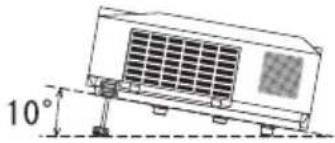
natural_image
Technical line drawing of a solar panel installation with 10° angle annotation (no text or symbols beyond basic geometry)This projector has 2 elevator feet and 2 elevator buttons. An elevator foot is adjustable while pushing the elevator button on the same side as it.
- Holding the projector, push the elevator buttons to loose the elevator feet.
2 Position the front side of the projector to the desired height. - Release the elevator buttons in order to lock the elevator feet.
- After making sure that the elevator feet are locked, put the projector gently.
- If necessary, the elevator feet can be manually twisted to make more precise adjustments. Hold the projector when twisting the feet.
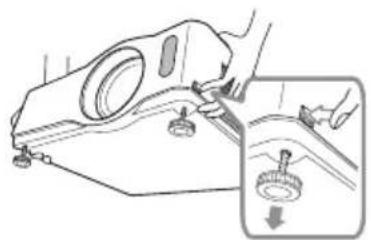
natural_image
Technical illustration of a mechanical component with a close-up inset showing a gear mechanism (no text or symbols)To loose an elevator foot, push the elevator button on the same side as it.
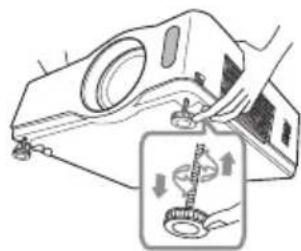
natural_image
Illustration of a hand operating a projector with a magnified inset showing the internal components (no text or symbols)To finely adjust, twist the foot.
⚠️ CAUTION ▶ Do not handle the elevator buttons without holding the projector, since the projector may drop down.
▶ Do not tilt the projector other than elevating its front within 10 degrees using the adjuster feet. A tilt of the projector exceeding the restriction could cause malfunction or shortening the lifetime of consumables, or the projector itself.
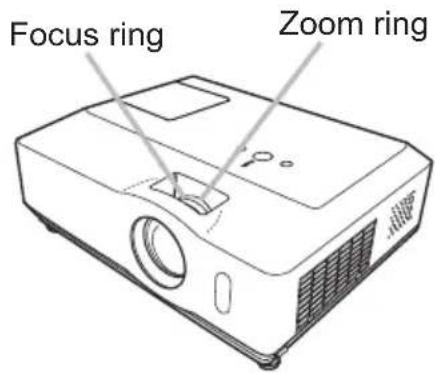
Adjusting the zoom and focus
- Use the zoom ring to adjust the screen size.
- Use the focus ring to focus the picture.
Using the automatic adjustment feature
- Press AUTO button on the remote control. Pressing this button performs the following.
○ For a computer signal or MIU signal
The vertical position, the horizontal position and the horizontal phase will be automatically adjusted.
Make sure that the application window is set to its maximum size prior to attempting to use this feature. A dark picture may still be incorrectly adjusted. Use a bright picture when adjusting.
AUTO button
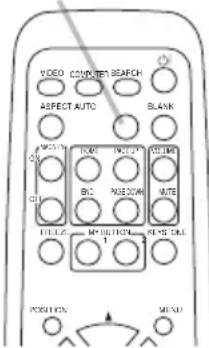
○ For a video signal and s-video signal
The video format best suited for the respective input signal will be selected automatically. This function is available only when the AUTO is selected for the VIDEO FORMAT item in the INPUT menu (33). The vertical position and horizontal position will be automatically set to the default.
○ For a component video signal
The vertical position, horizontal position and horizontal phase will be automatically set to the default.
- The automatic adjustment operation requires approx. 10 seconds. Also please note that it may not function correctly with some input. When this function is performed for a video signal, a certain extra such as a line may appear outside a picture.
- The items adjusted by this function may vary when the FINE or DISABLE is selected for the AUTO ADJUST item of the SERVICE item in the OPTION menu (45).
Adjusting the position
-
Press POSITION button on the remote control when no menu is indicated.
The "POSITION" indication will appear on the screen. -
Use the ▲/▼/◄/► cursor buttons to adjust the picture position. When you want to reset the operation, press RESET button on the remote control during the operation.
To complete this operation, press POSITION button again.
Even if you do not do anything, the dialog will automatically disappear after a few seconds.
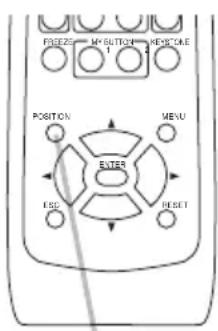
POSITION button
- When this function is performed on a video signal, s-video signal or component video signal, some image such as an extra-line may appear at outside of the picture.
- If POSITION button is pressed when a menu is indicated on screen, the displayed picture does not move its position but the menu does.
Correcting the keystone distortions
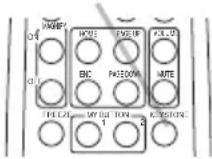
KEYSTONE button
- Press KEYSTONE button on the remote control. A dialog will appear on the screen to aid you in correcting the distortion.
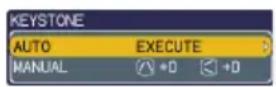
- Use the ▲/▼ cursor buttons to select AUTO or MANUAL operation, and press the ▶ button to perform the following.
(1) AUTO executes automatic vertical keystone correction.
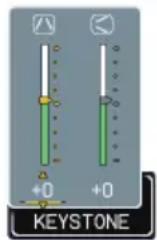
(2) MANUAL displays a dialog for keystone correction.
Use the cursor buttons ◀/▶ to select the direction to correct (☑ or ☑) then use the ▲/▼ buttons for adjustment.
To close the dialog and complete this operation, press KEYSTONE button again. Even if you do not do anything, the dialog will automatically disappear after a few seconds.
- The adjustable range of this correction will vary among inputs. For some input, this function may not work well.
- When V:INVERT or H&V:INVERT is selected to the MIRROR item in the SETUP menu, if the projector screen is inclined or angled downward, this function may not work correctly.
- When the zoom adjustment is set to the TELE (telephoto focus), the automatic keystone distortion correction may be excessive. This function should be used when the zoom adjustment is set to the full WIDE (wide-angle focus) whenever possible.
- When the projector is placed on the level (about ± 3^ ), the automatic keystone distortion correction may not work.
- When the projector is inclined to near ± 30 degree or over, this function may not work well.
- This function will be unavailable when Transition Detector is on(☐51).
Using the magnify feature
- Press the ON button of MAGNIFY on the remote control. The "MAGNIFY" indication will appear on the screen and the projector will go into the MAGNIFY mode. When the ON button of MAGNIFY is pressed first after the projector is started, the picture will be zoomed twice. The indication will disappear in several seconds with no operation.
- Use the ▲/▼ cursor buttons to adjust the zoom level. The picture of video, s-video or component video signal can be zoomed in up to 2 times, and the one of computer signal can be zoomed in up to 4 times.
To move the zoom area, press the POSITION button in the MAGNIFY mode, then use the ▲/▼/◄/► cursor buttons to move the area. And to finalize the zoom area, press the POSITION button again.
To exit from the MAGNIFY mode and restore the screen to normal, press the OFF button of MAGNIFY on the remote control.
- The projector automatically exits from the MAGNIFYmode when the input signal is changed or when the display condition is changed.
- In the MAGNIFY mode, the keystone distortion condition may vary, it will be restored when the projector exits from the MAGNIFY mode.
MAGNIFY
ON/OFF button
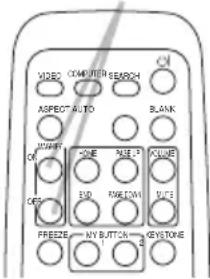
NOTE • The zoom level can be finely adjusted. Closely watch the screen to find the level you want.
Freezing the screen
1 Press the FREEZE button on the remote control.
- The “FREEZE” indication will appear on the screen (however, the indication will not appear when the TURN OFF is selected for the MESSAGE item in the SCREEN menu (41)), and the projector will go into the FREEZE mode, which the picture is frozen.
To exit the FREEZE mode and restore the screen to normal, press the FREEZE button again.
FREEZE button
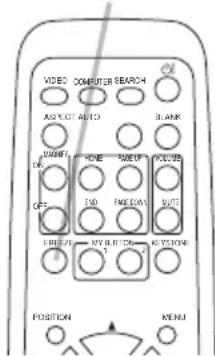
- The projector automatically exits from the FREEZE mode when one of the projector's buttons or remote control buttons of STANDBY/ON, SEARCH, COMPUTER, VIDEO, BLANK, AUTO, VOLUME, MUTE, KEYSTONE, MENU, MAGNIFY and MY BUTTON1/2 (except MY MEMORY or PICTURE MODE is assigned to) (44) is pressed.
- If the projector continues projecting a still image for a long time, the LCD panel might possibly be burned in. Do not leave the projector in the FREEZE mode for too long.
Temporarily blanking the screen
1 Press BLANK button on the remote control.
- The BLANK screen will be displayed instead of the screen of input signal. Please refer to BLANK item in SCREEN menu (38).
To exit from the BLANK screen and return to the input signal screen, press BLANK button again.
- The projector automatically returns to the input signal screen when one of the projector's buttons or the remote control buttons (except ASPECT, POSITION, MAGNIFY or FREEZE button, also except MY BUTTON1/2 if AUTO KEYSTONE or MY MEMORY or PICTURE MODE is assigned to (44)) is pressed.
BLANK button
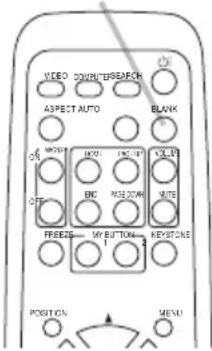
NOTE • The sound is not connected with the BLANK screen function. If necessary, set the volume or mute first.
Using the menu function
This projector has the following menus:
PICTURE, IMAGE, INPUT, SETUP, SCREEN, OPTION, MIU, C.C. and EASY MENU.
EASY MENU consists of functions often used, and the other menus are classified into each purpose and brought together as the Advanced Menu.
Each of these menus is operated using the same methods. The basic operations of these menus are as follows.
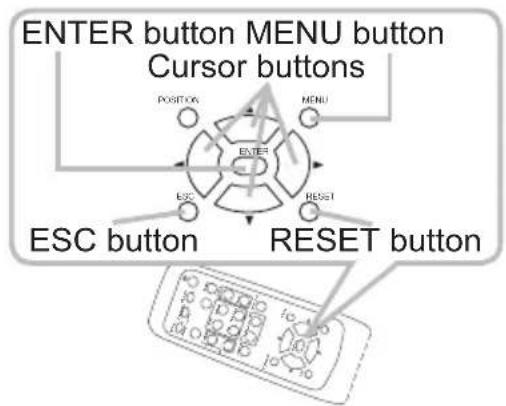
flowchart
graph TD
    A["ENTER button MENU button Cursor buttons"] --> B["POSITOR"]
    A --> C["MENU"]
    A --> D["ESC"]
    A --> E["RESET"]
    F["ESC button"] --> G["RESET button"]
    H["IO"] --> I["IO"]
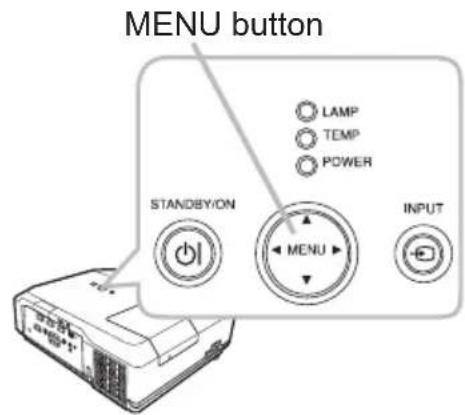
1 Press the MENU button on the remote control or the projector.
The Advanced Menu or EASY MENU, which has priority just after powered on will appear.
If you want to move the menu position, use the cursor buttons after pressing the POSITION button. While the projector is displaying any menu, the MENU button on the projector works as the cursor buttons.
In the EASY MENU
- If you want to change it to the Advanced Menu, select the Go to Advanced Menu...
- Use the ▲/▼ cursor buttons to select an item to operate.
- Use the ◀/▶ cursor buttons to operate the item.
![EASY MENU [COMPUTER 1] ASPECT 4:3 AUTO KEYSTONE ⚡ EXECUTE KEYSTONE# +0 KEYSTONE# +0 PICTURE MODE NORMAL BRIGHTNESS +0 CONTRAST +0 COLOR +0 TINT +0 SHARPNESS 4 WHISPER NORMAL MIRROR NORMAL RESET EXECUTE FILTER TIME 0h LANGUAGE ENGLISH Go to Advanced Menu...](/content/2026/05/1052997/images/fdfda036c733f1f0a4b174331ce47a2e41b8ffb985addf8ec9e6cf6d36c209e0.jpg)
EASY MENU
(continued on next page)
Using the menu function (continued)
In the Advanced Menu
2 Use the ▲/▼ cursor buttons to select a menu.
2. If you want to change it to the EASY MENU, select EASY MENU.
Then press the ▶ cursor button, or ENTER button to select an item. The lower layer menu of the selected item will appear.
![MENU [COMPUTER 1] PICTURE BRIGHTNESS +0 IMAGE CONTRAST +0 INPUT GAMMA DEFAULT-1 SETUP COLOR TEMP HIGH SCREEN COLOR +0 OPTION TINT +0 MIU SHARPNESS 4 C.C. MY MEMORY SAVE-1 EASY MENU](/content/2026/05/1052997/images/06a8fb468d5d3bc61d890fa1c0188babeb4911bae6e0dbf4f70190198937087e.jpg)
Advanced Menu
3 Use the ▲/▼ cursor buttons to select an item to operate.
- Then press the ▶ cursor button, or ENTER button to progress. The operation menu of the selected item will appear.
-
Use the ▲/▼ cursor buttons to operate the item.
-
Some functions cannot be performed when a certain input port is selected, or when a certain input signal is displayed.
- When you want to reset the operation, press RESET button on the remote control during the operation. Note that some items (ex. LANGUAGE, H PHASE, VOLUME) cannot be reset.
-
In the Advanced Menu, when you want to return to the previous display, press the ◀ cursor button or ESC button on the remote control.
-
Press MENU button on the remote control again to close the menu and complete this operation. Even if you do not do anything, the dialog will automatically disappear after about 10 seconds.
EASY MENU
From the EASY MENU, items shown in the table below can be performed.
Select an item using the ▲/▼ cursor buttons. Then perform it according to the following table.
![EASY MENU [COMPUTER 1] ASPECT 4:3 AUTO KEYSTONE Ⓧ EXECUTE KEYSTONE\% KEYSTONE\% PICTURE MODE NORMAL BRIGHTNESS +0 CONTRAST +0 COLOR +0 TINT +0 SHARPNESS 4 WHISPER NORMAL MIRROR NORMAL RESET EXECUTE FILTER TIME Oh LANGUAGE ENGLISH Go to Advanced Menu...](/content/2026/05/1052997/images/c834306c20f45cf72c7817dec769aeca75da3e0335427372c457e8e4526c6532.jpg)
| Item Description | ||
| ASPECT | Using the ◀/► buttons switches the mode for aspect ratio. See the ASPECT item in IMAGE menu (30). | |
| AUTO KEYSTONE/EXECUTE | Using the ► button executes the auto keystone function. See AUTO KEYSTONE/ EXECUTE item in SETUP menu (35). | |
| KEYSTONE | Using the ◀/► buttons corrects the vertical keystone distortion. See KEYSTONE/ item in SETUP menu (35). | |
| KEYSTONE | Using the ◀/► buttons corrects the horizontal keystone distortion. See the KEYSTONE/ item in SETUP menu (35). | |
| PICTURE MODE | Using the ◀/► buttons switches the picture mode. The picture modes are combinations of GAMMA and COLOR TEMP settings. Choose a suitable mode according to the projected source.→ NORMAL ⇔ CINEMA ⇔ DYNAMIC ⇔ BOARD(BLACK)→ DAYTIME ⇔ WHITEBOARD ⇔ BOARD(GREEN) | |
| COLOR TEMP GAMMA | ||
| NORMAL #2 MID DEFAULT #1 DEFAULT | ||
| CINEMA #3 LOW DEFAULT #2 DEFAULT | ||
| DYNAMIC #1 HIGH DEFAULT #3 DEFAULT | ||
| BOARD(BLACK) #4 Hi-BRIGHT-1 DEFAULT #4 DEFAULT | ||
| BOARD(GREEN) #5 Hi-BRIGHT-2 DEFAULT #4 DEFAULT | ||
| WHITEBOARD #2 MID DEFAULT #5 DEFAULT | ||
| DAYTIME #6 Hi-BRIGHT-3 DEFAULT #6 DEFAULT | ||
| When the combination of GAMMA and COLOR TEMP differs from pre-assigned modes above, the display on the menu for the PICTURE MODE is “CUSTOM”. Please refer to GAMMA (27) and COLOR TEMP (28) items in PICTURE menu.When this function is performed, a certain extra such as a line may appear. | ||
| Item Description | ||
| BRIGHTNESS | Using the ◀/► buttons adjusts the brightness.See BRIGHTNESS item in PICTURE menu (27). | |
| CONTRAST | Using the ◀/► buttons adjusts the contrast.See CONTRAST item in PICTURE menu (27). | |
| COLOR | Using the ◀/► buttons adjusts the strength of whole color.See COLOR item in PICTURE menu (28). | |
| TINT | Using the ◀/► buttons adjusts the tint.See TINT item in PICTURE menu (28). | |
| SHARPNESS | Using the ◀/► buttons adjusts the sharpness.See SHARPNESS item in PICTURE menu (29). | |
| WHISPER | Using the ◀/► buttons turns off/on the whisper mode.See WHISPER item in SETUP menu (36). | |
| MIRROR | Using the ◀/► buttons switches the mode for mirror status.See MIRROR item in SETUP menu (36). | |
| RESET | Performing this item resets all of EASY MENU items except FILTER TIME and LANGUAGE.A dialog is displayed for confirmation. Selecting RESET using the▲ button performs resetting. | |
| FILTER TIME | The usage time of the air filter is shown in the menu.Performing this item resets the filter time which counts usage time of the air filter.A dialog is displayed for confirmation. Selecting RESET using the▲ button performs resetting.See FILTER TIME item in OPTION menu (43). | |
| LANGUAGE | Using the ◀/► buttons changes the display language.See LANGUAGE item in SCREEN menu (38). | |
| Go to Advanced Menu... | Select Go to Advanced Menu... on the menu, and press the ▶ or ENTER button to use the menu of PICTURE, IMAGE, INPUT, SETUP, SCREEN, OPTION, MIU or C.C.. | |
PICTURE menu
From the PICTURE menu, items shown in the table below can be performed.
Select an item using the ▲/▼ cursor buttons, and press the ▶ cursor button or ENTER button to execute the item. Then perform it according to the following table.
![MENU [COMPUTER 1] PICTURE BRIGHTNESS +0 IMAGE CONTRAST +0 INPUT GAMMA DEFAULT-1 SETUP COLOR TEMP HIGH SCREEN COLOR +0 OPTION TINT +0 MIU SHARPNESS 4 C.C. MY MEMORY SAVE-1 EASY MENU](/content/2026/05/1052997/images/49138d52484ba139335055402801fe13142343b277b40e3a13a07237095ba707.jpg)
| Item Description | |
| BRIGHTNESS | Using the ▲/▼ buttons adjusts the brightness.Light ⇔ Dark |
| CONTRAST | Using the ▲/▼ buttons adjusts the contrast.Strong ⇔ Weak |
| GAMMA | Using the ▲/▼ buttons switches the gamma mode.#1 DEFAULT ⇔ #1 CUSTOM ⇔ #2 DEFAULT ⇔ #2 CUSTOM#6 CUSTOM #3 DEFAULT#6 DEFAULT #3 CUSTOM#5 CUSTOM ⇔ #5 DEFAULT ⇔ #4 CUSTOM ⇔ #4 DEFAULTTo adjust CUSTOMSelecting a mode whose name includes CUSTOM and then pressing the ▶ button or the ENTER button displays a dialog to aid you in adjusting the mode.This function is useful when you want to change the brightness of particular tones.Choose an item using the ◀/▶ buttons, and adjust the level using the ▲/▼ buttons.You can display a test pattern for checking the effect of your adjustment by pressing the ENTER button.Each time you press the ENTER button, the pattern changes as below.No pattern ⇒ Gray scale of 9 stepsRamp ⇔ Gray scale of 15 stepsThe eight equalizing bars correspond to eight tone levels of the test pattern (Gray scale of 9 steps), except the darkest in the left end. If you want to adjust the 2nd tone from left end on the test pattern use the equalizing adjustment bar “1”. The darkest tone at the left end of the test pattern cannot be controlled with any of equalizing adjustment bar.• When this function is performed, lines or other distortion may appear. |
(continued on next page)
PICTURE menu (continued)
| Item Description | |
| COLOR TEMP | Using the ▲/▼ buttons switches the color temperature mode.#1 HIGH DEFAULT ⇔ #1 HIGH CUSTOM ⇔ #2 MID DEFAULT#6 Hi-BRIGHT-3 CUSTOM #2 MID CUSTOM#6 Hi-BRIGHT-3 DEFAULT #3 LOW DEFAULT#5 Hi-BRIGHT-2 CUSTOM #3 LOW CUSTOM#5 Hi-BRIGHT-2 DEFAULT ⇔ #4 Hi-BRIGHT-1 CUSTOM ⇔ #4 Hi-BRIGHT-1 DEFAULTTo adjust CUSTOMSelecting a mode whose name includesCUSTOM and then pressing the ▶ button or theENTER button displays a dialog to aid you inadjusting the OFFSET and GAIN of the selectedmode.OFFSET adjustments change the color intensityon the whole tones of the test pattern.GAIN adjustments mainly affect color intensityon the brighter tones of the test pattern.Choose an item using the ◀/▶ buttons, and adjust the level usingthe ▲/▼ buttons.You can display a test pattern for checking the effect of youradjustment by pressing the ENTER button.Each time you press the ENTER button, the pattern changes asbelow.No pattern ⇒ Gray scale of 9 steps →Ramp ⇔ Gray scale of 15 stepsWhen this function is performed, lines or other distortion mayappear. 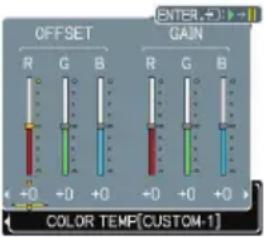 |
| COLOR | Using the ▲/▼ buttons adjusts the strength of whole color.Strong ⇔ WeakThis item can be selected only for a video signal, s-video,component video signal or HDMI signal. |
| TINT | Using the ▲/▼ buttons adjusts the tint.Greenish ⇔ ReddishThis item can be selected only for a video signal, s-video,component video signal or HDMI signal. |
| Item Description | |
| SHARPNESS | Using the ▲/▼ buttons adjusts the sharpness.Strong ⇔ WeakThere may be some noise and/or the screen may flicker for a moment when an adjustment is made. This is not a malfunction. |
| MY MEMORY | This projector has 4 memories for adjustment data (for all the items of PICTURE menu).Selecting a function using the ▲/▼ buttons and pressing the ▶ or ENTER button performs each function. LOAD-1, LOAD-2, LOAD-3, LOAD-4Performing a LOAD function loads the data from the memory linked in the number included in the function's name, and adjusts the picture automatically depending on the data.The LOAD functions whose linked memory has no data are skipped.Remember that the current adjusted condition will be lost by loading data. If you want to keep the current adjustment, please save it before performing a LOAD function.There may be some noise and the screen may flicker for a moment when loading data. This is not malfunction.You can perform the LOAD function using MY BUTTONs. Please see MY BUTTON item in OPTION menu [IMAGE]SAVE-1, SAVE-2, SAVE-3, SAVE-4Performing a SAVE function saves the current adjustment data into the memory linked in the number included in the function's name.Remember that the current data being stored of a memory will be lost by saving a new data into the memory. LOAD-1, LOAD-2, LOAD-3, LOAD-4Performing a LOAD function loads the data from the memory linked in the number included in the function's name, and adjusts the picture automatically depending on the data.The LOAD functions whose linked memory has no data are skipped.Remember that the current adjusted condition will be lost by loading data. If you want to keep the current adjustment, please save it before performing a LOAD function.There may be some noise and the screen may flicker for a moment when loading data. This is not malfunction.You can perform the LOAD function using MY BUTTONs. Please see MY BUTTON item in OPTION menu [IMAGE]SAVE-1, SAVE-2, SAVE-3, SAVE-4Performing a SAVE function saves the current adjustment data into the memory linked in the number included in the function's name.Remember that the current data being stored of a memory will be lost by saving a new data into the memory. |
IMAGE menu
From the IMAGE menu, items shown in the table below can be performed.
Select an item using the ▲/▼ cursor buttons, and press the ▶ cursor button or ENTER button to execute the item. Then perform it according to the following table.
![MENU [COMPUTER 1] 3:SELECT PICTURE ASPECT 4:3 IMAGE OVER SCAN 5 INPUT V POSITION 25 SETUP H POSITION 142 SCREEN H PHASE 16 OPTION H SIZE 1344 MIU AUTO ADJUST EXECUTE C.C. EASY MENU](/content/2026/05/1052997/images/77b79588a0f64e393a95ed414f3a63fb6f7cd83d4365ad66729c89758ef6007a.jpg)
| Item Description | |
| ASPECT | Using the ▲/▼ buttons switches the mode for aspect ratio.For a computer signal or MIU signalNORMAL ⇔ 4:3 ⇔ 16:9 ⇔ SMALLFor an HDMI signalNORMAL ⇔ 4:3 ⇔ 16:9 ⇔ 14:9 ⇔ SMALLFor a Video signal, S-video signal or Component video signal4:3 ⇔ 16:9 ⇔ 14:9 ⇔ SMALLFor no signal4:3 (fixed)The NORMAL mode keeps the original aspect ratio of the signal. |
| OVER SCAN | Using the ▲/▼ buttons adjusts the over-scan ratio.Large (It reduces picture) ⇔ Small (It magnifies picture)This item can be selected only for a video, s-vide, component video and HDMI signal.When this adjustment is too large, certain degradation may appear at the frame area of the picture. In such a case, please adjust small. |
| V POSITION | Using the ▲/▼ buttons adjusts the vertical position.Up ⇔ DownThe V POSITION can not be adjusted for signals from the HDMI port.Over-adjusting the vertical position may cause noise to appear on the screen. If this occurs please reset the vertical position to the default setting.Pressing RESET button when V POSITION is selected will reset V POSITION to the default setting.When this function is performed on a video signal, s-video signal, or component video signal, of 525i (480i) or 625i (576i) input from the COMPONENT port, the range of this adjustment depends on OVER SCAN (above) setting. It is not possible to adjust when OVER SCAN is set to 10. |
| Item Description | |
| H POSITION | Using the ▲/▼ buttons adjusts the horizontal position.Left ⇔ RightThe H POSITION can not be adjusted for signals from the HDMI port.Over-adjusting the horizontal position may cause noise to appear on the screen. If this occurs please reset the horizontal position to the default setting. Pressing RESET button when H POSITION is selected will reset H POSITION to the default setting.When this function is performed on a video signal, s-video signal, or component video signal, of 525i (480i) or 625i (576i) input from the COMPONENT port, the range of this adjustment depends on OVER SCAN(above) setting. It is not possible to adjust when OVER SCAN is set to 10. |
| H PHASE | Using the ▲/▼ buttons adjusts the horizontal phase to eliminate flicker.Right ⇔ LeftThis item can be selected only for a computer signal, a MIU signal or component video signal. (except 525 (408i), 625i (576i), SCART RGB input from the COMPONENT port.) |
| H SIZE | Using the ▲/▼ buttons adjusts the horizontal size.Large ⇔ SmallThis item can be selected only for a computer signal or an MIU signal.When this adjustment is excessive, the picture may not be displayed correctly. In such a case, please reset the adjustment by pressing the RESET button during this operation. |
| AUTO ADJUST EXECUTE | Executing this item performs the automatic adjustment feature.For a computer signal or MIU signalThe vertical position, the horizontal position and the horizontal phase (45) will be automatically adjusted. Make sure that the application window is set to its maximum size prior to attempting to use this feature. A dark picture may still be incorrectly adjusted. Use a bright picture when adjusting.For a video signal and s-video signalThe video format best suited for the respective input signal will be selected automatically. This function is available only when the AUTO is selected for the VIDEO FORMAT item in the INPUT menu (33). The vertical position and horizontal position will be automatically set to the default.For a component video signalThe vertical position, horizontal position and horizontal phase will be automatically set to the default.The automatic adjustment operation requires approx. 10 seconds. Also please note that it may not function correctly with some input. When this function is performed for a video signal, a certain extra such as a line may appear outside a picture.The items adjusted by this function may vary when the FINE or DISABLE is selected for the AUTO ADJUST item of the SERVICE item in the OPTION menu (45). |
INPUT menu
From the INPUT menu, items shown in the table below can be performed.
Select an item using the ▲/▼ cursor buttons, and press the ▶ cursor button or ENTER button to execute the item. Then perform it according to the following table.
![MENU [COMPUTER 1] PICTURE IMAGE INPUT SETUP SCREEN OPTION MIU C.C. EASY MENU PROGRESSIVE VIDEO NR COLOR SPACE COMPONENT VIDEO FORMAT HDMI FRAME LOCK COMPUTER IN RESOLUTION FILM MID AUTO COMPONENT AUTO SELECT](/content/2026/05/1052997/images/4a3d8a97bb0783c32403131780bc853a75c918f220a07a5be24579d6e12e1a4b.jpg)
| Item Description | |
| PROGRESSIVE | Using the ▲/▼ buttons switches the progress mode.TV ⇔ FILM ⇔ TURN OFFThis function is performed only for an interlaced signal at the VIDEO or S-VIDEO input, and for 525i (480i), 625i (576i) or 1125i (1080i) signal at the COMPONENT VIDEO or HDMI input.When TV or FILM is selected, the screen image will be sharp. FILM adapts to the 2-3 Pull-Down conversion system. But these may cause a certain defect (for example, jagged line) of the picture for a quick moving object. In such a case, please select TURN OFF, even though the screen image may lose the sharpness. |
| VIDEO NR | Using the ▲/▼ buttons switches the noise reduction mode.HIGH ⇔ MID ⇔ LOWThis function is performed only for the VIDEO or S-VIDEO input, and for 525i (480i), 625i (576i) or 1125i (1080i) signal at the COMPONENT VIDEO or HDMI input.When this function is excessive, it may cause a certain degradation of the picture. |
| COLOR SPACE | Using the ▲/▼ buttons switches the mode for color space.AUTO ⇔ RGB ⇔ SMPTE240 ⇔ REC709 ⇔ REC601This item can be selected only for a computer signal or component video signal except SCART RGB signal.The AUTO mode automatically selects the optimum mode.The AUTO operation may not work well at some signals. In such a case, it might be good to select a suitable mode except AUTO. |
| COMPONENT | Using the ▲/▼ buttons switches the function of the COMPONENT (Y, Cb/Pb, Cr/Pr) port.COMPONENT ⇔ SCART RGBWhen the SCART RGB is selected, COMPONENT (Y, Cb/Pb, Cr/Pr) and VIDEO ports will function as a SCART RGB port. A SCART cable is required for a SCART RGB input to the projector. For your reference, see the TECHNICAL part. |
(continued on next page)
INPUT menu (continued)
| Item Description | |
| VIDEO FORMAT | The video format for S-VIDEO port and VIDEO port can be set.(1) Use the ◀/► buttons to select the input port.(2) Using the ▲/▼ buttons switches the mode for video format.AUTO ⇔ NTSC ⇔ PAL ⇔ SECAM 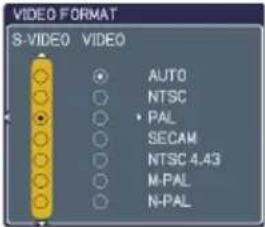 N-PAL ⇔ M-PAL ⇔ NTSC4.43 ↗This item is performed only for a video signal from VIDEO port or S-VIDEO port.The AUTO mode automatically selects the optimum mode.The AUTO operation may not work well for some signals. If the picture becomes unstable (e.g. an irregular picture, lack of color), please select the mode according to the input signal. N-PAL ⇔ M-PAL ⇔ NTSC4.43 ↗This item is performed only for a video signal from VIDEO port or S-VIDEO port.The AUTO mode automatically selects the optimum mode.The AUTO operation may not work well for some signals. If the picture becomes unstable (e.g. an irregular picture, lack of color), please select the mode according to the input signal. |
| HDMI | Using the ▲/▼ cursor buttons changes the HDMI signal mode.AUTO ⇔ NORMAL ⇔ ENHANCED[IMAGE]If the contrast of the screen image is too strong or too weak, try finding a more suitable mode. |
| FRAME LOCK | Set the frame lock function on/off for each port.(1) Using the ▲/▼ buttons to select one of following ports.COMPUTER(IN)1 ⇔ COMPUTER(IN)2 ⇔ HDMI 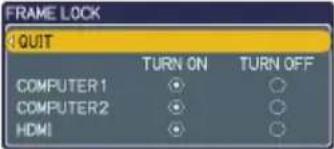 (2) Using the ◀/► buttons to turns the frame lock function on/off.TURN ON ⇔ TURN OFFThis item can be performed only on a signal with a vertical frequency of 50 to 60 Hz.When the TURN ON is selected, a moving pictures are displayed more smoothly.This function may cause a certain degradation of the picture. In such a case, please select TURN OFF. (2) Using the ◀/► buttons to turns the frame lock function on/off.TURN ON ⇔ TURN OFFThis item can be performed only on a signal with a vertical frequency of 50 to 60 Hz.When the TURN ON is selected, a moving pictures are displayed more smoothly.This function may cause a certain degradation of the picture. In such a case, please select TURN OFF. |
| COMPUTER IN | The computer input signal type for COMPUTER IN1 and IN2 ports can be set.(1) Use the ◀/► buttons to select the input port to be set.COMPUTER (IN)1 ⇔ COMPUTER (IN)2 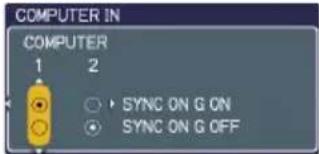 (2) Use the ▲/▼ buttons to select the computer input signal type.SYNC ON G ON ⇔ SYNC ON G OFFSelecting SYNC ON G ON allows reception of sync on G signal.When SYNC ON G ON is selected, the picture may be distorted with certain input signals. In such a case, remove the signal connector first and select SYNC ON G OFF on the menu, and then reconnect the signal. (2) Use the ▲/▼ buttons to select the computer input signal type.SYNC ON G ON ⇔ SYNC ON G OFFSelecting SYNC ON G ON allows reception of sync on G signal.When SYNC ON G ON is selected, the picture may be distorted with certain input signals. In such a case, remove the signal connector first and select SYNC ON G OFF on the menu, and then reconnect the signal. |
INPUT menu (continued)
| Item Description | ||
| RESOLUTION | The resolution for the COMPUTER IN1 and IN2 input signals can be set on this projector.(1) In the INPUT menu select the RESOLUTION using the ▲/▼ buttons and press the ► button.The RESOLUTION menu will be displayed.(2) In the RESOLUTION menu, select the resolution you wish to display using the ▲/▼ buttons.Selecting AUTO will set a resolution appropriate to the input signal. | 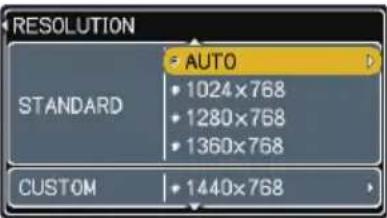 |
| (3) STANDARDPressing the ► or ENTER button when selecting a STANDARD resolution will automatically adjust the horizontal and vertical positions, clock phase and horizontal size and automatically select an aspect ratio. | 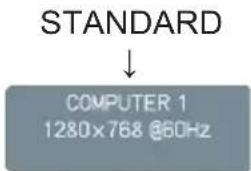 | |
| (3) CUSTOM(3)-1 To set a custom resolution use the ▲/▼ buttons to select the CUSTOM and the CUSTOM RESOLUTION box will be displayed. Set the horizontal (HORZ) and vertical (VERT) resolutions using the ▲/▼ /◄/► buttons. It is not guaranteed to work this function properly on any resolutions.(3)-2 To save the setting place the cursor on the right-most digit and press the ► button.The horizontal and vertical positions, clock phase and horizontal size will be automatically adjusted.(3)-3 To revert back to the previous resolution without saving changes place the cursor on the left-most digit and press the ◀ button.The screen will then return to the RESOLUTION menu displaying the previous resolution.• For some pictures, this function may not work well. | 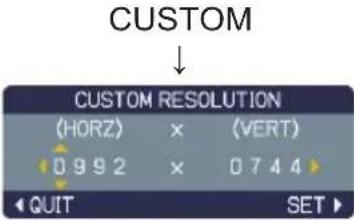 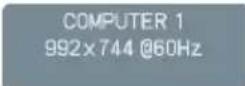 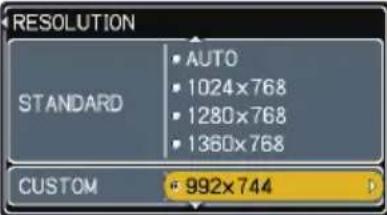 | |
SETUP menu
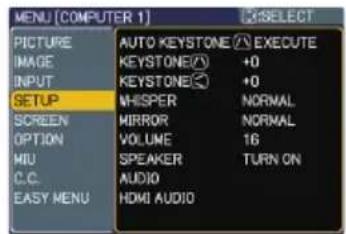
From the SETUP menu, items shown in the table below can be performed.
Select an item using the ▲/▼ cursor buttons, and press the ▶ cursor button or the ENTER button to execute the item. Then perform it according to the following table.
| Item Description | |
| AUTO KEYSTONE/EXECUTE | Selecting this item performs the automatic keystone distortion correction. Projector automatically corrects vertical keystone distortion due to the (forward/backward) setup angle by itself. This function will be executed only once when selected in the menu. When the slant of the projector is changed, execute this function again.The adjustable range for correction will vary among inputs. For some input, this function may not work well.When V:INVERT or H&V:INVERT is selected to the MIRROR item in the SETUP menu, if the projector screen is inclined or angled downward, this function may not work correctly.When the zoom adjustment is set to the TELE (telephoto focus), this function may be excessive. This function should be used when the zoom adjustment is set to the full WIDE (wide-angle focus) whenever possible.When the projector is placed on the level (about ±3°), this function may not work.When the projector is inclined to near ±30 degree or over, this function may not work well.This function will be unavailable when the Transition Detector is on (51). |
| KEYSTONE | Using the ▲/▼ buttons corrects the vertical keystone distortion.Shrink the top of the image ⇔ Shrink the bottom of the imageThe adjustable range of this function will vary with the type of input signal. For some input, this function may not work well.This function will be unavailable when the Transition Detector is on (51). |
| KEYSTONE | Using the ▲/▼ buttons corrects the horizontal keystone distortion.Shrink the right of the image ⇔ Shrink the left of the imageThe adjustable range of this function will vary among inputs. For some input, this function may not work well.When the zoom adjustment is set to the TELE (telephoto focus), this function may be excessive. This function should be used when the zoom adjustment is set to the full WIDE (wide-angle focus) whenever possible.This function will be unavailable when the Transition Detector is on (51). |
| WHISPER | Using the ▲/▼ buttons turns off/on the whisper mode.NORMAL ⇔ WHISPERWhen WHISPER is selected, acoustic noise and screen brightness are reduced. |
| MIRROR | Using the ▲/▼ buttons switches the mode for mirror status.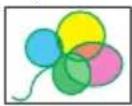   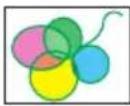 NORMAL ⇔ H:INVERT ⇔ V:INVERT ⇔ H&V:INVERTIf the Transition Detector is TURN ON and MIRROR status is changed, Transition Detector Alarm (51) will be displayed when projector is restarted after the power switch is turned off. NORMAL ⇔ H:INVERT ⇔ V:INVERT ⇔ H&V:INVERTIf the Transition Detector is TURN ON and MIRROR status is changed, Transition Detector Alarm (51) will be displayed when projector is restarted after the power switch is turned off. |
| VOLUME | Using the ▲/▼ buttons adjusts the volume.High ⇔ Low |
| SPEAKER | Using the ▲/▼ buttons turns on/off the built-in speaker.TURN ON ⇔ TURN OFFWhen TURN OFF is selected, the built-in speaker does not work. |
(continued on next page)
SETUP menu (continued)
| Item Description | |
| AUDIO | Allocates the audio ports.(1) Choose a picture input port using the▲/▼buttons. QUIT ⇔ COMPUTER (IN)1 ⇔ COMPUTER (IN)2↓VIDEO ⇔ S-VIDEO ⇔ COMPONENT ⇔ MIU ⇔ HDMI(2) Select the audio port to be interlocked with the input port using the ◀/►buttons.[COMPUTER1, COMPUTER2, COMPONENT, S-VIDEO, VIDEO] 1 2 3 [MIU] 1 2 3 [HDMI] 1 2 3 M• “M” and “H” are abbreviations of MIU and HDMI.• M or H can be selected for MIU or HDMI port only. When M or H is selected, the audio signal to MIU or HDMI port will be output if MIU or HDMI is chosen as a display source.• When ×is selected for an input, the audio will not be output if the input is chosen as a display source.• When ×is selected to VIDEO or S-VIDEO port, the C.C.(Closed Caption) is automatically activated, if the C.C. is set to AUTO in the DISPLAY menu of the C.C. menu and the signal from the input port supports the C.C. feature. (63) |
| HDMI AUDIO | The HDMI AUDIO is set to 1 as default. In case the HDMI audio does not work well, try 2. 1 2 |
SCREEN menu
From the SCREEN menu, items shown in the table below can be performed.
Select an item using the ▲/▼ cursor buttons, and press the ▶ cursor button or ENTER button to execute the item. Then perform it according to the following table.
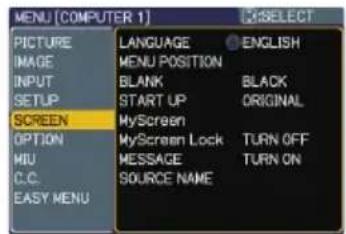
| Item Description | |
| LANGUAGE | Using the ▲/▼ buttons switches the OSD (On Screen Display) language.ENGLISH ⇔ FRANÇAIS ⇔ DEUTSCH ⇔ ESPAÑOL ⇔ ITALIANO↑↓TÜRKÇE↑↓POLSKI↑↓SUOMI↑↓PYССКИЙ ⇔ SVENSKA ⇔ 한글 ⇔ 繁體中文 ⇔ 简体中文 ⇔ 日本語↑↓NORSKN↓↓NEDERLANDS↑↓↑PORTUGUÊSPYССКИЙ ⇔ SVENSKA ⇔ 한글 ⇔ 繁體中文 ⇔ 简体中文 ⇔ 日本語 |
| MENU POSITION | Using the ▲/▼/◄/► buttons adjusts the menu position.To quit the operation, press MENU button on the remote control or keep no operation for about 10 seconds. |
| BLANK | Using the ▲/▼ buttons switches the mode for the BLANK screen.The BLANK screen is a screen for the temporarily blanking feature(22). It is displayed by pressing BLANK button.MyScreen ⇔ ORIGINAL ⇔ BLUE ⇔ WHITE ⇔ BLACK↑→ |
| MyScreen | |
| ORIGINAL Screen preset as the standard screen. | |
| BLUE, WHITE,BLACK |
(continued on next page)
SCREEN menu (continued)
| Item Description | ||
| START UP | Using the ▲/▼ buttons switches the mode for the start-up screen. The start-up screen is a screen displayed when no signal or an unsuitable signal is detected.MyScreen ⇔ ORIGINAL ⇔ TURN OFF↑ | |
| Feature | ||
| MyScreen | Screen can be registered by the MyScreen item (40). | |
| ORIGINAL Screen pre | set as the standard screen. | |
| TURN OFF Plain black | screen. | |
| • To avoid remaining as an afterimage, the MyScreen or ORIGINAL screen will change to the BLANK screen (38) after several minutes. If also the BLANK screen is the MyScreen or ORIGINAL, the plain black screen is instead used.• When the TURN ON is selected to the MyScreen PASSWORD of SECURITY item in OPTION menu (48), the START UP is fixed to MyScreen. | ||
(continued on next page)
SCREEN menu (continued)
| Item Description | |
| MyScreen | This item allows you to capture an image for use as a MyScreen image which can be used as the BLANK screen and START UP screen. Display the image you want to capture before executing the following procedure.1. Selecting this item displays a dialog titled “MyScreen”. It will ask you if you start capturing an image from the current screen.Please wait for the target image to be displayed, and press the ENTER button when the image is displayed. The image will freeze and the frame for capturing will appear.To stop performing, press the RESET or ESC button.2. Using the ▲/▼/◄/► buttons adjusts the frame position.Please move the frame to the position of the image which you want to use.The frame may not be able to be moved for some input signals.To start registration, press the ENTER button.To restore the screen and return to the previous dialog, press the RESET or ESC button.Registration takes several minutes.When the registration is completed, the registered screen and the following message are displayed for several seconds:“MyScreen registration is finished.”If the registration failed, the following message is displayed:“A capturing error has occurred. Please try again.”This item cannot be selected a HDMI signal.This function cannot be selected when the TURN ON is selected to the MyScreen Lock item (below).This function cannot be selected when TURN ON is selected to the MyScreen PASSWORD of SECURITY item in OPTION menu (48).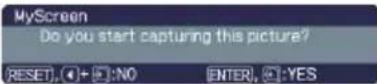 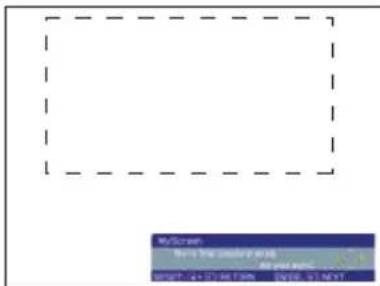 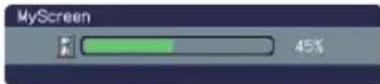 |
| MyScreen Lock | Using the ▲/▼ buttons turns on/off the MyScreen lock function.TURN ON ⇔ TURN OFFWhen the TURN ON is selected, the MyScreen item is locked. Use this function for protecting the current MyScreen.This function cannot be selected when TURN ON is selected to the MyScreen PASSWORD of SECURITY item in OPTION menu (48). |
| MESSAGE | Using the ▲/▼ buttons turns on/off the message function.TURN ON ⇔ TURN OFFWhen the TURN ON is selected, the following message function works.“AUTO IN PROGRESS” while automatically adjusting“NO INPUT IS DETECTED”“SYNC IS OUT OF RANGE”“Searching...” while searching for the input“Detecting...” while an input signal is detectedThe indication of the input signal displayed by changingThe indication of the aspect ratio displayed by changingThe indication of the PICTURE MODE displayed by changingThe indication of the MY MEMORY displayed by changingThe indication of “FREEZE” and “II” while the projector is in the FREEZE mode.• If the projector goes into the FREEZE mode while the TURN OFF is selected, the picture on screen is frozen without any messages, which is not a malfunction. (22) |
| SOURCE NAME | Each input port for this projector can have a name applied to it.(1) Use the ▲/▼ buttons on the SCREEN menu to select SOURCE NAME and press the ▶ button.The SOURCE NAME menu will be displayed.(2) Use the ▲/▼ buttons on the SOURCE NAME menu to select the port to be named and press the ▶ button. Right side of the menu is blank until a name is specified.The SOURCE NAME dialog will be displayed.(3) The current name will be displayed on the first line. Use the ▲/▼/◄/► buttons and the ENTER or INPUT button to select and enter characters. The RESET button can be used to erase 1 character at a time. Also if you move the cursor to DELETE or ALL CLEAR on screen and push the ENTER or INPUT button, 1 character or all characters will be erased. The name can be a maximum of 16 characters.(4) To change an already inserted character, press the (▲) button to move the cursor to the first line, and use the ◀/► buttons to move the cursor on the character to be changed.After pressing the ENTER or INPUT button, the character is selected. Then, follow the same procedure as described at the item (3) above.(5) To finish entering text, move the cursor to the SAVE on screen and press the ENTER or INPUT button. To revert to the previous name without saving changes, move the cursor to the CANCEL on screen and press the ENTER or INPUT button. |
OPTION menu
From the OPTION menu, items shown in the table below can be performed.
Select an item using the ▲/▼ cursor buttons, and press the ▶ cursor button or ENTER button to execute the item, except for the items LAMP TIME and FILTER TIME. Then perform it according to the following table.
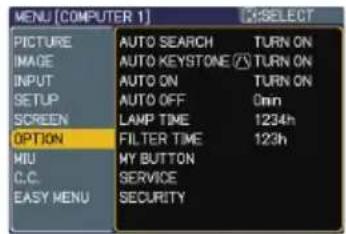
| Item Description | |
| AUTO SEARCH | Using the ▲/▼ buttons turns on/off the automatic signal search function.TURN ON ⇔ TURN OFFWhen the TURN ON is selected, detecting no signal automatically cycles through input ports in the following order. The search is started from the current port. Then when an input is found, the projector will stop searching and display the image. |
| AUTO KEYSTONE | Using the ▲/▼ buttons turns on/off the automatic keystone function.TURN ON ⇔ TURN OFFTURN ON: Automatic keystone distortion correction will be executed whenever changing the slant of the projector.TURN OFF: This function is disabled. Please execute the AUTO KEYSTONE ☑ EXECUTE in the SETUP Menu for automatic keystone distortion correction.When the projector is suspended from the ceiling this feature will not function properly so select the TURN OFF.This function will be unavailable when the Transition Detector is on (51). |
| AUTO ON | Using the ▲/▼ buttons turns on/off the AUTO ON function.TURN ON ⇔ TURN OFFWhen set to the TURN ON, the lamp in projector will be automatically turned on without the usual procedure (16), only when the projector is supplied with the power after the power was cut while the lamp was on.This function does not work as long as the power has been supplied to the projector while the lamp is off.After turning the lamp on by the AUTO ON function, if neither input nor operation is detected for about 30 minutes, the projector is turned off, even though the AUTO OFF function (43) is disabled. |
| Item Description | |
| AUTO OFF | Using the ▲/▼ buttons adjusts the time to count down to automatically turn the projector off.Long (max. 99 minutes) ⇔ Short (min. 0 minute = DISABLE)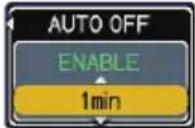 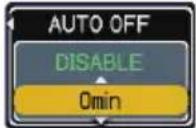 When the time is set to 0, the projector is not turned off automatically.When the time is set to 1 to 99, and when the passed time with no-signal or an unsuitable signal reaches at the set time, the projector lamp will be turned off.If one of the projector's buttons or the remote control buttons is pressed or one of the commands (except get commands) is transmitted to the CONTROL port during the corresponding time, projector will not be turned off.Please refer to the section “Turning off the power” (16). When the time is set to 0, the projector is not turned off automatically.When the time is set to 1 to 99, and when the passed time with no-signal or an unsuitable signal reaches at the set time, the projector lamp will be turned off.If one of the projector's buttons or the remote control buttons is pressed or one of the commands (except get commands) is transmitted to the CONTROL port during the corresponding time, projector will not be turned off.Please refer to the section “Turning off the power” (16). |
| LAMP TIME | The lamp time is the usage time of the lamp, counted after the last resetting. It is shown in the OPTION menu.Pressing RESET button or the ▶ button displays a dialog.To reset the lamp time, select RESET using the ▲ button.RESET ⇔ CANCELPlease reset the lamp time only when you have replaced the lamp, for a suitable indication about the lamp.For the lamp replacement, see the section "Lamp" (64). |
| FILTER TIME | The filter time is the usage time of the air filter, counted after the last resetting. It is shown in the OPTION menu.Pressing the RESET button or the ▶ button displays a dialog.To reset the filter time, select the RESET using the ▲ button.RESET ⇔ CANCELPlease reset the filter time only when you have cleaned or replaced the air filter, for a suitable indication about the air filter.For the air filter cleaning, see the section "Air filter" (66). |
| MY BUTTON | This item is to assign one of the following functions to MY BUTTON 1 and 2 on the remote control (6).Choose 1 or 2 on the MY BUTTON menu using the ◀/► button first. Then using the ▲/▼ buttons sets one of the following functions to the chosen button.COMPUTER1: Sets port to COMPUTER IN1.COMPUTER2: Sets port to COMPUTER IN2.HDMI: Sets port to HDMI.MIU: Sets port to MIU.COMPONENT: Sets port to COMPONENT(Y, Cb/Pb, Cr/Pr)S-VIDEO: Sets port to S-VIDEO.VIDEO: Sets port to VIDEO.INFORMATION: Displays the INPUT-INFORMATION-(46) or MIU-INFORMATION-(62) or nothing.The displayed dialog is switched as below every time the MY BUTTON is pushed.When an input signal is found:INPUT -INFORMATION- ⇒ MIU -INFORMATION- ⇒ OFFWhen an input signal is not found:MIU -INFORMATION- ⇒ OFFAUTO KEYSTONE(↘):Performs automatic keystone distortion correction (35).MY MEMORY: Loads one of adjustment data stored (29).When more than one data are saved, the adjustment changes every time the MY BUTTON is pushed.When no data is saved in memory, the dialog "No saved data" appears.When the current adjustment is not saved to memory, the dialog as shown in the right appears.If you want to keep the current adjustment, please press the ◀ button to quit. Otherwise loading a data will lose the current adjusted condition.PICTURE MODE: Changes the PICTURE MODE (25).FILTER RESET: Displays the filter time reset confirmation dialogue (43).VOLUME+: Set the volume up.VOLUME-: Set the volume down.e-SHOT: Displays the e-SHOT menu(61).LIVE MODE : Sets port to MIU and display an image on the LIVE MODE.While using the LIVE MODE, the LIVE MODE SETTING menu is displayed.THUMBNAIL : Sets port to MIU and displays the THUMBNAIL screen.SLIDE SHOW : Sets port to MIU and starts the SLIDE SHOW display.DIRECTORY : Sets port to MIU and displays the DIRECTORY screen.REMOVE MEDIA : Displays the REMOVE MEDIA menu. |
| SERVICE | Selecting this item displays the SERVICE menu.Select an item using the ▲/▼ buttons, and press the ► button or the ENTER button to execute the item.FAN SPEED ⇔ AUTO ADJUST ⇔ GHOST ⇔ FILTER MESSAGE ⇔ KEY LOCKFACTORY RESET ⇔ INFORMATION ⇔ REMOTE FREQ. |
(continued on next page)
OPTION menu (continued)
| Item Description | ||
| SERVICE(continued) | FAN SPEEDUsing the ▲/▼ buttons the rotation speed of the cooling fans. The HIGH is the mode for use at highlands etc. Note that the projector is noisier when the HIGH is selected.HIGH ⇔ NORMAL | 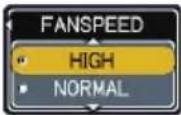 |
| AUTO ADJUSTUsing the ▲/▼ buttons to select one of the mode.When the DISABLE is selected, the automatic adjustment feature is disabled.FINE ⇔ FAST ⇔ DISABLEFINE: Finer tuning including H.SIZE adjustment.FAST: Faster tuning, setting H.SIZE to prearranged data for the input signal.· Depending on conditions, such as input image, signal cable to the projector, environment around the projector, etc., the automatic adjustment may not work correctly. In such a case, please choose DISABLE to disable the automatic adjustment, and make adjustment manually. | 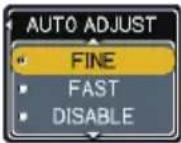 | |
| GHOST1. Select a color element of ghost using the ◀/▶buttons.2. Adjust the selected element using the ▲/▼ buttons to disappear ghost. |  | |
| FILTER MESSAGEUse the ▲/▼ button to set the timer for the interval to show the message for cleaning up the air filter.50h ⇔ 100h ⇔ 200h ⇔ 300h ⇔ 400h ⇔ 500hTURN OFF ⇔ 800h ⇔ 700h ⇔ 600hAfter choosing an item except TURN OFF, the message “REMINDER *** HRS PASSED AFTER THE LAST FILTER CHECK” will appear after the timer reaches the interval time set by this feature (70).When the TURN OFF is chosen, the message will not appear.Utilize this feature to keep the air filter clean, setting the suitable time according to your environment of this projector.· Please check and clean the air filter periodically, even if there is no message. If the air filter becomes to be blocked by dust or others, the internal temperature will rise, which could cause malfunction, or reduce the lifetime of the projector.· Please be careful with the operating environment of the projector and the condition of the air filter. | 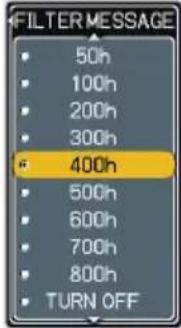 | |
| SERVICE(continued) | KEY LOCKUsing the ▲/▼ buttons turns on/off the key lock feature. When TURN ON is selected, the buttons on the projector except the STANDBY/ON button are locked.TURN ON ⇔ TURN OFFPlease use to avoid a mischief and touching accidentally. This function does not have any effect on the remote control. | |
REMOTE FREQ.Use the ▲/▼ button to change the projector's remote sensor setting.1:NORMAL ⇔ 2:HIGHItems with a checkmark are on. The factory default setting is for both 1:NORMAL and 2: HIGH to be on. If the remote control does not function correctly set this to either only 1 or only 2 (15).Neither can be turned off at the same time. 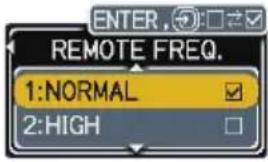 | ||
INFORMATIONSelecting this item displays a dialog titled "INPUT -INFORMATION-". It shows the information about the current input.   The "FRAME LOCK" message on the dialog means the frame lock function is working (33).This item can't be selected for no signal and sync out. The "FRAME LOCK" message on the dialog means the frame lock function is working (33).This item can't be selected for no signal and sync out. | ||
| FACTORY RESETSelecting RESET using the button ▲ performs this function. By this function, all the items in all of menus will collectively return to the initial setting. Note that the items LAMP TIME, FILTER TIME, LANGUAGE, SECURITY and MIU settings are not reset.RESET ⇔ CANCEL | ||
| SECURITY | This projector is equipped with security functions.User registration is required before using the security functions.Please contact your local dealer. | |
1. Using Security Features1.1 Inputting the PASSWORD1.1-1 Use the ▲/▼ buttons on the OPTION menu to select SECURITY and press the ▶ button. The ENTER PASSWORD box will be displayed.The factory default PASSWORD is 8471.This PASSWORD can be changed (1.2 Changing the PASSWORD (below)).It is strongly recommended the factory default PASSWORD to be changed as soon as possible.1.1-2 Use the ▲/▼/◄/► buttons to enter the registered PASSWORD. Move the cursor to the right side of the ENTER PASSWORD box and press the ► button to display the SECURITY menu.If an incorrect PASSWORD is input the ENTER PASSWORD box will be displayed again. If incorrect PASSWORD is input 3 times the projector will turn off. Afterwards the projector will turn off every time an incorrect PASSWORD is input.1.2 Changing the PASSWORD1.2-1 Use the ▲/▼ buttons on the SECURITY menu to select SECURITY PASSWORD CHANGE and press the ► button to display the ENTER NEW PASSWORD box.1.2-2 Use the ▲/▼/◄/► buttons to enter the new PASSWORD.1.2-3 Move the cursor to the right side of the ENTER NEW PASSWORD box and press the ► button to display the NEW PASSWORD AGAIN box, enter the same PASSWORD again.1.2-4 Move the cursor to the right side of the NEW PASSWORD AGAIN box and press the ► button and the NOTE NEW PASSWORD box will be displayed for about 20 seconds, please make note of the PASSWORD during this time.Pressing the ENTER button will close the NOTE NEW PASSWORD box.Please do not forget your PASSWORD. 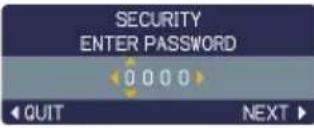 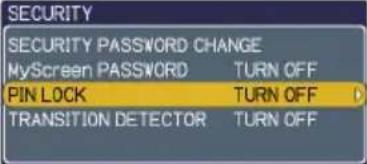 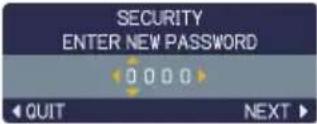 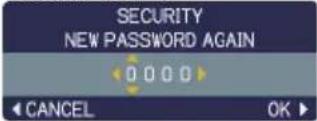 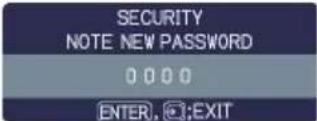 | ||
1. Using Security Features
1.1 Inputting the PASSWORD
1.2 Changing the PASSWORD
(continued on next page)
OPTION menu (continued)
| Item Description | |
| SECURITY(continued) | 1.3 If you have forgotten your PASSWORD1.3-1 Follow the procedure in 1.1-1 to display the ENTER PASSWORD box.1.3-2 While the ENTER PASSWORD box is displayed, press and hold the RESET button for about 3 seconds or press and hold the INPUT and ▶ buttons on the projector for about 3 seconds.The 10-digit Inquiring Code will be displayed.If there is no key input for about 55 seconds while the Inquiring Code is displayed the menu will close. If necessary repeat the process from 1.3-1.1.3-3 Contact your dealer with the 10-digit Inquiring Code. Your PASSWORD will be sent after your user registration information is confirmed. |
2. Using the MyScreen PASSWORD FunctionThe MyScreen PASSWORD function can be used to prohibit access to the MyScreen function and prevent the currently registered MyScreen image from being overwritten.2.1 Turning on the MyScreen PASSWORD Function2.1-1 Use the ▲/▼ buttons on the SECURITY menu to select MyScreen PASSWORD and press the ▶ button to display the MyScreen PASSWORD on/off menu. 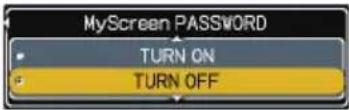 2.2 Setting the PASSWORD2.2-1 Display the MyScreen PASSWORD on/off menu using the procedure in 2.1-1.2.2-2 Use the ▲/▼ buttons on the MyScreen PASSWORD on/off menu to select TURN ON. The ENTER PASSWORD box (small) will be displayed. 2.2 Setting the PASSWORD2.2-1 Display the MyScreen PASSWORD on/off menu using the procedure in 2.1-1.2.2-2 Use the ▲/▼ buttons on the MyScreen PASSWORD on/off menu to select TURN ON. The ENTER PASSWORD box (small) will be displayed. 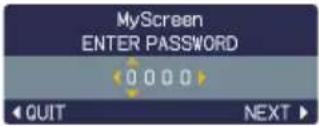 2.2-3 Use the ▲/▼/◄/► buttons to enter the PASSWORD.Move the cursor to the right side of the ENTER PASSWORD box (small) and press the ► button to display the PASSWORD AGAIN box, enter the same PASSWORD again. 2.2-3 Use the ▲/▼/◄/► buttons to enter the PASSWORD.Move the cursor to the right side of the ENTER PASSWORD box (small) and press the ► button to display the PASSWORD AGAIN box, enter the same PASSWORD again. 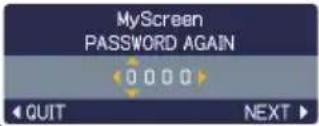 | |
| SECURITY(continued) | 2.2-4 Move the cursor to the right side of the PASSWORD AGAIN box and press the► button to display the PASSWORD for about 20 seconds, please make note of the PASSWORD during this time.Pressing the ENTER button will return to MyScreen PASSWORD on/off menu.When a PASSWORD is set for MyScreen:The MyScreen registration function (and menu) will be unavailable.The MyScreen Lock menu will be unavailable.The START UP setting will be locked on MyScreen (and the menu will be unavailable).Turning the MyScreen PASSWORD off will allow normal operation of these functions.Please do not forget your MyScreen PASSWORD.2.3 Turning the PASSWORD off2.3-1 Follow the procedure in 2.1-1 to display the MyScreen PASSWORD on/off menu.2.3-2 Select TURN OFF to display the ENTER PASSWORD box (large).Enter the registered PASSWORD and the screen will return to the MyScreen on/off menu.If an incorrect PASSWORD is input the menu will close. If necessary repeat the process from 2.3-1.2.4 If you have forgotten your PASSWORD2.4-1 Follow the procedure in 2.1-1 to display the MyScreen PASSWORD on/off menu.2.4-2 Select TURN OFF to display the ENTER PASSWORD box (large). The 10-digit Inquiring Code will be displayed inside the box.2.4-3 Contact your dealer with the 10-digit Inquiring Code. Your PASSWORD will be sent after your user registration information is confirmed. |
3. Using the PIN LOCK FunctionPIN LOCK is a function which prevents the projector from being used unless a registered Code is input.3.1 Registering the PIN Code3.1-1 Use the ▲/▼ buttons on the SECURITY menu to select PIN LOCK and press the ► button or the ENTER button to display the PIN LOCK on/off menu. 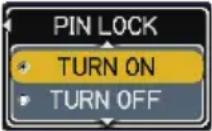 | |
| Item Description | |
| SECURITY(continued) | 3.1-2 Use the ▲/▼ buttons on the PIN LOCKon/off menu to select TURN ON and thePIN BOX will be displayed.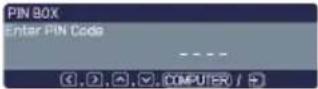 3.1-3 Input a 4 part PIN Code using the ▲,▼,◀,▶, COMPUTER and INPUT buttons.A PIN Code again box will appear. Reenterthe same PIN Code. This will complete thePIN Code registration.If there is no key input for about 55 seconds while the PIN BOX or thePIN Code again box are displayed the menu will close. If necessaryrepeat the process from 3.1-1.Afterwards, anytime the projector is restarted after AC power is turned offthe PIN BOX will be displayed. Enter the registered PIN Code.The projector can be used after entering the registered PIN Code. If anincorrect PIN Code is input the PIN BOX will be displayed again.If an incorrect PIN Code is input 3 times the projector will turn off.Afterwards the projector will turn off every time an incorrect PIN Code isinput. The projector will also turn off if there is no key input for about 5minutes while the PIN BOX is displayed.This function will activate only when the projector is started after ACpower is turned off.Please do not forget your PIN Code.3.2 Turning Off the PIN LOCK Function3.2-1 Follow the procedure in 3.1-1 to display the PIN LOCK on/off menu.Use the ▲/▼ buttons to select TURN OFF and the PIN BOX will bedisplayed.Enter the registered PIN Code to turn the PIN LOCK function off.If an incorrect PASSWORD is input 3 times, the menu will close.3.3 If you have forgotten your PIN Code3.3-1 While the PIN BOX is displayed, press andhold the RESET button for 3 seconds orpress and hold the INPUT and ▶ buttonsfor 3 seconds. The 10-digit Inquiring Codewill be displayed.If it passes for about 5 minutes after the PIN BOX is displayed theprojector will turn off.3.3-2 Contact your dealer with the 10-digit Inquiring Code. Your PASSWORDwill be sent after your user registration information is confirmed. 3.1-3 Input a 4 part PIN Code using the ▲,▼,◀,▶, COMPUTER and INPUT buttons.A PIN Code again box will appear. Reenterthe same PIN Code. This will complete thePIN Code registration.If there is no key input for about 55 seconds while the PIN BOX or thePIN Code again box are displayed the menu will close. If necessaryrepeat the process from 3.1-1.Afterwards, anytime the projector is restarted after AC power is turned offthe PIN BOX will be displayed. Enter the registered PIN Code.The projector can be used after entering the registered PIN Code. If anincorrect PIN Code is input the PIN BOX will be displayed again.If an incorrect PIN Code is input 3 times the projector will turn off.Afterwards the projector will turn off every time an incorrect PIN Code isinput. The projector will also turn off if there is no key input for about 5minutes while the PIN BOX is displayed.This function will activate only when the projector is started after ACpower is turned off.Please do not forget your PIN Code.3.2 Turning Off the PIN LOCK Function3.2-1 Follow the procedure in 3.1-1 to display the PIN LOCK on/off menu.Use the ▲/▼ buttons to select TURN OFF and the PIN BOX will bedisplayed.Enter the registered PIN Code to turn the PIN LOCK function off.If an incorrect PASSWORD is input 3 times, the menu will close.3.3 If you have forgotten your PIN Code3.3-1 While the PIN BOX is displayed, press andhold the RESET button for 3 seconds orpress and hold the INPUT and ▶ buttonsfor 3 seconds. The 10-digit Inquiring Codewill be displayed.If it passes for about 5 minutes after the PIN BOX is displayed theprojector will turn off.3.3-2 Contact your dealer with the 10-digit Inquiring Code. Your PASSWORDwill be sent after your user registration information is confirmed.  |
(continued on next page)
OPTION menu (continued)
| Item Description | |
| SECURITY(continued) | 4. Using the Transition Detector FunctionWhile the Transition Detector function is ON, when power switch is started to supply to the projector, it might react as below.Transition Detector alarm shown below might appear on screen, if the projector has been moved or re-installed.Transition Detector alarm might appear on screen, if the MIRROR setting has been changed.Keystone adjustment feature has been prohibited as long as the Transition Detector function is ON.4.1 Turning On the Transition Detector Function4.1-1 Use the ▲/▼ buttons on the SECURITY menu to select TRANSITION DETECTOR and press the ▶ or the ENTER button to display the TRANSITION DETECTOR on/off menu.Select TURN ON and the current angle and mirror setting will be recorded.This feature may not function properly if the projector is not in a stable position when TURN ON is selected.4.1-2 If this function is set to TURN ON when the vertical angle of the projector or mirror setting at which the projector is turned on is different than the previously recorded the Transition Detector alarm will be displayed and the projector will not display the input signal.Set the Transition Detector off in the SECURITY menu to display the input signal.If the Transition Detector alarm is displayed for about 5 minutes the lamp will turn off. This function will activate only when the projector is started after turning off the AC power.4.2 Setting the Transition Detector PASSWORD4.2-1 Use the ▲/▼ buttons on the SECURITY menu to select TRANSITION DETECTOR and press the ▶ or the ENTER button to display the TRANSITION DETECTOR on/off menu.4.2-2 Use the ▲/▼ buttons on the TRANSITION DETECTOR on/off menu to select TURN ON. The ENTER PASSWORD box (small) will be displayed.4.2-3 Use the ▲/▼/◄/► buttons to enter a PASSWORD. Move the cursor to the right side of the ENTER PASSWORD box (small) and press the ▶ button to display the PASSWORD AGAIN box, enter the same PASSWORD again. |
| SECURITY(continued) | 4.2-4 Move the cursor to the right side of the PASSWORD AGAIN box and press the ► button to display the PASSWORD for about 20 seconds, please make note of the PASSWORD during this time.Pressing the ENTER button will return to the TRANSITION DETECTOR on/off menu.·Please do not forget your Transition Detector PASSWORD.4.3 Setting the Transition Detector off4.3-1 Follow the procedure in 4.1-1 to display the TRANSITION DETECTOR on/off menu.4.3-2 Select TURN OFF to display the ENTER PASSWORD box (large). Enter the registered PASSWORD and the screen will return to the TRANSITION DETECTOR on/off menu. If an incorrect PASSWORD is input the menu will close. If necessary repeat the process from 4.3-1.4.4 If you have forgotten your PASSWORD4.4-1 Follow the procedure in 4.1-1 to display the TRANSITION DETECTOR on/off menu.4.4-2 Select TURN OFF to display the ENTER PASSWORD box (large). The 10-digit Inquiring Code will be displayed inside the box.4.4-3 Contact your dealer with the 10-digit Inquiring Code. Your PASSWORD will be sent after your user registration information is confirmed. |
MIU menu
The MIU (Multi Information processing Unit) is a function to support the Network features and PC-LESS Presentation. Remember that incorrect network settings on this projector may cause trouble on the network. Be sure to consult with your network administrator before connecting to an existing access point on your network.
Select "MIU" from the main menu to access the following functions.
![MENU [COMPUTER 1] PICTURE IMAGE INPUT SETUP SCREEN OPTION MIU C.C. EASY MENU LIVE MODE LIVE MODE SETTING PC-LESS PRESENTATION SETUP PROJECTOR NAME #-SHOT INFORMATION SERVICE](/content/2026/05/1052997/images/866758648692f6506d4aa636fcb332a01d86baa2eb7d74fc136291c84364552c.jpg)
Select an item using the ▲/▼ cursor buttons on the projector or remote control, and press the ▶ cursor button on the projector or remote control, or ENTER button on the remote control to execute the item. Then perform it according to the following table.
See the User's Manual - Network Guide for details of MIU operation.
NOTE • The factory default setting for DHCP is OFF. If your network has DHCP enabled, and needs to set IP ADDRESS, SUBNET MASK and DEFAULT GATEWAY automatically, please set DHCP to ON. (Network Settings of the User's Manual - Network Guide)
- If you are not utilizing SNTP (Date/Time Settings of the User's Manual
- Network Guide), then you must set the DATE AND TIME (57) during the initial installation.
| Item Description | ||
| LIVE MODE | Selecting this item sets the projector onto the “Live Mode”.On the “Live Mode”, the projector displays the images from the PC via Network, supported by “MIU Live Viewer”. (Live Mode of the User’s Manual - Network Guide)In the Live Mode, the message “Waiting for connection” will be displayed until the “MIU Live Viewer” start to send computer screen image. | |
| LIVE MODE SETTING | Selecting this item displays the LIVE MODE SETTING menu.Use the ▲/▼ buttons to select an item, and the ▶ or ENTER button to perform the item. 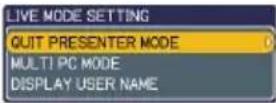 | |
| Item Description | ||
| LIVE MODE SETTING (continued) | QUIT PRESENTER MODE | The Presenter Mode that is set in the Live Viewer 3 software installed into your PC can be turned to off. 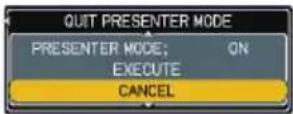 A message, QUIT PRESENTER MODE, will be displayed in about 3 seconds when the function is performed. The function is available only when the Presenter Mode is set to on in the Live Viewer 3 software.The current setting of the Presenter Mode is shown in the menu.The Presenter mode is a function that allows the projector to display an image sent by 1 PC only, even though the MIU feature on this projector support Multi PC mode.If the projector is required to display an image sent by other PC, execute the QUIT PRESENTER MODE function.See the User's Manual – Network Guide for details.(84) A message, QUIT PRESENTER MODE, will be displayed in about 3 seconds when the function is performed. The function is available only when the Presenter Mode is set to on in the Live Viewer 3 software.The current setting of the Presenter Mode is shown in the menu.The Presenter mode is a function that allows the projector to display an image sent by 1 PC only, even though the MIU feature on this projector support Multi PC mode.If the projector is required to display an image sent by other PC, execute the QUIT PRESENTER MODE function.See the User's Manual – Network Guide for details.(84) |
| MULTI PC MODE | The projector supports the Single PC mode that displays an image on full screen sent by 1 PC, and the Multi PC mode that divides the screen into 4 zone and displays images in each zone sent by up to 4 PCs. The MULTI PC MODE function switches these modes[SINGLEUse the ▲/▼ buttons to select an item, and the ENTER or INPUT button to perform the item. The mode will be switched from the Multi PC mode to the Single PC mode and the quarter screen identified in the menu will be displayed on full screen.MULTIUse the ENTER or INPUT button to perform the item. The mode will be switched to the Multi PC mode and the screen will be divided to 4 zones.If the Presenter Mode is set to on in the PC whose image is currently displayed on screen, a message, QUIT PRESENTER MODE, will be displayed in about 3 seconds when the function is performed.The function is available when there is any PC connected to the projector in the Multi PC mode set in the Live Viewer 3 software. | |
| Item Description | ||
| LIVE MODE SETTING (continued) | DISPLAY USER NAME | Selecting this item displays the Display User Name defined in the Live View3 software in the PC whose image is on screen.SINGLE PC modeThe Display User Name will be shown in the DISPLAY USER NAME box. 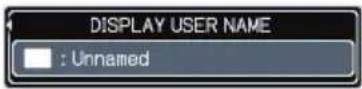 ExamplesDisplay User name Shown in the DISPLAY USER NAME boxPC_NAME0001 PC_NAME0001(remained as default) Unnamed(blank space )(prohibited showing) (Anonymous)If there is no PC in the Single PC mode connected to the projector, the DISPLAY USER NAME box is shown as right. ExamplesDisplay User name Shown in the DISPLAY USER NAME boxPC_NAME0001 PC_NAME0001(remained as default) Unnamed(blank space )(prohibited showing) (Anonymous)If there is no PC in the Single PC mode connected to the projector, the DISPLAY USER NAME box is shown as right. 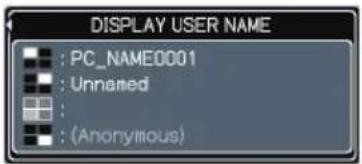 MULTI PC modeThe Display User Names will be shown in the DISPLAY USER NAME box. MULTI PC modeThe Display User Names will be shown in the DISPLAY USER NAME box.  • See the User's Manual – Network Guide for details of the Display User Name setting. (22) • See the User's Manual – Network Guide for details of the Display User Name setting. (22) |
| PC-LESS PRESENTATION | Selecting this item displays the PC-LESS PRESENTATION menu. Using the menu is able to make the projector display the images stored in an SD memory card or a USB memory, and realizes a presentation without a PC.Use the ▲/▼/◄/► buttons to select an item, and the ► or ENTER button to perform the item.• While displaying the image, to press the MENU button displays the PC-LESS PRESENTATION menu. 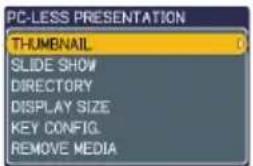 | |
| THUMBNAIL | Use the ▲/▼/◄/► buttons to select an image, and press the ENTER or INPUT button to display the image. 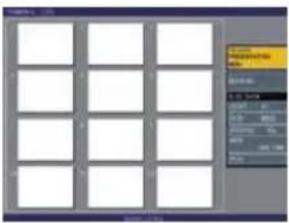 | |
| SLIDE SHOW | Slide show will start when you press the ENTER or ► button. | |
(continued on next page)
MIU menu (continued)
| Item Description | |||
| PC-LESS PRESENTATION (continued) | DIRECTORY | Use the ▲/▼ buttons to select an image or a folder, and press the ENTER button to display the image or turn into the THUMBNAIL.To open or close the folder, press the ▶/◀ buttons. |  |
| DISPLAY SIZE | Use the ▲/▼ buttons to set the display size. | 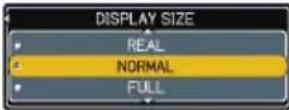 | |
| KEY CONFIG. | Use the ▲/▼ buttons to select key configuration from the 2 patterns. | 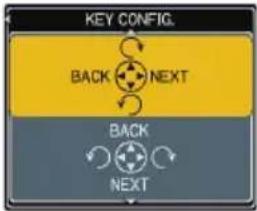 | |
| REMOVE MEDIA | Use the ▲/▼ buttons to select a remove mode, and then the ENTER or ▶ button is pressed so the menu will appear. | 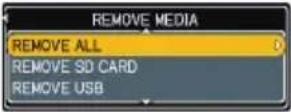 | |
| • Also these items can be set with Web Remote Control (Refer to Network Guide) except REMOVE MEDIA. | |||
| SETUP | Selecting this item displays the MIU SETUP menu.Use the ▲/▼ buttons to select an item, and the ▶ or ENTER button on the remote control to perform the item. | 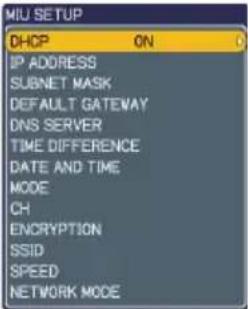 | |
| DHCP (Dynamic Host Configuration Protocol) | Use the ▲/▼ buttons to turn DHCP on/off.ON ⇔ OFFSelect OFF when the network does not have DHCP enabled.When the “DHCP” setting changes to “ON”, it takes a little time to obtain IP address from DHCP server.Auto IP function will be assigned an IP address if the projector could not obtain an IP address from server even if DHCP is “ON”. | 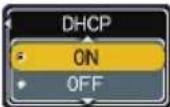 | |
| SETUP(continued) | IPADDRESS | Use the ▲/▼/◄/► buttons to enter the IP ADDRESS. This function can only be used when DHCP is set to OFF.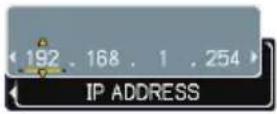 The IP ADDRESS is the number that identifies this projector on the network. You cannot have two devices with the same IP ADDRESS on the same network.The IP ADDRESS "0.0.0.0" is prohibited. The IP ADDRESS is the number that identifies this projector on the network. You cannot have two devices with the same IP ADDRESS on the same network.The IP ADDRESS "0.0.0.0" is prohibited. | |
| SUBNETMASK | Use the ▲/▼/◄/► buttons to enter the same SUBNET MASK used by your PC. This function can only be used when DHCP is set to OFF.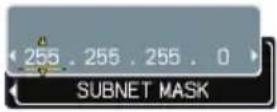 The SUBNET MASK "0.0.0.0" is prohibited. The SUBNET MASK "0.0.0.0" is prohibited. | ||
| DEFAULTGATEWAY | Use the ▲/▼/◄/► buttons to enter the DEFAULT GATEWAY (a node on a computer network that serves as an access point to another network) address.This function can only be used when DHCP is set to OFF. 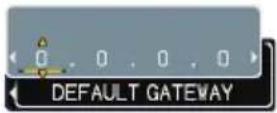 | ||
| DNSSERVER | Use the ▲/▼/◄/► buttons to input the DNS server address. The DNS server is a system to control domain names and IP addresses on the Network. 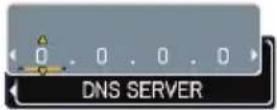 | ||
| TIMEDIFFERENCE | Use the ▲/▼ buttons to enter the TIME DIFFERENCE.Set the same TIME DIFFERENCE as the one set on your PC. If unsure, consult your IT manager.Use the◄button to return to the menu after setting the TIME DIFFERENCE. 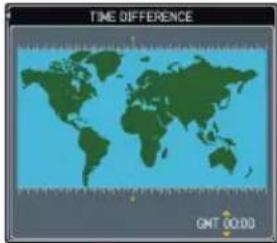 | ||
| DATEANDTIME | Use the ▲/▼/◄/► buttons to enter the Year (last two digits), Month, Date, Hour and Minute. The projector will override this setting and retrieve DATE AND TIME information from the Time server when SNTP is enabled. (Date/Time Settings of the User's Manual - Network Guide) The projector will override this setting and retrieve DATE AND TIME information from the Time server when SNTP is enabled. (Date/Time Settings of the User's Manual - Network Guide) | ||
| SETUP(continued) | MODE | Use the ▲/▼ buttons to select the mode of the network communication system. Select it according to the setting of your PC.ADHOC ⇔ INFRASTRUCTURE | |
| CH | Use the ▲/▼ buttons to select the channel of the wireless LAN while using it. Select it according to the setting of your PC.The channels 1 to 11 are available. • The available channels would be various depending on a country. In addition, wireless network card might be required due to the standard. • The available channels would be various depending on a country. In addition, wireless network card might be required due to the standard. | ||
| ENCRYPTION | Use the ▲/▼ buttons to select the encryption method to be used.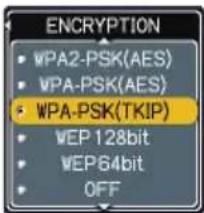  | ||
| SSID | Use the ▲/▼ buttons to select the SSID to display the SSID menu.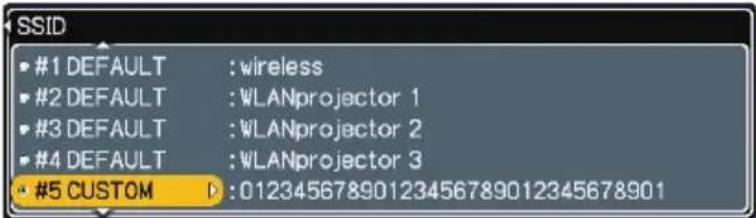 DEFAULTPressing the ▶ or ENTER button when one of the DEFAULT (#1~#4) is selected.CUSTOMPress the ▶ or ENTER button when the # 5 CUSTOM is selected. The SSID #5 CUSTOM menu will be appeared.(1) The current SSID will be displayed on the first line. If not yet written, the line will be blank. Use the ▲/▼/◄/► buttons and the ENTER or INPUT button to select and enter characters. The RESET button can be used to erase 1 character at a time. Also if you move the cursor to DELETE or ALL CLEAR on screen and push the ENTER or INPUT button, 1 character or all characters will be erased. The SSID can be input up to 32 characters. DEFAULTPressing the ▶ or ENTER button when one of the DEFAULT (#1~#4) is selected.CUSTOMPress the ▶ or ENTER button when the # 5 CUSTOM is selected. The SSID #5 CUSTOM menu will be appeared.(1) The current SSID will be displayed on the first line. If not yet written, the line will be blank. Use the ▲/▼/◄/► buttons and the ENTER or INPUT button to select and enter characters. The RESET button can be used to erase 1 character at a time. Also if you move the cursor to DELETE or ALL CLEAR on screen and push the ENTER or INPUT button, 1 character or all characters will be erased. The SSID can be input up to 32 characters. | ||
MIU menu (continued)
| Item Description | |||
| SETUP(continued) | SSID(continued) | (2) To change an already inserted character, press the ▲/▼ button to move the cursor to one of the first 2 lines, and use the ◀ /► buttons to move the cursor on the character to be changed. After pressing the ENTER or INPUT button, the character is selected. Then, follow the same procedure as described at the item (1) above |  |
 | |||
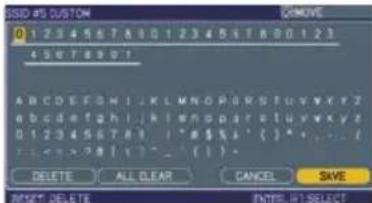 | |||
| (3) T finish entering text, move the cursor to the SAVE on screen and press the ENTER or INPUT button. To revert to the previous SSID without saving changes, move the cursor to the CANCEL on screen and press the ENTER or INPUT button. | |||
| SPEED | Use the ▲/▼ buttons to select the transfer rate.(M: Mbps: Megabits per second)AUTO⇔54M⇔48M⇔36M⇔24M⇔18M↔↔↔↔1M⇔2M⇔5.5M⇔6M⇔9M⇔11M⇔12M• The AUTO mode automatically selects the optimum rate.• Transfer rates may change due to the network situation. |  | |
| NETWORK MODE | Use the ▲/▼ buttons to select the network mode.WIRELESS ⇔ WIRED• The network mode will be initialized whenever the power is turned on with the power switch.• The WIRELESS will be enabled when the wireless network card is inserted.• The WIRED will be enabled when the wireless network card is not inserted. |  | |
| Item Description | |||
| PROJECTOR NAME | (1) Use the▲/▼buttons on the MIU menu to select the PROJECTOR NAME menu and press the ▶ button. The PROJECTOR NAME dialog will be displayed.(2) The current PROJECTOR NAME will be displayed on the first 3 lines. If not yet written, the lines will be blank.Use the▲/▼/◄/►buttons and the ENTER or INPUT button to select and enter characters. The RESET button can be used to erase 1 character at a time. Also if you move the cursor to DELETE or ALL CLEAR on screen and push the ENTER or INPUT button, 1 character or all characters will be erased.The PROJECTOR NAME can be input up to 64.(3) ▶ change an already inserted character, press the▲/▼button to move the cursor to one of the first 3 lines, and use the◄/►buttons to move the cursor on the character to be changed. After pressing the ENTER or INPUT button, the character is selected. Then, follow the same procedure as described at the item (2) above.(4) ▶ finish entering text, move the cursor to the SAVE on screen and press the ENTER or INPUT button. To revert to the previous PROJECTOR NAME without saving changes, move the cursor to the CANCEL on screen and press the ENTER or INPUT button. | 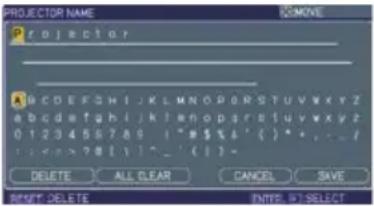 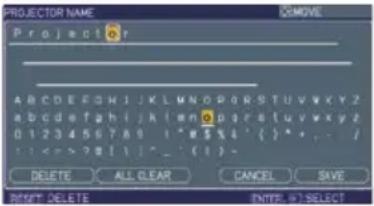 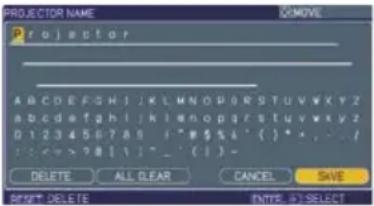 | |
(continued on next page)
MIU menu (continued)
| Item Description | |
| e-SHOT | Selecting this item displays the e-SHOT menu.Insert the SD memory card or USB memory into the projector before you use the e-SHOT function. [IMAGE]The application software “PJTransfer” is required to store image(s) into the projector.Use the ▲/▼ buttons to select an item which is a still image by the e-SHOT (e-SHOT (Still Image Transfer) Display of the User's Manual - Network Guide) and the ▶ or ENTER button to display the image.The item without image stored cannot be selected.The image names are each displayed in 16 characters or less.To switch the image displayedUse the ▲/▼ buttons.To return to the menuPress the ◀ or ESC button on the remote control.To erase the image displayed and its source file in the SD memory card or USB memory(1) Press the RESET button on the remote control while displaying an image to display the e-SHOT - RESET menu.(2) Press the ENTER button on the remote control or the INPUT button on the projector to perform to erase.To stop erasing, press the ESC button on the remote control or the ◀ button on the projector. |
| Item Description | Selecting this item displays the MIU-INFORMATION- dialog for confirming the network settings.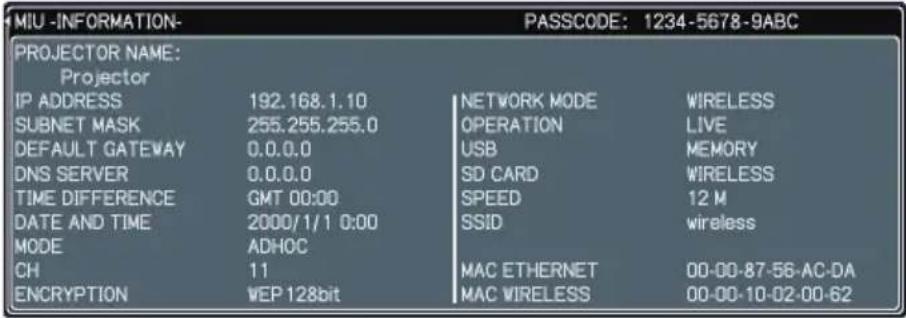 |
| INFORMATION | The PROJECTOR NAME is displayed.Nothing (blank) is shown in the “PROJECTOR NAME” and “SSID” field until you setup those items. (58, 59, 60)When the voltage level of the battery for the built in clock decreases, the set time may become incorrect even though accurate date and time are input. Replace the battery suitably.(68)MAC wireless will not be displayed when the NETWORK MODE is set to the WIRED even if the wireless network card is mounted.IP ADDRESS, SUBNET MASK and DEFAULT GATEWAY indicate “0.0.0.0” in the following condition.(1) The NETWORK MODE is set to the WIRELESS and the wireless network card is not mounted.(2) DHCP is ON and the projector does not get address from DHCP server.Nothing (blank) is shown in the “CH”, “SPEED” and “MAC WIRELESS” field in case of either no wireless network card is inserted or “WIRED” mode is selected at NETWORK MODE, or both.The actual performance and setting will be shown in the “CH” and “SPEED” field, instead of the setting value in the SETUP menu. |
| SERVICE | MIU RESTARTUse the ▲ button to restart the network communication. The network communication will be cut off once and restarted.[IMAGE]EXECUTE ⇔ CANCELAfter selecting the EXECUTE, the MIU menu may not be controlled approximately 20 seconds.If DHCP is ON, IP address may be changed. |
C.C. (Closed Caption) menu
The closed caption setting can be changed through C.C. menu in the advance menu. Please select the item that you will change using ▲/▼ cursor buttons.
- The C.C. (Closed Caption) is the function that displays a transcript or dialog of the audio portion of a video, files or other presentation or other relevant sounds. It is required to have NTSC format video source supporting C.C. feature to utilize this function.
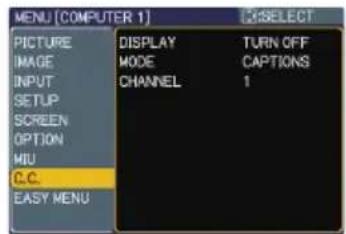
| Item Description | |
| DISPLAY | Select Closed Caption DISPLAY setting from following options using ▲/▼buttons.TURN OFF ⇔ TURN ON ⇔ AUTO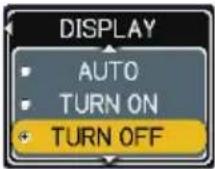 TURN OFF: Closed Caption is OFFTURN ON: Closed Caption is ONAUTO: Closed Caption automatically displays when the volume is muted.The caption is not displayed when the OSD menu is active.The Closed Caption is the function to display the dialogue, narration, and / or sound effects of a television program or other video sources. The Closed Caption availability is depending upon broadcaster and/or content.The caption is only available if the video source is NTSC format and the video format selection is AUTO or NTSC on the INPUT menu.It may not work properly, depending on equipment or signal source. In this case, please turn off the Closed Caption. TURN OFF: Closed Caption is OFFTURN ON: Closed Caption is ONAUTO: Closed Caption automatically displays when the volume is muted.The caption is not displayed when the OSD menu is active.The Closed Caption is the function to display the dialogue, narration, and / or sound effects of a television program or other video sources. The Closed Caption availability is depending upon broadcaster and/or content.The caption is only available if the video source is NTSC format and the video format selection is AUTO or NTSC on the INPUT menu.It may not work properly, depending on equipment or signal source. In this case, please turn off the Closed Caption. |
| MODE | Select Closed Caption MODE setting from following options using ▲/▼buttons.CAPTIONS ⇔ TEXT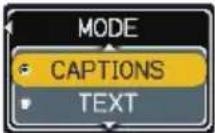 CAPTIONS: Display Closed CaptionTEXT: Display Text data, which is for additional information such as news reports or a TV program guide. The information covers the entire screen. Not all of the C.C. program has Text information. CAPTIONS: Display Closed CaptionTEXT: Display Text data, which is for additional information such as news reports or a TV program guide. The information covers the entire screen. Not all of the C.C. program has Text information. |
| CHANNEL | Select Closed Caption CHANNEL from following options using ▲/▼buttons.1 ⇔ 2 ⇔ 3 ⇔ 4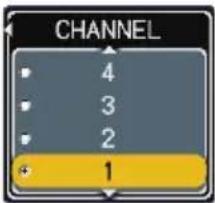 1: Channel 1, primary channel / language2: Channel 23: Channel 34: Channel 4The channel data may vary, depending on the content. Some channel might be used for secondary language or empty. 1: Channel 1, primary channel / language2: Channel 23: Channel 34: Channel 4The channel data may vary, depending on the content. Some channel might be used for secondary language or empty. |
Maintenance
Replacing the lamp
A lamp has finite product life. Using the lamp for long periods of time could cause the pictures darker or the color tone poor. Note that each lamp has a different lifetime, and some may burst or burn out soon after you start using them.
Preparation of a new lamp and early replacement are recommended. To prepare a new lamp, contact to your dealer and tell the lamp type number.
Type number : DT00841
Replacing the lamp
- Turn the projector off, and unplug the power cord. Allow the projector to cool for at least 45 minutes.
- Prepare a new lamp. If the projector is mounted on a ceiling, or if the lamp has broken, also ask the dealer to replace the lamp.
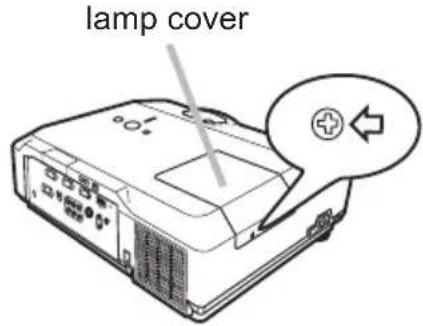
In case of replacement by yourself, follow the following procedure.
- Loosen the screw (marked by arrow) of the lamp cover and then slide the lamp cover to the side to remove it.
- Loosen the 2 screws (marked by arrow) of the lamp, and slowly pick up the lamp by the handles.
-
Insert the new lamp, and retighten firmly the 2 screws of the lamp that are loosened in the previous process to lock it in place.
-
Slide the lamp cover back in place and firmly fasten the screw of the lamp cover.
-
Turn the projector on and reset the lamp time using the LAMP TIME item in the OPTION menu.
(1) Press the MENU button to display a menu.
(2) Point at the Go to Advanced Menu ... in the menu using the ▼/▲ button, then press the ▶ button.
(3) Point at the OPTION in the left column of the menu using the ▼/▲button, then press the ▶ button.
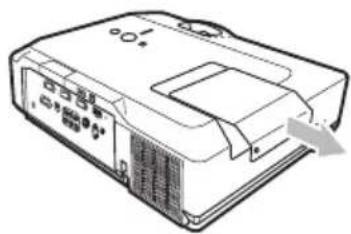
natural_image
Line drawing of a projector device with a scroll wheel and ventilation slots (no text or symbols)Handles
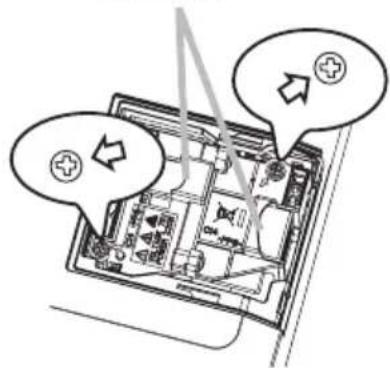
(4) Point at the LAMP TIME using the ▼/▲ button, then press the ▶ button. A dialog will appear.
(5) Press the ▲ button to select RESET on the dialog. It performs resetting the lamp time.
⚠️ CAUTION ▶ Do not touch any inner space of the projector, while the lamp is taken out.
NOTE • Please reset the lamp time only when you have replaced the lamp, for a suitable indication about the lamp.
Replacing the lamp (continued)
Lamp warning

HIGH VOLTAGE

HIGH TEMPERATURE

HIGH PRESSURE
⚠ WARNING ▶ The projector uses a high-pressure mercury glass lamp. The lamp can break with a loud bang, or burn out, if jolted or scratched, handled while hot, or worn over time. Note that each lamp has a different lifetime, and some may burst or burn out soon after you start using them. In addition, when the bulb bursts, it is possible for shards of glass to fly into the lamp housing, and for gas containing mercury to escape from the projector's vent holes.
▶ About disposal of a lamp: This product contains a mercury lamp; do not put it in a trash. Dispose of it in accordance with environmental laws.
- For lamp recycling, go to www.lamprecycle.org (in the US).
- For product disposal, contact your local government agency or www.eiae.org (in the US) or www.epsc.ca (in Canada).
For more information, call your dealer.

Disconnect the plug from the power outlet
- If the lamp should break (it will make a loud bang when it does), unplug the power cord from the outlet, and make sure to request a replacement lamp from your local dealer. Note that shards of glass could damage the projector's internals, or cause injury during handling, so please do not try to clean the projector or replace the lamp yourself.
- If the lamp should break (it will make a loud bang when it does), ventilate the room well, and make sure not to breathe the gas that comes out of the projector vents, or get it in your eyes or mouth.
- Before replacing the lamp, turn the projector off and unplug the power cord, then wait at least 45 minutes for the lamp to cool sufficiently. Handling the lamp while hot can cause burns, as well as damaging the lamp

- Never unscrew except the appointed (marked by an arrow) screws.
- Do not open the lamp cover while the projector is suspended from a ceiling. This is dangerous, since if the lamp's bulb has broken, the shards will fall out when the cover is opened. In addition, working in high places is dangerous, so ask your local dealer to have the lamp replaced even if the bulb is not broken.
- Do not use the projector with the lamp cover removed. At the lamp replacing, make sure that the screws are screwed in firmly. Loose screws could result in damage or injury.

- Use only the lamp of the specified type.
- If the lamp breaks soon after the first time it is used, it is possible that there are electrical problems elsewhere besides the lamp. If this happens, contact to your local dealer or a service representative.
- Handle with care: jolting or scratching could cause the lamp bulb to burst during use.
- Using the lamp for long periods of time, could cause it dark, not to light up or to burst. When the pictures appear dark, or when the color tone is poor, please replace the lamp as soon as possible. Do not use old (used) lamps; this is a cause of breakage.
Cleaning and replacing the air filter
Please check and clean the air filter periodically. When the indicators or a message prompts you to clean the air filter, comply with it as soon as possible. Replace the air filter when it is damaged or too soiled. To prepare a new air filter, contact to your dealer and tell the air filter type number.
Type number : MU04951
When you replace the lamp, please replace the air filter. An air filter of specified type will come together with a replacement lamp for this projector.
- Turn the projector off, and unplug the power cord. Allow the projector to sufficiently cool down.
- Use a vacuum cleaner on and around the filter cover.
- Pull the filter cover knobs while lifting it. The filter unit which consists of the filter' cover, air filter and filter frame will come off.
- Use a vacuum cleaner for the filter vent of the projector and the filter frame side of the filter unit. If the air filter is damaged or too soiled, replace it according to the following procedure number 5 to 7. Otherwise, please jump to the procedure number 8.
- Pull the filter frame's knob up while holding the filter cover. The filter frame will come off and the air filter will appear.
- Replace the air filter with new one.
- Put the filter frame back.
- Put the filter unit back into the projector.
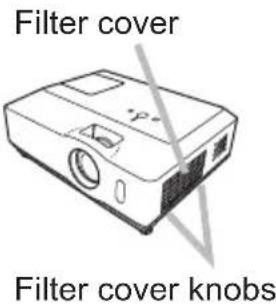
Filter unit
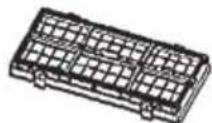
Filter frame
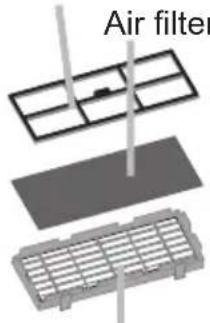
Filter cover
(continued on next page)
Cleaning and replacing the air filter (continued)
9. Turn the projector on and reset the filter time using the FILTER TIME item in the EASY MENU.
(1) Press the MENU button to display a menu.
(2) Point at the FILTER TIME using the ▼/▲ button, then press the ▶ button. A dialog will appear.
(3) Press the ▲ button to select RESET on the dialog. It performs resetting the filter time.
⚠ WARNING ▶ Before taking care of the air filter, make sure the power switch is off and the power cable is not plugged in, then allow the projector to cool sufficiently. Taking care of the air filter in a high temperature state of the projector could cause an electric shock, a burn or malfunction to the projector.
▶ Use only the air filter of the specified type. Do not use the projector without the air filter or the filter cover. It could result in a fire or malfunction to the projector.
▶ Clean the air filter periodically. If the air filter becomes clogged by dust or the like, internal temperatures rise and could cause a fire, a burn or malfunction to the projector.
NOTE • Please replace the air filter when it is damaged or too soiled.
- When you replace the projection lamp, please replace the air filter. An air filter of specified type will come together with a replacement lamp for this projector.
- Please reset the filter time only when you have cleaned or replaced the air filter, for a suitable indication about the air filter.
- The projector may display the message such as “CHECK THE AIR FLOW” or turn off the projector, to prevent the internal heat level rising.
Replacing the internal clock battery
Consumption of the battery makes the internal clock not to work correctly. When the internal clock is wrong or it has stopped, please replace the battery according to the following procedures.
- Turn the projector off, and unplug the power cord. Allow the projector to cool sufficiently.
- After making sure that the projector has cooled adequately, pull the SD card slot cover forward, pushing slightly its edge up, and remove it from the projector.
- Remove the battery case.
Hold the battery case gutter by finger nail or other thing and pull out the battery case slowly from the battery slot. While the projector is installed upside down, such as a ceiling mount, please remember the battery will drop down as soon as pulling the battery case out.
4 Take the old battery out from the battery case. - Replace a new battery. Replace battery with HITACHI MAXELL, Part No.CR2032 only. Use of another battery may present a risk of fire or explosion.
Put a new battery into battery case. Please make sure that the + is facing upward. Insert the battery case slowly into the battery slot until you hear the snap.
- Close the slot cover. Replace the SD card slot cover by reversing the procedure used when removing the cover.
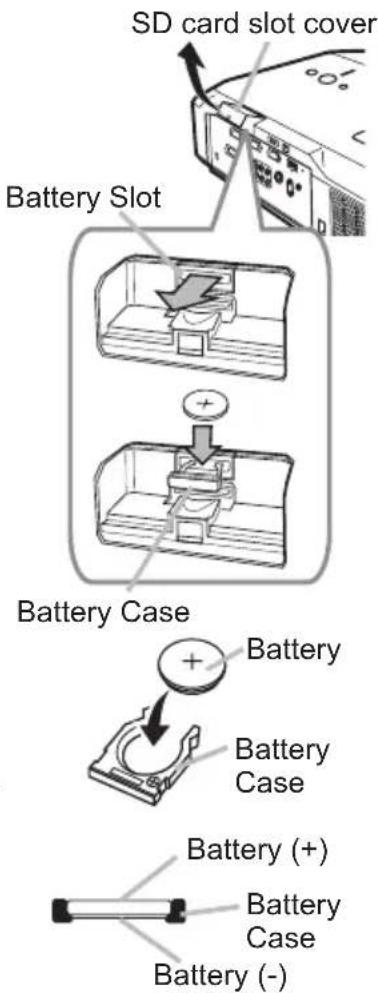
⚠ WARNING ▶Always handle the batteries with care and use them only as directed.
Battery may explode if mistreated. Do not recharge, disassemble or dispose of in fire. And also improper use may result in cracking or leakage, which could result in fire, injury and/or pollution of the surrounding environment.
- Be sure to use only the batteries specified.
- Make sure the plus and minus terminals are correctly aligned when loading a battery.
- Keep a battery away from children and pets. If swallowed consult a physician immediately for emergency treatment.
- Do not short circuit or solder a battery.
- Do not allow a battery in a fire or water. Keep batteries in a dark, cool and dry place.
- If you observe battery leakage, wipe out the leakage and then replace a battery. If the leakage adheres to your body or clothes, rinse well with water immediately.
- Obey the local laws on disposing the battery.
NOTE • The internal clock's time will be reset when the battery is removed.
Please reconfigure the time via the menu or a web browser after replacing the battery.

Date/Time Settings in the User's Manual (detailed) - Network Guide)
Other care
Inside of the projector
In order to ensure the safe use of your projector, please have it cleaned and inspected by your dealer about once every year.
Caring for the lens
If the lens is flawed, soiled or fogged, it could cause deterioration of display quality. Please take care of the lens, being cautious of handling.
- Turn the projector off, and unplug the power cord. Allow the projector to cool sufficiently.
- After making sure that the projector is cool adequately, lightly wipe the lens with a commercially available lens-cleaning wipe. Do not touch the lens directly with your hand.
Caring for the cabinet and remote control
Incorrect care could have adverse influence such as discoloration, peeling paint, etc.
- Turn the projector off, and unplug the power cord. Allow the projector to cool sufficiently.
- After making sure that the projector is cool adequately, lightly wipe with gauze or a soft cloth.
If the projector is extremely dirty, dip soft cloth in water or a neutral cleaner diluted in water, and wipe lightly after wringing well. Then, wipe lightly with a soft, dry cloth.
⚠ WARNING ▶ Before caring, make sure the power cord is not plugged in, and then allow the projector to cool sufficiently. The care in a high temperature state of the projector could cause a burn and/or malfunction to the projector.
▶ Never try to care for the inside of the projector personally. Doing is so dangerous.
▶ Avoid wetting the projector or inserting liquids in the projector. It could result in a fire, an electric shock, and/or malfunction to the projector.
- Do not put anything containing water, cleaners or chemicals near the projector.
- Do not use aerosols or sprays.
⚠️ CAUTION ▶ Please take right care of the projector according to the following. Incorrect care could cause not only an injury but adverse influence such as discoloration, peeling paint, etc.
▶ Do not use cleaners or chemicals other than those specified in this manual.
▶ Do not polish or wipe with hard objects.
Troubleshooting
If an abnormal operation should occur, stop using the projector immediately.
⚠ WARNING ▶ Never use the projector if abnormal operations such as smoke, strange odor, excessive sound, damaged casing or elements or cables, penetration of liquids or foreign matter, etc. should occur. In such cases, immediately turn off the power switch and then disconnect the power plug from the power outlet. After making sure that the smoke or odor has stopped, contact to your dealer or service company.
Otherwise if a problem occurs with the projector, the following checks and measures are recommended before requesting repair.
If this does not resolve the problem, please contact your dealer or service company. They will tell you what warranty condition is applied.
Related messages
When some message appears, check and cope with it according to the following table. Although these messages will be automatically disappeared around several minutes, it will be reappeared every time the power is turned on.
| Message Description | |
| NO INPUT IS DETECTED*** | There is no input signal.Please confirm the signal input connection, and the status of the signal source. |
| SYNC IS OUT OF RANGE***fH **kHz fV **Hz | The horizontal or vertical frequency of the input signal is not within the specified range.Please confirm the specs for your projector or the signal source specs. |
| CHECK THE AIR FLOW | The internal temperature is rising.Please turn the power off, and allow the projector to cool down at least 20 minutes. After having confirmed the following items, please turn the power ON again.Is there blockage of the air passage aperture?Is the air filter dirty?Does the peripheral temperature exceed 35°C?If the same indication is displayed after the remedy, please set FAN SPEED of the SERVICE item in the OPTION menu to HIGH. |
| REMINDER*** HRS PASSED AFTER THE LAST FILTER CHECK.FILTER MAINTENANCE IS ESSENTIAL TO REMOVE WARNING MESSAGE, RESET FILTER TIMER.SEE MANUAL FURTHER INFO. | A note of precaution when cleaning the air filter.Please immediately turn the power off, and clean or change the air filter referring to the “Air filter” section of this manual. After you have cleaned or changed the air filter, please be sure to reset the filter timer (66). |
Regarding the indicator lamps
When operation of the LAMP, TEMP and POWER indicators differs from usual, check and cope with it according to the following table.
| POWER indicator | LAMP indicator | TEMP indicator | Description |
| Lighting In Orange | Turned off | Turned off | The projector is in a standby state.Please refer to the section “Power on/off”. |
| Blinking In Green | Turned off | Turned off | The projector is warming up.Please wait. |
| Lighting In Green | Turned off | Turned off | The projector is in an on state.Ordinary operations may be performed. |
| Blinking In Orange | Turned off | Turned off | The projector is cooling down.Please wait. |
| Blinking In Red | (discretionary) | (discretionary) | The projector is cooling down. A certain error has been detected.Please wait until POWER indicator finishes blinking, and then perform the proper measure using the item descriptions below. |
| Blinking In Red or Lighting In Red | Lighting In Red | Turned off | The lamp does not light, and there is a possibility that interior portion has become heated.Please turn the power off, and allow the projector to cool down at least 20 minutes. After the projector has sufficiently cooled down, please make confirmation of the following items, and then turn the power on again.Is there blockage of the air passage aperture?Is the air filter dirty?Does the peripheral temperature exceed 35°C?If the same indication is displayed after the remedy, please change the lamp referring to the section “Lamp”. |
| Blinking In Red or Lighting In Red | Blinking In Red | Turned off | The lamp cover has not been properly fixed.Please turn the power off, and allow the projector to cool down at least 45 minutes. After the projector has sufficiently cooled down, please make confirmation of the attachment state of the lamp cover. After performing any needed maintenance, turn the power on again.If the same indication is displayed after the remedy, please contact your dealer or service company. |
| Blinking In Red or Lighting In Red | Turned off | Blinking In Red | The cooling fan is not operating.Please turn the power off, and allow the projector to cool down at least 20 minutes. After the projector has sufficiently cooled down, please make confirmation that no foreign matter has become caught in the fan, etc., and then turn the power on again.If the same indication is displayed after the remedy, please contact your dealer or service company. |
| Blinking In Red or Lighting In Red | Turned off | Lighting In Red | There is a possibility that the interior portion has become heated.Please turn the power off, and allow the projector to cool down at least 20 minutes. After the projector has sufficiently cooled down, please make confirmation of the following items, and then turn the power on again.Is there blockage of the air passage aperture?Is the air filter dirty?Does the peripheral temperature exceed 35°C?If the same indication is displayed after the remedy, please set FAN SPEED of SERVICE item in OPTION menu to HIGH (45). |
| Lighting In Green | Simultaneous blinking in Red | It is time to clean the air filter.Please immediately turn the power off, and clean or change the air filter referring to the section “Air Filter”. After cleaning or changing the air filter, please be sure to reset the filter timer. After the remedy, reset the power to ON. | |
| Lighting In Green | Alternative blinking in Red | There is a possibility that the interior portion has become overcooled.Please use the unit within the usage temperature parameters (5°C to 35°C).After the treatment, reset the power to ON. | |
| Blinking in Green for approx. 3 seconds | Turned off | Turned off | At least 1 Power ON schedule is saved to the projector.Please refer to “Schedule Settings” section of User’s Manual-Network Guide. |
NOTE • When the interior portion has become overheated, for safety purposes, the projector is automatically shut down, and the indicator lamps may also be turned off. In such a case, disconnect the power cord, and wait at least 45 minutes. After the projector has sufficiently cooled down, please make confirmation of the attachment state of the lamp and lamp cover, and then turn the power on again.
Shutting the projector down
Only when the projector can not be turned off by usual procedure (16), please push the shutdown switch using a pin or similar, and disconnect the power plug from the power outlet. Before turning it on again, wait at least 10 minutes to make the projector cool down enough.
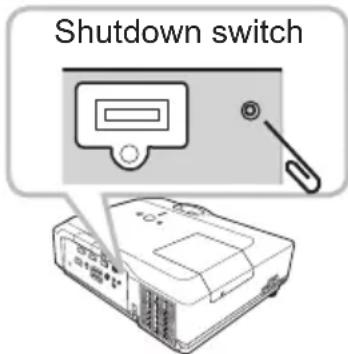
Resetting all settings
When it is hard to correct some wrong settings, the FACTORY RESET function of SERVICE item in OPTION menu (46) can reset all settings(except LANGUAGE, FILTER TIME, LAMP TIME, FILTER MESSAGE, MIU settings and etc.) to the factory default.
Phenomena that may be easy to be mistaken for machine defects About the phenomenon confused with a machine defect, check and cope with it according to the following table.
| Phenomenon Cases not involving a machine defect | Reference page | |
| Power does not come on. | The electrical power cord is not plugged in.Correctly connect the power cord. | 13 |
| The main power source has been interrupted during operation such as by a power outage (blackout), etc.Please disconnect the power plug from the power outlet, and allow the projector to cool down at least 10 minutes, then turn the power on again. | 13, 16 | |
| Either there is no lamp and/or lamp cover, or either of these has not been properly fixed.Please turn the power off and disconnect the power plug from the power outlet, and allow the projector to cool down at least 45 minutes. After the projector has sufficiently cooled down, please make confirmation of the attachment state of the lamp and lamp cover, and then turn the power on again. | 64, 65 | |
| Neither sounds nor pictures are outputted. | The signal cables are not correctly connected.Correctly connect the connection cables. | 9 |
| Signal source does not correctly work.Correctly set up the signal source device by referring to the manual of the source device. | - | |
| The input changeover settings are mismatched.Select the input signal, and correct the settings. | 17, 18 | |
| The BLANK function for pictures and the MUTE function for sounds are working.AV Mute may be active. Refer to the item “Sound does not come out” and “No pictures are displayed” on the next page to turn off the MUTE and BLANK functions. | 17, 22 | |
| Sound does not come out. | The signal cables are not correctly connected. Correctly connect the audio cables. | 9 |
| The MUTE function is working. Restore the sound pressing MUTE or VOLUME button on the remote control. | 17 | |
| The volume is adjusted to an extremely low level. Adjust the volume to a higher level using the menu function or the remote control. | 17 | |
| The AUDIO/SPEAKER setting is not correct. Correctly set the AUDIO/SPEAKER in SETUP menu. | 36, 37 | |
| The audio on your HDMI equipment is not set to Linear PCM. The HDMI input on this projector supports Linear PCM audio only. Check the audio setting on your HDMI equipment. | 11 | |
| The audio on the HDMI input is muted. Change the audio setting in the AUDIO menu. | 37 | |
| The digital audio in HDMI signal does not work well. Use the analogue audio, connecting either an RCA audio cable or stereo mini cable. | 9 | |
| No pictures are displayed. | The lens cover is attached. Remove the lens cover. | 4, 16 |
| The signal cables are not correctly connected. Correctly connect the connection cables. | 9 | |
| The brightness is adjusted to an extremely low level. Adjust BRIGHTNESS to a higher level using the menu function. | 26, 27 | |
| The computer cannot detect the projector as a plug and play monitor. Make sure that the computer can detect a plug and play monitor using another plug and play monitor. | 11 | |
| The BLANK screen is displayed. Press BLANK button on the remote control. | 22 | |
| No pictures or disturbed pictures are displayed on HDMI input | The HDMI cable is not correctly connected. Correctly connect the HDMI cable. | 9 |
| Your HDMI equipment is not compatible with the projector This projector can be connected with another equipment that has HDMI or DVI connector, but with some equipment the projector may not work properly. | 11 | |
| Your HDMI equipment and the projector are not harmonized. Turn off the both equipment, and turn on them again | - | |
| The signal format on the HDMI is not supported. Check the video setting on your HDMI equipment. | 11 | |
| Video screen display freezes. | The FREEZE function is working. Press FREEZE button to restore the screen to normal. | 22 |
| Colors have a faded-out appearance, or Color tone is poor. | Color settings are not correctly adjusted. Perform picture adjustments by changing the COLOR TEMP, COLOR, TINT and/or COLOR SPACE settings, using the menu functions. | 26, 28, 32 |
| COLOR SPACE setting is not suitable. Change the COLOR SPACE setting to AUTO, RGB, SMPTE240, REC709 or REC601. | 32 | |
| Pictures appear dark. | The brightness and/or contrast are adjusted to an extremely low level. Adjust BRIGHTNESS and/or CONTRAST settings to a higher level using the menu function. | 26, 27 |
| The WHISPER function is working. Select NORMAL for WHISPER item in the SETUP menu. | 26, 36 | |
| The lamp is approaching the end of its product lifetime. Replace the lamp. | 64, 65 | |
| Pictures appear blurry. | Either the focus and/or horizontal phase settings are not properly adjusted. Adjust the focus using the focus ring, and/or H PHASE using the menu function. | 19, 31 |
| The lens is dirty or misty. Clean the lens referring to the section “Caring for the lens”. | 68 | |
NOTE • Although bright spots or dark spots may appear on the screen, this is a unique characteristic of liquid crystal displays, and it does not constitute or imply a machine defect.
Specifications
Specifications
| Item Specifications | |||
| Product name Liquid crystal projector | |||
| Liquid Crystal Panel | Panel size 1.6 cm (0.63 type) | ||
| Drive system TFT active matrix | |||
| Pixels 786,432 pixels (1024 horizontal x 768 vertical) | |||
| Lens Zoom lens F=1.6 ~ 1.8 f = 18.9~ 22.6 mm (approximately) | |||
| Lamp 220W UHB | |||
| Audio output 7 W | |||
| Power supply AC 100-120V/3 .8A, AC220-240V/1.6A | |||
| Power consumption 350W | |||
| Temperature range 5 ~ 35°C (Operating) | |||
| Size | 340 (W) x 117 (H) x 270 (D) mm *Excluding protrusionsPlease refer to the following figure. | ||
| Weight (mass) approx. 4.0 kg | |||
| Ports | Computer input portCOMPUTER IN1......D-sub 15 pin mini x1COMPUTER IN2......D-sub 15 pin mini x1Computer output portMONITOR OUT......D-sub 15 pin mini x1Video input portCOMPONENT (Y, Cb/Pb, Cr/Pr)...... RCA x3S-VIDEO ...... mini DIN 4 pin x1VIDEO ...... RCA x1 | HDMI input portHDMI ......HDMI connector x1Audio input/output portAUDIO IN1 ...... Stereo mini x1AUDIO IN2 ...... Stereo mini x1AUDIO IN3 ...... RCA x2AUDIO OUT ...... Stereo mini x1OthersUSB STORAGE ......USB-A x1SD card ......SD card slot x1USB ......USB-B x1CONTROL ...... D-sub 9 pin x1LAN ...... RJ45 x1 | |
| Optional parts | Lamp: DT00841Air filter: MU04951Wireless network card: VA08331* For more information, contact to your dealer. | ||
Specifications (continued)
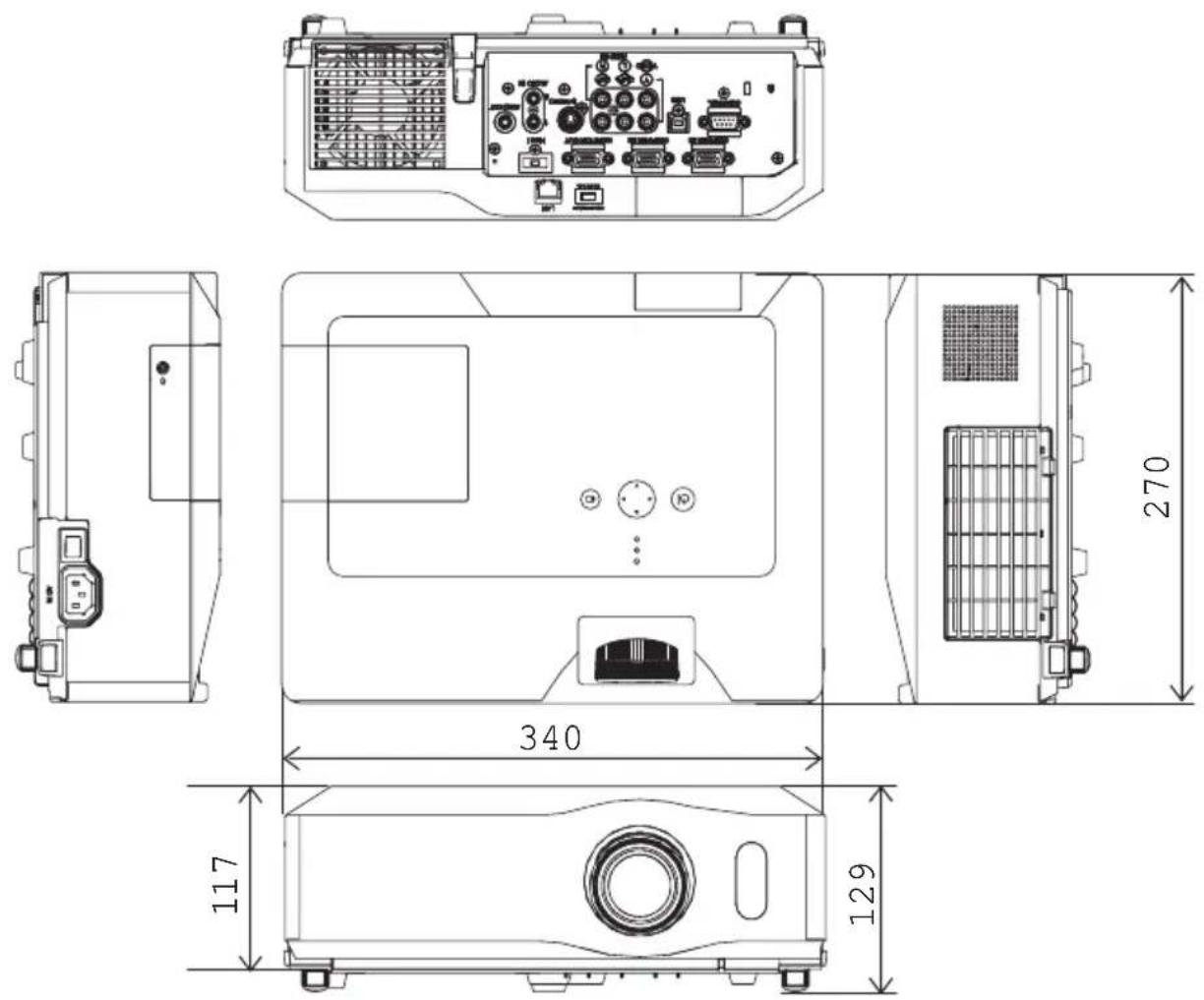
[unit: mm]
- About this manual
- Trademark acknowledgment
- Contents
- Projector features
- Preparations
- Contents of package
- Fastening the lens cover
- Part names
- Projector
- Control panel
- Rear panel
- Remote control
- Setting up
- Arrangement
- Arrangement (continued)
- Connecting your devices
- Connecting your devices (continued)
- About Plug-and-Play capability
- NOTE for HDMI
- Using a USB storage
- Using an SD card
- Inserting the SD card
- Using the slot cover lock for security
- Removing the SD card
- Connecting power supply
- Using the security bar and slot
- Putting batteries
- About the remote control signal
- Changing the frequency of remote control signal
- Using as a simple PC mouse & keyboard
- Power on/off
- Turning on the power
- Turning off the power
- Operating
- Adjusting the volume
- Temporarily muting the sound
- Selecting an input signal
- Selecting an input signal (continued)
- Press VIDEO button on the remote control.
- Searching an input signal
- Press SEARCH button on the remote control.
- Selecting an aspect ratio
- Press ASPECT button on the remote control.
- ○ For a computer signal or MIU signal
- ○ For a HDMI signal
- For a video signal, s-video signal or component video signal
- ○ For no signal
- Adjusting the projector's elevator
- Adjusting the zoom and focus
- Using the automatic adjustment feature
- Adjusting the position
- Correcting the keystone distortions
- Using the magnify feature
- Freezing the screen
- Press the FREEZE button on the remote control.
- Temporarily blanking the screen
- Press BLANK button on the remote control.
- Using the menu function
- In the EASY MENU
- Using the menu function (continued)
- In the Advanced Menu
- EASY MENU
- PICTURE menu
- PICTURE menu (continued)
- IMAGE menu
- INPUT menu
- INPUT menu (continued)
- SETUP menu
- SETUP menu (continued)
- SCREEN menu
- SCREEN menu (continued)
- OPTION menu
- Using Security Features
- Inputting the PASSWORD
- Changing the PASSWORD
- OPTION menu (continued)
- MIU menu
- C.C. (Closed Caption) menu
- Maintenance
- Replacing the lamp
- Type number : DT00841
- In case of replacement by yourself, follow the following procedure.
- ⚠️ CAUTION ▶ Do not touch any inner space of the projector, while the lamp is taken out.
- Replacing the lamp (continued)
- Lamp warning
- HIGH VOLTAGE
- HIGH TEMPERATURE
- HIGH PRESSURE
- Cleaning and replacing the air filter
- Type number : MU04951
- Cleaning and replacing the air filter (continued)
- Turn the projector on and reset the filter time using the FILTER TIME item in the EASY MENU.
- Replacing the internal clock battery
- Other care
- Inside of the projector
- Caring for the lens
- Caring for the cabinet and remote control
- Troubleshooting
- Related messages
- Regarding the indicator lamps
- Shutting the projector down
- Resetting all settings
- Specifications
Brand : HITACHI
Model : CP-X417
Category : Video projector