
SVAV30U - Mp3 player PANASONIC - Free user manual and instructions
Find the device manual for free SVAV30U PANASONIC in PDF.


| Brand | Panasonic |
| Model | SVAV30U |
| Product Type | Portable MP3 player |
| Dimensions (L x W x H) | Approximately 9.5 x 5.5 x 1.5 cm |
| Weight | Approximately 60 g (without batteries) |
| Power Source | Built-in rechargeable Li-ion battery |
| Storage Capacity | Internal memory (capacity not specified, estimated 2 GB) |
| Supported Audio Formats | MP3, WMA, AAC |
| Main Functions | Play, pause, track skip, repeat, shuffle, equalizer |
| Display | Backlit LCD screen |
| Connectivity | USB 2.0 port for file transfer and charging |
| FM Radio | Yes, with station memory |
| Voice Recording | Yes, via built-in microphone |
| Battery Life | Approximately 20 hours of MP3 playback |
| Included Accessories | Earphones, USB cable, carrying case (VFC3972) |
| Care and Cleaning | Wipe with a soft, dry cloth. Do not use solvents. |
| Safety | Do not expose to moisture or extreme temperatures. Use only the supplied charger. |
| Repairability | Battery not user-replaceable. Contact Panasonic customer service for repairs. |
| General Information | Manual available in PDF at notice-facile.com |
Frequently Asked Questions - SVAV30U PANASONIC
User questions about SVAV30U PANASONIC
0 question about this device. Answer the ones you know or ask your own.
Ask a new question about this device
Download the instructions for your Mp3 player in PDF format for free! Find your manual SVAV30U - PANASONIC and take your electronic device back in hand. On this page are published all the documents necessary for the use of your device. SVAV30U by PANASONIC.
USER MANUAL SVAV30U PANASONIC
natural_image
Pure geometric diagram with intersecting lines and circles, no text or symbols presentPanasonic®
SD Multi AV Device Operating Instructions
Model No. SV-AV30U
natural_image
Black-and-white architectural collage featuring cherry blossoms and a beach scene, no visible text or symbolsBefore use, please read these instructions completely.
For USA assistance. please call:1-800-211-PANA(7262) or send e-mail to:consumerproducts@panasonic.com
For Canadian assistance. please call:1-800-561-5505 or visit us at www.panasonic.ca
VQT0C31-1
natural_image
Pure geometric diagram with intersecting lines and circles, no text or symbols presentBefore opening the CD-ROM package, please read the following.
End User License Agreement
You (“Licensee”) are granted a license for the Software defined in this End User License Agreement (“Agreement”) on condition that you agree to the terms and conditions of this Agreement. If Licensee does not agree to the terms and conditions of this Agreement, promptly return the Software to Matsushita Electric Industrial Co., Ltd. (“Matsushita”), its distributors or dealers from which you made the purchase.
Article 1 License
Licensee is granted the right to use the Software, including the information recorded or described on the CD-ROM, instruction manuals, and any other media provided to Licensee (collectively “Software”), but all applicable rights to patents, copyrights, trademarks and trade secrets in the Software are not transferred to Licensee.
Article 2 Use by a Third Party
Licensee may not use, copy, modify, transfer or allow any third party, whether free of charge or not, to use, copy or modify the Software, except as expressly provided for in this Agreement.
Article 3 Restrictions on Copying the Software
Licensee may make a single copy of the Software in whole or a part solely for back-up purpose.
Article 4 Computer
Licensee may use the Software only on one computer, and may not use it on more than one computer.
Article 5 Reverse Engineering, Decompiling or Disassembly
Licensee may not reverse engineer, decompile, or disassemble the Software, except to the extent either of them is permitted under law or regulation of the country where Licensee resides. Matsushita, or its distributors will not be responsible for any defects in the Software or damage to Licensee caused by Licensee's reverse engineering, decompiling, or disassembly of the Software.
Article 6 Indemnification
The Software is provided “AS-IS” without warranty of any kind, either expressed or implied, including, but not limited to, warranties of non-infringement, merchantability and/or fitness for a particular purpose. Further, Matsushita does not warrant that the operation of the Software will be uninterrupted or error free. Matsushita or any of its distributors will not be liable for any damage suffered by Licensee arising from or in connection with Licensee’s use of the Software.
Article 7 Export Control
Licensee agrees not to export or re-export to any country the Software in any form without the appropriate export licenses under regulations of the country where Licensee resides, if necessary.
Article 8 Termination of License
The right granted to Licensee hereunder will be automatically terminated if Licensee contravenes any of the terms and conditions of this Agreement. Upon termination hereof, Licensee must destroy the Software and related documentation together with all the copies thereof at Licensee's own expense.
natural_image
Pure geometric diagram with intersecting lines and shaded circles, no text or symbols present
natural_image
Pure geometric diagram with intersecting lines and shapes, no text or symbols present
Contents
End User License Agreement......2
Information for Your Safety ...... 4
Introduction 7
Preparation
Standard Accessories......8
Optional Accessory 8
Controls and Components ...... 9
Power Supply...... 10
Inserting a Memory Card ...... 11
Using the LCD Monitor 12
Using the Remote Controller/ Earphone 12
Turning the Power On/Selecting Operation Modes 13
Using the Menu Screen 14
List of Menus 15
Setting Date and Time 17
Setting the Power Supply Frequency.... 18
Adjusting Brightness and Color Level on the LCD Monitor .... 19
Basic Functions
Recording Still Pictures....20
Playing back Still Pictures...... 21
Recording Moving Pictures (MPEG4)....22
Playing Back Moving Pictures (MPEG4)....23
Recording Voice (Voice Recording Function) ...... 24
Hearing the Voice Recorded (Voice Playback) 25
Listening to Music (Music Playback) 26
Adjusting the Volume 27
Advanced Functions
Backlight Compensation Function ......28
Adjusting White Balance .....28
Erasing the Files Recorded on a Memory Card 29
Protecting files (File Protection)....30
Writing Printing Data on a Memory Card (DPOF Setting)....31
Playing back still pictures one by one (P.Slide Show)....32
Formatting the Memory Card ..... 33
Using the AV Cradle
Fitting on the AV Cradle 35
Playing Back on an external device....36
Useful Connection (AV Cradle always connected) .....37
Recording pictures supplied from an external device....38
Using Auto Recording Function ....39
On a Personal Computer
About the supplied software......40
USB Driver 41
SD-MovieStage 42
SD-Jukebox....43
Installing USB Driver....44 Installing
SD-MovieStage Ver.2.0......44
Installing SD-Jukebox Ver.3.0 .....45
Connecting with the PC......46
Starting the Software....46


natural_image
Pure geometric diagram with intersecting lines and a circular pattern, no text or symbols presentDisconnecting the USB Cable safely....47 If you no longer need software (Uninstall)....47 Constructing a Folder when the Memory Card is used with a PC....48
Others
Charge the built-in battery for maintaining the date information ....49 After Use ....49 Indications ....50 Notes & Precautions....52 Notes and Hints....55 Before Requesting Service....64 Specifications....67 Limited Warranty (For U.S.A. Only)....68 Customer Services Directory (For U.S.A. Only)....70
Dear Customer, We would like to take this opportunity to thank you for purchasing this Panasonic SD Multi AV Device. Please read these Operating Instructions carefully and keep them handy for future reference.
Information for Your Safety
WARNING TO REDUCE THE RISK OF FIRE OR SHOCK HAZARD AND ANNOYING INTERFERENCE, USE ONLY THE RECOMMENDED ACCESSORIES AND DO NOT EXPOSE THIS EQUIPMENT TO RAIN OR MOISTURE. DO NOT REMOVE THE COVER (OR BACK); THERE ARE NOT USER SERVICEABLE PARTS INSIDE. REFER SERVICING TO QUALIFIED SERVICE PERSONNEL.
Notice: This product has parts that contain a small amount of mercury. It also contains lead in some components. Disposal of these materials may be regulated in your community due to environmental considerations. For disposal or recycling information please contact your local authorities, or the Electronics Industries Alliance: http://www.eiae.org.
IMPORTANT Please respect all copyrights. Whatever you have recorded and created can be used for your personal entertainment only. Under copyright laws, other materials cannot be used without obtaining permission from the holders of the copyrights.
- Injury or material damage resulting from any kind of use that is not in accordance with the operating Instructions are the sole responsibility of the user.
Extremely high precision technology is employed to produce the LCD Monitor screen featuring a total of approximately 200,000 pixels. The result is more than 99.99% effective pixels with a mere 0.01% of the pixels inactive or always lit. However, this is not a malfunction and does not affect the recorded picture.
- If the SD Multi AV Device is used continuously for a long time or used at a high ambient temperature, red, blue, green or white dots may appear on the screen and be recorded on a still picture. This is due to the rise of the temperature inside the body. This is caused by a characteristic of the C-MOS sensor and is not a failure. Under this condition, turn the SD Multi AV Device off and leave it for a while.
-
The manufacturer shall in no event be liable for the loss of recordings due to malfunction or defect of this SD Multi AV Device, its accessories or Memory Card.
-
Please note that the actual controls and components, menu items, etc. of your SD Multi AV Device may look somewhat different from those shown in the illustrations in these Operating Instructions.
- SD : SD logo is a trademark.
- The SD Multi AV Device uses copyright-protected technologies and is protected by the patented technologies and intellectual properties of Japan and the U.S. To use these copyright-protected technologies, authorization of the Macrovision Company is required. It is prohibited to disassemble or modify the SD Multi AV Device.
- (→ 00) indicates the page to be referred to.
- Note that the SD Multi AV Device may not play back the data recorded or created on another product and another product may not play back the data recorded on the SD Multi AV Device.
- The nameplate of the SD Multi AV Device is fixed on the bottom of the battery compartment.
- MPEG Layer-3 audio decoding technology licensed from Fraunhofer IIS and Thomson multimedia.
ENGLISH


A lithium ion/polymer battery that is recyclable powers the product you have purchased. Please call 1-800-8-BATTERY for information on how to recycle this battery.
natural_image
Pure geometric diagram with intersecting lines and circles, no text or symbols present

AV30U book
6
FCC Note: (U.S. only)
This equipment has been tested and found to comply with the limits for a Class B digital device, pursuant to Part 15 of the FCC Rules. These limits are designed to provide reasonable protection against harmful interference in a residential installation. This equipment generates, uses, and can radiate radio frequency energy and, if not installed and used in accordance with the instructions, may cause harmful interference to radio communications. However, there is no guarantee that interference will not occur in a particular installation. If this equipment does cause harmful interference to radio or television reception, which can be determined by turning the equipment off and on, the user is encouraged to try to correct the interference by one or more of the following measures:
● Reorient or relocate the receiving antenna.
- Increase the separation between the equipment and receiver.
- Connect the equipment into an outlet on a circuit different from that to which the receiver is connected.
- Consult the dealer or an experienced radio/TV technician for help.
FCC Caution:
To assure continued compliance, follow the attached installation instructions and use only shielded interface cables with ferrite core when connecting to computer or peripheral devices.
Any changes or modifications not expressly approved by the party responsible for compliance could void the user's authority to operate this equipment.
Trade Name: Panasonic
Model No.: SV-AV30U
Responsible party: Matsushita Electric Corporation of America One Panasonic Way, Secaucus, NJ 07094
Support Contact: Panasonic Consumer Electronics Company 1-800-211-PANA(7262)
This device complies with Part 15 of the FCC Rules. Operation is subject to the following two conditions: (1) This device may not cause harmful interference, and (2) this device must accept any interference received, including interference that may cause undesired operation.
This Class B digital apparatus complies with Canadian ICES-003.
Panasonic
SV-AV30U

Tested To Comply With FCC Standards
FOR HOME OR OFFICE USE




natural_image
Pure geometric diagram with intersecting lines and circles, no text or symbols present

AV30U book
7
Introduction
This SD Multi AV Device can record MPEG4 moving pictures, still picture and voice data. Additionally, it can play back a high quality music file of the MPEG2-AAC and MP3 format (Records files with the supplied SD- Jukebox Ver.3.0). And using the viewer software, SD-MovieStage Ver.2.0 (supplied accessory), the MPEG4 moving picture data can be edited on the personal computer.
Clock setting
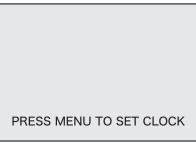
When you purchase the SD Multi AV Device, the clock setting has not been performed. To start, please set the year, month, date and time. ( 17)
■ Power supply frequency
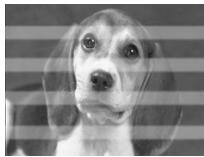
Under fluorescent lighting, horizontal stripes consisting of light and dark patterns may appear on the screen as illustrated below. To reduce the effect of the horizontal stripes, switch the power supply frequency to 50 Hz or 60 Hz. ( 18)
natural_image
Close-up of a beagle dog with large eyes and open mouth, wearing a striped background (no text or symbols visible)


natural_image
Pure geometric diagram with intersecting lines and a circular pattern, no text or symbols present7
Preparation
Standard Accessories
1 AC Adaptor (VSK0626) ( 10)
●Supplies power to the SD Multi AV Device.
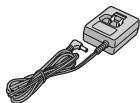
CAUTION:
This unit will operate on 110/120/220/240 V AC. An AC plug adaptor may be required for voltages other than 120 V AC. Please contact either a local or foreign electrical parts distributor for assistance in selecting an alternate AC plug. We recommend using the accessory power plug adaptor (VJSS0070) in an area which has special AC outlets.
2 Battery Pack (CGA-S301A1) ( 10)
● Supplies power to the SD Multi AV Device.
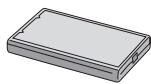
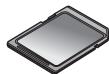
3 SD Memory Card (64 MB) (RP-SD064BVE0) ( 11)
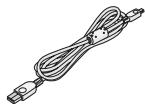
4 USB Cable (K2KZ4CB00002) ( 46)
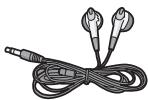
5 Stereo earphones (LOBAB0000173) ( 12)
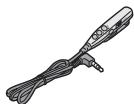
6 Remote Controller (N2QCBD000029) ( 12)
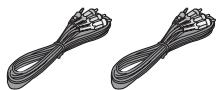
7 AV Cable (K2KC4CB00005) ( 36, 38)
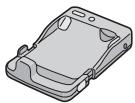
8 AV Cradle (VSK0628) ( 35)
9 CD-ROM (→ 40) USB Driver, SD-MovieStage Ver.2.0, SD-Jukebox Ver.3.0, Adobe Acrobat Reader (VFF0177)

- For using the SD-MovieStage Ver.2.0 and SD-Jukebox Ver.3.0, refer to the PDF manual. This manual describes installation only.
- Put the SD Multi AV Device in the Wearable Carry Case supplied after use or when carrying it.
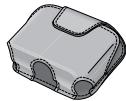
Optional Accessory
1 Battery Pack (CGA-S301) ( 10)
- Supplies power to the SD Multi AV Device.
Controls and Components
1 LCD Monitor ( 12)
2 Mode Button [MODE] ( 13)
3 Recording Start/Stop Button ( 20, 22, 24)
4 Menu Button [MENU] (→ 14)
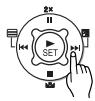
5 Multi-Function Button
Operating/Select Function
[◀◀/||/▶▶|/■/▶ SET] (→ 14, 21, 23, 25, 26)
Horizontal Stripes Reduction [≡] (→ 18)
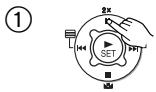
Double zoom [2×] (→ 20, 22)
Backlight Compensation [☐] (→ 28)
White Balance setting [△] (→ 28)
6 Card Access Lamp (→ 55)
7 Memory Card Slot ( 11)
8 DC Input Socket [DC IN 4.8V] ( 10)
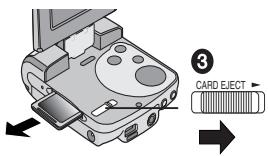
9 Card Eject Lever [CARD EJECT ▶] (→ 11)
10 Remote Controller/Earphone Terminal [Ω] (→ 12)
11 Volume Adjustment Button [-VOL+] (→ 27)
12 Speaker
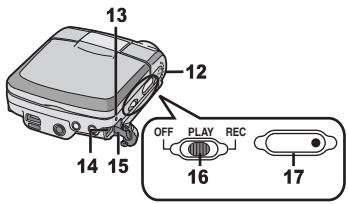
13 Power Lamp ( 10)
14 USB Terminal (→ 46)
15 USB Terminal Cover (→ 46)
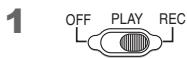
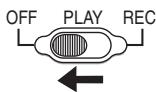
16 Power/Mode Switch [OFF/PLAY/REC] ( 13)
17 Recording Start/Stop Button ( 20, 22, 24, 57)
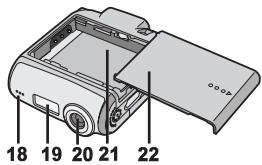
18 Microphone (built-in, monaural) (→ 24)
19 Flash (→ 20)
20 Lens (→ 53)
21 Battery Compartment (→ 10)
22 Battery Compartment Cover ( 10)
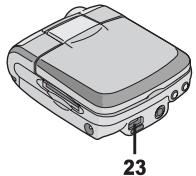
23 AV Cradle Connector (→ 35)
24 AV Output Control Switch [AV OUT/SD PLAY/LCD MONITOR] ( 36, 38)
25 AV Input Control Switch [AV IN→SD/AV IN→AV OUT] (→36, 37, 38)
26 Device Connector (→ 35)
27 AV Output Terminal [AV OUT] (→ 36)
28 AV Input Terminal [AV IN] ( 38)
29 Release Button [PUSH▶] (→ 35)
30 DC Input Socket [DC IN 4.8V] ( 35)

natural_image
Illustration of a computer case with labeled component '23' (no text or symbols beyond label)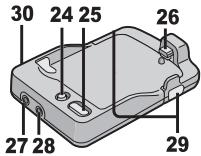
natural_image
Pure geometric diagram with intersecting lines and a circular pattern, no text or symbols present
Power Supply
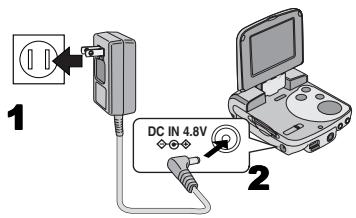
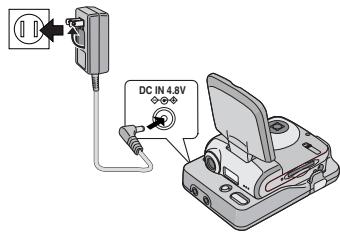
Using AC Adaptor
1 Connect the AC Adaptor to AC Main socket.
2 Connect the DC Input Lead to the [DC IN 4.8V] socket on the SD Multi AV Device.
THE SOCKET OUTLET SHALL BE INSTALLED NEAR THE EQUIPMENT AND SHALL BE EASILY ACCESSIBLE.
Charging the Battery
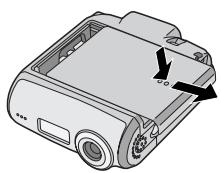
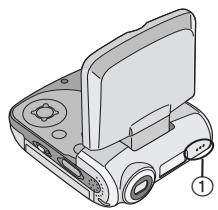
1 While holding the [ ○ ○ ○ ▷ ] part, slide it to remove the Battery Compartment Cover.
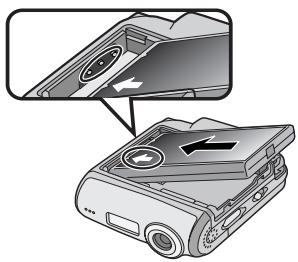
2 Press the terminals of the battery onto the terminals of the Battery Compartment and set the battery.
● Fit the battery with its label facing upward.
● After the battery is set, close the cover.
3 Connect the AC Adaptor to AC Main socket.
4 Connect the DC Input Lead to the [DC IN 4.8V] socket on the SD Multi AV Device.
● Power Lamp flashes, and Charging starts.
- When recharging, turn the power of the SD Multi AV Device off.
5 Wait until Power Lamp ① goes off.
- When recharging is completed, Power Lamp goes off.
- If the Power Lamp flashes quickly (or slowly) when recharging, recharging is not normal. (→ 55)
1
natural_image
3D rendering of a mechanical device with directional arrows indicating movement or force (no text or symbols)2
natural_image
Diagram showing a device with an open lid and a close-up view of its internal components (no text or symbols present)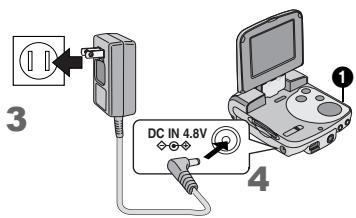
natural_image
Pure geometric diagram with intersecting lines and circles, no text or symbols present
natural_image
Pure geometric diagram with intersecting lines and circles, no text or symbols present

AV30U book
11
CAUTION
Danger of explosion if battery is incorrectly replaced.
Replace only with the same or equivalent type recommended by the manufacturer.
Dispose of used batteries according to the manufacturer's instructions.

Inserting a Memory Card
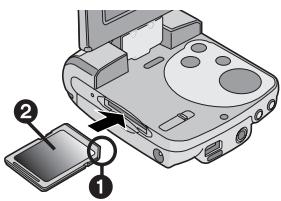
An SD Memory Card can be used for this SD Multi AV Device.
1 Hold the Memory Card placing the cut off corner ① at the front with the label ② facing up, and then insert it fully into the Memory Card Slot horizontally.
- Turn off the SD Multi AV Device before inserting a Card.
■ Removing the Memory Card
Slide the Card Eject Lever ⓣ to remove the Memory Card and pull it out.

1
natural_image
Pure geometric diagram with intersecting lines and shapes, no text or symbols present
Using the LCD Monitor
Record and play the video image while viewing the LCD Monitor.
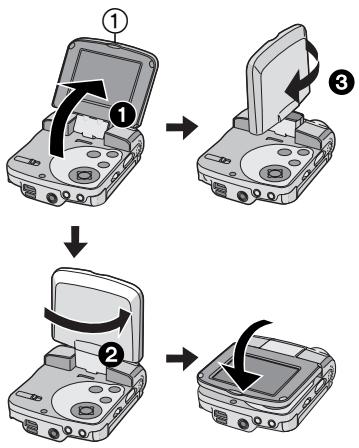
1 Put your finger on the groove ① to open the LCD Monitor.
2 Adjust the LCD Monitor angle according to the desired recording/playing angle.
- The LCD Monitor can rotate up to the angles illustrated.
① : Up to 120° maximum
② : Up to 180° maximum
③ : Up to 90° maximum

Using the Remote Controller/Earphone
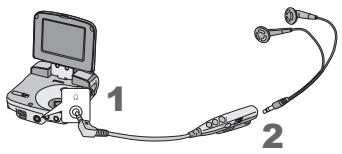
1 Connect the Remote Controller with the [Ω] terminal of the SD Multi AV Device.
2 Plug the Earphone terminal into the connected Remote Controller if necessary.
- The Earphone can be connected directly with the SD Multi AV Device.
1,2
flowchart
graph TD
    A["①"] --> B["②"]
    B --> C["③"]
    C --> D["④"]
natural_image
Diagram of a medical device with two labeled connectors (1 and 2), no text or symbols present.■ Operating the Remote Controller
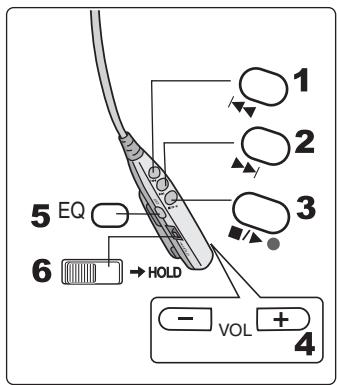
1 [◀◀]: Selects the next file or fast-rewinds the files.
2 [▶▶]l: Selects the previous file or fast-forwards the files.
3 [■/▶●]: Records/Stops recording images or sounds in the [REC] mode. Plays/Stops playing the file in the [PLAY] mode.
4 [-VOL+] : Adjusts the Volume.
5 [EQ]: Selects sound quality of the music files. ( 27)
6 [→HOLD]: Locks the button in the Remote Controller.
Turning the Power On/Selecting Operation Modes
Select a desired mode on the mode selection screen.
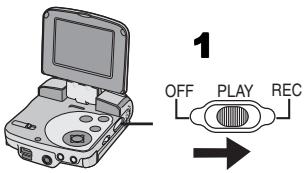
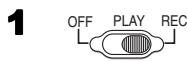
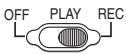
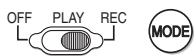
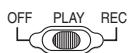
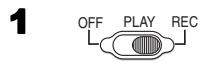
1 Set the Power/Mode Switch to [PLAY] or [REC].
● The SD Multi AV Device is turned on.
2 Set to [REC] to select Record Mode. Set to [PLAY] to select Play Mode.
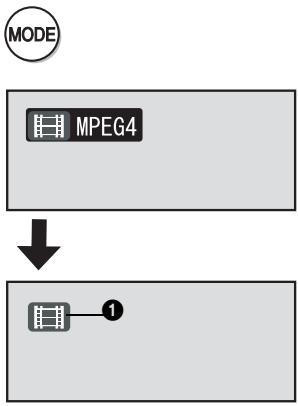
3 Press the [MODE] Button to select a Operation Mode.
- Every time the [MODE] Button is pressed, the Operation Mode changes as followed.
- After several seconds, only icons are displayed.
1
![[REC] mode [PICTURE]→[MPEG4]→[VOICE]→[PICTURE] [PLAY] mode [PICTURE]→[MPEG4]→[VOICE]→[MUSIC]→ [PICTURE]](/content/2019/11/105251/images/0b723b56455925624a3e1f3f6aea120c00fc8172598cb106f5847866dab93e88.jpg)
2

3
flowchart
graph TD
    A["MODE"] --> B["MPEG4"]
    B --> C["1"]
■ About the Operation Modes
Seven operation modes are provided as follows.
- Still picture (JPEG format still picture) record mode ( 20)
- Still picture (JPEG format still picture) play mode (→ 21)
- Moving picture (MPEG4 format) record mode ( 22)
- Moving picture (MPEG4 format) play mode (→ 23)
- Sound (VOICE format) record mode (→ 24)
- Sound (VOICE format) play mode (→ 25)
● Music (MPEG2-AAC/MP3 format) play mode ( 26)
13
natural_image
Pure geometric diagram with intersecting lines and shapes, no text or symbols present

AV30U book
14
Using the Menu Screen
Allows the functions usable in the selected mode to be set from the menu.
1 Select a desired mode. ( 13)
2 Press the [MENU] Button.
- The menu in the selected mode is displayed.
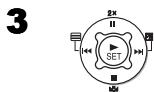
3 Press the UP/DOWN side of the Multi-function Button to select a desired item.
4 Press the [▶ SET] Button.
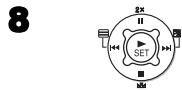
5 For selecting an item, press the UP/DOWN side of the Multi-function Button to select a desired item and then press the LEFT/RIGHT side to set the item. ① For conducting an item, press the UP/DOWN side of the Multi-function Button to select a desired item and then press the [▶ SET] Button. ②
6 Press the [MENU] Button.
- Menu screen disappears, and the selected item is now being set.
- Press the [MENU] Button when playing back the moving picture, still picture or sound to edit the file being played back.


1

2

3

4

5

6

natural_image
Pure geometric diagram with intersecting lines and circles, no text or symbols present

AV30U book
15
List of Menus
The figures of the Menus are for explanation purposes only, and they are different from the actual Menus.
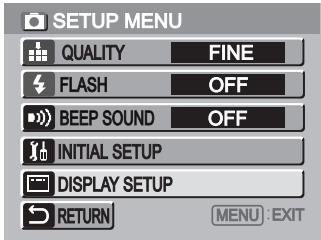
REC MODE
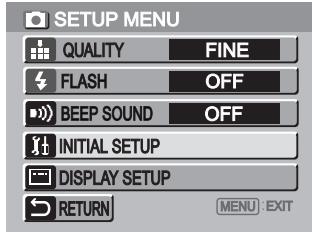
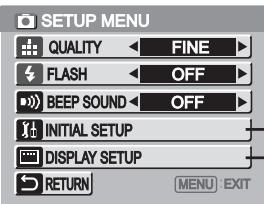
1 Still Picture Record Menu
Picture quality [QUALITY] ( 20)
Flash setting [FLASH] ( 20)
Beep sound [BEEP SOUND]
When it is set to [ON], beeps for confirmation or alarm.
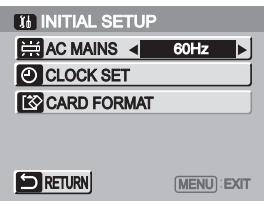
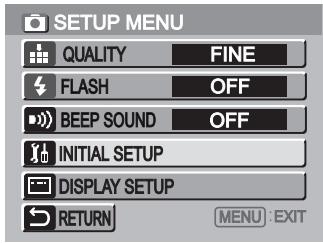
Initial setup [INITIAL SETUP] ①
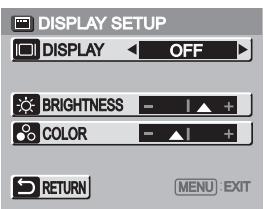
Display setup [DISPLAY SETUP] ②
Return to the previous screen [RETURN]
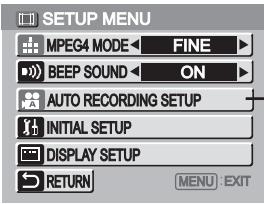
2 MPEG4 Moving Picture Record Menu
Moving picture quality [MPEG4 MODE] ( 22)
Beep sound [BEEP SOUND]
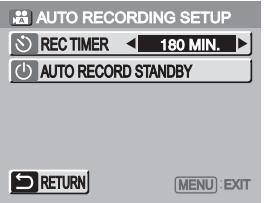
Auto recording setup [AUTO RECORDING SETUP] ③ ( 39)
Initial setup [INITIAL SETUP]
Display setup [DISPLAY SETUP]
Return to the previous screen [RETURN]
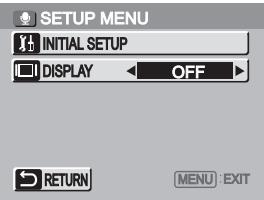
3 Voice Record Menu
Initial setup [INITIAL SETUP]
Display [DISPLAY]
When it is set to [ON], superimposed indications such as playback status and picture quality will be displayed.
Return to the previous screen [RETURN]
Sub-Menu for [REC] Mode
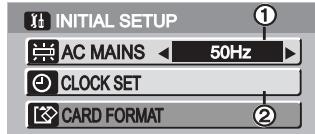
① Initial setup [INITIAL SETUP]
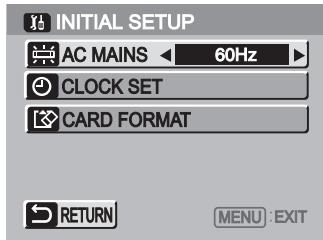
AC mains [AC MAINS] ( 18)
Clock setting [CLOCK SET] ( 17)
Card format [CARD FORMAT] (→ 33)
Return to the previous screen [RETURN]
② Display setup [DISPLAY SETUP]
Display [DISPLAY]
When it is set to [ON], superimposed indications such as playback status and picture quality will be displayed.
Brightness [BRIGHTNESS] ( 19)
Color level [COLOR] ( 19)
Return to the previous screen [RETURN]
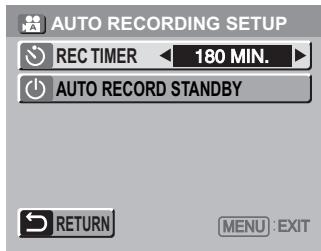
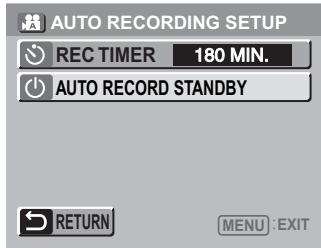
③ Auto recording setup [AUTO RECORDING SETUP]
Rec timer [REC TIMER] ( 39)
Auto record standby [AUTO RECORD STANDBY]
(→ 39)
Return to the previous screen [RETURN]
1
2
3
①
②
③
15
![PANASONIC SVAV30U - ③ Auto recording setup [AUTO RECORDING SETUP] - 8](/content/2019/11/105251/images/02585b7518a599c06753932f688a67e39e036207b7cd5eb351d468d42811d9dd.jpg)
![PANASONIC SVAV30U - ③ Auto recording setup [AUTO RECORDING SETUP] - 9](/content/2019/11/105251/images/dee9f84cac29359834ed38fc1351b87919ecb623779c2536071563aab66d191f.jpg)
![PANASONIC SVAV30U - ③ Auto recording setup [AUTO RECORDING SETUP] - 10](/content/2019/11/105251/images/40f9676c77266e3ba72dfb8ecff3b391b870ceb8ffc4972a1d261d7bba29e99a.jpg)
![PANASONIC SVAV30U - ③ Auto recording setup [AUTO RECORDING SETUP] - 11](/content/2019/11/105251/images/fcd2c0981b1fc655e42c27b8578b9213fcff210a7dfef72e6f795803f14f25ae.jpg)
![PANASONIC SVAV30U - ③ Auto recording setup [AUTO RECORDING SETUP] - 12](/content/2019/11/105251/images/d6dc68804ca8feca47cee968edd5668c2b010ca6ff1138586cf188ea871829ce.jpg)
AV30U book
16
PLAY MODE
1 Still Picture Playback Menu
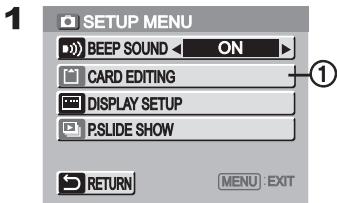
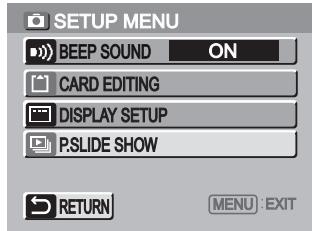
Beep sound setting [BEEP SOUND] (→ 15)
Card editing [CARD EDITING] ①
Display setup [DISPLAY SETUP] ( 15)
P.Slide show [P.SLIDE SHOW] ( 32)
Return to the previous screen [RETURN]
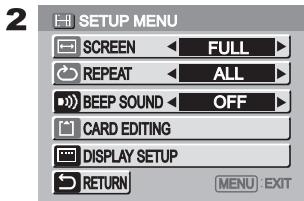
2 MPEG4 Moving Picture Playback Menu
Playback size [SCREEN] ( 23)
MPEG4 repeat [REPEAT] ( 23)
Beep sound [BEEP SOUND] ( 15)
Card editing [CARD EDITING]
Display setup [DISPLAY SETUP] ( 15)
Return to the previous screen [RETURN]
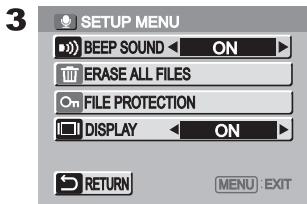
3 Voice Playback Menu
Beep sound [BEEP SOUND] ( 15)
Erase all files [ERASE ALL FILES] (→ 29)
File protection [FILE PROTECTION] ( 30)
Display [DISPLAY]
When it is set to [ON], superimposed indications such as playback status and picture quality will be displayed.
Return to the previous screen [RETURN]
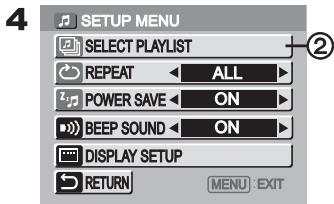
4 Music Playback Menu
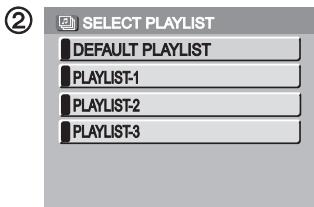
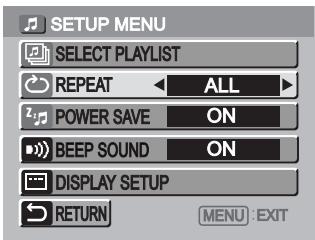
Select playlist [SELECT PLAYLIST] ② (→ 27) Music repeat [REPEAT] (→ 26)
Power save [POWER SAVE]
When it is set to [ON], the LCD Monitor is turned off in approx. 5 seconds after playing a music file.
Beep sound setting [BEEP SOUND] (→ 15)
Display setup [DISPLAY SETUP] ( 15)
Return to the previous screen [RETURN]
Sub-Menu for [PLAY] Mode
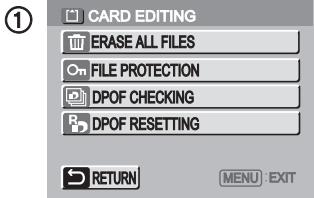
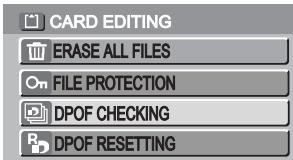
① Card Editing [CARD EDITING]
Erase all files [ERASE ALL FILES] (→ 29)
File protection [FILE PROTECTION] (→ 30)
DPOF check [DPOF CHECKING] (→ 31)
DPOF reset [DPOF RESETTING] ( 31)
Return to the previous screen [RETURN]
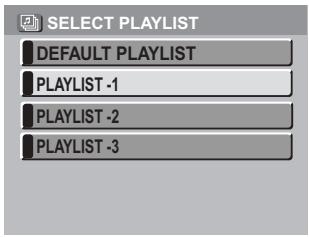
② Select Playlist [SELECT PLAYLIST]
Default playlist [DEFAULT PLAYLIST] (→ 27)
Playlist [PLAYLIST] ( 27)
![PANASONIC SVAV30U - Sub-Menu for [PLAY] Mode - 7](/content/2019/11/105251/images/1a62d5cf231fd36bcd452d08b13e447de7f4fabbe881bfdf5db17d57ac3e8cc8.jpg)
![PANASONIC SVAV30U - Sub-Menu for [PLAY] Mode - 8](/content/2019/11/105251/images/a92060da19a94cf2741b4a3abea1073d414df208f7bf297fde476b73d0adf08f.jpg)
![PANASONIC SVAV30U - Sub-Menu for [PLAY] Mode - 9](/content/2019/11/105251/images/890b89c39268cc743837c9efb04e08da306f49aa146fe678ae0bd8f988e298f6.jpg)
![PANASONIC SVAV30U - Sub-Menu for [PLAY] Mode - 10](/content/2019/11/105251/images/a226db9b6fab810d5263484745fc57b6c49357ba1b0b1d44b6b4c24fcd4f73a1.jpg)
natural_image
Pure geometric diagram with intersecting lines and circular shapes, no text or symbols present![PANASONIC SVAV30U - Sub-Menu for [PLAY] Mode - 11](/content/2019/11/105251/images/941c364218d73fbcf9e6f1d8cf286f01eda67114815dae46c35711ced14c4ba2.jpg)
![PANASONIC SVAV30U - Sub-Menu for [PLAY] Mode - 12](/content/2019/11/105251/images/32b202fd6cf25a2ce38240d6ebc1d569d04094e4c210326a3937f2d6b02b8d6d.jpg)
Setting Date and Time
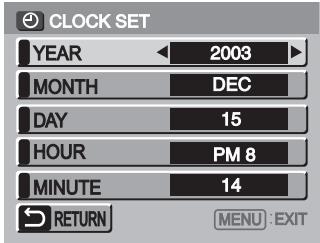
At the time of purchase of the SD Multi AV Device, the date and time are not set ([PRESS MENU TO SET CLOCK] is displayed). First, set the date and time, then use the SD Multi AV Device.
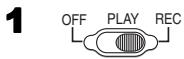
1 Set the Power/Mode Switch to [REC].
2 Press the [MENU] Button.
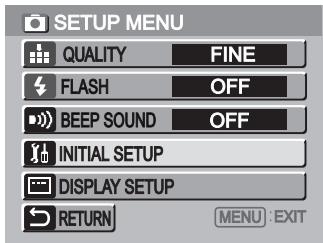
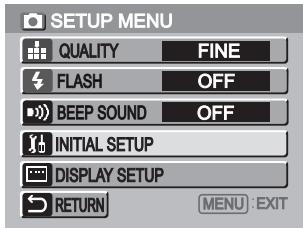
3 Select [INITIAL SETUP] and press the [▶ SET] Button.
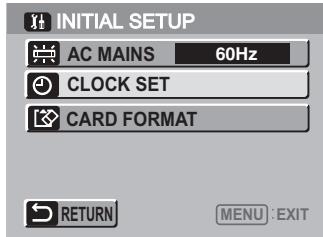
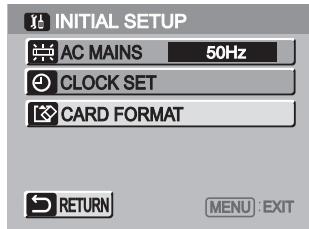
4 Select [CLOCK SET] and press the [▶ SET] Button.
5 Select [YEAR] and press the LEFT/RIGHT side of the Multi-function Button to set a desired value, and select [MONTH].
6 In the same way, set [MONTH], [DAY], [HOUR], [MINUTE] to a desired value.
7 Press the [MENU] Button.
- When the built-in battery has been exhausted, set the date and time after the battery has charged. (→ 49)


17

AV30U book
18
Setting the Power Supply Frequency
Set the power supply frequency before using the SD Multi AV Device. The power supply frequency is different depending on the country or region. Adjustment of the frequency will help reduce the appearance of horizontal stripes consisting of light and dark patterns under fluorescent lighting.
1 Set the Power/Mode Switch to [REC]. (→ 13)
2 Press the [MENU] Button.
3 Select [INITIAL SETUP] and press the [▶ SET] Button.
4 Set [AC MAINS] to [50Hz] or [60Hz].
■ To Reduce the Appearance of Horizontal Stripes Consisting of Light and Dark Patterns
If adjustment of the frequency does not have much effect on reducing horizontal stripes, operate the SD Multi AV Device as follows. (for MPEG4 mode and PICTURE mode)
1 Set the Power/Mode Switch to [REC]. ( 13)
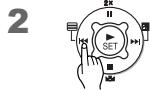
2 Press [☐] for approx. 1 second.
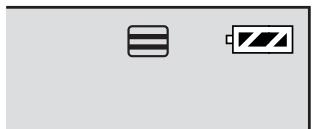
- The [☐] Indication appears when the horizontal stripes reduction function is activated.
To Release this mode
Press [☐] again.
- Turning the power off will release this mode.

natural_image
Two battery icons, one with striped pattern and the other with solid black bars (no text or symbols)

natural_image
Pure geometric diagram with intersecting lines and shapes, no text or symbols present
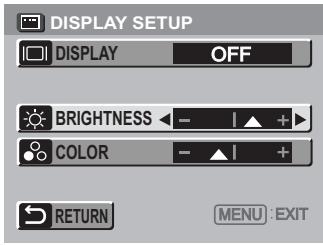
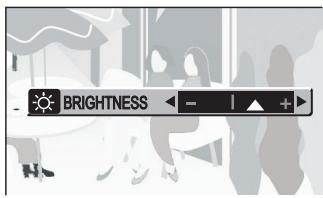
Adjusting Brightness and Color Level on the LCD Monitor
LCD Brightness [BRIGHTNESS]
It adjusts the brightness of the image on the LCD screen.
LCD Color Level [COLOR]
It adjusts the color saturation of the image on the LCD screen.
1 Set the Power/Mode Switch to [REC] and set the operation mode to [PICTURE] or [MPEG4].
2 Press the [MENU] Button.
3 Select [DISPLAY SETUP] and press the [▶ SET] Button.
4 Select [BRIGHTNESS] or [COLOR].
5 Press the LEFT/RIGHT side of the Multifunction Button for adjustment.
- If [BRIGHTNESS] is selected, the brightness can be increased by moving the [▲] to the right.
- If [COLOR] is selected, the color can become darker by moving the [▲] to the right.
6 Press the [MENU] Button.
- The [MENU] screen disappears. (If left unused for approx. 5 seconds, the display will automatically revert to the [DISPLAY SETUP] screen.)
- These adjustments do not affect the recorded images.
1

2

3


4

5

6

19
natural_image
Pure geometric diagram with intersecting lines and circles, no text or symbols present
Basic Functions
Recording Still Pictures
Records still pictures.
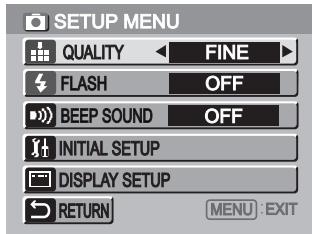
1 Set the Power/Mode Switch to [REC] and set the operation mode to [PICTURE].
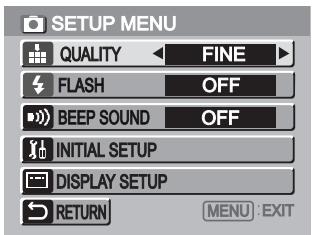
2 Press the [MENU] Button.
3 Set [QUALITY] to desired picture quality.
- Select one of [FINE], [NORMAL], or [ECONOMY].
4 To use the flash, Set [FLASH] to [ON] or [AUTO].
- In a dark place, will be displayed and the Flash will be available when it is set to [AUTO].
- Set [FLASH] to [OFF] to inactivate the Flash.
5 Press the [MENU] Button.
6 Press the Recording Start/Stop Button.
● The still image is recorded on the Memory Card.
■ To Double the Image Size
Press [2×] for approx. 1 second ①.
- Press [2× ] again to turn back to the normal size.
■ To Check the Recorded Image immediately
Press the [▶ SET] Button ②.
● The recorded image displays for 5 seconds.
●The [REVIEW] Indication is displayed.
- Press the [MENU] Button when the checking display appears to show [ERASE CARD FILE] display. Select [YES] and press the [▶ SET] Button to delete the image.
1
2

3,4

5

6
①

②

natural_image
Pure geometric diagram with intersecting lines and circles, no text or symbols present
natural_image
Pure geometric diagram with intersecting lines and circular shapes, no text or symbols present
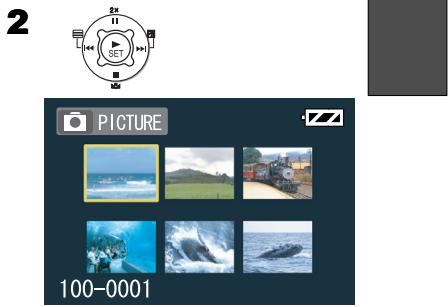
Playing back Still Pictures
Plays back still pictures recorded on the Memory Card.
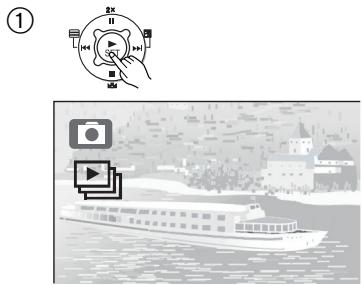
1 Set the Power/Mode Switch to [PLAY] and set the operation mode to [PICTURE].
- Still picture files recorded on the Memory Card are displayed in the index picture screen.
2 Press the UP/DOWN/LEFT/RIGHT side of the Multi-function Button to select a desired file.
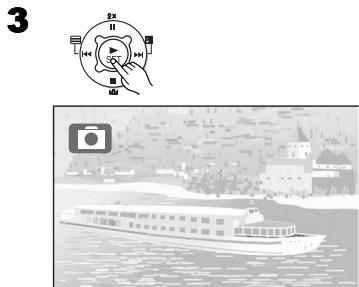
3 Press the [▶ SET] Button.
●A still picture file is played back.
Operation during Playback
[◀◀], [▶▶] : Displays the previous (next) screen.
[▶ SET]: Slide show
■ To Play Back All of the Still Pictures One by One
While playing back, press the [▶ SET] Button ①.
●The image is played back for 5 seconds.
- Press ■ to stop.
- Press [III] to pause.
- Only JPEG formatted files are able to play on your SD Multi AV Device. (In some cases, even such a file may not be played back.)
1 OFF PLAY REC MODE
21
natural_image
Pure geometric diagram with intersecting lines and circles, no text or symbols presentRecording Moving Pictures (MPEG4)
You can record moving pictures on the Memory Card.
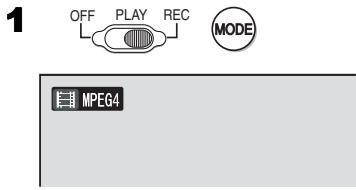
1 Set the Power/Mode Switch to [REC] and set the operation mode to [MPEG4].
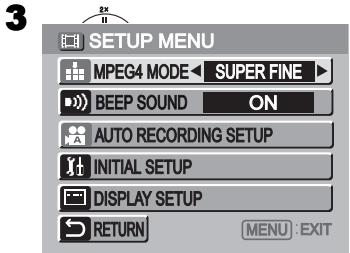
2 Press the [MENU] Button.
3 Set the [MPEG4 MODE] to desired picture quality.
- Select one of [SUPER FINE], [FINE], [NORMAL], or [ECONOMY].
- Press the [MENU] Button after completing the setting.
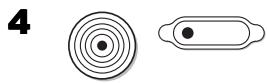
4 Press the Recording Start/Stop Button.
- Recording starts.
- While recording the moving picture, press the Recording Start/Stop Button to stop recording.
■ To Double the Image Size
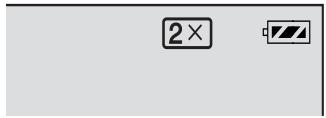
Press [2×] for approx. 1 second ①.
- Press [2× ] again to turn back to the normal size.

22
natural_image
Pure geometric diagram with intersecting lines and circles, no text or symbols present
natural_image
Pure geometric diagram with intersecting lines and circles, no text or symbols present
Playing Back Moving Pictures (MPEG4)
Plays back moving pictures recorded on the Memory Card.
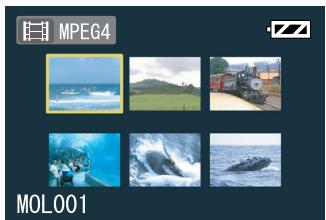
1 Set the Power/Mode Switch to [PLAY] and set the operation mode to [MPEG4].
- Still picture files recorded on the Memory Card are displayed in the index picture screen.
2 Press the UP/DOWN/LEFT/RIGHT side of the Multi-function Button to select a desired file.
3 Press the [▶ SET] Button.
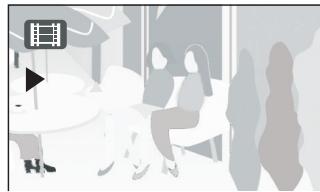
●A moving picture file is played back.
- After playing back continuously from the selected file to the last file, the display reverts to the index picture screen.
Operation during Playback
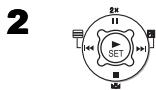
[◀◀], [▶▶] : Finding the beginning of a file (Tap this button.)
[◀◀], [▶▶]: Fast forwarding/rewinding (Press and hold this button for approx. 1 second.)
For Repeat Playback
Press the [MENU] Button and set [REPEAT] to [1FILE] or [ALL]. ②
■ To Change the Display Size
Press the [MENU] Button and set [SCREEN] to [FULL] or [NORMAL]. ①


natural_image
Six-panel image grid showing video and underwater scenes with no visible text or symbols
natural_image
Illustration of a person sitting on a bench with abstract background elements (no text or symbols)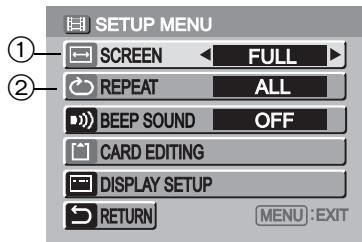
natural_image
Pure geometric diagram with intersecting lines and circles, no text or symbols present
natural_image
Pure geometric diagram with intersecting lines and shapes, no text or symbols present
natural_image
Pure geometric diagram with intersecting lines and circles, no text or symbols presentRecording Voice (Voice Recording Function)
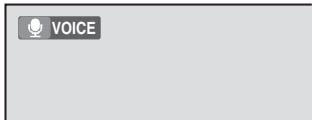
You can record voice data on the Memory Card.
1 Set the Power/Mode Switch to [REC] and set the operation mode to [VOICE].
2 Press the Recording Start/Stop Button.
- Recording starts.
3 Speak into the built-in microphone ① of this SD Multi AV Device.
- While recording voice, press the Recording Start/Stop Button to stop recording.
-
The LCD Monitor will shut off approx. 5 seconds after starting to record. This is not a malfunction but a normal sequence in recording. When voice recording stops, the LCD Monitor turns on again.
-
The recorded file is automatically locked (to prevent accidental erasure).
- If the [▶ SET] Button is pressed while recording, the LCD Monitor turns on and will turn off again in approx. 5 seconds.
- If the sound is recorded again after stopping recording, it will be saved as another file.
1


2
3
natural_image
Technical illustration of a device rear panel with labeled component (no text or symbols present)
natural_image
Pure geometric diagram with intersecting lines and shaded circles, no text or symbols present
natural_image
Pure geometric diagram with intersecting lines and shapes, no text or symbols present
Hearing the Voice Recorded (Voice Playback)
Plays back the voice files recorded by the SD Multi AV Device.
1 Set the Power/Mode Switch to [PLAY] and set the operation mode to [VOICE].
- Voice files recorded on the Memory Card are displayed in the form of a list.
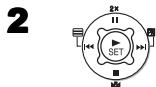
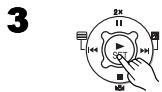
2 Press the UP/DOWN side of the Multi-function Button to select a desired file.
3 Press the [▶ SET] Button.
●A voice file is played back.
- In approx. 5 seconds after playing back, the Monitor will turn off.
- When stopping playback, the file list reverts and the LCD Monitor turns on again.
Operation during Playback
[1] : Pause (Press during playback)
[◀◀], [▶▶] : Finding the beginning of a file (Tap this button.)
[◀◀], [▶▶]: Fast forward/fast backward (Press and hold.)
- If the [▶ SET] Button is pressed while playing, the LCD Monitor turns on and will turn off again in approx. 5 seconds.
- Hold down the [▶▶] for approx.1 second for 10 times the normal speed or for approx. 7 seconds for 60 times.


![[100] TRACK001 [100] TRACK002 [100] TRACK003 [100] TRACK004 [100] TRACK005](/content/2019/11/105251/images/e4c43f2f72fcc26572b6595d7683069887a7763376d977ee36c9baa7d7c45f97.jpg)
natural_image
Pure geometric diagram with intersecting lines and circles, no text or symbols present25

AV30U book
26
Listening to Music (Music Playback)
You can play MPEG-2 AAC and MP3 data. Music files must be written on the SD Memory Card using the SD-Jukebox Ver.3.0 (supplied accessory) special software program in order for the SD Multi AV Device to play music. For the SD-Jukebox Ver.3.0, refer to Page 40 and the operating instructions for the SD-Jukebox Ver.3.0 in PDF format installed with the software.
1 Set the Power/Mode Switch to [PLAY] and set the operation mode to [MUSIC].
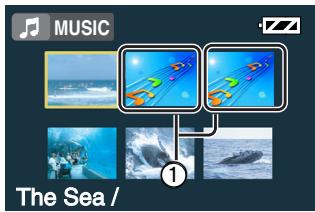
- Music files recorded on the Memory Card are displayed in the index picture screen.
2 Press the UP/DOWN/LEFT/RIGHT side of Multi-function Button to select a desired file.
- Music files not having a still picture associated are displayed as shown ①.
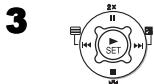
3 Press the [▶ SET] Button.
●A music file is played back.
Operation during playing
[1] Pause (Press during playback.)
[◀◀], [▶▶] : Finding the beginning of a file (Tap this button.)
[◀◀], [▶▶] : Fast forward/fast backward (Press and hold.)
(No audio is output during fast-forwarding/fast-backwarding.)
To Repeat Playback
Set [REPEAT] to [1MUSIC] or [ALL]. ②
[1MUSIC]: The track being played is repeated. [ALL]: All the tracks (when a playlist is selected, all the tracks in the playlist) are repeated.
1


2

3

②

Selecting a Playlist
Playlists set using the SD-Jukebox Ver.3.0 can be played back.
Select a desired playlist in [SELECT PLAYLIST] of the menu. ①
■ Selecting a desired Sound Quality
Music quality can be selected with the supplied Remote Controller. (Use earphones, or the audio cannot be heard.)
Press the [EQ] button on the Remote Controller.
- Every time the [EQ] Button is pressed, the Sound quality changes as followed.
No display→[S-XBS]→[TRAIN]→No display
No display: Normal tone
[S-XBS]: Punchy super bass sound
[TRAIN]: Sound friendly to the ears with sound leakage protection
![PANASONIC SVAV30U - Press the [EQ] button on the Remote Controller. - 1](/content/2019/11/105251/images/b138b7d85622f31e74bbacadfdedeb1529911bddf0fa38a7a33b889b4d6cf49a.jpg)
Adjusting the Volume
Adjusts the playback audio level for moving picture files, music files, and voice files.
1 Press [-] or [+] of the [VOL] Button.
●The [VOLUME] indication appears. ②
- If the volume buttons are left unoperated for 2 seconds, the [VOLUME] indication will automatically disappear.
①
![PANASONIC SVAV30U - Press [-] or [+] of the [VOL] Button. - 2](/content/2019/11/105251/images/5c3edfb8f5ddccd08ab37135475e3605a0859f60edf6958bfb30d5777c61c450.jpg)
![PANASONIC SVAV30U - Press [-] or [+] of the [VOL] Button. - 3](/content/2019/11/105251/images/d650c1421680f35b602f943a1f4e94d12aafc98368815dd9c7a83e9dbb3cd627.jpg)
natural_image
Diagram of a medical device connected to a medical device with labeled components (no text or symbols present)1
![PANASONIC SVAV30U - Press [-] or [+] of the [VOL] Button. - 4](/content/2019/11/105251/images/f2a9e47b7ff4532f1fbb9e1771192f9016170f117264ef443b2e5c8fabc7dc08.jpg)
natural_image
Illustration of a medical device with attached cables and two circular connectors labeled '- VOL +' (no text or symbols on the device itself)②
![PANASONIC SVAV30U - Press [-] or [+] of the [VOL] Button. - 5](/content/2019/11/105251/images/4d6aeccd01ae27c400bc512e37d6fa8a3db728f5c7525f62c0607efc47cae1e5.jpg)
27
![PANASONIC SVAV30U - Press [-] or [+] of the [VOL] Button. - 6](/content/2019/11/105251/images/120751bd806cfeed5eb43452f21748df0ecab40f1dab4506f150c15c89df0443.jpg)
natural_image
Pure geometric diagram with intersecting lines and circles, no text or symbols present![PANASONIC SVAV30U - Press [-] or [+] of the [VOL] Button. - 7](/content/2019/11/105251/images/69e462b1598452aef3a9b39e2ed4856d4f20f32b6e149faa7b220e2fe79bbd43.jpg)
![PANASONIC SVAV30U - Press [-] or [+] of the [VOL] Button. - 8](/content/2019/11/105251/images/4fc1c5af39e66f5b4833e94a069bfec6da520caa5a316ffeeec38d3316ff3909.jpg)
![PANASONIC SVAV30U - Press [-] or [+] of the [VOL] Button. - 9](/content/2019/11/105251/images/2eaca4cfa53c10e0cdd5f6447078c42c2fa2cef289f0d2d74d90027f0fa61942.jpg)
Advanced Functions
Backlight Compensation Function
This prevents a recording subject from being recorded too dark in backlight. (Backlight is the light that shines from behind a recording subject.)
1 Set the Power/Mode Switch to [REC] and set the operation mode to [PICTURE] or [MPEG4].
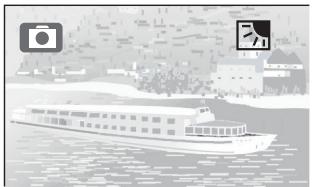
2 Press [图标] for approx. 1 second.
- The [☐] Indication is displayed.
- Press [F] for approx. 1 second again to resume Normal Recording mode.

Adjusting White Balance
The SD Multi AV Device adjusts White Balance automatically. However, depending on the scene or light condition, the Automatic White Balance may not be able to bring out natural colors. In such cases, the white balance can be adjusted manually.
1 Set the Power/Mode Switch to [REC] and set the operation mode to [PICTURE] or [MPEG4].
2 Point the SD Multi AV Device at a full-screen white subject (e.g. white paper).
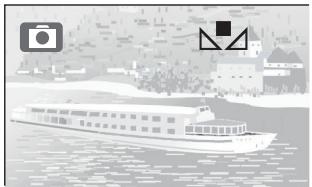
3 Keep pressing ■ until the ■ Indication is displayed.
- Press the ■ until the ■ Indication disappears to resume automatic adjustment.
1

2
natural_image
Illustration of a cruise ship sailing on water with a camera icon and a small number 21 nearby (no text or symbols)1

2

natural_image
Illustration of a computer monitor with a blank screen on top (no text or symbols)3

natural_image
Illustration of a cruise ship on water with cityscape background (no text or symbols)
Erasing the Files Recorded on a Memory Card
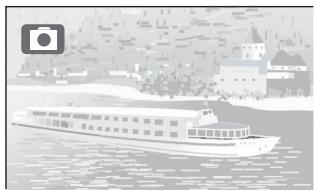
Using SD Multi AV Device, you can erase files recorded on the Memory Card. After files are erased, it cannot be restored.
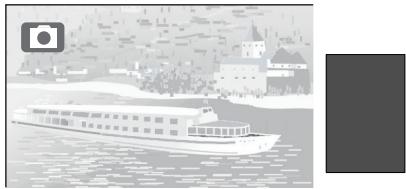
1 Play back the file to be erased or let it pause. ( 21, 23, 25)
2 Press the [MENU] Button.
● The editing menu screen appears.
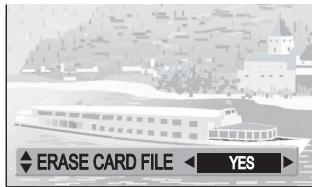
3 Press the UP/DOWN side of the Multifunction Button until [ERASE CARD FILE] is displayed.
4 Press the LEFT/RIGHT side of the Multifunction Button to select [YES].
5 Press the [▶ SET] Button.
- The selected file is erased from the Memory Card.
- If [NO] is selected, the file selection is cancelled.
- After erasing the file, the display reverts to the index picture screen.
1
natural_image
Illustration of a cruise ship sailing on water with a cityscape background (no text or symbols)2

3,4,5

To Erase All Files
1 Set the Power/Mode Switch to [PLAY] and set to the desired operation mode.
2 Press the [MENU] Button.
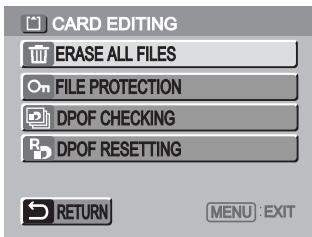
3 Select [CARD EDITING] and press the [▶ SET] Button.
4 Select [ERASE ALL FILES] and press the [▶ SET] Button.
● A verification message appears.
5 Select [YES] and press the [▶ SET] Button.
1

2

3,4,5

natural_image
Pure geometric diagram with intersecting lines and a circular pattern, no text or symbols present
natural_image
Pure geometric diagram with intersecting lines and circles, no text or symbols presentProtecting files (File Protection)
Precious files recorded on the Memory Card can be locked to prevent accidental erasure.
1 Play back the file to be locked or let it pause. ( 21, 23, 25)
2 Press the [MENU] Button.
● The editing menu screen appears.
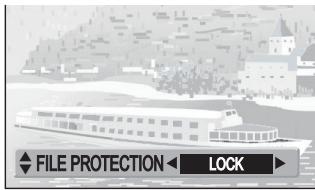
3 Press the UP/DOWN side of the Multifunction Button until [FILE PROTECTION] is displayed.
4 Press the LEFT/RIGHT side of the Multifunction Button to select [LOCK].
5 Press the [▶ SET] Button.
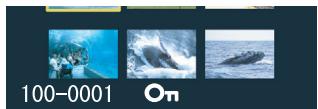
- The selected file is locked and the [On] Indication is attached to the selected files.
■ To Release the File Protection Select [UNLOCK] in Step 4 above.
•The [On] Indication disappears.
To Lock All Files
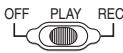
1 Set the Power/Mode Switch to [PLAY] and set to the desired operation mode.
2 Press the [MENU] Button.
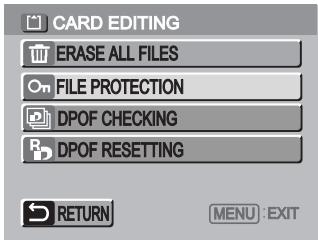
3 Select [CARD EDITING] and press the [▶ SET] Button.
4 Select [FILE PROTECTION] and press the [▶ SET] Button.
● A verification message appears.
5 Select [LOCK] and press the [▶ SET] Button.
- To unlock all files, select [UNLOCK] and press the [▶ SET] Button.
1
natural_image
Illustration of a cruise ship sailing on water with a cityscape in the background (no visible text or symbols)2

3,4,5

natural_image
Three underwater scenes: a person on the seabed, a whale surfacing, and a submarine in rough seas (no text or symbols)1

2

3,4,5



natural_image
Pure geometric diagram with intersecting lines and circular shapes, no text or symbols present
Writing Printing Data on a Memory Card (DPOF Setting)
DPOF Setting Printing data (DPOF Setting), such as the number of images to be printed, can be written to the Memory Card.
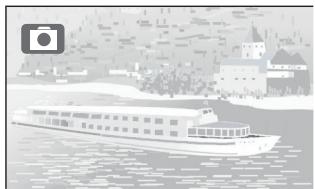
1 Play back a still picture to be DPOF-set. ( 21)
2 Press the [MENU] Button.
● The editing menu screen appears.
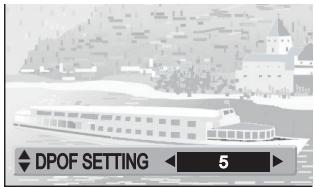
3 Press the the UP/DOWN side of the Multifunction Button until [DPOF SETTING] is displayed.
4 Press the LEFT/RIGHT side of the Multifunction Button to set the number to be printed and press the [▶ SET] Button.
- When DPOF setting is set to 1 or more, the [ ] indication appears.
■ To Release All the DPOF Settings
1 Set the Power/Mode Switch to [PLAY] and set the operation mode to [PICTURE].
2 Press the [MENU] Button.
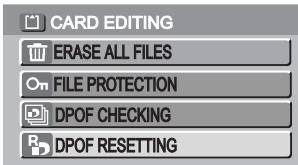
3 Select [CARD EDITING] and and press the [▶ SET] Button.
4 Select [DPOF RESETTING] and press the [▶ SET] Button. ①
● A verification message appears.
5 Select [YES] and press the [▶ SET] Button.
■ To Check the DPOF Settings in Slide Show
Select [DPOF CHECKING] in Step 4 in [To Release All the DPOF settings] above and press the [▶ SET] Button. ②
- DPOF-set images are displayed one by one for approx. 5 seconds each.
1
natural_image
Illustration of a cruise ship sailing on water with a cityscape in the background (no visible text or symbols)2

3,4


1
2

3,4,5

①
②
31
natural_image
Pure geometric diagram with intersecting lines and circles, no text or symbols presentPlaying back still pictures one by one (P.Slide Show)
Plays back still pictures based on the Slide show data set by SD-MovieStage Ver.2.0 (supplied).
1 Set the Power/Mode Switch to [PLAY] and set the operation mode to [PICTURE].
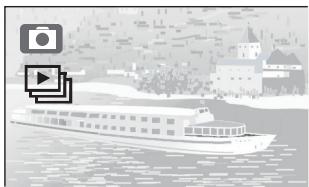
2 Press the [MENU] Button.
3 Select the [P.SLIDE SHOW] and press the [▶ SET] Button.
- P.Slide show starts.
● Pictures set with SD-MovieStage are sequentially displayed, each for approx. 5 seconds, and the P.Slide show stops. - Press ■ to stop P.Slide show.
- Press 11 to pause P.Slide show.
■ Creating P.Slide Show Data with SD-MovieStage Ver.2.0
① Install the SD-MovieStage Ver.2.0 on your personal computer. (→ 44)
② Insert the Memory Card into the SD Multi AV Device and connect to the personal computer.
③ Start the SD-MovieStage Ver.2.0.
4 Drag and drop thumbnails in the content field to the rehearsal field in your favorite order.
⑤ Click the "Windup" button in the reherasal field.
⑥ Drag and drop the Windup icon onto SD Memory Card icon in the media field.
⑦ Select the type of P.Slide Show and click [OK].
- Please refer to the PDF-based instruction of the SD-MovieStage Ver.2.0 for further information.

2

3

natural_image
Illustration of a cruise ship on water with cityscape background (no text or symbols)
natural_image
Pure geometric diagram with intersecting lines and circles, no text or symbols present
natural_image
Pure geometric diagram with intersecting lines and shapes, no text or symbols present
Formatting the Memory Card
If a Memory Card becomes unreadable by the SD Multi AV Device, formatting it may make it reusable. Formatting erases all the data recorded on the Memory Card.
1 Set the Power/Mode Switch to [REC].
2 Press the [MENU] Button.
3 Select [INITIAL SETUP] and press the [▶ SET] Button.
4 Select [CARD FORMAT] and press the [▶ SET] Button.
● A verification message appears.
5 Select [YES] to be formatted.
- Formatting is carried out.
- If [NO] is selected, the Memory Card format is cancelled.

33
AV30U book 34
Using the AV Cradle
Fitting on the AV Cradle eases charging. The AV Cradle allows the Device to be connected to the external device, such as a TV in order for the pictures on this Device to be viewed on the TV. The AV Cradle also allows the pictures on an external device to be recorded on a Card using the timer function.
- The charging configuration is the same as the one for connecting the DC Input Lead to the SD Multi AV Device. ( 10)
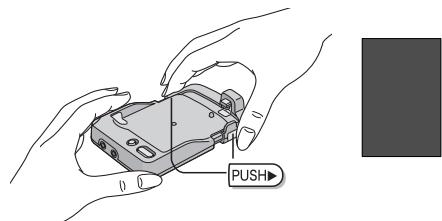
Fitting on the AV Cradle
1 While pressing the [PUSH▶] Button, extend the AV Cradle.
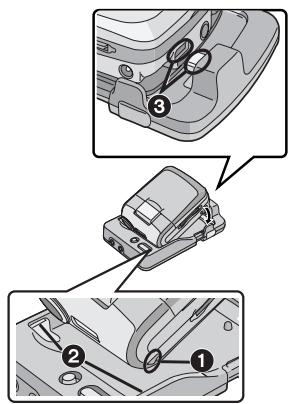
2 Place the SD Multi AV Device on the AV Cradle.
- The grooves ① of the SD Multi AV Device fit in the leading protrusions ②.
- Place the SD Multi AV Device on the AV Cradle so that the mating connectors ③ are in alignment.
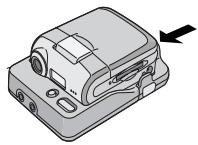
3 Push the SD Multi AV Device until you hear it click.
4 Connect the AC Adaptor to the AC main socket.
5 Connect the DC Input Lead to the [DC IN 4.8V] socket on the AV Cradle.
1
2
3
4,5


natural_image
Pure geometric diagram with intersecting lines and a circular pattern, no text or symbols present

AV30U book
36
Playing Back on an external device
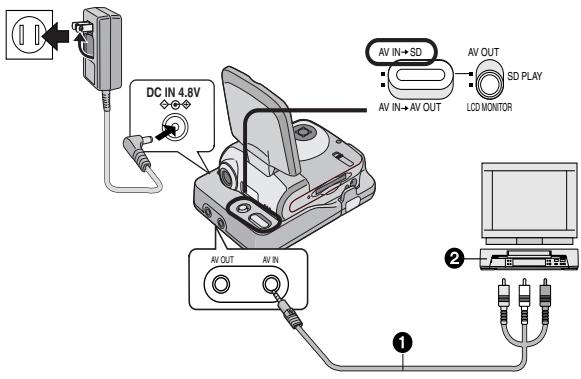
By connecting the SD Multi AV Device in AV Cradle with an external device, the recorded scenes can be played back on an external device such as a TV or Audio device.
1
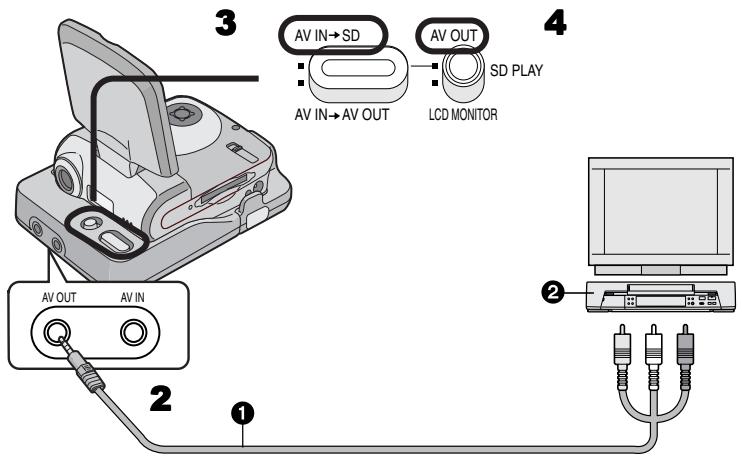
1 Put the SD Multi AV Device in the AV Cradle. ( 35)
2 Connect the [AV OUT] socket of the AV Cradle to the AV Input Sockets of the external device ② using supplied AV Cable ①.
3 Set the AV Input Control Switch to [AV IN → SD].
4 Set the AV Output Control Switch to [AV OUT].
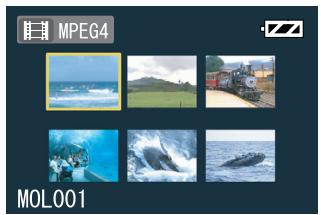
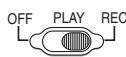
5 Set the Power/Mode Switch to [PLAY] and set the operation mode to be desired.
6 Select the file to be played back and press the [▶ SET] Button.
5

6

natural_image
Six-panel image collage showing underwater scenes and a submarine on the right, with no visible text or symbols in the main visual areas.
natural_image
Pure geometric diagram with intersecting lines and shapes, no text or symbols present
Useful Connection (AV Cradle always connected)
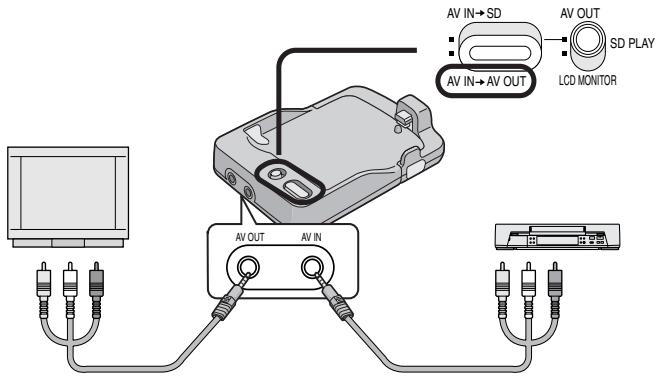
If your external device has just one output socket, you can connect the SD Multi AV Device as follows.
Sample 1
Details of the connection
To view or listen to pictures or sounds recorded on a Card by an external device, refer to Page 36. To record pictures from an external device onto a Card, refer to Page 38.
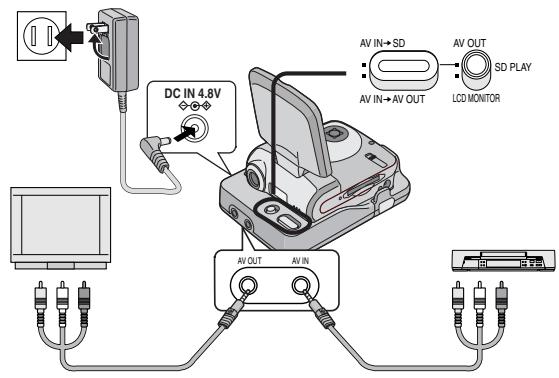

■ Sample 2 (example when The SD Multi AV Device is not used)
Even if you do not use the SD Multi AV Device, this connection can be used without disconnecting the AV Cradle.
For connection, set the AV Input Control Switch to [AV IN → AV OUT].
natural_image
Pure geometric diagram with intersecting lines and shaded circles, no text or symbols present
natural_image
Pure geometric diagram with intersecting lines and a circular pattern, no text or symbols present
Recording pictures supplied from an external device
1 Put the SD Multi AV Device in the AV Cradle. ( 35)
2 Connect the [AV IN] socket of the AV Cradle to the AV Output Sockets of the external device ② using supplied AV Cable ①.
3 Set the AV Input Control Switch to [AV IN → SD].
4 Set the Power/Mode Switch to [REC] and set the operation mode to [PICTURE] or [MPEG4].
5 Select desired image quality. ( 20, 22)
6 Set up the external device.
- Confirm that the image or sound signal is input into the SD Multi AV Device.
7 Press the Recording Start/Stop Button.
- Recording starts.
- When the moving picture is being recorded, press the Recording Start/Stop Button again to stop recording.
4

7



natural_image
Pure geometric lines and shapes without any text, numbers, or symbols
Using Auto Recording Function
When the input signal is detected, the recording starts automatically.
1 Connect the SD Multi AV Device with the external device. ( 38)
- Always use the AC adaptor. This function does not work with the battery alone.
2 Set up the external device such as timer setting.
3 Confirm that the image or sound signal is not output.
4 Set the Power/Mode Switch to [REC] and set the operation mode to [MPEG4].
5 Press the [MENU] Button.
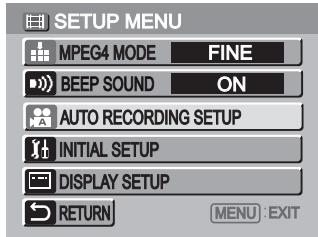
6 Select [AUTO RECORDING SETUP] and press the [▶ SET] Button.
7 Set [REC TIMER] to desired time.
- The setting time is the period between starting recording and finishing recording.
8 Select [AUTO RECORD STANDBY] and press the [▶ SET] Button.
● A verification message appears.
9 Select [YES] and press the [▶ SET] Button.
- Transits to the standby mode and the power is automatically shut down.
- When the input signal is detected, the recording starts.
- Pressing the Recording Start/Stop button during recording will stop the recording.


natural_image
Pure geometric diagram with intersecting lines and circles, no text or symbols present
natural_image
Pure geometric diagram with intersecting lines and circles, no text or symbols presentOn a Personal Computer
About the supplied software
■ About the supplied software
The SD Multi AV Device comes with SD-Jukebox Ver.3.0, SD-MovieStage Ver.2.0, and a USB driver to allow the SD Multi AV Device to be used on a personal computer. By using these software packages, you can record high-quality music which can be played back in the [MUSIC] mode of the SD Multi AV Device (SD-Jukebox Ver.3.0), arrange the pictures on a Memory Card, and cut and edit moving pictures (SD-MovieStage Ver.2.0). Please read the PDF-format instructions installed with the software for how to use the software. These Operating Instructions describe only how to install and start up the software and how to connect the SD Multi AV Device to a personal computer. Install the USB driver before connecting the SD Multi AV Device to a personal computer.
SD-Jukebox incorporates copyright protection technology using encryption technology in order to protect copyrights, to ensure the healthy development of music culture, and to protect the rights of valid purchasers.
The following restrictions are therefore applied:
- SD-Jukebox records music data in encrypted form onto your hard disk drive. Encrypted music cannot be moved/copied to other folders, drives, and other personal computers for use.
- Unique information pertaining to your personal computer's processor and hard disk drive is used in the encryption process. Therefore, if either the processor or hard disk drive is replaced, previously created music data will no longer be available for use.
- Tracks on an SD Memory Card cannot be played back on a personal computer.
-
SD-Jukebox cannot play or record music CDs that do not have a disc mark on the disc label.
-
While every attempt is made to create software that will operate properly in most personal computer's, previously installed software and unique hardware in the PC may occasionally cause an operating problem.
- USB Driver, SD-MovieStage Ver.2.0 and SD-Jukebox Ver.3.0 cannot be used on Microsoft Windows 3.1, Windows 95, Windows 98, Windows NT and Macintosh.
- Operation on an upgraded OS is not guaranteed.
- Operation on an OS other than the one pre-installed is not guaranteed.
- Dual CPUs or Multi-boot environments are not supported.
- Only users having system administrator (Administrator) authority can use these software applications.
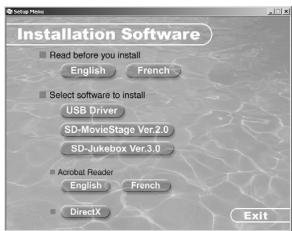
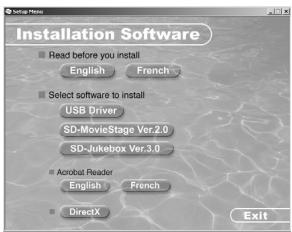
- Click the desired language in [Read before you install] on the startup screen before installation and read the Readme file.
●The software is available in English. - Even if you operate a personal computer in French, the application and PDF manual installed is the English version. Please refer to the PDF manual of the French version in the supplied CD-ROM.

AV30U book
41
ENGLISH
- A USB hub or USB card used for connection does not guarantee a normal operation. Use the attached USB cable for direct connection to the personal computer.
- Before installing (or uninstalling), quit all other applications. If the launcher for installation is not activated automatically when the CD-ROM is inserted in the personal computer's CD-ROM drive, double-click the CD-ROM icon in [My Computer].
-
For operating instructions, please read the PDF manual on the CD-ROM. To read the PDF Manual, you must have Adobe Acrobat Reader 5.0 or higher. If Adobe Acrobat Reader is not installed on the Personal Computer, please install it from the launcher.
-
Microsoft®, Windows®, Windows Media™, Windows NT® and DirectX® are either trademarks or registered trademarks of Microsoft Corporation in the United States and/or other countries.
- Intel ^ , Pentium ^ and Celeron ^ are trademarks or registered trademarks of Intel Corporation in the United States and/or other countries.
- Adobe ^ , the Adobe logos and Acrobat ^ are trademarks or registered trademarks of Adobe Systems Incorporated in the United States and/or other countries.
- CDDB is a registered trademark and Gracenote is a trademark of CDDB, Inc. (dba Gracenote)
- Other names of systems and products mentioned in these Operating Instructions are usually the registered trademarks or trademarks of the manufacturers who developed the systems or products concerned.
- The contents or complete reproduction or copy of these Operating Instructions could be changed without notice.
- When installing or using this software, specify the user name to [Administrator (computer administrator)] or any other user name having the equivalent right. Then log on with that user name to install this software. (For Windows XP/2000 Professional) (If you do not have such a right, consult with your system administrator.)
- Licensed AAC Patents (U.S. patent numbers);
08/937,950
5848391
5,291,557
5,451,954
5 400 433
5,222,189
5,357,594
5,752,225
5,394,473
5,583,962
5,274,740
5,633,981
5 297 236
4,914,701
5,235,671
07/640,550
5,579,430
08/678,666
98/03037
97/02875
97/02874
98/03036
5,227,788
5,285,498
5,481,614
5,592,584
5,781,888
08/039,47
08/211,54
5,703,999
08/557,046
08/894,844
5,299,238
5,299,239
5,299,240
5,197,087
5,490,170
5,264,846
5,268,685
5,375,189
5,581,654
05-183,98
5,548,574
08/506,72
08/576,49
5,717,821
08/392,756
[Non-Text]
[Non-Text]
[Non-Text]
USB Driver
■ System Requirements for USB Driver
OS:
Microsoft Windows 98SE, Windows Me, Windows 2000 Professional, Windows XP Home Edition/Professional
Drive: CD-ROM Drive
natural_image
Pure geometric diagram with intersecting lines and circles, no text or symbols present41

natural_image
Pure geometric diagram with intersecting lines and circles, no text or symbols presentSD-MovieStage
■ Features of SD-MovieStage Ver.2.0
- MPEG4 moving pictures (ASF-format files) and still pictures (JPEG pictures) recorded on the SD Multi AV Device are displayed in thumbnail form and can be easily played back on a personal computer.
- MPEG4 moving pictures (ASF-format files) can be cut-edited.
● Pictures recorded on other DV devices can be converted into those for the SD Multi AV Device. - E-mails with moving pictures attached can be easily sent.
■ System Requirements for SD-MovieStage Ver.2.0
OS:
Microsoft Windows 98SE, Windows Me, Windows 2000 Professional, Windows XP Home Edition/Professional
CPU:
Intel Celeron 366 MHz or higher
HDD:
350 MB or more (When acquiring DV moving images: 240 MB /min)
RAM:
128 MB or more (Windows 98SE, Me)
256 MB or more (Windows 2000, XP)
Display:
High Color (16 bit) or more with a resolution of 800 × 600 pixels or more
Drive: CD-ROM Drive
I/F: USB terminal
Others:
Pointing device such as a mouse or equivalent to mouse. The following software except for the above environment motions are installed;
Windows Media Player 6.4 or later, Internet Explorer 5.01 or later, DirectX 8.1 or later.
- As an IEEE1394 terminal is not provided on the SD Multi AV Device, transfer or editing of pictures using the IEEE1394 terminal is not supported.
natural_image
Pure geometric diagram with intersecting lines and circles, no text or symbols present
natural_image
Pure geometric diagram with intersecting lines and circles, no text or symbols present
SD-Jukebox
Features of SD-Jukebox Ver.3.0
- Records high quality music onto an SD Memory Card that can be played back on the SD Multi AV Device.
- Allows Playlists to be created containing your favorite tracks. (If a Playlist is selected, only the tracks in the Playlist are played back.)
- Allows a still picture to be associated with the music data.
■ System Requirements for SD-Jukebox Ver.3.0
OS:
Microsoft Windows 98SE, Windows Me, Windows 2000 Professional (Operation on Windows 2000 SP1 or earlier is not guaranteed), Windows XP Home Edition/Professional
CPU:
Intel Pentium II 333 MHz or higher (Windows 98SE, Me)
Intel Pentium III 500 MHz or higher (Windows 2000, XP)
HDD: 60 MB or more
RAM:
64 MB or more (Windows 98SE, Me)
128 MB or more (Windows 2000, XP)
Display:
High Color (16 bit) or more with a resolution of 800 × 600 pixels or more
Sound:
Compatible with the Creative Sound Blaster 16 and speakers
Drive:
CD-ROM Drive (Must support digital recording. CD-ROM drive connected through IEEE 1394 or USB may not allow accurate recording.)
I/F: USB terminal
Others:
Pointing device such as a mouse or equivalent to mouse. The following software except for the above environment motions are installed;
Internet Explorer 5.01 or later, DirectX 8.1 or later. Connection to Internet, if CDDB functions are used.
- Portions of this product are protected under copyright law and are provided under license by ARIS/SOLANA/4C.
- In some personal computer environments, recording may be disabled, the music data recorded may not be used, or other failures may occur. Please note that we are not liable for the loss of your music data or other direct or indirect faults.

natural_image
Pure geometric diagram with intersecting lines and circles, no text or symbols present
natural_image
Pure geometric diagram with intersecting lines and shapes, no text or symbols present
Installing USB Driver
When the USB driver is installed, the SD Multi AV Device will be recognized by the personal computer. Do not connect the USB cable until the USB driver has been installed.
- Please read [Read before you install] before installing the USB Driver.
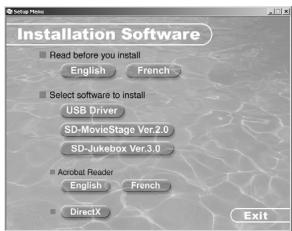
1 Insert the supplied CD-ROM into the personal computer's CD-ROM drive.
- The launcher for installation is activated automatically.
2 Click [USB Driver].
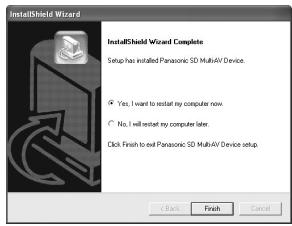
3 Click [Finish].
- After rebooting the computer, the USB driver is activated.
Installing SD-MovieStage Ver.2.0
1 Insert the supplied CD-ROM into the personal computer's CD-ROM drive.
- The launcher for the installation is activated automatically.
2 Click [SD-MovieStage Ver.2.0].
- When [SD-MovieStage Ver.2.0] screen appears, click [Next].
3 Read License Agreement carefully, and click [Yes], if you accept the terms of the agreement.
4 Complete the installation according to the message.
- When the DirectX 8.1 setup screen appears, install it according to the message. (Failure to install DirectX 8.1 disables you from using SD-MovieStage Ver.2.0.)
- After rebooting the computer, the SD-MovieStage Ver.2.0 is enabled.
2
3
2
3
![SD MovieStage License Agreement Please read the following license agreement carefully. Press the PAGE DOWN/Key to see the rest of the agreement. End User License Agreement You [License] are granted a license for the Software defined in the End User License Agreement? On condition that you agree to the terms and conditions of the Agreement. If License does not agree to the terms and conditions of the Agreement, please return the Software to Mahusris's Electric Industrial Co., Ltd. ("Mahusris"), its distributors or drivers. Do you accept all the terms of the preceding License Agreement? If you choose No. The setup will close. To install SD MovieStage, you must accept the agreement. Back Yes No](/content/2019/11/105251/images/130c46957a5f4c9af592ede2eeaa44825f6995cd6ef0f4516fc9ed508887ace3.jpg)

natural_image
Pure geometric diagram with intersecting lines and a central circle, no text or symbols present
Installing SD-Jukebox Ver.3.0
1 Insert the supplied CD-ROM into the personal computer's CD-ROM drive.
- The launcher for the installation is activated automatically.
2 Click [SD-Jukebox Ver.3.0].
- When [Welcome] screen appears, click [Next].
- If the confirmation whether you have the right to administrate the personal computer is displayed, click [OK] and continue with installation.
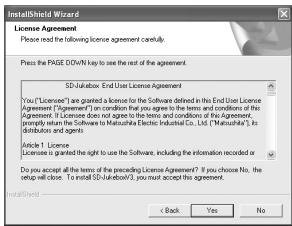
3 Read License Agreement carefully, and click [Yes], if you accept the terms of the agreement.
4 Enter your name and the serial No. described on the CD-ROM casing and click [Next].
5 Complete the installation according to the message.
- When the setup screen for the Media Format 7.1 is displayed, install the Media Format 7.1 according to the message.
- When the DirectX 8.1 setup screen appears, install it. (Failure to install DirectX 8.1 disables you from using SD-Jukebox Ver.3.0.)
- After rebooting the computer, the SD-Jukebox Ver.3.0 is enabled.
2

3
4
![InstallShield Wizard User Information Enter your name and the product serial number, then click the [Read] button. Name: Way Manusita Send No: Back Next > Cancel](/content/2019/11/105251/images/73a19f0c0bd6ec4450b1aa719b2eac15aa05b684e51634b42ebeada0d1e19381.jpg)
natural_image
Pure geometric diagram with intersecting lines and circles, no text or symbols present
natural_image
Pure geometric diagram with intersecting lines and shapes, no text or symbols presentConnecting with the PC
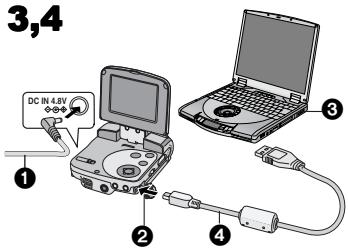
- Connect the USB cable after the USB driver is installed.
- Use both the AC adaptor and the battery. Either one alone does not allow the SD Multi AV Device to be used with a personal computer.
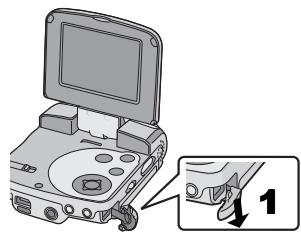
1 Slide down the USB Terminal Cover to open it.
2 Set the Power/Mode Switch to [PLAY].
3 Connect with the AC Adaptor ①. (→ 10)
4 Connect the [USB] terminal ② of the SD Multi AV Device to the USB terminal of the personal computer ③ using supplied USB Cable ④.
- The SD Multi AV Device works as a personal computer peripheral. (Operation of the SD Multi AV Device is disabled.)
- The [Removable disk] icon appears in [My Computer].
natural_image
Illustration of a laptop computer with a close-up view showing a hand interacting with the screen (no text or symbols present)2 OFF PLAY REC
PC ACCESSING
Starting the Software
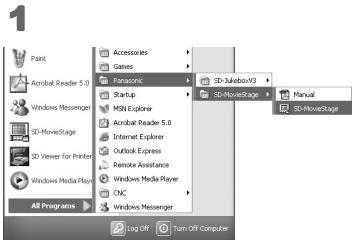
■ Starting the SD-MovieStage Ver.2.0
1 [Start] >> [All programs (programs)] >> [Panasonic] >> [SD-MovieStage] >> [SD-MovieStage]
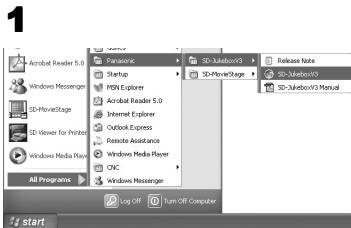
Starting the SD-Jukebox Ver.3.0
1 [Start] >> [All programs (program)] >> [Panasonic] >> [SD-JukeboxV3] >> [SD-JukeboxV3]
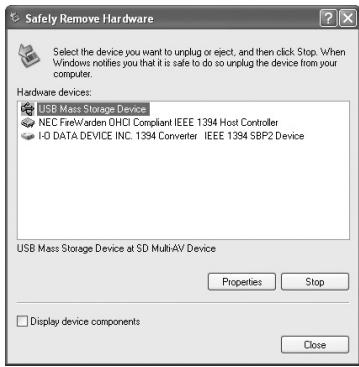
Disconnecting the USB Cable safely
If you use Windows XP/2000, remove the USB Cable using the following method.
If you use Windows Me/98SE, check that the Card Access Lamp is out, then remove the USB Cable. (Keep the SD Multi AV Device turned on.)
1 Double click the in task tray.
- Hardware disconnect dialog box appears.
2 Select [USB Mass Storage Device] and click [Stop].
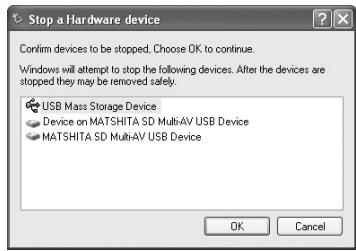
3 Click [OK].
- Click [OK], and you can safely disconnect the cable.

If you no longer need software (Uninstall)
1 Select [Start] (>>[Settings]) >>[Control Panel].
2 Double-click [Add/Remove Programs].
3 Select the software to be uninstalled and click [Change/Remove].
- Uninstalling steps may vary depending on the OS. Please refer to the user manual of your OS.
1

2
3
ENGLISH


natural_image
Pure geometric diagram with intersecting lines and a circular pattern, no text or symbols present
Constructing a Folder when the Memory Card is used with a PC
- When the Memory Card with data recorded by the SD Multi AV Device is inserted into a personal computer, folders will be displayed as in the figure.
- Use the SD-MovieStage Ver.2.0 for operating files in the Memory Card.
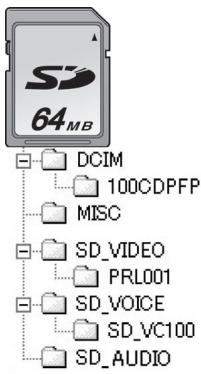
[DCIM]: The images (IMGA0001.JPG etc.) in this folder are recorded in the JPEG format. ([100-0001] or similar indication is displayed on the SD Multi AV Device.)
[MISC]: Files in which DPOF Data has been set to the image are in this folder. Slide show data created by SD-MovieStage Ver.2.0 are in this folder. (AUTPLAY0.MRK etc.)
[SD_VIDEO]: MPEG4 moving picture is recorded in ASF format (MOL001.ASF etc.). It can be played back with Windows Media Player 6.4 or later. Because of small size, this File is well suited for transmitting data through a telephone line etc.
[SD_VOICE]: Folder in which the voice data (e.g., MOB001.VM1) files are stored.
[SD_AUDIO]: Folder in which the music data (e.g., AOB001.SA1) files recorded by the SD-Jukebox Ver.3.0 (supplied accessory) are stored.
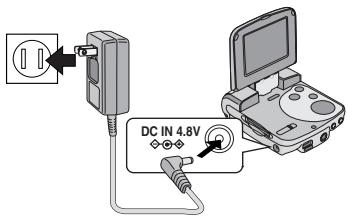
![AV30U book 49 Others Charge the built-in battery for maintaining the date information This built-in battery is used for the memory of date and time. If [PRESS MENU TO SET CLOCK] is displayed when the power is on, the built-in battery may be exhausted. Charge using the following procedure: 1 Take the battery out and plug in the AC adaptor. (→ 10) 2 Turn the power off and leave the SD Multi AV Device as it is for approx. 12 hours. • After recharging the built-in battery, adjust the date and time. (→ 17) • Even if the built-in battery is not run down, [PRESS MENU TO SET CLOCK] is displayed at the time of purchase. 1 DC IN 4.8V OFF PLAY REC](/content/2019/11/105251/images/2e083ae935e38677e2378b827f56753399f73595f66c9b198c7533f4b82b3b1f.jpg)
After Use
1 Turn off the SD Multi AV Device. ( 13)
2 Take out the Memory Card. ( 11)
3 Detach the power supply and retract the LCD Monitor.
4 Put the SD Multi AV Device into the Wearable Carry Case.

natural_image
Pure geometric diagram with crosshair and circular patterns, no text or symbols present

AV30U book
50
Indications
![[REC] 1 MPEG4 SF 2 R 0h59m 0h12m34s 8 9 10 DEC 15 2003 9:35AM](/content/2019/11/105251/images/30f842a9051635eac35db2d8a7705594930db63a3a2e8b907be17d7681f71aaa.jpg)
![[PLAY] 1 11 12 7 S-XBS A 1h12m34s-9 LOW BATTERY MOL001 On 13 14 15 16 17 VOLUME - I +](/content/2019/11/105251/images/73e97ab45d282d397071eb5907272904ed9c39940244866cdb02ef96fb197088.jpg)
1 Operation Mode
PICTURE : Still picture mode
MPEG4 : Moving picture mode
VOICE :Audio mode
MUSIC :Music mode
2 Status Indications Recording Mode
● : Record ( 20, 22, 24)
Playback Mode
▶: Playback ( 21, 23, 25, 26)
II: Pause ( 23, 25, 26)
▶▶/◀◀: Cue Playback/Review Playback (→ 21, 23, 25, 26) (10 times speed with × 10◀◀ / ▶▶ and 60 times speed with × 60◀◀ / ▶▶)
: Slide show ( 21, 32)
: Pausing of Slide show (→ 21, 32)
REVIEW: Checking the Recorded Image
ACCESS: Accessing a card
NO CARD: No card
NO FILE: No file
3 Flash ( 20)
4 Image Quality [PICTURE] mode
F : Fine
50
N : Normal
E : Economy
[MPEG4] mode
SF : Super fine
F : Fine
N : Normal
E : Economy
5 Double zoom display
2×: Double zoom (→ 20, 22)
6 Camera Functions
Horizontal Stripes Reduction Mode ( 18) Backlight Compensation Mode ( 28) White Balance setting ( 28)
7 Remaining Battery Power [ ] When the battery power becomes low, the indication changes. When the battery level indicator indicates , the battery will run out in a few minutes. Recharge the battery. may be displayed when the AC Adaptor is used. This is normal. (→ 10)
8 Date/Time Indication ( 17)
9 Elapsed time indication 0h00m00s
[REC] mode: Elapsed recording time [PLAY] mode: Elapsed playback time
10 Indication of recordable time and recordable number of images
R 0:
Number of remaining recordable still pictures (Lights in red when it reaches zero.)
R 0h00m:
Remaining recordable time for MPEG4 moving pictures or audio (VOICE) (Lights up in red when it reaches 0h00m.)
11 Sound quality indication (music files)
Pressing the [EQ] button on the remote controller indicates the sound quality to be set.
S-XBS : [S-XBS] mode
TRAIN : [TRAIN] mode
12 Repeat Playback ( 23, 26)
A : Repeats all files (all tracks).
1 : One file (one track)
13 File Name ( 21, 23, 25, 26)
14 DPOF setting ( 31)
15 File Protection (→ 30)
16 Volume ( 27)
17 Displayed by the text
[LOW BATTERY]:
The battery may be exhausted. Replace it with a fully charged battery or recharge the supplied battery.
[NO CARD]:
The Memory Card is not inserted, or the Memory Card may not be inserted correctly.
[CARD FULL]:
The memory capacity is fully utilized. Erase any unnecessary files or replace it with a new Memory Card.
[CARD LOCKED]:
The write-protect switch of the SD Memory Card is set to [LOCK] (see page 54).
[CHECK CARD]:
Re-insert the Memory Card. If [CHECK CARD] is still displayed, the Memory Card is not compatible or applicable. The SD Multi AV Device cannot recognize it. Format it. ( 33)
[FILE LOCKED]:
You attempted to execute the erase operation on a locked file.
[PLEASE RE-OPERATE]:
Turn off and on the SD Multi AV Device.
[INCOMPATIBLE DATA]:
Pictures containing the copy-protect signal (copy guard) cannot be recorded.
![PANASONIC SVAV30U - [INCOMPATIBLE DATA]: - 1](/content/2019/11/105251/images/78a339f3f9d83f6c9b733f029e65758062d5f110811a1b5bf9a4606b8e936750.jpg)
![PANASONIC SVAV30U - [INCOMPATIBLE DATA]: - 2](/content/2019/11/105251/images/650ef4d9f68e9a10e8ccd1ad3524118cd59017df680358793d8012c5932921c2.jpg)
![PANASONIC SVAV30U - [INCOMPATIBLE DATA]: - 3](/content/2019/11/105251/images/e7177927e638ee0dfdd4c8b8d160a66f9087b56416860e2af0e0d33eb94d9d33.jpg)
![PANASONIC SVAV30U - [INCOMPATIBLE DATA]: - 4](/content/2019/11/105251/images/bb228a4392ca4151c7f8723a997d5607e025bc483807bb7bc88c1c046cf8be29.jpg)
natural_image
Pure geometric diagram with intersecting lines and circles, no text or symbols present![PANASONIC SVAV30U - [INCOMPATIBLE DATA]: - 5](/content/2019/11/105251/images/6734a56f356acee51b3ff11ad7ac1725588c252e305b98d7791d3b66f1e9a15d.jpg)
![PANASONIC SVAV30U - [INCOMPATIBLE DATA]: - 6](/content/2019/11/105251/images/e38a4ecc0961f58b01d701456a4ff76578907ffeee7f90cd4a797d5568fff392.jpg)
Notes & Precautions
■ Cautions for Use
When you use your SD Multi AV Device on a rainy or snowy day or on a beach, make sure that no water or moisture enters the SD Multi AV Device.
- Water may cause the SD Multi AV Device or Memory Card to malfunction. (Irreparable damage may occur.)
- If sea water splashes onto the SD Multi AV Device, wet a soft cloth with tap water, wring it well, and use it to wipe the camera body carefully. Then, wipe it again thoroughly with a soft dry cloth.
Keep the SD Multi AV Device away from magnetized equipment (such as a microwave oven, TV, video game equipment, etc.).
- If you use the SD Multi AV Device on or near a TV, images or sounds may be disturbed due to electromagnetic wave radiation.
- Do not use near a cell phone because doing so may cause noise to adversely affect the picture and sound.
- Recording on the Memory Card may be damaged, or images may be distorted by strong magnetic fields created by speakers or large motors.
- Electromagnetic wave radiation generated by a microprocessor may adversely affect the SD Multi AV Device, causing the disturbance of images and sounds.
- If the SD Multi AV Device is affected by magnetically charged equipment and does not function properly, turn off the SD Multi AV Device and detach the Battery or AC Adaptor and then connect the Battery or AC Adaptor again. Thereafter, turn on the SD Multi AV Device.
Do not use your SD Multi AV Device near radio transmitters or high-voltage lines.
- If you record pictures near radio transmitters or high-voltage lines, recorded images or sounds may be adversely affected.
Do not use the SD Multi AV Device for surveillance purposes or other business use.
- If you use the SD Multi AV Device for a long period of time, the internal temperature increases and, consequently, this may cause malfunction.
- The SD Multi AV Device is not intended for business use.
When you use your SD Multi AV Device on a beach or similar place, do not let sand or fine dust get into the SD Multi AV Device.
- Sand or dust may damage the SD Multi AV Device. (Extra care should be taken when inserting and removing the Memory Card.)
Do not spray insecticides or volatile chemicals onto the SD Multi AV Device.
- If the SD Multi AV Device is sprayed with such chemicals, its body may be deformed and the surface finish may peel off.
- Do not keep rubber or plastic products in contact with the SD Multi AV Device for a long period of time.
Do not use benzine, thinner or alcohol for cleaning the SD Multi AV Device.
- The camera body may be deformed and the surface finish may peel off.
- Before cleaning, detach the Battery or pull out the AC Main Lead from the AC Main socket.
- Wipe the SD Multi AV Device with a soft dry cloth. To remove stubborn stains, wipe with a cloth that is soaked in detergent diluted with water, and afterward, finish wiping with a dry cloth.

natural_image
Pure geometric diagram with intersecting lines and circular shapes, no text or symbols present
After use, be sure to take the Memory Card out and detach the Battery from the SD Multi AV Device or pull out the AC Main Lead from AC Main socket.
If the Battery is used in an extremely cold environment, the Battery may only operate for approx. 5 minutes. If the Battery becomes extremely hot, a protective function may operate, and the Battery may become unusable for a while.
About the Lens
- Do not touch the lens. Wipe the SD Multi AV Device with a soft dry cloth when the lens becomes unclean.
- When the Lens is Fogged Up, turn off the SD Multi AV Device and leave the SD Multi AV Device in this condition for approx. 1 hour. When the lens temperature becomes close to the ambient temperature, the fog disappears naturally.
- Be careful not to touch the lens when picking up the SD Multi AV Device from the supplied Wearable carry case.
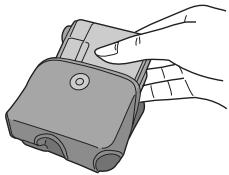
natural_image
Illustration of a hand holding a device with a button, no text or symbols present■ About the AC Adaptor
- If the Battery is warm, charging takes longer than usual.
- If you use the AC Adaptor near a radio, radio reception may be disturbed. Keep the AC Adaptor 1 meter or more away from a radio.
- After use, be sure to pull out the AC Main Lead from the AC Main socket.
-
Keep the electrodes of the AC Adaptor and Battery clean at all times.
-
Remove the battery if the device is left unused for a long time.
- The temperature of the SD Multi AV Device and the battery may rise while charging the battery. Such rise of temperature does not indicate a fault.
- Do not install, remove, plug or unplug the battery or power cord while the power is on.
- Remove the battery if the device is left unused for a long time.
- The temperature of the SD Multi AV Device and the battery may rise while charging the battery. Such rise of temperature does not indicate a fault.
- Do not install, remove, plug or unplug the battery or power cord while the power is on.
About the LCD Monitor
- In a place with drastic temperature changes, condensation may form on the LCD Monitor. Wipe it with a soft dry cloth.
- If your SD Multi AV Device is extremely cold when you turn its power on, the image on the LCD Monitor will be slightly darker than usual at first. However, as the internal temperature increases, it goes back to the normal brightness.
Extremely high precision technology is employed to produce the LCD Monitor screen featuring a total of approximately 200,000 pixels. The result is more than 99.99% effective pixels with a mere 0.01% of the pixels inactive or always lit. However, this is not a malfunction and does not affect the recorded picture.
■ Optimal Use of the Battery Battery Characteristics
This Battery is a rechargeable lithium ion battery. Its ability to generate power is based upon the chemical reaction that takes place inside it. This reaction is susceptible to the surrounding temperature and humidity, and, if the temperature is too high or too low, the operating time of the Battery becomes shorter.
ENGLISH


natural_image
Pure geometric diagram with intersecting lines and a circular pattern, no text or symbols present

Be Sure to Detach the Battery after Use
Be sure to detach the Battery from the SD Multi AV Device. (If it is left attached to the SD Multi AV Device, a minute amount of current is consumed even when the SD Multi AV Device power is off.) If the Battery is left attached to the SD Multi AV Device for a long time, over discharge takes place. The Battery may become unusable after it is charged.
Disposing of an Unusable Battery
●The Battery has a limited life.
- Do not throw the Battery into fire because it may cause an explosion.
Always Keep the Terminals of the Battery Clean
- Prevent the terminals from getting clogged with dirt, dust, or other substances.
- If you drop the Battery accidentally, check to see if the Battery body and terminals are damaged.
- Attaching a deformed Battery to the SD Multi AV Device may damage the SD Multi AV Device.
Notes on the SD Memory Card Write-Protect Switch
● The SD Memory Card has a write-protect switch.
Sliding the switch to [LOCK] prevents the contents in the Memory Card from deleting accidentally.
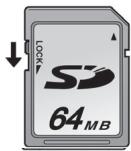
■ Cautions for Storage
Before storing the SD Multi AV Device, take the Memory Card out and detach the Battery.
Store all the components in a dry place with a relatively stable temperature. (Recommended Temperature:59 to 77°F (15 to 25°C), Recommended Humidity:40 to 60%)
SD Multi AV Device
- Do not leave the SD Multi AV Device in places that expose it to high temperature.
Battery
- Extremely high temperatures or low temperatures will shorten the life of the Battery.
- If the Battery is kept in smoky or dusty places, the terminals may rust and cause malfunctions.
- Do not allow the Battery terminals to come in contact with metal objects (such as necklaces, hairpins, etc.). This can result in a short circuit or heat generation and, if you touch the Battery in this condition, you may be badly burned.
- Store the Battery in a completely discharged state. To store the Battery for a long period of time, we recommend you charge it once every year and store it again after you completely use up the charged capacity.
Memory Card
- When the Memory Card is being read, do not remove the Memory Card, turn off the power, or subject it to vibration or impact.
- Do not leave the Memory Card in places where there is high temperature or direct sunlight, or where electromagnetic waves or static electricity are easily generated.
- Do not bend or drop the Memory Card. The Memory Card or the recorded content may be damaged.
- After use, be sure to remove the Memory Card from the SD Multi AV Device.
- After use, store the supplied SD Memory Card in the enclosed bag.
- Do not touch the terminals on the back of the Memory Card with your fingers. Do not allow dirt, dust or water to enter it.
- Keep the Memory Card out of reach of children to prevent swallowing.
ENGLISH
■ State of Power Lamp while charging
The Power Lamp flashes while charging. (Flashes approx. every 2 seconds when charging is normal.) When the Power Lamps flashes more quickly or slowly (or turns off), some abnormality may have occurred. The flashing speed suggests the following states.
Flashing approx. every 0.5 seconds:
- The SD Multi AV Device, battery or AC adaptor may be defective. Contact your nearest Panasonic dealer.
Flashing approx. every 6 seconds:
- The ambient temperature or that of the battery itself is too high or too low. Charging proceeds, but will take a longer time.
Turning off:
Charging is completed. If the Power Lamp turns off when charging is not completed, the AC Adaptor or the battery is probably defective. Contact your nearest Panasonic dealer.
Notes and Hints
Power Supply ( 10)
- When the Battery Level Indicator indicates [ ] , the battery will run out in a few minutes. Recharge the battery.
- It takes approx. 120 minutes, maximum for full-charging. (The charging times are for normal ambient temperature (68°F (20°C) /60%). If the Battery is charged at a higher or lower temperature, the charging time may be longer.)
- The capacities of the recording time/ playback time/still picture storage with a supplied, full-charged battery are as follows (68°F(20°C) /60%):
| Number of Recordable Still Pictures (PICTURE) | 1200 |
| Maximum Continuous Recording Time (MPEG4) | 90 min. |
| Maximum Continuous Voice Recording Time (VOICE) | 180 min. |
| Maximum Continuous Music Playback Time (MUSIC)(When the [POWER SAVE] function is activated) | 180 min. |
The times/number of images listed in the above table are approximate.
- If you disconnect the DC Input Lead or the AC Main Lead while charging the Battery, Power Lamp flashes several times and goes off. For continuing Battery charge, wait for approx. 1 minute, and then connect the AC Main Lead and the DC Input Lead.
- It is recommended to set the battery even when using the AC adaptor.
- The main unit becomes hot when it is being charged or used. This is normal.
- When removing the battery, take care not to drop it.
- When the SD Multi AV Device is turned on, do not attach or remove the battery, or plug the power cord in or out.
■ Inserting a Memory Card ( 11)
- While the Card Access Lamp is on, the following operations should not be attempted: (Such action will damage the Memory Card, cause loss of recorded data and cause the SD Multi AV Device to malfunction.)
-Remove or insert the Memory Card. -Remove the battery or unplug the power cable.
-Apply vibration or shock.
- An SD Memory Card can be used for this SD Multi AV Device.
- Do not touch the terminals on the back of the Memory Card with your fingers.
- Electrical noise, static electricity or failure of the SD Multi AV Device or the Memory Card may damage the Memory Card or erase the data stored on the Memory Card. It is recommended to save important data onto a personal computer.
- Some cards may pop out when they are removed.
■ Using the LCD Monitor ( 12)
- Forcefully rotating the LCD Monitor beyond ranges described in these operating instructions will damage the SD Multi AV Device.
- Do not carry or store the SD Multi AV Device with the LCD Monitor facing upward. Otherwise, the LCD Monitor may be damaged.
- When the LCD Monitor is closed with its display section facing outward, operation with the Multi-function Button or [MENU] Button is disabled. You can perform the function such as playing back, recording and adjusting the volume, etc. with the remote controller.
●The LCD Monitor may appear on the video to be recorded at some monitor set angles. Even if the LCD Monitor may not be viewed through the lens, it may appear if the video
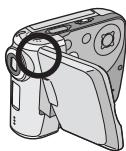
is viewed on a personal computer or if it is printed.
■ Using the Remote Controller/Earphone ( 12)
- Use the earphones supplied or one with a cord of 10 ft. (3 m) or less.
- The earphones can be attached to the main unit directly without using the remote controller.
-
If the earphones/remote controller are attached, the sound will not be output from the speaker.
-
When the SD Multi AV Device is not turned [OFF] (is in the standby mode), press the [■ /▶ ● ] button on the remote controller to activate it.
- The equalizer [EQ] is operational only when playing back music files.
■ Turning the Power On/Selecting Operation Modes ( 13)
- If the SD Multi AV Device is not used for 10 minutes or longer, the power is automatically turned off. Set the Power/ Mode Switch to [OFF] and turn it back on.
■ Using the Menu Screen ( 14)
- To abort the setting, press the [MENU] Button.
- While a Menu is displayed, you cannot record or play back.
- The menu screen does not appear during recording.
Setting Date and Time ( 17)
● The built-in battery sustains the operation of the clock.
- The clock might cause a deviation from the correct date and/or time, so be sure to check the current date and/or time before recording.
- If the [PRESS MENU TO SET CLOCK] indicator is displayed, set the date and time after the battery has charged. (→ 49)
■ Setting the Power Supply Frequency ( 18)
- This setting may not completely suppress the horizontal stripes.
- If this mode is used for outdoor recording, the entire image on the screen (or recording images) may be tinged with white.
- This mode cannot be set or released while recording.

AV30U book
57
ENGLISH
- Irrespective of the setting, the horizontal stripes may appear in the following cases.
-When using the SD Multi AV Device to record pictures under a lighting instrument such as a high-frequency fluorescent lamp:
-When using the SD Multi AV Device to record a lighting instrument such as a fluorescent lamp:
- It is not possible to use Backlight Compensation Mode when this mode is activated.
- The SD Multi AV Device adjusts the brightness by varying the shutter speed. However, the shutter speed is fixed in this mode so the brightness cannot be adjusted in this mode.
■ Recording Still Pictures ( 20)
- The image size is 640 × 480 (VGA).
- If [NORMAL] or [ECONOMY] is selected for recording, mosaic-pattern noise may appear on a playback image depending on the image content.
●The available range of the Flash is approximately 2.7-4 ft. (80 to 120 cm) in a dark place. - Record the subject approx. 1.7 ft. (50 cm) away from it.
- If there are 7 files or more to be displayed in the index picture screen, each press of the left (or right) multi-function button makes the previous (or next) page appear.
- Double zooming degrades the picture quality.
- If the number of remaining recordable pictures is 10,000 or more, the indication will be "9999".
- flashes immediately after the Flash is used to indicate that pictures cannot be recorded. Wait until it stops flashing.
- For recording a portrait still picture, a recording button for portrait taking is provided for your convenience. With SD-MovieStage Ver.2.0, a portrait picture can be converted into a landscape picture on the personal computer.
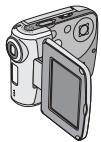
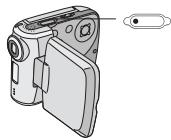

- The following table shows still image storage capacity for each image quality settings:
| FINE | NORMAL | ECONOMY | |
| 8 MB | 45 | 95 | 190 |
| 16 MB | 100 | 200 | 400 |
| 32 MB | 220 | 440 | 880 |
| 64 MB | 440 | 880 | 1760 |
| 128 MB | 880 | 1760 | 3520 |
| 256 MB | 1760 | 3520 | 7040 |
| 512 MB | 3520 | 7040 | 14080 |
The numbers shown in the above table are approximate and may vary depending on picture content.
■ Playing back Still Pictures ( 21)
- The image data files recorded on the Memory Card with the SD Multi AV Device conform to the DCF (Design rule for Camera File system) universal standard stipulated by JEITA (Japan Electronics and Information Technology industries Association).
■ Recording Moving Pictures (MPEG4) ( 22)
- If the moving picture is recorded again after stopping recording, it will be saved as another file.
- Double zooming degrades the picture quality.
- Record the subject approx. 1.7 ft. (50 cm) away from it.

natural_image
Pure geometric diagram with intersecting lines and circles, no text or symbols present- The MPEG4 moving pictures can be recorded in any mode, but moving pictures recorded in the [SUPER FINE], [FINE] or [NORMAL] mode may not be played on other Panasonic digital video cameras. The message [PUSH THE RESET SWITCH] may be displayed on some Panasonic digital video cameras in such a case. This is not a fault of the SD Multi AV Device.
- The MPEG4 moving pictures recorded in the [ECONOMY] mode may not be played, if it was a short recording (4 seconds or shorter).
● The sounds recorded will be in monaural. - The recorded data can be played back on Windows Media Player.
- If MPEG4 moving pictures recorded by the SD Multi AV Device are played back on a personal computer, etc., a black belt may appear at the top and bottom of the pictures.
- Playing back MPEG4 moving pictures recorded in the [SUPER FINE] mode is not guaranteed for digital devices other than this SD Multi AV Device.
- MPEG4 moving pictures of the [SUPER FINE] mode cannot be recorded in the MultiMediaCard.
● The capacities of the recording time for MPEG4 files are as follows:
The times listed in the above table are approximate.
■ Playing Back Moving Pictures (MPEG4) (→ 23)
- Files are numbered hexadecimally.
- The file format supported by this SD Multi AV Device is ASF. (Some ASF formatted files may not be played back.)
- When a moving picture is played back, a mosaic may appear or some frames may be missing; but this is normal.
- If there are 7 files or more on the index picture screen, each press of the left (or right) of the multi-function button makes the previous (or next) page appear.
- Fast forward or fast backward will be reset to normal playback on the next file.
- In the index picture screen, the first frame for the pictures is displayed. (For example, if the first frame is painted in black as a whole, a black screen will be displayed.)
- MPEG4 files recorded by another device or another application may not be played back. Files recorded on the SD Multi AV Device may not be played back on another movie camera or the file size may not be displayed correctly.
- When playing back a picture recorded by other equipment, picture size may differ.
● Music playback is not possible with a MultiMediaCard.
■ Recording Voice (Voice Recording Function) ( 24)
- The screen shows a simple black background.
● The sounds recorded will be in monaural. - The indexes of the recording time for Voice files are as follows:
The times listed in the above table are approximations.
ENGLISH
■ Hearing the Voice Recorded (Voice Playback) (→ 25)
- The screen shows a simple black background.
- Fast forward (or fast backward) will be reset to normal playback at the beginning of the next file.
■ Listening to Music (Music Playback) ( 26)
- Only the MPEG2-AAC and MP3 data recorded using SD-Jukebox Ver.3.0 (supplied accessory) are applicable to play on your SD Multi AV Device.
- This SD Multi AV Device alone does not allow tracks to be recorded or deleted.
- Refer to the PDF manual of the SD-Jukebox Ver.3.0 as for Recording Music file and Playlist.
- If there is no Music file, [SELECT PLAYLIST] screen on the menu is not displayed.
- If [POWER SAVE] has been set to [ON] on the menu, the LCD Monitor will be turned off approx. 5 seconds after playback and the SD Multi AV Device will be turned off approx. 30 seconds after stopping. Turn the power [OFF], then turn it on again. (You may press the [ /► ] button on the remote controller, to turn the power on.)
- If the still picture associated by the SD-Jukebox Ver.3.0 is large (volume), it may take a longer time to be displayed than expected.
- If there are two or more still pictures associated by the SD-Jukebox Ver.3.0, only the first still picture will be displayed.
- Even if a still picture has been associated by the SD-Jukebox Ver.3.0, it may not be played back on the SD Multi AV Device, depending on the still picture type.
- A title, an artist name or the [PLAYLIST] may not be displayed in some cases.
- All music files are locked.
-
Using its Formatting Function, all the data on an SD Memory Card can be erased.
-
MP3 is the abbreviation for MPEG1 Audio Layer3.
- Normal MP3 files cannot be played back. Use the data created with SD-Jukebox Ver.3.0.
- Some MP3 or MPEG2-AAC files which were written with SD-Jukebox Ver.3.0 may not be played back.
- The bit rates (recommended) supported are 64 kbps, 96 kpbs or 128 kbps for both the MPEG2-AAC and MP3 files.
● WMA data cannot be played back.
■ Adjusting the Volume ( 27)
- The L/R indication on the earphones represents Left/Right.
- When checking the sound which is being recorded, volume adjustment is not available.
■ Backlight Compensation Function ( 28)
- When the Backlight Compensation Function is activated, the entire screen becomes brighter.
- Turning the power off will release this function.
- It is not possible to use Horizontal Stripes Reduction Mode and to adjust White Balance when this mode is activated.
- The backlight may not be sufficiently compensated for in dark places.
- The Backlight Compensation Function cannot be set or released while recording.
■ Adjusting White Balance ( 28)
- You may not be able to achieve correct White Balance adjustment manually under weak illumination. (In this case, the ■ Indication flashes.)
- Turning the power off will release the adjusted White Balance setting.
- This mode cannot be set or released while recording.
- It is not possible to use Horizontal Stripes Reduction Mode and Backlight Compensation Function when this mode is activated.



natural_image
Pure geometric diagram with intersecting lines and circles, no text or symbols present- The White Balance may not be adjusted in dark places.
- Adjustment of White Balance is effective under the following conditions.
-When recording under reddish lighting (halogen light bulb, incandescent light bulb, etc.).
-When recording a picture of mono-tone color.
-When recording under multiple light sources.
■ Erasing the Files Recorded on a Memory Card ( 29)
- Erased files cannot be restored.
- This SD Multi AV Device cannot erase any music files (MP3 and MPEG2-AAC).
- The files recorded in the Voice Record mode are automatically locked. Release the lock to erase them.
- Do not erase the Voice files recorded with this SD Multi AV Device using other devices.
- A locked file cannot be erased. Release the lock to erase them.
- No files can be erased if the write protect switch on the SD Memory Card is set to [LOCK].
- If a file is erased on the SD Multi AV Device, the DPOF information set by another camera may also be erased.
- A still picture file (other than JPEG) that cannot be played back on the SD Multi AV Device may be erased.
- Erasing many files may take a little time. Wait until the Card Access Lamp goes out.
- Recorded voice data always has serial numbers even after an arbitrary file is deleted. For example, if [100]TRACK003 is deleted, the current [100]TRACK004 will change into [100]TRACK003 and the files that follow will also change accordingly.
- Do not turn the power off or remove the Memory Card while a file is being deleted. Otherwise, the Memory Card may be damaged.
- Delete audio (VOICE) files on the SD Multi AV Device.
■ Protecting files (File Protection) (→ 30)
- Even if files are locked, the files will be deleted when the Memory Card is formatted.
- Any music files (MPEG2-AAC and MP3) cannot be locked or unlocked.
- Files recorded by Voice Recording Functions are automatically locked (to prevent accidental erasure).
- The File Protection carried out by this SD Multi AV Device is only effective for this SD Multi AV Device.
- The SD Memory Card has a write protection switch on it. If the switch is moved to the [LOCK] side, you cannot write to or format the Memory Card. If it is moved back, you can.
- Locking/Unlocking many files may take a little time. Wait until the Card Access Lamp goes out.
■ Writing Printing Data on a Memory Card (DPOF Setting) ( 31)
- DPOF is the abbreviation of Digital Print Order Format. DPOF is used to select images you want to print. DPOF can only be used with products that support this feature.
- The number of prints can be set from 0 to 99.
- This SD Multi AV Device may not recognize the DPOF set by another type of device.
- DPOF-setting many files may take a little time. Wait until the Card Access Lamp goes out.




natural_image
Pure geometric diagram with intersecting lines and a central circle, no text or symbols present
ENGLISH
■ Playing back still pictures one by one (P.Slide Show) ( 32)
- Playback time may take longer than usual depending on the picture.
- If the P. Slide show data is not recorded on the Memory Card, the display reverts to the index picture screen.
- The time for the Slide show set by SD-MovieStage Ver.2.0 is not applied to the SD Multi AV Device.
■ Formatting the Memory Card ( 33)
- Normally, it is not necessary to format the Memory Card.
- If the Memory Card performance becomes unstable (recording or playback fails, etc.), try to format it.
- If a message to prompt you to check the Memory Card comes up, it will be necessary to format it in order to use it on the SD Multi AV Device.
- By formatting, all data stored in the Memory Card (e.g., still pictures, MPEG4 moving pictures, voice data, music data) are erased.
- Format the Memory Card on the SD Multi AV Device or on the SD-Jukebox Ver.3.0 (supplied). A Memory Card formatted on a machine other than the SD Multi AV Device may not be used. A Memory Card formatted on the SD Multi AV Device may not be used on other machines. Format a Memory Card on the machine on which it is used.
● Particularly for a Memory Card containing music files, check in the Memory Card using SD-Jukebox Ver.3.0, with which the music files were recorded, then format it. (For details, read the PDF-format manual for SD-Jukebox Ver.3.0.) -
Do not use the personal computer (Explorer) to format it. Otherwise, it may not be recognized by the SD Multi AV Device.
-
If the write protection switch of the SD Memory Card is set to [LOCK], data cannot be erased.
- When the Memory Card is formatted, the files will be deleted, even if files are locked.
- As formatting erases all the data, save the necessary data on a personal computer, etc. beforehand.
- Format may take a little time. Wait until the Card Access Lamp goes out.
■ Fitting on the AV Cradle ( 35)
- To fit the SD Multi AV Device on the AV Cradle, turn the SD Multi AV Device [OFF].
- When the SD Multi AV Device is connected to the AV Cradle, the SD Multi AV Device cannot record through-the-lens images.
- When the AC adaptor is connected to this SD Multi AV Device, the SD Multi AV Device cannot be fitted on the AV Cradle.
■ Playing Back on an external device ( 36)
- When connecting, turn the power [OFF].
- To cause the display on the screen to disappear, set [DISPLAY] in the [DISPLAY SETUP] menu to [OFF].
- In the connection described in this item, the speaker or the stereo earphones of this Device cannot be used.
- To view pictures on the LCD monitor of the SD Multi AV Device fitted on the AV Cradle, set the AV output switch to [LCD MONITOR]. (The sound is also heard from the speaker of the SD Multi AV Device.)
- If the SD Multi AV Device is connected to an external device, such as a TV and it outputs video and audio to the device, the sound is not heard from the speaker of this Device even with [BEEP] in the menu set to [ON].
● Part of the characters may be clipped on the screen, depending on the type of TV.
natural_image
Pure geometric diagram with intersecting lines and shaded circles, no text or symbols present
natural_image
Pure geometric diagram with intersecting lines and a circular pattern, no text or symbols present
natural_image
Abstract geometric diagram with concentric circles and intersecting lines, no text or symbols present■ Recording pictures supplied from an external device ( 38)
● Pictures containing the copy-protect signal (copy guard) cannot be recorded.
- The power is automatically turned off in approx. 10 minutes after the SD Multi AV Device stops. Turn the power ON again.
- VOICE from an external device cannot be recorded.
- In the [REC] mode, video or audio is not output from the [AV OUT] terminal, irrespective of the setting of the AV Output Control Switch.
- A wide-format picture (picture of 16:9) cannot be recorded properly.
- For audio, the signals from the L (left) channel and the R (right) channel for stereo are mixed for recording in monaural.
- Do not plug in or pull out the video or audio cord during recording. The recording may not be performed correctly.
- For pictures containing both the main audio and sub audio, select either channel before recording. Otherwise, you will not be able to select either of the main audio or sub audio. (Both audio channels are mixed for recording.)
- If pictures are recorded when TV broadcasting signals are weak or pictures are affected by noise, they may be distorted or may not even be played back.
■ Useful Connection (AV Cradle always connected) ( 37)
- When connecting, turn the power [OFF].
- Do not connect the SD Multi AV Device simultaneously to the AV input socket and AV output socket of one single device. Otherwise, the display will be distorted.
■ Using Auto Recording Function ( 39)
- Do not turn the power switch to [OFF] or [PLAY] in the standby mode.
- When connecting, turn the power of the external devices off.
● Automatic recording can be set only once.
- When the Memory Card is full of data, recording automatically stops even if the time set has not been reached.
- The initial part of the picture may not be recorded.
- The recording timer does not work except for automatic recording.
- Allow about 1 minute for timer setting, etc. on the external devices.
- Do not plug in or pull out the AV Cable while recording. Otherwise, the recording may not be completed properly.
■ Connecting with the PC ( 46)
- To erase pictures that you recorded on the Memory Card by using the SD Multi AV Device, be sure to erase them on the SD Multi AV Device or by the SD-MovieStage Ver.2.0 (supplied), not on a personal computer (the exploror, etc.).
- You may not be able to properly play back on the SD Multi AV Device after editing the recorded data or changing the image data on a personal computer.
- Moving Picture format (MPEG4) that can be played back on the SD Multi AV Device is ASF. (Depending on the file, it may not be able to be played back even if it is in ASF format.)
- When you operate the SD Multi AV Device using its buttons, pull out the USB cable. (The SD Multi AV Device cannot be operated in the [PC ACCESSING] mode.)
- Use only the supplied USB cable.
- Do not remove the AC adaptor when the SD Multi AV Device is connected to the personal computer.
- If the SD Multi AV Device's personal computer peripheral mode ([PC ACCESSING] is displayed) is not cancelled when the personal computer is turned OFF, remove the USB cable.

natural_image
Pure geometric diagram with intersecting lines and circular shapes, no text or symbols presentENGLISH
- If the personal computer switches to the suspend mode when the SD Multi AV Device is connected to it, the personal computer may not recognize the SD Multi AV Device when it reverts to normal mode. In this case, restart the personal computer.
- Do not use other applications to access the CD that you are recording from or playing back with the SD-Jukebox Ver.3.0 (supplied).
- While SD-MovieStage Ver.2.0 (supplied) is accessing a CD, the CD may not work properly in other applications.
- When an NTFS-formatted Memory Card is inserted into the SD Multi AV Device and the Device is connected to the personal computer, the Memory Card active lamp keeps lighting. In this case, log on with [Administrator (computer administrator)] (or any other user name having equivalent rights), right-click the Removable Disk icon in [My Computer], and select [Remove]. Check that the Card Access Lamp goes off, then remove the Memory Card.
- When the USB Driver is installed and the SD Multi AV Device is connected to the personal computer for the first time, the [Found New Hardware Wizard] screen may appear. Complete the operation in the following procedure, and the personal computer will recognize the SD Multi AV Device.
①Click [Next].
②Confirm whether your device is configured to the optimal driver detection setting and click [Next].
③Insert the supplied CD-ROM into the CD-ROM drive.
④Enter the path as “D:\USB Driver\files”. (example of D drive assigned as CD-ROM drive)
⑤Click [Next].
⑥Click [Next].
⑦Click [Finish].
■ Constructing a Folder when the Memory Card is used with a PC ( 48)
- [DCIM], [SD_VIDEO], [SD_VOICE] etc. are necessary items in the folder structure. They have nothing to do with actual operations.
- The memory capacity indicated on the SD Memory Card label corresponds to the total amount of the capacity to protect and manage the copyright and of the capacity available as a conventional memory for a SD Multi AV Device, Personal Computer or others.
- The [SD_VOICE] folder, the voice files contained in it, and [SD_AUDIO] folder are specified to the hidden files. Those folders and files may not be displayed on the Explorer and My Computer screen depending on the setting of your PC.
- Do not delete any folders located on the Memory Card. If this is done, the Memory Card may not be recognized on your SD Multi AV Device.
- The MPEG4 moving picture file (ASF format) can be played on the Windows Media Player 6.4 or later. If it cannot be played back, download the appropriate software (G.726). (G.726 is installed at the same time as the supplied software, SD-MovieStage Ver.2.0.)
- When formatting a Memory Card, format it on the SD Multi AV Device or on SD-Jukebox Ver.3.0.
- When a moving picture is played back on a personal computer, a black belt may be present along the top and bottom of the picture.
- If data not supported by the SD Multi AV Device is recorded on a personal computer, it cannot be recognized by the SD Multi AV Device.
Before Requesting Service
Power
1: The SD Multi AV Device power cannot be turned on.
1-1: Is the power source connected correctly?
1-2: Is the Battery fully charged? Charge it with the AC Adaptor.
2: The SD Multi AV Device power shuts off automatically.
2: If you do not use the SD Multi AV Device for more than 10 minutes, the power shuts off automatically to save the Battery power.
3: The SD Multi AV Device power does not stay on long enough.
3: Is the Battery low? Charge the Battery or attach a fully charged Battery.
Battery
1: Battery runs down quickly.
1-1: Is the Battery fully charged? Charge it with the AC Adaptor.
1-2: Are you using the Battery in an extremely cold place? In cold places, the operating time of the Battery becomes shorter.
1-3: Has the Battery worn out? If the operating time is still short even after the Battery is fully charged, the Battery has worn out.
Recording
1: Recording does not start although power is supplied to the SD Multi AV Device and the Memory Card is correctly inserted.
1-1: Is the SD Multi AV Device turned on?
1-2: Is the write-protect switch set to [LOCK]? Being set to [LOCK], the Memory Card cannot be recorded.
1-3: Does the Memory Card have enough free space? Delete useless data in the Memory Card.
Playback
1: Recorded images are not clear.
1: Is [MPEG4 MODE] on the menu set to [NORMAL] or [ECONOMY]? If recording is done with it set to [NORMAL] or [ECONOMY], images with fine details may include a mosaic-like pattern. Set [MPEG4 MODE] to [SUPER FINE] or [FINE].
2: Playback images do not look normal.
2: The picture may be damaged. In order to prevent the loss of image data, backing up on a personal computer is recommended.
3: Actual recording time/still image storage capacity in the Memory Card is different from those described in these Operating Instructions drastically.
3-1: Actual recording time/still image storage capacity depends on the kind of the image.
3-2: When MPEG4 moving picture data, still picture data, sound data, and audio data are recorded in the Memory Card, less capacity in the Memory Card can be used.
4: While playing back a Voice file or a Music file, the LCD Monitor is suddenly turned off.
4-1: The LCD Monitor is automatically turned off approx. 5 seconds after starting playing back or recording a Voice file. Pressing the [▶ SET] button turns on the LCD Monitor. However, in the case of not conducting any operation for approx. 5 seconds, the LCD Monitor is turned off again. (The LCD Monitor is on while stopping playback (or pausing).)
4-2: When the [POWER SAVE] mode is set to [ON], the LCD Monitor is turned off 5 seconds after starting playback of a Music file.

natural_image
Pure geometric diagram with intersecting lines and circular shapes, no text or symbols present
5: During Playback an [×] Indication is displayed.
5: The data was either recorded in a different format, or data is damaged.
6: Even if a Memory Card is formatted, it cannot be used.
6: Either the SD Multi AV Device or the Memory Card may be damaged. Please consult your Panasonic dealer.
7: Playing back or recording do not function and the screen has frozen.
7: Set the Power/Mode Switch to [OFF] and then set it back to [REC] or [PLAY] after a while (approx.1 minute). If the SD Multi AV Device is not turned off after setting to [OFF], unplug the AC Adaptor and remove the battery.
8: Sound is not heard while a still picture is played back.
8: Sound is not presented in the Still Picture mode (recording or playing back of still pictures).
9: Any images are not displayed on TV, although the SD Multi AV Device is connected with a TV.
9-1: Connect the SD Multi AV Device to the TV correctly.
9-2: Use the supplied A/V cable.
9-3: When the SD Multi AV Device is set to [REC] mode, the video or audio is not output from the [AV OUT] terminal.
9-4: Video or audio is not output from the [AV OUT] terminal in which case the AV Output Control Switch on the AV Cradle is set to [LCD MONITOR] or the AV Input Control Switch on the AV Cradle is set to [AV IN → AV OUT].
Others
1: How do I send an MPEG4 moving picture recorded as e-mail?
1: Capture the moving picture data recorded on the SD Multi AV Device onto a personal computer and attach it to an e-mail to send it. In this case, it is recommended to make a file size 1 MB or less. The recording time of 1 MB MPEG4 moving picture is approx. 8
seconds (SUPER FINE), 15 seconds (FINE), 20 seconds (NORMAL) or 60 seconds (ECONOMY). (The capacity limit of the file which is attachable to an e-mail differs depending on the environment used.) If the file is played back on the personal computer, Windows Media Player 6.4 or later is required. If the file is played back on Macintosh, use the Windows Media Player for Macintosh. (Mac OS® 8.0 or later) The Windows Media Player for Macintosh can be downloaded from Microsoft's Web site.
2: Red, blue, green or white dots appear on the screen.
2-1: 0.01% or less of the pixels of some LCD Monitors may remain turned on or off.
2-2: If the SD Multi AV Device is used continuously for a long time or used at a high ambient temperature, red, blue, green or white dots may appear on the screen and be recorded on a still picture. This is due to the rise of the temperature inside the body. This is caused by a characteristic of the C-MOS sensor and is not a failure. Under this condition, turn the SD Multi AV Device off and leave it for a while.
- C-MOS sensors are said to be a next-generation image pick-up device succeeding CCDs as they are small and consume low amounts of power.
3: When the USB cable is connected, a green [?] mark is indicated in [USB Mass Storage Device] in [Device Manager] of the Windows OS.
3: If the USB cable is connected without installing the USB Driver (supplied), [?] will be indicated on some OSs. Remove the USB cable from the SD Multi AV Device and install the USB Driver according to the procedure shown on page 44, and [?] will disappear.
ENGLISH


4: When the USB cable is removed when Windows Me is used, Device removal warning appears.
4: If the USB cable is connected without installing the USB Driver (supplied) when you use Windows Me, the warning message will appear as soon as the USB cable is pulled out. Install the USB Driver, and the warning message will not appear.
For how to disconnect the USB cable on Windows XP or Windows 2000, refer to page 47.
Specifications
SD Multi AV Device (Panasonic SV-AV30U)
Information for your safety
| Power Source: | DC 4.8 V (AC Adaptor) |
| DC 3.7 V (Battery) | |
| Power Consumption: | Recording (When recording the MPEG4 moving picture with Camera Input) |
| 2.3 W (When using the AC Adaptor) | |
| 2.1 W (When using the battery) | |
| Image Sensor: | 1/4-inch C-MOS Image Sensor |
| Lens: | F2.35, Focal Length; 3.55 mm |
| Shortest Image Distance; Approx. 1.7 ft (50 cm) from Lens | |
| Monitor: | 2.0-inch LCD |
| Microphone: | Mono |
| Standard Illumination: | 1400 lx |
| Minimum Required Illumination: | 60 lx |
| Recording Media: | SD Memory Card |
| Image Compression: | JPEG (VGA) |
| Video Compression: | MPEG4 |
| Super Fine: 320 × 240 pixels | |
| Fine: 320 × 240 pixels | |
| Normal: 176 × 144 pixels | |
| Economy: 176 × 144 pixels | |
| Voice Compression: | G.726 |
| Music Expansion: | MP3, MPEG2-AAC |
| Dimensions: | Approx. 2-7/16" × 1-1/16" × 2-15/16" (61.7 (W)× 25.9 (H) × 74.6 (D) mm) |
| Weight: | Approx. 3.35 oz (95 g)(without Battery and Memory Card) |
| Approx. 4.3 oz. (122 g)(with Battery and SD Memory Card) | |
| Operating Temperature: | 32°F–104°F (0 °C–40 °C) |
| Operating Humidity: | 10%–80% |

AC Adaptor (Panasonic VSK0626)
Information for your safety
| Power Source: | AC 110–240 V, 50/60 Hz |
| Power Consumption: | 7 W |
| DC Output: | DC 4.8 V, 1.0 A |
Dimensions: Approx. 2" × 1-1/16" × 2-13/16"
(50 (W)× 26 (H)× 70 (D) mm)
Weight: Approx. 2.12 oz. (60 g)
Battery Pack (Panasonic CGA-S301A1)
Information for your safety
| Nominal Voltage: | 3.7 V |
| Nominal Capacity: | 1000 mAh |
Dimensions: Approx. 1-7/16" × 5/16" × 2-1/8"
(36 (W) × 7 (H) × 53 (D) mm)
Weight: Approx. 0.99 oz (28 g)
natural_image
Pure geometric diagram with intersecting lines and circles, no text or symbols presentLimited Warranty (For U.S.A. Only)
Panasonic Consumer Electronics Company, Division of Matsushita Electric Corporation of America
One Panasonic Way Secaucus, New Jersey 07094
Panasonic Sales Company, Division of Matsushita Electric of Puerto Rico, Inc.
Ave. 65 de Infantería, Km. 9.5, San Gabriel Industrial Park, Carolina, Puerto Rico 00985
PANASONIC SD Products
Limited Warranty
Limited Warranty Coverage
If your product does not work properly because of a defect in materials or workmanship, Panasonic Consumer Electronics Company or Panasonic Sales Company (collectively referred to as “the warrantor”) will, for the length of the period indicated on the chart below, which starts with the date of original purchase (“warranty period”), at its option either (a) repair your product with new or refurbished parts, or (b) replace it with a new or a refurbished product. The decision to repair or replace will be made by the warrantor.
| Product or Part Name | Parts | Labor |
| SD Multi AV Device, SD Mobile Printer(except items listed below) | One (1) year | Ninety (90) days |
| CMOS Camera Assembly | Six (6) months | Ninety (90) days |
| Rechargeable Battery Pack, SD Memory Card, AC Adaptor USB Reader-Writer (in exchange for defective item) | Ninety (90) days | Not Applicable |
During the “Labor” warranty period there will be no charge for labor. During the “Parts” warranty period, there will be no charge for parts. You must carry-in or mail-in your product during the warranty period. If non-rechargeable batteries are included, they are not warranted. This warranty only applies to products purchased and serviced in the United States or Puerto Rico. This warranty is extended only to the original purchaser of a new product which was not sold “as is”.
A purchase receipt or other proof of the original purchase date is required for warranty service.
Carry-In or Mail-In Service
For Carry-In or Mail-In Service in the United States call 1-800-211-PANA (1-800-211-7262).
For assistance in Puerto Rico call Panasonic Sales Company (787)-750-4300 or fax (787)-768-2910.
natural_image
Pure geometric diagram with intersecting lines and circles, no text or symbols present
natural_image
Pure geometric diagram with intersecting lines and circles, no text or symbols present
Limited Warranty Limits And Exclusions
This warranty ONLY COVERS failures due to defects in materials or workmanship, and DOES NOT COVER normal wear and tear or cosmetic damage. The warranty ALSO DOES NOT COVER damages which occurred in shipment, or failures which are caused by products not supplied by the warrantor, or failures which result from accidents, misuse, abuse, neglect, mishandling, misapplication, alteration, faulty installation, set-up adjustments, misadjustment of consumer controls, improper maintenance, power line surge, lightning damage, modification, or commercial use (such as in a hotel, office, restaurant, or other business), rental use of the product, service by anyone other than a Factory Servicenter or other Authorized Servicer, or damage that is attributable to acts of God.

THERE ARE NO EXPRESS WARRANTIES EXCEPT AS LISTED UNDER “ LIMITED WARRANTY COVERAGE”. THE WARRANTOR IS NOT LIABLE FOR INCIDENTAL OR CONSEQUENTIAL DAMAGES RESULTING FROM THE USE OF THIS PRODUCT, OR ARISING OUT OF ANY BREACH OF THIS WARRANTY. (As
examples, this excludes damages for lost time, travel to and from the servicer, loss of media or images, data or other memory content. The items listed are not exclusive, but are for illustration only.) ALL EXPRESS AND IMPLIED WARRANTIES, INCLUDING THE WARRANTY OF MERCHANTABILITY, ARE LIMITED TO THE PERIOD OF THE LIMITED WARRANTY.
Some states do not allow the exclusion or limitation of incidental or consequential damages, or limitations on how long an implied warranty lasts, so the exclusions may not apply to you.
This warranty gives you specific legal rights and you may also have other rights which vary from state to state. If a problem with this product develops during or after the warranty period, you may contact your dealer or Servicenter. If the problem is not handled to your satisfaction, then write to the warrantor's Consumer Affairs Department at the addresses listed for the warrantor.
PARTS AND SERVICE WHICH ARE NOT COVERED BY THIS LIMITED WARRANTY ARE YOUR RESPONSIBILITY.
natural_image
Pure geometric diagram with intersecting lines and circles, no text or symbols present
natural_image
Pure geometric diagram with intersecting lines and circles, no text or symbols present

AV30U book 70

Customer Services Directory (For U.S.A. Only)
For Product Information, Operating Assistance, Literature Request, Dealer Locations, and all Customer Service inquires please contact: 1-800-211-PANA(7262), Monday-Friday 9am-9pm Saturday-Sunday 9am-7pm, EST. or send e-mail: consumerproducts@panasonic.com
Web Site: http://www.panasonic.com You can purchase parts, accessories or locate your nearest servicenter by visiting our Web Site.
Accessory Purchases:
1-800-332-5368 (Customer Orders Only) Panasonic Services Company 20421 84th Avenue South, Kent, WA 98032 (6 am to 5 pm Monday - Friday; 6 am to 10:30 am Saturday; PST) (Visa, MasterCard, Discover Card, American Express, Check)
Product Repairs
Centralized Factory Servicenter
Panasonic Services Company
MAIL TO :
1705 N. Randall Road,
Elgin, IL 60123-7847
Attention: SD Products Repair
Please carefully pack and ship, prepaid and insured, to the Elgin Centralized Factory Servicenter. Customer's in Puerto Rico, please ship or carry in to location below ("Service in Puerto Rico").
Service in Puerto Rico
Matsushita Electric of Puerto Rico, Inc. Panasonic Sales Company/ Factory Servicenter: Ave. 65 de Infantería, Km. 9.5, San Gabriel Industrial Park, Carolina, Puerto Rico 00985 Phone (787) 750-4300 Fax (787) 768-2910
As of January 2002


natural_image
Pure geometric diagram with intersecting lines and a circular pattern (no text or symbols)- Panasonic®
- End User License Agreement
- Article 1 License
- Article 2 Use by a Third Party
- Article 3 Restrictions on Copying the Software
- Article 4 Computer
- Article 5 Reverse Engineering, Decompiling or Disassembly
- Article 6 Indemnification
- Article 7 Export Control
- Article 8 Termination of License
- Contents
- Preparation
- Basic Functions
- Advanced Functions
- Using the AV Cradle
- On a Personal Computer
- Others
- Information for Your Safety
- ENGLISH
- FCC Note: (U.S. only)
- Introduction
- Clock setting
- ■ Power supply frequency
- Standard Accessories
- CAUTION:
- Optional Accessory
- Controls and Components
- Power Supply
- Using AC Adaptor
- Charging the Battery
- CAUTION
- Inserting a Memory Card
- Using the LCD Monitor
- Using the Remote Controller/Earphone
- ■ Operating the Remote Controller
- Turning the Power On/Selecting Operation Modes
- ■ About the Operation Modes
- Using the Menu Screen
- 1
- 2
- 3
- 4
- 5
- 6
- List of Menus
- REC MODE
- Still Picture Record Menu
- MPEG4 Moving Picture Record Menu
- Voice Record Menu
- Sub-Menu for [REC] Mode
- ① Initial setup [INITIAL SETUP]
- ② Display setup [DISPLAY SETUP]
- ③ Auto recording setup [AUTO RECORDING SETUP]
- PLAY MODE
- Sub-Menu for [PLAY] Mode
- Setting Date and Time
- Setting the Power Supply Frequency
- ■ To Reduce the Appearance of Horizontal Stripes Consisting of Light and Dark Patterns
- To Release this mode
- Adjusting Brightness and Color Level on the LCD Monitor
- Recording Still Pictures
- ■ To Double the Image Size
- ■ To Check the Recorded Image immediately
- 3,4
- ①
- ②
- Playing back Still Pictures
- Recording Moving Pictures (MPEG4)
- Playing Back Moving Pictures (MPEG4)
- Recording Voice (Voice Recording Function)
- Hearing the Voice Recorded (Voice Playback)
- Listening to Music (Music Playback)
- Operation during playing
- To Repeat Playback
- Selecting a Playlist
- ■ Selecting a desired Sound Quality
- Press the [EQ] button on the Remote Controller.
- Adjusting the Volume
- Press [-] or [+] of the [VOL] Button.
- Backlight Compensation Function
- Adjusting White Balance
- Erasing the Files Recorded on a Memory Card
- To Erase All Files
- Protecting files (File Protection)
- ■ To Release the File Protection Select [UNLOCK] in Step 4 above.
- To Lock All Files
- Writing Printing Data on a Memory Card (DPOF Setting)
- ■ To Release All the DPOF Settings
- ■ To Check the DPOF Settings in Slide Show
- Playing back still pictures one by one (P.Slide Show)
- Formatting the Memory Card
- Fitting on the AV Cradle
- Playing Back on an external device
- Useful Connection (AV Cradle always connected)
- Sample 1
- Details of the connection
- ■ Sample 2 (example when The SD Multi AV Device is not used)
- Recording pictures supplied from an external device
- Using Auto Recording Function
- About the supplied software
- ■ About the supplied software
- USB Driver
- ■ System Requirements for USB Driver
- SD-MovieStage
- ■ Features of SD-MovieStage Ver.2.0
- ■ System Requirements for SD-MovieStage Ver.2.0
- OS:
- CPU:
- HDD:
- RAM:
- Display:
- Others:
- SD-Jukebox
- Features of SD-Jukebox Ver.3.0
- ■ System Requirements for SD-Jukebox Ver.3.0
- Sound:
- Drive:
- Installing USB Driver
- Installing SD-MovieStage Ver.2.0
- Installing SD-Jukebox Ver.3.0
- Connecting with the PC
- Starting the Software
- Disconnecting the USB Cable safely
- If you no longer need software (Uninstall)
- Constructing a Folder when the Memory Card is used with a PC
- After Use
- Operation Mode
- Status Indications Recording Mode
- Playback Mode
- Flash ( → 20)
- Image Quality [PICTURE] mode
- [MPEG4] mode
- Double zoom display
- Camera Functions
- Date/Time Indication ( → 17)
- Elapsed time indication 0h00m00s
- Indication of recordable time and recordable number of images
- Sound quality indication (music files)
- Repeat Playback ( → 23, 26)
- File Name ( → 21, 23, 25, 26)
- [FILE LOCKED]:
- [PLEASE RE-OPERATE]:
- [INCOMPATIBLE DATA]:
- Notes & Precautions
- ■ Cautions for Use
- About the Lens
- ■ About the AC Adaptor
- About the LCD Monitor
- ■ Optimal Use of the Battery Battery Characteristics
- Be Sure to Detach the Battery after Use
- Disposing of an Unusable Battery
- Always Keep the Terminals of the Battery Clean
- Notes on the SD Memory Card Write-Protect Switch
- ■ Cautions for Storage
- Before storing the SD Multi AV Device, take the Memory Card out and detach the Battery.
- SD Multi AV Device
- Battery
- Memory Card
- ■ State of Power Lamp while charging
- Flashing approx. every 0.5 seconds:
- Flashing approx. every 6 seconds:
- Turning off:
- Notes and Hints
- Power Supply ( → 10)
- ■ Inserting a Memory Card ( → 11)
- ■ Using the LCD Monitor ( → 12)
- ■ Using the Remote Controller/Earphone ( → 12)
- ■ Turning the Power On/Selecting Operation Modes ( → 13)
- ■ Using the Menu Screen ( → 14)
- Setting Date and Time ( → 17)
- ■ Setting the Power Supply Frequency ( → 18)
- ■ Recording Still Pictures ( → 20)
- ■ Playing back Still Pictures ( → 21)
- ■ Recording Moving Pictures (MPEG4) ( → 22)
- ■ Playing Back Moving Pictures (MPEG4) (→ 23)
- ■ Recording Voice (Voice Recording Function) ( → 24)
- ■ Hearing the Voice Recorded (Voice Playback) (→ 25)
- ■ Listening to Music (Music Playback) ( → 26)
- ■ Adjusting the Volume ( → 27)
- ■ Backlight Compensation Function ( → 28)
- ■ Adjusting White Balance ( → 28)
- ■ Erasing the Files Recorded on a Memory Card ( → 29)
- ■ Protecting files (File Protection) (→ 30)
- ■ Writing Printing Data on a Memory Card (DPOF Setting) ( → 31)
- ■ Playing back still pictures one by one (P.Slide Show) ( → 32)
- ■ Formatting the Memory Card ( → 33)
- ■ Fitting on the AV Cradle ( → 35)
- ■ Playing Back on an external device ( → 36)
- ■ Recording pictures supplied from an external device ( → 38)
- ■ Useful Connection (AV Cradle always connected) ( → 37)
- ■ Using Auto Recording Function ( → 39)
- ■ Connecting with the PC ( → 46)
- ■ Constructing a Folder when the Memory Card is used with a PC ( → 48)
- Before Requesting Service
- Power
- Recording
- Playback
- Limited Warranty (For U.S.A. Only)
- PANASONIC SD Products
- Limited Warranty
- Limited Warranty Coverage
- Carry-In or Mail-In Service
- Limited Warranty Limits And Exclusions
- THERE ARE NO EXPRESS WARRANTIES EXCEPT AS LISTED UNDER “ LIMITED WARRANTY COVERAGE”. THE WARRANTOR IS NOT LIABLE FOR INCIDENTAL OR CONSEQUENTIAL DAMAGES RESULTING FROM THE USE OF THIS PRODUCT, OR ARISING OUT OF ANY BREACH OF THIS WARRANTY. (As
- Customer Services Directory (For U.S.A. Only)
- Accessory Purchases:
- Product Repairs
- Centralized Factory Servicenter
- Service in Puerto Rico
Brand : PANASONIC
Model : SVAV30U
Category : Mp3 player