TAB-A1085-161 - Tablet Point of View - Free user manual and instructions
Find the device manual for free TAB-A1085-161 Point of View in PDF.


| Product Type | Tablet |
| Brand | Point of View |
| Model | TAB-A1085-161 |
| Display Size | 10.1 inches |
| Display Resolution | 1280 x 800 pixels |
| Operating System | Android (version not specified) |
| Processor | Quad-core, up to 1.3 GHz |
| RAM | 1 GB |
| Internal Storage | 16 GB |
| Expandable Storage | microSD card up to 32 GB |
| Rear Camera | 2 MP |
| Front Camera | 0.3 MP |
| Battery Capacity | 6000 mAh |
| Dimensions (W x D x H) | 240 x 170 x 8.5 mm |
| Weight | 510 g |
| Connectivity | Wi-Fi 802.11 b/g/n, Bluetooth 4.0 |
| Ports | Micro USB, 3.5 mm headphone jack |
| Sensors | G-sensor |
| Power Supply | DC 5V, 2A via micro USB |
| Cleaning | Wipe with soft, dry cloth. Avoid liquids. |
| Safety | Do not expose to moisture or extreme temperatures. |
| Repair | Contact authorized service center for repairs. |
Frequently Asked Questions - TAB-A1085-161 Point of View
User questions about TAB-A1085-161 Point of View
0 question about this device. Answer the ones you know or ask your own.
Ask a new question about this device
Download the instructions for your Tablet in PDF format for free! Find your manual TAB-A1085-161 - Point of View and take your electronic device back in hand. On this page are published all the documents necessary for the use of your device. TAB-A1085-161 by Point of View.
USER MANUAL TAB-A1085-161 Point of View
General notices for use....2
Disclaimer....2
Box Contents....2
1.0 Product basics....3
1.1 Buttons and connections....3
1....3
Webcam....3
6....3
Headphone....3
2....3
Volume +/- 3
7....3
Micro SD....3
3....3
On/Off....3
8....3
POGO pin connector (for keyboard).... 3
4....3
Micro USB.... 3
9....3
Speaker....3
5....3
Micro HDMI....3
1.2 Start up and shut down.... 3
2.0 Introduction to Google Android 5.1....3
2.2 The App drawer – bottom center of the desktop....3
2.3 Google Search / Voice search – top of the desktop.... 3
2.4 Navigation icons – bottom of the screen.... 3
3.2 Installing Apps....4
3.3 Administer / remove apps.... 4
3.4 Adding an account.... 4
4.0 Basic setup.... 4
4.1 Changing operating language....4
4.2 Wi-Fi settings.... 4
4.3 Connecting the tablet to your PC.... 4
General notices for use
- This product is a highly advanced electronics device, disassembly, customization or repairs without the appropriate knowledge and pre-cautions can lead to dangerous situations with chance on damaging the product and serious injuries.
- Avoid use in extreme conditions such as high and low temperatures, high humidity or moist environments and around magnetic fields. Also avoid long-time exposure to sunlight.
- Only use by the manufacturer permitted accessories to avoid damages to the product with possibly warranty loss.
- Please follow the relevant local environmental regulations to deal with obsolete machines and accessories.
- Use a protective folder to avoid extreme physical shocks to the device (i.e. of dropping).
- This product comes with a partially charged battery. Please make sure to fully charge the battery or have the charger inserted before first use to avoid possible damage.
Disclaimer
- The screenshots are for Android reference only. They may be made on a device with a different resolution or hardware configuration than yours and therefore can be slightly different that the final product.
- The manufacturer takes no responsibility for loss of information or data caused by hardware or software failure. The user is responsible for performing timely backups of important data.
- All information and images used in this user manual are provided 'as is' and are subject to change without notice.
-The manufacturer accepts no liability for the information offered in this document. - Hereby, Point of View B.V., declares that this Tablet PC is in compliance with the essential requirements and other relevant provisions of Directive 1999/5/EC. The declaration of conformity may be consulted at www.pointofview-online.com/DoC/
Box Contents
-Android Tablet PC
-Device charger
-Instruction manual
-USB Cable
-Headphone (optional)
-MicroSD Card (optional)
English Point of View TAB-A1085-161 - Android 5.1 Tablet PC
Dear customer,
Thank you very much for your purchase of a POINT Of VIEW product.
Please register your purchase product within 30 days on our website. By means of this registration, we can bring you the best technical support.
On this website you can also obtain more information about the warranty.
www.pointofview-online.com/club
If you have further questions, please contact with Point of View Service Center, through the e-mail address:
rma@pointofview.eu
1.0 Product basics
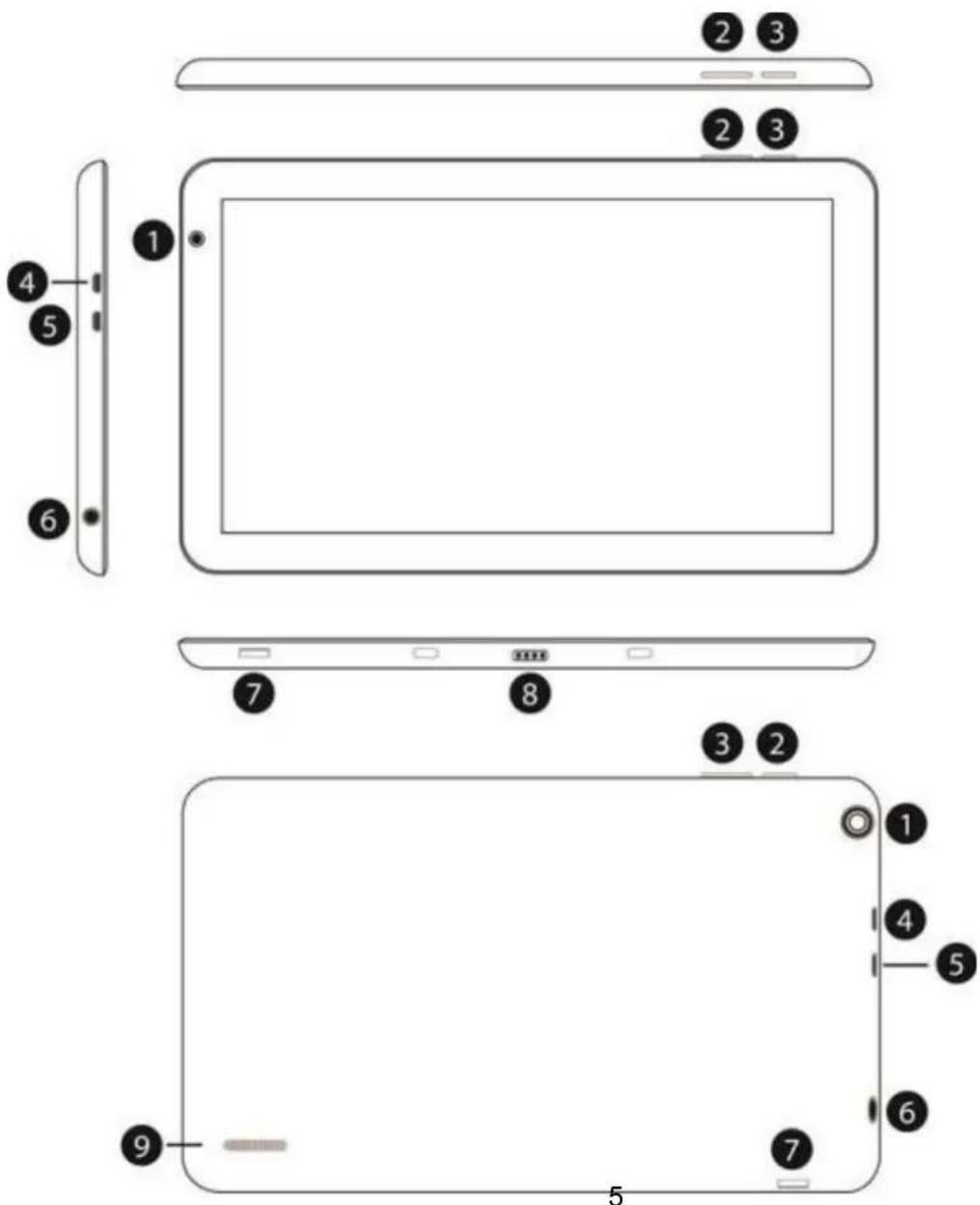
1.1 Buttons and connections
| 1 | Webcam 6 Headphone | ||
| 2 | Volume +/- 7 Micro SD | ||
| 3 | On/Off 8 POGO pin connector (for keyboard) | ||
| 4 | Micro USB 9 Speaker | ||
| 5 | Micro HDMI |
1.2 Start up and shut down
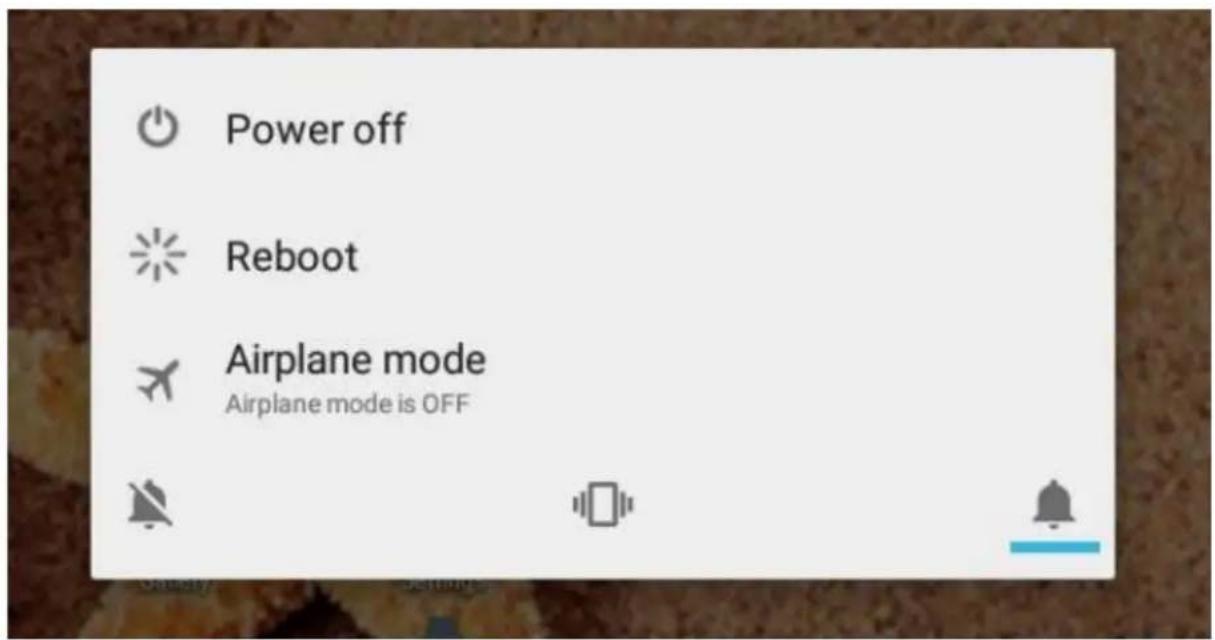
To start your device, press and hold the 'Power button' until the screen lights up. To shut down your device, press and hold the 'Power button' until the following dialog popup appears.
2.0 Introduction to Google Android 5.1
2.1 The Desktop
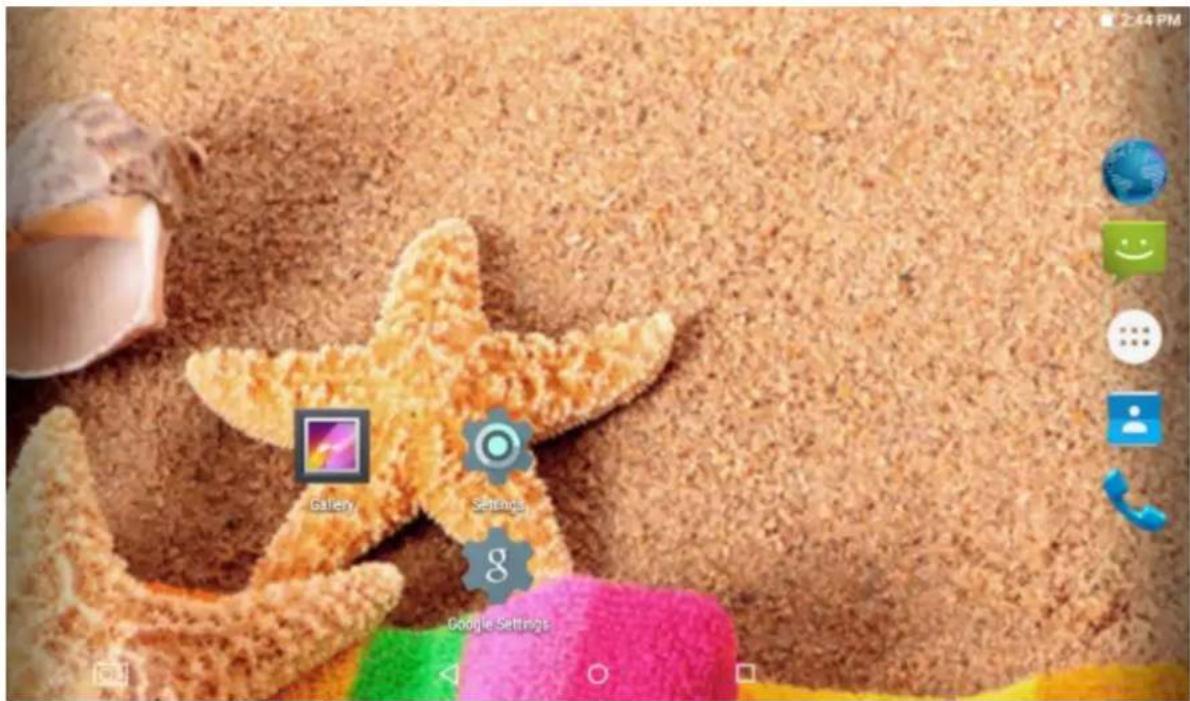
The main area of interest will be the desktop itself. Here you will place shortcuts to Apps or widgets – a visual application that can display real-time information. There may be some pre-installed icons and widgets on your tablet.
To change the desktop background image of your tablet return to your desktop by pressing the 'HOME' icon. Press and hold an open space on the desktop (don't press an icon) - until a popup appears named 'Select wallpaper from'. In the list may appear multiple options to select an image or animated image of choice. The option 'Live Wallpapers' will show the pre-installed animated desktop images. Other options such as a 'Super-HD Player', 'Gallery' or 'Wallpapers' allow you to select (widescreen) photos, downloaded images or other images; depending on the features of that specific application.
To place a widget or app shortcut on the desktop, touch and hold the icon until the App drawer fades and the desktop appears. Move your finger to the location where you want to place the icon and release your touch to place the icon.
To move or delete icons and widgets from your desktop, touch and hold the icon until a grid appears. Move the icon to the new location or drag it to the 'X Remove' bar on the top of the screen to remove it. Releasing the touch screen will confirm your action.
2.2 The App drawer – bottom center of the desktop
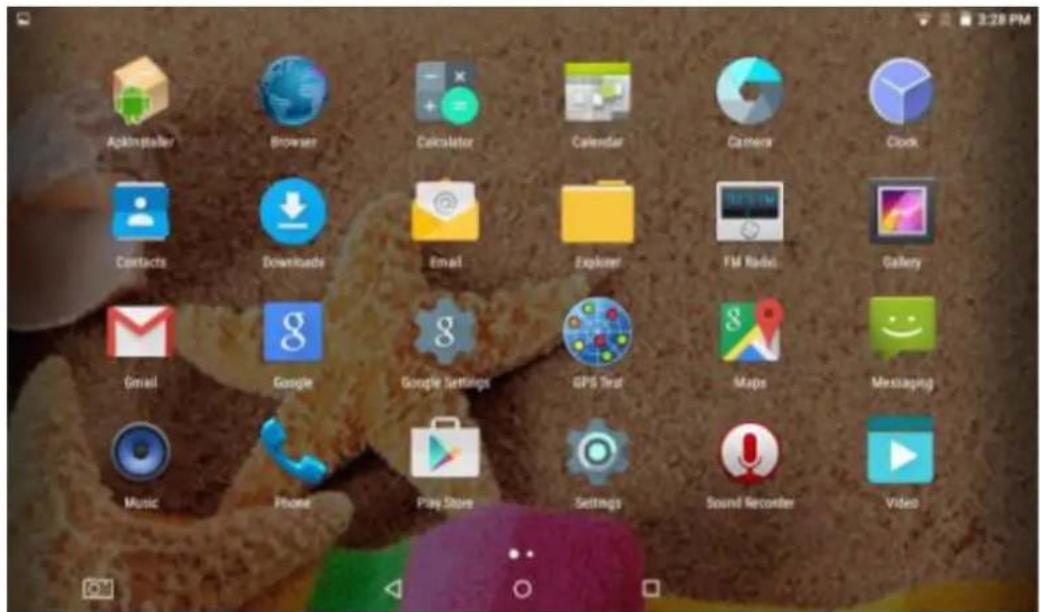
Press the icon in the bottom center of the desktop to open the App drawer. Here you have access to two tabs; 'APPS' and 'WIDGETS'. The 'APPS' tab displays all applications that are available on the tablet. The 'WIDGET' tablet contains the optional widgets that can be added to the desktop.
To place a widget or app shortcut on the desktop, touch and hold the icon until the App drawer fades and the desktop appears. Move your finger to the location where you want to place the icon and release your touch to place the icon.
Pressing this icon will open a secondary menu with more options. Functions like opening an advanced settings menu, switching to a different account or refreshing the displayed information are often 'hidden' behind this icon.
2.3 Google Search / Voice search – top of the desktop
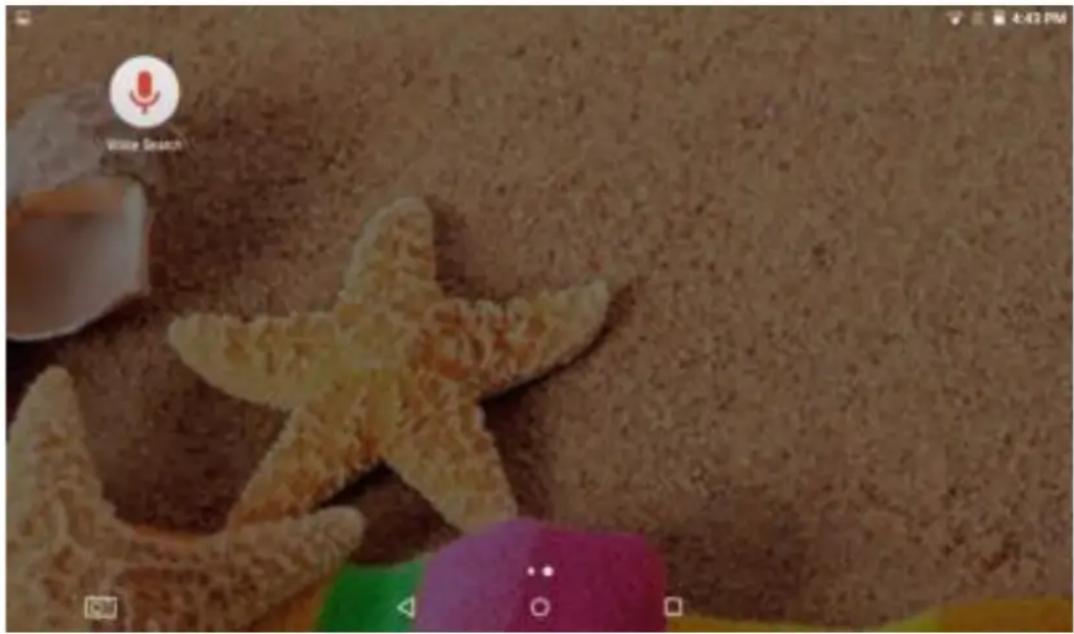
By clicking the 'Google search' / microphone button you can quickly type or speak keywords of your search. The search application will automatically determine whether the keyword(s) apply to an application or a web search. In the latter case a web browser will be opened and the results of your query will be displayed on the Google search engine.
Note that both the 'Google search' function as well as the 'Voice search' requires the tablet to have access to the internet (by Wi-Fi or 3G).
natural_image
Close-up of a textured surface with two starfish, one holding a microphone icon (no readable text or symbols)2.4 Navigation icons – bottom of the screen
On the bottom of the screen you will find three icons: use the navigation icons 'HOME' or 'RETURN' to close the App drawer and return to your desktop. The 'RECENT ACTIVITY' icon will show an overview of the active and recently opened applications. Click on the small displayed preview to open that application.

natural_image
Abstract color blocks with green, pink, and yellow patterns (no text or symbols)2.5 Status information area – top of the screen
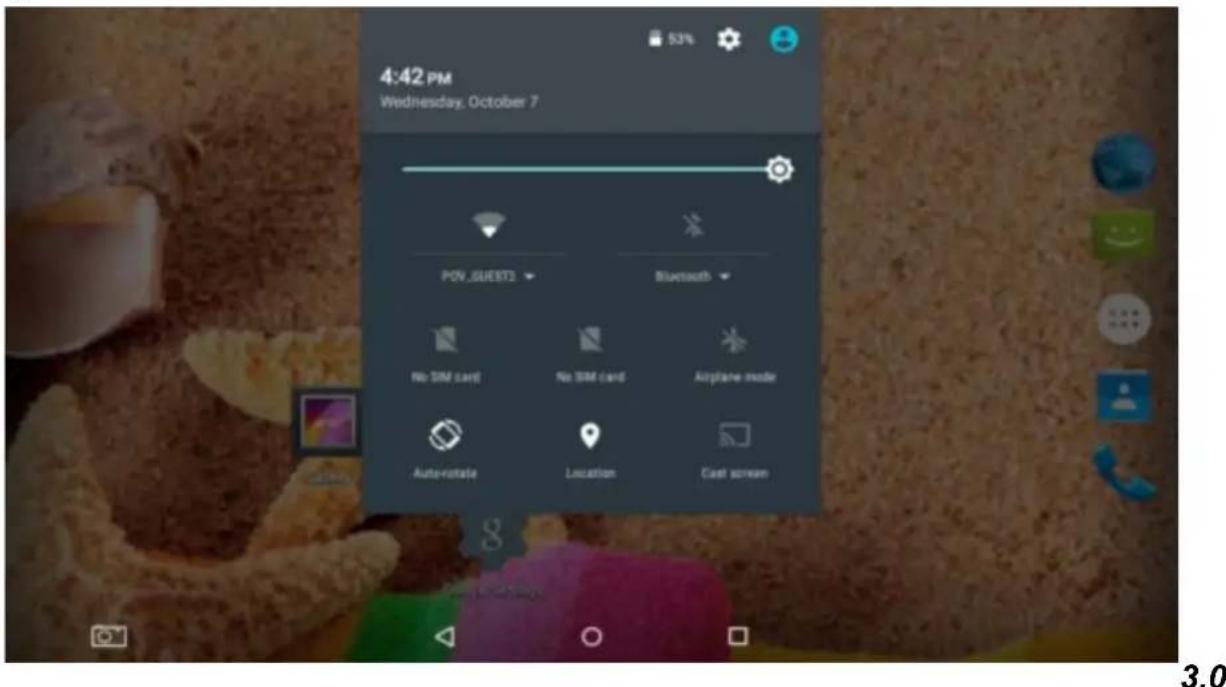
The top icon bar will show some system information (i.e. ). The contents of this area can change if installed applications place additional information here. Sliding it down will open a small overlay menu displaying the date/time information, the tablet's current network status, the battery status and a shortcut icon to another quick menu where some things like 'Airplane mode', 'Wi-Fi', the screen brightness and other options can be set or toggled. Also this quick menu contains a shortcut to the 'Settings' menu. Simply clicking elsewhere on the screen will close this menu.
English Point of View TAB-A1085-161 - Android 5.1 Tablet PC
General operation
3.1 Battery status / charging your tablet
The current battery status will be always displayed in the top right of the screen in the system
information bar. The battery icon will change accordingly to the battery status.
When connected to the DC charger, the status area on the top bar will display the charging icon. Note the lightning symbol inside the battery icon.
3.2 Installing Apps
You can install your own Apps by opening the Apps shop (Google Play Store™). This button can be found in the 'App drawer'. Note that not all applications may function properly for your tablet. Some are made especially for small screen devices such as phones.
3.3 Administer / remove apps
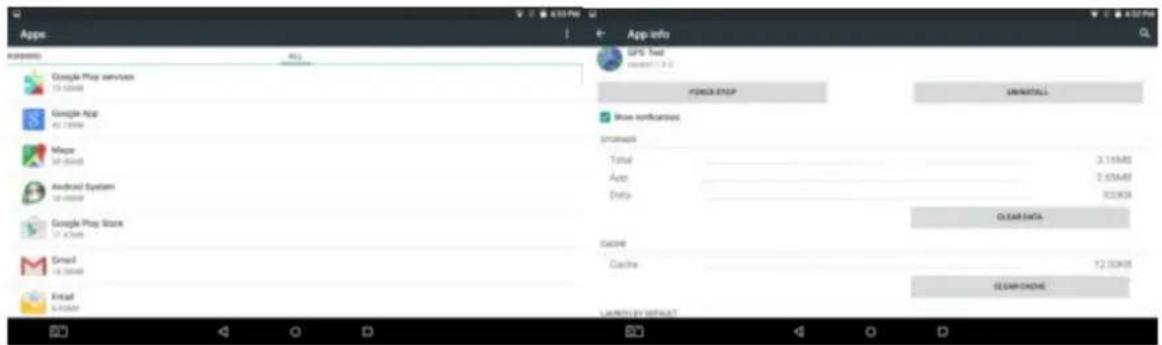
The ‘Apps’ item in the ‘Settings menu’ will display an overview of the installed apps. There are three tabs available which filter the displayed app list. Select an app to view its detailed information. In the detailed information you also have the options ‘Force Stop’, ‘Uninstall’, ‘Clear data’ and ‘Clear cache’.
The ‘Clear cache’ and ‘Clear defaults’ can be used when you are experiencing issues with a specific app. Clearing cached information and (possible wrong) default settings may solve the problem. Clearing this information will also wipe any stored login information. i.e. clearing the cache of your social media app will also force you to re-login afterwards. Apps may also be removed in the apps content page of the Play Store™ / shop application.
3.4 Adding an account
The best way to fully make use of your Android tablet is by linking your Google / Gmail account to your device. Open the ‘Settings’ menu and choose the ‘+ Add account’ item. To add a Google / Gmail account, please select ‘Google’ in the pop-up and follow the instructions on the screen. After entering your Google username and password you have the option to automatically back-up your apps, settings (i.e. bookmarks and Wi-Fi passwords) and other data.
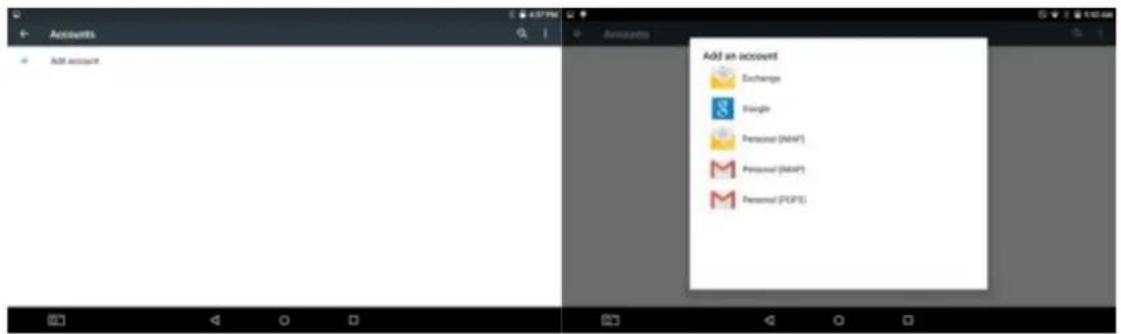
You can also add a POP3, IMAP or Exchange email account by selecting 'Email'. The pop-up option 'Corporate' will setup a 'Microsoft Exchange' link.
Your system or network administrator can supply you with the server information and login credentials. Follow the steps displayed on-screen to complete the account linking process. After you successfully linked your account(s) with the tablet you will see them in the 'Settings' menu under 'ACCOUNTS'. Select one of the accounts to setup synchronization settings for each account separate.
4.0 Basic setup
4.1 Changing operating language
Open the App drawer. Select the 'Settings' option to open the Android settings menu.
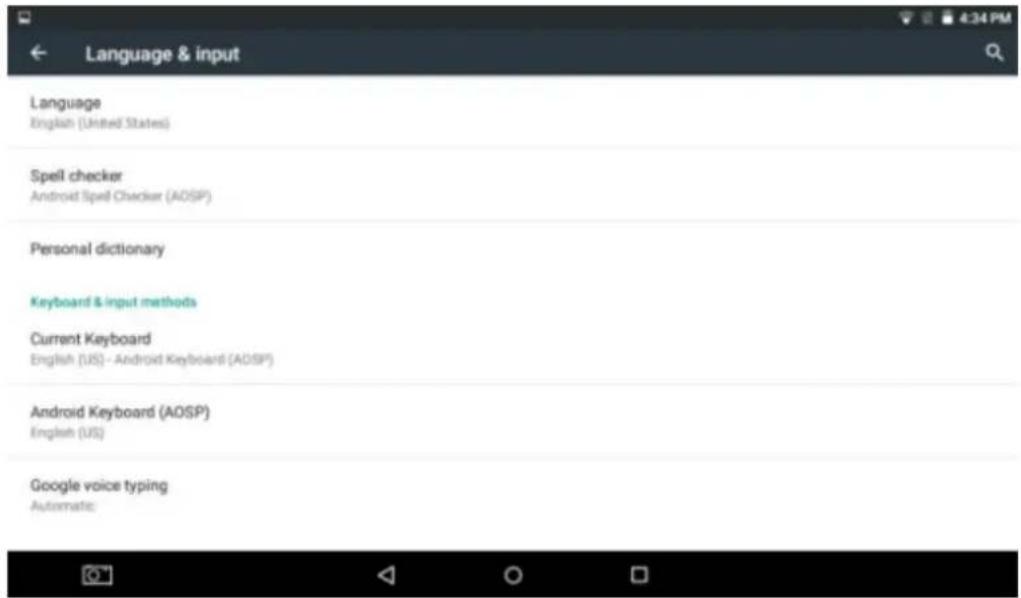
When selecting the option 'Language & input' the contents will be displayed in the right pane. Now open the option 'Language' and choose a language for your tablet to operate in. This pane also
English Point of View TAB-A1085-161 - Android 5.1 Tablet PC
displays the keyboard settings which you can customize, enable or disable.
4.2 Wi-Fi settings
Open the App drawer. Select the 'Settings' option to open the Android settings menu. When
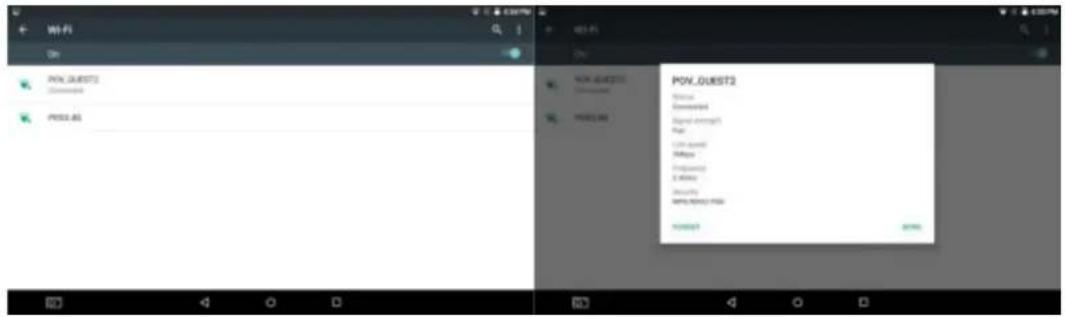
selecting the option 'Wi-Fi' the contents will be displayed in the right pane. The switch allows you to quickly toggle Wi-Fi on and off.
In the 'Wi-Fi' content panel you can view the formerly used Wi-Fi networks and the Wi-Fi networks

that have been detected by the tablet. To research for new available networks; please press ' ' located in the right top corner. The option 'Add network' allows you to add a network by manually inputting the SSID network and security method.
Whether manually added or automatically detected, you may need to fill in a password to be accepted on the network. Please contact your system or network administrator for the correct information.
Advanced network settings can be found by clicking the options icon .
4.3 Connecting the tablet to your PC
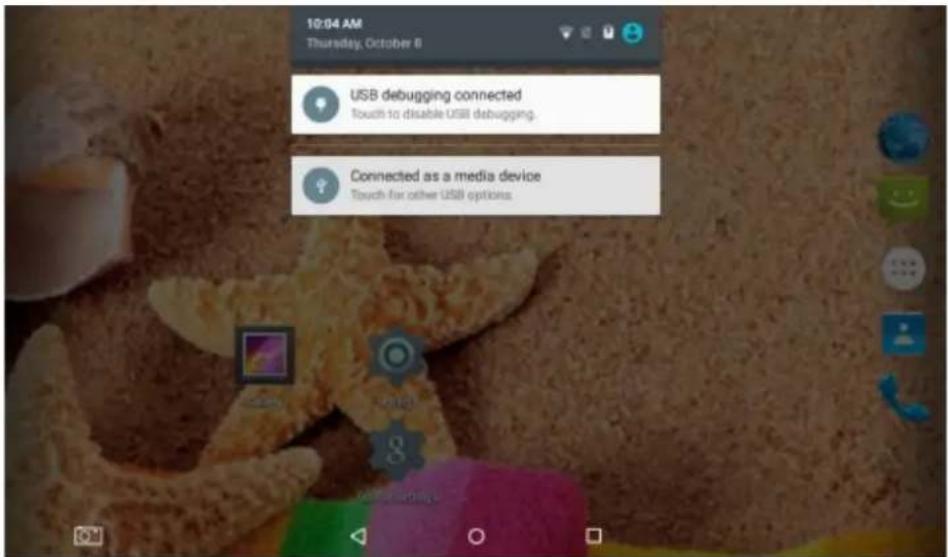
When connecting the tablet to your PC through USB, no drivers are needed to access the tablet's internal memory or inserted microSD card. However, you do need to confirm the USB connection:
15:02
click the notification area in the system information bar at the top of the screen. Now select the option 'Touch to copy files to/from your computer'.
If your PC still asks for the device drivers, it may be that the tablet is 'Android debugging mode'. To change this, please go to the 'Settings' menu and open the 'Developers options' item. In the right pane you can (un)check 'USB debugging'.
4.4 Enabling 3G/4G on your tablet (optional)
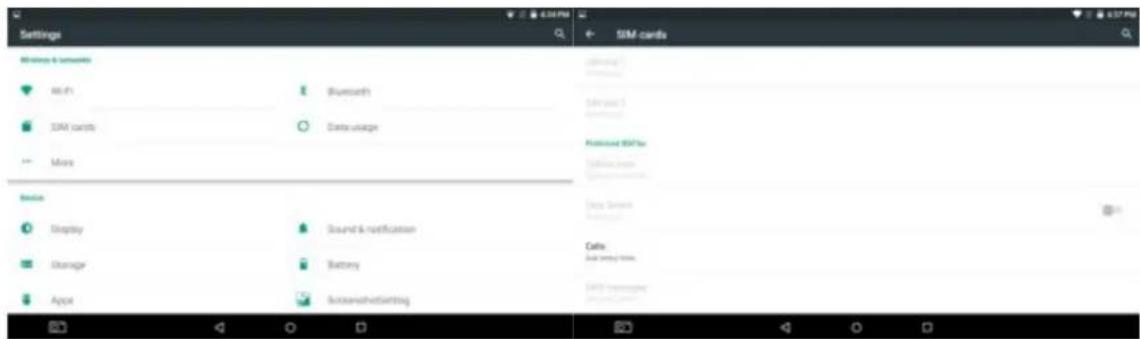
Turn off your device before inserting the SIM card in your tablet. Turn on your tablet and wait until Android has fully started. Open the settings menu when select 'More...' under the Wireless & networks group. Here you select the option 'Cellular networks'.
With most operators, checking the 'Data enabled' option is sufficient to automatically connect to the mobile network. However, if this is not the case, please open the option 'Network operators' in the
English Point of View TAB-A1085-161 - Android 5.1 Tablet PC
current menu. Follow the steps on the screen and the mobile provider's Android connections instructions to select the network of choice.
When you have a sim card inserted, you can view all your provider details in the 'Sim Card' Menu.
Once you are connected you should see a 'mobile network icon' in the bottom right corner. Depending on your type of connection, this icon may display an H (HSDPA), G (GPRS), E (Edge) or simply R (roaming) or 3G/4G.