Vision VNS711 FI-DUCATO (Fiat) - Browser ESX - Free user manual and instructions
Find the device manual for free Vision VNS711 FI-DUCATO (Fiat) ESX in PDF.


User questions about Vision VNS711 FI-DUCATO (Fiat) ESX
0 question about this device. Answer the ones you know or ask your own.
Ask a new question about this device
Download the instructions for your Browser in PDF format for free! Find your manual Vision VNS711 FI-DUCATO (Fiat) - ESX and take your electronic device back in hand. On this page are published all the documents necessary for the use of your device. Vision VNS711 FI-DUCATO (Fiat) by ESX.
USER MANUAL Vision VNS711 FI-DUCATO (Fiat) ESX
text_image
V1.1 OWNER'S MANUAL
natural_image
Abstract logo design with silver and yellow geometric shapes (no text or symbols)CAR MEDIA SYSTEMS
Always follow the instructions in this manual before using the device. Please keep this manual easily accessible in the vehicle for future reference.
Features
- High-resolution 17,8 cm (7") LCD touchscreen display with 800 x 480 pixels
- Advanced i11 operating system based on Microsoft Windows CE 6
- 800 MHz CPU, 4 GB iNand Flash Drive, 256 MB DDR3-RAM, 256 MB NAND Flash RAM
• Audio amplifier with 4 x 50 Watts max. - Pre-amplifier outputs (4 V) 2 x Front / 2 x Rear / Subwoofer / Center Quick-Boot (approx. 10 seconds)
- Support ACC Logic: The device can be operated up to 30 minutes without ignition
- Prioritized display of connected optional rear-view camera
- DSP-Audioprocessor with 9-Band-Equalizer and 5.1 Surround-Sound
- Bluetooth™ handsfree, phone book synchronization and A2DP audio streaming
- Media playback (MP3/WMA/MPEG4/MPEG1/2/WMV/AVI/DivX etc.), support also for 1280 x 720 px HD video playback (RMVB / RM, AVI, MPEG1 / 2/3/4, H.264, WMV)
• DVD-Drive (DVD, DVD-R/RW, DVD+R/RW, VCD, CD, CD-R/RW, MP3) - Radio AM/FM with RDS function (supports Europe, Northamerica, Asia)
- DAB+ Tuner for digital Radio incl. antenna (only VNC711 FI-DUCATO-DAB)
- Custom design function (wallpaper, startup logo, menu)
- Several design themes (skins) for customizing the user interface
- Individually adjustable pre-channel volume for each application
- File manager with an open file structure, photo slideshow, compatible with MS Office applications
- MicroSD card (up to 32 GB) slot and USB ports with copy function
- Integration of external applications (Compatible with Windows CE 6)
• Date/time function, 12/24 hrs. display
• Video output for two monitors with real dual zone audio outputs - Front and rear camera inputs
• Supports 2D-/3D navigation maps with TMCpro function
• Supports external TV or radio receivers (DVB-T, DAB, etc.)
• Supports mobile internet with separate 3G/UMTS sticks - Supports iPod / iPhone™ with ID3 tag display over USB
Compatibility (Status November 2014)
Fiat Ducato III, Citroen Jumper II und Peugeot Boxer II (Typ 250, since 2006)
Intended use
This device is only for the use in a vehicle with an on-board voltage of 12 V and negative ground.
Windows is a registered trademark of Microsoft Corporation in the United States and other countries. iPod and iPhone are trademarks of Apple Inc.. The Bluetooth word mark is registered trademark owned by Bluetooth SIG, Inc. Other trademarks, trade names or brands are the property of their respective owners.
Safety Information......4
Basic functions....6
Operating elements 6
Main menu 8
Navigation 9
Audio Player ....10
Radio AM/FM 12
DAB+ Radio....15
DVD (DVD/CD-Player)....18
Apps (Applications)....20
- Bluetooth™ 21
- LinkPod (optional)....24
-Video 24
- TV (optional) 25
- Files 25
- Internet (optional) 26
– Audio Settings ......27
– Rear Media (optional) 29
- Option ....30
Custom settings....33
Menu assignments....33
Wallpaper 34
Start Logo 35
Additional functions ...... 36
Infrared remote control 36
Multifunction steering wheel....37
Limited media playback....37
Optional rearview camera....37
Troubleshooting 38
General notes....42
SAFETY INFORMATION
- In general, the assembly and installation of the device must be performed by a trained and technically skilled specialists, as the installation and connection of the device requires complex knowledge.
- This device is only suitable for the operation in a vehicle with an on-board voltage of 12 volts, negative ground.
- Improper installation or use may void the warranty.
- Note any time the traffic regulations of the country in which the device is operated.
- Please ensure, that with the engine turned off the vehicle's battery does not discharge fully. The device is another electrical consumer which must be operated with the engine running, otherwise the vehicle's battery will be discharged and the vehicle can not be started.
- Set the volume of the device only as loud, that you are still be able to hear warning signals (e.g. police sirens) and traffic noise inside the vehicle.
- Operate the device as driver only if it's absolutely necessary and in the driving safety is not compromised. The same stands for looking at the screen. If necessary, better park your vehicle at a safe and appropriate location.
- The traffic rules of the EU prohibit to view moving pictures or movies while driving, if the screen of the device is installed within sight of the driver, as he may be distracted. View the screen as driver only for the navigation function, and then only briefly that you will not be distracted. Note at any time the local traffic regulations. In an accident, regress claims could be made by the car insurance company.
- This device is not a substitute for your personal judgment or perception. All suggested routes from the navigation system should never be taken as a reason to disregard the local traffic rules. Your personal assessment of traffic or your knowledge of safe driving practices is paramount. Always match your driving with the current traffic situation.
- Do not follow the suggested routes, if the navigation system instructs you to take an unsafe or illegal way, puts you in an unsafe situation, or directs you into an area which you consider unsafe.
-
If problems occur while driving, park the vehicle in a safe and appropriate place to continue before you operate.
-
The device supports only DVD/CD standard disk size of diameter with 12 cm. Do not attempt to insert disks with a different size or any other object into the disk slot. Be sure to load only one disk at the same time.
- Please use only the included original accessories. Ensure a sufficient mounting of the device by using the included installation accessories, as in the event of an accident enormous accelerations may occur. Poorly installed devices and equipment in accidents could represent a severe risk to the driver and the other passengers of the vehicle.
- Note under all circumstances the regulations and advices of the vehicle manufacturer and do not make any modifications to the vehicle, which could interfere with safe driving. Please treat all parts of the device and the components of your vehicle always with caution.
- Please avoid short circuits and make sure that no metal objects can get inside the device. Also make sure that all connections are properly connected and avoid the interchanging of the polarity of all connections. Complete the installation only while the ignition is turned off.
- In the event of a defect or malfunction, do not attempt to repair it by yourself or open the device, this is dangerous and could cause injury or damage to the equipment or vehicle. A repair should be done by trained and authorized personnel only. The device uses a Class 1 laser to read the disk. Eye contact with a laser is very dangerous to the human eye.
- If you connect an external device, you should first read the instruction manual of the external device and make sure that it is compatible. Avoid connecting an incompatible external device.
- If you install external applications onto the operating system of the device or operate files, make sure that they are „virus free“ and compatible with Windows CE 6. Otherwise there is a risk that the operating system no longer works properly and must be reinstalled.
- Do not damage or scratch the screen with sharp objects. Do not operate the screen with hard objects.
- Please refer the notes in chapter GENERAL NOTES on page 42

This symbol indicates important information and instructions in this manual, which serve to improve traffic safety and operability of the device.

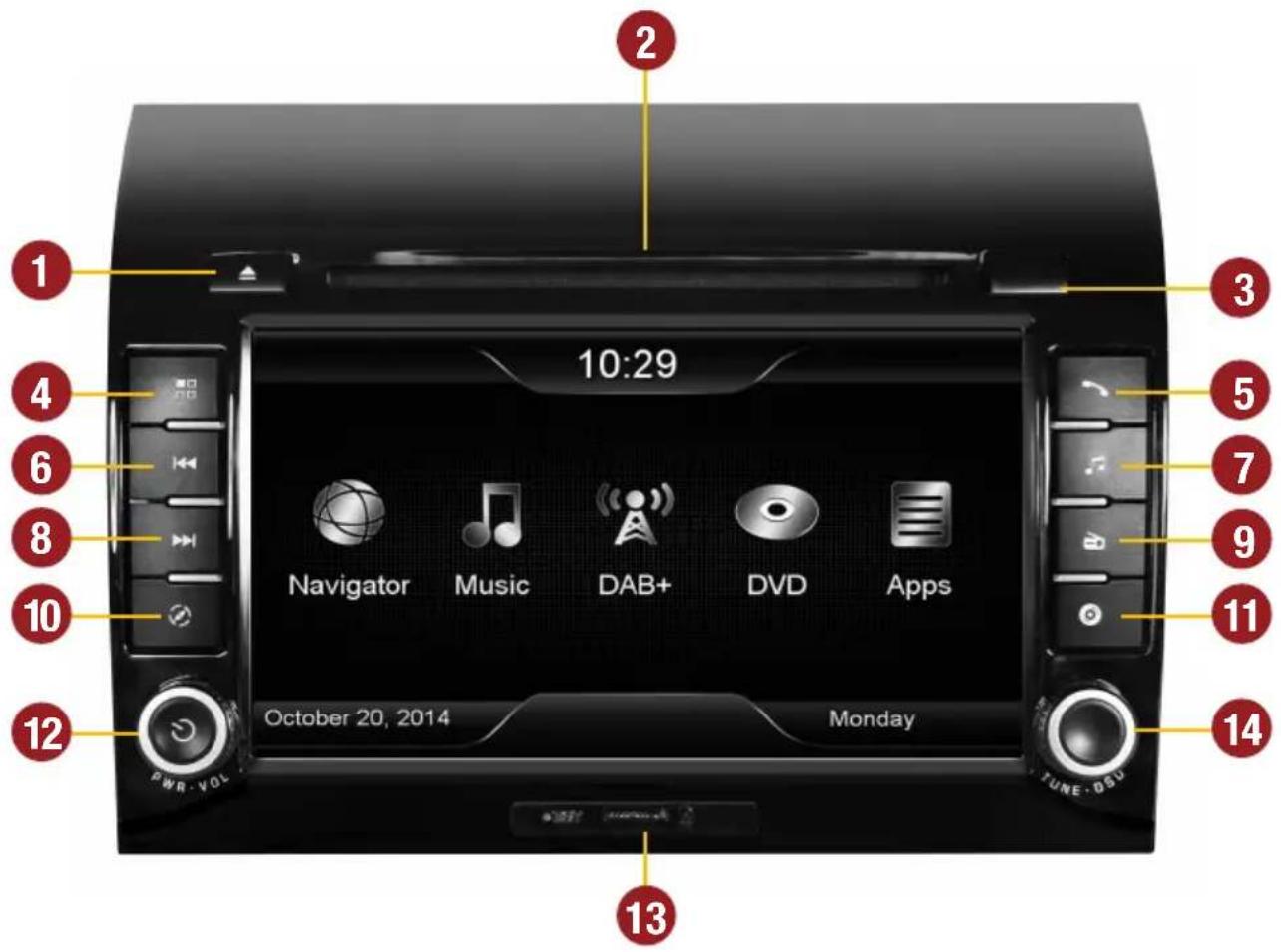
OPERATING ELEMENTS VNC711-FI-DUCATO-DAB
text_image
10:29 Navigator Music DAB+ DVD Apps October 20, 2014 Monday TUNE-OSU 13 12 1 2 3 4 5 6 7 8 9 10 11 12 PWR-VOL- Eject the inserted CD/DVD
- Slot for CD/DVD disks (∅ 12 cm)
- IR receiver
- Open the main menu
- Open the Bluetooth ^TM mode
- Skip to the previous track/title/station/chapter
- Open the audio player
- Skip to the next track/title/station/chapter
-
Open the AM/FM radio
Open the DAB+ Digital Radio (tap and hold 3 seconds) -
Open the navigation system
- Open the DVD/CD player
- Power on / off / stand by (short tap) Power on if ignition is turned off (AAC) Volume controller (rotate)
- MicroSD card slot and reset-button
- Controller knobs for selecting or switching in the user menus.
- Push knob to open the audio settings.

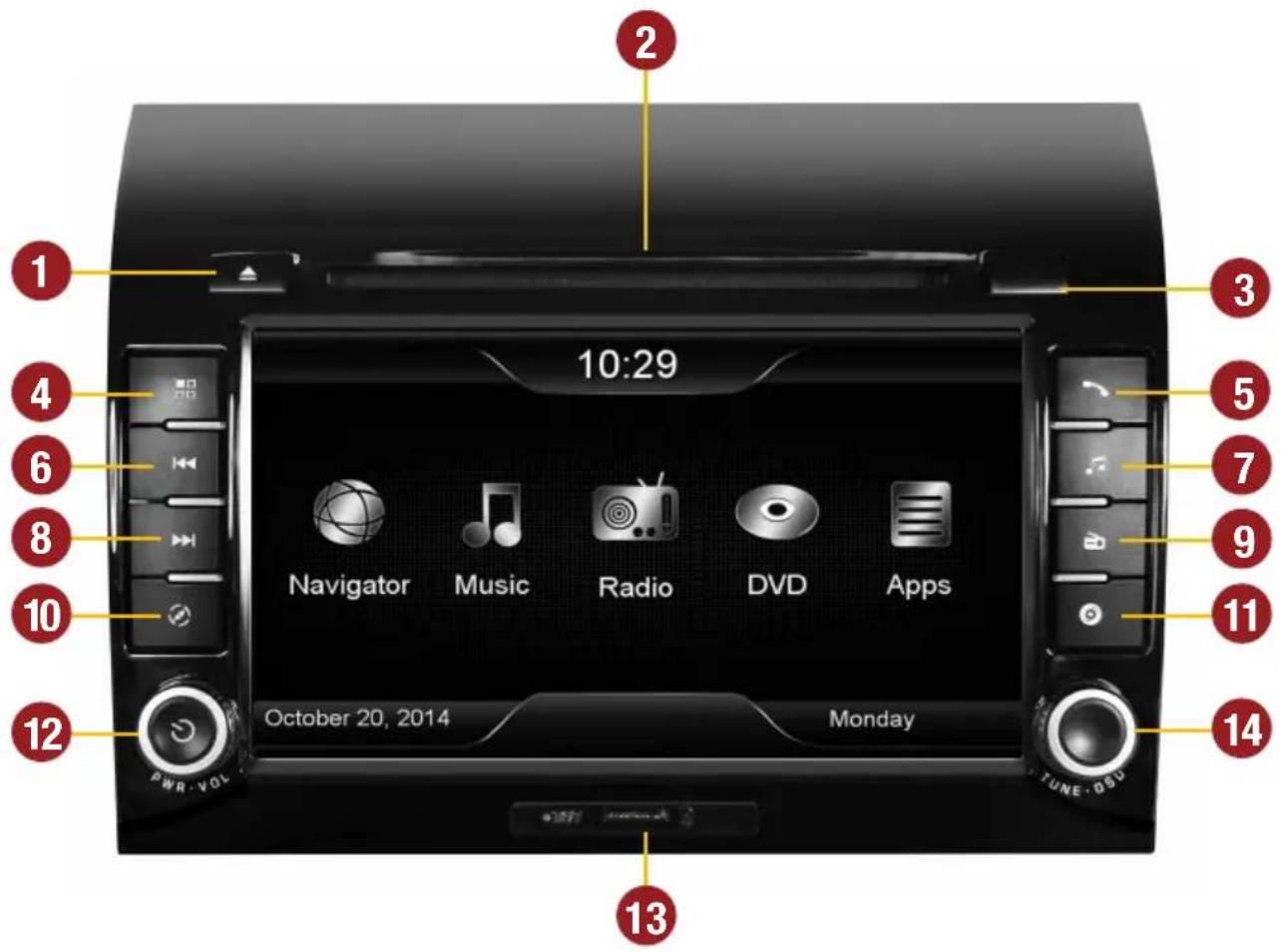
OPERATING ELEMENTS VNC711-FI-DUCATO
text_image
1 2 3 4 5 6 7 8 9 10 11 12 13 14 10:29 Navigator Music Radio DVD Apps October 20, 2014 Monday TUNE·QSD- Eject the inserted CD/DVD
- Slot for CD/DVD disks (∅ 12 cm)
- IR receiver
- Open the main menu
- Open the Bluetooth ^TM mode
- Skip to the previous track/title/station/chapter
- Open the audio player
- Skip to the next track/title/station/chapter
-
Open the AM/FM radio
-
Open the navigation system
- Open the DVD/CD player
- Power on / off / stand by (short tap) Power on if ignition is turned off (AAC) Volume controller (rotate)
- MicroSD card slot and reset-button
- Controller knobs for selecting or switching in the user menus.
- Push knob to open the audio settings.

MAIN MENU
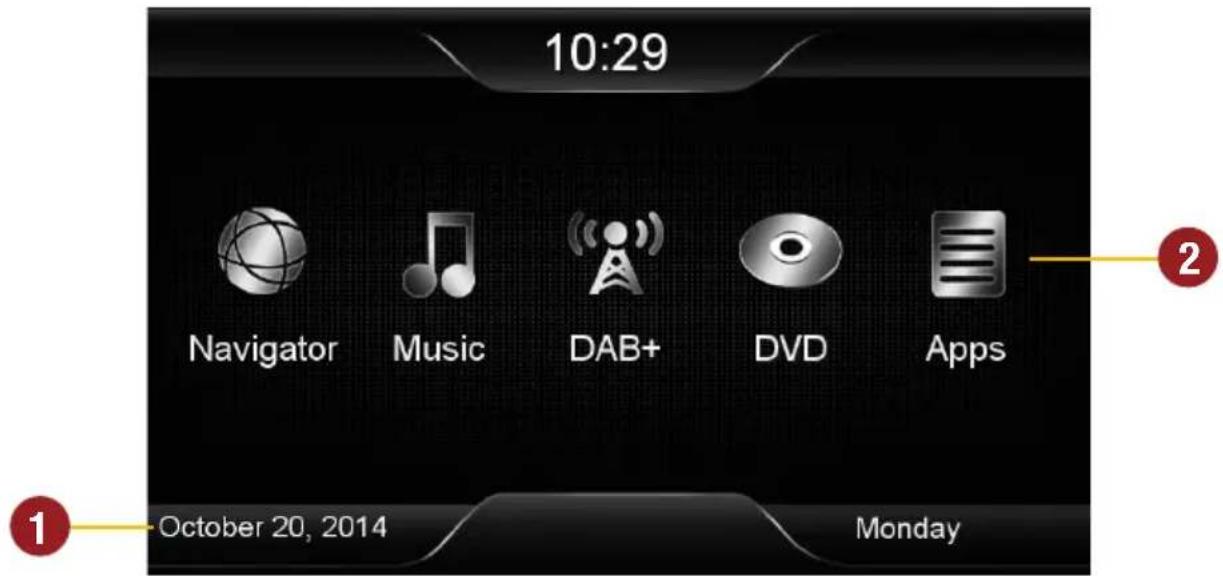
After power on, the device displays the main menu. By pressing the „MENU“ button on the device, you can also get into the main menu.
text_image
10:29 Navigator Music DAB+ DVD Apps October 20, 2014 Monday- Depending on the selected design theme (Skin), the current date and time will be displayed here.
Depending on the selected design theme (Skin), the current audio player or radio station information will be displayed here. - The main menu displays five to eight key panels, which start the selected application or lead to the regarding submenue.
In Chapter „CUSTOM SETTINGS“, section „Menu assignments“ (Pg. 33) shows how to customize and arrange the key panels.

Basically, the device can operate several applications simultaneously. But if too many extensive applications running at the same time, it can slow the operation (not responding to your input) or even crash the system.

NAVIGATION
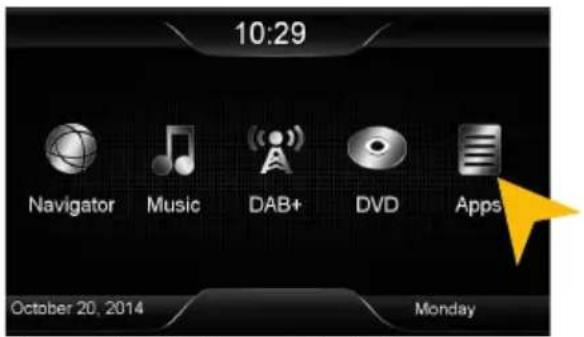
Open the navigation application by tapping „Navigator“ in the main menu or by pressing the „©” button on the device.
Please refer to the separate manual for the navigation software.
The device provides the ability to use any navigation software (Windows CE 6.0 compatible). Patch the navigation software path (on microSD card) with the device as follows:
text_image
10:29 Navigator Music DAB+ DVD Apps October 20, 2014 Mondaytext_image
Applications LinkPod TV Movie Bluetooth Files Camera Audio Rear Media 3G Options Back OFF LCD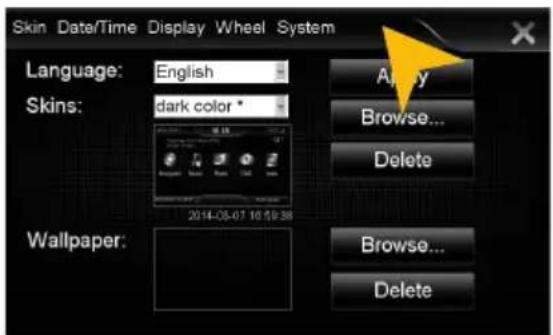
text_image
Skin Date/Time Display Wheel System Language: English Skins: dark color * 2014-05-07 10:59:38 Wallpaper: Apply Browse... Delete Browse... Deletetext_image
Select Application... DL_NM SAVE LICENSE CONT ISO.EXE OK Up Local USB SDTap on „SD“ and then choose the navigation software on your MicroSD card with a double tap.
After this selection, the device always opens this navigation software after touching the „Navigation“ key pad or the „NAVI“ button on the device.
Visit www.esxnavi.de for more information.

The unit receives GPS satellite signals automatically. In poor weather conditions or for example while passing a tunnel, these signals may be disturbed. This could lead to a malfunction of the GPS positioning.

AUDIO-PLAYER
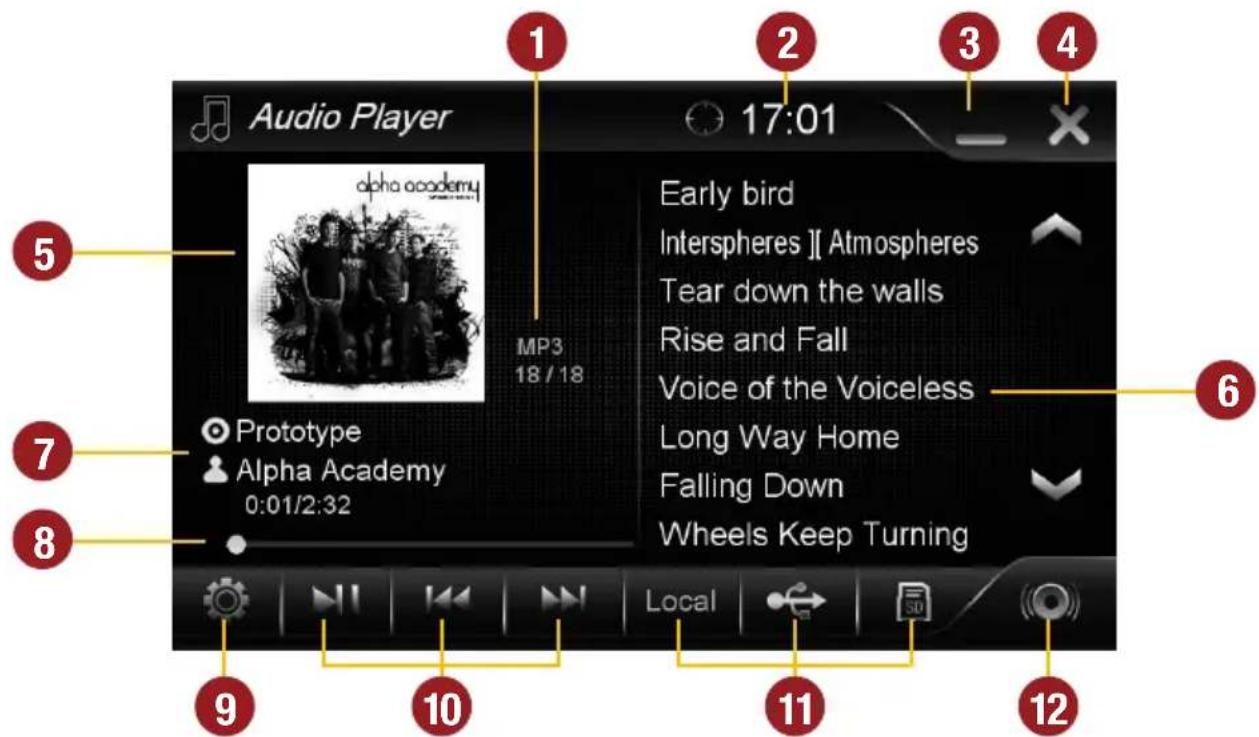
Open the audio player by tapping „Music“ in the main menu or by pressing the „button on the device. The audio player supports audio formats like MP3, WMA and WAV. Refer to page 14 for CD Audio playback.
text_image
Audio Player 17:01 MP3 18 / 18 Early bird Interspheres ][ Atmospheres Tear down the walls Rise and Fall Voice of the Voiceless Long Way Home Falling Down Wheels Keep Turning Prototype Alpha Academy 0:01/2:32 Local Local Local Local Local Local Local Local Local Local Local Local Local Local Local Local Local Local Local Local Local Local Local Local Local Local Local Local Local Local Local Local Local Local Local Local Local Local Local Local Local Local Local Local Local Local Local Local Local Local 5 6 7 8 9 10 11 12- Current audio file information.
- Current time
- Tap here to enter the main menu without interrupting the playback of the current title.
- Tap here to exit the application, the playback will be interrupted.
- ID3-Tag album cover of the current audio file.
- Playlist of the audio player. The currently playing title is highlighted. Tap on any title to start its playback.
-
Title/artist/album information, the elapsed time and the total time of the track.
-
Progress bar of the currently playing audio file. With the displacement of the knob you can jump to another point in the track
-
Tap here to change the playback mode or change / edit the playlist
-
Playback controls for audio player
-
Play previous track
- Start or pause playback
-
Play next track
-
Select here the storage location of the audio files that you want to playback.
-
Tap here to open the audio settings.
Playback mode and playlist
text_image
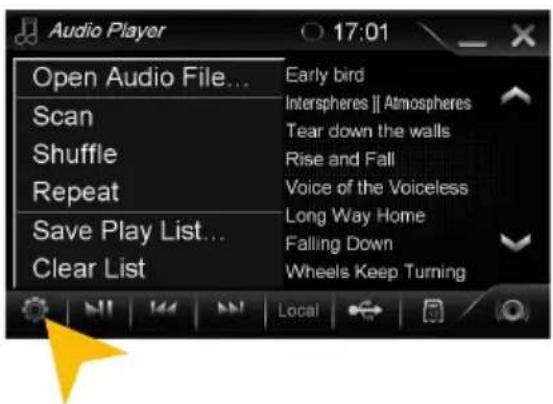
Audio Player Open Audio File... Scan Shuffle Repeat Save Play List... Clear List Early bird Interspheres || Atmospheres Tear down the walls Rise and Fall Voice of the Voiceless Long Way Home Falling Down Wheels Keep Turning LocalTap on the gear icon and then on:
„Scan“ for a short playback of each song in the playlist.
„Random“ for a randomized playback within all titles.
„Repeat“ to replay the current title.
„Save playlist“ to save the current playlist on „Local“.
„Clear list“ to delete the current playlist.
text_image
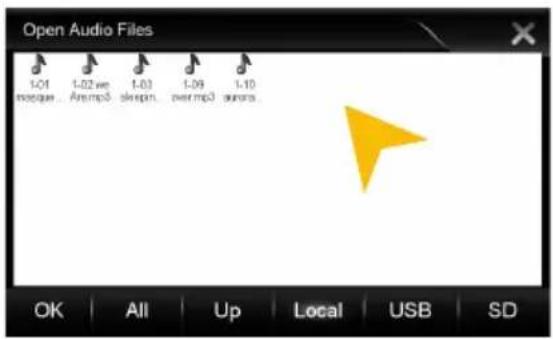
Open Audio Files 1.01 movie... 1.02 we Ams.mp3 1.03 sleepin... 1.09 over.mp3 1.10 sunns OK All Up Local USB SDTap on „Open Audio Files“ to open the file manager. Now you can add audio files from the local disk or connected USB stick or MicroSD card to your current playlist.
Confirm your selection by a double tap.
Delete a stored playlist by using the filemanager (> APPS).
text_image
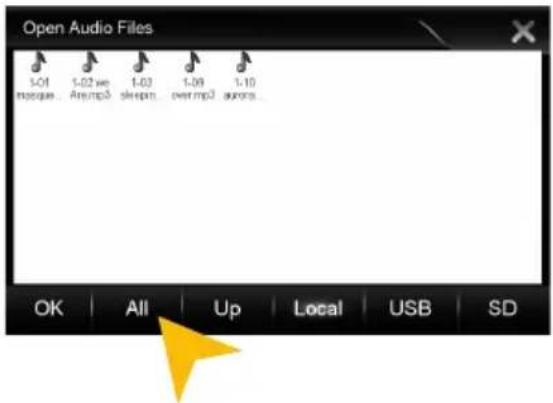
Open Audio Files 1.01 music 1.02 sec Ares.mp3 1.03 sleepin 1.09 over.mp3 1.10 seconds OK All Up Local USB SDAs soon as you select a source (Local, USB, SD), the audio player generates a playlist of all songs, which are stored on the source. If you want to playback e.g. only certain songs, proceed as following:
- Tap on the gear icon > „Delete list“
- Tap on the gear icon again > „Open Audio File“
- Open the desired source (e.g. USB) and open the desired directory.
- Tap on „All“ to select all songs and confirm by tapping on „OK“
- The playback starts immediately.
Note: To extend the newly generated playlist, repeat steps 2-4, thus more songs will be put behind the current playlist.

The touchscreen allows the operation by finger tip or the included stylus marker. Due to complex menu navigation within each application, the stylus is much better suited for a accurate operation.

RADIO AM/FM
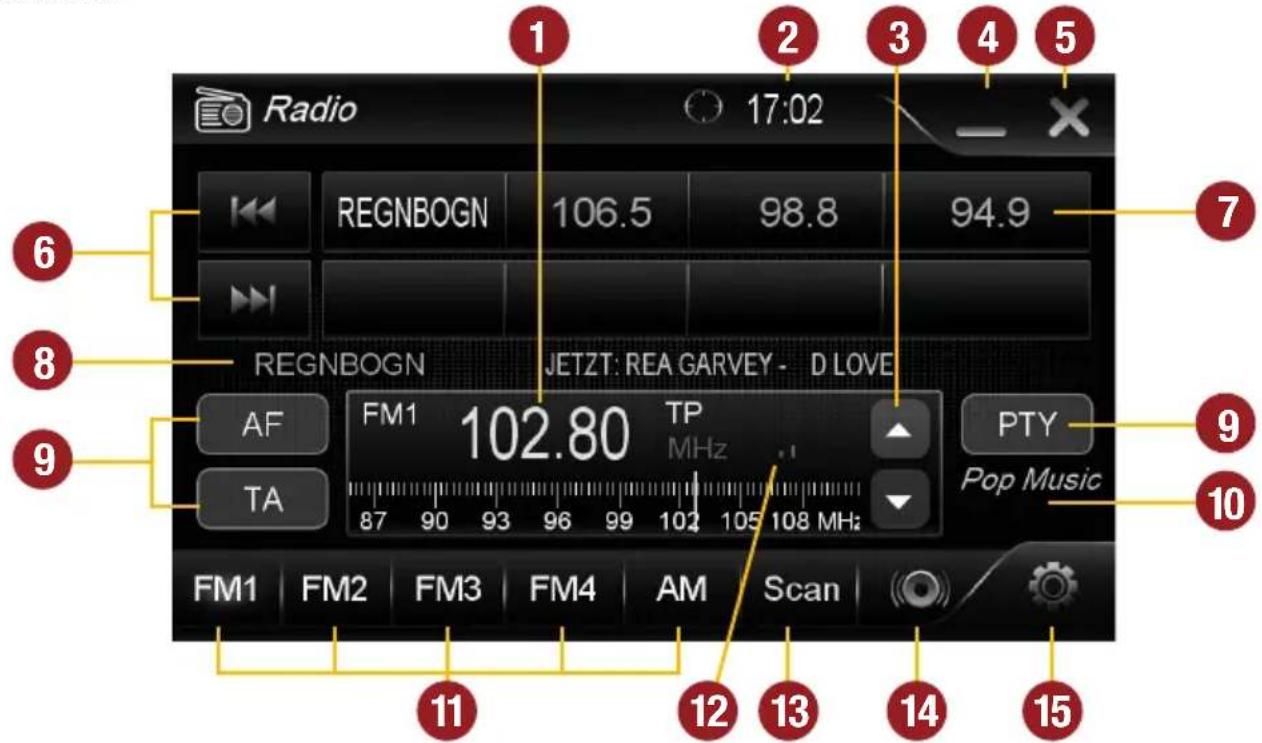
Open the radio application by tapping „Radio“ in the main menu or by pressing the „button on the device.
text_image
Radio 17:02 REGNBOGN 106.5 98.8 94.9 REGNBOGN JETZT: REA GARVEY - D LOVE AF FM1 102.80 TP MHz TA 87 90 93 96 99 102 105 108 MHz FM1 FM2 FM3 FM4 AM Scan 11 12 13 14 15 7 9 10 PTY Pop Music- Displays the current frequency band and the current station frequency, tap here for directly quick tuning.
- Current time.
- Fine adjustment of the frequency, Arrow left for downward, arrow right upwards.
- Tap here to enter the main menu without interrupting the radio playback.
- Tap here to exit the application, the playback will be interrupted.
- With the arrows, you can quick start the search for a station from current frequency up or down.
- Station presets.
-
RDS information of the current station.
-
RDS (AF, TA, PTY) features.
- PTY category of the current station.
- Tap here to the open the different preset pages with 8 station presets each.
- Signal strength of the current station.
- Press „Scan“ about 2 seconds to start the automatic radio station search. Then up to 32 currently available stations will be stored in all four the station presets.
Note: All previously stored stations will be erased and overwrote.
A quick tap on the icon enables a jump to the next available station.
- Tap here to open the audio settings.
- Tap here to open the settings.
Settings and station presets
text_image
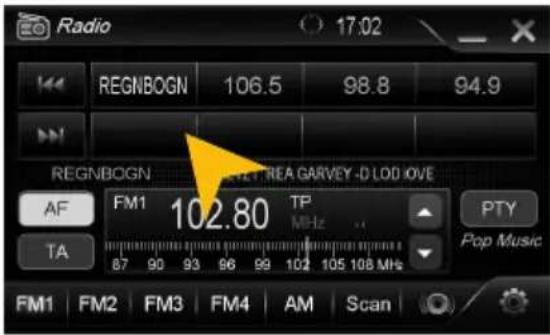
Radio REGNBOGN 106.5 98.8 94.9 REGNBOGN REA GARVEY-D LOD IOVE AF FM1 102.80 TP TA MHz PTY Pop Music 87 90 93 96 99 102 105 108 MHz FM1 FM2 FM3 FM4 AM ScanTap on an empty or already occupied preset field and hold it for 1-2 seconds and the currently running station is stored there.
text_image
Radio REGNBOGN 106.5 98.8 94.9 REGNBOGN JETZT: AF FM1 102.80 TA 87 90 93 96 9 FM1 FM2 FM3 FM4 AM Scan Rename Station Delete Station Delete All Stations Local Setting AudioTap on the „gear icon“ to open the settings and then:
„Rename Station“ to rename the current radio station.
„Delete Station“ to delete the current radio station from the presets.
„Delete All Stations“ to delete all radio stations from the pre-sets.
„Local Setting“ to open the settings for the local radio frequency standards.
Tap on „Audio“ to open the audio settings. Refer to the instructions in section „Audio“ in the „APPS“ menu.
text_image
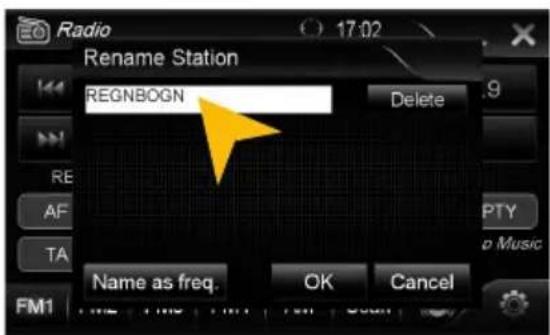
Radio Rename Station REGNBOGN Delete Name as freq. OK CancelRename Station:
Tap on the white input box to change the radio station name by using the screen keyboard.
Tap on „Name as freq.“ to set the frequency as radio station name.
Confirm your entry with „OK“ or tap „Cancel“ to exit the menu without changes.
text_image
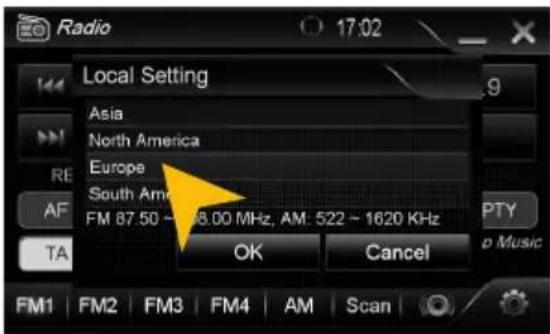
Radio Local Setting Asia North America Europe South America FM 87.50 ~ 88.00 MHz, AM: 522 ~ 1620 KHz OK Cancel FM1 FM2 FM3 FM4 AM ScanLocal Setting:
Choose e.g. EUROPE from the list of local radio frequency standards.
Confirm your entry with „OK“ or tap „Cancel“ to exit the menu without changes.
After you change the settings, restart the radio application.
RDS functions
This device supports RDS (Radio Data System) in the frequency range 87.5 - 107.9 MHz FM. The following RDS functions are only available if they are supported by the selected radio station.
text_image
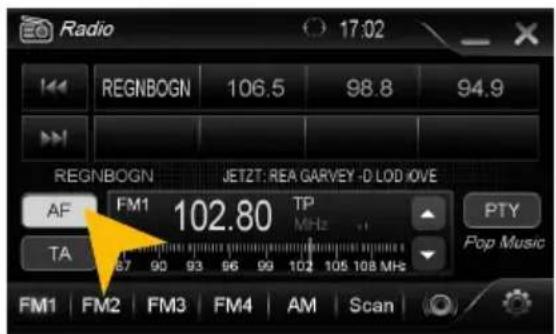
Radio 17:02 REGNBOGN 106.5 98.8 94.9 REGNBOGN JETZT: REA GARVEY -D LOD /OVE AF FM1 102.80 TP TA MHz PTY Pop Music FM1 FM2 FM3 FM4 AM ScanTap on „AF“.
AF (Alternative Frequency)
The AF function enables the automatic switching of the receiving frequency when leaving the reception range of a transmitter. The device then checks the reception quality and automatically switches to a different frequency, when the same program in another reception area is also available. This is done automatically, without the user is notice anything.
text_image
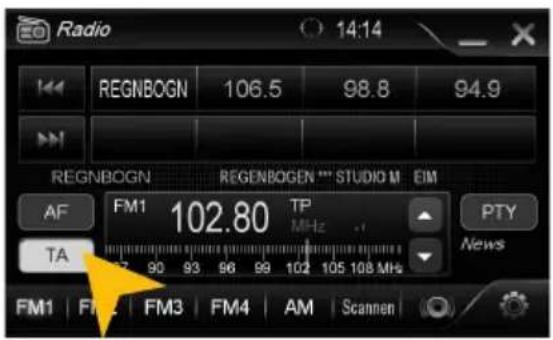
Radio 14:14 REGNBOGN 106.5 98.8 94.9 REGNBOGN REGENBOGEN *** STUDIO M EIM AF FM1 102.80 TP TP MHz PTY News TA 7 90 93 96 99 102 105 108 MHz FM1 | FM2 | FM3 | FM4 | AM | ScannenTap on „TA“.
TA (Traffic Announcement)
The TA function enables the interruption of the media playback (audio player, CD, DVD, etc.) for traffic announcements. After the announcement, the previous media playback starts again.
text_image
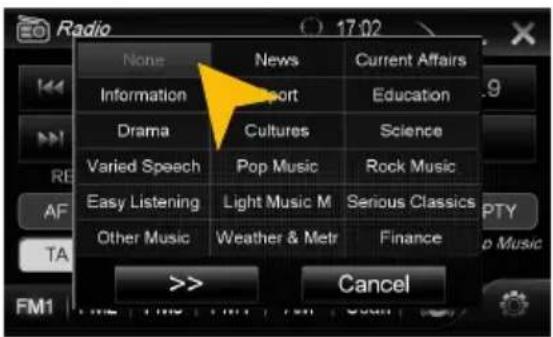
Radio None News Current Affairs Information Sport Education Drama Cultures Science Varied Speech Pop Music Rock Music Easy Listening Light Music M Serious Classics Other Music Weather & Metr Finance >> CancelSelect one of the categories after you tapped on „PTY“.
PTY (Program Type)
The PTY function is a classification of radio stations in different categories. Each program of a RDS radio station is classified categorically.
After you have selected a category, the unit automatically searches for the next matching radio station in this category. During the „Automatic scan“ only programs will be found, that match to the chosen category. If you no longer want this function, select the category „None“.

Basically, the device can operate several applications simultaneously. But if too many extensive applications running at the same time, it can slow the operation (not responding to your input) or even crash the system.

RADIO DAB+ (only VNC711-DUCATO-DAB)
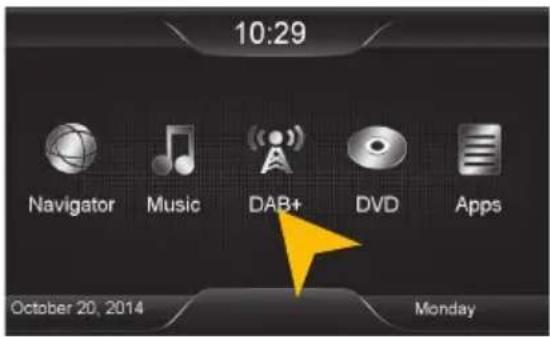
Open the DAB+ radio application by tapping „DAB+“ in the main menu or by pressing and holding the „RADIO“ button on the device.
The DAB+ function depends on the selected user interface (Skin). This means if you have installed an other or new skins, the full DAB+ function is not guaranteed.
The DAB+ function is only integrated in the VNC711-DUCATO-DAB device. A retrofitting DAB+ function is possible, please contact the ESX Customer Service (refer to page 43).
text_image
10:29 Navigator Music DAB+ DVD Apps October 20, 2014 MondayTap on „DAB+“.
text_image
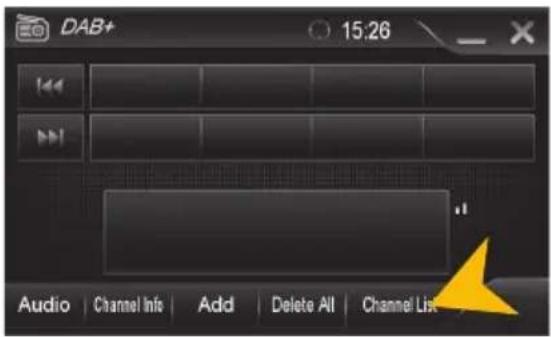
DAB+ 15:26 Audio Channel Info Add Delete All Channel ListHere your favorites will appear later. Tap on „Channel List“.
text_image
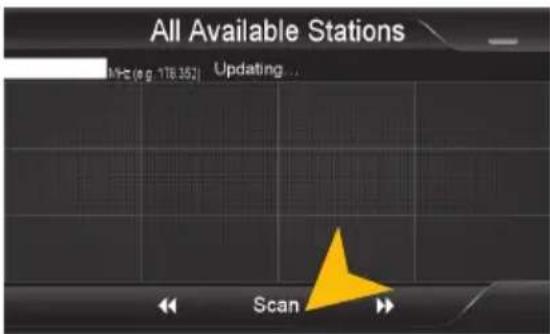
All Available Stations MFC (e.g. 176.352) Updating ... ScanTap on „Scan“ to start the channel search.
text_image
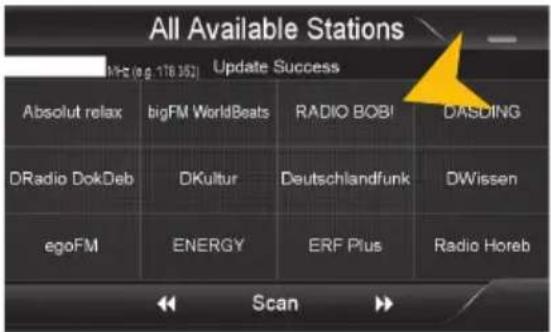
All Available Stations MHz (0 g. 176 352) Update Success Absolut relax bigFM WorldBeats RADIO BOBI DASDING DRadio DokDeb DKultur Deutschlandfunk DWissen egoFM ENERGY ERF Plus Radio Horeb ScanAfter the scanning all available DAB stations are listed here. You can only select one of the station directly.
BASIC FUNCTIONS
text_image
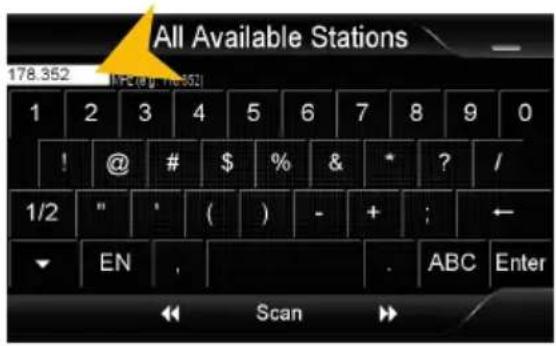
All Available Stations 178.352 [FPC 0] [FPC 652] 1 2 3 4 5 6 7 8 9 0 ! @ # $ % & * ? / 1/2 " ' ( ) - + ; ← EN , ABC Enter ← Scan >>Direct frequency input: This function is only used to verify the local reception situation or to test an individual frequency block. Type in the desired frequency into the white box (only numbers and dot) and confirm the entry by tapping „Scan“.
NOTE: After such a confined search only the channels in the selected frequency will be displayed in the channel list and in the favorites list!*
If you want to search for all available stations, make sure that in this white box no frequency is displayed. Delete the entry with the „<-“ button.
text_image
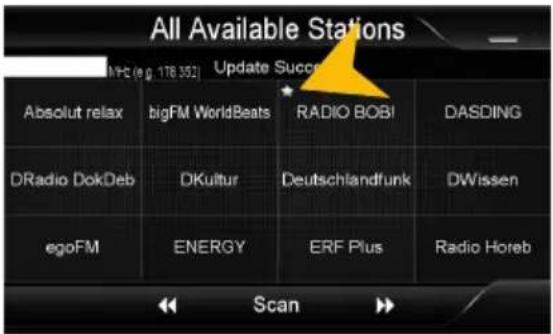
All Available Stations NFC (g 178 352) Update Success Absolut relax bigFM WorldBeats RADIO BOBI DASDING DRadio DokDeb DKultur Deutschlandfunk DWissen egoFM ENERGY ERF Plus Radio Horeb ScanTo mark a channel as favorite and to show him as favorite button in the DAB+ menu, select and press the corresponding channel field for about 2 seconds. The yellow star indicates which channel is a favorite.
text_image
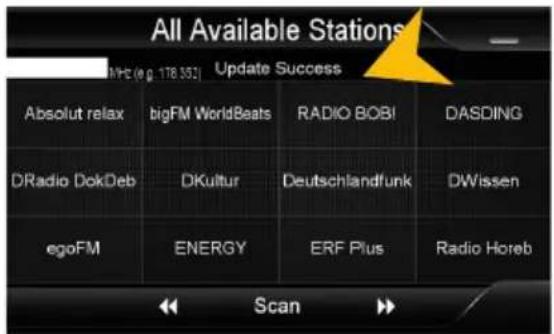
All Available Stations MHC (e.g. 178 352) Update Success Absolut relax bigFM WorldBeats RADIO BOBI DASDING DRadio DokDeb DKultur Deutschlandfunk DWissen egoFM ENERGY ERF Plus Radio Horeb ScanTo remove a channel from the favorite list, press and hold the corresponding channel field for about 2 seconds. The yellow star is then no longer displayed.
text_image
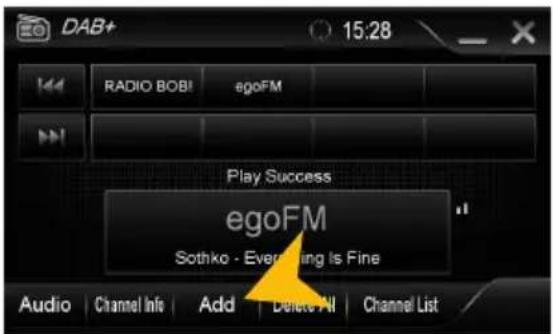
DAB+ 15:28 RADIO BOBI egoFM Play Success egoFM Sothko - Everything Is Fine Audio Channel Info Add Delete All Channel ListIt is also possible to store the currently playing station to the favorites list. Tap on „Add“.
NOTE: A duplicate storage is not possible.
text_image
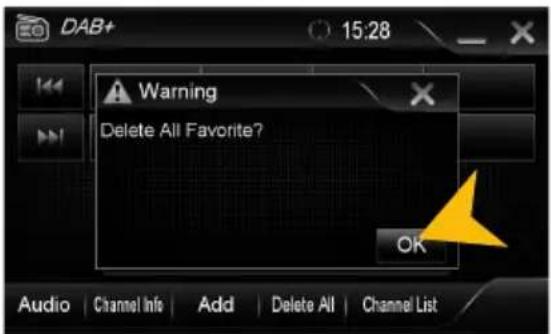
DAB+ 15:28 Warning Delete All Favorite? OK Audio Channel Info Add Delete All Channel ListTo delete all favorites press the button „Delete All“.
CAUTION: This procedure can not be undone.
text_image
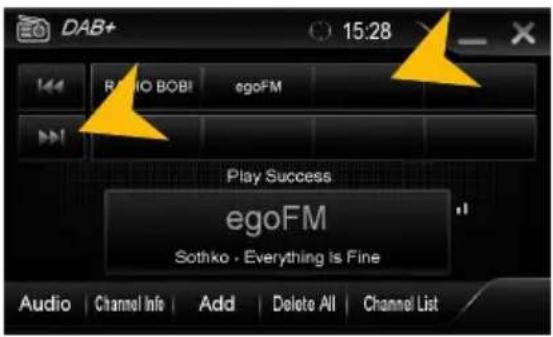
DAB+ 15:28 Radio BOBI egoFM Play Success egoFM Sothko · Everything Is Fine Audio Channel Info Add Delete All Channel ListTo select your favorites, you can tap now the channel fields in the favorite list. Use the red arrows to switch to the previous or next favorite list.
text_image
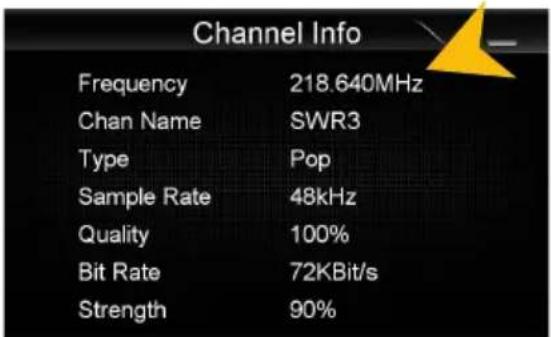
Channel Info Frequency 218.640MHz Chan Name SWR3 Type Pop Sample Rate 48kHz Quality 100% Bit Rate 72KBit/s Strength 90%Under „Channel Info“ you will find detailed information about the current station.
text_image
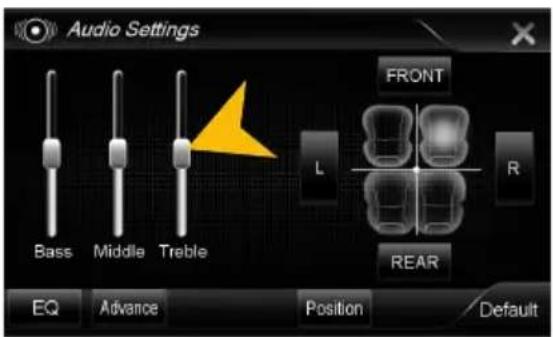
Audio Settings Bass Middle Treble FRONT L R REAR EQ Advance Position DefaultUnder „Audio“ you can configure the audio settings as usual.

DVD (DVD/CD-Player)
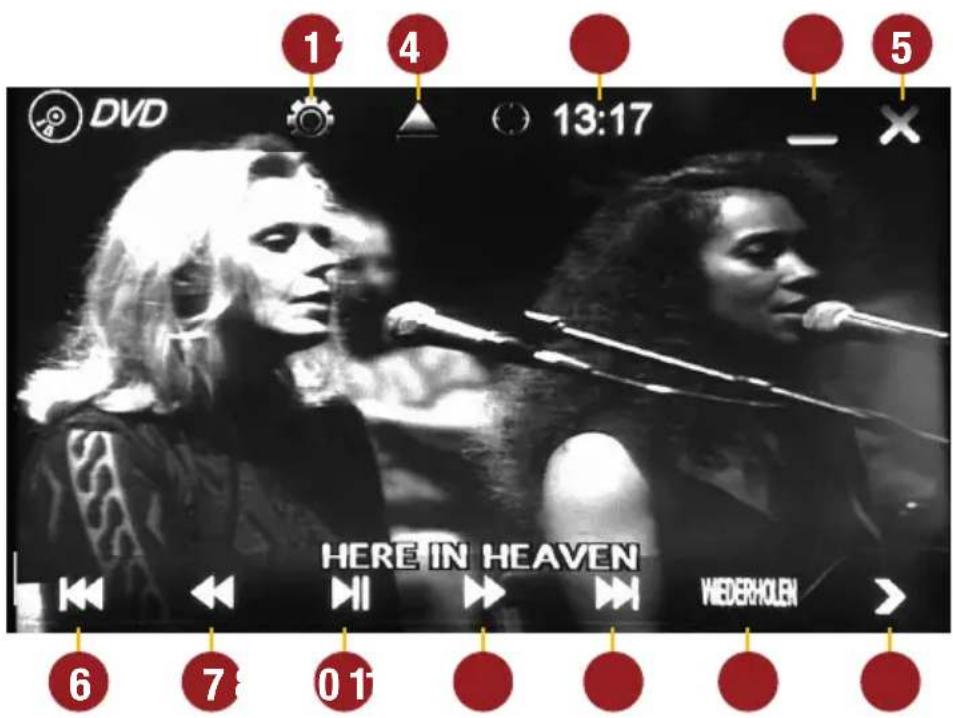
The DVD player supports the following formats: DVD, DVD-R/RW, DVD+R/RW, VCD, CD, CD-R/RW, MP3. Open the DVD application by tapping „DVD“ in the main menu or by pressing the „©” button on the device.
Tap during DVD playback on any spot on the display to open the DVD menu. When you playback a CD or MP3-CD, the user interface is different.
text_image
DVD 1 4 13:17 5 HERE IN HEAVEN WEDERHOLEN 6 7 0 1-
Tap here to open the display options (Brightness, contrast, saturation).
-
Tap here to eject the inserted disc.
-
Current time.
-
Tap here to enter the main menu without interrupting the playback.
-
Tap here to exit the application, the playback will be interrupted.
-
Tap here to skip to the previous chapter/track/scene.
-
Tap here for fast backward.
-
Tap here to pause or start the playback.
-
Tap here for fast forward. Set the speed (2x, 4x, 8x, 16x) by tapping repeatedly.
-
Tap here to skip to the next chapter/track/scene.
-
Tap here to repeat the current title (3x) or chapter (3x).
-
Tap here to go to the next page of the DVD menu (refer to the next page).
text_image
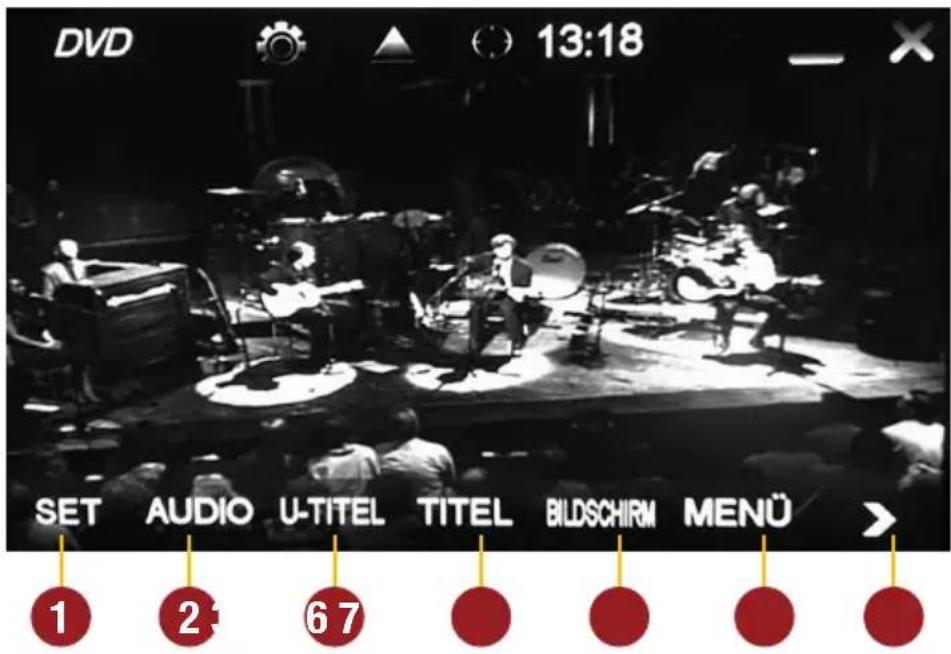
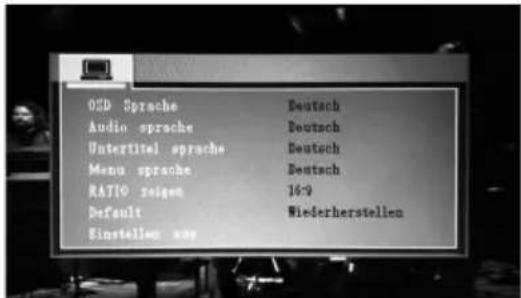
DVD 13:18 SET AUDIO U-TITEL TITEL BILDSCHIRM MENÜ > 1 2 67- Tap here to open the System Settings of the DVD player, where general settings, audio settings, video settings and language settings can be specified.
- Tap here to open the audio playback settings. In DVD mode the currently available languages settings can be specified.
-
Tap here to set the subtitle options of the currently inserted media.
-
Tap here to open the title menu.
- Tap here for the information of the currently inserted media. Tap again to hide the display.
- Tap here to open the main menu of the currently inserted media.
- Tap here to go to the previous page of the DVD menu (refer to the previous page).
NOTE: Some of the described features and settings are available only if the inserted media is suited accordingly.

APPS
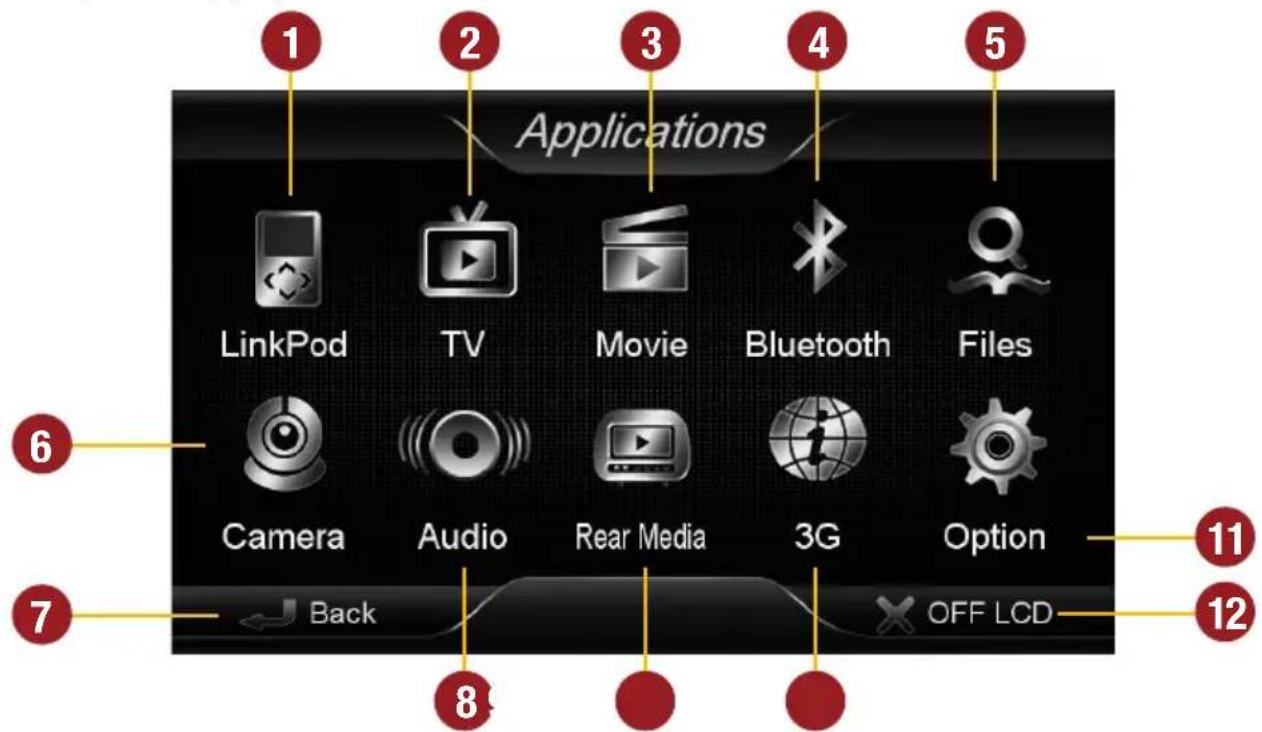
Open the application menu by tapping on „Apps“ in the main menu.
The device offers a variety of applications that can be used as described below. Some of these functions require the appropriate accessories.
text_image
Applications LinkPod TV Movie Bluetooth Files Camera Audio Rear Media 3G Option Back OFF LCD- Tap here to open the LinkPod Menu, when an iPod/iPhone is connected with the device.
- Tap here to open the TV source, if an external TV/DAB tuner or any other audio/video source is connected with the device.
- Tap here to open the Movie Menu
- Tap here to open the Bluetooth Menu
- Tap here to open the file manager
-
Tap here to open the 3G Menu for mobile Internet (please refer to page 26).
-
Tap here to go back to the Main Menu
- Tap here to open the Audio Settings
- Tap here to open the Rear Media Menu
- Tap here to open the Front Camera Menu, if an camera is connected with the device.
- Tap here to open the Option Menu
- Tap here to switch off the display. To switch on the display again, tap onto the screen.
In Chapter „CUSTOM SETTINGS“, section „Menu assignments“ (Pg. 29) shows how to customize and arrange the key panels.
BLUETOOTH™
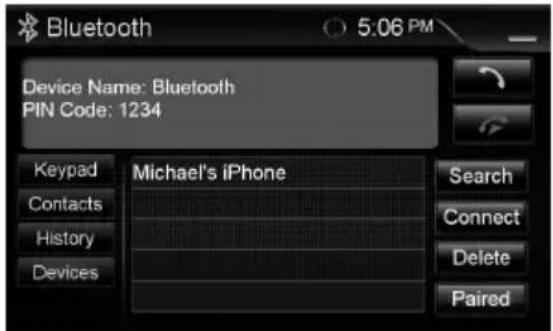
Open the Bluetooth™ application by tapping „Bluetooth™“ in the main menu (if layouted) or by pressing the „” button on the device.
text_image
Bluetooth Device Name: Bluetooth PIN Code: 1234 Keypad Contacts History Devices Michael's iPhone Search Connect Delete PairedGERÄTE VERBINDEN
At first pair the devices, if necessary refer to the manual of your mobile phone. Open the „Settings“ menu on your mobile phone and open the Bluetooth settings.
Turn on Bluetooth and then search for compatible devices. The Bluetooth name of the device will be displayed.
Select your device from the device list in the phone and enter the PIN code 1234.
Once you have connected your phone to the device, the pairing starts automatically as soon as the two devices are within range. Leave Bluetooth activated on the mobile phone. If a mobile phone has already been added to the list of Bluetooth devices, you can also manually pair the devices. The range for a satisfactory connection is about 10 m.
DISCONNECT
text_image
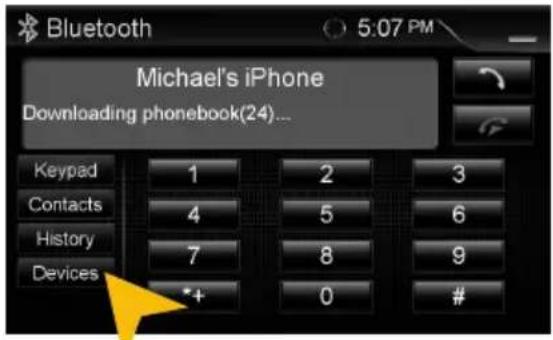
Bluetooth 5:07 PM Michael's iPhone Downloading phonebook(24)... Keypad 1 2 3 Contacts 4 5 6 History 7 8 9 Devices *+ 0 #To disconnect the two Bluetooth devices, tap on „Devices“.
text_image
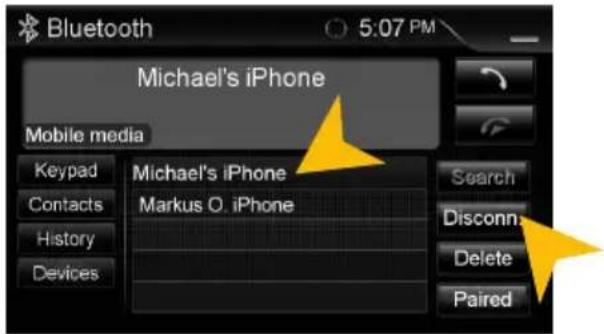
Bluetooth 5:07 PM Michael's iPhone Mobile media Keypad Contacts History Devices Michael's iPhone Markus O. iPhone Search Disconnect Delete PairedChoose the mobile phone from the list and tap „Disconnect“.
Alternatively, the phone can also be deleted from the list, but after that, the automatic pairing is disabled and the mobile phone must be re-paired with the device. To delete the mobile phone from the list, select the name and press „Delete“. This is only possible if the devices are not currently paired.

The paired mobile phone has always priority and a phone call mutes always the currently playback of media (navigation, radio, audio, DVD, etc.). This applies both for incoming calls as well as outgoing calls.
CONTACTS AND CALL HISTORY
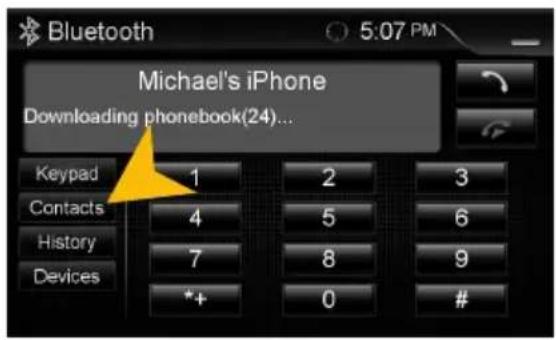
Once your mobile phone has been connected via Bluetooth to the device, the synchronization of your contacts and call history starts automatically.
text_image
Bluetooth 5:07 PM Michael's iPhone Downloading phonebook(24)... Keypad 1 2 3 Contacts 4 5 6 History 7 8 9 Devices *+ 0 #Tap on „Contacts“.
text_image
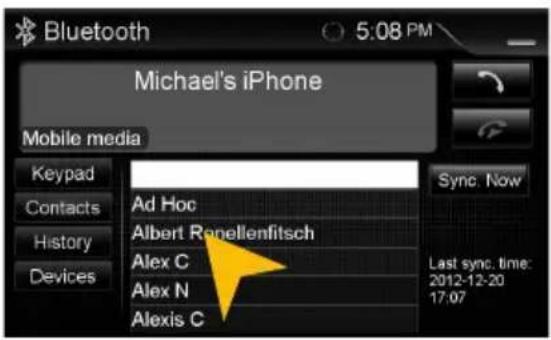
Bluetooth 5:08 PM Michael's iPhone Mobile media Keypad Contacts History Devices Ad Hoc Albert Ronellenfitsch Alex C Alex N Alexis C Sync. Now Last sync. time: 2012-12-20 17:07Tap on a name to start a phone call.
text_image
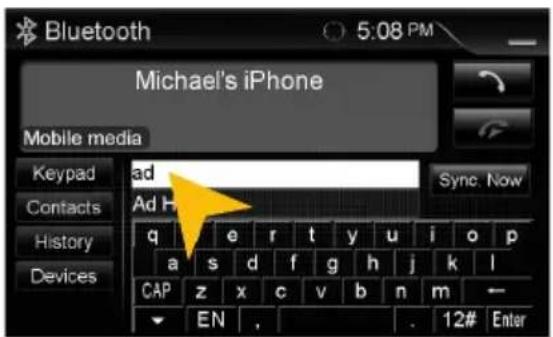
Bluetooth 5:08 PM Michael's iPhone Mobile media Keypad Contacts History Devices ad Ad H Sync. Now q e r t y u i o p a s d f g h j k l CAP z x c v b n m ← EN . 12# EnterTap on the white search field to search for a contact, by typing its name on the screen keyboard.
text_image
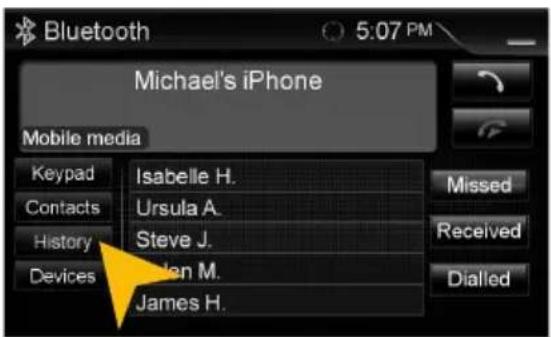
Bluetooth Michael's iPhone Mobile media Keypad Isabelle H. Contacts Ursula A. History Steve J. Devices Alan M. James H. Missed Received DialledTap on „History“.
text_image
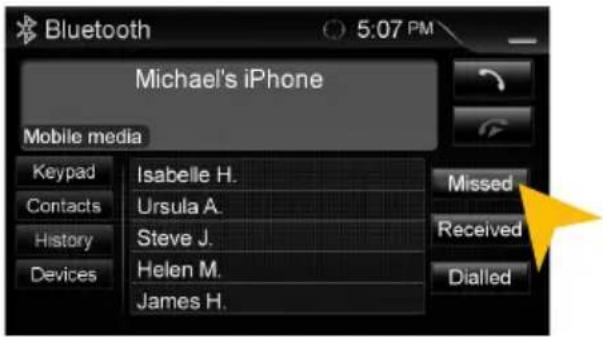
Bluetooth 5:07 PM Michael's iPhone Mobile media Keypad Isabelle H. Contacts Ursula A. History Steve J. Devices Helen M. James H. Missed Received DialledTap on „Missed“ to display the missed phone calls.
text_image
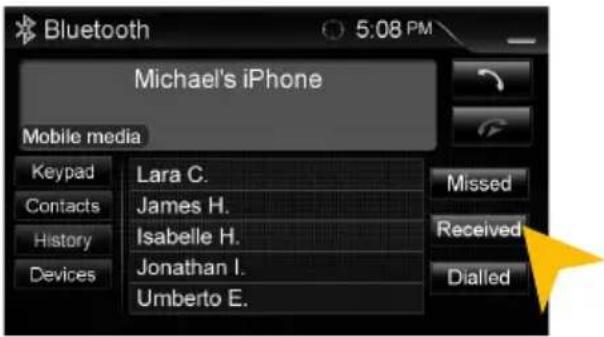
Bluetooth 5:08 PM Michael's iPhone Mobile media Keypad Contacts History Devices Lara C. James H. Isabelle H. Jonathan I. Umberto E. Missed Received DialledTap on „Received“ to display the already received phone calls.
text_image
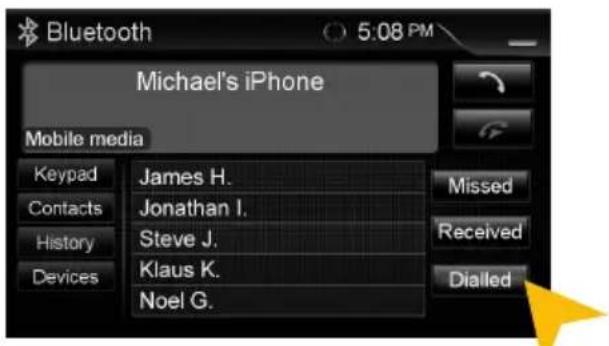
Bluetooth 5:08 PM Michael's iPhone Mobile media Keypad James H. Contacts Jonathan I. History Steve J. Devices Klaus K. Noel G. Missed Received DialledTap on „Dialled“ to display the already transacted phone calls.
text_image
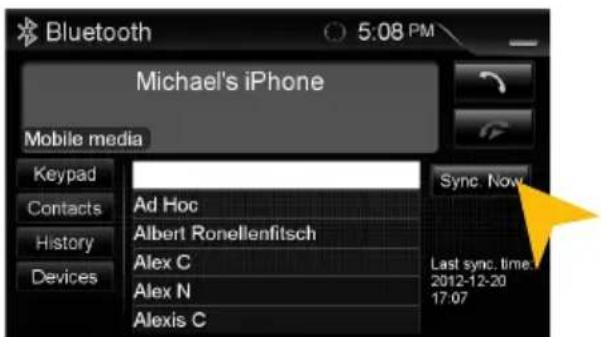
Bluetooth 5:08 PM Michael's iPhone Mobile media Keypad Contacts History Devices Ad Hoc Albert Ronellenfitsch Alex C Alex N Alexis C Sync Now Last sync. time: 2012-12-20 17:07To synchronize your contacts and call history tap on „Sync. Now“.
TASTATUR
text_image
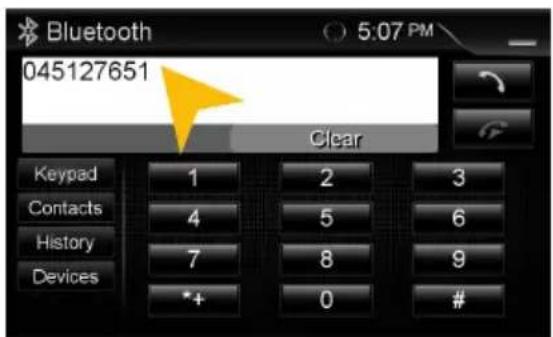
Bluetooth 045127651 Clear Keypad Contacts History Devices 1 2 3 4 5 6 7 8 9 *+ 0 #Tap on „Keypad“ to enter phone numbers manually. Then enter the desired number and then tap the green phone icon to start dialing. Tap the red phone icon to end the phone call.
You can dial with the paired mobile phone, but this is not recommended while driving and may be illegal in your country.

An incoming call should not be accepted automatically by the device. If this occurs and the call is automatically answered, disconnect the phone and pair it again.
AUDIO STREAMING
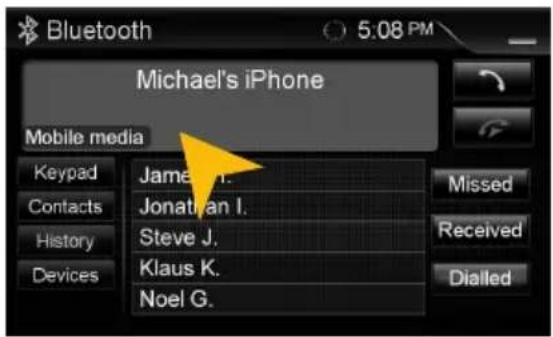
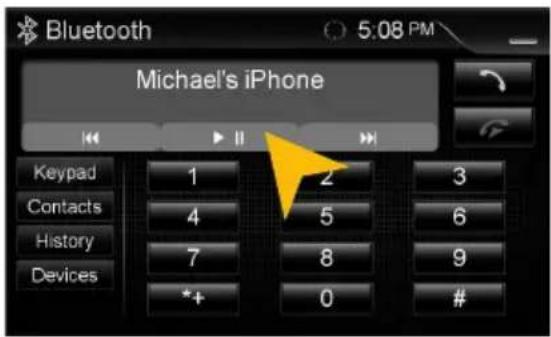
As soon as a mobile phone is paired via Bluetooth with the device, it is possible to play audio files from the mobile phone via the device, if the mobile phone supports the Bluetooth A2DP audio streaming standard. The title and file selection must be done on the mobile phone. Follow the local traffic regulations.
text_image
Bluetooth 5:08 PM Michael's iPhone Mobile media Keypad Contacts History Devices James I. Jonathan I. Steve J. Klaus K. Noel G. Missed Received DialledTap on „Mobile Multimedia“ to start the audio stream.
text_image
Bluetooth 5:08 PM Michael's iPhone Keypad Contacts History Devices 1 2 3 4 5 6 7 8 9 *+ 0 #Tap on one of the controls to start or pause the playback or to skip to a track.

LinkPod (optional)
text_image
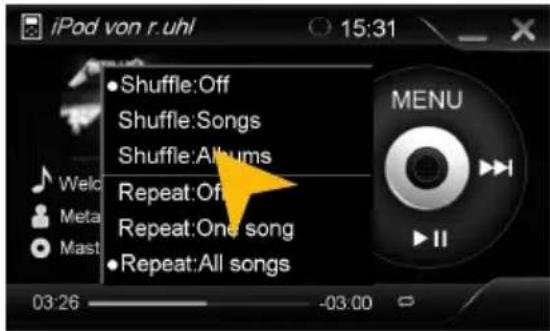
iPod von r.uhl 15:31 • Shuffle:Off Shuffle:Songs Shuffle:Allums Repeat:Off Repeat:One song • Repeat:All songs 03:26 -03:00 MENUMake sure that the iPod ^TM is properly connected to the device via the supplied USB cable. This cable allows also the connection of an iPhone ^TM to use its built-in audio playback mode.
The battery is charged via the USB port when the device is switched on. With older iPod ^TM models, it may occur, that they will not be detected, after the device was switched off. Disconnect and connect again the iPod ^TM in this case.
The user interface is modeled like the user interface of the iPod™. You get access to the iPod™ its contents and playlists through the lower control panels. By tapping „MENU“ you can make the desired playback settings such as „Shuffle“ or „Repeat“.

Please avoid disconnecting the iPod/iPhone™ during operation. This could cause a system crash.

Video
text_image
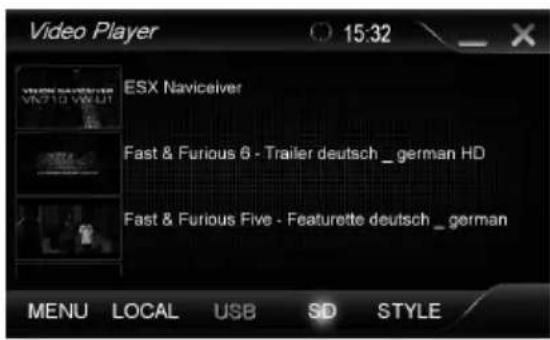
Video Player 15:32 ESX Naviceilver Fast & Furious 6 - Trailer deutsch _ german HD Fast & Furious Five - Featurette deutsch _ german MENU LOCAL USB SD STYLEAfter you have tapped on „Movies“, the file manager will open. Select then a movie file either on the local hard drive or the USB stick or the inserted microSD card.
If a movie isn't playable, the codec or file format of the file is not compatible with the device.
Supported video formats: MPEG 1/2/4, AVI, WMV, DivX, H.264
text_image
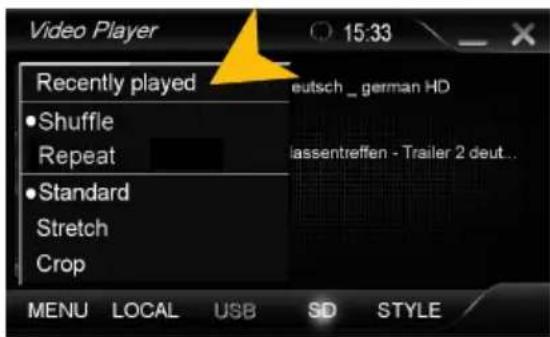
Video Player Recently played Shuffle Repeat Standard Stretch Crop MENU LOCAL USB SD STYLE eutsch _ german HD lassentreffen - Trailer 2 deut...Tap on „Option“ to perform file operations.
Tap double on the file to start playback.
text_image
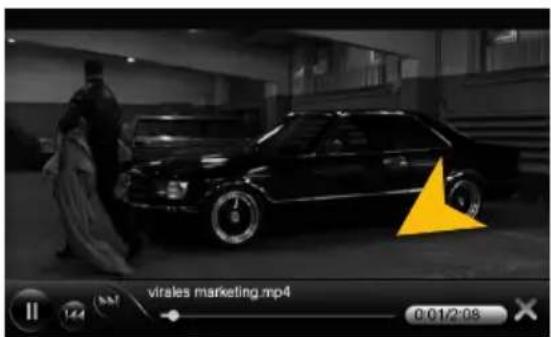
virales marketing.mp4 0:01/2:08Tap on the screen to display the movie control panel during playback. Pull or push the progress bar to change the playback position.
TV (optional)
text_image
DAB+ ready DVBT readyThe device offers the possibility to connect and operate a separate TV tuner (DVBT) for the reception of digital TV signals.
Optionally, it is also possible to connect and operate an external digital radio receiver (DAB, DAB+).
Depending on the model the touchscreen function is enabled. Please refer to the manual of the connected tuner.
Files
text_image
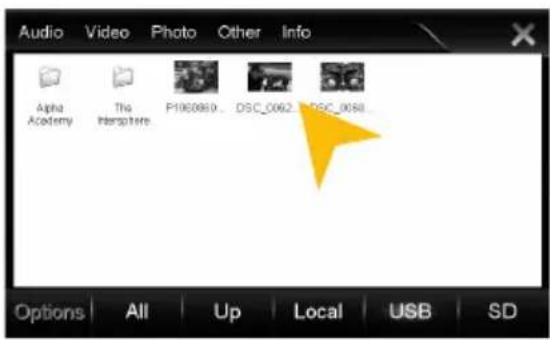
Audio Video Photo Other Info Alpha Academy The Hemisphere F1960860 DSC_0062 DSC_0058 Options All Up Local USB SDWith the file manager, it is possible to manage and open computer specific file formats. The system supports the following file formats:
Photo: BMP, JPEG, GIF, PNG
Audio: MP3, WMA, WAV
Office: PDF, Word (.doc), Excel (.xls), PowerPoint (.ppt)
text_image
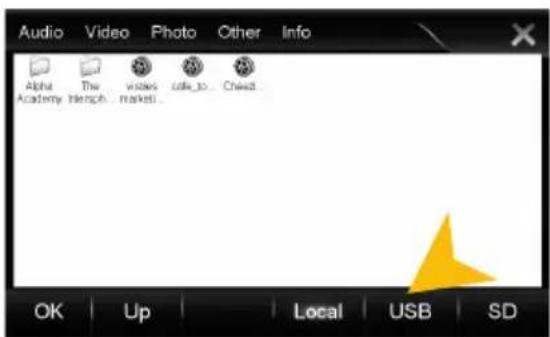
Audio Video Photo Other Info Alpha The videos click_to... Check Academy Intersch... markets... OK Up Local USB SDTap on the desired storage location to display the available and compatible files.
text_image
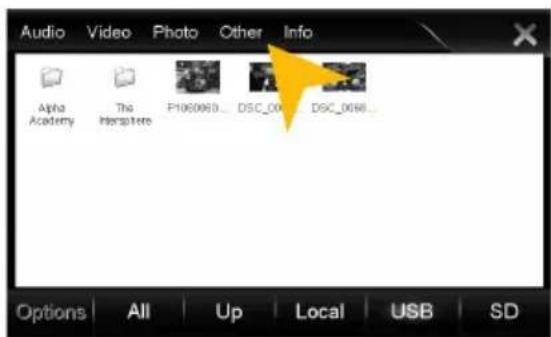
Audio Video Photo Other Info Alpha Academy The Interests F1060960... DSC_00 DSC_0088... Options All Up Local USB SDTap on the desired file category to display the other available and compatible files.
BASIC FUNCTIONS
text_image
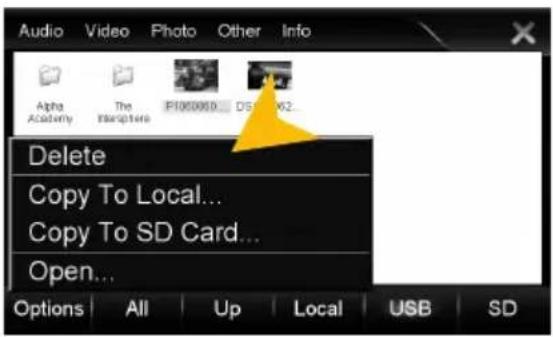
Audio Video Photo Other Info Alpha Academy The Intersections F106000 D51002... Delete Copy To Local... Copy To SD Card... Open... Options All Up Local USB SDTap on „Option“ to perform file operations, such as deleting or copying files.
With the copy function, it is possible to move files to another location or to another disk.
natural_image
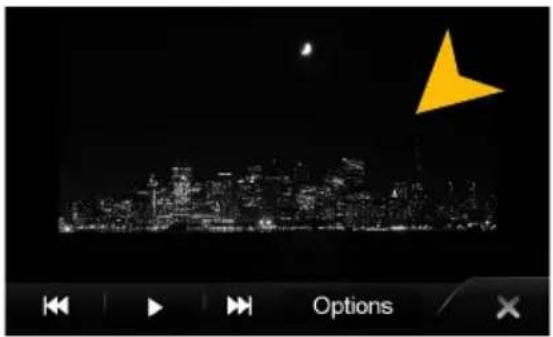
Night cityscape with a large yellow triangle in the sky, displayed within a media player interface (no readable text or symbols on the scene itself)Once you have open an image file, you can start a slideshow of all the pictures stored in the directory. Tap on the image and the playback options are displayed.
text_image
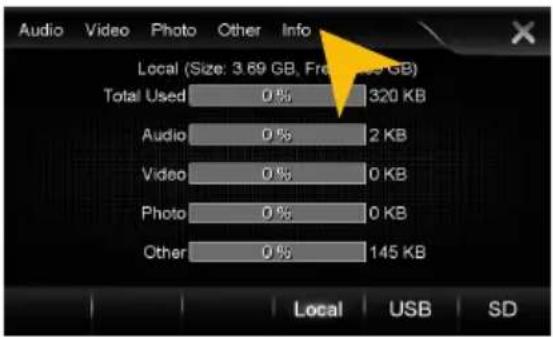
Audio Video Photo Other Info Local (Size: 3.69 GB, Fresh GB) Total Used 0% 320 KB Audio 0% 2 KB Video 0% 0 KB Photo 0% 0 KB Other 0% 145 KB Local USB SDTap on „Info“ to view the memory information of each storage locations.
Here you can view the file categories and the used disk space on the selected storage location.
The usage is displayed in percent and in kilobytes/megabytes/gigabytes.

3G (optional)
If you want to use the internet function, configure the menu or app menu as described on page 33 and set the „Internet“-pad on a free or desired menu item.
text_image
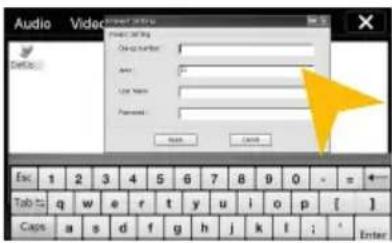
Audio Video Video Setting One number: Ama: Last Name: Password: Enter Cancel Esc 1 2 3 4 5 6 7 8 9 0 - = + Tab to q w e r t y u i o p [ ] Caps a s d f g h j k l ; ' EnterWith a separately available 3G USB stick and an activated SIM card (3G/UMTS), it is possible to use the „Internet“ feature. Open in the main menu Apps > Files > chose „Local“ and „Others“. There you will find the pre-installed file „DialUpSetting.exe“. Open the program and a virtual keyboard appears as well as the „Internet Settings“ window. Both windows can be moved by tapping on the blue tab, then holding and moving.
Enter the appropriate information that you have received from your network operator into the required data field and confirm your entries with „Apply“. Now, the Internet function is ready to use.
The operation of the browser works best with the included stylus marker.

Audio
You can open the audio settings in the main menu by tapping on „Apps“ and „Audio“ or by pressing the right rotary control (except while DVD/TV playback) on the device.
Sound adjustment Acoustic center
text_image
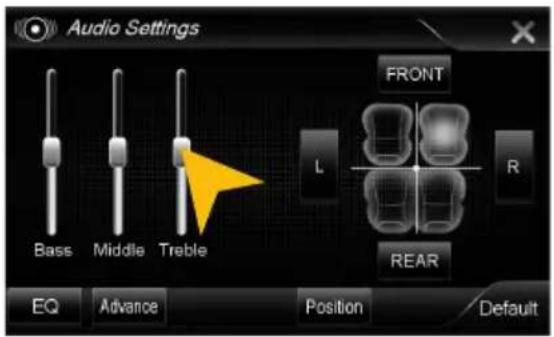
Audio Settings FRONT Bass Middle Treble L R REAR EQ Advance Position DefaultTap on one of the control bars to change the sound adjustment.
text_image
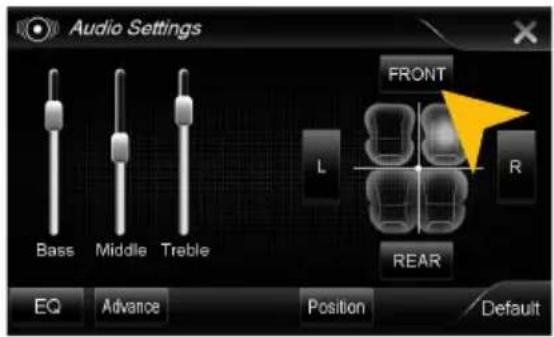
Audio Settings Bass Middle Treble FRONT L R REAR EQ Advance Position DefaultTap on one of the seating positions or on the arrows to align the front and rear speakers.
Equalizer
text_image
Audio Settings FRONT Bass Middle Treble L R REAR EQ Advance Position Default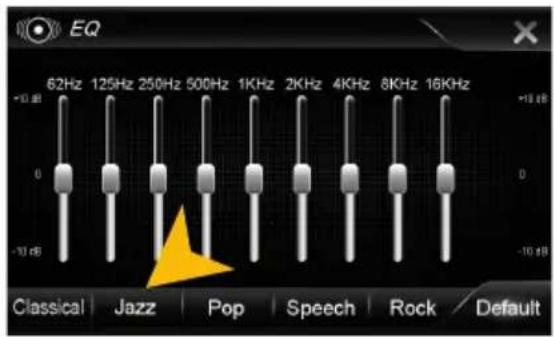
text_image
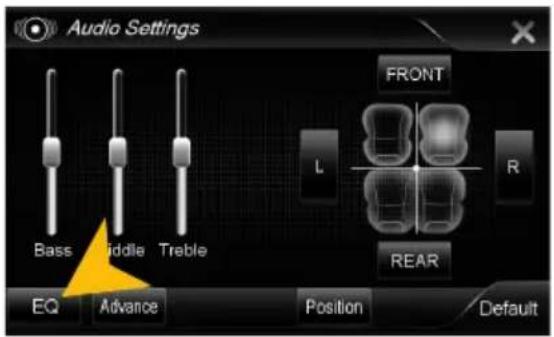
EQ +0 dB 62Hz 125Hz 250Hz 500Hz 1KHz 2KHz 4KHz 8KHz 16KHz -10 dB Classical Jazz Pop Speech Rock DefaultTap on „EQ“. Tap on one of the preset equalizer presets.
text_image
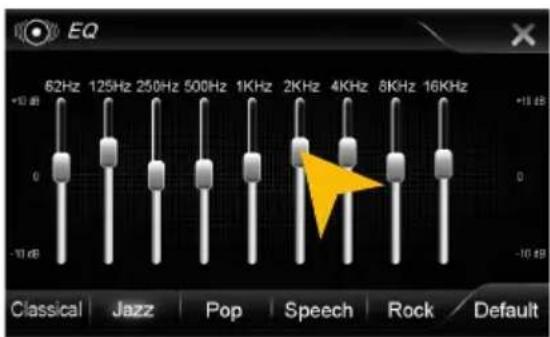
EQ 62Hz 125Hz 250Hz 500Hz 1KHz 2KHz 4KHz 8KHz 16KHz +10 dB 0 -10 dB Classical Jazz Pop Speech Rock DefaultTap on one of the control bars to change the equalizer preset.
NOTE: Tap on „Default“ to restore the respective factory preset.
Advance Setting
text_image
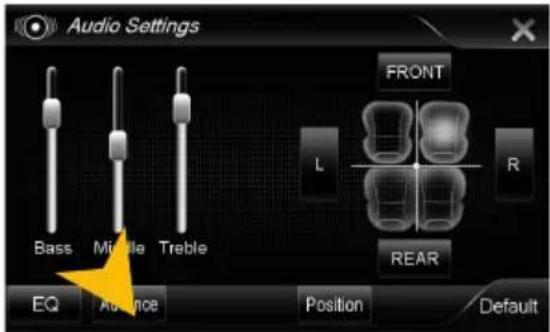
Audio Settings Bass Mistle Treble FRONT L R REAR EQ Advance Position DefaultTap on „Advance“ to open the advanced audio settings.
text_image
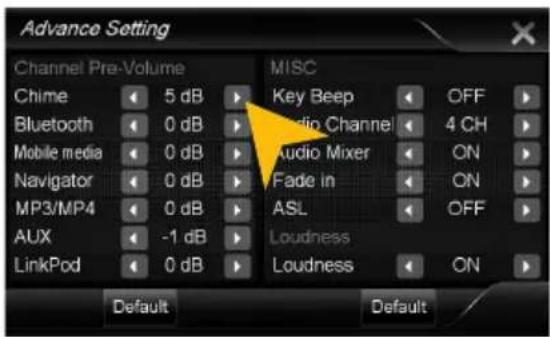
Advance Setting Channel Pre-Volume MISC Chime 5 dB Key Beep OFF Bluetooth 0 dB Audio Channel 4 CH Mobile media 0 dB Audio Mixer ON Navigator 0 dB Fade in ON MP3/MP4 0 dB ASL OFF AUX -1 dB Loudness LinkPod 0 dB Loudness ON Default DefaultOn the left under „Channel Pre-Volume“ you can set the individual volume for each application. Just tap on the arrow icons to change the value upward or downward.
Scroll down the left field to display all applications.
text_image
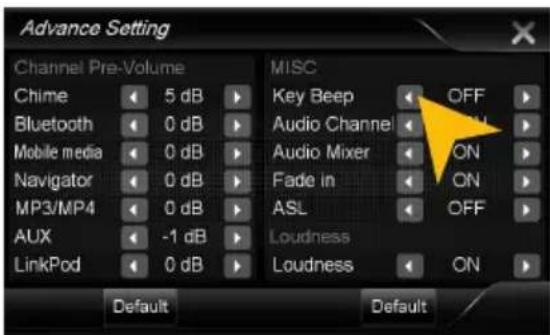
Advance Setting Channel Pre-Volume MISC Chime 5 dB Key Beep OFF Bluetooth 0 dB Audio Channel Mobile media 0 dB Audio Mixer ON Navigator 0 dB Fade in ON MP3/MP4 0 dB ASL OFF AUX -1 dB Loudness LinkPod 0 dB Loudness ON Default DefaultUnder „MISC“ and „Key Beep“ you can activate or deactivate a key tone for every interaction.
Under „Audio Channel“ you can set the output signal from 4 to 5.1-channel signal.
Is the „Audio Mixer“ in „ON“ position, the voice output of the navigation system is only hearable on the front speakers in „OFF“ position on all speakers. While using the Audio Player with the „ON“ position the music will be quiten down and with „OFF“ the music will be completely muted.
Under „ASL/GALA“ you can switch on the volume adjustment to match the volume with the driving speed.
text_image
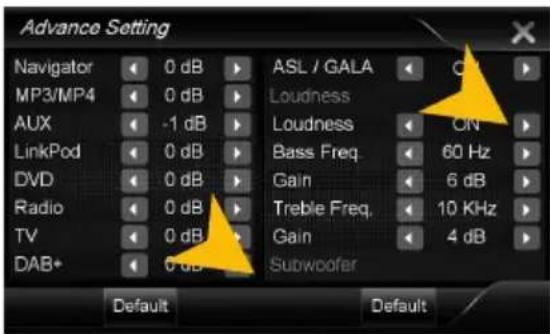
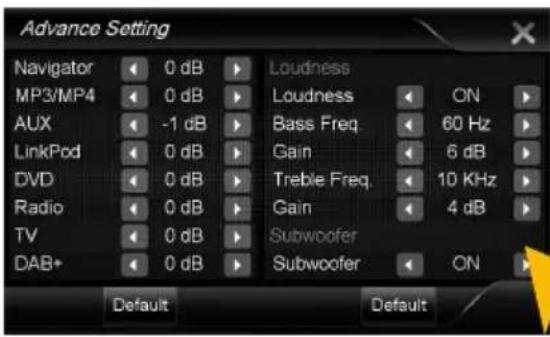
Advance Setting Navigator 0 dB ASL / GALA MP3/MP4 0 dB Loudness AUX -1 dB Loudness ON LinkPod 0 dB Bass Freq. 60 Hz DVD 0 dB Gain 6 dB Radio 0 dB Treble Freq. 10 KHz TV 0 dB Gain 4 dB DAB+ 0 dB Subwoofer Default DefaultUnder „Loudness“ you can activate the loudness function of the audio signal.
Under „Bass Freq.“ or „Treble Freq.“ you can set the frequency of the loudness function.
Under „Gain“ you can set the desired boost in db increments.
Scroll down the right field to view all settings.
text_image
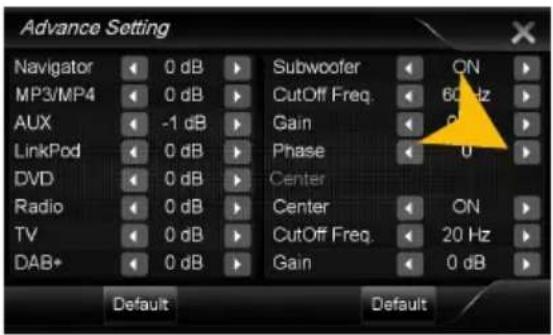
Advance Setting Navigator 0 dB Loudness ON MP3/MP4 0 dB Loudness 60 Hz AUX -1 dB Bass Freq 6 dB LinkPod 0 dB Gain 10 KHz DVD 0 dB Treble Freq 4 dB Radio 0 dB Gain TV 0 dB Subwoofer DAB* 0 dB Subwoofer ON Default DefaultScroll down on the right to get to the crossover settings for the subwoofer and a center speaker.
This is only useful if a subwoofer or center speaker is used.
text_image
Advance Setting Navigator 0 dB Subwoofer ON MP3/MP4 0 dB CutOff Freq. 60 Hz AUX -1 dB Gain Phase 0 LinkPod 0 dB Phase DVD 0 dB Center Radio 0 dB Center ON TV 0 dB CutOff Freq. 20 Hz DAB* 0 dB Gain 0 dB Default DefaultSubwoofer (optional)
Under „Frequency“ you can set the cut-off value and only the frequencies below this value will be played via the subwoofer. This relieves the subwoofer and improves the sound. With „Gain“ you can set the desired level of the subwoofer signal. Under „Phase“ you can shift the phase of the signal to match the bass with the vehicle's acoustic.
text_image
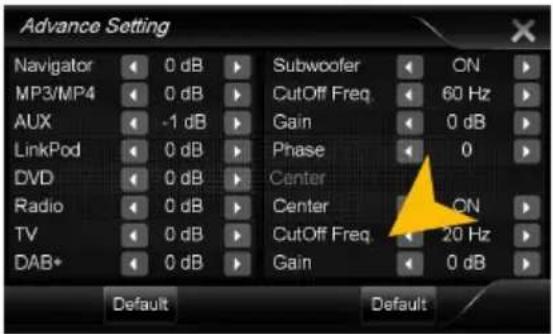
Advance Setting Navigator 0 dB Subwoofer ON MP3/MP4 0 dB CutOff Freq 60 Hz AUX -1 dB Gain 0 dB LinkPod 0 dB Phase 0 DVD 0 dB Center Radio 0 dB Center ON TV 0 dB CutOff Freq 20 Hz DAB* 0 dB Gain 0 dB Default DefaultCenter (optional)
Under „Frequency“ you can set the cut-off value and only the frequencies above this value will be played via the center speaker. This relieves the speakers and improves the sound. With „Gain“ you can set the desired level of the center speaker signal.
NOTE: Tap on „Default“ to restore the respective factory preset.
REAR MEDIA (optional)
text_image
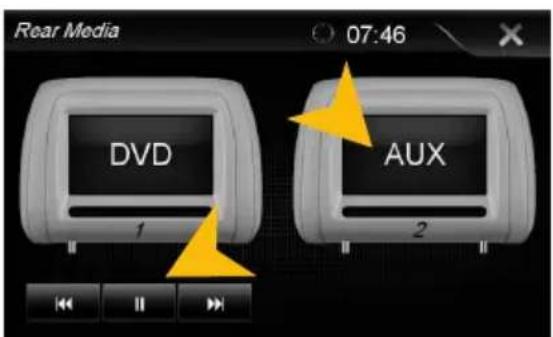
Rear Media 07:46 DVD AUX 1 2If your vehicle is equipped with two headrest monitors in the rear area and these are properly connected to the device, the Dual Zone function allows an independent DVD, TV and AUX playback additionally to the main screen of the device.
The rear monitors allow also an independently media playback on each side under each other. Tap on the respective control panel and select the desired application for the particular monitor. Operate the playback with the shown control buttons.
If you want to connect your headrest monitors to the audio outputs of the device, you must connect them with the included „connection cable RCA/Cinch Audio Out Dual Zone“.

Option
You can open the option menu by tapping on „Option“ in the „Apps“ menu.
Language settings
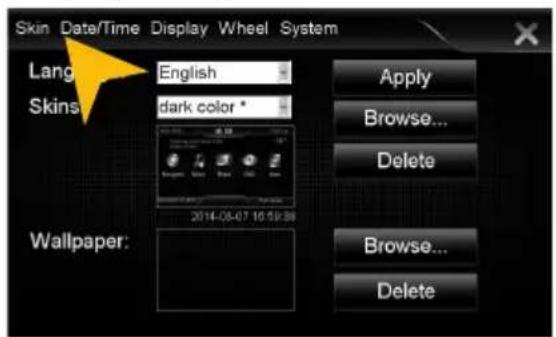
text_image
Skin Date/Time Display Wheel System Lang English Skins dark color * 2014-08-07 16:19:38 Apply Browse... Delete Wallpaper: Browse... Delete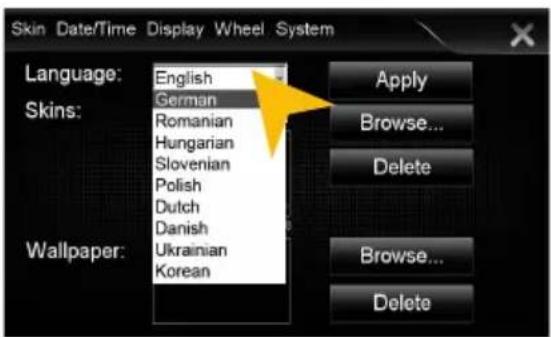
text_image
Skin Date/Time Display Wheel System Language: English German Skins: Romanian Hungarian Slovenian Polish Dutch Danish Wallpaper: Ukrainian Korean Apply Browse... Delete Browse... DeleteTap on „Skin“. Select the desired language. Tap on „Apply“.
User interface
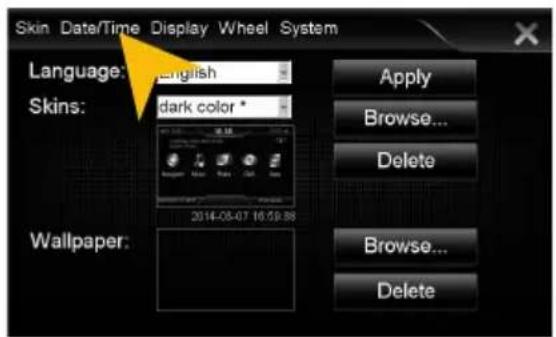
text_image
Skin Date/Time Display Wheel System Language: English Skins: dark color * 2014-08-07 16:59:88 Wallpaper: Apply Browse... Delete Browse... Delete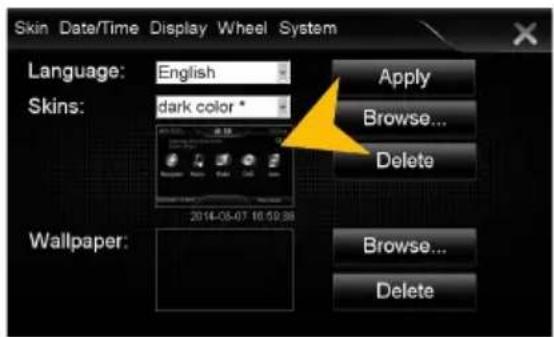
text_image
Skin Date/Time Display Wheel System Language: English Skins: dark color * 2014-08-07 10:59:38 Wallpaper: Apply Browse... Delete Browse... DeleteTap on „Skin“. Tap on the menu „Skins“ and select the
desired design theme (skin). Tap on „Apply“.
Operating System
text_image
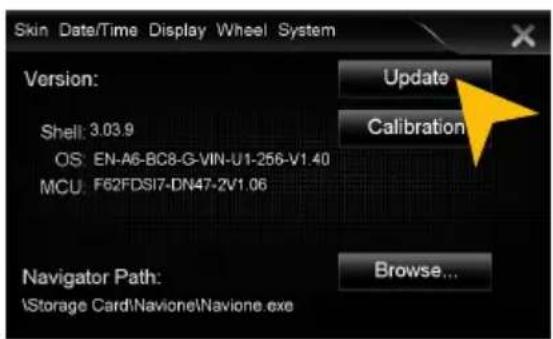
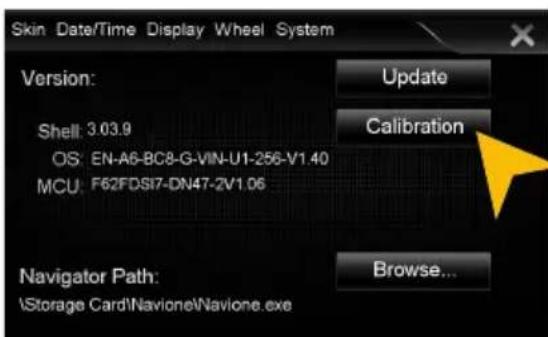
Skin Date/Time Display Wheel System Version: Shell: 3.03.9 OS: EN-A6-BC8-G-VIN-U1-256-V1.40 MCU: F62FDSI7-DN47-2V1.06 Update Calibration Navigator Path: \Storage Card\Navione\Navione.exe Browse...Under „System“ you find information about the system.
Shell: Version number of the user interface
OS: Version number of the operating system
MCU: Version number of the CAN-BUS protocol
Check under www.esxnavi.de if an operating system update is available or ask your retail dealer. Then follow the installation instructions that come with the update.

Do not turn off the car's ignition while updating process of the operating system. Don't run the update while driving.
Date/Time
text_image
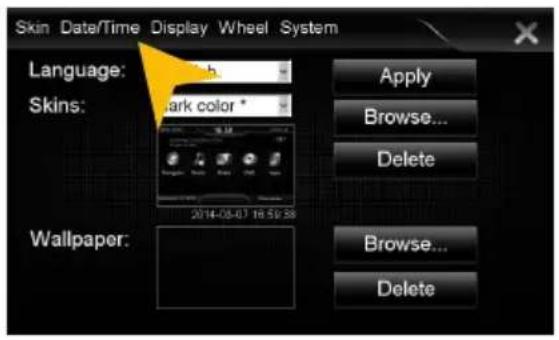
Skin Date/Time Display Wheel System Language: Skins: 2014-08-07 16:50:38 Apply Browse... Delete Wallpaper: Browse... DeleteTap on „Date/Time“.
text_image
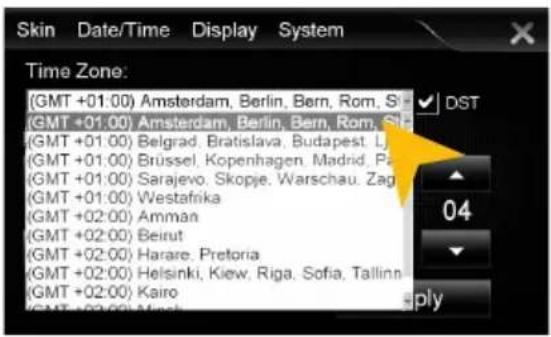
Skin Date/Time Display System Time Zone: (GMT +01:00) Amsterdam, Berlin, Bern, Rom, Sl (GMT +01:00) Amsterdam, Berlin, Bern, Rom, Sl (GMT +01:00) Belgrad, Bratislava, Budapest, L (GMT +01:00) Brüssel, Kopenhagen, Madrid, Pa (GMT +01:00) Sarajevo, Skopje, Warschau, Zag (GMT +01:00) Westafrika (GMT +02:00) Amman (GMT +02:00) Beirut (GMT +02:00) Harare, Pretoria (GMT +02:00) Helsinki, Kiew, Riga, Sofia, Tallinn (GMT +02:00) Kairo (GMT +02:00) Mesh DST 04 ApplySelect the desired time zone.
text_image
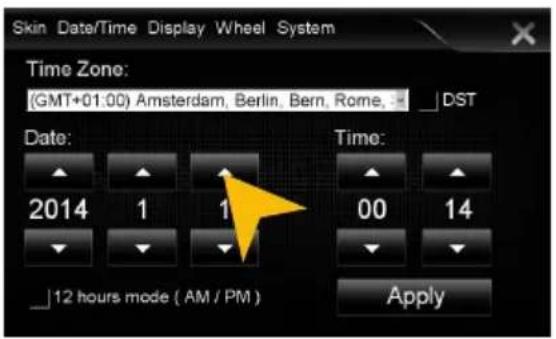
Skin Date/Time Display Wheel System Time Zone: (GMT+01:00) Amsterdam, Berlin, Bern, Rome, _ DST Date: 2014 1 1 Time: 00 14 _12 hours mode ( AM / PM ) ApplySet the current date. Set the current time.
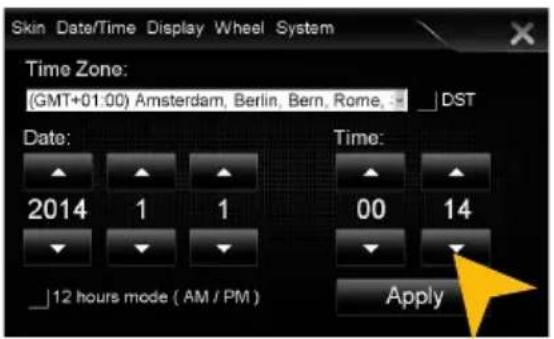
text_image
Skin Date/Time Display Wheel System Time Zone: (GMT+01:00) Amsterdam, Berlin, Bern, Rome, -_DST Date: 2014 1 1 00 14 _12 hours mode ( AM / PM ) Apply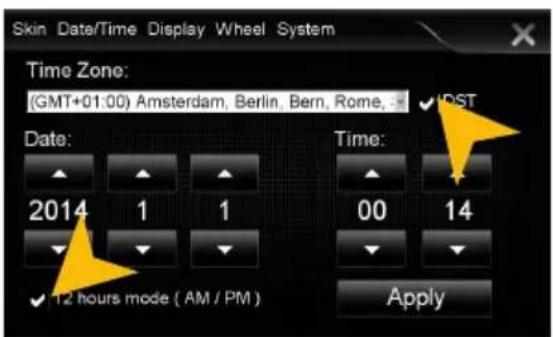
text_image
Skin Date/Time Display Wheel System Time Zone: (GMT+01:00) Amsterdam, Berlin, Bern, Rome, Date: 2014 1 1 ✓ 12 hours mode ( AM / PM ) Time: 00 14 ApplyTap on the checkbox right to set on daylight saving time.
text_image
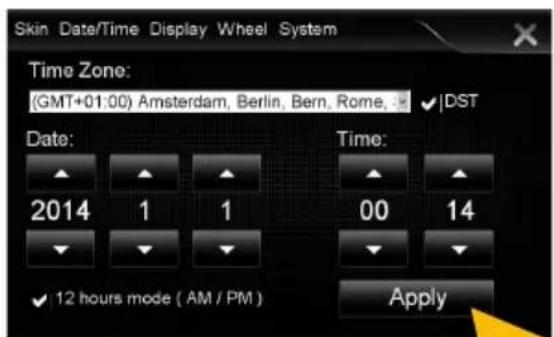
Skin Date/Time Display Wheel System Time Zone: (GMT+01:00) Amsterdam, Berlin, Bern, Rome, ✓ |DST Date: 2014 1 1 00 14 ✓ 12 hours mode ( AM / PM ) ApplyTap on „Apply“.
Tap on the checkbox left to set the time format to 12-hours (AM / PM).

Please operate complex settings as a driver generally only if you have parked the car, otherwise the traffic safety is endangered. Otherwise you can not react in time, to avoid occurring danger situations.
Display
text_image
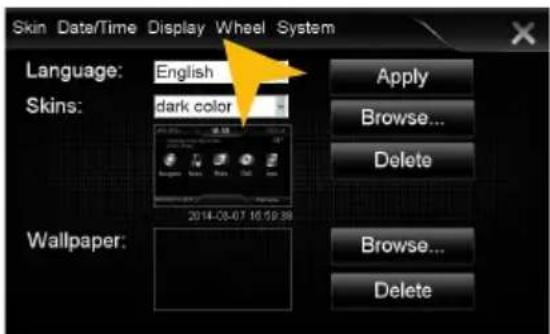
Skin Date/Time Display Wheel System Language: English Skins: dark color 2014-08-07 16:59:38 Apply Browse... Delete Wallpaper: Browse... DeleteTap on „Display“.
text_image
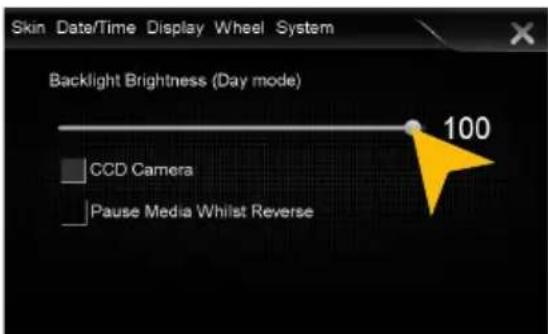
Skin Date/Time Display Wheel System Backlight Brightness (Day mode) 100 CCD Camera Pause Media Whilst ReverseSet the desired brightness level for the display.

text_image
Skin Date/Time Display Wheel System Backlight Brightness (Day mode) 69 ✓ SSD Camera Pause Media Whilst ReverseThe checkbox „CCD Camera“, enables the optional rear view camera function. As soon as reverse gear is engaged, the transmission of the video camera is automatically displayed on the screen.
With the checkbox below, the media playback will be paused when the reverse gear is engaged.
Calibration of the touchscreen operation
If the touchscreen function is inaccurate you can recalibrate the display. Proceed as follows:
text_image
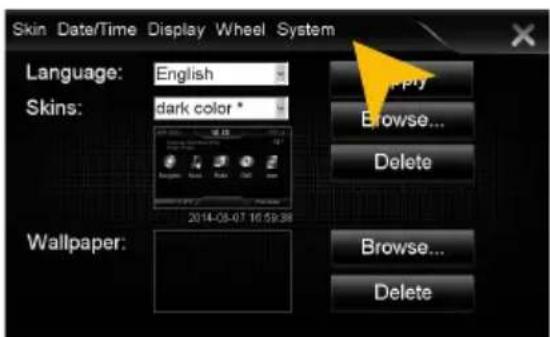
Skin Date/Time Display Wheel System Language: English Skins: dark color * 2014-08-07 16:59:38 Wallpaper: Apply Browse... Delete Browse... DeleteTap on „System“. Tap on „Calibration“.
text_image
Skin Date/Time Display Wheel System Version: Shell: 3.03.9 OS: EN-A6-BC8-G-VIN-U1-256-V1.40 MCU: F62FDSI7-DN47-2V1.06 Update Calibration Navigator Path: \Storage Card\Navione\Navione.exe Browse...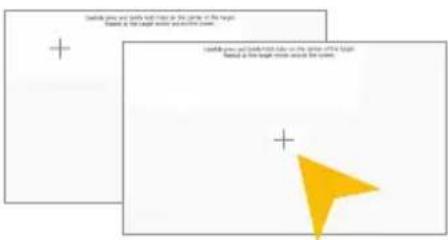
text_image
Lackup frame and partly left loop on the frame of the right. Named at the target center and outside the frame. Lackup frame and backward touch on the frame of the right. Named at the target center around the frame.Tap with the included stylus marker on the „+“. Then the „+“ will be moved to another location, then tap again on the „+“ and repeat this process until the calibration is complete. Then confirm the calibration process.
Menu assignment
You have the possibility to arrange the main menu or apps menu to your liking.
text_image
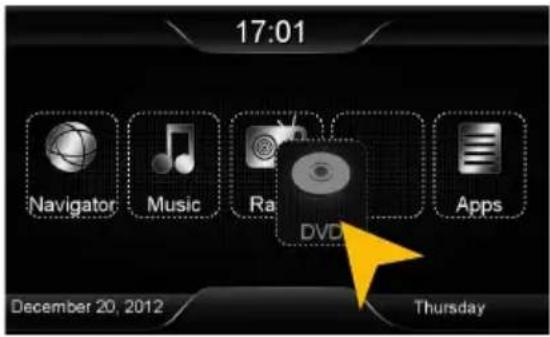
17:01 Navigator Music Ra DVD Apps December 20, 2012 ThursdayTo change the position of a control panel, press and hold for 5 seconds the regarding panel in the main or apps menu until the dashed lines are visible.
Then hold and slide the control panel to the desired position within the menu.
text_image
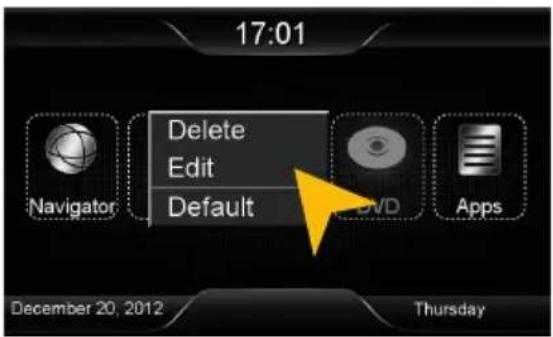
17:01 Delete Edit Default Navigator DVD Apps December 20, 2012 ThursdayTo occupy a control panel with a new function, touch the control panel for 1-2 sec. to open the edit menu. Tap on „Delete“ to remove the panel.
Tap on „Edit“ to select a new function or application or tap on „Default“ to restore the original factory settings.
text_image
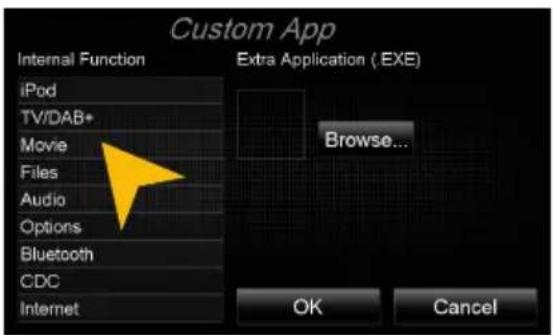
Custom App Internal Function iPod TV/DAB+ Movie Files Audio Options Bluetooth CDC Internet Extra Application ( EXE) Browse... OK CancelUnder „Edit“ you can select an application from the list to occupy the current control panel.
text_image
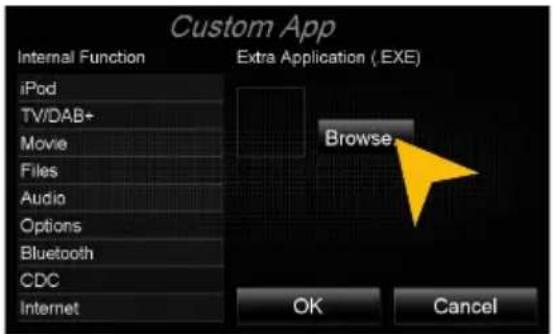
Custom App Internal Function iPod TV/DAB+ Movie Files Audio Options Bluetooth CDC Internet Extra Application ( EXE) Browse OK CancelYou have also the possibility to link a control panel with any compatible software application (. EXE), which must be stored on the available storage locations. Tap on „Browse“ to select the desired application.
Note: To exit the edit menu either press „OK“ or „Cancel.“ To exit the edit mode, tap on the screen (outside of the dashed lines) and the process is complete.

Wallpaper
You have the possibility to customize the background image to your liking. First, copy the desired wallpaper file to the microSD card, the USB stick or on the local hard drive.
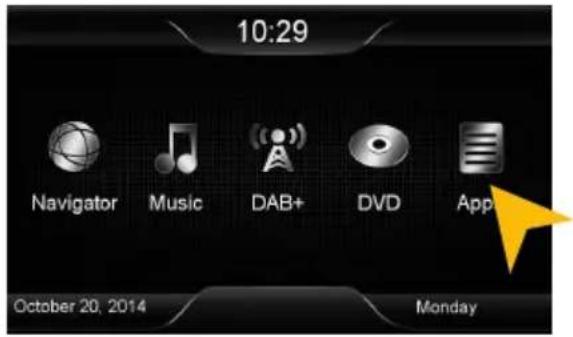
text_image
10:29 Navigator Music DAB+ DVD App October 20, 2014 Mondaytext_image
Applications LinkPod TV Movie Bluetooth Files Camera Audio Rear Media 3G Optic Back OFF LCD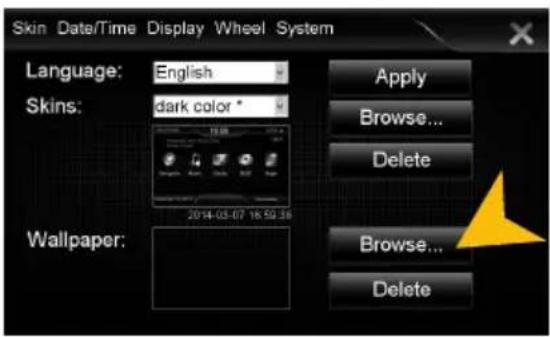
text_image
Skin Date/Time Display Wheel System Language: English Skins: dark color * 2014-03-07 16:59:38 Wallpaper: Apply Browse... Delete Browse... Delete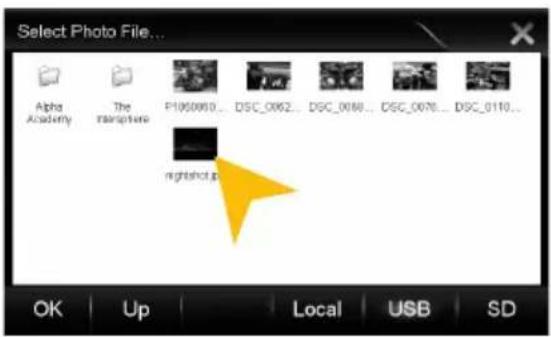
text_image
Select Photo File... Alpha Academy The transcript P1050860... DSC_0062... DSC_0048... DSC_0076... DSC_0110... nightnot.p OK Up Local USB SDSelect a file by double click.Tap at „Wallpaper“ on „Browse“
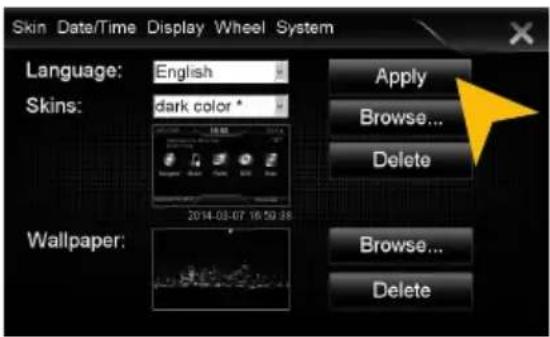
text_image
Skin Date/Time Display Wheel System Language: English Skins: dark color * 2014-03-07 16:50:38 Wallpaper: Apply Browse... Delete Browse... DeleteTap on „Apply“ to confirm your selection or „Delete“ below to remove the current file.
text_image
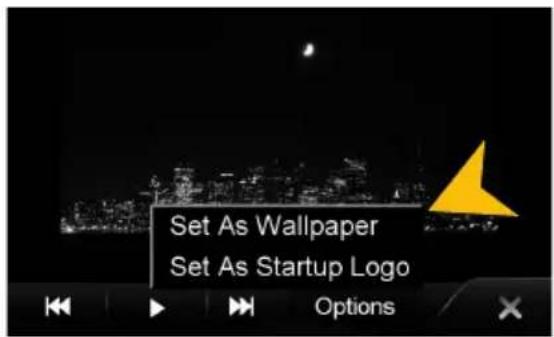
Set As Wallpaper Set As Startup Logo OptionsAlternatively you can set an already opened image as your wallpaper. Tap on „Options“ and select „Set as Wallpaper“.

Under certain circumstances the opening and loading of large images or movie files may take some time to proceed.

Bootlogo
You have the possibility to customize the bootlogo (startup logo) to your liking. First, copy the desired file to the microSD card, the USB stick or on the local hard drive.
text_image
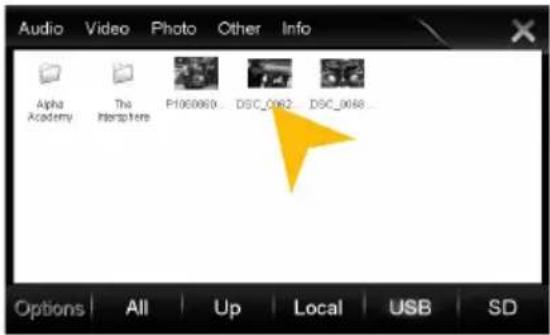
Audio Video Photo Other Info Alpha Academy The Interperses P1050860 DSC_0062 DSC_0068 Options All Up Local USB SDOpen the desired file in the file manager by double click.
text_image
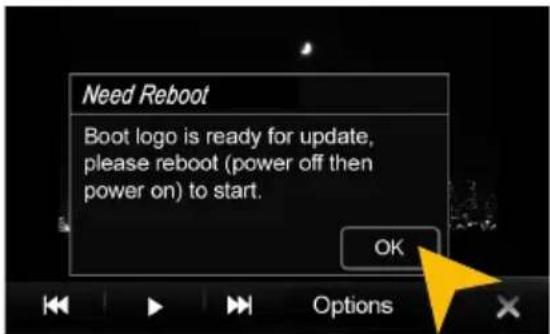
Need Reboot Boot logo is ready for update, please reboot (power off then power on) to start. OKTap on „OK“ and restart the device.
text_image
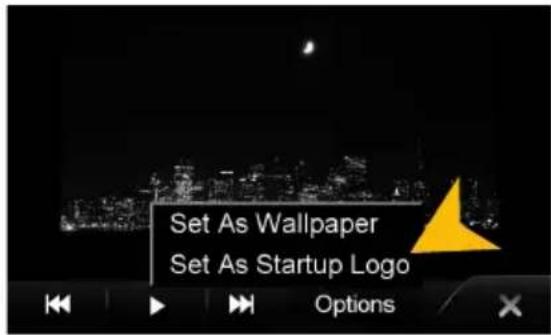
Set As Wallpaper Set As Startup Logo OptionsTap on „Options“ and select „Use as Startup Logo“.
NOTE: In this case a MicroSD card must be inserted in the device.

INFRARED REMOTE
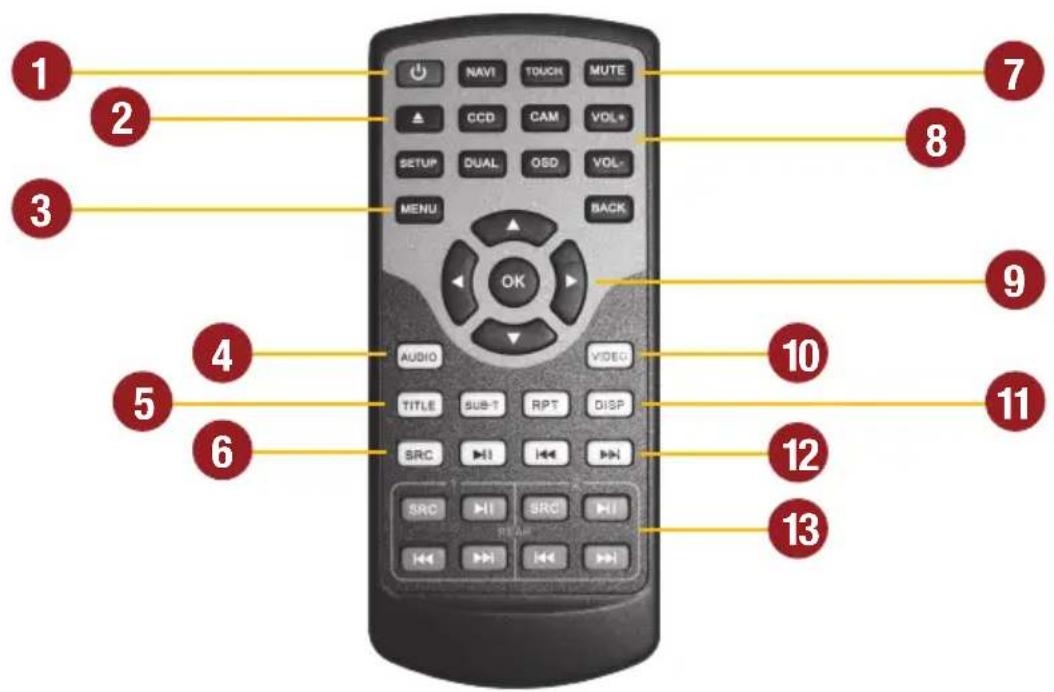
The included remote control allows you to control some basic functions on the device. Point directly with the front of the remote control to the screen of the device. The distance should not be more than 3 meters. If you use the remote control for the first time, you have to remove the safety foil in the battery compartment on the back.
Here is an overview of the basic functions of the remote control, which can be different depending on the currently running application.
text_image
1 2 3 4 5 6 7 8 9 10 11 12 13 AUDIO VIDEO TITLE SUB-T RPT DISP SRC SRC STREAM- Power On/Off the device
- Eject the inserted CD/DVD
- Open the main menu
- Open the audio settings
- Option menu of the CD/DVD player
- Quick switching between applications
- Mute On/Off
-
Volume control
-
Control keys within the menus
- Open the video menu
- Display On/Off
- Play and control keys for media playback
- Play and control keys for for the rear media monitors (Real Dual Zone function).
NOTE: If the battery (button cell) is discharged, replace it only with a new one of the same type (CR2025). Please do not throw used batteries into household waste, bring them to a dealer that offers a proper disposal, when you purchase a new one.
MULTI-FUNCTION STEERING WHEEL
natural_image
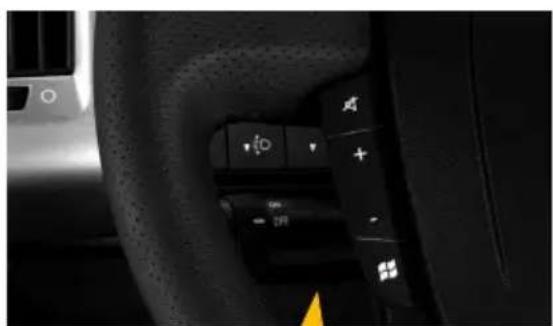
Close-up of a car interior showing the dashboard keyboard and mode dial (no text or symbols visible)The device supports a control via the standard multifunction steering wheel. The control buttons are corresponding to the basic function of the device. The operation may vary slightly from car model to car model.
text_image
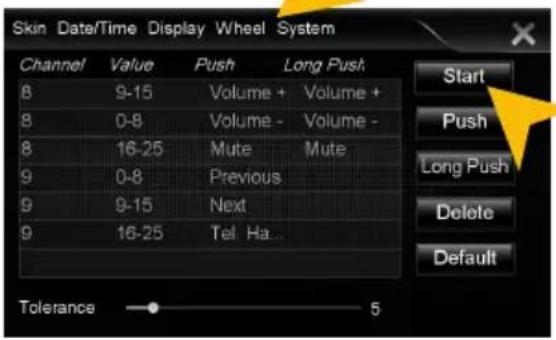
Skin Date/Time Display Wheel System Channel Value Push Long Push 8 9-15 Volume + Volume + 8 0-8 Volume - Volume - 8 16-25 Mute Mute 9 0-8 Previous 9 9-15 Next 9 16-25 Tel Ha... Start Push Long Push Delete Default Tolerance 5First go to the app menu, then to the menu „Option“ and select „Wheel“.
Press „Start“, thus all previous entries will be deleted. Then press any button on the steering wheel until a value is shown in the table. After that select with „Push“ the appropriate function.
LIMITED MEDIA PLAYBACK
text_image
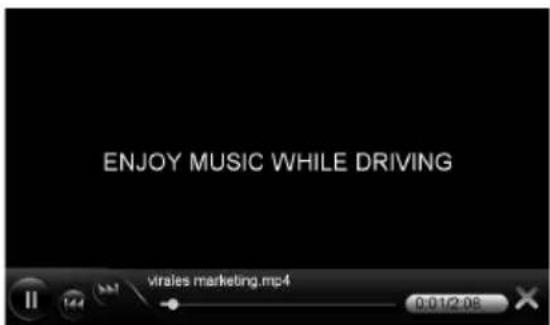
ENJOY MUSIC WHILE DRIVING Virales marketing.mp4 0:01/2:06For your own and your passengers safety the picture display in DVD/Video/TV/AV applications is limited and the unit will only playback the sound track of the medium while driving.
If you have installed additional monitors in the rear compartment, the unlimited media playback (DVD and DVBT, except movie files) is possible, if you operate them with the included dual zone cable.
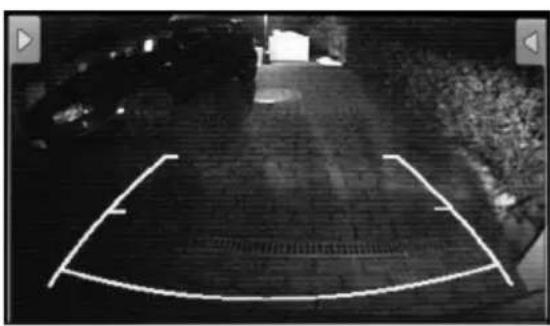
OPTIONAL REAR VIEW CAMERA
natural_image
Night street scene with a paved road and illuminated vehicle, no visible text or symbolsIf an optional rearview camera have been installed, the camera image is automatically shown on the screen when the reverse gear is engaged (See settings on page 28). This happens even when the device is turned off. After the reverse gear has been disengaged again, the unit will restart the previously used application or function. To switch back to the OPS screen, tap on the touch screen.
TROUBLESHOOTING
If the following troubleshooting tips do not solve the problem and the malfunction persists, please contact an authorized repair or installation service. Do not open the device or attempt to repair it by yourself. This may cause serious damages to the electronic components of the device and in your vehicle or may void the warranty of the device. Please visit our FAQ under www.esxnavi.de, which is constantly updated.
| Problems Causes | Remedy | |
| Starting processThe device cannot be turned on. | The ignition is off, but the device needs the so called inginition impulse. | Switch on the ignition. |
| The fuse or a fuse in the vehicle electronics is defective. | Replace the blown fuse with a new fuse of the same type with the same value. | |
| Without functionThe unit turns off. The device turns off automatically after 30 minutes when the ignition (ACC) is not turned on. | Turn on ignition (ACC) again. | |
| DisplayInaccurate or delayed input of touchscreen function. | The touch-screen is not properly calibrated. | Calibrate the touch screen under Apps - Options - System. |
| The device opens an application or is currently processing. | Wait until the process is completed. | |
| Screen is black. The display is disabled. Tap on the screen. | ||
| SoundThere is no sound via the sound system of the vehicle hearable. | The connection or installation was not done correctly or one of the cables is defective. | Check all connections and replace a possibly damaged cable with a new one. |
| One of the audio settings is incorrect or there is an incompatibility with the vehicle sound system. | Check the audio settings under Apps - Audio - Advanced.Go through all settings step by step and test the functions. | |
| The sound is distorted, overdriven or with strong noises. | The equalizer settings or the volume settings of each application are set unfavorable. | Check the audio settings under Apps - Audio or Advanced. Correct the settings down and test if the sound gets better. |
| CD/DVD playbackThe DVD menu can not be opened. | The disc does not support menus or is plagiarism. | Insert another disc. |
| The picture quality during play-back is insufficient. | Brightness, contrast and color saturation are set too low. | Check the DVD player settings and correct them. |
| Erroneous or disrupted playback. | The disc is not loaded correctly. | Insert the disc again with the print side up. |
| The disc is scratched, broken or deformed. | Insert another disc. | |
| The disc is not compatible with the device. | Insert another disc. | |
| Optional connected devices (iPodTM/TV-Tuner etc.)The connected device is not working. | The device is not properly connected or the connection cable is defective. | Check all connections and replace a possibly damaged cable with a new one. |
| The devices is not compatible. If necessary, make a software update or try another device. | ||
| USB drive or microSD card is not recognized. | Incorrect storage or data format. | Format the storage with the MS-DOS file system (FAT32). |
| InternetThe Internet connection is not possible. | No proper reception for 3G devices in the current location. | Continue until the 3G-Signal is available again. |
| The SIM card is defective or installed incorrectly. | Check the SIM card or possibly insert a new one. | |
| The inserted SIM card is no longer active. | Contact your contractor of the SIM card. | |
| The Browser is not starting. No compatible surfstick is inserted or faulty software/drivers are installed. | Insert a compatible surfstick. | |
| NavigationThe navigation application will not start. | The software is not compatible with the device. | Check the compatibility of soft-ware with Windows CE 6, or get yourself a compatible version. |
| The software was not installed on the device properly. | Check the settings under Apps - Options - System and if necessary, correct the navigation software path. | |
| The license of the installed software or the useful life has expired. | Contact the software supplier. | |
| The device isn't able to find your current location or the route guidance is disturbed. | The included GPS antenna is not or not correctly connected. | Check the GPS antenna connec-tion or get a new one in case of defect. |
| You are in an area with weak or no GPS signal, such as in a tunnel or on a remote road. | Continue driving until the GPS signal is available again. | |
| The route guidance does not match with the current road or the map is is wrong. | The navigation software is not up to date. | Update the software or contact the software supplier. |
| The navigation system does not show the shortest way. | The navigation software consi-ders many factors in determining a route, such as the condition of the roads, traffic rules, one-way streets, major roads, etc. | Usually the navigation software selects a route which is a good compromise and most immediate to the goal. |
| On the displayed map is nothing to see. | The display scale of the map is set too large or too small. | Change the ratio of the display scale, until the map is properly displayed. |
| A brief loss of the GPS signal. Continue driving until the GPS signal is available again. | ||
| RadioNo radiostation was found with the automatic station search. | Under PTY a program type is selected, which is not availabe in the current area. | Select „None“ under PTY. Then, the search for a certain program type is disabled. |
| Bluetooth/PhoneNo connection or pairing of the devices. | Bluetooth function of the phone is not enabled. | Enable Bluetooth function in the phone settings. |
| Bluetooth enabled but the phone is not visible. | Enable „visible“ in the phone settings. | |
| The Bluetooth standard of the phone is not compatible. | Use a compatible phone. | |
| Too many Bluetooth devices are registered in the device. | Delete unused Bluetooth devices from the storage of the device. | |
| Bluetooth connection is too quiet | The preset volume is set too low. | Set the preset volume under Apps - Audio - Advanced - Bluetooth on a higher value. |
| No Bluetooth audio function. The Bluetooth audio function is not enabled. | Enable the function in the phone settings. | |
| The Bluetooth standard of the phone is not compatible. | Use a compatible phone. | |
| Front-/rear cameraNo transmission on the screen. | The camera is not properly connected to the device. | Check the connections for any mistakes. |
| The camera was installed improperly. | Check the installation for any mistakes. | |
| Wrong camera video format or incompatible model. | Replace the camera with a compatible model or refer to the owner's manual of the camera. | |
| The device is turned off, but in reverse gear the camera transmission is shown and the device can not be operated. | The rear camera has priority for safety reasons and also starts the transmission when the device is turned off. | Only after the reverse drive has finished, the device is operatable again and can be started. |
| Driver information display or parking sensorsNo or faulty display. | Your vehicle is not suitably prepared or a CAN bus error exists. | Consult a specialized dealer. |
| Multifunction steering wheelNo or faulty operation of the device. | Your vehicle is not suitably prepared or a CAN bus error exists. | Consult a specialized dealer. |
Care and Maintenance
This device is equipped with high precision and sensitive technique and should always be treated with caution. Please note the following tips to avoid endangering the warranty and extend the life of the appliance.
- Children under 12 should not operate the device. Keep the device and all accessories away from small children.
- Keep the device and its components dry. The effects of water, liquid or moisture can cause damage to the vehicle, the device itself or injury.
- Keep the device and its components away from excessive heat. High temperatures may shorten the life of appliance of the electrical components.
- Keep the device and its components away from excessive cold. Extreme temperature changes and moisture inside the device may cause the breaking of certain components.
- Do not to drop the device and avoid violent shocks or excessive shaking
- Do not use strong chemical cleaners, solvents or water to clean the device. Use a slightly moistened cotton cloth with soft surface.
- Replace a blown fuse only with a new one with the same values. However, before you replace a defective fuse, check at first what is the cause of the short circuit. Start with the power supply cable. If the fuse blows again, a malfunction consists inside the device. In this case you should contact your authorized dealer.
Legal Notice
- ESX or Audio Design GmbH are in no way affiliated with the manufacturer of the vehicle or any of its subsidiaries or affiliated companies connected to, or is acting on its behalf or with its authorization.
- All registered product names, trade marks and brands are the property of their respective owners.
- This owner's manual was made with the utmost care.
- If you need to dispose the device, be aware that no electronic devices should be deposed in the household waste. Dispose the device in an appropriate recycling facility according to the local waste regulations. Consult if necessary your local authority or dealer.
- Technical changes and errors reserved.
Due to the ongoing development of this device, it is possible that the information in this manual is incomplete or is not matching to the delivery status.
Please visit periodically www.esxnavi.de on the internet, to check if additional information and software updates are available.
Customer service
In general, the assembly and installation of the device should be made by a trained and technically skilled specialists.
If you have any problems with operating the device, contact your specialist dealer or the Audio Design Service Department under Tel. +49 7253 - 94 65 95 or by E-Mail to navi@esxaudio.de.

Declaration of Conformity
Distributor:
Hereby, Audio Design GmbH declares that the ESX VNC711 FI-DUCATO device is in compliance with the essential, fundamental requirements and other relevant provisions of the following directive:
R&TTE Directive 1999/5/EG
The complete Declaration of Conformity can be found at www.esxnavi.de/ce

natural_image
Abstract logo design featuring a stylized 'S' with a yellow checkmark and registered trademark symbol (no text or numbers present)CAR MEDIA SYSTEMS