
VT-FX633A - VCR HITACHI - Free user manual and instructions
Find the device manual for free VT-FX633A HITACHI in PDF.


| Product Type | VHS Videocassette Recorder (VCR) |
| Model | Hitachi VT-FX633A |
| Format | VHS |
| Video Head System | 4-head helical scan |
| Audio System | VHS Hi-Fi stereo record/playback, linear mono track |
| Tape Speeds | SP (33.35 mm/s), EP (11.12 mm/s), LP playback only (16.67 mm/s) |
| Tuner Capability | 181 channels (125 cable, 56 broadcast) – USA; 178 cable channels – Canada |
| Timer Programming | 8 programs / 1 year with VCR Plus+ and manual setup |
| Special Features | VCR Plus+ C^3, Super Index, Auto Clock Set, Auto Head Cleaning, Auto Tracking, MTS Stereo/SAP, On-Screen Programming Guide |
| Power Supply | AC 120V, 60 Hz |
| Power Consumption | 22W (nominal) |
| Dimensions (W x H x D) | 14-15/16" x 3-11/16" x 10-13/16" (38.0 cm x 9.3 cm x 27.5 cm) |
| Weight | 7.7 lbs (3.5 kg) |
| Connections | RF IN (antenna/cable), RF OUT (to TV), Audio/Video IN (L/R), Audio/Video OUT (L/R) |
| Remote Control | Infrared programmable for VCR, TV, and cable box |
| Auto Head Cleaning | Built-in automatic cleaning system on tape insert/eject and power on/off |
| Safety Features | Polarized plug, automatic power off, tape protection mechanisms |
| Included Accessories | Remote control (HL10991), coaxial cable (EW10251), 2 AA batteries |
| Repairability | No user-serviceable parts; refer to qualified service personnel; safety checks recommended after service |
Frequently Asked Questions - VT-FX633A HITACHI
User questions about VT-FX633A HITACHI
0 question about this device. Answer the ones you know or ask your own.
Ask a new question about this device
Download the instructions for your VCR in PDF format for free! Find your manual VT-FX633A - HITACHI and take your electronic device back in hand. On this page are published all the documents necessary for the use of your device. VT-FX633A by HITACHI.
USER MANUAL VT-FX633A HITACHI
Using these quality features:
- The VCR Plus+* programming system allows you to program the VCR for timer recording by simply entering a PlusCode* number.
* VCR Plus+ and Pluscode are trademarks of Gemstar Development Corporation. VCR Plus+ system is manufactured under license from Gemstar Development Corporation.
With the VCR Plus+ C ^3 system, this videocassette recorder can automatically select the appropriate channel on your compatible cable box or satellite receiver. C ^3 and VCR Plus+C ^3 are trademarks of Gemstar Development Corporation. - Super index allows you to quickly search for a program you want to view or the point from which you want to start recording on the tape.
• Super rewind and fast forward - Multi-channel TV sound (MTS).
• 8-program/1-year preset recording. - Auto clock set feature allows you to automatically set the present time using a time signal.
- Auto head cleaning system minimizes the need for accessory cleaners and professional head cleaning.
- Auto tracking system automatically adjusts the tracking so the picture is optimized.
- Frequency synthesized tuner provides easy, preset tuning of up to 68 broadcast TV channels and 125 cable channels.
• VHS Hi-Fidelity sound in playback. - On-screen programming guide.
- With display, VCR Plus+ can be programmed to record without turning power on.
HITACHI HOME ELECTRONICS
(AMERICA), INC.
3890 Steve Reynolds Blvd,
Norcross, GA 30093
Tel. 770-279-5600
HITACHI SALES CORPORATION
OF HAWAII, INC.
3219 Koapaka Street, Honolulu, HI 96819
Tel. 808-836-3621
HITACHI (HSC) CANADA INC.
6740 Campobello Road
Mississauga, Ontario L5N 2L8
CANADA
Tel. 905-821-4545
TABLE OF CONTENTS
FOR YOUR SAFETY....3
IMPORTANT SAFEGUARDS....4
CUSTOMER CONTROLS 7
REMOTE OPERATION....10
CASSETTE TAPES....11
BASIC ANTENNA HOOKUP [A]....12
ADVANCED ANTENNA HOOKUP -AV HOOKUP [B] 13
BASIC CABLE HOOKUP [C]....14
ADVANCED CABLE HOOKUP -AV HOOKUP [D] 14
BASIC CABLE HOOKUP -WITH CABLE BOX [E]....15
ADVANCED CABLE HOOKUP -WITH CABLE BOX [F]....16
ADVANCED CABLE HOOKUP -WITH CABLE BOX AND SPLITTER [G] 16
SETTING THE CLOCK -AUTOMATIC MODE....17
Setting the clock automatically - if your VCR's hooked up to an antenna or cable without a cable box (Hookups A, B, C or D)....17
SETTING THE CLOCK-AUTOMATIC MODE....18
If your VCR is hooked up to a cable box (Hookups [E], [F] or [G])......18
SETTING THE CLOCK -TIME ZONE SETTING/DAYLIGHT SAVING TIME SETTING......19
What to do if the displayed time drifts from the current time by more than an hour .....19
SETTING THE CLOCK -MANUALLY 21
To set the clock manually....21
PRE-TUNING THE VCR TUNER 23
Presetting the received channels without using a cable box....23
(Hookups [A], [B], [C] or [D]) 23
When automatic presetting of channels are finished....24
Channel Caption (Station Identifier) 25
To add or erase channels 25
Auto blue setting 26
CABLE BOX SETUP 27
PLAYBACK....30
Rewinding the tape 31
Rewinding or fast forwarding a tape at high speed 32
To remove noise from the picture 32
Choosing a mode for audio playback....35
USING THE "SUPER INDEX" FEATURE....36
What is SUPER INDEX....36
Locating the beginning of a recorded program (INDEX SEARCH) 36
Locating the beginning of a blank section (BLANK SEARCH) 37
Switching rewind or fast forward to visual search (EASY VIEW) 38
Skipping unnecessary scenes (SKIP PLAYBACK) 39
VIEWING THE ON-SCREEN DISPLAY 39
Switching between the clock, time counter and time of remaining tape 39
INDEXING WITH THE TIME COUNTER....40
RECORDING A PROGRAM....41
Before you record 41
Basic recording steps....41
RECORDING A PROGRAM - RECORDING TIPS 43
To watch one program while recording another 43
To change the channel being recorded....44
To record a Second Audio Program (SAP) 44
Stereo vs. mono sound 45
INSTANT RECORDING TIMER 46
Using the Instant Recording Timer (IRT) 46
DELAYED RECORDING 46
Setting the VCR to record later 46
Before you begin....46
Delayed Recording Steps 47
USING THE VCR PLUS+ SYSTEM FOR RECORDING....50
Channel setup....51
EASY DELAYED RECORDING WITH THE VCR PLUS+ SYSTEM 51
Using the VCR Plus+ system to record a program (by using TV screen)....53
Using the VCR Plus+ system to record a program (by using the VCR's display)......55
PROGRAM REVIEW....58
Reviewing what you have programmed 58
PROGRAMMING THE VCR REMOTE TO CONTROL YOUR TV ....59
Using the VCR remote to control your TV 60
PROGRAMMING THE VCR REMOTE TO CONTROL YOUR CABLE BOX....60
Using the VCR remote to control your cable box. 61
INTEGRATING YOUR STEREO SYSTEM WITH YOUR VCR 61
Hookup 61
I o record from stereo 62
COPYING TAPES FROM A CAMCORDER....62
Hook-up 62
To copy from a camcorder 63
COPYING FROM ONE VCR TO ANOTHER VCR (DUBBING)......64
Hookup 64
PROBLEM GUIDE / MAINTENANCE....65
Problem guide....65
Maintenance 65
GUIDE INDICATIONS IN THE VCR DISPLAY pg 60....66
Guide indications in VCR display 66
TECHNICAL SPECIFICATIONS 67
Technical specifications....67
FOR YOUR SAFETY
POWER SUPPLY: AC 120V, 60 Hz ONLY.
The POWER button turns the VCR on and off, leaving the clock/timer unaffected. If the unit is to be left unattended for a long period, it is recommended that the unit be completely switched off and unplugged. Illustrated below is the label on the back of your unit.
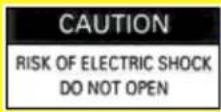


This symbol warns the user that uninsulated voltage within the unit may have sufficient magnitude to cause electric shock. Therefore, it is dangerous to make any kind of contact with any inside part of this unit.

This symbol alerts the user that important literature concerning the operation and maintenance of this unit has been included. Therefore, it should be read carefully in order to avoid any problems.
CAUTION: TO REDUCE THE RISK OF ELECTRIC SHOCK, DO NOT REMOVE COVER (OR BACK). NO USER-SERVICEABLE PARTS INSIDE. REFER SERVICING TO QUALIFIED SERVICE PERSONNEL.
WARNING: Many television programs and films are copyrighted. In certain circumstances, copyright law may apply to private in-home videotaping of copyrighted materials.
WARNING: TO PREVENT FIRE OR ELECTRIC SHOCK, DO NOT EXPOSE THIS APPLIANCE TO RAIN OR MOISTURE.
CAUTION: TO PREVENT ELECTRIC SHOCK, MATCH WIDE BLADE OF PLUG TO WIDE SLOT, FULLY INSERT.
Caution to the user: Changes or modifications not expressly approved by the party responsible for compliance could void the user's authority to operate the equipment.
"Note to CATV system installer: This reminder is provided to call the CATV system installer's attention to Article 820-40 of the NEC that provides guidelines for proper grounding and, in particular, specifies that the cable ground shall be connected to the grounding system of the building, as close to the point of cable entry as practical".
IMPORTANT SAFEGUARDS
In addition to the careful attention devoted to quality standards in the manufacture of your video product, safety is a major factor in the design of every instrument. But, safety is your responsibility too.
This page lists important information that will help to assure your enjoyment and proper use of a Video Cassette Recorder and accessory equipment. Please read it carefully before operating your video product and keep it in a handy place for future reference.
INSTALLATION
1 Read and Follow Instructions -- All the safety and operating instructions should be read before the video product is operated. Follow all operating and use instructions.
natural_image
Illustration of a person sitting in a chair with a book on the desk (no text or symbols visible)2 Retain Instruction -- The safety and operating instructions should be retained for future reference.
3 Heed Warnings -- Comply with all warnings on the video product and in the operating instructions.
4 Polarized Plug -- This video product is equipped with a polarized alternating current line plug (a plug having one blade wider than the other). This plug will fit into the power outlet only one way. This is a safety feature. If
you are unable to insert the plug fully into the outlet, try reversing the plug. If the plug should still fail to fit, contact your electrician to replace your obsolete outlet. To prevent electric shock do not use this polarized plug with an extension cord, receptacle or other outlet unless the blades can be fully inserted without blade exposure. If you need an extension, use a polarized cord.
5 Power Sources -- This video product should be operated only from the type of power source indicated on the marking label. If you are not sure of the type of power supply to your home, consult your video dealer or local power company. For video products intended to operate from battery power, or other sources, refer to the operating instructions.
6 Overloading -- Do not overload wall outlets and extension cords as this can result in a risk of fire or electric shock. Overloaded AC outlets and extension cords are dangerous, and so are frayed power cords, damaged or cracked wire insulation and broken plugs. They may result in a shock or fire hazard. Periodically examine the cord and have it replaced by your service technician if appearance indicates damage or deteriorated insulation.
7 Power Cord Protection -- Power supply cords should be routed so that they are not likely to be walked on or pinched by items placed upon or against them, paying particular attention to cords at plugs, convenience receptacles, and the point where they exit from the appliance.
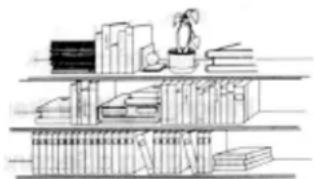
8 Ventilation -- Slots and openings in the cabinet are provided for ventilation to ensure reliable operation of the video product and to protect it from overheating. These openings must not be blocked or covered. The openings should never be blocked by placing the video product on a bed, sofa, rug or other similar surface. This video product should never be placed near or over a radiator or heat register. This video product should not be placed in a built-in installation such as a bookcase or rack unless proper ventilation is provided or the video product manufacturer's instructions have been followed.
natural_image
Line drawing of a multi-level library shelf with books, plants, and books on top (no text or symbols)9 Attachments -- Do not use attachments unless recommended by the video product manufacturer as they may cause hazards.
Caution: Maintain electrical safety. Power line operated equipment or accessories connected to this unit should bear the UL listing mark or CSA certification mark on the accessory itself and should not have been modified so as to defeat the safety features. This will help avoid any potential hazard from electric shock or fire. If in doubt, contact qualified service personnel.
10 Water and Moisture -- Do not use this video product near water - for example, near a bath tub, wash bowl, kitchen sink, or laundry tub, in a wet basement, or near a swimming pool, and the like.
11 Accessories -- Do not place this video product on an unstable card, stand, tripod, bracket or table. The video product may fall, causing serious injury to a child or adult, and serious damage to the appliance. Use only with a cart, stand, tripod, bracket or table recommended by the manufacturer, or sold with the video product. Any mounting of the product should follow the manufacturer's instructions, and should use a mounting accessory recommended by the manufacturer.
11A An appliance and cart combination should be moved with care. Quick stops, excessive force, and uneven surfaces may cause the appliance and cart combination to overturn.

sure the antenna or cable system is grounded so as to provide some protection against voltage surges and built-up static charges. Section 810 of the National Electrical Code, ANSI/NFPA No. 70, provides information with respect to proper grounding of the mast and supporting structure, grounding of the lead-in wire to an antenna discharge unit, size of grounding conductors, location of antenna-discharge unit, connection to grounding electrodes, and requirements for the grounding electrode. See example below.
EXAMPLE OF ANTENNA GROUNDING
13 Power Lines -- An outside antenna system should not be located in the vicinity of overhead power lines or other electric light or power circuits, or where it can fall into such power lines or circuits. When installing an outside antenna system, extreme care should be taken to keep from touching or approaching such power lines or circuits, as contact with them might be fatal. Installing an outdoor antenna can be hazardous and should be left to a professional antenna installer.
USE
14 Cleaning -- Unplug this video product from the wall outlet before cleaning. Do not use liquid cleaners or aerosol cleaners. Use a damp cloth for cleaning.
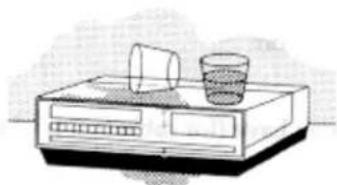
15 Object and Liquid Entry -- Never push objects of any kind into this video product through openings as they may touch dangerous voltage points or short-out parts that could result in a fire or electric shock. Never spill liquid of any kind on the video product.
natural_image
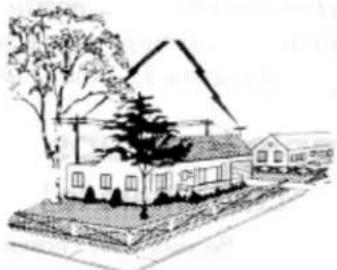
Illustration of a desktop computer with a monitor and two glasses (no text or symbols)16 Lightning -- For added protection for this video product during a lightning storm, or when it is left unattended and unused for long periods of time, unplug it from the wall outlet and disconnect the antenna or cable-system. This will prevent damage to the video product due to lightning and power-line surges.
natural_image
Sketch-style drawing of a house with trees and a roof, no text or symbols presentSERVICE
17 Servicing -- Do not attempt to service this video product yourself as opening or removing covers may expose you to dangerous voltage or other hazards. Refer all servicing to qualified service personnel.
18 Conditions Requiring Service -- Unplug this video product from the wall outlet and refer servicing to qualified service personnel under the following conditions.
a. When the power-supply cord or plug is damaged. b. If liquid has been spilled, or objects have fallen into the video product. c. If the video product has been exposed to rain or water.
d. If the video product does not operate normally by following the operating instructions. Adjust only those controls that are covered by the operating instructions. Improper adjustment of other controls may result in damage and will often require extensive work by a qualified technician to restore the video product to its normal
operation.
e. If the video product has been dropped or the cabinet has been damaged.
f. When the video product exhibits a distinct change in performance - this indicates a need for service.
19 Replacement Parts -- When replacement parts are required, have the service technician verify that the replacements he uses have the same safety characteristics as the original parts. Use of replacements specified by the video product manufacturer can prevent fire, electric shock or other hazards.
20 Safety Check -- Upon completion of any service or repairs to this video product, ask the service technician to perform safety checks recommended by the manufacturer to determine that the video product is in safe operating condition.
CUSTOMER CONTROLS
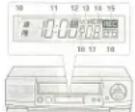
VCR Customer Controls
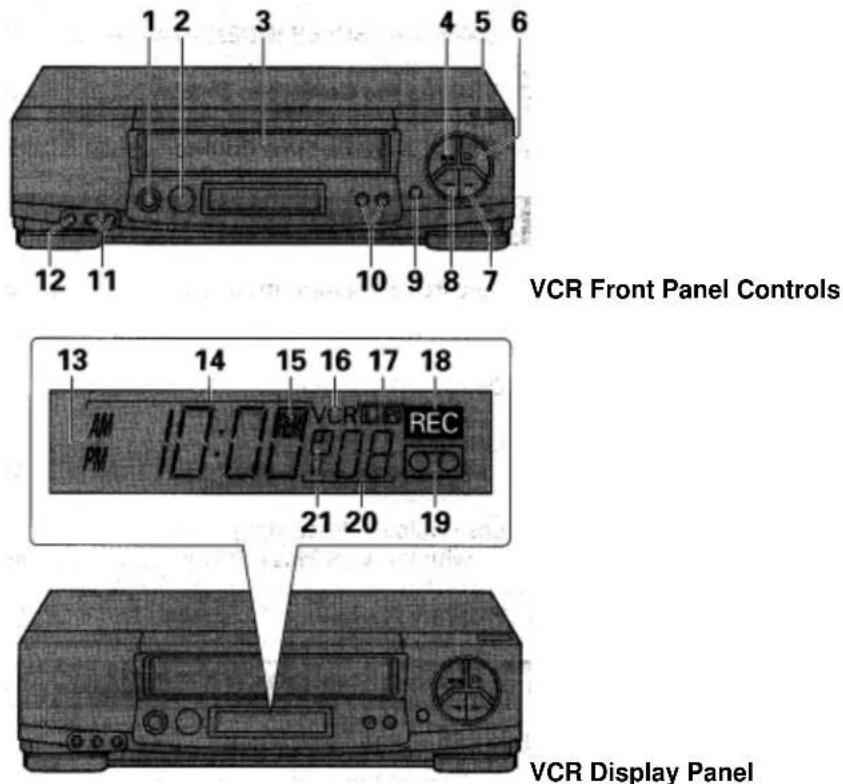
| Item No. | Function |
| 1 | POWER button |
| 2 | Infrared receiver |
| 3 | Cassette compartment |
| 4 | STOP/EJECT button |
| 5 | Infrared Transmitter |
| 6 | PLAY button |
| 7 | F.FWD button |
| 8 | REW button |
| 9 | REC/IRT button |
| 10 | CHANNEL (channel up/down)/TRACKING buttons |
| 11 | AUDIO IN L (mono), R jacks |
| 12 | VIDEO IN display |
| VCR Display | |
| 13 | AM/PM indicators |
| 14 | Time,Tape counter,Tape remaining orVCR mode indicatorPLAY - playbackSRCH - double-speed play,visual search and skip playback["-" appears during reverse direction viewing]SLOW - slow playREW - rewindS: REW - high speed rewind |
| 15 | FF - fast forward |
| 16 | S: FF - high speed fast forward |
| 17 | STILL - play pause and frame |
| 18 | REM (tape remaining time) indicatorVCR, operate mode |
| 19 | Audio indicators |
| 20 | - record (flashes during record pause) |
| 21 | Tape-in indicatorTV channel orAuxiliary (L1/L2)Delayed recording indicator |
Accessories supplied
Check and indentify the accessories supplied.
If any are missing or appear damaged, consult your dealer.
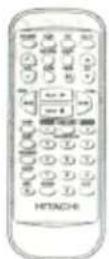
Remote control

Cable for connecting
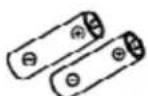
Batteries for remote
2 pcs.
this
VCR to a TV
control handset (R6)
VCR Customer Controls
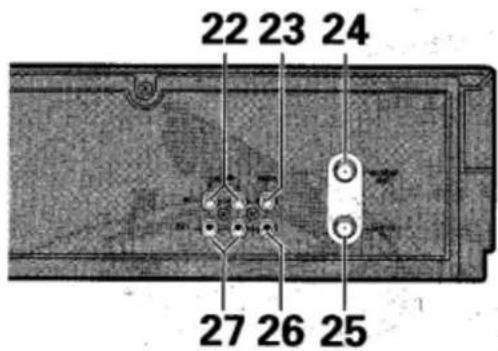
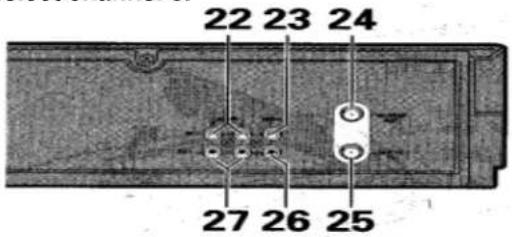
VCR Rear Panel
| Item No. | Function |
| 22 | AUDIO IN L, R jacks |
| 23 | VIDEO IN jack |
| 24 | IN FROM ANT. - signal input |
| 25 | OUT TO TV - signal to TV |
| 26 | VIDEO OUT jack |
| 27 | AUDIO OUT L, R jacks |
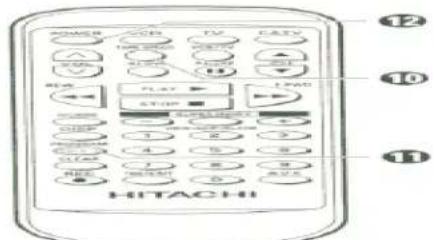
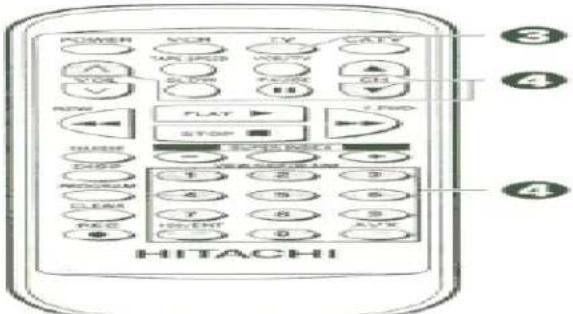
Remote Control Customer Controls
Remote Control
| Item No. | Function |
| 1 | Transmission window |
| 2 | POWER button |
| 3 | TAPE SPEED button - select the recording speed SP or EP. |
| 4 | VOL button - increase or decrease the audio volume |
| 5 | SLOW button - for slow motion picture |
| 6 | REW button - fast rewind or search |
| 7 | STOP button - stops play/ record function |
| 8 | GUIDE - to recall OSD menu |
| 9 | DISP- to recall on-screen display |
| 10 | PROGRAM (programming) button |
| 11 | CLEAR - clears time counter |
| 12 | REC - record button |
| 13 | 100/ENT button |
| 14 | VCR, TV, CATV - Device buttons let you set the remote to control one of the three devices. |
| VCR/TV mode select button | |
| 15 | CH (channel up/down) button |
| 16 | PAUSE button |
| 17 | F.FWD button - fast forward or search |
| 18 | PLAY button - playback |
| 19 | SUPER INDEX - to use the |
| 20 | SUPER INDEX function |
| Number buttons | |
| 21 | AVX button - select L1/L2 |
| 22 |
REMOTE OPERATION
• Install batteries in the remote control
The remote control requires two "AA" batteries.
1 Insert your fingertip into the notch and push the battery compartment lid to remove it.
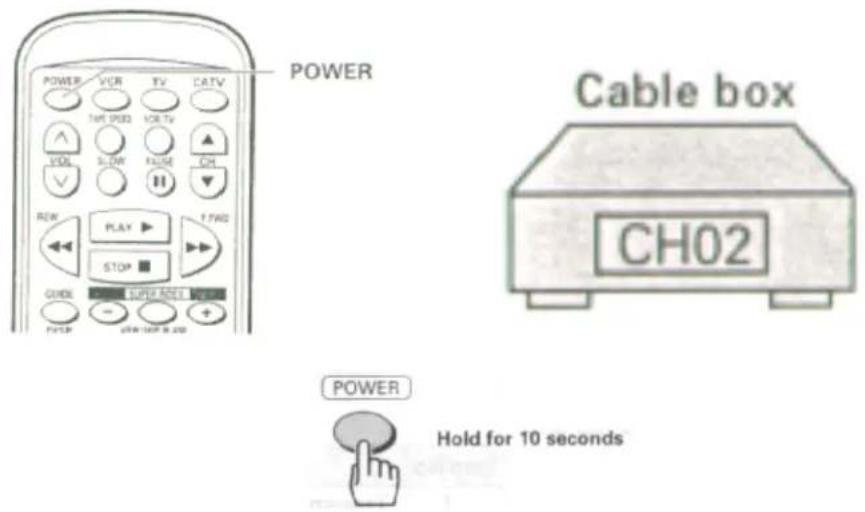
Note: When replacing the batteries, remove the old batteries and keep the POWER button depressed for 10 seconds before inserting fresh batteries.
2 Install batteries.
- Align the positive (+) and negative (-) polarity marks on the batteries with those indicated on the remote control.
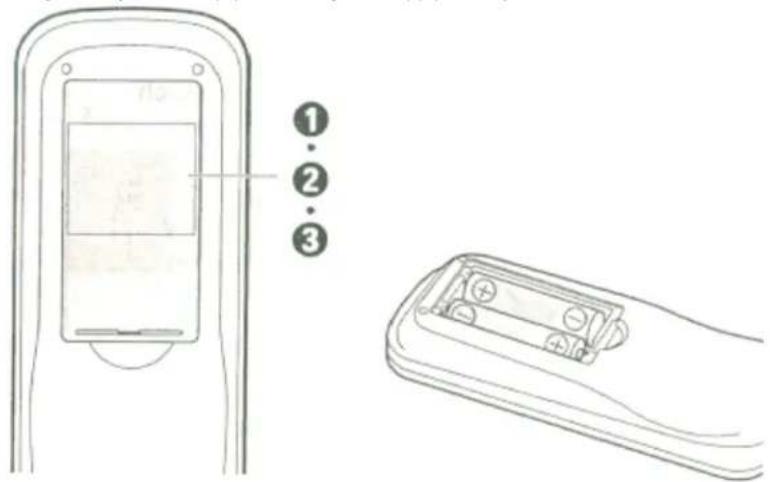
3 Replace the lid.
- Operating in the remote control
1 Make sure there is no obstacle between the remote control and VCR's infrared receiver. Infrared Receiver
Note: You cannot operate the VCR if there is an obstacle (for example, coffee table, sofa, etc) between the VCR and remote control.
2 Point the remote control at the VCR's infrared receiver and press the required button on the remote control.
Note: If the remote does not work even at close range, try replacing the batteries with two fresh "AA" batteries.
CASSETTE TAPES
- Types
Only use video cassettes with the mark in this VCR.
The table shows the recording time of different cassettes.
- To get the best quality picture record at standard recording speed (SP)
- This VCR does not record at the LP speed, but it can play cassette that were recorded at the LP speed.
• Safety tabs prevent erasure
To avoid erasing a recording
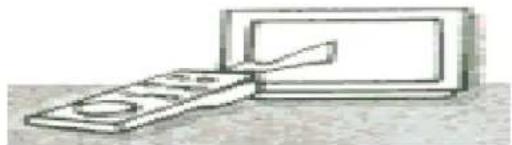
Break off the safety tab using a screwdriver or similar tool.
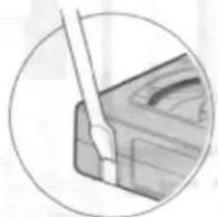
natural_image
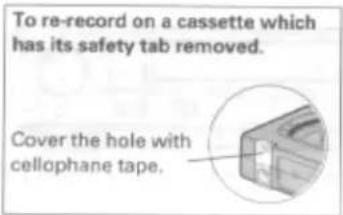
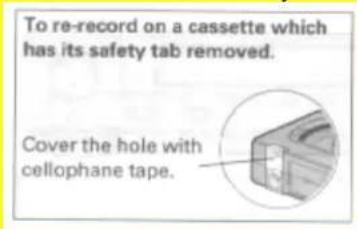
Close-up of a tool interacting with a mechanical component, no visible text or symbolsTo re-record on a cassette which has its safety tab removed
Cover the hole with plastic tape.
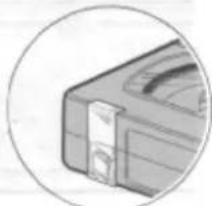
natural_image
Close-up of a mechanical component with a circular outline (no visible text or symbols)The VCR automatically enters the playback mode when a cassette without its
safety tab is inserted. The VCR won't record on a tape without a safety tab and the cassette will be ejected if the REC or REC/IRT button is pressed. Be sure to check the safety tab before inserting a cassette.
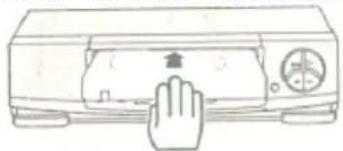
- Insertion
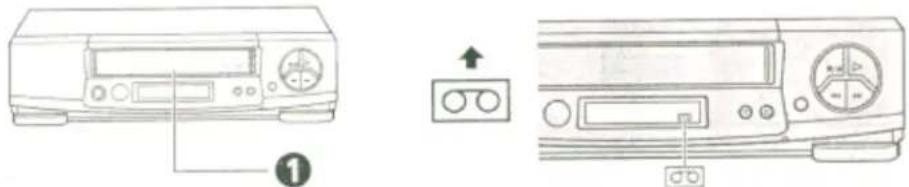
Push the video cassette gently into the slot on the front of the VCR.
- The VCR automatically turns on and the "Tape-In" indicator turns on when the cassette is in place.
natural_image
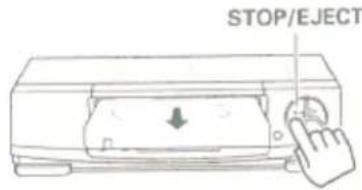
Line drawing of a hand pressing down on a device panel (no text or symbols)- Removal
Press the STOP/EJECT button on the VCR.
The cassette will come partially out of the compartment so you can pull it out.
• The "Tape-In" indicator turns off.
- The cassette can be ejected with the power on or off.
BASIC ANTENNA HOOKUP [A]
WITH THIS HOOKUP
YOU CAN...
• WATCH AVAILABLE TV CHANNELS
- RECORD AND WATCH THE SAME CHANNEL
- RECORD ONE CHANNEL AND WATCH ANOTHER
Hook-up A Illustration
TABLE A
| FUNCTION | CHANNEL SELECTION | VCR indicator(Press the VCR/TV mode select button to turn the VCR indicator on or off.) | |
| TV | VCR | ||
| Select and Watch Channels using TV | Select Channel to Watch | OFF(TV mode) | |
| Select and Watch Channels using VCR | 3 or 4 | Select Channel to Watch | ON(VCR mode) |
| Record and Watch the Same Channel | 3 or 4 | Select Channel to Record | ON(VCR mode) |
| Record One Channel Watch Another | Select Channel to Watch | Select Channel to Record | OFF(TV mode) |
| Watch Playback of a Tape | 3 or 4 | ON(VCR mode) | |
Switch the RF Channel
When the VCR is on, its video signal can come into your TV on either channel 3 or channel 4. You need to select the appropriate channel.
- When the power is turned on, press the POWER button to turn it off. Press the PLAY button on front of the VCR. Pressing the CHANNEL ▲ button alternates between RFCH-03 (channel 3) and RFCH-04 (channel 4) in the VCR's display.
Display the channel which is not used by a commercial channel in your area.
ADVANCED ANTENNA HOOKUP -AV HOOKUP [B]
WITH THIS HOOKUP
YOU CAN...
• WATCH AVAILABLE TV CHANNELS
- RECORD AND WATCH THE SAME CHANNEL
• RECORD ONE CHANNEL AND WATCH ANOTHER
Hookup B Illustration
BASIC CABLE HOOKUP [C]
WITH THIS HOOKUP
YOU CAN...
• WATCH AVAILABLE CABLE CHANNELS
• RECORD AND WATCH THE SAME CHANNEL
• RECORD ONE CHANNEL AND WATCH ANOTHER
Hookup C Illustration
TABLE C
| FUNCTION | CHANNEL SELECTION | VCR indicator(Press the VCR/TV modeselect button to turn theVCR indicator on or off.) | |
| TV | VCR | ||
| Select and Watch CableChannels using TV | Select Channelto Watch | OFF(TV mode) | |
| Select and Watch CableChannels using VCR | 3 or 4 | Select Channel to Watch | ON(VCR mode) |
| Record and Watchthe Same Channel | 3 or 4 | Select Channel to Record | ON(VCR mode) |
| Record One ChannelWatch Another | Select Channelto Watch | Select Channel to Record | OFF(TV mode) |
| Watch Playback of a Tape | 3 or 4 | ON(VCR mode) | |
Switch the RF Channel
When the VCR is on, its video signal can come into your TV on either channel 3 or channel 4. You need to select the appropriate channel.
- When the power is turned on, press the POWER button to turn it off. Press the PLAY button on front of the VCR. Pressing the CHANNEL ▲ button alterantes between RFCH-03 (channel 3) and RFCH-04 (channel 4) in the VCR's display.
Display the channel which is not used by a commercial channel in your area.
ADVANCED CABLE HOOKUP -AV HOOKUP [D]
WITH THIS HOOKUP
YOU CAN...
• WATCH AVAILABLE CABLE CHANNELS
• RECORD AND WATCH THE SAME CHANNEL
• RECORD ONE CHANNEL AND WATCH ANOTHER
Hookup D Illustration
BASIC CABLE HOOKUP -WITH CABLE BOX [E]
WITH THIS HOOKUP
YOU CAN...
• WATCH AVAILABLE CABLE CHANNELS
- RECORD AND WATCH THE SAME CHANNEL
YOU CAN'T...
- RECORD ONE CHANNEL AND WATCH ANOTHER
ALL CHANNEL SELECTIONS MUST BE MADE AT THE CABLE BOX.
BE SURE TO CONSULT YOUR CABLE BOX MANUAL FOR THE CABLE BOX OUTPUT CHANNEL.
Hookup E Illustration
TABLE E
| FUNCTION | CHANNEL SELECTION | VCR indicator(Press the VCR/TV mode select button to turn the VCR indicator on or off.) | ||
| TV | VCR | CABLE BOX | ||
| Watch Cable Channels on TV | Select Cable Box Output Channel | Select Channel to Watch | OFF(TV mode) | |
| Select and Watch Cable Channels using VCR | 3 or 4 | Select Cable Box Output Channel | Select Channel to Watch | ON(VCR mode) |
| Record and Watch the Same Channel | 3 or 4 | Select Cable Box Output Channel | Select Channel to Watch | ON(VCR mode) |
| Record One Channel Watch Another | ||||
| Watch Playback of a Tape | 3 or 4 | ON(VCR mode) | ||
Switch the RF Channel
When the VCR is on, its video signal can come into your TV on either channel 3 or channel 4. You need to select the appropriate channel.
- When the power is turned on, press the POWER button to turn it off. Press the PLAY button on front of the
VCR. Pressing the CHANNEL ▲ button alterantes between RFCH-03 (channel 3) and RFCH-04 (channel 4) in the VCR's display.
Display the channel which is not used by a commercial channel in your area.
ADVANCED CABLE HOOKUP -WITH CABLE BOX [F]
WITH THIS HOOKUP
YOU CAN...
• WATCH AVAILABLE CABLE CHANNELS
• RECORD AND WATCH THE SAME CHANNEL
YOU CAN'T...
- RECORD ONE CHANNEL AND WATCH ANOTHER
ALL CHANNEL SELECTIONS MUST BE MADE AT THE CABLE BOX.
BE SURE TO CONSULT YOUR CABLE BOX MANUAL FOR THE CABLE BOX OUTPUT CHANNEL.
Hookup F Illustration
TABLE F
| FUNCTION | CHANNEL SELECTION | VCR indicator(Press the VCR/TV mode select button to turn the VCR indicator on or off.) | ||
| TV | VCR | CABLE BOX | ||
| Watch Cable Channels on TV | Select Cable Box Output Channel | Select Channel to Watch | OFF(TV mode) | |
| Select and Watch Cable Channels using VCR | AUX or VIDEO | Select Cable Box Output Channel | Select Channel to Watch | |
| Record and Watch the Same Channel | AUX or VIDEO | Select Cable Box Output Channel | Select Channel to Record | |
| Record One Channel Watch Another | ||||
| Watch Playback of a Tape | AUX or VIDEO | |||
ADVANCED CABLE HOOKUP -WITH CABLE BOX AND SPLITTER [G]
WITH THIS HOOKUP
YOU CAN...
• WATCH AVAILABLE CABLE CHANNELS
• RECORD AND WATCH THE SAME CHANNEL
- RECORD ONE CHANNEL AND WATCH ANOTHER
TO RECORD, ALL CHANNEL SELECTIONS MUST BE MADE AT THE CABLE BOX.
BE SURE TO CONSULT YOUR CABLE BOX MANUAL FOR THE CABLE BOX OUTPUT CHANNEL.
Hookup G Illustration
TABLE G
| FUNCTION | CHANNEL SELECTION | VCR indicator(Press the VCR/TVmode select button toturn the VCR indicatoron or off.) | ||
| TV | VCR | CABLE BOX | ||
| Watch Cable Channelson TV | Select Channelto Watch | |||
| Select and Watch CableChannels using VCR | AUX or VIDEO | Select Cable BoxOutput Channel | Select Channelto Watch | |
| Record and Watchthe Same Channel | AUX or VIDEO | Select Cable BoxOutput Channel | Select Channelto Watch | |
| Record One ChannelWatch Another | Select Channelto Watch | Select Cable BoxOutput Channel | Select Channelto Record | |
| Watch Playback of a Tape | AUX or VIDEO | |||
SETTING THE CLOCK -AUTOMATIC MODE
Note: An antenna or cable must be connected to the VCR before you begin this operation.
- Tips
You'll need to set the clock when first hooking up your VCR, and any time the power goes out for more than 1 hour. When you first plug in the VCR or after a power outage, the clock display will read "--:-".
natural_image
Line drawing of a portable electronic device with control panel and buttons (no text or symbols)Auto clock set function
This function sets the VCR's clock automatically when the VCR is tuned to a station which transmits a time signal together with TV programs.
It also automatically sets the time differences between various time zones and sets the time during Daylight Saving Time (D.S.T). The auto clock set function operates each time the VCR is turned off.
- Some broadcast stations may not transmit a time signal. The auto clock set function does not operate when the VCR is tuned to a station which does not transmit a time signal. In this case, set the clock manually (See page 20).
- When the clock is set automatically, the displayed time may drift from the current time by up to one minute.
Setting the clock automatically - if your VCR's hooked up to an antenna or cable without a cable box (Hookups A, B, C or D)
1 Press the POWER button to turn the VCR power off.
If the VCR is already turned off, press the POWER button to turn the power on, then press it again to turn the power off. The time will appear in the VCR display to show that the current time has been set. The automatic clock set procedure might take about 5 minutes.
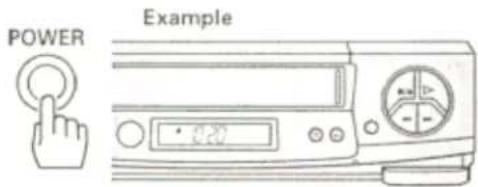
Notes:
- If the clock is not set after about five minutes have elapsed, the clock must be set manually (see page 20).
- When the VCR power is restored after a power failure of more than one hour, the clock will indicate "--:--", and the clock set procedure (automatic or manual) must be repeated.
- If the time displayed on the VCR drifts from the current time by more than one hour, select your correct time zone and set the DST (Daylight Savings Time)(see page 19).
SETTING THE CLOCK-AUTOMATIC MODE
If your VCR is hooked up to a cable box (Hookups [E], [F] or [G])
Note: Turn on the cable box before setting.
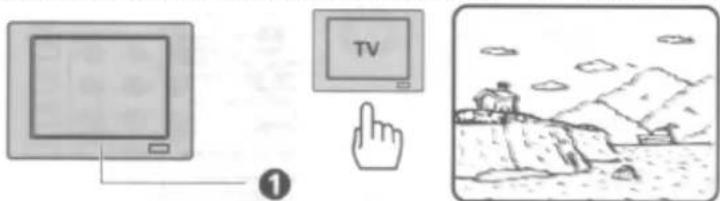
1 Turn on the TV and select the video channel (3 or 4).
Or, if you are hooked up with an audio/video cable, set the TV to AUX or VIDEO.
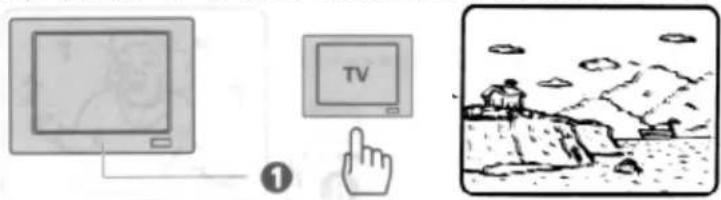
natural_image
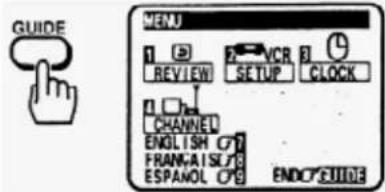
Illustration showing a computer monitor, TV screen with hand icon, and a landscape scene with figures on a cliff (no text or symbols)2 Press the GUIDE button.
The main on-screen menu will appear on the TV screen.
You may view all the on-screen instructions in English, French, or Spanish. When you first set up your VCR, it will be set to English. Press the (8) button for French or the (9) button for Spanish.
Remote Control Illustration.
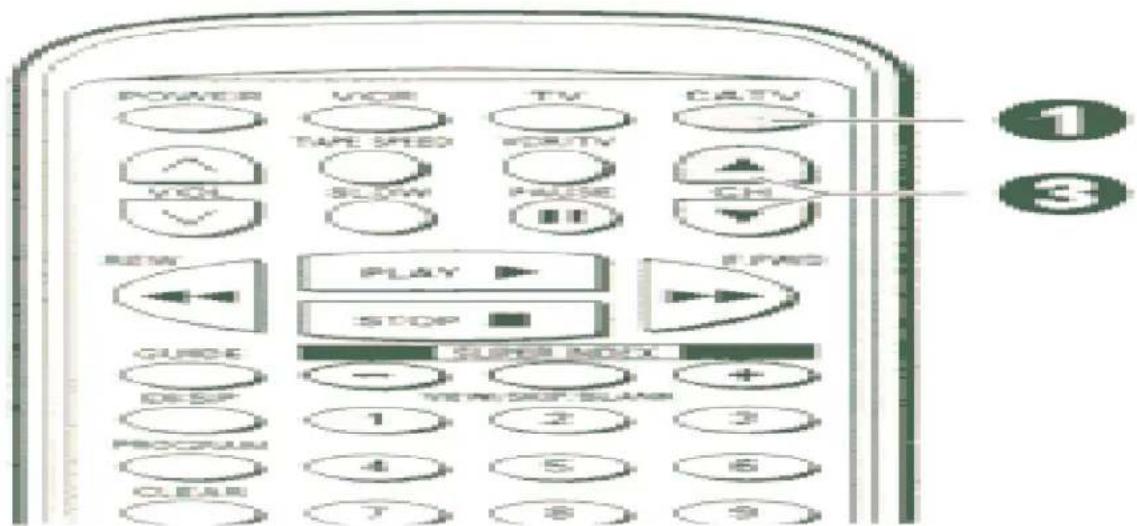
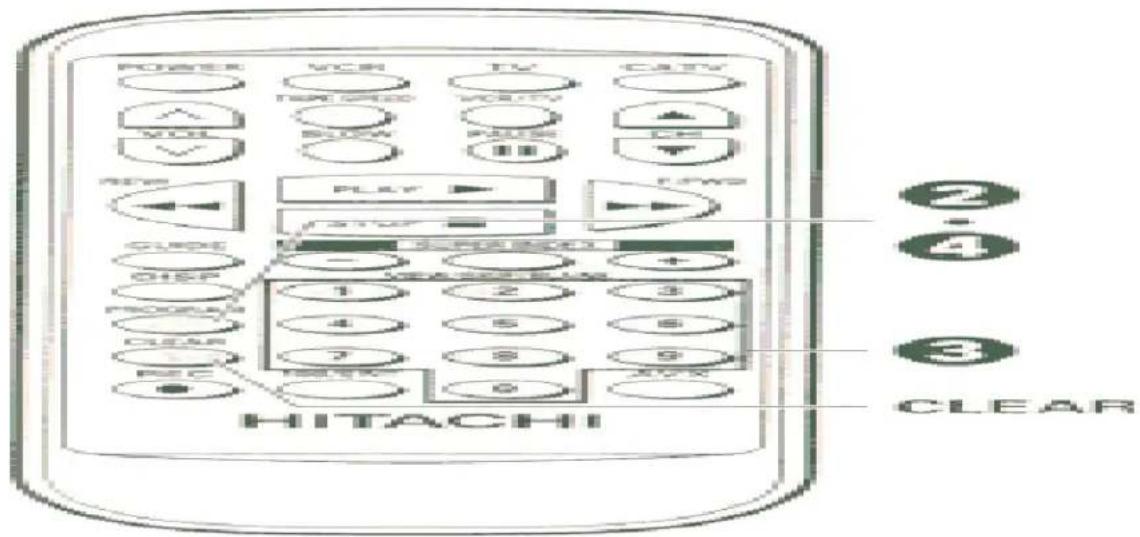
3 Press the (3) button to bring up the CLOCK SET menu.
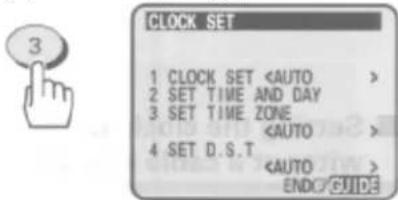
4 Make sure that item 1 is highlighted "CLOCK SET "
- If "CLOCK SET
5 Press the (2) button.
This screen appears to show that the clock is being set.

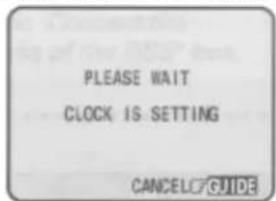
• It may take about five minutes.
- Since the VCR is searching for a broadcast station that transmits a time signal, the channel indication on the cable box changes automatically.
When the clock is set, the screen changes to a TV picture and the correct time appears in the VCR's display.
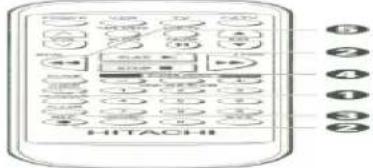
Notes:
- If the clock is not set after five minutes have elapsed, set the clock manually (see page 20).
- If the displayed time drifts from the current time by more than one hour, select your correct time zone and set the DST (see page 19).
SETTING THE CLOCK -TIME ZONE SETTING/DAYLIGHT SAVING TIME SETTING
What to do if the displayed time drifts from the current time by more than an hour
Note: Turn on the cable box with hookups [E], [F] or [G] before setting.
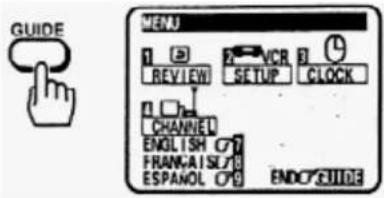
1 Press the GUIDE button.
The main on-screen menu will appear on the TV screen.
Remote Control Illustration
2 Press the (3) button to bring up the "CLOCK SET" menu.
Make sure that item 1 is highlighted "CLOCK SET
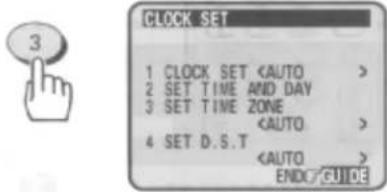
3 Press the (3) button to select your local time zone.
Each time (3) is pressed, the option for "SET TIME ZONE" switches from
- This screen gives an example where
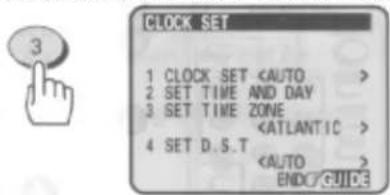
4 Press the (4) button to select the D.S.T. option.
Each time (4) is pressed, the option for "SET D.S.T." switches from
- This screen gives an example where
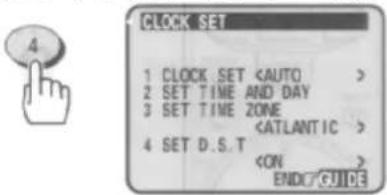
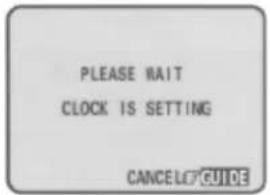
5 Press the (2) button to set the time.
This screen appears to show that the clock is being set.

Note: If the displayed time drifts from the current time even after steps 1 - 5 have been performed, reset the DST. Press the GUIDE and (3) buttons then press the (4) button to specify another option, then set the time again.
SETTING THE CLOCK -MANUALLY
To set the clock manually
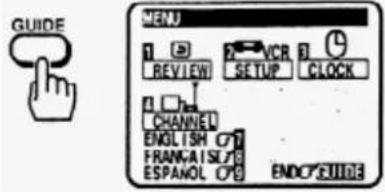
1 Press the GUIDE button.
The main on-screen menu will appear on the TV screen.
You may view all the on-screen instructions in English, French, or Spanish. When you first set up your VCR, it will be set to English. Press the (8) button for French or the (9) button for Spanish.
Remote Control Illustration
2 Press the (3) button to bring up the "CLOCK SET" menu.

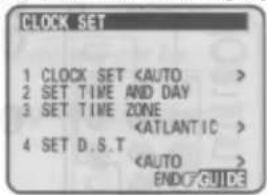
3 Press the (1) button to select "CLOCK SET "
When "CLOCK SET

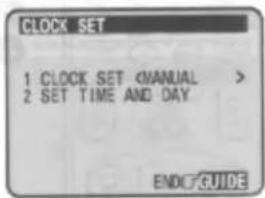
4 Press the (2) button to bring up the clock set menu.
- The white dash "-" appears for the item to be changed on the screen as you proceed.
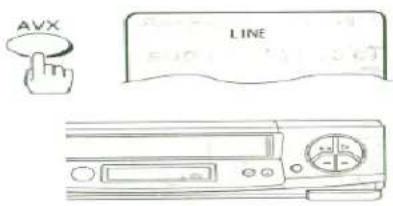
5 Press the number buttons to fill the hour and minutes.
- For times with only one number (1-9) press the (0) button first, then the hour or minute. For example, if it is now 10:20AM, press (1)(0)(2)(0). "AM" and "PM" will now appear on the screen.
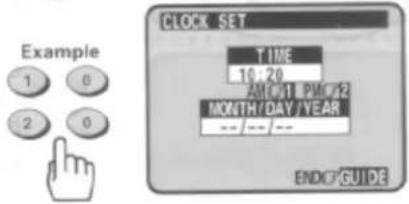
Remote Control Illustration.
6 Press the (1) button for AM or (2) for PM.
For example, press the (1) button for AM.
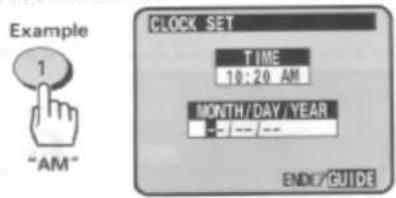
7 Press the number buttons to fill in the number of the month, then the day then the year.
- For dates with only one number (1-9) press the (0) button first, then the date. For example, if today is July 8 1998, press (0)(7)(0)(8)(9)(8). The correct day of the week will appear by itself.
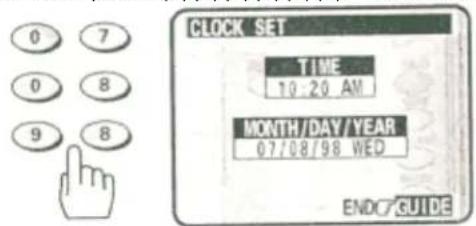
8 Press the GUIDE button.
The VCR clock is now set, and should show the correct time of day on the VCR's display.
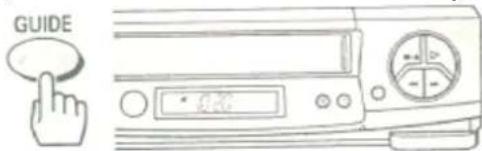
Notes:
• The clock uses the 12-hour system. You set it for AM or PM.
- An illogical time (like 13 for the hour or 20 for the month) will not be accepted.
- If you press the wrong digit, exit the screen by pressing GUIDE and recall the screen to enter the correct setup.
PRE-TUNING THE VCR TUNER
Note: An antenna or cable must be connected to the VCR before you begin this operation.
Presetting the received channels without using a cable box (Hookups [A], [B], [C] or [D])
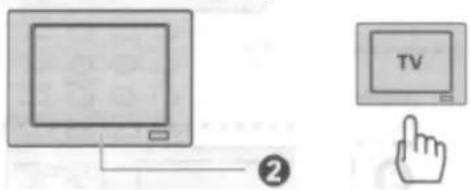
1 Press the POWER button to turn on the VCR.

2 Turn on the TV and select the video channel (3 or 4).
Or, if you are hooked up with an audio/video cable, set the TV to AUX or VIDEO.
3 Press the GUIDE button.
The main on-screen menu will appear on the TV screen.
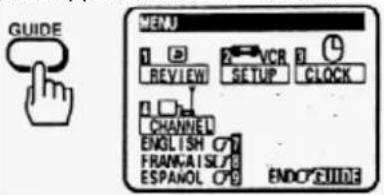
Remote Control Illustration.
4 Press the (4) button to select the CHANNEL PRESET operation.

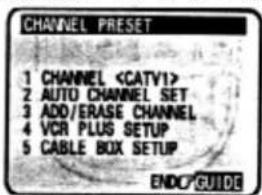
5 Press the (1) button to select the type of receiving setup you have:
natural_image
Simple line drawing of a desktop computer with a clock and monitor (no text or symbols)6 Press the (2) button.
The VCR will automatically store channels received in your area. It takes about 2 - 3 minutes. After the channels are stored in memory, the channel with the lowest number appears in the VCR's display.
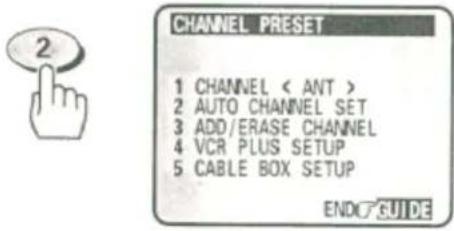
7 Press GUIDE to return to regular viewing.
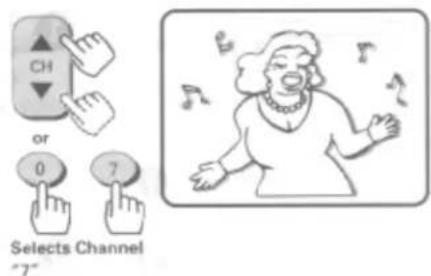
Note: Your VCR is capable of receiving 68 broadcast TV channels (VHF 2-13, UHF 14-69) and cable channels (1-125). In some areas channels cannot be received when CATV1 is selected. In this case, select CATV2 in the receiving setup.
When automatic presetting of channels are finished
Press the CH (channel) button (or numbered buttons) to check the channels you can receive.
Note: If no channels have been set or a clear picture does not appear, check the antenna or cable connection.
Channel Caption (Station Identifier)
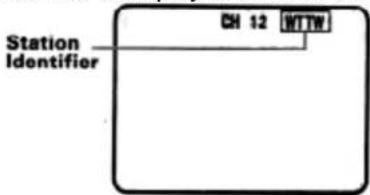
When your VCR is receiving a channel caption signal that is transmitted by a local broadcasting station together with a TV program, a station identifier is displayed on the TV screen.
To add or erase channels
The auto channel set procedure may memorize channels that are blank, have snowy pictures, or interference. You may skip these channels by erasing them. Very weak stations might not be memorized at all. You may receive these stations by adding them.
1 Press the GUIDE button.
The main on-screen menu will appear on the TV screen.
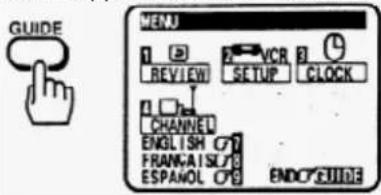
2 Press the (4) button to select the CHANNEL PRESET operation.
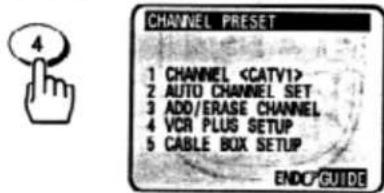
Remote Control Illustration.
3 Press the (3) button to select "ADD/ERASE CHANNEL".
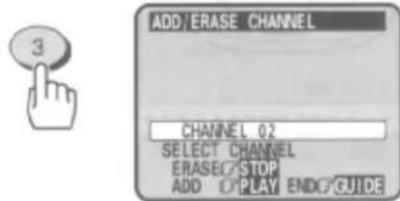
4 Use the number buttons to select the number of the channel you want to add or erase.
5 Press the STOP button to delete the channel, or press the PLAY button to add it.
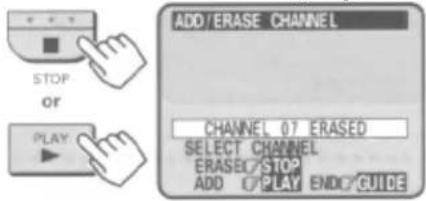
6 Press the GUIDE button to return to regular viewing.

Auto blue setting
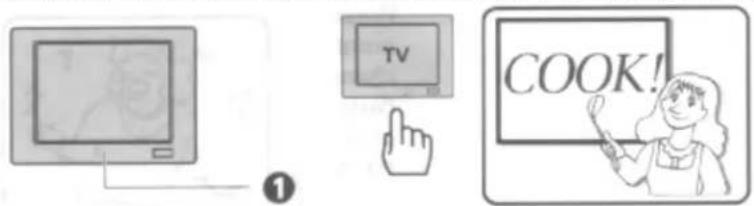
1 Turn on the TV and select the video channel (3 or 4).
Or, if you are hooked up with an audio/video cable, set the TV to AUX or VIDEO.
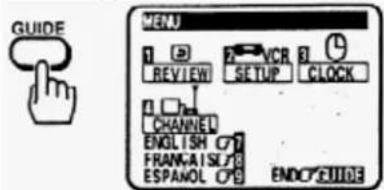
2 Press the GUIDE button.
The main on-screen menu will appear on the TV screen.
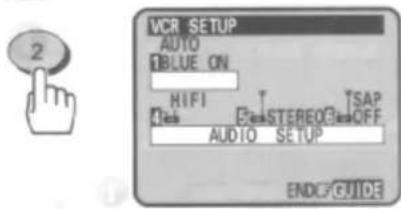
3 Press the (2) button to select "VCR SETUP".
Remote Control Illustration.
4 Press the (1) button to select AUTO BLUE "ON" or "OFF".
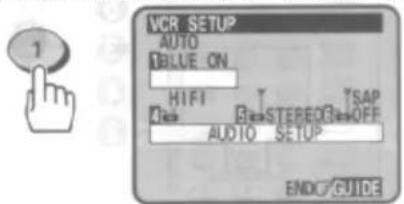
ON: The screen becomes blue and mutes sound when a channel without a broadcast signal on the VCR or a channel on which broadcasting has finished.
- If the signal is too strong, this function may not operate even if you specify
OFF: The AUTO BLUE feature is switched off.
5 Press the GUIDE button to end the setting.

CABLE BOX SETUP
Note: This setup should be performed if you receive all channels through a cable box (Hookups [E], [F] or [G]).
The VCR can be programmed to:
- Automatically select channels on the cable box during a timer record or VCR Plus+ delayed recording operation.
- Change channels on remote controlled cable boxes with the VCR remote control.
BEFORE YOU BEGIN...
Make sure the cable box is positioned properly on the VCR.
1 Turn on the TV and select the video channel (3 or 4).
Or, if you are hooked up with an audio/video cable, set the TV to AUX or VIDEO.
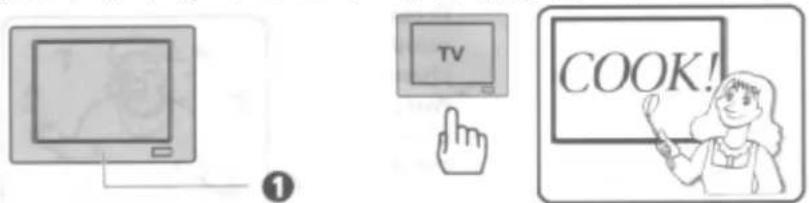
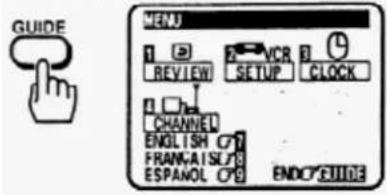
2 Press the GUIDE button.
The main on-screen menu will appear on the TV screen.
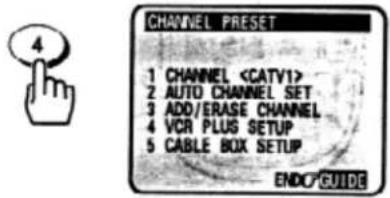
3 Press the (4) button to select the CHANNEL PRESET operation.
Remote Control Illustration.
4 Press the (1) button to select
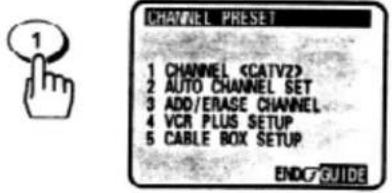
5 Press the (5) button to select "CABLE BOX SETUP" menu.
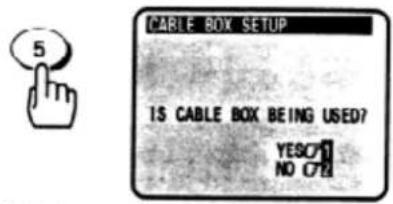
6 Press the (1) button to answer "YES" to the question "IS A CABLE BOX BEING USED?"
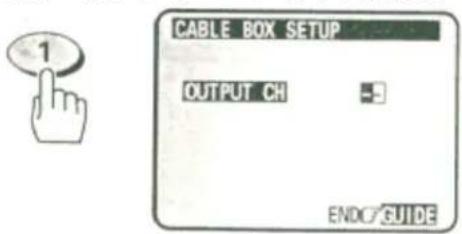
Note: Refer to the cable box owner's manual to identify the cable box output channel (usually 3 or 4).
7 Turn on your cable box and select channel 2.
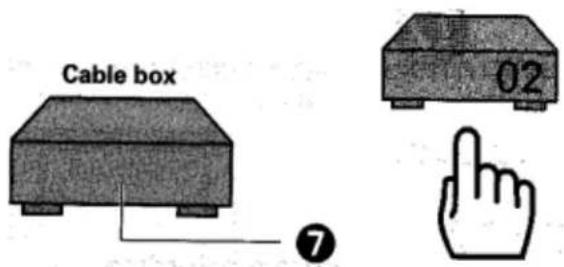
8 Using the VCR remote, enter the cable box output channel numbers. For example, press (0) (3) for channel 3.
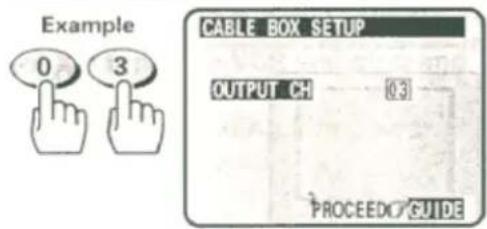
9 Press the GUIDE button to enter the output channel of your cable box.
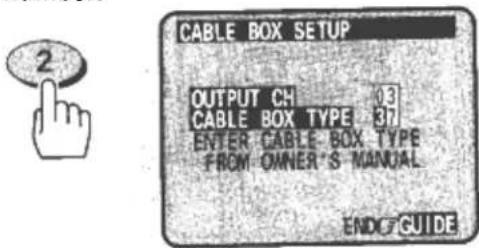
• The CABLE BOX TYPE message will appear on the TV screen.
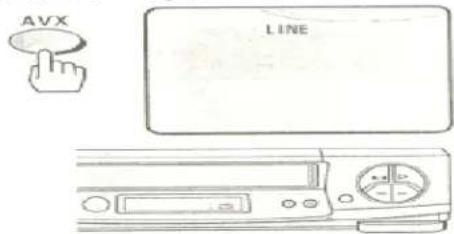
Remote Control Illustration.
10 Press the two number buttons that match the code number of your cable box brand from the table below.
For example, press (3) (7) for the Hitachi brand cable box.
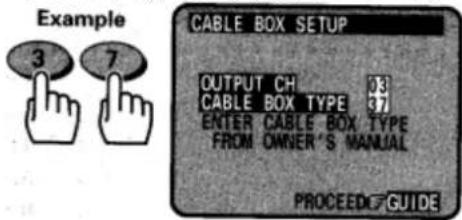
11 Press the GUIDE button to enter you cable box brand.
The VCR will change the cable box from channel 02 to channel 09 to confirm that the correct code was entered.
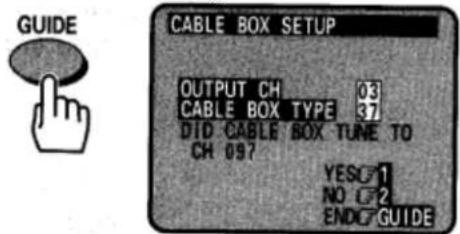
12 Cable box channel changed to channel 9: Press the (1) button to end this setting.
Remote Control Illustration
Your cable box and VCR are now set for VCR Plus+ program recording. Depending on the manufacturer and model of the cable box, you may also be able to use the VCR remote control to:
- Change channels on the cable box with the remote's channel up/down buttons.
- Use the numbers on the VCR remote to select cable box channels directly.
Note: Only the cable box will change channels. The VCR channel will not change.
Cable box did not tune to channel 9: Press the (2) button to return to step (10), and enter a different code number.
If the codes you entered do not work:
- Try repositioning the cable box on top of the VCR and reentering the codes.
- Try reentering all code numbers (00-61). Press the number button to enter another code number.
If none of the codes work, press the GUIDE button to quit. The VCR will not control your cable box. However, the output channel of the cable box has been set. Turn on the cable box and leave it tuned to the channel you want to record before the recording is scheduled to begin.
Note: If you make a mistake when entering digits, press the CLEAR button repeatedly to return the white dash "-" to the digit to be corrected. Then, punch in the correct number.
PLAYBACK
• To playback a recorded tape
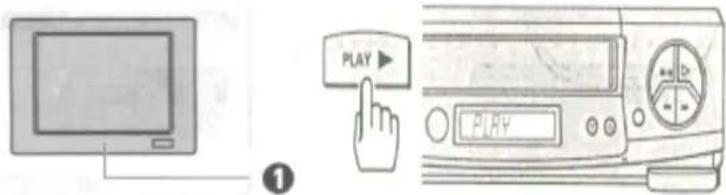
1 Turn on the TV and select the video channel (3 or 4).
Or, if you are hooked up with an audio/video cable, set the TV to AUX or VIDEO.
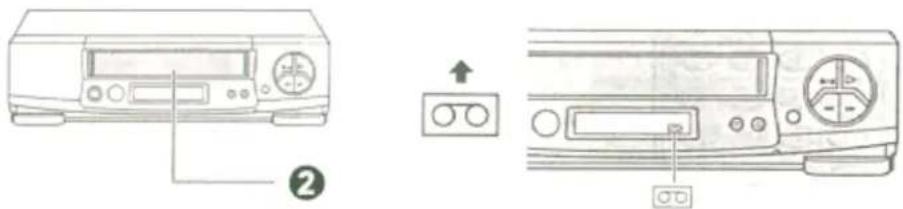
2 Insert a recorded tape.
The power comes on automatically and the tape indicator lights on the display.
- When a cassette without its safety tab is inserted, playback starts automatically.
3 Press the PLAY button to start playing the tape.
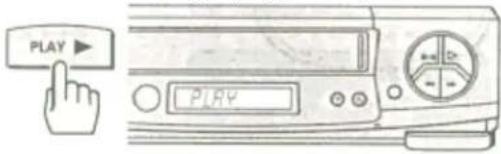
Remote Control Illustration.
4 Press the STOP button to end playback.
Rewinding the tape
When the video cassette reaches the end of the tape, the VCR will stop automatically and automatically rewind the tape.
- If you press the POWER button while the tape is rewinding, the power will not shut off until the tape has been completely rewound.
You may also rewind the tape manually at any time.
Manual Rewind
1 Press the STOP button to end playback.
Remote Control Illustration.
2 Press the REW button.
The VCR rewinds the tape all the way to the beginning, then stops.
- Press the EJECT button on the VCR to eject the tape.
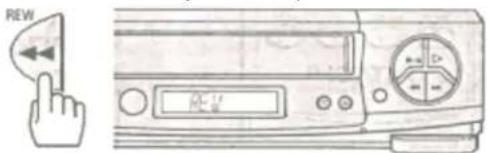
Movie Return
If your videocassette has the safety tab removed, the VCR will stop and automatically rewind the videocassette, eject it, and turn off the power when it reaches the end of the tape or blank section of the tape which lasts for more than 30 seconds.
Note: This function works only in PLAYBACK mode, not in RECORDING mode.
Rewinding or fast forwarding a tape at high speed
This function rewinds or fast-forwards T-120 tape for about 83 seconds. This time period will vary for different types of tape.
Press the REW or F.FWD button, then press it again.
To stop the tape, press the STOP button.
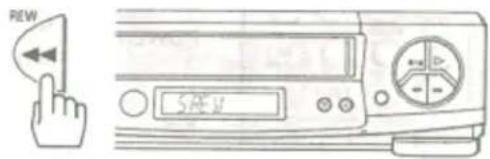
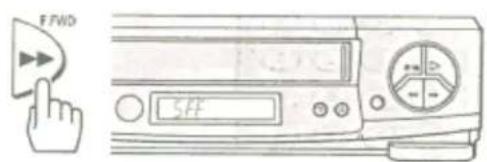
Remote Control Illustration.
Note: During super rewind/fast-forward, there will be an interval of 5 seconds between the time the STOP button is pressed and the time the tape actually stops. This is designed to protect the tape. To stop the tape earlier, press the REW or F.FWD button to restore the normal rewind/fast-forward speed, then press the STOP button.
To remove noise from the picture
Auto Tracking
Pressing the PLAY button starts the auto tracking feature, which automatically adjusts playback to eliminate static lines or picture noise that may appear on the screen.
Manual Tracking
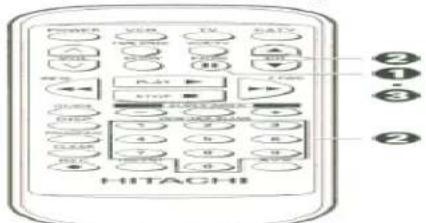
Scratched tapes or poorly recorded tapes may require additional picture adjustment. You can do this with the remote control.
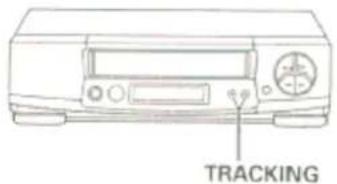
Remote Control Illustration.
Note: To reactivate auto tracking, simply eject the tape and reinsert it into the VCR.
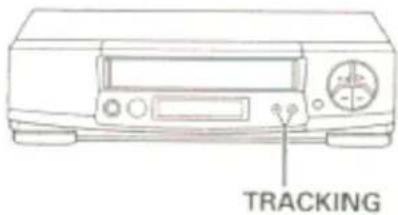
Press the CH (▲ or 📋) button on the remote control or TRACKING button on the VCR when viewing a cassette.
Press either the ▲ or 📋 buttons until picture is clear.
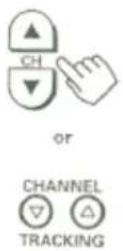
Press the PAUSE button on the remote control to still the tape during play.
Remote Control Illustration
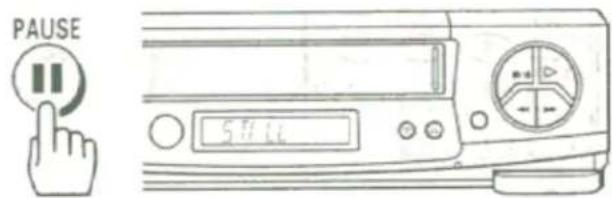
The picture will "freeze". You may see some minor noise or interference on the screen. This is normal.
• To resume play, press the PLAY button or PAUSE button again.
Note: The sound is muted and cannot be heard during "Special Playback Effects".
Notes:
• After 1 minute in the PAUSE mode, the VCR automatically switches to STOP mode to protect the tape.
- If noise bars appear on the TV screen during the PAUSE mode, first set the VCR to the SLOW mode by pressing the (4) button during playback and then press the CH (▲ or ▼) button on the remote control to minimize the noise bars (see page 32).
- If the screen jitters during PAUSE, press the CH (▲) button to minimize the jitter.
If you press the DISP button when viewing a video cassette, the display, as shown, appears for several seconds so you can see the functions of the number buttons on the remote control.
Number (6) button: Frame advance
- The above function always work when you are viewing a video cassette even if the display, as shown, is not displayed.
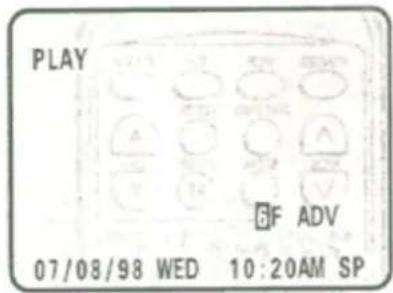
Frame Advance
1 Press the PAUSE button to stop the tape during playback.
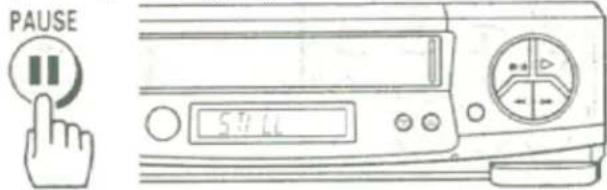
Remote Control Illustration.
2 Press the (6) button to view the picture one frame at a time.
- Press the PAUSE button to resume play.
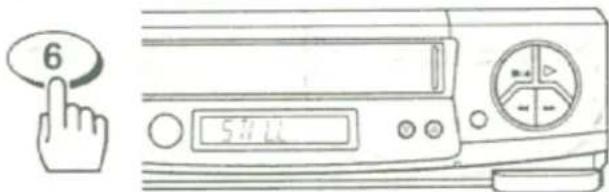
Slow motion
1 Press the PLAY button.
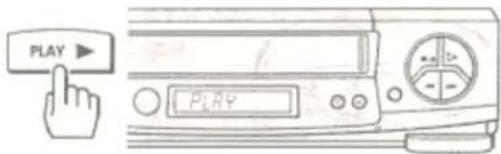
Remote Control Illustration.
2 Press the SLOW button to slow the playback speed.
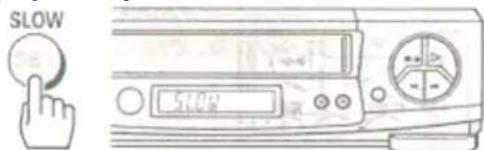
3 Press the PLAY button to return to play back at normal speed.
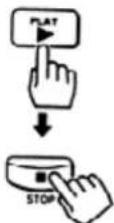
Press the STOP button to stop the tape.
Notes:
- Use the CH (▲ or □) button to minimize any visual noise bands on the screen.
• After 1 minute in slow motion playback, the VCR will stop the tape automatically to prevent damage to the tape and VCR.
Visual Search
This function let you search backward and forward through the videotape while viewing it.
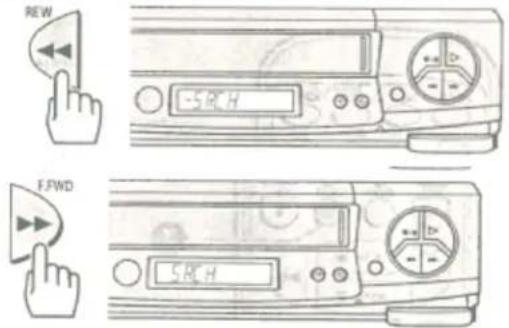
Remote Control Illustration.
During play:
Press the REW button to search in reverse.
Press the F.FWD button to search ahead.
- Press the PLAY button to return to normal playback.
Press REW or F.FWD and hold it; you can search backward or forward through the tape at a higher speed while viewing it. - Press PLAY and REW, then hold REW for backward search at a higher speed.
- Press PLAY and F.FWD, then hold F.FWD for forward search at a higher speed.
- Release REW or F.FWD to return to normal playback.
Choosing a mode for audio playback
The VCR records the same audio on both the Hi-Fi and linear tracks on the tape. The Hi-Fi sound is recorded on separate left and right stereo channels. Monaural sound is recorded on the linear track.
To enjoy Hi-Fi sound, connect your VCR to a stereo television or amplifier/receiver using the audio/video jacks (see page 56).
How to select playback audio
1 Press the GUIDE button.
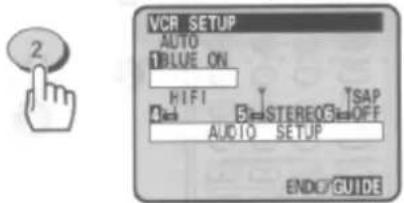
2 Press the (2) button to select the VCR SETUP operation.
Remote Control Illustration.
3 Press the (4) button to select "HIFI" or "LINEAR".
- Select Hi-Fi to playback sound recorded on the Hi-Fi track and for normal use.
The L and R indicators will light in the VCR's display panel.
- Select LINEAR to play back the sound recorded on the linear monaural track. Also, if the audio sounds distorted or unusual or there is no audio, select LINEAR.
natural_image
Illustration of an open book being placed on a box with a downward arrow (no text or symbols)4 Press the GUIDE button to end the setting.
USING THE "SUPER INDEX" FEATURE
What is SUPER INDEX
SUPER INDEX allows you to quickly search for a program or a scene you want to view or the point from which you want to start recording on tape, with the following four functions:
- INDEX SEARCH: You can locate the beginning of a recorded program, using the INDEX feature*.
* Each time you press the REC or REC/IRT button to start recording, the VCR will record an INDEX mark at the start of recording. The INDEX feature uses this signal recorded on tapes (VISS signal) to locate the beginning of a program you want to view. - BLANK SEARCH: You can locate the beginning of a blank (non-recorded) section on tape.
- EASY VIEW: This switches fast forward or rewind to visual search so that you can search for a scene you want to view while scanning the pictures
- SKIP PLAY: You can skip unnecessary scenes during play.
Locating the beginning of a recorded program (INDEX SEARCH)
NOTE: This function only works with recordings that have been set up with indexing.
Remote Control Illustration.
1 Press the (-) button for rewind or the (+) button for forward to begin the index search in the STOP mode.
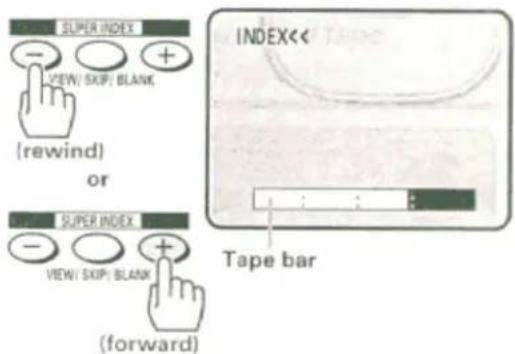
- The INDEX search screen is displayed, and the tape rewinds or fast forwards until an index mark is detected.
- A black square in the tape bar shows the current tape position.
- When the VCR finds an index mark, it plays 15 seconds of the program that begins at that spot.
NOTE: Tape bar will not appear correctly if the tapes which have scratches or are slack are being used.
2 If this is the program you were looking for press the PLAY button for normal playback.
- To stop the index search before an index mark is reached, press the STOP button.
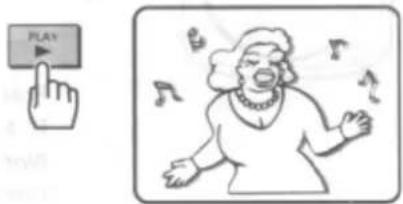
Note: If there are no index marks on the tape, the VCR will just rewind to the beginning or fast forward to the end.
Locating the beginning of a blank section (BLANK SEARCH)
This function searches for a non-recorded section of remaining tape, or unused tape, and stops the tape when it locates such a section.
NOTES:
- BLANK SEARCH cannot be operated with a cassette without a safety tab.
- BLANK SEARCH may not operate when a blank section lasts no more than five minutes.
- BLANK SEARCH will not be engaged in the following sections since they are not recognized as blanks:
- Sections with noise
- Sections where only sound has been recorded
- Sections where previous recordings have been erased
Remote Control Illustration.
1 Press the ○ (VIEW/SKIP/BLANK) button in the STOP mode.
The BLANK SEARCH screen will appear and the tape will fast forward automatically
- The blank which is the nearest the current tape position is searched for.
- The blank square in the tape bar shows the current tape position.
- The tape remaining time appears on the screen and VCR display during BLANK SEARCH.
- When a blank is detected, the tape will automatically rewind to the beginning of the blank.
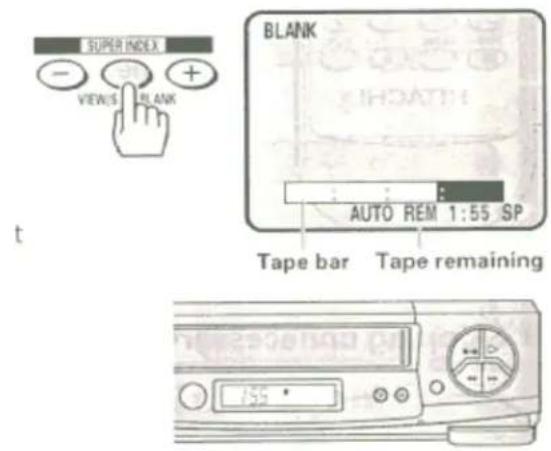
Notes:
- When a cassette without a safety tab is inserted, "TAb" will flash in the VCR display for several seconds and the cassette will be ejected automatically.
- Tape bar will not appear correctly if tapes which have scratches or are slack are
When the beginning of blank is located, the STOP screen will appear for five seconds and the tape will stop • The tape remaining time appears in the VCR display.
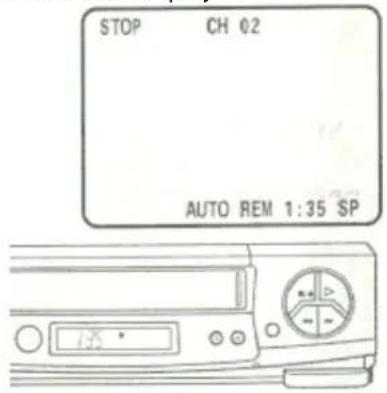
Note: Make sure that the tape is at the beginning of blank before you start recording or editing.
Switching rewind or fast forward to visual search (EASY VIEW)
Hold down the ○ (VIEW/SKIP/BLANK) button during rewind (or fast forward), and the mode will switch to visual search, so that you can search for a scene you want to view while scanning pictures.
Hold down the ○ (VIEW/SKIP/BLANK) button during rewind: The tape will be visually scanned in the reverse direction while the button is held.
Hold down the ○ (VIEW/SKIP/BLANK) button during fast forward: The tape will be visually scanned in the forward direction while the button is held.
- When the button is released, the tape will rewind or fast forward again.
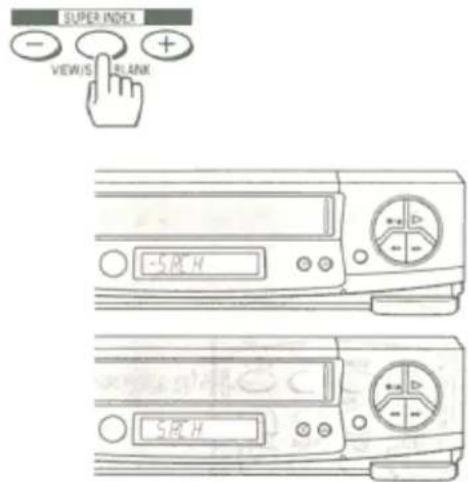
Remote Control Illustration
Skipping unnecessary scenes (SKIP PLAYBACK)
While playing back your tape you can skip forward by pressing the (VIEW/SKIP/BLANK) button.
The tape will search ahead for about a minute and then resume play.
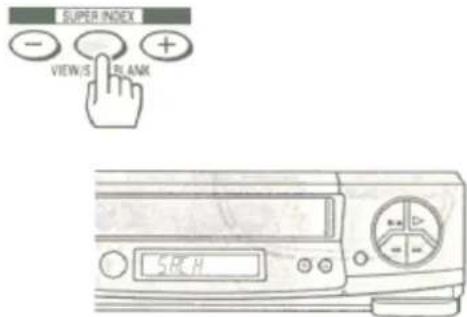
Remote Control Illustration.
VIEWING THE ON-SCREEN DISPLAY
Switching between the clock, time counter and time of remaining tape
Press DISP while the on-screen display is displayed. The on-screen display switches in the order below together with the VCR's display.
Press the DISP button to see the clock.
Remote Control Illustration.
Press the DISP button a second time to see just the time counter.
Notes:
- The linear time counter operates only if there is something recorded on the tape.
• The counter changes to 0:00:00 when the tape is ejected.
On-screen Display Illustration
Press the DISP button a third time to see the tape remaining time.
On-screen Display Illustration
Note: Immediately after the tape is inserted, "-" will appear. 2 minutes after playback or recording is started, the tape remaining time is displayed.
Press the CLEAR button repeatedly to switch the type of tape is used. The correct remaining time will appear.
AUTO: T-120 or shorter tape
T-160: T-140 or T-160 tape
T-180: T-180 tape
T-210: T-210 tape
Notes:
- The tape remaining time is not displayed correctly for a tape without any recordings or tapes other than T-30/60/90/120/140/160/180/210.
- The remaining time may not be displayed correctly during fast forwarding or rewinding.
INDEXING WITH THE TIME COUNTER
• To find specific sections on a tape
Indexing with the Time Counter
You can set the time counter to memorize a certain point in the video programming, and you can return to that point automatically.
1 Press the DISP button two or three times.
The counter will appear in the VCR's display.
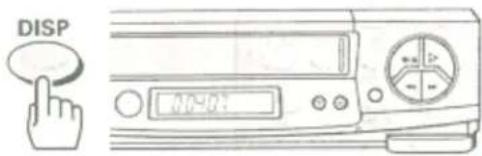
Remote Control Illustration.
2 Begin recording or playing back a tape.
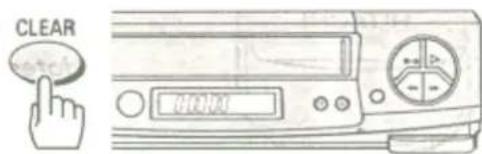
3 At the point that you want to go back to, press the CLEAR button.
This resets the counter to 0:00:00.
4 Press the STOP button when you are done recording or playing back the tape.
5 Press the REW button to rewind the tape.
It will automatically stop at the spot where you cleared the counter in step 3.
- Press the PLAY button to watch the tape from the selected spot.
natural_image
Simple line drawing of a computer monitor with a screen showing an open lid (no text or symbols)Notes:
- Press the DISP button to turn the counter display off. The selected spot will stay in memory until you set a new one or until the tape is ejected.
- During super rewind/fast forward, the tape does not stop automatically even if the counter reads "0:00:00".
RECORDING A PROGRAM
Before you record
Note: The cassette safety tab must be in place in order to record.
The VCR must be hooked up properly for recording. See the Simple Hookups at the beginning of this manual.
Copyright infringement warning
Most television programs and films are copyrighted. This means that someone has legal rights governing the reproduction and distribution of this material. In certain circumstances, copyright law may apply to private in-home taping of copyrighted materials. In most cases, it is okay to record for personal use, as long as you do not sell the material. You must act responsibly in this area - check into the matter if you are unsure.
Basic recording steps
Note: You may use a blank tape or you may record over a previously recorded (erasable) tape.
1 Turn on TV and select the video channel (3 or 4).
Or, if you are hooked up with an audio/video cable, set the TV to AUX or VIDEO.
natural_image
Simple line drawing of a monitor with a label pointing to it, no text or symbols present.
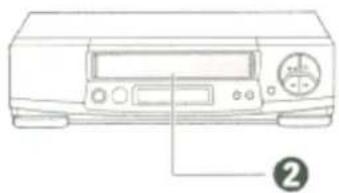
2 Insert a blank or erasable tape.
The power comes on automatically and the tape indicator lights on the display.
- If a cassette without its safety tab is inserted, playback starts automatically, and you cannot complete the record operation.
natural_image
Line drawing of a desktop computer with front panel and control buttons (no text or symbols)
3 Press the TAPE SPEED button to select SP (standard play, for the best picture quality) or EP (extended play, for the longest recording time on a single tape).
Remote Control Illustration.
4 Press the CH (▲/) button or the number buttons to select the channel you want to record.
Example: Select channel 8.
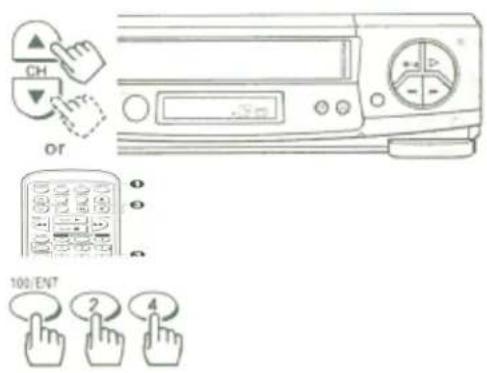
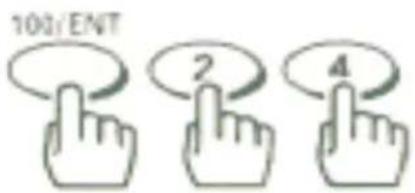
• 100/ENT and (2) and (4) for the channel 124.
Remote Control Illustration.
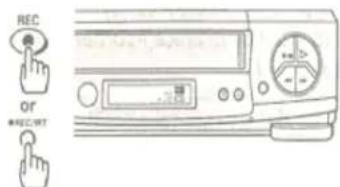
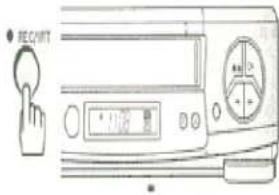
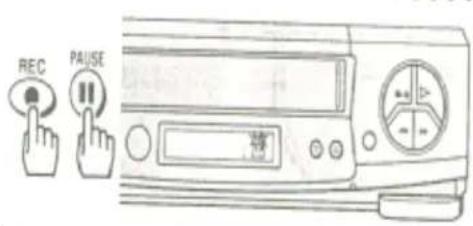
5 Press the REC button on the remote control or the REC/IRT button on the VCR.
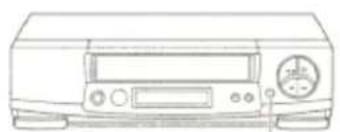
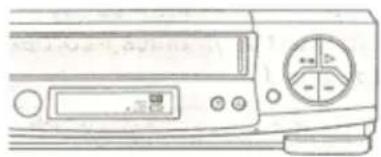
Recording will start and the REC indicator on the VCR will appear.
natural_image
Line drawing of a front-mounted electronic device with control panel and display (no text or symbols)5

natural_image
Line drawing of a portable electronic device with control panel and buttons (no text or symbols)Notes:
- Recording will not start unless the cassette has the safety tab in place. When a cassette without a safety tab is inserted, "TAb" will flash in the VCR display for several seconds and the cassette will be ejected automatically.
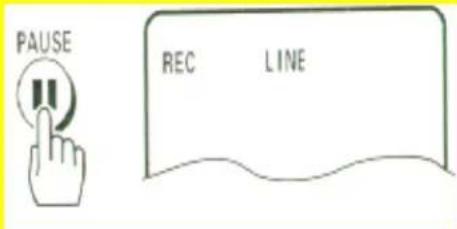
- Press the PAUSE button to set the VCR to the recording pause mode.
Press the button again to re-start recording.
- If you stay in PAUSE mode for more than 5 minutes, the VCR automatically switches to STOP mode to protect the tape.
6 Press the STOP button to finish recording.
RECORDING A PROGRAM - RECORDING TIPS
To watch one program while recording another
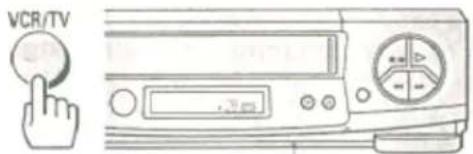
1 Once you have set the VCR for recording, press the VCR/TV button.
The VCR indicator disappears. Now, you will be viewing through your TV only.
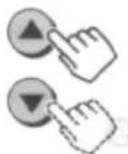
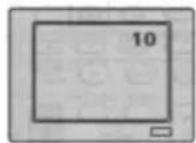
2 Switch channels using your TV controls or the VCR remote, if it's programmed to control your TV (see page 54).
Remote Control Illustration.
Notes:
- You can check on the recording by pressing VCR/TV again. This will switch you back to viewing through the VCR, and you'll see the program you are recording.
- If you're hooked up with an audio/video cable: Switch the TV from AUX or VIDEO mode back to the TV
mode, then select the channels you want to watch, as described in Step 2. Switch TV back to AUX or VIDEO to monitor your recording.
To change the channel being recorded
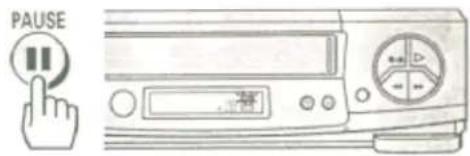
1 Press the PAUSE button to stop the recording temporarily.
Remote Control Illustration.
2 Press the CH (▲/) button or number buttons to change the channel to the one you prefer.
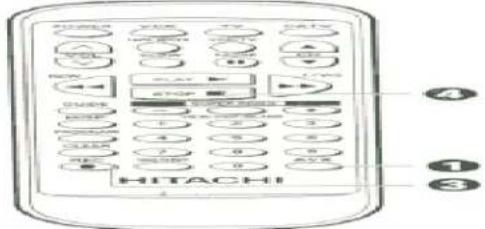
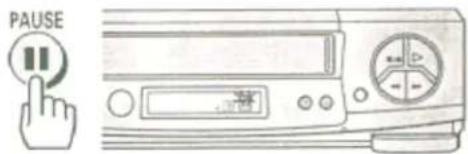
3 Press the PAUSE button to continue recording.
Automatic Indexing
Your VCR will automatically create an invisible "INDEX" mark every time you press the REC button while recording. During playback, the Index Search feature will let you move through a tape that has several recordings on it by searching for the "INDEX" mark. See Page 34, "Locating the beginning of a recorded program (INDEX SEARCH)".
To record a Second Audio Program (SAP)
Some stations transmit a Second Audio Program - such as in a second language. If a station broadcasts in SAP, the SA indicator will display on your TV screen.
You can set the VCR to record a second audio program by activating the SAP option.
How to set the SAP option.
1 Press the GUIDE button.

2 Press the (2) button to select the VCR SETUP operation.

Remote Control Illustration.
3 Press the (6) button to set the SAP option to "ON".
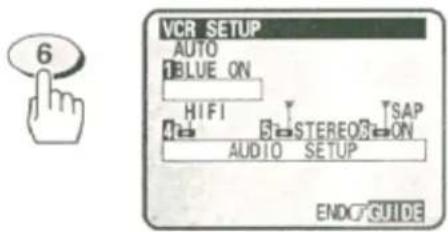
4 Press the (5) button to set the STEREO/MONO option to "STEREO".
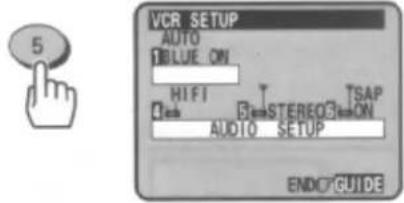
5 Press the GUIDE button to end the setting.

6 Follow the Step 1 through 6 on "Basic Recording Steps" on pages 39 and 40.
Stereo vs. mono sound
When you select the STEREO option in the initial setup operation, your VCR records in stereo any station that broadcasts stereo sounds. When a TV channel broadcasts in stereo, you'll see a stereo indicator on the TV screen.
Set to MONO if the stereo signal is weak and the sound is too "noisy".
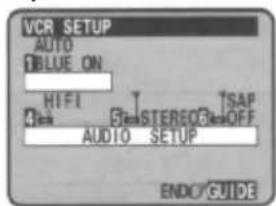
Note: When you select MONO, sound is recorded as mono even when a channel broadcasts in stereo.
INSTANT RECORDING TIMER
Using the Instant Recording Timer (IRT)
The Instant Recording Timer (REC/IRT button on the VCR) will let you make a simplified timer recording without having to use the programming timer. In order to set the IRT properly the clock must be set before starting.
1 Follow the steps 1 through 5 on "Basic recording steps" on pages 39 and 40.
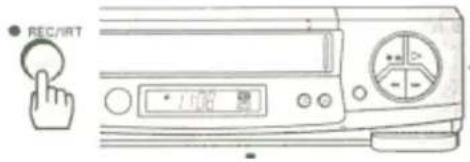
2 Press the REC/IRT button twice to indicate the recording time on the display.
- You may increase the recording time by 30 minutes each time you press the REC/IRT button.
- While you are recording, the remaining recording time is shown on the VCR display.
- At the end of your recording, the display will read "0:00", recording will stop automatically, and the VCR will turn itself off.
Instant Recording Illustration.
To stop recording while in the IRT mode:
1 Press the STOP button within 10 seconds.
- This can be done either on the VCR or with the remote control.
DELAYED RECORDING
Setting the VCR to record later
Note: The cassette safety tab must be in place in order to record.
With the delayed recording feature, you can set this VCR so that it automatically turns on and records programs whenever you like - without your being around! You can record a program one time only, or you can automatically record a show every weekday or every week at the same time. You can preset as many as 8 timed recordings at once.
Recording is even easier when have set up your channels for the VCR Plus+ system. Learn the basics of delayed recording in this section. Then read about the VCR Plus+ system beginning on page 47.
Before you begin
Assemble the information you need for timed recording:
- Be sure that the clock is set to the correct time
• Date and day of the program - Starting time
- Ending time
• Channel to be recorded - Blank or erasable videocassette (safety tab intact)
Delayed Recording Steps
You set up the delayed recording using the on-screen Easy Guide System.
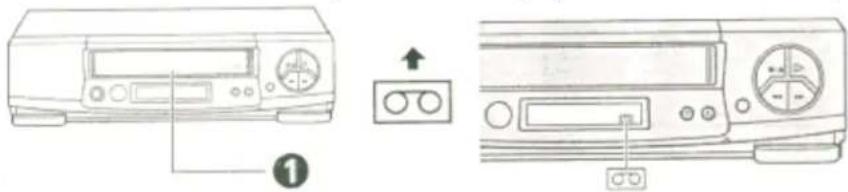
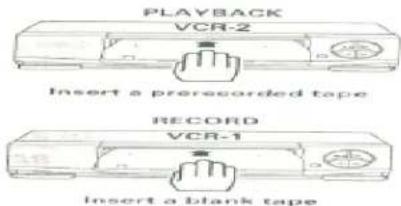
1 Insert blank or erasable tape.
The power comes on automatically and the tape indicator lights on the display.
- If a cassette without its safety tab is inserted, playback starts automatically and timed record won't operate.
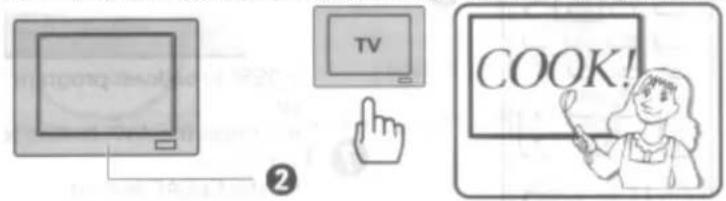
2 Turn on the TV and select the video channel (3 or 4).
Or, if you are hooked up with an audio/video cable, set the TV to AUX or VIDEO.
Remote Control Illustration.
3 Press the PROGRAM button twice for delayed recording.
- Press the PROGRAM button once, the screen for VCR PLUS+ programming of the timer will appear. Press the PROGRAM button twice, this screen will appear.
- If eight programs have already been stored in memory, "FULL" will flash in the VCR's display for about five seconds.
• The screen on the right will not appear at this time.
Types of Delayed Recordings
ONE TIME Records one show at a particular date and time.
DAILY Records a show at the same time every day of the week, Monday through Friday.
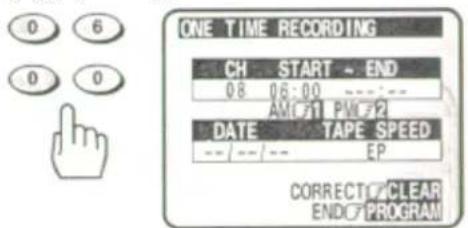
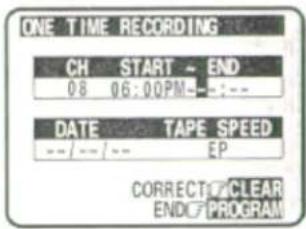
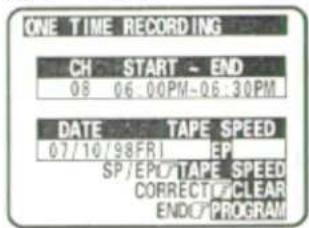
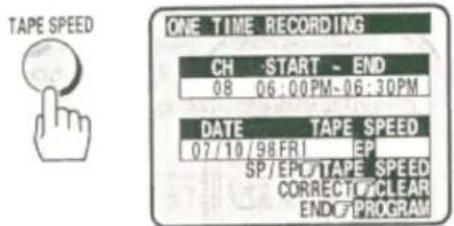
EXAMPLE: Set the VCR to record "one time", a program on Channel 8 that starts at 6:00 PM and ends at 6:30 PM on 7/10/98, at the EP recording speed.
4 Press the (1) button to bring up the screen for One Time Recording
Remote Control Illustration.
5 Press the (0) and (8) buttons to select channel 8.
Note: Remember to press 0 before single-digit channel numbers, times, and dates.
- If you want to record from an external equipment, press the AVX button to select LINE 1 or LINE 2 instead of the channel number.
- If you make a mistake when entering digits, press the CLEAR button repeatedly to display "-" for the incorrect digit, then reenter the correct digit.
6 Enter the start time by pressing (0), (6), (0) and (0) for 6:00.
Remote Control Illustration.
7 Press the (2) button for PM.

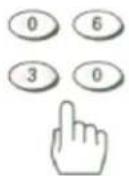
8 Enter the end time by pressing (0), (6), (3) and (0) for 6:30.
The VCR automatically selects PM for you.
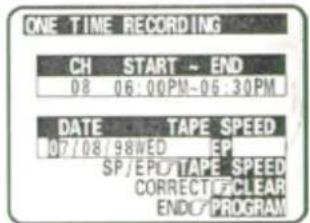
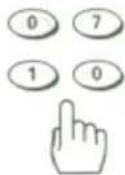
9 Enter the recording date by pressing (0), (7), (1) and (0) for 7/10/98.
Remote Control Illustration.
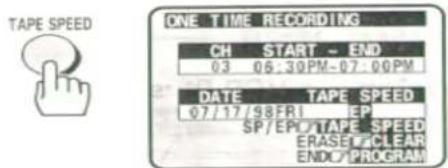
10 Press the TAPE SPEED button to select the recording speed EP.
11 Press the PROGRAM button to set the program in memory.
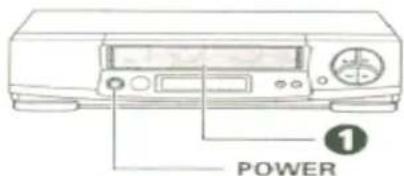
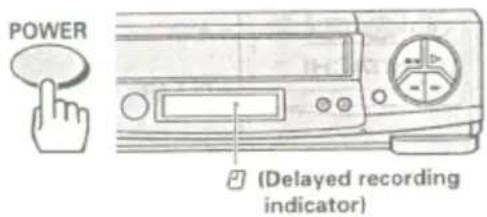
12 Press the POWER button to turn off the VCR.
The delayed recording indicator will display on the VCR.
This tells you that the VCR will automatically record at the times and dates you have programmed.
Note: If a cassette has not been inserted or a cassette without safety tab has been inserted, the delayed recording indicator will flash to warn you. The cassette without safety tab will be ejected automatically. Be sure to insert a cassette with safety tab intact.
When you have set up all the timed recordings you want:
- Don't forget to load a videocassette (with the safety tab still attached) to record on.
- If you have installed a cable box (see page 26), set it up before starting recording.
If you are using a cable box the VCR can control;
Turn on the cable box
If you are using a cable box the VCR cannot control:
Turn on the cable box and select the channel you want to record on the cable box (08 in this case).
Note: You can correct any item entered as you go by pressing the CLEAR button repeatedly until the digit to be corrected changes to white dash "-" on the screen. Then enter the correct number. Illogical times and dates won't be accepted.
To stop recording while in the timed recording mode:
1 Press POWER button.
2 Press the STOP button within 10 seconds.
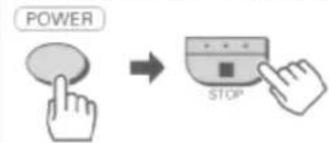
- This can be done either on the VCR or with the remote control.
Remote Control Illustration.
Important: Your timed recording settings take effect when you turn off the power on the VCR.
- About the VCR Plus+ system
This handy feature makes timed recording a snap. You don't need to enter the specific channel, date, time or duration of a program. All you enter is its PlusCode programming number - a number of up to eight digits. This special code is easy to find in your favorite TV program guide or daily newspaper. Here's a sample page from TV Guide showing PlusCode numbers next to each program.
Your local channels may be different from the VCR Plus+ channel codes. To get ready to record with the VCR Plus+ system you need to assign your local broadcast and cable channel numbers to the VCR Plus+ channel codes already stored in your VCR's memory. This is called channel setup and you do it using the on-screen Easy Guide System and the following step-by-step instructions. Then you will be ready to begin VCR Plus+ recording, also using the on-screen Easy Guide System.
VCR Plus+ and PlusCode are trademarks of Gemstar Development corp.
Channel setup
Before you begin
1 Look for a listing like this one in your local TV program guide or Sunday newspaper TV section. Notice the small numbers to the right of the station name.
These are the VCR Plus+ channel numbers that you will use in the channel setup procedure.

2 Make a list of the VCR Plus+ channel numbers and the channel numbers you are receiving them on. If there are any differences, YOUR channel numbers must be assigned to the corresponding VCR Plus+ number. (See Example)
EXAMPLE
| VCR Plus+ Channel Number | Channel Number You Receive |
| 04 (ind.) | 04 |
| 06 (ABC) | 06 |
| 20 (PBS) | 08 |
| 42 (Cable News Network) | 38 |
Note in the example that the channel numbers are the same except for 20 (received on channel 8) and 42 (received on channel 38). These two channels must be assigned.
EASY DELAYED RECORDING WITH THE VCR PLUS+ SYSTEM
Note: If you receive all your channels through a cable box (Hookups E, F, or G) set up the cable box, in addition to the following setup: Please refer to page 26 "CABLE BOX SETUP" in "FIRST TIME SETUP" section.
• VCR Plus+ setup - Channel setup
The following shows the procedure you should perform when you are receiving the Cable News Network (channel 42 with the VCR Plus+ system) on channel 38.
Matching Broadcast CH Numbers to VCR Plus+ Channels
1 Turn on the TV and select the Video channel (3 or 4).
Or, if you are hooked up with an audio/video cable, set the TV to AUX or VIDEO.
2 Press the GUIDE button.
The main on-screen menu will appear on the TV screen.

Remote Control Illustration.
3 Press the (4) button to select CHANNEL PRESET.
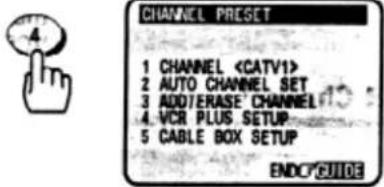
4 Press the (4) button to select VCR PLUS+ SETUP.
A small arrow points to a blank "--" in the CHANNEL column.
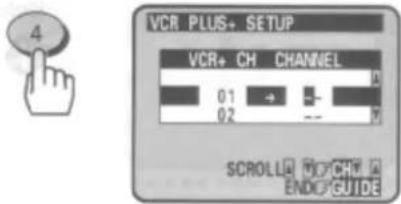
Note: If your broadcast channel number is the same as the VCR Plus+ Channel in your TV listing do not enter any number.
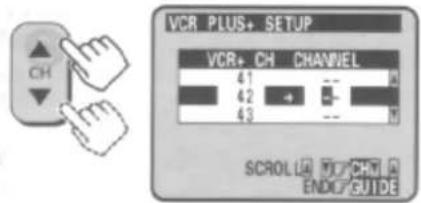
5 Press the CH (▲/☐) button to move up and down through the channel list until you reach VCR Plus+ CH42.
6 Press the number buttons to assign your broadcast channel number to the corresponding VCR Plus+ channel.
In this example broadcast channel 38 is assigned to VCR Plus+ channel 42.
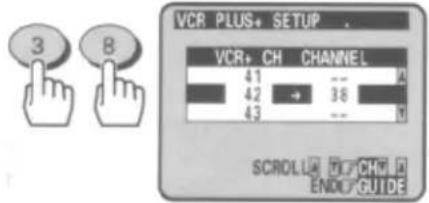
Note: If you enter a wrong digit, press the CLEAR button to erase the wrong number and enter the correct one.
7 Repeat steps 5 - 6 for all channels that need to be assigned.
8 Press the GUIDE button to end the setup procedure.
You are ready to begin delayed recording with the VCR plus+ system.

Remote Control Illustration.
Using the VCR Plus+ system to record a program (by using TV screen)
1 Insert a blank or erasable tape.
The power comes on automatically and the tape indicator lights on the display.
- When a cassette without its safety tab is inserted, playback starts automatically and VCR Plus+ recording won't operate.
2 Press the PROGRAM button to select VCR PLUS+ RECORDING.
- If eight programs have already been stored in memory, "FULL" will flash in the VCR's display for about 5 seconds.
• The screen on the right will not appear at this time.
Remote Control Illustration.
3 Press the number buttons to enter the PlusCode number of the program you want to record.
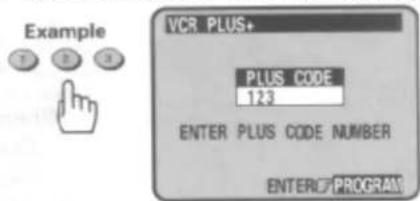
Note: This number can be up to eight digits. If you enter a wrong digit, press the CLEAR button and enter the correct one.
4 Press the PROGRAM button to store the PlusCode number in the VCR's memory.
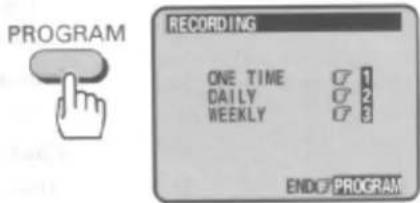
Types of Delayed Recordings
ONE TIME Records one show at a particular date and time.
DAILY Records a show at the same time every day of the week, Monday through Friday.
WEEKLY Records a show at the same day and time every week.
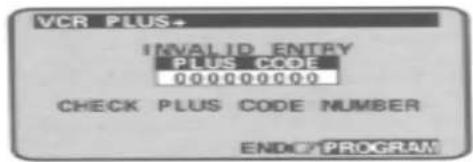
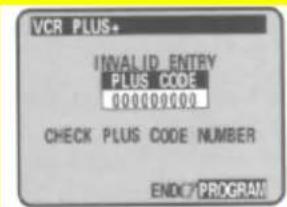
Note: If you accidentally enter a nonexistent PlusCode number, the VCR gives you an error message that disappears from the screen in about 10 seconds.
5 Press the number buttons (1), (2) or (3) to select ONE TIME, DAILY or WEEKLY RECORDING

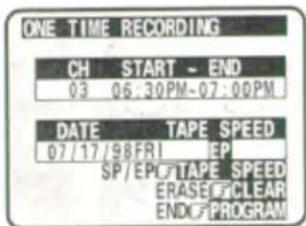
Note: Programming does not take effect unless you select one of these options.
6 Press the TAPE SPEED button to choose recording speed SP (standard play) or EP (extended play).
The screen will display all the details of the program you chose. Check the CH number to make sure it is the right
one.
If not, you need to check your VCR Plus+ channel setup again.
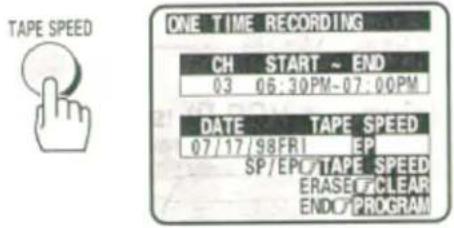
7 Review the screen to be sure everything is set as you want, then press the PROGRAM button to complete your programming or continue with additional programs.

8 Press the POWER button to turn off the VCR.
The delayed recording indicator will display on the VCR.
This tells you that the VCR will automatically record at the times and dates you have programmed.
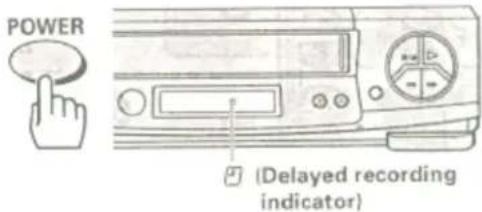
Note: If a cassette has not been inserted or a cassette without safety tab has been inserted, the delayed recording indicator will flash to warn you. The cassette without safety tab will be ejected automatically. Be sure to insert a cassette with safety tab intact.
When you have set up all the timed recordings you want:
- Don't forget to load a videocassette (With the safety tab still attached) to record on.
- If you have installed a cable box (see page 26), set it up before starting recording.
If you are using a cable box the VCR can control:
Turn on the cable box
If you are using a cable box the VCR cannot control:
Turn on the cable box and select the channel you want to record on the cable box.
Important: Your timed recording settings take effect when you turn off the power on the VCR.
Caution of VCR Plus+ Recording
After entering a PlusCode number, check the information displayed with the "PROGRAM REVIEW". If there is (are) any unnecessary program(s), please cancel or correct it (them). Please refer to Page 53, "Reviewing what you have programmed".
Using the VCR Plus+ system to record a program (by using the VCR's
display)
You can use the VCR Plus+ system to program the timer, observing the VCR's display, without turning on the power to the VCR and TV.
Notes:
- If you use the VCR Plus+ system to program the timer while observing the VCR's display, you can only program a one-time recording.
• To stop programming, press the POWER button to turn the VCR power on.
Remote Control Illustration
1 Insert a blank or eraseable tape.
The power comes on automatically and the tape indicator lights on the display.
- When a cassette without its safety tab is inserted, playback starts automatically and VCR Plus+ recording won't operate.
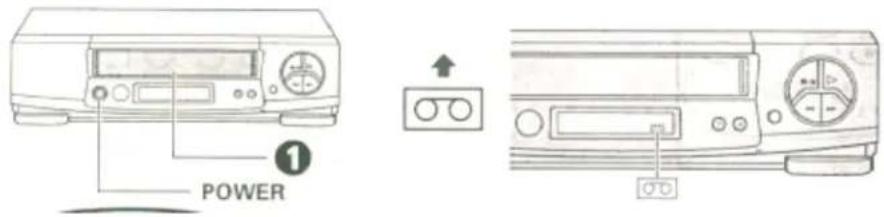
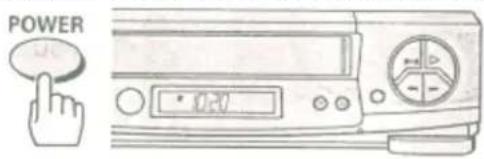
2 Press the POWER button to turn the off the VCR.
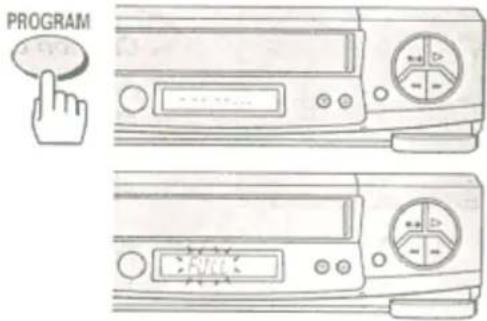
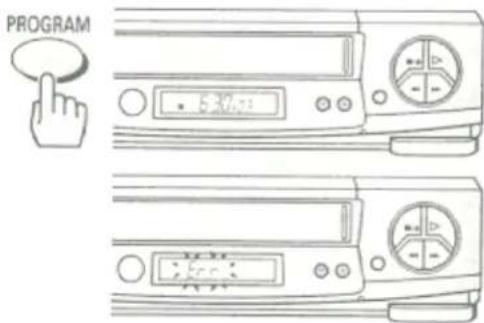
3 3 Press the PROGRAM button.
The clock display switches to the indication on the right.
- If eight programs have already been stored in memory, "FULL" will flash in the VCR's display for about five seconds.
4 Press the number buttons to enter the PlusCode number of the program you want to record.
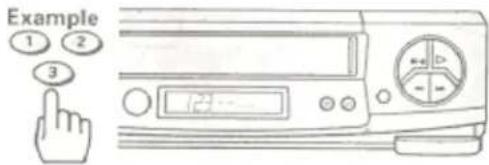
Note: This number can be up to eight digits. If you enter a wrong digit, press the CLEAR button and enter the correct one.
5 Press the number buttons to enter the PlusCode number in the VCR's memory.
The start time and channel will appear. Check the details of the program.
- If "Err" flashes for about five seconds, check the PlusCode number of the program and enter it again
Remote Control Illustration
6 Press the PROGRAM button to complete your programming or continue with additional programs. The delayed recording indicator will display on the VCR. This tells you that the VCR will automatically record at the times and dates you have programmed.
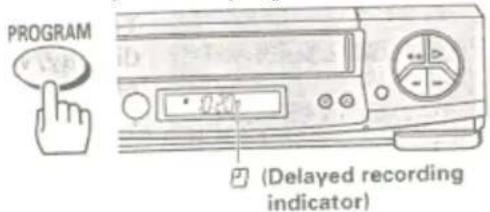
Note: If a cassette has not been inserted or a cassette without safety tab has been inserted, the delayed recording indicator will flash to warn you. The cassette without safety tab will be ejected automatically. Be sure to insert a cassette with safety tab intact.
When you have set up all the timed recordings you want:
- Don't forget to load a videocassette (With the safety tab still attached) to record on.
- If you have installed a cable box (see page 26), set it up before starting recording.
If you are using a cable box the VCR can control:
Turn on the cable box
If you are using a cable box the VCR cannot control:
Turn on the cable box and select the channel you want to record on the cable box.
Important: Your timed recording settings take effect when you turn off the power on the VCR.
Caution of VCR Plus+ Recording
After entering a PlusCode number, check the information displayed with the "PROGRAM REVIEW". If
there is (are) any unnecessary program(s), please cancel or correct it (them). Please refer to Page 53, "Reviewing what you have programmed".
To go into the recording mode:
- Press the POWER button to turn the VCR on.
- Turn on TV and select the video channel (3 or 4).
- Pres the TAPE SPEED button to switch the recording mode.
PROGRAM REVIEW
Reviewing what you have programmed
You can look back over any of the recordings you have preset and if you need to, clear out any of the programs. Normal programs will clear automatically once recording is complete, but daily and weekly setting must be cleared out manually.
1 Press the GUIDE button.
The main on-screen menu will appear on the TV screen.

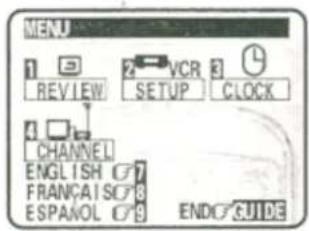
2 Press the (1) button for the PROGRAM REVIEW option.
This brings up the screen setting for the first program.
If you want to clear this program, press the CLEAR button to remove this program.

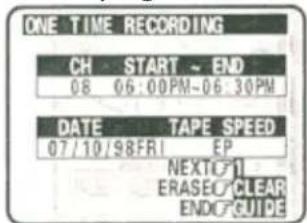
Remote Control Illustration.
3 Keep pressing the (1) button to cycle through all the programs you have preset.
- The screen will display the next program, if there are more, or it will switch back to the main menu.

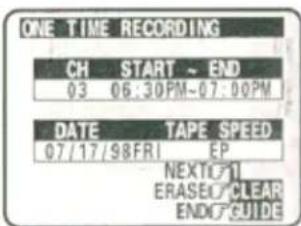
4 Press the GUIDE button to end.

PROGRAMMING THE VCR REMOTE TO CONTROL YOUR TV
The VCR remote control can be programmed to control many TV brands that are remote controlled.
1 Turn on the TV.
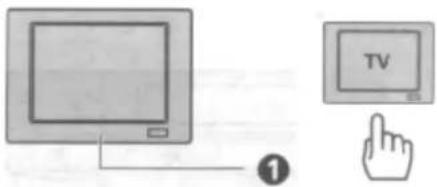
2 Point VCR remote control toward TV.
3 Press and hold the "TV" button.

Remote Control Illustration.
4 Press the remote button corresponding to your TV brand as shown in the set-up chart. The TV channel will change to confirm that the remote control has been set.
| TV Brand Press | "TV" and this remote button | TV Brand Press | "TV" and this remote button | TV Brand Press | "TV" and this remote button |
| Hitachi 1 | Gold star 1 6 Panasonic 1 | CH ▲ | |||
| Zenith | 2 | Toshiba | 7 | Mitsubishi CH | |
| Sony 3 | Gold star 2 8 JVC 100/ENT | ||||
| Magnavox 4 | Panasonic 2 9 | Sharp 1 | VOL (UP) | ||
| Sanyo | 5 | RCA | 0 | Sharp | 2 |
AVX
Note: If your TV brand is not listed on the Set-Up Chart, try all the buttons listed in the chart until the TV changes channels. If the TV channel does not change, you won't be able to program the remote for your TV.
Using the VCR remote to control your TV
1 Press the "TV" button on remote control.

Remote Control Illustration.
2 Point VCR remote control toward TV.
3 3 Press buttons corresponding to the functions available on your TV remote control.
PROGRAMMING THE VCR REMOTE TO CONTROL YOUR CABLE BOX
The VCR remote control can be programmed to control many cable boxes brands that are remote controlled. You can easily change channels
1 Turn on the cable box.
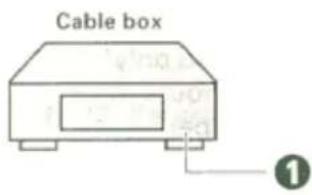
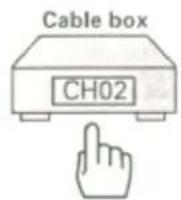
2 Point VCR remote control toward cable box
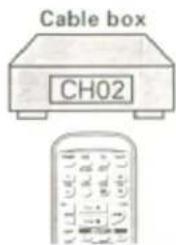
Remote Control Illustration.
- Press and hold the "CATV" button.

4 Press the number button corresponding to your cable box a shown in the set-up chart. The cable box channel will change to confirm that the remote control has been set.
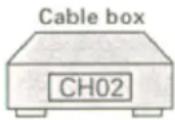
| Cable Box Press "CATV" and this remote button | Cable Box Press "CATV" and this remote button | ||
| Jerrold 1 | 1 | Zenith | 5 |
| Jerrold 2 | 2 | Scientific Atlanta | 6 |
| Jerrold 3 | 3 | Pioneer | 7 |
| Hamlin | 4 | Philips | 8 |
Note: If your cable box is not listed on the Set-Up Chart, try all the buttons listed in the chart until the cable box changes channels. If the cable box channel does not change, you won't be able to program the remote for your cable box.
Using the VCR remote to control your cable box.
1 Press the "CATV" button on the remote control.

2 Point VCR remote control toward cable box.
3 3 Press the CH (channel ▲/) button.

Remote Control Illustration.
INTEGRATING YOUR STEREO SYSTEM WITH YOUR VCR
Hookup
When your VCR is connected to a stereo system, you can:
- Make high quality "audio only" recordings for up to 6 hours (on a T-120 video cassette tape).
- Receive quality stereo sound from your VCR through your stereo system.
- Use the VCR as an extra audio tape deck for dubbing.
Hook-up Illustration.
To record from stereo
BEFORE YOU BEGIN...
Remote Control Illustration.
- Make sure the VCR is connected to your stereo system, as shown above.
- Make sure that "STEREO" audio is selected from the VCR Set-Up Menu, as shown on page 42, of "RECORDING OPERATIONS" section, "Stereo vs. mono sound".
- Select VCR recording speed (SP or EP) as shown on page 39, of "RECORDING OPERATIONS" section, "Basic recording steps".
1 Press the AVX button on remote control, so that L1 (line) on the display.
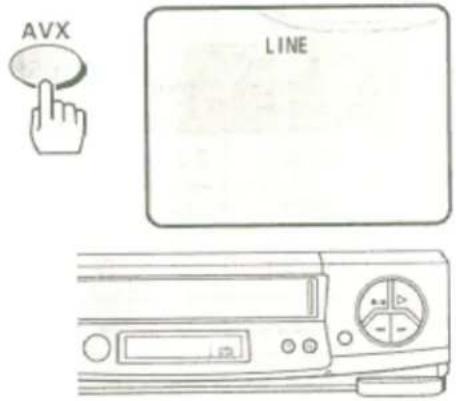
2 Turn on the stereo, and start the selection you wish to record.
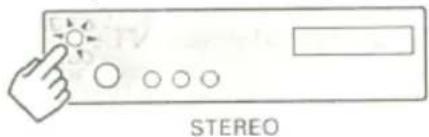
3 Press the REC/IRT button on VCR or REC button on the remote control to start recording.
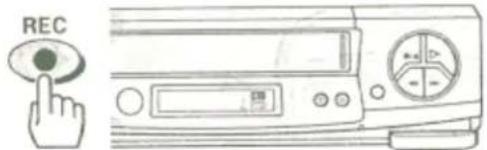
4 Press the STOP button to stop recording.
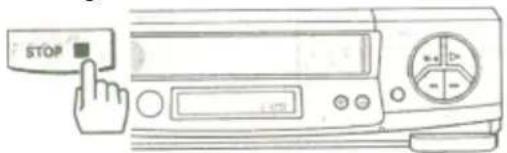
You may use your VCR to copy tapes from any camcorder onto standard VHS cassette
tapes.
Note: If your camcorder is not stereo (has only one audio plug), connect it into the AUDIO IN-L input on the back of the VCR.
* It is not necessary to connect the S-VIDEO jack Camcorder Hook-up Illustration.
To copy from a camcorder
BEFORE YOU BEGIN...
Connect the camcorder's AV output cable to the audio/video jacks on the back of your VCR. 1 Press the AVX button twice on remote control, to display L2 (line) on the TV display.
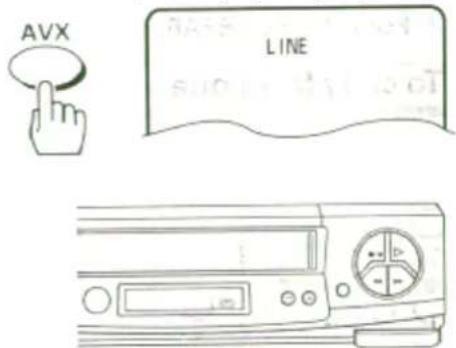
2 Press the REC, then PAUSE buttons on the VCR remote control. The VCR will go into Record/ Pause.
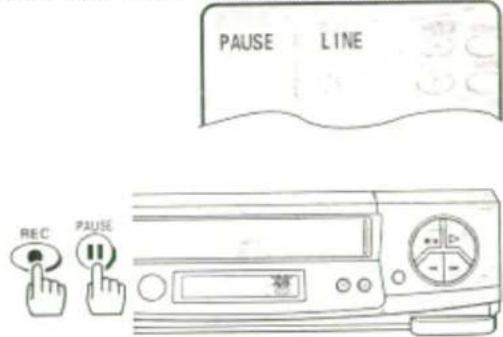
Remote Control Illustration.
3 Press the PLAY button on the camcorder. You will see the camcorder tape being played on the TV.
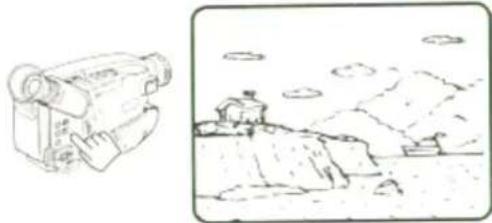
natural_image
Illustration of a vintage-style video camera and a landscape scene with mountains and clouds (no text or symbols)4 When you see the part of the Camcorder tape you wish to copy, press the PAUSE button again to release pause and start copying the camcorder tape.

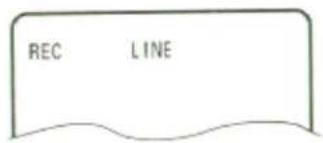
- Press the STOP button to finish recording.
COPYING FROM ONE VCR TO ANOTHER VCR (DUBBING)
Hookup
If you have two VCRs, you may use one VCR to record a tape that is being played back in the other VCR. VCR to VCR Hook-up Illustration Rear Panel VCR Front Panel Illustration
• To copy from one VCR to another VCR
1 Press the AVX button on the remote control of VCR-1 so that L1 (line) appears in the display.
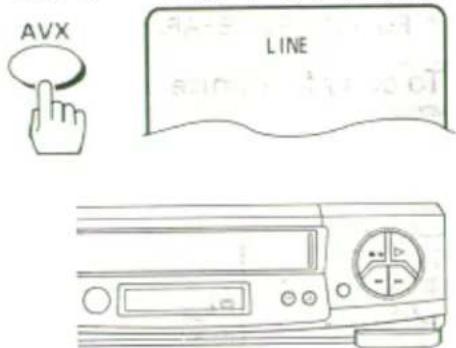
Remote Control Illustration.
2 Press the REC, then PAUSE buttons on VCR-1. The VCR will go into Record/Pause.
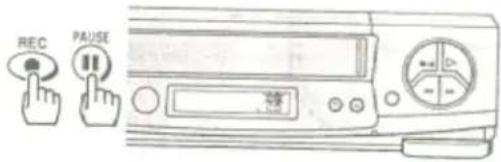
3 Press the PLAY button on VCR-2. You will see the taped program being played on the TV.
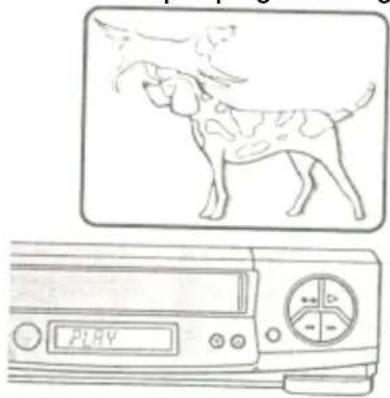
natural_image
Illustration of a dog playing on a computer monitor (no text or symbols present)4 When you see the part of the program you wish to record, press the PAUSE button on VCR-1 again to release pause and start recording.
- Press the STOP button to finish recording.

PROBLEM GUIDE / MAINTENANCE
Problem guide
| No power | Make sure the VCR is plugged into an AC outlet. |
| Remote control doesn't work | Make sure the batteries are fresh, and properly installed. |
| Won't record | Safety tab has been removed from cassette (VCR will automatically eject the tape). |
| Won't play back | Make sure the TV/VCR switch is set to the VCR mode.Make sure the TV is set to the VCR channel (3 or 4) or AUX (if using direct audio/video hookup). |
| Won't make timer recordings | The VCR power must be turned off to activate timer recording.Clock is not set correctly.Programs entered incorrectly.Programs exceed the length of the cassette. Use the EP recording speed for maximum programming.Safety tab has been removed from cassette. |
| Snowy picture in playback | Snow or picture noise is normal during search, still, and slowPlayback.Head cleaning may be required.Tape is worn or of inferior quality - adjust tracking controls. |
| Snowy picture in normal TV viewing | Check antenna or cable connections. |
| Clock shows --:-- | Power has been interrupted - reset the clock.Reset the clock. |
| Erratic VCR display | Push the reset switch with a sharp pointed instrument (pen, toothpick, etc.).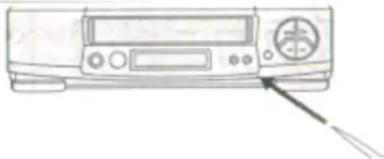 |
Maintenance
Regular periodic maintenance is required to maintain optimum VCR performance. Such maintenance and adjustments should not be attempted by the user. Please consult your service dealer for further information.
Auto Head Cleaning System
This system cleans the video heads automatically when a cassette is inserted and ejected or the VCR is turned on or off while a cassette is in the VCR, to prevent dirt from accumulating on the heads.
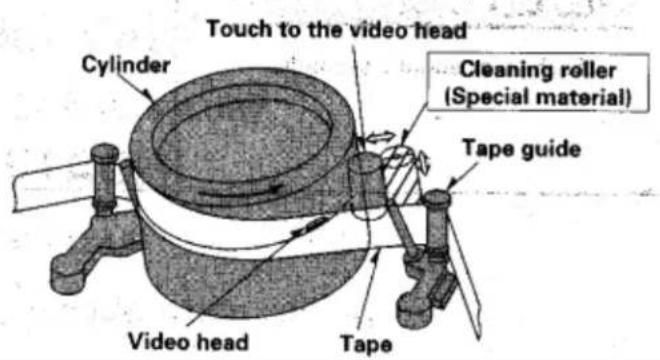
Note: Mechanical sound is heard during head cleaning.
NOTE: Dirt accumulation on the video heads will cause the playback picture to become noisy. Heavy accumulations due to abnormal usage, or the use of oor quality tapes may be beyond the capabilities of the Auto Head Cleaning System, and may require the video heads to be professionally cleaned by a qualified service dealer.
natural_image
Abstract black-and-white speckled pattern with no discernible text or symbolsGUIDE INDICATIONS IN THE VCR DISPLAY pg 60
Guide indications in VCR display
The following indications appear in the VCR display to tell you the current status of your VCR.
| Indications When it appears Meaning and troubleshooting | ||
 (flashes for about 5 seconds) (flashes for about 5 seconds) | When programming the timer | • The VCR clock has been set to "-:-".Set the time and program the timer. |
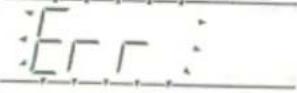 (flashes for about 5 seconds) (flashes for about 5 seconds) | When programming the timer (by using VCR display) | • A non-existing PlusCode number has been entered. Check the PlusCode number of the program and enter it again. |
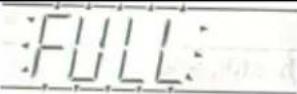 (flashes for about 5 seconds) (flashes for about 5 seconds) | When programming the timer. | ·Eight programs have already beenstored. Cancel unnecessary programand transfer the new programming. |
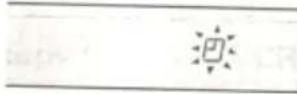 (flashes uninterruptedly) (flashes uninterruptedly) | When you turn power off after programming the timer, or transfer the programming with power off. | ·A cassette has not been inserted or a cassette without safety tab has beeninserted. A cassette without safety tabwill be ejected automatically.Insert acassette with safety tab intact. |
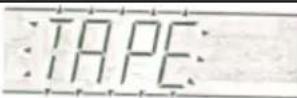 (flashes for about 3 seconds) (flashes for about 3 seconds) | When you press the play, record, fast forward, rewind or super index button. | ·A cassette has not been inserted.Insert a cassette. |
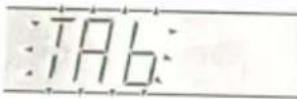 (flashes for about 3 seconds) (flashes for about 3 seconds) | When you press the record button for recording or dubbing, or press the (VIEW/SKIP/BLANK) button for BLANK SEARCH. | ·A cassette without a safety tab hasbeen inserted. It will be ejected automatically. Insert a cassette with safety tab intact |
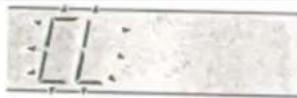 (flashes for about 3 seconds) (flashes for about 3 seconds) | When you turn power on. | ·The video heads are dirty.Cleaningthem is recommended. To switch ofthe CL display, clean the heads, turnthe power off and press the channel▲button. The CL display automatically switches off whenrecording and playback are performed for about 5 hours after itappears. |
TECHNICAL SPECIFICATIONS
Technical specifications
Format:
VHS
Video Signal System: NTSC color EIA standard
Record/Playback System: Video: 4 head
Audio:
VHS
Hi-Fi
stereo
record/playback
system
Tape Speed: 33.35 mm/sec (SP), 16.67 mm/sec
| (LP)11.12 | ( playbackmm/sec | only),(EP) | ||||
| RF Input: | UHF/VHS 75 ohm | |||||
| Tuner: | USA: 181 channel tuning ability* | (125Canada:(122 | cable178cable | channels)channelchannels) | tuning | ability* |
| Type: | Autosynthesis | programming | frequency | |||
Power Input: AC 120V 60 Hz
Power Consumption: 22W nominal
Cabinet Size: 14-15/16" (W) x 3-11/16" (H) x
10-13/16" (D)
38.0 cm (W) x 9.3 cm (H) x 27.5
m
( D )
Weight:
lbs.
(3.5
kg)
Storage Temperature: -4°F to 131°F
Operating Temperature: 41°F to 104°F
Accessories: 1 coaxial cable (Part No.
EW10251)
1 remote control unit (Part No.
HL10991).
AA
batteries
* Check your cable company's compatibility requirements.
For information about how to obtain these and other HITACHI accessories, please call HiTRON, Inc. TOLL FREE at 1-800-995-4500 (in the continental United States). For ALASKA and HAWAII, please contact the nearest Hitachi Regional Office.
Design and specifications subject to change without notice.
Hitachi Service Hotline
Authorized Hitachi service facilities are available throughout the US and Canada. For the location nearest to you, call the Hitachi Service Hotline at one of these numbers:
In the continental U.S.A
| DIAL TOLL FREE7 days a week, 24 hours a day1-800-HITACHI(1-800-448-2244)You must state your zip code when calling |
In Canada
| MONTREAL | 514-956-9882 |
| TORONTO | 905-821-4545 |
| VANCOUVER | 604-214-0777 |
- Using these quality features:
- HITACHI HOME ELECTRONICS
- (AMERICA), INC.
- HITACHI SALES CORPORATION
- OF HAWAII, INC.
- HITACHI (HSC) CANADA INC.
- TABLE OF CONTENTS
- FOR YOUR SAFETY
- IMPORTANT SAFEGUARDS
- INSTALLATION
- EXAMPLE OF ANTENNA GROUNDING
- USE
- SERVICE
- CUSTOMER CONTROLS
- Accessories supplied
- VCR Customer Controls
- Remote Control Customer Controls
- REMOTE OPERATION
- • Install batteries in the remote control
- Install batteries.
- - Operating in the remote control
- CASSETTE TAPES
- - Types
- • Safety tabs prevent erasure
- - Insertion
- - Removal
- BASIC ANTENNA HOOKUP [A]
- WITH THIS HOOKUP
- Switch the RF Channel
- ADVANCED ANTENNA HOOKUP -AV HOOKUP [B]
- BASIC CABLE HOOKUP [C]
- YOU CAN...
- ADVANCED CABLE HOOKUP -AV HOOKUP [D]
- BASIC CABLE HOOKUP -WITH CABLE BOX [E]
- ADVANCED CABLE HOOKUP -WITH CABLE BOX [F]
- ADVANCED CABLE HOOKUP -WITH CABLE BOX AND SPLITTER [G]
- SETTING THE CLOCK -AUTOMATIC MODE
- - Tips
- Auto clock set function
- Press the POWER button to turn the VCR power off.
- Notes:
- SETTING THE CLOCK-AUTOMATIC MODE
- Turn on the TV and select the video channel (3 or 4).
- Press the GUIDE button.
- Press the (3) button to bring up the CLOCK SET menu.
- Make sure that item 1 is highlighted "CLOCK SET "
- Press the (2) button.
- SETTING THE CLOCK -TIME ZONE SETTING/DAYLIGHT SAVING TIME SETTING
- Press the GUIDE button.
- Press the (3) button to bring up the "CLOCK SET" menu.
- Press the (3) button to select your local time zone.
- Press the (4) button to select the D.S.T. option.
- Press the (2) button to set the time.
- SETTING THE CLOCK -MANUALLY
- To set the clock manually
- Press the (1) button to select "CLOCK SET "
- Press the (2) button to bring up the clock set menu.
- Press the number buttons to fill the hour and minutes.
- Press the (1) button for AM or (2) for PM.
- Press the number buttons to fill in the number of the month, then the day then the year.
- Press the GUIDE button.
- PRE-TUNING THE VCR TUNER
- Press the (2) button.
- When automatic presetting of channels are finished
- Channel Caption (Station Identifier)
- To add or erase channels
- Auto blue setting
- CABLE BOX SETUP
- If the codes you entered do not work:
- PLAYBACK
- • To playback a recorded tape
- Press the PLAY button to start playing the tape.
- Press the STOP button to end playback.
- Rewinding the tape
- Manual Rewind
- Press the REW button.
- Rewinding or fast forwarding a tape at high speed
- To remove noise from the picture
- Auto Tracking
- Manual Tracking
- Frame Advance
- Slow motion
- Visual Search
- During play:
- Choosing a mode for audio playback
- How to select playback audio
- Press the (2) button to select the VCR SETUP operation.
- Press the (4) button to select "HIFI" or "LINEAR".
- Press the GUIDE button to end the setting.
- USING THE "SUPER INDEX" FEATURE
- What is SUPER INDEX
- Locating the beginning of a recorded program (INDEX SEARCH)
- Locating the beginning of a blank section (BLANK SEARCH)
- Press the ○ (VIEW/SKIP/BLANK) button in the STOP mode.
- Switching rewind or fast forward to visual search (EASY VIEW)
- Skipping unnecessary scenes (SKIP PLAYBACK)
- VIEWING THE ON-SCREEN DISPLAY
- Switching between the clock, time counter and time of remaining tape
- On-screen Display Illustration
- INDEXING WITH THE TIME COUNTER
- • To find specific sections on a tape
- Press the DISP button two or three times.
- Begin recording or playing back a tape.
- At the point that you want to go back to, press the CLEAR button.
- Press the STOP button when you are done recording or playing back the tape.
- Press the REW button to rewind the tape.
- RECORDING A PROGRAM
- Before you record
- Copyright infringement warning
- Basic recording steps
- Turn on TV and select the video channel (3 or 4).
- Insert a blank or erasable tape.
- RECORDING A PROGRAM - RECORDING TIPS
- To watch one program while recording another
- To change the channel being recorded
- Automatic Indexing
- To record a Second Audio Program (SAP)
- How to set the SAP option.
- Stereo vs. mono sound
- INSTANT RECORDING TIMER
- Using the Instant Recording Timer (IRT)
- DELAYED RECORDING
- Setting the VCR to record later
- Before you begin
- Delayed Recording Steps
- Insert blank or erasable tape.
- Turn on the TV and select the video channel (3 or 4).
- Press the PROGRAM button twice for delayed recording.
- Types of Delayed Recordings
- When you have set up all the timed recordings you want:
- To stop recording while in the timed recording mode:
- - About the VCR Plus+ system
- Channel setup
- • VCR Plus+ setup - Channel setup
- Matching Broadcast CH Numbers to VCR Plus+ Channels
- Press the (4) button to select VCR PLUS+ SETUP.
- Using the VCR Plus+ system to record a program (by using TV screen)
- display)
- Insert a blank or eraseable tape.
- Press the POWER button to turn the off the VCR.
- 3 Press the PROGRAM button.
- Press the number buttons to enter the PlusCode number in the VCR's memory.
- Remote Control Illustration
- To go into the recording mode:
- PROGRAM REVIEW
- Reviewing what you have programmed
- Press the (1) button for the PROGRAM REVIEW option.
- Keep pressing the (1) button to cycle through all the programs you have preset.
- PROGRAMMING THE VCR REMOTE TO CONTROL YOUR TV
- Using the VCR remote to control your TV
- PROGRAMMING THE VCR REMOTE TO CONTROL YOUR CABLE BOX
- INTEGRATING YOUR STEREO SYSTEM WITH YOUR VCR
- Hookup
- To record from stereo
- BEFORE YOU BEGIN...
- To copy from a camcorder
- COPYING FROM ONE VCR TO ANOTHER VCR (DUBBING)
- • To copy from one VCR to another VCR
- PROBLEM GUIDE / MAINTENANCE
- Maintenance
- Auto Head Cleaning System
- GUIDE INDICATIONS IN THE VCR DISPLAY pg 60
- Guide indications in VCR display
- TECHNICAL SPECIFICATIONS
- Hitachi Service Hotline
- In the continental U.S.A
- In Canada
Brand : HITACHI
Model : VT-FX633A
Category : VCR