
Voice NS-CSPGASP-BC - Loudspeaker INSIGNIA - Free user manual and instructions
Find the device manual for free Voice NS-CSPGASP-BC INSIGNIA in PDF.


| Product Type | Smart Speaker with Google Assistant |
| Brand | Insignia |
| Model | NS-CSPGASP-BC |
| Dimensions (W x D x H) | 3.7 x 3.7 x 5.9 in (96 x 96 x 151.6 mm) |
| Weight | 19.4 oz (550 g) |
| Power Input | 12V / 2.5A |
| USB Power Output | 5V / 1A |
| Speaker Wattage | 8W |
| Power Cord Length | 4.9 ft (1.5 m) |
| Maximum Ambient Temperature | 95°F (35°C) |
| Compatible Operating Systems | Android 4.3 or higher, iOS |
| Voice Assistant | Google Assistant built-in |
| Wireless Connectivity | Wi-Fi (802.11 b/g/n/ac), Bluetooth 4.0 |
| Chromecast Built-in | Yes |
| Display | LED display for time, alarm, temperature, volume, and mode |
| Microphone | Built-in with mute button (orange LED when muted) |
| Proximity Sensor | Yes (hand wave to snooze alarm or adjust brightness) |
| Cleaning Instructions | Clean with a dry cloth only |
| Safety Precautions | Do not expose to water or moisture; use only specified attachments |
| Warranty | 1-Year Limited Warranty |
| Package Contents | Speaker, Power Adapter, Quick Setup Guide |
Frequently Asked Questions - Voice NS-CSPGASP-BC INSIGNIA
User questions about Voice NS-CSPGASP-BC INSIGNIA
0 question about this device. Answer the ones you know or ask your own.
Ask a new question about this device
Download the instructions for your Loudspeaker in PDF format for free! Find your manual Voice NS-CSPGASP-BC - INSIGNIA and take your electronic device back in hand. On this page are published all the documents necessary for the use of your device. Voice NS-CSPGASP-BC by INSIGNIA.
USER MANUAL Voice NS-CSPGASP-BC INSIGNIA
Insignia Voice™ Speaker With Google Assistant Built in
INSIGNIA™
Contents
Introduction 3
Important Safety Instructions ....3
Package contents 4
Features 4
Google Assistant features 4
Insignia Voice ^TM features 4
Control panel 5
Front 5
Back 6
Setting up your speaker 6
Google Assistant 7
Google Chromecast built in 7
Bluetooth Set-up 7
Frequently asked questions 7
Specifications 8
Troubleshooting 9
Legal notices ....10
ONE-YEAR LIMITED WARRANTY 11
Insignia Voice™ Speaker
Introduction
Congratulations on your purchase of a high-quality Insignia product. Your NS-CSPGASP-B, NS-CSPGASP-BC, or NS-CSPGASP-G represents the state of the art in voice speaker design and is designed for reliable and trouble-free performance.
Important Safety Instructions
1 Read these instructions
2Keep these instructions
3Heed all warnings
4Follow all instructions
5 Do not use this apparatus near water, for example, in a wet basement or near a swimming pool.
6Clean only with a dry cloth.
7 Do not block any ventilation openings. Install in accordance with the manufacturer's instructions.
8 Do not install near any heat sources, such as radiators, heat registers, stoves, or other apparatuses (including amplifiers) that produce heat.
9 Do not defeat the safety purpose of the polarized or grounding plug. A polarized plug has two blades with one wider than the other. A grounding plug has two blades and a third grounding prong. The wide blade or the third prong is provided for your safety. If the provided plug does not fit into your outlet, consult an electrician for replacement of the obsolete outlet.
10 Protect the power cord from being walked on or pinched, particularly at the plugs, outlets, and at the point where they exit from the apparatus.
11 Only use attachments/accessories specified by the manufacturer.
12 Use only with the cart, stand, tripod, bracket, or table specified by manufacturer, or sold with the apparatus. When a cart or rack is used, use caution when moving the cart/apparatus combination to avoid injury from tip-over.
13 Unplug the apparatus during lightning storms or when unused for long periods of time.
14 Refer all servicing to qualified personnel. Servicing is required when the apparatus has been damaged in any way. Examples of service-requiring damages include power supply cord or plug damage, liquids being spilled or objects falling onto the apparatus, apparatus not operating normally, and/or apparatus being dropped.
15 Do not install this equipment in a confined space, such as a book case or similar unit, and make sure that it is well ventilated. The ventilation should not be impeded by covering the ventilation openings with items, such as newspaper, table-cloths, or curtains.
16 WARNING: To reduce the risk of fire or electric shock, do not expose this apparatus to rain or moisture. The apparatus shall not be exposed to dripping or splashing and objects filled with liquids, such as vases, shall not be placed on apparatus.
17 WARNING: The power adapter is used as a disconnect device. The disconnect device shall remain readily operable.
18The equipment shall be used at a maximum of 95^ F ( 35^ C) ambient temperature.
19 WARNING: Please refer to the information on the exterior bottom enclosure for electrical and safety information before installing or operating the apparatus.

S3125A
Package contents
- Speaker
- Power adapter
• Quick Setup Guide
Features
Google Assistant features
- Play and control music from your favorite services
- Set alarms, add items to your shopping list, learn about your commute, and more
- Tap into the power of Google to get real-time answers to your questions
- Link compatible smart-home products to turn off lights or enjoy entertainment on your TV
Insignia Voice™ features
- Wirelessly stream your music from any Bluetooth-enabled device to your speaker
- Check the time, alarm, temperature, volume, and mode with the built-in display
Control panel
Front
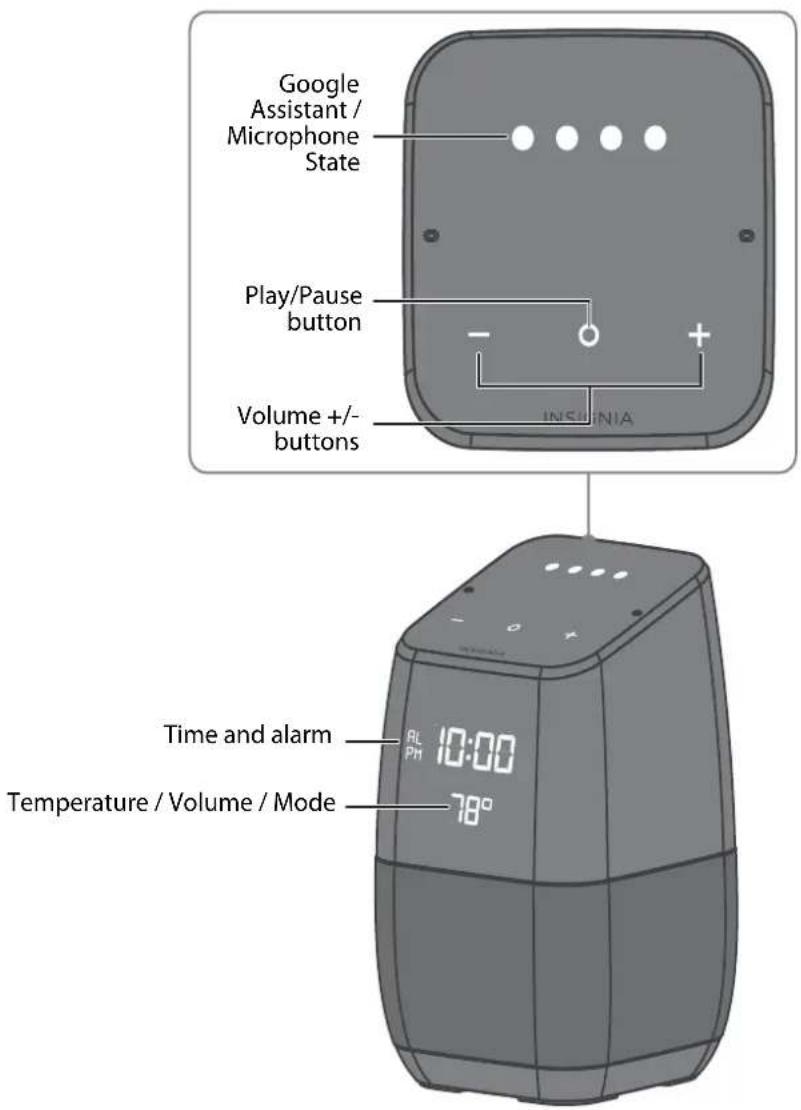
| BUTTONS | DESCRIPTION | ||
| - | ○ | + | |
| × | Press to lower your volume. Press and hold to decrease it quickly. | ||
| × | Press to increase your volume. Press and hold to increase it quickly. | ||
| וPress quickly to play or pause your audio.• Hold for four seconds to activate the Google Assistant. | |||
| × | × | Press to lower your display brightness. Press and hold to lower it quickly.Note: Use audio controls to completely turn off the display (for example, say “Hey Google, turn off the display light.”). | |
| × | × | Press to raise your display brightness. Press and hold to raise it quickly. | |
| × | × | • Hold for four seconds to turn on Bluetooth mode and pair your device.• Press quickly to turn Bluetooth off. | |
| × | × | × | Press repeatedly to check your battery level, device mode, temperature, and other system statuses.Note: The display turns off after four seconds. |
Back
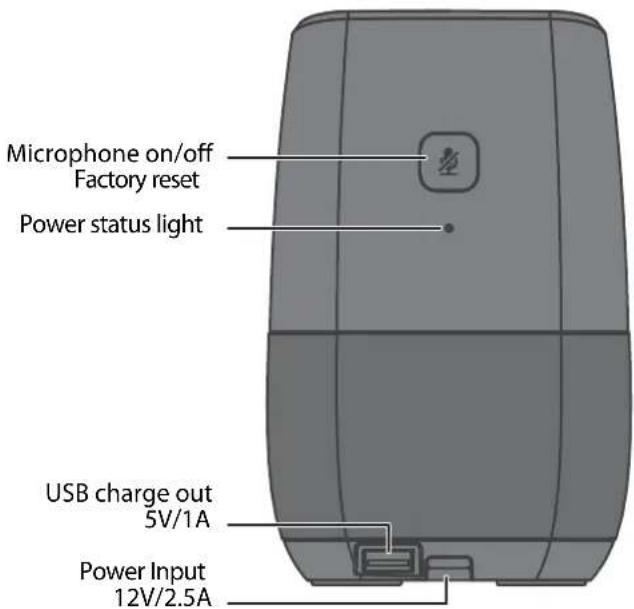
| FEATURE DESCRIPTION | |
| Power Input Plug in to turn your speaker on. The white LED on the back of your speaker blinks slowly, then turns on. | |
| Microphone on/off/Factory reset | • Short press to turn microphone on or off. The orange LEDs on the top of your speaker light solid when the microphone is muted.• Press for 12 seconds to reset the product. |
| USB charge out Connect to your device to supply 5V/1A charging. | |
| Proximity | • Quick hand wave (less than 1 second): Illuminates your buttons and lowers the volume/snoozes your alarm• Hold hand over: Lowers brightness of all buttons• Touch button: Raises button to full brightness |
Setting up your speaker
To set up your speaker, you will need your speaker, its power adapter, and a phone or tablet.
1 Place your speaker in a convenient location.
2 Plug one end of the power adapter into a power outlet, then plug the other end into your speaker. Your speaker powers on.
3 Make sure that your Wi-Fi, Location Services (GPS), and Bluetooth are turned on/enabled on your device.
4 Make sure that the clock on your device is set to the correct time.
5 Download and run the Google Home app on a phone or tablet to set up your speaker.
6To use Google Assistant, you must sign in to your Google Account.
For more help, visit g.co/home/setup.
Google Assistant
Just start by saying "Ok Google" or "Hey Google," then ask it questions or tell it to do things.
Use these anytime:
- "Play some music"
- "Turn up the volume"
• "What's the weather like in Minneapolis?"
The LEDs on the top of your speaker are white while it recording your question.
Learn more about what your Assistant can do at: http://assistant.google.com/discover/.
Google Chromecast built in
Follow the three steps below to enjoy this feature:
1 Connect a phone or tablet to the same Wi-Fi network as your speaker using the Google Home App.
2 Cast podcasts, music, and more from 100+ Chromecast-enabled apps.
3 Tap the Cast button in a Chromecast-enabled app to play music on your speaker.
Bluetooth Set-up
This speaker is equipped with Bluetooth to allow wireless playback from any Bluetooth-enabled phone or tablet.
1 Press and hold the - and + buttons for four seconds to enter Bluetooth-pairing mode.
2 Tap "NS-CSPGASP" or the device name you entered during Google Home app setup on your device to pair with your speaker.
3 After your speaker and your device are paired, you can stream music from your device to your speaker.
Frequently asked questions
| QUESTION ANSWER | |
| What is a smart speaker? A smart speaker is a speaker that has microphones to pick up voice commands, connects to your home Wi-Fi, and can be used to control all of your smart home gadgets. | |
| Which virtual assistant does this speaker have? | This speaker has Google Assistant built in. |
| Which smart gadgets does this speaker work with? | Google Home currently supports Nest, SmartThings, Philips Hue, IFTTT for smart home devices, and more to come. To control these smart gadgets, you will need to set up your speaker, purchase and set up a hub, and purchase and set up smart gadgets. See the instructions manual that comes with your purchased hub or smart gadget for more information. |
| How many speakers are in this device? | This device has two speakers. |
| What is the speaker wattage? | This speaker's wattage is 8W. |
| Can others use this speaker? | Yes. The voice detection is not tied to a specific person. |
| Can you change the speaker's Hot Word from "Ok Google"? | No. You cannot change the Hot Word, but you may use "Hey Google" as an alternate Hot Word. |
| Does this speaker work with Android TV devices, Chromecast, or Chromecast Audio? | Yes. |
| Does this speaker record information? | When you wake up the speaker via pressing and holding the Play/Pause button or by saying "OK Google" or "Hey Google," the speaker will submit anything that is spoken as a Google search. These submissions are recorded and can be viewed online. You can delete anything or everything you've said from your history. |
| What accessories, IOT devices, and music services does this speaker work with? | Check out these compatible services and more at: http://assistant.google.com/discover/. |
| Can this speaker make phone calls? | No. However, you can use a third party communicator, such as IFTTT, to prompt a trigger to have your Google Assistant dial someone with a phone when the trigger is prompted. This method of calling is intended for emergencies only. |
| What do you need to use this speaker? | A smartphone or tablet, the Google Home app, and a Wi-Fi connection. |
| Does this speaker link to Google Calendar? | Yes. This speaker can connect with your calendar through the Google Assistant and can provide updates and a daily briefing of upcoming events. |
| How do I turn this speaker on and off? | This speaker turns on when plugged in, and it turns off when unplugged. |
| How do I use voice commands with this speaker? | Press and hold the Play/Pause button or say “OK Google” or “Hey Google,” then say your command. |
| Does Google Assistant speak or answer to foreign languages? | Google Assistant is not available in all languages. You can set your preferred language during set up in the Google Home app. Only one language can be set at a time. |
| Can I plug this speaker in and use it in other countries? | The power adapter senses voltage and supports 110–240V. All you need is the appropriate plug adapter. However, some apps may not be supported in other countries. |
| Can I play music/podcasts that I have downloaded to my phone on this speaker? | Yes. Connect your device to the speaker via Bluetooth, then play anything you like. |
| Can this speaker use multiple services simultaneously? | No. You can only use one service at a time. |
| How do I change this speaker's location information? | You can change this speaker's location information via the Google Home app. |
| How far away can this speaker pick up voice? | In a quiet room an average-volume voice, Google Assistant can be triggered within 30 feet. As volume increases in the room, you must be closer to activate Google Assistant. |
| What Android OS is needed for the apps that are used with the speaker? | You need Android 4.3 or higher to use this speaker. |
| Is this speaker compatible with Apple products? | Yes. |
| Does this speaker use any data from my cell service? | No. |
Specifications
| Dimensions (W × D × H) | 3.7 × 3.7 × 5.9 in. (96 × 96 × 151.6 mm) |
| Weight 19.4 oz. (550 g) | |
| Power input 12V/2.5A | |
| USB power out 5V/1A | |
| Speaker wattage 8W | |
| Power cord length 4.9 ft. (1.5 m) | |
| Maximum ambient temperature 95°F (35°C) | |
| Android OS 4.3 or higher | |
Troubleshooting
| PROBLEM SOLUTION | |
| No power • Make sure that your speaker is plugged in. | |
| No sound or low volume in Bluetooth mode | • Make sure that your Bluetooth device is turned on, Bluetooth is turned on, and NS-CSPGASP or the device name you entered during Google Home App setup is selected.• Turn up the volume on your speaker.• Turn up the volume on your Bluetooth device.• Make sure that your Bluetooth device is not muted.• Make sure that your speaker is not paired to another Bluetooth device.• Make sure that your Bluetooth device is not paired to another Bluetooth device. |
| Cannot establish Bluetooth connection | • Shorten the distance between your speaker and your Bluetooth device.• Turn your devices off, then on. Re-pair your speaker and your Bluetooth device.• Make sure that your speaker is not paired to another Bluetooth device.• Make sure that your speaker and Bluetooth device are both in pairing mode.• Make sure that your Bluetooth device supports Bluetooth v4.0 and below.• Make sure that your Bluetooth device is not connected to any other device.• Make sure that you have selected NS-CSPGASP or the device name you entered during Google Home App setup. |
| My Bluetooth device keeps unpairing | • Shorten the distance between your speaker and your Bluetooth device. |
| “NS-CSPGASP” does not appear on my Bluetooth device | • Shorten the distance between your speaker and your Bluetooth device.• Put your speaker into pairing mode, then refresh your list of Bluetooth devices. For more information, see the documentation that came with your Bluetooth device. |
| My device cannot connect to Wi-Fi | • Check the Wi-Fi settings on your device to make sure that Wi-Fi is turned on.• Make sure that you selected the right network and entered the correct password.• Make sure that your router/modem is on and that you are within range of it.• Turn your device off, then back on.• Reset your router/modem. |
| The Google Home app cannot find the device | • Make sure that your device has power and is on.• Make sure that your network is working properly.• Make sure that your router/modem is on and that you are within range of it.• Make sure that the mobile phone has location setting enabled. |
Note
If you try the solutions suggested above and still have connection or operation issues, reset your speaker by pressing the Microphone button for 12 seconds.
Legal notices
Warning: Changes or modifications to this unit not expressly approved by the party responsible for compliance could void the user's authority to operate the equipment.
Note: This equipment has been tested and found to comply with the limits for a Class B digital device, pursuant to Part 15 of the FCC Rules. These limits are designed to provide reasonable protection against harmful interference in a residential installation. This equipment generates, uses, and can radiate radio frequency energy and, if not installed and used in accordance with the instructions, may cause harmful interference to radio communications.
However, there is no guarantee that interference will not occur in a particular installation. If this equipment does cause harmful interference to radio or television reception, which can be determined by turning the equipment off and on, the user is encouraged to try to correct the interference by one or more of the following measures:
- Reorient or relocate the receiving antenna.
- Increase the separation between the equipment and receiver.
- Connect the equipment into an outlet on a circuit different from that to which the receiver is connected.
- Consult the dealer or an experienced radio/TV technician for help.
This device complies with Part 15 of the FCC Rules. Operation is subject to the following two conditions: (1) this device may not cause harmful interference, and (2) this device must accept any interference received, including interference that may cause undesired operation.
RF Exposure Statement
To maintain compliance with FCC's RF Exposure guidelines, this equipment should be installed and operated with a minimum distance of 20 centimeters between the radiator and your body.
Industry Canada Compliance
IC Statement
This device complies with Industry Canada licence-exempt RSS standard(s).
Operation is subject to the following two conditions:
(1) this device may not cause interference, and
(2) this device must accept any interference, including interference that may cause undesired operation of the device. Le présent appareil est conforme aux CNR d'Industrie Canada applicables aux appareils radio exempts de licence.
L'exploitation est autorisée aux deux conditions suivantes :
This equipment complies with IC RF radiation exposure limits set forth for an uncontrolled environment. This equipment should be installed and operated with a minimum distance of 20 centimeters between the radiator and your body.
The Distributor* of Insignia branded products warrants to you, the original purchaser of this new Insignia-branded product ("Product"), that the Product shall be free of defects in the original manufacturer of the material or workmanship for a period of one (1) year from the date of your purchase of the Product ("Warranty Period").
For this warranty to apply, your Product must be purchased in the United States or Canada from a Best Buy branded retail store or online at www.bestbuy.com or www.bestbuy.ca, and is packaged with this warranty statement.
How long does the coverage last?
The Warranty Period lasts for 1 year (365 days) from the date you purchased the Product. Your purchase date is printed on the receipt you received with the Product.
What does this warranty cover?
During the Warranty Period, if the original manufacture of the material or workmanship of the Product is determined to be defective by an authorized Insignia repair center or store personnel, Insignia will (at its sole option): (1) repair the Product with new or rebuilt parts; or (2) replace the Product at no charge with new or rebuilt comparable products or parts. Products and parts replaced under this warranty become the property of Insignia and are not returned to you. If service of Products or parts are required after the Warranty Period expires, you must pay all labor and parts charges. This warranty lasts as long as you own your Insignia Product during the Warranty Period. Warranty coverage terminates if you sell or otherwise transfer the Product.
How to obtain warranty service?
If you purchased the Product at a Best Buy retail store location, please take your original receipt and the Product to any Best Buy store. Make sure that you place the Product in its original packaging or packaging that provides the same amount of protection as the original packaging. If you purchased the Product from a Best Buy online web site (www.bestbuy.com or www.bestbuy.ca), mail your original receipt and the Product to the address listed on the web site. Make sure that you put the Product in its original packaging or packaging that provides the same amount of protection as the original packaging.
To obtain warranty service, in the United States call 1-888-BESTBUY, Canada call 1-866-BESTBUY. Call agents may diagnose and correct the issue over the phone.
Where is the warranty valid?
This warranty is valid only in the United States and Canada at Best Buy branded retail stores or websites to the original purchaser of the product in the county where the original purchase was made.
What does the warranty not cover?
This warranty does not cover:
- Food loss/spoilage due to failure of refrigerator or freezer
- Customer instruction/education
- Installation
- Setup adjustments
- Cosmetic damage
- Damage due to weather, lightning, and other acts of God, such as power surges
- Accidental damage
- Misuse
- A b u s e
• Negligence
- Commercial purposes/use, including but not limited to use in a place of business or in communal areas of a multiple dwelling condominium or apartment complex, or otherwise used in a place of other than a private home.
- Modification of any part of the Product, including the antenna
- Display panel damaged by static (non-moving) images applied for lengthy periods (burn-in).
- Damage due to incorrect operation or maintenance
- Connection to an incorrect voltage or power supply
- Attempted repair by any person not authorized by Insignia to service the Product
- Products sold "as is" or "with all faults"
- Consumables, including but not limited to batteries (i.e. AA, AAA, C etc.)
- Products where the factory applied serial number has been altered or removed
- Loss or Theft of this product or any part of the product
- Display panels containing up to three (3) pixel failures (dots that are dark or incorrectly illuminated) grouped in an area smaller than one tenth (1/10) of the display size or up to five (5) pixel failures throughout the display. (Pixel based displays may contain a limited number of pixels that may not function normally.)
- Failures or Damage caused by any contact including but not limited to liquids, gels or pastes.
REPAIR REPLACEMENT AS PROVIDED UNDER THIS WARRANTY IS YOUR EXCLUSIVE REMEDY FOR BREACH OF WARRANTY. INSIGNIA SHALL NOT BE LIABLE FOR ANY INCIDENTAL OR CONSEQUENTIAL DAMAGES FOR THE BREACH OF ANY EXPRESS OR IMPLIED WARRANTY ON THIS PRODUCT, INCLUDING, BUT NOT LIMITED TO, LOST DATA, LOSS OF USE OF YOUR PRODUCT, LOST BUSINESS OR LOST PROFITS. INSIGNIA PRODUCTS MAKES NO OTHER EXPRESS WARRANTIES WITH RESPECT TO THE PRODUCT, ALL EXPRESS AND IMPLIED WARRANTIES FOR THE PRODUCT, INCLUDING, BUT NOT LIMITED TO, ANY IMPLIED WARRANTIES OF AND CONDITIONS OF MERCHANTABILITY AND FITNESS FOR A PARTICULAR PURPOSE, ARE LIMITED IN DURATION TO THE WARRANTY PERIOD SET FORTH ABOVE AND NO WARRANTIES, WHETHER EXPRESS OR IMPLIED, WILL APPLY AFTER THE WARRANTY PERIOD. SOME STATES, PROVINCES AND JURISDICTIONS DO NOT ALLOW LIMITATIONS ON HOW LONG AN IMPLIED WARRANTY LASTS, SO THE ABOVE LIMITATION MAY NOT APPLY TO YOU. THIS WARRANTY GIVES YOU SPECIFIC LEGAL RIGHTS, AND YOU MAY ALSO HAVE OTHER RIGHTS, WHICH VARY FROM STATE TO STATE OR PROVINCE TO PROVINCE.
Contact Insignia:
For customer service please call 1-877-467-4289
www.insigniaproducts.com
INSIGNIA is a trademark of Best Buy and its affiliated companies.
Distributed by Best Buy Purchasing, LLC
7601 Penn Ave South, Richfield, MN 55423 U.S.A.
©2017 Best Buy. All rights reserved.
Made in China
INSIGNIA
For product inquiries, please contact us with the information below:
1-877-467-4289
www.insigniaproducts.com
INSIGNIA is a trademark of Best Buy and its affiliated companies.
Distributed by Best Buy Purchasing, LLC
7601 Penn Ave South, Richfield, MN 55423 U.S.A.
©2017 Best Buy. All rights reserved.
Made in China
- Insignia Voice™ Speaker With Google Assistant Built in
- INSIGNIA™
- Contents
- Insignia Voice™ Speaker
- Introduction
- Important Safety Instructions
- Package contents
- Features
- Google Assistant features
- Insignia Voice™ features
- Control panel
- Front
- Back
- Setting up your speaker
- Google Assistant
- Google Chromecast built in
- Bluetooth Set-up
- Frequently asked questions
- Note
- Legal notices
- RF Exposure Statement
- Industry Canada Compliance
- IC Statement
- How long does the coverage last?
- What does this warranty cover?
- How to obtain warranty service?
- Where is the warranty valid?
- What does the warranty not cover?
- INSIGNIA
Brand : INSIGNIA
Model : Voice NS-CSPGASP-BC
Category : Loudspeaker