AS6204RD - NAS Asustor - Free user manual and instructions
Find the device manual for free AS6204RD Asustor in PDF.


| Type of Product | NAS (Network Attached Storage) |
| Model | AS6204RD |
| Brand | Asustor |
| Form Factor | Rackmount (1U) |
| Drive Bays | 4x 3.5-inch SATA III (compatible with 2.5-inch) |
| Processor | Intel Atom C2538 2.4 GHz Quad-Core |
| Memory | 2 GB DDR3 (expandable up to 16 GB) |
| RAID Support | RAID 0, 1, 5, 6, 10, JBOD, Single |
| Networking | 2x Gigabit Ethernet (RJ-45) |
| USB Ports | 2x USB 3.0, 2x USB 2.0 |
| Dimensions (W x D x H) | 430 x 410 x 44 mm (16.9 x 16.1 x 1.7 in) |
| Weight | 5.8 kg (12.8 lb) without drives |
| Power Supply | 120W AC adapter, 100-240V, 50/60 Hz |
| Power Consumption | 32.1W (access), 13.6W (hibernation) |
| Supported File Systems | EXT4, Btrfs, FAT, NTFS, HFS+ |
| Max Internal Capacity | 40 TB (10 TB x 4) |
| Cooling | 2x 40mm cooling fans |
| Operating Temperature | 0°C to 40°C (32°F to 104°F) |
| Certifications | CE, FCC, VCCI, BSMI |
| Package Contents | NAS unit, power adapter, Ethernet cable, screw kit, quick installation guide |
| Warranty | 3 years limited |
Frequently Asked Questions - AS6204RD Asustor
User questions about AS6204RD Asustor
0 question about this device. Answer the ones you know or ask your own.
Ask a new question about this device
Download the instructions for your NAS in PDF format for free! Find your manual AS6204RD - Asustor and take your electronic device back in hand. On this page are published all the documents necessary for the use of your device. AS6204RD by Asustor.
USER MANUAL AS6204RD Asustor
For Network Attached Storage
Ver.3.4.0.0514 (For ADM 3.4)
Table of Contents
- Introduction 4
- Getting Started with ASUSTOR Data Master 9
Installing ASUSTOR NAS and ADM 9
Logging in to ASUSTOR Data Master 9
Searchlight 11
Taskbar 12
- Pre-Installed Apps 13
Settings 13
See More....29
Services 30
Storage Manager 42
Snapshot Center 50
EZ Sync Manager 59
Access Control 69
Backup & Restore....79
App Central 86
External Devices 87
System Information 91
Activity Monitor 94
File Explorer 95
- From App Central 98
Download Center 98
FTP Explorer 99
Surveillance Center 100
UPnP AV Media Server 101
iTunes Server 102
SoundsGood 103
LooksGood 104
Photo Gallery 105
VPN Server 106
Takeasy 106
ASUSTOR Portal 107
Antivirus Protection 109
Mail Server....109
Syslog Server 110
DataSync for Dropbox....110
DataSync for Microsoft OneDrive....111
DataSync for Google Drive....112
HiDrive Backup 112
DataSync for hubiC....113
DataSync for Yandex 114
- Utilities 116
ACC (ASUSTOR Control Center)....116
AEC (ASUSTOR EZ Connect) 117
ABP (ASUSTOR Backup Plan) 117
ADA (ASUSTOR Download Assistant) 118
- Mobile Apps.... 119
AiData 119
AiMaster....120
AiRemote 121
AiDownload 122
AiMusic 123
AiFoto 123
AiVideos....124
AiSecure 125
- Appendix 127
Permission Mapping Table 127
-
EULA 128
-
GNU General Public License 130
1. Introduction
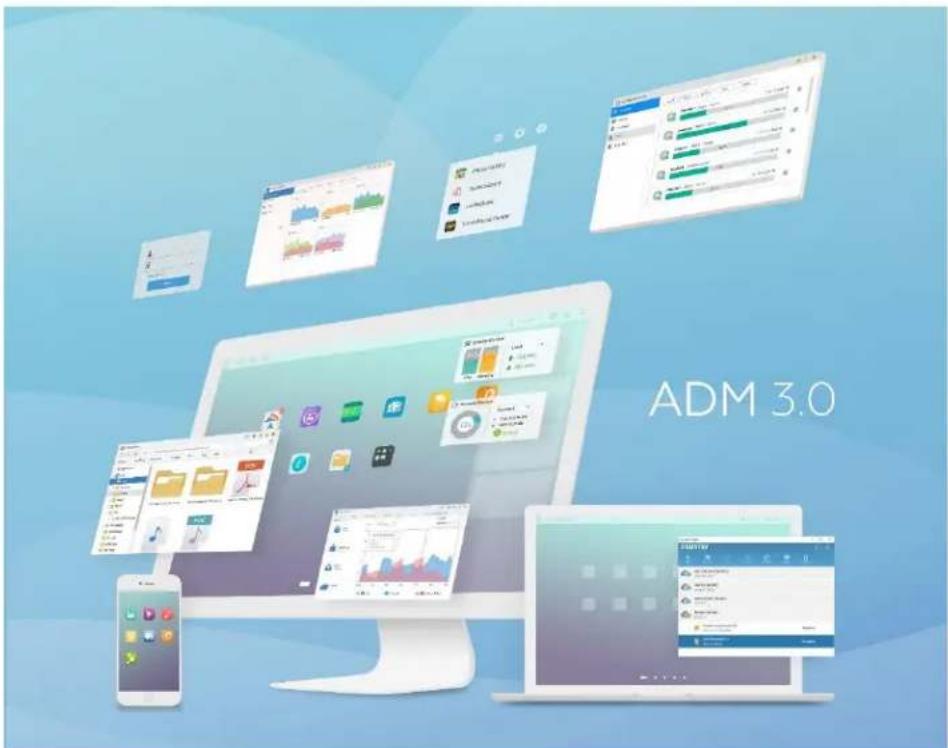
text_image
ADM 3.0Thank you for choosing ASUSTOR network attached storage (NAS).
From cross-platform file sharing to multimedia server applications to App Central, ASUSTOR NAS provides you with a rich assortment of features, allowing you to explore the unlimited potential of NAS.
ADM: The Amazing Starts Here
Your NAS comes preloaded with ASUSTOR Data Master (ADM), an operating system developed by ASUSTOR. Designed around the use of Apps, ADM's intuitive web-based interface allows for easy organization and a user-friendly experience. This user manual will introduce you to all the rich assortment of preloaded applications (Apps) on your NAS.
natural_image
Two desktop devices: a computer monitor displaying app icons and a laptop displaying a web interface (no visible text or symbols on the devices themselves)Your Ideal Private Cloud
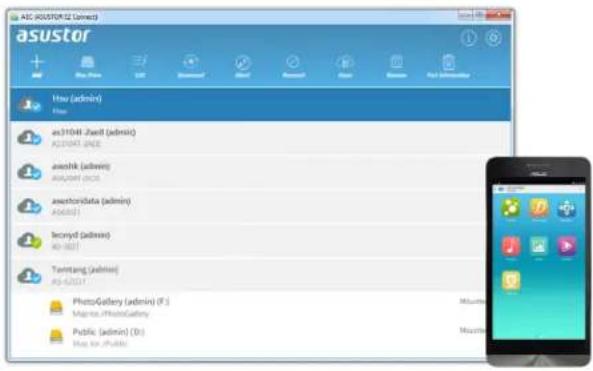
ASUSTOR's exclusive EZ Connect™ technology lets you access your NAS from almost anywhere on the planet. Whether by computer or mobile device you need only an Internet connection to access your NAS from anywhere and at any time.
text_image
Asustor How (admin) as31048: ZweiB (admin) A52048 (DNS) aschik (admin) A52048 (DNS) aschorizata (admin) A56031 secmyd (admin) A5-8021 Tentang (admin) A5-62031 PhotoGallery (admin) (F:) Major PhotoGallery Public (admin) (D:) Map for PPTs MacromCross-Platform File Sharing
ASUSTOR NAS provides flawless cross-platform file sharing. No matter what operating system you are using, you can still effortlessly connect to your NAS and access your data.
natural_image
Illustration of Windows and Apple Cloud with a penguin mascot, no text or symbols presentEmbrace the Cloud, Enjoy Peace of Mind
Experience the convenience of cloud computing in a stress free environment. ASUSTOR's ADM Defender and support for encryption provide the highest standard of security for your system.

text_image
AES 256-bitYour Data is Safe with Us
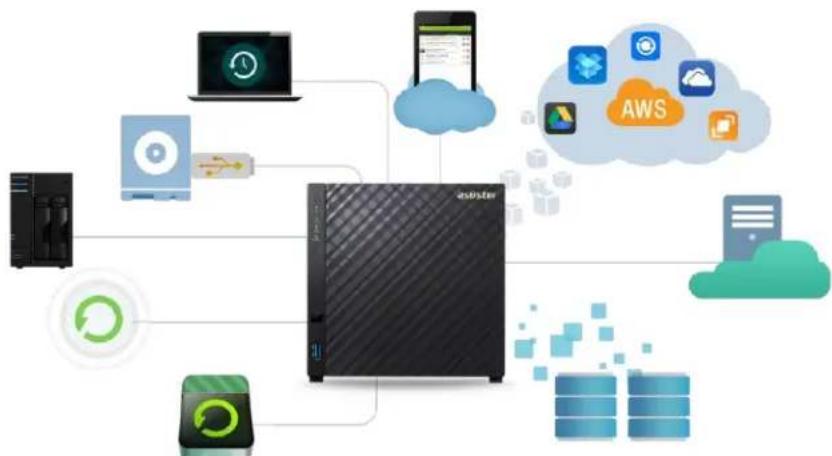
ASUSTOR NAS offers a complete host of data protection and backup solutions. Features such as RAID and two-way transfer support offer bullet-proof protection and flexible application. Savor a stress free and liberating user experience.
flowchart
graph TD
    A["Server"] --> B["Data Processor"]
    C["Cloud Server"] --> B
    D["Mobile Phone"] --> B
    E["Desktop"] --> B
    F["Cloud Cloud"] --> B
    G["Cloud Server Database"] --> B
    H["Database Server"] --> B
    I["Server"] --> J["Data Processor"]
    K["Cloud Server"] --> J
    L["Cloud Cloud"] --> J
    M["Cloud Server Database"] --> J
    N["Server"] --> O["Data Processor"]
    P["Cloud Server"] --> O
    Q["Cloud Cloud"] --> O
    R["Cloud Server Database"] --> O
    S["Server"] --> T["Data Processor"]
    U["Cloud Server"] --> T
    V["Cloud Cloud"] --> T
    W["Cloud Server Database"] --> T
    X["Server"] --> Y["Data Processor"]
    Z["Cloud Server"] --> Y
    AA["Cloud Cloud"] --> Y
    AB["Cloud Server Database"] --> Y
    AC["Cloud Server Database"] --> Y
    AD["Cloud Cloud"] --> Y
    AE["Cloud Server Database"] --> Y
    AF["Cloud Server Database"] --> Y
    AG["Cloud Cloud"] --> Y
    AH["Cloud Server Database"] --> Y
    AI["Cloud Server Database"] --> Y
    AJ["Cloud Cloud"] --> Y
    AK["Cloud Server Database"] --> Y
    AL["Cloud Server Database"] --> Y
    AM["Cloud Cloud"] --> Y
    AN["Cloud Server Database"] --> Y
    AO["Cloud Server Database"] --> Y
    AP["Cloud Cloud"] --> Y
    AQ["Cloud Server Database"] --> Y
    AR["Cloud Server Database"] --> Y
    AS["Cloud Cloud"] --> Y
    AT["Cloud Server Database"] --> Y
    AU["Cloud Server Database"] --> Y
    AV["Cloud Cloud"] --> Y
    AW["Cloud Server Database"] --> Y
    AX["Cloud Server Database"] --> Y
    AY["Cloud Cloud"] --> Y
The Hub of Your Home Entertainment
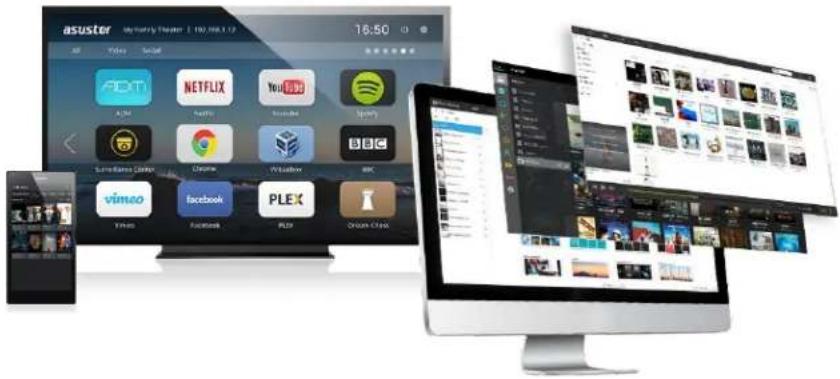
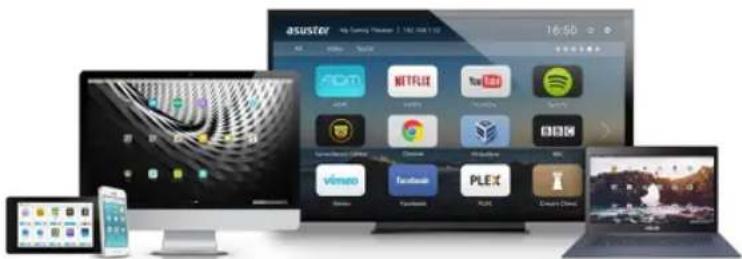
Make ASUSTOR NAS the hub of your home entertainment and enjoy digital entertainment like you never have before. Countless Apps such as ASUSTOR Portal, LooksGood, SoundsGood, Photo Gallery, iTunes Server and UPnP AV Multimedia Server allow you to enjoy digital entertainment in every corner of your home.
text_image
asuster My Family Theater | 19:06.12 18:50 All Views Social ASST NETFLIX YouTube Spotify AUG Netflix YouTube SueTime Center Creative Visualator BBC vimeo facebook PLEX Xerox Facebook PLEX CHINA CLOUDVigilant Security
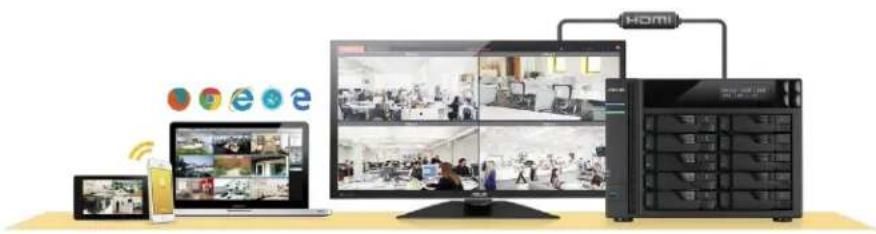
ASUSTOR's Surveillance Center lets you collectively manage an array of IP cameras, helping you keep an eye on your most valued assets. You can even take snapshots and control the pan, tilt and zoom functions of all cameras. In the event of any disruptions, Surveillance Center will notify you at once, giving you complete peace of mind.
text_image
System setup photo showing home control interface with multiple screens, a laptop, and connected devices including a router and smart speaker.iSCSI and Virtualization
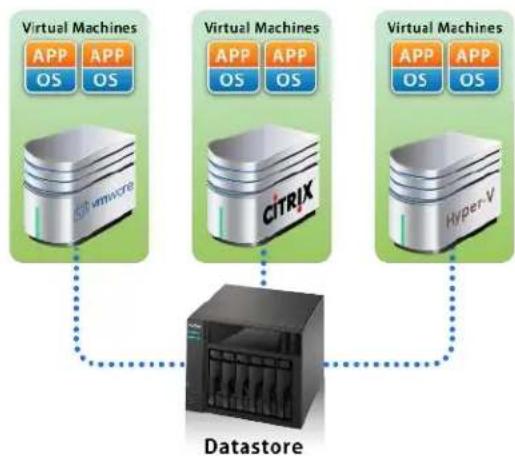
Seamlessly integrate with any existing IT environments. Enjoy flexible and cost-efficient shared storage. ASUSTOR NAS supports the use of iSCSI and NFS in addition to being verified as, Citrix and Hyper-V ready.
flowchart
graph TD
    A["Virtual Machines"] --> B["CTRIX"]
    B --> C["Datastore"]
    C --> D["Virtual Machines"]
    D --> E["Hyper-V"]
    style A fill:#f9f,stroke:#333
    style B fill:#ccf,stroke:#333
    style C fill:#cfc,stroke:#333
    style D fill:#fcc,stroke:#333
Protect Our Planet with ASUSTOR
It is our mission to continue to develop exceptionally energy efficient products. From their inception, all ASUTOR NAS products are designed and developed around ecologically friendly concepts. Features such as, Night Mode, disk hibernation, power scheduling and fan control all help you to save power. Furthermore, each ASUTOR NAS is fully compliant with EuP standards (EuP 2.0).

natural_image
Illustration of a blue circular button with a green lightning bolt surrounded by green leaves (no text or symbols)Enrich Your Mobile Life
Imagine having your photos, media files and important documents always at your fingertips. ASUSTOR offers an array of mobile applications to make your digital lifestyle complete.

natural_image
Mobile app icons including music note, location pin, play button, and video camera (no text or symbols)App Central: Unleash the Unlimited Potential of NAS
The Apps that come pre-installed with ASUSTOR NAS are just the beginning. At your convenience, browse through and download any additional Apps that peak your interest from App Central. Explore the unlimited potential of ASUSTOR NAS while creating a personalized NAS for yourself.

natural_image
Illustration of a server rack with floating app icons (no text or symbols)Online Resources
Forum (English): http://forum.asustor.com
Downloads: http://www.asustor.com/service/downloads
Technical Support: http://support.asustor.com
Terms of Use
All ASUSTOR products have undergone stringent and comprehensive testing. Under normal user operation and within the warranty period, ASUSTOR will assume responsibility for any hardware failures. Before using this product, please read the End-User License Agreement (EULA) located at the end of this user manual.
asustor
2. Getting Started with ASUSTOR Data Master
text_image
asuster 16:50 ASSTER http://www.asuster.com/163.com 16:50 ASSTER 16:50 ASSTER 16:50 ASSTER 16:50 ASSTER 16:50 ASSTER 16:50 ASSTER 16:50 ASSTER 16:50 ASSTER 16:50 ASSTER 16:50 ASSTER 16:50 ASSTER 16:50 ASSTERThis section will introduce you to the process of logging in, using Searchlight and using the taskbar in ASUSTOR Data Master (ADM).
Installing ASUSTOR NAS and ADM
Before you begin using your NAS, please make sure that you have installed hard disks, connected the NAS and have properly initialized it. For detailed instructions on setting up your ASUSTOR NAS and installing ADM, please see the Quick Installation Guide for your ASUSTOR NAS model. The Quick Installation Guide may be found on the Installation CD that came with your NAS or downloaded from the Downloads section of the ASUSTOR website (http://www.asustor.com/service/downloads).


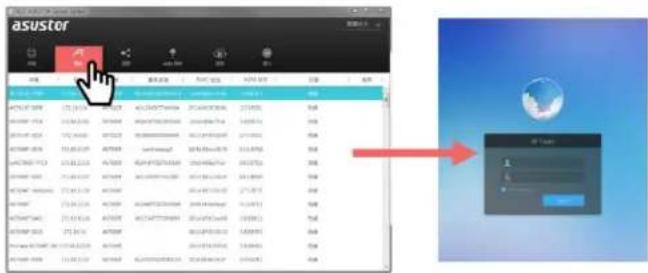
If you already know the IP address for your ASUSTOR NAS on your local area network, you can directly enter it into your web browser to connect to your NAS. For example: http://172.16.1.69:8000/

text_image
http://17216.1.69/8000/ +Leon Gmail 善HIf you are connecting to your ASUSTOR NAS remotely, you can enter your personalized hostname into your web browser to connect to your NAS. For example: http://john.myasustor.com:8000

text_image
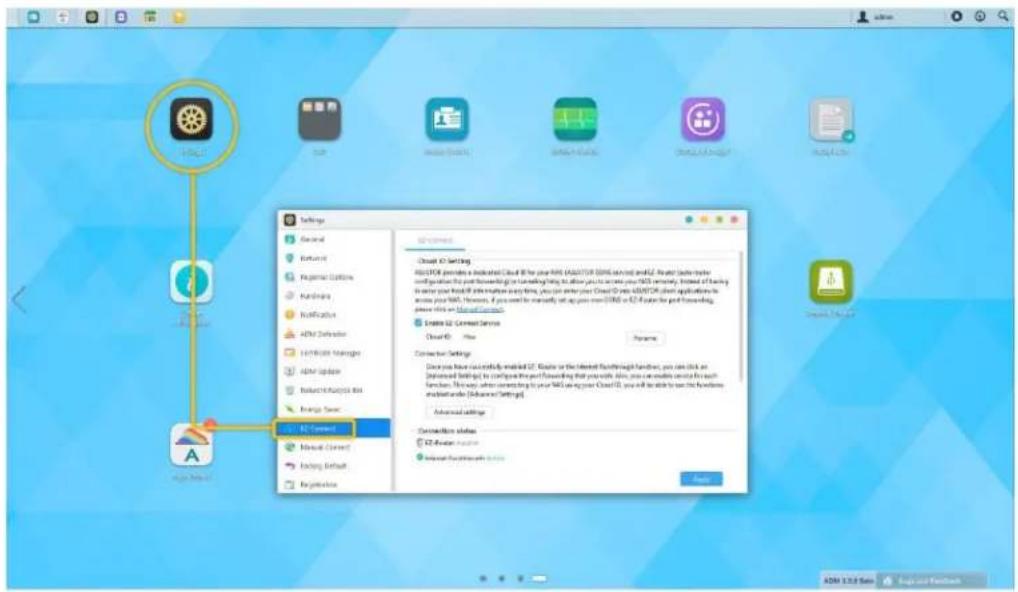
新增分享 http://john.myasustor.com@000 +Leon Gmail 麦Reminder: When connecting remotely, please remember to register your NAS and then enable EZ Connect under [Settings] → [EZ-Connect] → [Enable EZ-Connect Service].
After configuring a Cloud ID for your NAS, you will be able to connect to it remotely using your customized hostname.
text_image
AC Connect AC Connect Settings AC/DCP provides a installed Cloud 8 for your NMS (AC/DCP) 8000 settings and includes a local server icon configuration to perform forwarding or downloading help, to allow you to access your NOS security. Instead of being in order your health information every time, you can enter your Cloud 8 or AC/DCP. This application is to access your NOS security. If you need to primarily set up your own NOS or AC/DCP for post-forwarding, then press any network connection. Create DC: Connect Service Close 80: New Connect bus Settings Device you have successfully installed DC: Router or the Internet Flashthrough Function, you can click an Additional setting to configure the post-forwarding that you will. Also, you can create a local file for each function. This way when connecting to your NOS are your Cloud 8, you will also use the network implementation [Subserver Settings] Advanced settings Connection status DC-Server Status Access Functionless Status Add Add SubSearchlight
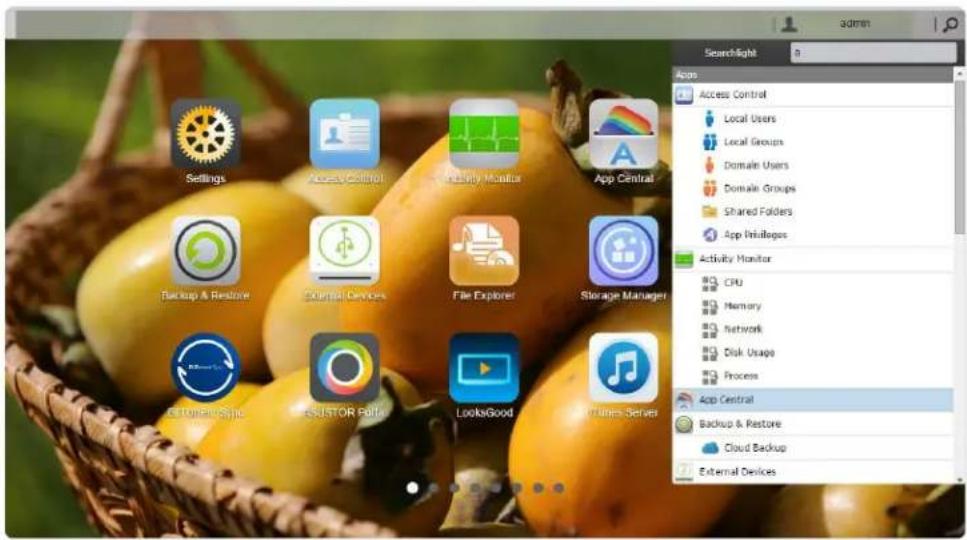
Developed by ASUSTOR, Searchlight is a rapid search technology that is built into ADM and provides quick and precise searches allowing you to easily find the files that you need. After logging in to ADM you will be able to find Searchlight's magnifying glass icon on the taskbar in the upper right-hand corner of the screen.
text_image
Settings Access Control Activity Monitor App Central Backup & Restore Searchlight Access Control Local Users Local Groups Domain Users Domain Groups Shared Folders App Privileges Activity Monitor CPU Memory Network Disk Usage Process App Central Backup & Restore Cloud Backup External DevicesTaskbar
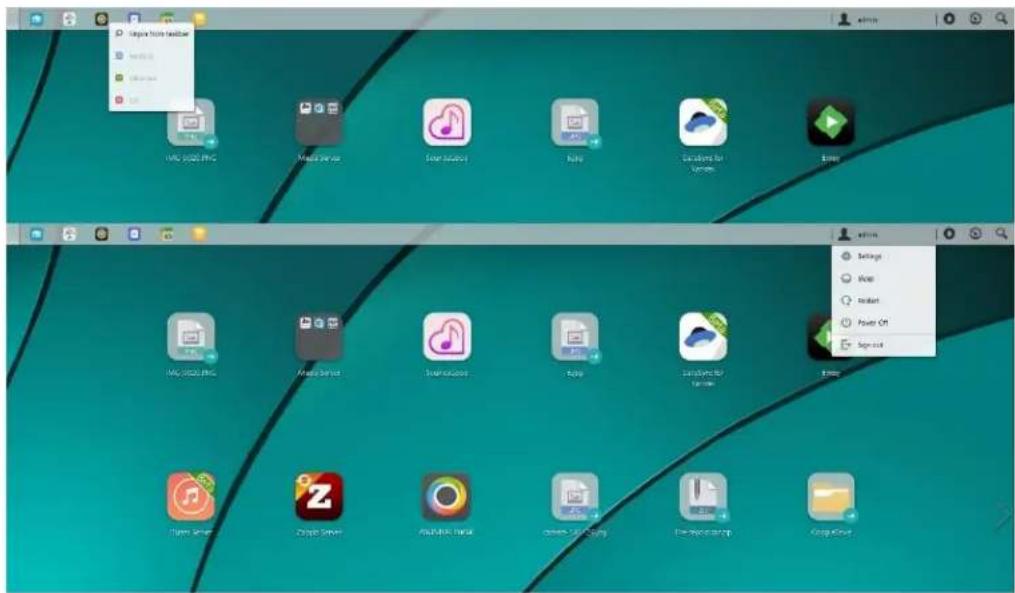
The ADM taskbar allows you to directly [Pin to taskbar], [Restore], [Minimize], [Close] any Apps that are on it. In the [Account] menu you will see items for [Settings], [Sleep], [Restart], [Restart], [Shut down] and [Sign out].activity
text_image
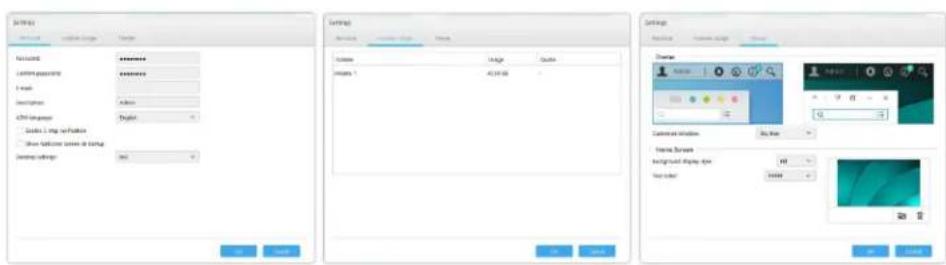
Options from localise Windows Microsoft Teams Java Settings for Windows Options Options Options Options Options Options Options Options Options Options Options Options Options Options Options Options Options Options Options Options Options Options Options Options Options Options Options Options Options Options Options Options Options Options Options Options Options Options Options Options Options Options Options Options Options Options Options Options Options Options Other Users Other Users Other Users Other Users Other Users Other Users Other Users Other Users Other Users Other Users Other Users Other Users Other Users Other Users Other Users Other Users Other Users Other Users Other Users Other Users Other Users Other Users Other Users Other Users Other Users Other Users Other Users Other Users Other Users Other Users Other Users Other Users Other Users Other UsersSelecting [Settings] will provide you with tabs for [Personal], [Volume Usage] and [Theme].
text_image
SUPPORT Default Default name Description Settings Settings Settings Settings Settings Settings Settings Settings Settings Settings Settings Settings Settings Settings Settings Settings Settings Settings Settings Settings Settings Settings Settings Settings Settings Settings Settings Settings Settings Settings Settings Settings Settings Settings Settings Settings Settings Settings Settings Settings Settings Settings Settings Settings Settings Settings Settings Settings Settings Settings Instructions: Settings Settings Settings Settings Settings Settings Settings Settings Settings Settings Settings Settings Settings Settings Settings Settings Settings Settings Settings Settings Settings Settings Settings Settings Settings Settings Settings Settings Settings Settings Settings Settings Settings Settings Settings Settings Settings Settings Settings Settings Settings Settings Settings Settings Settings Settings Settings Settings Settings SettingsPersonal: Here, you can configure the account password, E-mail address, description and ADM language.
Volume Usage: Here, you can view information regarding your hard disk storage volumes such as usage and storage quota.
Theme: Here you can upload images to the NAS or select an image from the NAS to customize your desktop. You can also customize the ADM text colors, position of desktop wallpaper and remove desktop wallpaper. Desktop background themes can be changed according to user preferences. You can also upload their own images to use as the desktop background. The interface font and window button colors can now also be customized for added visual comfort.
3. Pre-Installed Apps

natural_image
Laptop displaying a landscape-themed app interface with gear icons and cloud background (no text or symbols on device)Pre-installed Apps include the configuration of function and service settings for hard disks and hardware. You can configure everything from system related settings to user access rights.
Settings
General
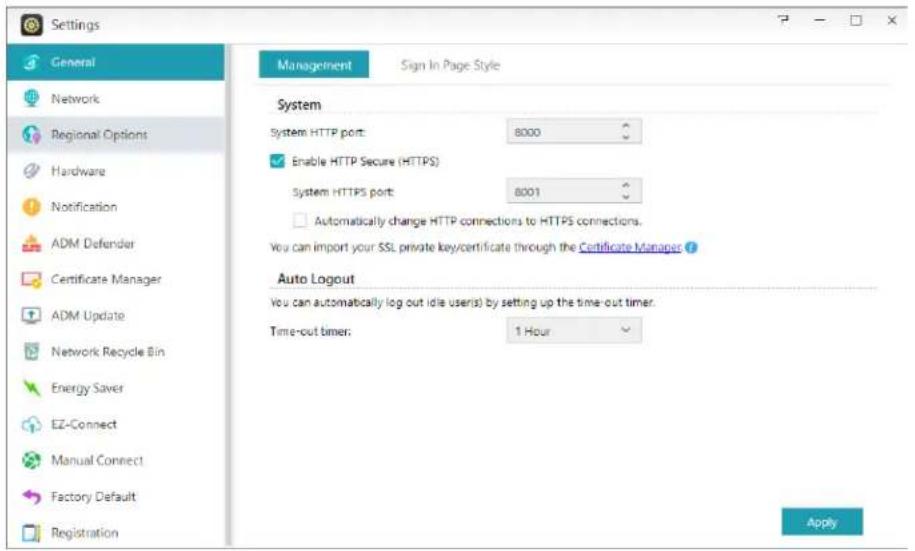
Here you can manage the system HTTP port and auto logout settings. Auto logout will logout users if they remain idle past the specified period of time.
System HTTP Port: This is used to specify the port you wish to use to connect to ADM's web based user interface. You can access your NAS by opening a web browser and entering your IP address followed by a colon and the specified port number.
For example: http://192.168.1.168:8000
Timeout timer: For security concerns, users that remain idle past the specified period of time after logging on will be automatically logged off.
text_image
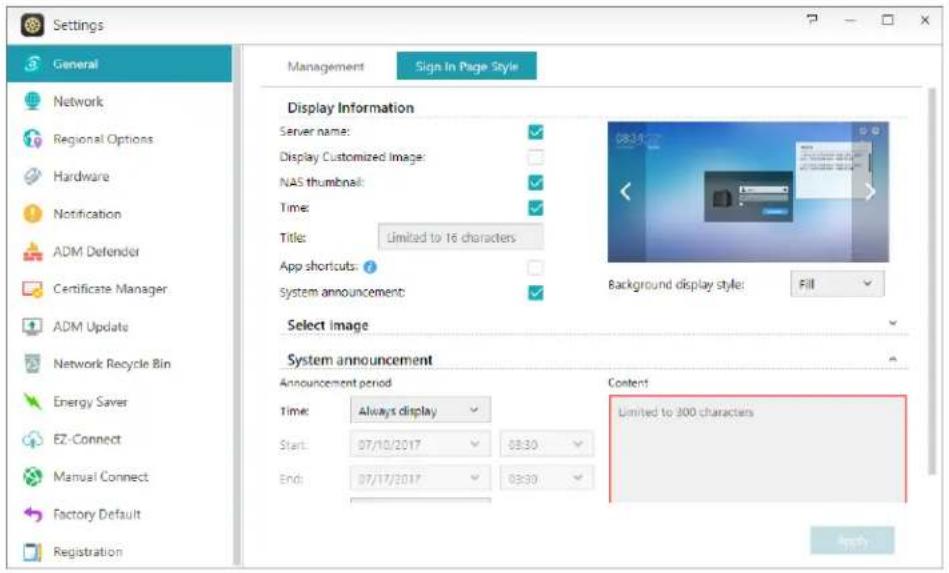
Settings General Network Regional Options Hardware Notification ADM Defender Certificate Manager ADM Update Network Recycle Bin Energy Saver EZ-Connect Manual Connect Factory Default Registration Management Sign In Page Style System System: HTTP port: 8000 Enable HTTP Secure (HTTPS) System: HTTPS port: 8001 Automatically change HTTP connections to HTTPS connections. You can import your SSL private key/certificate through the Certificate Manager ? Auto Logout You can automatically log out idle user(s) by setting up the time-out timer. Time-out timer: 1 Hour Apply→ Sign in page: Under Sign In Page Style you will be able to configure the following:
→ Sign In Page Title: The text entered here will be displayed on the sign in page.
→ Sign In Page Background Image: Here you can change the background image of the sign in page. The image formats currently supported are: JPG
→ Sign In Page Customized Image: Here you can choose to enable or disable the sign in page customized image. Using the crop function you can configure the position and size of the customized image. The image formats currently supported are: JPG
text_image
Settings General Network Regional Options Hardware Notification ADM Defender Certificate Manager ADM Updates Network Recycle Bin Energy Saver EZ-Connect Manual Connect Factory Default Registration Management Sign In Page Style Display Information Server name: Display Customized Image: NAS thumbnail: Time: Title: Limited to 16 characters App shortcuts: System announcement: Select image System announcement Announcement period Content Time: Always display Start: 07/10/2017 03:30 End: 07/17/2017 03:30 Limited to 300 characters ApplyNetwork
Note: This function may differ depending on the NAS model in use.
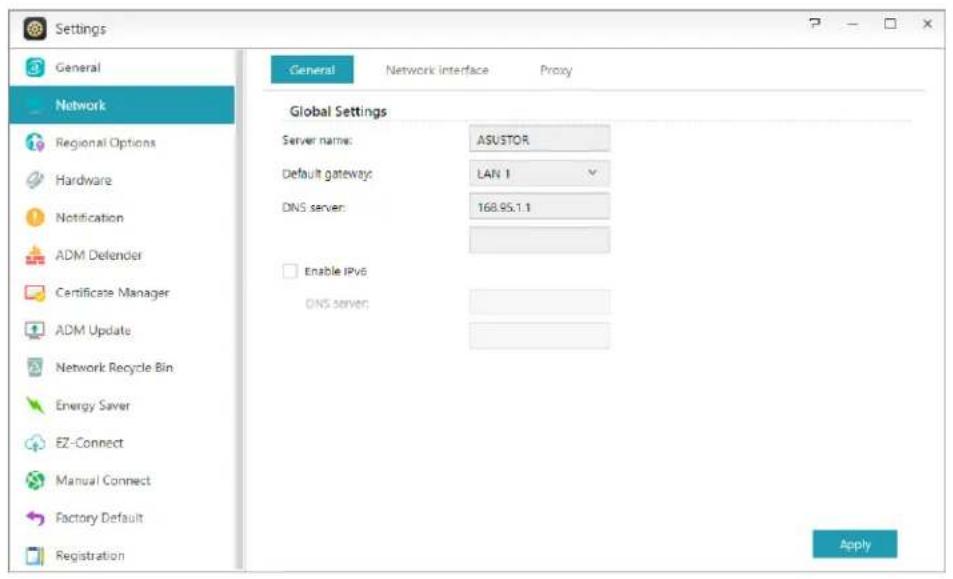
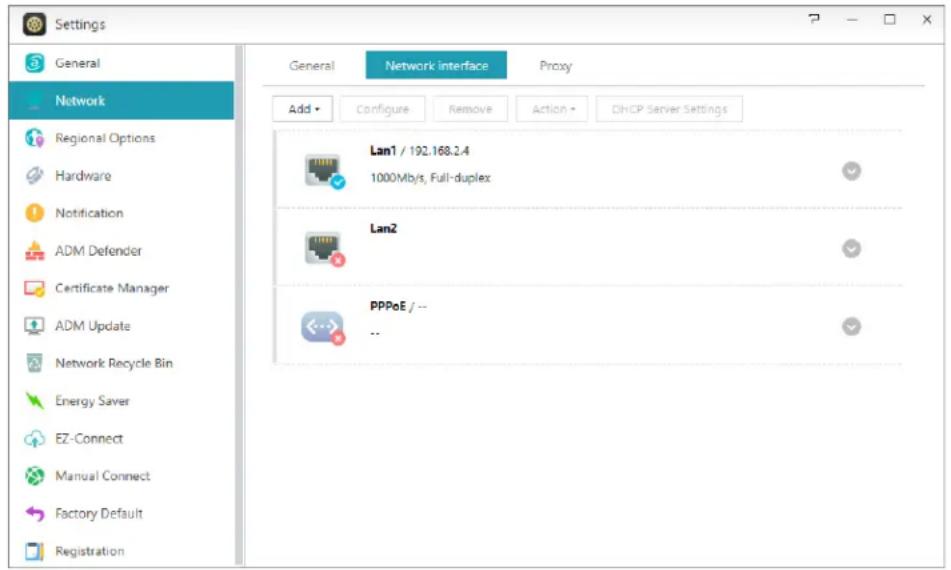
Here you can configure the server name, LAN and Wi-Fi settings. Other settings include IP address, DNS server and default gateway.
text_image
Settings General Network Regional Options Hardware Notification ADM Defender Certificate Manager ADM Update Network Recycle Bin Energy Saver EZ-Connect Manual Connect Factory Default Registration General Network Interface Proxy Global Settings Server name: ASUSTOR Default gateways: LAN 1 DNS server: 168.95.1.1 Enable IPv6 DNS server: Apply→ Server Name: An online name for your NAS.
Default Gateway: The default gateway that you wish to use.
DNS Server: Here you can set the DNS server that you wish to use. Should you choose to obtain your IP address via DHCP the system will automatically obtain the available DNS servers for you. If you choose to manually enter an IP address then you will have to manually enter a DNS server as well.
Reminder: Using an invalid DNS server will affect some network related functions. (i.e., Download Center). If you are uncertain about how to proceed, please choose to obtain your IP address automatically.
→ DHCP DHCP Server Settings: You can configure the DHCP settings only if the IP address was configured manually.
Lease time (hr): Enter a value (1-720) to set the DHCP lease time (in hours) for IP addresses assigned to DHCP clients.
Primary/Secondary DNS: Enter the Primary/Secondary DNS address for DHCP clients.
Domain Name: Set the domain name for the DHCP server.
Subnet List: You can add subnets here.
DHCP Client List: Here you can check the list of DHCP clients and their network configurations (e.g. MAC address, IP address, hostname, and the amount of time left before the DHCP lease expires).
DHCP Reservations: If you want a client to always receive the same IP address during DHCP lease renewal, you can add the client to the DHCP reservation list.
Proxy: Here you can enable proxy server connections, allowing the NAS to connect to the internet via a proxy server.
Proxy Server: The address of the proxy server you wish to connect to. (Supports HTTP and HTTPS)
Port: The communications port of the proxy server.
Authentication: If the proxy server you are using requires authentication, you can enable it here and then enter your username and password.
→ PPPoE
If you are using DSL or a cable modem to connect to the Internet and your Internet service provider uses PPPoE (Point to Point Protocol over Ethernet), you can go to [Settings] > [Network] > [PPPoE] and enter your account information to allow the system to connect to the Internet without having to go through a router. If you wish to get more information about PPPoE, please contact your Internet service provider or network administrator.
→ VPN
Here you can let your ASUSTOR NAS become a VPN client, and via PPTP or Open VPN, connect to a VPN server to access a virtual private network. ASUSTOR NAS supports the use of different connection settings files, allowing you to connect to the VPN server of your choice. The ASUSTOR VPN client currently supports the two most common connection protocols: PPTP and OpenVPN.
Reminder: The VPN client cannot be used simultaneously with the VPN Server. If you need to use the VPN client, please first stop any use of the VPN server.
→ Link Aggregation
text_image
Settings General Network Regional Options Hardware Notification ADM Defender Certificate Manager ADM Update Network Recycle Bin Energy Saver EZ-Connect Manual Connect Factory Default Registration Network interface Proxy Add Configure Remove Action DHCP Server Settings Lan1 / 192.168.2.4 1000Mb/s, Full-duplex Lan2 PPPoE / -- ...See More
NAS 105 - Networking: A Beginner's Guide
NAS 307 – Networking: Link Aggregation
NAS 322 - Connecting Your NAS to a VPN
Regional Options
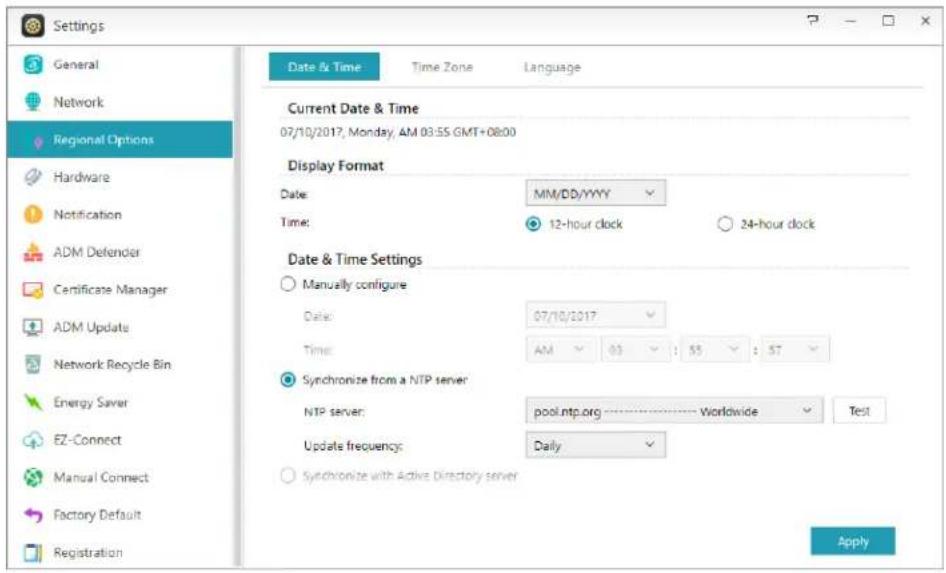
Here you can adjust the settings for date and time, display format, time zone and daylight saving time.
text_image
Settings General Network Regional Options Hardware Notification ADM Defender Certificate Manager ADM Update Network Recycle Bin Energy Saver EZ-Connect Manual Connect Factory Default Registration Date & Time Time Zone Language Current Date & Time 07/10/2017, Monday, AM 03:55 GMT+08:00 Display Format Date: MM/DD/YYYY Time: 12-hour clock 24-hour clock Date & Time Settings Manually configure Date: 07/10/2017 Time: AM : 03 : 55 : 57 Synchronize from a NTP server NTP server: pool.ntp.org ---- Worldwide Test Update frequency: Daily Synchronize with Active Directory server ApplyHardware
Note: This function may differ depending on the NAS model in use.
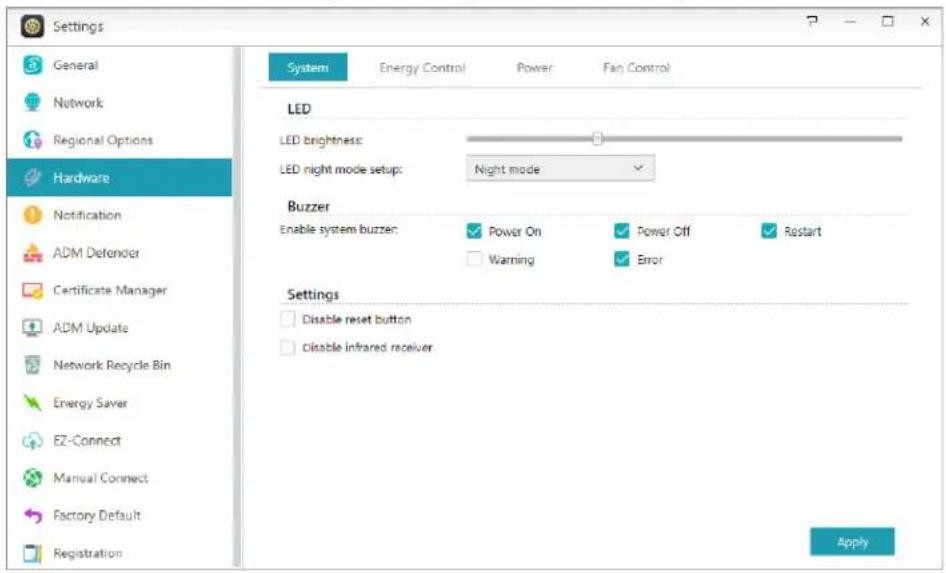
Here you can configure settings for the LED indicators, buzzer, hard disk hibernation, power usage, fan speed and LCD display panel.
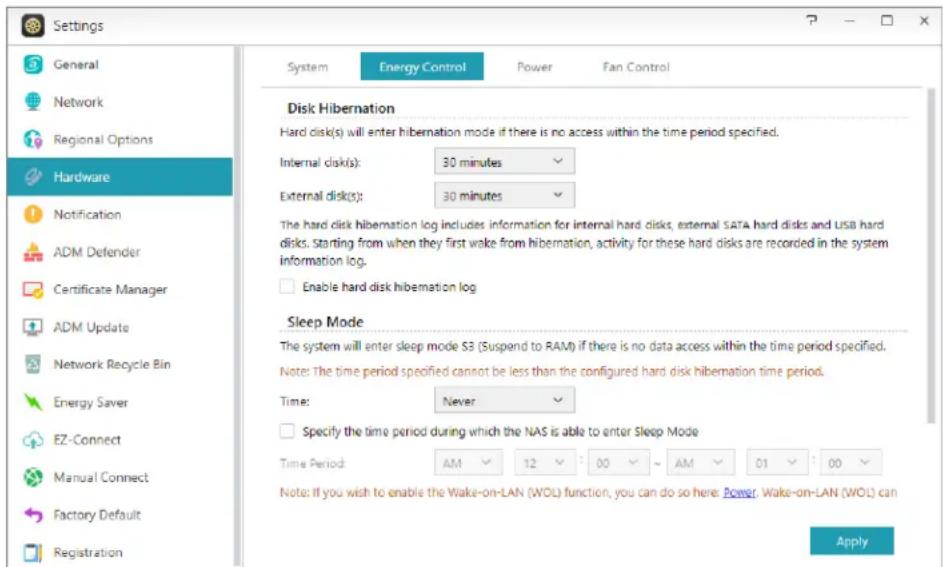
System: Here you can choose to disable any of the LED indicators to save power. By selecting "night mode", only the system power LED indicator will be enabled. It will flash an orange light every 10 seconds. "Night mode scheduling" will allow you to configure the start time and duration of night mode. You can also configure settings for the buzzer, reset button and infrared receiver here.
text_image
Settings General Network Regional Options Hardware Notification ADM Defender Certificate Manager ADM Update Network Recycle Bin Energy Saver EZ-Connect Manual Connect Factory Default Registration System Energy Control Power Fan Control LED LED brightness: LED night mode setup: Night mode Buzzer Enable system buzzer: Power On Power Off Restart Warning Error Settings Disable reset button Disable infrared receiver Apply→ Disk Hibernation: Your hard disks will enter hibernation mode when left idle for the period of time specified here. Once in hibernation, the hard disk LED indicator on the front of the disk tray will flash
once every 10 seconds to indicate that the disk is hibernating. If an access error is detected on a hard disk, the LED indicator on the front of the disk tray will be lit red.
→ Sleep Mode: Here you can configure the time period the NAS will remain idle before automatically entering Sleep Mode (S3). In addition to RAM, all of the NAS's hardware will stop running in order to conserve energy.
→ Diagnostic Tool: If the hard disk or system has not yet entered sleep mode during the specified time, you can click on "Diagnostic Tool" to find out which services and applications are still accessing the hard disk.
text_image
Settings General Network Regional Options Hardware Notification ADM Defender Certificate Manager ADM Update Network Recycle Bin Energy Saver EZ-Connect Manual Connect Factory Default Registration System Energy Control Power Fan Control Disk Hibernation Hard disk(s) will enter hibernation mode if there is no access within the time period specified. Internal disk(s): 30 minutes External disk(s): 30 minutes The hard disk hibernation log includes information for internal hard disks, external SATA hard disks and USA hard disks. Starting from when they first wake from hibernation, activity for these hard disks are recorded in the system information log. Enable hard disk hibernation log Sleep Mode The system will enter sleep mode S3 (Suspend to RAM) if there is no data access within the time period specified. Note: The time period specified cannot be less than the configured hard disk hibernation time period. Time: Never Specify the time period during which the NAS is able to enter Sleep Mode Time Period: AM 12 00 AM 01 00 Note: If you wish to enable the Wake-on-LAN (WOL) function, you can do so here: Power, Wake-on-LAN (WOL) can ApplyWhy won't my ASUSTOR NAS enter into Sleep Mode (S3)?
The following services will affect the NAS's ability to enter into Sleep Mode (S3) as they require hard disk access while running.
√ Download Center, Takeasy download tasks, RSS scheduled downloads, unable to enter Sleep Mode (S3) when subscription downloads from multimedia websites are in progress
√ Unable to enter into Sleep Mode (S3) when Surveillance Center is recording
√ Unable to enter into Sleep Mode (S3) when the following Apps are syncing:Dropbox, Google Drive, ASUS WebStorage, BitTorrent Sync
√ Unable to enter into Sleep Mode (S3) when the following Apps are executing backup tasks: HiDrive, RALUS, WonderBox, Xcloud
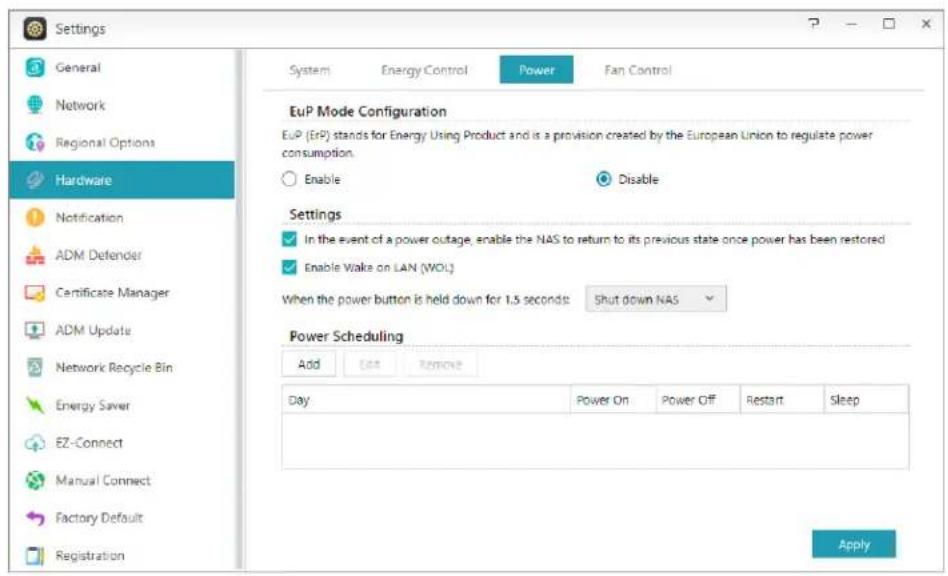
Power: Here you can manage power usage settings such as Wake-On-LAN (WOL) and power scheduling.
text_image
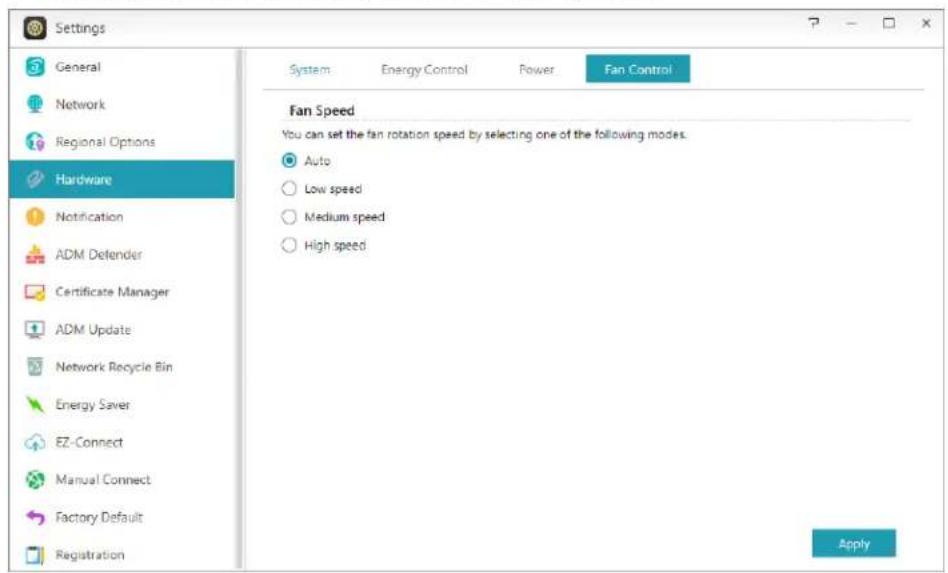
Settings General Network Regional Options Hardware Notification ADM Defender Certificate Manager ADM Update Network Recycle Bin Energy Saver EZ-Connect Manual Connect Factory Default Registration System Energy Control Power Fan Control EuP Mode Configuration EuP (ErP) stands for Energy Using Product and is a provision created by the European Union to regulate power consumption. Enable Disable Settings ✓ In the event of a power outage, enable the NAS to return to its previous state once power has been restored ✓ Enable Wake on LAN (WOL) When the power button is held down for 1.5 seconds: Shut down NAS Power Scheduling Add Cash Remove Day Power On Power Off Restart Sleep Apply→ Fan Control: Here you can set the rotation speed for the fan. If you are not sure about which speed to select, you can simply select Auto. This will automatically adjust the fan speed in accordance with the temperature of the system.
text_image
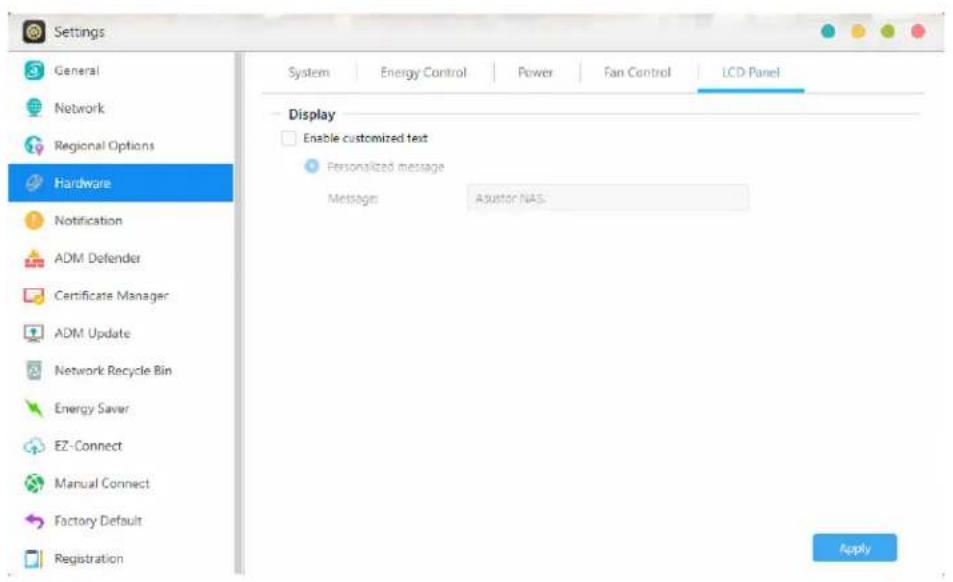
Settings General Network Regional Options Hardware Notification ADM Defender Certificate Manager ADM Update Network Recycle Bin Energy Saver EZ-Connect Manual Connect Factory Default Registration System Energy Control Power Fan Control Fan Speed You can set the fan rotation speed by selecting one of the following modes. ● Auto ○ Low speed ○ Medium speed ○ High speed ApplyLCD Panel: You can have the LCD panel display a customized scrolling message or the local temperature. This function is only available on the following models: AS-604T, AS-606T, AS-608T, AS5104T, AS5108T, AS5110T, AS6204T, AS6208T, AS6210T, AS6404T, AS7004T, AS7008T, AS7010T.
text_image
Settings General Network Regional Options Hardware Notification ADM Defender Certificate Manager ADM Update Network Recycle Bin Energy Saver EZ-Connect Manual Connect Factory Default Registration System | Energy Control | Power | Fan Control | LCD Panel Display Enable customized text Personalized message Message : Auditor NAS. ApplyReminder: If you choose to display the local temperature, the system will use your current IP address to determine the temperature at your present location. The results of this may vary, depending on your exact location.
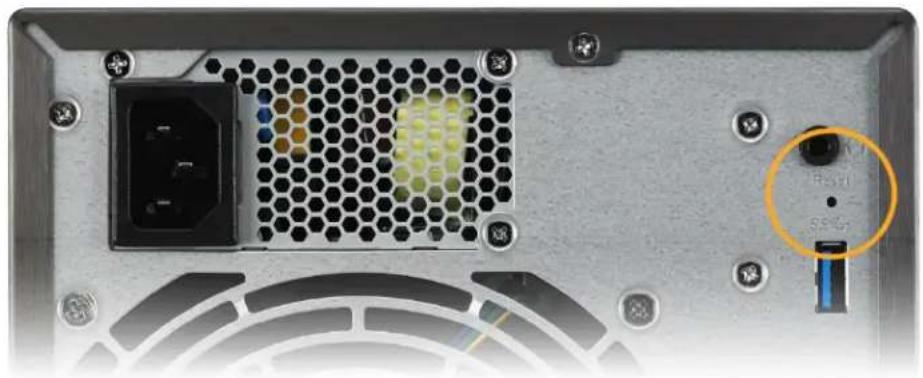
Reset Button
If for some reason you cannot connect to your NAS, this button can be used to return a portion of the settings to their default values.
natural_image
Back view of a computer power drive showing hexagonal socket, drive spout, and cable connector (no text or symbols visible)√ The system administrator account (admin) password will be reset back to "admin".
√ The system HTTP and HTTPS ports will be reset back to 8000 and 8001 respectively.
√ The system will revert to automatically obtaining an IP address. You can then use ASUSTOR Control Center to search for your NAS.
√ ADM Defender will be reset and will allow all connections.
Reminder: You must hold the reset button down until you hear a "beep" for the settings mentioned above to be reset.
Notification
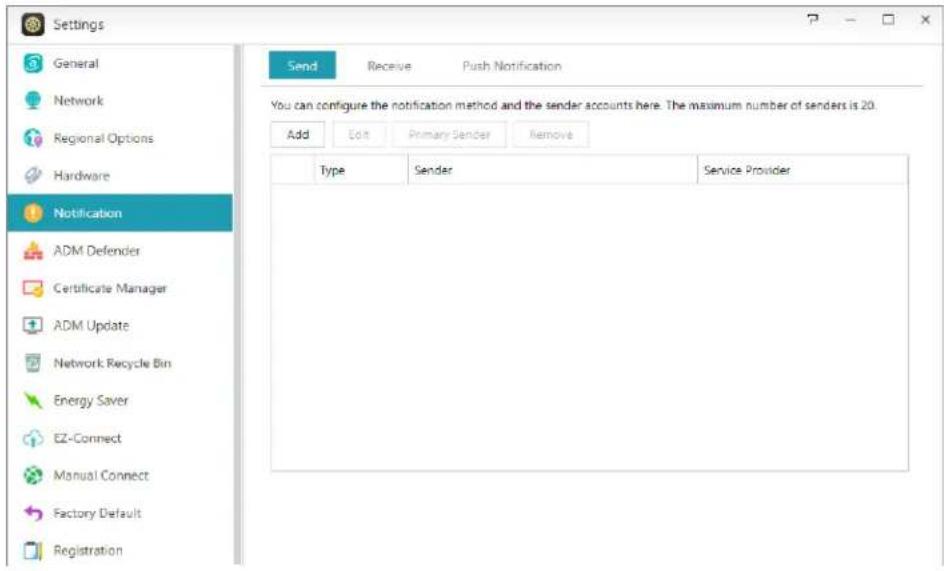
You can configure this setting to send you notification immediately in the event that the system encounters any problems.
→ Send: Here you can set the accounts that will be used for sending e-mail or SMS notifications. Multiple accounts can be set up but only one may be used as the primary account.
text_image
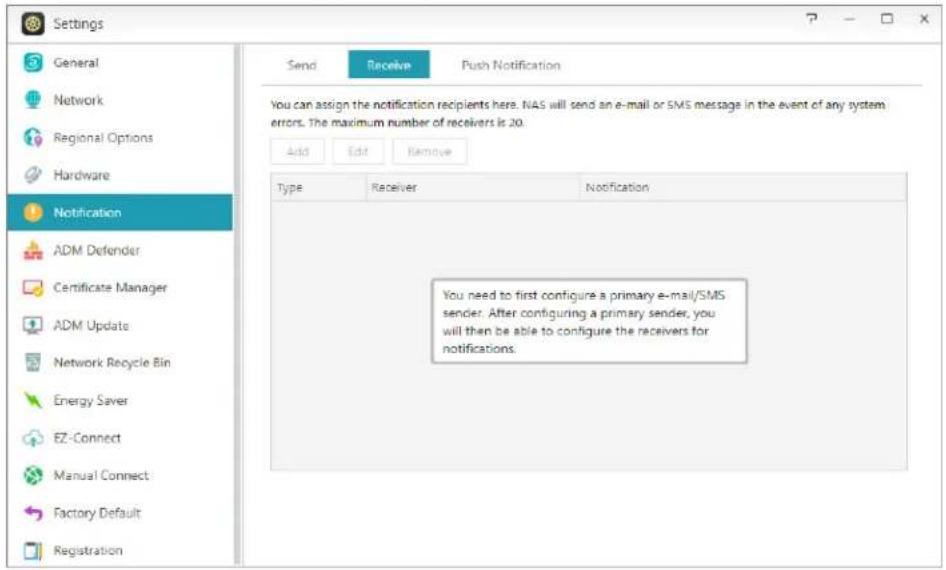
Settings General Network Regional Options Hardware Notification ADM Defender Certificate Manager ADM Update Network Recycle Bin Energy Saver EZ-Connect Manual Connect Factory Default Registration Send Receive Push Notification You can configure the notification method and the sender accounts here. The maximum number of senders is 20. Add Colt Primary Sender Remove Type Sender Service ProviderReceive: Here you can set up the accounts that will be used to receive e-mail and SMS notifications. You can also set the type of system notifications that will be received by these accounts.
text_image
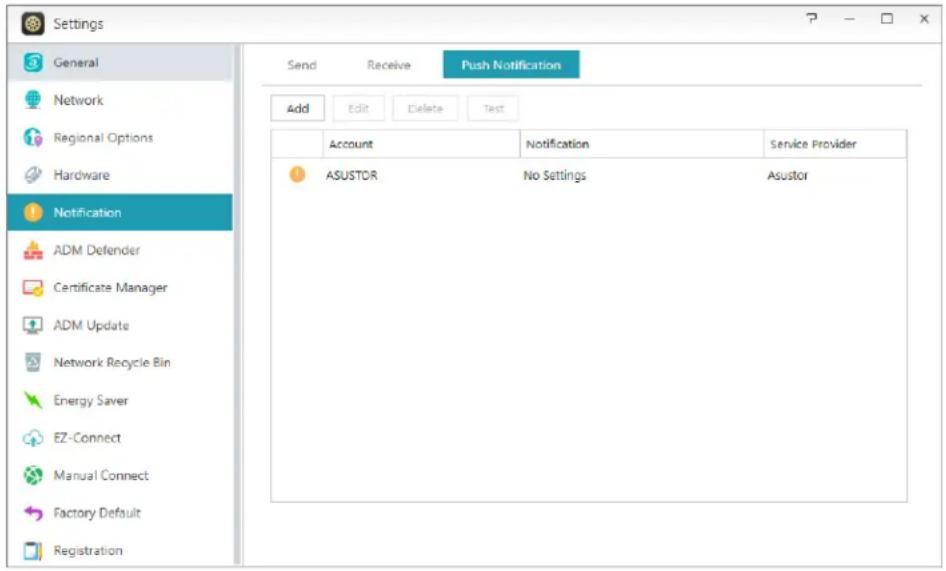
Settings General Network Regional Options Hardware Notification ADM Defender Certificate Manager ADM Updates Network Recycle Bin Energy Saver EZ-Connect Manual Connect Factory Default Registration Send Receive Push Notification You can assign the notification recipients here. NAS will send an e-mail or SMS message in the event of any system errors. The maximum number of receivers is 20. Add Edit Remove Type Receiver Notification You need to first configure a primary e-mail/SMS sender. After configuring a primary sender, you will then be able to configure the receivers for notifications.Push Notification: Here you can enable the push notification setting for the AiMaster mobile app which can be downloaded from the Apple App Store or Google Play. When designated system events
occur, your ASUSTOR NAS will immediately send notification to the Apple/Google push notification server which will then forward it to your mobile device.
text_image
Settings General Network Regional Options Hardware Notification ADM Defender Certificate Manager ADM Update Network Recycle Bin Energy Saver EZ-Connect Manual Connect Factory Default Registration Send Receive Push Notification Add Edit Delete Test Account Notification Service Provider ASUSTOR No Settings AsustorAbout Push Notification
If you wish to use this feature, you must first install AiMaster on your mobile device and enable push notifications on the device. Currently, AiMaster is available for both iOS and Android devices.
•Supports iOS 5.0 and onwards
•Supports Android 2.2 and onwards
Downloading AiMaster
In order to download AiMaster please open the App Store (for Apple devices) or Google Play (for Android devices) on your mobile device and search for the keywords "asustor" and "AiMaster".


Available on the iPhone
App Store


ANDROID APP ON Google play
Warning: Push notifications are transmitted to your device from Apple/Google's push notification servers. A poor Internet connection or abnormalities in Apple/Google's push notification service could potentially prevent AiMaster from correctly receiving notifications.
ADM Defender
ADM Defender can protect your NAS from malicious Internet attacks, ensuring the security of your system.
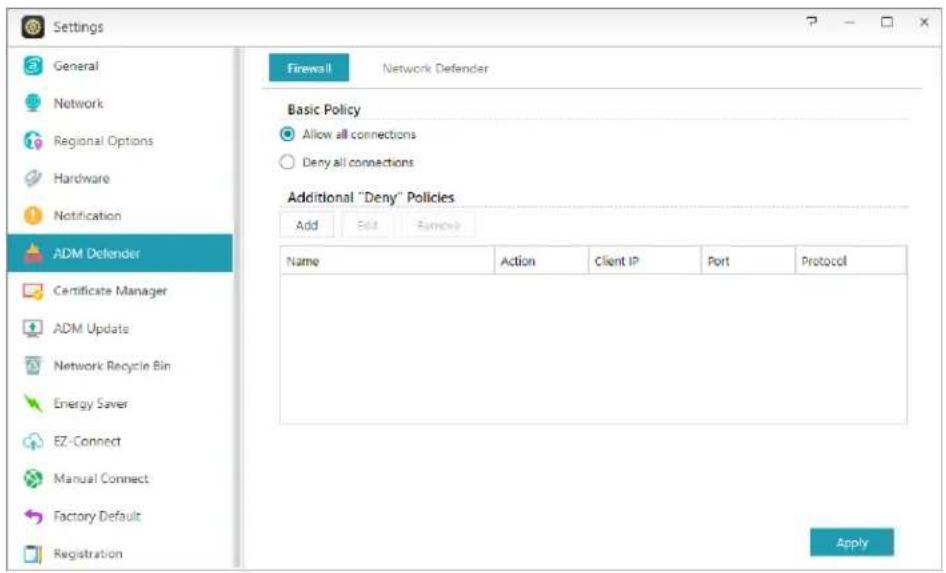
→ Firewall: Here you can block specific IP addresses or only allow specific IP addresses to access your NAS.
text_image
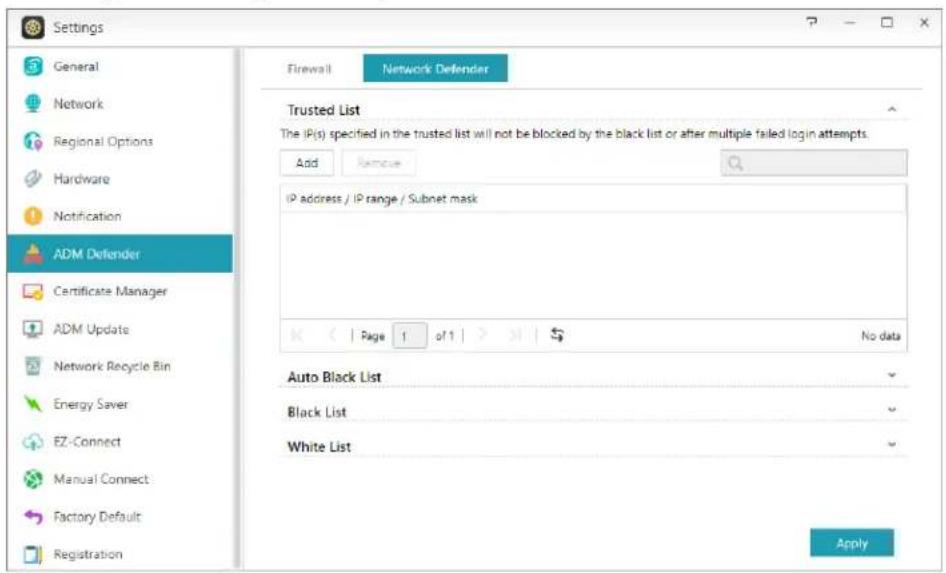
Settings General Network Regional Options Hardware Notification ADM Defender Certificate Manager ADM Update Network Recycle Bin Energy Saver EZ-Connect Manual Connect Factory Default Registration Firewall Network Defender Basic Policy Allow all connections Deny all connections Additional "Deny" Policies Add Edit Remove Name Action Client IP Port Protocol Apply→ Trusted List: The IP(s) specified in the trusted list will not be blocked by the black list or after multiple failed login attempts.
text_image
Settings General Network Regional Options Hardware Notification ADM Defender Certificate Manager ADM Update Network Recycle Bin Energy Saver EZ-Connect Manual Connect Factory Default Registration Firewall Network Defender Trusted List The IP(s) specified in the trusted list will not be blocked by the black list or after multiple failed login attempts. Add Remove IP address / IP range / Subnet mask K 1 of 1 No data Auto Black List Black List White List ApplyAuto Black List: After enabling this function, the client IP address will be blocked if there are too many unsuccessful login attempts within the specified time period.
→ Black and White List: The Black and White list can be defined using IP address, range, and geolocation. If you wish to define the Black and White list using geolocation, please first install the Geo IP Database App.
About the Black and White List
The Black and White List can protect you from malicious attacks and prevent hackers from trying to access your NAS. Supported protocols are as follows:
√ ADM system login (HTTP & HTTPS)
√ Windows File Service (CIFS/SAMBA)
√ Apple Filing Protocol (AFP)
√ File Transfer Protocol (FTP)
√ Secure Shell (SSH)
Certificate Manager
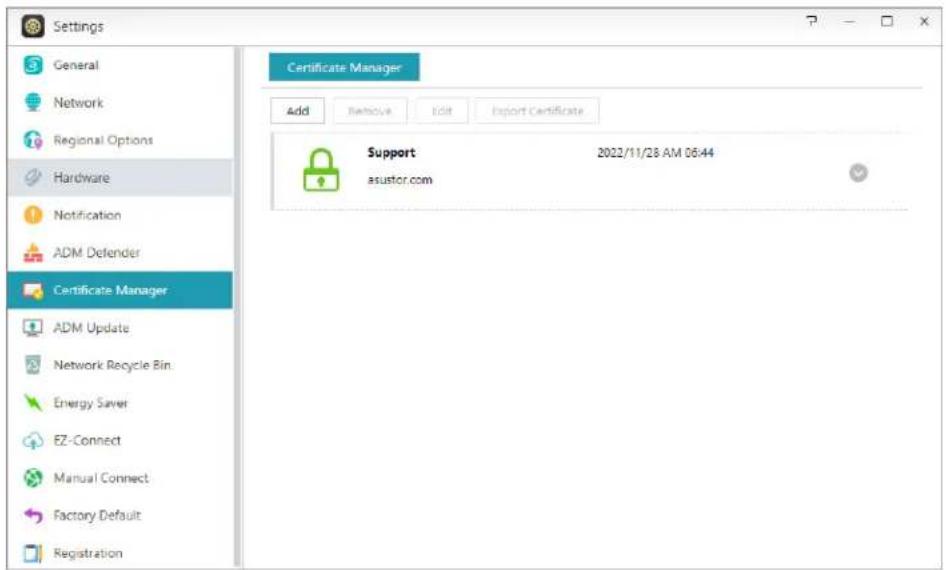
Using Certificate Manager, you can import a valid certificate to establish an SSL connection. All communication data (including identity credentials and transmitted information) among your NAS and all clients will be automatically encrypted over the SSL connection. This helps prevent the data from being eavesdropped on or modified over Internet. SSL applicable services on ASUSTOR NAS include:
√ ADM management connections (HTTPS)
√ Web server connections (HTTPS)
√ FTP server connections (FTPS)
√ Mail server connections (POP3s, IMAPs)
text_image
Settings General Network Regional Options Hardware Notification ADM Defender Certificate Manager ADM Update Network Recycle Bin Energy Saver EZ-Connect Manual Connect Factory Default Registration Certificate Manager Add Remove Edit Export Certificate Support 2022/11/28 AM 06:44 asustor.comThe Certificate Manager in ASUSTOR NAS can directly connect to Let's Encrypt to generate a valid certificate and install it automatically. This helps you to enhance NAS security with an SSL connection in a fast and easy way at zero cost. Moreover, before the Let's Encrypt issued certificate expires, Certificate Manager can be configured to perform an automatic renewal.
See More
NAS 324 - Using HTTPS to Secure NAS Communication
ADM Update
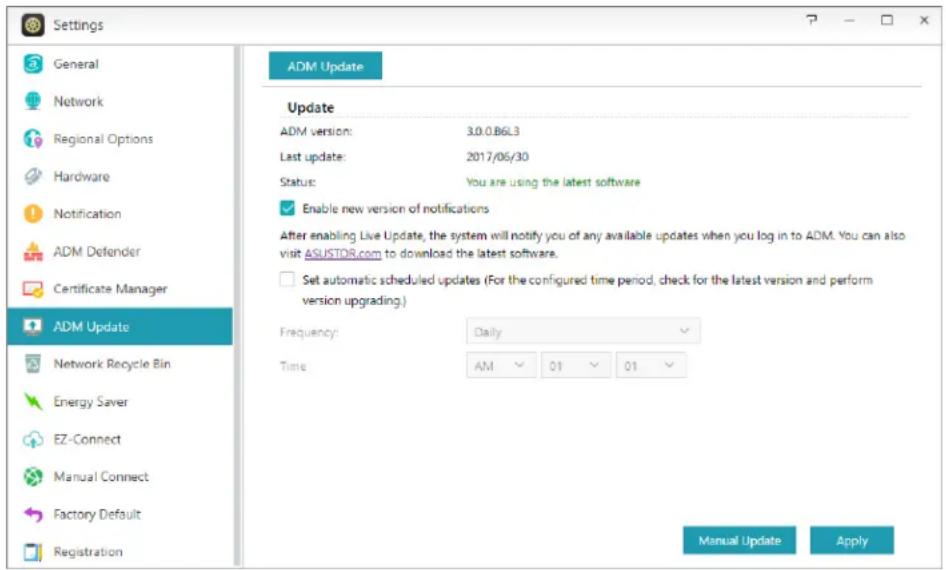
Here you can obtain the latest version of ADM to ensure system stability and to upgrade software features.
Live Update: After enabling Live Update, the system will notify you of any available updates when you log in to ADM.
Set automatic scheduled updates: After enabling this option, the system will automatically check for available updates for Apps during the configured time. If updates are available, the system will automatically proceed to download and install them.
Note: If, during ASUSTOR App upgrades, the system shuts down or the upgrades are interrupted due to unknown causes, the system will attempt the upgrades again at the next scheduled time.
→ Manual Update: You can go to ASUSTOR's official website http://www.asustor.com to download the latest version of ADM.
text_image
Settings General Network Regional Options Hardware Notification ADM Defender Certificate Manager ADM Update Network Recycle Bin Energy Saver EZ-Connect Manual Connect Factory Default Registration ADM Update Update ADM version: 3.0.0.B6L3 Last update: 2017/06/30 Status: You are using the latest software Enable new version of notifications After enabling Live Update, the system will notify you of any available updates when you log in to ADM. You can also visit ASUSTOR.com to download the latest software. Set automatic scheduled updates (For the configured time period, check for the latest version and perform version upgrading.) Frequency: Daily Time AM 01 01 Manual Update ApplyNetwork Recycle Bin
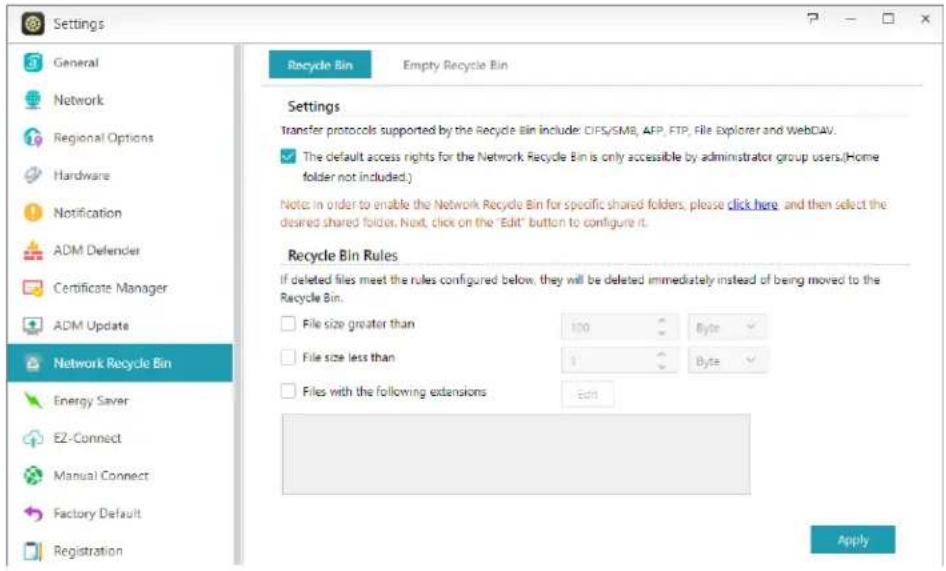
In order to enable the Network Recycle Bin for specific shared folders, please select "Access Control" > "Shared Folders", and then select the desired shared folder. Next, click on the "Edit" button to configure it.
The configurations made on the "Recycle Bin" and "Empty Recycle Bin" tabs will be applied to all enabled Network Recycle Bins.
text_image
Settings General Network Regional Options Hardware Notification ADM Defender Certificate Manager ADM Update Network Recycle Bin Energy Saver EZ-Connect Manual Connect Factory Default Registration Recycle Bin Empty Recycle Bin Settings Transfer protocols supported by the Recycle Bin include: CIFS/SMB, AFP, FTP, File Explorer and WebDAV. The default access rights for the Network Recycle Bin is only accessible by administrator group users.(Home folder not included.) Note: In order to enable the Network Recycle Bin for specific shared folders, please click here and then select the desired shared folders. Next, click on the "Edit" button to configure it. Recycle Bin Rules If deleted files meet the rules configured below, they will be deleted immediately instead of being moved to the Recycle Bin. File size greater than 100 Byte File size less than 1 Byte Files with the following extensions Edit ApplyAbout Network Recycle Bin
After enabling Network Recycle Bin, all files deleted via the following protocols will be moved to the Recycle Bin.
√ Windows File Service (CIFS/SAMBA)
√ Apple Filing Protocol (AFP)
√ File Transfer Protocol (FTP)
√ File Explorer
WebDAV
Energy Saver
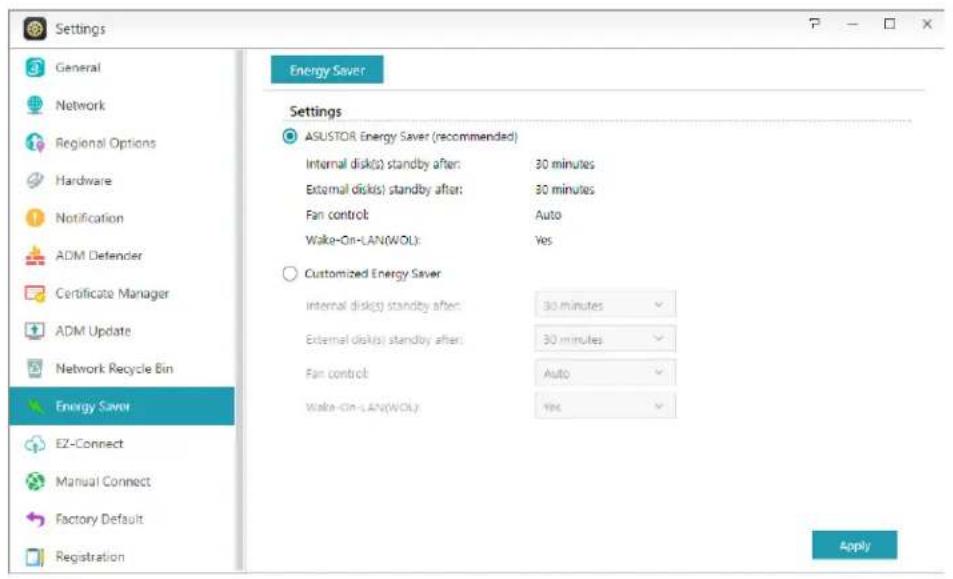
Energy Saver can help you to reduce power consumption when your NAS is inactive or being lightly used.
text_image
Settings General Network Regional Options Hardware Notification ADM Defender Certificate Manager ADM Update Network Recycle Bin Energy Saver EZ-Connect Manual Connect Factory Default Registration Energy Saver Settings ASUSTOR Energy Saver (recommended) Internal disk(s) standby after: 30 minutes External disk(s) standby after: 30 minutes Fan control: Auto Wake-On-LAN(WOL): Yes Customized Energy Saver internal disk(s) standby after: 30 minutes External disk(s) standby after: 30 minutes Fan control: Auto Wake-On-LAN(WOL): Yes ApplyEZ-Connect
Here you can configure all the necessary settings for remote access.
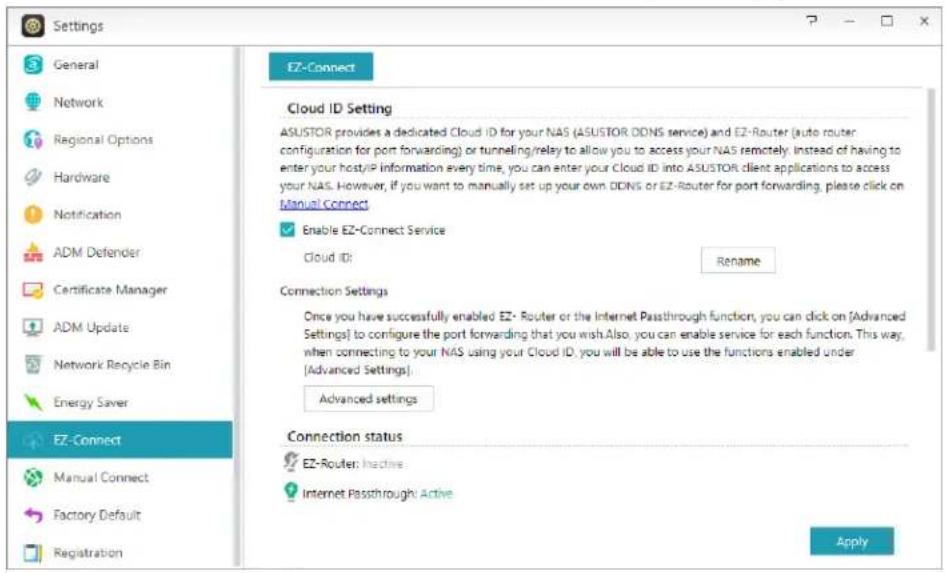
→ EZ-Connect: Here you can obtain a Cloud ID for your NAS. By entering the Cloud ID into ASUSTOR client applications, you can access your NAS without having to enter the host/IP information.
→ Internet Passthrough: When your internal network environment contains multiple routers, you will be unable to use your Cloud ID to connect to your NAS. This function can help you to create a connection between the Internet and your NAS, allowing you to connect smoothly.
text_image
Settings General Network Regional Options Hardware Notification ADM Defender Certificate Manager ADM Update Network Recycle Bin Energy Saver EZ-Connect Manual Connect Factory Default Registration EZ-Connect Cloud ID Setting ASUSTOR provides a dedicated Cloud ID for your NAS (ASUSTOR DDNS service) and EZ-Router (auto router configuration for port forwarding) or tunneling/relay to allow you to access your NAS remotely. Instead of having to enter your host/IP information every time, you can enter your Cloud ID into ASUSTOR client applications to access your NAS. However, if you want to manually set up your own DDNS or EZ-Router for port forwarding, please click on Manual Connect Enable EZ-Connect Service Cloud ID: Rename Connection Settings Once you have successfully enabled EZ- Router or the Internet Passthrough function, you can click on [Advanced Settings] to configure the port forwarding that you wish. Also, you can enable service for each function. This way, when connecting to your NAS using your Cloud ID, you will be able to use the functions enabled under [Advanced Settings]. Advanced settings Connection status EZ-Router: Inactive Internet Passthrough: Active ApplyManually Connect
Here you can configure all the necessary settings for remote access.
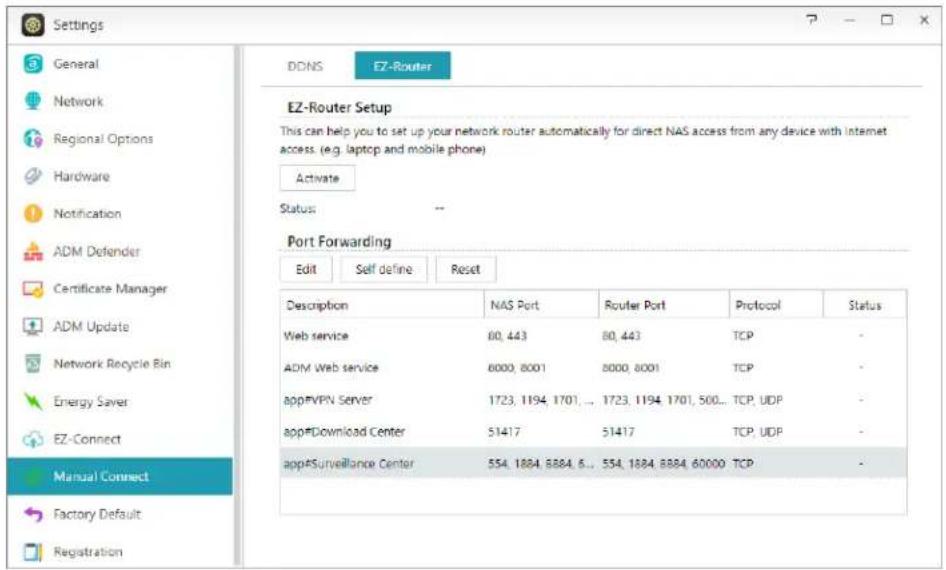
→ EZ-Router: Here you can set up your network router automatically for direct NAS access from any device with Internet access.
text_image
Settings General Network Regional Options Hardware Notification ADM Defender Certificate Manager ADM Update Network Recycle Bin Energy Saver EZ-Connect Manual Connect Factory Default Registration DDNS EZ-Router EZ-Router Setup This can help you to set up your network router automatically for direct NAS access from any device with Internet access. (e.g. laptop and mobile phone) Activate Status: -- Port Forwarding Edit Self define Reset Description NAS Port Router Port Protocol Status Web service 60, 443 80, 443 TCP - ADM Web service 6000, 8001 8000, 8001 TCP - app#VPN Server 1723, 1194, 1701, ... 1723, 1194, 1701, 500... TCP, UDP - app#Download Center 51417 51417 TCP, UDP - app#Surveillance Center 554, 1884, 8884, 6... 554, 1884, 8884, 60000 TCP -Reminder: Your router must support UPnP/NAT-PMP. Please note that not all routers support automatic configuration. Please see the hardware compatibility list found on the ASUSTOR website for more information.
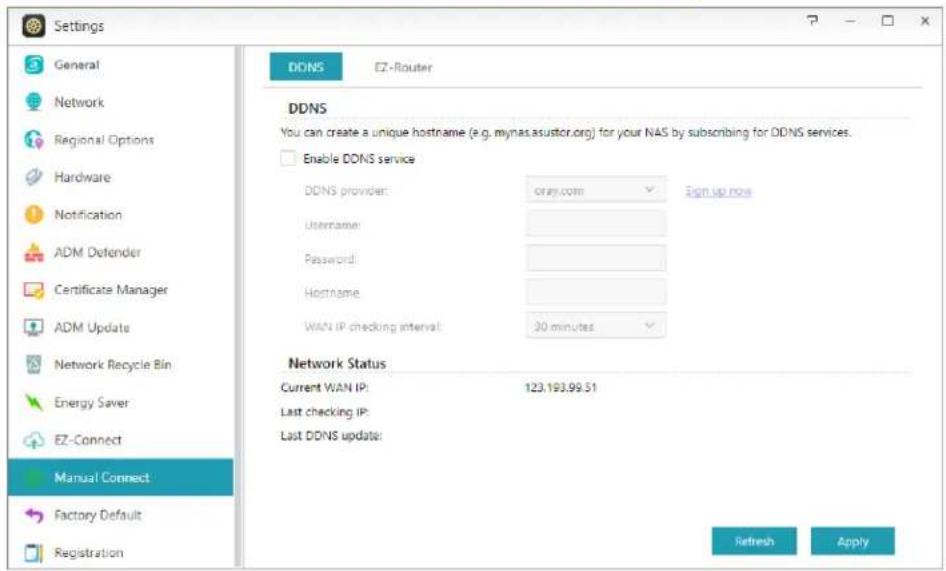
DDNS: Here you can create or configure your DDNS account. DDNS allows you to use a persistent host name (i.e., nas.asustor.com) to connect to your NAS. You won't have to worry about remembering your NAS's IP address. This feature is often used in dynamic IP environments.
Reminder: To know the network ports list used by ASUSTOR services, please refer to: What network ports are used by asustor services
text_image
Settings General Network Regional Options Hardware Notification ADM Defender Certificate Manager ADM Update Network Recycle Bin Energy Saver EZ-Connect Manual Connect Factory Default Registration DDNS EZ-Router DDNS You can create a unique hostname (e.g. mynas.asustor.org) for your NAS by subscribing for DDNS services. Enable DDNS service DDNS provider: Oray.com Eign up now Username: Password: Hostname: WAN IP checking interval: 30 minutes Network Status Current WAN IP: 123.193.99.51 Last checking IP: Last DDNS update: Refresh ApplySee More
NAS 227 - Introduction to AEC (ASUSTOR EZ Connect)
NAS 224 - Remote Access - Manual Connect
Compatibility - EZ-Router
Factory Default
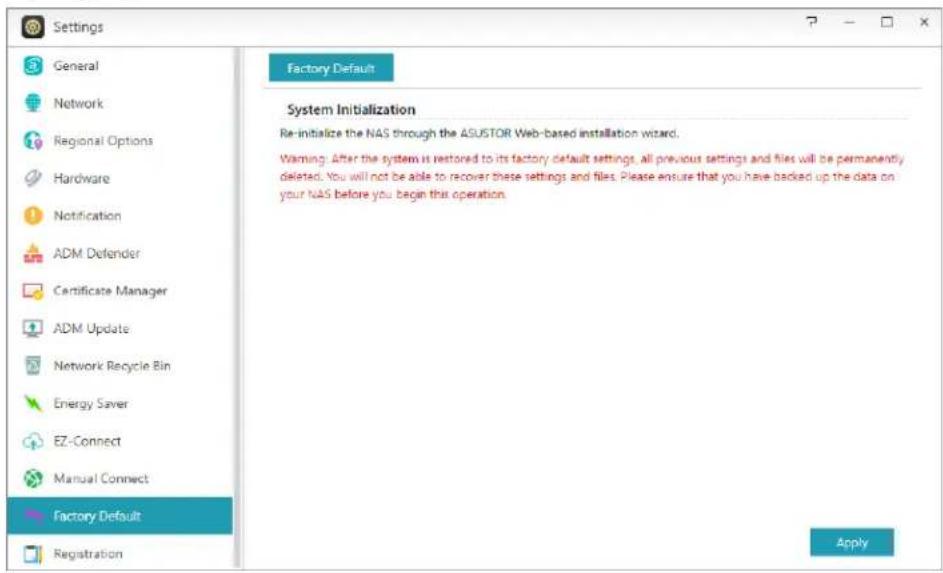
Here you can restore the system back to its factory default settings. After this, the system will return to its pre-initialized state. For security reasons, you will be asked to enter the administrator password before performing this operation. You can then initialize the system again through Control Center or by logging into ADM.
text_image
Settings General Network Regional Options Hardware Notification ADM Defender Certificate Manager ADM Update Network Recycle Bin Energy Saver EZ-Connect Manual Connect Factory Default Registration Factory Default System Initialization Re-initialize the NAS through the ASUSTOR Web-based installation wizard. Warning: After the system is restored to its factory default settings, all previous settings and files will be permanently deleted. You will not be able to recover these settings and files. Please ensure that you have backed up the data on your NAS before you begin this operation. ApplyWarning: After the system is restored to its factory default settings, all previous settings and files will be permanently deleted. You will not be able to recover these settings and files. Please ensure that you have backed up the data on your NAS before you begin this operation.
Registration
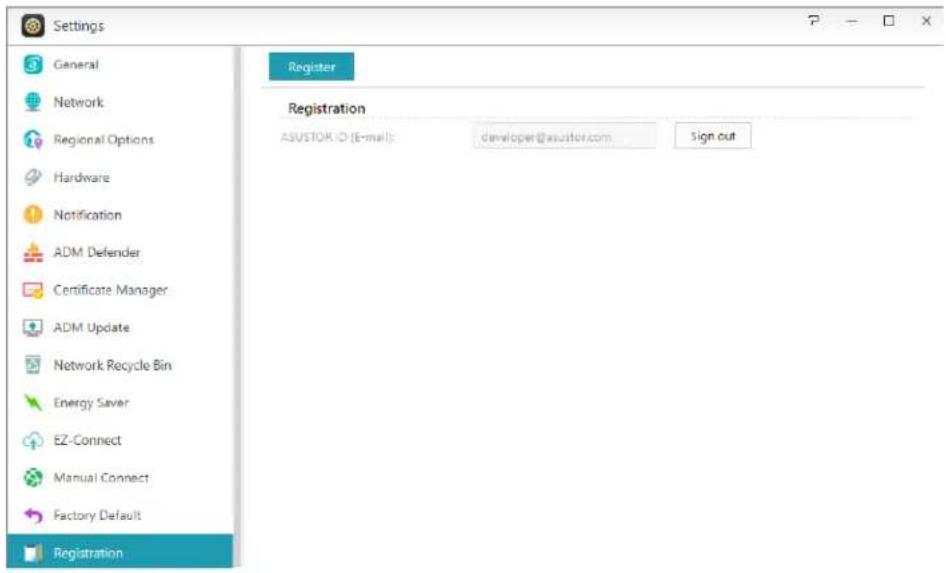
Here you can sign up for a personal account (ASUSTOR ID) and register your product. Once the product has been registered, your ASUSTOR ID will be automatically enabled.
text_image
Settings General Network Regional Options Hardware Notification ADM Defender Certificate Manager ADM Update Network Recycle Bin Energy Saver EZ-Connect Manual Connect Factory Default Registration Register Registration ASUSTOR ID (E-mail): developer@asustor.com sign outReminder: A valid ASUSTOR ID is required for downloading any apps from the App Central or applying Cloud ID service.
Services
Here you can configure network related services such as FTP server, Web server and MySQL server.
Windows
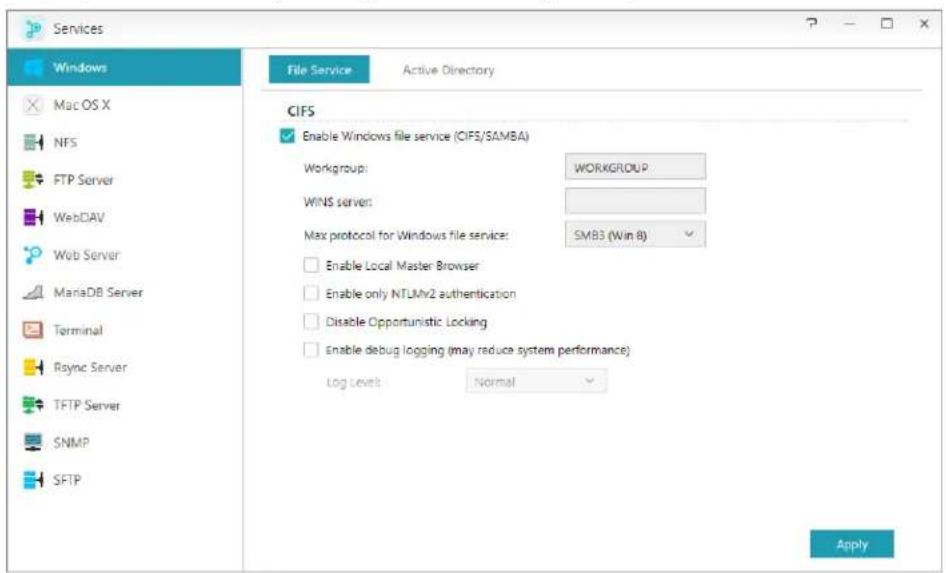
After enabling Windows File Service, you can access your NAS via any Windows operating system (i.e., Windows 7). Windows File Service is also known as CIFS or SAMBA. If you are using Windows Active Directory (hereafter referred to as "AD"), you can add your NAS to your AD domain.
→ Workgroup: This is the workgroup on your local area network that your NAS belongs to.
→ WINS server: Microsoft Windows Internet Name Service (WINS) is a NetBIOS name-to-IP-address mapping service. Window users will locate the system more easily on TCP/IP networks if the system has been configured to register with a WINS server.
Max protocol for Windows File Service: Here you can set the highest SMB level that will be supported by your ASUSTOR NAS depending on your network environment.
SMB 3: SMB 3 has been supported since Windows 8 and Windows Server 2012. It is the enhanced version of SMB 2.
SMB 2: SMB (Server Message Block) 2 has been supported since Windows Vista and is the enhanced version of SMB. SMB 2 adds the ability to compound multiple SMB actions into a single request to reduce the number of network packets and enhance performance.
Local Master Browser: After enabling this option, your NAS will, from your local area network, collect the names of all other computers in its workgroup.
Reminder: Enabling this feature may prevent your hard disk(s) from going into hibernation.
Allow only NTLMv2 authentication: NTLMv2 stands for NT LAN Manager version 2. When this option is enabled, login to the shared folders by Microsoft Networking will only be allowed using
NTLMv2 authentication. If the option is disabled, NTLM (NT LAN Manager) will be used by default and NTLMv2 can be negotiated by the client. The default setting is disabled.
→ Disable Opportunistic Locking: For networks that require multiple users concurrently accessing the same file such as database, it is suggested to disable Opportunistic Locking. To prevent one file being edited by multiple users simultaneously, such mechanism should be implemented in the document processing software (for example, Microsoft Office programs).
→ Enable debug logging: When this option is enabled, detailed logs will be stored for debugging purposes. Enabling this option affects system performance.
text_image
Services Windows Mac OS X NFS FTP Server WebDAV Web Server MariaDB Server Terminal Raync Server TFTP Server SNMP SFTP File Service Active Directory CIFS Enable Windows file service (CIFS/SAMBA) Workgroup: WORKGROUP WINS server: Max protocol for Windows file service: SMB3 (Win 8) Enable Local Master Browser Enable only NTLMv2 authentication Disable Opportunistic Locking Enable debug logging (may reduce system performance) Log level: Normal ApplyAbout Windows Active Directory
After successfully adding your NAS to your AD domain, you can then configure access rights using the Domain Users, Domain Groups and Shared Folders settings found in the Access Control system app (see section 3.4 Access Control). AD users can then use their own AD accounts to log in and access the NAS.
SEE MORE
NAS 102 - Introduction to File Transfer Protocols
NAS 106 - Using NAS with Microsoft Windows
NAS 206 - Using NAS with Windows Active Directory
Mac OS X
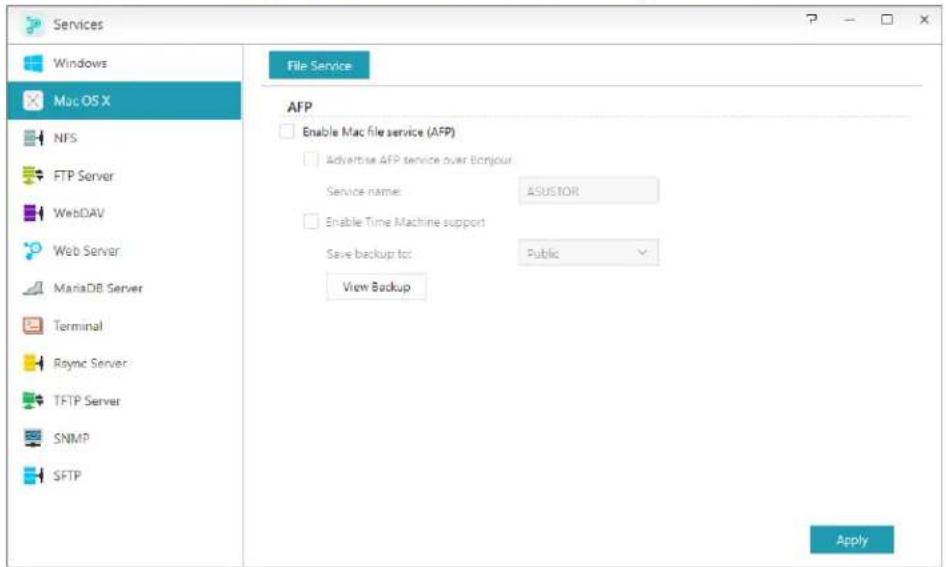
After enabling Mac OS X file service, you can access your NAS via any Mac OS X operating system (i.e., Mac OS X v10.7). This file transfer protocol is called AFP (Apple Filing Protocol). You can also use Time Machine to back up data to your NAS.
→ Apple Filing Protocol (AFP): This is the protocol used when transferring files between Mac OS X and local area networks. Go to the Finder and click "Go" in the Finder menu, then select "Connect
to Server." This will bring up the Connect to Server dialog box. Here you can enter the IP address that you want to connect to.
For example : afp://192.168.1.168
→ Bonjour Service Name: Your NAS will be identified by this name in the Finder.
Time Machine Support: Here you can enable Time Machine support and select the shared folder that you wish to back up to. If multiple Mac users wish to access this feature simultaneously, please see NAS 159 - Time Machine: Best Practice for guidance.
text_image
Services Windows Mac OS X NFS FTP Server WebDAV Web Server MariaDB Server Terminal Raync Server TFTP Server SNMP SFTP File Service AFP Enable Mac file service (AFP) Advertise AFP service over Bonjour Service name: ASUSTOR Enable Time Machine support Save backup to: Public View Backup ApplyAbout Bonjour
Bonjour, also known as zero-configuration networking, has been widely used in Apple related products. It will scan your vicinity for other Apple devices and then let you directly connect to them without having to know their actual IP addresses.
After enabling this service, you will be able to see your NAS in the left hand panel of the Finder under "Shared". Simply click on your NAS to connect to it.
See More
NAS 102 - Introduction to File Transfer Protocols
NAS 108 - Using NAS with Apple Mac OS X
NAS 159 - Time Machine: Best Practice
NFS
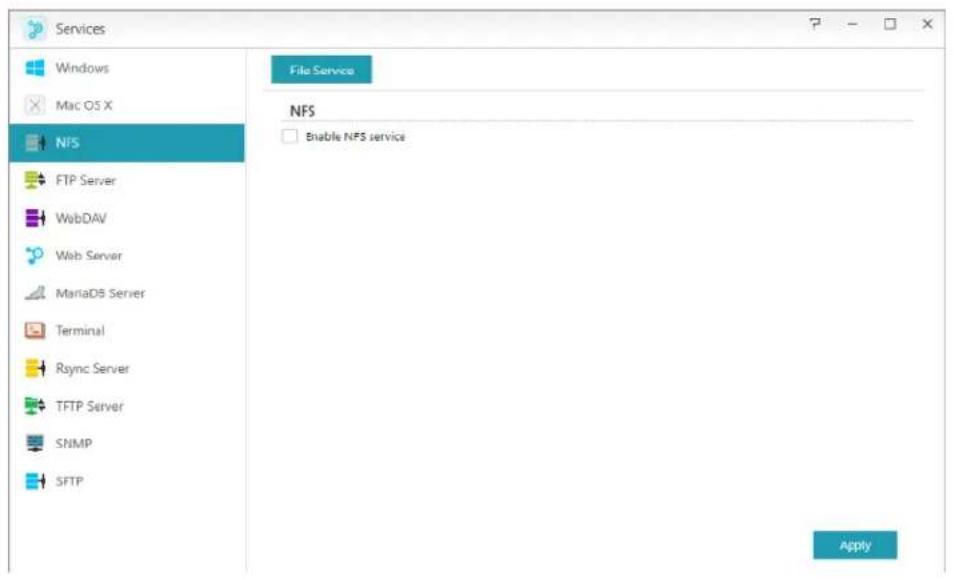
After enabling NFS, you will be able to access your NAS via UNIX or Linux operating systems.
text_image
Services Windows Mac OS X NFS FTP Server WebDAV Web Server MariaDB Server Terminal Rsync Server TFTP Server SNMP SFTP File Service NFS Bnable NFS service ApplyAbout NFS
After enabling NFS service, you can configure access rights using the Shared Folders setting found in the Access Control system app (see section 3.4 Access Control). This option will be hidden if NFS service has not been enabled.
See more
NAS 102 - Introduction to File Transfer Protocols
NAS 109 - Using NAS with Linux
FTP Server
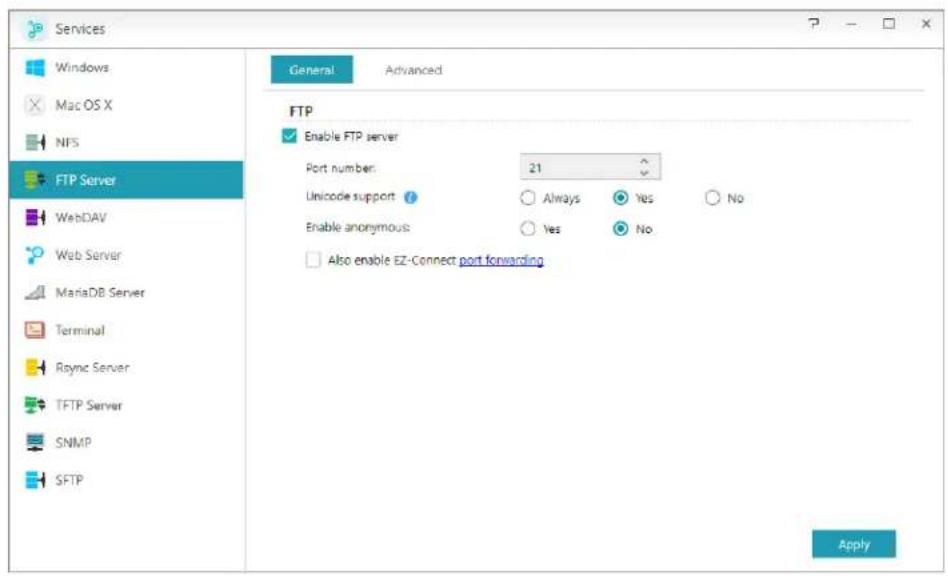
After enabling the FTP server setting, you will be able to access your NAS via any FTP client program (i.e., FileZilla). FTP server access rights are the same as those for the system (ADM). Should you wish to change or configure these access rights, you may do so using the shared folders setting found in the Access Control system app (see section 3.4 Access Control).
→ Unicode support: Please enable this option if your FTP client program supports Unicode.
Enable anonymous: Enabling this option will allow FTP client programs to access your NAS anonymously, without the need for a username or password. For security reasons, this is not recommended.
text_image
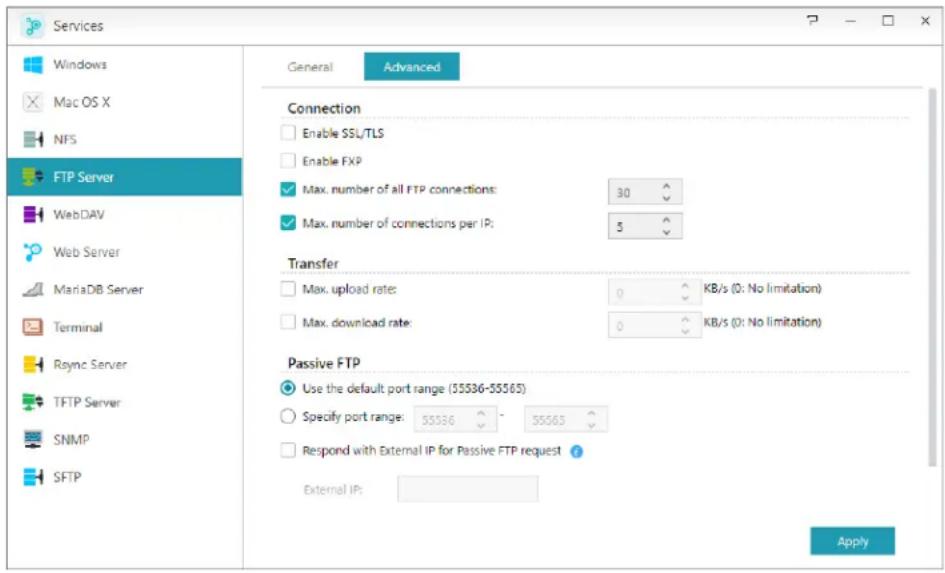
Services Windows Mac OS X NFS FTP Server WebDAV Web Server MariaDB Server Terminal Roync Server TFTP Server SNMP SFTP General Advanced FTP Enable FTP server Port number: 21 Unicode support ○ Always Yes No Enable anonymous ○ Yes No Also enable EZ-Connect port forwarding Apply→ Enable SSL/TLS: Enable encryption for FTP connections.
→ Maximum number of all FTP connections: The maximum number of simultaneous FTP connections allowed.
→ Maximum number of connections per IP: The maximum number of connections allowed per IP or system.
Max upload rate: The maximum upload speed per connection. 0 represents no limitation.
Max download rate: The maximum download speed per connection. 0 represents no limitation.
→ Passive FTP: To minimize the security concerns of connecting from a server to a client, a type of connection mode called Passive Mode (PASV) was developed. When a client program starts to connect, it will notify the server to activate Passive Mode.
→ Respond with External IP: By enabling this option, the server will report its external IP address to FTP clients. This option only works when the ASUSTOR NAS is behind a NAT, and the FTP clients belong to a different subnet than the ASUSTOR NAS does. In most cases, this option is unnecessary, but if FTP clients fail to connect to the ASUSTOR NAS, then you can enable this option and try again.
text_image
Services Windows Mac OS X NFS FTP Server WebDAV Web Server MariaDB Server Terminal Rsync Server TFTP Server SNMP SFTP General Advanced Connection Enable SSL/TLS Enable EXP Max. number of all FTP connections: 30 Max. number of connections per IP: 5 Transfer Max. upload rate: 0 KB/s (0: No limitation) Max. download rate: 0 KB/s (0: No limitation) Passive FTP Use the default port range (55536-55565) Specify port range: 55536 55565 Respond with External IP for Passive FTP request External IP: ApplyAbout Passive FTP
Passive mode FTP can be used to overcome the problem of active mode FTP being blocked by firewalls. Passive FTP makes the FTP client establish all connections to the FTP server, as opposed to the web host supplying the return port. Firewalls typically allow passive FTP connections without requiring additional configuration information.
See More
NAS 102 - Introduction to File Transfer Protocols
WebDAV
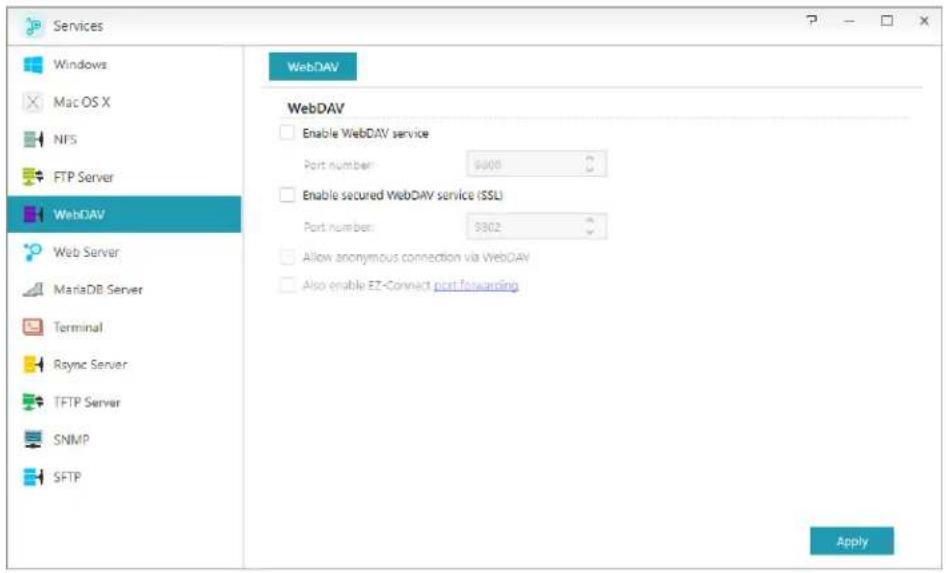
After enabling WebDAV you can access your NAS via HTTP or HTTPS protocol by using a Web browser or other client programs.
text_image
Services Windows Mac OS X NFS FTP Server WebDAV Web Server MariaDB Server Terminal Rsync Server TFTP Server SNMP SFTP WebDAV Enable WebDAV service Port number: 9008 Enable secured WebDAV service (SSL) Port number: 9802 Allow anonymous connection via WebDAV Also enable EZ-Connect port forwarding ApplySee More
NAS 102 - Introduction to File Transfer Protocols
NAS 208 - WebDAV: A Secure File Sharing Alternative to FTP
Web Server
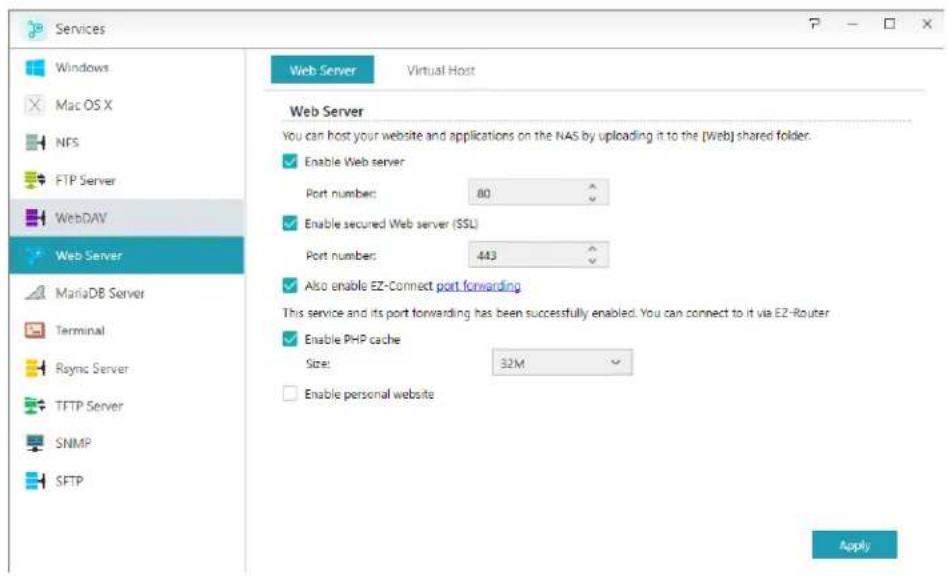
ADM comes built-in with an independent web server (apache) that you can use to host your own website. After enabling this feature, the system will create a shared folder called "Web" that will serve as the web server's root directory.
PHP register_globals: This feature is not enabled, by default. Enable this if a website program specifically requests you to. Otherwise, it is recommended that you leave this feature disabled for system security reasons.
→ Enable PHP cache: Enabling PHP cache could enhance the PHP performance. However, it may not take effect under some circumstances.
text_image
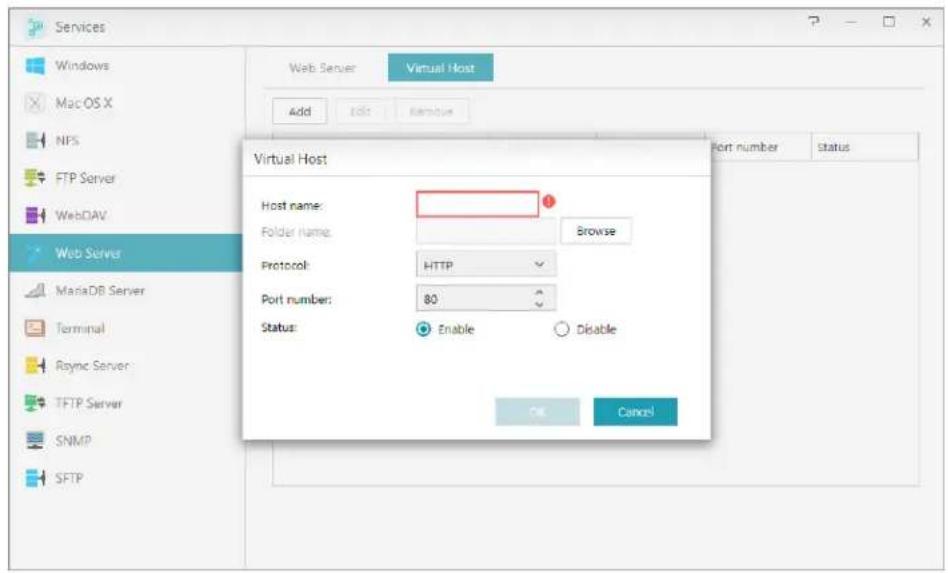
Services Windows Mac OS X NFS FTP Server WebDAV Web Server MariaDB Server Terminal Roysc Server TFTP Server SNMP SFTP Web Server Virtual Host Web Server You can host your website and applications on the NAS by uploading it to the [Web] shared folder. Enable Web server Port number: 80 Enable secured Web server (SSL) Port number: 443 Also enable EZ-Connect port forwarding This service and its port forwarding has been successfully enabled. You can connect to it via EZ-Router Enable PHP cache Size: 32M Enable personal websites Apply→ Virtual Host: You can use this feature to simultaneously host several websites on your NAS.
text_image
Services Windows Mac OS X NPS FTP Server WebDAV Web Server MariaDB Server Terminal Roync Server TFTP Server SNMP SFTP Web Server Virtual Host Host name: Folder name: Browse Protocol: HTTP Port number: 80 Status: Enable Disable OK Cancel Port number statusEnable personal website: After enabling this, each NAS user can have their own dedicated personal website. Before using this, you must first create a www folder within the Home folder and then upload the associated files for your personal website to the www folder. Afterwards, you will be able to connect to the site using the NAS IP (or DDNS URL) followed by adding \~username. For example: http://192.168.1.100/\~admin or cloudid.myasustor.com/\~admin.
See More
NAS 321 - Hosting Multiple Websites with a Virtual Host
MariaDB
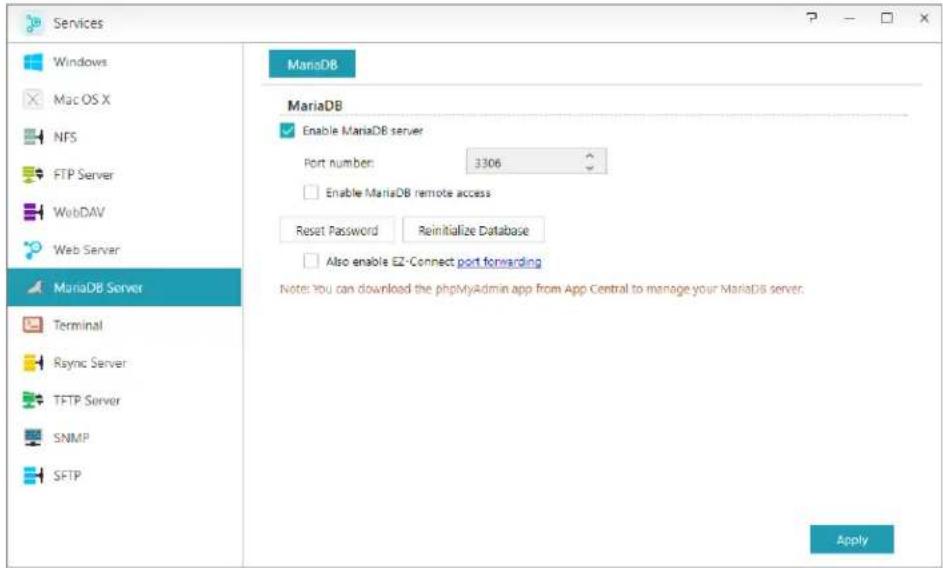
ADM comes pre-installed with MariaDB, which you can use for website databases.
Reminder: You can manage your MariaDB server with phpMyAdmin which can be downloaded and installed from App Central.
Reset Password: If you happen to forget your MariaDB login password, you can reset the password for the "root" account (The default password is "admin"). This is also the default administrator account.
Reinitialize Database: Here you can reinitialize your entire MariaDB database. Upon reinitialization, all of your MariaDB databases will be erased.
About MariaDB
For the MariaDB administrator account, the default username is "root" and the default password is "admin". For security reasons, please remember to change the password for this account.
text_image
Services Windows Mac OS X NFS FTP Server WebDAV Web Server MariaDB Server Terminal Raynic Server TFTP Server SNMP SFTP ManoDB MariaDB Enable MariaDB server Port number: 3306 Enable MariaDB remote access Reset Password Reinitialize Database Also enable EZ-Connect port forwarding Note: You can download the phpMyAdmin app from App Central to manage your MariaDB server. ApplyTerminal
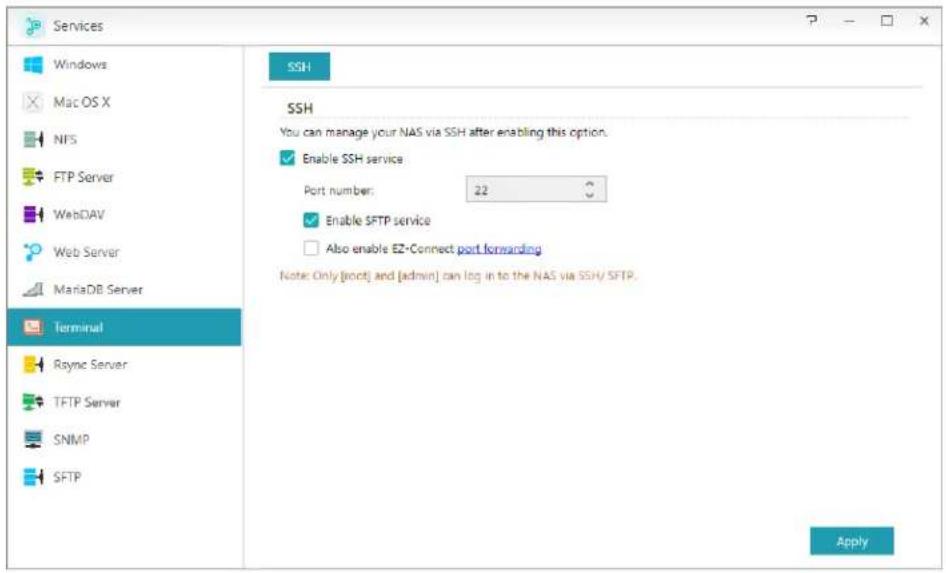
You can enable SSH service if you wish to manage your NAS over Secure Shell (SSH). If you wish to transfer data to your NAS through SFTP (Secure FTP) you can enable that here as well.
Note: For security reasons, SSH only allows the "admin" account or the "root" account to log in. The passwords for both these accounts are identical.
text_image
Services Windows Mac OS X NFS FTP Server WebDAV Web Server MariaDB Server Terminal Rsync Server TFTP Server SNMP SFTP SSH SSH You can manage your NAS via SSH after enabling this option. Enable SSH service Port number: 22 Enable SFTP service Also enable EZ-Connect port forwarding Note: Only [root] and [admin] can log in to the NAS via SSH/ SFTP. ApplyRsync Server
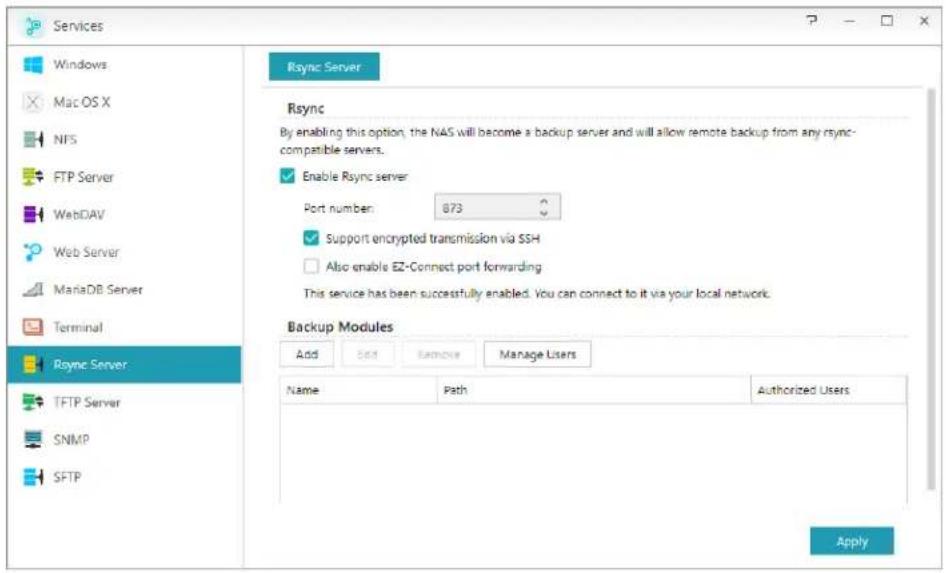
After enabling Rsync server, your NAS will become a backup server and will allow remote backup from another ASUSTOR NAS or any other Rsync-compatible servers.
→ Enable Rsync server: If you wish to permit encrypted backup for clients, please enable support for encrypted transmission via SSH. If you enable this feature the system will then automatically enable SSH service (3.2.8 Terminal).
→ Manage Rysnc User: If you wish to create restrictions on the Rsync connections that can back up to your NAS, please click on Manage Users to create different Rsync user accounts.
Reminder: Rsync accounts are different and independent from system accounts.
Add New Backup Modules: Click on Add to create a new backup module. Each backup module will then correspond to a physical path within the system. When an Rsync client connects to your NAS, it will be able to select a backup module. Data will then be backed up to the module's corresponding physical path.
text_image
Services Windows Mac OS X NFS FTP Server WebDAV Web Server MariaDB Server Terminal Rsync Server TFTP Server SNMP SFTP Rsync Server Rsync By enabling this option, the NAS will become a backup server and will allow remote backup from any rsync-compatible servers. Enable Rsync server Port number: 873 Support encrypted transmission via SSH Also enable EZ-Connect port forwarding This service has been successfully enabled. You can connect to it via your local network. Backup Modules Add Edit Remove Manage Users Name Path Authorized Users ApplySee More
NAS 259 - Using Remote Sync (Rsync) to Protect Your Data
NAS 351 - Remote Sync (Rsync): Best Practice
TFTP Server
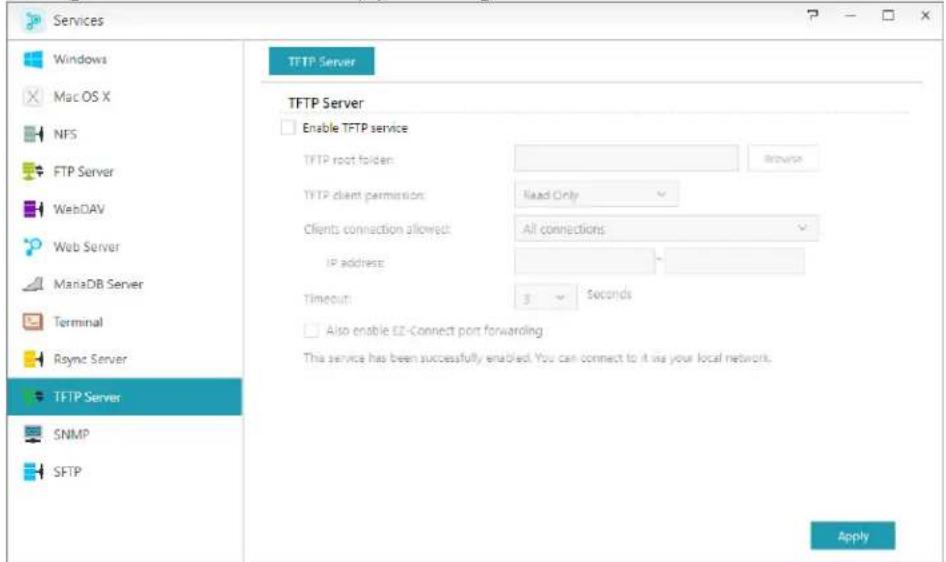
TFTP (Trivial File Transfer Protocol) is a simple type of file transfer protocol that is used to transfer configurations or small files, providing no authentication.
text_image
Services Windows Mac OS X NFS FTP Server WebDAV Web Server MariaDB Server Terminal Rsymc Server TFTP Server SNMP SFTP TFTP Server Enable TFTP service TFTP root folder: Browse TFTP client permission: Read Only Clients connection allowed: All connections IP address: Timeout: 3 Seconds Also enable EZ-Connect port forwarding This service has been successfully enabled. You can connect to it via your local network. ApplyTFTP root folder: Specifies the folder on the ASUSTOR NAS that TFTP clients can access.
TFTP client permission: Specifies the permissions for TFTP clients. If you select "Read Only", TFTP clients will only be able to view the contents of the TFTP root folder. If you select "Read & Write", TFTP clients will be able to modify the contents of the TFTP root folder.
→ Client connections allowed: Selecting "All Connections", will allow all TFTP clients to connect to the NAS. You can also choose to limit connections to TFTP clients from a specified range of IP addresses.
Timeout: Here you can specify the timeout time which is used to terminate idle connections, providing an additional later of security.
SNMP
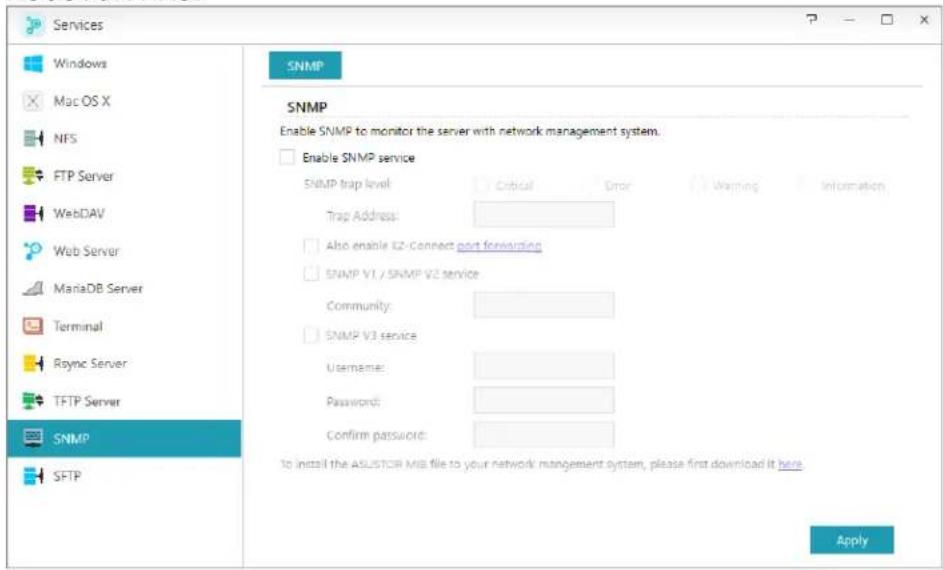
Enabling SNMP allows users to use network management software to monitor the status of their ASUSTOR NAS.
text_image
Services Windows Mac OS X NFS FTP Server WebDAV Web Server MariaDB Server Terminal Roync Server TFTP Server SNMP SFTP SNMP Enable SNMP to monitor the server with network management system. Enable SNMP service SNMP trap level Critical Error Waiting Information Trap Address: Also enable I2-Connect port forwarding SNMP V1 / SNMP V2 service Community: SNMP V3 service Username: Password: Confirm password: To install the ASLISTOR MIB file to your network management system, please first download it here. ApplySNMP trap level: Here, you can configure SNMP trap to actively provide warning messages. Warning event types include: Critical, Error, Warning and Information
→ Trap Address: After configuring the SNMP trap level please input the IP address of the network management station (NMS) here.
SNMP V1 / SNMP V2 service: Selecting this checkbox will enable SNMP V1 / V2 service.
Community: Enter a community name here. Community names must include 1 to 64 displayable characters and may not include the following characters: " ' \ and blank spaces.
SNMP V3 service: Selecting this checkbox will enable SNMP V3 service.
Username: Please input the SNMP V3 username here. This username must include 1 to 64 displayable characters and may not include the following characters: " ' \ and blank spaces.
→ Password: Please input the corresponding password for the SNMP V3 username in the field above. Letters in the password are case-sensitive. You may input 8 to 127 displayable characters including letters from the English alphabet, numbers and symbols. The password may not include the following characters: " ' \ and blank spaces.
See More
Storage Manager
Volume
Note: This function may differ depending on the NAS model in use.
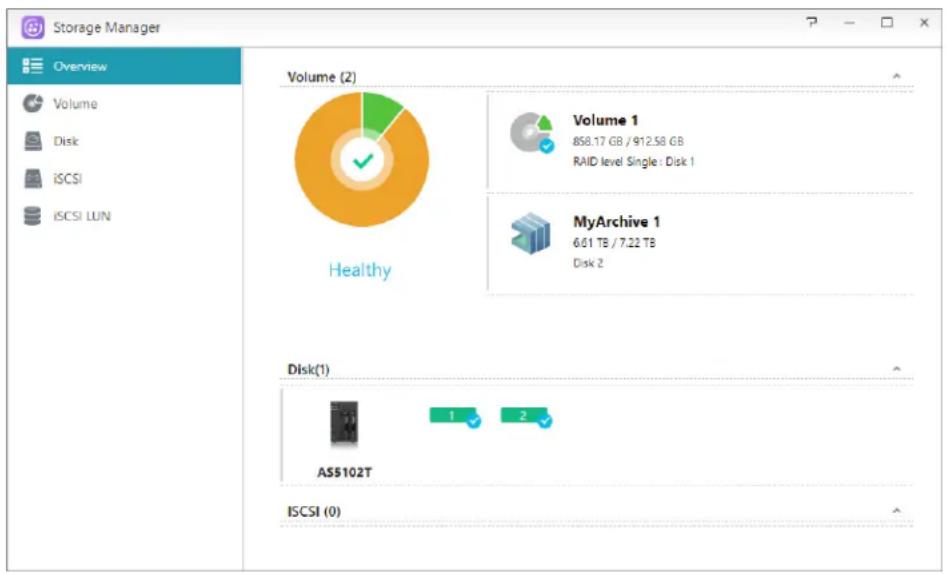
pie
| Category | Volume | | -------- | ------ | | Volume 1 | 858.17 GB / 912.58 GB | | RAID level Single : Disk 1 | - | | MyArchive 1 | 6.61 TB / 7.22 TB | | Disk 2 | - |Storage space on your NAS consists of logical volumes which are made up of a single disk or multiple disks combined together. Here you can set up new storage space for your NAS and, according to your data protection needs, select the most suitable RAID level. In order to maintain data integrity, you may only use internal disks when creating storage space for your NAS. ADM does not support the use of external disks for storage space.
Reminder: The RAID levels that you may employ will depend on your NAS product model and the number of disks that you are using.
When setting up new storage space, ADM offers the following two options:
Quick Setup: You need only specify the requirements for the storage space (i.e., you wish to have a higher level of data protection). Based on this and the number of disks you have, ADM will automatically create a storage volume and select an appropriate RAID level for it.
→ Advanced Setup: Based on the current number of disks, you can manually select a RAID level or set up a spare disk.
Reminder: In order to optimize disk space utilization, it is recommended that you use disks of the same size when creating storage space.
About RAID
In order to provide optimal storage space utilization and data protection, ADM supports multiple RAID levels allowing you to select the appropriate level for your needs. The following volume types levels are all supported by ADM:
Non-RAID Volume Types
Single: Only uses a single disk in the creation of storage space. This configuration does not offer any type of data protection.
JBOD: An acronym for "just a bunch of disks", JBOD uses a combination of two or more disks to create storage space. The total storage capacity is the capacities of all the disks added together. The advantage of this configuration is that it allows you to use different sized disks together and provides a large amount of storage space. The downside is that it does not offer any sort of data protection.
RAID Volume Types
RAID 0: Uses a combination of two or more disks to create storage space. The total storage capacity is the capacities of all the disks added together. The advantage of this configuration is that it allows you to use different sized disks together and provides a large amount of storage space. Also, data in RAID 0 volumes is accessed in parallel which provides improved performance. The downside is that RAID 0 does not offer any sort of data protection.
RAID 1: In RAID 1 your data is written identically on two disks, thereby producing a "mirrored set". Exactly the same data is stored on the two disks at all times. RAID 1 protects your data from loss should one of your disks fail. RAID 1's advantage is that it offers protection for your data by providing data redundancy. The downside of this configuration is that when combining two disks of differing sizes, the total storage space will be equal to the size of the smaller disk. Therefore, you will be unable to use a portion of the larger disk.
Total available storage space = (size of smaller disk) * (1)
RAID 5: Combines three or more disks to create a storage space that is able to support one failed disk. Should one of your disks fail, your data will still be protected from loss. In the event of disk failure, simply replace the failed disk with a new one. The new disk will automatically be accommodated into the RAID 5 configuration. The advantage of using RAID 5 is that it provides data protection through data redundancy. The downside to using RAID 5 is that when combining disks of differing sizes, the total storage space will be calculated based on the size of the smallest disk.
Total available storage space = (size of smallest disk) * (total number of disks - 1)
RAID 6: Combines four of more disks to create a storage space that is able to support two failed disks. Should two of your disks fail, your data will still be protected from loss. In the event of disk failure, simply replace the failed disks with new ones. The new disks will automatically be accommodated into the RAID 6 configuration. The advantage of using RAID 6 is that it is able to provide superior data protection through data redundancy. The downside to using RAID 6 is that when combining disks of differing sizes, the total storage space will be calculated based on the size of the smallest disk.
Total available storage space = (size of smallest disk) * (total number of disks - 2)
RAID 10 (1+0): Combines four or more disk to create a storage space that is able to support multiple failed disks (as long as the failed disks do not belong to the same "mirrored set"). RAID 10 provides the data protection of RAID 1 along with the access efficiency of RAID 0. With respect to data protection, RAID 10 uses the RAID 1 method of having the exact same data written identically on two disks, producing "mirrored sets". These "mirrored sets" are then combined together in a RAID 0 configuration. RAID 10 requires an even number of four or more disks. When combining disks of differing sizes, the total storage space will be calculated based on the size of the smallest disk.
Total available storage space = (size of smallest disk) * (total number of disks / 2)
About SSD Trim
Enable SSD Trim allows the SSDs installed on the NAS to maintain stable read/write performance while simultaneously controlling the frequency of overwriting to specific blocks, extending the life of SSDs.
Note:
• The function is only available on the following models: AS-6/50/51/61/62/70 series.
- When using an SSD in a Single, JBOD, or RAID 0/1/10 volume configuration, the Trim command for it will be enabled automatically.
- The Trim feature under RAID 5 and 6 configurations can only be enabled on the SSDs with DZAT (Deterministic Read Zero after TRIM) support. Please contact your SSD manufacturers for details on DZAT support.
See More
NAS 251 - Introduction to RAID
NAS 352 - Online RAID Level Migration and Capacity Expansion
Disk
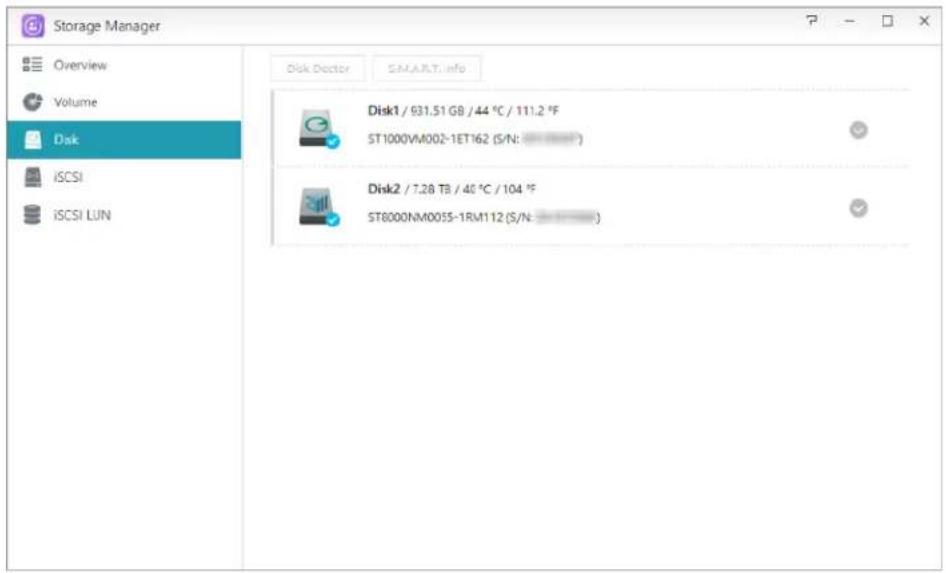
Here you can check on the status of all your disks. You can also inspect their S.M.A.R.T. information and conduct tests on your disks.
text_image
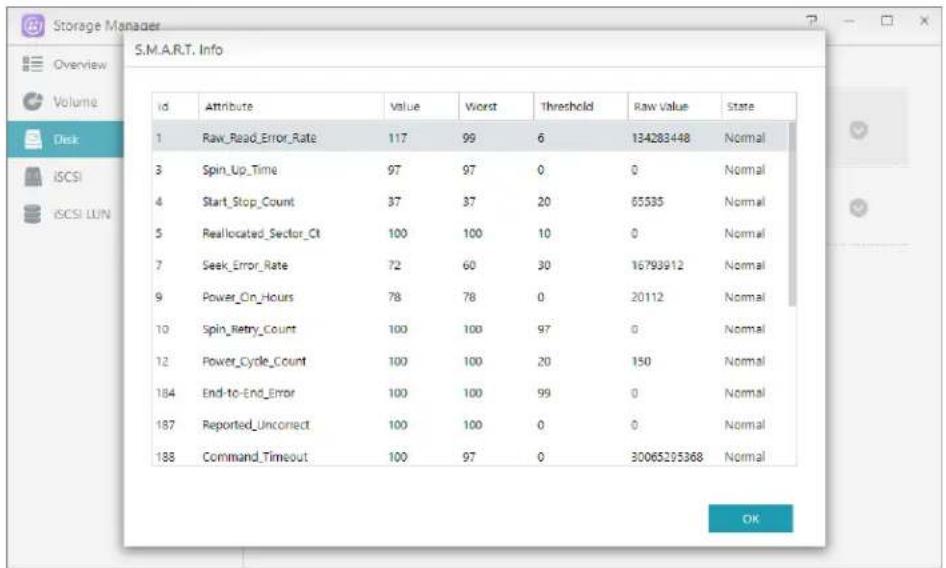
Storage Manager Overview Volume Disk iSCSI iSCSI LUN Disk Doctor SMART.info Disk1 / 631.51 GB / 44 °C / 111.2 °F ST1000VM002-1ET162 (S/N: ____) Disk2 / 7.28 TB / 40 °C / 104 °F ST8000NM0055-1RM112 (S/N: ____)S.M.A.R.T. Info: S.M.A.R.T. is an acronym for Self-Monitoring Analysis and Report Technology. It is a type of self-monitoring mechanism for disks that detects and reports on various indicators of reliability, with the hope of anticipating failures.
text_image
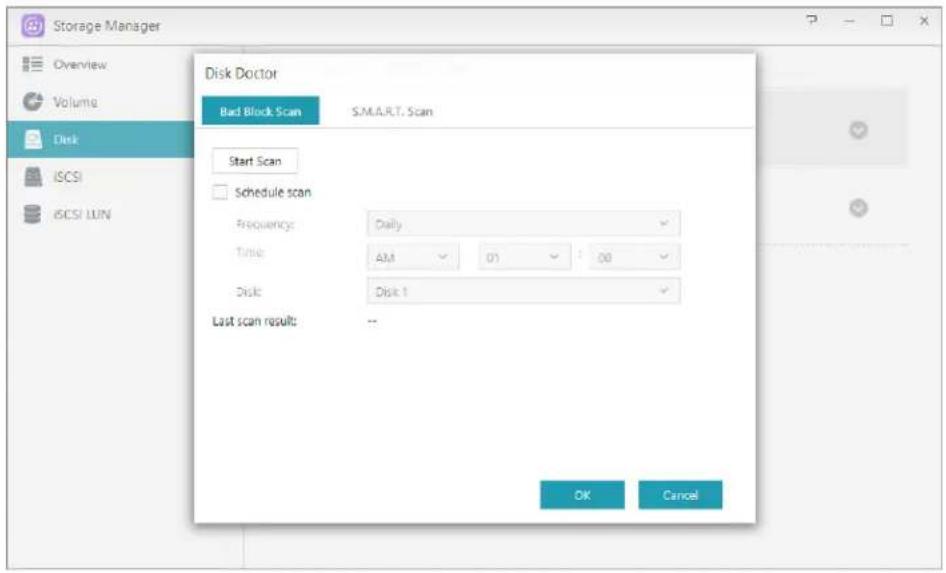
Storage Manager S.M.A.R.T. Info Overview Volume Disk iSCSI iSCSI LUN id Attribute Value Worst Threshold Raw Value State 1 Raw_Read_Error_Rate 117 99 6 134283448 Normal 3 Spin_Up_Time 97 97 0 0 Normal 4 Start_Stop_Count 37 37 20 65535 Normal 5 Reallocated_Sector_Ct 100 100 10 0 Normal 7 Seek_Error_Rate 72 60 30 16793912 Normal 9 Power_On_Hours 78 78 0 20112 Normal 10 Spin_Retry_Count 100 100 97 0 Normal 12 Power_Cycle_Count 100 100 20 150 Normal 184 End-to-End_Error 100 100 99 0 Normal 187 Reported_Uncorrect 100 100 0 0 Normal 188 Command_Timeout 100 97 0 30065205368 Normal OK→ Disk Doctor: Here you can check your disks for bad sectors or conduct S.M.A.R.T. tests.
text_image
Storage Manager Overview Volume Disk iSCSI iSCSI LUN Disk Doctor Bad Block Scan S.M.A.R.T. Scan Start Scan Schedule scan Frequency:Daily Time:AM 01 : 00 Disk:Disk 1 Last scan result:-- OK CancelIronWolf Health Management: The Seagate IronWolf Health Management function can provide more detailed detection information for IronWolf series hard disks. Before the possibility of a hard disk error occurring, a notification or warning message will be issued.
If you are using a Seagate IronWolf or IronWolf Pro series hard disk with a capacity of over or equal to 4TB, you only need to navigate to [Storage Manager] → [Disk] → [Disk Doctor] and the [IronWolf Health Management] window will appear. You can use this function to schedule or immediately carry out a scan.
After using IronWolf Health Management to scan your hard disks, the results will either be shown as "healthy" or a numerical output code. Please see the chart below to see the suggestions represented by the codes.
| Output Codes from IronWolf Health Management | IronWolf Health Test Result | Suggestion |
| 100 | Notification | Abnormally high operating temperature has been detected. Please ensure rear ventilation ports are not blocked, and try to lower the ambient temperature. Alternatively, go to Settings > Hardware > Fan Control to increase fan speed. If issue persists, please contact the ASUSTOR Support Team. |
| 101 | Notification | Connection issue on your ASUSTOR NAS and hard drive interface has been detected. Please ensure the hard drive is properly installed in the chassis or drive tray, and that the tray is properly installed in your ASUSTOR NAS. If issue persists, please contact the ASUSTOR Support Team. |
| 102 | Notification | Excessive physical shock to the hard drive has been detected. Please ensure your hard drive and ASUSTOR NAS are placed ona stable surface. If issue persists, please contact the ASUSTOR Support Team. |
| 105 | Notification | Excessive vibration has been detected. Please ensure your ASUSTOR NAS is placed on a stable surface. If issue persists, please contact the ASUSTOR Support Team. |
| 106 | Notification | Excessive host resets have been detected. Please ensure the hard drive is properly installed in the chassis or drive tray, and perform a power cycle. If issue persists, please contact the ASUSTOR Support Team. |
| >=200 | Warning | IHM has spotted some errors and a full SMART scan has been automatically triggered for your convenience. If the scan fails, please contact Seagate |
Once in hibernation, the hard disk LED indicator on the front of the disk tray will flash once every 10 seconds to indicate that the disk is hibernating. If an access error is detected on a hard disk, the LED indicator on the front of the disk tray will be lit red.
iSCSI
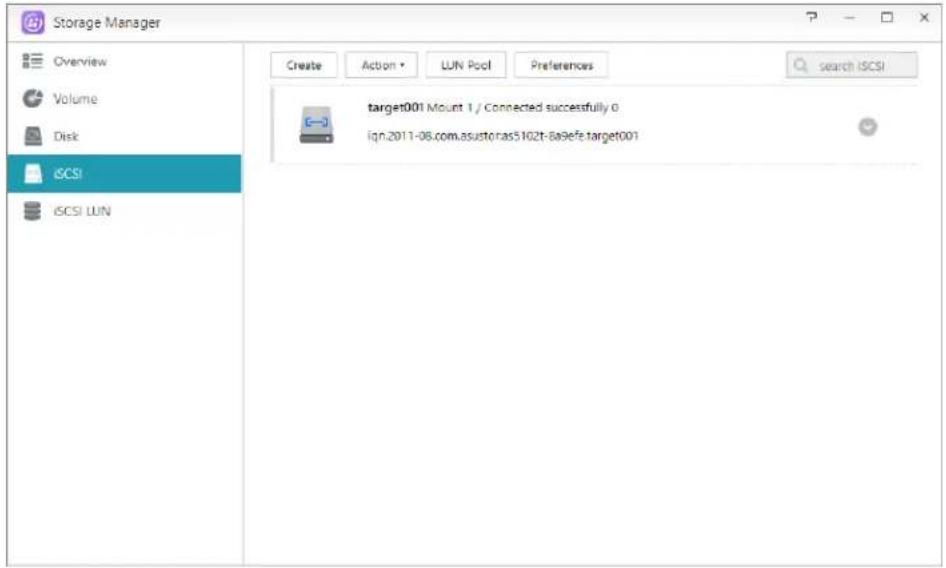
iSCSI is a type of network storage technology that offers high expandability and low implementation costs. Through existing network infrastructure and iSCSI you can use your NAS to expand existing storage space or have it act as a backup destination. iSCSI consists of two ends, a target and an initiator. The initiator is used to search for iSCSI hosts and to set up targets.
text_image
Storage Manager Overview Volume Disk iCSI iCSI LUN Create Action LUIN Pool Preferences search iSCSI target001 Mount 1 / Connected successfully 0 ign.2011-06.com.asustoras5102t-Ba9efe.target001→ IQN: IQN (iSCSI Qualified Name) is the unique name for each iSCSI target. This name should not be the same as any of the other target IQNs on other hosts.
→ CHAP Authentication: CHAP authentication can be used to verify a user's identity. If you choose to use CHAP authentication, a CHAP password must first be entered from the initiator for verification before it can connect to the target.
Note: When enabling mutual CHAP authentication, the authentication password used by the server and client cannot be the same.
Mutual CHAP Authentication: Mutual CHAP authentication requires both the target and the initiator to have usernames and passwords. When establishing a connection, the target and the initiator will have to authenticate each other using their respective credentials.
LUN Pool: Here you can check on the status of all iSCSI LUNs and assign corresponding iSCSI targets.
→ iSNS Server: iSNS (Internet Storage Name Service) iSCSI management. Here, you can register iSCSI targets with the iSNS Server, for convenient centralized management.
See More
NAS 308 - Introduction to iSCSI
iSCSI LUN
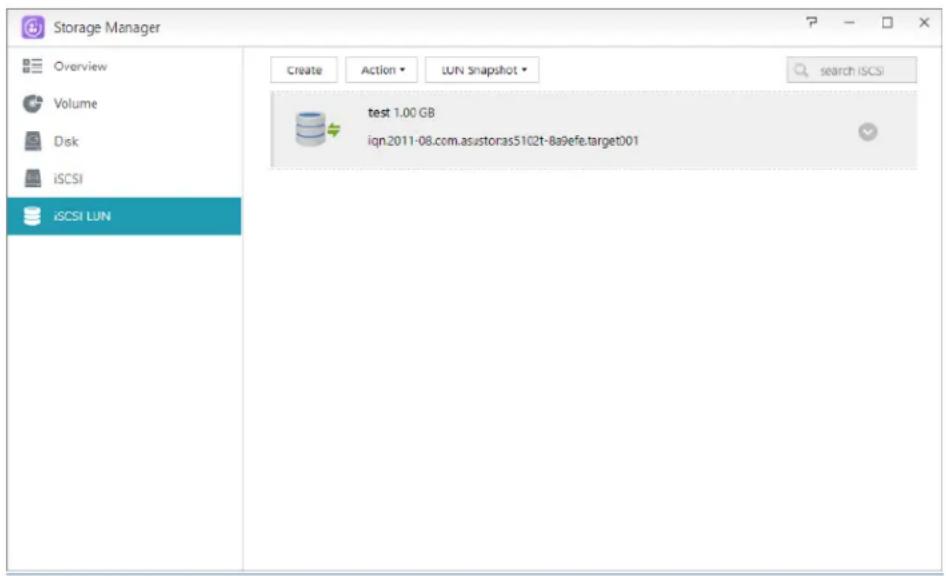
This tab allows you to create/remove, mount/unmount iSCSI LUNs, and create/manage LUN snapshots.
text_image
Storage Manager Overview Volume Disk iSCSI iSCSI LUN Create Action UN Snapshot search iSCSI test 1.00 GB iqn.2011-08.com.asustoras5102t-8a9efe.target001MyArchive
Note: This function may differ depending on the NAS model in use.

flowchart
graph LR
    A["Server Unit"] -->|Green Arrow| B["Library Store"]
    B --> C["Photo Album"]
    style A fill:#f9f,stroke:#333
    style B fill:#bbf,stroke:#333
MyArchive is a function designed especially for data management and sharing, giving you added flexibility when using multiple hard disks for data backup or exchange. When MyArchive hard disks have been inserted into the MyArchive disk bay, you will immediately be able to access the data on the hard disk.
MyArchive Hard Disk: Users will need to first convert hard disks into MyArchive hard disks before being able to use the MyArchive function.
→ File System: Supported file systems are as follows:
EXT4: for use with Linux
NTFS: for use with Windows
HFS+: for use with Mac OS X
→ Alias name: Here you can define tags for MyArchive disks. This allows users to quickly determine the contents of MyArchive disks from within ADM File Explorer when multiple disks are mounted simultaneously.
MyArchive Encryption: Here you can choose whether or not you want to encrypt this MyArchive and whether or not you want to auto-mount it at system startup. Should you choose to encrypt this MyArchive, after the system restarts, you will have to manually enter the password for the MyArchive in order to access it. Encrypted MyArchives are normally used for the storage of critical or confidential data. Should you lose your NAS you still needn't worry about your data leaking out and falling into the wrong hands.
Reminder: The MyArchive encryption function only supports the EXT4 file system.
See More
NAS 255 - Using MyArchive
Video - MyArchive
Accessories: Hard Disk Tray
Snapshot Center
1. Overview
Overview for Btrfs Volume and iSCSI LUN snapshots.
• History : Search snapshots by its created date.
• Scheduled Tasks : List the scheduled tasks information.
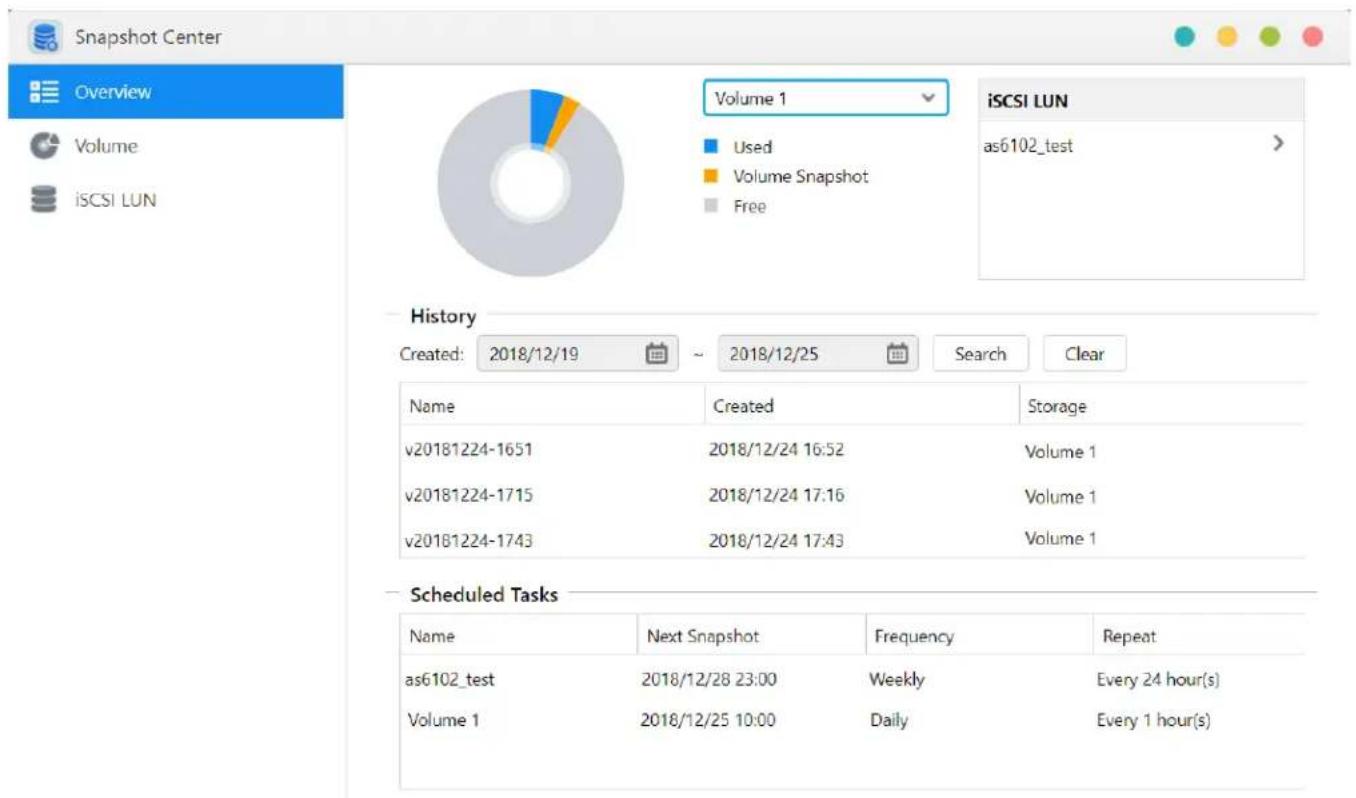
pie
| Name | Next Snapshot | Frequency | Repeat | | --- | --- | --- | --- | | as6102_test | 2018/12/28 23:00 | Weekly | Every 24 hour(s) | | Volume 1 | 2018/12/25 10:00 | Daily | Every 1 hour(s) |2. Volume
Display Btrfs volume snapshots information.
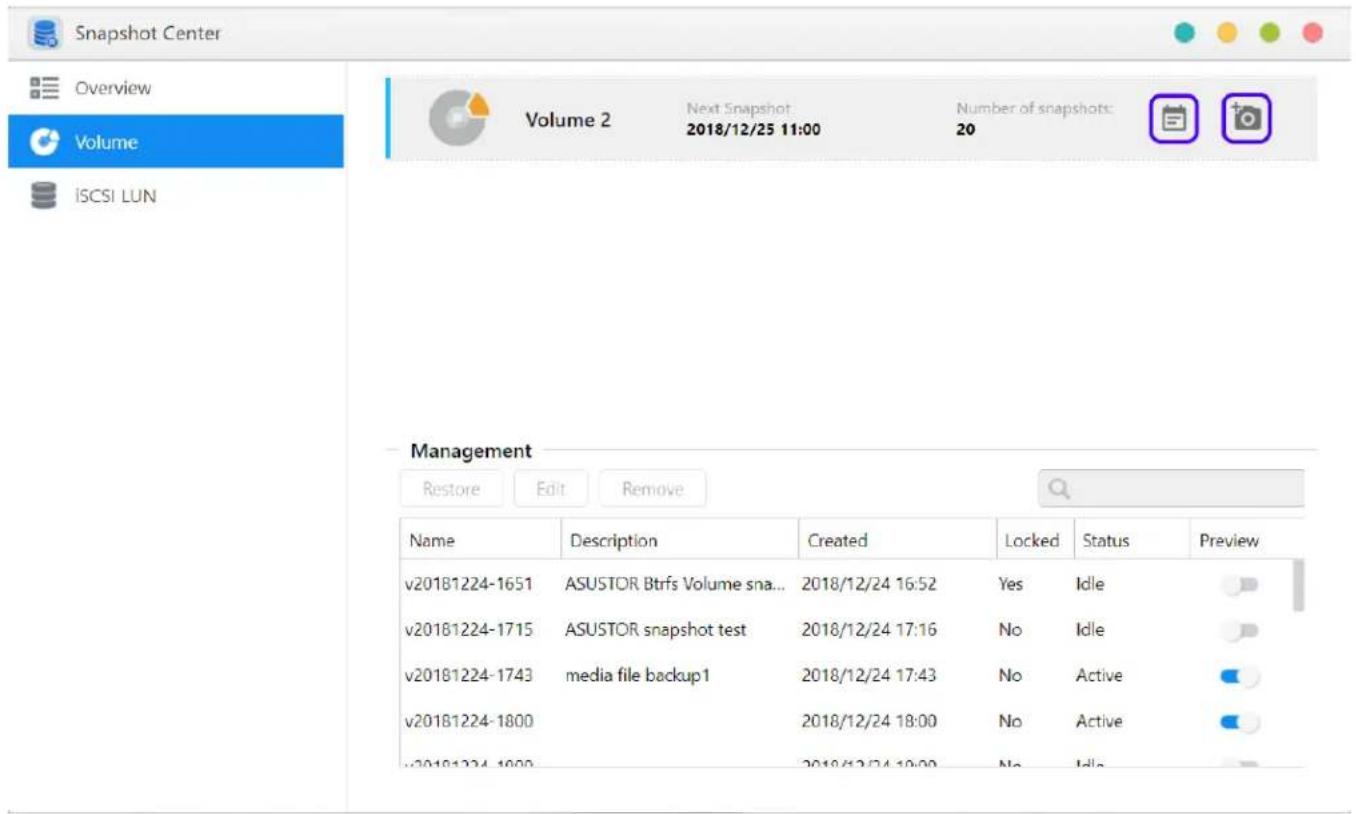
text_image
Snapshot Center Overview Volume iSCSI LUN Volume 2 Next Snapshot Number of snapshots: 2018/12/25 11:00 20 Management Restore Edit Remove Name Description Created Locked Status Preview v20181224-1651 ASUSTOR Btrfs Volume sna... 2018/12/24 16:52 Yes Idle v20181224-1715 ASUSTOR snapshot test 2018/12/24 17:16 No Idle v20181224-1743 media file backup1 2018/12/24 17:43 No Active v20181224-1800 2018/12/24 18:00 No Active v20181224-1800 2018/12/24 19:00 No Idle- Manual creation: Click the icon to create a snapshot.
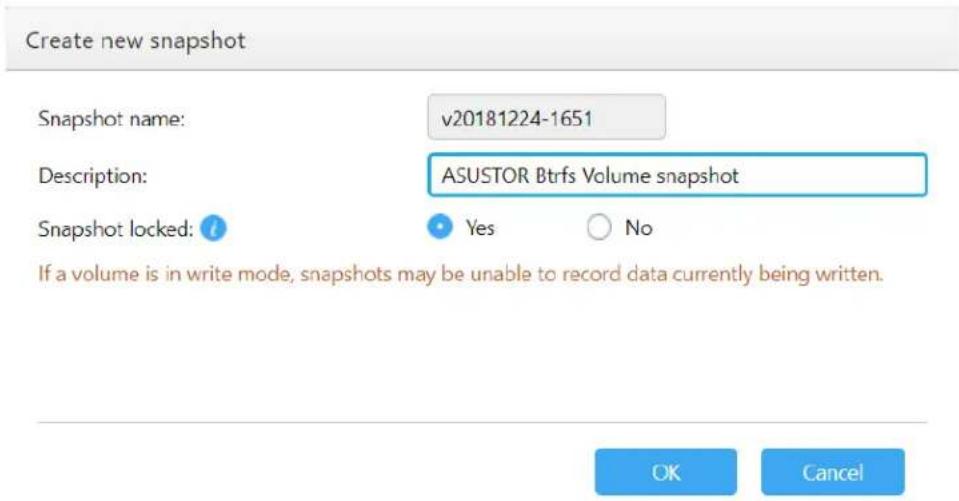
text_image
Create new snapshot Snapshot name: v20181224-1651 Description: ASUSTOR Btrfs Volume snapshot Snapshot locked: Yes No If a volume is in write mode, snapshots may be unable to record data currently being written. OK Cancel- Scheduling: Click the 📄 icon to schedule snapshots to run regularly. Scheduled snapshots will be named using the date and time created.
- Once: Users can create a snapshot at specific date and time.
- Daily: Users can set a minimum of 5 minutes or up to 12 hours to create a snapshot.
- Weekly: One or more days of the week can be set to create snapshots with options for daily included.
Scheduled backup

Scheduled backup
Frequency:
Daily

Repeat
Every 2 hour(s)

Started:
PM
04
00
Duration:
24 hours

Snapshot locked:

Yes

No
When limits are exceeded:

Stop creating snapshots

Remove the oldest unlocked snapshot.
Note: ADM will stop creating snapshots if a new snapshot exceeds the maximum amount of snapshots while all previous snapshots are locked.

Snapshots can be locked and retention rules can be set. Snapshot Center limits saved snapshots to 256. Upon reaching the limit, schedules can be terminated or Snapshot Center will automatically remove the oldest unlocked snapshot. When a snapshot is locked, it will not be removed automatically.
- Restore: Before the snapshot is restored, users can create a new snapshot before the restore and choose whether to keep the snapshot after the restore.
Restore
You are preparing to restore v20181224-1715 to Volume 2. Before beginning the restoration, please configure the settings below according to your requirements
Create a snapshot before restoring:

Yes

No
Snapshot name:
Description:
Locked:
Keep this snapshot after restoring:

Yes

No

Yes

No
Note: This snapshot is locked. If you select "No", this snapshot will be deleted.
Note: All services will be temporarily suspended when recovering snapshots, please DO NOT power off your NAS. Upon restoration, some apps may need to synchronize files or databases. Thank you for your patience.
OK
Cancel
- Edit: Edit the information of the snapshot.
Edit
Snapshot name:
v20181224-1651
Description:
ASUSTOR Btrfs Volume snapshot
Snapshot locked:
Yes
○ No
OK
Cancel
- Remove: Remove selected snapshot. With the Shift key, you can select multiple snapshots to remove.
Note: ADM will stop creating snapshots if a new snapshot exceeds the maximum amount of snapshots while all previous snapshots are locked. Users need to manually remove the locked snapshots and then can create snapshots again.
• Preview: The volume snapshots can activate to preview in ADM File Explorer.
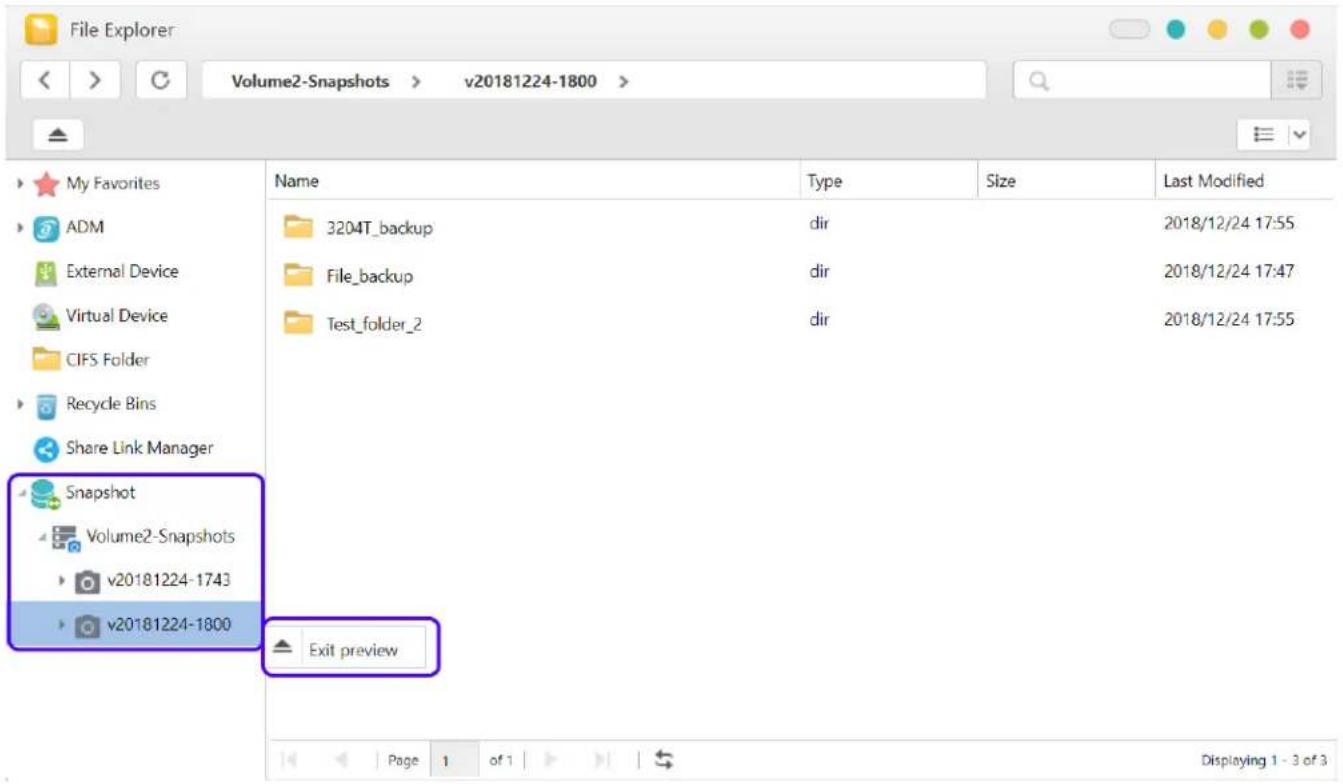
text_image
File Explorer Volume2-Snapshots > v20181224-1800 > My Favorites ADM External Device Virtual Device CIFS Folder Recycle Bins Share Link Manager Snapshot Volume2-Snapshots v20181224-1743 v20181224-1800 Exit preview Name Type Size Last Modified 3204T_backup Generation dir 2018/12/24 17:55 File_backup Generation dir 2018/12/24 17:47 Test_folder_2 Generation dir 2018/12/24 17:55 Exit previewPreview files from snapshots in File Explorer, users can copy or download files contained within snapshots to restore the event of corruption or other forms of data loss.
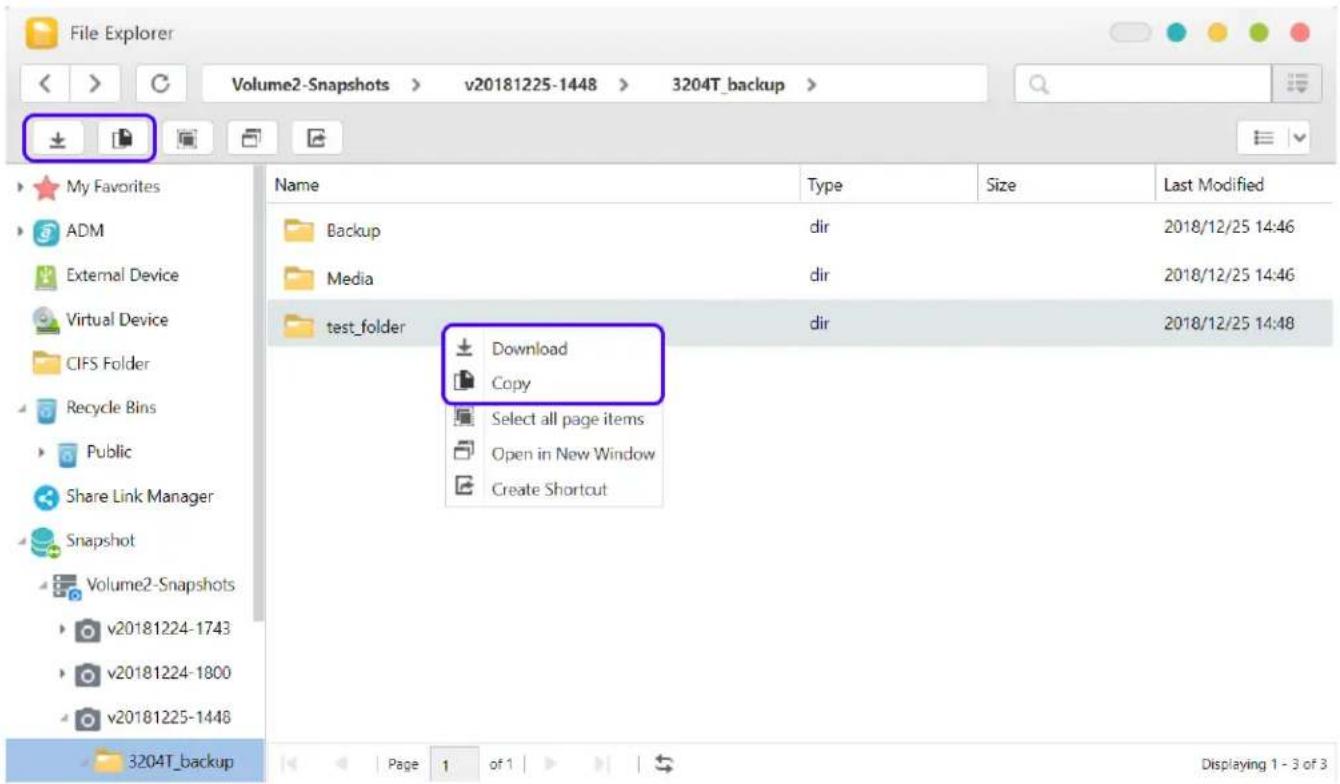
text_image
File Explorer Volume2-Snapshots > v20181225-1448 > 3204T_backup > My Favorites ADM External Device Virtual Device CIFS Folder Recycle Bins Public Share Link Manager Snapshot Volume2-Snapshots v20181224-1743 v20181224-1800 v20181225-1448 3204T_backup Name Type Size Last Modified Backup Generation dir 2018/12/25 14:46 Media Generation dir 2018/12/25 14:46 test_folder Generation dir 2018/12/25 14:48 Download Copy Select all page items Open in New Window Create Shortcut Page 1 of 1 Displaying 1 - 3 of 33. iSCSI LUN
Display iSCSI LUN snapshots information.
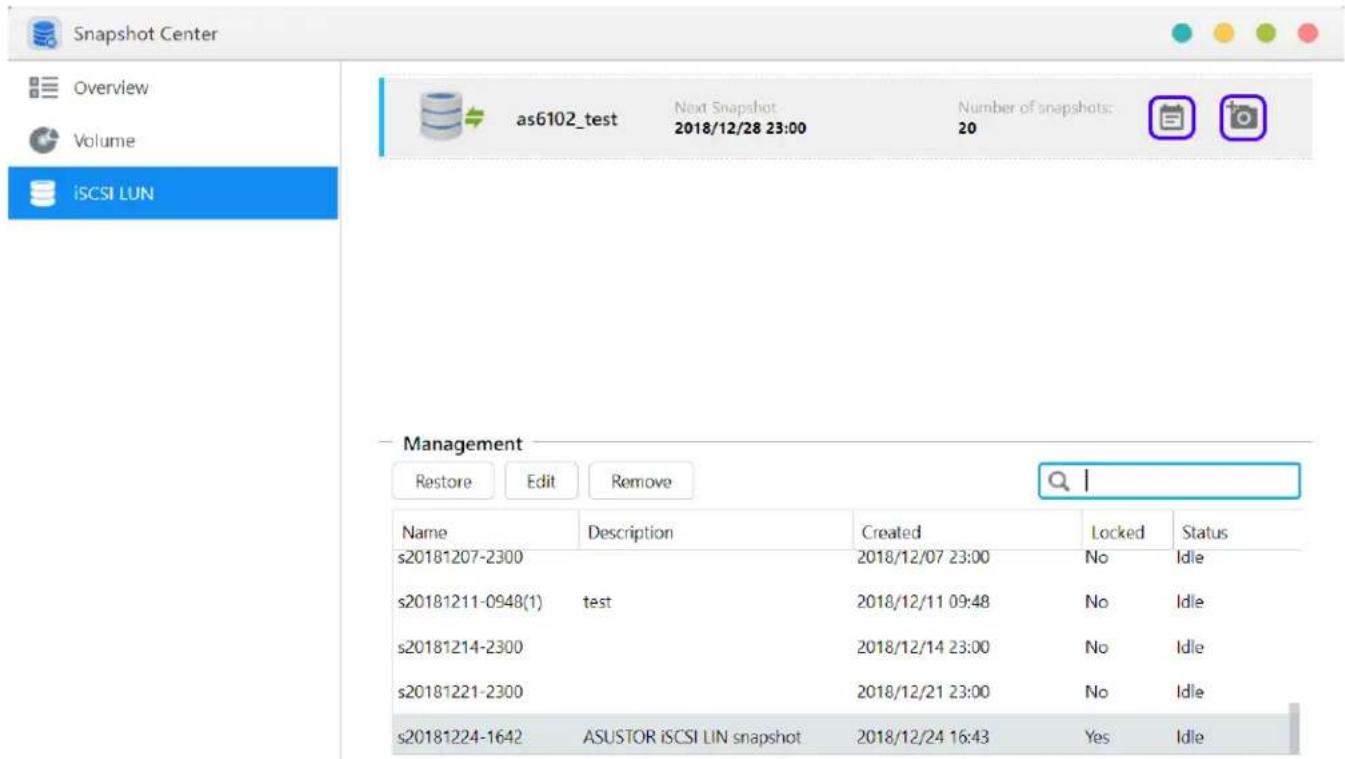
text_image
Snapshot Center Overview Volume iSCSI LUN as6102_test Next Snapshot Number of snapshots: 20 Management Restore Edit Remove Name Description Created Locked Status s20181207-2300 2018/12/07 23:00 No Idle s20181211-0948(1) test 2018/12/11 09:48 No Idle s20181214-2300 2018/12/14 23:00 No Idle s20181221-2300 2018/12/21 23:00 No Idle s20181224-1642 ASUSTOR iSCSI LIN snapshot 2018/12/24 16:43 Yes Idle- Manual creation: Click the icon to create a snapshot.
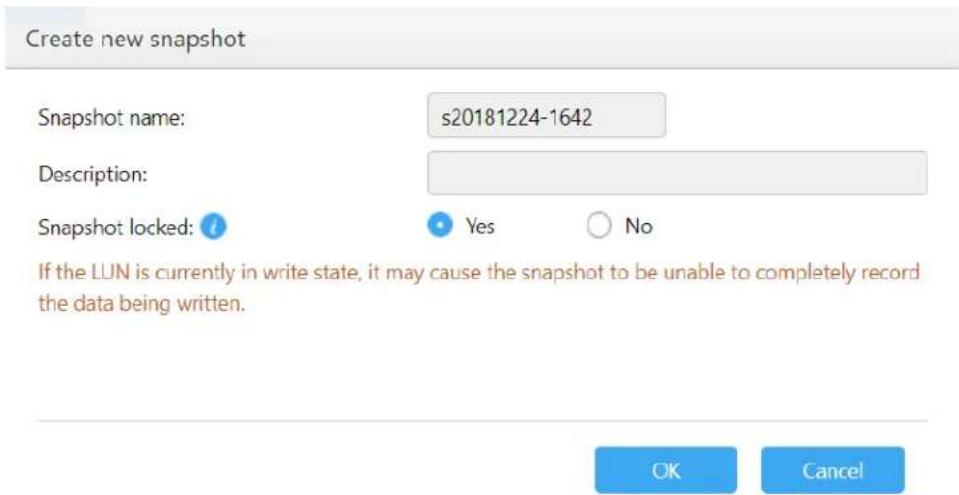
text_image
Create new snapshot Snapshot name: s20181224-1642 Description: Snapshot locked: Yes No If the LUN is currently in write state, it may cause the snapshot to be unable to completely record the data being written. OK Cancel- Scheduling: Click the 📄 icon to schedule snapshots to run regularly. Scheduled snapshots will be named using the date and time created.
- Once: Users can create a snapshot at specific date and time.
- Daily: Users can set a minimum of 5 minutes or up to 12 hours to create a snapshot.
- Weekly: One or more days of the week can be set to create snapshots with options for daily included.
Scheduled backup

Scheduled backup
Frequency:
Weekly

Day:
Fri

Repeat
Once

Started:


Snapshot locked:

Yes

No
When limits are exceeded:

Stop creating snapshots

Remove the oldest unlocked snapshot.
Note: ADM will stop creating snapshots if a new snapshot exceeds the maximum amount of snapshots while all previous snapshots are locked.

- Restore: Select one iSCSI LUN snapshot to restore.
Restore
You are preparing to restore s20181224-1642 to as6102_test. Before beginning the restoration, please configure the settings below according to your requirements
Create a snapshot before restoring:

Yes

No
Snapshot name:
Description:

Locked:

Yes

No
Keep this snapshot after restoring:

Yes

No
Note: This snapshot is locked. If you select "No", this snapshot will be deleted.
OK
Cancel
- Edit: Edit the information of the snapshot.
Edit
Snapshot name:
s20181224-1642
Description:
ASUSTOR iSCSI LIN snapshot
Snapshot locked:
Yes
○ No
OK
Cancel
- Remove: Remove selected snapshot. With the Shift key, you can select multiple snapshots to remove.
Note: ADM will stop creating snapshots if a new snapshot exceeds the maximum amount of snapshots while all previous snapshots are locked. Users need to manually remove the locked snapshots and then can create snapshots again.
EZ Sync Manager
1. Introducing ASUSTOR EZ Sync
ASUSTOR EZ Sync is a new feature on ADM3.2. It is for synchronizing data between computers and your NAS. Turning your NAS into a personal cloud space like Dropbox™ with ample capacity at your fingertips with historical version management. If a file is unintentionally overwritten with the wrong information, it can be restored using a previously saved backup copy. ASUSTOR EZ Sync includes two parts, EZ Sync Manager which is preinstalled on every NAS and ASUSTOR EZ Sync which can be installed on your PC.
Note: It is recommended to turn on the EZ Connect option while using ASUSTOR EZ Sync.
1.1 EZ Sync Manager for ADM
Please upgrade ADM to version 3.2 or above. EZ Sync Manager is preinstalled on ADM's Desktop.
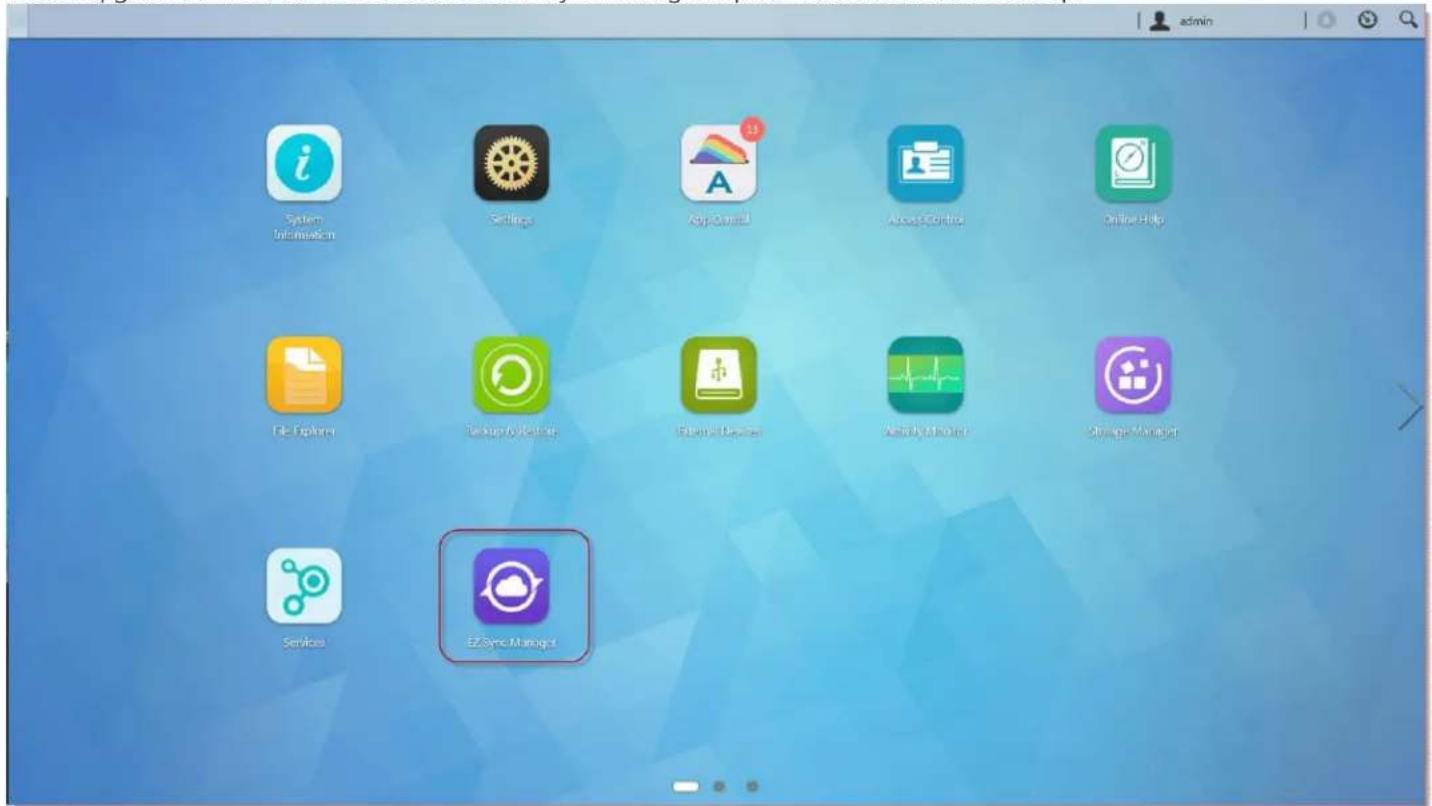
text_image
System Information Settings AppCentral About Control Online Help File Explorer Backup Devices Functional Devices Activity Manager Storage Manager Services EZSync Manager1.2 ASUSTOR EZ Sync for Windows.
How to obtain: Please download from EZ Sync Manager or from the ASUSTOR official website.
Note: ASUSTOR EZ Sync currently only supports Windows.
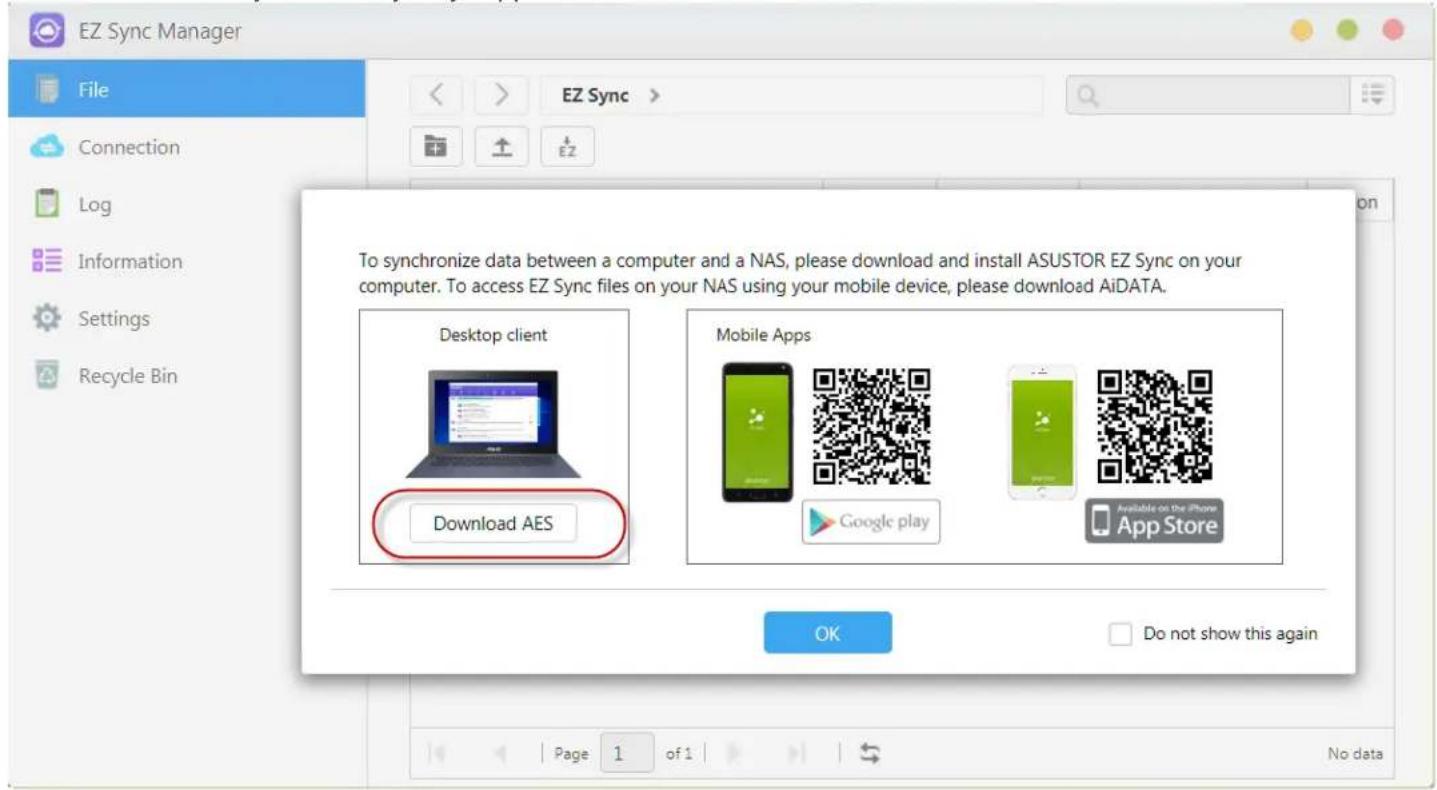
text_image
EZ Sync Manager File Connection Log Information Settings Recycle Bin EZ Sync > To synchronize data between a computer and a NAS, please download and install ASUSTOR EZ Sync on your computer. To access EZ Sync files on your NAS using your mobile device, please download AiDATA. Desktop client Download AES Mobile Apps Google play Available on the iPhone App Store OK Do not show this again Page 1 of 1 No data2. Introducing EZ Sync Manager
2.1 File
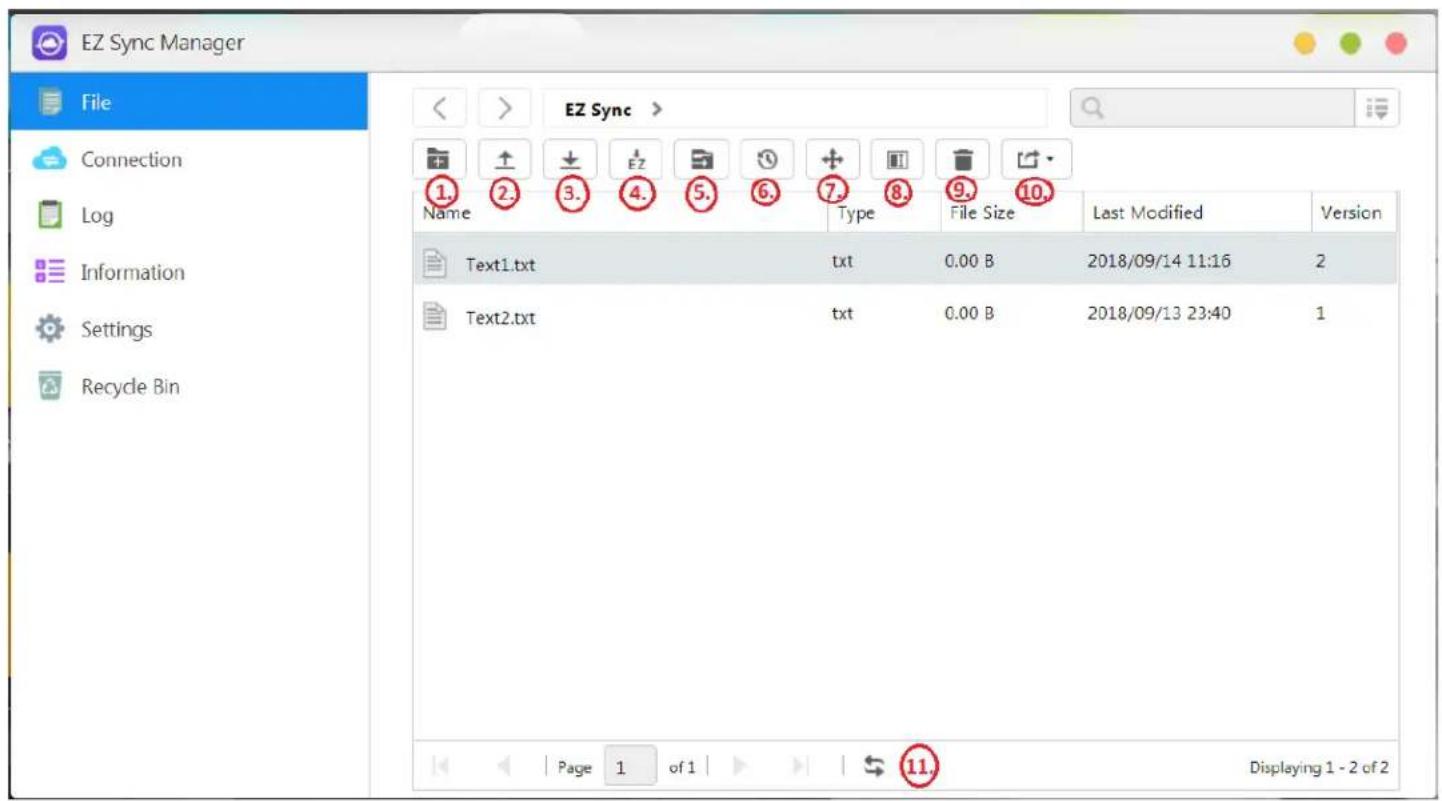
text_image
EZ Sync Manager File Connection Log Information Settings Recycle Bin EZ Sync > Name 2. 3. 4. 5. 6. 7. 8. 9. 10. Type File Size Last Modified Version Text1.txt txt 0.00 B 2018/09/14 11:16 2 Text2.txt txt 0.00 B 2018/09/13 23:40 1 Page 1 of 1 11. Displaying 1 - 2 of 2- Create Folder
- Upload
- Download
- Import to EZ Sync
- Export to Shared Folder
- File History
- Move
- Rename
- Delete
- Share
- Refresh
Additional guides:
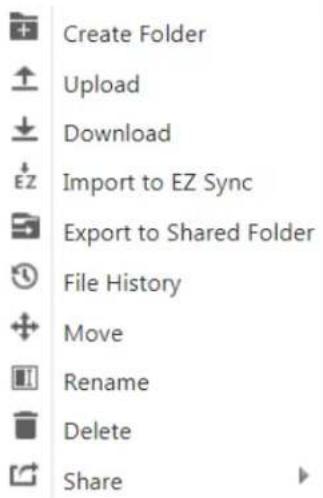
text_image
Create Folder Upload Download Import to EZ Sync Export to Shared Folder File History Move Rename Delete Share2.1.1 To set different sync folders on your computer separate from the default folder, please create a new folder in EZ Sync Manager.
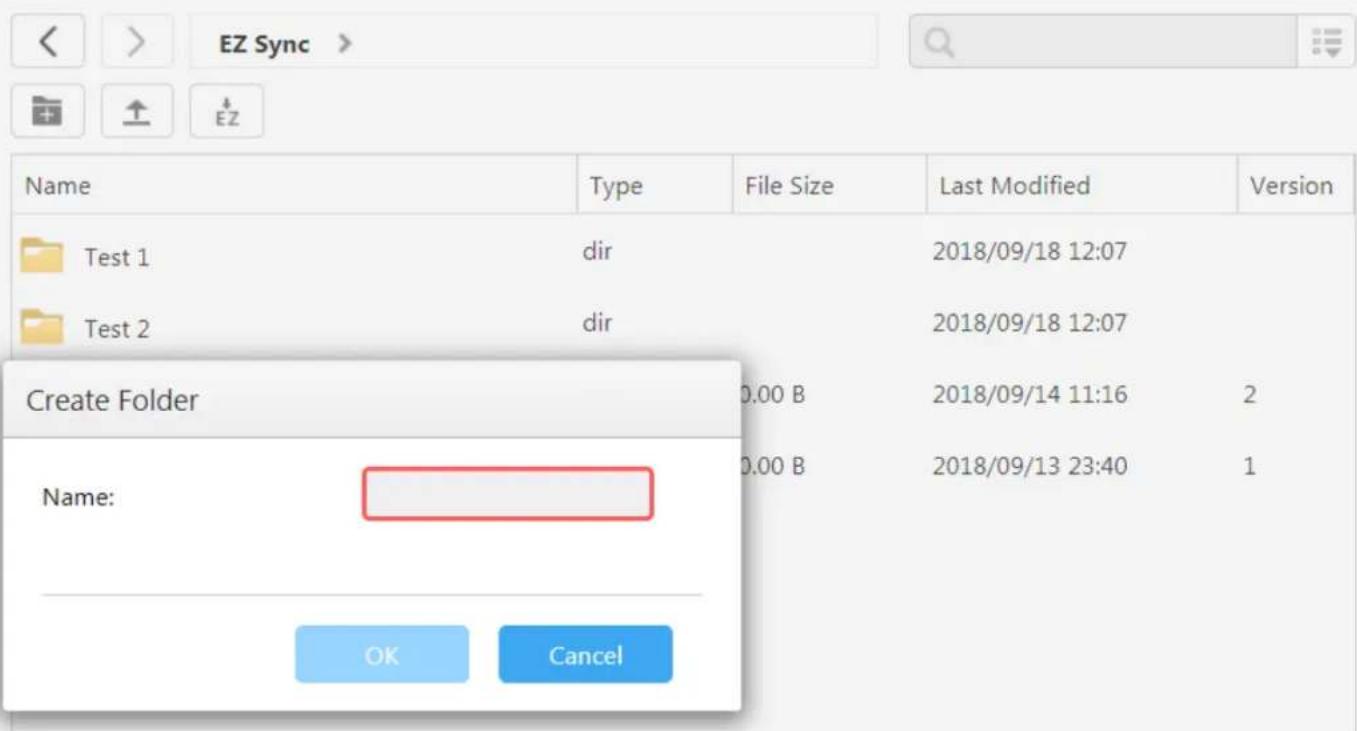
text_image
EZ Sync Name Type File Size Last Modified Version Test 1 Generation 2018/09/18 12:07 Test 2 Generation 2018/09/18 12:07 Create Folder 0.00 B 2018/09/14 11:16 2 Name: 0.00 B 2018/09/13 23:40 1 OK Cancel2.1.2 Sorting is easy in EZ Sync Manager. Columns can be enabled and disabled and files can be sorted under these categories.
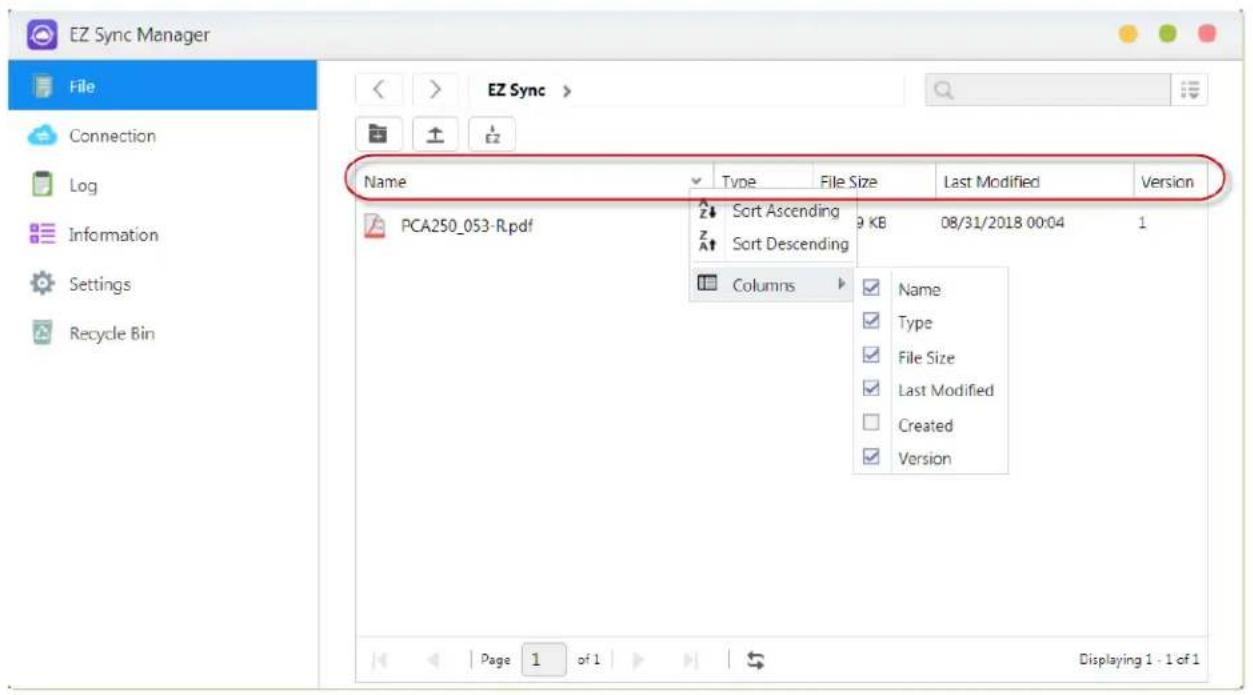
text_image
EZ Sync Manager File Connection Log Information Settings Recycle Bin Name Type File Size Last Modified Version PCA250_053-R.pdf Sort Ascending 9 KB 08/31/2018 00:04 1 Sort Descending Columns Name Type File Size Last Modified Created Version Page 1 of 1 Displaying 1 - 1 of 12.1.3 "File History" Allows you to restore files to their original versions or update to a newer version.
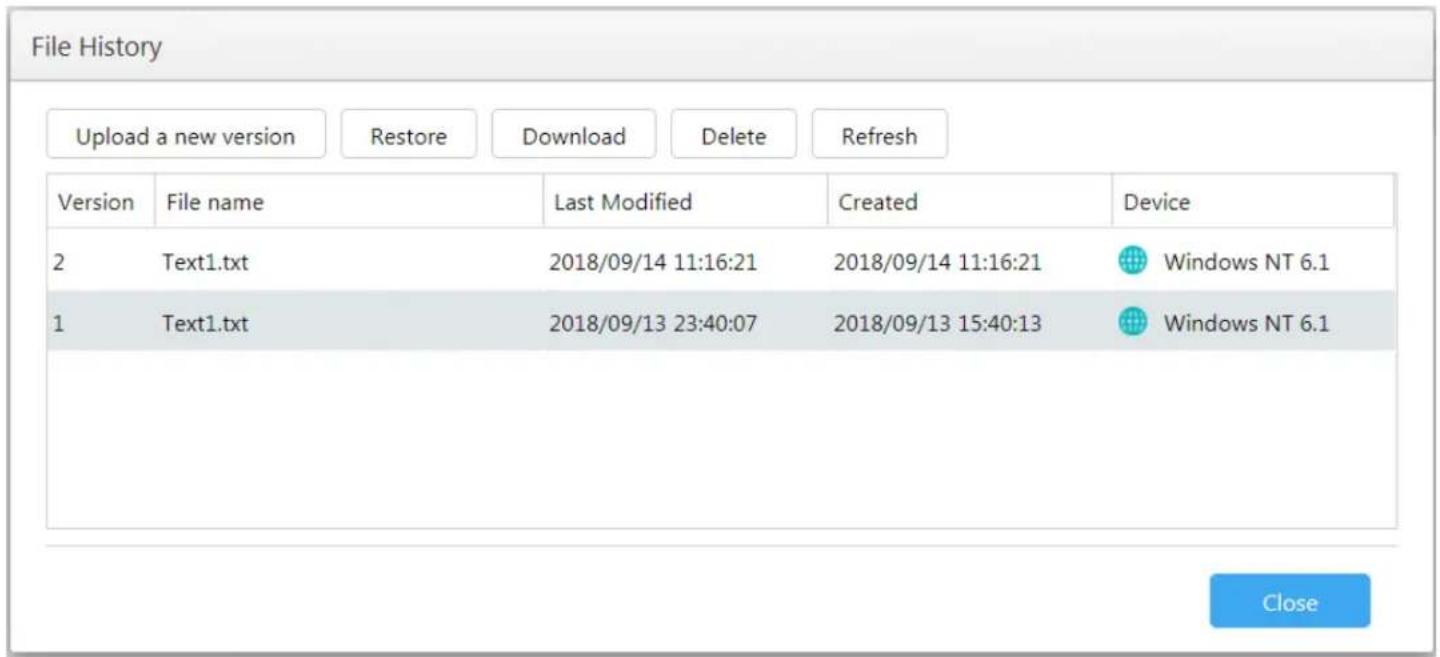
text_image
File History Upload a new version Restore Download Delete Refresh Version File name Last Modified Created Device 2 Text1.txt 2018/09/14 11:16:21 2018/09/14 11:16:21 Windows NT 6.1 1 Text1.txt 2018/09/13 23:40:07 2018/09/13 15:40:13 Windows NT 6.1 Close2.1.4 Pressing Share allows you to create a Share Link.
After pressing OK, the Share Link can be copied and mailed as shown below.
Create Share Link
You can share file(s) with others who do not have an ADM account on this NAS by creating Share Links. Anyone can download the file(s) directly through the link without logging in.
Share to
Internet
○ Local network
Expiration
Date
○ Timer
Link will expire by:
09-14-2018

Require password
○ Yes
No
OK
Cancel
Share Link
Text1.txt
https://a.ezconnect.to/portal/apis/fileExplorer/share_link.cgi?link=EhEEp2U0DtCsoJhYZp4ig0
Expiration Date:
2018/09/14 23:59
OK
2.2 Connection:
This option allows the user to view connected computers, IP addresses and the last time a computer made a connection to EZ Sync.
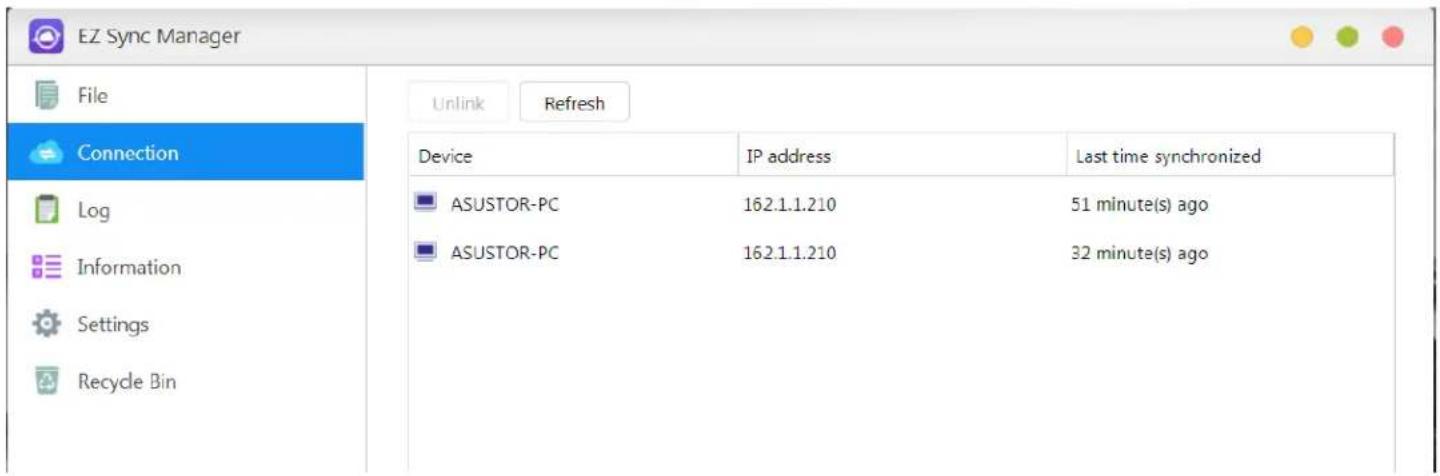
text_image
EZ Sync Manager File Connection Log Information Settings Recycle Bin Unlink Refresh Device IP address Last time synchronized ASUSTOR-PC 162.1.1.210 51 minute(s) ago ASUSTOR-PC 162.1.1.210 32 minute(s) ago2.3 Log: View logs here!
text_image
EZ Sync Manager File Connection Log Information Settings Recycle Bin Event Device Time + Added file [Text2.txt] to [EZ Sync]. ASUSTOR-PC 2018/09/13 15:40 Page 1 of 1 | Displaying 1 - 4 of 42.4 Information: View NAS connection information, usage status, and more.
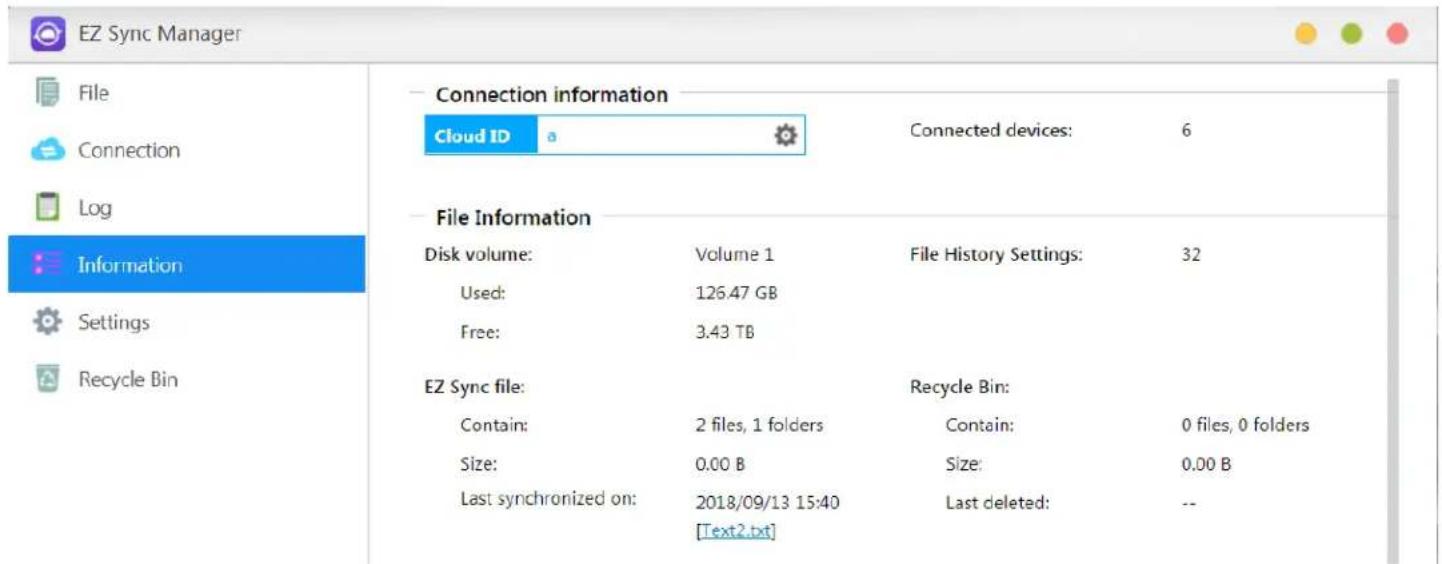
text_image
EZ Sync Manager File Connection Log Information Settings Recycle Bin Connection information Cloud ID a Connected devices: 6 File Information Disk volume: Volume 1 File History Settings: 32 Used: 126.47 GB Free: 3.43 TB EZ Sync file: Contain: 2 files, 1 folders Contain: 0 files, 0 folders Size: 0.00 B Size: 0.00 B Last synchronized on: 2018/09/13 15:40 Last deleted: -- [Text2.txt]2.5 Settings: General, Recycle Bin, Advanced.
2.5.1 General: File History can save up to 64 versions of a file, and will automatically delete the oldest version when the amount set has been exceeded.
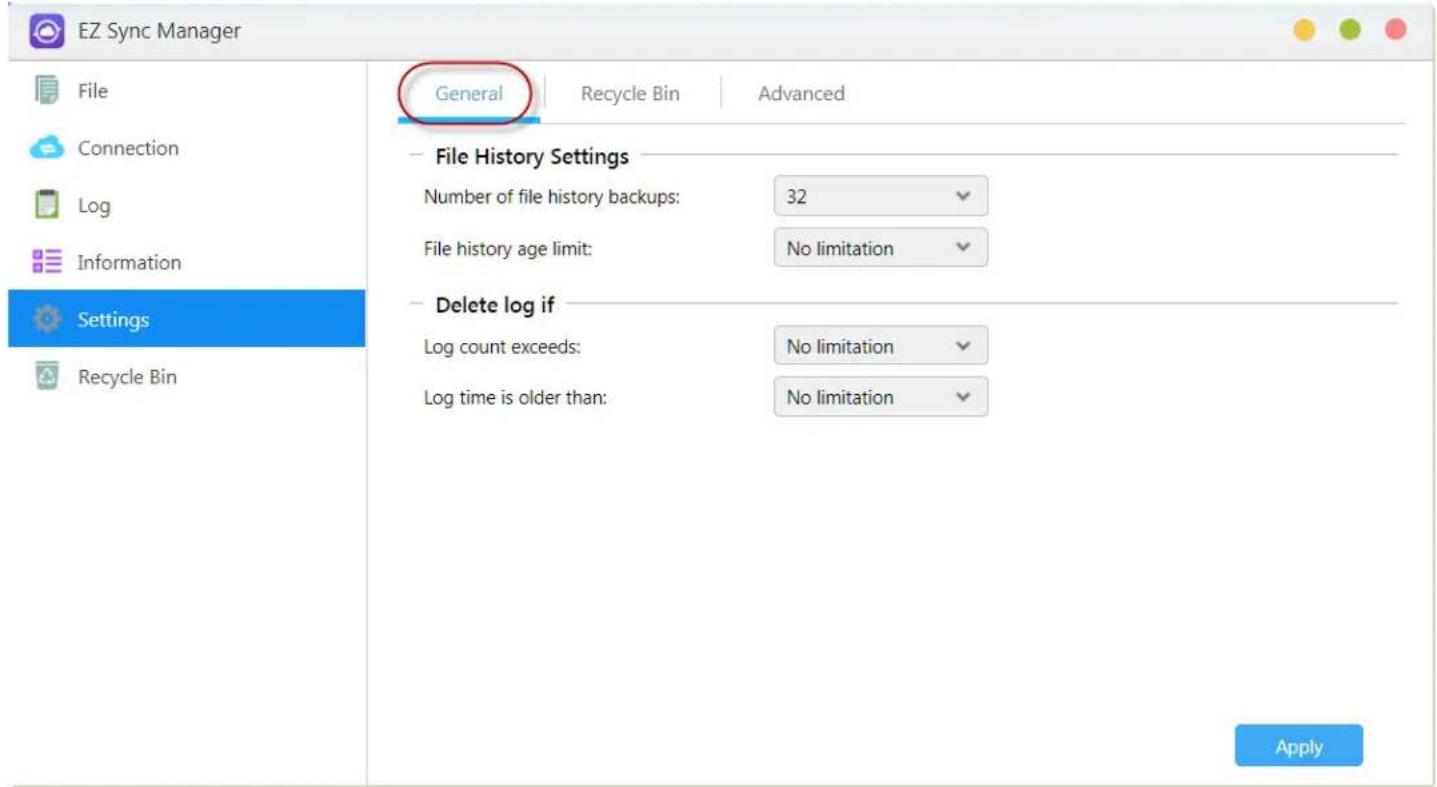
text_image
EZ Sync Manager File Connection Log Information Settings Recycle Bin General | Recycle Bin | Advanced File History Settings Number of file history backups: 32 File history age limit: No limitation Delete log if Log count exceeds: No limitation Log time is older than: No limitation Apply2.5.2 Recycle Bin Rules: Enable or disable Recycle Bin and set automatic deletion rules.
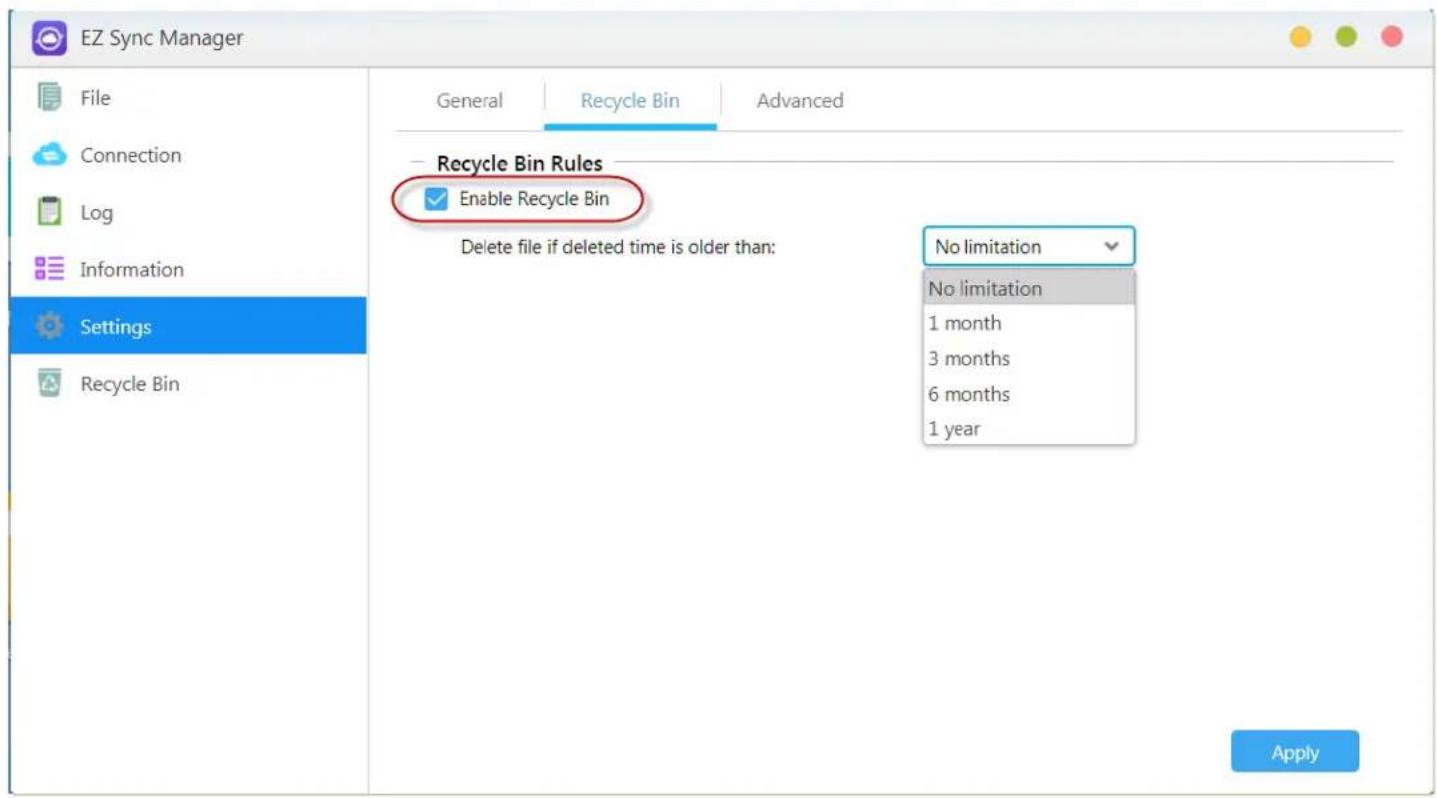
text_image
EZ Sync Manager File Connection Log Information Settings Recycle Bin General Recycle Bin Advanced Recycle Bin Rules Enable Recycle Bin Delete file if deleted time is older than: No limitation No limitation 1 month 3 months 6 months 1 year Apply2.5.3 Advanced: Choose which volume data will be synchronized.
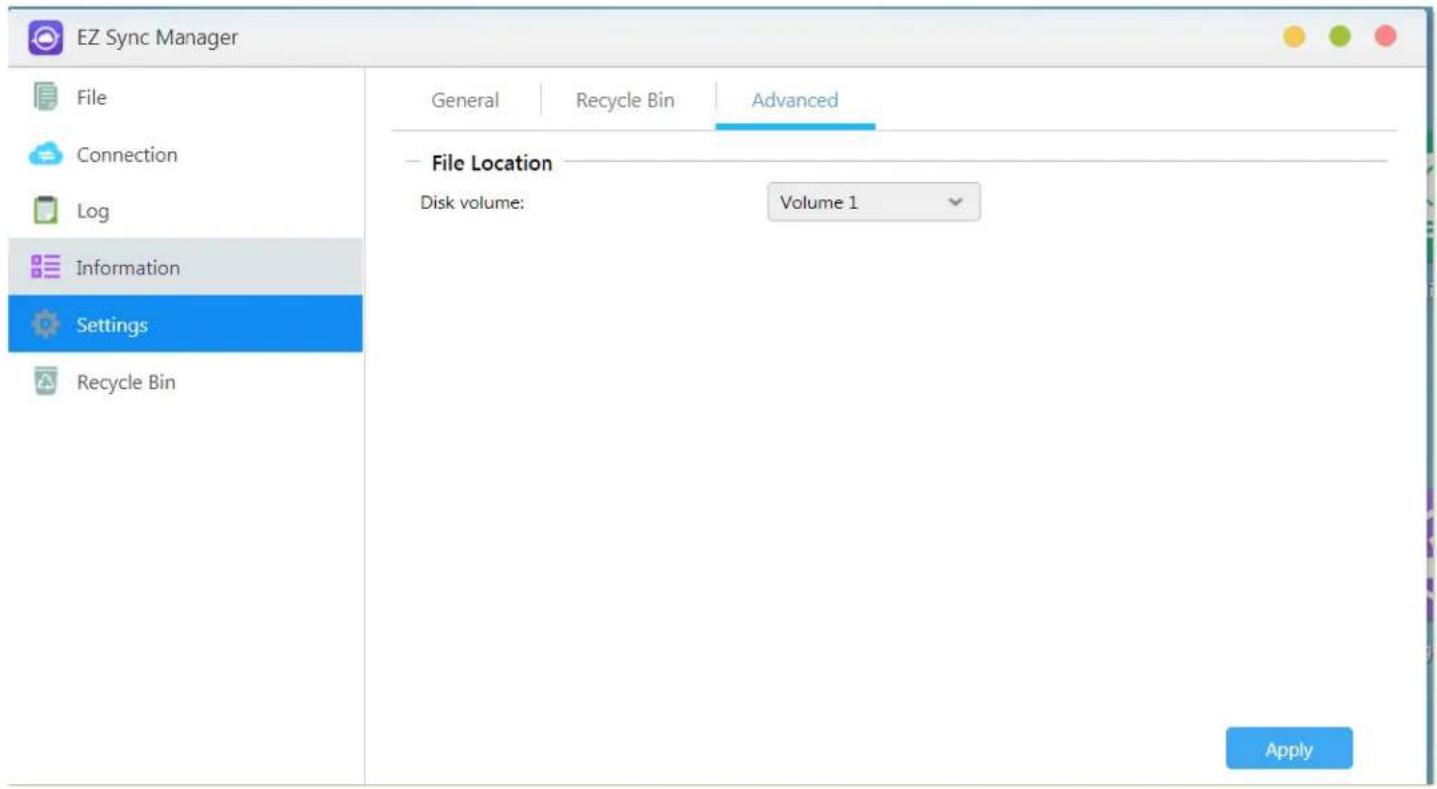
text_image
EZ Sync Manager File Connection Log Information Settings Recycle Bin General | Recycle Bin | Advanced File Location Disk volume: Volume 1 Apply2.6 Recycle Bin
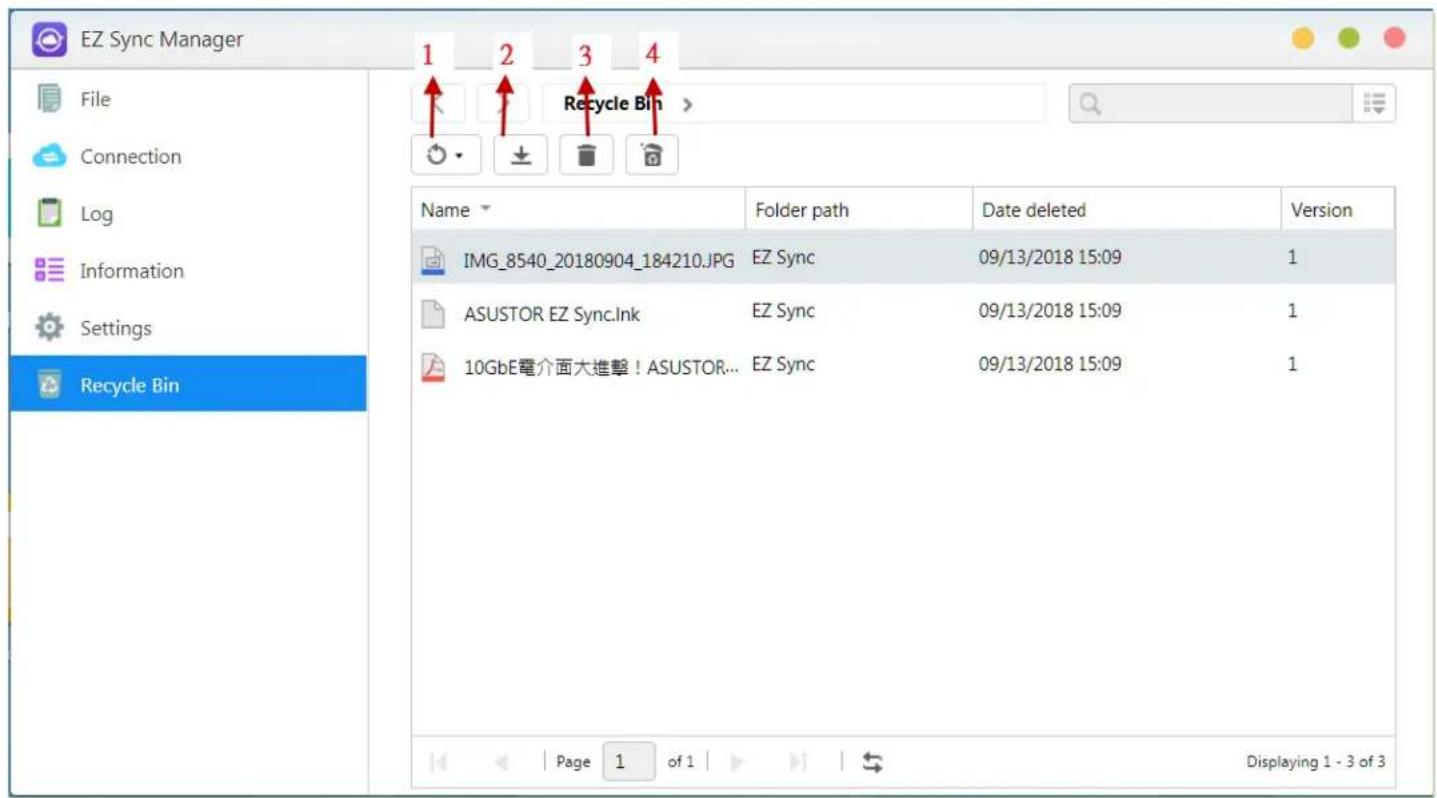
text_image
EZ Sync Manager File Connection Log Information Settings Recycle Bin 1 2 3 4 Recycle Bin Name Folder path Date deleted Version IMG_8540_20180904_184210.JPG EZ Sync 09/13/2018 15:09 1 ASUSTOR EZ Sync.Ink EZ Sync 09/13/2018 15:09 1 10GbE電介面大進擊!ASUSTOR... EZ Sync 09/13/2018 15:09 1 Page 1 of 1 Displaying 1 - 3 of 3- Restore: Restores file(s) to their original location.
- Download: Transfer file to computer.
- Delete: Deletes file(s) permanently.
- Empty: Deletes all files permanently.
Access Control
Local Users
Here you can manage (add, edit or remove) the local users in the system and assign their access rights to shared folders.
Usernames support multibyte character sets (such as Chinese, Japanese, Korean and Cyrillic) and can contain a maximum of 32 characters. Unsupported characters include: # \$ % * + = [ ] | : ; '' ' < > , ? /. Usernames cannot start with @- · and cannot start or end with a blank space. Usernames cannot contain consecutive blank spaces.
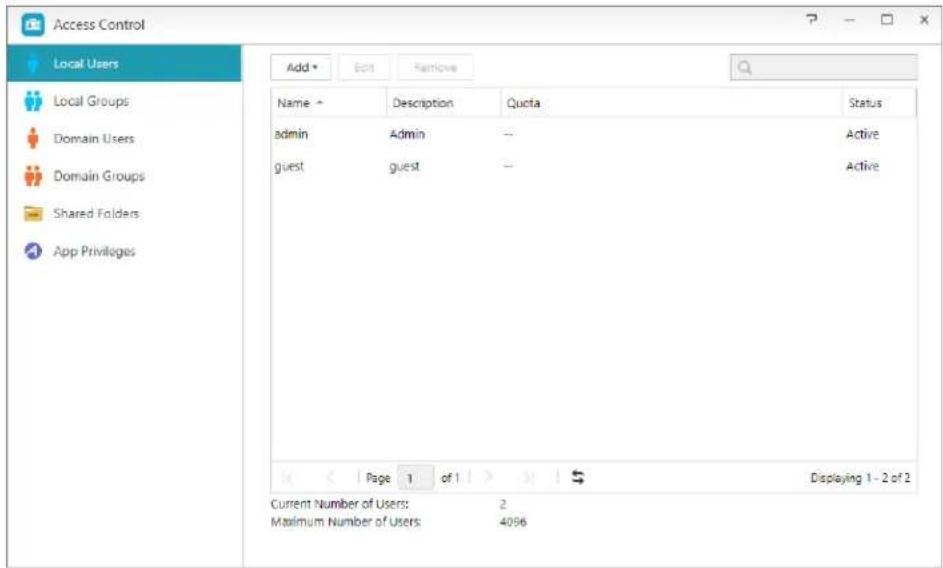
text_image
Access Control Local Users Add Edit Remove Local Groups Domain Users Domaini Groups Shared Folders App Privileges Name -- Description Quota Status admin Admin -- Active guest guest -- Active Displaying 1 - 2 of 2 Current Number of Users: 2 Maximum Number of Users: 4096Reminder: If you only have a few users on the system, you can set up the access rights for each of them one by one.
Within ADM, a single user's access rights with regards to shared folders will depend on the user's existing access rights and on the access rights of the group that the user belongs to. Both sets of access rights will be checked against each other in order to determine priority (please see Appendix 7.1). For convenience, the system provides a preview mode which allows you to first preview any changes that you make to access rights.
Import users: You can batch create user accounts by importing a users list file.
To edit the users list file:
Method 1. Use a Text Editor:
- Open a new file with a text editor.
-
Enter a user's information in the following order and separate them by semicolon (;)
-
Username
- Password
- Description
- Quota (GB) (this setting will be applied to all existing volumes)
- Group (if you want to add the user to multiple groups, use comma to separate the group names)
- Go to the next line and repeat step 2 until you have input all the users. Each line indicates one user's information.
- Save the file in UTF-8 encoding.
Method 2. Use Microsoft Excel:
- Open a new file with Excel.
-
Enter users' information in the following order and separate them by column in a single row:
-
Username
- Password
- Description
- Quota (GB) (this setting will be applied to all existing volumes)
-
Group (if you want to add the user to multiple groups, use comma to separate the group names)
-
Go to the next row and repeat step 2 until you have input all the users. Each row indicates one user's information.
-
Save the file in UTF-8 encoding and in csv format.
Note
- All fields are optional except username and password.
- Uploaded file cannot exceed 1MB
- Uploaded file content cannot be null
- The maximum row numbers in the uploaded file cannot exceed 4000
About Local Users
After initialization, the system will automatically create user accounts for "admin" and "guest". "admin" is the default administrator account and possesses a majority of the access rights. If you wish, you can change the access rights and password for this account. "guest" is the default guest account which is only suitable for use with CIFS/SAMBA and AFP. This account does not possess login and authentication rights, so you cannot change its password.
See More
Appendix 7.1 - Permission Mapping Table
Local Groups
Here you can manage (add, edit or remove) the local groups in the system and assign access rights for shared folders.
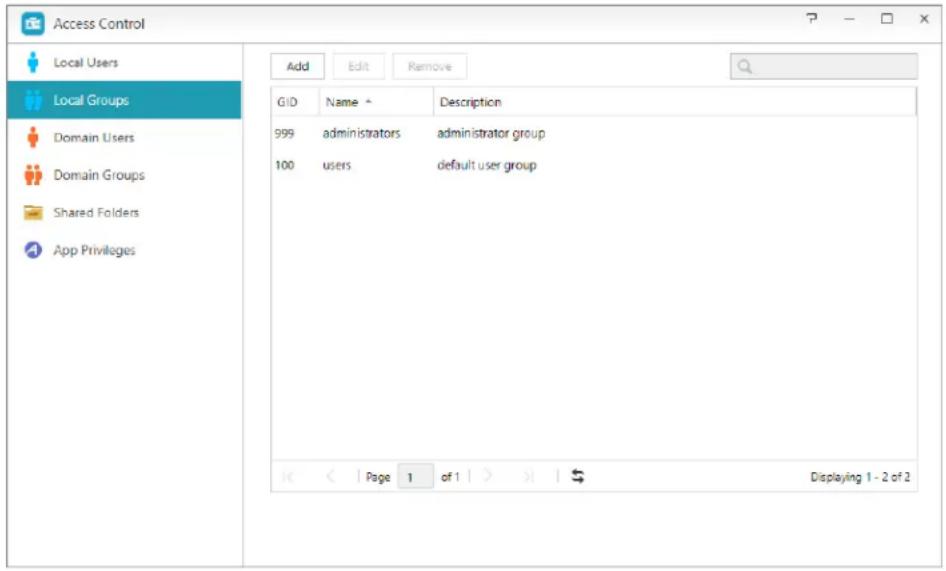
text_image
Access Control Local Users Local Groups Domain Users Domain Groups Shared Folders App Privileges Add Edit Remove GID Name Description 999 administrators administrator group 100 users Units default user group << Page 1 of 1 > > | ↓ Displaying 1 - 2 of 2Reminder: If you have a relatively large number of users on the system, you can conveniently assign access rights by user group instead of assigning access rights for each user one by one.
Within ADM, a single user's access rights with regards to shared folders will depend on the user's existing access rights and on the access rights of the group that the user belongs to. Both sets of access rights will be checked against each other in order to determine priority (please see Appendix 7.1). For convenience, the system provides a preview mode which allows you to first preview any changes that you make to access rights.
About Local Groups
After initialization, the system will automatically create two user groups, "administrators" and "users". "administrators" is the default administrator group. If a user is added to this group, they will possess a majority of the administrator access rights. The "admin" account belongs to the "administrators" group by default and cannot be removed from it.
See More
Appendix 7.1 - Permission Mapping Table
Domain Users
Here you can view all AD user accounts and manage their access rights to shared folders once your NAS has been successfully added to an AD domain.
text_image
Access Control Local Users Local Groups Domain Users Domain Groups Shared Folders App Privileges Name Description M C Page 1 of 1 No data Last update: --Reminder: ASUSTOR NAS can support more than 200,000 AD users and groups. When joining an AD domain for the first time, depending on the number of users and groups, it may take a while for all of them to become visible.
See More
Appendix 7.1 - Permission Mapping Table
Domain Groups
Here you can view all AD user groups and manage their access rights to shared folders once your NAS has been successfully added to an AD domain.
Reminder: ASUSTOR NAS can support more than 200,000 AD users and groups. When joining an AD domain for the first time, depending on the number of users and groups, it may take a while for all of them to become visible.
text_image
Access Control Local Users Local Groups Domain Users Domain Groups Shared Folders App Privileges Name Description M C Page 1 of 1 No data Last update: --See More
Appendix 7.1 - Permission Mapping Table
Shared Folders
Here you can manage your shared folders and set up their access rights in relation to users and user groups. Shared folders allow your NAS to become a file server. They are fundamental in sharing files with the outside world. Consequently, correctly setting up their access rights is very important in the management of your data.
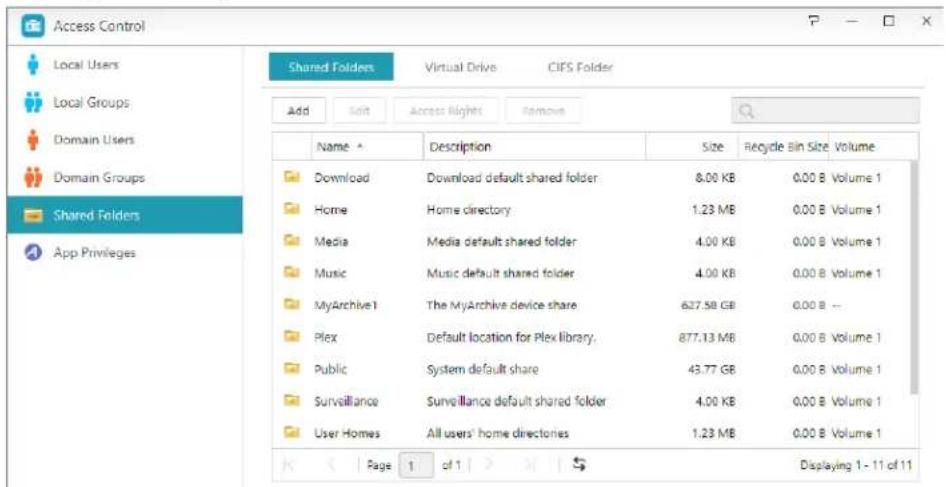
text_image
Access Control Local Users Local Groups Domain Users Domain Groups Shared Folders App Privileges Shared Folders Virtual Drive CIFS Folder Add Edit Access Rights Remove Name Description Size Recycle Bin Size Volume Download Download default shared folder 8.00 KB 0.00 B Volume 1 Home Home directory: 1.23 MB 0.00 B Volume 1 Media Media default shared folder: 4.00 KB 0.00 B Volume 1 Music Music default shared folder: 4.00 KB 0.00 B Volume 1 MyArchive I The MyArchive device share: 627.58 GB 0.00 B -- Plex Default location for Plex library: 877.13 MB 0.00 B Volume 1 Public System default share: 43.77 GB 0.00 B Volume 1 Surveillance Surveillance default shared folder: 4.00 KB 0.00 B Volume 1 User Homes All users' home directories: 1.23 MB 0.00 B Volume 1 K Page 1 of 1 Displaying 1 - 11 of 11→ Invisible in "Network" or "My Network Places": This setting only applies if you are using Microsoft Windows. When you enable this setting, your NAS will cease to automatically appear in
"Network" or in "My Network Places". Please note that enabling this setting will not affect the connection to your NAS in any way.
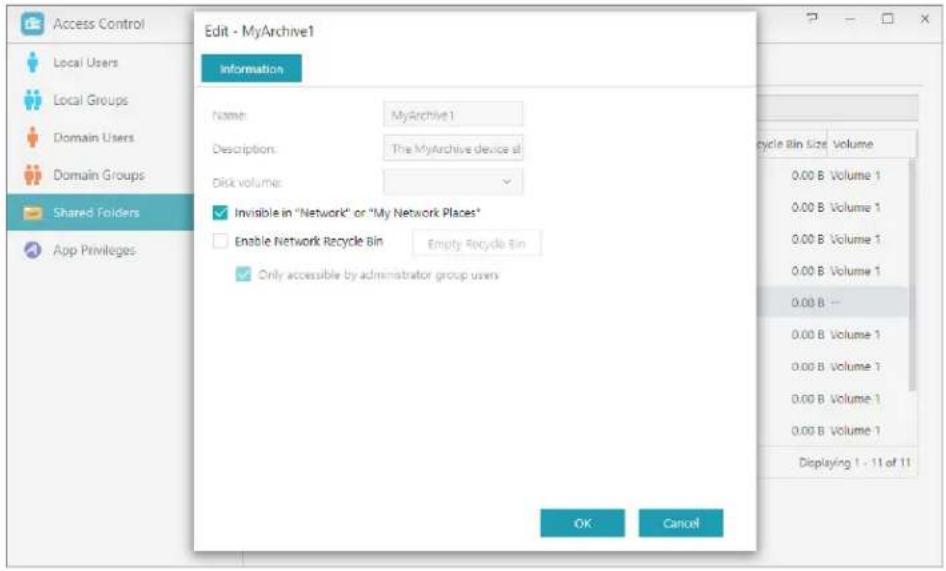
text_image
Edit - MyArchive1 Information Name: MyArchive1 Description: The MyArchive device at Disk volume: ✓ Invisible in "Network" or "My Network Places" Enable Network Recycle Bin Empty Recycle Bin ✓ Only accessible by administrator group users OK Cancel→ Empty Recycle Bin: Click this button to empty all contents in this shared folder's Recycle Bin immediately.
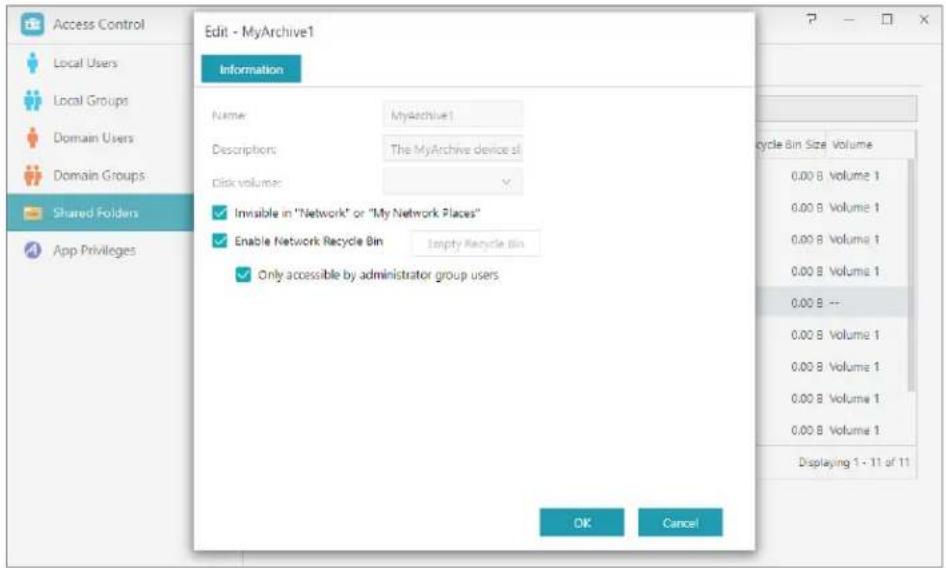
text_image
Edit - MyArchive1 Information Name: MyArchive1 Description: The MyArchive device si Disk volume: ✓ Invisible in "Network" or "My Network Places" ✓ Enable Network Recycle Bin Empty Recycle Bin ✓ Only accessible by administrator group users OK CancelEncrypt this shared folder: Here you can choose whether or not you want to encrypt your shared folder and whether or not you want to auto-mount it at system startup. Should you choose to encrypt your folder, after the system restarts, you will have to manually enter the password or import the encryption key for the folder in order to access it. Encrypted folders are normally used for the storage of critical or confidential data. Should you lose your NAS you still needn't worry about your data leaking out and falling into the wrong hands.
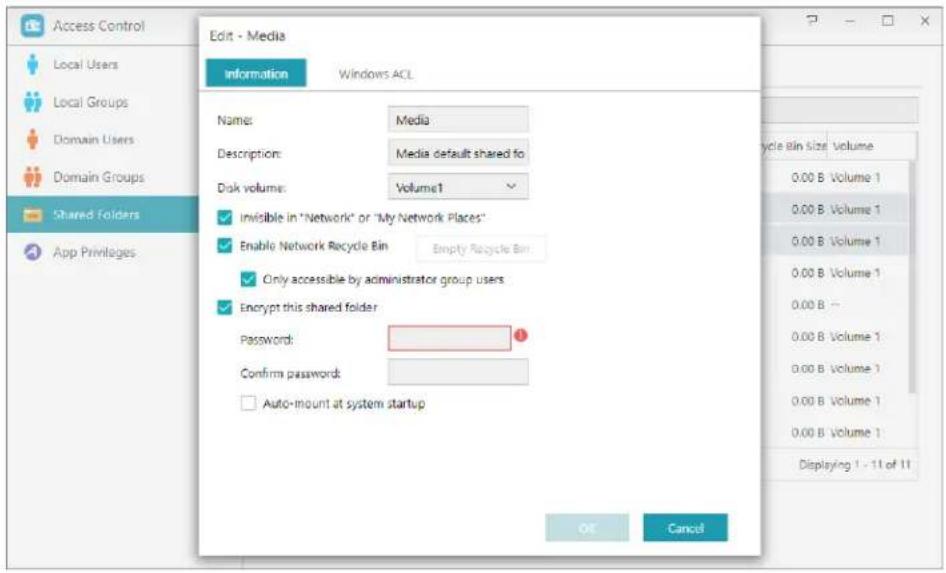
text_image
Access Control Local Users Local Groups Domain Users Domain Groups Shared Folders App Privileges Edit - Media Information Windows ACL Name: Media Description: Media default shared to Disk volume: Volume1 ✓ Invisible in "Network" or "My Network Places" ✓ Enable Network Recycle Bin Empty Recycle Bin ✓ Only accessible by administrator group users ✓ Encrypt this shared folder Password: Confirm passwords: □ Auto-mount at system startup OK Cancel cycle bin size: Volume 0.00 B Volume 1 0.00 B Volume 1 0.00 B Volume 1 0.00 B Volume 1 0.00 B Volume 1 0.00 B Volume 1 0.00 B Volume 1 0.00 B Volume 1 0.00 B Volume 1 Displaying 1 - 11 of 11Convert to the new ASUSTOR encryption mechanism: This option will only appear under "Edit" for encrypted folders that have been encrypted using ASUSTOR's previous encryption mechanism. Converting to the new encryption mechanism will require extra volume space in order to temporarily store all the files originally in the folder. This required space is the total capacity of all the files in the shared folder.
Export/import encrypted key: Selecting "Export encrypted key" will download the encrypted key to your computer. When you need to mount an encrypted folder, you can select "Enter Password" or "Import encrypted key" to mount the shared folder and begin accessing it.
Reminder: You can choose to enable or disable encryption for folders even after they have been created. Encryption is available for use with all shared folders and is not just limited to system default folders. The access speed for encrypted folders will normally be slower than for unencrypted folders.
Warning:
- When choosing to use encrypted shared folders, please make it a point to remember your password. Should you forget your password, the data in the shared folder will become unrecoverable.
- Older versions of ADM are unable to read the contents of shared folder encrypted using the new encryption mechanism introduced in ADM 2.4.0. If you wish to downgrade your firmware to 2.3.1 or an older version, please first decrypt any shared folders that have been encrypted using the new encryption mechanism before you begin downgrading.
→ NFS Privileges: Here you can set NFS privileges for individual folders after first enabling NFS service.
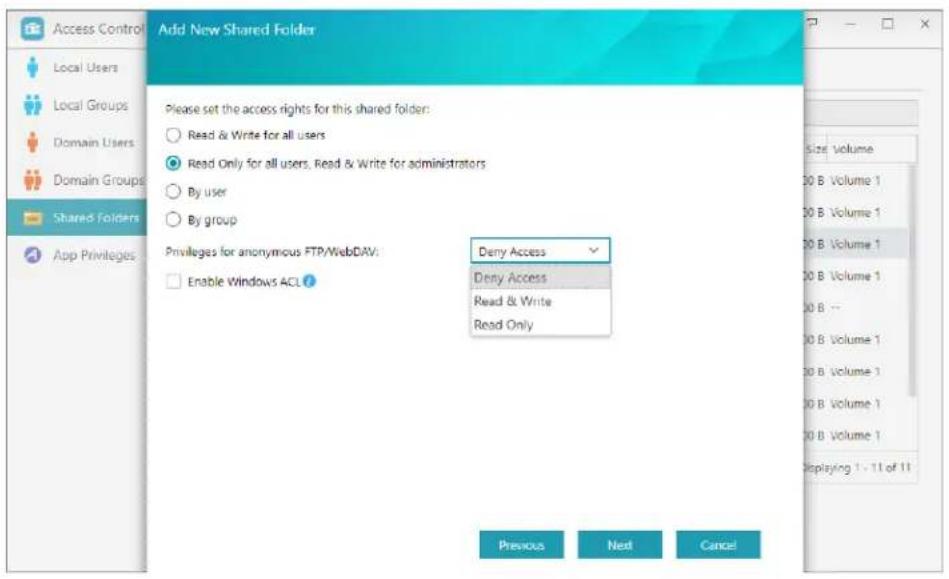
text_image
Access Control Add New Shared Folder Local Users Local Groups Domain Users Domain Groups Shared Folders App Privileges Please set the access rights for this shared folder: Read & Write for all users Read Only for all users, Read & Write for administrators By user By group Privileges for anonymous FTP/WebDAV: Enable Windows ACL Deny Access Deny Access Read & Write Read Only Previous Next Cancel Size Volume 30 B Volume 1 30 B Volume 1 30 B Volume 1 30 B Volume 1 30 B Volume 1 30 B Volume 1 Displaying 1 - 11 of 11About Shared Folders
After initialization, the system will automatically create a shared folder "public". By default, all users can access the files in this folder. Additionally, the system will automatically create a personal folder for each user (using the user's account name) that by default, can only be accessed by the mentioned user.
→ Windows ACL: Here you can choose to enable or disable Windows ACL for specified shared folders.
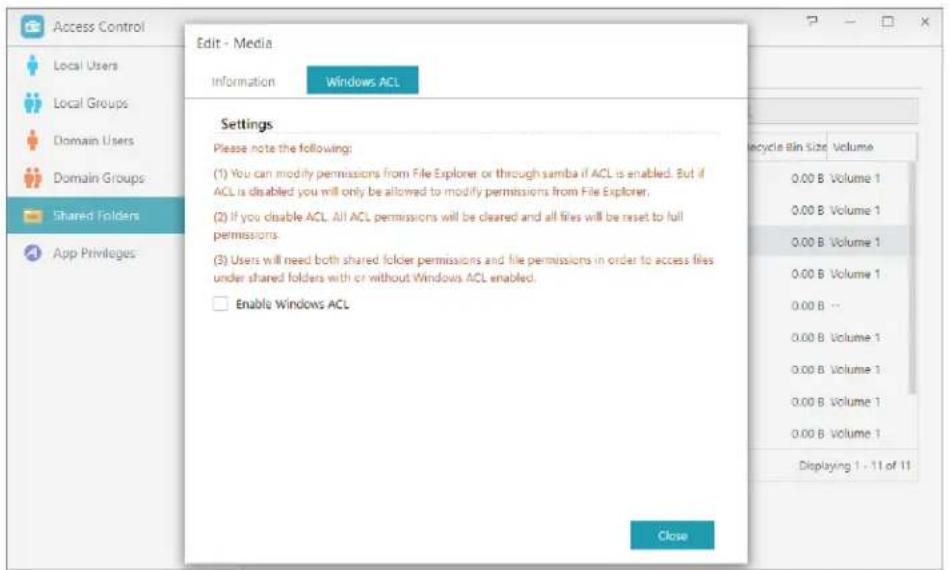
text_image
Edit - Media Information Windows ACL Settings Please note the following: (1) You can modify permissions from File Explorer or through samba if ACL is enabled. But if ACL is disabled you will only be allowed to modify permissions from File Explorer. (2) If you disable ACL, all ACL permissions will be cleared and all files will be reset to full permissions. (3) Users will need both shared folder permissions and file permissions in order to access files under shared folders with or without Windows ACL enabled. Enable Windows ACL Close Recycle Bin Size Volume 0.00 B Volume 1 0.00 B Volume 1 0.00 B Volume 1 0.00 B Volume 1 0.00 B Volume 1 0.00 B Volume 1 Displaying 1 - 11 of 11About Windows ACL
- After enabling Windows ACL for a shared folder, the shared folder and all subfolders and files contained within it can be assigned user or group permissions.
- The following shared folders do not support Windows ACL permissions: Home, User Homes, PhotoGallery, Web, Surveillance, MyArchive, Network Recycle Bin, virtual devices, external devices (USB hard drives, optical drives).
- After enabling Windows ACL you will be able to use ADM's File Explorer or Microsoft Windows Explorer to configure permissions. After disabling Windows ACL you will only be able to configure permissions from within ADM's File Explorer.
- If you enable Windows ACL and then later decide to disable it, all file and folders will be re-assigned with Read & Write permissions for all users.
- No matter if you are using Windows ACL or not, users will still require shared folder and file permissions in order to access files.
→ Folder – Access Rights: Shared folders access rights are the first level of access rights that will be examined. You can edit them here.
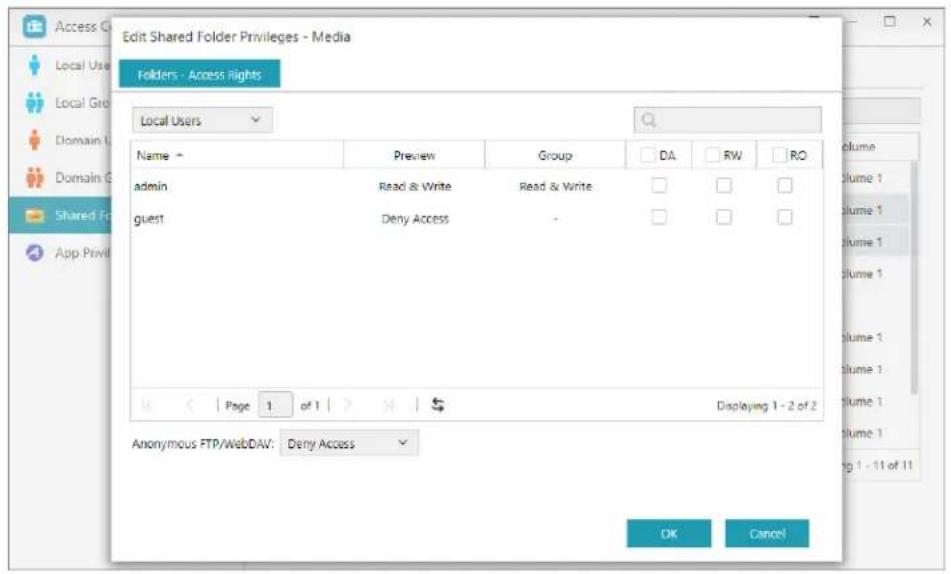
text_image
Edit Shared Folder Privileges - Media Folders - Access Rights Local Users Name admin guest Preview Read & Write Deny Access Group Read & Write - Group DA RW RO Displaying 1 - 2 of 2 Anonymous FTP/WebDAV: Deny Access OK CancelSee More
Appendix 7.1 - Permission Mapping Table
Virtual Drive
You can mount an ISO image file (.iso file) as a virtual drive and directly browse the content of the ISO image file. ADM's virtual drive function also provides simplified access control settings allowing you to either configure access for all users or limit access to only administrators.
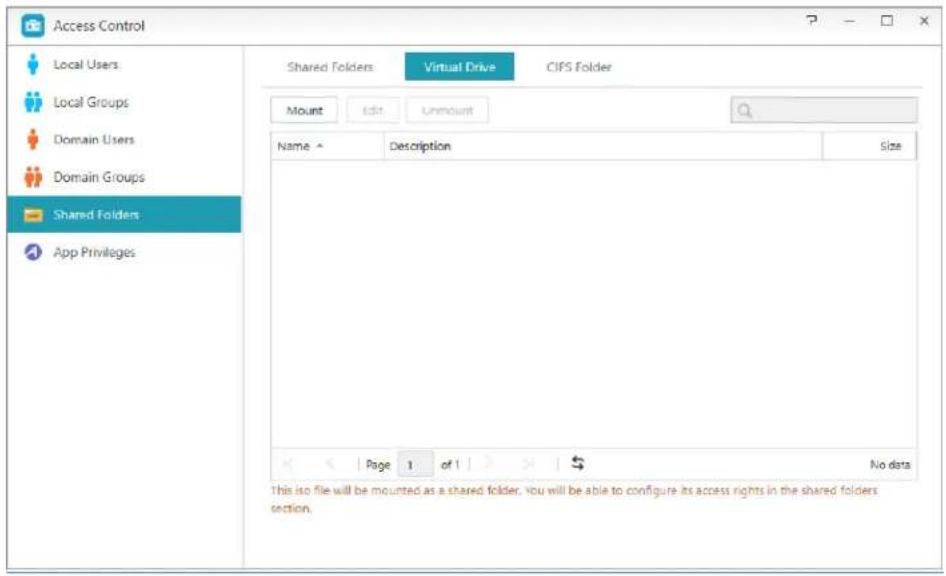
text_image
Access Control Local Users Local Groups Domain Users Domain Groups Shared Folders App Privileges Shared Folders Virtual Drive CIPS Folder Mount Edit Unmount Name * Description Size Page 1 of 1 No data This is so file will be mounted as a shared folder, you will be able to configure its access rights in the shared folders section.CIFS Folder
Here, you can mount remote folders as shared CIFS folders and configure their usage permissions according to users or user groups.
Auto-mount at system startup: You can select whether to auto-mount on system startup. If you have not enabled this item, the CIFS folder will be automatically removed the next time the system starts up.
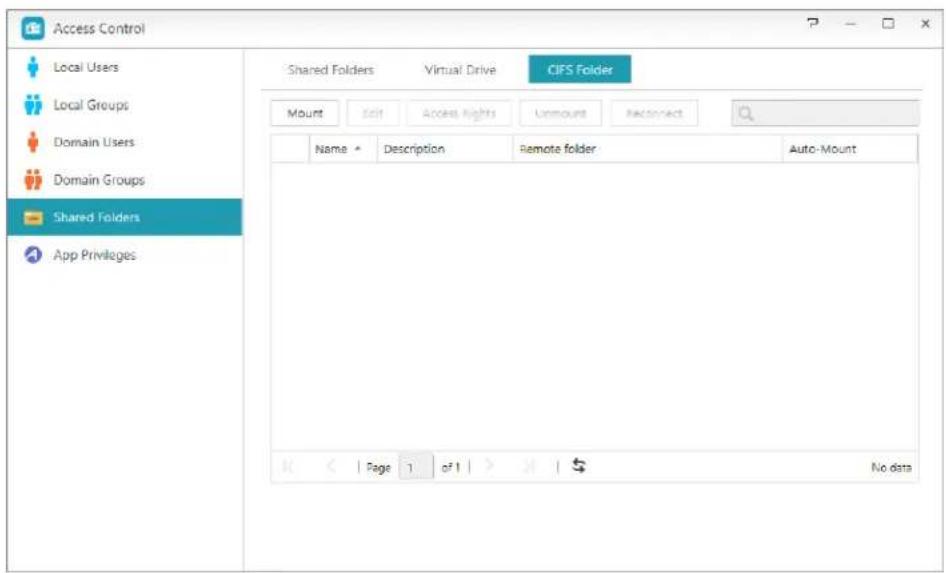
text_image
Access Control Local Users Local Groups Domain Users Domain Groups Shared Folders App Privileges Shared Folders Virtual Drive CIFS Folder Mount Edit Access Rights Unmount Reconnect Name Description Remote folder Auto-Mount Page 1 of 1 No dataApp Privileges
Here you can configure the users' or user groups' access rights to apps. For example, if a particular user's account is denied access to the Surveillance Center app, once he/she logs in, he/she will not be able to see the Surveillance Center app icon on their ADM home screen. The user will have no way of opening or accessing the app.
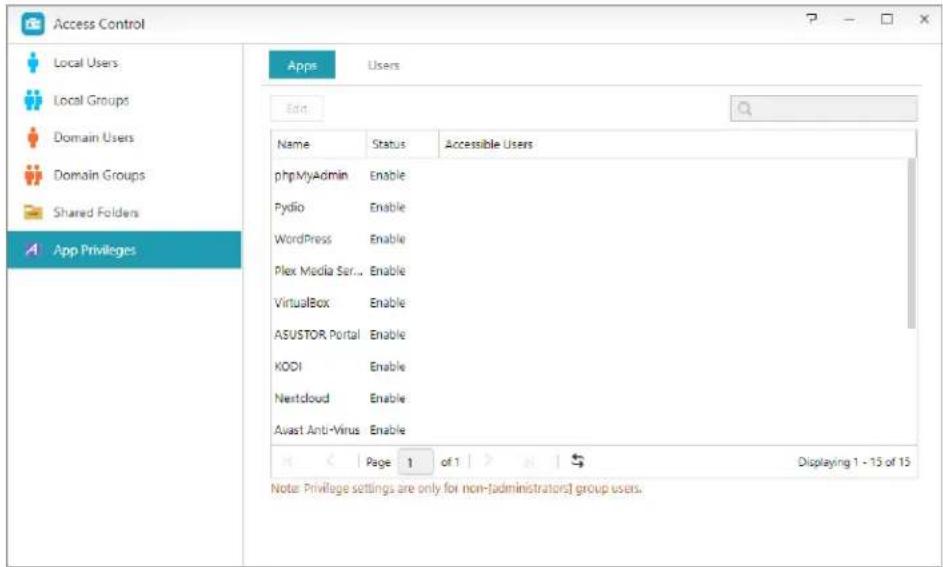
text_image
Access Control Local Users Local Groups Domain Users Domain Groups Shared Folders App Privileges Apps Users Edit Name Status Accessible Users phpMyAdmin Enable Pydio Enable WordPress Enable Plex Media Ser... Enable VirtualBox Enable ASUSTOR Portal Enable KOOI Enable Nextcloud Enable Avast Anti-Virus Enable Page 1 of 1 Displaying 1 - 15 of 15 Note: Privilege settings are only for non-f-administrators\group users.→ Web applications may be public in nature (i.e., WordPress) or have their own account management systems (i.e., Joomla). Therefore, there is no way to restrict access to them through ADM.
With regards to domain users, the system only offers the option of setting their File Explorer access rights.
Backup & Restore
Remote Sync
Remote Sync (Rsync) can allow your NAS to be used as a backup destination or backup source. When using your NAS as a backup source, you can choose to back up the data from your NAS onto another remote ASUSTOR NAS or Rsync compatible server. When your NAS acts as a backup destination, you can back up the data from another remote ASUSTOR NAS or Rsync compatible server onto your NAS.
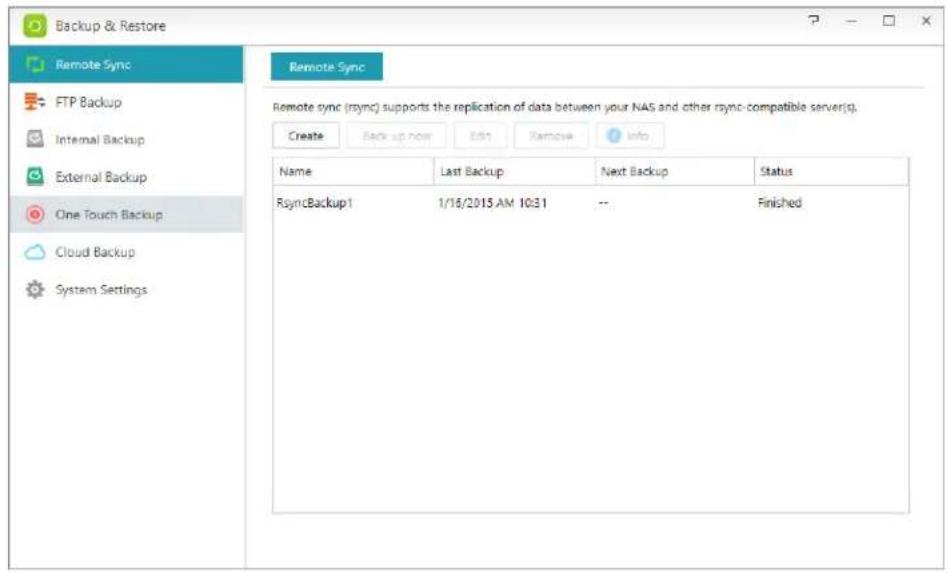
text_image
Backup & Restore Remote Sync FTP Backup Internal Backup External Backup One Touch Backup Cloud Backup System Settings Remote Sync Remote sync (rsync) supports the replication of data between your NAS and other rsync-compatible server(s). Create Back up now Edit Remove info Name Last Backup Next Backup Status SyncBackup1 1/16/2015 AM 10:31 -- FinishedUse encrypted transmission: If you choose to use encrypted transmission, you will have to enter the other host's SSH connection information in addition to your Rsync account information.
Use 1 on 1 folder synchronization: If you decide to use 1 on 1 folder synchronization, all the data in the designated destination folder will be synchronized with the data in your source folder (you may only select one folder). The contents of both folders will be exactly the same. If you decide not to use this feature, all your chosen source folders (you may select multiple folders) will be copied one by one to the destination folder.
Keep extra files at the destination: Once the copying and synchronization of files is completed, the data at the source and destination should be exactly the same. However, sometimes there are extra files present at the destination. These files are only present at the destination but not at the source. By enabling this option, these extra files will be kept at the destination and will remain untouched.
Archive mode (incremental backup): After enabling this feature, successive backup jobs (after your first backup job) will only copy the data that has changed since your last backup job (block level). For example, if you have made some small changes to a 10 MB file, incremental backup will only copy the portions that you have made changes to. This can significantly reduce bandwidth usage.
→ Compress data during the transfer: During backup you can compress the data that is being transferred thereby lowering bandwidth usage.
Keep file metadata: When you enable this option, certain file properties (permissions, extensions, attributes, owner, groups, etc.) will be sent along with the file to the destination.
Support sparse files replication: You will only need to enable this option when the data that you wish to back up contains sparse files. Normally, you will not have to enable this option.
Mission Mode: Sometimes backup jobs may be stopped because of various connection problems with a busy server on the other end. ASUSTOR's Mission Mode option allows you to configure the number of connection attempts and time interval for connection attempts, ensuring for the successful completion of your backup job. This also gives IT administrators a significant amount of flexibility when configuring backup jobs.
Reminder: If you wish to use Remote Sync while using your NAS in conjunction with another remote ASUSTOR NAS, please remember to enable the Rsync server feature on the remote NAS (Services -> Rsync Server). For more information please see 3.2.9 Rsync Server.
See More
NAS 259 - Using Remote Sync (Rsync) to Protect Your Data
NAS 351 - Remote Sync (Rsync): Best Practice
FTP Backup
FTP backup can allow for your NAS to be used as a backup destination or backup source. When using your NAS as a backup source, you can choose to back up the data from your NAS onto another remote ASUSTOR NAS or FTP server. When your NAS acts as a backup destination, you can back up the data from another remote ASUSTOR NAS or FTP server onto your NAS.
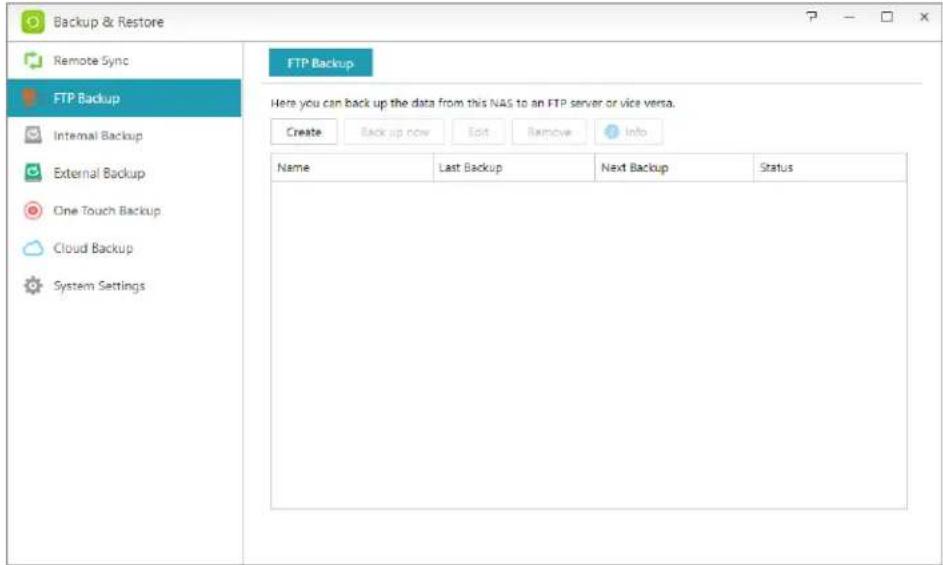
text_image
Backup & Restore Remote Sync FTP Backup Internal Backup External Backup One Touch Backup Cloud Backup System Settings FTP Backup Here you can back up the data from this NAS to an FTP server or vice versa. Create Back up now Edit Remove Info Namelas Last Backup Next Backup StatusMission Mode: Sometimes backup jobs may be stopped because of various connection problems with a busy server on the other end. ASUSTOR's Mission Mode option allows you to configure the number of connection attempts and time interval for connection attempts, ensuring for the successful completion of your backup job.
Reminder: If you wish to use FTP backup while using your NAS in conjunction with another remote ASUSTOR NAS, please remember to enable the FTP server feature on the remote NAS (Services -> FTP Server). For more information please see 3.2.4 FTP Server.
About FTP Backup
Normally, FTP backup is suitable for use with a majority of FTP servers. However, incompatibility issues do arise from time to time. Therefore, it is recommended that you use two ASUSTOR NAS units to execute your backup jobs.
See More
NAS 257 - FTP Backup
Internal Backup
Internal Backup allows you to backup data from NAS to local shared folders. Using Internal Backup with MyArchive disks creates a perfect off-site backup solution.
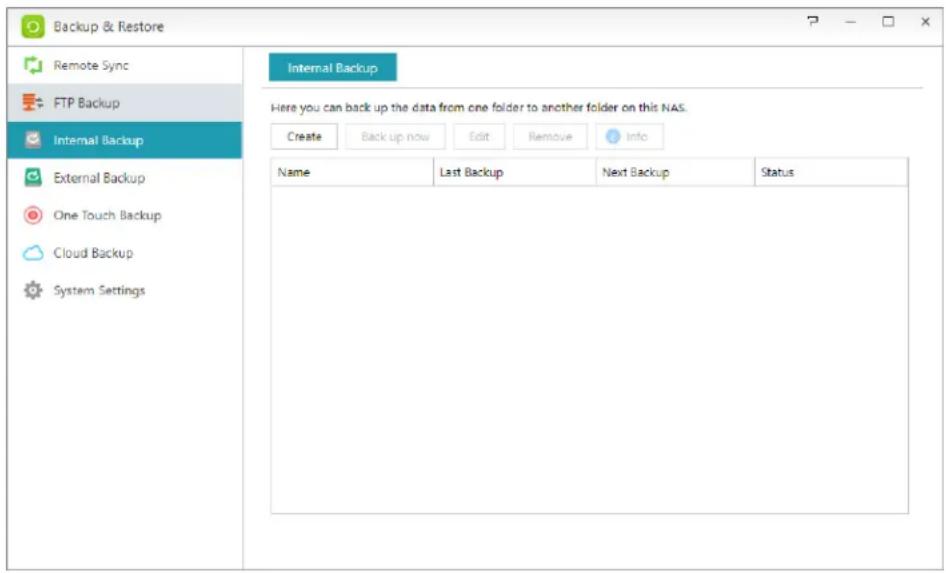
text_image
Backup & Restore Remote Sync FTP Backup Internal Backup External Backup One Touch Backup Cloud Backup System Settings Internal Backup Here you can back up the data from one folder to another folder on this NAS. Create Back up now Edit Remove Info Namelas Last Backup Next Backup StatusUse 1 on 1 folder synchronization: If you decide to use 1 on 1 folder synchronization, all the data in the designated destination folder will be synchronized with the data in your source folder (you may only select one folder). The contents of both folders will be exactly the same. If you decide not to use this feature, all your chosen source folders (you may select multiple folders) will be copied one by one to the destination folder.
Preferred file permission for all users at the destination: If the ACL status of the source and destination are not the same, this permission setting will be applied to the files at the destination.
Keep owner: By default, the owner of the files at the destination will be the user who created the backup job. Enabling this option can allow you to maintain the original ownership of the files at the destination.
→ Support sparse files replication: You will only need to enable this option when the data that you wish to back up contains sparse files. Normally, you will not have to enable this option.
External Backup
Here you can choose to backup data from USB or eSATA external hard disks to your NAS or backup data from your NAS to these external hard disks. In addition to supporting two-way backup, this feature also supports scheduled backups, making sure that your data is always backed up.
Mission Mode: Sometimes backup jobs may be stopped because of various connection problems with a busy server on the other end. ASUSTOR's Mission Mode option for external backup allows you to configure the time interval for connection attempts, ensuring for the successful completion of your backup job. This also gives IT administrators a significant amount of flexibility when configuring backup jobs.
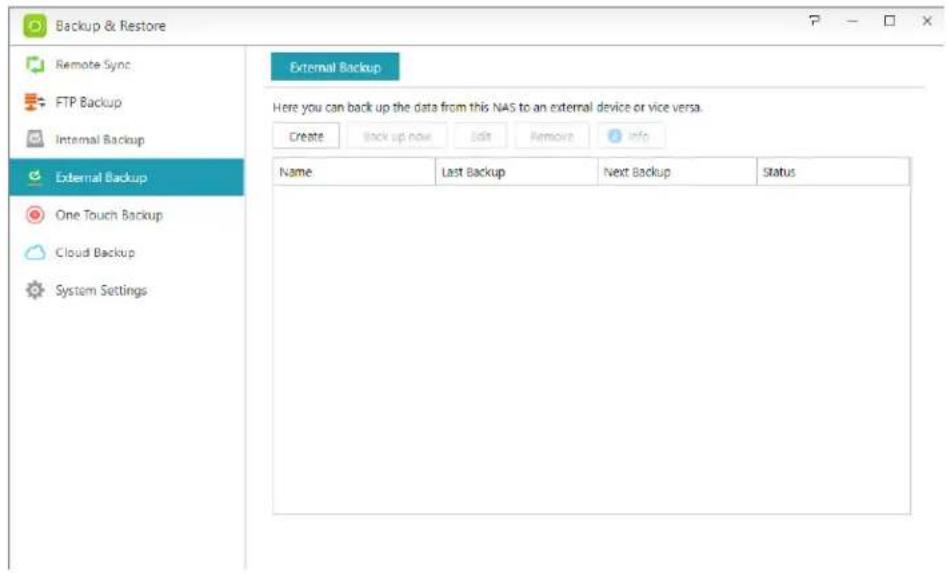
text_image
Backup & Restore Remote Sync FTP Backup Internal Backup External Backup One Touch Backup Cloud Backup System Settings External Backup Here you can back up the data from this NAS to an external device or vice versa. Create Back up now Update Remove info Name Last Backup Next Backup StatusOne Touch Backup
Note: This function may differ depending on the NAS model in use.
One Touch Backup allows you to preset the function of the USB backup button found on the front of your NAS. Here you can designate your preferred backup direction and directory. After setting up One Touch Backup and plugging in an external USB drive to your NAS, you will only have to push the USB backup button to execute your backup job.
Transfer Modes:
From USB device to NAS: The system will back up the entire contents of the USB drive, based on the existing directory structure, to the NAS folder path that you set.
From NAS to USB device: The system will take the contents of the specified NAS directory and, based on the existing directory structure, back it up to the USB drive's root directory.
→ Backup Methods:
Copy: If you select this method, your system will copy your data from the back up source to the destination, be it the USB device or your NAS. Files or folders of the same name will be replaced and extra files at the destination will be kept. This method is suitable for one time backups.
Synchronization: If you select this method, all the data in the designated destination folder will be synchronized with the data in your source folder. The contents of both folders will be exactly the same. Extra files at the destination will be automatically deleted. This method is suitable for ensuring your most recent data is backed up and for scheduled weekly backups. For example, you may choose to have regularly scheduled backups of your NAS's data so you always keep a USB drive plugged into your NAS for this purpose.
Save in new folder: After selecting this method, you will then have to specify a naming format for the new folder. Every time you run a backup job the system will create a new folder according to this format and then proceed to back up your data into the folder. This method is suitable for those who wish to keep complete copies of each backup job, or those who just wish to back up their regular data from external devices onto their NAS. For example, you may back up the data from your work computer onto your USB drive and then proceed to back up the data from your USB drive onto your NAS at home.
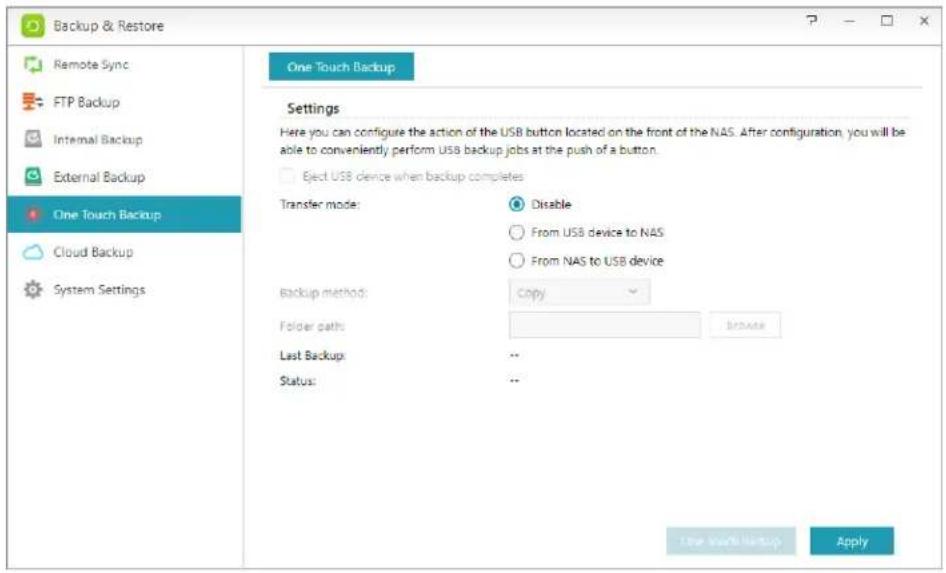
text_image
Backup & Restore Remote Sync FTP Backup Internal Backup External Backup One Touch Backup Cloud Backup System Settings One Touch Backup Settings Here you can configure the action of the USB button located on the front of the NAS. After configuration, you will be able to conveniently perform USB backup jobs at the push of a button. Eject USB device when backup completes Transfer mode: Disable From USB device to NAS From NAS to USB device Backup method: Copy Folder paths: Browse Last Backup: ... Status: ...About One Touch Backup
Once the USB backup button is held down for 1.5 seconds, One Touch Backup will be triggered. During the backup process, the USB backup LED indicator light will blink continuously. After the backup process has finished, the light will cease to blink and will then return to its previous state. If you wish to disable One Touch Backup, you can adjust the settings accordingly.
Cloud Backup
Note: This function may differ depending on the NAS model in use.
Using Cloud Backup, you can schedule regular backups of your NAS data to a cloud storage space or back up the data from a cloud storage space onto your NAS. Currently supported cloud storage services are as follows:
Amazon S3
Mission Mode: Sometimes backup jobs may be stopped because of various connection problems with a busy server on the other end. ASUSTOR's Mission Mode option allows you to configure the number of connection attempts and time interval for connection attempts, ensuring for the successful completion of your backup job.
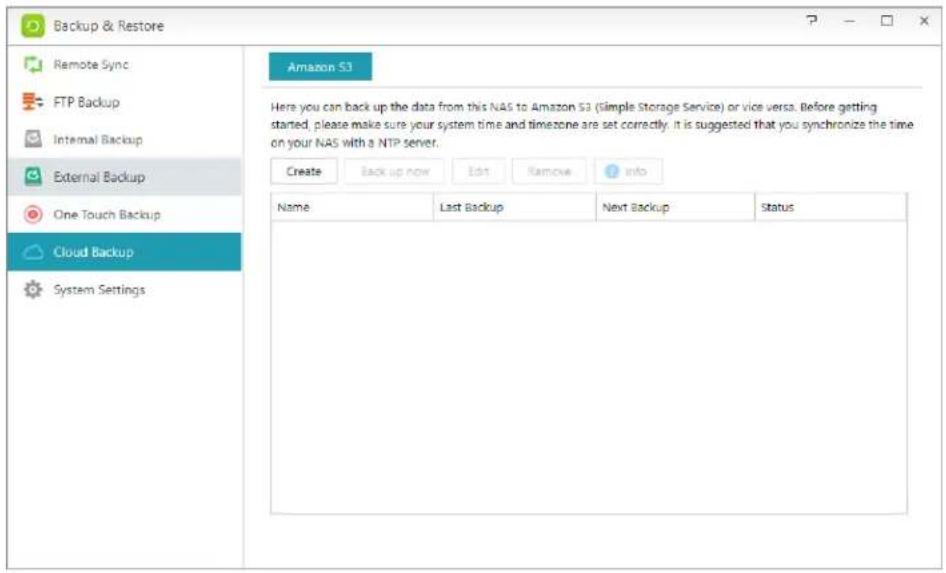
text_image
Backup & Restore Remote Sync FTP Backup Internal Backup External Backup One Touch Backup Cloud Backup System Settings Amazon S3 Here you can back up the data from this NAS to Amazon S3 (Simple Storage Service) or vice versa. Before getting started, please make sure your system time and timezone are set correctly. It is suggested that you synchronize the time on your NAS with a NTP server. Create Back up now Edit Remove info Namelas Last Backup Next Backup StatusSee More
NAS 254 - Cloud Backup
System Settings
Here you can export or restore system settings in .bak format (file extension). This feature also supports scheduled backup, which means that you can create scheduled backup jobs and then export the settings to a specified location on your NAS.
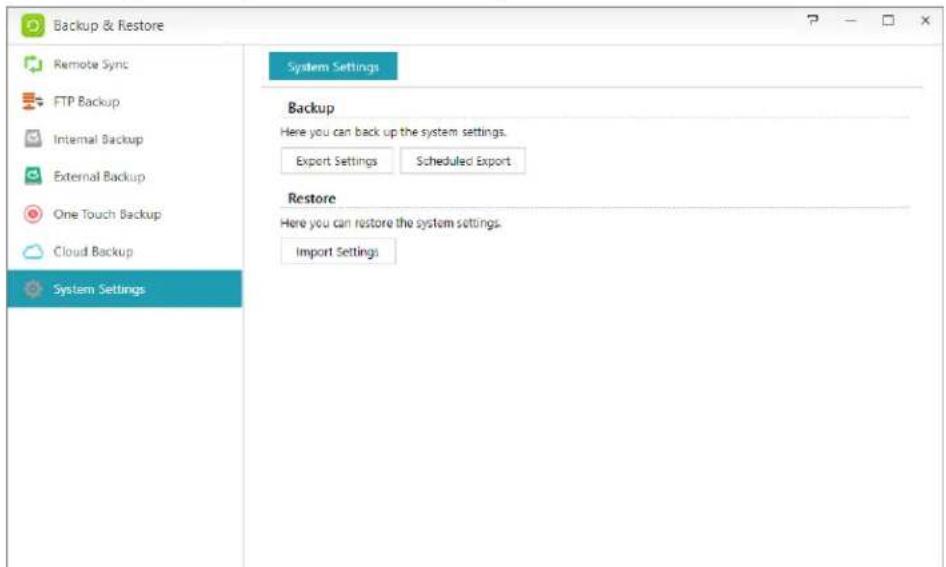
text_image
Backup & Restore Remote Sync FTP Backup Internal Backup External Backup One Touch Backup Cloud Backup System Settings System Settings Backup Here you can back up the system settings. Export Settings Scheduled Export Restore Here you can restore the system settings. Import SettingsApp Central
Note: This function may differ depending on the NAS model in use.
You can use App Central to download apps that are suitable for use with your NAS. App Central provides you with a rich variety of applications, allowing you to install software that is uniquely suited to your needs. Whether your interests lie in digital entertainment, e-commerce, blogging or website construction, App Central has it all.
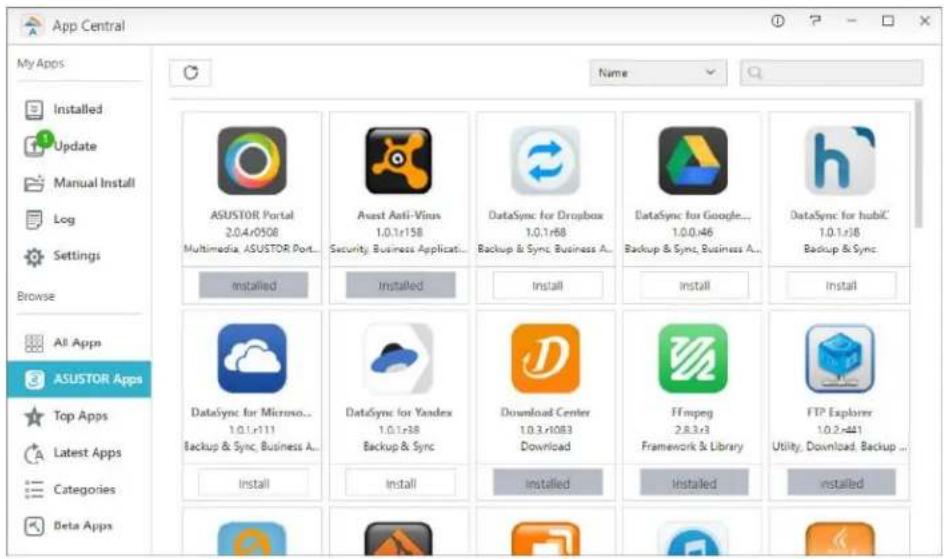
text_image
App Central My Apps Installed Update Manual Install Log Settings Browse All Apps ASUSTOR Apps Top Apps Latest Apps Categories Beta Apps Name ASUSTOR Portal 2.0.4x0508 Multimedia, ASUSTOR Port... Installed Avast Anti-Virus 1.0.1r158 Security, Business Applicat... Installed DataSync for Dropbox 1.0.1r68 Backup & Sync, Business A... Install Install DataSync for Google... 1.0.0r46 Backup & Sync, Business A... Install DataSync for hubIC 1.0.1r38 Backup & Sync Install DataSync for Microso... 1.0.1r111 Backup & Sync, Business A... Install DataSync for Yandex 1.0.1r38 Backup & Sync Install Download Center 1.0.3.r1083 Download Installed FFmpeg 2.8.3.r3 Framework & Library Installed FTP Explorer 1.0.2r41 Utility, Download, Backup ... InstalledBefore you begin downloading, you must first register and log in with a valid ASUSTOR ID. Please see Registration 3.1.13 for more information.
All newly installed apps will be immediately enabled after installation has finished.
→ Should you choose to remove an app, all settings and information relating to the app will be removed as well. If you wish to reinstall the app at a later date, the system will not be able to return the app to its previous state with all of its previous settings and information still intact.
About App Central
App Central may contain applications developed by ASUSTOR, open source software and software by third-party developers. For applications that have been officially verified, ASUSTOR provides a limited warranty with regards to its installation and execution. If you have any questions regarding a particular application, please contact the developer directly.
ASUSTOR cannot guarantee the stability of your system if you choose to install applications that have not been officially verified. Should you choose to do this, you will have to assume responsibility for all risks. Before you start using App Central you must first read and agree to the Terms of Use.
When upgrading ADM, it is recommended that you also simultaneously upgrade all ASUSTOR Apps as well in order to maintain compatibility with the latest version of ADM. This will allow your ASUSTOR NAS to operate under optimal conditions.
When upgrading ADM, also upgrade active ASUSTOR Apps that become incompatible:
Set automatic scheduled updates: After enabling this option, all associated ASUSTOR Apps will be automatically upgraded when ADM is upgraded. This will allow your ASUSTOR NAS Apps to operate under optimal conditions.
Note: If, during ASUSTOR App upgrades, the system shuts down or the upgrades are interrupted due to unknown causes, the system will attempt the upgrades again at the next scheduled time.
External Devices
Disk
Here you can view and format all USB or eSATA external hard disks that are connected to your NAS. Supported file systems are as follows:
Reminder: If your device cannot be detected, please try connecting again using another cable or port.
→ FAT32: for use with Windows and Mac OS X
→ NTFS: for use with Windows
HFS+: for use with Mac OS X
→ EXT4: for use with Linux
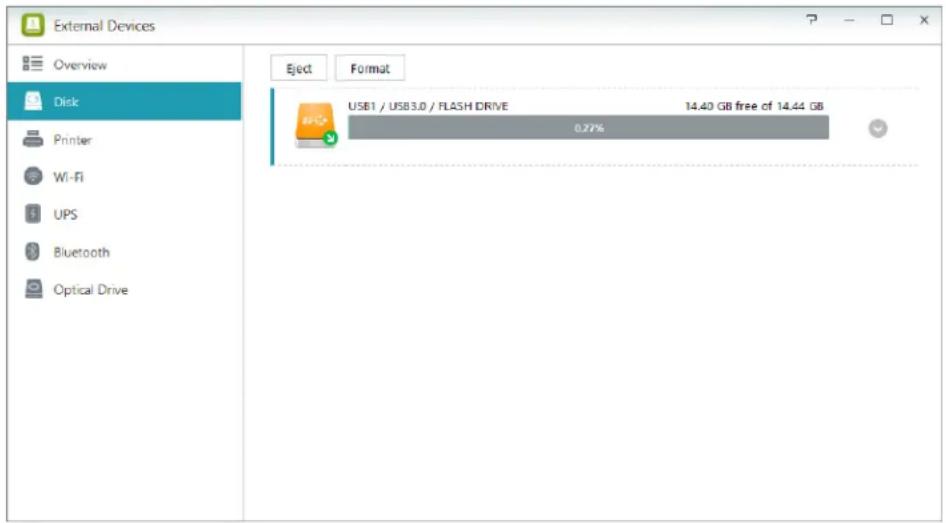
text_image
External Devices Overview Disk Printer Wi-Fi UPS Bluetooth Optical Drive Eject Format USB1 / USB3.0 / FLASH DRIVE 14.40 GB free of 14.44 GB 0.27%See More
Compatibility - Hard Disk
Printer
Here you can view all the USB printers that are connected to your NAS and their respective printing logs. Additionally, ASUSTOR NAS also supports Apple AirPrint.
Reminder: ASUSTOR NAS supports up to three USB printers.
→ Management: Here you can activate and configure device names for AirPrint. You can send printing instructions from your Apple mobile device to your printer when they are part of the same local area network as your NAS.
→ Eject: Removes and disconnects the USB connection between the printer and NAS.
→ Release: Releases the network connection between the USB IP printer and client (for USB IP Printer mode only).
Settings: Here you can specify the printer mode for the connected USB printer.
Network Printer: Choose this mode to share the printer over the network. Network Printers can be accessed by multiple users at the same time.
USB IP Printer: Some Windows clients might not be able to use printers in Network Printer mode due to Windows system issues. In such a case, you can set the printer to USB IP Printer mode. The client can then use ACC (ASUSTOR Control Center) to directly connect to the USB IP Printer and send printing jobs. This mode only allows one client to connect at a time.
→ Clear All Waiting Jobs: Here you can choose to cancel all waiting print jobs.
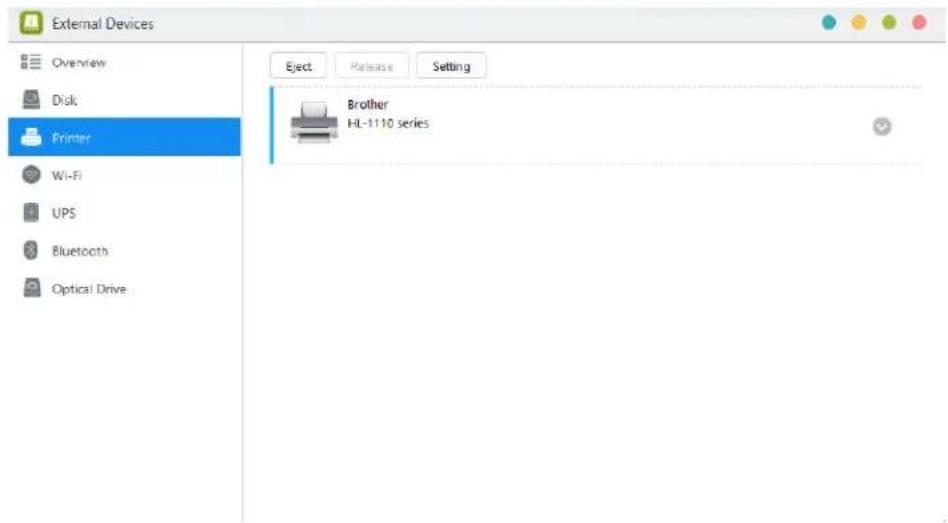
text_image
External Devices Overview Disk Printer Wi-Fi UPS Bluetooth Optical Drive Eject Release Setting Brother HL-1110 seriesSee More
Compatibility - USB Printer
Wi-Fi
After connecting your USB Wi-Fi adapter to your NAS, you can view its detailed information here.
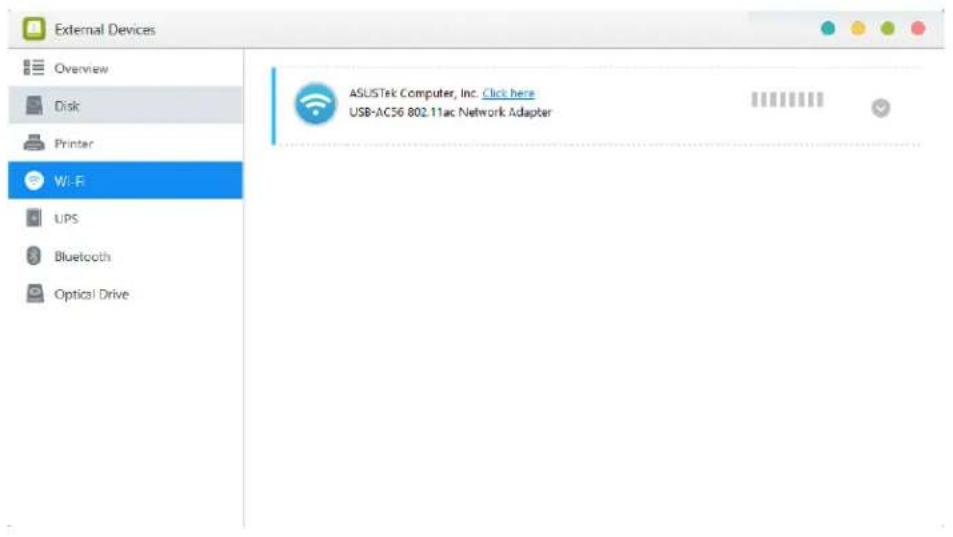
text_image
External Devices Overview Disk Printer Wi-Fi UPS Bluetooth Optical Drive ASUSTek Computer, Inc. Click here USB-AC56 802.11ac Network AdapterAbout Using Wi-Fi with your NAS
If you wish to use Wi-Fi with your NAS, please take a look at the compatibility list on the ASUSTOR website before purchasing a Wi-Fi adapter. Wi-Fi signal strength and stability will vary according to the hardware that you are using (e.g., Wi-Fi network card and wireless access point) and any physical barriers that are present. Therefore, ASUSTOR has no way of guaranteeing Wi-Fi signal strength or stability. For best results, a wired Ethernet connection is recommended.
See More
Compatibility - USB WiFi Dongle
UPS
A UPS can provide backup power to your NAS in the event of a power outage. Using a UPS can protect your data and NAS from sudden shutdown or service interruptions.
Network UPS: Here you can setup your NAS to be the network UPS server (Master mode) and set its IP address, when the UPS's USB cable is connected to your NAS. Other devices that are in the same local area network will be then set to slave mode. In the event of a power outage, the master and slave devices will immediately detect this stoppage in power and then determine whether or not to commence shutdown procedures based on the time period that has been set.
→ Shut down: When the NAS receives notification of a power outage from the UPS, it will begin normal shutdown procedures.
→ Safe mode: When the NAS receives notification of a power outage from the UPS, it will stop all services in accordance with normal procedures and unmount all storage volumes. If you have enabled the "In the event of a power outage, enable the NAS to return to its previous state once power has been restored" setting (configurable via Settings → Hardware → Power), once the NAS has been shut down under safe mode, it will automatically turn on once power has been restored. (This function is available for use with AS-6/7 series devices).
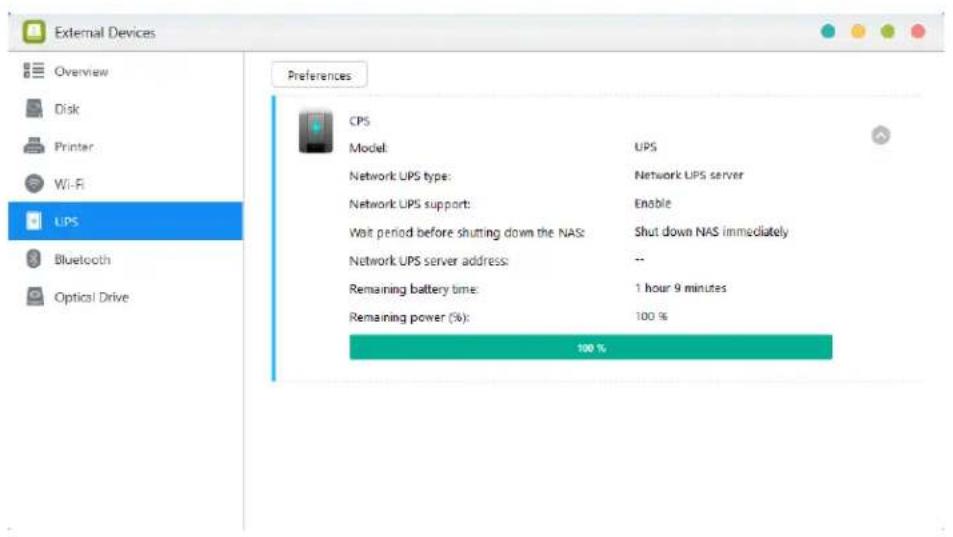
text_image
External Devices Overview Disk Printer Wi-Fi UPS Bluetooth Optical Drive Preferences CPS Model: UPS Network UPS type: Network UPS server Network UPS support: Enable Wait period before shutting down the NAS: Shut down NAS immediately Network UPS server address: -- Remaining battery time: 1 hour 9 minutes Remaining power (%): 100 % 100 %Reminder: When the NAS is configured as the network UPS server (Master mode), the default username is "admin" and the password is "11111" when connecting to the network UPS server.
See More
Compatibility - UPS
Bluetooth Devices
After you have connected your Bluetooth device to the NAS, you will be able to view its detailed information here.
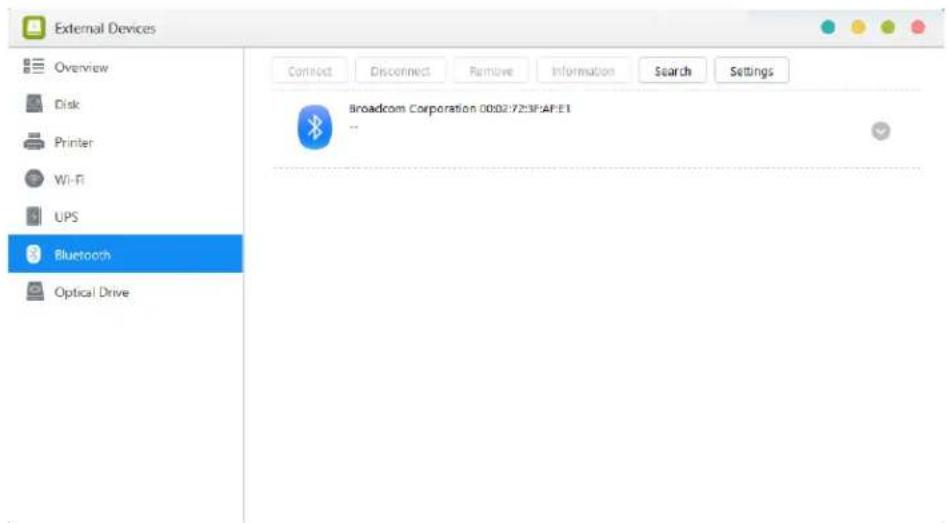
text_image
External Devices Overview Disk Printer Wi-Fi UPS Bluetooth Optical Drive Connect Disconnect Remove Information Search Settings Broadcom Corporation 000272391APET1 ..See More
Compatibility - Bluetooth
External Optical Drive
After connecting an external optical drive (CD, DVD, Blu-ray) to your NAS via USB, you can use File Explorer to directly access any files that you have backed up to optical media and even transfer files from your optical media to your NAS via drag and drop for future access.
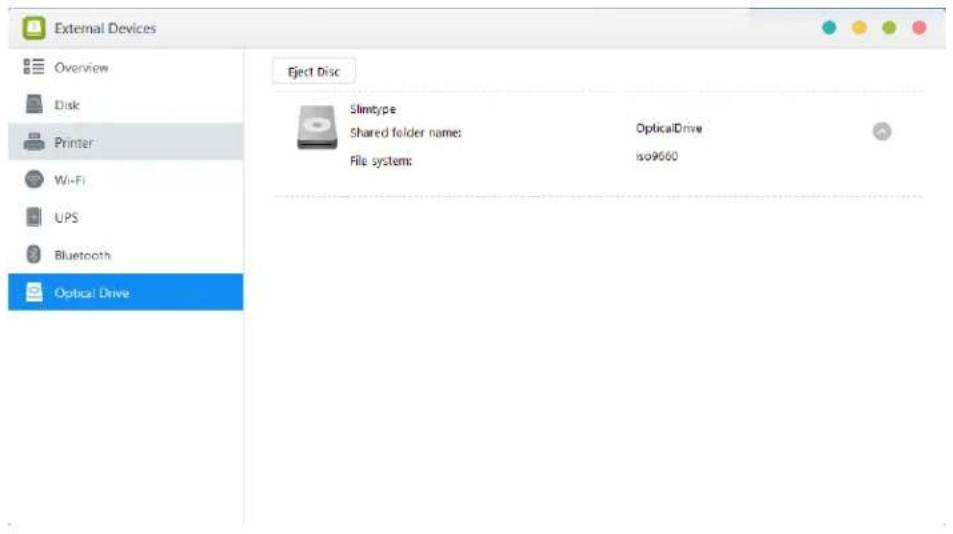
text_image
External Devices Overview Disk Printer Wi-Fi UPS Bluetooth Optical Drive Eject Disc Slimtype: Shared folder name: OpticalDrive File system: iso9560About Using External Optical Drives with your NAS
This function only provides data access and does not support the audio and video playback of optical media.
Certain optical drives will require additional power in order to operate properly. If you find that your optical drive is not spinning or reading correctly, please use a USB Y-cable to add additional power.
See More
Compatibility - External Optical Drive
System Information
About This NAS
Here you can view general information about your NAS such as the hardware model number, software version, BIOS version and present state of the system.
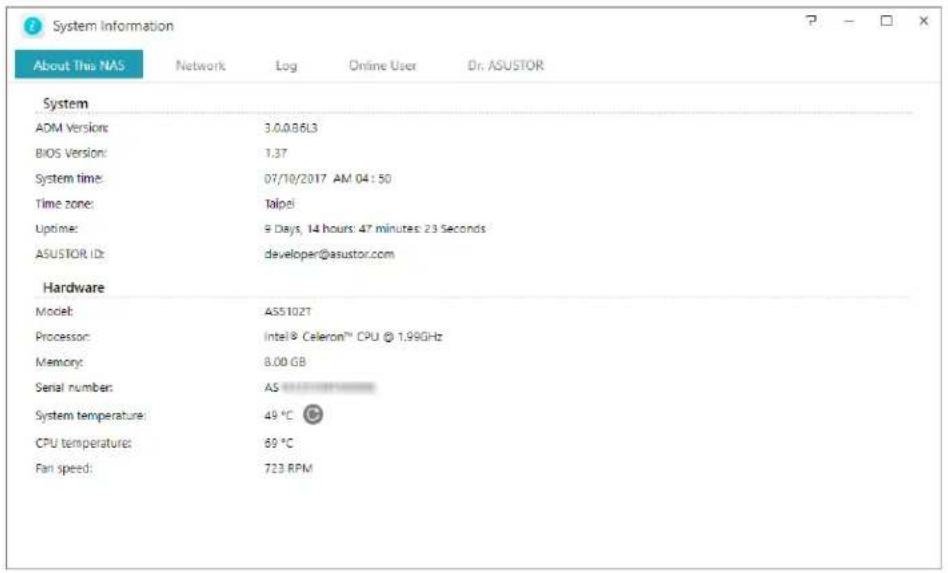
text_image
System Information About This NAS Network Log Online User Dr. ASUSTOR System ADM Version: 3.0.0.86L3 BIOS Version: 1.37 System time: 07/10/2017 AM 04:50 Time zone: talpel Uptime: 9 Days, 14 hours: 47 minutes: 23 Seconds ASUSTOR ID: developer@asustor.com Hardware Model: AS5102T Processor: Intel® Celeron™ CPU @ 1.99GHz Memory: 8.00 GB Serial number: AS System temperature: 49 °C CPU temperature: 69 °C Fan speed: 723 RPMNetwork
Here you can review information about your network settings (i.e., IP address and MAC address).
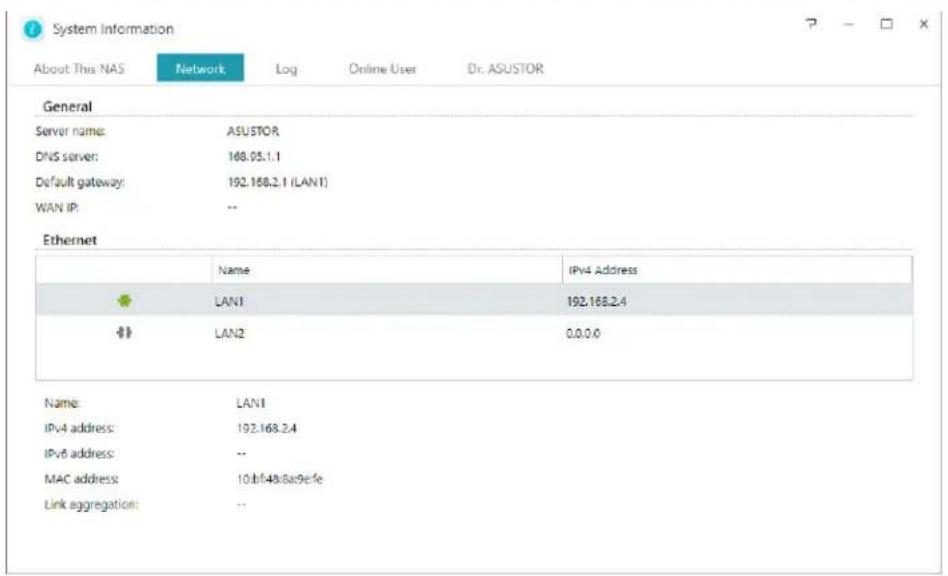
text_image
System Information About This NAS Network Log Online User Dr. ASUSTOR General Server name: ASUSTOR DNS server: 168.95.1.1 Default gateway: 192.168.2.1 (LAN1) WAN IP: -- Ethernet Name IPv4 Address LAN1 192.168.2.4 LAN2 0.0.0.0 Name: LAN1 IPv4 address: 192.168.2.4 IPv6 address: -- MAC address: 10:fb/48:Bat9e7fe Link aggregation: --Log
Here you can review logs of all system events. These logs include the system log, connection log and file access log. ASUSTOR NAS also supports Syslog. This can allow you to employ centralized management by sending your system event information to a Syslog server.
→ System log : All log entries about system events
→ Connection log : All log entries about system connections.
→ File access log : All log entries about file access.
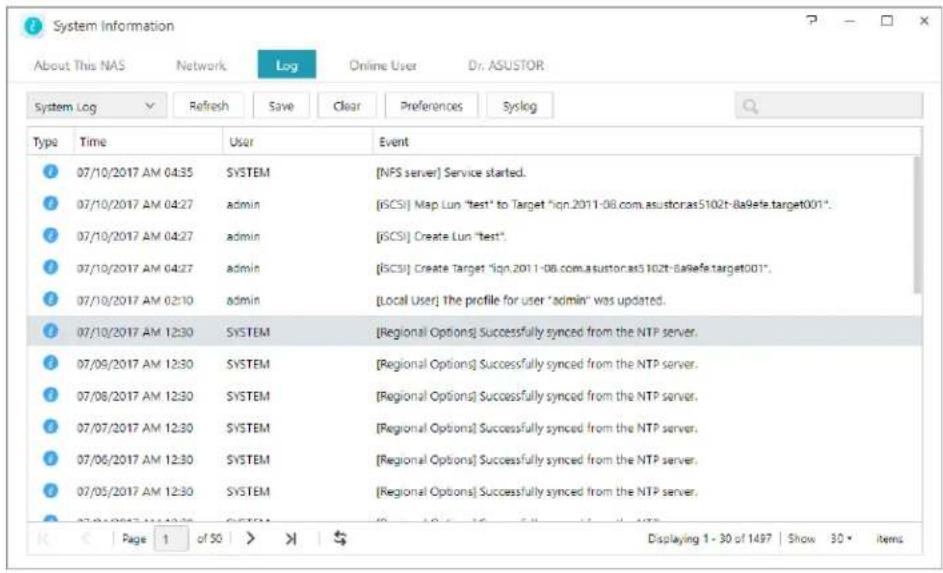
text_image
System Information About This NAS Network Log Online User Dr. ASUSTOR System Log Refresh Save Clear Preferences Syslog Type Time User Event 07/10/2017 AM 04:35 SYSTEM [NFS server] Service started. 07/10/2017 AM 04:27 admin [ISCSI] Map Lun "test" to Target "sign.2011-08.com.asustor.as5102t-Ba9efe.target001". 07/10/2017 AM 04:27 admin [ISCSI] Create Lun "test". 07/10/2017 AM 04:27 admin [ISCSI] Create Target "sign.2011-08.com.asustor.as5102t-Ba9efe.target001". 07/10/2017 AM 02:10 admin [Local User] The profile for user "admin" was updated. 07/10/2017 AM 12:30 SYSTEM [Regional Options] Successfully synced from the NTP server. 07/09/2017 AM 12:30 SYSTEM [Regional Options] Successfully synced from the NTP server. 07/08/2017 AM 12:30 SYSTEM [Regional Options] Successfully synced from the NTP server. 07/07/2017 AM 12:30 SYSTEM [Regional Options] Successfully synced from the NTP server. 07/06/2017 AM 12:30 SYSTEM [Regional Options] Successfully synced from the NTP server. 07/05/2017 AM 12:30 SYSTEM [Regional Options] Successfully synced from the NTP server. 07/04/2017 AM 12:30 SYSTEMOnline Users
Here you can view the users that are currently logged in to ADM or any users that are using other transfer protocols to connect to your NAS.
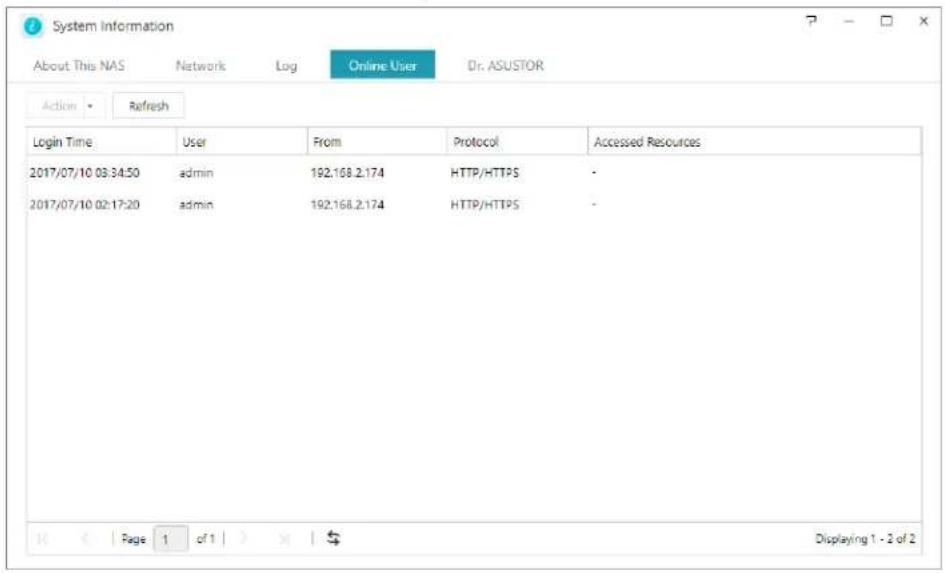
text_image
System Information About This NAS Network Log Online User Dr. ASUSTOR Action Refresh Login Time User From Protocol Accessed Resources 2017/07/10 03:34:50 admin 192.168.2.174 HTTP/HTTPS - 2017/07/10 02:17:20 admin 192.168.2.174 HTTP/HTTPS -About Online Users
ADM is able to display any users who connect to your NAS using the following methods:
√ ADM system login (HTTP & HTTPS)
√ Windows File Service (CIFS/SAMBA)
√ Apple Filing Protocol (AFP)
√ File Transfer Protocol (FTP)
√ Secure Shell (SSH)
√ iSCSI
WebDAV
Dr. ASUSTOR
Dr. ASUSTOR performs checkups based the current state of your system, settings and connectivity. After performing these checkups, Dr. ASUSTOR will diagnose any problems and provide you with appropriate recommendations. Additionally, you can also export a health record for your NAS in order to help ASUSTOR engineers quickly identify the causes of any problems. The health record contains information pertaining to the NAS's system event logs, core information and basic configuration files.
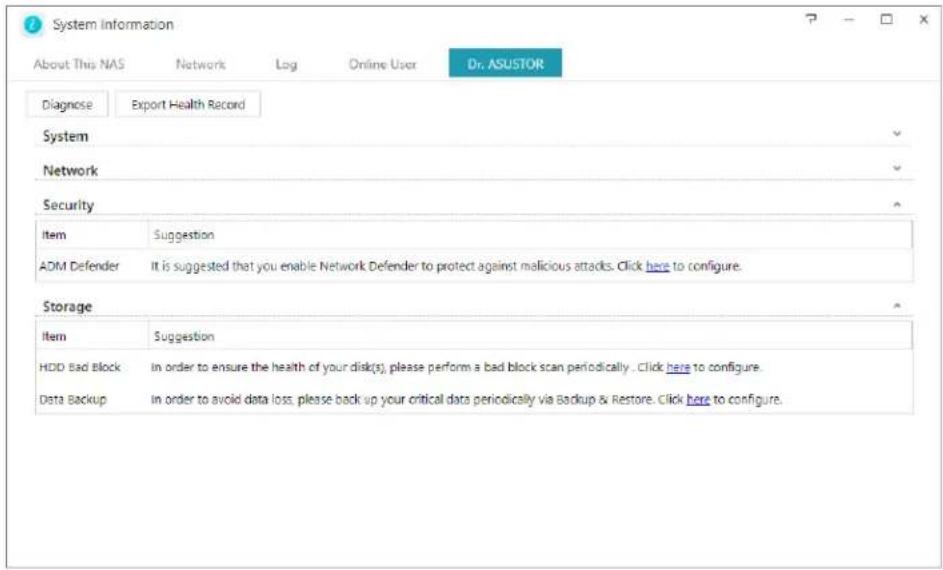
text_image
System Information About This NAS Network Lag Online User Dr. ASUSTOR Diagnose Export Health Record System Network Security Item Suggestion ADM Defender It is suggested that you enable Network Defender to protect against malicious attacks. Click here to configure. Storage Item Suggestion HDD Bad Block In order to ensure the health of your disk(s), please perform a bad block scan periodically...Click here to configure. Data Backup In order to avoid data loss, please back up your critical data periodically via Backup & Restore. Click here to configure.Activity Monitor
Note: This function may differ depending on the NAS model in use.
Activity Monitor dynamically monitors your NAS. Here you can view current usage information such as:
→ CPU Usage
→ Memory (RAM) Usage
→ Network Traffic
→ Storage Space Usage
→ Resources Being Used by System Programs
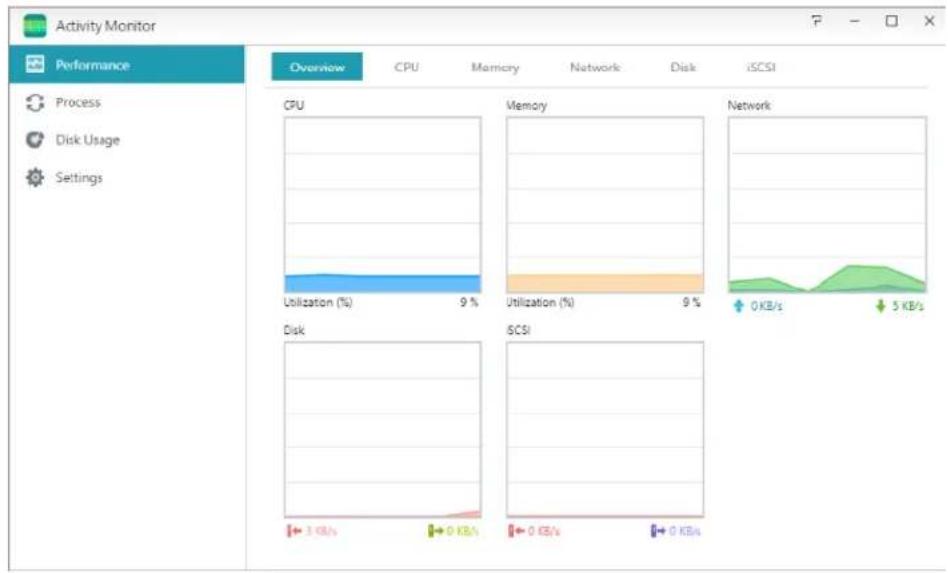
text_image
Activity Monitor Performance Overview CPU Memory Network Disk iSCSI Process Disk Usage Settings CPU Memory Network Utilization (%) 9% Utilization (%) 9% 0 KB/s 5 KB/s Disk iSCSI + 1 KB/s + 0 KB/s + 0 KB/s + 0 KB/sFile Explorer
File Explorer comes pre-installed with ADM and can be used to browse and manage the files on your NAS. File Explorer displays accessible directories to users based on the access rights that are assigned to them. Additionally, ADM supports three simultaneously open File Explorer windows. You can easily make copies of files by dragging and dropping them into a different File Explorer window.
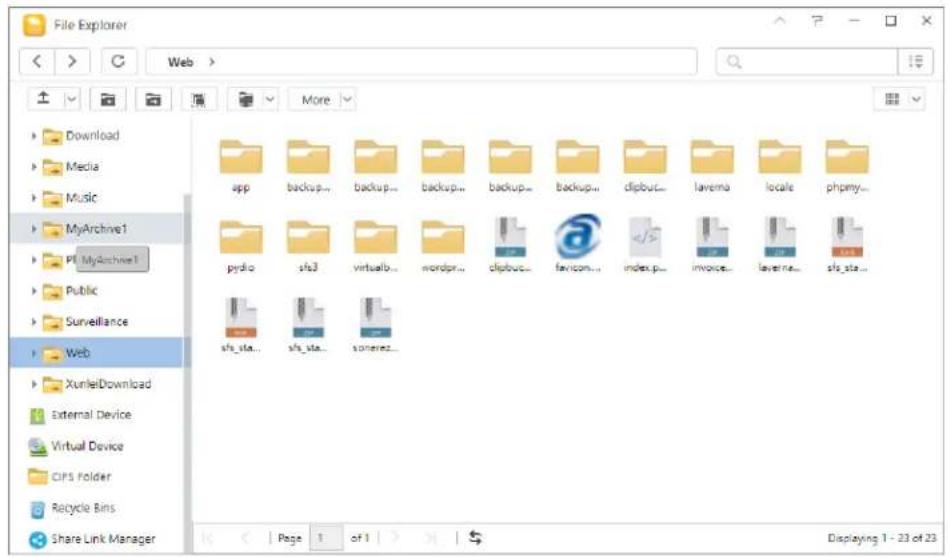
text_image
File Explorer Web > More Download Media Music MyArchive1 PI_MyArchive1 Public Surveillance Web XunleiDownload External Device Virtual Device CIPS Folder Recycle Bins Share Link Manager app backup... backup... backup... backup... backup... clipbus... laverna locale phpmy... pydo sfs3 virtualb wordpr... clipbus... faxcom... index.p... invoice... laverna... sfs_sta... sfs_sta... sfs_sta... sortenes... Page 1 of 1 Displaying 1 - 23 of 23ISO Mounting: You no longer need to burn ISO files onto CDs in order to read them. Now you can select ISO files from your NAS and directly mount them to shared folders ("read only" access rights). You can then use your computer to access and read them. Later, when you are finished with the files, simply unmounts them.
Share Link: You can use Share Links to share files with people who don't have accounts on your NAS. Share Links allow you to instantly create download links for designated files that you want to
share. Expiry dates can also be set for each Share Link that you create, allowing for safe and flexible management.
Single Share Link: The multiple shared files/folders will be listed on one single link.
Separate Share Links: Each selected file/folder will have its own link.
Permissions: Right-clicking on a file or folder and then selecting "Properties" followed by the "Permissions" tab will allow you to configure detailed access permissions for the file or folder.
If the top-level shared folder does not have Windows ACL enabled, the options for configuring permissions will be:
Owner: The owner of the folder or file
Group: The group that has been assigned to the folder or file
Others: All other users on the system or network that are not owners or part of the group that has been assigned to the folder or file.
The permission types that you will be able to configure are: RW (Read & Write), RO (Read Only) and DA (Deny Access).
If the top-level shared folder has Windows ACL enabled, you will be able to configure file permissions for all users and groups. In total, there will be 13 types of configurable permissions. These types of permissions are as follows:
Reminder: An individual file or folder can utilize up to a maximum of 250 Windows ACL permissions (including inherited permissions).
| Traverse folder / execute file |
| List folder / read data |
| Read attributes |
| Read extended attributes |
| Create files / write data |
| Create folders / append data |
| Write attributes |
| Write extended attributes |
| Delete |
| Delete subfolders and files |
| Read permissions |
| Change permissions |
| Take ownership |
Include inheritable permissions from this object's parent: This option is enabled by default. The system will automatically configure sub folders and files to inherit permissions from the object
above it. Disabling this option will reject all inheritable permissions and only keep newly added permissions.
Replace all child object permissions with inheritable permissions from this object: Enabling this option will replace all sub folder and file permissions with ones from the parent object.
Effective Permissions: Clicking on this button and then selecting a user from the list will allow you to view the user's effective permissions with regards to the specified folder or file.
External Optical Drive: After connecting an external optical drive (CD, DVD, Blu-ray) to your NAS via USB, you can use File Explorer to directly access any files that you have backed up to optical media and even transfer files from your optical media to your NAS via drag and drop for future access.
Note:
-
This function only provides data access and does not support the audio and video playback of optical media.
-
Certain optical drives will require additional power in order to operate properly. If you find that your optical drive is not spinning or reading correctly, please use a USB Y-cable to add additional power.
Task Monitor: Task Monitor allows you to view the progress, speed and status of downloads and uploads. Additionally, Task Monitor's multitasking and background operation allows you to simultaneously upload and download multiple files. You no longer need to wait for tasks to be completed one by one.
External Devices: Here you can view and format all USB or eSATA external hard disks that are connected to your NAS. Supported file systems are as follows:
FAT32: for use with Windows and Mac OS X
NTFS: for use with Windows
HFS+: for use with Mac OS X
EXT4: for use with Linux
Reminder: If your device cannot be detected, please try connecting again using another cable or port.
Virtual Drive: You can mount an ISO image file (.iso file) as a virtual drive and directly browse the content of the ISO image file. ADM's virtual drive function also provides simplified access control settings allowing you to either configure access for all users or limit access to only administrators.
CIFS Folder: Here, you will be able to view all CIFS folders (including personal CIFS folders you have mounted and shared CIFS folders mounted by administrators).
If you are a regular user that requires use of the CIFS folder mounting service, please contact the system administrator to grant the associated permissions.
When a remote server supports the CIFS protocol, the server's remote folders can be mounted.
The maximum number of simultaneously mounted CIFS folders is 50.
Network Recycle Bin: Here you can access the enabled Network Recycle Bins of all shared folders.
Reminder: Currently, File Explorer can only show up to the first 10000 files contained within folders.
4. From App Central
natural_image
Illustration of a server tower surrounded by various app icons (no text or symbols on the tower itself)In addition to the built-in apps that come with ADM, every ASUSTOR NAS comes with several pre-installed apps. You can choose whether you want to keep or remove these apps. At your convenience, you can also browse through and download any additional apps that peak your interest from App Central.
Download Center
Download Center allows you to easily download and save files to your NAS. Your NAS can effectively replace your computer in helping you with any download jobs. This provides you with data protection and energy saving benefits. An ASUSTOR NAS consumes far less power during operation than a normal computer does. No longer will you have to leave your computer on for long periods of time while downloading files. Download Center supports HTTP, FTP, and BitTorrent downloads along with the scheduling of download tasks and the limiting of download and upload speeds.
Furthermore, Download Center supports selective downloading with respect to BitTorrent downloads. This gives you the ability to select and download only the files that you wish to from within a torrent. You no longer need to waste bandwidth and storage space downloading unnecessary files that you don't want. Finally, you can remotely control Download Center using our exclusive mobile app (iOS and Android).
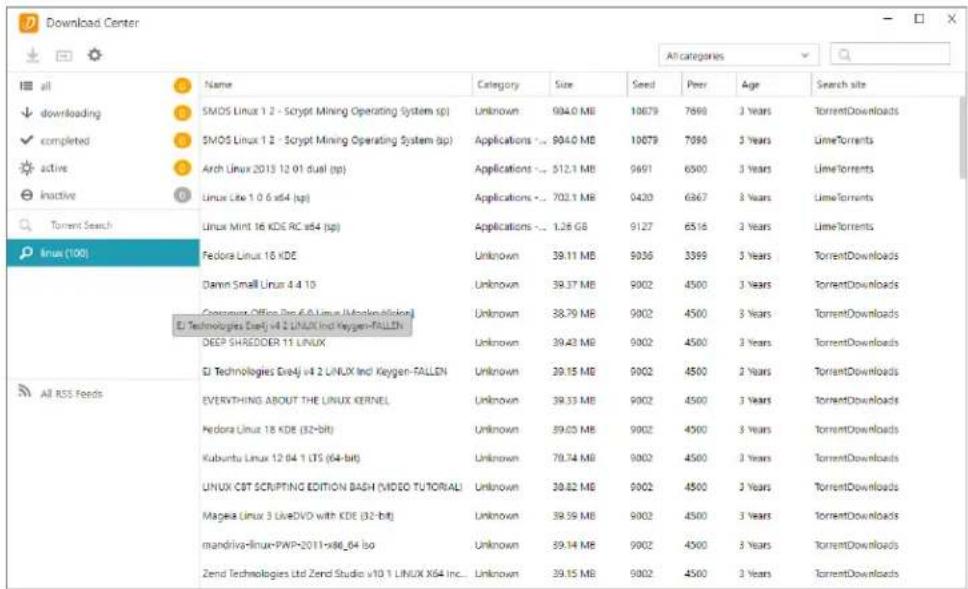
text_image
Download Center All categories Search site all downloading completed active inactive Torrent Search Linux (108) Name Category Size Seed Peer Age SMOS Linux 1 2 - Script Mining Operating System sp) Unknown 994.0 MB 10679 7699 3 Years TorrentDownloads SMOS Linux 1 2 - Script Mining Operating System (sp) Applications -... 904.0 MB 10679 7560 3 Years LimeTorrents Arch Linux 2013 12 01 dual (sp) Applications -... 512.1 MB 9691 6500 3 Years LimeTorrents Linux Lite 1 0 6 x64 (sp) Applications -... 702.1 MB 0420 6867 3 Years LimeTorrents Linux Mint 16 KDE RC x64 (sp) Applications -... 1.26 GB 9127 6518 3 Years LimeTorrents Fedora Linux 18 KDE Unknown 39.11 MB 9036 3399 3 Years TorrentDownloads Damin Small Linux 4 4 10 Unknown 39.37 MB 9002 4500 3 Years TorrentDownloads Coronaux Office Doc 4.6 Linux (Microsoft Server) DJ Technologies DevJ v4 2 LINUX Ind Keygen-FALLEN DEEP SHREDDER 11 LINUX Unknown 39.43 MB 9002 4500 3 Years TorrentDownloads DJ Technologies DevJ v4 2 LINUX Ind Keygen-FALLEN Unknown 39.15 MB 9002 4500 2 Years TorrentDownloads EVERVITHING ABOUT THE LINUX KERNEL Unknown 39.33 MB 9002 4500 3 Years TorrentDownloads Fedora Linux 18 KDE (32-bit) Unknown 39.63 MB 9002 4500 3 Years TorrentDownloads Kubuntu Linux 12 04 1 LTS (64-bit) Unknown 79.74 MB 9002 4500 3 Years TorrentDownloads UNIX CBT SCRIPTING EDITION BASH (VIDEO TUTORIAL) Unknown 39.82 MB 9002 4500 3 Years TorrentDownloads Magea Linux 3 LiveDVD with KDE (32-bit) Unknown 39.59 MB 9002 4500 3 Years TorrentDownloads mandriva-linux-PWP-2011-x86_04 (sp) Unknown 39.14 MB 9002 4500 3 Years TorrentDownloads Zend Technologies Ltd Zend Studio v10 1 LINUX X64 Inc... Unknown 39.15 MB 9002 4500 3 Years TorrentDownloadsBitTorrent Downloads: When you upload torrent files to Download Center, the system will automatically create a new download task and then proceed to add this task to the download list. Download Center also supports directly inputting the torrent's download link as well as the use of magnet links.
HTTP/FTP Downloads: Download Center supports HTTP and FTP downloads. You only need to paste or enter the link of your choice. The system will then immediately begin your download.
RSS Subscriptions and Downloads: RSS downloading (also known as Broadcatching) is a type of technology that allows you to select the items you wish to download from within the contents of RSS feeds. Additionally, Download Center also offers an RSS automatic downloader. In accordance with your settings, the system will regularly update RSS feeds and then proceed to download items based on your set keywords and preferences. This is frequently used with items that require regular downloading. For example, weekly TV shows.
→ Search: Download Center allows you to use keywords to search for files that you wish to download.
See More
NAS 162 - Introduction to Download Center
NAS 265 - Automating Download Center
FTP Explorer
FTP Explorer is ADM's FTP client. It can be used to connect to different FTP servers and execute direct file transfers. This increases transfer efficiency as the file transfer process does not require the use of any computers. FTP Explorer supports the following functions:
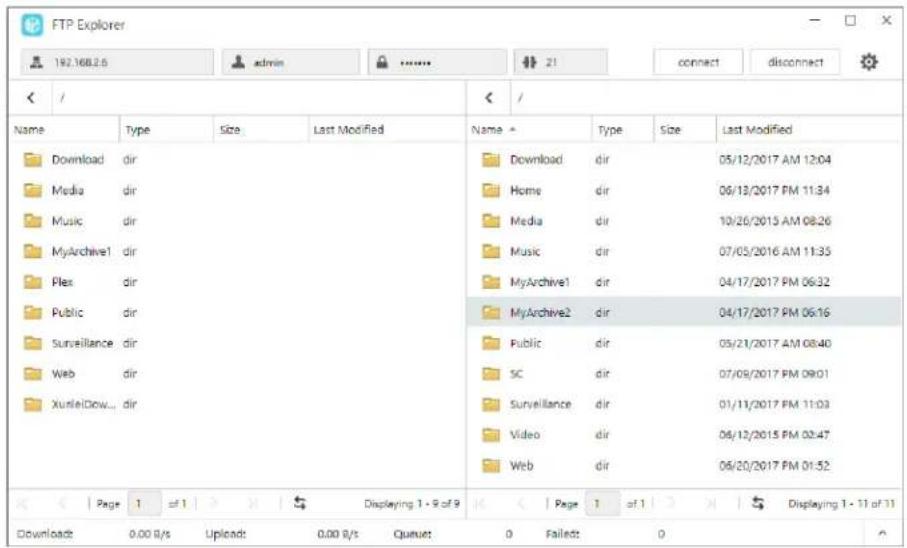
text_image
FTP Explorer 192.168.2.6 admin 21 connect disconnect / / Name Type Size Last Modified Name Type Size Last Modified Download Generation dir 05/12/2017 AM 12:04 Media Generation dir 06/13/2017 PM 11:34 Music Generation dir 10/26/2015 AM 08:26 MyArchive1 Generation dir 07/03/2016 AM 11:35 Plex Generation dir 04/17/2017 PM 06:32 Public Generation dir 04/17/2017 PM 06:16 Surveillance Generation dir 05/21/2017 AM 08:40 Web Generation dir 07/09/2017 PM 09:01 XurileiDow... Generation dir 01/11/2017 PM 11:03 MyArchive2 Generation dir 06/12/2015 PM 02:47 Public Generation dir 06/20/2017 PM 01:52 SC Generation dir 06/20/2017 PM 01:52 Surveillance Generation dir 06/20/2017 PM 01:52 Video Generation dir 06/20/2017 PM 01:52 Web Generation dir 06/20/2017 PM 01:52 Page 1 of 1 Displaying 1 - 9 of 9 Page 1 of 1 Displaying 1 - 11 of 11 Downloads: 0.00 B/s Upload: 0.00 B/s Quenet 0 Failed 0Site management, allowing you to configure multiple sets of FTP server connection information
→ Drag and drop file transfers
→ Encrypted transmission protocols (SSL/TLS)
→ Resuming downloads
→ Custom transfer speeds
See More
NAS 225 - Introduction to FTP Explorer
Surveillance Center
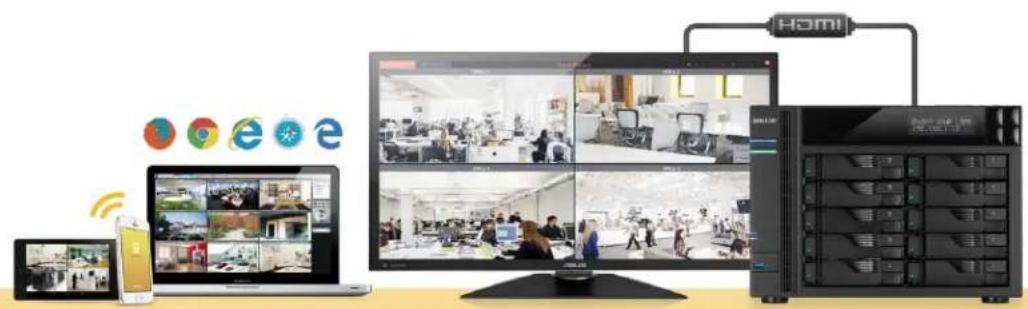
text_image
System setup diagram showing home control, smart home devices, and surveillance screens with icons for mobile devices and connectivity links.Surveillance Center allows you to manage an array of IP cameras and features Live View and Playback functions. All video recorded from IP cameras can be directly and safely stored on the NAS. Using Surveillance Center's exclusive playback interface you can review previously recorded video at any time.
Surveillance Center also supports several different recording modes such as schedule, motion detection and alarm trigger. Additionally, you also have the option of receiving notification in response to specific events. Notifications are sent by either SMS or e-mail.
See More
NAS 161 - Introduction to Surveillance Center
NAS 261 - Advanced Setup for Surveillance Center
NAS 262 - Managing Surveillance Center Camera Licenses
NAS 263 - Creating and Using Maps with Surveillance Center
Compatibility - IP Camera
UPnP AV Media Server
The UPnP AV Media Server app can turn your NAS into your home's multimedia streaming server. As long as you have devices that support UPnP or DLNA (for example, SONY BRAVIA TV or PlayStation®), you can directly browse and stream the pictures, music and videos stored on your NAS.
Additionally, you can use UPnP/DLNA compatible applications on your mobile device (for example, a notebook, iPhone or iPad) to stream multimedia files from your NAS.
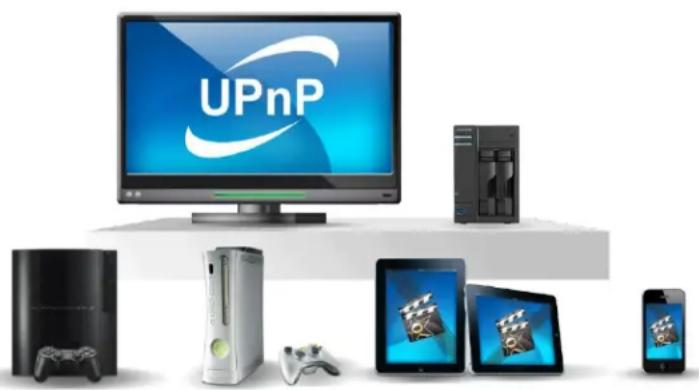
natural_image
Product lineup of gaming devices including a monitor, gaming console, desktops, and mobile devices (no visible text or labels)→ You only need to have your multimedia files stored in the shared folders "Media" or "Music" to be able to broadcast them. UPnP Multimedia Server will automatically scan designated directories for supported multimedia files.
UPnP AV Multimedia Server currently only supports on-the-fly transcoding for photos and music.
Reminder: The media formats that are playable may vary between devices.
About UPnP AV Multimedia Server
UPnP AV Multimedia Server supports the following file formats:
√ Video: 3GP, 3G2, ASF, AVI, DAT, FLV, ISO, M2T, M2V, M2TS, M4V, MKV, MPv4, MPEG1, MPEG2, MPEG4, MTS, MOV, QT, SWF, TP, TRP, TS, VOB, WMV, RMVB, VDR, MPE
√ Audio: 3GP, AAC, AIFC, AIFF, AMR, APE, AU, AWB, FLAC ^1 , M4A, M4R, MP2, MP3, OGG Vorbis ^1 , PCM, WAV, WMA
√ Photo: BMP, GIF, ICO, JPG, PNG, PSD, TIF, RAW Image ^1 (3FR, ARW, CR2, CRW, DCR, DNG, ERF, KDC, MEF, MOS, MRW, NEF, NRW, ORF, PEF, PPM, RAF, RAW, RW2, SR2, X3F)
^1 You must first enable real time transcoding for these files in order to play them.
See More
NAS 168 - Your Home Media Center
iTunes Server
The iTunes Server app can turn your NAS into your home's audio and video streaming center. It allows you to share music and movies from your NAS with computers in the same network environment.
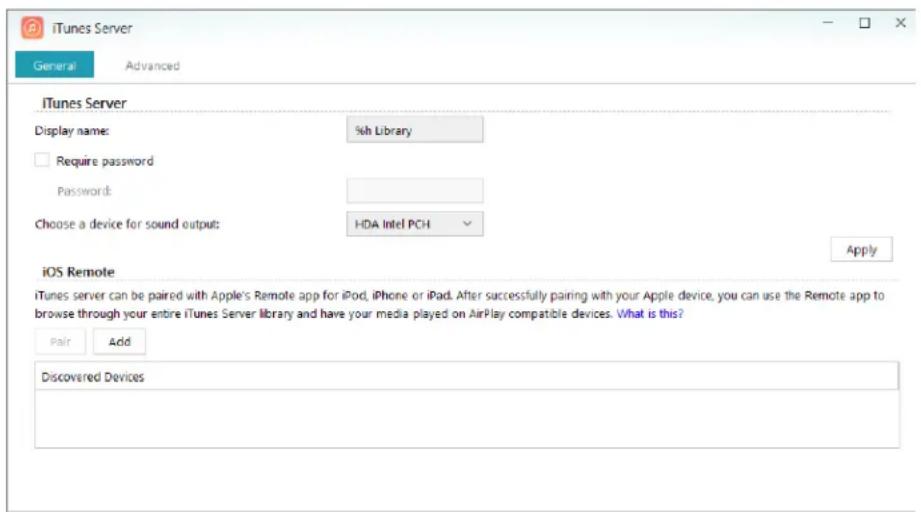
text_image
iTunes Server General Advanced iTunes Server Display name: %th Library Require password Password: Choose a device for sound output: HDA Intel PCH iOS Remote iTunes server can be paired with Apple's Remote app for iPod, iPhone or iPad. After successfully pairing with your Apple device, you can use the Remote app to browse through your entire iTunes Server library and have your media played on AirPlay compatible devices. What is this? Pair Add Discovered DevicesAfter enabling the iTunes server app and adding music files to the "Music" shared folder, open iTunes on your PC or MAC. You will see your NAS under the "Shared" heading in the left hand panel of the iTunes window. Click on it to begin browsing and streaming your music.
If you wish to restrict clients' access to your music, you can set up a password from within the iTunes Server app.
→ iTunes Server supports pairing with the iOS Remote app.
Reminder: Music files that are newly added to your NAS may not immediately appear inside iTunes. This is because the iTunes Server app scans your directories for new music at regularly scheduled intervals. Rest assured that all newly added music files will eventually appear inside of iTunes.
About iTunes Server
iTunes Server supports the following file formats:
√ Audio: AIF, M4A (AAC & Apple Lossless), M4P, M4R, MP3, WAV
√ Playlist: M3U, WPL
√ Video: M4V, MOV, MP4
See More
NAS 165 - Introduction to iTunes Server
NAS 231 - Using Remote with iTunes Server
SoundsGood
SoundsGood is a Web music player that allows you to listen to all the music stored on your NAS via a Web browser in addition to browsing through and managing your entire music collection.
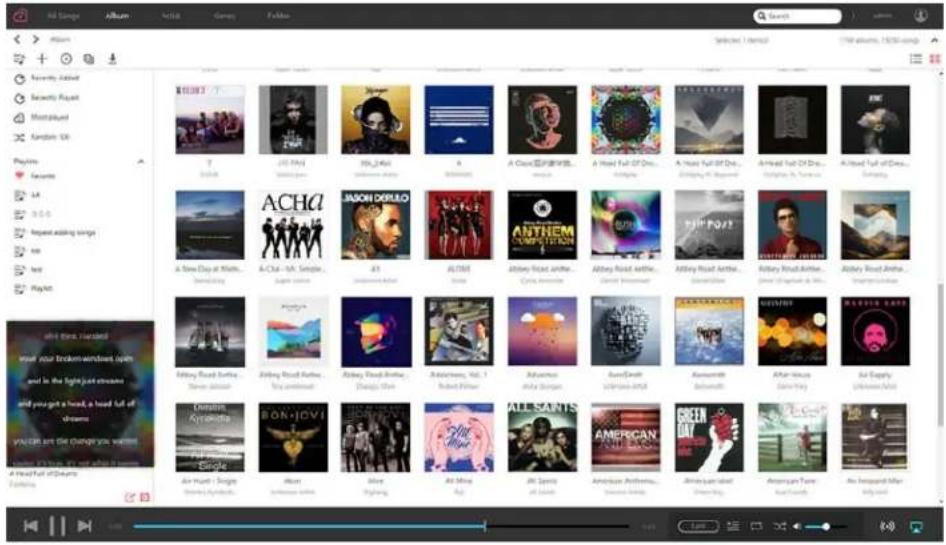
text_image
All-Single Album Add Gives Follow Search Search Selection | Download 1700 albums, 15/30 song Top: All-Single Acha A New Day at Night... A Chai - MA. Simple... A JASON DORULO A BART A BAYB-ROAT Anthra... A BAYB-ROAT Anthra... A BAYB-ROAT Anthra... A BAYB-ROAT Anthra... A BAYB-ROAT Anthra... A BAYB-ROAT Anthra... A BAYB-ROAT Anthra... A BAYB-ROAT Anthra... A BAYB-ROAT Anthra... A BAYB-ROAT Anthra... A BAYB-ROAT Anthra...Personalized settings: SoundsGood provides personalized music collections and playlists. You can configure any folder on the NAS as SoundsGood's media source and can further configure the media source as personal or shared.
Music collection editing: SoundsGood has a built-in ID3 tag editor, letting you immediately edit the ID3 tags in your music collection.
About SoundsGood
SoundsGood supports the following file formats:
√ Supported audio formats for browser : MP3, WAV, Ogg
√ Supported audio formats for transcoding through browser: AIFF, Flac
√ Supported Audio formats for local speaker : MP3, WAV, Ogg, AIFF, Flac
√ Local audio output support: HDMI, USB, Audio Jack*
*Suitable for use with AS-302T/AS-304T/AS-202TE/AS-204TE models
See More
Compatibility - USB DAC
LooksGood
LooksGood is a dedicated management center for video files and a Web-based video player for content on your NAS. Compatible with the most popular web browsers, users only need to enable the LooksGood App from within ADM to begin playing 1080p high definition videos. LooksGood features a stylish and modern interface that displays video collections via thumbnails and a poster wall layout for easy browsing. Furthermore, enhanced smart database management now makes global searches to be faster and more efficient for users.
LooksGood also features real-time transcoding and media conversions that help provide users with a smooth and stress-free playback experience. Additionally, you could stream videos from your NAS via Chromecast or DLNA with LooksGood, allowing you to enjoy your videos on a larger TV.
Additionally, AiVideos allows you to stream videos via Chromecast or DLNA, so you can enjoy your videos on a larger TV
natural_image
Movie scene from 'The Dark' showing a character in combat gear with smoke and fallen soldiers (no visible text or symbols)About LooksGood
Formats supported by LooksGood are as follows:
√ Supported Web Browsers: Windows Edge / Chrome / Firefox, Mac Safari
√ Supported Video Formats: avi, flv, mov, mp4, mkv, mka, ts, mpg, ra, ram, rm, rv, rmvb
√ Supported Video Codecs: aac_latm, aac, dca, h.264, mlp, mp1, mp2, mp3, mpeg2video, mpeg4, vc1, wmav2, wmv3
√ Supported External Subtitle Formats (UTF-8): srt, ass, ssa
√ Supported Image Formats: jpg, jpeg, bmp, png, gif, tif
√ Supported Digital TV Dongle Standards: DVB-T, DTMB
√ Hardware Transcoding Support: https://www.asustor.com/admv2/Asustor_transcode
See More
NAS 138 - Introduction to LooksGood
NAS 139 - LooksGood: Introduction to Media Converter
Compatibility - TV Dongles
Photo Gallery
Photo Gallery is able to display the thousands of photos and videos on your NAS. The album and browse viewing modes, support for multi-level folder structures and sorting easily keep your photos and videos organized. The interactive comment section and one-click sharing to social media allows you to stay connected and share with family and friends.
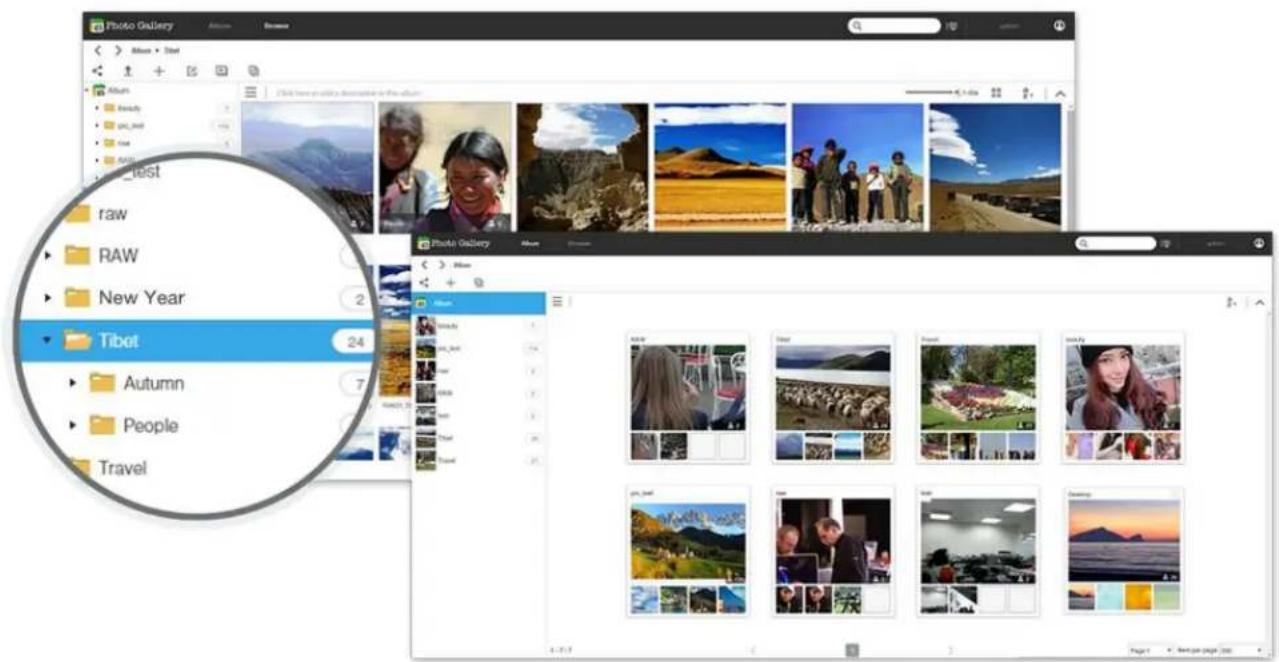
text_image
Photo Gallery File Edit View Help File List New Year Tibet 24 2 7 People Travel raw RAW New Year 2 24 Raw Raw New Year 24 2 24 New Year 24 2 24 New Year 24 2 24 New Year 24 2 24 New Year 24 2 24 New Year 24 2 24 New Year 24 2 24 New Year 24 2 24 New Year 24 2 24 New Year 24 2 24See More
NAS 137 Introduction to Photo Gallery
NAS 232 Using AiFoto on Your Mobile Devices
7 Tips for Easy Photo Management
VPN Server
ASUSTOR's VPN Server supports PPTP, Open VPN and L2TP/IPsec protocols, turning your NAS into a VPN Server and allowing you to connect remotely to your NAS and safely access resources from your internal network.
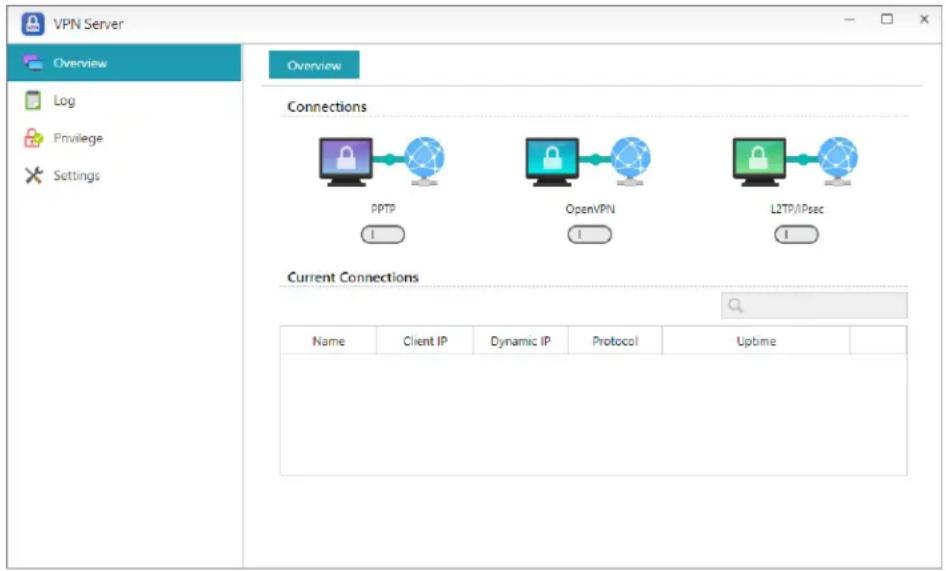
text_image
VPN Server Overview Log Privilege Settings Overview Connections PPTP OpenVPN L2TP/IPsec Current Connections Name Client IP Dynamic IP Protocol UptimeConfiguring the ASUSTOR NAS as a VPN server: Log in to ADM and then open App Central. Select "ASUSTOR Apps" from the left-hand panel and then search for and install "VPN Server".
Connecting the ASUSTOR NAS to a VPN server: Log in to ADM and then click on Settings and then select "VPN".
Reminder: The VPN client cannot be used simultaneously with the VPN Server. If you need to use the VPN client, please first stop any use of the VPN server.
See More
NAS 322 - Connecting Your NAS to a VPN
NAS 323 - Using Your NAS as VPN Server
Takeasy
Takeasy allows you to conveniently download online videos and playlists, giving you options to select the type of video file and video quality you want.
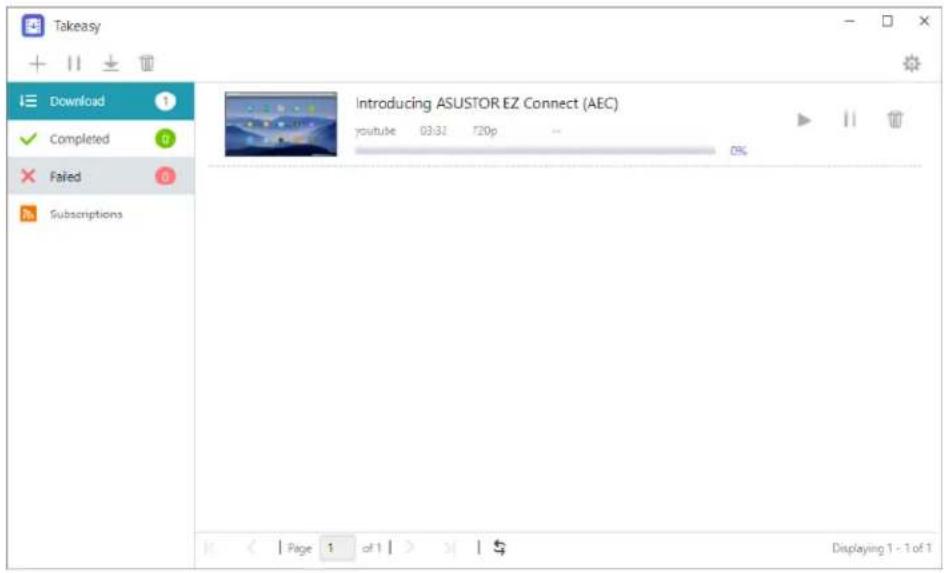
text_image
Takeasy + || ± || Download 1 Completed 0 Failed 0 Subscriptions Introducing ASUSTOR EZ Connect (AEC) youtube 03:31 720p 0% << Page 1 of 1 > > | $ Displaying 1 - 1 of 1To install Takeasy, log in to ADM, open App Central and then search for "Takeasy".
Supported websites include: Takeasy supported websites
→ Integrated YouTube/Twitch channel subscriptions allow your NAS to automatically download the newest content from your favorite YouTube channels.
→ Online media playback support allows you to preview any downloads in progress and also playback already downloaded videos.
Reminder: The quality of downloaded videos will depend on the quality of the unoteploaded video. For example: an uploaded video with a quality of 1080p will allow you to download a video of 1080p.
ASUSTOR Portal
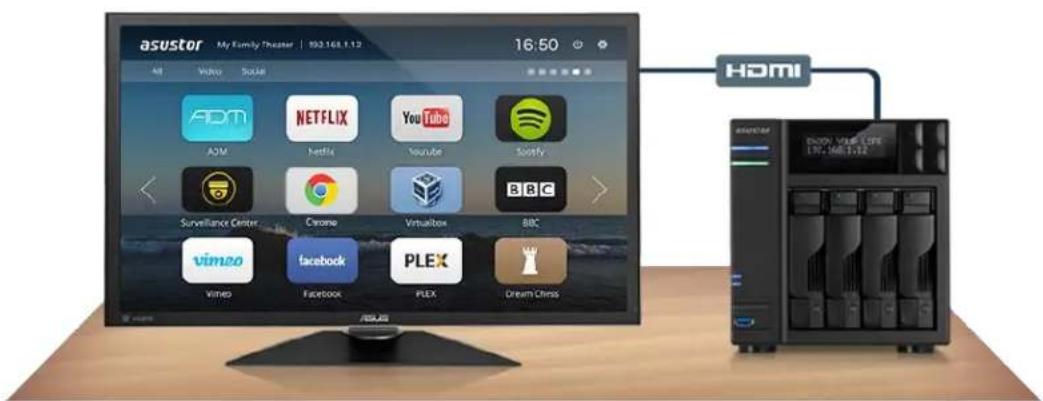
text_image
asustor My Family Theater | 192.168.1.12 16:50 All Video Social ADT NETFLIX YouTube Spotify AOM Netflix YouTube Surveillance Center Chrome Virtualbox BBC vimeo facebook PLEX Dream Chris ASUS HDMI ASUSTOR HDMI SUOEN HOME LIFE 179.168.1.22With ASUSTOR Portal there's no need to turn on your computer when you want to play videos or browse the internet. You need only simply connect your NAS to any HDMI ready display. Within ASUSTOR Portal integrates the Google Chrome browser, YouTube channels and monitoring of live video feeds from Surveillance Center.
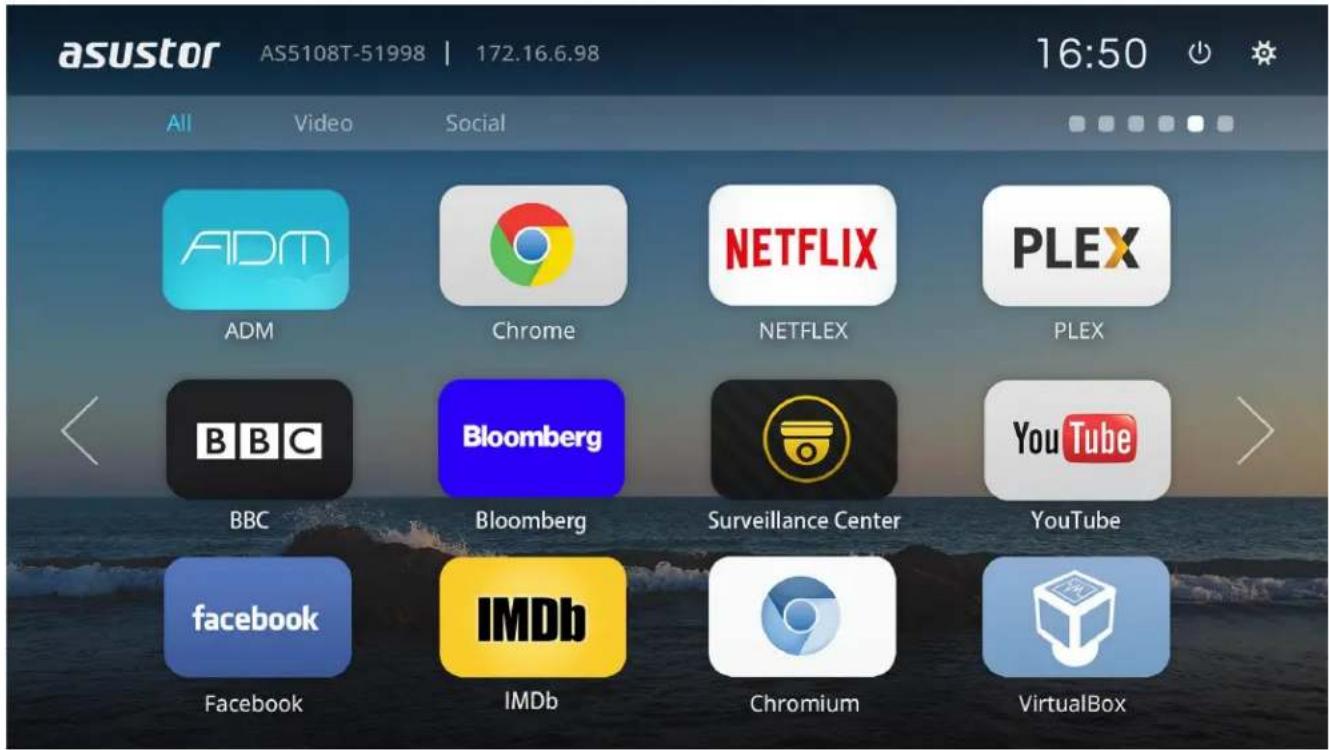
text_image
asustor AS5108T-51998 | 172.16.6.98 16:50 All Video Social ADM Chrome NETFLIX PLEX BBC Bloomberg Surveillance Center YouTube Facebook IMDb Chromium VirtualBoxTo install ASUSTOR Portal, log in to ADM, open App Central and then search for and install "ASUSTOR Portal" under "ASUSTOR Apps".
ASUSTOR Portal provides customizable display information including: IP address, server name, time, ADM, Chrome, YouTube
→ You can configure a default start app on ASUSTOR Portal (For example: ASUSTOR Portal, ADM, Chrome, YouTube, Surveillance Center). Once configured, the App will automatically launch when you open ASUSTOR Portal without having to be launched via the main ASUSTOR Portal interface.
→ You can also configure the desktop wallpaper, shortcuts to favorite websites, resolution, overscan and screensaver for ASUSTOR Portal.
See More
NAS 135 - Introduction ASUSTOR Portal (English only)
NAS 136 - Controlling ASUSTOR Portal
Video - Using ASUSTOR Portal
Video - Using The ASUSTOR Remote
Compatibility - HDTV
Accessories: Remote Control, USB IR Receiver, IR Remote Control Kit
Antivirus Protection
ASUSTOR NAS provides antivirus protection, effectively protecting your NAS's critical data and preventing malware from spreading.
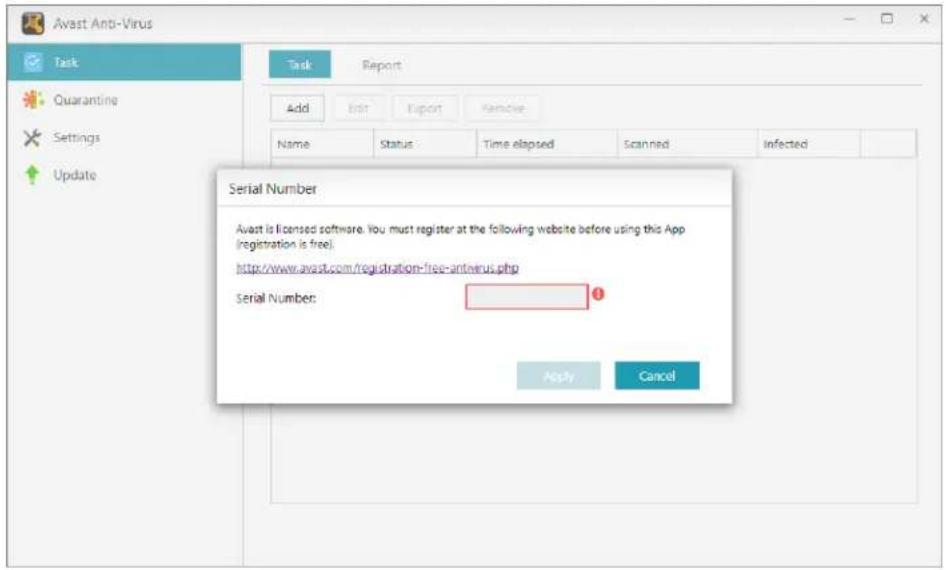
text_image
Avast Anti-Virus Task Quarantine Settings Update Add Edit Export Remove Name Status Time elapsed Scanned Infected Serial Number Avast is licensed software. You must register at the following website before using this App (registration is free). http://www.avast.com/registration-free-antivirus.php Serial Number: Apply CancelMail Server
ASUSTOR's Mail Server offers a comprehensive and cost-effective solution that allows any business to easily maintain their own dedicated mail server.
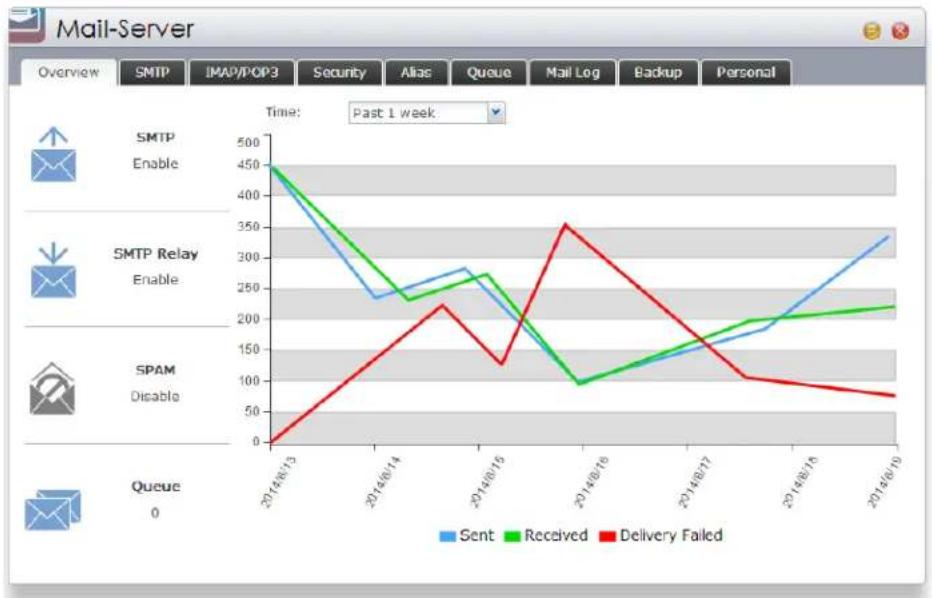
line
| Date | Sent | Received | Delivery Failed | | ---------- | ---- | -------- | --------------- | | 2014/6/13 | 450 | 450 | 0 | | 2014/6/14 | 250 | 250 | 150 | | 2014/6/15 | 280 | 270 | 220 | | 2014/6/16 | 200 | 100 | 350 | | 2014/6/17 | 150 | 150 | 100 | | 2014/6/18 | 200 | 200 | 80 | | 2014/6/19 | 250 | 220 | 70 |See More
NAS 269 Introduction to Mail Server
Syslog Server
Syslog Server supports standard Syslog protocols and can centrally aggregate system logs that are spread out over various network devices for storage and management. Furthermore, Syslog Server integrates with the NAS's Instant Notification function, allowing administrators to receive e-mails or SMS notifications when specified events occur, in order to quickly employ appropriate measures.
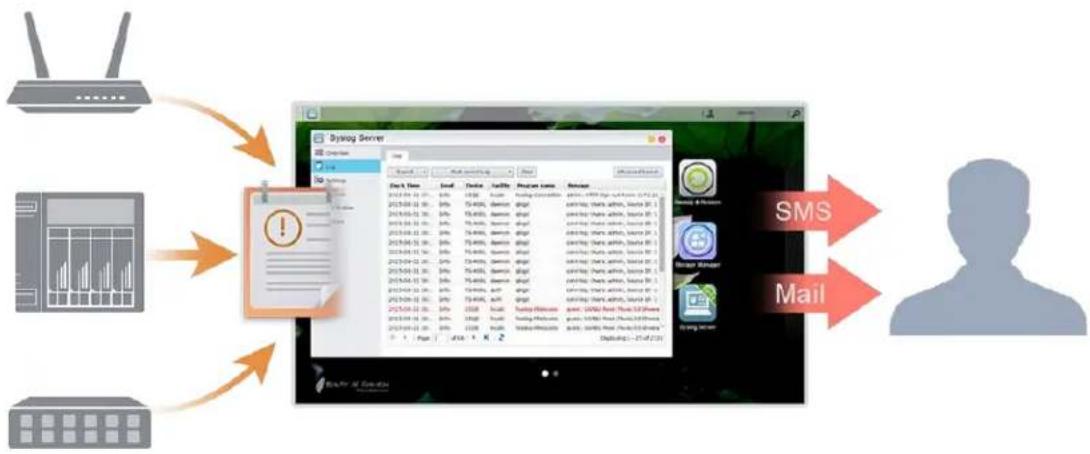
flowchart
graph TD
    A["Router"] -->|SMS/Mail| B["Server Interface"]
    B --> C["Message Processing"]
    C --> D["Message Handling"]
    D --> E["Message Execution"]
    E --> F["Message Deployment"]
    F --> G["Message Security"]
    G --> H["Message Security"]
    H --> I["Message Security"]
    I --> J["Message Security"]
    J --> K["Message Security"]
    K --> L["Message Security"]
    L --> M["Message Security"]
    M --> N["Message Security"]
    N --> O["Message Security"]
    O --> P["Message Security"]
    P --> Q["Message Security"]
    Q --> R["Message Security"]
    R --> S["Message Security"]
    S --> T["Message Security"]
    T --> U["Message Security"]
    U --> V["Message Security"]
    V --> W["Message Security"]
    W --> X["Message Security"]
    X --> Y["Message Security"]
    Y --> Z["Message Security"]
    Z --> AA["Message Security"]
    AA --> AB["Message Security"]
    AB --> AC["Message Security"]
    AC --> AD["Message Security"]
    AD --> AE["Message Security"]
    AE --> AF["Message Security"]
    AF --> AG["Message Security"]
    AG --> AH["Message Security"]
    AH --> AI["Message Security"]
    AI --> AJ["Message Security"]
    AJ --> AK["Message Security"]
    AK --> AL["Message Security"]
    AL --> AM["Message Security"]
    AM --> AN["Message Security"]
    AN --> AO["Message Security"]
    AO --> AP["Message Security"]
    AP --> AQ["Message Security"]
    AQ --> AR["Message Security"]
    AR --> AS["Message Security"]
    AS --> AT["Message Security"]
    AT --> AU["Message Security"]
    AU --> AV["Message Security"]
    AV --> AW["Message Security"]
    AW --> AX["Message Security"]
    AX --> AY["Message Security"]
    AY --> AZ["Message Security"]
    AZ --> BA["Message Security"]
    BA --> BB["Message Security"]
    BB --> BC["Message Security"]
    BC --> BD["Message Security"]
    BD --> BE["Message Security"]
    BE --> BF["Message Security"]
    BF --> BG["Message Security"]
    BG --> BH["Message Security"]
    BH --> BI["Message Security"]
    BI --> BJ["Message Security"]
    BJ --> BK["Message Security"]
    BK --> BL["Message Security"]
    BL --> BM["Message Security"]
    BM --> BN["Message Security"]
    BN --> BO["Message Security"]
    BO --> BP["Message Security"]
    BP --> BQ["Message Security"]
    BQ --> BR["Message Security"]
    BR --> BS["Message Security"]
    BS --> BT["Message Security"]
    BT --> BU["Message Security"]
    BU --> BV["Message Security"]
    BV --> BW["Message Security"]
    BW --> BX["Message Security"]
    BX --> BY["Message Security"]
    BY --> BZ["Message Security"]
    BZ --> CA["Message Security"]
    CA --> CB["Message Security"]
    CB --> CC["Message Security"]
    CC --> CD["Message Security"]
    CD --> CE["Message Security"]
    CE --> CF["Message Security"]
    CF --> CG["Message Security"]
    CG --> CH["Message Security"]
    CH --> CI["Message Security"]
    CI --> CJ["Message Security"]
    CJ --> CK["Message Security"]
DataSync for Dropbox
Now you can sync your NAS to your Dropbox. Simply download and install the DataSync for Dropbox App from App Central and you will be able to sync the files in your Dropbox to your NAS. Whether its further backing up your Dropbox files or syncing files from your work computer to your NAS at home, Dropbox on the ASUSTOR NAS lets you thoroughly enjoy the conveniences of cloud computing.
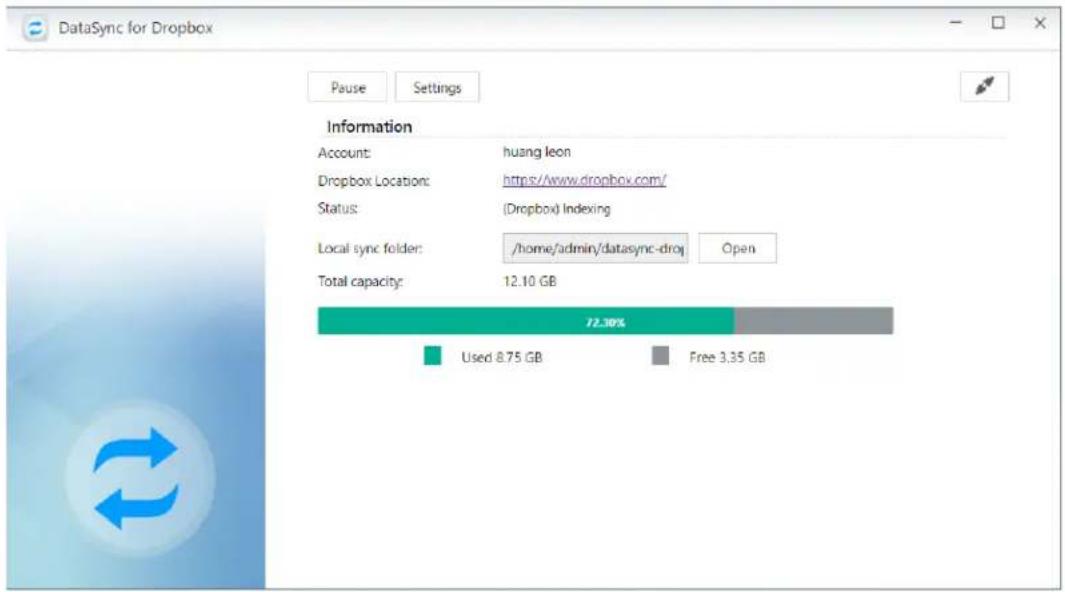
text_image
DataSync for Dropbox Pause Settings Information Account: huang leon Dropbox Location: https://www.dropbox.com/ Status:(Dropbox) Indexing Local sync folder: /home/admin/datasync-drop Open Total capacity: 12.10 GB 72.30% Used 8.75 GB Free 3.35 GBDataSync for Microsoft OneDrive
Installing the DataSync for Microsoft OneDrive App on ASUSTOR NAS, will allow users to combine the cloud storage service with their personal storage. Supported transfer modes include NAS uploading/downloading to Microsoft OneDrive and a two-way synchronization mode which help to meet a variety of needs including data backup, data sharing and remote access.
Note:
- This App does not support OneDrive for Business
- Microsoft OneNote files and individual files larger than 10GB will not be able to be backed up.
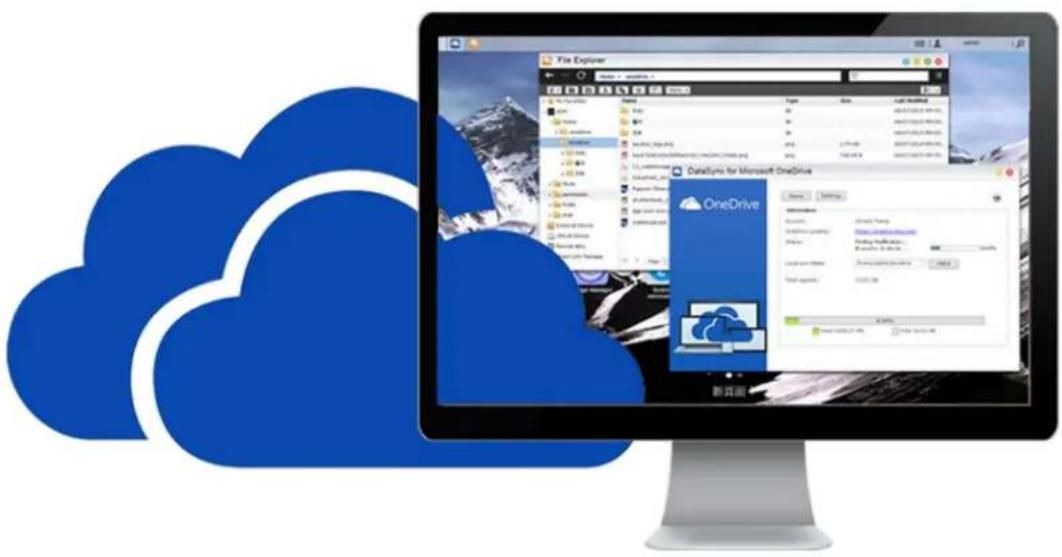
text_image
File Explorer OneDrive DataTransfer for Microsoft OneDrive OneDrive Windows Microsoft Windows Microsoft Windows Microsoft Windows Microsoft Windows Microsoft Windows Microsoft Windows Microsoft Windows Microsoft Windows Microsoft Windows Microsoft Windows Microsoft Windows Microsoft Windows Microsoft Windows Microsoft Windows Microsoft Windows Microsoft Windows Microsoft Windows Microsoft Windows Microsoft Windows Microsoft Windows Microsoft Windows Microsoft Windows Microsoft Windows Microsoft Windows Microsoft Windows Microsoft Windows Microsoft Windows Microsoft Windows Microsoft Windows Microsoft Windows Microsoft Windows Microsoft Windows Microsoft Windows Microsoft WindowsDataSync for Google Drive
After installing the DataSync fo Google Drive App on ASUSTOR NAS, you will be able to integrate both cloud and personal storage spaces. Google Drive's supported data transfer methods include downloading and uploading from the NAS to Google Drive and a two-way sync mode. No matter if it is data backup or remote access to data, Google Drive on ASUSTOR NAS is able to meet your needs.
Note:
- Google documents and photos cannot be backed up.
- The frequency of synchronization is once every 5 minutes.
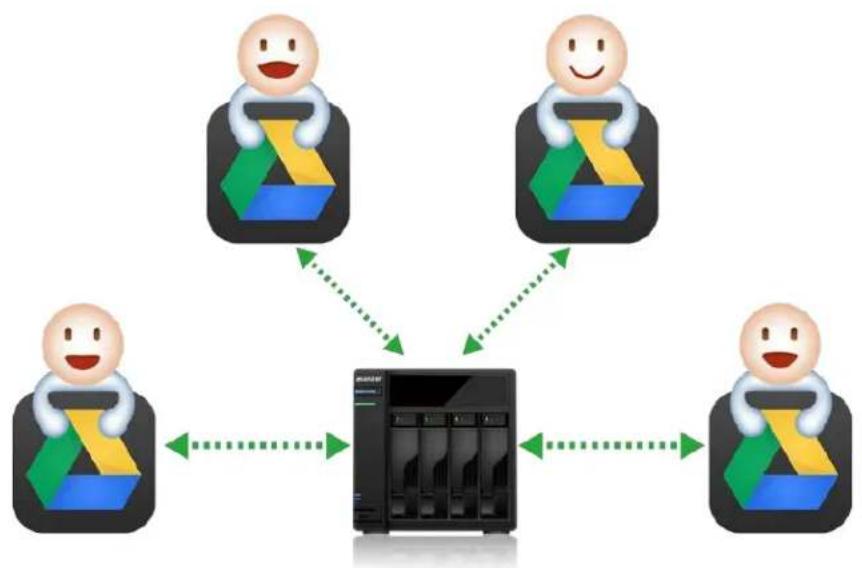
flowchart
graph TD
    A["User Icon 1"] --> C["Server Unit"]
    B["User Icon 2"] --> C
    D["User Icon 3"] --> C
    E["User Icon 4"] --> C
    C --> F["Data Flow"]
    style C fill:#f9f,stroke:#333,stroke-width:2px
HiDrive Backup
Strato HiDrive is a popular cloud storage platform that is widely used in Europe. Now you can integrate your ASUSTOR NAS with HiDrive, to create more flexible data applications. HiDrive's supported data transfer methods include Rsync, FTP, FTPS and SFTP.
Note: Only HiDrive paid accounts are able to use Rsync, FTP, FTPS and SFTP transfer services.
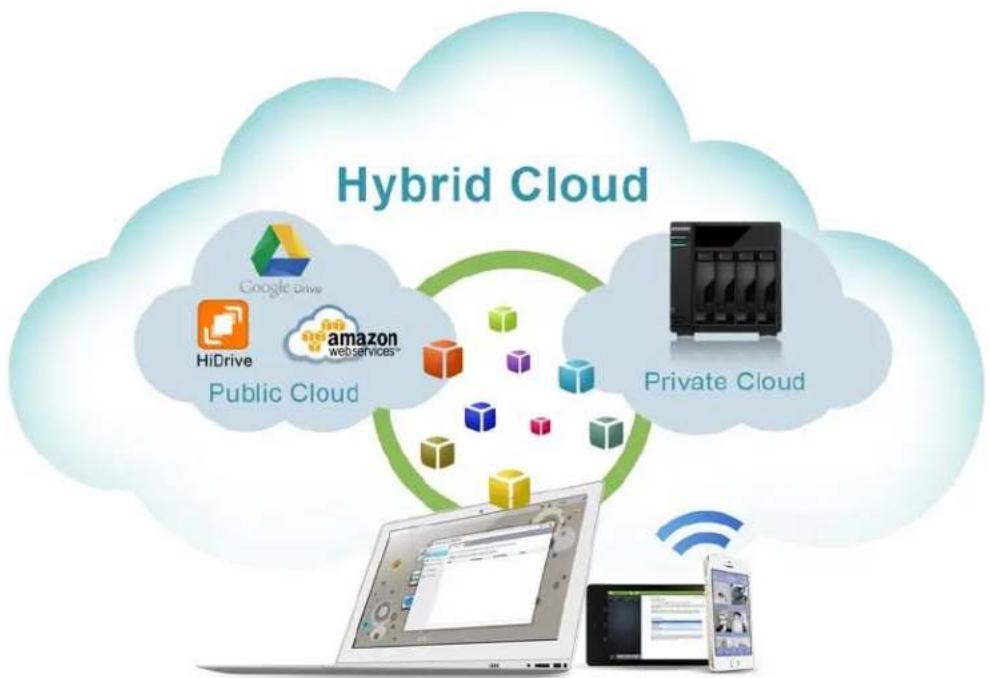
flowchart
graph TD
    A["Public Cloud"] --> B["Google Drive"]
    A --> C["HiDrive"]
    A --> D["Amazon Web Services™"]
    A --> E["Private Cloud"]
    F["Laptop"] --> G["Data Flow"]
    H["Smartphone"] --> I["Wi-Fi"]
    J["Cloud Icon"] --> K["Cloud Icon"]
DataSync for hubiC
After installing the DataSync fo hubiC App on ASUSTOR NAS, you will be able to integrate both cloud and personal storage spaces. hubiC's supported data transfer methods include downloading and uploading from the NAS to Google Drive and a two-way sync mode. No matter if it is data backup or remote access to data, hubiC on ASUSTOR NAS is able to meet your needs.
text_image
asustor ALLOW YOUR LIFE 192.168.1.12 asustor hDataSync for Yandex
After installing the DataSync fo Yandex App on ASUSTOR NAS, you will be able to integrate both cloud and personal storage spaces. Yandex disk's supported data transfer methods include downloading and uploading from the NAS to Google Drive and a two-way sync mode. No matter if it is data backup or remote access to data, Yandex Disk on ASUSTOR NAS is able to meet your needs.
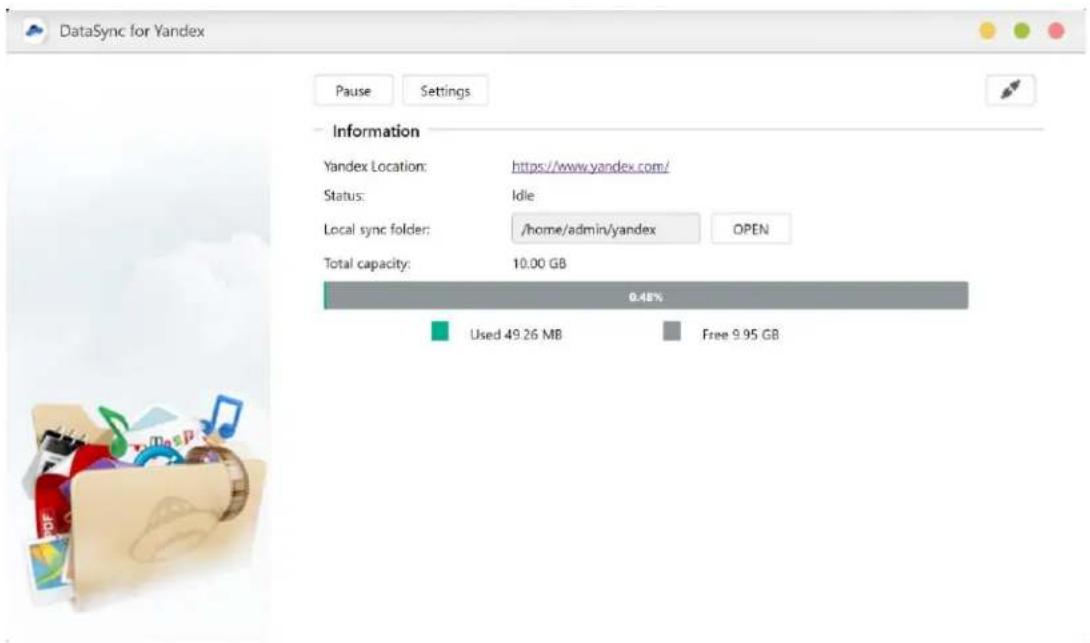
text_image
DataSync for Yandex Pause Settings Information Yandex Location: https://www.yandex.com/ Status: Idle Local sync folder: /home/admin/yandex OPEN Total capacity: 10.00 GB 0.48% Used 49.26 MB Free 9.95 GB5. Utilities
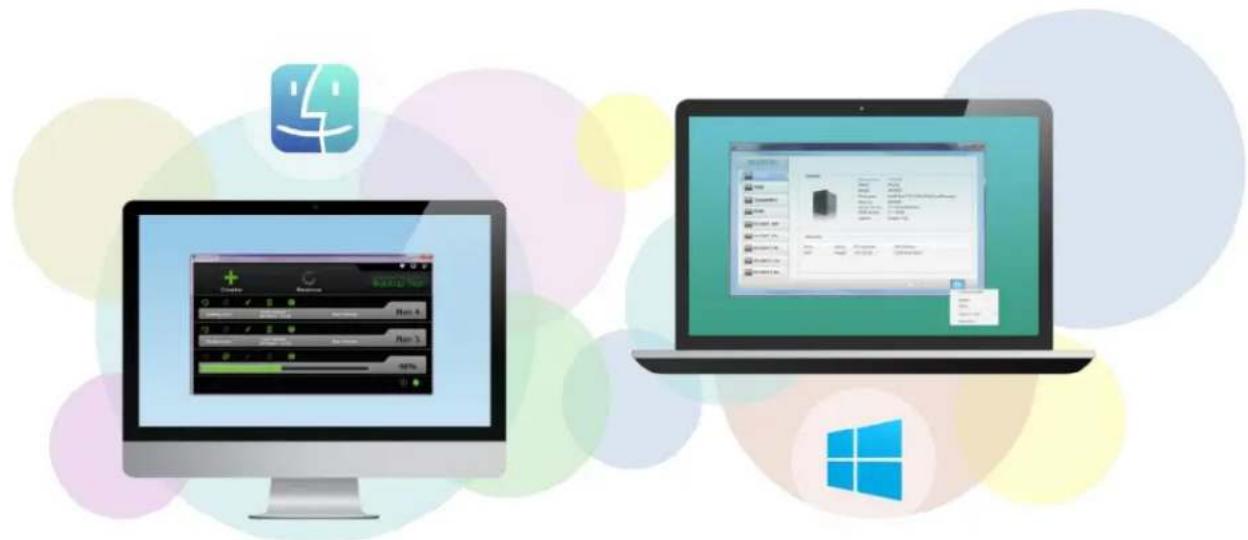
text_image
Illustration of two desktop computers with UI elements and a Windows logo, likely representing a software interface or application.ASUSTOR's utilities currently include ACC (ASUSTOR Control Center), AEC (ASUSTOR EZ Connect), ABP (ASUSTOR Backup Plan)、ADA (ASUSTOR Download Assistant) which allows you to use your PC/Mac to more conveniently manage your NAS, backup your PC/Mac data to your NAS or manage downloads in Download Center.
ACC (ASUSTOR Control Center)
Control Center can conveniently locate and configure any ASUSTOR NAS in your local area network. You can also manage your NAS without having to log in to ADM. You can download the latest version of Control Center from the ASUSTOR Website. (http://www.asustor.com/service/downloads)
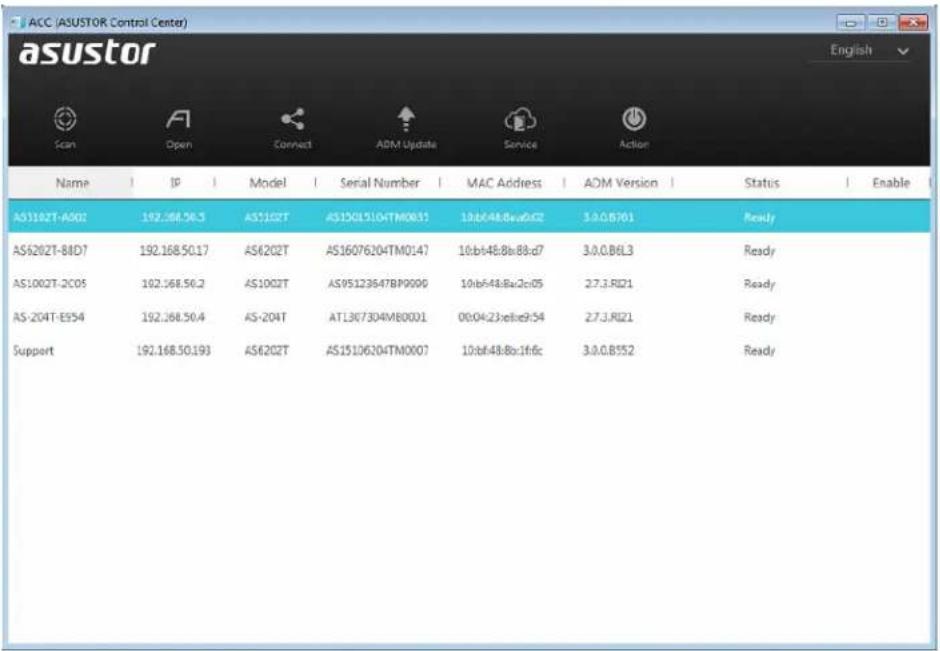
text_image
ACC (ASUSTOR Control Center) asustor Scan Open Connect ADM Update Service Action Name | IP | Model | Serial Number | MAC Address | AOM Version | Status | Enable | AS3102T-AS02 | 192.168.50.5 | AS5102T | AS15015104TM0631 | 10:bf:48:8a:8b:02 | 3.0.0.6701 | Ready AS6202T-8ID7 | 192.168.50.17 | AS6202T | AS16076204TM0147 | 10:bf:48:8b:88:d7 | 3.0.0.B6L3 | Ready AS1002T-2C05 | 192.168.56.2 | AS1002T | AS95123647BP9999 | 10:bf:48:8a:2c:05 | 27.3.RI21 | Ready AS-204T-E954 | 192.168.50.4 | AS-204T | AT1307304M80001 | 00:04:23:e8:e9:54 | 27.3.RI21 | Ready Support | 192.168.50.193 | AS6202T | AS15106204TM0007 | 10:bf:48:8a:1f:6c | 3.0.0.B552 | ReadyAEC (ASUSTOR EZ Connect)
ASUSTOR EZ Connect (AEC) is a dedicated utility designed for ASUSTOR NAS (with ADM3.0 and up). Users no longer need to do any complicated configurations when connecting to their NAS. They only need to enable ADM·s EZ-Connect function, configure a Cloud ID and they can connect to their NAS in their home or local network from anywhere and at any time.
(http://www.asustor.com/service/downloads)
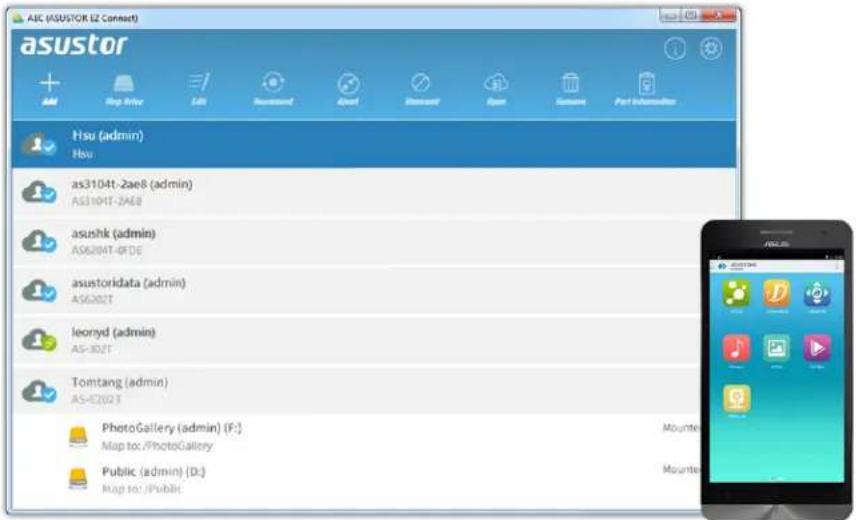
text_image
AIC (ASUSTOR E2 Connect) asustor + Map Info Edit Newsland Open Custom Port Information Hsu (admin) Hsu as3104t-2ae8 (admin) AS104T-2AE8 asushk (admin) AS6204T-0FDE asustoridata (admin) AS6202T leoryd (admin) AS-J02T Tomtang (admin) AS-C202 T PhotoGallery (admin) (F:) Map to/PhotoGallery Public (admin) (D:) Map to/ Public Mountar MountarABP (ASUSTOR Backup Plan)
Backup Plan can help you to back up the data from your Windows PC/server to an ASUSTOR NAS, FTP site, Local PC or other network location. You will also be able to quickly restore any data you back up from your Windows PC/server. You can download the latest version of Backup Plan from the ASUSTOR Website. (http://www.asustor.com/service/downloads)
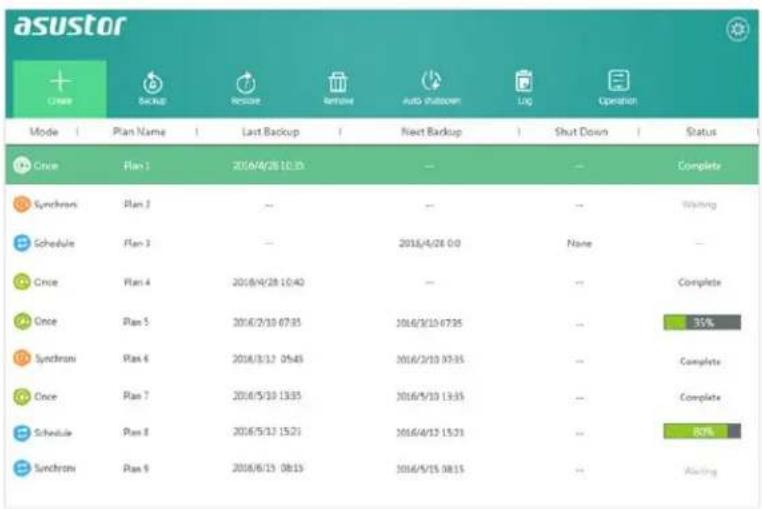
text_image
asustor + Change Backup Restore Restore Auto shutdown Log Operation Mode | Plan Name | Last Backup | Next Backup | Shut Down | Status | Once Plan 1 2016/4/28 10:35 --- --- Complete Synchrons Plan 2 --- --- --- Waiting Schedule Plan 3 --- 2016/4/28 0:0 None --- Once Plan 4 2016/4/28 10:40 --- --- Complete Once Plan 5 2016/2/10 07:35 2016/3/10 07:35 35% Synchrons Plan 6 2016/3/17 05:45 2016/3/10 03:35 --- Complete Once Plan 7 2016/5/10 13:35 2016/5/10 13:35 --- Complete Schedule Plan 8 2016/5/27 15:21 2016/4/12 15:21 --- 80% Synchrons Plan 9 2016/6/13 08:15 2016/5/15 08:15 --- AlteringADA (ASUSTOR Download Assistant)
Download Assistant allows you to manage download tasks from the Download Center App on your NAS without logging in to ADM. You can download the latest version of Download Assistant from the ASUSTOR Website. (http://www.asustor.com/service/downloads)
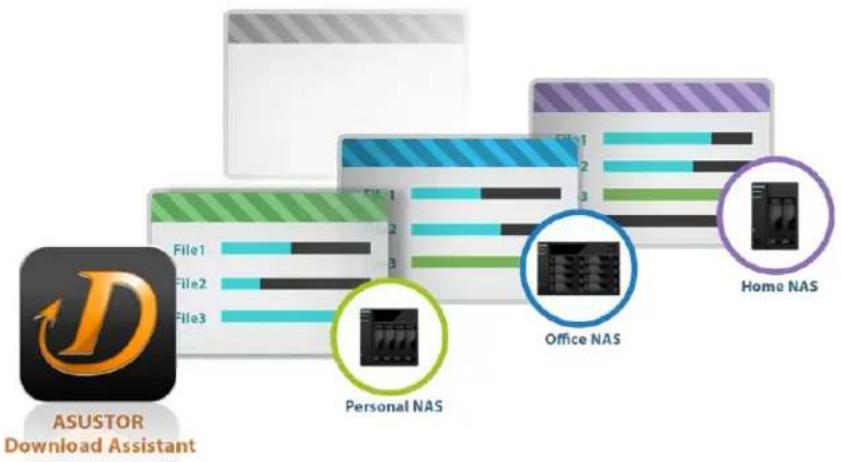
text_image
ASUSTOR Download Assistant File1 File2 File3 Personal NAS Office NAS Home NAS6. Mobile Apps
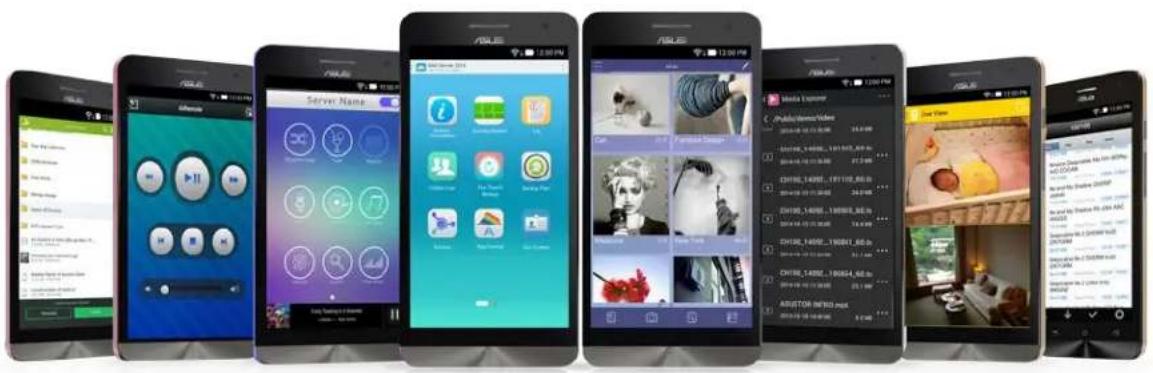
text_image
Screenshot collage of multiple smartphone home screens displaying app interfaces and content, including settings, navigation, and product descriptions.ASUSTOR's mobile apps currently include: AiData, AiMaster, AiRemote, AiDownload, AiMusic, AiFoto, AiVideos and AiSecure. You can download these apps by scanning the provided QR codes below.
AiData
AiData allows you to intuitively browse and manage the files on your NAS from the convenience of your mobile device. AiData also integrates Dropbox/Box.net/Google Drive cloud storage services, allowing users to easily access their data from across different clouds. More Information
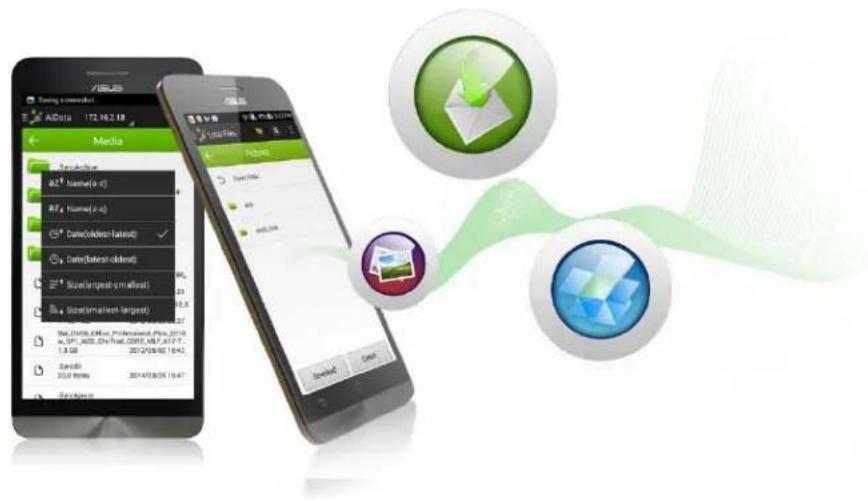
text_image
AOS Testing a consolidated AOSData 172.10.2.18 Media SearchName: A2* Name(a-x) A2* Name(b-x) Date(cldess-latest) Date(datesor-oldest) Size(range smalltest) Size(smalltest-target) SW,CNWS,ENIus,Professional Plus,2018 4x_3P1_AZS_OriTech,CNWS_MSP_617-7. 1.0.00 2019/03/05 11:43 SendTo EUI https 2014/03/05 10:47 Download Cancelios
Android

text_image
QR code image containing encoded data, no visible human-readable text
text_image
QR code image containing encoded data, no visible human-readable textSee More
NAS 243 - Using AiData on Your Mobile Devices
AiMaster
AiMaster is ASUSTOR's dedicated NAS management app for mobile devices. It allows everyday users and IT professionals to easily manage functions on multiple ASUSTOR NAS devices. More Information
text_image
Cancel Cancel Auto Recovery Cancel
text_image
Advance USB TCPs ACCESS Media Manager 12012 Mail Server 2014 SendTo/Get Console 2005 Home Media Manager AddTo/Get Console Mail Server 2014 SendTo/Get Console Sustain Web Server 2005 Home Media Manager 17 NAS User Search Pay OK Cancel
text_image
Welcome 1-Click Setup Custom Setup
text_image
Screenshot of a mobile app interface displaying multiple app icons with Chinese labels, likely for app selection or categorization.
flowchart
graph LR
    A["Step1"] --> B["Step2"]
    B --> C["Step3"]
    C --> D["OK!"]
AiMaster Android
AiMaster iOS

text_image
QR code image containing encoded data, no visible human-readable text
text_image
QR code image containing encoded data, no visible human-readable textSee More
NAS 242 - Using AiMaster on Your Mobile Devices
AiRemote
AiRemote allows you to control all types of functionality on ASUSTOR Portal, from the basic up, down, left, right controls used with ASUSTOR Portal interfaces to the play, pause, rewind, fast forward and volume controls used when playing videos. Furthermore, when using the Chrome web browser in ASUSTOR Portal, AiRemote provides a Touchpad Mode giving you intuitive control over your web browsing. More Information
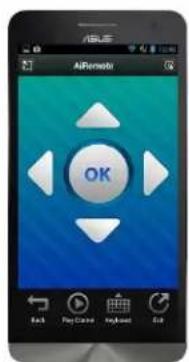
text_image
AirRemote OK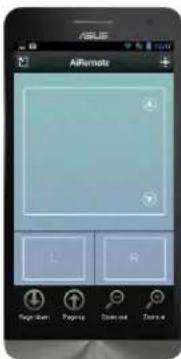
text_image
AirRemote L R Page 10 Page 2 Page 3 Page 4 Page 5
text_image
Mobile app interface screenshot showing playback controls and a play button with iconsAiRemote Android
AiRemote iOS

text_image
QR code image containing encoded data, no visible human-readable text
text_image
QR code image containing encoded data, no visible human-readable textSee More
NAS 135 - Introduction ASUSTOR Portal (English only)
Video - Using ASUSTOR Portal
AiDownload
AiDownload is a mobile app that interfaces with ASUSTOR's Download Center to provide you with mobile download management. AiDownload allows you to search, download, configure settings and monitor your downloads. More Information
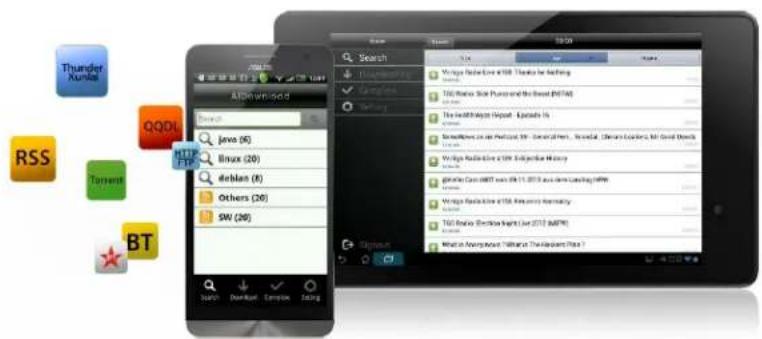
text_image
Thunder Xunlas RSS Tortrent BT ADownwood Search Jewoo (6) Jewoo (20) deblan (8) Others (20) SW (20) Browse Download Search Google Search Write the Book Love in 1998. Thanks to #ething Search Title: The Book Size Rules and the Book (BIF) Search The Health-Wigdom Report - Episodes 16 Search Sensitivities on the Bookset: 5th - General Teams - Newdeal - Deere Coopers, Bif Good Works Search Write the Book Love in 1998. Subjective History Search Ghahle's Caco (MRT) was 5th-11-2013 and are the following: MTR Search Write the Book Love in 1998. Research Ministry Search TGI: Today (Section 1) (at 2013) (MTR) Search What is Nourous? What is The Book?? Search Download Search JobingAiDownload Android
AiDownload iOS

text_image
QR code image containing encoded data, no visible human-readable text
text_image
QR code image containing encoded data, no visible human-readable textAiMusic
AiMusic allows you to stream music from your NAS to your mobile device, letting you enjoy your entire music collection while on the go. More Information
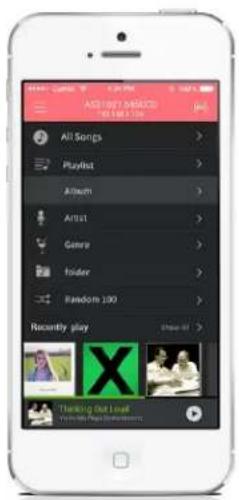
text_image
ASSETS ITEMS ALL SONGS Playlist Album Artist Genre Folder Random 100 Recently play Step 41 Thanking Out List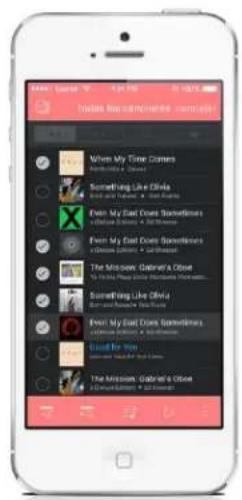
text_image
You'll live in the home! I'm going to When My Time Comes Something Live India Even My Ead Does Sometimes Even My Ead Does Sometimes Even My Ead Does Sometimes The Mission Gabin's Close To me like? How do you're something? Something Live India Even my face is so much Even my Ead Does Sometimes Even my Ead Does Sometimes I am here! I am here! The Mission Gabin's Close
text_image
Decoratedly Music Good to You Band: Ed Sheeran Selena Comedy/Good for YouAiMusic Android
AiMusic iOS

text_image
QR code image containing encoded data, no visible human-readable text
text_image
QR code image containing encoded data, no visible human-readable textAiFoto
AiFoto is ASUSTOR's photo management mobile app that interfaces with Photo Gallery on ASUSTORzNAS devices. It allows users to easily upload, browse and manage photos on their NAS. More Information
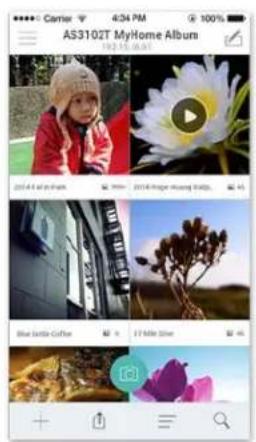
text_image
AS3102T MyHome Album 19:23:16:38:45 2014 All in Tech 2014 Proper Huang Bangs Blue Bottle Coffee 17 Minute Store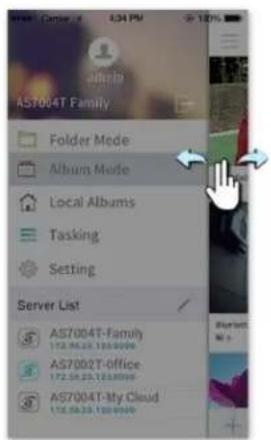
text_image
AS7004T Family Folder Mode Album Mode Local Albums Tasking Setting Server List AS7004T-Family 172.56.23.128.0000 AS7002T-Office 172.56.23.128.0000 AS7004T-My Cloud 172.56.23.128.0000
natural_image
Close-up photo of a smiling dog with tongue out, captured in a photo editing interface (no text or symbols on the dog itself)AiFoto Android
AiFoto iOS

text_image
QR code image containing encoded data, no visible human-readable text
text_image
QR code image containing encoded data, no visible human-readable textAiVideos
AiVideos brings you the smoothest mobile video viewing experience around. Browse through the video collection on your NAS without the need to wait for long downloads. Enjoy high-definition 1080p streaming video with just one click. You can even select multilingual subtitles and different audio channels to enjoy films in different languages, bringing the movie theater to your mobile device. Additionally, AiVideos allows you to stream videos via Chromecast or DLNA, so you can enjoy your videos on a larger TV.
More Information
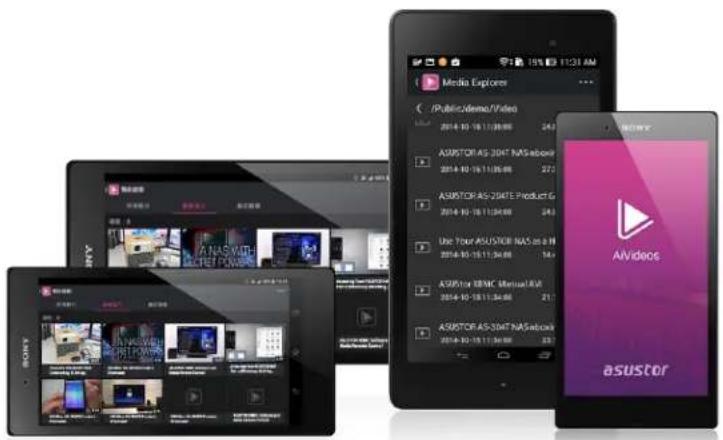
text_image
Media Explorers (Public Demo/Video) 2014-10-16 11:30:00 ASUSTOR AS-204T NAS video 2014-10-16 11:30:00 ASUSTOR AS-204TE PedsLICG 2014-10-16 11:30:00 Use Your ASUSTOR NAS as a H 2014-10-16 11:30:00 ASUSTOR BENC Manual AVI 2014-10-16 11:30:00 ASUSTOR AS-204T NAS video 2014-10-16 11:30:00 AIVideos asustorReminder: In order to use AiVideos, LooksGood must first be installed on the NAS.
AiVideos for iOS
AiVideos for Android

text_image
QR code image containing encoded data, no visible human-readable text
text_image
QR code image containing encoded data, no visible human-readable textSee More
NAS 246 - Introduction to AiVideos
NAS 247 - Configuring AiVideos and MX Player Decoder
AiSecure
AiSecure is ASUSTOR's Surveillance Center mobile app that makes it easy to monitor the things you care about most. After connecting with Surveillance Center, you will be able to watch live video, receive customized alerts and check events while on the go. More Information

text_image
Image showing a tablet displaying an office interior and a smartphone displaying the Apple App logo with Wi-Fi signal icon.AiSecure for Android
AiSecure for iOS

text_image
QR code image containing encoded data, no visible human-readable text
text_image
QR code image containing encoded data, no visible human-readable text7. Appendix
Permission Mapping Table
| X Y | Deny | Read & Write | Read Only | No Settings |
| Deny | Deny | Deny | Deny | Deny |
| Read & Write | Deny | Read & Write | Read & Write | Read & Write |
| Read Only | Deny | Read & Write | Read Only | Read Only |
| No Settings | Deny | Read & Write | Read Only | Deny |
X: User access rights for shared folders
Y: Group access rights for shared folders
Priority of access rights: Deny Access > Read & Write > Read Only > No Settings
8. EULA
END-USER LICENSE AGREEMENT FOR ASUSTOR DATA MASTER ("ADM") IMPORTANT PLEASE READ THE TERMS AND CONDITIONS OF THIS LICENSE AGREEMENT CAREFULLY BEFORE CONTINUING WITH THIS PROGRAM INSTALLATION: ASUSTOR End-User License Agreement ("EULA") is a legal agreement between you and ASUSTOR Inc. for the ASUSTOR software product(s) identified above which may include associated software components, media, printed materials, and "online" or electronic documentation ("SOFTWARE PRODUCT"). By installing, copying, or otherwise using the SOFTWARE PRODUCT, you agree to be bound by the terms of this EULA. This license agreement represents the entire agreement concerning the program between you and ASUSTOR Inc., (referred to as "licenser"), and it supersedes any prior proposal, representation, or understanding between the parties. If you do not agree to the terms of this EULA, do not install or use the SOFTWARE PRODUCT.
The SOFTWARE PRODUCT is protected by copyright laws and international copyright treaties, as well as other intellectual property laws and treaties. The SOFTWARE PRODUCT is licensed, not sold.
1. GRANT OF LICENSE.
The SOFTWARE PRODUCT is licensed as follows:
Installation and Use.
ASUSTOR Inc. grants you the right to install and use copies of the SOFTWARE PRODUCT on your computer running a validly licensed copy of the operating system for which the SOFTWARE PRODUCT was designed [e.g., Microsoft Windows 7 and Mac OS X].
2. DESCRIPTION OF OTHER RIGHTS AND LIMITATIONS.
(a) Maintenance of Copyright Notices.
You must not remove or alter any copyright notices on any and all copies of the SOFTWARE PRODUCT.
(b) Distribution.
You may not distribute registered copies of the SOFTWARE PRODUCT to third parties. Official versions available for download from ASUSTOR's websites may be freely distributed.
(c) Prohibition on Reverse Engineering, Decompilation, and Disassembly.
You may not reverse engineer, decompile, or disassemble the SOFTWARE PRODUCT, except and only to the extent that such activity is expressly permitted by applicable law notwithstanding this limitation.
ASUSTOR may provide you with support services related to the SOFTWARE PRODUCT ("Support Services"). Any supplemental software code provided to you as part of the Support Services shall be considered part of the SOFTWARE PRODUCT and subject to the terms and conditions of this EULA.
(e) Compliance with Applicable Laws.
You must comply with all applicable laws regarding use of the SOFTWARE PRODUCT.
3. TERMINATION
Without prejudice to any other rights, ASUSTOR may terminate this EULA if you fail to comply with the terms and conditions of this EULA. In such event, you must destroy all copies of the SOFTWARE PRODUCT in your possession.
4. COPYRIGHT
All title, including but not limited to copyrights, in and to the SOFTWARE PRODUCT and any copies thereof are owned by ASUSTOR or its suppliers. All title and intellectual property rights in and to the content which may be accessed through use of the SOFTWARE PRODUCT is the property of the respective content owner and may be protected by applicable copyright or other intellectual property
laws and treaties. This EULA grants you no rights to use such content. All rights not expressly granted are reserved by ASUSTOR.
5. LIMITED WARRANTY
ASUSTOR offers limited warranty for the SOFTWARE PRODUCT, and the warranty does not apply if the software (a) has been customized, modified, or altered by anyone other than ASUSTOR, (b) has not been installed, operated, or maintained in accordance with instructions provided by ASUSTOR, (c) is used in ultra-hazardous activities.
6. LIMITATION OF LIABILITY
In no event shall ASUSTOR be liable for any damages (including, without limitation, lost profits, business interruption, or lost information) rising out of 'Authorized Users' use of or inability to use the SOFTWARE PRODUCT, even if ASUSTOR has been advised of the possibility of such damages. In no event will ASUSTOR be liable for loss of data or for indirect, special, incidental, consequential (including lost profit), or other damages based in contract, tort or otherwise. ASUSTOR shall have no liability with respect to the content of the SOFTWARE PRODUCT or any part thereof, including but not limited to errors or omissions contained therein, libel, infringements of rights of publicity, privacy, trademark rights, business interruption, personal injury, loss of privacy, moral rights or the disclosure of confidential information.
9. GNU General Public License
GNU GENERAL PUBLIC LICENSE
Version 3, 29 June 2007
Copyright (C) 2007 Free Software Foundation, Inc. http://fsf.org/ Everyone is permitted to copy and distribute verbatim copies of this license document, but changing it is not allowed.
Preamble
The GNU General Public License is a free, copyleft license for software and other kinds of works.
The licenses for most software and other practical works are designed to take away your freedom to share and change the works. By contrast, the GNU General Public License is intended to guarantee your freedom to share and change all versions of a program--to make sure it remains free software for all its users. We, the Free Software Foundation, use the GNU General Public License for most of our software; it applies also to any other work released this way by its authors. You can apply it to your programs, too.
When we speak of free software, we are referring to freedom, not price. Our General Public Licenses are designed to make sure that you have the freedom to distribute copies of free software (and charge for them if you wish), that you receive source code or can get it if you
want it, that you can change the software or use pieces of it in new free programs, and that you know you can do these things.
To protect your rights, we need to prevent others from denying you these rights or asking you to surrender the rights. Therefore, you have certain responsibilities if you distribute copies of the software, or if you modify it: responsibilities to respect the freedom of others.
For example, if you distribute copies of such a program, whether gratis or for a fee, you must pass on to the recipients the same freedoms that you received. You must make sure that they, too, receive or can get the source code. And you must show them these terms so they know their rights.
Developers that use the GNU GPL protect your rights with two steps:
(1) assert copyright on the software, and (2) offer you this License giving you legal permission to copy, distribute and/or modify it.
For the developers' and authors' protection, the GPL clearly explains that there is no warranty for this free software. For both users' and authors' sake, the GPL requires that modified versions be marked as changed, so that their problems will not be attributed erroneously to authors of previous versions.
Some devices are designed to deny users access to install or run modified versions of the software inside them, although the manufacturer can do so. This is fundamentally incompatible with the aim of protecting users' freedom to change the software. The systematic pattern of such abuse occurs in the area of products for individuals to use, which is precisely where it is most unacceptable.
Therefore, we have designed this version of the GPL to prohibit the practice for those products. If such problems arise substantially in other domains, we stand ready to extend this provision to those domains in future versions of the GPL, as needed to protect the freedom of users.
Finally, every program is threatened constantly by software patents. States should not allow patents to restrict development and use of software on general-purpose computers, but in those that do; we wish to avoid the special danger that patents applied to a free program could make it effectively proprietary. To prevent this, the GPL assures that patents cannot be used to render the program non-free.
The precise terms and conditions for copying, distribution and modification follow.
TERMS AND CONDITIONS
0. Definitions.
"This License" refers to version 3 of the GNU General Public License.
"Copyright" also means copyright-like laws that apply to other kinds of works, such as semiconductor masks.
"The Program" refers to any copyrightable work licensed under this License. Each licensee is addressed as "you". "Licensees" and "recipients" may be individuals or organizations.
To "modify" a work means to copy from or adapt all or part of the work in a fashion requiring copyright permission, other than the making of an exact copy. The resulting work is called a "modified version" of the earlier work or a work "based on" the earlier work.
A "covered work" means either the unmodified Program or a work based on the Program.
To "propagate" a work means to do anything with it that, without permission, would make you directly or secondarily liable for infringement under applicable copyright law, except executing it on a computer or modifying a private copy. Propagation includes copying, distribution (with or without modification), making available to the public, and in some countries other activities as well.
To "convey" a work means any kind of propagation that enables other parties to make or receive copies. Mere interaction with a user through a computer network, with no transfer of a copy, is not conveying.
An interactive user interface displays "Appropriate Legal Notices" to the extent that it includes a convenient and prominently visible feature that (1) displays an appropriate copyright notice, and (2) tells the user that there is no warranty for the work (except to the extent that warranties are provided), that licensees may convey the work under this License, and how to view a copy of this License. If the interface presents a list of user commands or options, such as a menu, a prominent item in the list meets this criterion.
1. Source Code.
The "source code" for a work means the preferred form of the work for making modifications to it. "Object code" means any non-source form of a work.
A "Standard Interface" means an interface that either is an official standard defined by a recognized standards body, or, in the case of interfaces specified for a particular programming language, one that is widely used among developers working in that language.
The "System Libraries" of an executable work include anything, other than the work as a whole, that (a) is included in the normal form of packaging a Major Component, but which is not part of that Major Component, and (b) serves only to enable use of the work with that Major Component, or to implement a Standard Interface for which an implementation is available to the public in source code form. A "Major Component", in this context, means a major essential component (kernel, window system, and so on) of the specific operating system (if any) on which the executable work runs, or a compiler used to produce the work, or an object code interpreter used to run it.
The "Corresponding Source" for a work in object code form means all the source code needed to generate, install, and (for an executable work) run the object code and to modify the work, including scripts to control those activities. However, it does not include the work's System Libraries, or general-purpose tools or generally available free programs which are used unmodified in performing those activities but which are not part of the work. For example, Corresponding Source includes interface definition files associated with source files for the work, and the source code for shared libraries and dynamically linked subprograms that the work is specifically designed to require, such as by intimate data communication or control flow between those subprograms and other parts of the work.
The Corresponding Source need not include anything that users can regenerate automatically from other parts of the Corresponding Source.
The Corresponding Source for a work in source code form is that same work.
2. Basic Permissions.
All rights granted under this License are granted for the term of copyright on the Program, and are irrevocable provided the stated conditions are met. This License explicitly affirms your unlimited permission to run the unmodified Program. The output from running a covered work is covered by this License only if the output, given its content, constitutes a covered work. This License acknowledges your rights of fair use or other equivalent, as provided by copyright law.
You may make, run and propagate covered works that you do not convey, without conditions so long as your license otherwise remains in force. You may convey covered works to others for the sole purpose of having them make modifications exclusively for you, or provide you with facilities for running those works, provided that you comply with the terms of this License in conveying all material for which you do not control copyright. Those thus making or running the covered works for you must do so exclusively on your behalf, under your direction and control, on terms that prohibit them from making any copies of your copyrighted material outside their relationship with you.
Conveying under any other circumstances is permitted solely under the conditions stated below. Sublicensing is not allowed; section 10 makes it unnecessary.
3. Protecting Users' Legal Rights From Anti-Circumvention Law.
No covered work shall be deemed part of an effective technological measure under any applicable law fulfilling obligations under article 11 of the WIPO copyright treaty adopted on 20 December 1996, or similar laws prohibiting or restricting circumvention of such measures.
When you convey a covered work, you waive any legal power to forbid circumvention of technological measures to the extent such circumvention is effected by exercising rights under this License with respect to the covered work, and you disclaim any intention to limit operation or modification of the work as a means of enforcing, against the work's users, your or third parties' legal rights to forbid circumvention of technological measures.
4. Conveying Verbatim Copies.
You may convey verbatim copies of the Program's source code as you receive it, in any medium, provided that you conspicuously and appropriately publish on each copy an appropriate copyright notice; keep intact all notices stating that this License and any non-permissive terms added in accord with section 7 apply to the code; keep intact all notices of the absence of any warranty; and give all recipients a copy of this License along with the Program.
You may charge any price or no price for each copy that you convey, and you may offer support or warranty protection for a fee.
5. Conveying Modified Source Versions.
You may convey a work based on the Program, or the modifications to produce it from the Program, in the form of source code under the terms of section 4, provided that you also meet all of these conditions:
a) The work must carry prominent notices stating that you modified it, and giving a relevant date.
b) The work must carry prominent notices stating that it is released under this License and any conditions added under section 7. This requirement modifies the requirement in section 4 to "keep intact all notices".
c) You must license the entire work, as a whole, under this License to anyone who comes into possession of a copy. This License will therefore apply, along with any applicable section 7 additional terms, to the whole of the work, and all its parts, regardless of how they are packaged. This License gives no permission to license the work in any other way, but it does not invalidate such permission if you have separately received it.
d) If the work has interactive user interfaces, each must display Appropriate Legal Notices; however, if the Program has interactive interfaces that do not display Appropriate Legal Notices, your work need not make them do so.
A compilation of a covered work with other separate and independent works, which are not by their nature extensions of the covered work, and which are not combined with it such as to form a larger program, in or on a volume of a storage or distribution medium, is called an "aggregate" if the compilation and its resulting copyright are not used to limit the access or legal rights of the compilation's users beyond what the individual works permit. Inclusion of a covered work in an aggregate does not cause this License to apply to the other parts of the aggregate.
6. Conveying Non-Source Forms.
You may convey a covered work in object code form under the terms of sections 4 and 5, provided that you also convey the machine-readable Corresponding Source under the terms of this License, in one of these ways:
a) Convey the object code in, or embodied in, a physical product (including a physical distribution medium), accompanied by the Corresponding Source fixed on a durable physical medium customarily used for software interchange.
b) Convey the object code in, or embodied in, a physical product (including a physical distribution medium), accompanied by a written offer, valid for at least three years and valid for as long as you offer spare parts or customer support for that product model, to give anyone who possesses the object code either (1) a copy of the Corresponding Source for all the software in the product that is covered by this License, on a durable physical medium customarily used for software interchange, for a price no more than your reasonable cost of physically performing this conveying of source, or (2) access to copy the Corresponding Source from a network server at no charge.
c) Convey individual copies of the object code with a copy of the written offer to provide the Corresponding Source. This alternative is allowed only occasionally and noncommercially, and only if you received the object code with such an offer, in accord with subsection 6b.
d) Convey the object code by offering access from a designated place (gratis or for a charge), and offer equivalent access to the Corresponding Source in the same way through the same place at no further charge. You need not require recipients to copy the Corresponding Source along with the object code. If the place to copy the object code is a network server, the Corresponding Source may be on a different server (operated by you or a third party) that supports equivalent copying facilities, provided you maintain clear directions next to the object code saying where to find the Corresponding Source. Regardless of what server hosts the Corresponding Source, you remain obligated to ensure that it is available for as long as needed to satisfy these requirements.
e) Convey the object code using peer-to-peer transmission, provided you inform other peers where the object code and Corresponding Source of the work are being offered to the general public at no charge under subsection 6d.
A separable portion of the object code, whose source code is excluded from the Corresponding Source as a System Library, need not be included in conveying the object code work.
A "User Product" is either (1) a "consumer product", which means any tangible personal property which is normally used for personal, family, or household purposes, or (2) anything designed or sold for incorporation into a dwelling. In determining whether a product is a consumer product, doubtful cases shall be resolved in favor of coverage. For a particular product received by a particular user, "normally used" refers to a typical or common use of that class of product, regardless of the status of the particular user or of the way in which the particular user actually uses, or expects or is expected to use, the product. A product is a consumer product regardless of whether the product has substantial commercial, industrial or non-consumer uses, unless such uses represent the only significant mode of use of the product.
"Installation Information" for a User Product means any methods, procedures, authorization keys, or other information required to install and execute modified versions of a covered work in that User Product from a modified version of its Corresponding Source. The information must suffice to ensure that the continued functioning of the modified object code is in no case prevented or interfered with solely because modification has been made.
If you convey an object code work under this section in, or with, or specifically for use in, a User Product, and the conveying occurs as part of a transaction in which the right of possession and use of the User Product is transferred to the recipient in perpetuity or for a fixed term (regardless of how the transaction is characterized), the Corresponding Source conveyed under this section must be accompanied by the Installation Information. But this requirement does not apply if neither you nor any third party retains the ability to install modified object code on the User Product (for example, the work has been installed in ROM).
The requirement to provide Installation Information does not include a requirement to continue to provide support service, warranty, or updates for a work that has been modified or installed by the recipient, or for the User Product in which it has been modified or installed. Access to a network may be denied when the modification itself materially and adversely affects the operation of the network or violates the rules and protocols for communication across the network.
Corresponding Source conveyed, and Installation Information provided, in accord with this section must be in a format that is publicly documented (and with an implementation available to the public in source code form), and must require no special password or key for unpacking, reading or copying.
7. Additional Terms.
"Additional permissions" are terms that supplement the terms of this License by making exceptions from one or more of its conditions. Additional permissions that are applicable to the entire Program shall be treated as though they were included in this License, to the extent that they are valid under applicable law. If additional permissions apply only to part of the Program, that part may be used separately under those permissions, but the entire Program remains governed by this License without regard to the additional permissions.
When you convey a copy of a covered work, you may at your option remove any additional permissions from that copy, or from any part of it. (Additional permissions may be written to require their own removal in certain cases when you modify the work.) You may place additional permissions on material, added by you to a covered work, for which you have or can give appropriate copyright permission.
Notwithstanding any other provision of this License, for material you add to a covered work, you may (if authorized by the copyright holders of that material) supplement the terms of this License with terms:
a) Disclaiming warranty or limiting liability differently from the terms of sections 15 and 16 of this License; or
b) Requiring preservation of specified reasonable legal notices or author attributions in that material or in the Appropriate Legal Notices displayed by works containing it; or
c) Prohibiting misrepresentation of the origin of that material, or requiring that modified versions of such material be marked in reasonable ways as different from the original version; or
d) Limiting the use for publicity purposes of names of licensors or authors of the material; or
e) Declining to grant rights under trademark law for use of some trade names, trademarks, or service marks; or
f) Requiring indemnification of licensors and authors of that material by anyone who conveys the material (or modified versions of it) with contractual assumptions of liability to the recipient, for any liability that these contractual assumptions directly impose on those licensors and authors.
All other non-permissive additional terms are considered "further restrictions" within the meaning of section 10. If the Program as you received it, or any part of it, contains a notice stating that it is governed by this License along with a term that is a further restriction, you may remove that term. If a license document contains a further restriction but permits relicensing or conveying under this License, you may add to a covered work material governed by the terms of that license document, provided that the further restriction does not survive such relicensing or conveying.
If you add terms to a covered work in accord with this section, you must place, in the relevant source files, a statement of the additional terms that apply to those files, or a notice indicating
where to find the applicable terms. Additional terms, permissive or non-permissive, may be stated in the form of a separately written license, or stated as exceptions; the above requirements apply either way.
8. Termination.
You may not propagate or modify a covered work except as expressly provided under this License. Any attempt otherwise to propagate or modify it is void, and will automatically terminate your rights under this License (including any patent licenses granted under the third
paragraph of section 11).
However, if you cease all violation of this License, then your license from a particular copyright holder is reinstated (a) provisionally, unless and until the copyright holder explicitly and finally terminates your license, and (b) permanently, if the copyright holder fails to notify you of the violation by some reasonable means prior to 60 days after the cessation.
Moreover, your license from a particular copyright holder is reinstated permanently if the copyright holder notifies you of the violation by some reasonable means, this is the first time you have received notice of violation of this License (for any work) from that copyright holder, and you cure the violation prior to 30 days after your receipt of the notice.
Termination of your rights under this section does not terminate the licenses of parties who have received copies or rights from you under this License. If your rights have been terminated and not permanently reinstated, you do not qualify to receive new licenses for the same
material under section 10.
9. Acceptance Not Required for Having Copies.
You are not required to accept this License in order to receive or run a copy of the Program.
Ancillary propagation of a covered work occurring solely as a consequence of using peer-to-peer transmission to receive a copy likewise does not require acceptance. However, nothing other than this License grants you permission to propagate or modify any covered work. These actions infringe copyright if you do not accept this License. Therefore, by modifying or propagating a covered work, you indicate your acceptance of this License to do so.
10. Automatic Licensing of Downstream Recipients.
Each time you convey a covered work, the recipient automatically receives a license from the original licensors, to run, modify and propagate that work, subject to this License. You are not responsible for enforcing compliance by third parties with this License.
An "entity transaction" is a transaction transferring control of an organization, or substantially all assets of one, or subdividing an organization, or merging organizations. If propagation of a covered work results from an entity transaction, each party to that transaction who receives a copy of the work also receives whatever licenses to the work the party's predecessor in interest had or could give under the previous paragraph, plus a right to possession of the Corresponding Source of the work from the predecessor in interest, if the predecessor has it or can get it with reasonable efforts.
You may not impose any further restrictions on the exercise of the rights granted or affirmed under this License. For example, you may not impose a license fee, royalty, or other charge for exercise of rights granted under this License, and you may not initiate litigation (including a cross-claim or counterclaim in a lawsuit) alleging that any patent claim is infringed by making, using, selling, offering for sale, or importing the Program or any portion of it.
11. Patents.
A "contributor" is a copyright holder who authorizes use under this License of the Program or a work on which the Program is based. The work thus licensed is called the contributor's "contributor version".
A contributor's "essential patent claims" are all patent claims owned or controlled by the contributor, whether already acquired or hereafter acquired, that would be infringed by some manner, permitted by this License, of making, using, or selling its contributor version, but do not include claims that would be infringed only as a consequence of further modification of the contributor version. For purposes of this definition, "control" includes the right to grant patent sublicenses in a manner consistent with the requirements of this License.
Each contributor grants you a non-exclusive, worldwide, royalty-free patent license under the contributor's essential patent claims, to make, use, sell, offer for sale, import and otherwise run, modify and propagate the contents of its contributor version.
In the following three paragraphs, a "patent license" is any express agreement or commitment, however denominated, not to enforce a patent (such as an express permission to practice a patent or covenant not to sue for patent infringement). To "grant" such a patent license to a party means to make such an agreement or commitment not to enforce a patent against the party.
If you convey a covered work, knowingly relying on a patent license, and the Corresponding Source of the work is not available for anyone to copy, free of charge and under the terms of this License, through a publicly available network server or other readily accessible means, then you must either (1) cause the Corresponding Source to be so available, or (2) arrange to deprive yourself of the benefit of the patent license for this particular work, or (3) arrange, in a manner consistent with the requirements of this License, to extend the patent license to downstream recipients. "Knowingly relying" means you have actual knowledge that, but for the patent license, your conveying the covered work in a country, or your recipient's use of the covered work in a country, would infringe one or more identifiable patents in that country that you have reason to believe are valid.
If, pursuant to or in connection with a single transaction or arrangement, you convey, or propagate by procuring conveyance of, a covered work, and grant a patent license to some of the parties receiving the covered work authorizing them to use, propagate, modify or convey a specific copy of the covered work, then the patent license you grant is automatically extended to all recipients of the covered work and works based on it.
A patent license is "discriminatory" if it does not include within the scope of its coverage, prohibits the exercise of, or is conditioned on the non-exercise of one or more of the rights that are specifically granted under this License. You may not convey a covered work if you are a party to an arrangement with a third party that is in the business of distributing software, under which you make payment to the third party based on the extent of your activity of conveying the work, and under which the third party grants, to any of the parties who would receive the covered work from you, a discriminatory patent license (a) in connection with copies of the covered work conveyed by you (or copies made from those copies), or (b) primarily for and in connection with specific products or compilations that contain the covered work, unless you entered into that arrangement, or that patent license was granted, prior to 28 March 2007.
Nothing in this License shall be construed as excluding or limiting any implied license or other defenses to infringement that may otherwise be available to you under applicable patent law.
12. No Surrender of Others' Freedom.
If conditions are imposed on you (whether by court order, agreement or otherwise) that contradict the conditions of this License, they do not excuse you from the conditions of this License. If you cannot convey a covered work so as to satisfy simultaneously your obligations under this License and any other pertinent obligations, then as a consequence you may not convey it at all. For example, if you agree to terms that obligate you to collect a royalty for further conveying from those to whom you convey the Program, the only way you could satisfy both those terms and this License would be to refrain entirely from conveying the Program.
13. Use with the GNU Affero General Public License.
Notwithstanding any other provision of this License, you have permission to link or combine any covered work with a work licensed under version 3 of the GNU Affero General Public License into a
single combined work, and to convey the resulting work. The terms of this License will continue to apply to the part which is the covered work, but the special requirements of the GNU Affero General Public License, section 13, concerning interaction through a network will apply to the combination as such.
14. Revised Versions of this License.
The Free Software Foundation may publish revised and/or new versions of the GNU General Public License from time to time. Such new versions will be similar in spirit to the present version, but may differ in detail to address new problems or concerns.
Each version is given a distinguishing version number. If the Program specifies that a certain numbered version of the GNU General Public License "or any later version" applies to it, you have the option of following the terms and conditions either of that numbered version or of any later version published by the Free Software Foundation. If the Program does not specify a version number of the GNU General Public License, you may choose any version ever published by the Free Software Foundation.
If the Program specifies that a proxy can decide which future versions of the GNU General Public License can be used, that proxy's public statement of acceptance of a version permanently authorizes you to choose that version for the Program.
Later license versions may give you additional or different permissions. However, no additional obligations are imposed on any author or copyright holder as a result of your choosing to follow a later version.
15. Disclaimer of Warranty.
THERE IS NO WARRANTY FOR THE PROGRAM, TO THE EXTENT PERMITTED BY APPLICABLE LAW. EXCEPT WHEN OTHERWISE STATED IN WRITING THE COPYRIGHT HOLDERS AND/OR OTHER PARTIES PROVIDE THE PROGRAM "AS IS" WITHOUT WARRANTY OF ANY KIND, EITHER EXPRESSED OR IMPLIED, INCLUDING, BUT NOT LIMITED TO, THE IMPLIED WARRANTIES OF MERCHANTABILITY AND FITNESS FOR A PARTICULAR PURPOSE. THE ENTIRE RISK AS TO THE QUALITY AND PERFORMANCE OF THE PROGRAM IS WITH YOU. SHOULD THE PROGRAM PROVE DEFECTIVE, YOU ASSUME THE COST OF ALL NECESSARY SERVICING, REPAIR OR CORRECTION.
16. Limitation of Liability.
IN NO EVENT UNLESS REQUIRED BY APPLICABLE LAW OR AGREED TO IN WRITING WILL ANY COPYRIGHT HOLDER, OR ANY OTHER PARTY WHO MODIFIES AND/OR CONVEYS THE PROGRAM AS PERMITTED ABOVE, BE LIABLE TO YOU FOR DAMAGES, INCLUDING ANY GENERAL, SPECIAL, INCIDENTAL OR CONSEQUENTIAL DAMAGES ARISING OUT OF THE USE OR INABILITY TO USE THE PROGRAM (INCLUDING BUT NOT LIMITED TO LOSS OF DATA OR DATA BEING RENDERED INACCURATE OR LOSSES SUSTAINED BY YOU OR THIRD PARTIES OR A FAILURE OF THE PROGRAM TO OPERATE WITH ANY OTHER PROGRAMS), EVEN IF SUCH HOLDER OR OTHER PARTY HAS BEEN ADVISED OF THE POSSIBILITY OF SUCH DAMAGES.
17. Interpretation of Sections 15 and 16.
If the disclaimer of warranty and limitation of liability provided above cannot be given local legal effect according to their terms, reviewing courts shall apply local law that most closely approximates an absolute waiver of all civil liability in connection with the Program, unless a warranty or assumption of liability accompanies a copy of the Program in return for a fee.
END OF TERMS AND CONDITIONS