
MultiPad Visconte Quad PMP881TD - Tablet PRESTIGIO - Free user manual and instructions
Find the device manual for free MultiPad Visconte Quad PMP881TD PRESTIGIO in PDF.


| Product Type | Tablet |
| Brand | Prestigio |
| Model | MultiPad Visconte Quad PMP881TD |
| Display Size | 8 inches |
| Display Resolution | 1024 x 768 pixels |
| Processor | Quad-core 1.6 GHz |
| RAM | 1 GB |
| Internal Storage | 8 GB |
| Expandable Storage | microSD card up to 32 GB |
| Operating System | Android 4.2 (Jelly Bean) |
| Camera (Rear) | 2 MP |
| Camera (Front) | 0.3 MP |
| Battery Capacity | 4000 mAh |
| Dimensions (W x D x H) | 200 x 135 x 10 mm |
| Weight | 350 g |
| Connectivity | Wi-Fi 802.11 b/g/n, Bluetooth 4.0, micro USB |
| Audio | Built-in speaker, 3.5 mm headphone jack |
| Sensors | G-sensor |
| Power Adapter | DC 5V, 2A |
| User Manual | Available in PDF format |
Frequently Asked Questions - MultiPad Visconte Quad PMP881TD PRESTIGIO
User questions about MultiPad Visconte Quad PMP881TD PRESTIGIO
0 question about this device. Answer the ones you know or ask your own.
Ask a new question about this device
Download the instructions for your Tablet in PDF format for free! Find your manual MultiPad Visconte Quad PMP881TD - PRESTIGIO and take your electronic device back in hand. On this page are published all the documents necessary for the use of your device. MultiPad Visconte Quad PMP881TD by PRESTIGIO.
USER MANUAL MultiPad Visconte Quad PMP881TD PRESTIGIO
MultiPad Visconte Quad
PMP880TD
Tablet PC, Windows® 8.1 with Bing
User Manual
Version 1.0
www.prestigio.com
Common Information
Dear Customer,
Thank you for choosing Prestigio MultiPad Tablet PC. Before starting to use the tablet, please read this manual carefully to discover all its features. Please save this manual and refer to it in the future if you have questions concerning your device. This manual contains safety information, technical specifications of Prestigio MultiPad Tablet PC, preinstalled software basic features, setup and other useful information, which will help you to improve your use of the device, Windows operating system and applications.
Disclaimer
As Prestigio products are constantly updated and improved, your device's software may have a slightly different appearance or modified functionality than presented in this User Manual. We make every effort to ensure that the information and procedures in this user manual are accurate and complete. No liability can and will be accepted for any errors or omissions. Prestigio reserves the right to make any changes without further notice to any products herein.
Important Safety Instructions
Your Prestigio MultiPad Tablet PC is manufactured and designed for mobile usage. Please read the following instructions carefully. It helps you to use your device without safety issues and keep your Tablet PC in good working condition:
- Do not place objects on top of the MultiPad as objects may scratch the screen.
- MultiPad should be kept away from extreme changes of temperature.
- Protect it from direct sunlight or heat sources.
-
Protect the device from moisture and from dusty or smoky environment as it can harm the tablet.
-
Keep your MultiPad away from contact with active chemicals.
-
Do not place the MultiPad on an uneven or unstable surface. Fall of the device can cause damage to the LCD screen which is not covered with warranty.
-
Do not expose the MultiPad to strong magnetic or electrical field.
-
Protect your MultiPad from hits and extreme pressure.
-
Operation Temperature: This MultiPad should only be used in environments with ambient temperatures between 0^ C ( 32^ F) and 45^ C ( 113^ F).
-
Do not insert into MultiPad devices or items not matching to standard sockets on it.
-
Do not use MultiPad in the rain - it is NOT a waterproof device. Protect the Multipad from dust, dirt and high humidity.
-
Do not use Your MultiPad during driving.
-
Use only manufacturer approved chargers. Using non-original chargers may cause damage of the device and be harmful to your health.
-
The MultiPad and the adapter may produce some heat during normal operation or charging. Avoid placing it to the soft surfaces, other places and conditions which may prevent normal dispersion of the heat, causing device overheating. Do not leave the MultiPad on your lap or other part of the body to prevent discomfort or injury from heat exposure.
-
Disconnect the MultiPad from an electrical outlet after it is charged.
-
Do not use a pen or any sharp object to tap the screen. Clean the touch screen with a soft cloth. If needed, dampen the cloth slightly before cleaning. Never use abrasives or cleaning solutions.
-
DO NOT disassemble the MultiPad, only a Prestigio certified service technician should perform repair.
-
Always power off the MultiPad to install or remove external devices that does not support hot-plug.
-
Your MultiPad must be switched off during airplane take-off and landing.
Warranty Information
You may find detailed warranty information at: www.prestigio.com/support/warranty-terms.
Contents
1. Unboxing 1
Inside your package ....1
Your Windows tablet at a glance ....1
2. Getting started....2
Charge the battery 2
Power on your tablet ....3
Insert a memory card....3
3. Basics......4
Finger tips....4
Motion gesture ....5
Start screen....5
On-screen keyboard....6
4. Windows ^® 8.1 with Bing ....7
Start up for the first time 7
Power status 7
Charms 8
The familiar desktop ....9
Use Windows ^® apps....9
Customise the start screen ....11
Connect to the Internet 11
Bluetooth 12
Airplane mode....12
Use Internet Explorer....13
Change your settings....14
Help and support 14
5. Recovery system 15
Introduction 15
Refresh your Windows tablet 15
Reset your Windows tablet....15
6. Specification 16
7. Troubleshooting....17
1. Unboxing
Inside your package
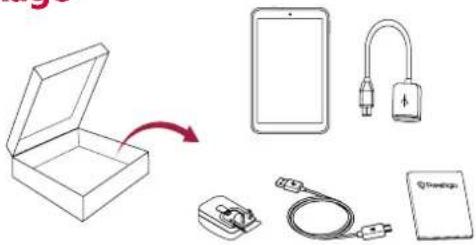
• Prestigio Windows tablet
- OTG cable
- Travel charger
- USB cable
- Quick start guide
- Warranty card
• Legal and safety notices
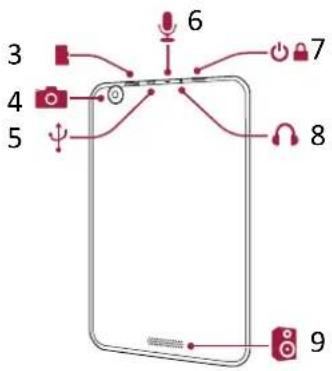
Your Windows tablet at a glance
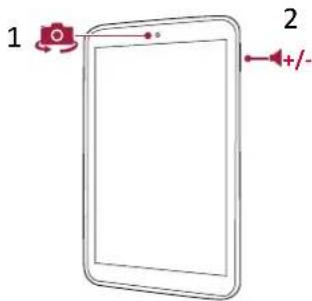
1 Front camera
2 Volume button
③ Memory card slot
4 Rear camera
5 Micro USB port
6 Microphone
7 Power button
8 Earphone jack
9 Audio speaker

2. Getting started
Congratulations on your purchase and welcome to Prestigio.
To get the most from your product and enjoy all that Prestigio has to offer, please visit:
http://www.prestigio.com/catalogue/MultiPads
More details about your product, please access:
http://www.prestigio.com/support

Please read the "Legal and safety notices" on your package before use.

Do not allow water to contact the touch screen. The touch screen may malfunction in humid conditions or when exposed to water.
Charge the battery
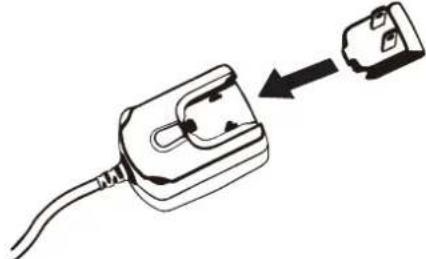
- Assemble the power adapter: slide the plug fitting into the power adapter body until it clicks into place.
natural_image
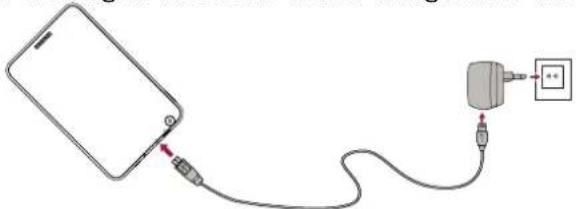
Diagram of a plug with cable and connector, showing an arrow pointing to a separate plug (no text or symbols present)- Plug the small end of the USB cable into the micro USB port of the device, and plug the large end of the cable into travel charger. Insert the travel charger into an electric socket.
natural_image
Simple line drawing of a smartphone connected to a plug and cable, with no text or symbols present.
You can use the Windows tablet while it is charging.
Optimise your battery performance
Here are some tips to help you optimise your battery performance.
- Reduce the brightness of your screen: Open the Settings charm, tap Screen, and then adjust the slider. The brighter the screen is, the more power it uses.
- Choose a power plan that saves power: A power plan is a collection of settings that control how your Windows tablet uses power.
- Turn off or remove devices not in use. Many USB devices consume power when connected, so you'd better unplug devices not in use.
- Turn off Wi-Fi: If you do not need Wi-Fi for a while, turn it off to conserve battery power. To do this, open the Settings charm, tap the wireless network icon ( ) and turn off Wi-Fi.
Power on your tablet
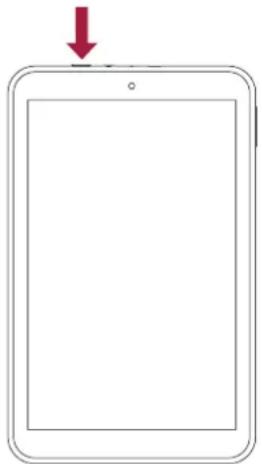
Press the power button to power on your tablet.
natural_image
Simple line drawing of a tablet device with a red downward arrow pointing to the top panel (no text or symbols)Insert a memory card
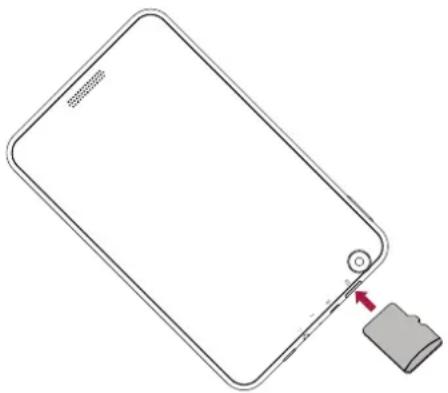
You can expand the memory of your tablet and store additional multimedia files by adding a micro-SD card. Depending on the memory card manufacturer and type, some memory cards may not be compatible with your device.
- Insert a memory card with the gold contacts facing downwards.
- Push the memory card into the slot until it locks in place.
natural_image
Line drawing of a tablet device with a close button and battery icon (no text or symbols)
Some memory cards may not be fully compatible with the device. Using an incompatible card may damage the device or the memory card, or corrupt the data stored in it.

Frequent writing and erasing of data shortens the lifespan of memory cards.

Remove the memory card: push the memory card until it disengages from the device, and then pull it out.
3. Basics
Finger tips
Only use your fingers on the touch screen.
Tap/Double tap
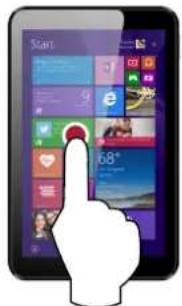
- Tap an app to launch it.
- On Desktop mode, double-tap an application to launch it.
Swipe in from edge
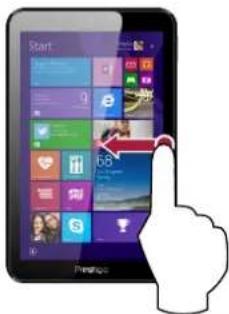
• Right edge: opens the charms.
- Left edge: brings in open apps, snaps apps, shows your recently opened apps, or close apps.
- Top or bottom edge: shows commands or closes an app.
Zoom in
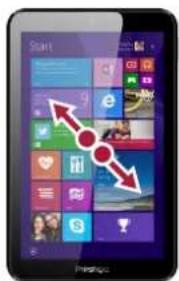
Spread two fingers apart on the touch panel.

Tap and hold
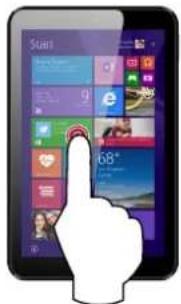
- To move an app, tap and hold the app tile and drag it to a new location.
- On Desktop mode, tap and hold an application to get the right-clicking option.
Finger slide
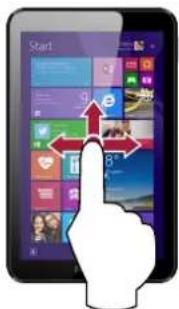
Slide your finger to scroll up and down, and slide your finger to pan the screen left or right.
Zoom out
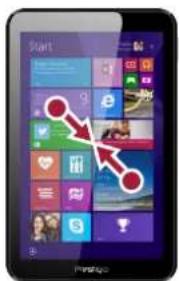
Pinch two fingers together on the touch panel.
Motion gesture
Rotate your Windows tablet for a better view
For many screens, you can automatically change the screen orientation from portrait to landscape by turning your Windows tablet sideways. When entering text, you can turn your Windows tablet sideways to bring up a bigger keyboard.
Lock the screen orientation
If you do not want the screen content to rotate, you can lock the screen orientation.
-
Rotate your Windows tablet for your desired orientation.
-
Open the Settings charm, and then tap Screen.
-
Tap the Screen rotation icon [☐] to switch it to [].


- Some applications do not allow screen rotation.
- Some applications display a different screen based on the orientation.
Start screen
Start is the heart of your Windows tablet—it is where you open apps, see what your friends are doing, and get to your favourite websites. The tiles on Start show info, such as new email messages and the next appointment on your calendar.
To go to Start:
- Swipe in from the right edge of the screen and tap Start.
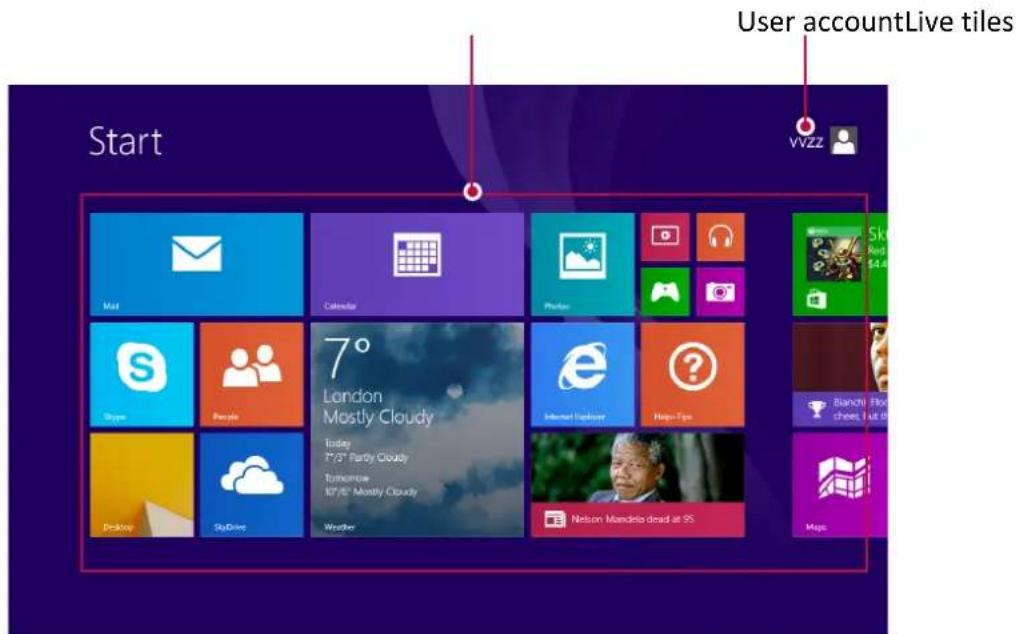
©
4. Windows® 8.1 with Bing

Start up for the first time
When you start your Windows tablet for the first time, a guide will appear on your screen to help you configure the basic settings of your Windows® 8.1 with Bing operating system.
To start for the first time:
-
Turn your Windows tablet on.
-
Set your region and language.
-
Carefully read the license terms. Tap I accept.
-
Follow the next on-screen instructions to configure the following items:
-Personalise
-Settings
- Sign in to your user account to enter the Start screen.
Power status
Power on or wake
-
Press and release the power button. The lock screen appears with notifications for apps that have had activity—for example, a mail icon appears if you have new email.
-
To unlock your Windows tablet, swipe upwards from the bottom of the screen.
Sleep and hibernation
- If you do not use your Windows tablet for a few minutes, it will go to sleep just like a laptop would. Sleep is a power-saving state that allows your Windows tablet to quickly resume when you want to start working again.
- If you do not use your Windows tablet for an hour, it will go into a hibernation state. While sleep puts your work and settings in memory and draws a small amount of power, hibernation puts your open documents and programs on your hard disk, and then turns off your Windows tablet.
Windows lock screen
When your Windows tablet enters the Windows® 8.1 with Bing operating system or when it is in sleep or hibernate mode, the Windows lock screen may appear. Swipe upwards the lock screen to go to the Start screen.
Set the screen sleep time
If you do not use your Windows tablet for a while, the screen may dim or turn off, or your tablet may go to sleep. This happens to help preserve battery life. Here is where you can change these settings:
-
Open the Settings charm, tap Change PC settings > PC and devices > Power and sleep.
-
Under Sleep, choose when you want your Windows tablet to go to sleep.
Shut down or restart
Open the Settings charm, tap Power > Shut down or Restart.
Charms
No matter where you are, the charms help you do the things you do most often—such as search, share, print, and change settings. They are always available regardless of which app you are currently in.
Display the charms
• Here is how to open the charms: Swipe in from the right edge, and then tap the one you want.
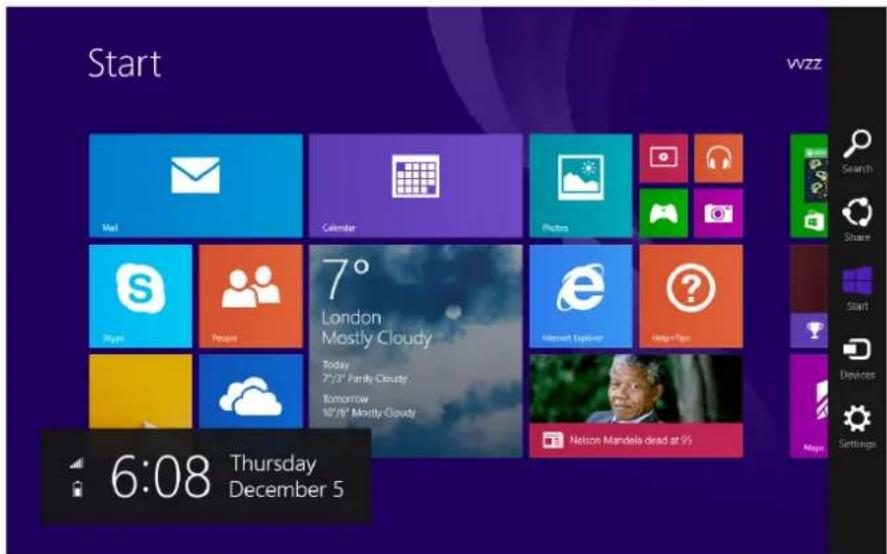
Inside the charms bar
Here is what you can do with the charms:

You can use the Search charm to find things on your Windows tablet.

When you are in an app, you can use the Share charm to share files, photos, or web pages.

The Start charm takes you to the Start screen. Or if you are already on Start, it takes you to the last app you used.

Use the Devices charm to play, project, and print to connected devices.

Use the Settings charm to change your Windows tablet settings. If you are in an app, you can go to settings for that app.
The familiar desktop
After introducing all this new stuff, here is something familiar. The Windows desktop—with its taskbar, folders, and icons—is still here, with a new taskbar and streamlined file management.
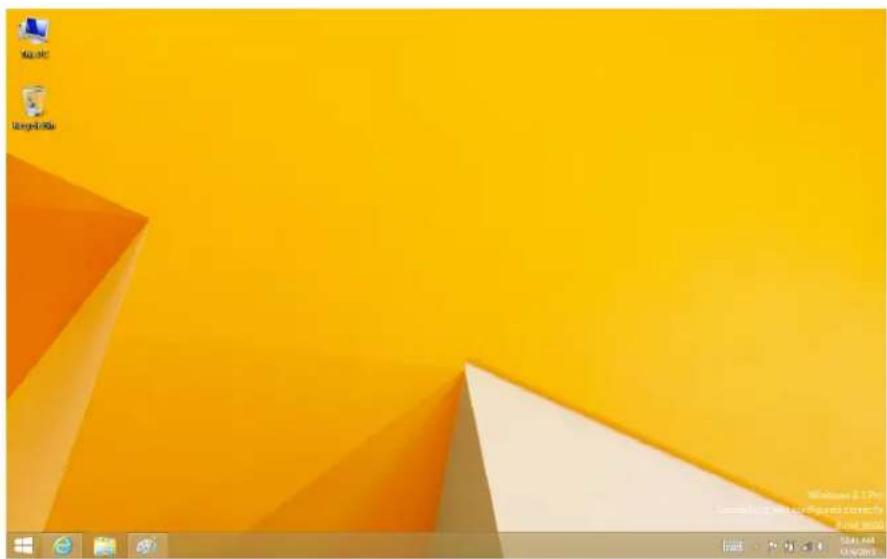
Get to the desktop
- On Start screen, tap Desktop (it is a tile).
Use Windows® apps
Open apps
- Tap an app tile on the Start screen.
- You can see all your apps by swiping upwards from the centre of the Start screen.
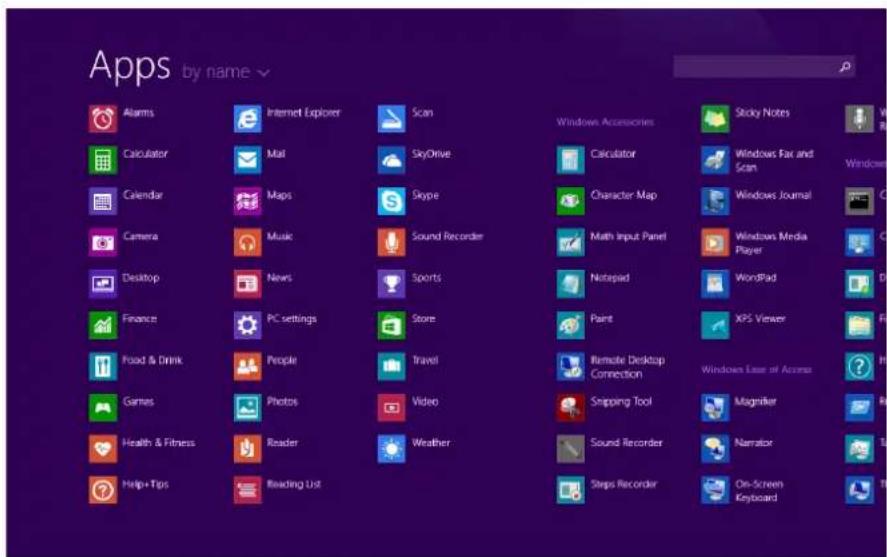

If you do not see the app or program you want, look in the Windows Store.
Switch between open apps
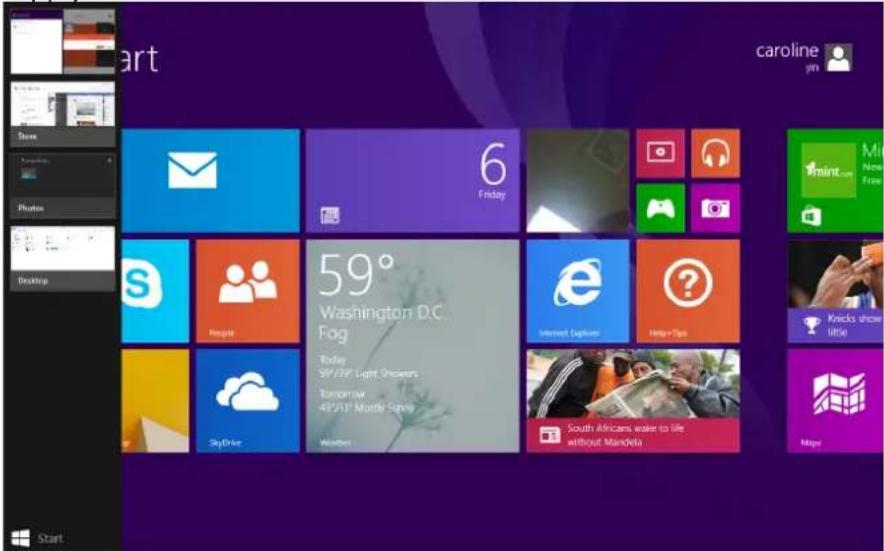
You can switch between open apps by swiping from the left edge of the screen. You can keep swiping, and each time you will switch to another app.
Switch to a specific app
- Swipe in from the left edge, and with your finger still on the screen, move it back toward the left edge. Tap the app you want.
Use apps together (side by side)
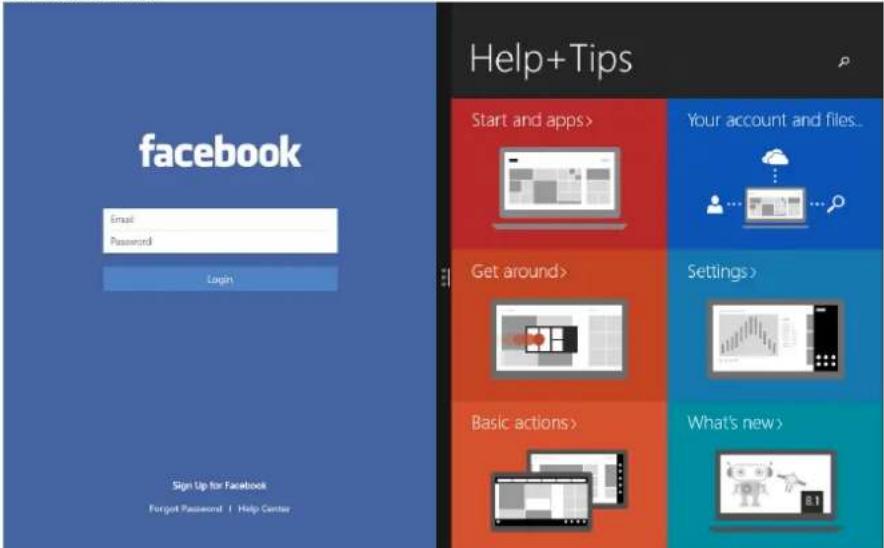
You can use two apps at the same time by snapping them side by side. This way you can see two apps on the screen at once.
-
Open each of the apps you want to use.
-
Open the recently used app list (swipe in from the left edge, and with your finger still on the screen, move it back toward the left edge).
-
Drag an app from the app list until the current app changes size, then let go of the app.
-
To adjust the size of the apps, drag the bar between the apps.

If you want to change one of the apps, go to Start or the Apps view and tap an app. It will appear on top of the first two apps. Tap the left or right side of the screen.
Close an app
You do not need to close apps from the Windows Store. When you switch to another app, Windows leaves the app running in the background. It will close eventually if you do not use it. If you really want to close a Windows Store app, here is how:
- Swipe downwards from the top edge of the screen, and drag the app down and off the screen.
App commands
Swipe upwards from the bottom edge of the screen, or downwards from the top edge. Choose an item on the bar of commands.
Customise the start screen
You can resize or unpin apps from the Start screen.
Resize apps
To resize an app tile:

- Swipe in from the bottom edge, and then tap
- Tap to select an app tile.
- Tap [] to reduce or enlarge the app tile.
Unpin apps
To unpin an app:

- Swipe in from the bottom edge, and then tap
- Tap to select an app tile.
- Tap [] to unpin an app.
Connect to the Internet
You can connect your Windows tablet to the Internet and browse a webpage. Your tablet connects to the Internet whenever necessary, using a Wi-Fi connection (if available) or your mobile operator's data connection.
Wi-Fi
Connect the device to a Wi-Fi network to use the Internet or share media files with other devices. To use Wi-Fi, you need access to a wireless point or hotspot.

The availability and strength of the Wi-Fi signal will vary depending on the environment, such as building structure or simply a wall between rooms. Wi-Fi signal has to pass through.

Turn off the Airplane mode to enable the Wi-Fi.
Turn on Wi-Fi

- Open the Settings charm, then tap the wireless network icon
- Tap to turn on Wi-Fi.
- Tap to select an access point from the list of available Wi-Fi connections then tap Connect.
- When you are prompted for a password, key in the password and tap Next.
- Choose whether or not you want to connect to other PCs and devices on the network. Choose No if you are connecting to a network in a public place such as a café.

Next time when your Windows tablet connects to a previously accessed secured wireless network, you will not be asked to enter the key or other security information again.
Disconnect from a wireless network
- Open the Settings charm, then tap the wireless network icon

- Tap the network with a Connected status, and then choose Disconnect.
Bluetooth
Turn on Bluetooth
- Open the Settings charm, tap Change PC settings > PC and devices > Bluetooth.
- Move the slider to the right to turn it on.
- Pair with a Bluetooth device to share files.
Airplane mode
Airplane mode disables the wireless connections, allowing you to use your Windows tablet safely while in-flight.

Contact your airline provider to learn about related in-flight services that can be used and the restrictions that must be followed when using your tablet in-flight.
Turn on or off Airplane mode
- Open the Settings charm, then tap the wireless network icon
- Move the slider to the left to turn Airplane mode off or move the slider to the right to turn Airplane mode on.

Use Internet Explorer
Internet Explorer provides a more intuitive, faster and more secure way of browsing and sharing your favorite websites.

Ensure that you are connected to the Internet before using IE.
Use Internet Explorer

- On the Start screen, tap [].
- From web address bar, type the web address and tap [→]
Add and close tabs
Tabs are your browsed web pages displayed in thumbnails shown on the Menu bar.
To add a new tab
-
Swipe from the top or bottom edge of the IE page to show the Menu bar.
-
Tap

- In the web address bar, type the web address and tap

To close a tab
- Swipe from the top or bottom edge of the IE page to show the Menu bar.
- Tap [] of the tab that you want to close.
Change your settings
PC Settings
Most of the settings that you will want to change can be found in PC settings. To open PC settings:
- Open the Settings charm. Some PC settings appear in the lower-right corner.
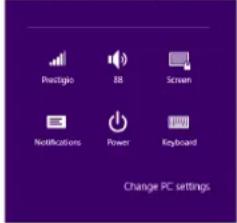
- For more settings, tap Change PC settings.
- Tap a category. For example, tap PC and devices to add a device, or Accounts to change account settings.
Search for a setting
You can use the Search charm to find a setting.
- Open the Search charm, tap the drop down arrow and choose Settings.
- Tap the search box and type what you want to find. For example, type sound to find sound settings.
- If you do not see the setting you want, tap the Search button to see more results.
- Tap a setting to open it.
Control Panel
Control Panel includes some additional settings that you might use less often, such as customizing the desktop. To open Control Panel:
- Open the Search charm, type control panel, and then choose Control Panel from the search results.
- From the desktop, open the Settings charm and then tap Control Panel.
Sync your settings
When you sign in with a Microsoft account, your personal settings and preferences are stored on OneDrive, and are synced to any PC that you sign in to.
To choose the settings to sync:
Open the Settings charm, tap Change PC settings > OneDrive > Sync settings.
OneDrive
OneDrive is online storage that comes with your Microsoft account. It's like an extra hard drive that's available from any of the devices you use. When you save your documents, photos, and other files on OneDrive, they're available from any web-connected device (for example, your phone or computer). OneDrive is also a great way to share files with other people.
Help and support
If you have any problems using the operating system, see the Windows Help and Support file. To open the Windows Help and Support file:
- Select the Settings charm. Tap Help.
5. Recovery system
Introduction
If you are having problems with your tablet, you can try to restore, refresh or reset it.
- Restoring your tablet is a way to undo recent system changes you have made.
- Refreshing your tablet reinstalls Windows and keeps your personal files and settings. It also keeps the applications that came with your tablet and the apps you have installed from the Windows Store.
- Resetting your tablet reinstalls Windows but deletes your files, settings and applications – excluding the applications that came with your tablet.
Refresh your Windows tablet
Fix software problems by reinstalling the factory default configuration. This preserves the user's data, important settings, and any Windows Store apps previously purchased from the Windows Store.
- Swipe in from the right edge of the screen, tap Settings, then tap Change PC settings.
- Tap Update and recovery, and then tap Recovery.
- Under Refresh your PC without affecting your files, tap Get started.
- Follow the instructions on screen.
Reset your Windows tablet
Prepare your tablet for recycling or transferring of ownership. This reinstalls the factory default configuration and returns all user data and applications to the state of their original Out-of-Box Experience.
Remove everything and reinstall Windows
Use the Remove everything and reinstall Windows option in PC Settings to restore your Windows tablet to its original factory settings. Refer to the steps below to enable this option:

Back up all your data before enabling this option.

This process may take a while to complete.
- Launch the Charms bar.
- Tap [ ] Change PC Settings > Update and recovery.
- Under Remove everything and reinstall Windows, tap Get started.
- Follow the on-screen instructions to complete the reinstallation and reset process.
6. Specification
6
Item Specification
| OS Windows 8.1 with Bing |
| Processor Intel® Processor Z3735G, Quad Core(up to 1.83GHz) |
| Memory 16 GB Flash + 1 GB RAM |
| Display 8” 16:10 IPS |
| Resolution 1280*800 |
| Camera Front 1.3 MP, Rear 2.0 MP |
| Interfaces Micro USB 2.0, micro SDHC/SDXC (up to 32 GB) |
| Wi-Fi Wi-Fi: 802.11 b/g/n |
| Bluetooth Bluetooth 4.0 + 3.0 high speed complaint with Bluetooth 2.1+Enhanced Data Rate (EDR) |
| G-sensor Support |
| Battery 4000 mAh Li-polymer battery |
| Dimension 208.5*129.5*10.3 mm |
| Weight 370g |
7. Troubleshooting
When I turn on my Windows tablet, nothing appears on the screen.
- If the screen is blank, make sure that:
- The power adapter is connected to the tablet and the power cord is plugged into a working electrical outlet.
- The tablet power is on. Press and hold the Power button for three seconds for confirmation.
- Press and hold the Power button for seven seconds to force shut down the tablet. Then press the power button for three seconds to restart.
- If these items are set correctly and the screen remains blank, have the tablet serviced.
The screen goes blank while my Windows tablet is on.
- Your power management is enabled. Press the Power button to resume from sleep mode.
The touch screen responds slowly or improperly
If the touch screen is not responding properly, try the following:
- Remove any protective covers from the touch screen. Protective covers may prevent the device from recognising your inputs and are not recommended for touch screen devices.
- Ensure that your hands are clean and dry when tapping the touch screen.
-Restart your device to clear any temporary software bugs.
- Ensure that your device software is upgraded to the latest version.
- If the touch screen is scratched or damaged, take it to your local dealer.
The critical low-battery error message appears, and the Windows tablet immediately turns off.
- The battery power is getting low. Connect the power adapter to the Windows tablet.
The Windows tablet enters sleep mode immediately after Power-on.
- Make sure that:
- The battery is charged.
-The operating temperature is within the acceptable range.
If the battery is charged and the temperature is within range, do the following:
- Press the Power button for three seconds to turn on the tablet.
- Press and hold the Power button for seven seconds to force shut down.
- Press the Power button for three seconds again to restart.
If the problem persists, have the tablet serviced.
The tablet does not return from sleep mode and it does not work.
- If the tablet does not return from sleep mode, it might be because the battery is depleted.
- If your tablet is in sleep mode, connect the power adapter to the tablet. Then press the Windows button or the Power button.
- If your tablet is powered-off, connect the power adapter to the tablet. Then press the Power button to resume operation.
The screen is unreadable or distorted.
- Make sure that the screen resolution and color quality are correctly set.
Incorrect characters appear on the screen.
- Make sure that the operating system or programs are installed correctly.
No sound can be heard from the speaker even when the volume is turned up.
- Make sure that:
-The Mute function is off.
- The combo audio jack is not being used.
-Speakers are selected as the playback device.
Your tablet shuts down before the battery status icon shows it is empty.
- Recharge the battery.
Your battery seems to over heat
- You might be using a charger that was not intended for use with your tablet. Make sure you always use the authentic accessory shipped with your tablet.
Your tablet is not charging
- If the battery is completely flat, it might take several minutes of precharge (up to 5 minutes in some cases) before the charging icon is displayed on the screen.
The Microsoft® Windows operating system does not start.
- For details, see "Recovery system" chapter.
Failure to restore system partition to factory default.
- The system partition (e.g. the partition size or the drive capacity of C) has been modified.
Your tablet does not respond.
- To turn off your tablet, press and hold the Power button for seven seconds or more. If the tablet still does not respond, remove the power adapter.
- MultiPad Visconte Quad
- Common Information
- Disclaimer
- Important Safety Instructions
- Warranty Information
- Contents
- Unboxing 1
- Getting started....2
- Basics......4
- Windows ® 8.1 with Bing ....7
- Recovery system 15
- Specification 16
- Troubleshooting....17
- Unboxing
- Inside your package
- Your Windows tablet at a glance
- Getting started
- Charge the battery
- Optimise your battery performance
- Power on your tablet
- Insert a memory card
- Basics
- Finger tips
- Tap/Double tap
- Swipe in from edge
- Zoom in
- Tap and hold
- Finger slide
- Zoom out
- Motion gesture
- Rotate your Windows tablet for a better view
- Lock the screen orientation
- Start screen
- Windows® 8.1 with Bing
- Start up for the first time
- Power status
- Power on or wake
- Sleep and hibernation
- Windows lock screen
- Set the screen sleep time
- Shut down or restart
- Charms
- Display the charms
- Inside the charms bar
- The familiar desktop
- Get to the desktop
- Use Windows® apps
- Open apps
- Switch between open apps
- Switch to a specific app
- Use apps together (side by side)
- Close an app
- App commands
- Customise the start screen
- Resize apps
- Unpin apps
- Connect to the Internet
- Wi-Fi
- Turn on Wi-Fi
- Disconnect from a wireless network
- Bluetooth
- Turn on Bluetooth
- Airplane mode
- Turn on or off Airplane mode
- Use Internet Explorer
- Add and close tabs
- To add a new tab
- To close a tab
- Change your settings
- PC Settings
- Search for a setting
- Control Panel
- Sync your settings
- OneDrive
- Help and support
- Recovery system
- Introduction
- Refresh your Windows tablet
- Reset your Windows tablet
- Remove everything and reinstall Windows
- Specification
- Troubleshooting
- When I turn on my Windows tablet, nothing appears on the screen.
- The screen goes blank while my Windows tablet is on.
- The touch screen responds slowly or improperly
- The critical low-battery error message appears, and the Windows tablet immediately turns off.
- The Windows tablet enters sleep mode immediately after Power-on.
- The tablet does not return from sleep mode and it does not work.
- The screen is unreadable or distorted.
- Incorrect characters appear on the screen.
- Your battery seems to over heat
- Your tablet is not charging
Brand : PRESTIGIO
Model : MultiPad Visconte Quad PMP881TD
Category : Tablet