Nook GlowLight 3 - Tablet Barnes & Noble - Free user manual and instructions
Find the device manual for free Nook GlowLight 3 Barnes & Noble in PDF.


| Product Type | E-reader |
| Brand | Barnes & Noble |
| Model | Nook GlowLight 3 |
| Display Size | 6 inches |
| Display Type | E Ink Carta |
| Resolution | 1448 x 1072 pixels, 300 PPI |
| Built-in Light | Adjustable warm light with GlowLight technology |
| Waterproof Rating | IPX7 (water resistant up to 1 meter for 30 minutes) |
| Storage Capacity | 8 GB internal (approx. 6 GB usable) |
| Battery Life | Up to 4 weeks on a single charge (based on 30 minutes of reading per day) |
| Battery Type | Rechargeable lithium-ion polymer |
| Charging | Micro-USB cable (included) |
| Connectivity | Wi-Fi 802.11 b/g/n |
| Supported Formats | EPUB, PDF, TXT, JPEG, PNG, GIF, MP3 (audiobook) |
| Weight | Approx. 209 grams |
| Dimensions | 160 x 120 x 8.6 mm |
| Operating System | Custom Android-based |
| Maintenance | Clean with a soft, dry cloth; avoid liquids |
| Safety Warnings | Do not expose to extreme temperatures; use only approved chargers |
| Spare Parts & Repairability | Battery replacement by authorized service; screen not user-serviceable |
| General Information | Page turn buttons, touch screen, adjustable font sizes, built-in dictionary |
Frequently Asked Questions - Nook GlowLight 3 Barnes & Noble
User questions about Nook GlowLight 3 Barnes & Noble
0 question about this device. Answer the ones you know or ask your own.
Ask a new question about this device
Download the instructions for your Tablet in PDF format for free! Find your manual Nook GlowLight 3 - Barnes & Noble and take your electronic device back in hand. On this page are published all the documents necessary for the use of your device. Nook GlowLight 3 by Barnes & Noble.
USER MANUAL Nook GlowLight 3 Barnes & Noble
nook GlowLight® 3 User Guide
Nook Digital, LLC. 1166 Avenue of the Americas, 18th Floor, New York, NY 10036.
© 2010-2017 NOOK Digital, LLC. All rights reserved. GlowLight®, LendMe®, Lifetime Library®, More In Store®, NOOK® , NOOK Books®, NOOK Friends®, NOOK GlowLight™, NOOK GlowLight Plus™, NOOK GlowLight® 3, NOOK Library®, NOOK Magazine®, NOOK Newspaper®, NOOK Newsstand®, NOOK Shop®, Read In Store®, B&N Readouts™, and the NOOK logos are trademarks of NOOK Digital, LLC or its affiliates. Patent Pending. Screenshots and product images are simulated and for instructional purposes only. They may differ from the actual product and are subject to change without notice. Content shown may vary from actual available content, which may change without notice. Digital content sold separately. Your use of NOOK is subject to the Terms of Service and Privacy Policy located in the Settings section of your device and here: NOOK.com/legal. Contains Reader® Mobile technology by Adobe Systems Incorporated. Adobe®, Reader®, and Reader® Mobile are either registered trademarks or trademarks of Adobe Systems Incorporated in the United States and/or other countries. Wi-Fi® is a registered trademark of the Wi-Fi Alliance. All trademarks or registered trademarks that are not the property of NOOK Digital, LLC or its affiliates are the property of their respective owners.
Model: BNRV520
Version: 1.0.0.A
Table of Contents
Introduction 7
Contact Us 7
Getting to Know Your NOOK 7
Your Barnes & Noble Account 9
Registering Your NOOK 10
Power and Charging 11
Safety and Care 14
Caring for Your NOOK 14
Unlocking Your NOOK 15
Using Gestures to Control Your NOOK 16
Tap 16
Double Tap 16
Press and Hold 17
Swipe 17
Scroll 17
The NOOK Navigation Buttons 18
The Status Bar 19
The Left Side of the Status Bar 19
The Right Side of the Status Bar 19
GlowLight 20
Turning GlowLight On or Off and Adjusting Its Brightness 20
Night Mode 21
Turning Night Mode On or Off 21
Using the Auto Mode 21
Using the Manual Mode 21
The Home Screen 22
The New & Recent Shelf 22
The Picked for You Shelf 22
Reading Books on Your NOOK 24
Opening a Book 24
Page Layout 24
Turning Pages 24
The Reading Tools Menu 25
Reading Magazines and Newspapers on Your NOOK 47
The Library on Your NOOK 47
Pull-down Menus 48
The Sync Button 49
Viewing and Sorting the Contents of Your Library 50
Organizing Your Library on Shelves 51
Archiving Books and Periodicals 53
Unarchiving Books and Periodicals 53
Transferring Files from Your Personal Computer to Your NOOK 54
Using the LendMe Program 56
Lending and Borrowing Books 56
Guidelines for Lending and Borrowing Books 56
Determining whether a Book Can Be Lent 57
Lending a Book 57
Shopping on Your NOOK 58
Introduction 58
Purchasing Books, Newspapers, and Magazines 59
Browsing Lists and Categories 59
Searching for Titles, Authors, or Topics 60
Buying a Book 60
Buying a Single Issue of a Magazine or Newspaper 61
Buying a Subscription to a Magazine or Newspaper 61
What Happens When You Buy an Item in the Shop? 62
Using Your Wishlist 62
Using B&N Readouts 63
Buying Books and Sharing Content through B&N Readouts 65
Changing Topics in B&N Readouts 66
Customizing the My Picks Stream 67
Using Your NOOK in a Barnes & Noble Store 68
Read In Store ^® : Reading Books in a Barnes & Noble Store 68
Searching Your NOOK 69
Searching from the NOOK Navigation Menu 69
Searching in Your Library 69
Searching for Words with Accents and Other Diacritical Marks 69
Configuring Your NOOK 70
Configuring Your GlowLight 71
Viewing and Configuring Device Info 72
Configuring Wireless Settings 74
Configuring Screen Settings 75
Configuring Time Settings 77
Displaying Account Settings 79
Configuring Profiles 80
Configuring the Shop and Managing Gift Cards and Credit Cards 86
Viewing Legal Notices 88
Using Your NOOK at Wi-Fi Hotspots 89
Wi-Fi Networks in Barnes & Noble Stores 89
AT&T Wi-Fi Hotspots 89
Unsecured Wi-Fi Networks 89
Secured Wi-Fi Networks 89
Updating the Software on Your NOOK 90
Tips and Troubleshooting 91
Solving Problems 91
Appendix A: Page Numbering and File Formats 93
Appendix B: International Use and Languages 94
Appendix C: One Year Limited Warranty 96
ONE YEAR LIMITED WARRANTY 96
Appendix D: Trademarks and Copyrights 99
Adobe Reader Mobile Software 99
AT&T 99
Dictionary 99
Fonts 99
Google 99
Wi-Fi 100
Additional Information 100
Appendix E: FCC Notices 101
FCC IDs 101
FEDERAL COMMUNICATIONS COMMISSION (FCC) STATEMENT INFORMATION TO THE USER 101
FCC/IC Radiation Exposure Statement 101
Other Information Related to the Radio 102
Appendix F: Industry Canada Notice 103
Appendix G: Terms of Service 104
Appendix H: AT&T Terms of Service & Acceptable Use Policy 105
Introduction
This User Guide is designed to help you get the most enjoyment out of your NOOK GlowLight® 3.
Contact Us
If you have questions about your NOOK ^ that this guide doesn't answer, be sure to visit the NOOK online support center at:
http://www.nook.com/support
The online support center offers additional information about your NOOK, including:
• A PDF version of this NOOK User Guide that you can download to your computer
• Frequently Asked Questions
You can also contact Barnes & Noble Customer Support by sending email to NOOK@barnesandnoble.com or by calling +1-800-843-2665 (1-800-THE-BOOK) and selecting the option for Digital Technical Support. Outside the United States, please call +1-201-438-1834.
Stay in Touch
Follow us on Facebook and Twitter to hear about new releases, exclusive offers, and free NOOK Books ^® .
http://www.facebook.com/nookBN
http://www.twitter.com/nookbn
Now, let's get started with a quick tour of your NOOK and its main features.
Getting to Know Your NOOK
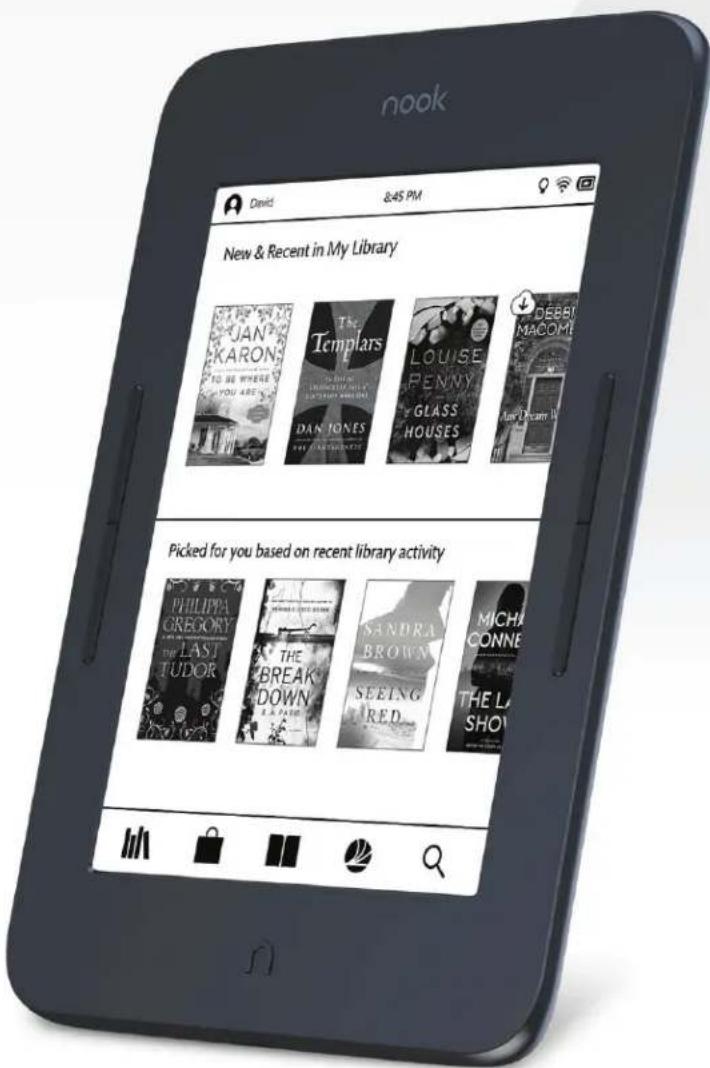
Your NOOK GlowLight® 3 is an eReader with a touchscreen grayscale E Ink® display and a front light now equipped with Night Mode.
On your NOOK, you can:
• Read books, magazines, and newspapers
- Shop from over four million titles. Buy books, single issues of magazines and newspapers, as well as subscriptions to magazines and newspapers
• Store hundreds of books, along with magazines, newspapers, and personal files
• Sample books for free
- Explore books and articles through B&N Readouts™, Barnes & Noble's free digital discovery feature, refreshed daily
- Share quotes and book recommendations with friends via Facebook® and read books borrowed using Barnes & Noble's LendMe® program
• Store and read files, including PDFs
Your NOOK is small enough to hold easily with one hand and to slip into a bag or a purse. When you turn on GlowLight® on your NOOK, you can read your favorite books and periodicals even in the dark.
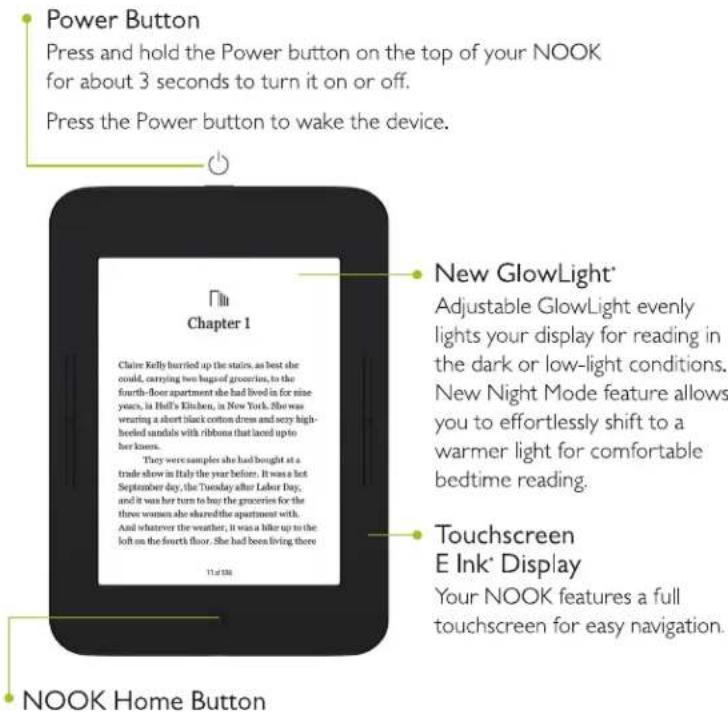
When the device is on, tap the NOOK Home button at any time to return to your Home screen.
Note: To wake the device, press either the Power button or the Home button. To enable Glowlight*, press and hold the Home button for two seconds.
The front of your NOOK Power Button
The power button for your NOOK is located on the top edge. Press and hold the button for 3 seconds to turn on your NOOK. If your NOOK is sleeping, press the power button to wake up your NOOK and turn it on. To learn more about power management for your NOOK, see "Power and Charging".
Touchscreen E Ink Display
Your NOOK features a high-resolution, 6-inch touchscreen E Ink display for easy navigation and page turns.
NOTE: To ensure the highest quality of reading, your NOOK has an anti-glare film already installed. Please do not install any additional screen protector. To protect your NOOK's screen from accidental damage, we recommend using a NOOK cover.
NOOK Button
This NOOK symbol ∩ on the lower front of your NOOK is called the NOOK button. If your NOOK is sleeping, press the NOOK button to wake up your NOOK and turn it on. If your NOOK is already on, press this button to display the Home screen, which features navigation controls and your recent reads.
If your NOOK is on, you can also press and hold the NOOK button for 2 seconds to turn on or off GlowLight, the light built into the frame of your NOOK. When GlowLight is on, you can read your NOOK's touchscreen E Ink display even in areas with low lighting.
Micro-USB Port
Your NOOK features a micro-USB port for charging and for connecting to a personal computer. The micro-USB port is located on the bottom edge of your NOOK, directly below the NOOK Home button.
Getting Started With Your NOOK
The first time you use your NOOK, you'll need to go through a short set-up process that will take about 5 to 10 minutes. Make sure that you're in an area that has a Wi-Fi® connection (a wireless connection to the Internet), because part of the process is registering your NOOK with your Barnes & Noble account on BN.com.
NOTE: You will not be able to set up your NOOK without a Wi-Fi connection.
In the set-up process, you will do the following:
- Turn on your NOOK by pressing the power button on the left edge of the device.
- Set the time zone.
- Connect to a Wi-Fi network.
• Accept the Terms of Service and Privacy Policy.
• Register your NOOK to a Barnes & Noble account.
NOTE: If you don't already have a Barnes & Noble account, you'll have an opportunity to create one during the registration step.
Your Barnes & Noble Account
A Barnes & Noble account allows you to purchase and download books, magazines, and newspapers on your NOOK, and from the Barnes & Noble Web site.
The account also allows you to synchronize your NOOK with any other NOOK devices you have, such as other NOOK tablets or eReaders, and with NOOK software apps, such as NOOK ^® for iOS, NOOK ^® for Android ^™ , or NOOK ^® for Web.
If you don't have a Barnes & Noble account, you can set one up in a few minutes on the NOOK website. Just open a browser on your computer, and visit http://MyNOOK.com. You'll also have the opportunity to set up an account during the registration process for your NOOK.
Your Barnes & Noble account is ready for use once you have set up the following:
• An email address
• A default credit card number
• A valid expiration date for the credit card
• A current U.S. billing address
If you have any questions about setting up an account, please visit NOOK.com/support, or call Customer Service at 1-800-THE-BOOK (1-800-843-2665).
Registering Your NOOK
NOTE: You will need to connect to a Wi-Fi network to complete your registration.
I. Read the Welcome screen. Tap the Let's Get Started button. Your NOOK displays its Terms of Service.
2. Select your Time Zone by tapping its button. Tap Next.
3. Connect to a Wi-Fi network.
To register your NOOK and to purchase and download books and periodicals, you need to be connected to a Wi-Fi network. If you're in a Barnes & Noble store, your NOOK will automatically connect to the store's free Wi-Fi network. If you're in some other location with Wi-Fi access, your NOOK will list all the networks it finds. Tap the name of the network you want to connect to. If you see a lock symbol beside the network's name, it's a secure network. You'll need to enter a password to connect to the network. If you do not know the network password, ask for the network administrator for help. If you have problems connecting, visit NOOK.com/support for more troubleshooting tips.
- Once you have connected to a network, tap Next (if you are in a Barnes & Noble store and connected to its network) or Continue (if you are connected to any other Wi-Fi network.)
Your NOOK displays a message saying it is registering your device. When the registration has completed, your NOOK displays a Sign In screen with an email field, a password field, and a keyboard at the bottom of the screen.
- Sign in to your BN.com account.
When you register your NOOK, you link it to your Barnes & Noble account and give it access all the books and periodicals in your Barnes & Noble library. You also make it possible to shop for new books and periodicals on your NOOK.
Note that by signing in, you agree to the Device Terms, Store Terms, and Privacy Policy for your NOOK. Links to these terms appear at the bottom of the screen.
If you already have a Barnes & Noble account, do this:
a. On the Sign In screen, enter the email address and password for your Barnes & Noble account.
(As a security precaution, if you enter your password incorrectly five times, you will be locked out of your BN.com account for half an hour. If you like, you can reset your account by visiting BN.com.)
b. Tap the Sign In button below the password field.
c. When a dialog box appears, saying "Registration successful," tap the OK button.
If you do not already have a Barnes & Noble account, do this:
a. Tap the Create Account button.
Your NOOK displays a form for creating a Barnes & Noble account.
b. Enter the information requested, including your name, password, credit card type, number, and expiration date, and a security question.
c. Tap Submit.
Your NOOK creates your Barnes & Noble account and registers your NOOK to your account.
NOTE: If you turned GlowLight on, it now automatically turns off.
- Tap the Next button.
A new screen tells you that you're ready to get started exploring the features of your NOOK.
- Tap the NOOK button (without holding it down) to display the Home screen and begin exploring your NOOK.
That's it. You've registered your NOOK. You're ready to read books, magazines, and newspapers, and to make purchases in the NOOK Shop.
Power and Charging
Turning Your NOOK On and Off
Turning On Your NOOK
To turn on your NOOK, press the power button on the top edge of your NOOK. Hold the button down for 2 seconds and release it.
Your NOOK starts up.
To turn off your NOOK, do this:
I. Press the power button and hold it down for 2 seconds.
A window appears, asking if you really want to turn your NOOK completely off.
- Tap the Power off button in the dialog box.
Your NOOK turns off.
NOTE: If you ignore the window asking you to confirm that you want to power off your NOOK, after several seconds the window disappears and your NOOK resumes whatever it was doing before you pressed the power button.
Charging Your NOOK
There are two ways to charge your NOOK. You can plug it into your personal computer. Or you can use the op-tional power adapter and plug it into a wall outlet. (The optional power adapter for your NOOK can be purchased from your local Barnes & Noble bookstore or at BN.com.) The diagram below shows the components available for charging your NOOK.
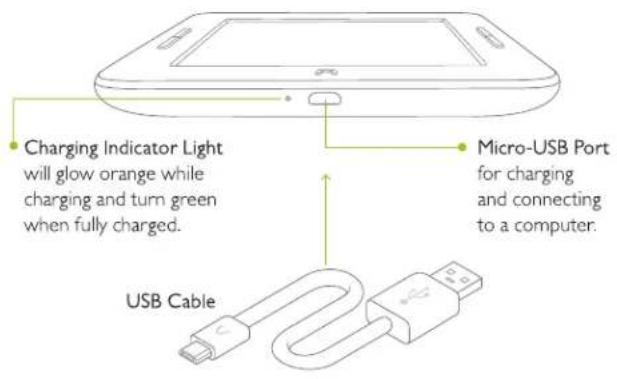
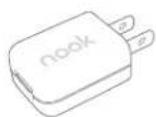
Note: A power adapter is available as an optional accessory for charging your NOOK from a wall outlet.
Power adapter shown is a visual only and may differ from what is currently sold in stores or online. Note: This product is intended to be powered by a UL Listed power supply rated at 5 kHz; 0.85 A. Do not use a power adapter or micro-USB cable that has played or otherwise been damaged. When connecting your NOKO as a personal computer, the computer must be a UL listed approved product.
CAUTION: If you are using a power adapter, use only a Barnes & Noble power adapter and custom micro-USB cable intended for your NOOK. Other power adapters might damage your NOOK and its battery. Do not use a power adapter and cable intended for other models of NOOK products. Use only a power adapter and cable intended for use with your NOOK product. Do not use a power adapter or micro-USB cable that has frayed or otherwise been damaged. When connecting your NOOK to a personal computer, the computer must be a UL listed, approved product.
CAUTION: This product is intended to be supplied by a Listed Direct Plug-In Power Unit marked "Class 2" or limited power source (LPS) and rated from 5 V dc, 850mA.
To charge your NOOK from your personal computer, do this:
I. Insert the large end of the USB cable into a USB port on your personal computer.
- Plug the NOOK end of the USB cable into your NOOK. If your NOOK was turned off, it will now turn itself on.
NOTE: Depending on how much power remains in the battery, it might take approximately 4 hours to fully recharge your NOOK through a USB port. Do not turn off your NOOK while it is charging.
NOTE: Once your NOOK has enough power to turn on, you can see how much power remains in the battery by checking the battery charge indicator in the right corner of the Status Bar.
NOTE: Some personal computers must be turned on in order to charge other devices through USB ports. When these computers are asleep or turned off, their USB ports are inactive, and no charging takes place. If you have connected your NOOK to your personal computer and the NOOK does not seem to be charging, check your computer's documentation to determine what the requirements are for charging devices through USB ports.
- Once your NOOK has fully charged, unplug the USB cable from your NOOK.
To charge your NOOK from a wall outlet with a power adapter, do this:
I. Assemble the power adapter and micro-USB cable. Insert the large end of the USB cable into the matching slot in the power adapter.
2. Plug the small end of the USB cable into your NOOK.
3. Plug the power adapter into a compatible electrical outlet. If your NOOK was turned off, it will now turn itself on.
NOTE: Depending on how much power remains in the battery, it might take approximately 3 hours to fully re-charge your NOOK through an electrical outlet. Do not turn off your NOOK while it is charging.
NOTE: Once your NOOK has enough power to turn on, you can see how much power remains in the battery by checking the battery charge indicator in the right corner of the Status Bar.
- Once your NOOK has fully charged, unplug the power adapter from the electrical outlet. Unplug the USB cable from your NOOK.
Resetting Your NOOK
Performing a Soft Reset
If for some reason your NOOK becomes unresponsive, you can perform a soft reset to restart the device.
- Press and hold the power button for 10 seconds, then release the power button.
- Press the power button again for 2 seconds to turn on your NOOK.
Low Power
You can see how much power remains in your battery by checking the battery icon in the Status Bar, or by checking the Battery indicator on the Device Info settings screen. (To see the Device Info screen, tap Settings in the NOOK Navigation Menu to open the main Settings screen, and then tap Device Info.) If you turn on your NOOK when its battery charge is almost depleted, a warning appears on the screen, suggesting that you begin charging your NOOK before trying to use it. If the battery is depleted, your NOOK will shut down until it has been sufficiently recharged.
Charging Recommendations
Your NOOK contains a rechargeable battery. To maximize battery life:
- Avoid fully discharging the battery. Charge your NOOK after several hours of use or when you see the low charge alert, rather than continuing to use it until it turns itself off.
- Avoid high temperatures for charging, use, and storage. For more information, see "Temperature Ranges."
- Charge the battery half way before storing your NOOK for a week or more.
Safety and Care
This section explains important information about safety and about caring for your NOOK.
Water
Caution: Your NOOK device, cables, and adapters are not waterproof. To avoid risk of electric shock, overheating, melting, burns or other injury or damage, keep the device and all accessories away from water and other liquids.
Do not use the cable if either end of the cable gets wet or is exposed to liquid spray or excessive moisture. Do not expose your NOOK device, cables, and power adapter to wet or damp conditions. Avoid exposing the device to liquid or food. If liquid is spilled on the device while it's turned on, turn it off immediately. Clean the screen of your NOOK with a soft, lint-free or micro-fiber cloth and avoid using spray or liquid cleaners on screen.
Electricity
Your NOOK is an electrical device. Follow the same basic safety procedures you would follow with any electrical device. When charging your NOOK, use only the custom components included with or sold for your NOOK: either a custom USB cable or a custom USB cable along with a power adapter.
Airplanes
When using your NOOK on an airplane, be sure to follow the instructions of the flight crew.
To turn your NOOK's wireless networking on or off, do this:
I. Tap the right end of the Status Bar to open the Quick Settings dialog box.
2. Tap the Wi-Fi checkbox to turn wireless networking on or off.
3. Tap anywhere outside the Quick Settings dialog box to close it.
Electronic Equipment
If you are around sensitive electronic equipment—for example, if you are in a hospital—ask if you may use your NOOK. Settings such as intensive care units might forbid the use of any electronic device, with or without networking turned on.
Battery
Your NOOK includes a non-replaceable, rechargeable battery. Do not attempt to replace the battery. If you suspect your battery is having problems, please contact Customer Service at 1-800-THE-BOOK (1-800-843-2665).
Caring for Your NOOK
To take the best possible care of your NOOK, please follow the recommendations below.
Temperature Ranges
Your NOOK should function as designed in these temperature ranges:
• Operation: 0 °C to 35° C, 32° F to 95° F
• Storage: -25^ C to 60^ C, -13^ F to 140^ F
Outside of these ranges, your NOOK might develop power, display, and/or software issues. If temperatures are extremely cold or hot, permanent physical damage can result. Such damage is not covered by the limited warranty. Storage applies to temporary locations like the trunk of your car (or other motor vehicle) as well as long-term storage.
Even on a day that is not very hot, the passenger compartment or trunk of a car can be extremely hot. Do not leave your NOOK in a car.
High storage temperatures reduce battery life. For more information, see “Charging Recommendations”.
Caring for the Screen
You should clean the screen on your NOOK from time to time. Clean the screen with a damp soft cloth, such as a microfiber cloth. Micro-fiber cloths are available from Barnes & Noble stores and from partner retailers. Do not use any chemicals to clean the screen.
B&N and Designer Covers
You can purchase an optional B&N or designer cover for your NOOK at your local Barnes & Noble Bookstore, at partner retailers, and online at BN.com. The cover helps protect your NOOK from daily wear and tear. It keeps dust from accumulating on the screen, reducing the need to clean it. The cover also provides some protection against spills.
Limited Warranty Coverage and the B&N Protection Plan
Your NOOK is backed by a one-year manufacturer's limited warranty against defects in materials and workmanship. For a copy of this limited warranty, see "One Year Limited Warranty." The limited warranty is also available at:
NOOK.com/warranty
In the event of any changes to the limited warranty, the version in effect on the Web site as of the date of purchase shall apply.
You can extend your NOOK's coverage by purchasing a two-year B&N Protection Plan to help safeguard NOOK against spills, drops, and other accidents. The B&N Protection Plan can only be purchased together with a NOOK.
Information about the B&N Protection Plan can be found on the Web page listed above.
NOTE: To ensure the highest quality of reading, your NOOK has an anti-glare film already installed. Please don't use any additional screen protector as it will damage the device. To protect your NOOK's screen from accidental damage, we recommend using a NOOK cover. Your limited warranty does not cover damage to your NOOK's screen resulting from use of an additional screen protector.
Unlocking Your NOOK
When your NOOK has been idle, your NOOK goes to "sleep." Your NOOK displays a screensaver on the screen. It also locks the screen so that accidental touches do not perform actions.
To wake up your NOOK, press the power button on the upper left edge of your device. On the screensaver screen slide right to unlock your NOOK.
Using Gestures to Control Your NOOK
Your NOOK puts great reading material right at your fingertips. To read that material, to share it, to rate it, and so on, you'll use your fingers in different ways.
Your NOOK recognizes these different gestures:
- Tap
- Double tap
- Press and hold
- Swipe
- Scroll
Tap
A tap on the screen is a quick touch of your fingertip. It's the same gesture you use when you tap a key on a computer keyboard.
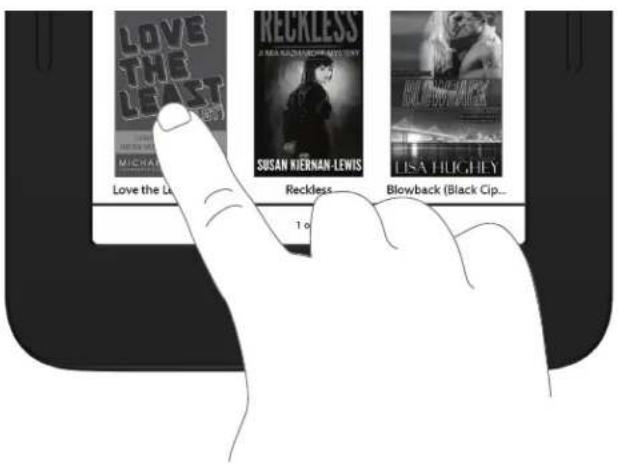
Tapping a book cover
Double Tap
Tapping twice quickly on the screen is a useful short-cut for many features.
In the Library or the Shop, double-tapping the cover of a book or periodical opens a window with details about the item.
Press and Hold
Pressing and holding means touching your finger to the screen and holding it there for 2 seconds.
In many situations, pressing and holding causes your NOOK to open menu at the bottom of the screen. The menu offers you choices about the image your finger is resting on.
For example, if you press and hold on a word in a book, your NOOK opens a menu offering you choices of things you can do with that book: highlight the word, write a note, look the word up in a dictionary, and so on.
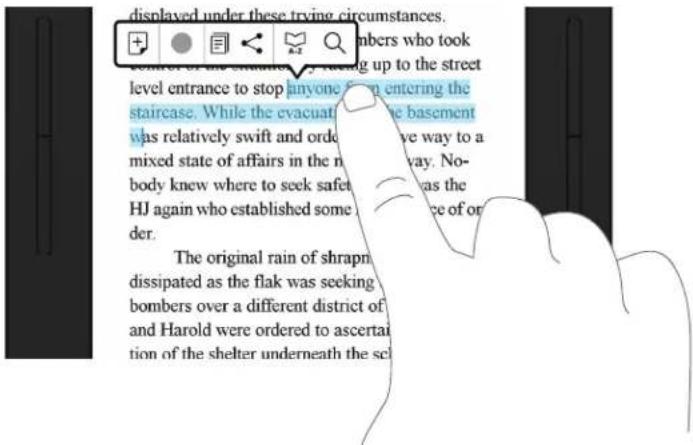
Pressing and holding on a word in a book and then lifting your finger opens the Text Selection Toolbar.
Swipe
To swipe is to slide your finger across the screen, usually to the left or right. You can swipe to turn pages in a book you are reading.
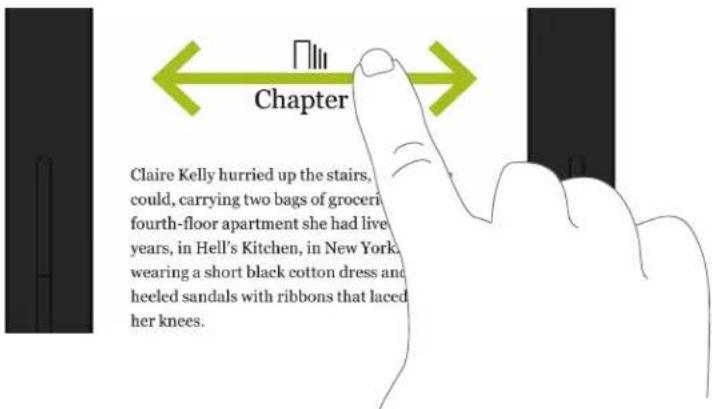
Swiping to scroll left and right.
Scroll
Slide your finger up or down the screen to scroll through any list displaying up and down arrows at the bottom of the screen. A scroll gesture is like a vertical swipe.
Barnes
&
Noble
NOOK
User
Guide
The NOOK Navigation Buttons
The NOOK Navigation Buttons or Nav Buttons are a row of buttons at the bottom of the Home screen that make it easy to move from one area of your NOOK to another. For example, if you want to move from the Library to the Shop, you can simply tap the NOOK Home button to display the Home screen and tap the Shop button to display the Shop screen.
To open the NOOK Navigation Menu, tap the NOOK button on the front bezel of your NOOK. The Navigation Menu appears on the bottom of the Home screen, as shown below.
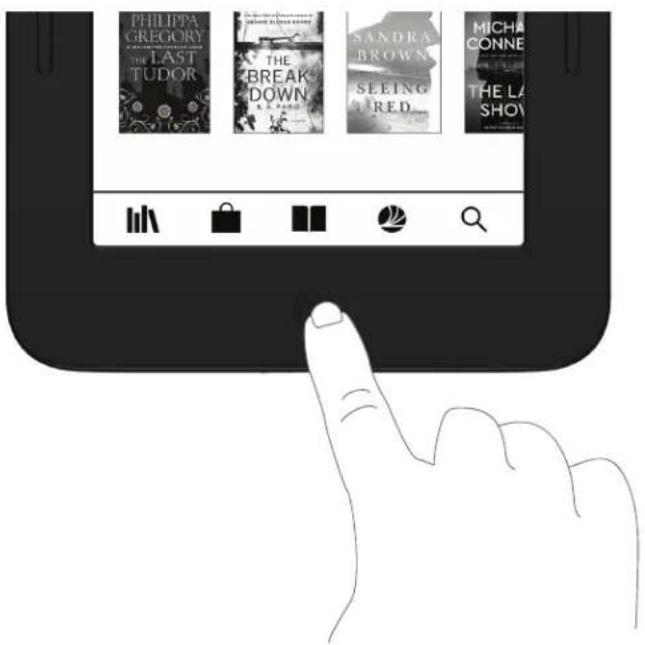
Tapping the NOOK Home button displays the Home screen and the NOOK Nav Buttons.
The NOOK Navigation Menu offers these choices for navigation:
- Library
- Shop
B&N - Settings
- Search
The Status Bar
A Status Bar runs along the top of the NOOK touchscreen. The Status Bar looks like this when GlowLight is turned on:

The Status Bar with GlowLight turned on.
The Status Bar appears on the Home Screen, the Library, the Shop, the Search screen, and on Settings screens. A slightly different version appears in books or periodicals when you open the Reading Tools.
The Left Side of the Status Bar
The left side of the Status Bar presents:
- A profile icon to manage the NOOK Profiles associated to your NOOK Account. Read the chapter "Configuring Profiles" for more information.
The Right Side of the Status Bar
The right side of the status bar presents:
• A digital clock showing the current time: 3:07 PM
• A lightbulb icon that indicates whether GlowLight is turned on or off: ♀
• A wireless connection indicator:
• A battery charge indicator: 📄
The lightbulb icon indicates whether GlowLight is turned on or off. If GlowLight is on, an icon representing an illuminated lightbulb icon appears in the Status Bar. If GlowLight is turned off, an icon representing a crossed-out lightbulb appears instead.
The wireless connection indicator displays a stack of concentric curves, indicating the strength of your NOOK's con-nection to a local Wi-Fi network. The higher the stack of curves, the stronger the connection. In general, it's best to have at least 2 or 3 curves showing to have a reliable connection. If no curves are shown, the NOOK is not con- nected to a network.
By default, the NOOK status bar displays time on a 12-hour clock. To change the time or to switch to a 24-hour clock, et the 24-hour clock option on the Time Settings screen.
GlowLight
Your NOOK includes GlowLight, a built-in light that enables you to read even in dim lighting conditions.
Turning GlowLight On or Off and Adjusting Its Brightness
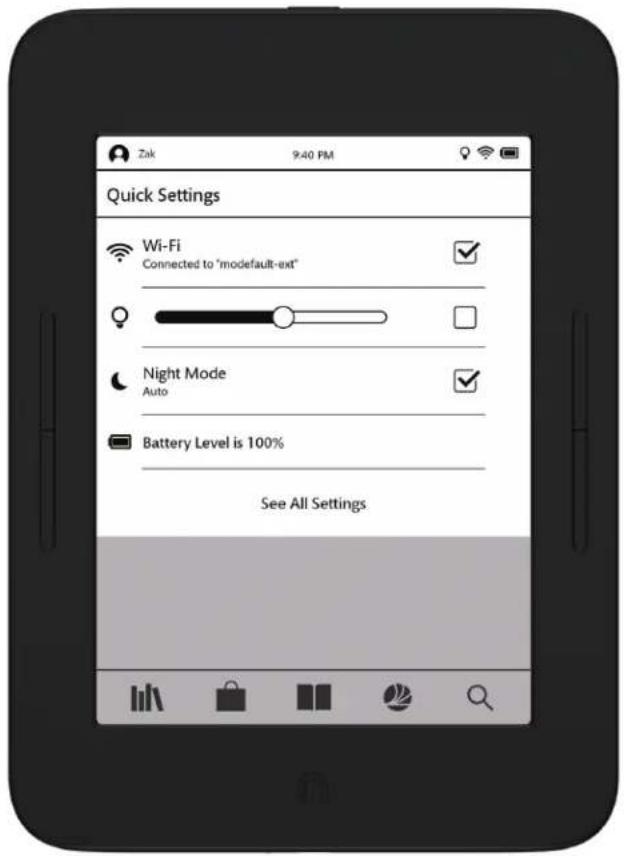
You can also turn GlowLight on or off in the Quick Settings window (Tap the status bar in the upper right corner to open Quick Settings).
- On the Home screen, in the Library, in the Shop, on the Search screen, or in Settings, tap the lightbulb icon or Wi-Fi symbol in the Status Bar.
Your NOOK opens the Quick Settings window.
-
Change the GlowLight setting as you like.
-
If GlowLight is off, swipe the GlowLight slidebar to turn GlowLight on. Slide the circle on the slide-bar to make GlowLight bright or dimmer.
• If GlowLight is on, swipe the GlowLight slidebar all the way to the left to turn GlowLight off. -
To close the Quick Settings window, tap the dark triangle at the bottom of the window, or tap anywhere outside the window.
Night Mode
Your NOOK GlowLight 3 comes with the new Night Mode for comfortable reading. With Night mode on, you can adjust the color of the light from cool to warm. A warmer tone will reduce blue light emission for nighttime reading.
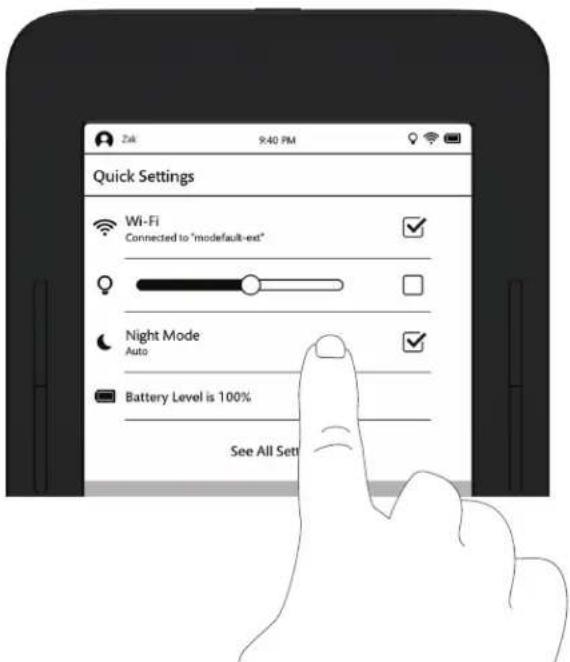
You can set Night Mode in Auto mode or in Manual mode. In Auto mode, GlowLight will automatically adjust the color throughout the day. In manual mode, you can select the color you want on a slider.
Note that brightness and color are two separate controls.
Turning Night Mode on or off
Open Quick Settings and tap the checkbox on the right of "Night Mode". The Night Mode will come up and default to your preferred mode (Auto or Manual).
You can also check "GlowLight" setting in the full settings menu.
Using the Auto Mode
Open the Quick Settings and tap "All settings." Open "GlowLight" and select "Auto." When brightness is on, your NOOK will automatically adjust the color throughout the day.
NOTE: Night Mode will be on when brightness is on. If brightness is off, Night Mode controls will be disabled. Simply turn brightness on from Quick Settings, All Settings, or by pressing and holding the Home button for 2 seconds.
Using the Manual Mode
Open Quick Settings and tap "All Settings". Open "GlowLight" and select "Manual". The slider will open up for you to select a cooler or warmer tone. The same slider is also accessible from Quick Settings.
NOTE: Night Mode will be on when brightness is on. If brightness is off, Night Mode controls will be disabled. Simply turn brightness on from Quick Settings, All Settings or by pressing and holding the Home button for 2 seconds.
The Home Screen
The Home screen gives you easy access to the books and periodicals you have recently read or purchased.
In the top portion of the screen, you'll see the cover of the most recent books or periodicals you've been reading.
The New & Recent panel has room for three titles.
Here's an example of a Home screen:
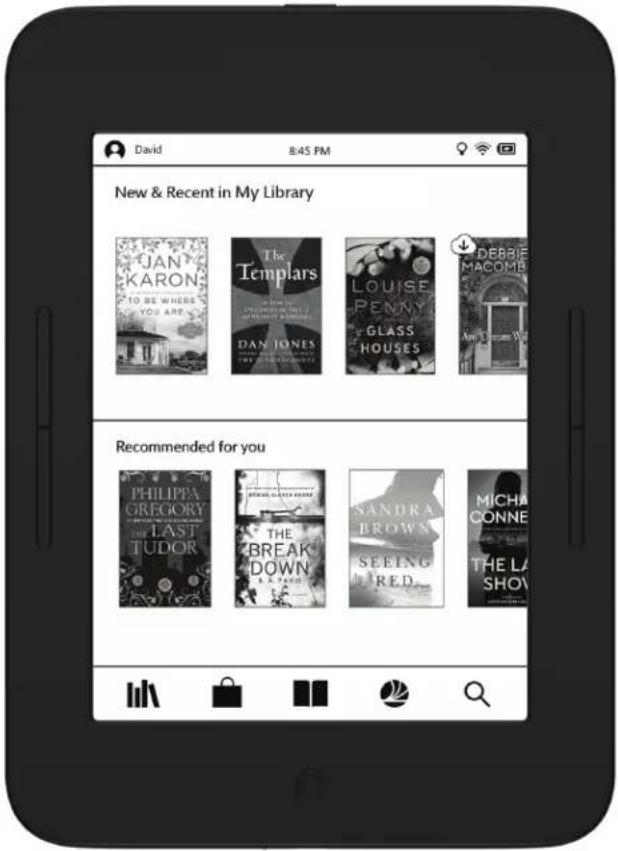
The Home screen.
The New & Recent Shelf
At the top of the Home screen, the New & Recent panel shows the covers of the books or periodicals you have most recently purchased or were most recently reading. If you have not read a book or periodical yet, the New & Recent panel shows the cover of the NOOK User Guide or NOOK Quick Guide. These two guides are automatically included in your Library.
To open any book or periodical shown in the New & Recent panel, tap its cover.
The Picked for You Shelf
At the bottom of the screen, you'll see a shelf with book recommendations for you. The recommendations are based on your recent purchases.
To learn more about a particular book or periodical, tap its cover. Your NOOK opens a detailed description of the book, including an overview, a list of reviews, a list of related titles, and a button for purchasing the book or periodical.
The details page of a book might also include a button for downloading a free sample.
The picture below shows an example of a details page about a recommended book.
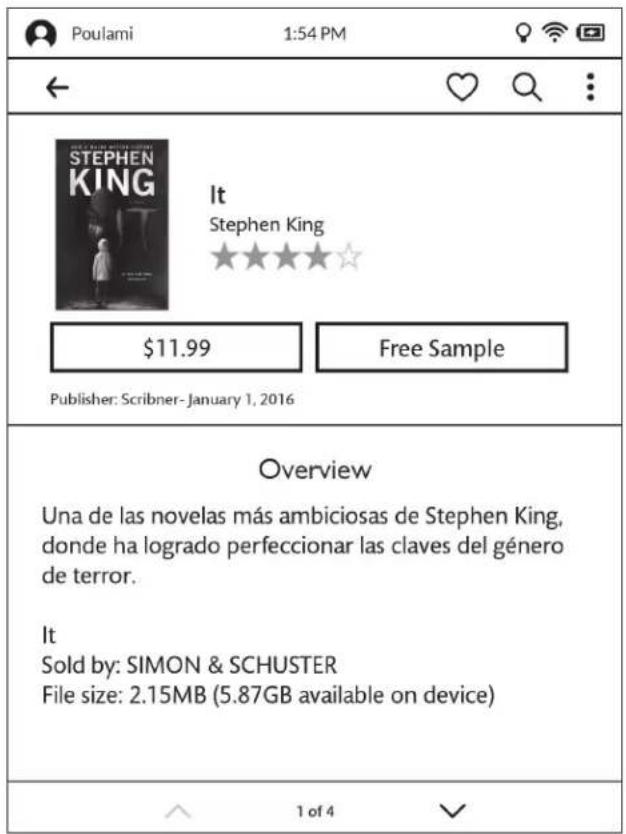
The Details page for a book.
Returning to the Home Screen
You can return to the Home screen at any time by pressing the NOOK button on the lower front of your NOOK.
Reading Books on Your NOOK
You can read books, magazines, and newspapers on your NOOK. You can make notes about what you're reading, highlight and annotate favorite passages, and share your thoughts and recommendations with friends on social sites such as Facebook.
Your NOOK makes reading books fun. To start reading, simply tap a book's cover. The book opens and fills the page. Then you can use the features described in this section to get the most out of your reading experience.
While you're reading, you can customize the look of the page. You can switch fonts, make type bigger or smaller, and adjust line spacing and margins. You can switch between page designs whenever you like.
Opening a Book
To open a book, tap its cover. Or if you're displaying a list of titles in the Library, tap the book's title.
NOTE: The first time you open a book on your NOOK, you will be presented with a brief tutorial on using gestures to turn pages and to open reading tools.
Page Layout
When you're reading content on NOOK, the text fills most of the page.
Page numbers appear at the bottom of the screen.
The title of the book you're reading appears in the upper left when you first open a book.
Turning Pages
Turning to the Next Page
To turn to the next page, either:
- Tap anywhere along the right edge of the page.
- Swipe to the left. (To swipe left, you place your finger on the right side of the page and slide it quickly to the left, as though you were flipping the page of a printed book.)
- Tap either of the upper page-turn keys built into the frame of your NOOK. NOTE: On the Reader settings screen, you can control whether the upper or the lower page-turn key turns the page forward.
See "Configuring Navigation Buttons in the Reader".
To move forward quickly through the book, press and hold the page-turn key that turns pages forward.
Turning to the Previous Page
To turn to the previous page, either:
- Tap anywhere along the left edge of the page.
- Swipe to the right. (To swipe right, place your finger on the left side of the page and slide it quickly to the right, as though you were flipping a page backwards in a printed book.)
- Tap the lower long narrow buttons to the side of the screen.
NOTE: On the Reader settings screen, you can control whether the upper or the lower page-turn button turns the page forward. See "Configuring Navigation Buttons in the Reader".
To move backward quickly through the book, press and hold the page-turn button that turns pages backward.
Turning to the next / previous chapter
• To move forward quickly to the next chapter, double-press the page-turn button that turns pages forward.
• To move quickly to the previous chapter, double-press the page-turn button that turns pages backward.
The Reading Tools Menu
The Reading Tools menu makes it easy to move through a book, to search for content, share content, and adjust the display of text.
To call up the Reading Tools menu, tap anywhere in the center of the page or tap the small dark arrow at the bottom of the page.
The Reading Tools appear in a horizontal bar just below the Status Bar. When the Reading Tools appear, your NOOK also displays the GlowLight indicator, the battery status indicator, and a digital clock in the upper right corner of the screen, as shown in the figure below.
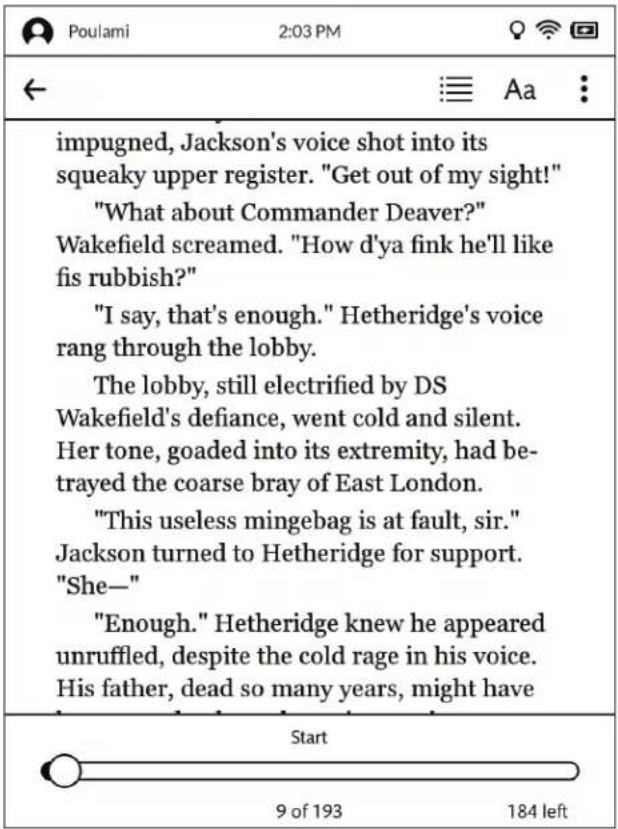
The Reading Tools menu.
There are three tools on the right side of the Reading Tools menu. Here's a quick look at what they do.
- Contents (≡) - opens a table of contents for the book. Also displays tabs that give you access to Highlights & Notes, Bookmarks, and Lookups
• Text (Aa) - lets you adjust the text size, font style, line spacing, and other stylistic attributes of the page - More (☐) - opens a menu with options for bookmarks, jumping to a specific page, searching through the book, and viewing the book's Details page
In addition to these tools, the Reading Tools menu displays a left arrow at left end of the Reading Tools bar.
Tap this arrow to return to your previous activity.
Reading Tools: Contents
Tap the Contents icon (≡) in the Reading Tools to open a window with four tabs:
- Contents - a Table of Contents listing chapters or sections
• Highlights & Notes - a list of highlights and notes throughout the book
• Bookmarks - a list of all the bookmarks you have set - Lookups - a list of all the words you have looked up in this book or in all your books
Tap any title, highlighted passage summary, or bookmark on these tabs to jump to that location in the book.
| Poulami 2:05 PM | |||
| ← Aa : | |||
| Contents | Highlights & Notes | Bookmarks | Lookups |
| Title Page | |||
| Copyright Page 3 | |||
| Dedication 5 | |||
| Chapter One 6 | |||
| Chapter Two 17 | |||
| Chapter Three 27 | |||
| Chapter Four 37 | |||
| Chapter Five 46 | |||
| Chapter Six 55 | |||
| Chapter Seven 64 | |||
| 1 of 3 √ | |||
The Contents tool.
When the Contents tool opens, it displays the Contents tab, which lists all the chapters in the book. If the list of chapters runs longer than one screen, you can tap the arrows at the bottom of the screen to scroll down and up through the list.
Tapping any chapter number or title closes the dialog box and moves you to the beginning of that chapter in the book.
Tapping the Highlights & Notes tab displays the Highlights & Notes screen, which looks like this.
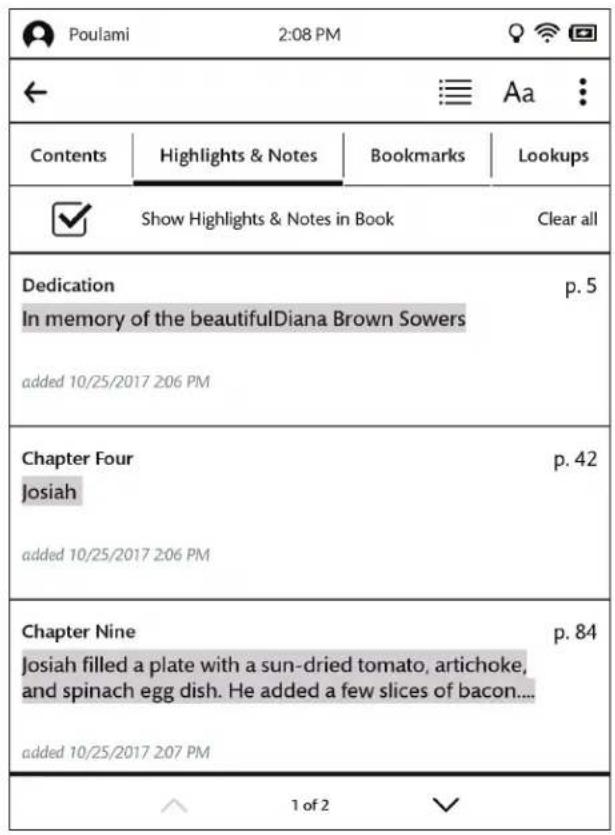
The Highlights & Notes screen.
The Highlights & Notes screen lists all the passages you have highlighted or written notes about. Each passage is identified by its page number and opening line. If the list of notes and highlights runs longer than one screen, you can tap the arrows at the bottom of the screen to scroll down and up through the list.
To jump to a particular passage, tap it.
To erase all the notes and clear all the highlights, tap the Clear all button.
You can control whether or not your NOOK shows highlighted passages and note symbols in the NOOK Book you're reading.
Tap the check box labeled Show Notes & Highlights. Leave the box checked to show Notes & High-lights. Leave it unchecked to hide them.
NOTE: When you hide Notes & Highlights, they are still visible on the Highlights & Notes screen, but in the pages of the NOOK Book, highlighted passages no longer appear with a tinted background, and Note symbols do not appear in the margin.
To close the window without making a selection, tap the left-facing arrow at the top of the screen.
Tapping the Bookmarks tab displays the Bookmarks screen.
Here's an example of a Bookmarks screen.
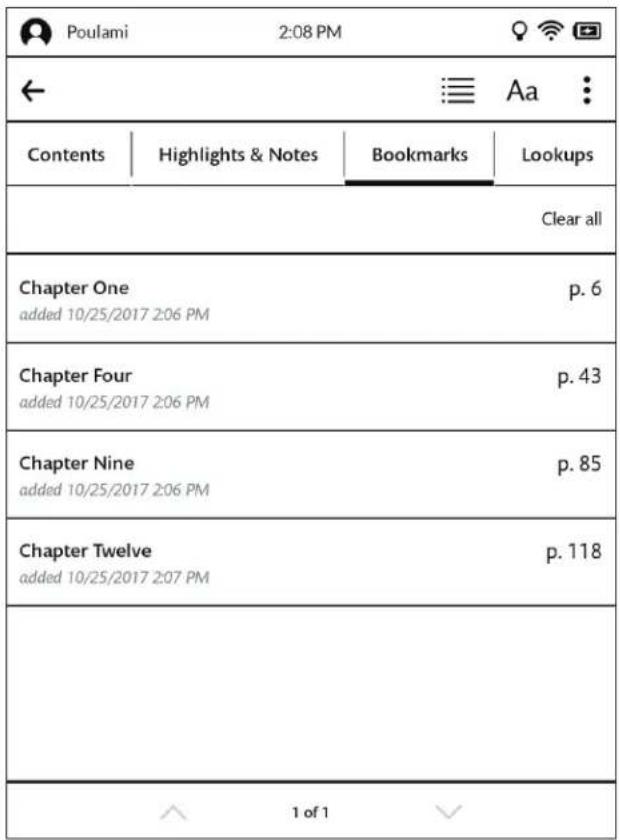
The Bookmarks screen.
For each bookmarked page, the screen lists the page number and either the chapter number (if you bookmarked the first page of a chapter) or the first line of text that appears on the page (if you bookmarked any page other than the first page of a chapter).
To clear all the bookmarks, tap the Clear all button.
To clear an individual bookmark, tap the bookmark to visit its page, and then tap the bookmark ribbon in the upper right corner.
Tapping the Lookups tab displays the Lookups screen, which lists words you have looked up while reading.
The Lookups screen looks like this:
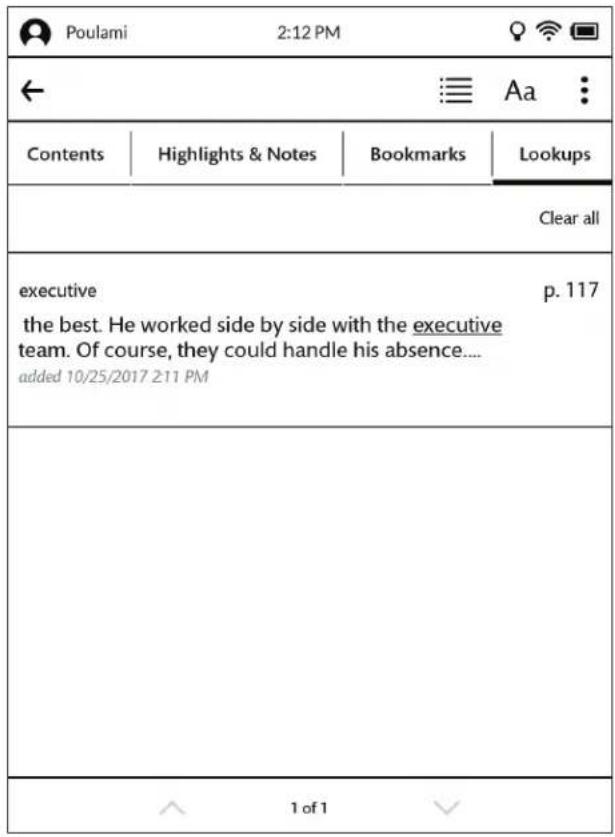
The Lookups tab.
Each looked-up word appears with part of text around it from book, along with an indication of when you first looked up the word.
Tap a word to see its dictionary definition.
To erase the list of lookups, tap the Clear all button. If you are viewing the lookups just for this book, only those lookups are deleted. If you are viewing the lookups across all your books, tapping Clear all deletes all the lookups in all your books.
To delete just a single entry in the list, press and hold on the word until a dialog box opens. The dialog box asks you to confirm that you want to delete the word. To proceed, tap OK. Otherwise, tap Cancel.
Reading Tools: Text
Tap the Text icon (Aa) in the Reading Tools to open a window for adjusting the font, the font size, line spacing, and margin size.
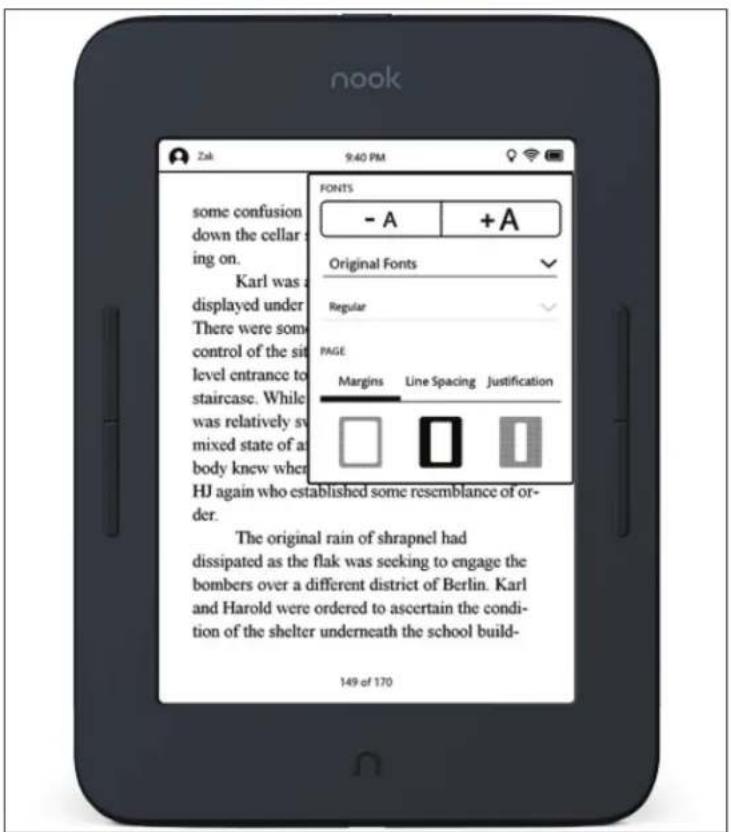
The Text dialog box lets you pick:
- a text size
- a font style
• line spacing - single, 1.5-line, or double
• margin size - narrow, medium, or wide
NOTE: Some publishers have defined default settings for the display of NOOK Books. These settings specify a specific type font, font size, line spacing, and margin setting. If these defaults have been defined for the
NOOK book you are reading, you will be able to check and uncheck a box labeled Publisher Defaults.
You need to uncheck this box in order to make any changes to the text settings.
Tap the settings that you would like to use. As you change settings, you will see the new settings applied to the page behind the text screen.
When you have finished making changes, close the dialog box either by tapping the X in the upper right corner of the dialog box or by tapping anywhere on the page of the NOOK book you are reading.
Reading Tools: More
Tapping the More icon (€) opens a menu with four choices:
- Add Bookmark
- Jump to Page
- Find in Book
• View Details
This section tells you how to use these menu choices.
Setting a Bookmark
There are two ways you can set a bookmark in a NOOK Book.
You can simply tap the upper right corner of the page.
Or you can tap the center of the page to open the Reading Tools, tap the More icon, and tap the Add Bookmark menu choice.
In either case, your NOOK displays a black bookmark ribbon in the upper right corner of the page and lists the bookmarked page on the Bookmarks tab in Content.
Removing a Bookmark
Once a bookmark is set, the More menu changes its menu choice from Add Bookmark to Remove Bookmark.
To remove a bookmark, tap in the center of the page to open the Reading Tools, tap the More icon, and tap Remove Bookmark.
Or you can simply tap the bookmark ribbon on the page whose bookmark you want to remove. Tapping the ribbon removes the bookmark.
Jumping to Another Page
To move to another page by entering its page number, do this:
- Tap the center of the page to open the Reading Tools.
- Tap the More icon ( ):
- Tap the Jump to Page menu choice.
Your NOOK opens a page-number dialog box with a numerical keyboard.
- Type the number of the page you want to move to. Then tap the checkmark button.
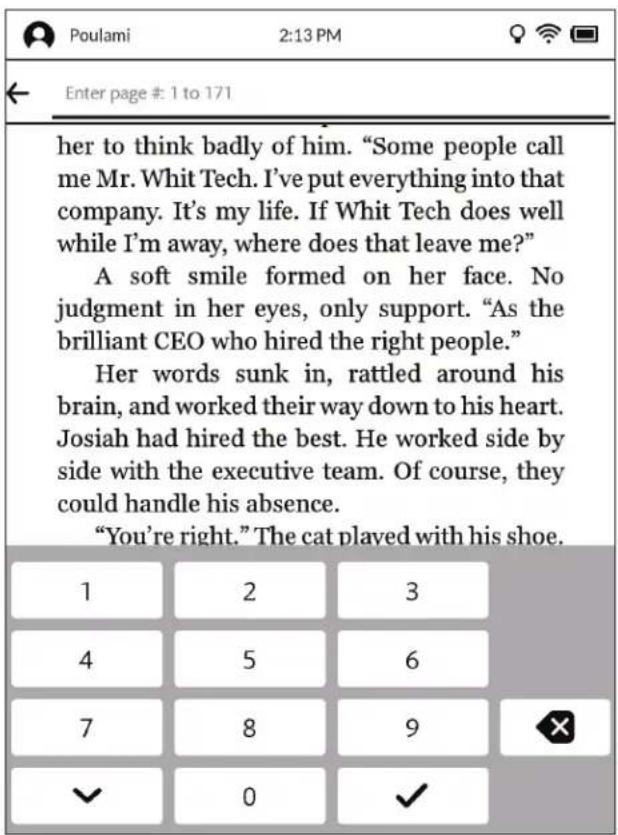
The page-number dialog box.
Once you have moved to the new page, your NOOK automatically closes the page-number dialog box.
Finding a Word or Phrase in a Book
Tap the find icon in the Reading Tools to search for a word or phrase in the book you're reading.
To search for a word or phrase in the book you are reading, do this:
I. Tap in the center of the page to open the Reading Tools.
2. Tap the More icon ( ):
3. Tap the Find in Book menu choice. A keyboard appears on the screen. (See the image below.)
4. Type the word or phrase you want to find. Then tap the search button in the lower right corner of the keyboard. (This button shows a magnifying glass).
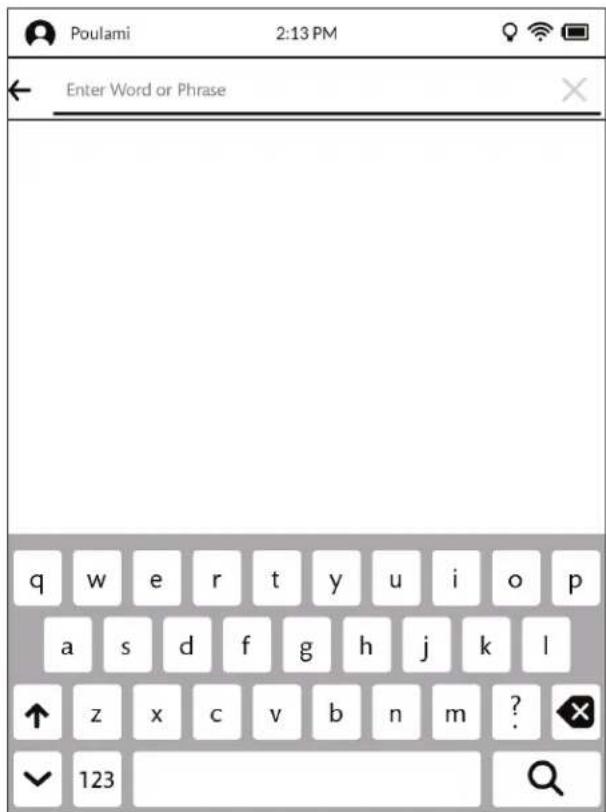
The Find screen.
If the word or phrase you searched for appears in the book, your NOOK displays a list of page numbers and passages.
To jump to a passage, tap it.
The image below shows an example of search results.
| Poulami 2:14 PM | |
| ← CEO ✘ | |
| Chapter One p. 7...job back." "You're still Whit Tech's CEO, but you need time to recover from the blood... | |
| Chapter One p. 7...in Palo Alto and started a search for a new CEO." Nate removed a duffel bag. "The board is... | |
| Chapter Two p. 20...software were being released. He might be a successful CEO, but he was still a programmer. He'd... | |
| Chapter Two p. 24...season for anyone." "What are you?" "A CEO." Albeit an absent one. "Christmas is a difficult... | |
| Chapter Five p. 50..." Josiah's grin was more charming cowboy than sophisticated CEO. "Go enjoy your evening. I've got this... | |
Search results within a book.
If the word or phrase you searched for appears more than once in the book, your NOOK displays a search navigation tool at the top of the screen when you jump to the location of a search result. This toolbar includes a forward arrow and a backward arrow for moving from one appearance of the word or phrase to another.
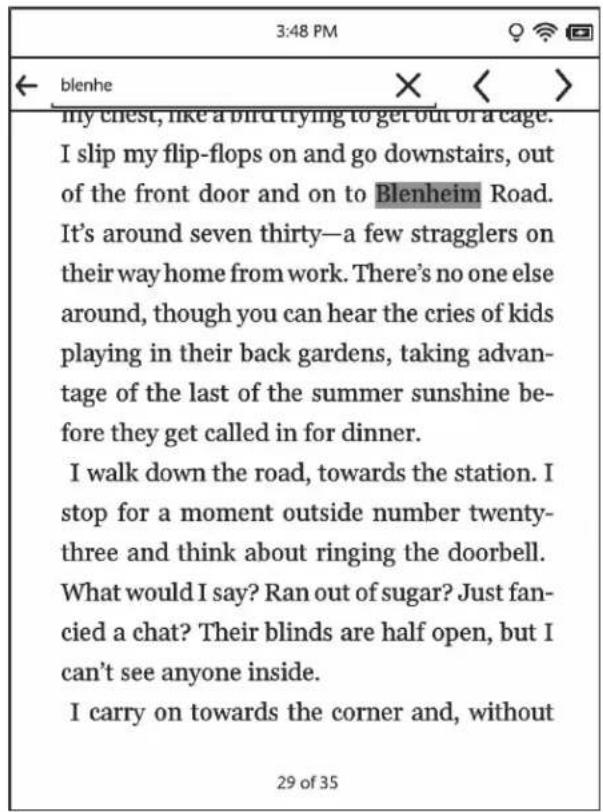
Viewing a search result and using the mini toolbar.
To jump to the next appearance of this search term in the book, tap the right arrow.
To jump back to the previous appearance of the search term, tap the left arrow.
To start a search for a different word or phrase, tap the text field. Your NOOK opens a new search screen.
Type the word or phrase you want to search for and tap find.
To close the mini toolbar, tap the X symbol in the raised tab by the upper right corner of the toolbar.
Reading Tools: View Details
To view details about the book you are reading, do this:
I. Tap the center of the page to open the Reading Tools.
2. Tap the More icon ( ) in the upper right corner of the screen.
3. In the pull-down menu, tap View Details.
Your NOOK displays a Details page for the book.
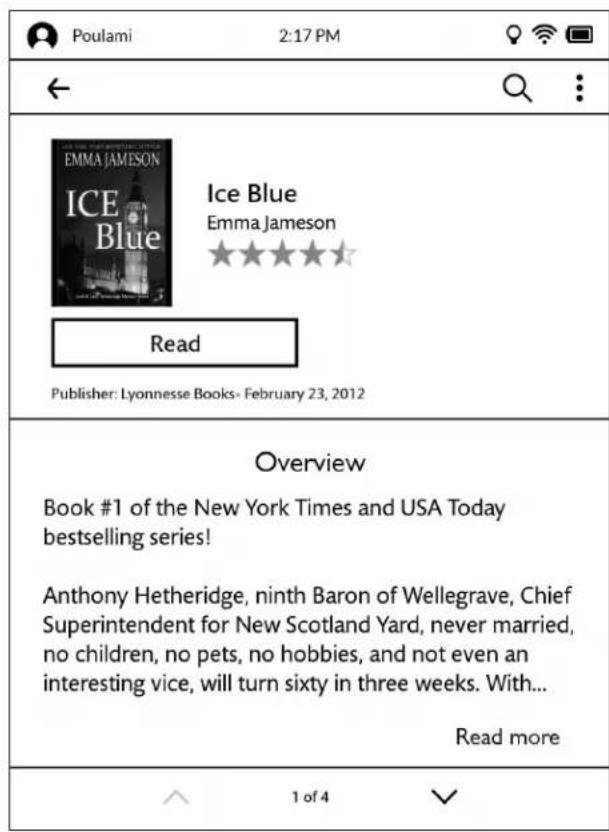
The More screen.
The Details screen presents details about the book you are reading. Use the up and down arrows at the bottom of the screen to scroll to view recommendations for similar books and to read editorial reviews.
Reading the Book
To return to reading the book, tap the Read button.
Sharing the Book
Tap the Share button to share your thoughts about the book with friends through Facebook.
Reading Tools: Page Slider
When you open the Reading Tools, a slider appears at the bottom of the page, as shown below.
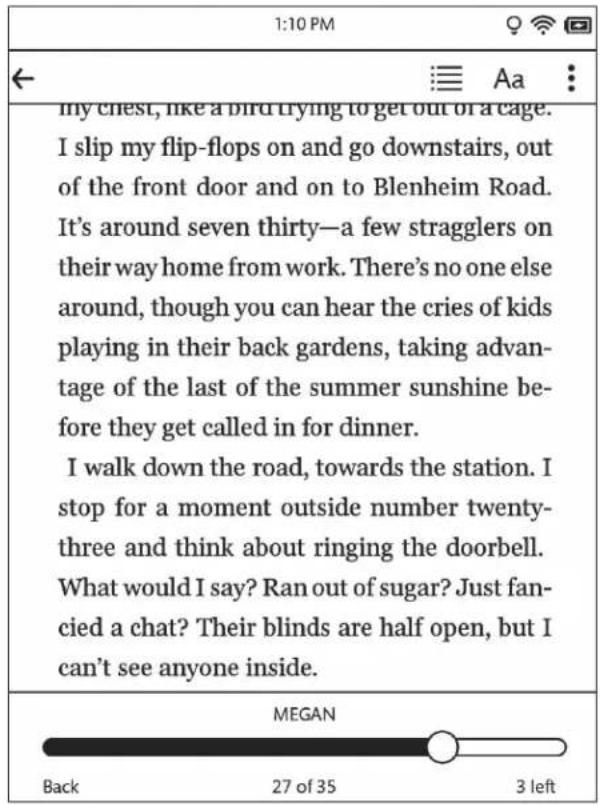
Using the Slider to Move to Another Page
To move to another page, do this:
- Tap the center of the page to open the Reading Tools, if they are not already open.
- Press on the knob on the slider and drag it left or right until you see the page number you are looking for appear on the right end of the slider bar. If the book is divided into chapters, the slider bar will list chapter numbers and titles as you slide through them.
- When you have moved the slider to the position in the book you want, tap the center of the page to close the GoTo dialog box and resume reading the book.
If instead of moving to the new page, you want to jump back to the previous page you had navigated from, tap the Go Back button in the GoTo dialog box. You can tap the Go Back button repeatedly to through several previous locations.
Jumping to the Furthest Page Read
If you've been reading this book or periodical on some other device (such as a desktop computer or a smartphone) using a NOOK application, and your NOOK has access to the Internet through its Wi-Fi connection, then when you open a book or periodical, your NOOK will compare the last page you read on the NOOK to the last page you read on any other device.
If you have read further on the other device, your NOOK jumps to the furthest page you've read, even if you haven't read that page on your NOOK.
Using Bookmarks
Adding a Bookmark
A bookmark marks a location in a book. In a printed book, a bookmark helps you find the page where you left off reading.
You can set bookmarks in books to make it easy to jump to specific locations You can set as many bookmarks as you like.
To set a bookmark on the page you are reading, do this:
I. Tap the upper right corner of the page.
A dark ribbon appears in the corner of the page, indicating that a bookmark has been placed.
The Girl on the Train
my chest, like a bird trying to get out of a cage. I slip my flip-flops on and go downstairs, out of the front door and on to Blenheim Road. It's around seven thirty—a few stragglers on their way home from work. There's no one else around, though you can hear the cries of kids playing in their back gardens, taking advantage of the last of the summer sunshine before they get called in for dinner.
I walk down the road, towards the station. I stop for a moment outside number twenty-three and think about ringing the doorbell. What would I say? Ran out of sugar? Just fancied a chat? Their blinds are half open, but I can't see anyone inside.
I carry on towards the corner and, without
29 of 35
A bookmark symbol appears when you tap in the upper right corner of the page. By setting bookmarks, you make it easier to return to a location in your book.
Viewing All Bookmarks in a Book
To view a list of all the bookmarks in a book, do this:
I. Tap the center of the page to open the Reading Tools.
2. In the Reading Tools, tap the Contents icon.
3. In the Contents pane, tap the Bookmarks tab. Your NOOK displays a list of all the bookmarks in the book.
To visit any bookmarked passage, tap its bookmark in the list.
To close the bookmark list without visiting a bookmark, tap the Close button in the upper right corner of the Contents window.
Removing a Bookmark
To remove a bookmark on the current page, tap the ribbon in the upper right corner of the page. The ribbon disappears, and the bookmark is cleared.
Clearing All Bookmarks
To clear all the bookmarks in a book, do this:
I. Display the list of bookmarks by tapping the Contents icon in the Reading Tools, then tapping the Bookmarks tab.
2. Tap the Clear All button in the upper left corner of the bookmarks list.
A dialog box opens asking you to confirm that you want to clear all the bookmarks.
- Tap Remove All.
Selecting Text to Look up Words, Add Highlighting or Notes, and Share Quotes with Friends
You can select a word or a passage of text. Once you have selected a word, you can look it up in a dictionary.
You can also select words or passages for highlighting, making notes, or sharing through email or social media networks such as Facebook.
To select a word or a passage of text, press and hold on a word and then lift your finger.
The word appears highlighted, and two vertical bars will appear on either side of it, defining the start and end of the selected text.
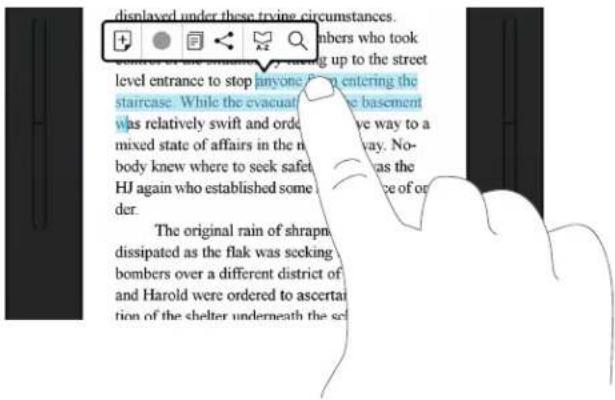
A selected word and the Text Selection Toolbar.
Changing the Selection from a Word to a Passage
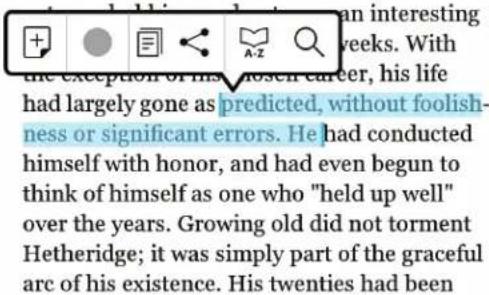
To select an entire passage, rather than just a word, select the word that you want to have at the beginning or end of the selected passage and drag the vertical bar that's closest to the direction in which you want to extend the selection. Drag the vertical bar until you have selected the passage you want.
Ice Blue
Chapter One
Anthony Hetheridge, ninth Baron of Wellegrave, chief superintendent for New Scotland Yard, never married, no children, no
6 of 193
Select a word at the beginning or the end of the passage you want to select, and extend the selection by dragging a vertical bar.
When you lift your fingers after resizing the text selection, the Text Selection Toolbar reappears.
Using the Text Selection Toolbar
Once you have highlighted a word or a passage, the Text Selection Toolbar appears. This Toolbar offers you the following choices:
- Add Note (the notepad icon) - Opens a window for writing a note about the selected word or passage.
• Highlight (the pen icon) - Lets you highlight a word or passage.
• Share (the forked path icon) - Opens the Share dialog window. - Look Up (the A-Z icon) - Displays a dictionary definition of the selected word.
If you decide not to take any of these actions, simply tap anywhere on the screen other than in the Text Selection Toolbar to close the Toolbar and continue reading.
Looking Up Words in the Dictionary
It's easy to look up information about a word or topic when you're reading.
Looking Up a Word in the Dictionary
Your NOOK includes the Merriam-Webster's Collegiate® Dictionary, Eleventh Edition.
To look up a word in the dictionary, do this:
I Press and hold on a word to select it.
- Tap the A-Z button in the Text Selection Toolbar.
A pop-up window appears, presenting a dictionary definition of the word. To close the window, tap the X in the upper right corner.
The picture below shows an example of a dictionary definition.
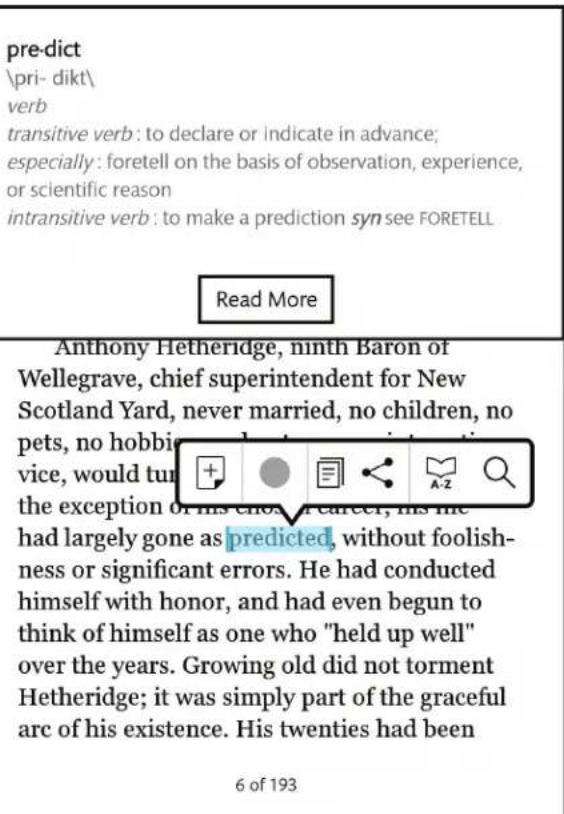
A definition from your NOOK's built-in dictionary.
Using Notes
Writing a Note
Just as you might write a note in the margins of a printed book, you can make notes about specific passages in a book on your NOOK.
To write a note, do this:
I. Press and hold on a word at the beginning or end of the passage you want to write a note about. The Text Selection Toolbar appears at the bottom of the screen.
2. Lift your finger, then drag one of the vertical bars to other end of the passage. The Text Selection Toolbar appears again.
3. Tap the notepad icon in the toolbar at the left end of the toolbar. An "Add Note" window appears with a keyboard for typing notes.
4. Type the text of the note.
5. Tap the checkmark button in the lower right corner to post the Note and close the note window.
In your book, a note icon now appears in the margin, indicating that a note has been written about this passage.
Viewing a Note
To open a note and read it, tap the note icon in the margin.
When you're done viewing the note, you can close the note window by tapping the arrow in the upper left corner of the window.
NOTE: By default, your NOOK displays a note icon next to any passage of text about which you've written a note. However, you can configure your NOOK not to display note icons. Tap the center of the page to display the Reading Tools, tap the Contents icon, tap the Highlights & Notes tab, and uncheck the checkbox ShowedNotes & Highlights. This hides notes and highlights while you're reading, though you can still read notes by opening the Contents tool and tapping the Highlights & Notes tab. To read a note in the Highlights & Notes tab, tap it.
Editing a Note
To edit a note, do this:
I Tap the Note icon to open the note you want to edit.
Your NOOK displays the note, along with buttons labeled Cancel, Remove, and Edit.
2. Use the keyboard to edit the note as you like.
3. When you have finished editing the note, tap SAVE in the upper right corner of the screen.
Removing a Note
To remove a note, do this:
I. Tap the highlighted word or phrase associated with the note.
A menu appears at the bottom of the screen.
2. Tap the trash icon in the upper right corner of the screen.
A dialog box opens, asking if you really want to remove this note.
3 Tap Remove. Your NOOK deletes the note.
Barnes
&
Noble
NOOK
User
Guide
Viewing All Notes
To view all notes, do this:
I. Tap the page to display the Reading Tools.
2. Tap the Contents button.
3. Tap the Highlights & Notes tab.
This tab lists all your notes and highlights.
Making Notes Visible or Invisible
You can control whether or not your NOOK displays a Note icon next to any text about which you've written a note.
To make notes visible or invisible in the text, do this:
I. Tap the page to display the Reading Tools.
2. Tap the Contents button.
3. Tap the Highlights & Notes tab.
4. Tap the checkbox labeled Show Notes & Highlights to change the display of note and highlights.
Leave the box checked to display notes and highlights. Leave it unchecked to hide notes and highlights.
Sharing a Quote
If you have linked your NOOK to Facebook, you can share quotations from the book you're reading with your friends.
NOTE: You must have linked your NOOK to the primary profile's Facebook account before you can use this feature.
To share a quote, do this:
I. Tap the first or last word of the passage to highlight it.
Vertical bars appear at the beginning and end of the word.
2. Drag a vertical bar to the other end of the passage, highlighting all the words in the passage.
3. In the Text Selection Toolbar, tap the Share icon.
If you have not yet linked your NOOK to Facebook, a window opens with a login screen for Facebook.
Log in to your Facebook account, and click OK on the permission screen.
Your NOOK displays a form that lets you post the quote along with a message to your own wall.
You can type a message in the message field to accompany the quote.
4. When you are ready to post the quote and your message, tap post in the upper right corner of the screen.
Adjusting the Appearance of the Page
In most books, you can adjust the features described below.
Text Sizes
• A range of text sizes from small to large
Font Families
- Mundo Sans
- Baskerville™
- Georgia
- Ascender Sans
- Malabar ^TM
- Joanna® Sans
Line Spacing
- Single spacing
• 1.5-line spacing - Double spacing
Margins
- Narrow
Medium - Wide
Publisher Defaults
- On/Off
If you turn on Publisher Settings, the page displays using the settings recommended by the publisher.
NOTE: Some publishers define recommended settings for their eBooks; other publishers do not. If the Publisher Settings toggle switch is grayed out, the publisher of the eBook you are reading has not defined recommended settings.
All other page controls in the dialog box appear grayed out.
To change the appearance of the book, do this:
I. Tap the center of the page to make the Reading Tools appear.
2. Tap the Text icon (Aa) in the upper right corner.
Your NOOK opens a window displaying font and spacing controls.
3. Tap the controls to select the font, font size, line spacing, and margins you want.
4. Tap anywhere outside the text dialog box to close the dialog box.
Reviews and Recommendations
To view a summary of the book, along with reviews and recommendations for similar books, tap in the center of the page to bring up the Reading Tools and tap the More icon ( ).
For details, see "Reading Tools: More."
Opening DRM-protected Files
DRM stands for Digital Rights Management. DRM software protects books from being copied, sold, or distributed in an unauthorized manner.
Your NOOK and the Barnes & Noble website automatically make sure that when you buy and download a NOOK Book, the NOOK Book recognizes you as its legitimate owner and presents its contents for you to read on your NOOK.
Reading Magazines and Newspapers on Your NOOK
Reading magazines and newspapers on your NOOK is similar to reading books. You use the same gestures — tapping and swiping — to turn pages. You have access to the same Reading Tools, such as Contents and GoTo.
Some periodicals may include their own table of contents with live links to specific articles and features, but otherwise the features are similar to the features used in reading books.
The Library on Your NOOK
Your library is where you keep everything you want to read on NOOK. In your library, you will find:
• Books you have purchased from the NOOK Shop
• Newsstand magazines and newspaper you have purchased from the NOOK Shop
• Free books you have downloaded from the NOOK Shop
- EPUB files and PDFs you have transferred onto NOOK using a USB connection from your personal computer (these files appear in the My Files section of the Library).
To access your library, tap the Library button on the NOOK Navigation Menu.
The Library looks like this:
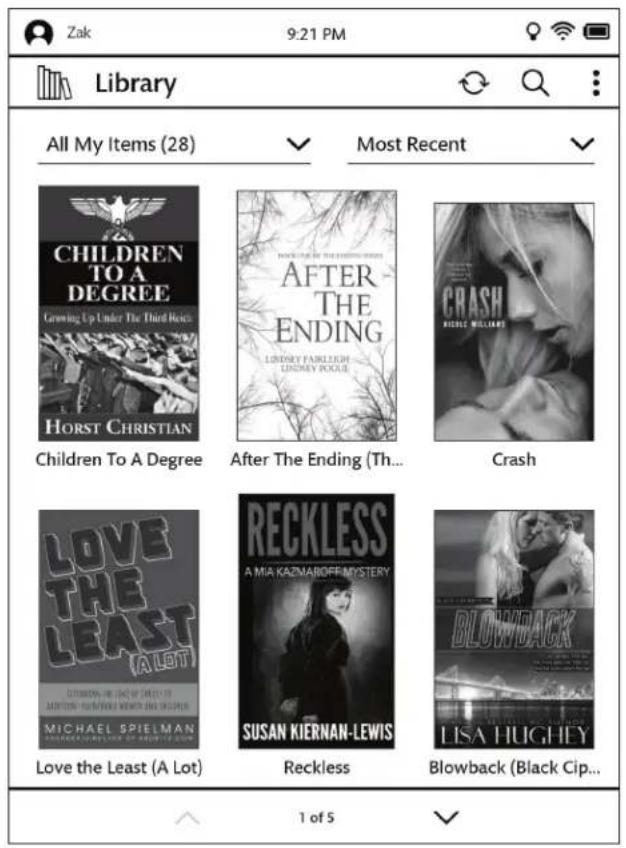
Pull-down Menus
To help you quickly find what you're looking for, the Library on your NOOK features a couple of pull-down menus that let you select which contents to display and how to display them.
The Category Menu
The category menu (sometimes called the filter menu) is a pull-down menu in the upper left corner of the Library lets you select the Library contents you want to display.
Choices include:
• All - shows everything in your Library (the number after the word "All" indicates how many items you have in your Library)
• Books - shows only books
• Magazines - shows only magazines (this menu choice appears only if you have purchased magazines)
• Newspapers - shows only magazines (this menu choice appears only if you have purchased newspapers)
• My Shelves - shows any books, magazines, and newspapers that you have organized on shelves
- My Files - shows any files, such as EPUB or PDF files, that you have transferred from your personal computer to your NOOK.
- Archived - shows any books or periodicals you have archived (this menu choice appears only if you have once archived any books or periodicals)
• Everything Else - shows any content in your account that is not supported on this device
The picture below shows an example of the category menu. The number in parentheses after the selected menu choice indicates how many Library items you have in that category.
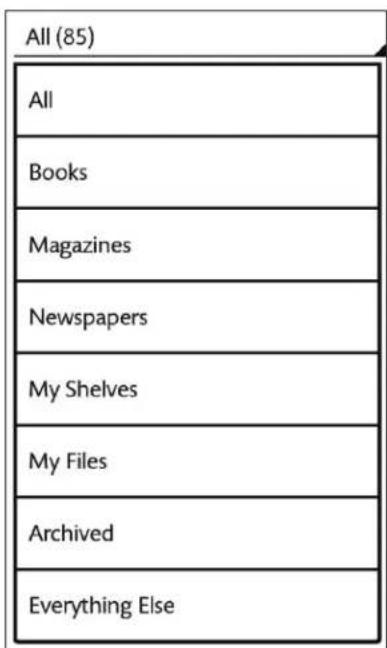
The Category Menu.
The Sort Menu
The sort menu is a pull-down menu that lets you sort the content shown on the screen according to rules such as Most Recent, Title (an alphabetical listing of titles), or Author (an alphabetical listing of authors' last names).
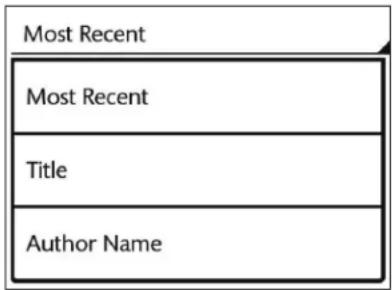
flowchart
graph TD
    A["Most Recent"] --> B["Most Recent"]
    B --> C["Title"]
    C --> D["Author Name"]
The Sort Menu.
The Sync Button
In the upper right corner of the Library is a button with two curved arrows forming a circle. This is the Sync button. Synchronizing your NOOK downloads any books and periodicals that you have purchased from the NOOK Shop while using another device, such as another NOOK, a smartphone, or a tablet, registered to the same account. Synchronizing also downloads any purchases of NOOK content you may have made on the Web at BN.com.
Searching Your Library
You can search your library to find any of the following for books, magazines, and newspapers:
• Author
- Title
- Subject
To search your Library for a particular author, title, or subject, do this:
I. Tap the magnifying glass icon in the upper right corner of the Library screen.
A keyboard appears.
- Type the word or phrase you want to search for.
- Tap the search button.
Your NOOK displays a list of any items it finds matching the word or phrase you typed. It lists matching items from your Library first. Below that those items, it lists any matching items found in the NOOK Shop.
To open an item in the list, tap its name.
Searching for Words with Accents and Other Diacritical Marks
To type a word that contains accents or diacritical marks (such as a French cedilla ), do this:
I. Press and hold on the letter you want to select a diacritical mark for.
A pop-up window appears, offering additional keyboard buttons for diacritical marks.
2 Tap the letter-mark combination you want.
The pop-up window disappears, and the letter you selected appears in the text field where you were typing.
Viewing and Sorting the Contents of Your Library
Your Library allows you to view and sort your books and periodicals in different ways.
You can arrange items in a grid, in horizontal shelves running across the screen, or in various types of lists.
You can also sort items by title and by date of publication.
Two pull-down menus at the top of the Library screen give control over the presentation of your Library.
Sorting and Viewing Books
You can sort books by:
- Most Recent
- Title
• Author
You can view books in these arrangements:
- a grid
• a list, which includes titles and author names
Sorting and Viewing Your Newsstand (Magazines and Newspapers)
You can sort magazines and newspapers in your Newsstand by:
- Most Recent
- Title
You can view magazines in these arrangements:
- a grid
• a list, which includes titles, publisher names, and publication dates
Opening Books, Magazines, and Newspapers
You can tap any cover you see to open it.
If you tap a book with a Download banner, your NOOK begins downloading the book. A progress bar on the book's cover indicates how much of the book has been downloaded. Once the book has fully downloaded, you can open it.
NOTE: When you buy a book or periodical, it becomes available to your NOOK, as well as to any Barnes & Noble eReader applications installed on your smartphone, tablet, or personal computer.
Badges on Content
Your NOOK displays the following badges on books and periodicals:
• New: This is a new item that has been downloaded to your NOOK and is now ready for reading.
• Sample: This is a free sample of a book, magazine, or newspaper.
If a book or periodical appears with a cloud icon, you can tap the item to download it from your Barnes & Noble Lifetime Library®.
- Pre-order: This item is available for pre-order. You can order it now, even though it hasn't been released, yet. You will be able to read it the moment it is released.
• Recommended: A friend has recommended this book or periodical to you.
• LendMe: You can lend this book to a friend. - Lent: You have lent this book to NOOK Friend. The number on the cover indicates the number of days left on the loan.
- Borrowed: You have borrowed this book from a NOOK Friend. The number on the cover indicates the number of days left on the loan.
• Returned: This book has been returned to the lender.
When a book, magazine, or newspaper is being downloaded, dots appear within the cloud icon and then a circle appears on the item's cover, indicating that the download is in progress.
Organizing Your Library on Shelves
In addition to views of all your books, magazines, and newspapers, your Library also includes a feature called Shelves where you create named collections of books, periodicals, and files. A shelf is a group of items that you have collected under a common name, such as Mysteries or Cookbooks. You can give a shelf any name you like. A book, periodical, or file can appear in as many shelves as you like. For example, if your favorite book is a mystery novel, you could include it on your Favorites shelf as well as on a new shelf you create called Mysteries.
Creating a Shelf
To create a shelf, do this:
- In the Library, tap the More icon (in the upper right corner of the screen. A pull-down menu opens.
- Tap the New Shelf button. A dialog box appears.
- Tap in the text field in the dialog box. When a keyboard appears, type the name of the shelf you want to create.
- Tap Save in the upper right corner of the screen.
Your NOOK creates the shelf, then displays a list of all the items in your Library. It also displays a number in parentheses, indicating how many items are currently in the shelf. When you first create the shelf, this number is zero.
- Tap the checkbox next to any item to you want to add to the shelf you just created.
Use the page up and down buttons on your NOOK to scroll through the list. As you add items to the library, your NOOK updates the number which appears in parentheses by the shelf's name, indicating the number of items on the shelf.
- When you have finished adding items to the shelf, tap Add in the upper right corner of the screen.
- Your NOOK creates the shelf and returns you to the Library.
Adding or Removing Items
If you did not add items to a shelf when you created it, the shelf will be empty.
To add items to a shelf or to remove items from a shelf, do this:
I. In the Library, tap the Category and select My Shelves, if that category is not already selected.
Your NOOK displays all your Shelves.
- Tap the shelf you want to edit.
A window opens, displaying a list of your books and periodicals on that shelf.
- Tap the checkboxes to the left of book and periodical titles to add or remove items, as you like:
• Any item with a checked checkbox is included in the shelf.
• Any item with a blank checkbox is excluded.
- When you have finished adding or removing items, tap Save.
Renaming a Shelf
To rename a shelf, do this:
I. Tap the EDIT button to the right of the shelf's name.
A window opens, displaying a list of your books and periodicals. The window also includes buttons for renaming or removing the shelf.
- Tap the Rename button.
A dialog box with a text field appears.
- Tap in the text field in the dialog box. When a keyboard appears, edit the shelf's name as you like. TapSave.
Removing a Shelf
Removing a shelf does not delete any of the books or periodicals on the shelf. It simply eliminates the shelf itself.
To remove a shelf, do this:
I. Tap the EDIT button to the right of the shelf's name.
A window opens, displaying a list of books and periodicals. Buttons appear at the top and bottom of the window.
- Tap the Delete Shelf button.
A dialog box appears, asking if you really want to remove the shelf.
- To remove the shelf, tap OK.
Archiving Books and Periodicals
To save storage space on your NOOK, you can archive NOOK books and periodicals you're not currently reading. Archiving keeps a copy of a book in your account on the NOOK Cloud™ at NOOK.com, while removing all but the most basic information about the book (such as its cover, title, author, and description) from your NOOK. You can unarchive a book at any time, so your reading material is not lost.
To archive a book or periodical, do this:
I. In the Library, press and hold the cover or title of the book or periodical.
A pop-up menu appears.
- On the details page, tap the Archive button.
Your NOOK archives the book or periodical. It lists the book or periodical on a shelf in your Library called Archived.
NOTE: You must be in the Library to archive an item. You cannot archive items from the Home Screen.
Unarchiving Books and Periodicals
Unarchiving a book or periodical makes its contents available again on your NOOK.
To unarchive a book or periodical, do this:
I. In the Library, tap the category menu, then tap the Archived menu choice.
Your NOOK displays the items you have archived.
- Double-tap the cover or title of the book or periodical you want to unarchive.
The details page for that item appears.
- Tap the Unarchive menu choice.
Your NOOK unarchives the item, restores its contents, and removes it from the Archived shelf.
Transferring Files from Your Computer to Your NOOK
You can transfer files, including EPUB files, PDFs, and photos from your personal computer to your NOOK.
NOTE: You can transfer photos to your NOOK only for use as screensavers. To learn about setting up screensavers, see "Configuring Screen Settings".
NOTE: Transferring files from your personal computer to your NOOK is called "sideloading."
To transfer files from your personal computer to your NOOK, do this:
I. Using the custom micro-USB cable provided with your NOOK, connect your NOOK to your personal computer.
NOTE: Use only the micro-USB cable provided with your NOOK. Using any other cable might damage your NOOK.
2. On your NOOK, a dialog will open for the USB mode to be turned on. Tap "Connect" to enable the USB mode
3. When you connect your NOOK to your personal computer, your NOOK will appear as a new disk drive called "NOOK" on your personal computer.
4. Drag the files you want to transfer onto the "NOOK" drive.
NOTE: If you connect your NOOK to a Windows PC, the PC might display a dialog box asking if you want to install a driver for a "Nook." Click Cancel to close this dialog box. You do not need to install a special driver to transfer files to your NOOK.
- To organize the files, open the "NOOK" drive. You'll see several folders on your NOOK. Move your personal files in the My Files folder.
- When you have finished arranging files, eject the "NOOK" drive from your personal computer to unmount the NOOK file system.
- Disconnect the micro-USB cable.
Recommendations for Files
After you transfer documents to your NOOK, keep back-up copies on your personal computer. Barnes & Noble cannot be responsible for any loss of data transferred to your NOOK.
Transferring public library eBooks
Your NOOK GlowLight 3 can open eBooks borrowed from US public libraries and protected with Adobe DRM.
Download and install Adobe Digital Editions on your computer before connecting your NOOK.
Transferring eBooks from Adobe Digital Editions
Connect your NOOK to your computer with the micro USB cable
• Open Adobe Digital Editions
• Drag and Drop eBooks files onto the NOOK icon (Your NOOK GlowLight 3 will be recognized by ADE)
- Select the NOOK icon under Devices and click on "Authorize" to authorize device with ADE account.
NOOK can also be authorized by manually entering the Adobe ID under Settings → My Account → Adobe DRM Settings.
- Open Library on your NOOK and find Newly Added eBook file (This file can be located by filtering by "My Files")
Opening library eBooks on your NOOK
You must sign in with your Adobe ID credentials on your NOOK to open library eBooks
- Tap the upper right corner of the status bar to open Quick settings
- Go to All Settings and open "My Account"
- Tap "Adobe DRM Setting" and "Add Adobe ID"
• Enter your Adobe ID and password
Backing Up Your Files
After you transfer documents to your NOOK, keep back-up copies on your personal computer. Barnes & Noble cannot be responsible for any loss of data transferred to your NOOK.
Using the LendMe Program
Lending and Borrowing Books
With Barnes & Noble's LendMe technology, you can share lendable NOOK Books with any NOOK Friend or any friend who has a Barnes & Noble account with a valid credit card number. Your NOOK Friend or friend can read the book on any NOOK tablet or NOOK eReader or on any NOOK application such as NOOK ^ for iOS, NOOK ^ for Android ^TM , NOOK ^ for Windows ^ 8, or NOOK ^ for Web.
You may lend each of your lendable books once. You cannot read
a book while it is on loan or while a lending offer is pending, but you always get the book back once it has been returned or when 14 days have passed.
All LendMe functionality is consolidated online at MyNOOK.com. Visit MyNOOK.com to lend and borrow eligible NOOK Books easily, as well as to accept LendMe offers from friends. You can read and enjoy LendMe eligible NOOK Books on your NOOK devices and through the Free NOOK Reading Apps registered to your NOOK account.
For more information, visit MyNOOK.com.
Guidelines for Lending and Borrowing Books
Here are details about lending and borrowing books.
- You can lend only LendMe eligible NOOK Books that are in your NOOK Library. Your NOOK Library holds all the NOOK Books that you have purchased. Many NOOK Books are eligible for lending, though not all are.
- You can send a lending offer to any email address, but to accept the offer, the other person must have an email address associated with a Barnes & Noble online account, a valid credit card number associated with the online account, and a NOOK device or a NOOK Reading App that supports lending. An account holder's credit card is not charged when he or she borrows a book from you.
• You can lend, borrow, or accept a lend offer only online at MyNOOK.com. - You can only lend a book one time. It only counts as the one-time lending if your friend accepts the lending offer. If the lending offer expires or your friend rejects the offer, the book returns to your Library and remains eligible for lending.
- When you offer to lend a book, the offer lasts for up to 7 days. The offer ends when your friend accepts the offer or when 7 days have passed.
• Once you have offered to lend the book, you cannot retract your offer. - A loan is for 14 calendar days, counting the day on which the lending offer is accepted. A lent book is automatically returned at the beginning of the 15th calendar day (if the borrower has not returned it more quickly).
- When you lend a book, you temporarily lend the digital rights to the book. During the period when the lending offer is pending and while the book is lent, you cannot read it. When the book is returned, you get the digital rights back, and can read the book again.
• You cannot lend a book that has been lent to you.
• You cannot save a copy of a lent book to the microSD card.
• You cannot archive a book that has been lent to you.
Determining Whether a Book Can Be Lent
Not all books can be lent. Here's how you can determine whether or not a book is lendable.
• Any book eligible for lending has a LendMe badge on its cover.
- If your Library includes any books eligible to be lent out, they will appear on the shelf of lendable books in the LendMe section of your Library.
- LendMe badges are present when you are browsing and searching for books in the NOOK Shop on the BN.com website. When you navigate to the details page for a book by clicking on the title, the badge is located below the cover image if that book title can be lent.
- LendMe badges are present in your library on MyNOOK.com. If you can lend a book, a LendMe badge is present below the date added. Click the badge to lend the book.
If you have lent a book, it appears in the list of books you have lent and a "Lent" badge appears on its cover. If you double-tap the book to open its details page, you'll see the name of the friend to whom you lent the book.
Lending a Book
To lend a book, visit MyNOOK.com. Use the LendMe features on MyNOOK.com to select the book to be lent and the NOOK Friend or contact to whom you want to lend it.
Borrowing a Book
To borrow a book, visit MyNOOK.com.
To find out which of your friends have lendable books, use the Manage my NOOK Friends™ feature on the Social settings screen.
NOTE: If you're enjoying a book sample or a book you've borrowed, you can purchase the book at any time. Simply tap the Buy button at the top of any page in the book to purchase the book using your NOOK (or BN.com) account.
Shopping on Your NOOK
Introduction
NOTE: To access the NOOK Shop on your NOOK, you must be connected to a Wi-Fi network. If you are in an area with Wi-Fi access but you are not connected to a network, your NOOK will guide you through the process of connecting.
To begin shopping, tap the Shop button in the NOOK Navigation Menu at the bottom of the Home screen. Your NOOK displays the NOOK Shop. A sample screen is shown here.
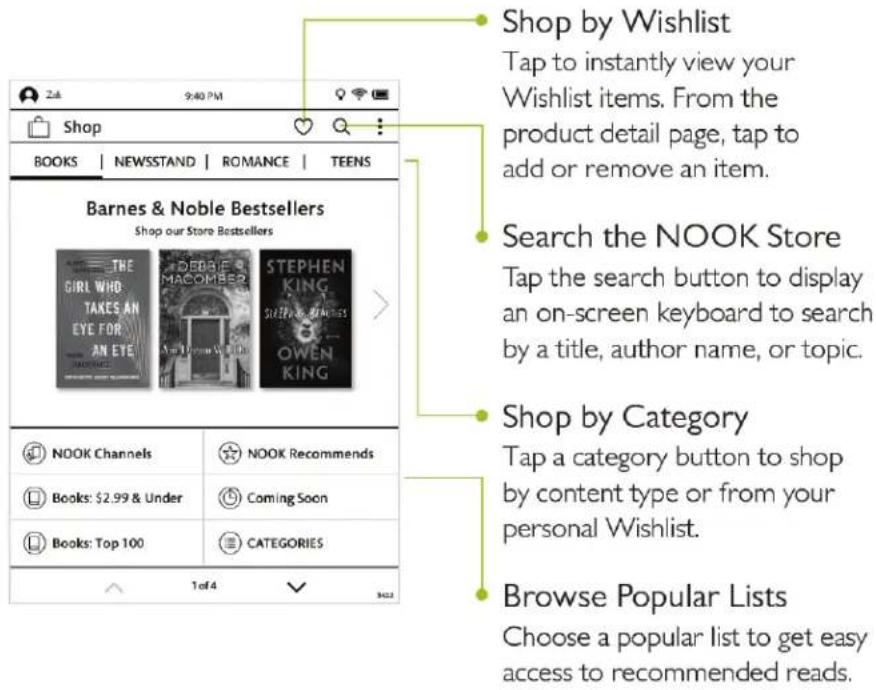
The main screen of the NOOK Shop offers several features to make shopping fast and easy.
- A Wishlist icon (a heart) appears near the upper right corner of the screen. The Wishlist displays any Shop items you have saved to your Wishlist on your NOOK. Note that the Wishlist on your NOOK is independent of the Wishlist for your account on BN.com or NOOK.com.
- A Search icon (a magnifying glass) appears in the upper right corner of the screen.
Tap this field to open a Search tool you can use to search for authors, titles, topics, and other information in the Shop.
• Three tabs appear in a row across the top of the Shop. Each tab leads to a different area of the NOOK Shop:
• BOOKS - opens a window for browsing books - NEWSSTAND - opens a window for browsing magazines and newspapers
• TEENS - opens a window for browsing books and periodicals for teens - A display area in the center of the screen presents offers and recommendations from our booksellers. You can swipe left and right to scroll through these offers and recommendations.
• Popular Lists, such as the NOOK Top 100, appear below the display area. Tap a list to see its contents.
To learn more about any book or periodical, tap its cover.
Barnes
&
Noble
NOOK
User
Guide
Purchasing Books, Newspapers, and Magazines
To purchase an item, tap the button displaying the item's price.
When you tap a price to buy an item, your NOOK replaces the price button with a button labeled Confirm.
Tap this button to confirm that you want to buy the item.
When you buy an item in the Shop, Barnes & Noble charges the credit card associated with your Barnes & Noble account.
When shopping, you can always return to the previous page by tapping the left arrow in the upper left corner of the screen. You can also return to the Shop storefront by pressing the NOOK Home button on the front of your device and then tapping Shop in the NOOK Navigation Menu.
Browsing Lists and Categories
The Shop displays a menu showing lists, such as B&N Top 100, and categories such as books, magazines, and newspapers. Tapping the CATEGORIES link on the Shop home screen displays a list of book categories you can explore.
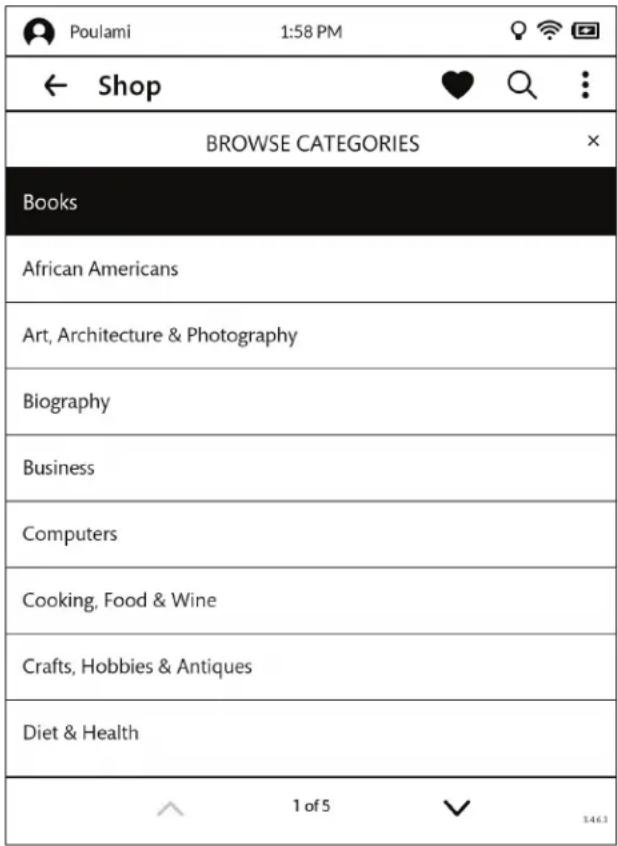
Browsing book categories in the Shop.
Searching for Titles, Authors, or Topics
To search for a book or periodical, tap the search field in the upper right corner of the screen. When a keyboard appears, type the title, author's name, or topic you're looking for, then tap the Search button.
When the Shop search engine displays its results, tap the item you're interested in to see more details about it. If the search engine finds more entries than will fit on the screen, scroll through the search engine results by dragging your finger up or down.
Buying a Book
Once you're in the Shop, you can buy any book you see that has a button displaying the book's price. (If you do not see a button with a price next to a particular book, it's because you have already purchased the book. A label reading Purchased or Read appears in place of the price button.)
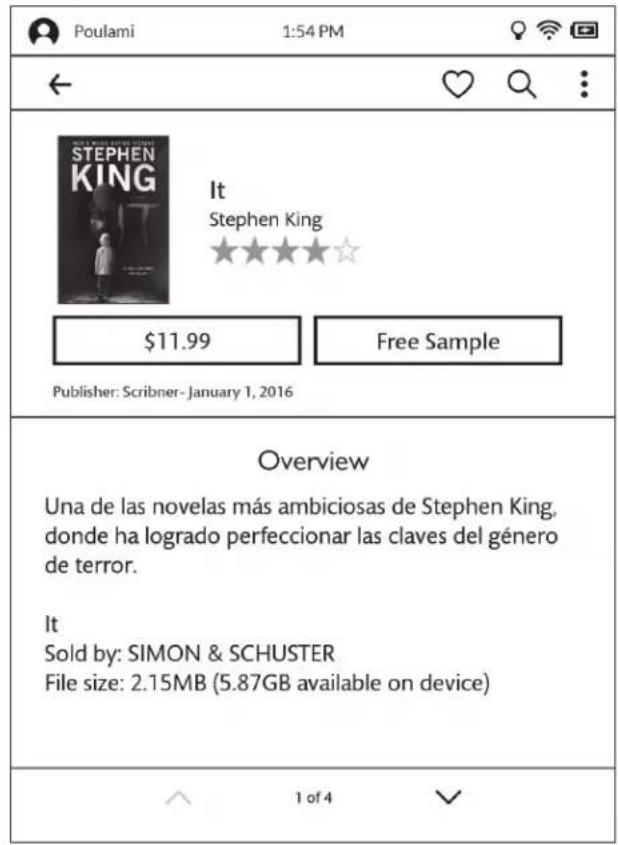
Tap the price button to purchase a book.
To buy a book, do this:
- To buy a book, tap the button displaying a price next to the book's cover or title.
The NOOK Shop replaces the price button with a button labeled Confirm.
2. Tap the Confirm button.
What happens next depends on how you've customized your Shop. If you're using the default setup, your NOOK begins downloading the book once you tap Confirm. If you've set up your Shop to require that your NOOK (or BN.com) account password be entered every time anyone makes a purchase on your NOOK, a dialog box opens. Tap in the Password field and enter the password for your account. Tap OK.
NOTE: You can configure your NOOK to prompt you for a password before you make a purchase.
To set up your NOOK to require a password, visit Settings and open the Shop settings page.
To cancel the transaction without buying, do not tap the Confirm button. Tap the back arrow in the upper left corner to close the details page without completing the purchase.
Buying a Single Issue of a Magazine or Newspaper
To buy a single issue of a newspaper or magazine, do this:
- Open the details page for the magazine or newspaper you want to buy.
- Tap the Buy Issue button. A dialog box opens, asking you to confirm your purchase.
- Tap the Confirm button to confirm your purchase. Once you have confirmed your purchase,
your NOOK downloads the issue. The Confirm button changes to a button labeled Read. - Tap the Read button to begin reading the issue.
Buying a Subscription to a Magazine or Newspaper
Your NOOK offers free 14-day trials of magazines and newspapers. You are eligible for one free trial for each newspaper and magazine.
To start your free 14-day trial, do this:
- Open the details page for the magazine or newspaper you want.
-
Tap the Try for Free button.
A dialog box opens. For many periodicals, you will be offered a choice of an annual subscription, which is paid all at once, or a monthly subscription, which is paid monthly. -
Select the subscription option you want.
-
Tap the Start My Free Trial button.
NOTE: All first-time subscribers receive a free 14-day trial. If you cancel your subscription before the end of the 14 days, you will not be charged. If you do not cancel the subscription, deliveries will continue and your default credit card will be charged automatically at the rate of the subscription schedule you selected: annual or monthly. Your subscription will also auto-matically renew on the schedule you selected. You are only eligible for one free trial for each newspaper and magazine.
What Happens When You Buy an Item in the Shop?
When you buy a book, magazine, or newspaper on your NOOK, it begins downloading right away.
Here's what happens:
• The item appears in your Library.
- A badge saying "New" appears on item's cover. This badge will disappear once you open the item.
- If an item is still in the process of downloading, a progress bar appears on its cover, indicating the amount of content that re-mains to be downloaded.
Using Your Wishlist
Your Wishlist is like a shopping cart on your NOOK. You can add books, magazines, and newspapers to your Wishlist so you can buy them later.
NOTE: The Wishlist on your NOOK is separate from the Wishlist on the BN.com Web site. Your Wishlist on BN.com can include paper books and other items, as well as NOOK books, magazines, and newspapers for your NOOK.
Adding to Your Wishlist
To add a book, magazine, or newspaper to your Wishlist, do this:
I. Tap the book or periodical's cover to display the details page for the item.
2. On the details page, tap the heart icon with plus sign (+) in it at the top of the screen.
Your NOOK adds the item to your Wishlist.
Viewing Your Wishlist
To view your Wishlist, do this:
- On the storefront of the Shop, tap the heart icon near the top of the screen. The Shop displays your current Wishlist. Your Wishlist shows all the books and periodicals you have added to your Wishlist. Your Wishlist shows the cover, title, and price of each item. It also shows the date each item was added to list.
Buying from Your Wishlist
To buy an item on your Wishlist, do this:
I. Tap the item's cover or title to display the details page for the item.
2. Tap the price button next to the item's name. Tap the Confirm button to complete your purchase.
Using B&N Readouts™
B&N Readouts brings the pleasure of bookstore browsing to your NOOK with a daily selection of quick reads curated by Barnes & Noble editors and customized to your interests.
Features include:
- Scrollable streams of engaging content in popular genres and topics, refreshed daily
• Excerpts from popular books and sneak peeks at upcoming releases
• Exclusive bonus content from authors and publishers - Seamless sharing to Facebook
- Customizable to your interests
To access B&N Readouts, tap the B&N Readouts icon in the NOOK Navigation Menu on the Home screen. Each day, B&N Readouts presents a stream of content for you to sample. Streams are organized by topic, such as Fiction as shown below.
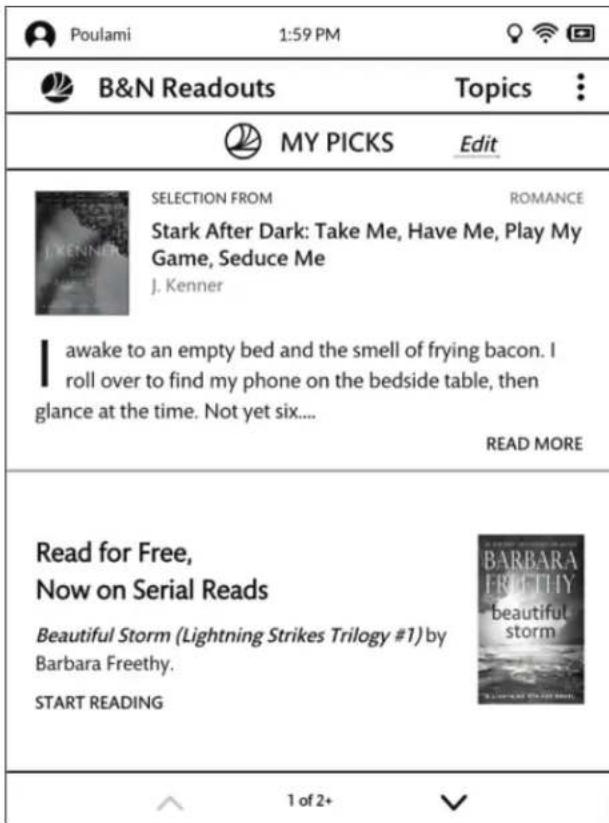
A daily stream of content in B&N Readouts.
To open a content selection for reading, tap the READ MORE link at the end of the content's excerpt in a stream. B&N Readouts dis-plays several pages of content from the book or article you selected.
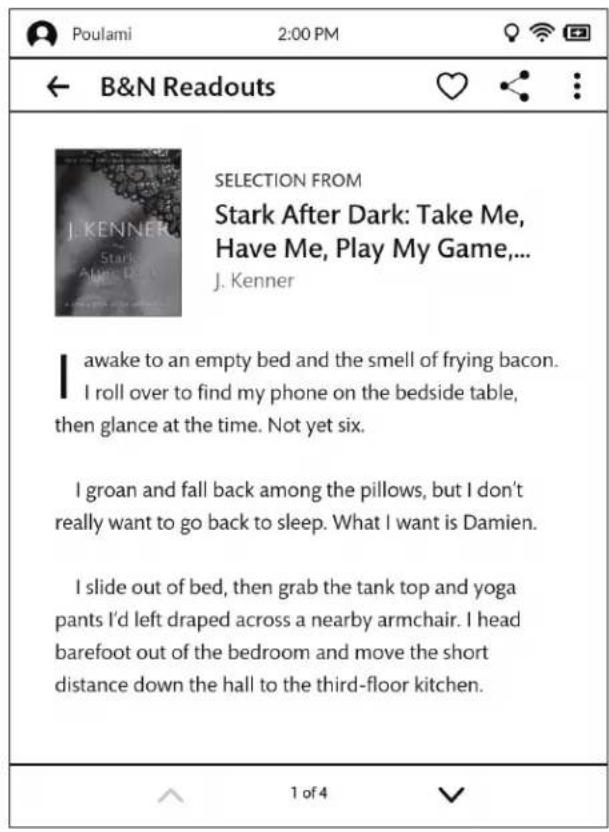
An example of content in B&N Readouts.
Use the up and down arrows at the bottom of the screen to scroll through the selection.
At any time, you can exit the selection and return to the previous B&N Readouts stream by tapping B&N Readouts in the upper left corner of the screen.
Buying Books and Sharing Content through B&N Readouts
At the end of each B&N Readouts selection, you will find controls for buying and sharing content. These controls are shown below.
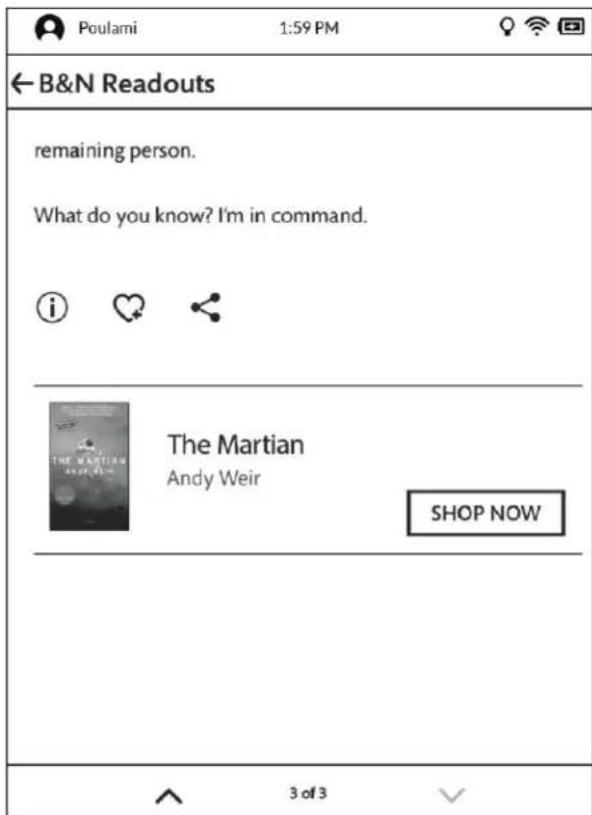
Features for Buying and Sharing Content
Tap the SHOP NOW button to display the Shop page for this item and purchase the content through the NOOK Shop. In addition, you can do any of the following:
• Display the Shop Details page with more information about this content by tapping the i icon
- Add this content to your Wishlist by tapping the heart icon with a plus sign
- Open a window for posting a comment about this content to your Facebook page by tapping the Share icon
Changing Topics in B&N Readouts
You can navigate from topic to another in B&N Readouts. Each topic will feature a stream of content, which is refreshed daily.
To select a topic, do this:
- On any B&N Readouts stream, tap Topics in the upper right.
B&N Readouts displays a list of topics, such as My Picks, Romance, and Mysteries & Thrillers. The My Picks topics are curated based on your purchases in the NOOK Shop and the interests selected on the My Picks configuration screen (explained in the next section)
- Tap the topic whose B&N Readouts stream you would like to see. The image below shows the Topics menu for B&N Readouts.
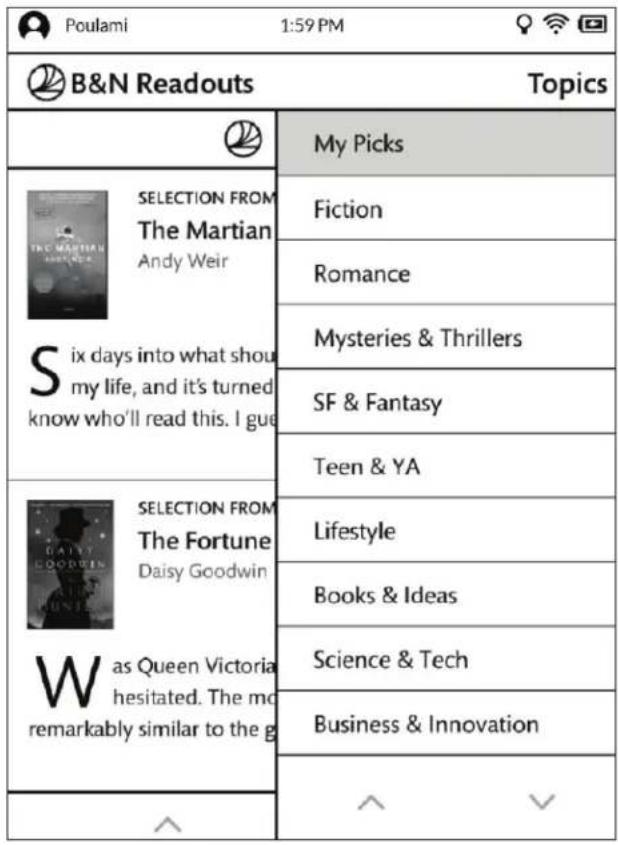
The Topics menu for B&N Readouts
Customizing the My Picks Stream
You can customize the My Picks stream to display content from only certain topics.
To customize the My Picks stream, do this:
- Open B&N Readouts from the Home screen.
- If B&N Readouts is not already displaying My Picks, open the Topics menu and select My Picks.
- Tap the Edit link to the right of the title MY PICKS.
B&N Readouts displays a screen for customizing the content in My Picks. See the example below. - Tap checkboxes to select or unselect the topics you want.
- When you have finished selecting topics, tap the Save button at the bottom of the screen.
B&N Readouts applies your selections to the My Picks stream.
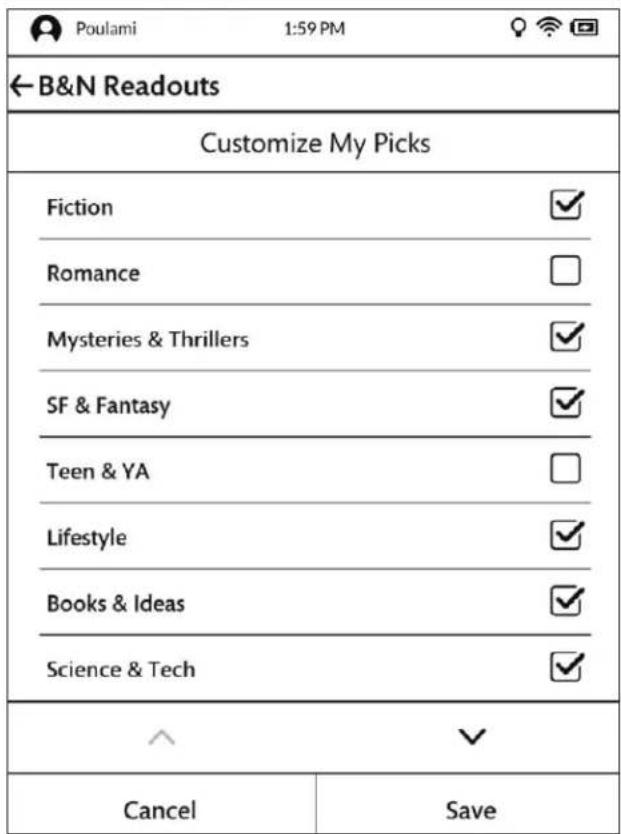
A configuration screen for customizing your picks for B&N Readouts.
Using Your NOOK in a Barnes & Noble Store
When you turn on your NOOK in a Barnes & Noble store, your NOOK automatically detects the Wi-Fi network running in the store. Your NOOK displays a special window, asking if you would like to connect to the In-Store network.
To connect to the store's network, tap the Connect button.
- To use your NOOK without connecting to the store's network, tap the Dismiss button.
Read In Store®: Reading Books in a Barnes & Noble Store
When you use your NOOK in a Barnes & Noble store, you have access to all the usual features of your NOOK. In addition, you have special privileges and abilities, including the ability to read most NOOK Books for one hour per day free. After you have read a book free for one hour, a dialog box appears, letting you know that one hour has passed.
The dialog box offers you two choices:
- Buy the book
• Add the book to your Wishlist
Searching Your NOOK
Your NOOK includes a search tool to help you quickly find what you're looking for. To provide you with the most relevant results pos-sible, your NOOK customizes its searching according to what you were doing when you started the search.
Searching from the NOOK Navigation Menu
When you search using the Search tool in the NOOK Navigation Menu, your NOOK searches both the Library and the Shop.
To access the search tool, tap the NOOK button and then tap the Search button in the NOOK Navigation Menu.
When the Search tool displays a list of results, tap any result to see more information about it.
Searching in Your Library
If you search while you're in your Library, the Search tool initially limits its search to your Library.
The Search tool searches:
- Author
• Title - Subject
Searching for Words with Accents and Other Diacritical Marks
To type a word that contains accents or diacritical marks (such as a French cedilla ), do this:
I. Press and hold on the letter you want to select a diacritical mark for.
A pop-up window appears, offering additional keyboard buttons for diacritical marks.
2. Tap the letter-mark combination you want.
The pop-up window disappears, and the letter you selected appears in the text field where you were typing.
Configuring Your NOOK
Your NOOK gives you full control over many areas of its operations, from Wi-Fi connections to font sizes.
Your NOOK's built-in Settings screen makes it easy to adjust the configuration of your NOOK. To access the Settings screen, tap Settings in the NOOK Navigation Menu at the bottom of the Home screen.
Your NOOK opens the Settings screen, which looks like this:
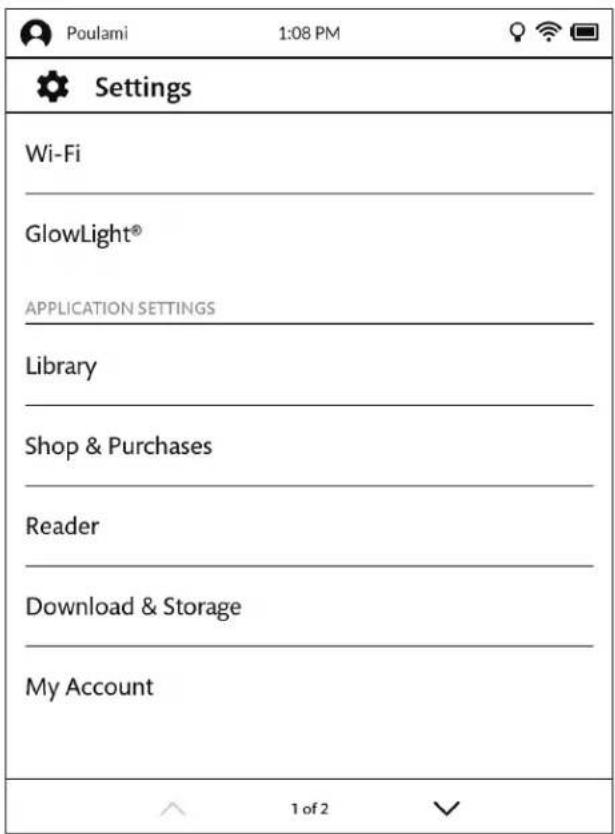
The Settings screen.
The Settings screen leads to pages for configuring different aspects of your NOOK. When you're on a page for a specific feature, you can always return to the main Settings screen by tapping the Back arrow on the upper left of a page.
Configuring Your GlowLight
You can use the GlowLight dialog box to turn GlowLight on and off and to adjust its brightness. (You can also make these adjustments using the Quick Settings window, which is described earlier in this guide.)
To configure GlowLight, do this:
- On the Settings screen, tap GlowLight.
A dialog box for adjusting the brightness of GlowLight opens.
- To adjust the brightness of GlowLight, slide your finger along the slider to make GlowLight brighter or dimmer.
To turn Glow Light off, move the slider knob all the way to the left.
- When you have finished adjusting the brightness of GlowLight, tap OK.
The picture below shows the GlowLight dialog box.
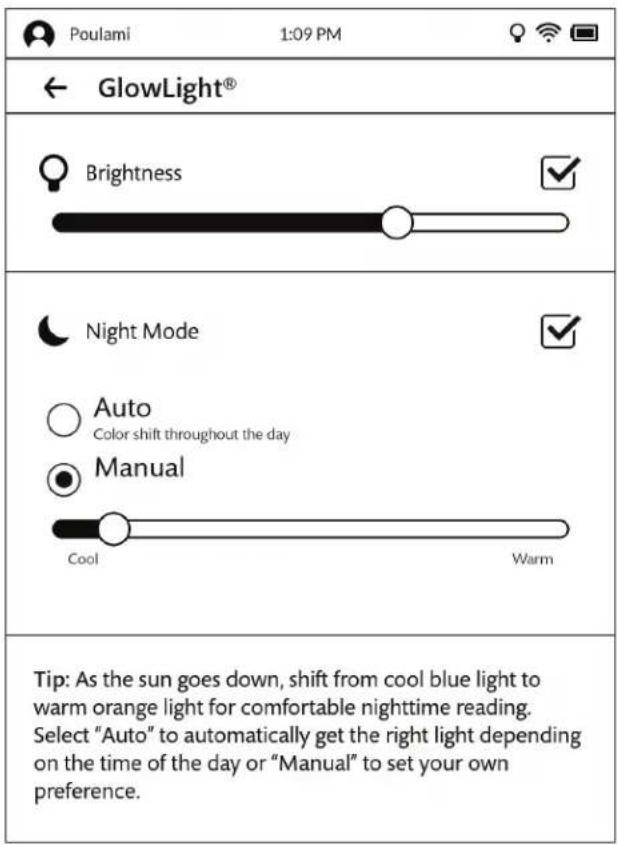
The GlowLight settings screen.
Viewing and Configuring Device Info
To display device information, do this:
1. On the Settings screen, tap Device Info.
Your NOOK displays the Device Info page, which shows:
• a Battery percentage, showing how much power is left on your battery
• a Storage percentage, showing how much free storage is left on your NOOK's internal storage for
books and periodicals you purchase through the NOOK Shop
• the Model number of your NOOK
• the Language setting of your device, such as U.S. English
The Device Info page also a menu choice, Erase & Deregister Device, which is described below.
The Device Info presents useful information about your NOOK.
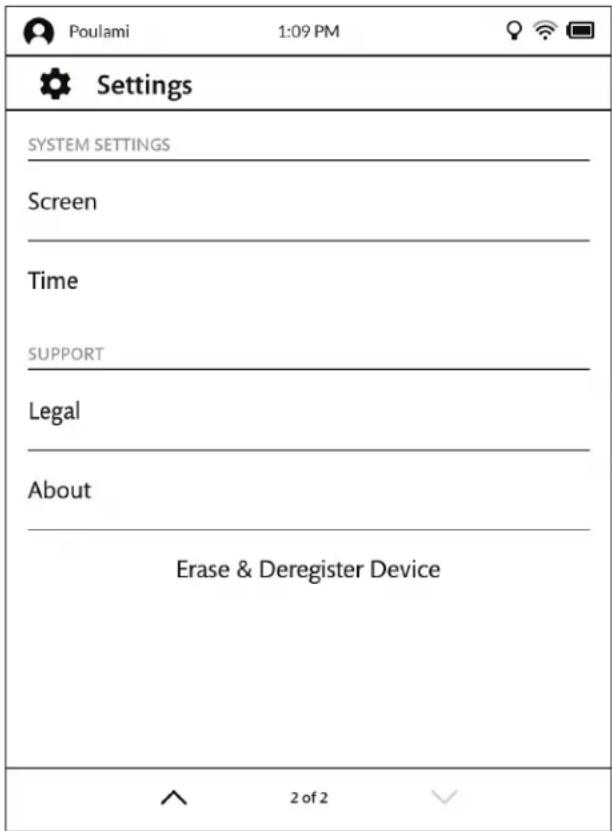
The Device Info screen.
Displaying System Information
Tap the About Your NOOK menu choice to display the following information:
• Owner, the name of the owner of this NOOK
Erase & Deregister Device
The Erase & Deregister feature erases your NOOK (or BN.com) account information from your NOOK and resets the NOOK to its default factory settings. Deregistration unlinks your NOOK from your NOOK (or BN.com) account.
NOTE: Erasing and deregistering your NOOK does not delete any of the books, magazines, and newspapers from your NOOK (or BN.com) account. Your reading material, while no longer available on your NOOK, is still available for downloading and for reading with NOOK applications, such as NOOK for iPhone and NOOK for Android. In addition, you can re-register your NOOK by following the same steps you used when you first set up your NOOK. Once you have registered, your complete Library is once again available on your NOOK.
NOTE: Erasing and deregistering does delete any files you have transferred to your NOOK from your personal computer. Be sure to back up these files before erasing and deregistering, if you want to have access to them after deregistering your NOOK.
NOTE: Be very cautious using this feature unless specifically instructed by Barnes & Noble's Customer Support.
NOTE: You must be connected to a Wi-Fi network to deregister your NOOK.
To erase and deregister your NOOK, do this:
- Tap the Erase & Deregister Device menu choice on the Device Info screen. Your NOOK displays a page for erasing and deregistering your device.
- Tap the button labeled Erase & Deregister Device. A dialog box appears, asking you to confirm that you want to reset your NOOK.
- Tap the button labeled Reset NOOK. Your NOOK displays a messaging saying it is deregistering itself. Once your NOOK has deregistered itself, it displays a message saying that it is clearing data. Once data has been cleared off the device, your NOOK reboots itself. To re-register with your existing account, or to register with a new account, follow the instructions for getting started.
Configuring Wireless Settings
The Wireless settings screen provides:
• a switch for turning on and off Wi-Fi networking
• a list of all the Wi-Fi networks your NOOK has detected
Turning Wi-Fi Networking On or Off
On the Wireless settings page, tap the Wi-Fi button to change its status from On to Off or from Off to On.
NOTE: If Wi-Fi networking is turned off, you will not be able to access the Shop, share information with friends, download new books, magazines, or newspapers, or perform any other action that requires a live
network connection.
Connecting to a Wi-Fi Network
When Wi-Fi networking is turned on, the Wireless settings page displays a list of the Wi-Fi networks it detects. The list includes the name of the network and a wireless connection icon (a stack of curved lines). The darker the lines in the wireless connection icon, the stronger the network signal is for that network.
A lock symbol indicates that a network is secured with a password. To connect to a secured network, you will need to enter the network's password. If you do not know the network's password, ask the network administrator.
To connect to a network, do this:
I. Tap the network's name.
If the network is secured, a dialog box appears, asking for a Wireless password. Tap in the password box, then use the keyboard that appears at the bottom of the screen to enter the network's password.
- Tap Connect.
For a list of network security protocols supported by your NOOK, see "Secured Wi-Fi Networks".
Configuring Screen Settings
On the Screen settings page, you can:
• Change the amount of time your NOOK should wait when no activity is taking place before turning off the screen.
- Select the screensaver your NOOK displays when it turns off the screen and goes into Sleep Mode.
To display the Screen settings page, tap the word Screen on the main Settings screen.
Your NOOK displays the screen shown here:
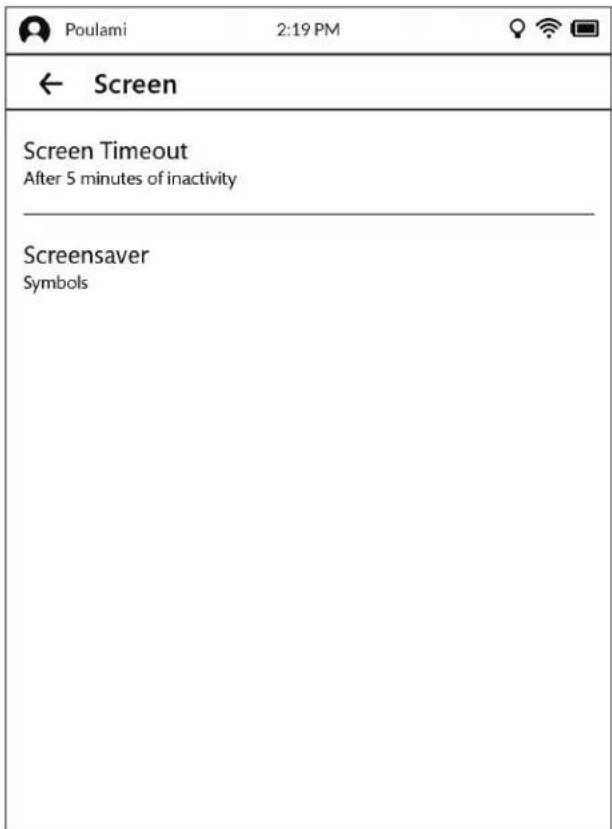
The Screen settings screen.
Adjusting the Screen Timeout
When your NOOK has been setting for some amount of time and no activity has taken place (e.g., you haven't tapped the screen or pressed any buttons), your NOOK turns off its screen to conserve power. When that happens, you can turn on your NOOK again simply by pressing the NOOK button.
By default, your NOOK waits 5 minutes before turning off the screen.
To adjust the screen timeout for your NOOK, do this:
I. On the Setting screen, tap Screen.
2. On the Screen Settings page, tap the menu choice Screen timeout.
A dialog box appears with four menu choices:
• 2 minutes
- 5 minutes
• 15 minutes
• 1 hour
- Tap the menu choice listing the amount of time you want your NOOK to wait.
The dialog box closes. Your change takes effect right away.
Selecting a Screensaver
The Screensaver is the image your NOOK displays after it has been idle for the amount of time you configured as the screen timeout (see above). Your NOOK includes three built-in groups of screensavers:
• Authors - pictures of famous authors
• Classics - passages from classic books
• Quotes - quotes from famous authors
To change the screensaver on your NOOK, do this:
1 On the Settings screen, tap Screen.
2. On the Screen Settings page, tap the Screensaver button.
A dialog box opens, listing the screensavers available.
- Tap the name of the screensaver or set of screensavers you want to use.
The dialog box closes, and your selection takes effect right away, though you won't see the screensaver until the next time your NOOK goes to sleep.
Configuring Time Settings
On the Time settings page, you can control whether your NOOK uses a 12-hour clock or a 24-hour clock.
You can also select a Time Zone for your NOOK.
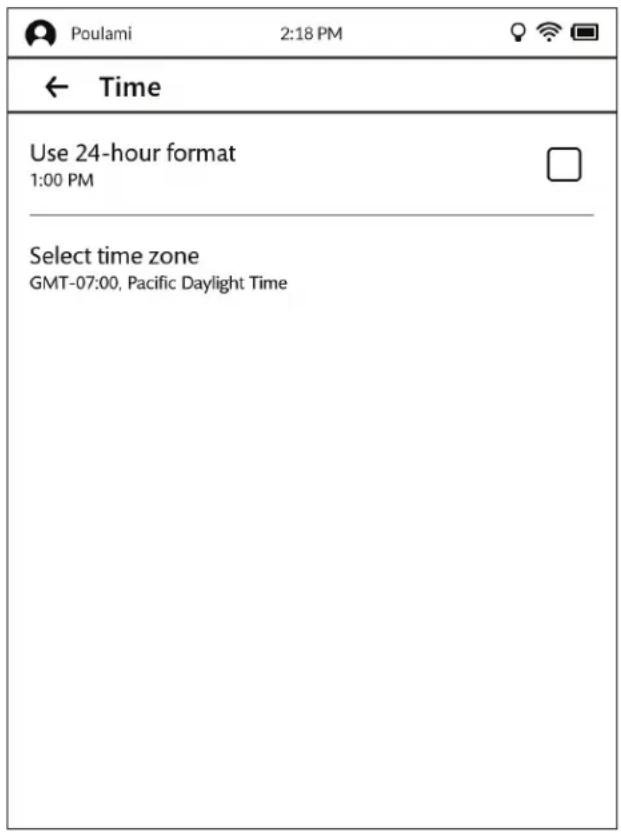
The Time Settings screen.
To return to the main Settings page, tap the back arrow in the upper left corner of the screen.
Switching to a 24-hour Format
To switch to a 24-hour format in which hours after 12 noon are added to the number 12, so that 1:15 p.m. becomes
13:15, tap the Use 24-hour format field so that the box is checked. Leave the box unchecked to use a default,
12-hour format is which hours run 1 to 12 and are identified as either a.m. or p.m.
©
Displaying Account Settings
To display the account settings for your NOOK, tap the My Account menu choice on the main Settings screen.
The My Account screen lists:
• Account email - the email address associated with your BN.com account
- Owner – the name of the BN.com account holder
- Country of residence - the owner's country of residence
- Facebook - the status of your NOOK's Facebook connection; if your NOOK is linked to a Facebook account, this field lists the user name of the Facebook account
Linking Your NOOK to Your Facebook Account
You can import your friends on Facebook as contacts for lending books, sharing quotations, and other social activities. You can also post a quote, a recommendation, and reading status on your wall.
NOTE: Only the primary profile can link to Facebook. Other profiles on your NOOK cannot post content to the primary profile's Facebook account.
NOTE: If you don't have a Facebook account and would like to set one up, launch a Web browser on your personal computer, and navigate to www.facebook.com.
To link your NOOK to your Facebook account, do this:
I. In a NOOK Book, highlight a word or phrase to open the Text Tools menu.
2. Tap the Share icon.
Your NOOK opens a Facebook login screen.
3. Tap in the Email or Phone field.
4. Enter the email address or phone number associated with your Facebook account.
5. Tap in the Password field and enter the password to your Facebook account.
6. Tap the Log In button.
Your NOOK displays a confirmation message, giving your NOOK permission to access your Facebook profile. Your NOOK will not post anything to Facebook that you do not post yourself through the Share feature.
7. Click OK to give your NOOK permission to access your Facebook profile.
8. Edit the Facebook post as you like, and click post to share it on Facebook. Or cancel the post if you were simply using this process to link your NOOK to Facebook for future posting.
Configuring Profiles
A NOOK Profile tailors content and shopping experiences on your NOOK for an individual user. Your NOOK supports up to six NOOK profiles, enabling different people to use your NOOK in different ways.
All the purchases made on your NOOK through any profile are processed through the NOOK or BN.com account to which your NOOK is registered.
Types of Profiles
Your NOOK supports three types of NOOK Profiles:
- Primary Profile: This is the profile created by default when you register your NOOK. This profile can view all the content on the device an. It can also create and edit profiles for other users and manage those profiles' access to content. All pur-chases made on the NOOK are processed using the payment method associated with this profile.
- Adult Profile: An adult profile can purchase any type of content. An adult profile can also control which content is visible to itself and which content is visible to any child profile. It can also set parental controls for child profiles. It cannot control which content is visible to the primary profile.
- Child Profile: By default, a child profile can only view and purchase content authorized by the primary profile or through pa-rental controls configured by an adult profile. A child profile does not have the ability to create or edit other profiles. It cannot override parental controls.
Setting Up an Adult Profile
Your NOOK will recognize any new profiles you create, along with any profiles you created in your Barnes & Noble or NOOK account on a NOOK HD, NOOK HD+, or other NOOK Device.
To set up an adult profile, do this:
- On the main Settings screen, tap the Profile menu choice or tap the upper left corner in the status bar Your NOOK displays the Profile settings screen.
- Tap the plus sign (+) in the upper right corner of the screen. Your NOOK displays a form for creating a new profile.
- Type a first name for the account.
- If you want to automatically add all the NOOK content in the primary profile's account to this profile, tap the checkbox labeled Add all NOOK shop content in this account to this new profile's library.
- Tap NEXT in the upper right corner of the screen.
Your NOOK creates the profile.
NOTE: If you chose not to automatically add all the NOOK content in the primary profile's account to this profile's library, you will need to add content to the library, item by item. See the instructions below on managing content.
Setting up a Child Profile
To set up a child profile, do this:
- On the main Settings screen, tap the Profile menu choice. Your NOOK displays the Profile settings screen.
Barnes
&
Noble
NOOK
User
Guide
- Tap the plus sign (+) in the upper right corner of the screen.
Your NOOK displays a form for creating a new profile. - Type a first name for the account.
- Tap the checkbox for a Child Profile.
Your NOOK opens a form for specifying the age of the child.
- Tap the Age field.
A dialog box opens, allowing you to specify the month and year in which your child was born.
This information helps your NOOK find age-appropriate content for your child.
- Scroll the month and year fields to select the month and year your child was born. Tap Done.
A message appears, pointing out the link to the Barnes & Noble Privacy Policy. Tap the Privacy Policy link if you would like to review it.
- Tap the check box indicating that you accept the Device Terms, Store Terms, and Privacy Policy.
NOTE: If you do not accept these terms and the Privacy Policy, you will not be able to finish creating a child profile.
- Tap NEXT in the upper right corner of the screen.
Your NOOK displays this message about the legal requirements of creating a child profile. Barnes & Noble will charge the primary profile's BN.com account one penny as part of this process and in return add a children's book to the library.
- To continue creating a child profile, tap Continue at the bottom of the screen.
Your NOOK displays a screen for specifying the parental controls for this profile.
The parental controls are shown here:
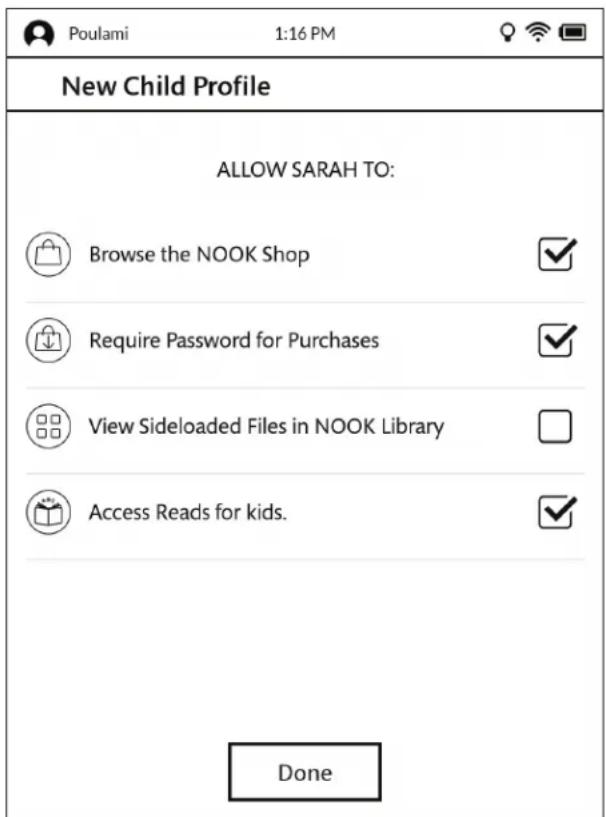
- Adjust the controls as you like.
- Tap Done.
Your NOOK creates the child profile with the permissions you specified. If you have not specified a four-digit passcode or PIN to protect the privacy of your NOOK, you will be asked to do so after you create your first child profile.
Assigning a passcode prevents a child from accessing content in any adult profile, including the primary profile.
Overview of Parental Controls
Simple-to-use parental controls help create a “kid-safe” experience on your NOOK. Using parental controls, you can limit the types of content that child profiles can view and purchase. You set up parental controls when you create a child profile. You can adjust them later if you like by editing the child profile.
Using parental controls, you can control whether or not a specific child profile can:
• Browse the NOOK Shop
• Purchase from NOOK Shop only when using your NOOK account password
• Shop only for kids' content in the NOOK Shop
• View Sideloaded Files in NOOK Library
• Access Reads for kids
Sideloaded files are any EPUB files or PDFs you transfer to your NOOK from your personal computer, using the micro-USB cable included with your NOOK.
Switching Between Profiles
To switch between profiles, do this:
I. On the main Settings page, tap Profile.
The Profile settings screen lists all the profiles available on your NOOK.
- Tap the round button by the name of the profile you want to switch to.
NOTE: If a child profile is switching to an adult profile and that adult profile has been configured with a passcode, you will be prompted to enter the main profile passcode.
- If you are prompted to enter the main profile passcode
Managing Content for a Profile
Sharing Content
The same content can be shared by multiple profiles. Each profile will need to download the content independently to access it.
For example, if the primary profile owns a particular NOOK Book and grants another profile access to it, the book will appear in the other profile's Library with a download icon, indicating that the book is available for download. To read the book, the other profile simply has to touch its cover to download it to the profile's storage area on your NOOK.
Annotations, such as notes and highlights, are specific to a profile. If one profile makes notes and highlights in a book, they will not be visible to other profiles reading the same book.
Similarly, if two profiles own the same book, their reading positions in the book are tracked independently. If one profile reads to page 17 and the other profile reads to page 25, each profile will be taken to his or her most recently read page when the book is reopened. The first profile will be returned to page 17; the second profile to page 25.
Assigning Content to Other Profiles
The primary profile can assign content to adult profiles and child profiles. An adult profile can assign content to child profiles.
To Manage Access to a Single Item
To manage access to a particular book, magazine, or other Library item, do this:
I. Press and hold on the book or periodical's cover to open a pop-up menu.
2. Touch Assign to profiles.
3. In the dialog box, touch the checkboxes to select which profiles should have access to the item.
4. Tap Save in the lower right corner of the screen.
Alternatively, if you are already viewing the Details page for the item, you can do this:
- Tap the More icon (☐) to open a pull-down menu.
- Tap the Assign to Profiles menu choice.
- Tap the checkbox of any additional profile to which you wish to assign this book or periodical.
- Tap Save at the bottom of the screen.
To Manage Access to Many Items or Content Categories
To manage access to many items or item categories, do this:
- On the main Settings page, tap Profile.
The Profile settings screen lists all the profiles available on your NOOK.
-
Tap EDIT in the upper right corner.
-
Tap the More icon ( next to the profile whose content you want to manage.
Your NOOK opens a view of the Library in which each item has a checkbox on its cover. If a checkbox is checked, the profile has permission to access that item.
-
Use checkboxes to grant or rescind permission to books and periodicals. To move from one Library category to another, tap the category menu in the upper left.
-
When you have finished adjusting permissions, tap Save in the upper right corner of the screen.
Managing Parental Controls for a Child Profile
To manage parental controls for a child profile, do this:
I. On the main Settings screen, tap Profile.
-
On the Profile screen, switch to the primary profile or an adult profile if you are not already in one.
-
Tap EDIT in the upper right corner of the screen.
Your NOOK displays lock and trash icons next to the names of child profiles.
- Tap the lock icon next to the name of the child profile whose controls you want to adjust.
Your NOOK displays the parental controls screen.
-
Adjust the controls as you like.
-
Tap Done.
Deleting a Profile
NOTE: You cannot delete the primary profile, which is associated with the BN.com account used for all purchases on your NOOK. Also, a child profile cannot delete an adult profile.
NOTE: Deleting a profile does not delete content on your NOOK. It deletes the association of content with a particular profile.
To delete a profile, do this:
I. On the main Settings page, tap Profile.
The Profile settings screen lists all the profiles available on your NOOK.
2. If the primary profile is not selected, select it.
The primary profile appears at the top of the list of profiles.
3. Tap the EDIT button in the upper right corner of the screen.
4. Tap the trash icon next to the name of the profile you want to delete.
A dialog box opens, warning that you are about to delete a profile and that this operation cannot be undone.
5. To continue with deleting the profile, tap Delete.
Configuring the Shop and Managing Gift Cards and Credit Cards
To configure your Shop and to manage the credit cards and gift cards you use to make purchases in the NOOK Shop, tap Shop & Purchases on the main Settings screen.
This Shop & Purchases settings screen opens, as shown below.
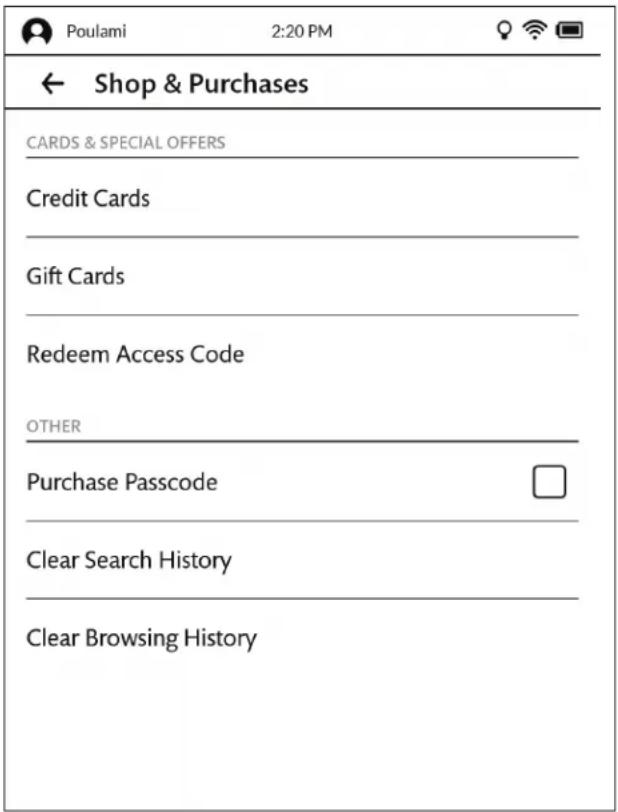
The Shop & Purchases settings screen.
The following section describes the settings available from this screen.
Managing the Credit Card for Your BN.com Account
To purchase books or periodicals, you must have a credit card associated with your BN.com account. You can assign a credit card to your BN.com account through the Manage Credit Card feature on the Shop settings screen.
To manage your credit card, do this:
- On the Settings screen, tap Shop & Purchases.
- On the Shop settings screen, tap Credit Cards.
If you have not set up a credit card for your account, yet, you will see a button reading New Card.
If you have already assigned a credit card to your account, you will see a button reading Change.
- Tap the button that appears on the screen: New Card or Change.
Your NOOK displays a credit card form.
- Enter the information for the card you want to use for purchasing books and periodicals on your NOOK and on BN.com.
Once you have entered all the information, including your credit card's billing address, tap the checkmark key in the lower right corner of the keyboard.
Your NOOK verifies your credit card information and configures your account to use the card you entered.
Entering a Gift Card
If you have received a Barnes & Noble or NOOK gift card or gift certificate, you can apply the balance of that card or certificate to up-coming purchases from the NOOK Shop. The balance of the gift card or certificate will then be applied to your next purchase before your credit card is charged.
NOTE: To enter a gift card or gift certificate, your NOOK must be connected to a Wi-Fi network.
To enter a gift card or gift certificate, do this:
- On the Settings screen, tap Shop & Purchases.
- Tap the menu choice labeled Gift Cards.
- Tap Add Gift Card.
Your NOOK opens a form for entering gift card data.
- Type the number of the gift card or certificate.
If your gift card begins with the number 349, you do not need to enter a PIN for the gift card. You can skip the next step.
- Tap the PIN entry field. Type the PIN of the card or certificate.
- Tap Submit.
Your NOOK verifies the gift card or gift certificate and applies the balance to your account.
Redeeming an Access Code
If you have purchased a NOOK Book or other content in a Barnes & Noble store or received a gift card with an access code for NOOK content, you can redeem the code on your NOOK. Once you have redeemed the access code, your NOOK downloads the purchased content and adds it to your Library.
NOTE: To redeem an access code, your NOOK must be connected to a Wi-Fi network.
To redeem an access code, do this:
- On the Settings screen, tap Shop & Purchases.
- Tap the menu choice labeled Redeem Access Code.
The Redeem Access Code screen appears.
- Tap the field labeled Enter Access Code. Use the online keyboard to type your 13-digit access code.
- Tap the Add Now button.
Your NOOK verifies the access code and downloads the content to your Library.
To redeem another access code, repeat steps 3, 4, and 5.
Requiring Your Account Password for Purchases
By default, your NOOK asks you to confirm all purchases by tapping a Confirm button.
If you like, you can require that your NOOK (or BN.com) account password be entered before your NOOK authorizes a purchase. If other people might have access to your NOOK, you might want to require a password for purchases to ensure that you know about and approve all purchases being made.
To configure your NOOK to require a password for purchases, do this:
I. On the Settings screen, tap Shop & Purchases.
The Shop settings screen appears.
- Tap the checkbox labeled Purchase Passcode.
NOTE: If the checkbox on the line is already checked, rather than empty, this configuration option has already been turned on, and you do not need to tap it.
A dialog box appears, prompting you to enter your password.
- Tap the password field in the dialog box to call up your NOOK's online keyboard. Type your password, and tap OK.
Removing the Password Requirement for Purchases
If you've configured your NOOK to require a password for purchases and you want to be able to purchase an item in the Shop without entering your password, do this:
-
On the Settings screen, tap Shop & Purchases.
-
Tap the line reading Require Password for Purchases.
A dialog box appears, prompting you to enter your password.
- Tap the password field in the dialog box to call up your NOOK's online keyboard. Type your password, and tap OK.
Clearing Your Search History
To help with recommendations, your NOOK keeps track of the items you search for in the Shop.
To clear this history of items you have searched for, do this:
-
On the Settings screen, tap Shop & Purchases.
-
Tap the Clear Search History menu choice.
Clearing the List of Recently Viewed Items
Your NOOK keeps track of the items you have viewed recently in the Shop.
To clear this list, do this:
-
On the Settings screen, tap Shop & Purchases.
-
Tap the Clear Browsing History menu choice.
Viewing Legal Notices
To view legal terms applicable to using your NOOK, such as the Terms of Service for your device and NOOK Shop, and the Privacy Policy, tap the Legal menu choice on the Device Info page.
Using Your NOOK at Wi-Fi Hotspots
In addition to connecting to your Wi-Fi network in your home or office, you can use your NOOK to connect to public Wi-Fi hot spots in stores, restaurants, hotels, cafes, airports, and many other locations.
This section summarizes how your NOOK works with various types of Wi-Fi hotspots.
Wi-Fi Networks in Barnes & Noble Stores
Your NOOK will automatically detect a Wi-Fi network in a Barnes & Noble store and ask if you want to connect to it. In-store Wi-Fi connections for NOOK devices are free and include exclusive features such as Read In Store and More In Store. For more information, see "Using Your NOOK in a Barnes & Noble Store".
AT&T Wi-Fi Hotspots
Your NOOK will also automatically detect any AT&T Wi-Fi hotspot and ask if you want to connect to it. Access to AT&T Wi-Fi hot-spots in the U.S. is free for NOOK GlowLight 3 devices.
Unsecured Wi-Fi Networks
Your NOOK will detect unsecured Wi-Fi networks close by. An unsecured Wi-Fi network does not require users to enter a password in order to establish a connection. You can simply select the network and connect to it.
Secured Wi-Fi Networks
Your NOOK will also detect secured Wi-Fi networks. A secured Wi-Fi network requires users to enter a password before they can connect to the network.
There are several different security protocols available for securing networks. Your NOOK recognizes and supports the most popular Wi-Fi security protocols, including:
- WEP
• WPA/WPA2 PSK
802.1×EAP
To connect to a secured Wi-Fi network, select it from a list of networks and enter its password when prompted.
NOTE: If you do not know the password for the network, ask the network administrator for help.
NOTE: If your NOOK will display dialog boxes that let you select a network and enter a password.
Proxied Wi-Fi Networks
Proxied Wi-Fi networks typically present a Web page with terms and conditions, a login screen, and possibly a payment screen, before allowing you to connect to the network. You'll encounter this type of network in many hotels, restaurants, and airports. Your NOOK detects these networks.
When selecting a proxied network as a connection, your NOOK usually opens a dialog box in which you can read and accept terms and conditions, perhaps enter credit card information and login credentials, and connect. However, this behavior may vary from net-work to network.
Updating the Software on Your NOOK
From time to time Barnes & Noble will release software updates for your NOOK. Your NOOK will automatically install these updates.
NOTE: Updating software does not delete any of your books, magazines, or newspapers, nor does it delete any of the files you have transferred onto your NOOK from your personal computer. The software update simply installs new NOOK software to give you the latest features available from Barnes & Noble. Your NOOK remains registered to your Barnes & Noble account, and all your reading material remains accessible.
Installing a Software Update over a Wireless Network
When a new software update is available, your NOOK will download it and install it sometime over the course of a couple of weeks after Barnes & Noble releases the update, and while your registered NOOK device is idle and connected to a Wi-Fi hotspot. There is nothing else that you need to do to receive these automatic software updates.
Software installations take only a few minutes. Updating your software doesn't affect the contents of your Library or the titles listed in your Keep Reading list. Once the software installation is complete, you can continue reading or shopping or doing whatever else you were doing before the new software was installed.
You check for the availability of a new release by tapping the Check for System Update button on the Software settings screen, which is described below.
Discovering the Version Number of Your NOOK Software
To discover which software release your NOOK is running, do this:
I. Tap Settings in the NOOK Navigation menu to open the main Settings screen.
2. Scroll to the bottom of the screen and tap Software.
Your NOOK opens the Software settings screen, which lists the version number of the software release your NOOK is running.
Checking for the Availability of a New Software Update
NOTE: You must be connected to a Wi-Fi network to check for a new software update and to install that update on your NOOK.
I. Open the Software settings screen, as described above.
2. Tap the Check for System Update button.
Your NOOK checks for the availability of a new software update. If one is available, it begins downloading the update. Your NOOK automatically installs the update after your device next goes to sleep.
Tips and Troubleshooting
Solving Problems
My NOOK is sluggish or unresponsive.
Like any computer or electronic equipment, your NOOK periodically needs to be completely powered off (not just put in Sleep Mode) to allow it to reset.
To power off your NOOK, press and hold the power button for 10 seconds. At that point, the device should be turned-off. Wait a few seconds, and then press and hold the power button for about 2 seconds to turn your NOOK back on.
I want to change my BN.com account password. What should I do?
Before you change your password on BN.com, first deregister your NOOK, so your NOOK isn't configured to use a password that you have made obsolete.
NOTE: You must be connected to a Wi-Fi network to de-register your NOOK.
NOTE: De-registering your device will delete any content you have side-loaded on your NOOK. You might want to make sure you have copies of this content on your personal computer. You do not need to back up the books, magazines, and newspapers you have purchased through the NOOK Shop. These items will be restored to your NOOK automatically when you re-register it, using your new password.
Deregistering Your NOOK
To deregister your NOOK, do this:
I. Tap Settings in the NOOK Navigation menu to open the main Settings screen.
2. Tap Device Info.
3. Tap the Erase & Deregister Device menu choice.
4. On the Erase & Deregister Device screen, tap the Erase & Deregister Device button.
A dialog box appears, asking you to confirm that you want to reset your NOOK.
5. Tap the Reset NOOK button.
Your NOOK deregisters itself, restoring factory default settings.
Changing Your Password
Once you have deregistered your NOOK, log in to BN.com and change your password.
Reregistering Your NOOK
Once you have changed your password on BN.com, register your NOOK, following the registration instructions you followed when you first set up your NOOK. See “Registering Your NOOK” at the beginning of this guide.
When you need to enter your BN.com account login information, be sure to enter your new password.
The screen is acting as though I'm tapping it, even though I am not.
If your screen is dirty, it might detect touches when none are occurring. This problem can occur on any touchscreen device. Turn off your NOOK, and wipe the screen clean with a soft, dry cloth. Pay particular attention to clear out or gently blow out any dust or dirt from the small lip around the edges of the display. Then turn your NOOK back on.
I'm trying to lend a book through Facebook, but the Post button doesn't seem to be working.
Make sure you include a comment with your posting about lending the book. Posting a LendMe offer through Facebook requires at least a brief comment.
I transferred a ZIP archive from my personal computer. Why can't I access the files?
Unzip files on your personal computer before transferring them to your NOOK. Your NOOK can read EPUB files and PDFs, but not .zip files.
Appendix A: Page Numbering and File Formats
When you read a book or periodical on your NOOK, you're reading the same words that appear in the paper edition of the book or periodical. In most books, the page number that appears at the bottom of the screen is the page number you would see if you were reading the printed version of the same book.
Because printed pages can be larger than the screen of your NOOK, and because many printed books use type that is smaller than would be pleasant to read on an eReader, your NOOK may enlarge the type on a page and spread a physical page of text across two or more digital pages.
Because digital pages might be smaller than the physical pages of a book, you might turn the page a few times on your NOOK and still see the same physical page number in the upper right hand corner. For example, you might find three screens of text in your book all labeled page 47.
The relation between digital pages and physical pages can vary, because your NOOK gives you a great deal of freedom in choosing the size of fonts, the amount of spacing between lines, and other factors that affect how text flows onto a page. In most books, you'll always know which physical page you're on from the number in the upper right. So if you're discussing a book in a book club, everyone can refer to page 295 and be talking about the same page, even if you've configured your NOOK to use small type and single-spacing and everyone else in the group is using large type and double-spacing.
Page Numbering and File Formats
There are several different formats for eBooks, and these different formats treat page numbers differently. Barnes & Noble eBooks are published in the EPUB format, but you can load other types of documents, such as PDFs, onto your NOOK.
Here's a quick summary of what you need to know about file formats and page numbering:
• eBooks and Periodicals in EPUB format
EPUB is the standard format for books in the Barnes & Noble online store. The EPUB format numbers all pages in a book sequentially, based on some prior account of page numbering, such as the page numbering used in the print edition. If the print edition of the book had 525 pages, so will the eBook. But the pages are re-flowed in the eBook edition to make them easier to view on a screen. As a result, a page from the print edition might be larger or smaller than a page in the eBook.
In many cases, a page from the print edition will span two or more pages on an eReader, as described above.
• Reflowable eBooks in PDF Format
In reflowable eBooks formatted in PDF, page numbering is for the entire book and reflects some prior account of page numbering, before formatting for the eBook text size. The behavior is the same as for eBooks in EPUB format, which is described above.
• Non-reflowable eBooks in PDF format
Page numbering is for the entire book, and reflects the number of scanned pages. Page numbers also might be on the scanned pages, but there is no necessary relationship. Page 6 in the eBook might have the scanned page number iv, and page 30 in the eBook might have the scanned page number 5.
Appendix B: International Use and Languages
This chapter summarizes information about using your NOOK outside of the United States and explains your NOOK's support of languages.
Using Your NOOK Abroad
Your NOOK is designed for use in the United States and United States territories. You can use it to read anything already on your NOOK when travelling anywhere in the world.
If you live or travel outside of the United States, be aware of the following points regarding using your NOOK:
• Preordering eBooks: You can only pre-order NOOK Books if you have a billing address in the United States.
You cannot preorder NOOK Books if you have an international or U.S. territory billing address. You can only pre-order digital content when physically within the United States (including Alaska and Hawaii).
- Purchasing digital content from the NOOK Shop on your NOOK: You can only purchase digital content if you have a billing address in the United States. You cannot purchase digital content if you have an international billing address. You can only purchase digital content when physically within the United States (including Alaska and Hawaii). When you travel outside of these areas, you can download digital content to your NOOK that you have already purchased (if you have a Wi-Fi connection), but you cannot buy digital content.
- Purchasing items on the BN.com website: You can only purchase digital content if you have a billing address in the United States. You cannot purchase digital content if you have an international billing address. You can only purchase digital content when physically within the United States (including Alaska and Hawaii)
- Registering and unregistering your NOOK: You can register and unregister your NOOK from anywhere there is a Wi-Fi hotspot that you can access with your NOOK.
- Downloading previously purchased items: You can download previously purchased items to your NOOK from anywhere there is a Wi-Fi hotspot that you can access with your NOOK.
- Lending and borrowing Books: You can lend and borrow LendMe-eligible NOOK Books from anywhere you can access MyNOOK.com.
- Automatic delivery of periodical subscriptions: Periodicals are automatically downloaded to your NOOK from anywhere there is a Wi-Fi hotspot that you can access with your NOOK.
- Archiving and unarchiving content: You can archive and un-archive items from anywhere there is a Wi-Fi hotspot that you can access with your NOOK.
Languages
Your NOOK has fonts that support languages based on a Latin character set for reading eBooks and other digital content, when fonts are not embedded as part of the eBook or digital content file. Examples of supported languages include:
Afrikaans, Basque, Catalan, Danish, Dutch, English, Finnish, French, German, Hungarian, Icelandic, Indonesian, Italian, Norwegian, Portuguese, Romanian, Spanish, Swedish, and Turkish
Your NOOK can display eBooks in other languages if the fonts are embedded in the eBook files. Language support in other parts of the NOOK, for example in the Library, is variable.
Appendix C: One Year Limited Warrenty
THE FOLLOWING WARRANTY TERMS WERE IN EFFECT AS OF THE DATE YOUR DEVICE WAS MANUFACTURED, AND ARE PROVIDED FOR YOUR REFERENCE ONLY. THE ACTUAL TERMS OF YOUR WARRANTY ARE THE TERMS THAT WERE IN EFFECT AS OF THE DATE OF YOUR PURCHASE, WHICH MAY BE DIFFERENT THAN THE TERMS SET FORTH HEREIN. TO FIND THE EXACT TERMS OF YOUR WARRANTY, PLEASE GO TO NOOK.COM/WARRANTY AND REVIEW THE TERMS APPLICABLE AS OF THE DATE OF YOUR PURCHASE.
ONE YEAR LIMITED WARRANTY
This Limited Warranty provides for specific legal rights with respect to your NOOK® device. Please review it carefully. You may also have other rights, which vary from state to state.
WHAT WARRANTIES APPLY TO MY NOOK?
What is Covered?
This Limited Warranty covers your NOOK. For purposes of this Limited Warranty, "NOOK" means only the hardware comprising: (i) your NOOK device; and (ii) the peripherals included in the packaging with your NOOK device.
Express Warranty
Subject to the terms and conditions of this Limited Warranty, NOOK Publishing ("B&N") warrants to the original retail purchaser only ("you") that your NOOK will be free from defects in materials and workmanship under normal consumer use for a period of one (1) year from the date of original retail purchase (the "Warranty Period"). This express warranty is not transferable to subsequent owners of the product. If your NOOK was originally purchased by someone else as a gift for you, as shown by a gift receipt, you will be considered the "original retail purchaser" of that NOOK.
Implied Warranty
You may also have implied warranties under the laws of some jurisdictions. To the extent permitted by applicable law, such implied warranties are limited to the duration of the Warranty Period. Some jurisdictions do not allow limitations on the duration of an implied warranty, so this limitation may not apply to you. You may not assign or otherwise transfer such implied warranties. However, some jurisdictions extend the protection of implied warranties to subsequent consumers, so this limitation may not apply to you.
HOW DO I MAKE A WARRANTY CLAIM OR OTHERWISE ARRANGE FOR THE RETURN OF MY NOOK?
To make a warranty claim or arrange for the return of your NOOK pursuant to the NOOK TERMS OF SERVICE, you must contact B&N at one of the following numbers during the Warranty Period:
• Within the United States - I-800-THE-BOOK (843-2665)
• Outside the United States - +1-201-438-1834
HOW DO I RETURN MY NOOK TO B&N?
When you contact B&N at one of the numbers above, B&N will provide instructions to you as to how and where to return your NOOK. Your NOOK must be shipped, prepaid and insured, in appropriate protective packaging, together with proof of purchase and the Return Authorization Number provided by B&N, to the address specified by B&N. You must return your NOOK within the timeframe provided by B&N. You may also be required to provide a credit card to obtain an advance replacement before B&N receives your NOOK at its returns center.
All returned NOOKs become the property of B&N.
Before you send your NOOK to B&N, it is your responsibility to back up any data, software or files stored on your NOOK because B&N will only return your NOOK to you if it is not covered by this Limited Warranty and B&N has not provided an advance replacement. B&N is not responsible for any loss of your data, software or files or for the cost of backing up your data, software or files.
If you do not comply with the terms above or with B&N's instructions, there may be delays in service or you may incur additional expenses. In particular, if you do not return your NOOK within the timeframe specified by B&N, B&N reserves the right to charge you the purchase price for a replacement NOOK. You will be solely responsible for any cost, expense, loss or the like relating to your failure to comply with such terms or B&N's instructions.
B&N DOES NOT PROVIDE, AND HEREBY DISCLAIMS, ANY EXPRESS OR IMPLIED WARRANTIES REGARDING ITS WARRANTY SERVICES, INCLUDING, WITHOUT LIMITATION, ALL DUTIES (IF ANY) OF WORKMANLIKE EFFORT AND OF REASONABLE CARE.
IF I MAKE A WARRANTY CLAIM, WHAT WILL B&N DO WHEN IT RECEIVES MY NOOK?
When B&N receives your NOOK, it will examine it and determine whether it is covered by this Limited Warranty. If, upon examination, B&N determines that your NOOK is covered by this Limited Warranty, B&N will, within a reasonable period of time, at B&N's option and in its sole discretion, and at no additional charge, do one of the following:
• replace your NOOK with a new or refurbished model; or
• refund the purchase price you paid for your NOOK.
If B&N replaces your NOOK, B&N will bear the cost of sending a replacement NOOK to you, freight prepaid.
THE FOREGOING IS YOUR SOLE AND EXCLUSIVE REMEDY FOR BREACH OF WARRANTY OR FOR ANY OTHER CLAIMS OTHERWISE RELATING TO THIS LIMITED WARRANTY.
WHAT WILL BE THE WARRANTY PERIOD IF MY NOOK IS REPLACED?
If your NOOK is replaced during the Warranty Period, it will be covered by this Limited Warranty for the remainder of the original Warranty Period or ninety (90) days from the date of shipment of the replaced NOOK, whichever is longer.
WHAT IF MY NOOK IS NOT COVERED BY THIS LIMITED WARRANTY?
If your NOOK is not covered by this Limited Warranty, B&N will return your NOOK to you, at your expense, or will charge your credit card for any advance replacement NOOK provided to you.
WHAT IS NOT COVERED BY THE WARRANTY?
This Limited Warranty does not cover damage or malfunctions caused by accident, disaster, misuse (including any use in a manner contrary to the instructions contained in any user guide or on the packaging of the device), abuse, negligence or other external causes; third-party products; Internet or telecommunications failures; commercial use; unauthorized opening, use, service, tampering, alteration, repair or modification; or inadequate packing or shipping procedures. This Limited Warranty also does not cover cosmetic damage or normal wear and tear. This Limited Warranty does not apply to NOOKs sold as used, refurbished or reconditioned, except to the extent that such NOOK is a certified pre-owned NOOK that was purchased directly from B&N or from a B&N authorized reseller of certified pre-owned NOOKs. This Limited Warranty will be void if the Serial Number on your NOOK has been removed, tampered with or defaced or if your NOOK has been opened or serviced without authorization, tampered with, altered or modified. Please note that opening the back cover of your NOOK to change the battery, external SD card or back cover will void this Limited Warranty, ex-cept to the extent that such opening is done through a customer-accessible opening and in accordance with the instructions provided with the NOOK.
This Limited Warranty applies to your NOOK only (i.e., the hardware), and not to the software within your NOOK. Please refer to the NOOK TERMS OF SERVICE for your rights and remedies with respect to such software.
Similarly, this Limited Warranty does not cover downloaded data or materials, or accessories and peripherals, except as expressly provided above.
WHAT OTHER LEGAL TERMS APPLY TO THIS LIMITED WARRANTY?
Disclaimer
TO THE EXTENT PERMITTED BY APPLICABLE LAW, THIS LIMITED WARRANTY AND THE REMEDIES SET FORTH ABOVE ARE EXCLUSIVE AND IN LIEU OF ALL OTHER WARRANTIES, REMEDIES AND CONDITIONS, WHETHER ORAL, WRITTEN, STATUTORY, EXPRESS OR IMPLIED. TO THE EXTENT PERMITTED BY APPLICABLE LAW, B&N SPECIFICALLY DISCLAIMS ANY AND ALL WARRANTIES AND CONDITIONS NOT EXPRESSLY PROVIDED FOR IN THIS LIMITED WARRANTY, INCLUDING, WITHOUT LIMITATION, WARRANTIES OF MERCHANTABILITY, NON-INFRINGEMENT, SECURITY, FITNESS FOR A PARTICULAR PURPOSE AND AGAINST HIDDEN OR LATENT DEFECTS.
Modification
No employee or representative of B&N or its affiliates or any third party is authorized to make any modification, extension or addition to this Limited Warranty. If any term of this Limited Warranty is held to be illegal or unenforceable, the remaining terms of this Limited Warranty will remain in full force and effect.
Exclusion of Indirect Damages
TO THE MAXIMUM EXTENT PERMITTED BY LAW, NEITHER B&N NOR ITS AFFILIATES NOR ITS LICENSORS WILL BE LIABLE TO YOU OR ANY THIRD PARTY FOR ANY CONSEQUENTIAL, SPECIAL, INCIDENTAL, PUNITIVE OR OTHER INDIRECT DAMAGES ARISING FROM, RELATING TO OR CONNECTED WITH YOUR PURCHASE OR USE OF YOUR NOOK, INCLUDING, WITHOUT LIMITATION, LOST PROFITS, LOST REVENUE OR LOST DATA, REGARDLESS OF THE CAUSE OF ACTION ON WHICH THE CLAIM IS BASED, INCLUDING, WITHOUT LIMITATION, NEGLIGENCE, TORT, CONTRACT, STRICT LIABILITY, PRODUCT DEFECT OR MISREPRESENTATION, EVEN IF ADVISED OF THE POSSIBILITY OF SUCH DAMAGES OCCURRING, AND EVEN IF ANY REMEDY FAILS OF ITS ESSENTIAL PURPOSE.
Some states do not allow the exclusion or limitation of incidental or consequential damages, so the above exclusion may not apply to you.
Applicable Law
This Limited Warranty is valid only in the United States of America. The laws of the State of New York, U.S.A. will apply to this Limited Warranty, though the laws of your state of residence may apply to any tort claims and any claims under any consumer protection stat-utes, as provided under applicable law.
Appendix D: Trademarks and Copyrights
Adobe Reader Mobile Software
Your NOOK contains Adobe ^® Reader ^® Mobile software under license from Adobe Systems Incorporated, Copyright © 1995-2011 Adobe Systems Incorporated. All rights reserved. Adobe ^® , Reader ^® , and Reader ^® Mobile are either registered trademarks or trade-marks of Adobe Systems Incorporated in the United States and/or other countries.
AT&T
AT&T, the AT&T logo and all other AT&T marks contained herein are trademarks of AT&T Intellectual Property and/or AT&T affiliated companies.
Dictionary
Your NOOK includes the Merriam-Webster's Collegiate® Dictionary, Eleventh Edition, with Geographical and Biographical Information. Merriam-Webster and Collegiate are trademarks of Merriam-Webster, Inc. and are used herein pursuant to license. Copyright © 2009-2011 Merriam-Webster, Inc. All rights reserved.
Fonts
Monotype®
Monotype is a trademark of Monotype Imaging Inc. registered in the U.S. Patent and Trademark Office and may be registered in certain other jurisdictions.
Ascender®
Ascender is a trademark of Ascender Corporation which is registered in the U.S. Patent and Trademark Office and certain other jurisdictions.
Baskerville™
Baskerville is a trademark of The Monotype Corporation and may be registered in certain jurisdictions.
Georgia™
Georgia is a trademark of Microsoft Corporation which is registered in the U.S. Patent and Trademark Office and certain other jurisdictions.
Contains iType™ from Monotype Imaging, Inc. iType is a trademark of Monotype Imaging, Inc.
Joanna®
Joanna is a trademark of The Monotype Corporation registered in the U.S. Patent and Trademark Office and may be registered in certain jurisdictions.
LimeRock™
Lime Rock is a trademark of Monotype Imaging Inc. and may be registered in certain jurisdictions.
Malabar ^TM
Malabar is a trademark of Monotype GmbH and may be registered in certain jurisdictions.
Mundo Sans™
Mundo Sans is a trademark of Monotype Imaging Inc. and may be registered in certain jurisdictions.
Android, Google, Google Play, and other Google marks are trademarks of Google Inc.
Barnes
&
Noble
NOOK
User
Guide
Wi-Fi
Wi-Fi and Wi-Fi Alliance are registered trademarks of the Wi-Fi Alliance.
Additional Information
Additional copyright, trademark, and other notices may be found in the NOOK Terms of Service and Privacy Policy: http://www.NOOK.com/support
Appendix E: FCC Notices
FCC IDs
NOOK WI-FI: XHHBNRV520-A
MODEL: BNRV520
This device complies with Part 15 of the FCC Rules. Operation is subject to the following two conditions: (1) this device may not cause harmful interference, and (2) this device must accept any interference received, including interference that may cause undesired operation.
FEDERAL COMMUNICATIONS COMMISSION (FCC) STATEMENT INFORMATION TO THE USER
CAUTION: Changes or modifications to the equipment not expressly approved by the party responsible for compliance could void the user's authority to operate the equipment.
This equipment has been tested and found to comply with the limits for a Class B digital device, pursuant to Part 15 of the FCC Rules. These limits are designed to provide reasonable protection against harmful interference in a residential installation. This equipment generates, uses and can radiate radio frequency energy and, if not installed and used in accordance with the instructions, may cause harmful interference to radio communications. However, there is no guarantee that interference will not occur in a particular installation. If this equipment does cause harmful interference to radio or television reception, which can be determined by turning the equipment off and on, the user is encouraged to try to correct the interference by one or more of the following measures:
I. Reorient or relocate the receiving antenna.
2. Increase the separation between the equipment and receiver.
3. If applicable, connect the equipment into an outlet on a circuit different from that to which the receiver is connected.
4. Consult the dealer or an experienced radio / TV technician for help.
FCC/IC Radiation Exposure Statement
This equipment complies with FCC/IC radiation exposure limits set forth for an uncontrolled environment. This device is designed for hand-held operation only. The antenna(s) used for this transmitter must not be collocated or operating in conjunction with any other antenna or transmitter within a host device, except in accordance with FCC/IC multi-transmitter product procedures.
In order to certify this device for sale in the US, Canada and Europe, this device has been tested for RF exposure compliance at a qualified test laboratory and has been found to comply with the regulations regarding exposure to RF Energy under the recommendations of the International Commission on Non-Ionizing Radiation Protection (ICNIRP). The tests are performed in positions and locations as required by the FCC, IC and The Council of the European Union for each model.
Other Information Related to the Radio
Also note the following:
- For information on connecting to Wireless networks, see "Using Your NOOK at Wi-Fi Hotspots".
- Your NOOK has a Wi-Fi setting that turns off the radio. Wi-Fi networking should be turned off on airplanes.
For more information, see "Airplanes".
- When around sensitive electronic equipment, ask whether you can use your NOOK. You might need to turn Wi-Fi networking off. In some places, for example in a hospital, you might be asked to not use your device. For more information, see "Electronic Equipment".
- For information about wireless configuration settings, see "Configuring Wireless Settings".
- Use only the custom, shielded micro-USB cable provided with your NOOK when connecting your NOOK to a personal computer.
Appendix F: Industry Canada Notice
The term “IC” before the equipment certification number only signifies that the Industry Canada technical specifications were met.
IC: 8961A-BNRV520A
This device complies with Industry Canada license-exempt RSS standard(s). Operation is subject to the following two conditions: (1) This device may not cause harmful interference, and (2) this device must accept any interference received, including interference that may cause undesired operation.
This Class B digital apparatus complies with Canadian ICES-003.
Appendix G: Terms of Service
The latest NOOK Terms of Service, NOOK Shop Terms of Service, and Privacy Policy are located here:
http://www.NOOK.com/legal
Appendix H: AT&T Terms of Service & Acceptable Use Policy
These Terms of Service & Acceptable Use Policy (the "Terms") govern your use of AT&T Internet Services' AT&T Wi-Fi service ("Service") and the AT&T Internet Services network ("Network"). If you connect to the AT&T Wi-Fi service via one of AT&T's roaming partners, your use of the Service will also be governed by that provider's Terms of Service and Acceptable Use Policy, which will be available on the first screen that you see when you access the Wi-Fi service. Before using the Service, read the following Terms. Your use of the Service represents your agreement to these Terms. If you do not agree with these Terms, do not use the Service.
Terms of Service
Description of the Service
The Service is provided by AT&T Internet Services ("AT&T"). The Service provides you with wireless access to the Internet via certain AT&T high-speed Internet access points ("Locations") and, depending on your Service plan, certain roaming partner locations. AT&T offers two types of plans: (1) subscription plans for AT&T High Speed Internet Customers ("Subscription"); and (2) membership plans for those who do not have AT&T High Speed Internet ("Membership") (Membership plans include special offers such as the Starbucks Loyalty Membership and Starbucks Partner Membership program). Membership customers are also subject to the terms of conditions of the applicable End User Membership Agreement.
AT&T may, but is not obligated to, extend its Locations through roaming agreements with other Internet Service Providers. If AT&T does extend its Locations and you access the Service of a roaming partner, you will be responsible for any applicable roaming charges if you do not subscribe to a roaming Service plan from AT&T.
Charges/Billing/Payment
You agree to pay all charges and fees specified when your ordered the Service, including any monthly recurring or nonrecurring charges, taxes, fees, surcharges or other assessments applicable to the Service. All AT&T charges for the Service are billed in advance. Membership customers are billed according to the terms and conditions of the Membership Agreement. Subscription customers' charges will appear monthly on the AT&T portion of your AT&T local telephone bill. The Service is provided on a month-to-month basis and the monthly charges are subject to change. Payment for the Service is due on the date specified on the AT&T local telephone bill. If any portion of payment is received after the payment due date, a monthly late charge may apply. The monthly late charge will be administered according to standard AT&T billing procedures and will not exceed the highest amount allowed by law. The late charge will be applied to the entire outstanding balance for each month or portion thereof for which the balance remains unpaid. In the event you fail to pay charges, AT&T may suspend or terminate your Service and may assign unpaid late balances to a collection agency for appropriate action. In the event legal action is necessary to collect on balances due, you agree to reimburse AT&T for all expenses in-curred to recover sums due, including attorneys' fees and other legal expenses. You also agree to pay all current charges for the Service as well as taxes and fees assessed against you or AT&T on the charges and all late payment, interest or other fees as stated on your bill. You will also be charged a fee for any check returned to AT&T relating to the Service. AT&T may modify its billing practices or late payment charges by providing you with prior written notice of the modification.
Service Suspension/Termination/Cancellation
AT&T respects freedom of expression and believes it is a foundation of our free society to express differing points of view. AT&T will not terminate, disconnect or suspend service because of the views you or we express on public policy matters, political issues or politi-cal campaigns. However, AT&T may immediately terminate or suspend all or a portion of your Service, without notice, for conduct that AT&T believes (a) violates the Acceptable Use Policy, set forth below; or (b) constitutes a violation of any law,
regulation or tariff (including, without limitation, copyright and intellectual property laws) or a violation of these Terms, or any applicable policies or guidelines. Your Service may be suspended or terminated if your payment is past due and such condition continues un-remedied for thirty (30) days. Termination or suspension by AT&T of Service also constitutes termination or suspension (as applicable) of your license to use any Software. AT&T may also terminate or suspend your Service if you provide false or inaccurate information that is required for the provision of Service or is necessary to allow AT&T to bill you for Service. Membership customers: customer cancellation of Services is governed by the terms and conditions of your Membership Agreement. Subscription customers: you may cancel your subscription to the Service at any time by contacting AT&T. If canceled after the first month, subscription charges will be prorated to the date the Service is cancelled. If you disconnect your DSL or Dial Internet access services, your subscription to the Service will also automatically cancel.
Modifications to the Service / Updates to the Terms
AT&T reserves the right to modify or discontinue, temporarily or permanently, at any time and from time to time, the Service (or any function or feature of the Service or any part thereof, including but not limited to rates and charges) with or without notice. You agree that AT&T will not be liable to you or to any third party for any such modification, suspension or discontinuance of the Service. With-out limiting the foregoing, AT&T may post, or email, notices of changes in the Service. It is your responsibility to check our website and your AT&T email address for any such notices. You agree that AT&T will not be liable to you or to any third party for any such modification, suspension or discontinuance of the Service.
These Terms may be updated or changed from time to time. The current Terms shall be posted at: ("Website"). If AT&T makes a change to these Terms and that change has a material impact on the Service, you will be provided electronic notice of that change via e-mail or other written notice. Your continued use of the Service following such notice constitutes your acceptance of those changes. If you do not agree to the revisions, you must terminate your Service immediately.
Operational Limits of the Service.
Provisioning of the Service is subject to the availability and the operational limitations of the requisite equipment and associated facilities. You understand and agree that temporary interruptions of the Service may occur as normal events in the provision of the Service and that AT&T will not be liable for such interruptions. You further understand and agree that AT&T has no control over third party networks you may access in the course of your use of the Service, and therefore, delays and disruptions of other network transmissions are beyond the control of AT&T. AT&T will not be liable for any failure of performance, if such failure is due to any cause beyond AT&T's reasonable control, including acts of God, fire, explosion, vandalism, nuclear disaster, terrorism, cable cut, storm or other similar occurrence, any law, order or regulation by any government, civil, or military authority, national emergencies, insurrections, riots, wars, labor difficulties, supplier failures, shortages, breaches, or delays, or delays caused by you or your equipment.
Registration/Customer Information/Password Security
All information that you provide to AT&T must be accurate, including your name, email address, physical address, credit or charge card numbers and expiration dates and any Service payment information ("Registration Data"). You are responsible for keeping such information up-to-date and must provide changes promptly to AT&T. You agree to keep confidential your log-in ID and password and are solely responsible for any liability or damages resulting from your failure to maintain that confidentiality. You are also solely and fully responsible and liable for all activities that occur under your member ID. You agree to immediately notify AT&T if you suspect any breach of security such as loss, theft, or unauthorized disclosure or use of your member ID or password.
Third Party Content Disclaimer/ Links to Third Party Sites
Materials provided by Third Party Providers have not been independently authenticated in whole or in part by AT&T. AT&T does not provide, sell, license, or lease any of the Materials other than those specifically identified as being provided by AT&T. This Service may be linked to other websites which are not under the control of and are not maintained by AT&T. AT&T is not responsible for the content of those sites. AT&T is providing these links to you only as a convenience, and the inclusion of any link to such sites does not imply endorsement by AT&T of those sites.
Privacy Policy
Registration data and certain other information about you is subject to the AT&T Wi-Fi Privacy Policy. For more information see: http://secure.sbc.com/privacy_statement.adp.
General Use Restrictions
Subject to your acceptance of and compliance with these Terms, payment to AT&T for the Service and compliance with all AT&T On-line Policies identified below, you are hereby granted the right to use the Service through a non-exclusive, non-transferable and non-assignable limited license. The Service is provided for your use only (unless otherwise specifically stated) and you agree not to reproduce, duplicate, copy, sell, transfer, resell or exploit for any commercial purposes your subscription to or membership in the Service, any portion of the Service, use of the Service, or access to the Service. You have no right to resell, sublicense, assign or transfer your right to access the Service or use the AT&T Network. All information, documents, products, and software (the "Materials") provided with this Service were provided by or to AT&T Internet Services (AT&T) by their respective manufacturers, authors, developers, licensees and vendors (including, without limitation, Wayport, Inc.) (the "Third Party Providers") and are the copyrighted work of AT&T and/or the Third Party Providers. Except as stated herein, none of the Materials may be copied, reproduced, resold, distributed, republished, downloaded, displayed, posted or transmitted in any form or by any means, including, but not limited to, electronic, mechanical, photocopying, recording, or otherwise, without the prior express written permission of AT&T or the Third Party Provider. You also may not, without AT&T' prior express written permission, "mirror" any Material provided with this Service on any other server. Nothing provided with this Service shall be construed as conferring any license under any of AT&T' or any Third Party Provider's intellectual property rights, whether by estoppels, implication, or otherwise. You acknowledge sole responsibility for obtaining any such licenses. Any unauthorized use of any Materials provided with or through this Service may violate copyright laws, trademark laws, the laws of privacy and publicity, and communications regulations and statutes.
Software Use Restrictions
Any software that is made available to download with the Service (the "Software") is the copyrighted work of AT&T and/or Third Party Providers. Use of the Software is governed by the terms of the end user license agreement, if any, which accompanies or is in-cluded with the Software (the "License Agreement"). An end user will be unable to install any Software that is accompanied by or in-cludes a License Agreement, unless the end user first agrees to the terms of the License Agreement. Except as set forth in the applicable License Agreement, any further copying, reproduction or redistribution of the Software is expressly prohibited. Installation assistance, product support and maintenance, if any, of the Software is available from AT&T and/or the Third Party Providers, as the case may be.
SOFTWARE IS WARRANTED, IF AT ALL, IN ACCORDANCE WITH THE TERMS OF THE LICENSE AGREEMENT. EXCEPT AS SET FORTH IN THE LICENSE AGREEMENT, ALL EXPRESS OR IMPLIED CONDITIONS, REPRESENTATIONS AND WARRANTIES, INCLUDING ANY IMPLIED WARRANTY OF MERCHANTABILITY, FITNESS FOR A PARTICULAR PURPOSE, OR NON-INFRINGEMENT, ARE DISCLAIMED, EXCEPT TO THE EXTENT THAT SUCH DISCLAIMERS ARE HELD TO BE LEGALLY INVALID.
Submissions
Unless otherwise explicitly stated, any Materials provided by you in connection with this Service shall be deemed to be provided on a non-proprietary and non-confidential basis. AT&T shall have no obligation of any kind with respect to such Materials and shall be free to use or disseminate such Materials on an unrestricted basis for any purpose. You acknowledge that you are responsible for the Materials that you submit, and you, not AT&T, have full responsibility for the Materials, including their legality, reliability, appropriateness, originality and copyright.
Disclaimer of Warranties
UNLESS OTHERWISE EXPLICITY STATED, THE MATERIALS AND THE SERVICE ARE PROVIDED "AS IS", AND ARE FOR PERSONAL USE ONLY. ALL EXPRESS OR IMPLIED CONDITIONS, REPRESENTATIONS AND WARRANTIES, INCLUDING ANY IMPLIED WARRANTY OF MERCHANTABILITY, FITNESS FOR A PARTICULAR PURPOSE, OR NON-INFRINGEMENT, ARE DIS-CLAIMED, EXCEPT TO THE EXTENT THAT SUCH DISCLAIMERS ARE HELD TO BE LEGALLY INVALID. AT&T MAKES NO REP-RESENTATIONS, WARRANTIES, GUARANTIES AS TO THE QUALITY, SUITABILITY, TRUTH, ACCURACY OR COMPLETENESS OF ANY OF THE MATERIALS PROVIDED WITH THE SERVICE. ANY QUESTIONS REGARDING THE MATERIALS SHOULD BE DIRECTED TO THE PROVIDERS OF SUCH MATERIALS. HOWEVER, AT&T DOES NOT AUTHORIZE ANYONE OT MAKE A WARRANTY ON AT&T' BEHALF AND YOU MAY NOT RELY ON ANY STATEMENT OF WARRANTY BY A THIRD PARTY AS A WARRANTY OF AT&T.
Limitation of AT&T Liability
AT&T SHALL NOT BE LIABLE FOR ANY DAMAGES SUFFERED AS A RESULT OF USING, MODIFYING, CONTRIBUTING, COPYING, DISTRIBUTING, OR DOWNLOADING THE MATERIALS. MOREOVER, IN NO EVENT SHALL AT&T BE LIABLE FOR ANY INDIRECT, PUNITIVE, SPECIAL, INCIDENTAL, OR CONSEQUENTIAL DAMAGES (INCLUDING, WITHOUT LIMITATION, LOSS OF BUSINESS, LOST REVENUE, LOST PROFITS, LOSS OF USE, LOSS OF DATA OR OTHER ECONOMIC ADVANTAGE) HOWEVER THEY ARISE, WHETHER FOR BREACH OR IN TORT, EVEN IF AT&T HAS BEEN PREVIOUSLY ADVISED OF THE POSSIBILITY OF SUCH DAMAGE. IN JURISDICTIONS WHERE PERMITTED, AT&T' SOLE LIABILITY TO YOU UNDER THESE TERMS SHALL BE LIMITED TO THE TOTAL AMOUNT OF MONEY PAID TO AT&T BY YOU FOR USE OF THE SERVICE.
Indemnity
You agree to indemnify and hold harmless AT&T and its subsidiaries, affiliates, officers, agents, co-branders, licensors or other partners and employees from any claim or demand, including reasonable attorneys' fees, made by any third party due to or arising out of: (a) content you submit, post, transmit or otherwise make available through the Service; (b) your use of the Service; (c) your violation of these TOS; (d) your violation of the AUP; (d) your violation of any rights of another; and (e) use of your account and any Sub-Account whether or not such usage is expressly authorized by you.
Liability of Customer
YOU HAVE SOLE RESPONSIBILITY FOR ADEQUATE PROTECTION AND BACKUP OF DATA AND/OR EQUIPMENT USED IN CONNECTION WITH THE SERVICE AND WILL NOT MAKE A CLAIM AGAINST AT&T FOR LOST DATA, RERUN TIME, INACCURATE OUTPUT, WORK DELAYS OR LOST PROFITS RESULTING FROM THE USE OF THE SERVICE AND MATERIALS.
YOU AGREE TO DEFEND, INDEMNIFY AND HOLD HARMLESS AT&T (INCLUDING ITS PARENT AND AFFILIATE COMPA-NIES, EMPLOYEES, OFFICERS, DIRECTORS AND AGENTS) FROM, AND YOU COVENANT NOT TO SUE AT&T FOR, ANY CLAIMS BASED ON, OR STEMMING FROM, YOUR USE OF THE SERVICE AND MATERIALS.
Local Laws; Export Control
AT&T and/or the applicable Third Party Provider control and operate this Service from its or their headquarters in various locations in the United States of America and makes no representation that these Materials or the Service are appropriate or available for use in other locations. If you use this Service or the Materials from other locations, you are responsible for compliance with applicable local laws including but not limited to the export and import regulations of other countries.
Unless otherwise explicitly stated, all marketing or promotional materials provided with or through this the Materials or the Service are solely directed to individuals, companies or other entities located in the United States, the United Kingdom and Australia. You acknowledge and agree that Materials are subject to the U.S. Export Administration Laws and Regulations. Diversion of such Materials contrary to U.S. law is prohibited. You agree that none of the Materials, nor any direct product there from, is being or will be acquired for, shipped, transferred, or re-exported, directly or indirectly, to proscribed or embargoed countries or their nationals, nor be used for nuclear activities, chemical biological weapons, or missile projects unless authorized by the U.S. Government. Proscribed countries are set forth in the U.S. Export Administration Regulations. Countries subject to U.S. embargo are: Cuba, Iran, Iraq, Libya, North Korea, Syria, and the Sudan. This list is subject to change without further notice from AT&T, and you must comply with the list as it exists in fact. You certify that you are not on the U.S. Department of Commerce's Denied Persons List or affiliated lists or on the U.S. Department of Treasury's Specially Designated Nationals List. You agree to comply strictly with all U.S. export laws and assume sole responsibility for obtaining licenses to export or reexport as may be required.
U.S. Government Rights
The Materials on this Service are provided with the following restrictions: Use, duplication, or disclosure by the U.S. Government is subject to the restrictions set forth in the FAR 52.227-19 (June 1987), FAR 52.227-14 (ALT II & ALT III) (June 1987), or if DoD, as specified in DFARS 252.7202-1(a) and 252.7202-3(a) and vendor's applicable license terms, and DFARS 252.227-7013 (Nov 1995) and 252.227-7014(Nov 1995), as applicable. Use of the Materials by the U.S. Government constitutes acknowledgment of AT&T' and/or the Third Party Provider's proprietary rights in them.
General
This Service could include inaccuracies or typographical errors. Any action related to these Terms will be governed by Texas law and controlling U.S. federal law. No choice of law rules of any jurisdiction will apply. These Terms provide basic guidelines for your use of the Service, and will be enforced in conjunction with other Terms of Service or Membership Agreement, if any, that govern AT&T products or services that you use or that you have purchased. In the event that any provision of these Terms shall be rendered invalid or unenforceable, such invalidity or unenforceability shall not invalidate or render unenforceable any other provision of these Terms and these Terms shall continue in full force and effect and be construed as if they did not contain the invalid or unenforceable provision.
Infringement of Intellectual Property Rights
You are prohibited from infringing, publishing, submitting, copying, uploading, downloading, posting, transmitting, reproducing, or distributing software, video or audio content, or any other material that is protected by copyright, trademark, patent, trade secret, any other type of intellectual property rights, trademark laws (by rights of privacy or publicity) or other proprietary right of any party unless you own or control the rights thereto or have received all necessary consent to do the same. This prohibition includes the use of any material or information including images or photographs that are made available through an AT&T site or Service(s).
For more information about AT&T's copyright protection practices under the Digital Millennium Copyright Act (DMCA) of 1998, and for information on how to contact AT&T's DMCA agent, please refer to: www.att.net/legal/copyright.
ACCEPTABLE USE POLICY
The AT&T Acceptable Use Policy is designed to help protect AT&T's assets, the assets of its Customers, and the Internet community, from irresponsible or illegal activities of AT&T Customers and its Users. These activities may disrupt or degrade AT&T IP Services, pose a threat to AT&T's assets, expose AT&T (or other providers of IP Services) to claims of civil or criminal liability or other legal sanctions. Moreover, because of various conventions used in the industry (including blocking, filtering and blacklisting) these activities may impair AT&T's ability to interconnect with other providers of IP Service. These activities may relate to the content stored or transmitted by Customers or its Users or to the nature of the transmissions themselves such as sending large numbers of unsolicited messages (Spam).
Customers are responsible for avoiding the prohibited activities and strictly following the AUP terms set forth herein.
AUP Coverage
The AT&T Acceptable Use Policy ("AUP") applies to the services that provide (or include) access to the Internet, services provided over the Internet, and Hosting services (collectively "IP Services"). Customer is responsible for the actions of others who may be using the IP Service(s) under Customer's account. It is Customer's obligation to take whatever measures are necessary to protect access to Customer's account (e.g., to keep the access password secure). If a Customer or its User(s) violate the AUP, AT&T may, depending on the nature and severity of the violation, suspend or terminate service, as specified below.
Customer may have access through the AT&T network(s) and Service(s) to search engines, subscription web services, chat areas, bulle-tin boards, web pages, USENET, or other services that promulgate rules, guidelines or agreements to govern their use. Failure to adhere to any such rules, guidelines, or agreements shall be a violation of this AUP.
AT&T is aware that some of its Customers are, themselves, providers of Internet based services, and that information reaching AT&T network(s) or facilities from those Customers may have originated from the AT&T Customer or from another third-party. AT&T re-serves the right to take action against AT&T Customer and directly against such Customers' subscribers, even though the AT&T's corrective action may affect other non-offending subscribers of the AT&T Customer.
AUP Enforcement and Notice
Customer's failure to observe the guidelines set forth in this AUP may result in AT&T taking actions anywhere from a warning to a suspension of privileges or termination of your Service(s). AT&T reserves the right, but does not assume the obligation, to strictly enforce the AUP. When feasible, AT&T may provide Customer with notice of an AUP violation via e-mail or otherwise and demand that such violation is immediately corrected.
However, AT&T reserves the right to act immediately and without notice to suspend or terminate IP Service(s) in response to a court order or other legal requirement that certain conduct should be stopped or when AT&T determines, in its sole discretion, that the conduct may: (1) expose AT&T to sanctions, prosecution, civil action or any other liability, (2) cause harm to or interfere with the integrity or normal operations of AT&T's network(s) or facilities, (3) interfere with another person's use of AT&T's IP Service(s) or the Internet, or (4) otherwise present a risk of harm to AT&T or AT&T Customers or other parties AT&T interconnects with.
AT&T's decisions with respect to interpretation of the AUP and appropriate remedial actions are final and determined by AT&T in its sole discretion. AT&T may refer potential violations of law(s) to the proper authorities, may cooperate in the investigation of any suspected criminal or civil wrongdoing, and will cooperate with authorities when required to do so by law, subpoena, or when the public safety is at stake. AT&T assumes no obligation to inform you that your information has been disclosed, and, in some cases, may be prohibited by law from providing such notice.
AT&T does not, as an ordinary practice, proactively monitor the activities of those who use its IP Service(s) or exercise any editorial control over any material transmitted, hosted or posted using IP Services to ensure that its Customers comply with the AUP and/or the law, although it reserves the right to do so. If AT&T is alerted to violations or potential violations of this AUP, AT&T will take what-ever measures it deems necessary and appropriate to stop or prevent such violations including the actions described in this AUP. For example, AT&T may in its sole discretion refuse to transmit, screen, or editing content prior to delivery of the IP Service(s), block access to certain categories of numbers or certain sites as AT&T determines needed to enforce these policies.
If your Service is suspended or terminated for any AUP violation, you must get written approval from the AT&T Abuse Team (outside of the normal ordering process) prior to reactivating or ordering new service. In any case, AT&T may, in its discretion, decline to reinstate your Service. If AT&T approves you for reinstatement or new service, set-up fees, reactivation fees or deposits may apply. If AT&T discovers that you have renewed Service, or ordered new Service, following termination for an AUP violation without the prior written consent of the AT&T abuse team, it may terminate your Service without further notice. In such case, you are responsible for any applicable early termination charges.
AT&T will not issue any refunds, credits or other forms of compensation for the period when IP Service(s) have been suspended as a result of violation(s) or alleged violation(s) of this AUP.
AT&T shall not be liable for any damages of any nature suffered by any Customer, User, or third party resulting in whole or in part from AT&T's exercise of its rights under this AUP.
Prohibited Actions
AT&T respects freedom of expression and believes it is a foundation of our free society to express differing points of view. AT&T will not terminate, disconnect or suspend service because of the views you or we express on public policy matters, political issues or politi-cal campaigns. AT&T is committed at all times, however, to complying with the laws and regulations governing use of the Internet and e-mail transmissions and to preserving for all of its Customers the ability to use AT&T's network and the Internet without interference or harassment from other users. AT&T prohibits use of its IP Services in any way that is unlawful, interferes with use of AT&T's net-work or the Internet, interferes in any way with the usage or enjoyment of services received by others, infringes intellectual property rights, results in the publication of threatening or offensive material, constitutes Spam/E-mail/Usenet abuse, or presents security or privacy risks. Customer will not resell or provide Service(s) to unauthorized third parties, whether as part of a commercial enterprise or otherwise.
Customer is prohibited from engaging in any other activity, whether legal or not, that AT&T determines in its sole discretion, to be harmful to its subscribers, operations, network(s).
Unlawful Activities
AT&T IP Services shall not be used in connection with any criminal, civil or administrative violation of any applicable local, state, and provincial, federal, national or international law, treaty, court order, ordinance, regulation or administrative rule.
By using the IP Service(s), Customer represents and warrants to AT&T that Customer (and its Users) are not resident(s) of any country or affiliated with any of organization prohibited to do business within the United States as defined and set forth at: http://www.treas.gov/ofac and http://www.bxa.doc.gov/dpl/thedeniallist.asp. Accounts registered using false or misleading information may be terminated immediately and without notice.
Intellectual Property
You are prohibited from infringing, publishing, submitting, copying, uploading, downloading, posting, transmitting, reproducing, or distributing software, video or audio content, or any other material that is protected by copyright, trademark, patent, trade secret, any other type of intellectual property rights, trademark laws (by rights of privacy or publicity) or other proprietary right of any party unless you own or control the rights thereto or have received all necessary consent to do the same. This prohibition includes the use of any material or information including images or photographs that are made available through an AT&T site or Service(s).
For more information about AT&T's copyright protection practices under the Digital Millennium Copyright Act (DMCA) of 1998:, and for information on how to contact AT&T's DMCA agent, please refer to: http://www.att.net/legal/copyright.
Offensive or Threatening Material or Content
AT&T IP Services shall not be used to host, post, transmit, or re-transmit any content or material that is threatening, harassing, ob-scene, indecent, hateful, malicious, racist, fraudulent, deceptive, invasive of privacy or publicity rights, abusive, inflammatory, or other-wise harmful or offensive to third parties, treasonous, excessively violent or promotes the use of violence, or provides instruction, in-formation or assistance in causing or carrying out violence against any government, organization, group or individual, or provides guid-ance, information or assistance with respect to causing damage or security breaches to AT&T's network or to the network of any other IP Service provider. Customer shall not create or attempt to utilize a domain name that is fraudulent, indecent, offensive, deceptive, threatening, abusive or harassing.
Interaction with Minors
AT&T has a zero tolerance policy regarding use of its Service to engage in inappropriate conduct with a minor (anyone under 18 years of age). You shall not knowingly collect or solicit personal information from a minor without the express consent of the parent or guardian of the minor, nor shall you use this Service to harm or intimidate a minor. AT&T complies with all federal and state laws per-taining to the protection of minors, including the reporting of all apparent cases of child pornography or exploitation to the National Center for Missing and Exploited Children. For more information about online safety, visit www.ncmec.org or www.att.com/safety.
Spam/E-mail/Usenet Abuse
Violation of the CAN-SPAM Act of 2003, or any state or federal law regulating e-mail services, constitutes an automatic violation of this AUP and AT&T reserves the right to seek damages and other available relief against Customer, as applicable.
Spam/E-mail/Usenet Abuse is prohibited on AT&T IP Services. Examples of Spam/E-mail/Usenet Abuse include but are not limited to the following activities:
- Sending unsolicited electronic mail messages and “mail-bombing” (sending mass unsolicited e-mail messages to a single user, or group of users, commercial or otherwise, or deliberately sending very large attachments to one recipient) using IP Service(s) are prohibited.
- using another site's mail server to relay mail without the express permission of the site;
- using another computer, without authorization, to send multiple e-mail messages or to retransmit e-mail messages for the purpose of misleading recipients as to the origin;
-
using IP addresses that the Customer does not have a right to use; collecting the responses from unsolicited electronic messages
-
maintaining a site that is advertised via unsolicited electronic messages, regardless of the origin of the unsolicited electronic messages
- spamming, or sending unsolicited commercial e-mail, sending unsolicited electronic messages with petitions for signatures, or any chain mail related materials, or requests for charitable donations
- sending messages that are harassing or malicious, or otherwise could reasonably be predicted to interfere with another party's quiet enjoyment of the AT&T IP Services or the Internet (e.g., through language, frequency, size or otherwise)
- sending bulk (i.e., twenty-five or more recipients) electronic messages without identifying, within the message, a reasonable means of opting out from receiving additional messages from the sender
• using distribution lists containing addresses that include those who have opted out - sending electronic messages that do not accurately identify the sender, the sender's return address, the e-mail address of origin, or other information contained in the subject line or header
• forging headers or identifiers in order to disguise the origin of e-mail
• use of redirect links in unsolicited commercial e-mail to advertise a website or service - posting a single message, or messages to online forums or newsgroups, that could reasonably be expected to provoke com-plaints
- posting messages to or canceling or superseding messages on an online forum or newsgroup in a manner that violates the rules of the forum or newsgroup or that contain forged header information
- sending bulk electronic messages in quantities that exceed standard industry norms or that create the potential for disruption of the AT&T network or of the networks with which AT&T interconnects
- intercepting, redirecting or otherwise interfering or attempting to interfere with e-mail intended for other parties knowingly deleting any author attributions, legal notices or proprietary designations or labels in a file that the user mails or sends using, distributing, advertising, transmitting, or otherwise making available any software program, product, or service that is designed to violate this AUP or the AUP of any other Internet Service Provider, including, but not limited to, the facilitation of the means to spam
Spam Damages: Because spam related damages are often difficult to quantify, in those cases where the actual damages cannot be rea-sonably calculated AT&T reserves the right to seek from the Customer liquidated damages in the amount of five dollars (US\$5.00) for each piece of 'spam' or unsolicited bulk email transmitted from or otherwise connected with Customer's account, in addition to any other rights and remedies AT&T my have in contract, law and equity.
Security Violations
It is Customer's responsibility to ensure the security of its network and the machines that connect to and use IP Service(s).
You are responsible for configuring and securing your services to prevent damage to the AT&T network and/or the disruption of Service(s) to other customers, and ensuring that your customers and users use the Service(s) in an appropriate manner. Customer is required to take all necessary steps to manage the use of the IP Service(s) in such a manner that network abuse is prevented or minimized to the greatest extent possible. It is Customer's responsibility to take corrective actions on vulnerable or exploited systems to prevent continued abuse. Violations of system or network security are prohibited and may result in criminal and/or civil liability.
AT&T IP Services may not be used to interfere with, to gain unauthorized access to, or otherwise violate the security of AT&T's or another party's server, network, personal computer, network access or control devices, software or data, or other system, or to at-tempt to do any of the foregoing. Examples of violations of system or network security include but are not limited to:
- intercepting, interfering with or redirecting e-mail intended for third parties, or any form of network monitoring, scanning or probing, or other action for the unauthorized interception of data or harvesting of e-mail addresses
- hacking - attempting to attack, breach, circumvent or test the vulnerability of the user authentication or security of any host, network, server, personal computer, network access and control devices, software or data without express authorization of the owner of the system or network
- impersonating others in order to obtain another user's account password or other personal information
- using the IP Service(s) to deliver spyware, or secretly or deceptively obtain the personal information of third parties (phishing, etc.), or engage in modem hi-jacking
- using any program, file, script, command or the transmission of any message or content of any kind, designed to interfere with a terminal session or the access or use of the Internet or any other means of communication
- distributing or using tools designed to compromise security, including cracking tools, password guessing programs, packet sniffers or network probing tools (except in the case of authorized legitimate network security operations)
- unauthorized monitoring of data or traffic on any network or system without express authorization of the owner of the system or network; this would include use of sniffers or SNMP tools
- falsifying packet header, sender, or User information whether in whole or in part to mask the identity of the sender, originator or point of origin
- knowingly uploading or distributing files that contain viruses, Trojan horses, worms, time bombs, cancel bots, corrupted files, or any other similar software or programs that may damage the operation of another's computer or property of another
- engaging in the transmission of pirated software; with respect to dial-up accounts, using any software or device designed to defeat system time-out limits or to allow your account to stay logged on while you are not actively using the AT&T IP Service(s) or using your account for the purpose of operating a server of any type
• using manual or electronic means to avoid any use limitations placed on the Services - gaining unauthorized access to private networks; violating rules, regulations, and policies applicable to any network, server, computer database, web site, or ISP that you access through the IP Service(s)
Network Usage
Where an AT&T Service account, service or feature description specifies limits on bandwidth, disk utilization, simultaneous connections, and/or aggregate data download or upload, use in excess of those limits is not permitted without an appropriate change in account type or status and may incur additional charges for such usage.
Bandwidth, disk utilization, simultaneous connections, and aggregate data downloads/uploads will be computed or determined by AT&T from time to time in developing its product and service offerings. In the event AT&T determines that an account is exceeding the relevant bandwidth, disk utilization, aggregate data download/upload limits, simultaneous connections, or reasonable session times, the account owner will generally be notified by E-mail. If the excess use continues after such notification, the owner may be requested to upgrade the type of account or to modify the activity creating the excess use, or the account may be terminated.
If excessive bandwidth, disk space utilization, simultaneous connections, aggregate data download or upload, or session length is deter-mined to adversely affect AT&T's ability to provide service, immediate action may be taken. The account owner may be notified by e-mail as soon as practical thereafter.
Customer Responsibilities
Customer remains solely and fully responsible for the content of any material posted, hosted, downloaded/uploaded, created, accessed or transmitted using the IP Services. AT&T takes no responsibility and assumes no liability for any material created or accessible on or through the AT&T network(s) using IP Service(s), or for any mistakes, defamation, slander, libel, omissions, falsehoods, obscenity, pornography, or profanity Customer (or its Users) may encounter. As the provider of IP Service(s), AT&T is only a forum and is not liable for any statements, representations, or content provided by the users of IP Services in any public forum. AT&T shall not be obligated to monitor or exercise any editorial control over such material, but reserves the right to do so. In the event that AT&T becomes aware that any such material may violate this AUP, other applicable terms of use or contract provisions, and/or expose AT&T to civil or criminal liability, AT&T reserves the right to block access to such material and suspend or terminate the Service of any user creating, storing or disseminating such material. AT&T further reserves the right to conduct investigations into fraud, violations of the Terms of Service, this AUP or other laws or regulations, and to cooperate with legal authorities and third parties in the investigation of alleged wrongdoing, including disclosing the identity of the user that AT&T deems responsible for the wrongdoing.
Customer agrees to indemnify and hold AT&T harmless from any claim, action, demand, loss, or damage (including attorneys' fees) made by any third party against AT&T as a provider of the IP Service(s) arising out of or relating to any violation(s) of this AUP by Customer (or its Users).
Incident Reporting
Any complaints (other than claims of copyright or trademark infringement) regarding violation of this AUP by an AT&T Customer (or its User) should be directed to abuse@att.net. Where possible, include details that would assist AT&T in investigating and resolving such complaint (i.e. expanded headers and a copy of the offending transmission).
Revisions to the AUP
AT&T reserves the right to modify its Acceptable Use Policy at any time, and effective when posted to AT&T's web site (http://www.corp.att.com/aup). Notice of any change to this AUP may also be provided to a Customer via electronic mail, if Customer subscribes to AT&T's automated notification system regarding any AUP changes. It is your responsibility to notify AT&T of any change of address. You must respond in a timely manner to complaints concerning misuse of the Service(s) obtained from AT&T. Fail-ure to responsibly manage the use of the Service(s) obtained from AT&T may be cause for termination of Service(s) to you and, depending upon the terms under which you acquired your Service(s), could lead to the imposition of early termination fees.