M1200 - Tablet Motion Computing - Free user manual and instructions
Find the device manual for free M1200 Motion Computing in PDF.


| Product Type | Tablet PC |
| Brand | Motion Computing |
| Model | M1200 |
| Operating System | Windows XP Tablet PC Edition |
| Processor | Intel Pentium M 1.0 GHz or Celeron M |
| Memory (RAM) | 512 MB (expandable to 1 GB) |
| Storage | 30 GB or 60 GB HDD |
| Display Type | TFT LCD with digitizer |
| Screen Size | 10.4 inches |
| Screen Resolution | 1024 x 768 pixels |
| Touchscreen | Yes, with stylus and finger touch |
| Input Methods | Stylus, on-screen keyboard, optional keyboard |
| Connectivity | USB 2.0, Ethernet, Wi-Fi 802.11b/g, Bluetooth |
| Battery Type | Lithium-Ion, removable |
| Battery Life | Up to 4 hours (typical usage) |
| Dimensions (W x D x H) | 270 x 220 x 25 mm (10.6 x 8.7 x 1.0 in) |
| Weight | 1.5 kg (3.3 lbs) |
| Power Supply | AC adapter, 19V DC output |
| Main Features | Rugged design, hot-swappable battery, integrated stylus, speaker, microphone |
| Maintenance & Cleaning | Use a soft cloth; avoid liquids; clean digitizer with approved cleaner |
| Safety Information | Do not block vents; use only approved charger; avoid extreme temperatures |
| Spare Parts & Repairability | Battery, stylus, AC adapter available; RAM and HDD user-upgradeable |
| General Information | Designed for mobile professionals; supports pen-based computing |
Frequently Asked Questions - M1200 Motion Computing
User questions about M1200 Motion Computing
0 question about this device. Answer the ones you know or ask your own.
Ask a new question about this device
Download the instructions for your Tablet in PDF format for free! Find your manual M1200 - Motion Computing and take your electronic device back in hand. On this page are published all the documents necessary for the use of your device. M1200 by Motion Computing.
USER MANUAL M1200 Motion Computing
Acrobat is a registered trademark of Adobe Systems Incorporated.
Microsoft Windows, Windows XP, Windows XP Tablet PC Edition, and Windows Journal are either registered trademarks or trademarks of Microsoft Corporation in the United States and/or other countries.
Realtek is a trademark of Realtek Semiconductor Corporation.
Intel, Intel Centrino, Intel Inside, the Intel Centrino logo, the Intel Inside logo, and Pentium are trademarks or registered trademarks of Intel Corporation or its subsidiaries in the United States and other countries.
PCTEL is a registered trademark of PCTEL, Inc.
Sigmatel is a registered trademark of Sigmatel Corporation.
VirtualDrive is a trademark of FarStone Technologies, Inc.
Wi-Fi is a registered trademark of the Wi-Fi Alliance.
Motion Computing, Inc. has made every effort to identify trademarked properties and owners on this page. All brands and product names used in this document are for identification purposes only and may be trademarks or registered trademarks of their respective companies.
NOTICE: The information in this publication is subject to change without notice. MOTION COMPUTING, INC. SHALL NOT BE HELD LIABLE FOR TECHNICAL OR EDITORIAL ERRORS OR OMISSIONS CONTAINED HEREIN NOR FOR ACCIDENTAL OR CONSEQUENTIAL DAMAGES RESULTING FROM THE FURNISHING, PERFORMANCE, OR USE OF THIS MATERIAL. The information contained in this document is provided "as is" without warranty of any kind and is subject to change without notice. The warranties for Motion Products are set forth in the express limited warranty statements accompanying such products. Nothing herein should be construed as constituting an additional warranty. This publication contains information protected by copyright. No part of this publication may be photocopied or reproduced in any form without prior written consent from Motion Computing, Inc.
© 2003 Motion Computing, Inc.
Motion Computing and the Motion logo are trademarks of Motion Computing, Inc.
(October 2003)
P/N 024-02-0016 Rev.A09
About This User Guide
CAUTIONS, WARNINGS AND NOTICES
The following notices are found in this User Guide:

WARNING: Text set off in this way indicates that failure to follow directions in the warning could result in bodily harm or loss of life.

CAUTION: Text set off in this way indicates that failure to follow directions in the Caution could result in damage to the equipment or loss of information.
IMPORTANT: Text set off in this way presents information or instructions that should be followed or information of particular interest.
NOTE: Text set off in this way presents information or instructions.
MENU ITEMS, BUTTONS, ICONS
Menu items, icons, and instructions found in the procedures in this User Guide are set apart by capitalizing them exactly as shown on screen. For example, the Start menu, Dashboard, Tablet and Pen Settings icon, Apply, Reset, etc. Buttons on the chassis are identified through diagrams.
WRITING ON THE DISPLAY
Writing on the Motion Tablet PC digitizer display in this User Guide refers to any hand-written input using the specially-designed Motion digitizer Pen, provided. The display responds only to this Motion Pen and not to any other type of pen or to a stylus or other device such as those used with personal digital assistants (PDAs). The display surface may be damaged by ink pens or other pointed objects.
INK
Reference to ink in the documentation means text entered in handwritten format and converted to an object that can be displayed exactly as you write it.
REFERENCES TO USING THE PEN AND PEN FUNCTION BUTTON
Notations for using the Motion Digitizer Pen, which are found throughout this User Guide, are described below:
- Tap — Tap the Pen on the Tablet PC display, without pressing the function button on the Pen
- Double-tap — Double-tap the Pen on the display, without pressing the function button on the Pen
- Right-click — Press the function button on the Pen and tap the Pen on the display (equivalent to a mouse right-click)
- Press and hold — Press and hold the tip of the Pen to the display, without pressing the function button on the Pen (equivalent to a mouse right-click)
- Tap and drag — Tap and drag the Pen on the display
- Select/Highlight — Tap on the item on the Tablet PC display with the Pen to activate the function
Table of Contents
About This User Guide
Cautions, Warnings and Notices
Menu Items, Buttons, Icons
Writing on the Display
Ink
References to Using the Pen and Pen Function Button
Table of Contents
Chapter 1 Getting Started with the Motion Tablet PCs
Motion Tablet PC Features 5
What's New with the Motion M1300 6
Package Contents 7
Motion Accessories 7
Some Hints About What To Do First....8
Calibrate the Pen 8
Practice Using the Pen 8
Take the Tutorials 9
Motion Resources Page and Online User Guide ..... 9
Microsoft Help and Resources Center Page 10
Did You Know Section 10
Take a Tour of Windows XP 10
Chapter 2 Motion Tablet PC Hardware
Tablet PC Display and Writing Surfaces .....11
Overview of the Display 12
Chassis and Hard Top 14
Pen 14
Motion AC Adapter 14
Motion Batteries 14
Front Panel Buttons 15
Modem and LAN Ports 15
Tablet PC LEDs 16
Front Panel LEDs 16
Battery Status LEDs 17
Battery Status Gauge ....17
Labels 18
Accessories 19
Motion Desktop Stand 19
Motion FlexDock 19
Motion Multi-Unit Battery Charger 20
Motion Mobile Keyboard with Touch Pad 20
Motion Hard Top Cover and Portfolios 21
Motion Optical Disc Drives 21
256MB and 512MB Memory Upgrade Modules ..... 22
PC Card Slot 22
Mini PCI Card (Wireless) 22
Chapter 3 Motion Tablet PC Software
Software CDs 23
Motion System Recovery CDs 23
Motion Utilities and Drivers CD 24
Motion Application CD 24
Motion Application Software 25
Motion Dashboard 25
Tablet PC Input Panel 26
Speech and Voice Recognition 26
Chapter 4 Using Your Motion Tablet PC
Initializing Microsoft Windows XP 28
Required Equipment and Information .....28
Optional Connections, Equipment, and Information . . . 28
Windows Initialization Procedure 29
Microsoft Office Registration 30
Starting and Stopping the Motion M1200 Tablet PC .....30
Starting 30
Stopping 30
Opening the Motion Dashboard 31
Conserving Power Using Stand By or Hibernate ..... 31
Launching Stand By or Hibernate from the Start Button 32
Setting Up Stand By or Hibernate from the Power Button32
Resuming Work from Stand By or Hibernate. . . . . . . . 32
Operating the Motion Digitizer Pen 32
Calibrating the Pen to Increase Its Accuracy. . . . . . . . 33
Hints for Writing with the Pen 33
Adjusting Pen Properties for Ease of Use . . . . . . . . . . . 35
Hints for Optimizing Your Display Window ..... 36
Making Best Use of the Tablet PC Input Panel ..... 36
Hints for Working with the Tablet PC Input Panel ..... 36
Input Panel Text Preview Window 38
"Sending as Ink" (Handwriting/Drawings) from the Input Panel 38
Eliminating Paper with Windows Journal .....39
Creating Forms and Editing Them in the Windows Journal 39
Have Sticky Notes Handy for Jotting Down Information . . . 40
Changing Screen Orientation 40
Customizing Buttons....41
Adjusting Brightness for Different Lighting Scenarios ..... 42
Identifying the Right AC Power Adapter .....42
Keeping Tabs on Your Battery Power 42
Reading Battery Power from the Tablet PC Display . . . 42
Reading Battery Power from the Battery Gauge ..... 43
Reading Battery Power from the Power Meter ..... 43
Creating a New Power Scheme 43
Setting Up Max Battery Mode....43
Charging the Battery 44
Swapping the Battery 44
Disposing of Used Batteries 45
Battery and Power Management Hints 45
Adding Memory to Improve System Performance ..... 45
Installing Optical Disc Drives 46
Mirroring or Extending Your Display 48
Connect the VGA Monitor and Tablet PC .....48
Setting Up a Mirrored Display 48
Setting Up an Extended Desktop. 48
Setting Up a Wireless Connection 50
Setting Up Speech Recognition for Dictation ..... 50
Using Speech Recognition Commands .....51
Changing Screen Resolution 51
Creating a Screen-Resolution Scheme for an External
Monitor or Similar Device 52
Multimedia Applications ....52
Setting Up Tablet PC Security 52
Setting the Windows Operating System Password . . . 53
Setting the BIOS Passwords 53
Clearing Tablet PC Security 54
Caring for the and Its Accessories .....55
General Care 55
Caring for the Display Screen 55
Caring for the Motion Digitizer Pen 56
Ordering New Pens 56
Traveling With the Tablet PC 56
Packing the Tablet PC 56
Traveling by Air 57
Other Travel Hints 57
Appendix A Troubleshooting and Support
Appendix B Specifications
Appendix C Wireless Mini-PCI Installation
Index
Chapter 1
Getting Started with Your Motion Tablet PC
Thank you for deciding to purchase a Tablet PC from Motion Computing™! Motion Tablet PCs combine the best features of desktop computing and notebooks with more power than any touchscreen PC or personal digital assistant (PDA) can provide.
MOTION TABLET PC FEATURES
The Motion M1200 Tablet PC offers these unique features:
- Intel® Pentium® III M processor (ULV)
• Intel 830GM chipset family - IEEE 802.11b wireless LAN mini-PCI card capability
- USB 1.1
• PC133 SDRAM memory slot
• Graphics resolution 1800 x 1440 (maximum)
The Motion M1300 Tablet PC offers these unique features:
- I n t e J™ n@Gienteclonology, which includes:
• Intel Pentium M processor (ULV) - Intel 855 chipset family
- Intel PRO/Wireless 2100 Network Connection that supports IEEE 802.11b or WMIB-100 GS that supports IEEE 802.11g; Wi-Fi™ compliant
-
USB 2.0
• PC266 DDR memory slot
• Graphics resolution 2048 x 1536 (maximum)
Motion Tablet PCs offer these standard features: -
Microsoft® Windows® XP Tablet PC Edition operating system
• 12.1-inch XGA TFT LCD display - Motion Digitizer Pen
- 256MB base RAM, upgradeable to 1GB; minimum 20GB hard drive
- Front panel status LEDs
- Front panel function Buttons
- Motion Dashboard for easy access to Tablet PC functions
- Screen rotation; handwriting and drawing recognition; voice recognition software; dual-head video controller
• Power switch On/Off; with Stand By and Hibernate modes
• AC Power Adapter and power cord - I/O: Microphone in; Headphone out; DC power in; two USB ports; IEEE 1394 port; external VGA monitor port; RJ-11 (modem); RJ-45 (Ethernet network)
- Pen storage slot and Pen tether anchor on the Tablet PC chassis
• PC card slot, for networking, memory expansion or accessory connections
• USB keyboard and mouse support
• 3- and 6-cell, prismatic Lithium-ion battery - Programmable power-saving schemes
• Lightweight Magnesium alloy chassis - Kensington lock slot
Intel Centrino mobile technology
• Higher CPU performance
- Improved graphics performance
- Integrated 802.11b wireless LAN capability
USB 2.0 interface
- Peripheral-to-PC connection speed: 480 Mbps; 40 times faster than USB 1.1
• Fully backward compatible to USB 1.1
PACKAGE CONTENTS
Motion Tablet PC packages may contain the following Motion equipment:
- Motion M1200 or M1300 Tablet PC
• Digitizer Pen, extra Pen tips, and Pen tip replacement tool
• AC Adapter, Power Cord, and AC Mini Plug - Hardtop Cover
- Adjustable desktop stand
• Cloth for cleaning the display - System software CDs (for a list of CDs, see Chapter 3 of this User Guide)
• Product documentation
NOTE: Before discarding any shipping containers, check that you've unpacked all the items. If anything appears to be missing from your order, read the invoice to see if the part was back ordered. To check your order, contact your Motion Computing, if you bought the Tablet PC directly from us, or your Motion reseller.
Motion Accessories
You can purchase any of the following Motion accessories:
NOTE: New accessories may be added from time to time. Visit the Motion Computing website at www.motioncomputing.com/accessories for the most current list of options.
- Motion FlexDock docking station with Microphone in; Headphone out; DC power in; three USB ports, one IEEE 1394 port; VGA monitor port; pass-through to an RJ-11 (modem) port on the Tablet PC; RJ-45 (Ethernet LAN/network) port; docking connector for the Tablet PC
- Mobile Keyboard with Touch Pad
- Motion Hardtop Keyboard
- Replacement Hardtop cover
• Executive Portfolio or Clamshell Portfolios - Rubber Edge Protector
- Battery charger
- Extra batteries
- Extra pens
• Optical Disc Drives
• 256MB or 512MB Memory Upgrade Modules
• 40GB or 60GB Hard Drives - PC card options
• Additional software (For a list of software, see Chapter 3.)
SOME HINTS ABOUT WHAT TO DO FIRST
Congratulations on selecting a Motion Tablet PC! By now you have read the Installation Poster, probably started your Tablet PC, and started Windows XP. We recommend that you now take the following steps:
NOTE: If you are reading this User Guide from our website, you may not have set up nor used a Tablet PC before. When you begin using your unit, you may be required to attach a standard USB keyboard to initialize Windows XP operating system software. This procedure is described in Chapter 4 of this User Guide.
- Calibrate the Pen.
• Practice using the Pen. - Play Inkball.
- Go through the tutorials.
- Check out the Using Your Motion Tablet PC page.
- See what's on the Windows Help and Support Center page.
• Take the Microsoft Windows XP tour.
Each of these is briefly described in the following sections.
Calibrate the Pen
Your Digitizer Pen will function better and you'll be more successful using it if you calibrate it immediately and recalibrate it occasionally. For information about calibrating the Pen, see the section "Calibrating the Pen" in Chapter 4 of this User Guide.
Practice Using the Pen
The Motion Digitizer Pen is one of the unique components of the Tablet PC, but it may take a little practice to use. Here are some hints:
- When you write with the Pen, you can rest your hand or arm anywhere on the Tablet PC display without disturbing any open programs or damaging the display surface.
- Watch the Pen cursor instead of the Pen tip when you write. The cursor is a guide for your Pen movements.
- Practice writing and learn how hard and where to tap on the Tablet PC display. You need these skills for writing recognition and for activating programs, menus, or other Tablet PC functions.
- The Pen can be held like any other writing tool. Learn how to hold it and when and how to press the Pen function button, which activates right-click functions.
For other hints about using the Pen, see the section "Using the Pen" in Chapter 4 of this User Guide.
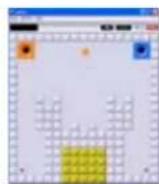
Play Inkball
Practice your Digitizer Pen skills on this game, which is activated from Start, All Programs, Games, Inkball.
Take the Tutorials
When you start your Tablet PC, several Tutorials are offered to help you learn about its various functions, such as the Windows Journal, Tablet PC Input Panel, and Speech recognition.
The Tutorials are short, quick, and informative and we highly recommend them as a starting place to begin a successful Tablet PC experience.
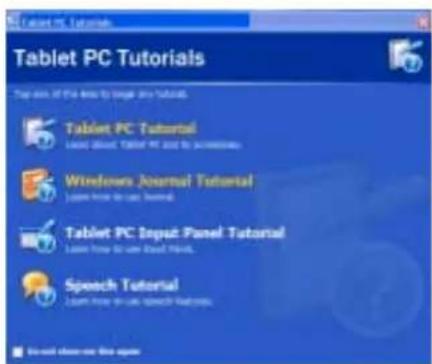
NOTE: Microsoft Windows XP for Tablet PC offers several tutorials. One set appears each time you start the Tablet PC (unless you deactivate this option). Others can be found by selecting Start, Using Your Motion Tablet PC, or from Start, Get Going with Tablet PC.
Motion Resources Page and Online User Guide
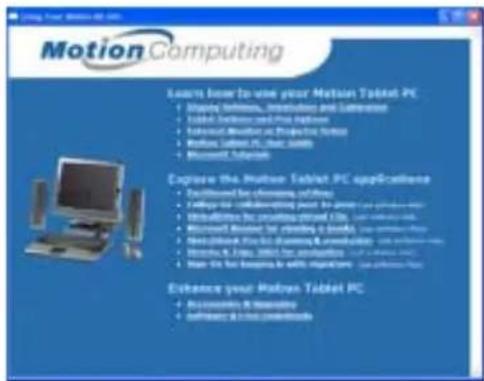
The link to the Motion Tablet PC User Guide is provided on the Using Your Motion Tablet PC page, shown here. In addition to this link, other instructions for using the Pen, Dashboard, and other applications are included there.
Microsoft Help and Resources Center Page
You can find additional information about your Tablet PC and the Microsoft Windows XP operating system in the Microsoft Help and Support Center. The Help and Support Center is installed on your Tablet PC. To access Help, select Start, then Help and Support.
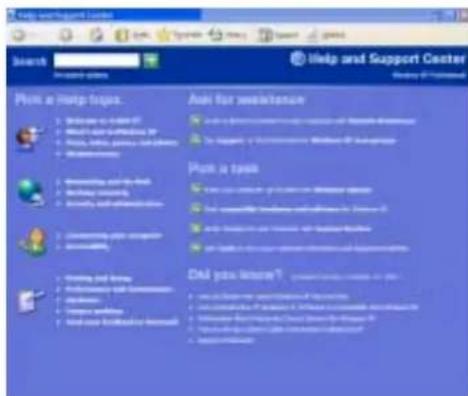
Did You Know Section
Whenever you open the Help and Support Center while your Tablet PC is connected to the Internet, the “Did You Know” section checks for updates from Microsoft and Motion Computing, such as system-use hints, or notices from Motion Computing about your Tablet PC.
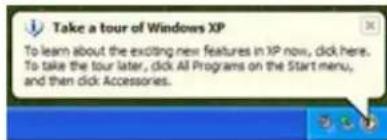
Take a Tour of Windows XP
If this is your first experience with the Windows XP operating system, this tour is a good introduction. You can find this by selecting Start, then Windows Help and Support Center, and finally What's New in Windows XP.
Chapter 2
Motion Tablet PC Hardware
This chapter describes the Motion Tablet PC, including components, LEDs, hardware, and accessories.
TABLET PC DISPLAY AND WRITING SURFACES
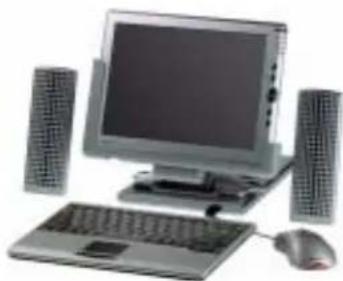
All Motion Computing Tablet PC displays and writing surfaces combine three key components:
• A highly-readable, liquid-crystal display
- An acrylic protective layer that provides a hard writing surface, minimizes glare, and improves viewability
- Under the display, a digitizer panel that allows on-screen keyboard data entry, plus hand-written entry with a specially-designed Digitizer Pen
natural_image
Modern desktop computer setup with monitor, keyboard, mouse, and tower (no visible text or labels)The Motion Tablet PC display, unlike touchscreens and personal digital assistants (PDAs), responds to the Motion Digitizer Pen, but not to a PDA stylus or to finger taps.
You can steady your hand on the display surface when you write. The pressure of your hand won't affect any open programs or data input.
NOTE: For more information about the care and maintenance of the Tablet PC display and writing surface, see Chapter 4 of this User Guide.
OVERVIEW OF THE DISPLAY
The following diagram shows the LEDs, buttons, connectors, and other components on the Tablet PC.
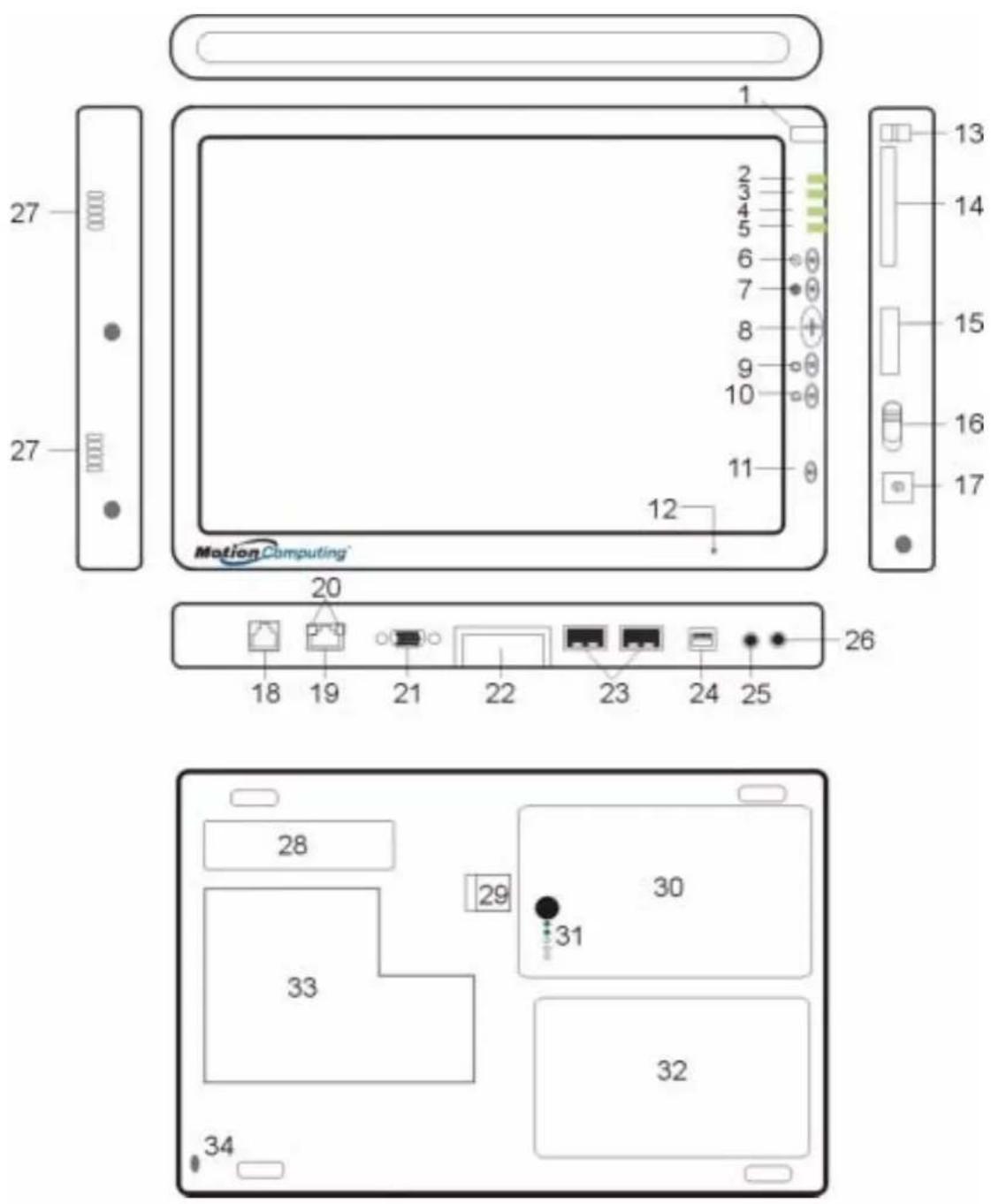
Table 2-1 Tablet PC LEDs, Buttons, Connectors, and Other Components
| 1 Pen holder Storage bay for the Motion Digitizer Pen | |
| 2 Power LED Displays power status | |
| 3 Battery LED Displays battery status | |
| 4 Hard Disk Drive LED Displays Hard Disk Drive (HDD) activity | |
| 5 Wireless LED Displays wireless activity and on/off status | |
| 6 Escape button | Primary function (not programmable): Esc. Secondary function (programmable): Alt+Tab |
| 7 Function button Press this Function button + another button to activate Secondary functions | |
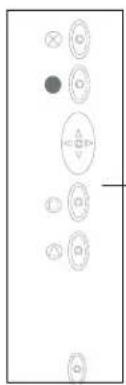
| 8 Five-way directional control button | Primary functions (not programmable): Scrolls Up/Down/Right/Left + Enter Secondary functions (programmable): Left arrow—Shift+Tab; Right arrow—Tab; Up arrow—Page Up; Down arrow—Page Down |
| 9 Hot Key #1 Primary function (programmable): Displays the Motion Dashboard Secondary function (programmable): Opens the Microsoft Windows Journal | |
| 10 Hot Key #2 Primary function (programmable): Changes the Tablet PC display orientation Secondary function (programmable): Opens the Tablet PC Input Panel. | |
| 11 Security button | Primary function: Ctrl-Alt-Del; Secondary function: None |
| 12 Microphone | Works at a natural distance; disabled when an external microphone is plugged in |
| 13 Pen tether post Post to which you can secure the Pen by means of a plastic loop | |
| 14 PC card slot | Holds one Type-II PC card for networking, memory expansion or accessory connections. A plastic blank ships in this slot in the Tablet PC; leave this installed when not in use. |
| 15 Antenna cover | 802.11 wireless networking antenna cover; this area does not open |
| 16 Power switch | Turns the Tablet PC on and off; can configure to activate Hibernate or Stand By modes |
| 17 AC power jack | Connects to the Motion AC Adapter through a right-angled connector on the Adapter. Use only a Motion AC Adapter with the Tablet PC. |
| 18 RJ-11 modem port | Connector for a 56.6K V.90 modem |
| 19 RJ-45/LAN | Standard RJ-45 connector for a 10/100 Mbps network |
| 20 RJ-45 LEDs (2) | Display LAN connection status; blink green/amber for a connection |
| 21 VGA connector | A standard DB-15 monitor connector for an external monitor |
| 22 Docking connector | Docks with the Motion FlexDock |
| 23 USB ports (2) | Stands for Universal Serial Bus; a port connect for connecting USB devices, such as a mouse, printer, or digital camera |
| 24 IEEE 1394 port | Connects 4-pin accessories, such as DVD players, optical disc drives, video cameras and other electronics |
| 25 Audio-in/Microphone | Input jack for 3.5mm plug for a microphone |
| 26 Audio-out/Headphone | Input jack for a 3.5mm plug for a headset; mutes the built-in speakers |
| 27 Speakers (2) | Integrated speakers that mute when you connect a headset or external speakers |
| 28 Product identification | Serial numbers and system certifications marks and labels |
| 29 Battery release latch | Latch that releases the battery from the battery bay |
| 30 Battery | Self-monitoring battery tracks the amount of charge |
| 31 Battery gauge | Displays the battery's charge |
| 32 Hard drive bay | Bay that houses the HDD; 20GB HDD memory (standard); optional 40GB and 60GB capacity |
| 33 Memory/mini-PCI access | Bay that houses the memory modules and mini-PCI card; 256MB memory (standard), upgradeable to 1GB |
| 34 Security lock slot | Fits a cable lock for securing the unit to a desk, etc. |
CHASSIS AND HARDTOP COVER
The Motion Tablet PC chassis are constructed of magnesium alloy, which is lightweight, durable, and easy to maintain. The Motion Hardtop Cover is molded of a tough plastic. It snaps over the display, to protect it when the Tablet PC is not in use or snaps onto the bottom of the Tablet PC for convenient storage.
PEN
The Motion Digitizer Pen is a sensitive, electronic data-entry device designed in conjunction with the Tablet PC display. It contains no batteries and requires no external power. To help prevent Pen loss attach it to the built-in pen tether post on the chassis.
NOTE: For best results, we recommend that you calibrate your Pen before using it for the first time. For information about this and other Pen procedures, see Chapter 4 of this User Guide.
MOTION AC ADAPTER
natural_image
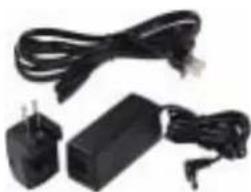
Two black cables and a small electrical plug, no visible text or symbolsThe Motion AC Adapter has three components:
•AC power adapter (with a right-angled connector)
•Power cord
•AC mini-plug with folding prongs for travel

CAUTION: Use the appropriate AC Adapter with your Motion Tablet PC. This adapter should not be used to power any other electronic devices. If you do so, you may damage the accessory or other device.
MOTION BATTERIES
A standard configuration Motion Tablet PC ships with a 6-cell Lithium-ion battery in the battery bay. Fully charged, a new 6-cell battery can power the Tablet PC for 3-4 hours, depending on operating conditions.
Extra batteries are available from Motion Computing. Use only Motion Lithium-ion batteries in your Motion Tablet PC.

WARNING: To avoid personal injury, handle the battery with care. Do not open, puncture, short, or expose it to fire or water. Keep the battery in an ambient temperature of less than 140^ F (60^) ; for example, don't leave it in a closed car in hot weather for extended periods of time.
NOTE: For more information about the battery LEDs, see the section "Battery Status LEDs" in this chapter; and for more information about battery care, see Chapter 4 of this User Guide.
FRONT PANEL BUTTONS
The front panel of the Motion Tablet PC contains six buttons, shown in Table 2-2. Most of these buttons have both primary and secondary functions. In addition, some may be re-programmed for other functions.
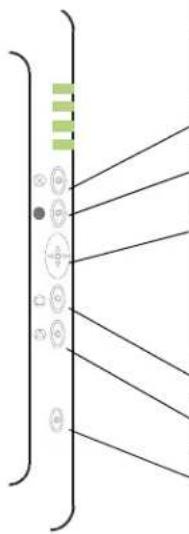
| Table 2-2Default Button Functions | ||
| Button Primary Function | Secondary Function(Press Function + this button) | |
| Escape ^2 | Same as keyboard Esc key Equivalent to Alt + Tab | |
| Function ^3 | Function + other button activates secondary function | None |
| Five-wayDirectional Control Button ^2 | Works like the arrow keys on a keyboard. The center of the button works like the Enter key. | Left arrow = Shift+TabRight arrow = TabUp arrow = Page UpDown arrow = Page Down |
| Hot Key #1 ^1 & 2 | Opens the Motion Dashboard. | Opens the Windows Journal. |
| Hot Key #2 ^1 & 2 | Rotates the display. Opens the Tablet PC Input Panel. | |
| Security ^3 | Opens the Windows Task Manager (Ctrl + Alt + Del). Also used for domain authentication or logon screen. | None |
| NOTE: ^1 Primary function programmable. ^2 Secondary function programmable. ^3 Not programmable. For information about programming buttons, see Chapter 4. | ||
MODEM AND LAN CONNECTORS
The Motion Tablet PC modem and LAN (network connection) communication ports are found on the connector edge, as shown below.
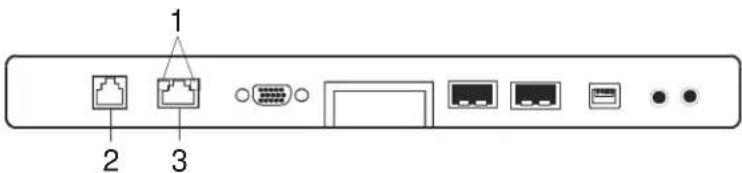
Modem and LAN Connectors: (1) RJ-45 LEDs; (2) RJ-11 Modem; (3) RJ-45 LAN
NOTE: The Motion FlexDock has no built-in modem port. When using a FlexDock, you must connect to the modem port on the Tablet PCs through the FlexDock opening designed for this purpose.
- Modem (RJ-11 port) — Built-in, V.90 modem that operates at a maximum of 56.6K throughput and has fax capabilities; port supports a standard phone cord connector; connect the modem only to an analog telephone jack, not to a digital telephone (PBX) network jack
- Ethernet LAN (RJ-45) — Connects a network, cable modem, or xDSL; contains two status LEDs

CAUTION: Do not plug a standard RJ-11 phone cord into the RJ-45 port or you may damage the RJ-45 LAN port.
TABLET PC CHASSIS LEDs
The Tablet PC front panel (shown in the diagram) and the battery case on the bottom of the unit contain status LEDs, described here.
Tablet PC Front Panel LEDs
The Motion Tablet PC has four front-panel status LEDs:
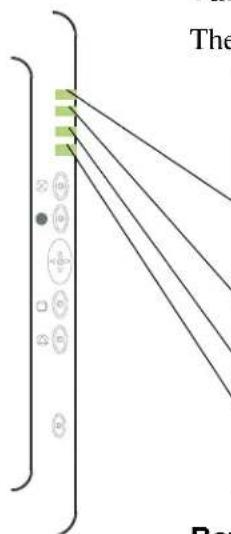
| Table 2-3Front Panel Status LEDs | ||
| LED Description Status | ||
| Power/Stand By Ste | steady green Tablet PC is on. | |
| Flashing green Tablet PC is in Stand By. | ||
| Battery Status See | Table 2-4. | |
| Hard Disk Drive (HDD) | Flashing/On The Tablet PC HDD is being read or written to. | |
| Wireless Activity Ste | steady or flashing green | Wireless is on. |
| Off Wireless is off. | ||
Battery Status LEDs
The Motion Tablet PCs are equipped with a “smart” battery that can communicate messages about power status. Some messages are informational only, while others require attention, as described in Table 2-4.

CAUTION: To avoid personal injury, if the battery is overheated, wait until the battery cools to room temperature before recharging or replacing it.
NOTE: If the unit operating is on battery power, you can move the Pen over the Power/Battery icon, shown here, (in the System Tray at the lower-right corner of the Tablet PC display) to see the number of hours of charge and the percentage of battery charge remaining.

| Table 2-4Front Panel Battery Status LED | ||
| LED Battery | Status Action | |
| Steady green Battery | 100% charged(AC plugged in) | None |
| Steady amber Battery | charging(AC plugged in) | None |
| Steady red Battery overheated or defective Wait for the battery to cool.Replace the battery. | ||
| Flashing green and amber | Battery discharging abnormally | Replace the battery. |
| Slow-flashing amber | 10% battery charge remaining(AC unplugged). | Immediately charge thebattery to avoid loss of data. |
| NOTE:When the remaining battery charge is 10%, the Tablet PCs issue a LowBattery alarm message in addition to the LED warning. For information aboutmodifying this alarm (you can set it to display a message or to produce an audiblewarning), see Chapter 4 of this User Guide. | ||
| Fast-flashing amber(for only a fewseconds) | 3% battery charge remaining(AC unplugged) | The Tablet PCs issue aCritical Battery alarm andautomatically goes intoHibernate mode. |
| NOTE:Hibernate mode attempts to save data in any open programs to your HardDisk Drive. When you restart the Tablet PC, it returns to the same system status asbefore hibernation. | ||
| Off Tablet PC is unplugged fromAC power and the system isrunning on battery power. | Plug the Tablet PC into ACpower if you want topreserve battery power. | |
Battery Status Gauge
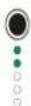
A five-LED battery gauge is located on the battery on the bottom of the Tablet PCs. Each LED represents about 20% of available power. You can activate the gauge by pushing the black button next to the LEDs.
In the example shown here, two LEDs are lit, which means the battery has about 40% of its power remaining.
LABELS
Most Tablet PC identification and system labels are on the bottom of the unit. These include serial and model numbers as well as regulatory and approval labels. Some internal components, such as the modem, also contain their own approval labels.
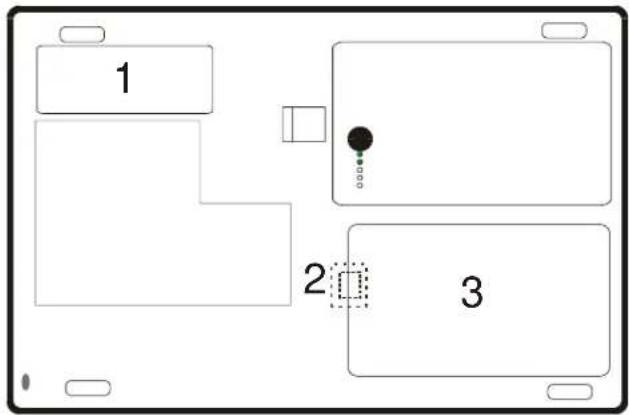
Motion Tablet PC Label Locations: (1) Product Identification, System Labels; (2) Internal Modem with Label; (3) Hard Disk Drive Cover
ACCESSORIES
You can order the following accessories from the Motion Computing website at www.motioncomputing.com/accessories.
NOTE: You can order the Motion FlexDock, batteries, and Digitizer Pens from Motion Computing.
Motion Desktop Stand
The Motion Desktop Stand is an easel-like device that holds the Tablet PC in portrait or landscape modes. You can open the Desktop Stand to different widths to change the display angle: the wider you open the stand, the less the Tablet PCs will tilt back.
Some connectors may be inconveniently located when the Tablet PC is in the Desktop Stand. If you regularly connect several accessories to your Tablet PC, consider buying a Motion FlexDock.
Motion FlexDock
The Motion FlexDock is a desktop docking station that provides a convenient interface for the Tablet PC. Its components are shown below:
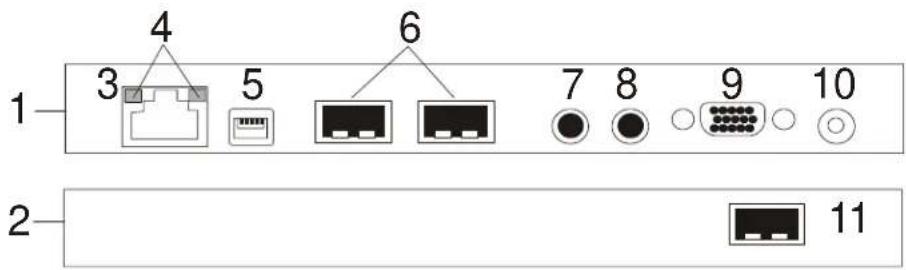
Motion FlexDock: (1) Back of FlexDock; (2) Front of FlexDock; (3) RJ-45/Ethernet; (4) RJ-45 LEDs; (5) IEEE 1394; (6) USB; (7) Audio-in/Microphone Jack; (8) Audio-out/Headphone Jack; (9) External Monitor; (10) Power Jack; (11) USB
- Easily docks and undocks with the Tablet PC
- Adjusts to support the display from 0^ - 90^ for viewing and writing
- Automatically adjusts the display when you rotate the Tablet PC 90° between Primary Landscape and Primary Portrait
- “Grab-and-Go” capability lets you safely remove the Tablet PC from the FlexDock without turning the system off or putting it in Stand By mode
NOTE: For more information about installing the FlexDock, see Chapter 4 of this User Guide or the Installation Guide packaged with the FlexDock.
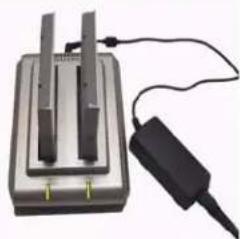
Motion Multi-Unit Battery Charger
The Multi-Unit Battery Charger provides a quick and convenient way to recharge a 3- or 6-cell battery independent of your Tablet PC. It contains two charge bays with status LEDs on each bay and can simultaneously charge two batteries. It can recharge the 3-cell battery to 95% capacity in 1-3/4 hours and the 6-cell battery in 2-1/2 hours; it resumes charging automatically if power is interrupted. For further information about operation of the Battery Charger, see the documentation packaged with the unit. For Battery Charger specifications, see Appendix D of this User Guide.
natural_image
Electronic device with dual vertical connectors and a connected power strip (no visible text or symbols)Motion Hardtop Keyboard
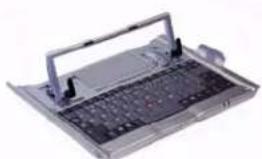
The Motion Hardtop Keyboard combines the functions of a keyboard, stand, and display cover into a single product. It features an integrated USB cable that plugs into the Tablet PC, an integrated pointing device, mouse buttons, and a display angle adjuster. The Hardtop Keyboard is powered directly through the USB cable. The Hardtop Keyboard also snaps onto the bottom of the Tablet PC for convenient storage or onto the top to protect the display.
natural_image
Metallic laptop with a black keyboard and stand (no visible text or symbols)Motion Mobile Keyboard with Touch Pad
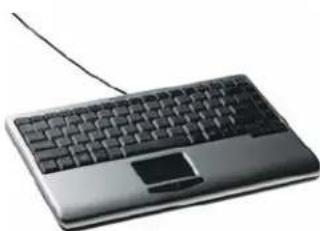
The Motion Mobile Keyboard with Touch Pad plugs into any USB port on the Tablet PC or into the Motion FlexDock. The Keyboard features an integrated touch pad and compact size, making it perfect for tight work spaces or travel.
natural_image
Black and silver laptop keyboard with a single screen, shown against a white background (no text or symbols visible)IMPORTANT: The first time you start your Tablet PC, you may be required to connect a standard USB keyboard to complete the initialization of the Windows XP operating system. For the steps in this procedure, see Chapter 4 of this User Guide.
The Touch Pad on the keyboard has a scroll zone (1) similar to the scroll bar along the side of a window.
- Scrolling — Drag your finger up, to scroll up; or down, to scroll down through a document
- Deleting text — Align the cursor over the text you want to select,
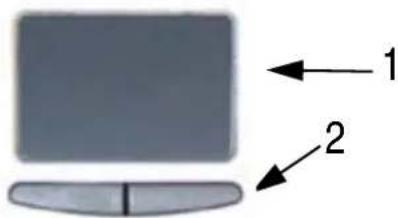
tap the Entry bar (2) with your finger to place the cursor in the text (the cursor will begin to blink). Tap again to select a single word; double-tap to select a whole line. Select Delete from the keyboard. (Or, tap the right entry bar, which opens a drop down menu. Select Cut.)
Motion Hardtop Cover, Portfolios, and Cases
- The Motion Hardtop Cover is molded of a tough plastic. When snapped over the display, it protects the display when it is not in use. It can also be snapped onto the bottom of the Tablet PC for convenient storage.
- The Motion Portfolio is a lightweight cover with a hand strap for a secure hold, plus a shoulder strap and two pen holders.
- The Motion Executive Portfolio is made of high-quality materials with a shoulder strap and foldover cover. It features a sleeve for papers, a business card holder, and pen holder. Snap-in retention clips make it easy to insert and remove the Tablet PC.
- The Motion Slip Case has a clear cover to protect the display, zippered access to side ports, and a hand strap on the back.
- The Clamshell Portfolio has a flip-out stand, pockets, carrying handles, and a shoulder strap and was designed for use with a mobile keyboard.
- The Rubber Edge Protector fits around the edge of the Tablet PC to provide extra edge cushioning and to protect the port connections.
For information about the latest portfolios and cases, visit the Motion Computing website at www.motioncomputing.com.
Motion Optical Disc Drives
Motion offers CDROM and DVD/CDRW combo drives. Depending on which you purchase, these drives offer CDROM, CDRW, or DVD capabilities.
For information about installing these Drives, see the documentation packaged with each Drive. For general information about Optical Disc Drive software, see Chapter 4 of this User Guide.
256MB and 512MB Memory Upgrade Modules
Additional memory modules improve the performance of your Tablet PC. You can add up to 1GB of memory in your Tablet PC.
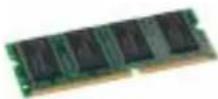
NOTE: For information about installing additional memory upgrade modules, see Chapter 4 of this User Guide or the Installation Guide packaged with the memory module.
PC Card Slot
The PC card slot, located on the Power Switch edge of the Tablet PC, holds one Type-II PC Card for networking, memory expansion, or accessory connection.
- To install the PC card, insert it label-side up.
- To remove the PC card, push the button next to the slot until it pops out
- Push it again to eject the card.
NOTE: Both Tablet PC models ship with a plastic blank in the PC Card slot. When the slot isn't in use, we recommend that you leave the plastic blank in place.
Mini PCI Card (Wireless)
Both Tablet PC models accept a mini-PCI card for wireless communications.
Chapter 3
Motion Tablet PC Software
Pre-loaded on Motion Computing Tablet PCs is the Windows XP Tablet PC Edition operating system plus additional software applications, drivers, and utilities. These help you personalize and make the most of your Tablet PC and its features. This chapter describes some of the CDs, software, applications, and software features available for your Tablet PC.
NOTE: For additional information about Tablet PC software applications, from Start, tap Using Your Motion Tablet PC, Explore the Tablet PC applications.
SOFTWARE CDs
Depending on which Motion Tablet PC and software configuration you order, you may receive the following CDs:
- Motion M1200: Two Motion System Recovery CDs; Motion Utilities and Drivers CD; Motion Application CD (Optional)
- Motion M1300: Motion Operating System Recovery CD; Motion Utilities and Drivers Recovery CD; Motion Application CD (Optional)
IMPORTANT: For additional information about initial installation of software on your Tablet PC, see the section "Installing Initialization Software" in Chapter 4 of this User Guide.
Motion System Recovery CD(s): Description and Use
These CDs contain a complete re-install of the Windows XP Tablet PC Edition operating system, all drivers, utilities, and applications.
They include Utilities and Drivers Readme.txt and System Recovery.txt files with installation instructions. Use the System Recovery CDs when your system is completely down and you must completely re-install. If possible, back up your data files before running this procedure.
Motion M1200 System Recovery Procedure -- Once initiated, this procedure overwrites everything on your system with complete data loss.
- If possible, back up your data files.
- Turn off your Tablet PC.
- Attach a USB keyboard.
- Insert the Recovery CD-1 of 2 (Windows XP Professional Service Pack 1 CD) into your CDROM drive.
- Turn on the Tablet PC. The system should automatically begin installing the operating system.
- Follow the onscreen instructions for entering any information.
For the Motion M1300System Recovery Procedure -- In most cases, once initiated, this procedure lets you repair the Tablet PC hard disk drive and retain the original system data, applications, passwords, and settings with no data loss. When no repair is possible, it overwrites your system data. However, you can cancel before beginning the procedure.
- If possible, back up your data files.
- Turn off your Tablet PC.
- Attach a USB keyboard.
- Insert the Motion M1300 Operating System Recovery (Windows XP Professional Service Pack 1) CD into the CD-ROM drive and start the Tablet PC.
- When prompted, quickly press any key to boot from the CD.
- On the Setup screen, select ENTER to set up Windows XP.
NOTE: Do not select R=Repair before you execute the End User License Agreement (EULA). If you do, you need to exit this procedure, shut down and restart your Tablet PC, and read/accept the EULA before proceeding.
- Press F8 to accept the terms of the End User License Agreement.
- When the next options appear, select from the following:
IMPORTANT: In those cases where Windows XP cannot repair your installation, the procedure automatically skips to the reformatting option.
- R=Repair option -- Installs Windows XP Tablet PC Edition on your system, preserving your system data, applications, passwords, and settings
-
ESC=Don't Repair (reformatting) option -- Reformats your hard disk drive. If Windows XP automatically skips to this option (that is, no repair is possible), you either reformat now or cancel the procedure. If you choose to reformat, select either Format the partition using the NTFS File System or the NTFS File System (Quick). If you choose not to reformat, select ESC to cancel the procedure.
-
Continue following the onscreen instructions.
-
After your operating system has been reinstalled, you will be prompted to insert the Motion Utilities and Drivers Recovery CD.
a. For a repaired system, this process is quick and your system will automatically reboot. If you receive a VirtualDrive error message, you may need to re-install the FarStone's VirtualDrive application (described below).
b. For a reformatted system, this process takes some time as the drivers and utilities are reinstalled. Don't interrupt this process. When the reformatting is complete, your system will automatically reboot. At that point, you need to install any additional software (such as Microsoft Office), as appropriate. You may also want to restore your personal preferences and settings.
Reinstalling the VirtualDrive Application (Optional)
If you previously had the VirtualDrive application installed on your Tablet PC and you get VirtualDrive error messages, perform these steps to reinstall the application.
-
Go to Control Panel, Add/Remove Programs, and uninstall the VirtualDrive application. You will be prompted to reboot your system.
-
Insert the Motion Utilities and Drivers Recovery CD.
-
Go to Start, Run and type in "d:/vdrive/vdrive.bat" and press enter.
-
Reinstall the Virtual Drive application from c:\windows\motion\virtualdrive\setup.exe or from the Motion Application CD.
Motion Utilities and Drivers CD
The Motion Utilities and Drivers CD contains installable drivers and utilities. To install a specific driver or utility, open the Utilities and Drivers Readme.txt file on the Motion CD and follow the instructions.
Motion Application CD
The Motion Application CD contains additional applications for the Motion M1200 and M1300. Go to the Motion Computing website at www.motioncomputing.com to see a list of Motion Computing software, third-party applications to purchase, as well as free applications.
MOTION APPLICATION SOFTWARE
Both Tablet PC models contain software applications to enhance your Tablet PC, some available exclusively from Motion Computing.
Motion Dashboard
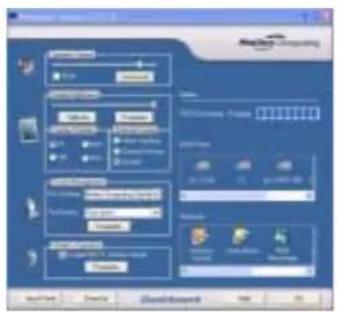
An exclusive Motion Computing design for Motion Tablet PCs, the Motion Dashboard makes many operations easy to identify and puts them in a single location for convenient access.
To display the Motion Dashboard, press Hot Key #1.
Motion Dashboard features:
natural_image
Pure electrical circuit lines without any symbols| Table 3-1Motion Dashboard Features | |
| Feature Description | |
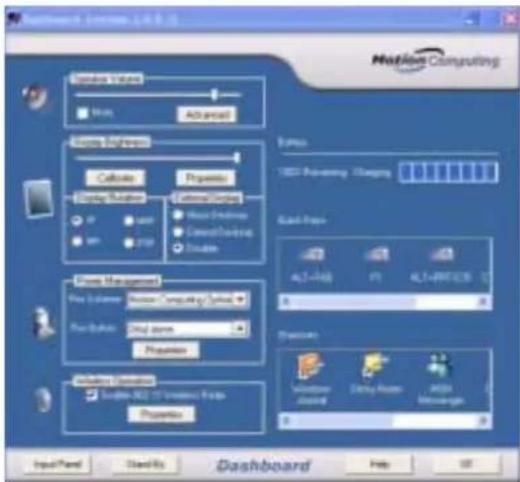
| Speaker Volume | Adjusts the speaker volume. The Advanced option adjusts or mutes the volume of the Tablet PC Wave, SW Synth, and PC Speaker. |
| Display Brightness | Adjusts the display's brightness level. |
| Display Rotation | Lets you directly change the Tablet PC display orientation to 0^ , 90^ , 180^ , or 270^ . |
| Calibrate Opens the interface to calibrate the Pen to the display | |
| Properties Displays the Intel(R) Graphics Controller properties | |
| External Display | Lets you Mirror (clone) the Tablet PC display or Extend it to an external monitor or projector. |
| Power Management | Lets you view and select Power Schemes and Power Button options. Power Option Properties lets you set Power Schemes and Alarms, check the Power Meter, and enable/disable Hibernate. |
| Wireless Operation | Enables/Disables the optional mini-PCI wireless LAN. Properties include General (a description of the connection), Wireless Network and Internet connection options |
| Battery Displays the battery status. | |
| Quick Keys Performs the keyboard equivalent of various keystrokes. The slide bar lets you view additional Quick Keys. | |
| Shortcuts Provides access to software programs, e.g. Windows Journal, Sticky Notes, MSN Messenger, Calculator, Tablet and Pen Settings, Windows Control Panel. | |
| Input Panel Opens the onscreen Tablet PC Input Panel for typing and writing. | |
| Stand By Puts the Tablet PC in low-power Stand By for temporary suspension from which you can quickly resume your Windows session. | |
| Help Motion Dashboard Help. | |
Tablet PC Input Panel (TIP)
To open the Tablet PC Input Panel, tap the TIP icon located next to the Start button. From this window, you can enter hand-written data or input data by soft keyboard or by voice.
The illustration below shows the Tablet PC Input Panel with the Text Preview window open. You can select this option from the Tools drop-down menu.
NOTE: For more information about the Tablet PC Input Panel, see Chapter 4 of this User Guide.
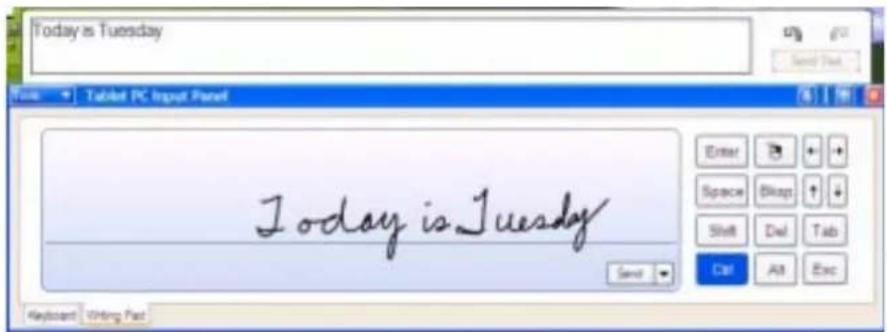
IMPORTANT: To view the text you write or type in the Tablet PC Input Panel, you must open another application, such as Windows Journal, Notepad, Wordpad, or install Microsoft Office (ordered separately; this works with XP Pack for Tablet PC-- called Pen Extensions). Otherwise, your text will be transferred to the Text Preview area (if it is open), but not to another application since none is available to accept the input. If the text preview window isn't open, your text will disappear from the display after a few seconds.
NOTE: For security and accuracy when entering passwords or other confidential text, we recommend that you use the soft keyboard on the Tablet PC Input Panel instead of the writing pad.
Speech and Voice Recognition
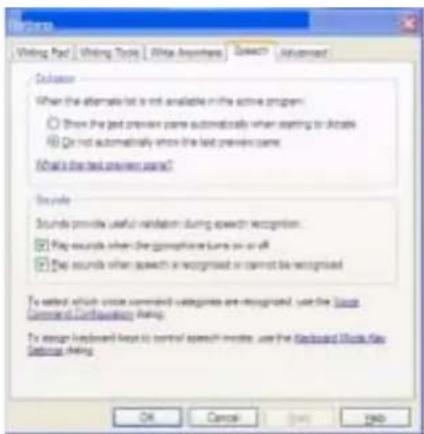
Both Tablet PC models are designed to accept and interpret the human voice for dictation as well as for keyboard-equivalent voice commands.
NOTE: For information about setting up speech recognition through the Tablet PC Input Panel, see Chapter 4 of this User Guide.
Chapter 4
Using Your
Motion Tablet PC
This chapter describes various procedures and functions you for your Motion Tablet PC.
INITIALIZING MICROSOFT WINDOWS XP
Motion Tablet PCs come with pre-installed software applications and drivers, including those for the Windows XP Tablet PC Edition operating system. The first time you start your Tablet PC, you must initialize Windows XP.
Required Equipment and Information
- Computer name (you can create this yourself or obtain one from your system administrator); this should be a unique name
- A USB keyboard (for inputting information to initialize the Microsoft Windows XP for Tablet PC operating system) may be needed
Optional Connections, Equipment, and Information
- Internet access
- Motion AC Power Adapter
- Administrative password
• Description of your computer - Company name
- Network settings
- Domain name
- Names of the people who will be using this Tablet PC
- Microsoft Office Product Keys (if you are going to install any Microsoft Office products, such as Word, Excel, PowerPoint)
Windows Initialization Procedure
IMPORTANT: You do NOT need Internet access to initialize Windows. When the Windows initialization procedure prompts you for this information, you can either select "Skip" or select the option that lets you set up Internet access later.
- (Optional) Before you start your Tablet PC, you may need to connect any USB keyboard to a USB port on the Tablet PC so that you can enter information through the keyboard or keyboard touch pad. (The Pen does not function until later in the Windows initialization process.)
- (Optional) Connect your Tablet PC to AC power. (This ensures continuous power during this initialization procedure and in case the battery is low.)
- Slide the Power switch to start the Tablet PC. After a short time, the "Welcome to Microsoft Windows" screen appears.
- Move the cursor with the keyboard touch pad and select Next. The End User License Agreement for Microsoft Windows XP appears.
NOTE: You can also use the Tab key, arrow keys, Enter keys, space bar, and other keys on the keyboard to select and enter data. This installation only describes using the keyboard touch pad.
- To accept the End User License Agreement and continue the installation, select "Yes, I Accept." Then select Next.
- Type in the name of your computer (Tablet PC name). Choose the name provided by your network administrator or, if one isn't available, a unique network name.
- (Optional) Type in a description of your computer. Select Next.
- (Optional) Enter the Administrator password (from your network administrator) or specify a password for yourself as Administrator. If you don't have an Administrator password, just select Next.
- (Optional) Type in the domain name (from your network Administrator). If you don't have a domain name, select "No," then Next.
10.(Optional; you do not need Internet access to initialize Windows) Check the option for how this computer will connect to the Internet. Select Skip to set up Internet access later. - Select "Yes, Ready to activate Microsoft Windows XP."
12.(Optional) Ready to register with Microsoft. Skip this screen if you don't want to register now. Select "No, not at this time." If you choose to register, you will need Internet access. - You may get a message either that your computer is not connected to the Internet or asking if you want to set up Internet access. You do not have to set up Internet access to initialize Windows. Select Skip.
- Type in your name in the "Your name" field. If others will be using the Tablet PC, type in their names also (up to five total). These messages appear:
Thank you! Congratulations, you're ready to go!
- Select Finish. These messages appear:
Windows XP
Please wait.
Windows is starting up....
Loading your personal settings
Applying your personal settings
IMPORTANT: It is not necessary to connect to the Internet to activate your system.
- Windows will load and may discover and install new hardware.
When prompted, answer Yes or OK to install all hardware.
- When the Tablet PC Tutorials appear, we recommend that you run them. However, you can access them later if you wish.
This completes the Windows XP initialization process. The Tablet PC is ready to use and your Pen is operational.
Microsoft Office Registration (Optional)
If you ordered the Microsoft Office XP Professional software with your Tablet PC system, all the necessary software it is already installed. To register Microsoft Office, follow these steps:
-
Open a Microsoft Office application, such as Microsoft Word.
-
A screen appears, prompting you to enter your User name, Initials, Organization, and the 25-character Product Key. The Product Key is printed on the Microsoft Office CD packaged with your Tablet PC.
-
Follow the onscreen messages to complete the Microsoft Office installation.
STARTING AND STOPPING YOUR TABLET PC
Starting
Start the Tablet PC by sliding the Power switch (the ridged button beside the Tablet PC). If you have connected the Tablet PC to AC power, the Power LED briefly turns amber and then solid green and the Hard Disk Drive (HDD) LED flashes green. Then Windows XP launches.
When you start the Tablet PC, the Windows XP Tablet PC Tutorials screen appears. If you don't want this to continue to appear, check "Do not show me this again." We recommend that you look at the tutorials, which take just a few minutes. You can return to the Microsoft Tutorials from Start, Using Your Motion Tablet PC.
Stopping
The recommended way to shut down your Tablet PC is by selecting Start and then Turn Off Computer.
IMPORTANT: You can force a shutdown by pressing and holding the Power switch for about 5 seconds. A forced shutdown should only be used when the
system is completely unresponsive to software commands. If you have any applications open or any unsaved work, you will lose it. Windows will not prompt you to save your work if you force a shutdown.
OPENING THE MOTION DASHBOARD
In the following sections, you will be instructed to open the Motion Dashboard. To do this, press Hot Key #1 (see Table 2-2) on the Tablet PC front panel.

You can also access Dashboard by first selecting Start, All Programs, and then Motion Resources.
The Motion Dashboard offers many Tablet PC functions in a convenient location.
CONSERVING POWER WITH STAND BY OR HIBERNATE
Low-power Stand By or Hibernation modes can conserve Tablet PC power. Each preserves your Tablet PC settings so you can resume work where you left off.
- Stand By — Greatly reduces Tablet PC power consumption and restarts from within a few seconds; the Tablet runs on battery if not connected to AC power. The Tablet PC r. Choose Stand By when you plan to return to work within a short time (a few minutes to a few hours) and want to conserve power.
- Hibernate — Completely shuts down the Tablet PC to conserve power. It takes slightly longer to restart from Hibernate than from Stand By. Choose Hibernate when you plan to stop work for longer periods of time, such as overnight. Saves the system status of the Tablet PC to the hard disk drive.
Launching Stand By or Hibernate from the Start Button
To quickly place your system in Stand By or Hibernate:
- Select Start/Turn Off Computer.
- From the pop-up window, tap Stand By or press the Shift key on the keyboard to toggle to Hibernate, and then tap that option.
- The Tablet PC will then enter Stand By or Hibernate. In Stand By, the power LED will flash green. In Hibernate, all LEDs are off.
IMPORTANT: You can put the Tablet PC in either Stand By or Hibernate to swap the battery. See the section "Swapping the Battery" in this chapter.
Launching Stand By from the Motion Dashboard
Open the Motion Dashboard and then tap the Stand By button.
Setting Up Stand By or Hibernate from the Power Switch
When you slide the power switch, by default it shuts down your Tablet PC. You can change this so you start Stand By or Hibernate from the power switch. To do this:
- Open the Motion Dashboard.
- On the Dashboard, under Power Management, tap the down arrow by the Pwr Button.
- From the drop-down menu, select Stand By or Hibernate, as desired.
- Select OK.
Restarting from Stand By or Hibernate
To restart from Stand By or Hibernate, briefly slide the Power switch until the display Tablet PC starts up. Tap your user name to resume work.
The Motion Digitizer Pen contains internal electronics that make the Pen the only way you input information on the Tablet PC display.
Finger-tapping or writing with a PDA stylus has no effect. The Pen contains a Pen function button,
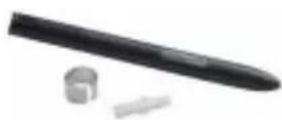
used for right-clicking (like a mouse) and a small opening near the end for attaching it to the Pen tether. The Pen also comes with replacement Pen tips and a replacement tool, shown here. For information about replacing the Pen tips, see “Replacing the Pen Tips” in this chapter.
Notations for using Motion Pen are described below:
- Tap — Tap the Pen on the Tablet PC display, without pressing the function button on the Pen
- Double-tap — Double-tap the Pen on the display, without pressing the function button on the Pen
- Right-click — Press the function button on the Pen and tap the Pen on the display (equals a mouse right-click). For more information about using the Pen function button, see the section “Writing with the Pen” in this chapter.
- Press and hold — Press and hold the tip of the Pen to the display without pressing the Pen function button (equivalent to a mouse right-click)
- Tap and drag — Tap and drag the Pen on the display
- Select/Highlight — Tap on the item on the Tablet PC display with the Pen to activate the function
Calibrating the Pen to Increase Its Accuracy
Be sure to calibrate your Pen the first time you start your Tablet PC, then at other times if the cursor doesn't seem to line up with the Pen tip. Calibration ensures the accuracy of the Pen and adjusts the Tablet PC display for each person who uses it. The Tablet PC stores Pen settings on a per-user basis.
To open the calibration program:
- Open the Motion Dashboard and tap the Calibrate button. Or double-tap the Tablet and Pen Settings icon in the System Tray, located in the lower right-hand corner of the display window. This opens the Tablet and Pen Settings window.
NOTE: This icon may be hidden in the System Tray. Tap the System Tray left-arrow to open all hidden icons.
- Choose the Settings tab.
- Tap Calibrate while holding the Pen in a normal writing manner.
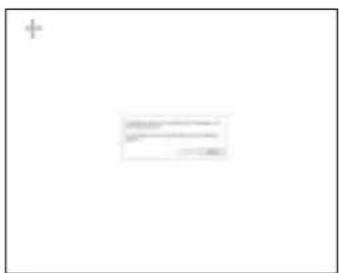
- Carefully align the Pen point precisely in the crosshairs of the calibration display.
- Rotate the Tablet PC display and repeat this for each orientation ( 0^ , 90^ , 180^ , or 270^ ).

Hints for Writing with the Pen
The first time you pick up the Pen, you'll notice it is lightweight (it has no internal battery), has a plastic tip, and contains an elongated button that called the "function button."
- You can hold the Pen like any other writing tool, except you may want to place your fingers on either side of the Pen function button so that you don't inadvertently press it as you write. Pressing the function button while tapping the Pen on the display is like right-clicking with a mouse and will launch pop-up menus.
- Practice pressing the Pen function button with both your index finger and thumb to see which you prefer.
- Relax your grip. Only a light touch is needed to write with the Pen.
- With a little practice, you will learn how to tap on the Tablet PC display to activate buttons and menus.
- The more precise your handwritten input, the more accurate the Tablet PC will be in converting it to text. You can use printed or cursive handwriting, but a mixture of upper and lowercase letters works best.
- When you hold the Pen over the Tablet PC display, a pointer (small dot) appears under the Pen tip on the display and moves with the Pen on the
display.
- To select something on the display, line up this pointer before you touch (tap) the Pen to the display surface. The digitizer under the Tablet PC display reads the position of the pointer, not where you touch the Pen to the display.

CAUTION: Do not write on the Tablet PC display with ink pens or other pointed objects that could damage it.
A comparison of the Pen and mouse operations is made below:
| Table 4-1 Mouse versus Pen Actions | |
| With a Mouse | With the Digitizer Pen |
| Point and click Point and tap the Pen on the display. | |
| Double-click Double-tap the Pen on the display. | |
| Click-and-drag Tap-and-drag the Pen on the display. | |
| Right-click Press the Pen button while tapping, or press and hold the Pen on the display. | |
Ending Accidental Right-Clicks
If your writing is frequently interrupted with right-clicks of the Pen when you accidentally press the Pen button, you may want to deactivate this function altogether. (You will still be able to activate right-click menus by pressing and holding the Pen against the display surface.

-
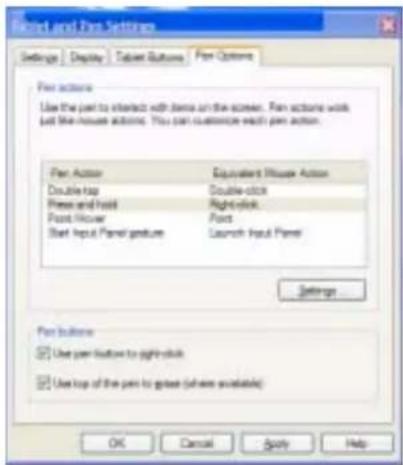
Double-tap the Tablet and Pen Settings icon in the System Tray, located in the lower right-hand corner of the display window. This opens Tablet and Pen Settings. (You can also access this through the Windows Control panel.)
-
Select the Pen Options tab.
-
Uncheck the option Use pen button to right-click.
-
Tap Apply.
Adjusting Pen Properties for Ease of Use
For convenience and ease of use, you may want to adjust the settings on the Pen, such as which hand you write with or the menu location.
To access Pen properties:
- Repeat Steps 1 and 2 above.
- Select the Settings tab.
- Change the Handedness or Menu location, as desired.
- Tap Apply.
You can use Pen gestures to quickly perform the following actions:
NOTE: Gestures work primarily in the Tablet PC Input Panel and the Write Anywhere feature. For more information about gestures, gesture symbols, and for handwriting tips, open the Tablet PC Input Panel, Tools menu, then select Help, Help Topics. Under Tips and Tricks, select Tips for entering text. You will find a Gesture reference.
- Open the Tablet PC Input Panel — Holding the tip of the Pen above the screen, quickly move the pointer back and forth several times.
- Backspace (erase the previous character) — Quickly draw a right-to-left line on the display surface
- Erase — Draw a short, wide "Z" from left to right across what you want to erase. (It may take some practice to master this gesture.) The erase gesture works in the Windows Journal, Tablet PC Input Panel, and the Write Anywhere (an option of the Windows Journal).
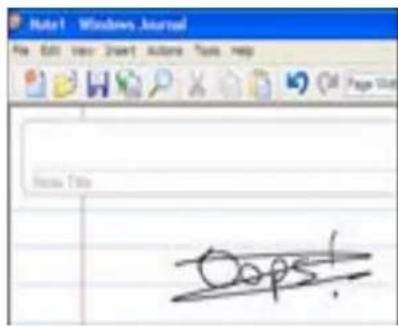
HINTS FOR OPTIMIZING YOUR DISPLAY WINDOW
To free work space and enlarge your writing area, you can optimize your Tablet PC display window in these ways:
- Move the Tablet PC Input Panel anywhere — From Tools, uncheck Dock. This lets you drag the input panel anywhere on the display.
- Hide the Input Panel — Select the (up arrow) on the Input Panel
- Enlarge the Preview window — From Tools, tap Options, and then tap Two lines.
- Relocate the taskbar anywhere on the display — From Windows Control Panel, tap Taskbar and Start Menu (Classic View) or double-click Appearance and themes (Category View) and then tap Taskbar and Start Menu. Uncheck the box beside Lock the taskbar. Tap OK and close Control Panel. Now place your Pen inside the Taskbar and drag it to the sides or top of the display.
- Change the amount of delay to transfer writing, or the thickness of the ink — From Tools, select Options.
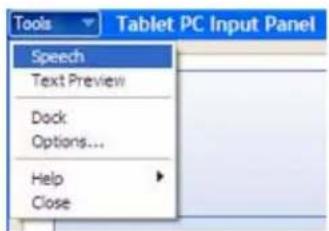
NOTE: For more information about Tablet PC Input Panel functions, see the Help menu under Tools on the Tablet PC Input Panel window.
MAKING BEST USE OF THE TABLET PC INPUT PANEL
The Tablet PC Input Panel keyboard and writing pad let you:
- Enter information in other input fields, such as passwords
- Hand write or type entries in Journal documents
• Write or type E-mail messages

- Open the Tablet PC Input Panel by tapping the icon, shown here.
- With another application active, such as a password entry field, a Journal document, or Outlook, write or type on the Input Panel window.
- By default, after a short delay, your handwriting will be automatically sent to the active program.
HINTS FOR WORKING WITH THE INPUT PANEL
Here are some hints about the Tablet PC Input Panel:
- Disappearing text — If you don’t have an active application or the Input Panel Preview window open, your writing or typing will disappear from the display in a few seconds. Open an application (such as Microsoft Word) or the Preview window to accept your text.
- Tablet PCs without Microsoft Office Pen Extensions installed — If you have Microsoft Office installed but not Pen Extensions, these programs (Microsoft Word, Outlook, and Excel) will not accept ink. Pen Extensions are included with associated Motion software orders or are available free on the Microsoft website.
• However, other programs will accept text, including Journal, Wordpad, and Notepad. - Sending drawings — While probably not the best application for drawings, you can send them from the Input Panel to some applications (such as Wordpad or Microsoft Word). However, they don’t transfer to the Text Preview window. If you draw from the Input Panel with the Text Preview window open, Windows XP tries to interpret the drawing as text, with unpredictable results.
- Entering passwords — For security and accuracy, we recommend you use the keyboard on the Input Panel instead of writing this confidential information where it is clearly visible and where handwriting recognition will try to make it into words.
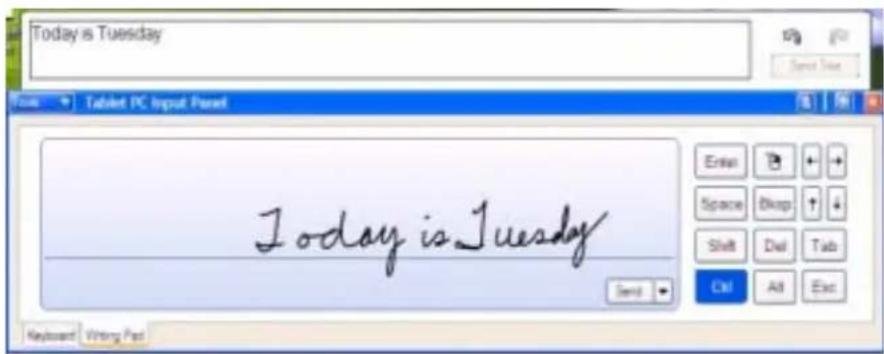
Input Panel Text Preview Window
The Tablet PC Input Panel has a Text Preview window that lets you see a text transcription of what you have written before you send it to an active application:
"Sending as Ink" (Handwriting and Drawings) from the Input Panel
To transfer ink input to another application:
-
Open the Tablet PC Input Panel.
-
Close the Text Preview window by deselecting it in Tools.
-
Open another application, such as Notepad, Wordpad, or Microsoft Word to write your input to. If you don't open this second application, your input will disappear from the Tablet PC Input Panel display in a few seconds.
-
Tap the down arrow beside Send.
-
Enable Send as Ink. (If the application you have open doesn't accept ink input, this option will be grayed out.)
-
Create the text or simple drawing you want to send as ink.
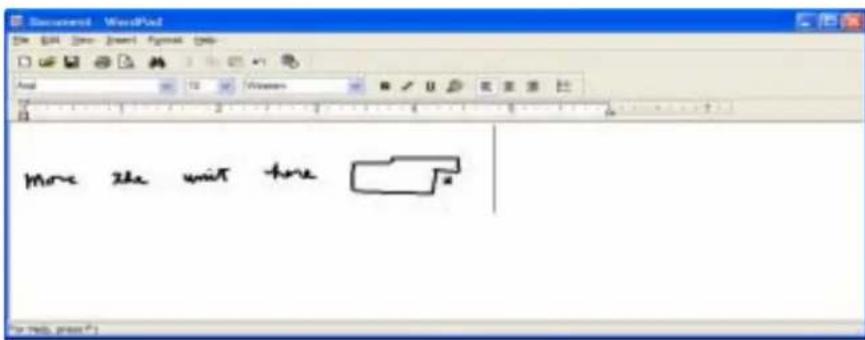
NOTE: To increase the size of the text and drawings, highlight these on screen, then change the font size. Wordpad and Notepad don't allow you to reset the default font size, but once you can increase the font size.
ELIMINATING PAPER WITH WINDOWS JOURNAL
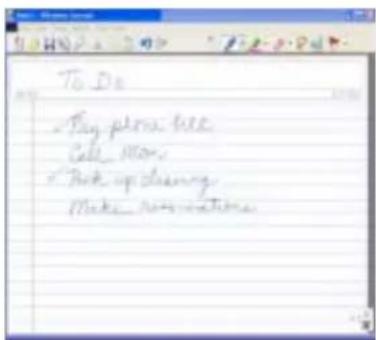
Windows Journal offers these note-taking capabilities:
• Search — Look for a handwritten or typewritten word in all your Journal Notes
- Organization — Use color, and/or titles to arrange information
- Versatility — Draw diagrams and charts, copy and paste information between documents, convert handwriting to text

natural_image
Color-coded thermal or heat map-style illustration of a human head with orange, yellow, and cyan coloring (no text or symbols)CREATING FORMS AND EDITING THEM IN WINDOWS JOURNAL
You can create forms or edit documents from many formats (such as Word, Excel, Adobe® Acrobat) by creating a Journal Template. You can then write on your new “form,” exchange edits with others, or write on them during a presentation.
- Create or open the desired document on your Tablet PC.
- Tap Print.
- Select the Journal Note Writer as the printer.
- Tap Print.
- On the Save As screen, type in a name for the document.
- Tap Save. By default, this saves your document as a Windows Journal template (.JNT file) to My Documents/My Notes.
- Tap Save. By default, this saves your document as a Windows Journal template (.JNT file) to My Documents/My Notes.
NOTE: Windows Journal may take a few minutes to save, but even multi-page files will convert to a Journal Note Writer file.
- Open the Windows Journal, then open your document.
- Write with your Pen on this document as you would any other Journal document (fill in your "form" or make your annotations).
- Save your document with a new file name to preserve your edits.
You can reuse and save this document as many times as you want.
HAVE STICKY NOTES HANDY FOR JOTTING DOWN INFORMATION
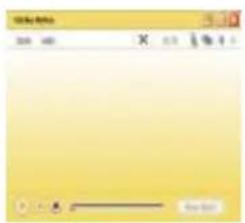
Sticky Notes are a convenient place to store things like names, phone numbers, simple maps, or other information that you would normally put on a paper note. And since they're electronic, you can export them to other programs. Sticky Notes are kept in a numbered stack that you can browse through and discard when you're through with them.
They can also be used to record voice notes (although you can't drag the voice notes to another program or the desktop).
CHANGING SCREEN ORIENTATION
To change the display orientation:
• From the Motion Dashboard
- Press Hot Key #1 on the Tablet PC chassis to open the Motion Dashboard.
- Select from the rotation options: 0^ , 90^ , 180^ , or 270^
• From the Tablet PC chassis
- Press Hot Key #2 on the Tablet PC chassis. Each time you press the key, the display rotates 90^ .
- Rotate the display to the desired orientation.
• From the Tablet and Pen Settings Screen
- Tap the Tablet and Pen Settings icon on the System Tray, located at the bottom right of the display window. Or, go to the Control Panel and select the Tablet and Pen Settings icon.
- From the Tablet and Pen Settings window, select the Display tab.
- Tap the down-arrow next to Orientation.
- Select the desired orientation: Primary landscape, Primary portrait, Secondary Landscape, Secondary portrait.
natural_image
Pure electrical circuit lines without any symbolsCUSTOMIZING BUTTONS
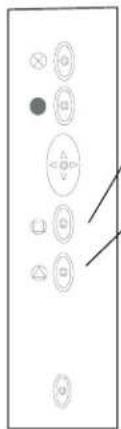
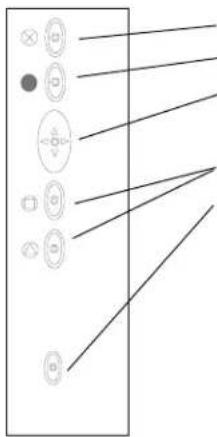
You can customize the Tablet PC buttons so they perform the functions that you want. The default button settings of all the buttons are described in Chapter 2 of this User Guide.
flowchart
graph TD
    A["○"] --> B["○"]
    C["●"] --> D["○"]
    E["○"] --> F["○"]
    G["○"] --> H["○"]
    I["○"] --> J["○"]
    K["○"] --> L["○"]
    M["○"] --> N["○"]
    O["○"] --> P["○"]
    Q["○"] --> R["○"]
    S["○"] --> T["○"]
    U["○"] --> V["○"]
    W["○"] --> X["○"]
    Y["○"] --> Z["○"]
    AA["○"] --> AB["○"]
    AC["○"] --> AD["○"]
    AE["○"] --> AF["○"]
    AG["○"] --> AH["○"]
    AI["○"] --> AJ["○"]
    AK["○"] --> AL["○"]
    AM["○"] --> AN["○"]
    AO["○"] --> AP["○"]
    AQ["○"] --> AR["○"]
    AS["○"] --> AT["○"]
    AU["○"] --> AV["○"]
    AW["○"] --> AX["○"]
- Escape button (Secondary function is programmable)
• Function button (not programmable) - Five-way directional control buttons (Secondary functions are programmable)
- Hot Keys 1 & 2 (Primary and Secondary functions are programmable)
• Security (Ctrl+Alt+Del) not programmable)
To change the default button properties.
- Double-tap the Tablet and Pen Settings icon in the System Tray, located in the lower right-hand corner of the display window. Or, go to the Control Panel and select the Tablet and Pen Settings icon. This opens the Tablet and Pen settings window.
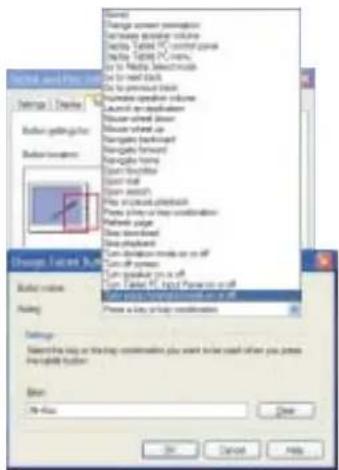
- Choose the Tablet Buttons tab.
- Highlight the button you want to reprogram. The button being programmed turns red.
- Select Change.
- On the Change Button Functions window, tap the down-arrow beside Action for a selection list.
- Select a new action from the list.
NOTE: For some Actions, you only need to select the Action to change the button property. For others, such as to launch a program, you must browse and find the program; or, to set up a key combination, you must press a sequence of keys. You can Reset the button defaults any time.
- Select OK. The list of Actions should now display the new action for the button you reprogrammed.
ADJUSTING BRIGHTNESS FOR DIFFERENT LIGHTING SITUATIONS
You may want to adjust the brightness level of the Tablet PC display for different lighting situations and for improving battery life.
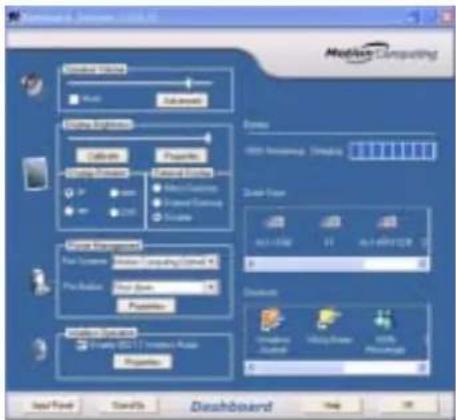
• F rom the Motion Dashboard
- Open the Motion Dashboard.
- Adjust the desired brightness level on the Display Brightness slider.
• From the Tablet and Pen Settings Window
- Double-tap the Tablet and Pen Settings icon in the System Tray, located in the lower right-hand corner of the display window. Or, go to the Control Panel and select the Tablet and Pen Settings icon. This opens the Tablet and Pen settings window.
- Tap the Display tab.
- Adjust the Brightness slider at the bottom of this window. You can have a different setting when running on AC power versus battery.

TRACKING YOUR BATTERY POWER
Reading Battery Power from the Tablet PC Display
To check the power while running on battery, move the Pen over the Power/Battery icon, shown here, on the System Tray at the bottom-right corner of the Tablet PC display. This displays the number of hours of battery power and the percentage of battery power left. (The blue area on the battery icon shrinks as the battery runs down.)

Reading Battery Power from the Battery Gauge
Turn the Tablet PC over and press the battery gauge button. If all five LEDs are green, the battery is fully charged. Each LED represents about 20% battery capacity.
Reading Battery Power from the Power Meter
There are several other ways to determine the amount of battery power remaining:
- Open the Power/Battery icon in the System Tray, located in the lower right-hand corner of the display window; the Adjust Power Properties and Open Power Meter is displayed.
- Open the Power/Battery window and tap to open the Power Options Properties window. Select Power Meter.
- From the Control Panel and select Power options.
CREATING NEW POWER SCHEMES FOR SPECIAL SITUATIONS
Creating a New Power Scheme
The Tablet PC is configured with the default power scheme “Motion Computing Optimized” that helps performance and battery life. You may want to create additional power schemes for other work scenarios or for special situations.
- Right-click the Power/Battery icon in the System Tray, located at the bottom right of the Tablet PC display window until Adjust Power Properties or Open Power Meter is displayed. Or, go to the Control Panel and select Power options.
- Tap Adjust Power Properties to open the Power Options Properties.
- The window opens to Power Schemes.
- Change the settings to the desired power configuration.
- Tap Save As and enter a name for the new scheme.
- Tap Apply.
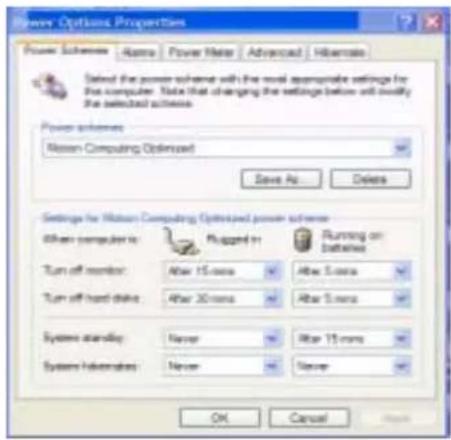
NOTE: We recommend that you create new power schemes instead of overwriting the default (Motion Computing Optimized) so you can reactivate it later.
Setting Up Max Battery Mode for Additional Power Savings
Max Battery mode prolongs the battery's charge.
- Right-click on the Power/Battery icon in the System Tray, located in the lower right-hand corner of the display window. Tap Adjust Power Properties in the menu. This opens Power Options Properties. Or, go to the Control Panel and select Power options.
- Under Power Schemes, tap the down arrow to display a list of schemes.
- Select Max Battery as your power scheme.
- Tap apply.

CHARGING THE BATTERY
When you connect the Tablet PC to AC power with the battery installed, the system automatically charges the battery until it reaches full charge.
The Battery Status LED is amber while the battery is charging and changes to green when fully charged.

WARNING: To avoid personal injury, if the battery is overheated, wait until it cools to room temperature before recharging or replacing it with another battery.
To charge the battery:
-
Plug the AC power adapter into the Tablet PC, then into a wall outlet or power strip. (Completely recharging the battery may take up to two hours, although the battery reaches an 80% charge in much less time.)
-
Turn the Tablet PC over to see the battery gauge on the bottom of the Tablet PC and press the button next to the battery gauge. If all five LEDs are green, the battery is fully charged. Or, move the Pen over the Power/Battery

icon to display battery power resources. (The blue area on the battery icon shrinks as the battery runs down.)
SWAPPING THE BATTERY
You can swap the battery while the system is powered on, with or without having the Tablet PC plugged into an AC power outlet.
-
If the Tablet PC is running, save all active files.
-
Go to Start>Turn Off Computer.
-
When the Turn Off Computer window appears, press the Shift key on your external keyboard or tap Shift on the Tablet PC Input Panel keyboard to change the option from Stand By to Hibernate.
IMPORTANT: You can put the Tablet PC in either Stand By or Hibernate to swap the battery:
- If you choose Stand By, the unit is designed to maintain your system for up to 30 seconds while the battery is swapped. However, you may have less than 30 seconds to swap the battery because of the settings and the programs that you have running. You should save any data before putting the unit in Stand By to swap the battery.
- If you choose Hibernate, you have unlimited time to swap the battery. Hibernate saves the status of the Tablet PC to your Hard Disk Drive so that you can resume operations later.
-
Tap Hibernate or Stand By. The Tablet PC displays that it is Standing By or Hibernating.
-
Wait until the system shuts down and all LEDs are off.
-
Push the battery release latch on the bottom of the Tablet PC to eject the internal battery.
-
Insert the new battery until you hear the latch click, which ensures the new battery is correctly seated.

CAUTION: To avoid damage to the Tablet PC, install only Motion Computing batteries, which are specially designed for the Tablet PC.
Disposing of Used Batteries
When a Tablet PC battery is no longer serviceable, dispose of it at a hazardous materials recycling center. Do not toss it in the trash where it will be sent to a landfill.
Battery and Power Management Hints
- Use AC power whenever available to lengthen the battery's usable life. Leave the battery in place when using AC power.
- Use AC power when installing software or writing to a CD and, for best performance, when using a DVD player.
- When using battery power, if you leave the Tablet PC unattended, place the system in Stand By or Hibernate.
- Keep in mind that the display, processor, PC cards, wireless cards, and accessory drives all draw on the battery, so adjust properties and disable unused accessories and PC cards when operating on battery power.
- When running on battery, adjust the power mode and display brightness to lower settings to prolong the battery life.
ADDING MEMORY TO IMPROVE SYSTEM PERFORMANCE
Use only Motion Memory modules obtained from Motion Computing to upgrade the factory-installed memory.
Supported Memory Configurations for Motion M1200
| Base Memory-Slot A* Base Upgrade-Slot B* Total Memory | ||
| 256MB 256MB 512MB | ||
| 512MB 768MB | ||
| 512MB 256MB 768MB | ||
| 512MB 1GB | ||
* PC133 SDRAM SODIMM
Note: The Motion M1200 has Base Memory factory-installed in Slot A. You can install/reinstall memory modules in either Slot A or B for best performance.
Supported Memory Configurations for Motion M1300
| Base Memory-Slot A** Base Upgrade-Slot B** Total Memory | |
| 256MB 256MB 512MB | |
| 512MB 768MB | |
| 256MB 512MB 768MB | |
| 512MB 1GB | |
** PC266 DDR SODIMM
Note: The Motion M1300 has Based Memory factory-installed in Slot B. If you install/reinstall only a single memory module in the M1300, always install it in Slot B for best performance.

WARNING: To avoid the risk of personal injury or damage to the Tablet PC, when performing the following tasks, turn off your Tablet PC, unplug the AC power connection, and remove the battery. Ground yourself by touching a grounded conductive surface, such as a device or appliance with a grounded, three-pronged plug. Avoid touching the pins and leads on the memory module and the internal circuitry of the Tablet PC.
- After you disconnect power, unscrew the L-shaped cover from the bottom of the Tablet PC.
- If you are replacing a module, release the clips on each side of the module and lift to remove it.
- Align the pins on the Memory Upgrade module with the receptors on the slot.
-
Replace the external cover and install the two screws.
-
Gently push the new module into the slot at a 25-degree angle until it is firmly seated; then rotate it into place.

natural_image
Close-up of an open computer drive bay showing internal components (no visible text or labels)INSTALLING OPTICAL DISK DRIVES
For information about installing your Optical Disk Drive, see the documentation packaged with the Drive.
OPTICAL DISK DRIVE SOFTWARE
Software for the CDROM — The Optical Disk Drive you've purchased does not require any special software drivers to operate as a standard CDROM device.
Software for the DVD/CDRW Combo drive — Requires CD writing software to write onto a CDR/RW disc for CD authoring. While Microsoft Windows XP includes CD writing features and may be sufficient for your needs, the additional CD writing software contains advanced features beyond those offered by Windows XP. In addition, the DVD/MPEG software is required to view video DVDs.
MIRRORING OR EXTENDING YOUR DISPLAY
The Tablet PC has a Dual Head Video Controller that lets you mirror the Tablet PC display or extend it to a second monitor or external device, such as a projector.
Connecting the External Monitor/Data Projector and Tablet PC
- Plug the VGA monitor cable into the VGA port on the Tablet PC or Motion FlexDock.
- Then, connect the external monitor or data projector to a power outlet and turn it on. Windows XP will recognize the external monitor or data projector and search for a driver.
- If necessary, install the driver from the CD supplied by the monitor's manufacturer.
Setting Up a Mirrored Desktop
Use this feature to connect an external projector for presentations.
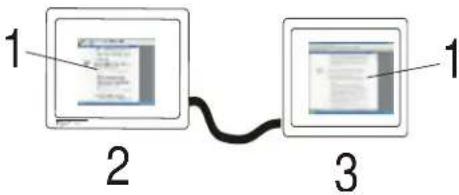
Mirrored Desktop Example: (1) Word Documents; (2) Tablet PC; (3) External Monitor
NOTE: The resolution of the external monitor will be the same as the Tablet PC display.
a. Open the Motion Dashboard.
b. Select the Mirror Desktop radio button under External Display. This setting automatically creates an identical display on the external monitor.
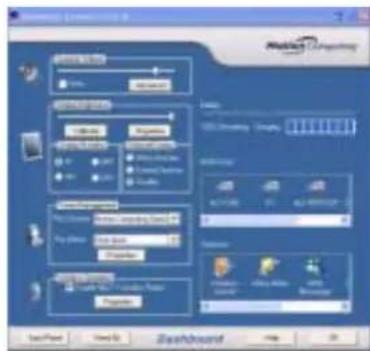
NOTE: You may also set up this feature through the Intel(R) Extreme Graphics icon, shown here (found in the Windows Control Panel or in the System Tray at the bottom right of the Tablet PC display).
Setting Up an Extended Desktop
Use this feature to when you want multiple applications open on separate monitors, for example, your email and Microsoft Word.
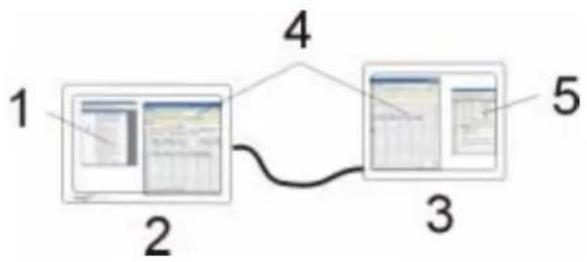
flowchart
graph LR
    1["Device 1"] --> 2["Device 2"]
    2 --> 3["Device 3"]
    3 --> 4["Device 4"]
    4 --> 5["Device 5"]
Extended Desktop Example: (1) Word Document; (2) Tablet PC; (3) External Monitor; (4) Spreadsheet; (5) E-mail
a. Open the Motion Dashboard. b. Select the Extend Desktop radio button under External Display. This setting automatically extends the Tablet PC display to the external monitor.
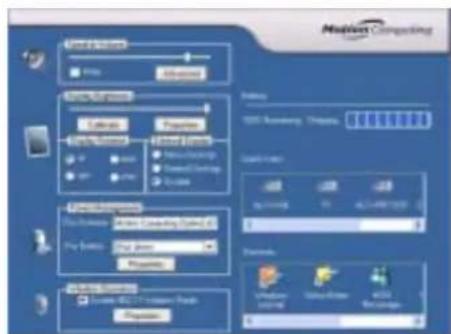
NOTE: You may also set up this feature through the Intel(R) Extreme Graphics icon found in the Windows Control Panel or through this same icon, which is located in the System Tray at the bottom right of the Tablet PC display.
SETTING UP A WIRELESS CONNECTION
Wireless network access points are available in airports, public businesses, such as coffee shops, as well as in private companies. With the proper hardware, you can even have a wireless access point at home. Each access point may provide various levels of security and may require passwords and/or fees for connection.
Although wireless access is available in public areas, your ability to use the wireless access point depends on the following conditions:
NOTE: The Tablet PC antenna should not be covered by your hand when making a wireless connection.
• Distance from the access point
- Ability to connect to the access point
- Service rights to it (which may require an account fee, user name, password, an/or network setup through an administrator)

WARNING: FAA regulations require that you disable any wireless connection when traveling by air. If the Wireless LED on the front of the Tablet PC is off, wireless communications are disabled.
To set up a wireless connection through the Motion Dashboard:
- Open the Motion Dashboard and make sure that Enable WMIB-100 GS Radio is checked.
- Under Wireless Operation, tap Properties.
- On the Wireless Network Connection Properties screen, tap the Wireless Networks tab.
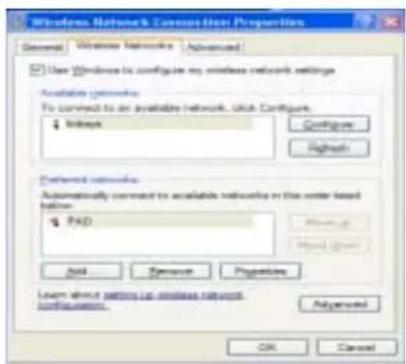
-
From Available Networks, choose a network (an access point).
-
Tap Configure. The access point you selected should appear in the Network name (SSID) description.
-
Tap OK.
-
Tap OK again to complete the setup of the wireless connection.
NOTE: To complete the wireless connection, you may need to enable Wired Equivalent Privacy (WEP), Extensible Authentication Protocol (EAP), or other settings before the wireless network will connect. This may require you to add a network name (SSID) and Network key and/or to authenticate access (by password or other means). In a corporate wireless network, contact your System Administrator for these settings. For a home network, follow the instructions that come with your wireless access point. For other wireless access points that are available through third-party service providers (such as a wireless telephone service), contact the appropriate service provider.
To set up a wireless connection through the Control Panel:
SETTING UP SPEECH RECOGNITION FOR DICTATION
- Open the Control Panel and tap Network Connections.
- Make sure the Wireless Network Connection is enabled. (If it's not, right-click on the connection and tap Enable.)
- Right-click Wireless Network Connection.
- Tap View Available Wireless Networks.
- Tap Advanced.
- Repeat Steps 3-7 in the previous procedure.
To set up speech recognition for dictation:
NOTE: The Tablet PC works best for dictation if you use a high-quality headset microphone.
- Plug a microphone into your Tablet PC.
- Tap the Tablet PC Input Panel icon on the menu bar at the bottom of the Tablet PC display. The Tablet PC Input Panel appears.
- Tap the down-arrow beside Tools to open the selection box.
- Tap Speech. The first time you access this function, a Speech Recognition Enrollment message appears suggesting that you take 10 minutes to adjust the microphone and train speech recognition before continuing. If you have not completed speech training, the speech buttons
- Tap Next and follow the Microphone Wizard.

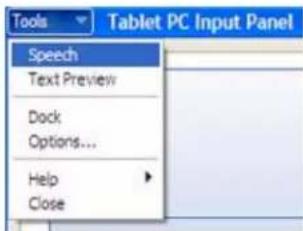
NOTE: Speech recognition will only correctly recognize 85%-90% of your words as you dictate. As you use this tool, accuracy gradually improves. You can improve this performance by running further speech training sessions. Open the Windows Control Panel and select Speech to access speech training.
USING SPEECH RECOGNITION FOR COMMANDS
After you complete Speech Recognition training, when you select Speech, the Tablet PC Input Panel displays options for Dictation or Commands. The display also indicates if it is Not Listening or Listening.
NOTE: For more information about using this feature, see the Windows Help and Support Center where you can search for topics about speech recognition and training. Also available are the speech tutorials. To find the speech tutorial, select Start, Help and Support, Welcome to Tablet PC, Tablet PC Tutorials.
CREATING A S GREEN- RESOLUTION S CHEME FOR AN EXTERNAL MONITOR OR SIMILAR DEVICE
To create a special screen resolution scheme:
-
Tap the Properties button on the Motion Dashboard. Or, the Intel(R) Extreme Graphics icon in the System Tray, located at the bottom-right corner of the display. Then select Graphics Options, Graphics Properties...
-
From the Intel(R) 82830M Graphics Controller Properties window, select the Schemes tab. The current Video Mode is displayed.
- Tap the New button on this window.
- Type in a name for the new scheme.
- Highlight this new scheme in the Schemes window.
- Add or change the parameters for this scheme.
- Tap Save.
- To test or launch a scheme, select it from the list and tap the Invoke button.
- Tap OK.
MULTIMEDIA APPLICATIONS
M1200 and the M1300 Tablet PCs support most multimedia applications.
SETTING UP TABLET PC SECURITY
Passwords protect your Tablet PC from unauthorized access. Passwords can create different levels of protection for your Tablet PC and its data:
- Operating system password — Secures the files on your Tablet PC from other users
- BIOS passwords — Secures the software routines that test hardware at startup, start the operating system, and support the transfer of data among hardware devices; BIOS is the Basic Input/Output System
- System password — Locks access to the BIOS setup
- Boot password — Locks access to the system
- HDD (Hard Disk Drive) password — Secures your data so the Hard Disk Drive cannot be accessed by removing it and connecting it to another Tablet PC
Setting the Windows Operating System Password
You can set up a Windows operating system password through the Control Panel, User Accounts.
Setting the BIOS Passwords
CAUTION: We strongly recommend that you write down your password(s) and keep it in a location that is appropriate to your work environment. If you enter a wrong BIOS System password several times, you will be locked out of the system. If you become locked out, you can restart the Tablet PC and retry the password again. You can repeat restarting and retrying the password as many times as you want. However, if you are unable to remember your password, you will not be able to access your Tablet PC. If this happens, you call Motion Computing Technical Support or your Motion reseller for assistance. Have your Tablet PC Serial number available (located on the label on the back of the unit) for them to assist you.
The level of security you want on your Tablet PC helps determine what BIOS password(s) you set. These are described in the following sections.
BIOS System Passwords
To set up a password to access the PhoenixBIOS™ Setup Utility on the Tablet PC:
NOTE: These procedures describe using the Pen to enter information; you can also attach an external keyboard if you prefer.
- Start the Tablet PC.
- When the Motion Computing Splash Screen appears, quickly press Hot Key #2 (icon shown here). If you miss the Splash screen, turn the Tablet PC off then back on and try this step again.

-
From the PhoenixBIOS Setup Utility, tap Security on the menu bar.
-
To set up a System password, double-tap Enter next to Set System Password.
-
Type in a System Password using the onscreen keyboard.
-
Tap Enter.
-
Type in the password again to confirm it.
-
Tap Enter. The system returns to the Security screen and the System Password reads Set. A password is now required to enter the PhoenixBIOS Setup Utility.
-
To set up a Password on boot, tap Disabled next to Password on boot until Enabled is highlighted. You will not be prompted to type in another password because Password on boot uses the System password.
NOTE: You cannot set up Password on boot until you set up a System password.
-
If you have finished setting up a password, tap Exit or press the Esc key on the Tablet PC to exit the PhoenixBIOS Setup Utility.
-
When you exit, you're prompted to select from the following options:
-
Exit Saving Changes
- Exit Discarding Changes
- Load Setup Defaults
• Discard Changes -
Save Changes
-
Select the desired action.
-
Confirm the selection by tapping Yes.
Hard Disk Drive (HDD) Password
To set up a password to start the Tablet PC (so no one can access the information on the Hard Disk Drive of your Tablet PC even if it's removed and installed in another Tablet PC without the proxy password):
-
Start the Tablet PC.
-
When the Motion Computing Splash Screen appears, quickly press Hot Key #2. If you miss the Splash screen, turn the Tablet PC off then back on and try this step again.

-
From the PhoenixBIOS Setup Utility, tap Security on the menu bar.
-
To set the hard disk password, double-tap Enter next to Set Hard Disk Password.
-
Type in a New Password.
-
Tap Enter.
-
Type in the password to confirm it.
-
Tap Enter. The system returns to the Security screen and the HDD Password is Set. (When you exit then re-enter the PhoenixBIOS setup, the HDD Password is Locked.)
-
Repeat Steps 10-13 in the section "Bios System Passwords."
CLEARING TABLET PC SECURITY
To clear the Tablet PC PhoenixBIOS security:
-
Start the Tablet PC.
-
When the Motion Computing Splash Screen appears, quickly press Hot Key #2. If you miss the Splash screen, turn the Tablet PC off then back on and try this step again.

-
From the PhoenixBIOS Setup Utility, tap Security on the menu bar. If you have rebooted, you will be prompted to enter the password(s) you've set up.
-
To clear the System and Password on boot passwords, double-tap Enter next to Set System Password.
-
Type in the Current Password.
-
Leave the space blank next to Enter New Password.
-
Tap Enter.
-
Leave the space blank to Confirm New Password.
-
Tap Enter.
-
When the Security screen appears, the System Password should be Clear and the Password on boot Disabled.
-
To clear the Hard Disk Drive password, double-tap Enter next to Set Hard Disk Password.
-
Type in the Current Password.
13.Leave the space blank next to Enter New Password.
- Tap Enter.
15.Leave the space blank to Confirm New Password.
-
Tap Enter.
-
When the Security screen appears, the HDD Password should be Clear.
CARING FOR YOUR TABLET PC AND ITS ACCESSORIES
The Tablet PC display and chassis are designed to be very durable. This section describes the proper care and maintenance that will keep them working and in good condition for a long time.

CAUTION: Be sure to follow the guidelines listed below when caring for your Tablet PC and its components. Improper use may damage the Tablet PC and/or its components.
General Care
- Protect the Tablet PC from exposure to extreme temperatures, shock, liquids, strong magnetic fields, and turbulent conditions.
- Do not open or disassemble the Tablet PC other than to replace memory modules or to replace the battery. Always follow the instructions included with these accessories when performing these procedures.

WARNING: To avoid the risk of personal injury or damage to the Tablet PC, when replacing memory modules, turn off your Tablet PC, unplug the AC power connection, and remove the battery. Ground yourself by touching a grounded conductive surface, such as a device or appliance with a grounded, three-pronged plug. Avoid touching the pins and leads on the memory and the internal circuitry of the Tablet PC. See the section "Adding Memory" in this chapter for more information about replacing or adding memory modules.
- When storing the Tablet PC for an extended period of time, unplug AC power and remove the battery after discharging it partway.
- Do not place heavy objects on top of the Tablet PC.
Caring for the Display Screen
- You can clean fingerprints and most marks from the display surface by wiping it with the soft cloth (provided). If needed, you can spray this cloth with a window-type cleaner. Never spray or pour liquids directly onto the display surface itself. Never use an abrasive cleaner on the display. If liquid is spilled on the display, wipe it up immediately.
- Avoid using tissues or paper towels to clean the display surface. These contain wood fibers that can scratch the display.
- Use only the Motion Digitizer Pen on the display. Do not write on the surface with an ink pen or pencil, any pointed or other object that could damage the display surface.
- Do not place heavy objects on the display surface.
- Protect the display surface from unnecessary contact by using the Hardtop Cover or a portfolio when transporting the Tablet PC.
- Avoid exposing the display to direct sunlight for long periods of time.
Caring for the Motion Digitizer Pen
• Always store the Motion Digitizer Pen in the Tablet PC Pen holder or in the portfolio when not in use.
- Store extra Pens in your portfolio. The Pen should not be stored vertically on the tip as constant tip pressure can affect the Pen-to-digitizer interaction.
- The Pen contains sensitive electronics. Do not immerse it in liquids.
Replacing the Pen Tips
Normal use eventually wears down the Pen tip, so the Pen ships with extra tips and a tool for replacing them.
- Grasp the old tip with the silver ring of the replacement tool.
- Pull the old tip out of the Pen.
- Insert a new tip.
- Apply slight pressure to set it in place.
Ordering New Pens
To order additional Pens, visit the Motion Computing website at www.motioncomputing.com/accessories.
TRAVELING WITH YOUR TABLET PC

WARNING: FAA regulations require that you disable any wireless connection when traveling by air. The LED on the front of the Tablet PC provides a convenient way to check the status of your wireless connection. If the LED is off, wireless communications are disabled.
Packing Your Tablet PC for Travel
- Remove all accessories and cables. Remember to pack those you'll need while traveling and don't forget to pack at least one Motion Digitizer Pen.
- Attach the Hardtop Cover or slip the Tablet PC into its portfolio to protect the display.
- Protect the Pen by keeping it in the Tablet PC Pen holder or portfolio case during travel.
- Pack the Tablet PC securely in a briefcase or hand-carried luggage, and keep it separate from toiletries, liquids, and food. Do not pack it in checked luggage when you travel.
- Keep the Tablet PC stable during travel; secure it to prevent it from sliding around in overhead bins and car trunks.
Traveling by Air
- Prepare for airport security by charging the battery in the event Security asks you to start the Tablet PC.
- Have it hand-inspected or sent through the X-ray scanner, but never carry it through the metal detector.
- Either turn off or place the Tablet PC in hibernation for takeoff and landing.
FAA Wireless Air Travel Requirement

WARNING: The FAA requires that wireless operations be suspended before boarding the plane. The easiest way to disable wireless operations is by unchecking the Enable 802.11 Wireless Radio box in the Motion Dashboard. The wireless LED on the Tablet PC front panel, marked as shown here, is off when wireless communications are disabled.

WARNING: Do not transport the Lithium ion batteries used in your Tablet PC in checked baggage. You may take up to two spare batteries in carry-on luggage in addition to the one in your Tablet PC. Transporting batteries in check baggage or transporting more than two spare batteries is a violation of transportation regulations.

Other Travel Hints
- Before extended use in the field or long trips away from AC power, adjust the Power properties to maximize battery conservation. Right-click the Power/Battery icon in the System Tray, located in the lower right-hand corner of the display window, to open the Power Options Properties dialog box. Then adjust the options. For more information, see the section “Changing the Default Power Scheme” in this chapter. Or see the Performance and Maintenance section of the Help and Support Center for details about power settings.
- For international travel, obtain and use the appropriate adapters for your destination's electrical outlets. A current converter is not necessary.
- You may want to carry proof of ownership or a merchandise passport when traveling internationally.
- Consult your insurance company and credit card company to learn about emergency travel assistance if your Tablet PC is lost or disabled.
Appendix A
Troubleshooting and Support
All Motion Computing Tablet PCs have passed a rigorous series of performance and quality-control tests, but now and then a problem may occur. If you don't see a solution among the following system and software issues, check the Support Options listed at the end of this chapter or go to our website at www.motioncomputing.com/support.
SOLUTIONS
| PROBLEM | CAUSE SOLUTION | |
| POWER | ||
| The Tablet PC won't start when I slide the Power switch. | The Power switch hasn't been fully engaged. | Slide and hold the Power switch for at least a half-second, but no more than three seconds. |
| Fully discharged battery or no battery and no AC power. | Connect the AC adapter to operate the Tablet PC and charge the battery. | |
| The Tablet PC won't shut down. An application has locked up the Tablet PC. | Slide and hold the Power switch for at least 5 seconds to force a shutdown of the Tablet PC. | |
| The Tablet PC won't enter Hibernation mode. | Hibernation isn't enabled. Enable Hibernation through Power Option Properties. | |
| The Tablet PC won't come out of Hibernation mode when running on battery power. | Fully discharged battery and no AC power. | Connect the AC adapter to provide power to the Tablet PC and charge the battery. |
| POWER (CONTINUED) | ||
| The display goes black while the Tablet PC is still turned on. | The Tablet PC system has gone into Stand By after sitting idle for a period of time. (In this state, the power LED flashes green.) | Slide the Power switch for about a second to resume operations. |
| System has gone into low-battery Hibernation. (In this state, the power LED is off.) | 1, Slide the Power switch for about a second to resume operations. 2. Connect the AC adapter to the Tablet PC to charge the battery. | |
| BATTERY | ||
| Data loss during battery swap. The | unit is designed to maintain the data and settings for up to 30 seconds in Stand By while you swap the battery. This time may vary due to your system and the programs you're running. | When you swap the battery with the unit in Stand By, be sure to save your data before removing the battery to avoid data loss. |
| The battery seems to run down very quickly (lasting less than three hours after a full charge). | Accessory devices such as a DVD player and applications that make heavy use of the hard drive drain the battery more quickly. | Use AC power when possible and/or turn off the accessory devices. |
| The battery is weakening or defective. | All batteries weaken in time, but if a new battery is needed, contact your reseller or Motion Computing Support about replacing it. | |
| DISPLAY | ||
| The desktop is too big for the display – I can't see all of the desktop icons. | Screen resolution is set higher than the default 1024 x 768 with 32-bit resolution. | Decrease the screen resolution by opening the Motion Dashboard, selecting Graphics Properties, then the Schemes tab. |
| When I disconnected a second monitor from the Tablet PC, the image became too big for the Tablet PC display. | The Tablet PC has attempted to spread the image of a window or desktop beyond the screen area of the active monitor. | 1. Tap the Properties button on the Motion Dashboard.2. Tap Graphics Options, then Graphics Properties... to open the Properties screen.3. Select Notebook to make the Tablet PC the primary display. |
| The display looks dim. Brightness | is set too low. Adjust brightness from the Motion Dashboard. | |
| The screen is unreadable or distorted. | Screen resolution and/or color quality are set incorrectly. | Reset resolution to 1024 x 768 and color quality to 32-bit by opening the Motion Dashboard, Graphics Properties, then the Schemes tab. |
| Display driver has become corrupted or uninstalled. | 1. Open the Windows Control Panel, select Performance and Maintenance (Category View). or System (Classic View).2. Select the Hardware tab.3. Select Device Manager.4. Open Display adapters.5. Double-tap on an adapter.6. Select the Driver tab.7. Choose Update Driver... and follow the Installation Wizard. | |
| PEN | ||
| The Tablet PC digitizer screen doesn't respond to the plastic stylus I use on my PDA. | You're using the wrong input device. | Only the Motion Digitizer Pen lets you write on the Tablet display. The Tablet PC doesn't respond to other tablet pens or to a plastic stylus. |
| I have the Tablet PC Input Panel open, but a few seconds after I write, my writing disappears. | You don't have an application or word processing program open to which the Input Panel can send the ink message. | Either open the Text Preview window from the Tools menu on the Input Panel, or open a word processing program, such as Microsoft Word, Notepad, or Wordpad. |
| The Motion Digitizer Pen tip doesn't line up with the arrow-cursor when I tap on the screen. | The pen and display need recalibrating. | Double-tap the Tablet and Pen Settings icon and select the Pen Settings tab. Or select Calibrate on the Motion Dashboard. |
| I sometimes unintentionally click the Pen function button while I'm writing with the Pen. | You're pressing the Pen button with your thumb or finger when you write or gripping the Pen too tightly and accidentally pressing the Pen button. This enables the right-click function of the Pen. | Try these hints:·Readjust how you hold the Pen. Place your fingers on either side of the Pen function button when you write.·Practice using the Pen function button with both your index finger and thumb to see which you prefer.·Relax your grip. Only a light touch is needed to write with the Pen.·Deactivate the Pen right-click function through Tablet and Pen Settings. Instead, press and hold the Pen to the display surface to right-click. |
| PROBLEM | CAUSE SOLUTION | |
| PEN (CONTINUED) | ||
| The Pen button doesn't work. I can't get it to right-click. | The right-click option for the Pen button may be deactivated. | Re-activate the right-click option: Double-click the Tablet and Pen Settings icon, select Pen Options, and reselect Use pen button to right-click. Select Apply>OK. |
| You may not be correctly timing clicking the Pen button and tapping the Pen on the display. | To right-click, hold the Pen button down and then tap on the display. | |
| The buttons on the Tablet PC don't do what I expect them to do. | Button functions have been changed. | Double-tap the Tablet and Pen Settings icon, then Tablet Buttons. You can reset the buttons to the defaults. Note: Button functions are associated with the orientation in which they're programmed. |
| INTERFACE/PORTS | ||
| The system doesn't recognize the PC card I've inserted. | The card is incorrectly inserted. Eject the card and re-insert it with the label side up. | |
| The device is not supported. | Check Windows XP compatibility. | |
| The system doesn't recognize a USB or IEEE 1394 device. | Windows XP may take a short time to recognize the device. | Wait until Windows XP recognizes the device. |
| The accessory isn't connected to the Tablet PC correctly. | Check the connection cable and be sure it is inserted into the correct port on the Tablet PC and the accessory device. | |
| The correct driver isn't built into Windows XP. | Use the device's installation CD or check the manufacturer's website for the correct driver. | |
| The Tablet PC is sitting in the Motion FlexDock, but the system doesn't recognize any accessory devices, such as the external monitor or CDROM. | The Tablet PC isn't fully seated in the Motion FlexDock. | Reseat the Tablet PC in the Motion FlexDock. |
| AUDIO | ||
| The built-in microphone doesn't seem to hear my voice correctly. | The built-in microphone is not intended for dictation. | For speech recognition, attach a headset microphone. A DSP headset provides good results. |
| No sound is coming from the built-in speakers. | Connecting a headset or external speakers mutes the built-in speakers. | Disconnect the headset or external speakers if not in use. |
| No sound is coming from any speakers. | Audio volume is too low or has been muted. | Open the Motion Dashboard and adjust the speaker volume by sliding the volume slider or uncheck the Mute button. |
| OPERATING SYSTEM | ||
| I've forgotten my BIOS password and can't access my system. | The Tablet PC will let you enter a certain number of incorrect passwords (five) before it locks the system. | Turn the Tablet PC off and back on and try re-entering your password (you can do this as many times as needed). If you have forgotten your password, contact your Motion Computing reseller or Motion Computing Technical Support for information about unlocking your system. |
| The program I'm working in has stopped responding, but the cursor moves and other programs work. | The program has crashed. Press the | the Security button (small button with a key icon) on the Tablet PC front panel to open the Task Manager and end the non-responsive program. |
| The system keeps showing the wrong date and time even after I reset it. | Wrong time zone is selected. Check that the time zone is correct and reset it as needed. | |
| The system memory battery on the mainboard may need to be replaced. | Contact your Motion Computing Reseller or Motion Computing Support at www.motioncomputing.com/support | |
| The system seems to be operating more slowly than usual. | The hard disk drive is full or nearly full. | Run the Disk Cleanup utility to clear out unnecessary and temporary files. Remove unneeded programs and files. |
| The disk needs defragmenting. Run Disk Defragmenter to consolidate files and folders on the hard drive. Consult the "Performance and Maintenance" section of the Help and Support Center. | ||
| COMMUNICATIONS | ||
| The wireless communication keeps connecting even when I don't want it to. | The default setting is On. Uncheck | the Wireless Communications checkbox in the Motion Dashboard. |
| Data doesn't transfer through the wired Ethernet cable. | The Ethernet cable is not connected correctly. | Reconnect and check the activity LEDs next to the LAN (RJ-45) port. They should flash green and amber. |
FAQs
How long will the battery stay charged?
This can vary according how you're using the Tablet PC, but a new, fully charged standard Motion 6-cell battery can last 3-4 hours.
Can I make the battery charge last longer?
- Change to the Max Battery power scheme (right-click on the Power/Battery icon in the System Tray--located in the lower-right corner of the display window--and tap Adjust Power Properties; under Power schemes, tap Max Battery). The Tablet PC comes with Motion Computing Optimized as the default power scheme.
- Dim the display brightness by opening the Motion Dashboard and moving the Display Brightness slider. (You can also double-tap on the Tablet and Pen Settings icon in the System Tray and choose the Display tab to get this brightness slider.)
- Disconnect LAN/modem connections and disable wireless communications when not in use (uncheck the Wireless Communications checkbox in the Motion Dashboard).
- Turn off optional and unnecessary background programs and turn off or unplug accessory equipment from the USB and IEEE 1394 ports.
What does the Tablet PC need for use in another country?
Just an outlet adapter, which you can find in airports and travel stores. The AC adapter will adjust automatically to different voltage when plugged into the correct location-appropriate power adapter.
What's the best way to clean the display screen?
To clean the display screen, spray a window-type cleaner onto a soft cloth, like the one supplied with your Tablet PC, then wipe the display. Do not spray cleaners, spray/pour any liquid, nor wipe any abrasive cleaner on the screen nor any surface of the Tablet PC. Do not use tissues or paper towels to clean the screen. They contain wood fibers and may scratch the surface.
Will scratches affect the display/digitizer's performance?
Testing has not found appreciable loss of performance on a scratched display.
How sensitive is the screen to sunlight and the elements?
As with any computer or electronic device, the Tablet PC should be protected from liquids, dirt and sand, other contaminants, sunlight, and extreme heat.
Will the Tablet PC work with any monitor or USB accessory keyboard, mouse, disk drive, etc?
As long as the device's driver is available either in the Windows XP operating system or from the manufacturer and it carries the Windows XP logo or certification, it should work with your Tablet PC. For more information, see www.microsoft.com/help.
Why doesn't the Tablet PC or FlexDock have parallel, serial, or PS2 (mouse) ports?
Microsoft Tablet PC certification requires the system to be completely Grab-and-Go—that is, to be able to dock with and undock from all accessories without putting the system into suspend or shutting it down. Connection through legacy ports (serial, parallel, PS2) often requires suspending or restarting the system, which prevents you from moving between desktop mode and mobile mode seamlessly in one docking/undocking step. You can purchase a USB-to-serial or USB-to-parallel adapter from Motion Computing or a Motion Computing reseller.
How do I adjust the Tablet for left-handed use?
Double-tap on the Tablet and Pen Settings icon in the System Tray, located in the lower-right corner of the display window, which opens the Settings window. You can change handedness as well as the location of the menus. Then, recalibrate the Pen.
MOTION WARRANTIES
Standard, and Extended Warranty and Insurance Programs
Motion Computing offers a 1-year limited warranty on the Motion Tablet PC, the Motion FlexDock, and Memory Upgrade Modules. For a copy of this Warranty, see the Warranty packaged with your Tablet PC.
Motion Computing offers a 90-day warranty on other accessories. For a copy of this Warranty, see the Warranty packaged with your Tablet PC.
In addition, Motion Computing offers 1-year and 2-year extended warranties along with various screen and configuration insurance programs. For information, contact Motion Computing at www.motioncomputing.com/support.
MOTION COMPUTING SUPPORT OPTIONS
Motion Computing Support
If you need assistance or answers to frequently asked questions about your Motion Tablet PC, visit www.motioncomputing.com/support. We also offer a Knowledge Base of additional information that may help with your problem.
Returning the Motion Tablet PC for Repairs
To request service for your Motion Computing Tablet PC, contact Motion Computing Technical Support at www.motioncomputing.com/support.
RMA Process (Warranty Service)
To request warranty service, contact Motion Technical Support. If Motion determines a return is necessary, you will be given an RMA (Return Material Authorization) number, as well as packing and shipping instructions. Motion Computing will complete the repair within 48 business hours and return it by two-day air shipment.
Appendix B
Motion Tablet PC Specifications
| Motion M1200 and M1300 Tablet PCs | |
| CPU Motion M1200: Intel Pentium III Processor-M, ULV*Motion M1300: Intel Pentium M Processor, ULV**ULV=Ultra Low Voltage | |
| Chipset Motion M1200: Intel 830GM | Motion M1300: Intel 855GM with 64MB video RAM |
| System Memory Motion M1200: 256MB base RAM (maximum 1GB); two PC133 SDRAM SODIMM slotsMotion M1300: 256MB base RAM (maximum 1GB); two PC2100 DDR SODIMM slots | |
| System Storage (Hard Disk Drive) Available configurations: minimum 20GB, upgradeable | |
| I/O Microphone-in; Headphone out; DC power inPorts: two USB ports (M1200=USB 1.1; M1300=USB 2.0); one IEEE 1394; one RJ-11;one RJ-45; one VGA monitor; one docking connector | |
| Front Panel Buttons (in Primary landscape mode; top to bottom) | One Alt+Tab key with secondary functionOne Function keyFive-way directional control button with secondary functionsProgrammable Hot Key: One Dashboard display button with secondary functionProgrammable Hot Key: One Portrait/Landscape rotation key with secondary functionOne Security button (Ctrl+Alt+Del) |
| PC Card Controller O2 Micro OZ6912T PCI Cardbus | |
| PCMCIA Single Type-II PCMCIA card bus slot | |
| Audio Motion M1200: Sigmatel AC9750Motion M1300: RealTek ALC203 | |
| Display 12.1" XGA TFT LCD (1024 x 768) | |
| Graphics Motion M1200: Intel 830GM integrated graphics with UMA rotational support.Motion M1300: Intel 855GM integrated graphics with UMA rotational support.Rotation: 0°, 90°, 180°, 270°External Monitor Resolution Support: Motion M1200 -- 1800 x 1440 (maximum);Motion M1300 -- 2048 x 1536 (maximum) | |
| Communications | |
| Ethernet LAN 10/100: Realtek RTL8100BL LAN on motherboard | |
| Modem | PCTEL MDC V.92 56.6Kbps/14.4Kbps transceiver fax |
| Wireless | Motion M1200: 802.11b via Type-IIIA mini-PCI interfaceMotion M1300: 802.11b dual band |
| Input Device Active digitizer pen (no battery required) with single function button | |
| Docking | Motion FlexDock docking station. Features include: microphone-in; headphone out; DC power in; three USB ports (M1200=USB 1.1; M1300=USB 2.0); IEEE1394 connector; RJ-45 connector; VGA connector (for external monitor); docking connector to the Tablet PC; cut-out that allows access to the RJ-11 (modem) connector on either MotionTablet PC model |
| Battery/Power Management | |
| Battery Type | Six prismatic Lithium-ion cells; Smbus control; 40Whr capacity (optional lightweight 3-cell Lithium-ion battery, purchased separately) |
| Battery Life Six-cell battery: Maximum | 3-4 hours |
| Battery Charging Time | Approximate charging time of 2 hours (Tablet PC on); 1.2 hours (Tablet PC off) |
| Battery Charger Motion Multi-Unit Battery | Charger: Nominal Input Voltage=19VDC; nominal output voltage=12.5V; operating ambient temperature: 0°C to +50°C (+32 F to +122°F); storage temperature: -2°C to +70°C (-4°F to +158°F) |
| AC Power Adapter 50W universal, 2-pin jack, 90~264V AC, 47-63Hz | |
| LED System Status Indicators | Power/Stand By; Battery Status; Hard Drive Access; Wireless Activity |
| Software (standard) | Microsoft Windows XP Tablet PC Edition; Adobe Acrobat; Motion Computing Dashboard; customer support tools; online documentation; drivers |
| BIOS 512 KB (Motion M1200) or 1024KB | Motion M1300) Flash BIOS ROM; password protection for the system and Hard Disk Drive; ACPI 1.1 compliant; Pen/Button based setup utility |
| Environment | Operating Temperature: +5°C to +35°C (+41F to +95°F)Storage Temperature: -20°C to +60°C (+4F to +140°F)Humidity: 10% to 90% without condensationOperating Altitude: 0 to 10,000 feetStorage Altitude: 0 to 40,000 feet |
| Physical Characteristics | |
| Size 296.0mm x 240.0mm x 22.0mm | (11.7" x 9.4" x 0.90") |
| Carrying Weight <3.0 lb (1.36KG) (in selected configurations) | |
| Optional Accessories* *New accessories may be added from time to time. For a list of the currently available accessories, see the Motion website at www.motioncomputing.com/accessories. | Motion FlexDock; Motion Desktop Stand; Motion Slip Case; Motion Hardtop Cover; Motion Portfolio; Motion Executive Portfolio; Clamshell Portfolio; Motion Mobile Keyboard with Touch Pad; Motion Hardtop Keyboard; Motion Rubber Edge Protector; Motion Optical Disk Drive; Motion 3-cell Battery; Motion 6-cell Battery; 256MB Memory Upgrade for Motion Tablet PCs; 512MB Memory Upgrade for Motion Tablet PCs; Motion 40GB and 60GB hard drive upgrades. |
| Service/Support | |
| Motion Computing Support | Contact your Motion Computing reseller or go to the Motion Computing support website at www.motioncomputing.com/support. |
| Agency Certifications | |
| Emissions FCC 15, Class B | EN55022 (CISPR22) Class BICES-003 Class BETS 300 328ETS 300 826IC RSS 210 |
| Immunity EN55024 | |
| Safety UL and CUL, UL1950 | CSA C22.2EN60950TUV/GS |
| Telecom FCC Part 68 | IC CS03 |
Appendix C
Wireless Mini-PCI Installation
WIRELESS MINI-PCI INSTALLATION
To install the wireless mini-PCI card (WMIB 100GS) in your Tablet PC, follow these steps:
WARNING: To avoid the risk of personal injury or damage to the Tablet PC, when performing the following tasks, turn off your Tablet PC, unplug the AC power connection, and remove the battery. Ground yourself by touching a grounded conductive surface, such as a device or appliance with a grounded, three-pronged plug. Avoid touching the pins and leads on the memory module and the internal circuitry of the Tablet PC.
- After you disconnect power, unscrew the L-shaped cover from the bottom of the Tablet PC.
- If you are replacing a wireless card, release the clips on each side of the card then lift to remove it from the slot.
- Align the pins on the wireless card with the receptors on the slot.
- Gently push the new wireless mini-PCI card into the mini-PCI socket of the Tablet PC motherboard at a 25-degree angle until it is firmly seated, then snap it into place.
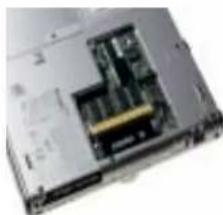
natural_image
Close-up of a computer drive bay showing internal components (no visible text or labels)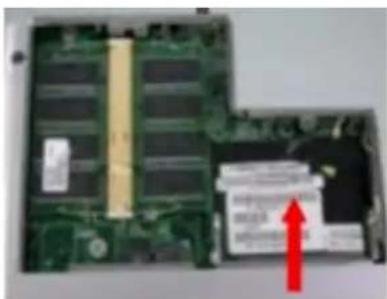
natural_image
Interior view of a computer motherboard showing a green circuit board and a yellow memory card, with a red arrow pointing to a component (no readable text or symbols)-
Connect the gray antenna from the Tablet PC to the RF MAIN terminal of the mini-PCI card.
-
Connect the black antenna on the Tablet PC to the RF AUX auxiliary terminal of the mini-PCI card.
-
Replace the cover on the bottom of the Tablet PC, reinsert the screws, and tighten them.
-
Reinsert the battery and connect to AC power; then power up the Tablet PC.
RF MAIN.....RF AUX
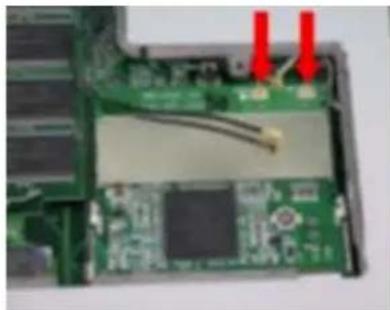
natural_image
Close-up of a green printed circuit board with visible traces and components, no text or symbols present.A
AC mini-plug 14
AC power adapter 14 wrong 47
Accessories 7, 19
FlexDock 19
Hard Top Cover 21
Keyboard 20
Memory Upgrade Modules 22
Optical Disk Drives 21
Portfolio 21
Adding memory 45
Adjusting brightness 42
Administrator password 29
Analog telephone jack 15
Application CD 23
Arrow keys 15, 41
B
Battery 13
and storing the Tablet 55
Battery Status Gauge 17
Battery Status LED 44
charging 44
Dashboard 25
disposing of 45
functions 14
gauge 44
hints 45
overheated 44
reading the Power Meter 42, 44
recharging 44
recharging time 44
Status 16
temperature 14
testing the charge 44
Battery Status 16
Battery status gauge 13, 17
BIOS
accessing 53, 54
exiting 54
Brightness 25
Button functions
Alt + Tab 15
Tablet PC Input Panel 15
Buttons
changing defaults 41
Escape button 15
Function button 15
Hot Key #1 (Dashboard) 15
primary functions 15
Resetting button functions 41
secondary functions 15
setting functions x
C
Cable connections
DVD, CDRW 46
Calibrating 25
CDROM 46
CDRW 46
Cleaning recommendations 56
Cloning 48
Commands
voice 51
Computer name 29
D
Dashboard 25
Calibrate Pen button 33
Quick Keys 25
Default power scheme 43
Desktop Stand 19
Dictation 51
Did You Know updates 10
Disappearing 36
Display
brightness 42
cleaning 55
orientation 40
Display Brightness 25
Display Rotation 25
Display screen 55
Domain name 29
Drawings 37
Dual Head Video Controller 48
DVD/CDRW 46
E
Enable 802.11 Wireless Radio 50
End User License Agreement 29
F
Faxing 15
FCC i
Features 5, 6
FlexDock 19, 48, x
Function button. See Pen, function button 34
G
Gauge 17
Gestures, Pen 35
Graphics 48, 49
Grounding 45
H
Hard drive 13
Hard Drive LED 16
Hard Top 56
Hard Top Cover 21, 56
HDD password 52
Headphone 13
Hibernate
Power Management 45
Hibernation
definition of 31
exiting 32
when to use 31
Hints
battery 45
Power Management 45
Wireless 22
Hot Key #2 (Orientation) 15, 40
Hot Keys 41
I
I/O 6
IEEE 1394 46
Inkball 9
Intel Extreme Graphics 48, 49
Internet
initializing in Windows XP 28
K
Keyboard 20
Keyboard, USB 29
L
LEDs
Battery Status 16
front panel 16
Hard Drive 16
Power/Standby 16
status 16
Wireless 16
Lithium-ion battery 6
Lock slot 13
Locked, HDD Password 54
M
Memory 13, 45
amount of 46
Memory configurations 22
Memory upgrade modules 22
Microphone
built-in 13
jack 13
Microphone Wizard 51
Mini-PCI card 5, 13, 22
Modem 15
Motion M1200 Tablet PC
care 55
chassis 14
features 5, 6
software 28
starting and stopping 30
storing 55
Motion Digitizer Pen 14
Multimedia 52
i
0
Optical Disk Drive
AC power adapter 47
cables 46
diagram 46
installation 46
Optical Disk Drives 21
Orientation
changing 40
P
Password
forgotten 53
HDD 52
operating system 52
Password on boot 53
removing 54
PBX 15
PC card
PC card slot 13, 22
Pen
adjusting properties 35
and mouse 34
backspace gesture 35
button 32
calibrating 14, 33
care 34, 56
description 11
double-tap 33
electronics 56
function button 33
gestures 35
hints for using 33
ordering 56
overview 32
pen tether anchor 13
pointer 34
practice 8
press and hold 33
replacing pin tips 56
right-click 33
select/highlight 33
tap and drag 33
using on the display 56
Windows XP pen functions 27
writing with 33
Pen Calibration 25
Peripheral devices 19
PhoenixBIOS Setup Utility 53
Plugging in wrong AC power adapter 47
Portfolio 21, 56
Ports
IEEE 1394 13
LAN (RJ-45) 15
modem (RJ-11) 13, 15
tUSB 13
VGA monitor 13, 48
Power Management 25
hints 45
Power Meter 43
Power switch 13, 30
Power/Standby LED 16
Preview window 36
Product Key 28
Q
Quick Keys
Dashboard 25
R
RJ-11 15
S
Scheme
screen resolution 52
Screen resolution
setting up a new scheme 52
Security 52
disabling passwords 54
Security button 15
Set System Password 53
Shortcuts
Dashboard 25
Slot A 22
Slot B 22
Smart battery 16
Software 23
Dashboard 25
Microsoft activation 28
Speaker Volume 25
Speakers 13
Speech
headset microphone 51
Listening... 51
Not Listening 51
Speech recognition 26
setting up 51
Standby 25
definition of 31
exiting 32
Power Management 45
when to use 31
Standby mode 19
Starting and stopping 30
Sticky Notes 27, 39, 40
System Restore and Recovery CDs 23
T
Tablet and Pen Settings 27
Tablet PC Input Panel
icon 36
ink 36
send as Ink 36
writing 26
Tablet PC Tutorials 9
Take a Tour of Windows XP 10
Task Manager 15
Temperature 55
Throughput 15
Touchpad 20
scroll zone 20
Travel
adjusting power settings 57
international 57
wireless on airplanes 57
Tutorials, Tablet PC 9
U
USB 46
keyboard requirement 28
USB Keyboard 20
Utilities and Drivers CD 23
V
VGA 48
Video Mode 52
Voice commands 26
Voice notes 40
W
Windows Journal 13, 27
Windows XP Pen Functions 27
Windows XP Tablet PC Edition
initilizing 28
Wireless 5, 22
Control Panel 50
Dashboard 25, 50
disabling for air travel 50, 56
Enable 802.11 Wireless Radio 50
FAA regulations 50, 56
setting up
Wireless
non-secure 50
Wireless access point
connecting to 50
Writing 11
Writing with the Pen 33
X
xDSL 15