
MW300UH - Network card / adapter MERCUSYS - Free user manual and instructions
Find the device manual for free MW300UH MERCUSYS in PDF.


| Product Type | USB Wireless Network Adapter |
| Brand | Mercusys |
| Model | MW300UH |
| Interface | USB 2.0 |
| Wireless Standards | IEEE 802.11b/g/n |
| Frequency Band | 2.4 GHz |
| Data Rate | Up to 300 Mbps |
| Antenna Type | Internal PCB antenna |
| Wireless Security | WEP, WPA/WPA2, WPA-PSK/WPA2-PSK |
| System Requirements | Windows XP/Vista/7/8/8.1/10, Linux, Mac OS |
| Dimensions (L x W x H) | Approx. 92 x 28 x 13 mm |
| Weight | Approx. 20 g |
| Power Source | Powered via USB port (5V/500mA) |
| Operating Temperature | 0°C to 40°C |
| Certifications | CE, FCC, RoHS |
| Package Contents | 1 x MW300UH adapter, 1 x Quick Installation Guide |
| Maintenance | Keep dry and clean; disconnect during thunderstorms |
| Safety | Low voltage device; no user-serviceable parts inside |
| Repairability | Not designed to be repaired; replace if defective |
Frequently Asked Questions - MW300UH MERCUSYS
User questions about MW300UH MERCUSYS
0 question about this device. Answer the ones you know or ask your own.
Ask a new question about this device
Download the instructions for your Network card / adapter in PDF format for free! Find your manual MW300UH - MERCUSYS and take your electronic device back in hand. On this page are published all the documents necessary for the use of your device. MW300UH by MERCUSYS.
USER MANUAL MW300UH MERCUSYS
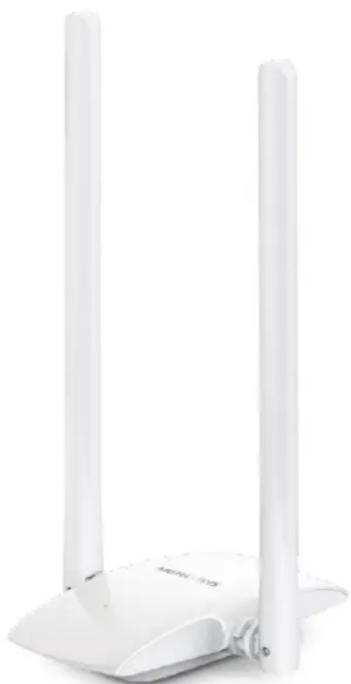
300Mbps High Gain Wireless USB Adapter
MW300UH
natural_image
White wireless router with two tall antennas, one on top and one on the side (no visible text or symbols)COPYRIGHT & TRADEMARK
Specifications are subject to change without notice.
is a registered MERCUSYS®
trademark of MERCUSYS TECHNOLOGIES CO., LTD. Other brands and product names are trademarks or registered trademarks of their respective holders.
No part of the specifications may be reproduced in any form or by any means or used to make any derivative such as translation, transformation, or adaptation without permission from MERCUSYS TECHNOLOGIES CO., LTD. Copyright © 2019 MERCUSYS TECHNOLOGIES CO., LTD. All rights reserved.
http://www.mercusys.com
CE Mark Warning
CE
This is a class B product. In a domestic environment, this product may cause radio interference, in which case the user may be required to take adequate measures.
OPERATING FREQUENCY (the maximum transmitted power)
2400 MHz -2483.5 MHz (20 dBm)
RF Exposure Information
This device meets the EU requirements (2014/53/EU Article 3.1a) on the limitation of exposure of the general public to electromagnetic fields by way of health protection.
This device has been tested and meets the ICNIRP exposure guidelines and the European Standard EN 62209-2. SAR is measured with this device at a separation of 0.5 cm to the body, while transmitting at the highest certified output power level in all frequency bands of this device. Carry this device at least 0.5 cm away from your body to ensure exposure levels remain at or below the as-tested levels.
EU Declaration of Conformity
MERCUSYS hereby declares that the device is in compliance with the essential requirements and other relevant provisions of directives 2014/53/EU, 2009/125/EC and 2011/65/EU. The original EU declaration of conformity may be found at http://www.mercusys.com/en/ce.

- Keep the device away from water, fire, humidity or hot environments.
- Do not attempt to disassemble, repair, or modify the device.
- Do not use the device where wireless devices are not allowed.
- This USB Adapter can be powered only by computers that comply with Limited Power Source(LPS).
Explanation of the symbols on the product label
| Symbol | Explanation |
 | For indoor use only |
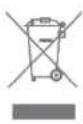 | RECYCLINGThis product bears the selective sorting symbol for Waste electrical and electronic equipment (WEEE). This means that this product must be handled pursuant to European directive 2012/19/EU in order to be recycled or dismantled to minimize its impact on the environment.User has the choice to give his product to a competent recycling organization or to the retailer when he buys a new electrical or electronic equipment. |
CONTENTS
Conventions...... I
Chapter 1. Introduction...... 1
1.1 Overview of the Product....1
1.2 Features....1
Chapter 2. Installation Guide.... 2
2.1 Hardware Connection....2
2.2 Software Installation....2
Chapter 3. Connect to a Wireless Network.... 4
3.1 Windows10/8.1/8/7 4
3.2 Windows XP 4
Chapter 4. Uninstall Software .... 5
Appendix A: Specifications 6
Conventions
The Adapter or MW300UH, or device mentioned in this User Guide stands for MW300UH 300Mbps High Gain Wireless USB Adapter without any explanations.
When using this guide, please notice that features of the adapter may vary slightly depending on the model and software version you have. All screenshots, images and descriptions documented in this guide are used for demonstration only.
*Maximum wireless signal rates are the physical rates derived from IEEE Standard 802.11 specifications. Actual wireless data throughput and wireless coverage are not guaranteed and will vary as a result of 1) environmental factors, including building materials, physical objects, and obstacles, 2) network conditions, including local interference, volume and density of traffic, product location, network complexity, and network overhead, and 3) AP limitations, including rated performance, location, connection quality, and AP condition.
Chapter 1. Introduction
1.1 Overview of the Product
The adapter is designed to provide a high-speed and unrivaled wireless performance for your notebook and PC. With a stable and faster wireless connection, you can get a better Internet experience, such as downloading, gaming, video streaming and so on.
With unmatched wireless performance, reception, and security protection, the adapter is the best choice for easily adding or upgrading wireless connectivity.
1.2 Features
➢ IEEE802.11b, IEEE802.11g, IEEE802.11n standards
Supports WPA/WPA2 data security, IEEE802.1x authentication, TKIP/AES encryption, WEP encryption
Make use of IEEE 802.11n wireless technology to provide high data rate up to 300 Mbps
➢ Interoperate with other wireless (802.11b/g/n) products
Supports automatically adjust to lower speeds due to distance or other operating limitations
- Provides Micro USB 2.0 Interface
▶ Supports Infrastructure mode
Good capability on anti-jamming
Supports roaming between access points when configured in Infrastructure mode
Supports Windows 10/8.1/8/XP (32/64 bit)
Chapter 2.
Installation Guide
2.1 Hardware Connection
Before you start using your adapter, connect the adapter to your computer via the USB extension cable provided.
Note: In Windows XP, a Found New Hardware Wizard window will appear when the adapter is detected. Please click Cancel.
2.2 Software Installation
NOTE:
The following instructions take Windows 10 as an example. The steps may vary slightly for other versions of Windows.
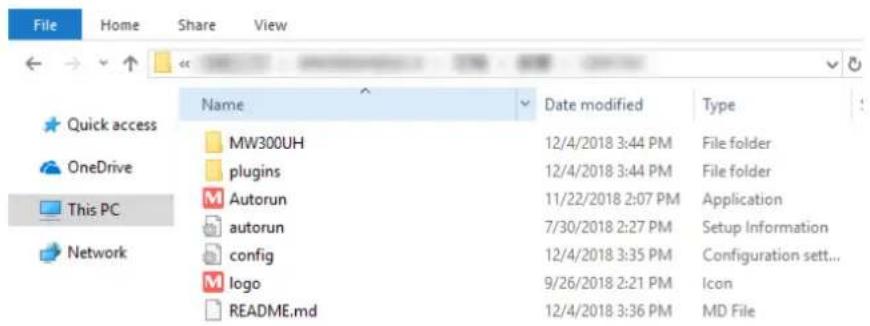
- Insert the Resource CD into your CD drive and run the Autorun.exe from the pop-up Autoplay window.
Note:
a. You can also download the driver or check the new release at www.mercusys.com.
b. In some operating systems, the CD screen will pop up automatically. Otherwise, run the CD manually.
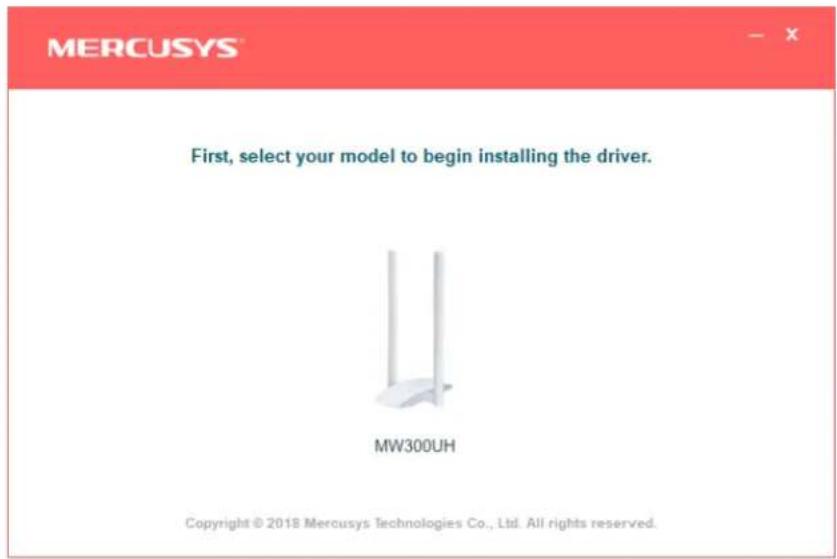
- Select MW300UH and follow the instructions to complete installation.
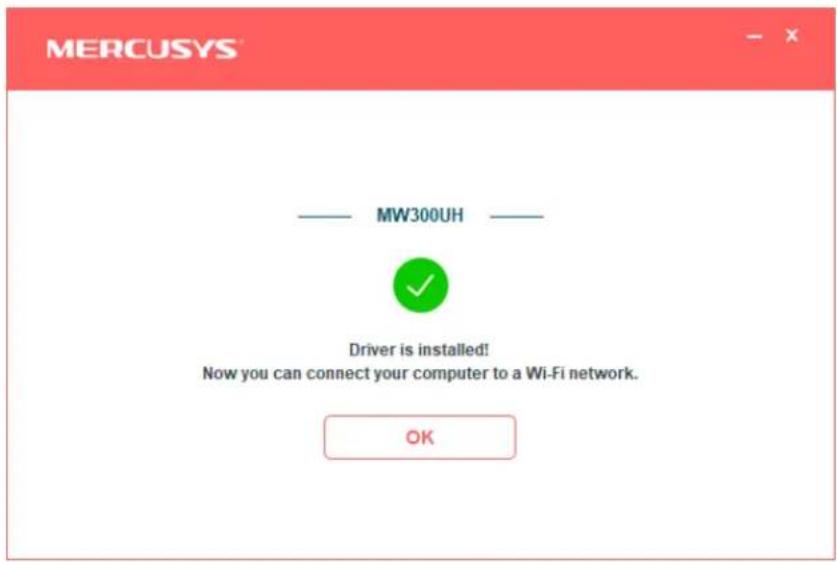
- When the following screen appears, the driver has been installed successfully.
Note:
If you can't install the driver successfully, disable the antivirus software and firewall, then try again.
Chapter 3.
Connect to a Wireless Network
With both the hardware and software successfully installed into your computer, you can quickly connect to a wireless network via Windows wireless utility.
Follow the instructions in the appropriate section below to use your computer system's built-in wireless utility: Windows10/8.1/8/7, Windows XP.
3.1 Windows 10/8.1/8/7
- Click the wireless icon 📄, 📅 or 📋 on the taskbar. Select the wireless network you want to join and then click Connect. Enter your Wi-Fi password when prompted.
- When Connected displays next to the network name (SSID) on the screen, it indicates a successful network connection.
3.2 Windows XP
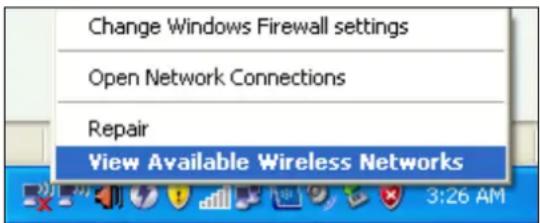
- Right-click on the wireless computer icon in your taskbar (lower-right corner). Select View Available Wireless Networks.
- Select the network you want to join and click Connect. Then enter your Wi-Fi password when prompted.
Chapter 4.
Uninstall Software
The software uninstallation steps vary a bit in different systems. Follow the appropriate instructions for your Windows operating system: Windows 10, Windows 8/8.1, Windows 7/XP.
- Windows 10/8.1/8
Go to Start > All apps, and find the MERCUSYS application. Click Uninstall Mercusys MW300UH Driver, then follow the on-screen instructions to complete the uninstallation.
- Windows 7/ XP
Go to Start > All Programs > MERCUSYS > Uninstall Mercusys MW300UH Driver. Follow the on-screen instructions to complete the uninstallation.
Appendix A: Specifications
| Normal | |
| Interface | Micro USB 2.0 Interface |
| Standards | IEEE802.11n; IEEE802.11g; IEEE802.11b |
| Operating System | Windows 10/8.1/8/7/XP (32/64 bit) |
| Signal Rate | 11n: Up to 300 Mbps (Dynamic)11g: Up to 54 Mbps (Dynamic)11b: Up to 11 Mbps (Dynamic) |
| Data Security | TKIP/AES, WEP, WPA/WPA2, WPA-PSK/WPA2-PSK |
| Frequency | 2.400 - 2.4835 GHz |
| Safety & Emissions | CE, ROHS |
| Environmental and Physical | |
| Operating Temperature | 0°C~40°C (32°F~104°F) |
| Storage Temperature | -40°C~70°C (-40°F~158°F) |
| Working Humidity | 10% - 90% RH, Non-condensing |
| Storage Humidity | 5% - 90% RH, Non-condensing |
- 300Mbps High Gain Wireless USB Adapter
- MW300UH
- COPYRIGHT & TRADEMARK
- CE Mark Warning
- CE
- OPERATING FREQUENCY (the maximum transmitted power)
- RF Exposure Information
- EU Declaration of Conformity
- CONTENTS
- Conventions...... I
- Chapter 1. Introduction...... 1
- Chapter 2. Installation Guide.... 2
- Chapter 3. Connect to a Wireless Network.... 4
- Chapter 4. Uninstall Software .... 5
- Appendix A: Specifications 6
- Conventions
- Chapter 1. Introduction
- Overview of the Product
- Features
- Chapter 2.
- Installation Guide
- Hardware Connection
- Software Installation
- NOTE:
- Chapter 3.
- Connect to a Wireless Network
- Windows 10/8.1/8/7
- Windows XP
- Chapter 4.
- Uninstall Software
- Appendix A: Specifications
Brand : MERCUSYS
Model : MW300UH
Category : Network card / adapter