Wisdom - Dive computer SHERWOOD - Free user manual and instructions
Find the device manual for free Wisdom SHERWOOD in PDF.


| Product Type | Dive computer |
| Dimensions | Approx. 2.5 x 2.0 x 1.0 inches (64 x 51 x 25 mm) |
| Weight | Approx. 100 g (3.5 oz) |
| Power Supply | User-replaceable CR2032 battery |
| Display | LCD with backlight |
| Operating Modes | Air, Nitrox, Gauge, Free Dive |
| Maximum Depth | 130 meters (426 feet) |
| Decompression Model | Bühlmann ZHL-16C with gradient factors |
| Alarms | Audible and visual for depth, time, ascent rate, PO2 |
| Data Logging | Up to 1000 dive hours |
| Gas Switching | Up to 4 gas mixes |
| Nitrox Support | 21% to 100% O2 |
| Water Resistance | 200 meters (656 feet) |
| Battery Life | Approx. 300 hours of diving |
| Connectivity | Infrared or USB (optional cable) |
| Maintenance | Rinse with fresh water after each dive; store in cool, dry place |
| Cleaning | Use soft cloth; avoid solvents |
| Safety Features | Ascent rate warning, deep stop, safety stop |
| Spare Parts | Battery cover, strap, O-rings available |
| Warranty | 2 years limited warranty |
Frequently Asked Questions - Wisdom SHERWOOD
User questions about Wisdom SHERWOOD
0 question about this device. Answer the ones you know or ask your own.
Ask a new question about this device
Download the instructions for your Dive computer in PDF format for free! Find your manual Wisdom - SHERWOOD and take your electronic device back in hand. On this page are published all the documents necessary for the use of your device. Wisdom by SHERWOOD.
USER MANUAL Wisdom SHERWOOD
RESPONSIBLE COMPUTER DIVING
•Always Plan Each Dive
•Always Limit Your Dive to the Level of Your Training and Experience
•Always Make Your Deepest Dive First
•Always Make The Deepest Part Of Every Dive First
- Check Your Computer Often During the Dive
- Do A Safety Stop On Every Dive
- Allow Adequate Surface Interval Between Each Dive
- Allow Adequate Surface Interval Between Each Day Of Diving (12 Hours Or Until Your Computer Clears)
Read And Understand This Owner's Manual Thoroughly Before Using the WISDOM.

WISDOM
The following symbols are used throughout this manual to bring your attention to situations that require special consideration. Be sure to read and follow all instructions carefully.

A WARNING is used before a procedure that will result in serious injury or death if the procedure is not followed carefully.

A CAUTION is used before a maintenance technique that will result in damage to parts if that technique is not followed carefully.

A NOTE is used to emphasize an important maintenance technique.
Throughout this owner's manual reference is made to the term 'breathing gas'. The rationale being that the WISDOM can be used for Air dives or Nitrox dives. For clarity, these terms are defined as -
Breathing Gas - the gaseous mixture breathed during a dive.
Air - a breathing gas that contains approximately 21% oxygen and 79% nitrogen (nature's common nitrogen-oxygen mixture).
Nitrox - a nitrogen-oxygen breathing gas that contains a higher fraction of oxygen (22 to 50%) than air.
WARNINGS:
- The WISDOM is intended for use by recreational divers who have successfully completed a nationally recognized course in scuba diving, and diving with enriched nitrogen-oxygen (nitrox) breathing gas mixtures.
- It is intended only for no decompression diving, NOT intentional decompression diving.
- It must not be used by untrained persons who may not have knowledge of the potential risks and hazards of scuba diving, and diving with enriched nitrogen-oxygen (nitrox) mixtures.
- You must obtain scuba certification, and certification in diving with enriched nitrogen-oxygen mixtures (nitrox) before using the WISDOM if you have not already done so.
- It is NOT for use by military and commercial divers.
- It should NOT be utilized for any competitive, or repetitive square wave or decompression diving, as it is intended solely for recreational use and no decompression multilevel diving.
- As with all underwater life support equipment, improper use or misuse of this product can cause serious injury or death.
- Never participate in sharing or swapping of a dive computer.
- Conduct your dives in such a manner so as to insure that you continuously check the computer's proper function.
- Read and understand this owner's manual completely before diving with the WISDOM.
- If you do not fully understand how to use this dive computer, or if you have any questions, you should seek instruction in its use from your Authorized Sherwood Scuba Dealer before you utilize this product.
WISDOM
LIMITED TWO-YEAR WARRANTY
Sherwood Scuba guarantees, to the original purchaser only, that the WISDOM will be free of defects in materials and/or craftsmanship under normal recreational multilevel scuba use for two years from date of purchase, provided proper care and annual service are performed as described within this owner's guide. Should your WISDOM prove to be defective for any reason (other than those listed in the limitations section below) it will be repaired or replaced (at Sherwood Scuba's discretion) free of charge excluding shipping and handling charges.
This warranty will be considered void if the registration card is not filled out completely at the time of purchase and mailed to Sherwood Scuba within 30 days of purchase, and/or if the annual inspection is not done according to this owner's manual. This warranty is non-transferrable and applies to the original purchaser only. All correspondence concerning this warranty must be accompanied by a copy of the original sales receipt and a copy of the owner's portion of the warranty registration card including the annual inspection record.
Once each year you must return the WISDOM to an Authorized Sherwood Dealer within 30 days of the original purchase date anniversary to keep the two year limited warranty in force. Annual inspection includes verification of depth accuracy and proper general function. Labor charges for the annual inspection are not covered by the warranty. You must provide a copy of the original sales receipt and a copy of the owner's portion of the warranty registration card including the annual service record to obtain warranty service.
Statement of Limitations - General:
Warranty does not cover damage from accident, abuse, battery leakage, tampering, lack of proper care and maintenance and/or proper annual servicing, or improper use of the WISDOM. Modifications or repair by anyone other than a Sherwood Sales and Service Center authorized to service the WISDOM will void the warranty. Sherwood Scuba will not be responsible for recovery or replacement of the product in the event of loss or theft. Sherwood Scuba, its distributors, and retailers make no warranties, either expressed or implied, with respect to this product or its owner's manual except those stated in the preceding paragraphs. In consideration of the sale of the WISDOM to you, you agree and understand that in no event will Sherwood Scuba, its distributors or retailers, be held liable for any personal injuries resulting from its operation, or for any other damages whether direct, indirect, incidental, or consequential even if Sherwood Scuba is advised of such damages.
Some states do not allow the exclusion or limitation of implied warranties or liabilities for incidental or consequential damages, so the above limitation may not apply to you.
Warranty does not extend to the plastic gauge face, o-rings, batteries, or damage due to accident, abuse, modification, or tampering.
COPYRIGHT NOTICE
This owner's manual is copyrighted, all rights are reserved. It may not, in whole or in part, be copied, photocopied, reproduced, translated, or reduced to any electronic medium or machine readable form without prior consent in writing from Sherwood Scuba LLC / 2002 Design.
WISDOM Owner's Manual, Doc. No. 12-2340
© 2002 Design 2002
TRADEMARK NOTICE
Sherwood Scuba, the Sherwood Scuba logo, and HydroGlo are registered or unregistered trademarks of Sherwood Scuba LLC. Wisdom and the Wisdom logo are trademarks of Sherwood Scuba LLC. All rights are reserved.
PATENT NOTICE
U.S. Patents have been issued to protect the following design features:
Data Sensing and Processing Device (U.S. Patent no. 4,882,678), Dive Time Remaining (U.S. Patent no. 4,586,136), and Ascent Rate Indicator (U.S. Patent no. 5,156,055).
DECOMPRESSION MODEL
The programs within the WISDOM simulate the absorption of nitrogen into the body by using a mathematical model. This model is merely a way to apply a limited set of data to a large range of experiences. The WISDOM dive computer model is based upon the latest research and experiments in decompression theory. Still, using the WISDOM, just as using the U.S. Navy (or other) No Decompression Tables, is no guarantee of avoiding decompression sickness (i.e., the bends). Every diver's physiology is different, and can even vary from day to day. No machine can predict how your body will react to a particular dive profile.
WISDOM
CONTENTS
Warranty 5
Notices 6
FEATURES and DISPLAYS 11
Introduction 12
Features and Displays 13
Intuitive Displays 14
Bar Graphs 14
Nitrogen Bar Graph 14
Oxygen (O2) Bar Graph 15
Variable Ascent Rate Indicator 15
Informational Displays 16
Tank Pressure Display 16
Depth Displays 16
Time and Date Displays 17
Temperature Display 17
Audible Alarm 18
Backlight 20
Power Supply 20
Operating Temperature 21
Sharing the Wisdom 22

CONTENTS (CONTINUED)
ACTIVATION AND SETUP 23
Activation 24
Push Button 24
Water Contact 24
Diagnostic Mode 25
Surface Screens 25
Time Screen 25
Time/Wet Screens 26
Data Screens 27
Plan Screens 29
Last Dive Screen 32
Log Mode 33
History Mode 36
Simulator 37
PC Mode (Download) 41
Entering Settings 42
Set 1 Group (Modes/Basics) 43
- Set Operating Mode 43
- Set PO2 Alarm Value 45
- Set FO2 Value 46
- Set FO2 Default On/Off 47
WISDOM
CONTENTS (CONTINUED)
Set 2 Group (Alarms) 48
- Set All Alarms On/Off 48
- Set Ascent Alarm On/Off 49
- Set Depth Alarm On/Off 50
- Set Depth Alarm Value 51
- Set Turn Pressure Alarm On/Off 52
- Set Turn Pressure Alarm Value 53
- Set End Pressure Alarm On/Off 54
- Set End Pressure Alarm Value 55
- Set Reserve Time Alarm On/Off 56
- Set Reserve Time Alarm Value 57
- Set Deco Alarm On/Off 58
- Set PO2 Alarm On/Off 59
Set 3 Group (Utilities) 60
- Set Wet Activation On/Off 60
- Set Units of Measure 61
- Set Sample Rate Value 62
Set 4 Group (Date/Time) 63
- Set Hour Format 63
- Set Hour/Minute 64
- Set Year/Month/Day 66
CONTENTS (CONTINUED)
DIVE MODES 69
Operational Dive Modes 70
No Decompression Dive Mode 70
- No Deco Safety Stop 72
Digital Gauge Mode 73
High PO2 Dive Mode 74
High O2 Dive Mode 75
Decompression Dive Mode 76
Conditional Violation 78
Delayed Violations 79
Permanent Violation/Gauge Mode 81
CARE and MAINTENANCE 83
Care and Cleaning 84
Inspections and Service 85
Battery Replacement 86
REFERENCE MATERIAL 89
Decompression Model 90
Tissue Compartment Control 90
No Decompression Limits 90
Oxygen Exposure Limits 91
Altitude Diving 93
Flying After Diving 94
Clear (Reset) Feature 96
Specifications 97
Glossary 103
Inspection/Service Record 105
WISDOM
FEATURES
and
DISPLAYS
INTRODUCTION
Congratulations on your recent purchase of the Sherwood WISDOM dive computer!
Your new WISDOM uses a unique and intuitive display that represents the information you need before, during, and after the dive, laid out in a logical format based on a dive profile diagram. Information is located where you would expect it to be.
In addition to no-decompression/decompression status, tissue loading of nitrogen, accumulation of oxygen, and ascent rate are presented as peripheral bar graphs alongside color coded reference indicators.
As you progress through this instruction manual, you will become familiar with the unique functions and features available. A symbol legend is provided on the last page of this section for your convenience.
The WISDOM's wide array of features are described in detail throughout the pages that follow.
The initial time that you invest becoming acquainted with the symbols and various operating modes and displays will be returned as you enjoy your underwater activities with the comfort that your familiarization affords.
As you use the WISDOM, remember that the rules you learned in your scuba course(s) still apply to the diving you will do while using a dive computer - some will become even more important. Technology is no substitute for common sense, and a dive computer only provides the person using it with data, not the knowledge to use it.
FEATURES AND DISPLAYS
WISDOM
The WISDOM has two Control Buttons that allow you to activate the unit and access specific information when you choose to see it. The Front button (Fig. 1a) is referred to as the Advance and the Side button (Fig. 1b) as the Select.
While on the surface, you can use the buttons to maneuver through the WISDOM's unique Menu System that allows -
- selection of 3 Main Operating Modes (Air, Nitrox, or Gauge)
- viewing of various information displays (Last Dive, Plan Depths/Times, Dive Logs, History, etc.)
- entering of settings divided into 4 convenient categories (Basics, Alarms, Utilities, and Time)
- activation of the Backlight
• operation of an onboard Simulator - setup for download to a PC program
During the Dive modes, the buttons may be used to -
• activate the display's Backlight
• view Alternate displays of information
- acknowledge Alarms
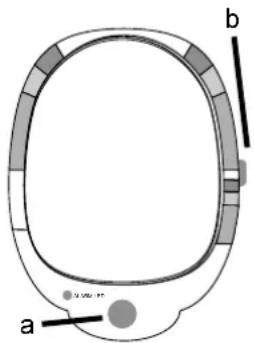
Fig. 1 - Control Buttons
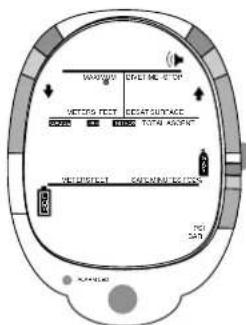
Fig. 2 - Icons
INTUITIVE DISPLAYS
The WISDOM uses 4 rows of easy to understand alpha/numeric displays and graphic icons (Fig. 2).
For example, when you enter into Special Situations, such as Decompression, High PO2, and Out of Range modes, an UP Arrow symbol will appear as a warning to ascend to a shallower depth.
It also utilizes 3 segmented Bar Graphs to provide you with quick visual reference of decompression status, O2 Saturation, and Ascent speed. They are color coded Green, Yellow, and Red representing Normal, Caution, and Danger zones.
It is imperative that you understand the formats, ranges, and values of the information presented by the WISDOM's numeric and graphic displays to avoid any possible misunderstanding that could result in an error.
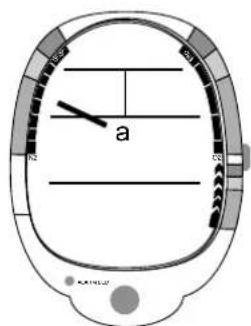
BAR GRAPHS
Nitrogen Bar Graph
The Nitrogen Bar Graph (Fig. 3a) represents tissue loading of nitrogen, showing your relative no decompression or decompression status. As your depth and bottom time increase, segments will add to the Graph, and as you ascend to shallower depths, the Bar Graph will begin to recede, indicating that additional no decompression time is allowed for multilevel diving.
Fig. 3 - Nitrogen BG
The Nitrogen Bar Graph monitors 12 different nitrogen compartments simultaneously and displays the one that is in control of your dive. It is divided into a green No Decompression (normal) zone, a yellow Caution zone (also No Decompression), and a red Decompression (danger) zone.
While you cannot provide a guarantee against the occurrence of decompression sickness, you may choose your own personal zone of caution based upon age, physique, excessive weight, etc., to reduce the statistical risk.
Oxygen Accumulation Bar Graph (O2BG)
The O2 Bar Graph (Fig. 4a) represents oxygen loading, your relative oxygen tolerance dosage (OTU), showing the maximum of either per dive accumulated oxygen, or 24 hour period accumulated oxygen. As your accumulation (\% saturation) increases during a dive or 24 hour period, segments will add to the Bar Graph, and as loading decreases, it will begin to recede, indicating that additional exposure is allowed.

NOTE: Displays associated with oxygen and the O2 Bar Graph will only appear if FO2 has been set at a value other than 'Air' (e.g., a numerical value).
Variable Ascent Rate Indicator (ARI)
The Variable Ascent Rate Indicator (Fig. 4b) provides a visual representation of Ascent speed (i.e., an ascent speedometer). Green is a 'normal' rate, yellow a 'cautionary' rate, and red is 'Too Fast'. The segments of the Variable Ascent Rate Indicator represent 2 sets of speeds which change at a reference depth of 60 feet (18 meters). Refer to the chart at the right for segment values.
WISDOM
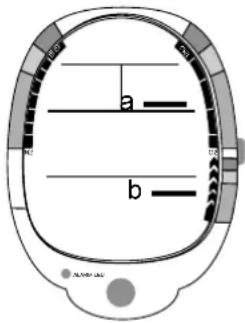
Fig. 4 - O2BG & ARI
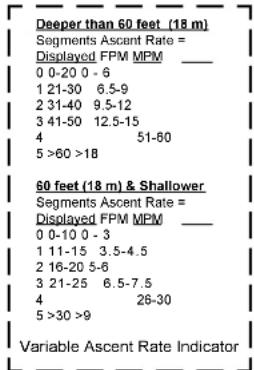

WARNING: At depths greater than 60 feet (18 meters), Ascent Rates should not exceed 60 feet per minute (18 meters per minute). At depths of 60 feet (18 meters) and shallower, Ascent Rates should not exceed 30 feet per minute (9 meters per minute).
INFORMATIONAL DISPLAYS
Each numeric and graphic display represents a unique piece of information. It is imperative that you understand the formats, ranges, and values of the information represented to avoid any possible misunderstanding that could result in error.
Tank Pressure Display
Tank pressure is displayed numerically as the largest digits (Fig. 5a). Values of pressure are displayed from 0 PSI (BAR) up to 5000 PSI (352 BAR) in increments of 5 PSI (.5 BAR).
Depth Displays
During a dive, the Current Depth display (Fig. 5b), indicates depths from 0 to 330 feet (99.9 meters) in 1 foot (.1 meter) increments. The Maximum Depth reached during that dive will also be displayed (Fig. 5c).
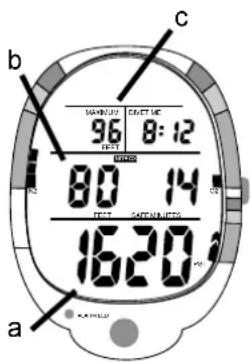
Fig. 5 - Pressure & Depth
- When the unit is set to operate as a Digital Depth Gauge/Timer (referred to as Gauge Mode), the Depth Display range is 'extended' to 399 feet (120 meters).
- At depths greater than 99.9 meters, it will indicate metric values in increments of 1 meter.
Time and Date Displays
Time displays are shown in hour:minute format (i.e., 1:09 represents 1 hour and 9 minutes, not 109 minutes!). The colon that separates hours and minutes blinks once per second when the display is indicating real time (e.g., Elapsed Dive Time), and is solid (non-blinking) when times are calculated projections (e.g., Time to Fly).
The Main Time display is configured with the second largest digits of the LCD (Fig. 6a). A second time display (Fig. 6b) provides additional Times such as Surface Interval and Elapsed Dive Time.
Date (Fig. 6c) is only displayed during select surface modes such as the TIME screen.
• Month always appears to the left of Day, even when set for Metric units.
Temperature Display
Ambient Temperature (Fig. 7a) is viewed as part of Alternate Displays. If the Temperature exceeds a value of 99, 2 dashes ( - - ) will be displayed on the screen until the Ambient Temperature decreases to 99.

NOTE: The Informational Displays are described in detail as the various operating modes they appear in are presented throughout this manual.
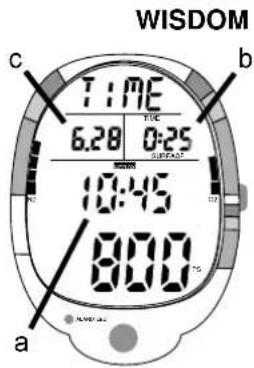
Fig. 6 - Time & Date
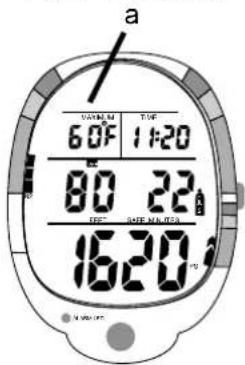
Fig. 7 - Temperature
AUDIBLE ALARM
Alarms are listed on the next page.
When Reminder Alarm situations activate the Alarm, the unit will emit a quick double beep each second for 10 seconds, or until the situation is corrected, or it is acknowledged by pressing the Advance (Front) button.
When Cautionary Alarm situations activate the Alarm, the beep will be on for 1/2 second then off 1/2 second, repeating for 10 seconds, or until the situation is corrected, or it is acknowledged by pressing the Advance (Front) button.
Some Alarms cannot be acknowledged. These are differentiated by 1 beep per second for 10 seconds followed by a full 3 second beep.
If an Alarm is acknowledged and the situation corrected, the Alarm will sound again if the situation occurs again, or another Alarm situation occurs.
A single short beep is emitted after the Diagnostic check, upon automatic return to Surface Mode from Simulator Mode, upon completion of a fast battery change with calculations/settings saved, and upon change from Delayed to Full Violation after that dive.
A red LED Warning Light located on the lower/left portion of the module is synchronized with the Audible Alarm and will flash when the Alarm sounds. A scrolling message will also be displayed in the upper portion of the screen. The LED will turn OFF when the Alarm is acknowledged or Set OFF, however, the message will continue to scroll until the condition is cleared. In the event that another Alarm situation occurs, its scrolling message will be displayed until it is acknowledged, at which time it will be replaced by the message that was previously scrolling.
Reminder Alarm situations include -
- PO2 equal to or greater than 1.60 ATA, or the Max PO2 Alarm setting.
- Descent deeper than the Max Depth Alarm setting.
- Dive Time Remaining decreases to the Alarm setting.
- Tank Pressure decreases to the Turn Pressure Alarm setting.
Cautionary Alarm situations include -
- Entry into Decompression Mode
- O2 Accumulation equal to or greater than allowable per dive limit, or limit for a 24 hour period.
- Ascending above a required Decompression Stop Depth for less than 5 minutes.
- Ascent rate exceeds 60 feet (18 meters) per minute when depth is greater than 60 feet (18 meters), or 30 feet (9 meters) per minute at 30 feet (9 meters) or shallower.
- Tank Pressure decreases to the End Pressure Alarm setting.
- Entry into Delayed or Full Violation modes (described later).
Situations in which the Alarm cannot be acknowledged include -
- Being above a required Decompression Stop Depth for more than 5 minutes.
- Being in Decompression that requires a Stop Depth much greater than 60 feet (18 meters).
- Being on the surface for 5 minutes without completing a Decompression obligation.
BACKLIGHT
To activate the HydroGlo ^® Backlight while viewing displays in the Surface Mode, press Both buttons simultaneously.
To activate the Backlight while viewing displays Underwater, press the Front (Advance) button momentarily (< 2 seconds).
The screen will be illuminated for 10 seconds. Press the button(s) again to activate as desired.
The Backlight is disabled if the button(s) is held depressed longer than 10 seconds or during a Low Battery Condition.

NOTE: Sherwood Scuba recommends that you carry primary and backup dive lights when conducting dives that could include low light situations.
POWER SUPPLY
The WISDOM utilizes one (1) 3 volt, CR2450 Lithium Battery that should provide from 300 dive hours of operation if you conduct one 1 - hour dive each time the unit is activated, to over 600 dive hours of operation if you conduct two or more dives each time the unit is activated.
Battery Indicator
A Battery Indicator (icon) provides an indication of Low Battery Condition. The Battery Indicator (Fig. 8a) will only appear on the Surface TIME (or WET), DATA, and FLY/SAT screens. It will not be displayed on other surface display screens or during Dive Modes.
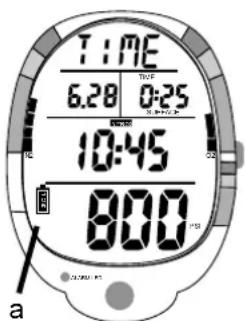
Fig. 8 - Low Battery Condition
Low Battery Condition
• Voltage level is checked upon activation and every 4.5 minutes during operation.
- Once 75% of full power is consumed, the Indicator will appear on the TIME (or WET) screen as a warning that the Battery is to be changed prior to conducting any further dives with the unit.
- If a Low Battery Condition exists when the unit is activated (by pressing the button), the Battery icon will appear flashing once per second for 5 seconds followed by shutdown of the unit.
- If the button is not pressed to activate the unit prior to a dive, and a Low Battery Condition exists, the Low Battery icon will appear flashing as a warning upon descent past 4 feet (1.2 meters). No other information will be displayed and the unit will not enter Dive Mode.
- If the unit did not display the Low Battery icon 'prior to' entering the Dive Mode, and a Low Battery Condition occurs during the dive, there will be sufficient Battery power to maintain unit operation for the 'remainder of that dive'. The Low Battery icon will appear upon surfacing when the TIME (or WET) screen is displayed.
The WISDOM will operate in water temperatures from 28^ to 95^ F (-2 to 35^ C) and out of the water from 20^ to 140^ F (-6 to 60^ C). At extremely low temperatures, the LCD may become sluggish, but this will not affect its accuracy. If stored or transported in extremely low temperature areas (below freezing), warm the unite and battery with body heat before diving.
It is possible to damage the electronics if left exposed to direct sunlight, or in a hot confined space (like a car trunk). After diving, cover it and keep it out of the sun. If inadvertently left in the direct sunlight, the LCD display may become totally black. If this occurs, immediately immerse it in water. The display should recover its normal appearance after a few minutes. Damage from excess heat, or cold, is not covered by the two year limited warranty.
SHARING THE WISDOM

WARNING: Never participate in sharing or swapping of a dive computer. Doing so may result in injury or death.
The WISDOM provides information based upon a diver's personal dive profile, and therefore must not be "shared" between divers. You should never, under any circumstances, swap your computer with another unit between dives, or share your computer with another diver underwater.
It is impossible for two divers to stay precisely together underwater, and your computer's dive profile tracking of previous dives will be pertinent to you only. Nitrogen loading of a second user may be significantly different and thus swapping dive computers could lead to inaccurate and potentially dangerous predictions of decompression status.
This rule applies to the use of all dive computers, but is especially important when using the WISDOM, due to the personal information it provides.

WISDOM
ACTIVATION
and
SETUP
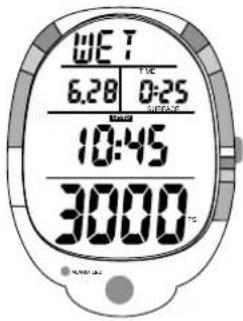
Fig. 9A - Unit Wet
ACTIVATION
PUSH BUTTON (PRIMARY METHOD)
A momentary press of the front (Advance) button activates the WISDOM.
The WISDOM will automatically turn OFF 2 hours after activation if no dive is made. If the water activation contacts are still bridged (the unit is wet), it automatically reactivates.
WATER CONTACT (BACKUP METHOD)

NOTE: This method functions only when the Wet Activation feature is set ON.
The WISDOM has 2 contacts that cause it to activate when the space between the contacts is bridged by a conductive material (e.g., water contact) and enter WET Mode (Fig. 9A) or DIVE Mode.
Upon removing the bridge between the contacts (drying the unit), the alpha graphic TIME replaces the graphic WET (Fig. 9B).
If the contacts are still bridged 2 hours after a dive, the alpha graphic WET appears together with the graphic FLY:SAT and the Time to Fly and Desaturation countdown timers.
Upon drying the unit, the graphic WET is replaced with the graphic TIME.
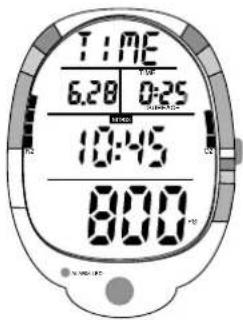
Fig. 9B - Unit Dry
DIAGNOSTIC MODE (ONLY IF MANUALLY ACTIVATED)
Immediately following manual (push button) activation, the WISDOM lights all segments of the LCD and initiates a countdown sequence (Fig. 10). Following the countdown sequence (from 8, -, 9, 8, 7, 6, 5, 4, 3, 2, 1, 0) which takes about 2 seconds, it verifies that sensor readings and battery voltage are within tolerance. If values are satisfactory, it enters Surface Mode displaying the TIME screen.
When the front (Advance) button is held depressed and as the Diagnostic countdown reaches 00, a Serial Number screen appears displaying the unit's Serial Number and firmware code Revision Number as long as the button is held depressed (Fig. 11). Upon releasing the button, the unit shuts Off.
Once the dive computer is activated, regardless of what mode it is in, it automatically reverts to DIVE MODE upon descent past 4 feet (1.2 meters).
SURFACE SCREENS
TIME SCREEN
The TIME screen appears immediately following diagnostics (if manually activated) on a new day, or re-activation in FLY/DESAT MODE.
If the unit is wet, the alpha graphic WET replaces the alpha graphic TIME. Once the unit is dry, the WET graphic is replaced by the TIME graphic.
The graphic TIME (or WET) flashes during the first 10 minutes after a dive.
WISDOM
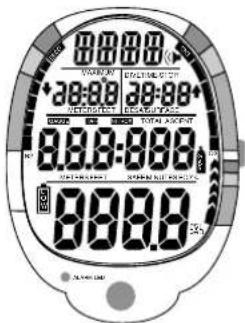
Fig. 10 - Diagnostics
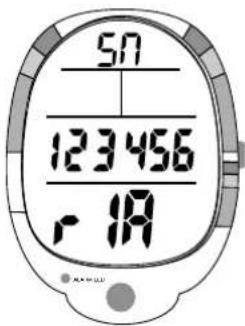
Fig. 11 - Serial No.
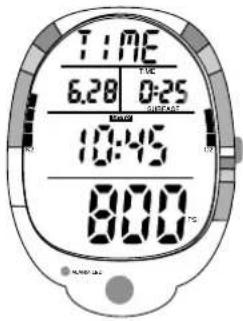
Fig. 12 - Time
TIME/WET SCREENS (Fig. 12/13)
Appearing on the display are -
• Alpha graphic TIME, or WET
• Date (month and day)
- Elapsed surface time (or time since activation if no dive made yet that day) and graphic Surface
- Operating Mode graphic (Nitrox, Air, or Gauge)
• Time of Day (hours:minutes)
• Cylinder Pressure and graphic (PSI or BAR)
- NiBG and O2BG, if any
- Battery icon (if Low Battery Condition)
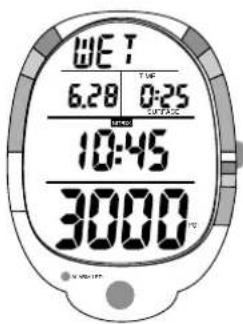
Fig. 13 - Wet
Pressing the Both buttons simultaneously for less than 2 seconds activates the Backlight. Pressing the front (Advance) button accesses the DATA screen.
In addition to the DATA screens, you can use also use the front (Advance) button to access the -
• PLAN screens (sequence of allowed dive depths/times)
- LAST screen (previous dive's data)
- LOG screens
- HISTORY screen
- SIMULATOR Mode
• PC (download) Mode
- SET Modes
FLY/DESAT appears automatically 2 hours after a dive. Desat time also appears on DATA displays.
DATA SCREENS
The DATA screens are accessible during a new activation period or greater than 10 minutes after surfacing from a dive. By pressing the front (Advance) button 1 time while the TIME (or WET) screen is being displayed (TIME/WET > DATA), you can access the DATA screen representing the Mode that you set the dive computer to operate in (Nitrox, Air, or Gauge described later).
You can also access the DATA screen when FLY/SAT is being displayed during the period from 2 hours to 24 hours after a dive pressing the front (Advance) button 1 time to first recall the TIME/WET screen from which you can access to the sequence of Surface Displays.
FLY/SAT > TIME/WET > DATA > PLAN > LAST > LOG > HISTORY > SIMULATOR > PC > SET
ALTITUDE LEVEL Graphics that appear on DATA screens represent the following -
SEA = 0 to 2,000 feet (600 meters)
L2 = 2,001 to 4,000 feet (1,200 meters)
L3 = 4,001 to 6,000 feet (1,800 meters)
L4 = 6,001 to 8,000 feet (2,400 meters)
L5 = 8,001 to 10,000 feet (3,000 meters)
L6 = 10,001 to 12,000 feet (3,600 meters)
L7 = 12,001 to 14,000 feet (4,200 meters)
outr => 14,000 feet (4,200 meters)

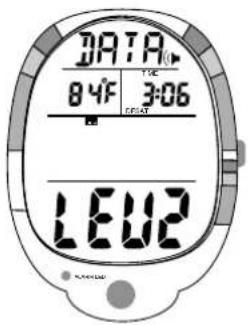
Fig. 14 - Air Mode Data
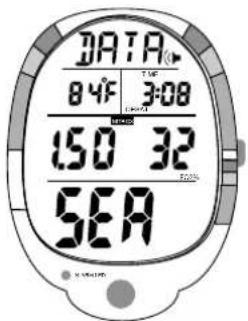
Fig. 15 - Nitrox Mode Data
AIR MODE DATA screen (Fig. 14)
• Alpha graphic DATA
• Alarm icon (if all alarms set On)
• Temperature and graphic (F or C)
• DeSat time and graphic, if any
• AIR graphic (indicating operating mode)
- Altitude level graphic SEA, or LEV 2 (through 7), or outr
NITROX MODE DATA screen (Fig. 15)
• Alpha graphic DATA
- Alarm icon (if all alarms set On)
• Temperature and graphic (F or C)
- DeSat time and graphic, if any
• NITROX graphic (indicating operating mode)
- PO2 and FO2 set points, and FO2 graphic
- Altitude level graphic SEA, or LEV 2 (through 7), or outr
While viewing the AIR or NITROX DATA screen -
- Pressing Both buttons for <2 seconds activates the Backlight.
- Pressing Both buttons for => 2 seconds reverts to the TIME/WET screen.
- Pressing the front (Advance) button accesses the PLAN screen.
The unit reverts to the TIME/WET screen if neither button is pressed in 2 minutes.
GAUGE MODE DATA screen (Fig. 16)
• Alpha graphic DATA
- Alarm icon (if all alarms set On)
• Temperature and graphic (F or C)
• GAUGE graphic (indicating operating mode)
- Altitude level graphic SEA, or LEV 2 (through 7), or outr
While viewing the GAUGE DATA screen -
- Pressing Both buttons for < 2 seconds activates the Backlight.
- Pressing Both buttons for => 2 seconds reverts to the TIME/WET screen.
- Pressing the front (Advance) button accesses the PLAN screen.
The unit reverts to the TIME/WET screen if neither button is pressed in 2 minutes.
PLAN SCREENS
The PLAN screens are accessible during a new activation period or greater than 10 minutes after surfacing from a dive.
By pressing the front (Advance) button 2 times while the TIME/WET screen is being displayed (TIME/WET > DATA > PLAN), or 1 time while the DATA screen is being displayed, you can access the PLAN screen representing the Mode you set the WISDOM to operate in (Nitrox or Air). If set for Gauge operation, PLAN is bypassed.
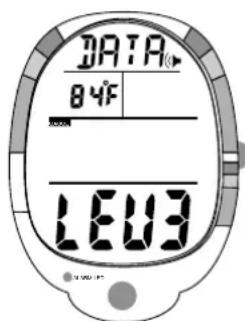
Fig. 16 - Gauge Mode Data
While viewing the PLAN screen, pressing and releasing the side (Select) button increases the Planned Depth in increments of 10 feet (3 meters), displaying the information one screen at a time. Holding the button depressed scrolls through the screens at a rate of 4 per second.
Depth NDL
feet (m) hours:mins
30 (9) 4:20 (4:43)
40 (12) 2:17 (2:24)
50 (15) 1:21 (1:25)
60 (18):57 (:59)
70 (21):40 (:41)
80 (24):30 (:32)
90 (27):24 (:25)
100 (30):19 (:20)
110 (33):16 (:17)
120 (36):13 (:14)
130 (39):11 (:11)
140 (42):09 (:09)
150 (45):08 (:08)
160 (48):07 (:07)
170 (51):07 (:06)
180 (54):06 (:06)
190 (57):05 (:05)
No Deco Limits
at Sea Level
No Previous Dive
Information provided includes Depths and allowable no-decompression dive times (NDLs) for Depths from 30 to 190 feet (9 to 57 meters).
If the limiting time factor is Nitrogen controlled, the N2 Bar Graph displays all green and yellow segments. If Oxygen controlled, the green and yellow segments of the O2 Bar Graph are displayed.
For Depths where no time is available, 00 appears for Time and the DECO segment of the N2 Bar Graph flashes. The graphic PO2 and O2BG (green/yellow) flash on the last PLAN screen (allowed time = 00).
The chart to the left lists predicted PLAN VALUES at sea level based upon no residual nitrogen from previous dives.

AIR MODE PLAN screen (Fig. 17)
• Alpha graphic PLAN
- No Decompression Limit (hours:minutes), 3 dashes if no time available
• AIR graphic (indicating operating mode)
- Plan Depth and graphic (Feet or Meters)
• Cylinder Pressure and graphic (PSI or BAR)
• N2 Bar Graph Green and Yellow segments (flashing if DECO)
NITROX MODE PLAN screen (Fig. 18)
• Alpha graphic PLAN
• Maximum Depth for PO2 of 1.60 and graphics (Maximum and Feet or Meters)
- No Decompression Limit (hours:minutes), 3 dashes if no time available
• NITROX graphic (indicating operating mode)
- Plan Depth and graphic (Feet or Meters)
• FO2 set point and graphic
• Cylinder Pressure and graphic (PSI or BAR)
• O2 Bar Graph Green and Yellow segments (flashing if O2 Limit exceeded)
While viewing a PLAN screen -
- Pressing Both buttons for < 2 seconds activates the Backlight.
- Pressing Both buttons for => 2 seconds reverts to the TIME/WET screen.
- Pressing the front (Advance) button accesses the LAST screen.
The unit reverts to the TIME/WET screen if neither button is pressed in 2 minutes.
WISDOM
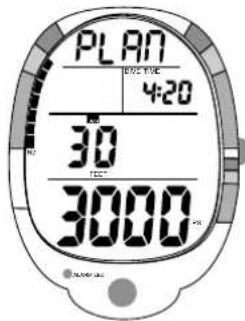
Fig. 17 - Air Mode Plan
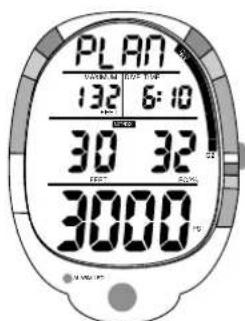
Fig. 18 - Nitrox Mode Plan
LAST DIVE SCREEN
The LAST screen is accessible by pressing the front (Advance) button 3 times while the TIME/WET screen is being displayed (TIME/WET > DATA > PLAN > LAST). The LAST screen displays data for the most recent dive made.
LAST (DIVE) screen (Fig. 19)
- Alpha graphic LAST
• Time of Day the dive Started
• Time of Day the dive Ended - Operating mode graphic (Air, Nitrox, or Gauge)
• Maximum Depth and graphic (Feet or Meters) - Elapsed Dive Time and graphic (Minutes)
- Cylinder Pressure (end of dive) and graphic (PSI or BAR)
- O2 Bar Graph reflecting segments at end of dive (if Nitrox)
• N2 Bar Graph reflecting segments at end of dive and maximum segment (except Gauge)
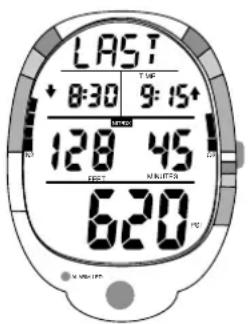
Fig. 19 - Last Dive
While viewing the LAST screen -
- Pressing Both buttons for < 2 seconds activates the Backlight.
- Pressing Both buttons for => 2 seconds reverts to the TIME/WET screen.
- Depressing the front (Advance) button accesses the LOG GO TO screen.
The unit reverts to the TIME screen if neither button is pressed in 2 minutes.
LOG MODE
Log Mode stores information for each dive as 3 screens referred to as the Date Screen, Screen #1, and Screen #2.
Upon gaining access to the Date Screen, Log Screen #1, and Log Screen #2, information displayed is frozen until either button is pressed again. If neither button is pressed, the unit reverts to the TIME screen in 2 minutes.
The LOG stores information from the latest 50 dives which can be accessed sequentially from the most recent to the oldest, and retains the information indefinitely, even if the Battery is removed. Log information is deleted when the unit is manually Reset (cleared).
After exceeding 50 dives, the LOG stores the most recent dive while deleting the oldest.
Dives are numbered 1 to 50 for each Activation Period.
- During 10 minutes after a dive, pressing the front (Advance) button 1 time accesses the Log Mode.
- 10 minutes after a Non-Violation Dive, pressing the front (Advance) button 4 times accesses Log Mode. (TIME > DATA > PLAN > LAST > LOG).
- 10 minutes after a Violation Dive, pressing the front (Advance) button 3 times accesses Log Mode. (TIME > DATA > LAST > LOG). PLAN is not available after a Violation Dive.
- Entering Log Mode displays the LOG GO TO screen.

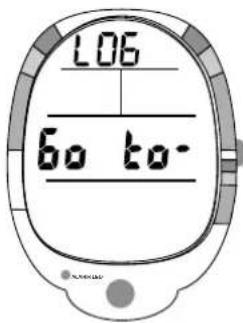
Fig. 20 - Log Mode
LOG GO TO screen (Fig. 20)
• Alpha graphic LOG
• Alpha graphic Go to -
While viewing the LOG GO TO screen -
- Pressing Both buttons for < 2 seconds activates the Backlight.
- Pressing Both buttons for => 2 seconds reverts to the TIME/WET screen.
- Pressing the front (Advance) button bypasses Log Mode and accesses the HISTORY screen.
The unit reverts to the TIME/WET screen if neither button is pressed in 2 minutes.
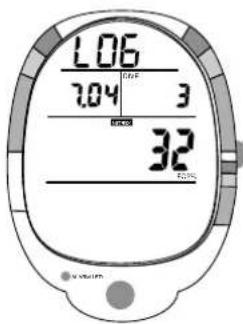
Fig. 21 - Log Date
While LOG GO TO is being displayed -
- Pressing the side (Select) button once displays the most recent dive's LOG Date screen.
- Pressing the front (Advance) button displays that dive's Log Screen #1.
- Pressing the front (Advance) button again displays that dive's Log Screen #2.
- Pressing the front (Advance) button again displays the LOG GO TO screen.
LOG DATE screen (Fig. 21)
• Alpha graphic LOG
- Date (month/day) - (day/month if metric)
• Dive number (1 to 50) for that Activation Period
- Operating Mode graphic (AIR, NITROX, or GAUGE)
• FO2 set point (% O2) and graphic FO2%
While viewing the LOG DATE screen -
- Pressing and releasing the front (Advance) button displays that dive's Log Screen #1.
- Pressing and releasing the side (Select) button repeatedly advances through the recorded LOG DATE screens. Pressing and holding it, scrolls through them at a rate of 4 per second.
- Pressing Both buttons for < 2 seconds activates the Backlight.
- Pressing Both buttons for => 2 seconds reverts to the TIME/WET screen.
LOG Screen #1 (Fig. 22)
• Alpha graphic Scr 1
• Temperature (minimum recorded that dive) and graphic (F or C)
- Surface Interval if a repetitive dive, 3 dashes ( - : - - ) if no previous dive that Activation Period, and graphic
- Operating Mode graphic (AIR, NITROX, or GAUGE)
• Maximum Depth and graphic FEET (or METERS)
- Elapsed Dive Time and graphic MINUTES
- Cylinder Pressure at the end of the dive and graphic PSI (or BAR)
While viewing LOG Screen #1 -
- Pressing and releasing the front (Advance) button displays that dive's LOG 2 screen.
- Pressing Both buttons for < 2 seconds activates the Backlight.
- Pressing Both buttons for => 2 seconds reverts to the TIME/WET screen.
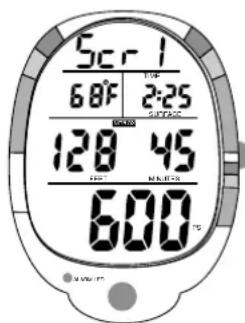
Fig. 22 - Log Screen #1
LOG Screen #2 (Fig. 23)
• Alpha graphic Scr 2
• Time of Day dive Started with Down Arrow icon
• Time of Day dive Ended with Up Arrow icon
- Operating Mode graphic (AIR, NITROX, or GAUGE)
• Maximum PO2 achieved (ATA) and graphic PO2, if Nitrox
- Altitude level graphic SEA, or LEV 2 (through LEV 7), or outr
- N2BG - maximum accumulated segment flashing, others fixed up to end-of-dive accumulation, all flashing for delayed and full violations.
- O2BG, if Nitrox - fixed up to end-of-dive accumulation
- Ascent Rate Indicator - displaying maximum sustained for 4 consecutive seconds
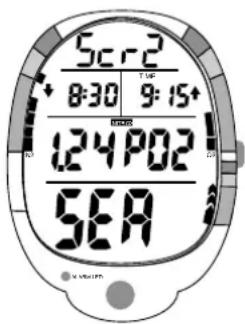
Fig. 23 - Log Screen #2
While viewing LOG Screen #2 -
- Pressing and releasing the front (Advance) button displays the LOG GO TO screen.
- Pressing and releasing the front (Advance) button again accesses the HISTORY screen.
- Pressing Both buttons for < 2 seconds activates the Backlight.
- Pressing Both buttons for => 2 seconds reverts to the TIME/WET screen.
HISTORY MODE
HISTORY records accumulative information for up to 999 Total Dives and 2999 Dive Hours, and retains the information indefinitely, even if the Battery is removed.
- 10 minutes after a Non-Violation Dive, pressing the front (Advance) button 5 times accesses the HISTORY MODE (TIME > DATA > PLAN > LAST > LOG > HISTORY).
HISTORY screen (Fig. 24)
• Alpha graphic HIST
• Maximum Depth attained and graphics MAXIMUM and FEET (or METERS)
• Total accumulated Dive Hours of 0:01 to 29:59 (hr:min), then 30 to 2999 (hours)
• Total Number of Dives (1 to 999)
- Highest Altitude level graphic SEA, or LEV 2 (through 7), or outr
While viewing the History screen -
- Pressing Both buttons for < 2 seconds activates the Backlight.
- Pressing Both buttons for => 2 seconds reverts to the TIME/WET screen.
- Depressing the front (Advance) button accesses the SIMULATOR screen.
The unit reverts to the TIME/WET screen if neither button is pressed in 2 minutes.
SIMULATOR
Simulator Mode allows you to perform dive mode scenarios without getting wet. It also allows you to perform simulated New or Continuous (repetitive) dives and set simulated Surface Interval time. Calculations performed for simulated dives utilize the dive computer's real settings (i.e., FO2, Alarm values that you previously set, etc.). Cylinder Pressure is not utilized.
10 minutes after a Non-Violation Dive, pressing the front (Advance) button 6 times accesses the Simulator Mode (TIME > DATA > PLAN > LAST > LOG > HISTORY > SIMULATOR).
Entering Simulator Mode displays the SIMULATOR GO TO screen.
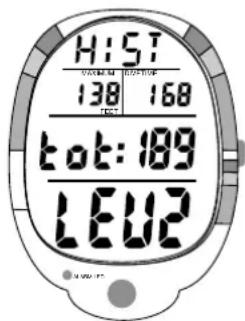
Fig. 24 - History
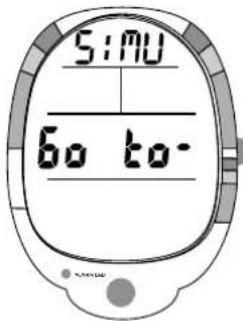
Fig. 25 - Simulator Mode
SIMULATOR GO TO screen (Fig. 25)
• Alpha graphic SIMU
• Alpha graphic Go to -
While viewing the SIMU GO TO screen -
- Pressing Both buttons for < 2 seconds activates the Backlight.
- Pressing Both buttons for => 2 seconds reverts to the real TIME/WET screen.
- Pressing the front (Advance) button while the SIMU GO TO screen is displayed bypasses Simulator Mode and accesses the PC screen.
The unit reverts to the real TIME/WET screen if neither button is depressed in 10 minutes. A quick beep Audible Alert sounds when this happens.
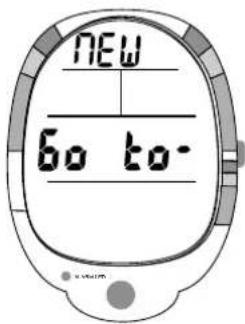
Fig. 26 - New Dive
While SIMU GO TO is being displayed, pressing and releasing the side (Select) button calls up the NEW GO TO screen.
Subsequent pressing and releasing of the side (Select) button sequences through CONT GO TO, SIMU GO TO, and NEW GO TO.
NEW GO TO screen (Fig. 26)
• Alpha graphic NEW
- Alpha graphic Go to -
CONT GO TO screen (Fig. 27)
• Alpha graphic CONT
• Alpha graphic Go to -
- Pressing and releasing the front (Advance) button accepts the GO TO displayed.
If SIMU GO TO is selected, the Simulator is bypassed and operation advances to the PC screen.
If NEW GO TO or CONT GO TO is selected, the Simulator TIME/WET screen appears.
SIMULATOR TIME/WET screen (Fig. 28)
• Alpha graphic TIME (or WET)
• Date (Month.Day)
• Graphics SURFACE and TIME
• Numeric Surface Interval (hr:min)
• Time of Day (Hr:Min)
• 4 Dashes
- Pressing and holding the side (Select) button increases Surface Interval (SI) time at a rate of 1 minute per real second.
- Pressing and releasing the side (Select) button starts a Descent at a rate of 2 feet per second.
- Pressing Both buttons for < 2 seconds activates the Backlight.
- Pressing Both buttons for => 2 seconds reverts to the real TIME/WET screen.
WISDOM
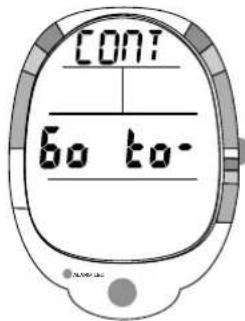
Fig. 27 - Repetitive Dive
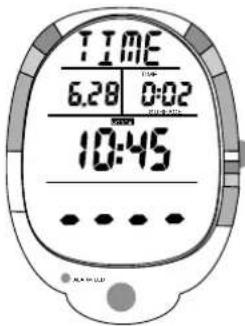
Fig. 28 - Sim Surface
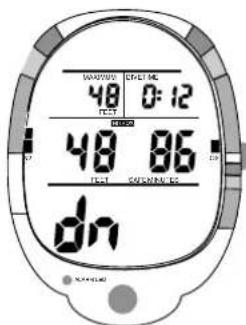
Fig. 29 - Descending
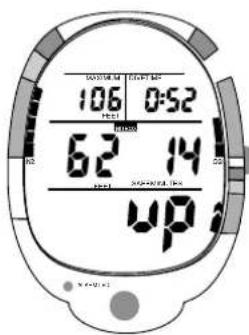
Fig. 30 - Ascending
SIMULATOR DIVE MODE screens
• Maximum Depth and graphics MAXIMUM and FEET (or METERS))
- Elapsed Dive Time and graphic DIVE TIME
- Operating Mode graphic NITROX (or AIR)
- Current Depth and graphic FEET (or METERS)
• Dive Time Remaining and graphic SAFE MINUTES
• Applicable Bar Graphs (NiBG, O2BG, ARI)
• Alpha graphic dn during Descent (Fig. 29), or up during Ascent (Fig. 30)
A quick tap (<2 seconds) of the side (Select) button starts the Descent at a rate of 2 feet per second.
Once a Descent is started -
- quick taps of the front (Advance) button stops Descents and starts Ascents at rate of 1 foot per second.
- quick taps of the side (Select) button stops Ascents and starts Descents
While stopped at Depth, 4 dashes appear in place of the graphics dn/up. Pressing the side (Select) button for greater than 2 seconds increases Elapsed Dive Time 1 minute per real time second (t 60 appears).
Depressing and holding the front (Advance) button for 2 seconds acknowledges an Alarm condition.
The Simulator TIME (or WET) screen appears upon ascending to 3 feet (1 meter). Similar to Fig. 28, page 39).
PC (DOWNLOAD) MODE
While the TIME/WET screen is displayed, pressing the front (Advance) button 7 times accesses the PC screen (TIME > DATA > PLAN > LAST > LOG > HIST > SIMU > PC).
PC screen (Fig. 31)
- Alpha graphic PC
• Countdown Timer from 119 to 00 (seconds)
Download action is initiated by the PC (no buttons need to be pressed on the WISDOM).
If download is not initiated by the time the countdown timer reaches 00 (seconds), the unit automatically reverts to the TIME/WET screen.
The Backlight illuminates the display when both buttons are pressed momentarily.
Pressing the front (Advance) button while the PC screen is displayed bypasses PC and accesses the SET GO TO screen.
Pressing Both buttons for => 2 seconds reverts to the TIME/WET screen.
If neither button is pressed, the unit automatically reverts to the TIME/WET screen in 2 minutes.
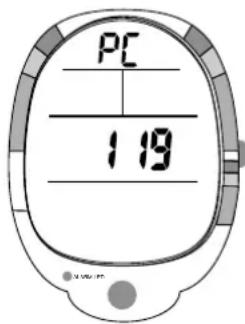
Fig. 31 - PC Mode
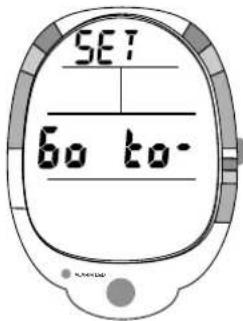
Fig. 32 - Set Mode
ENTERING SETTINGS
To simplify operations, the WISDOM's Settings are divided into 4 distinct groups consisting of Modes/Basics, Alarms, Utilities, and Time/Date.
Set 1 (Modes/Basics) - Operating Mode (Air, Nitrox, or Gauge), PO2, FO2, Nitrox Default
Set 2 (Alarms) - All (On/Off), Ascent, Depth, Turn/End Press, Reserve Time, Deco, PO2 (On/Off)
Set 3 (Utilities) - Wet Activation (On/Off), Units of Measure, Sample Rate
Set 4 (Time) - 12/24 Hour Format, Am/Pm, Time, Date
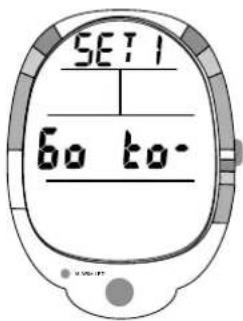
Fig. 33 - Set 1 Group
While the TIME/WET) screen is displayed, pressing the front (Advance) button 8 times accesses the SET GO TO screen (TIME > DATA > PLAN > LAST > LOG > HIST > SIMU > PC > SET).
SET GO TO screen (Fig. 32)
• Alpha graphics SET and Go to -
Pressing the side (Select) button scrolls through the SET 1 (Fig. 33), SET 2, SET 3, SET 4 GO TO screens. SET 2, 3, and 4 screens are similar to SET 1.
Release of the button freezes the SET screen selected, then you have up to 2 minutes to press the front (Advance) button to access the first parameter of that Set Group.
SET 1 GROUP (MODES/BASICS)
Pressing and releasing the side (Select) button 1 time while the SET GO TO screen is displayed, accesses the SET 1 GO TO screen.
Pressing and releasing the front (Advance) button while SET 1 is displayed, accesses the SET OPERATING MODE screen with the set point flashing.
SET OPERATING MODE
Factory set for AIR, the WISDOM can also be set for NITROX or GAUGE.
Appearing on the screen are (Fig. 34) -
• Alpha graphic MODE
- Operating Mode graphic AIR or NITROX or GAUGE, flashing
Pressing and releasing the side (Select) button changes the selection (AIR > NITROX > GAUGE).
Pressing and releasing the front (Advance) button accepts the selection.
- If NITROX is selected it advances to SET PO2 ALARM VALUE.
- If AIR or GAUGE is selected, it reverts to the TIME/WET screen.
Pressing Both buttons for < 2 seconds activates the Backlight.
Pressing Both buttons for => 2 seconds reverts to the TIME/WET screen.
The unit reverts to the TIME/WET screen if neither button is pressed in 2 minutes.
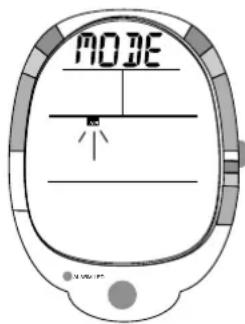
Fig. 34 - Set MODE
When set for AIR -
• calculations are the same as when it is set for NITROX with FO2 set for 21%.
- it remains set for AIR until it is set for NITROX.
- it internally keeps track of the oxygen loading so that if it is subsequently set for NITROX, the oxygen loading of previous AIR dives is accounted for in the Nitrox dives (during that activation period and series of repetitive dives).

Once a dive is taken with NITROX or GAUGE selected, that operating mode is locked ON for 24 hours after the last dive.
When AIR or GAUGE is selected, other SET 1 selections which are associated only with NITROX will not be available.
Once 24 hours has elapsed and the unit has shut OFF, operation defaults to the AIR Mode upon reactivation, until the Mode is changed.

SET PO2 ALARM VALUE
Factory set for 1.60 (ATA), the PO2 ALARM VALUE can also be set from 1.20 to 1.60 (ATA) in increments of .01 (ATA).
To access SET PO2 while viewing the SET 1 GO TO screen, press/release the front (Advance) button 1 time. Appearing on the screen (Fig. 35) will be -
- Alpha graphic PO2
- Alarm (speaker) icon and Operating Mode graphic (NITROX)
• PO2 set point, numerical value flashing
Pressing and holding the side (Select) button scrolls through the set points at a rate of 4 per second.
Pressing and releasing the front (Advance) button accepts the setting and advances to SET FO2.
Pressing Both buttons for < 2 seconds activates the Backlight.
Pressing Both buttons for => 2 seconds reverts to the TIME/WET screen.
The unit reverts to the TIME/WET screen if neither button is pressed in 2 minutes.
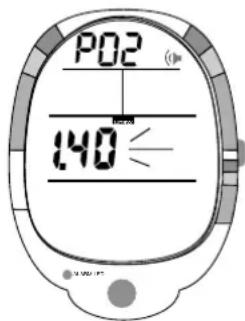
Fig. 35 - Set PO2
SET FO2 VALUE
Factory set for 21%, FO2 can also be set at Values from 21 to 50% in increments of 1%. FO2 defaults to 21% after it shuts off and is reactivated and set for Nitrox Mode operation.
The Depth displayed is the deepest Depth allowed for the PO2 Value set. Information is updated with each FO2 set point.
To access SET FO2 while viewing the SET 1 GO TO screen, press/release the front (Advance) button 2 times. Appearing on the screen will be (Fig. 36) -
- Alpha graphic FO2
• Maximum Operating Depth and graphics MAXIMUM and FEET (or METERS) - Operating Mode graphic (NITROX)
- FO2 set point, a numerical value flashing and graphic FO2%
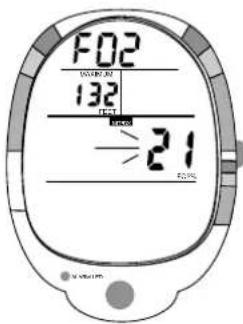
Fig. 36 - Set FO2
Pressing and holding the side (Select) button scrolls through the set points from 21 through 32% in 1% increments at a rate of 8 per second. The scroll stops at 32% for several seconds then continues to scroll from 32 through 50% to 21% in increments of 1%. Pressing and releasing the side (Select) button changes the Value 1% per press/release.
Pressing and releasing the front (Advance) button accepts the setting and advances to SET FO2 DEFAULT.
Pressing Both buttons for < 2 seconds activates the Backlight.
Pressing Both buttons for => 2 seconds reverts to the TIME/WET screen.
The unit reverts to the TIME/WET screen if neither button is pressed in 2 minutes.
SET FO2 DEFAULT ON/OFF
Factory set ON, the FO2 DEFAULT can also be set OFF.
When set ON, 10 minutes on the surface after the dive FO2 is displayed as 50 and further calculations are based on 50% O2 for Oxygen and 21% O2 for Nitrogen (79% Nitrogen) unless you set the FO2 before the dive. FO2 continues to reset to the FO2 50% DEFAULT after subsequent repetitive dives until the unit shuts Off, or the DEFAULT is set OFF.
When set OFF, the FO2 Value remains set at the last set point selected for the remainder of that Activation Period.
To access SET FO2 DEFAULT while viewing the SET 1 GO TO screen, press/release the front (Advance) button 3 times. Appearing on the screen will be (Fig. 37) -
• Alpha graphics DFT, and ON (or OFF) flashing
- Operating Mode graphic (NITROX) and 50
Pressing and releasing the side (Select) button toggles between ON and OFF.
Pressing and releasing the front (Advance) button accepts the selection and advances to SET Go To.
Pressing Both buttons for < 2 seconds activates the Backlight.
Pressing Both buttons for => 2 seconds reverts to the TIME/WET screen.
The unit reverts to the TIME/WET screen if neither button is pressed in 2 minutes.
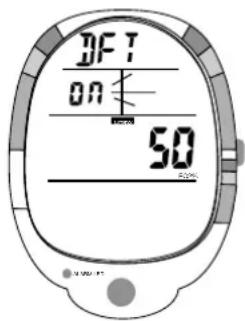
Fig. 37 - Set Default
SET 2 GROUP (ALARMS)
Pressing and releasing the side (Select) button 2 times while the SET GO TO screen is displayed, accesses the SET 2 GO TO screen.
Pressing and releasing the front (Advance) button 1 time while SET 2 GO TO is displayed, accesses the SET ALL ALARMS screen with the set point flashing.
SET ALL ALARMS ON/OFF
Factory set ON, All Alarms can also be set OFF. When set OFF, All Alarm settings are bypassed and the Audible Alarm is turned OFF for the Alarms that could be set On/Off. Appearing on the screen will be (Fig. 38) -
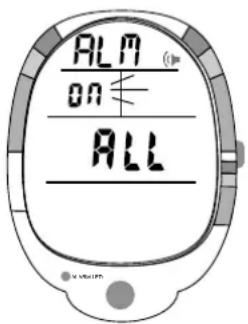
Fig. 38 - Set All Alarms
• Alpha graphics ALM and ALL
- Alarm (speaker) icon
• Graphic ON (or OFF), flashing
Pressing and releasing the side (Select) button toggles between ON and OFF.
Pressing and releasing the front (Advance) button accepts the selection and/or advances to SET Ascent Alarm (if ON is selected), or SET Go To (if OFF is selected).
Pressing Both buttons for < 2 seconds activates the Backlight.
Pressing Both buttons for => 2 seconds reverts to the TIME/WET screen.
The unit reverts to the TIME/WET screen if neither button is pressed in 2 minutes.
SET ASCENT ALARM ON/OFF
Factory set ON, the ASCENT ALARM can also be set OFF. When set OFF, the Alarm will not sound as Ascent Rate increases.
To access SET ASCENT ALARM while viewing the SET 2 GO TO screen, press/release the front (Advance) button 2 times. Appearing on the screen (Fig. 39) will be -
• Alpha graphic ASNT
- Alarm (speaker) icon
• Graphic ON or OFF, flashing
- Ascent Rate Indicator
Pressing and releasing the side (Select) button toggles between ON and OFF.
Pressing and releasing the front (Advance) button accepts the selection and/or advances to SET MAX DEPTH ALARM with the Set Point flashing.
Pressing Both buttons for < 2 seconds activates the Backlight.
Pressing Both buttons for => 2 seconds reverts to the TIME/WET screen.
The unit reverts to the TIME/WET screen if neither button is pressed in 2 minutes.
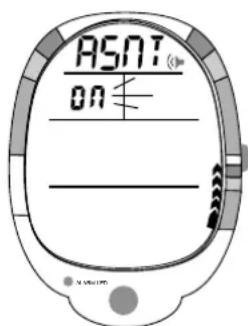
Fig. 39 - Set Ascent Alarm
SET DEPTH ALARM ON/OFF
Factory set ON, the DEPTH ALARM can also be set OFF. When set OFF, the Alarm will not sound as Depth increases toward 330 feet (120 meters).
To access SET DEPTH ALARM while viewing the SET 2 GO TO screen, press/release the front (Advance) button 3 times. Appearing on the screen (Fig. 40) will be -
• Alpha graphic DEEP
- Alarm (speaker) icon
• Graphic ON (or OFF), flashing
Pressing and releasing the side (Select) button toggles between ON and OFF.
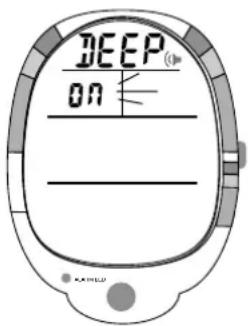
Fig. 40 - Set Depth Alarm
Pressing and releasing the front (Advance) button accepts the selection and advances to SET MAX DEPTH ALARM VALUE (if set ON) or SET TURN ALARM (if set OFF).
Pressing Both buttons for < 2 seconds activates the Backlight.
Pressing Both buttons for => 2 seconds reverts to the TIME/WET screen.
The unit reverts to the TIME/WET screen if neither button is pressed in 2 minutes.
SET MAX DEPTH ALARM VALUE
Factory set for 100 feet, the MAX DEPTH ALARM VALUE can also be set from 30 to 330 feet (9 to 99 meters) in increments of 10 feet (3 meters).
After accepting ON as the setting for DEPTH ALARM ON/OFF, the SET MAX DEPTH ALARM VALUE screen appears with the set point flashing. Appearing on the screen (Fig. 41) will be -
• Alpha graphic DEEP
- Alarm (speaker) icon
• Graphics MAXIMUM and FEET (or METERS)
• Numerical Depth value, flashing
Pressing and holding the side (Select) button scrolls through the Set Points at a rate of 4 per second until released.
Pressing and releasing the front (Advance) button accepts the selection and/or advances to SET TURN ALARM.
Pressing Both buttons for < 2 seconds activates the Backlight.
Pressing Both buttons for => 2 seconds reverts to the TIME/WET screen.
The unit reverts to the TIME/WET screen if neither button is pressed in 2 minutes.
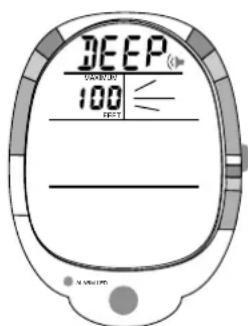
Fig. 41 - Set Depth Alarm Value
SET TURN PRESSURE ALARM ON/OFF
Factory set ON, the TURN PRESSURE ALARM can also be set OFF. When set OFF, the Alarm will not sound as Tank Pressure decreases toward 0 PSI (BAR).
To access SET TURN PRESSURE ALARM while viewing the SET 2 GO TO screen, press/release the front (Advance) button 4 times. Appearing on the screen (Fig. 42) will be -
• Alpha graphic TURN
- Alarm (speaker) icon
• Graphic ON (or OFF), flashing
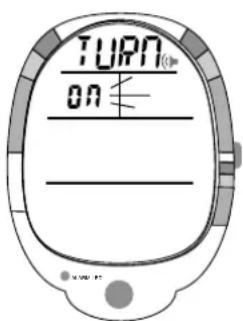
Fig. 42 - Set Turn Pressure Alarm
Depressing and releasing the side (Select) button toggles between ON and OFF.
Depressing and releasing the front (Advance) button accepts the selection and/or advances to SET TURN PRESSURE VALUE (if set ON) or SET END ALARM (if set OFF).
Pressing Both buttons for < 2 seconds activates the Backlight.
Pressing Both buttons for => 2 seconds reverts to the TIME/WET screen.
The unit reverts to the TIME/WET screen if neither button is pressed in 2 minutes.
SET TURN PRESSURE ALARM VALUE
Factory set for 1500 PSI, the TURN PRESSURE ALARM VALUE can also be set from 1000 to 3000 PSI (69 to 205 BAR) in increments of 250 PSI (17 BAR).
After accepting ON as the setting for TURN PRESSURE ALARM ON/OFF, the SET TURN PRESSURE ALARM VALUE screen appears with the set point flashing. Appearing on the screen (Fig. 43) will be -
• Alpha graphic TURN
- Alarm (speaker) icon
• Numerical Tank Pressure value, flashing
• Graphic PSI (or BAR)
Pressing and holding the side (Select) button scrolls through the Set Points at a rate of 4 per second until released.
Pressing and releasing the front (Advance) button accepts the selection and advances to SET END PRESSURE ALARM.
Pressing Both buttons for < 2 seconds activates the Backlight.
Pressing Both buttons for => 2 seconds reverts to the TIME/WET screen.
The unit reverts to the TIME/WET screen if neither button is pressed in 2 minutes.
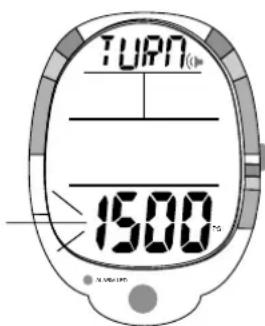
Fig. 43 - Set Turn Pressure Alarm Value
SET END PRESSURE ALARM ON/OFF
Factory set ON, the END PRESSURE ALARM can also be set OFF. When set OFF, the Alarm will not sound as Tank Pressure decreases toward 0 PSI (BAR).
To access SET END PRESSURE ALARM while viewing the SET 2 GO TO screen, press/release the front (Advance) button 5 times. Appearing on the screen (Fig. 44) will be -
- Alpha graphic END
- Alarm (speaker) icon
• Graphic ON or OFF, flashing
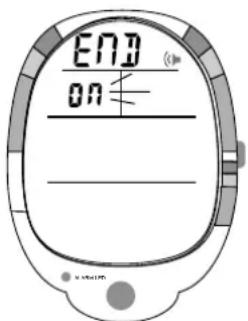
Fig. 44 - Set End Pressure Alarm
Pressing and releasing the side (Select) button toggles between ON and OFF.
Pressing and releasing the front (Advance) button accepts the selection and advances to SET END PRESSURE VALUE (if set ON) or SET RESERVE TIME ALARM (if set OFF).
Pressing Both buttons for < 2 seconds activates the Backlight.
Pressing Both buttons for => 2 seconds reverts to the TIME/WET screen.
The unit reverts to the TIME/WET screen if neither button is pressed in 2 minutes.
SET END PRESSURE ALARM VALUE
Factory set for 500 PSI, the END PRESSURE ALARM VALUE can also be set from 300 to 3000 PSI (20 to 208 BAR) in increments of 100 PSI (7 BAR).
After accepting ON as the setting for END PRESSURE ALARM ON/OFF, the SET END PRESSURE ALARM VALUE screen appears with the set point flashing. Appearing on the screen (Fig. 45) will be -
• Alpha graphic END
- Alarm (speaker) icon
• Numerical Tank Pressure value, flashing
• Graphic PSI or BAR
Pressing and holding the side (Select) button scrolls through the Set Points at a rate of 4 Set Points per second until released.
Pressing and releasing the front (Advance) button accepts the selection and/or advances to SET RESERVE ALARM.
Pressing Both buttons for < 2 seconds activates the Backlight.
Pressing Both buttons for => 2 seconds reverts to the TIME/WET screen.
The unit reverts to the TIME/WET screen if neither button is pressed in 2 minutes.
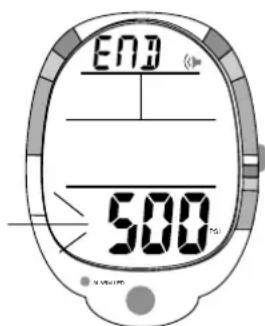
Fig. 45 - Set End
Pressure Alarm Value
SET RESERVE TIME (Dive Time Remaining) ALARM ON/OFF
The Dive Time Remaining display shows No Deco Time, O2 Time, or Air Time Remaining, the least available at that moment. Whichever decreases to the Value set will sound the Alarm.
Factory set ON, the RESERVE TIME ALARM can also be set OFF. When set OFF, the Alarm will not sound as Dive Time Remaining decreases toward 0 minutes.
To access SET RESERVE TIME ALARM while viewing the SET 2 GO TO screen, press/release the front (Advance) button 6 times. Appearing on the screen (Fig. 46) will be -
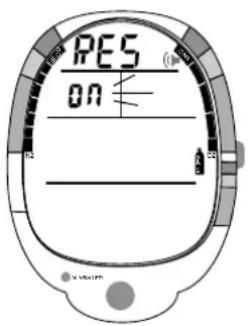
Fig. 46 - Set Reserve Time Alarm
- Alpha graphic RES
- Alarm (speaker) icon
• Graphic ON or OFF, flashing
• Nitrogen and O2 Bar Graphs - Tank icon
Pressing and releasing the side (Select) button toggles between ON and OFF.
Pressing and releasing the front (Advance) button accepts the selection and/or advances to SET RESERVE TIME (if set ON) or SET DECO ALARM (if set OFF).
Pressing Both buttons for < 2 seconds activates the Backlight.
Pressing Both buttons for => 2 seconds reverts to the TIME/WET screen.
The unit reverts to the TIME/WET screen if neither button is pressed in 2 minutes.
SET RESERVE TIME (DTR) ALARM VALUE
Factory set for 5 minutes, the RESERVE TIME ALARM VALUE can also be set from 1 to 30 minutes in increments of 1 minute.
After accepting ON as the setting for RESERVE TIME ALARM ON/OFF, the SET RESERVE TIME ALARM VALUE screen appears with the set point flashing. Appearing on the screen (Fig. 47) will be -
- Alpha graphic RES
- Alarm (speaker) icon
- Reserve Time Value, flashing
- Nitrogen and O2 Bar Graphs
- Tank icon
Pressing and holding the side (Select) button scrolls through the Set Points of at a rate of 4 Set Points per second until released.
Pressing and releasing the front (Advance) button accepts the selection and/or advances to SET DECO ALARM.
Pressing Both buttons for < 2 seconds activates the Backlight.
Pressing Both buttons for => 2 seconds reverts to the TIME/WET screen.
The unit reverts to the TIME/WET screen if neither button is pressed in 2 minutes.
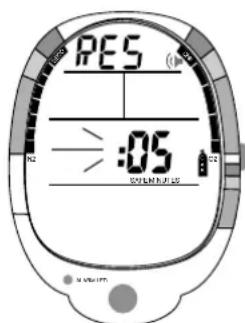
Fig. 47 - Set Reserve Time Alarm
SET DECO ALARM ON/OFF
Factory set ON, the DECO ALARM can also be set OFF. When set OFF, the Alarm will not sound upon entry into Decompression Dive Mode.
To access SET DECO ALARM while viewing the SET 2 GO TO screen, press/release the front (Advance) button 7 times. Appearing on the screen (Fig. 48) will be -
• Alpha graphic DECO
- Alarm (speaker) icon
• Graphic ON (or OFF), flashing
- Nitrogen Bar Graph

Fig. 48 - Set Deco Alarm
Depressing and releasing the side (Select) button toggles between ON and OFF.
Depressing and releasing the front (Advance) button accepts the selection and advances to SET PO2 ALARM.
Pressing Both buttons for < 2 seconds activates the Backlight.
Pressing Both buttons for => 2 seconds reverts to the TIME/WET screen.
The unit reverts to the TIME/WET screen if neither button is pressed in 2 minutes.
SET PO2 ALARM ON/OFF
Factory set ON, the PO2 ALARM can also be set OFF. When set OFF, the Alarm will not sound upon as the Level of PO2 increases.
To access SET PO2 ALARM while viewing the SET 2 GO TO screen, press/release the front (Advance) button 8 times. Appearing on the screen (Fig. 49) will be -
- Alpha graphic PO2
- Alarm (speaker) icon
• Graphic ON (or OFF), flashing - O2 Bar Graph
- Graphic Nitrox
Pressing and releasing the side (Select) button toggles between ON and OFF.
Pressing and releasing the front (Advance) button accepts the selection and advances to SET 2 GO TO.
Pressing Both buttons for <2 seconds activates the Backlight.
Pressing Both buttons for => 2 seconds reverts to the TIME/WET screen.
The unit reverts to the TIME/WET screen if neither button is pressed in 2 minutes.
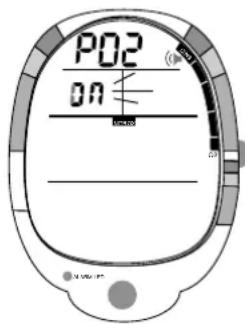
Fig. 49 - Set PO2 Alarm
SET 3 GROUP (UTILITIES)
Pressing and releasing the side (Select) button 3 times while the SET GO TO screen is displayed, accesses the SET 3 GO TO screen.
Pressing and releasing the front (Advance) button 1 time while SET 3 GO TO is displayed, accesses the SET H2O SENSOR screen with the set point flashing.
SET H2O SENSOR (WET ACTIVATION) ON/OFF
Factory set ON, the H2O SENSOR can also be set OFF. When set OFF, the WISDOM will not activate upon immersion in water. Appearing on the screen (Fig. 50) will be -
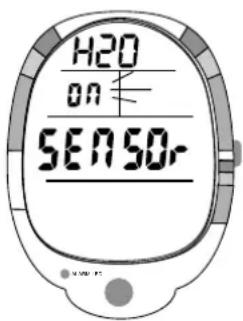
Fig. 50 - Set H2O Sensor
- Alpha graphic H2O
• Graphic ON (or OFF), flashing - Graphic SENSOR
Pressing and releasing the side (Select) button toggles between ON and OFF.
Pressing and releasing the front (Advance) button accepts the selection and advances to SET UNITS.
Pressing Both buttons for < 2 seconds activates the Backlight.
Pressing Both buttons for => 2 seconds reverts to the TIME/WET screen.
The unit reverts to the TIME/WET screen if neither button is pressed in 2 minutes.
SET UNITS (IMPERIAL/METRIC)
Factory set for Imperial, Units of Measure can also be set for Metric. Units of Measure must be set prior to setting parameters that contain numerical Values
To access SET UNITS while viewing the SET 3 GO TO screen, press/release the front (Advance) button 2 times. Appearing on the screen (Fig. 51) will be -
• Alpha graphics FT, F, PSI (or M, C, BAR) flashing
Pressing and releasing the side (Select) button toggles between Imperial and Metric units.
Pressing and releasing the front (Advance) button accepts the selection and advances to SET SAMPLE RATE.
Pressing Both buttons for < 2 seconds activates the Backlight.
Pressing Both buttons for => 2 seconds reverts to the TIME/WET screen.
The unit reverts to the TIME/WET screen if neither button is pressed in 2 minutes.
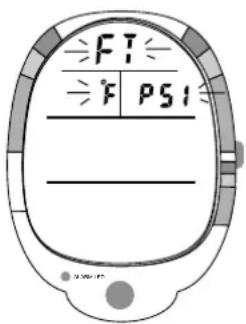
Fig. 51 - Set Units
SET SAMPLE RATE VALUE
SAMPLE RATE is the Rate at which data is sampled for storage in memory for subsequent download to the associated PC software program. This setting has no effect on the Rate at which data is Sampled for screen displays that you view during unit operation.
Factory set for a Rate of 15 seconds (allowing 15 hours of data), Sampling Rate can also be set for 30 seconds (for 30 hours) or 60 seconds (for 60 hours).
To access SET SAMPLING RATE while viewing the SET 3 GO TO screen, press/release the front (Advance) button 3 times. Appearing on the screen (Fig. 52) will be -
- Alpha graphic SAMP
- Graphic TIME
- Rate of :15/:30/:60 (seconds) and graphic 15/30/60 hour, flashing
Pressing and releasing the side (Select) button sequences through the Rates.
Pressing and releasing the front (Advance) button accepts the selection and advances to SET GO TO.
Pressing Both buttons for < 2 seconds activates the Backlight.
Pressing Both buttons for => 2 seconds reverts to the TIME/WET screen.
The unit reverts to the TIME/WET screen if neither button is pressed in 2 minutes.
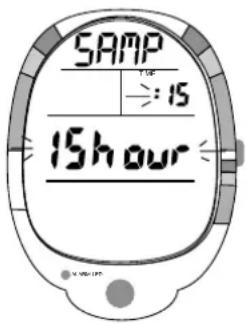
Fig. 52 - Set Sample Rate
SET 4 GROUP (DATE/TIME)
Pressing and releasing the side (Select) button 4 times while the SET GO TO screen is displayed, accesses the SET 4 GO TO screen.
Pressing and releasing the front (Advance) button 1 time while SET 4 GO TO is displayed, accesses the SET HOUR FORMAT screen with the set point flashing.
SET HOUR FORMAT 12/24
Factory set for 12 hour, the HOUR FORMAT can also be set for 24 Hour. Appearing on the screen (Fig. 53) will be -
• Alpha graphic HOUR
• Graphic 12 or 24, flashing
- Graphic TIME
Pressing and releasing the side (Select) button toggles between 12 and 24.
Pressing and releasing the front (Advance) button accepts the selection and/or advances to SET HOUR.
Pressing Both buttons for < 2 seconds activates the Backlight.
Pressing Both buttons for => 2 seconds reverts to the TIME/WET screen.
The unit reverts to the TIME/WET screen if neither button is pressed in 2 minutes.
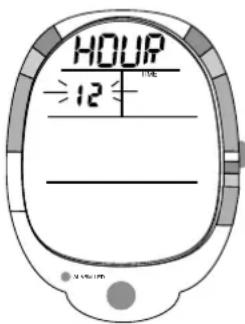
Fig. 53 - Set Hour Format
SET HOUR
Factory set for Hour 0, the HOUR can also be set for Hours 1 through 23.
To access SET HOUR while viewing the SET 4 GO TO screen, press/release the front (Advance) button 2 times. Appearing on the screen (Fig. 54) will be -
• Alpha graphic AM or PM (if set for 12 Hour Format)
- Graphic TIME
• Numerical Time (hr:min), hh: Hour value flashing
Pressing and holding the side (Select) button scrolls the HOUR from 12: AM through 11: PM (if set for 12 Hour Format), or 0: through 23: (if for 24 Hour Format) in increments of 1 Hour at a rate of 4 Set Points per second.
Pressing and releasing the front (Advance) button accepts the selection and advances to SET MINUTE.
Pressing Both buttons for < 2 seconds activates the Backlight.
Pressing Both buttons for => 2 seconds reverts to the TIME/WET screen.
The unit reverts to the TIME/WET screen if neither button is pressed in 2 minutes.
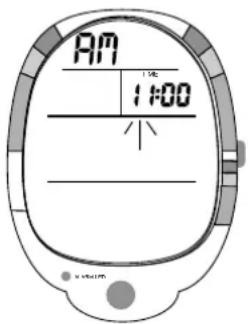
Fig. 54 - Set Hour
SET MINUTE
Factory set for :00, the MINUTE can also be set for Minute values :01 through :59.
To access SET MINUTE while viewing the SET 4 GO TO screen, press/release the front (Advance) button 3 times. Appearing on the screen (Fig. 55) will be -
• Alpha graphic AM or PM (if 12 Hour Format)
- Graphic TIME
• Numerical Time (hr:min), :mm Minute value flashing
Pressing and holding the side (Select) button scrolls the MINUTES in increments of 1 Minute at a rate of 4 Set Points per second.
Pressing and releasing the front (Advance) button accepts the selection and advances to SET YEAR.
Pressing Both buttons for < 2 seconds activates the Backlight.
Pressing Both buttons for => 2 seconds reverts to the TIME/WET screen.
The unit reverts to the TIME/WET screen if neither button is pressed in 2 minutes.
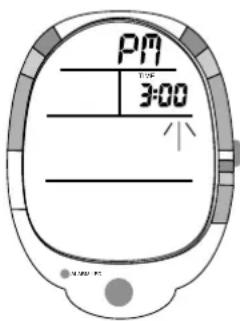
Fig. 55 - Set Minute
SET YEAR
Factory set for Year 2002, the YEAR can also be set for Years 2002 through 2039.
To access SET YEAR while viewing the SET 4 GO TO screen, press/release the front (Advance) button 4 times. Appearing on the screen (Fig. 56) will be -
• Alpha graphic YEAR
- Graphic TIME
• Numerical Month/Day values previously set
• Numerical Hour/Minute values previously set
• Numerical Year, last 2 digits flashing
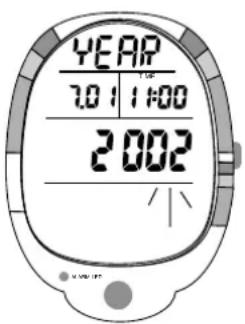
Fig. 56 - Set Year
Pressing and holding the side (Select) button scrolls the YEAR in increments of 1 Year at a rate of 4 Set Points per second.
Pressing and releasing the front (Advance) button accepts the selection and advances to SET MONTH.
Pressing Both buttons for < 2 seconds activates the Backlight.
Pressing Both buttons for => 2 seconds reverts to the TIME/WET screen.
The unit reverts to the TIME/WET screen if neither button is pressed in 2 minutes.
SET MONTH OF YEAR
Factory set for Month 1, the MONTH can also be set for Months 2 through 12.
To access SET MONTH while viewing the SET 4 GO TO screen, press/release the front (Advance) button 5 times. Appearing on the screen (Fig. 57) will be -
• Alpha graphic MNTH
- Graphic TIME
• Numerical Month, mm value flashing
• Numerical Day .dd value previously set
• Numerical Hour/Minute hh:mm values previously set
• Numerical Year value previously set
Pressing and holding the side (Select) button scrolls the MONTH in increments of 1 Month at a rate of 4 Set Points per second.
Pressing and releasing the front (Advance) button accepts the selection and advances to SET DAY.
Pressing Both buttons for <2 seconds activates the Backlight.
Pressing Both buttons for => 2 seconds reverts to the TIME/WET screen.
The unit reverts to the TIME/WET screen if neither button is pressed in 2 minutes.
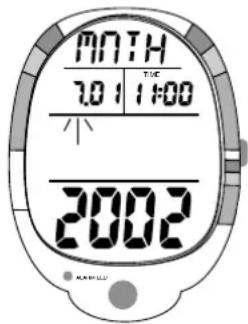
Fig. 57 - Set Month
SET DAY
Factory set for Day 01, the DAY can also be set for Days 02 through 31.
To access SET DAY while viewing the SET 4 GO TO screen, press/release the front (Advance) button 6 times. Appearing on the screen (Fig. 58) will be -
- Alpha graphic DAY
• Numerical Month mm: value previously set
• Numerical Day, .dd value flashing - Graphic TIME
• Numerical Hour/Minute hh:mm value previously set
• Numerical Year value previously set
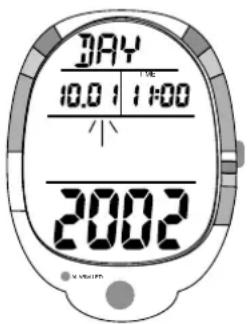
Fig. 58 - Set Day
Pressing and holding the side (Select) button scrolls the DAY in increments of 1 Day at a rate of 4 Set Points per second.
Pressing and releasing the front (Advance) button accepts the selection and advances to SET GO TO.
Pressing Both buttons for < 2 seconds activates the Backlight.
Pressing Both buttons for => 2 seconds reverts to the TIME/WET screen.
The unit reverts to the TIME/WET screen if neither button is pressed in 2 minutes.
WISDOM
DIVE
MODES
OPERATIONAL DIVE MODES
During Dive Modes, the Wisdom displays a Main (Default) screen of information relevant to that Dive Mode and Alternate screens that display secondary information.
Depressing and releasing the side (Select) button accesses the Alternate Displays, which automatically return to the Main Display after 5 seconds.
During an ASCENT on No Decompression dives deeper than 30 feet (10 meters), the display shows a SAFETY STOP to be taken at 20 feet (6 meters) for 3 minutes. Alternate Displays are accessible by pressing and releasing the side (Select) button.
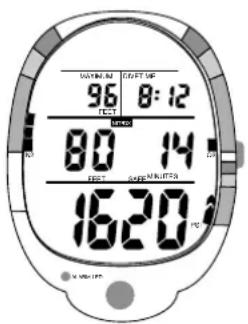
Fig. 59 - No Deco Main
NO DECO MAIN DISPLAY (DEFAULT) (Fig. 59)
Displayed from left to right and top to bottom are -
- Max Depth and graphics MAXIMUM and FEET (or METERS)
- Bottom Time (hr:min) and graphic DIVE TIME
- Mode icon NITROX or AIR
- Current Depth and graphic FEET (or METERS)
- Dive Time Remaining (min) (NDL, O2, or ATR, and graphic) and graphic SAFE MINUTES
• Cylinder Pressure and graphic PSI (or BAR)
• Bar Graphs - NiBG, O2BG (if Nitrox), ARI (if ascending)
Pressing the front (Advance) button activates the Backlight.
Pressing the side (Select) button accesses Alternate Display #1.
NO DECO ALTERNATE DISPLAY #1 (Fig. 60)
Displayed from left to right and top to bottom are -
• Temperature and graphic F (or C)
• Time of Day (hr:min) and graphic TIME
- Mode icon NITROX or AIR
• Current Depth and graphic FEET (or METERS)
• Air Time Remaining (min) and graphic SAFE MINUTES, and Tank icon
• Cylinder Pressure and graphic PSI (or BAR)
• Bar Graphs - NiBG, O2BG (if Nitrox), ARI (if ascending)
Pressing the front (Advance) button activates the Backlight.
Pressing the side (Select) button accesses Alternate Display #2 for 5 seconds (if Nitrox)
NO DECO ALTERNATE DISPLAY #2 (Fig. 61)
Displayed from left to right and top to bottom are -
• Current PO2 level (ATA) and alpha graphic PO2
• Mode icon NITROX or AIR
• Current Depth and graphic FEET (or METERS)
• FO2 Set Point (ATA) and graphic FO2%
• Cylinder Pressure and graphic PSI (or BAR)
• Bar Graphs - NiBG, O2BG (if Nitrox), ARI (if ascending)
Depressing the front (Advance) button activates the Backlight.
WISDOM
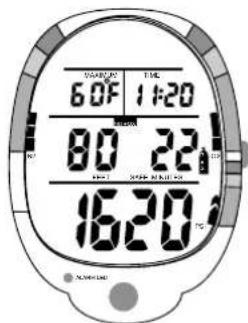
Fig. 60 - No Deco Alternate #1
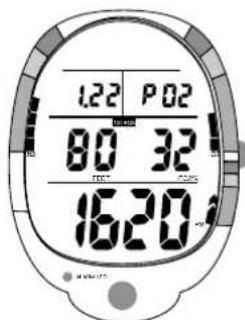
Fig. 61 - No Deco Alternate #2
NO DECOMPRESSION DIVE MODE SAFETY STOP
Upon ascending to 20 feet (6 meters) on any No Decompression dive in which Depth exceeded 30 feet (9 meters), 3 beep Alert is sounded and a Safety Stop screen appears with a countdown timer beginning at 3:00 (min:sec) and counting down to :00.
The Safety Stop is not mandatory and there is no penalty if you surface during the countdown period.
In the event that you descend below 30 feet (9 meters) during the countdown, the No Deco Main screen replaces the Safety Stop screen which reappears upon ascent to 20 feet (6 meters).
Displayed from left to right and top to bottom are (Fig. 62) -
- Graphics SAFE > STOP > 20FT (scrolling, each on for 2 sec)
- Stop Depth of 20 feet (6 meters) and graphic FEET (or METERS)
- Countdown Timer (min:sec) and graphic STOP
- Current Depth and graphic FEET (or METERS)
- Dive Time Remaining (min) (NDL, O2, or ATR, and graphic) and graphic SAFE MINUTES
• Mode (AIR or NITROX) icon
• Cylinder Pressure and graphic - Applicable Bar Graphs - NiBG, O2BG (if Nitrox), ARI (if ascending)
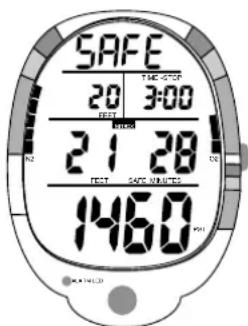
Fig. 62 - No Deco Safety Stop
Pressing the front (Advance) button activates the Backlight.
Pressing the side (Select) button accesses Alternate Displays.
DIGITAL GAUGE MODE
When set for Digital Gauge Mode, the WISDOM operates without any decompression or oxygen monitoring functions. A 24 hour surface interval is then required for the unit to operate as a full function diving computer.
Displayed from left to right and top to bottom are (Fig. 63)-
• Maximum Depth and graphics MAXIMUM and FEET (or METERS)
• Bottom Time and graphic DIVE TIME
- Mode icon GAUGE
• Current Depth and graphic FEET (or METERS)
• Cylinder Pressure and graphic PSI (or BAR)
- Ascent Rate Indicator (ARI), if ascending
Pressing the front (Advance) button activates the Backlight.
Pressing the side (Select) button accesses the Alternate Display that displays (Fig. 64) -
• Temperature and graphic F (or C)
• Time of Day (hr:min) and graphic TIME
- Mode icon GAUGE
• Current Depth and graphic FEET (or METERS)
• Air Time Remaining (min) and graphic SAFE MINUTES and Tank icon
• Cylinder Pressure and graphic PSI (or BAR)
- Ascent Rate Indicator (ARI), if ascending
Pressing the front (Advance) button activates the Backlight.
WISDOM
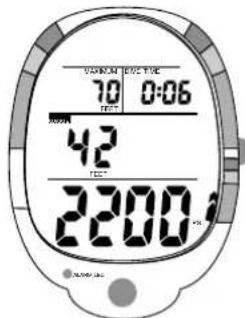
Fig. 63 - Digital Gauge Main
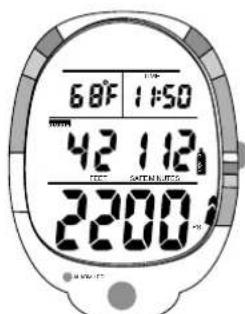
Fig. 64 - Digital Gauge Alternate
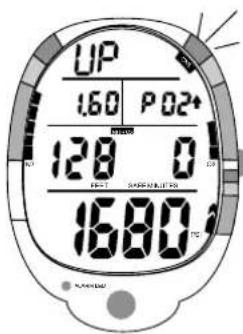
Fig. 65 - High PO2 Main
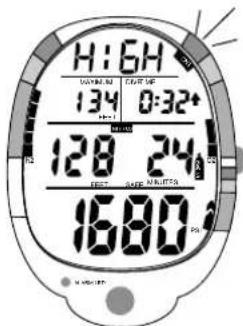
Fig. 66 - High PO2 Alternate
HIGH P02 DIVE MODE
A cautionary High PO2 Mode is entered upon reaching .2 ATA less than the Maximum PO2 Alarm Set Point.
Upon reaching the Alarm Set Point, the Audible Alarm sounds, the Red LED flashes, and the message HIGH > PO2 scrolls at the top of the screen (each on 1/2 second).
Displayed from left to right and top to bottom are (Fig. 65) -
- Alpha graphics UP > HIGH > PO2 (scrolling, each on for 2 seconds)
- PO2 Value (flashing if PO2 =>1.60, or Alarm set point) and graphic PO2
- UP Arrow (flashing if PO2 =>1.6, or Alarm set point)
- Graphic NITROX
• Current Depth and graphic FEET (or METERS)
• Cylinder Pressure and graphic PSI (or BAR)
- Dive Time Remaining (min) (NDL, O2, or ATR, and graphic) and graphic SAFE MINUTES
- Bar Graphs (NiBG, O2BG, ARI - if ascending), maximum O2BG segment on (flashing if PO2 =>1.6, or Alarm set point)
Pressing the front (Advance) button deactivates the Audible Alarm and red LED, changes the scroll message and rate, and activates the Backlight.
Pressing the side (Select) button accesses the Alternate Display (Fig. 66).
HIGH 02 DIVE MODE
A cautionary High O2 Mode is entered upon reaching 80% (240 OTU) of the Maximum per dive allowable O2 of 300 SOTU (Single Oxygen Toxicity Unit) or 24-hour period allowable O2 saturation of 300 DOTU (Daily Oxygen Toxicity Unit). The Oxygen Bar Graph (O2BG) shows the maximum of either SOTU or DOTU.
Upon reaching 80% (240 OTU), the Audible Alarm sounds, the Red LED flashes, and the message HIGH > O2 scrolls at the top of the screen (each on 1/2 second). When O2 saturation becomes equal to or greater than 300 OTU (100% limit), all O2BG segments flash in conjunction with the red LED light and sounding of the Audible Alarm.
Displayed from left to right and top to bottom are (Fig. 67) -
- Graphics UP > HIGH > O2 (scroll, each on for 2 seconds)
• O2 Saturation (%) and graphic SAT
• UP Arrow (flashing if O2 =>80%) - Graphic NITROX
• Current Depth and graphic FEET (or METERS) - O2 Time (0 minutes if O2 = 100%) and graphic SAFE MINUTES
- Bar Graphs (NiBG, O2BG, ARI), full O2BG flashing if O2 = 100% Sat)
• Cylinder Pressure and graphic PSI (or BAR)
Pressing the front (Advance) button deactivates the Audible Alarm and red LED, changes the scroll message and rate, and activates the Backlight.
Pressing the side (Select) button accesses the Alternate Display (Fig. 68).
WISDOM
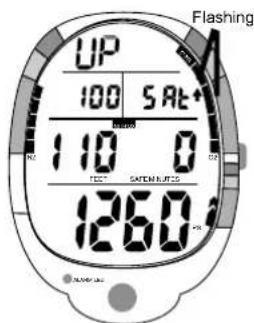
Fig. 67 - High O2 Main
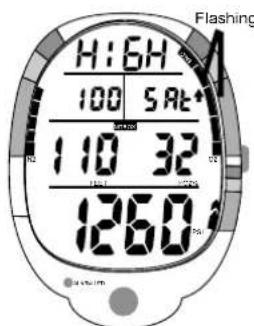
Fig. 68 - High O2 Alternate
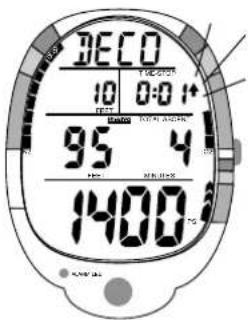
Fig. 69 - Deco Entry
DECOMPRESSION DIVE MODE
A cautionary Decompression Dive Mode is entered when nitrogen absorption computations determine that you cannot safely surface without stopping at a predetermined depth to allow off gassing of absorbed nitrogen. The red LED flashes, the Audible Alarm sounds, and the message DECO > STOP scrolls at the top of the screen (each on 1/2 second) (Fig. 69). Alternate displays are accessible that return to the Main Display after 5 seconds.
DECO STOP MAIN DISPLAY (DEFAULT) (Fig. 70)
- Graphics DECO > STOP > XX FT (or M) (scrolls, each on for 2 seconds)
- Stop Depth and graphic FEET (or METERS)
- Stop Time and graphic TIME-STOP
- UP Arrow on flashing, if more than 10 feet (3 meters) below the required Stop Depth. The Arrow is removed from the display when within 10 feet (3 meters) below the required Ceiling Stop Depth.
- Mode icon NITROX (or AIR)
• Current Depth and graphic FEET (or METERS)
• Total Ascent Time (min) and graphic TOTAL ASCENT - Cylinder Pressure and icon
• Applicable Bar Graphs (NiBG, O2BG, ARI)
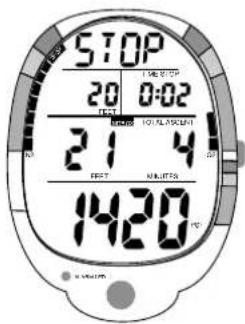
Fig. 70 - Deco Main
Pressing the front (Advance) button deactivate the Audible Alarm and activates the Backlight. Pressing the side (Select) button accesses Alternate Display #1.
DECO STOP ALTERNATE DISPLAY #1 (Fig. 71)
- Graphics DECO > STOP > XX FT (or M) (scroll, each on for 2 seconds)
• Max Depth and graphics MAXIMUM and FEET (or METERS) - Elapsed Dive Time (hr:min) and graphic DIVE TIME
• Mode icon NITROX (or AIR)
• Current Depth and graphic FEET (or METERS)
• Air Time Remaining (min) and graphic SAFE MINUTES and Tank icon
• Cylinder Pressure and graphic PSI (or BAR)
• Applicable Bar Graphs (NiBG, O2BG, ARI)
Pressing the front (Advance) button activates the Backlight.
Pressing the side (Select) button accesses Alternate Display #2.
DECO STOP ALTERNATE DISPLAY #2 (Fig. 72)
- Graphics DECO > STOP > XX FT (or M) (scroll, each on for 2 seconds)
- Current PO2 level (ATA) and alpha graphic PO2
- Mode icon NITROX
• Current Depth and graphic FEET (or METERS)
• FO2 Set Point (ATA) and graphic FO2%
• Cylinder Pressure and graphic PSI (or BAR)
• Applicable Bar Graphs (NiBG, O2BG, ARI)
Pressing the front (Advance) button activates the Backlight.
WISDOM
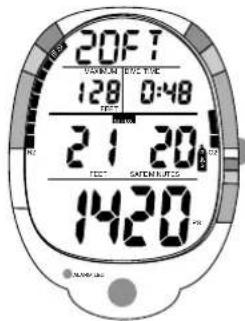
Fig. 71 - Deco Alt #1
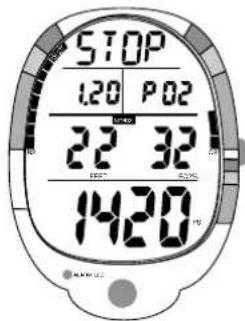
Fig. 72 - Deco Alt #2
CONDITIONAL VIOLATION UNDER WATER
If you disregard a Decompression obligation (i.e., ascend above the Required Stop Depth), the WISDOM enters a cautionary Conditional Violation Mode. The Audible Alarm sounds, the red LED flashes and the message DOWN > TO > STOP scrolls at the top of the screen (each on 1/2 second). If the situation is corrected within 5 minutes, meaning you descend below the Required Stop Depth, the unit continues to function in Decompression Mode. Otherwise, it enters Delayed Violation Mode indicated by the entire NiBG flashing.
After you surface following a Delayed Violation, and a 5 minute surface interval has elapsed, all NiBG segments flash indicating that the WISDOM has entered Permanent Violation and operation reverts to Violation Gauge Mode for 24 hours.
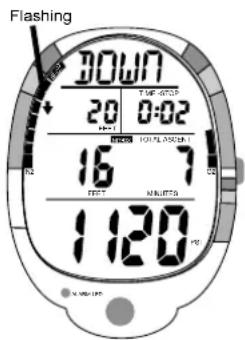
Fig. 73 - Conditional Violation Main
CONDITIONAL VIOLATION MAIN DISPLAY (DEFAULT) (Fig. 73)
- Graphics DOWN > TO > STOP (scrolls, each on for 2 seconds)
- Stop Depth and graphic and FEET (or METERS)
- Stop Time (hr:min) and graphic TIME-STOP
• DOWN Arrow on flashing - Current Depth and graphic FEET (or METERS)
• Total Ascent Time (min) and graphic TOTAL ASCENT - Cylinder Pressure and icon
• Applicable Bar Graphs (NiBG, O2BG, VARI)
Pressing the front (Advance) button deactivates the Audible Alarm and red LED, and activates the Backlight. Alternate displays similar to Deco can be accessed with the side (Select) button.
CONDITIONAL VIOLATION ON SURFACE
If you ignore a Decompression obligation and ascend to the surface, the WISDOM enters Conditional Violation on Surface. Additional displays are NOT then available.
While on the surface, the unit remains in Conditional Violation for up to 5 minutes. If the Conditional Violation Mode is corrected before 5 minutes have elapsed, meaning you descend below the Required Stop Depth, the unit continues operation in Decompression Mode. Otherwise, the unit enters Immediate Violation Mode indicated by the entire NiBG flashing. Operation then reverts to Violation Gauge Mode for 24 hours.
DELAYED VIOLATION #1 - ABOVE STOP DEPTH > 5 MINUTES (Fig. 74)
As previously described for Conditional Violation, if you ascend above a Required Decompression Stop Depth, you would need to descend to that Stop Depth for the Time indicated to complete the Decompression obligation.
Delayed Violation #1 is a continuation of Conditional Violation which occurs in the event that you remain above the Stop Depth for longer than 5 minutes. At 5 minutes, the Audible Alarm will sound and the red LED will flash (even if set Off). The DOWN Arrow and Total Ascent Time will continue to flash and the graphic message DOWN > TO > STOP will continue to scroll at the top of the screen. The full NiBG will also flash until you descend to the Required Stop Depth indicated.
While above the Required Stop Depth, no off-gassing credit will be given and for each minute that you remain above Required Stop Depth indicated, 1-1/2 minutes of Penalty Time will be added to the Decompression Stop Time and Total Ascent Time.
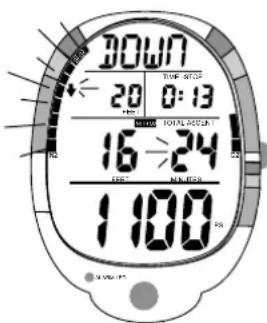
Fig. 74 - Delayed Violation #1
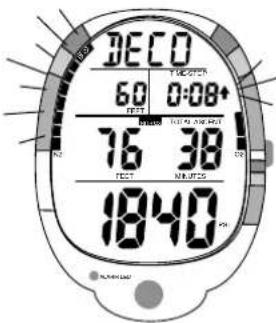
Fig. 75 - Delayed Violation #2
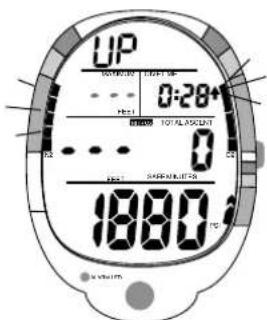
Fig. 76 - Delayed Violation #3
DELAYED VIOLATION #2 - EXCEEDED CEILING (Fig. 75)
When the Required Decompression Ceiling Stop Depth is greater than 60 feet (18 meters), but less than 70 feet (21 meters), the WISDOM enters Delayed Violation Mode #2. The Audible Alarm will sound and the red LED will flash (even if set Off). The UP Arrow and entire NiBG flash and the graphic message DECO > STOP > 60FT will scroll at the top of the screen.
To get back to the surface, you would have to ascend to just deeper than 60 feet (18 meters), staying as close to that Depth as possible until the Stop Depth of 50 FT (18 M) appears on the screen. You would then continue to follow the Decompression Schedule indicated to the surface.
DELAYED VIOLATION #3 - EXCEEDED MAXIMUM OPERATING DEPTH (Fig. 76)
When the Maximum Operating Depth of 330 feet (99.9 meters) is exceeded, or 399 feet (120 meters) when Digital Gauge Mode is set ON, the WISDOM enters Delayed Violation Mode #3 displaying Current Depth and Max Depth as 3 dashes (- - - ) signifying out of range.
The Audible Alarm will sound and the red LED will flash (even if set Off). The UP Arrow and NiBG segments will flash and the message UP > TOO > DEEP will scroll at the top of the screen.
When you ascend to, or above the Maximum Operating Depth, the Current Depth display is restored, however, Max Depth remains as 3 dashes (---).
After you surface following any Delayed Violation, and a 5 minute surface interval has elapsed, the full NiBG and O2BG flash indicating that the WISDOM is in Permanent Violation and operation reverts to Violation Gauge Mode for 24 hours.
PERMANENT VIOLATION/GAUGE MODE UNDER WATER (Fig. 77)
When a Decompression Stop Depth greater than 70 feet (21 meters) is required, the WISDOM enters Permanent Violation Mode and reverts to Violation Gauge Mode operation for the remainder of that dive and subsequent dives made within a 24 hour period.
Once in the Violation Gauge Mode, the WISDOM operates with limited functions without any nitrogen or oxygen monitoring or calculating functions.
Displayed from left to right and top to bottom are -
• Maximum Depth and graphics MAXIMUM and FEET (or METERS)
- Elapsed Dive Time (hr:min) and graphic DIVE TIME
- Mode icon AIR (or NITROX)
• Current Depth and graphic FEET (or METERS)
• Cylinder Pressure and graphic PSI (or BAR)
• Variable Ascent Rate Indicator (ARI)
Pressing the front (Advance) button activates the Backlight.
Pressing the side (Select) button displays Air Time Remaining (min).
PERMANENT VIOLATION/GAUGE MODE ON SURFACE (Fig. 78)
On the surface, the entire NiBG and O2BG flash. Plan Mode is not available for 24 hours.
A continuous 24 hour Surface Interval is required for the unit to operate as a full function diving computer.
WISDOM
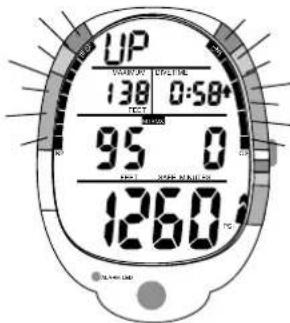
Fig. 77 - Gauge Mode Underwater
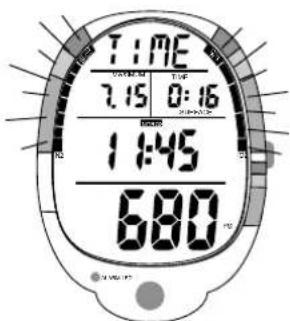
Fig. 78 - Gauge Mode on Surface

WARNING: DO NOT attempt to disassemble any portion of the module other than the Battery Hatch. Doing so may cause a dangerous malfunction, resulting in possible injury or death. Indication of tampering with the module will void the unit's warranty.

WARNING: If any portions of the display are missing or appear dim, or a Low Battery Condition is indicated after Battery replacement, return your WISDOM to an Authorized Sherwood Scuba Dealer for a complete evaluation before attempting to use it.

WISDOM
CARE
and
MAINTENANCE
CARE AND CLEANING
Protect your WISDOM from shock, excessive temperatures, chemical attack, and tampering. Protect the lens against scratches with an Instrument Lens Guard. Small scratches will naturally disappear underwater.

CAUTION: Never spray aerosols of any kind on, or near, the instrument. The propellants may chemically attack the plastic.
- Soak and rinse the WISDOM in fresh water at the end of each day of diving, and check to ensure that the areas around the low pressure (depth) sensor (Fig. 79a), download interface Data Port (Fig. 79b), and buttons are free of debris or obstructions.
- To dissolve salt crystals, soak in a bath of lukewarm water or a solution of 50% white vinegar and 50% fresh water.
- After removal from the bath, place the unit under gently running water and towel dry before storing.
- Transport your unit cool, dry, and protected.
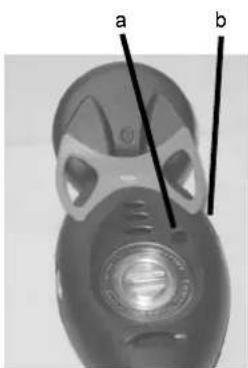
natural_image
Close-up of a metallic object with labeled parts (a and b), no readable text or symbols present.Fig. 79 - Depth Sensor & Data Port

WARNING: Never force any object through any slots or holes of the Housing. Doing so may damage the depth sensor, possibly resulting in erroneous depth and/or dive time remaining displays.

WARNING: If a Low Battery Condition is indicated prior to a dive, DO NOT attempt to dive with the WISDOM until the Battery is replaced.
INSPECTIONS AND SERVICE
WISDOM
Your WISDOM should be inspected annually by an Authorized Sherwood Scuba Dealer who will perform a factory prescribed function check and inspection for damage or wear. To keep the 2 year limited warranty in effect, this inspection must be completed one year after purchase (+/- 30 days).
Sherwood Scuba recommends that you continue to have this inspection performed every year to ensure it is working properly.
The costs of annual inspections are not covered under the terms of the 2 year limited warranty.

WARNING: If you are in doubt about the accuracy of your WISDOM's Depth readings, DO NOT attempt to dive with it until it has been inspected by Sherwood Scuba.
It is possible to damage the Depth Sensor of the WISDOM if it is not pressure tested properly. Ensure that the Dealer adheres to the following warning.

WARNING: Ensure that the WISDOM is never pressure tested in an air environment. Doing so may damage the Depth Sensor, possibly resulting in erroneous Depth or Time readings.
To Obtain Service
Take you WISDOM to an Authorized Sherwood Scuba Dealer.

NOTE: The procedures that follow must be closely adhered to. Damage due to improper Battery replacement is not covered by the WISDOM's warranty.
BATTERY REPLACEMENT
The Battery Compartment should only be opened in a dry and clean environment with extreme care taken to prevent the entrance of moisture or dust.
As an additional precautionary measure to prevent formation of moisture in the Battery Compartment, it is recommended that the Battery be changed in an environment equivalent to the local outdoor temperature and humidity (e.g., do not change the Battery in an air conditioned environment, then take it outside during a hot sunny day).
- Inspect the Buttons, Lens, and Housing to ensure they are not cracked or damaged.
- If there is any sign of moisture in the module, DO NOT use the WISDOM until it receives proper service by an Authorized Sherwood Scuba Dealer.

WARNING: If damage or corrosion is found, return your WISDOM to an Authorized Sherwood Scuba Dealer, and DO NOT attempt to use it until it has received factory prescribed service.

NOTE: If the old battery can be removed and the new one inserted within 8 seconds, nitrogen and oxygen calculations, and settings, will be retained for repetitive dives.

Battery Removal
Examine the Case Back to locate the Battery Hatch.
- Apply a coin (not a screwdriver) to the slot of the Battery Hatch and turn it counter clockwise to remove it from the Housing (Fig. 80).
- Inspect the O-ring for any signs of deterioration. If found, remove the O-ring by pressing the sides with your finger tips to cause it to protrude slightly from the grooves of the Battery Hatch and discard. DO NOT use tools to remove.
- Closely check the threads of the Battery Hatch and the Housing for any signs of damage that might impair proper threading. If found, return the unit to your Authorized Sherwood Scuba Dealer, and DO NOT attempt to use it until it has received factory service.
- Lift the Battery out of the Battery Compartment. Discard of properly.
- Check the metal contacts inside the Battery Compartment for any signs of stress (bending or breakage) and any signs of corrosion indicating entrance of moisture. If found, return the unit to your Authorized Sherwood Scuba Dealer for inspection.
If moisture is found, and you are attempting a repair in the field, proceed as follows:
- Inspect the Lens, Case, and Button areas to ensure there is no damage or cracks.
- Check the O-ring seating surfaces for nicks, cuts, or divots.
- Flush the Battery Hatch and Compartment with a solution of 50% white vinegar and 50% fresh water. Rinse thoroughly with fresh water and allow to air dry overnight, or blow dry with a hair dryer set at No Heat.
WISDOM

natural_image
Close-up of hands holding a small metallic object with a circular base (no visible text or symbols)Fig. 80 - Battery Hatch Removal
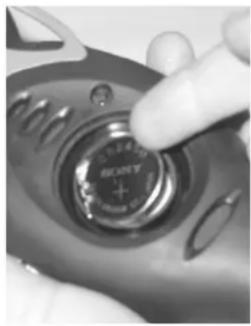
natural_image
Close-up of a hand pressing a circular button labeled 'A-14' (no other text or symbols visible)Fig. 81 - Battery Removal
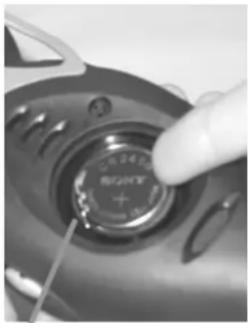
natural_image
Close-up of a hand holding a small electronic component with a screwdriver inserted (no visible text or symbols)a
Fig. 82 - Battery Installation
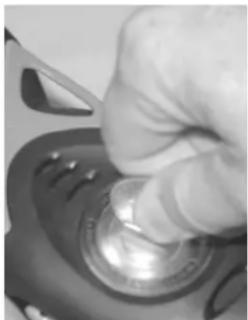
natural_image
Close-up of a hand pressing down on a metallic circular component (no visible text or symbols)Fig. 83 - Battery Hatch Secure
O-Ring Installation
- Lightly lubricate a new (recommended) Hatch O-ring with silicone grease, then stretch it slightly to work it over the slotted top of the Battery Hatch. DO NOT roll it over the threads.
- Ensure that it is evenly seated.

NOTE: This O-ring must be a genuine Sherwood Scuba part that can be purchased from an Authorized Sherwood Scuba Dealer. Use of any other O-ring will void the warranty.

CAUTION: Avoid touching the Battery Contacts or flat surfaces of the Battery, skin oil will impair correct contact.
- Insert a new 3 volt type CR2450 Lithium Battery, negative (-) side down into the Battery Compartment, under the metal clips (Fig. 82a).
- Carefully insert the Battery Hatch into the Housing and turn it slowly clockwise by hand to ensure correct threading.
- Apply a coin and tighten the Battery Hatch until secure (Fig. 83).
Inspection
- Activate the unit and watch carefully as it performs a full diagnostic and Battery check, and enters Surface Mode (TIME or WET screen).
- Observe the LCD display to ensure it is consistently clear and sharp in contrast throughout the screen.
WISDOM
REFERENCE MATERIAL
DECOMPRESSION MODEL
The Decompression Model used by the WISDOM is based on the no decompression multilevel repetitive dive schedules successfully tested by Dr. Ray Rogers and Dr. Michael Powell. These tests did not include repetitive dives deeper than 90 feet (27 meters) or decompression dives. Due to the present unavailability of statistical data, WISDOM decompression predictions are based on U.S. Navy theory.
TISSUE COMPARTMENT CONTROL
The WISDOM tracks twelve tissue compartments with halftimes ranging from 5 to 480 minutes. The Nitrogen Bar Graph always displays the controlling compartment that is the only one important at that time. Think of the Nitrogen Bar Graph as twelve separate transparent displays laid on top of one another. The compartment that has filled up fastest is the only one the viewer can see from the top.
At any particular point, one compartment may be absorbing nitrogen, while another that was previously higher may be off-gassing. One compartment “hand over” control to another compartment at a different depth. This feature of the Decompression Model is the basis of multilevel diving, one of the most important contributions the WISDOM offers you.
NO DECOMPRESSION LIMITS (NDLS)
Note how the No Decompression Limits for the WISDOM are contrasted with the U.S. Navy limits (Fig. 84). The WISDOM's Dive Planner does not scroll past 190 feet (57 meters), or to depths at which projected dive time is less than one minute.
| WISDOM U.S.N. | |
| Depth NDL-mins. NDL feet (meters) Eng (Metric) mins. | |
| 30 (9) 260 (283) --- | |
| 35 --- 310 | |
| 40 (12) 137 (144) 200 | |
| 50 (15) 81 (85) 100 | |
| 60 (18) 57 (59) 60 | |
| 70 (21) 40 (41) 50 | |
| 80 (24) 30 (32) 40 | |
| 90 (27) 24 (25) 30 | |
| 100 (30) 19 (20) 25 | |
| 110 (33) 16 (17) 20 | |
| 120 (36) 13 (14) 15 | |
| 130 (39) 11 (11) 10 | |
| 140 (42) 9 (9) 10 | |
| 150 (45) 8 (8) 5 | |
| 160 (48) 7 (7) 5 | |
| 170 (51) 7 (6) 5 | |
| 180 (54) 6 (6) 5 | |
| 190 (57) 5 (5) | --- |
Fig. 84 - NDL Comparison

WARNINGS:
Using the WISDOM, just as using the U.S. Navy (or other) No Decompression Tables, is no guarantee of avoiding decompression sickness (i.e., the bends).
Sherwood Scuba advocates responsible diving practices. Decompression diving is inherently hazardous and greatly increases your risk of decompression sickness - even when performed according to the computer's calculations.
In the event that you must make an emergency decompression dive, you must not make another dive for at least 24 hours.
OXYGEN EXPOSURE LIMITS (OTLS)
Predicted exposure limits and oxygen calculations of the WISDOM are based on maximum exposure durations published by the National Oceanic and Atmospheric Administration in the October 1991 NOAA Diving Manual (see Fig. 85).
Both central nervous system (CNS) oxygen toxicity and pulmonary oxygen toxicity were taken into consideration when the limits were published by NOAA.
Although CNS oxygen toxicity is considered the primary constraint for higher levels of PO2, there are circumstances in which pulmonary oxygen toxicity can limit exposures.
WISDOM
| PO2(ATA) | Maximum Exposure Time | |
| Per Dive(Min) | Per 24hr(Min) | |
| 0.60 | 720 | 720 |
| 0.70 | 570 | 570 |
| 0.80 | 450 | 450 |
| 0.90 | 360 | 360 |
| 1.00 | 300 | 300 |
| 1.10 | 240 | 270 |
| 1.20 | 210 | 240 |
| 1.30 | 180 | 210 |
| 1.40 | 150 | 180 |
| 1.50 | 120 | 180 |
| 1.60 | 45 | 150 |
Fig. 85 - OTLs
CNS oxygen toxicity is not considered likely at PO2 levels below 1.30 ATA. It is however related to the diver's work level. Performing strenuous tasks could cause the symptoms of oxygen poisoning to occur at PO2 levels lower than they normally would appear during casual recreational diving.

WARNING: The nitrox features of the WISDOM are intended for use only by recreational divers trained for nitrox diving by an instructor certified by a recognized training agency to teach diving with nitrox.
Diving with enriched nitrogen-oxygen (nitrox) mixtures requires special knowledge of the variations imposed upon divers, their activities, and their equipment by the increased percentage of oxygen. Sherwood Scuba recommends completion of a specialized Nitrox training course by a recognized training agency prior to diving with any enriched nitrogen-oxygen (nitrox) mixtures.

WARNING: In the event that you exceed the maximum limit of per dive allowable oxygen exposure, it is recommended that you allow a surface interval of at least 2 hours before reentering the water. If you exceed the maximum limit of 24 hour period allowable oxygen exposure, you should allow a surface interval of at least 24 hours before reentering the water.

ALTITUDE DIVING
Diving at high Altitude requires special knowledge of the variations imposed upon divers, their activities, and their equipment by the decrease in atmospheric pressures. Sherwood Scuba recommends completion of a specialized Altitude training course by a recognized training agency prior to diving in high Altitude lakes or rivers.
Atmospheric pressure decreases as Altitude increases above sea level. Weather systems and ambient temperature also affect barometric pressures. Consequently, depth reading instruments that do not compensate for the decrease in ambient pressure indicate depth readings shallower than the depth they are actually at.
The WISDOM automatically compensates for decreased ambient pressures for Altitudes between 2,000 (610 meters) and 14,000 feet (4,267 meters). Its program contains a high altitude algorithm that reduces no decompression and oxygen exposure limits to add a larger zone of caution.
The WISDOM senses ambient pressure when it is activated, every 15 minutes while it is activated, or every 30 minutes when it is not activated. At an Altitude of 2,000 feet (610 meters), it will automatically recalibrate itself to measure depth in feet of fresh water rather than feet of sea water. It will then readjust the no decompression and oxygen limits at additional intervals of 1,000 feet (305 meters). Therefore, when returning to lower Altitudes, diving should not be conducted until the unit automatically clears of any residual nitrogen and oxygen loading and resets to operate at the new lower Altitude.
Altitude Level is displayed on the Data screens (Fig. 86a).
WISDOM
| SEA = 0 - 2,000 ft0 - 600 m |
| LEV2 = 2,001 - 4,000 ft600 - 1,200 m |
| LEV3 = 4,001 to 6,000 ft1,200 - 1,800 m |
| LEV4 = 6,001 - 8,000 ft1,800 - 2,400 m |
| LEV5 = 8,001 - 10,000 ft2,400 - 3,000 m |
| LEV6 = 10,001 - 12,000 ft3,000 - 3,600 m |
| LEV7 = 12,001 - 14,000 ft3,600 - 4,200 m |
| outr = > 14,000 ft> 4,200 m |
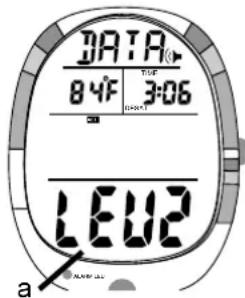
Fig. 86 - Altitude

WARNING: The WISDOM will not sense ambient pressures or provide Altitude compensation when it is wet. DO NOT dive at any different Altitude until the unit shuts off and is reactivated at the new Altitude.
If the unit is activated at elevations higher than 14,000 feet (4,267 meters), it will perform a diagnostic check followed by immediate shutdown.
FLYING AFTER DIVING
In 1990 the Undersea and Hyperbaric Medical Society (UHMS) published a set of guidelines aimed at minimizing the possibility of decompression sickness due to flying too soon after diving. The UHMS suggests* divers using standard air cylinders and exhibiting no symptoms of decompression sickness wait 24 hours after their last dive to fly in aircraft with cabin pressures up to 8,000 feet. (2,440 meters). The two exceptions to this recommendation are:
- If a diver had less than 2 hours total accumulated dive time in the last 48 hours, then a 12 hour surface interval before flying is recommended.
- Following any dive that required a decompression stop, flying should be delayed for at least 24 hours, and if possible, for 48 hours.
* excerpted from "The UHMS Flying After Diving Workshop"

Since the 1990 UHMS guidelines were introduced, data from the Diver's Alert Network (DAN) was introduced that resulted in DAN's position** that “A minimum surface interval of only 12 hours would be required in order to be reasonably assured a diver will remain symptom free upon ascent to altitude in a commercial jet airliner (altitude up to 8,000 feet/2,440 meters). Divers who plan to make daily, multiple dives for several days, or make dives that require decompression stops, should take special precautions and wait for an extended surface interval beyond 12 hours before flight”.
** excerpted from "DAN's Position on Recreational Flying After Diving"
WISDOM
Both the UHMS and DAN agree that “There can never be a flying after diving rule that is guaranteed to prevent decompression sickness completely. Rather, there can be a guideline that represents the best estimate for a conservative . . . surface interval for the vast majority of divers. There will always be an occasional diver whose physiological makeup or special diving circumstances will result in the bends”.
To reduce the risk of developing decompression sickness after a single no decompression dive, current guidelines suggest waiting 12 hours prior to exposure to atmospheric pressures equivalent to 1,000 feet (330 meters) above sea level, or greater. When repetitive dives are conducted during the same day, or period of days, it is suggested that the interval be increased to a minimum of 24 hours. Note that land travel to higher elevations after diving must also be considered as an exposure to altitude.
CONCLUSION
The WISDOM is an informational tool whose entire worth depends on understanding all of its features and functions, and using it correctly.
Learn how to use it and use it wisely. Be a Responsible Diver!

CLEAR (RESET)
The WISDOM computer is configured with a feature that allows calculations pertaining to a dive series in progress to be interrupted. Activation of this feature will delete all data accumulated during the dive series necessary for planning a next dive and should only be performed if the user plans to suspend diving for at least 24 hours.
This feature is present to provide institutional users of the computer a means to provide a "clean" computer to subsequent users without having to wait for the computer to complete all calculations in real time. This practice requires strict control to ensure that the "clean" computer is not used by a diver that has been diving within the preceding 24 hours. Failure to follow this practice could adversely affect the accuracy of subsequent calculations by failing to account for previous exposure to elevated nitrogen and oxygen partial pressures.
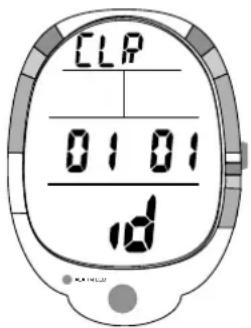
Fig. 87 - Clear (Reset)

WARNING: Do not attempt to activate the CLEAR (Reset) function on your computer. Proper activation of this feature requires controlled procedures and is restricted to authorized personnel.

WARNING: Improper activation of this feature could expose the user to elevated risk of decompression sickness or oxygen toxicity. This is a serious risk and could result in injury or death.

WARNING: If the CLEAR (Reset) screen appears (Fig. 87) on your computer, cease all operation of the computer buttons and wait at least 24 hours before resuming diving activity.
SPECIFICATIONS
SURFACE MODES / SCREENS
- Activation/Diagnostic
- Time/Wet
• Time to Fly / Desat Countdowns
• Data (Air, Nitrox, Gauge) - Plan (Air, Nitrox)
- Last (most recent dive data)
- Log (3 screens)
• History
• Simulator (demo dives) - PC (download)
-
Set 1 (Basics):
-
Operating Mode (Air, Nitrox, Gauge)
• PO2 Alarm Value (1.20 - 1.60 ATA)
• FO2 Level (21 - 50 %)
• FO2 50% Default (On/Off)
- Set 2 (Alarms):
- All Alarms (On / Off)
- Ascent Alarm (On / Off)
• Max Depth Alarm (On / Off)
• Max Depth Alarm Value (30 - 330 ft / 9 - 99 m) - Turn Pressure Alarm (On / Off)
- Turn Pressure Alarm Value (1000 - 3000 psi / 69 - 205 bar)
SURFACE MODES / SCREENS (continued)
- Set 2 (continued) -
• End Pressure Alarm (On / Off)
• End Pressure Alarm Value (300 - 1500 psi / 20 - 104 bar)
- Reserve Dive Time Alarm (On / Off)
• Reserve Dive Time Alarm Value (1 - 30 min)
- Deco Alarm (On / Off)
• PO2 Alarm (On / Off)
- Set 3 (Utilities):
• Wet Activation (On / Off)
- Units of Measure (Imperial / Metric)
• Sampling Rate (15 / 30 / 60 min)
- Set 4 (Time):
• Hour Format (12 / 24)
• Time (Hour, Minute)
• Date (Year, Month, Day)
SPECIFICATIONS (CONTINUED)
DIVE MODES / SCREENS
• No Decompression Dive:
- Main
- Alternate #1
• Alternate # 2 (if Nitrox) - Safety Stop
- Decompression Dive:
- Main
-
Alternate #1
• Alternate # 2 (if Nitrox) -
Violation types - Conditional, Delayed, and Immediate/Gauge
• High PO2 (1.20 - 1.60 ATA)
• High Oxygen Accumulation (300 OTU per dive or 24 hour period)
DISPLAY RANGES / RESOLUTION
Range: Resolution:
• Dive Number 0 - 50 1
• Depth 0 - 399 ft (0 - 120 m) 1 ft (.1 m / 1 m)
• Maximum Depth 399 ft (120 m) 1 ft (.1 m / 1 m)
• FO2 Set Point 21 - 50 % 1 %
• PO2 Value 0.00 - 5.00 ATA .01 ATA
• Dive Time Remaining 0:00 - 9:59 hr:min 1 minute
• Total Ascent Time 0:00 - 9:59 hr:min 1 minute
• Decompression Stop Time 0:00 - 9:59 hr:min 1 minute
• Bottom Time 0:00 - 9:59 hr:min 1 minute
• Surface Time 0:00 - 23:59 hr:min 1 minute
• Dive Log Surface Interval 0:00 - 23:59 hr:min 1 minute
• Temperature 0 to 99 F (-10 to 60 C) 1 degree
• Cylinder Pressure 0 - 5000 psi (345 bar) 5 psi (.5 bar)
• Time to Fly 23:50 - 0:00 hr:min* 1 minute
(* starting 10 min after the dive)
• Time to Desaturate 23:50 - 0:00 hr:min* 1 minute
(* starting 10 min. after the dive)
• Temperature 0 to 99°F (-9 to 60°C) 1°
Special Displays:
Occurrence
- Diagnostic Display
After Manual Activation - Out of Range (---)
330 feet (>99.9 meters)
• Gauge Mode Countdown Timer23:50 to 0:00 hr:min (after violation)
SPECIFICATIONS (CONTINUED)
BAR GRAPHS
Nitrogen Bar Graph: segments
• No Decompression zone (green) 5
• No Deco Caution zone (yellow) 2
- Decompression Warning zone (red) 1
Oxygen (O2) Bar Graph: segments
• Normal zone (green) 3
- Caution zone (yellow) 1
- Danger zone (red) 1
Ascent Rate Indicator: 60 feet (18 m) and Shallower Deeper than 60 feet (18 m)
| segments | feet/min | meters/min | segments | feet/min | meters/min | |
| 0 | 0 - 10 | 0 - 3 | 0 | 0 - 20 | 0 - 6 | |
| • Normal Zone (Green) | 1 | 11 - 15 | 3.5 - 4.5 | 1 | 21 - 30 | 6.5 - 9 |
| • Normal Zone (Green) | 2 | 16 - 20 | 5 - 6 | 2 | 31 - 40 | 9.5 - 12 |
| • Normal Zone (Green) | 3 | 21 - 25 | 6.5 - 7.5 | 3 | 41 - 50 | 12.5 - 15 |
| • Caution Zone (Yellow) | 4 | 26 - 30 | 8 - 9 | 4 | 51 - 60 | 15.5 - 18 |
| • Too Fast Zone (Red) | 5 | >30 | >9 | 5 | >60 | >18 |
SPECIFICATIONS (CONTINUED)
• Depth ±1% of full scale
- Timers 1 second per day
Dive Counter:
- Displays Dives #1 to 50, 0 if no dive made yet
- Resets to Dive #1, upon reactivation after shutdown
Dive Log Mode:
- Stores 50 most recent dives in memory for viewing
• After 50 dives, adds 51st dive in memory and deletes the oldest
Altitude:
- Operational from sea level to 14,000 feet (4,267 meters) elevation
- Compensates for Altitude at elevations higher than 2,000 feet (610 meters) elevation
- No adjustments are made while it is wet
Power:
- Battery 1 - 3 vdc, type CR2450 Lithium battery
- Shelf life Up to 5 years
- Replacement User replaceable (annual recommended)
- Life expectancy 300 dive hours (if 1 - 1 hour dive peractivation period) to over 600 dive hours (if 2 or more - 1 hour dives peractivation period)
SPECIFICATIONS (CONTINUED)
Activation:
- Manual - push button (recommended)
• Automatic - by immersion in water (as a backup, if set ON) - WET graphic indicates Wet Contacts are bridged (unit must be dried prior to transport or storage).
- Automatically set for AIR Mode operation upon activation
- Remains set for AIR Mode unless the Operating Mode is set for Nitrox or Gauge.
- Cannot be manually activated deeper than 4 feet (1.2 meters), if the Water Activation feature is set OFF.
- Cannot be activated at elevations higher than 14,000 feet (4,267 meters)
Shutoff:
- Automatically shuts off if no dive is made within 2 hours after initial activation. Reactivation required.
• Automatically shuts off 24 hours after last dive (will reactivate if the Wet Activation is set ON and the unit becomes Wet). - Cannot be shut off manually.
Setting FO2:
• Nitrox set points from 21 to 50 %
- If set for 21% , remains set for 21% until changed
- If set for >21% , it reverts to 50% 10 minutes after the dive, if the FO2 Default is ON. If the FO2 Default is OFF, the Value will remain at the number (%) set until changed or the unit shuts Off. Defaults to AIR Mode operation upon shutdown and reactivation.
Operating Temperature:
• In Water - between 28 and 95 °F (-2 and 35 °C)
• In Air - between 20 and 140 °F (-6 and 60 °C)
ACCESSORIES (optional items available from your Authorized Sherwood Dealer)
- Lens Guard • Compass Kit
- PC download package (hardware and software) • HP Hose Quick Disconnect
- Battery Kit - includes 1 battery, 1 battery hatch o-ring, silicone grease
SPECIFICATIONS (CONTINUED)
NO DECOMPRESSION MODEL
Basis:
- Modified Haldanean Algorithm
• 12 tissue compartments
Data Base:
• Diving Science and Technology (DSAT) - Rogers/Powell
Performance:
- Tissue compartment halftimes (mins.) Spencer's "M" values 5, 10, 20, 40, 80, 120, 160, 200, 240, 320, 400, 480
• Reciprocal subsurface elimination - 60 minute surface credit control for compartments faster than 60 minutes
• Tissue compartments tracked up to 24 hours after last dive
Decompression Capabilities:
- Decompression stop ceilings at 10, 20, 30, 40, 50, 60 ft (3, 6, 9, 12, 15, 18 m)
Altitude Algorithm:
- Based on NOAA tables
Oxygen Exposure Limits:
- Based on NOAA tables
DEFAULT SETTINGS AS SHIPPED FROM THE FACTORY
- Operating Mode AIR
- PO2 Alarm ON
• PO2 Alarm Value 1.6 ATA - FO2 21%
• 50% FO2 Default ON - All Alarms ON
- Ascent Alarm ON
- Depth Alarm ON
• Depth Alarm Value 100 feet
• Turn Pressure Warning ON
• Turn Alarm Value 1500 PSI
• End Pressure Alarm ON
• End Alarm Value 500 PSI - Reserve Time Alarm ON
• Reserve Time Alarm Value 5 minutes
• Gas Time (ATR) Warning < NDL (No Deco N2 or O2)
• Deco Alarm ON
• Water Sensor (Activation) ON - Units
Imperial
• PC Sampling Rate 15 seconds
• Hour Format 12
• Time actual at calibration - Date actual at calibration
WISDOM
GLOSSARY
Air Dive - A dive conducted using air (approximately 21% oxygen & 79% nitrogen) as the breathing gas.
Air Time Remaining - The air time a diver has available at that depth before an ascent must begin.
Algorithm - A step-by-step mathematical formula designed to accomplish a particular result (i.e. Dive Time Remaining in the WISDOM).
Alternate Display - Additional information accessible by pressing a control button.
Altitude Dive - A dive made at an elevation above sea level (2,000+ ft. / 610+ m.) where a different set of no decompression tables is used
Ascent Rate - The speed that a diver ascends toward the surface.
Ascent Rate Indicator - A display that shows ascent rate as a bar graph alongside a color coded indicator.
Audible Alarm - A computer emitted tone that alerts the diver to potential danger.
Battery Indicator - An icon displayed while in Surface Time/Wet Mode, indicates a Low Battery Condition.
Caution Zone - The yellow sections of the Nitrogen Bar Graph, O2 Bar Graph, and Ascent Rate Indicator that give a visual warning of a diver's proximity to decompression limits, oxygen tolerance limits, and ascent rate, respectively.
Ceiling - See decompression ceiling.
Clean Dive - A dive preceded by 24 hours of no diving activity.
CNS - Abbreviation for the Central Nervous System of the body.
Competitive Dive - A dive conducted for profit or prize.
Compartment - A term applied to the hypothetical modeling of nitrogen absorption in the tissues (more accurate than the term "tissue" because dive computer models have no direct relation to human tissues).
DCS - Abbreviation for decompression sickness, i.e., "the bends".
DECO - Abbreviation for Decompression.
Decompression Ceiling - The shallowest depth a diver may reach upon ascent without risking decompression sickness.
Decompression Stop - The depth(s) at which a diver must pause during ascent to allow absorbed nitrogen to escape naturally from the tissues.
Depth Sensor - an electro-mechanical device that converts water pressure into an electrical signal, that is converted to a visual depth display
DEMO - Abbreviation for demonstration, a variety of modes that display sample dives.
Diagnostic Mode - The first display seen on dive computers after initial activation during which time a self-check for internal faults is performed.
Display - A visual readout of information.
Dive Log Mode - A computer display of previous dive information.
Dive Planner - A display of available dive times at 10 foot (3 meter) intervals from 30 to 190 feet. (9 to 57 meters) used when dive planning
Dive Time Remaining - A display of the time before a diver must surface based on no decompression or oxygen accumulation status, or Air Time Remaining
GLOSSARY
Elapsed Dive Time - The total time spent underwater during a dive between 5 feet (1.5 meters) on initial descent to 3 feet (1 meter) on final ascent.
FO2 - The fraction (percent / 100) of oxygen (O2) in the breathing gas mixture.
Icon - a small pictorial representation of an operational mode
LCD - Abbreviation for liquid crystal display, an easily viewed low voltage display usually found on dive computers
Maximum Depth - The deepest depth attained during a dive.
Mode - A specific set of functions in a dive computer.
Multi-level Dive - A type of dive profile where the diver spends various times at different depths (opposite of a "Square Wave" dive profile).
Nitrogen Bar Graph - A graphic display of simulated nitrogen absorption on Sherwood dive computers.
Nitrox - A nitrogen-oxygen breathing gas mixture that contains a higher fraction of oxygen than air.
Nitrox Dive - A dive conducted using nitrox (22 to 50 % O2) as the breathing gas.
NOAA - Abbreviation for National Oceanic and Atmospheric Administration.
No Deco - Abbreviation for No Decompression.
No Deco Time Remaining - The amount of dive time remaining based on no-decompression status.
No Decompression - Any part of a dive where the diver can surface without requiring a decompression stop.
O2 Bar Graph - A visual representation of oxygen accumulation on a dive computer display.
OTU - Abbreviation for oxygen tolerance unit. A Hamilton's Repex method term for oxygen dose.
Out of Range - The point at which a dive computer can no longer supply correct dive information.
Oxygen Tolerance - Dose or exposure to the physiological affects of elevated levels of oxygen.
Oxygen Toxicity - The adverse physiological affects of exposure to elevated levels of oxygen.
Partial Pressure - The proportion of the total pressure contributed by a single gas in a mixture of gases.
PO2 - Partial pressure of oxygen. The proportion of total pressure of a gas mixture contributed by oxygen.
Repetitive Dive - Any dive that takes place within 12 hours of a previous dive.
Safety Stop - A depth at which a diver may choose, but is not required, to pause during ascent to allow absorbed nitrogen to escape naturally from the tissues.
Square Wave Dive - A type of dive profile where the entire dive is spent at one depth between descent and ascent.
Tissue - See Compartment.
Tissue Compartment - See Compartment.
Transducer - An electro-mechanical device in a dive computer that acts as a depth or pressure sensor.
Transition Period - The first 10 minutes of surface time after ascending above 3 feet (1 meter) from a dive.
INSPECTION / SERVICE RECORD
SERIAL NUMBER
DATE OF PURCHASE
PURCHASED FROM (DEALER)
BELOW TO BE FILLED IN BY AN AUTHORIZED SHERWOOD SCUBA DEALER:
| DATE | INSPECTION / SERVICE PERFORMED DEALER / TECHNICIAN | |
WISDOM
NOTES
WISDOM
KEY:
1A. Front (Advance) button
1B. Side (Select) button
2A. Nitrogen Bar Graph
2B. Oxygen Bar Graph
2C. Variable Ascent Rate Indicator
3. Red Alarm LED
4. Low Battery symbol
5. Descend (Down Arrow) symbol
6. Alarm (Speaker) symbol
7. Ascend (Up Arrow) symbol
8. Air Time (Tank) symbol
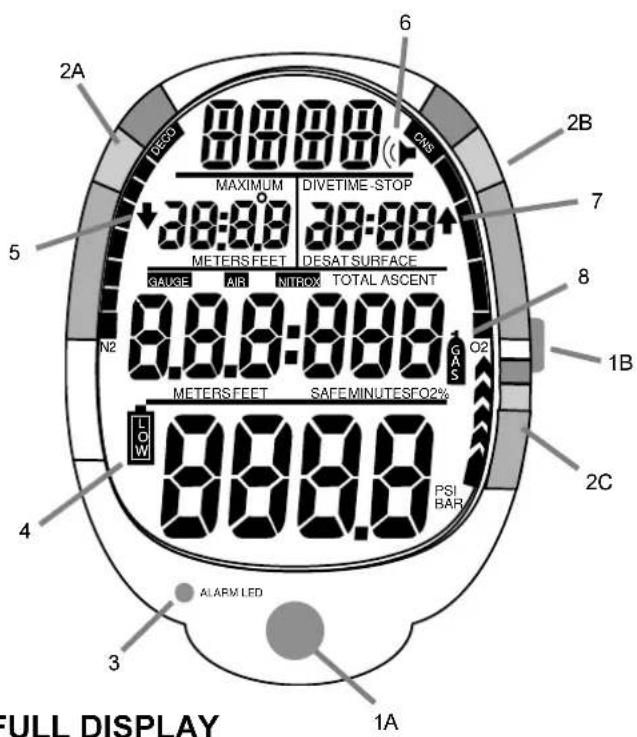
Authorized Sherwood Scuba dealers are equipped to provide you with the service you need including technical service, repair and returns. Should you need to return a product under warranty, please provide your Sherwood dealer with the item and your sales receipt.

SHERWOOD SCUBA®
4 CHRYSLER · IRVINE, CALIFORNIA 92618 · USA
www.SherwoodScuba.com
© 2002 Design 2002 · Doc. No. 12-2340-r02 (2/21/03)