DX-DPF7-10 MX - Digital photo frame Dynex - Free user manual and instructions
Find the device manual for free DX-DPF7-10 MX Dynex in PDF.


| Product Type | Digital Photo Frame |
| Brand | Dynex |
| Model | DX-DPF7-10 MX |
| Display Size | 7 inches |
| Display Resolution | 800 x 480 pixels |
| Aspect Ratio | 16:9 |
| Internal Memory | 128 MB |
| Memory Card Support | SD, MMC, MS |
| USB Port | USB 2.0 Host |
| Photo Formats | JPEG, BMP, PNG |
| Power Supply | DC 5V, 1A (AC adapter included) |
| Dimensions (L x W x H) | 7.5 x 5.5 x 1.2 inches |
| Weight | 0.6 lbs |
| Color | Black |
| Slideshow Modes | Fade, Scroll, Random |
| Clock & Calendar | Yes, with alarm function |
| Auto On/Off Timer | Yes, programmable |
| Remote Control | Included (CR2025 battery) |
| Material | Plastic casing |
| Maintenance | Clean with a soft, dry cloth. Do not use liquids. |
| Safety | Keep away from water and heat sources. |
| Spare Parts Available | Remote control, AC adapter |
| Repairability | Limited; contact Dynex support for service. |
Frequently Asked Questions - DX-DPF7-10 MX Dynex
User questions about DX-DPF7-10 MX Dynex
0 question about this device. Answer the ones you know or ask your own.
Ask a new question about this device
Download the instructions for your Digital photo frame in PDF format for free! Find your manual DX-DPF7-10 MX - Dynex and take your electronic device back in hand. On this page are published all the documents necessary for the use of your device. DX-DPF7-10 MX by Dynex.
USER MANUAL DX-DPF7-10 MX Dynex
Important safety instructions ....2
Features ....4
Setting up your digital picture frame ....8
Using your digital picture frame ....15
Troubleshooting ....17
Specifications 19
Legal notices ....19
90-day limited warranty ......21
Introduction
Congratulations on your purchase of this Dynex 7" Digital Picture Frame. Your DX-DPF7-10/DX-DPF7-10-MX is designed for reliable and trouble-free performance.
Important safety instructions
1 Read these instructions.
2 Keep these instructions.
3 Pay attention to all warnings.
4 Follow all instructions.
5 Do not use this device near water.
6 Clean only with a dry cloth.
7 Do not block any ventilation openings. Install in accordance with the manufacturer's instructions.
8 Do not install near any heat sources such as radiators, heat registers, stoves, or other devices (including amplifiers) that produce heat.
9 Protect the power cord from being walked on or pinched particularly at plugs, convenience receptacles, and the point where they exit from the device.
10 Only use attachments/accessories specified by the manufacturer.
11 Use only with the cart, stand, tripod, bracket, or table specified by the manufacturer, or sold with the device. When a cart is used, use caution when moving the cart/device combination to avoid injury from tip-over.

12 Unplug this device during lightning storms or when unused for long periods of time.
13 All maintenance needs to be done by qualified service personnel. Servicing is required when the device has been damaged in any way, such as power-supply cord or plug is damaged, liquid has been spilled or objects have fallen into the device, the device has been exposed to rain or moisture, does not operate normally, or has been dropped.
14 To reduce the risk of fire or electric shock, do not expose this device to rain, moisture, dripping, or splashing, and no objects filled with liquids, such as vases, shall be placed on it.
15 Batteries should not be exposed to excessive heat such as sunshine, fire, or the like.
Caution: Danger of explosion if the battery is incorrectly replaced. Replace only with the same or equivalent type.
Features
Package contents:
- Digital picture frame
• A C a d a p t e r - Remote control with CR2025 battery
• User Guide
• Q u i c k S e t u p G u i d e
Controls and connections
Top view
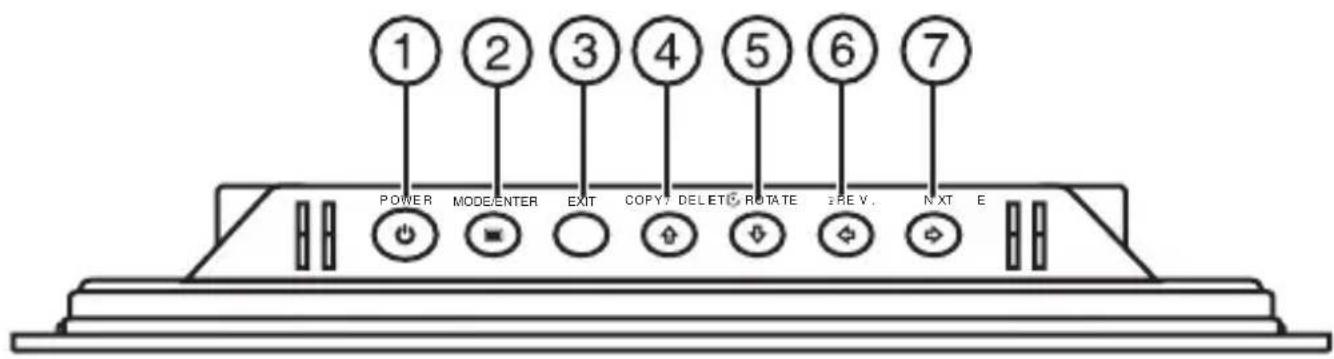
| # | B u | t t o n |
| 1 POWER Press to turn the picture frame on or off. | ||
| # Button Description | |||||||||
| 2 MODE/ENTER In picture mode, press to toggle between slideshow, browse, and thumbnail views. In menu mode, press to confirm a selection. | |||||||||
| 3 | EXIT | Press to enter the Main menu. On the Main menu, press to enter the Card Selection screen. | |||||||
| 4 COPY/DELETE/(up) Press to copy a picture from an inserted memory card into the frame's internal memory, or to delete a picture from the frame's internal memory. | |||||||||
| 5 | [4X5X] | [C054] |  |  | [Y2HZ] |  | [0XAX] |  |  |
| or to rotate a picture. | |||||||||
| 6 |  |  | [22XX] | [DOWB] | [STOZ] | [SKZA] | [ZZYK] | [TOTT] | |
| to go to the previous picture. | |||||||||
| 7 | [C4XS] | [07XS] | Press to navigate right in the on-screen menus or to go to the next picture. | ||||||
Side views
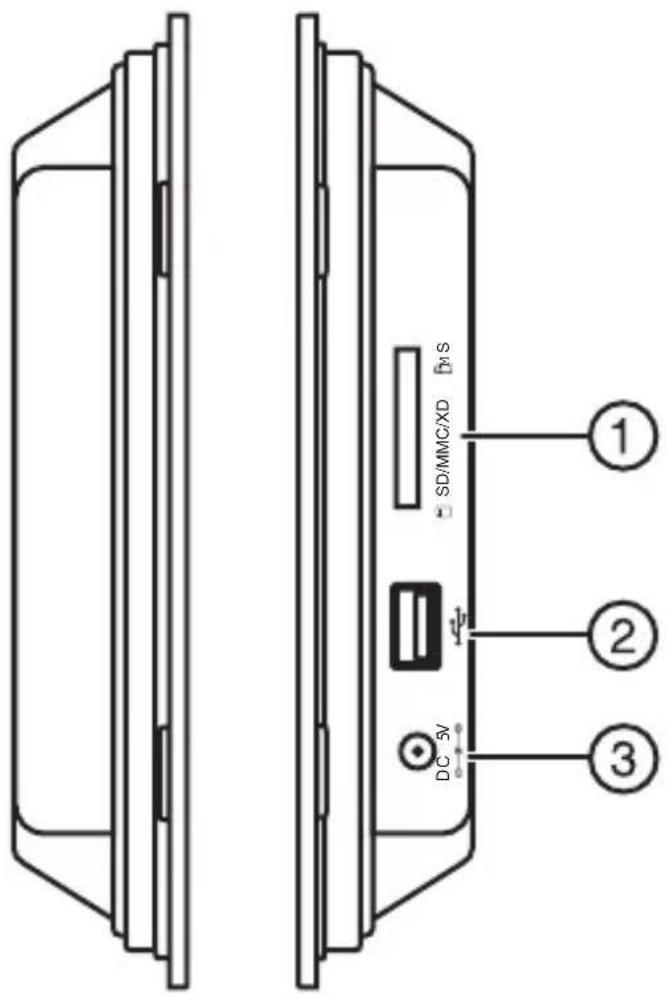
| # Slot/Port/Jack Description | ||
| 1 Memory card slot Insert an SD, SDHC, MMC, MS, or xD memory card (not provided) into this slot to view pictures. | ||
| 2 USB port Insert a USB flash drive (not provided) into this port. | ||
| 3 | DC 5 V jack | Plug the AC adapter (provided) into this jack to provide power to your digital picture frame. |
Remote control
![graph TD 1["1"] --> MENU 2["2"] --> PREV. 3["3"] --> MODE/ENTER 4["4"] --> MODE/ENTER 5["5"] --> COPY/DEL. 6["6"] --> ZOOM 7["7"] --> SLIDE SHOW MENU --> EXIT PREV. --> MODE/ENTER MODE/ENTER --> MODE/ENTER MODE/ENTER --> MODE/ENTER MODE/ENTER --> MODE/ENTER MODE/ENTER --> MODE/ENTER MODE/ENTER --> M…](/content/2026/05/1047976/images/fb91b88bcae52dd0cccc110aa38053a3ed68284a7e432a58de0f0d7ea8c21b63.jpg)
| # Button Description | ||
| 1 | MENU | Press to enter the Setup Menu screen. |
| 2 | EXIT | Press to return to the Main menu. On the Main menu, press to enter the Card Selection screen. |
| # | B u | t t o n |
| 3 | ( prev), ( next),(up), (down)/ROTATE | Press (prev) to navigate left in the on-screen menus or to go to the previous picture.Press (next) to navigate right in the on-screen menus or to go to the next picture.Press (up) to navigate up in the on-screen menus.Press (down)/ ROTATE to navigate down in the on-screen menus or to rotate a picture. |
| 4 MODE/ENTER In picture mode, press to toggle between slideshow, browse, and thumbnail views.In menu mode, press to confirm a selection. | ||
| 5 COPY/DEL Press to copy a picture from an inserted memory card into the frame's internal memory, or to delete a picture from the frame's internal memory. | ||
| 6 ZOOM Press to zoom in on an image. | ||
| 7 SLIDE SHOW Press to start a slideshow. | ||
Setting up your digital picture frame
Installing the remote control battery
Note: A battery comes pre-installed in your remote control. To activate the battery, remove the plastic insulating sheet from the battery tray.
Warning: There is a danger of explosion if the battery is not replaced correctly. Replace with the same or equivalent type battery.
To install a remote control battery:
1 Turn the remote control over to the back side.
2 Push the release tab to the right and pull the battery tray out of the remote control.
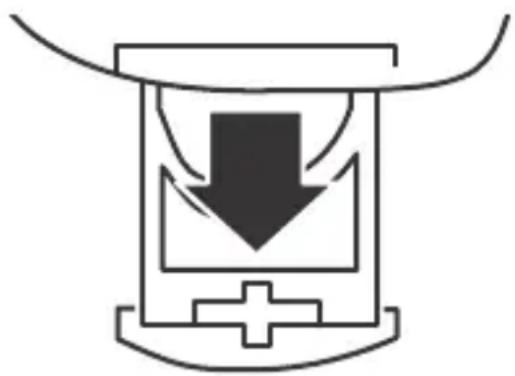
3 If this is the first time you will be using the remote control, remove the insulation sheet that covers the battery.
-OR-
If you are replacing the battery, remove the old battery and insert a new lithium coin cell battery (CR2025) into the battery tray. Make sure that you match the + symbol on the battery with the + symbol on the battery tray.
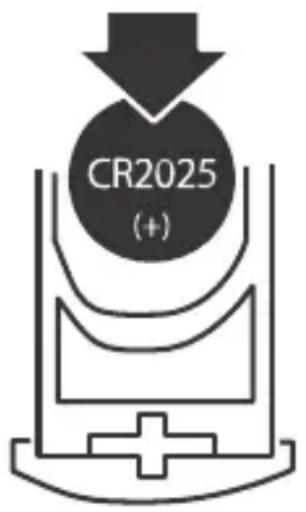
4 Slide the battery tray back into the remote control until it clicks into place.
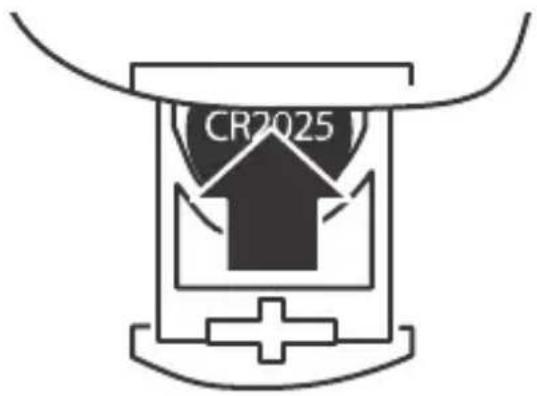
Warnings:
- Store the battery in a place where children cannot reach it. If a child accidentally swallows the battery, consult a doctor immediately.
- Do not recharge, short, disassemble, or heat the battery, or dispose of it in a fire. Doing any of these things may cause the battery to give off heat, crack, or start a fire.
- Do not leave the battery with other metallic materials. Doing this may cause the battery to give off heat, crack, or start a fire.
- When throwing away or storing the battery, wrap it in tape and insulate, otherwise, the battery may start to give off heat, crack, or start a fire.
- Dispose of the battery according to federal, state, and local regulations.
- If the remote control is not going to be used for an extended period of time, remove the battery.
Making connections
Connecting the AC adapter
Make sure that the AC power outlet matches the AC adapter's power specifications (100-240 V \~, 50/60 Hz) prior to plugging in the adapter.
To connect the AC adapter:
- Plug the small DC power connector into the DC 5V jack on the side of your digital picture frame, then plug the other end into an AC power outlet.
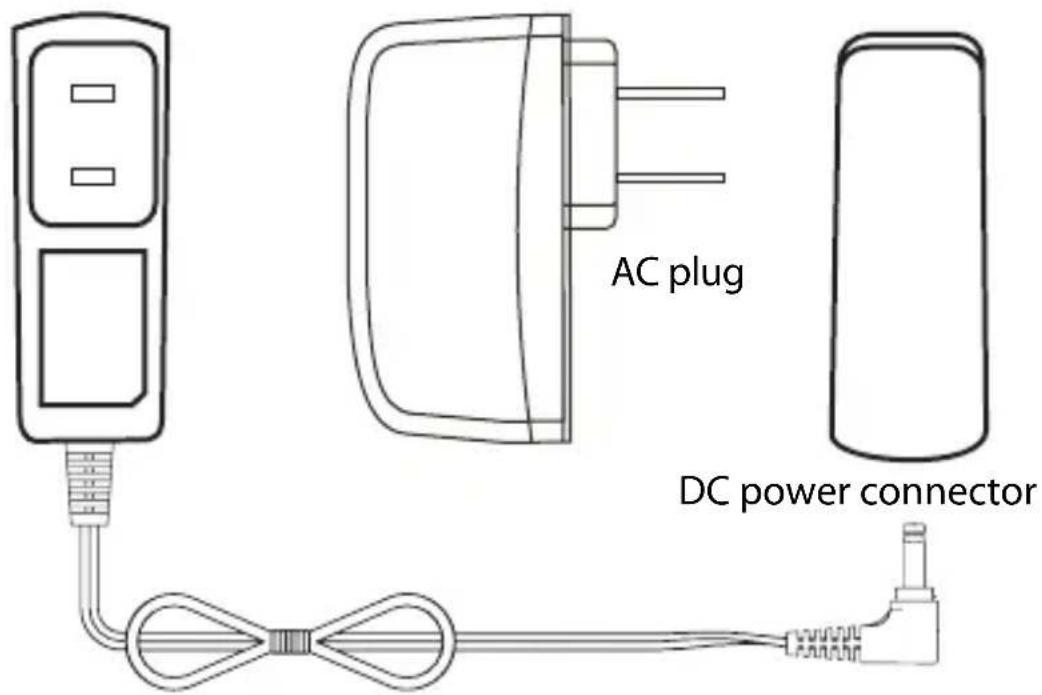
Notes:
- Use only the AC adapter supplied with your digital picture frame.
- Unplug the adapter from the power outlet when not in use.
Positioning your digital picture frame
Your digital picture frame has a built-in stand. The stand can be rotated to support the frame in either a horizontal or a vertical position. Make sure that the stand is rotated to one of the two positions indicated on the back of the frame in order to ensure stability.
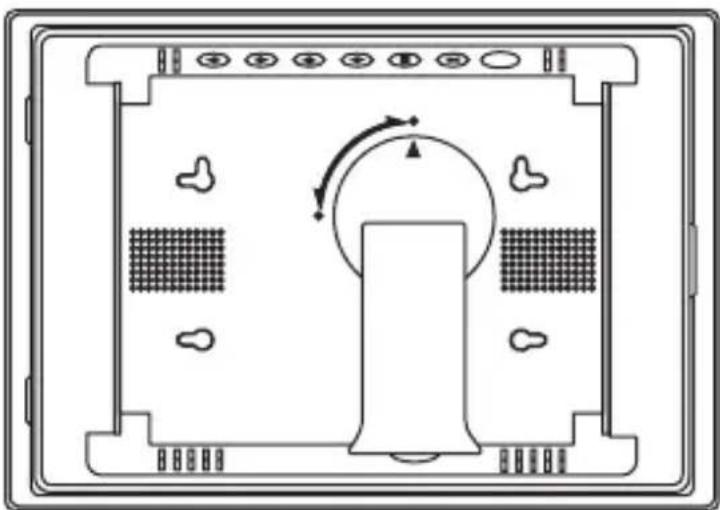
Your frame can also be wall-mounted. Use the slots on the back of the frame for either horizontal or vertical mounting.
Note: Hardware for mounting your frame is not included.
Configuring your digital picture frame
To configure your digital picture frame:
1 Press EXIT. The Main menu opens.
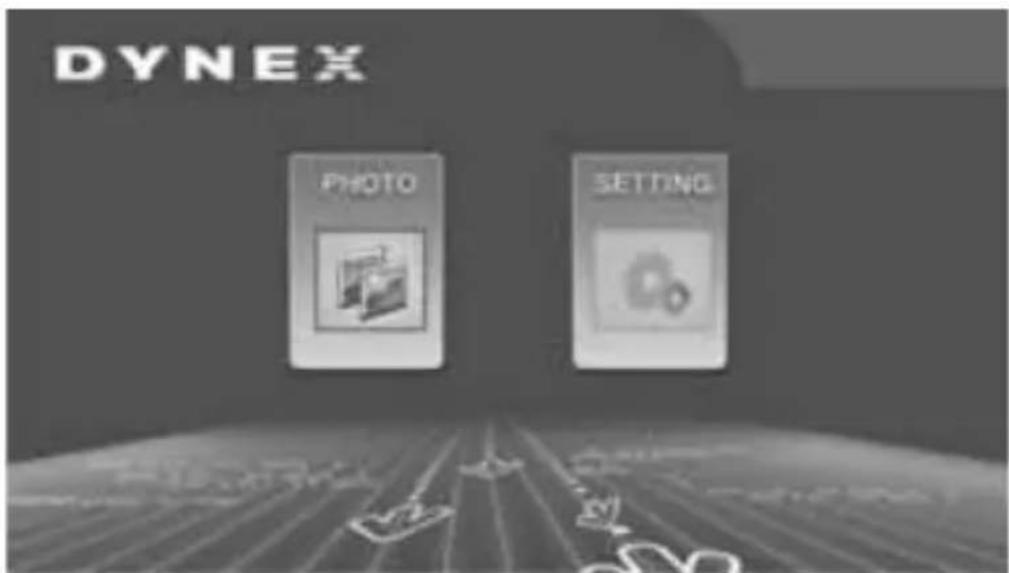
2 Press ⇔ or ➔ to highlight the SETTING icon, then press MODE/ENTER. The Setup menu opens.
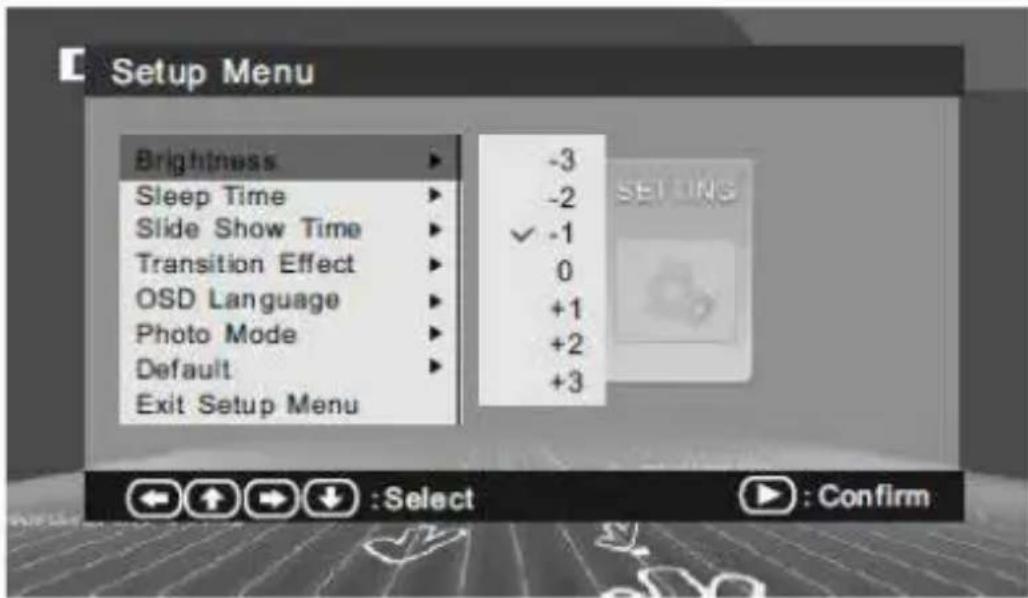
3 Press ↑, or ↓ to highlight an option, then press MODE/ENTER to confirm. You can select:
- Brightness—Adjust Brightness from -3 to +3.
- Sleep Time—Set your digital picture frame to turn off automatically after a set period of time.
- Slide Show Time—Adjusts the interval between pictures changing in a slideshow. Options are 5 Seconds, 10 Seconds, 30 Seconds, 60 Seconds, 60 Minutes, 24 Hours, and Off.
- Transition Effect—Select the transition effect to be used during slideshows. Choices are Random (all transition effects are used), No Effect, Cover Up, Cover Down, Cover Left, and Cover Right.
- OSD Language—Select the language to be used for the on-screen display. You can select English, French, or Spanish. The default language is English.
- Photo Mode—Normal/Full Screen. Normal displays pictures in their native format. This may result in black bars being displayed for images that are 4:3 format. Full Screen zooms in and crops pictures to fill the entire screen.
- Default—Resets your frame to factory default settings.
- Exit Setup Menu—Close the on-screen menu.
Tip: The Setup menu may also be accessed during a slideshow by pressing the MENU button.
Using your digital picture frame
Starting a picture slideshow
To start a picture slide show:
1 Power on the frame. A slideshow of pictures will immediately begin. If no memory card or USB device has been inserted, the slideshow will be of pictures stored in the frame's internal memory. If a memory card or USB device has been inserted, then the slideshow will be of pictures stored in the inserted media.
2 Press EXIT until the card selection screen appears, then press LEFT or RIGHT to select the source you want to play. and press MODE/ENTER button to enter the Main menu.
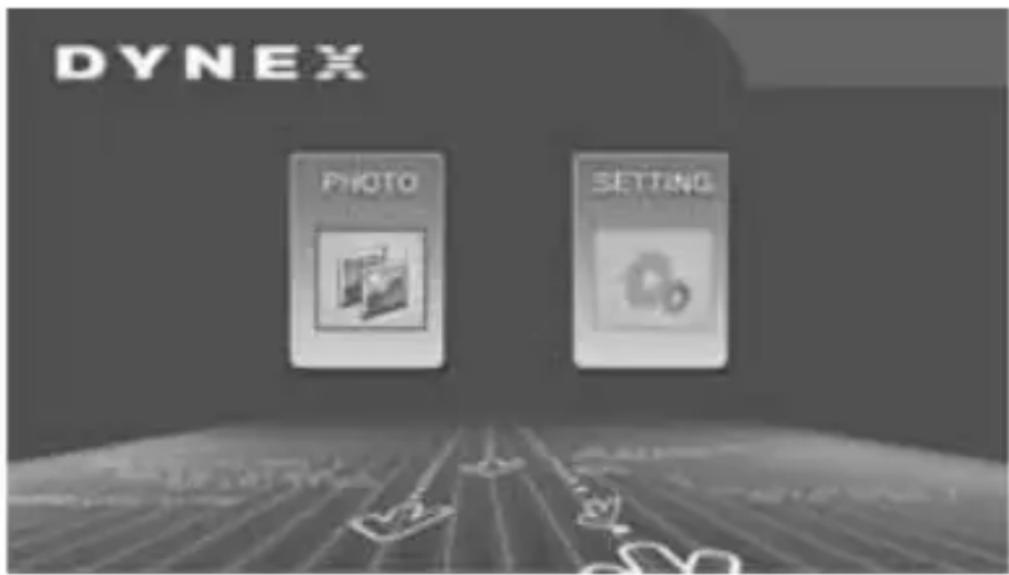
3 Highlight PHOTO, then press MODE/ENTER to enter the SLIDE SHOW mode. Your frame displays the pictures.
4 Press MODE/ENTER to enter BROWSE mode. Your frame displays a single picture. Press to view the previous picture or view the next picture.
5 Press MODE/ENTER again in BROWSE mode to display THUMBNAIL mode. Thumbnail-sized pictures appear on the screen in a table.
6 Press ⇔, →, ↑, or to highlight a thumbnail.
7 Press MODE/ENTER to display the picture.
8 To switch to a different memory device, press EXIT twice from SLIDESHOW, BROWSE or THUMBNAIL modes. The memory source screen opens up, and you may select a memory device from which to view pictures.
Note: If a memory card or USB device has not been inserted, that device will be gray and will not be able to be selected.
Copying and deleting pictures
To copy pictures to your frame:
1 Insert a memory card or USB device into your frame. A slideshow a pictures from the inserted media begins.
2 Locate the picture you wish to copy in SLIDESHOW or BROWSE mode, then press COPY/DEL. A message asks you if you want to copy the picture.
3 Press ⇔ or ⇒ to highlight YES, then press MODE/ENTER to confirm.
Notes:
You can rotate pictures clockwise by pressing ⚪ROTATE while the picture is on the screen. Rotated pictures will be stored in their rotated position.
Pictures cannot be copied from the frame's internal memory to a memory card or USB device. For that reason, you should not use your frame as your primary picture storage method.
To delete pictures from internal memory:
1 Remove any card or USB memory device you have inserted in the frame.
2 Locate the picture you wish to delete in SLIDESHOW or BROWSE mode, then press COPY/DEL. A message asks if you want to delete the picture.
3 Press ⇔ or ⇒ to highlight YES, then press MODE/ENTER to confirm.
Note: The delete function will only delete pictures saved in the frame's memory, not from a memory card.
Troubleshooting
| Problem Solution | |
| The frame won't turn on. | Make sure that the AC adapter is inserted properly into the frame. |
| A memory card is inserted in your digital picture frame but pictures cannot be viewed. | Make sure that the memory card is one of the supported formats and that the files on the card are JPEG image files.Turn your frame off and make sure that the memory card is inserted all the way into the card slot, then turn the frame on again.Note: Some digital cameras save images in formats other than JPEG. Refer to your camera's manual if your pictures are not JPEG files. |
| The frame displays some pictures slower and some pictures faster. | Higher resolution pictures load more slowly. Try reducing the size of your images using picture editing software (not included) or setting your camera to take pictures at a lower resolution. See your camera's operating manual for details on how to reduce the resolution of images taken. |
| The remote control does not work. | Make sure the plastic shipping tab has been removed from the remote's battery compartment.Make sure you are aiming the remote at the sensor located in the middle of the frame.If you are still having problems, replace the battery in the remote. |
| The digital picture frame does not respond when a button on the unit is pressed. | This is not a defect. Your frame ships in demo mode to prevent pre-loaded pictures from being deleted when the frame is being demonstrated in a store. Using the remote control for the first time will take the frame out of demo mode. |
Specifications
| Picture format JPEG | |
| Panel size 7 inch | |
| Memory card formats SD, SD | HC, xD, Memory StickTM, and USB flash drives |
| Power source AC adapter (5V DC) | |
| Power consumption < 5 W | |
| Operating temperature 41~95°F (5~35°C) | |
| Weight 1.0 lb. (0.45 kg) | |
| Dimensions (W × H × D) 8.8 | ×6.2 × 1.2 inches(224 × 157 × 30 mm) |
Legal notices
FCC Part 15
This device complies with Part 15 of the FCC Rules. Operation of this product is subject to the following two conditions: (1) this device may not cause harmful interference, and (2) this device must accept any interference received, including interference that may cause undesired operation.
This equipment has been tested and found to comply within the limits for a class B digital device, pursuant to Part 15 of the FCC Rules. These limits are designed to provide reasonable protection against harmful interference in a residential installation. This equipment generates, uses, and can radiate radio frequency energy and, if not installed and used in accordance with the instructions, may cause harmful interference to radio communications. However, there is no guarantee that interference will not occur in a particular installation. If this equipment does cause harmful interference to radio or television reception,
which can be determined by turning the equipment off and on, the user is encouraged to try to correct the interference by one or more of the following measures:
- Reorient or relocate the receiving antenna.
- Increase the separation between the equipment and receiver.
- Connect the equipment into an outlet on a circuit different from that to which the receiver is connected.
- Consult the dealer or an experienced radio/TV technician for help.
FCC warning
Changes or modifications not expressly approved by the party responsible for compliance with the FCC Rules could void the user's authority to operate this equipment.
Notices
Specifications and features are subject to change without notice or obligation. For service and support call (800) 305-2204.
90-day limited warranty
Dynex Products ("Dynex") warrants to you, the original purchaser of this new DX-DPF7-10/DX-DPF7-10-MX ("Product"), that the Product shall be free of defects in the original manufacture of the material or workmanship for a period of 90 days from the date of your purchase of the Product ("Warranty Period"). This Product must be purchased from an authorized dealer of Dynex brand products and packaged with this warranty statement. This warranty does not cover refurbished Product. If you notify Dynex during the Warranty Period of a defect covered by this warranty that requires service, terms of this warranty apply.
How long does the coverage last?
The Warranty Period lasts for 90 days from the date you purchased the Product. The purchase date is printed on the receipt you received with the product.
What does this warranty cover?
During the Warranty Period, if the original manufacture of the material or workmanship of the Product is determined to be defective by an authorized Dynex repair center or store personnel, Dynex will (at its sole option): (1) repair the Product with new or rebuilt parts; or (2) replace the Product at no charge with new or rebuilt comparable products or parts. Products and parts replaced under this warranty become the property of Dynex and are not returned to you. If service of Products and parts are required after the Warranty Period expires, you must pay all labor and parts charges. This warranty lasts as long as you own your Dynex Product during the Warranty Period. Warranty coverage terminates if you sell or otherwise transfer the Product.
How to obtain warranty service?
If you purchased the Product at a retail store location, take your original receipt and the Product to the store you purchased it from. Make sure that you place the Product in its original packaging or packaging that provides the same amount of protection as the original packaging. If you purchased the Product from an online web site, mail your original receipt and the Product to the address listed on the web site. Make sure that you put the Product in its original packaging or packaging that provides the same amount of protection as the original packaging. To obtain in-home warranty service for a television with a screen 25 inches or larger, call 1-888-BESTBUY. Call agents will diagnose and correct the issue over the phone or will have an Dynex-approved repair person dispatched to your home.
Where is the warranty valid?
This warranty is valid only to the original purchaser of the Product in the United States, Canada, and Mexico.
What does the warranty not cover?
This warranty does not cover:
- Customer instruction
- Installation
- Setup padjustments
- Cosmetic damage
- Damage due to acts of God, such as lightning strikes
- A c c i d e n t
- Misuse
- A b u s e
- Negligence
• C o m m e r c i a l u s e
- Modification of any part of the Product
- Plasma display panel damaged by static (non-moving) images applied for lengthy periods (burn-in).
This warranty also does not cover:
- Damage due to incorrect operation or maintenance
- Connection to an incorrect voltage supply
- Attempted repair by anyone other than a facility authorized by Dynex to service the Product
- Products sold as is or with all faults
- Consumables, such as fuses or batteries
- Products where the factory applied serial number has been altered or removed
REPAIR REPLACEMENT AS PROVIDED UNDER THIS WARRANTY IS YOUR EXCLUSIVE REMEDY. DYNEX SHALL NOT BE LIABLE FOR ANY INCIDENTAL OR CONSEQUENTIAL DAMAGES FOR THE BREACH OF ANY EXPRESS OR IMPLIED WARRANTY ON THIS PRODUCT, INCLUDING, BUT NOT LIMITED TO, LOST DATA, LOSS OF USE OF YOUR PRODUCT, LOST BUSINESS OR LOST PROFITS. DYNEX PRODUCTS MAKES NO OTHER EXPRESS WARRANTIES WITH RESPECT TO THE PRODUCT, ALL EXPRESS AND IMPLIED WARRANTIES FOR THE PRODUCT, INCLUDING, BUT NOT LIMITED TO, ANY IMPLIED WARRANTIES OF AND CONDITIONS OF MERCHANTABILITY AND FITNESS FOR A PARTICULAR PURPOSE, ARE LIMITED IN DURATION TO THE WARRANTY PERIOD SET FORTH ABOVE AND NO WARRANTIES, WHETHER EXPRESS OR IMPLIED,
WILL APPLY AFTER THE WARRANTY PERIOD. SOME STATES, PROVINCES AND JURISDICTIONS DO NOT ALLOW LIMITATIONS ON HOW LONG AN IMPLIED WARRANTY LASTS, SO THE ABOVE LIMITATION MAY NOT APPLY TO YOU. THIS WARRANTY GIVES YOU SPECIFIC LEGAL RIGHTS, AND YOU MAY ALSO HAVE OTHER RIGHTS, WHICH VARY FROM STATE TO STATE OR PROVINCE TO PROVINCE.
Contact Dynex:
For customer service please call 1-800-305-2204
www.dynexproducts.com
Distributed by Best Buy Purchasing, LLC
7601 Penn Avenue South, Richfield, Minnesota, U.S.A. 55423-3645
© 2010 BBY Solutions, Inc.
All rights reserved. DYNEX is a trademark of BBY Solutions, Inc. Registered in some countries. All other products and brand names are trademarks of their respective owners.
DYNEX™
www.dynexproducts.com (800) 305-2204
Distributed by Best Buy Purchasing, LLC
7601 Penn Ave. South, Richfield, MN 55423 U.S.A.
© 2010 BBY Solutions, Inc. All rights reserved.
DYNEX is a trademark of BBY Solutions, Inc. Registered in some countries. All
other products and brand names are trademarks of their respective owners.
ENGLISH
10-0796

- INTRODUCTION
- IMPORTANT SAFETY INSTRUCTIONS
- FEATURES
- PACKAGE CONTENTS
- CONTROLS AND CONNECTIONS
- SETTING UP YOUR DIGITAL PICTURE FRAME
- INSTALLING THE REMOTE CONTROL BATTERY
- TO INSTALL A REMOTE CONTROL BATTERY
- WARNINGS
- MAKING CONNECTIONS
- CONNECTING THE AC ADAPTER
- TO CONNECT THE AC ADAPTER
- NOTES
- POSITIONING YOUR DIGITAL PICTURE FRAME
- CONFIGURING YOUR DIGITAL PICTURE FRAME
- USING YOUR DIGITAL PICTURE FRAME
- STARTING A PICTURE SLIDESHOW
- TO START A PICTURE SLIDE SHOW
- COPYING AND DELETING PICTURES
- TO COPY PICTURES TO YOUR FRAME
- TO DELETE PICTURES FROM INTERNAL MEMORY
- LEGAL NOTICES
- FCC PART 15
- FCC WARNING
- NOTICES
- 90-DAY LIMITED WARRANTY
- HOW LONG DOES THE COVERAGE LAST
- WHAT DOES THIS WARRANTY COVER
- HOW TO OBTAIN WARRANTY SERVICE
- WHERE IS THE WARRANTY VALID
- WHAT DOES THE WARRANTY NOT COVER
Brand : Dynex
Model : DX-DPF7-10 MX
Category : Digital photo frame