SR 322 - Satellite receiver TRIAX - Free user manual and instructions
Find the device manual for free SR 322 TRIAX in PDF.


User questions about SR 322 TRIAX
0 question about this device. Answer the ones you know or ask your own.
Ask a new question about this device
Download the instructions for your Satellite receiver in PDF format for free! Find your manual SR 322 - TRIAX and take your electronic device back in hand. On this page are published all the documents necessary for the use of your device. SR 322 by TRIAX.
USER MANUAL SR 322 TRIAX
Digital Satellite Receiver with Dual Tuners and PVR
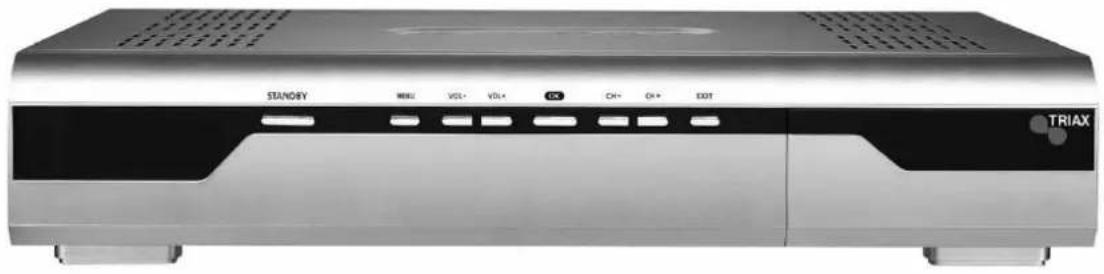
User Manual

CAUTION
RISK OF ELECTRIC SHOCK DO NOT OPEN

CAUTION : To reduce the risk of electrical shock, do not remove the cover. No user serviceable parts inside.
Refer any servicing to qualified Service personnel.
Read this manual carefully before using the product. The cautions described below contain important information about safety, and are categorized into: Danger, Warning and Notice.
The company will not take any responsibility for accidents or damage resulting from careless handling by the user.

Danger
If the user mishandles the product, there is a risk of loss of life or critical injury.
- Connect the power cord only to A/C outlets as specified by the user manual or product specification. If the power cord is connected to a non-specified A/C outlet, it could result in fire or electric shock.
- The product must not be exposed to water or liquid of any sort, or be exposed to drips or splashes. It could result in fire or electric shock.
- Do not place heavy objects, including the product itself, on top of the power cord. If it is damaged, it could result in fire or electric shock.
- Do not place metal objects on top of the apparatus. If metal objects fall into the apparatus, it could result in fire or electric shock.
- Do not repair, disassemble or modify this apparatus yourself. It might cause fire or electric shock. If internal checking or maintenance is needed, please contact your service center or agency.
- Do not block or cover any ventilation opening. A fire might result from overheating.
- Turn off and unplug the power as quickly as possible during electric storms. Failure to do so could result in fire or electric shock.
- Remove the antenna's power plug from the outlet as quickly as possible during electric storms. Failure to do so could result in fire or electric shock.
- Do not drop the apparatus (for example by putting it in a place where it may fall) or subject it to impact. The product might be damaged. If it is damaged, please turn off the power and remove the plug from the power outlet, or fire or electric shock may result.
- Never touch the power cord with wet hands. It could result in an electric shock.
Cautions

Warning
If the product is mishandled, the user might receive a serious or minor injury.
Damage or loss to the user's property might also result.
- The product must not be exposed to water or liquid. If the apparatus is exposed to drips or splashes, it might cause a problem that cannot be repaired.
- Do not repair, disassemble or modify this apparatus yourself. It might be seriously damaged, possibly beyond repair.
- Turn off the power and unplug the power cord as quickly as possible during electric storms. They might damage the apparatus.
- Remove the antenna's power plug from the outlet as quickly as possible during electric storms, or the apparatus might be damaged.
- Data recorded in the HDD might be lost due to a shock, lightening or electricity failure. The user must back up his or her own data, and the company does not take any responsibility for failure to do so.

Notice
If the product is mishandled, it might cause minor damage.
- If the apparatus becomes marked, clean it gently with a soft cloth or towel. Never use chemical solvents such as benzene, thinner, acetone or other solvents. The surface of the apparatus might become discolored and the paint might peel.
-
Do not place or keep the apparatus in the following situations. Doing so might cause problems.
-
where it is too hot or cold.
- where there is high humidity.
- where there are excessive temperatures, for example in front of airconditioners or heating vents.
- where there is dust or soot.
- in confined areas where the heat cannot be released.
-
where it is exposed to direct sunlight.
-
Turn the apparatus off or unplug the power cord if it is to remain unused for a long period of time.
- Do not place heavy objects on top of this apparatus. It might cause malfunction or damage.
- If the apparatus is so seriously damaged that it cannot be repaired, or has stopped working altogether, dispose of it properly in accordance with the local laws or regulations in your area.
Contents
General Safety.... 2
- Functions and Installation .... 5
1.1 Remote Control Unit.... 5
1.2 Front Panel....6
1.3 Rear Panel 6
1.4 CAM(Conditional Access Module) and Smart Card ...... 7
1.5 Connecting and Installation 8
- Easy Installation.... 10
- Basic Operation....14
- Main Menu Guide.... 18
4.1 PVR - Record & Play.... 18
4.2 Edit Channel List 24
4.3 Program Guide.... 26
4.4 System Setting.... 27
4.5 Utility (option) 33
4.6 Common Interface.... 34
- Troubleshooting.... 34
- Technical Specifications 35
1. Functions and Installation
1.1 Remote Control Unit
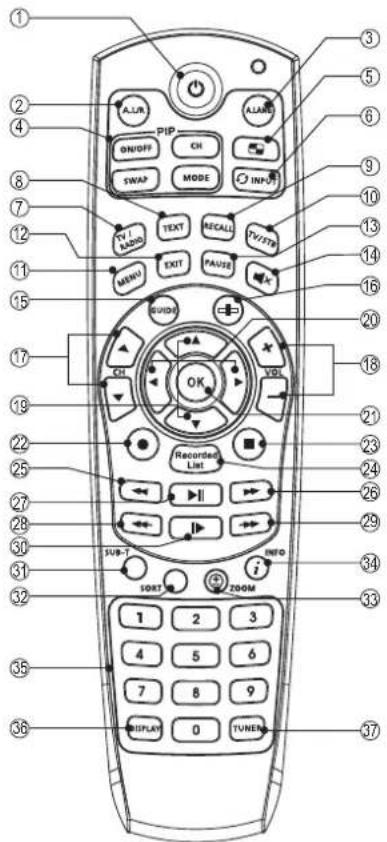
- STAND BY To switch between operation and stand by mode.
- A.L/R To select the sound mode. (Mono, Left, Right, Stereo) To display the reserved list. (Option)
- A/LANG To select the audio language.
- PIP
ON/OFF To turn the PIP screen on/off.
CH To change the PIP screen channel.
If you press the button, the PIP Channel List will be shown.
SWAP To swap the main screen for the PIP screen.
MODE To change or modify the size or location of the PIP.
- Multichannel button
Multi video pop-up window will appear.
-
INPUT Press to check the TV's external connection status and select an external device.
-
TV/RADIO To switch between TV and Radio.
- TEXT To see the teletext by OSD. (Option)
- RECALL To return to the previous channel.
- TV/STB To switch between TV and STB receive mode.
- MENU To display the Main Menu on the screen or return to the previous menu.
-
EXIT To return the normal viewing mode from a menu.
-
PAUSE To pause or play video.
- MUTE To enable or disable audio.
- GUIDE To display the TV/RADIO program guide.
- Progress bar To display the book mark banner.
- CHANNEL UP/DOWN
To change channel up and down.
- VOLUME UP/DOWN
To increase or decrease the volume.
- Up/Down To move up or down on the menu.
- Left/Right To move left or right on the menu. To increase or decrease the volume.
- OK To confirm your choice.
- Record Saves the current channel to the HDD.
- Stop Used for stopping play.
- Recorded List
To open the File List screen.
- Rew Used for rewinding.
- FF Used for fast-forwarding.
- Play/Pause Used for playing or pausing files.
- Quick Replay To go to the previous screen.
- Quick Forward To go to the next screen.
-
Slow Used for viewing the screen in slow motion.
-
SUB-T(Red) To enable or disable subtitle or change the channel list mode.
-
SORT(Green) To sort channel list.
- ZOOM(Yellow) Enlarge the current picture.
- INFO(Blue) To display the information box on the screen.
- NUMERIC BUTTONS
To select the channel and enter
the channel edit and PIN code.
- DISPLAY To open the Display screen of the System Setting menu.
- TUNER To switch between Terrestrial and Satellite mode. (Only COMBO)
Note
- When inserting batteries, make sure that the polarity (+/-) is correct.
- The design of the Remote Control Unit may be changed without any notice in advance.
1.2 Front Panel
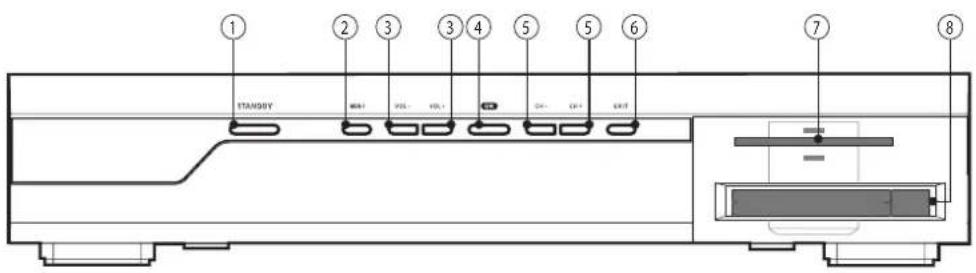
1. STAND BY(POWER)
Switch the receiver power "ON" or "OFF".
2. MENU
To see main menu.
3. VOL -/+
To turn the volume -/+ or select a sub-menu item.
4. OK
To select a program, a highlighted line or parameter value.
5. CH -/+ (Program ▲/▼)
Channel -/+ or select item of sub-menu.
6. EXIT
Exit from parameter and cancel selected function.
7. Smartcard Slot
1 Slot for smart card.
8. Cam Slot (Option)
2 Slot for Common Interface CAM with smart card.
1.3 Rear Panel
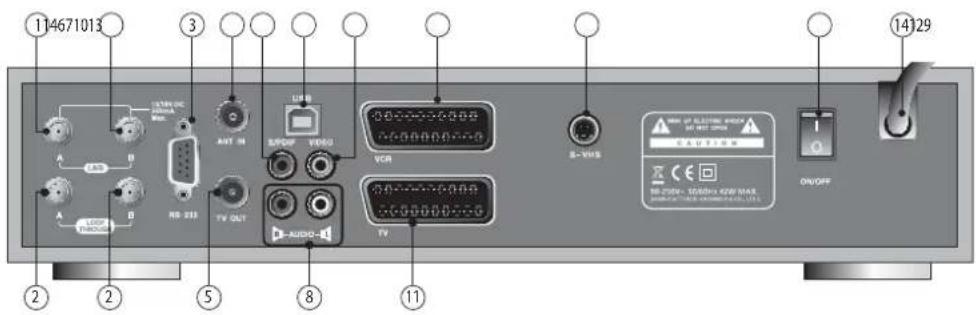
1. LNB
Input connection from the LNB.
2. LOOP THROUGH
Used to connect between the Loopthrough Output of LNB A to the Input of LNB B when using a single, fixed satellite feed or Motorised system.
3. RS-232
To connect to a personal computer for software upgrade.
4. ANT IN
To connect to television antenna.
5. TV OUT
To connect a TV via a coaxial cable.
6. S/PDIF(Coaxial/Optical)
To connect a digital amplifier output.
7. VIDEO
Video connection port to the TV or other equipment.
8. AUDIO
Audio connection port to the TV or other equipment.
9. USB port
To connect the USB cable to the PC.
10. SCART for VCR
Connect this port to the VCR via SCART cable.
11. SCART for TV
Connect this port to the TV via SCART cable.
12. S-VHS
Video connection port to a TV or other equipment via super video.
13. POWER Switch
Provide power to the main unit.
14. POWER Supply
90 \~ 250V AC, 50/60Hz.
Note
The design of the Front/Rear Panel may be changed without any notice in advance.
1.4 CAM(Conditional Access Module) and Smart Card (Option)
Caution
Please do not plug in the main power supply cord until you have finished all of the connections!
Although some TV and radio channels are free to view, you must subscribe to most TV and radio/music channels and a Conditional Access component is required.
If you want to enjoy watching scrambled broadcasting channels, you need to purchase the CAMs and smart cards from a service provider's sales department.
However, broadcasting channels from multiple service providers call for multiple CAMs and Smart cards.
Receivers which have only the CAMs and smartcards provided by the one service provider can show several broadcasting channels of the provider.
Please refer to manuals provided by service providers for details because the CAM and smartcards are featured with unique menus, apart from menus given by the receiver.
Watching "Free-To-Air" channel is available regardless of the CAM and smart cards.
As service providers download new information to smart cards if necessary, those who have CAMs and smart cards should always put the smart cards in proper slots.
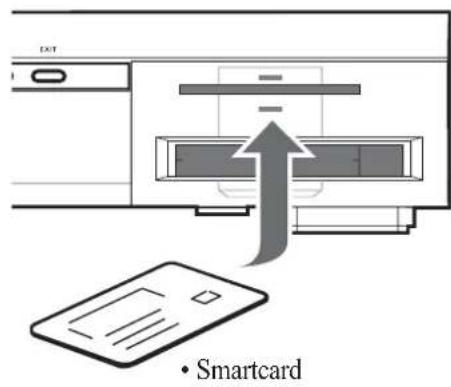
Inserting a Smart card
A Smart card looks similar to a credit card and entitles you to view and listen to all the channels you choose to subscribe to.
The Smart card slot on the receiver can be used for Smart cards only.
- Open the right-hand cover on the front panel of the receiver.
- Hold the Smart card horizontally with the electronic chip (small square-shaped, gold in colour) facing upwards.
- Insert the Smart card into the top slot.
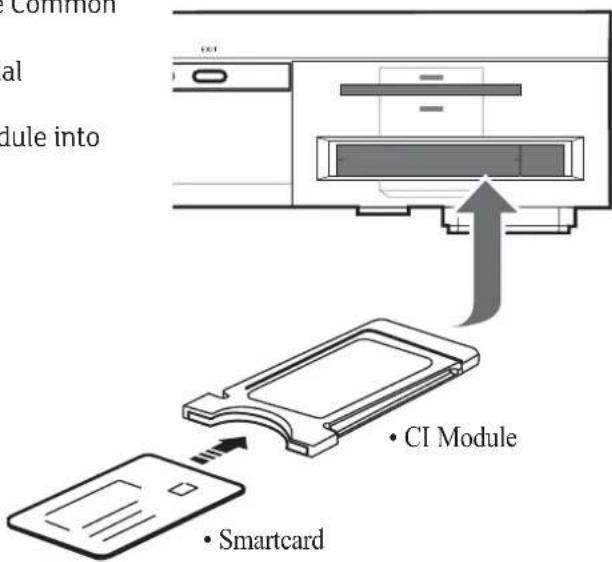
Inserting the CI (Common Interface) Module
Your digital satellite receiver is equipped with a slot for the Common Interface (CI).
- Open the right-hand cover on the front panel of the digital satellite receiver.
- Insert the smart card into the CI-Module, and the CI-Module into the slot.
Note
• CI and CAS embedded model only.
1.5 Connecting and Installation
1.5.1 How to connect the receiver to various other systems
There are several ways of connecting the receiver to your TV, VCR and/or Hi-Fi SYSTEM. Consult your local supplier for assistance in setting-up your system that is best suited to your requirements.
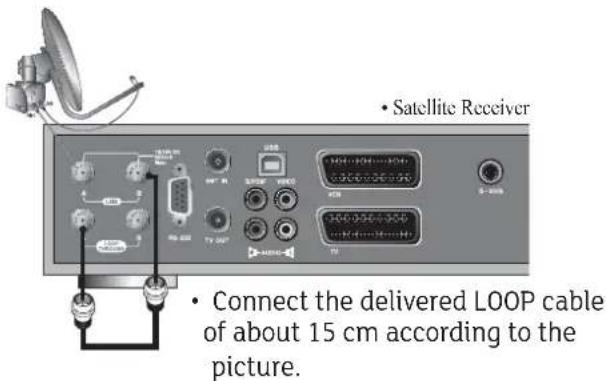
1.5.2 To Connect Satellite Antenna (DiSEqC 1.0)
- Connect the coaxial cable from the LNB to the LNB IN jack on back of the receiver.
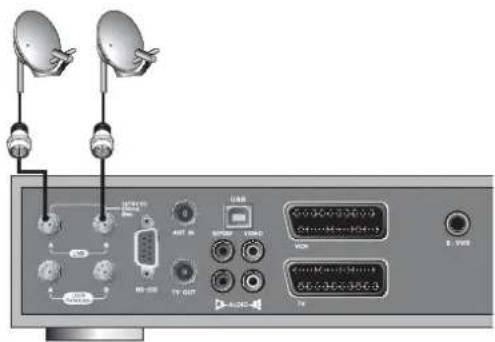
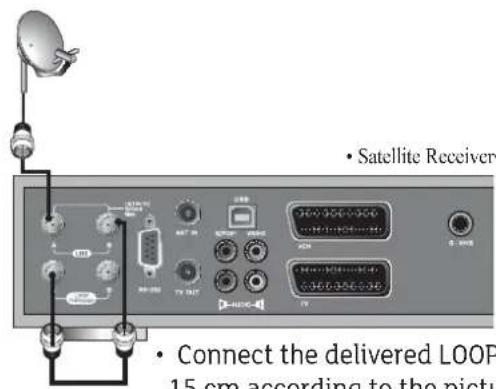
- Satellite Receiver• Satellite Receiver
- Connect the delivered LOOP cable of about 15 cm according to the picture.
1.5.3 To Connect Motorized System (DiSEqC 1.2)
- Connect one end of your coaxial cable to the LNB IN connector on the receiver and the other end to the REC or Receiver connector on the DiSEqC 1.2 motor.
- Connect the coaxial cable from the LNB to the LNB connector on the DiSEqC 1.2 motor.
1.5.4 Connect the receiver to a TV set
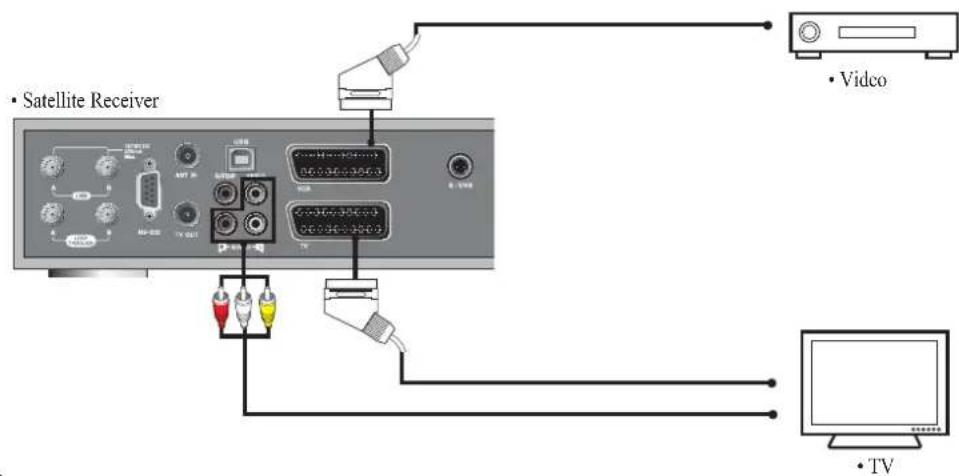
- Connect the receiver to a TV set with SCART, if your TV set is equipped for it. Alternatively you can use A/V, TV out (UHF) or S/Video jacks.
1.5.5 Connect the receiver to a VCR
- Connect the SCART jack from the VCR to the back of the receiver.
1.5 Connecting and Installation
1.5.6 Connect the receiver to a Hi-Fi System
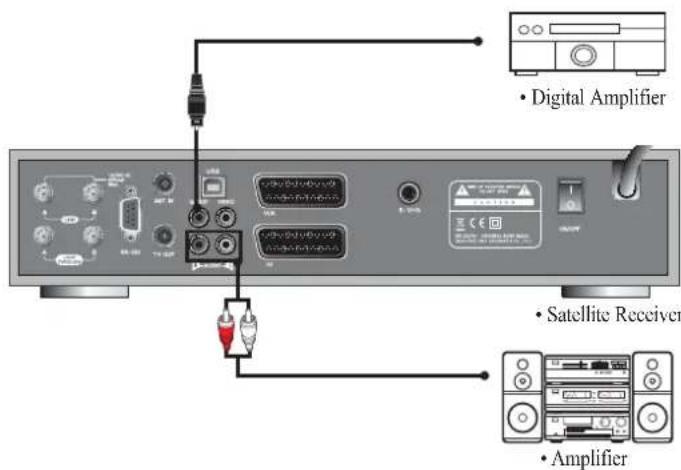
- Connect a RCA stereo cable from the AUDIO L/R jacks, S/PDIF on the receiver to the LINE, AUX, SPARE or EXTRA input jacks on your Hi-Fi System.
1.5.7 Connect the receiver to a Digital Audio System
- If you have a DAC with S/PDIF coaxial cable input, you can connect the receiver with it to enjoy higher quality sound. Connect S/PDIF coaxial cable to a digital amplifier.
1.5.8 Connecting to the PC
- Turn the receiver and your PC on.
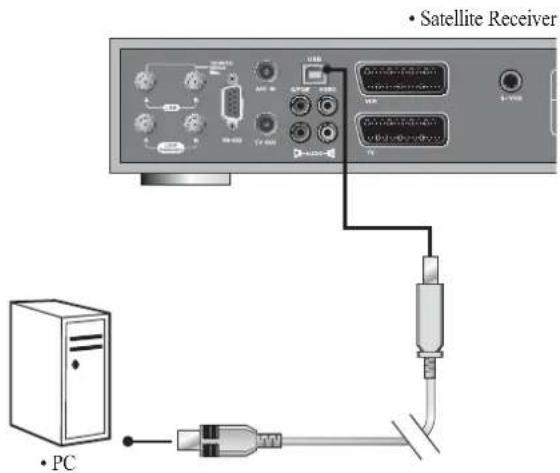
- Connect the receiver to your PC with the enclosed USB cable.
- Open the PVR menu and select CONNECT USB.
- To confirm, click the start button and then click Program → Accessories → Windows Explorer.
- You can check that the new drive is installed in your computer.
The factory drive name is PVR HDD.
Note
- Connect the cable with input jack on STB properly shown in the picture.
- Please be careful when you upload or download files while the receiver is connected to a PC with the USB cable. The data recorded in the HDD may be lost if the PC's power is turned off, or if the USB cable is unplugged while uploading or downloading files.
1.5.9 Loop Through
- If you have another analogue or digital receiver and you wish to use the same LNB then you can connect it via the loop through. Connect one end of the coaxial cable to the Loop Through on the receiver and connect the other end to the LNB IN on your second receiver.
2. Easy Installation
2.1 Menu Application
Press the MENU button on the remote control unit.
You will see the "Main Menu" on the screen.
- Default PIN code is "0000"
- You can move into the desired submenu using the UP/DOWN/LEFT/RIGHT buttons.
- You should enter the PIN code in order to move into the corresponding submenu in case of the Installation, the Edit Channel List or the System Setting.
- Press the OK button to confirm your selection.
- Press the MENU button to return to previous menu. Or press the EXIT button to quit the Menu system completely.
2.2 Easy Installation
Before you watch the television or radio program, you must perform the installation procedure first.
Therefore you will see only "Easy Installation Menu" at first when you plug into your system.
The Easy Installation gives you the convenience of selecting various languages, adjusting the time and channel search.
• Automatic Installation by "Easy Installation"
The Installation Wizard is a user-friendly method assuring the easy set-up of the receiver by the new user.
- System Connection
Connect the receiver to all peripheral devices such as the TV, Audio and Video etc.
• Power On
Power switch is located on the back of the receiver.
The power cord of the receiver should be connected to a wall outlet.
Turn on the power of the receiver and other devices.
Press the STANDBY button on the front of the receiver or on the remote control.
• Power Off
When you press the STAND BY button again. The receiver will display "OFF".
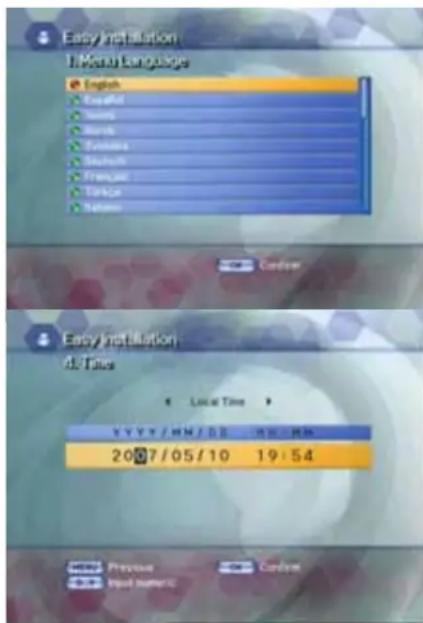
2.2.1 Language
The first option in "Easy Installation" is to select the desired language of the Menu, Audio, or Subtitle.
Place the cursor on the sub menu by pressing the keys and press the OK button to change the language.
The Language of the Menu, Audio, or Subtitle will be changed to the selected language.
2.2.2 Local Time/GMT
Select the time setting type.
Press the LEFT/RIGHT button to select either Local Time or GMT and then press the DOWN button to move to the time setting item.
When Local Time is selected.
You can set your local time according to your location.
To set the local time, press the NUMERIC button.
When GMT is selected.
Press the LEFT/RIGHT button to select the current time zone from standard time and then press the OK button.
When you press the LEFT/RIGHT button, the time zone will move by 30 minutes.
2.2 Easy Installation
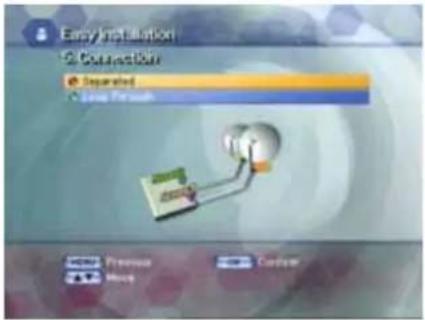
2.2.3 Connection
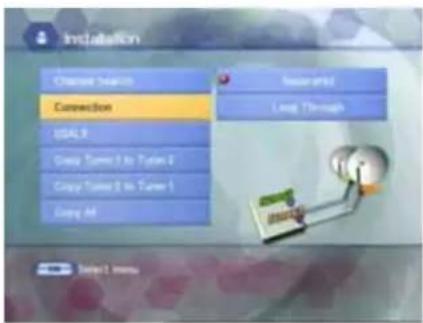
It you want to use Tuner 2, you have to select the Connection items. Select Separated when you have two receiving antennas, and select Loop Though when you have one.
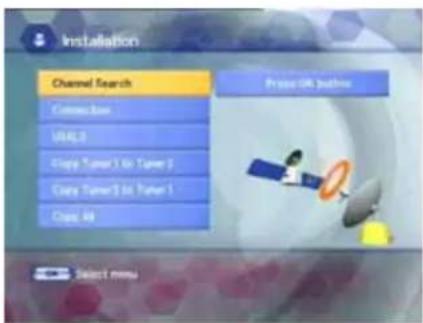
2.2.4 Channel Search
You can search the channels.
If you press the OK button, the Installation screen will appear.
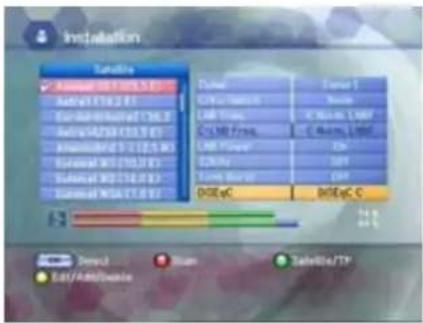
Select the satellite you want using the UP/DOWN buttons on the satellite list.
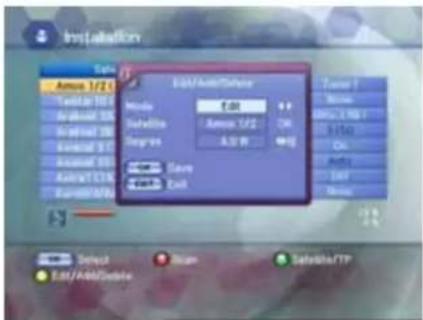
◆ To Edit or Add satellite list
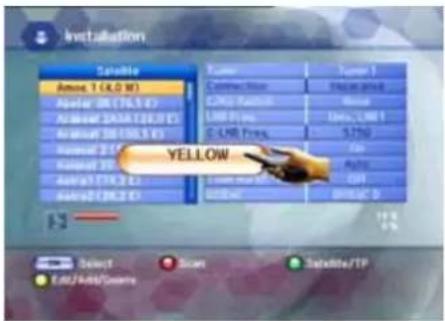
- To Edit or Add Satellites on the list, press the YELLOW button to select edit or add mode and press the OK button.
- Place the cursor on satellite field and press the OK button.
- The keypad will be displayed so that you can Edit or Add satellite name you want.
- Input degree you want using the NUMERIC buttons or the LEFT/RIGHT buttons. And press the OK button to save.
To Delete satellite list
- To delete satellite list on the list, press the YELLOW button to select delete mode. And press the OK button.
◆ To Edit, Add, or Delete TP list
- When the GREEN button is pressed, it can be toggled Satellite list and TP list.
- Press the YELLOW button to edit, add or delete the TP list.
- Input Mode, Frequency, Symbol Rate, Polarity, and FEC, and press the OK button to save.
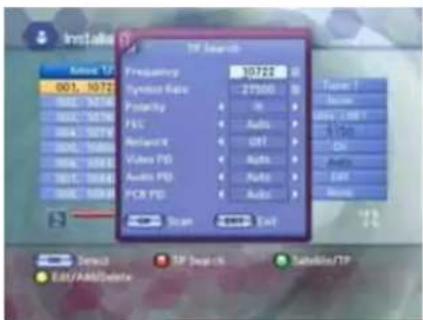
TP Search
Press the RED button on the TP list.
Pop up window will be displayed on the screen.
• Frequency: Input a proper Frequency using the NUMERIC buttons.
- Symbol Rate: Input a proper Symbol Rate using the NUMERIC buttons.
- Polarity: Use the LEFT/RIGHT buttons to select the Polarisation of the transponder.(Horizontal, Vertical)
- FEC: Use the LEFT/RIGHT buttons to select the FEC of the transponder.
- You can select the value of Auto, 1/2, 2/3, 3/4, 5/6, and 7/8.
- Network: You can select Yes or No. When you select "Yes", you can find more transponders using the home network.
• Video PID/Audio PID/PCR PID:
You can set PID to search for services. Use the LEFT/RIGHT buttons or the NUMERIC buttons to input the value.
Press the OK button to start Scanning.
2.2 Easy Installation
Tuner
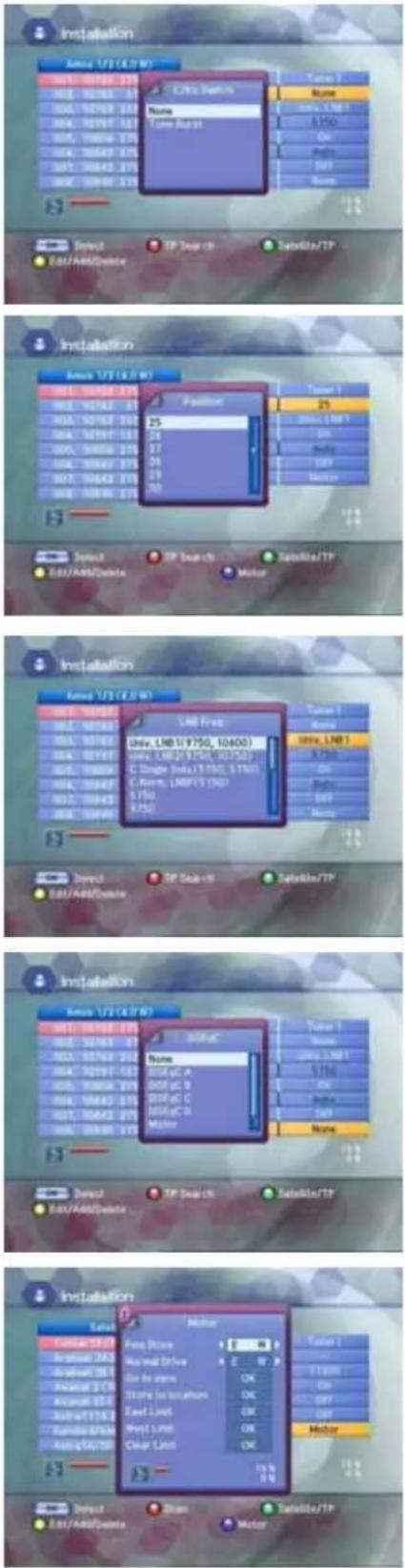
- Press the LEFT/RIGHT button to select the Tuner and then press the OK button.
- When the Tuner pop-up window appears, press the UP/DOWN button to select Tuner 1or Tuner 2 and then press the OK button. The selected Tuner will play.
◆ C/KU Switch:
You can select C/KU band by selection of switch type. (None, DiSEqC Switch)
♦ Position (DiSeqC 1.2)
After selecting a satellite, please select position number. To change value, press the OK button. The position list will be displayed.
LNB Freq.
Select the proper LNB frequency referring to your LNB using the OK and the UP/DOWN buttons.
C-LNB Freq.
When selecting the C/KU Switch is selected as "None", the C-LNB Freq will be dimmed automatically.
Press the OK button, and then the C-LNB Freq. list will be displayed. You can also input the freq. you want. After inputting freq. Using the NUMERIC buttons, press the OK button. (None, DiSEqC Switch)
LNB Power
Select the LNB Power On or OFF.
22KHz
Depending on the user's antenna switch box or LNB. You can supply either 22KHz by setting "ON" or not by setting "OFF".
♦ Tone Burst
Depending on the user's antenna switch box. ("off", "SAT A" or "SAT B")
DiSEqC - DiSEqC
You can select and use appropriate port for your DiSEqC switch box. Press the OK button to select DiSEqC List. (None, DiSEqC A, DiSEqC B, DiSEqC C, DiSEqC D, Motor, USALS)
◆ DiSEqC - DiSEqC 1.2 and USALS
Press the BLUE button to set Drive(Fine Drive or Normal Drive) to run the motor.
• Fine Drive/Normal Drive
To move the motor, press the LEFT/RIGHT button.
- Go to zero
To move the zero position, press the OK button.
- Store to location
To store the current position, press the OK button.
- East Limit
To set the east limit by current position, press the OK button.
- West Limit
To set the west limit by current position, press the OK button.
- Clear Limit
To clear the stored limit value, press the OK button.
2.2 Easy Installation
Scan
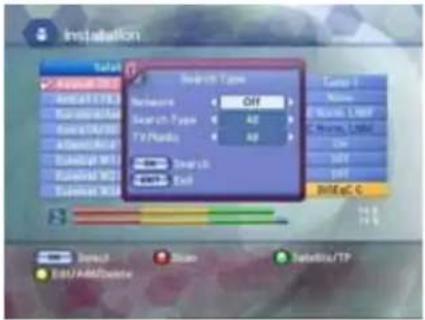
- After selecting all that is necessary, press the RED button to scan the satellite list. Pop up widow will be displayed.
- Select ON or OFF according to your Network.
- Select All or FTA Search Type.
- Select All, TV, or Radio TV/Radio type.
- Press the OK button and searching will start.
Note
- After the Degree, Longitude and Latitude is entered accurately, the DiSEqC Motor will automatically move to the satellite's position.
Press the UP/DOWN buttons to select the desired item on the basic setting screen.
2.2.5 Connection
It you want to use Tuner 2, you have to select the Connection items. Select Separated when you have two receiving antennas, and select Loop Though when you have one. Press the UP/DOWN button to select either Separated or Loop Through and then press the OK button.
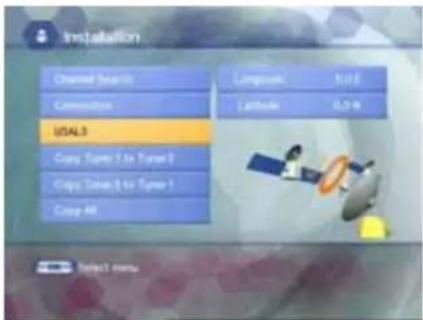
2.2.6 USALS
Set Longitude and Latitude when you use USALS.
- Press the UP/DOWN buttons to select Longitude and Latitude.
- Press the NUMERIC buttons to set the angle of Longitude and Latitude.
- Press the OK button to set the direction of Longitude and Latitude.
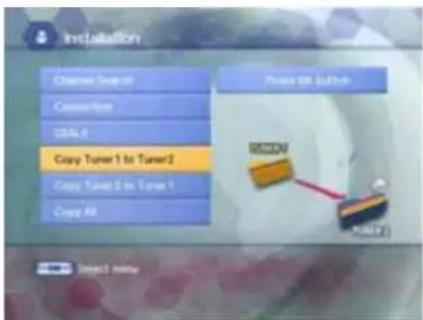
2.2.7 Copy from Tuner 1 to Tuner 2
Use when you copy channels in Tuner 1 to Tuner 2. Press the OK button to copy channels in Tuner 1 to Tuner 2.
2.2.8 Copy from Tuner 2 to Tuner 1
Use when you copy channels in Tuner 2 to Tuner 1. Press the OK button to copy channels in Tuner 2 to Tuner 1.
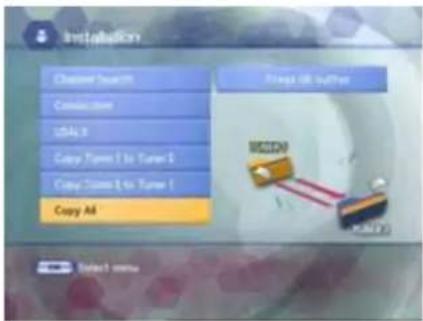
2.2.9 Copy All
Use this when you copy channels in Tuner 1 to Tuner 2 and channels in Tuner 2 to Tuner 1.
Press the OK button to copy channels in Tuner 1 to Tuner 2 and channels in Tuner 2 to Tuner 1.
3. Basic Operation
3.1 Basic Function Usage
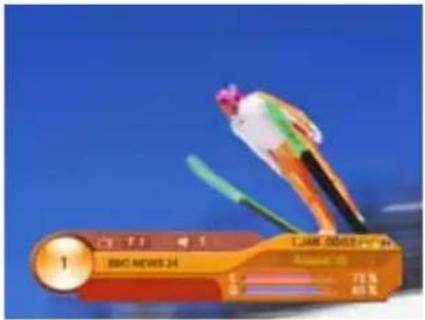
3.1.1 Program Information
After the television channels have been programmed, you will see the information box each time you change the channels.
- Every time you change channels you will receive program information for a few seconds. (In the "Banner Time" menu you can select how long this information will be shown.)
- You may change channel with the UP/DOWN button. You can get "Channel Banner" at the bottom of the screen.
- When you press the COLOR button, you can use the banner as a simple channel operation.
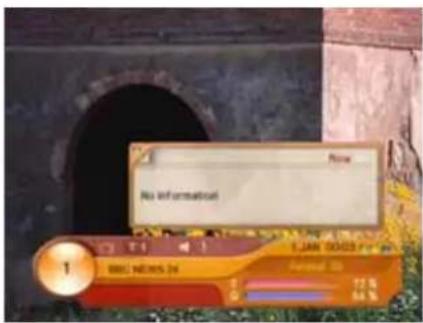
3.1.2 Now-Information Banner
- During "Channel Banner" is appearing, when you press the INFO(BLUE) button, you can get "Now-Information Banner".
- Using "Now-Information Banner", you can get a simple EPG of "Now-Information".
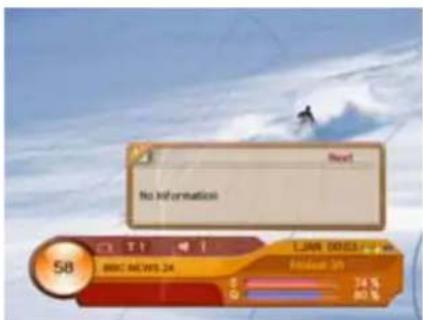
3.1.3 Next-Information Banner
- During "Channel Banner" is appearing, when you press the YELLOW button, you can get "Next-Information Banner".
- Using "Next-Information Banner", you can get a simple EPG of "Next-Information".
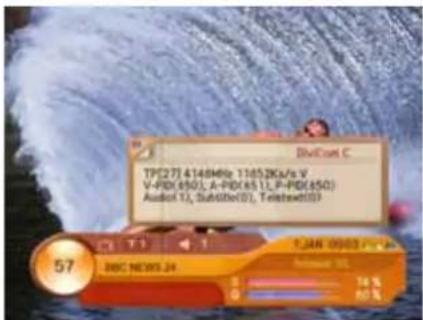
3.1.4 Channel-Information Banner
- During "Channel Banner" is appearing, when you press GREEN button, you can get "Channel-Information Banner".
- Using "Channel-Information Banner", you can get a detailed channel listing information.

natural_image
Close-up of a purple flower with green leaves, no visible text or symbols3.1.5 Volume Control/Mute
• To control audio volume, press the Volume UP/DOWN buttons.
• Volume control bar will be appeared in bottom of the TV screen.
- To temporarily stop the volume, press the MUTE button. To cancel mute, press the MUTE button again or press the Volume UP/DOWN buttons.
3.1 Basic Function Usage

natural_image
Tropical beach scene with clear turquoise water, distant shoreline, and 'Goodbye' text overlay (no other signage)
- Press the SUB-T(Red) button and the popup window will be displayed on the screen.
- Select the Off then subtitle function is off.
- Select the Subtitle language, and then you can see Subtitles.
3.1.7 Teletext
- If a broadcast supports teletext, you can watch teletext.
- If you press the TEXT button, teletext will appear on the screen.
3.1.8 Simple Channel List
- When you press the OK button during receiving service stream, you can get "Channel List" view.
- Using the UP/DOWN button in "Channel List" view, you can choose another channel.
• After moving highlight on a channel, then press the OK button. - To get the channel sort list, press the SORT(Green) button. Pop up window will be displayed on the screen.
- Select the sort list you want with the UP/DOWN buttons and then press the OK button to get it. There are seven ways of sorting : Normal, Tuner, Satellite, CAS, Network, Genre, and Favorite.
- Press the INFO(Blue) button. You can see the Signal of current channel on the Simple Channel List.
3.1.9 Auto Favorite
- You can edit auto favorite.
- Press the YELLOW button in Simple Channel List.
3.1.10 Soundtrack
- When you want to change the Audio Language of current channel, press the A.LANG button on the remote control. The on-screen menu is displayed on the left side of the screen.
- Use the UP/DOWN buttons to choose the audio you want.
• To cancel or exit, press the A.LANG button again. - You can change a default audio language in the system setting menu mode.
3.1 Basic Function Usage
natural_image
Sunflower field under blue sky with a 'Flight Taking' sign in the corner (no other text or symbols)3.1.11 To change the audio output
- Press the A.L/R button on the remote control unit to change the output.
- Then on-screen menu is displayed on the top right side of the screen.
- Press the A.L/R button repeatedly to change the sound mode. (Mono, Left, Right, Stereo)
natural_image
Speedboat on open water with inset showing a group of people watching from a viewing wall (no visible text or symbols)3.1.12 PIP
The PIP (Picture-in-Picture) function allows you to watch two screens at the same time. With the PIP function, you can move the PIP screen or freely adjust the screen size.
- If you press the PIP button while the channel is showing on the screen, the PIP will be shown at the top left of the screen.
- If you press the PIP CH button, the PIP Simple Channel List will appear on the screen.
- Press the UP/DOWN button on the PIP Simple Channel List screen to select a channel, and press the OK button.
- Press the MODE button and press the UP/DOWN/LEFT/RIGHT button to change the location of the PIP screen.
- Press the MODE button once again and press the the UP/DOWN /LEFT/RIGHT button to change the size of the PIP screen.
- If you press the MODE button once again, you can see the screen as a multi-media window type. The main screen will be displayed on the left, and the PIP screen on the right side of the screen, as a multi-media window type.
- Pressthe SWAP button to swap the main screen for the PIP screen, while the PIP screen is showing.
natural_image
Skier in yellow uniform carving a snowy slope on blue water (no text or symbols visible)3.1.13 Recall List
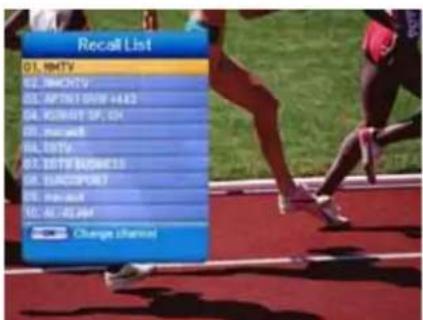
Recall List is to show the previous channels (up to 10 channels).
- If you press the RECALL on the screen, the Recall List Pop-up window will appear.
- Press the UP/DOWN button to select the channel and then press the OK button. The changed channel will be shown with the channel banner.
3.1.14 DISPLAY Setting
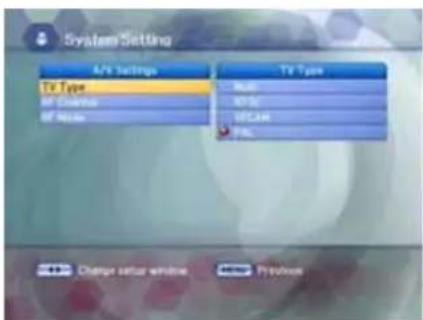
This mode changes settings such as the TV Type, RF Channel, and RF Mode.
If you press the DISPLAY button, the A/V Settings screen of the System Setting menu will appear. Change the settings on the screen.
3.1 Basic Function Usage
3.1.15 TV/Radio Change
With this function, you can change the Radio listening mode while you are watching TV.
If you press the TV/RADIO button while you are watching TV, the radio listening screen will appear. If you press the TV/RADIO button again, the TV screen will reappear.
3.1.16 Multi Video
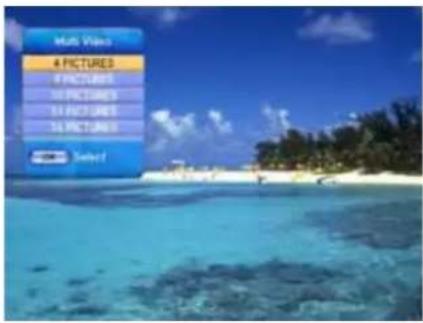
Multi Video allows you to watch several channels in one screen simultaneously. It can be used to watch one channel from among several channels.
- Press the Multi Video (☐) button while you are watching TV, the Multi Video pop-up window will appear.

natural_image
Grid of nine beach and water sports scenes including basketball, skiing, jet ski, and swimming (no text or symbols)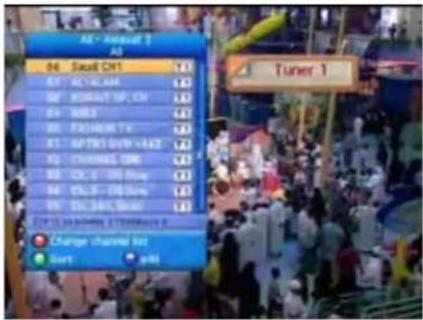
3.1.17 Satellite and Terrestrial Change
With this function, you can change the Tuner while you are watching TV. Tuner change cannot be done while PIP is in use.
If you press the TUNER button while you are watching TV, the tuner change pop-up window will appear. Each time you press the TUNER button, the tuner will be changed.
4. Main Menu Guide
4.1 PVR - Record & Play
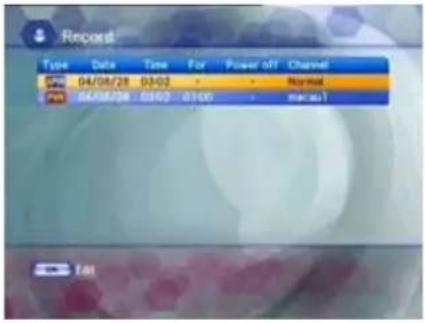
4.1.1 Record
With this function, you can check file information while recording with the PVR. In addition, you can set the record-end time, and the power to go off after recording.
- Press the UP/DOWN button on the PVR menu to select Record and then press the OK button.
- When you press the OK button on the Record screen, the Edit screen will appear.
- Press the UP/DOWN button on the Edit screen to select the items for setting. These are record-end time, and power ON/OFF after recording.
- When you finish setting, press the RED button to save. The details of the setting will be displayed on the Record screen.

natural_image
Sunset over a cloudy sky with silhouetted trees and distant red sun (no text or symbols)4.1.2 General Recording
Press the RECORD button to record the current broadcast program. When the recording starts the Record Icon is displayed.
4.1.3 Multi-Channel Recording
If you change channels while recording and press the RECORD button, recording starts.
You can record two channels simultaneously in the manner described above.

natural_image
Tropical beach scene with palm fronds and blue sky with white clouds (no text or symbols)4.1.4 Time Shift Recording
This function is for setting the Time Shift. If you set to ON, you can use the Time Shift function.
If the Time Shift is set while watching satellite broadcasting, press the REW button once to rewind the currently playing screen and the PLAY/PAUSE button to pause.
If you press the PLAY/PAUSE button, the screen will play back from the point where it is stopped.
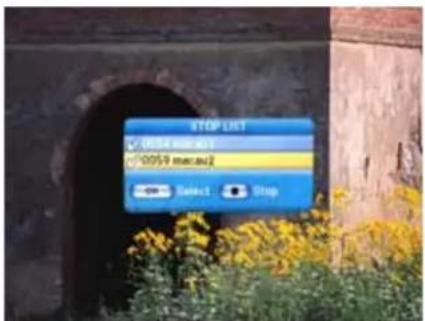
4.1.5 To stop Recording
- If you press the STOP button the currently recording channels are displayed on the pop-up window.
- Press the UP/DOWN buttons on the pop-up window to select the channel to be stopped and then press the UP/DOWN buttons again to select further channels.
- When you finish selecting channels to be stopped, press the STOP button. Recording of the selected channels stops.
4.1 PVR - Record & Play
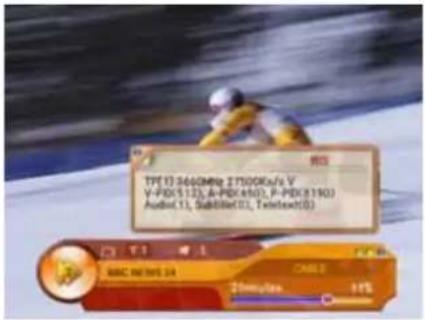
4.1.6 Fast-Forward & Rewind
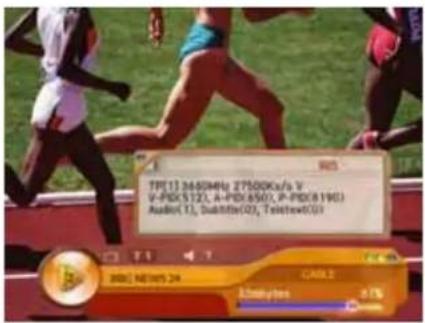
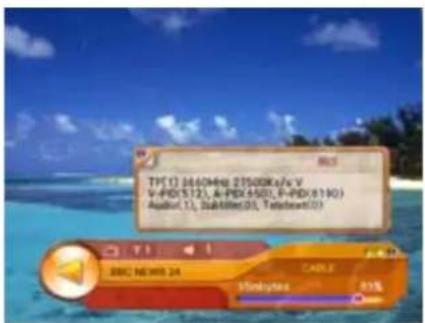
The Fast-Forward and Rewind functions enable the user to view the front, back or any desired part of the file.
- To view forward parts press the FF button and to view previous parts press the REW button on the remote control.
- The screen will move when the relevant symbols appear on the top right-hand side of the screen.
- To Rewind or Fast-Forward at a faster speed, press the relevant button again.
- Press the PLAY button at the desired place to PLAY at the recorded speed.
4.1.7 Slow-Motion
The Slow-Motion function can be used to PLAY at a slower speed.
- Pressing the SLOW MOTION button will play the screen at a slower speed.
- If the button is pressed again, the screen will play at an even slower speed.
- Press the STOP button to PLAY at the recorded speed.
4.1.8 Quick Replay/Forward
If you press and hold the QUICK REPLAY/FORWARD button, you can rewind or fast forward the screen with 4X-speed.
If you release the button, the screen will play back.
4.1.9 Quick-Search
You can move to the desired location using the banner.
- If you press the BLUE button on the currently playing screen the channel banner will appear.
- If you press and hold the LEFT/RIGHT buttons while the channel banner is visible, the location icon moves along the progress bar.
- If you release the LEFT/RIGHT buttons at the desired point, playing starts at that point.
4.1.10 Book Mark
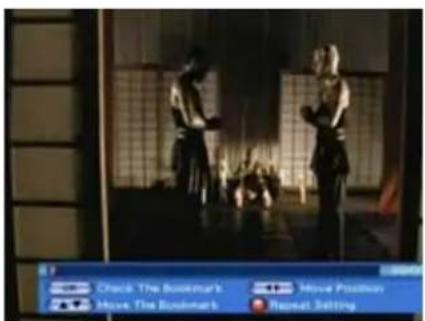
If you press the Progress bar button while playing AV file, Progress for BOOKMARK will appear.
- Press the OK button to specify or remove BOOKMARK.
- Use the UP/DOWN button to move between bookmarks.
- Use the RED button to select A-B repeat.
If you press the RED button once, the start point will be set. If you press it again, the end point will be set.
If you press it once more, set A-B repeat will be initialized.
- Press the GREEN button to decide whether to use A-B repeat.
- Use the YELLOW button to erase all bookmarks.
4.1 PVR - Record & Play
4.1.11 To File Playback
With this function, you can play recorded files.
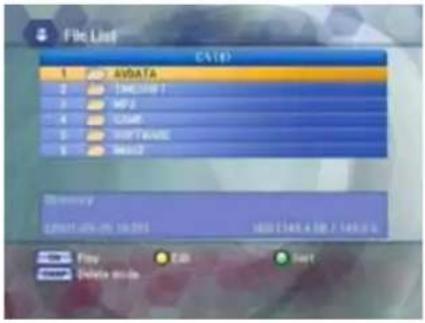
- If you press the MODE/FILE button while watching TV, the File List screen will appear. The currently saved directory in the HDD will be displayed on the File List screen.
- Press the UP/DOWN button to select AVDATA and then press the OK button.
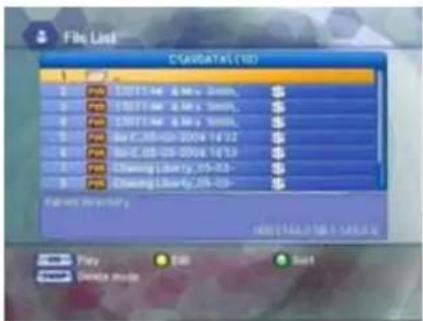
- Press the UP/DOWN button to select the desired file and then press the OK button. It starts playing.
4.1.12 File List
File List manages the files and directories in the HDD.
Press the UP/DOWN buttons on the PVR menu to select the File List and press the OK button. The recorded files and directories currently saved in the HDD will appear. Various basic directories such as AVDATA, MP3 and SOFTWARE will appear in the directory. The names of the basic directories cannot be changed.
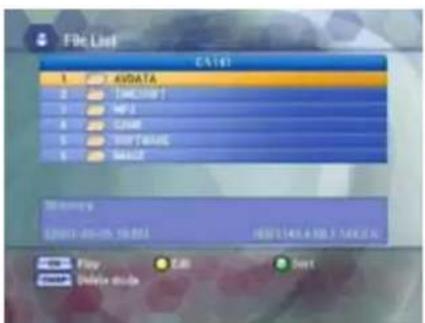
The basic directories are as follows :
• AVDATA: Directory that saves recorded files
• MP3: Directory that saves MP3 files
• SOFTWARE: Directory that saves software-related files
- GAME: This is the directory that the ROM file downloaded from the Internet site can be saved on.
Select the saved ROM file and press the OK button to play the game.
• IMAGE : Directory that saves image files.
4.1.13 Play Mode
Press the SWAP button to change the Play mode.
Play
Press the UP/DOWN buttons on the directory menu to select the desired file or directory and then press the OK button. If the file is selected, the file will play. If the directory is selected, the selected directory file list will be displayed.
Group Play
- Move to the directory where the file for Group Play is located.
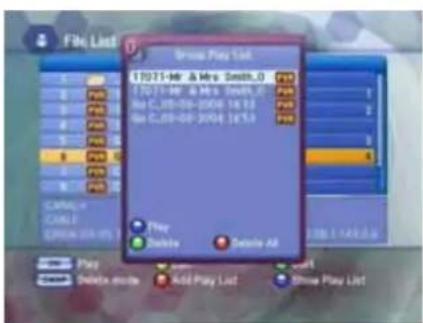
- Press the UP/DOWN buttons on the Directory screen to select the file to be added to the Group Play List and then press the RED button.
- The number will be displayed for the selected file. Select the file to be added to the Group Play List in the same manner as described above. If you press the RED button again, the added file will be canceled.
- When you finish the file selection for Group Play press the BLUE button. The Group Play List pop-up window will appear.
- If you press the BLUE button on the Group Play List pop-up window, it starts playing.
4.1 PVR - Record & Play
Note
- If you press the GREEN button on the Group Play List pop-up window after selecting the file, the selected file will be deleted.
- If you press the RED button on the Group Play List pop-up window, all files will be deleted.
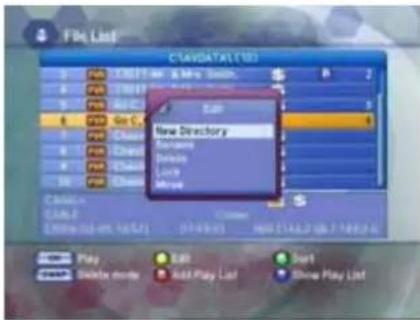
◆ Play List Edit
- If you press the YELLOW button on the File List screen, the File Edit pop-up window will appear.
- Press the UP/DOWN button to select the items to be edited and then press the OK button.
◆ The items you can edit are as follows :
- New Directory: To create a new directory in the current directory.
- Rename: To change file or directory names. Characters such as 0\~9, a\~z and A\~Z can be used.
- Delete: To delete a file or directory.
- Lock: To set for entering a password when you access files and directories. They are then displayed as "hidden files" in Microsoft Windows, after the USB cable is connected.
- Move: You can change the position of the files. Using the UP/DOWN buttons, select the files you want to move and press the OK button.
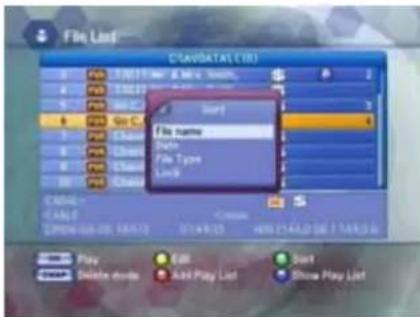
◆ Play List Sort
- If you press the GREEN button on the File List screen, the File Sort pop-up window will appear.
- Press the UP/DOWN button to select the arrangement method and then press the OK button. The different methods are as follows:
◆ The basic directories are as follows :
- File Name: To arrange files in file name order.
- Date: To arrange files in date order.
- File Type: To arrange files in file type order.
- Lock: To arrange files according to whether locked or not.
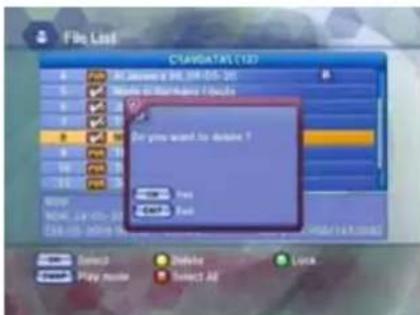
4.1.14 Delete Mode
Press the SWAP button to change the Delete mode.
Select
Press the OK button on the File List screen.
The Checking Mark will appear On all file of the file list
Select All
Press the RED button on the File List screen.
The Checking Mark will appear On all file of the file list.
Delete
Press The YELLOW button on the File List Screen.
You can delete All checked File.
Lock
Press The GREEN button on the File List Screen.
You can lock All checked File.
4.1 PVR - Record & Play
![Timer Type Mode Date Time For Channel P-Off Once 04/05/01 20:00 01:00 FX Movies C Modify 04/05/08 01:30 01:00 Event ✓ Baby 04/05/15 07:00 01:00 BTV WORLD ✓ Data: [2004/05/01 : 34:17] Focus: [11:24] HDD: 26x 13.7 x 01:00 / 56.1 x 01:19 Add Delete Sort](/content/2026/05/1047778/images/0f26f90254c982bc95c726218df218cd5813af909bd428860249858497855119.jpg)
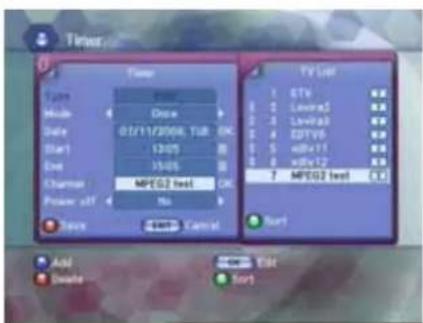
4.1.15 Timer
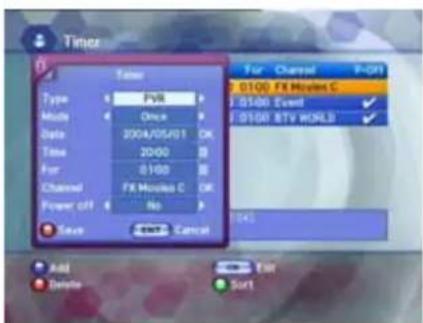
With this function, you can set reserved recording functions including adding, changing and deleting reserved recordings. You can add a reserved recording.
- Press the UP/DOWN buttons on the PVR menu to select the Timer and then press the OK button.
- If you press the BLUE button on the Timer screen, the Add screen will appear.
- Press the UP/DOWN buttons on the Add screen to select the items for setting.
These are as follows :
- Type: To set the type of reserved recording. There are three kinds of reserved recording: PVR, DVR and Analog PVR.
- Mode: To set the interval for the reserved recording. You can choose to record once, every day or every week.
- Date: To set the date for the reserved recording.
• Time: To set the time the reserved recording starts. - End Time: To set the time the reserved recording Ends. If End time is passed, the reserved recording will stop.
- Channel: Appears when you set the Type to PVR. Press the OK button to set the channel you want to record.
- Power off: If you select "Yes", the receiver turns to the Stand by mode automatically after the recording. If you select "No", the receiver doesn't turn to the Stand by mode.
- Press the RED button to save. The details of the setting will be displayed on the Timer screen.
Note
• To change the reserved recording, select reserved recording on the Timer screen and then press the OK button. When the Edit screen appears, change the reserved recording in the same way as you did with adding.
- To delete a reserved recording, select it on the Timer screen and then press the RED button.
- Please be aware that when you change the System's Local Time or edit a reserved channel, the Timer might also change
- If you skip a reserved channel, or Delete it, the reserved settings are canceled.
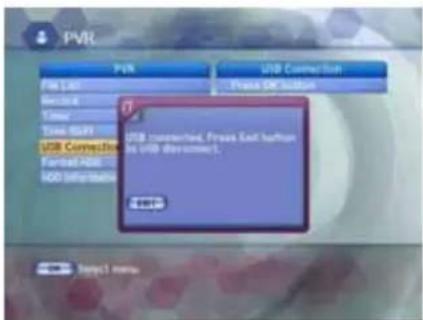
4.1.16 USB Connection
- Press the UP/DOWN buttons on the Utility screen to select USB Connection and then press the OK button.
- The 'USB connected' message pop-up window will appear. Press the EXIT button to disconnect USB.
4.1 PVR - Record & Play
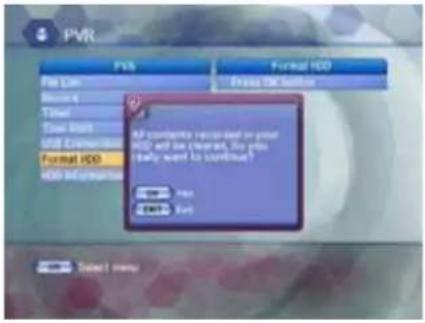
4.1.17 Format HDD
- To format the HDD, press the UP/DOWN button on the PVR menu to select Format HDD and then press the OK button.
- When the format confirmation pop-up window appears, press the OK button.
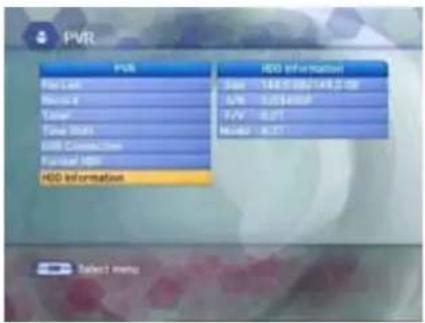
4.1.18 HDD Information
You can see the HDD Information. (Size, Serial Number, Firmware Version, Model Name)
4.2 Edit Channel List
natural_image
Interior view of a modern electronics room with large electronic devices and a central screen (no visible text or symbols)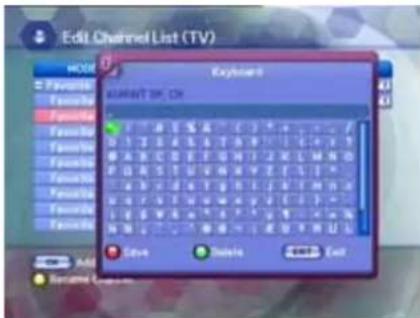
From these menus, you can create favorite lists, lock, skip, delete, or move channel.
- Select "Edit Channel List" in the main menu with the LEFT/RIGHT buttons and press the OK button.
- At the request window, Input PIN code. If you have not entered your own PIN code, then the PIN code 0000 applies, which was set at the factory.
- Press the UP/DOWN button in MODE to select the desired mode and then press the OK button.
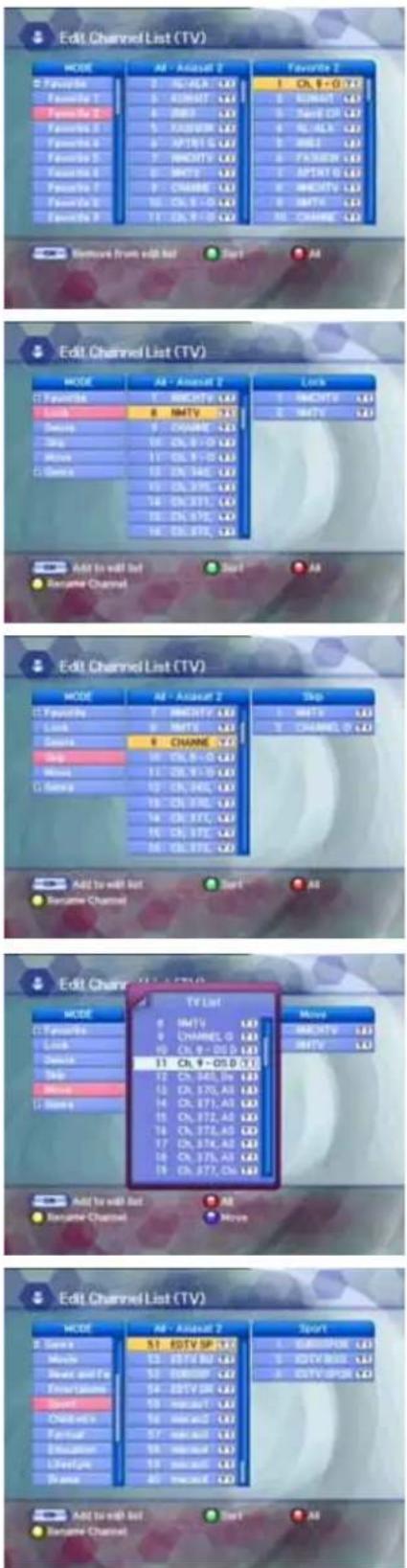
- Among the all channel list, the selected channel can be moved to the right folder of Favorite(Auto Favorite, 1\~31), Lock, Delete, Skip, Move, Genre. Press the OK button to add from edit list at right folder.
- To remove the channel list from edit list at right folder, press the OK button. The edited list will be removed.
• To rename the channel, press the YELLOW button. - Press the BLUE button to change the favorite name.
- To confirm the channel list, press the MENU button or the EXIT button. The request window will be displayed on the screen, Press the OK button to save or the EXIT button to exit this menu.
Note
- Press the GREEN button to arrange the channels.
When the Sort pop-up window appears, select the desired arrangement and then press the OK button. - Press the RED button if you want to include all the channels in the channel list.
4.2 Edit Channel List
4.2.1 Favorite(Auto Favorite, 1\~31)
- You can edit favorite TV and Radio list. This enables you to create the 31 favorite TV and Radio lists.
- Select the channel you want to edit on the favorite list and press the OK button.
4.2.2 Lock
- From here you can lock channels in any of the list in order to prevent e.g. your children from watching.
- Select the channel you want to lock and press the OK button.
- Repeat the procedure for each channel you want to lock. When you lock a channel in any list, the channel will be locked automatically in all other lists.
4.2.3 Delete
- You can delete the TV or Radio channel from the current list.
- Select the channel you want to delete and press the OK button.
4.2.4 Skip
- You can skip the TV or Radio channel from the current list.
- Select the channel you want to skip and press the OK button.
• To recover the skipped channel, press the OK button from edit list.
4.2.5 Move
- You can change the position of the channel you want on the TV/Radio/All channel lists.
- Select the channel you want to move to desired channel and press the OK button.
• And press the BLUE button to change the position of the channel you want. - Using the UP/DOWN buttons, select the channel you want to move and press the OK button.
• The position of the channel will be moved.
4.2.6 Genre
- You can edit the TV and Radio list of the various genres. (Movie, News and Factual, Entertainment, Sport, Children, Factual, Education, Lifestyle, Drama, Music, Arts, Current Affairs, Special, Comedy, Documentary.)
- Select the channel you want to edit genre list and press the OK button.
4.3 Program Guide
natural_image
Interior view of a modern living room with TV, audio equipment, and wall-mounted screens (no visible text or symbols)The program guide provides information such as the program listings and ending times for all available programs. You can reserve a recording by pressing RECORD button.
Select "Program Guide" in the main menu with the LEFT/RIGHT buttons and press the OK button. In the viewing program, when you press the EPG button, you can get this view.
Note
- The Program Guide information might not be supported by the service providers.
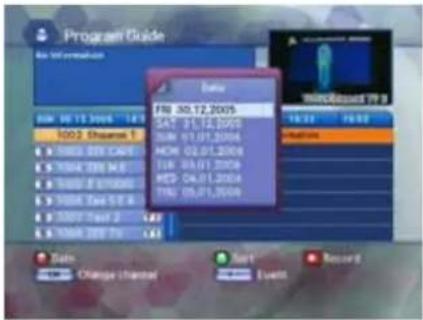
4.3.1 Grid EPG Program Guide
- Press UP/DOWN buttons to change channels. You can find out channel Information at top screen.
- Press OK button, you can change channel as well.
- Press LEFT/RIGHT buttons to check the existing EPG info as per its time.
- In case detailed info content is too long to check, you can check its information as a long lists form, and resize its lists by pressing BLUE button.
- Press GREEN button in order to sort channel lists.
natural_image
Close-up of a white flower with green leaves and visible stamens (no text or symbols)4.3.2 EPG(Electronic Program Guide) Information
- To view the Program Guide, press the GUIDE button on the remote control unit. The EPG information will be displayed on the bottom of the screen.
• Each press of the UP/DOWN buttons will change the displayed EPG information by one hour.
• Each press of the LEFT/RIGHT buttons will change the displayed EPG information by one day. - If there is available EPG information, it will be displayed on the EPG information bar.
- Press the GUIDE button again, and the Program Guide menu will be displayed.
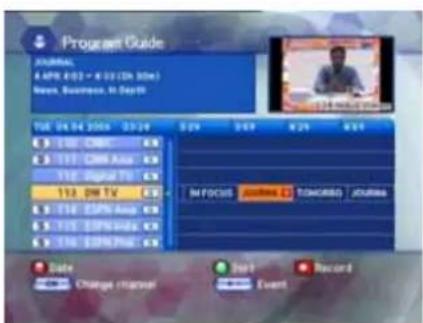
You can reserve a recording by pressing RECORD button.
4.4 System Setting
natural_image
Interior view of a modern home with large wall-mounted TV, audio equipment, and a 'System Betting' ceiling fixture (no readable text or symbols)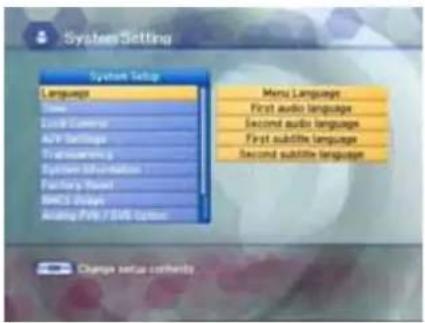
You will be asked to enter your PIN code before you can enter this menu. The PIN code preset to 0000 from the factory.
If you want to customize the system to suit you better, you can specify some settings from the submenus in the "System Setting" menu.
- Select "System Setting" in the main menu with the LEFT/RIGHT buttons and press the OK button.
- If you move the focus on the main menu, the contents of the selected menu will be shown.
4.4.1 Language
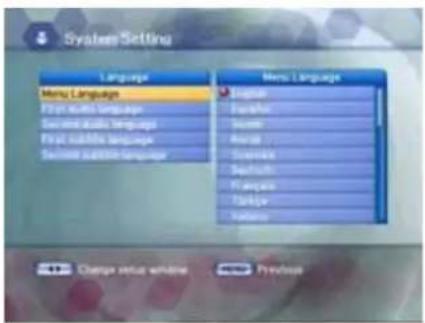
- Press the UP/DOWN buttons on the Setup list to select Language and press the OK button.
- Press the UP/DOWN buttons to select Menu Language, Audio Language or Subtitle Language and then press the RIGHT button to move to the right pop-up menu.
◆ Menu Language
Here you may select in which language the menus will be shown. Use the UP/DOWN buttons to move to the language you want and then press the OK button.
- First Audio Language / Second Audio Language
In this menu, you can change default language for audio when changing services. Use the UP/DOWN buttons to move to language you want and then press the OK button.
Note
- Select the audio language between the first and second audio language.
- If the first audio language is not selected, then the second audio language is selected by default.
(If both the first and second audio language are not available, the audio language is set to the first audio language the selected channel supports for.)
- First Subtitle Language / Second Subtitle Language
In this menu, you can change default language for subtitle when changing services. Use the UP/DOWN buttons to move to language you want and then press the OK button.
Note
- If you cancel the subtitle function, select the off. (Option)
- Select the subtitle language between the first and second subtitle language.
- If the first subtitle language is not selected, then the second subtitle language is selected by default.
(If both the first and second subtitle language are not available, the subtitle language is set to the first subtitle language the selected channel supports for.)
4.4 System Setting
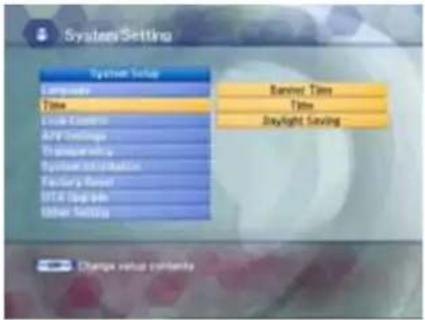
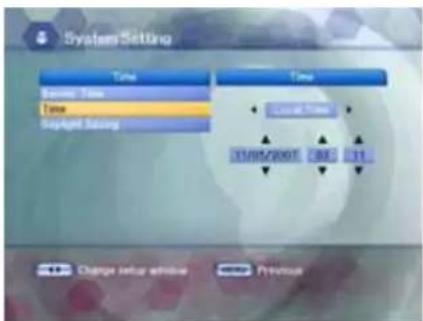
4.4.2 Time
- Press the UP/DOWN button on the Setup list to select Time and then press the OK button.
- Press the UP/DOWN button to select either Banner Time, Time, or Day Light Saving and then press the RIGHT button to move to the right pop-up menu.
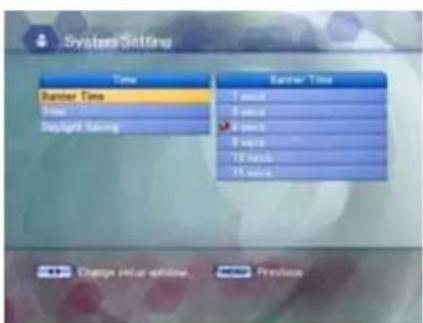
Banner Time
When you switch channels, an information banner will be shown for a few seconds.
You can select for how long the banner will be shown.
- Select the banner time you want and then press the OK button.
• Each selectable time items has meaning of the interval time during a channel banner stays on changed channel screens.
The time ranges 1, 3, 6, 9 12, and 15 seconds.
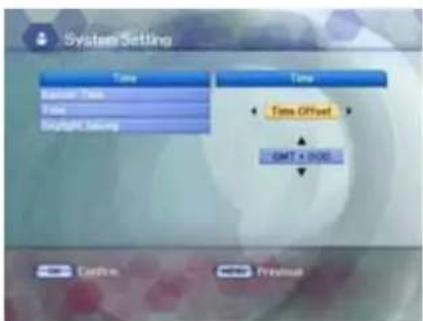
Time
Select the time setting type.
Press the LEFT/RIGHT buttons to select either Local Time or GMT and then press the DOWN button to move to the time setting item.
Local Time
You can set your local time according to your location.
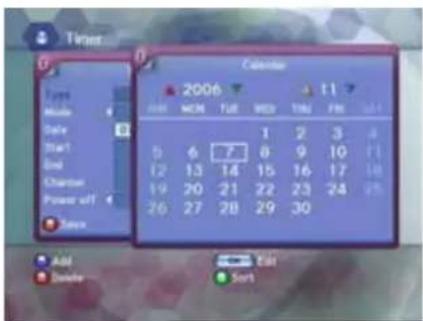
• To set year, month and date, press the UP/DOWN buttons.
The Calendar pop up window will be displayed.
Select year using the RED and GREEN buttons.
Select month using the YELLOW and BLUE buttons.
Select date using the UP/DOWN or the LEFT/RIGHT buttons.
- Adjust hour and minute with the UP/DOWN buttons and move the field with the LEFT/RIGHT buttons.
- When the OK button is pressed, the selected time applies.
GMT
Press the UP/DOWN buttons to select the current time zone from standard time and then press the OK button. When you press the UP/DOWN buttons, the time zone will move by 30 minutes.
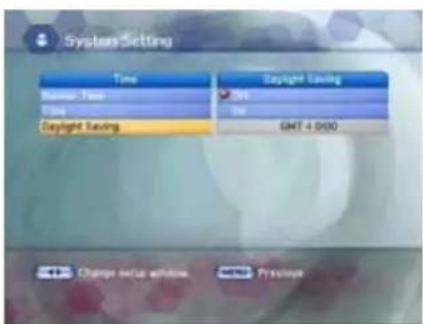
Day Light Saving
If you want to turn the Day Light Saving on, press the UP/DOWN button to select ON and then press the OK button.
4.4 System Setting
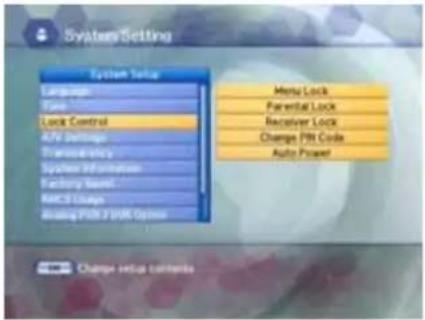
4.4.3 Lock Control
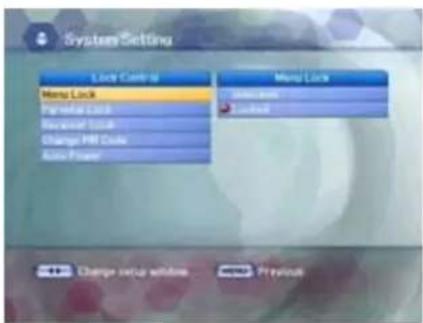
- Press the UP/DOWN button on the Set list to select Lock Control and then press the OK button.
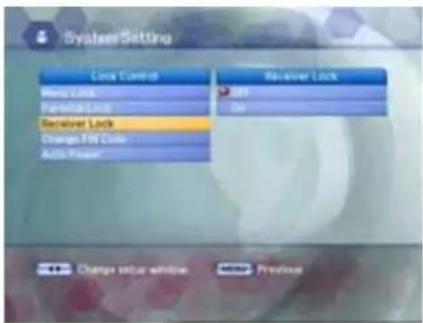
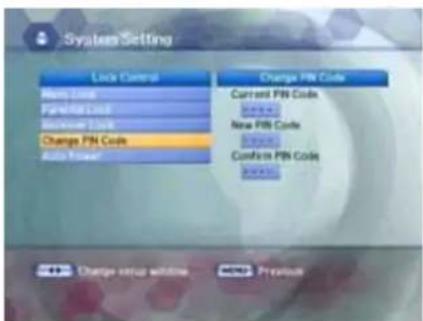
- Press the UP/DOWN buttons to select either Menu Lock, Parental Lock, Receiver Lock or Change PIN Code and then press the RIGHT button to move to the right pop-up menu.
Menu Lock
If the Menu Lock is already set, the PIN code is needed to set the Edit Channel List and System Setting.
If you want to set the Menu Lock, press the UP/DOWN buttons to select Locked and then press the OK button.
♦ Parental Lock
When you change "Parental Lock" to "On" or "Off", service channel can get or not from that set values. If you select "On", you may need PIN code every time you select the lock channel program as you set in the channel control.
If you select "Off", you can see all channels without PIN code.
◆ Receiver Lock
If you select "On", you will have to enter the PIN code every time you start the receiver from standby.
Change PIN Code
From here you can change the PIN code from the standard 0000. DO NOT FORGET IT! Without it, you are not able to access to any of the functions where the code is required.
You can change password for Parental Lock and Receiver Lock simultaneously.
- Input the current PIN code using the NUMERIC buttons on the remote control.
- In the highlighted new PIN code, input a new PIN code.
- To verify the new PIN code, re-enter a new PIN code in the highlighted confirm PIN code. If the PIN code is correct, the message "Success" will be displayed on the display window.
Note
- If you forget the PIN code, press the RGYB(Color) button in sequence. (i.e. Red → Green → Yellow → Blue button) The PIN code will be changed to 0000.
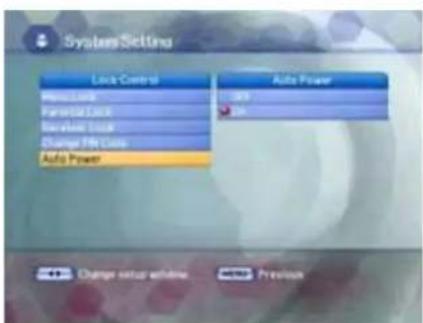
Auto Power
- If the Auto Power is set to On and power is off, the Set turns on automatically and turns into the channel mode which you were watching before power breakdown.
- If the Auto Power is set to Off and power is off, the Set turns into the standby mode.
4.4 System Setting
4.4.4 A/V Setting
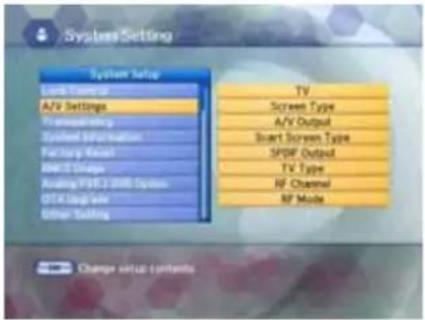
- Press the UP/DOWN buttons on the Setup list to select Display and press the OK button.
- Press the UP/DOWN button to select either Screen Type, Menu Transparency, SCART Output, SPDIF Output, RF Channel, RF Mode or TV Type and then press the RIGHT button to move to the right pop-up menu.
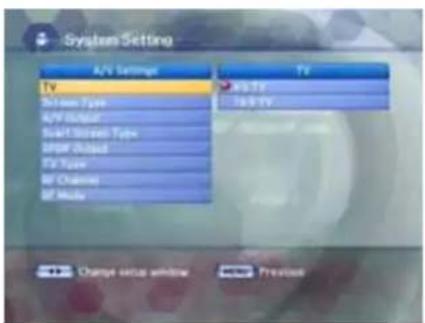
TV
If you have a TV set with 4:3 picture format, select 4:3 TV and if you have a TV set With 16:9 picture format, select 16:9 TV.
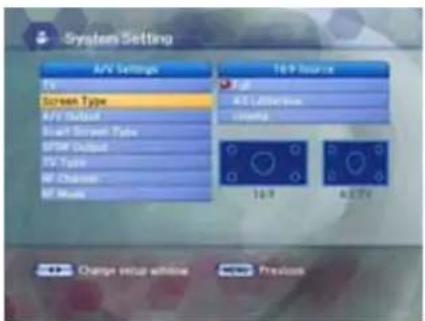
Screen Type
If you have a TV set with the 4:3 picture format and the transmission is in 16:9, you can select Full, letterbox and Cinema.
If you have a TV set with the 16:9 picture format and the transmission is in 4:3, you can select Full, Pilar Box and Cinema.
Select the aspect ratio of TV which is connected to the receiver and then press the OK button.
A/V Output
If your TV input supports SCART-RGB control, select SCART-RGB. Otherwise select SCART-CVBS. If your TV input supports S-VHS, select S-VHS.
♦ Scart Screen Type
Select Your Scart Screen Type.
You can select from 4:3 and 16:9 and then press the OK button.
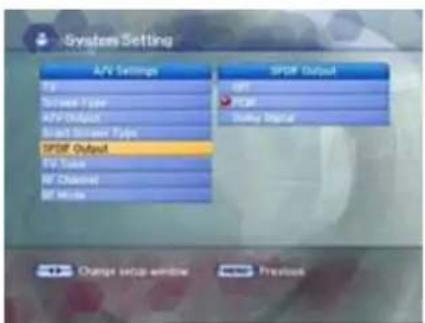
◆ S/PDIF Output
You can hear digital audio of the Dolby 5.1 channel using S/PDIF Output.
- If selecting Off, the digital audio will not be output.
- When selecting PCM, the unzipped digital audio is output through S/PDIF.
- When selecting Dolby Digital, if the current channel is a Dolby audio channel, the zipped Dolby stream is output through S/PDIF.
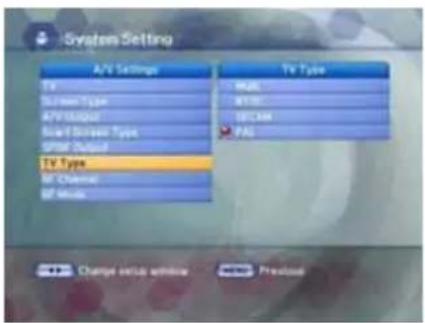
TV Type
Select your TY Type. You can choose from Multi, NTSC, SECAM or PAL. Press the UP/DOWN button to select from Multi, NTSC, SECAM or PAL and then press the OK button.
RF Channel
Select this alternative if you have to change the RF channel. Select an UHF Channel you want with the UP/DOWN buttons. The RF Channel ranges from 21 to 69.
4.4 System Setting
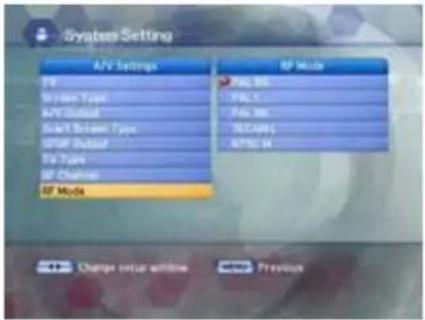
◆ RF Mode
You can select the RF Mode. If you get picture but no sound, the RF Mode selecting might be wrong. Select an RF Mode and then press the OK button.
Note
• PAL BG, PAL I, PAL DK, SECAM L, NTSC M
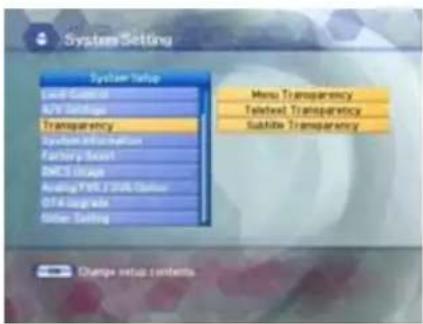
4.4.5 Menu Transparency
From 20% to 100% will give the variable transparency on Video and OSD screen. To set menu transparency, press the UP/DOWN buttons. Press the OK button and then press the UP/DOWN buttons to select the Menu Transparency, Teletext Transparency, or Subtitle Transparency. The transparency will be applied on the screen.
4.4.6 System Information
Displays the system information: MODEL name, Last Update, S/W, H/W, Loader version, C.A Press the UP/DOWN button on the Setup list to select System Information and then press the OK button.
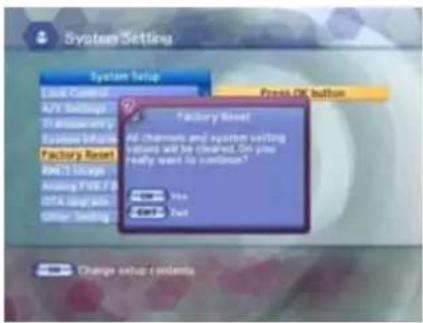
4.4.7 Factory Reset
Press the UP/DOWN button on the Setup list to select Factory Reset. Use this option only if you have to start the complete installation procedure from scratch. If you continue from here, all your previous settings and all channels will be cleared! The default data will be loaded. If you press the OK button, it asks for your confirmation. If you want to reset, press the OK button, or press the EXIT button to exit this menu.
4.4 System Setting
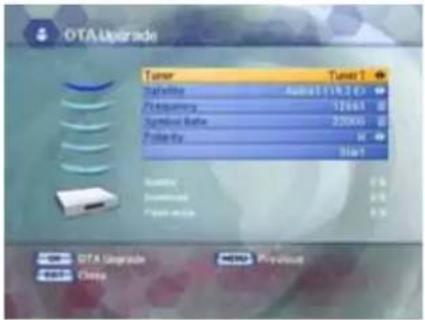
4.4.8 OTA Upgrade
To set up OTA Upgrade
It is possible to set up OTA upgrade manually. Please check if there is new software as pressing OK button after entering Frequency, Symbol Rate, Const.. Updated software will be downloaded.
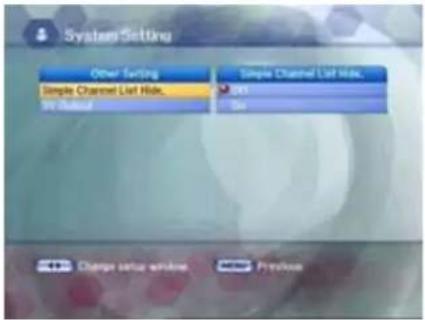
4.4.9 Other Setting
◆ Simple Channel List Hide
If you select "ON" in Simple Channel List Hide function, Simple channel list will be disappeared when you change the channel.
4.5 Utility (option)
natural_image
Interior view of a modern living room with TV, audio equipment, and wall-mounted screens (no visible text or symbols)Select "Utility" in the main menu with the LEFT/RIGHT buttons and press the OK button.
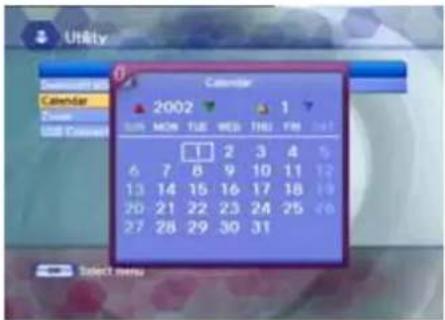
4.5.1 Calendar
Select "Calendar" in the Utility menu with the UP/DOWN buttons and press the OK button, you can see the Calendar.
4.5.2 Game
Press the OK button to move to the GAME folder of the File List. Select the GAME file on the HDD to play the game.
4.5.3 Demonstration
Select "Demonstration" in the Utility menu with the UP/DOWN buttons and press the OK button, you can see the Automatic Operation Function.
Press the EXIT button to quit the Automatic Operation Function completely.
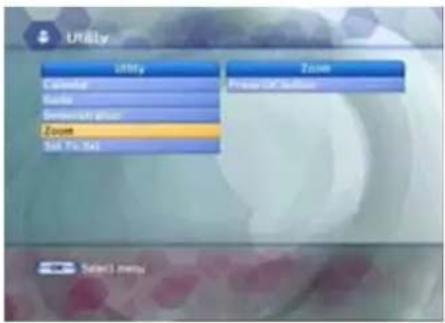
4.5.4 Zoom
Select "Zoom" in the Utility menu with the UP/DOWN buttons and press the OK button, the white frame will appear.
- Select the size and position of video you want to expand with the RED/GREEN, LEFT/RIGHT buttons and press the OK button. You can see the expanded video.
- Press the YELLOW button in the video only, you can then see the white frame.
- Press EXIT button in the video only, you can see the white frame.
- Press EXIT button to quit the expanded video completely.
- RED : Expand the size
- GREEN: Reduce the size
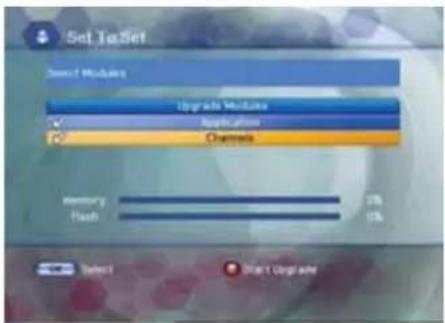
4.5.5 Set to Set
Select "Set to Set" in the Utility menu with the UP/DOWN buttons and press the OK button, upgrade Modules will appear.
- Connect the serial port Set To Set.
- You can receive the Application and Channels through the Set To Set function.
4.6 Common Interface
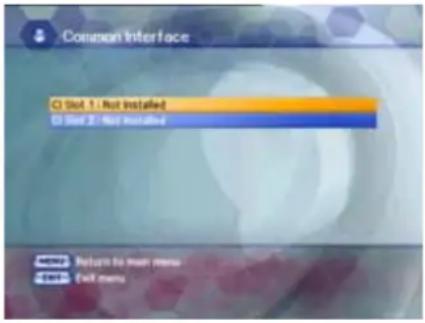
The menus are provided by the CA module and its smart card.
Your receiver is equipped with two slots of Common Interface(CI), accepting both Type 1 and Type 2 PCMCIA modules.
Plug in the appropriate CI module together with a valid smart card. You will then have access to the respective scrambled and Pay-Per-View services.
Insert the smart card into the CI module, and the CI module into the slot behind the flap on the front panel.
The CI and smart card modules determine the programs that can be de-scrambled.
The receiver supports two CI slots so you can plug in two different modules, automatically provide access to both services. Each smart card contains your subscription details. You can view your entitlement via the COMMON INTERFACE menu by using the MENU button as below.
- Press the MENU button and select Common Interface then Slot1 and Slot2 will be showed up on the screen and the menu will be appeared. Select the item and then you will see information for card. Press EXIT button if you wish to exit from this menu.
- If you inserted the smart card with CAM into the receiver, and switch on the receiver. Then you will see “CAM Initializing icon” on the top screen.
- If you do not insert the smart card, you will see the message "Insert the valid smart card". If you insert the smart card into the CI module then you can watch your selected channel.
5. Troubleshooting
| ProblemSolution | |
| No display LED on the front panel.No power supply | Power cord plug in correctly. |
| No Picture Ensure that the STB is switched | on.Check connection and correct.Check channel and video output and correct |
| Poor picture quality Check the signal level, | f this is low then try adjustingthe alignment of your dish. |
| No Sound Check the volume level of the TV | and STB.Check the mute status of the TV and STB.Check the connection of audio cord. |
| Remote Control does not operate Point rem | ote control directly towards the receiver.Check and replace batteries.Check that nothing blocks the front panel. |
| Service is not running or scrambled Check | the whether the Common Interface module andsmart card is correctly inserted.Check that the smart card is appropriate for the selectedservice. |
| You have forgotten your secret PIN code Re | fer to Change PIN code of this owner's manual. |
6. Technical Specifications
| Tuner | ||
| Satellite | DemodulationFEC Modes RateInput ConnectorFrequency RangeSymbol Rate | QPSK1/2, 2/3, 3/4, 5/6, 7/8F type female (75 Ohm)950MHz ~ 2150MHz2 ~ 45 Mbaud |
| Terrestrial | DemodulationGuard Interval ModesFEC Modes RateInput ConnectorFrequencyChannel Bandwidth | COFDM 2K/8K-Carrier1/32, 1/16, 1/8, 1/41/2, 2/3, 3/4, 5/6, 7/8IEC 169-2, FemaleUHF : 470 ~ 860 MHz, S-Band, VHF : 174 ~ 230MHz7MHz, 8MHz |
| RF Modulator | ||
| PLL typeTV StandardRF ConnectorFrequency Range | CH 21-69 for the modulationPAL B/G, I, SECAM L, NTSC M selectable75 Ohms, 169-2, Male/FemaleUHF: 470 ~ 860MHz | |
| MPEG TS A/V Decoder | ||
| Video ResolutionInput Bit RateTransport StreamAudio DecodingAudio Mode | 720 x 576Max. 90 Mbit/sMPEG-2 ISO/IEC 13818-1MPEG/Musicam Layer 1 & 2Single / Dual Channel | |
| A/V & Data Input/Output | ||
| VideoAudioRS-232CUSB | RCA/Cinch, Video Output(CVBS)/SCART(CVBS, RGB)S-VIDEO OUTRCA/Cinch Volume & Mute Control (Resolution: 20 bits DAC, Max 2Vrms) S/PDIF of Dolby Digital Bitstream OutTransfer rate 115Kbps, 9 PIN D-Sub Type2.0 Device | |
| System Resources | ||
| Flash MemorySDRAMMain CPU MPEG Chip | 4 Mbytes64 MbytesμPD61130 | |
| Power Supply | ||
| Input VoltagePower ConsumptionProtectionType | AC 90-250V, 50/60Hz45WSeparate Internal FuseSMPS | |
| Physical Specification | ||
| Size(W x H x D)Net WeightOperating TemperatureStorage Temperature | 340 x 60 x 2503kg0°C ~ 50°C-20°C ~ -60°C | |
| Option Function | ||
| Common InterfacePVRSW Upload | 2 DVB -CI SlotsHDD 160 GBRS232C (Optional Via OTA) | |