
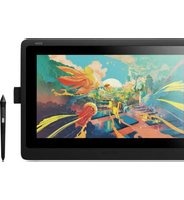
PenPartner USB - Graphic tablet WACOM - Free user manual and instructions
Find the device manual for free PenPartner USB WACOM in PDF.


| Product Type | Graphic Tablet |
| Model | PenPartner USB |
| Brand | Wacom |
| Active Area | Approx. 3.9 x 2.9 inches (99 x 74 mm) |
| Dimensions (Tablet) | 6.0 x 5.0 x 0.4 inches (152 x 127 x 10 mm) |
| Weight | Approx. 4.2 oz (120 g) |
| Connection | USB (Type A to mini-B) |
| Pen Technology | Passive electromagnetic resonance (no battery) |
| Pen Pressure Levels | 256 |
| Resolution | 2032 lines per inch (80 lines/mm) |
| Report Rate | 100 points per second |
| Power Supply | USB bus-powered (5V, 60 mA) |
| Compatibility | Windows 98/Me/2000/XP, Mac OS 8.6-9.x, Mac OS X v10.1 |
| Main Functions | Drawing, writing, pointing, pressure-sensitive input |
| Pen | One-button pen with eraser (eraser on top, pressure sensitive) |
| Cable | Detachable USB cable, approx. 5 ft (1.5 m) |
| Maintenance | Clean with a soft dry cloth; do not use solvents |
| Safety | Complies with FCC, CE; low voltage device |
| Spare Parts | Pen nibs (available separately), USB cable |
| Repairability | Not user-serviceable; contact Wacom support for repairs |
Frequently Asked Questions - PenPartner USB WACOM
User questions about PenPartner USB WACOM
0 question about this device. Answer the ones you know or ask your own.
Ask a new question about this device
Download the instructions for your Graphic tablet in PDF format for free! Find your manual PenPartner USB - WACOM and take your electronic device back in hand. On this page are published all the documents necessary for the use of your device. PenPartner USB by WACOM.
USER MANUAL PenPartner USB WACOM
WACOM PenPartner ^TM User's Manual for Windows ^TM , May 21, 1997
WTC V1.0 for PCs
Copyright © WACOM Company, Limited, 1997
All rights reserved. No part of this manual may be reproduced except for your express personal use. WACOM reserves the right to revise this publication without obligation to provide notification of such changes. WACOM does its best to provide current and accurate information in this manual, however WACOM reserves the right to change any specifications and product configurations at its discretion, without prior notice and without obligation to include such changes in this manual.
TRADEMARKS
WACOM and UltraPen are registered trademarks and PenPartner is a trademark of WACOM Company, Limited. Acrobat Reader Copyright © 1987-1996 Adobe Systems Incorporated. All rights reserved. Adobe and Acrobat are trademarks of Adobe Systems Incorporated which may be registered in certain jurisdictions. CompuServe is a registered trademark of CompuServe, Inc. Microsoft, MS, Windows, Windows 95, Windows NT, and Windows 3.1 are either registered trademarks or trademarks of Microsoft Corporation in the United States and/or other countries. Any additional company and product names mentioned in this documentation may be trademarked and/or registered as trademarks. Mention of third-party products is for information purposes only and constitutes neither an endorsement nor a recommendation. WACOM assumes no responsibility with regard to the performance or use of these products.

RADIO AND TELEVISION INTERFERENCE
The equipment described in this manual generates, uses, and can radiate radio-frequency energy. If it is not installed and used properly—that is, in strict accordance with WACOM instructions—it may cause interference with radio and television reception.
FCC NOTICE
This equipment has been tested and found to comply with the limits for a Class B digital device in accordance with the specifications in Part 15 of FCC rules. These specifications are designed to provide reasonable protection against such interference in a residential installation. However, there is no guarantee that interference will not occur in a particular installation.
You can determine whether your tablet is causing interference by disconnecting it from the computer. If the interference stops, it was probably caused by the tablet.
If your tablet does cause interference to radio or television reception, try to correct the interference by using one or more of the following measures:
- Rotate the television or radio antenna until the interference stops.
- Move the tablet farther away from the television or radio.
- Plug the computer into an outlet that is on a different circuit from the television or radio.
If necessary, consult your authorized WACOM dealer or an experienced radio/television technician for additional suggestions. Changes or modifications to this product not authorized by WACOM could void the FCC Certification and negate your authority to operate the product.
This product was tested for FCC compliance under conditions that included the use of shielded cables and connectors between system components. It is important that you use shielded cables and connectors to reduce the possibility of causing interference to radios, television sets, and other electronic devices.


CE DECLARATION
The PenPartner™ digitizing tablet, model CT-0405-R, has been tested by the TÜV Rheinland in Japan (an accredited EMC laboratory) and found to comply to the following harmonized European Norms:
• EN 50 082-1 (electromagnetic immunity)
• EN 55-022 Class B (electromagnetic emissions).
Based on the results of these tests, WACOM declares that the above mentioned devices conform to Article 10.1 of the European Council Directive 89/336/EEC and indicates this conformity by the CE-sign on each device.
The device must be installed and operated always in strict accordance to the instructions given in this handbook. Any changes or modifications to this product that were not specifically authorized by WACOM will invalidate this declaration.
BZT NOTICE
The PenPartner™ digitizing tablet, model CT-0405-R, has been tested for radio emission characteristics and found to comply to the regulations of BMPT official gazette decree 243/1991. However, you must pay attention to the instructions in this manual and use the devices only in the prescribed way. The Bundesamt für Zulassungen in der Telekommunikation (BZT) has received notice of issuing of this equipment and has been granted authorization for inspection of the series. WACOM Co., Ltd, Japan.

NAVIGATING THE MANUAL
Use the navigation controls to move through the manual:

Go to front page.

Go to Table of Contents.

Go to Index.

Go to Navigating the Manual.

Page back, or page forward.

Go to beginning of section.

Go to topic.

Topic section continued.
The Acrobat Reader provides you with additional tools for using and printing the manual. Refer to the Acrobat Reader Online Guide for more information.

ABOUT THE MANUAL
This interactive User's Manual provides quick access to information about PenPartner. Just click on a navigation button or highlighted word to move through the document.
- The Table of Contents enables you to go directly to a topic by clicking on it.
- Installation shows you how to install the hardware and software.
- Using P enPartner is the learning chapter. If you are not familiar with a pen, this chapter gives you the basics, including an overview of PenPartner's many capabilities. There is also information on how to care for your pen and tablet.
- Customizing P enPartner describes how you can change the UltraPen settings for the way you like to work.
- Ha_ving Trouble? Want to test your tablet? Need troubleshooting guidelines? Do you have a question for Technical Support? You will find the answers to most common questions here.
- The Appendices include product specifications, license and warranty information, and a listing of replacement parts and accessories.
If you are new to electronic documentation, be sure to read Navigating the manual.
You can copy this manual to your hard drive by dragging the PENGUIDE.PDF icon to your desktop or to a new folder.


Certain kinds of information are not included in this manual.
• Information about your specific computer hardware.
• Information about your operating system.
- Information about application software. To use the pressure-sensitive UltraPen with your favorite drawing application, refer to instructions in that application's manuals. You can find a listing of pressure-sensitive and eraser-aware applications on the WACOM Internet home page at: http://www.wacom.com/productinfo.
• Information about other WACOM tablets.
Your best source of information for these is the set of manuals and disks that came with your hardware, operating system, applications, or other WACOM tablets.

natural_image
Abstract graphic with green house and triangular shapes on blue background (no text or symbols)
TABLE OF CONTENTS
Trademarks
Radio and television interference
FCC Notice
CE Declaration
BZT Notice
Navigating the manual
About the manual
INSTALLATION
PenPartner box contents
Things to know before installation
Hardware connection
Software installation
Mail in registration
USING PENPARTNER
Appearance and features
PenPartner
Using the UltraPen
Holding the pen
Pointing
Clicking
Dragging
Proximity
Drawing with pressure
Erasing with ease
Caring for PenPartner
Replacing the pen tip
CUSTOMIZING PENPARTNER
Opening the control panel
Customizing the pen
Adjusting tip feel
Make double-clicking easier
Adjusting eraser feel
Choosing pen or mouse like movement
Simulating mouse buttons
Simulating keyboard keys
Returning to default settings
HAVING TROUBLE?
Testing the tablet
Running WTEST
Avoiding serial port conflicts
Using non-standard IRQs
Determining the serial port settings
Troubleshooting
General problems
Windows-specific problems
NT-specific problems
Connecting with WACOM online
Contacting technical support
Linking to the Web page
Pre-contact checklist


Who to call
USA, Canada, Central and South America
Europe, Middle East and Africa
Japan
Asia Pacific
APPENDICES
Uninstalling the software
Product specifications
PenPartner tablet (Model CT-0405-R)
UltraPen (Model UP-703E)
License and warranties
Software license
Limited warranty
Warranty on sales outside of U.S. and Canada
Parts and accessories
Tablets
Pens
Other parts and accessories
GLOSSARY
INDEX
WACOM International Offices
Acknowledgments

INSTALLATION
PenPartner is compatible with all Windows applications that support a mouse. If you have not already done so, now is a good time to inventory the PenPartner box contents.
Before using PenPartner, you must first turn off your computer and then connect the tablet hardware to it. You can install PenPartner even if you already have a mouse or trackball; the tablet can be used alone or with your other pointing devices.
After the hardware is connected, you need to install the software drivers. Your new tablet is compatible with Windows 3.1, 95, and NT 3.51 or later.
After you install the hardware and software, you can use the pen to move the screen cursor.
PENPARTNER BOX CONTENTS THINGS TO KNOW BEFORE INSTALLATION HARDWARE CONNECTION SOFTWARE INSTALLATION

PENPARTNER BOX CONTENTS
You should find the following items in your PenPartner box:

Tablet (CT-0405-R)
Illustrations not to scale.

THINGS TO KNOW BEFORE INSTALLATION
- To install your WACOM tablet, first connect the hardware and then install the software.
- If your computer does not have an available serial port, you will need to remove an existing serial device or add an additional serial port.
- Some computers have a built-in modem, and the external serial port may be disabled or configured in a way that could conflict with the modem. See Avoiding serial port conflicts for more information on serial port configuration.
- If you are using a DOS shell under Windows 95 or NT, PenPartner will automatically function in the DOS shell after you install the drivers for Windows 95 or NT. PenPartner will not function in a DOS shell under Windows 3.1.

natural_image
Abstract graphic with green house and question mark shapes on blue background (no text or symbols)Contents
Index

INSTALLATION
HARDWARE CONNECTION
Important: Always turn the computer off before you connect or disconnect your tablet. Failure to do this can cause a power surge and damage the computer.
1. Connect the power cable 2. Connect the serial cable
AT keyboard port
Or...
PS/2 port

For AT keyboard
(5-pin DIN):
Disconnect keyboard.
Plug AT-to-PS/2 adaptor into that port.
Plug PS/2 tablet connector into adaptor.
Plug keyboard into tablet connector.


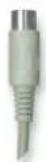
To AT keyboard

For PS/2 mouse or keyboard
(6-pin mini-DIN):
Disconnect mouse or keyboard.
Plug PS/2 tablet connector into that port.

Attach AT-to-PS/2 adaptor.

Plug mouse or keyboard (whichever one you removed) into adaptor.

To PS/2 mouse or keyboard
And...
9-pin serial port

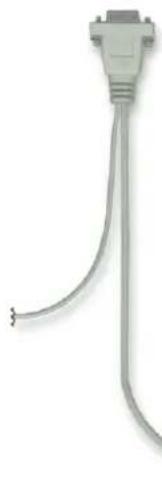
Connect the serial cable:
Plug 9-pin serial connector into the computer serial port.
Note: If the computer has a 25-pin serial port, a 9- to 25-pin adaptor can be purchased from your computer dealer.
natural_image
Coiled cable or connector with a metallic connector (no text or symbols visible)To tablet
If you had any trouble, go to Having Trouble? Otherwise, move on to Software installation.

SOFTWARE INSTALLATION
The PenPartner CD-ROM contains a Readme file with late-breaking news about PenPartner, this User's Manual, and software drivers that enable your computer and tablet to communicate.
- Make sure the tablet's power cable and serial cable are connected, then turn on your computer. The LED on your tablet should light to indicate the tablet is powered up.
- After Windows has started, insert the PenPartner CD-ROM into your computer.
For Windows 95, if you see the New Hardware Found dialog box, selectDriver from disk provided by hardware manufacturer and press Enter. Type the CD-ROM drive name, for exampled:. Then press Enter and follow the screen prompts.
- If the Plug and Play dialog does not appear for Windows 95 or Windows NT 4.0, click on the Start button and then click Run....
Or...
For Windows NT 3.51 or Windows 3.1, from the Program Manager select File and Run...
Important: If you replaced your mouse with the tablet:
For Windows 95 or NT 4.0, press Ctrl-Esc to open the Start menu. Use the arrow keys to select Run..., and then press Enter.
For Windows 3.1 or NT 3.51, press Alt-F to open the File menu. Select Run..., and press Enter.
- In the dialog box, type d:\setup. If your CD-ROM has a different drive letter, type that letter instead of d:. Click OK and follow the prompts.


- When finished, close all open applications and restart your computer. After restarting Windows you will be able to use the pen to move the screen cursor.
Important: When starting Windows 95 in safe mode, the driver software for PenPartner will not load and the tablet will not function.
If you had any trouble with this installation, go to Having Trouble?
MAIL IN REGISTRATION
Please complete and mail in the WACOM Registration Card that came with your tablet.

USING PENPARTNER
The quickest way to learn about PenPartner is to become familiar with its appearance and features. As you explore, you will find the UltraPen easy to use for drawing and erasing, or as a mouse substitute. PenPartner can be used in all applications that support a mouse.
APPEARANCE AND FEATURES USING THE ULTRAPEN CARING FOR PENPARTNER

APPEARANCE AND FEATURES
The PenPartner tablet and UltraPen include a variety of features.
PENPARTNER


USING THE ULTRAPEN
Think of the tablet's active area as a mapped representation of your computer screen. Wherever you place the UltraPen on the tablet's active area, the screen cursor will jump to the corresponding point on the screen. For example, when you position your pen tip in the upper right corner of the tablet, the cursor appears in the upper right corner of your screen. This is called "absolute positioning," and makes tracing possible—something you cannot do with a mouse. You can place an image under the tablet overlay and trace over it with the pen to quickly and easily create graphics on-line.
There are four basic techniques for using the UltraPen: pointing, clicking, double-clicking, and dragging. With a bit of practice, using the pen will become second nature to you.
HOLDING THE PEN
Hold the UltraPen like you would a pencil. Make sure the side switch is in a convenient location where you can press it with your thumb or forefinger, but not accidentally press it while drawing. You can tilt the pen in any way that feels most comfortable for drawing.

natural_image
Close-up of a hand holding a pen, no visible text or symbolsPosition for drawing

natural_image
Close-up of a hand holding a pen, no visible text or symbolsPosition for erasing
When the pen is not in use, place it in the pen stand. Leaving the pen on the tablet may affect the screen cursor when you are working with a mouse.


POINTING
The UltraPen controls a pointer (or cursor) on your screen. Screen cursors have different shapes, such as an arrow or I-beam, depending on the type of application you are running.
Move the screen cursor by lifting the UltraPen and placing it at a new location on the tablet. The cursor instantly jumps to the new location (absolute positioning). This is better than positioning with a mouse where you must first find the cursor and then try to move it with a “pick-up and roll” action (relative positioning).

natural_image
Illustration of a folder icon with a cursor arrow and a pen tip (no text or symbols)

CLICKING
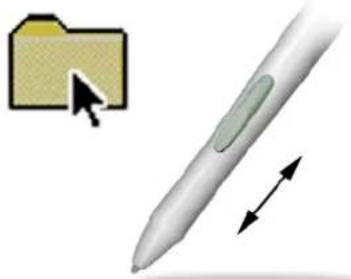
Clicking. To click, tap the tablet once with the tip of the UltraPen, or touch the pen to the tablet with enough pressure to simulate pressing a mouse button.
Double-clicking. To double-click, quickly tap the tablet twice in the same place with the pen tip. This is like clicking twice with a mouse button. Be sure to hold the UltraPen so that you press downward on the pen tip.
natural_image
Illustration of a folder with a cursor icon and a pen tip, no text or symbols presentHint: You may find it easier to set the side switch to double-click automatically when pressed.
You typically click to highlight or select something on the screen, and double-click to open it.


DRAGGING
Dragging means moving a selected (highlighted) object on the screen. Point to the object, then press the UltraPen to the tablet and drag the pen along the tablet's active area. The selected object will move across the screen. To select text with this method, move the screen cursor to the beginning of some text then press and drag the UltraPen across the tablet until the text is highlighted.

natural_image
Illustration of a folder icon with a cursor clicking, followed by a pen and directional arrows (no text or symbols)
PROXIMITY
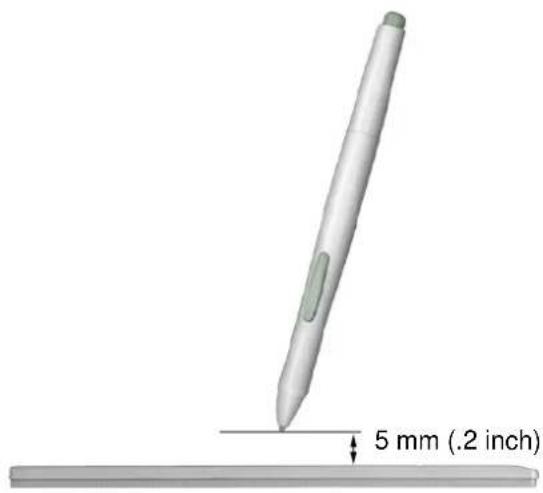
The tablet can recognize the UltraPen's position whenever it is within proximity, 5 mm (.2 inch), above the tablet's active area. This is why you can place a drawing under the tablet's overlay and trace over it with the pen. Also, you do not have to touch the pen tip to the tablet in order to position the screen cursor or use the side switch.


DRAWING WITH PRESSURE
The UltraPen responds to the nuance and inflection of your hand movements, enabling you to create natural-looking pen and brush strokes. Many graphics applications have drawing tools that respond to the pressure you place on the UltraPen. For example, in some drawing programs sliders are used to vary brush characteristics (width, color, jitter, opacity, and graininess). These characteristics can be controlled by the UltraPen's pressure sensitivity. You can vary line width, blend colors, and change opacity with the pressure you exert upon the pen.
To draw with pressure sensitivity, select a pressure-sensitive tool from your application's tool palette. Then draw along the surface of the tablet while applying various amounts of pressure downward on the tip of the UltraPen. Press hard for thick lines or dense color. Press gently for thin lines or softer color. To adjust the tip feel, see Adjusting tip feel.

natural_image
Illustration of a stylized pen with motion arrows and a purple abstract shape (no text or symbols)

ERASING WITH EASE
The eraser on the UltraPen works like the eraser on a pencil. In graphics applications that support the UltraPen's eraser, you can erase intuitively and naturally—without manually selecting another tool. The eraser-aware application will automatically switch to the eraser tool.
PenPartner will also erase in some non-graphics applications; though not pressure-sensitive you can use the eraser to select and delete text. Press to select, then at the end of the selection, lift the eraser from the tablet to delete the selection. This is called context-aware.
Try this by opening Windows Notepad and typing a few words. Then, use the eraser to select some text. When you lift the eraser, the selected text is erased.

natural_image
Illustration of an apple being cut with a pen, showing the blade and arrow (no text or symbols)
CARING FOR PENPARTNER
Regular cleaning with a soft, damp cloth will help prolong the life of your tablet surface and pen tip. You can also use a very mild soap (such as dishwashing liquid) diluted with water. Do not use volatile liquids, such as paint thinner or benzene, because they may damage the plastic case.
Keep the tablet in a clean, dry place and avoid extremes in temperature. Room temperature is best. Also, resist the temptation to look inside your tablet or UltraPen—never take them apart, as this will void your warranty. You may also break your pen by doing this.
REPLACING THE PEN TIP
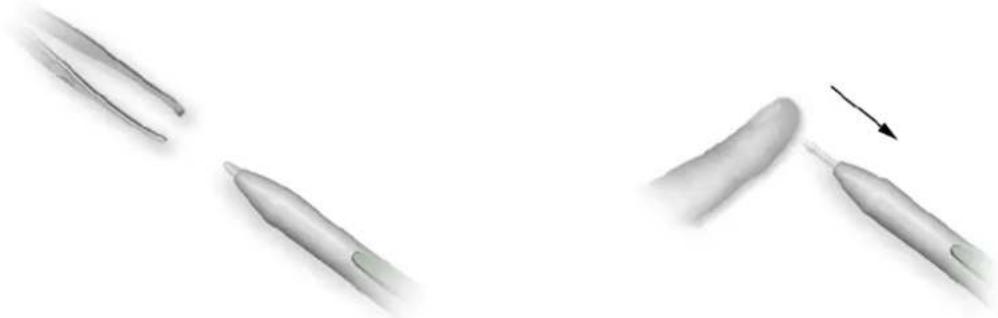
The pen tip will wear with normal use. When the nib gets too short, you can replace it with the extra nib that came with your tablet.
- Clasp the old nib with a tweezer, needle-nosed plier, or similar instrument and pull it straight out of the pen.
- Slide the long, narrow end of the new nib straight into the barrel of the pen. Firmly push the nib until it stops; the new nib will slide into the correct position.
natural_image
Three grayscale medical or surgical tool illustrations showing different angles and motion, with one arrow indicating direction (no text or symbols)
CUSTOMIZING PENPARTNER
After you master the basics of using the tablet, you may want to customize the way your UltraPen works. Use the control panel to adjust the tip feel, simulate mouse buttons, or to change a variety of other settings.
OPENING THE CONTROL PANEL CUSTOMIZING THE PEN RETURNING TO DEFAULT SETTINGS

OPENING THE CONTROL PANEL
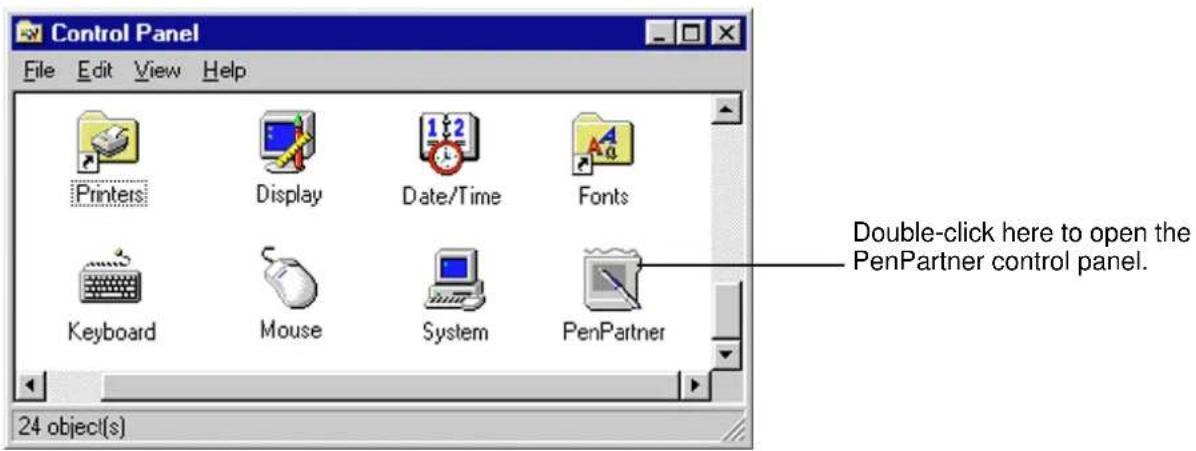
You customize your pen and tablet from the PenPartner control panel.
- For Windows 95 and NT 4.0: Open the Control Panel window by clicking on the Windows Start button. Then, select Settings and Control Panel.
Or...
For Windows 3.1 or NT 3.51: From the Program Manager's Main window, double-click on the Control Panel icon.
- Double-click on the PenPartner icon.


CUSTOMIZING THE PEN
PenPartner's control panel allows you to customize your pen and tablet.



ADJUSTING TIP FEEL
The Tip Feel slider adjusts the sensitivity of the UltraPen tip. With one easy adjustment, you can set the UltraPen for the tip feeling you prefer when clicking or drawing pressure-sensitive lines.
To set the amount of pressure needed to click or draw:
In the PenPartner control panel, drag the Tip Feel slider to one of the five settings from Soft to Firm. Your changes take effect immediately.

Hint: Use a soft Tip Feel for a wider range of pressure values with most pressure-sensitive applications.
Hint: In some applications, a soft pressure sensitivity setting can make the UltraPen overreact—any small press on the pen is magnified on the screen. If you experience this, try a firmer Tip Feel setting.


MAKE DOUBLE-CLICKING EASIER
Double-clicking with a pen is somewhat different than with a mouse. Quickly click twice on the same screen pixel. To make double-clicking easier: expand the tap area that accepts a double-click (the double-click distance), or set the pen's side switch to automatically double-click when pressed.
To make double-clicking easier, try one (or more) of the following:
- In the PenPartner control panel, change the tap area by selecting a Double Click Distance button from Small to Big. Your changes take effect immediately.

Double-Click Hint: You can adjust the double-click speed from the mouse control panel to make double-clicking easier.
- Set the side switch to double-click automatically by selecting Left Double Click from the switch function pull-down menu. Now when you bring the pen tip in proximity without touching the tablet and press the side switch, a double-click occurs where you position the cursor.

Microsoft Word Hint: Assigning the side switch to Left Double Click is very helpful for selecting text.


ADJUSTING ERASER FEEL
The UltraPen's eraser is pressure sensitive, enabling you to erase naturally and expressively.
Eraser Aware. Applications that support the UltraPen's eraser are called eraser-aware. They take advantage of the pen's eraser in different ways, depending on what makes sense for the application.
Context Aware. In some non-eraser aware applications, PenPartner can sense if the screen cursor is over an object that can be erased. If your application is supported, the cursor changes shape when you use the eraser. If not supported, you can still use the eraser as a pointer. When using the eraser to select text or objects in a supported application, and you lift the eraser off the tablet, the UltraPen deletes whatever is selected.
If the screen cursor changes shape the eraser is active:

To set the amount of pressure needed to erase:
In the PenPartner control panel, drag the Eraser Feel slider to one of the five settings from Soft to Firm. Your changes take effect immediately.


CHOOSING PEN OR MOUSE LIKE MOVEMENT
You can choose how the screen cursor reacts to the motion of your UltraPen on the tablet:
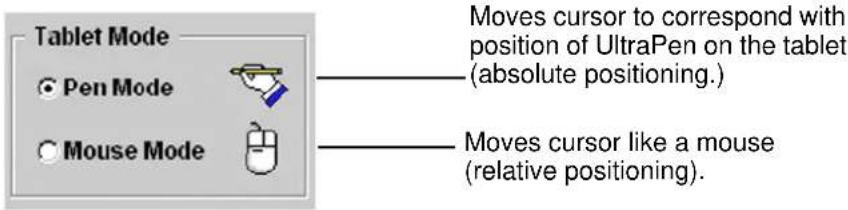
Pen Mode. When you select Pen Mode, the tablet acts as a mapped representation of your computer screen. Wherever you place the UltraPen on the tablet, the cursor jumps to the same corresponding point on the screen. This is called "absolute positioning."
Mouse Mode. When you select Mouse Mode, the UltraPen positions and moves the screen cursor the same way a mouse does—which is not accurate for tracing. This is called “relative positioning.”
To choose between Pen or Mouse Mode:
In the PenPartner control panel, click on the Pen Mode or Mouse Mode button. Your changes take effect immediately.


SIMULATING MOUSE BUTTONS
You can set the side switch on the UltraPen to simulate mouse button functions.
To simulate mouse buttons:
- In the PenPartner control panel, open the side switch function pull-down menu.
- Select either Left Click, Left Double Click, Left Click Lock, Right Click, or Middle Click from the menu. Your changes take effect immediately.
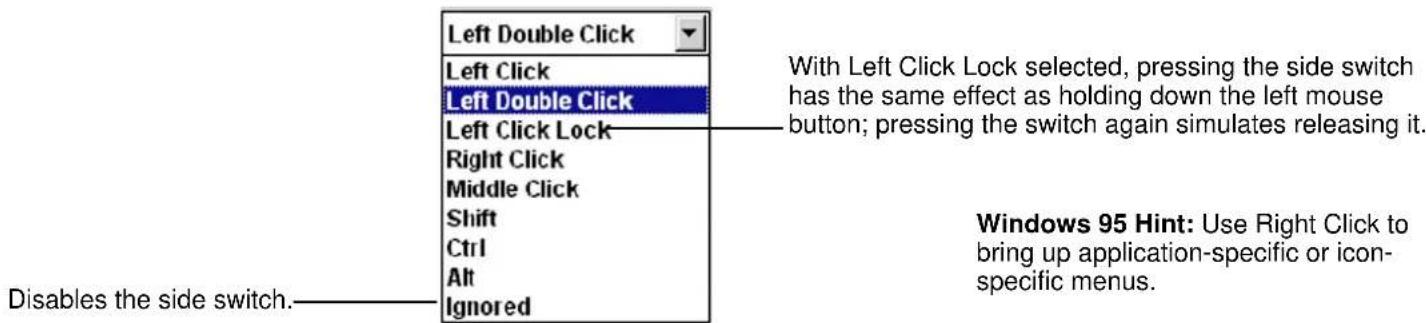
Now, when you bring the UltraPen tip in proximity without touching the tablet and press the side switch, the selected mouse button function occurs.


SIMULATING KEYBOARD KEYS
Many applications use modifier keys to constrain sizing or the placement of objects. You can set the side switch on the UltraPen to simulate holding down the Shift, Ctrl, or Alt modifier keys.
To simulate keyboard modifier keys:
- In the PenPartner control panel, open the side switch function pull-down menu.
- Select either Shift, Ctrl, or Alt from the menu. Your changes take effect immediately.

Now when you bring the pen tip in proximity without touching the tablet and press the side switch, the modifier function occurs until you release the switch.


RETURNING TO DEFAULT SETTINGS
You can return to the tablet default settings at any time.
In the PenPartner control panel, click on the Default button. Your changes take effect immediately.
Default
Returns control panel settings
to factory defaults.
Your tablet and UltraPen are now set to their original default conditions.

HAVING TROUBLE?
Most of the time your tablet will work flawlessly. But if you are having trouble, WACOM recommends you do the following:
- Test the hardware and the software driver.
- Look in the troubleshooting chart. Your problem may be described there and you can try the solution offered.
- If you are having a compatibility conflict between PenPartner and a new hardware or software product, it may be helpful to download a new WACOM tablet software driver. WACOM periodically updates the software driver to maintain compatibility with new products.
- If you have tried the suggestions in this manual and still cannot resolve the problem, then contact WACOM for technical support.
TESTING THE TABLET
AVOIDING SERIAL PORT CONFLICTS
TROUBLESHOOTING
CONNECTING WITH WACOM ONLINE
CONTACTING TECHNICAL SUPPORT

TESTING THE TABLET
The PenPartner CD-ROM has a test program (WTEST) that checks for proper communication between your computer and the tablet. It also tests the UltraPen for proper function. Run this test before calling WACOM Technical Support; they will want to know the results of the test.
The test program determines the communication port number, Interrupt Request (IRQ) line number, memory address, and baud rate. It saves this information to the WACOM.INI file in the directory where the WTEST program is located and in your Windows subdirectory. The WACOM driver for Windows looks at the WACOM.INI file for the location of the WACOM tablet. If the tablet is not found, try locating it first with this test program and then start Windows to load the WACOM driver again.
RUNNING WTEST
To run the WTEST program:
-
Exit Windows and restart your computer in DOS real mode.
-
In Windows 95, click on the Start button and select Shut Down.... Then select Restart the computer in MS-DOS mode? and press Enter.
- In Windows NT, shut down NT. At the boot screen select MS-DOS. If the MS-DOS option is not available, reboot the computer using a DOS boot floppy.
-
In Windows 3.1, exit Windows.
-
Go to the WACOM subdirectory where the WACOM test program is installed. For example, type cd\wacom.


- Type wtest. If the program successfully finds the tablet, you will see the message "WACOM plug-n-play tablet found!" You will also see the current communication settings and be prompted to position the UltraPen on the tablet.
If the message "Tablet was not found!" displays, then your tablet may not be connected to an active Com port or the Com port may have a non-standard memory address or IRQ line setting. Check the following:
- Verify that the tablet power light is on.
- Verify that your serial communications port is working. Refer to A _voiding serial port conflicts. See also your computer hardware documentation for proper configuration settings.
-
Turn off your computer and make sure the tablet cabling is securely connected to the computer.
-
Touch the UltraPen to the tablet. The following will be displayed: the type of input device, the x- and y-coordinate locations, switch number, and the pressure value. Test the pen by pressing the tip to the tablet; the switch state should change to 1 and the LED on the tablet will turn green. The pressure value should change from approximately -127 with no pressure applied to approximately +127 when full pressure is applied.
Repeat this step with the pen's eraser. Notice that the LED turns green when the eraser is brought into proximity.
- Press the side switch without pressing the tip to the tablet. The switch number should change to 2 and the LED on the tablet will turn green.
- Press any key to exit the test program.

natural_image
Abstract graphic with green house and question mark shapes on blue background (no text or symbols)Contents
Index

HAVING TROUBLE?
AVOIDING SERIAL PORT CONFLICTS
If PenPartner is not communicating properly with your computer, there may be a serial port conflict. In this case, check your serial port configuration; you should never have the WACOM tablet and another device share the same IRQ line. This can cause unpredictable results.
Each serial device attached to your computer needs its own unique communication port (Com port) address and Interrupt Request (IRQ) line. If two serial devices end up sharing Com port addresses and/or IRQs, it will result in the devices not being detected, or may cause the system to “hang.”
- Most computers come with two external serial ports (Com 1 and Com 2). If you have an external serial port connector assigned to Com 2 and your internal modem is also using Com 2, you will have a Com port conflict.
- If you have a modem on Com 3 with an IRQ of 4 and a tablet on Com 1 with an IRQ of 4, you will have an IRQ conflict.
We do not recommend using Com 4, if possible. Video cards with the "S3" chipset use the same memory address as Com 4 and may cause conflict.


USING NON-STANDARD IRQs
To use a tablet, mouse, and modem together, configure the tablet on Com 3 with a non-standard IRQ line. Then run WTEST to locate the tablet. The test program will search Com ports 1-4 and IRQ lines 3-5, 7, 10-12, and 15. These are the only Com ports and IRQ lines supported by the WACOM driver. The following table lists standard IRQ settings for most computers.
IRQ Status Standard Device Assignments
| 0 Used Timer |
| 1 Used Keyboard |
| 2 Used Cascade Input |
| 3 Free Com 2 & Com 4 |
| 4 Free Com 1 & Com 3 |
| 5 Free LPT2 |
| 6 Used Floppy Disk |
| 7 Free LPT1 |
| 8 Used Clock |
| 9 Used Redirected IRQ2 |
| 10 Free (reserved) |
| 11 Free (reserved) |
| 12 Used PS/2 Mouse |
| 13 Used Co-Processor |
| 14 Used Hard Disk |
| 15 Free (reserved) |
The IRQs marked "Free" are usually available for devices to use freely, but this does not mean they are always available. See your system hardware documentation for additional information.


DETERMINING THE SERIAL PORT SETTINGS
Run the WTEST utility, as described in Testing the tablet. If the tablet was found, the Com port number, IRQ line number, memory address, and baud rate of the serial port that the tablet is connected to will be displayed. If not found, refer to your system manufacturer's documentation for correct serial port configuration.
Here are the standard IRQ and memory address settings for most computer serial ports.
Serial port IRQ Memory address
For example, if your tablet is on Com 3 and your modem is on Com 1, they both are configured for IRQ 4 and will conflict with one another. In this case, you could change the tablet port to a non-standard IRQ setting. Refer to Using non-standard IRQs.
If you want to use a tablet, mouse, and modem, you can put the tablet on Com 3 with an IRQ line different from 3 or 4 and run the WTEST program to locate the tablet. Refer to Using non-standard IRQs, or to your computer hardware manual for information about configuring IRQ lines.

TROUBLESHOOTING
If you encounter problems with your UltraPen or tablet, refer to the following chart. Your problem may be described here, and you can try the solution offered.
GENERAL PROBLEMS
| The computer does not have an available serial port. | Remove an existing peripheral serial device and any associated device drivers for that hardware, or add an additional serial port. Then install PenPartner. |
| The tablet power light is not on.The keyboard does not work.The PS/2 mouse does not work. | Turn off your computer. Verify that your tablet's power cable is properly connected to the mouse or keyboard port; be sure your computer is off before disconnecting or connecting your tablet. Verify also that the mouse or keyboard is properly connected to the PS/2 pass-thru cable. Refer toHardware connectionfor instructions. If the tablet's power light still does not turn on, you may have a defective tablet. SeeContacting technical support. |
| Drivers load properly but the tablet and pen do not function. | Exit Windows and run WTEST, then try running Windows again. Refer toTesting the tablet. |


| The pen tip does not work properly. Pressing the pen tip to the tablet either does nothing or brings up a shortcut menu. | If the mouse is configured for left-handed operation, the tip and side switch functions on the pen will be reversed. Open the Mouse control panel and set the mouse for right-handed operation. |
| The tablet does not respond to the pen. | On the PenPartner control panel, verify that Driver ON is checked. If not, use your mouse to turn it back on. If you do not have a mouse attached to your computer, use the Tab key to select the checkbox and then press the spacebar to toggle the driver on. |
| Pen selects everything, will not stop drawing. | If this occurs in Windows, try moving the Tip Feel slider toward Firm in the PenPartner control panel.Run the WTEST program to test the pen. Refer to Testing the tablet.Delete the WACOM.INI and WINTAB.INI files located in the Windows subdirectory, then restart Windows. Note that this will reset the WACOM tablet to its factory default settings. |
| The tip or side switch does not function. | Run the WTEST program and check for proper pen function. Make sure the power light changes from orange to green when the tip or side switch is pressed. If it does not, you may have defective hardware; see Contacting technical support. |


The side switch does not work. Be sure you press the side switch when the pen tip is in proximity—do not press the pen tip at the same time.
From the PenPartner control panel, verify that the side switch is set to the proper function.
Make sure the tablet power light turns green when you press the side switch. If it does not, you may have defective hardware (see Contacting technical support).
WINDOWS-SPECIFIC PROBLEMS
Double-clicking is difficult. Be sure you are quickly tapping the tablet twice in the same place on the tablet's active area (review the technique in Clicking).
Try increasing the Double Click Distance (see Make double-clicking easier).
Try using a lighter Tip Feel (see Adjusting tip feel).
Make sure the double-click speed in the mouse control panel is not set too fast.


Windows 3.1 and 95 only: After installing the WACOM driver, the cursor disappears in some applications.
This occurs when a mouse is replaced with the tablet and the mouse driver was not removed. To solve this problem, follow the procedure below:
- Insert the WACOM tablet CD-ROM into your computer.
-
Select Run... from the Windows Start menu (or File and Run... for Windows 3.1) and type:
d:setup /z d:\win\3195\oldmouse.dr_ c:\windows\system\oldmouse.drv
where d: is the drive letter of your CD-ROM. -
Then edit your SYSTEM.INI file and change the mouse.drv line in the [boot] section to:
mouse.drv=oldmouse.drv
- Restart Windows for these changes to take effect.
Cannot move the cursor where you want to on the screen.
Delete the WACOM.INI and WINTAB.INI files from the Windows subdirectory and restart Windows.


After installing the WACOM driver, the cursor moves very slowly in Windows 95 and NT.
Some video drivers may have problems in high resolution modes when you are using a tablet. This is due to the amount of data produced by the tablet (approximately four times as much data as a mouse), and some video drivers cannot keep up with the high data rate. To improve your video driver performance:
- Obtain the latest video driver software from your video card manufacturer.
- In the Display Properties control panel under the Plus! tab, turn off Show window contents while dragging.
- In the Mouse Properties control panel, turn off animated or enlarged cursor.
- In the Display Properties control panel under the Settings tab, reduce your color palette to 256 colors, if possible.
With a Microsoft mouse attached and a mouse driver version of 8.2 or above, unable to access extended mouse features from within the Mouse control panel.
Run MOUSEMGR.EXE to access these features.


When the pen tip contacts the tablet surface, the cursor jumps to the top left corner of the screen, or the error message, "Unable to implement function", appears within the PenPartner control panel.
You may have had another manufacturer's tablet, and the drivers are still loaded on your system:
ACECAT: Edit your SYSTEM.INI. Go to the drivers=line in the [boot] section and remove awintab. Then go to the [drivers] section and remove the awintab=awintab.drv line. Look also for any reference to Virtual Tablet and remove it. Save the changes and restart Windows.
KURTA: Edit your SYSTEM.INI by looking for any references to wtkurta and removing them. Save the changes and restart Windows.
NT-SPECIFIC PROBLEMS
After installing the WACOM driver, WACOM and Serial error messages appear in the event viewer.
Some serial port and WACOM error messages will be generated while NT is starting up and the WACOM driver is loading. These messages are generated because the WACOM driver loads before the serial driver is loaded. Please ignore them.


The tablet does not respond in Windows NT.
Verify that the following items are enabled:
-
Open the Windows Control Panel.
-
Open the Devices control panel and verify that the following drivers are enabled in the HW Profiles... option.
- Penclass
• Wacom
- WTclass
- Close the Devices control panel. Open the Services control panel and verify that the following services are enabled in the HW Profiles... option.
- wacomkey
- wintab32
- Close the Services control panel and restart Windows.

CONNECTING WITH WACOM ONLINE
WACOM maintains a support forum on CompuServe.
CompuServe. You can get technical support, software updates, and news about WACOM products through CompuServe. If you are already a member, type go wacom at any “!” prompt to access the WACOM Technology Section of the Pen Technology Forum on CompuServe.
If you are not a member, as a WACOM customer you are entitled to a free introductory membership to CompuServe. This membership includes:
- Free access to all CompuServe Basic Services for one month.
- A \$15 introductory usage credit to explore the WACOM Technology Section of the Pen Technology Forum and other CompuServe Extended and Premium Services offerings.
- A private user ID number and password.
- A complimentary subscription to CompuServe Magazine, a monthly computing publication.
Start connecting online with WACOM Technology and other CompuServe members. In the United States, contact CompuServe at 800-524-3388 and ask for representative #366. Elsewhere, contact CompuServe at ++1-614-529-1349 and ask for representative #366.

CONTACTING TECHNICAL SUPPORT
If you have a problem with your WACOM tablet, first check Installation and Having Trouble? to be sure the tablet is installed correctly. If you cannot find the answer in this manual, you may find updated information about your problem in the Readme file located on the PenPartner CD-ROM. Check also the WACOM Home Page on the Internet. If you are unable to solve the problem, contact WACOM Technical Support.
LINKING TO THE WEB PAGE
Answers to frequently asked questions and troubleshooting tips can be found on the appropriate Web site for your area in Who to call.
PRE-CONTACT CHECKLIST
You might want to print a copy of this page for reference. When you call, you should be at your computer with the following information available:
□ This manual
☐ Tablet serial and model number (Look on the bottom of the tablet.)
☐ Driver version number (Look on the PenPartner CD-ROM or in the PenPartner control panel.)
☐ The make and model of your computer
□ A list of the peripheral devices attached to your computer
☐ The exact wording of any error message that appeared on your screen
☐ What happened and what you were doing when the problem occurred
□ How you tried to solve the problem


WHO TO CALL
If you think your WACOM tablet is not working properly, contact the WACOM support staff for the area where your product was purchased. If you have a modem, you can download the latest software drivers from the Internet or the WACOM bulletin board.
USA, Canada, Central and South America
Contact your local distributor, or:
Phone: ++1-360-750-8884 Technical support.
FAX: ++1-360-750-8924 Technical support.
Fast FAX: 1-800-922-7590 (USA and Canada) Automated support and sales information.
BBS: ++1-360-750-0638 Driver updates.
Settings: 1200 to 14400 bps, 8 data bits, 1 stop bit, no parity
Internet email: support@wacom.com Automated mailback support.
CompuServe email: 72662,2175 Technical support.
Worldwide Web: http://www.wacom.com/productsupport24-hour technical support information and driver updates.
Anonymous FTP Site:
Type ftp.wacom.com and go to the /pub/drivers subdirectory.
Driver updates.


Europe, Middle East and Africa
Contact your local distributor, or:
Phone: ++49-(0)2131-123925 Technical support.
FAX: ++49-(0)2131-101760 Technical support.
BBS: ++49-(0)2131-120317 Driver updates.
Settings: 1200 to 28800 bps, 8 data bits, 1 stop bit, no parity
Internet email: support@wacom.de Technical support.
Worldwide Web: http://www.wacom.de Driver updates.
Anonymous FTP Site: Type ftp.wacom.de and go to the /pub subdirectory. Driver updates.
Japan
Contact your local distributor, or:
Phone: ++81-(0)480-72-6869 Technical support. (Japanese)
FAX: ++81-(0)480-78-1237 Technical support. (Japanese)
Internet email: tablet@wacom.co.jp Technical support and sales. (Japanese)
Worldwide Web: http://www.wacom.co.jp Driver updates and information. (Japanese)
Asia Pacific
Contact your local distributor, or:
Phone: ++81-(0)480-78-1213 Technical support. (English)
FAX: ++81-(0)480-78-1217 Technical support. (English)
Internet email: asia-pacific@wacom.co.jp Technical support and sales. (English)
Worldwide Web: http://www.wacom.co.jp/asia-pacific Driver updates and information. (English)

APPENDICES
A procedure for uninstalling the PenPartner software is included in this section. You will also find product specifications, license and warranty information, and a list of available parts and accessories for PenPartner.
UNINSTALLING THE SOFTWARE
PRODUCT SPECIFICATIONS
LICENSE AND WARRANTIES
PARTS AND ACCESSORIES

UNINSTALLING THE SOFTWARE
To remove PenPartner's software driver from your system:
For Windows 95 and NT:
- Go to the c:\wacom or other directory where you installed the WACOM files and double-click on the uninstall icon (Uninst95 or UninstNT).
- Follow the prompts to remove the software driver.
For Windows 3.1:
- Insert the PenPartner CD-ROM into your computer.
- Within the Program Manager, open the File menu.
- Select Run... and type d:setup, where d: is your CD-ROM's drive letter.
- Select the Uninstall option and press Enter.
- Follow the prompts to remove the software driver.

PRODUCT SPECIFICATIONS
PENPARTNER TABLET (MODEL CT-0405-R)
Active area (W x D) 128.0 x 96.0 mm (5.04 x 3.78 in)
Physical size (W x D x H) 196.0 x 181.0 x 7.0 mm (7.72 x 7.13 x 0.28 in)
Cable length 2.0 m (6.56 ft)
Weight 400 g (0.88 lb)
Power requirements DC 5V 100mA, from PS/2 port
Power consumption 0.5 watts
Resolution 39.4 Ipmm/1000 Ipi
Accuracy (overall with pen) 0.5 mm (0.02 in), maximum
Pressure levels 256 levels
Maximum reading height 5 mm (0.2 in)
Maximum report rate 205 points per second
Communication interface RS-232C Serial
Connector 9-pin, D-sub, female
Operating temperature 5°C to 40°C (41°F to 104°F)
Storage temperature -10^ C to +60^ C ( 14^ F to 140^ F)
Operating relative humidity 20% to 80% noncondensing
Storage relative humidity 20% to 90% noncondensing
Compliance FCC class B, VCCI class 2, CE (EN 50 082-1, EN 55 022 Class B)


ULTRAPEN (MODEL UP-703E)
Side switch color Light green
Eraser color Light green
Pen tip travel 0.1 mm (0.004 in) or less
Eraser tip travel 2.0 mm (0.079 in)
Physical size (L x D) 140.5 x 11.4 mm (5.53 x 0.45 in)
Weight 11.2 g (0.395 oz)
Tip refill type Polyacetal (Part No. PSI-A021)

LICENSE AND WARRANTIES
SOFTWARE LICENSE
This legal document is an agreement between you, the end-user, and WACOM Technology Corporation (WACOM).
- Grant of License. The enclosed product includes computer programs embedded in firmware and accompanying diskette or CD-ROM (the "Software"). The Software is licensed, not sold, to you for use only with WACOM products upon the terms of this license, and WACOM reserves any rights not expressly granted to you. WACOM grants to you a non-exclusive right to use this copy of the Software in conjunction with a WACOM product at a single location.
- Ownership of Software. Although you may own the product in which the Software is originally recorded, WACOM retains ownership of the Software itself. You acknowledge that the Software is WACOM's property, and contains valuable confidential, unpublished information developed or acquired by WACOM at great expense, including data processing algorithms, innovations and concepts. The Software is protected by copyright and other federal and state laws. You agree to use your reasonable best efforts to protect the Software from unauthorized reproduction, distribution, disclosure, use, or publication.
- Copy Restrictions. Unauthorized copying of the Software is expressly forbidden.
- Use Restrictions. You may not decompile, reverse assemble, disassemble or reverse engineer the Software.
- Termination. This License is effective until terminated. This License will terminate automatically without notice from WACOM if you fail to comply with any provisions of the License.
- Miscellaneous. This License is governed by the laws of the United States of America and the state of California except in Asia Pacific and by the laws of Japan for Asia Pacific.


natural_image
Abstract graphic with green house and triangular shapes on blue background (no text or symbols)Contents
Index

APPENDICES
Page 57
LIMITED WARRANTY
WACOM warrants the product, except for the Software, to be free from defects in materials and workmanship under normal use and service as long as the product remains in production and in possession of the original owner, but not less than one (1) year, as long as you own the product as evidenced by a copy of the receipt and a registration card that has been returned to WACOM within 30 days of purchase.
The Software is licensed “as is.” WACOM makes no warranty with respect to its quality or performance. WACOM cannot guarantee you uninterrupted service or the correction of any errors.
Upon discovery of a defect in the product, except in the Software, within the Warranty Period, you should contact WACOM Technical Support via telephone to obtain an RMA (Return Merchandise Authorization) number and instructions for shipping the product to a service location designated by WACOM. You should send the product, shipping charges prepaid, to the designated service location, accompanied by the return authorization number, your name, address and telephone number, proof of purchase date, and a description of the defect. WACOM will pay for return shipping by United Parcel Service or by an equivalent service as chosen by WACOM.
WACOM's sole obligation and entire liability under this warranty shall be, at WACOM's option, either the repair or replacement of the defective product or parts thereof of which WACOM is notified during the Warranty Period; provided, however, that you are responsible for (i) the cost of transportation of the product to the designated service location and (ii) any loss or damage to the product resulting from such transportation.
WACOM shall have no responsibility to repair or replace the product if the failure of the product has resulted from accident, abuse, misuse, negligence, or unauthorized modification or repair, or if it has been handled or stored other than in accordance with WACOM's storage instructions.
Any descriptions, drawings, specifications, samples, models, bulletins, or similar material, used in connection with the sale of the product, shall not be construed as an express warranty that the product will conform or comply with your requirements.


EXCEPT FOR THE LIMITED WARRANTY DESCRIBED ABOVE, THERE ARE NO OTHER WARRANTIES MADE BY WACOM ON THIS PRODUCT. NO ORAL OR WRITTEN INFORMATION OR ADVICE GIVEN BY WACOM, ITS DEALERS, DISTRIBUTORS, AGENTS, OR EMPLOYEES SHALL CREATE A WARRANTY OR IN ANY WAY INCREASE THE SCOPE OF THIS WARRANTY, AND YOU MAY NOT RELY ON ANY SUCH INFORMATION OR ADVICE. THIS WARRANTY GIVES YOU SPECIFIC LEGAL RIGHTS, WHICH VARY FROM STATE TO STATE.
WACOM LIMITS THE DURATION OF ANY LEGALLY IMPLIED WARRANTIES INCLUDING IMPLIED WARRANTIES OF MERCHANTABILITY OR FITNESS FOR A PARTICULAR PURPOSE, TO THE DURATION OF WACOM'S EXPRESS WARRANTY. SOME STATES DO NOT ALLOW LIMITATIONS ON HOW LONG AN IMPLIED WARRANTY LASTS. SO THE ABOVE LIMITATION MAY NOT APPLY TO YOU.
NEITHER WACOM NOR ANYONE ELSE WHO HAS BEEN INVOLVED IN THE CREATION, PRODUCTION, OR DELIVERY OF THIS PRODUCT SHALL BE LIABLE FOR ANY DIRECT, CONSEQUENTIAL, OR INCIDENTAL DAMAGES (INCLUDING DAMAGES FOR LOSS OF BUSINESS PROFITS, BUSINESS INTERRUPTION, LOSS OF BUSINESS INFORMATION AND THE LIKE) ARISING OUT OF THE USE OF OR INABILITY TO USE SUCH PRODUCT, EVEN IF WACOM HAS BEEN ADVISED OF THE POSSIBILITY OF SUCH DAMAGES. BECAUSE SOME STATES DO NOT ALLOW THE EXCLUSION OR LIMITATION OF LIABILITY FOR CONSEQUENTIAL DAMAGES, THE ABOVE LIMITATION MAY NOT APPLY TO YOU.
In the event that any of the above limitations are held unenforceable, WACOM's liability for any damages to you or any party shall not exceed the purchase price you paid, regardless of the form of any claim.
This Limited Warranty is governed by the laws of the United States of America and the state of California.
This Limited Warranty is valid for and only applies to products purchased and used inside the United States (and its territories or possessions) and Canada.


WARRANTY ON SALES OUTSIDE OF U.S. AND CANADA
For products purchased or used outside of the United States and Canada, the warranty is one (1) year from the date of purchase, and upon discovery of a defect in the product, except in the Software, within the Warranty Period you should notify your local dealer or distributor. In all other respects the terms of the warranty as set forth above apply to such sales.
Should you have any questions about this Agreement, or if you desire to contact WACOM for any reason, please contact in writing:
In North and South America contact: In Asia and Asia Pacific contact:
WACOM Technology Corporation WACOM Co., Ltd.
501 SE Columbia Shores Boulevard, Suite 300 2-510-1 Toyonodai
Vancouver, Washington 98661 Otone-Machi, Kitasaitama-Gun
U.S.A. Saitama, 349-11
Japan

PARTS AND ACCESSORIES
To order additional pens and other accessories, contact your WACOM dealer.
TABLETS
PenPartner (CT-0405-R) This is an entry-level tablet. Used as a mouse alternative or drawing tool, it enables you to more naturally point, click, draw, edit photos, and personalize projects.
PENS
UltraPen (UP-703E) This pressure-sensitive pen is an all-purpose tool to use for drawing, erasing, and typical mouse operations. The easy-to-use side switch gives you the ability to simulate mouse actions or keyboard modifier keys.
OTHER PARTS AND ACCESSORIES
Description Part Number
Pen Stand PST-A016
Spare Nibs (Qty 5) PSI-A021
Pen Tether FUZ-A073
PS/2-AT Adaptor STJ-A131-01

GLOSSARY
Absolute positioning. A method for positioning the screen cursor. Wherever you place the pen on the tablet, the cursor will jump to the same corresponding point on the screen. This is normal pen behavior. See also relative positioning.
Active area. The drawing area of the tablet where the pen is detected.
Context aware application. A WACOM feature that provides eraser support for some non-eraser aware applications. When you use the eraser to select text or objects in a supported application, and you lift the eraser off the tablet, the UltraPen will delete whatever is selected.
Cursor. See screen cursor.
DOS real mode. A version of DOS that is not running under another operating system or called from another software application.
DOS shell. A version of DOS that is running under another operating system or software application.
Double click-distance. The distance in screen pixels where a double-click will be recognized. To make double-clicking easier, expand the tap area that accepts a double-click.
Eraser-aware application. A software application that supports the UltraPen's eraser. These applications take advantage of the eraser in different ways, depending on what makes sense for that application. See also non-eraser aware application.


Nib. The UltraPen's replaceable tip.
Non-eraser aware application. An application that does not have built-in support for the UltraPen's eraser. See also eraser-aware application.
Pixel. The smallest unit of measurement on your monitor screen. To double-click with the UltraPen, you must tap the tablet twice in the same place (same screen pixel).
Pressure-sensitive application. Any application that supports input pressure. Pressure sensitivity allows for natural-looking pen, brush, and eraser strokes in graphics applications.
Proximity. The distance above the tablet surface, 5 mm (0.2 inch), where the pen is detected. This enables you to move the screen cursor without actually touching the tablet, making tracing possible. The UltraPen's side switch also works when the pen is in proximity.
Relative positioning. A method for positioning the screen cursor. With relative positioning, the UltraPen behaves like a mouse. See also absolute positioning.
Screen cursor. The cursor on the monitor screen. Screen cursors have different shapes, such as an arrow or a box, depending on the type of application you are running.
Wintab. The interface standard used for tablets in Microsoft Windows. PenPartner supports all Wintab-compatible applications under Windows 95, NT, and 3.1.

INDEX
About the manual
Absolute positioning
defined
how to set
when using pen
Accessories and parts
Active area, defined
Alt key, how to simulate
Appearance and features
Box contents
PenPartner
Caring for pen and tablet
Checklist, pre-contact
Cleaning, how to
Clicking
how to
making easier
Connecting to WACOM online
Context aware, defined
Control panel
opening
window
Ctrl key, how to simulate
Cursor
controlling with pen
defined
Customizing PenPartner
Default settings, returning to
DOS
installing software for
real mode, defined
shell, defined
Double Click Distance, expanding
Double-clicking
distance, defined
how to
how to make easier
Dragging objects or text
Environmental conditions
Eraser
adjusting feel
in eraser-aware applications
in non-eraser aware applications
Eraser-aware application, defined
Erasing
with pressure-sensitivity
with the pen
Features and appearance
General problems, troubleshooting
Hardware connection
Holding the pen
Installation
software




Contents
Index
INDEX
Page 64
Interference, radio and television
IRQs, using non-standard
Learning to use PenPartner
License and Warranties
License, software
Limited Warranty
Manual, about
Modifier keys, how to simulate
Mouse buttons, how to simulate
Movement
mouse-like
pen-like
Nib
defined
replacing
Non-eraser aware application, defined
Online, connecting to WACOM
Parts and accessories
Pen
adjust for double-clicking
adjusting tip feel
caring for
clicking with
double-clicking with
dragging objects or text
drawing with pressure
erasing with
holding
pointing with
proximity
replacing the tip
simulating
keyboard modifier keys
mouse buttons
specifications
using
PenPartner
accessories and parts
appearance
box contents
control panel, opening
customizing
features
hardware connection
parts and accessories
testing
using
your software version
Pixel, defined
Pointing
Pressure
adjusting amount needed to click or draw
drawing with pressure sensitivity
Pressure-sensitive application, defined
Proximity
defined
with the pen
Radio and television interference
Registration, mailing


Relative positioning
defined
how to set
Replacement parts
ordering
Screen cursor
defined
movement
choosing pen or mouse like
Serial port
conflicts. avoiding
settings, determining
Shift key, how to simulate
Side switch
pen proximity required
setting
to double-click
to simulate keyboard keys
to simulate mouse buttons
Software
driver, downloading the latest
installation
License
uninstalling
Specifications
pen
tablet
Tablet
caring for
cleaning
specifications
storing
testing
Tap area, expanding
Technical Support
contacting
linking to Web page
numbers
for Africa
for Asia Pacific
for Canada
for Central America
for Europe
for Japan
for Middle East
for South America
for USA
pre-contact checklist
who to call
Testing PenPartner
Tip
adjusting feel
replacing
Tracing, maximum thickness allowed
Troubleshooting
general problems
Windows-specific problems
UltraPen, described
Uninstalling software
User's manual, copying to hard drive
Using PenPartner


WACOM International Offices
Warranties and License
Warranty
limited
on sales outside of U.S. and Canada
Web page, linking to
Windows, customizing the pen in
Windows 95, NT, and 3.1
software installation
software uninstall
Windows-specific problems, troubleshooting
WINTab, defined
WTEST, running

WACOM INTERNATIONAL OFFICES
WACOM Technology Corporation WACOM Co., Ltd.
501 SE Columbia Shores Blvd., Suite 300 2-510-1 Toyonodai
Vancouver, WA 98661 Otone-Machi, Kitasaitama-Gun
U.S.A. Saitama, 349-11
Telephone Japan
General: 360-750-8882 Telephone
Fax: 360-750-8924 General: ++81-480-78-1213
BBS: 360-750-0638 Fax: ++81-480-78-1217
WACOM Computer Systems GmbH
Hellersbergstrasse 4
D-41460 Neuss
Germany
Telephone
General: ++49-(0)2131-12390
Fax: ++49-2131-101760

ACKNOWLEDGMENTS
WACOM Technology Corporation gratefully acknowledges the contributions of everyone involved in creating and producing the PenPartner manual. We especially want to thank the following individuals for their dedication and commitment to completing the manual under extremely tight deadlines and contributing to a successful new product introduction.
Richard Stumpf—Technical Direction
Daniel Fryda—Design and Writing
Mark Clevenger—Graphics Design
Priscilla Nguyen—Product Management
Gary McKenzie—Marketing Communications
Dennis Ganoe—Product Testing
Ken Loftus—Product Testing
Paul Stone—Technical Support
And a final special note of thanks to the WACOM international reviewers for their global perspective and specific areas of expertise that combined to enhance the technical accuracy and quality of the documentation.



- TRADEMARKS
- RADIO AND TELEVISION INTERFERENCE
- FCC NOTICE
- CE DECLARATION
- BZT NOTICE
- NAVIGATING THE MANUAL
- ABOUT THE MANUAL
- TABLE OF CONTENTS
- INSTALLATION
- USING PENPARTNER
- CUSTOMIZING PENPARTNER
- HAVING TROUBLE?
- APPENDICES
- GLOSSARY
- INDEX
- PENPARTNER BOX CONTENTS
- THINGS TO KNOW BEFORE INSTALLATION
- HARDWARE CONNECTION
- Connect the power cable 2. Connect the serial cable
- For AT keyboard
- For PS/2 mouse or keyboard
- Connect the serial cable:
- SOFTWARE INSTALLATION
- MAIL IN REGISTRATION
- APPEARANCE AND FEATURES
- USING THE ULTRAPEN
- HOLDING THE PEN
- POINTING
- CLICKING
- DRAGGING
- PROXIMITY
- DRAWING WITH PRESSURE
- ERASING WITH EASE
- CARING FOR PENPARTNER
- REPLACING THE PEN TIP
- OPENING THE CONTROL PANEL
- CUSTOMIZING THE PEN
- ADJUSTING TIP FEEL
- MAKE DOUBLE-CLICKING EASIER
- ADJUSTING ERASER FEEL
- CHOOSING PEN OR MOUSE LIKE MOVEMENT
- SIMULATING MOUSE BUTTONS
- SIMULATING KEYBOARD KEYS
- RETURNING TO DEFAULT SETTINGS
- TESTING THE TABLET
- RUNNING WTEST
- AVOIDING SERIAL PORT CONFLICTS
- USING NON-STANDARD IRQs
- DETERMINING THE SERIAL PORT SETTINGS
- TROUBLESHOOTING
- WINDOWS-SPECIFIC PROBLEMS
- NT-SPECIFIC PROBLEMS
- CONNECTING WITH WACOM ONLINE
- CONTACTING TECHNICAL SUPPORT
- LINKING TO THE WEB PAGE
- PRE-CONTACT CHECKLIST
- WHO TO CALL
- USA, Canada, Central and South America
- Europe, Middle East and Africa
- Japan
- Asia Pacific
- UNINSTALLING THE SOFTWARE
- For Windows 95 and NT:
- For Windows 3.1:
- PRODUCT SPECIFICATIONS
- PENPARTNER TABLET (MODEL CT-0405-R)
- ULTRAPEN (MODEL UP-703E)
- LICENSE AND WARRANTIES
- SOFTWARE LICENSE
- LIMITED WARRANTY
- WARRANTY ON SALES OUTSIDE OF U.S. AND CANADA
- In North and South America contact: In Asia and Asia Pacific contact:
- PARTS AND ACCESSORIES
- TABLETS
- PENS
- OTHER PARTS AND ACCESSORIES
- Description Part Number
- WACOM INTERNATIONAL OFFICES
- WACOM Computer Systems GmbH
- ACKNOWLEDGMENTS
Brand : WACOM
Model : PenPartner USB
Category : Graphic tablet