7980G-2USBC-0 - Barcode Reader HONEYWELL - Free user manual and instructions
Find the device manual for free 7980G-2USBC-0 HONEYWELL in PDF.


| Product Type | 2D Barcode Imager |
| Model | 7980G-2USBC-0 |
| Brand | Honeywell |
| Connectivity | USB-C |
| Scan Technology | 2D Imaging (CMOS) |
| Decode Capability | 1D, 2D, Postal, OCR |
| Scan Angle | Horizontal: 40°, Vertical: 30° |
| Depth of Field | Up to 400 mm (13 mil UPC) |
| Dimensions (W x H x D) | 80 mm x 90 mm x 150 mm |
| Weight | 200 g |
| Operating Temperature | 0 °C to 40 °C |
| Input Voltage | 5V DC ±10% |
| Power Consumption | 2 W typical |
| Housing Material | Polycarbonate |
| Protection Rating | IP40 |
| Compliance | RoHS, CE, FCC |
| Maintenance | Clean scan window with mild detergent and soft cloth |
| Safety | LED Class 1 eye safe |
| Repairability | Replaceable cable and scan window; contact Honeywell support |
| General Information | Designed for hands-free scanning in retail and light industrial environments |
Frequently Asked Questions - 7980G-2USBC-0 HONEYWELL
User questions about 7980G-2USBC-0 HONEYWELL
0 question about this device. Answer the ones you know or ask your own.
Ask a new question about this device
Download the instructions for your Barcode Reader in PDF format for free! Find your manual 7980G-2USBC-0 - HONEYWELL and take your electronic device back in hand. On this page are published all the documents necessary for the use of your device. 7980G-2USBC-0 by HONEYWELL.
USER MANUAL 7980G-2USBC-0 HONEYWELL
Area-Imaging Vertical Slot Scanner
User's Guide
Disclaimer
Honeywell International Inc. ("HII") reserves the right to make changes in specifications and other information contained in this document without prior notice, and the reader should in all cases consult HII to determine whether any such changes have been made. The information in this publication does not represent a commitment on the part of HII.
HII shall not be liable for technical or editorial errors or omissions contained herein; nor for incidental or consequential damages resulting from the furnishing, performance, or use of this material. HII disclaims all responsibility for the selection and use of software and/or hardware to achieve intended results.
This document contains proprietary information that is protected by copyright. All rights are reserved. No part of this document may be photocopied, reproduced, or translated into another language without the prior written consent of HII.
Copyright © 2015-2016 Honeywell International Inc. All rights reserved.
Web Address: www.honeywellaidc.com
Other product names or marks mentioned in this document may be trademarks or registered trademarks of other companies and are the property of their respective owners.
Microsoft® Windows® and the Windows logo are trademarks or registered trademarks of Microsoft Corporation.
Checkpoint® is a registered trademark of Checkpoint Systems, Inc.
Sensormatic® is a registered trademark of Tyco Retail Solutions.
Other product names or marks mentioned in this document may be trademarks or registered trademarks of other companies and are the property of their respective owners.
For patent information, refer to www.hsmpats.com.
Table of Contents
Customer Support
Technical Assistance ix
Product Service and Repair ix
Limited Warranty ix
Send Feedback ix
Chapter 1 - Getting Started
About This Manual....1-1
Unpacking Your Device 1-1
Connecting the Device....1-1
Connecting with USB 1-1
Connecting with Keyboard Wedge....1-2
Connecting with RS232 Serial Port....1-3
Connecting with RS485....1-5
Connecting EAS....1-6
Checkpoint®....1-6
Sensormatic®....1-6
Connecting Auxiliary Scanner....1-6
Button Functionality 1-8
Beeper Pitch....1-8
Beeper Volume 1-8
Reading Techniques 1-8
Menu Bar Code Security Settings....1-8
Setting Custom Defaults 1-8
Resetting the Custom Defaults 1-9
Chapter 2 - Programming the Interface
Introduction 2-1
Programming the Interface - Plug and Play 2-1
Keyboard Wedge 2-1
Laptop Direct Connect 2-1
RS232 Serial Port 2-1
RS485 2-2
RS485 Packet Mode 2-2
USB IBM SurePos 2-3
USB PC or Macintosh Keyboard....2-3
USB HID 2-4
USB Serial 2-4
CTS/RTS Emulation....2-4
ACK/NAK Mode 2-4
Remote MasterMind™ for USB 2-4
Verifone® Ruby Terminal Default Settings....2-5
Gilbarco® Terminal Default Settings 2-5
Wincor Nixdorf Terminal Default Settings 2-5
Wincor Nixdorf Beetle™ Terminal Default Settings 2-6
Wincor Nixdorf RS232 Mode A 2-6
Keyboard Country Layout....2-6
Keyboard Style 2-14
Keyboard Conversion....2-15
Control Character Output 2-16
Keyboard Modifiers....2-16
RS232 Modifiers 2-17
RS232 Baud Rate....2-17
RS232 Word Length: Data Bits, Stop Bits, and Parity 2-18
RS232 Receiver Time-Out....2-19
RS232 Handshaking....2-20
RS232 Timeout....2-20
XON/XOFF 2-20
ACK/NAK 2-21
Chapter 3 - Input/Output Settings
Power Up Beeper 3-1
Beep on BEL Character....3-1
Good Read and Error Indicators....3-1
Beeper – Good Read....3-1
Beeper Volume – Good Read....3-2
Beeper Pitch – Good Read....3-2
Beeper Pitch – Error 3-2
Beeper Duration – Good Read 3-3
LED – Good Read .... 3-3
Number of Beeps – Good Read ....3-3
Number of Beeps - Error....3-4
Good Read Delay 3-4
User-Specified Good Read Delay....3-4
Serial Trigger Mode 3-4
Read Time-Out 3-5
Presentation Mode 3-5
Presentation Idle Mode....3-5
Presentation Sleep Mode 3-6
LED Illumination - Presentation Mode 3-6
Presentation LED Behavior after Decode.... 3-7
Presentation Sensitivity 3-7
Presentation Centering....3-7
Streaming Presentation™ Mode 3-9
Mobile Phone Read Mode 3-9
Poor Quality PDF Codes 3-9
Poor Quality Code Enhanced Mode....3-10
Reread Delay....3-10
User-Specified Reread Delay 3-10
Illumination Lights....3-11
Centering 3-11
Preferred Symbology 3-12
High Priority Symbology 3-13
Low Priority Symbology 3-13
Preferred Symbology Time-out....3-13
Preferred Symbology Default....3-13
Character Activation Mode 3-14
Activation Character 3-14
End Character Activation After Good Read....3-14
Character Activation Laser Timeout 3-15
Character Deactivation Mode 3-15
Deactivation Character 3-15
Output Sequence Overview....3-15
Require Output Sequence 3-15
Output Sequence Editor 3-16
To Add an Output Sequence 3-16
Other Programming Selections.... 3-16
Output Sequence Editor 3-17
Partial Sequence 3-17
Require Output Sequence 3-18
No Read 3-18
Video Reverse 3-19
Working Orientation....3-19
Chapter 4 - Data Editing
Prefix/Suffix Overview 4-1
To Add a Prefix or Suffix: 4-1
To Clear One or All Prefixes or Suffixes....4-2
To Add a Carriage Return Suffix to All Symbologies 4-2
Prefix Selections 4-2
Suffix Selections 4-2
Function Code Transmit 4-3
Intercharacter, Interfunction, and Intermessage Delays 4-3
Intercharacter Delay 4-3
User Specified Intercharacter Delay....4-3
Interfunction Delay 4-4
Intermessage Delay 4-4
Chapter 5 - Data Formatting
Data Format Editor Introduction 5-1
Add a Data Format 5-1
Other Programming Selections.... 5-2
Terminal ID Table 5-3
Data Format Editor Commands....5-3
Move Commands....5-6
Search Commands....5-7
Miscellaneous Commands....5-9
Data Formatter 5-11
Data Format Non-Match Error Tone....5-12
Primary/Alternate Data Formats 5-12
Single Scan Data Format Change....5-13
Chapter 6 - Symbologies
All Symbologies....6-1
Message Length Description....6-1
Codabar....6-2
Codabar Concatenation....6-3
Code 39....6-4
Code 32 Pharmaceutical (PARAF)....6-6
Full ASCII....6-6
Code 39 Code Page 6-7
Interleaved 2 of 5....6-7
NEC 2 of 5....6-9
Code 93....6-10
Code 93 Code Page 6-11
Straight 2 of 5 Industrial (three-bar start/stop)....6-11
Straight 2 of 5 IATA (two-bar start/stop)....6-12
Matrix 2 of 5....6-13
Code 11 6-14
Code 128....6-15
UPC-A/EAN-13 with Extended Coupon Code....6-21
Coupon GS1 DataBar Output....6-21
UPC-E0 6-22
UPC-E1 6-24
EAN/JAN-13 6-24
Convert UPC-A to EAN-13 6-24
ISBN Translate 6-26
EAN/JAN-8 6-27
MSI 6-29
GS1 DataBar Omnidirectional 6-31
GS1 DataBar Limited 6-31
GS1 DataBar Expanded 6-32
Trioptic Code 6-32
Codablock A 6-33
Codablock F 6-34
Label Code 6-34
PDF417 6-35
MacroPDF417 6-35
MicroPDF417 6-36
GS1 Composite Codes....6-36
UPC/EAN Version....6-37
GS1 Emulation 6-37
TCIF Linked Code 39 (TLC39) 6-38
QR Code....6-38
QR Code Page 6-39
Data Matrix 6-40
Data Matrix Code Page 6-40
MaxiCode 6-41
Aztec Code 6-42
Aztec Code Page 6-42
Chinese Sensible (Han Xin) Code 6-43
Postal Codes - 2D 6-44
Single 2D Postal Codes: 6-44
Combination 2D Postal Codes:......6-45
Postal Codes - Linear 6-48
China Post (Hong Kong 2 of 5)....6-48
Korea Post 6-49
Chapter 7 - EAS Settings
EAS Considerations 7-1
EAS Deactivation....7-1
EAS Deactivation Range 7-1
Sensormatic....7-1
Checkpoint....7-2
EAS Controller Settings 7-2
EAS Controller....7-2
EAS Mode of Operation....7-2
EAS Interlocked Duration Timeout 7-3
Chapter 8 - Programming an Auxiliary Scanner
Introduction....8-1
Connecting by USB Serial 8-1
No extra configuration (e.g., baud rate) is necessary....8-1
Connecting by USB Keyboard 8-1
Chapter 9 - Imaging Commands
Single-Use Basis 9-1
Command Syntax 9-1
Image Snap - IMGSNP 9-1
IMGSNP Modifiers 9-1
Image Ship - IMGSHP 9-3
IMGSHP Modifiers 9-4
Intelligent Signature Capture - IMGBOX 9-10
Signature Capture Optimize 9-10
IMGBOX Modifiers....9-11
Chapter 10 - Interface Keys
Keyboard Function Relationships....10-1
Supported Interface Keys 10-2
Chapter 11 - Utilities
To Add a Test Code I.D. Prefix to All Symbologies.... 11-1
Show Decoder Revision 11-1
Show Scan Driver Revision 11-1
Show Software Revision....11-1
Show Data Format....11-1
Test Menu....11-2
TotalFreedom 11-2
Application Plug-Ins (Apps) 11-2
EZConfig-Scanning Introduction.... 11-3
Installing EZConfig-Scanning from the Web....11-3
Resetting the Factory Defaults 11-4
Chapter 12 - Serial Programming Commands
Conventions....12-1
Menu Command Syntax 12-1
Query Commands 12-1
Responses....12-2
Trigger Commands....12-3
Resetting the Custom Defaults....12-3
Menu Commands 12-3
Chapter 13 - Product Specifications
Solaris 7980g Scanner Product Specifications....13-1
Depth of Field Charts....13-2
Typical Performance....13-2
Guaranteed Performance 13-2
Standard Connector Pinouts 13-3
Keyboard Wedge 13-3
Serial Output....13-3
RS485 Output 13-3
USB 13-4
EAS....13-4
USB Auxiliary Scanner - Solaris end 13-4
Chapter 14 - Maintenance and Troubleshooting
Repairs 14-1
Maintenance 14-1
Cleaning the Scanner 14-1
Cleaning the Window....14-1
Inspecting Cords and Connectors 14-1
Replacing Cables in Corded Scanners.... 14-1
Replacing an Interface Cable 14-2
Replacing an EAS Cable 14-2
Troubleshooting a Corded Scanner.... 14-2
Appendix A - Reference Charts
Symbology Charts ......A-1
Linear Symbologies....A-1
2D Symbologies....A-2
Postal Symbologies....A-2
ASCII Conversion Chart (Code Page 1252)......A-3
Lower ASCII Reference Table....A-4
ISO 2022/ISO 646 Character Replacements ......A-7
Keyboard Key References....A-10
Customer Support
Technical Assistance
If you need assistance installing or troubleshooting your device, please contact us by using one of the methods below:
Knowledge Base: www.hsmknowledgebase.com
Our Knowledge Base provides thousands of immediate solutions. If the Knowledge Base cannot help, our Technical Support Portal (see below) provides an easy way to report your problem or ask your question.
Technical Support Portal: www.hsmsupportportal.com
The Technical Support Portal not only allows you to report your problem, but it also provides immediate solutions to your technical issues by searching our Knowledge Base. With the Portal, you can submit and track your questions online and send and receive attachments.
Web form: www.hsmcontactsupport.com
You can contact our technical support team directly by filling out our online support form. Enter your contact details and the description of the question/problem.
Telephone: www.honeywellaidc.com/locations
For our latest contact information, please check our website at the link above.
Product Service and Repair
Honeywell International Inc. provides service for all of its products through service centers throughout the world. To obtain warranty or non-warranty service, please visit www.honeywellaidc.com and select Support > Contact Service and Repair to see your region's instructions on how to obtain a Return Material Authorization number (RMA #). You should do this prior to returning the product.
Limited Warranty
Refer to www.honeywellaidc.com/warranty_information for your product's warranty information.
Send Feedback
Your feedback is crucial to the continual improvement of our documentation. To provide feedback about this manual, contact the Honeywell Technical Communications department at ACSHSMTechnicalCommunications@honeywell.com.
Getting Started
About This Manual
This User's Guide provides installation and programming instructions for the Solaris 7980g area-imaging vertical slot scanners. Product specifications, dimensions, warranty, and customer support information are also included.
Honeywell bar code scanners are factory programmed for the most common terminal and communications settings. If you need to change these settings, programming is accomplished by scanning the bar codes in this guide.
An asterisk (*) next to an option indicates the default setting.
Unpacking Your Device
After you open the shipping carton containing the product, take the following steps:
- Check for damage during shipment. Report damage immediately to the carrier who delivered the carton.
- Make sure the items in the carton match your order.
- Save the shipping container for later storage or shipping.
Connecting the Device
Connecting with USB
The scanner can be connected to the USB port of a computer.
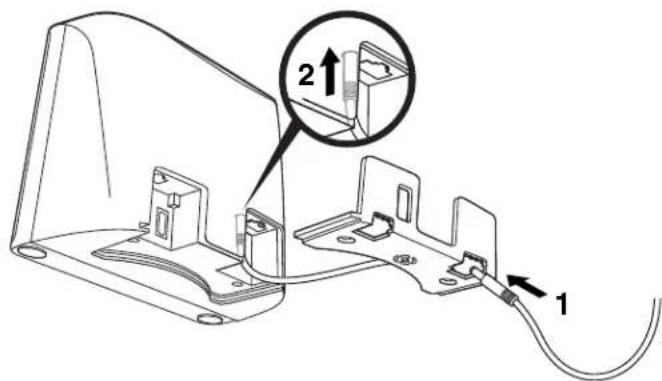
- Remove the back cover and feed the interface cable through to the device.
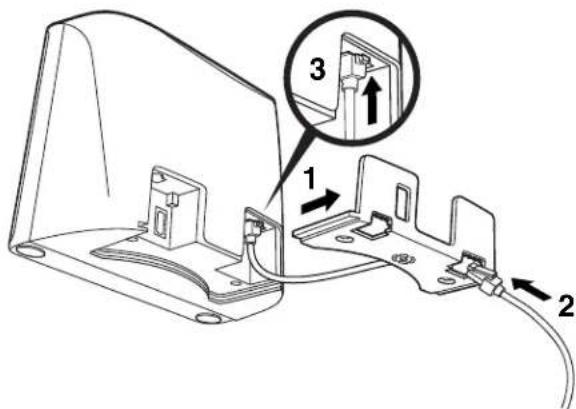
- Slide the back cover on and screw the back cover to the device, and then connect the interface cable to the computer. USB Connection:
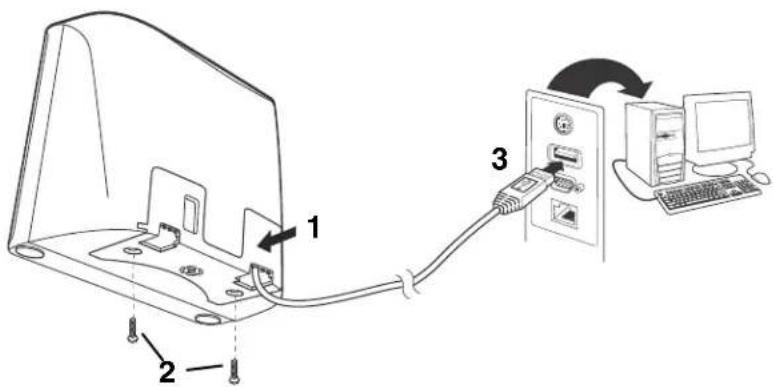
- The scanner beeps.
- Verify the scanner operation by scanning a bar code from the Sample Symbols in the back of this manual.
The unit defaults to a USB PC Keyboard. Refer to page 2-3 for other USB terminal settings.
For additional USB programming and technical information, refer to "USB Application Note," available at the Knowledge Base www.hsm.force.com/publickb.
Connecting with Keyboard Wedge
The scanner can be connected between the keyboard and PC as a "keyboard wedge," where the scanner provides data output that is similar to keyboard entries. The following is an example of a keyboard wedge connection:
- Turn off power and disconnect the keyboard cable from the back of the terminal/computer.
- Remove the back cover and feed the interface cable through to the device.
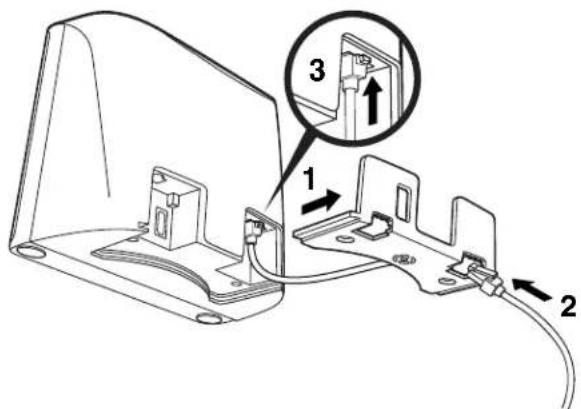
- Feed the power supply cable through the back cover to the device. Make sure the power cable is completely inserted into the device.
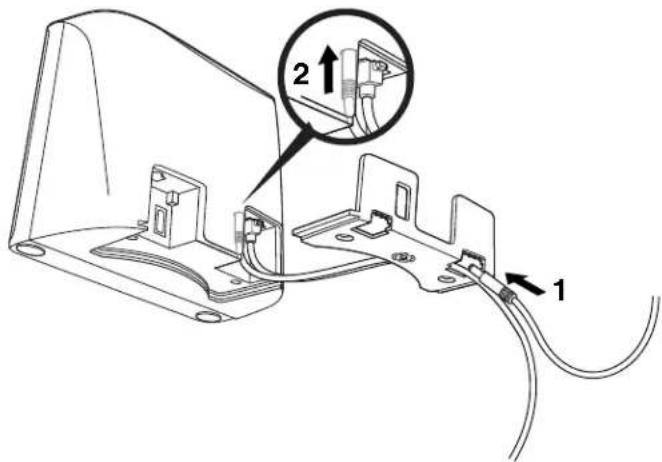
Note: The power supply must be ordered separately.
- Slide the back cover on and screw the back cover to the device. Connect the interface cable to the computer, and then plug the power supply into the outlet.
Keyboard Wedge Connection:
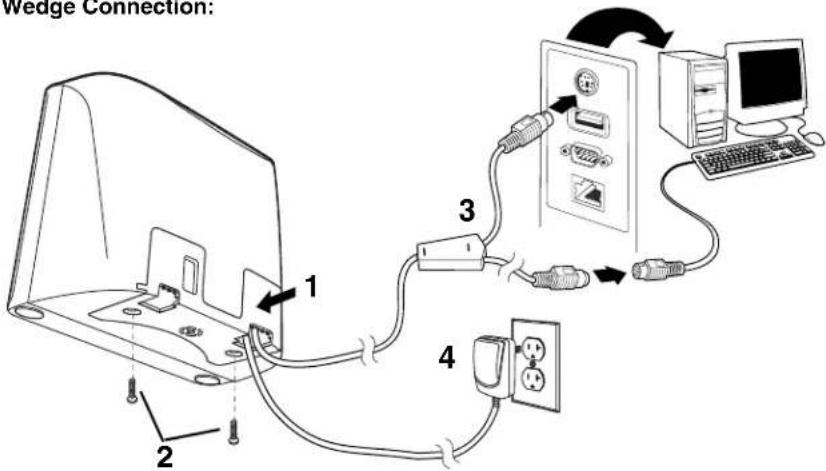
- Turn the terminal/computer power back on. The scanner beeps.
- Verify the scanner operation by scanning a bar code from the Sample Symbols in the back of this manual. The scanner beeps once.
The unit defaults to an IBM PC AT and compatibles keyboard wedge interface with a USA keyboard. A carriage return (CR) suffix is added to bar code data.
Connecting with RS232 Serial Port
- Turn off power to the terminal/computer.
- Remove the back cover and feed the interface cable through to the device.
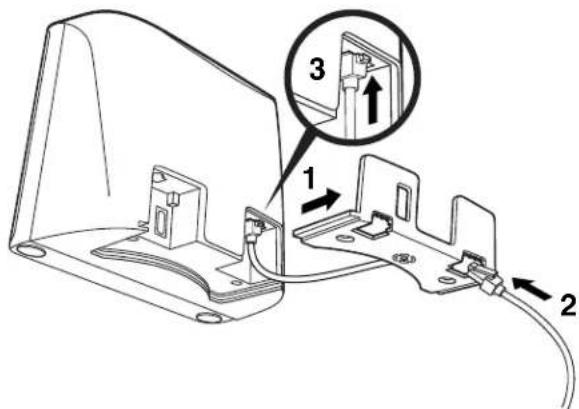
Note: For the scanner to work properly, you must have the correct cable for your type of terminal/computer.
- Feed the power supply cable through the back cover to the device. Make sure the power cable is completely inserted into the device.
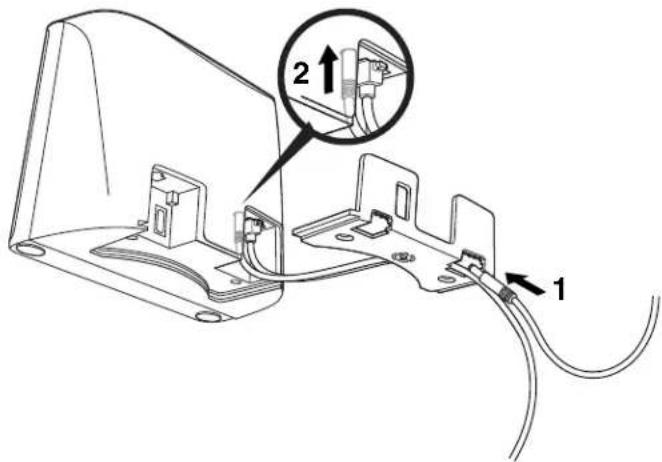
Note: The power supply must be ordered separately.
- Slide the back cover on and screw the back cover to the device. Connect the interface cable to the computer and tighten the two screws to secure the connector to the port. Plug the power supply into the outlet.
RS232 Serial Port Connection:
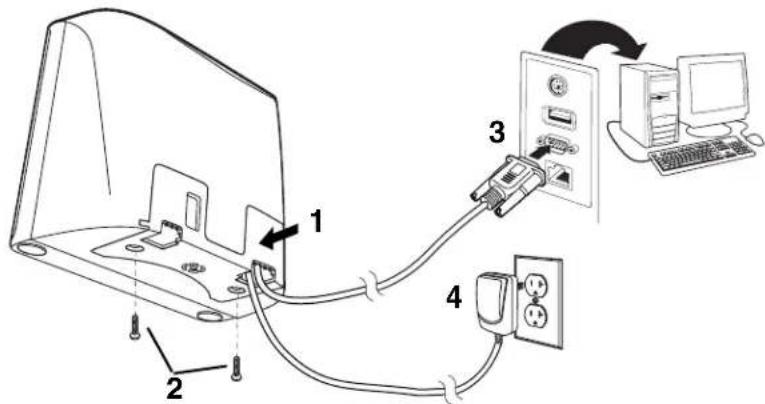
- Once the scanner has been fully connected, power up the computer.
This interface programs 115,200 baud, 8 data bits, no parity, and 1 stop bit.
Connecting with RS485
The scanner can be connected for an IBM POS terminal interface.
- Remove the back cover and feed the interface cable through to the device.
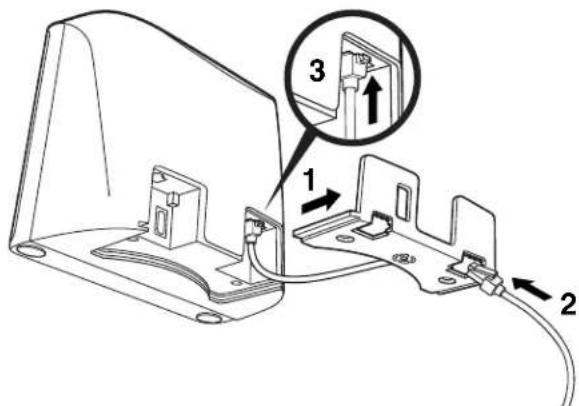
- Slide the back cover on and screw the back cover to the device, and then connect the interface cable to the computer.
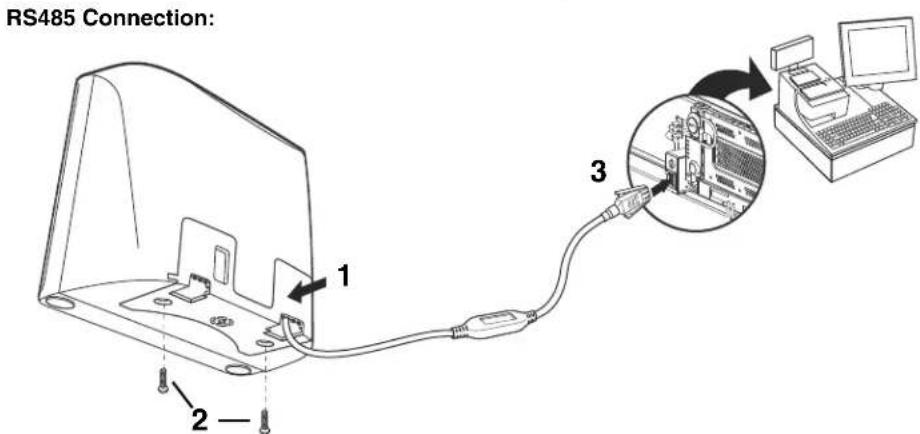
- Turn the terminal/computer power back on. The scanner beeps.
- Verify the scanner operation by scanning a bar code from the Sample Symbols in the back of this manual. The scanner beeps once.
For further RS485 settings, refer to RS485, page 2-2.
Connecting EAS
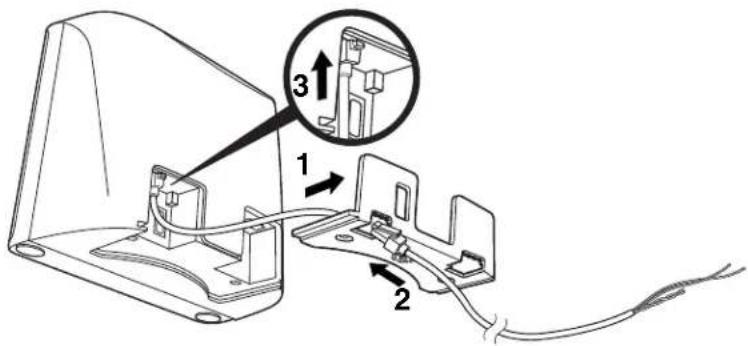
Checkpoint®
When connecting to a Checkpoint EAS system, connect the Checkpoint EAS cable to the EAS port on the left side of the scanner. Refer to EAS Settings beginning on page 7-1 for configuration codes and further EAS programming information.
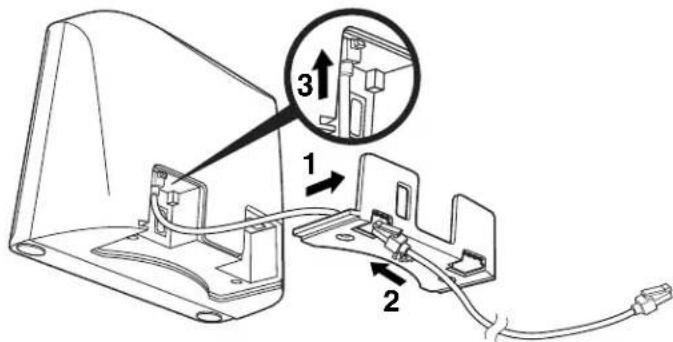
Sensormatic®
When connecting to a Sensormatic EAS system, connect the Sensormatic EAS cable to the EAS port on the left side of the scanner. Contact Tyco for further information about Sensormatic installation and configuration. Refer to EAS Settings beginning on page 7-1 for configuration codes and further EAS programming information.
Connecting Auxiliary Scanner
-
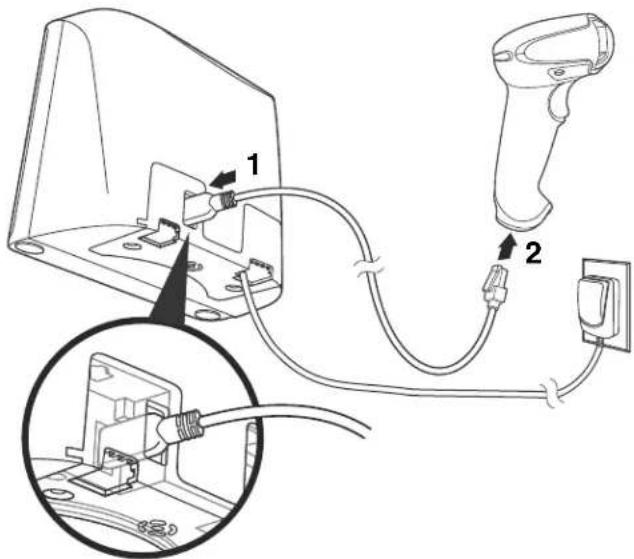
Connect the interface cable. See "Connecting the Device" on page 1-1 for further information.
-
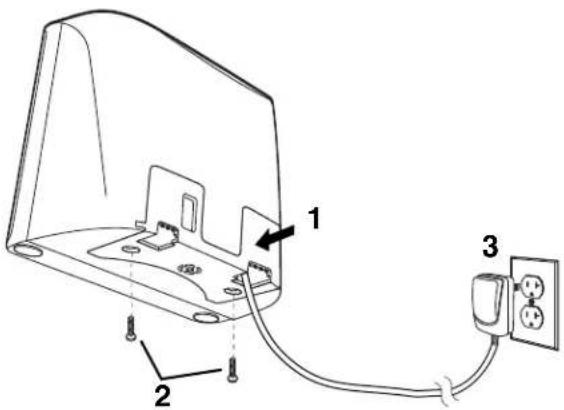
Remove the back cover and feed the power supply cable through to the device. Make sure the power cable is completely inserted into the device.
- Slide the back cover on and screw the back cover to the device. Plug the power supply into the outlet
- Connect the USB cable to the USB port on the left side of the scanner, and then connect the interface cable to the auxiliary scanner.
Button Functionality
There is two buttons on the front of the device. The following is a brief description of the settings for the buttons.
Beeper Volume

Beeper Pitch
Beeper Pitch
Press repeatedly to scroll through the beeper pitch (frequency): low (870Hz), medium (1140Hz), and high (1800Hz).
Beeper Volume
Press repeatedly to scroll through the beeper volumes: high, medium, low, and off.
Reading Techniques
Present the bar code to the scanner. The LEDs turn up to read the code. If the light level in the room is not high enough, the code may not be read.
Menu Bar Code Security Settings
Honeywell scanners are programmed by scanning menu bar codes or by sending serial commands to the scanner. If you want to restrict the ability to scan menu codes, you can use the Menu Bar Code Security settings. Please contact the nearest technical support office (see Technical Assistance on page ix) for further information.
Setting Custom Defaults
You have the ability to create a set of menu commands as your own, custom defaults. To do so, scan the Set Custom Defaults bar code below before scanning the menu commands for your custom defaults. If a menu command requires scanning numeric codes from the back cover, then a Save code, that entire sequence will be saved to your custom defaults. When you have entered all the commands you want to save for your custom defaults, scan the Save Custom Defaults bar code.
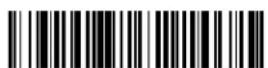
MNUCDP.
Set Custom Defaults
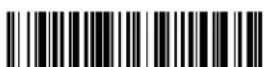
MNUCDS.
Save Custom Defaults
You may have a series of custom settings and want to correct a single setting. To do so, just scan the new setting to overwrite the old one. For example, if you had previously saved the setting for Beeper Volume at Low to your custom defaults, and decide you want the beeper volume set to High, just scan the Set Custom Defaults bar code, then scan the Beeper Volume High menu code, and then Save Custom Defaults. The rest of the custom defaults will remain, but the beeper volume setting will be updated.
Resetting the Custom Defaults
If you want the custom default settings restored to your scanner, scan the Activate Custom Defaults bar code below. This is the recommended default bar code for most users. It resets the scanner to the custom default settings. If there are no custom defaults, it will reset the scanner to the factory default settings. Any settings that have not been specified through the custom defaults will be defaulted to the factory default settings.
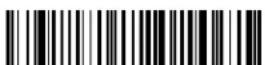
DEFAULT.
Activate Custom Defaults
Introduction
This chapter describes how to program your system for the desired interface.
Programming the Interface - Plug and Play
Plug and Play bar codes provide instant scanner set up for commonly used interfaces.
Note: After you scan one of the codes, power cycle the host terminal to have the interface in effect.
Keyboard Wedge
If you want your system programmed for an IBM PC AT and compatibles keyboard wedge interface with a USA keyboard, scan the bar code below. Keyboard wedge is the default interface.
Note: The following bar code also programs a carriage return (CR) suffix.
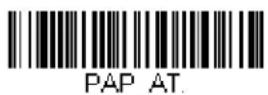
IBM PC AT and Compatibles with CR suffix
Laptop Direct Connect
For most laptops, scanning the Laptop Direct Connect bar code allows operation of the scanner in parallel with the integral keyboard. The following Laptop Direct Connect bar code also programs a carriage return (CR) suffix and turns on Emulate External Keyboard (page 2-15).
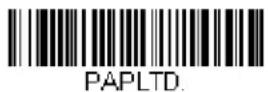
Laptop Direct Connect with CR suffix
RS232 Serial Port
The RS232 Interface bar code is used when connecting to the serial port of a PC or terminal. The following RS232 Interface bar code also programs a carriage return (CR) and a line feed (LF) suffix, baud rate, and data format as indicated below. It also changes the trigger mode to manual.
Option Setting
Baud Rate 115,200 bps
Data Format 8 data bits, no parity bit, 1 stop bit
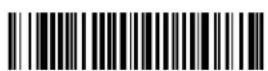
PAP232.
RS232 Interface
RS485
Scan one of the following "Plug and Play" codes to program the scanner for an IBM POS terminal interface.
Note: After scanning one of these codes, you must power cycle the cash register.
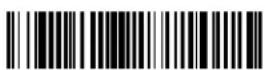
PAPP5B.
IBM Port 5B Interface
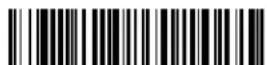
PAP9B1
IBM Port 9B
HHBCR-1 Interface
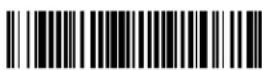
PAPP17
IBM Port 17 Interface
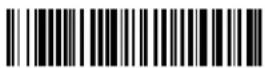
PAP9B2
IBM Port 9B
HHBCR-2 Interface
Each bar code above also programs the following suffixes for each symbology:
| Symbology Suffix Symbology Suffix | ||
| EAN 8 0C Code 39 00 0A 0B | ||
| EAN 13 16 Interleaved 2 of 5 00 0D 0B | ||
| UPC A 0D Code 128 * 00 0A 0B | ||
| UPC E 0A Code 128 ** 00 18 0B | ||
| Aztec | 00 34 0B | |
| PDF417 | 00 2E 0B | |
| Data Matrix 00 32 0B | ||
| QR | 00 33 0B | |
* Suffixes programmed for Code 128 with IBM 4683 Port 5B, IBM 4683 Port 9B HHBCR-1, and IBM 4683 Port 17 Interfaces **Suffixes programmed for Code 128 with IBM 4683 Port 9 HHBCR-2 Interface
RS485 Packet Mode
The following selection allows you to break up large bar code data into smaller packets on an IBM POS terminal. To break up large bar codes into small packets, scan the Packet Mode On bar code below. Scan the Packet Mode Off bar code if you want large bar code data to be sent to the host in a single chunk. Default = Packet Mode Off.
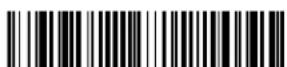
RTLPDFO.
* Packet Mode Off
If you are using Packet mode, you can specify the size of the data "packet" that is sent to the host. Scan the Packet Length bar code, then the packet size (from 20 - 256) from the Programming Chart inside the back cover of this manual, then Save. Default = 40.
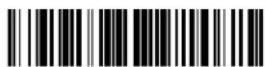
RTLMPS.
Packet Length
USB IBM SurePos
Scan one of the following "Plug and Play" codes to program the scanner for an IBM SurePos (USB handheld scanner) or IBM SurePos (USB tabletop scanner) interface.
Note: After scanning one of these codes, you must power cycle the cash register.
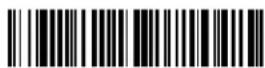
PAPSPH
USB IBM SurePos
(USB Handheld Scanner)
Interface
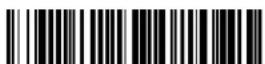
PAPSPT.
USB IBM SurePos
(USB Tabletop Scanner)
Interface
Each bar code above also programs the following suffixes for each symbology:
| Symbology Suffix Symbology Suffix |
| EAN 8 0C Code 39 00 0A 0B |
| EAN 13 16 Interleaved 2 of 5 00 0D 0B |
| UPC A 0D Code 128 00 18 0B |
| UPC E 0A Code 39 00 0A 0B |
USB PC or Macintosh Keyboard
Scan one of the following codes to program the scanner for USB PC Keyboard or USB Macintosh Keyboard. Scanning these codes also adds a CR suffix.
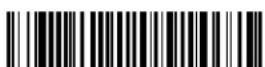
PAP124.
USB Keyboard (PC)
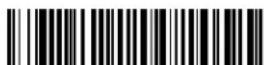
PAP125
USB Keyboard (Mac)
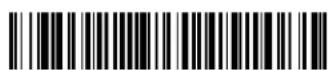
TRMUSB134
USB Japanese Keyboard (PC)
USB HID
Scan the following code to program the scanner for USB HID bar code scanners.
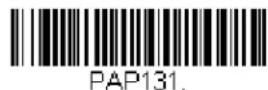
USB HID Bar Code Scanner
USB Serial
Scan the following code to program the scanner to emulate a regular RS232-based COM Port. If you are using a Microsoft® Windows® PC, you will need to download a driver from the Honeywell website (www.honeywellaidc.com). The driver will use the next available COM Port number. Apple® Macintosh computers recognize the scanner as a USB CDC class device and automatically use a class driver.
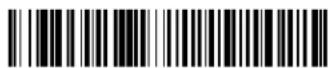
TRMUSB130.
USB Serial
Note: No extra configuration (e.g., baud rate) is necessary.
CTS/RTS Emulation
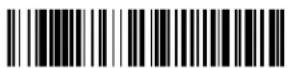
USBCTS1
CTS/RTS Emulation On
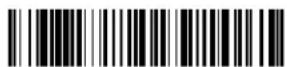
USBCTSO
* CTS/RTS Emulation Off
ACK/NAK Mode
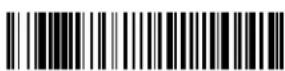
USBACK1.
ACK/NAK Mode On
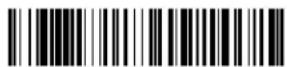
USBACKD
* ACK/NAK Mode Off
Remote MasterMind™ for USB
When using a USB interface, you may wish to configure your scanner to communicate with Remote MasterMind Scanner Management Software (ReM). Scan the ReM On bar code to communicate with ReM. To disable this capability, scan ReM Off. Default = ReM On.
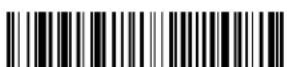
REMIFCO.
ReM Off
Verifone® Ruby Terminal Default Settings
Scan the following Plug and Play code to program the scanner for a Verifone Ruby terminal. This bar code sets the baud rate to 1200 bps and the data format to 8 data bits, no parity bit, 1 stop bit. It also adds a line feed (LF) suffix and programs the following prefixes for each symbology:
Symbology Prefix
| UPC-A A |
| UPC-E A |
| EAN-8 FF |
| EAN-13 F |
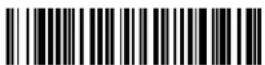
PAPRBY.
Verifone Ruby Settings
Gilbarco ^® Terminal Default Settings
Scan the following Plug and Play code to program the scanner for a Gilbarco terminal. This bar code sets the baud rate to 2400 bps and the data format to 7 data bits, even parity, 2 stop bits. It adds a carriage return (CR) suffix and programs the following prefixes for each symbology:
Symbology Prefix
| UPC-A A |
| UPC-E E0 |
| EAN-8 FF |
| EAN-13 F |
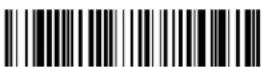
PAPGLB.
Gilbarco Settings
Wincor Nixdorf Terminal Default Settings
Scan the following Plug and Play code to program the scanner for a Wincor Nixdorf terminal. This bar code sets the baud rate to 9600 bps and the data format to 8 data bits, no parity, 1 stop bit.
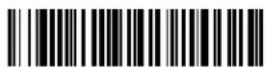
PAPWNX
Wincor Nixdorf Terminal Settings
Wincor Nixdorf Beetle™ Terminal Default Settings
Scan the following Plug and Play code to program the scanner for a Wincor Nixdorf Beetle terminal. The following prefixes are programmed for each symbology:
| Symbology Prefix Symbology Prefix | ||
| Code 128 K EAN-13 A | ||
| Code 93 L GS1-128 P | ||
| Codabar N Interleaved 2 of 5 l | ||
| UPC-A A0 Plessey O | ||
| UPC-E C Straight 2 of 5 IATA H | ||
| EAN-8 B All other bar codes M | ||
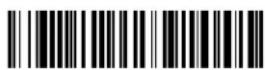
PAPBTL
Wincor Nixdorf Beetle Settings
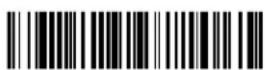
Wincor Nixdorf RS232 Mode A
Scan the following Plug and Play code to program the scanner for a Wincor Nixdorf RS232 Mode A terminal. This bar code sets the baud rate to 9600 bps and the data format to 8 data bits, odd parity, 1 stop bit. The following prefixes are programmed for each symbology:
| Symbology Prefix Symbology Prefix | ||
| Code 128 K EAN-13 A | ||
| Code 93 L GS1-128 K | ||
| Codabar N Interleaved 2 of 5 l | ||
| UPC-A A0 Plessey O | ||
| UPC-E C Straight 2 of 5 IATA H | ||
| EAN-8 | B GS1 Data | Bar E |
| All other bar codes M | ||
PAPWMA.
Wincor Nixdorf RS232 Mode A Settings
Keyboard Country Layout
Scan the appropriate country code below to program the keyboard layout for your country or language. By default, national character replacements are used for the following characters: #@[']^'!~
Keyboard Countries
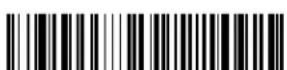
KBDCTYO
* United States
Keyboard Countries (Continued)
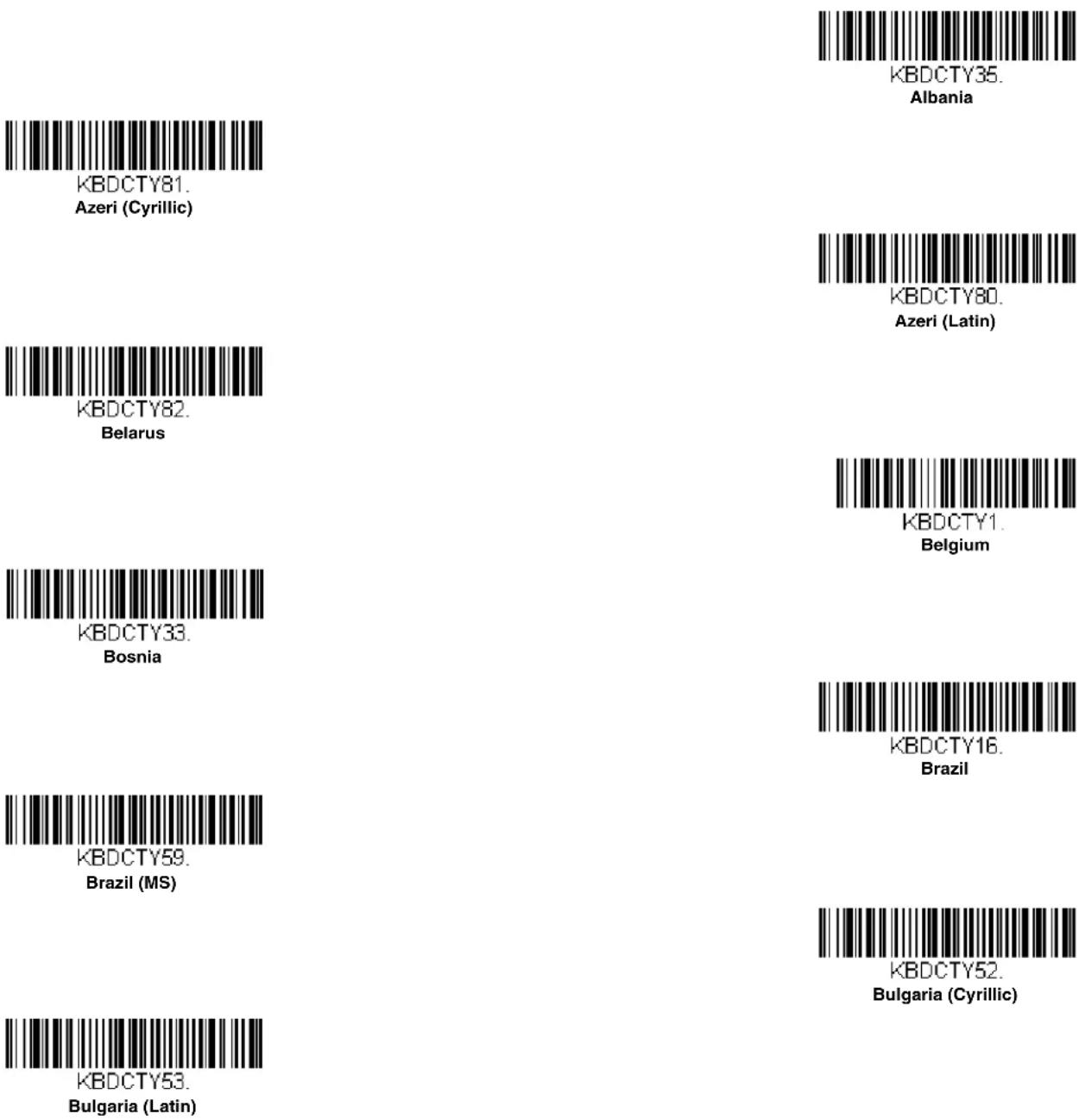
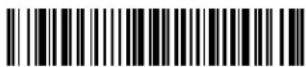
KBDCTY54
Canada (French legacy)
Keyboard Countries (Continued)

KBDCTY18
Canada (French)
KBDCTY55
Canada (Multilingual)
KBDCTY32.
Croatia
KBDCTY15.
Czech

KBDCTY40
Czech (Programmers)
KBDCTY39.
Czech (QWERTY)
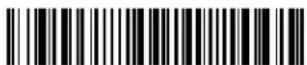
KBDCTY38.
Czech (QWERTZ)

KBDCTY8.
Denmark
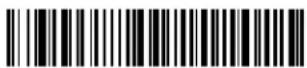
KBDCTY11
Dutch (Netherlands)
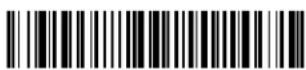
KBDCTY41.
Estonia
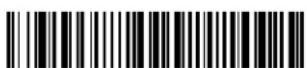
KBDCTY83.
Faroese
Keyboard Countries (Continued)
KBDCTY66.
Greek (MS)
Keyboard Countries (Continued)

KBDCTY60.
Greek (Polytonic)
KBDCTY12.
Hebrew
KBDCTY50.
Hungarian (101 key)
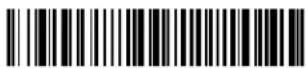
KBDCTY19.
Hungary
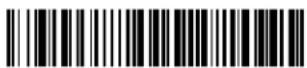
KBDCTY75.
Iceland
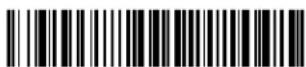
KBDCTY73.
Irish
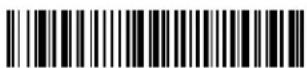
KBDCTY56
Italian (142)
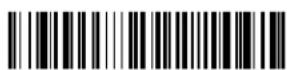
KBDCTY5.
Italy
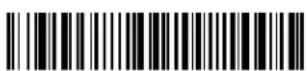
KBDCTY28 Japan ASCII
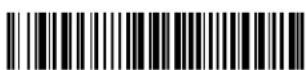
KBDCTY78.
Kazakh
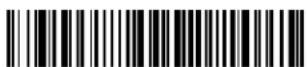
KBDCTY79.
Kyrgyz (Cyrillic)
Keyboard Countries (Continued)
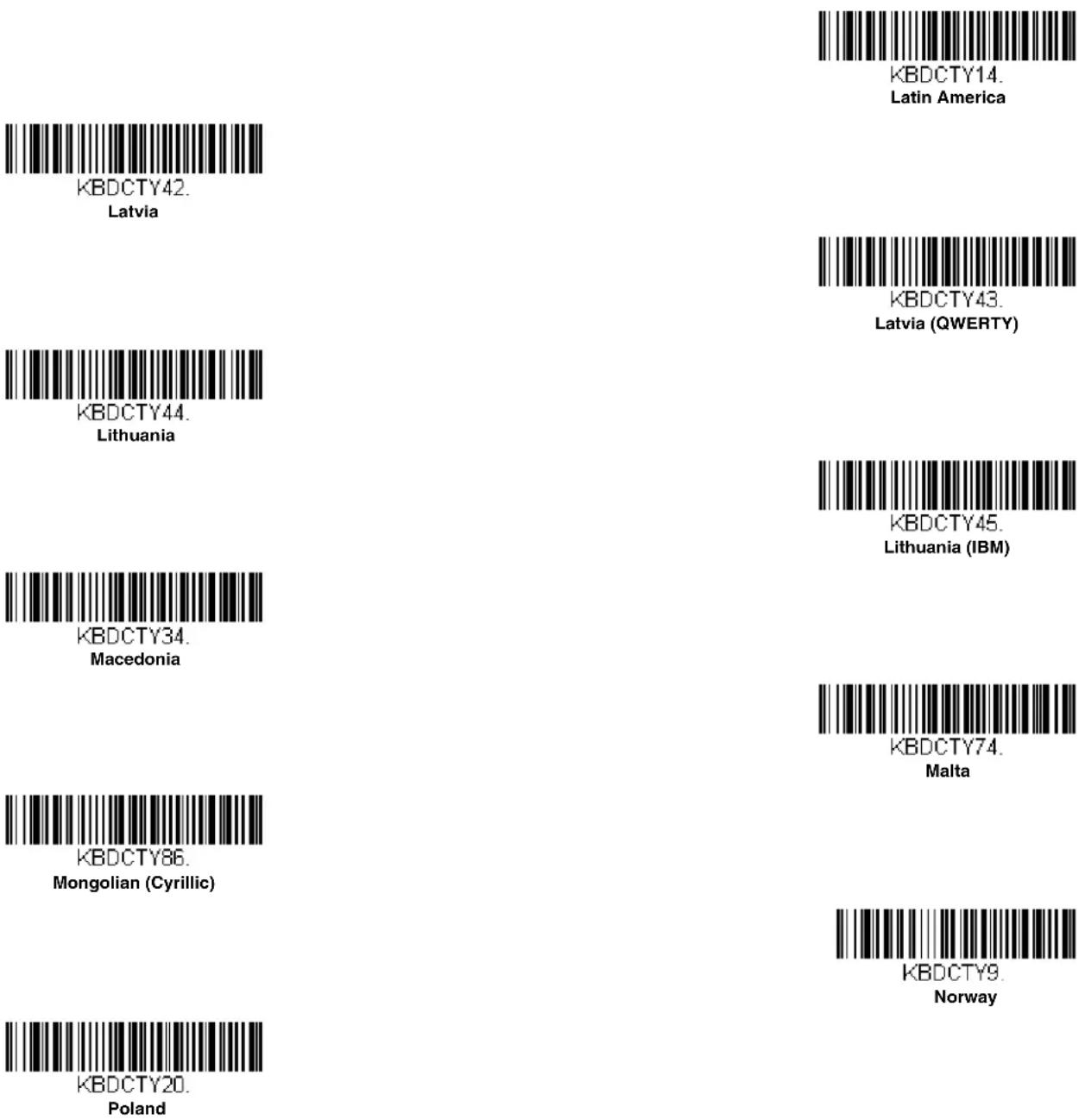
bar
| Country | ID | Frequency | | :--- | :--- | :--- | | Latvia | KBDCTY42. | 0 | | Latvia | KBDCTY43. | 0 | | Latvia | KBDCTY44. | 0 | | Latvia | KBDCTY45. | 0 | | Latvia | KBDCTY34. Macedonia | 0 | | Latvia | KBDCTY74. Malta | 0 | | Mongolia (Cyrillic) | KBDCTY86. | 0 | | Mongolia (Cyrillic) | KBDCTY9. Norway | 0 | | Poland | KBDCTY20. | 0 | KBDCTY14. Latin America
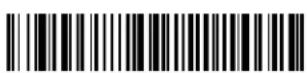
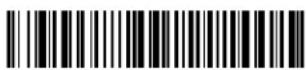
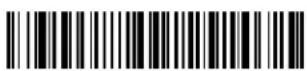
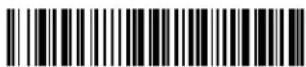

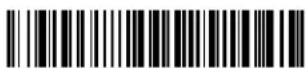
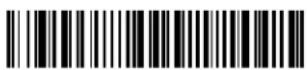
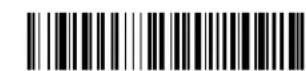
KBDCTY57.
Polish (214)
Keyboard Countries (Continued)

KBDCTY58
Polish (Programmers)
KBDCTY13.
Portugal
KBDCTY25.
Romania
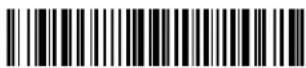
KBDCTY26.
Russia
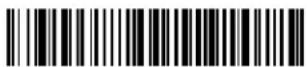
KBDCTY67
Russian (MS)
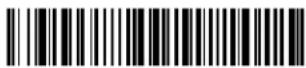
KBDCTY68.
Russian (Typewriter)
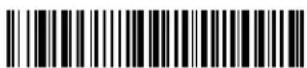
KBDCTY21.
SCS
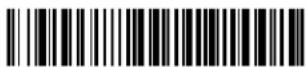
KBDCTY37.
Serbia (Cyrillic)
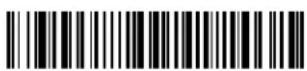
KBDCTY36.
Serbia (Latin)
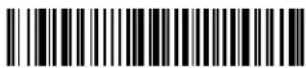
KBDCTY22.
Slovakia
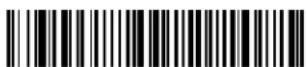
KBDCTY49
Slovakia (QWERTY)
Keyboard Countries (Continued)
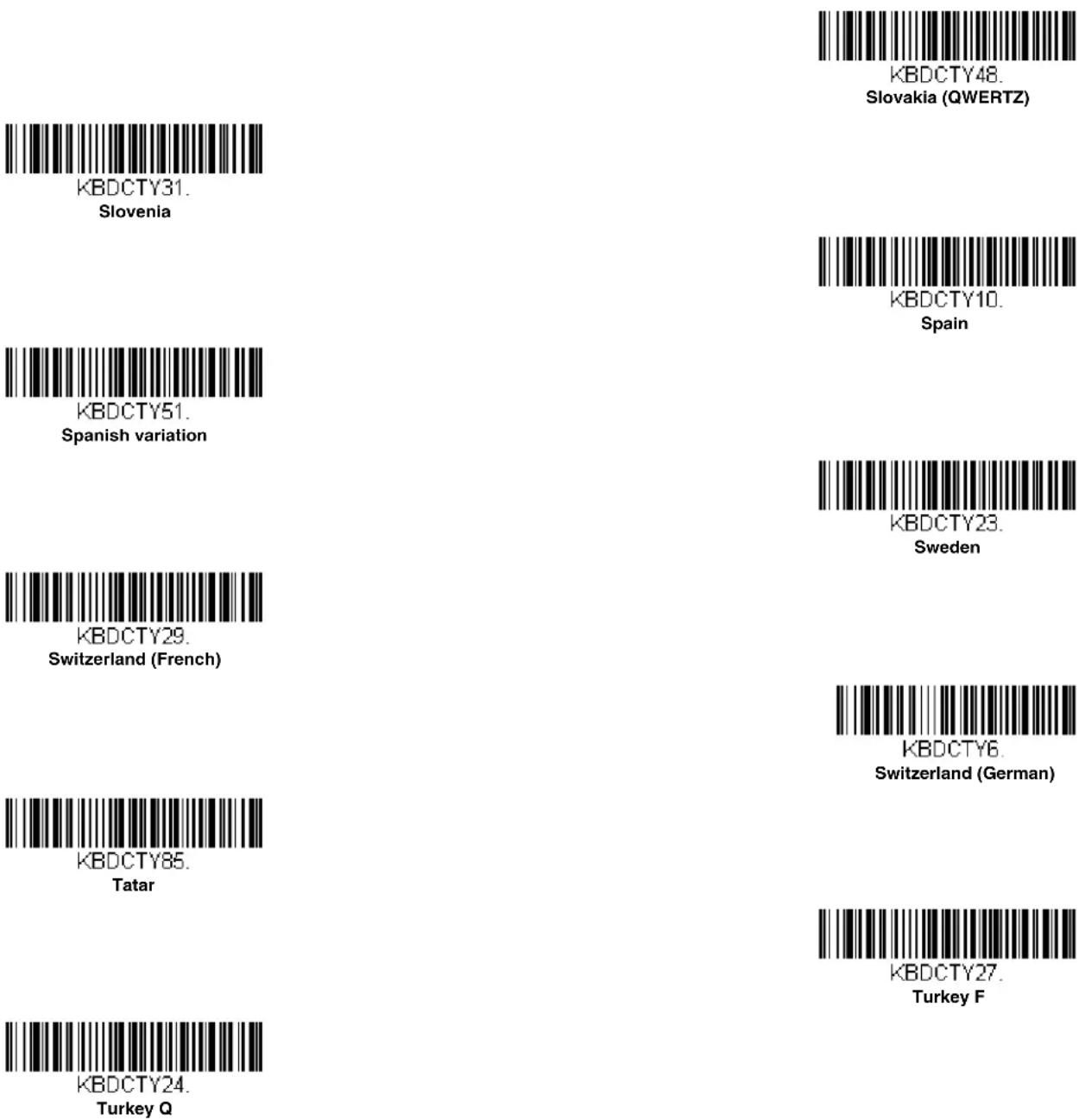
bar
| Item | Country | Frequency | | --- | --- | --- | | KBDCTY31. Slovenia | Slovakia (QWERTZ) | 100 | | KBDCTY10. Spain | | 100 | | KBDCTY51. Spanish variation | | 100 | | KBDCTY23. Sweden | | 100 | | KBDCTY29. Switzerland (French) | | 100 | | KBDCTY6. Switzerland (German) | | 100 | | KBDCTY85. Tatar | | 100 | | KBDCTY27. Turkey F | | 100 | | KBDCTY24. Turkey Q | | 100 |
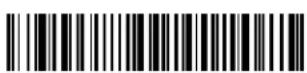
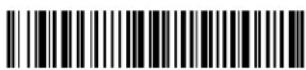
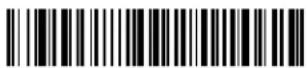
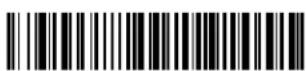
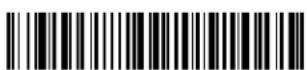

KBDCTY76.
Ukrainian
Keyboard Countries (Continued)

KBDCTY7
United Kingdom
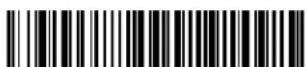
KBDCTY87
United States (Dvorak)
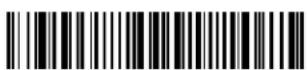
KBDCTY88
United States (Dvorak left)
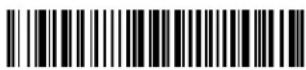
KBDCTY89
United Stated (Dvorak right)
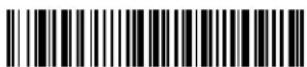
KBDCTY30
United States (International)
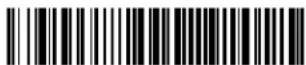
KBDCTY77.
Uzbek (Cyrillic)
Keyboard Style
This programs keyboard styles, such as Caps Lock and Shift Lock. If you have used Keyboard Conversion settings, they will override any of the following Keyboard Style settings. Default = Regular.
Regular is used when you normally have the Caps Lock key off.
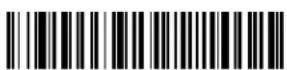
KBDSTYO
* Regular
Caps Lock is used when you normally have the Caps Lock key on.
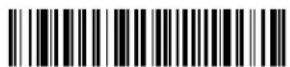
KBDSTY1
Caps Lock
Shift Lock is used when you normally have the Shift Lock key on (not common to U.S. keyboards).
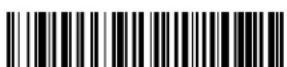
KBDSTY2
Shift Lock
Automatic Caps Lock is used if you change the Caps Lock key on and off. The software tracks and reflects if you have Caps Lock on or off. This selection can only be used with systems that have an LED that notes the Caps Lock status (AT keyboards).
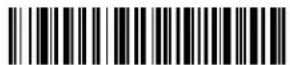
KBDSTY6
Automatic Caps Lock
Autocaps via NumLock bar code should be scanned in countries (e.g., Germany, France) where the Caps Lock key cannot be used to toggle Caps Lock. The NumLock option works similarly to the regular Autocaps, but uses the NumLock key to retrieve the current state of the Caps Lock.
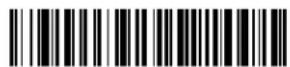
KBDSTY7
Autocaps via NumLock
Emulate External Keyboard should be scanned if you do not have an external keyboard (IBM AT or equivalent).
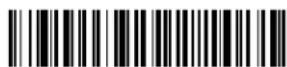
KBDSTY5
Emulate External Keyboard
Note: After scanning the Emulate External Keyboard bar code, you must power cycle your computer.
Keyboard Conversion
Alphabetic keyboard characters can be forced to be all upper case or all lowercase. So if you have the following bar code: "abc569GK," you can make the output "ABC569GK" by scanning Convert All Characters to Upper Case, or to "abc569gk" by scanning Convert All Characters to Lower Case.
These settings override Keyboard Style selections.
Note: If your interface is a keyboard wedge, first scan the menu code for Automatic Caps Lock (page 2-15). Otherwise, your output may not be as expected.
Default = Keyboard Conversion Off.
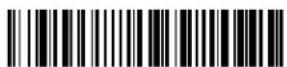
KBDCNVO.
* Keyboard Conversion Off
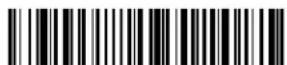
KBDCNV1.
Convert All Characters to Upper Case
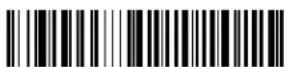
KBDCNV2.
Convert All Characters to Lower Case
Control Character Output
This selection sends a text string instead of a control character. For example, when the control character for a carriage return is expected, the output would display [CR] instead of the ASCII code of 0D. Refer to ASCII Conversion Chart (Code Page 1252) on page A-3. Only codes 00 through 1F are converted (the first column of the chart).
Note: Control + X (Control + ASCII) Mode overrides this mode.
Default = Off.
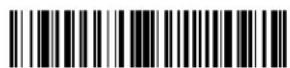
KBDNPE1.
Control Character Output On
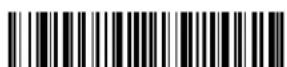
KBDNPEO.
* Control Character Output Off
Keyboard Modifiers
This modifies special keyboard features, such as CTRL+ ASCII codes and Turbo Mode.
Control + X (Control + ASCII) Mode On: The scanner sends key combinations for ASCII control characters for values 00-1F. Windows is the preferred mode. All keyboard country codes are supported. DOS mode is a legacy mode, and it does not support all keyboard country codes. New users should use the Windows mode. Refer to Keyboard Function Relationships, page 10-1 for CTRL+ X Values.
Windows Mode Prefix/Suffix Off: The scanner sends key combinations for ASCII control characters for values 00-1F, but it does not translate prefix or suffix information.
Default = Control + X Mode Off.
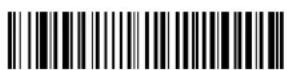
KBDCAS2.
Windows Mode Control + X Mode On
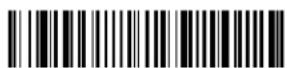
KBDCASO.
* Control + X Mode Off
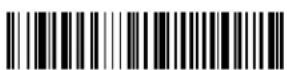
KBDCAS1.
DOS Mode Control + X Mode On

KBDCAS3
Windows Mode Prefix/Suffix Off
Turbo Mode: The scanner sends characters to a terminal faster. If the terminal drops characters, do not use Turbo Mode. Default = Off.
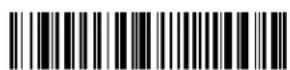
KBDTMD1.
Turbo Mode On
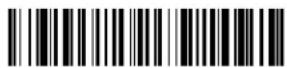
KBDTMDO.
* Turbo Mode Off
Numeric Keypad Mode: Sends numeric characters as if entered from a numeric keypad. Default = Off.
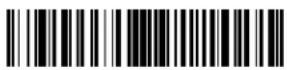
KBDNPS1.
Numeric Keypad Mode On
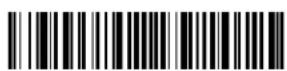
KBDNPSO.
* Numeric Keypad Mode Off
Automatic Direct Connect Mode: This selection can be used if you have an IBM AT style terminal and the system is dropping characters. Default = Off.
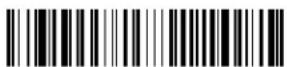
KBDADC1.
Automatic Direct Connect Mode
On
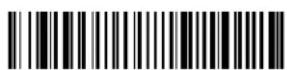
KBDADCO.
* Automatic Direct Connect
Mode Off
RS232 Modifiers
RS232 Baud Rate
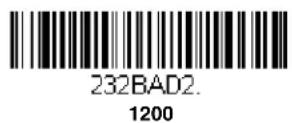
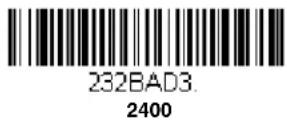
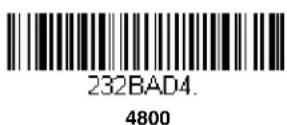
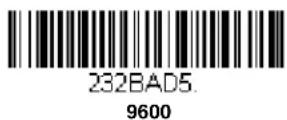
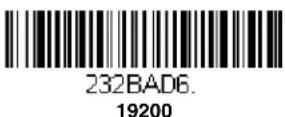
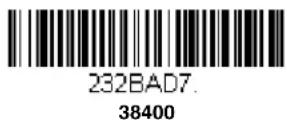
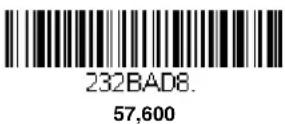
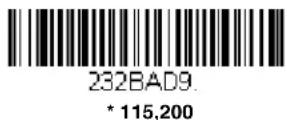
Baud Rate sends the data from the scanner to the terminal at the specified rate. The host terminal must be set for the same baud rate as the scanner. Default = 115,200.

232BAD0
300
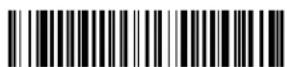
232BAD1
600
RS232 Word Length: Data Bits, Stop Bits, and Parity
Data Bits sets the word length at 7 or 8 bits of data per character. If an application requires only ASCII Hex characters 0 through 7F decimal (text, digits, and punctuation), select 7 data bits. For applications that require use of the full ASCII set, select 8 data bits per character. Default = 8.
Stop Bits sets the stop bits at 1 or 2. Default = 1.
Parity provides a means of checking character bit patterns for validity.
Default = None.
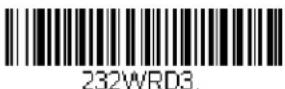
7 Data, 1 Stop, Parity Even
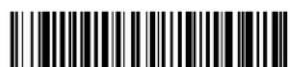
232WRD6
7 Data, 1 Stop, Parity Odd
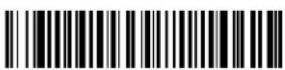
232WRD1
7 Data, 2 Stop Parity None
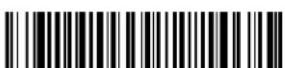
232WRD5
8 Data, 1 Stop, Parity Even
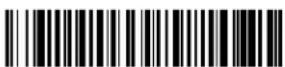
232WRD8
8 Data, 1 Stop, Parity Odd
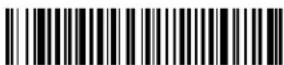
232WRDO
7 Data, 1 Stop, Parity None
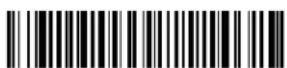
232WRD4
7 Data, 2 Stop, Parity Even
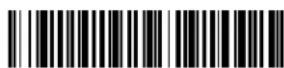
232WRD7
7 Data, 2 Stop, Parity Odd
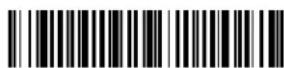
232WRD2
* 8 Data, 1 Stop, Parity None
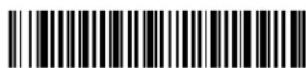
232WRD14
8 Data, 1 Stop, Parity Mark
RS232 Receiver Time-Out
The unit stays awake to receive data until the RS232 Receiver Time-Out expires. A manual or serial trigger resets the time-out. When an RS232 receiver is sleeping, a character may be sent to wake up the receiver and reset the time-out. A transaction on the CTS line will also wake up the receiver. The receiver takes 300 milliseconds to completely come up. Change the RS232 receiver time-out by scanning the bar code below, then scanning digits from the inside back cover of this manual, then scanning Save. The range is 0 to 300 seconds. Default = 0 seconds (no time-out - always on).
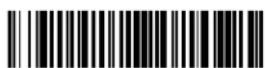
232LPT.
RS232 Receiver Time-Out
RS232 Handshaking
RS232 Handshaking allows control of data transmission from the scanner using software commands from the host device. When RTS/CTS is turned Off, no data flow control is used.
Flow Control, No Timeout: The scanner asserts RTS when it has data to send, and will wait indefinitely for CTS to be asserted by the host.
Two-Direction Flow Control: The scanner asserts RTS when it is OK for the host to transmit. The host asserts CTS when it is OK for the device to transmit.
Flow Control with Timeout: The scanner asserts RTS when it has data to send and waits for a delay (see RS232 Timeout on page 2-20) for CTS to be asserted by the host. If the delay time expires and CTS is not asserted, the device transmit buffer is cleared and scanning may resume.
Default = RTS/CTS Off.
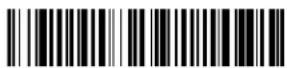
232CTS1
Flow Control, No Timeout
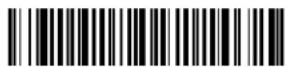
232CTS2
Two-Direction Flow Control
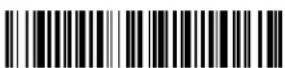
232CTS3
Flow Control with Timeout
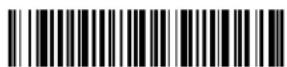
232CTSD
* RTS/CTS Off
RS232 Timeout
When using Flow Control with Timeout, you must program the length of the delay you want to wait for CTS from the host. Set the length (in milliseconds) for a timeout by scanning the bar code below, then setting the timeout (from 1-5100 milliseconds) by scanning digits from the inside back cover, then scanning Save.
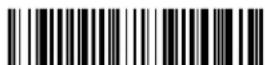
232DEL
RS232 Timeout
XON/XOFF
Standard ASCII control characters can be used to tell the scanner to start sending data (XON/XOFF On) or to stop sending data (XON/XOFF Off). When the host sends the XOFF character (DC3, hex 13) to the scanner, data transmission stops. To resume transmission, the host sends the XON character (DC1, hex 11). Data transmission continues where it left off when XOFF was sent. Default = XON/XOFF Off.
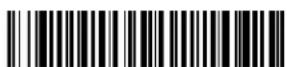
232XON1
XON/XOFF On
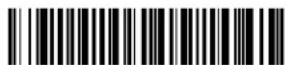
232XONO
* XON/XOFF Off
ACK/NAK
After transmitting data, the scanner waits for an ACK character (hex 06) or a NAK character (hex 15) response from the host. If ACK is received, the communications cycle is completed and the scanner looks for more bar codes. If NAK is received, the last set of bar code data is retransmitted and the scanner waits for ACK/NAK again. Turn on the ACK/NAK protocol by scanning the ACK/NAK On bar code below. To turn off the protocol, scan ACK/NAK Off. Default = ACK/NAK Off.
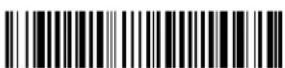
232ACK1
ACK/NAK On
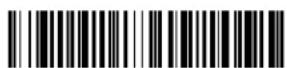
232ACKD
* ACK/NAK Off
Power Up Beeper
The scanner can be programmed to beep when it's powered up. Scan the Off bar code(s) if you don't want a power up beep. Default = Power Up Beeper On.
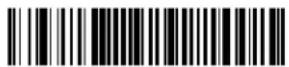
BEPPWRO.
Power Up Beeper Off
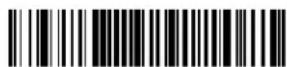
BEPPWR1
* Power Up Beeper On
Beep on BEL Character
You may wish to force the scanner to beep upon a command sent from the host. If you scan the Beep on BEL On bar code below, the scanner will beep every time a BEL character is received from the host. Default = Beep on BEL Off.
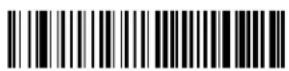
BELBEPO
*Beep on BEL Off
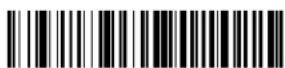
BELBEP1
Beep on BEL On
Good Read and Error Indicators
Beeper – Good Read
The beeper may be programmed On or Off in response to a good read. Turning this option off only turns off the beeper response to a good read indication. All error and menu beeps are still audible. Default = Beeper - Good Read On.
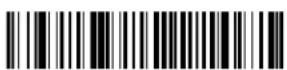
BEPBEPO
Beeper - Good Read Off
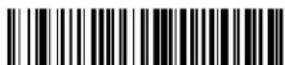
BEPBEP1.
* Beeper - Good Read On
Beeper Volume – Good Read
The beeper volume codes modify the volume of the beep the scanner emits on a good read. Default = High.
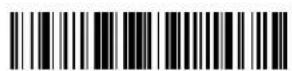
BEPLVL1
Low
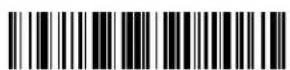
BEPLVL2
Medium
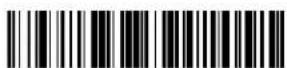
BEPLVL3.
* High
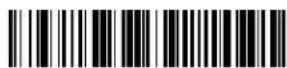
BEPLVLO
Off
Beeper Pitch – Good Read
The beeper pitch codes modify the pitch (frequency) of the beep the scanner emits on a good read. Default = Low.
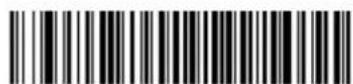
BEPFQ1870.
* Low (870 Hz)
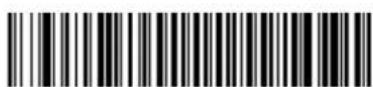
BEPFQ11140.
Medium (1140 Hz)
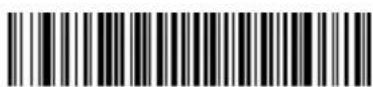
BEPRQ11800.
High (1800 Hz)
Beeper Pitch – Error
The beeper pitch codes modify the pitch (frequency) of the sound the scanner emits when there is a bad read or error. Default = Razz.
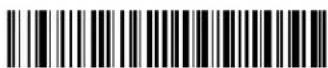
BEPFQ2250
* Razz (250 Hz)

BEPFQ23250.
Medium (3250 Hz)
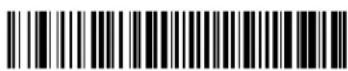
BEPFQ24200
High (4200 Hz)
Beeper Duration – Good Read
The beeper duration codes modify the length of the beep the scanner emits on a good read. Default = Normal.
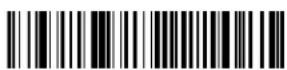
BEPBIPO
* Normal Beep
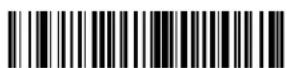
BEPBIP1
Short BeepShort Beep
LED - Good Read
The LED indicator can be programmed On or Off in response to a good read. Default = On.
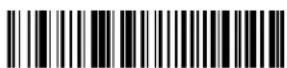
BEPLED1
* LED - Good Read On
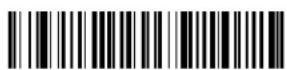
BEPLEDO
LED - Good Read Off
Number of Beeps – Good Read
The number of beeps of a good read can be programmed from 1 - 9. The same number of beeps will be applied to the beeper and LED in response to a good read. For example, if you program this option to have five beeps, there will be five beeps and five LED flashes in response to a good read. The beeps and LED flashes are in sync with one another. To change the number of beeps, scan the bar code below and then scan a digit (1-9) bar code and the Save bar code on the Programming Chart inside the back cover of this manual. Default = 1.
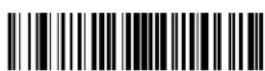
BEPRPT.
Number of Good Read Beeps/LED Flashes
Number of Beeps - Error
The number of beeps and LED flashes emitted by the scanner for a bad read or error can be programmed from 1 - 9. For example, if you program this option to have five error beeps, there will be five error beeps and five LED flashes in response to an error. To change the number of error beeps, scan the bar code below and then scan a digit (1-9) bar code and the Save bar code on the Programming Chart inside the back cover of this manual. Default = 5.
BEPERR
Number of Error Beeps/LED Flashes
Good Read Delay
This sets the minimum amount of time before the scanner can read another bar code. Default = 0 ms (No Delay).
DLYGRDO.
* No Delay
DLYGRD500.
Short Delay (500 ms)

DLYGRD1000.
Medium Delay (1,000 ms)

DLYGRD1500.
Long Delay (1,500 ms)
User-Specified Good Read Delay
If you want to set your own length for the good read delay, scan the bar code below, then set the delay (from 0 - 30,000 milliseconds) by scanning digits from the inside back cover, then scanning Save.
DLYGRD.
User-Specified Good Read Delay
Serial Trigger Mode
You can activate the scanner by using a serial trigger command (see Trigger Commands on page 12-3). When in serial mode, the scanner scans until a bar code has been read or until the deactivate command is sent. The scanner can also be set to turn itself off after a specified time has elapsed (see Read Time-Out, which follows).
Read Time-Out
Use this selection to set a time-out (in milliseconds) of the scanner's trigger when using serial commands to trigger the scanner. Once the scanner has timed out, you can activate the scanner either by pressing the trigger or using a serial trigger command. After scanning the Read Time-Out bar code, set the time-out duration (from 0-300,000 milliseconds) by scanning digits on the Programming Chart inside the back cover, then scanning Save. Default = 30,000 ms.
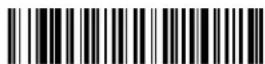
TRGSTO
Read Time-Out
Presentation Mode
Presentation Mode uses ambient light and scanner illumination to detect bar codes. When in Presentation Mode, the LEDs remain dim until a bar code is presented to the scanner, then the LEDs turn up to read the code.
Scan the following bar code to program your device for Presentation Mode. Default = Presentation Mode.
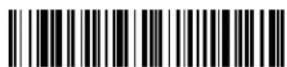
TRGMOD3
* Presentation Mode
Presentation Idle Mode
When Presentation Idle Mode is selected, the scanner goes into idle mode (illumination dims) after the time interval set, during which there is no activity. Change the Presentation Idle mode by scanning the bar code below, and then scanning digits from the Programming Chart inside the back cover of this manual, then scanning Save. The range is 0 to 3000000. The scanner will wake when an object is presented to the window or the pitch or volume button is pressed. Default = 10000 (10s).
When Off is selected, no power saving is used and the scanner remains powered on.
Note: In some conditions the scanner will switch between Presentation Idle Mode and Presentation Sleep Mode according to ambient light level. This allows the scanner to wake up in very dark conditions.
Note: This selection is unavailable when the Illumination Lights or LED Illumination - Presentation Mode are set to off.
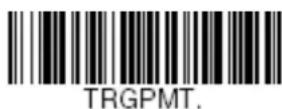
Presentation Idle Mode

TRGPMT0.
Off
Presentation Sleep Mode
When Presentation Sleep Mode On is selected, the scanner goes into sleep mode (illumination is off and the LED will slowly blink on and off) after the time interval set using Presentation Sleep Mode Timeout, during which there is not activity. The scanner will wake when an object is presented to the window or the pitch or volume button is pressed. Default = Presentation Sleep Mode On.
Note: In some conditions the scanner will switch between Presentation Idle Mode and Presentation Sleep Mode according to ambient light level. This allows the scanner to wake up in very dark conditions.
Note: This selection is unavailable when the Illumination Lights or LED Illumination - Presentation Mode are set to off.
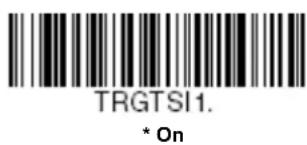
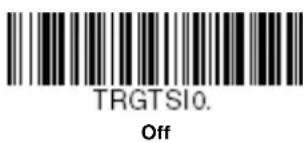
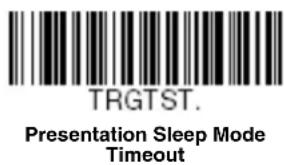
Presentation Sleep Mode Timeout
Use this selection to set a timeout (in seconds) for the scanner when using Presentation Sleep Mode. When this time has elapses with no activity, the scanner will enter the Presentation Sleep Mode timeout selected. After scanning the Presentation Sleep Mode Timeout bar code, set the timeout duration (from 0-3600000) by scanning digits on the Programming Chartt inside the back cover, then scanning Save. Default = 300000 (300s).
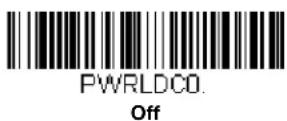
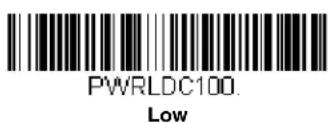
LED Illumination - Presentation Mode
If you wish to set the illumination LED brightness, scan one of the bar codes below. This sets the LED illumination for the scanner when it is in Presentation Mode. (If the scanner is triggered manually, the LED illumination will switch to the setting for a manual trigger. See "Serial Trigger Mode" on page 3-4.) Default = High.
Note: The LEDs are like a flash on a camera. The lower the ambient light in the room, the brighter the LEDs need to be so the scanner can "see" the bar codes.
Note: The LEDs may turn off for a short time when the scanner detects low power.
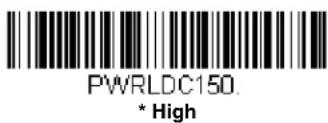
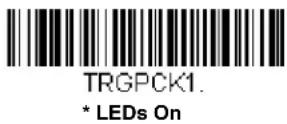
Presentation LED Behavior after Decode
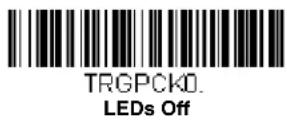
If you wish to dim the LEDs immediately after a bar code is decoded, scan the LEDs Off bar code, below. Default = LEDs On.
Presentation Sensitivity
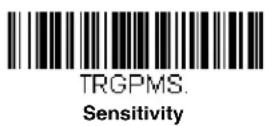
Presentation Sensitivity is a numeric range that increases or decreases the scanner's reaction time to bar code presentation. To set the sensitivity, scan the Sensitivity bar code, then scan the degree of sensitivity (from 0-20) from the inside back cover, and Save. 0 is the most sensitive setting, and 20 is the least sensitive. Default = 1.
Presentation Centering
Use Presentation Centering to narrow the scanner's field of view when it is in Presentation Mode to make sure the scanner reads only those bar codes intended by the user. For instance, if multiple codes are placed closely together, Presentation Centering will insure that only the desired codes are read.
If a bar code is not touched by a predefined window, it will not be decoded or output by the scanner. If Presentation Centering is turned on by scanning Presentation Centering On, the scanner only reads codes that pass through the centering window you specify using the Top of Presentation Centering Window, Bottom of Presentation Centering Window, Left, and Right of Presentation Centering Window bar codes.
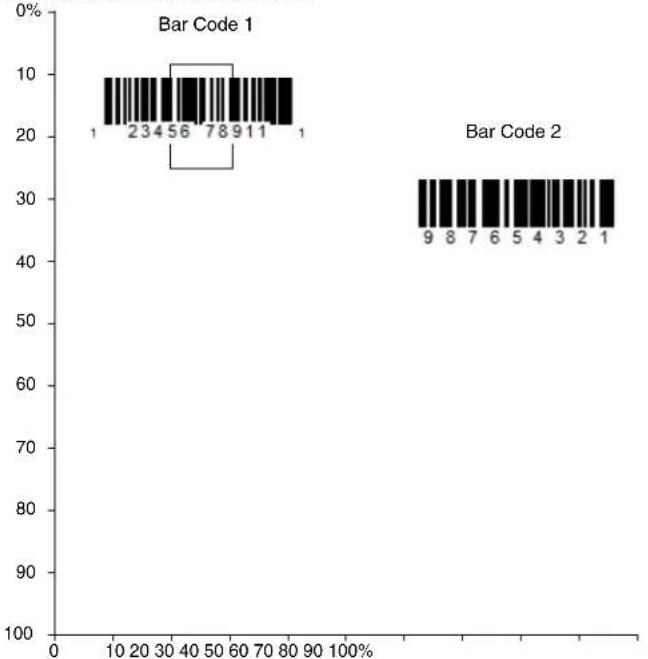
In the example below, the white box is the centering window. The centering window has been set to 20% left, 30% right, 8% top, and 25% bottom. Since Bar Code 1 passes through the centering window, it will be read. Bar Code 2 does not pass through the centering window, so it will not be read.
bar
| Category | Value | |---|---| | Bar Code 1 | 1 | | Bar Code 1 | 23456 | | Bar Code 1 | 78911 | | Bar Code 1 | 1 | | Bar Code 2 | 9 | | Bar Code 2 | 8 | | Bar Code 2 | 7 | | Bar Code 2 | 6 | | Bar Code 2 | 5 | | Bar Code 2 | 4 | | Bar Code 2 | 3 | | Bar Code 2 | 2 | | Bar Code 2 | 1 |Note: A bar code needs only to be touched by the centering window in order to be read. It does not need to pass completely through the centering window.
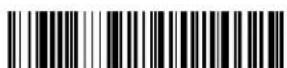
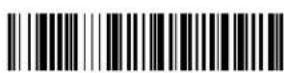
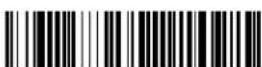
Scan Presentation Centering On, then scan one of the following bar codes to change the top, bottom, left, or right of the centering window. Then scan the percent you want to shift the centering window using digits on the inside back cover of this manual. Scan Save. Default Presentation Centering = 40% for Top and Left, 60% for Bottom and Right.
PDCWIN1
Presentation Centering On
PDCWIND
* Presentation Centering Off
PDCTOP
Top of Presentation Centering Window
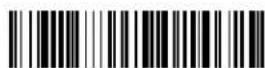
PDCBOT
Bottom of Presentation
Centering Window
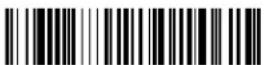
PDCLFT.
Left of
Presentation Centering
Window
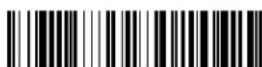
PDCRGT
Right of Presentation Centering Window
Streaming Presentation™ Mode
When in Streaming Presentation mode, the scan illumination remains on all the time to continuously search for bar codes. Two modes are available, Normal and Enhanced. Normal mode offers good scan speed and the longest working ranges (depth of field). Enhanced mode will give you the highest possible scan speed but slightly less range than Normal mode. Enhanced mode is best used when you require a very fast scan speed and don't require a long working range.
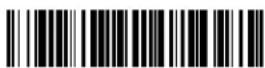
PAPSPN.
Streaming Presentation Mode
- Normal
PAPSPE
Streaming Presentation Mode
- Enhanced
When using Preferred Symbology (page 3-12), a lower priority symbol must be centered on the aiming pattern to be read in Streaming Presentation Mode.
Mobile Phone Read Mode
When this mode is selected, your scanner is optimized to read bar codes from mobile phone or other LED displays. However, the speed of scanning printed bar codes may be slightly lower when this mode is enabled.
PAPPSC
Presentation - Mobile Phone
Poor Quality PDF Codes
This setting improves the scanner's ability to read damaged or badly printed PDF codes by combining information from multiple images. When Poor Quality PDF On is scanned, poor quality PDF code reading is improved, but the scanner's snappiness is decreased, making it less aggressive when reading good quality bar codes. This setting does not affect 1D bar code reading.
Default = Poor Quality PDF Reading Off.
PDFXPR1
Poor Quality PDF Reading On
* Poor Quality PDF Reading Off
Poor Quality Code Enhanced Mode
If you are having a difficulty reading poor quality bar codes, you may wish to scan the Poor Quality Code Enhanced Mode bar code below to improve the read rate.
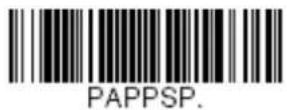
Poor Quality Code Enhanced Mode
Reread Delay
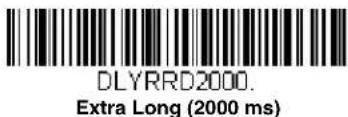
This sets the time period before the scanner can read the same bar code a second time. Setting a reread delay protects against accidental rereads of the same bar code. Longer delays are effective in minimizing accidental rereads. Use shorter delays in applications where repetitive bar code scanning is required. Reread Delay only works when in a Presentation Mode (see page 3-5). Default = Short.
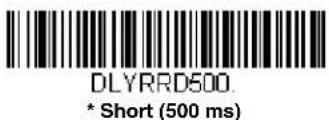
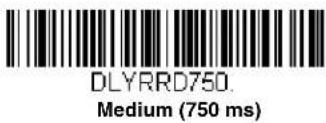
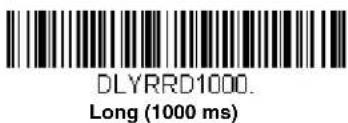
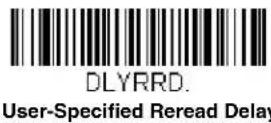
User-Specified Reread Delay
If you want to set your own length for the reread delay, scan the bar code below, then set the delay (from 0-30,000 milliseconds) by scanning digits from the inside back cover, then scanning Save.
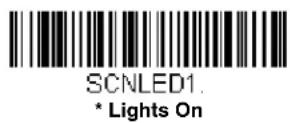
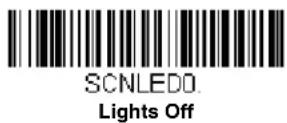
Illumination Lights
If you want the illumination lights on while reading a bar code, scan the Lights On bar code, below. However, if you want to turn just the lights off, scan the Lights Off bar code. Default = Lights On.
Centering
Use Centering to narrow the scanner's field of view to make sure that when the scanner is hand-held, it reads only those bar codes intended by the user. For instance, if multiple codes are placed closely together, centering will insure that only the desired codes are read. (Centering can be used in conjunction with Centering, page 3-11, for the most error-free operation in applications where multiple codes are spaced closely together.)
Note: To adjust centering when the scanner is in Presentation Mode, see Presentation Centering (page 3-7).
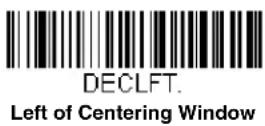
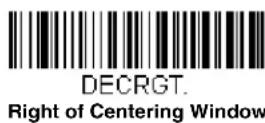
If a bar code is not touched by a predefined window, it will not be decoded or output by the scanner. If centering is turned on by scanning Centering On, the scanner only reads codes that pass through the centering window you specify using the Top of Centering Window, Bottom of Centering Window, Left, and Right of Centering Window bar codes.
In the example below, the white box is the centering window. The centering window has been set to 20% left, 30% right, 8% top, and 25% bottom. Since Bar Code 1 passes through the centering window, it will be read. Bar Code 2 does not pass through the centering window, so it will not be read.
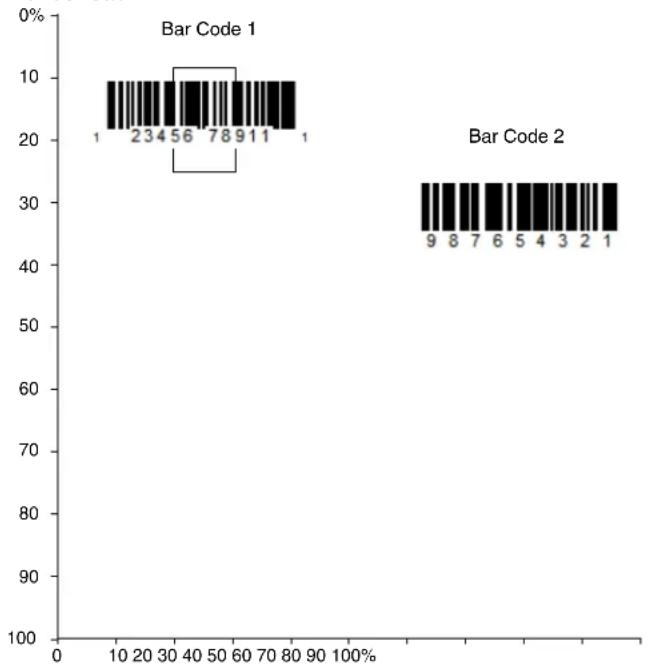
bar
| Bar Code | Value (%) | | :--- | :--- | | 1 | 9 | | 2 | 9 | | 3 | 9 | | 4 | 9 | | 5 | 9 | | 6 | 9 | | 7 | 9 | | 8 | 9 | | 9 | 30 | | 10 | 30 | | 11 | 30 | | 12 | 30 | | 13 | 30 | | 14 | 30 | | 15 | 30 | | 16 | 30 | | 17 | 30 | | 18 | 30 | | 19 | 30 | | 20 | 30 | | 21 | 30 | | 22 | 30 | | 23 | 30 | | 24 | 30 | | 25 | 30 | | 26 | 30 | | 27 | 30 | | 28 | 30 | | 29 | 30 | | 30 | 30 | | 31 | 30 | | 32 | 30 | | 33 | 30 | | 34 | 30 | | 35 | 30 | | 36 | 30 | | 37 | 30 | | 38 | 30 | | 39 | 30 | | 40 | 30 | | 41 | 30 | | 42 | 30 | | 43 | 30 | | 44 | 30 | | 45 | 30 | | 46 | 30 | | 47 | 30 | | 48 | 30 | | 49 | 30 | | 50 | 30 | | 51 | 30 | | 52 | 30 | | 53 | 30 | | 54 | 30 | | 55 | 30 | | 56 | 15 | | 57 | 15 | | 58 | 15 | | 59 | 15 | | 60 | 15 | | 61 | 15 | | 62 | 15 | | 63 | 15 | | 64 | 15 | | 65 | 15 | | 66 | 15 | | 67 | 15 | | 68 | 15 | | 69 | 15 | | 70 | 15 | | 71 | 15 | | 72 | 15 | | 73 | 15 | | 74 | 15 | | 75 | 15 | | 76 | 15 | | 77 | 15 | | 78 | 15 | | Note: The percentages in the 'Value' column are estimated based on the 'Label' label in the 'Bar Code' legend. The 'Label' values are not explicitly labeled in the 'Bar Code' list. There is only one bar labeled 'Bar Code' in the 'Bar Code' list. The 'Label' values are not explicitly labeled in the 'Bar Code' list. The 'Label' value is also labeled 'Bar Code' in the 'Bar Code' list. The 'Label' value is also labeled 'Bar Code' in the 'Bar Code' list. The 'Label' value is also labeled 'Bar Code' in the 'Bar Code' list. The 'Label' value is also labeled 'Bar Code' in the 'Bar Code' list. The 'Label' value is also labeled 'Bar Code' in the 'Bar Code' list. The 'Label' value is also labeled 'Bar Code', but it is not explicitly labeled in the 'Label' list. The 'Label' value is also labeled 'Bar Code' in the 'Label' list. The 'Label' value is also labeled 'Bar Code' in the 'Label' list. The 'Label' value is also labeled 'Bar Code' in the 'Label' list. The 'Label' value is also labeled 'Bar Code' in the 'Label' list. The 'Label' value is also labeled 'Bar Code' in the 'Label' list. The 'Label' value is also labeled 'Bar Code' in the 'Label's Bar Code'.Note: A bar code needs only to be touched by the centering window in order to be read. It does not need to pass completely through the centering window.
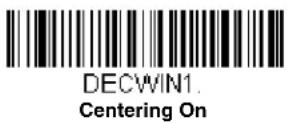
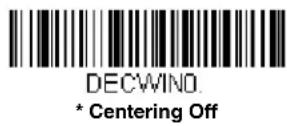
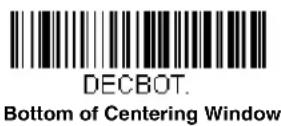
Scan Centering On, then scan one of the following bar codes to change the top, bottom, left, or right of the centering window. Then scan the percent you want to shift the centering window using digits on the inside back cover of this manual. Scan Save. Default Centering = 40% for Top and Left, 60% for Bottom and Right.

Preferred Symbology
The scanner can be programmed to specify one symbology as a higher priority over other symbologies in situations where both bar code symbologies appear on the same label, but the lower priority symbology cannot be disabled.
For example, you may be using the scanner in a retail setting to read U.P.C. symbols, but have occasional need to read a code on a drivers license. Since some licenses have a Code 39 symbol as well as the PDF417 symbol, you can use Preferred Symbolology to specify that the PDF417 symbol be read instead of the Code 39.
Preferred Symbology classifies each symbology as high priority, low priority, or as an unspecified type. When a low priority symbology is presented, the scanner ignores it for a set period of time (see Preferred Symbology Time-out on page 3-13) while it searches for the high priority symbology. If a high priority symbology is located during this period, then that data is read immediately.
If the time-out period expires before a high priority symbology is read, the scanner will read any bar code in its view (low priority or unspecified). If there is no bar code in the scanner's view after the time-out period expires, then no data is reported.
Note: A low priority symbol must be centered on the aiming pattern to be read.
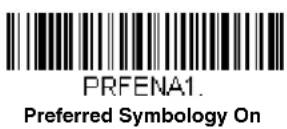
Scan a bar code below to enable or disable Preferred Symbology. Default = Preferred Symbology Off.
High Priority Symbology
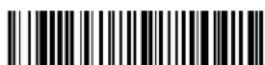
To specify the high priority symbology, scan the High Priority Symbology bar code below. On the Symbology Charts on page A-1, find the symbology you want to set as high priority. Locate the Hex value for that symbology and scan the 2 digit hex value from the Programming Chart (inside back cover). Scan Save to save your selection. Default = None
PRFCOD
High Priority Symbology
Low Priority Symbology
To specify the low priority symbology, scan the Low Priority Symbology bar code below. On the Symbology Charts on page A-1, find the symbology you want to set as low priority. Locate the Hex value for that symbology and scan the 2 digit hex value from the Programming Chart (inside back cover).
If you want to set additional low priority symbologies, scan FF, then scan the 2 digit hex value from the Programming Chart for the next symbology. You can program up to 5 low priority symbologies. Scan Save to save your selection. Default = None
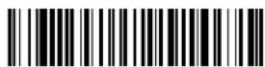
PRFBLK
Low Priority Symbology
Preferred Symbology Time-out
Once you have enabled Preferred Symbology and entered the high and low priority symbologies, you must set the time-out period. This is the period of time the scanner will search for a high priority bar code after a low priority bar code has been encountered. Scan the bar code below, then set the delay (from 1-3,000 milliseconds) by scanning digits from the inside back cover, then scanning Save. Default = 500 ms.
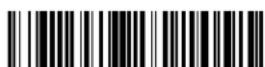
PRFPTO.
Preferred Symbology Time-out
Preferred Symbology Default
Scan the bar code below to set all Preferred Symbology entries to their default values.
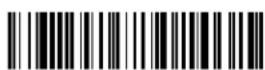
PRFDFT
Preferred Symbology Default
Character Activation Mode
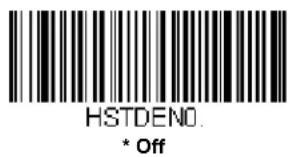
You may use a character sent from the host to trigger the scanner to begin scanning. When the activation character is received, the scanner continues scanning until either the Character Activation Laser Timeout (page 3-15), the deactivation character is received (see Deactivation Character on page 3-15), or a bar code is transmitted. Scan the following On bar code to use character activation, then use Activation Character (following) to select the character you will send from the host to start scanning. Default = Off.
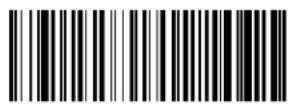
HSTCENO
* Off
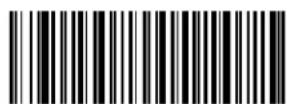
HSTCEN1.
On
Activation Character
This sets the character used to trigger scanning when using Character Activation Mode. On the ASCII Conversion Chart (Code Page 1252), page A-3, find the hex value that represents the character you want to use to trigger scanning. Scan the following bar code, then use the Programming Chart to read the alphanumeric combination that represents that ASCII character. Scan Save to finish.
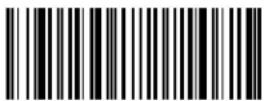
HSTACH
Activation Character
End Character Activation After Good Read
After a bar code is successfully detected and read from the scanner, the laser can be programmed either to remain on and scanning, or to turn off. When End Character Activation After Good Read is enabled, the laser turns off and stops scanning after a good read. If you scan Do Not End Character Activation After Good Read, the laser remains on after a good read. Default = End Character Activation After Good Read.
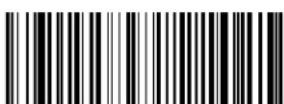
HSTCGDO
Do Not End Character Activation
After Good Read
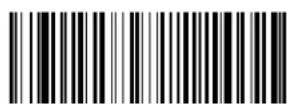
HSTCGD1
* End Character Activation After
Good Read
Character Activation Laser Timeout
You can set a timeout for the length of time the laser remains on and attempting to decode bar codes when using Character Activation Mode. Set the length (in milliseconds) for a timeout by scanning the following bar code, then setting the timeout (from 1-65535 milliseconds) by scanning digits from the Programming Chart inside the back cover of this manual, then scanning Save. Default = 5000 ms.
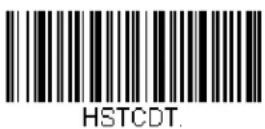
Character Activation Laser
Timeout
Character Deactivation Mode
If you have sent a character from the host to trigger the scanner to begin scanning, you can also send a deactivation character to stop scanning. Scan the following On bar code to use character deactivation, then use Deactivation Character (following) to select the character you will send from the host to terminate scanning. Default = Off.
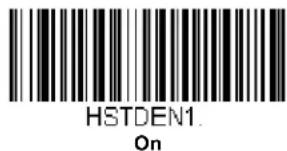
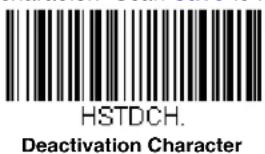
Deactivation Character
This sets the character used to terminate scanning when using Character Deactivation Mode. On the ASCII Conversion Chart (Code Page 1252), page A-3, find the hex value that represents the character you want to use to terminate scanning. Scan the following bar code, then use the Programming Chart inside the back cover of this manual to read the alphanumeric combination that represents that ASCII character. Scan Save to finish.
Output Sequence Overview
Require Output Sequence
When turned off, the bar code data will be output to the host as the scanner decodes it. When turned on, all output data must conform to an edited sequence or the scanner will not transmit the output data to the host device.
Note: This selection is unavailable when the Multiple Symbols Selection is turned on.
Output Sequence Editor
This programming selection allows you to program the scanner to output data (when scanning more than one symbol) in whatever order your application requires, regardless of the order in which the bar codes are scanned. Reading the Default Sequence symbol programs the scanner to the Universal values, shown below. These are the defaults. Be certain you want to delete or clear all formats before you read the Default Sequence symbol.
Note: To make Output Sequence Editor selections, you'll need to know the code I.D., code length, and character match(es) your application requires. Use the Alphanumeric symbols (inside back cover) to read these options.
To Add an Output Sequence
- Scan the Enter Sequence symbol (see Require Output Sequence, page 3-18).
- Code I.D.
On the Symbology Charts on page A-1, find the symbology to which you want to apply the output sequence format. Locate the Hex value for that symbology and scan the 2 digit hex value from the Programming Chart (inside back cover).
- Length
Specify what length (up to 9999 characters) of data output will be acceptable for this symbology. Scan the four digit data length from the Programming Chart. (Note: 50 characters is entered as 0050. 9999 is a universal number, indicating all lengths.) When calculating the length, you must count any programmed prefixes, suffixes, or formatted characters as part of the length (unless using 9999).
- Character Match Sequences
On the ASCII Conversion Chart (Code Page 1252), page A-3, find the Hex value that represents the character(s) you want to match. Use the Programming Chart to read the alphanumeric combination that represents the ASCII characters. (99 is the Universal number, indicating all characters.)
- End Output Sequence Editor
Scan F F to enter an Output Sequence for an additional symbology, or Save to save your entries.
Other Programming Selections
- Discard
This exits without saving any Output Sequence changes.
Output Sequence Example
In this example, you are scanning Code 93, Code 128, and Code 39 bar codes, but you want the scanner to output Code 39 1st, Code 128 2nd, and Code 93 3rd, as shown below.
Note: Code 93 must be enabled to use this example.
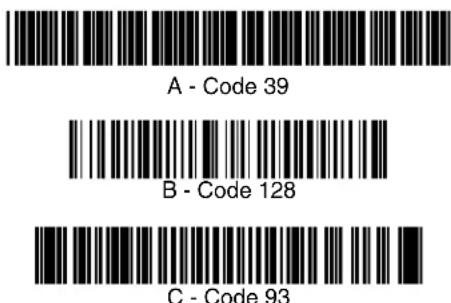
You would set up the sequence editor with the following command line:
SEQBLK62999941FF6A999942FF69999943FF
The breakdown of the command line is shown below:
SEQBLKsequence editor start command
62 code identifier for Code 39
9999 code length that must match for Code 39, 9999 = all lengths
41 start character match for Code 39, 41h = "A"
FF termination string for first code
6A code identifier for Code 128
9999 code length that must match for Code 128, 9999 = all lengths
42 start character match for Code 128, 42h = "B"
FF termination string for second code
69 code identifier for Code 93
9999 code length that must match for Code 93, 9999 = all lengths
43 start character match for Code 93, 43h = "C"
FF termination string for third code
To program the previous example using specific lengths, you would have to count any programmed prefixes, suffixes, or formatted characters as part of the length. If you use the example on page 3-16, but assume a
SEQBLK62001241FF6A001342FF69001243FF
The breakdown of the command line is shown below:
SEQBLKsequence editor start command
62 code identifier for Code 39
0012 A - Code 39 sample length (11) plus CR suffix (1) = 12
41 start character match for Code 39, 41h = "A"
FF termination string for first code
6A code identifier for Code 128
0013 B - Code 128 sample length (12) plus CR suffix (1) = 13
42 start character match for Code 128, 42h = "B"
FF termination string for second code
69 code identifier for Code 93
0012 C - Code 93 sample length (11) plus CR suffix (1) = 12
43 start character match for Code 93, 43h = "C"
FF termination string for third code
Output Sequence Editor
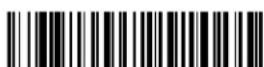
SEQBLK.
Enter Sequence
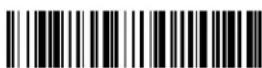
SEQDFT
Default Sequence
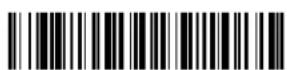
Partial Sequence
If an output sequence operation is terminated before all your output sequence criteria are met, the bar code data acquired to that point is a “partial sequence.”
Scan Discard Partial Sequence to discard partial sequences when the output sequence operation is terminated before completion. Scan Transmit Partial Sequence to transmit partial sequences. (Any fields in the sequence where no data match occurred will be skipped in the output.)
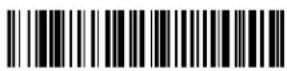
SEQTTS1
Transmit Partial Sequence
SEQTTSD
* Discard Partial Sequence
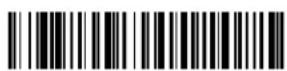
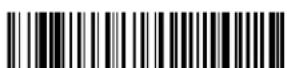
Require Output Sequence
When an output sequence is Required, all output data must conform to an edited sequence or the scanner will not transmit the output data to the host device. When it's On/Not Required, the scanner will attempt to get the output data to conform to an edited sequence but, if it cannot, the scanner transmits all output data to the host device as is.
When the output sequence is Off, the bar code data is output to the host as the scanner decodes it. Default = Off.
Note: This selection is unavailable when the Multiple Symbols Selection is turned on.

SEQ EN2.
Required
SEQ_EN1
On/Not Required
SEQ ENO.
*Off
No Read
With No Read turned On, the scanner notifies you if a code cannot be read. If using an EZConfig-Scanning Tool Scan Data Window (see page 11-3), an "NR" appears when a code cannot be read. If No Read is turned Off, the "NR" will not appear. Default = Off.
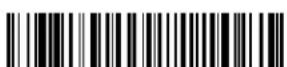
SHWNRD1.
On
SHWNRDO.
* Off
If you want a different notation than "NR," for example, "Error," or "Bad Code," you can edit the output message (see Data Formatting beginning on page 5-1). The hex code for the No Read symbol is 9C.
Video Reverse
Video Reverse is used to allow the scanner to read bar codes that are inverted. The Video Reverse Off bar code below is an example of this type of bar code. Scan Video Reverse Only to read only inverted bar codes. Scan Video Reverse and Standard Bar Codes to read both types of codes.
Note: After scanning Video Reverse Only, menu bar codes cannot be read. You must scan Video Reverse Off or Video Reverse and Standard Bar Codes in order to read menu bar codes.
Note: Images downloaded from the unit are not reversed. This is a setting for decoding only.
VIDREV1.
Video Reverse Only
VIDREV2
Video Reverse and Standard Bar Codes
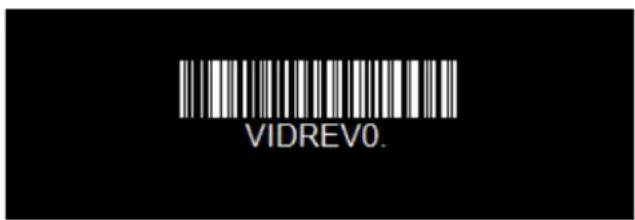
* Video Reverse Off
Working Orientation
Some bar codes are direction-sensitive. For example, KIX codes and OCR can misread when scanned sideways or upside down. Use the working orientation settings if your direction-sensitive codes will not usually be presented upright to the scanner. Default = Upright.
Upright:
-
-
-
-
-
-
-
- 1.
-
-
-
-
-
-
Upside Down:
Vertical, Top to Bottom: (Rotate CW 90°)
Vertical, Bottom to Top: (Rotate CCW 90°)
1.1111111111111111
[Non-Text]
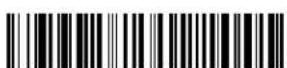
ROTATNO.
* Upright
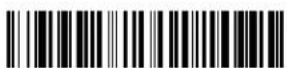
ROTATN2
Upside Down
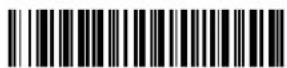
ROTATN1
Vertical, Bottom to Top
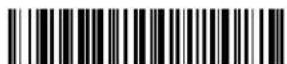
ROTATN3
Vertical, Top to Bottom
Prefix/Suffix Overview
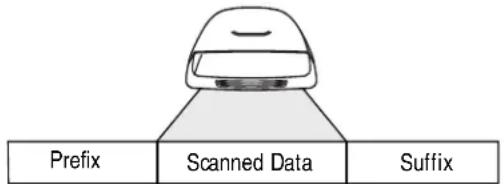
When a bar code is scanned, additional information is sent to the host computer along with the bar code data. This group of bar code data and additional, user-defined data is called a "message string." The selections in this section are used to build the user-defined data into the message string.
Prefix and Suffix characters are data characters that can be sent before and after scanned data. You can specify if they should be sent with all symbologies, or only with specific symbologies. The following illustration shows the breakdown of a message string:
flowchart
graph TD
    A["Prefix"] --> B["Scanned Data"]
    B --> C["Suffix"]
variable length1-11
alpha numeric &
control characters
1-11
alpha numeric &
control characters
Points to Keep In Mind
- It is not necessary to build a message string. The selections in this chapter are only used if you wish to alter the default settings. Default prefix = None. Default suffix = None.
- A prefix or suffix may be added or cleared from one symbology or all symbologies.
- You can add any prefix or suffix from the ASCII Conversion Chart (Code Page 1252), beginning on page A-3, plus Code I.D. and AIM I.D.
- You can string together several entries for several symbologies at one time.
- Enter prefixes and suffixes in the order in which you want them to appear on the output.
- When setting up for specific symbologies (as opposed to all symbologies), the specific symbology ID value counts as an added prefix or suffix character.
- The maximum size of a prefix or suffix configuration is 200 characters, which includes header information.
To Add a Prefix or Suffix:
Step 1. Scan the Add Prefix or Add Suffix symbol (page 4-2).
Step 2. Determine the 2 digit Hex value from the Symbology Chart (included in the Symbology Charts, beginning on page A-1) for the symbology to which you want to apply the prefix or suffix. For example, for Code 128, Code ID is "j" and Hex ID is "6A".
Step 3. Scan the 2 hex digits from the Programming Chart inside the back cover of this manual or scan 9, 9 for all symbologies.
Step 4. Determine the hex value from the ASCII Conversion Chart (Code Page 1252), beginning on page A-3, for the prefix or suffix you wish to enter.
Note: To add the Code I.D., scan 5, C, 8, 0.
To add AIM I.D., scan 5, C, 8, 1.
To add a backslash (), scan 5, C, 5, C.
To add a backslash (i) as in Step 7, you must scan 5C twice – once to create the leading backslash and then to create the backslash itself.
Step 5. Scan the 2 digit hex value from the Programming Chart inside the back cover of this manual.
Step 6. Repeat Steps 4 and 5 for every prefix or suffix character.
Step 7. Scan Save to exit and save, or scan Discard to exit without saving.
Repeat Steps 1-6 to add a prefix or suffix for another symbology.
Example: Add a Tab Suffix to All Symbologies
Step 1. Scan Add Suffix.
Step 2. Scan 9, 9 from the Programming Chart inside the back cover of this manual to apply this suffix to all symbologies.
Step 3. Scan 0, 9 from the Programming Chart inside the back cover of this manual. This corresponds with the hex value for a horizontal tab, shown in the ASCII Conversion Chart (Code Page 1252), beginning on page A-3.
Step 4. Scan Save, or scan Discard to exit without saving.
To Clear One or All Prefixes or Suffixes
You can clear a single prefix or suffix, or clear all prefixes/suffixes for a symbology. If you have been entering prefixes and suffixes for single symbologies, you can use Clear One Prefix (Suffix) to delete a specific character from a symbology. When you Clear All Prefixes (Suffixes), all the prefixes or suffixes for a symbology are deleted.
Step 1. Scan the Clear One Prefix or Clear One Suffix symbol.
Step 2. Determine the 2 digit Hex value from the Symbology Chart (included in the Symbology Charts, beginning on page A-1) for the symbology from which you want to clear the prefix or suffix.
Step 3. Scan the 2 digit hex value from the Programming Chart inside the back cover of this manual or scan 9, 9 for all symbologies.
Your change is automatically saved.
To Add a Carriage Return Suffix to All Symbologies
Scan the following bar code if you wish to add a carriage return suffix to all symbologies at once. This action first clears all current suffixes, then programs a carriage return suffix for all symbologies.

VSUFCR.
Add CR Suffix All Symbologies
Prefix Selections
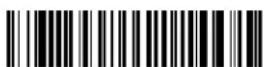
PREBK2.
Add Prefix
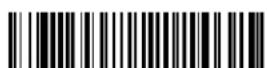
PRECL2
Clear One Prefix
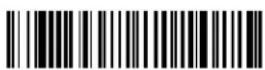
PRECA2.
Clear All Prefixes
Suffix Selections
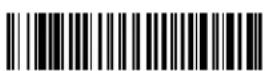
SUFBK2
Add Suffix

SUFCA2
Clear All Suffixes
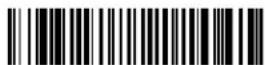
SUFCL2.
Clear One Suffix
Function Code Transmit
When this selection is enabled and function codes are contained within the scanned data, the scanner transmits the function code to the terminal. Charts of these function codes are provided in Supported Interface Keys starting on page 10-2. When the scanner is in keyboard wedge mode, the scan code is converted to a key code before it is transmitted. Default = Enable.
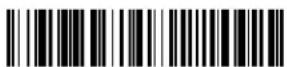
RMVFNCO
* Enable
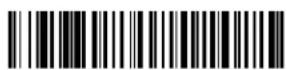
RMVFNC1
Disable
Intercharacter, Interfunction, and Intermessage Delays
Some terminals drop information (characters) if data comes through too quickly. Intercharacter, interfunction, and intermessage delays slow the transmission of data, increasing data integrity.
Intercharacter Delay
An intercharacter delay of up to 5000 milliseconds (in 5ms increments) may be placed between the transmission of each character of scanned data. Scan the Intercharacter Delay bar code below, then scan the number of 5ms delays, and the Save bar code using the Programming Chart inside the back cover of this manual.
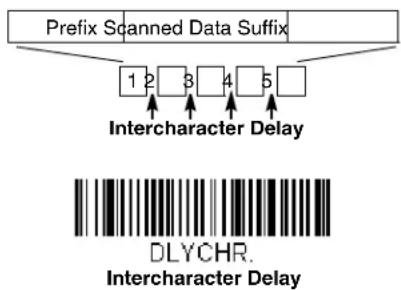
To remove this delay, scan the Intercharacter Delay bar code, then set the number of delays to 0. Scan the Save bar code using the Programming Chart inside the back cover of this manual.
Note: Intercharacter delays are not supported in USB serial emulation.
User Specified Intercharacter Delay
An intercharacter delay of up to 5000 milliseconds (in 5ms increments) may be placed after the transmission of a particular character of scanned data. Scan the Delay Length bar code below, then scan the number of 5ms delays, and the Save bar code using the Programming Chart inside the back cover of this manual.
Next, scan the Character to Trigger Delay bar code, then the 2-digit hex value for a printable character to trigger the delay (see Lower ASCII Reference Table beginning on page A-4).
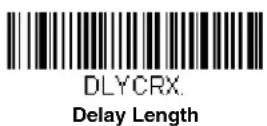
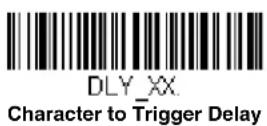
To remove this delay, scan the Delay Length bar code, and set the number of delays to 0. Scan the Save bar code using the Programming Chart inside the back cover of this manual.
Interfunction Delay
An interfunction delay of up to 5000 milliseconds (in 5ms increments) may be placed between the transmission of each control character in the message string. Scan the Interfunction Delay bar code below, then scan the number of 5ms delays, and the Save bar code using the Programming Chart inside the back cover of this manual.
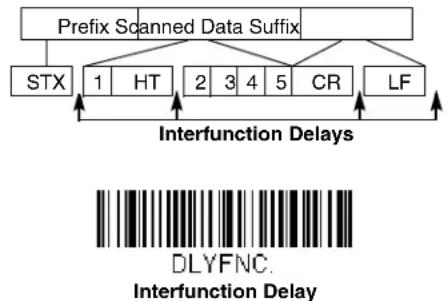
flowchart
graph TD
    A["Prefix Scanned Data Suffix"] --> B["STX"]
    A --> C["1"]
    A --> D["HT"]
    A --> E["2"]
    A --> F["3"]
    A --> G["4"]
    A --> H["5"]
    A --> I["CR"]
    A --> J["LF"]
    K["Interfunction Delays"] --> B
    K --> C
    K --> D
    K --> E
    K --> F
    K --> G
    K --> H
    K --> I
    K --> J
    L["DLYFNC. Interfunction Delay"] --> K
To remove this delay, scan the Interfunction Delay bar code, then set the number of delays to 0. Scan the Save bar code using the Programming Chart inside the back cover of this manual.
Intermessage Delay
An intermessage delay of up to 5000 milliseconds (in 5ms increments) may be placed between each scan transmission. Scan the Intermessage Delay bar code below, then scan the number of 5ms delays, and the Save bar code using the Programming Chart inside the back cover of this manual.
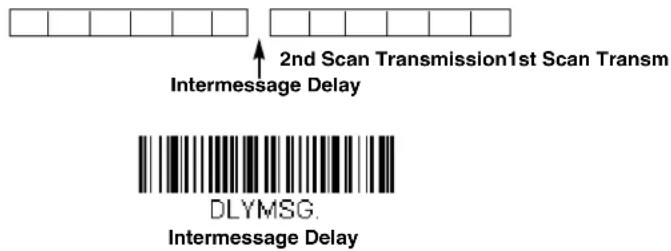
To remove this delay, scan the Intermessage Delay bar code, then set the number of delays to 0. Scan the Save bar code using the Programming Chart inside the back cover of this manual.
Data Format Editor Introduction
You may use the Data Format Editor to change the scanner's output. For example, you can use the Data Format Editor to insert characters at certain points in bar code data as it is scanned. The selections in the following pages are used only if you wish to alter the output. Default Data Format setting = None.
Normally, when you scan a bar code, it is output automatically. However, when you create a format, you must use a "send" command (see Send Commands on page 5-3) within the format program to output data.
Multiple formats may be programmed into the scanner. They are stacked in the order in which they are entered. However, the following list presents the order in which formats are applied:
- Specific Terminal ID, Actual Code ID, Actual Length
- Specific Terminal ID, Actual Code ID, Universal Length
- Specific Terminal ID, Universal Code ID, Actual Length
- Specific Terminal ID, Universal Code ID, Universal Length
- Universal Terminal ID, Actual Code ID, Actual Length
- Universal Terminal ID, Actual Code ID, Universal Length
- Universal Terminal ID, Universal Code ID, Actual Length
- Universal Terminal ID, Universal Code ID, Universal Length
The maximum size of a data format configuration is 2000 bytes, which includes header information.
If you have changed data format settings, and wish to clear all formats and return to the factory defaults, scan the Default Data Format code below.
DFMDF3.
* Default Data Format
Add a Data Format
Step 1. Scan the Enter Data Format symbol (page 5-2).
Step 2. Select Primary/Alternate Format
Determine if this will be your primary data format, or one of 3 alternate formats. This allows you to save a total of 4 different data formats. To program your primary format, scan 0 using the Programming Chart inside the back cover of this manual. If you are programming an alternate format, scan 1, 2, or 3, depending on which alternate format you are programming. (See "Primary/Alternate Data Formats" on page 5-12 for further information.)
Step 3. Terminal Type
Refer to Terminal ID Table (page 5-3) and locate the Terminal ID number for your PC. Scan three numeric bar codes on the inside back cover to program the scanner for your terminal ID (you must enter 3 digits). For example, scan 0 0 3 for an AT wedge.
Note: 099 indicates all terminal types.
Step 4. Code I.D.
In the Symbology Charts, beginning on page A-1, find the symbology to which you want to apply the data format. Locate the Hex value for that symbology and scan the 2 digit hex value from the Programming Chart inside the back cover of this manual.
If you wish to create a data format for all symbologies, with the exception of some specific symbologies, refer to B8 (page 5-11).
If you are creating a data format for Batch Mode Quantity, use 35 for the Code I.D.
Note: 99 indicates all symbologies.
Step 5. Length
Specify what length (up to 9999 characters) of data will be acceptable for this symbology. Scan the four digit data length from the Programming Chart inside the back cover of this manual. For example, 50 characters is entered as 0050. Note: 9999 indicates all lengths.
Step 6. Editor Commands
Refer to Data Format Editor Commands (page 5-3). Scan the symbols that represent the command you want to enter.
Step 7. Scan Save to save your data format, or Discard to exit without saving your changes.
DFMBK3.
Enter Data Format

MNUSAV.
Save
MNUABT
Discard
Other Programming Selections
Clear One Data Format
This deletes one data format for one symbology. If you are clearing the primary format, scan 0 from the Programming Chart inside the back cover of this manual. If you are clearing an alternate format, scan 1, 2, or 3, depending on the format you are clearing. Scan the Terminal Type and Code I.D. (see Symbology Charts on page A-1), and the bar code data length for the specific data format that you want to delete. All other formats remain unaffected.
Clear all Data Formats
This clears all data formats.
Save to exit and save your data format changes.
Discard to exit without saving any data format changes.
DFMCL3
Clear One Data Format
DFMCA3
Clear All Data Formats
MNUSAV.
Save
MNUABT
Discard
Terminal ID Table
| Terminal Model(s) Terminal ID | |
| USB PC keyboard (HID) | 124 |
| Mac Keyboard | 125 |
| PC Keyboard (Japanese) | 134 |
| Serial (COM driver required) | 130 |
| HID POS | 131 |
| USB SurePOS Handheld | 128 |
| USB SurePOS Tabletop | 129 |
| Serial RS232 TTL | 000 |
| RS232 True | 000 |
| RS485 (IBM-HHBCR 1+2, 46xx) | 051 |
| Keyboard PS2 compatibles | 003 |
Data Format Editor Commands
When working with the Data Format Editor, a virtual cursor is moved along your input data string. The following commands are used to both move this cursor to different positions, and to select, replace, and insert data into the final output. For examples that use the Data Format Editor commands, refer to Data Formatter on page 5-11.
Send Commands
Send all characters
F1 Include in the output message all of the characters from the input message, starting from current cursor position, followed by an insert character. Syntax = F1xx where xx stands for the insert character's hex value for its ASCII code. Refer to the ASCII Conversion Chart (Code Page 1252), beginning on page A-3 for decimal, hex and character codes.
Send a number of characters
F2 Include in the output message a number of characters followed by an insert character. Start from the current cursor position and continue for "nn" characters or through the last character in the input message, followed by character "xx." Syntax = F2nnxx where nn stands for the numeric value (00-99) for the number of characters, and xx stands for the insert character's hex value for its ASCII code. Refer to the ASCII Conversion Chart (Code Page 1252), beginning on page A-3 for decimal, hex and character codes.
F2 Example: Send a number of characters

Send the first 10 characters from the bar code above, followed by a carriage return. Command string: F2100D
F2 is the "Send a number of characters" command
10 is the number of characters to send
0D is the hex value for a CR
The data is output as: 1234567890
F2 and F1 Example: Split characters into 2 lines
Send the first 10 characters from the bar code above, followed by a carriage return, followed by the rest of the characters.
Command string: F2100DF10D
F2 is the "Send a number of characters" command
10 is the number of characters to send for the first line
0D is the hex value for a CR
F1 is the "Send all characters" command
0D is the hex value for a CR
The data is output as: 1234567890
ABCDEFGHIJKLMNOPQRSTUVWXYZ
Send all characters up to a particular character
F3 Include in the output message all characters from the input message, starting with the character at the current cursor position and continuing to, but not including, the search character "ss," followed by an insert character. The cursor is moved forward to the "ss" character. Syntax = F3ssxx where ss stands for the search character's hex value for its ASCII code, and xx stands for the insert character's hex value for its ASCII code. Refer to the ASCII Conversion Chart (Code Page 1252), beginning on page A-3 for decimal, hex and character codes.
F3 Example: Send all characters up to a particular character

1234056780ABC
Using the bar code above, send all characters up to but not including "D," followed by a carriage return.
Command string: F3440D
F3 is the "Send all characters up to a particular character" command
44 is the hex value for a 'D"
0D is the hex value for a CR
The data is output as: 1234567890ABC
Send all characters up to a string
B9 Include in the output message all characters from the input message, starting with the character at the current cursor position and continuing to, but not including, the search string "s...s." The cursor is moved forward to the beginning of the "s...s" string. Syntax = B9nnnns...s where nnnn stands for the length of the string, and s...s stands for the string to be matched. The string is made up of hex values for the characters in the string. Refer to the ASCII Conversion Chart (Code Page 1252), beginning on page A-3 for decimal, hex and character codes.
B9 Example: Send all characters up to a defined string

1234567890ABCDEFGHIJ
Using the bar code above, send all characters up to but not including "AB."
Command string: B900024142
B9 is the "Send all characters up to a string" command
0002 is the length of the string (2 characters)
41 is the hex value for A
42 is the hex value for B
The data is output as: 1234567890
Send all but the last characters
E9 Include in the output message all but the last "nn" characters, starting from the current cursor position. The cursor is moved forward to one position past the last input message character included. Syntax = E9nn where nn stands for the numeric value (00-99) for the number of characters that will not be sent at the end of the message.
Insert a character multiple times
F4 Send "xx" character "nn" times in the output message, leaving the cursor in the current position. Syntax = F4xxnn where xx stands for the insert character's hex value for its ASCII code, and nn is the numeric value (00-99) for the number of times it should be sent. Refer to the ASCII Conversion Chart (Code Page 1252), beginning on page A-3 for decimal, hex and character codes.
E9 and F4 Example: Send all but the last characters, followed by 2 tabs

1234567890ABCDEFGHIJ
Send all characters except for the last 8 from the bar code above, followed by 2 tabs.
Command string: E908F40902
E9 is the "Send all but the last characters" command
08 is the number of characters at the end to ignore
F4 is the "Insert a character multiple times" command
09 is the hex value for a horizontal tab
02 is the number of times the tab character is sent
The data is output as: 1234567890AB
Insert a string
BA Send "ss" string of "nn" length in the output message, leaving the cursor in the current position. Syntax = BAnnnns...s where nnnn stands for the length of the string, and s...s stands for the string. The string is made up of hex values for the characters in the string. Refer to the ASCII Conversion Chart (Code Page 1252), beginning on page A-3 for decimal, hex and character codes.
B9 and BA Example: Look for the string "AB" and insert 2 asterisks (**)

1234567890ABCDEFGHIJ
Using the bar code above, send all characters up to but not including "AB." Insert 2 asterisks at that point, and send the rest of the data with a carriage return after.
Command string: B900024142BA00022A2AF10D
B9 is the "Send all characters up to a string" command
0002 is the length of the string (2 characters)
41 is the hex value for A
42 is the hex value for B
BA is the "Insert a string" command
0002 is the length of the string to be added (2 characters)
2A is the hex value for an asterisk (*)
2A is the hex value for an asterisk (*)
F1 is the "Send all characters" command
0D is the hex value for a CR
The data is output as: 1234567890**ABCDEFGHIJ
Insert symbology name
B3 Insert the name of the bar code's symbology in the output message, without moving the cursor. Only symbologies with a Honeywell ID are included (see Symbology Charts on page A-1). Refer to the ASCII Conversion Chart (Code Page 1252), beginning on page A-3 for decimal, hex and character codes.
Insert bar code length
B4 Insert the bar code's length in the output message, without moving the cursor. The length is expressed as a numeric string and does not include leading zeroes.
B3 and B4 Example: Insert the symbology name and length

1234567890ABCDEFGHIJ
Send the symbology name and length before the bar code data from the bar code above. Break up these insertions with spaces. End with a carriage return.
Command string: B3F42001B4F42001F10D
B3 is the "Insert symbology name" command
F4 is the "Insert a character multiple times" command
20 is the hex value for a space
01 is the number of times the space character is sent
B4 is the "Insert bar code length" command
F4 is the "Insert a character multiple times" command
20 is the hex value for a space
01 is the number of times the space character is sent
F1 is the "Send all characters" command
0D is the hex value for a CR
The data is output as: Code128 20 1234567890ABCDEFGHIJ
Insert key strokes
B5 Insert a key stroke or combination of key strokes. Key strokes are dependent on your keyboard (see Keyboard Key References on page A-10). Any key can be inserted, including arrows and functions. Syntax = B5xxssnn where xx is the number of keys pressed (without key modifiers), ss is the key modifier from the table below, and nn is the key number from the Keyboard Key References, page A-10.
| Key Modifiers | |
| No Key Modifier 00 | |
| Shift Left 01 | |
| Shift Right 02 | |
| Alt Left 04 | |
| Alt Right 08 | |
| Control Left 10 | |
| Control Right 20 | |
For example, B501021F inserts an "A" on a 104 key, U.S. style keyboard. B5 = the command, 01 = number of keys pressed (without the key modifier), 02 is the key modifier for Shift Right, and 1F is the "a" key. If a lower case "a" were to be inserted, B501001F would be entered.
If there are three keystrokes, the syntax would change from B5xxssnn for one keystroke to B5xxssnnssnnssnn. An example that would insert "abc" is as follows: B503001F00320030F833.
Note: Key modifiers can be added together when needed. Example: Control Left+Shift Left = 11.
Move Commands
Move the cursor forward a number of characters
F5 Move the cursor ahead "nn" characters from current cursor position.
Syntax = F5nn where nn is the numeric value (00-99) for the number of characters the cursor should be moved ahead.
F5 Example: Move the cursor forward and send the data

1234567890ABCDEFGHIJ
Move the cursor forward 3 characters, then send the rest of the bar code data from the bar code above. End with a carriage return.
Command string: F503F10D
F5 is the "Move the cursor forward a number of characters" command
03 is the number of characters to move the cursor
F1 is the "Send all characters" command
0D is the hex value for a CR
The data is output as: 4567890ABCDEFGHIJ
Move the cursor backward a number of characters
F6 Move the cursor back "nn" characters from current cursor position.
Syntax = F6nn where nn is the numeric value (00-99) for the number of characters the cursor should be moved back.
Move the cursor to the beginning
F7 Move the cursor to the first character in the input message. Syntax = F7.
FE and F7 Example: Manipulate bar codes that begin with a 1

Search for bar codes that begin with a 1. If a bar code matches, move the cursor back to the beginning of the data and send 6 characters followed by a carriage return. Using the bar code above:
Command string: FE31F7F2060D
FE is the "Compare characters" command
31 is the hex value for 1
F7 is the "Move the cursor to the beginning" command
F2 is the "Send a number of characters" command
06 is the number of characters to send
0D is the hex value for a CR
The data is output as: 123456
Move the cursor to the end
EA Move the cursor to the last character in the input message. Syntax = EA.
Search Commands
Search forward for a character
F8 Search the input message forward for "xx" character from the current cursor position, leaving the cursor pointing to the "xx" character. Syntax = F8xx where xx stands for the search character's hex value for its ASCII code. Refer to the ASCII Conversion Chart (Code Page 1252), beginning on page A-3 for decimal, hex and character codes.
F8 Example: Send bar code data that starts after a particular character

Search for the letter "D" in bar codes and send all the data that follows, including the "D." Using the bar code above:
Command string: F844F10D
F8 is the "Search forward for a character" command
44 is the hex value for "D"
F1 is the "Send all characters" command
0D is the hex value for a CR
The data is output as: DEFGHIJ
Search backward for a character
F9 Search the input message backward for "xx" character from the current cursor position, leaving the cursor pointing to the "xx" character. Syntax = F9xx where xx stands for the search character's hex value for its ASCII code. Refer to the ASCII Conversion Chart (Code Page 1252), beginning on page A-3 for decimal, hex and character codes.
Search forward for a string
B0 Search forward for "s" string from the current cursor position, leaving cursor pointing to "s" string. Syntax = B0nnnnS where nnnn is the string length (up to 9999), and S consists of the ASCII hex value of each character in the match string. For example, B0000454657374 will search forward for the first occurrence of the 4 character string "Test." Refer to the ASCII Conversion Chart (Code Page 1252), beginning on page A-3 for decimal, hex and character codes.
B0 Example: Send bar code data that starts after a string of characters

Search for the letters "FGH" in bar codes and send all the data that follows, including "FGH." Using the bar code above:
Command string: B00003464748F10D
B0 is the "Search forward for a string" command
0003 is the string length (3 characters)
46 is the hex value for "F"
47 is the hex value for "G"
48 is the hex value for "H"
F1 is the "Send all characters" command
0D is the hex value for a CR
The data is output as: FGHIJ
Search backward for a string
B1 Search backward for "s" string from the current cursor position, leaving cursor pointing to "s" string. Syntax = B1nnnnS where nnnn is the string length (up to 9999), and S consists of the ASCII hex value of each character in the match string. For example, B1000454657374 will search backward for the first occurrence of the 4 character string "Test." Refer to the ASCII Conversion Chart (Code Page 1252), beginning on page A-3 for decimal, hex and character codes.
Search forward for a non-matching character
E6 Search the input message forward for the first non-“xx” character from the current cursor position, leaving the cursor pointing to the non-“xx” character. Syntax = E6xx where xx stands for the search character's hex value for its ASCII code. Refer to the ASCII Conversion Chart (Code Page 1252), beginning on page A-3 for decimal, hex and character codes.
E6 Example: Remove zeroes at the beginning of bar code data
This example shows a bar code that has been zero filled. You may want to ignore the zeroes and send all the data that follows. E6 searches forward for the first character that is not zero, then sends all the data after, followed by a carriage return. Using the bar code above:
Command string: E630F10D
E6 is the "Search forward for a non-matching character" command
30 is the hex value for 0
F1 is the "Send all characters" command
0D is the hex value for a CR
The data is output as: 37692
Search backward for a non-matching character
E7 Search the input message backward for the first non-“xx” character from the current cursor position, leaving the cursor pointing to the non-“xx” character. Syntax = E7xx where xx stands for the search character's hex value for its ASCII code. Refer to the ASCII Conversion Chart (Code Page 1252), beginning on page A-3 for decimal, hex and character codes.
Miscellaneous Commands
Suppress characters
FB Suppress all occurrences of up to 15 different characters, starting at the current cursor position, as the cursor is advanced by other commands. When the FC command is encountered, the suppress function is terminated. The cursor is not moved by the FB command. Syntax = FBnnxxyy .. zz where nn is a count of the number of suppressed characters in the list, and xxyy .. zz is the list of characters to be suppressed.
FB Example: Remove spaces in bar code data
This example shows a bar code that has spaces in the data. You may want to remove the spaces before sending the data. Using the bar code above:
Command string: FB0120F10D
FB is the "Suppress characters" command
01 is the number of character types to be suppressed
20 is the hex value for a space
F1 is the "Send all characters" command
0D is the hex value for a CR
The data is output as: 34567890
Stop suppressing characters
FC Disables suppress filter and clear all suppressed characters. Syntax = FC.
Replace characters
E4 Replaces up to 15 characters in the output message, without moving the cursor. Replacement continues until the E5 command is encountered. Syntax = E4nnxx 1 xx 2 yy 1 yy 2 ...zz 1 zz 2 where nn is the total count of the number of characters in the list (characters to be replaced plus replacement characters); xx 1 defines characters to be replaced and xx 2 defines replacement characters, continuing through zz 1 and zz 2 .
E4 Example: Replace zeroes with CRs in bar code data
If the bar code has characters that the host application does not want included, you can use the E4 command to replace those characters with something else. In this example, you will replace the zeroes in the bar code above with carriage returns.
Command string: E402300DF10D
E4 is the "Replace characters" command
02 is the total count of characters to be replaced, plus the replacement characters (0 is replaced by CR, so total characters = 2)
30 is the hex value for 0
0D is the hex value for a CR (the character that will replace the 0)
F1 is the "Send all characters" command
0D is the hex value for a CR
The data is output as: 1234
5678
ABC
Stop replacing characters
E5 Terminates character replacement. Syntax = E5.
Compare characters
FE Compare the character in the current cursor position to the character "xx." If characters are equal, move the cursor forward one position. Syntax = FExx where xx stands for the comparison character's hex value for its ASCII code. Refer to the ASCII Conversion Chart (Code Page 1252), beginning on page A-3 for decimal, hex and character codes.
Compare string
B2 Compare the string in the input message to the string "s." If the strings are equal, move the cursor forward past the end of the string. Syntax = B2nnnnS where nnnn is the string length (up to 9999), and S consists of the ASCII hex value of each character in the match string. For example, B2000454657374 will compare the string at the current cursor position with the 4 character string "Test."
Refer to the ASCII Conversion Chart (Code Page 1252), beginning on page A-3 for decimal, hex and character codes.
Check for a number
EC Check to make sure there is an ASCII number at the current cursor position. The format is aborted if the character is not numeric.
EC Example: Only output the data if the bar code begins with a number
If you will only accept data from bar codes that begin with a number, you can use EC to check for the number.
Command string: ECF10D
EC is the "Check for a number" command
F1 is the "Send all characters" command
0D is the hex value for a CR
If this bar code is read,
If this bar code is read:
the data is output as: 1234AB
Check for non-numeric character
ED Check to make sure there is a non-numeric ASCII character at the current cursor position. The format is aborted if the character is numeric.
ED Example: Only output the data if the bar code begins with a letter
If you will only accept data from bar codes that begin with a letter, you can use ED to check for the number.
Command string: EDF10D
ED is the "Check for a non-numeric character" command
F1 is the "Send all characters" command
0D is the hex value for a CR
If this bar code is read,
If this bar code is read:
Insert a delay
EF Inserts a delay of up to 49,995 milliseconds (in multiples of 5), starting from the current cursor position. Syntax = EFnnnn where nnnn stands for the delay in 5ms increments, up to 9999. This command can only be used with keyboard emulation.
Discard Data
B8 Discards types of data. For example, you may want to discard Code 128 bar codes that begin with the letter A. In step 4 (page 5-1), select 6A (for Code 128), and in step 5, select 9999 (for all lengths). Enter FE41B8 to compare and discard Code 128 bar codes that begin with the letter A. Syntax = B8.
Note: The B8 command must be entered after all other commands.
The Data Format must be Required (see page 5-11) in order for the B8 command to work. If Data Format is On, but Not Required (page 5-12), bar code data that meets the B8 format is scanned and output as usual. Other data format settings impact the B8 command. If Data Format Non-Match Error Tone is On (page 5-12), the scanner emits an error tone. If Data format Non-Match Error Tone is Off, the code is disabled for reading and no tone is sounded.
Data Formatter
When Data Formatter is turned Off, the bar code data is output to the host as read, including prefixes and suffixes.
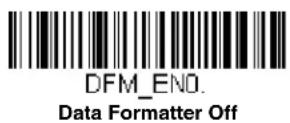
You may wish to require the data to conform to a data format you have created and saved. The following settings can be applied to your data format:
Data Formatter On, Not Required, Keep Prefix/Suffix
Scanned data is modified according to your data format, and prefixes and suffixes are transmitted.
Data Formatter On, Not Required, Drop Prefix/Suffix
Scanned data is modified according to your data format. If a data format is found for a particular symbol, those prefixes and suffixes are not transmitted. If a data format is not found for that symbol, the prefixes and suffixes are transmitted.
Data Format Required, Keep Prefix/Suffix
Scanned data is modified according to your data format, and prefixes and suffixes are transmitted. Any data that does not match your data format requirements generates an error tone and the data in that bar code is not transmitted. If you wish to process this type of bar code without generating an error tone, see Data Format Non-Match Error Tone.
Data Format Required, Drop Prefix/Suffix
Scanned data is modified according to your data format. If a data format is found for a particular symbol, those prefixes and suffixes are not transmitted. Any data that does not match your data format requirements generates an error tone. If you wish to process this type of bar code without generating an error tone, see Data Format Non-Match Error Tone.
Choose one of the following options. Default = Data Formatter On, Not Required, Keep Prefix/Suffix.
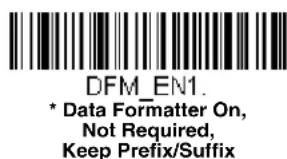
DFM_EN2.
Data Format Required, Keep Prefix/Suffix
DFM_EN3.
Data Formatter On, Not Required, Drop Prefix/Suffix
DFM_EN4.
Data Format Required, Drop Prefix/Suffix
Data Format Non-Match Error Tone
When a bar code is encountered that doesn't match your required data format, the scanner normally generates an error tone. However, you may want to continue scanning bar codes without hearing the error tone. If you scan the Data Format Non-Match Error Tone Off bar code, data that doesn't conform to your data format is not transmitted, and no error tone will sound. If you wish to hear the error tone when a non-matching bar code is found, scan the Data Format Non-Match Error Tone On bar code. Default = Data Format Non-Match Error Tone On.
DFMDECO
* Data Format Non-Match Error Tone On
DFMDEC1
Data Format Non-Match Error Tone Off
Primary/Alternate Data Formats
You can save up to four data formats, and switch between these formats. Your primary data format is saved under 0. Your other three formats are saved under 1, 2, and 3. To set your device to use one of these formats, scan one of the bar codes below.
ALTFNMO
Primary Data Format
ALTFNM1
Data Format 1
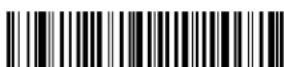
ALTFNM2
Data Format 2
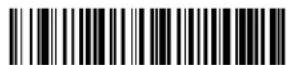
ALTFNM3.
Data Format 3
Single Scan Data Format Change
You can also switch between data formats for a single scan. The next bar code is scanned using an alternate data format, then reverts to the format you have selected above (either Primary, 1, 2, or 3).
For example, you may have set your device to the data format you saved as Data Format 3. You can switch to Data Format 1 for a single read by scanning the Single Scan-Data Format 1 bar code below. The next bar code that is scanned uses Data Format 1, then reverts back to Data Format 3.
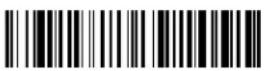
VSAF_0
Single Scan-Primary
Data Format
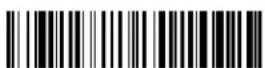
VSAF 1.
Single Scan-Data Format 1
VSAF 2
Single Scan-Data Format 2
VSAF 3
Single Scan-Data Format 3
Symbologies
This programming section contains the following menu selections. Refer to Chapter 12 for settings and defaults.
• All Symbologies • Interleaved 2 of 5
- Aztec Code • Korea Post
• China Post (Hong Kong 2 of 5) • Matrix 2 of 5
- Chinese Sensible (Han Xin) Code • MaxiCode
• Codabar • MicroPDF417
• Codablock A • MSI
• Codablock F • NEC 2 of 5
• Code 11 • Postal Codes - 2D
• Code 128 • Postal Codes - Linear
- Code 39 Redundancy
- Label Code
• Code 39 • GS1 DataBar Omnidirectional
- Code 93 • QR Code
- Data Matrix
- Straight 2 of 5 IATA (two-bar start/stop)
• EAN/JAN-13 • Straight 2 of 5 Industrial (three-bar start/stop)
• EAN/JAN-8
• TCIF Linked Code 39 (TLC39)
- GS1 Composite Codes
- Telepen
- GS1 DataBar Expanded
- Trioptic Code
- GS1 DataBar Limited
- UPC-A
- GS1 DataBar Omnidirectional
- UPC-A/EAN-13 with Extended Coupon Code
- GS1 Emulation
- UPC-E0
- GS1-128
- UPC-E1
All Symbologies
If you want to decode all the symbologies allowable for your scanner, scan the All Symbologies On code. If on the other hand, you want to decode only a particular symbology, scan All Symbologies Off followed by the On symbol for that particular symbology.
ALLENA1
All Symbologies On

ALLENAD
All Symbologies Off
Note: Scanner performance may reduce by scanning All Symbologies On. Only scan All Symbologies On when needed.
Note: When All Symbologies On is scanned, 2D Postal Codes are not enabled. 2D Postal Codes must be enabled separately.
Message Length Description
You are able to set the valid reading length of some of the bar code symbologies. You may wish to set the same value for minimum and maximum length to force the scanner to read fixed length bar code data. This helps reduce the chances of a misread.
EXAMPLE: Decode only those bar codes with a count of 9-20 characters.
Min. length = 09Max. length = 20
EXAMPLE: Decode only those bar codes with a count of 15 characters.
Min. length = 15Max. length = 15
For a value other than the minimum and maximum message length defaults, scan the bar codes included in the explanation of the symbology, then scan the digit value of the message length and Save bar codes on the Programming Chart inside the back cover of this manual. The minimum and maximum lengths and the defaults are included with the respective symbologies.
Codabar
CBRDFT.
Codabar On/Off
CBRENA1.
* On
CBRENAO.
Off
Codabar Start/Stop Characters
Start/Stop characters identify the leading and trailing ends of the bar code. You may either transmit, or not transmit Start/Stop characters. Default = Don't Transmit.
CBRSSX1
Transmit
CBRSSXD
* Don't Transmit
Codabar Check Character
Codabar check characters are created using different "modulos." You can program the scanner to read only Codabar bar codes with Modulo 16 check characters. Default = No Check Character.
No Check Character indicates that the scanner reads and transmits bar code data with or without a check character.
When Check Character is set to Validate and Transmit, the scanner will only read Codabar bar codes printed with a check character, and will transmit this character at the end of the scanned data.
When Check Character is set to Validate, but Don't Transmit, the unit will only read Codabar bar codes printed with a check character, but will not transmit the check character with the scanned data.
CBRCK20
* No Check Character
CBRCK21
Validate Modulo 16, but Don't Transmit
CBRCK22. Validate Modulo 16 and Transmit
Codabar Concatenation
Codabar supports symbol concatenation. When you enable concatenation, the scanner looks for a Codabar symbol having a "D" start character, adjacent to a symbol having a "D" stop character. In this case the two messages are concatenated into one with the "D" characters omitted.
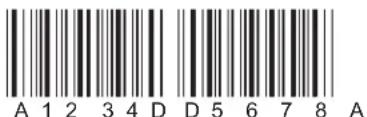
Select Require to prevent the scanner from decoding a single "D" Codabar symbol without its companion. This selection has no effect on Codabar symbols without Stop/Start D characters.
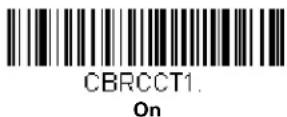
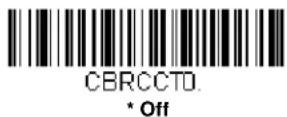
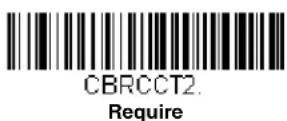
Codabar Redundancy
If you are encountering errors when reading Codabar bar codes, you may want to adjust the redundancy count. Redundancy adjusts the number of times a bar code is decoded before transmission, which may reduce the number of errors. Note that the higher the redundancy count, the longer it will take to decode the bar code. To adjust the redundancy, scan the following Codabar Redundancy bar code, then scan a redundancy count between 0 and 10 on the Programming Chart inside the back cover of this manual. Then scan the Save bar code. Default = 0.

CBRVOT. Codabar Redundancy
Codabar Message Length
Scan the bar codes below to change the message length. Refer to Message Length Description (page 6-1) for additional information. Minimum and Maximum lengths = 2-60. Minimum Default = 4, Maximum Default = 60.
CBRMIN
Minimum Message Length
CBRMAX.
Maximum Message Length
Code 39
< Default All Code 39 Settings >
C39DFT.
Code 39 On/Off
C39ENA1.
* On
C39ENAD.
Off
Code 39 Start/Stop Characters
Start/Stop characters identify the leading and trailing ends of the bar code. You may either transmit, or not transmit Start/Stop characters. Default = Don't Transmit.
C39SSX1
Transmit
C39SSXD
* Don't Transmit
Code 39 Check Character
No Check Character indicates that the scanner reads and transmits bar code data with or without a check character.
When Check Character is set to Validate, but Don't Transmit, the unit only reads Code 39 bar codes printed with a check character, but will not transmit the check character with the scanned data.
When Check Character is set to Validate and Transmit, the scanner only reads Code 39 bar codes printed with a check character, and will transmit this character at the end of the scanned data. Default = No Check Character.
C39CK20
* No Check Character
C39CK21
Validate, but Don't Transmit
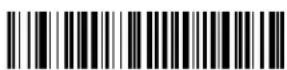
C39CK22
Validate and Transmit
Code 39 Message Length
Scan the bar codes below to change the message length. Refer to Message Length Description (page 6-1) for additional information. Minimum and Maximum lengths = 0-48. Minimum Default = 0, Maximum Default = 48.
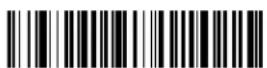
C39MIN
Minimum Message Length
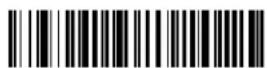
C39MAX
Maximum Message Length
Code 39 Append
This function allows the scanner to append the data from several Code 39 bar codes together before transmitting them to the host computer. When the scanner encounters a Code 39 bar code with the append trigger character(s), it buffers Code 39 bar codes until it reads a Code 39 bar code that does not have the append trigger. The data is then transmitted in the order in which the bar codes were read (FIFO). Default = Off.
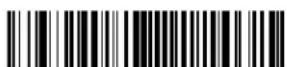
C39APP1
On
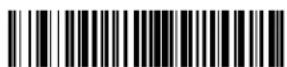
C39APP0.
* Off
Code 39 Redundancy
If you are encountering errors when reading Code 39 bar codes, you may want to adjust the redundancy count. Redundancy adjusts the number of times a bar code is decoded before transmission, which may reduce the number of errors. Note that the higher the redundancy count, the longer it will take to decode the bar code. To adjust the redundancy, scan the Code 39 Redundancy bar code below, then scan a redundancy count between 0 and 10 on the Programming Chart inside the back cover of this manual, then scanning Save. Default = 0.
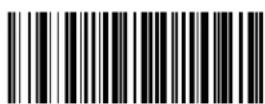
C93VOT.
Code 39 Redundancy
Code 32 Pharmaceutical (PARAF)
Code 32 Pharmaceutical is a form of the Code 39 symbology used by Italian pharmacies. This symbology is also known as PARAF.
Note: Trioptic Code (page 6-32) must be turned off while scanning Code 32 Pharmaceutical codes.
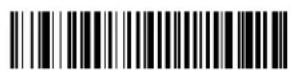
C39B321
On
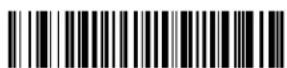
C39B320
* Off
Full ASCII
If Full ASCII Code 39 decoding is enabled, certain character pairs within the bar code symbol will be interpreted as a single character. For example: \$V will be decoded as the ASCII character SYN, and /C will be decoded as the ASCII character #. Default = Off.
| NUL %U DLE P | SP SPACE | 0 | 0 | @ | % | V | P | P | ‘ | % | W | p | + | P | ||
| SOH SA | DC1Q | ! | /A | 1 | 1 | A | A | Q | Q | a | +A | q | +Q | |||
| STX B | DC2R | “ | /B | 2 | 2 | B | B | R | R | b | +B | r | +R | |||
| ETX C | DC3S | # | /C | 3 | 3 | C | C | S | S | c | +C | s | +S | |||
| EOT D | DC4T | /D | 4 | 4 | D | D | T | T | d | +D | t | +T | ||||
| ENQ SE | NAKU | % | /E | 5 | 5 | E | E | U | U | e | +E | u | +U | |||
| ACK F | SYNV | & | /F | 6 | 6 | F | F | V | V | f | +F | v | +V | |||
| BEL G | ETBW | ‘ | /G | 7 | 7 | G | G | W | W | g | +G | w | +W | |||
| BS H | CANX | ( | /H | 8 | 8 | H | H | X | X | h | +H | x | +X | |||
| HT I | EMY | ) | /I | 9 | 9 | I | I | Y | Y | i | +I | y | +Y | |||
| LF J | SUBZ | * | /J | : | /Z | J | J | Z | Z | j | +J | z | +Z | |||
| VT K | ESC %A | + | /K | ; | %F | K | K | [ | %K | k | +K | %P | ||||
| FFL | FS %B | , | /L | < | %G | L | L | \ | %L | l | +L | | | %Q | |||
| CR M | GS %C | - | - | = | %H | M | M | ] | %M | m | +M | %R | ||||
| SON | RS %D | . | . | > | %I | N | N | ^ | %N | n | +N | - | %S | |||
| SI $O | US %E | / | /O | ? | %J | O | O | _ | %O | o | +O | DEL | %T | |||
Character pairs /M and /N decode as a minus sign and period respectively.
Character pairs /P through /Y decode as 0 through 9.
C39ASC1
Full ASCII On
C39ASCO
* Full ASCII Off
Code 39 Code Page
Code pages define the mapping of character codes to characters. If the data received does not display with the proper characters, it may be because the bar code being scanned was created using a code page that is different from the one the host program is expecting. If this is the case, scan the bar code below, select the code page with which the bar codes were created (see ISO 2022/ISO 646 Character Replacements on page A-7), and scan the value and the Save bar code from the Programming Chart on the inside the back cover of this manual. The data characters should then appear properly.
C39DCP
Code 39 Code Page
Interleaved 2 of 5
< Default All Interleaved 2 of 5 Settings >
125DFT.
Interleaved 2 of 5 On/Off
125ENA1.
* On
125ENAD
Off
Check Digit
No Check Digit indicates that the scanner reads and transmits bar code data with or without a check digit.
When Check Digit is set to Validate, but Don't Transmit, the unit only reads Interleaved 2 of 5 bar codes printed with a check digit, but will not transmit the check digit with the scanned data.
When Check Digit is set to Validate and Transmit, the scanner only reads Interleaved 2 of 5 bar codes printed with a check digit, and will transmit this digit at the end of the scanned data. Default = No Check Digit.
125CK20
* No Check Digit
125CK21
Validate, but Don't Transmit
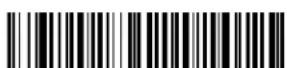
125CK22
Validate and Transmit
Interleaved 2 of 5 Redundancy
If you are encountering errors when reading Interleaved 2 of 5 bar codes, you may want to adjust the redundancy count. Redundancy adjusts the number of times a bar code is decoded before transmission, which may reduce the number of errors. Note that the higher the redundancy count, the longer it will take to decode the bar code. To adjust the redundancy, scan the Interleaved 2 of 5 Redundancy bar code below, then scan a redundancy count between 0 and 10 on the Programming Chart inside the back cover of this manual, then scanning Save. Default = 0.
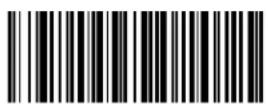
125VOT
Interleaved 2 of 5 Redundancy
Interleaved 2 of 5 Message Length
Scan the bar codes below to change the message length. Refer to Message Length Description (page 6-1) for additional information. Minimum and Maximum lengths = 2-80. Minimum Default = 4, Maximum Default = 80.
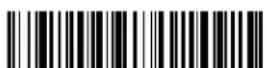
125MIN
Minimum Message Length

125MAX
Maximum Message Length
NEC 2 of 5
< Default All NEC 2 of 5 Settings >
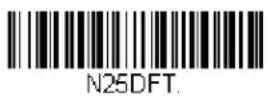
NEC 2 of 5 On/Off
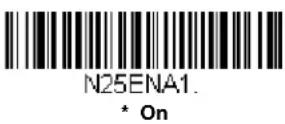
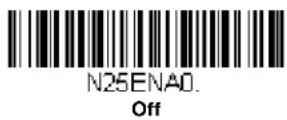
Check Digit
No Check Digit indicates that the scanner reads and transmits bar code data with or without a check digit.
When Check Digit is set to Validate, but Don't Transmit, the unit only reads NEC 2 of 5 bar codes printed with a check digit, but will not transmit the check digit with the scanned data.
When Check Digit is set to Validate and Transmit, the scanner only reads NEC 2 of 5 bar codes printed with a check digit, and will transmit this digit at the end of the scanned data. Default = No Check Digit.
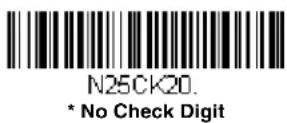
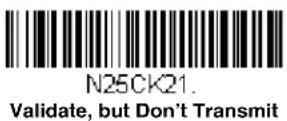
NEC 2 of 5 Message Length
Scan the bar codes below to change the message length. Refer to Message Length Description (page 6-1) for additional information. Minimum and Maximum lengths = 2-80. Minimum Default = 4, Maximum Default = 80.
N25MAX
Maximum Message Length
Code 93
< Default All Code 93 Settings >
C93DFT.
Code 93 On/Off
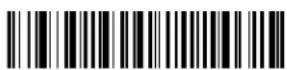
C93ENA1
* On
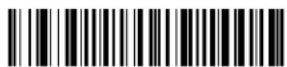
C93ENAD
Off
Code 93 Message Length
Scan the bar codes below to change the message length. Refer to Message Length Description (page 6-1) for additional information. Minimum and Maximum lengths = 0-80. Minimum Default = 0, Maximum Default = 80.
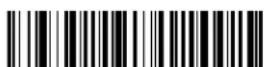
C93MIN
Minimum Message Length
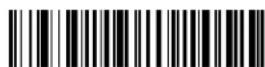
C93MAX
Maximum Message Length
Code 93 Append
This function allows the scanner to append the data from several Code 93 bar codes together before transmitting them to the host computer. When this function is enabled, the scanner stores those Code 93 bar codes that start with a space (excluding the start and stop symbols), and does not immediately transmit the data. The scanner stores the data in the order in which the bar codes are read, deleting the first space from each. The scanner transmits the appended data when it reads a Code 93 bar code that starts with a character other than a space. Default = Off.
C93APP1
On
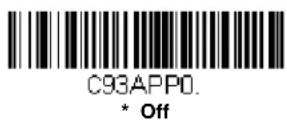
Code 93 Code Page
Code pages define the mapping of character codes to characters. If the data received does not display with the proper characters, it may be because the bar code being scanned was created using a code page that is different from the one the host program is expecting. If this is the case, scan the bar code below, select the code page with which the bar codes were created (see ISO 2022/ISO 646 Character Replacements on page A-7), and scan the value and the Save bar code from the Programming Chart on the inside the back cover of this manual. The data characters should then appear properly.
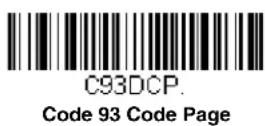
Straight 2 of 5 Industrial (three-bar start/stop)
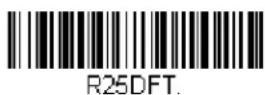
Straight 2 of 5 Industrial On/Off
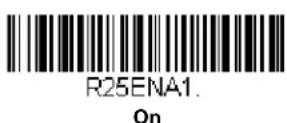
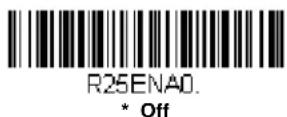
Straight 2 of 5 Industrial Message Length
Scan the bar codes below to change the message length. Refer to Message Length Description (page 6-1) for additional information. Minimum and Maximum lengths = 1-48. Minimum Default = 4, Maximum Default = 48.
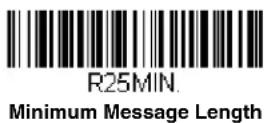
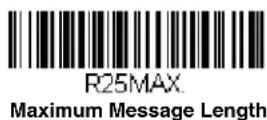
Straight 2 of 5 IATA (two-bar start/stop)
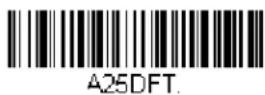
Straight 2 of 5 IATA On/Off
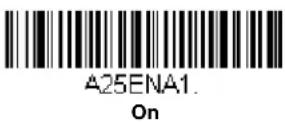
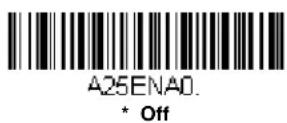
Straight 2 of 5 IATA Redundancy
If you are encountering errors when reading Straight 2 of 5 IATA bar codes, you may want to adjust the redundancy count. Redundancy adjusts the number of times a bar code is decoded before transmission, which may reduce the number of errors. Note that the higher the redundancy count, the longer it will take to decode the bar code. To adjust the redundancy, scan the Straight 2 of 5 IATA Redundancy bar code below, then scan a redundancy count between 0 and 10 on the Programming Chart inside the back cover of this manual. Then scan the Save bar code. Default = 0.
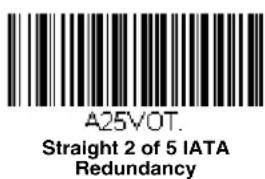
Straight 2 of 5 IATA Message Length
Scan the bar codes below to change the message length. Refer to Message Length Description (page 6-1) for additional information. Minimum and Maximum lengths = 1-48. Minimum Default = 4, Maximum Default = 48.
Matrix 2 of 5
Matrix 2 of 5 On/Off
Matrix 2 of 5 Message Length
Scan the bar codes below to change the message length. Refer to Message Length Description (page 6-1) for additional information. Minimum and Maximum lengths = 1-80. Minimum Default = 4, Maximum Default = 80.
Code 11
Code 11 On/Off
Check Digits Required
This option sets whether 1 or 2 check digits are required with Code 11 bar codes. Default = Two Check Digits.
Code 11 Message Length
Scan the bar codes below to change the message length. Refer to Message Length Description (page 6-1) for additional information. Minimum and Maximum lengths = 1-80. Minimum Default = 4, Maximum Default = 80.
Code 128
Code 128 On/Off
* On
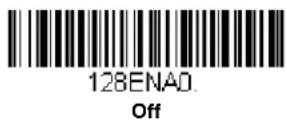
ISBT 128 Concatenation
In 1994 the International Society of Blood Transfusion (ISBT) ratified a standard for communicating critical blood information in a uniform manner. The use of ISBT formats requires a paid license. The ISBT 128 Application Specification describes 1) the critical data elements for labeling blood products, 2) the current recommendation to use Code 128 due to its high degree of security and its space-efficient design, 3) a variation of Code 128 that supports concatenation of neighboring symbols, and 4) the standard layout for bar codes on a blood product label. Use the bar codes below to turn concatenation on or off. Default = Off.
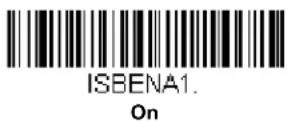
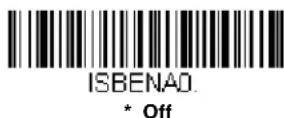
Code 128 Message Length
Scan the bar codes below to change the message length. Refer to Message Length Description (page 6-1) for additional information. Minimum and Maximum lengths = 0-80. Minimum Default = 0, Maximum Default = 80.
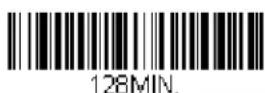
Minimum Message Length
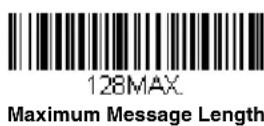
Code 128 Append
This function allows the scanner to append the data from several Code 128 bar codes together before transmitting them to the host computer. When the scanner encounters a Code 128 bar code with the append trigger character(s), it buffers Code 128 bar codes until it reads a Code 128 bar code that does not have the append trigger. The data is then transmitted in the order in which the bar codes were read (FIFO). Default = On.
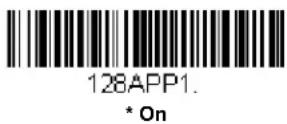
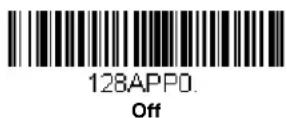
Code 128 Code Page
Code pages define the mapping of character codes to characters. If the data received does not display with the proper characters, it may be because the bar code being scanned was created using a code page that is different from the one the host program is expecting. If this is the case, scan the bar code below, select the code page with which the bar codes were created (see ISO 2022/ISO 646 Character Replacements on page A-7), and scan the value and the Save bar code from the Programming Chart on the inside the back cover of this manual. The data characters should then appear properly.
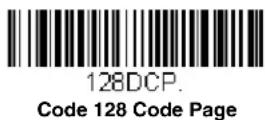
GS1-128
GS1-128 On/Off
GS1-128 Message Length
Scan the bar codes below to change the message length. Refer to Message Length Description (page 6-1) for additional information. Minimum and Maximum lengths = 1-80. Minimum Default = 1, Maximum Default = 80.
Telepen
Telepen On/Off
On
TELENAD
* Off
Telepen Output
Using AIM Telepen Output, the scanner reads symbols with start/stop pattern 1 and decodes them as standard full ASCII (start/stop pattern 1). When Original Telepen Output is selected, the scanner reads symbols with start/stop pattern 1 and decodes them as compressed numeric with optional full ASCII (start/stop pattern 2). Default = AIM Telepen Output.
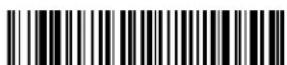
TELOLDO
* AIM Telepen Output

TELOLD1
Original Telepen Output
Telepen Message Length
Scan the bar codes below to change the message length. Refer to Message Length Description (page 6-1) for additional information. Minimum and Maximum lengths = 1-60. Minimum Default = 1, Maximum Default = 60.
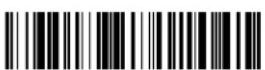
TELMIN
Minimum Message Length
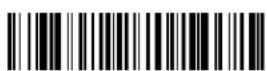
TELMAX
Maximum Message Length
UPC-A
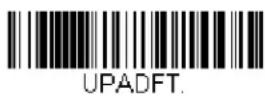
UPC-A On/Off
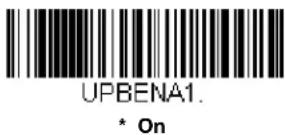
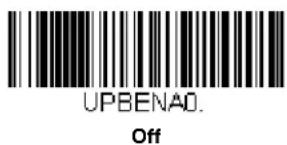
Note: To convert UPC-A bar codes to EAN-13, see Convert UPC-A to EAN-13 on page 6-24.
UPC-A Check Digit
This selection allows you to specify whether the check digit should be transmitted at the end of the scanned data or not. Default = On.
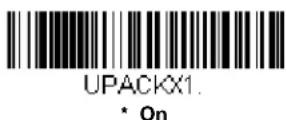
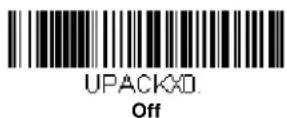
UPC-A Number System
The numeric system digit of a U.P.C. symbol is normally transmitted at the beginning of the scanned data, but the unit can be programmed so it will not transmit it. Default = On.
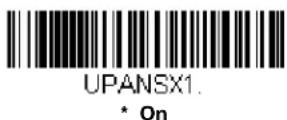
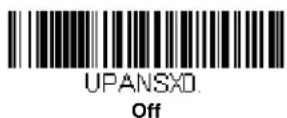
UPC-A Addenda
This selection adds 2 or 5 digits to the end of all scanned UPC-A data.
Default = Off for both 2 Digit and 5 Digit Addenda.
UPAAD21
2 Digit Addenda On
UPAAD20
* 2 Digit Addenda Off
UPAAD51
5 Digit Addenda On
UPAAD50
* 5 Digit Addenda Off
UPC-A Addenda Required
When Required is scanned, the scanner will only read UPC-A bar codes that have addenda. You must then turn on a 2 or 5 digit addenda listed on page 6-20. Default = Not Required.
UPAARQ1
Required
UPAARQO
* Not Required
UPC-A Addenda Separator
When this feature is on, there is a space between the data from the bar code and the data from the addenda. When turned off, there is no space. Default = On.
UPAADS1
* On
UPAADSO.
Off
UPC-A/EAN-13 with Extended Coupon Code
Use the following codes to enable or disable UPC-A and EAN-13 with Extended Coupon Code. When left on the default setting (Off), the scanner treats Coupon Codes and Extended Coupon Codes as single bar codes.
If you scan the Allow Concatenation code, when the scanner sees the coupon code and the extended coupon code in a single scan, it transmits both as one symbology. Otherwise, it transmits the first coupon code it reads.
If you scan the Require Concatenation code, the scanner must see and read the coupon code and extended coupon code in a single read to transmit the data. No data is output unless both codes are read. Default = Off.
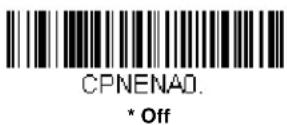
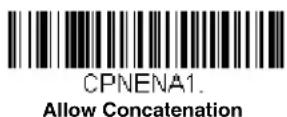
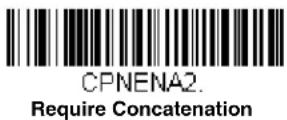
Coupon GS1 DataBar Output
If you scan coupons that have both UPC and GS1 DataBar codes, you may wish to scan and output only the data from the GS1 DataBar code. Scan the GS1 Output On code below to scan and output only the GS1 DataBar code data. Default = GS1 Output Off.
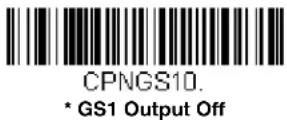
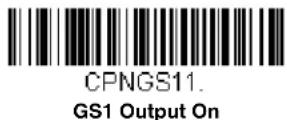
UPC-E0
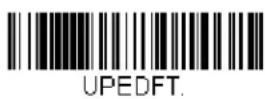
UPC-E0 On/Off
Most U.P.C. bar codes lead with the 0 number system. To read these codes, use the UPC-E0 On selection. If you need to read codes that lead with the 1 number system, use UPC-E1 (page 6-24). Default = On.
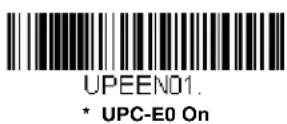

UPC-E0 Expand
UPC-E Expand expands the UPC-E code to the 12 digit, UPC-A format. Default = Off.
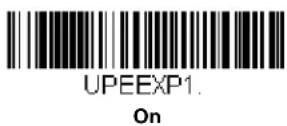
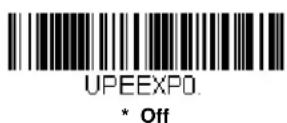
UPC-E0 Addenda Required
When Required is scanned, the scanner will only read UPC-E bar codes that have addenda. Default = Not Required.
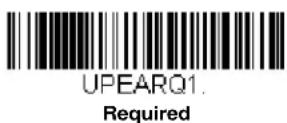
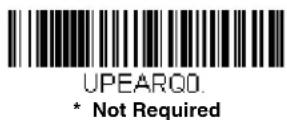
UPC-E0 Addenda Separator
When this feature is On, there is a space between the data from the bar code and the data from the addenda. When turned Off, there is no space. Default = On.
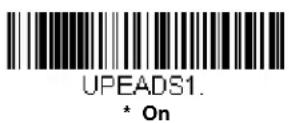
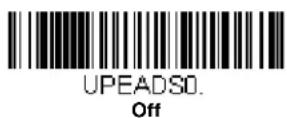
UPC-E0 Check Digit
Check Digit specifies whether the check digit should be transmitted at the end of the scanned data or not. Default = On.
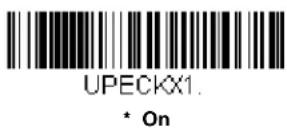
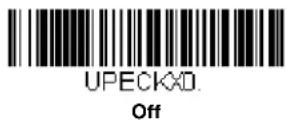
UPC-E0 Leading Zero
This feature allows the transmission of a leading zero (0) at the beginning of scanned data. To prevent transmission, scan Off. Default = On.
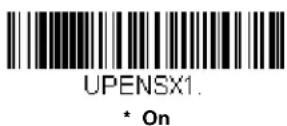
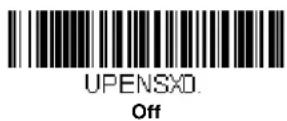
UPC-E0 Addenda
This selection adds 2 or 5 digits to the end of all scanned UPC-E data. Default = Off for both 2 Digit and 5 Digit Addenda.
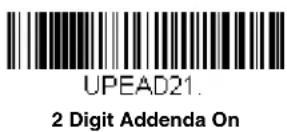
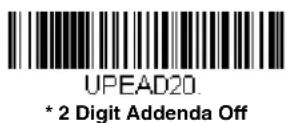
UPEAD51
5 Digit Addenda On
UPEAD50
* 5 Digit Addenda Off
UPC-E1
Most U.P.C. bar codes lead with the 0 number system. For these codes, use UPC-E0 (page 6-22). If you need to read codes that lead with the 1 number system, use the UPC-E1 On selection. Default = Off.
UPEEN11
UPC-E1 On
UPEEN10
* UPC-E1 Off
EAN/JAN-13
E13DFT.
EAN/JAN-13 On/Off
E13ENA1.
* On
E13ENAD
Off
Convert UPC-A to EAN-13
When UPC-A Converted to EAN-13 is selected, UPC-A bar codes are converted to 13 digit EAN-13 codes by adding a zero to the front. When Do not Convert UPC-A is selected, UPC-A codes are read as UPC-A.
UPAENAD
UPC-A Converted to EAN-13
UPAENA1.
* Do not Convert UPC-A
EAN/JAN-13 Check Digit
This selection allows you to specify whether the check digit should be transmitted at the end of the scanned data or not. Default = On.
E13CKX1.
* On
E13CKXD
Off
EAN/JAN-13 Addenda
This selection adds 2 or 5 digits to the end of all scanned EAN/JAN-13 data. Default = Off for both 2 Digit and 5 Digit Addenda.
E13AD21
2 Digit Addenda On
E13AD20
* 2 Digit Addenda Off
E13AD51
5 Digit Addenda On
E13AD50
* 5 Digit Addenda Off
EAN/JAN-13 Addenda Required
When Required is scanned, the scanner will only read EAN/JAN-13 bar codes that have addenda. Default = Not Required.
E13ARQ1
Required
E13ARQ0
* Not Required
EAN/JAN-13 Addenda Separator
When this feature is On, there is a space between the data from the bar code and the data from the addenda. When turned Off, there is no space. Default = On.
E13ADS1.
* On
E13ADSO.
Off
Note: If you want to enable or disable EAN13 with Extended Coupon Code, refer to UPC-A/EAN-13 with Extended Coupon Code (page 6-21).
ISBN Translate
When On is scanned, EAN-13 Bookland symbols are translated into their equivalent ISBN number format. Default = Off.
E13ISB1
On
E13ISBO
* Off
EAN/JAN-8
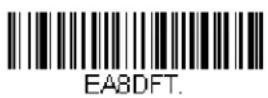
EAN/JAN-8 On/Off
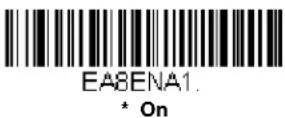
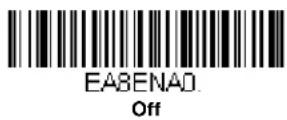
EAN/JAN-8 Check Digit
This selection allows you to specify whether the check digit should be transmitted at the end of the scanned data or not. Default = On.
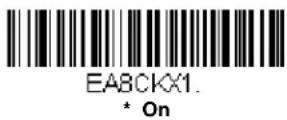
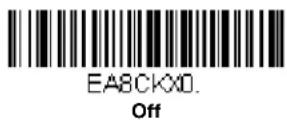
EAN/JAN-8 Addenda
This selection adds 2 or 5 digits to the end of all scanned EAN/JAN-8 data. Default = Off for both 2 Digit and 5 Digit Addenda.
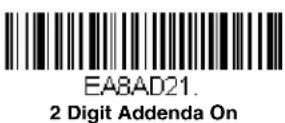
EA8AD50.
* 5 Digit Addenda Off
EAN/JAN-8 Addenda Required
When Required is scanned, the scanner will only read EAN/JAN-8 bar codes that have addenda. Default = Not Required.
EASARQ1.
Required
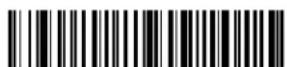
EASARQO.
* Not Required
EAN/JAN-8 Addenda Separator
When this feature is On, there is a space between the data from the bar code and the data from the addenda. When turned Off, there is no space. Default = On.
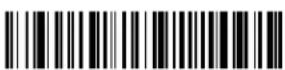
EA8ADS1
* On
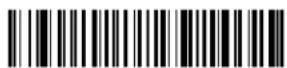
EABADSO
Off
MSI
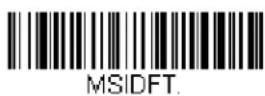
MSI On/Off
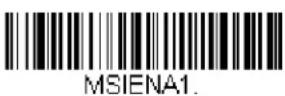
On
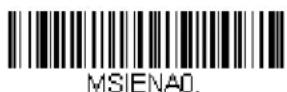
* Off
MSI Check Character
Different types of check characters are used with MSI bar codes. You can program the scanner to read MSI bar codes with Type 10 check characters. Default = Validate Type 10, but Don't Transmit.
When Check Character is set to Validate Type 10/11 and Transmit, the scanner will only read MSI bar codes printed with the specified type check character(s), and will transmit the character(s) at the end of the scanned data.
When Check Character is set to Validate Type 10/11, but Don't Transmit, the unit will only read MSI bar codes printed with the specified type check character(s), but will not transmit the check character(s) with the scanned data.
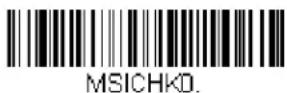
* Validate Type 10, but Don't Transmit
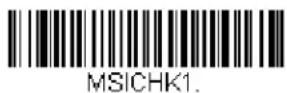
Validate Type 10 and Transmit
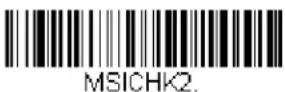
Validate 2 Type 10 Characters, but Don't Transmit
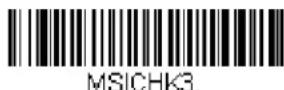
Validate 2 Type 10 Characters and Transmit
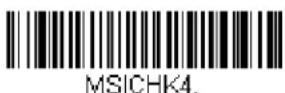
Validate Type 11 then Type 10 Character, but Don't Transmit
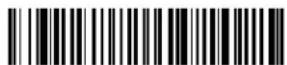
MSICHK5.
Validate Type 11 then
Type 10 Character and Transmit

MSICHK6
Disable MSI Check Characters
MSI Message Length
Scan the bar codes below to change the message length. Refer to Message Length Description (page 6-1) for additional information. Minimum and Maximum lengths = 4-48. Minimum Default = 4, Maximum Default = 48.
MSIMIN
Minimum Message Length
MSIMAX
Maximum Message Length
GS1 DataBar Omnidirectional
< Default All GS1 DataBar Omnidirectional Settings >
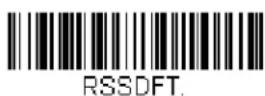
GS1 DataBar Omnidirectional On/Off
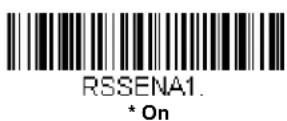
GS1 DataBar Limited
< Default All GS1 DataBar Limited Settings >
GS1 DataBar Limited On/Off
GS1 DataBar Expanded
< Default All GS1 DataBar Expanded Settings >
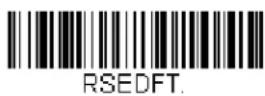
GS1 DataBar Expanded On/Off
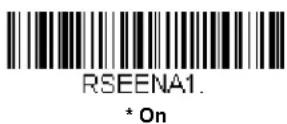
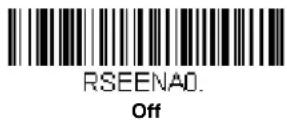
GS1 DataBar Expanded Message Length
Scan the bar codes below to change the message length. Refer to Message Length Description (page 6-1) for additional information. Minimum and Maximum lengths = 4-74. Minimum Default = 4, Maximum Default = 74.
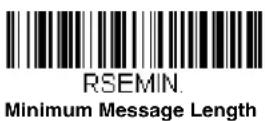
Trioptic Code
Note: If you are going to scan Code 32 Pharmaceutical codes (page 6-6), Trioptic Code must be off.
Trioptic Code is used for labeling magnetic storage media.
Codablock A
Codablock A On/Off
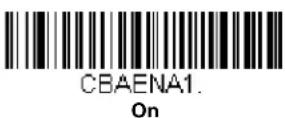
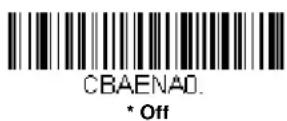
Codablock A Message Length
Scan the bar codes below to change the message length. Refer to Message Length Description (page 6-1) for additional information. Minimum and Maximum lengths = 1-600. Minimum Default = 1, Maximum Default = 600.
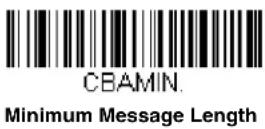
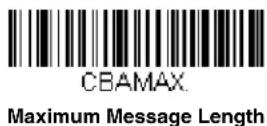
Codablock F
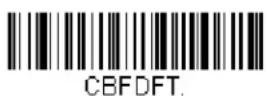
Codablock F On/Off
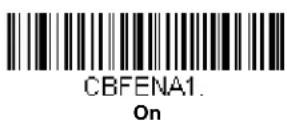
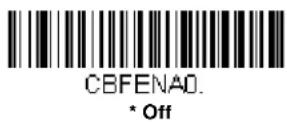
Codablock F Message Length
Scan the bar codes below to change the message length. Refer to Message Length Description (page 6-1) for additional information. Minimum and Maximum lengths = 1-2048. Minimum Default = 1, Maximum Default = 2048.
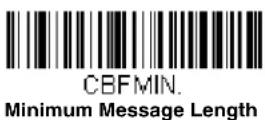
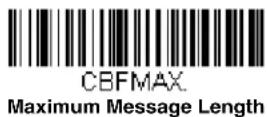
Label Code
The standard Label Code is used in libraries. Default = Off.
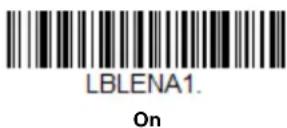
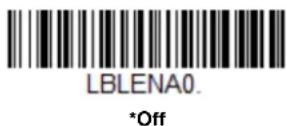
PDF417
< Default All PDF417 Settings >
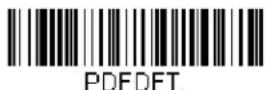
PDF417 On/Off
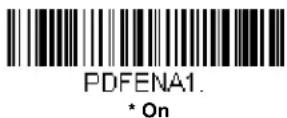
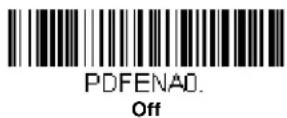
PDF417 Message Length
Scan the bar codes below to change the message length. Refer to Message Length Description (page 6-1) for additional information. Minimum and Maximum lengths = 1-2750. Minimum Default = 1, Maximum Default = 2750.
MacroPDF417
MacroPDF417 is an implementation of PDF417 capable of encoding very large amounts of data into multiple PDF417 bar codes. When this selection is enabled, these multiple bar codes are assembled into a single data string. Default = On.
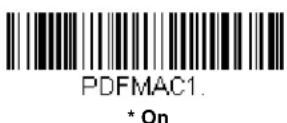
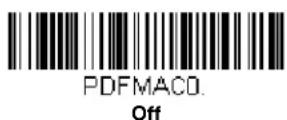
MicroPDF417
< Default All MicroPDF417 Settings >
MicroPDF417 On/Off
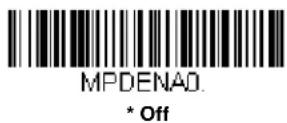
MicroPDF417 Message Length
Scan the bar codes below to change the message length. Refer to Message Length Description (page 6-1) for additional information. Minimum and Maximum lengths = 1-366. Minimum Default = 1, Maximum Default = 366.
GS1 Composite Codes
Linear codes are combined with a unique 2D composite component to form a new class called GS1 Composite symbology. GS1 Composite symbologies allow for the co-existence of symbologies already in use. Default = Off.
UPC/EAN Version
Scan the UPC/EAN Version On bar code to decode GS1 Composite symbols that have a U.P.C. or an EAN linear component. (This does not affect GS1 Composite symbols with a GS1-128 or GS1 linear component.) Default = UPC/EAN Version Off.
Note: If you scan coupons that have both UPC and GS1 DataBar codes, you may wish to scan and output only the data from the GS1 DataBar code. See Coupon GS1 DataBar Output (page 6-21) for further information.
GS1 Composite Code Message Length
Scan the bar codes below to change the message length. Refer to Message Length Description (page 6-1) for additional information. Minimum and Maximum lengths = 1-2435. Minimum Default = 1, Maximum Default = 2435.
GS1 Emulation
The scanner can automatically format the output from any GS1 data carrier to emulate what would be encoded in an equivalent GS1-128 or GS1 DataBar symbol. GS1 data carriers include UPC-A and UPC-E, EAN-13 and EAN-8, ITF-14, GS1-128, and GS1-128 DataBar and GS1 Composites. (Any application that accepts GS1 data can be simplified since it only needs to recognize one data carrier type.)
If GS1-128 Emulation is scanned, all retail codes (U.P.C., UPC-E, EAN8, EAN13) are expanded out to 16 digits. If the AIM ID is enabled, the value will be the GS1-128 AIM ID, ]C1 (see Symbology Charts on page A-1).
If GS1 DataBar Emulation is scanned, all retail codes (U.P.C., UPC-E, EAN8, EAN13) are expanded out to 16 digits. If the AIM ID is enabled, the value will be the GS1-DataBar AIM ID, ]em (see Symbology Charts on page A-1).
If GS1 Code Expansion Off is scanned, retail code expansion is disabled, and UPC-E expansion is controlled by the UPC-E0 Expand (page 6-22) setting. If the AIM ID is enabled, the value will be the GS1-128 AIM ID, ]C1 (see Symbology Charts on page A-1).
If EAN8 to EAN13 Conversion is scanned, all EAN8 bar codes are converted to EAN13 format.
Default = GS1 Emulation Off.
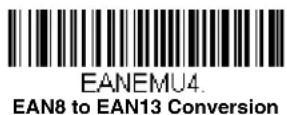
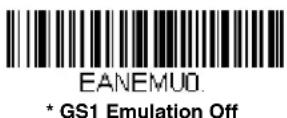
TCIF Linked Code 39 (TLC39)
This code is a composite code since it has a Code 39 linear component and a MicroPDF417 stacked code component. All bar code readers are capable of reading the Code 39 linear component. The MicroPDF417 component can only be decoded if TLC39 On is selected. The linear component may be decoded as Code 39 even if TLC39 is off. Default = Off.
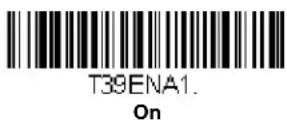
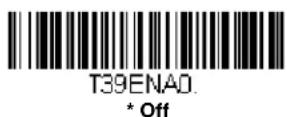
QR Code
< Default All QR Code Settings >
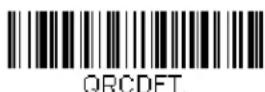
QR Code On/Off
This selection applies to both QR Code and Micro QR Code.
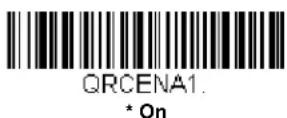
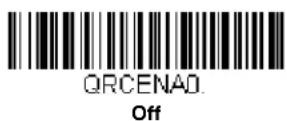
QR Code Message Length
Scan the bar codes below to change the message length. Refer to Message Length Description (page 6-1) for additional information. Minimum and Maximum lengths = 1-7089. Minimum Default = 1, Maximum Default = 7089.
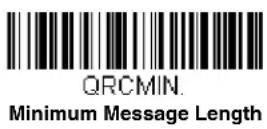
QR Code Append
This function allows the scanner to append the data from several QR Code bar codes together before transmitting them to the host computer. When the scanner encounters an QR Code bar code with the append trigger character(s), it buffers the number of QR Code bar codes determined by information encoded in those bar codes. Once the proper number of codes is reached, the data is output in the order specified in the bar codes. Default = On.
QR Code Page
QR Code pages define the mapping of character codes to characters. If the data received does not display with the proper characters, it may be because the bar code being scanned was created using a code page that is different from the one the host program is expecting. If this is the case, scan the bar code below, select the code page with which the bar codes were created (see ISO 2022/ISO 646 Character Replacements on page A-7), and scan the value and the Save bar code from the Programming Chart on the inside the back cover of this manual. The data characters should then appear properly.
Data Matrix
< Default All Data Matrix Settings >
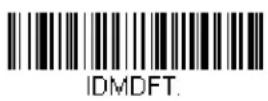
Data Matrix On/Off
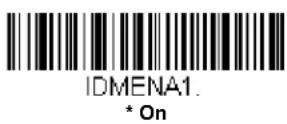
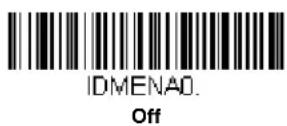
Data Matrix Message Length
Scan the bar codes below to change the message length. Refer to Message Length Description (page 6-1) for additional information. Minimum and Maximum lengths = 1-3116. Minimum Default = 1, Maximum Default = 3116.
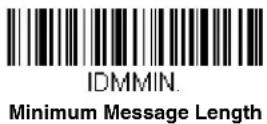
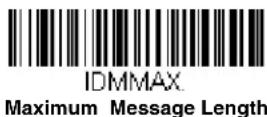
Data Matrix Append
This function allows the scanner to append the data from several Data Matrix bar codes together before transmitting them to the host computer. When the scanner encounters an Data Matrix bar code with the append trigger character(s), it buffers the number of Data Matrix bar codes determined by information encoded in those bar codes. Once the proper number of codes is reached, the data is output in the order specified in the bar codes. Default = On.
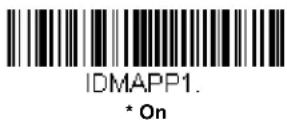
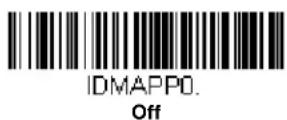
Data Matrix Code Page
Data Matrix Code pages define the mapping of character codes to characters. If the data received does not display with the proper characters, it may be because the bar code being scanned was created using a code page that is different from the one the host program is expecting. If this is the case, scan the bar code below, select the code page with which the bar
codes were created (see ISO 2022/ISO 646 Character Replacements on page A-7), and scan the value and the Save bar code from the Programming Chart on the inside the back cover of this manual. The data characters should then appear properly.
IDMDCP
Data Matrix Code Page
MaxiCode
< Default All MaxiCode Settings >

MAXDFT
MaxiCode On/Off
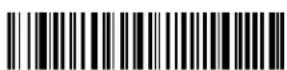
MAXENA1.
On
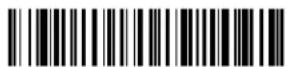
MAXENAD.
* Off
MaxiCode Message Length
Scan the bar codes below to change the message length. Refer to Message Length Description (page 6-1) for additional information. Minimum and Maximum lengths = 1-150. Minimum Default = 1, Maximum Default = 150.
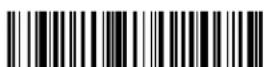
MAXMIN
Minimum Message Length
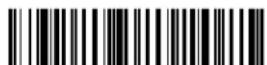
MAXMAX
Maximum Message Length
Aztec Code
< Default All Aztec Code Settings >
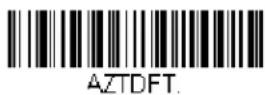
Aztec Code On/Off
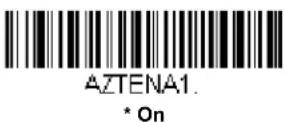
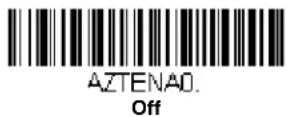
Aztec Code Message Length
Scan the bar codes below to change the message length. Refer to Message Length Description (page 6-1) for additional information. Minimum and Maximum lengths = 1-3832. Minimum Default = 1, Maximum Default = 3832.
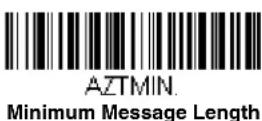
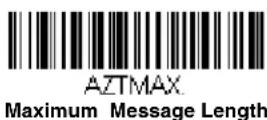
Aztec Append
This function allows the scanner to append the data from several Aztec bar codes together before transmitting them to the host computer. When the scanner encounters an Aztec bar code with the append trigger character(s), it buffers the number of Aztec bar codes determined by information encoded in those bar codes. Once the proper number of codes is reached, the data is output in the order specified in the bar codes. Default = On.
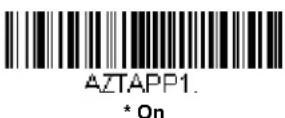
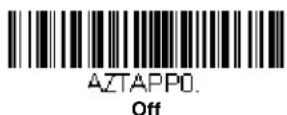
Aztec Code Page
Aztec Code pages define the mapping of character codes to characters. If the data received does not display with the proper characters, it may be because the bar code being scanned was created using a code page that is different from the one the host program is expecting. If this is the case, scan the bar code below, select the code page with which the bar
codes were created (see ISO 2022/ISO 646 Character Replacements on page A-7), and scan the value and the Save bar code from the Programming Chart on the inside the back cover of this manual. The data characters should then appear properly.
AZTDCP
Aztec Code Page
Chinese Sensible (Han Xin) Code
< Default All Han Xin Settings >
HX_DFT.
Han Xin Code On/Off
HX_ENA1.
On
HX_ENAD.
* Off
Han Xin Code Message Length
Scan the bar codes below to change the message length. Refer to Message Length Description (page 6-1) for additional information. Minimum and Maximum lengths = 1-7833. Minimum Default = 1, Maximum Default = 7833.
HX_MIN.
Minimum Message Length
HX_MAX
Maximum Message Length
Postal Codes - 2D
The following lists the possible 2D postal codes, and 2D postal code combinations that are allowed. Only one 2D postal code selection can be active at a time. If you scan a second 2D postal code selection, the first selection is overwritten. Default = 2D Postal Codes Off.

POSTALO
* 2D Postal Codes Off
Single 2D Postal Codes:
POSTAL1
Australian Post On
POSTAL7
British Post On

POSTAL30
Canadian Post On
POSTAL10
Intelligent Mail Bar Code On
POSTAL3
Japanese Post On
POSTAL4
KIX Post On
POSTALS
Planet Code On
Also see Planet Code
Check Digit, page 6-47.
POSTAL9
Postal-4i On
POSTAL6
Postnet On
Also see Postnet Check
Digit, page 6-47.
POSTAL11
Postnet with B and B' Fields On
POSTAL2
InfoMail On
Combination 2D Postal Codes:
POSTAL8
InfoMail and British
Post On
POSTAL20
Intelligent Mail Bar Code and Postnet with B and B' Fields On
POSTAL14
Postnet and
Postal-4i On
POSTAL16
Postnet and
Intelligent Mail Bar Code On
POSTAL17
Postal-4i and
Intelligent Mail Bar Code On
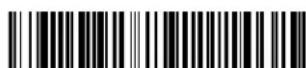
POSTAL19
Postal-4i and
Postnet with B and B' Fields On
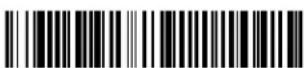
POSTAL12
Planet Code and
Postnet On
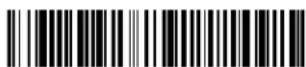
POSTAL13
Planet Code and
Postal-4i On
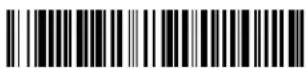
POSTAL21
Planet Code,
Postnet, and
Postal-4i On
POSTAL23
Planet Code,
Postal-4i, and
Intelligent Mail Bar Code On

POSTAL25
Planet Code.
Postal-4i, and
Postnet with B and B' Fields On
POSTAL27
Postal-4i.
Intelligent Mail Bar Code, and
Postnet with B and B' Fields On
POSTAL18
Planet Code and
Postnet with B and B' Fields On
POSTAL15
Planet Code and
Intelligent Mail Bar Code On
POSTAL22
Planet Code,
Postnet, and
Intelligent Mail Bar Code On
POSTAL24
Postnet,
Postal-4i, and
Intelligent Mail Bar Code On
POSTAL26
Planet Code,
Intelligent Mail Bar Code, and
Postnet with B and B' Fields On
POSTAL28
Planet Code,
Postal-4i,
Intelligent Mail Bar Code, and
Postnet On
POSTAL29
Planet Code,
Postal-4i.
Intelligent Mail Bar Code, and
Postnet with B and B' Fields On
Planet Code Check Digit
This selection allows you to specify whether the check digit should be transmitted at the end of Planet Code data. Default = Don't Transmit.
PLNCKX1
Transmit Check Digit

PLNCKXD.
* Don't Transmit Check Digit
Postnet Check Digit
This selection allows you to specify whether the check digit should be transmitted at the end of Postnet data. Default = Don't Transmit.
NETCKX1
Transmit Check Digit
NETCKXD
* Don't Transmit Check Digit
Australian Post Interpretation
This option controls what interpretation is applied to customer fields in Australian 4-State symbols.
Bar Output lists the bar patterns in "0123" format.
Numeric N Table causes that field to be interpreted as numeric data using the N Table.
Alphanumeric C Table causes the field to be interpreted as alphanumeric data using the C Table. Refer to the Australian Post Specification Tables.
Combination C and N Tables causes the field to be interpreted using either the C or N Tables.
AUSINTO
* Bar Output
AUSINT1.
Numeric N Table
AUSINT2
Alphanumeric C Table
AUSINT3.
Combination C and N Tables
Postal Codes - Linear
The following lists linear postal codes. Any combination of linear postal code selections can be active at a time.
China Post (Hong Kong 2 of 5)
China Post (Hong Kong 2 of 5) On/Off
CPCENA1.
On
CPCENAD.
* Off
China Post (Hong Kong 2 of 5) Message Length
Scan the bar codes below to change the message length. Refer to Message Length Description (page 6-1) for additional information. Minimum and Maximum lengths = 2-80. Minimum Default = 4, Maximum Default = 80.
CPCMIN
Minimum Message Length
CPCMAX
Maximum Message Length
Korea Post
KPCDFT.
Korea Post
KPCENA1.
On
KPCENAO.
* Off
Korea Post Message Length
Scan the bar codes below to change the message length. Refer to Message Length Description (page 6-1) for additional information. Minimum and Maximum lengths = 2-80. Minimum Default = 4, Maximum Default = 48.
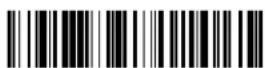
KPCMIN
Minimum Message Length
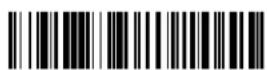
KPCMAX
Maximum Message Length
Korea Post Check Digit
This selection allows you to specify whether the check digit should be transmitted. Default = Don't Transmit.
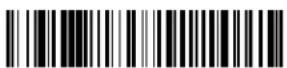
KPCCHK1
Transmit Check Digit
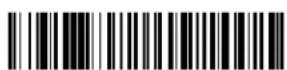
KPCCHKO.
* Don't Transmit Check Digit
EAS Considerations
Do not install any large iron fixtures, such as steel support poles, near the Solaris 7980g. Doing so may re-shape the EAS tag deactivation field.
EAS Deactivation
The Solaris 7980g supports deactivation of Checkpoint and Sensormatic/Tyco EAS tags. The following illustration shows the location of the EAS deactivation area. It is important to pass the entire tag through this area to deactivate the security tag.
Note: Do not store tags within 18.0 in (45.7cm) of the Solaris 7980g. Tags stored closer than 18.0 in (45.7cm) may be unintentionally deactivated. This area also includes storage areas located under the Solaris 7980g.
EAS Deactivation Zone
The entire tag must pass through the EAS deactivation area.
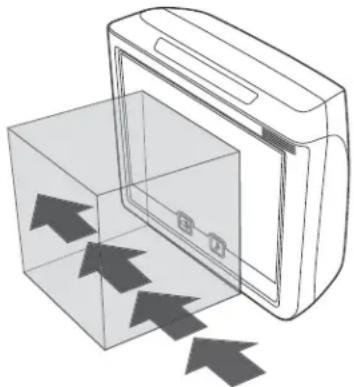
natural_image
Diagram of a device with arrows inside a transparent cube, no text or symbols presentEAS Deactivation Range
Scan the bar code below to set the 1D bar code depth of field within the EAS Deactivation range.
Note: The minimum element width changes to 6.8 mil when in EAS Deactivation Range mode.
EAS Deactivation Range
Sensormatic
Contact Tyco for further information about Sensormatic installation and configuration.
Checkpoint
EAS Controller Settings
The following switch settings for a Checkpoint Counterpoint IX controller can be used as a starting point, however, these settings should be tuned according to your particular installation.
EAS Controller
Scan one of the following bar codes to select the EAS system that is attached to the scanner. Default = Off.
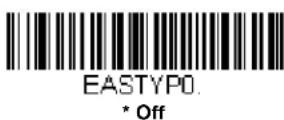
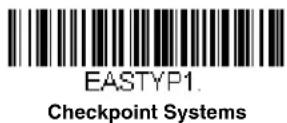
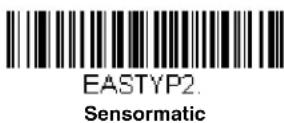
EAS Mode of Operation
Scan one of the following bar codes to select the EAS mode you wish to use.
When Interlocked is selected, EAS tag deactivation is interlocked with bar code scanning and transmission. When using Interlocked, you must set the timeout (see below).
When Continuous on Enable is selected, EAS tag deactivation is on all the time.
Default = Interlocked.
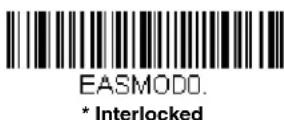
EAS Interlocked Duration Timeout
When using the Interlocked EAS Mode of Operation, you must set the lag time between when a bar code is read and when the EAS tag is deactivated. Use this selection to set this timeout (in milliseconds). After scanning the EAS Interlocked Duration Timeout bar code, set the timeout duration (from 1-5000 milliseconds) by scanning digits on the Programming Chart inside the back cover, then scanning Save. Default = 100 ms, which is 0.1 second.
EASTIM
EAS Interlocked Duration
Timeout
Programming an Auxiliary Scanner
Introduction
This chapter describes how to program auxiliary scanners that will be connected to the Solaris scanner.
Connecting by USB Serial
The Solaris 7980g auxiliary port supports Honeywell hand-held scanners with a menu system. Scan the following code to configure the Honeywell hand-held scanner for the auxiliary port:
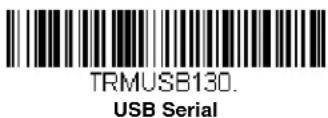
No extra configuration (e.g., baud rate) is necessary.
Note: Once the auxiliary scanner is configured for USB Serial, do not scan any configuration codes with the auxiliary scanner.
Connecting by USB Keyboard
The Solaris 7980g auxiliary port supports Honeywell or third party hand-held scanners that supports USB Keyboard interface. Follow the steps below to configure the auxiliary scanner. Contact the nearest technical support office (See Technical Assistance on page ix) for further information.
Note: We recommend using Honeywell hand-held scanners. Non-Honeywell, or third party, scanners may not work with the Solaris 7980g.
Step 1. Configure the scanner to USB Keyboard interface.
Step 2. Configure the scanner to output AIM I.D.
Step 3. Configure the scanner to output CR Suffix.
Step 4. Set the Keyboard Country Layout to U.S.A.
Note: Once the auxiliary scanner is configured for USB Keyboard, do not scan any configuration codes with the auxiliary scanner.
The scanner is like a digital camera in the way it captures, manipulates, and transfers images. The following commands allow you to alter the way the scanner performs these functions.
Note: You must set the scanner a Serial Trigger Mode (page 3-4) in order to take images.
Single-Use Basis
Imaging Commands with their modifiers send instructions to the scanner on a single-use basis, and take effect for a single image capture. Once that capture is complete, the scanner reverts to its imaging default settings. If you want to permanently change a setting, you must use the serial default commands (see Chapter 12). When the serial default command is used, that selection becomes the new, permanent setting for the scanner.
Command Syntax
Multiple modifiers and commands can be issued within one sequence. If additional modifiers are to be applied to the same command, just add the modifiers to that command. For example, to add a modifier to the Image Snap command, such as setting the Imaging Style to 1P, you would enter IMGSNP1P.
Note: After processing an image capture command (IMGSNP or IMGBOX), you must follow it with an IMGSHP command if you want to see it on your terminal.
To add a command to a sequence, each new command is separated with a semicolon. For example, to add the Image Ship command to the above sequence, you would enter IMGSNP1P;IMGSHP.
The imaging commands are:
Image Snap - IMGSNP (page 9-1)
Image Ship - IMGSHP (page 9-3)
Intelligent Signature Capture - IMGBOX (page 9-10)
The modifiers for each of these commands follow the command description.
Note: The images included with each command description are examples only. The results you achieve may be different from those included in this manual. The quality of the output you receive will vary depending on lighting, quality of the initial image/object being captured, and distance of the scanner from the image/object. To achieve a high quality image, it is recommended that you position your scanner 4-6" (10.2-15.2 cm) away from the image/object you are capturing.
Step 1 - Take a Picture Using IMGSNP
Image Snap - IMGSNP
An image is taken whenever the Image Snap (IMGSNP) command is processed.
The image snap command has many different modifiers that can be used to change the look of the image in memory. Any number of modifiers may be appended to the IMGSNP command. For example, you can use the following command to snap an image, increase the gain, and have the beeper sound once the snap is complete: IMGSNP2G1B
IMGSNP Modifiers
P - Imaging Style
This sets the Image Snap style.
0P Decoding Style. This processing allows a few frames to be taken until the exposure parameters are met. The last frame is then available for further use.
1P Photo Style (default). This mimics a simple digital camera, and results in a visually optimized image.
2P Manual Style. This is an advanced style that should only be used by an experienced user. It allows you the most freedom to set up the scanner, and has no auto-exposure.
B - Beeper
Causes a beep to sound after an image is snapped.
0B No beep (default)
1B Sounds a beep when the image is captured.
L - LED State
Determines if the LEDs should be on or off, and when. Ambient illumination (0L) is preferred for taking pictures of color documents, such as ID cards. LED illumination (1L) is preferred when the scanner is handheld. LED State is not available when using Decoding Style (0P).
0L LEDs off (default)
1L LEDs on
E - Exposure
Exposure is used in Manual Style only (2P), and allows you to set the exposure time. This is similar to setting a shutter speed on a camera. The exposure time determines how long the scanner takes to record an image. On a bright day, exposure times can be very short because plenty of light is available to help record an image. At nighttime, exposure time can increase dramatically due to the near absence of light. Units are 127 microseconds. (Default = 7874)
nE Range: 1 - 7874
Example of Exposure at 7874E with fluorescent lighting:
natural_image
Abstract illustration of a human face with floating computer screens and arrows, symbolizing data or system interaction (no text or symbols present)Example of Exposure at 100E with fluorescent lighting:
natural_image
Silhouette of a human face with abstract digital interface elements floating around it (no text or symbols)G - Gain
Gain is used in Manual Style only (2P). Like a volume control, the gain modifier boosts the signal and multiplies the pixel value. As you increase the gain, the noise in an image is also amplified.
1G No gain (default)
2G Medium gain
4G Heavy gain
8G Maximum gain
Example of Gain at 1G:
Example of Gain at 4G:
Example of Gain at 8G:
W - Target White Value
Sets the target for the median grayscale value in the captured image. For capturing close-up images of high contrast documents, a lower setting, such as 75, is recommended. Higher settings result in longer exposure times and brighter images, but if the setting is too high, the image may be overexposed. Target White Value is only available when using Photo Style (1P). (Default = 125)
nW Range: 0 - 255
Example of White Value at 75W:
Example of White Value at 125W:
Example of White Value at 200W:
natural_image
Close-up of multiple metallic vials with caps, arranged in a row (no visible text or symbols)
natural_image
Close-up of multiple small mechanical components or tools arranged in a row (no visible text or symbols)
D - Delta for Acceptance
This sets the allowable range for the white value setting (see W - Target White Value). Delta is only available when using Photo Style (1P). (Default = 25)
nD Range: 0 - 255
U - Update Tries
This sets the maximum number of frames the scanner should take to reach the D - Delta for Acceptance. Update Tries is only available when using Photo Style (1P). (Default = 6)
nU Range: 0 - 10
% - Target Set Point Percentage
Sets the target point for the light and dark values in the captured image. A setting of 75% means 75% of the pixels are at or below the target white value, and 25% of the pixels are above the target white value. Altering this setting from the default is not recommended under normal circumstances. To alter grayscale values, W - Target White Value should be used. (Default = 50)
n% Range: 1 - 99
Example of Target Set Point Percentage at 97%:
Example of Target Set Point Percentage at 50%:
Example of Target Set Point Percentage at 40%:
Lorem ipsum dolor sit amet, consectetur adipiscing elit. Curabitur massa. Lorem ipsum dolor sit amet, consectetur adipiscing elit. Donec interdum volutpat arcu. Proin sed turpis. Donec
Step 2 - Ship a Picture Using IMGSHP
Image Ship - IMGSHP
An image is taken whenever the Image Snap (IMGSNP) command is processed. The last image is always stored in memory. You can "ship" the image by using the IMGSHP command.
The image ship commands have many different modifiers that can be used to change the look of the image output. Modifiers affect the image that is transmitted, but do not affect the image in memory. Any number of modifiers may be appended to the IMGSHP command. For example, you can use the following command to snap and ship a bitmap image with gamma correction and document image filtering: IMGSNP;IMGSHP8F75K26U
IMGSHP Modifiers
A - Infinity Filter
Enhances pictures taken from very long distances (greater than 10 feet or 3m). The Infinity Filter should not be used with IMGSNP Modifiers (page 9-1).
0A Infinity filter off (default)
1A Infinity filter on
Example of Infinity Filter off (0A) from approximately 12 feet (3.66m) away:
natural_image
Simple black line drawing on a white square background (no text or symbols)Example of Infinity Filter on (1A) from approximately 12 feet (3.66m) away:
natural_image
Simple line drawing of a rising arrow from bottom-left to top-right corner, no text or symbols presentC - Compensation
Flattens the image to account for variations in illumination across the image.
0C Compensation disabled (default)
1C Compensation enabled
Example of Compensation at 0C: Example of Compensation at 1C:

natural_image
Ornamental symmetrical decorative pattern with swirling motifs on a textured dark background (no text or symbols)
natural_image
Symmetrical ornamental design with swirling floral patterns on a textured dark background (no text or symbols)D - Pixel Depth
Indicates the number of bits per pixel in the transmitted image (KIM or BMP format only).
8D 8 bits per pixel, grayscale image (default)
1D 1 bit per pixel, black and white image
E - Edge Sharpen
An edge sharpen filter cleans up the edges of an image, making it look cleaner and sharper. While edge sharpening does make the image look cleaner, it also removes some fine detail from the original image. The strength of the edge sharpen filter can be entered from 1 to 24. Entering a 23E gives the sharpest edges, but also increases noise in the image.
OE Don't sharpen image (default)
14E Apply edge sharpen for typical image
ne Apply edge sharpen using strength n (n = 1-24)
Example of Edge Sharpen at 0E: Example of Edge Sharpen at 24E:
natural_image
Abstract black-and-white sketch of interlocking mechanical parts (no text or symbols)
natural_image
Abstract black-and-white sketch of intersecting lines and shapes (no text or symbols)F - File Format
Indicates the desired format for the image.
OF KIM format
1F TIFF binary
2F TIFF binary group 4, compressed
3F TIFF grayscale
4F Uncompressed binary (upper left to lower right, 1 pixel/bit, 0 padded end of line)
5F Uncompressed grayscale (upper left to lower right, bitmap format)
6F JPEG image (default)
8F BMP format (lower right to upper left, uncompressed)
H - Histogram Stretch
Increases the contrast of the transmitted image. Not available with some image formats.
0H No stretch (default)
1H Histogram stretch
Example of Histogram Stretch at 0H: Example of Histogram Stretch at 1H:
natural_image
Close-up of a metallic bead bracelet with evenly spaced beads (no text or symbols visible)
natural_image
Close-up of a metallic bead bracelet with a curved chain (no text or symbols visible)I - Invert Image
Invert image is used to rotate the image around the X or Y axis.
1ix Invert around the X axis (flips picture upside down)
1iy Invert around the Y axis (flips picture left to right)
Example of image not inverted:
Example of image with Invert Image set to 1ix:
Example of image with Invert Image set to 1iy:
natural_image
Black-and-white photograph of the Statue of Liberty, featuring its iconic sculpture with a spiky top and raised arms (no visible text or symbols)
natural_image
Black-and-white photo of the Statue of Liberty with a decorative column and flag (no text or symbols visible)
natural_image
Black-and-white photograph of the Statue of Liberty, featuring its iconic torch and pedestal (no visible text or symbols)IF- Noise Reduction
Used to reduce the salt and pepper noise in an image.
0if No salt and pepper noise reduction (default)
1if Salt and pepper noise reduction
Example of Noise Reduction On (1if):E
natural_image
Black-and-white sketch of four playing cards (J, Q, K) with hearts and a small illustration below (no readable text or symbols)
natural_image
Close-up of multiple playing cards (J, Q, K) with visible suits and heart patterns, no text or symbols present.IR - Image Rotate
Oir Image as snapped (rightside up) (default)
1ir Rotate image 90 degrees to the right
2ir Rotate image 180 degrees (upside down)
3ir Rotate image 90 degrees to the left
Example of Image Rotate set to Oir:
Example of Image Rotate set to 2ir:
Example of Image Rotate set to 1ir: Example of Image Rotate set to 3ir:
natural_image
Close-up of two metal wire crimping tools with engraved patterns (no visible text or symbols)
J - JPEG Image Quality
Sets the desired quality when the JPEG image format is selected. Higher numbers result in higher quality, but larger files. Smaller numbers result in greater amounts of lossy compression, faster transmission times, lower quality, but smaller files. (Default = 50)
nJ Image is compressed as much as possible while preserving quality factor of n (n = 0 - 100)
0J worst quality (smallest file)
100Jbest quality (largest file)
K - Gamma Correction
Gamma measures the brightness of midtone values produced by the image. You can brighten or darken an image using gamma correction. A higher gamma correction yields an overall brighter image. The lower the setting, the darker the image. The optimal setting for text images is 50K.
0K Gamma correction off (default)
50K Apply gamma correction for brightening typical document image
nK Apply gamma correction factor n (n = 0-1,000)
Example of Gamma Correction set to 0K:
Example of Gamma Correction set to 50K:
Example of Gamma Correction set to 255K:
L, R, T, B, M - Image Cropping
Ships a window of the image by specifying the left, right, top, and bottom pixel coordinates. Device columns are numbered 0 through 1279, and device rows are numbered 0 through 959.
nL The left edge of the shipped image corresponds to column n of the image in memory. Range: 000 - 843. (Default = 0)
nR The right edge of the shipped image corresponds to column n - 1 of the image in memory. Range: 000 - 843. (Default = all columns)
nT The top edge of the shipped image corresponds to row n of the image in memory. Range: 000 - 639. (Default = 0)
nB The bottom edge of the shipped image corresponds to row n - 1 of the image in memory. Range: 000 - 639. (Default = all rows)
Uncropped Image:
natural_image
Close-up of a vintage pocket watch with Roman numerals and decorative patterns (no readable text or symbols)Example of Image Crop set to 300R:
Example of Image Crop set to 300L:
Example of Image Crop set to 200T:I
Alternately, specify the number of pixels to cut from the outside margin of the image; thus only the center pixels are transmitted.
nM Margin: cut n columns from the left, n + 1 columns from the right, n rows from the top, and n + 1 rows from the bottom of the image. Ship the remaining center pixels. Range: 0 - 238. (Default = 0, or full image)
Example of Image Crop set to 238M:
P - Protocol
Used for shipping an image. Protocol covers two features of the image data being sent to the host. It addresses the protocol used to send the data (Hmodem, which is an Xmodem 1K variant that has additional header information), and the format of the image data that is sent.
OP None (raw data)
2P None (default for USB)
3P Hmodem compressed (default for RS232)
4P Hmodem
S - Pixel Ship
Pixel Ship sizes an image in proportion to its original size. It decimates the image by shipping only certain, regularly spaced pixels. For example, 4S would transmit every fourth pixel from every fourth line. The smaller number of pixels shipped, the smaller the image, however, after a certain point the image becomes unusable.
1S ship every pixel (default)
2S ship every 2nd pixel, both horizontally and vertically
3S ship every 3rd pixel, both horizontally and vertically
Example of Pixel Ship set to 1S:
Example of Pixel Ship set to 2S:
Example of Pixel Ship set to 3S:
U - Document Image Filter
Allows you to input parameters to sharpen the edges and smooth the area between the edges of text in an image. This filter should be used with gamma correction (see page 9-7) and the image captured using the command:
IMGSNP1P0L168W90%32D
This filter typically provides better JPEG compression than the standard E - Edge Sharpen command (see page 9-9). This filter also works well when shipping pure black and white images (1 bit per pixel). The optimal setting is 26U.
0U Document image filter off (default)
26U Apply document image filter for typical document image
nU Apply document image filter using grayscale threshold n. Use lower numbers when the image contrast is lower. 1U will have a similar effect to setting E - Edge Sharpen (page 9-5) to 22e. Range: 0-255.
Example of Document Image Filter set to 0U:
Example of Document Image Filter set to 26U:
V - Blur Image
Smooths transitions by averaging the pixels next to the hard edges of defined lines and shaded areas in an image.
0V Don't blur (default)
1V Blur
Example of Blur Image Off (0V): Example of Blur Image On (1V):
W - Histogram Ship
A histogram gives a quick picture of the tonal range of an image, or key type. A low-key image has detail concentrated in the shadows; a high-key image has detail concentrated in the highlights; and an average-key image has detail concentrated in the midtones. This modifier ships the histogram for an image.
0W Don't ship histogram (default)
1W Ship histogram
Image used for histogram: Histogram of image at left:
natural_image
Close-up of multiple screws with metallic fasteners (no text or symbols visible)
natural_image
Completely black image with a faint white line at the bottom left edge (no text or symbols)Image Size Compatibility
If you have applications that expect an image ship to return exactly 640x480 pixels, scan the Force VGA Resolution bar code. Default = Native Resolution.
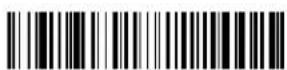
IMGVGA1
Force VGA Resolution
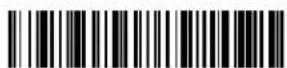
IMGVGA0
* Native Resolution
Intelligent Signature Capture - IMGBOX
IMGBOX allows you to configure the size and location of a signature capture area relative to its proximity to a bar code. This allows you to tailor a signature capture area to a specific form. In order to use IMGBOX, you need a set form where the signature box location is in a known location relative to a bar code. You can input the overall size of the signature area, as well as specify how far the signature area is from the bar code, vertically and horizontally. You can also set the resolution and file format for the final output of the signature capture image.
Note: IMGBOX commands can only be triggered by one of the following types of bar codes: PDF417, Code 39, Code 128, Aztec, Codabar, and Interleaved 2 of 5. Once one of these symbologies has been read, the image is retained for a possible IMGBOX command.
Signature Capture Optimize
If you will be using your scanner to capture signatures frequently, you should optimize it for this purpose. However, the speed of scanning bar codes may be slowed when this mode is enabled. Default = Off.
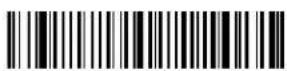
DECBND1
Optimize On
DECBNDO.
* Optimize Off
Below is an example of a signature capture application. In this example, the signature capture area is centered in the center of the Solaris 7980g window. A single beep is emitted, indicating that the scanner has read a Code 128 bar code and the data has been transferred to the host. An IMGBOX command may now be sent from the host to specify the coordinates of the signature capture area below that code, and indicating that only that area containing the signature should be transferred as an image to the host.
To see this example, align the signature area (not with the bar code) to the center of the window
Signature Capture Area
Send the following IMGBOX command string after the good read:
Example: IMGBOX245w37h55y.
Note: Case is not important in the command string. It is used here only for clarity.
The following image is captured:
Signature Capture Area
The IMGBOX commands have many different modifiers that can be used to change the size and appearance of the signature image output by the scanner. Modifiers affect the image that is transmitted, but do not affect the image in memory. Any number of modifiers may be appended to the IMGBOX command.
Note: The IMGBOX command will return a NAK unless a window size (width and height) are specified. See H - Height of Signature Capture Area (page 9-12) and W - Width of Signature Capture Area (page 9-13).
IMGBOX Modifiers
A - Output Image Width
This option is used to size the image horizontally. If using this option, set the resolution (R) to zero.
Example of Image Width set to 200A:
Signature Capture Area
Example of Image Width set to 600A:
Signature Capture Area
B - Output Image Height
This option is used to size the image vertically. If using this option, set the resolution (R) to zero.
Example of Image Height set to 50B:
Signature Capture Area
Example of Image Height set to 100B:
Signature Capture Area
D - Pixel Depth
This indicates the number of bits per pixel in the transmitted image, which defines whether it will be grayscale or black and white.
8D 8 bits per pixel, grayscale image (default)
1D 1 bit per pixel, black and white image
F - File Format
This option indicates the type of file format in which to save the image.
OF KIM format
1F TIFF binary
2F TIFF binary group 4, compressed
3F TIFF grayscale
4F Uncompressed Binary
5F Uncompressed grayscale
6F JPEG image (default)
7F Outlined image
8F BMP format
H - Height of Signature Capture Area
The height of the signature capture area must be measured in inches divided by .01. In the example, the height of the area to be captured is 3/8 inch, resulting in a value of H = .375 / 0.01 = 37.5 .
Example: IMGBOX245w37h55y.
K - Gamma Correction
Gamma measures the brightness of midtone values produced by the image. You can brighten or darken an image using gamma correction. A higher gamma correction yields an overall brighter image. The lower the setting, the darker the image. The optimal setting for text images is 50K.
0K Gamma correction off (default)
50K Apply gamma correction for brightening typical document image
nK Apply gamma correction factor n (n = 1-255)
Example of Gamma
Correction set to 0K:

Example of Gamma Correction set to 50K:

Example of Gamma Correction set to 255K:

R - Resolution of Signature Capture Area
The resolution is the number of pixels that the scanner outputs per each minimum bar width. The higher the value for R, the higher the quality of the image, but also the larger the file size. Values begin at 1000. The scanner automatically inserts a decimal point between the first and second digit. For example, use 2500 to specify a resolution of 2.5. Set to zero when using the A and B modifiers (see A - Output Image Width and B - Output Image Height on page 9-12).
Example of Resolution set to 0R:

Example of Resolution set to 1000R:

Example of Resolution set to 2000R:

S - Bar Code Aspect Ratio
All dimensions used in IMGBOX are measured as multiples of the minimum element size of the bar code. The bar code aspect ratio allows you to set the ratio of the bar code height to the narrow element width. In the example, the narrow element width is .010 inches and the bar code height is 0.400 inches, resulting in a value of S = 0.4/0.01 = 40.
W - Width of Signature Capture Area
The width of the signature capture area must be measured in inches divided by .01. In the example, the width of the area to be captured is 2.4 inches, resulting in a value of W = 2.4/0.01 = 240. (A value of 245 was used in the example to accommodate a slightly wider image area.)
Example: IMGBOX245w37h55y.
X - Horizontal Bar Code Offset
The horizontal bar code offset allows you to offset the horizontal center of the signature capture area. Positive values move the horizontal center to the right and negative values to the left. Measurements are in multiples of the minimum bar width.
Example of Horizontal Offset set to 75X:

Example of Horizontal Offset set to -75X:

Y - Vertical Bar Code Offset
The vertical bar code offset allows you to offset the vertical center of the signature capture area. Negative numbers indicate that the signature capture is above the bar code, and positive numbers indicate that the area is below the bar code. Measurements are in multiples of the minimum bar width.
Example of Vertical Offset set to -7Y:

Example of Vertical Offset set to 65Y:

Keyboard Function Relationships
The following Keyboard Function Code, Hex/ASCII Value, and Full ASCII "CTRL"+ relationships apply to all terminals that can be used with the scanner. Refer to page 2-16 enable Control + X (Control + ASCII) Mode.
Function Code HEX/ASCII Value Full ASCII (CTRL + X Mode)
| NUL 00 @ | ||
| SOH 01 A | ||
| STX 02 B | ||
| ETX 03 C | ||
| EOT 04 D | ||
| ENQ 05 E | ||
| ACK 06 F | ||
| BEL 07 G | ||
| BS 08 H | ||
| HT 09 I | ||
| LF 0A J | ||
| VT 0B K | ||
| FF 0C | L | |
| CR | 0D | M |
| SO | 0E N | |
| SI | 0F | O |
| DLE 10 P | ||
| DC1 11 Q | ||
| DC2 12 R | ||
| DC3 13 S | ||
| DC4 14 T | ||
| NAK | 15 U | |
| SYN | 16 V | |
| ETB 17 W | ||
| CAN | 18 X | |
| EM | 19 Y | |
| SUB | 1A Z | |
| ESC | 1B [ | |
| FS 1C | \ | |
| GS | 1D | ] |
| RS | 1E^ | |
| US | 1F | - |
The last five characters in the Full ASCII "CTRL"+ column ([ \ ] 6 - ), apply to US only. The following chart indicates the equivalents of these five characters for different countries.
| Country | Codes | ||||
| United States | [ | \ | ] | 6 | - |
| Belgium | [ | < | ] | 6 | - |
| Scandinavia | 8 | < | 9 | 6 | - |
| France | ^ | 8 | 6 | = | |
| Germany | \tilde{A}$ | + | 6 | - | |
| Italy | \ | + | 6 | - | |
| Switzerland | < | .. | 6 | - | |
| United Kingdom | [ | ¢ | ] | 6 | - |
Country
Codes
Denmark 8 \96 -
Norway 8 \96 -
Spain [ \ ] 6 -
Supported Interface Keys
| ASCII HEX | IBM PC/AT and Compatibles, USB PC Keyboard | Apple Mac/iMac Supported Keys |
NUL 00 Reserved Reserved
SOH 01 Enter (KP) Enter/Numpad Enter
STX 02 Cap Lock CAPS
ETX 03 ALT make ALT make
EOT 04 ALT break ALT break
ENQ 05 CTRL make CNTRL make
ACK 06 CTRL break CNTRL break
BEL 07 CR/Enter RETURN
BS 08 Reserved APPLE make
HT 09 Tab TAB
LF 0A Reserved APPLE break
VT 0B Tab TAB
FF 0C Delete Del
CR 0D CR/Enter RETURN
SO 0E Insert Ins Help
SI OF Escape ESC
DLE 10 F11 F11
DC1 11 Home Home
DC2 12 Print Prnt Scrn
DC3 13 Back Space BACKSPACE
DC4 14 Back Tab LSHIFT TAB
NAK 15 F12 F12
SYN 16 F1 F1
ETB 17 F2 F2
CAN 18 F3 F3
EM 19 F4 F4
SUB 1A F5 F5
ESC 1B F6 F6
FS 1C F7 F7
GS 1D F8 F8
RS 1E F9 F9
US 1F F10 F10
DEL 7F BACKSPACE
To Add a Test Code I.D. Prefix to All Symbologies
This selection allows you to turn on transmission of a Code I.D. before the decoded symbology. (See the Symbology Charts, beginning on page A-1) for the single character code that identifies each symbology.) This action first clears all current prefixes, then programs a Code I.D. prefix for all symbologies. This is a temporary setting that will be removed when the unit is power cycled.

PRECA2.BK2995C80!
Add Code I.D. Prefix to
All Symbologies (Temporary)
Show Decoder Revision
Scan the bar code below to output the decoder revision.
REV DR.
Show Decoder Revision
Show Scan Driver Revision
Scan the bar code below to output the scan driver revision. The scan driver controls image capture.
REV SD.
Show Scan Driver Revision
Show Software Revision
Scan the bar code below to output the current software revision, unit serial number, and other product information for both the scanner.
REVINF
Show Revision
Show Data Format
Scan the bar code below to show current data format settings.
DFMBK3?
Data Format Settings
Test Menu
When you scan the Test Menu On code, then scan a programming code in this manual, the scanner displays the content of a programming code. The programming function will still occur, but in addition, the content of that programming code is output to the terminal.
Note: This feature should not be used during normal scanner operation.
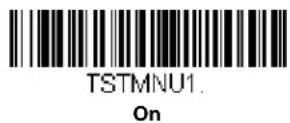
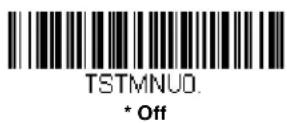
TotalFreedom
TotalFreedom is an open system architecture that makes it possible for you create applications that reside on your scanner. Decoding apps and Data Formatting apps can be created using TotalFreedom. For further information about TotalFreedom, go to our website at www.honeywellaidc.com.
Application Plug-Ins (Apps)
Any apps that you are using can be turned off or on by scanning the following bar codes. Apps are stored in groups: Decoding, and Formatting. You can enable and disable these groups of apps by scanning that group's On or Off bar code below. You can also scan the List Apps bar code to output a list of all your apps.

Note: You must reset your device in order for the apps setting to take effect.
EZConfig-Scanning Introduction
EZConfig-Scanning provides a wide range of PC-based programming functions that can be performed on a scanner connected to your PC. EZConfig-Scanning allows you to download upgrades to the scanner's firmware, change programmed parameters, and create and print programming bar codes. Using EZConfig-Scanning, you can even save/open the programming parameters for a scanner. This saved file can be e-mailed or, if required, you can create a single bar code that contains all the customized programming parameters and mail or fax that bar code to any location. Users in other locations can scan the bar code to load in the customized programming.
EZConfig-Scanning Operations
The EZConfig-Scanning software performs the following operations:
Scan Data
Scan Data allows you to scan bar codes and display the bar code data in a window. Scan Data lets you send serial commands to the scanner and receive scanner response that can be seen in the Scan Data window. The data displayed in the Scan Data window can either be saved in a file or printed.
Configure
Configure displays the programming and configuration data of the scanner. The scanner's programming and configuration data is grouped into different categories. Each category is displayed as a tree item under the "Configure" tree node in the application explorer. When one of these tree nodes is clicked, the right-hand side is loaded with the parameters' form belonging to that particular category. The "Configure" tree option has all the programming and configuration parameters specified for a scanner. You can set or modify these parameters as required. You can later write the modified settings to the scanner, or save them to a dcf file.
Imaging
Imaging provides all the image-related functions that a 2D Scanner can perform. You can capture an image using the current settings, and the image will be displayed in an image window. Images captured from the scanner can be saved to files in different image formats. You can modify the image settings and save the image settings to an INI file, which can be loaded later to capture new images. Imaging also lets you preview the images continuously captured by the scanner.
Installing EZConfig-Scanning from the Web
Note: EZConfig-Scanning requires .NET software. If .NET is not installed on your PC, you will be prompted to install during the EZConfig-Scanning installation.
- Access the Honeywell web site at www.honeywellaidc.com
- Click on the Products tab. Under Software, select Device Management.
- Click on EZConfig-Device Configuration Software.
- Click on the Software tab. Select EZConfig Cloud for Scanning (online version, must register for access) or EZConfig for Scanning (to install on your PC, follow the next steps.
- To install on your PC, when prompted, select Save File, and save the files to the c:\windows\temp directory.
- Once you have finished downloading the file, exit the web site.
- Using Explorer, go to the c:\windows\temp file.
- Double click on the Setup.exe file. Follow the screen prompts to install the EZConfig-Scanning program.
- If you've selected the defaults during installation, you can click on Start Menu-All Programs-Honeywell-EZConfig-Scanning and select EZConfig for your browser.
Resetting the Factory Defaults

This selection erases all your settings and resets the scanner to the original factory defaults. It also disables all plugins.
If you aren't sure what programming options are in your scanner, or you've changed some options and want to restore the scanner to factory default settings, first scan the Remove Custom Defaults bar code, then scan Activate Defaults. This resets the scanner to the factory default settings.
Remove Custom Defaults
DEFAULT.
Activate Defaults
The Menu Commands, beginning on page 12-3 list the factory default settings for each of the commands (indicated by an asterisk (*) on the programming pages).
Serial Programming Commands
The serial programming commands can be used in place of the programming bar codes. Both the serial commands and the programming bar codes will program the scanner. For complete descriptions and examples of each serial programming command, refer to the corresponding programming bar code in this manual.
The device must be set to an RS232 interface (see page 2-1). The following commands can be sent via a PC COM port using terminal emulation software.
Conventions
The following conventions are used for menu and query command descriptions:
parameterA label representing the actual value you should send as part of a command.
[option] An optional part of a command.
{Data} Alternatives in a command.
bold Names of menus, menu commands, buttons, dialog boxes, and windows that appear on the screen.
Menu Command Syntax
Menu commands have the following syntax (spaces have been used for clarity only):
Prefix[:Name:] Tag SubTag {Data} [, SubTag {Data}] [; Tag SubTag {Data}] [...] Storage
Prefix Three ASCII characters: SYN M CR (ASCII 22,77,13).
:Name: To send information to the scanner, use :Solaris: The default factory setting for a Solaris scanner is Solaris scanner. This setting is changed by using the BT_NAM command, which accepts alphanumeric values. If the name is not known, a wildcard (*) can be used :*:.
Tag A 3 character case-insensitive field that identifies the desired menu command group. For example, all RS232 configuration settings are identified with a Tag of 232.
SubTag A 3 character case-insensitive field that identifies the desired menu command within the tag group. For example, the SubTag for the RS232 baud rate is BAD.
Data The new value for a menu setting, identified by the Tag and SubTag.
Storage A single character that specifies the storage table to which the command is applied. An exclamation point (!) performs the command's operation on the device's volatile menu configuration table. A period (.) performs the command's operation on the device's non-volatile menu configuration table. Use the non-volatile table only for semi-permanent changes you want saved through a power cycle.
Query Commands
Several special characters can be used to query the device about its settings.
^ What is the default value for the setting(s).
? What is the device's current value for the setting(s).
* What is the range of possible values for the setting(s). (The device's response uses a dash (-) to indicate a continuous range of values. A pipe (I) separates items in a list of non-continuous values.)
:Name: Field Usage (Optional)
This command returns the query information from the scanner.
Tag Field Usage
When a query is used in place of a Tag field, the query applies to the entire set of commands available for the particular storage table indicated by the Storage field of the command. In this case, the SubTag and Data fields should not be used because they are ignored by the device.
SubTag Field Usage
When a query is used in place of a SubTag field, the query applies only to the subset of commands available that match the Tag field. In this case, the Data field should not be used because it is ignored by the device.
Data Field Usage
When a query is used in place of the Data field, the query applies only to the specific command identified by the Tag and SubTag fields.
Concatenation of Multiple Commands
Multiple commands can be issued within one Prefix/Storage sequence. Only the Tag, SubTag, and Data fields must be repeated for each command in the sequence. If additional commands are to be applied to the same Tag, then the new command sequence is separated with a comma (,) and only the SubTag and Data fields of the additional command are issued. If the additional command requires a different Tag field, the command is separated from previous commands by a semicolon (;).
Responses
The device responds to serial commands with one of three responses:
ACK Indicates a good command which has been processed.
ENQ Indicates an invalid Tag or SubTag command.
NAK Indicates the command was good, but the Data field entry was out of the allowable range for this Tag and SubTag combination, e.g., an entry for a minimum message length of 100 when the field will only accept 2 characters.
When responding, the device echoes back the command sequence with the status character inserted directly before each of the punctuation marks (the period, exclamation point, comma, or semicolon) in the command.
Examples of Query Commands
In the following examples, a bracketed notation [ ] depicts a non-displayable response.
Example: What is the range of possible values for Codabar Coding Enable?
Enter: cbrena*.
Response: CBRENA0-1[ACK]
This response indicates that Codabar Coding Enable (CBRENA) has a range of values from 0 to 1 (off and on).
Example: What is the default value for Codabar Coding Enable?
Enter: cbrena^.
Response: CBRENA1[ACK]
This response indicates that the default setting for Codabar Coding Enable (CBRENA) is 1, or on.
Example: What is the device's current setting for Codabar Coding Enable?
Enter: cbrena?.
Response: CBRENA1[ACK]
This response indicates that the device's Codabar Coding Enable (CBRENA) is set to 1, or on.
Example: What are the device's settings for all Codabar selections?
Enter: cbr?.
Response: CBRENA1[ACK],
SSX0[ACK],
CK20[ACK],
CCT1[ACK],
MIN2[ACK],
MAX60[ACK],
DFT[ACK].
This response indicates that the device's Codabar Coding Enable (CBRENA) is set to 1, or on;
the Start/Stop Character (SSX) is set to 0, or Don't Transmit;
the Check Character (CK2) is set to 0, or Not Required;
concatenation (CCT) is set to 1, or Enabled;
the Minimum Message Length (MIN) is set to 2 characters;
the Maximum Message Length (MAX) is set to 60 characters;
and the Default setting (DFT) has no value.
Trigger Commands
You can activate and deactivate the scanner with serial trigger commands. First, the scanner must be put in Manual Trigger Mode by scanning a Manual Trigger Mode bar code (page 3-4), or by sending a serial menu command for triggering (page 3-4). Once the scanner is in serial trigger mode, the trigger is activated and deactivated by sending the following commands:
Activate: SYN T CR
Deactivate: SYN U CR
The scanner scans until a bar code has been read, until the deactivate command is sent, or until the serial time-out has been reached (see "Read Time-Out" on page 3-5 for a description, and the serial command on page 12-8).
Resetting the Custom Defaults
If you want the custom default settings restored to your scanner, scan the Activate Custom Defaults bar code below. This resets the scanner to the custom default settings. If there are no custom defaults, it will reset the scanner to the factory default settings. Any settings that have not been specified through the custom defaults will be defaulted to the factory default settings.
DEFAULT
Activate Custom Defaults
The charts on the following pages list the factory default settings for each of the commands (indicated by an asterisk (*) on the programming pages).
Menu Commands
| Selection | Setting* Indicates default | Serial Command# Indicates a numeric entry | Page |
| Product Default Settings | |||
| Setting Custom Defaults Set Custom D | defaults MNUCDP 1-8 | ||
| Save Custom Defaults MNUCDS 1-8 | |||
| Resetting the Custom Defaults Activate | Custom Defaults DEFALT 1-9 | ||
| Programming the Interface | |||
| Plug and Play Codes Keyboard Wedge: | IBM PC AT and Compatibles with CR suffix | PAP_AT 2-1 | |
| Laptop Direct Connect with CR suffix PAPLTD | 2-1 | ||
| RS232 Serial Port | PAP232 | 2-1 | |
| Plug and Play Codes:RS485 | IBM Port 5B Interface | PAPP5B | 2-2 |
| IBM Port 9B HHBCR-1 Interface | PAP9B1 2-2 | ||
| IBM Port 17 Interface | PAPP17 2-2 | ||
| IBM Port 9B HHBCR-2 Interface | PAP9B2 2-2 | ||
| RS485 Packet Mode On | RTLPDF1 2-2 | ||
| RS485 Packet Mode Off | RTLPDF0 2-2 | ||
| RS485 Packet Length (20-256) | RTLMPS | 2-3 | |
| Plug and Play Codes: IBM SurePos | USB IBM SurePos Handheld | PAPSPH | 2-3 |
| USB IBM SurePos Tabletop | PAPSPT | 2-3 | |
| Plug and Play Codes: USB USB Keyboard (PC) PAP124 2-3 | |||
| USB Keyboard (Mac) PAP125 2-3 | |||
| USB Japanese Keyboard (PC) TRMUSB134 2-3 | |||
| USB HID PAP131 2-4 | |||
| USB Serial TRMUSB130 2-4 | |||
| CTS/RTS Emulation On USBCTS1 2-4 | |||
| CTS/RTS Emulation Off* USBCTS0 2-4 | |||
| ACK/NAK Mode On USBACK1 2-4 | |||
| ACK/NAK Mode Off* USBACK0 2-4 | |||
| Remote MasterMind for USB | ReM Off | REMIFC0 | 2-4 |
| *ReM On | REMIFC1 | 2-4 | |
| Plug and Play Codes | Verifone Ruby Terminal | PAPRBY | 2-5 |
| Gilbarco Terminal | PAPGLB | 2-5 | |
| Wincor Nixdorf Terminal | PAPWNX | 2-5 | |
| Wincor Nixdorf Beetle | PAPBTL 2-6 | ||
| Wincor Nixdorf RS232 Mode A | PAPWMA | ||
| Program Keyboard Country | *U.S.A. | KBDCTY0 2-6 | |
| Albania | KBDCTY35 | 2-7 | |
| Azeri (Cyrillic) | KBDCTY81 | 2-7 | |
| Azeri (Latin) | KBDCTY80 | 2-7 | |
| Belarus | KBDCTY82 | 2-7 | |
| Belgium | KBDCTY1 2-7 | ||
| Bosnia | KBDCTY33 | 2-7 | |
| Brazil | KBDCTY16 | 2-7 | |
| Brazil (MS) | KBDCTY59 | 2-7 | |
| Bulgaria (Cyrillic) | KBDCTY52 | 2-7 | |
| Bulgaria (Latin) | KBDCTY53 | 2-7 | |
| Canada (French legacy) | KBDCTY54 | 2-7 | |
| Canada (French) | KBDCTY18 | 2-8 | |
| Canada (Multilingual) | KBDCTY55 | 2-8 | |
| Croatia | KBDCTY32 | 2-8 | |
| Czech | KBDCTY15 | 2-8 | |
| Czech (Programmers) | KBDCTY40 | 2-8 | |
| Czech (QWERTY) | KBDCTY39 | 2-8 | |
| Czech (QWERTZ) | KBDCTY38 | 2-8 | |
| Denmark KBDCTY8 2-8 | |||
| Dutch (Netherlands) | KBDCTY11 | 2-8 | |
| Estonia | KBDCTY41 | 2-8 | |
| Faroese | KBDCTY83 | 2-8 | |
| Finland | KBDCTY2 2-9 | ||
| France | KBDCTY3 2-9 | ||
| Gaelic | KBDCTY84 | 2-9 | |
| Selection | Setting* Indicates default | Serial Command# Indicates a numeric entry | Page | |
| Spain KBDCTY10 2-13 | ||||
| Spanish variation KBDCTY51 2-13 | ||||
| Sweden KBDCTY23 2-13 | ||||
| Switzerland (French) KBDCTY29 2-13 | ||||
| Switzerland (German) KBDCTY6 2-13 | ||||
| Tatar KBDCTY85 2-13 | ||||
| Turkey F KBDCTY27 2-13 | ||||
| Turkey Q KBDCTY24 2-13 | ||||
| Ukrainian KBDCTY76 2-13 | ||||
| United Kingdom KBDCTY7 2-14 | ||||
| United Stated (Dvorak right) KBDCTY89 2-14 | ||||
| United States (Dvorak left) | KBDCTY88 2-14 | |||
| United States (Dvorak) | KBDCTY87 2-14 | |||
| United States (International) | KBDCTY30 | 2-14 | ||
| Uzbek (Cyrillic) | KBDCTY77 2-14 | |||
| Keyboard Conversion | *Keyboard Conversion Off | KBDCNV0 | 2-15 | |
| Convert all Characters to Upper Case | KBDCNV1 | 2-15 | ||
| Convert all Characters to Lower Case | KBDCNV2 | 2-15 | ||
| Keyboard Style | *Regular | KBDSTY0 | 2-14 | |
| Caps Lock | KBDSTY1 | 2-14 | ||
| Shift Lock | KBDSTY2 | 2-14 | ||
| Automatic Caps Lock | KBDSTY6 | 2-15 | ||
| Emulate External Keyboard | KBDSTY5 | 2-15 | ||
| Control Character Output | *Control Character Output Off | KBDNPE0 | 2-16 | |
| *Control Character Output On | KBDNPE1 | 2-16 | ||
| Keyboard Modifiers | *Control + X Off | KBDCAS0 | 2-16 | |
| DOS Mode Control + X | KBDCAS1 | 2-16 | ||
| Windows Mode Control + X | KBDCAS2 | 2-16 | ||
| Windows Mode Prefix/Suffix Off | KBDCAS3 | 2-16 | ||
| *Turbo Mode Off | KBDTMD0 | 2-17 | ||
| Turbo Mode On | KBDTMD1 | 2-17 | ||
| *Numeric Keypad Off | KBDNPS0 | 2-17 | ||
| Numeric Keypad On | KBDNPS1 | 2-17 | ||
| *Auto Direct Connect Off | KBDADC0 | 2-17 | ||
| Auto Direct Connect On | KBDADC1 | 2-17 | ||
| Baud Rate | 300 BPS | 232BAD0 | 2-17 | |
| 600 BPS | 232BAD1 | 2-17 | ||
| 1200 BPS | 232BAD2 | 2-18 | ||
| 2400 BPS | 232BAD3 | 2-18 | ||
| 4800 BPS | 232BAD4 | 2-18 | ||
| 9600 BPS | 232BAD5 | 2-18 | ||
| 19200 BPS | 232BAD6 | 2-18 | ||
| 38400 BPS | 232BAD7 | 2-18 | ||
| Word Length: Data Bits, Stop Bits,and Parity | 7 Data, 1 Stop, Parity Even | 232WRD3 | 2-18 | |
| 7 Data, 1 Stop, Parity None 232WRD0 2-19 | ||||
| 7 Data, 1 Stop, Parity Odd 232WRD6 2-19 | ||||
| 7 Data, 2 Stop, Parity Even 232WRD4 2-19 | ||||
| 7 Data, 2 Stop, Parity None 232WRD1 2-19 | ||||
| 7 Data, 2 Stop, Parity Odd 232WRD7 2-19 | ||||
| 8 Data, 1 Stop, Parity Even 232WRD5 2-19 | ||||
| *8 Data, 1 Stop, Parity None 232WRD2 2-19 | ||||
| 8 Data, 1 Stop, Parity Odd 232WRD8 2-19 | ||||
| 8 Data, 1 Stop, Parity Mark 232WRD14 2-19 | ||||
| RS232 Receiver Time-out Range 0 - 300 seconds 232LPT### 2-19 | ||||
| RS232 Handshaking *RTS/CTS Off 232CTS0 2-20 | ||||
| Flow Control, No Timeout | 232CTS1 | |||
| Two-Direction Flow Control | 232CTS2 | |||
| Flow Control with Timeout | 232CTS3 | |||
| RS232 Timeout | 232DEL### | |||
| *XON/XOFF Off | 232XON0 | |||
| XON/XOFF On | 232XON1 | |||
| *ACK/NAK Off | 232ACK0 2-21 | |||
| ACK/NAK On 232ACK1 2-21 | ||||
| Input/Output Selections | ||||
| Power Up Beeper | Power Up Beeper Off - Scanner | BEPPWR0 | 3-1 | |
| *Power Up Beeper On - Scanner | BEPPWR1 | 3-1 | ||
| Beep on BEL Character | Beep on BEL On | BELBEP1 | 3-1 | |
| *Beep on BEL Off | BELBEP0 | 3-1 | ||
| Beeper - Good Read | Off | BEPBEP0 | 3-1 | |
| *On | BEPBEP1 | 3-1 | ||
| Beeper Volume - Good Read | Off | BEPLVL0 | 3-1 | |
| Low | BEPLVL1 | 3-2 | ||
| Medium | BEPLVL2 | 3-2 | ||
| *High | BEPLVL3 | 3-2 | ||
| Beeper Pitch - Good Read(Frequency) | *Low (870) (min 400Hz) | BEPFQ1870 | 3-2 | |
| Medium (1140 Hz) | BEPFQ11140 | 3-2 | ||
| High (1800) (max 9000Hz) | BEPFQ11800 | 3-2 | ||
| Beeper Pitch - Error (Frequency) | *Razz (250) (min 200Hz) | BEPFQ2800 | 3-2 | |
| Medium (3250) | BEPFQ23250 | 3-3 | ||
| High (4200) (max 9000Hz) | BEPFQ24200 | 3-3 | ||
| Beeper Duration - Good Read | *Normal Beep | BEPBIP0 | 3-3 | |
| Short Beep BEPBIP1 3-3 | ||||
| LED - Good Read Off BEPLED0 3-3 | ||||
| *On BEPLED1 3-3 | ||||
| Number of Beeps - Error *5 BEPERR$ 3-4 | ||||
| Range 1 - 9 BEPERR# 3-4 | ||||
| Number of Beeps - Good Read *1 BEPRPT1 3-3 | ||||
| Range 1 - 9 BEPRPT# 3-3 | ||||
| Beeper Volume Max Beeper Volume Max PAPBLM 3-4 | ||||
| Good Read Delay | *No Delay | DLYGRD0 | 3-4 | |
| Short Delay (500 ms) | DLYGRD500 | 3-4 | ||
| Medium Delay (1000 ms) | DLYGRD1000 | 3-4 | ||
| Long Delay (1500 ms) | DLYGRD1500 | 3-4 | ||
| User-Specified Good Read Delay | Range 0 - 30,000 ms | DLYGRD####### | 3-4 | |
| Serial Trigger Mode Read Time-Out | (0 - 300,000 ms) *30,000 | TRGSTO##### | 3-5 | |
| Presentation Mode | *Presentation Mode | TRGMOD3 | 3-5 | |
| Presentation Idle Mode | Presentation Idle Mode (0-3,000,000)*10,000 (10s) | TRGPMT### | 3-5 | |
| Off TRGPMT0 3-5 | ||||
| Presentation Sleep Mode *On TRGTS1 3-6 | ||||
| Off TRGTSI0 3-6 | ||||
| Timeout (0-3,600,000) *300,000 (300s) | TRGTST | 3-6 | ||
| LED Illumination - Presentation Mode | Off PWRLDC0 3-6 | |||
| Low | PWRLDC100 | 3-6 | ||
| *High | PWRLDC150 | 3-6 | ||
| Presentation LED Behavior After Decode | *LEDs On | TRGPCK1 | 3-7 | |
| LEDs Off | TRGPCK0 | 3-7 | ||
| Presentation Sensitivity | Range 0-20 (*1) | TRGPMS## | 3-7 | |
| Presentation Centering Window | Presentation Centering On | PDCWIN1 | 3-8 | |
| *Presentation Centering Off | PDCWIN0 3-8 | |||
| Left of Presentation Centering Window(*40%) | PDCLFT### | 3-9 | ||
| Right of Presentation Centering Window(*60%) | PDCRGT### | 3-9 | ||
| Top of Presentation Centering Window(*40%) | PDCTOP### | 3-8 | ||
| Bottom of Presentation Centering Window(*60%) | PDCBOT### | 3-8 | ||
| Streaming Presentation | Streaming Presentation Mode - Normal | PAPSPN | 3-9 | |
| Streaming Presentation Mode - Enhanced | PAPSPE | 3-9 | ||
| Mobile Phone Read Mode | Presentation - Mobile Phone | PAPPSC | 3-9 | |
| Poor Quality PDF Codes | Poor Quality PDF Reading On | PDFXPR1 | 3-9 | |
| *Poor Quality PDF Reading Off | PDFXPR0 | 3-10 | ||
| Poor Quality Code Enhanced Mode | Poor Quality Code Enhanced Mode | PAPPSP | 3-10 | |
| Reread Delay *Short (500 ms) DLYRRD500 3-10 | ||||
| Medium (750 ms) DLYRRD750 3-10 | ||||
| Long (1000 ms) DLYRRD1000 3-10 | ||||
| Extra Long (2000 ms) DLYRRD2000 3-10 | ||||
| User-Specified Range 0 - 30,000 ms DLYRRD####### 3-10 | ||||
| Illumination Lights *Lights On SCNLED1 3-11 | ||||
| Lights Off SCNLED0 3-11 | ||||
| Centering Window | Centering On | DECWIN1 | 3-12 | |
| *Centering Off | DECWIN0 3-12 | |||
| Left of Centering Window (*40%) | DECLFT### | 3-12 | ||
| Right of Centering Window (*60%) | DECRGT### | 3-12 | ||
| Top of Centering Window (*40%) | DECTOP### | 3-12 | ||
| Bottom of Centering Window (*60%) | DECBOT### | 3-12 | ||
| Preferred Symbology | On | PRFENA1 3-12 | ||
| *Off | PRFENA0 3-13 | |||
| High Priority Symbology | PRFCOD## | 3-13 | ||
| Low Priority Symbology | PRFBLK## | 3-13 | ||
| Preferred Symbology Timeout(*500) Range 100-3000 | PRFPTO##### | 3-13 | ||
| Preferred Symbology Default | PRFDFT | 3-13 | ||
| Character Activation Mode | *Off | HSTCEN0 | 3-14 | |
| On | HSTCEN1 | 3-14 | ||
| Activation Character | HSTACH## | 3-14 | ||
| Do Not End Character Activation After Good Read | HSTCGD0 | 3-14 | ||
| *End Character Activation After Good Read | HSTCGD1 | 3-14 | ||
| Character Activation Laser Timeout (Range 1 - 65535) *5000 ms | HSTCDT##### | 3-15 | ||
| Character Deactivation Mode | *Off | HSTDEN0 | 3-15 | |
| On | HSTDEN1 | 3-15 | ||
| Deactivation Character | HSTDCH## | 3-15 | ||
| Output Sequence Editor | Enter Sequence | SEQBLK | 3-17 | |
| Default Sequence | SEQDFT | 3-17 | ||
| Partial Sequence | Transmit Partial Sequence | SEQTTS1 | 3-18 | |
| *Discard Partial Sequence | SEQTTS0 | 3-18 | ||
| Require Output Sequence | Required | SEQ_EN2 | 3-18 | |
| On/Not Required | SEQ_EN1 3-18 | |||
| *Off | SEQ_EN0 | 3-18 | ||
| No Read | On | SHWNRD1 | 3-18 | |
| *Off | SHWNRD0 | 3-18 | ||
| Video Reverse | Video Reverse Only | VIDREV1 | 3-19 | |
| Video Reverse and Standard Bar Codes | VIDREV2 | 3-19 | ||
| *Video Reverse Off | VIDREV0 | 3-19 | ||
| Working Orientation *Upright ROTATN0 3-20 | ||||
| Vertical, Bottom to Top (Rotate CCW 90°) ROTATN1 3-20 | ||||
| Upside Down ROTATN2 3-20 | ||||
| Vertical, Top to Bottom (Rotate CW 90°) ROTATN3 3-20 | ||||
| Prefix/Suffix Selections | ||||
| Add CR Suffix to All Symbologies VSUFCR 4-2 | ||||
| Prefix Add Prefix PREBK2## | 4-2 | |||
| Clear One Prefix | PRECL2 | 4-2 | ||
| Clear All Prefixes | PRECA2 | 4-2 | ||
| Suffix | Add Suffix | SUFBK2## | 4-2 | |
| Clear One Suffix | SUFCL2 | 4-2 | ||
| Clear All Suffixes | SUFCA2 | 4-2 | ||
| Function Code Transmit | *Enable | RMVFNC0 | 4-3 | |
| Disable | RMVFNC1 4-3 | |||
| Intercharacter Delay | Range 0 - 1000 (5ms increments) | DLYCHR## | 4-3 | |
| User Specified Intercharacter Delay | Delay Length0 - 1000 (5ms increments) | DLYCRX## | 4-4 | |
| Character to Trigger Delay DLY_XX## 4-4 | ||||
| Interfunction Delay | Range 0 - 1000 (5ms increments) | DLYFNC## | 4-4 | |
| Intermessage Delay | Range 0 - 1000 (5ms increments) | DLYMSG## | 4-4 | |
| Data Formatter Selections | ||||
| Data Format Editor | *Default Data Format (None) | DFMDF3 | 5-1 | |
| Enter Data Format | DFMBK3## | 5-2 | ||
| Clear One Data Format | DFMCL3 | 5-2 | ||
| Clear All Data Formats | DFMCA3 5-2 | |||
| Data Formatter | Data Formatter Off | DFM_EN0 | 5-11 | |
| *Data Formatter On, Not Required, Keep Prefix/Suffix | DFM_EN1 | 5-11 | ||
| Data Format Required, Keep Prefix/Suffix | DFM_EN2 | 5-12 | ||
| Data Formatter On, Not Required, Drop Prefix/Suffix | DFM_EN3 | 5-12 | ||
| Data Format Required, Drop Prefix/Suffix | DFM_EN4 | 5-12 | ||
| Data Format Non-Match Error Tone | *Data Format Non-Match Error Tone On | DFMDEC0 | 5-12 | |
| Data Format Non-Match Error Tone Off | DFMDEC1 | 5-12 | ||
| Primary/Alternate Data Formats | Primary Data Format | ALTFNM0 | 5-12 | |
| Data Format 1 | ALTFNM1 | 5-12 | ||
| Data Format 2 | ALTFNM2 | 5-12 | ||
| Data Format 3 | ALTFNM3 | 5-13 | ||
| Single Scan Data Format Change | Single Scan-Primary Data Format | VSAF_0 | 5-13 | |
| Symbologies | ||||
| All Symbologies All Symbologies Off ALLENA0 6-1 | ||||
| Codabar Default All Codabar | Settings | CBRDFT 6-2 | ||
| Off CBRENA0 6-2 | ||||
| *On CBRENA1 6-2 | ||||
| Codabar Start/Stop Char. | *Don't Transmit | CBRSSX0 | 6-2 | |
| Transmit | CBRSSX1 6-2 | |||
| Codabar Check Char. | *No Check Char. | CBRCK20 | 6-2 | |
| Validate, But Don't Transmit | CBRCK21 | 6-3 | ||
| Validate, and Transmit | CBRCK22 | 6-3 | ||
| Codabar Concatenation | *Off CBRCCT0 6-3 | |||
| On CBRCCT1 6-3 | ||||
| Require | CBRCCT2 6-3 | |||
| Codabar Redundancy | Range (0 - 10) *0 | CBRVOT## | 6-3 | |
| Codabar Message Length | Minimum (2 - 60) *4 | CBRMIN## | 6-4 | |
| Maximum (2 - 60) *60 | CBRMAX## | 6-4 | ||
| Code 39 | Default All Code 39 Settings | C39DFT | 6-4 | |
| Off C39ENA0 6-4 | ||||
| *On C39ENA1 6-4 | ||||
| Code 39 Start/Stop Char. | *Don't Transmit | C39SSX0 | 6-4 | |
| Transmit | C39SSX1 6-4 | |||
| Code 39 Check Char. | *No Check Char. | C39CK20 | 6-5 | |
| Validate, But Don't Transmit | C39CK21 | 6-5 | ||
| Validate, and Transmit | C39CK22 | 6-5 | ||
| Code 39 Redundancy | Range (0 - 10) *0 | C39VOT## | 6-6 | |
| Code 39 Message Length | Minimum (0 - 48) *0 | C39MIN## | 6-5 | |
| Maximum (0 - 48) *48 | C39MAX## | 6-5 | ||
| Code 39 Append | *Off C39APP0 6-5 | |||
| On C39APP1 6-5 | ||||
| Code 32 Pharmaceutical (PARAF) | *Off | C39B320 | 6-6 | |
| On C39B321 6-6 | ||||
| Code 39 Full ASCII | *Off | C39ASCO | 6-7 | |
| On C39ASC1 6-7 | ||||
| Code 39 Code Page | C39DCP | 6-7 | ||
| Interleaved 2 of 5 Default All Interleaved | 2 of 5 Settings | I25DFT 6-7 | ||
| Off I25ENA0 6-7 | ||||
| *On I25ENA1 6-7 | ||||
| Interleaved 2 of 5 Check Digit | *No Check Char. | I25CK20 | 6-8 | |
| Validate, But Don't Transmit | I25CK21 6-8 | |||
| Validate, and Transmit I25CK22 6-8 | ||||
| Interleaved 2 of 5 Redundancy Range | (0 - 10) *0 I25VOT## 6-8 | |||
| Interleaved 2 of 5 Message Length | Minimum (2 - 80) *4 | I25MIN## | 6-8 | |
| Maximum (2 - 80) *80 | I25MAX## | 6-8 | ||
| NEC 2 of 5 | Default All NEC2 of 5 Settings | N25DFT | 6-9 | |
| Off N25ENA0 6-9 | ||||
| *On N25ENA1 6-9 | ||||
| NEC 2 of 5 Check Digit | *No Check Char. | N25CK20 | 6-9 | |
| Validate, But Don't Transmit | N25CK21 | 6-9 | ||
| Validate, and Transmit N25CK22 | 6-9 | |||
| NEC 2 of 5 Message Length | Minimum (2 - 80) *4 | N25MIN## | 6-9 | |
| Maximum (2 - 80) *80 | N25MAX## | 6-10 | ||
| Code 93 | Default All Code 93 Settings | C93DFT | 6-10 | |
| Off C93ENA0 6-10 | ||||
| *On C93ENA1 6-11 | ||||
| Code 93 Message Length | Minimum (0 - 80) *0 | C93MIN## | 6-10 | |
| Maximum (0 - 80) *80 | C93MAX## | 6-10 | ||
| Code 93 Append | On C93APP1 6-10 | |||
| *Off C93APP0 6-11 | ||||
| Code 93 Code Page | Code 93 Code Page | C93DCP | 6-11 | |
| Straight 2 of 5 Industrial | Default All Straight 2 of 5 Industrial Settings | R25DFT | 6-11 | |
| *Off R25ENA0 6-11 | ||||
| On R25ENA1 6-11 | ||||
| Straight 2 of 5 Industrial Message Length | Minimum (1 - 48) *4 | R25MIN## | 6-11 | |
| Maximum (1 - 48) *48 | R25MAX## | 6-11 | ||
| Straight 2 of 5 IATA Default All Straight | 2 of 5 IATA Settings | A25DFT | 6-12 | |
| Straight 2 of 5 IATA *Off A25ENA0 | 6-12 | |||
| On A25ENA1 6-12 | ||||
| Straight 2 of 5 IATA Redundancy | Range (0 - 10) *0 | A25VOT## | 6-12 | |
| Straight 2 of 5 IATA Message Length | Minimum (1 - 48) *4 | A25MIN## | 6-12 | |
| Maximum (1 - 48) *48 | A25MAX## | 6-12 | ||
| Matrix 2 of 5 Default All Matrix 2 of 5 | Settings | X25DFT 6-13 | ||
| *Off X25ENA0 6-13 | ||||
| On X25ENA1 6-13 | ||||
| Matrix 2 of 5 Message Length Minimum | (1 - 80) *4 X25MIN## 6-13 | |||
| Maximum (1 - 80) *80 X25MAX## 6-13 | ||||
| Code 11 Default All Code 11 | Settings | C11DFT 6-14 | ||
| *Off C11ENA0 6-14 | ||||
| On C11ENA1 6-14 | ||||
| Code 11 Check Digits Required | 1 Check Digit | C11CK20 | 6-14 | |
| *2 Check Digits | C11CK21 | 6-14 | ||
| Code 11 Message Length | Minimum (1 - 80) *4 | C11MIN## | 6-14 | |
| Maximum (1 - 80) *80 C11MAX## | 6-14 | |||
| Code 128 | Default All Code 128 Settings | 128DFT | 6-15 | |
| Off 128ENA0 6-15 | ||||
| *On 128ENA1 6-15 | ||||
| ISBT Concatenation | *Off | ISBENA0 | 6-15 | |
| On ISBENA1 6-15 | ||||
| Code 128 Message Length | Minimum (0 - 80) *0 | 128MIN## | 6-15 | |
| Maximum (0 - 80) *80 128MAX## | 6-15 | |||
| Code 128 Append | *On 128APP1 6-15 | |||
| Off 128APP0 6-16 | ||||
| Code 128 Code Page | Code 128 Code Page (*2) | 128DCP## | 6-16 | |
| GS1-128 | Default All GS1-128 Settings | GS1DFT | 6-17 | |
| *On GS1ENA1 6-17 | ||||
| Off GS1ENA0 6-17 | ||||
| GS1-128 Message Length | Minimum (1 - 80) *1 | GS1MIN## | 6-17 | |
| Maximum (0 - 80) *80 GS1MAX## | 6-17 | |||
| Telepen | Default All Telepen Settings | TELDFT 6-18 | ||
| *Off TELENA0 6-18 | ||||
| On TELENA1 6-18 | ||||
| Telepen Output | *AIM Telepen Output | TELOLD0 | 6-18 | |
| Original Telepen Output | TELOLD1 | 6-18 | ||
| Telepen Message Length | Minimum (1 - 60) *1 | TELMIN## | 6-18 | |
| Maximum (1 - 60) *60 TELMAX## | 6-18 | |||
| UPC-A | Default All UPC-A Settings | UPADFT | 6-19 | |
| Off UPBENA0 6-19 | ||||
| *On UPBENA1 6-19 | ||||
| UPC-A Check Digit | Off | UPACKX0 | 6-19 | |
| *On UPACKX1 6-19 | ||||
| UPC-A Number System Off UPANSX0 | 6-19 | |||
| *On UPANSX1 6-19 | ||||
| UPC-A 2 Digit Addenda *Off UPAAD20 | 6-20 | |||
| On UPAAD21 6-20 | ||||
| UPC-A 5 Digit Addenda *Off UPAAD50 | 6-20 | |||
| On UPAAD51 6-20 | ||||
| UPC-A Addenda Required *Not Required | uparQ0 6-20 | |||
| Required UPAARQ1 6-20 | ||||
| UPC-A Addenda Separator | Off UPAADS0 6-20 | |||
| *On UPAADS1 6-20 | ||||
| UPC-A/EAN-13 with Extended Coupon Code | *Off CPENNA0 6-21 | |||
| Allow Concatenation CPNENA1 6-21 | ||||
| Require Concatenation CPNENA2 6-21 | ||||
| Coupon GS1 DataBar Output | GS1 Output Off | CPNGS10 | 6-21 | |
| GS1 Output On | CPNGS11 6-21 | |||
| UPC-E0 | Default All UPC-E Settings | UPEDFT | 6-22 | |
| Off UPEEN00 6-22 | ||||
| *On UPEEN01 6-22 | ||||
| UPC-E0 Expand | *Off UPEEXP0 6-22 | |||
| On UPEEXP1 6-22 | ||||
| UPC-E0 Addenda Required | Required | UPEARQ1 | 6-22 | |
| *Not Required UPEARQ0 | 6-22 | |||
| UPC-E0 Addenda Separator | *On UPEADS1 6-23 | |||
| Off UPEADS0 6-23 | ||||
| UPC-E0 Check Digit | Off UPECKX0 6-23 | |||
| *On UPECKX1 6-23 | ||||
| UPC-E0 Leading Zero | Off UPENSX0 6-23 | |||
| *On UPENSX1 6-23 | ||||
| UPC-E0 Addenda | 2 Digit Addenda On | UPEAD21 | 6-23 | |
| *2 Digit Addenda Off UPEAD20 6-23 | ||||
| 5 Digit Addenda On | UPEAD51 6-24 | |||
| *5 Digit Addenda Off UPEAD50 6-24 | ||||
| UPC-E1 | *Off UPEEN10 6-24 | |||
| On UPEEN11 6-24 | ||||
| EAN/JAN-13 | Default All EAN/JAN Settings | E13DFT | 6-24 | |
| Off E13ENA0 6-24 | ||||
| *On E13ENA1 6-24 | ||||
| Convert UPC-A to EAN-13 | UPC-A Converted to EAN-13 | UPAENA0 | 6-24 | |
| Do not Convert UPC-A | UPAENA1 6-24 | |||
| EAN/JAN-13 Check Digit | Off | E13CKX0 | 6-25 | |
| *On E13CKX1 6-24 | ||||
| EAN/JAN-13 2 Digit Addenda 2 Digit Addenda On E13AD21 6-25 | ||||
| *2 Digit Addenda Off E13AD20 6-25 | ||||
| 5 Digit Addenda On E13AD51 6-25 | ||||
| *5 Digit Addenda Off E13AD50 6-25 | ||||
| EAN/JAN-13 Addenda Required *Not Required E13ARQ0 6-26 | ||||
| Required E13ARQ1 6-25 | ||||
| EAN/JAN-13 Addenda Separator | Off E13ADS0 6-26 | |||
| *On E13ADS1 6-26 | ||||
| ISBN Translate *Off E13ISB0 6-26 | ||||
| On E13ISB1 6-26 | ||||
| EAN/JAN-8 | Default All EAN/JAN 8 Settings | EA8DFT | 6-27 | |
| Off EA8ENA0 6-27 | ||||
| *On EA8ENA1 6-27 | ||||
| EAN/JAN-8 Check Digit | Off | EA8CKX0 | 6-27 | |
| *On EA8CKX1 6-27 | ||||
| EAN/JAN-8 Addenda | *2 Digit Addenda Off EA8AD20 6-27 | |||
| 2 Digit Addenda On EA8AD21 6-27 | ||||
| *5 Digit Addenda Off EA8AD50 6-28 | ||||
| 5 Digit Addenda On EA8AD51 6-27 | ||||
| EAN/JAN-8 Addenda Required | *Not Required | EA8ARQ0 | 6-28 | |
| Required EA8ARQ1 6-28 | ||||
| EAN/JAN-8 Addenda Separator | Off EA8ADS0 6-28 | |||
| *On EA8ADS1 6-28 | ||||
| MSI | Default All MSI Settings | MSIDFT | 6-29 | |
| *Off MSIENA0 6-29 | ||||
| On MSIENA1 6-29 | ||||
| MSI Check Character | *Validate Type 10, but Don't Transmit | MSICHK0 | 6-29 | |
| Validate Type 10 and Transmit | MSICHK1 | 6-29 | ||
| Validate 2 Type 10 Chars, but Don't Transmit | MSICHK2 | 6-29 | ||
| Validate 2 Type 10 Chars and Transmit | MSICHK3 | 6-29 | ||
| Validate Type 11 then Type 10 Char, but Don't Transmit | MSICHK4 | 6-29 | ||
| Validate Type 11 then Type 10 Char and Transmit | MSICHK5 | 6-30 | ||
| Disable MSI Check Characters | MSICHK6 | 6-30 | ||
| MSI Message Length | Minimum (4 - 48) *4 | MSIMIN## | 6-30 | |
| Maximum (4 - 48) *48 | MSIMAX## | 6-30 | ||
| GS1 DataBar Omnidirectional | Default All GS1 DataBar Omnidirectional Settings | RSSDFT | 6-31 | |
| Off RSSENA0 6-31 | ||||
| *On RSSENA1 6-31 | ||||
| GS1 DataBar Limited Default All GS1 | DataBar Limited Settings RSLDFT 6-31 | |||
| Off RSLENA0 6-31 | ||||
| *On RSLENA1 6-31 | ||||
| GS1 DataBar Expanded Default All GS1 | DataBar Expanded Settings RSEDFT 6-32 | |||
| Off RSEENA0 6-32 | ||||
| *On RSEENA1 6-32 | ||||
| GS1 DataBar Expanded Msg. Length | Minimum (4 - 74) *4 RSEMIN## 6-32 | |||
| Maximum (4 - 74) *74 RSEMAX## 6-32 | ||||
| Trioptic Code | *Off TRIENA0 6-32 | |||
| On TRIENA1 6-32 | ||||
| Codablock A | Default All Codablock A Settings | CBADFT | 6-33 | |
| *Off CBAENA0 6-33 | ||||
| On CBAENA1 6-33 | ||||
| Codablock A Msg. Length | Minimum (1 - 600) *1 | CBAMIN### | 6-33 | |
| Maximum (1 - 600) *600 | CBAMAX### | 6-33 | ||
| Codablock F | Default All Codablock F Settings | CBFDFT | 6-32 | |
| *Off CBFENA0 6-34 | ||||
| On CBFENA1 6-34 | ||||
| Codablock F Msg. Length | Minimum (1 - 2048) *1 | CBFMIN#### | 6-34 | |
| Maximum (1 - 2048) *2048 CBFMAX#### | 6-34 | |||
| Label Code | On LBLENA1 6-34 | |||
| * Off | LBLENA0 | 6-34 | ||
| PDF417 | Default All PDF417 Settings | PDFDFT | 6-34 | |
| *On PDFENA1 6-35 | ||||
| Off PDFENA0 6-35 | ||||
| PDF417 Msg. Length | Minimum (1-2750) *1 | PDFMIN#### | 6-35 | |
| Maximum (1-2750) *2750 | PDFMAX#### | 6-35 | ||
| MacroPDF417 | *On PDFMAC1 6-35 | |||
| Off PDFMAC0 6-35 | ||||
| MicroPDF417 | Default All Micro PDF417 Settings | MPDDFT | 6-36 | |
| On MPDENA1 6-36 | ||||
| *Off MPDENA0 6-36 | ||||
| MicroPDF417 Msg. Length | Minimum (1-366) *1 | MPDMIN### | 6-36 | |
| Maximum (1-366) *366 | MPDMAX### | 6-36 | ||
| GS1 Composite Codes | On | COMENA1 | 6-36 | |
| *Off COMENA0 6-36 | ||||
| UPC/EAN Version | On COMUPC1 6-37 | |||
| *Off COMUPC0 6-37 | ||||
| GS1 Composite Codes Msg. Length | Minimum (1-2435) *1 | COMMIN#### | 6-37 | |
| Maximum (1-2435) *2435 COMMAX#### 6-37 | ||||
| GS1 Emulation GS1-128 Emulation EANEMU1 6-37 | ||||
| GS1 DataBar Emulation EANEMU2 6-38 | ||||
| GS1 Code Expansion Off EANEMU3 6-38 | ||||
| EAN8 to EAN13 Conversion EANEMU4 6-38 | ||||
| *GS1 Emulation Off EANEMU0 6-38 | ||||
| TCIF Linked Code 39 On T39ENA1 6-38 | ||||
| *Off T39ENA0 6-38 | ||||
| QR Code Default All QR Code Settings | QRCDFT 6-43 | |||
| *On QRCENA1 6-38 | ||||
| Off QRCENA0 6-38 | ||||
| QR Code Msg. Length | Minimum (1-7089) *1 | QRCMIN##### | 6-39 | |
| Maximum (1-7089) *7089 | QRCMAX##### | 6-39 | ||
| QR Code Append | *On QRCAPP1 6-39 | |||
| Off QRCAPP0 6-39 | ||||
| QR Code Page | QR Code Page (*3) | QRCDCP## | 6-39 | |
| Data Matrix | Default All Data Matrix Settings | IDMDFT | 6-40 | |
| *On IDMENA1 6-40 | ||||
| Off IDMENA0 6-40 | ||||
| Data Matrix Msg. Length | Minimum (1-3116) *1 | IDMMIN##### | 6-40 | |
| Maximum (1-3116) *3116 | IDMMAX##### | 6-40 | ||
| Data Matrix Append *On IDMAPP1 | 6-40 | |||
| Off IDMAPP0 6-40 | ||||
| Data Matrix Code Page | Data Matrix Code Page (*51) | IDMDCP## | 6-41 | |
| MaxiCode | Default All MaxiCode Settings | MAXDFT | 6-41 | |
| On MAXENA1 6-41 | ||||
| *Off MAXENA0 6-41 | ||||
| MaxiCode Msg. Length | Minimum (1-150) *1 | MAXMIN##### | 6-41 | |
| Maximum (1-150) *150 | MAXMAX##### | 6-41 | ||
| Aztec Code | Default All Aztec Code Settings | AZTDFT | 6-42 | |
| *On AZTENA1 6-42 | ||||
| Off AZTENA0 6-42 | ||||
| Aztec Code Msg. Length | Minimum (1-3832) *1 | AZTMIN##### | 6-42 | |
| Maximum (1-3832) *3832 | AZTMAX##### | 6-42 | ||
| Aztec Append | *On AZTAPP1 6-42 | |||
| Off AZTAPP0 6-42 | ||||
| Aztec Code Page | Aztec Code Page (*51) | AZTDCP## | 6-43 | |
| Chinese Sensible (Han Xin) Code | Default All Han Xin Code Settings | HX_DFT | 6-43 | |
| On HX_ENA1 6-43 | ||||
| *Off HX_ENA0 6-43 | ||||
| Chinese Sensible (Han Xin) Code Msg. Length | Minimum (1-7833) *1 | HX_MIN##### | 6-43 | |
| Maximum (1-7833) *7833 | HX_MAX##### | 6-43 | ||
| Postal Codes - 2D | ||||
| 2D Postal Codes | *Off | POSTAL0 | 6-44 | |
| Single 2D Postal Codes Australian Post | On POSTAL1 6-44 | |||
| British Post On POSTAL7 6-44 | ||||
| Canadian Post On POSTAL30 6-44 | ||||
| Intelligent Mail Bar Code On POSTAL10 6-44 | ||||
| Japanese Post On POSTAL3 6-44 | ||||
| KIX Post On POSTAL4 6-44 | ||||
| Planet Code On POSTAL5 6-44 | ||||
| Postal-4i On POSTAL9 6-44 | ||||
| Postnet On POSTAL6 6-45 | ||||
| Postnet with B and B' Fields On POSTAL11 6-45 | ||||
| InfoMail On POSTAL2 6-45 | ||||
| Combination 2D Postal Codes | InfoMail and British Post On | POSTAL8 | 6-45 | |
| Intelligent Mail Bar Code and Postnet with B and B' Fields On | POSTAL20 6-45 | |||
| Postnet and Postal-4i On | POSTAL14 6-45 | |||
| Postnet and Intelligent Mail Bar Code On | POSTAL16 6-45 | |||
| Postal-4i and Intelligent Mail Bar Code On | POSTAL17 6-45 | |||
| Postal-4i and Postnet with B and B' Fields On | POSTAL19 6-45 | |||
| Planet and Postnet On | POSTAL12 6-45 | |||
| Planet and Postnet with B and B' Fields On | POSTAL18 6-46 | |||
| Planet and Postal-4i On | POSTAL13 6-46 | |||
| Planet and Intelligent Mail Bar Code On | POSTAL15 6-46 | |||
| Planet, Postnet, and Postal-4i On | POSTAL21 6-46 | |||
| Planet, Postnet, and Intelligent Mail Bar Code On | POSTAL22 6-46 | |||
| Planet, Postal-4i, and Intelligent Mail Bar Code On | POSTAL23 6-46 | |||
| Postnet, Postal-4i, and Intelligent Mail Bar Code On | POSTAL24 6-46 | |||
| Planet, Postal-4i, and Postnet with B and B' Fields On | POSTAL25 6-46 | |||
| Planet, Intelligent Mail Bar Code, and Postnet with B and B' Fields On | POSTAL26 6-46 | |||
| Postal-4i, Intelligent Mail Bar Code, and Postnet with B and B' Fields On | POSTAL27 6-46 | |||
| Planet, Postal-4i, Intelligent Mail Bar Code, and Postnet On | POSTAL28 6-47 | |||
| Planet, Postal-4i, Intelligent Mail Bar Code, and Postnet with B and B' Fields On | POSTAL29 6-46 | |||
| Planet Code Check Digit | Transmit | PLNCKX1 | 6-47 | |
| *Don't Transmit | PLNCKX0 | 6-47 | ||
| Postnet Check Digit | Transmit | NETCKX1 | 6-47 | |
| *Don't Transmit | NETCKX0 | 6-47 | ||
| Australian Post Interpretation Bar Output | AUSINT0 6-48 | |||
| Numeric N Table AUSINT1 6-48 | ||||
| Alphanumeric C Table AUSINT2 6-48 | ||||
| Combination N and C Tables AUSINT3 6-48 | ||||
| Postal Codes - Linear | ||||
| China Post (Hong Kong 2 of 5) Default | All China Post (Hong Kong 2 of 5) Settings | CPCDFT 6-48 | ||
| *Off CPCENA0 6-48 | ||||
| On CPCENA1 6-48 | ||||
| China Post (Hong Kong 2 of 5) Msg. Length | Minimum (2 - 80) *4 CPCMIN## 6-48 | |||
| Maximum (2 - 80) *80 | CPCMAX## 6-49 | |||
| Korea Post | Default All Korea Post Settings | KPCDFT | 6-49 | |
| *Off KPCENA0 6-49 | ||||
| On KPCENA1 6-49 | ||||
| Korea Post Msg. Length | Minimum (2 - 80) *4 | KPCMIN## | 6-49 | |
| Maximum (2 - 80) *48 | KPCMAX## | 6-49 | ||
| Korea Post Check Digit | Transmit Check Digit | KPCCHK1 | 6-49 | |
| *Don't Transmit Check Digit | KPCCHK0 6-49 | |||
| EAS Settings | ||||
| EAS Deactivation Range | On | PDCPP123 | 7-1 | |
| EAS Controller | *Off EASTYP0 7-2 | |||
| On EASTYP1 7-2 | ||||
| EAS Mode of Operation | *Interlocked | EASMOD0 | 7-2 | |
| Continuous on Enable | EASMOD1 | 7-3 | ||
| EAS Interlocked Duration Timeout | EASTIM (1-5000) *100ms | EASTIM##### | 7-3 | |
| Imaging Default Commands | ||||
| Image Snap | Default all Imaging Commands | IMGDFT | 9-1 | |
| Imaging Style - Decoding | SNPSTY0 | 9-1 | ||
| *Imaging Style - Photo | SNPSTY1 | 9-1 | ||
| Imaging Style - Manual | SNPSTY2 | 9-1 | ||
| Beeper On SNPBEP1 9-1 | ||||
| *Beeper Off | SNPBEP0 | 9-1 | ||
| *LED State - Off | SNPLED0 | 9-2 | ||
| LED State - On | SNPLED1 | 9-2 | ||
| Exposure (1-7874 microseconds) | SNPEXP 9-2 | |||
| *Gain - None | SNPGAN1 | 9-2 | ||
| Gain - Medium | SNPGAN2 | 9-2 | ||
| Gain - Heavy | SNPGAN4 | 9-2 | ||
| Gain - Maximum | SNPGAN8 | 9-2 | ||
| Target White Value (0-255) *125 | SNPWHT### | 9-3 | ||
| Delta for Acceptance (0-255) *25 | SNPDEL### | 9-3 | ||
| Update Tries (0-10) *6 | SNPTRY## | 9-3 | ||
| Image Ship *Infinity Filter - Off IMGINF0 9-4 | ||||
| Image Size Compatibility Force VGA R | resolution IMGVGA1 9-10 | |||
| *Native Resolution IMGVGA0 9-10 | ||||
| Intelligent Signature Capture Optimize | On DECBND1 9-10 | |||
| *Optimize Off DECBND0 9-10 | ||||
| Utilities | ||||
| Add Code I.D. Prefix to All Symbologies (Temporary) | PRECA2,BK2995C80! | 11-1 | ||
| Show Decoder Revision | REV_DR | 11-1 | ||
| Show Scan Driver Revision | REV_SD | 11-1 | ||
| Show Software Revision | REVINF | 11-1 | ||
| Show Data Format | DFMBK3? | 11-1 | ||
| Test Menu | On | TSTMNU1 | 11-2 | |
| *Off | TSTMNU0 | 11-2 | ||
| Application Plug-Ins (Apps) | *Decoding Apps On | PLGDCE1 | 11-2 | |
| Decoding Apps Off | PLGDCE0 | 11-2 | ||
| *Formatting Apps On | PLGFOE1 | 11-2 | ||
| Formatting Apps Off | PLGFOE0 | 11-2 | ||
| List Apps | PLGINF | 11-2 | ||
| Resetting the Factory Defaults | Remove Custom Defaults | DEFOVR | 11-4 | |
| Activate Defaults | DEFALT | 11-4 | ||
Solaris 7980g Scanner Product Specifications
| Parameter Specification | |
| Dimensions (Typical): | |
| Height | 5.83 inches (148mm) |
| Width | 5.98 inches (152mm) |
| Depth | 3.34 inches (85mm) |
| Weight | 19 ounces (539g) |
| Illumination LED: | |
| Peak Wavelength | 2700K CCT (warm white LED) |
| Image Size 1280 x 960 pixels | |
| Skew Angle +75° | - |
| Pitch Angle +65° | - |
| Motion Tolerance: Presentation Mode up to 118 inches per second (3.0 m/s) for 13 mil UPC | |
| Symbol Contrast Grade 1.0 (25% or greater) | |
| Voltage Requirements 5.2 + 5% VDC at input connector | - |
| Current Draw: | |
| Operation | 400mA |
| Idle | 270mA |
| Sleep | 210mA |
| Power Supply Noise Rejection Maximum 100mV peak to peak, 10 to 100 kHz | |
| Temperature Ranges: | |
| Operating | +32°F to +104°F (0°C to 40°C) |
| Storage | -4°F to +140°F (-20°C to 60°C) |
| Humidity 5 to 95% non-condensing | |
| Mechanical Drop | Operational after 30 drops from 5 feet (1.5m) to concrete at 23°C |
| Side Impact 5.8J energy after 18 hits | |
| Vibration Withstands 10G peak from 10 to 500Hz | |
| IP Rating IP 5X | |
| ESD Tolerance | Up to 15kV direct air Up to 8 kV indirect |
Depth of Field Charts
Typical Performance
| Focus Standard Range (SR) | |||
| Symbology Near Distance Far Distance | |||
| 5 mil Code 39 | in. 0.4 5.5 | ||
| mm 10 140 | |||
| 6.7 mil PDF417 | in. 0.8 5.5 | ||
| mm 20 140 | |||
| 13 mil UPC-A | in. 0.0 10.6 | ||
| mm 0.0 270 | |||
| 20 mil Code 39 | in. 0.0 11.8 | ||
| mm 0.0 300 | |||
| 20 mil Data Matrix | in. 0.6 7.5 | ||
| mm 15 190 | |||
| 20 mil QR | in. 0 7.5 | ||
| mm 0 190 | |||
| Resolution (1D Code 39) 3 mil (.076mm) | |||
| Resolution (2D Data Matrix) 8.3 mil (211mm) | |||
Guaranteed Performance
| Focus Standard Range (SR) | |||
| Symbology Near Distance Far Distance | |||
| 5 mil Code 39 | in. 0.6 4.7 | ||
| mm 15 120 | |||
| 6.7 mil PDF417 | in. 1.5 5.1 | ||
| mm 38 130 | |||
| 13 mil UPC-A | in. | 0.0 9.6 | |
| mm | 0.0 245 | ||
| 20 mil Code 39 | in. | 0.0 10.2 | |
| mm | 0.0 260 | ||
| 20 mil Data Matrix | in. 1.1 6.3 | ||
| mm 27 160 | |||
| 20 mil QR | in. | 0.4 6.7 | |
| mm 10 170 | |||
| Resolution (1D Code 39) 3 mil (.076mm) | |||
| Resolution (2D Data Matrix) 8.3 mil (211mm) | |||
Standard Connector Pinouts
Note: The following pin assignments are not compatible with Honeywell legacy products. Use of a cable with improper pin assignments may lead to damage to the unit. Use of any cables not provided by the manufacturer may result in damage not covered by your warranty.
Keyboard Wedge
10 Pin RJ41 Modular Plug
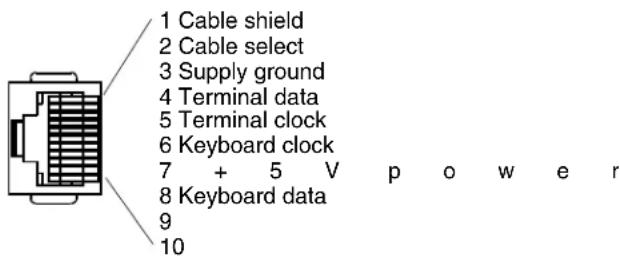
Serial Output
10 Pin RJ41 Modular Plug
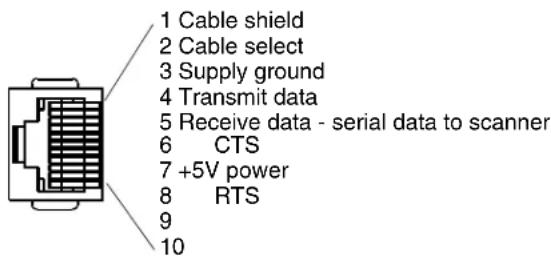
RS485 Output
10 Pin RJ41 Modular Plug
Note: RS485 signal conversion is performed in the cable.
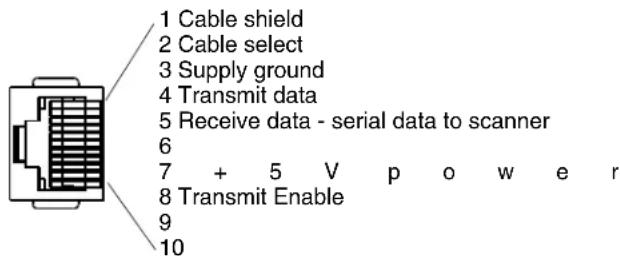
USB
10 Pin Modular Plug
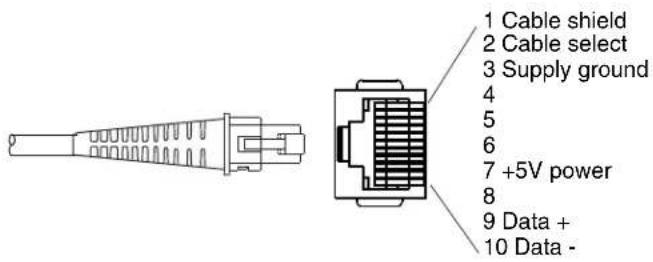
EAS
6 Pin Modular Plug
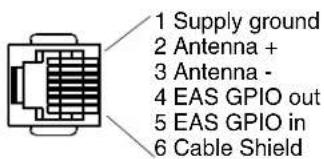
USB Auxiliary Scanner - Solaris end
USB Type A Plug
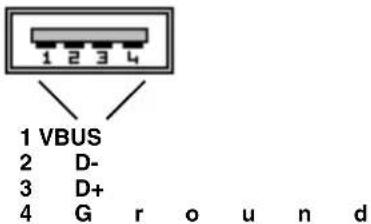
Required Safety Labels
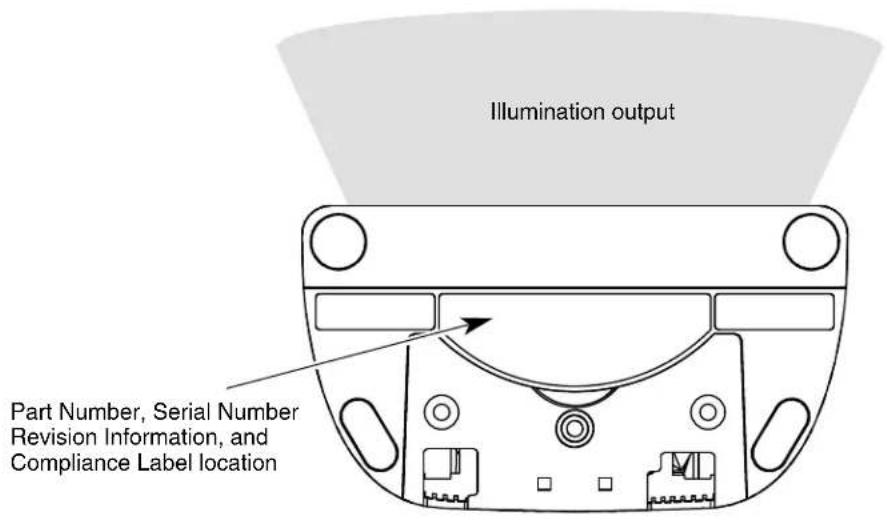
Maintenance and Troubleshooting
Repairs
Repairs and/or upgrades are not to be performed on this product. These services are to be performed only by an authorized service center (see Technical Assistance on page ix).
Maintenance
Your device provides reliable and efficient operation with a minimum of care. Although specific maintenance is not required, the following periodic checks ensure dependable operation:
Cleaning the Scanner
The scanner's housing may be cleaned with a soft cloth or tissue dampened with water (or a mild detergent-water solution.) If a detergent solution is used, rinse with a clean tissue dampened with water only.
Caution:
Do not submerge the scanner in water. The scanner's housing is not watertight.
Do not use abrasive wipes or tissues on the scanner's window – abrasive wipes may scratch the window. Never use solvents (e.g., acetone) on the housing or window – solvents may damage the finish or the window.
Cleaning the Window
Reading performance may degrade if the scanner's window is not clean. If the window is visibly dirty, or if the scanner isn't operating well, clean the window with one of the cleaning solutions listed below.
- Sani-Cloth ^ HB wipes
- Sani-Cloth ^ Plus wipes
- Super Sani-Cloth ^ wipes
• Isopropyl Alcohol wipes (70%)
• CaviWipes ^TM
• V i ^® r256 x
• 409 ^® Glass and Surface Cleaner - Windex ^ Blue
• C I 8 Bleach ×10%
• Gentle dish soap and water
Inspecting Cords and Connectors
Inspect the interface cable and connector for wear or other signs of damage. A badly worn cable or damaged connector may interfere with scanner operation. Contact your distributor for information about cable replacement. Cable replacement instructions are on page 14-1.
Replacing Cables in Corded Scanners
The standard interface cable is attached to the scanner with an 10-pin modular connector. When properly seated, the connector is held in the scanner by a flexible retention tab. The interface cable is designed to be field replaceable.
- Order replacement cables from Honeywell or from an authorized distributor.
- When ordering a replacement cable, specify the cable part number of the original interface cable.
Replacing an Interface Cable
- Turn the power to the host system OFF.
- Disconnect the scanner's cable from the terminal or computer.
- Remove the back cover.
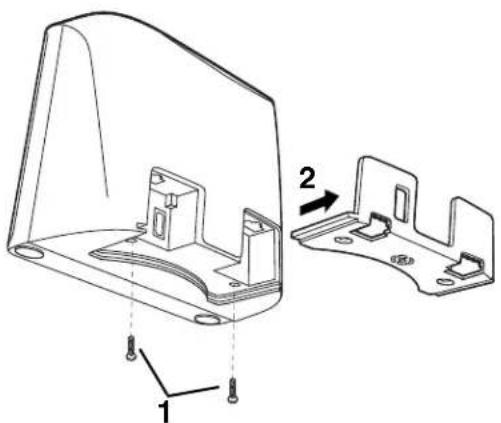
natural_image
Technical line drawing of a mechanical housing component with labeled parts (1 and 2), showing internal components and mounting features.- Pinch the interface cable jack and gently pull cable from the port. Pull the cable through the back cover.
- Replace with the new cable.
Replacing an EAS Cable
- Turn the power to the host system OFF.
- Disconnect the scanner's cable from the terminal or computer.
- Remove the back cover.
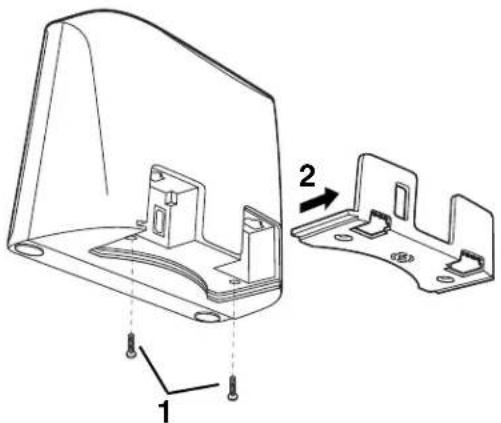
natural_image
Technical line drawing of a mechanical housing component with labeled parts (1 and 2), showing internal structure and mounting features (no text or symbols beyond labels)- Pinch the EAS cable jack and gently pull cable from the port. Pull the cable through the back cover.
- Follow the steps from Replacing an Interface Cable (see page 14-2) to remove the interface cable.
- Replace with the new EAS cable. Insert the connector into the opening and it will click into place.
Troubleshooting a Corded Scanner
The scanner automatically performs self-tests whenever you turn it on. If your scanner is not functioning properly, review the following Troubleshooting Guide to try to isolate the problem.
Is the power on?
If the LED isn't illuminated, check that:
- The cable is connected properly.
- The host system power is on (if external power isn't used).
Is the scanner having trouble reading your symbols?
If the scanner isn't reading symbols well, check that the symbols:
- Aren't smeared, rough, scratched, or exhibiting voids.
- Aren't coated with frost or water droplets on the surface.
- Are enabled in the scanner or in the decoder to which the scanner connects.
Is the bar code displayed but not entered?
The bar code is displayed on the host device correctly, but you still have to press a key to enter it (the Enter/Return key or the Tab key, for example).
- You need to program a suffix. Programming a suffix enables the scanner to output the bar code data plus the key you need (such as "CR") to enter the data into your application. Refer to Prefix/Suffix Overview on page 4-1 for further information.
Does the scanner read the bar code incorrectly?
If the scanner reads a bar code, but the data is not displayed correctly on the host screen:
- The scanner may not be programmed for the appropriate terminal interface. For example, you scan "12345" and the host displays "@es%."
Reprogram the scanner with the correct Plug and Play bar code. See Programming the Interface beginning on page 2-1.
- The scanner may not be programmed to output your bar code data properly. For example, you scan "12345" and the host displays "A12345B."
Reprogram the scanner with the proper symbology selections. See Chapter 6.
The scanner won't read your bar code at all.
-
Scan the sample bar codes in the back of this manual. If the scanner reads the sample bar codes, check that your bar code is readable. Verify that your bar code symbology is enabled (see Chapter 6).
-
If the scanner still can't read the sample bar codes, scan All Symbologies On, page 6-1.
If you aren't sure what programming options have been set in the scanner, or if you want the factory default settings restored, refer to Resetting the Factory Defaults on page 11-4.
Symbology Charts
Note: "m" represents the AIM modifier character. Refer to International Technical Specification, Symbology Identifiers, for AIM modifier character details.
Prefix/Suffix entries for specific symbologies override the universal (All Symbologies, 99) entry.
Refer to Data Editing beginning on page 4-1 and Data Formatting beginning on page 5-1 for information about using Code ID and AIM ID.
Linear Symbologies
| AIM Honeywell | ||||
| Symbology ID | Possible modifiers (m) | ID Hex | ||
| All Symbologies 99 | ||||
| Codabar ]Fm 0-1 a 61 | ||||
| Code 11 ]H3 h 68 | ||||
| Code 128 | ]Cm | 0, 1, 2, 4 | j | 6A |
| Code 32 Pharmaceutical (PARAF) | ]X0 | < | 3C | |
| Code 39 (supports Full ASCII mode) | ]Am | 0, 1, 3, 4, 5, 7 | b | 62 |
| TCIF Linked Code 39 (TLC39) | ]L2 | T | 54 | |
| Code 93 and 93i | ]Gm | 0-9, A-Z, a-m | i | 69 |
| EAN | ]Em | 0, 1, 3, 4 | d | 64 |
| EAN-13 (including Bookland EAN) | ]E0 | d 64 | ||
| EAN-13 with Add-On | ]E3 | d 64 | ||
| EAN-13 with Extended Coupon Code | ]E3 | d 64 | ||
| EAN-8 | ]E4 | D | 44 | |
| EAN-8 with Add-On | ]E3 | D | 44 | |
| GS1 | ||||
| GS1 DataBar | ]em | 0 | y | 79 |
| GS1 DataBar Limited | ]em | { | 7B | |
| GS1 DataBar Expanded | ]em | } | 7D | |
| GS1-128 | ]C1 | I | 49 | |
| 2 of 5 | ||||
| China Post (Hong Kong 2 of 5) | ]X0 | Q | 51 | |
| Interleaved 2 of 5 | ]Im | 0, 1, 3 | e | 65 |
| Matrix 2 of 5 | ]X0 | m | 6D | |
| NEC 2 of 5 | ]X0 | Y | 59 | |
| Straight 2 of 5 IATA | ]Rm | 0, 1, 3 | f | 66 |
| Straight 2 of 5 Industrial | ]S0 | f | 66 | |
| MSI | ]Mm | 0, 1 | g | 67 |
| Telepen | ]Bm | t | 74 | |
| UPC | 0, 1, 2, 3, 8, 9, A, B, C | |||
| Symbology ID | Possible modifiers (m) | ID | Hex | |
| UPC-A ]E0 c 63 | ||||
| UPC-A with Add-On ]E3 c 63 | ||||
| UPC-A with Extended Coupon Code ]E3 c 63 | ||||
| UPC-E ]E0 E 45 | ||||
| UPC-E with Add-On ]E3 E 45 | ||||
| UPC-E1 ]X0 E 45 | ||||
| Add Honeywell Code ID 5C80 | ||||
| Add AIM Code ID 5C81 | ||||
| Add Backslash 5C5C | ||||
| Batch mode quantity 5 3 | 5 | |||
2D Symbologies
| Symbology ID | AIM Honeywell | |||
| Possible modifiers (m) | ID | Hex | ||
| All Symbologies | 99 | |||
| Aztec Code | ]zm | 0-9, A-C | z | 7A |
| Chinese Sensible Code (Han Xin Code) | ]X0 H | 48 | ||
| Codablock A | ]O6 | 0, 1, 4, 5, 6 | V 56 | |
| Codablock F | ]Om | 0, 1, 4, 5, 6 | q | 71 |
| Code 49 | ]Tm | 0, 1, 2, 4 | I | 6C |
| Data Matrix | ]dm | 0-6 | w | 77 |
| GS1 | ]em | 0-3 | y | 79 |
| GS1 Composite | ]em | 0-3 | y | 79 |
| GS1 DataBar Omnidirectional | ]em | 0-3 | y | 79 |
| MaxiCode | ]Um | 0-3 | x | 78 |
| PDF417 | ]Lm | 0-2 | r | 72 |
| MicroPDF417 | ]Lm | 0-5 | R | 52 |
| QR Code | ]Qm | 0-6 | s | 73 |
| Micro QR Code | ]Qm | s | 73 | |
Postal Symbologies
| Symbology ID | AIM Honeywell | |||
| Possible modifiers (m) | ID | Hex | ||
| All Symbologies | 99 | |||
| Australian Post | ]X0 A 41 | |||
| Symbology | AIM | Honeywell | ||
| ID | Possible modifiers (m) | ID | Hex | |
| British Post ]X0 B 42 | ||||
| Canadian Post ]X0 C 43 | ||||
| China Post ]X0 Q 51 | ||||
| InfoMail ]X0 , 2c | ||||
| Intelligent Mail Bar Code ]X0 M 4D | ||||
| Japanese Post ]X0 J 4A | ||||
| KIX (Netherlands) Post ]X0 K 4B | ||||
| Korea Post ]X0 ? 3F | ||||
| Planet Code | ]X0 L | 4C | ||
| Postal-4i | ]X0 N 4E | |||
| Postnet | ]X0 P 50 | |||
ASCII Conversion Chart (Code Page 1252)
In keyboard applications, ASCII Control Characters can be represented in 3 different ways, as shown below. The CTRL+X function is OS and application dependent. The following table lists some commonly used Microsoft functionality. This table applies to U.S. style keyboards. Certain characters may differ depending on your Country Code/PC regional settings.
| Non-printable ASCII control characters | Keyboard Control + ASCII (CTRL+X) Mode | ||||
| Control + X Mode Off (KBDCAS0) | Windows Mode Control + X Mode On (KBDCAS2) | ||||
| DEC | HEX | Char | CTRL + X | CTRL + X function | |
| 0 | 00 | NUL | Reserved | CTRL+ @ | |
| 1 | 01 | SOH | NP Enter | CTRL+ A | Select all |
| 2 | 02 | STX | Caps Lock | CTRL+ B | Bold |
| 3 | 03 | ETX | ALT Make | CTRL+ C | Copy |
| 4 | 04 | EOT | ALT Break | CTRL+ D | Bookmark |
| 5 | 05 | ENQ | CTRL Make | CTRL+ E | Center |
| 6 | 06 | ACK | CTRL Break | CTRL+ F | Find |
| 7 | 07 | BEL | Enter / Ret | CTRL+ G | |
| 8 | 08 | BS | (Apple Make) | CTRL+ H | History |
| 9 | 09 | HT | Tab | CTRL+ I | Italic |
| 10 | 0A | LF | (Apple Break) | CTRL+ J | Justify |
| 11 | 0B | VT | Tab | CTRL+ K | hyperlink |
| 12 | 0C | FF | Delete | CTRL+ L | list,left align |
| 13 | 0D | CR | Enter / Ret | CTRL+ M | |
| 14 | 0E | SO | Insert | CTRL+ N | New |
| 15 | 0F | SI | ESC | CTRL+ O | Open |
| 16 | 10 | DLE | F11 | CTRL+ P | |
| 17 | 11 | DC1 | Home | CTRL+ Q | Quit |
| 18 | 12 | DC2 | PrtScn | CTRL+ R | |
| 19 | 13 | DC3 | Backspace | CTRL+ S | Save |
| 20 | 14 | DC4 | Back Tab | CTRL+ T | |
| 21 | 15 | NAK | F12 | CTRL+ U | |
| 22 | 16 | SYN | F1 | CTRL+ V | Paste |
| 23 17 ETB | F2 CTRL+ W | ||||
| 24 18 CAN | F3 CTRL+ X | ||||
| 25 19 EM F | F4 CTRL+ Y | ||||
| 26 1A SUB | F5 CTRL+ Z | ||||
| 27 1B ESC | F6 CTRL+ [ | ||||
| 28 1C FS F | F7 CTRL+ \ | ||||
| 29 1D GS | F8 CTRL+ ] | ||||
| 30 1E RS | F9 CTRL+ ^ | ||||
| 31 | 1F | US | F10 | CTRL+ - | |
| 127 | 7F | NP Enter | |||
Lower ASCII Reference Table
Note: Windows Code page 1252 and lower ASCII use the same characters.
| Printable Characters | ||||||||
| DEC | HEX | Character | DEC | HEX | Character | DEC | HEX | Character |
| 32 | 20 | 64 | 40 | @ | 96 | 60 | ||
| 33 | 21 | ! | 65 | 41 | A | 97 | 61 | a |
| 34 | 22 | " | 66 | 42 | B | 98 | 62 | b |
| 35 | 23 | # | 67 | 43 | C | 99 | 63 | c |
| 36 | 24 | 68 | 44 | D | 100 | 64 | d | |
| 37 | 25 | % | 69 | 45 | E | 101 | 65 | e |
| 38 | 26 | & | 70 | 46 | F | 102 | 66 | f |
| 39 | 27 | ' | 71 | 47 | G | 103 | 67 | g |
| 40 | 28 | ( | 72 | 48 | H | 104 | 68 | h |
| 41 | 29 | ) | 73 | 49 | I | 105 | 69 | i |
| 42 | 2A | * | 74 | 4A | J | 106 | 6A | j |
| 43 | 2B | + | 75 | 4B | K | 107 | 6B | k |
| 44 | 2C | , | 76 | 4C | L | 108 | 6C | l |
| 45 | 2D | - | 77 | 4D | M | 109 | 6D | m |
| 46 | 2E | . | 78 | 4E | N | 110 | 6E | n |
| 47 | 2F | / | 79 | 4F | O | 111 | 6F | o |
| 48 | 30 | 0 | 80 | 50 | P | 112 | 70 | p |
| 49 | 31 | 1 | 81 | 51 | Q | 113 | 71 | q |
| 50 | 32 | 2 | 82 | 52 | R | 114 | 72 | r |
| 51 | 33 | 3 | 83 | 53 | S | 115 | 73 | s |
| 52 | 34 | 4 | 84 | 54 | T | 116 | 74 | t |
| 53 | 35 | 5 | 85 | 55 | U | 117 | 75 | u |
| 54 | 36 | 6 | 86 | 56 | V | 118 | 76 | v |
| 55 | 37 | 7 | 87 | 57 | W | 119 | 77 | w |
| 56 | 38 | 8 | 88 | 58 | X | 120 | 78 | x |
| 57 | 39 | 9 | 89 | 59 | Y | 121 | 79 | y |
| 58 | 3A | : | 90 | 5A | Z | 122 | 7A | z |
| 59 | 3B | ; | 91 | 5B | [ | 123 | 7B | |
| 60 | 3C | < | 92 | 5C | \ | 124 | 7C | | |
| 61 | 3D | = | 93 | 5D | ] | 125 | 7D | |
| 62 | 3E | > | 94 | 5E | ^ | 126 | 7E | ~ |
| Printable Characters (Continued) | ||||||||
| DEC | HEX | Character | DEC | HEX | Character | DEC | HEX | Character |
| 63 | 3F | ? | 95 | 5F | 127 | 7F | \triangle$ | |
| Extended ASCII Characters | |||||
| DEC | HEX | CP 1252 | ASCII | Alternate Extended | PS2 Scan Code |
| 128 80 € | Ç | up arrow ↑ | 0x48 | ||
| 129 81 ü | down arrow ↓ | 0x50 | |||
| 130 82 , | é | right arrow → | 0x4B | ||
| 131 83 f | å | left arrow ← | 0x4D | ||
| 132 84 ,, | ä | I | n s | e | |
| 133 | 85 | ... | à | Delete | 0x53 |
| 134 | 86 | † | à | Home | 0x47 |
| 135 | 87 | ‡ | ç | End | 0x4F |
| 136 | 88 | ^ | ê | Page Up | 0x49 |
| 137 | 89 | ‰ | ë | Page Down | 0x51 |
| 138 | 8A | Š | è | Right ALT | 0x38 |
| 139 | 8B | < | ï | Right CTRL | 0x1D |
| 140 | 8C | CE | î | Reserved | n/a |
| 141 | 8D | i | Reserved | n/a | |
| 142 | 8E | Ž | Ä | Numeric Keypad Enter | 0x1C |
| 143 | 8F | Ä | Numeric Keypad / | 0x35 | |
| 144 90 É | F1 | 0 x 3 | B | ||
| 145 | 91 | ' | æ | F2 | 0x3C |
| 146 | 92 | ' | Æ | F3 | 0x3D |
| 147 93 " | ô | F | 4 | 0 | |
| 148 94 " | ö | F | 5 | 0 | |
| 149 | 95 | • | ò | F6 | 0x40 |
| 150 | 96 | - | û | F7 | 0x41 |
| 151 97 - | ù | F8 | 0 | ||
| 152 98 ~ | ÿ | F | 9 | 0 | |
| 153 | 99 | TM | Ö | F10 | 0x44 |
| 154 | 9A | š | Ü | F11 | 0x57 |
| 155 9B | > | ¢ | F 1 2 | ||
| 156 | 9C | œ | £ | Numeric Keypad + | 0x4E |
| 157 | 9D | ¥ | Numeric Keypad - | 0x4A | |
| 158 | 9E | ž | Pts | Numeric Keypad * | 0x37 |
| 159 | 9F | Ÿ | f | Caps Lock | 0x3A |
| 160 | A0 | á | Num Lock | 0x45 | |
| 161 | A1 | i | í | Left Alt | 0x38 |
| 162 | A2 | ¢ | ó | Left Ctrl | 0x1D |
| 163 | A3 | £ | ú | Left Shift | 0x2A |
| 164 | A4 | ¤ | ñ | Right Shift | 0x36 |
| 165 | A5 | ¥ | Ñ | Print Screen | n/a |
| 166 | A6 | ¡ | a | Tab | 0x0F |
| 167 | A7 | § | ° | Shift Tab | 0x8F |
| 168 | A8 | " | ¿ | Enter | 0x1C |
| 169 | A9 | © | ¬ | Esc | 0x01 |
| 170 | AA | a | ¬ | Alt Make | 0x36 |
| 171 | AB | « | 1⁄2 | Alt Break | 0xB6 |
| 172 | AC | ¬ | 1⁄4 | Control Make | 0x1D |
| 173 | AD | i | Control Break | 0x9D | |
| 174 | AE | ® | « | Alt Sequence with 1 Character | 0x36 |
| Extended ASCII Characters (Continued) | |||||
| DEC | HEX | CP 1252 | ASCII | Alternate Extended | PS2 Scan Code |
| 175 | AF | » | Ctrl Sequence with 1 Character | 0x1D | |
| 176 B0° | |||||
| 177 B1 ± | |||||
| 178 B2° | |||||
| 179 B3° | |||||
| 180 B4' | |||||
| 181 B5 μ | |||||
| 182 B6 † | |||||
| 183 B7' | |||||
| 184 B8, † | |||||
| 185 B9' | |||||
| 186 BA° | |||||
| 187 BB » † | |||||
| 188 BC 1⁄2 ‡ | |||||
| 189 BD 1⁄2 ‡ | |||||
| 190 BE 3⁄4 ‡ | |||||
| 191 BF ‡ | |||||
| 192 C0 A ‡ | |||||
| 193 C1 A ‡ | |||||
| 194 C2 A ‡ | |||||
| 195 C3 A ‡ | |||||
| 196 C4 A - | |||||
| 197 C5 A | í | ||||
| 198 C6 A ‡ | |||||
| 199 C7 C ‡ | |||||
| 200 C8 E ‡ | |||||
| 201 C9 E ‡ | |||||
| 202 CA E ‡ | |||||
| 203 CB E ‡ | |||||
| 204 CC I | ‖ | ||||
| 205 CD I | = | ||||
| 206 CE I | ‖ | ||||
| 207 CF I | ⊥ | ||||
| 208 D0 E ‡ | |||||
| 209 D1 N ‡ | |||||
| 210 D2 O | ‖ | ||||
| 211 | D3 | Ó | L | ||
| 212 D4 O | E | ||||
| 213 D5 O | F | ||||
| 214 D6 O | ‖ | ||||
| 215 D7 × ‡ | |||||
| 216 D8 O | ≠ | ||||
| 217 D9 U ‡ | |||||
| 218 DA U ‡ | |||||
| 219 DB U ‡ | |||||
| 220 DC U ‡ | |||||
| 221 DD Y ‡ | |||||
| 222 DE P ‡ | |||||
| 223 DF β ‡ | |||||
| 224 E0 à α | |||||
| 225 E1 à | ß | ||||
| 226 E2 à ‡ | |||||
| 227 E3 â π | |||||
| 228 E4 ä Σ | |||||
| 229 E5 â σ | |||||
| 230 E6 æ | μ | ||||
| 231 E7 ç T | |||||
| 232 E8 è Φ | |||||
| 233 E9 é Θ | |||||
| 234 EA ë Ω | |||||
| 235 EB ë ð | |||||
| 236 EC i ∞ | |||||
| 237 ED í φ | |||||
| 238 EE î ε | |||||
| 239 EF i ∩ | |||||
| 240 F0 õ ≡ | |||||
| 241 F1 ñ | ± | ||||
| 242 F2 ò ≥ | |||||
| 243 F3 ò ≤ | |||||
| 244 F4 Ó∫ | |||||
| 245 F5 õ∫ | |||||
| 246 F6 õ | ÷ | ||||
| 247 F7 ÷ ≈ | |||||
| 248 F8 ø | ° | ||||
| 249 F9 ù | |||||
| 250 FA ù | . | ||||
| 251 FB û √ | |||||
| 252 FC û n | |||||
| 253 FD ÿ | 2 | ||||
| 254 FE p ■ | |||||
| 255 FF ÿ | |||||
ISO 2022/ISO 646 Character Replacements
Code pages define the mapping of character codes to characters. If the data received does not display with the proper characters, it may be because the bar code being scanned was created using a code page that is different from the one the host program is expecting. If this is the case, select the code page with which the bar codes were created. The data characters should then appear properly.
| Code Page Selection Method/Country | Standard | Keyboard Country | Honeywell Code Page Option |
| United States(standard ASCII) | ISO/IEC 646-IRV n/a | 1 | |
| Automatic National Character Replacement | ISO/IEC 2022 | n/a | 2 (default) |
| Binary Code page | n/a | n/a | 3 |
| Default “Automatic National Character replacement” will select the below Honeywell Code Page options for Code128, Code 39 and Code 93. | |||
| United States | ISO/IEC 646-06 | 0 | 1 |
| Canada | ISO /IEC 646-121 | 54 | 95 |
| Canada | ISO /IEC 646-122 | 18 | 96 |
| Japan | ISO/IEC 646-14 | 28 | 98 |
| China ISO/IEC 646-57 92 99 | |||
| Great Britain (UK) ISO /IEC 646-04 7 87 | |||
| France ISO /IEC 646-69 3 83 | |||
| Germany ISO/IEC646-21 4 84 | |||
| Switzerland ISO /IEC 646-CH 6 86 | |||
| Sweden / Finland (extended Annex C) ISO/IEC 646-11 2 82 | |||
| Ireland ISO /IEC 646-207 73 97 | |||
| Denmark ISO/IEC 646-08 8 88 | |||
| Norway ISO/IEC 646-60 9 94 | |||
| Italy ISO/IEC 646-15 5 85 | |||
| Portugal | ISO/IEC 646-16 13 92 | ||
| Spain | ISO/IEC 646-17 10 90 | ||
| Spain | ISO/IEC 646-85 51 91 | ||
| Dec | 3536649192939496123124125126 | |||||||||||||
| Hex | 2324405B5C5D5E607B7C7D7E | |||||||||||||
| US | 0 | 1 | # | @ | [ | \ | ] | ^ | ` | | | ~ | |||
| CA | 54 | 95 | #aáçêiõé | ù | è | û | ||||||||
| CA | 18 | 96 | #aáçêÉõé | ù | è | û | ||||||||
| JP | 28 | 98 | # | @[¥]^{} | } | - | ||||||||
| CN | 92 | 99 | # | ¥ | @ | [ | \ | ] | ^ | ` | { | | | } | - |
| GB | 787 | £ | @ | [ | \ | ] | ^ | ` | | | ~ | ||||
| FR | 383 | £à° | ç§^μé | ù | è | |||||||||
| DE | 4 | 84 | # | § | Ä | Ö | Ü | ^ | ` | ä | ö | ü | ß | |
| CH | 686 | ù | à | é | ç | ê | î | ô | ä | ö | ü | û | ||
| SE/FI282 | # | ¤ | É | Ä | Ö | Å | Ü | é | ä | ö | å | ü | ||
| DK | 8 | 88 | # | @ | Æ | ∅ | Å | ^ | ` | æ | ø | å | ~ | |
| NO | 994 | # | @ | Æ | ∅ | Å | ^ | ` | æ | ø | å | - | ||
| IE | 73 | 97 | £Ó | É | ÍÚÁóéíú | á | ||||||||
| IT | 585 | £ | § | ° | ç | é | ^ | ù | à | ò | è | ì | ||
| PT13 | 92 | # | § | Ä | Ç | Ö | ^ | ` | ä | ç | õ | ° | ||
| ES10 | 90 | # | § | i | Ñ | ¿ | ^ | ` | ° | ñ | ç | ~ | ||
| ES51 | 91 | # | $ | · | i | Ñ | Ç | ¿ | ` | ` | ñ | ç | .. | |
| COUNTRY | Country Keyboard | Honeywell CodePage | ISO / IEC 646 National Character Replacements | |||||||||||
Keyboard Key References
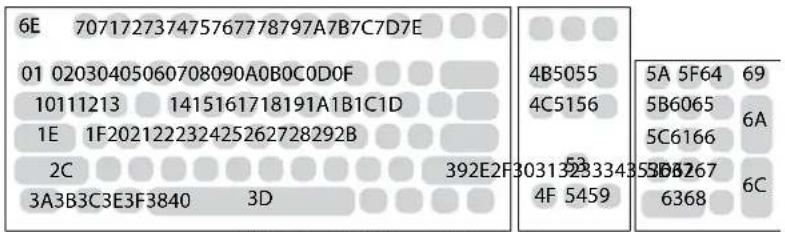
104 Key U.S. Style Keyboard
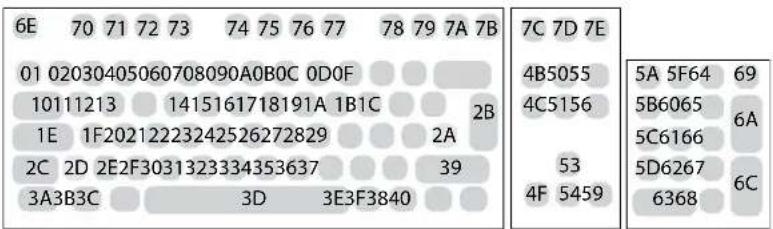
105 Key European Style Keyboard
Sample Symbols
UPC-A
0 123456 7890
Interleaved 2 of 5
1234567890
EAN-13
9 780330 290951
Code 128
Code 128
Code 39
BC321
Codabar
A13579B
Code 93
123456-9\$
Code 2 of 5
123456
Matrix 2 of 5
6543210
RSS-14
(01)00123456789012
Sample Symbols
PDF417
Car Registration
Code 49
1234567890
Postnet
[Non-Text]
Zip Code
Data Matrix

Test Symbol
QR Code

Numbers
Aztec
Package Label
MaxiCode
Test Message
Micro PDF417
Test Message
Programming Chart
Programming Chart
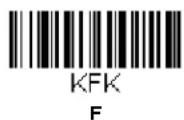
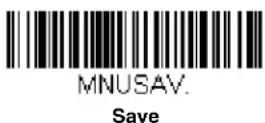
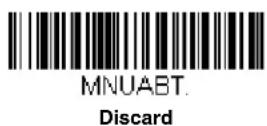
Note: If you make an error while scanning the letters or digits (before scanning Save), scan Discard, scan the correct letters or digits, and Save again.
Honeywell Scanning & Mobility
9680 Old Bailes Road
Fort Mill, SC 29707
www.honeywellaidc.com