SGH-R225 - Mobile Phone SAMSUNG - Free user manual and instructions
Find the device manual for free SGH-R225 SAMSUNG in PDF.


| Brand | Samsung |
| Model | SGH-R225 |
| Product Type | Mobile Phone |
| Dimensions | 80 x 42 x 20 mm (3.15 x 1.65 x 0.79 in) |
| Weight | 80 g (2.82 oz) |
| Battery Type | Li-Ion |
| Battery Capacity | 700 mAh |
| Talk Time | Up to 3 hours |
| Standby Time | Up to 200 hours |
| Display Type | Color TFT |
| Display Resolution | 128 x 128 pixels |
| Network Support | GSM 900 / 1800 / 1900 (Tri-band) |
| Connectivity | Bluetooth 1.1, Infrared |
| Main Functions | Calls, SMS, Phonebook, Alarm, Calculator, Calendar |
| Memory | 500 contacts, 100 SMS |
| Camera | VGA (0.3 MP) |
| Care and Cleaning | Wipe with a soft dry cloth; avoid liquids |
| Safety Precautions | Use only Samsung-approved accessories; do not expose to water |
| Spare Parts and Repairability | Battery and charger available; service by authorized centers |
| General Information | Released in 2005; supports polyphonic ringtones |
Frequently Asked Questions - SGH-R225 SAMSUNG
User questions about SGH-R225 SAMSUNG
0 question about this device. Answer the ones you know or ask your own.
Ask a new question about this device
Download the instructions for your Mobile Phone in PDF format for free! Find your manual SGH-R225 - SAMSUNG and take your electronic device back in hand. On this page are published all the documents necessary for the use of your device. SGH-R225 by SAMSUNG.
USER MANUAL SGH-R225 SAMSUNG
www.samsungusa.com/wireless
GH68-02605A
User Guide
SAMSUNG DIGITALD
everyone's invited.
Intellectual Property
All Intellectual Property, as defined below, owned by or which is otherwise the property of Samsung or its respective suppliers relating to the SAMSUNG Phone, including but not limited to, accessories, parts, or software relating thereto (the "Phone System"), is proprietary to Samsung and protected under federal laws, state laws, and international treaty provisions. Intellectual Property includes, but is not limited to, inventions (patentable or unpatentable), patents, trade secrets, copyrights, software, computer programs, and related documentation and other works of authorship. You may not infringe or otherwise violate the rights secured by the Intellectual Property. Moreover, you agree that you will not (and will not attempt to) modify, prepare derivative works of, reverse engineer, decompile, disassemble, or otherwise attempt to create source code from the software. No title to or ownership in the Intellectual Property is transferred to you. All applicable rights of the Intellectual Property shall remain with SAMSUNG and its suppliers.
Samsung Telecommunications America (STA), Inc.
| Headquarters: | Customer Care Center: |
| 1130 E.Arapaho Road | 1601 E.Plano Parkway, Suite 150 |
| Richardson, TX 75081 | Plano, TX 75074 |
| Tel: 972.761.7000 | Toll Free Tel: 1.888.987.HELP(4357) |
| Fax: 972.761.7001 | Fax: 972.761.7501 |
Internet Address: http://www.samsungusa.com/wireless
©2002 Samsung Telecommunications America, Inc. All rights reserved. No reproduction in whole or in part allowed
without prior written approval.
Samsung Telecommunications America, Inc. is a trademark of Samsung Electronics Corporation, Ltd. Openwave ^® is a registered Trademark of Openwave, Inc. RSA ^® is a registered Trademark RSA Security, Inc. T9 ^® Word Text Input is licensed by Tegic Communications and is covered by the U.S. Pat. 5,818,437, U.S. Pat. 5,953,541, U.S. Pat. 6,011,554 and other patents pending.
English. 02/2002. Rev. 1.0
Printed in South Korea
User Guide GH68-02605A
DISCLAIMER OF WARRANTIES; EXCLUSION OF LIABILITY
Except as set forth in the express warranty contained on the warranty page enclosed with the product, the purchaser takes the product "as is", and Samsung makes no express or implied warranty of any kind whatsoever with respect to the product, including but not limited to the merchantability of the product or its fitness for any particular purpose or use; the design, condition or quality of the product; the performance of the product; the workmanship of the product or the components contained therein; or compliance of the product with the requirements of any law, rule, specification or contract pertaining thereto. Nothing contained in the instruction manual shall be construed to create an express or implied warranty of any kind whatsoever with respect to the product. in addition, Samsung shall not be liable for any damages of any kind resulting from the purchase or use of the product or arising from the breach of the express warranty, including incidental, special or consequential damages, or loss of anticipated profits or benefits.
Contents
Safety Quick Guide. 7
Unpacking 9
Your Phone 10
Phone Layout. 10
Display 12
Service Light 14
Getting Started 15
Installing the SIM Card and the Battery ... 15
Charging a Battery 18
Switching the Phone On/Off 20
Call Functions 22
Making a Call 22
Adjusting the Volume 24
Answering or Rejecting a Call 25
Viewing Missed Calls. 26
In-Call Options 28
Entering Text 35
Changing the Text Input Mode 36
Using the T9 Mode 36
Using the ABC Mode 38
Using the Number Mode 40
Using the Symbolic Mode 40
Contents (continued)
Phonebook 41
Storing a Phone Number with a Name .... 41
Phonebook Options 43
Speed-Dialing by SIM Memory Location . . 45
Searching for and Dialing a Number in the Phonebook 46
Dialing a Number using the Service Directory or Information Numbers ..... 47
Selecting Functions and Options ..... 48
Example: Selecting an Alert Type ..... 50
Using the Menus 52
Accessing Menu Functions by Scrolling . . . 52
Accessing Menu Functions by Using Shortcuts 53
Menu Map 54
Call Records 59
Missed Calls (Menu 1-1) 59
Incoming Calls (Menu 1-2)....59
Outgoing Calls (Menu 1-3) 60
Call Time (Menu 1-4)....60
Call Cost (Menu 1-5)....61
Messages 62
Voice Mail (Menu 2-1) 62
Read Messages (Menu 2-2)....63
Write Messages (Menu 2-3) 65
Preset Message List (Menu 2-4)....66
Setup (Menu 2-5) 66
Broadcast (Menu 2-6) 67
Picture Messages (Menu 2-7)....68
Tones 70
Ring Tone (Menu 3-1) 70
Melody Composer (Menu 3-2)....71
Ring Volume (Menu 3-3)....73
Key Volume (Menu 3-4) 73
Alert Type (Menu 3-5)....73
Keypad Tone (Menu 3-6) 74
Message Tone (Menu 3-7)....74
Error Tone (Menu 3-8)....75
Minute Minder (Menu 3-9)....75
Connect Tone (Menu 3-0)....75
Settings 76
Phone Settings (Menu 4-1) 76
Network Services (Menu 4-2) 81
Security Settings (Menu 4-3)....86
LCD Settings (Menu 4-4) 89
Service Light Color (Menu 4-5) 90
Organizer 91
Scheduler (Menu 5-1)....91
Alarm (Menu 5-2) 93
Calculator (Menu 5-3)....95
World Time (Menu 5-4)....97
Clock (Menu 5-5)....98
Games 99
Contents (continued)
Solving Problems 100
Reference Information 103
Access Codes 103
Health and Safety Information 106
Glossary 121
Index 125
Quick Reference Card 129
Safety Quick Guide
Read these guidelines before using your wireless phone. Failure to comply with these guidelines may be dangerous or illegal. For more detailed safety information, see “Health and Safety Information” on page 106.
Road safety comes first
Do not use a hand-held phone while driving; park the vehicle first.
Switch phone off when refueling
Do not use the phone at a refueling point (service station) or near fuels or chemicals.
Switch phone off on aircraft
Wireless phones can cause interference. Using them on aircraft is both illegal and dangerous.
Switch phone off in hospital
Switch off your phone near medical equipment.
Follow any regulations or rules in force.
Interference
All wireless phones may get interference which could affect performance.
Respect special regulations
Follow all special regulations in any area and always switch off your phone whenever its use is prohibited, or when it may cause interference or danger (in a hospital, for example).
Safety Quick Guide
Radio frequency exposure information In August 1996, the Federal Communications Commission (FCC) of the U.S. adopted an updated safety standard for human exposure to radio frequency electromagnetic energy emitted by FCC regulated transmitters. The design of this phone complies with the FCC guidelines and those standards.
To maintain compliance with FCC RF exposure guidelines, if you wear a handset on your body, use the Samsung-supplied or approved carrying case, holster, or other body-worn accessory.
If you do not use a body-worn accessory, ensure the antenna is at least 1.5cm from your body when transmitting. Use of non-approved accessories may violate FCC RF exposure guidelines.
Use sensibly
Use only in the normal position (to ear). Avoid unnecessary contact with the antenna when the phone is switched on.
Accessories and batteries
Use only SAMSUNG-approved accessories and batteries.
Use qualified service
Only qualified service personnel may install or repair your phone.
Unpacking
Your package contains the following items.

Phone
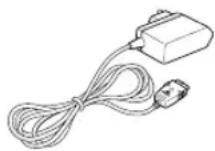
Travel Adapter

Battery

Hand String

Owner's Manual
In addition, you can obtain the following accessories for your phone from your local SAMSUNG dealer:
• Cigarette lighter adapter
- Simple hands-free car kit
- Standard battery
- Data kit
- Ear-microphone*
* : Depending on the country, this accessory may be supplied in the standard package.
Your Phone
Phone Layout
The following illustration shows the main elements of your phone.
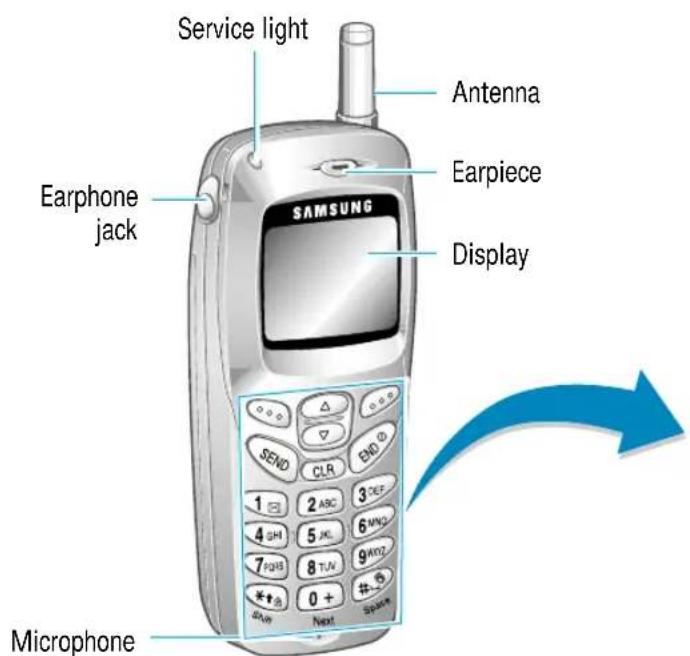
Your Phone

Soft keys

Perform the functions indicated by the text above them (in the bottom line of the display).

In the menu function, scroll through the menu options and phonebook memory. During a call, adjust the earpiece volume.

Deletes characters from the display.

Makes or answers a call. In idle mode, recalls the last number dialed. In the menu function, selects a menu function or stores information that you have entered (such as a name) in the phone or SIM memory.

Ends a call. Also switches the phone on and off when pressed and held. In the menu function, returns to the idle mode and cancels your input.

Enter numbers, letters and some special characters.

When held down in idle mode, locks the keypad manually.

When held down, toggles the Silent mode on and off. (This feature is not available when the phone is connected to a optional car kit.).
Display
Display Layout
The display comprises three areas.
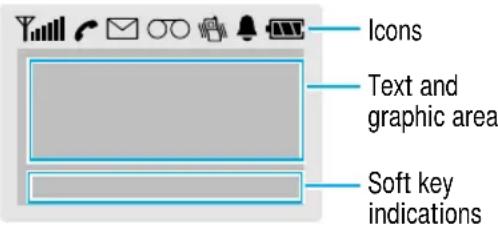
Area Description
First line Displays various icons (see opposite).
Middle lines Display messages, instructions and any information that you enter (number to be dialed, for example).
Last line Shows the functions currently assigned to the two soft keys. Or shows various types of information, such as missed calls or the keypad lock icon ( ) This information varies, depending on your SIM card, service provider or current context.
Icons

Signal strength: shows the received signal strength. The greater the number of bars, the better the signal strength.

Service: appears when a call is in progress.

New Message: appears when a new text message has been received.

New Voice Mail: appears when a new voice mail message has been received.

Vibrator on/Silent mode on: appears when the Vibrate mode or Silent mode is active.

Alarm on: appears when you set an alarm.

Battery strength: shows the level of your battery. The more bars you see, the more power you have left.
Your Phone
Backlight
The display and keypad are illuminated by a backlight. When you press any key, the backlight comes on.
To specify the length of time for which the backlight is active, set the Backlight menu option (4-1-5); see page 78 for further details.
Service Light
There are several cases in which the service light flashes.
- When in service.
To activate or deactivate the service light, set the Service Light menu option (4-1-6); see page 79. To select the color of the service light, set the Service Light Color menu option (4-5); see page 90. - When an SMS message is received (the light is orange, only if the Message Tone (3-7) is set to Light only.).
- When the alarms ring.
- When you receive a call.
To change the color, set the phonebook LED Color option; see page 45.
Getting Started
Installing the SIM Card and the Battery
When you subscribe to a cellular network, you are provided with a SIM card loaded with your subscription details (PIN, optional services available and so on).
- Keep all SIM cards out of the reach of small children.
- The SIM card and its contacts can be easily damaged by scratches or bending, so be careful when handling, inserting or removing the card.
-
Before installing the SIM card, always make sure that the phone is switched off before removing the battery.
-
If necessary, switch off the phone by holding down until the closing animation is displayed.
-
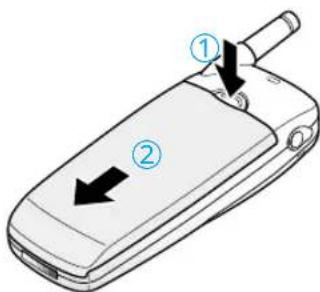
Remove the battery. To do so:
① Press and hold down the catch above the battery on the back of the phone
② Slide the battery away, as shown
Getting Started
- Slide the SIM card holder in the direction of the arrow and hold it in this position.
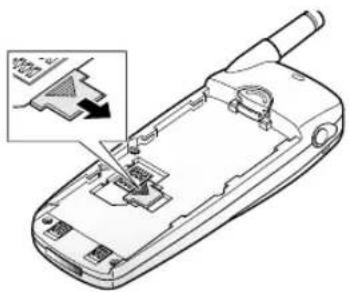
natural_image
Line drawing of a mobile phone's front panel with an inset showing a device component (no text or symbols)- Insert the SIM card under the two tabs, ensuring that the cut corner is lower left and the gold contacts of the card face into the phone.
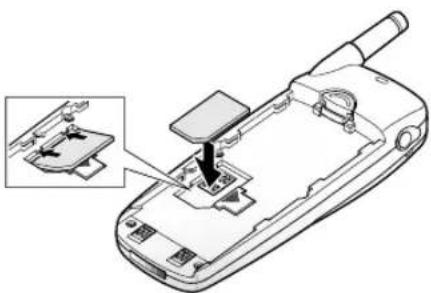
natural_image
Line drawing of a mobile phone with an inset showing a small component being inserted (no text or symbols present)Note: If you need to remove the SIM card, carefully slide the SIM card lock back and take the card out of the holder.
Getting Started
- Hold the SIM card down and release the holder to lock it into place.
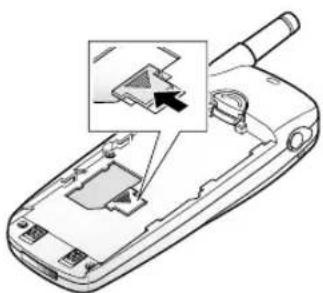
natural_image
Line drawing of a mobile phone with an inset showing a device being inserted (no text or symbols present)- Place the battery back on the phone. Slide the battery up towards the catch until it locks into place. Make sure that the battery is properly installed before switching on the power.
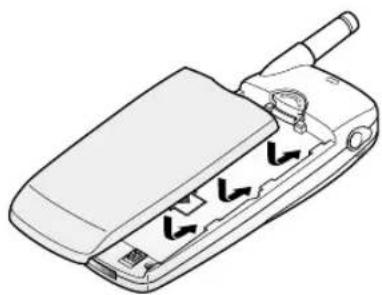
natural_image
Line drawing of a mobile phone casing with ventilation slots and a handle (no text or symbols)Charging a Battery
Your phone is powered by a rechargeable Li-ion battery. A travel adapter is provided with your phone. Use only approved batteries and chargers. Ask your local SAMSUNG dealer for further details.
The phone can be used while the battery is charging.
Note: You must fully charge the battery before using your phone for the first time. A discharged battery is fully recharged in approximately 120 minutes.
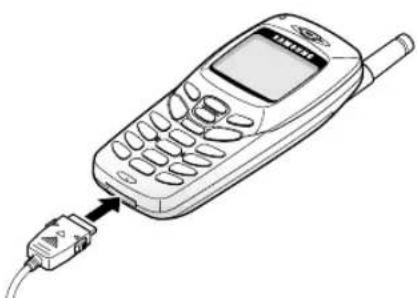
- With the battery in position on the phone connect the lead from the travel adapter to the bottom of the phone. Check that the arrow on the lead connector is facing towards the front of the phone.
natural_image
Line drawing of a vintage mobile phone with an attached cable (no text or symbols)- Connect the adapter to a standard AC wall outlet.
When the battery is charging, the battery icon in the top right-hand corner of the display fills repeatedly.
Note: Do not remove the battery from the phone while the travel adapter is connected to the phone.
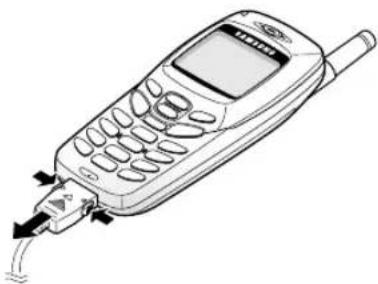
- When charging is finished, disconnect the adapter from the power outlet and from the phone by pressing the grey tabs on both sides of the connector and pulling the connector out.
natural_image
Line drawing of a mobile phone with a cable connector (no text or symbols)Low Battery Indicator
When the battery is weak and only a few minutes of talk time remain, you will hear a warning tone and a message will be repeated at regular intervals on the display:
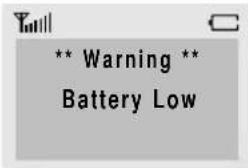
When the battery becomes too weak for the phone to operate, the phone switches off automatically.
Switching the Phone On/ Off
- Hold down for more than one second to switch the phone on.
Note: If "Insert SIM Card" appears on the display, please check that the SIM card is correctly inserted. The phone requires a 3 V SIM card. Please contact your service provider if you experience any problems. - If the phone asks for a password, key in the password and press the OK soft key. The phone password is factory set to 0000. For further details, see page 103.
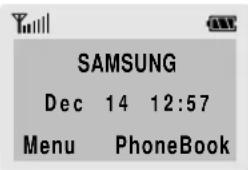
- If the phone asks for a PIN, key in the PIN and press the OK soft key. For further details, see page 104. The phone searches for your network and when it finds it, the idle screen, illustrated below, is displayed.
Note: The display language is determined by the SIM card inserted. To change the language, use the Language menu option (4-1-3); for further details, refer to page 77.
- When you wish to switch the phone off, hold down for more than two seconds.
Call Functions
Making a Call
When the idle screen is displayed, key in the area code and phone number and press
Note: If you have set the Auto Redial option (4-1-7) to ON (see page 79) and the person called does not answer or the line is busy, the number is redialed automatically up to ten times.
Making International Calls
- Press and hold down the key. The + international prefix appears.
- Key in the country code, area code and phone number and press
Correcting the Number
To clear... Then...
The last digit Press the ← soft key. displayed
Any other digit Press the of key in the number until the cursor ( I ) is immediately to the right of the digit to be cleared. Press the ← soft key. You can also insert a missing digit simply by pressing the appropriate key.
The whole display Hold down the soft key for more than one second.
Call Functions
Ending a Call
When you have finished your call, briefly press 📄
Making a Call from the Phonebook
You can store the names and phone numbers of the people you call regularly in the SIM card memory, called the phonebook. You then simply select the required name to recall the associated number. For further details on the Phonebook feature, refer to page 41.
You can also quickly dial the numbers stored in SIM locations 2 to 9, simply by holding down the corresponding number key.
Redialing the Last Number
The phone stores the last 10 numbers dialed. To recall any of these numbers, proceed as follows.
- If there are any characters on the display, press the Ⓧ key to return to the idle mode.
- Press the 🔒 key to access the list of the last numbers dialed.
- Use the △ and ▽ keys to scroll through the numbers until the required number is displayed.
- Press the 🔒 key to dial the number displayed.
Adjusting the Volume
During a call, if you wish to adjust the earpiece volume, use the or keys
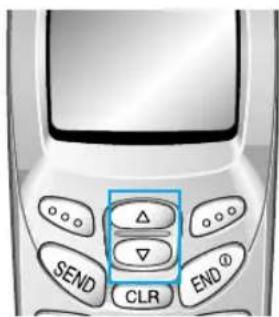
In idle mode, you can access the Write Messages menu option by using the key. With the ▼ key, you can view the PhoneBook lists directly from idle mode.
Answering or Rejecting a Call
When somebody calls you, the phone rings and the phone icon in the middle of the screen flashes.
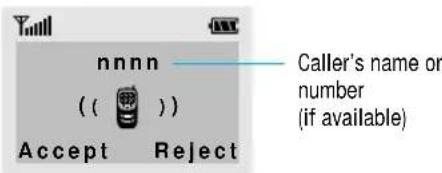
If the caller can be identified, the caller's phone number (or name if stored in your phonebook) is displayed. If the caller cannot be identified, only the phone icon flashes.
Answering a Call
There are two ways to answer an incoming call.
- Press the Accept soft key, or key.
- When the Any-Key Answer menu option is set to ON, press any key, except 🔒 or the Reject soft key.
Rejecting a Call
To reject a call, press 📋 or the Reject soft key.
Viewing Missed Calls
If you are unable to answer a call for any reason, you can find out who was calling you, provided that this service is available. In this way, you can call the person back, if necessary.
The number of missed calls is displayed on the idle screen immediately after the call was missed.
To view the missed call immediately, proceed as follows.
- Press the View soft key.
The number corresponding to the most recent missed call is displayed, if available.
- To... Then press the...
Scroll through the or key. missed calls


Call the number displayed key.
Edit or delete a missed Options soft key call number (see opposite).
Editing a Missed Call Number
- Press the Options soft key.
- Press △ or ▽ to highlight the Paste option.
- Press the Select soft key.
-
Change the number as required. Press of to move back through the number.
-
To... Then press the...
Call the number key.
Store the number Save soft key and enter the name and location required (for further details, refer to page 41).
Deleting a Missed Call
- Press the Options soft key.
- Press △ or ▼ to highlight the Delete option.
- Press the Select soft key.
You can press at any time to exit the Missed Call feature.
Note: You can access the Missed Call feature at any time by selecting the Missed Calls menu option (1-1); for further details, see page 59.
In-Call Options
Your phone provides a number of control functions that you can use during a call. To access these functions during a call, press the Options soft key.
Switching the Microphone Off (Mute)
You can temporarily switch your phone's microphone off, so that the other party cannot hear you.
Example: You wish to say something to another person in the room but do not want the other party to hear you.
To switch the microphone off temporarily, proceed as follows.
- Press the Options soft key.
- Press ▲ or ▼ to highlight the Mute option.
- Press the OK soft key.
Your correspondent can no longer hear you.
To switch the microphone back on, proceed as follows.
- Press the Options soft key.
- Press or to highlight the Unmute option.
- Press the OK soft key.
Your correspondent can hear you again.
Searching for a Number in the Phonebook
You can search for a number in the phonebook during a call.
- Press the Options soft key.
- Press of to highlight the Phonebook option.
- Press the OK soft key.
- Enter the start of the name that you wish to find and press the Find soft key.
Note: You can also scroll through the phonebook from the beginning, by pressing the Find soft key directly.
The phonebook entries are listed, starting with the first entry matching your input. This entry is also highlighted.
- To view the highlighted entry, press the View soft key.
For a more detailed description of the Phonebook feature, refer to page 41.
Putting a Call on Hold
You can place the current call on hold whenever you want. You can make another call while you have a call in progress if this service is supported by the network. Of these two calls, one is active and the other is on hold and you can swap between the calls.
To place a call on hold, press the Options soft key, and select the Hold option. You can reactivate the call whenever you want, by pressing the Retrieve soft key.
To make a call while you have a call in progress, proceed as follows.
-
Key in the phone number that you wish to dial or look it up in the phonebook.
-
Press to dial the second call. The first call is automatically put on hold.
Or alternatively, proceed as follows.
-
Put the current call on hold by pressing the Options soft key and selecting the Hold option.
-
Make the second call in the normal way.
To swap between the two calls, simply press the Swap soft key.
The current call is placed on hold and the call on hold is reactivated so that you can continue conversing with the other party.
When you have finished, end each call normally by pressing 🔒.
Answering a Second Call
You can answer an incoming call while you have a call in progress, if this service is supported by the network and you have set the Call Waiting menu option (4-2-2) to Activate (see page 84). You will be notified of an incoming call by a call waiting tone.
To answer a call while you have a call in progress, proceed as follows.
-
Press to answer the incoming call. The first call is automatically put on hold.
-
To switch between the two calls, press the Swap soft key.
To end a held call, press the Options soft key and select the End held call option.
- To end the current call, press 📋 You are automatically switched back to any held calls.
Making a Multiparty Call
A multiparty call is a network service that allows up to six people to take part simultaneously in a multiparty or conference call. For more information, contact your service provider.
Setting up the Multiparty Call
- Call the first participant in the normal way.
- Call the second participant in the normal way. The first call is automatically put on hold.
- To join the first participant to the multiparty call, press the Options soft key and select the Join option.
- To add a new person to the multiparty call, call the person in the normal way, then press the Options soft key and select the Join option.
You can add incoming callers by answering the call and pressing Options, followed by Join. Repeat as required.
Having a Private Conversation With One Participant
-
Press the Options soft key and choose the Select one option. The list of call participants appears.
-
Highlight the required person, by pressing or, followed by.
- Select Private.
Now you can talk privately with that person. The other participants can continue to converse with each other. - To return to the multiparty call, press the Options soft key and select Join.
All the multiparty call participants can now hear each other.
Dropping One Participant
- Press the Options soft key and choose the Select one option.
The list of call participants appears. - Highlight the required person, by pressing or, followed by.
- Select the Remove soft key.
The call is ended with that participant, but you can continue to talk with the other participants. - End the multiparty call by pressing 📄.
Call Functions
Muting/ Sending Key Tones
These options allow you to turn the key tones off or on. If the Mute keys option is selected, your phone does not transmit the key tones.
Note: To communicate with answering machines or computerised telephony systems, the Send keys option must be selected.
Using the SMS Service
If you receive an SMS (Short Message Service) message during a call, the message icon (✉) appears in the display.
After you have finished your call, you can read the message; refer to page 63 for further details.
Note: You can also read or write a new SMS message during a call.
Entering Text
When storing a name in the phonebook, creating your personal greeting or scheduling events in your calendar, you will need to enter text.
You are provided with the following text input modes.
T9 mode
This mode allows you to enter words with only one keystroke per letter. Each key on the keypad has more than one letter – when you press the key once, J, K or L may be displayed. The T9 mode automatically compares your keystrokes with an internal linguistic dictionary to determine the correct word, thus requiring far fewer keystrokes than the traditional ABC mode.
ABC mode
This mode allows you to enter letters by pressing the key labelled with the required letter once, twice or three times until the letter is displayed.
Number mode
This mode allows you to enter numbers.
Symbolic mode
This mode allows you to enter special characters.
T9 is a registered trademark of Tegic Communications, Inc.
Changing the Text Input Mode
- When you are in a field that allows characters to be entered, you will notice the text input mode indicator in the lower right corner of the display.
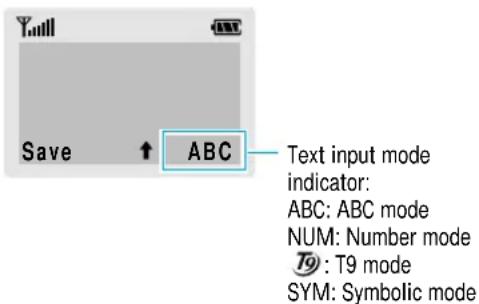
-
Press the right soft key. The modes available are displayed.
-
Scroll to the required mode, then press the Select soft key.
Using the T9 Mode
The T9 predictive text input mode allows you to enter words easily with a minimum of key presses. As you press each key, the phone selects a letter that makes up the word that it thinks you are typing, based on a built-in dictionary. As a new letter is added, the word changes based on the key that you have pressed.
- When you are in the T9 predictive text input mode, start entering a word by pressing keys to . Press each key only once for one letter.
Example: to enter HELLO in the T9 English mode, press 4, 3, 5, 5 and
The word that you are typing appears in the display. It may change with each key that you press.
-
Enter the whole word before editing or deleting any keystrokes.
-
If the word is correct, start entering the next word.
Otherwise, press repeatedly to display alternate word choices for the keys that you have pressed.
Example: OF and ME both share the sequence 6, 3 The phone displays the most commonly used choice first.
- Complete each word with a space by pressing the key.
To type words not found in the T9 mode, change the text input mode to the ABC mode.
To delete letters, press CLR . Press and hold down CLR to erase entire words.
Entering Text
Entering Text
There are three shift options:
• Lower Case (no shift indicator)
- Initial Cap ( indicator)
- Caps Lock (↑indicator)
Press one or more times to display the appropriate shift indicator and continue typing normally.
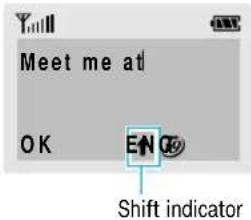
Note: To exit the text input mode without saving your input, press 🔒. The phone returns to the previous menu level.
Using the ABC Mode
Use the 2 to keys to enter your text.
- Press the key labelled with the required letter:
• Once for the first letter
• Twice for the second letter
- And so on
Note: To display a list of special characters, press 📋. See the table on page 39 for more information on the characters available using the keys.
- Select the other letters in the same way.
Note: The cursor moves to the right when you press a different key. When entering the same letter twice (or a different letter on the same key), just wait for a few seconds for the cursor to move right automatically, and then select the next letter.
There are three shift options:
• Lower Case (no shift indicator)
- Initial Cap (↑indicator)
- Caps Lock ( Indicator)
Press the key one or more times to display the appropriate shift indicator in the bottom line of the display and continue typing normally.
To insert a space, press the key.
To delete letters, press the Ⓜ key. Press and hold down the Ⓜ key to clear the display.
| Key | Characters in the Order Displayed | |
| Upper Case | Lower Case | |
| 1 | : ; i i 1 = “ / | . , ? ! 1 - ‘ @ : |
| 2 | A B C 2 Ä Ä Ä Γ | a b c 2 à ä æ å Ç |
| 3 | D E F 3 É Δ | d e f 3 é è |
| 4 | G H I 4 Θ | g h i 4 i |
| 5 | J K L 5 Λ | j k l 5 |
| 6 | M N O 6 Ñ Ō ∅ Ξ | m n o 6 ñ ò ò ø |
| 7 | P Q R S 7 Π Σ | p q r s 7 β |
| 8 | T U V 8 Ü Φ | t u v 8 ù ü |
| 9 | W X Y Z 9 Ψ Ω | w x y z 9 |
| 0 | 0 * < > % # £ | 0 + ( ) & _ $ |
Entering Text
Using the Number Mode
The Number mode enables you to enter numbers in a text message (a telephone number, for example). Press the keys corresponding to the required digits before manually switching back to the appropriate text entry mode.
Using the Symbolic Mode
The Symbolic mode enables you to enter various symbols.
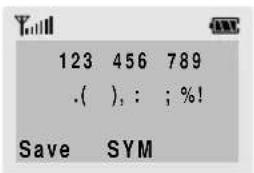
To scroll through the symbols available, press the of key. Press the number key corresponding to the required symbol. The phone then automatically switches back to the text entry mode used immediately prior to selecting the Symbolic mode.
Phonebook
You can store phone numbers and their corresponding names in the memory of your SIM card. In addition, you can store up to 100 numbers and names in the phone memory. The SIM card and phone memories, although physically separate, are used as if they were a single entity, called the phonebook.
Storing a Phone Number with a Name
As soon as you start to enter a number, Save appears above the left soft key to allow you to store the number in the phonebook.
- Key in the number to be stored.
Notes:
- If you make a mistake while entering a number, correct it using the soft key or . For further details, refer to page 22.
• To insert a dialing pause for special phone services, such as banking by phone, hold down. 'P' is displayed to indicate the pause.
-
When you are sure that the number is correct, press the Save soft key.
-
Enter the corresponding name (the maximum length depends on your SIM card). For information on how to enter a name, see page 35.
-
When you are satisfied, press the Save soft key. The phone now displays the first free location in the last memory used to save a number and name. If that memory is full, the first free location in the other memory is displayed.
Phonebook
- Press the right soft key to toggle between the phone (To Phone) and card (To Card) memories.
- If you do not want to save the number and name in the suggested location, press to clear the location number and enter your preferred location by pressing the number keys.
- Press OK to store the name and number. You can access the phonebook options by pressing the Options soft key, or scroll through the memory with OF.
- To exit, press the key.
Phonebook
Phonebook Options
When storing or viewing a number in the phonebook, Options appears above the left soft key to allow you to access the phonebook options, described in the following paragraphs.
Accessing the Options
To access the various phonebook options, proceed as follows.
-
Press the Options soft key. The first available option is highlighted.
-
To... Then press the...
Select the Select soft key. highlighted option
Highlight a or key one of different option more times until the required option is highlighted.
Paste
Allows you to paste the phonebook number into the normal dialing mode. Use this option to dial a number similar to one in the phonebook (a different extension in the same office for example).
Use the soft key to change the number as required (refer to page 22 for further details). When you are ready to dial, press .
Phonebook
Edit
Allows you to edit a number and name stored in the phonebook.
Erase
Allows you to erase a number and name stored in the phonebook.
You are asked to confirm that you wish to erase the name and number from the phonebook by pressing the Yes soft key.
Copy
Allows you to copy a phonebook number to another location. Use this option to store a number similar to one already in memory; once copied, edit the number and store it in another location on the SIM card or in the phone memory.
Memory Status
This option allows you to check how many names and phone numbers are stored and how many locations are still free in the card memory and phone memory.
Alert
This option allows you to assign a specific ringing tone to a number and thus distinguish the caller by the ringing tone. Specific ringing tones can be assigned to up to five numbers.
Phonebook
LED Color
This option allows you to assign a specific service light color to a number and thus distinguish the caller by the service light color.
Four colors are available (normal, red, violet and blue) and they can be assigned to up to five numbers.
If no specific color is assigned, the service light flashes with the color you set in Service Light Color option (4-5).
Speed-Dialing by SIM Memory Location
Once you have stored phone numbers in the SIM card, you can dial them easily whenever required.
To speed-dial a number, proceed as follows.
To speed-dial a Then... number in locations...
2 to 9 Press and hold down the
appropriate key.
10 and above Press the appropriate keys,
followed by the # key. When the display shows the name, phone number and location, press the Dial soft key.
Note: Memory location 1 is reserved for your Voice Mail server number.
Phonebook
Searching for and Dialing a Number in the Phonebook
- When the idle screen is displayed, press the PhoneBook soft key.
Note: You can view the PhoenBook lists directly by pressing the ⬇ key in idle mode.
- If your SIM card provides Service Dialing Number (SDN) and Information Number services, you will see the following screen.
![1.[Find Entry ] 2. Service Dir. 3. Information Numbers OK](/content/2026/05/1047412/images/508a5aa737133f4484fe3383fcb4891d044be7f5ed215859e71f337789fb882c.jpg)
-
Press the OK soft key when Find Entry is highlighted.
-
Enter the start of the name that you wish to find and press the Find soft key.
Note: You can also scroll through the phonebook from the beginning, by pressing the Find soft key directly.
The phonebook entries are listed, starting with the first entry matching your input. This entry is also highlighted.
Phonebook
- To... Then press the...
View the View soft key.
highlighted entry
Select a or key one or more
different entry times until the required entry is highlighted.
Look for a name Key labeled with the required starting with a letter. different letter
- Once you have found the required entry, press to dial the number.

Dialing a Number using the Service Directory or Information Numbers
Note: The Service Dir. and Information Numbers options may not be available, depending on your SIM card.
When the idle screen is displayed, press the PhoneBook soft key. You will see the screen illustrated on page 46.
Service Dir.: enables you to view the Service Directory and make calls from it.
Information Numbers: enables you to see the Information Numbers in a tree structure and make a call.
Selecting Functions and Options
Your phone offers a set of functions that allow you to customize your phone. These functions are arranged in menus and sub-menus, accessed via the two soft keys. Each menu and sub-menu allows you to view and alter the settings of a particular function.
The roles of the soft keys vary according to the current context; the label on the bottom line of the display just above each key indicates its current role.
Example:
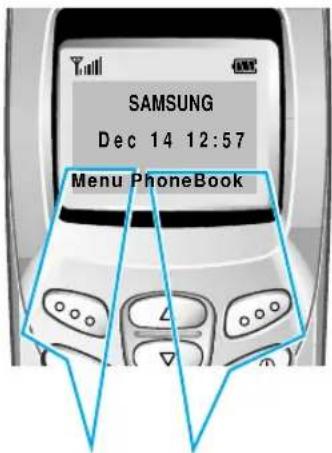
Press the left soft key to access the menu feature.
Press the right soft key to access the Phonebook feature.
Selecting Functions and Options
To view the various functions/options available and select the one required, proceed as follows.
-
Press the appropriate soft key.
-
To... Then press the...
Select the: Left soft key.
• Function displayed or
- Option highlighted
View the next function key. or highlight the next option in a list
Move back to the key. previous function or option in a list
Move back up one Right soft key. level in the structure
Exit the structure without changing the settings
key.
In some functions, you may be asked for a password or PIN. Enter the required code and press 🔒.
Note: When you access a list of options, your phone highlights the current option. If, however, there are only two options, such as On/Off or Enable/Disable, your phone highlights the option that is not currently active, so that you can select it directly.
Example: Selecting an Alert Type
- When the idle screen is displayed, press the Menu soft key to enter the menu function.
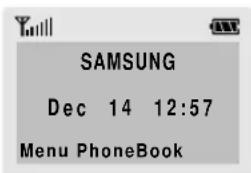
- Scroll through the menus until you reach the Tones menu, by pressing 📋
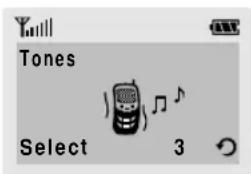
- To select the Tones menu, press the Select soft key and press until you reach the Alert Type.
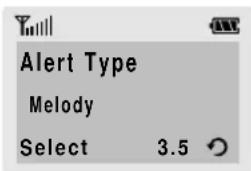
- To select the Alert Type menu, press the Select soft key. The current setting is highlighted.
![Current setting 1 Light only 2 [Melody ] 3 Vibration Select](/content/2026/05/1047412/images/966d1815dbc71dcb0c5f66b05b7eae9836fc3fb9a59d963947554d1a4a2c6e2b.jpg)
- Scroll through the list of alert types until the appropriate one is highlighted, by pressing or △.
- Press the Select soft key to confirm your selection.
- Press the key to exit the menu function.
Using the Menus
The phone offers a range of functions that allow you to tailor the phone to your needs. These functions are arranged in menus and sub-menus.
The menus and sub-menus can be accessed by scrolling or by using the shortcuts.
Accessing Menu Functions by Scrolling
-
In idle mode, press the Menusoft key to access the menu function. Scroll with the keys to reach the required main menu, such as Tones. Press the Select soft key to enter the menu.
-
If the menu contains any sub-menus, Ring Tone for example, you can access them by scrolling with the or keys and pressing the Select soft key.
If the menu you have selected contains further options, repeat the same procedure.
- To... Then press the...
Scroll through the menus or keys.
Confirm the chosen setting Select soft key.
Return to the previous menu level
soft key.
Exit the menu, without changing the settings
key.
Using the Menus
Accessing Menu Functions by Using Shortcuts
The menu items (menu, sub-menus and options) are numbered and can be accessed quickly by using their shortcut number. The shortcut number is shown in the bottom-right next to the ⬇ soft key on the display.
-
In idle mode, press the Menu soft key to access the menu function.
-
Key in the first digit of the shortcut number. Repeat this for each digit of the shortcut number.
Example: setting the Any-key Answer function
Press the Menu soft key, and key in 4DH, 1∞, 4DH, 2ABC.
Menu to enter the menu, 4 for Settings, 1 for Phone Settings, 4 for Any-key Answer and 2 to set the Any-key Answer option to ON.
Note: The numbers assigned to each menu option are indicated in the list on page 54. They may not match the menu number on the phone. It depends on the services supported by the SIM card.
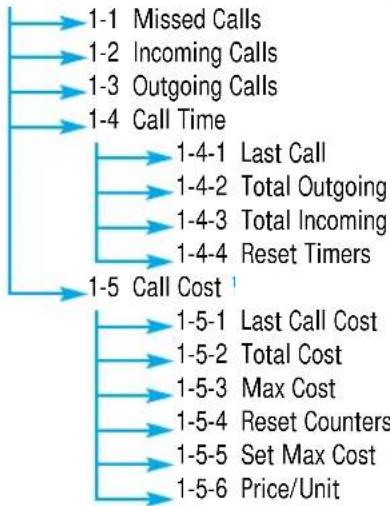
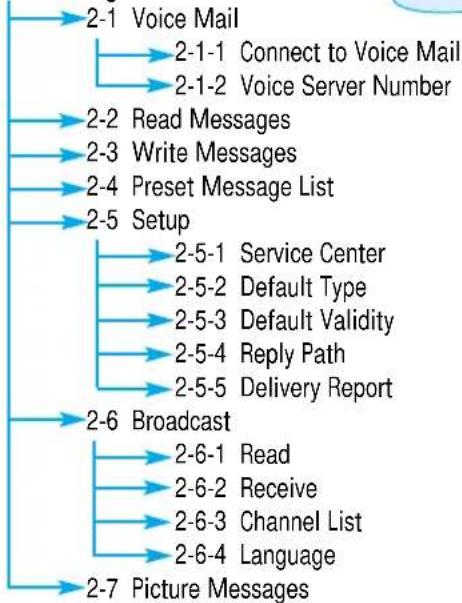
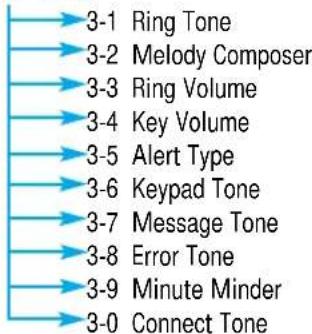
Menu Map
The following illustration shows the menu structure available and indicates the:
• Number assigned to each option
- Page on which you can find a description of each feature
Note: You can only see menu 0, if your SIM card supports the SIM Application Toolkit. This is a network feature. Please contact your service provider for more information.
- Call Records
Page 59
flowchart
graph TD
    A["1-1 Missed Calls"] --> B["1-2 Incoming Calls"]
    B --> C["1-3 Outgoing Calls"]
    C --> D["1-4 Call Time"]
    D --> E["1-4-1 Last Call"]
    E --> F["1-4-2 Total Outgoing"]
    F --> G["1-4-3 Total Incoming"]
    G --> H["1-4-4 Reset Timers"]
    H --> I["1-5 Call Cost"]
    I --> J["1-5-1 Last Call Cost"]
    J --> K["1-5-2 Total Cost"]
    K --> L["1-5-3 Max Cost"]
    L --> M["1-5-4 Reset Counters"]
    M --> N["1-5-5 Set Max Cost"]
    N --> O["1-5-6 Price/Unit"]
- Messages
Page 62
flowchart
graph TD
    A["2-1 Voice Mail"] --> B["2-1-1 Connect to Voice Mail"]
    A --> C["2-1-2 Voice Server Number"]
    D["2-2 Read Messages"] --> E["2-3 Write Messages"]
    D --> F["2-4 Preset Message List"]
    G["2-5 Setup"] --> H["2-5-1 Service Center"]
    G --> I["2-5-2 Default Type"]
    G --> J["2-5-3 Default Validity"]
    G --> K["2-5-4 Reply Path"]
    G --> L["2-5-5 Delivery Report"]
    M["2-6 Broadcast"] --> N["2-6-1 Read"]
    M --> O["2-6-2 Receive"]
    M --> P["2-6-3 Channel List"]
    M --> Q["2-6-4 Language"]
    R["2-7 Picture Messages"] --> S["End"]
Page 70
- Tones
flowchart
graph TD
    A["3-1 Ring Tone"] --> B["3-2 Melody Composer"]
    B --> C["3-3 Ring Volume"]
    C --> D["3-4 Key Volume"]
    D --> E["3-5 Alert Type"]
    E --> F["3-6 Keypad Tone"]
    F --> G["3-7 Message Tone"]
    G --> H["3-8 Error Tone"]
    H --> I["3-9 Minute Minder"]
    I --> J["3-0 Connect Tone"]
^1 Shown only if supported by your SIM card.
4. Settings
Page 76
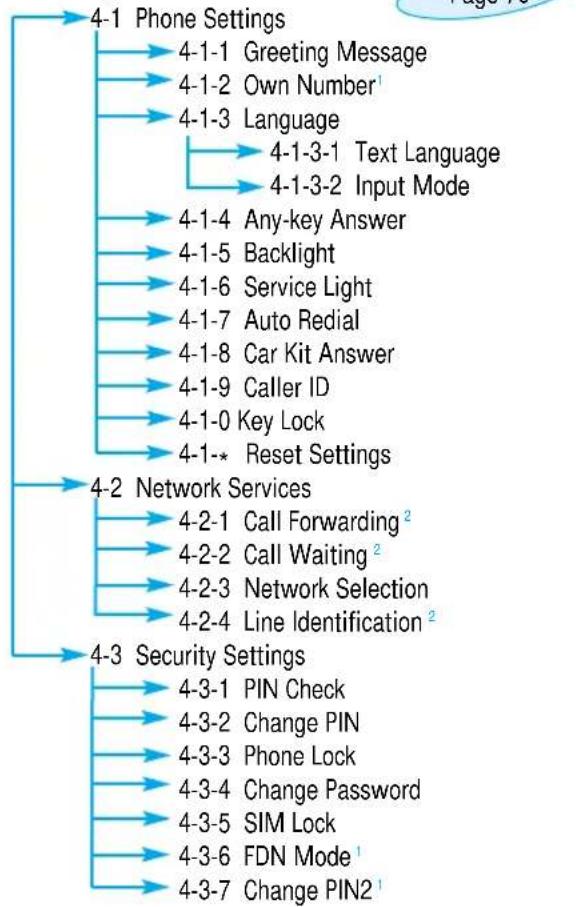
flowchart
graph TD
    A["4-1 Phone Settings"] --> B["4-1-1 Greeting Message"]
    A --> C["4-1-2 Own Number¹"]
    A --> D["4-1-3 Language"]
    D --> E["4-1-3-1 Text Language"]
    D --> F["4-1-3-2 Input Mode"]
    D --> G["4-1-4 Any-key Answer"]
    G --> H["4-1-5 Backlight"]
    G --> I["4-1-6 Service Light"]
    I --> J["4-1-7 Auto Redial"]
    I --> K["4-1-8 Car Kit Answer"]
    K --> L["4-1-9 Caller ID"]
    K --> M["4-1-0 Key Lock"]
    M --> N["4-1-* Reset Settings"]

    O["4-2 Network Services"] --> P["4-2-1 Call Forwarding²"]
    O --> Q["4-2-2 Call Waiting²"]
    O --> R["4-2-3 Network Selection"]
    R --> S["4-2-4 Line Identification²"]

    T["4-3 Security Settings"] --> U["4-3-1 PIN Check"]
    T --> V["4-3-2 Change PIN"]
    T --> W["4-3-3 Phone Lock"]
    T --> X["4-3-4 Change Password"]
    T --> Y["4-3-5 SIM Lock"]
    T --> Z["4-3-6 FDN Mode¹"]
    T --> AA["4-3-7 Change PIN2¹"]
4. Settings (continued)
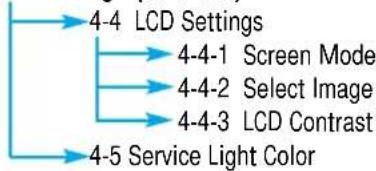
flowchart
graph TD
    A["4-4"] --> B["4-4 LCD Settings"]
    A --> C["4-4-1 Screen Mode"]
    A --> D["4-4-2 Select Image"]
    A --> E["4-4-3 LCD Contrast"]
    A --> F["4-5 Service Light Color"]
5. Organizer
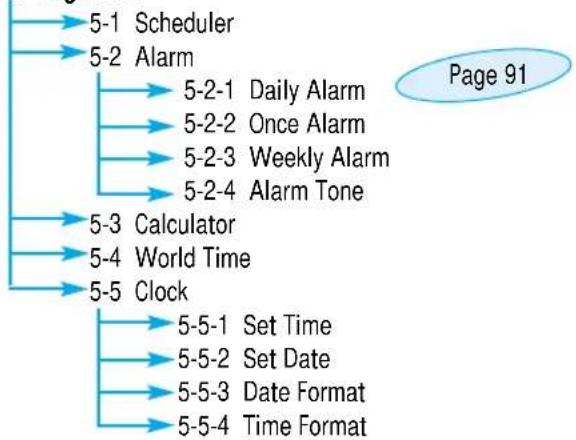
flowchart
graph TD
    A["5-1 Scheduler"] --> B["5-2 Alarm"]
    B --> C["5-2-1 Daily Alarm"]
    B --> D["5-2-2 Once Alarm"]
    B --> E["5-2-3 Weekly Alarm"]
    B --> F["5-2-4 Alarm Tone"]
    A --> G["5-3 Calculator"]
    A --> H["5-4 World Time"]
    A --> I["5-5 Clock"]
    I --> J["5-5-1 Set Time"]
    I --> K["5-5-2 Set Date"]
    I --> L["5-5-3 Date Format"]
    I --> M["5-5-4 Time Format"]
^1 Shown only if supported by your SIM card.
^2 May not be shown or supported by your network service provider.
Using the Menus
6. Games
Using this menu you can enjoy popular games with the phone.
Call Records

Via this menu, you can view the phone calls:
- Missed
- Incoming
- Outgoing
The number and name (if available) are displayed together with the date and time at which the call was made. You can also view call times.
Missed Calls Menu 1-1
This option lets you view the last 10 unanswered calls. You can also:
- Edit the number if available and dial it or save it in the phonebook
- Delete the call from the list
Incoming Calls Menu 1-2
This option lets you view the last 10 phone calls received. You can also:
- Edit the number if available and dial it or save it in the phonebook
- Delete the call from the list
Outgoing Calls Menu 1-3
This option lets you view the last 10 numbers dialed. You can also:
• Edit the number and save it in the phonebook
- Redial the number
- Delete the number from the list
Call Time Menu 1-4
This option lets you view the timers for calls made and received. The following timers are available.
Last Call : length of the last call.
Total Outgoing: total length of all calls made since the timer was last reset.
Total Incoming: total length of all calls received since the timer was last reset.
Reset Timers: option used to reset the call timers; you must first enter the phone password (see page 103) and then press the OK soft key.
Note: The actual time invoiced for calls by your service provider may vary, depending on network features, rounding-off for billing purposes and so forth.
Call Cost (SIM Card Dependent) Menu 1-5
Note: The options of this menu may vary, depending on your SIM card.
This network feature lets you view the cost of calls. The following options are available.
Last Call Cost: cost of the last call made.
Total Cost: total cost of all calls made since the cost counter was last reset. If the total cost exceeds the maximum cost set via the Set Max Cost option, you will no longer be able to make any calls, except calls to the emergency services, until you reset the counter.
Max Cost: maximum cost set via the Set Max Cost option (see below).
Reset Counters: option used to reset the cost counter; you must first enter your PIN2 (see page 104) and then press the OK soft key.
Set Max Cost: option used to enter the maximum cost that you authorise for your calls. You must first enter your PIN2 (see page 104) and then press the OK soft key.
Price/Unit: option used to set the cost of one unit; this price per unit is applied when calculating the cost of your calls. You must first enter your PIN2 (see page 104) and then press the OK soft key.
Note: AOC (Advice Of Charge) information may be displayed in idle mode, depending on your SIM card or service provider.
Messages

Your phone receives voice mail notification messages, and text messages. Voice mail and the Short Message Service (SMS) are network services. Please contact your service provider for more information.
When the icon appears, you have received new text messages. If the Message Tone menu option (3-7) is set to Light only, the service light flashes orange. When the icon appears, you have received voice mail. If the message memory is full, an error message is displayed, the icon flashes and you cannot receive any new messages. Use the Delete option in the Read Messages menu (2-2) to delete obsolete messages.
Picture and ringing tone messages can also be received.
To... Then use the...
Send or receive Picture Messages menu picture messages option (2-7); see page 68.
Load ringing Ring Tone menu option (3-1); tone messages see page 70.
Voice Mail Menu 2-1
This menu provides you with a quick way of accessing your voice mailbox (if provided by your network).
Connect to Voice Mail
Before using this feature, you must enter the voice server number obtained from your service provider (see the following page). You can then select this option and simply press the OK soft key to listen to your messages.
Messages
Note: In idle mode, you can access your voice mail server directly by holding down the key.
Voice Server Number
You can change the voice mail server number.
To... Then press the...
Enter the server Corresponding number number keys.
Recall a number in PhoneBook soft key. the phonebook
Correct a digit
← soft key or CLN
Move the cursor to the left/right without clearing the digit
or key.
Note: See page 41 for instructions on how to use the phonebook.
Read Messages
Menu 2-2
When the Read Messages menu is selected, the header of the first message is displayed:
- Message number
- Message status (new, old, not sent, sent)
To view this message, press the View soft key. The screen shows the:
- Sender's phone number (if sent with the message) - Date and time at which the message was received
- Message text
Messages
Messages
To scroll through the messages, press the OF keys. You can choose the following options, by pressing the Options soft key.
Text Reply: allows you to reply by sending a text message. You can also:
- Send the message
- Save and send the message
- Save but not send the message
Call back: allows you to call the sender back.
Edit: allows you to edit a message.
Delete: allows you to delete obsolete messages.
Cut Number: allows you to extract a number from the message text, so that you can call the number or save it in the phonebook.
Send: allows you to send a message that you have not already sent.
Send again: allows you to resend a message that you have already sent.
Note: The options available vary, depending on the message status (new, old, not sent, sent).
Write Messages Menu 2-3
Note: In idle mode, you can directly access the Write Messages menu option by pressing the 🔒 key.
Via this menu, you can write and edit text messages of up to 160 characters.
- Key in a message. For details on how to enter text, refer to page 35.
- After you complete the message, you can select the following options.
Send Only: allows you to send the message immediately. You can enter the required destination.
Save and Send: allows you to save a copy of the message and then send the message to the required destination. You can read the message using the Read Messages option. When you read the message, 'Sent' is displayed to indicate the message state.
Save Only: allows you to save the message so that it can be sent later. When you read the message, 'Not sent' is displayed.
- After selecting the required option, press the Select soft key. The display prompts you to enter the destination number.
- Enter the phone number and press the OK soft key.
Messages
Messages
Preset Message List Menu 2-4
There are five preset messages available. This menu shows the preset message list. Scroll through the list using the or keys. When the required message number appears, press the Options soft key.
The following options are available.
Edit: allows you to write a new message or edit the selected preset message.
Note: For further information on how to enter text in your message, refer to page 35.
Send Message: allows you to recall the selected preset message. Once you have completed the message, you can send, save and send, or simply save it.
Delete: allows you to delete the selected preset message.
Setup Menu 2-5
Via this menu, you can set up default SMS information.
Service Center: allows you to store or change the number of your SMS center required when sending text messages. You must obtain this number from your service provider.
Default Type: allows you to set the default message type (Text, Voice, Fax, X400, Email, and ERMES). The network can convert the messages into the selected format.
Default Validity: allows you to set the length of time for which your text messages will be stored at the SMS center while attempts are made to deliver them to the recipient.
Possible values are one hour, 6 hours, 24 hours, one week and the maximum authorised by your service provider.
Reply Path: allows the recipient of your SMS message to send you a reply via your message center, if the service is provided by the network.
Delivery Report: allows you to activate or deactivate the report function. When this function is activated, the network informs you whether or not your message has been delivered.
Broadcast Menu 2-6
This network service allows you to receive text messages on various topics, such as the weather or traffic. Messages are displayed immediately they are received, provided that:
• The phone is in the idle mode
• The Receive option is set to Enable
- The message channel is currently active in the channel list
If the message is long, press the and keys one or more times.
Messages
Messages
The last five messages are also stored for later retrieval. Please contact your service provider for more information.
The following options are available.
Read: lets you view the first message. Scroll through the message using or. At the end of the message, press the Next soft key to move to the next message.
Receive: allows you to enable or disable the reception of broadcast messages.
Channel List: lists all available channels. The channels currently selected are indicated by an asterisk (*) beside the name. When you select one of them, you can edit, enable, disable or delete the channel.
The Enter Channel option allows you to add a new channel to the channel list. Enter the appropriate channel ID obtained from your service provider, and a title for the channel.
Language: allows you to select your preferred language to be used when displaying cell broadcast messages.
Picture Messages Menu 2-7
You can send and receive picture messages via this menu. When you select a picture message, you can view the text or image by pressing the right soft key.
The following options are available.
Write Message: allows you to write the text of the picture message.
Erase: deletes the picture message; Empty is displayed instead of the title.
Send Message: allows you to enter the destination phone number; you must then press the OK soft key to send the picture message.
Cut Number: allows you to extract a number from the picture message, so that you can call the number or save it in the phonebook.
Receiving a Picture Message
To view the image in the picture message, press the View soft key.
To toggle between the text and image, press the right soft key.
The following options are available.
Save: allows you to save the picture message to your picture message list.
Discard: allows you to discard the picture message without saving it.
Note: This function is available between phones supporting Nokia's* Smart Messaging services.
Tones

You can use the Tones menu to customize various sound settings, such as the:
• Ringing tone or melody, volume and type
- Sounds made when you press a key, make an error or receive a message
Note: The silent mode allows you to turn the various tones off when discretion is required. Press and hold down 📋 to toggle between activating and deactivating the silent mode.
Ring Tone Menu 3-1
This option allows you to select the required ringing tone. You can choose between 20 different tones. Each time you select a tone, it is played for a few seconds.
Three additional ringing tones can be created from any ringing tone messages that you have received.
When you receive a ringing tone message, proceed as follows.
- To listen to the tone, press the Play soft key.
- Press the Save soft key.
- Select one of the ringing tone locations and press the OK soft key.
- To use this tone as the ringing tone, press the Yes soft key. Otherwise No soft key.
Two additional options correspond to the melodies that you can compose, using the Melody Composer menu option (3-2).
Tones
If your SIM card supports the ALS feature, this option also allows you to select a different ringing tone for each line, and thus distinguish incoming calls.
Melody Composer Menu 3-2
This option allows you to compose your own melody to be used as the ringing tone.
- Three octaves are available.
• A maximum of 100 notes can be entered. - You can adjust the length of the notes and add rests, as required.
Composing a Melody
- When you access the menu, the names of any melodies created are displayed. Otherwise, (Empty) appears. Select the melody that you wish to create or edit.
- Press the Select soft key and compose your melody using the following keys.
To... Then press the...
Enter C, the first note key. 1 in the musical scale
Enter D key. 2ABC
Enter E key.
Enter F key.
Enter G key.
Enter A key.
Enter B key.
Move a note up or key. 8TU down one octave
Tones
To... Then press the...
Enter a rest key (press the key
until the rest is of the required length).
Delete notes key.

Move a note a or key (for


semitone up or down
example, the note A changes to A#, B, C, C#, and so on in the scale each time you press the key).
Change the length

key (the length
of a note will be changed each time
you press the key).
Listen to your melody
Listen soft key.
Cancel your changes

key.
-
When you are satisfied with your melody, press the Yes soft key.
-
Enter a title for the melody.
Note: For further details on how to enter characters, refer to page 35.
You are asked if the melody is to become the ringing tone.
- To use the melody as the ringing tone, press the Yes soft key.
The melody is saved and is played each time your phone rings. You can also select the melodies composed via the Ring Tone menu option (3-1).
Deleting a Melody
- Select the melody that you wish to delete.
Tones
- Press and hold for a few seconds. All notes are erased.
- Press the Listen soft key. You are asked to confirm that you wish to delete the melody by pressing the Yes soft key.
Ring Volume Menu 3-3
This option allows you to adjust the ringing volume to one of five levels.
Use the or keys. The greater the number of bars, the greater the volume level.
Key Volume Menu 3-4
This option allows you to adjust the key volume to one of five levels.
Use the or keys. The greater the number of bars, the greater the volume level.
Alert Type Menu 3-5
This option allows you to indicate how you are to be informed of any incoming calls. The following options are available.
Light only: only the backlight is switched on; the phone neither rings nor vibrates.
Melody: the phone rings using the ringing tone selected via menu option 3-1.
Vibration: the phone vibrates but does not ring.
Vibra+Melody: the phone vibrates, then rings.
Tones
Tones
Keypad Tone Menu 3-6
This option allows you to select the tone that the keypad generates when you press a key. The following options are available.
OFF: the keys do not make any sound.
Tone: each key, when pressed, makes a different sound.
Beep: each key, when pressed, makes the same sound.
Message Tone Menu 3-7
This option allows you to select how the phone informs you that a new message has been received. The following options are available.
OFF: no ringer or vibrating when new messages are received.
Light only: just the service light flashes indicating a new message has been received. No ring or Vibrate.
Single: the phone vibrates or the selected SMS tone is heard one time.
Periodic: the phone vibrates or the selected SMS tone sounds periodically.
Error Tone Menu 3-8
This option allows you to select how the phone informs you that you have made a mistake. The following options are available.
OFF: the phone does not beep.
ON: the phone beeps to indicate an invalid entry.
Minute Minder Menu 3-9
This option allows you to specify whether the phone must beep every minute during an outgoing call to keep you informed of the length of your call. The following options are available.
OFF: the phone does not beep.
ON: the phone beeps every minute.
Connect Tone Menu 3-0
This option allows you to specify whether the phone should beep when the phone connects to the network. The following options are available.
OFF: the phone does not beep.
ON: the phone beeps when your call is accepted.
Settings

Many different features of your phone can be customized to suit your preferences. All of these features are accessed via the Settings menu.
Phone Settings Menu 4-1
Greeting Message
This option allows you to set a greeting message to be displayed briefly when the phone is switched on. The current message is displayed.
To... Then press the...
Clear the existing message key and hold it down until the message is cleared.
Enter a new message Appropriate alphanumeric keys.
For more information on how to enter characters, refer to page 35.
To go back to the previous menu level without saving your input, press
Settings
Own Number
Note: The contents of this menu may vary, depending on the SIM card.
You can enter your own name and number using this menu. If you have subscribed to the Alternate Line Service, you can select a line with OK.
The following options are available:
Edit: allows you to edit name and number.
Erase: allows you to erase name and number.
Language
Your phone supports different languages in addition to English. The text features are changed when the language setting is changed.
You can also set the default text input mode. For details on the text input modes available, refer to page 35.
Settings
Settings
Any-key Answer
Depending on the setting of the Any-key Answer option, you can answer an incoming call by pressing any key, except and the Reject soft key.
To reject the call, press of the Reject soft key. The following options are available.
ON: you can press any key, except ⏻ and Reject to answer a call.
OFF: you can only press 📄 or the Accept soft key to answer a call.
Backlight
You can select whether or not the phone uses the backlight. A marginal increase in standby/talk time can be achieved by turning the backlight off. The following options are available.
Short: the backlight comes on when you press a key or receive a call and switches off 10 seconds after the last key is pressed.
Long: the backlight comes on when you press a key or receive a call and switches off 20 seconds after the last key is pressed.
OFF: the backlight is not used.
Service Light
This option allows you to select whether or not the service light on the top of the phone is used. The following options are available.
ON: the service light flashes when the phone is ready for use.
OFF: the service light is not used.
Auto Redial
With the Auto Redial function, the phone makes up to ten attempts to redial a phone number after an unsuccessful call.
Note: The interval between two call attempts varies.
The following options are available.
ON: the number is redialed automatically.
OFF: the number is not redialed.
Car Kit Answer
With the Auto Answer function, the phone automatically answers calls after 3, 5 or 10 seconds. You can also turn this feature off.
Note: This feature is only available when the phone is connected to a car kit (optional).
Settings
Settings
Caller ID
You can prevent your phone number from being displayed on the phone of the person being called.
Note: Some networks do not allow the user to change this setting.
The following options are available.
Default: the default setting provided by the network is used.
Hide Number: your number is not displayed on the other person's phone.
Send Number: your number is sent each time you make a call.
Key Lock
With the key lock function, you can prevent accidental key pressing.
15 seconds/ 30 seconds/ 1 minute/ 2 minutes:
When set, the lock icon( 🔒 )is visible in the display and your key input doesn't work in idle mode. To activate the key pad, press the left soft key and press the 🔒 key. The keypad is automatically locked if no key is pressed within the set time.
OFF: the keypad will not lock automatically.
Note: You can make the keypad lock manually by pressing and holding the 📄 key in idle mode regardless of this key lock setting.
Reset Settings
You can easily reset your phone to its default configuration. To do so, proceed, as follows.
-
Select the Reset Settings menu option.
-
Enter the 4-digit phone password.
Note: The password is preset to 0000. To change this password, refer to page 88.
Network Services Menu 4-2
These menu functions are network services. Please contact your service provider to check their availability and subscribe to them, if you so wish.
Settings
Settings
Call Forwarding
Note: Some call forwarding options may not be shown if they are not supported by your network operator.
This network service enables incoming calls to be rerouted to the number that you specify.
Example: You may wish to forward your business calls to a colleague while you are on holiday.
Call forwarding can be set up in the following ways.
Forward Always: all calls are forwarded.
Unavailable: calls are forwarded if you are busy, do not answer or cannot be reached.
Cancel All: all call forwarding options are cancelled.
Note: These options may be different, depending on the SIM card.
You can specify individual forwarding options for each of the following call types:
- Voice calls only
- Fax calls only (not available when line 2 is in use)
• Data calls only (not available when line 2 is in use)
Example: You can:
- Systematically forward fax calls to your office fax machine
- Forward voice calls to your colleague if you are already using the phone
To set your call forwarding options, proceed as follows.
- Select the type of call forwarding required by pressing or until the appropriate option is highlighted, and then press the Select soft key.
- Select the type of calls to be forwarded by pressing or until the appropriate option is highlighted and then press the Select soft key.
- Press the Activate soft key to confirm your settings.
- Enter the number to which the calls are to be forwarded. To enter the international code, press and hold 0 until the + sign is displayed. You can also select a number in the phonebook or the voice server number, by pressing the Options soft key, followed by PhoneBook or Voice Server Number.
- When you are satisfied, press 📄 or theOK soft key. The phone sends your setting to the network and the network's acknowledgement is displayed.
- When you are satisfied, press 📄 or theOK soft key.
The phone sends your setting to the network and the network's acknowledgement is displayed.
To deactivate specific call forwarding settings, proceed as follows.
- Select the call forwarding option to be deactivated.
- Select the type of call to which this option applies.
- Press the Remove soft key.
The phone sends your settings to the network and the network's acknowledgement is displayed.
You can also deactivate all call forwarding settings by selecting the Cancel All option.
Settings
Settings
Call Waiting
This network service enables you to be informed when someone is trying to reach you during another call.
To set your call waiting options, proceed as follows.
-
Select the type of calls to which the call waiting option is to be applied by pressing or until the appropriate option is highlighted and then press Select.
-
Press the Activate soft key to confirm your settings.
The phone sends your settings to the network and the network's acknowledgement is displayed.
To deactivate specific call waiting settings, proceed as follows.
-
Select the type of call to which the option applies.
-
Press the Deactivate soft key.
The phone sends your settings to the network and the network's acknowledgement is displayed.
You can also deactivate all call waiting settings by selecting the Cancel All option.
Network Selection
The Network Selection feature enables you to:
- Indicate whether the network used when roaming (outside your home area) is selected automatically or manually
- Set up a preferred list to be used when selecting a network automatically
Note: You can select a network other than your home network if it has a valid roaming agreement with your home network.
To indicate whether the network is to be selected automatically or manually when roaming, proceed as follows.
- When Network Select is displayed, press the Select soft key.
- Press of until the appropriate option is highlighted and press the OK soft key.
If you select Automatic, you are connected to the first available network in the preferred list when roaming.
If you select Manual, the phone scans for the available networks. Go to Step 3.
- Press or until the preferred network is highlighted and press the OK soft key.
You are connected to that network when roaming.
Settings
Settings
Line Identification
This option allows you to view the following line identification settings.
CLIP (Calling Line Identification Presentation) / COLP (Connected Line Identification Presentation) If these network functions are active, the caller's number is displayed during a call. If the phone number matches one stored in the phonebook, the caller's name is also displayed.
CLIR (Calling Line Identification Restriction) / COLR (Connected Line Identification Restriction) If these network functions are active, your phone number is not displayed on the called person's phone.
Security Settings Menu 4-3
The Security feature enables you to restrict the use of your phone to:
• The people of your choice
• The types of calls of your choice
Various codes and passwords are used to protect the features of your phone. They are described in the following sections (also see page 103).
PIN Check
When the PIN Check feature is enabled, you must enter your PIN each time you switch the phone on. Consequently, any person who does not have your PIN cannot use your phone without your approval.
Note: Before disabling the PIN Check feature, you must enter your PIN.
The following options are available.
Enable: you must enter the PIN each time the phone is switched on.
Disable: the phone connects directly to the network when you switch it on.
Change PIN
This feature allows you to change your current PIN to a new one, provided that the PIN Check feature is enabled. You must enter the current PIN before you can specify a new one.
Once you have entered a new PIN, you are asked to confirm it by entering it again.
Phone Lock
When the Phone Lock feature is enabled, the phone is locked and you must enter the phone password each time the phone is switched on.
The password is factory set to 0000. To change the phone password, refer to the Change Password menu option (4-3-4).
Once the correct password has been entered, you can use the phone until you switch it off.
The following options are available.
Enable: you are required to enter the phone password when you switch the phone on.
Disable: you are not asked to enter the phone password when you switch the phone on.
Settings
Change Password
The Change Password feature allows you to change your current phone password to a new one. You must enter the current password before you can specify a new one.
The password is factory set to 0000. Once you have entered a new password of up to 4 digits, you are asked to confirm it by entering it again.
SIM Lock
When the SIM Lock feature is enabled, your phone only works with the current SIM.
Once you have entered the lock code, you are asked to confirm it by entering it again.
To unlock the SIM, you must enter the SIM lock code.
FDN Mode
The FDN (Fixed Dial Number) mode, if supported by your SIM card, allows you to restrict your outgoing calls to a limited set of phone numbers.
The following options are available.
Enable: you can only call phone numbers stored in the phonebook. You must enter your PIN2.
Disable: you can call any number.
Note: Not all SIM cards have a PIN2. If your SIM card does not, this menu option is not displayed.
Settings
Change PIN2
The Change PIN2 feature allows you to change your current PIN2 to a new one. You must enter the current PIN2 before you can specify a new one.
Once you have entered a new PIN2, you are asked to confirm it by entering it again.
Note: Not all SIM cards have a PIN2. If your SIM card does not, this menu option is not displayed.
LCD Settings Menu 4-4
The LCD Settings menu enables you to set the style of the LCD display.
Screen Mode
You can select the screen image to be displayed in idle mode.
Normal Mode: the LCD displays
Image Display: The LCD displays the image selected via the Select Image option 10 seconds after the last key is pressed. When the LCD displays the image, press any key to access the normal mode.
If the Key Lock is On, press the left soft key and then the ⚪️ key to access the normal mode.
Clock: The LCD displays an analogue clock. 10 seconds after the last key is pressed.
When the LCD displays the clock, press any key to access the normal mode. If the Key Lock is On, press the left soft key and then the 🔗 key to access the normal mode.
Settings
Select Image
This option allows you to select the image to be displayed when you set the Screen Mode option to Image Display. You can select one of five images (Flowers, House, Kangaroo, Panda and Tiger).
LCD Contrast
This option allows you to adjust the contrast of the LCD screen. Press to increase or to decrease the contrast.
Service Light Color Menu 4-5
There are five colors available for the service light: normal (green), orange, red, violet and blue. You can scroll through these colors, by pressing the 🔒 or Ⓥ key. Press the Select soft key to sell required color.
Organizer
The Organizer feature enables you to:
- Write your schedule
- Calculate
- Set the current date and time
- Set the alarm so that the phone rings at a specific time (to remind you of an appointment for example)
• Find out what time it is in various cities around the world
Scheduler Menu 5-1
The Scheduler helps you to keep track of reminders, calls that you need to make, meetings and birthdays. The phone alarm rings when the date set for a birthday, reminder or call is reached.
When you access the Scheduler menu, the following options are available.
Go to date: allows you to enter a particular date and schedule an event on that date.
View All: shows the events scheduled.
Delete All: deletes all scheduled events.
Organizer
Organizer
To schedule a new event, proceed as follows.
- When the calendar is displayed, use the and keys to select the month, the and keys to select the week and the and keys to select the day. You can also use the Go to date menu option to specify the date.
Note: To exit the Calendar screen, press CLR The phone returns to the previous menu level.
- Press the OK soft key.
- Select a schedule type. Four types are available. Reminder: requires a description and the time. Call: requires a phone number and the time. Meeting: requires a description and the time. Birthday: requires a name and the time.
- Enter the appropriate information, referring to page 35 for further details on how to enter text if necessary.
- If you wish to set the alarm to ring on the scheduled date and time, select Yes. Otherwise, select No.
- If you selected Yes, set the time for the alarm and press OK.
A date that has a schedule already associated is displayed in bold. If you select such a date, you will see the contents.
Note: If you have scheduled more than one event on a given day, you can scroll to the required event by pressing OR.
The following options are available.
Add: allows you to add new contents.
Delete: deletes the scheduled event.
Move: moves the scheduled event to a new date.
Copy: copies the scheduled event to a new date.
Delete Day: deletes all events scheduled on that date.
Alarm Menu 5-2
This option allows you to set the alarm to ring at a specific time. You can set one or more alarms. The following alarms are available.
Daily Alarm: the alarm rings every day at the same time.
Once Alarm: the alarm rings only once and is then deactivated.
Weekly Alarm: the alarm rings every week on the same day and at the same time.
The Alarm Tone option allows you to select a specific tone for the alarm.
Organizer
Organizer
To set the alarm, proceed as follows.
- Select an alarm type by pressing the Selectsoft key. The Set Alarm option allows you to set the alarm time or days of the week.
- If you choose Weekly Alarm, select the required day of the week and press 📂 The * symbol appears to indicate that the day is selected. To remove it, press 📋. You can set more than one day.
- Press the OK soft key.
- Enter the required time, then press the OK soft key. Alarm Activated is displayed.
Note: If you set the time format to 12H via the Time Format menu option (5-5-4), it allows you to select AM or PM.
The alarm icon (▲) appears in the top line of the display. The service light flashes in white when the alarm rings. To stop the alarm when it rings, press the Exit soft key or press any key.
To deactivate the alarm, select Remove Alarm.
Note: If no battery is attached to the phone or the battery is discharged, when the alarm is to ring, the alarm does not ring.
Calculator Menu 5-3
You can use the phone as a 9-digit calculator. The calculator provides the basic arithmetic functions: addition, subtraction, multiplication, division, percentages.
To use the calculator, proceed as follows.
- Enter the first number using the number keys.
- Press the Functions soft key until you find the appropriate arithmetic symbol: + (add), - (subtract), x (multiply), / (divide).
- Enter the second number.
- Repeat Steps 2 and 3 if necessary.
- To calculate the result to two decimal places, press the Equal soft key or the key.
To erase any mistakes or clear the display, press the key.
To enter a decimal point, press the key.
Organizer
Organizer
Examples:
| Expression | Key Sequence | Result |
| 12*3+5= | 12x3+5 (or ) | 41 |
| 34+57= | 34+57 (or ) | 91 |
| 45+57= | 45 (or ) | 102 |
| 48-23= | 48-23 (or ) | 25 |
| 14-23= | 14 (or ) | -9 |
| 68*25= | 68x25 (or ) | 1700 |
| 68*40= | 40 (or ) | 2720 |
| 35/14= | 35/14 (or ) | 2.5 |
| 98/14= | 98 (or ) | 7 |
| 10% of 200 | 200x10 | 20 |
| 10=? % of 100 | 10/100 | 10 |
| 10% premium of 200 | 200+10 | 220 |
| 10% discount of 200 | 200-10 | 180 |
| square of 4 | 4x (or ) | 16 |
| reciprocal of 8 | 8/ (or ) | 0.12 |
Note: When you have finished with the calculator, press 🔒 to return to the previous menu level.
World Time Menu 5-4
You can use your phone to check the current time in 21 major cities around the world. Scroll through the cities using the or key.
The screen shows the:
- City name
• Current date and time - Time difference between the selected city and your city if you have set the local time (see below for further details) or New York (by default)
To select the time zone in which you are located, proceed as follows.
-
Select the city corresponding to your time zone by pressing the or keys one or more times.
The local date and time are displayed. -
Press the Set soft key.
-
To... Then press the...
Update the current Set Local soft key. date/time with this new setting
Indicate that the Set DST soft key. time zone is currently A check mark is shown using the daylight next to the time saving time difference.
Indicate that the Remove DST soft key time zone is no longer (only available when a using the daylight check mark is shown saving time next to the time difference).
Organizer
Clock Menu 5-5
Set Time
This option allows you to change the time displayed, using the 12 or 24 hour system.
Note: Before setting the time, you must specify your time zone, via the World Time menu option (5-4).
Set Date
This option allows you to change the date displayed. Enter the day, month and year, using the format specified in the option below.
Date Format
This option allows you to select the date format:
• DD/MM/YYYY (day, month, year)
• MM/DD/YYYY (month, day, year)
Time Format
This option allows you to select the time format:
• 12H
• 24H
Games

Using this menu you can also enjoy popular games on the phone.
Scroll to the chosen game and press the Select soft key.
The following options are available.
Play: allows you to start a game.
Level: appears whenever you can select the level of the game. You can scan the levels available with the or key, and then press the OK soft key.
Configuration: allows you to adjust phone settings, such as the backlight and sound.
To adjust each setting, highlight the BackLightor Sound option by pressing the or key and then toggle between ON and OFF by pressing the On/Off soft key.
Instructions: gives you an explanation of how to play the game.
You can scroll up or down with the or key.
High Score: shows you the game's high score list.
To stop playing a game, press the key.
If you record a high score for a given game, the phone displays the High Score screen when the game is over.
Solving Problems
Before contacting the after-sales service, perform the following simple checks. They may save you the time and expense of an unnecessary service call.
When you switch your phone on, the following messages appear
Insert SIM Card
- Check that the SIM card is correctly installed.
- This phone requires a 3 V SIM card. Please contact your service provider if you experience any problems.
Phone Locked
- The automatic locking function has been enabled. You must enter the phone's password before you can use the phone.
Enter PIN
- You are using your phone for the first time. You must enter the Personal Identification Number supplied with the SIM card.
- The option requiring that the PIN be entered each time the phone is switched on has been enabled. You must enter your PIN and then disable this option if so required.
Enter PUK
- The PIN code was entered wrongly three times in succession and the phone is now blocked. Enter the PUK supplied by your network operator.
"No service" is displayed
- The network connection was lost. You may be in a weak reception area (in a tunnel or surrounded by buildings). Move and try again.
- You are trying to access an option for which you have not taken out a subscription with your service provider. Contact the service provider for further details.
You have entered a number but it was not dialed
- Have you pressed ?
- Are you accessing the right cellular network?
Your correspondent cannot reach you
- Is your phone switched on (pressed for more than one second)?
- Are you accessing the right cellular network?
Your correspondent cannot hear you speaking
- Have you switched off the microphone (appears)?
- Are you holding the phone close enough to your mouth? The microphone is located in the bottom center of the phone.
Solving Problems
The phone starts beeping and “\*\* Warning \*\* Battery Low” flashes in the display
- The battery is insufficiently charged. Replace the battery with a charged one or recharge the phone.
The audio quality of the call is poor
- Check the signal strength indicator in the display ( ), the number of bars after it indicates the signal strength from strong ( ) to weak ( ).
- Try moving the phone slightly or moving closer to a window if you are in a building.
No number is dialed when you recall a phonebook entry
- Check that the numbers have been stored correctly, by using the Phonebook Search feature.
• Re-store them, if necessary.
If the above guidelines do not enable you to solve the problem, take a note of:
• The model and serial numbers of your phone
- Your warranty details
• A clear description of the problem
Then contact your local dealer or SAMSUNG after-sales service.
Reference Information
Access Codes
There are several access codes that are used by your phone and its SIM card. These codes help you protect the phone against unauthorised use.
The access codes (except for the PUK and PUK2 codes) can be changed using the Security Settings menu options (4-3). See page 86 for further details.
Phone Password
The phone password can be set to avoid unauthorised use of the phone. The password generally supplied with the phone is 0000. You are advised to change it before you start using your phone.
Keep the new password secret and in a safe place, separate from the phone.

PIN
The PIN (Personal Identification Number) protects your SIM card against unauthorised use. The PIN is usually supplied with the SIM card. When the PIN Check feature is enabled (menu option 4-3-1), the PIN is needed each time the phone is switched on.
If you key in an incorrect PIN three times in succession, key in the PUK and press the OK soft key. Key in a new PIN and press the OK soft key. Key in the new PIN again and press the OK soft key.
PIN2
The PIN2, supplied with some SIM cards, is required to access specific functions, such as call cost counters. These functions are only available if supported by your SIM card.
If you key in an incorrect PIN2 three times in succession, key in the PUK2 and press the OK soft key. Key in a new PIN2 and press the OK soft key. Key in the new PIN2 again and press the OK soft key.
PUK
The PUK (Personal Unblocking Key) is required to change a blocked PIN. The PUK may be supplied with the SIM card. If not, contact your local service provider.
If you key in an incorrect PUK ten times in succession, the SIM card cannot be used anymore. Contact your service provider for a new card.
You cannot change the PUK. If you lose it, contact your service provider.
PUK2
The PUK2, supplied with some SIM cards, is required to change a blocked PIN2.
If you key in an incorrect PUK2 ten times in succession, you cannot use the functions requiring the PIN2. Contact your service provider for a new card.
You cannot change the PUK2. If you lose it, contact your service provider.
Reference Information
Health and Safety Information
Exposure to Radio Frequency (RF) Signals
Your wireless phone is a radio transmitter and receiver. It is designed and manufactured not to exceed the emission limits for exposure to radio frequency (RF) energy set by the Federal Communications Commission of the U.S.
Government. These limits are part of comprehensive guidelines and establish permitted levels of RF energy for the general population. The guidelines are based on the safety standards previously set by both U.S. and international standards bodies:
• American National Standards Institute (ANSI) IEEE. C95.1-1992
• National Council on Radiation Protection and Measurement (NCRP). Report 86. 1986
• International Commission on Non-Ionizing Radiation Protection (ICNIRP) 1996
• Ministry of Health (Canada), Safety Code 6.
The standards include a substantial safety margin designed to assure the safety of all persons, regardless of age and health.
The exposure standard for wireless mobile phones employs a unit of measurement known as the Specific Absorption Rate, or SAR. The SAR limit set by the FCC is 1.6W/kg *.
*In the U.S. and Canada, the SAR limit for mobile phones used by the public is 1.6 watts/kg (W/kg) averaged over one gram of tissue. The standard incorporates a substantial margin of safety to give additional protection for the public and to account for any variations in measurements.
Reference Information
Tests for SAR are conducted using standard operating positions specified by the FCC with the phone transmitting at its highest certified power level in all tested frequency bands. Although the SAR is determined at the highest certified power level, the actual SAR level of the phone while operation can be well below the maximum value. This is because the phone is designed to operate at multiple power levels so as to use only the power required to reach the network. In general, the closer you are to a wireless base station antenna, the lower the power output.
Before a phone model is available for sale to the public, it must be tested and certified to the FCC that it does not exceed the limit established by the government-adopted requirement for safe exposure. The tests are performed in positions and locations (e.g., at the ear and worn on the body) as required by the FCC for each model. (Body-worn measurements may differ among phone models, depending upon available accessories and FCC requirements). While there may be differences between the SAR levels of various phones and at various positions, they all meet the government requirement for safe exposure.
For body worn operation, to maintain compliance with FCC RF exposure guidelines, use only Samsung-approved accessories. When carrying the phone while it is on, use the specific Samsung-supplied or approved carrying case, holster, or other body-worn accessory.
Use of non-Samsung-approved accessories may violate FCC RF exposure guidelines and should be avoided.
For additional information concerning exposure to radio frequency signals, see the following websites:
Federal Communications Commission (FCC)
RF Safety program (select "Information on Human Exposure to RF Fields from Cellular and PCS Radio Transmitters"): http://www.fcc.gov/oet/rfsafety
Cellular Telecommunications Industry
Association (CTIA): http://www.wow-com.com
World Health Organization (WHO)
International Commission on Non-Ionizing Radiation Protection (select Qs & As): http://www.who.int/emf
United Kingdom, National Radiological
Protection Board: http://www.nrpb.org.uk
U.S.Food and Drug Administration (FDA)
Center for Devices and Radiological Health: http://www.fda.gov/cdrh/consumer/
Precautions When Using Batteries
Your phone is powered by a rechargeable Li-ion standard battery.
- Never use any charger or battery that is damaged in any way.
- Use the battery only for its intended purpose.
- If you use the phone near the network's base station, it uses less power; talk and standby time are greatly affected by the signal strength on the cellular network and the parameters set by the network operator.
- Battery charging time depends on the remaining battery charge and the type of battery and charger used. The battery can be charged and discharged hundreds of times, but it will gradually wear out. When the operation time (talk time and standby time) is noticeably shorter than normal, it is time to buy a new battery.
- If left unused, a fully charged battery will discharge itself over time.
- Use only Samsung-approved batteries and recharge your battery only with Samsung-approved chargers. When a charger is not in use, disconnect it from the power source. Do not leave the battery connected to a charger for more than a week, since overcharging may shorten its life.
- Extreme temperatures will affect the charging capacity of your battery: it may require cooling or warming first.
- Do not leave the battery in hot or cold places, such as in a car in summer or winter conditions, as you will reduce the capacity and life-time of the battery. Always try to keep the battery at room temperature. A phone with a hot or cold battery may temporarily not work, even when the battery is fully charged. Li-ion batteries are particularly affected by temperatures below 0 °C (32 °F).
- Do not short-circuit the battery. Accidental short circuiting can occur when a metallic object (coin, clip or pen) causes a direct connection between the + and - terminals of the battery (metal strips on the back of the battery), for example when you carry a spare battery in a pocket or bag. Short-circuiting the terminals may damage the battery or the object causing the short-circuit.
- Dispose of used batteries in accordance with local regulations. Always recycle. Do not dispose of batteries in a fire.
Road Safety
Your wireless phone gives you the powerful ability to communicate by voice - almost anywhere, anytime. But an important responsibility accompanies the benefits of wireless phones, on that every user must uphold.
When driving a car, driving is your first responsibility. When using your wireless phone behind the wheel of a car, practice good common sense and remember the following tips:
- Get to know your wireless phone and its features such as speed dial and redial. If available, these features help you to place your call without taking your attention off the road.
- When available, use a hands free device. If possible, add an additional layer of convenience and safety to your wireless phone with one of the many hands free accessories available today.
- Position your wireless phone within easy reach. Be able to access your wireless phone without removing your eyes from the road. If you get an incoming call at an inconvenient time, if possible, let your voice mail answer it for you.
- Let the person you are speaking with know you are driving; if necessary, suspend the call in heavy traffic or hazardous weather conditions. Rain, sleet, snow, ice, and even heavy traffic can be hazardous.
-
Do not take notes or look up phone numbers while driving. Jotting down a "to do" list or flipping through your address book takes attention away from your primary responsibility, driving safely.
-
Dial sensibly and assess the traffic; if possible, place calls when you are not moving or before pulling into traffic. Try to plan calls when your car will be stationary. If you need to make a call while moving, dial only a few numbers, check the road and your mirrors, then continue.
- Do not engage in stressful or emotional conversations that may be distracting. Make people you are talking with aware you are driving and suspend conversations that have the potential to divert your attention from the road.
- Use your wireless phone to call for help. Dial 9-1-1 or other local emergency number in the case of fire, traffic accident or medical emergencies. Remember, it is a free call on your wireless phone!
- Use your wireless phone to help others in emergencies. If you see an auto accident, crime in progress or other serious emergency where lives are in danger, call 9-1-1 or other local emergency number, as you would want others to do for you.
- Call roadside assistance or a special non-emergency wireless assistance number when necessary. If you see a broken-down vehicle posing no serious hazard, a broken traffic signal, a minor traffic accident where no one appears injured, or a vehicle you know to be stolen, call roadside assistance or other special non-emergency wireless number.
Operating Environment
Remember to follow any special regulations in force in any area and always switch off your phone whenever it is forbidden to use it, or when it may cause interference of danger.
When connecting the phone or any accessory to another device, read its user's guide for detailed safety instructions. Do not connect incompatible products.
As with other mobile radio transmitting equipment, users are advised that for the satisfactory operation of the equipment and for the safety of personnel, it is recommended that the equipment should only be used in the normal operating position (held to your ear with the antenna pointing over your shoulder).
Electronic Devices
Most modern electronic equipment is shielded from radio frequency (RF) signals. However, certain electronic equipment may not be shielded against the RF signals from your wireless phone. consult the manufacturer to discuss alternatives.
Pacemakers
Pacemaker manufacturers recommend that a minimum separation of 6 inches (15 cm) be maintained between a wireless phone and a pacemaker to avoid potential interference with the pacemaker. These recommendations are consistent
with the independent research by and recommendations of Wireless Technology Research.
Persons with pacemakers:
- Should always keep the phone more than 6 inches (15cm) from their pacemaker when the phone is switched on;
- Should not carry the phone in a breast pocket;
- Should use the ear opposite the pacemaker to minimize the potential for interference.
- If you have any reason to suspect that interference is taking place, switch off your phone immediately.
Hearing Aids
Some digital wireless phones may interfere with some hearing aids. In the event of such interference, you may want to consult your hearing aid manufacturer to discuss alternatives.
Other Medical Devices
If you use any other personal medical devices, consult the manufacturer of your device to determine if they are adequately shielded from external RF energy. Your physician may be able to assist you in obtaining this information. Switch off your phone in health care facilities when any regulations posted in these areas instruct you to do so. Hospitals or health care facilities may be using equipment that could be sensitive to external RF energy.
Vehicles
RF signals may affect improperly installed or inadequately shielded electronic systems in motor vehicles. Check with the manufacturer or its representative regarding your vehicle.
You should also consult the manufacturer of any equipment that has been added to your vehicle.
Posted Facilities
Switch off your phone in any facility where posted notices so require.
Potentially Explosive Atmospheres
Switch off your phone when in any area with a potentially explosive atmosphere and obey all signs and instructions. Sparks in such areas could cause an explosion or fire resulting in bodily injury or even death.
Users are advised to switch off the phone while at a refueling point (service station). Users are reminded of the need to observe restrictions on the use of radio equipment in fuel depots (fuel storage and distribution areas), chemical plants or where blasting operations are in progress.
Areas with a potentially explosive atmosphere are often but not always clearly marked. They include below deck on boats; chemical transfer or storage facilities; vehicles using liquefied petroleum gas (such as propane or butane); areas where the air contains chemicals or particles, such as grain, dust or metal powders; and any other area where you would normally be advised to turn off your vehicle engine.
Emergency Calls
This phone, like any wireless phone, operates using radio signals, wireless and landline networks as well as user-programmed functions which cannot guarantee connection in all conditions. Therefore, you should never rely solely upon any wireless phone for essential communications (for example, medical emergencies).
Remember, to make or receive any calls the phone must be switched on and in a service area with adequate signal strength. Emergency calls may not be possible on all wireless phone networks or when certain network services and/or phone features are in use. Check with local service providers.
To make an emergency call:
- If the phone is not on, switch it on.
- Key in the emergency number for your present location (for example, 911 or other official emergency number). Emergency numbers vary by location.
- Press the
key.
If certain features are in use (keyguard, restrict calls, etc.), you may first need to turn those features off before you can make an emergency call. Consult this document and your local cellular service provider.
When making an emergency call, remember to give all the necessary information as accurately as possible. Remember that your phone may be the only means of communication at the scene of an accident - do not cut off the call until given permission to do so.
Other Important Safety Information
- Only qualified personnel should service the phone, or install the phone in a vehicle. Faulty installation or service may be dangerous and may invalidate any warranty which may apply to the unit.
- Check regularly that all wireless phone equipment in your vehicle is mounted and operating properly.
- Do not store or carry flammable liquids, gases or explosive materials in the same compartment as the phone, its parts or accessories.
- For vehicles equipped with an air bag, remember that an air bag inflates with great force. Do not place objects, including both installed or portable wireless equipment in the area over the air bag or in the air bag deployment area. If in vehicle wireless equipment is improperly installed and the air bag inflates, serious injury could result.
- Switch off your phone before boarding an aircraft. The use of wireless phones in aircraft may be dangerous to the operation of the aircraft, and may be illegal.
- Failure to observe these instructions may lead to the suspension or denial of telephone services to the offender, or legal action, or both.
Care and Maintenance
Your phone is a product of superior design and craftsmanship and should be treated with care. The suggestions below will help you to fulfill any warranty obligations and allow you to enjoy this product for many years. When using your phone, battery, charger, or any accessory:
- Keep it and all its parts and accessories out of small children's reach.
- Keep it dry. Precipitation, humidity and liquids contain minerals that will corrode electronic circuits.
- Do not use or store it in dusty, dirty areas as its moving parts can be damaged.
- Do not store it in hot areas. High temperatures can shorten the life of electronic devices, damage batteries, and warp or melt certain plastics.
- Do not store it in cold areas. When the phone warms up (to its nominal operating temperature), moisture can form inside the phone, which may damage the phone's electronic circuit boards.
-
Do not drop, knock or shake it. Rough handling can break internal circuit boards.
-
Do not use harsh chemicals, cleaning solvents, or strong detergents to clean it. Wipe it with a soft cloth slightly dampened in a mild soap-and-water solution.
- Do not paint it. Paint can clog the device's moving parts and prevent proper operation.
- Use only the supplied or an approved replacement antenna. Unauthorized antennas, modifications of attachments could damage the phone and may violate regulations governing radio devices.
- If the phone, battery, charger, or any accessory is not working properly, take it to your nearest qualified service facility. The personnel there will assist you, and if necessary, arrange for service.
Reference Information
Acknowledging Special Precautions and the FCC and Industry Canada Notice
Cautions
Modifications not expressly approved by the party responsible for compliance could void the user's authority to operate the equipment.
Information to User
This equipment has been tested and found to comply with the limits for a Class B digital device, pursuant to part 15 of the FCC Rules. These limits are designed to provide reasonable protection against harmful interference in a residential installation.
This equipment generates, uses and can radiate radio frequency energy and, if not installed and used in accordance with the instructions, may cause harmful interference to radio communications. However, there is no guarantee that interference will not occur in a particular installation. If this equipment does cause harmful interference to radio or television reception, which can be determined by turning the equipment off and on, the user is encouraged to try to correct the interference by one or more of the following measures:
• Reorient or relocate the receiving antenna.
- Increase the separation between the equipment and receiver.
- Connect the equipment into an outlet on a circuit different from that to which the receiver is connected.
- Consult the dealer or an experienced radio/ TV technician for help.

Glossary
To help you understand the main technical terms and abbreviations used in this booklet and take full advantage of the features on your mobile phone, here are a few definitions.
Call Forwarding
Ability to reroute calls to another number.
Call Holding
Ability to put one call on standby while answering or making another call; you can then switch between the two calls, as required.
Call Waiting
Ability to inform users that they have an incoming call when engaged on another call.
GSM (Global System for Mobile Communication)
International standard for cellular communication, guaranteeing compatibility between the various network operators. GSM covers most European countries and many other parts of the world.
Glossary
Glossary
Multiparty Calling
Ability to establish a conference call involving up to five additional parties.
Phone Password
Security code used to unlock the phone when you have selected the option to lock it automatically each time it switches on.
PIN (Personal Identification Number)
Security code that protects the phone/SIM card against unauthorised use. The PIN is supplied by the service provider with the SIM card. It may be a four to eight-digit number and can be changed, as required.
PUK (PIN Unblocking Key)
Security code used to unlock the phone when an incorrect PIN has been entered three times in succession. The eight-digit number is supplied by the service provider with the SIM card.
Roaming
Use of your phone when you are outside your home area (when travelling for example).
SIM (Subscriber Identification Module)
Card containing a chip with all the information required to operate the phone (network and memory information, as well as the subscriber's personal data). The SIM card fits into a small slot on the back of the phone and is protected by the battery.
SMS (Short Message Service)
Network service sending and receiving messages to and from another subscriber without having to speak to the correspondent. The message created or received (up to 160 characters long) can be displayed, received, edited or sent.
Glossary
Soft Keys
Keys marked and on the phone, the purpose of which:
- Varies according to the function that you are currently using
- Is indicated on the bottom line of the display just above the corresponding key
Voice Mail
Computerized answering service that automatically answers your calls when you are not available, plays a greeting (optionally in your own voice) and records a message.


Index
A
ABC text mode • 38
Access codes · 103
Accessories • 9
Alarm (5-2) • 93
Alert Type (3-5) • 44; 50; 73
Answering
a call · 25
a second call · 31
Any-key Answer (4-1-4) • 78
Auto Redial (4-1-7) • 79
B
Backlight · 14; 78
Batteries
charging • 18
installing • 15
low battery indicator • 19
precautions • 109
Broadcast (2-6) • 67
C
Calculator (5-3) • 95
Caller ID (4-1-9) • 80
Calls
answering • 25
a second call • 31
cost (1-5) • 61
emergency • 116
ending • 23
forwarding (4-2-1)• 82
holding • 30: 84
incoming (1-2) • 59
international • 22
making • 22
missed (1-1) • 26; 59
multiparty • 32
outgoing (1-3) • 60
records (1) • 59
redialing • 23
automatically · 79
rejecting · 25
searching for a number in
the phonebook • 46
time (1-4) • 60
via the phonebook • 41
waiting (4-2-2) • 84
C (continued)
Car Kit Answer (4-1-8) • 79
Card
installing SIM • 15
Care • 118
Changing
password (4-3-4) • 88
PIN (4-3-2) · 87
PIN2 (4-3-7) • 89
text modes • 36
Characters
changing modes • 36
entering • 35
Charging batteries • 18
Clock (5-5) • 98
type • 89
Color
service light • 14; 90
Composer
Melody (3-2) • 71
Conference calls • 32
Connect
to Voice Mail (2-1-1) • 62
Tone (3-0) • 75
Contrast (4-4-3) • 90
Copying phonebook
numbers • 44
Cost of calls • 61
D
Date
format (5-5-3) • 98
setting (5-5-2) · 98
Deleting
missed calls • 27
phonebook numbers • 44
schedules • 93
Dialing • 22
Display • 12
contrast • 90
icons • 13
language • 77
E
Earpiece volume • 24
Editing
messages • 64
missed calls • 27
phonebook numbers • 44
schedules • 93
Index
E (continued)
Emergency calls • 116
Erasing
missed calls • 27
phonebook numbers • 44
schedules • 93
Error Tone (3-8) • 75
F
Fixed Dial Number (FDN)
mode (4-3-6) · 88
Forwarding
Call (4-2-1) · 82
Functions
selecting • 48
G
Games (6) • 99
Greeting Message
(4-1-1) • 76
H
Holding calls • 30; 83
|
Icons · 13
Identifying a caller • 80
Image
screen · 89
Incoming Calls (1-2) • 59
K
Key tones
muting • 34
selecting • 74
sending • 34
volume • 73
Keypad locking • 21;80
Keys • 10; 11
L
Language (4-1-3) • 77
Last number redialing • 23
automatic • 79
LCD
layout · 12
settings (4-4) • 89
LED indicator • 14
Length of calls • 60
Letters
changing modes • 36
entering • 35
L (continued)
Line
identification (4-2-4) • 86
Locking
keypad • 21;80
phone (4-3-3) • 87
SIM card (4-3-5) • 88
Low battery indicator • 19
M
Maintenance • 118
Melody Composer (3-2) • 71
Memory status • 44
Menus • 52-58
Messages
broadcast (2-6) • 67
greeting (4-1-1) • 76
preset (2-4) • 66
reading (2-2) • 63
set up (2-5) • 66
tone (3-7) • 74
voice mail (2-1) • 62
writing (2-3) • 65
Microphone mute • 28
Minute Minder (3-9) • 75
Missed calls (1-1) • 26; 59
Multiparty calls • 32
Mute
key tones · 34
microphone • 28
N
Names
entering • 35
searching/dialing • 46
storing in the
phonebook • 41
Network Selection
(4-2-3) • 85
Network Services (4-2) • 81
Numbers
copying phonebook • 44
correcting • 22
editing
missed call • 27
phonebook • 44
entering • 40
erasing phonebook • 44
fixed dial • 88
mode • 40
own • 77
Numbers (continued)
redialing • 23
automatically • 79
searching/dialing • 46
storing • 41
0
Options
selecting • 48
Organizer (5) • 91
Outgoing Calls (1-3) • 60
Own Number (4-1-2) • 77
P
Password
phone • 103
changing (4-3-4) • 88
Pasting numbers • 43
Phone
Lock (4-3-3) • 87
password • 88; 103
settings (4-1) • 76
Phonebook • 41
alert tone • 44
colors • 45
copying numbers • 44
dialing • 46
editing numbers • 44
erasing numbers • 44
making calls • 23; 46
memory status • 44
options • 43
pasting numbers • 43
ring tones • 44
searching/dialing • 46
storing numbers/
names • 41
PIN • 104
changing (4-3-2) • 87
checking (4-3-1) • 86
PIN2·104
changing (4-3-7) • 89
Preset Message
List (2-4) • 66
Problem solving · 100
PUK • 105
PUK2 · 105
Index
B
Read Messages (2-2) • 63
Records
call (1) • 59
Redialing
automatically · 79
last number • 23
Rejecting calls • 25
Reset Settings (4-1-* ) • 81
Ring
tone (3-1) • 70
type • 73
volume (3-3) • 73
Roaming • 85
S
Safety
batteries • 109
guide • 7
information • 117
Scheduler (5-1) • 91
Screen Mode (4-4-1) • 89
SDN • 46
Searching for names/
numbers • 46
Security (4-3) • 86
Selecting functions/
options • 48
Sending
key tones · 34
messages • 64
Service
colors • 90
dialing numbers
(SDN) • 46
light (4-1-6) • 14; 79
Settings
alarm • 94
date • 96
language • 77
LCD·89
network • 81
phone • 76
reset • 81
security • 86
service color • 90
time • 96
Index
S (continued)
Setup (2-5) • 66
Silent mode • 11:70
SIM card
installing • 15
locking (4-3-5) • 88
precautions • 15
SMS
see Messages
Soft keys • 48
Solving problems • 100
Switching on/off
microphone • 28
phone • 20
Symbolic mode • 40
T
Text
changing modes • 36
entering • 35
Time
call (1-4) • 60
format (5-5-4) • 98
setting (5-5-1) • 98
world (5-4) • 97
Tone
connect (3-0) · 75
error (3-8) · 75
keypad (3-6) • 74
melody · 70
message (3-7) · 74
ring (3-1) • 70
Travel adapter • 18
T9 mode · 36
V
Vibration • 73
Voice mail • 62
Voice Server Number
(2-1-2)·63
Volume adjustment
earpiece • 24
keypad • 73
ring (3-3) • 73
W
Waiting
calls • 30: 83
World Time (5-4) • 97
Write Messages (2-3) • 65
SGH-R225 GSM Telephone Quick Reference Card
| Power On/Off | Press and hold down |
| Make a Call | 1 Key in the number.2 Press |
| Adjust the Earpiece Volume | Press or during a call. |
| End a Call | Briefly press |
| Answer a Call | Press the Acceptsoft key or |
| Access the Menu Function | 1 Press the Menu soft key.2 Scroll with through the list of menus until you reach the required menu.3 Press the Select soft key.4 Scroll with through the list of options until the required option is selected.5 Press the OK soft key to confirm. |
• Each of the two soft keys ( )
performs the function indicated by the
text above it (bottom line in the display).

| Speed-Dial with SIM locations 2 to 9 | Press and hold down the appropriate number key. |
| Redial the Last Call | Press twice. |
| Connect to the voice Mail Server | Press and hold down. |
| Set the Silent Mode On/Off | Press and hold down. |
| Store Numbers in the Phonebok | 1 Type in the number.2 Press the Save soft key.3 Enter the name.4 Press the Save soft key.5 If necessary, change the location.6 Press the OK soft key. |
| Search for a Number in the Phonebok | 1 Press the Phonebok soft key then Select "1 Find Entry" or 2 Enter the start of the name.3 Press the Find soft key.4 To scroll through the names presses 5 To make a call, press . |