
0C52722 - Keyboard LENOVO - Free user manual and instructions
Find the device manual for free 0C52722 LENOVO in PDF.


| Product Type | Keyboard with integrated fingerprint reader |
| Brand | Lenovo |
| Model | 0C52722 |
| Interface | USB |
| Fingerprint Reader | Yes, swipe-style fingerprint sensor |
| Special Keys | Blue button for Lenovo SimpleTap/ThinkVantage Toolbox (Windows 7) or Lenovo PC Experience (Windows 8/8.1/10) |
| Status Indicators | Num Lock, Caps Lock, Scroll Lock LEDs |
| Tilt Adjustment | Two adjustable tilt feet positions |
| Cable Management | Cable slot for left or right routing |
| Non-Skid Feet | Yes, two rubber feet on bottom |
| System Requirements | Windows 7 (32/64-bit), Windows 8 (32/64-bit), Windows 8.1 (32/64-bit), Windows 10; available USB port |
| Software | Lenovo Fingerprint Manager Pro (Windows 7/8/8.1) or Validity fingerprint driver (Windows 10) |
| Warranty | 3 years worldwide (limited warranty, type 1 & 4 service) |
| Compliance | FCC Class B, CE, RoHS (EU, China, Turkey, Ukraine, India) |
| Cleaning | Dry, soft, lint-free cloth for fingerprint reader and keyboard surface |
Frequently Asked Questions - 0C52722 LENOVO
User questions about 0C52722 LENOVO
0 question about this device. Answer the ones you know or ask your own.
Ask a new question about this device
Download the instructions for your Keyboard in PDF format for free! Find your manual 0C52722 - LENOVO and take your electronic device back in hand. On this page are published all the documents necessary for the use of your device. 0C52722 by LENOVO.
USER MANUAL 0C52722 LENOVO
ThirdEdition(August2015)
©CopyrightLenovo2013,2015.
LIMITEDANDRESTRICTEDRIGHTSNOTICE:IfdataorsoftwareisdeliveredpursuantaGeneralServicesAdministration "GSA" contract, use, reproduction, ordisclosureissubjecttorestrictionssetforthinContractNo.GS-35F-05925.
Contents
Chapter1.AbouttheLenovo PreferredProUSBFingerprint Keyboard......1
Productdescription......1
Frontview......1
Rearview......3
Systemrequirements......3
Chapter2.InstallingtheLenovo PreferredProUSBFingerprint Keyboard......5
InstallingtheLenovoFingerprintManagerPro
Software......5
InstallingtheLenovoPreferredProUSBFingerprint
Keyboard......5
Chapter3.UsingtheLenovo PreferredProUSBFingerprint Keyboard......7
Creatingapassportandenrollingfingerprints...7
Swipingyourfingeroverthefingerprintreader.7
Chapter4.Fingerprintreadersettings inthBIOS......9
SettingupthefingerprintreaderintheBIOS...9
ChangingtheBIOSsettingsforthefingerprint reader....9
EnrollingyourfingerprintsforBIOSpassword.
Chapter5.Caringofthfingerprint reader....1.1
Chapter6.Troubleshooting..13
AppendixA. Service and Support1.5
Onlinetechnicalsupport.....15..
Telephonetechnicalsupport.15..
AppendixB.LenovoLimited Warranty.....1.7
Part1-GeneralTerms.....17...
Part2-Country-specificTerms..20..
Part3-WarrantyServiceInformation22..
AppendixC.Electronicemission notices....25
FederalCommunicationsCommissionDeclaration of Conformity.....25..
AppendixD.Notices.....29
Recyclinginformation.....29..
RecyclinginformationforBrazil..29..
RecyclinginformationforChina.30..
ExportClassificationNotice...30..
ImportantWEEEinformation.30..
ExportClassificationNotice...30..
Trademarks......31...
AppendixE.RestrictionfHazardous SubstancesDirective(RoHS).33
EuropeanUnionRoHS.33..
ChinaRoHS......33..
TurkishRoHS.....33..
UkraineRoHS......33..
IndiaRoHS......33..
Chapter1.AbouttheLenovoPreferredProUSBFingerprint Keyboard
ThismanualprovidesproductdescriptionandinstructionsforinstallingandusingtheLenovo USBFingerprintKeyboard(hereaftercalledthekeyboard).
® PreferredPro
Productdescription
Thissectionprovidesageneraldescriptionofthekeyboard.
Thekeyboard disequipped with many functions that add convenience and security to your computer. Instead of using a password, the fingerprint reader on the keyboard enables you to out some wipe your fingerprint to access your computer resources. As multiple unique fingerprints are available at your fingertips and are restored securely by your computer, you can be assured that your personal information is protected.
Youroptionpackageincludesthefollowing:
•LenovoPreferredProUSBFingerprintKeyboard
•Warrantyposter
Frontview

Figure1.Frontviewofthekeyboard
1Statusindicators
Thekeyboardhasthefollowingthreestatusindicators:
- NumericLockindicator:

When the Numeric Lock indicator is illuminated, then numeric keypad on the keyboard is enabled. When the Numeric Lock indicator is not illuminated, only the cursor control on the numeric keypad is enabled. Pressthe Numeric Lock (NumLkorNmLk) keytoswitch back and forth between these modes.
- CapsLockindicator:

WhentheCapsLockindicatorisilluminated,CapsLockmodeisenabled.Inthismode,youcantypeall alphabeticcharacters(A-Z)inuppercasewithoutpressingtheShiftkey.WhentheCapsLockindicatoris notilluminated,CapsLockmodeisdisabled.ToenableordisableCapsLockmode,presstheCapsLock (CapsLockorCapsLk)key.
- ScrollLockindicator:

WhentheScrollLockindicatorisilluminated, ScrollLockmodeisenabled. Thearrowkeyscanbeused asscreen-scrollfunctionkeysandthecursorcannotbemovedwiththearrowkeys. Notallapplication programssupportthisfunction. WhentheScrollLockindicatorisnotilluminated, thearrowkeyscan beusedforcursormovement, notasscreen-scrollfunctionkeys. PresstheScrollLock(ScrLk)key toswitchbackandforthbetweenthesemodes.
2 Thebluebutton
FortheMicrosoft ^® Windows ^® 7operatingsystem,pressthebluebuttonontoopentheLenovoSimpleTapor LenovoThinkVantage ^® Toolboxprogram.
The Lenovo Simple Tapprogram provides a quick way to customize the basic settings and personalized features of the computer. The Lenovo Think Vantage Toolbox program is an one-stop diagnostic solution. It can quickly identify and resolves system performance and security problems.
FortheMicrosoftWindows8,Windows8.1orWindows10operatingsystem,pressthebluebuttonto opentheLenovoPCExperienceprogram.
Note: If you donothavethe LenovoSimpleTap, LenovoThinkVantageToolbox, or LenovoPCExperience program installed on your computer, pressing the blue button will open the Windowssysteminformation window.
3 Fingerprintreader
With the integrated fingerprint reader, you canen rolly our fingerprints and associatethem with a power-on password, ahard disk drive password, or both before hand. Thus the fingerprint authentication can replace passwords and enables simple and secure user access.
AttentionPower-orandharddiskdrivepasswordsupportrequireshafingerprintecognitionbe supportedbyyourcomputerbasicinputoutputsystem(BIOS).IfyourcomputerBIOSsupportsfingerprint recognition,youcanstartthecomputer,logontothesystem,andentertheBIOSSetupUtilitybyswiping yourfingeroverthereader,withouttypingapassword.
Formoreinformationaboutsystemsthatsupportpower-onpasswordsandharddiskdrivepasswords, seethefollowing:
- Chapter4“FingerprintreadersettingsintheBIOS”onpage9
2 LenovoPreferredProUSBFingerprintKeyboardUserGuide
- "ChangingtheBIOSsettingsforthefingerprintreader" on page 9.
Rearview

Figure2. Rearviewofthekeyboard
1Adjustabletiltfeet
Thekeyboardhastwofeetpositionswithwhichyoucanadjusttheangleofthekeyboardtoprovide maximumcomfort.
2Cableslot
Thecableslotprovidesaconvenientwaytochangethelocationwherethecableleavesthekeyboard. You canpressthekeyboardcableintotheleftorrightslottoreducecableclutterandoptimizedeskspace.
3 Non-skidfeet
Thebottomofyourkeyboardhastwonon-skidfeettopreventthekeyboardfrommovingwhenitisinuse.
4 Label
Thelabelonthebottomofthekeyboardincludescountrycertificationsandprovidesimportantinformation thatmightbenecessaryifyouneedtomakeaservicecall.
Systemrequirements
Beforeusingthekeyboard,ensurethatyourcomputermeetsthefollowingsystemrequirements:
•Oneofthefollowingoperatingsystems:
- MicrosoftWindows7(32-bitor64-bit)
-MicrosoftWindows8(32-bitor64-bit)
- MicrosoftWindows8.1(32-bitor64-bit)
- MicrosoftWindows10
•AnavailableUSBconnector
Chapter2.InstallingtheLenovoPreferredProUSBFingerprint Keyboard
ThissectionprovidesinformationaboutinstallingtheLenovoFingerprintManagerProSoftwareandthekeyboard.
InstallingtheLenovoFingerprintManagerProSoftware
- ToinstalltheLenovoFingerprintManagerProSoftwareontheWindows7,Windows8,orWindows
8.1 operating system, do the following:
- Gotohttp://support.lenovo.com/keyboards.
- LocateanddownloadtheinstallationfileoftheLenovoFingerprintManagerProSoftware.
- Double-click the installation file, and then follow the instructions on the screent to complete the installation.
4.Restartthecomputer.
- InstalltheValidityfingerprintdiver(Win10),butnottheLenovoFingerprintManagerProSoftwareontheWindows10operatingsystem.ToinstalltheValidityfingerprintdriver(Win10)),dothefollowing:
- Gotohttp://support.lenovo.com/keyboards.
- LocateanddownloadtheValidityfingerprintdriver(Win10).
- Double-click the installation file, and then follow the instructions on the screent to complete the installation.
4.Restartthecomputer.
Note: After you have successfully installed the Lenovo Fingerprint Manager Pro Software or the Validity fingerprint driver (Win10), you must create a passport and/or your fingerprints before the fingerprint reader is functional. See "Creating a passport and/or rolling fingerprints" on page 7.
InstallingtheLenovoPreferredProUSBFingerprintKeyboard
Toinstallthekeyboard,dothefollowing:
- Adjust the tilt feet to set the keyboard near your computer to your preference.
- ConnectthekeyboardcabletoanavailableUSBconnectoronyourcomputer,asshown:
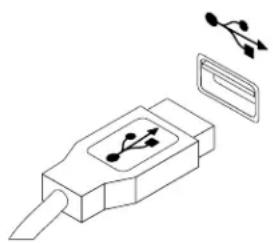
natural_image
Diagram of a USB connector with internal components and connectors (no text or symbols)Figure3. Connectingthekeyboardcable
Note: Routethekeyboardcableintothecableslotifnecessary.
Aftertheoperatingsystemidentifiesthekeyboard,thekeyboardwillbereadyforuse.
Chapter3. Using the Lenovo Preferred Pro USB Fingerprint Keyboard
Thissectionprovidesinformationaboutusingthefingerprintreaderonthekeyboard.
Creatingapassportandenrollingfingerprints
To create a passport and en rolly your first fingerprint, do the following:
- FortheWindows7, Windows8orWindows8.1operatingsystem:
- OpentheFingerprintManagerProSoftwarewindowdependingonyouroperatingsystem:
-FortheWindows7operatingsystem:
ClickStart-ALPrograms-LenovoThinkVantageToolsThendouble-clickFingerprintReader.TheFingerprintManagerProSoftwarewindowopens.
-FortheWindows8orWindows8.1operatingsystem:
From the Starscreendouble-click the LenovoFingerprintManageProSoftwareconThe FingerprintManagerProSoftwarewindowopens.
-
EnteryourWindowspasswordandclickSubmit.
-
If your computer is equipped with a fingerprint reader, you need to choose which fingerprint reader you would make an online your fingerprints. Click External select the fingerprint reader on the keyboard.
-
When a window with two hands is displayed, select a fingertoen roll by clicking the finger. The Enrollment window opens.
-
Swipethecorrespondingfingeroverthefingerprintreaderonyourcomputer. Keepscanninguntilthe progressbareached 100%ThenclickFinishisstronglyrecommendedhayouenrollmore thanonefingerintheeventofinjury.
- FortheWindows10operatingsystem:
From the desktop move the pointed bottom-left corner of the screen, Click Settings→Accounts→Sign-in options→Windows Hello and her follow the instructions on the screen to create a password, a PIN code and en rolly your first fingerprint.
Notes:
- If you donot use a Windows password, you will be prompted to define one. This is optional, but a password improves the security of your software.
- Formoreinformationaboutenrollingyourfingerprintforpower-onandharddiskdrivepasswords(BIOS passwords),see“EnrollingyourfingerprintsforBIOS passwords”onpage10.
Swipingyourfingeroverthefingerprintreader
Toswipeyourfingeroverthefingerprintreader,dothefollowing:
- Placeyourfingertiponthesmallcircularindentationabovethereader,asshownbelow.Ensurethatthe restofyourfingerisflatonthereader.

Figure4. Placing your fingertip abovethereader
- Applylightpressure, and swipe your finger across thereader in one smooth motion, as shown below.

Figure5. Swiping your finger acrossthereader
Chapter4.FingerprintreadersettingsintheBIOS
ThissectionprovidesinformationaboutthefingerprintreadersettingsintheBIOS.
SettingupthefingerprintreaderintheBIOS
TosetupthefingerprintreaderinyourcomputerBIOS,dothefollowing:
- Setapower-onpasswordoraharddiskdrivepassword, or both.
- Turnoff the computer and thenturniton.
- When prompted, swipe your finger over the finger print reader.
- Typeyourpower-onpassword, yourharddiskdrivepassword, orbothasrequested. Theenrolled fingerprintisnowassociatedwithyourpower-onpassword, yourharddiskdrivepassword, orboth.
The first time you start the computer, you will need to log onto the system by swiping your finger over the reader once and enter your password to associatethetwo. Then next time you start the computer, you can log onto the system by swiping your finger over there reader once.
Attention: If you always use your fingerprint to log onto the system, you may forget your BIOS password. Writedown your password and keep it in a safe place. If you forget your password and cannot swipe your finger, you cannot start the computer or change the password. For optimal performance, enroll more than one fingerprint.
If you forget your power-on password, you must take your computer to a Lenovoservicere representative to have the password based.
If you forget your hard disk drive password, Lenov will not reset your password or recover data from the hard disk drive. You must take your computer to a Lenov'servicere presentativetohavethe hard disk drive replaced. Proof of purchase is required, and a few will be charged for parts and service.
ChangingtheBIOSsettingsforthefingerprintreader
Note: The information in the historic application is certain. ThinkPad
® computermodelsonly.
TheFingerprint Submenu undetheSecuritymenu of theBIOSSetup Utilityprogram offers the following choices:
PredesktopauthenticationEnablesdisabledhefingerprintauthenticationbeforeheoperating systemisinstalled.Youalsocanchangethefingerprintpriority.
ReadePriorityChooseexternabinternafingerprintsensorthepriority.
- SecurityMode: Specifiesthesettingsofthesecuritymode.
Tochangethesettingsofthefingerprintreader,dothefollowing:
- Printtheseinstructions.
- Saveallopenfilesandexitallapplications.
- Turnoff the computer and thenturniton.
- When the "Tointerruptnormalstartup..." message is displayed on the lower left side of the window, press F1. The BIOS Setup Utility window opens.
Using the cursorkeys moved Security and press Enter The Security men opens.
Using the cursokeys moved Fingerprint and press Enter The Fingerprint menu opens.
7. Using the cursor keys, moveto an item you want to set. When that item is highlighted, press Enter.
8. Using the cursor keys, select these settings you want to use and press Enter. A notice window is displayed, saying changes have been available and presenting you with choice Continue.
9. PressEntertocontinue.
10. Using the cursor keys, make other fingerprint settings depending on your needs.
11. PressF10toexit.
12rth Setup Confirmation window select Yes save configuration changes and exit.
EnrollingyourfingerprintsforBIOSpasswords
ToenrollyourfingerprintsforBIOSpasswords(power-onandharddiskdrivepasswords),dothefollowing:
- OpentheFingerprintManagerProSoftwarewindowdependingonyouroperatingsystem:
- FortheWindows7operatingsystem:
ClickStartAIProgramsLenovoThinkVantageToolsThendouble-clickFingerprint Reader.TheFingerprintManagerProSoftwarewindowopens.
- FortheWindows8orWindows8.1operatingsystem:
From the Start screendouble-click the LenovoFingerprintManageProSoftwareconThe FingerprintManagerProSoftwarewindowopens.
- EnteryourWindowspasswordandclickSubmit.
- If your computer is equipped with a fingerprint reader, you need to choose which fingerprint reader you would do use on how your fingerprints click Externato select the fingerprint reader the keyboard.
- When awindow with two hands is displayed, select a fingertoen roll by clicking the finger. The Enrollment window opens.
- Swipethecorrespondingfingeroverthefingerprintreaderonyourcomputer. Keepscanninguntilthe progressbarreaches100%. Then, clickFinish.
6ClickSettingsTheSettingswindowopens the Power-or-and hard drive security area ensure that you select Authenticate through all security levels with singles wipe Thenclick OK.
Chapter5.Caringforthefingerprintreader
The following actions could damage the fingerprint reader or cause it not to work properly:
- Scratchingthesurfaceofthereaderwithahard, pointedobject.
- Scrapingthesurfaceofthereaderwithyournailoranythinghard.
• Usingortouchingthereaderwithadirtyfinger.
Gentlycleanthesurfaceofthereaderwithadry,soft,lint-freeclothifyounoticeanyofthefollowing conditions:
- Thesurfaceofthereaderisdirtyorstained.
• Thesurfaceofthereaderiswet. - Thereaderoftenfailstoenrollorauthenticateyourfingerprint.
You might not be able to register or authenticate to identify your finger has any of the following conditions:
- Yourfingeriswrinkled.
- Yourfingerisrough, dry, or injured.
- Yourfingerisstainedwithdirt,mud,oroil.
- Thesurfaceofyourfingerisverydifferentfromwhatitwaswhenyouenrolledyourfingerprint.
- Yourfingeriswet.
•Afingerthathasnotbeenenrolledisused.
Tryusing the following methods if you have problems registering or authenticating a fingerprint:
- Cleanorwipeyourhandstoremoveanyexcessdirtormoisturefromthefingers.
- Enrollanduseadifferentfingerforauthentication.
- Ifyourhandsaretoodry,applylotiontothem.
Chapter6.Troubleshooting
The following are the most common keyboard problems. If you encounter any of the following problems with the keyboard, referto the correspondings solution.
Problem: The fingerprintreader is not working correctly.
Solution: RefertoChapter5 "Caringforthefingerprintreader" on page 11
Problem:Thebluebuttondoesnotworkcorrectly.
Solution: Ensure that the Window system information window will be displayed when you press the blue button, or one of the following programs is installed on your computer:
•ThinkVantageProductivityCenter
- LenovoThinkVantageToolbox
- LenovoSimpletap
- LenovoSolutionCenter
•LenovoDeviceExperience
- SystemInformation
Problem: lpressabuttononce, but the computer responds as if lpressed it twice.
Solution: Depending your operating system, adjust the keyboard repeat delay or repeat rates settings by doing one of the following:
- FortheWindows7operatingsystem:
1Depending you StartmenodeclickStart→ControPanebStart→Settings→Control Panel.
2Click the View by menu and selec Smallcons Largecons The AI ControPanel Items category is expanded.
3.ClickKeyboard.
4.ClicktheSpeedtab.
5Move the Repeat delays led to Long the Repeatates slid to Slow.
6.ClickOK.
- ForWindows8orWindows8.1operatingsystem:
- TogotoControlPanel, movethepointertothetop-rightorbottom-rightcornerofthescreento displaythecharms.ClickSearchandthensearchforControlPanel.
2Click theViewbymenu and select the SmallconsLargeiconsviewTheAlControPanel Itemscategoryisexpanded.
3.ClickKeyboard. - ClicktheSpeedtab.
5Move the Repeat delays led to Long the Repeat ats slidet Slow.
6.ClickOK.
- ForWindows10operatingsystem:
- TogotoControlPanel, from the desktop, movethepointertothe bottom-left corner of the screen. and then search ControlPanel in theseearch box.
2ClicktheViewbymenuandselectheSmallconsLargeiconsviewTheAlControPanel Itemscategoryisexpanded.
3.ClickKeyboard.
4.ClicktheSpeedtab.
5Move the Repeat delays led to Long the Repeat ats slidet Slow.
6.ClickOK.
Problem: Thekeyboard and the fingerprint reader are not functioning correctly.
Solution: You might need to connect the keyboard to another available USB connector on your computer and try again.
TochangetheUSBconnector, dothefollowing:
- UnplugthekeyboardconnectorfromtheUSBconnector.
- Insert the keyboard connector into a different USB connector on the computer.
- The operating system will identify the keyboard and the fingerprint reader with its plug-and-play feature.
Note: Contact your Lenovoservicerepresentative if the situation continues.
AppendixA.ServiceandSupport
The following information describes the technical support that is available for your product, during the warranty period throughout the life of your product. Referto the Lenovo Limited Warranty for a full explanation of Lenovowarranty terms.
Onlinetechnicalsupport
Onlinetechnicalsupportisavailableduringthelifetimeofaproductat: http://www.lenovo.com/support
Productreplacementassistanceorexchangeofdefectivecomponentsalsoisavailableduringthewarranty period.Inaddition,ifyuroptionisinstalledinaLenovocomputer,youmightbeentitledtoserviceatyour location.ALenovotechnicalsupportrepresentativecanhelpyoudeterminethebestalternative.
Telephonetechnicalsupport
InstallationandconfigurationsupportthroughtheCustomerSupportCenterwillbeavailableuntil90days aftertheoptionhasbeenwithdrawnfrommarketing.Afterthattime,thesupportiscancelled,ormade availableforafee,atLenovo'sdiscretion.Additionalsupportisalsoavailableforanominalfee.
BeforecontactingaLenovotechnicalsupportrepresentative,pleasehavethefollowinginformationavailable: optionnameandnumber,proofofpurchase,computermanufacturer,model,serialnumberandmanual, theexactwordingofanyerrormessage,descriptionoftheproblem,andthehardwareandsoftware configurationinformationforyoursystem.
Your technical support represents a very might to walk by a way through the problem while you are at your computer during the call.
Telephonenumbersaresubjecttochangewithoutnotice. Themostup-to-datetelephonelistforLenovo Supportisalwaysavailableathttp://www.lenovo.com/support/phone____. Ifthetelephonenumberforyour countryorregionisnotlisted,contactyourLenovoresellerorLenovomarketingrepresentative.
AppendixB.LenovoLimitedWarranty
L505-0010-0208/2011
ThisLenovoLimitedWarrantyconsistsofthefollowingparts:
Part1-GeneralTerms
Part2-Country-specificTerms
Part3-WarrantyServiceInformation
The terms: Part2 replace modify terms: Part1 as specified for particular country.
Part1-GeneralTerms
ThisLenovoLimitedWarrantyappliesonlytoLenovohardwareproductsyoupurchasedforyouwnuseand notforresale. ThisLenovoLimitedWarrantyisavailableinotherlanguagesatwww.lenovo.com/warranty.
WhatthisWarrantyCovers
LenovowarrantsthateachLenovohardwareproductthatyoupurchaseisfreefromdefectsinmaterialsand workmanshipundernormaluseduringthewarrantyperiod. Thewarrantyperiodfortheproductstartson theoriginaldateofpurchaseasshownonyoursalesreceptorinvoiceorasmaybeotherwisespecified by Lenovo. Thewarrantyperiodandtypeofwarrantyservicethatapplytoyourproductareasspecified in'Par&WarrantyServiceInformationbelowThiswarrantyonlyappliesproductsirthecountry orregionofpurchase.
THISWARRANTYISYOUREXCLUSIVEWARRANTYANDREPLACESALLOTHERWARRANTIES ORCONDITIONS, EXPRESSORIMPLIED, INCLUDING, BUTNOTLIMITEDTO, ANYIMPLIED WARRANTIESORCONDITIONSOFMERCHANTABILITYORFITNESSFORAPARTICULARPURPOSE. ASSOMESTATESORJURISDICTIONSDONOTALLOWTHEEXCLUSIONOFEXPRESSOR IMPLIED WARRANTIES, THEABOVEEXCLUSIONMAYNOTAPPL YTOYOU.INTHATEVENT , SUCH WARRANTIESAPPL YONL YTOTHEEXTENTANDFORSUCHDURATIONASREQUIREDBYLAWAND ARELIMITEDINDURATIONTOTHEWARRANTYPERIOD.ASSOMESTATESORJURISDICTIONSDO NOTALLOWLIMITATIONSONTHEDURATIONOFANIMPLIEDWARRANTY, THEABOVELIMITATION ONDURATIONMAYNOTAPPL YTOYOU.
HowtoObtainWarrantyService
If the product does not function as warranted during the warranty period, you may obtain warranty service by contacting Lenovoora Lenovo-approved Service Provider. A list of approved Service Providers and their telephonenumber is available at: www.lenovo.com/support/phone.
Warrantyservicemaynotbeavailableinalllocationsandmaydifferfromlocationtolocation.Chargesmay applyoutsideaServiceProvider'snormalservicearea.ContactalocalServiceProviderforinformation specifictoyourlocation.
CustomerResponsibilitiesforWarrantyService
Beforewarrantyserviceisprovided,youmusttakethefollowingsteps:
- followtheservicerequestproceduresspecifiedbytheServiceProvider;
- backuporsecureallprogramsanddatacontainedintheproduct;
- providetheServiceProviderwithallsystemkeysorpasswords;
•providetheServiceProviderwithsufficient,free,andsafeaccesstoyourfacilitiestoperformservice; - removealldata,includingconfidentialinformation,proprietaryinformationandpersonalinformation,from theproductor,ifyouareunabletoremoveanysuchinformation,modifytheinformationtopreventits accessbyanotherpartyorsothatitisnotpersonaldataunderapplicablelaw.TheServiceProvidershall notberesponsibleforthelossordisclosureofanydata,includingconfidentialinformation,proprietary information,orpersonalinformation,onaproductreturnedoraccessedforwarrantyservice;
- removeallfeatures,parts,options,alterations,andattachmentsnotcoveredbythewarranty;
- ensure that the product or part is free of any legal restriction that prevents replacement;
- ifyouarenottheownerofaproductorpart,obtainauthorizationfromtheownerfortheServiceProvider toprovidewarrantyservice.
WhatYourServiceProviderWillDotoCorrectProblems
When you contact a Service Provider, you must follow the specified problem determination and resolution procedures.
TheServiceProviderwillattempttodiagnoseandresolveyourproblembytelephone,e-mailorremote assistance.TheServiceProvidermaydirectyoutodownloadandinstalldesignatedsoftwareupdates.
Someproblemsmayberesolvedwithareplacementpartthatyouinstallyourselfcalleda"CustomerReplaceableUnit"or"CRU."Ifso,theServiceProviderwillshiptheCRUtoyouforyoutoinstall.
If your problem cannot be resolved over the telephone; through the application of software updates or the installation of a CRU, the Service Provider will arrange for service under the type of warranty service designated for the product under "Part3-Warranty Service Information" below.
If the Service Provider determines that it is unable to repair your product, the Service Provider will replace it with one that is at least functionally equivalent.
If the Service Provider determines that it is unable to either repair or replace your product, your sole remedy under this Limited Warranty is to return the product to your place of purchase to Lenovo for refund of your purchase price.
ReplacementProductsandParts
When warranty service involves thereplacement of a product part, thereplaced product part becomes Lenovo's property and thereplacement product part becomes your property. Only unaltered Lenovo products and parts are eligible for replacement. Thereplacement product part provided by Lenovo may not be new, but it will being good working order and least functionally equivalent to the original product part. Thereplacement product part shall be warranted for the balance of the period remaining on the original product.
UseofPersonalContactInformation
If you obtain service under this warranty, you authorize Lenovotostore, use and process information about your warranty service and your contact information, including name, phonenumbers, address, and e-mail address. Lenovomayusethisinformation to perform service under this warranty. Wemaycontact youto inquire about your satisfaction with our warranty service on to notify you about any product recalls safety issues. In accomplishing these purposes, you authorize Lenovototransferyourinformation to any country wherewedobusiness and to provide it to entities acting on our behalf. Wemayalsodiscloseitwhere required by law. Lenovo's privacy policy is available at www.lenovo.com/.
WhatthisWarrantyDoesnotCover
Thiswarrantydoesnotcoverthefollowing:
- uninterruptederror-freeoperationofaproduct;
- lossof, ordamageto, yourdatabyaproduct;
- anysoftwareprograms,whetherprovidedwiththeproductorinstalledsubsequently;
- failureordamageresultingfrommisuse,abuse,accident,modification,unsuitablephysicaloroperating environment,naturaldisasters,powersurges,impropermaintenance,orusenotinaccordancewith productinformationmaterials;
- damagecausedbyanon-authorizedserviceprovider;
- failureof, ordamagecausedby, anythirdpartyproducts, includingthosethatLenovomayproviderintegrateintotheLenovoproductatyourrequest;
- anytechnicalorthersupport,suchasassistancewith“how-to”questionsandthoseregardingproduct set-upandinstallation;
- productsorpartswithanalteredidentificationlabelorfromwhichtheidentificationlabelhasbeen removed.
LimitationofLiability
LenovoisresponsibleforlossordamagetoyourproductonlywhileitisintheServiceProvider'spossession orintransit,iftheServiceProviderisresponsibleforthetransportation.
Neither LenovonortheServiceProvider is responsible for loss or disclosure of any data, including confidential information, proprietary information, or personal information, contained in a product.
UNDERNOCIRCUMSTANCES,ANDNOTWITHSTANDINGTHEFAILUREOFESSENTIALPURPOSE OFANYREMEDYSETFORTHHEREIN,SHALLLENOVO,ITSAFFILIATES,SUPPLIERS,RESELLERS, ORSERVICEPROVIDERSBELIABLEFORANYOFTHEFOLLOWINGEVENIFINFORMEDOFTHEIR POSSIBILITYANDREGARDLESSOFWHETHERTHECLAIMISBASEDINCONTRACT,WARRANTY, NEGLIGENCE,STRICTLIABILITYOROTHERTHEORYOFLIABILITY:1)THIRDPARTYCLAIMS AGAINSTYOUFORDAMAGES;2)LOSS,DAMAGEORDISCLOSUREOFYOURDATA;3)SPECIAL, INCIDENTAL,PUNITIVE,INDIRECTORCONSEQUENTIALDAMAGES,INCLUDINGBUTNOTLIMITED TOLOSTPROFITS,BUSINESSREVENUE,GOODWILLORANTICIPATEDSAVINGS.INNOCASE SHALLTHETOTALLIABILITYOFLENOVO,ITSAFFILIATESS,SUPPLIERS,RESELLERSORSERVICE PROVIDERSFORDAMAGESFROMANYCAUSEEXCEEDTHEAMOUNTOFACTUALDIRECT DAMAGES,NOTTOEXCEEDTHEAMOUNTPAIDFORTHEPRODUCT.
THEFOREGOINGLIMITATIONSDONOTAPPL YTODAMAGESFORBODIL YINJURY(INCLUDING DEATH), DAMAGETOREALPROPERTYORDAMAGETOTANGIBLEPERSONALPROPERTYFOR WHICHLENOVOISLIABLEUNDERLAW.ASSOMESTATESORJURISDICTIONSDONOTALLOW THEEXCLUSIONORLIMITATIONOFINCIDENTALORCONSEQUENTIALDAMAGES, THEABOVE LIMITATIONOREXCLUSIONMAYNOTAPPL YTOYOU.
YourOtherRights
THISWARRANTYGIVESYOUSPECIFICLEGALRIGHTS.YOUMAYHAVEOTHERRIGHTS ACCORDINGTOTHEAPPLICABLELAWSOFYOURSTATEORJURISDICTION.YOUMAYALSO HAVEOTHERRIGHTSUNDERAWRITTENAGREEMENTWITHLENOVO.NOTHINGINTHIS WARRANTYAFFECTSSTATUTORYRIGHTS,INCLUDINGRIGHTSOFCONSUMERSUNDERLAWS ORREGULATIONSGOVERNINGTHESALEOFCONSUMERGOODSTHATCANNOTBEWAIVED ORLIMITEDBYCONTRACT.
Part2-Country-specificTerms
Australia
"Lenovo"meansLenovo(Australia&NewZealand)PtyLimitedABN70112394411.Address:Level 10,NorthTower,1-5RailwayStreet,Chatswood,NSW,2067.Telephone:+61280038200.Email:lensyd_au@lenovo.com
The followingreplacesthesamesectioninPart1:
WhatthisWarrantyCovers:
Lenovowarrantsthateachhardwareproductthatyoupurchaseisfreefromdefectsinmaterialsand workmanshipundernormaluseandconditionsduringthewarrantyperiod.Iftheproductfailsduetoa covereddefectduringthewarrantyperiod,LenovowillprovideyouaremedyunderthisLimitedWarranty. Thewarrantyperiodfortheproductstartsontheoriginaldateofpurchasesspecifiedonyoursalesreceptor invoiceunlessLenovoinformsyouotherwiseinwriting.Thewarrantyperiodandtypeofwarrantyservice thatapplyyouproductaseforthbelowPar&WarrantyServiceInformation.
THEBENEFITSGIVENBYTHISWARRANTYAREINADDITIONTOYOURRIGHTSANDREMEDIESAT LAW, INCLUDINGTHOSEUNDERTHEAUSTRALIANCONSUMERLAW.
The followingreplacesthesamesectioninPart1:
ReplacementProductsandParts:
Whenwarrantyserviceinvolvesthereplacementofaproductorpart,thereplacedproductpartbecomes Lenovo'spropertyandthereplacementproductorpartbecomesyourproperty.OnlyunalteredLenovo productsandpartsareeligibleforreplacement.ThereplacementproductorpartprovidedbyLenovomay notbenew,butwillbeingoodworkingorderandatleastfunctionallyequivalenttotheoriginalproduct part.Thereplacementproductorpartshallbewarrantedforthebalanceoftheperiodremainingonthe originalproduct.Productsandpartspresentedforrepairmaybereplacedbyrefurbishedproductsorparts ofthesametyperatherthanbeingrepaired.Refurbishedpartsmaybeusedtorepairtheproduct;andrepair oftheproductmayresultinlossofdata,iftheproductiscapableofretaininguser-generateddata.
The following is added to the same section in Part 1:
UseofPersonalContactInformation:
Lenovowillnotbeabletoperformourserviceunderthiswarrantyifyourefusetoprovideyourinformation ordonotwishustotransferyourinformationtoouragentorcontractor.Youhavetherighttoaccess yourpersonalcontactinformationandrequestcorrectionofanyerrorsinitpursuanttothePrivacyAct 1988bycontactingLenovo.
The followingreplacesthesamesectioninPart1:
LimitationofLiability:
LenovoisresponsibleforlossordamagetoyourproductonlywhileitisintheServiceProvider'spossession orintransit,iftheServiceProviderisresponsibleforthetransportation.
Neither LenovonortheServiceProvider is responsible for loss or disclosure of any data, including confidential information, proprietary information, or personal information, contained in a product.
TOTHEEXTENTPERMITTEDBYLAW,UNDERNOCIRCUMSTANCESANDNOTWITHSTANDING THEFAILUREOFESSENTIALPURPOSEOFANYREMEDYSETFORTHHEREIN,SHALLLENOVO, ITSAFFILIATES,SUPPLIERS,RESELLERS,ORSERVICEPROVIDERSBELIABLEFORANYOFTHE FOLLOWINGEVENIFINFORMEDOFTHEIRPOSSIBILITYANDREGARDLESSOFWHETHERTHE CLAIMISBASEDINCONTRACT,WARRANTY,NEGLIGENCE,STRICTLIABILITYOROTHERTHEORY OFLIABILITY:1)THIRDPARTYCLAIMSAGAINSTYOUFORDAMAGES;2)LOSS,DAMAGE OR DISCLOSUREOFYOURDATA;3)SPECIAL,INCIDENTAL,PUNITIVE,INDIRECTORCONSEQUENTIAL DAMAGES,INCLUDINGBUTNOTLIMITEDTOLOSTPROFITS,BUSINESSREVENUE,GOODWILLOR ANTICIPATEDSAVINGS.INNOCASESHALLTHETOTALLIABILITYOFLENOVO,ITSAFFILIATESS, SUPPLIERS,RESELLERSORSERVICEPROVIDERSFORDAMAGESFROMANYCAUSEEXCEEDTHE AMOUNTOFACTUALDIRECTDAMAGES,NOTTOEXCEEDTHEAMOUNTPAIDFORTHEPRODUCT.
THEFOREGOINGLIMITATIONSDONOTAPPL YTODAMAGESFORBODIL YINJURY(INCLUDING DEATH), DAMAGETOREALPROPERTYORDAMAGETOTANGIBLEPERSONALPROPERTYFOR WHICHLENOVOISLIABLEUNDERLAW.
The followingreplacesthesamesectioninPart1:
YourOtherRights:
THISWARRANTYGIVESYOUSPECIFICLEGALRIGHTS.YOUALSOHAVEOTHERRIGHTSATLAW, INCLUDING UNDERTHEAUSTRALIANCONSUMERLAW.NOTHINGINTHISWARRANTY AFFECTS STATUTORYRIGHTSORRIGHTSATLAW, INCLUDINGRIGHTSTHATCANNOTBEWAIVEDOR LIMITEDBYCONTRACT.
Forexample, our products comewith guarantee that cannot be excluded under the Australian Consumer Law. You are entitled to a replacement or refund for a major failure and compensation for any other reasonably foreseeable loss or damage. You are also entitled to have the products repaired or replaced if the products fail to be of acceptable quality and the failure does not amount to a major failure.
NewZealand
The following is added to the same section in Part 1:
UseofPersonalInformation:
Lenovowillnotbeabletoperformourserviceunderthiswarrantyifyourefusetoprovideyourinformationor donotwishustotransferyourinformationtoouragentorcontractor.Youhavetherighttoaccessyour personalinformationandrequestcorrectionofanyerrorsinitpursuanttothePrivacyAct1993bycontacting Lenovo(Australia&NewZealand)PtyLimitedABN70112394411.Address:Level10,NorthTower,1-5 RailwayStreet,Chatswood,NSW,2067.Telephone:61280038200.Email:lensyd_au@lenovo.com
Bangladesh, Cambodia, India, Indonesia, Nepal, Philippines, Vietnam and Sri Lanka
The following is added to Part 1:
DisputeResolution
Disputesarisingoutoforinconnectionwiththiswarrantyshallbefinallysettledbyarbitrationheldin Singapore.Thiswarrantyshallbegoverned,construedandenforcedinaccordancewiththelawsof SingaporewithoutregardconflicbfawslyouacquiredheproductIndiadisputesarisingpubfor inconnectionwiththiswarrantyshallbefinallysettledbyarbitrationheldinBangalore,India.Arbitration inSingaporeshallbeheldinaccordancewiththeArbitrationRulesofSingaporeInternationalArbitration Center("SIACRules")thenineffect.ArbitrationinIndiashallbeheldinaccordancewiththelawsofIndia thenineffect.Thearbitrationawardshallbefinalandbindingonthepartieswithoutappeal.Anyaward
shallbeinwritingandsetforththefindingsoffactandtheconclusionsoflaw.Allarbitrationproceedings, includingalldocumentspresentedinsuchproceedingsshallbeconductedintheEnglishlanguage.The Englishlanguageversionofthiswarrantyprevailsoveranyotherlanguageversioninsuchproceedings.
EuropeanEconomicArea(EEA)
The following is added to Part 1:
CustomersintheEEAmaycontactLenovoatthefollowingaddress:EMEAServiceOrganisation, Lenovo (International)B.V., Floor2, Einsteinova21, 85101, Bratislava, Slovakia. Serviceunderthiswarrantyfor LenovohardwareproductspurchasedinEEAcountriesmaybeobtainedinanyEEAcountryinwhichthe producthasbeenannouncedandmadeavailablebyLenovo.
Russia
The following is added to Part 1:
ProductServiceLife
Theproductservicelifeisfour(4)yearsfromtheoriginaldateofpurchase.
Part3-WarrantyServiceInformation
| ProductTypeCountry | yorRegionofPurchaseWarranty | PeriodTypeofWarrantyService | |
| LenovoPreferredProUSBFingerprintKeyboard | Worldwide3years1,4 |
If required, yourServiceProvider will provide repair exchanges services depending on the type of warranty services specified for your product and the available service. Scheduling of service will depend upon the time of your call, parts availability, and other factors.
TypesofWarrantyService
1. CustomerReplaceableUnit("CRU") Service
UnderCRUService,theServiceProviderwillshipCRUstoyouatitscostforinstallationbyyou.CRU informationandreplacementinstructionsareshippedwithyourproductandareavailablefromLenovoatany timeuponrequest.CRUsthatareaseasilyinstalledbyyouarecalled"Self-serviceCRUs"."Optional-service CRUs"areCRUsthatmayrequiresometechnicalskillandtools.InstallationofSelf-serviceCRUsisyour responsibility.YoumayrequestthataServiceProviderinstallOptional-serviceCRUsunderoneoftheother typesofwarrantyservicedesignatedforyourproduct.Anoptionalserviceofferingmaybeavailablefor purchasefromaServiceProviderorLenovounderwhichSelf-serviceCRUswouldbeinstalledforyou.YoumayfindalistofCRUsandtheirdesignationinthepublicationthatwasshippedwithyourproduct oratwww.lenovo.com/CRUs.ThererequirementtoreturnadefectiveCRU,ifany,willbespecifiedinthe instructionsshippedwithareplacementCRU.Whenreturnisrequired:1)returninstructions,aprepaid returnshippinglabel,andacontainerwillbeincludedwiththereplacementCRU;and2)youmaybecharged forthereplacementCRUiftheServiceProviderdoesnotreceivethedefectiveCRUfromyouwithinthirty (30)daysofyourreceiptofthereplacementCRU.
2On-siteService
UnderOn-SiteService,aServiceProviderwilleitherrepairorexchangetheproductatyourlocation.You mustprovideasuitableworkingareatoallowdisassemblyandreassemblyoftheproduct.Somerepairs
mayneedtobecompletedataservicecenter.Ifso,theServiceProviderwillsendtheproducttothe servicecenteratitsexpense.
3. CourierorDepotService
UnderCourierorDepotService,yourproductwillberepairedorexchangedatadesignatedservicecenter, withshippingattheexpenseoftheServiceProvider.Youareresponsiblefordisconnectingtheproductand packingitinashippingcontainerprovidedtoyoutoreturnyourproducttoadesignatedservicecenter. Acourierwillpickupyourproductanddeliverittothedesignatedservicecenter.Theservicecenterwill returntheproducttyouatitsexpense.
4.CustomerCarry-InService
UnderCustomerCarry-InService,yourproductwillberepairedorexchangedafteryoudeliverittoa designatedservicecenteratyourriskandexpense.Aftertheproducthasbeenrepairedorexchanged,itwill bemadeavailabletoyouforcollection.Ifyoufailtocollecttheproduct,theServiceProvidermaydisposeof theproductasitseesfit,withnoliabilitytoyou.
5.Mail-InService
UnderMail-InService,yourproductwillberepairedorexchangedatadesignatedservicecenterafteryou deliveritayourriskandexpense.Aftertheproducthasbeenrepairedorexchanged,itwillbereturnedto youatLenovo'sriskandexpense,unlesstheServiceProviderspecifiesotherwise.
6.CustomerTwo-WayMail-InService
UnderCustomerTwo-WayMail-InService, your product will berepairedorexchanged after you deliver it to designated service center at your risk and expense. After the product has been repaired over exchanged, it will be made available to you for return shipping at your risk and expense. If you fail to arranger return shipment, the Service Provider may dispose of the product as it sees fit, with no liability to you.
7.ProductExchangeService
UnderProductExchangeService, Lenovowillshipareplacementproducttoyourlocation. You are responsible for its installation and verification of its operation. Thereplacementproduct becomes your property in exchange for the failed product, which becomes the property of Lenovo. You must pack the failed product in the shipping carton in which you receive thereplacement product and return to Lenovo. Transportation charges, both ways, shall beat Lenovo's expense. If you fail to set the carton in which the replacement product was received, you maybe responsible for any damage to the failed product occurring during shipment. You maybe charged for the replacement product if Lenovo does not receive the failed product within thirty (30) day so your receipt of the replacement product.
The following information refer to the Lenovo Preferred Pro USBFingerprint Keyboard.
FederalCommunicationsCommissionDeclarationofConformity
LenovoPreferredProUSBFingerprintKeyboard-04X2609
This equipment has been tested and found to comply with the limits for a Class B digital device, pursuant to Part 15 of the FCC Rules. These limits are designed to provide reasonable protection against harmful interference in a residential installation. This equipment generates, uses, and can radiate radio frequency energy and, if not installed and used in accordance with the instructions, may cause harmful interference or radiocommunications. However, there is no guarantee that interference will not occur in particular installation. If this equipment does cause harmful interference or radioortelevision reception, which can be determined by turning the equipment off and on, the user is encouraged to try to correct the interference by one or more of the following measures:
•Reorientorrelocatethereceivingantenna.
- Increase these separation between the equipment and receiver.
- Connecttheequipmentintoanoutletonacircuitdifferentfromthattowhichthereceiverisconnected.
- Consultanaauthorizeddealerorservicerepresentativeforhelp.
Lenovoisnotresponsibleforanyradioortelevisioninterferencecausedbyusingotherthanspecifiedor recommendedcablesandconnectorsorbyunauthorizedchangesormodificationstothisequipment. Unauthorizedchangesormodificationscouldvoidtheuser'sauthoritytooperatetheequipment.
This device complies with Part 15 of the FCC Rules. Operation is subject to the following two conditions: (1) this device may not cause harmful interference, and (2) this device must accept any interference received, including interference that may cause undesired operation.
ResponsibleParty:
Lenovo(UnitedStates)Incorporated
1009ThinkPlace-BuildingOne
Morrisville, NC27560
PhoneNumber:919-294-5900

EuropeanUnion-CompliancetotheElectromagneticCompatibilityDirective
ThisproductisinconformitywiththeprotectionrequirementsofEUCouncilDirective2004/108/EConthe approximationofthelawsoftheMemberStatesrelatingtoelectromagneticcompatibility.Lenovocannot acceptresponsibilityforanyfailuretosatisfytheprotectionrequirementsresultingfromanon-recommended modificationoftheproduct,includingtheinstallationofoptioncardsfromothermanufacturers.
ThisproducthasbeentestedandfoundtocomplywiththelimitsforClassBInformationTechnology EquipmentaccordingtoEuropeanStandardEN55022.ThelimitsforClassBequipmentwerederived fortypicalresidentialenvironmentstoprovidereasonableprotectionagainstinterferencewithlicensed communicationdevices.
Lenovo, Einsteinova21, 85101 Bratislava, Slovakia

GermanClassBcompliancestatement
KoreaClassBcompliancestatement
B급 기기(가정용 방송통신기자재)
Eurasiancompliancemark

UkraineComplianceMark

AppendixD.Notices
Lenovomaynotoffertheproducts,services,orfeaturesdiscussedinthisdocumentinallcountries.Consult yourlocalLenovorepresentativeforinformationontheproductsandservicescurrentlyavailableinyour area.AnyreferencetoaLenovoproduct,program,orserviceisnotintendedtostateorimplythatonlythat Lenovoproduct,program,orservicemaybeused.Anyfunctionallyequivalentproduct,program,orservice thatdoesnotinfringeanyLenovointellectualpropertyrightmaybeusedinstead.However,itistheuser's responsibilitytoevaluateandverifytheoperationofanyotherproduct,program,orservice.
Lenovomayhavepatentsorpendingpatentapplicationscoveringsubjectmatterdescribedinthis document. Thefurnishingofthisdocumentdoesnotgiveyouanylicensetothesepatents.Youcansend licenseinquiries,inwriting,to:
Lenovo(UnitedStates), Inc.
1009ThinkPlace-BuildingOne
Morrisville, NC27560
U.S.A.
Attention: LenovoDirectorofLicensing
LENOVOPROVIDESTHISPUBLICATION“ASIS”WITHOUTWARRANTYOFANYKIND,EITHEREXPRESS ORIMPLIED,INCLUDING,BUTNOTLIMITEDTO,THEIMPLIEDWARRANTIESOFNON-INFRINGEMENT, MERCHANTABILITYORFITNESSFORAPARTICULARPURPOSE.Somejurisdictionsdonotallow disclaimerofexpressorimpliedwarrantiesincertaintransactions,therefore,thisstatementmaynotapply toyou.
This information could include technical inaccuracies in typographical errors. Changes are periodically made to the information herein; these changes will be incorporated in new editions of the publication. Lenovomay make improvements and/or changes in the product(s) and/or the program(s) described in this publication at any time without notice.
Recyclinginformation
Lenovoencouragesownersofinformationtechnology(IT)equipmenttoresponsiblyrecycletheirequipment whenitisnolongerneeded.Lenovooffersaviartyofprogramsandservicestoassistequipmentownersin recyclingtheirITproducts.ForinformationonrecyclingLenovoproducts,goto: http://www.lenovo.com/recycling
RecyclinganddisposalinformationforJapanisavailableat: http://www.lenovo.com/recycling/japan
Thelatestenvironmentalinformationaboutourproductsisavailableat: http://www.lenovo.com/ecodeclaration
RecyclinginformationforBrazil
The following terms are trademark of Lenovo in the United States, other countries, or both:
Lenovo
TheLenovologo
ThinkPad
ThinkVantage
MicrosoftandWindowsaretrademarksoftheMicrosoftgroupofcompanies.
Othercompany, product, or servicenames may be trademarks or servicemark so to others.
AppendixE.RestrictionofHazardousSubstancesDirective (RoHS)
EuropeanUnionRoHS
This Lenovoproduct, withincludedparts(cables, cords, and soon)meetstherequirementsofDirective 2011/65/EUontherestrictionoftheuseofcertainhazardoussubstancesinelectricalandelectronic equipment("RoHSrecast"or"RoHS2").
FormoreinformationaboutLenovoworldwidecomplianceonRoHS,goto: http://www.lenovo.com/social_responsibility/us/en/RoHS_Communication.pdf
ChinaRoHS
The information in the following table is applicable for products manufactured on or after March 1, 2007 for sale in the People's Republic of China.
The Lenovoproductmeetstherequirements of the Republic of Turkey Directive on the Restriction of the Use of Certain Hazardous Substances in Electrical and Electronic Equipment (EEE).



- Contents
- Chapter1.AbouttheLenovo PreferredProUSBFingerprint Keyboard......1
- Chapter2.InstallingtheLenovo PreferredProUSBFingerprint Keyboard......5
- Chapter3.UsingtheLenovo PreferredProUSBFingerprint Keyboard......7
- Chapter4.Fingerprintreadersettings inthBIOS......9
- Chapter5.Caringofthfingerprint reader....1.1
- AppendixA. Service and Support1.5
- AppendixB.LenovoLimited Warranty.....1.7
- AppendixC.Electronicemission notices....25
- AppendixD.Notices.....29
- AppendixE.RestrictionfHazardous SubstancesDirective(RoHS).33
- Chapter1.AbouttheLenovoPreferredProUSBFingerprint Keyboard
- Productdescription
- Frontview
- 1Statusindicators
- Thebluebutton
- Fingerprintreader
- Rearview
- 1Adjustabletiltfeet
- 2Cableslot
- Non-skidfeet
- Label
- Systemrequirements
- Chapter2.InstallingtheLenovoPreferredProUSBFingerprint Keyboard
- InstallingtheLenovoFingerprintManagerProSoftware
- InstallingtheLenovoPreferredProUSBFingerprintKeyboard
- Chapter3. Using the Lenovo Preferred Pro USB Fingerprint Keyboard
- Creatingapassportandenrollingfingerprints
- Notes:
- Swipingyourfingeroverthefingerprintreader
- Chapter4.FingerprintreadersettingsintheBIOS
- SettingupthefingerprintreaderintheBIOS
- ChangingtheBIOSsettingsforthefingerprintreader
- EnrollingyourfingerprintsforBIOSpasswords
- Chapter5.Caringforthefingerprintreader
- Chapter6.Troubleshooting
- AppendixA.ServiceandSupport
- Onlinetechnicalsupport
- Telephonetechnicalsupport
- AppendixB.LenovoLimitedWarranty
- Part1-GeneralTerms
- WhatthisWarrantyCovers
- HowtoObtainWarrantyService
- CustomerResponsibilitiesforWarrantyService
- WhatYourServiceProviderWillDotoCorrectProblems
- ReplacementProductsandParts
- UseofPersonalContactInformation
- WhatthisWarrantyDoesnotCover
- LimitationofLiability
- YourOtherRights
- Part2-Country-specificTerms
- Australia
- WhatthisWarrantyCovers:
- THEBENEFITSGIVENBYTHISWARRANTYAREINADDITIONTOYOURRIGHTSANDREMEDIESAT LAW, INCLUDINGTHOSEUNDERTHEAUSTRALIANCONSUMERLAW.
- ReplacementProductsandParts:
- UseofPersonalContactInformation:
- LimitationofLiability:
- YourOtherRights:
- NewZealand
- UseofPersonalInformation:
- DisputeResolution
- EuropeanEconomicArea(EEA)
- Russia
- ProductServiceLife
- TypesofWarrantyService
- CustomerReplaceableUnit("CRU") Service
- 2On-siteService
- CourierorDepotService
- 4.CustomerCarry-InService
- 5.Mail-InService
- 6.CustomerTwo-WayMail-InService
- 7.ProductExchangeService
- FederalCommunicationsCommissionDeclarationofConformity
- EuropeanUnion-CompliancetotheElectromagneticCompatibilityDirective
- KoreaClassBcompliancestatement
- Eurasiancompliancemark
- UkraineComplianceMark
- AppendixD.Notices
- Recyclinginformation
- RecyclinginformationforBrazil
- AppendixE.RestrictionofHazardousSubstancesDirective (RoHS)
- EuropeanUnionRoHS
- ChinaRoHS
Brand : LENOVO
Model : 0C52722
Category : Keyboard