SN10E24R - Laptop Hanns.G - Free user manual and instructions
Find the device manual for free SN10E24R Hanns.G in PDF.


| Product Type | Laptop |
| Brand | Hanns.G |
| Model | SN10E24R |
| Display Size | 15.6 inches |
| Display Resolution | 1366 x 768 pixels (HD) |
| Processor | Intel Celeron or equivalent |
| RAM | 4 GB DDR3 |
| Storage | 500 GB HDD |
| Operating System | Windows 10 Home (pre-installed) |
| Dimensions (W x D x H) | 378 x 260 x 25 mm |
| Weight | 2.2 kg (with battery) |
| Power Supply | 45 W AC adapter |
| Battery Type | Li-ion, 3-cell, 2200 mAh |
| Connectivity | Wi-Fi 802.11 b/g/n, Bluetooth 4.0, Ethernet RJ-45 |
| Ports | USB 2.0 (2), USB 3.0 (1), HDMI, VGA, Headphone/Mic combo |
| Optical Drive | DVD-RW |
| Primary Functions | Web browsing, document editing, media playback, light gaming |
| Cleaning Instructions | Wipe screen and body with a soft, dry cloth. Do not use liquid cleaners. |
| Safety Precautions | Keep away from water and heat sources. Use only specified charger. |
| Spare Parts & Repairability | Battery, keyboard, and hard drive are replaceable. Consult manual for disassembly. |
Frequently Asked Questions - SN10E24R Hanns.G
User questions about SN10E24R Hanns.G
0 question about this device. Answer the ones you know or ask your own.
Ask a new question about this device
Download the instructions for your Laptop in PDF format for free! Find your manual SN10E24R - Hanns.G and take your electronic device back in hand. On this page are published all the documents necessary for the use of your device. SN10E24R by Hanns.G.
USER MANUAL SN10E24R Hanns.G
HannsBook SN10E2 Series
USER'S MANUAL
natural_image
Line drawing of a laptop computer with visible keyboard and mouse (no text or symbols)Trademark:
All trademarks are the property of their respective owners.
Version:
User's Manual V1.0 for Netbook.
Symbol description:

Caution : refers to important information that can help you to use Netbook better, and tells you how to avoid problems.

The use of this symbol indicates that this product may not be treated as household waste. By ensuring this product is disposed of correctly, you will help prevent potential negative consequences for the environment and human health, which could otherwise be caused by inappropriate waste handling of this product. For more detailed information about recycling of this product, please contact your local city office, your household waste disposal service or the shop where you purchased this product.
Safety Precautions
The following safety precautions will increase the life of the netbook. Please follow all precautions and instructions. Except as described in the manual, refer all servicing to qualified personal.

■ Do not place on uneven or unstable work surfaces. Seek servicing if the casing has been damaged.
■ Do not expose to dirty or dusty environment. And Do not operate during a gas leak.
■ Do not leave the netbook on your lap or any part of the body to prevent discomfort or injury from heat exposure.
■ Do not press or touch the display screen. Do not place together with small items that may scratch or enter the netbook.
■ The netbook should only be used in environment with ambient temperature between 0^ C( 32^ F) and 40^ C( 104^ F).
■ Do not place or drop objects on top.
■ Do not expose to or use near liquids, rains, moisture or strong magnetic or electrical fields.
■ Do not carry or cover a netbook that is powered on with any materials that will reduce air circulation such as a carrying bag.
■ Do not throw the netbook in municipal waste. Check local regulations for disposal of electronic products.
■ Wipe the netbook using a clean cellulose sponge or chamois cloth dampened with a solution of nonabrasive detergent and a few drops of warm water and remove any extra moisture with a dry cloth.
■ Risk of explosion if battery is replaced by an incorrect type. Dispose of used batteries according to the instructions.
■ Use only the power cord and batteries indicated in this manual. Do not dispose of batteries in a fire. They may explode. Check with local codes for possible special disposal instructions.
Table of Contents
Chapter 1 Introduction to Your Netbook
Accessories 2
External Appearance....3
Setting Up Your Computer ....8
Touchpad Usage....12
Special Function Keys....14
Chapter 2 Install Windows XP in Netbook
Install a new Windows XP system ....16
Install drivers in new Windows XP 18
Chapter 3 Install Windows 7 in Netbook
Install a new Windows 7 system....20
Install drivers in new Windows 7 24
Chapter 4 Recovery of Windows XP/ Windows 7 system .....26
Chapter 5 Introduction to Linux system
Overview....30
Recovery of Linux system 32
Appendix
Product Specification....37
Netbook FAQ 39
natural_image
Line drawing of a laptop computer with blank screen and keyboard (no text or symbols)Netbook
Introduction to Your Netbook
■ Accessories
■ External Appearance
■ Setting Up Your Computer
■ Touchpad Usage
■ Special Function Keys
1-1 Accessories
Check your product package for the following items:
- Netbook
- Battery Pack
- Adapter
- AC Power Cable
- Driver DVD
- Recovery DVD
- Warranty Card
- Carry Bag
- Wiping Cloth
- Quick Installation Guide

Before your purchase, if any of the above items is damaged or missing, please contact your retailer.
1-2 External Appearance
Refer to the diagram below to identify the components on every side of the netbook.
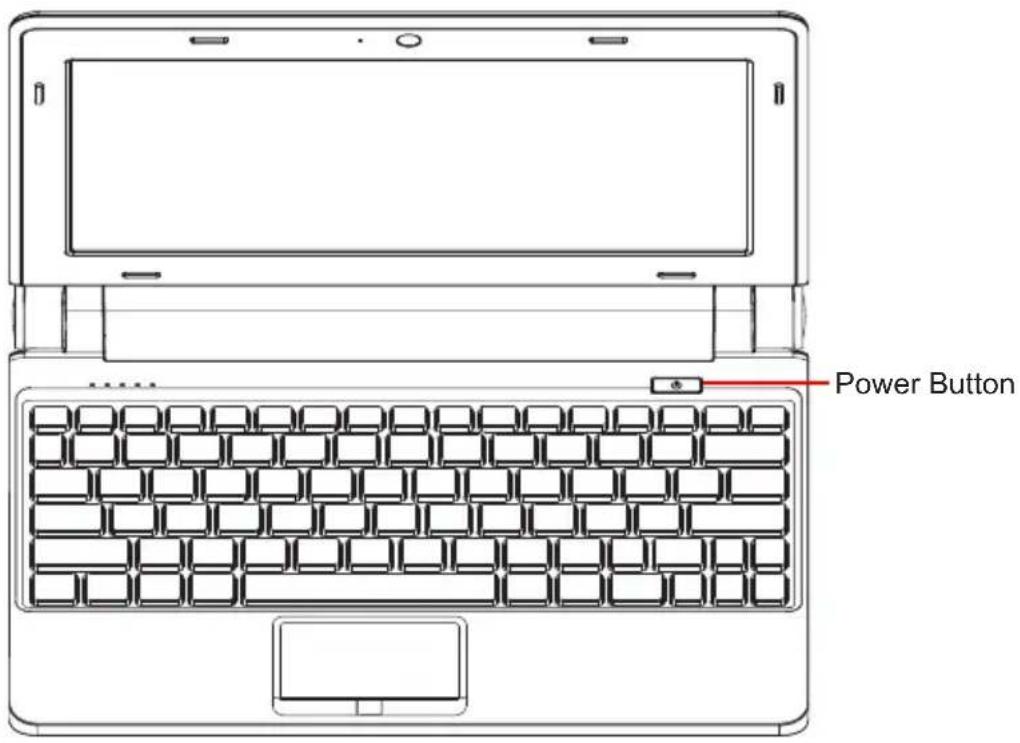
1. Top View
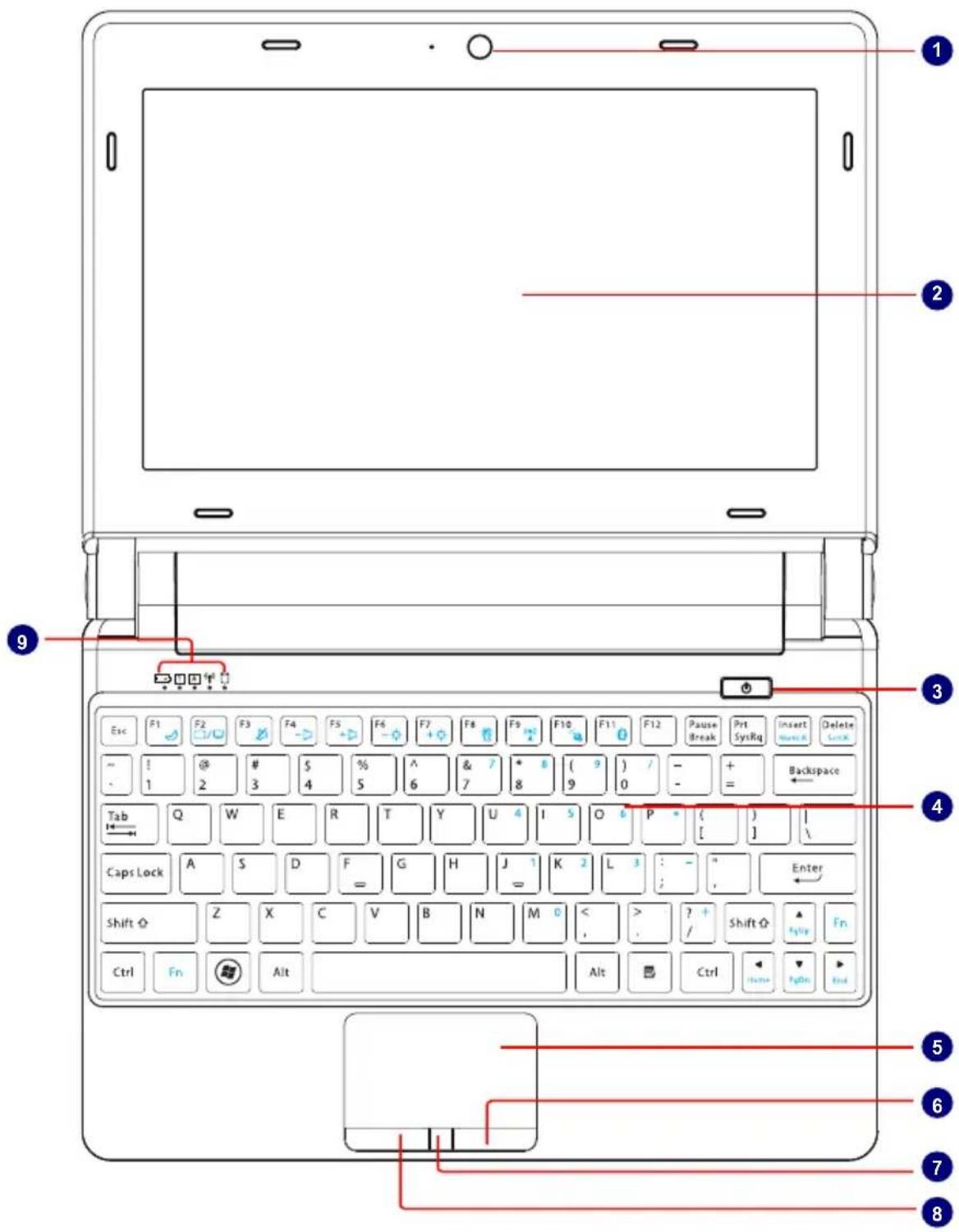

Your Netbook keyboard may vary depending on the country/region of purchase.

| No. | Item Description | |
| 1 Web Camera Records videos or take photos | ||
| 2 LCD LED backlight panel | ||
| 3 Power Button | Button for turning the computer's power on/off.Glowing blue when the Netbook power is turned on.Blinking blue when the Netbook is entering suspend mode. | |
| 4 Keyboard | Input device used for controlling the Netbook's various functions | |
| 5 Touchpad | Works the same way as a mouse and is used for controlling the computer cursor | |
| 6 Right Touchpad Button Works | s the same way as the right mouse button | |
| 7 Touchpad Lock Button Press | the button to lock or unlock the touchpad | |
| 8 Left Touchpad Button Works | the same way as the left mouse button | |
| 9 Status Indicators | From left to right:a. BatteryGlowing blue when the battery is being charged.Blinking blue when the battery is in low battery status.The indicator goes out when the battery is fully charged.b. Num LockGlowing blue when the keyboard is in Number-lock mode.c. Caps LockGlowing blue when the keyboard is in Caps-lock mode.d. Wireless LANThe indicator glows blue when wireless LAN function is enabled.The indicator is off when wireless LAN function is disabled.e. HDDBlinking blue when data is written to or read from the hard disk drive. | |
2. Rear View

natural_image
Technical line drawing of a mechanical component with no visible text or symbols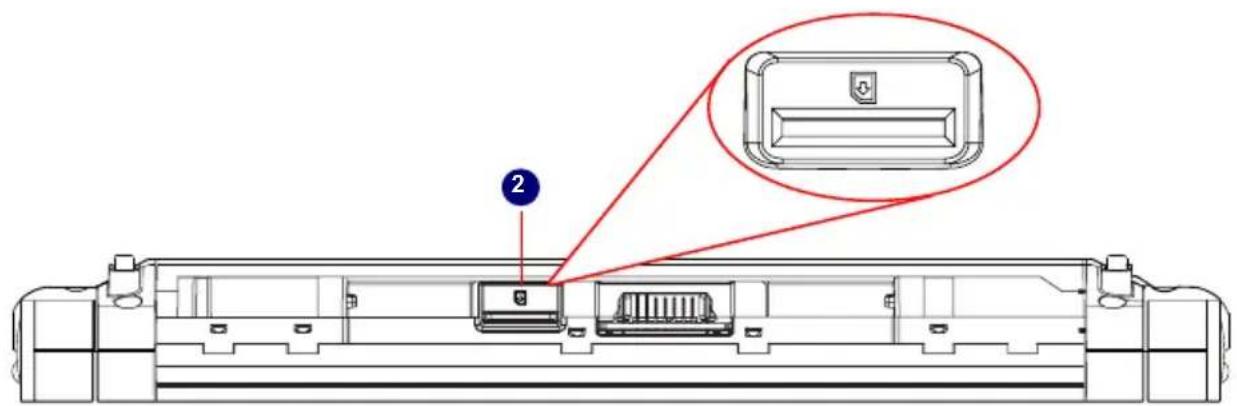
| No. Item Description | ||
| 1 Battery Pack Replaceable battery pack that serves as Netbook's power supply. | ||
| 2 | SIM Card Slot (optional) | To insert the SIM card into the slot as the icon shown and make sure that the gold pins of SIM card are downward.(Warning: Please do not insert or pull out the SIM card when power-on, otherwise the data may lose or the card would be damaged.) |
3. Bottom View

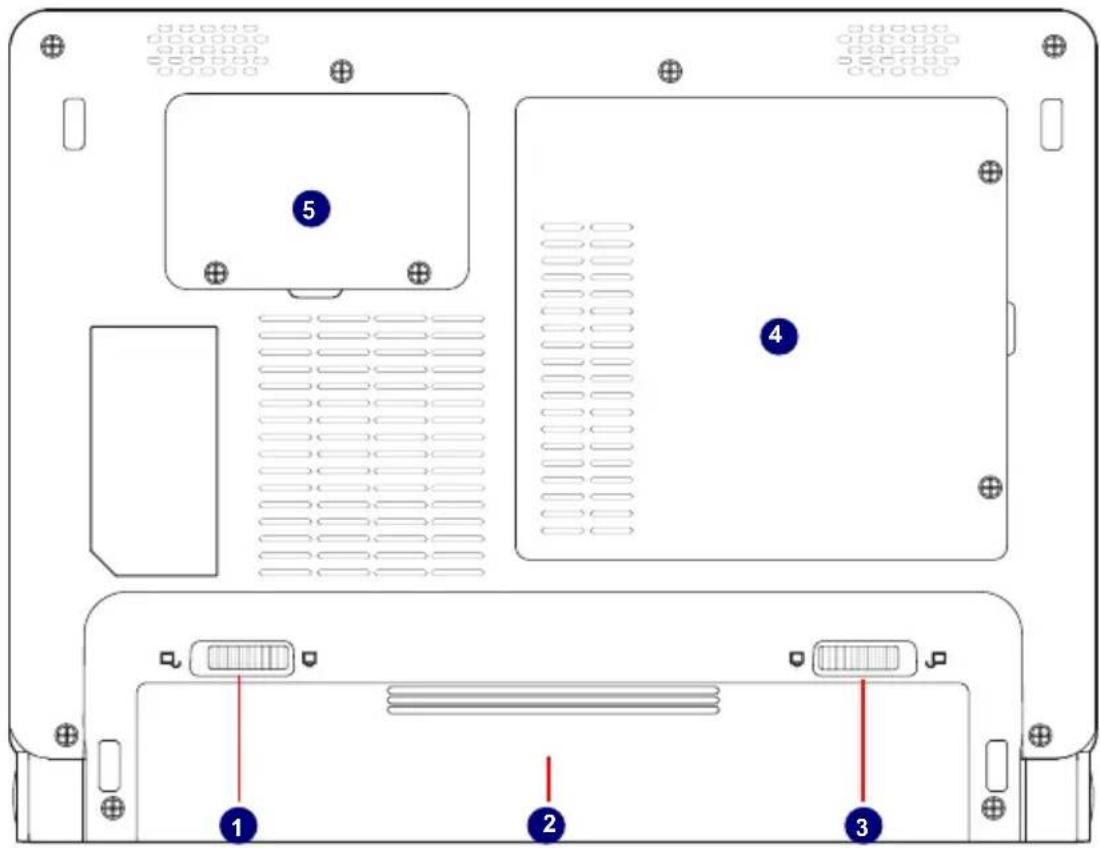
| No. | Item Description | |
| 1 | Battery Lock Slide inwards | to lock the battery in place. Slide outwards to unlock battery. |
| 2 | Battery Pack Replaceable | battery. Serves as the Netbook's power supply |
| 3 | Battery Latch Push outwards | to release battery for removal |
| 4 | Hard Disk Cover The Hard | Disk Cover protects the internal hardware. Open to exchange device |
| 5 | Memory Cover The cover | is to protect the memory from damage. |

When the computer is running or charging, heat is produced inside the Netbook and transferred to the back of the chassis by the heat dissipation system for cooling. The transformer may also produce a lot of heat during normal use as well. The Netbook and its transformer should therefore not be placed in the lap or on any other body part for prolonged periods during use. Also avoid placing the Netbook on a soft surface (e.g. sofa) as it might block the heat vents and interfere with cooling.
4. Left View
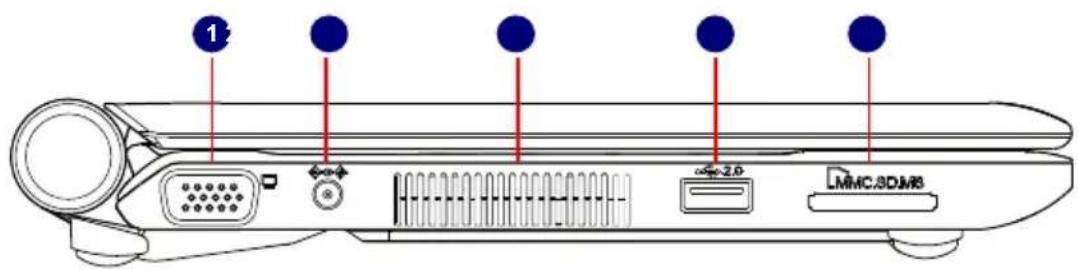
| No. | Item Description | |
| 1 | External Display Port Connects to an external display | |
| 2 | Power Port Connects to the external power supply | |
| 3 | Vent Netbook's cooling vent | |
| 4 | USB Port Connects to USB 2.0 device | |
| 5 | Memory Card Slot Supports MMC/SD/MS memory cards |
5. Right View
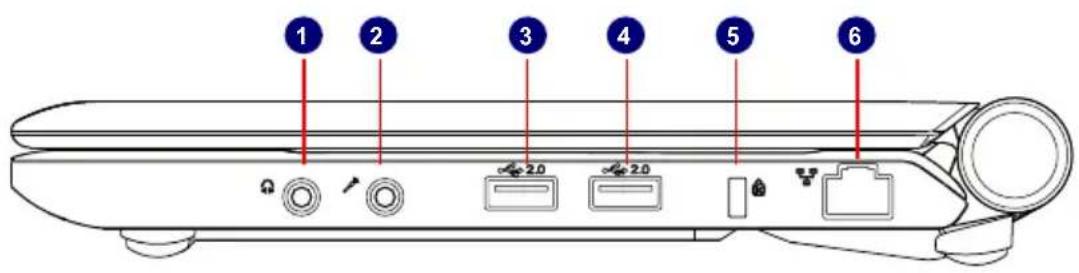
| No. | Item Description | |
| 1 | Headphone Connects to external | headphone |
| 2 | Microphone Connects to external | microphone |
| 3 | USB Port Connects to USB 2.0 device | |
| 4 | USB Port Connects to USB 2.0 device | |
| 5 | Anti-Theft Lock Slot Attach a Kens | ington security system or a com- patible lock to secure your Netbook |
| 6 | Network Port Standard RJ-45 network port |
1-3 Setting Up Your Computer
1. Installing/Removing the Battery Pack
Please install the battery before using the Netbook and connect the external power supply transformer. The Netbook can be powered by the battery or the external transformer. If you are in an office environment, we recommend using the external transformer as much as possible. If you are away from the office and no power socket is available, use the battery instead.
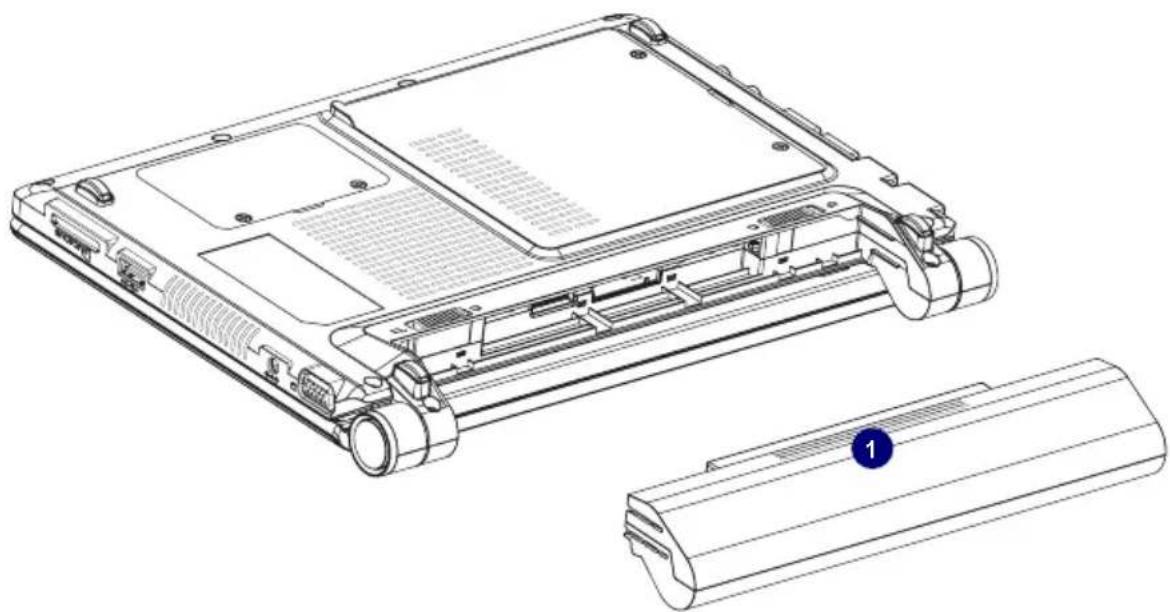
Installing the Battery Pack
Step 1: Turn the Netbook over and have the back of the battery facing upwards as well. Now push the end of the battery with the metal contacts into the Netbook's battery slot evenly and slowly along the battery rails.
Step 2: Push the end of the Netbook battery with the metal contacts completely into the battery slot. When there is a "click", this means the battery latch has engaged and the battery is now secured to the Netbook.
Step 3: Push the Battery Lock inwards lightly to lock the battery in place.
natural_image
Technical line drawing of a laptop chassis showing front and side views (no text or symbols)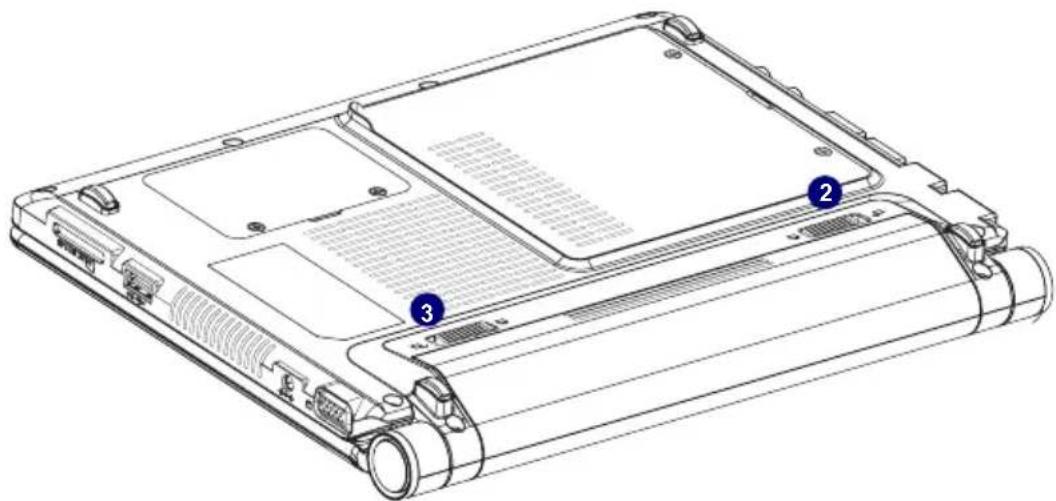

Removing the Battery Pack
Step 1: Shut down the Netbook. Disconnect all cables and devices.
Step 2: Turn the Netbook over and unlock the battery by pushing the Battery Lock outwards.
Step 3: Push the Battery Latch outwards and hold it in place with your finger. Now use the other hand to pull the battery out.
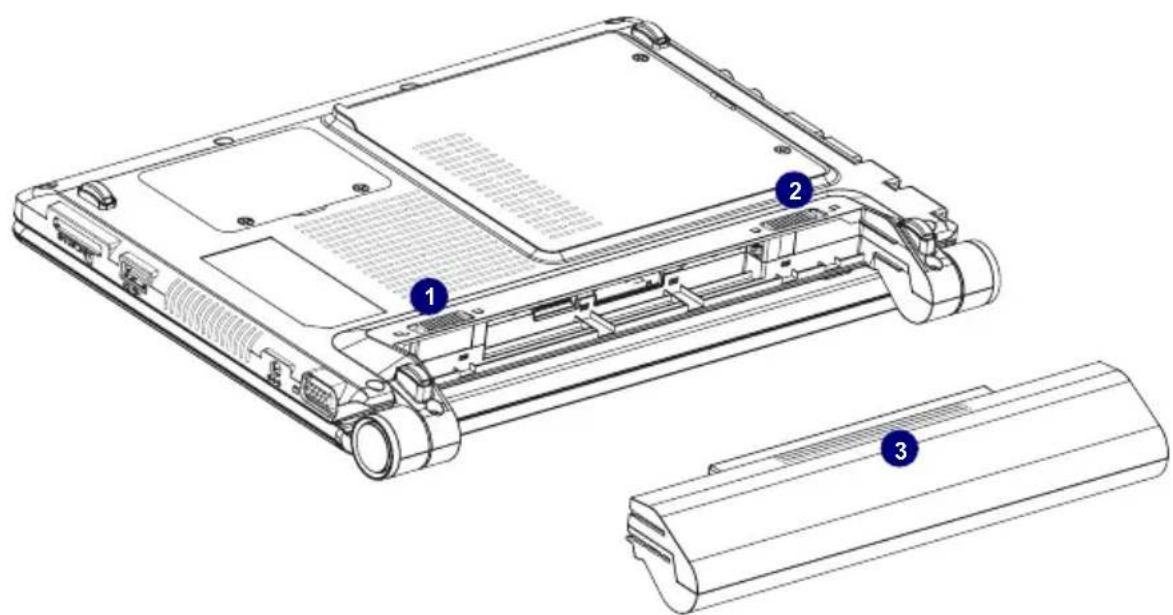

Do not remove the battery while the Netbook is still running. This may damage the data on the hard disk.
2. Connecting the Power Supply

The AC transformer provides external power source to your Netbook and charges the battery pack at the same time. The AC transformer also has an auto-switching design that can connect to any 100V AC \~240V AC power outlets.
Step 1: Plug the power cord into the power socket of the AC transformer.
Step 2: Plug the connector of the AC transformer to the DC port of Netbook.
Step 3: Plug the other end of the power cord to a live power outlet.
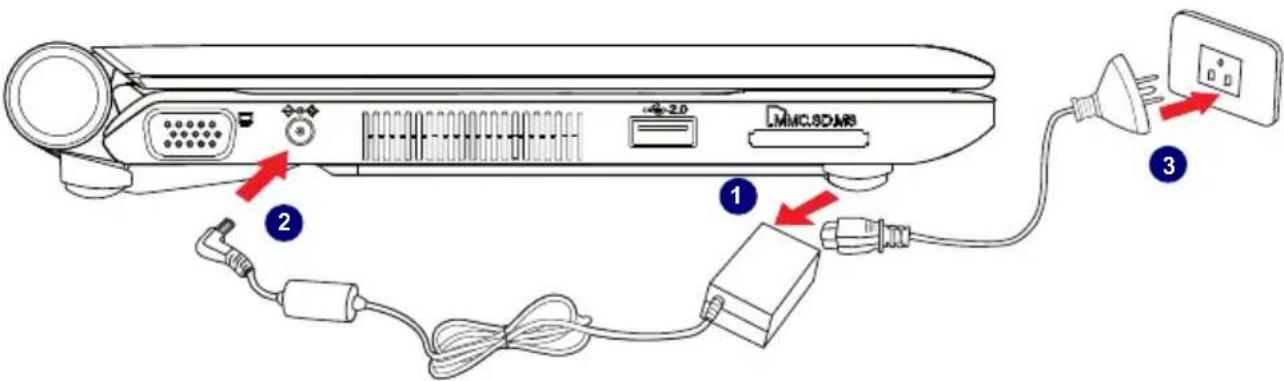

The power connector of the power cord for the power outlet may vary depending on the local national standards. The appropriate connector will be bundled with your Netbook. Please always use the connector to connect the power outlet. The connector shown here may not match the type included in the box and is provided for reference only.
3. Startup
Step 1: Open the screen of your Netbook.
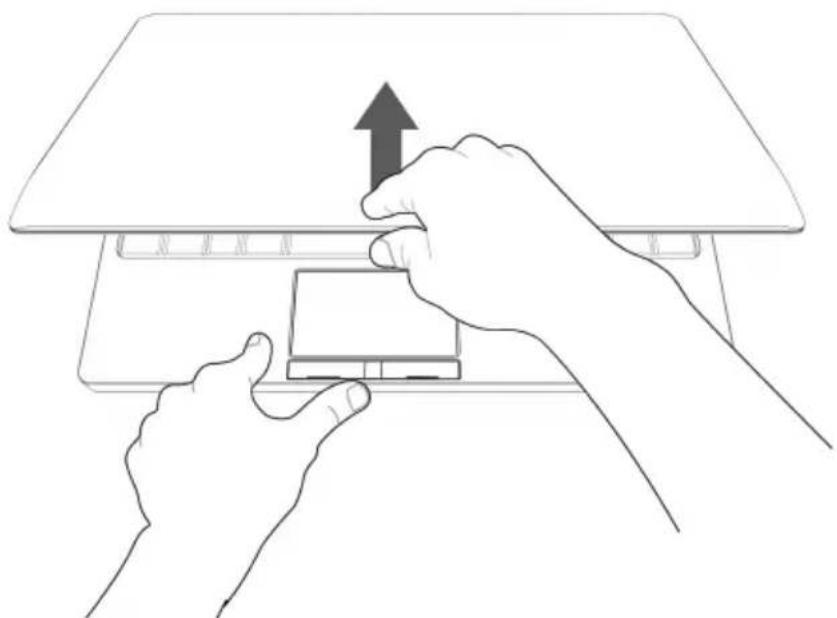
natural_image
Line drawing of two hands holding a small electronic device with an upward arrow (no text or symbols)Step 2: Turn on the machine by pressing the Power Button.
4. Emergency Shutdown
When the Netbook cannot be shut down through normal means, please press and hold the Power Button until the Netbook powers off.
1-4 Touchpad Usage
1. Introduction to the Touchpad
The touchpad is like a computer mouse. It senses the pressure from the user's finger and generates a voltage that is used to control the cursor's movements and issue commands.
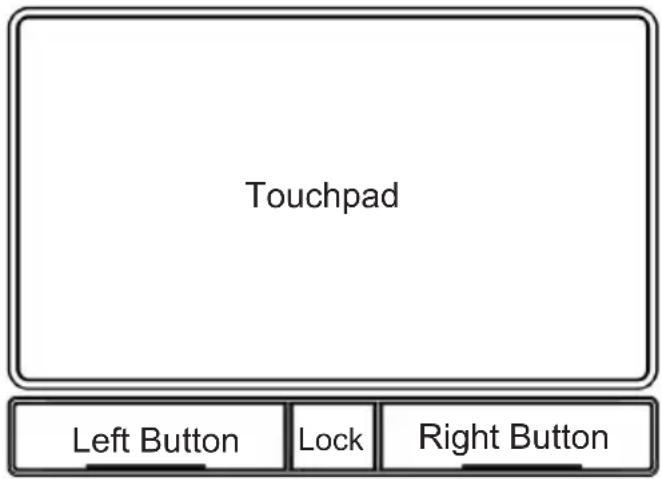
The touchpad senses finger movements. Simply move one finger across the touchpad to control the movement of the cursor on screen. Below the touchpad is three buttons. The left button is like the left mouse button and is used for selecting options or launching programs on screen. The right button works the same way as the right mouse button. The lock button is to lock or unlock the touchpad.
2. Single Tap/ Single Click
To select a window function or press a button icon, move your finger across the touchpad to move the cursor to the window or button to select. Now tap the touchpad with your finger to perform the action. This action is equivalent to pressing the left mouse button. You can also press the left touchpad button for the same effect.
3. Double Tap/ Double Click
To open a file or document, move your finger across the touchpad to move the cursor to the file you wish to open. Now quickly tap the touchpad twice with your finger to perform the action. This action is equivalent to pressing the left mouse button twice. You can also press the left touchpad button twice for the same effect.
4. Drag
Move your finger across the touchpad to move the cursor to the object you wish to drag. Now hold down the left touchpad button with one hand and move the cursor to the desired location. Release the button and complete the drag operation. You can also double tap the object you wish to drag and keep the finger on the touchpad after the second tap to perform the drag operation with one hand.
5. Multi-finger Gesture Input
| Finger gesture | Applications |
| Two-finger zooming in/out Adobe Reader | Windows Photo Viewer |
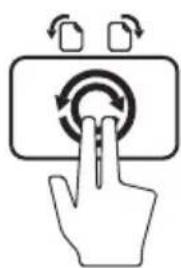
| Two-finger rotating Adobe Reader, Windows | Photo Viewer |
| Two-finger scrolling up/down or left/right | Adobe Reader, MS Word, MS Excel |
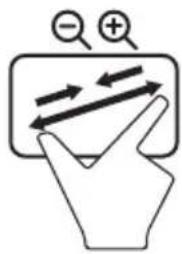
- Two-finger zooming in/out:
Moving two fingertips apart or together on the touchpad to zoom in or zoom out. This is convenient when viewing photos or reading documents.
- Two-finger rotating:
Making two fingertips open slightly to draw a concentric circle on the touchpad to rotate the photo or the document you are viewing. You can make a clockwise or counterclockwise rotation based on your needs.
- Two-finger scrolling up/down or left/right:
Making two fingertips open slightly to slide up/down or left/right on the touchpad to scroll a window up/down or left/right.
natural_image
Hand pressing a button with circular arrows, no text or symbols present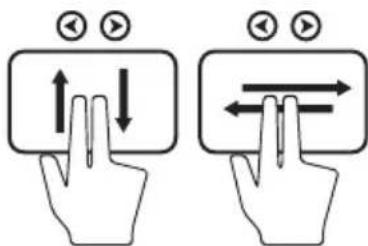
1-5 Special Function Keys
The following defines some special function keys on the netbook.
| Function Keys Description | |
| Fn + F1 Enter sleeping mode | |
| Fn + F2 Switches to the external display | |
| Fn + F3 Audio on or off | |
| Fn + F4 Decrease audio volume | |
| Fn + F5 Increase audio volume | |
| Fn + F6 Decrease the display brightness | |
| Fn + F7 Increase the display brightness | |
| Fn + F8 Camera on or off | |
| Fn + F9 Wireless LAN on or off | |
| Fn + F10 3G on or off | |
| Fn + F11 Bluetooth on or off | |
| Fn + Insert "Number Lock" on or off | |
| Fn + Delete "Scroll Lock" on or off | |
| Fn + ▲(up arrow) | Page up (Press to scroll up in the documents or the web browser.) |
| Fn + ▼(down arrow) | Page down (Press to scroll down in the documents or the web browser.) |
| Fn + ◀(left arrow) Home (move the cursor to the beginning of the line) | |
| Fn + ▶(right arrow) End (move the cursor to the end of the line) | |

natural_image
Line drawing of a laptop computer with blank screen and keyboard (no text or symbols)Netbook
Install Windows XP in Netbook
■ Install a new Windows XP system
■ Install drivers in a new Windows XP
Make sure you have these ready:
- An USB DVD drive.
- A Netbook driver CD.
- Windows XP Install CD.
Before we continue :
■ Shut down your computer.
■ Connect the USB DVD drive to an USB port of Netbook and connect the power cord to AC power.
2-1 Install a new Windows XP system
- Press
to enter BIOS setup during POST, select and the go to "Boot" menu, set "1st Boot Device" to USB DVD drive, presssave changes and exit BIOS.
![BIOS SETUP UTILITY Main Advanced Security Boot Exit Boot Settings Specifies the boot sequence from the Quick Boot [Enabled] available devices . Quiet Boot [Enabled] A device enclosed in Onboard LAN Boot ROM [Disabled] Boot Device Priority corresponding type 1st Boot Device [USB:TEAC DV-W28SS-] 2nd Boot Device [SATA:PM-WDC WD1600] 1st Hard Disk Drive [SATA:PM-WDC WD1600] ↑↓ Select Item 1st CD/DVD Drive [USB:TEAC DV-W28SS-] F10 Save and Exit ESC Exit parenthesis has been disabled in the menu. ←→ Select Screen +- Change Field F1 General Help v02.61 (C)Copyright 1985-2006, American Megatrends, Inc.](/content/2026/05/1046747/images/f1efd3db10ac4f1a8c4c5f47b940697beb0840d0e432a8f72a764f185d0398a8.jpg)
- Insert the Windows XP Install CDD into the USB/DVD drive. The computer will reboot, and it will start installing Windows XP Operating System. The figure is shown as below:
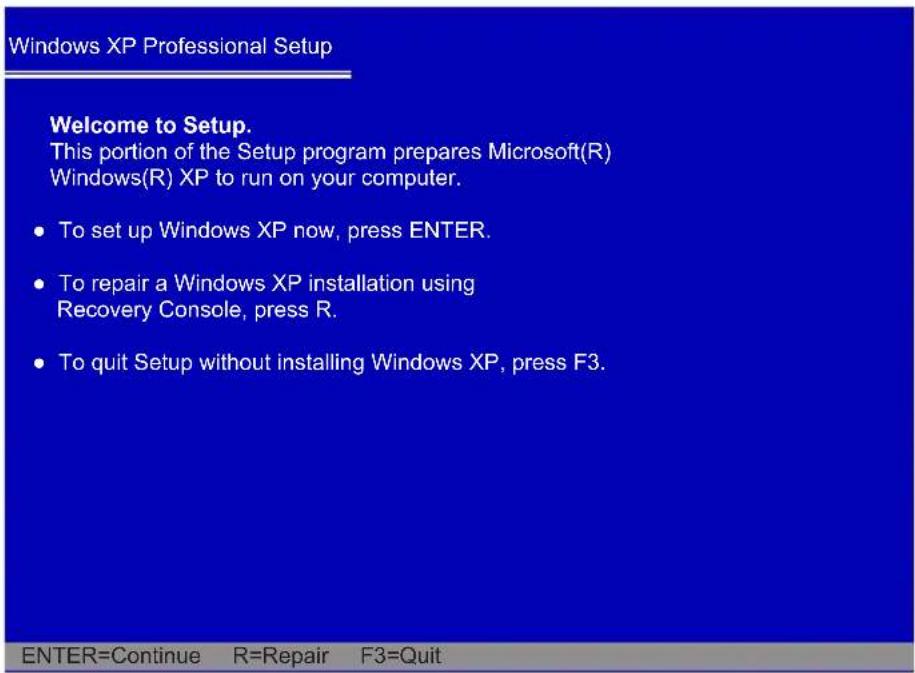
- Press
to continue the installation and press to agree the Licensing Agreement. Windows will display the partition of your system. First of all, you had better press [D] to delete the partition, then you can press [C] to create partitions as many as you can, assign them C:, D: or E: logical drive name. In this example, we will create a 50GB partition C: and leave the remaining space as a partition D:. The figure is shown as below:
![Windows XP Professional Setup The following list shows the existing partitions and unpartitioned space on this computer. Use the UP ad DOWN ARROW keys to select an item in the list. • To set up Windows XP on the selected item, press ENTER. • To create a partition in the unpartitioned space, press C. • To delete the selected partitions, press D. 114471 MB Disk 0 at id 0 on bus 0 on atapi [MBR] C:Partition1 [NTFS] 49999 MB < 48568 MB free> D: Partition2 [Unknown] 64464 MB < 64463 MB free> Unpartitioned space 8 MB Unknown Disk Unknown Disk ENTER=Install D=Delete Partition F3=Quit](/content/2026/05/1046747/images/a0f9b8a4362fbda19efaedb725f92f0be88380f9806e5006a717b9d5ff05d36f.jpg)
- Press
to install Windows XP. The process will ask you to format hard disk, copy files...etc, follow the installation steps until the system is installed completely.
2-2 Install drivers in new Windows XP
- After installing Windows XP, you have to install necessary drivers before using the Netbook. Insert the Netbook driver CD to the USB DVD drive, waiting for a few seconds, the main menu will be displayed on your Netbook screen.

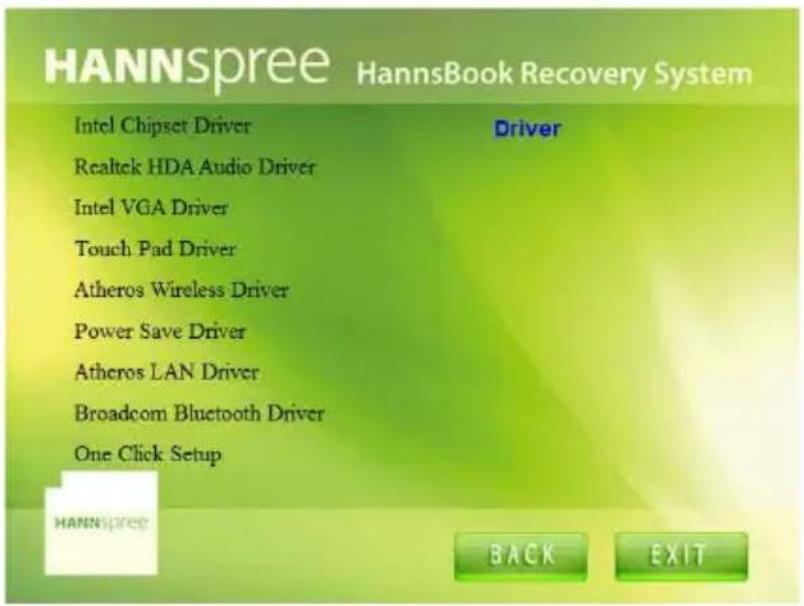
- Clicking these options to install all the drivers for your system. You must firstly click "Intel Chipset Driver" to install and then click "One Click Setup" to install the other drivers left, or you can click each individual driver to install it manually.
- After all the drivers are installed, you need to restart your Netbook, then you can start using it.
natural_image
Line drawing of a laptop computer with blank screen and keyboard (no text or symbols)Netbook
Install Windows 7 in Netbook
■ Install a new Windows 7 system
■ Install drivers in a new Windows 7
Make sure you have these ready:
- An USB DVD drive.
- A Netbook driver CD.
- Windows 7 Install CD.

Before we continue :
■ Shut down your computer.
■ Connect the USB DVD drive to an USB port of Netbook and connect the power cord to AC power.
3-1 Install a new Windows 7 system
- Power on your Netbook, then press
to enter BIOS setup during POST. Select and go to the "Boot" menu, set the "1st Boot Device" to USB DVD drive, pressto save change and exit BIOS.
| BIOS SETUP UTILITY | |
| Main Advanced Security Boot Exit | |
| Boot Settings Specifies the boot sequence from the Quick Boot [Enabled] available devices. Quiet Boot [Enabled] A device enclosed in Onboard LAN Boot ROM [Disabled] parenthesis has been disabled in the Boot Device Priority corresponding type 1st Boot Device [USB:TEAC DV-W28SS-] 2nd Boot Device [SATA:PM-WDC WD1600] | menu. ←→ Select Screen +- Change Field |
| 1st Hard Disk Drive [SATA:PM-WDC WD1600] ↑↓ Select Item 1st CD/DVD Drive [USB:TEAC DV-W28SS-] F10 Save and Exit F1 General Help | |
| ESC Exit | |
| v02.61 (C)Copyright 1985-2006, American Megatrends, Inc. | |
- Put the Windows 7 Install CD into the USB DVD drive.
- The computer will reboot, and it will start loading files for installing Windows 7 system.
- After that, it will start Windows and come out a "Install Windows" dialog box to set the "Language to install", "Time and current format" and "Keyboard or input method". Click "Next" to continue and click "Install now" button to start the setup.
-
When the license terms appear, select to accept and click "Next" to continue.
-
It then asks you to select the installation type. Click "Custom (advanced)" to install a new copy of Windows.
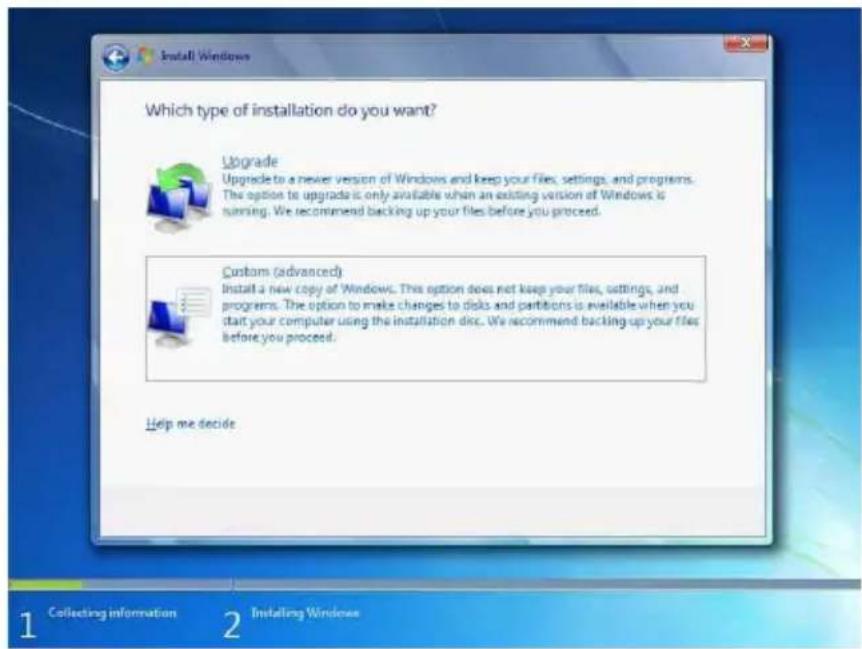

- The setup will display the hard disk partitions (160GB, in this example) of your system. If there were other systems (such as Linux) installed previously, you need select them and click “Drive options (advanced)” -> “Delete” to delete them. When all partitions are clean, setup will display the biggest size of your hard drive.
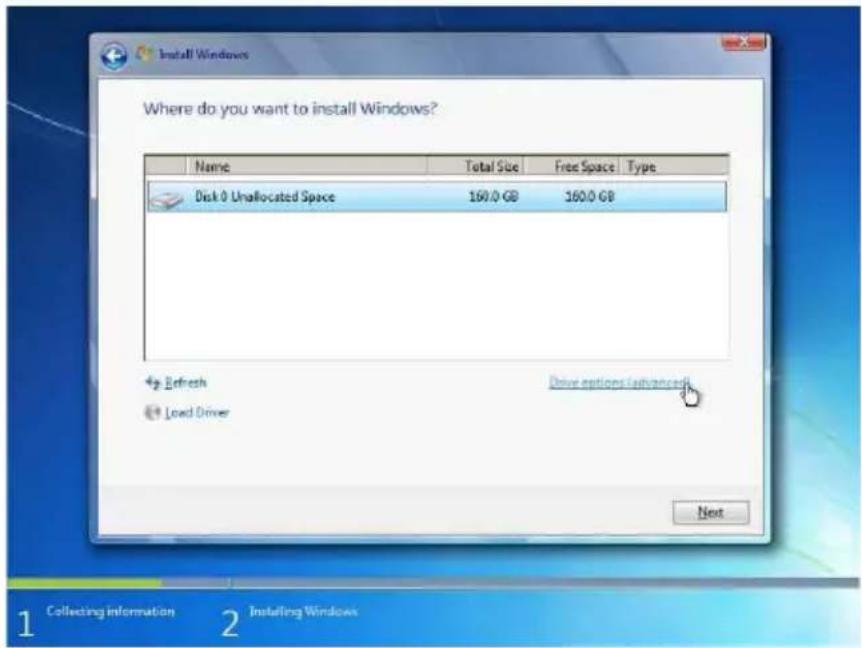
- In this biggest hard disk size screen, you can click "Drive options (advanced)" -> "New" to create partitions as you need. In this example, we are creating a 70GB partition to install Windows, and click "Apply" to continue.

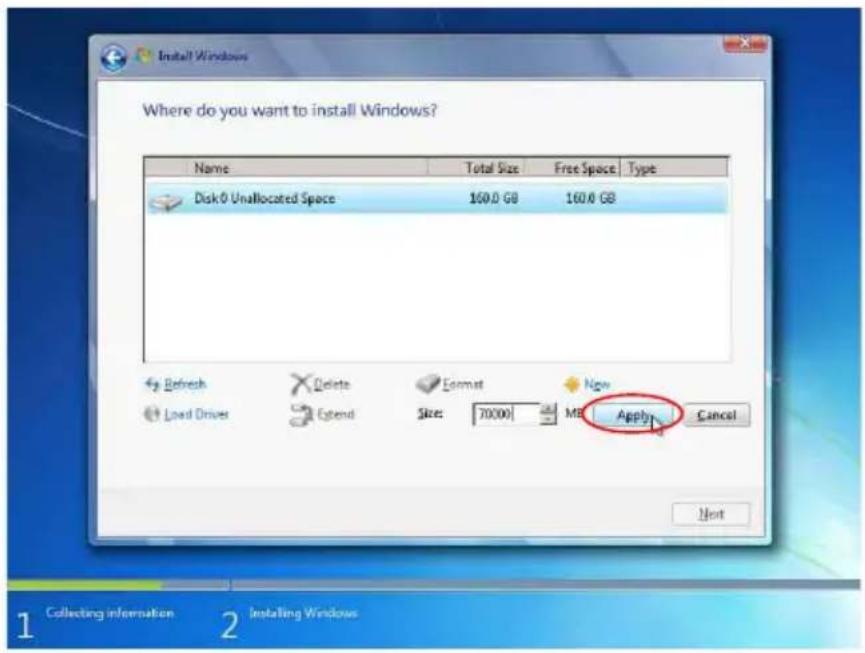
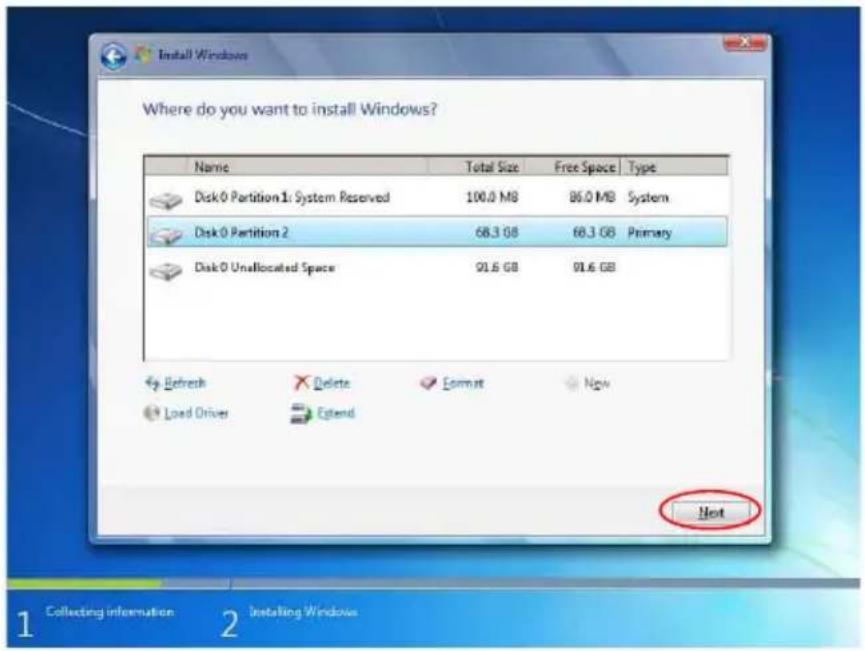
To ensure that all Windows features work correctly, Windows might create additional partitions for system files. So you will see a 100MB partition reserved by system after you create a partition. Select the 70GB partition and click "Next" to continue.
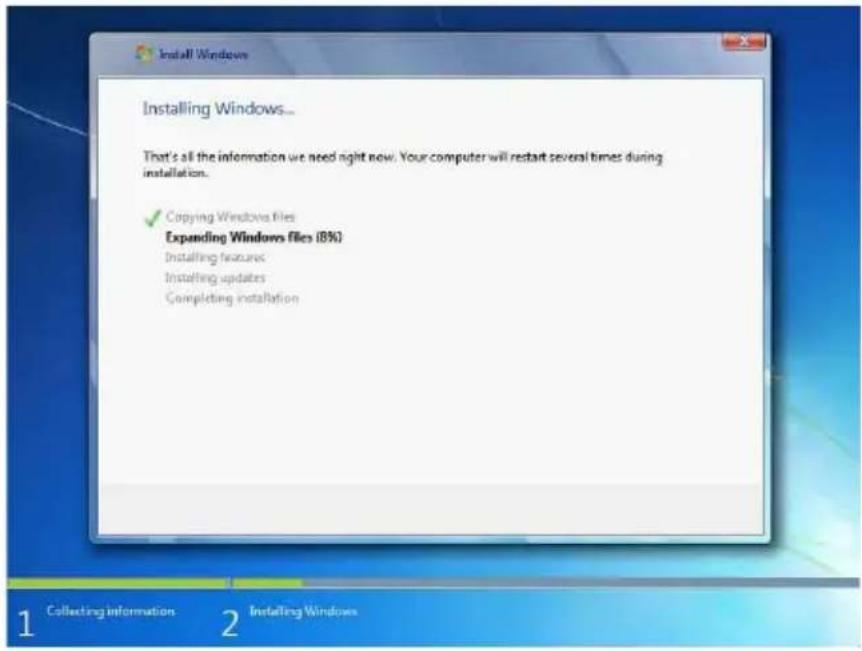
- From this step we start to install Windows 7 into your hard disk. During the process, your computer will restart several times.

- When the installation is complete, setup will prepare your computer for the first use. Then you can follow steps to select system settings, create an account, set a password...etc, until the whole process is complete and enter Windows 7 system.
3-2 Install Drivers in Windows 7
- When the Windows 7 is completely installed, you have to install the necessary drivers before using the Netbook. Take out the Windows 7 Install CD from the USB DVD drive, and put the driver CD inside. Waiting for a few seconds, the main menu will be displayed on the screen.
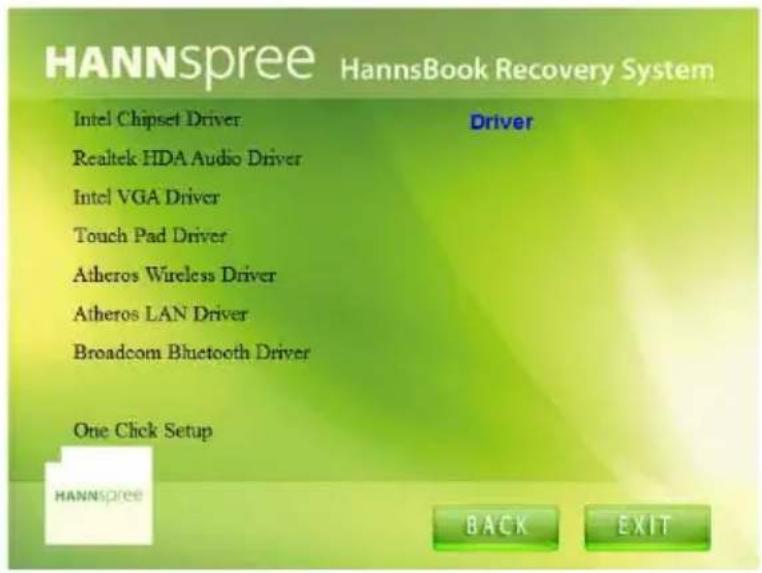
- Use these options to install all the drivers for your system. You must click "Intel Chipset Driver" to install it first. After that, you can click "One Click Setup" to install all the other drivers, or you can click on each individual driver to install it manually.
- After all the drivers are installed, you need to restart your Netbook, then you can start using it.
natural_image
Line drawing of a laptop computer with blank screen and keyboard (no text or symbols)Netbook
Recovery of Windows XP/Windows 7 System
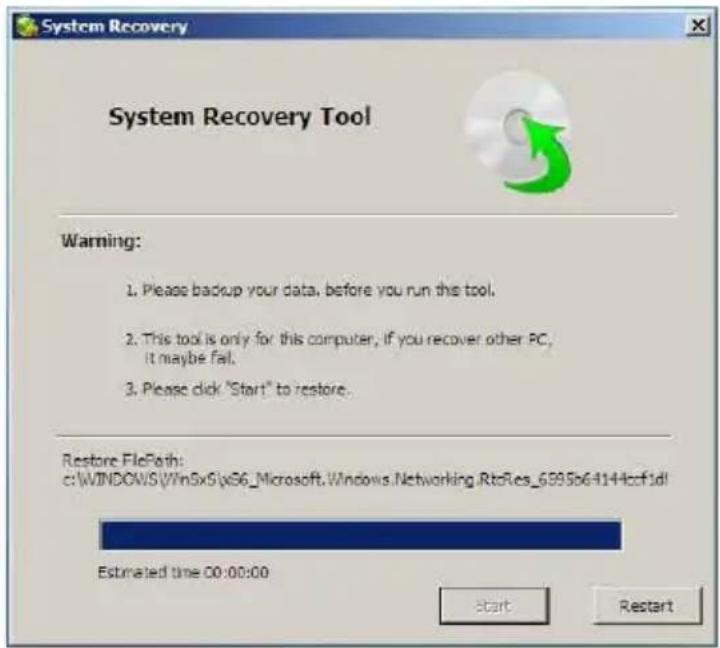
- Power on the computer, when the message "Press F3 to Rescue and Recovery" appears on the top of the screen, press "F3" to enter the recovery interface.
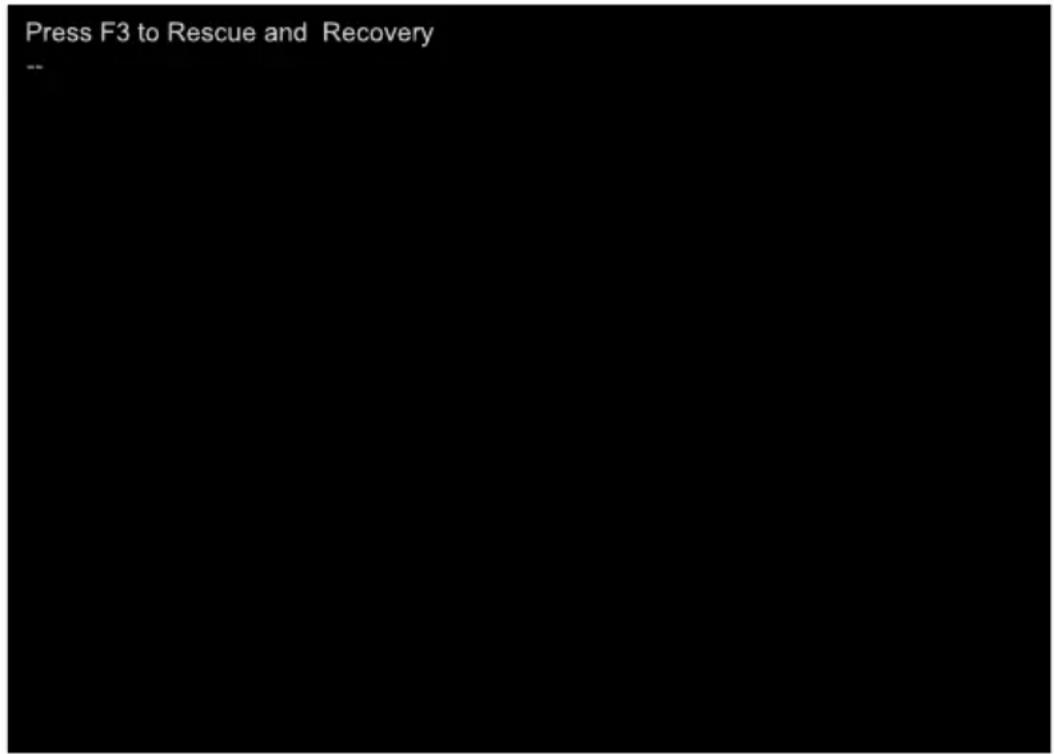
- System prepares for the recovery after pressing "F3" key.
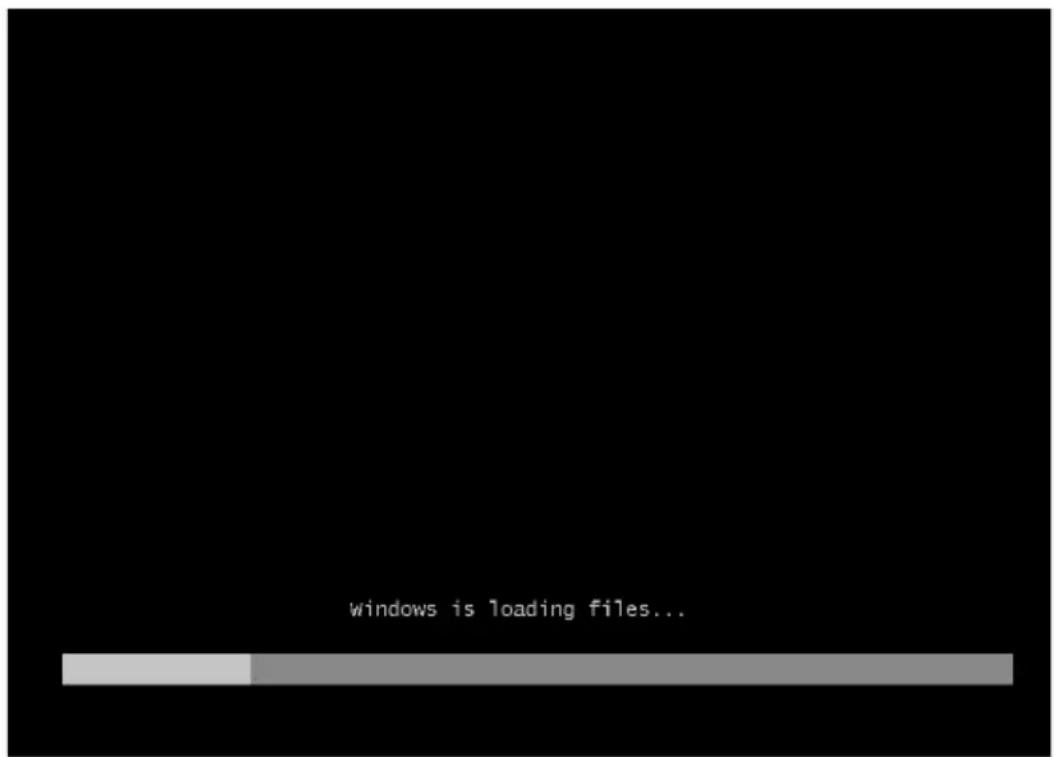

- Recovery begins after clicking "Start" in the following image.
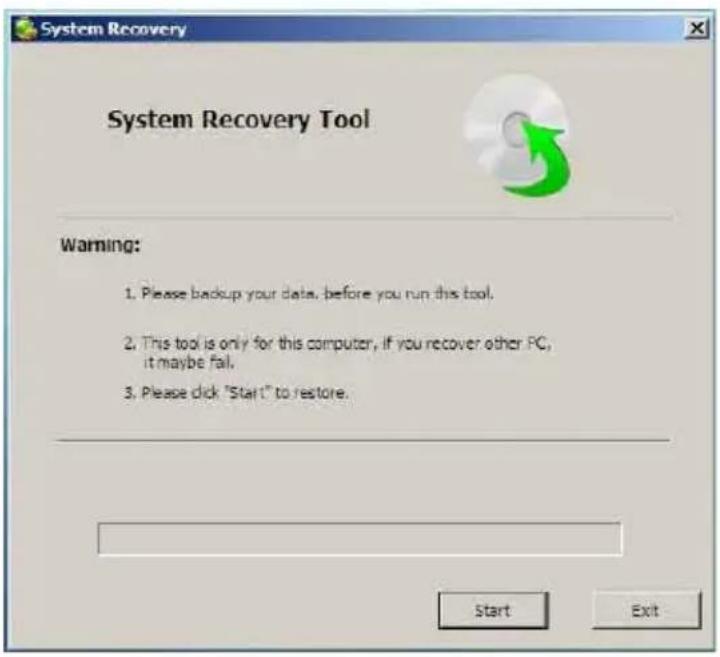
- When the following image appears, click "OK" to continue.
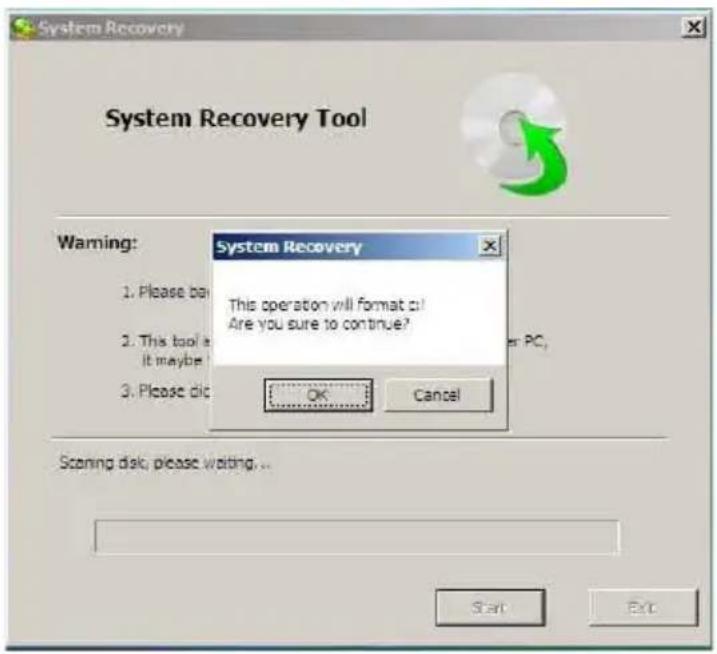

- Recovery is accomplished when the following image appears, click "OK" to finish it.
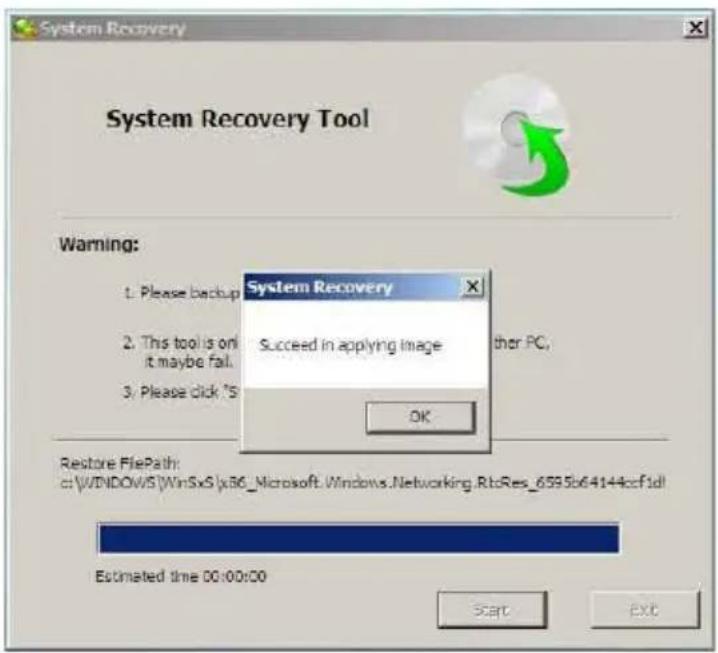
- Now, click "Restart" to reboot the system.
natural_image
Line drawing of a laptop computer with blank screen and keyboard (no text or symbols)Netbook
Introduction to Linux System
Overview
■ Recovery of Linux system
5-1 Overview
FoxMC stands for Fox Media Center, it incorporates the functions of internet surfing, entertainment, office work, document management and various system settings on one desktop. With its dynamic user interface, simple desktop style, wealth of application software, clear system management and complete hardware support, FoxMC can easily meet the requirements of being the operation system of your office computer, home entertainment center, gaming console, educational instrument and mobile devices.
Main Page

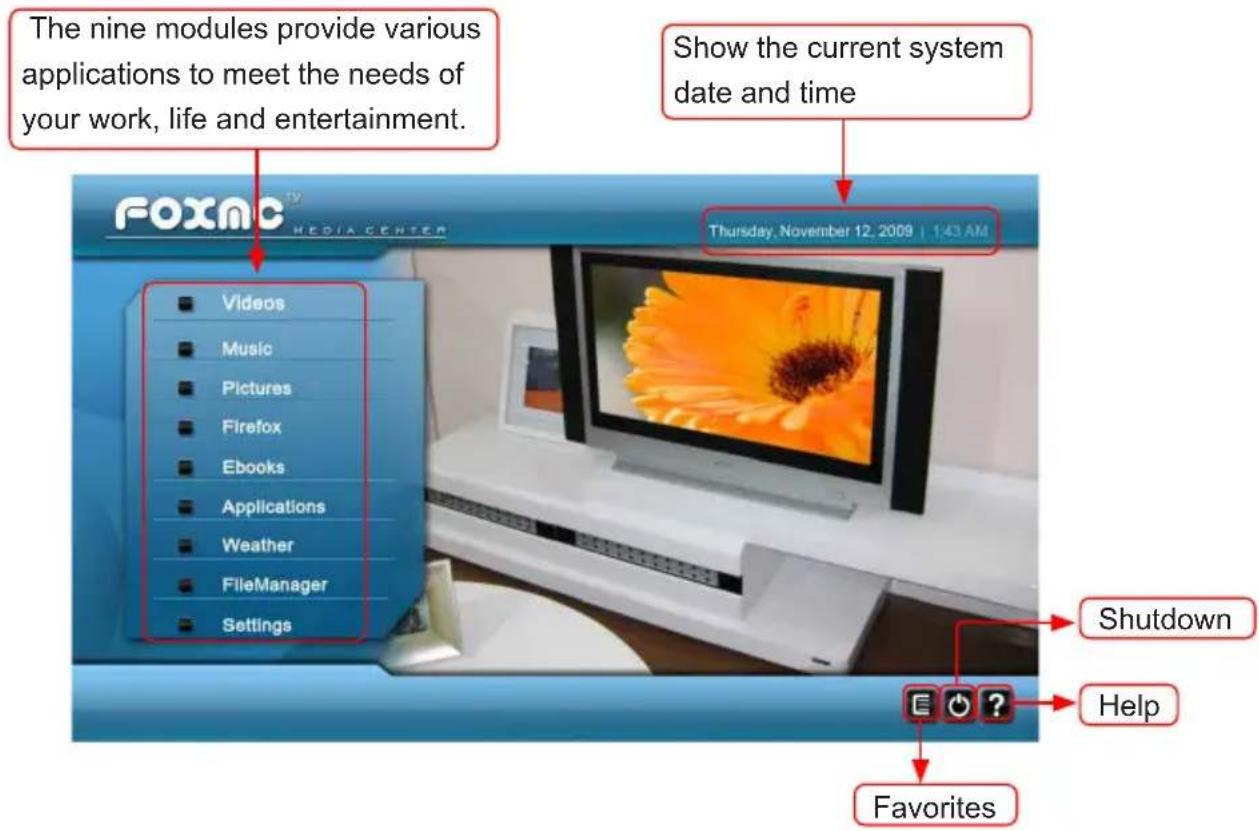
In the FoxMC system, you can click left key to enter the menu, and click right key or press "ESC" key to exit the menu.
Modules
FoxMC includes the following modules: Videos, Music, Pictures, Firefox, Ebooks, Applications, Weather, FileManager, Settings. For detailed description, please refer to the online help page.
Favorites
When you add the videos, music and pictures to the favorites, you can open the files by this icon.
Help
Click "?" to open the online help page. Please refer to the content of the page about detailed description of the system.
Shutdown
Open the menu to choose the action to the system. When you click 🔊 icon in the home screen, the shutdown menu will appear as below:
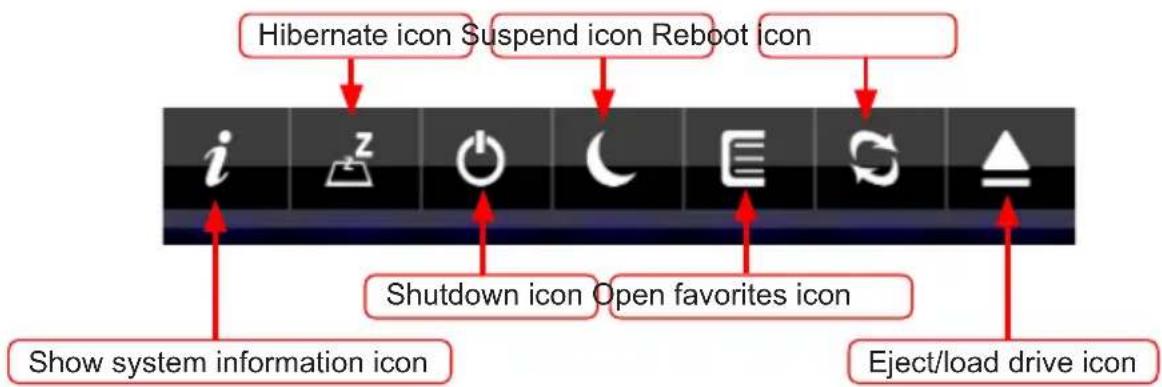

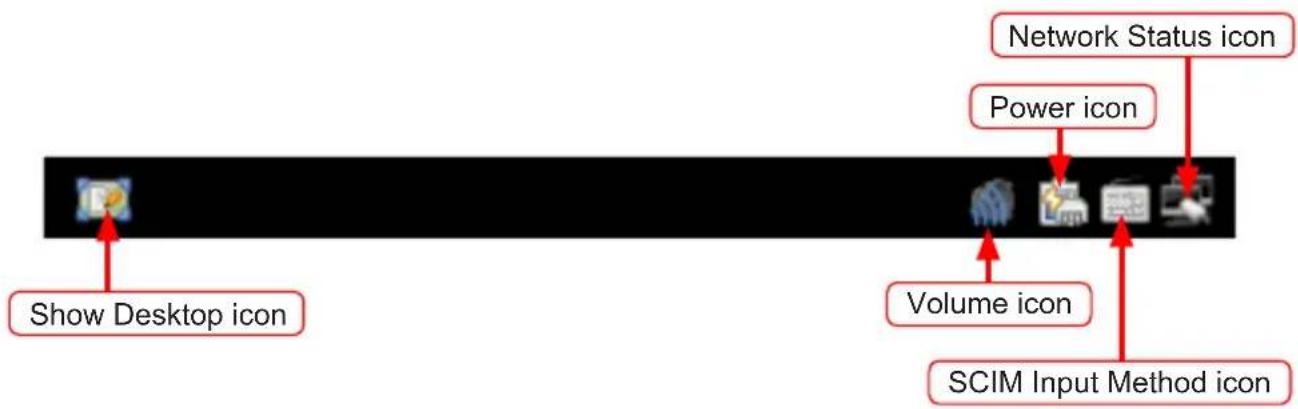
Panel
The panel auto hides in the default status. When the mouse moves to the bottom of the home screen, the panel will appear as below.
5-2 Recovery of Linux system
I From DVD to recover system
1 Boot from DVD
Power on the computer, insert the system Installation DVD into the DVD drive, press "ESC" to select booting system from the DVD drive.
2 Select the way of Installation
When the figure as below shows, select "Install and make recovery partition", the system will be installed and a recovery partition will be made. Or select "Install system only", the system will be installed without recovery partition, so recover system from hard disk is impossible.
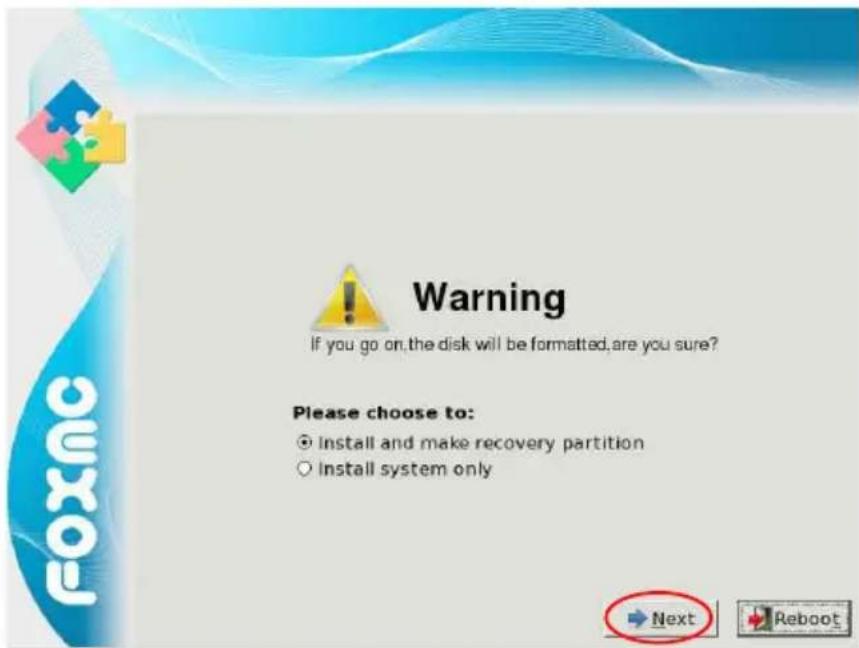

Whatever you select "Install and make recovery partition" or "Install system only", the whole disk will both be formatted; So if you do not want to format the disk, please select ""Reboot" to stop the process..
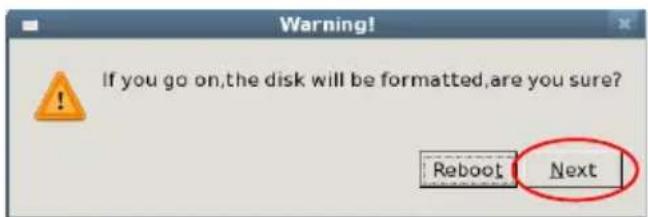
3 Click "Next", the warning box is shown as below:
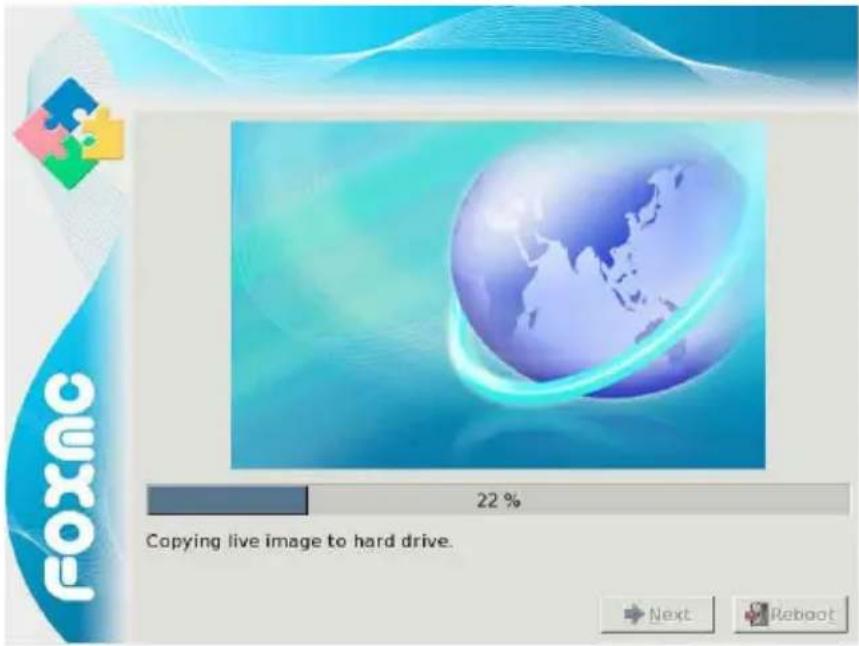
4 Installing system
Click "Next" to format hard disk and install system. The figure is shown as below:
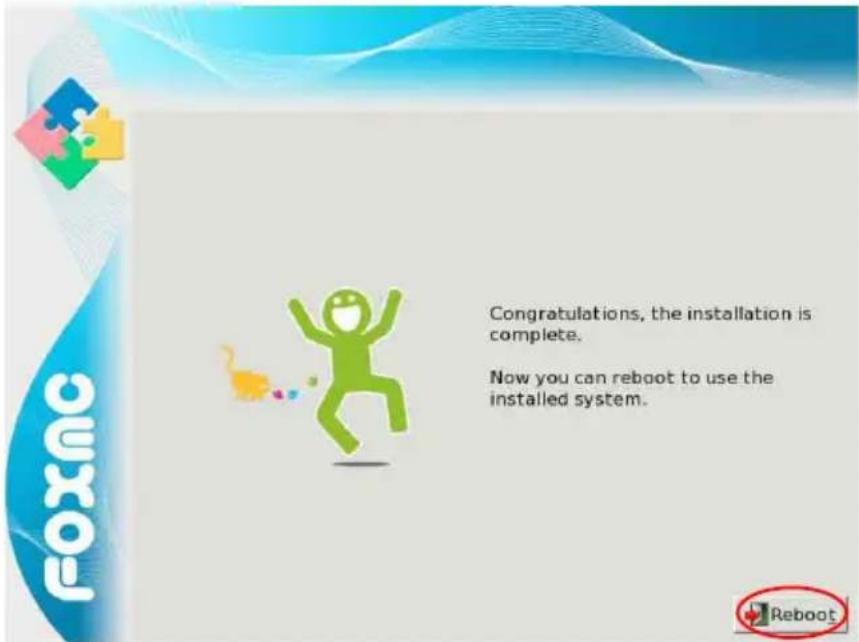
5 After installing, click "Reboot" to restart the system.
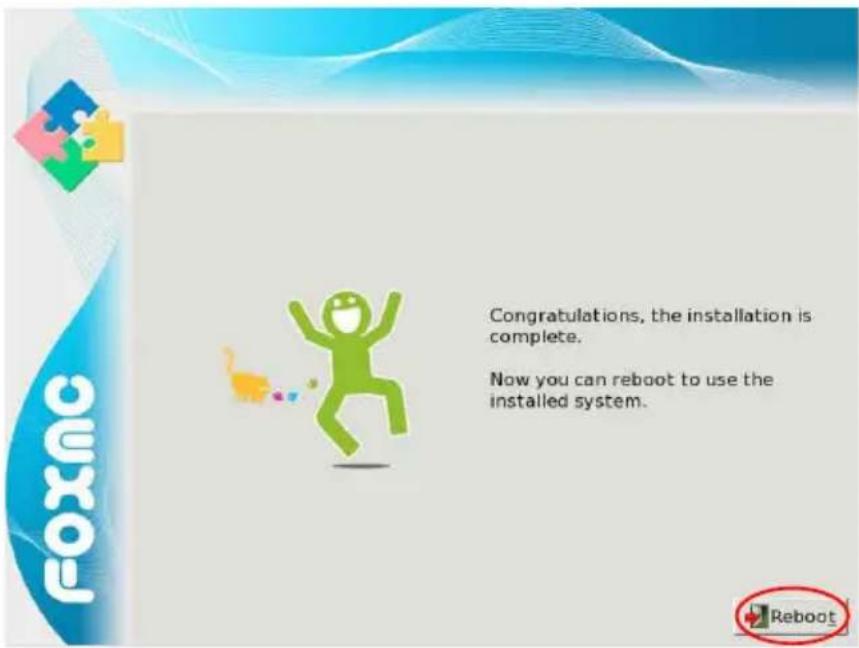
II From hard disk to recover system
1 When you log in, according to the screen suggestion, press any key to enter Grub interface, the figure is shown as below:
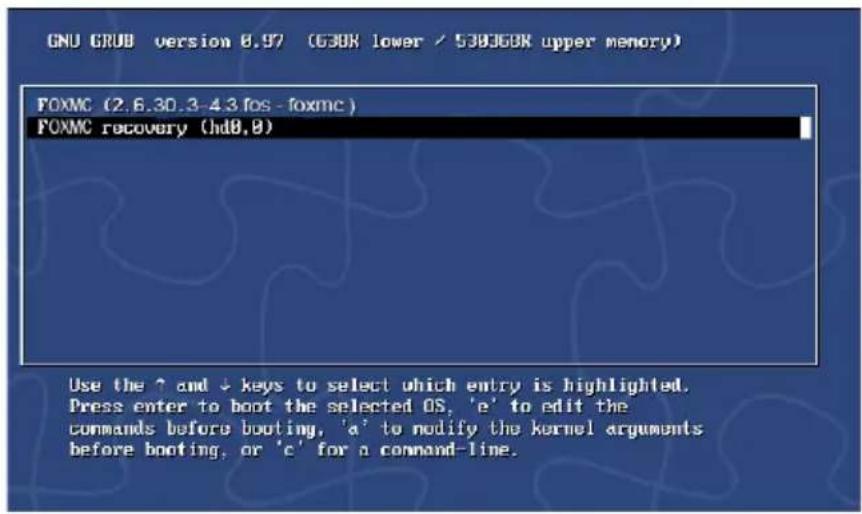

2 Select "FoxMC recovery" item and then press "Enter", the warning box is shown below:
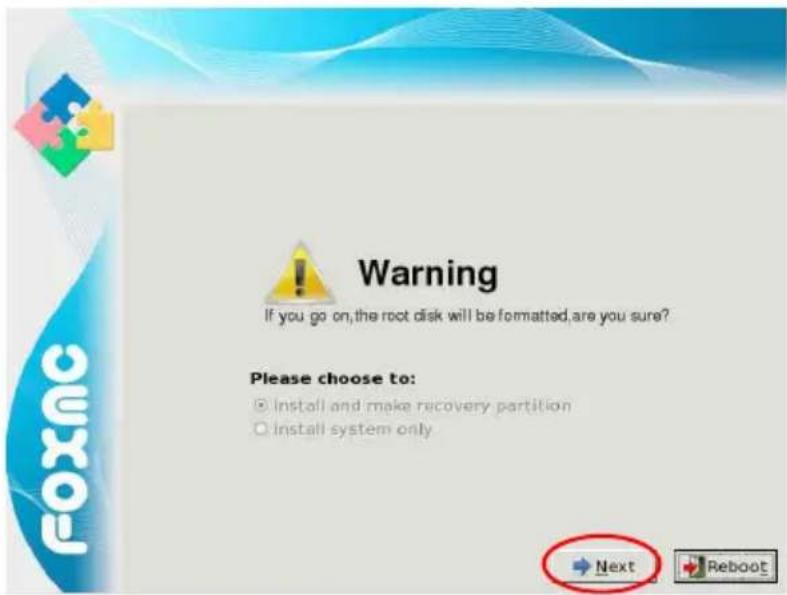
3 Select "Next", system warns the root partition(hd0, 0) will be formatted. The figure is shown as below:
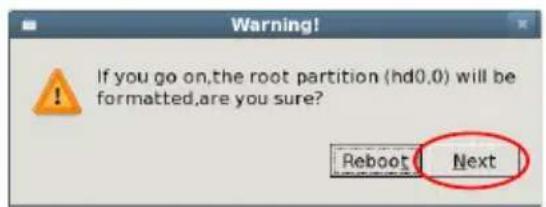
4 Click "Next" to format partition(hd0,0) and recover system from hard disk. The figure is shown as below:
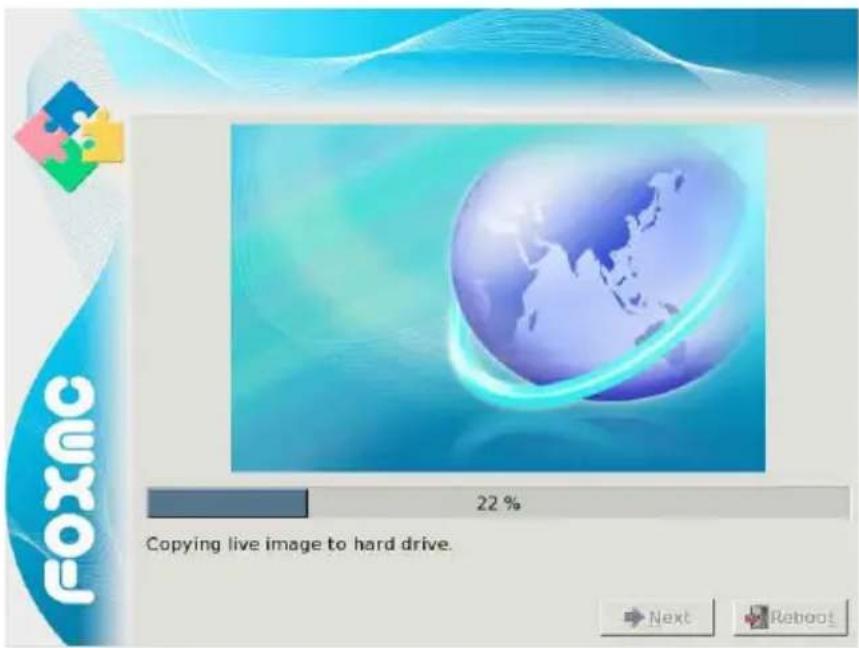
5 When the process is completed, please reboot the system. The figure is shown as below:
natural_image
Line drawing of a laptop computer with blank screen and keyboard (no text or symbols)Netbook
Appendix
■ Product Specification
■ Netbook FAQ
Product Specification
| CPU • Intel® Atom | TM N450* 1.66 GHz FSB 553Intel® AtomTM N450* 1GBSODIMM, DDR2 667 1GBSODIMM, DDR2 667 2GB (Optional) |
| Chipset | • Intel Tiger Point (NM10 Express) |
| Memory | • 1 x DDR2 800MHz SO-DIMM socketSODIMM, DDR2 667 1GBSODIMM, DDR2 667 1GBSODIMM, DDR2 667 2GB (Optional) |
| LCD | • LED backlight panel, 10.1" SWVGA, resolution 1024 x 600 |
| Storage | • SATA 2.5" HDD 5400rpm 160GBSATA 2.5" HDD 5400rpm 250GB (Optional) |
| Battery | • Li-ion rechargeable battery3-cell, 2600mAh6-cell, 5200mAh (Optional) |
| Audio | • Support amplifier and Mic.2.1 channel support2 stereo speakers |
| Card Reader | • 3-in-1 MS/SD/MMC |
| LAN | • 10/100/1000 Mb/s with low power consumption |
| Wireless LAN | • IEEE 802.111 b/g/m, PCIe interface, Mini Card slot form factorLow power consumption |
| Bluetooth (PAN)(Optional) | • Bluetooth 2.1+ EDR |
| 3G Module(WWAN)(Optional) | • Support WCDMA, TD-SCDMA, EVDO/CDMA2000PCIe interface, Mini Card slot form factor, SIM card slot is accessible in battery compartment |
| Webcam | • 1.3M pixel (1280 x 1024 resolution) |
| Touchpad | • Hidden type Touchpad with 2 buttonsLock button |
| Speaker | • 2 x internal stereo speakers |
| Microphone | Internal Microphone, 2200ohm, 114dB |
| AC Adapter • 19V | , 40W19V, 40W |
| EC • ITE 8502ITE | 8502 |
| I/O Ports | 3 x USB 2.0 port1 x VGA port1 x VGA portport1 x RJ-45 LAN port1 x Headphone port1 x Microphone In port1 x MS/SD/MMC card reader slot1 x DC-in port1 x Kensington lock port |
| LED Indicator | Power LED (Power button)Caps LockNum LockBattery powerWLAN on/offWLAN on/offHDD |
| BIOS | AMISupport PnP, ACPI 3.0 |
| O/S | Support Windows XP/Windows 7/Linux FoxMC |
| Dimension | 265 mm x 203 mm x 32 mm |
| Weight | 1.15 kg with 3-cell battery |
| SRS Premium Sound Brief | SRS Premium Sound® offers the richest and most immersive audio experience in any listening environment using technologies from SRS Labs. SRS TruSurround HD® can offer a rich immersive experience and virtual surround sound for your music, movies, and games over only 2 speakers.SRS CS Headphone® uses SRS Circle Surround® decoding to deliver accurate virtual surround sound for movie and game content when users listen on headphones. |
Netbook FAQ
- A: Does the HDD shock-proof designed?
B: Yes, it does.
- A: Can I expand the RAM stick?
B: It depends on your products specification, if you get one with 1GB, you can expand it up to 2GB.
- A: Could the VGA share memory be adjusted in BIOS?
B: No, it couldn't.
- A: Could Windows Vista be installed properly?
B: Not Vista ready.
- A: How long the battery could be used after complete charge?
B: About 2-3 hours normally, according to netbook loading.
- A: How about "Fn + Function keys"?
B: Please pay more attention to hot keys below, if some function fail, please examine them first:
Fn + F1: Enter sleep mode (Suspend to RAM)
Fm + F2: Switch to the external display
Fn + F3: Audio on/off
Fn + F9: Wireless LAN on/off
Please refer to the instruction of Special Function Keys in page 14 for details.
- A: What's the function of LED indicator on the top left corner?
B: From left to right is in turn:
The first indicator shows the status of the battery's power.
The second indicator means the keyboard is in Number-lock mode.
The third indicator means the keyboard is in Caps-lock mode.
The fourth indicator means Wireless LAN on or off.
The five indicator blinks when data is written to or read from the disk drive.
- A: Why does the touchpad fail to work?
B: You need to confirm whether the touchpad lock button is in lock mode.
- A: Why does the wireless LAN fail to work?
B: You need to confirm whether the wireless LAN function key is enabled or not.
Please refer to the instruction of Special Function Keys in page 14 for details.
- A: SD card reader is unable to work normally.
B: Please confirm whether the specification of SD card is 3-in-1 MS/SD/MMC and then the gold pins of SD card are placed down, or to insert it again.
- A: What is FoxMC?
B: FoxMC is the Linux operating system.
- A: How to recovery FoxMC without CD-ROM?
B: Recover system from hard disk.
- A: What to do when I forget the BIOS or Linux password?
B: Please contact with local service center to resolve the problem.
- A: How to get Windows XP/ Windows 7 driver?
B: From DVD with your Netbook.
- A: How to view system configuration in Windows XP/Windows 7?
B: Please click "Computer" in desktop or use "CPU-Z" and other system tool softwares.
- A: The problem is that wireless LAN card does not distribute IP address.
B: Maybe it is relative to the configuration of Windows XP/ Windows 7 optimize edition. Please use Windows XP/ Windows 7 complete edition, and pay attention to the items of optimized configuration. No Windows XP/ Windows 7 complete edition may cause abnormal operation of the system.
- A: After choosing the option of "safely removing the hardware" and taking out the using SD card in Windows XP/Windows 7, but why the SD card cannot be detected while inserting it again?
B: It is normal. The card reader is designed for hot plug, you needn't to choose the option of "safely removing the hardware". The card reader can work normally only after rebooting the computer.