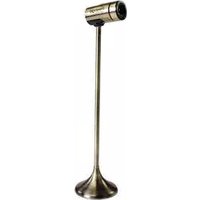
PWC320G - Webcam PRESTIGIO - Free user manual and instructions
Find the device manual for free PWC320G PRESTIGIO in PDF.


| Product Type | Webcam |
| Model | PWC320G |
| Brand | Prestigio |
| Resolution | 1920 x 1080 (Full HD) |
| Frame Rate | 30 fps |
| Connectivity | USB 2.0 |
| Cable Length | 1.5 m |
| Built-in Microphone | Yes |
| Field of View | 70° |
| Focus Type | Fixed |
| Mounting | Clip or tripod mount |
| Dimensions (W x H x D) | 80 x 50 x 40 mm |
| Weight | 100 g |
| Power Supply | USB powered (5V) |
| Compatibility | Windows, macOS, Chrome OS |
| Low Light Correction | Yes |
| Privacy Shutter | No |
| Cleaning Instructions | Wipe lens with microfiber cloth |
Frequently Asked Questions - PWC320G PRESTIGIO
User questions about PWC320G PRESTIGIO
0 question about this device. Answer the ones you know or ask your own.
Ask a new question about this device
Download the instructions for your Webcam in PDF format for free! Find your manual PWC320G - PRESTIGIO and take your electronic device back in hand. On this page are published all the documents necessary for the use of your device. PWC320G by PRESTIGIO.
USER MANUAL PWC320G PRESTIGIO
- Prestigio Webcam Main Unit
-
Utility CD
-
Quick Guide
- Warranty Card
Getting Started

flowchart
graph LR
    A["Server"] -->|Data Flow Left| B["USB Switch Icon"]
    C["Laptop"] -->|Data Flow Right| B
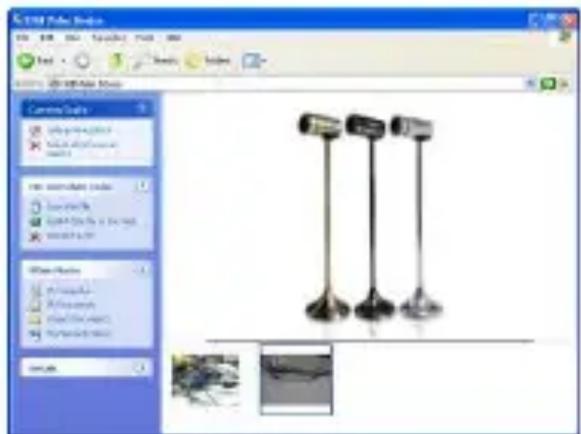
- Turn on PC or notebook.
- Insert USB connector to any of the USB slot on PC or notebook.
- The device driver will be auto-installed by PC or notebook.
-
The device now is ready for use.
-
Click on My Computer → USB Video Device to start video streaming session.
-
Click on Take a new picture or press on Snap button on top of device to take a snapshot.
-
Click on Delete all pictures on camera to delete all snapshots.
NOTE:
To utilize all device functions, please follow instructions in next section to install included utility software.
Installing Utility Software
- After connecting device to PC or notebook and inserting Utility CD, the installation window should pop up automatically.
- Click on Next button to initiate installation process or Cancel button to exit.
NOTE:
Please click on Ok when prompted to install Unsigned Driver. This is a Windows system warning that indicates the specific driver program is not certified by Windows.
- Utility software will be automatically installed. Click on Finish button to complete installation.
Using Utility Software

natural_image
Three metallic cylindrical objects with conical ends, arranged vertically (no text or symbols visible)![Sound Selection Name: [10]ed Save As... Format: PCM Albumex: 44.100 kHz, 16.8 k Stereo 172 hPa/sec OK Cancel](/content/2026/05/1046616/images/96cfa5d65e63cd660d51faf69b33ce30a92a2034673cfc66086eb17c1af7fb3f.jpg)

Click on Start → All Programs → Prestigio Webcam → Amcap to start using utility software.
- File menu:
Click on Set Capture File to create file name and designate maximum video streaming size.
- Devices menu:
Click on device name to select video/audio input source.
- Options menu:
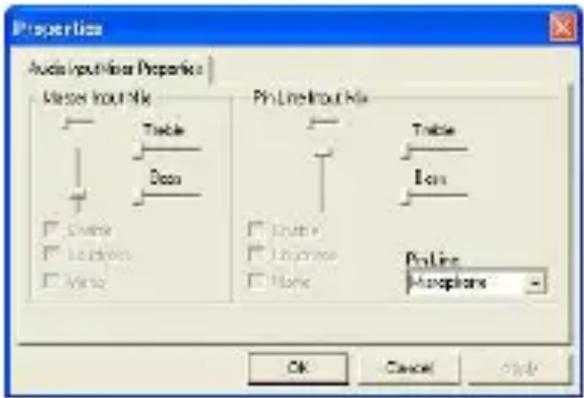
Click on Preview to display live streaming capture. Click on Audio Format to adjust sound quality.
Click on Audio Capture Filter to master audio input properties and individual audio input properties.
Click on Video Capture Filter to adjust various advanced video features including Special Effect on images/photo frame, Face Tracking, Face Effect, Power Line Frequency Setting, Video Proc Amp and Camera Control.

natural_image
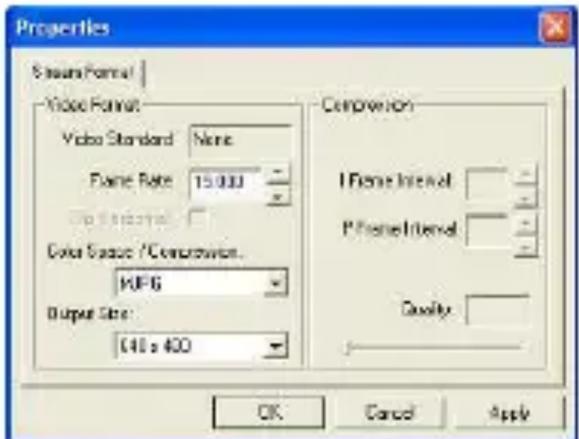
Three identical metallic cylindrical objects with flanged ends, displayed against a plain background (no text or symbols visible)Click on Video Capture Pin to adjust video streaming parameters. Adjust Output Size to best resolution desired.
NOTE:
Best image resolution may not be the largest resolution.
- Capture menu:
Click on Start Capture/Stop Capture to create a video clip. Click on Set Frame Rate to set number of image frames per second. Click on Set Time Limit to designate video clip time limit.
Cautions
- Do not attempt to disassemble or alter any part of the device that is not described in this guide.
- Do not place the device in contact with water or any other liquids. The device is NOT designed to be liquid proof of any sort.
- In the event of liquid entry into interior of device, immediately disconnect the device from the computer. Continuing use of the device may result in fire or electrical shock. Please consult your product distributor or the closest support center.
- To avoid risk of electrical shock, do not connect or disconnect the device with wet hands.
- Do not place the device near a heat source or directly expose it to flame or heat.
Model Name PWC320X
Lens 5 Glass Lens
Interface USB 2.0 Interface
Input Voltage 5V
Focus Range 3.0cm \~ Infinity
Frame Rate 640 X 480: Up to 30 fps
1600 X 1200: Up to 15 fps
Color RGB24 (True Color 24bit)
Image Sensor 1/3" CMOS Sensor
Image Resolution 1280 X 1024, 1600 X 1200
Valid Pixels 100K / 350K / 480K / 1.3M / 2M Pixels
USB Cable Length 145cm (Including USB Jack)
OS Supported Windows 2000/ME/XP(32bit)/Vista/7
Weight 280g
Dimensions (mm) 80.0(L) X 72.0(W) X 300.0(H)
Please refer to www.prestigio.com for technical support and included warranty card for warranty information.
We make every effort to ensure that the information and procedures in this user manual are accurate and complete. No liability can and will be accepted for any errors or omissions. Prestigio reserves the right to make any changes without further notice to any products herein.


Brand : PRESTIGIO
Model : PWC320G
Category : Webcam