RZ18 - Camera RICOH - Free user manual and instructions
Find the device manual for free RZ18 RICOH in PDF.


| Product Type | Compact Digital Camera |
| Brand | Ricoh |
| Model | RZ18 |
| Effective Megapixels | 16 MP |
| Optical Zoom | 18x |
| Lens | Ricoh zoom lens, f/3.5-5.6 |
| Image Stabilization | Optical (Sensor-shift) |
| Display | 2.7-inch TFT LCD, 230k dots |
| Viewfinder | None (LCD only) |
| Video Recording | 720p HD at 30fps |
| Power Source | Rechargeable Li-ion battery (DB-100) |
| Battery Life | Approx. 250 shots (CIPA standard) |
| Dimensions | 102 x 62 x 32 mm (4.0 x 2.4 x 1.3 in) |
| Weight | 160 g (5.6 oz) without battery |
| Storage Media | SD/SDHC/SDXC memory card |
| Internal Memory | Approx. 50 MB |
| Interface | USB 2.0, AV output |
| Flash Modes | Auto, Red-eye, Fill, Slow sync, Off |
| Scene Modes | Portrait, Landscape, Sports, Night, etc. |
| ISO Sensitivity | Auto (100-3200) |
| Care and Cleaning | Use a soft, dry cloth for the body and lens; avoid solvents |
| Safety | Do not expose to water or extreme temperatures; remove battery if not used for long |
| Spare Parts | Battery (DB-100), Charger (BJ-10), USB cable |
| Repairability | Authorized service centers recommended; user-replaceable battery and memory card |
Frequently Asked Questions - RZ18 RICOH
User questions about RZ18 RICOH
0 question about this device. Answer the ones you know or ask your own.
Ask a new question about this device
Download the instructions for your Camera in PDF format for free! Find your manual RZ18 - RICOH and take your electronic device back in hand. On this page are published all the documents necessary for the use of your device. RZ18 by RICOH.
USER MANUAL RZ18 RICOH
natural_image
Line drawing of a digital camera with lens and screen (no text or symbols)



To ensure the best performance from your camera, please read the Operating Manual before using the camera.
Thank you for purchasing this PENTAX Digital Camera.
Please read this manual before using the camera in order to get the most out of all the features and functions. Keep this manual safe, as it can be a valuable tool in helping you to understand all the camera's capabilities.
This operating manual applies to Optio RZ18 and Optio RX18.
The illustrations used in this manual are those of Optio RZ18.
Regarding copyrights
Images taken with the PENTAX Digital Camera that are for anything other than personal enjoyment cannot be used without permission according to the rights as specified in the Copyright Act. Please take care, as there are cases where limitations are placed on taking pictures even for personal enjoyment during demonstrations, performances or of items on display. Images taken with the purpose of obtaining copyrights also cannot be used outside the scope of use of the copyright as laid out in the Copyright Act, and care should be taken here also.
Regarding trademarks
- PENTAX, Optio and smc PENTAX are trademarks of HOYA CORPORATION.
- SDXC Logo is a trademark of SD-3C, LLC.
- ArcSoft, and its logo are either the registered trademark or trademark of ArcSoft Inc. in the United States and/or other countries.
- Microsoft and Windows are registered trademarks of Microsoft Corporation in the United States and other countries. Windows Vista is either a registered trademark or trademark of Microsoft Corporation in the United States and/or other countries.
• Macintosh and Mac OS are trademarks of Apple Inc., registered in the U.S. and other countries. - This product supports PRINT Image Matching III. PRINT Image Matching enabled digital still cameras, printers and software help photographers to produce images more faithful to their intentions. Some functions are not available on printers that are not PRINT Image Matching III compliant. Copyright 2001 Seiko Epson Corporation. All Rights Reserved. PRINT Image Matching is a trademark of Seiko Epson Corporation. The PRINT Image Matching logo is a trademark of Seiko Epson Corporation.
- Eye-Fi, the Eye-Fi logo and Eye-Fi connected are trademarks of Eye-Fi, Inc.
- All other brands or product names are trademarks or registered trademarks of their respective companies. In this manual, the ^TM and ^® marks are not specified.
Regarding Product Registration
In order to better serve you, we request that you complete the product registration, which can be found on the CD-ROM supplied with the camera or the PENTAX website. Thank you for your cooperation.
Refer to "Connecting to a Computer" (p.209) for more information.
To users of this camera
- Do not use or store this device in the vicinity of equipment that generates strong electromagnetic radiation or magnetic fields.
Strong static charges or the magnetic fields produced by equipment such as radio transmitters could interfere with the monitor, damage the stored data, or affect the product's internal circuitry and cause camera misoperation. - The liquid crystal panel used for the display is manufactured using extremely high precision technology. Although the level of functioning pixels is 99.99% or better, you should be aware that 0.01% or fewer of the pixels may not illuminate or may illuminate when they should not. However, this has no effect on the recorded image.
- If you point the camera toward an object that is bright, a band of light may appear on the screen display. This phenomenon is referred to as “smear” and is not a malfunction of the camera.
- There is a possibility that the illustrations and the display screen in this manual are different from the actual product.
- In this manual, SD Memory Cards, SDHC Memory Cards and SDXC Memory Cards are referred to as SD Memory Cards.
- In this manual, the generic term “computer(s)” refers to either a Windows PC or a Macintosh hereafter.
- In this manual, the term “battery(ies)” refers to any type of batteries used for this camera and its accessories.
Using Your Camera Safely
We have paid close attention to the safety of this product. When using this product, we request your special attention regarding items marked with the following symbols.

Warning
This symbol indicates that violating this item could cause serious personal injuries.

Caution
This symbol indicates that violating this item could cause minor or medium personal injuries, or loss of property.
About the Camera

Warning
- Do not disassemble or modify the camera. High voltage areas are present inside the camera, with the risk of electric shock.
- If the camera interior is exposed due to dropping or otherwise damaging the camera, never touch the exposed portion. There is a risk of electric shock.
- Wrapping the strap around your neck is dangerous. Take care that small children do not hang the strap around their necks.
- If any irregularities occur during use, such as smoke or a strange odor, stop use immediately, remove the battery or the AC adapter, and contact your nearest PENTAX Service Center. Continuing to use the product can cause a fire or electric shock.

Caution
- Do not place your finger over the flash when discharging the flash. You may burn yourself.
- Do not cover the flash with clothing when discharging the flash. Discoloration may occur.
- Some portions of the camera heat up during use. There is a risk of low temperature burns when holding such portions for long periods.
- Should the monitor be damaged, be careful of glass fragments. Also, be careful not to allow the liquid crystal to get on your skin, in your eyes or mouth.
- Depending on your individual factors or physical condition, the use of the camera may cause itching, rashes or blisters. In case of any abnormality, stop using the camera and get medical attention immediately.
About the Battery Charger and the AC Adapter

Warning
- Always use the battery charger and AC adapter exclusively developed for this product, with the specified power and voltage. Using a battery charger or AC adapter not exclusive to this product, or using the exclusive battery charger or AC adapter with an unspecified power or voltage can cause a fire, electric shock, or camera breakdown. The specified voltage is 100 - 240V AC.
- Do not disassemble or modify the product. This can cause a fire or electric shock.
- If the generation of smoke or strange odor from the product or other abnormality occurs, immediately discontinue use and consult a PENTAX Service Center. Continuing to use the product can cause a fire or electric shock.
- If water should happen to get inside the product, consult a PENTAX Service Center. Continuing to use the product can cause a fire or electric shock.
- If a thunder storm should occur while using the battery charger or AC adapter, unplug the AC plug cord and discontinue use. Continuing to use the product can cause damage to the equipment, fire, or electric shock.
- Wipe off the plug of the AC plug cord if it becomes covered with dust. Dust on the plug may cause a fire.

Caution
- Do not place or drop heavy objects on or forcefully bend the AC plug cord. Doing so may damage the cord. Should the AC plug cord be damaged, consult a PENTAX Service Center.
- Do not touch or short-circuit the terminal area of the AC plug cord while the cord is plugged in.
- Do not plug or unplug the power cord with wet hands. This can cause an electric shock.
- Do not drop the product, or subject it to violent impact. This can cause equipment breakdown.
- Do not use the battery charger to charge a battery other than a rechargeable lithium-ion battery D-LI92. Attempting to charge other types of batteries may cause an explosion, or heating, or may damage the battery charger.
- To reduce the risk of hazards, use only a CSA/UL certified power supply cord set, cord is Type SPT-2 or heavier, minimum NO.18 AWG copper, one end with a molded-on male attachment plug cap (with a specified NEMA configuration), and the other is provided with a molded-on female connector body (with a specified IEC nonindustrial type configuration) or the equivalent.
About the Battery

Warning
- Be sure to store the battery out of the reach of small children. Placing it in their mouths may cause an electric shock.
- If any leakage from the battery should come in contact with your eyes, do not rub them. Flush your eyes with clean water and get medical attention immediately.

Caution
- Only use the specified battery with this camera. Use of other batteries may cause an explosion or fire.
- Do not disassemble the battery. Disassembling the battery may cause an explosion or leakage.
- Remove the battery from the camera immediately if it becomes hot or begins to smoke. Be careful not to burn yourself during removal.
- Keep wires, hairpins, and other metal objects away from the + and - contacts of the battery.
- Do not short the battery or dispose of the battery in fire. This can cause an explosion or fire.
- If any leakage from the battery should come in contact with skin or clothes, wash the affected areas thoroughly with water.
- Precautions for D-LI92 Battery Usage: BATTERY MAY EXPLODE OR FIRE IF MISTREATED.
- DO NOT DISASSEMBLE OR DISPOSE OF IN FIRE.
- DO NOT CHARGE EXCEPT SPECIFIED CHARGING CONDITION.
- DO NOT HEAT ABOVE 140°F / 60°C, OR SHORT CIRCUIT.
- DO NOT CRUSH OR MODIFY.
Keep the Camera and Accessories out of the Reach of Small Children

Warning
- Do not place the camera and its accessories within the reach of small children.
- If the product falls or is operated accidentally, it may cause serious personal injuries.
-
Wrapping the strap around a neck may cause suffocation.
-
To avoid the risk of a small accessory such as the battery or SD Memory Cards from being swallowed by mistake, keep them out of the reach of small children. Seek medical attention immediately if an accessory is accidentally swallowed.
Care to be Taken During Handling
Before Using Your Camera
- When traveling, take the Worldwide Service Network listing that is included in the package. This will be useful if you experience problems abroad.
- When the camera has not been used for a long time, confirm that it is still working properly, particularly prior to taking important pictures (such as at a wedding or when traveling). Pictures, movies and sound files cannot be guaranteed if recording, playback or transferring your data to a computer, etc. is not possible due to a malfunction of your camera or recording media (SD Memory Card), etc.
About the Battery and Charger
- Storing the battery fully charged may decrease the battery performance. Avoid storing in high temperatures.
- If the battery is left inserted and the camera is not used for a long time, the battery will over-discharge and shorten the battery's life.
- Charging the battery a day before use or on the day of use is recommended.
- The AC plug cord provided with this camera is developed exclusively for the battery charger D-BC92. Do not use it with other devices.
Precautions on Carrying and Using Your Camera
- Do not subject the camera to high temperatures or high humidity. Do not leave the camera in a vehicle, as the temperature can get very high.
- Do not subject the camera to strong vibrations, shocks, or pressure. Use a cushion to protect the camera from vibrations of motorcycles, automobiles, or ships.
- The temperature range for camera use is 0^ to 40^ (32°F to 104°F).
-
The monitor may appear black at high temperatures, but will return to normal at normal temperatures.
-
The monitor may respond more slowly at low temperatures. This is due to liquid crystal properties, and is not a malfunction.
- Sudden temperature changes will cause condensation on the inside and outside of the camera. Place the camera in your bag or a plastic bag, and remove it after the temperature of the camera and surroundings are equalized.
- Avoid contact with garbage, mud, sand, dust, water, toxic gases, or salts. These could cause the camera to breakdown. Wipe the camera to dry off any rain or water drops.
- Please do not press forcefully on the monitor. This could cause it to break or malfunction.
- Be careful not to sit down with the camera in your back pocket as this may damage the exterior of the camera or the display.
- Be careful not to overtighten the tripod screw when using a tripod to avoid damaging the camera.
- The lens on this camera is not interchangeable. The lens is not removable.
Cleaning Your Camera
- Do not clean the product with organic solvents such as thinner, alcohol or benzine.
- Use a lens brush to remove dust accumulated on the lens. Never use a spray blower for cleaning as it may damage the lens.
Storing Your Camera
- Do not store the camera with preservatives or chemicals. Storage in high temperatures and high humidity can cause mold to grow on the camera. Remove the camera from its case and store it in a dry and well-ventilated location.
Other Precautions
- Periodic inspections are recommended every one to two years to maintain high performance.
- Please note that deleting images or sound files, or formatting the SD Memory Cards or the built-in memory does not completely erase the original data. Deleted files can sometimes be recovered using commercially available software. It is user's responsibility to ensure the privacy of such data.
- The SD Memory Card is equipped with a write-protect switch. Setting the switch to LOCK prevents new data from being recorded on the card, the stored data from being deleted, and the card from being formatted by the camera or computer.
appears on the display when the card is write-protected.
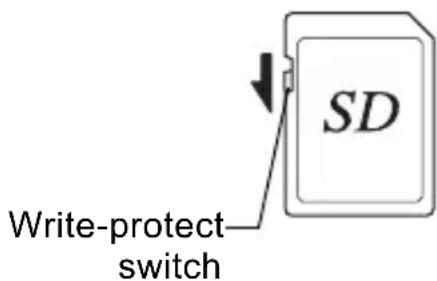
- Care should be taken when removing the SD Memory Card immediately after using the camera, as the card may be hot.
- Keep the battery/card cover closed and do not remove the SD Memory Card or turn the camera off while the data is being played back or saved to the card, or the camera is connected to a computer with the USB cable, as this may cause the data to be lost or the card to be damaged.
- Do not bend the SD Memory Card or subject it to violent impact. Keep it away from water and store away from high temperature.
- Do not remove the SD Memory Card during formatting as this may damage the card and render it unusable.
- The data on the SD Memory Card may be deleted in the following circumstances. We do not accept any liability for data that is deleted
(1) when the SD Memory Card is mishandled by the user.
(2) when the SD Memory Card is exposed to static electricity or electrical interference.
(3) when the SD Memory Card has not been used for a long time.
(4) when the SD Memory Card is ejected or the battery is removed while the data on the card is being recorded or accessed.
- If it is not used for a long time, the data on the card may become unreadable. Be sure to regularly make a backup of important data on a computer.
- Avoid using or storing the card where it may be exposed to static electricity or electrical interference.
- Avoid using or storing the card in direct sunlight or where it may be exposed to rapid changes in temperature or to condensation.
- When using an SD Memory Card with a slow recording speed, recording may stop while you are taking movies even when there is adequate space in the memory, or shooting and playback may take a long time.
- Be sure to format SD Memory Cards that are unused or have been used on another camera. Refer to “Formatting the Memory” (p.190).
Contents
Using Your Camera Safely 1
Care to be Taken During Handling 5
Contents 8
Composition of the Operating Manual 15
Camera Features....16
Checking the Contents of the Package 19
Names of Parts 20
Names of Operating Parts ....21
Monitor Indications ......22
Getting Started 31
Attaching the Strap....32
Powering the Camera ....33
Charging the Battery....33
Installing the Battery 34
Using the AC Adapter....37
Installing the SD Memory Card....39
Number of Images Recordable on an SD Memory Card ....41
Turning the Camera On and Off 42
Starting-up in the Playback Mode....43
Initial Settings 44
Setting the Display Language....44
Setting the Date and Time....48
Common Operations 51
Understanding the Button Functions 52
Mode 52
▶ Mode ....54
Switching Between Mode and Mode....56
Setting the Camera Functions ....57
Operating the Menus 57
Menu List 61
Taking Still Pictures....66
Taking Pictures....66
Setting the Shooting Mode 69
Using the Face Detection Function ....72
Taking Pictures Automatically (Auto Picture Mode) 74
Taking Pictures in the Custom Settings (Program Mode) .....75
Taking Pictures in the Basic Mode (Green Mode)....76
Using the Zoom 78
Taking Pictures of Dark Scenes (Night Scene Portrait/Night Scene/Digital SR/Fireworks/Candlelight Mode) 80
Taking Pictures of People (Portrait/Natural Skin Tone Mode)......82
Taking Pictures of Children (Kids Mode) 83
Taking Pictures of Your Pet (Pet Mode) 84
Taking Pictures of Sports and Leisure Activities (Sport/Surf & Snow Mode) 87
Taking Pictures Indoors (Party Mode) 88
Taking Pictures of Text (Text Mode) 89
Framing Your Pictures (Frame Composite Mode)....90
Using the Self-timer 92
Taking a Series of Pictures (Continuous Shooting/Burst Shooting Mode) 93
Taking Pictures Using the Remote Control Unit (Optional) .....95
Using the Digital Wide Function (Digital Wide Mode) 97
Taking Panoramic Pictures (Digital Panorama Mode)......99
Setting the Shooting Functions....102
Selecting the Flash Mode ....102
Selecting the Focus Mode ....104
Selecting the Number of Recorded Pixels....108
Setting the Exposure (EV Compensation)....110
Correcting the Brightness (D-Range Setting) 111
Adjusting the White Balance....112
Setting the AE Metering....114
Setting the Sensitivity .....115
Setting the AUTO ISO Range....116
Setting the Blink Detection Function....117
Setting the Shake Reduction Function 118
Setting the Instant Review 119
Setting the Image Sharpness (Sharpness)....120
Setting the Color Saturation (Saturation)....121
Setting the Image Contrast (Contrast)....121
Setting the Date Imprint Function 122
Setting the IQ Enhancer Processing ....123
Setting the Green Button 123
Recording Movies ....127
Recording a Movie....127
Selecting the Recorded Pixels and Frame Rate for Movies ......129
Setting the Movie SR (Movie Shake Reduction) Function......130
Saving the Settings (Memory) 131
Playing Back and Deleting Images 133
Playing Back Images 134
Playing Back Still Pictures ....134
Playing Back a Movie 135
Multi-Image Display 136
Using the Playback Functions 138
Slideshow 141
Rotating the Image 143
Zoom Playback 145
Zoom In on the Subject's Face Automatically (Face Close-up Playback) 146
Deleting Images and Sound Files....148
Deleting a Single Image 148
Deleting Selected Images and Sound Files....150
Deleting All Images and Sound Files....152
Protecting Images and Sound Files from Deletion (Protect) .....153
Connecting the Camera to AV Equipment....156
Editing and Printing Images 159
Editing Images 160
Changing the Image Size (Resize) 160
Cropping Images 161
Processing Images to Make Faces Look Smaller 162
Using the Digital Filters....164
Compensating for an Unwanted Red-eye Effect 168
Adding a Frame (Frame Composite) 169
Editing Movies 173
Copying Images and Sound Files....175
Setting the Printing Service (DPOF)....178
Printing a Single Image 178
Printing All Images....180
Recording and Playing Back Sound 181
Recording Sound (Voice Recording) 182
Setting the Voice Recording Function ....182
Recording Sound....183
Playing Back Sound 184
Adding a Voice Memo to Images ....186
Recording a Voice Memo 186
Playing Back a Voice Memo....187
Settings 189
Camera Settings....190
Formatting the Memory ....190
Changing the Sound Settings 191
Changing the Date and Time....192
Setting the World Time 195
Setting the Text Size on the Menu 197
Changing the Display Language ....198
Changing the Naming System of the Folder....199
Changing the Video Output Format 200
Setting Eye-Fi Communication 201
Adjusting the Brightness of the Display 202
Using the Power Saving Function ....203
Setting the Auto Power Off Function 204
Changing the Start-up Screen 205
Correcting Defective Pixels in the CCD Sensor (Pixel Mapping) 206
Resetting to Default Settings (Reset) 207
Connecting to a Computer 209
Setting Up Your Computer....210
Provided Software 210
System Requirements ....210
Installing the Software ....212
Setting the USB Connection Mode....215
Connecting to Your Computer....217
Connecting the Camera and Your Computer 217
Transferring Images 218
Disconnecting the Camera from Your Computer....221
Starting "MedialImpression" 222
Details on How to Use "MedialImpression" 223
Transferring Images Using an Eye-Fi Card 224
Appendix 227
Functions Available for Each Shooting Mode....228
Messages....230
Troubleshooting....232
Default Settings....234
List of World Time Cities ....239
Optional Accessories 240
Main Specifications ....241
WARRANTY POLICY......245
Index....250
In this manual, the method for operating the four-way controller is shown in illustrations, such as in the ones below.
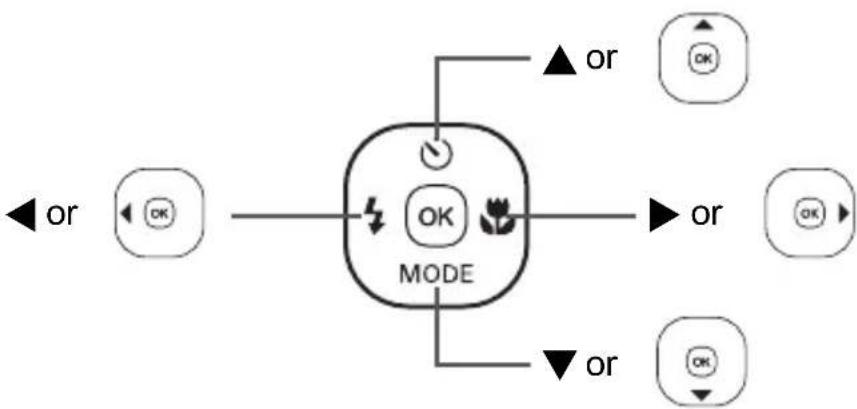
flowchart
graph TD
    A["MODE"] --> B["OK"]
    A --> C["OR"]
    B --> D["OK"]
    C --> E["OR"]
    style A fill:#f9f,stroke:#333
    style B fill:#ccf,stroke:#333
    style C fill:#cfc,stroke:#333
    style D fill:#fcc,stroke:#333
    style E fill:#cff,stroke:#333
The meanings of the symbols used in this Operating Manual are explained below.
| indicates the reference page number for an explanation of the related operation. | |
 | indicates information that is useful to know. |
 | indicates precautions to be taken when operating the camera. |
| mode | This is the mode for capturing still pictures and recording movies. In this manual, the mode for taking still pictures is referred to as the “still picture capture mode” and the mode for recording movies is referred to as the “mode”. |
| mode | This is the mode for viewing still pictures and playing back movies and sound files. |
Memo
Composition of the Operating Manual
This Operating Manual contains the following chapters.
1 Getting Started
This chapter explains what you need to do after purchasing the camera before you start taking pictures. Be sure to read it and follow the instructions.
2 Common Operations
This chapter explains common operations such as the functions of the buttons and how to use the menus. For more details, refer to the respective chapters below.
3 Taking Pictures
This chapter explains the various ways of capturing images and how to set the relevant functions.
4 Playing Back and Deleting Images
This chapter explains how to view still pictures and movies on the camera or on a TV screen and how to delete them from the camera.
5 Editing and Printing Images
This chapter explains how to print still pictures, and how to edit them on the camera.
6 Recording and Playing Back Sound
This chapter explains how to record sound and add sound (a voice memo) to an image, and how to play them back.
7 Settings
This chapter explains how to set the camera-related functions.
8 Connecting to a Computer
This chapter explains how to connect the camera to a computer, and includes installation instructions and a general overview of the provided software.
9 Appendix
This chapter deals with troubleshooting and lists the optional accessories.
Camera Features
In addition to basic picture-taking, this camera has a variety of shooting modes to suit different situations. This section describes how to make the most of the key features of your camera. Together with the explanations of camera operations, it will enable you to enjoy your camera to the full.
Easy-to-Navigate Capture and Playback Functions!
The user-friendly design of this camera enables easy operation with only a few buttons. Simply by choosing the appropriate icon, you can select the shooting mode (p.69) and choose the optimal settings for the situation, or the playback mode (p.138, p.160) and enjoy the various playback and editing functions. A guide on the display lets you check the functions available in each mode and how to use them.
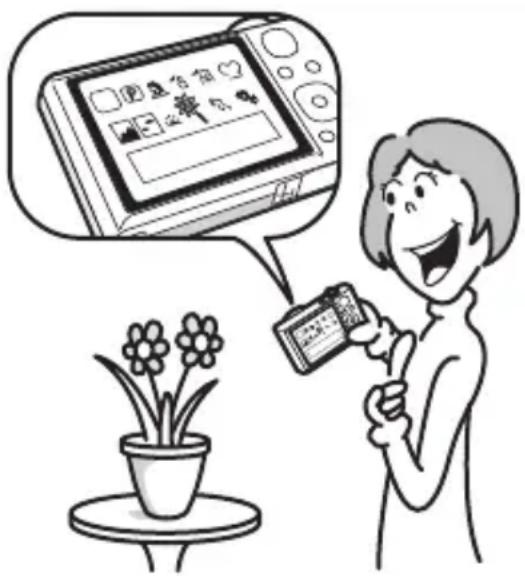
- A shooting mode guide is displayed in the Capture Mode Palette and a playback mode guide in the Playback Mode Palette (p.69, p.138).
- Use the Green Mode to take pictures easily using standard settings (p.76).
Perfect for Portrait Shots!
This camera comes with a “Face Detection” function that spots the faces in your shot and automatically adjusts the focus and exposure for the faces. It can detect up to 32 people per shot (*), so it will help you take perfect group shots too. It will automatically release the shutter when people are smiling, or if anyone blinked, it will tell you that so you can take the shot again until it is perfect. It also has a feature that lets you enlarge each person’s face in sequence during playback so you can quickly check their facial expressions.
* Up to 31 face detection frames are displayed on the monitor.
● Face Detection function (p.72)
- Modes for taking stunning pictures of people (p.82)
- Close-ups of faces for easy checking during playback (p.146)
Add Various Frames to Your Pictures!
natural_image
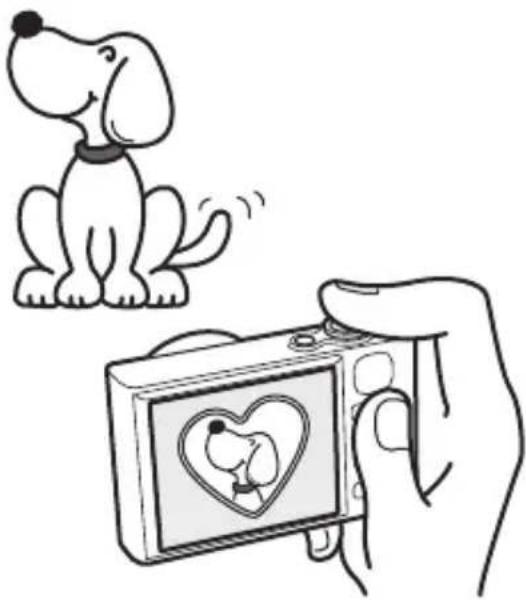
Cartoon illustration of a dog sitting next to a camera displaying a heart-shaped photo (no text or symbols)When you take a picture with this camera, you can choose from fun frames to create attractive framed shots (p.90). You can also add frames to pictures you have taken (p.169). Adjust the position of the subject in the picture or reduce or enlarge the picture size to match the frame shape and size. Now you no longer have to worry about the subject not fitting into the frame.
- For decorating your pictures with a frame
Display Images and Sound Files in Calendar Format!
With this camera, you can display recorded images and sound files by date in calendar format (p.137). This lets you quickly find the image or sound file you want to play back.
Advanced Movie Recording Functions
This camera has a shake reduction function (Movie SR) to reduce camera shake during movie recording (p.130). And it enables you to record movies in 1280×720 pixel (16:9) HDTV format (*) (p.129).
* When connecting to and playing back images on AV equipment, image data is output at normal screen resolution. To view movies in HDTV, transfer the data to a computer and play it back on the computer.
- Use the camera to shoot fun-filled movies of your children or pets as a visual diary of their development (p.127).
A Multitude of Functions Inside the Camera for Enjoying Images Without a Computer!
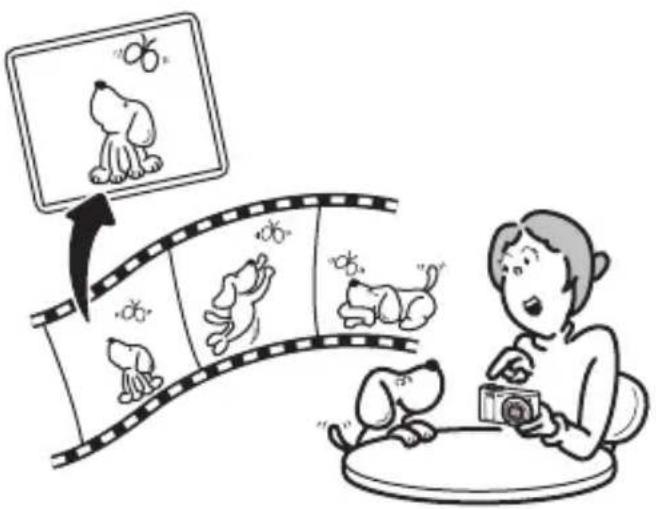
This camera has a variety of functions to let you enjoy playing back and editing images without having to connect the camera to your computer and transfer the images first. The camera is all you need to take and edit still pictures and movies (p.160).
natural_image
Cartoon illustration of a person using a camera to interact with a film strip containing cartoon dogs, no text or symbols present.- Resize (p.160), Cropping (p.161) and Red-eye Compensation (p.168) can be used, while the image is displayed in the playback mode.
- You can divide a movie into two or select a frame from a movie to save it as a still picture (p.173).
Checking the Contents of the Package
natural_image
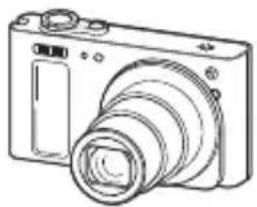
Line drawing of a digital camera with lens and screen (no text or symbols)Camera
Optio RZ18/Optio RX18
natural_image
Simple line drawing of a U-shaped object with a handle (no text or symbols)Strap
O-ST104 (*)
natural_image
Simple diagram of two concentric ovals with no text or symbolsSoftware (CD-ROM)
S-SW121
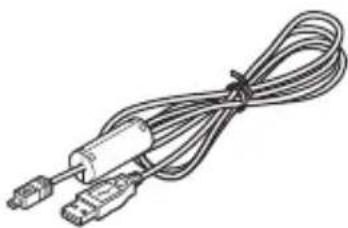
natural_image
Line drawing of a coiled electrical cable with two connectors (no text or symbols)USB cable
I-USB7 (*)
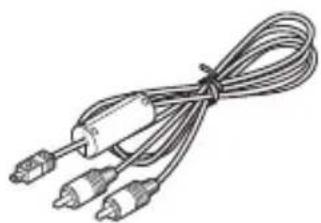
natural_image
Line drawing of a coiled electrical cable with two connectors (no text or symbols)AV cable
I-AVC7 (*)
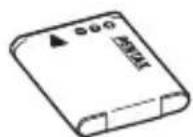
Rechargeable lithium-ion
battery D-LI92 (*)
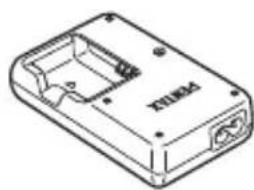
natural_image
Line drawing of a rectangular electronic device casing with internal components (no text or symbols)Battery charger
D-BC92 (*)
natural_image
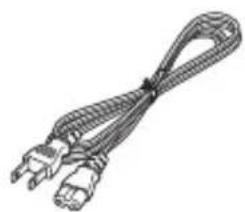
Coiled electrical plug with two terminal connectors (no text or symbols visible)AC plug cord (*) Quick Guide
Operating Manual
(this manual)
Items marked with an asterisk (*) are also available as optional accessories.
The battery charger and AC plug cord are only sold as a set (Battery Charger Kit K-BC92).
For other optional accessories, refer to "Optional Accessories" (p.240).
Names of Parts
Front
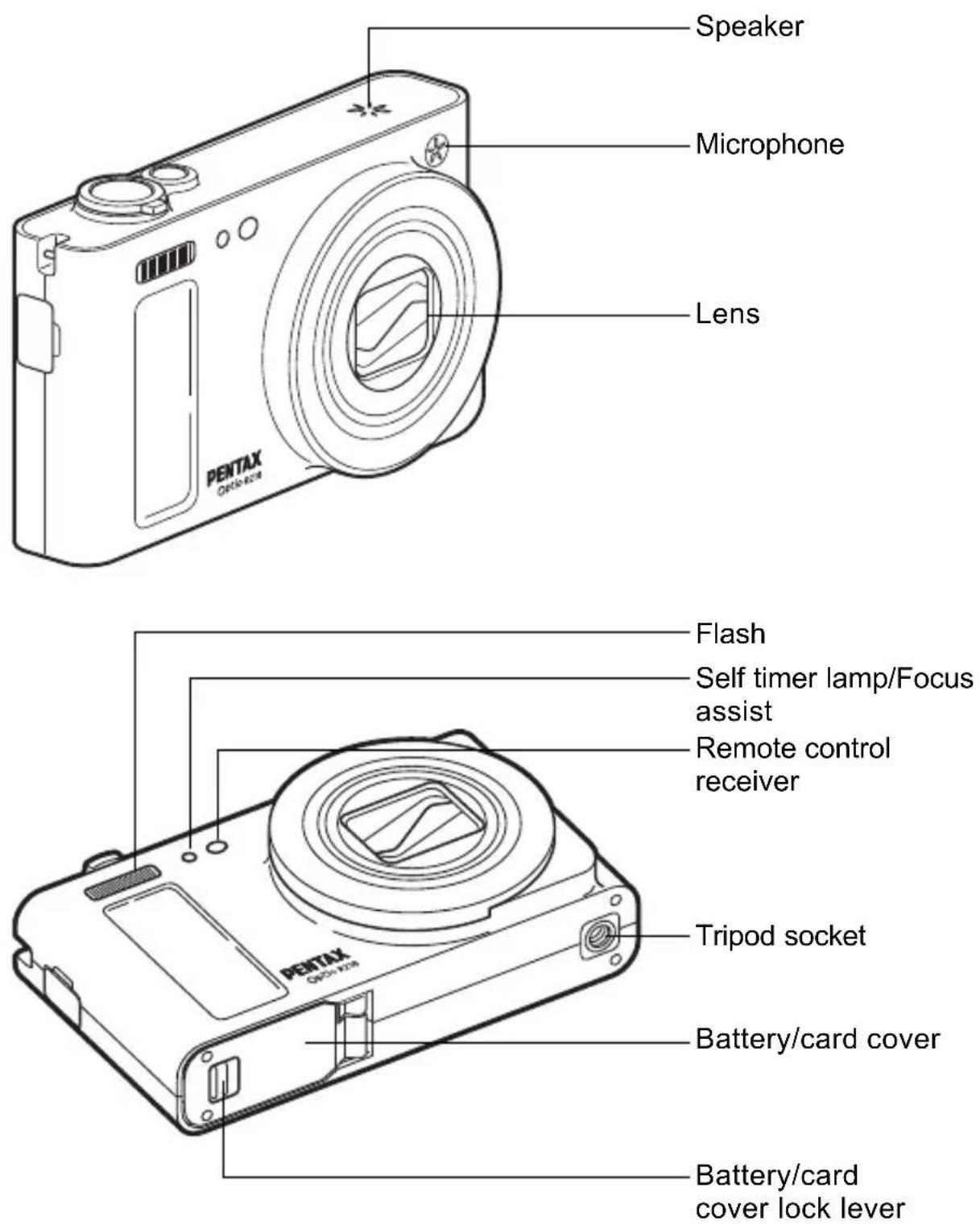
Back
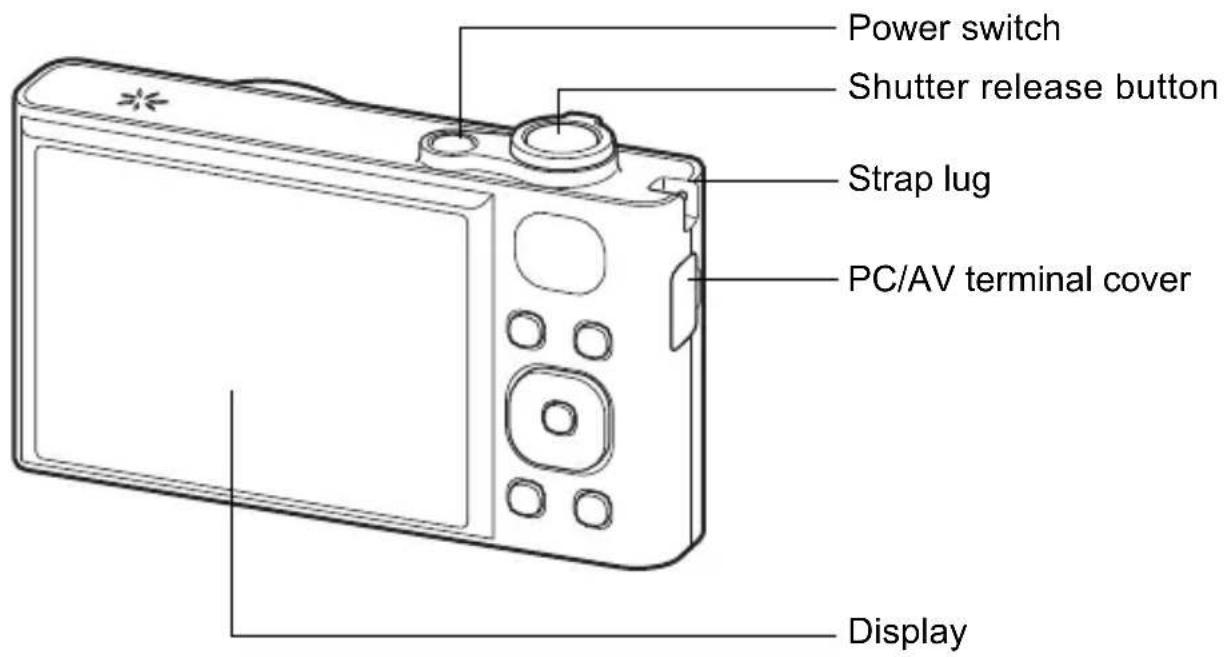
Names of Operating Parts
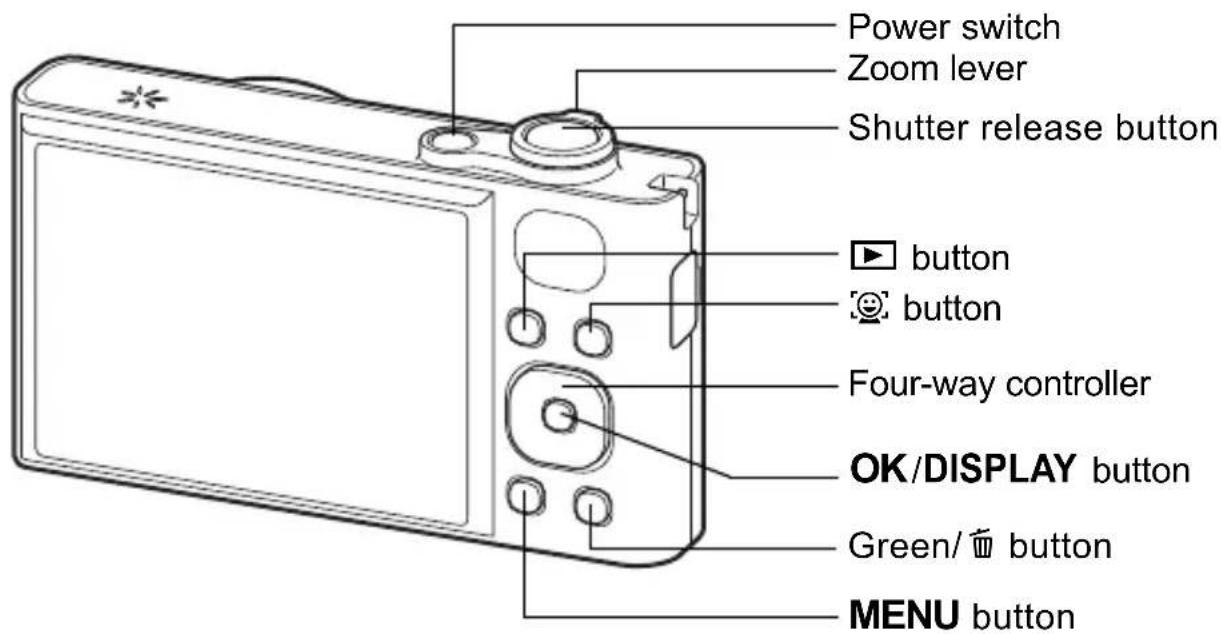

Refer to "Understanding the Button Functions" (p.52 - p.55) for an explanation of the function of each button.
Monitor Indications
Display in Mode
The display shows information such as the shooting conditions in the capture mode. The display changes in the following sequence each time you press the OK/DISPLAY button: "Normal Display", "Histogram + Info" and "No Info".
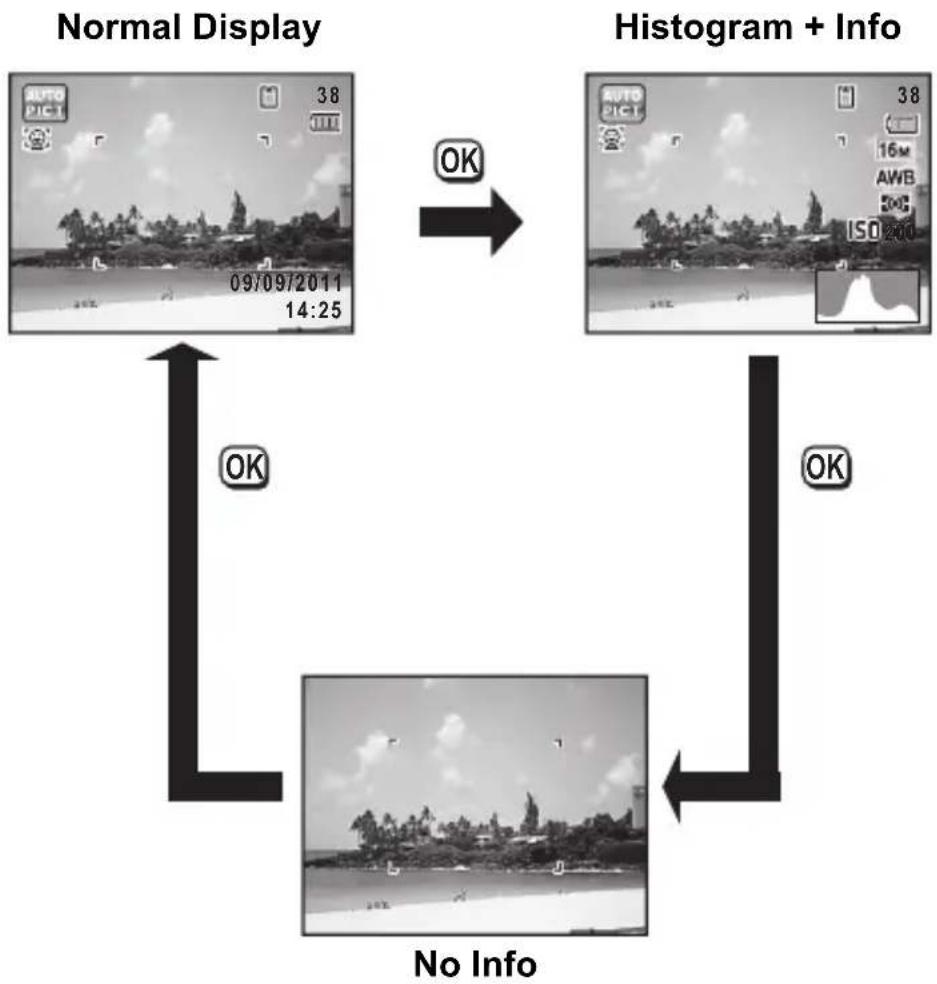
flowchart
graph TD
    A["Normal Display"] -->|OK| B["Histogram + Info"]
    B -->|OK| C["No Info"]
    C -->|OK| A

When the shooting mode is set to ● (Green) mode, the monitor display is as shown on the right. You cannot change the information on the display by pressing the OK/DISPLAY button (p.76).
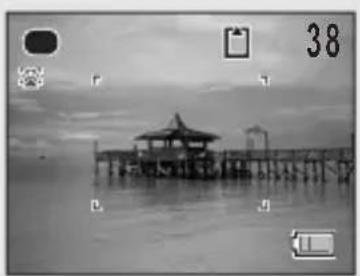
natural_image
Black-and-white photo of a traditional Chinese pavilion by a wooden pier at dusk, with no visible text or symbols.Normal Display in Still Picture Capture Mode
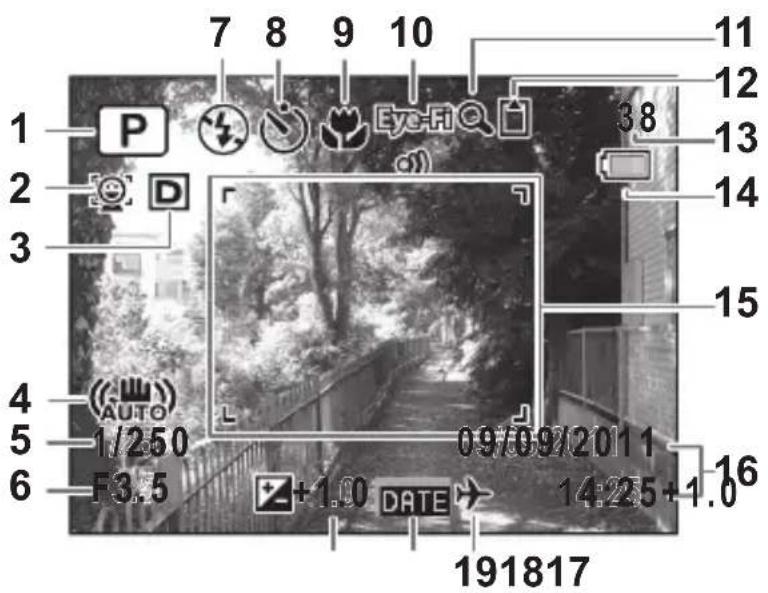
1 Shooting mode (p.69)
2 Face Detection icon (p.72)
3 D-Range Setting (p.111)
4 Camera shake reduction icon (p.118)
5 Shutter speed
6 Aperture
7 Flash Mode (p.102)
8 Drive Mode (p.92, p.93)
9 Focus Mode (p.104)
10 Eye-Fi icon (p.224)
11 Digital Zoom/Intelligent Zoom icon (p.78)
12 Memory status (p.42)
13 Remaining image storage capacity
14 Battery level indicator (p.36)
15 Focus frame (p.66)
16 Date and time (p.48)
17 EV Compensation (p.110)
18 Date Imprint setting (p.122)
19 World Time setting (p.195)
* 3 depends on the [D-Range Setting] setting in the [☐ Rec. Mode] menu.
When [Highlight Correction] is set to √
When [Shadow Correction] is set to √
When [Highlight Correction] and [Shadow Correction] are both set to √
If [Highlight Correction] and [Shadow Correction] are both set to □ (Off), nothing appears in 3.
* 4 varies depending on the following conditions.
(Auto) When the shutter release button is pressed halfway with [Shake Reduction] in the [☐ Rec. Mode] menu set to [CCD-Shift] or [Dual]
When [Shake Reduction] is set to [Off] (If the camera shake is likely to occur, 🔊 is indicated when the shutter button is pressed halfway.)
* 5 and 6 appear only when the shutter release button is pressed halfway.
* For 9, when the focus mode is set to AF and the Auto-Macro function is activated, the 🔊 appears on the display (p.104).
* Some indications may not appear depending on the shooting mode.
Histogram + Info/No Info Display in Still Picture Capture Mode
A1 to A19 and B1 appear when “Histogram + Info” is selected. Only B1 appears when “No Info” is selected.
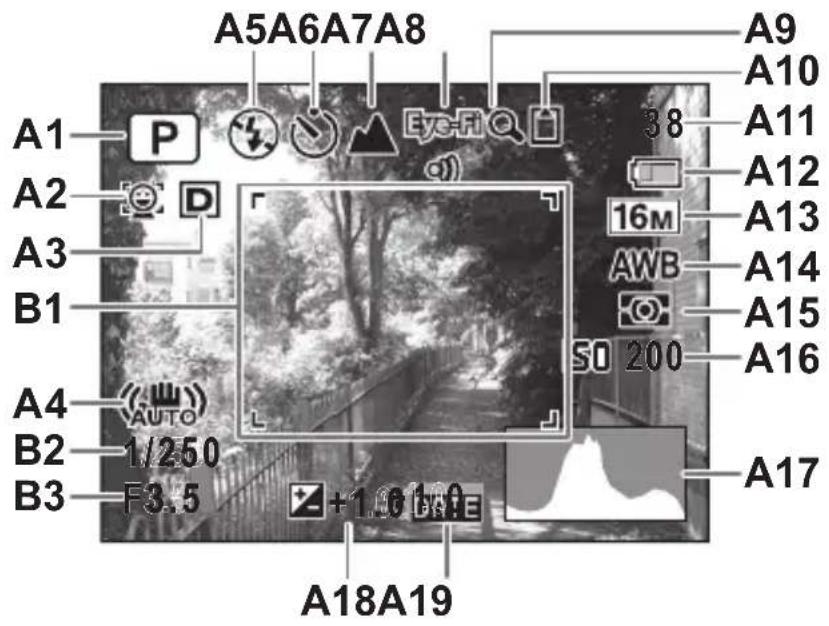
A1 Shooting mode (p.69)
A2 Face Detection icon (p.72)
A3 D-Range Setting (p.111)
A4 Camera shake reduction icon (p.118)
A5 Flash Mode (p.102)
A6 Drive Mode (p.92, p.93)
A7 Focus Mode (p.104)
A8 Eye-Fi icon (p.224)
A9 Digital Zoom/ Intelligent Zoom icon (p.78)
A10 Memory status (p.42)
A11 Remaining image storage capacity
A12 Battery level indicator (p.36)
A13 Recorded Pixels (p.108)
A14 White Balance (p.112)
A15 AE Metering (p.114)
A16 Sensitivity (p.115)
A17 Histogram (p.28)
A18 EV Compensation (p.110)
A19 Date Imprint setting (p.122)
B1 Focus frame (p.66)
B2 Shutter speed
B3 Aperture
* A3 depends on the [D-Range Setting] setting in the [☐ Rec. Mode] menu.
When [Highlight Correction] is set to √
When [Shadow Correction] is set to √
When [Highlight Correction] and [Shadow Correction] are both set to √
If [Highlight Correction] and [Shadow Correction] are both set to □ (Off), nothing appears in A3.
* A4 varies depending on the following conditions.
(AUTO) When the shutter release button is pressed halfway with [Shake Reduction] in the [☐ Rec. Mode] menu set to [CCD-Shift] or [Dual]
When [Shake Reduction] is set to [Off] (If the camera shake is likely to occur, 🔊 is indicated when the shutter button is pressed halfway.)
* B2 and B3 appear only when the shutter release button is pressed halfway.
* When the shooting mode is AUTO PICT (Auto Picture) and if you press the shutter release button halfway, the automatically selected shooting mode appears in A1 even when “No Info” is selected (p.74).
* Some indications may not appear depending on the shooting mode.
Display in ▶ Mode
The display shows the shooting information of the image in the playback mode. The display changes in the following sequence each time you press the OK/DISPLAY button: "Normal Display", "Histogram + Info" and "No Info".
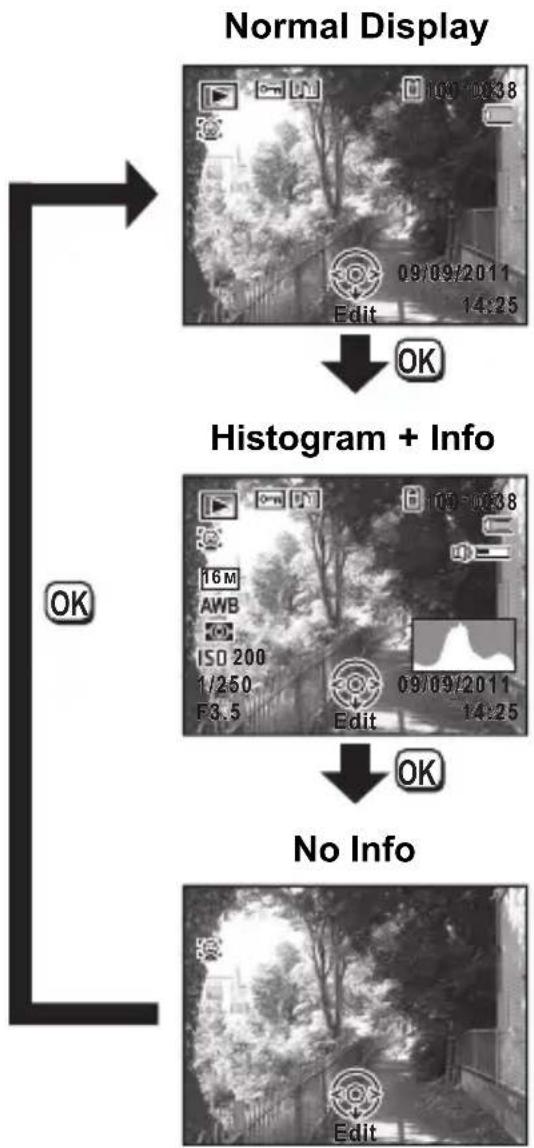
flowchart
graph TD
    A["Normal Display"] --> B["Histogram + Info"]
    B --> C["No Info"]
Normal Display/Histogram + Info Display in Playback Mode (All of the display items are displayed here for explanatory purposes.)
The display shows information such as the shooting conditions. A1 to A12 appear when “Normal Display” or “Histogram + Info” is selected. B1 to B7 appear only when “Histogram + Info” is selected.
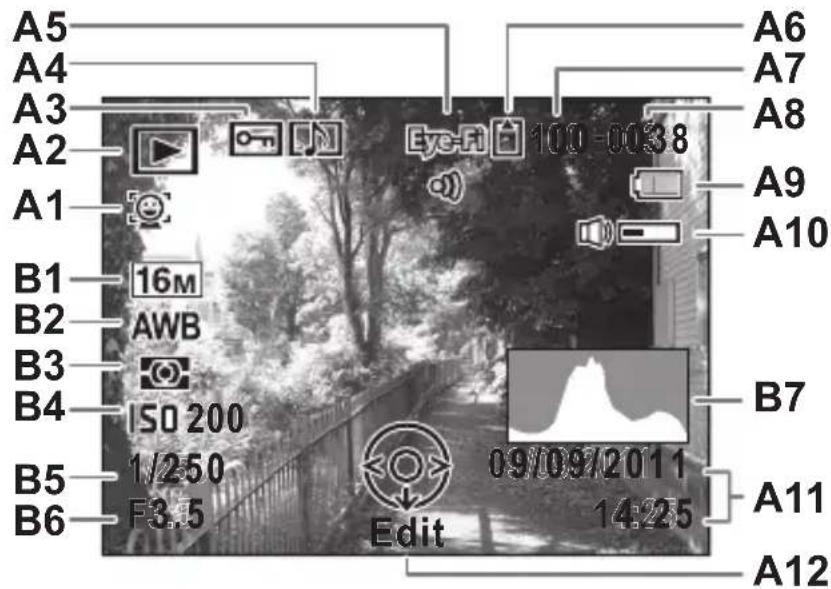
A1 Face Detection icon (p.72)
A2 Playback mode
▶: Still Picture (p.134)
Movie (p.135)
Sound (p.184)
A3 Protect icon (p.153)
A4 Voice memo icon (p.187)
A5 Eye-Fi icon (p.224)
A6 Memory status (p.42)
A7 Folder number (p.199)
A8 File number
A9 Battery level indicator (p.36)
A10 Volume icon
A11 Captured date and time (p.48)
A12 Four-way controller guide
B1 Recorded Pixels (p.108)
B2 White Balance (p.112)
B3 AE Metering (p.114)
B4 Sensitivity (p.115)
B5 Shutter speed
B6 Aperture
B7 Histogram (p.28)
* A1 appears only if the Face Detection function worked when the image was shot.
* In "Normal Display", A9 and A11 disappear if no operation is performed for two seconds.
* A10 appears only when the volume is being adjusted during playback of movies, sound files or voice memos (p.135, p.184, p.187).
* A12 appears even when “No Info” is selected, but disappears if no operation is performed for two seconds. When no operation is performed for two seconds in “Normal Display” or “Histogram + Info”, only “Edit” disappears.
Guide Indications
A guide indication for each available button/key operation appears as follows on the display during operation.
| ▲ Four-way controller ( ▲ ) | o | ||
| ▼ Four-way controller ( ▼ ) | OK/DISPLAY button | ||
| ◀ Four-way controller ( ◀ ) Shutter release button | |||
| ▶ Four-way controller ( ▶ ) | Green/ button | ||
| MENU | MENU button | button | |
Using the Histogram
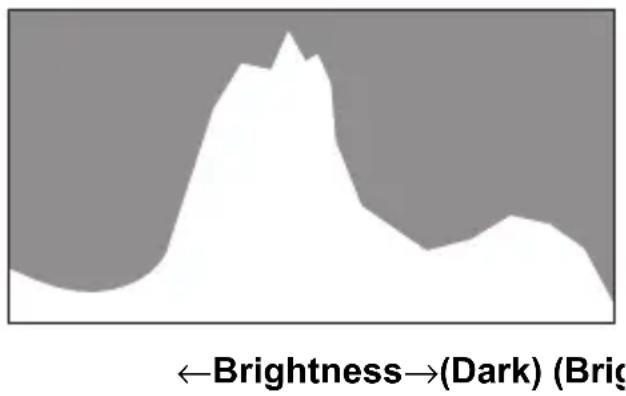
A histogram shows the brightness distribution of an image. The horizontal axis represents brightness (dark at the left and bright at the right) and the vertical axis represents the number of pixels.
The shape of the histogram before and after shooting tells you whether the brightness and
contrast are correct or not, and lets you decide if you need to adjust the exposure and take a picture again.
Number of pixels
Setting the Exposure (EV Compensation) ☐p.110
Understanding Brightness
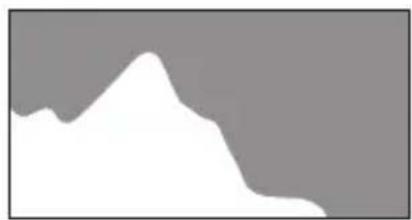
If the brightness is correct, the graph peaks in the middle. If the image is too dark, the peak is on the left side, and if it is too bright, the peak is on the right side.
Dark image Correct image Bright image
natural_image
Abstract white silhouette on gray background, no text or symbols present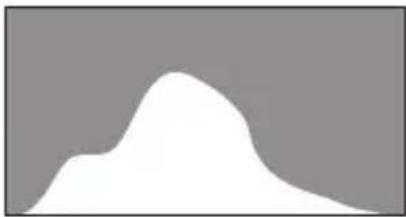
natural_image
Abstract white shape on gray background, no text or symbols present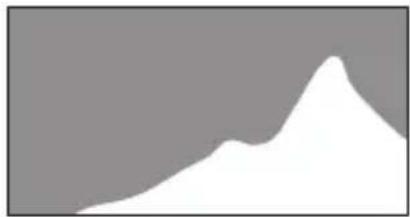
natural_image
Abstract white silhouette on gray background, no text or symbols presentWhen the image is too dark, the part to the left is cut off (dark portions) and when the image is too bright, the part to the right is cut off (bright portions).
Understanding Contrast
The graph peaks gradually for images in which contrast is balanced. The graph peaks on both sides but sinks in the middle for images with a large difference in contrast and low amounts of mid-level brightness.
Memo
1 Getting Started
Attaching the Strap 32
Powering the Camera 33
Installing the SD Memory Card ...... 39
Turning the Camera On and Off 42
Initial Settings 44
Attaching the Strap
Attach the strap (O-ST104) supplied with the camera.
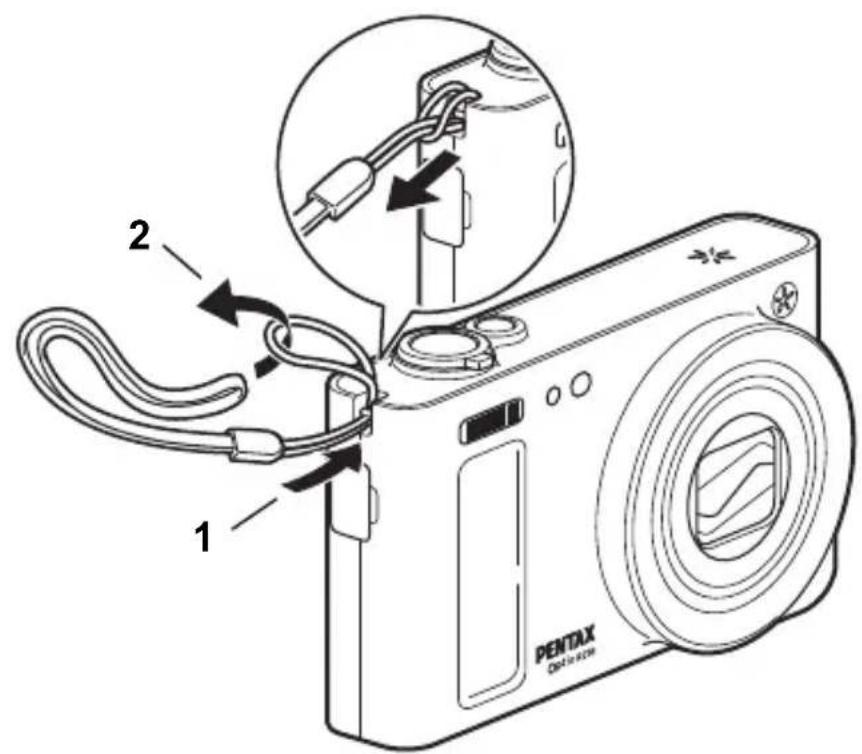
1 Pass the narrow end of the strap through the strap lug.
2 Pass the other end of the strap through the loop and pull tight.
Powering the Camera
Charging the Battery
Use the supplied battery charger (D-BC92) to charge the supplied rechargeable lithium-ion battery (D-LI92) before using it in the camera for the first time or after a long period of non-use, or when the [Battery depleted] message appears.
Note: AC plug cord "Listed, Type SPT-2 or NISPT-2, 18/2 flexible cord, rated 125 V, 7A, minimum 6 ft (1.8 m)"
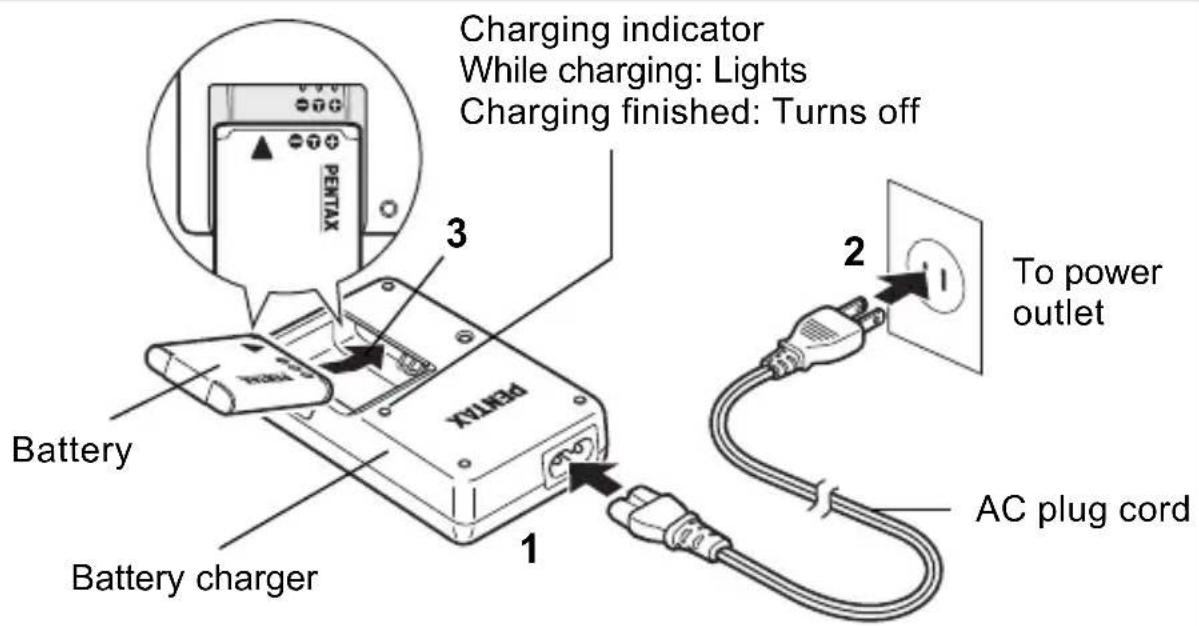
1 Connect the AC plug cord to the battery charger.
2 Plug the AC plug cord into the power outlet.
3 Place the battery in the battery charger so that the PENTAX logo is facing up.
The charging indicator lights while the battery is charging and turns off when charging is finished.
4 Remove the battery from the battery charger when charging is finished.

- Do not use the supplied battery charger (D-BC92) to charge batteries other than the rechargeable lithium-ion battery D-LI92, as the battery charger may overheat or be damaged.
- The battery has reached the end of its service life when it starts to run down soon after being charged. Replace it with a new battery.
- If the battery is inserted correctly but the charging indicator fails to light, the battery may be faulty. Replace it with a new battery.

The time required to fully charge the battery is about 120 minutes (max.). (The charging time may vary depending on the ambient temperature and charging conditions.) The appropriate ambient temperature for charging the battery is 0^ to 40^ (32°F to 104°F).
Installing the Battery
Use the rechargeable lithium-ion battery D-LI92 that is provided with the camera. Charge the battery before using it in the camera for the first time.
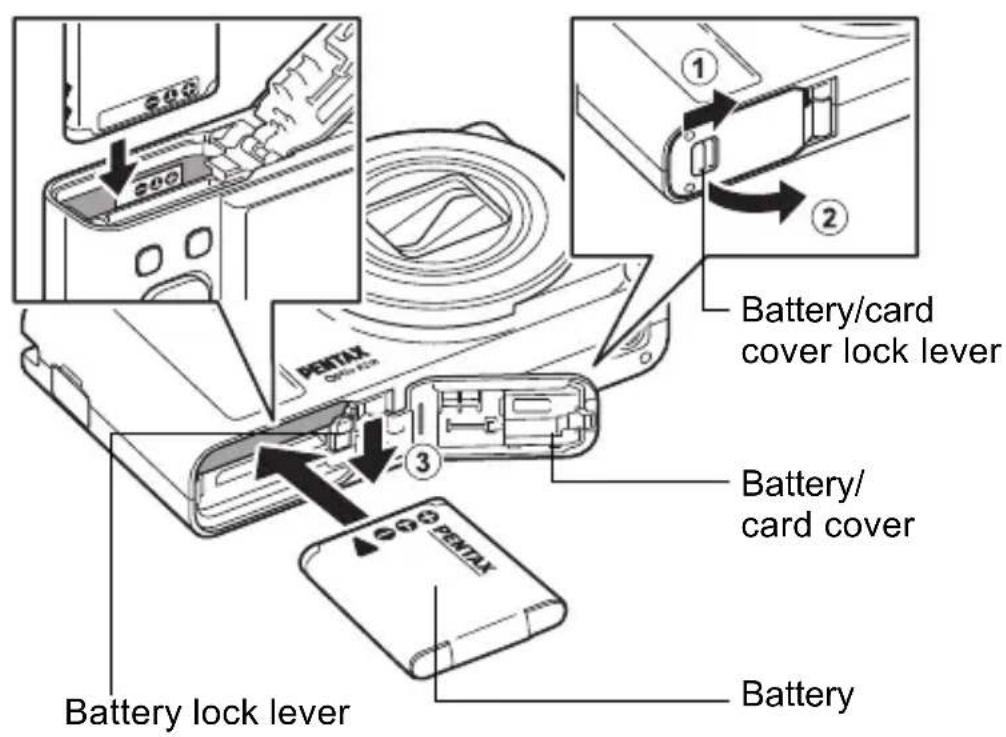
1 Open the battery/card cover.
Slide the battery/card cover lock lever in the direction indicated by the arrow ① and flip the cover open ②.
2
Press the battery lock lever in the direction of ③ and insert the battery so that the PENTAX logo is facing toward the lens.
Match the marks on the battery to the marks inside the battery compartment and push the battery in until it is locked in place.

Make sure that the battery is inserted with the PENTAX logo facing toward the lens. If the battery is incorrectly oriented, malfunction may result.
3
Close the battery/card cover.
After closing the battery/card cover, slide the cover lock lever in the opposite direction indicated by ①. When you hear a click, the cover is securely closed.
Removing the Battery
1
Open the battery/card cover.
2
Press the battery lock lever in the direction of ③.
The battery will be ejected. Take care not to drop the battery when removing it.

- This camera uses a rechargeable lithium-ion battery D-LI92. Use of any other type of battery may damage the camera and cause a malfunction.
- Insert the battery correctly. If the battery is incorrectly oriented, malfunction may result.
- Do not remove the battery while the camera is turned on.
- When storing the battery for more than 6 months, charge the battery for 30 minutes using the battery charger and store the battery separately.
Be sure to recharge the battery every 6 to 12 months. Storing the battery at or below room temperature is ideal. Avoid storing it at high temperature. - The date and time may be returned to the default setting if the camera is left without the battery for a long time.
- Be careful as the camera or the battery may become hot when the camera is used continuously for a long period of time.
- Image Storage Capacity, Movie Recording Time, Sound Recording Time, and Playback Time (at 23°C with the display on and the battery fully charged)
| Image Storage Capacity*1 (flash used for 50% of shots) | Movie Recording Time*2 | Sound Recording Time*2 | Playback Time*2 |
| Approx. 240 pictures | Approx. 100 min. | Approx. 300 min. | Approx. 230 min. |
*1 Image Storage Capacity shows the approximate number of shots recorded during CIPA-compliant testing (with display on, flash used for 50% of the shots, and 23 degrees centigrade). Actual performance may vary according to operating conditions.
*2 According to the result of in-house testing.

- In general, battery performance may temporarily deteriorate as the temperature decreases.
- Be sure to take a spare battery with you when traveling abroad or to a cold region, or if you intend to take a lot of pictures.
- Battery Level Indicator
You can check the battery level by the indicator on the display.
| Screen Display Battery Status | |
| (green) Adequate power remains. | |
| (green) Battery is running low. | |
| (yellow) Battery is running very low. | |
| (red) Battery is exhausted. | |
| [Battery depleted] The camera will turn off after this message appears. |
Using the AC Adapter
Use of the optional AC adapter kit (K-AC117) is recommended if you intend to use the camera for a long time or connect it to a computer.
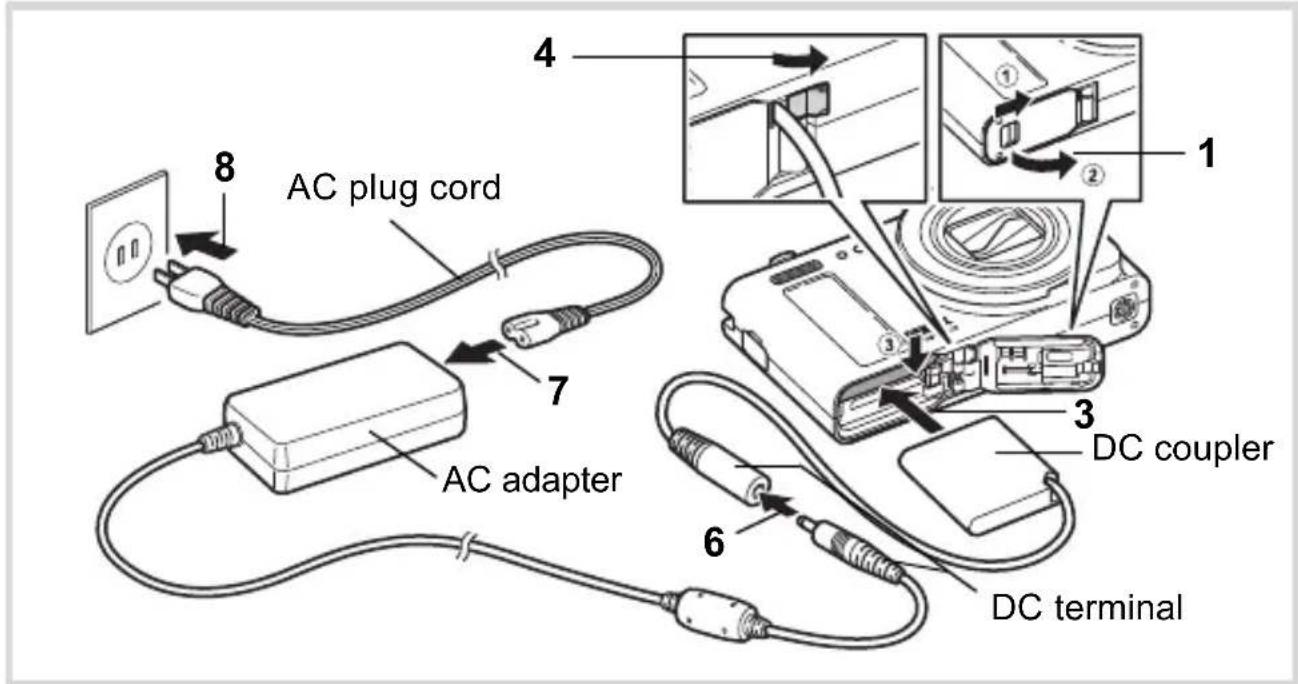
1 Make sure that the camera is turned off and open the battery/card cover.
2 Remove the battery.
Refer to p.34 - p.35 on how to open/close the battery/card cover and remove the battery.
3 Insert the DC coupler while holding down the battery lock lever.
Confirm the DC coupler is locked in place.
4 Extract the DC coupler cord.
Pull out the tab at the joint of the camera and the battery/card cover so that the DC coupler cord can be extracted from there.
5 Close the battery/card cover.
Connect the DC terminal of the AC adapter to the DC terminal of the DC coupler.
Connect the AC plug cord to the AC adapter.
Plug the AC plug cord into the power outlet.

- Make sure that the camera is turned off before connecting or disconnecting the AC adapter.
- Make sure that the AC plug cord and the DC terminal connecting the AC adapter to the camera are inserted securely. Data may be lost if either becomes disconnected while data is being recorded on the SD Memory Card or the built-in memory.
- Use the AC adapter with due care to avoid fire or electric shock. Be sure to read “About the Battery Charger and the AC Adapter” (p.2) before using the AC adapter.
- Be sure to read the operation manual accompanying the AC adapter kit K-AC117 before using the adapter.
Installing the SD Memory Card
This camera uses SD Memory Cards, SDHC Memory Cards or SDXC Memory Cards. (These cards are referred to as SD Memory Cards hereafter.) Captured images and sound files are saved on the SD Memory Card when a card is inserted in the camera. They are saved in the built-in memory when a card is not inserted (p.42).

- Be sure to use this camera to format (initialize) an SD Memory Card that is unused or has been used on other cameras or digital devices. Refer to “Formatting the Memory” (p.190) for instructions on formatting.
- When you intend to use a brand-new Eye-Fi card for the first time, copy the Eye-Fi Manager installation file to your computer before formatting the card.
- Make sure that the camera is turned off before inserting or removing the SD Memory Card.

- The still picture storage capacity varies depending on the capacity of the SD Memory Card and the selected number of recorded pixels and quality level (p.41).
- The self-timer lamp blinks while the SD Memory Card is being accessed (data is being recorded or read).
Backing Up Data
The camera may not be able to access data in the built-in memory in the case of a malfunction. Use a computer or other device to back up important data in another location.
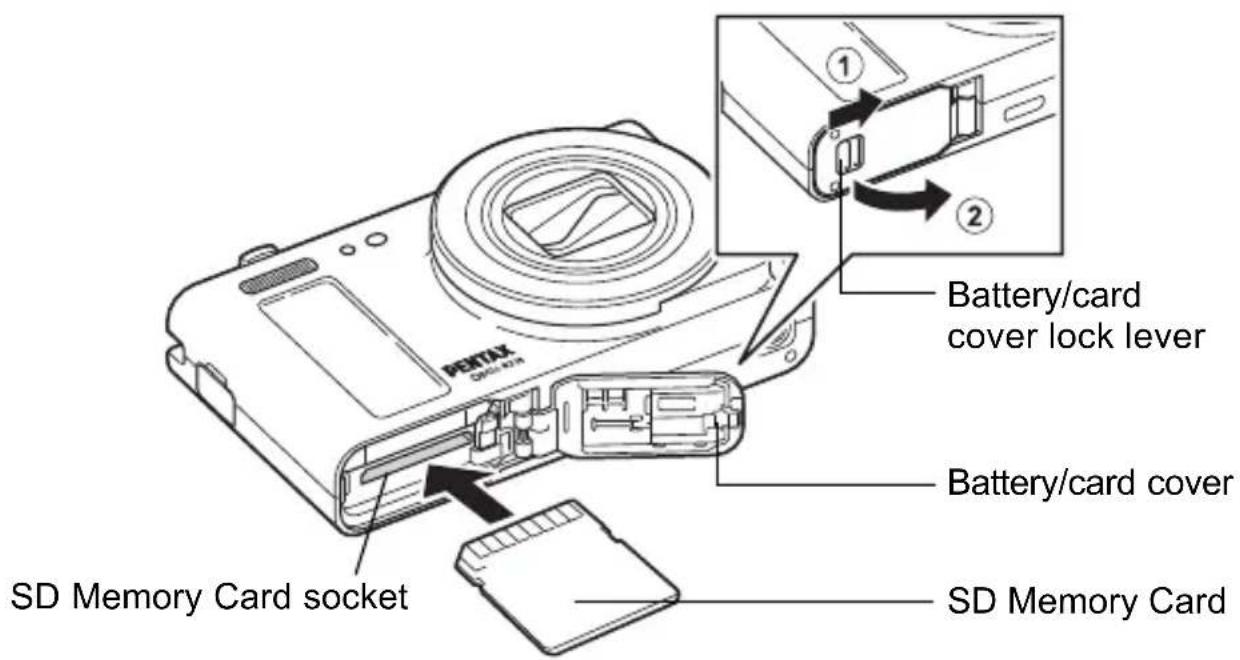
1 Open the battery/card cover.
Slide the battery/card cover lock lever in the direction indicated by the arrow ① and flip the cover open ②.
2 Insert the SD Memory Card into the SD Memory Card socket so that the label is facing toward the back of the camera (the side with the screen display).
Push the card in until it clicks. Data may not be recorded correctly if the card is not inserted all the way.
3 Close the battery/card cover.
After closing the battery/card cover, slide the cover lock lever in the opposite direction indicated by ①. When you hear a click, the cover is securely closed.
To Remove the SD Memory Card
1 Open the battery/card cover.
2 Push the card into the SD Memory Card socket to eject it.
Pull the card out.
Number of Images Recordable on an SD Memory Card
The file sizes of the recorded images vary depending on the number of recorded pixels of the images, so the number of images that can be saved on an SD Memory Card also varies.
Choose the appropriate number of recorded pixels for still pictures on the [☐ Rec. Mode] menu.
Selecting the Number of Recorded Pixels 📋p.108
Choose the appropriate number of recorded pixels and frame rate in [Movie] on the [☐ Rec. Mode] menu.
Selecting the Recorded Pixels and Frame Rate for Movies p.129
For an approximate guide to the number of images or the length of recorded movies that can be saved on an SD Memory Card, see “Main Specifications” (p.242).
Turning the Camera On and Off
natural_image
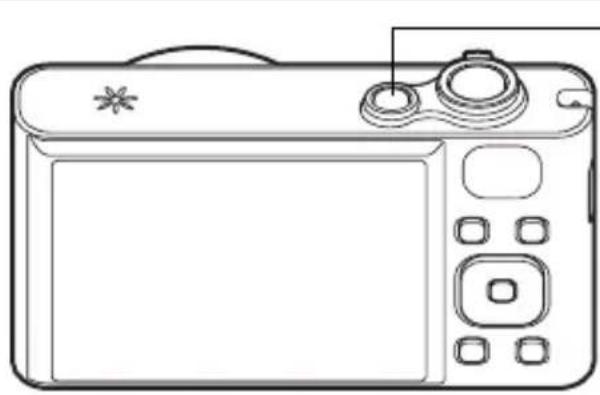
Line drawing of a digital camera with front panel, screen, and control buttons (no text or symbols)Power switch
1 Press the power switch.
The camera turns on and the display turns on.
When you turn the camera on, the lens cover opens and the lens extends.
If the [Language/Screen] or [Date Adjustment] screen appears when you turn the camera on, follow the procedure on p.44 to set the display language and/or current date and time.
2 Press the power switch again.
The display turns off, the lens closes, and the camera turns off.
Taking Still Pictures 📋p.66
Checking the SD Memory Card
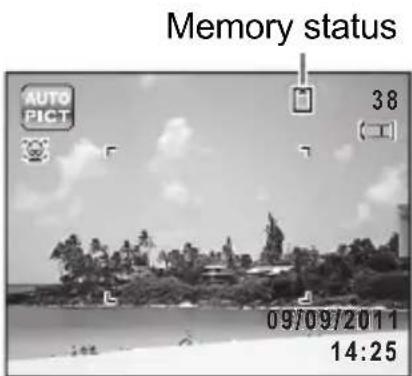
The SD Memory Card is checked when the camera turns on and the memory status is displayed.
| The SD Memory Card is inserted. Images and sound files will be saved on the SD Memory Card. | |
| The SD Memory Card is not inserted. Images and sound files will be saved in the built-in memory. | |
| The write-protect switch on the SD Memory Card is in the LOCK position (p.7). Images and sounds cannot be recorded. |
Starting-up in the Playback Mode
If you want to play back images or sound files straightaway without taking any pictures, you can start up the camera in the playback mode.
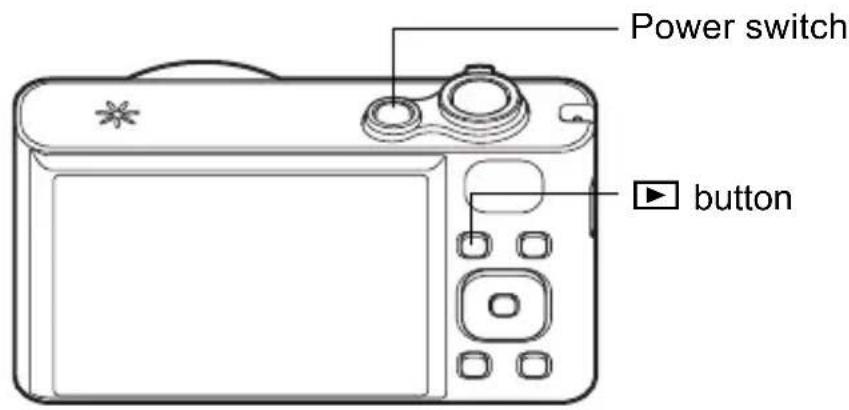
1 Press the power switch while holding down the ▶ button.
The display turns on with the lens retracted and the camera turns on in the playback mode.

To switch from the playback mode to the capture mode, press the button or press the shutter release button halfway.
Playing Back Still Pictures 📋p.134
Initial Settings
The [Language/Screen] appears when the camera is turned on for the first time. Perform the operations in “Setting the Display Language” below to set the language, and in “Setting the Date and Time” (p.48) to set the current date and time.
The language, date, and time can be changed later. Refer to the pages below for instructions.
- To change the language, follow the steps in “Changing the Display Language” (p.198).
- To change the date and time, follow the steps in “Changing the Date and Time” (p.192).
Setting the Display Language
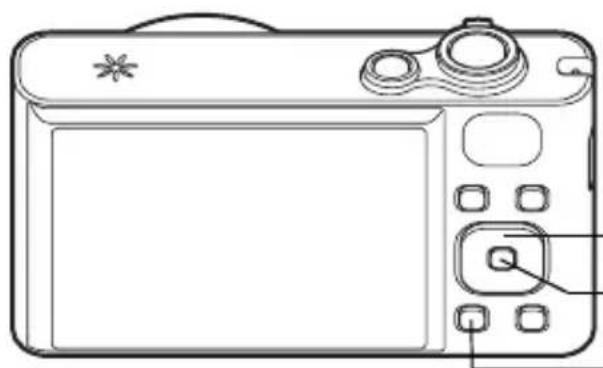
natural_image
Line drawing of a digital camera with front panel, screen, and control buttons (no text or symbols)Four-way controller
OK button
MENU button
1 Use the four-way controller (▲▼◀▶) to choose the desired display language.
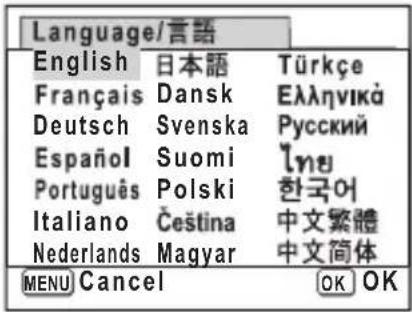
2 Press the OK button.
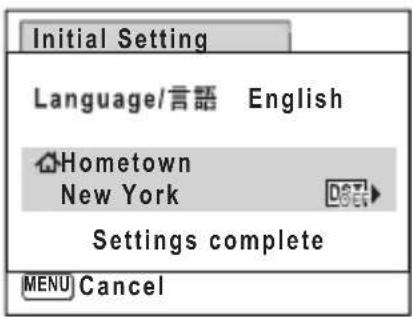
The [Initial Setting] screen appears in the selected language. If the desired settings for [Hometown] and [DST] (Daylight Saving Time) appear, proceed to Step 3. Proceed to "To Set Hometown and DST" (p.47) if the desired settings do not appear.
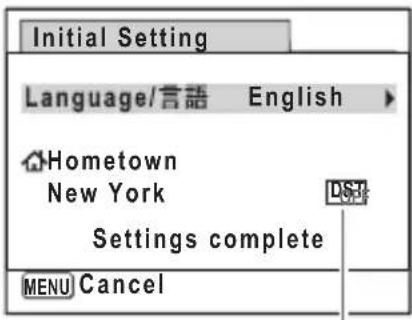
Daylight saving time
3 Press the four-way controller (▼) twice to select [Settings complete].
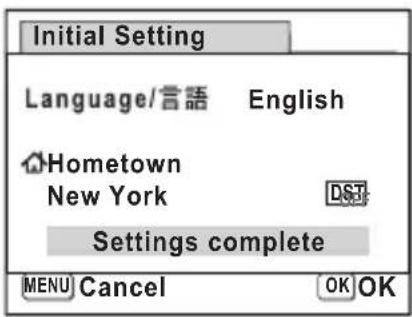
4 Press the OK button.
The [Date Adjustment] screen appears. Set the date and time by following the procedure in “Setting the Date and Time” (p.48).
If you accidentally select the wrong language and proceed to the next procedure, perform the following operation to set the desired language.
- When the Wrong Language Has Been Inadvertently Selected
1 Press the four-way controller (▶).
2 Use the four-way controller (▲▼◀▶) to select the desired language and press the OK button.
The [Initial Setting] screen appears in the selected language.
- When the Screen After Step 2 Appears in the Wrong Language
1 Press the MENU button.
The setting screen is canceled and the camera is set to still picture capture mode.
2 Press the MENU button.
The [Rec. Mode] menu appears.
3 Press the four-way controller (▶).
4 Use the four-way controller (▼ ▲) to select [Language/言語].
5 Press the four-way controller (▶).
The [Language/] screen appears.
6 Use the four-way controller (▲▼◀▶) to select the desired language.
7 Press the OK button.
The [✗ Setting] menu appears in the selected language.
The language is now switched to your desired language. To reset [Hometown], [Date] and [Time], refer to the pages below for instructions.
- To change [Hometown], follow the steps in “Setting the World Time” (p.195).
- To change the [Date] and [Time], follow the steps in “Changing the Date and Time” (p.192).
To Set Hometown and DST
3 Press the four-way controller (▼).
The frame moves to [💡 Hometown].
4 Press the four-way controller (▶).
The [↑ Hometown] screen appears.
5 Use the four-way controller (◀▶) to choose a city.
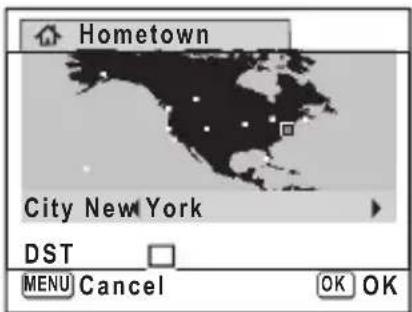
6 Press the four-way controller (▼).
The frame moves to [DST] (Daylight Saving Time).
7 Use the four-way controller (◀▶) to select ☑ (On) or □ (Off).
8 Press the OK button.
The [Initial Setting] screen reappears.
9 Press the four-way controller (▼) to select [Settings complete].
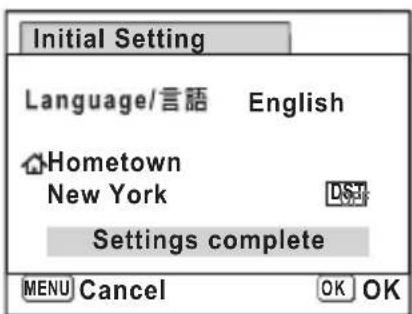
10 Press the OK button.
The [Date Adjustment] screen appears. Next, set the date and time.
The video output format (NTSC/PAL) is set to the format of the city selected in [Hometown] on the [Initial Setting] screen. Refer to “List of World Time Cities” (p.239) for the video output format of each city that will be set at the time of initial setting, and “Changing the Video Output Format” (p.200) for changing the video output format.
Setting the Date and Time
Set the current date and time and the display style.
1 Press the four-way controller (▶). The frame moves to [mm/dd/yy].
2 Use the four-way controller (▲▼) to choose the date format.
Choose from [mm/dd/yy], [dd/mm/yy] or [yy/mm/dd].
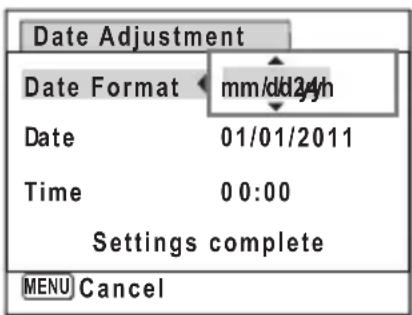
3 Press the four-way controller (▶). The frame moves to [24h].
4 Use the four-way controller (▲▼) to select [24h] (24-hour display) or [12h] (12-hour display).
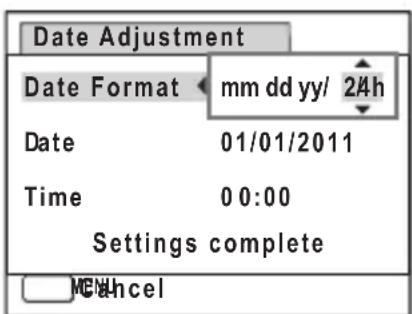
5 Press the four-way controller (▶). The frame returns to [Date Format].
6 Press the four-way controller (▼). The frame moves to [Date].
7 Press the four-way controller (▶).
The frame moves to the month.
| Date Adjustment | |
| Date Format | mm dd yy/ / 24h |
| Date | 01/01/20 11 |
| Time | 0 0:00 |
| Settings complete | |
| MENU Cancel | |
8 Use the four-way controller (▲▼) to change the month.
Change the day and year in the same manner.
Next, change the time.
If you selected [12h] in Step 4, the setting switches between am and pm corresponding to the time.
| Date Adjustment | |
| Date Format | mm dd yy/ / 24h |
| Date | 01/01/2011 |
| Time | 0 0:00 |
| Settings complete | |
| MENU Cancel | |
9 Press the four-way controller (▼) to select [Settings complete].
| Date Adjustment | |
| Date Format | mm/dd/yy 24h |
| Date | 01/01/2011 |
| Time | 00:00 |
| Settings complete | |
| MENU Cancel | OK OK |
10 Press the OK button.
This confirms the date and time.

If you press the OK button in Step 10, the camera clock is reset to 00 seconds. To set the exact time, press the OK button when the time signal (on the TV, radio, etc.) reaches 00 seconds.

When the [Initial Setting] or [Date Adjustment] screen is displayed, you can cancel the settings made up to that point and switch to the capture mode by pressing the MENU button. In this case, the [Initial Setting] screen will appear again the next time you turn the camera on.
[Language/Date], [Time], [Hometown], and [DST] can be changed. Refer to the pages below for instructions.
- To change the language, follow the steps in “Changing the Display Language” (p.198).
- To change the date and time, follow the steps in “Changing the Date and Time” (p.192).
- To change the city or DST setting, follow the steps in “Setting the World Time” (p.195).
2Common Operations
Understanding the Button Functions ..... 52 Setting the Camera Functions ..... 57
Understanding the Button Functions

Mode
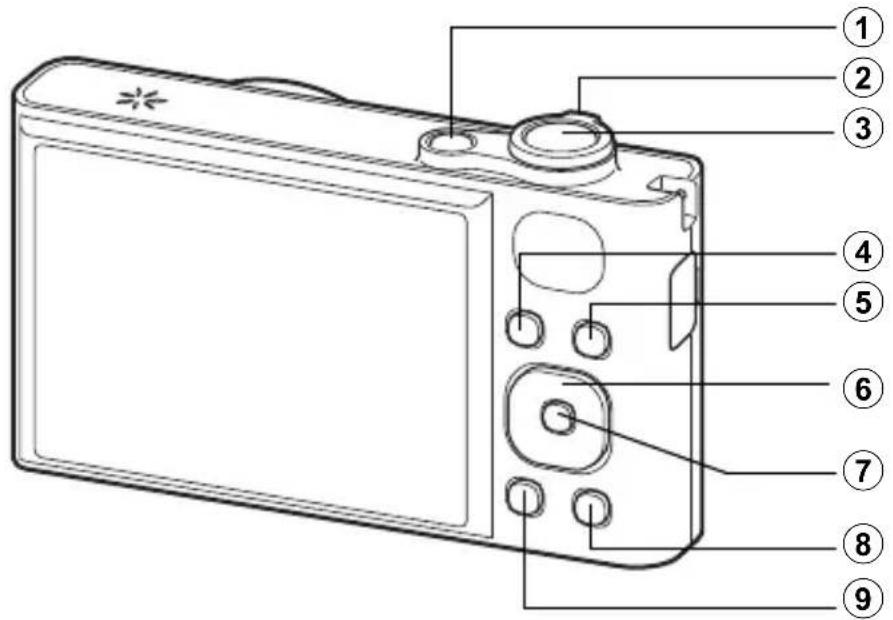
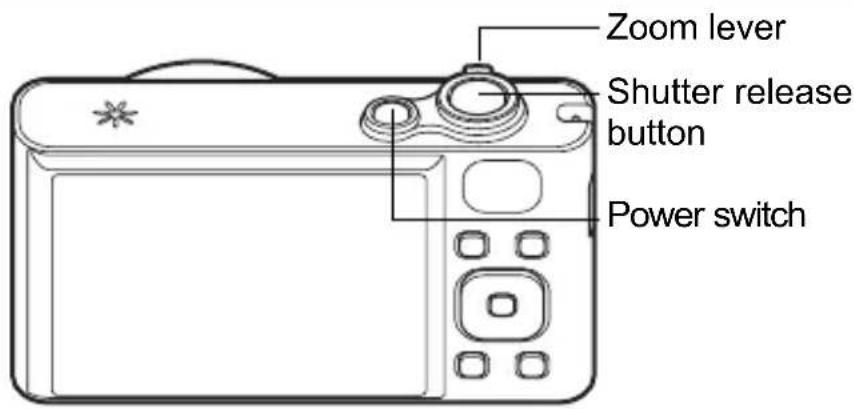
①Power switch
Turns the camera on and off (p.42).
②Zoom lever
Changes the captured area (p.78).
③Shutter release button
Focuses the camera on the subject when pressed halfway in still picture capture mode (except in PF, ▲ and MF modes).
Takes a still picture when pressed down fully (p.67).
Starts and stops movie recording in 📋 (Movie) mode (p.127).
Starts and stops sound file recording in Voice Recording (p.183).
④ button
Switches to the ▶ mode (p.56).
⑤ button
Switches the Face Detection function (p.72). The Face Detection function is switched as follows each time the 😊 button is pressed: Smile Capture → Face Detection Off → Face Detection On
⑥Four-way controller
▲Changes the drive mode (p.92, p.93).
▼Displays the Capture Mode Palette (p.69).
◀ Changes the flash mode (p.102).
▶ Changes the focus mode (p.104).
▲▼ Adjusts the focus when the focus mode is set to MF (p.105).
⑦ OK/DISPLAY button
Changes the information on the display (p.22).
⑧Green button
Switches to the ● (Green) mode (p.76). Calls up the assigned function (p.123).
⑨ MENU button
Displays the [Rec. Mode] menu (p.57).

Mode
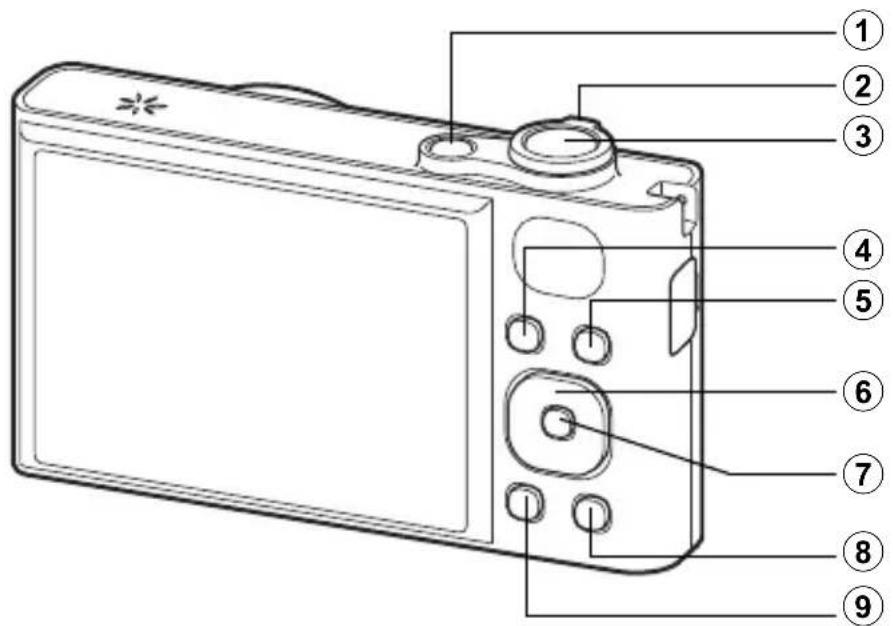
①Power switch
Turns the camera on and off (p.42).
②Zoom lever
Turn to the left (☑) during single-image display to change to four-image display. Changes to nine-image display when turned to the left again. Returns to the previous display when turned to the right (Q) (p.136). Enlarges the image when turned to the right (Q) during single-image display. Returns to the previous display when turned to the left (☑) (p.145).
Turn to the left (☑) during nine-image display to change to folder or calendar display (p.137).
Turn to the right (Q) during folder/calendar display to change to nine-image display (p.137).
Adjusts the volume during playback of movies, sound files or voice memos (p.135, p.184, p.187).
③Shutter release button
Switches to 📄 mode (p.56).
④ button
Switches to 📷 mode (p.56).
⑤ button
Zooms in on the subjects' faces in a face-detected image in the order the faces were detected when the picture was taken. (Face close-up playback) (p.146)
⑥Four-way controller
▲ Plays back and pauses a movie or sound file (p.135, p.184). ▼ Displays the Playback Mode Palette (p.138).
Stops a movie or sound file during playback (p.135, p.184).
◀▶ Displays the previous or next image or sound file during single-image display (p.134).
Fast-forwards, fast-reverses, frame forwards, frame reverses, reverses a movie and makes a movie play forwards during playback (p.135).
Fast-forwards, fast-reverses, and moves to the next index during sound file playback (p.184).
▲▼◀▶ Selects an image during four-/nine-image display, a folder during folder display, and a date during calendar display (p.136, p.137). Moves the display area during zoom display (p.145).
Moves the image when using the Frame Composite function (p.169).
⑦ OK/DISPLAY button
Changes the information on the display (p.26).
Returns to single-image display during four-/nine-image display or zoom display (p.136, p.145).
Changes to nine-image display of the selected folder during folder display (p.137).
Changes to single-image display of the selected date during calendar display (p.138).
⑧Green/ button
Switches from single-image display to the Delete screen (p.148).
Switches from four-/nine-image display to the Select & Delete screen (p.150).
Switches from folder display to the calendar display screen (p.137).
Switches from calendar display to the folder display screen (p.137).
⑨MENU button
Displays the [Setting] menu during single-image display (p.57).
Returns to single-image display during Playback Mode Palette display (p.138).
Returns to single-image display during four-/nine-image display or zoom display (p.136).
Changes to nine-image display of the selected folder during folder display (p.137).
Changes to nine-image display of the selected date during calendar display (p.137).
Switching Between Mode and Mode
In this manual, the capture mode, such as for taking still pictures, is referred to as “mode” (the capture mode). The playback mode, such as for viewing the captured images on the display, is referred to as “mode” (the playback mode). In mode, you can perform simple editing operations on the captured images.
Follow the procedure below to switch between ☐ mode and ▶ mode.
To Switch from Mode to Mode
1 Press the ▶ button.
The camera switches to ▶ mode.
To Switch from ▶ Mode to 📷 Mode
1 Press the ▶ button or the shutter release button halfway.
The camera switches to 📄 mode.
Displaying the data stored in the built-in memory
When an SD Memory Card is inserted in the camera, images, movies, and sounds on the SD Memory Card are displayed. If you want to display images, movies and sounds in the built-in memory, turn the camera off and remove the SD Memory Card.

Make sure that the camera is turned off before inserting or removing the SD Memory Card.
Setting the Camera Functions
To change the camera settings, press the MENU button to display the [☐ Rec. Mode] menu or [✗ Setting] menu. Menus for playing back and editing images and sound files are called up from the Playback Mode Palette (p.138).
Operating the Menus
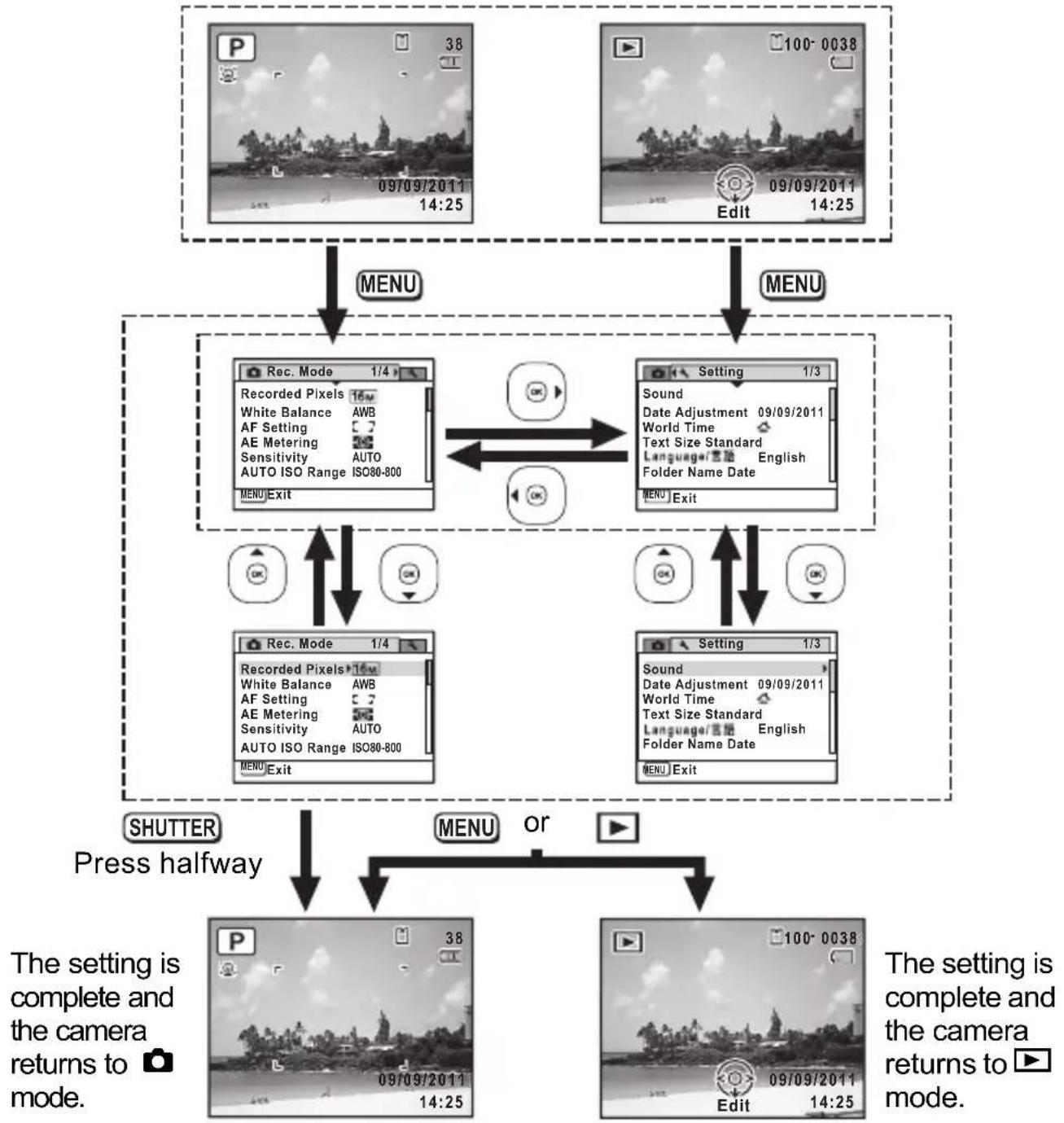
Press the MENU button in ☐ mode to display the [☐ Rec. Mode] menu. Press the MENU button in ☑ mode to display the [◀ Setting] menu. Use the four-way controller (◀▶) to switch between [☐ Rec. Mode] menu and [◀ Setting] menu.
During recording During playback
flowchart
graph TD
    A["Camera Settings"] --> B["MENU"]
    B --> C["Rec. Mode 1/4"]
    C --> D["Recorded Pixels 16M"]
    D --> E["White Balance AWB"]
    E --> F["AF Setting"]
    F --> G["AE Metering"]
    G --> H["Sensitivity AUTO"]
    H --> I["AUTO ISO Range ISO80-800"]
    I --> J["MENU Exit"]
    K["Setting 1/3"] --> L["Sound"]
    L --> M["Date Adjustment 09/09/2011"]
    M --> N["World Time"]
    N --> O["Text Size Standard"]
    O --> P["Language/背景 English"]
    P --> Q["Folder Name Date"]
    Q --> R["MENU Exit"]
    S["Setting 1/3"] --> T["Sound"]
    T --> U["Date Adjustment 09/09/2011"]
    U --> V["World Time"]
    V --> W["Text Size Standard"]
    W --> X["Language/背景 English"]
    X --> Y["Folder Name Date"]
    Y --> Z["MENU Exit"]
    AA["Shutter Press halfway"] --> AB["Press halfway"]
    AB --> AC["The setting is complete and the camera returns to mode."]
    AD["Menu or"] --> AE["The setting is complete and the camera returns to mode."]

Available button operations appear on the display during menu operation (p.28).
Ex.) To set the [Focusing Area] on the [☐ Rec. Mode] menu
1 Press the MENU button in mode.
The [Rec. Mode] menu appears.
2 Press the four-way controller (▼).
The frame moves to [Recorded Pixels].
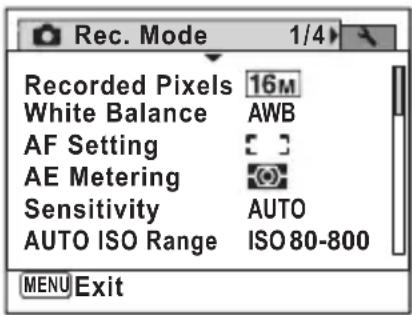
3 Press the four-way controller (▼) twice.
The frame moves to [AF Setting].
4 Press the four-way controller (▶).
The [AF Setting] screen appears.
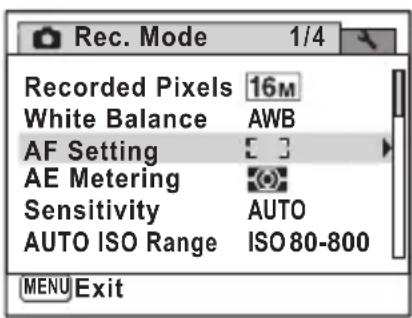
5 Press the four-way controller (▶).
A pull-down menu appears with the items that can be selected.
The pull-down menu displays only those items that can be selected with the current camera settings.
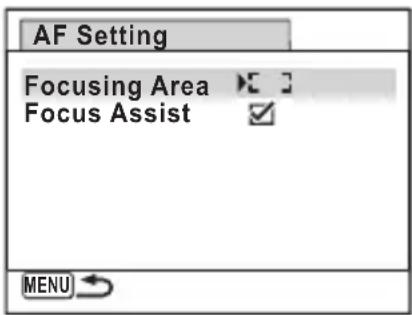
6 Use the four-way controller (▲▼) to change the setting.
The focusing area changes each time the four-way controller (▲▼) is pressed.
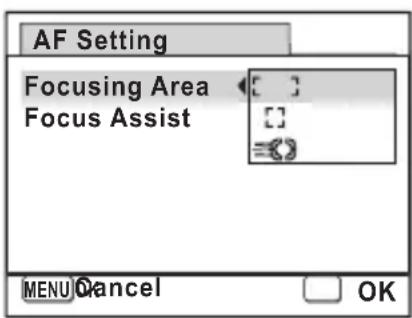
7 Press the OK button or the four-way controller (◀).
The setting is saved and then the camera is ready for setting the other functions.
To exit the setting operation, press the MENU button.
To use another operation, refer to the following alternate Step 7 options.
To Save the Setting and Start Taking Pictures
7 Press the shutter release button halfway.
The setting is saved and the camera returns to capture status. When the shutter release button is pressed fully, the picture is taken.

When the [Setting] menu is displayed from ▶ mode, you can switch to ▶ mode by pressing the ▶ button.
To Save the Setting and Start Playback of Images
7 Press the ▶ button.
When the [Rec. Mode] menu is displayed from mode, the setting is saved and the camera returns to playback status.
To Cancel the Changes and Continue with Menu Operations
7 Press the MENU button.
The changes are canceled and the screen shown in Step 3 reappears.

The MENU button function differs depending on the screen. Refer to the guide indications.
MENU Exit Exits the menu and returns to the original screen.
MENU → Returns to the previous screen with the current setting.
MENU Cancel Cancels the current selection, exits the menu and returns to the previous screen.
Menu List
This displays the items that can be set with the menus and provides descriptions of each item. See the list of default settings in the Appendix "Default Settings" (p.234) to check whether the settings are saved when the camera is turned off and whether the settings return to the defaults when the camera is reset.
[Rec. Mode] Menu
This menu shows the functions related to taking still pictures and recording movies.
| Item Description | tion Page | ||
| Recorded Pixels | For choosing the number of recorded pixels of still pictures | p.108 | |
| White Balance | For adjusting the color balance according to the light conditions | p.112 | |
| AF Setting | Focusing Area | For changing the autofocus area p.106 | |
| Focus Assist | For setting whether to use the focus assist light p.107 | ||
| AE Metering | For setting the area of the screen that is metered to determine the exposure | p.114 | |
| Sensitivity For setting the sensitivity p.115 | |||
| AUTO ISO Range | For setting the adjustment range when sensitivity is set to AUTO | p.116 | |
| EV Compensation | For adjusting the overall brightness of the picture p.110 | ||
| Movie | Recorded Pixels | For choosing the number of recorded pixels of movies | p.129 |
| Movie SR | For choosing whether to use the movie shake reduction function | p.130 | |
| D-Range Setting | Highlight Correction | Adjusts the bright areas when the image is too bright | p.111 |
| Shadow Correction | Adjusts the dark areas when the image is too dark | ||
| Shake Reduction For setting shake reduction when taking still pictures. p.118 | |||
| Blink Detection | For choosing whether to use the Blink Detection function when the Face Detection function is activated | p.117 | |
| Digital Zoom | For choosing whether to use the Digital Zoom function | p.80 | |
| Instant Review For choosing whether to display Instant Review p.119 | |||
| Memory | For choosing whether to save the set values of the shooting function or return to the defaults when the camera is turned off | p.131 |
| Green Button | For assigning a function to the Green button so that you can go straight to it in mode | p.123 |
| Sharpness For choosing sharp or soft outlines p.120 | ||
| Saturation For setting the color saturation p.121 | ||
| Contrast For setting the image contrast level p.121 | ||
| Date Imprint | For choosing whether to imprint the date and/or time when taking still pictures | p.122 |
| IQ Enhancer* For setting whether to perform the IQ enhancer. p.123 | ||
*IQ Enhancer = Image Quality Enhancer
- [Rec. Mode] Menu 1
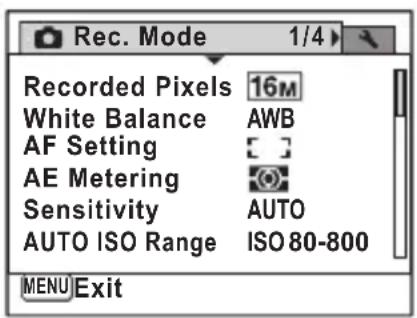
● [Rec. Mode] Menu 2
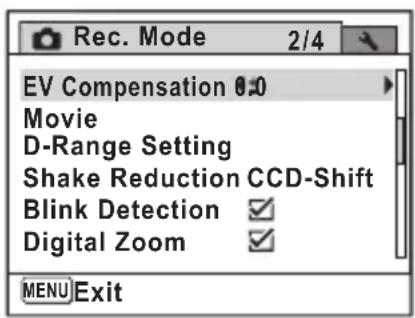
● [Rec. Mode] Menu 3
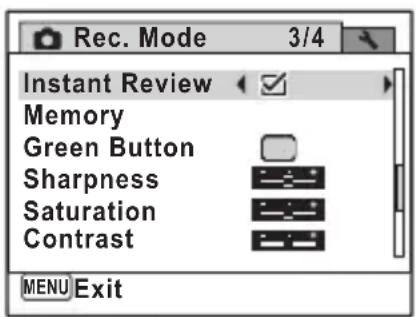
● [Rec. Mode] Menu 4
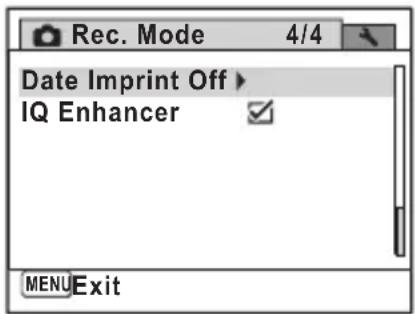
![RICOH RZ18 - ● [Rec. Mode] Menu 4 - 2](/content/2026/05/1046279/images/35ca660456bf389b5e9fcdd0ee76b7ecb4c4f540b0180ff73868dd012338611d.jpg)
- Use the (Green) mode to enjoy easy picture-taking using standard settings, regardless of the settings in the [Rec. Mode] menu (p.76).
- Assigning frequently used functions to the Green button enables you to go straight to the desired function (p.123).
Setting] Menu
| Item Description | Page | |
| Sound | For adjusting the operation volume and playback volume, and setting the start-up sound, shutter sound, key operation sound and self-timer sound | p.191 |
| Date Adjustment For adjusting the date and time p.192 | ||
| World Time For setting the Hometown and Destination p.195 | ||
| Text Size For setting the text size of the menu p.197 | ||
| Language/ 言語 | For setting the language in which menus and messages appear | p.198 |
| Folder Name | For choosing how names are assigned to folders for storing images and sound files | p.199 |
| USB Connection | For setting the USB connection mode (MSC or PTP) when connected to a computer via the USB cable | p.215 |
| Video Out For setting the output format to AV equipment p.200 | ||
| Eye-Fi For starting to transfer images using an Eye-Fi card p.201 | ||
| Brightness Level For changing the brightness of the display p.202 | ||
| Power Saving | For setting the time until the camera enters the power-saving mode | p.203 |
| Auto Power Off | For setting the time until the camera turns off automatically | p.204 |
| Reset | For returning settings to their defaults | p.207 |
| Delete All | For deleting all the saved images and sound files at once | p.152 |
| Pixel Mapping | For mapping out and correcting any defective pixels in the CCD sensor | p.206 |
| Format | For formatting the SD Memory Card/built-in memory | p.190 |
- [Setting] Menu 1
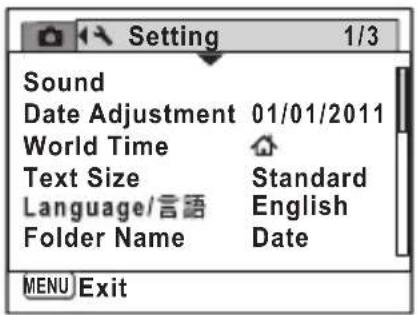
- [Setting] Menu 2
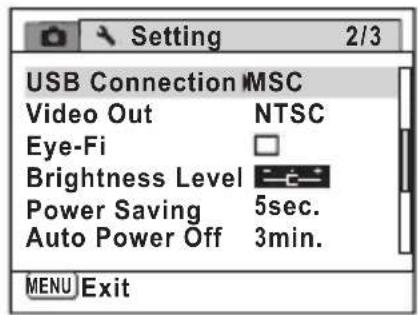
- [Setting] Menu 3
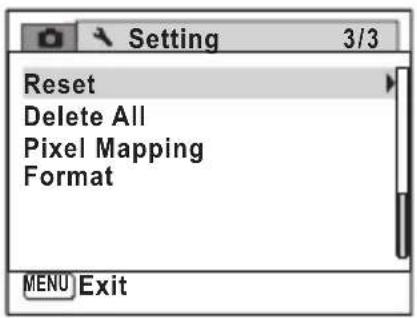
3Taking Pictures
Taking Still Pictures .... 66
Setting the Shooting Functions ..... 102
Recording Movies 127
Saving the Settings (Memory) ...... 131
Taking Still Pictures
Taking Pictures
This camera features a wide range of shooting modes and functions to suit almost any subject or scene. This chapter describes how to take pictures with the most commonly used standard settings (the factory default settings).
1 Press the power switch.
The camera turns on and is ready to take still pictures. In this manual, this is called "still picture capture mode".
2 Confirm the subject and shooting information on the display.
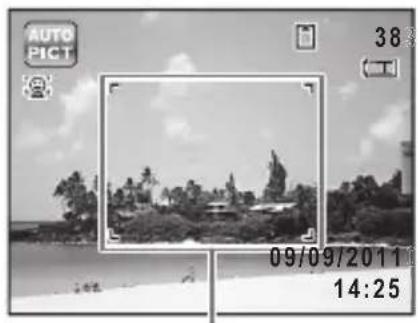
The focus frame in the middle of the display indicates the zone of automatic focusing.
natural_image
Black-and-white landscape photo showing a coastal town with trees and hills, captured in an outdoor setting (no readable text or symbols)Focus frame
When the camera detects a person's face, the Face Detection function is activated and the face detection frame appears (p.72). When the camera detects the pet's full face, a light blue pet detection frame appears, and the shutter is automatically released.
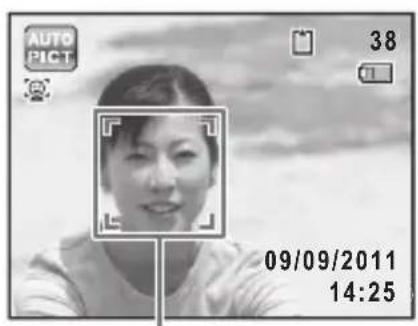
Face detection frame
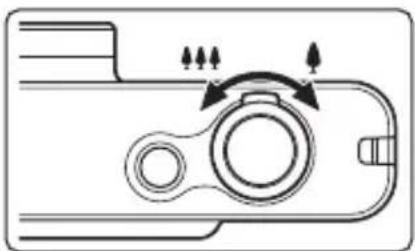
You can change the captured area by turning the zoom lever to the left or right (p.78).
Right ( ♠ ) Enlarges the subject.
Left (▲▲▲) Widens the area that is captured by the camera.
natural_image
Pure mechanical component diagram without any text, numbers, or symbols3 Press the shutter release button halfway.
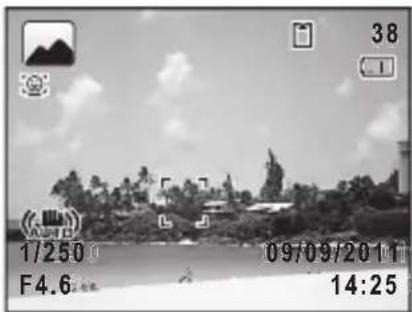
The camera emits focus assist light in dark shooting situations.
The focus frame (or face detection frame) on the display turns green when the camera focuses on the subject at the correct distance.
natural_image
Black-and-white landscape photo showing a coastal town with trees and buildings, no visible text or symbols4 Press the shutter release button fully.
The picture is taken.
The flash discharges automatically depending on the light conditions. The captured image appears on the display (Instant Review: p.69) and is saved to the SD Memory Card or the built-in memory.

Press the Green button to switch to the ● (Green) mode and let the camera set all the shooting functions automatically (p.76).
Using the Shutter Release Button
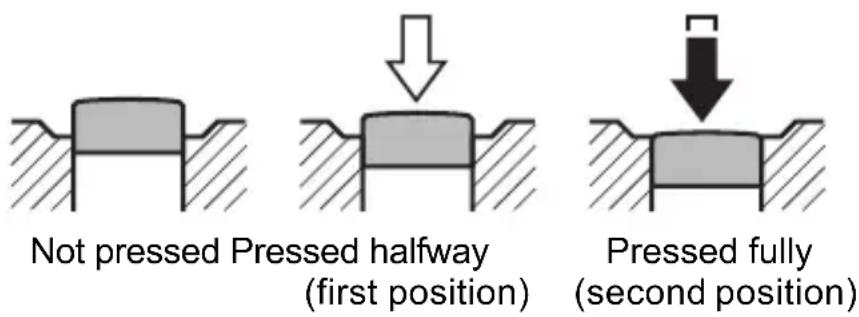
The shutter release button works in a two-step action as follows.
Press halfway
This refers to pressing the shutter release button gently to the first position. This locks the focus setting and the exposure. The green focus frame lights on the display when the shutter release button is pressed halfway and the subject is in focus. If the subject is out of focus, the frame turns white.
Press fully
This refers to pressing the shutter release button all the way down to the fully depressed position. This takes a picture.
Poor focusing conditions
The camera may not be able to focus under the following conditions. In these cases, lock the focus on an object the same distance away as the subject (by pressing and holding the shutter release button halfway), then aim the camera at your subject and press the shutter release button fully.
- Objects that lack contrast such as a blue sky or white wall
- Dark places or objects, or conditions that prevent light being reflected back
- Intricate patterns
- Fast moving objects
- When there is an object in the foreground and an object in the background in the captured area
• Strongly reflected light or strong backlighting (bright background)
Instant Review and Blink Detection
The image appears on the display immediately after it is captured (Instant Review). If the camera detects that the subject's eyes are closed while the Face Detection function (p.72) is activated, the message [Closed eyes have been detected] appears for 3 seconds (Blink Detection).

- When the Face Detection function does not work, Blink Detection also does not function. Even if the subjects' faces are detected, Blink Detection may not function depending on the condition of the detected faces.
- You can also disable the Blink Detection function (p.117).
Setting the Shooting Mode
This camera has a variety of shooting modes that let you take pictures or record movies in different situations simply by choosing the appropriate mode for the particular situation from the Capture Mode Palette.
natural_image
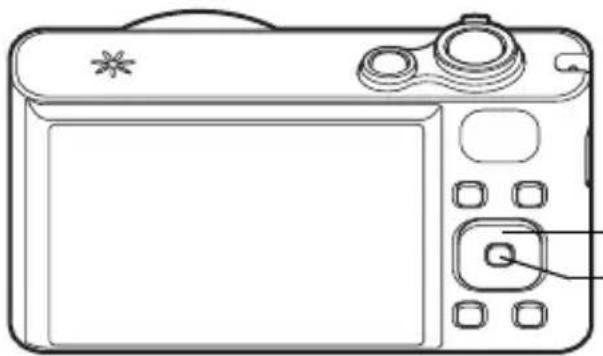
Line drawing of a digital camera with front panel, screen, and control buttons (no text or symbols)Four-way controller OK button
1 Press the four-way controller (▼) in ⚙ mode.
The Capture Mode Palette appears.
2 Use the four-way controller (▲▼◀▶) to choose a shooting mode.
When an icon is selected in the Capture Mode Palette, the guide for the selected shooting mode appears.
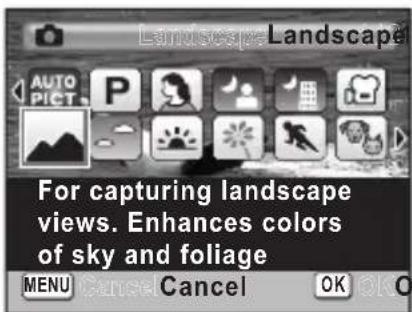
3 Press the OK button.
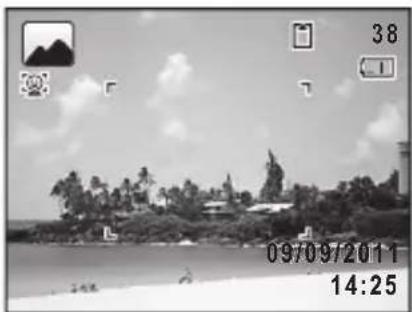
The shooting mode is fixed and the camera returns to capture status.
natural_image
Black-and-white beach scene with palm trees and distant buildings under a cloudy sky (no visible text or symbols)There are 24 shooting modes which can be selected from the Capture Mode Palette.
| Shooting Mode Description Page | ||
| Auto Picture Automatically selects the best capture mode. p.74 | ||
| Program | Used for basic shooting. Various functions can also be set with this mode. | p.75 |
| Portrait | For capturing portraits. Reproduces a healthy and bright skin tone. | p.82 |
| Night Scene Portrait | For images of people at night. Use of a tripod or other support is advised. | p.80 |
| Night Scene | For night time images. Use of a tripod or other support is suggested. | p.80 |
| Movie For recording movies. p.127 | ||
| Landscape | For capturing landscape views. Enhances colors of sky and foliage. | — |
| Blue Sky | Emphasizes saturation of the sky to produce a bright image. | — |
| Sunset For images of sunsets and warm lighting. — | ||
| Flower | For images of flowers. The outline of the flower is softened. | — |
| Sport | For a fast moving subject. Tracks the subject until the picture is taken. | p.87 |
| Pet | Suitable shooting for moving pets. Available to detect registered pets. | p.84 |
| Digital SR Higher sensitivity reduces blur. p.80 | ||
| Natural Skin Tone | For images of people. Enhances skin tones while smoothing blemishes. | p.82 |
| Kids | For capturing moving kids. Reproduces a healthy and bright skin tone. | p.83 |
| Fireworks | For capturing fireworks. Use of a tripod or other support is suggested. | p.80 |
| Frame Composite For capturing images with a frame. p.90 | ||
| Party | For capturing images at parties or in dim light.Increases ISO and clarity. | p.88 |
| Food | For images of food and prepared dishes.Enhances saturation and contrast. | — |
| Candlelight For capturing scenes in candlelight. p.80 | ||
| Text | Captures text in an easy to read manner. Textcontrast can be adjusted. | p.89 |
| Surf & Snow | For bright images such as sand or snow.Accurately meters for bright scenes. | p.87 |
| Digital Wide | Stitches two pictures together to create a widerimage. | p.97 |
| Digital Panorama | Stitches images taken with the camera to create apanoramic photograph. | p.99 |
* In addition to the modes listed above, ■ (Green) mode (p.76) and Voice Recording (p.182) are also available.

- In shooting modes other than Ⓗ, 📋, 📞, (☐), ○, WIDE and ■■, saturation, contrast, sharpness, white balance, etc. are automatically set to the optimal settings for the selected mode.
- Some functions may not be available or may not work fully depending on the selected shooting mode. For details, refer to “Functions Available for Each Shooting Mode” (p.228).
Using the Face Detection Function
With this camera, the Face Detection function is available with all shooting modes.
When the camera detects a person's face in the image, the Face Detection function displays a yellow face detection frame around the face on the display screen, sets the focus (Face Detection AF) and compensates the exposure (Face Detection AE).
If the subject in the face detection frame moves, the frame also moves and changes its own size as it tracks the face.
The Face Detection function can detect up to 32 people's faces. If it detects multiple faces, the camera displays a yellow frame over the main face and white frame(s) over the other face(s). It can display up to a total of 31 frames, including a main frame and white frame(s).
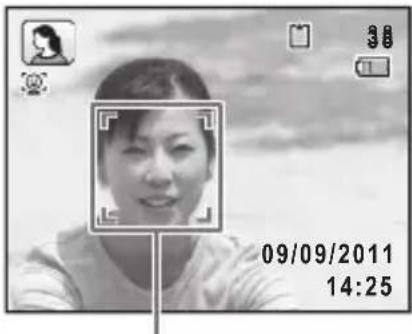
Face detection frame
When the multiple faces are detected
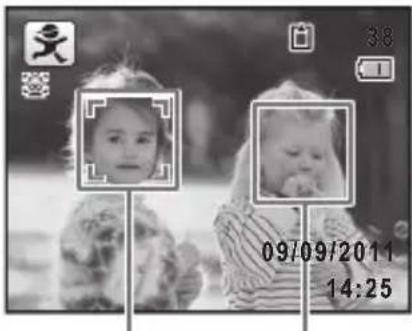
Main frame White frame

- Face Detection AF and AE may not work if the subject is wearing sunglasses, has part of their face covered or is not looking toward the camera.
- If the camera cannot detect the subject's face, the camera focuses using the setting currently selected in [Focusing Area].
- When the Smile Capture function is activated, the shutter may not be released automatically because the Smile Capture function may not work in some situations, such as when the detected face is too small.
- When a pet is detected in AUTO (Auto Picture) or 🎨 (Pet) mode, a light blue pet detection frame appears, and the shutter is automatically released.
To Switch the Face Detection Function
By default, the Face Detection function is set to Face Detection On. You can switch to the Smile Capture function, which automatically releases
the shutter when the subject smiles. The Face Detection function is switched as follows each time the 😊 button is pressed: Smile Capture → Face Detection Off → Face Detection On
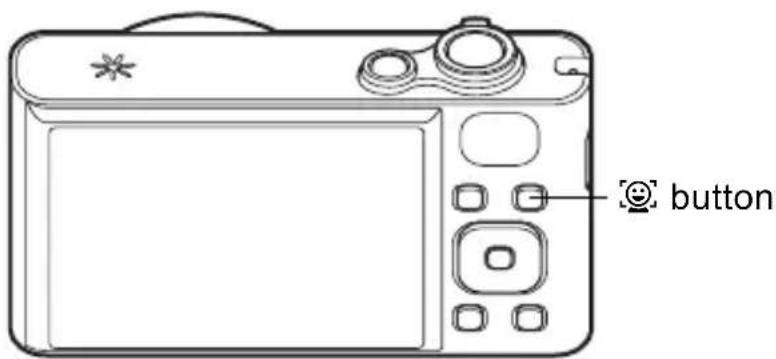
An icon indicating either Face Detection On or Smile Capture appears on the display. (The icon does not appear when the Face Detection function is not activated.)
Face Detection On Smile Capture Face Detection Off
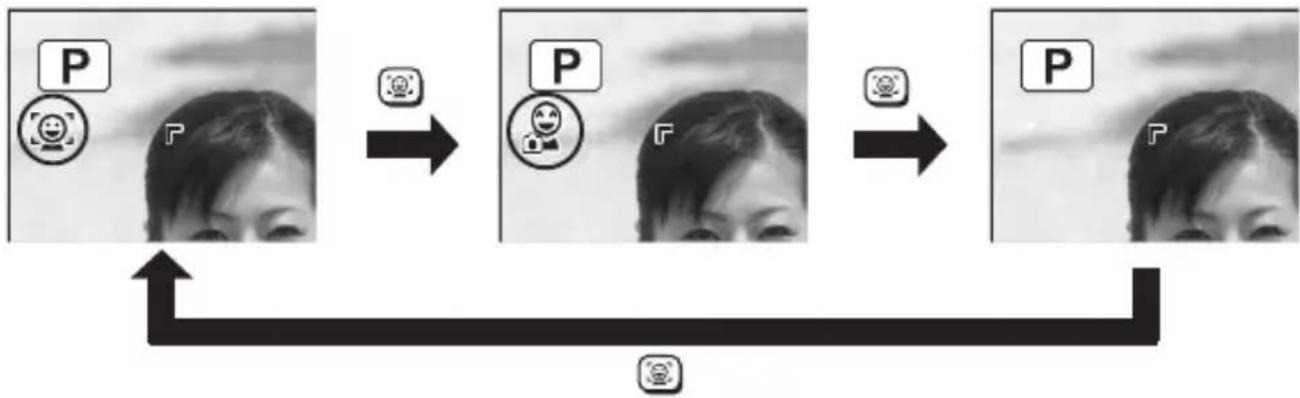
flowchart
graph LR
    A["Face Image"] --> B["User Interface"]
    B --> C["User Interface"]
    C --> D["User Interface"]
    D --> E["User Interface"]
    E --> F["Feedback Loop"]
    style A fill:#f9f,stroke:#333
    style B fill:#ccf,stroke:#333
    style C fill:#cfc,stroke:#333
    style D fill:#fcc,stroke:#333
    style E fill:#ffc,stroke:#333
    style F fill:#cff,stroke:#333

- The Face Detection function cannot be set to off in AUTO PICT (Auto Picture), 🎨 (Portrait), 🌐 (Night Scene Portrait), 🌙 (Pet), 🌖 (Natural Skin Tone) or 🚗 (Kids) mode. In these modes, the Face Detection function is always activated, and only either Face Detection On or Smile Capture can be selected.
- Face Detection On is automatically selected in (Green), AUTO PICT (Auto Picture), 🎨 (Portrait), 🎩 (Night Scene Portrait), 🌐 (Movie), 🌙 (Natural Skin Tone) or 🚫 (Kids) mode. When switching to another mode from one of these modes, the Face Detection setting returns to the previous setting.
- If the Face Detection function is activated when the flash mode is set to t_A (Auto), the flash mode automatically changes to ^ (Flash On + Red-eye).
Taking Pictures Automatically (Auto Picture Mode)
In AUTO PICT (Auto Picture) mode, the camera automatically selects the most appropriate mode depending on the situations and subjects.
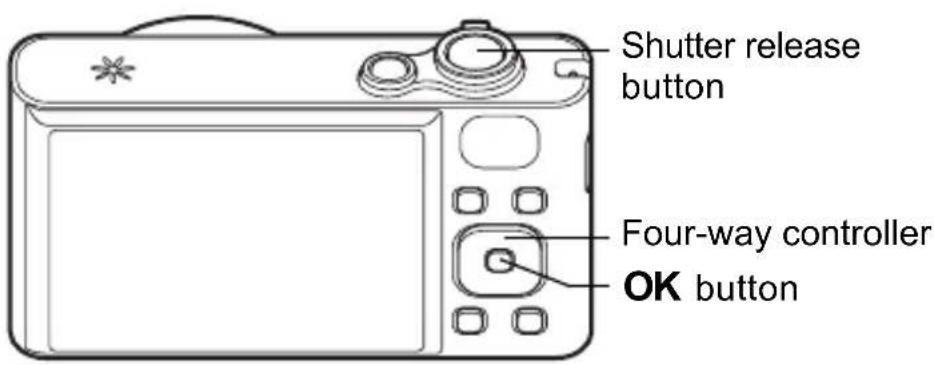
1 Press the four-way controller (▼) in mode.
The Capture Mode Palette appears.
2 Use the four-way controller (▲▼◀▶) to select AUTO PICT.
3 Press the OK button.
The AUTO PICT mode is selected and the camera returns to capture status.
When the camera detects a person's face, the Face Detection function is activated and the face detection frame appears (p.72).
When the camera detects the pet's full face, a light blue pet detection frame appears, and the shutter is automatically released.
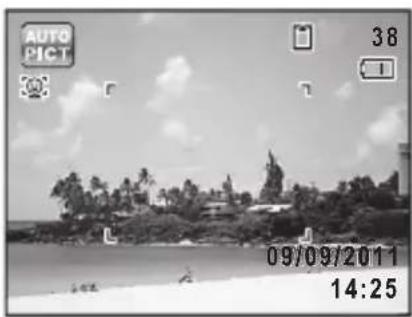
natural_image
Black-and-white beach scene with palm trees and distant buildings under a cloudy sky (no readable text or symbols)4 Press the shutter release button halfway.
The selected shooting mode is displayed on the top left of the screen.
 | Standard Night Scene Night Scene Portrait | ||
 | Landscape Flower Portrait | ||
 | Sport Candlelight Blue Sky | ||
 | Portrait×Blue Sky | Portrait×Backlight | Sunset |
 | Portrait×Sunset | Group Photograph | Text |
The focus frame on the display turns green when the camera focuses on the subject at the correct distance.
5 Press the shutter release button fully.
The picture is taken.

The following restrictions apply in AUTO PICT mode:
- You cannot turn the Face Detection function off.
- The focusing area setting is fixed at [ ] (Multiple).
- The (Flower) mode cannot be selected when using Digital Zoom or Intelligent Zoom.
- If the 📄 (Night Scene) mode is selected when the flash mode is t_A (Auto) or ^ⓧA (Auto + Red-eye), the flash mode automatically changes to ⓣ (Flash Off).
- If the (Night Scene Portrait) mode is selected when the flash mode is A (Auto), the flash mode automatically changes to i (Flash On + Red-eye) when the camera detects a face and determines that the flash is needed.
- When the Smile Capture function is activated, the camera will not detect pets.
Taking Pictures in the Custom Settings (Program Mode)
In ☐ (Program) mode, the camera automatically sets the shutter speed and aperture for taking still pictures. However, you can select other functions such as the flash mode and the number of recorded pixels.
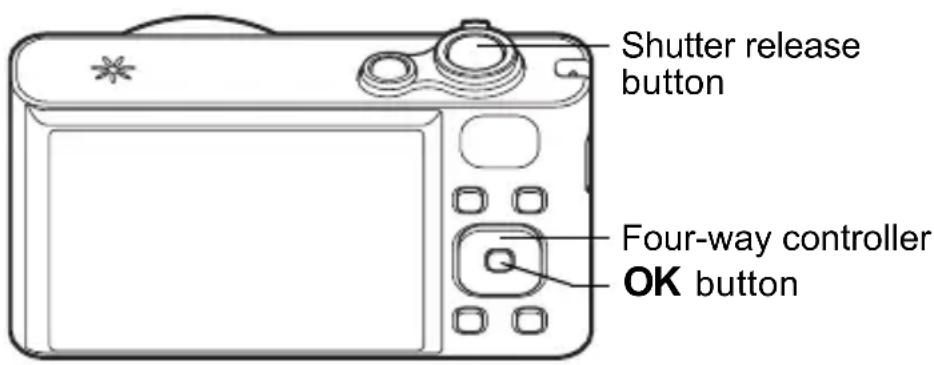
1 Press the four-way controller (▼) in mode.
The Capture Mode Palette appears.
2 Use the four-way controller (▲▼◀▶) to select P.
3 Press the OK button.
The Ⓓ mode is selected and the camera returns to capture status.
When the camera detects a person's face, the Face Detection function is activated and the face detection frame appears (p.72).
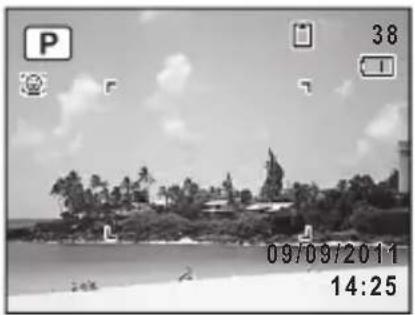
natural_image
Black-and-white beach scene with palm trees, water, and a distant building under a cloudy sky (no visible text or symbols)4 Set the functions you want to change.
Refer to "Setting the Shooting Functions" (p.102 - p.126) for details on how to set the functions.
5 Press the shutter release button halfway.
The focus frame on the display turns green when the camera focuses on the subject at the correct distance.
6 Press the shutter release button fully.
The picture is taken.
Taking Pictures in the Basic Mode (Green Mode)
In ● (Green) mode, you can enjoy easy picture-taking using standard settings, regardless of the settings in the [☐ Rec. Mode] menu.
The ● mode settings are as shown below.
| Flash Mode A (Auto) EV Compensation | |
| Drive Mode □ (Standard) | |
| Focus Mode AF (Standard) | |
| Face Detection On Shake Reduction CO | |
| Information Display | Normal Blink Detec |
| Recorded Pixels | 16M (4608×3456) |
| White Balance | AWB (Auto) |
| Focusing Area | [ ] (Multiple) |
| Focus Assist | ☑ (On) |
| AE Metering | ◎ (Multi-segment metering) |
| Sensitivity | AUTO |
| AUTO ISO Range | 80-800 |
| ±0.0 | |
| Highlight Correction | ☐ (Off) |
| Shadow Correction | ☐ (Off) |
| D-Shift | |
| tion ☑ (On) | |
| Digital Zoom | ☑ (On) |
| Instant Review | ☑ (On) |
| Sharpness | —■—+ (Normal) |
| Saturation | —■—+ (Normal) |
| Contrast | —■—+ (Normal) |
| Date Imprint | Off |
| IQ Enhancer | ☑ (On) |
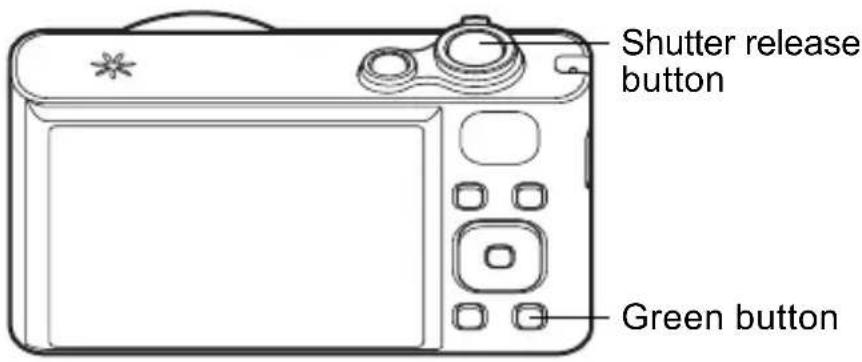
1 Press the Green button in mode.
The camera switches to ● mode.
Press the Green button again to return to the status before ● mode was selected.
When the camera detects a person's face, the Face Detection function is activated and the face detection frame appears (p.72).
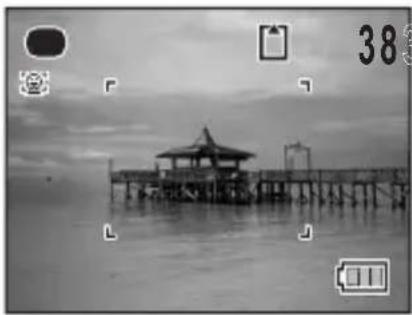
natural_image
Black-and-white photo of a wooden pier with a traditional pavilion on calm water, no visible text or symbols2 Press the shutter release button halfway.
The focus frame on the display turns green when the camera focuses on the subject at the correct distance.
3 Press the shutter release button fully.
The picture is taken.

- The ● mode is available only when it is assigned to the Green button in [Green Button] of the [☐ Rec. Mode] menu (p.123). By default, the ● mode is assigned to the Green button.
- In ■ mode, you cannot change the information on the display by pressing the OK/DISPLAY button.
- If you press the MENU button in ● mode, the [◀ Setting] menu appears. The [◀ Rec. Mode] menu cannot be displayed.
- When the camera is turned off in ● mode, it turns on in ● mode next time the power switch is pressed.
Using the Zoom
You can use the zoom to change the captured area.
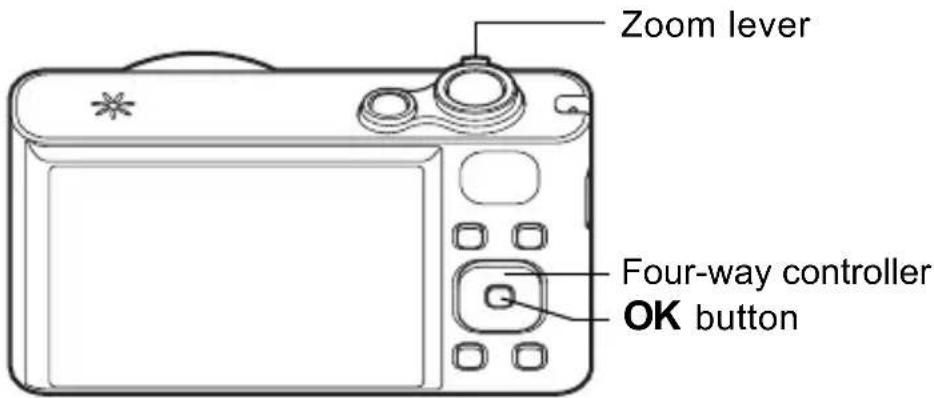
1 Turn the zoom lever in mode.
Right ( ♠ ) Enlarges the subject.
Left (♠♠♠) Widens the area that is captured by the camera.
When you continue to turn to the right ( ♠ ), the camera automatically switches from optical zoom to Intelligent Zoom and stops at the point where the zoom switches to Digital Zoom.
Once the lever is released and turned again, the camera switches to Digital Zoom.
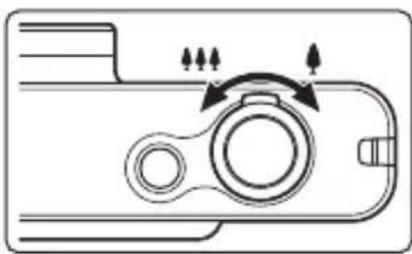
natural_image
Diagram of a mechanical component with arrows indicating motion or force direction (no text or symbols)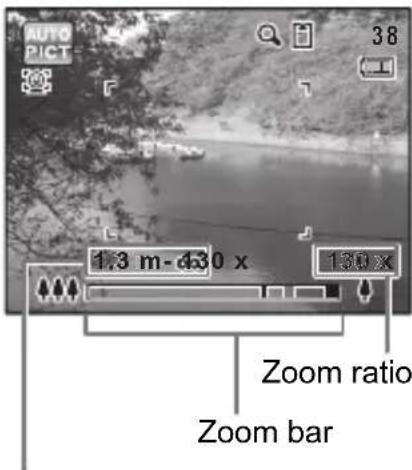
Focus range (during zooming only)
* The focus range is not displayed when the focus mode is set to PF/▲, or the shooting mode is set to ⚙ (Fireworks).
The zoom bar is displayed as follows.
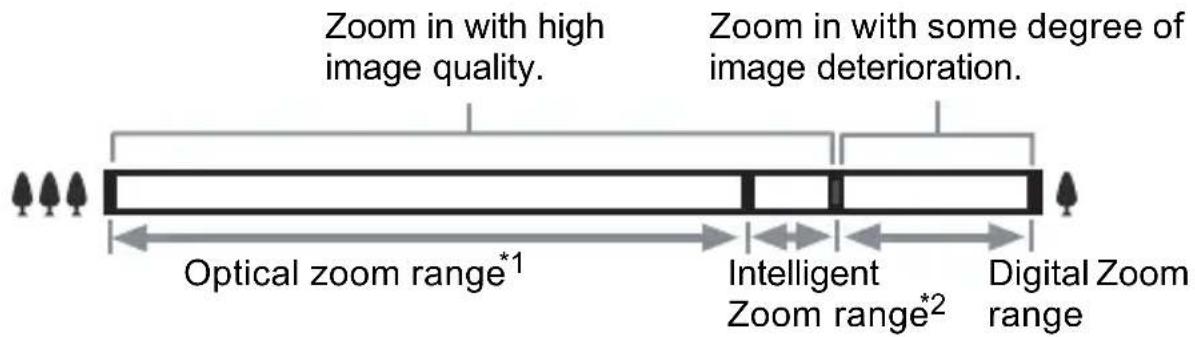
*1 You can zoom in to a maximum of 18× optically.
*2 The Intelligent Zoom range differs depending on the number of recorded pixels. See the following table.
Recorded pixels and the maximum zoom ratio
| Recorded Pixels | Intelligent Zoom Digital Zoom | |
| 16M Not Available (optical zoom only) | Equivalent to approx. 130× | |
| 12M 151/12M 169 Not Available (optical zoom only) | ||
| 7M Approx. 27× | ||
| 3M Approx. 40.5× | ||
| 2M 169 Approx. 43.2× | ||
| 2M Approx. 51.8× | ||
| 640 | Approx. 130×(Same as Digital Zoom) | |

- It is recommended to use a tripod or other support to prevent camera shake when taking pictures at high zoom.
• Pictures taken in the Digital Zoom range appear grainier than pictures taken in the optical zoom range. - Intelligent Zoom is not available under the following conditions:
- When the number of recorded pixels is set to 16M/12M 1:1/12M 16:9 (optical zoom is available)
- In (Digital SR) mode
- When the sensitivity is set to 3200 or 6400
- The image enlarged using Intelligent Zoom may appear rough on the display. This does not affect the quality of the recorded image.
- In (Movie) mode, only Digital Zoom is available while recording.
To Set the Digital Zoom
The Digital Zoom is set to ☑ (On) in the default setting. To take pictures using only the optical zoom and Intelligent Zoom, set the Digital Zoom to □ (Off).
1 Press the MENU button in mode.
The [Rec. Mode] menu appears.
2 Use the four-way controller (▲▼) to select [Digital Zoom].
3 Use the four-way controller (◀▶) to select √ or □.
√ Uses Digital Zoom
□ Uses only optical zoom and Intelligent Zoom
The setting is saved.
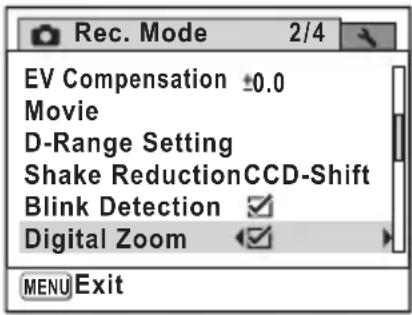
4 Press the MENU button.
The camera returns to capture status.
Saving the Digital Zoom Function setting 📄p.131
Taking Pictures of Dark Scenes (Night Scene Portrait/Night Scene/Digital SR/Fireworks/Candlelight Mode)
You can choose a shooting mode appropriate for taking pictures of dark scenes, such as nightscapes.
 Night Scene Portrait Night Scene Portrait | For images of people at night. Use of a tripod or other support is advised.If the Face Detection function is activated when the flash mode is set to A (Auto), the flash mode automatically changes to B (Flash On + Red-eye). |
 Night Scene Night Scene | For night time images. Use of a tripod or other support is suggested. |
| ( ) Digital SR | Higher sensitivity reduces blur. The sensitivity is automatically set to AUTO and the number of recorded pixels is fixed at 5M (2592×1944). |
| Fireworks | For capturing fireworks. Use of a tripod or other support is suggested. The shutter speed is fixed at 4 sec. and the sensitivity is fixed at the minimum value. |
| Candlelight For capturing scenes in candlelight. | |
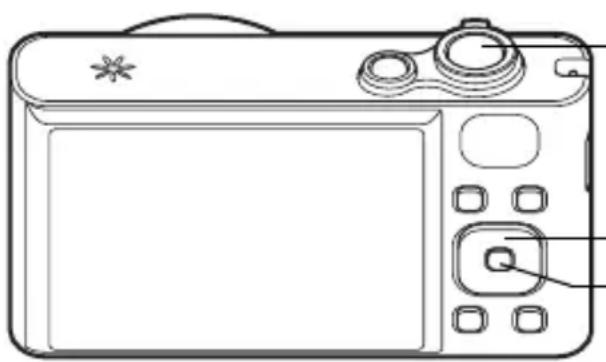
natural_image
Line drawing of a digital camera with front panel, screen, and control buttons (no text or symbols)Shutter release button
Four-way controller OK button
1 Press the four-way controller (▼) in mode.
The Capture Mode Palette appears.
2 Use the four-way controller (▲▼◀▶) to select 📋, 📋, (☐), 🔍 or ✉.
3 Press the OK button.
The 🎨, 📞, (☐), ⚙ or ⚙ mode is selected and the camera returns to capture status.
When the camera detects a person's face, the Face Detection function is activated and the face detection frame appears (p.72).
4 Press the shutter release button halfway.
The focus frame on the display turns green when the camera focuses on the subject at the correct distance.
5 Press the shutter release button fully.
The picture is taken.

- The shutter speed tends to be slower when taking pictures of dark scenes.
- To prevent camera shake, set the Shake Reduction function (p.118) or use a tripod and/or remote control (optional) (p.95), or the self-timer function (p.92).
Taking Pictures of People (Portrait/Natural Skin Tone Mode)
The 🎨 (Portrait) and 🎨 (Natural Skin Tone) modes are suitable for taking pictures of people. The Face Detection function (p.72) operates for each shooting mode, making it easier to emphasize the subject's face when taking pictures.
| Portrait | For capturing portraits. Reproduces a healthy and bright skin tone. |
| Natural Skin Tone | For images of people. Enhances skin tones while smoothing blemishes. |
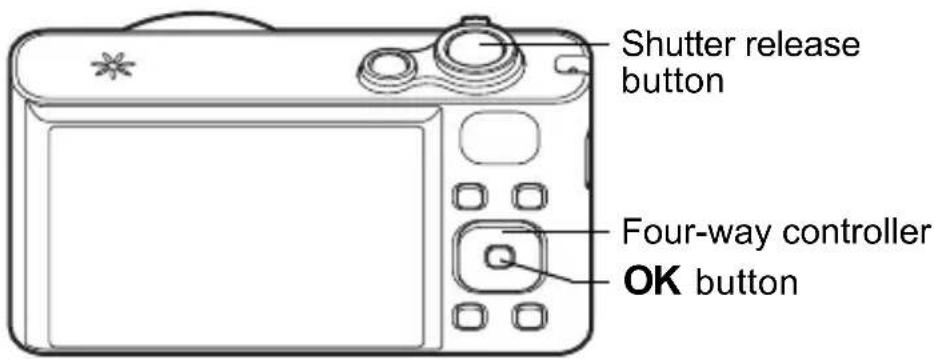
1 Press the four-way controller (▼) in mode.
The Capture Mode Palette appears.
2 Use the four-way controller (▲▼◀▶) to select 🏠 or 🏠.
3 Press the OK button.
The 🔒 or 🔒 mode is selected and the camera returns to capture status.
When the camera detects a person's face, the Face Detection function is activated and the face detection frame appears (p.72).
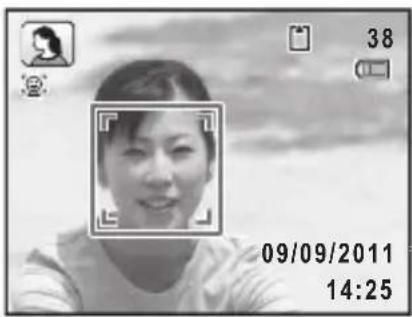
4 Press the shutter release button halfway.
The focus frame on the display turns green when the camera focuses on the subject at the correct distance.
5 Press the shutter release button fully.
The picture is taken.
Taking Pictures of Children (Kids Mode)
The ⚫ (Kids) mode is suitable for taking pictures of moving children. It also reproduces healthy and bright skin tone. The Face Detection function (p.72) operates automatically for this mode, making it easier to emphasize the subject's face when taking pictures.
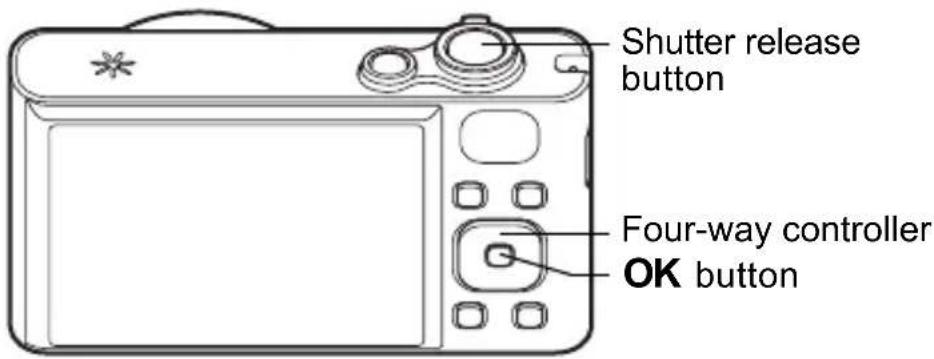
1 Press the four-way controller (▼) in mode.
The Capture Mode Palette appears.
2 Use the four-way controller (▲▼◀▶) to select ✗.
3 Press the OK button.
The ⚡ mode is selected and the camera returns to capture status.
When the camera detects a person's face, the Face Detection function is activated and the face detection frame appears (p.72).
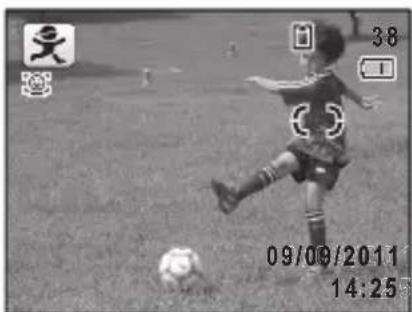
natural_image
Black-and-white photo of a soccer player kicking a ball on the field, with no visible text or symbols in the main image area.4 Press the shutter release button halfway.
The focus frame on the display turns green when the camera focuses on the subject at the correct distance.
5 Press the shutter release button fully.
The picture is taken.
Taking Pictures of Your Pet (Pet Mode)
In ☺ (Pet) mode, the camera automatically releases the shutter when the pet is detected. Also the camera can register pets.
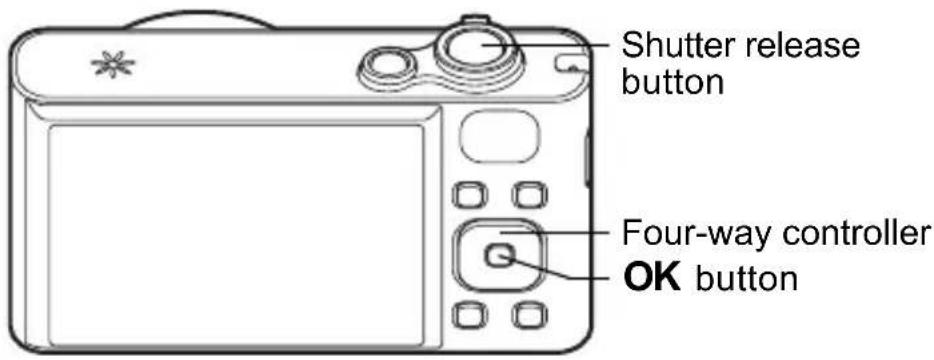
1 Press the four-way controller (▼) in ⚙ mode.
The Capture Mode Palette appears.
2 Use the four-way controller (▲▼◀▶) to select 🎨.
3 Press the OK button.
The ⚙ mode is selected and the camera returns to capture status.
When the camera detects the pet's full face, a light blue pet detection frame appears, and the shutter is automatically released.
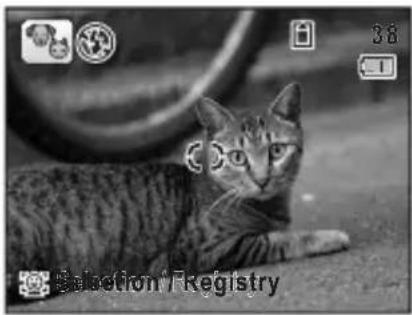
natural_image
Black-and-white photo of a tabby cat sitting on the ground, with camera app icons and a 'Selection' Registry label at the bottom (no other readable text or symbols)To Register the Pet
1 Press the 😊 button on the capture status screen in 🎨 (Pet) mode.
The pet selection screen appears.
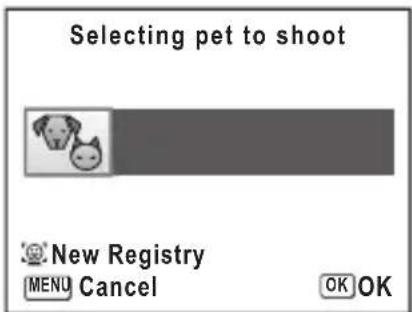
2
Press the 😊 button again.
The pet registration screen appears. Aiming the camera at the pet's full face automatically releases the shutter and the pet registration confirmation dialog appears.
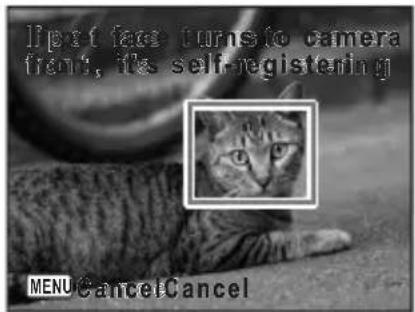
Pet registration screen
When you select [Registry] using four-way controller (▲) and press the OK button, the picture of the registered pet is indicated on the upper-left corner of the display and the camera returns to capture status.
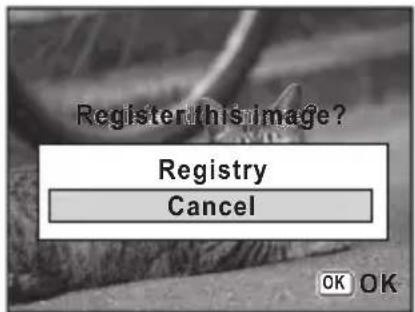
Registry confirmation screen
When the camera detects the pet's full face, a light blue pet detection frame appears, and the shutter is automatically released. You can also take a picture by pressing the shutter release button.
When you press the 😊 button twice in the capture status screen, the pet registration screen appears to register another pet. You can register up to three pets.
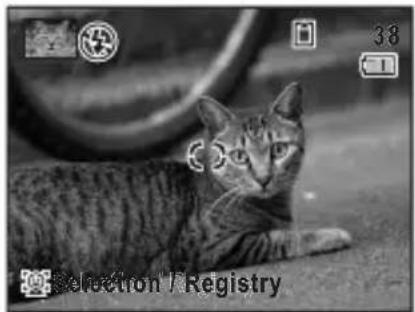
natural_image
Black-and-white photo of a tabby cat resting on grass, with camera control buttons and no readable text or symbols.Capture status screen

- When you press the MENU button on the pet registration screen, the registration will be canceled and the camera returns to still picture capture mode.
- Only dogs and cats can be registered in 🎨 (Pet) mode. Other animals or human faces cannot be registered. You may not be able to register the pet's face if, for example, the pet's face is too small.
- The camera may not detect the registered pet's face, depending on the shooting situation.
- [Focusing Area] is set to ⚫ (Automatic Tracking AF) and the flash mode is set to ⚙ (Flash Off). However, you can change these settings.
• [Focus Assist] is set to off. However, you can change this setting.
To Switch the Pet You Want to Shoot
If you have registered pets, choose the pet you want to shoot.
1 Press the 😊 button on the capture status screen in 🎩 (Pet) mode.
The pet registration screen appears.
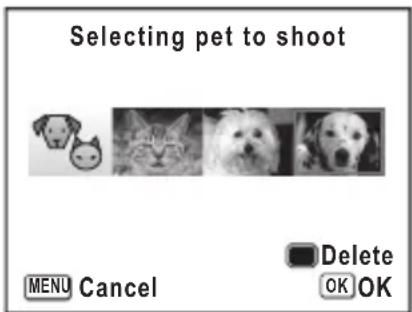
2 Use the four-way controller (◀▶) to select the pet you want to shoot.
3 Press the OK button.
The selected pet is switched to the pet you want to shoot and the camera returns to capture status.
To Delete the Pet from the Entry
1 Press the 😊 button on the capture status screen in 🎩 (Pet) mode.
The pet registration screen appears.
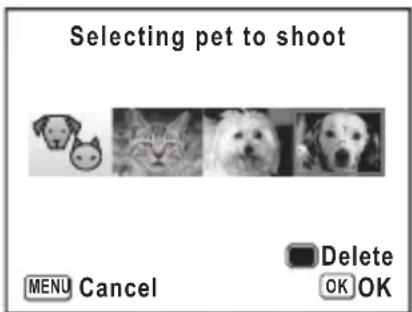
2 Use the four-way controller (◀▶) to select the pet you want to delete.
3 Press the Green button.
4 Use the four-way controller (▲) to select [Delete].
5 Press the OK button.
The selected pet is deleted.
Taking Pictures of Sports and Leisure Activities (Sport/Surf & Snow Mode)
 | Sport | For a fast moving subject. Tracks the subject until the picture is taken. |
 | Surf & Snow | For bright images such as sand or snow. Accurately meters for bright scenes. |
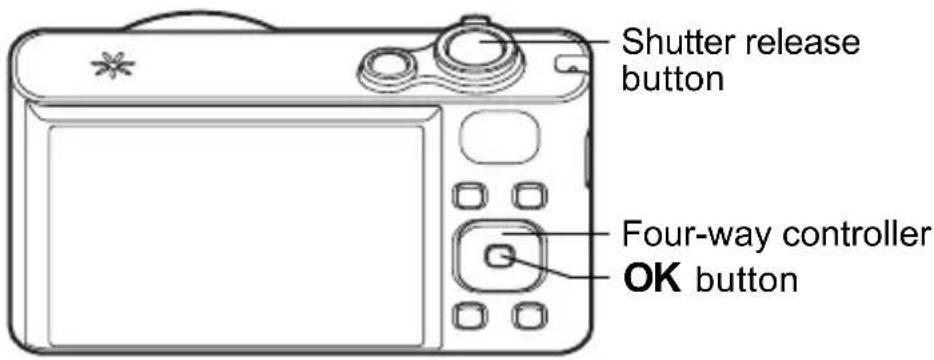
1 Press the four-way controller (▼) in ⚙ mode.
The Capture Mode Palette appears.
2 Use the four-way controller (▲▼◀▶) to select 🎨 or 🌘.
3 Press the OK button.
The 🎨 or 🌐 mode is selected and the camera returns to capture status.
When the camera detects a person's face, the Face Detection function is activated and the face detection frame appears (p.72).
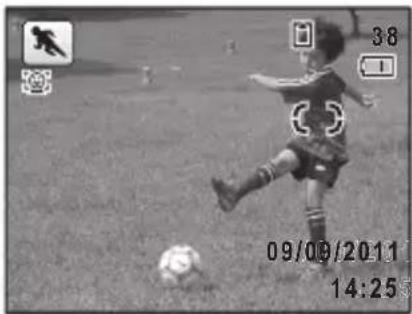
natural_image
Black-and-white photo of a child kicking a soccer ball on a field, with no visible text or symbols in the main image area.4 Press the shutter release button halfway.
The focus frame on the display turns green when the camera focuses on the subject at the correct distance.
When the ⚡ mode is selected, the focus frame follows the subject while the shutter release button is pressed halfway.
5 Press the shutter release button fully.
The picture is taken.
Taking Pictures Indoors (Party Mode)
The ⚡ (Party) mode is suitable for taking pictures indoors, such as snapshots at parties.
natural_image
Line drawing of a digital camera with front panel, screen, and control buttons (no text or symbols)Shutter release button
Four-way controller
OK button
1 Press the four-way controller (▼) in mode.
The Capture Mode Palette appears.
2 Use the four-way controller (▲▼◀▶) to select ⚡.
3 Press the OK button.
The ⬇ mode is selected and the camera returns to capture status.
When the camera detects a person's face, the Face Detection function is activated and the face detection frame appears (p.72).
4 Press the shutter release button halfway.
The focus frame on the display turns green when the camera focuses on the subject at the correct distance.
5 Press the shutter release button fully.
The picture is taken.
Taking Pictures of Text (Text Mode)
The ☐ (Text) mode allows you to take clear pictures of written text. This is convenient for capturing a digital copy of an important document or enhancing legibility of small print.
| A | Color Maintains | the original color of the text. |
| A | Neg. Color Reverses the color of the text. | |
| A | B & W Turns the color of the text into black and white. | |
| A | Neg. B & W Turns the color of the text into reversed black and white. |
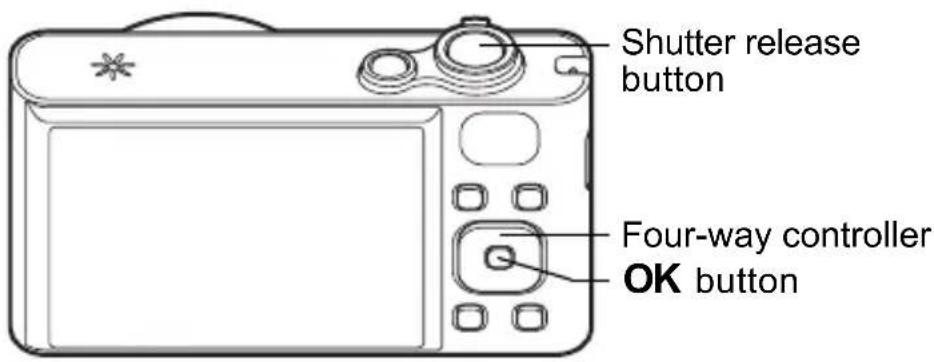
1 Press the four-way controller (▼) in mode.
The Capture Mode Palette appears.
2 Use the four-way controller (▲▼◀▶) to select A.
3 Press the OK button.
The A mode selection screen appears.
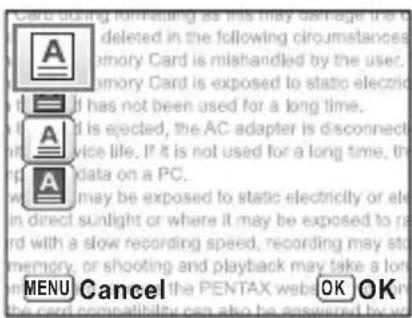
4 Use the four-way controller (▲▼) to select A, A, A or A.
5 Press the OK button.
The selected icon appears and the camera returns to capture status.
When the camera detects a person's face, the Face Detection function is activated and the face detection frame appears (p.72).
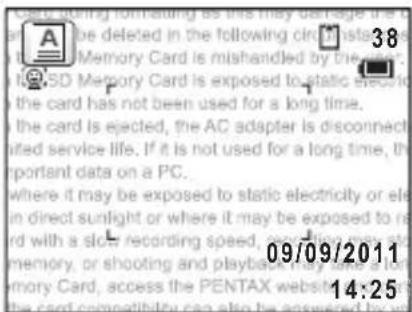
6 Press the shutter release button halfway.
The focus frame on the display turns green when the camera focuses on the subject at the correct distance.
7 Press the shutter release button fully.
The picture is taken.
Framing Your Pictures (Frame Composite Mode)
In ☐ (Frame Composite) mode, you can take pictures using the frames stored in the camera.
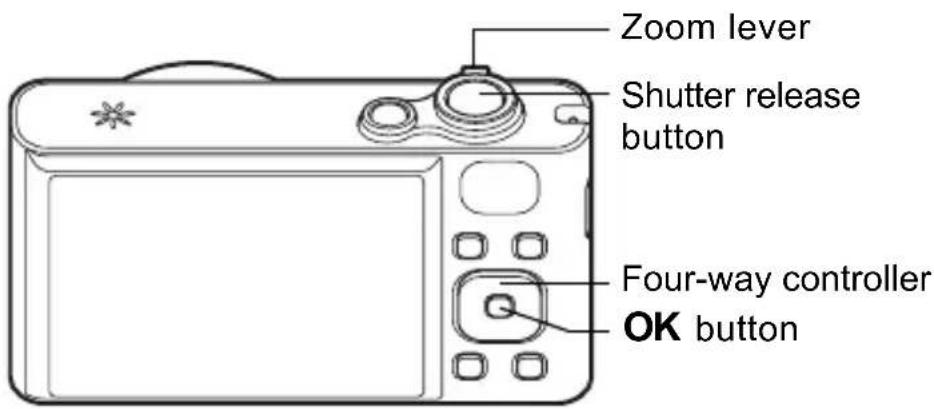
1 Press the four-way controller (▼) in ⚙ mode.
The Capture Mode Palette appears.
2 Use the four-way controller (▲▼◀▶) to select ○.
3 Press the OK button.
The 9-frame display of the frame selection screen appears.
4
Use the four-way controller (▲▼◀▶) to choose the frame you want to use.
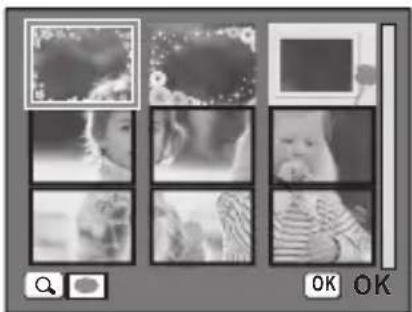
natural_image
Grid of grayscale photo frames showing a baby and adult, with no visible text or symbols5
Turn the zoom lever to the right (Q).
The selected frame appears in single-image display.
You can choose another frame using either of the following operations.
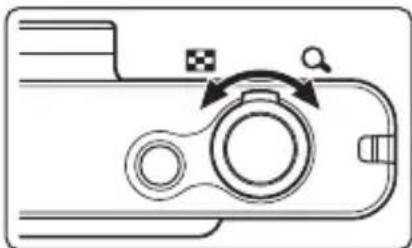
natural_image
Diagram of a camera lens system with no text or symbols| Four-way controller ( ◀▶ ) | Press to choose a different frame. |
| Zoom lever to the left ( ☑ ) | Returns to the 9-frame display of the frame selection screen, and then lets you choose a different frame in the same way as Step 4. |
6
Press the OK button.
The framed image appears on the display. When the camera detects a person's face, the Face Detection function is activated and the face detection frame appears (p.72).
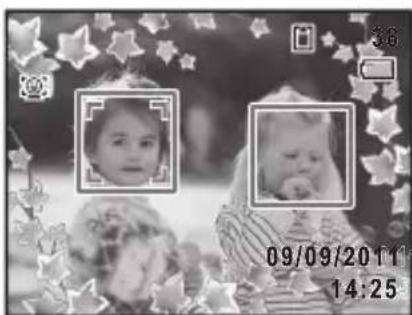
natural_image
Black-and-white photo of two baby faces with star patterns and camera interface overlays (no readable text or symbols)7
Press the shutter release button halfway.
The focus frame on the display turns green when the camera focuses on the subject at the correct distance.
8
Press the shutter release button fully.
The picture is taken.

- The number of recorded pixels is fixed at 3M (2048×1536).
- When the camera leaves the factory, it includes 3 default frames built-in. (The CD-ROM supplied with the camera contains a total of 90 frames, including the default frames.)
Optional Frames
The optional frames are stored in the CD-ROM (S-SW121) supplied with the camera. To use these frames, copy them from the CD-ROM (p.172). These optional frames are deleted if the files on the built-in memory are deleted with a computer or if the built-in memory is formatted.
Adding a Frame to a captured image 📋p.169
Using the Self-timer
In Self-timer mode, the picture is taken ten seconds or two seconds after the shutter release button is pressed.
Stabilize the camera with a tripod or other support when taking a picture using the self-timer.
| Self-timer | Use this mode when you want to be included in a group picture. The picture is taken approximately ten seconds after the shutter release button is pressed. |
| 2 sec. Self-timer | Use this mode to avoid camera shake. The picture is taken approximately two seconds after the shutter release button is pressed. |
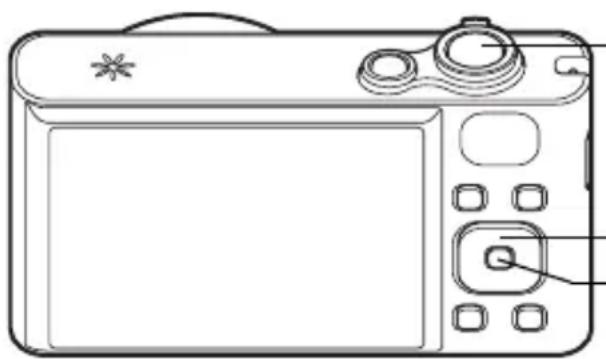
natural_image
Line drawing of a digital camera with control panel and display screen (no text or symbols)Shutter release button
Four-way controller OK button
1 Press the four-way controller (▲) in ⏻ mode.
The [Drive Mode] screen appears.
2 Use the four-way controller (◀▶) to select ⚙ and press the four-way controller (▼).
3
Use the four-way controller (◀▶) to select ⏻ or ⏻2s and press the OK button.
The camera is ready to take the picture using the self-timer.
When the camera detects a person's face, the Face Detection function is activated and the face detection frame appears (p.72).
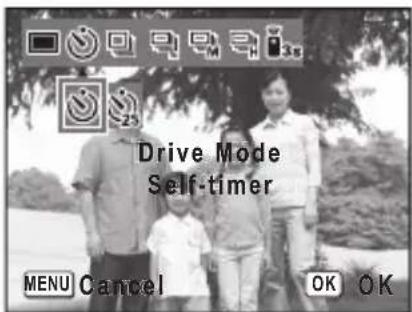
4
Press the shutter release button halfway.
The focus frame on the display turns green when the camera focuses on the subject at the correct distance.
5
Press the shutter release button fully.
The picture is taken ten seconds or two seconds later.

Focusing may be compromised if you move the camera while the self-timer lamp is blinking when taking still pictures.

- In (Movie) mode, recording will start after ten seconds (or two seconds).
- Press the shutter release button halfway while the self-timer is engaged to stop the countdown and press fully to restart the countdown.
- 2s cannot be selected while the (Green) mode setting remains the default. Select 2s in another shooting mode and then switch the shooting mode to .
Taking a Series of Pictures (Continuous Shooting/Burst Shooting Mode)
In these modes, pictures are taken continuously as long as the shutter release button is pressed.
| Continuous Shooting | Each time a picture is taken, the image is saved in the memory before the next image is taken. The higher the image quality, the longer the interval between shots.You can continue shooting until the memory of the SD Memory Card or the built-in memory is full. |
| Burst Shooting(L) | The number of recorded pixels is fixed at 5M (2592×1944) and pictures are taken consecutively. The interval between shots becomes shorter in the following sequence: □L, □M, and □H. |
| Burst Shooting(M) | |
| Burst Shooting(H)* |
* When [Shake Reduction] in the [☐ Rec. Mode] menu is set to [CCD-Shift] (p.118), the CCD shifting sound may occur during shooting. This is not a malfunction.

The number of pictures that can be taken consecutively and the frame rate per second vary depending on the shooting condition.
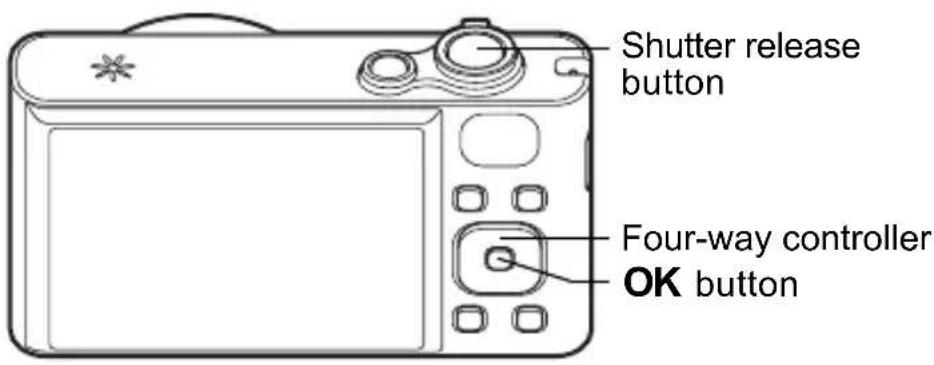
1 Press the four-way controller (▲) in ⚙ mode.
The [Drive Mode] screen appears.
2 Use the four-way controller (◀▶) to select, □, □, □M or □H and press the OK button.
The camera is ready to take a series of pictures.
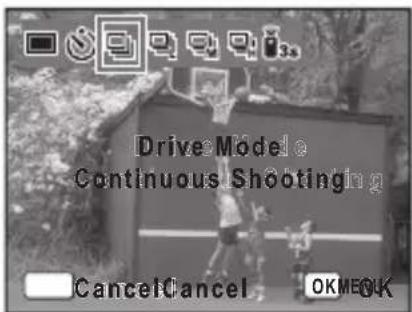
3 Press the shutter release button halfway.
The focus frame on the display turns green when the camera focuses on the subject at the correct distance.
4 Press the shutter release button fully.
Pictures are taken continuously as long as you keep the shutter release button pressed.

- The flash does not discharge in ☐, ☐, ☐ and ☐ modes.
- □, □, □ and □ cannot be selected in ● (Green), 📁 (Movie), 🌿 (Fireworks), 🕒 (Frame Composite), WIDE (Digital Wide) or 🖱 (Digital Panorama) mode.
- Digital Zoom and Intelligent Zoom are not available in ☐, ☐ and ☐ modes.

- The focus, exposure and white balance are locked with the first shot.
- When the Face Detection function is activated (p.72), it works only when taking the first shot.
- The Blink Detection function works only for the last shot.
- In AUTO (Auto Picture) mode, pictures are taken consecutively in the shooting mode first selected.
Taking Pictures Using the Remote Control Unit (Optional)
You can use the remote control (optional) to take pictures while you are away from the camera.
| 3S | 3-sec Remote Control | The shutter will be released after about three seconds when the shutter release button on the remote control unit is pressed. |
| 0-sec Remote Control | The shutter will be released immediately when the shutter release button on the remote control unit is pressed. |
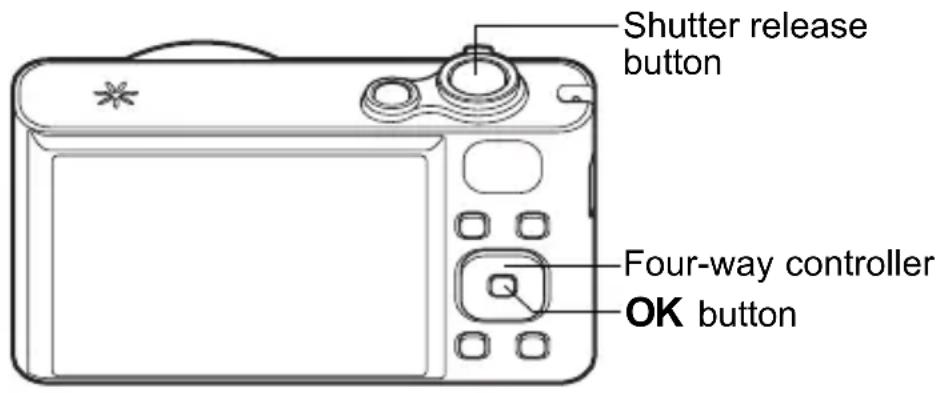
1 Press the four-way controller (▲) in mode.
The [Drive Mode] screen appears.
Use the four-way controller (◀▶) to select _3S and press the four-way controller (▼).
Use the four-way controller (◀▶) to select 3s or and press the OK button.
The self-timer lamp begins to blink slowly and the camera is ready to take a picture with the remote control.
When the camera detects a person's face, the Face Detection function is activated and the face detection frame appears (p.72).
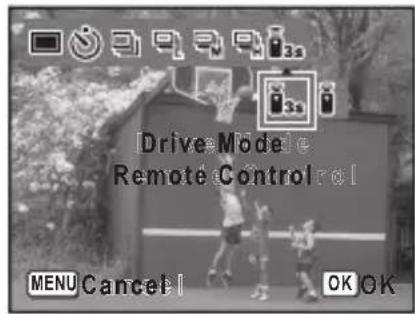
Point the remote control at the remote control receiver and press the shutter release button on the remote control.
The focus frame turns green when the subject is in focus and the camera takes a picture at the following timing.
When 3s (3-sec Remote Control) is selected:
The self-timer lamp blinks quickly and the camera takes a picture after about three seconds.
When ☐ (0-sec Remote Control) is selected:
The camera takes a picture immediately.

- The operating range is approx. 4 m (13 ft) from the front of the camera when using the remote control unit.
- In 📋 (Movie) mode, pressing the shutter release button again stops the recording.
- The camera takes a picture even if the focus is not achieved.
- If the shutter release button on the camera is pressed halfway during the countdown, the countdown stops. If the shutter release button on the remote control is pressed again, the camera starts the countdown again.
• 3s/ cannot be selected in (Green) mode. - The self-timer lamp does not flash in 🎨 (Pet) mode.
Using the Digital Wide Function (Digital Wide Mode)
In WIDE (Digital Wide) mode, you can stitch two vertical images captured with this camera into a single frame up to approx. 19 mm coverage (35 mm film equivalent).
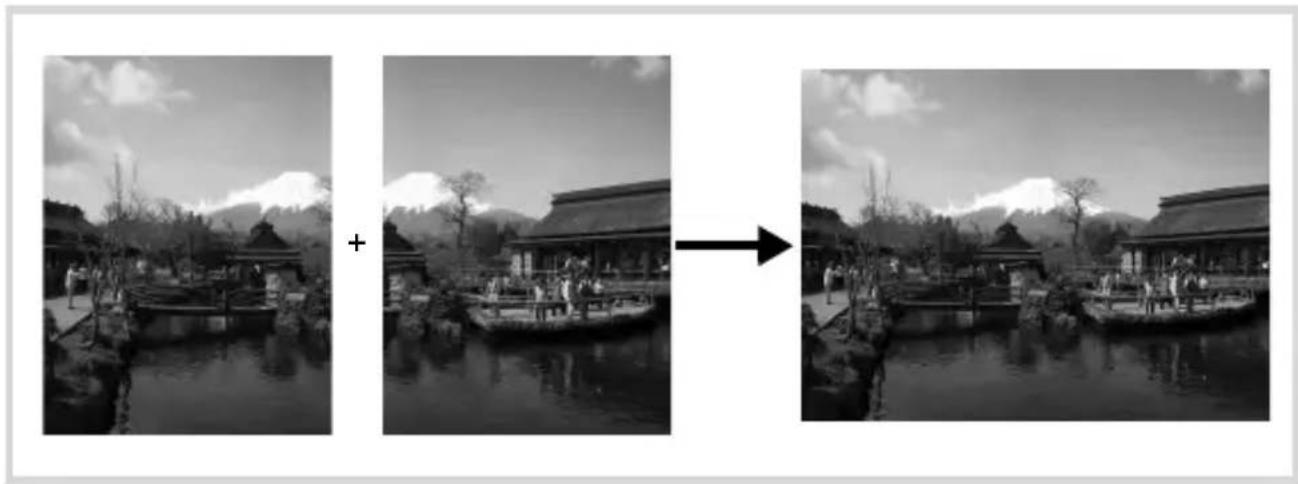
natural_image
Black-and-white photo sequence showing a traditional Chinese garden scene with pavilions, a pond, and mountains in the background (no text or symbols)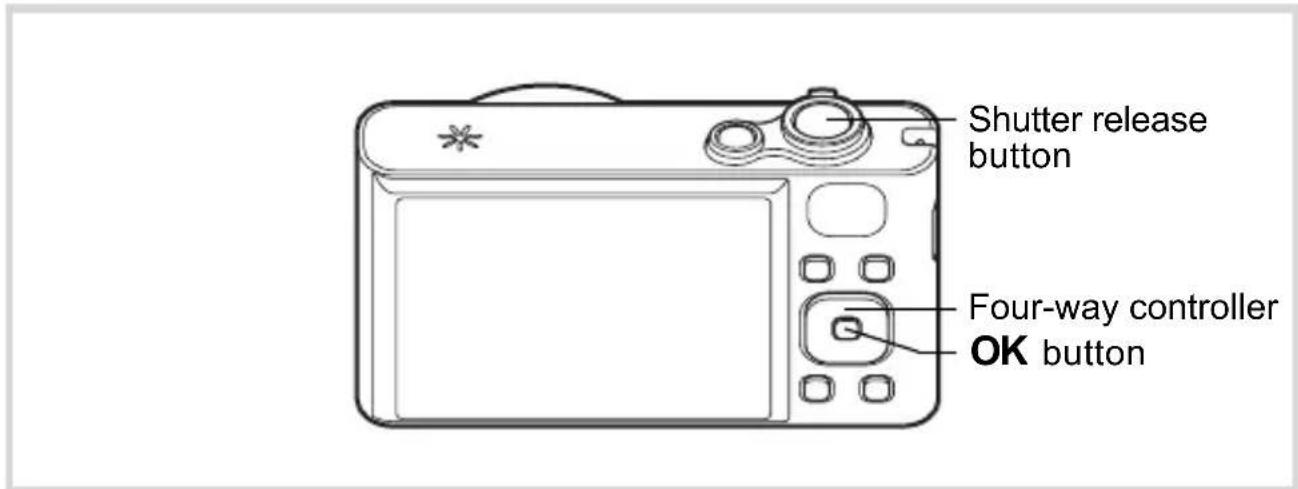
1 Press the four-way controller (▼) in mode.
The Capture Mode Palette appears.
2 Use the four-way controller (▲▼◀▶) to select WIDE.
3
Press the OK button.
The camera enters the WIDE mode.
Turn the camera 90° clockwise and align your first picture.
When the camera detects a person's face, the Face Detection function is activated and the face detection frame appears (p.72).
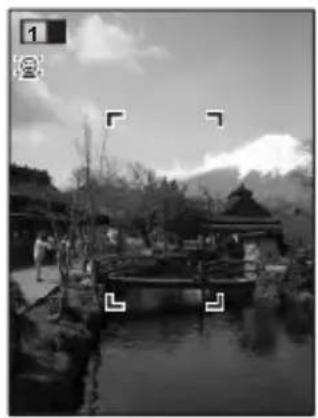
natural_image
Black-and-white photo of a traditional Japanese garden with a pavilion, pond, and distant mountains under cloudy sky (no visible text or symbols)4
Press the shutter release button halfway.
The focus frame on the display turns green when the camera focuses on the subject at the correct distance.
5
Press the shutter release button fully.
The first captured image is temporarily saved, and the shooting screen for the second image is displayed.
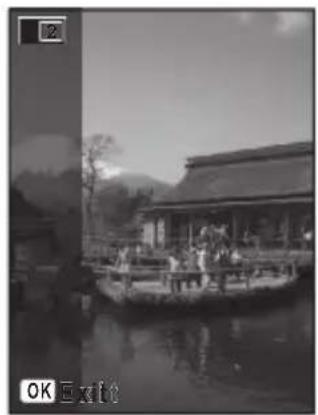
natural_image
Black-and-white photo of a traditional Japanese town with wooden buildings and people on a river, mountains in background (no visible text or symbols)6
Take the second image.
Overlap the image on the preview guide on the left of the screen to compose the second image. Repeat Steps 4 and 5 to take the second image.
The stitched first and second image appears on the display (Instant Review), and then is saved.

• To minimize distortion when taking the second image, turn the camera so that it pivots around the right edge of the preview guide on the screen.
- Some distortion may result from moving objects, repeating patterns, or if nothing exists when overlapping the first and second image on the preview guide.
- When the Face Detection function is activated (p.72), it works only when taking the first image (Blink Detection does not work.).
- The stitched together images are saved with the pixel size of 5M (2592×1944).
To Cancel after Taking the First Shot
1 When the shooting screen for the second image is displayed in Step 5 on p.98, press the OK button.
A confirmation dialog appears.
2 Use the four-way controller (▲▼) to select an option and press the OK button.
| Save Saves the first image and you can retake the first shot. The first image is saved in 3M (2048×1536). |
| Discard Discards the first image and you can retake the first shot. |
| Cancel Returns to the shooting screen for the second image. |
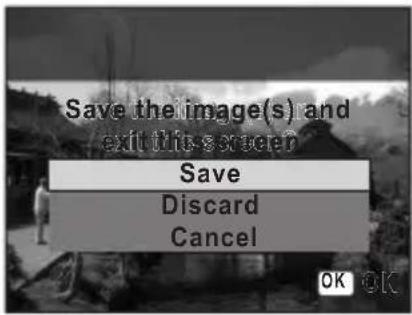
Taking Panoramic Pictures (Digital Panorama Mode)
In ■■ (Digital Panorama) mode, you can stitch together two or three captured frames to create a panoramic photograph with the camera.
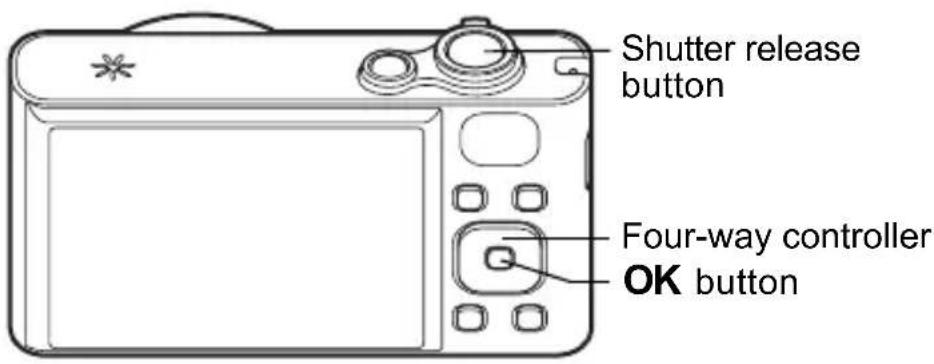
1 Press the four-way controller (▼) in ⚙ mode.
The Capture Mode Palette appears.
2 Use the four-way controller (▲▼◀▶) to select ■■.
3 Press the OK button.
The camera enters the ▶■■ mode and the message [Set shift direction] is displayed.
4 Use the four-way controller (◀▶) to choose the direction in which the images will be joined.
The screen for taking the first frame is displayed.
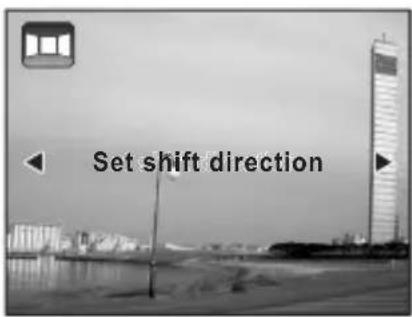
When the camera detects a person's face, the Face Detection function is activated and the face detection frame appears (p.72).
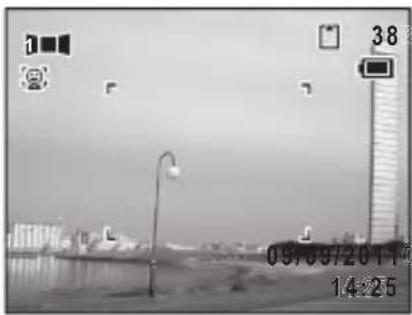
natural_image
Black-and-white cityscape photo showing a waterfront promenade with streetlights and distant buildings (no readable text or symbols)5 Press the shutter release button halfway.
The focus frame on the display turns green when the camera focuses on the subject at the correct distance.
6 Press the shutter release button fully.
The screen for taking the second frame is displayed after you take the first frame.
If you select right (▶) in Step 4:
The right edge of the first frame appears in semi-transparent form on the left edge of the display.
If you select left (◀) in Step 4:
The left edge of the first frame appears in semi-transparent form on the right edge of the display.
7 Take the second frame.
Move the camera so that the semi-transparent image and the actual view overlap and press the shutter release button.
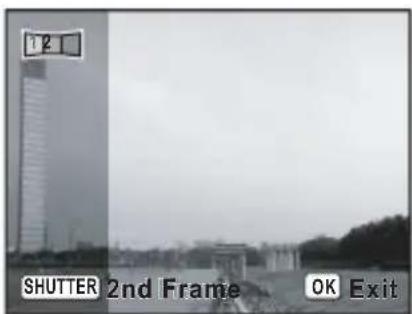
8
Take the third frame.
Repeat Steps 5 to 7 to take the third frame.
The panorama images are joined and a stitched together image appears.
The stitched together image does not appear when [Instant Review] (p.69, p.119) is □ (Off).

- Some distortion may result from moving objects, repeating patterns, or if nothing exists when overlapping the first and second frames or the second and third frames on the preview guide.
- When the Face Detection function is activated (p.72), it works only when taking the first frame (Blink Detection does not work.).
To Cancel after Taking the First or Second Frame
1
After shooting the first frame in Step 6 on p.100 or the second frame in Step 7, press the OK button.
A confirmation dialog appears.
2
Use the four-way controller (▲▼) to select an option and press the OK button.
| Save Saves | the captured image(s) and you can retake the first frame. When this option is selected after shooting the second frame, the first and the second frames are stitched together and saved as a panoramic photograph. |
| Discard D | scards the captured image(s) and you can retake the first frame. |
| Cancel Returns | to the previous shooting screen. |
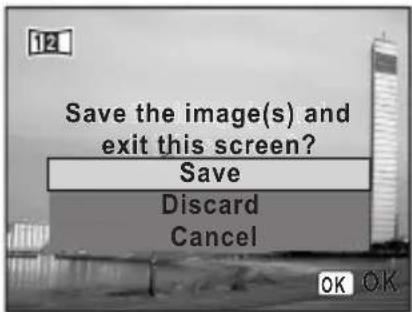

Unstitched images captured in ▶■ mode are saved with a pixel size of 2M (1600×1200).
Setting the Shooting Functions
Selecting the Flash Mode
| [072H] | Auto | The flash discharges automatically depending on the light conditions. If the Face Detection function is activated, the flash mode is automatically set to ^6 . |
 | Flash Off | The flash does not discharge, regardless of the brightness. Use this mode to take pictures where flash photography is prohibited. |
 | Flash On The flash discharges regardless of the brightness. | |
 | Auto + Red-eye | This mode reduces the phenomenon of red eyes caused by the light from the flash being reflected in the subject's eyes. The flash discharges automatically. A pre-flash discharges before the main flash. |
| [0766] | Flash On + Red-eye | This mode reduces the phenomenon of red eyes caused by the light from the flash being reflected in the subject's eyes. The flash discharges regardless of the light conditions. A pre-flash discharges before the main flash. |

- The flash mode is fixed at ⓣ in the following situations:
- When 🚫 (Movie) or ⚙ (Fireworks) is selected as the capture mode
- When ☐ (Continuous Shooting), ☐ (Burst Shooting(L)), ☐ (Burst Shooting(M)) or ☐ (Burst Shooting(H)) is selected as the drive mode
- When ▲ (Infinity) is selected as the focus mode
- In WIDE (Digital Wide) or ▶■▶ (Digital Panorama) mode, the flash mode is set to ⚙. However other flash mode setting can be selected.
- In ■ (Green) mode, you can only select _A or ⏻.
- In 📋 (Night Scene) mode, you cannot select ⌘A and ⓄA.

Using the flash when capturing images at a close distance may cause irregularities in the image due to the light distribution.
natural_image
Line drawing of a digital camera with control panel and buttons (no text or symbols)Four-way controller OK button
1 Press the four-way controller (◀) in ⚙ mode.
The [Flash Mode] screen appears.
The flash mode changes each time the button is pressed. You can also change the setting using the four-way controller (▲▼).
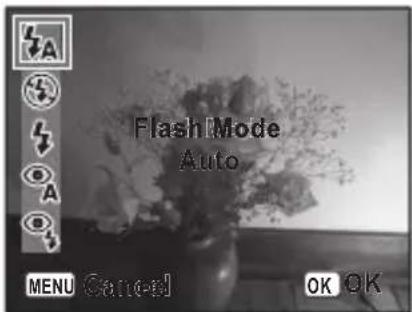
2 Press the OK button.
The setting is saved and the camera returns to capture status.
About the red-eye phenomenon
Taking pictures using the flash may cause the subject's eyes to appear red in the resulting picture. This phenomenon occurs when the light from the flash is reflected in the subject's eyes. It can be reduced by illuminating the area around the subject or moving closer to the subject and zooming out to a wider angle. Setting the flash mode to ⓄA or Ⓞi is also an effective way of reducing red eyes. If the subject's eyes appear red despite such precautions, they can be corrected by the red-eye compensation function (p.168).
Saving the Flash Mode setting 📋p.131
Selecting the Focus Mode
| AF Standard | This mode is used when the distance to the subject is 40 cm (16 in.) or more. The camera is focused on the subject in the autofocus area when the shutter release button is pressed halfway. | |
| Macro | This mode is used when the distance to the subject is approx. 10 cm to 50 cm (4 in. to 20 in.). The camera is focused on the subject in the autofocus area when the shutter release button is pressed halfway. | |
| Super Macro | This mode is used when the distance to the subject is approx. 4 cm to 30 cm (1.6 in. to 12 in.). The camera is focused on the subject in the autofocus area when the shutter release button is pressed halfway. | |
| PF | Pan Focus | This mode is used when you ask someone to take pictures for you, or when taking pictures of the scenery through the window of a car or train. The entire picture, from the front to the back, is focused. |
| Infinity | This mode is used for taking distant objects. The flash is set to ⚙ (Flash Off). | |
| MF | Manual Focus This | mode lets you adjust the focus manually. |
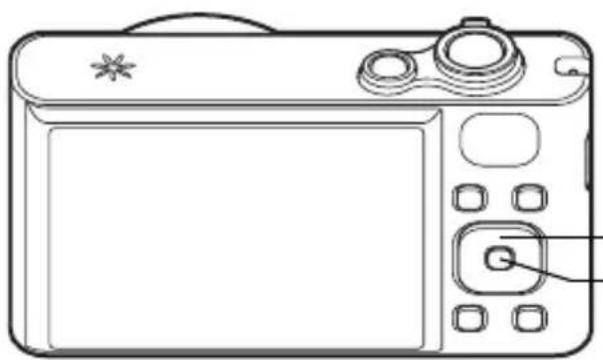
natural_image
Line drawing of a digital camera with front panel, screen, and control buttons (no text or symbols)Four-way controller OK button
1 Press the four-way controller (▶) in ☐ mode.
The [Focus Mode] screen appears.
The focus mode changes each time the button is pressed. You can also change the setting using the four-way controller (▲▼).
![Focus Mode Standard AF S PF MF MENU Cancel ] OK OK](/content/2026/05/1046279/images/6cb62a751020ffdb9610e30e10c406d210bdc47b7539d7454b5f7e63fad9233b.jpg)
2 Press the OK button.
The setting is saved and the camera returns to capture status.

- In ● (Green) mode, you can only select AF, 🎨 or PF.
- The focus mode is fixed at ▲ in ⚙ (Fireworks) mode.
- When AF is selected and the subject is closer than 40 cm, the camera automatically focuses from 10 cm (Auto-Macro function). In this case, 🌐 appears on the display.
- When shooting with ⬆ selected, if the subject is further than 50 cm away, the camera automatically focuses to∞ (Infinity). By pressing the shutter release button fully, you can also take a picture even when the focus is not set.
Saving the Focus Mode setting 📄p.131
To Set the Focus Manually (Manual Focus)
1 Press the four-way controller (▶) in mode.
The [Focus Mode] screen appears.
2 Press the four-way controller (▶) to select MF.
3 Press the OK button.
The central portion of the image is magnified to full screen on the display.
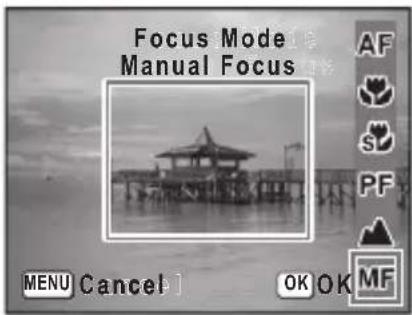
4 Use the four-way controller (▲▼) to adjust the focus.
The MF indicator appears on the display to indicate the approximate distance to the subject. Adjust the focus using the indicator as a guide.
▲for distant focus
▼for closer focus
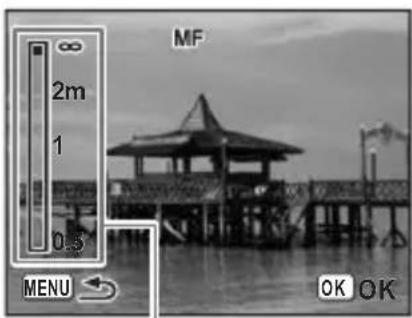
MF indicator
5 Press the OK button.
The focus is fixed and the camera returns to capture status.
After the focus is fixed, you can press the four-way controller (▶) again to display the MF indicator and readjust the focus.

The shooting mode and drive mode cannot be changed while the MF indicator is displayed.

To switch from MF to another focus mode, press the four-way controller (▶) while the MF indicator is displayed.
To Set the Focusing Area
You can change the autofocus area (Focusing Area).
| [ ] Multiple Normal autofocus area | |
| [ ] Spot The autofocus area becomes smaller. | |
| ≡() Automatic Tracking AF Keeps moving subjects in focus. |
1 Press the MENU button in mode.
The [Rec. Mode] menu appears.
2 Use the four-way controller (▲▼) to select [AF Setting].
3 Press the four-way controller (▶).
The [AF Setting] screen appears.
4 Press the four-way controller (▶). A pull down menu appears.
5 Use the four-way controller (▲▼) to change the focusing area setting.
![AF Setting Focusing Area Focus Assist [ ] [ ] =](/content/2026/05/1046279/images/97d59dc11bbaff129fe70bfd4c816c9ef8a43d78d299245a65d65e4520526da7.jpg)
6 Press the OK button. The setting is saved.
7 Press the MENU button twice.
The camera returns to capture status.

- In ☑ (Movie) and ☐ (Frame Composite) modes, the focusing area cannot be set to ☒.
- In (Green) and AUTO PICT (Auto Picture) modes, the focusing area is fixed at [ ].
- If you change the [Focusing Area] setting frequently, you can save time by assigning it to the Green button (p.123).
Setting the AF Assist Light (Focus Assist)
The camera automatically emits the focus assist light in dark shooting situations. You can set the light to on or off.
1 Press the MENU button in mode.
The [Rec. Mode] menu appears.
2 Use the four-way controller (▲▼) to select [AF Setting].
3 Press the four-way controller (▶).
The [AF Setting] screen appears.
4 Use the four-way controller (▲▼) to select [Focus Assist].
![AF Setting Focusing Area [ ] Focus Assist ✓ > MENU ↩](/content/2026/05/1046279/images/fbbabbd69e5ce2b2c147fa26d9e23b72fd7996b904b0f08e1896008464cf51a4.jpg)
5 Use the four-way controller (◀▶) to select [☑ (On)/□ (Off)].
The setting is saved.
6 Press the MENU button twice.
The camera returns to capture mode.

Looking at the light directly will not create a safety hazard. However, do not look into the focus assist light from a very short distance since you may feel dazzled.

- The camera does not emit the focus assist light under the following conditions.
- In (Movie), (Fireworks) modes.
- When the focus mode is set to PF (Pan Focus), ▲ (Infinity) or MF (Manual Focus).
- The default setting in 🎨 (Pet) mode is □ (Off).
Selecting the Number of Recorded Pixels
You can choose from six recorded pixels settings for still pictures. The larger the number of recorded pixels, the clearer the details will appear when you print your picture. As the quality of the printed picture also depends on the image quality, exposure control, resolution of the printer, and other factors, you do not need to select more than the required number of recorded pixels. The more pixels there are, the larger the picture and the bigger the file size.
Refer to the following table for the appropriate settings according to expected usage.
| Recorded Pixels Expected Usage | |
| 16M 4608×3456 | For printing high quality photos or A4-size pictures or larger, or editing images on a computer. |
| 12M 131 3456×3456 | |
| 12M 139 4608×2592 | |
| 7M 3072×2304 | For making postcard-size prints. |
| 2M 139 1920×1080 | For a natural feeling of expansiveness with the same aspect ratio as HDTV. |
| 640 640×480 | For posting on a website or attaching to e-mail. |
The default setting is 16M.

If you select 12M 16:9 or 2M 16:9 , the aspect ratio of the image is 16:9 and the monitor display for recording and playback is as shown on the right.
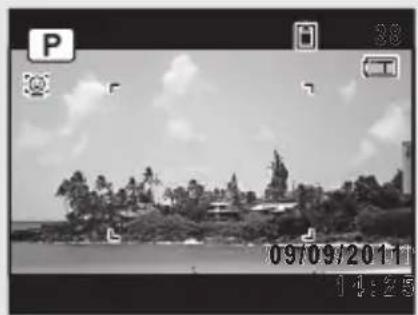
natural_image
Black-and-white landscape photo showing a coastal town with trees and buildings under a cloudy sky (no visible text or symbols)1 Press the MENU button in mode.
The [Rec. Mode] menu appears.
2 Use the four-way controller (▲▼) to select [Recorded Pixels].
3 Press the four-way controller (▶).
A pull-down menu appears.
4 Use the four-way controller (▲▼) to change the number of recorded pixels.
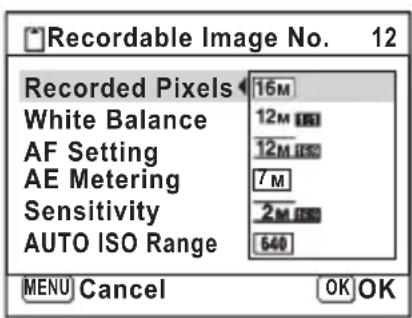
5 Press the OK button.
The setting is saved.
6 Press the MENU button.
The camera returns to capture status.

- The number of recorded pixels for images captured in ● (Green) mode is fixed at 16M.
- The number of recorded pixels for images captured in Ⓞ (Frame Composite) is fixed at 3M.
- The number of recorded pixels for images captured in (☐) (Digital SR) or WIDE (Digital Wide) mode is fixed at 5M. (The number of recorded pixels will be 3M if you exit the WIDE mode without taking the second picture.)
- If you change the [Recorded Pixels] setting frequently, you can save time by assigning it to the Green button (p.123).
Setting the Exposure (EV Compensation)
You can adjust the overall brightness of the picture.
Use this function to take pictures that are intentionally overexposed or underexposed.
1 Press the MENU button in mode.
The [Rec. Mode] menu appears.
2 Use the four-way controller (▲▼) to select [EV Compensation].
3 Use the four-way controller (◀▶) to select the EV value.
To brighten, select a positive (+) value. To darken, select a negative (−) value. You can choose the EV setting in the range of -2.0 EV to +2.0 EV in 1/3 EV steps.
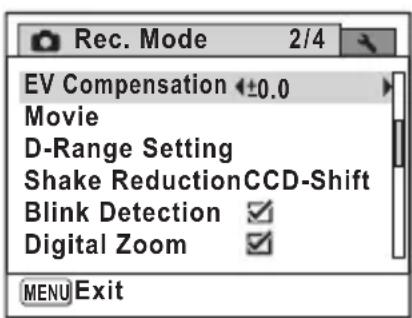
4 Press the MENU button.
The camera returns to capture status.

- When the histogram is displayed in still picture capture mode/playback mode, you can check the exposure (p.28).
- The EV compensation function cannot be used in ● (Green) or AUTO PICT (Auto Picture) mode.
- If you change the [EV Compensation] setting frequently, you can save time by assigning it to the Green button (p.123).
Saving the EV Compensation value setting 📄p.131
Correcting the Brightness (D-Range Setting)
Expands the dynamic range and prevents bright and dark areas from occurring. [Highlight Correction] adjusts the bright areas when the image is too bright and [Shadow Correction] adjusts the dark areas when the image is too dark.
1 Press the MENU button in mode.
The [Camera] Rec. Mode] menu appears.
2 Use the four-way controller (▲▼) to select [D-Range Setting].
3 Press the four-way controller (▶).
The [D-Range Setting] screen appears.
4 Use the four-way controller (▲▼) to select [Highlight Correction] or [Shadow Correction].
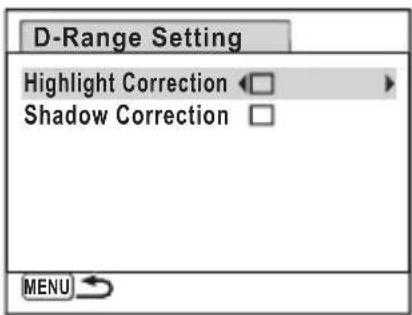
5 Use the four-way controller (◀▶) to select ☑ (On) or □ (Off).
6 Press the MENU button twice.
The camera returns to capture status.
The D-Range Setting icon appears on the display.
| When [Highlight Correction] is set to ☑ | |
| When [Shadow Correction] is set to ☑ | |
| When [Highlight Correction] and[Shadow Correction] are both set to ☑ |
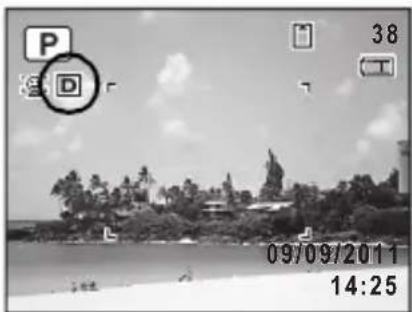

- When [Highlight Correction] is set to ☑, the minimum sensitivity is ISO 160.
- If you change the [Highlight Correction] or [Shadow Correction] setting frequently, you can save time by assigning it to the Green button (p.123).
Adjusting the White Balance
You can take pictures in natural colors by adjusting the white balance according to the light conditions at the time of shooting.
| AWB | Auto The camera | a adjusts the white balance automatically. |
 | Daylight Use this | mode when taking pictures outside in sunlight. |
 | Shade Use this mode when taking pictures outside in the shade. | |
 | Tungsten Light | Use this mode when taking pictures under electric or other tungsten light. |
 | Fluores. Light Use this mode when taking pictures under fluorescent light. | |
| [SDWY] | Manual Use this mode when adjusting the white balance manually. | |

- Set another white balance if you are not satisfied with the color balance of pictures taken with the [White Balance] set to AWB.
- Depending on the selected shooting mode, the white balance setting may not be selected. Refer to “Functions Available for Each Shooting Mode” (p.228) for details.
1 Press the MENU button in mode.
The [☐ Rec. Mode] menu appears.
2 Use the four-way controller (▲▼) to select [White Balance].
3 Press the four-way controller (▶).
The [White Balance] screen appears.
4 Use the four-way controller (▲▼) to change the setting.
You can check the result of selected white balance setting on the preview image each time you press the four-way controller (▲▼).
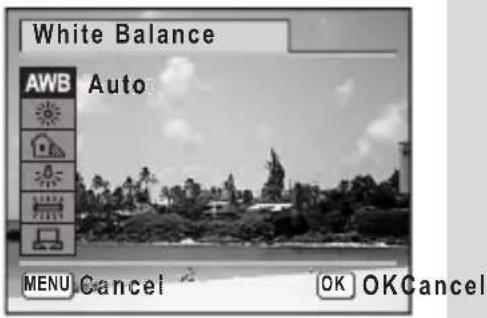
5 Press the OK button.
The setting is saved.
6 Press the MENU button.
The camera returns to capture status.
Refer to the section "To Set the White Balance Manually" (p.113) for instructions on adjusting the white balance manually.

If you change the [White Balance] setting frequently, you can save time by assigning it to the Green button (p.123).
Saving the White Balance setting 📄p.131
To Set the White Balance Manually
Have a blank sheet of white paper or similar material ready.
1 In the [White Balance] screen, use the four-way controller (▲▼) to select ☐ (Manual).
2 Point the camera at the blank sheet of paper or other material so that it fills the frame displayed in the center of the screen.
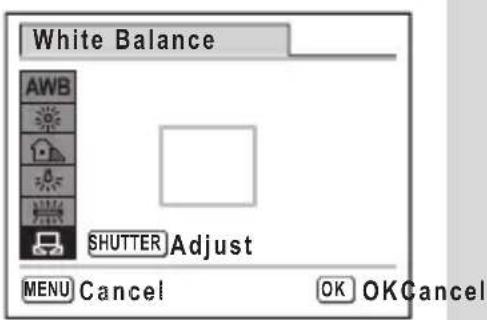
3 Press the shutter release button fully.
The white balance is automatically adjusted.
4 Press the OK button.
The setting is saved and the [ Rec. Mode] menu reappears.
5 Press the MENU button.
The camera returns to capture status.
Setting the AE Metering
You can set the area of the screen where the brightness is metered to determine the exposure.
| Multi-segment metering | The camera divides the image into 256 areas, meters the brightness and determines the exposure. |
| Center-weighted metering | The camera takes a reading of the overall brightness of the picture with the center of the image having more influence on the exposure. |
| Spot AE metering | The camera determines the exposure by metering the brightness only at the center of the image. |
1 Press the MENU button in mode.
The [☐ Rec. Mode] menu appears.
2 Use the four-way controller ( ▲ ▼ ) to select [AE Metering].
3 Press the four-way controller (▶).
A pull-down menu appears.
4 Use the four-way controller (▲▼) to select the AE Metering setting.
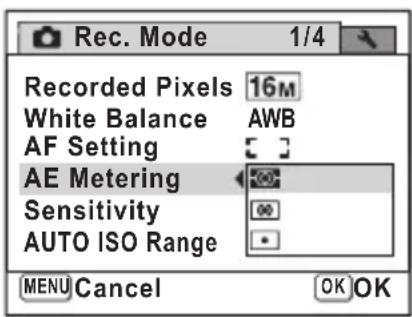
5 Press the OK button.
The setting is saved.
6 Press the MENU button.
The camera returns to capture status.

- When the shutter release button is pressed halfway, the brightness is metered and the exposure is determined.
- When the subject is outside the focusing area and you want to use □(Spot AE metering), aim the camera at the subject and press the shutter release button halfway to lock the exposure, then compose your picture again and press the shutter release button fully.
- Depending on the selected shooting mode, the AE metering setting may not be changed. Refer to “Functions Available for Each Shooting Mode” (p.228) for details.
- If you change the [AE Metering] setting frequently, you can save time by assigning it to the Green button (p.123).
Saving the AE Metering setting 📋p.131
Setting the Sensitivity
You can select the sensitivity to suit the brightness of the surroundings.
| AUTO | The sensitivity is automatically adjusted by the camera. (Sensitivity 80 - 1600) |
| 80 | The lower the sensitivity, the less noise that affects the image. The shutter speed will be slower in low light conditions.100 |
| 200 | |
| 400 | |
| 800 | |
| 1600 | Higher sensitivity settings use faster shutter speeds in low light conditions to reduce camera shake, but the image may be affected by noise. |
| 3200 | |
| 6400 |
1 Press the MENU button in mode.
The [☐ Rec. Mode] menu appears.
2 Use the four-way controller (▲▼) to select [Sensitivity].
3 Press the four-way controller (▶).
A pull-down menu appears.
4 Use the four-way controller (▲▼) to change the sensitivity.
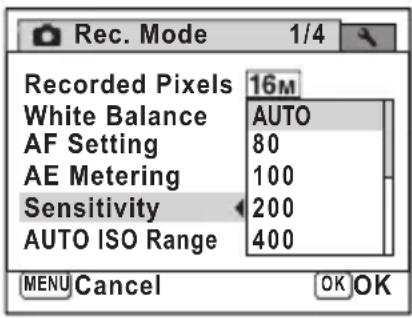
5 Press the OK button.
The setting is saved.
6 Press the MENU button.
The camera returns to capture status.

- When the sensitivity is set to 3200 or 6400, the number of recorded pixels is fixed at 5M (2592×1944).
- When set to ■ (Green) or ▶ (Movie) mode, only AUTO (sensitivity 80 - 800) is available.
- When set to (☐) (Digital SR) mode, only AUTO (sensitivity 80 - 6400) is available.
- When set to ⚙️ (Fireworks) mode, the sensitivity is fixed at its minimum setting.
- If you change the [Sensitivity] setting frequently, you can save time by assigning it to the Green button (p.123).
Saving the Sensitivity setting 📋p.131
Setting the AUTO ISO Range
Set the sensitivity range when the sensitivity is set to AUTO. You can select from 80-100, 80-200, 80-400, 80-800, and 80-1600.
1 Press the MENU button in mode.
The [Rec. Mode] menu appears.
2 Use the four-way controller (▲▼) to select [AUTO ISO Range].
3 Press the four-way controller (▶).
A pull-down menu appears.
4 Use the four-way controller (▲▼) to select the sensitivity adjustment range.
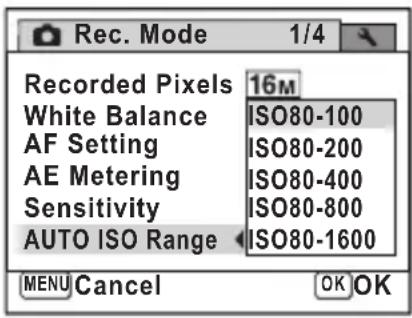
5 Press the OK button.
The setting is saved.
6 Press the MENU button.
The camera returns to capture status.

When [Highlight Correction] in [D-Range Setting] is set to ☑ (On), select from 160-200, 160-400, 160-800, and 160-1600.
Setting the Blink Detection Function
This specifies whether the Blink Detection function works when the Face Detection function is activated. The default setting is ☑ (On).
1 Press the MENU button in mode.
The [Rec. Mode] menu appears.
2 Use the four-way controller (▲▼) to select [Blink Detection].
3 Use the four-way controller (◀▶) to select √ or □.
√ Blink Detection function works.
□ Blink Detection function does not work.
The setting is saved.
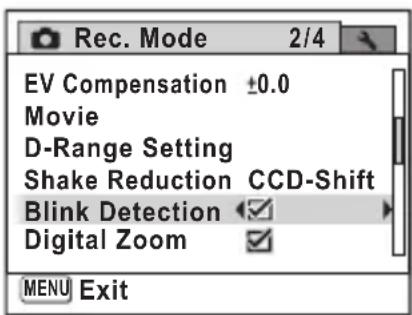
4 Press the MENU button.
The camera returns to capture status.
Blink Detection p.69
Setting the Shake Reduction Function
You can set this function to correct camera shake which can occur during shooting. You can correct camera shake using optical shake reduction only (CCD-Shift), or the both optical and electronic shake reductions (Dual). The default setting is the optical shake reduction only (CCD-Shift).
| CCD-Shift | Optical shake reduction only is used. |
| Dual | Both optical and electronic shake reductions are used. |
| Off No shake | reductions are used. |

Use the Movie SR function (p.130) to correct camera shake in 📋 (Movie) mode.
1 Press the MENU button in mode.
The [Rec. Mode] menu appears.
2 Use the four-way controller (▲▼) to select [Shake Reduction].
3 Press the four-way controller (▶).
A pull-down menu appears.
4 Use the four-way controller (▲▼) to choose the Shake Reduction setting.
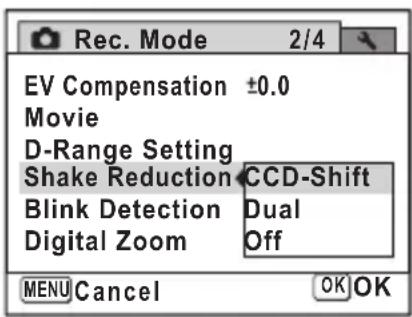
5 Press the OK button.
The setting is saved.
6 Press the MENU button.
The camera returns to capture status.
One of the following icons appears on the display.
| (AUTO) | When the shutter release button is pressed halfway with [Shake Reduction] set to [CCD-Shift] or [Dual]. |
| When [Shake Reduction] is set to [Off]. (If the camera shake is likely to occur, ▲↓↓ is indicated when the shutter button is pressed halfway.) |

- When [Shake Reduction] is set to [Dual], camera shake is corrected after shooting, and then the corrected image is saved.
- When [Shake Reduction] is set to [CCD-Shift], CCD shifting sound may occur during shooting with HX (Burst Shooting(H)). This is not malfunction.

In the following situations, [Shake Reduction] cannot be set to [Dual] (only [CCD-Shift] or [Off] can be selected in the pull-down menu.). If [Shake Reduction] is set to [Dual] beforehand, setting automatically changes to [CCD-Shift].
- When 🎨 (Movie), ⚙️ (Fireworks), Ⓞ (Frame Composite), WIDE (Digital Wide) or ▪■ (Digital Panorama) mode is selected as the shooting mode
- When ⚙ (Self-timer), ☐ (Continuous Shooting), ☐ (Burst Shooting(L)), ☐ (Burst Shooting(M)) or ☐ (Burst Shooting(H)) is selected as the drive mode
- When the flash discharges
- When the shutter speed is slower than 1/4 sec.
- When the sensitivity is set to 1600 or higher
- During Voice Recording
Setting the Instant Review
Use this setting to specify whether or not an Instant Review is displayed immediately after images are taken. The default setting is ☑ (On).
1 Press the MENU button in mode.
The [Rec. Mode] menu appears.
2 Use the four-way controller (▲▼) to select [Instant Review].
3 Use the four-way controller (◀▶) to select √ or □.
√ Instant Review is displayed.
□ Instant Review is not displayed.
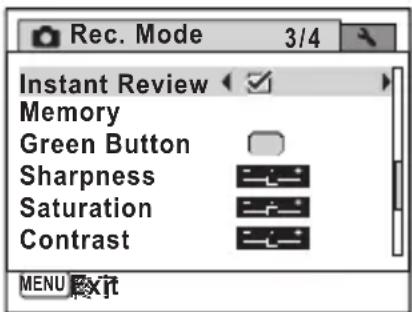
4 Press the MENU button.
The camera returns to capture status.
Instant Review 📋p.69

If the Blink Detection function worked when shooting, the message [Closed eyes have been detected] appears for 3 seconds during Instant Review.
Setting the Image Sharpness (Sharpness)
You can give the image sharp or soft outlines.
1 Press the MENU button in mode.
The [Rec. Mode] menu appears.
2 Use the four-way controller (▲▼) to select [Sharpness].
3 Use the four-way controller (◀▶) to change the sharpness level.
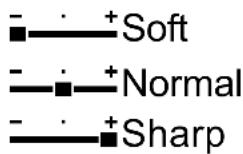
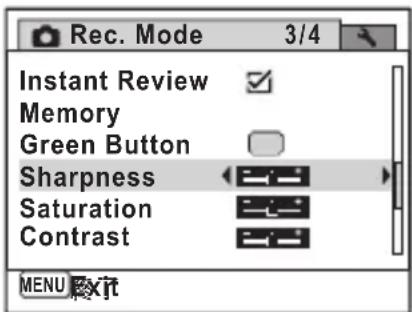
4 Press the MENU button.
The camera returns to capture status.

If you change the [Sharpness] setting frequently, you can save time by assigning it to the Green button (p.123).
Setting the Color Saturation (Saturation)
You can set the color saturation.
1 Press the MENU button in mode.
The [Rec. Mode] menu appears.
2 Use the four-way controller (▲▼) to select [Saturation].
3 Use the four-way controller (◀▶) to change the saturation level.
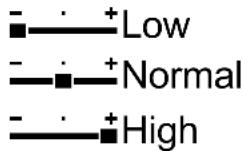
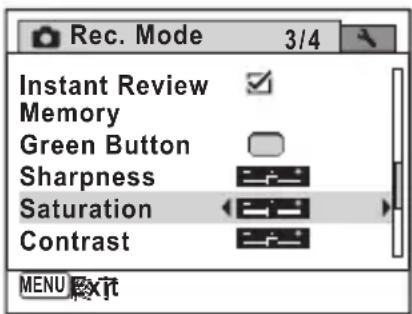
4 Press the MENU button.
The camera returns to capture status.

If you change the [Saturation] setting frequently, you can save time by assigning it to the Green button (p.123).
Setting the Image Contrast (Contrast)
You can set the image contrast level.
1 Press the MENU button in mode.
The [Rec. Mode] menu appears.
2 Use the four-way controller (▲▼) to select [Contrast].
3 Use the four-way controller (◀▶) to change the contrast level.
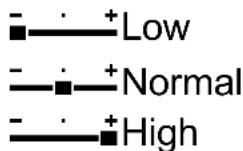
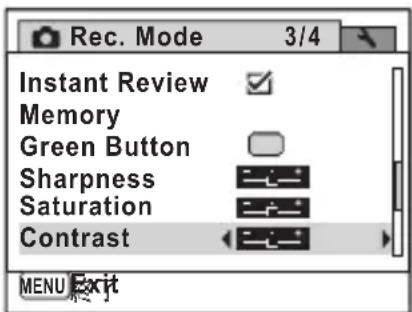
4 Press the MENU button.
The camera returns to capture status.

If you change the [Contrast] setting frequently, you can save time by assigning it to the Green button (p.123).
Setting the Date Imprint Function
You can choose whether to imprint the date and/or time when taking still pictures.
1 Press the MENU button in mode.
The [Rec. Mode] menu appears.
2 Use the four-way controller (▲▼) to select [Date Imprint].
3 Press the four-way controller (▶).
A pull-down menu appears.
4 Use the four-way controller (▲▼) to select the Date Imprint details.
Choose from [Date], [Date & Time], [Time] or [Off].
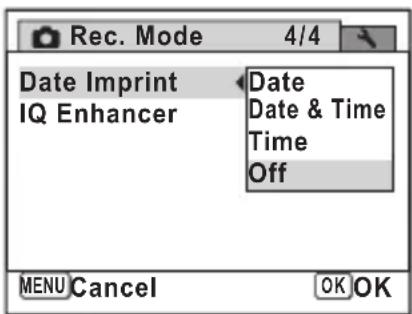
5 Press the OK button.
The setting is saved.
6 Press the MENU button.
The camera returns to capture status.

- The date and/or time imprinted with the Date Imprint function cannot be deleted.
-
Note that if the printer or the image editing software is set to print the date and the images to be printed already have the date and/or time imprinted, the imprinted dates and/or times may overlap.
-
DATE appears on the display in mode when [Date Imprint] is set.
- The date and/or time are imprinted on the picture with the display style set in the [Date Adjustment] screen (p.48).
Setting the IQ Enhancer Processing
You can take pictures with clearer details by using image processing with IQ enhancer technique.
1 Press the MENU button in mode.
The [☐ Rec. Mode] menu appears.
2 Use the four-way controller (▲▼) to select [IQ Enhancer].
3 Use the four-way controller (◀▶) to select [☑ (On)/□ (Off)].
☑ (On) IQ enhancer function works ☐ (Off) IQ enhancer function does not work
The setting is saved.
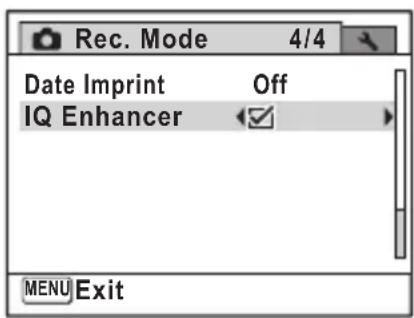
4 Press the MENU button.
The camera returns to capture mode.

IQ enhancer does not function in the following situations:
- When the sensitivity is set to 3200 or 6400
- In the (Digital SR) mode
- When the drive mode is set to _L/_M/_H (Burst Shooting(L/M/H))
Setting the Green Button
You can assign one of the following functions to the ● (Green) button: [● Green Mode] (p.76), [Voice Recording] (p.182), [Movie] (p.127) or [Fn Setting]. You can activate the assigned function by just pressing the ● (Green) button.
Green Mode
Press the
button to shoot in
(Green) mode.
(Default setting)
| Voice Recording | Press the ● button to record sound. |
| Movie Press the ● button to record a movie. | |
| Fn Setting | Press the ● button to use the functions assigned to the four-way controller (▲▼◀▶). By assigning frequently used functions to the four-way controller, you can easily change the settings during shooting.The functions that can be set differ depending on the capture mode used before the MENU button is pressed.When you press the MENU button in still picture capture mode: Still picture capture functions are assigned.When you press the MENU button in movie recording mode: Movie recording functions are assigned. |
Default settings of Fn Setting
| Four-way Controller Still Picture Mode Movie Mode | |
| ▲EV Compensation Movie SR | |
| ▼Recorded Pixels EV Compensation | |
| ◀Sensitivity Recorded Pixels | |
| ▶White Balance White Balance | |
1 Press the MENU button in mode.
The [Rec. Mode] menu appears.
2 Use the four-way controller (▲▼) to select [Green Button].
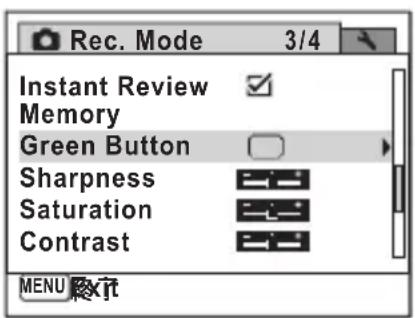
![RICOH RZ18 - Use the four-way controller (▲▼) to select [Green Button]. - 2](/content/2026/05/1046279/images/082fd9cf02d04100a0814426d273c8a0427a4b3ac9e35a91a12fd3743ea0f90e.jpg)
When the camera is the ➕ mode by pressing the 🔑 button, you cannot select [Green Button] in the [☐Rec. Mode] menu. Change the shooting mode other than ➕ first to select [Green Button].
3 Press the four-way controller (▶).
The [Green Button] screen appears.

If [Fn Setting] have already been registered, press the four-way controller (▶) once again.
4 Use the four-way controller (▲▼) to select the function you want to register and press the OK button.
When [Green Mode], [Voice Recording] or [Movie] is selected, the setting is saved. When [Fn Setting] is selected, proceed to Step 6.
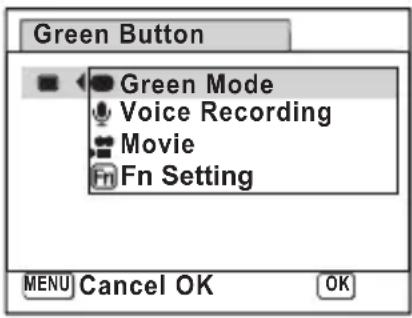
5 Press the MENU button.
The camera returns to capture mode.
When Fn Setting is Selected
6 Use the four-way controller (▲▼) to select a key to which to assign a function.
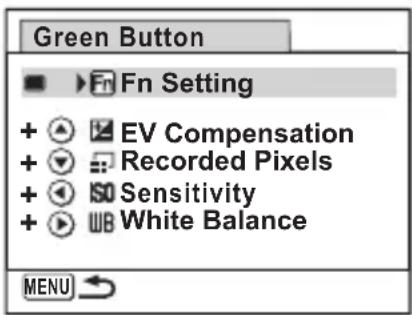
7 Press the four-way controller (▶).
A pull-down menu appears.
8 Use the four-way controller (▲▼) to select the function you want to register.
The following functions can be registered.
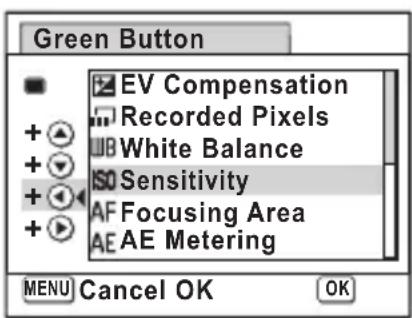
| Still picture mode functions | Recorded Pixels/White Balance/Focusing Area/AE Metering/Highlight Correction/Shadow Correction/Sensitivity/EV Compensation/Sharpness/Saturation/Contrast |
| Movie mode functions | Recorded Pixels/Movie SR/White Balance/Focusing Area/EV Compensation/Sharpness/Saturation/Contrast |
9 Press the OK button.
The setting is registered.
Repeat Steps 6 to 9 to register other keys.
10 Press the MENU button twice.
The camera returns to capture status.

Only one function can be registered to each key.
To Use Fn Setting
1 Press the ● button in Ⓞ mode.
The functions registered with Fn Setting on the [Fn Setting] screen appear.
The displayed functions differ depending on whether the camera is in still picture mode or movie mode before the ● button is pressed.
2 Use the four-way controller (▲▼◀▶) to select the function you want to change.
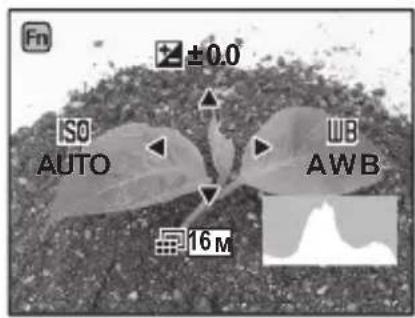
3 Use the four-way controller (▲▼ or ◀▶) to change the setting.
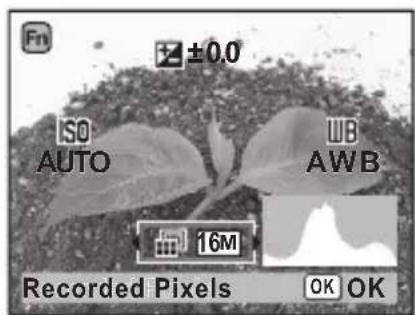
4 Press the OK button.
The setting is saved and the camera returns to capture status.
Recording Movies
Recording a Movie
This mode enables you to record movies. Sound is recorded at the same time.
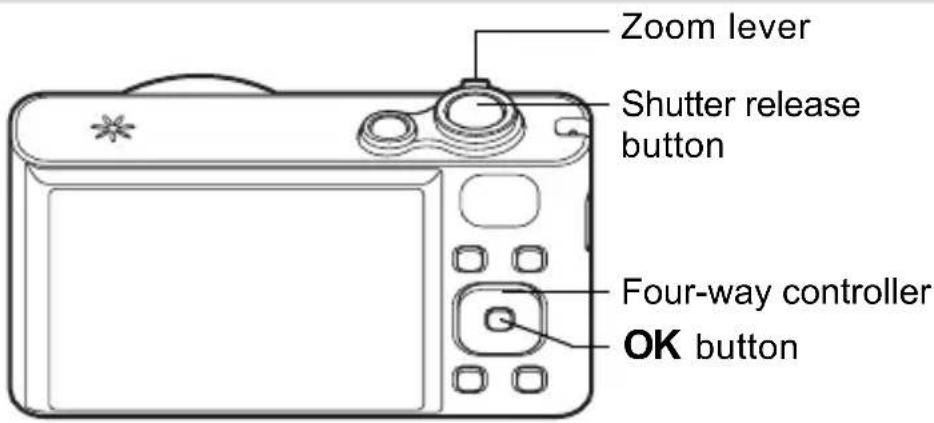
1 Press the four-way controller (▼) in mode.
The Capture Mode Palette appears.
2 Use the four-way controller (▲▼◀▶) to select 📋 (Movie).
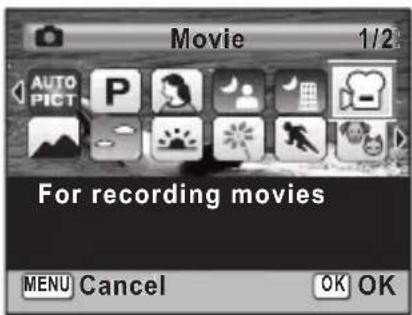
3 Press the OK button.
The camera enters the mode and returns to capture status.
The following information appears on the display.
1 Movie mode icon
2 Recording indicator (blinks during recording)
3 Remaining recordable time
4 Focus frame (does not appear during recording)
5 Movie shake reduction icon
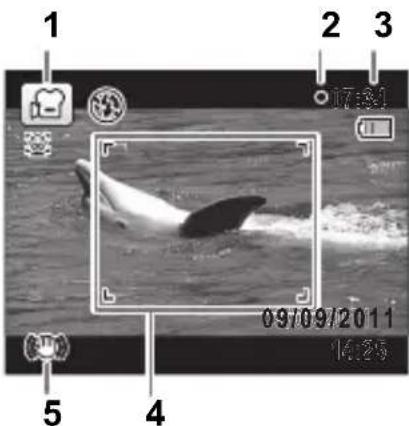
natural_image
Black-and-white photo of a dolphin swimming in water, captured within a camera frame (no text or symbols on the image itself)You can change the captured area by turning the zoom lever to the left or right. Right (♠) Enlarges the subject. Left (♠♠♠) Widens the area that is captured by the camera.
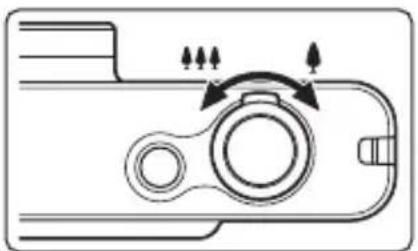
natural_image
Pure mechanical component diagram without any text, numbers, or symbols4 Press the shutter release button fully.
Recording starts. You can continue recording until the built-in memory or the SD Memory Card is full, or the size of the recorded movie reaches 2 GB.
5 Press the shutter release button fully.
Recording stops.
Playing Back a Movie 📋p.135

- The flash does not discharge in mode.
- The focus mode can be changed before recording starts.
- When the focus mode is set to MF(Manual Focus), you can adjust the focus before recording starts.
- You can use the optical zoom only before recording, while the Digital Zoom is available both before and during recording.
- Even if you change the display mode by pressing the OK/DISPLAY button while recording a movie, the histogram cannot be displayed on the monitor.
- When the shooting mode is set to ☑, the Face Detection function is automatically activated. You can switch to Smile Capture or Face Detection Off by pressing the 😊 button before starting recording a movie (p.72). When the Smile Capture function is selected, movie recording starts automatically when the camera detects the subject's smile. However, depending on the condition of the detected faces, movie recording may not start automatically because the Smile Capture function may not work. If this happens, press the shutter release button to start movie recording.
- You can record a movie using the remote control unit (optional) (p.95).
Keeping the Shutter Release Button Pressed
If you keep the shutter release button pressed for more than one second, recording will continue as long as you keep the button pressed. Shooting stops when you take your finger off the shutter release button.
Selecting the Recorded Pixels and Frame Rate for Movies
You can choose from the following recorded pixels and frame rate settings for movies.
The more pixels there are, the clearer the details and the bigger the file size. The more frames per second, the better the quality of the movie, but the file size becomes larger.
| Setting | Recorded Pixels | Frame Rate | Use |
| 1280_30 12 | 80×720 30 fps | Records images in HDTV format (16:9). Movement is recorded smoothly. (default setting) | |
| 1280_45 12 | 80×720 15 fps | Records images in HDTV format (16:9). Increases the total recording time by making the file size smaller. | |
| 640_30 64 | 0×480 30 fps | Suitable for viewing on a TV or computer screen. Movement is recorded smoothly. | |
| 640_45 64 | 0×480 15 fps | Suitable for viewing on a TV or computer screen. Increases the total recording time by making the file size smaller. | |
| 320_30 32 | 0×240 30 fps | Suitable for posting on a website or attaching to e-mail. Movement is recorded smoothly. | |
| 320_45 32 | 0×240 15 fps | Suitable for posting on a website or attaching to e-mail. Increases the total recording time by making the file size smaller. |
* The frame rate (fps) indicates the number of frames per second.
1 Press the MENU button in mode.
The [Rec. Mode] menu appears.
2 Use the four-way controller (▲▼) to select [Movie].
3 Press the four-way controller (▶).
The [Movie] screen appears.
4 Use the four-way controller (▲▼) to select [Recorded Pixels].
5 Press the four-way controller (▶).
A pull-down menu appears.
6 Use the four-way controller (▲▼) to select the number of recorded pixels and frame rate.
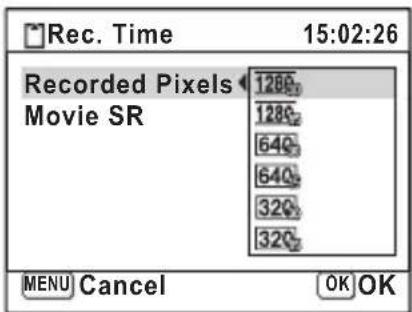
7 Press the OK button.
The setting is saved.
8 Press the MENU button twice.
The camera returns to capture status.
Setting the Movie SR (Movie Shake Reduction) Function
In mode, you can correct camera shake while you are recording a movie with the Movie SR (Movie Shake Reduction) function.
1 Press the MENU button in mode.
The [Rec. Mode] menu appears.
2 Use the four-way controller (▲▼) to select [Movie].
3 Press the four-way controller (▶).
The [Movie] screen appears.
4 Use the four-way controller (▲▼) to select [Movie SR].
5 Use the four-way controller (◀▶) to select √ or □.
☑ Corrects camera shake.
□Does not correct camera shake.
The setting is saved.
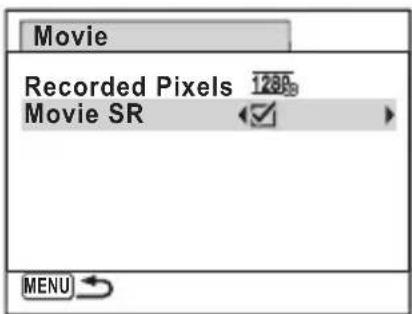
6 Press the MENU button twice.
The camera returns to capture status.
Saving the Settings (Memory)
The Memory function is for saving the current camera settings when the camera is turned off.
For some camera settings, the Memory function is always set to ☑ (On) (the settings are saved when the camera is turned off), while for others you can choose ☑ or □ (Off) (to choose whether the settings are saved or not when the camera is turned off). The items which can be set to ☑ or □ in the Memory function are shown in the table below. (Items not listed here are always saved in the selected settings when the camera is turned off.)
If you select ☑, the settings will be saved in the status they were in immediately before the camera was turned off. If you select □, the settings will be reset to the defaults when the camera is turned off. The table below also shows whether the Memory default setting for each item is ☑ or □.
| Item Description | Default Setting | Page | |
| Face Detection | The Face Detection mode set with the 😊 button | □ | p.72 |
| Flash Mode | The flash mode set with the four-way controller (◀) | ☑ | p.102 |
| Drive Mode | The drive mode set with the four-way controller (▲) | □ | p.92p.93 |
| Focus Mode | The focus mode set with the four-way controller (▶) | □ | p.104 |
| Zoom Position | The zoom position set with the zoom lever | □ | p.78 |
| MF Position | The manual focus position set with the four-way controller (▲▼) | □p.105 | |
| White Balance | The [White Balance] setting on the [☐ Rec. Mode] menu | □p.112 | |
| Sensitivity | The [Sensitivity] setting on the [☐ Rec. Mode] menu | □ | p.115 |
| EV Compensation | The [EV Compensation] setting on the [☐Rec. Mode] menu | □p.110 | |
| AE Metering | The [AE Metering] setting on the [☐ Rec. Mode] menu | □p.114 | |
| Digital Zoom | The [Digital Zoom] setting on the [☐ Rec. Mode] menu | ☑ p.80 | |
| DISPLAY | The information display mode set with the OK/DISPLAY button | □p.22 | |
| File No. | If a new SD Memory Card is inserted when ☑ (On) has been selected, file numbers are assigned sequentially | ☑ | — |
Press the MENU button in mode.
The [Rec. Mode] menu appears.
Use the four-way controller (▲▼) to select [Memory].
Press the four-way controller (▶).
The [Memory] screen appears.
Use the four-way controller (▲▼) to choose an item.
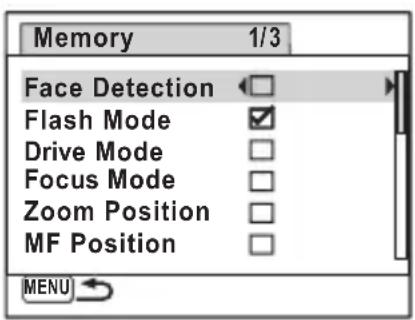
Use the four-way controller (◀▶) to select √ or □.
Press the MENU button twice.
The camera returns to capture status.
4Playing Back and Deleting Images
Playing Back Images 134
Deleting Images and Sound Files ..... 148
Connecting the Camera to AV Equipment 156
Playing Back Images
Playing Back Still Pictures
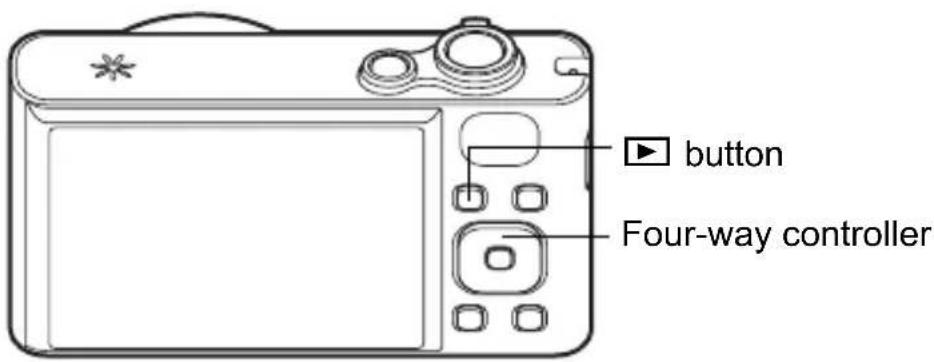
1 Press the ▶ button after taking a picture.
The camera enters the ▶ mode and the captured image appears on the display (single-image display).
File number
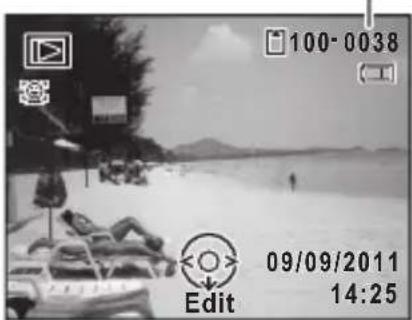
To Play Back the Previous or Next Image
2 Press the four-way controller (◀▶).
The previous or next image appears.
To Delete the Displayed Image
Press the ⏻ button while the image is displayed to display the Delete screen. Press the four-way controller (▲) to select [Delete] and press the OK button.
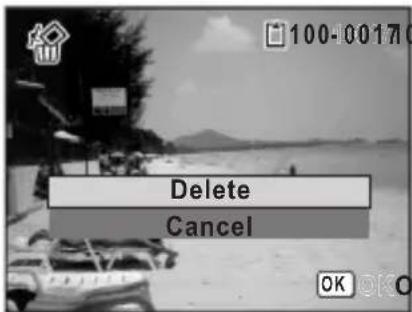
For information on other deletion procedures 📄p.148
Playing Back a Movie
You can play back the movies you have taken. The sound is played back at the same time.
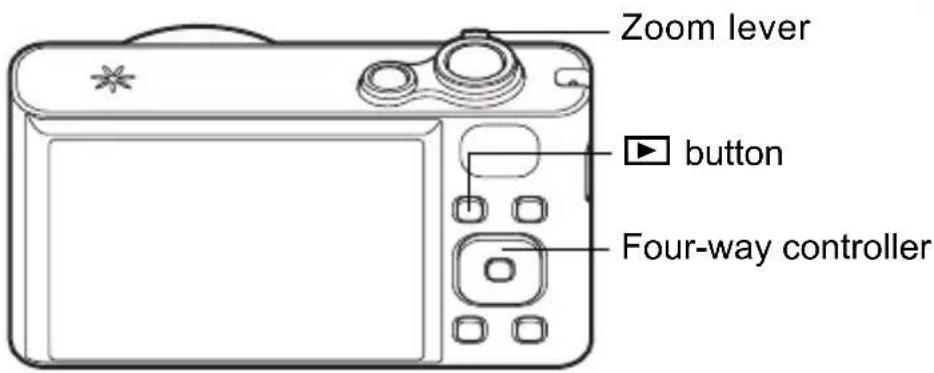
1 In ▶ mode, use the four-way controller (◀▶) to choose the movie you want to play back.
2 Press the four-way controller (▲).
Playback starts.
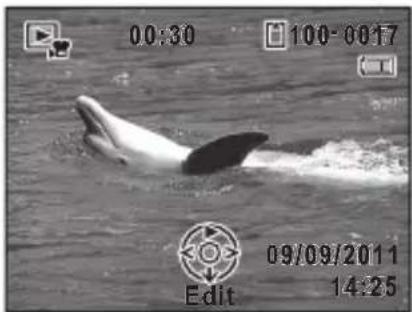
natural_image
Black and white photo of a dolphin swimming in water, captured at 09/09/2011 (no text or symbols on the image itself)Available operations during playback
| Zoom lever to the right (♠) | Increases the volume. |
| Zoom lever to the left (♠♠♠) | Reduces the volume. |
| Four-way controller (▲) Pauses playback. | |
| Four-way controller (►) | Fast-forwards playback while the button is held down. |
| Four-way controller (◄) Plays back in reverse.Fast-reverses playback while the button is held down. | |
Available operations while playback is paused
| Four-way controller (▲) Resumes playback. |
| Four-way controller (►) Forwards the frame. |
| Four-way controller (◄) Reverses the frame. |
3 Press the four-way controller (▼).
Playback stops.
Multi-Image Display
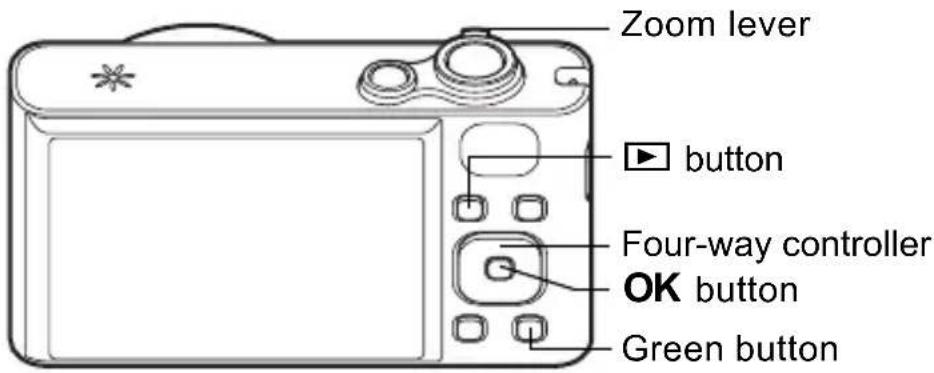
Four-Image Display/Nine-Image Display
You can display four or nine thumbnails of captured images at a time.
1 In ▶ mode, turn the zoom lever to the left (☐).
The four-image display appears showing a page consisting of four thumbnail images. Turn the zoom lever to the left (☐) again to switch to nine-image display.
A page consisting of four or nine thumbnail images appears. The displayed images change four or nine images at a time page by page.
Use the four-way controller (▲▼◀▶) to move the frame. If there are too many images to display on one page, pressing the four-way controller (▲◀) while the image ① is selected will display the previous page. Similarly, if you choose image ② and press the four-way controller (▼▶), the next page appears.
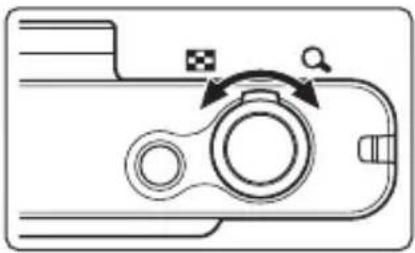
natural_image
Diagram of a camera lens assembly with no text or symbols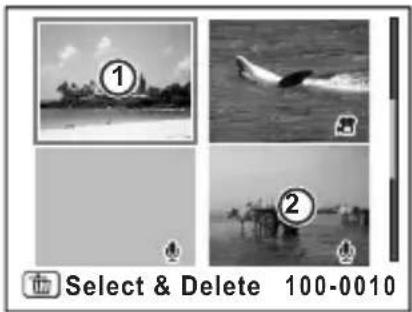
natural_image
Four-panel grayscale image showing a beach scene, a whale jumping out of water, and a boat on water; no text or symbols present.Four-Image Display
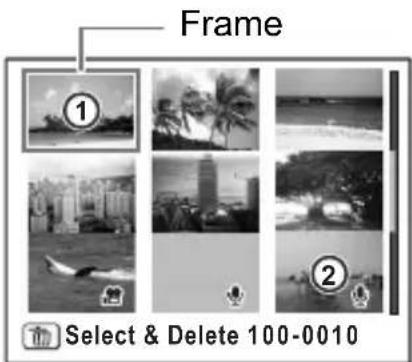
Nine-Image Display
The icons that appear on the images indicate the following:
| (No icon) Still picture without sound | |
| Movie (the first frame appears) | |
| (With image) Still picture with sound | |
| (Without image) Sound file only |
Press the OK button to switch to single-image display of the selected image.
Press the ▶ button to switch to 🔒 mode.
Folder Display/Calendar Display
In nine-image display, turn the zoom lever to the left (☐) to switch to folder display or calendar display. Press the Green button to switch between folder display and calendar display.
1 In ▶ mode, turn the zoom lever to the left (☐) three times.
The screen changes to folder display or calendar display.
Folder display
The list of folders with recorded images and sound files appears.
| Four-way controller (▲▼◀▶) | Moves the frame. |
| Zoom lever to the right (Q)/OK button | Displays the images in the selected folder in nine-image display. |
| MENU button | Returns to nine-image display. |
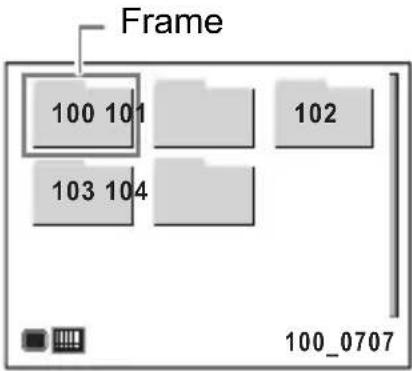
Calendar display
Images and sound files are displayed by date in calendar format.
A thumbnail of the first image recorded on each date is displayed on the calendar.
appears for dates on which a sound file was the first recorded file.
| Four-way controller (▲▼◀▶) | Moves the frame. |
| Zoom lever to the right (Q) | Displays the images for that date in nine-image display. |
| OK button | Displays the first image recorded on that date in single-image display. |
| MENU button | Returns to nine-image display. |
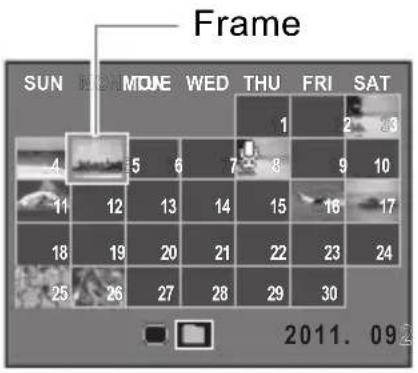
Using the Playback Functions
1 Press the four-way controller (▼) in ▶ mode.
The Playback Mode Palette appears.
2 Use the four-way controller (▲▼◀▶) to choose a playback mode.
The guide for the selected function appears below.
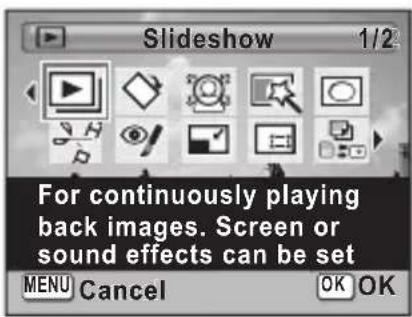
3 Press the OK button.
The selected playback function is called up.
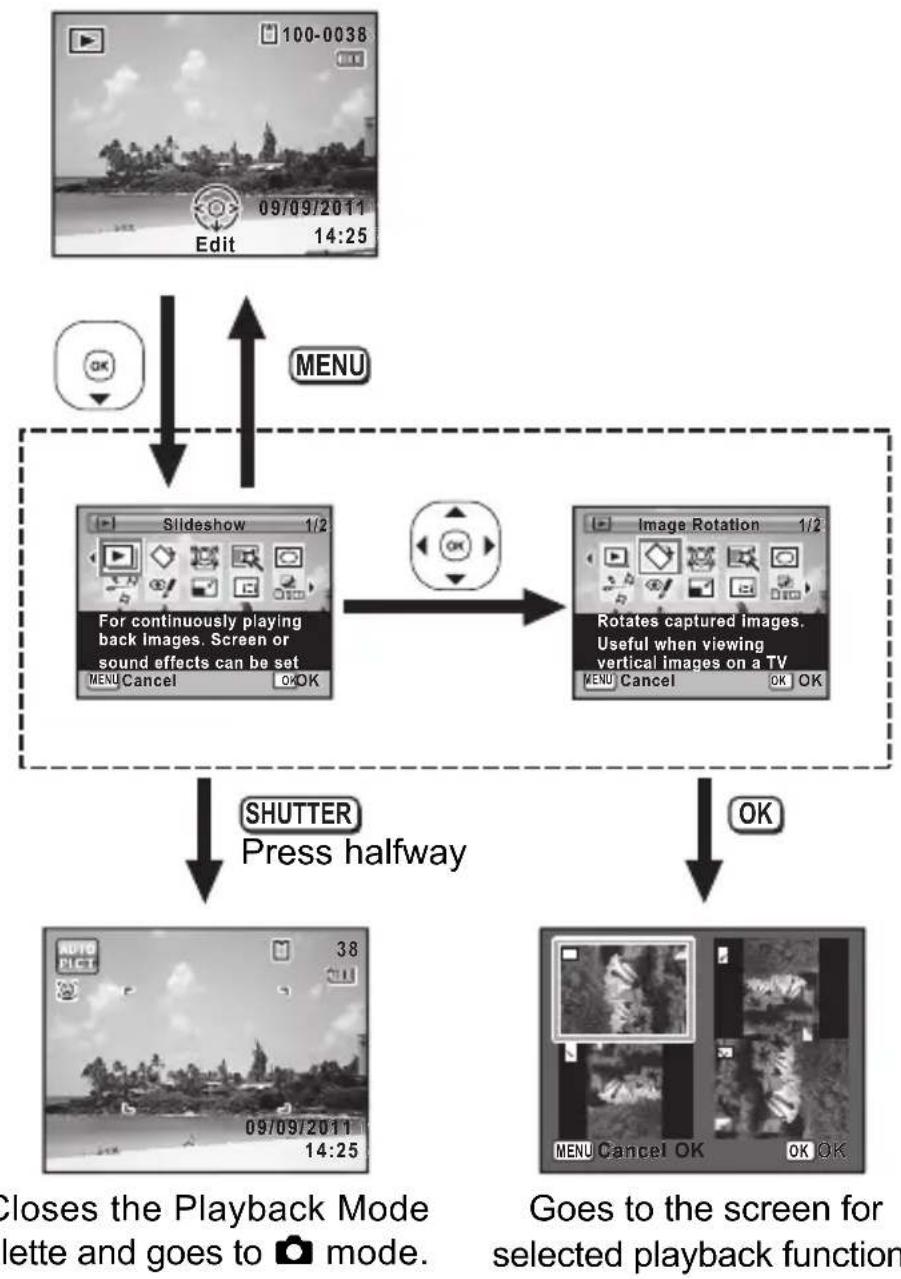
flowchart
graph TD
    A["Edit 100-0038\n09/09/2011\n14:25"] --> B["MENU"]
    B --> C["Slideshow 1/2\nFor continuously playing back images. Screen or sound effects can be set\nMENU Cancel OK OK"]
    C --> D["Image Rotation 1/2\nRotates captured images.\nUseful when viewing vertical images on a TV\nMENU Cancel OK OK OK"]
    D --> E["SHUTTER\nPress halfway"]
    E --> F["Closes the Playback Mode\nlette and goes to mode."]
    F --> G["OK"]
    G --> H["Menu Cancel OK OK OK"]
    H --> I["Does to the screen for selected playback function"]
Closes the Playback Mode Palette and goes to 🔒 mode.
Goes to the screen for selected playback function.
Playback Mode Palette
| Playback Mode Description Page | |||
| Slideshow | For continuously playing back images. Screen or sound effects can be set. | p.141 | |
| Image Rotation | Rotates captured images. Useful when viewing vertical images on a TV. | p.143 | |
| Small Face Filter | Reduces the size of faces in the image, for well-proportioned portraits. | p.162 | |
| Digital Filter | For modifying images with a Color filter or Soft filter. | p.164 | |
| Frame Composite | For composing an image with a frame. Select Overwrite or Save as to save. | p.169 | |
| Movie Editing | Save as Still Image | For saving one frame from a movie as a still picture. | p.173 |
| Divide Movies | For dividing a movie into two. | ||
| Red-eye Compensation | For compensating red-eye. May not work due to the condition of the image. | p.168 | |
| Resize | Changes Recorded Pixels and Quality Level to make the file size smaller. | p.160 | |
| Cropping | For cropping images to the size you like. Saved as a new image. | p.161 | |
| Image/Sound Copy | For copying images and sounds between the built-in memory and SD Memory Card. | p.175 | |
| Voice Memo | Attaches sound to images. Recording is possible till the memory card is full. | p.186 | |
| Protect | Protects images and sounds from accidental deletion. Formatting will delete protected data. | p.153 | |
| DPOF | For the print settings. Useful when printing at a printing service. | p.178 | |
| Start-up Screen | For setting a captured image as the Start-up Screen. | p.205 | |
Slideshow
You can play back recorded images one after another.
1 In ▶ mode, use the four-way controller (◀▶) to choose the image to start the slideshow with.
2 Press the four-way controller (▼).
The Playback Mode Palette appears.
3 Use the four-way controller (▲▼◀▶) to select ▶ (Slideshow).
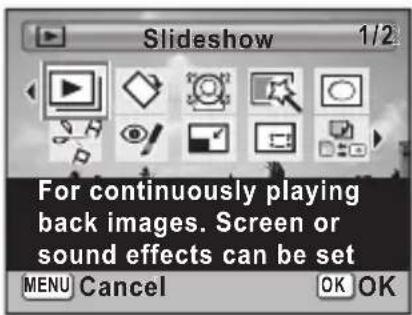
4 Press the OK button.
The slideshow setting screen appears.
5 Use the four-way controller (▲▼) to select [Start].
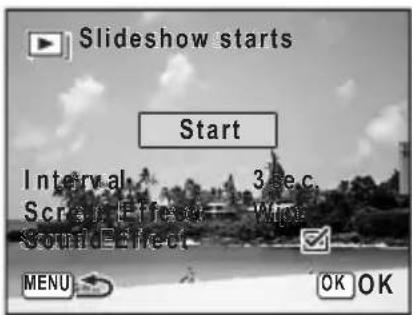
6 Press the OK button.
The slideshow starts.
Pressing the OK button during the slideshow pauses the slideshow.
To resume the slideshow, press the OK button again.
7 Press any button other than the OK button.
The slideshow stops.
To Set the Slideshow Conditions
You can set the playback interval and also a screen effect and sound effect for when one image changes to the next.
1 Use the four-way controller (▲▼) to select [Interval] in Step 5 on p.141.
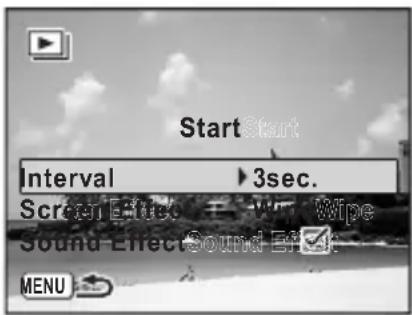
2 Press the four-way controller (▶).
A pull-down menu appears.
3 Use the four-way controller (▲▼) to select the interval and press the OK button.
Choose from [3sec.], [5sec.], [10sec.], [20sec.] or [30sec.].
4 Use the four-way controller (▲▼) to select [Screen Effect].
5 Press the four-way controller (▶).
A pull-down menu appears.
6 Use the four-way controller (▲▼) to choose the screen effect and press the OK button.
| Wipe The next image slides over the previous one from left to right | |
| Checker The next image appears in small square mosaic blocks | |
| Fade The current image gradually fades out and the next image fades in | |
| Random Various effects are used randomly | |
| Off No effect |
7 Use the four-way controller ( ▲ ▼ ) to select [Sound Effect].
8
Use the four-way controller (◀▶) to select √ or □.
Except when the [Screen Effect] is set to [Off], you can choose ☑ (On) or □ (Off) for the sound that is played when one image changes to the next.
9
Use the four-way controller (▲▼) to select [Start] and press the OK button.
The slideshow starts using the selected interval and effect.
![RICOH RZ18 - Use the four-way controller (▲▼) to select [Start] and press the OK button. - 1](/content/2026/05/1046279/images/dfa0c51a11bbc030d82ba5adca7b2debeb39074790ed3f9b8ee23963dc31cab7.jpg)
- The slideshow will continue until you press any button other than the OK button.
- Movies or pictures with sound will be played through to the end before the next picture is played back, regardless of the interval setting. However, pressing the four-way controller (▶) while playing back a movie or a picture with sound skips to the next image.
- Sound files made in Voice Recording are not played back in the slideshow.
- Panorama images are displayed by scrolling from left to right in 4 seconds before the next picture is played back, regardless of the interval or screen effect setting.
- When [Random] is selected for the screen effect, the interval is fixed and the sound effect is set to off. Also the sound of pictures with sound will not be played back.
Connecting the Camera to AV Equipment 📄p.156
Rotating the Image
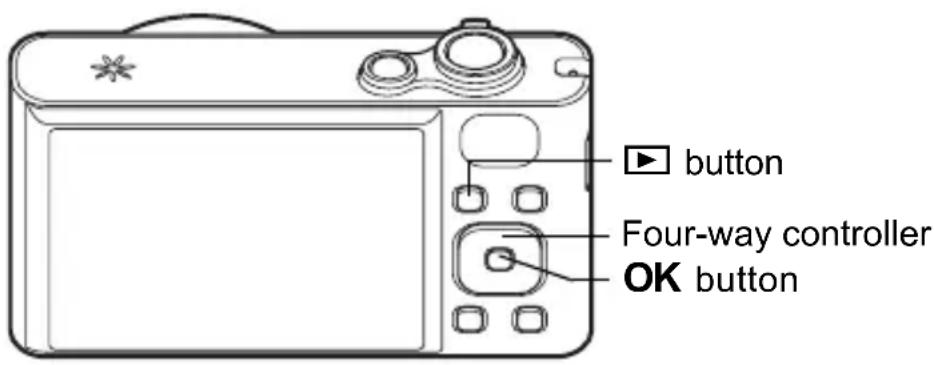
1
Press the ▶ button after taking a picture.
The image appears on the display.
2
Press the four-way controller (▼).
The Playback Mode Palette appears.
3
Use the four-way controller (▲▼◀▶) to select ◇ (Image Rotation).
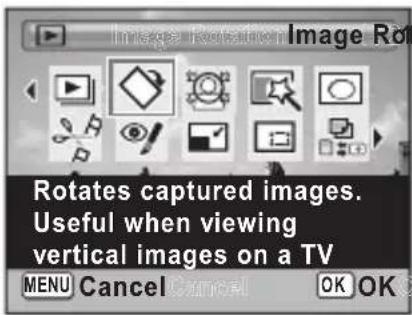
4
Press the OK button.
The rotation selection screen ( 0^ , Right 90^ , Left 90^ , or 180^ ) appears.
5
Use the four-way controller (▲▼◀▶) to choose the rotation direction and press the OK button.
The rotated image is saved.
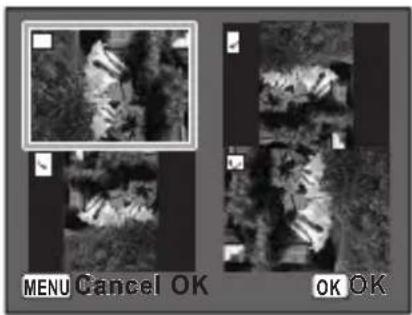

- Panoramic images and movies cannot be rotated.
- Protected images can be rotated, but they cannot be saved in a rotated state.
Zoom Playback
You can magnify an image up to ten times.
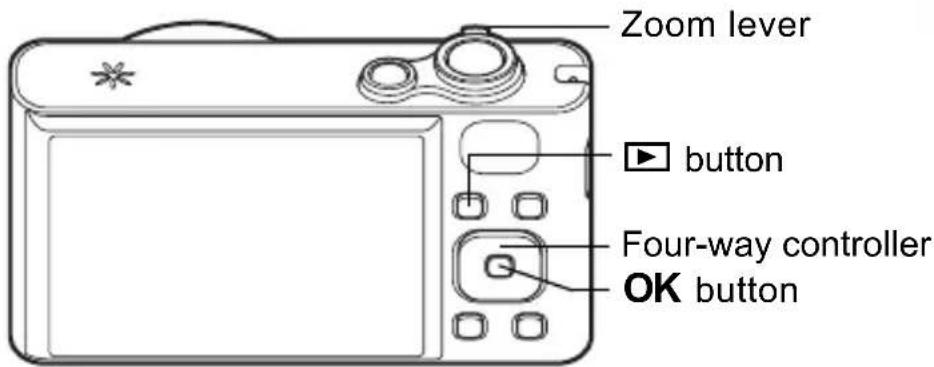
1 In ▶ mode, use the four-way controller (◀▶) to choose the image you want to magnify.
2 Turn the zoom lever to the right (Q).
The image is magnified ( × 1.1 to × 10). Continuing to turn the zoom lever to the right (Q) changes the magnification continuously.
You can use the guide mark “+” appears at the bottom left of the screen to check which portion of the image is magnified.
Available operations while an image is magnified
| Four-way controller (▲▼◀▶) | Moves the position to be magnified. |
| Zoom lever to the right (Q) | Makes the image bigger (max. ×10). |
| Zoom lever to the left (☐) | Makes the image smaller (min. ×1.1). |
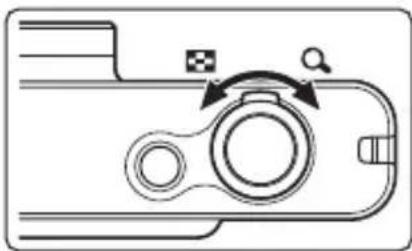
natural_image
Diagram of a camera lens system with no text or symbols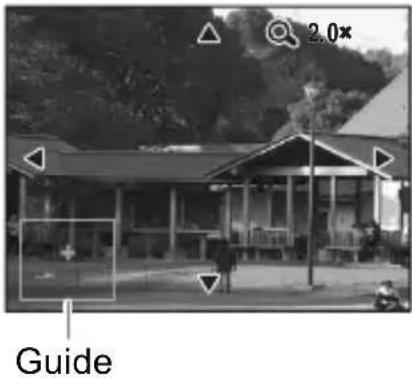
3 Press the OK button.
The image returns to single-image display.

Movies cannot be magnified.
Zoom In on the Subject's Face Automatically (Face Close-up Playback)
You can enjoy playing back images with the subjects' faces zoomed up simply by pressing the 😊 button (Face close-up playback) if the Face Detection function operated when the images were taken.
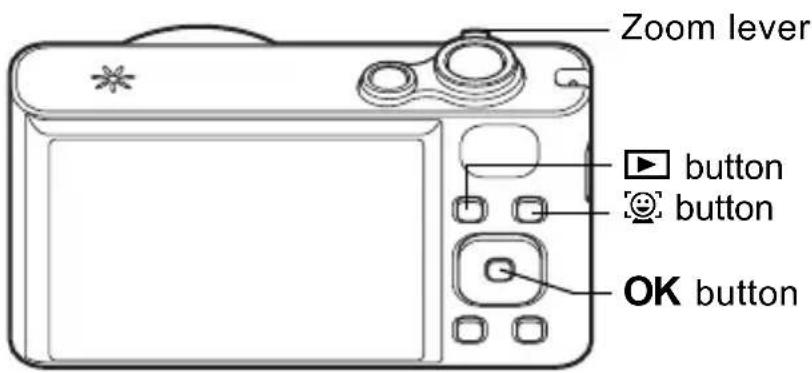
1 In ▶ mode, use the four-way controller (◀▶) to choose the image you want to magnify.
2 Confirm that the 😊 icon is displayed in the image and press the 😊 button.
The image is magnified around the face first detected when the image was taken.
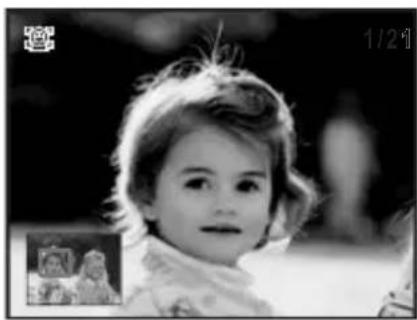
natural_image
Black-and-white photo of a young girl with styled hair and a headband, no visible text or symbolsIf multiple faces were detected when the image was taken, the subjects' faces are zoomed up on each time the 😊 button is pressed in order of the detection during shooting.
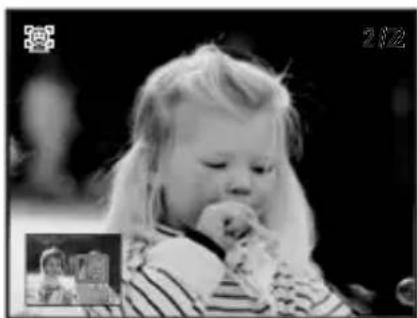
natural_image
Black-and-white photo of a young child with long hair, resting his mouth on her hand, with an inset photo showing two children (no visible text or symbols)Available operations during the Face close-up playback mode
| Zoom lever to the right (Q) | Zooms on the subject being displayed for Face close-up playback at an equal or slightly larger magnification ratio. |
| Zoom lever to the left (☐) | Zooms on the subject being displayed for Face close-up playback at an equal or slightly smaller magnification ratio. |
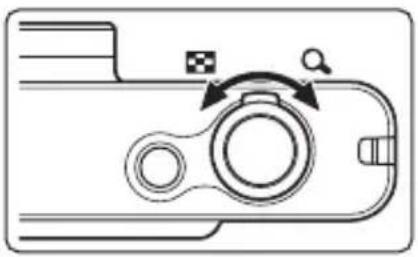
natural_image
Diagram of a camera lens with adjustment arrows and a magnifying glass (no text or symbols)3 Press the OK button.
The image returns to single-image display.

- Face close-up playback is not available for movies and images that are saved as still pictures from the movies.
- The magnification ratio for Face close-up playback may differ depending on the conditions such as the size of the face detected when shooting.
- Face close-up playback is also available for images taken with the pet detection function.
Deleting Images and Sound Files
You can delete images and sound files that you do not want to keep.
Deleting a Single Image
You can delete a single image or sound file.

Protected images and sound files cannot be deleted (p.153).
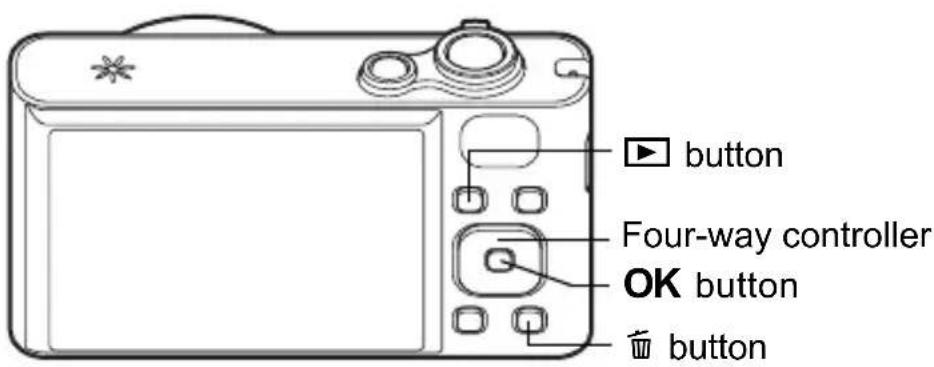
1 In ▶ mode, use the four-way controller (◀▶) to choose the image/sound file you want to delete.
2 Press the 📋 button.
A confirmation dialog appears.
3 Use the four-way controller (▲▼) to select [Delete].
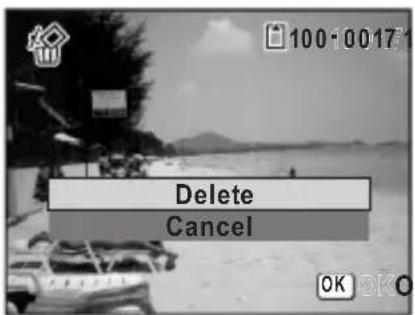
4 Press the OK button.
The image or sound file is deleted.
To Delete the Sound from an Image
If sound (voice memo) has been added to an image (p.186), you can delete the sound without deleting the image.
1 In ▶ mode, use the four-way controller (◀▶) to choose the image with sound.
♪ appears on the images with sound.
2 Press the 📋 button.
A confirmation dialog appears.
3 Use the four-way controller (▲▼) to select [Delete Sound].
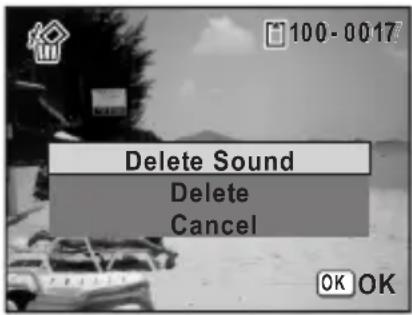
4 Press the OK button.
The sound data is deleted.

- Select [Delete] in Step 3 to delete both the image and sound data.
- You cannot delete only the sound in a movie.
Deleting Selected Images and Sound Files
You can delete several images/sound files selected from the four-/nine-image display at once.

Protected images and sound files cannot be deleted (p.153).
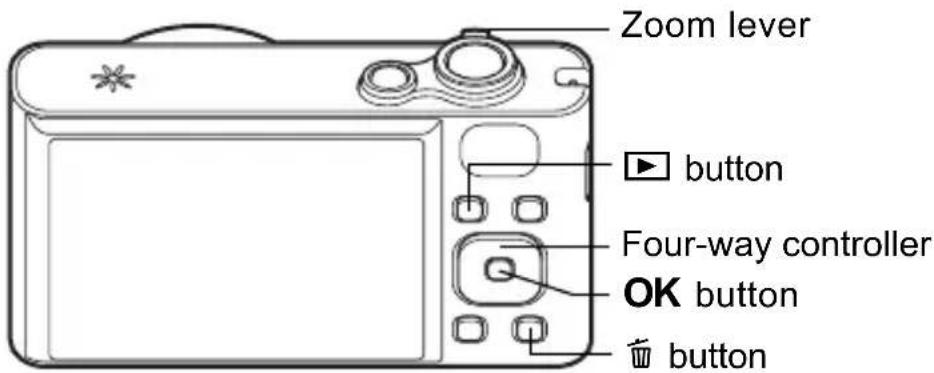
1 In ▶ mode, turn the zoom lever to the left (☐) once or twice.
Four-image display or nine-image display appears.
2 Press the 📋 button.
□ appears on the images and sound files.
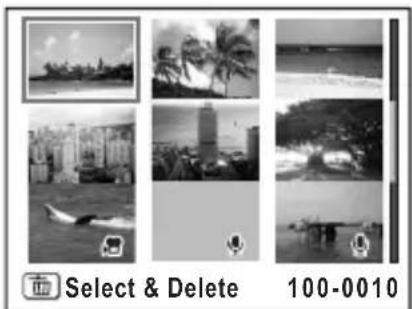
3
Use the four-way controller (▲▼◀▶) to choose the images and sound files that you want to delete and press the OK button.
√ appears on the selected images and sound files.
If you select an image and turn the zoom lever to the right (Q), the selected image appears in single-image display as long as the lever is turned, enabling you to check whether you really want to delete it or not. (The display returns to four-/nine-image display when you release the lever.) However, protected images cannot be displayed in single-image display.
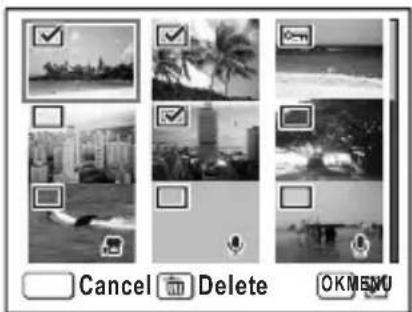
4
Press the 📋 button.
A confirmation dialog appears.
5
Use the four-way controller (▲▼) to select [Select & Delete].
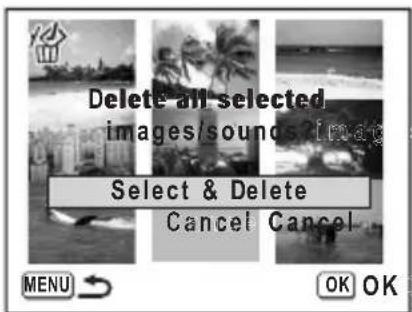
6
Press the OK button.
The selected images and sound files are deleted.
Deleting All Images and Sound Files
You can delete all the images and sound files at once.

Protected images and sound files cannot be deleted (p.153).
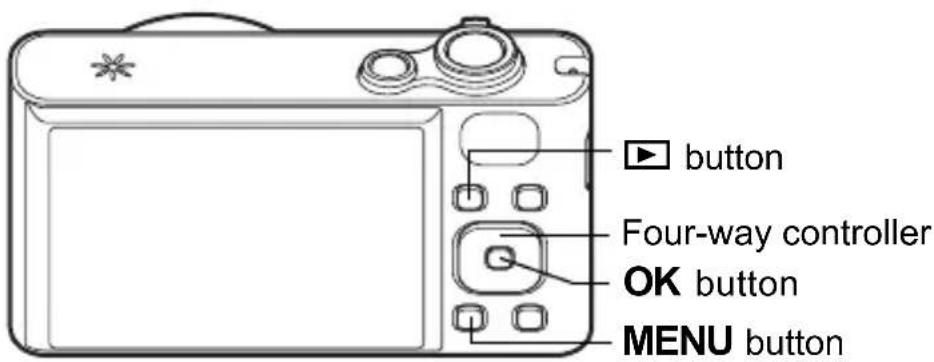
1 Press the MENU button in ▶ mode.
The [Setting] menu appears.
When you press the MENU button in ☐ mode, press the four-way controller (▶) once.
2 Use the four-way controller (▲▼) to select [Delete All].
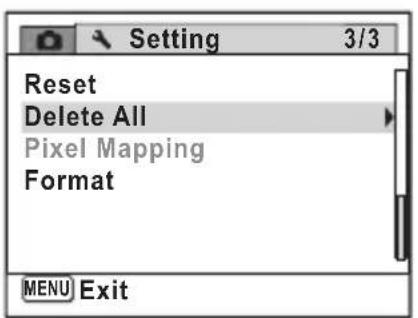
3 Press the four-way controller (▶).
The [Delete All] screen appears.
4 Use the four-way controller (▲▼) to select [Delete All].
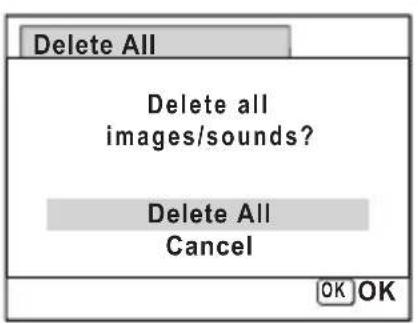
5 Press the OK button.
All the images and sound files are deleted.
Protecting Images and Sound Files from Deletion (Protect)
You can protect stored images and sound files from being accidentally deleted.
1 In ▶ mode, use the four-way controller (◀▶) to choose the image you want to protect.
2 Press the four-way controller (▼).
The Playback Mode Palette appears.
3 Use the four-way controller (▲▼◀▶) to select ○—(Protect).
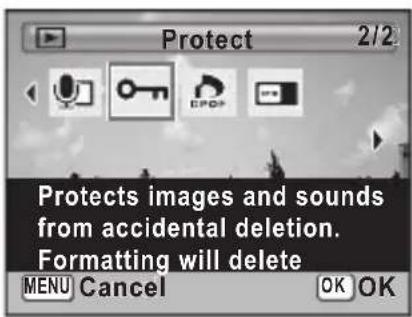
4 Press the OK button.
The screen for selecting [Single Image/Sound] or [All Images/Sounds] appears.
5 Use the four-way controller (▲▼) to select [Single Image/Sound].
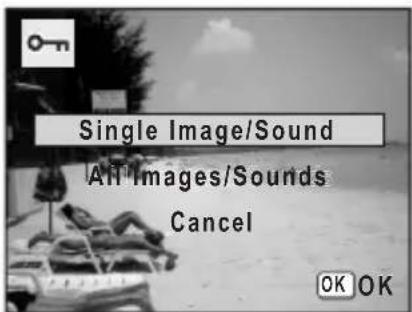
6 Press the OK button.
The message [Protects this image/sound] appears.
To protect another image or sound file, use the four-way controller (◀▶) to select another image or sound file.
7 Use the four-way controller (▲▼) to select [Protect].
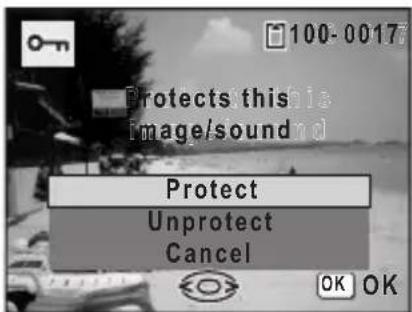
8 Press the OK button.
The selected image or sound file is protected and the screen shown in Step 5 reappears.
To protect other images or sound files, repeat Steps 5 to 8. Select [Cancel] to exit the Protect setting.

- To cancel the protection of the data, select [Unprotect] in Step 7.
- 📄 appears on the protected images and sound files during playback.
- The maximum number of images and sound files you can protect in succession with [Single Image/Sound] is 99.
To Protect All Images and Sound Files
1 Select [All Images/Sounds] in Step 5 on p.153.
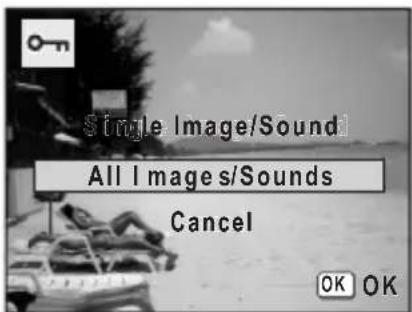
2 Press the OK button.
3 Use the four-way controller (▲▼) to select [Protect].
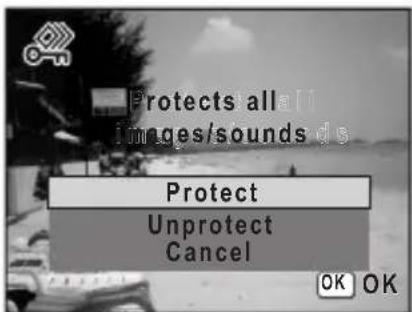
4 Press the OK button.
All the images and sound files are protected and the screen shown in Step 1 reappears.
5 Use the four-way controller (▲▼) to select [Cancel] and press the OK button.
The Playback Mode Palette reappears.
![RICOH RZ18 - Use the four-way controller (▲▼) to select [Cancel] and press the OK button. - 1](/content/2026/05/1046279/images/d7cb3d0cf1f93b8326969db94133bfa50aff576b0d3fe3b034c124cc8ae28328.jpg)
Protected images and sound files are deleted when the SD Memory Card or the built-in memory is formatted. (p.190).
![RICOH RZ18 - Use the four-way controller (▲▼) to select [Cancel] and press the OK button. - 2](/content/2026/05/1046279/images/ea25058a9e6120b8dcf8109608996b87dd5aeba755cdef0c35e0ee3d2394b708.jpg)
To cancel the protection of all your images and sound files, select [Unprotect] in Step 3.
Connecting the Camera to AV Equipment
By using the supplied AV cable (I-AVC7), you can capture and play back images on equipment with a video IN jack, such as a TV.
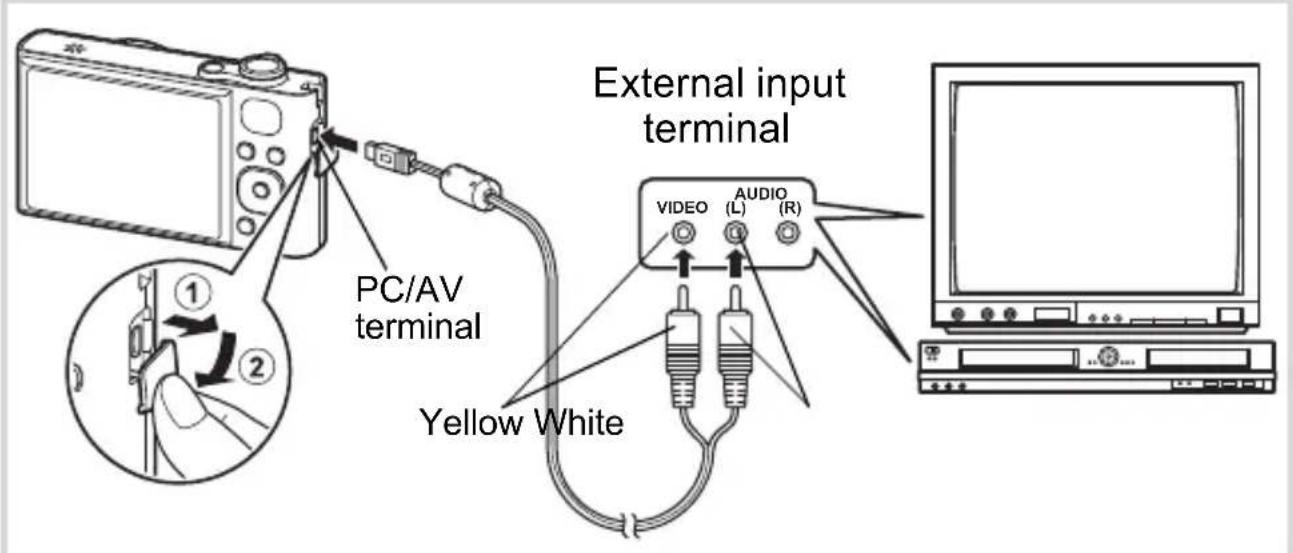
1 Turn the AV device and camera off.
2 Connect the AV cable to the PC/AV terminal of the camera.
Connect the terminal of the AV cable with arrow mark facing the side of the display.
3 Connect the other ends of the AV cable to the video input terminal and audio input terminal of the AV device.
When using stereo sound equipment, insert the sound terminal into the L (white) terminal.
4 Turn the AV device on.
When the device that the camera is connected to and the device that plays back images are different, turn both devices on.
When viewing images on AV equipment with multiple video input terminals (such as a TV), refer to the operation manual of the device and select the video input terminal to which the camera is connected.
5
Turn the camera on.

- It is recommended to use the optional AC adapter kit K-AC117 if you intend to use the camera for a long time (p.37).
- Depending on the country or region, images and sound files may fail to be played back if the video output format is set differently from the one in use there. If this happens, change the video output format setting (p.200).
- The camera display turns off and the volume cannot be adjusted with the zoom lever while the camera is connected to AV equipment.
- When the camera is connected to an AV device, you can change the images with the remote control (optional).

When connecting to and playing back images on AV equipment, image data is output at normal screen resolution. To view movies recorded at 128050 (1280×720, 30 fps) and 12805 (1280×720, 15 fps) in HDTV, transfer the data to a computer and play it back on the computer (p.209).
Memo
5 Editing and Printing Images
Editing Images 160
Setting the Printing Service (DPOF) ..... 178
About printing
The following options are available for printing images taken with this camera.
1 Use a printing service.
2 Use your printer with an SD Memory Card slot to print directly from the SD Memory Card.
3 Use your computer's software to print images.
Editing Images
Changing the Image Size (Resize)
By changing the recorded pixels of a selected image, you can make the file size smaller than the original. You can use this function to continue taking pictures when the SD Memory Card or the built-in memory is full, by making the images smaller and overwriting the original images to make more space available.

- Images taken with the recorded pixels of 12M (3456×3456)/ 2M (1920×1080) or panoramic images and movies cannot be resized.
- You cannot select a larger resolution than that of the original image.
1 In ▶ mode, use the four-way controller (◀▶) to choose the image you want to resize.
2 Press the four-way controller (▼).
The Playback Mode Palette appears.
3 Use the four-way controller (▲▼◀▶) to select ☐ (Resize).
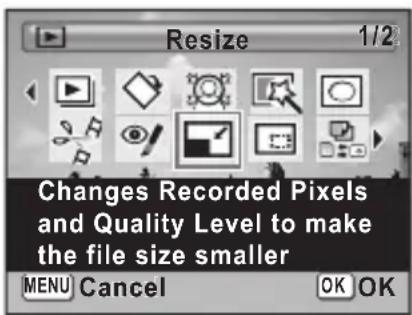
4 Press the OK button.
The screen for choosing the number of recorded pixels appears.
5 Use the four-way controller (◀▶) to select the number of recorded pixels.
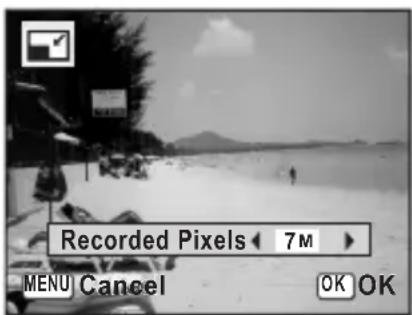
6 Press the OK button.
A confirmation dialog for overwriting the image appears.
If the selected image is protected, the processed image is saved as a new image and the following confirmation dialog does not appear.
7 Use the four-way controller (▲▼) to select [Overwrite] or [Save as].
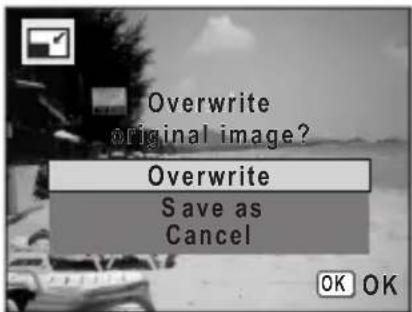
8 Press the OK button.
The resized image is saved.
Cropping Images
You can delete the unwanted part of a picture and save the cropped image as a new image.

Images taken with the recorded pixels of 12M161 (3456×3456)/ 12M1689 (4608×2592)/ 2M169 (1920×1080) or panoramic images and movies cannot be cropped.
1 In ▶ mode, use the four-way controller (◀▶) to choose the image you want to crop.
2 Press the four-way controller (▼).
The Playback Mode Palette appears.
3 Use the four-way controller (▲▼◀▶) to select □ (Cropping).
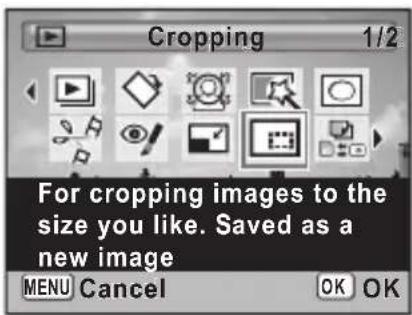
4 Press the OK button.
The cropping screen appears.
The largest size of cropped image is shown with a green frame on the screen. The cropped image cannot be larger than this cropping frame size.
5 Choose the cropping area.
The following operations move the green frame and set the area for cropping on the screen.
| Zoom lever Changes | es the size of the cropping frame. |
| Four-way controller (▲▼◀▶) | Moves the cropping frame up, down, left and right. |
| Green button Rotates | es the cropping frame.• The button is displayed only when the cropping frame can be rotated. |
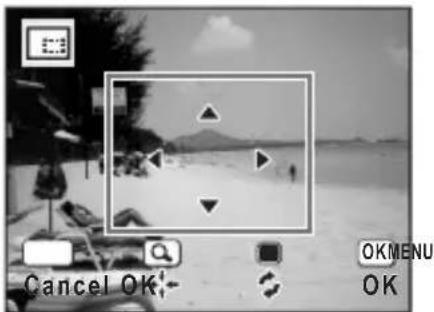
natural_image
Black-and-white beach photo with camera control buttons and location markers (no readable text or symbols)6 Press the OK button.
The cropped image is saved with a new file name.
The number of recorded pixels is selected automatically according to the size of the cropped image.
Processing Images to Make Faces Look Smaller
Images are processed to reduce the size of people's faces detected with the Face Detection function (p.72) when taking pictures so that they look smaller.
1 In ▶ mode, use the four-way controller (◀▶) to choose the image you want to edit.
2 Press the four-way controller (▼).
The Playback Mode Palette appears.
3 Use the four-way controller (▲▼◀▶) to select 📋 (Small Face Filter).
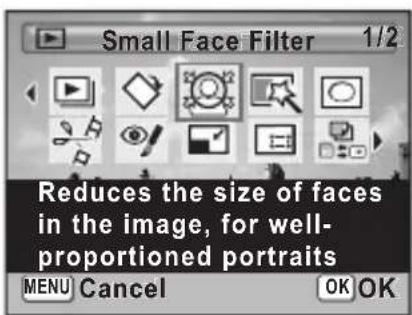
4 Press the OK button.
Face detection frames for faces that can be corrected are displayed. Proceed to Step 6 when there is only one detection frame.
5 Use the four-way controller (▲▼◀▶) to select a face to be processed.
A green frame indicates the face that is to be processed.
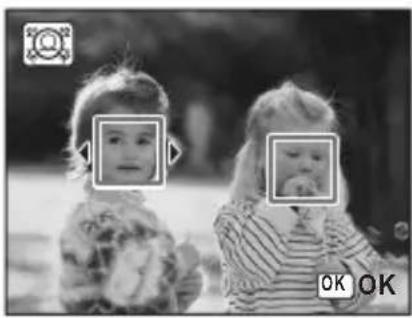
natural_image
Black-and-white photo of two young children outdoors, one with a camera icon and another with 'OK OK' text (no other readable text or symbols)6 Press the OK button.
7 Use the four-way controller (◀▶) to change the reduction ratio.
- ^+ Approx. 5 %
- i+ Approx. 7 %
-
- +Approx. 10 %
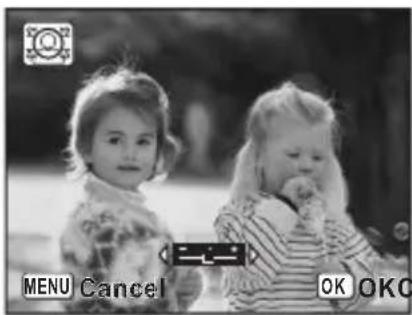
8 Press the OK button.
A confirmation dialog for overwriting the image appears. If the selected image is protected, the processed image is saved as a new image and the following confirmation dialog does not appear.
9 Use the four-way controller (▲▼) to select [Overwrite] or [Save as].
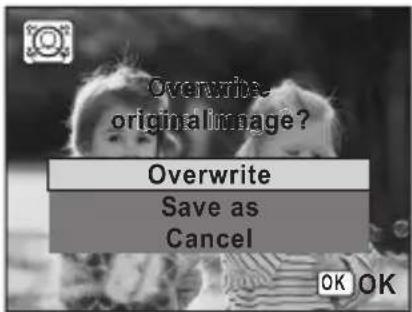
10 Press the OK button.
The camera returns to ▶ mode and the processed image is displayed.

You may not be able to process images in the following situations:
- When the size of face taken in relation to an image is too large or too small
- When faces are located in the edges of an image
In such cases, the face detection frame in Step 4 will not appear.
Using the Digital Filters
This function lets you change the color tones and perform special processing on a selected image.
| B&W | Processes the image into one that has the look of a black and white photograph. |
| Sepia | Processes the image into one that has the look of a sepia photograph. |
| Toy Camera | Processes the image that looks as though it was shot with a toy camera. |
| Retro | Processes the image into one that has the look of an old photo. |
| Color | Processes the image using the selected color filter. You can choose from six filters: red, pink, purple, blue, green, and yellow. |
| Extract Color | Extracts only a specific color and processes the rest of the image into black and white. You can choose from three filters: red, green, and blue. |
| Color Emphasis | There are four filters: Sky Blue/Fresh Green/Delicate Pink/Autumn Leaves. |
| High Contrast | Enhances the contrast of an image. |
| Starburst | Processes the image with a special sparkling look achieved by adding cross-like effects, etc. to a highlight area, such as night scenes or lights reflected on water. You can choose from three filters: Cross, Heart, and Star. |
| Soft | Processes the image into a soft image that appears soft overall. |
| Brightness | Adjusts the brightness of the image. |
| Miniature | Blurs part of the image to create a fake miniature scene. |

Panoramic images, movies or images taken with another camera cannot be processed using Digital Filter function. An error message appears if you choose this function from the Playback Mode Palette and press the OK button.
1 In ▶ mode, use the four-way controller (◀▶) to choose the image you want to edit.
2 Press the four-way controller (▼).
The Playback Mode Palette appears.
3 Use the four-way controller (▲▼◀▶) to select 📣 (Digital Filter).
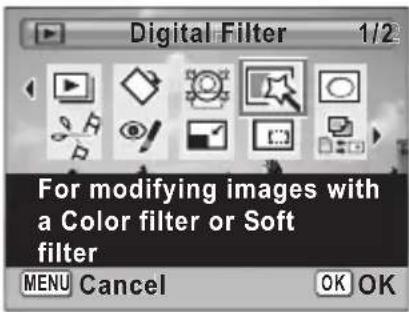
4 Press the OK button.
The filter selection screen appears.
1 B&W
2 Sepia
3 Toy Camera
4 Retro
5 Color
6 Extract Color
7 Color Emphasis
8 High Contrast
9 Starburst
10 Soft
11 Brightness
12 Miniature
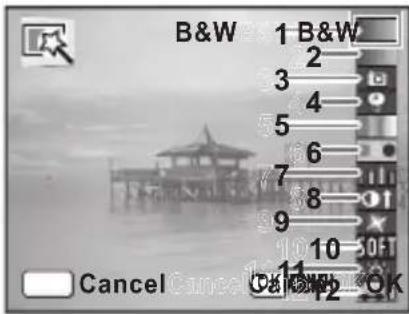
Subsequent steps vary depending on your selection.
To Select a B&W, Sepia or Soft Filter
5 Use the four-way controller (▲▼) to choose a filter.
The preview image of the result of the filter effect appears.
6 Press the OK button.
A confirmation dialog for overwriting the image appears.
If the selected image is protected, the processed image is saved as a new image and the following confirmation dialog does not appear.
7 Use the four-way controller (▲▼) to select [Overwrite] or [Save as].
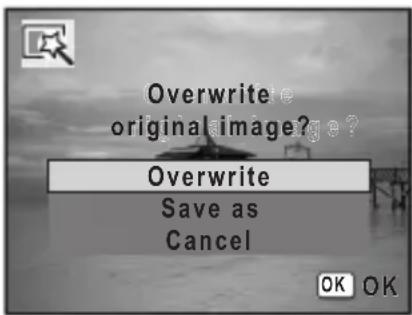
8 Press the OK button.
The image processed with the filter is saved.
To Select a Retro, Color, Extract Color, Color Emphasis or Starburst Filter
5 Use the four-way controller (▲▼) to choose a filter.
The preview image of the result of the filter effect appears.
6 Use the four-way controller (◀▶) to choose the color.
The color filter changes in the following sequence each time the four-way controller (▶) is pressed.
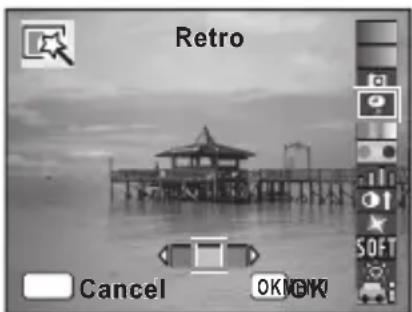
| Retro | Original image → Amber → Blue |
| Color | Red → Pink → Purple → Blue → Green → Yellow |
| Extract Color | Red → Green → Blue |
| Color Emphasis | Sky Blue → Fresh Green → Delicate Pink → Autumn Leaves |
| Starburst | Cross → Heart → Star |
7 Press the OK button.
A confirmation dialog for overwriting the image appears.
If the selected image is protected, the processed image is saved as a new image and the following confirmation dialog does not appear.
8 Use the four-way controller (▲▼) to select [Overwrite] or [Save as].
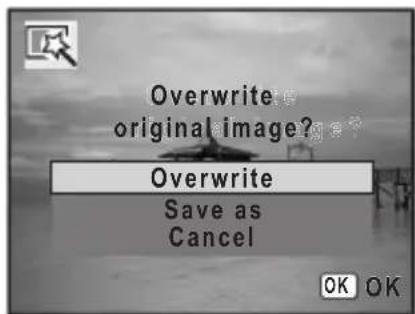
9 Press the OK button.
The image processed with the filter is saved.
To Select Toy Camera, High Contrast, Brightness or Miniature Filter
5 Use the four-way controller (▲▼) to choose a filter.
The preview image of the result of the filter effect appears.
6 Use the four-way controller (◀▶) to adjust the effect.
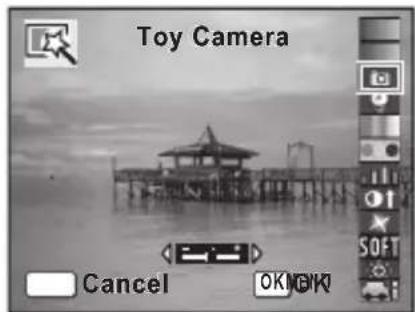
| Four-way controller (◀) | Default Setting | Four-way controller (▶) | |
| Toy Camera W | Weak Standard Strong | ||
| High Contrast | Weak Standard Strong | ||
| Brightness Dark | Standard Bright | ||
| Miniature Upper | Upper and lower Lower |
7 Press the OK button.
A confirmation dialog for overwriting the image appears.
If the selected image is protected, the processed image is saved as a new image and the following confirmation dialog does not appear.
8 Use the four-way controller (▲▼) to select [Overwrite] or [Save as].
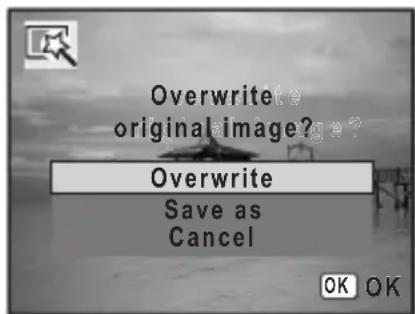
9 Press the OK button.
The image processed with the filter is saved.
Compensating for an Unwanted Red-eye Effect
You can correct images where the flash has caused the subject to appear with red eyes.

- The red-eye compensation function cannot be used on panoramic images, movies or on images where red eyes cannot be detected on the camera. An error message appears in Step 4.
- The red-eye compensation function can only be used with still pictures taken with this camera.
1 In ▶ mode, use the four-way controller (◀▶) to choose the image you want to correct.
2 Press the four-way controller (▼).
The Playback Mode Palette appears.
3 Use the four-way controller (▲▼◀▶) to select ⚙️ (Red-eye Compensation).
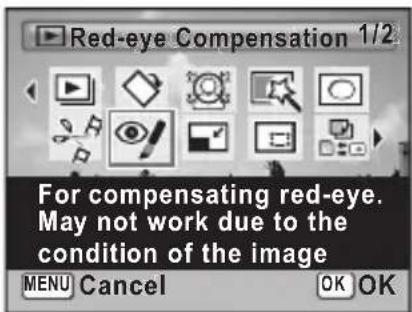
4 Press the OK button.
A confirmation dialog for overwriting the image appears.
If the selected image is protected, the processed image is saved as a new image and the following confirmation dialog does not appear.
5 Use the four-way controller (▲▼) to select [Overwrite] or [Save as].
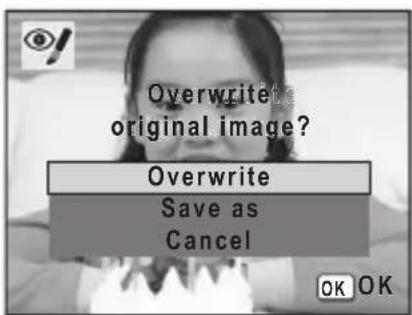
6 Press the OK button.
The processed image is saved.
Adding a Frame (Frame Composite)
This function lets you add a decorative frame to still pictures. There are 3 frames already stored in the camera.

The Frame Composite function cannot be used on images taken with the recorded pixels of 12M 161 (3456×3456)/12M 169 (4608×2592)/2M 169 (1920×1080), panoramic images, movies, images of size 3M (2048×1536) or smaller. An error message appears in Step 4.
1 In ▶ mode, use the four-way controller (◀▶) to choose the image to which you want to add a frame.
2 Press the four-way controller (▼).
The Playback Mode Palette appears.
3
Use the four-way controller (▲▼◀▶) to select ○ (Frame Composite).
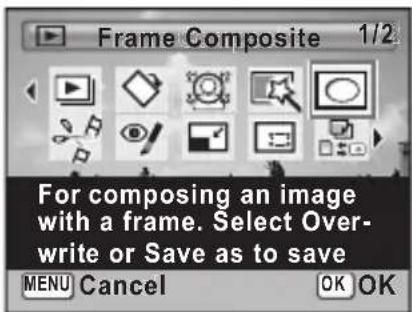
4 Press the OK button.
The 9-frame display of the frame selection screen appears.
5
Use the four-way controller (▲▼◀▶) to choose a frame.
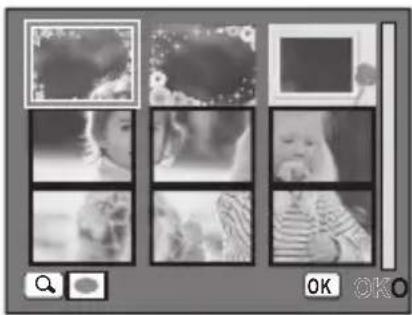
natural_image
Grid of grayscale photo frames showing a baby and adult with no visible text or symbols6
Turn the zoom lever to the right (Q).
The selected frame appears in single-image display.
You can choose another frame using either of the following operations.
| Four-way controller ( ◀ ▶ ) | Press to choose a different frame. |
| Zoom lever to the left ( ☑ ) | Returns to the 9-frame display of the frame selection screen, and then lets you choose a different frame in the same way as Step 5. |
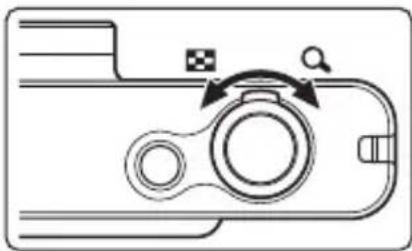
natural_image
Diagram of a camera lens system with no text or symbols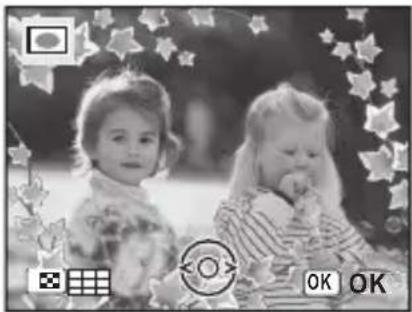
natural_image
Black-and-white photo of two young girls sitting together with star patterns in the background (no text or symbols)7 Press the OK button.
The frame position and size adjustment screen appears.
You can adjust the image using either of the following operations.
| Four-way controller(▲▼◄►) | Press to adjust the positionof the image |
| Zoom lever Makes the | the image larger orsmaller. |
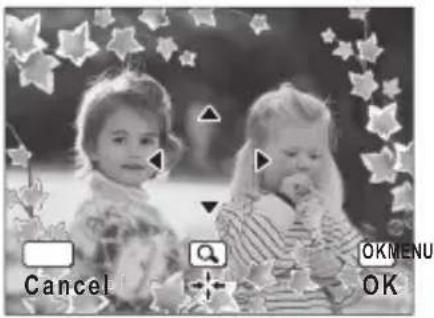
8 Press the OK button.
A confirmation dialog for overwriting the image appears.
If the selected image is protected, the processed image is saved as a new image and the following confirmation dialog does not appear.
9 Use the four-way controller (▲▼)
to select [Overwrite] or [Save as].
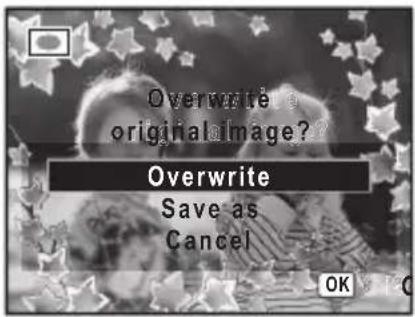
10 Press the OK button.
The processed image is saved with the recorded pixels of 3M (2048×1536).
Optional Frames
The optional frames are stored in the CD-ROM (S-SW121) supplied with the camera. To use these frames, copy them from the CD-ROM. These optional frames are deleted if the files on the built-in memory are deleted with a computer or if the built-in memory is formatted.
To Copy Frames
1 Remove the SD Memory Card from the camera.
If you leave the SD Memory Card in the camera, the frames will be copied onto the card, not into the camera's built-in memory.
2 Connect the camera to the computer using the provided USB cable (I-USB7).
Refer to “Connecting to a Computer” (p.209) for instructions on connecting the camera to a computer.
3 When the device detection window opens, click [Cancel].
4 Insert the CD-ROM (S-SW121) into the CD-ROM drive.
5 When the installer window opens, click [EXIT].
6 If there is not already a “FRAME” folder in the root directory of the camera (removable disk), create the folder.
7 Copy the desired files from the FRAME folder in the root directory of the CD-ROM to the FRAME folder on the camera (removable disk).
For information on working with files on your computer, refer to the instruction manual supplied with the computer.
8 Disconnect the USB cable from the computer and camera.
Refer to “Connecting to a Computer” (p.209) for instructions on disconnecting the cable.

Frames can be stored both in the built-in memory and on the SD Memory Cards, but using large numbers of frames may slow down processing speed.
To Use a New Frame
The frames downloaded from the PENTAX website or other source can be used for adding a frame to pictures.

- Extract the downloaded frame and copy it to the FRAME folder in the built-in memory or the SD Memory Card.
- The FRAME folder is created when the SD Memory Card is formatted with this camera.
- For more information on downloading, refer to the PENTAX website.
Editing Movies
You can select a frame from the recorded movie to save as a still picture or divide a movie into two.
1 In ▶ mode, use the four-way controller (◀▶) to choose the movie you want to edit.
2 Press the four-way controller (▼).
The Playback Mode Palette appears.
3 Use the four-way controller (▲▼◀▶) to select 🎨 (Movie Editing).
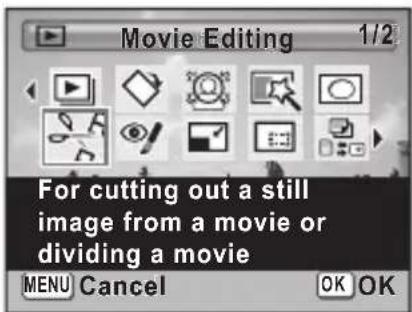
4 Press the OK button.
The movie edit selection screen appears. Subsequent steps vary depending on your selection.
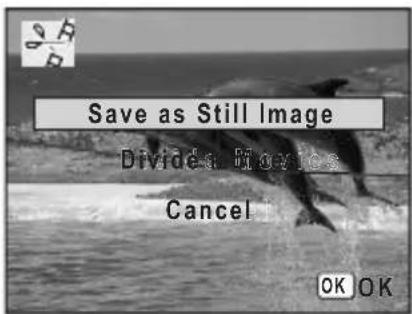
To Save a Frame from a Movie as a Still Picture
5 Select [Save as Still Image] on the movie edit selection screen.
6 Press the OK button.
The screen appears for selecting a frame to be saved as a still picture.
7 Use the four-way controller (▲▼◀▶) to choose the frame you want to save.
▲Plays or pauses the movie
▼ Stops the movie and returns to the first frame
◀ Reverses the movie frame by frame
▶ Advances the movie frame by frame
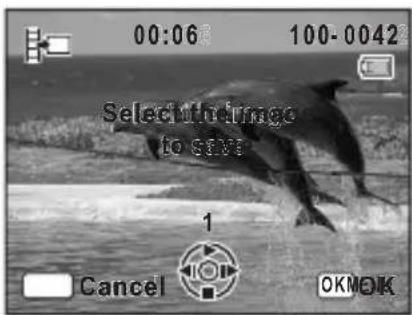
8 Press the OK button.
The selected frame is saved as a still picture.
To Divide a Movie
5 Select [Divide Movies] on the movie edit selection screen.
6 Press the OK button.
The screen for choosing the dividing position appears.
7 Use the four-way controller (▲▼◀▶) to determine the dividing position.
▲Plays or pauses the movie
▼ Stops the movie and returns to the first frame
◀ Reverses the movie frame by frame
▶ Advances the movie frame by frame
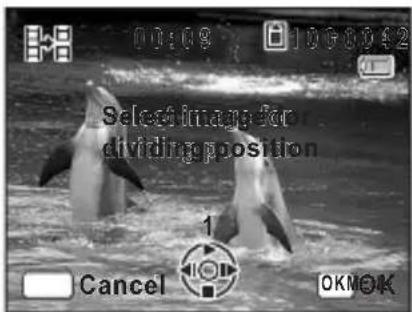
8 Press the OK button.
A confirmation dialog appears.
9 Use the four-way controller (▲▼) to select [Divide].
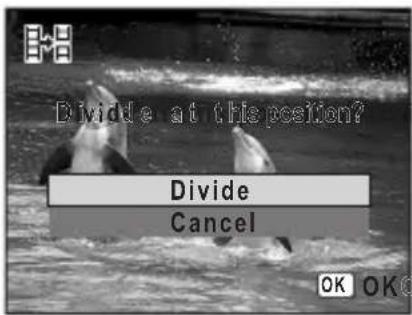
10 Press the OK button.
The movie is divided at the specified position, the two portions are saved as new files, and the original one is deleted.

The protected movies cannot be divided.
Copying Images and Sound Files
You can copy images and sound files from the built-in memory to the SD Memory Card and vice versa. This function can be selected only when an SD Memory Card has been inserted in the camera.

Make sure that the camera is turned off before inserting or removing the SD Memory Card.
1 Press the four-way controller (▼) in ▶ mode.
The Playback Mode Palette appears.
2 Use the four-way controller (▲▼◀▶) to select 📋 (Image/ Sound Copy).
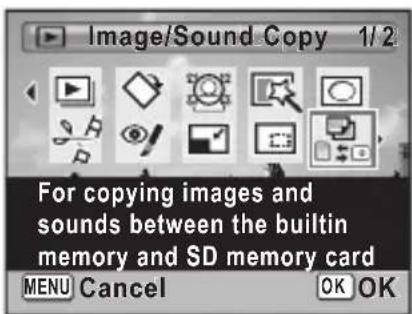
3 Press the OK button.
The copying method selection screen appears.
Subsequent steps vary depending on your selection.
To Copy Files from the Built-in Memory to the SD Memory Card
All the images and sound files in the built-in memory are copied to the SD Memory Card at once. Before copying the images, make sure that there is enough space on the SD Memory Card.
4 Use the four-way controller (▲▼) to select [☐→SD].
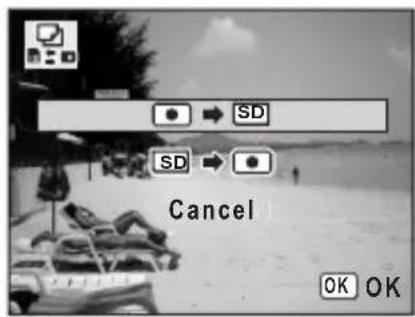
5 Press the OK button.
All the images and sound files are copied to the SD Memory Card.
To Copy Files from the SD Memory Card to the Built-in Memory
Selected images and sound files from the SD Memory Card are copied to the built-in memory one by one.
4 Use the four-way controller (▲▼) to select [SD→●].
5 Press the OK button.
6 Use the four-way controller (◀▶) to select the image/sound file you want to copy.
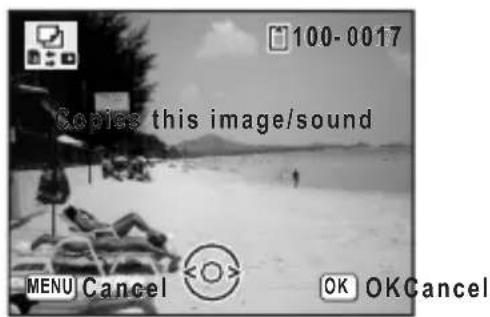
7 Press the OK button.
The selected image/sound file is copied to the built-in memory. To copy other images or sound files, repeat Steps 4 to 7. Select [Cancel] to exit the copy operation.

- If sound (voice memo) has been added to an image, the image is copied with the sound.
- When a file is copied from the SD Memory Card to the built-in memory, it is assigned a new file name.
Setting the Printing Service (DPOF)
DPOF (Digital Print Order Format) is the format for storing print order data on still pictures captured with a digital camera. Once the print order data has been stored, the pictures can be printed according to the DPOF settings using a DPOF-compatible printer or photo processing lab. You cannot store print order data for movies or sound-only files.

If the picture already has the date and/or time imprinted on it (p.122), do not set [Date] to ☑ (On) in DPOF setting. If you select ☑, the imprinted date and/or time may overlap.
Printing a Single Image
Set the following items for each image.
Copies Choose the number of copies up to 99.
Date Specify whether you want the date inserted on the print.
1 In ▶ mode, press the four-way controller (▼).
The Playback Mode Palette appears.
2 Use the four-way controller (▲▼◀▶) to select ▶DPOF (DPOF).
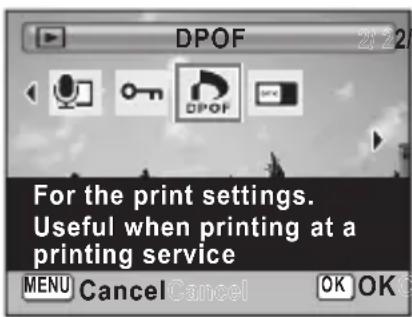
3 Press the OK button.
The DPOF setting method selection screen appears.
4 Use the four-way controller (▲▼) to select [Single Image].
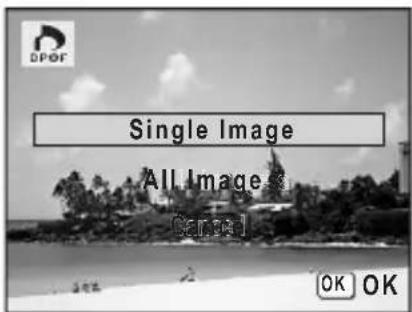
5 Press the OK button.
The message [Applies DPOF settings to this image] appears.
6 Use the four-way controller (◀▶) to select an image.
If DPOF settings have already been made for the selected image, the previous number of copies and date setting (☑ or □) will be displayed.
7 Use the four-way controller (▲▼) to choose the number of copies.
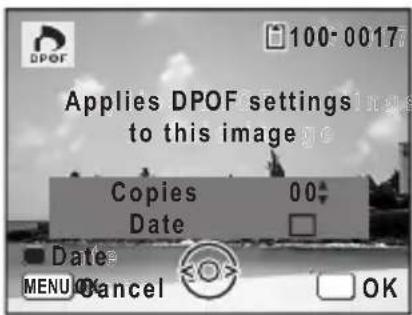
8 Press the Green button to switch √ or □ for [Date] setting.
☑ The date will be imprinted.
☐ The date will not be imprinted.
To continue setting DPOF print order data, repeat Steps 6 to 8.
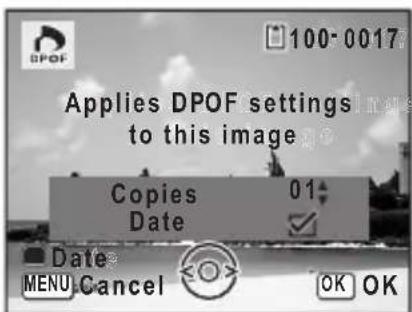
9 Press the OK button.
The settings are saved and the screen shown in Step 4 reappears.

Depending on the printer or printing equipment at the photo processing lab, the date may not be imprinted on the pictures even if ☑ (On) is selected for [Date] in DPOF setting.

To cancel DPOF settings, set the number of copies to [00] in Step 7 and press the OK button.
Printing All Images
When you choose the number of copies and whether or not to insert the date, the settings are applied to all the images stored in the camera.
1 Select [All Images] in Step 4 on p.179.
2 Press the OK button.
The message [Applies DPOF settings to all images] appears.
3 Choose the number of copies and switch √ or □ for [Date] setting.
Refer to Steps 7 and 8 in “Printing a Single Image” (p.179) for details on how to make the settings.
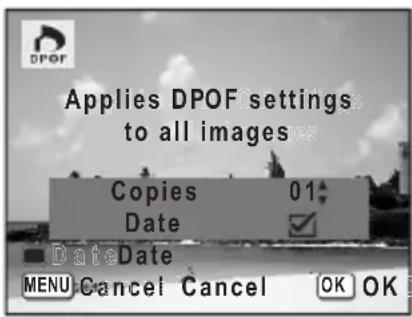
4 Press the OK button.
The settings for all the images are saved and the DPOF setting method selection screen reappears.

- The number of copies specified in the [All Images] setting applies to all the images. Before printing, check that the number is correct.
- Settings for single images are canceled when settings are made with [All Images].
6
Recording and Playing Back Sound
Recording Sound (Voice Recording) 182
Adding a Voice Memo to Images ..... 186
Recording Sound (Voice Recording)
You can record sound with the camera. The microphone is located on the front of the camera. When recording sound, aim the camera at the sound source to obtain the best sound quality.
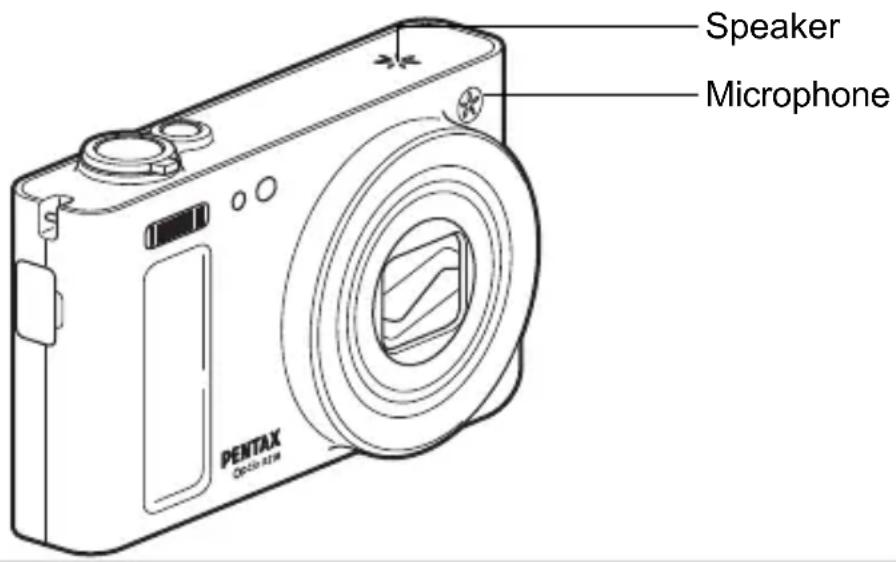
Setting the Voice Recording Function
To use the Voice Recording function, assign it to the Green button first.
1 Press the MENU button in mode.
The [Rec. Mode] menu appears.
2 Use the four-way controller (▲▼) to select [Green Button].
3 Press the four-way controller (▶).
A pull-down menu appears.
4 Use the four-way controller (▲▼)
to select [Voice Recording] and press the OK button.
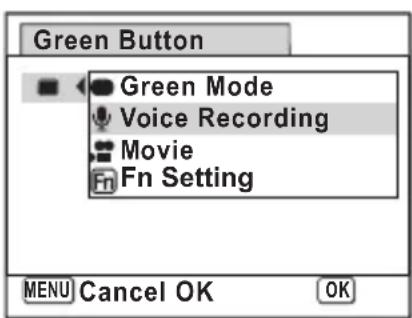
5 Press the MENU button.
The Voice Recording function is assigned to the Green button.
Recording Sound
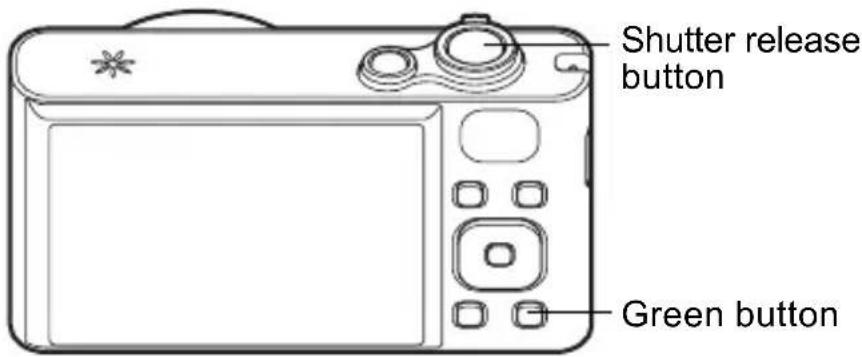
1 Press the Green button in mode.
The camera enters the Voice Recording mode. The remaining recordable time and the recording time of the current file appear on the display.
1 Recording time
2 Remaining recordable time
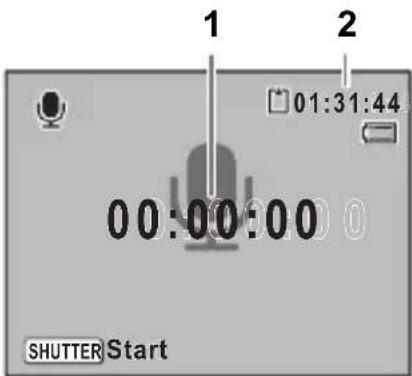
2 Press the shutter release button fully.
Recording starts. The self-timer lamp blinks during recording.
You can record sounds continuously for up to 18 hours.
When the Green button is pressed during recording, an index is added to the current sound file.
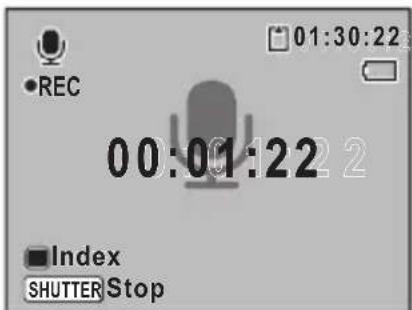
3 Press the shutter release button fully.
Recording stops.

- If you press and hold down the shutter release button for more than one second in Step 2, recording continues until you take your finger off the button. This is useful for recording short sound.
• The sound is saved in WAVE monaural files.
Playing Back Sound
You can play back the sound files you made in Voice Recording.
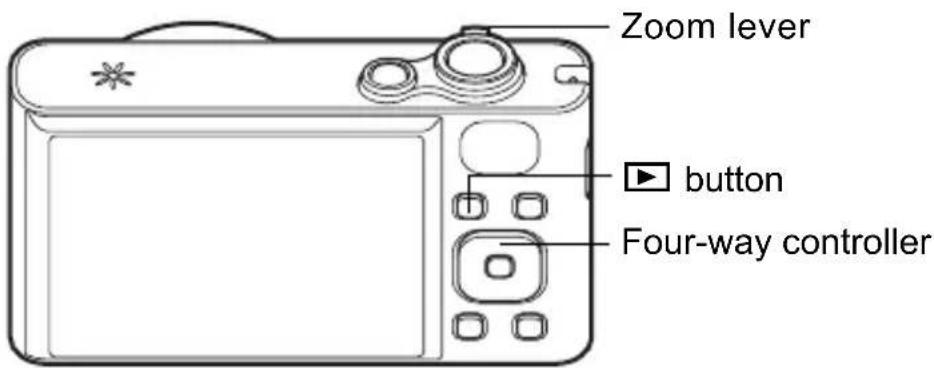
1 Press the ▶ button.
2 Use the four-way controller (◀▶) to choose the sound file to play back.
3 Press the four-way controller (▲).
Playback starts.
1 Total file recording time
2 Playback time
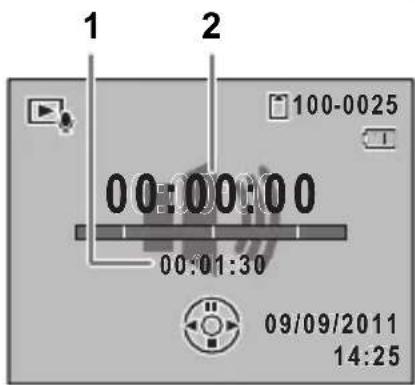
Available operations during playback
| Zoom lever to the right (♠) | Increases the volume. |
| Zoom lever to the left (♠♠♠) | Reduces the volume. |
| Four-way controller (▲) | Pauses playback. |
| Four-way controller (◀) | (If there are no recorded indexes) Fast-reverses playback.(If there are recorded indexes) Plays back starting from the previous index. |
| Four-way controller (▶) | (If there are no recorded indexes) Fast-forwards playback.(If there are recorded indexes) Plays back starting from the next index. |
Available operations while playback is paused
| Four-way controller (▲) Resumes playback. |
| Four-way controller (◀) Rewinds approx. 5 seconds. |
| Four-way controller (▶) Advances approx. 5 seconds. |
4 Press the four-way controller (▼).
Playback stops.
Adding a Voice Memo to Images
You can add a voice memo to your still pictures.
Recording a Voice Memo
1 In ▶ mode, use the four-way controller (◀▶) to choose the still picture to which you want to add a voice memo.
2 Press the four-way controller (▼). The Playback Mode Palette appears.
3 Use the four-way controller (▲▼◀▶) to select 📋 (Voice Memo).
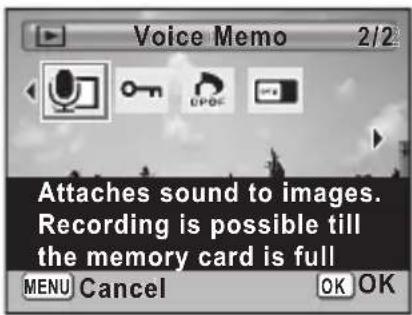
4 Press the OK button.
Recording starts. You can record a voice memo continuously for up to 18 hours.
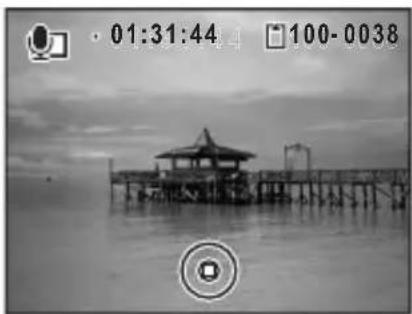
natural_image
Black-and-white photo of a wooden pier with a traditional pavilion on calm water, no visible text or symbols5 Press the OK button.
Recording stops.

• A voice memo cannot be added to the image that already has a voice memo. Delete the old voice memo (p.149) and record a new one.
- A voice memo cannot be added to protected images (p.153).
Playing Back a Voice Memo
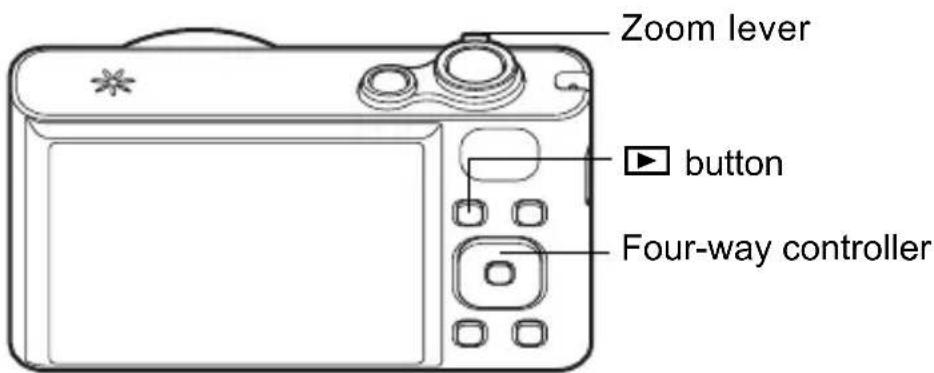
1 In ▶ mode, use the four-way controller (◀▶) to choose the still picture with the voice memo that you want to play back.
☐ appears on images with voice memos in single-image display.
2 Press the four-way controller (▲).
Playback starts.
Available operations during playback
| Zoom lever to the right (♠) | Increases the volume |
| Zoom lever to the left (♠♠♠) | Reduces the volume |
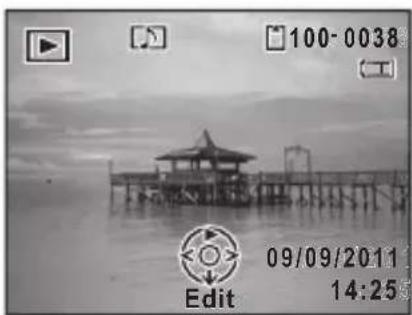
3 Press the four-way controller (▼).
Playback stops.
To Delete the Sound from an Image 📋p.149
Memo
7 Settings
Camera Settings 190
Camera Settings
Formatting the Memory
Formatting deletes all the data on the SD Memory Card or the built-in memory.
Be sure to use this camera to format (initialize) an SD Memory Card that is unused or has been used on other cameras or digital devices.

- Do not remove the SD Memory Card during formatting as this may damage the card and render it unusable.
- Formatting deletes protected images and any data recorded on the card with a computer or any camera.
- SD Memory Cards formatted on a computer or device other than this camera cannot be used. Be sure to format the card with this camera.
- To format the built-in memory, be sure to eject the SD Memory Card beforehand. Otherwise, the SD Memory Card will be formatted.
- When you intend to use a brand-new Eye-Fi card for the first time, copy the Eye-Fi Manager installation file to your computer before formatting the card.
- The optional frames copied from the CD-ROM (S-SW121) are deleted when the SD Memory Card or the built-in memory is formatted (3 default frames are not deleted.).
1 Press the MENU button in ▶ mode.
The [Setting] menu appears.
When you press the MENU button in ☐ mode, press the four-way controller (▶) once.
2 Use the four-way controller (▲▼) to select [Format].
3 Press the four-way controller (▶).
The [Format] screen appears.
4 Use the four-way controller (▲▼) to select [Format].
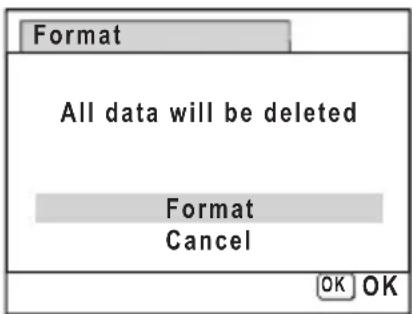
5 Press the OK button.
Formatting starts.
When formatting is completed, the camera returns to ☐ mode or ▶ mode.
Changing the Sound Settings
You can adjust the volume of operation sounds and change the type of sound.
1 Press the MENU button in ▶ mode.
The [Setting] menu appears.
When you press the MENU button in ☐ mode, press the four-way controller (▶) once.
2 Use the four-way controller (▲▼) to select [Sound].
3 Press the four-way controller (▶).
The [Sound] screen appears.
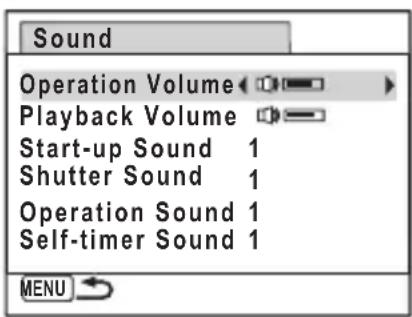
To Change the Operation Volume/Playback Volume
4 Use the four-way controller (▲▼) to select [Operation Volume].
5 Use the four-way controller (◀▶) to adjust the volume.
Set the volume to 0 to mute the start-up sound, shutter sound, operation sound, and self-timer sound.
6 Change [Playback Volume] in the same way as in Steps 4 and 5.
To Change the Sound Type
4 Use the four-way controller (▲▼) to select [Start-up Sound].
5 Press the four-way controller (▶). A pull-down menu appears.
6 Use the four-way controller (▲▼) to select the sound type.
Choose from [1], [2], [3] or [Off].
7 Press the OK button.
8 Set [Shutter Sound], [Operation Sound] and [Self-timer Sound] in the same way as in Steps 4 to 7.
9 Press the MENU button twice.
The camera returns to ☐ mode or ▶ mode.
Changing the Date and Time
You can change the initial date and time settings (p.48). You can also set the format in which the date appears on the camera.
1 Press the MENU button in ▶ mode.
The [Setting] menu appears. When you press the MENU button in mode, press the four-way controller (▶) once.
2 Use the four-way controller (▲▼) to select [Date Adjustment].
3 Press the four-way controller (▶).
The [Date Adjustment] screen appears.
4 Press the four-way controller (▶).
The frame moves to [mm/dd/yy].
Depending on the initial setting or previous setting, [dd/mm/yy] or [yy/mm/dd] may be displayed.
| Date Adjustment | |
| Date Format | mm/dd24/h |
| Date | 01/01/20 11 |
| Time | 0 0:00 |
| Settings complete | |
| MENU Cancel | |
5 Use the four-way controller (▲▼) to choose the date format.
Choose from [mm/dd/yy], [dd/mm/yy] or [yy/mm/dd].
| Date Adjustment | |
| Date Format | mm/dd/24/n |
| Date | 01/01/2011 |
| Time | 0 0:00 |
| Settings complete | |
| MENU Cancel | |
6 Press the four-way controller (▶).
The frame moves to [24h].
7 Use the four-way controller (▲▼) to select [24h] (24-hour display) or [12h] (12-hour display).
| Date Adjustment | |
| Date Format | mm dd yy/ 24h |
| Date | 01/01/2011 |
| Time | 00:00 |
| Settings complete | |
| MCHcel | |
8 Press the four-way controller (▶).
The frame returns to [Date Format].
9 Press the four-way controller (▼).
The frame moves to [Date].
10 Press the four-way controller (▶).
The frame moves to one of the following items depending on the date format set in Step 5.
Month for [mm/dd/yy]
Day for [dd/mm/yy]
Year for [yy/mm/dd]
| Date Adjustment | |
| Date Format | mm dd yy/ / 24h |
| Date | 01/01/2011 |
| Time | 0 0:00 |
| Settings complete | |
| MENU Cancel | |
The following operations and screen use [mm/dd/yy] as an example. The operations are the same even if another date format has been selected.
11 Use the four-way controller (▲▼) to change the month.
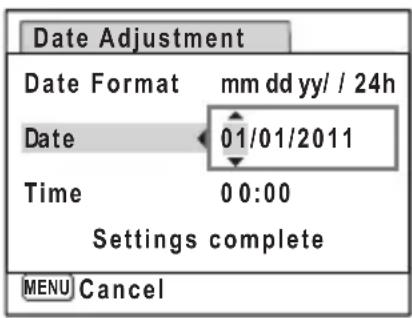
12 Press the four-way controller (▶).
The frame moves to the day field. Use the four-way controller (▲▼) to change the day. After changing the day, change the year in the same manner.
13 Change the time in the same way as in Steps 8 to 12.
If you selected [12h] in Step 7, the setting switches between am and pm corresponding to the time.
14 Press the four-way controller (▼) to select [Settings complete].
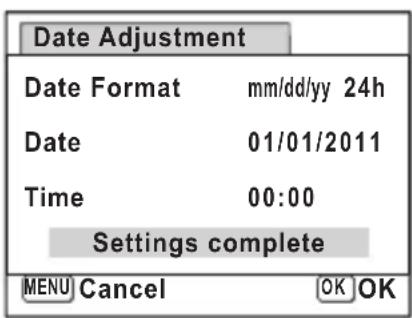
15 Press the OK button.
The date and time settings are saved.

When you press the OK button in Step 15, the camera clock is reset to 00 seconds. To set the exact time, press the OK button when the time signal (on the TV, radio, etc.) reaches 00 seconds.
Setting the World Time
The date and time selected in “Setting the Date and Time” (p.48) and “Changing the Date and Time” (p.192) serve as the Hometown date and time. If you set the Destination city using the world time function, you can display the Destination date and time when taking pictures in a different time zone.
To Set the Destination
1 Press the MENU button in ▶ mode.
The [Setting] menu appears.
When you press the MENU button in ☐ mode, press the four-way controller (▶) once.
2 Use the four-way controller (▲▼) to select [World Time].
3 Press the four-way controller (▶).
The [World Time] screen appears.
4 Use the four-way controller (▲▼) to select [→ Destination].
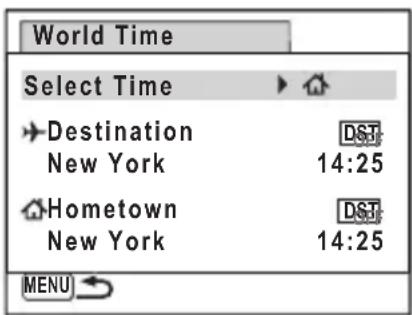
5 Press the four-way controller (▶).
The [→ Destination] screen appears. The city that is currently selected blinks on the map.
6 Use the four-way controller (◀▶) to change the Destination city.
The current time, location and time difference of the selected city appear.
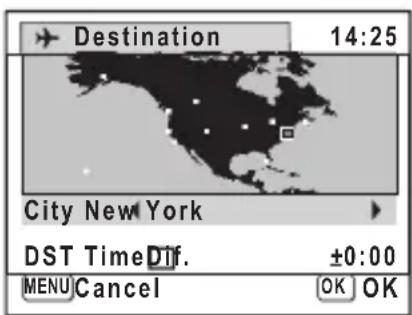
7 Use the four-way controller (▲▼) to select [DST].
8 Use the four-way controller (◀▶) to select √ (On) or □ (Off).
Select ☑ if the Destination city uses daylight saving time.
9 Press the OK button.
The settings are saved and the [World Time] screen reappears.
10 Press the MENU button twice.
The camera returns to capture status with the current setting.

Select [💡 Hometown] in Step 4 to set the city and DST setting for the Hometown city.
To Display the Time of the Destination (Select Time)
1 Press the MENU button in ▶ mode.
The [↘ Setting] menu appears.
When you press the MENU button in ☐ mode, press the four-way controller (▶) once.
2 Use the four-way controller (▲▼) to select [World Time].
3 Press the four-way controller (▶).
The [World Time] screen appears.
4 Use the four-way controller (▲▼) to select [Select Time].
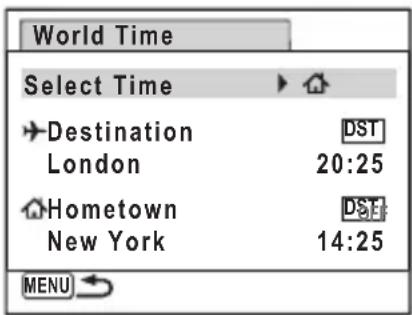
5 Press the four-way controller (▶).
A pull-down menu appears.
6 Use the four-way controller (▲▼) to select ↗ or 🔒.
→Displays the time of the Destination city
Displays the time of the Hometown city
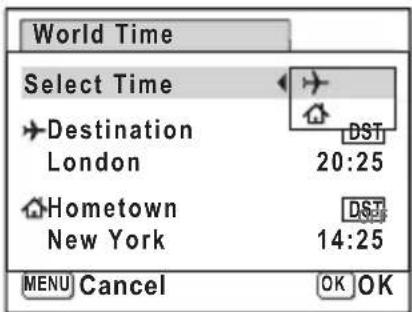
7 Press the OK button.
The setting is saved.
8 Press the MENU button twice.
The camera returns to ☐ mode or ▶ mode.
When ➤ (Destination) is selected in Step 6, the ➤ icon appears on the display to indicate that the destination date and time are displayed in ☐ mode.
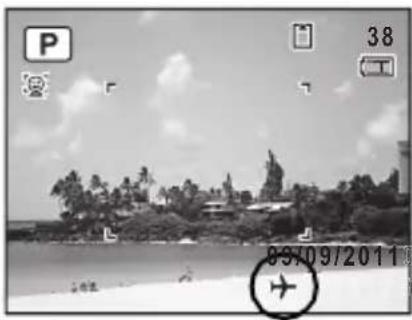
natural_image
Black-and-white beach scene with palm trees, distant buildings, and a circular icon showing an airplane (no readable text or symbols)Setting the Text Size on the Menu
You can set the text size of the item selected with the cursor on the menu to [Standard] (normal display) or [Large] (magnified display).
1 Press the MENU button in ▶ mode.
The [Setting] menu appears.
When you press the MENU button in ☐ mode, press the four-way controller (▶) once.
2 Use the four-way controller (▲▼) to select [Text Size].
3 Press the four-way controller (▶).
A pull-down menu appears.
4 Use the four-way controller (▲▼) to select the text size.
Select from [Standard] or [Large].
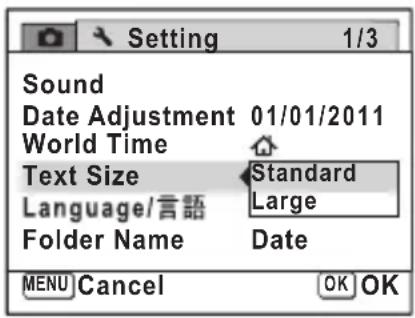
5 Press the OK button.
The setting is saved.
Changing the Display Language
You can change the language in which the menus, error messages, etc. are displayed.
The camera supports the following languages: English, French, German, Spanish, Portuguese, Italian, Dutch, Japanese, Danish, Swedish, Finnish, Polish, Czech, Hungarian, Turkish, Greek, Russian, Thai, Korean, Traditional Chinese and Simplified Chinese.
1 Press the MENU button in ▶ mode.
The [Setting] menu appears.
When you press the MENU button in ☐ mode, press the four-way controller (▶) once.
2 Use the four-way controller (▲▼) to select [Language/言語].
3 Press the four-way controller (▶).
The [Language/] screen appears.
4 Use the four-way controller (▲▼◀▶) to select the desired language.
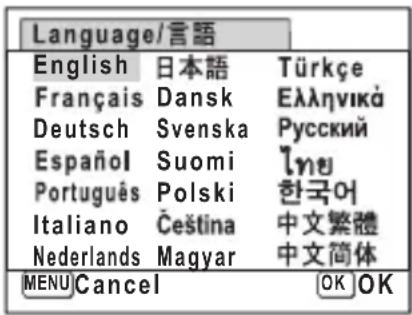
5 Press the OK button.
The menus and messages are displayed in the selected language.
Changing the Naming System of the Folder
You can change the naming system of the folder for storing images. When the naming system is set to [Date], pictures are saved in separate folders by the date they were taken.
| PENTX xxx | xPENTX (where xxx is the 3-digit folder number) |
| Date | xxx_mmdd (3-digit folder number_month day)* xxx_ddmm (3-digit folder number_day month) when the [Date Format] is set to [dd/mm/yy] |
Taken with the folder name setting [PENTX]. (e.g. September 25)
Taken with the folder name setting [Date]. (e.g. September 25)
Next time, taken with the folder name setting [Date] again. (e.g. October 1)
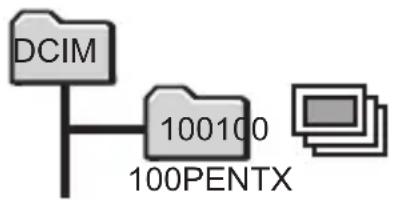
flowchart
graph TD
    A["DCIM"] --> B["100 Pentx"]
    B --> C["Computer Icon"]
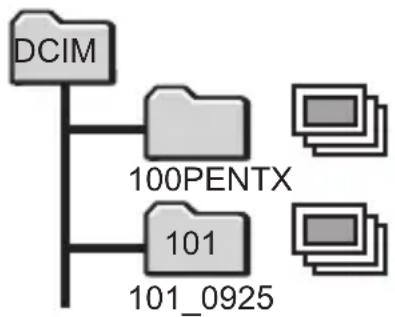
flowchart
graph TD
    A["DCIM"] --> B["100PENTX"]
    A --> C["101"]
    C --> D["101_0925"]
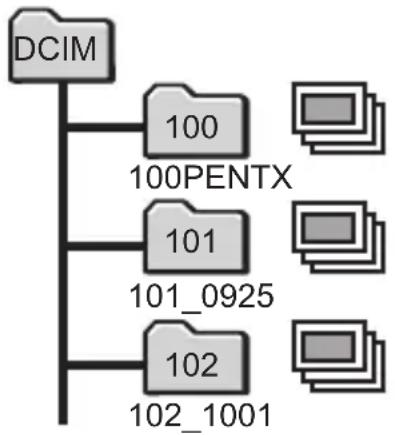
flowchart
graph TD
    A["DCIM"] --> B["100"]
    A --> C["101"]
    A --> D["102"]
    B --> E["100PENTX"]
    C --> F["101_0925"]
    D --> G["102_1001"]
- Up to 900 folders can be created.
- Up to 9999 images or sounds can be saved in a folder.
1 Press the MENU button in ▶ mode.
The [Setting] menu appears.
When you press the MENU button in ☐ mode, press the four-way controller (▶) once.
2 Use the four-way controller (▲▼) to select [Folder Name].
3 Press the four-way controller (▶).
A pull-down menu appears.
4 Use the four-way controller (▲▼) to select [PENTX] or [Date].
5 Press the OK button.
The setting is saved.
Changing the Video Output Format
When you connect the camera to AV equipment, choose the appropriate video output format (NTSC or PAL) for taking and playing back images.
1 Press the MENU button in ▶ mode.
The [Setting] menu appears.
When you press the MENU button in ☐ mode, press the four-way controller (▶) once.
2 Use the four-way controller (▲▼) to select [Video Out].
3 Press the four-way controller (▶).
A pull-down menu appears.
4 Use the four-way controller (▲▼) to select a video output format.
Choose the video output format to match the input format of the AV equipment.
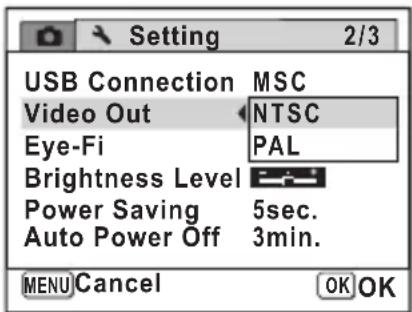
5 Press the OK button.
The setting is saved.

Depending on the country or region, images and sound files may fail to be played back if the video output format is set differently from the one in use there. If this happens, change the video output format setting.
Connecting the Camera to AV Equipment 📄p.156
Video output format of each city 📞p.239
Setting Eye-Fi Communication
You can transfer images to your computer automatically via wireless LAN using an Eye-Fi card. Refer to “Transferring Images Using an Eye-Fi Card” (p.224) for details on how to transfer images. The default setting is □ (Off).
1 Press the MENU button in ▶ mode.
The [Setting] menu appears.
When you press the MENU button in ☐ mode, press the four-way controller (▶) once.
2 Use the four-way controller (▲▼) to select [Eye-Fi].
3 Use the four-way controller (◀▶) to select √ or □.
√ Starts transferring using the Eye-Fi card
□Does not transfer using the Eye-Fi card
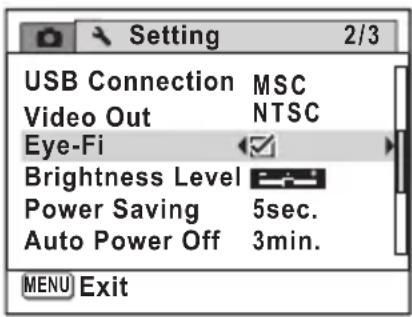
4 Press the MENU button.
The camera returns to ☐ mode or ▶ mode. The images will be transferred automatically.
Adjusting the Brightness of the Display
You can adjust the brightness of the display.
1 Press the MENU button in ▶ mode.
The [Setting] menu appears.
When you press the MENU button in ☐ mode, press the four-way controller (▶) once.
2 Use the four-way controller (▲▼) to select [Brightness Level].
3 Use the four-way controller (◀▶) to adjust the brightness.
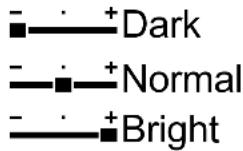
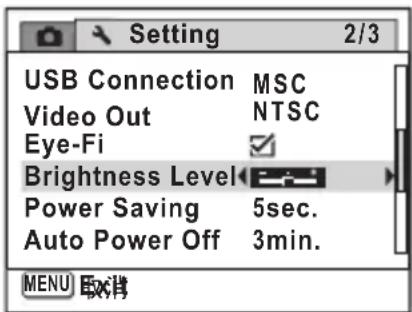
4 Press the MENU button.
The camera returns to ☐ mode or ▶ mode. The display appears with the set brightness.
Using the Power Saving Function
You can save battery power by setting the display to dim automatically when no operation is performed for a fixed time. After the power saving function has been activated, the display returns to the ordinary brightness if any button is pressed.
1 Press the MENU button in ▶ mode.
The [Setting] menu appears.
When you press the MENU button in ☐ mode, press the four-way controller (▶) once.
2 Use the four-way controller (▲▼) to select [Power Saving].
3 Press the four-way controller (▶).
A pull-down menu appears.
4 Use the four-way controller (▲▼) to select the time until the camera enters the power saving mode.
Choose from [2min.], [1min.], [30sec.], [15sec.], [5sec.] or [Off].
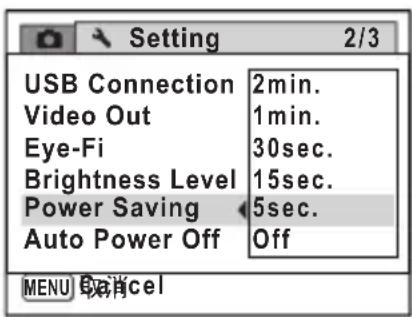
5 Press the OK button.
The setting is saved.

- Power Saving does not function in the following situations:
- While taking pictures in ☐ (Continuous Shooting), ☐/☐/☐ (Burst Shooting (L/M/H)) modes
- In the playback mode
- While recording a movie
- While the camera is connected to a computer
- While a menu is being displayed
- When no operation is performed after the camera is turned on, the Power Saving function is activated only after 15 seconds elapse even if [5sec.] is set.
Setting the Auto Power Off Function
You can set the camera to turn off automatically when no operation is performed for a fixed time.
1 Press the MENU button in ▶ mode.
The [◀ Setting] menu appears.
When you press the MENU button in ☐ mode, press the four-way controller (▶) once.
2 Use the four-way controller (▲▼) to select [Auto Power Off].
3 Press the four-way controller (▶).
A pull-down menu appears.
4 Use the four-way controller (▲▼) to select the time until the camera turns off automatically.
Choose from [5min.], [3min.] or [Off].
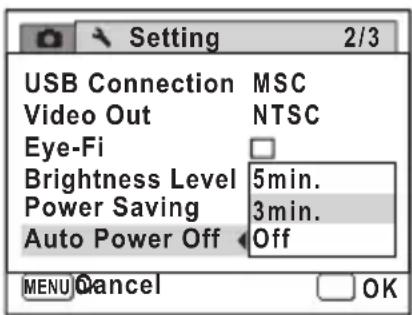
5 Press the OK button.
The setting is saved.

Auto Power Off does not function in the following situations:
- While recording sound in the Voice Recording mode
- While taking pictures in ☐ (Continuous Shooting), ☐/☐/☐ (Burst Shooting (L/M/H)) modes
- While recording a movie
- During a slideshow or movie/sound playback
- While the camera is connected to a computer
- While transferring images using an Eye-Fi card
Changing the Start-up Screen
You can choose the start-up screen displayed when the camera is turned on.
You can choose any of the following images as the start-up screen:
- The Guide Display Start-up Screen showing a guide to the shooting modes and buttons
- One of the 3 pre-installed images
- One of your own images (compatible images only)
1 In ▶ mode, press the four-way controller (▼).
The Playback Mode Palette appears.
2 Use the four-way controller (▲▼◀▶) to select [OPTO] (Start-up Screen).
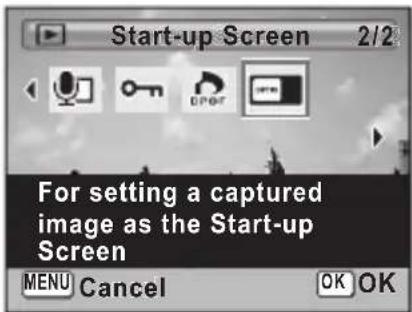
3 Press the OK button.
The image selection screen appears.
4 Use the four-way controller (◀▶) to choose the image for the start-up screen.
Only images available for the start-up screen are displayed. You can also choose one of the 3 pre-installed images or the Guide Display Start-up screen already stored in the camera.
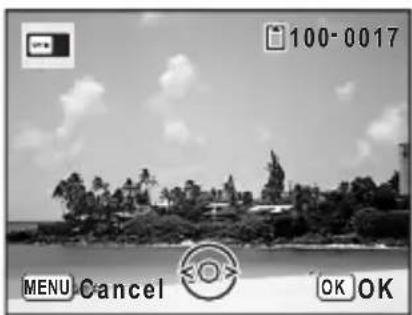
5 Press the OK button.
The start-up screen is set.

- Once the start-up screen has been set, it will not be deleted even if the original image is deleted or the SD Memory Card or built-in memory is formatted. However the image is deleted if you change the start-up screen after deleting the recorded image or formatting the memory.
- Select [Off] to hide the start-up screen.
- The start-up screen is not displayed when the camera starts up in the playback mode.
- Movies or images taken at ▶ (Digital Panorama) mode cannot be used for the start-up screen.
Correcting Defective Pixels in the CCD Sensor (Pixel Mapping)
Pixel Mapping is a function for mapping out and correcting defective pixels in the CCD sensor. Run the Pixel Mapping function if image dots always seem to be defective in the same place.
1 Press the MENU button in ☐ mode, and press the four-way controller (▶).
The [Setting] menu appears.
[Pixel Mapping] cannot be selected when the MENU button is pressed in ▶ mode.
2 Use the four-way controller (▲▼) to select [Pixel Mapping].
3 Press the four-way controller (▶).
The [Pixel Mapping] screen appears.
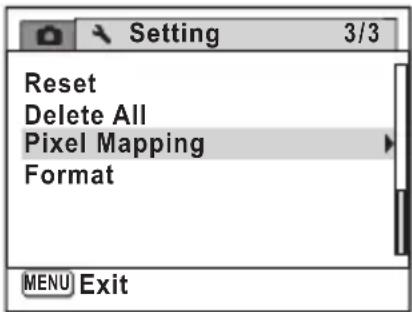
4 Use the four-way controller (▲▼) to select [Pixel Mapping].
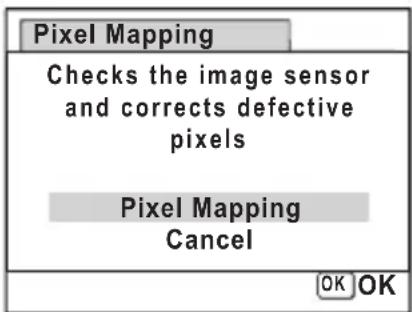
5 Press the OK button.
Defective pixels are mapped and corrected.

When the battery level is low, [Not enough battery power remaining to activate Pixel Mapping] is displayed on the monitor. Use the AC adapter kit K-AC117 (optional) or load a fully charged battery.
Resetting to Default Settings (Reset)
You can reset the camera settings to their defaults. Refer to “Default Settings” (p.234) for the reset settings.
1 Press the MENU button in ▶ mode.
The [Setting] menu appears.
When you press the MENU button in ☐ mode, press the four-way controller (▶) once.
2 Use the four-way controller (▲▼) to select [Reset].
3 Press the four-way controller (▶).
The [Reset] screen appears.
4 Use the four-way controller (▲▼) to select [Reset].
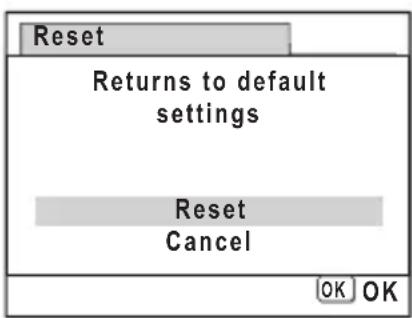
5
Press the OK button.
The settings return to the defaults.

The following settings are not affected by resetting:
- Date Adjustment
- World Time
- Language/ 言語
- Video Out
8 Connecting to a Computer
Setting Up Your Computer .... 210
Connecting to Your Computer .... 217
Transferring Images Using
an Eye-Fi Card.... 224
Setting Up Your Computer
By installing the software included on the provided CD-ROM on your computer and connecting the camera to your computer with the USB cable, you can transfer images and movies captured with your camera to the computer and then display and manage them. This section explains how to install the provided software and the other necessary preparations for enjoying the captured pictures and movies on your computer.
Provided Software
The following software is included in the provided CD-ROM (S-SW121).
Image viewing/managing/editing software
Windows
• “MedialImpression 3.1 for PENTAX”
Macintosh
• “MedialImpression 2.1 for PENTAX”
Applicable languages: English, French, German, Spanish, Portuguese, Italian, Dutch, Swedish, Russian, Korean, Chinese (traditional and simplified), Japanese

It is recommended to use the optional AC adapter kit K-AC117 when the camera is connected to the computer (p.37). If the battery runs out of power while images are being transmitted to the computer, the image data may be lost or damaged.
System Requirements
The following system requirements must be met for you to fully enjoy the images and movies captured with the camera on your computer.
Windows
| OS Windows XP (SP3), Windows Vista or Windows 7• The OS must be preinstalled and updated to the latest version. | |
| CPU Pentium IV 1.6 | GHz or equivalent AMD Athlon(Intel Core 2 Duo 2.0 GHz or equivalent AMD Athlon X2 processor recommended) |
| Memory 512 MB minimum (1 GB or more recommended) | |
| Hard Disk Space 300 MB minimum | |
| Others CD-ROM driveUSB port as standard equipment1024 × 768 pixels, 16-bit color monitor or greater | |
* Operation is not guaranteed on all computers meeting the system requirements.
* The system requirements describe the minimum environment for playing and editing movies.

Windows 95, Windows 98, Windows 98SE, Windows Me, Windows NT and Windows 2000 are not supported.
Macintosh
| OS Mac OS X (Ver.10.3.9, 10.4, 10.5, 10.6, 10.7)• The OS must be preinstalled and updated to the latest version. |
| CPU PowerPC G4 800 MHz processor or equivalent CPU (Power PC G5 or Intel Core Duo processor recommended) |
| Memory 512 MB minimum (1 GB or more recommended) |
| Hard Disk Space 300 MB minimum |
| Others CD-ROM driveUSB port as standard equipment1024 × 768 pixels, 16-bit color monitor or greater |
* Operation is not guaranteed on all computers meeting the system requirements.
* The system requirements describe the minimum environment for playing and editing movies.
Installing the Software
Install the image viewing/managing/editing software "MediaImpression".

- Make sure your computer meets the system requirements before installing the software.
- When multiple accounts have been set up in your computer, log on with an account that has administrative rights before installing the software.
Windows
1 Turn your Windows PC on.
2 Insert the provided CD-ROM into the CD-ROM/DVD drive.
If the installation screen appears, go to Step 5.
3 Click [Computer] in the Start menu.
4 Double-click the CD-ROM/DVD drive (S-SW121) icon.
The installation screen appears.
5 Click [MedialImpression 3.1 for PENTAX], choose a language in the “Choose Setup Language” screen and click [OK].
The setup screen appears. Follow the on-screen guidance and install the software.
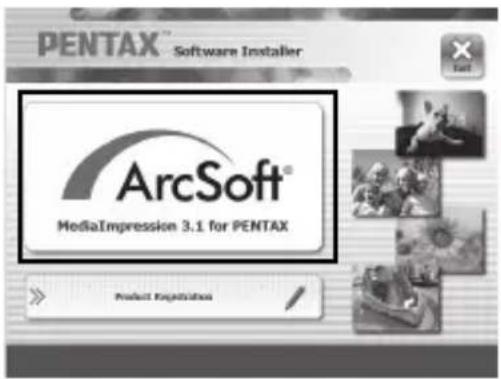
6 Select the file format to use and click [Next].
All files in the checked format will open with MedialImpression 3.1 for PENTAX. Remove the check to open the file using another application.
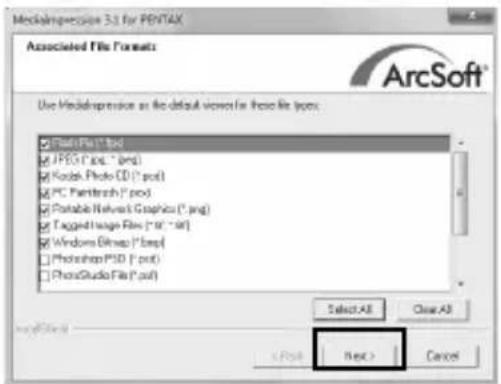
7 Click [Finish].
Installation is complete. Reboot your computer.
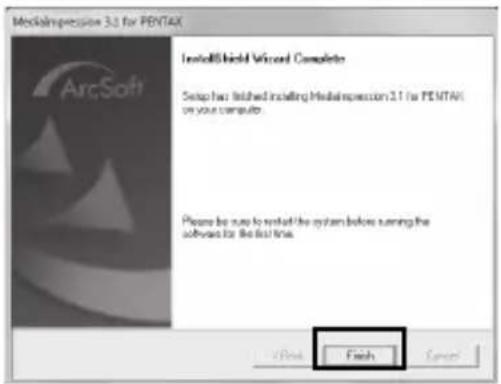
Macintosh
1 Turn your Macintosh on.
2 Insert the provided CD-ROM (S-SW121) into the CD-ROM/DVD drive.
3 Double-click the CD-ROM (S-SW121) icon.
4 Double-click the [PENTAX Software Installer] icon.
The installation screen appears.
5 Click [MedialImpression 2.1 for PENTAX].
The setup screen appears. Follow the on-screen guidance and install the software.
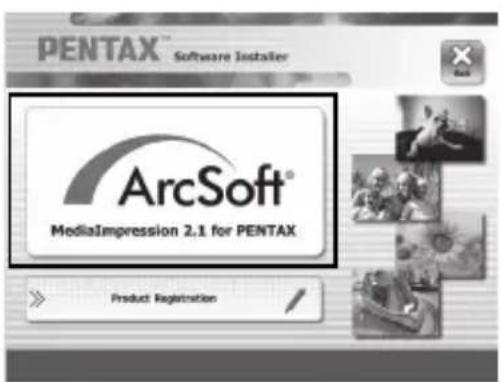
6 Click [Close].
Installation is complete.
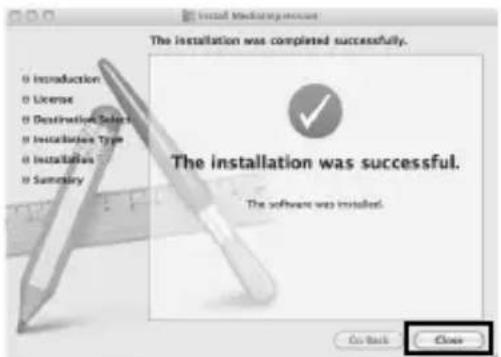
7 Click [Exit] on the installation screen.
The window is closed.
Product Registration on the Internet
In order to better serve you, we request that you complete the product registration.
If your computer is connected to the Internet, please click [Product
Registration] on the installation screen.
The world map screen shown on the right for Internet Product Registration is displayed. Click the displayed country or region and then follow the instructions to register your product.
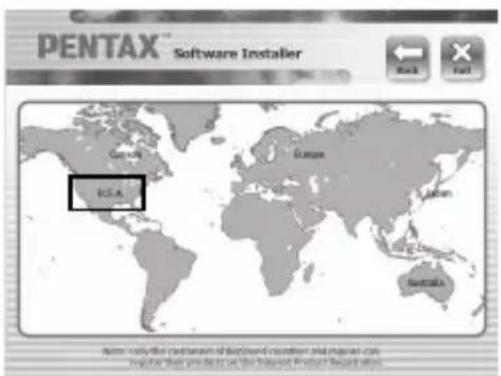
Only customers in countries and regions
displayed on the software installation screen can register their products on the Internet Product Registration.
Setting the USB Connection Mode
Set the device to which the camera is connected with the USB cable.

Make sure to set the USB Connection mode before connecting your camera to the computer. You cannot perform the following setting if the camera is connected to your computer with the USB cable.
1 Turn your camera on.
2 Press the MENU button in ▶ mode.
The [◀ Setting] menu appears.
When you press the MENU button in ☐ mode, press the four-way controller (▶) once.
3 Use the four-way controller (▲▼) to select [USB Connection].
4 Press the four-way controller (▶).
A pull-down menu appears.
5 Use the four-way controller (▲▼) to select [MSC].
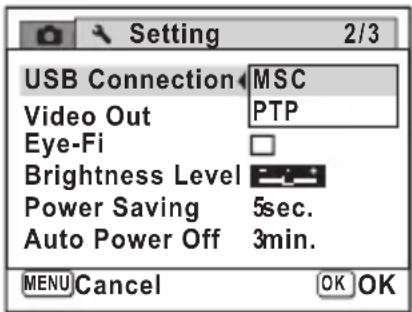
6 Press the OK button.
The setting is saved.
MSC (Mass Storage Class) and PTP (Picture Transfer Protocol)
MSC (Mass Storage Class)
A general-purpose driver program that handles devices connected to the computer via USB as a memory device. Also indicates a standard for controlling USB devices with this driver.
By simply connecting a device that supports USB Mass Storage Class, you can copy, read, and write files from a computer without installing a dedicated driver.
PTP (Picture Transfer Protocol)
A protocol that allows transfer of digital images and control of digital cameras via USB, standardized as ISO 15740.
You can transfer image data between devices that support PTP without installing a device driver.
Unless otherwise specified, select MSC when connecting this camera to your computer.
Connecting to Your Computer
Connecting the Camera and Your Computer
Connect your camera to the computer using the provided USB cable.
1 Turn your computer on.
2 Turn your camera off.
3 Connect your camera to the computer using the USB cable.
Connect the terminal of the USB cable with pointing toward the on the PC/AV terminal of the camera.
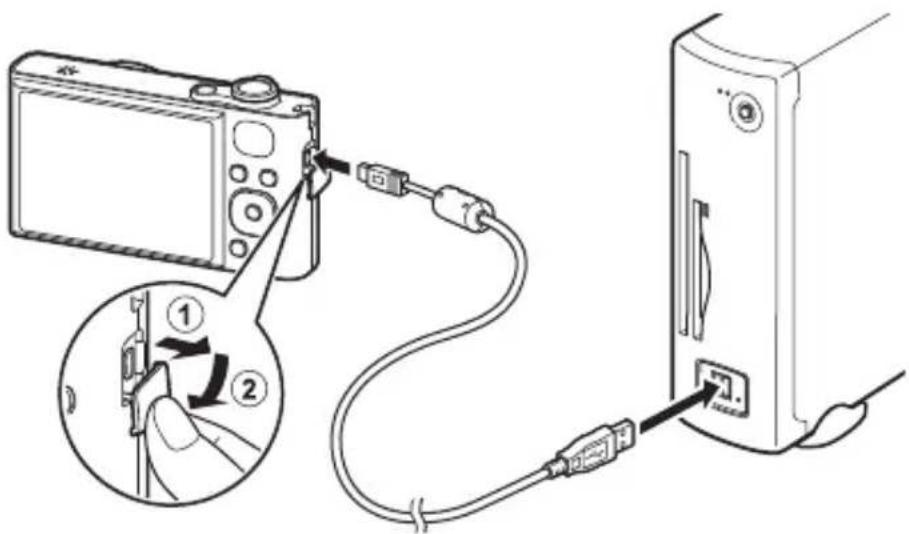
4 Turn your camera on.
For Windows, the “AutoPlay” screen appears on the computer. If the “AutoPlay” screen does not appear, follow the steps in “When the [AutoPlay] screen does not appear” (p.218).
For Macintosh, the camera is recognized as [NO NAME] on the desktop.


- The self-timer lamp blinks while the camera is connected to a computer.
- For Macintosh, the volume label name appears instead of [NO NAME] if the SD Memory Card has a volume label. A new unformatted SD Memory Card may show the manufacturer's name or model number.
When the [AutoPlay] screen does not appear
1 Double-click the [MedialImpression] icon on the desktop.
MedialImpression starts and the Start page appears.
![RICOH RZ18 - Double-click the [MedialImpression] icon on the desktop. - 1](/content/2026/05/1046279/images/080a5c83fa7fcb0c41bfecf4c22f77649691445199425f3b7863e53511c57402.jpg)
2 Click [Photolmpression].
3 Click the connected camera on top left of the screen.
The import screen appears. For subsequent steps, go to Step 6 on p.219.
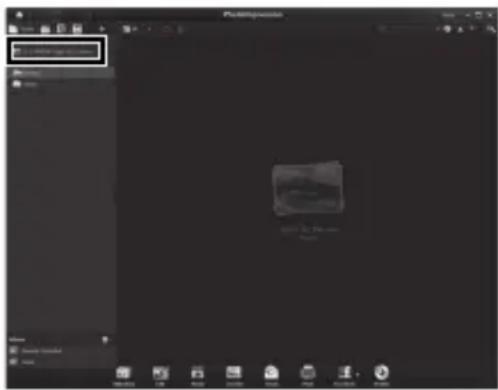
Transferring Images
Import the images captured with the camera into your computer.

- If there is no SD Memory Card in the camera, the images stored in the built-in memory will be transferred to your computer.
- If you are using a Macintosh, go to p.220.
Windows
5 Click [Import media files to local disk].
MedialImpression 3.1 for PENTAX starts and the import screen appears.
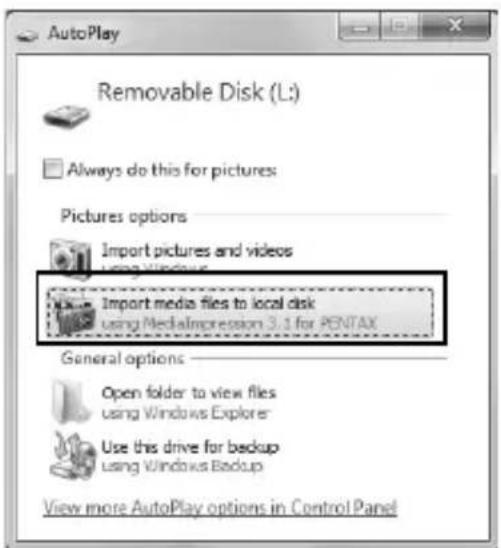
6 Select an image to import.
To select multiple images, choose the images while pressing the Ctrl key. To specify the destination location, click the folder icon.
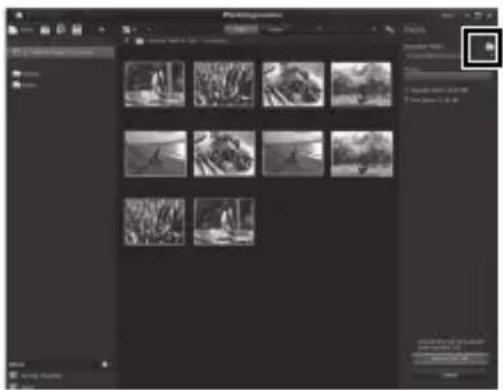
7 Click [Import].
A message appears indicating that import is complete.
An arrow mark appears on the imported image.
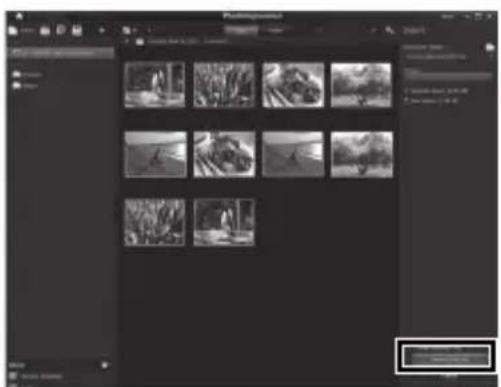
Macintosh
5
Double-click the [MedialImpression 2.1 for PENTAX] icon in the [Applications] folder.

MediaImpression 2.1 for PENTAX starts and the Start page appears.
6
Click [Import].
The import screen appears. For subsequent steps, refer to Step 6 and 7 on p.219.
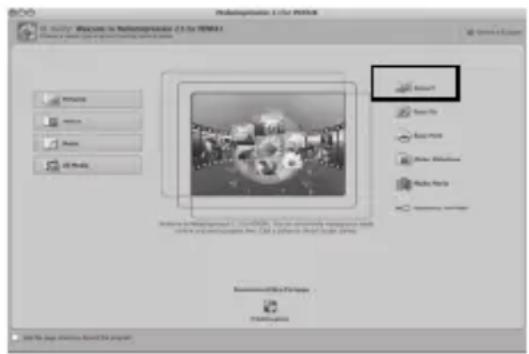
![RICOH RZ18 - Click [Import]. - 2](/content/2026/05/1046279/images/4bdc7d15159b1e39426b6dfc6a7ea904424c980d67108034393c12aee9c5cd5b.jpg)
If the images from the camera are not displayed in the import screen, select [NO NAME] (or the volume label name) in [Get Media from].
Disconnecting the Camera from Your Computer
Windows
1 Click the [Safely Remove Hardware] icon in the task bar.
The “Safely Remove Hardware” screen appears.

2 Click [Eject (the device connected)].
A message appears indicating that the hardware can be safely removed.
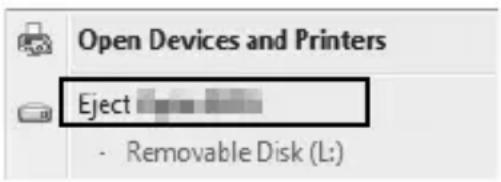
3 Disconnect the USB cable from your Windows PC and the camera.
Macintosh
1 Drag [NO NAME] on the desktop to the trash.
If the SD Memory Card has a volume label, drag the icon of that name to the trash.
2 Disconnect the USB cable from your Macintosh and the camera.

- If the camera (removable disk) is being used by an application such as "MedialImpression", the camera cannot be disconnected until the application is closed.
- The camera will automatically switch to the playback mode when the USB cable is disconnected from your computer or the camera.
Starting "MedialImpression"
"MedialImpression" lets you view, edit, manage, search for, share, and print images.
1 Double-click the [MedialImpression] icon on the desktop (for Windows) or in the [Applications] folder (for Macintosh).
MedialImpression starts and the Start page appears.
2 Click [Photolmpression].
The Media Browser screen appears.
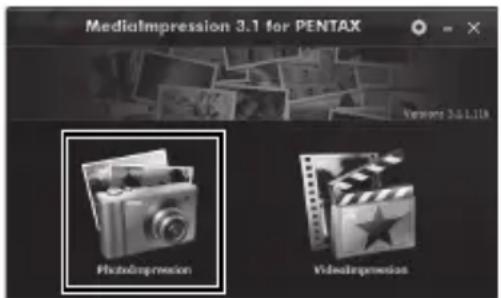
* The screen shown is for a Windows PC. Items shown will differ depending on the operating system and settings.
3 Select and click the folder containing the images you wish to view.
The images are displayed.
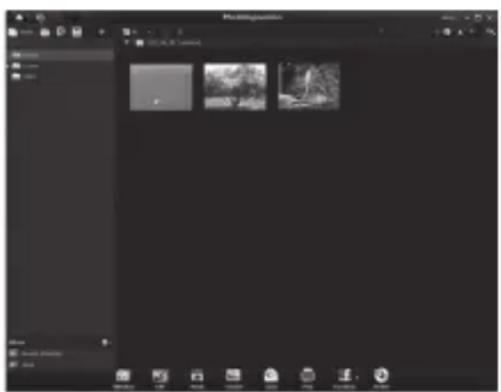
4 Select and double-click an image you wish to view.
You can enlarge/reduce the display size of the image or edit the image. You can also play back movies.
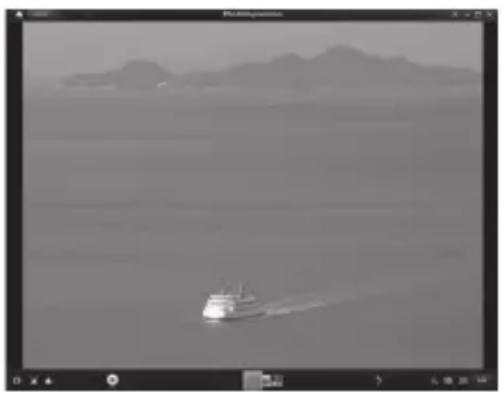
natural_image
Aerial view of a boat cruising on water with distant mountains in the background (no visible text or symbols)Details on How to Use "MedialImpression"
You can find more information on how to use “MedialImpression” by using the help pages.
1 Select [Help] in [Menu] at the top right of the screen (for Windows) or [MedialImpression Help] in [Help] on the menu bar (for Macintosh).
The help screen appears in the web browser.
2 Click the desired topic.
The explanation is displayed.
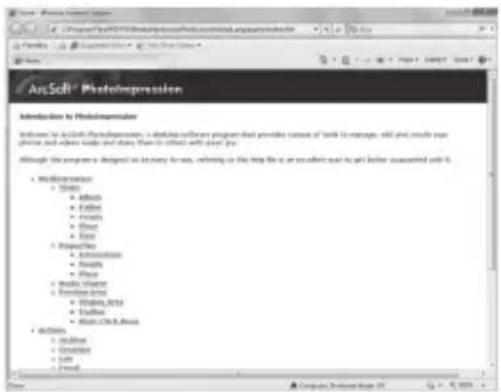
Transferring Images Using an Eye-Fi Card
You can transfer images to your computer automatically when a built-in wireless LAN memory card (Eye-Fi card) is inserted in the camera.
1 Specify the wireless LAN access point and transfer destination on the Eye-Fi card.
For details on how to set up the card, refer to the operating manual supplied with the Eye-Fi card.
2 Turn the camera off.
3 Insert the Eye-Fi card into the camera.
4 Turn the camera on.
5 Select ☑ (On) for [Eye-Fi] on the [✗ Setting] menu.
The images are transferred automatically. For details on how to set up the camera, refer to “Setting Eye-Fi Communication” (p.201).
One of the following icons will appear on the display.
![RICOH RZ18 - Select ☑ (On) for [Eye-Fi] on the [✗ Setting] menu. - 1](/content/2026/05/1046279/images/1e280ad544d703247d8d948830a78ca344b60381569775ecec10d02fae2ac33d.jpg) | Transferring. When [Eye-Fi] is set to ☑, and either transferring images or searching for the access point. |
![RICOH RZ18 - Select ☑ (On) for [Eye-Fi] on the [✗ Setting] menu. - 2](/content/2026/05/1046279/images/98ab17c7250cce8df8c73bf35bc3ac1f8ca28111db6e32b654383fa07341026e.jpg) | Waiting for transferring. When [Eye-Fi] is set to ☑, and not transferring. |
![RICOH RZ18 - Select ☑ (On) for [Eye-Fi] on the [✗ Setting] menu. - 3](/content/2026/05/1046279/images/862d21886763f1324cb20e979fab02e261dfcbc822bad7f2e575ba31d389cedd.jpg) | Transferring is not allowed. When [Eye-Fi] is set to □. |
![RICOH RZ18 - Select ☑ (On) for [Eye-Fi] on the [✗ Setting] menu. - 4](/content/2026/05/1046279/images/6c6c5f112feb43f9b2a1b3a80965b0ed46d848e8af9139e78f3aefc72f13af18.jpg) | Version error. When the version of the Eye-Fi card is out of date, or when the Eye-Fi card is write-protected. |
![RICOH RZ18 - Select ☑ (On) for [Eye-Fi] on the [✗ Setting] menu. - 5](/content/2026/05/1046279/images/c51ffbac64fcd4a985a8aca4b0ce5aaffc9a8b9f1ebb53042ec7edf3af8c9b72.jpg)
- Endless Memory Mode is not supported.
-
Update the Eye-Fi card firmware as necessary before using the card.
-
When you intend to use a brand-new Eye-Fi card for the first time, copy the Eye-Fi Manager installation file to your computer before formatting the card.
- Images are transferred via wireless LAN. Set [Eye-Fi] to □ (Off), or do not use an Eye-Fi card in locations where the use of wireless LAN devices is restricted or prohibited, such as on airplanes.
- An error message appears on the display if an old version Eye-Fi card is inserted.
- Images will not be transferred in the following situations:
- When available wireless LAN access points cannot be found
- When the battery level is low (the color of the battery level indicator is red)
• Voice recording sound files cannot be transferred. - Transferring a large number of images may take a while. Use of the optional AC adapter kit (K-AC117) is recommended.
- Auto Power Off does not function while transferring images.
- The camera may be turned off automatically to protect the internal components when the inside of the camera reaches a high temperature caused by transferring a large file such as a movie.
- Use of a wireless access point, Internet and suitable Internet settings are required to transfer images via wireless LAN. For more information, refer to the website (http://www.eye.fi/).
- Refer to the instruction manual on how to use an Eye-Fi card.
- In case of malfunction of an Eye-Fi card, refer to the manufacturer of the card.
- Operation is not guaranteed for all Eye-Fi card functions, regardless of whether this camera has the function of turning ON or OFF the wireless communication of an Eye-Fi card.
- Use of an Eye-Fi card is permitted only in the country where the Eye-Fi card is purchased. Observe local and national regulations of the country where the card is to be used.
Memo
9Appendix
Functions Available for Each Shooting Mode 228
Messages 230
Troubleshooting 232
Default Settings 234
List of World Time Cities ...... 239
Optional Accessories 240
Main Specifications 241
WARRANTY POLICY 245
Index 250
Functions Available for Each Shooting Mode
√: Can be set. ×: Cannot be set. -: Settings and changes are not applied
| Function\Shooting Mode | |||||||
| Zoom lever | Zoom operation | √*28 | √*27 | √*1 | √*27 | √*27 | |
| button | Face Detection On | √ | √ | √ | √ | √ | |
| Smile Capture | |||||||
| Face Detection Off | ×√ | √ | √ | ×√ | |||
| Flash Mode | 4A (Auto) | √ | √ | √ | ×√× | ||
| 5 (Flash Off) | √ | √ | √ | √ | √ | ||
| 6 (Flash On) | √ | √ | ×√ | √ | |||
| 7A (Auto + Red-eye) | √ | √ | × | × | |||
| 8 (Flash On + Red-eye) | √ | √ | ×√ | √ | |||
| Drive Mode | ☐ (Standard) | √ | √ | √ | √ | √ | |
| 9 (Self-timer) | √ | √ | √ | √ | √ | ||
| 10 (2 sec. Self-timer) | |||||||
| 11 ss (Remote Control) | √ | √ | ×√ | √ | |||
| 12 (Continuous Shooting) | √*5 | √*5 | × | √*5 | √*5 | ||
| 13 (Burst Shooting L/M/H) | |||||||
| Focus Mode | AF (Standard) | √ | √ | √ | √ | √ | |
| 14 (Macro) | |||||||
| 15 (Super Macro) | √ | √ | ×√ | √ | |||
| PF (Pan Focus) | √ | √ | √ | √ | √ | ||
| ▲ (Infinity) | √ | √ | ×√ | √ | |||
| MF (Manual Focus) | √ | √ | ×√ | √ | |||
| Rec. Mode] menu | Recorded Pixels | √ | √ | ×*7 | √ | √ | |
| White Balance | ×*12 | √ | ×*12 | √ | ×*12 | ||
| AF Setting | Focusing Area | ×*13 | √ | ×*13 | √ | √ | |
| Focus Assist | √ | √ | ×*20 | √ | √ | ||
| AE Metering | ×*15 | √ | ×*15 | √ | ×*15 | ||
| Sensitivity | √ | √ | ×*16 | √ | √ | ||
| AUTO ISO Range | √ | √ | - | √ | √ | ||
| EV Compensation | ×*18 | √ | ×*18 | √ | √ | ||
| D-Range Setting | × | √ | × | √ | √ | ||
| Shake Reduction | √ | √ | ×*19 | √ | √ | ||
| Blink Detection | √ | √ | ×*20 | √ | √ | ||
| Sharpness | × | √ | ×*23 | √ | × | ||
| Saturation | |||||||
| Contrast | |||||||
| Date Imprint | √ | √ | ×*24 | √ | √ | ||
| IQ Enhancer | √ | √ | ×*20 | √ | √ | ||
*1 Intelligent Zoom is not available
*2 Only optical zoom is available
*3 [Smile Capture] and [Face Detection Off] cannot be set in 🌐 (Pet) mode
*4 Fixed at ④
*5 Not available when [Shake Reduction] is set to [Dual]
*6 Fixed at ▲
*7 Fixed at 16M
*8 Set in [Movie] on the [☐ Rec. mode] menu
*9 Fixed at 5M
*10 Fixed at 3M *11 Fixed at 5M (Fixed at 3M for the first frame)
*12 Fixed at AWB
*13 Fixed at [ ] (Multiple)
Shooting menu items not listed in this chart can be set in any shooting mode except for Green Mode. However, these settings may not function properly in certain shooting modes and setting conditions even if they can be selected. For further information, please refer to the pages listed below.
| ( ) | ○ | ○ | WIDE | ■ | Shooting ModeFunction | Page | ||
| √*27 | √*2 | √ | √*27 | × | √*27 | Zoom operation | Zoom lever | p.78 |
| √ | √ | √ | √ | √ | √ | Face Detection On | ◎ button p.72 | |
| √*3 | Smile Capture | |||||||
| √ | √ | √ | √ | √ | Face Detection Off | |||
| √ | √ | ×√ | √ | √ | A (Auto) | Flash Mode | p.102 | |
| √ | √ | √ | *4 | √ | (Flash Off) | |||
| √ | √ | × | √ | √ | √ | (Flash On) | ||
| √ | √ | ×√ | √ | √ | A (Auto + Red-eye) | |||
| √ | √ | ×√ | √ | √ | (Flash On + Red-eye) | |||
| √ | √ | √ | √ | √ | √ | (Standard) | Drive Mode | — |
| √ | √ | √ | √ | √ | √ | (Self-timer) | p.92 | |
| (2 sec. Self-timer) | ||||||||
| √ | √ | √ | √ | √ | √ | (Remote Control) | p.95 | |
| √*5 | √*5 | × | × | × | × | (Continuous Shooting) | p.93 | |
| (M Burst Shooting L/M/H) | ||||||||
| √ | √ | ×√ | √ | √ | AF (Standard) | Focus Mode | p.104 | |
| (Macro) | ||||||||
| √ | √ | × | √ | × | √ | (Super Macro) | ||
| √ | √ | × | √ | √ | √ | PF (Pan Focus) | ||
| √ | √ | √ | *6 | √ | (Infinity) | |||
| √ | √ | ×√ | √ | √ | MF (Manual Focus) | |||
| √ | ×*9 | √ | ×*10 | ×*11 | × | Recorded Pixels | [Rec. Mode] menu | p.108 |
| ×*12 | √ | ×*12 | √ | √ | √ | White Balance | p.112 | |
| √ | √ | ×*13 | √*14 | √ | √ | Focusing Area | AF Setting | p.106 |
| √ | √ | ×*24 | √ | √ | √ | Focus Assist | p.107 | |
| ×*15 | √ | ×*15 | √ | √ | √ | AE Metering | p.114 | |
| √ | ×*16 | ×*17 | √ | √ | √ | Sensitivity | p.115 | |
| √ | ×*26 | ×*17 | √ | √ | √ | AUTO ISO Range | p.116 | |
| √ | √ | √ | √ | √ | √ | EV Compensation | p.110 | |
| √ | √ | √ | √ | √ | √ | D-Range Setting | p.111 | |
| √ | √ | √*22 | √*22 | √*22 | √*22 | Shake Reduction | p.118 | |
| √ | √ | √ | √ | × | × | Blink Detection | p.69 | |
| × | √ | ×√ | √ | √ | Sharpness | p.120 | ||
| Saturation | p.121 | |||||||
| Contrast | p.121 | |||||||
| √ | √ | √ | √ | √ | √ | Date Imprint | p.122 | |
| √ | ×*24 | √ | √ | ×*24 | ×*24 | IQ Enhancer | p.123 | |
*14 ≡(Ω) (Automatic Tracking AF) is not available
*15 Fixed at Ⓞ (Multi-segment)
*16 Fixed at AUTO
*17 The sensitivity is fixed at its minimum setting
*18 Fixed at ±0.0
*19 Fixed at [CCD-Shift]
*20 Fixed at On
*21 Set [Movie SR] in [Movie] of the [☐Rec. Mode] menu
*22 [Dual] is not available
*23 Fixed at the normal setting
*24 Fixed at Off
*25 Fixed at 80-800
*26 Fixed at 80-6400
*27 Optical zoom is always possible, digital zoom and intelligent zoom cannot be used if the Sensitivity selection is ISO 3200/6400.
*28 Flowers cannot be detected when using Digital Zoom or Intelligent Zoom.
Messages
Messages such as the following may appear on the display during camera operation.
| Message Description | |
| Battery depleted | The battery is exhausted. Charge the battery using the battery charger (p.33). |
| Memory card full | The SD Memory Card is full and no more images can be saved. Insert a new SD Memory Card or delete unwanted images (p.39, p.148). Change the number of recorded pixels of recorded images and try again (p.160). |
| Memory card error | Shooting and playback are impossible due to a problem with the SD Memory Card. You may be able to display or copy the images on the card using a computer. |
| The built-in memory is not formatted | The data within the built-in memory are damaged. Format the built-in memory. |
| Card is not formatted | The SD Memory Card you have inserted is unformatted or has been formatted on a computer or other device and is not compatible with this camera. Format the SD Memory Card in the camera (p.190). |
| Card is locked The SD Memory Card is write-protected (p.7). | |
| Compression error | This message appears when the camera fails to compress an image. Change the number of recorded pixels of the image and try shooting or saving it again. |
| No image/sound There are no image/sound files on the SD Memory Card. | |
| Movie recording stopped | This message appears when the internal temperature of the camera has exceeded normal operating limits while recording a movie. |
| The camera will turn off to prevent damage from overheating | The camera turned off because it has overheated. Wait until it cools down and then turn it back on. |
| Deleting | This message appears while deleting an image or sound file. |
| Camera cannot play this image and sound | You are trying to play back an image or sound in a format not supported by this camera. You may be able to play it back on another brand of camera or on your computer. |
| Image folder cannot be created | The largest file number (9999) has been assigned to an image in the largest folder number (999) and no more images can be saved. Insert a new SD Memory Card or format the card/built-in memory (p.190). |
| Message Description | tion |
| Protected | The image or sound file you are trying to delete is protected (p.153). |
| Data being recorded | Displayed when you try to switch to ▶ mode while an image is still being recorded, or when the protect setting or DPOF setting is being changed. It disappears after the image is recorded or the setting is changed. |
| Data being processed | Displayed when the camera takes more than five seconds to display an image due to image processing, or when the SD Memory Card or the built-in memory is being formatted. |
| Built-in memory full Displayed if the built-in memory is full when saving a file. | |
| No image to be processed | Displayed when there are no images or sound files. |
| This image/sound cannot be processed | Displayed for files that cannot be processed. |
| No card in the camera Displayed when no SD Memory Card is inserted. | |
| The built-in memory is not enough to copy images/sounds | Displayed when there is insufficient built-in memory to perform copying. |
| Cannot process correctly | Displayed when Red-eye Compensation processing fails. |
| Not enough battery power remaining to activate Pixel Mapping | Appears during pixel mapping if the battery level is insufficient. Replace the battery with a fully charged one or use an AC adaptor kit K-AC117 (optional). (p.37) |
| This card isn't compatible with this camera | Displayed when the version of the Eye-Fi card is out of date and not supported by the camera (p.224). |
| The version of this Eye-Fi card is outdated | |
Troubleshooting
| Problem Cause | Use Remedy | |
| The camera will not turn on | The battery is not installed | Check if a battery is installed. If not, install a battery. |
| The battery is installed incorrectly | Check orientation of the battery. Reinsert the battery with the label facing the lens (p.34). | |
| The battery is exhausted | Charge the battery. | |
| No image appears on the display | The camera is connected to a computer | The display is off when the camera is connected to a computer. |
| The camera is connected to a TV | The display is off when the camera is connected to a TV. | |
| The display is hard to see | The brightness level of the display is set too dark | Adjust the brightness level in [Brightness Level] in the [Setting] menu (p.202). |
| Power Saving function is activated | When the Power Saving function is activated, the display automatically darkens after a certain amount of time. Press a button to return to the normal brightness level. Select [Off] in [Power Saving] in the [Setting] menu to turn the Power Saving function off (p.203). | |
| The shutter will not release | The flash is charging | Pictures cannot be taken while the flash is charging. Wait until charging is finished. |
| There is no available space on the SD Memory Card or in the built-in memory | Insert an SD Memory Card with available space or delete unwanted images (p.39, p.148). | |
| Recording Wait until recording is finished. | ||
| The picture is dark when using the flash | The subject is too far away in a dark environment, such as a night scene | The picture becomes dark if the subject is too far away. Take pictures within the specified flash range. |
| Problem Cause | Remedy | |
| The subject is not in focus | The subject is difficult to focus on with autofocus | The camera may have difficulty in focusing on such subjects as: low contrast subjects (a white wall, a blue sky, etc.), dark subjects, finely-patterned objects, rapidly-moving objects. It is also difficult to get proper focus when shooting through a window or a net. Try shooting using the focus lock (p.68), or adjust the focus manually (Manual Focus) (p.105). |
| The subject is not in the focusing area | Locate the desired subject in the focus frame (focusing area) in the center of the display. If it is difficult to do so, first lock the focus on the desired subject (focus lock), and then move the camera to recompose. | |
| The flash does not discharge | The flash mode is set to ⚙ | Set to ⚣A (Auto) or ↘ (Flash On) (p.102). |
| The drive mode is set to □, □L, □M or □HThe focus mode is set to ▲The shooting mode is set to 🧑 or 🧑 | The flash does not discharge in these modes. | |

Very occasionally, static electricity may cause camera malfunction. In this case, remove the battery and install it again. If the camera is then working properly, normal condition is restored and you can continue using the camera.
Default Settings
The table below lists the factory default settings.
The meaning of the indications for menu items with a default setting is explained below.
Last Memory Setting
Yes : The current setting (last memory) is saved when the camera is turned off.
No : The setting returns to the default setting when the camera is turned off.
* : The setting depends on the [Memory] setting (p.131).
— : N / A
Reset Setting
Yes : The setting returns to the default setting with the Reset function (p.207).
No : The setting is saved even after reset.
— : N / A
- [Rec. Mode] Menu Items
| Item Default Setting | Last Memory Setting | Reset Setting | Page | |
| Recorded Pixels 16M (4608×34)56) Yes Yes p.108 | ||||
| White Balance AWB (Auto) * | Yes p.112 | |||
| AF Setting | Focusing Area | [ ] (Multiple) | Yes | Yes p.106 |
| Focus Assist | ☑ (On) | Yes | Yes p.107 | |
| AE Metering | (Multi-segment) | * | Yes p.114 | |
| Sensitivity | AUTO | * | Yes p.115 | |
| AUTO ISO Range | 80-800 | * | Yes p.116 | |
| EV Compensation | ±0.0 | * | Yes p.110 | |
| Movie | Recorded Pixels | 1280(1280×720/30 fps) | Yes | Yes p.129 |
| Movie SR | ☑ (On) | Yes | Yes p.130 | |
| D-Range Setting | Highlight Correction | ☐ (Off) | Yes | Yes p.111 |
| Shadow Correction | ☐ (Off) | Yes | Yes | |
| Shake Reduction | CCD-Shift | Yes Yes p.118 | ||
| Blink Detection | ☑ (On) | Yes | Yes p.117 | |
| Digital Zoom | ☑ (On) | * | Yes p.80 | |
| Item | Default Setting | Last Memory Setting | Reset Setting | Page | |
| Instant Review (On) Yes Yes | p.119 | ||||
| Memory | Face Detection (Off) Yes Yes | p.131 | |||
| Flash Mode (On) Yes Yes | |||||
| Drive Mode (Off) Yes Yes | |||||
| Focus Mode (Off) Yes Yes | |||||
| Zoom Position (Off) Yes Yes | |||||
| MF Position (Off) Yes Yes | |||||
| White Balance (Off) Yes Yes | |||||
| Sensitivity (Off) Yes Yes | |||||
| EV Compensation (Off) Yes Yes | |||||
| AE Metering (Off) Yes Yes | |||||
| Digital Zoom (On) Yes Yes | |||||
| DISPLAY (Off) Yes Yes | |||||
| File No. (On) Yes Yes | |||||
| Green Button | Green Mode | Yes Yes | p.123 | ||
| Sharpness | (Normal) | Yes | Yes | p.120 | |
| Saturation | (Normal) | Yes | Yes | p.121 | |
| Contrast | (Normal) | Yes | Yes | p.121 | |
| Date Imprint | Off Yes Yes p.122 | ||||
| IQ Enhancer | (On) | Yes | Yes | p.123 | |
- [Setting] Menu Items
| Item Default Setting | Last Memory Setting | Reset Setting | Page | ||
| Sound | Operation Volume 3 Yes Yes | p.191 | |||
| Playback Volume 3 Yes Yes | |||||
| Start-up Sound 1 Yes Yes | |||||
| Shutter Sound 1 Yes Yes | |||||
| Operation Sound 1 Yes Yes | |||||
| Self-timer Sound 1 Yes Yes | |||||
| Date Adjustment | Date Format (date) | According to the initial setting | Yes No | p.48 p.192 | |
| Date Format (time) 24h Yes No | |||||
| Date | 1/1/2011 | Yes No | |||
| Time | According to the initial setting | Yes No | |||
| World Time | Select Time | Hometown | Yes | Yes | p.195 |
| Destination (City) | According to the initial setting | Yes No | |||
| Destination (DST) | ☐ (Off) | Yes | No | ||
| Hometown (City) | According to the initial setting | Yes No | |||
| Hometown (DST) ☐ (Off) Yes No | |||||
| Text Size | Standard | Yes | No | p.197 | |
| Language/言語 | According to the initial setting | Yes No | p.44 p.198 | ||
| Folder Name | Date | Yes Yes | p.199 | ||
| USB Connection | MSC | Yes Yes | p.215 | ||
| Video Out | According to the initial setting | Yes No | p.200 | ||
| Eye-Fi | ☐ (Off) | Yes | Yes | p.201 | |
| Brightness Level | - - + | Yes | Yes | p.202 | |
| Power Saving | 5 sec. | Yes Yes | p.203 | ||
| Auto Power Off | 3 min. | Yes Yes | p.204 | ||
| Reset | Cancel | — | — | p.207 | |
| Delete All | Cancel | — | — | p.152 | |
| Pixel Mapping | Cancel | — | — | p.206 | |
| Format | Cancel | — | — | p.190 | |
● Playback Mode Palette Items
| Item Default Setting | Last Memory Setting | Reset Setting | Page | |
| Slideshow | Interval 3 sec. Yes Yes | p.141S | ||
| Sound Effect ☑ (On) Yes Yes | ||||
| Image Rotation Normal — — p.143 | ||||
| Small Face Filter | 7% | No | No | |
| Digital Filter | B&W | No | — p.164 | |
| Frame Composite | Default1 | Yes | Yes | |
| Red-eye Compensation | — — — p.168 | |||
| Movie Editing | Save as Still Image | — | — — | |
| Divide Movies | — | — — | ||
| Resize | Recorded Pixels | Depending on the picture taken | — — p.160 | |
| Cropping | Depending on the picture taken | — — p.161 | ||
| Image/Sound Copy | Built-in memory → SD Memory Card | — — p.175 | ||
| Voice Memo | — | — — | p.186 | |
| Protect | Single Image/ Sound | Depending on the recorded image/sound | — | — |
| All Images/Sounds | Depending on the recorded image/sound | — | — | |
| DPOF | Single Image | Copies: 0Date: □ (Off) | — — | |
| All Images | — | — | ||
| Start-up Screen | Start-up Screen 1 | Yes | Yes | |
creen E1
● Key Operation
| Item Function | on Default Setting | Last Memory Setting | Reset Setting | Page | ||
| button | Operation Mode | mode — — — | ||||
| Zoom lever Zoom Position Full wide-angle * No p.78 | ||||||
| Four-way controller | ▲Drive Mode □ (Standard) * Yes | p.92p.93 | ||||
| ▼ | Shooting Mode | AUTO (Auto Picture) Yes | Yes p.69 | |||
| ◀ | Flash Mode | A (Auto) | * Yes p.102 | |||
| ▶ | Focus Mode | AF (Standard) | * | Yes | p.104 | |
| MENU button | Menu Display | Capture mode:[Rec. Mode] menuPlayback mode:[Setting] menu | — — | p.57 | ||
| OK/DISPLAY button | Information Display | Normal | * Yes p.22 | |||
| button | Operation Mode | Face Detection On | * Yes p.72 | |||
List of World Time Cities
City: indicates cities that can be set as either the Initial Setting (p.44) or the World Time (p.195). Video Output Format: indicates the video output format of the city set as the initial setting.
| Region City | Video Output Format | Region | City | Video Output Format | |
| North America | Honolulu NTSC Africa/ | West AsiaPAL | Istanbul PAL | ||
| Anchorage NTSC Cairo PAL | |||||
| Vancouver NTSC Jerusalem PAL | |||||
| San Francisco NTSC Nairobi PAL | |||||
| Los Angeles NTSC Jeddah PAL | |||||
| Calgary NTSC Tehran PAL | |||||
| Denver | NTSC Dubai | PAL | |||
| Chicago | NTSC Karachi P | ||||
| Miami | NTSC Kabul | PAL | |||
| Toronto | NTSC Male | PAL | |||
| New York | NTSC Delhi | PAL | |||
| Halifax | NTSC Colombo | PAL | |||
| Central and South America | Mexico City | NTSC Kathmandu | PAL | ||
| Lima | NTSC Dacca | PAL | |||
| Santiago NTSC | East Asia | YangonPAL | NTSC | ||
| Caracas | NTSC Bangkok | ||||
| Buenos Aires | PAL | Kuala Lumpur | PAL | ||
| Sao Paulo | PAL | Vientiane | PAL | ||
| Rio de Janeiro | NTSC Singapore | PAL | |||
| Europe | Lisbon | PAL | Phnom Penh | PAL | |
| Madrid | PAL | Ho Chi Minh | PAL | ||
| London | PAL | Jakarta PAL | |||
| Paris | PAL | Hong Kong | PAL | ||
| Amsterdam | PAL | Beijing | PAL | ||
| Milan PAL | ShanghaiTokyo Guam | PAL | |||
| Rome | PAL | Manila | NTSC | ||
| Copenhagen | PAL | Taipei | NTSC | ||
| Berlin | PAL | Seoul | NTSC | ||
| Prague PAL | NTSC | ||||
| Stockholm PAL | NTSC | ||||
| Budapest | PAL Oceania | Perth PAL | |||
| Warsaw | PAL | Adelaide PAL | |||
| Athens | PAL | Sydney | PAL | ||
| Helsinki | PAL | Noumea | PAL | ||
| Moscow | PAL | Wellington | PAL | ||
| Africa/West Asia | Dakar | PAL | Auckland | PAL | |
| Algiers | PAL | Pago Pago | NTSC | ||
| Johannesburg PAL | |||||
Optional Accessories
A number of dedicated accessories are available for this camera. Products marked with an asterisk (*) are the same as those supplied with the camera.
● Power supply
Rechargeable lithium-ion battery D-LI92 (*)
Battery charger kit K-BC92 (*)
(Battery charger D-BC92, AC plug cord)
AC adapter kit K-AC117
(AC adapter D-AC115, DC coupler D-DC92, AC plug cord)
The battery charger and AC plug cord are only sold as a kit.
- Cable
USB cable I-USB7 (*)
AV cable I-AVC7 (*)
- Strap
O-ST104 (*)
O-ST8 Silver chain strap
O-ST24 Genuine leather strap
O-ST81 Waterproof strap
- Remote Control
REMOTE CONTROL WATERPROOF O-RC1
REMOTE CONTROL E
REMOTE CONTROL F
Main Specifications
Type Fully automatic compact digital still camera with built-in zoom lens
| Number of Effective Pixels | Approx. 16 megapixels |
Image Sensor 1/2.33 inch CCD
| Number of Recorded Pixels | Still | 16M (4608×3456), 12M 131 (3456×3456), 12M 169 (4608×2592), 7M (3072×2304), 2M 169 (1920×1080), 640 (640×480) |
* Fixed at 5M in Digital SR mode.
* Fixed at 3M in Frame Composite mode.
* Fixed at 5M in Digital Wide mode, however, the first frame uses 3M.
* Fixed at 2M for one frame in Digital Panorama mode.
* Fixed at 5M when the sensitivity is set to 3200 or 6400.
* Fixed at 5M in Burst Shooting L/M/H mode.
| Movie | 1280_50 (1280×720/30 fps), 1280_5 (1280×720/15 fps) |
| 640_50 (640×480/30 fps), 640_5 (640×480/15 fps) | |
| 320_50 (320×240/30 fps), 320_5 (320×240/15 fps) | |
| (recorded pixels/frame rate) |
| Sensitivity(Standard Output Sensitivity) | AUTO (ISO 80, 100, 200, 400, 800, 1600)Manual (ISO 80, 100, 200, 400, 800, 1600, 3200, 6400)* Fixed at AUTO (ISO 80 - 6400) in Digital SR mode. |
File Format Still JPEG (Exif 2.3), DCF 2.0, DPOF, PRINT Image Matching III
| Movie AVI (Motion JPEG), approx. 30fps/15fps, PCM system, monaural sound, Movie SR (Movie Shake Reduction) | |
| Sound | Voice memo, Voice recording: WAV (PCM) system, monaural |
Storage Media Built-in memory (approx. 96 MB), SD Memory Card, SDHC Memory Card, SDXC Memory Card, Eye-Fi card
Approximate Image Storage Capacity and Recording Time Still Pictures
| Built-in Memory | 2 GBSD Memory Card | |
| 16M 4608×3456 | 32 pictures 653 pictures | |
| 12M 111 3456×3456 | 42 pictures 853 pictures | |
| 12M 169 4608×2592 | 42 pictures 853 pictures | |
| 7M 3072×2304 | 60 pictures 1205 pictures | |
| 2M 169 1920×1080 | 175 pictures 3415 pictures | |
| 640 640×480 | 683 pictures 12294 pictures | |
- The image storage capacity is for reference only when images are recorded on blank built-in memory or SD Memory Card. If movies or sound are recorded, the image storage capacity is decreased. The actual image storage capacity may vary depending on the SD Memory Card and the subject.
Movie/Sound
| Built-in Memory | 2 GBSD Memory Card | |
| 1280_50 (1280×720/30 fps) | 30 sec. 10 min. | 8 sec. |
| 1280_15 (1280×720/15 fps) | 59 sec. 19 min. | 42 sec. |
| 640_50 (640×480/30 fps) | 1 min. 27 sec. 29 | min. 16 sec. |
| 640_15 (640×480/15 fps) | 2 min. 46 sec. 53 | min. 55 sec. |
| 320_50 (320×240/30 fps) | 2 min. 13 sec. 44 | min. 32 sec. |
| 320_15 (320×240/15 fps) | 4 min. 5 sec. 1 hr. | 18 min. 48 sec. |
| Sound 26 min. 14 sec. 8 hr. 44 min. 34 sec. | ||
- The above figures are based on our standard shooting conditions and may vary depending on the subject, shooting conditions and type of the SD Memory Card used. If other data such as still images are recorded, recording time becomes shorter.
- Recording can continue until the built-in memory or the SD Memory Card is full, or the size of the recorded movie reaches 2 GB (when using an SDHC card/SDXC Memory Card). If recording stops at 2 GB, start recording again to continue to record the rest of the movie in blocks of 2 GB.
| White Balance | Auto, Daylight, Shade, Tungsten Light, Fluorescent Light, Manual | |
| Lens | Focal Length | 4.5 mm - 81 mm(approx. 25 mm - 450 mm in 35 mm equivalent focal length) |
| Aperture | F3.5 (W) - F5.9 (T) | |
| Lens Composition | 12 elements in 11 groups (4 aspherical elements) | |
| Zoom Type Electrically driven | ||
| Optical Zoom | 18× | |
| Intelligent Zoom | Approx. 27× at 7M (3072×2304), Approx. 130× at 640 (640×480) (when combined with optical zoom) | |
| Digital Zoom Up to approx. 7.2× (combines with 18× optical zoom to give zoom magnification equivalent to approx. 130×) | ||
| Motion Blur Reduction | Still CCD-Shift-Type (SR: Shake Reduction), Dual (SR & Pixel Track SR), High-sensitivity anti-shake mode (Digital SR) | |
| Movie Electronic movie shake reduction (Movie SR) | ||
| Display 3 inch LCD, approx. 460,000 dots, Wide viewing angle | ||
| Playback Modes Single-frame, 4-frame, 9-frame, Enlargement (max. 10×, scrollable), Face Close-up Playback, Folder Display, Calendar Display, Sound Playback, Histogram Display, Deleting Selected Images, Slideshow, Image Rotation, Small Face Filter, Digital Filter, Frame Composite, Movie Playback/Edit (Save as still images, Divide a movie), Red-eye Compensation, Resize, Cropping, Image/Sound Copy, Voice Memo, Protect, DPOF, Start-up Image Setting | ||
| Focus Modes Autofocus, Macro, Super Macro, Pan Focus, Infinity, Manual Focus | ||
| Focus Type TTL contrast detection system by sensor | ||
| 9-point autofocus (multiple/spot/automatic tracking AF changeable) | ||
| Focus range (From lens face) | Standard : 0.4 m - ∞ (Wide-angle)1.3 m - ∞ (Telephoto)Macro : 0.1 m - 0.5 m (Wide-angle)Super Macro : 0.04 m - 0.3 m (Wide-angle)* It is possible to switch to Pan Focus, Infinity and Manual Focus.* Face Detection AF is available only while the camera detects the subject's face. | |
| Focus Lock By half-pressing the shutter release button | ||
| Exposure Control | Metering System | Multi-segment metering, Center-weighted metering, Spot metering |
| Exposure Compensation | ±2 EV (can be set in 1/3 EV steps) | |
| Face Detection | Detection of up to 32 people's faces (up to 31 face detection frames on the display), Smile Capture, Blink Detection* Face Detection AE is available only while the camera detects the subject's face. | |
| Pet Detection | One pet's face (automatically, or one selected from three registered faces) | |
| Shooting Modes | Auto Picture, Program, Portrait, Night Scene Portrait, Night Scene, Movie, Landscape, Blue Sky, Sunset, Flower, Sport, Pet, Digital SR, Natural Skin Tone, Kids, Fireworks, Frame Composite, Party, Food, Candlelight, Text, Surf & Snow, Digital Wide, Digital Panorama, Green | |
| Digital Filters B&W, Sepia, Toy Camera, Retro (Blue, Amber), Color (Red, Pink, Purple, Blue, Green, Yellow), Extract Color (Red, Green, Blue), Color Emphasis (Sky Blue, Fresh Green, Delicate Pink, Autumn Leaves), High Contrast, Starburst, Soft, Brightness, Miniature | ||
| Movie Continuous | Recording Time | Approx. 1 second - until built-in memory or SD Memory Card is full (however, maximum size is limited to 2 GB) |
| Shutter Speed 1/2000 sec. - 1/4 sec., max. 4 sec. (Night Scene mode) | ||
| Built-in Flash Modes | Auto, Flash Off, Flash On, Auto + Red-eye, Flash On + Red-eye | |
| Flash Range Wide-angle: approx. 0.2 m - 4.3 m(approx. 0.66 ft - 14 ft)(Sensitivity: in AUTO condition)Telephoto: approx. 1.3 m - 2.6 m(approx. 4.3 ft - 8.5 ft)(Sensitivity: in AUTO condition) | ||
| Drive Modes Single-frame, Self-timer (approx. 10 sec., approx. 2 sec.), Remote Control (3-sec Remote Control, 0-sec Remote Control), Continuous, Burst Shooting (L/M/H) | ||
| Self-timer Electronic control type, control time: Approx. 10 sec., 2 sec. | ||
| Time Function World Time 75 cities (28 time zones) | ||
| Power Source Rechargeable lithium-ion battery D-LI92, AC adapter kit (optional) | ||
| Battery Life | Number of Recordable Images approx. 240 pictures | * Recording capacity shows approximate number of shots recorded during CIPA-compliant testing (with display on, flash used for 50% of the shots, and 23 degrees centigrade).Actual performance may vary according to operating conditions. |
| Playback Time approx. 230 min. | * According to the result of in-house testing. Actual time may differ depending on usage conditions. | |
| Movie Recording Time approx. 100 min. | ||
| Sound Recording Time approx. 300 min. | ||
| Interfaces | USB 2.0 (high-speed compatible) /PC/AV terminal | |
| Video Output | NTSC/PAL (monaural) | |
| Dimensions | Approx. 108 (W) × 60 (H) × 34.5 (D) mm (excluding operating or protruding parts) | |
| Weight | Approx. 170 g (excluding battery and SD Memory Card) Approx. 191 g (including battery and SD Memory Card) | |
| Accessories | Rechargeable lithium-ion battery, battery charger, AC plug cord, USB cable, AV cable, software (CD-ROM), strap, Operating Manual, Quick Guide | |
WARRANTY POLICY
All PENTAX cameras purchased through authorized bona fide photographic distribution channels are guaranteed against defects of material or workmanship for a period of twelve months from date of purchase. Service will be rendered, and defective parts will be replaced without cost to you within that period, provided the equipment does not show evidence of impact, sand or liquid damage, mishandling, tampering, battery or chemical corrosion, operation contrary to operating instructions, or modification by an unauthorized repair shop. The manufacturer or its authorized representatives shall not be liable for any repair or alterations except those made with its written consent and shall not be liable for damages from delay or loss of use or from other indirect or consequential damages of any kind, whether caused by defective material or workmanship or otherwise; and it is expressly agreed that the liability of the manufacturer or its representatives under all guarantees or warranties, whether expressed or implied, is strictly limited to the replacement of parts as hereinbefore provided. No refunds will be made on repairs by non-authorized PENTAX service facilities.
Procedure During 12-month Warranty Period
Any PENTAX which proves defective during the 12-month warranty period should be returned to the dealer from whom you purchased the equipment or to the manufacturer. If there is no representative of the manufacturer in your country, send the equipment to the manufacturer, with postage prepaid. In this case, it will take a considerable length of time before the equipment can be returned to you owing to the complicated customs procedures required. If the equipment is covered by warranty, repairs will be made and parts replaced free of charge, and the equipment will be returned to you upon completion of servicing. If the equipment is not covered by warranty, regular charges of the manufacturer or of its representatives will apply. Shipping charges are to be borne by the owner. If your PENTAX was purchased outside of the country where you wish to have it serviced during the warranty period, regular handling and servicing fees may be charged by the manufacturer's representatives in that country. Notwithstanding this, your PENTAX returned to the manufacturer will be serviced free of charge according to this procedure and warranty policy. In any case, however, shipping charges and customs clearance fees to be borne by the sender. To prove the date of your purchase when required, please keep the receipt or bills covering the purchase of your equipment for at least a year. Before sending your equipment for servicing, please make sure that you are sending it to the manufacturer's authorized representatives or their approved repair shops, unless you are sending it directly to the manufacturer. Always obtain a quotation for the service charge, and only after you accept the quoted service charge, instruct the service station to proceed with the servicing.
- This warranty policy does not affect the customer's statutory rights.
- The local warranty policies available from PENTAX distributors in some countries can supersede this warranty policy. Therefore, we recommend that you review the warranty card supplied with your product at the time of purchase, or contact the PENTAX distributor in your country for more information and to receive a copy of the warranty policy.

The CE Mark is a Directive conformity mark of the European Union.
For customers in USA
STATEMENT OF FCC COMPLIANCE
This device complies with Part 15 of the FCC Rules. Operation is subject to the following two conditions: (1) This device may not cause harmful interference, and (2) this device must accept any interference received, including interference that may cause undesired operation.
Changes or modifications not approved by the party responsible for compliance could void the user's authority to operate the equipment. This equipment has been tested and found to comply with the limits for a Class B digital device, pursuant to part 15 of the FCC Rules.
These limits are designed to provide reasonable protection against harmful interference in a residential installation. This equipment generates, uses and can radiate radio frequency energy and, if not installed and used in accordance with the instructions, may cause harmful interference to radio communications. However, there is no guarantee that interference will not occur in a particular installation. If this equipment does cause harmful interference to radio or television reception, which can be determined by turning the equipment off and on, the user is encouraged to try to correct the interference by one or more of the following measures:
- Reorient or relocate the receiving antenna.
Increase the separation between the equipment and receiver.
Connect the equipment into an outlet on a circuit different from that to which the receiver is connected.
* Consult the dealer or an experienced radio/TV technician for help.
For customers in Canada
This Class B digital apparatus complies with Canadian ICES-003.
Perchlorate Material-special handling may apply. The lithium battery used in this camera contains perchlorate material, which may require special handling. See www.dtsc.ca.gov/hazardouswaste/perchlorate
Declaration of Conformity
According to 47CFR, Parts 2 and 15 for
Class B Personal Computers and Peripherals
We: PENTAX Imaging Company
A Division of PENTAX of America, Inc.
Located at: 600 12 Street, Suite 300
Golden, Colorado 80401 U.S.A.
Phone: 303-799-8000 FAX: 303-790-1131
Declare under sole responsibility that the product identified herein complies with 47CFR Parts 2 and 15 of the FCC rules as a Class B digital device. Each product marketed is identical to the representative unit tested and found to be compliant with the standards. Records maintained continue to reflect the equipment being produced can be expected to be within the variation accepted, due to quantity production and testing on the statistical basis as required by 47CFR §2.909.
Operation is subject to the following two conditions: (1) This device may not cause harmful interference, and (2) This device must accept any interference received, including interference that may cause undesired operation. The above named party is responsible for ensuring that the equipment complies with the standards of 47CFR §15.101 to §15.109.
Product Name: PENTAX Digital Still Camera
Model Number: Optio RZ18 / Optio RX18
Contact person: Customer Service Manager
Date and Place: September, 2011, Colorado
Information for Users on Collection and Disposal of Old Equipment and Used Batteries

natural_image
Symbol of a trash bin crossed out by two diagonal lines (no text or numbers present)1. In the European Union
These symbols on the products, packaging and/or accompanying documents mean that used electrical and electronic equipment and batteries should not be mixed with general household waste.
natural_image
Symbol of a trash bin crossed out by two diagonal lines (no text or numbers present)Used electrical/electronic equipment and batteries must be treated separately and in accordance with legislation that requires proper treatment, recovery and recycling of these products.
By disposing of these products correctly you will help ensure that the waste undergoes the necessary treatment, recovery and recycling and thus prevent potential negative effects on the environment and human health which could otherwise arise due to inappropriate waste handling.
If a chemical symbol is added beneath the symbol shown above, in accordance with the Battery Directive, this indicates that a heavy metal (Hg = Mercury, Cd = Cadmium, Pb = Lead) is present in the battery at a concentration above an applicable threshold specified in the Battery Directive.
For more information about collection and recycling of used products, please contact your local authorities, your waste disposal service or the point of sale where you purchased the products.
2. In other countries outside the EU
These symbols are only valid in the European Union. If you wish to discard used products, please contact your local authorities or dealer and ask for the correct method of disposal.
For Switzerland: Used electrical/electronic equipment can be returned free of charge to the dealer, even when you don't purchase a new product. Further collection facilities are listed on the home page of www.swico.ch or www.sens.ch.
Index
Symbols
Mode 13,56
Mode 13,56
button 52, 54
button 53, 55
(Green) button 123
[Rec. Mode]
menu 61,234
Setting] menu ..... 63, 236
● Green Mode 76
Delete 134, 148
Tele 78
Wide 78
Magnify 145
Four-/Nine-image
display 136
Self-timer 92
Continuous Shooting .... 93
Burst Shooting ..... 94
AUTO PICT Auto Picture 74
3s 3-sec Remote Control 95
0-sec Remote Control 95
Program 75
Night Scene 80
Night Scene Portrait ..... 80
Movie 127
Landscape 70
Blue Sky 70
Sunset 70
* Flower 70
Portrait 82
Surf & Snow 87
Sport 87
(《) Digital SR 81
Kids 83
Pet 84
¶ Food 71
Fireworks 81
Frame Composite .....90
Party 88
Natural Skin Tone ......82
Candlelight 81
A Text 89
WIDE Digital Wide .....97
Digital Panorama ......99
A
AC adapter 37
Adding sound
(Voice Memo) 186
AE Metering 114
Assign functions ......123
Auto + Red-eye ⓄA ......102
Auto AWB 112
AUTO ISO Range .....116
Auto Picture Mode ....74
Auto Power Off 204
Auto ^1 A 102
Automatic Tracking
AF 72,106
AV cable 156
AV equipment 156
B
B&W filter 164
Basic mode 76
Battery level indicator .....36
Blink Detection .....69, 117
Blue Sky Mode ....70
Brightness filter 164
Brightness Level ......202
Built-in memory 175
Burst Shooting □/□/□… 93
C
Calendar display 137
Camera shake ...... 118, 130
Candlelight Mode 80
Capture Mode Palette ..... 69
Center-weighted
metering 114
Charging a battery 33
Checking the SD Memory
Card 42
City name 239
Color Emphasis filter ..... 164
Color filter 164
Connecting to a TV ..... 156
Continuous Shooting ☐ .... 93
Contrast 121
Copy 175
Cropping 161
D
Date and time
setting 48,192
Date Imprint 122
Daylight ⚙ 112
Daylight saving
time 47,196
Default settings 234
Delete 📋 134, 148
Delete all 152
Delete sounds
(voice memo) 149
Destination 195
Digital Filter 164
Digital SR 80
Digital Wide Mode 97
Digital Zoom 78,80
Display brightness 202
Display language ..... 44, 198
Dividing movies .....174
DPOF settings ......178
D-Range Setting .....111
Drive Mode 92, 93
E
Editing movies .....173
Error messages ......230
Exposure setting 110
Extract Color filter .....164
Eye-Fi 201, 224
F
Face close-up playback ...146
Face Detection .....72
File number ......131
Filters 164
Fireworks Mode 80
Flash Mode 102
Flash Off Ⓧ 102
Flash On + Red-eye Ⓞ ....102
Flash On ↓ 102
Flower Mode 70
Fluores. Light 燃 112
Fn Setting 123
Focus Assist 107
Focus Mode ....104
Focusing 104
Focusing Area ......106
Folder display 137
Folder name ......199
Food Mode 71
Format 190
Four-image display □ .....136
Four-way controller .....53, 55
Frame Composite .....90, 169
Frame rate 129
G
Green Button .....53, 55
Green Mode .....76, 123
Guide indications ...... 28
H
High Contrast filter 164
Highlight Correction ..... 111
Histogram 28
Hometown 47, 195
|
Image Storage
Capacity 242
Infinity ▲ 104
Info Display 24
Initial settings 44
Installing a battery 34
Installing the Software ..... 212
Instant Review ...... 69, 119
Intelligent Zoom 78
IQ Enhancer 123
K
Kids Mode 83
L
Landscape Mode 70
Language setting ..... 44, 198
M
Macintosh 211
Macro 104
Magnify Q 145
Manual Focus MF ...... 104
Manual □ 112
Mass Storage Class ..... 216
MedialImpression 210
Memory 131
MENU button 53, 55
Miniature filter 164
Movie 127
Movie SR (Movie Shake
Reduction) Function ..... 130
MSC 216
Multi-segment
metering 114
N
Natural Skin Tone Mode ....82
Night Scene Mode ....80
Night Scene Portrait
Mode 80
Nine-image display □ .....136
NTSC 200
Number of pixels .....108
0
OK/DISPLAY button ...53, 55
Opening screen 205
Operating the menus .....57
Optional accessory .....240
P
PAL 200
Pan Focus PF ......104
Panoramic pictures .....99
Party Mode 88
Pet Mode 84
Photo processing lab .....178
Picture Transfer Protocol 216
Playing back movies .....135
Playing back sounds .....184
Portrait Mode 82
Power Saving 203
Power switch ....42, 43, 52, 54
Press fully
(shutter release button) .....68
Press halfway
(shutter release button) ..... 68
Product Registration ...... 214
Program Mode 75
Protect 153
Provided Software ...... 210
PTP 216
R
Rec. Mode menu ..... 61, 234
Recorded Pixels ..... 108, 129
Recording movies ...... 127
Recording sounds 182
Red-eye Compensation ... 168
Red-eye reduction ⓄA Ⓞ4 ... 102
Remote Control Unit ...... 95
Reset 207
Resize 160
Retro filter 164
Rotating 143
S
Saturation 121
Saving as still picture
(movie) 174
Saving pictures by date ... 199
Saving settings 131
Screen effect 142
SD Memory Card 39
Select Time 196
Self-timer ⏻ 92
Sensitivity 115
Sepia filter 164
Setting menu 63,236
Shade 112
Shadow Correction ..... 111
Shake Reduction 118
Sharpness 120
Shooting information ...... 23
Shooting mode 69
Shutter release
button 52, 54, 68
Slideshow 141
Smile Capture 72
Soft filter 164
Sound settings ......191
Sound types ......192
Specifications ......241
Sport Mode 87
Spot AE metering □ .....114
Standard AF 104
Starburst filter 164
Starting-up in the playback mode ....43
Start-up screen 205
Strap 32
Sunset Mode ....70
Super Macro 104
Surf & Snow Mode .....87
System Requirements .....210
T
Text Mode 89
Text Size 197
Time imprint 122
Toy Camera filter 164
Tungsten Light ⚙ ......112
TV 156
U
USB Connection ......215
V
Video output
format ......200, 239
Voice Memo ....186
Voice Recording 182
Volume change
....135, 184, 191
W
White Balance 112
Windows 211
World Time 195
Z
Zoom / ♠ / ♠ ♠ ♠ .... 78
Zoom lever 52, 54
Memo
Memo
Memo
HOYA CORPORATION PENTAX Imaging Systems Division
| 2-35-7, Maeno-cho, Itabashi-ku, Tokyo 174-8639, JAPAN (http://www.pentax.jp) | |
| PENTAX Europe Imaging Systems S.A.S. (European Headquarters) | 112 Quai de Bezons, B.P. 204, 95106 Argenteuil Cedex, FRANCE (HQ - http://www.pentax.eu) (France - http://www.pentax.fr) |
| PENTAX Imaging Systems GmbH | Julius-Vosseler-Strasse 104, 22527 Hamburg, GERMANY (http://www.pentax.de) |
| PENTAX Imaging Systems Limited | PENTAX House, Heron Drive, Langley, Slough, Berks SL3 8PN, U.K. (http://www.pentax.co.uk) |
PENTAX Imaging Company A Division of PENTAX of America, Inc.
| (Headquarters) |
| 600 12th Street, Suite 300 Golden, Colorado 80401, U.S.A. |
| (PENTAX Service Department) |
| 250 North 54th Street Chandler, Arizona 85226, U.S.A. |
| (http://www.pentaximaging.com) |
PENTAX Canada Inc. 1770 Argentina Road Mississauga, Ontario L5N 3S7, CANADA (http://www.pentax.ca)
| PENTAX Trading (SHANGHAI) Limited | 23D, Jun Yao International Plaza, 789 Zhaojiabang Road, Xu Hui District, Shanghai, 200032 CHINA (http://www.pentax.com.cn) |
http://www.pentax.jp/english
- Specifications and external dimensions are subject to change without notice.