
NC1800 - Network Card/Adapter Dahua Technology - Free user manual and instructions
Find the device manual for free NC1800 Dahua Technology in PDF.


| Product Type | Wireless USB Adapter |
| Interface | USB 2.0 |
| Supported Operating Systems | Windows 10 (and compatible with earlier versions) |
| Wireless Standard | IEEE 802.11 b/g/n |
| Frequency Band | 2.4 GHz |
| Security Protocols | WEP, WPA, WPA2 |
| Antenna Type | Internal antenna |
| Dimensions (Approx.) | 30 mm × 15 mm × 10 mm |
| Weight (Approx.) | 10 g |
| Operating Temperature | 0 °C to +40 °C |
| Storage Temperature | −40 °C to +70 °C |
| Operating Humidity | 10% to 90% RH, non-condensing |
| Power Supply | Powered via USB port |
| LED Indicators | Status LED (likely) |
| Installation | Plug and play with driver installation |
| Compliance | FCC, CE (typical) |
| Maintenance | Keep dry, avoid dust and direct sunlight |
| Package Contents | Wireless USB adapter, USB extension cable, user manual |
Frequently Asked Questions - NC1800 Dahua Technology
User questions about NC1800 Dahua Technology
0 question about this device. Answer the ones you know or ask your own.
Ask a new question about this device
Download the instructions for your Network Card/Adapter in PDF format for free! Find your manual NC1800 - Dahua Technology and take your electronic device back in hand. On this page are published all the documents necessary for the use of your device. NC1800 by Dahua Technology.
USER MANUAL NC1800 Dahua Technology
This manual introduces the functions and operations of the product. Read carefully before using the platform, and keep the manual safe for future reference.
Safety Instructions
The following signal words might appear in the manual.
| Signal Words Meaning | |
 WARNING WARNING | Indicates a medium or low potential hazard which, if not avoided, could result in slight or moderate injury. |
 CAUTION CAUTION | Indicates a potential risk which, if not avoided, could result in property damage, data loss, reductions in performance, or unpredictable results. |
 NOTE NOTE | Provides additional information as a supplement to the text. |
Revision History
| Version | Revision Content | Release Time |
| V1.0.0 | First release. | October 2022 |
Privacy Protection Notice
As the device user or data controller, you might collect the personal data of others such as their face, fingerprints, and license plate number. You need to be in compliance with your local privacy protection laws and regulations to protect the legitimate rights and interests of other people by implementing measures which include but are not limited: Providing clear and visible identification to inform people of the existence of the surveillance area and provide required contact information.
About the Manual
- The manual is for reference only. Slight differences might be found between the manual and the product.
- We are not liable for losses incurred due to operating the product in ways that are not in compliance with the manual.
-
The manual will be updated according to the latest laws and regulations of related jurisdictions. For detailed information, see the paper user's manual, use our CD-ROM, scan the QR code or visit our official website. The manual is for reference only. Slight differences might be found between the electronic version and the paper version.
-
All designs and software are subject to change without prior written notice. Product updates might result in some differences appearing between the actual product and the manual. Please contact customer service for the latest program and supplementary documentation.
- There might be errors in the print or deviations in the description of the functions, operations and technical data. If there is any doubt or dispute, we reserve the right of final explanation.
- Upgrade the reader software or try other mainstream reader software if the manual (in PDF format) cannot be opened.
- All trademarks, registered trademarks and company names in the manual are properties of their respective owners.
- Please visit our website, contact the supplier or customer service if any problems occur while using the device.
- If there is any uncertainty or controversy, we reserve the right of final explanation.
Important Safeguards and Warnings
This section introduces content covering the proper handling of the device, hazard prevention, and prevention of property damage. Read carefully before using the device, and comply with the guidelines when using it.
Transportation Requirements

- Transport the device under allowed humidity and temperature conditions.
- Transportation environment: Temperature: -40^ to +70^ ( -40^ to +158^ ); Humidity: (5% - 90%) RH, non-condensing.
Storage Requirements

- Store the device under allowed humidity and temperature conditions.
- Storage environment: Temperature: -40^ to +70^ ( -40^ to +158^ ); Humidity: (5% - 90%) RH, non-condensing.
Installation Requirements

WARNING
Strictly abide by local electrical safety standards, and make sure that the voltage in the area is steady and conforms to the power requirements of the device.

- Do not expose the device to direct sunlight or heat sources.
- Do not install the device in humid, dusty or smoky places.
• Install the device in a well-ventilated place, and do not block the ventilator of the device. - Do not use the device in a place where wireless devices are not allowed.
Operation Requirements

WARNING
Do not disassemble the device.

● Transport, use and store the device under allowed humidity and temperature conditions.
- Prevent liquids from splashing or dripping on the device. Make sure that there are no objects filled with liquid on top of the device to avoid liquids flowing into it.
- Do not place an open flame on the device, such as a lit candle.
- Operating environment: Temperature: 0 °C to +40 °C (32 °F to +104 °F); Humidity: (10% - 90%) RH, non-condensing.
Maintenance Requirements

● Power off the device before maintenance.
● Mark key components on the maintenance circuit diagram with warning signs.
Table of Contents
Foreword ...... I
Important Safeguards and Warnings .... III
1 Installing the wireless USB adapter (Windows 10 supported)....1
2 Connecting to Wi-Fi network (Windows 10 used as an example) .... 3
Appendix 1 Uninstalling the existing wireless adapter driver on your computer ....5
Appendix 2 Adding the This PC icon to your desktop 6
Appendix 3 Cybersecurity Recommendations....7
1 Installing the wireless USB adapter (Windows 10 supported)

If a wireless adapter has already been installed on your computer before, please uninstall the existing wireless adapter driver first. For detailed steps, see "Appendix 1 Uninstalling the existing wireless adapter driver on your computer".
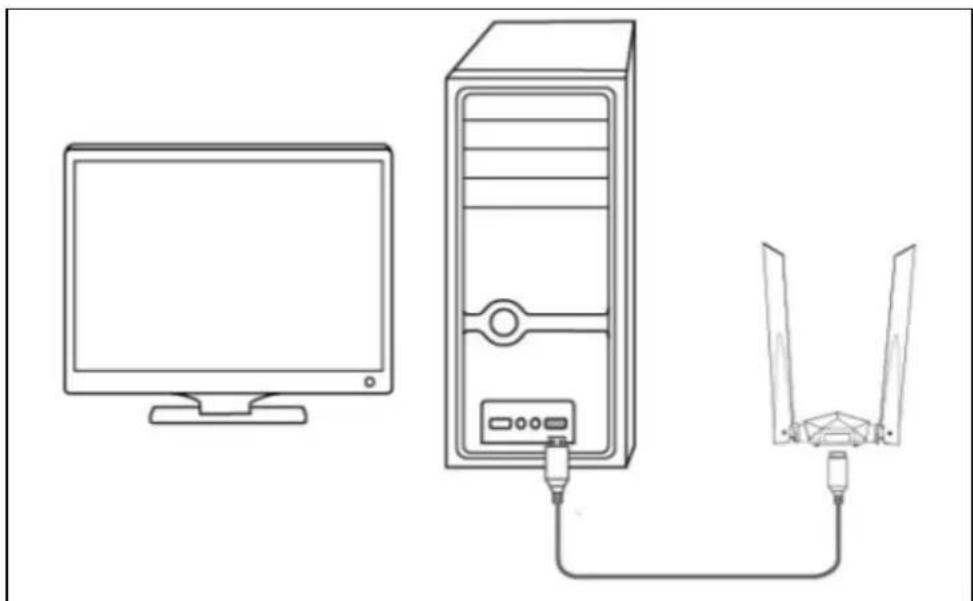
Step 1 Use the USB extension cable to connect the wireless USB adapter to the USB port of your computer.
Figure 1-1 Connect the device
natural_image
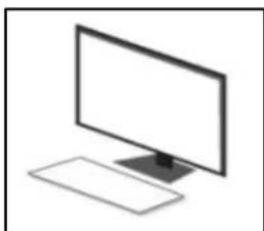
Line drawing of a desktop computer connected to a tower via a network cable (no text or symbols)Step 2 Double-click the This PC icon.
Figure 1-2 Double-click the icon
natural_image
Simple line drawing of a desktop computer monitor and keyboard (no text or symbols)
If you cannot find the This PC icon, please add the icon to your desktop first. For detailed steps, see "Appendix 2 Adding the This PC icon to your desktop".
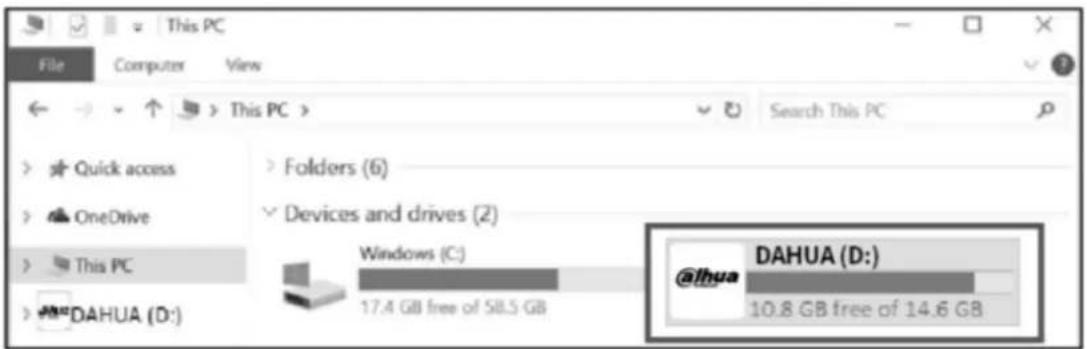
Step 3 Double-click DAHUA.
Figure 1-3 Double-click DAHUA
Step 4 Double-click Setup.exe, and then install the wireless USB adapter according to the prompts.
Figure 1-4 Double-click Setup.exe

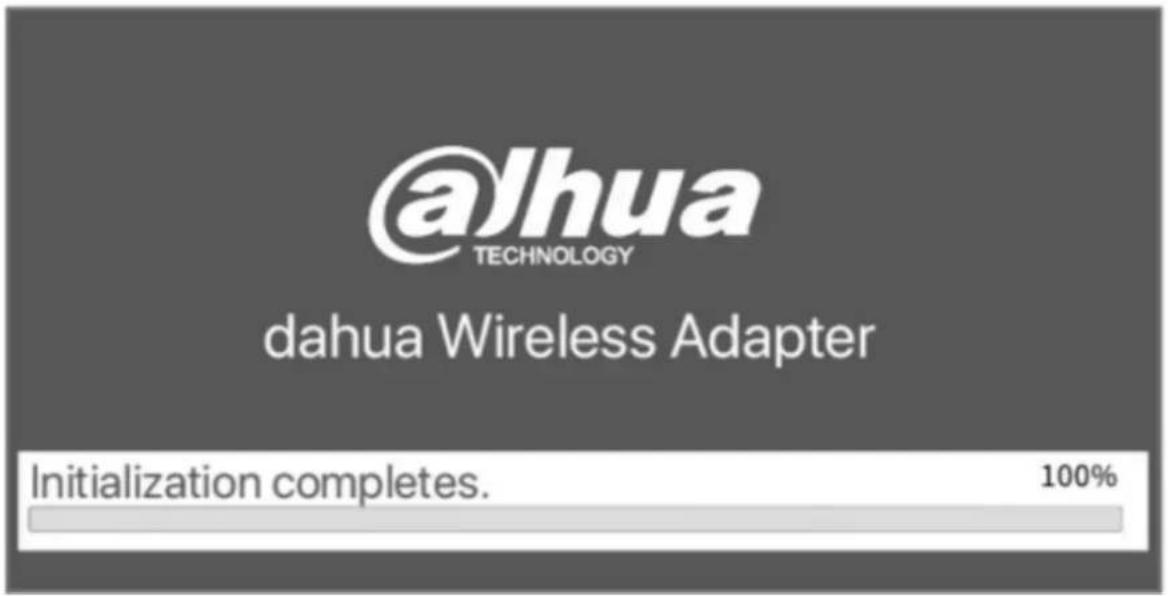
Wait a moment until the initialization finishes. Now you can connect to the Wi-Fi network.
Figure 1-5 Initialization completes
2 Connecting to Wi-Fi network (Windows 10 used as an example)
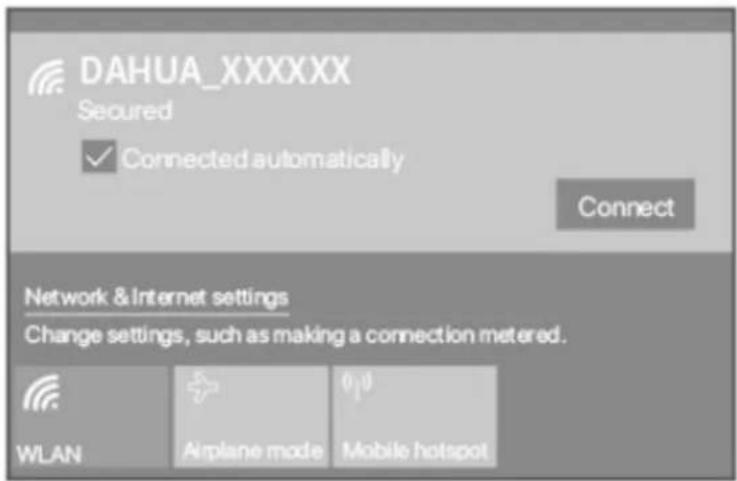
Step 1 Click 📋 in the bottom right corner of your screen, select the desired Wi-Fi network, and then click Connect.
Figure 2-1 Connect to Wi-Fi network
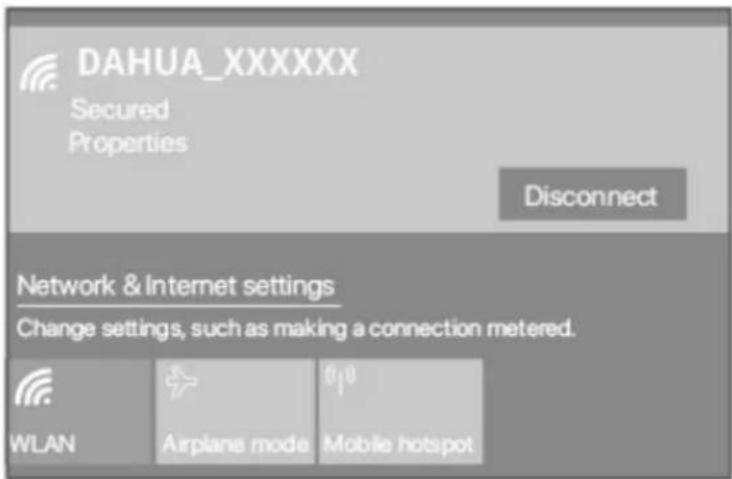
Step 2 If the wireless network is encrypted, enter its wireless password, click Next, and then follow the system prompts connected successfully.
Figure 2-2 Enter the wireless password
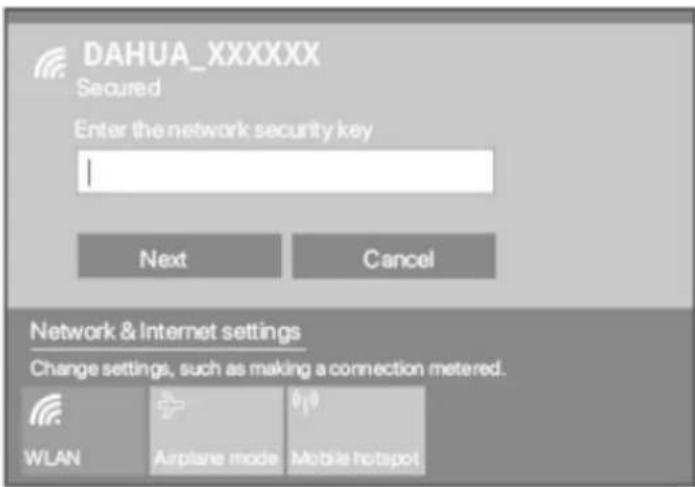
Figure 2-3 Successfully connected to Wi-Fi network
Appendix 1 Uninstalling the existing wireless adapter driver on your computer
Perform the following steps (Windows 10 used as an example):
Step 1 Click in the bottom left corner of your screen, and then click
Appendix Figure 1-1 Click settings icon

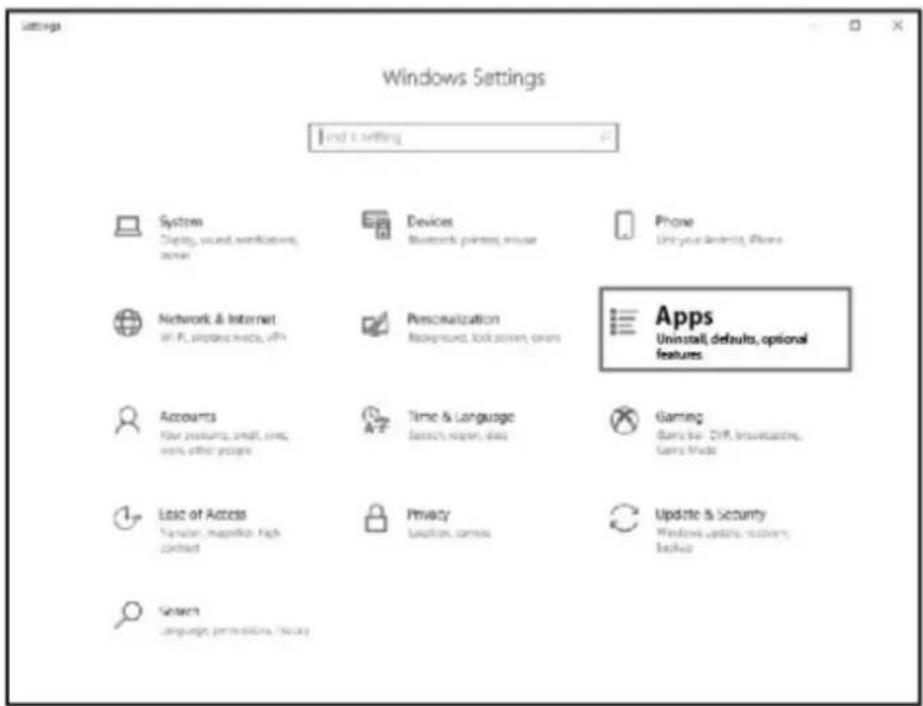
Step 2 Click Apps.
Appendix Figure 1-2 Click Apps
Step 3 Find and uninstall any other existing wireless adapter driver.
Appendix 2 Adding the This PC icon to your desktop
Perform the following steps (Windows 10 used as an example):
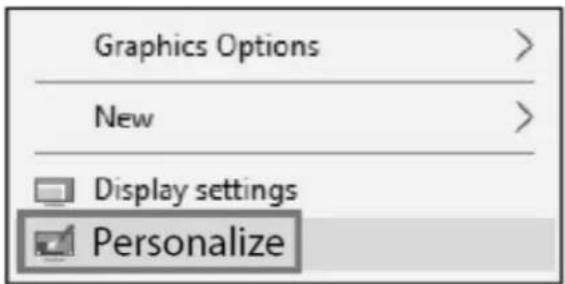
Step 1 Right-click on your desktop and choose Personalize.
Appendix Figure 2-1 Choose Personalize
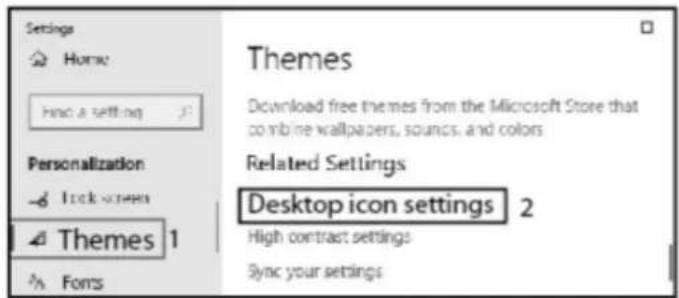
Step 2 Select Themes from the left sidebar, and then click Desktop icon settings.
Appendix Figure 2-2 Click Desktop icon settings
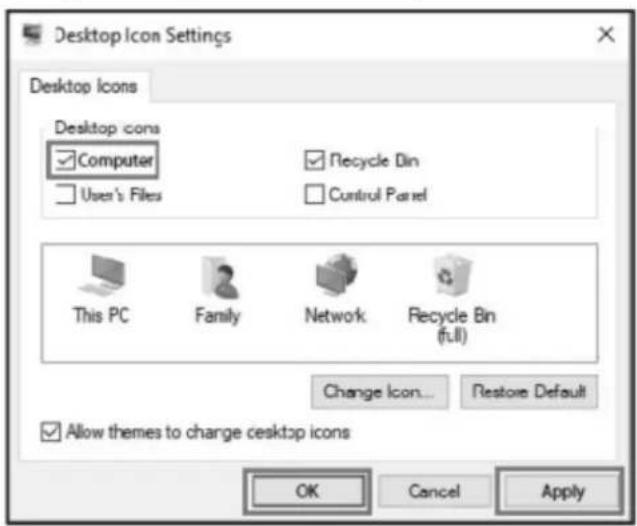
Step 3 Check Computer and click OK.
Appendix Figure 2-3 Check Computer
Appendix 3 Cybersecurity Recommendations
Security Statement
- If you connect the product to the Internet, you need to bear the risks, including but not limited to the possibility of network attacks, hacker attacks, virus infections, etc., please strengthen the protection of the network, platform data and personal information, and take the necessary measures to ensure the cyber security of platform, including but not limited to use complex passwords, regularly change passwords, and timely update platform products to the latest version, etc. Dahua does not assume any responsibility for the product abnormality, information leakage and other problems caused by this, but will provide product-related security maintenance.
- Where applicable laws are not expressly prohibited, for any profit, income, sales loss, data loss caused by the use or inability to use this product or service, or the cost, property damage, personal injury, service interruption, business information loss of purchasing alternative goods or services, or any special, direct, indirect, incidental, economic, covering, punitive, special or ancillary damage, regardless of the theory of liability (contract, tort, negligence, or other), Dahua and its employees, licensors or affiliates are not liable for compensation, even if they have been notified of the possibility of such damage. Some jurisdictions do not allow limitation of liability for personal injury, incidental or consequential damages, etc., so this limitation may not apply to you.
- Dahua's total liability for all your damages (except for the case of personal injury or death due to the company's negligence, subject to applicable laws and regulations) shall not exceed the price you paid for the products.
Security Recommendations
The necessary measures to ensure the basic cyber security of the platform:
1. Use Strong Passwords
Please refer to the following suggestions to set passwords:
● The length should not be less than 8 characters.
- Include at least two types of characters; character types include upper and lower case letters, numbers and symbols.
- Do not contain the account name or the account name in reverse order.
- Do not use continuous characters, such as 123, abc, etc.
- Do not use overlapped characters, such as 111, aaa, etc.
2. Customize the Answer to the Security Question
The security question setting should ensure the difference of answers, choose different questions and customize different answers (all questions are prohibited from being set to the same answer) to reduce the risk of security question being guessed or cracked.
Recommendation measures to enhance platform cyber security:
1. Enable Account Binding IP/MAC
It is recommended to enable the account binding IP/MAC mechanism, and configure the IP/MAC of the terminal where the commonly used client is located as an allowlist to further improve access security.
2. Change Password Regularly
We suggest that you change passwords regularly to reduce the risk of being guessed or cracked.
3. Turn On Account Lock Mechanism
The account lock function is enabled by default at the factory, and it is recommended to keep it on to protect the security of your account. After the attacker has failed multiple password attempts, the corresponding account and source IP will be locked.
4. Reasonable Allocation of Accounts and Permissions
According to business and management needs, reasonably add new users, and reasonably allocate a minimum set of permissions for them.
5. Close Non-essential Services and Restrict the Open Form of Essential Services
If not needed, it is recommended to turn off NetBIOS (port 137, 138, 139), SMB (port 445), remote desktop (port 3389) and other services under Windows, and Telnet (port 23) and SSH (port 22) under Linux. At the same time, close the database port to the outside or only open to a specific IP address, such as MySQL (port 3306), to reduce the risks faced by the platform.
6. Patch the Operating System/Third Party Components
It is recommended to regularly detect security vulnerabilities in the operating system and third-party components, and apply official patches in time.
7. Security Audit
- Check online users: It is recommended to check online users irregularly to identify whether there are illegal users logging in.
- View the platform log: By viewing the log, you can get the IP information of the attempt to log in to the platform and the key operation information of the logged-in user.
8. The Establishment of a Secure Network Environment
In order to better protect the security of the platform and reduce cyber security risks, it is recommended that:
- Follow the principle of minimization, restrict the ports that the platform maps externally by firewalls or routers, and only map ports that are necessary for services.
- Based on actual network requirements, separate networks: if there is no communication requirement between the two subnets, it is recommended to use VLAN, gatekeeper, etc. to divide the network to achieve the effect of network isolation.
More information
Please visit Dahua official website security emergency response center for security announcements and the latest security recommendations.
ENABLING A SAFER SOCIETY AND SMARTER LIVING
- Safety Instructions
- Revision History
- Privacy Protection Notice
- About the Manual
- Important Safeguards and Warnings
- Transportation Requirements
- Storage Requirements
- Installation Requirements
- WARNING
- Operation Requirements
- Maintenance Requirements
- Table of Contents
- Installing the wireless USB adapter (Windows 10 supported)
- Connecting to Wi-Fi network (Windows 10 used as an example)
- Appendix 1 Uninstalling the existing wireless adapter driver on your computer
- Appendix 2 Adding the This PC icon to your desktop
- Appendix 3 Cybersecurity Recommendations
- Security Statement
- Security Recommendations
- The necessary measures to ensure the basic cyber security of the platform:
- Use Strong Passwords
- Customize the Answer to the Security Question
- Recommendation measures to enhance platform cyber security:
- Enable Account Binding IP/MAC
- Change Password Regularly
- Turn On Account Lock Mechanism
- Reasonable Allocation of Accounts and Permissions
- Close Non-essential Services and Restrict the Open Form of Essential Services
- Patch the Operating System/Third Party Components
- Security Audit
- The Establishment of a Secure Network Environment
- More information
- ENABLING A SAFER SOCIETY AND SMARTER LIVING
Brand : Dahua Technology
Model : NC1800
Category : Network Card/Adapter