AC-30 - Camera Moultrie - Free user manual and instructions
Find the device manual for free AC-30 Moultrie in PDF.


User questions about AC-30 Moultrie
0 question about this device. Answer the ones you know or ask your own.
Ask a new question about this device
Download the instructions for your Camera in PDF format for free! Find your manual AC-30 - Moultrie and take your electronic device back in hand. On this page are published all the documents necessary for the use of your device. AC-30 by Moultrie.
USER MANUAL AC-30 Moultrie
Note changes and modifications not expressly approved by the party responsible could and the user's authority to operate this device.
This device complies with Part 15 of the FCC Rules. Operation is subject to the following two conditions: (1) This device may not cause harmful interference, and (2) this device must accept any interference measured, including interference that may cause undetected operation.
NOTE: THE MANUFACTURER IS NOT RESPONSIBLE FOR ANY RADIO OR TV INTERFERENCE CAUSED BY UNAUTHORIZED TO MODIFICATIONS TO THIS EQUIPMENT. SUCH NOTIFICATIONS COULD YOU THE USERS' AUTHORITY TO UPDATE THE EQUIPMENT.
MILK This device complies with the links to Class II digital device, pursuant to Part 15 of the ICD series. These links are designed to provide reasonable protection against harmful interference in a residential installation. This device generates uses, and can reduce radio frequency energy and, its installed and useful accordance with the instructions, may give any other interference to radio communications. However, there is no guarantee that interference will not occur in a particular installation. If this device does cause harmful interference in radio or television reception, which can be determined by turning the equipment all and on, the user is encouraged to try to correct the interference by one or more of the following measures:
- Reorient or reinvole the receiving antenna.
Increase the separation between the component and receiver.
Connect the requirements into a suit on a circuit different from that to which the request is corrected.
- Consult the dealer or an experienced ratio/TV technician for help.
MOULTRIE®
www.moultriefeeders.com
PRADCD Outdoor Brands + 3280 Highway 31, Ste B + Calera, AL 35040
10242016/MCG-13206
MOULTRIE®
Instructions for A-Series Digital Game Cameras
THANK YOU for your purchase of an A-Series Digital Game Camera. Please read this booklet before using the unit. If you should have any questions about this product or any other Moultrie product, please contact us using the information on the back of this booklet. Please register your camera at www.moultriefeeders.com/warranty to activate your warranty.
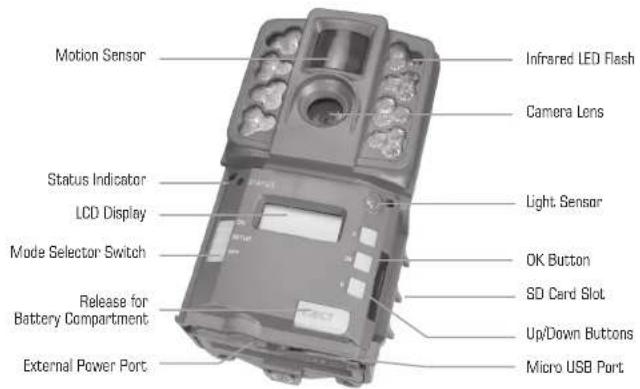

QUICK START INSTRUCTIONS
Battery Installation
Open the camera cover and install S AA, Alkaline or Lithium batteries. Make sure that the (+ and -) polarities match the polarities indicated inside the battery chamber.
Note: Anytime you load or unload batteries, make sure that the camera is OFF. If using 12V DC Power Panel Plug, do not remove internal batteries.
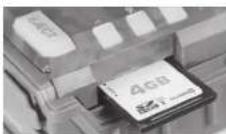
Insert SD Card
You will need to open the front cover to insert an SD memory card. You can insert a SD Card up to 32 GB (not included). Insert the SD card in the direction indicated on the card, until you hear an audible click.
Note: Camera will not operate without an SD memory card installed. Ultra/turbo SD cards are not recommended.
Power ON
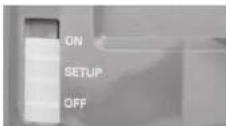
Slide the Mode Switch to the Setup position. The battery level will appear on the LCD Display. The camera has powered up.
Important Battery Information
- Only use Alkaline or Lithium batteries. We recommend the use of Energizer™ batteries.
- Do not mix old and new batteries. Always replace ALL the batteries at the same time.
- When the camera is not in use, please remove the batteries.
Moultrie Limited Warranty
This product has been thoroughly tested and inspected before shipment. It is guaranteed from defects in material and workmanship from the date of purchase for 2 years. Under this limited guarantee we agree to replace or repair free of charge any part or parts which have been found to be defective in original material or workmanship. Should you require in warranty service, call our Customer Service Department. If your problem cannot be addressed over the telephone, we may need you to send us your defective product plus proof of purchase.
You must register your camera at www.moultrilefeeders.com/warranty to activate your 2-year warranty.
Troubleshooting
Please visit www.moultriefeeders.com/contact-us for troubleshooting and helpful tips.
Returns and Repairs
Please visit http://www.moultriefeeders.com/return-policy and complete the form or our Service Department will gladly answer any questions you have. Call 800-653-3334, Monday - Friday, 8:00 AM to 5:00 PM CST.
MOULTRIE MOBILE® COMPATIBILITY
Your camera is compatible with our Moutrie Mobile® cellular service when combined with the Field Modem MV1. Please visit www.moultriemobile.com for more information.

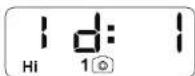
Use the Up/Down buttons to choose between nine different numbers (1-9) to help identify your cameras (i.e. "CAMERA 3" will be marked on the info strip given 3 was selected). Press OK to lock in your selection and move to the next selection.
Reset Picture Count/Erase Images/Format Card
You can reset the picture count on the camera. Use the Up/Down buttons to choose between Yes or No. Press the OK button to confirm the selection. "Yes" will reset file number to start from 0001 and erase all images stored on the SD card.
NOTE: This will also format your SD card for use in your camera.
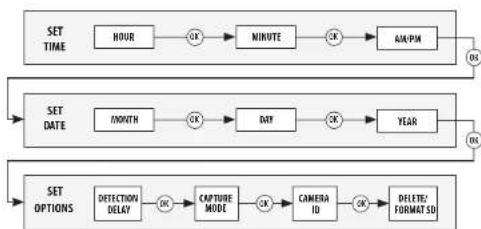
flowchart
graph TD
    A["SET TIME"] --> B["HOUR"]
    B --> C["OK"]
    C --> D["MINUTE"]
    D --> E["OK"]
    E --> F["AM/PM"]
    F --> G["OK"]
    H["SET DATE"] --> I["MONTH"]
    I --> J["OK"]
    J --> K["DAY"]
    K --> L["OK"]
    L --> M["YEAR"]
    M --> N["OK"]
    O["SET OPTIONS"] --> P["DEFECTION DELAY"]
    P --> Q["OK"]
    Q --> R["CAPTURE MODE"]
    R --> S["OK"]
    S --> T["GAMERA ID"]
    T --> U["OK"]
    U --> V["DELETE: FORMAT SD"]
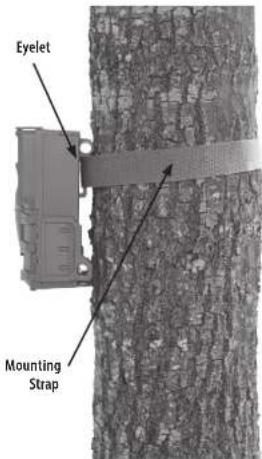
Mounting with a Strap
Close cover and place camera on a tree or pole approximately 3 ft. high. Thread the mounting strap through the mounting strap slots on the back of the camera and secure.
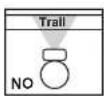
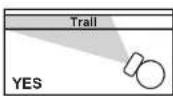
Hint: If you are mounting camera to cover a trail, face the camera down the trail tilted at a slight downward angle.
Face the camera north or south to avoid over exposure from the sun.
Clear brush away from camera front to avoid false triggers from the wind.

CAMERA SETUP
Power ON
Slide the power switch to the ON position. The battery level will appear on the LCD Display for 2 seconds.
After 2 seconds, the camera will display the countdown. When the countdown timer reaches "00", the display will turn off and the camera will enter Capture Mode.
If the camera detects that the battery level is 15% or below, the Low Battery screen will appear and the unit will turn off.
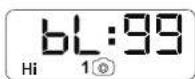
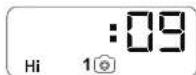
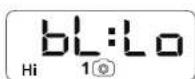
To begin modifying the camera settings, slide the switch to the SETUP position. The camera will display the currently set time. Use the UP and DOWN arrow keys to change the currently flashing option. Once settling is adjusted to the desired option, press OK to lock in the setting and move to the next field/option.
Note: while in SETUP mode, the motion sensor will detect movement and illuminate the STATUS LED on the front of the camera for \~1 second. You can use this feature to ensure camera is properly aimed to detect movement in the desired target area.
Setting Time and Date
While the camera is in the Setup mode, the LCD display will show the time. Press the OK button and the selection will flash. Use the UP/Down buttons to change the selection. Press the OK button to lock in the selection and move to the next selection. Repeat the process to set the year, month and day.
Detection Delay Setting
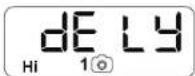
Detection Delay determines the number of minutes between pictures when an animal is detected and remains in range. Press the OK button. Use the Up/Down buttons to choose between (0, 15, 30 sec, 1 or 5 min). Press OK to lock in your selection and move to the next selection.
Setting Capture Mode
Use the Up/Down buttons to choose between 5 different modes: 1 Photo/Low Resolution, 1 Photo/High Resolution, 3 Photos/Low Resolution, 3 Photos/High Resolution and High/Low Video. Press OK to lock in your selection and move to the next selection.
The on-screen icons for each mode are shown to the right:
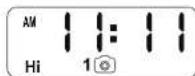
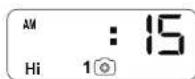
| Le | 1 | 1 Photo, Low Resolution |
| Hi | 1 | 1 Photo, High Resolution |
| Le | 3 | 3 Photos, Low Resolution |
| Hi | 3 | 3 Photos, High Resolution |
| Hi | High Resolution Video | |
| Le | Low Resolution Video |