A7 - Graphic tablet eLocity - Free user manual and instructions
Find the device manual for free A7 eLocity in PDF.


User questions about A7 eLocity
0 question about this device. Answer the ones you know or ask your own.
Ask a new question about this device
Download the instructions for your Graphic tablet in PDF format for free! Find your manual A7 - eLocity and take your electronic device back in hand. On this page are published all the documents necessary for the use of your device. A7 by eLocity.
USER MANUAL A7 eLocity
natural_image
Two black rectangular tablets displayed on a white background, one showing a home screen with app icons (no readable text or symbols)www.elocitynow.com
Safety Instructions
Use the following safety guidelines to help protect yourself and your Tablet.
General Warnings
- Do not operate your Tablet for long periods of time while it has direct contact with your body or other surface that might completely cover the bottom of the unit. This may cause overheating.
- Do not attempt to disassemble the Tablet yourself. Always follow installation instructions closely.
- To avoid personal injury from electric shock or fire:
Do not operate the Tablet close to water, for example, near the bathtub, kitchen sink, laundry tub, wet basement, swimming pool, or in the rain.
Do not connect or disconnect any cables or perform maintenance or reconfiguration of this product during thundershower, tempest or storm.
Do not push objects into the air vents or openings of your interior components.
- If the battery pack leaks and the battery fluid comes into contact with your eyes, do not rub them. Wash the eyes with clean running water and immediately seek medical attention. Otherwise, eye injury may be result.
- If battery fluid contacts your skin or clothing, immediately wash with running water. Otherwise, skin inflammation can occur.
- Operate the Tablet at the recommended temperature range of +5°C to +35°C (+41°F to +95°F). Store it at a temperature of -20°C to +60°C (-4°F to +140°F).
Adapter Warnings
See the installation instructions before connecting the power supply (refer to "Charging the Battery" on page 5).
- When using your adapter, make sure to position it around objects so it will not be cut or damaged.
- Use only the AC adapter that is approved for use with this Tablet. Use of another type of adapter may risk fire or explosion.
- Before you connect the Tablet to a power source, ensure that the voltage rating of the AC adapter matches that of the available power source:
220 V/50 Hz in China.
115 V/60 Hz in most of North and South America and some Far Eastern countries such as South Korea and Taiwan.
100 V/50 Hz in eastern Japan.
100 V/60 Hz in western Japan.
230 V/50 Hz in most of Europe, the Middle East, and the Far East.
- If you use an extension cable with your AC adapter, ensure that the total ampere rating of the products plugged into the extension cable does not exceed the ampere rating of the extension cable.
- Do not cover the AC adapter with papers or other items that will reduce cooling. Also, do not use the AC adapter while it is inside a carrying case.
- To remove power from the Tablet, turn it off, remove the battery, and disconnect the AC adapter from the electrical outlet.
Battery Pack Warning
- Do not carry the battery pack in your pocket, purse, or other container where metal objects (such as car keys) could short-circuit the battery terminals. The resulting current flow can cause extremely high temperatures and may result in damage or injury from burns.
- There is a danger of explosion if the battery pack is incorrectly replaced. Replace only with the same or equivalent type battery recommended by the manufacturer.
- Do not dispose of battery pack near a heat source. Heat can melt the insulation and damage other safety features, possibly leading it to leak acid, overheat, emit smoke, burst and/or ignite.
- Do not immerse the battery pack in water or allow it to get wet. Its protective features can be damaged, it can be charged with extremely
high current and voltage, abnormal chemical reactions may occur, possibly leading it to leak acid, overheat, emit smoke, burst and/or ignite.
- Do not crush, disassemble, puncture, incinerate or short circuit external contacts of the battery pack.
- Do not connect the positive (+) and negative (-) terminals with a metal object such as wire. Short-circuiting may occur, leading the battery pack to leak acid, overheat, emit smoke, burst and/or ignite.
- Do not use an apparently deformed or damaged battery pack, which may leak acid, overheat, emit smoke, burst and/or ignite.
- If the battery pack leaks fluid, gives off a bad odor, generates heat, or becomes discolored, immediately remove it from the Tablet or charger and stop using it.
Battery Pack Disposal
- Dispose of the lithium ion battery packs only at approved disposal sites. To locate an appropriate site, contact the solid waste disposal officials where you live or look for a rechargeable battery recycling website that lists disposal locations near you.
- Do not dispose of battery packs in a fire, throw them in a trash receptacle, put them in a recycling bin not intended for their disposal, or otherwise discard them in a manner that may result in their being hazardous to the environment.
Environment
For human health and environment protection, please take notice of below information.
WEEE NOTICE
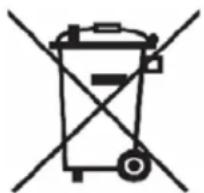
- The Directive 2002/96/EC on Waste Electrical and Electronic Equipment (WEEE) which entered into force on 13th February 2003, is to ensure that WEEE are recycled using best available treatment, recovery and recycling techniques in order to protect human health and natural resources.
• Recycling & disposal:
Do not dispose of your product which has the WEEE logo (shown as right) on it or on its box in the general household waste bin.
➢ Be sure to dispose of all your products in the designed collection facilities for recycling of such hazardous wastes.
Separate collection and proper recovery of your WEEE at the time of disposal will allow us to help conserving natural resources. Moreover, proper recycling of WEEE will ensure safety of human health and environment.
For more information about WEEE disposal, recovery, and collection points, please contact your local city center, household waste disposal service, retailer or manufacturer of the equipment.
natural_image
Simple line drawing of a trash bin with crossed x-axes (no text or symbols)RoHS Compliance
This product is in compliance with Directive 2002/95/EC of the European Parliament and of the Council of 27 January 2003, on the restriction of the use of certain hazardous substances in electrical and electronic equipment (RoHS) and its amendments.
According to Management Methods for Controlling Pollution Caused by Electronic Products and Management Methods for Controlling Pollution Caused by Electronic information Products, the information required by SJ/T11364-2006 is listed in the following table.
Names and Contents of Toxic or Hazardous Substances or Elements Contained in Products.
Federal Communications Commission (FCC) Statement
You are cautioned that changes or modifications not expressly approved by the party responsible for compliance could void the user's authority to operate the equipment.
This equipment has been tested and found to comply with the limits for a Class B digital Tablet, pursuant to part 15 of the FCC rules. These limits are designed to provide reasonable protection against harmful interference in a residential installation. This equipment generates, uses and can radiate radio frequency energy and, if not installed and used in accordance with the instructions, may cause harmful interference to radio communications. However, there is no guarantee that interference will not occur in a particular installation. If this equipment does cause harmful interference to radio or television reception, which can be determined by turning the equipment off and on, the user is encouraged to try to correct the interference by one or more of the following measures:
- Reorient or relocate the receiving antenna.
- Increase the separation between the equipment and receiver.
- -Connect the equipment into an outlet on a circuit different from that to which the receiver is connected.
- Consult the dealer or an experienced radio/TV technician for help.
This Tablet complies with Part 15 of the FCC Rules. Operation is subject to the following two conditions:
- This Tablet may not cause harmful interference, and
- This Tablet must accept any interference received, including interference that may cause undesired operation of the Tablet.
FCC RF Radiation Exposure Statement:
This equipment complies with FCC radiation exposure limits set forth for an uncontrolled environment. End users must follow the specific operating instructions for satisfying RF exposure compliance. This transmitter must not be co-located or operating in conjunction with any other antenna or transmitter.
Operating System Notice
This A7 unit ships with the Android 2.2 "Froyo" operating system preinstalled. The OS software cannot be upgraded. Stream TV Networks provides regular firmware updates on its website at www.elocitynow.com. These firmware updates maximize the unit's performance within the Android 2.2 Operating System.
Third Party Applications
Links to the Getjar and Appoke stores have been pre-installed for your convenience as a means to access potential apps for your tablet. Please note that both stores contain apps that have been created for a wide variety of devices with different processing speeds and screen sizes. While some popular apps like Angry Birds perform perfectly, not all apps available in these stores have been optimized for the A7. There is no guarantee that any third party app will install correctly, run with optimized performance, or function at all.
Support for Third Party Applications
We regret that our customer service center (phone and email/web submissions) is unable to support questions related to third party applications unless they have come pre-installed on the tablet.
For questions related to applications that were not pre-installed, there is some limited information in the FAQ section of our website at http://www.elocitynow.com/support_faqs.shtml. There are also a variety of online community forums and user groups that may have answers.
Chapter 1 – Introduction
1.1 Overview
1.2 Front Panel
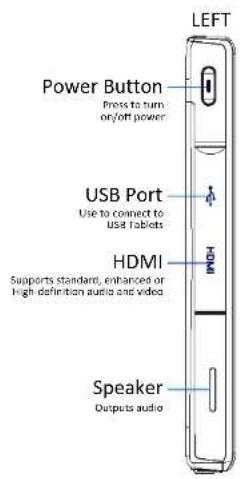
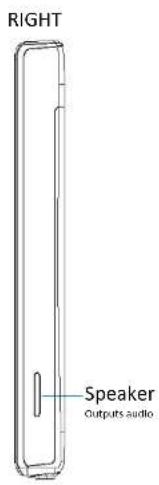
1.3 Right / Left Panel
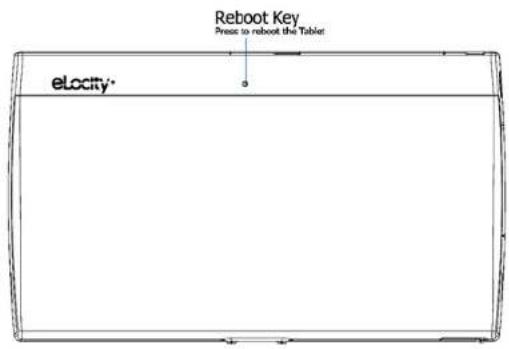
1.4 Back Panel
1.5 Top / Bottom Panel
1.6 Features
1.1 Overview
Congratulations on the purchase of your new advanced Tablet. You're about to discover so many things about your Tablet that will help you maximize the experience of its usage. Read this chapter and the next one to learn more about the functions of the Tablet, battery and SD card installation, charging the battery, and more.
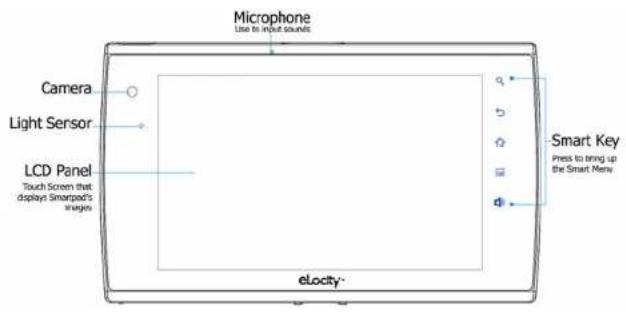
1.2 Front Panel
1.3 Right / Left Panel
1.4 Back Panel
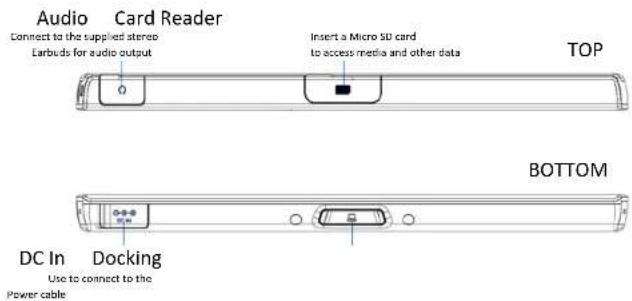
1.5 Top / Bottom Panel
1.6 Features
The Tablet is optimized for rich internet and entertainment experiences as well as daily business and productivity needs. The Tablet features:
- Touch screen panel
- WiFi network connection for quick access to the web
- Bluetooth connection to send and receive data to and from other Bluetooth devices
- Browser applications for web surfing on the go
- Chat with friends through the instant messenger and built-in webcam
- Email exchange that allows you to keep in touch with personal and business contacts
• Media Player for music and movies
• Built-in camera to take digital pictures and record video clips
• Powerful tools and office programs for your business needs
• USB connections for connecting external devices
Chapter 2 – Getting Started
2.1 The SIM Card Slot
2.2 Charging the Battery
2.3 Checking the Battery Status
2.4 Connecting USB Devices
2.5 Inserting a Micro SD card
2.6 Connecting Earphones
2.7 Using the Mouse
2.8 Inputting Information
2.9 The Power Switch
2.1 The SIM Card Slot
The A7 Tablet comes with a SIM Card Slot for future functionality, but the unit does not currently support any SIM functions.
2.2 Charging the Battery
The battery that comes with your Tablet is partially charged. It is recommended that you use your Tablet until the battery is completely discharged before charging the battery the first time. Batteries perform best after being fully charged.
natural_image
Line drawing of a wall-mounted power plug connected to a rectangular electronic device (no text or symbols)To Charge the Battery
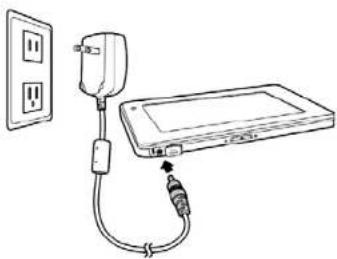
- Connect the power cable to the Tablet as shown.
- Plug the power cable into an electrical outlet.
- Remove the power cable when charging is complete.
Battery Charging Time
It takes approximately 3.5 hours to fully charge the battery while the power is off.
2.3 Checking the Battery Status
There are two ways to check the battery level of your Tablet: the Power LED Indicator and the Battery Icon on the Status Bar.
Power LED Indicator
The Power LED Indicator indicates the charge level status of your battery:
- When the Power LED indicator is orange, the battery is charging.
- When the Power LED indicator is green, the battery is fully charged.
When the battery is fully charged, disconnect the charger from the outlet first, then disconnect it from the Tablet.
Battery Icon on the Status Bar
While the Tablet is turned on, you can check the battery level icon located on the Status Bar.
A green icon indicates that the battery is completely charged.
While the battery is charging, the icon on the status bar starts scrolling on the display. When the battery is fully charged, the icon stops scrolling and indicates green with a flash logo.
The Tablet will have the following defined behaviors when the battery reaches certain charge levels:
- 15% Charge Remaining – the Tablet will show "Battery Low" warning message when the charge drops to 15%. The message will also appear at boot up or when the Tablet is reactivated after being put in suspend mode if the AC charger is not plugged in and battery capacity is less than 15%.
- 6% Charge Remaining – the Tablet will power off automatically.
2.4 Connecting USB Devices
You can connect USB flash drives to your Tablet to access external files. The tablet supports drives up to 64GB in size. Please note that some older USB 1.1 devices may have compatibility issues.
To Connect USB Devices
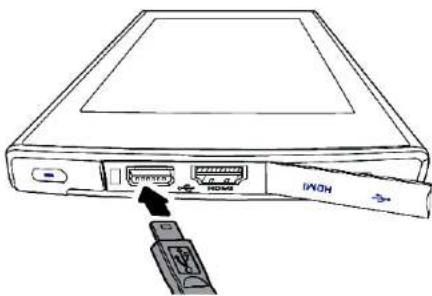
- Locate the USB port on the top of the Tablet, See "Right / Left Panel" to locate the USB port.
- Open the port cover.
- Connect the USB device as shown on the left.
natural_image
Line drawing of a server rack with an attached USB port and a connector labeled 'INNOH' (no text or symbols beyond label)To Remove an External Drive Connected to the USB
- Before removing an external drive, tap the connection icon to safely remove the Tablet to avoid data loss.
- Your Tablet will pop up a message to confirm the removal. Tap the message.
- Remove the USB device and close the port cover door.
Plug and Play Devices
A Plug and Play (PnP) device does not require installation or drivers after being connected. Plug the device, then "play" or use it at once. You can remove the PnP device from the Tablet at any time.
2.5 Inserting a Micro SD Card
The Tablet supports Micro SD cards up to 32GB in size.
To insert a Micro SD Card:
- Open the protective cover door and slide it over to reveal the slots
- Insert the card into the slot closest to the back of the unit by pushing until it clicks into place.
- Close the card cover door.
- The Tablet detects the card and opens the File Manager application.

natural_image
Close-up of a modern electronic device with a wall-mounted sensor and a digital stopwatch on the screen (no visible text or symbols)To Remove a Micro SD Card
- Before removing the card, tap the connection icon to safely remove the Tablet to avoid data loss.
- Your Tablet will pop up a message to confirm the removal. Tap the message.
- Open the slot cover.
- Push the card into the slot, until you hear a click sound, to release the locks.
- Gently remove the card and close the slot cover door.
2.6 Connecting Earphones
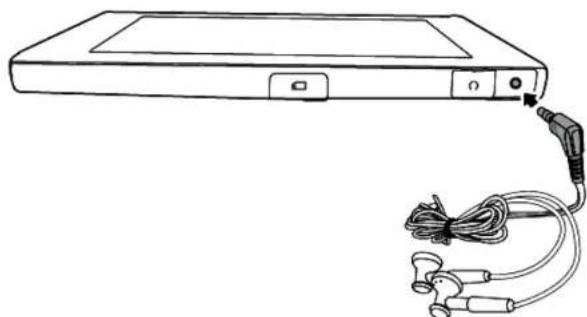
To listen to music, voice recordings and video sounds in your Tablet, plug in the earphones included with your Tablet or connect other audio output devices such as external speakers. All earphones and speakers can be connected through the headphone jack located at the top of the Tablet.
- Find the headphone jack on the top of the Tablet. See "Top / Bottom Panel" to locate the jack.
- Connect the earphones to the Tablet as shown below.
- To listen to audio outputs, open an entertainment application.
natural_image
Line drawing of a rectangular electronic device with attached cables and connectors (no text or symbols)2.7 Using the Mouse
You can navigate the Tablet with your finger (see Chapter 2 Connecting USB Devices on how to connect a mouse to your Tablet).
Mouse/Finger Functions:
| Mouse Finger Function | ||
| Single click Single-tap Click or single-tap to select or run an item. | ||
| Double click Double-tap Double click or double-tap to select or run an item. | ||
| Right click Tap and hold Press and hold for more than 3 seconds to display the Pop-up menu. | ||
| Click and drag Drag Drag an item to move it. | ||
| Flick Flick Flick the pen across the screen in a particular direction to scroll up, down, left, or right. | ||
2.8 Inputting Information
The Tablet has a software keyboard for inputting text.
2.9 The Power Switch
The Power Switch is located on the left side panel of the Tablet. It is used to power on/off the Tablet.
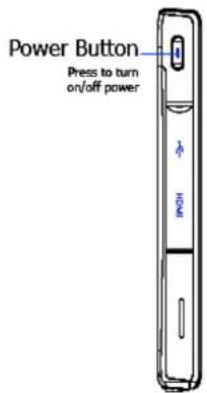
Power Button behaviors
| System Status | Action | Result |
| Power off | Short press | Turns on the power |
| Power on | Short press | Enters suspend mode |
| Long press (2 seconds) | Shows power menu | |
| Suspend | Press once | Resume from suspend mode |
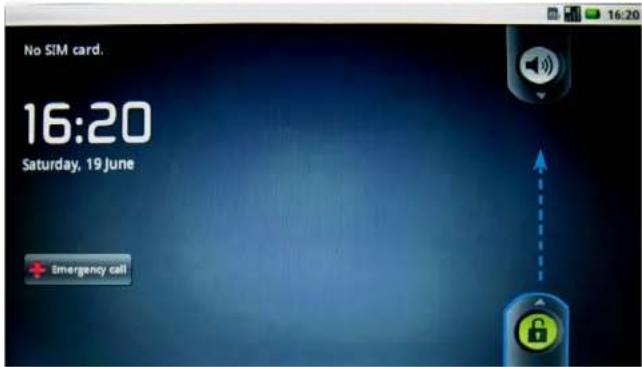
To unlock the Tablet
After pressing the power button to turn on the Tablet, you need to move the lock as indicated to enter the system. Just slide the lock up in the direction of the arrow as pictured below.
Suspend Mode
To conserve battery power, your Tablet will automatically enter Suspend Mode if there is no activity for a defined period of time. Some users prefer a very short timeout of one minute while others may prefer a long timeout of 30 minutes or even never. The A7 gives you several options.
Waking the Tablet from Suspend Mode
When the Tablet enters Suspend Mode (Screen Timeout), the screen goes dark and the unit appears to be turned off. Unlike a laptop or desktop computer, you cannot "wake up" the unit by tapping the screen, moving a mouse or typing on the keyboard.
To reactivate the Tablet, give the power button on the left side a short press. The screen will light up within 2-3 seconds. The Tablet will be locked, so you will need to slide the green lock up as described in the left column of this page. If your Tablet goes into Suspend Mode too quickly, you can adjust the Screen Timeout as described below.
Changing the Screen Timeout Setting
To change the Screen Timeout, click the MENU Smart Key on the black bezel (just below the HOME key). On screen, several choices will appear. Tap SETTINGS to display a long list of choices. From the list, tap DISPLAY, then tap SCREEN TIMEOUT.
In this submenu you will see a wide variety of choices. A green radio button on the right indicates the Tablet's current setting. If you want to make a change, just tap your selection and the screen will change back to the previous menu to indicate that your selection has been selected.
To verify your new setting, tap SCREEN TIMEOUT again and you will see that the green radio button on the right is set to your preferred setting.
Tap the HOME key on the black bezel and you're ready to go.
Chapter 3 – Your Tablet
3.1 Home Screen
3.2 The Status Bar
3.3 The Smart Key
3.4 The Smart Menu
3.1 Home Screen
The Home Screen contains 8 application groups. Flick your finger across the screen to scroll through all the application groups.
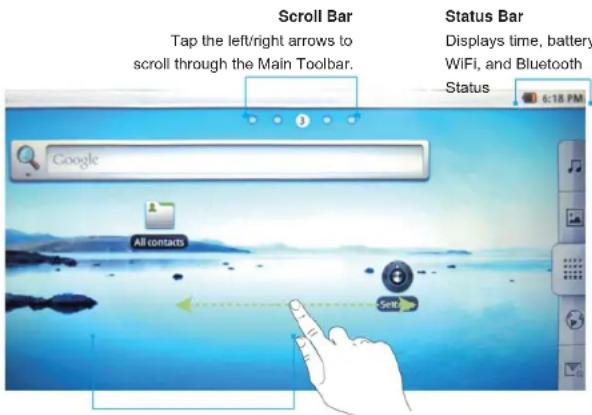
Quick Menu
Tap the icon to go directly to the application.
Icons can be changed by user.
Note:
- You can add a shortcut to the desktop Menu by dragging an icon to the Home Screen.
- You can delete shortcut Menu by keeping press the icon until the Recycle Bin appear in the right of the Home Screen, then move the icon to Recycle Bin.
3.2 The Status Bar
The Status Bar appears on top of the Tablet Screen. It indicates your current mode and contains Time, Alarm Clock, Battery Status, WiFi Status, SIM card Status, Bluetooth Status.
| Icons Description | |
| 12:00pm | Time and Clock |
 | Alarm Clock |
 | Battery Status: Indicates battery level, more bars denotes more power |
 | WiFi: Indicates the status of the internet connection |
 | SIM card Status |
 | Bluetooth |
 | WiFi signal |
 | Displays current input method |
3.3 The Smart Key
The Status Keys are located on the right side of the front Tablet panel. It contains 5 keys as below:
| Icons Description | |
| Search: Tap to open a Quick Search box with internal keyboard | |
| Back: Tap to go back to the previous page | |
| Home: Tap to go back to the Start Menu | |
| Menu: Tap to bring up the related shortcuts | |
| Media Volume: Tap to bring up the volume controls | |
3.4 The Smart Menu
The Status Menu is located at the right edge of the Tablet Screen. It contains 5 keys as described in the following pages:
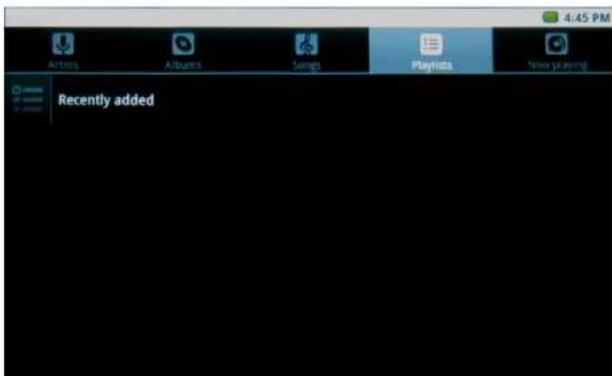
- Tap this to bring up the Music screen.
Music is classified by Artists, Albums, Songs, Playlists, and Now Playing.'
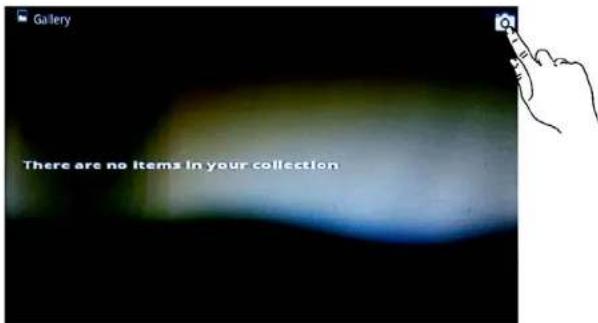
- Tap this to bring up the Gallery screen.
You can browse pictures or take photos by pressing the camera icon on the top right corner as shown below.
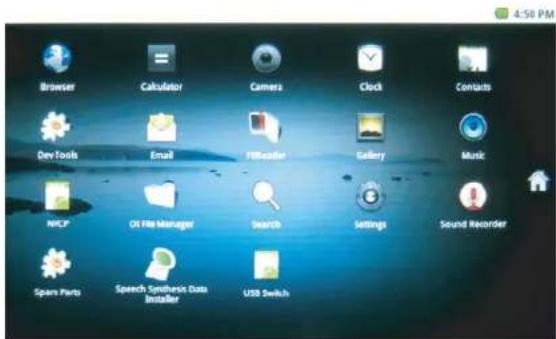
- Tap this to bring up the Home Menu screen.
The Home Menu contains 18 icons. You can browse by tapping the icon you need.
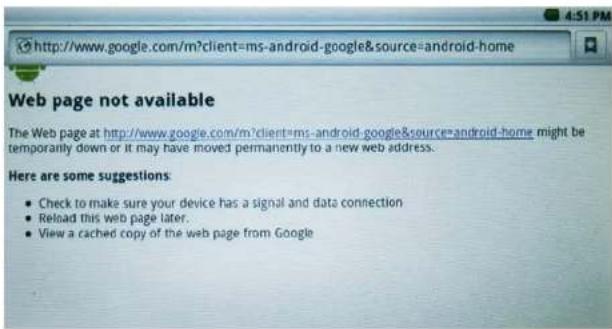
4. Tap this to bring up the Web Browser screen.
You can browse the web by typing in the web address at the top of the screen.
5. Tap this to bring up the Email screen.
Set up your email when you first log in by following a few simple on-screen instructions.
Chapter 4 – Basic Settings
4.1 Date and Time
4.2 Language Setting
4.3 Desktop Wallpaper
4.4 Location & Security
4.5 Applications
4.6 Accounts & Sync
4.1 Date and Time
To open the date and time application
From the Smart Menu, select Settings>Date & Time. When you open the Date & Time Settings windows, there are 6 six items: Automatic, Set Date, Select Time Zone, Set Time, Use 24-Hour Format, Select Date Format. The Set Date, Select Time Zone and Set Time can't be set when Automatic is chosen.
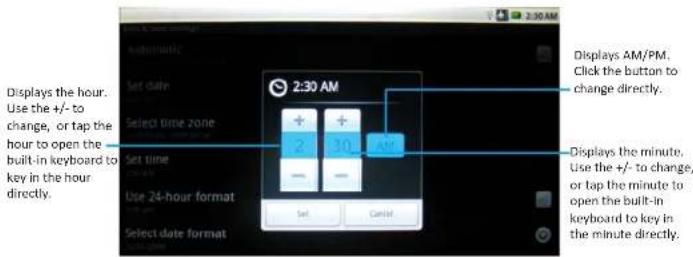
To change the Time
Select and open the Set Time setting window. Click Set to save changes and exit, or click Cancel to exit the application if you don't want to change the setting.
To change the Date
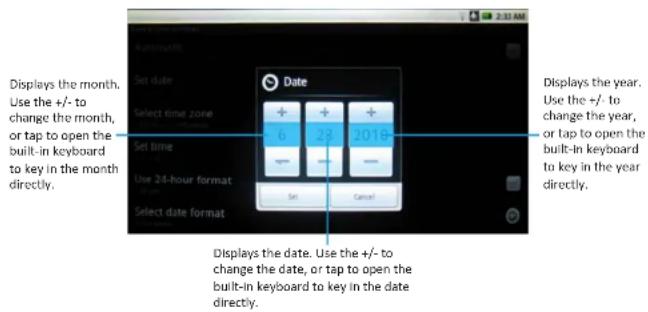
From the Smart Menu, select Settings>Date & Time. Select and open the Set Date setting window. Set the month/date/year as shown below, then click Set to save changes and exit, or click Cancel to exit the application if you don't want to change the setting.
To set the Time Zone
From the Smart Menu, select Settings>Date & Time. Select and open the Select Time Zone setting window. Select time zone and click Set to save changes.
To set the Time Format
From the Smart Menu, select Settings>Date & Time. Tap the Use 24-Hour Format menu to change the time format directly.
12 and 24-Hour time formats are available:
• 1:00 pm
• 13:00
To set the Date Format
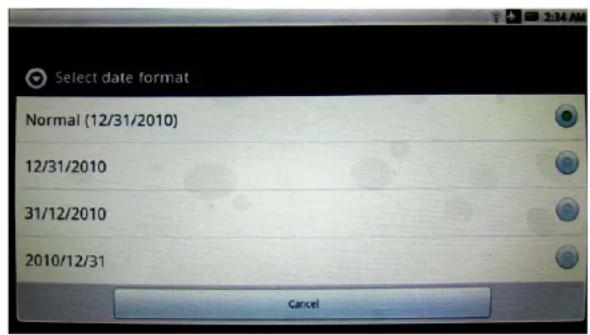
From the Smart Menu, select Settings>Date & Time. Tap Select Date Format to open the date format windows, then select from the following date formats:
• Normal (month/date/year)
• International (date/month/year)
• Year/month/date
4.2 Language Setting
From the Smart Menu, select Settings>Language & Keyboard. There are 3 items in Language and Keyboard setting windows: Select Locale, Android Keyboard, User Dictionary.
To change the Language
From the Smart Menu, select Settings>Language & Keyboard. Tap Select Locale to open a list of available languages, then select the language you want.
To change the Android Keyboard
From the Smart Menu, select Settings>Language & Keyboard. Tap Android Keyboard to open the setting window, which includes 6 items:
• Vibrate on keypress
Choose this and the Tablet will vibrate when the keyboard is pressed.
- Sound on keypress
Choose this and the Tablet will make a sound when the keyboard is pressed.
• Auto-capitalization
Choose this to engage the Tablet's Auto-capitalization function.
- Quick fixes
Choose this and the Tablet will correct commonly-typed mistakes.
• Show suggestions
Choose this and the Tablet will display suggested words while you are typing.
- Auto-Complete
Choose this and you can use the spacebar to automatically insert a highlighted word suggested by the Tablet.
3. User Dictionary
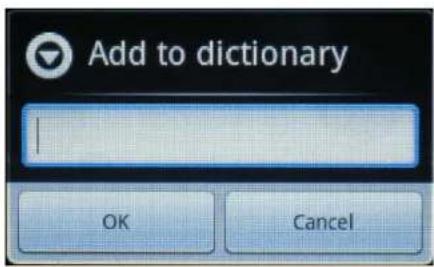
When you open it the first time, there are no words in the user dictionary. Tap the smart key ☐, then the Add button will appear at the bottom of the screen. Click the Add button to open the Add to Dictionary screen pictured below, key in the word you want, then select OK to save the addition.
4.3 Desktop Wallpaper
To change the Desktop wallpaper
- From Add to Home screen, select Wallpapers>Wallpaper gallery
- From Wallpaper gallery select the picture you want.
- Click the Set wallpaper button.
4.4 Location & Security
My Location
You can find your location by Wi-Fi and/or mobile networks or see your location in applications (Such as Maps) using wireless networks.
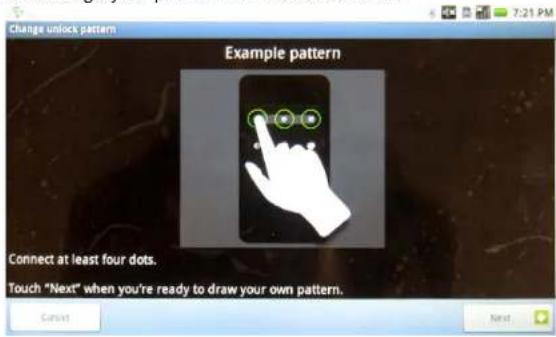
Screen unlock pattern
You can protect your Tablet from unauthorized use by creating a personal screen unlock pattern.
- On the next screen, watch while an example pattern is drawn.
- When ready, draw your own personal unlock pattern. Experiment with different patterns but connect at least four dots.
- Redraw your pattern to confirm.
You can change your pattern to unlock the screen.
Passwords
You can see the passwords as you type by setting the Visible passwords.
Credential Storage
Your Tablet allows applications to access secure certificates and other credentials by setting Use Secure Credentials. You can install encrypted certificates from an SD card and set or change the credential storage password.
You can clear credential storage of all contents and reset its password by selecting Clear Storage.
4.5 Application Settings
There are four items that can be set for application:
- Unknown sources: It can be used to install non-Market applications.
- Manage applications: It can be used to manage and remove installed applications.
- Running services: It can be used to view and control currently running services.
- Development: It can be used to set options for application development.
4.6 Accounts & Sync
General Sync Settings
You can sync/send/and receive data at any time by setting general sync applications
Auto-Sync
The applications can sync data automatically by setting Auto-sync. You can Add accounts in two ways: Corporate and Facebook.
Chapter 5 – Making a Connection
5.1 Connecting to the Internet via WiFi
5.2 Bluetooth
5.3 Flight Mode
5.1 Connecting to the Internet via WiFi
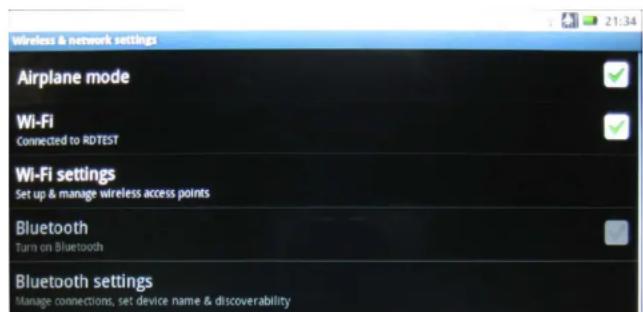
The Wireless & networks application makes the Internet connection for your Tablet. It contains four modules: Airplane mode, WiFi, Bluetooth, and VPN. Airplane mode, WiFi, Bluetooth and VPN are turned off by default. To turn a function on, tap the application's Selected Button.
To open Connection Manager
Wireless Connection Settings
The advantages of a WiFi network include advanced network security, enhanced reliability, network flexibility, better performance and shared broadband and internet access.
The internet is a gateway for knowledge, entertainment and business. Practically every piece of information you want to know can be found there. The Tablet features wireless connection for your internet needs. Use WiFi when you are in range of a hotspot.
Before you start the setup, contact your network administrator to get the name of the network (SSID), and any relevant security information, such as WEP or WAP keys, and the network password.
The easiest way to connect to a WiFi network is to automatically scan and connect to a nearby network.
To automatically scan and connect to a network
- Tap Wi-Fi directly or Wi-Fi settings to open Setting windows to enable WiFi application. If WiFi is turned off, the Tablet will scan and list all the available networks automatically.
- Select a network then click Connect.
- If the network has security, a popup window will appear. Enter the password and select Done.
- After a WiFi connection is made, the Wireless signal will appear on the Status Bar.
5.2 Bluetooth
Bluetooth is a short-range wireless communications technology. With Bluetooth capabilities, devices can exchange information within a distance of about 10 meters. Use Bluetooth to:
- Transfer files.
- Share Internet access with the other computer.
- Connect to Internet through a mobile phone modem function.
- Connect to a Bluetooth supported device such as a mouse, a keyboard or a cordless earphone.
- Share audio input or output with the other Bluetooth device.
- Connected to the printer or modem via serial service.
Bluetooth Device Requirements
The A7 Tablet supports only A2DP Bluetooth devices with stereo audio capability. Mono devices such as cell phone speakers and earpieces are not compatible.
Important Note: The A7 does not support Bluetooth printers, scanners, bar code readers or other peripheral devices, even though the tablet will detect such devices and "pair" with them. The necessary "connection" can only be made with proper drivers. Until hardware manufacturers of these devices create the necessary drivers to support both Android and the Tegra 2 processor, these devices will not successfully connect.
To Open the Bluetooth Application
- Tap the Home Menu, select settings> Wireless & networks
- Be sure the Airplane mode is not selected.
- Tap the Bluetooth directly or Bluetooth settings to open the Setting windows.
- If the Bluetooth application has opened, the Bluetooth icon will appear on the Status Bar.
To Search Remote Bluetooth Devices
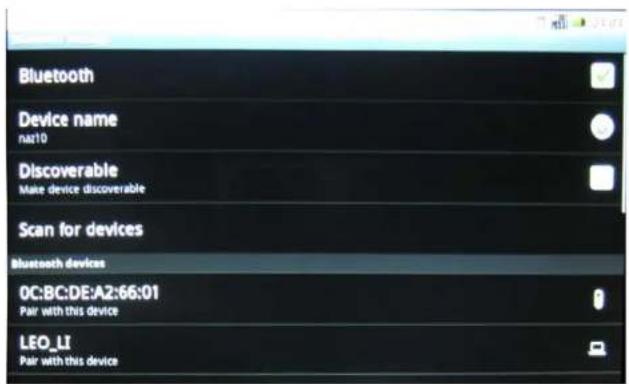
- After the Bluetooth application is open, Click Bluetooth settings> Scan for Devices
- You can modify your device name. Click Device Name and a modifying window will pop up.
- All available devices will list below Scan for Devices. A scroll bar at the far right will allow you to move down through a long list if necessary. Select the device you want.
To Transfer/Receive Files via Bluetooth
Click a scanned device, and then a popup window will appear: Bluetooth pairing request, you need to key in a PIN to link the device, then click the File Transfer button on the up right corner to open File Transfer window.
5.3 Airplane Mode
Enabling Airplane Mode ensures your safety when using your Tablet on board an aircraft. All connection applications that might interfere with aircraft operation are automatically disabled. When you power up your Tablet, this module is turned off by default. To enable, tap Wireless & network settings, then tap the mode button on the right. A check mark will appear. To disable, tap the check mark.
You can also access this function by holding the power button for 2 seconds, as you would normally do to turn off the unit. Instead of selecting "power off" you can select "airplane mode."
Chapter 6 – Browsing the Web
6.1 Accessing Websites
You use the internet for so many things: checking email, finding driving directions, getting news, and instant messaging among others. Now you can bring the internet with you almost anywhere you go. Use your Tablet to make internet connections and the web browser opens the entire online world for you. To access the internet, your Tablet must be setup properly (see Chapter 5 Making a Connection).
The Tablet features Google as its internet browser.
To open the browser
From the Home Menu, select Browser.
6.1 Accessing Websites
You can open web pages, navigate through pages and do the same things you can do with a desktop browser in the Google application.
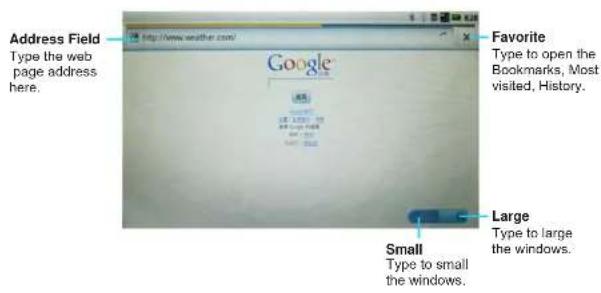
To view a website
- Enter the address of the website in the address field.
- Tap Go.
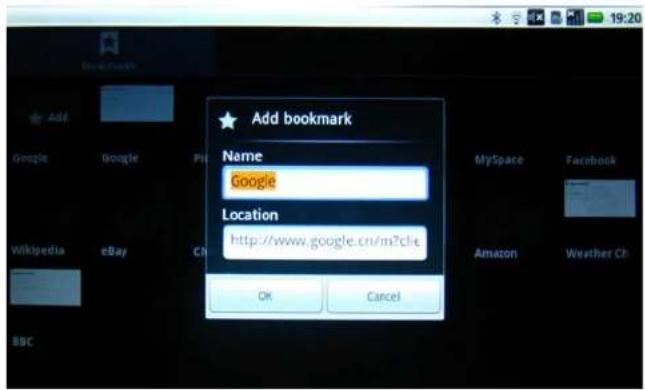
To Add a bookmark
- Tap ☐ to open the bookmark window.
- Tap Add to open the Add bookmark window:
- Key in Name and Location
- Click OK to finish Adding or Click Cancel to exit the Adding window.
To edit a bookmarked web page
- Tap ☐ to open the bookmark window.
- Press the bookmark you want to edit, holding it for about 2 seconds until a popup windows opens.
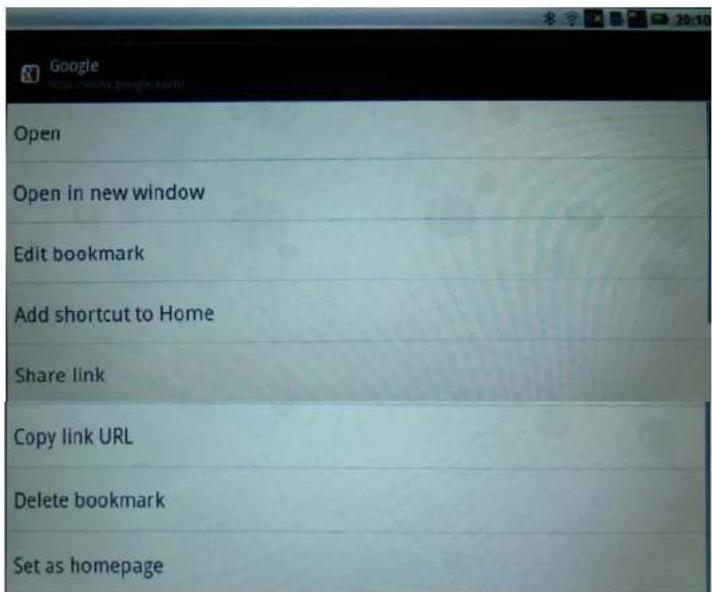
| Item Description | |
| Open Tap to open the Web. | |
| Open in new window | Tap to open the Web in a new window. |
| Edit Bookmark | Tap to open the Edit bookmark window. You can edit the Name and Location. |
| Add Shortcut to Home | Tap to add the shortcut to the Home Screen. |
| Share Link | Tap to share link in one of 3 ways: Facebook, Twidroid, and Messaging. |
| Copy link URL Tap to copy the link URL. | |
| Delete Bookmark | Tap to open the Delete window. You can select OK to delete the bookmark or Cancel to exit the Delete window. |
| Set as Homepage | Tap to set as the homepage. |
Chapter 7 – Communication
7.1 Instant Messenger
7.2 E-mail
Your Tablet is equipped with Instant Messenger, E-mail for communication.
Before you start online communication, your Tablet must have an active internet connection (see Chapter 5 Connecting to the Internet via WiFi for detailed instructions on how to connect to the Internet).
7.1 Instant Messenger
Instant messenger allows you to send and receive instant messages online.
To open Messenger
From Mail menu, select Messaging.
- Click New message to open the message window.
- Select the receiving phone number where you want to send the message.
- Type in the message you wish to send.
- Click Send.
7.2 E-mail
E-mail lets you enjoy the efficiency of staying in touch with personal and business contacts. Your Tablet uses Gmail as the default e-mail client. Gmail allows you to access email on your Tablet by an account from an email provider or from your corporate domain server.
To open Gmail application
From Main Menu, select Email.
To use Gmail, you need to setup an account for the first time.
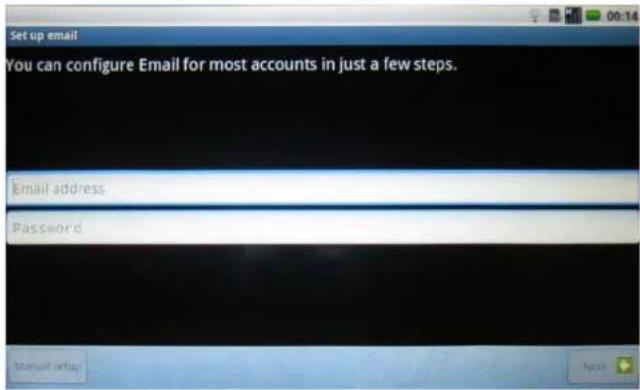
To setup an account for the first time
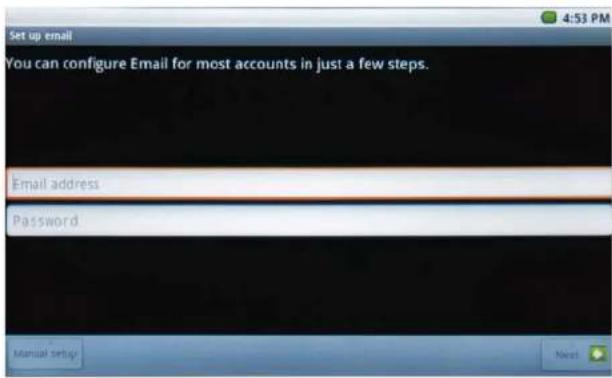
You can configure Email for most accounts in just a few steps.
- After opening Gmail, the set up mail window pop-up window will appear.
- Enter the email address and password, then tap Next button.
- Then the Checking incoming server settings window will open. It will take several seconds to finish this.
- If the settings are correct, your incoming email will appear. You can enter Email by Internet also.
Using Email
After setting up your email accounts, you can start sending and receiving emails. There are some folders in the left of your email windows. You could add or delete some favorite folders by press and move the folders.
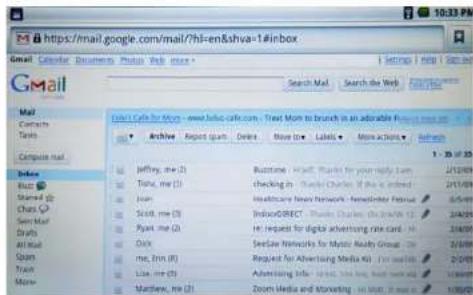
Some Folders:
- Inbox. Received mails are sent to this folder.
- Sent. Sent messages are saved in this folder.
- Drafts. Composed mails that are not yet sent are saved in this folder.
- Trash. Deleted mails are saved in this folder.
• Chart list. All chart contents are saved in this folder.
To Read Email
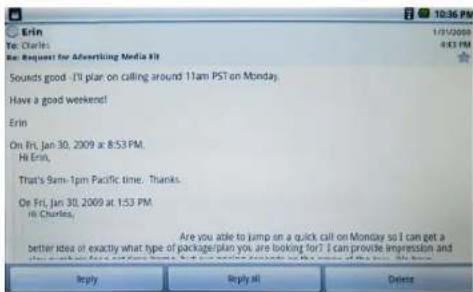
Select the Inbox from the list at the left, which will display a list of emails. Tap the email you wish to view. The email will open up full screen, displaying buttons at the bottom for Reply, Reply All and Delete. Choose one of these selections, or touch the Back button to return to the Inbox list.
To Send Email
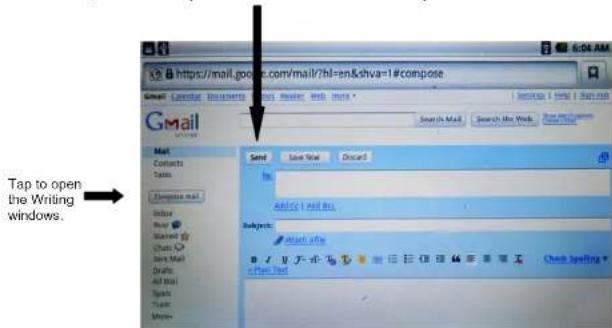
Touch the Compose Mail button near the top of the list at the left. This will open up a blank email form. Type the address, subject line and body of the email, then hit tap the Send button at the top left.
Chapter 8 – Applications
8.1 Installing Applications
8.2 Removing Applications
8.3 Sound Recorder
8.4 Camera
8.5 e-book Reader
8.1 Installing Applications
Applications can be installed 3 different ways: downloaded directly, side loaded via USB or loaded from a Micro SD card:
Downloading Applications Directly to the Tablet
You can access various apps at Stores like Getjar, Appoke and other third party sites.
- Use the web browser to visit the download location and download the app. In the upper left corner of the screen you will see a down arrow icon indicating the download in progress. When the arrow stops its animation and becomes solid white, the download is complete.
- On the bezel, tap the Home button, then tap the Menu button right below it.
- A sub-menu will appear along the bottom of the screen. Select Notifications.
- The screen will display notifications of any downloads. Choose the application you wish to install.
- In the screen that follows, tap the Install button at the bottom left.
Note: If you do not find your app listed in the Notifications section, you can also access it by launching the OI File Manager application and opening the download folder. After doing this, follow steps 3 and 4 above.
You can also use your PC or Mac to download Android APK files from third party websites:
- Download the app to your computer.
- Save the app to a USB flash drive or Micro SD Card and follow the steps below.
Side Loading Applications from a USB Flash Drive
- Insert the flash drive into the side port of the A7 tablet.
- Launch the OI File Manager application.
- Open the usb0-disk0 folder.
- Choose the application you wish to install.
- In the screen that follows, tap the Install button at the bottom left.
Loading Applications from a Micro SD Card
- Insert the Micro SD card into the top slot of the A7 tablet.
- Launch the OI File Manager application.
- Open the sdcard-disk0 folder.
- Choose the application you wish to install.
- In the screen that follows, tap the Install button at the bottom left.
8.2 Removing Applications
Removing applications can be done very simply in just a few steps:
- From the list of applications, choose Settings.
-
Select Applications > Manage Applications.
-
A list of currently installed applications will be displayed Select the application you wish to uninstall.
- Application info will be displayed, including program version and disk usage. Near the top right there is a large button for Uninstall. Touch the Uninstall button.
- The tablet will ask if you want to confirm the uninstall command. Choose OK.
8.3 Sound Recorder
The Sound Recorder allows you to record your voice.
To record your sound
- From the Main Menu, select Sound Recorder.
- Tap ● to start recording a voice clip.
- Tap ■ to stop recording.
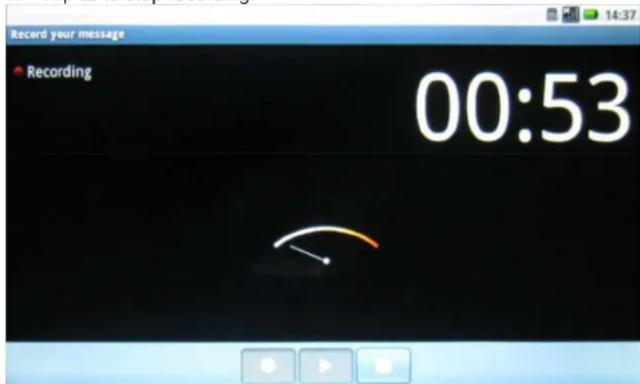
The Sound recorder interface
To save the recording
- After tapping Stop, the system will automatically display the Save dialogue box, and ask if you want to save the sound file.
- You can select Use this recording to save the sound or Discard to delete the recording.
To play back a recording
- From the Main Menu, select Music>Playlists>My recordings.
- Choose the recording you want to play
- Tap ▶ to begin playback.
- Tap ■ to stop playback.
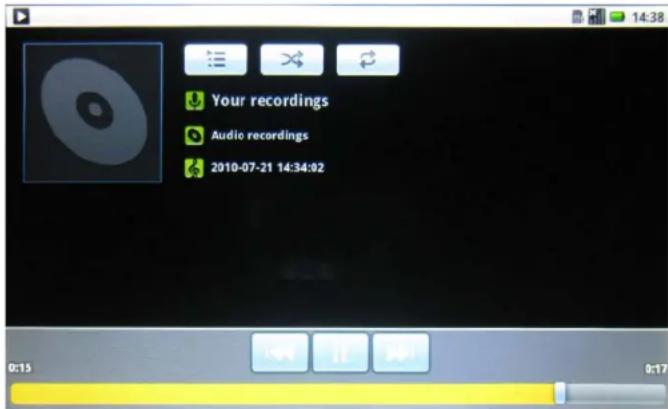
The Playback interface
8.4 Camera
Your Tablet comes with a built-in webcam and a camera to take photos and video clips.
To activate the Camera
From the Main Menu, select Camera.
To Take a Picture
When you open the Camera application, the camera is set to photo capture by default.
- Focus your camera on the image you want to capture.
- Tap and hear a click as the picture is captured.
- Tap the photo. There are four icons: Delete, Share, Set As, Done.
You can view video clips in the Gallery, and browse the photo by move your finger in left and right direction.
| Icon Description | |
| Delete: Tap to delete the photo or video. | |
| Share: Tap to share the photo or video with others via Bluetooth, Email, Facebook, Messaging or Twidroid. | |
| Set As: Tap to open a window where you can choose Contact icon or Wallpaper. | |
| Play: Tap to play video. | |
| Done: Tap to open the camera application again. | |
To Record a Video Clip
- Slide the Button from bottom to Top as pictured at right.
- Tap and hear the sound to start recording.
- Tap camera to finish the recording.
- Tap the recording. There are four icons: Delete, Share, Play, Done.
You can view video clips in the Gallery, and browse the photos by moving your finger left and right across the screen.
8.5 e-Book Reader
Your Tablet supports Aldiko as the default e-book client. From the Main Menu, select Aldiko. When you open the Aldiko application, some tips will pop-up automatically.
Some Tips:
- The books you download are saved on your SD card in the eBooks directory.
- Pressing Book for a few seconds will bring up a context menu that allows you to delete the book, edit the book details, etc.
- While reading a book, you can adjust the brightness of the display without leaving the page by swiping your finger along the left edge of the screen (this can be reconfigured in the settings).
- When browsing online catalogs, books that you have already downloaded will be highlighted in green.
- Some online catalogs provide a search function to help you find what you are looking for. Check the option menu when browsing a catalog.
- From any screen, you can quickly get back to the home screen by selecting the Home menu option.
-
The search tool displays suggestions as you type. Click on a suggested item to open the book.
-
Once you start reading a book, it will show up on the home shelf in the Current Reads list.
- When viewing your collection of books, just start typing characters using the keyboard to filter the list.
- While reading a book, you can navigate forward and backward using either filing or tap gestures (this can be reconfigured in the settings).
- When you stop reading, the application will remember which page you were reading and bring you right back to that page the next time you open the book.
- When viewing your collection of books, rotate your Tablet to landscape mode to switch to bookshelf view.
- When you download a book, it is automatically assigned tags based on its subjects (novel, science-fiction, etc.).
- Some books include links embedded in the text. Select a link by long pressing and holding the link. If the link is a webpage, it will open in your browser. If the link points to another book, that book will download and import into your library.
- If you add a bookmark to a book and don't specify a title for that bookmark, the current position in the book will be the default title (e.g "14%")
- The books you are currently reading are easily accessible from the home screen in the Current Reads list.
- Books on the home shelf's Current Reads list will be removed from the shelf when you finish them. You can also remove them manually by pressing and holding the book and selecting the Remove from reading list option.
- From any screen, you can quickly get back to the home screen by selecting the Home menu option.
- You can define your own Collections to help you arrange your books.
Aldiko home screen has 2 choices: Bookshelf and Download Books.
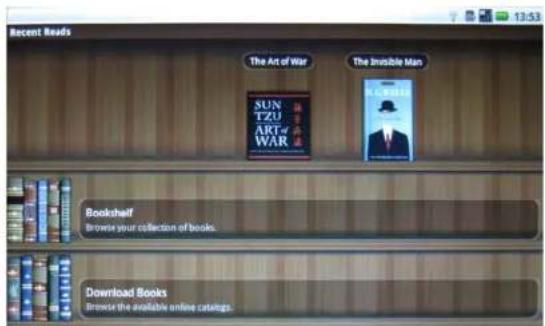
Bookshelf
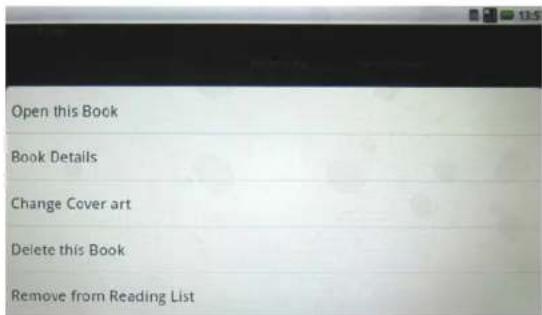
You can click the book on bookshelf to open the E-book you want to read directly, or keep pressing the book you want until a window opens to give you five options: Open this Book, Book Details, Change Cover Art, Delete this Book, and Remove from Reading List.
Download Books
Before you down load books online, be sure your network connection is available. Choose your book and go... it's that easy!
Chapter 9 – Tools
9.1 OI File Manager
9.2 Calculator
9.3 Alarm Clock
9.4 SD Card Manager & Tablet Storage
9.1 OI File Manager
The OI File Manager lets you browse and manage the contents of your Tablet.
9.2 Calculator
You can do basic calculations using the Calculator in your Tablet. From the Main Menu, select Calculator.
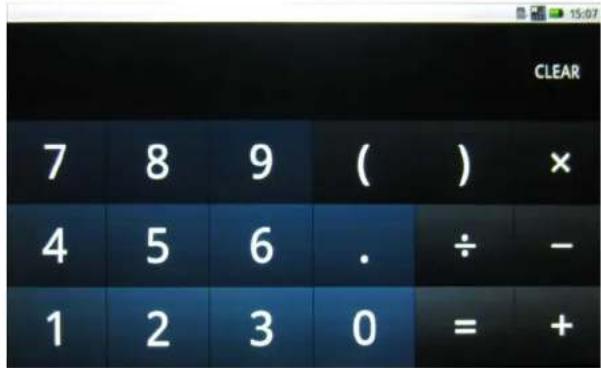
The Calculator Interface
You can move your finger left and right to select other mathematics.
9.3 Alarm Clock
The Tablet comes equipped with an alarm clock. From the Main Menu, select Clock.
A digital clock will be displayed on screen, with a menu along the bottom. The menu button on the left shows an icon of an alarm clock. Tap this button to display a screen that shows current alarm settings and gives the option to Add Alarm.
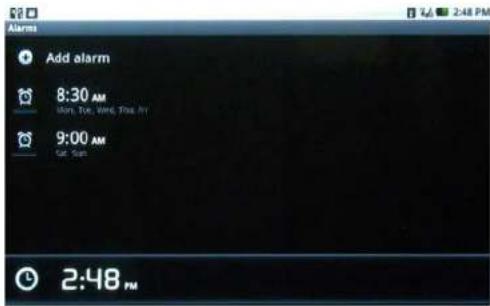
Tap Add Alarm to input additional alarm settings. After inputting the hour and minute settings for the new alarm, you will see a screen that allows you to set On/Off, Repeat, Ringtone and Vibrate functions.
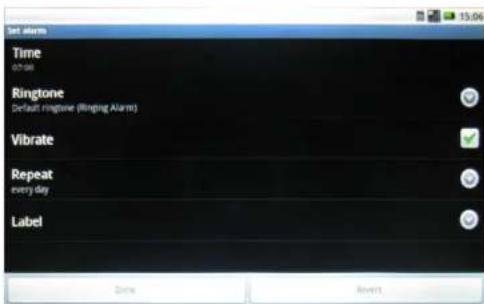
To delete an alarm setting, tap the alarm setting you wish to delete, then tap the delete button in the lower right to confirm.
9.4 SD Card Manager & Tablet Storage
Check and manage micro SD card contents through the SD card & Tablet storage.
To access SD Card & Tablet storage
From the Main Menu, select Setting>SD Card & Tablet storage.
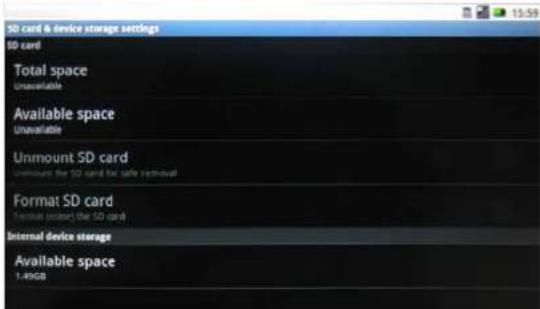
Note: Format will delete all data in the Tablet and cannot be restored!
Chapter 10 – System Setting
10.1 System Information
10.2 Volume Setting
10.3 Power Management
10.4 S3 System
10.5 Reboot the Tablet
10.6 System Restore
You can view your Tablet's system information such as: System updates, Status, Battery use, Model number, Firmware version, Baseband version and so on. To view system settings, from the Main Menu select Settings>About device.
10.1 System information
Check system information such as storage status, Model number, Kernel version through the system info application.
10.2 Volume & Display Setting
By pressing the volume buttons. See Chapter 1 Top Bottom Panel for the location of the Volume buttons. Tap and slide the sliders to adjust the Volume.
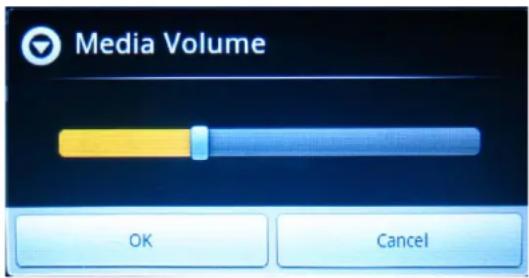
You can set system sound and display in Sound & display settings windows.
Sound settings includes Silent mode, Media Volume, Notification ringtone, Audible touch tones, Audible selection, Haptic feedback and SD card notifications.
Display settings includes Orientation, Animation, Brightness, and Screen timeout.
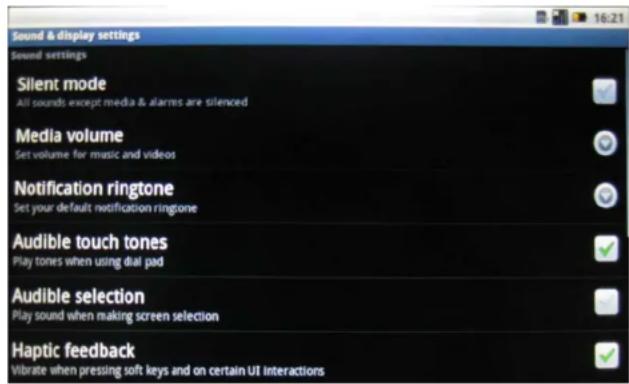
The Sound & display settings interface
10.3 Power Manager
You can view the detail battery using information.
To access battery use detail
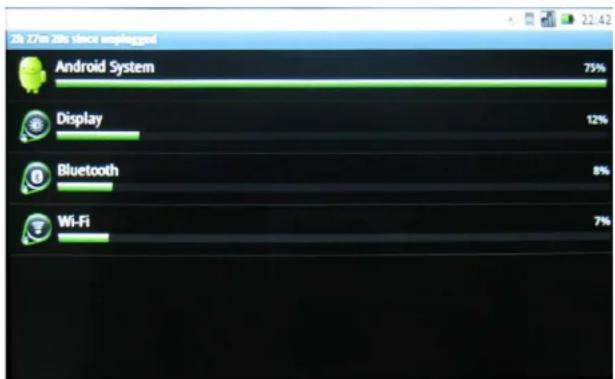
From the Main Menu, select Settings>About device>Battery use.
bar
| Category | Percentage (%) | | :--- | :--- | | Android System | 75 | | Display | 12 | | Bluetooth | 8 | | Wi-Fi | 7 |The Battery use detail interface
Power Requirements:
• Android System requires 75% power.
- Display requires 12% power when working. Press and hold the Display icon to access a pop-up a windows that shows the display working time. To save power, you can reduce the screen brightness and/or screen timeout.
- Bluetooth requires 8% power when working. Press and hold the Bluetooth icon to access a pop-up window that shows the Bluetooth working time. Turn off Bluetooth when you aren't using it to save power.
- Wi-Fi requires 7% power when working. Press and hold the WiFi icon to access a popup window that shows Wi-Fi working time. Turn off Wi-Fi when not using it or where it is not available to save power.
10.4 S3 System
You can set your Tablet sleep to save power when it isn't working by entering S3 system.
To enter S3 system
Tap the power button on the left panel. The Tablet will enter S3 system with power LED flickering.
To Exit S3 system
Tap the power button on the left panel. The Tablet will exit S3 system and enter the normal working state.
10.5 Reboot the Tablet
If your Tablet stops responding, or responds slowly, or freezes, you can reboot it.
Reboot Hole
Insert a paper clip into the reboot hole on the back of the Tablet to activate the reboot switch.
10.6 System Restore
If you encounter any problems with the Tablet system, you can reset factory data. After the Recovery, the Tablet will be set to the factory default status and all internal data might be lost. Therefore, please backup all data before attempting a system restore.
To access system restore
From the Main Menu, select Settings> Privacy> Factory data reset.