RealPad MA7BX2 - Graphic tablet AARP - Free user manual and instructions
Find the device manual for free RealPad MA7BX2 AARP in PDF.


| Product Type | Graphic Tablet |
| Display | 7-inch TFT LCD Touchscreen |
| Resolution | 1024 x 600 pixels |
| Processor | Quad-core 1.2 GHz |
| RAM | 1 GB |
| Internal Storage | 8 GB (expandable via microSD) |
| Operating System | Android 4.4 (KitKat) |
| Battery | 3000 mAh Lithium-ion |
| Dimensions | 189 x 109 x 10.5 mm |
| Weight | 320 g |
| Connectivity | Wi-Fi 802.11 b/g/n, Bluetooth 4.0, Micro USB |
| Cameras | Front 0.3 MP, Rear 2 MP |
| Stylus | Capacitive stylus compatible (not included) |
| Main Functions | Drawing, note-taking, web browsing, email, media player |
| Cleaning | Wipe with a soft, dry cloth; avoid liquids |
| Safety | Keep away from water and heat sources; use only approved charger |
| Spare Parts & Repairability | Contact AARP support for service; not designed for user repair |
| General Information | User manual available for free download at notice-facile.com |
Frequently Asked Questions - RealPad MA7BX2 AARP
User questions about RealPad MA7BX2 AARP
0 question about this device. Answer the ones you know or ask your own.
Ask a new question about this device
Download the instructions for your Graphic tablet in PDF format for free! Find your manual RealPad MA7BX2 - AARP and take your electronic device back in hand. On this page are published all the documents necessary for the use of your device. RealPad MA7BX2 by AARP.
USER MANUAL RealPad MA7BX2 AARP
Getting started with your RealPad
RealPad™ User Guide
Real Possibilities -AARP
Table of Contents
Welcome 4
Before Using Your RealPad 4
Questions or Concerns 4
RealPad Tablet Overview 4
Specifications of My RealPad 4
What's in the Box? 5
Front & Top View 6
Back & Side View 7
Getting Started 8
Charge Your Device 8
Keyboard Breakdown 9
Turning Your RealPad On 10
Unlocking Your RealPad's Screen 10
Placing Your RealPad on Standby 10
Turning Your RealPad Off 11
Initial Setup 12
Home Screen Intro 14
Using the RealPad Toolbar 17
Settings - RealPad 18
Wireless & Networks: Wi-Fi 19
Wireless & Networks: Bluetooth 19
Pair Your Tablet to a Bluetooth Device 20
Table of Contents
Settings - Google 21
Manage Location Access 21
Change Back-up & Reset Options 22
Add or Remove Accounts 23
Configure Sync Options 24
Customizing Your Home Screen 25
Changing Your Wallpaper 25
Rearranging Apps & Folders 25
Removing Apps & Folders 25
App Basics - Camera, Photos & Videos 26
Camera Shortcuts 26
Taking Photos & Videos 26
Viewing Your Photos & Videos 26
App Basics - Email and Calls 27
Setting Up Your Email 27
Making Calls with Your RealPad 27
App Basics - Contacts and Calendar \_\_\_\_ 28
Contacts 28
Calendar 28
Safety Tips & Disclaimer 29
Notes 30
Welcome to your RealPad. We've put together this helpful guide to introduce you to the features of your new tablet. If you would like more information about RealPad, please visit www.aarprealpad.org.
Before Using Your RealPad
Before using your new RealPad, we encourage you to read through this Getting Started Guide to familiarize yourself with your RealPad's basic capabilities.
Questions or Concerns
Your RealPad comes with 24/7 FREE Customer Service available through an 800#, email support and remote help sessions. If you have questions or experience any problems when using your tablet, please contact RealPad technical support at 866-716-9881 any day of the week or send an email to support@aarprealpad.org.
RealPad Tablet Overview
RealPad has a touch screen with native resolution of 1024x768 pixels. It is built on an Intel Clover Trail plus 22520 1.2GHz dual core processor. It has 1GB RAM and 16GB flash storage memory. The operating system is Android KitKat 4.4.2
The product has built-in 802.11b/g/n Wi-Fi, 2.0 MP front-facing & 5.0 MP rear-facing cameras and is designed to provide a fast and easy-to-use Internet experience through Wi-Fi.
Specifications of My RealPad
- 16GB Hard Drive
• 2MP Front Facing Camera - 5MP Rear Facing Camera
- Micro SD Card Slot
- 7.85" HD Screen
- Google Play Store
- Intel Processor
- Android KitKat 4.4.2
- 1GB RAM
• Wi-Fi - Bluetooth
• 1 Year AARP Membership
natural_image
Line drawing of a 3D mechanical component with a bracket and mounting pin (no text or symbols)- AARP RealPad™
• RealPad Getting Started Guide
• AARP Membership Insert
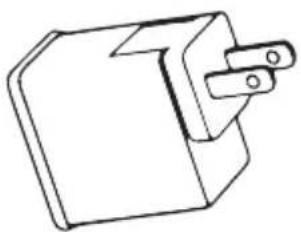
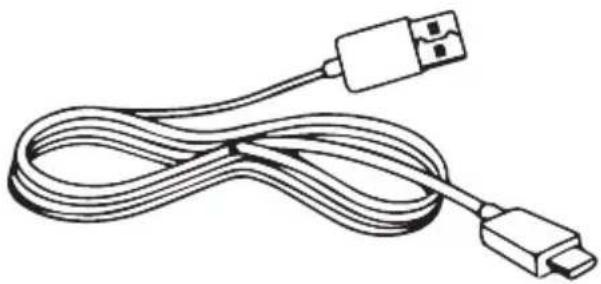
• USB Charging Adapter - Micro USB Cable
natural_image
Line drawing of a USB cable with two connectors (no text or symbols)Front & Top View
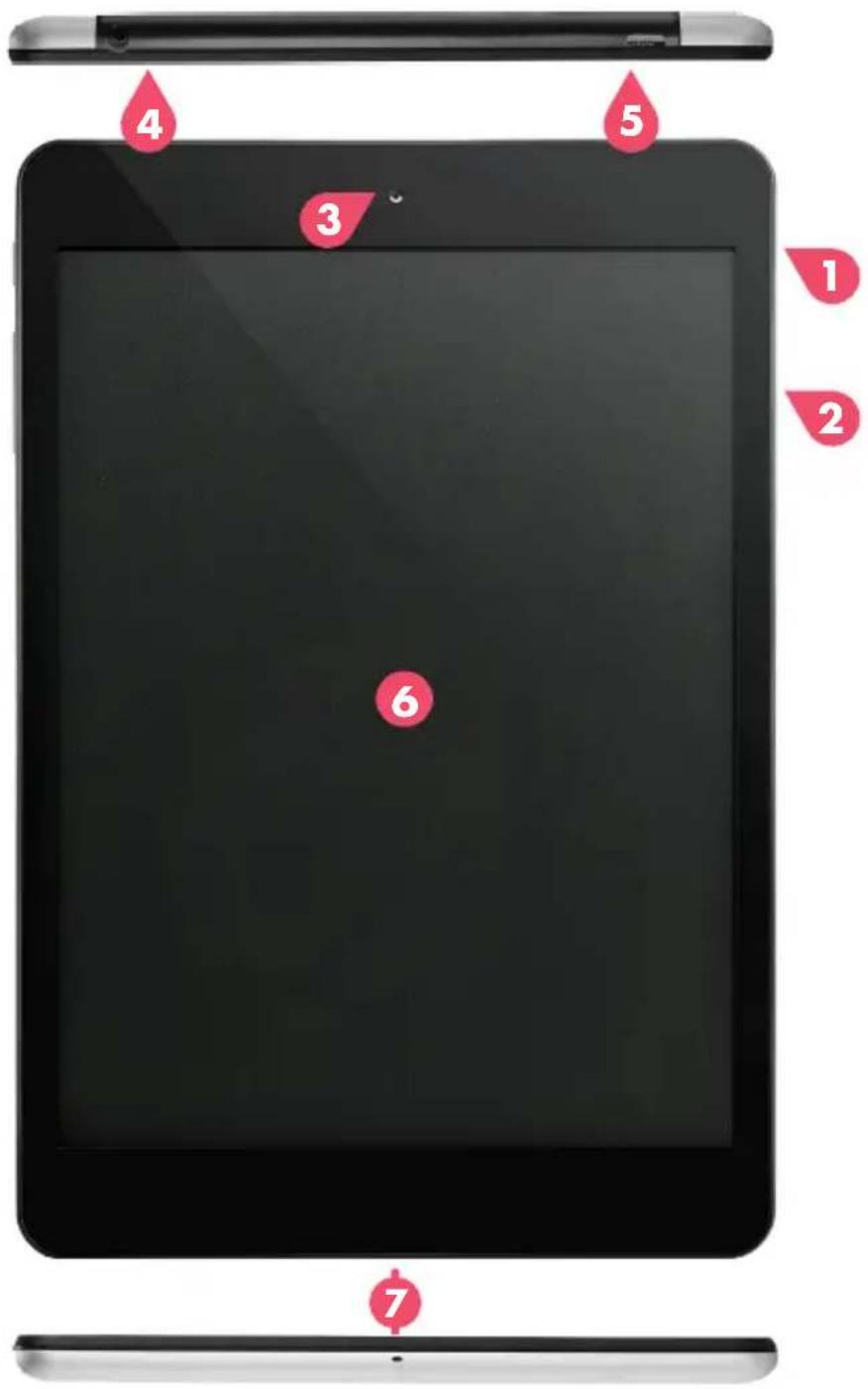
- Power Button
- Volume +/-
-
Front Facing Camera
4.3.5mm Headset Jack -
Charger/USB Port
- Touch Screen
- Microphone
Back & Side View
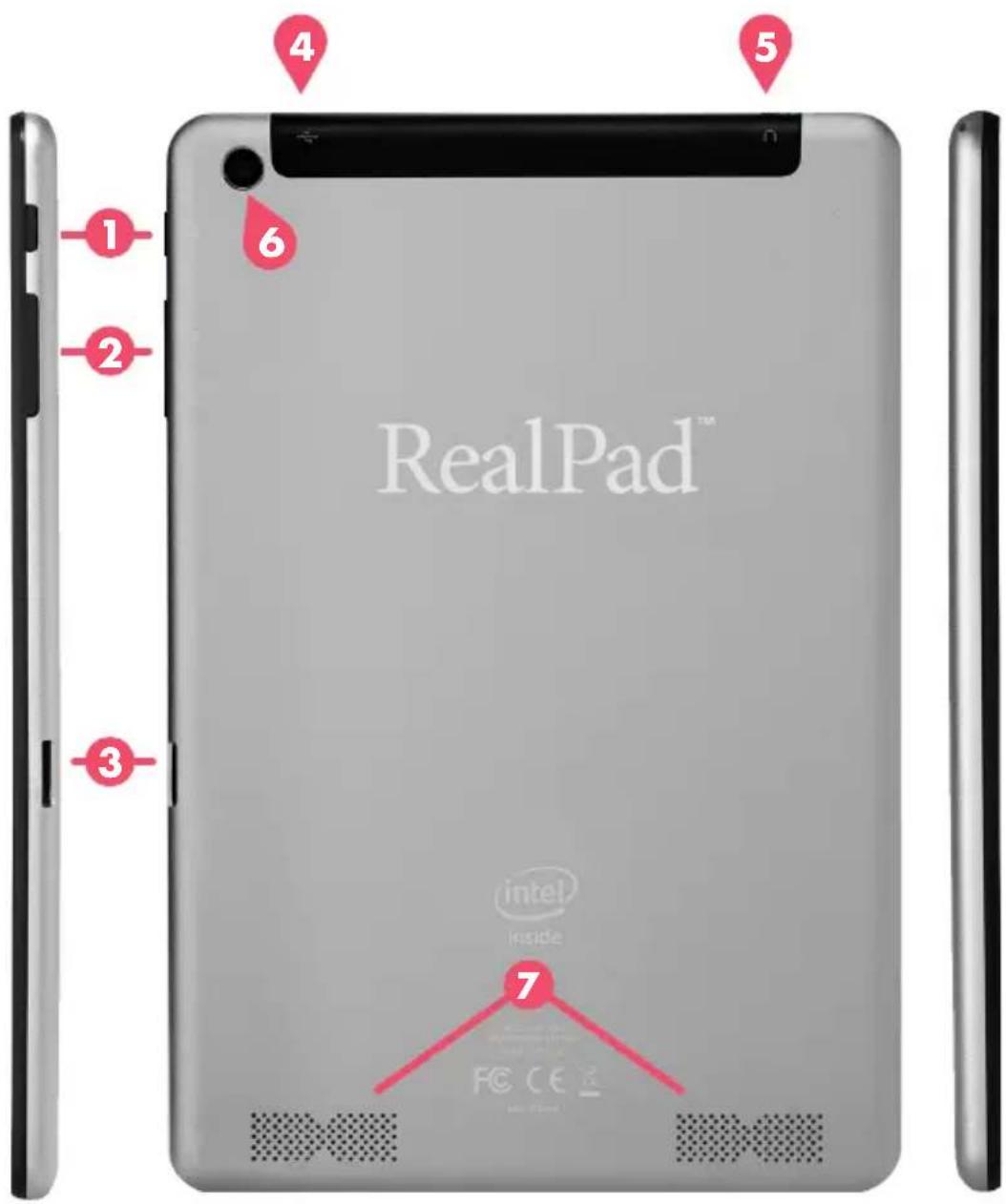
- Power Button
- Volume +/-
- Micro SD Card Slot
- Charger/USB Port
5.3.5mm Headset Jack
6. Rear Facing Camera
7. Stereo Speakers
Charge Your Device
Your RealPad will not be fully charged out of the box. It is highly recommended that the tablet be fully charged before using.
To charge your tablet device, connect the small end of the Micro USB cable provided onto the upper right slot located on the top of your tablet. Connect the larger end of the cable into the charging adapter, and plug the adapter into a power outlet.
It takes approximately 4 hours when using the AC charger to completely charge a drained battery.
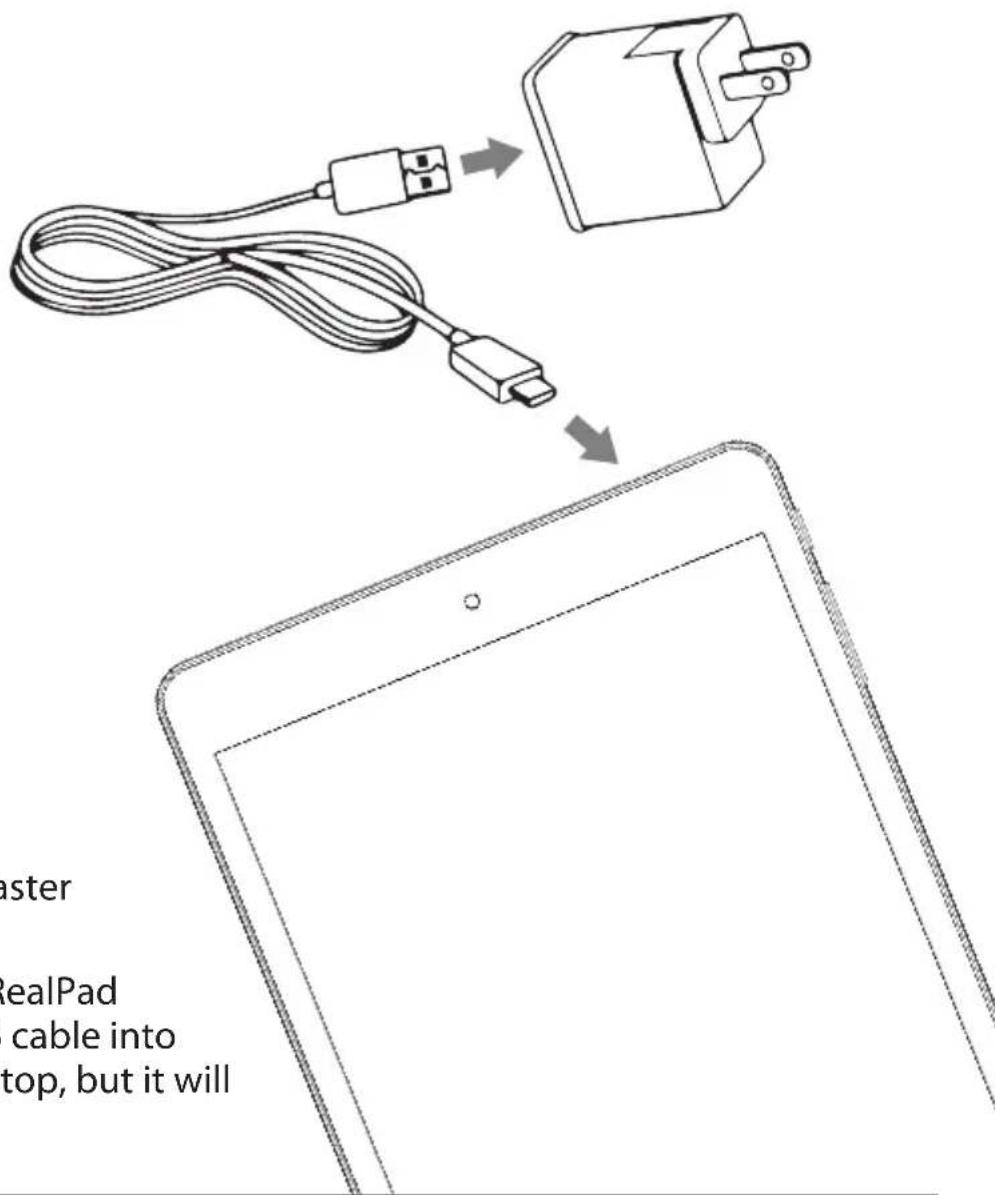
Charging Tips:
- Your RealPad will charge faster when not in use.
- You can also charge your RealPad by plugging the Micro USB cable into other sources such as a laptop, but it will not charge as quickly.
Keyboard Overview
When you are viewing a page on your tablet that has a text field, simply tap on the text field and the RealPad on-screen keyboard will appear. Tap the keys on the keyboard to enter text. You'll find helpful information about using your on-screen keyboard in our Help Video "How do I type on my tablet?" found in the Real Help folder on your RealPad.
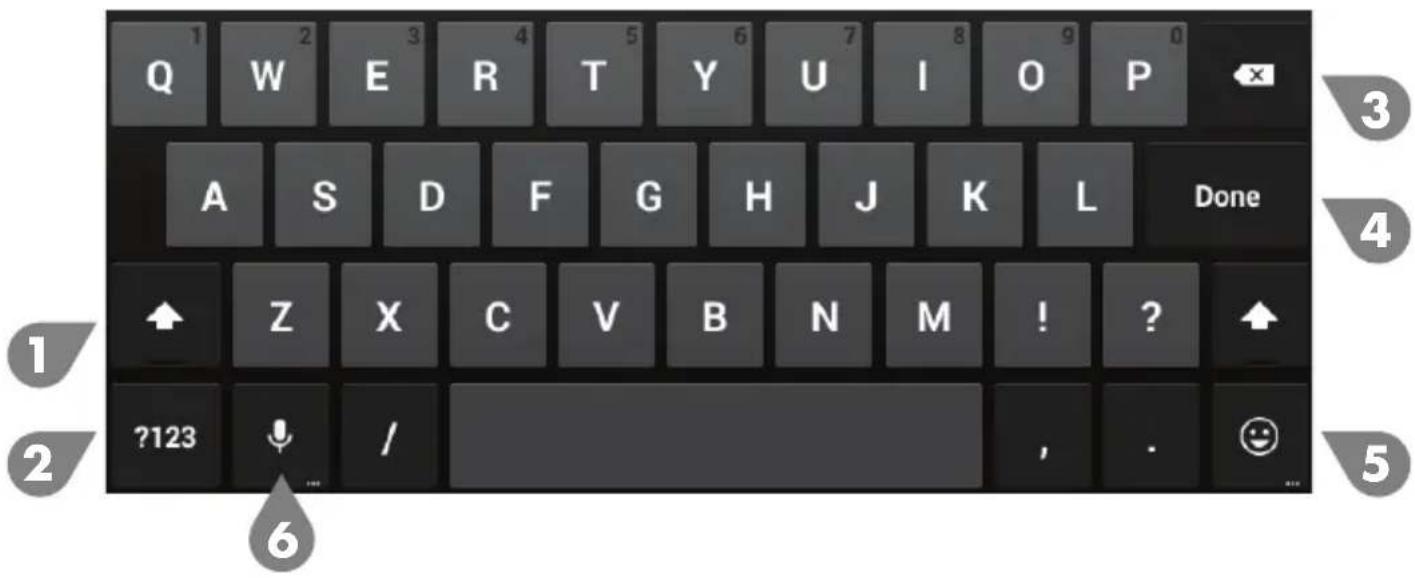
1
Shift Key
2
Switch between letter keyboard and the number & symbol keyboard
3
Delete Key
Touch once to delete a single character or hold down to delete words.
4
Return / Enter Key
5
Smiley Key
Used to send emoticons/smiley face icons along with other random objects to add flair to your messages.
6
Microphone Key
You can speak to enter text in most places where you can enter text with the onscreen keyboard.
- Touch the Microphone key on the keyboard.
- When you see the microphone image, speak what you want to type.
Turning Your RealPad On
To turn on your RealPad, press and hold the Power button located on the top of the right hand side of the device for 3 seconds.
If it is your first time turning on your RealPad, a setup screen will appear. Here, you will be guided via on-screen instructions for:
- Selecting Language
- Connecting to the Internet via Wi-Fi (if available)
- Creating/Signing in to your Google Account
- Redeeming your complimentary 1 year membership to AARP or extending your existing membership by 1 year

Unlocking Your RealPad Screen
Please note your RealPad will come automatically unlocked.
If you wish to lock your tablet screen, follow the steps below:
natural_image
Simple icon of a padlock inside a circle on a dark background (no text or symbols)- Tap Settings in your RealPad Toolbar
- Tap RealPad Settings
- Tap Security
- Tap Lockscreen and choose from the available options for securing your RealPad tablet:
a. None b. Slide c. Pattern d. Pin e. Password
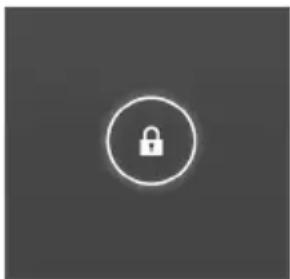
Tap and hold the lock icon on your RealPad and drag in any direction to unlock the screen. You'll find helpful information about using touchscreens in our Help Video "Touchscreen Basics" available in the Real Help folder on your RealPad.
Placing Your RealPad on Standby
When your RealPad is on, tapping the power button gently will place the device in standby or sleep mode. Tapping the power button again will wake the tablet back up. If your RealPad sits idle, the tablet will enter standby mode automatically to conserve battery life.
Turning Your RealPad Off
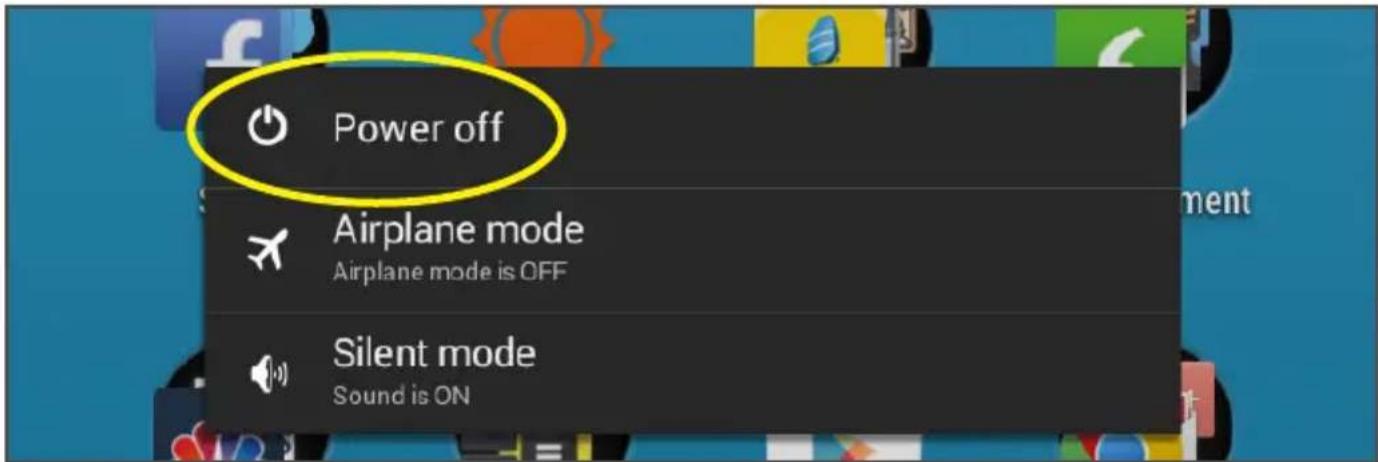
Press and hold the Power button for three seconds. A shut down pop-up window will appear. Tap "Power off".
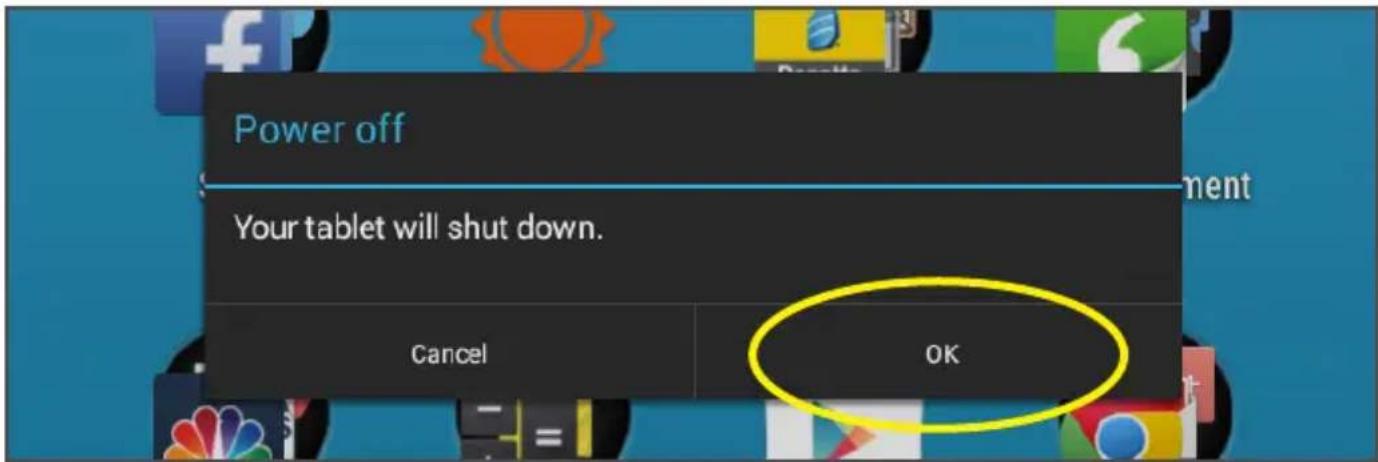
A confirmation popup window will appear. Tap "OK" to confirm, or tap "Cancel" to continue using your tablet.
Tips:
- Putting your RealPad into Airplane mode turns off your wireless radio so that your tablet does not send or receive data. When Airplane mode is on, you will not be able to send or receive email or browse the Web or use apps that require an internet connection.
- Putting your RealPad into Silent mode turns off all sounds, but does not affect the wireless radio. You can still browse the Web, send and receive email, and use all functions of the ReadPad.
Your RealPad has been designed for ease of use. When you first turn it on, you will be guided through a simple set-up process. There are 5 steps with descriptions for each. Please note: not all steps are required and can be skipped by tapping on the skip button located at the bottom of each page.
Step 1:
Choose your language and set up your Wi-Fi.
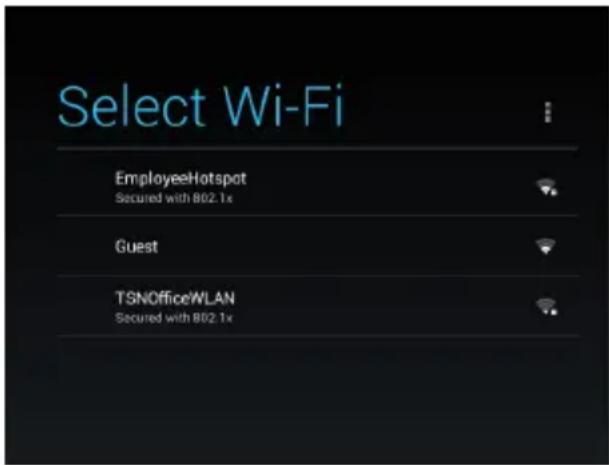
In this step, you will choose your language and connect to your Wi-Fi network. Choose your Wi-Fi network from the list of available networks by tapping on it. Then enter the password for the network, if required. Not all Wi-Fi networks require a password. You'll find helpful information about connecting to Wi-Fi networks in our Real Help Video "Connecting My Wi-Fi" available in the Real Help folder on your RealPad.
Step 2:
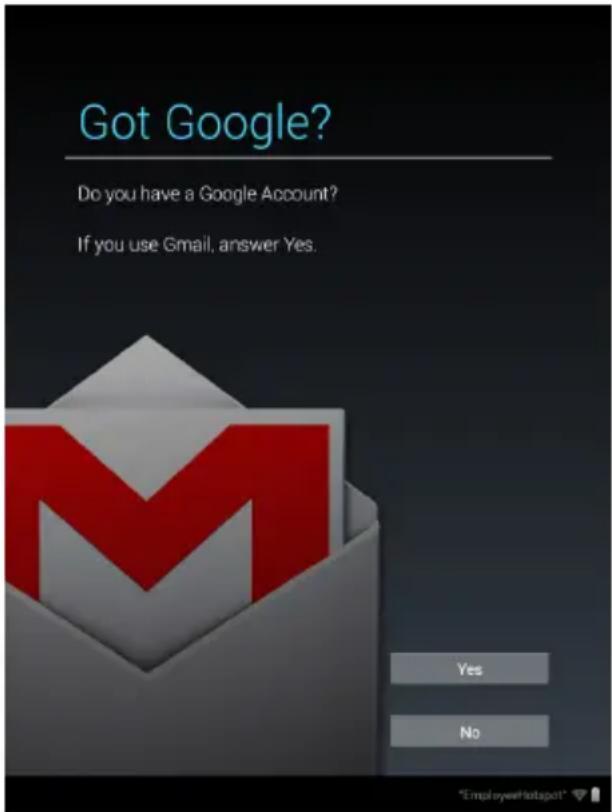
Set up your Google Account or connect to an existing Account.
A Google Account is a user account that provides access to Google-owned services such as YouTube, Google Hangouts, Google Documents, Gmail and the Google Play Store.
Step 3:
Set up your Entertainment account for downloading and purchasing apps, books and movies from the Google Play Store.
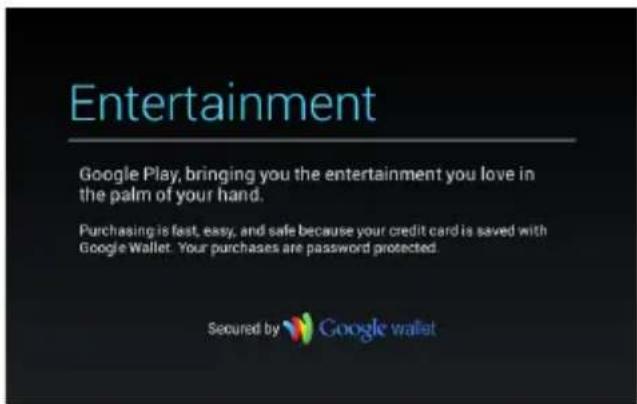
Google Play is Google's App Store where you can download and purchase apps, books, movies, music and games for your tablet. You can choose to enter your credit card information to use for Google Play purchases during set-up, or skip and do later when you are ready to purchase products or services.
Step 4:
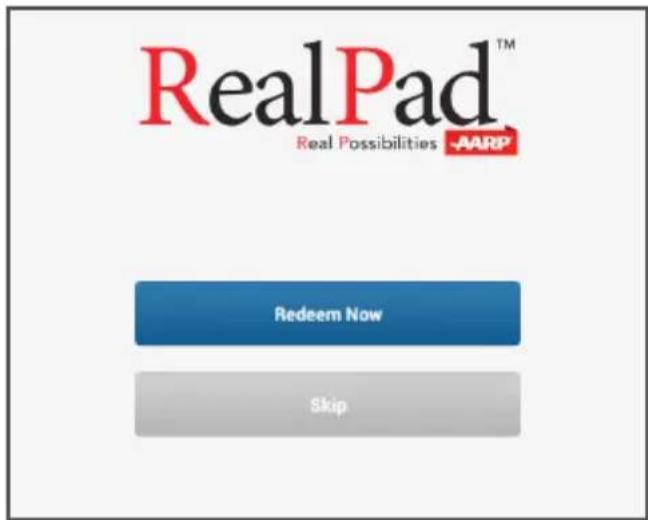
Redeem your complimentary 1 Year AARP Membership.
RealPad includes a complimentary 1 year AARP Membership with your purchase. You can sign up as a new member or if you are already an AARP member, an additional year of membership will be added to the end of your existing term. You may also gift this membership to another person.
Step 5:
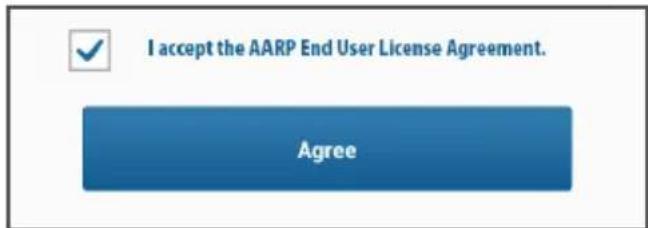
Review and accept the AARP RealPad End User License Agreement.
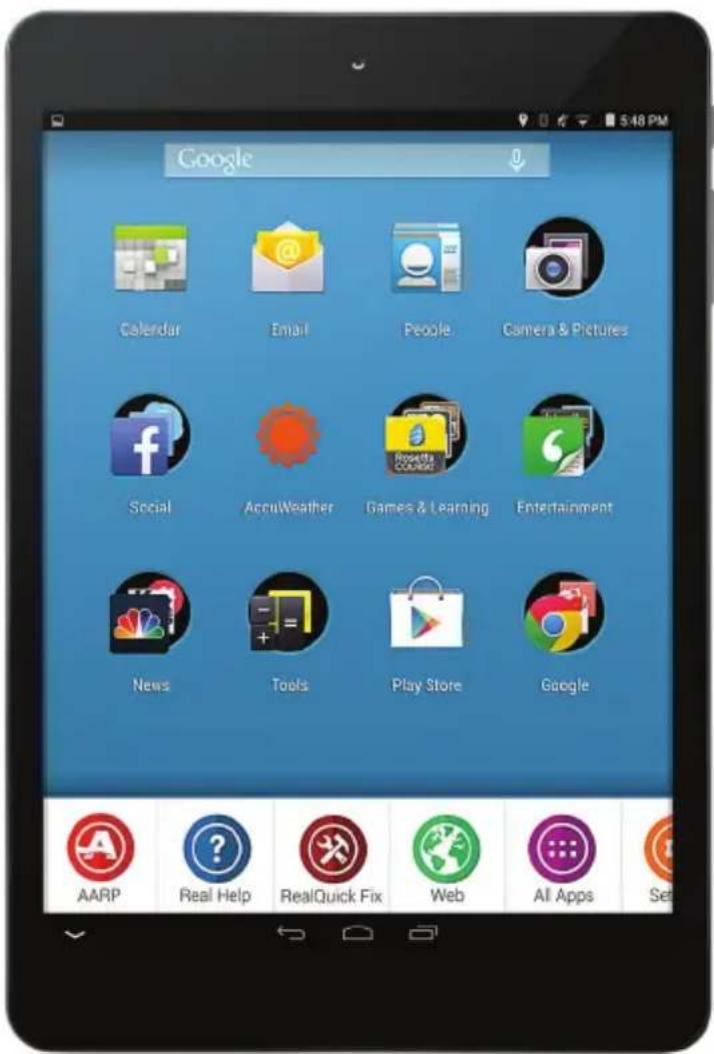
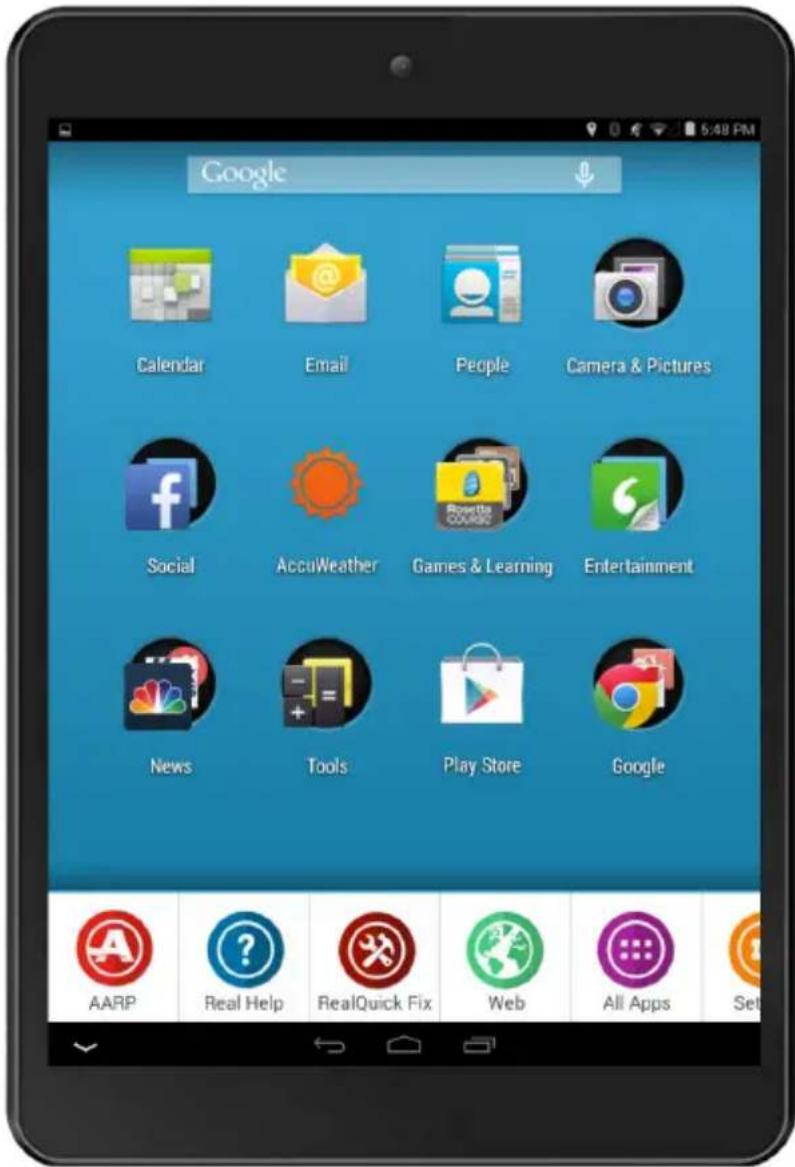
The main screen of your RealPad tablet is called the Home Screen.
On it, you will find a collection of icons for commonly used applications or "apps" and application folders.
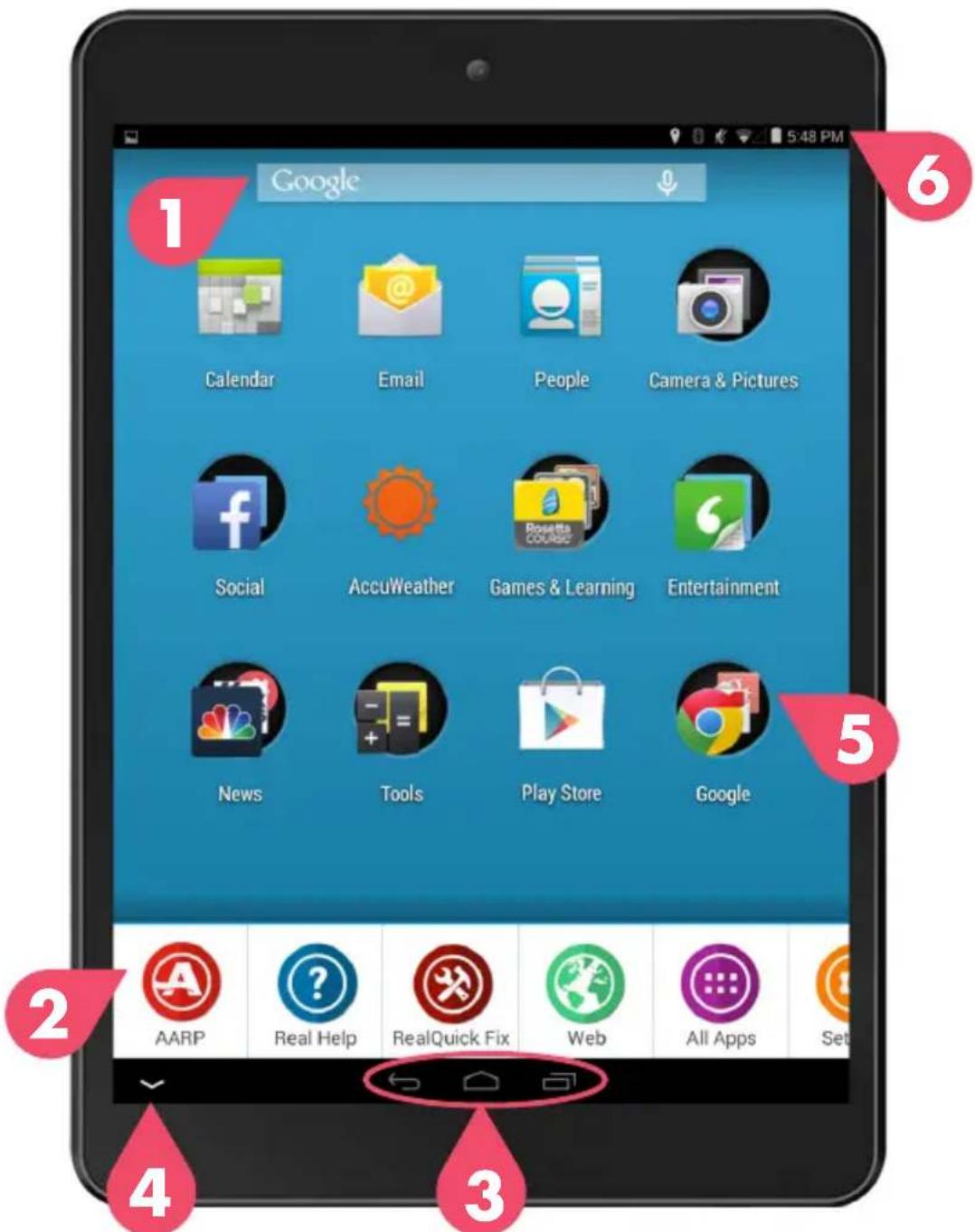
- Google Search Bar
- RealPad Toolbar
-
Navigation Bar
-
RealPad Toolbar Toggle
- Apps & Folders
- Notification & System Icons
1 Google Search Bar:

The Google search bar allows you to easily search the Internet without opening the internet browser. Type the information you would like to look up or touch the microphone icon on the right side of the search bar to speak a command.
2 RealPad Toolbar:

AARP

Real Help

RealQuick Fix

Web

All Apps

Settings
The RealPad toolbar includes folders of information for easy access. Folders include AARP content and applications; Real Help; RealPad RealQuick Fix, a simple but powerful tool that helps you identify and fix problems with your tablet hardware and software with just one click, as well as the Web Browser; All Apps, showing all the apps that are installed on your tablet; and Settings.
Refer to page 17 for a detailed overview of the RealPad Toolbar
3 Navigation Bar:
Back:
Opens the previous screen you were working in, even if it was in a different app. Once you back-up to the Home Screen, you can't go back any further in your history.
Home:
Opens the Main Home Screen of your RealPad.
Recent Apps:
Opens a list of apps you've worked with recently. To open an app, touch the thumbnail image. To quit and open an application tap and hold the thumbnail and swipe left to remove.
4 RealPad Toolbar Toggle:
Opens the RealPad Toolbar.
Closes the RealPad Toolbar.
5 App & Folder Icons:
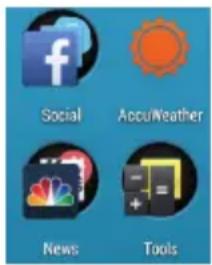
Your RealPad Home Screen features icons for commonly used apps, as well as folders containing collections of apps such as Entertainment, Games and News. You can purchase and download new apps from the Google Play Store. You'll find helpful information about downloading and installing apps in our Help Video "Intro to Apps" available in the Real Help folder on your RealPad.
6 Application & System Notifications

There will be times when you receive updates to the applications (apps) loaded on your RealPad or notifications regarding the tablet system (i.e., Bluetooth, new email, network status, etc.) available on your tablet. Notifications alert you to the arrival of new messages, calendar events and alarms, as well as ongoing events, such as video or application downloads. When a notifications arrive, icons will appear at the top of the screen in the black bar (see above).
Icons for your application (apps) notifications appear on the left, and system notifications appear on the right (i.e., Wi-Fi signal or battery strength).
Tip: To expand a notification, position one finger on it and swipe down slowly. To open the related notification, touch the related icon. When you're finished with a notification, simply slide the notification to the right to make it disappear.
Using the RealPad Toolbar

AARP

Real Help

RealQuick Fix

Web

All Apps

Settings
AARP

The AARP folder includes a variety of useful apps such as: AARP.org, AARP Publications, a link to relevant AARP Tools & Calculators and the Life Reimagined Learning Advisor. If you skipped the AARP membership offer during the initial set-up of your tablet, you'll find a link to redeem the offer in this folder. To open, click on the redeem membership app inside the AARP folder.
Real Help

RealPad comes with unprecedented help so you can spend more time enjoying and less time worrying. Included are 10 pre-loaded tutorial videos including step-by-step instructions on features used the most, as well as a link to view 10+ additional tutorial videos from AARP online. You can also access Customer Service information.
RealQuick Fix

RealPad RealQuick Fix is a simple, but powerful tool that allows you to visually check the status of your tablet and quickly fix hardware and software issues with just one click.
Web

This icon allows you to access your tablet's Web browser to access the Internet. (See page 19 to learn how to connect to Wi-Fi) You'll find helpful information in our Help Video "How do I use the Internet?" available in the Real Help folder on your RealPad.
All Apps

This icon allows you to view all the apps that are installed on your tablet. Some of these apps may not be on your Home Screen. To move any app to your Home Screen, tap and hold any icon and drag it to the Home Screen or to a folder on the Home Screen. Tapping and dragging it to the main Home Screen also allows you to uninstall it from your tablet or view app info. Tap and hold the icon until the main Home Screen appears and drag it over the words "Uninstall" at the top of the screen to remove it from your tablet or over the words "App Info" to view more details.
Settings

This icon allows you to access settings for your Google Account and your RealPad tablet. RealPad settings include all settings for core features of your RealPad tablet including Wi-Fi set up, Sound, Display (wallpaper, brightness, etc.), Date, Time and more.

natural_image
Orange circular icon with a white gear symbol in the center (no text or numbers)Settings
Settings can be found on your RealPad Toolbar. There are two categories of Settings on your RealPad - RealPad Settings and Google Account Settings. Both are accessed by clicking on the Settings folder in the RealPad Toolbar.
RealPad Settings control core features of your tablet such as Wi-Fi, screen brightness, security and more. Google Account Settings include location-based services, data back-up and restore, accounts and more.
Tip: You can access the AARP Privacy Policy and the End User License Agreement from the Settings page.
These are the main types of system settings available via RealPad settings:
Wireless & Networks:
Wi-Fi and Bluetooth settings
Device:
Sound, battery, sleep and other display settings
Personal:
Location, language, back-up/reset options
Personal > Security:
Passwords and certificates, app verification, screen lock and encryption
Accounts:
Sync and other account settings
System:
Date, time, accessibility and device information
Tip: Useful settings are also available from the Google Settings (see next page).
Wireless & Networks: Wi-Fi
- Tap RealPad Settings.
- Tap Wireless & Networks. Tap Wi-Fi.
- If Wi-Fi isn't already on, slide the Wi-Fi switch to the On position.
- Your tablet scans for Wi-Fi networks. To connect to Wi-Fi, touch a network name.
- Enter a password, if required. (Most times, a password is required)
Wireless & Networks: Bluetooth
To connect to a Bluetooth device, first turn on your tablet's Bluetooth. The first time you use a new Bluetooth accessory, you will need to "pair" it with your tablet so that both devices know how to securely connect to one another. After the initial "pairing", they connect automatically.
To turn Bluetooth On or Off:
- Tap RealPad Settings.
- Tap Wireless & Networks.
- Slide the Bluetooth switch to On.
To change your tablet's Bluetooth name:
Your tablet has a generic Bluetooth name by default, which is visible to other Bluetooth devices when you connect them. You can change the name of your device, so that it is more recognizable.
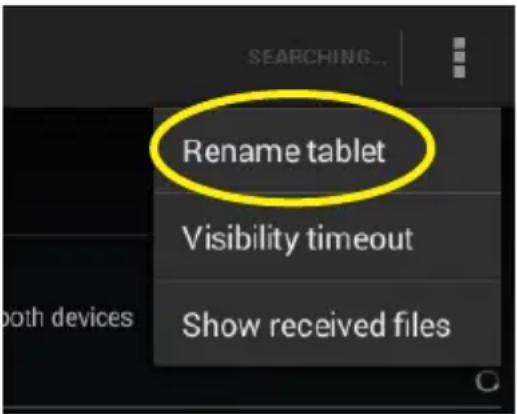
- Tap RealPad Settings.
- Tap Wireless & Networks. Make sure Bluetooth is turned on.
- Tap Bluetooth.
- In the Bluetooth screen, tap Menu.
- Tap Rename tablet.
- Type a new name and tap Rename.
Pair Your Tablet to a Bluetooth Device:
You must pair your tablet with a Bluetooth device, before you can connect to it. Once you pair your RealPad with a Bluetooth-enabled device, they stay paired until you unpair them.
If the device you want to pair your tablet with isn't found on the list, ensure that your tablet is turned on and set to be discoverable.
- Tap RealPad Settings.
- Tap Wireless & Networks. Make sure Bluetooth is on.
- Touch Bluetooth. Your RealPad scans for and displays the IDs of all available Bluetooth devices in range.
- If your tablet stops scanning before your Bluetooth-enabled device is ready, touch Search for devices.
- Touch the ID of the Bluetooth device in the list to pair your RealPad with it.
- Follow the on-screen instructions to complete the pairing. If you're prompted to enter a passcode, try entering 0000 or 1234 (the most common passcodes) or consult the manual that came with the device. If the pairing is successful, your tablet will automatically connect to the device from now on.
Google Settings
Settings can be found on your RealPad Toolbar. There are two categories of Settings on your RealPad - RealPad Settings and Google Account Settings. Both are accessed by clicking on the Settings folder in the RealPad Toolbar. RealPad Settings control core features of your tablet such as Wi-Fi, screen brightness, security and more. Google Account Settings include location-based services, data back-up and restore, accounts and other key ReadPad features.
Manage Location Access
You can use your tablet GPS, Wi-Fi networks and other mobile network information to estimate your location. Apps that have your permission can use this information to deliver location-based services, such as the ability to check and view local traffic or find nearby restaurants.
For Your Tablet
To control what location information your tablet can use, go to
Settings > Personal > Location access.
When the Access to my location switch at the top of the screen is On, you can select either or both of these check boxes:
■ GPS Satellites
Your RealPad tablet has GPS capabilities to calculate your location based on satellite signals.
■ Wi-Fi & Mobile Network Location
Enabling Google's location service helps estimate your location faster, with or without help from GPS. If you turn this option Off, your tablet cannot find your precise location or share it with any apps.
IMPORTANT: Turning off location access for your tablet also turns it off for Google Now, other Google and non-Google apps. That means that no apps can receive your precise location information, and many useful features will be disabled. For example, in Google Maps, the app will not be able to provide directions from your current location if this feature is disabled.
For Google Apps
When location access for your tablet is turned on, you can prevent Google apps from using this information with one easy setting – without affecting access by non-Google apps. To do so:
- Go to Settings > Accounts > Google > Location Settings
- Slide the switch to the Off position
IMPORTANT: When you turn Location settings off, non-Google apps and Google's location service will continue to receive your location. To change these settings, go to Settings > Personal > Location Access.
Change Back-Up & Reset Options
If your tablet has multiple users, only the owner can see the Backup & reset options. To view the settings described here, go to Settings > Backup & reset. You can back up settings and other data associated with one or more of your Google Accounts. If you need to factory reset your device, you can restore your data for any accounts that were previously backed up.
The following options are available:
■ Back-Up My Data
If you check this option, a wide variety of your personal data is backed up automatically, including your Wi-Fi passwords, Chrome bookmarks, a list of the apps you’ve installed on Google Play, the words you’ve added to the dictionary used by the onscreen keyboard and most of your customized settings. Some third-party apps may also take advantage of this feature, so you can restore your data if you reinstall an app.
If you uncheck this option, your data is longer backed up, and any existing back-up is deleted from Google servers.
■ Back-Up Account
Displays the Google Accounts for which data back up is enabled. You must sign in with one or more of these accounts on a new or reset device to restore from backup.
To add a new account, touch Backup Account > Add Account.
■ Automatic Restore
Check this option to restore settings and other data when you reinstall an app. This feature requires that you are backing up your data with your Google Account and that the app is using the backup service.
■ Factory Data Reset
Touch this option, then Reset Tablet to erase all your personal data from internal storage, including information about your Google Account, any other accounts, your system and app settings, any downloaded applications and your music, photos, videos and other personal files.
After resetting your tablet, you'll need to re-enter the same information requested when you first set up your tablet. If you've been backing up your data to an on-line Google Account, an option during the set-up process allows you to restore it.
Some third-party apps also make use of the back-up service, so if you reinstall one, its settings and data are restored.
Add or Remove Accounts
If your tablet has multiple users, each has separate account settings.
Add an Account
To add some accounts, you may need to obtain details from the system administrator about the service to which the account connects. For example, you may need to know the account's domain or server address.
- Go to Settings > Accounts > Add Account.
- Touch the kind of account to add.
- Follow the on-screen instructions.
Most accounts require a username and password, but the details depend on the kind of account and the configuration of the service you're connecting to.
Depending on the kind of account, you may be asked to configure what kinds of data you want to sync, name the account and other details.
When you're finished, the account is added in one of two places:
- Google Accounts show up under Settings > Accounts > Google.
- Other accounts show up under Settings > Accounts.
Remove an Account
You can remove any account and all information associated with it from your device, including email, contacts, settings and so on. To remove a Google account, touch its name under Settings > Accounts or Settings > Accounts > Google, then Menu > Remove account.
For any other type of account go to Settings > Accounts > Account-name and look for the Remove option.
Configure Sync Options
If your tablet has multiple users, each has separate sync options.
To reach sync settings for Google accounts, start from Settings > Accounts > Google.
You can configure synchronization options for any of your apps. You can also decide what kinds of data to synchronize for each account. For some accounts, syncing is two-directional; changes that you make to the information on your device are made to the copy of that information on the web. Your Google Account works this way. Other accounts support only one-way sync: the information on your mobile device is read-only.
Some apps, such as Gmail and Calendar, have separate synchronization settings that provide more fine-grained control. For example, to control message syncing in the Gmail app, ensure you're viewing your Inbox, then touch Menu > Label Settings > Sync Messages.
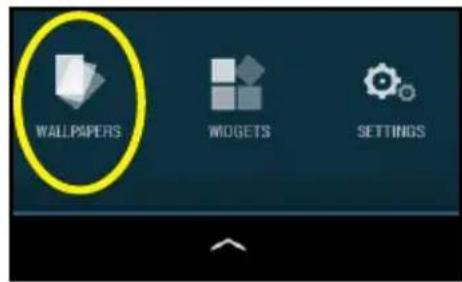
Changing Your Wallpaper
You can customize the look and feel of your RealPad Home Screen by changing the wallpaper which is the image that displays in the background behind the apps and folders. Simply press and hold any empty space on the Home Screen until the Choose Wallpaper pop-up appears. Select from the available options.
Rearranging Apps & Folders
You can rearrange the icons on your RealPad Home Screen by pressing and holding any icon of any app or folder you'd like to move and dragging it to a new position on the main Home Screen or one of the secondary screens to the right or left.
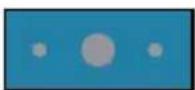
The dots at the bottom of the screen indicate which Home Screen you are located on.
To create a new folder or add an app to an existing folder, press and drag the app icon on top of the existing folder to add it to that collection or onto another app to create a new folder containing both apps. To name your new folder, click on the new folder icon and click on “Unnamed Folder” to edit the text.
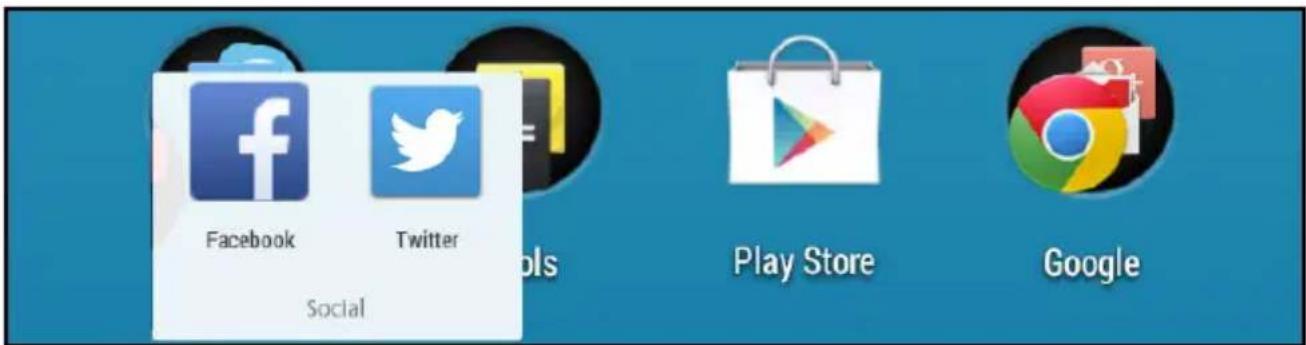
Removing Apps & Folders
To remove an icon or folder, simply press and hold any icon and drag it to the top of the screen over the word "Remove" and let go when the text turns red.
Note: This does not remove the application from your tablet, only the icon from your Home Screen. If you accidentally remove an app or folder, you can open your RealPad Toolbar (see page 15) and click All Apps. Press and hold the icon for the app you inadvertently removed and drag it back to the desktop.
App Basics - Camera, Photos and Videos
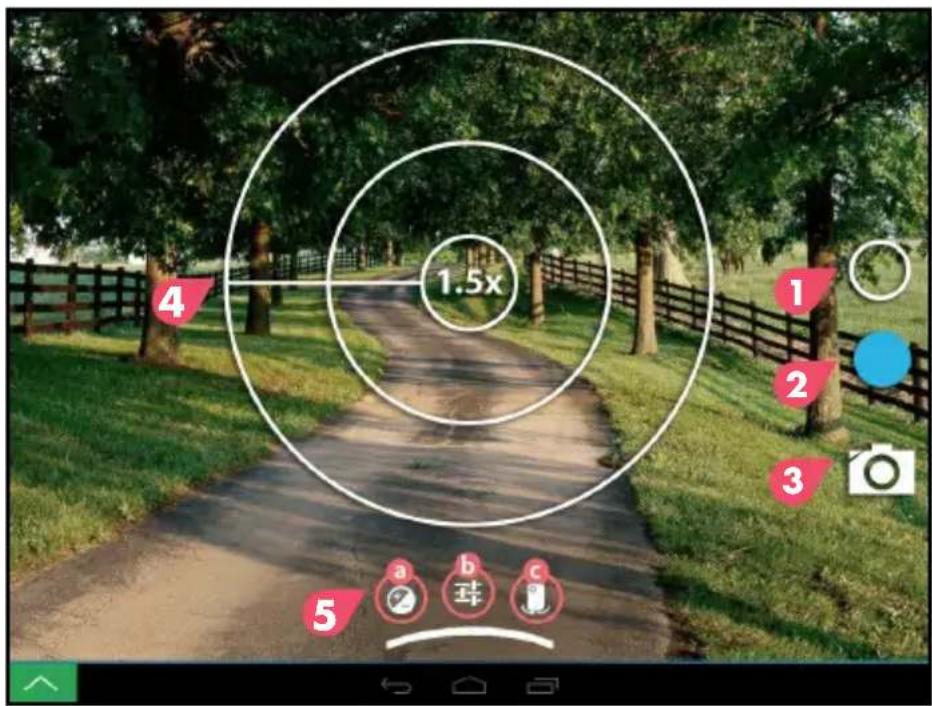
Camera Shortcuts
- Camera Settings
- Take Photo/Video
- Toggle between Camera & Video
- Zoom In & Out (must pinch screen to show zoom)
- Camera Features
a. Exposure
b. More Options
c. Switch between
Front/Back Camera
Taking Photos & Videos
- Point the camera on the back of your tablet at the subject you want to photograph.
- Tap the camera icon to take a still image. Tap the video icon to start to shoot a video. Click the video icon again (now a red square) to stop filming.
- To use the zoom feature, simply pinch the screen. Slide fingers apart to zoom out.
Viewing Your Photos & Videos
To view your photos, tap the Camera & Pictures folder on your Home Screen. Tap the Gallery icon. Click the photo or video thumbnail you wish to view or share to bring it full screen. When you view images, you can zoom in and out by pinching or sliding two fingers apart.
Click the share icon in the upper right hand corner to share it on social media (Twitter, Facebook, etc.) or to email it to your friends and family.
Click the options icon to delete, edit, crop or set a picture as wallpaper.
You'll find helpful information about taking and sharing photos and videos in our Real Help Videos "Photo Basics" and "Video Basics" available in the Help folder on your RealPad.
Setting Up Your Email
Follow the on-screen steps to set up your email account. You'll find helpful information about setting up your email in our Help Video "Intro to Email" available in the Real Help folder on your RealPad.
To set up your email, click the Email icon on your RealPad Home Screen. If you use Google's Gmail, click the Gmail app icon which you will find in the Google folder on the desktop.
Before setting up your email, please ensure that you are connected to Wi-Fi. If you do not already know your email settings (POP3, IMAP, etc.) you can obtain them from your email provider.
natural_image
Green speech bubble icon with white double quotation marks (no text or symbols)Making Calls with Your RealPad
You can use apps like Google Hangouts (pre-installed on your RealPad) and Skype to make both audio and video calls to friends and family who also use those apps.
Google Hangouts can be found on the Google folder on your RealPad Home Screen.
You'll find helpful information about making calls in our Real Help Videos section under "Making Calls with Google Hangouts" available in the Help folder on your RealPad.
natural_image
Blue and white icon set with a stylized user silhouette (no text or symbols)Contacts
The People app is your address book. It allows you to store and manage contact information for your friends and family. The People app displays contacts from each of your Google Accounts that you choose to synchronize with your RealPad tablet. You will be able to add your own contacts as well.
As an added convenience, you can mark a contact as a favorite. It's easy, just tap on a contact's name, then select the "star" icon up at the top of the contact card. You'll then be able to see a combination of these favorite contacts and your frequently contacted people from the "Favorites" tab of the People app.
natural_image
Abstract grid pattern with green and white squares on gray background (no text or symbols)Calendar
The Calendar app displays events from each of your Google Accounts that you choose to synchronize with your RealPad tablet. You can also:
- Create, edit and delete events.
- View all your calendars at the same time, including non-Google calendars.
- Quickly email all event guests from a notification with a customizable message.
Safety Tips & Disclaimer
- It is extremely important that you keep your tablet dry at all times. To avoid damage, please keep your RealPad, battery and charger away from water and moisture, and don't use your tablet or charger when your hands are wet.
- Do not drop or strike your RealPad against a hard surface.
- Never attempt to disassemble your RealPad or its accessories, as this will immediately VOID any and all warranties you have for your tablet and accessories.
- Never use your RealPad when operating a vehicle.
- In hospitals and areas vulnerable to electromagnetic interference such as an airplane, please follow the area's posted rules and regulations regarding the use of electronic devices.
- To avoid electrical damage, please power off your tablet before entering an area with unshielded high voltage.
- Subjecting your RealPad to an area with a powerful magnetic field may erase all data on the tablet.
- This tablet is an Internet-enabled device. Please always supervise children using the device.
- Please comply with your area's rules and regulations regarding the use of electronic devices, and respect others' privacy and legal rights while using your RealPad.
Disclaimer
RealPad Technical Support bears no responsibility for any damage or loss of personal data due to misuse of software and/or hardware, damage to the player caused by human factors, replacement of battery, or other unforeseen circumstances. To prevent loss of your data, please backup your data regularly.
Information in the Getting Started Guide is subject to change without notice and is subject to copyright protection. Copying or otherwise reproducing this material without prior written consent is prohibited.
Due to hardware and software changes, some of the pictures and functions described in this manual may not be exactly the same as that which is included with your tablet.
RealPad™ Real Possibilities AARP
www.aarprealpad.org
Android, Google Play and other marks are the trademarks of Google Inc. ©2014 AARP. AARP and RealPad are trademarks of AARP. All other brands, product names, logos, and icons depicted herein are intended solely for the purpose of communicating the functionality of the RealPad. All such images and trademarks remain the property of their respective owners.