8712109 - Lock HONEYWELL - Free user manual and instructions
Find the device manual for free 8712109 HONEYWELL in PDF.


User questions about 8712109 HONEYWELL
0 question about this device. Answer the ones you know or ask your own.
Ask a new question about this device
Download the instructions for your Lock in PDF format for free! Find your manual 8712109 - HONEYWELL and take your electronic device back in hand. On this page are published all the documents necessary for the use of your device. 8712109 by HONEYWELL.
USER MANUAL 8712109 HONEYWELL
Installation & Operation Guide
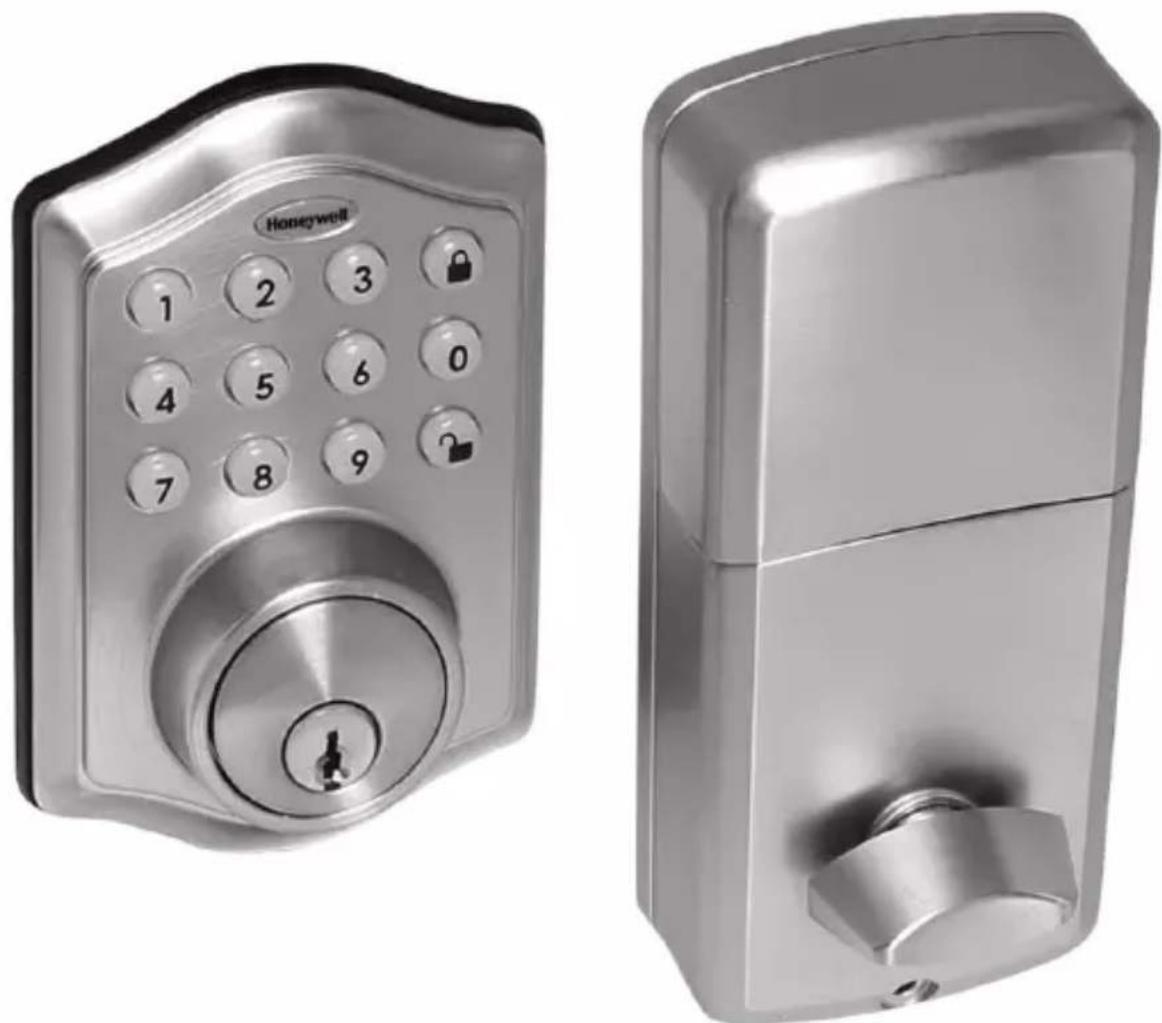
natural_image
Two metallic home security lockers with numeric keypad and lock symbols (no text or labels visible)Digital Deadbolt
Model DDBKP
Read this manual carefully before installing and operating!
INSTALLATION INSTRUCTIONS
Package Contents / Tools Required...... Page 1
Prepare Door and Jamb...... Page 2
Adjusting Deadbolt Latch Set...... Page 3
Installing Deadbolt Latch Set......Page 4
Installing Exterior Assembly......Page 5
Installing Interior Assembly......Page 6-8
OPERATION INSTRUCTIONS
Digital Keypad Overview......Page 9
Locking and Unlocking / Changing Programming Code / Adding User Codes.... Page 10
Deleting User Codes / Automatic Lock Function / Sound On and Off...... Page 11
Secure Lock-out Period / Restore Factory Settings / Low Battery Warning / Consumer Friendly Message Guide...... Page 12
Installation Trouble Shooting......Page 13
Customer Service......Page 14
Template......Page 15-16
Programming Record......Page 17
Limited Warranty....Back Cover
INSTALLATION INSTRUCTIONS
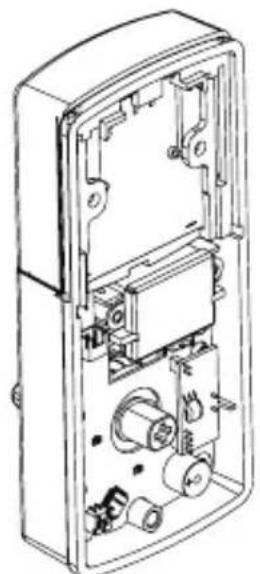
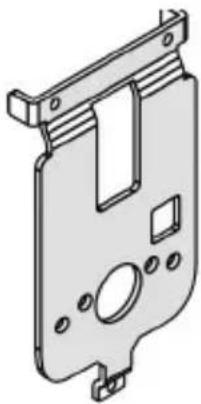
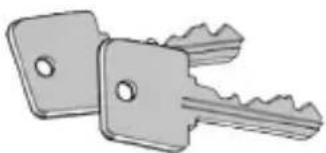
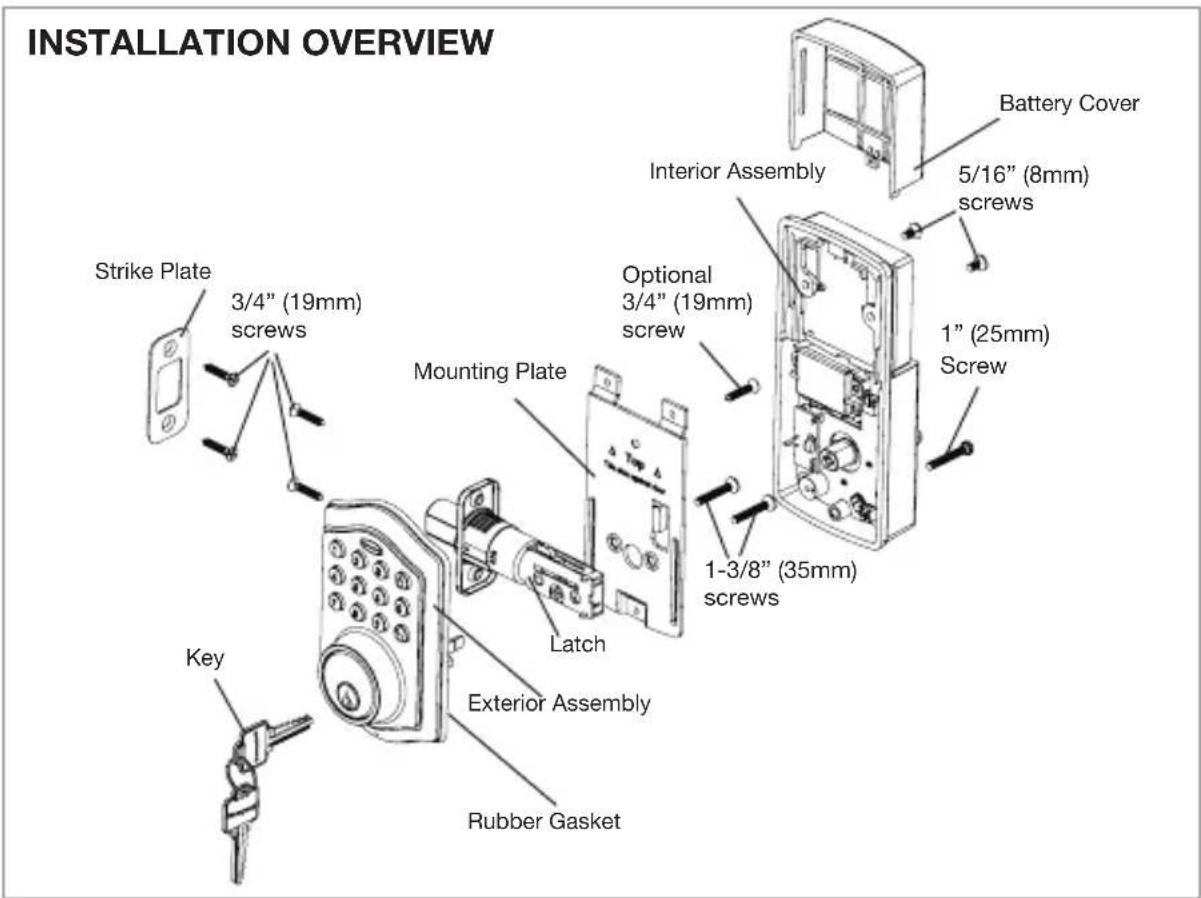
Package Contents
natural_image
Technical line drawing of a mechanical device with internal components (no text or symbols)Interior Assembly
natural_image
Technical line drawing of a mechanical component with mounting holes and a central slot (no text or symbols)Mounting Plate
natural_image
Illustration of two metallic keys with textured surfaces (no text or symbols)Entry keys (2 ea.)
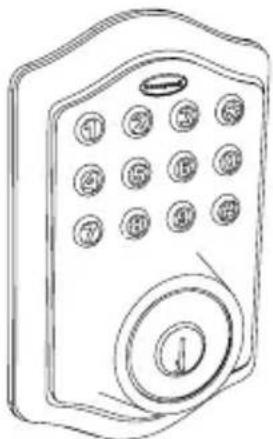
natural_image
Line drawing of a door with numbered buttons and a circular dial (no text or symbols)Exterior Assembly
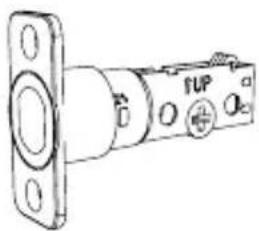
natural_image
Technical line drawing of a mechanical component with mounting flange and central hub (no text or symbols)Deadbolt Latch Set (Adjustable) 2-3/8" (60mm) to 2-3/4" (70mm)
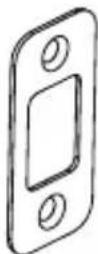
Deadbolt Strike Plate
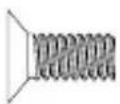
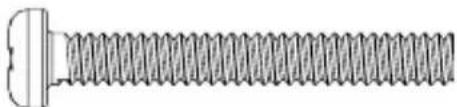
5/16" (8mm) Screws - 2 ea. 1" (25mm) Screws - 2 ea.
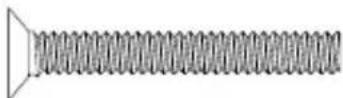
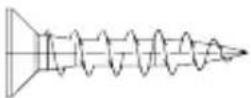
3/4" (19mm) Screws - 5 ea. 1-3/8" (35mm) Screws - 1 ea.
natural_image
Pure diagram of a solenoid with no text or symbolsTools Required
Tools Required for Installation on Pre-drilled Doors:
• Phillips Screwdriver
Tools Required for Installation on Doors That Require Drilling:
- Drill
- Tape Measure
- Pencil
- 2-1/8" (54mm) Drill Hole Saw
- 1" (25mm) Drill
- 1/16" (2mm) Drill
- Chisel
- Hammer
• Phillips Screwdriver
DO NOT RETURN TO STORE! If any parts are missing or damaged, please call Customer Service toll free at 1-877-354-5457 (M-F 7am – 5pm PST)
NOTE: Deadbolt Latch Set is shipped with the backset set at 2-3/8" (60mm)
Measure the backset (backset is distance between edge of the door and the center of Lock).
1. TO CONVERT FROM 2-3/8" (60mm) BACKSET TO 2-3/4" (70mm) BACKSET
a. Hold latch with numbers facing forward and thumb pressing on the bolt (Figure 1a).
b. Rotate the cylinder cover clockwise (Figure 1b).
c. Pull and twist the extension plate all the way out (Figure 1c).
d. Rotate the cylinder cover counter clockwise so that the marking aligns with the 2-3/4" (70mm) position indicator (Figure 1d).

NOTE: Do not extend Cylindrical Cover past 2-3/4" (70mm)
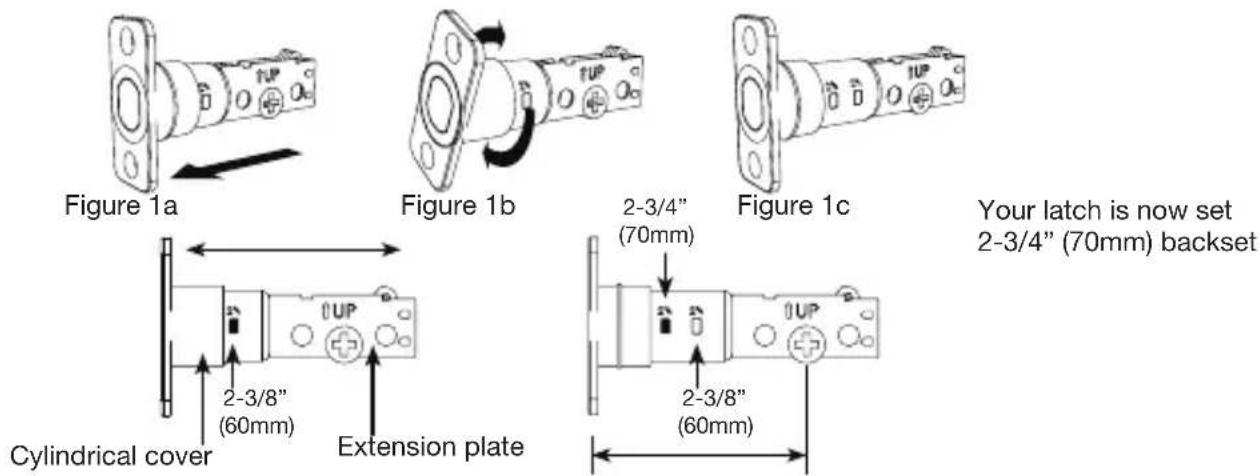
Figure 1d
2. TO CONVERT FROM 2-3/4" (70mm) BACKSET TO 2-3/8" (60mm) BACKSET
a. Hold latch with numbers facing forward and thumb pressing on the bolt (Figure 2a).
b. Rotate the cylinder cover clockwise (Figure 2b).
c. Push and twist the extension plate all the way in (Figure 2c).
d. Rotate the cylinder cover counter clockwise so that the marking aligns with the 2-3/8" (60mm) position indicator (Figure 2d).
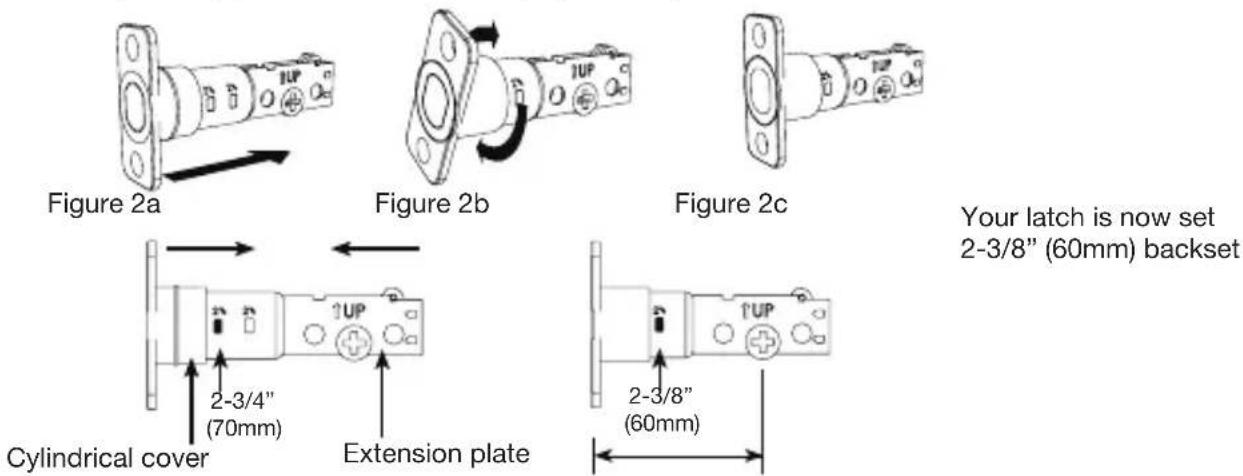
Figure 2d
NOTE: For installation on doors with pre-drilled holes skip to page 4.
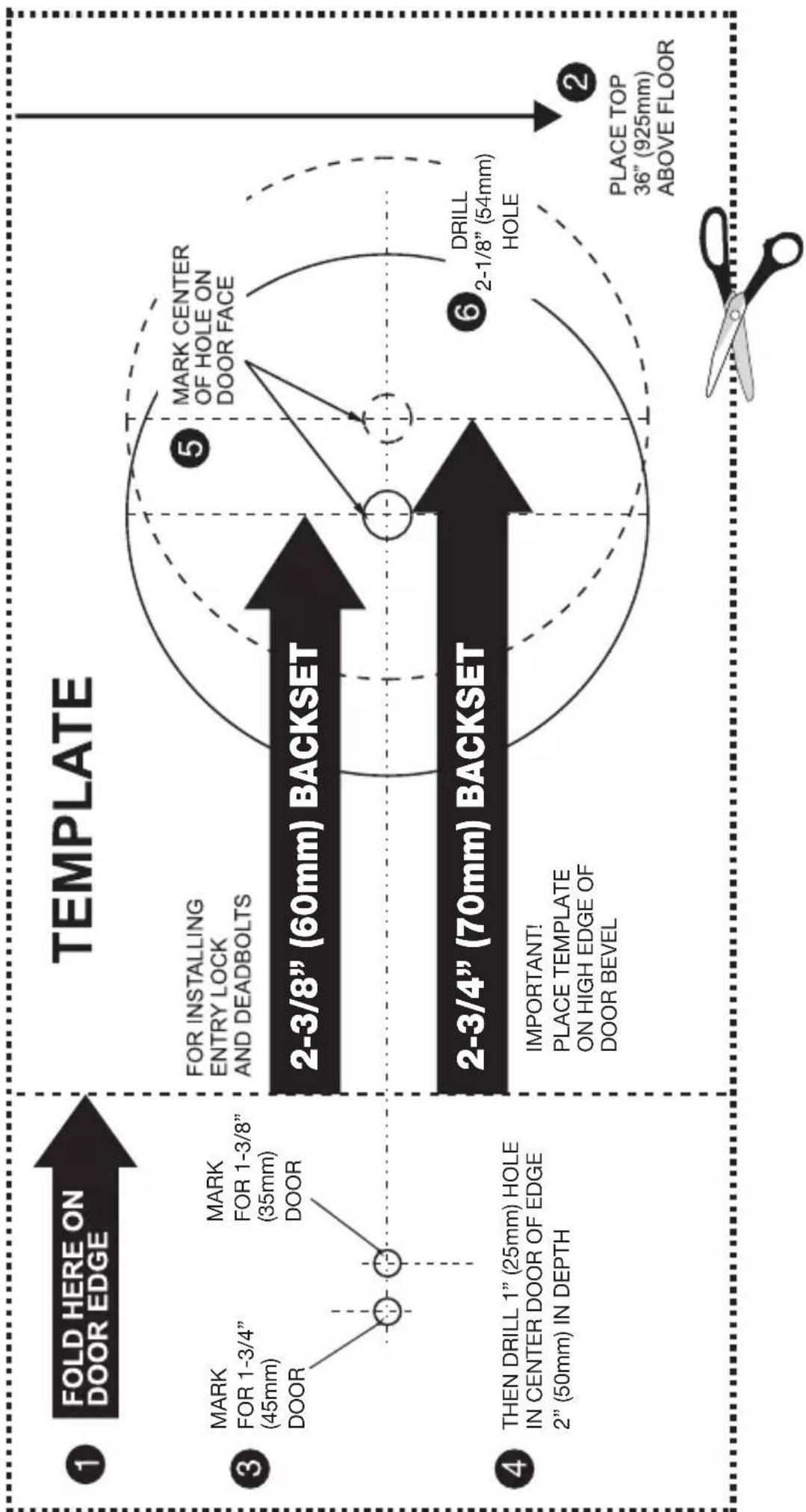
1. TEMPLATE
a. Cut out template printed on page 15 of this Manual (Figure 1a).
b. Fold template and place on door 36" (925mm) from the ground as marked (Figure 1b).
2. MARK THE DOOR FOR DRILLING
b. Mark center hole on door edge through guide on template for 1" (25mm) latch bolt (Figure 2a).
a. Mark center hole on door face through guide on template for 2-3/8" (60mm) or 2-3/4" (70mm) backset (Figure 2b).
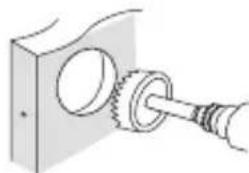
3. DRILL AND CHISEL DOOR
a. Drill 2-1/8" (54mm) hole through door face as marked for lock set (Figure 3a).
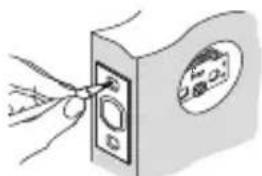
b. Drill 1" (25mm) hole in center of door edge for Deadbolt Latch Assembly (Figure 3b).
c. Insert Deadbolt Latch Assembly in hole keeping it parallel to face of door. Mark outline and remove latch (Figure 3c).
d. Chisel 1/8" (3mm) deep or until latch face is flush with door edge (Figure 3d).
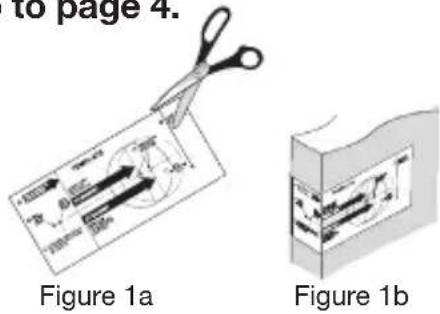
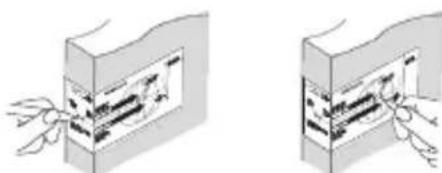
Figure 2a Figure 2b
(五)
natural_image
Diagram of a mechanical assembly with a gear and shaft (no text or symbols)Figure 3a
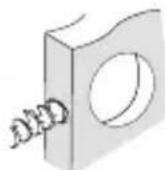
Figure 3b
natural_image
Illustration of a hand inserting a small component into a wall-mounted device (no text or symbols visible)Figure 3c
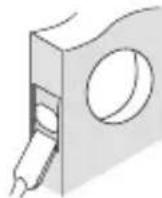
Figure 3d

NOTE: For Drive in Latch, drill hole size indicated on template and press is flush with door edge.
4. MARK AND DRILL DOOR JAMB
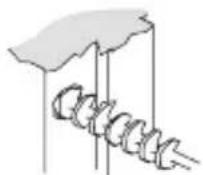
a. Mark center hole on edge of jamb even with the center of the Latch Bolt on door edge. (Figure 4a).
b. Drill 1" (25mm) hole 1-3/16" (30mm) deep in door jamb on center mark (Figure 4b).
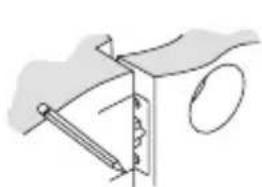
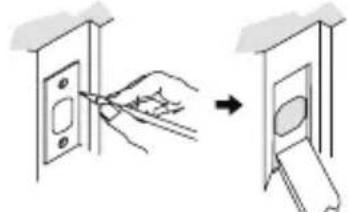
c. Outline outside edges of Strike Plate (Figure 4c).
d. Chisel 1/8" (3mm) deep for Strike Plate or until flush (Figure 4d).
e. Install Strike Plate using two 3/4" (19mm). screws provided (Figure 4e).
natural_image
Simple line drawing of a mechanical or architectural component with no text or symbolsFigure 4a Figure 4b
natural_image
Diagram showing a hand inserting a component into a wall-mounted device (no text or symbols present)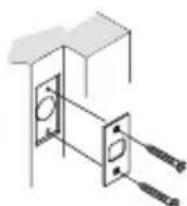
natural_image
Pure electrical circuit lines without any symbolsFigure4c Figure 4Figure 4d
1. INSTALLING THE DEADBOLT LATCH SET (need phillips head screwdriver)
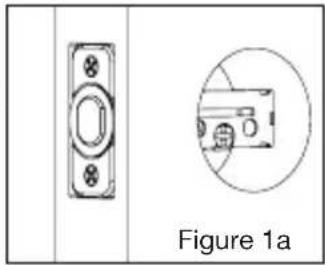
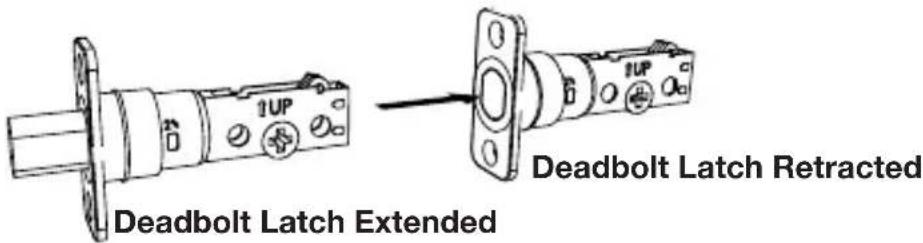
a. Insert Deadbolt Latch Set into door edge hole with the word "UP" and the arrow on the extension plate facing UP. Cross shaped spindle connector will be at the bottom of the Deadbolt Latch Set (Figure 1a).
b. Make sure the face plate sits flush with the door. Do not force the latch into the mortise flush. Chisel out excess material if necessary for a flush fit.
c. Using two 3/4" (19mm). screws provided, screw the latch into the door with a hand held screwdriver. DO NOT OVER TIGHTEN.
natural_image
Technical drawing of a door panel and its cross-section view (Figure 1a), no text or symbols present.
NOTE: Deadbolt Latch must be retracted when installing
2. IDENTIFYING YOUR DOOR HANDING
Stand outside the door
a. If the hinges are on the left your door is Left Handed (Figure 2a).
b. If the hinges are on the right your door is Right Handed (Figure 2b).
OUT SWING DOOR IN SWING DOOR
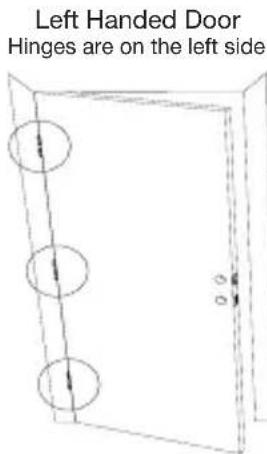
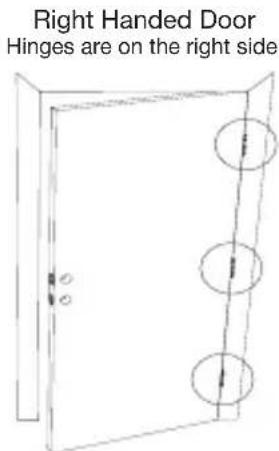
Figure 2a
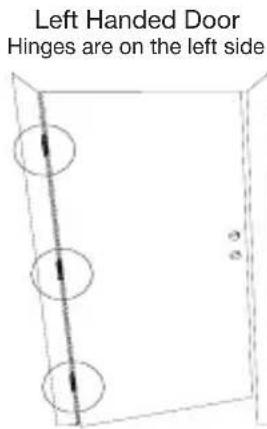
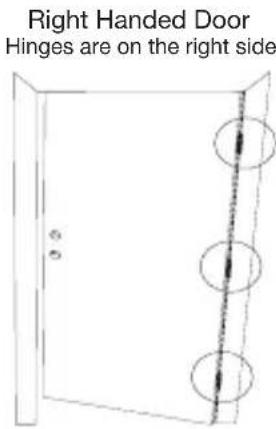
Figure 2b

NOTE: You are standing outside the door
1. INSTALLING THE EXTERIOR ASSEMBLY
Work with the Door Open for easy access.
a. Unpack the Exterior Assembly. Use care to not scratch the green circuit board during handling and installation.
b. Check that the Rubber Gasket is properly seated on the Exterior Assembly (Figure 1a).
c. Insert the Exterior Assembly onto the door with the tailpiece going through the Deadbolt Latch Set cross shaped spindle connector in the VERTICAL POSITION. Route the Control Wire through the door over the Deadbolt Latch Set (Figure 1b).
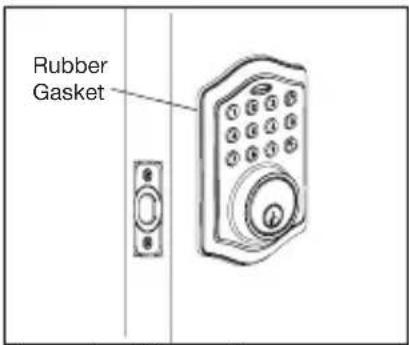
Figure 1a Figure 1b
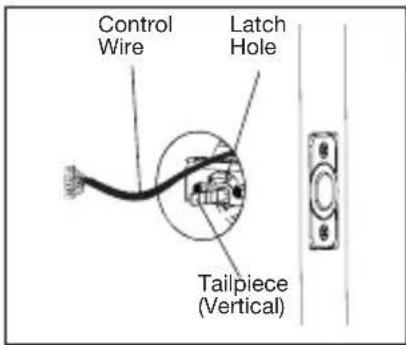

NOTE: Tailpiece must be positioned vertically
2. SECURING THE EXTERIOR ASSEMBLY TO THE DOOR
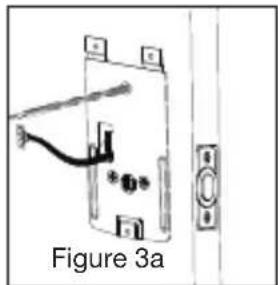
a. From the side marked "This side against door", route the Control Wire through the rectangular slot in the Mounting Plate (Figure 2a).
b. Place Mounting Plate against door with tailpiece passing through the center hole in the three hole set (Figure 2b).
c. Secure the Mounting Plate to the Exterior Assembly using two 1" (25mm) Screws (Figure 2c).
d. Hand tighten with a Phillips Screwdriver leaving loosely connected (Figure 2d).
e. Check that the Rubber Gasket is properly aligned and correct as necessary (Figure 2e).
f. Check vertical alignment of the lock (Figure 2f).
g. Tighten securely with a hand held Phillips Screwdriver. DO NOT OVER TIGHTEN
3. OPTIONAL INSTALLATION
a. Using a 1/16" (2mm) drill bit, drill a pilot hole in your door using the Mounting Plate upper hole as a guide (Figure 3a).
b. Insert one 3/4" (19mm) screw and tighten.
natural_image
Diagram of a door lock mechanism with labeled components and part view (Figure 3a), no readable text or symbols beyond label.
NOTE: Lock and unlock using the key to see if the Deadbolt Latch is opening and closing easily.
Unpack the Interior Assembly. Remove the battery cover by sliding the cover upward. Locate the screws holding the Mounting Plate to the Interior Assembly. Remove the screws to release the Mounting Plate from the Interior Assembly.
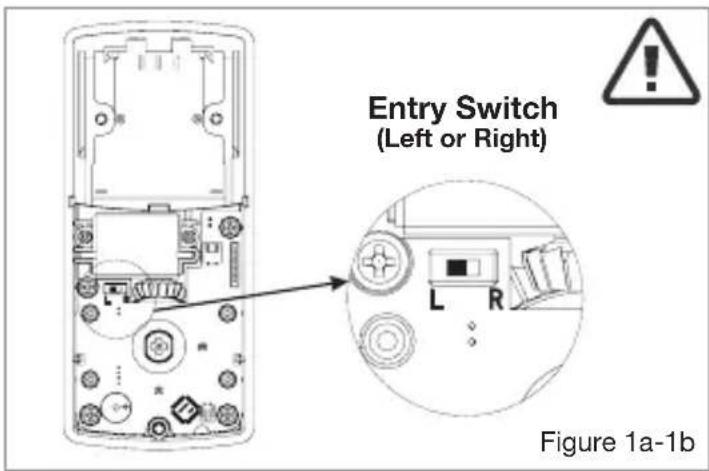
1. SET THE ENTRY SWITCH FOR LEFT OR RIGHT HANDED DOOR
a. Gently move the switch to "L" for Left Handed Door (Figure 1a).
b. Gently move the Switch to "R" for Right Handed Door (Figure 1b).
2. SET THE INTERIOR KNOB POSITION FOR LEFT OR RIGHT HAND HINGED DOORS
a. The Interior Knob goes in the Vertical position for Right Handed Doors (Figure 2a).
b. The Interior Knob goes in the Horizontal position for Left Handed Doors (Figure 2b).
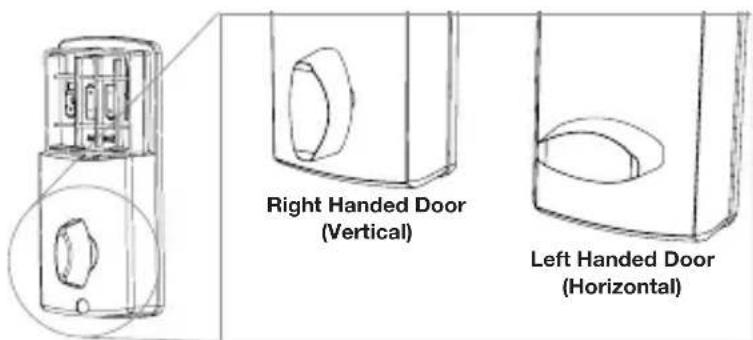
Figure 2a-2b
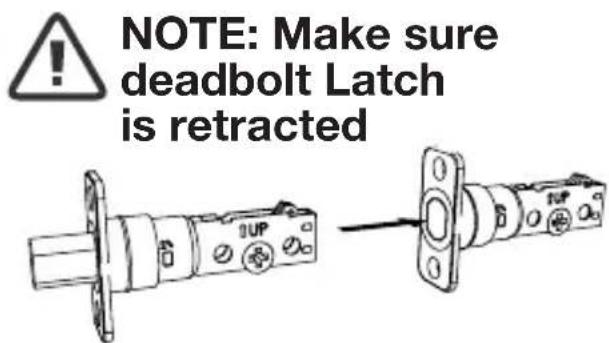
3. ATTACH THE CONTROL WIRE TO THE INTERIOR ASSEMBLY
a. Use care to attach the Control Wire male plug to the Interior Assembly female socket connector.
b. Do not force the Control Wire male plug into the Interior Assembly female socket connector.
c. The Control Wire male plug has two alignment tabs on the smooth side of the plug which is the top of the plug.
d. The Control Wire male plug is inserted with the smooth side up into the Interior Assembly female socket connector.
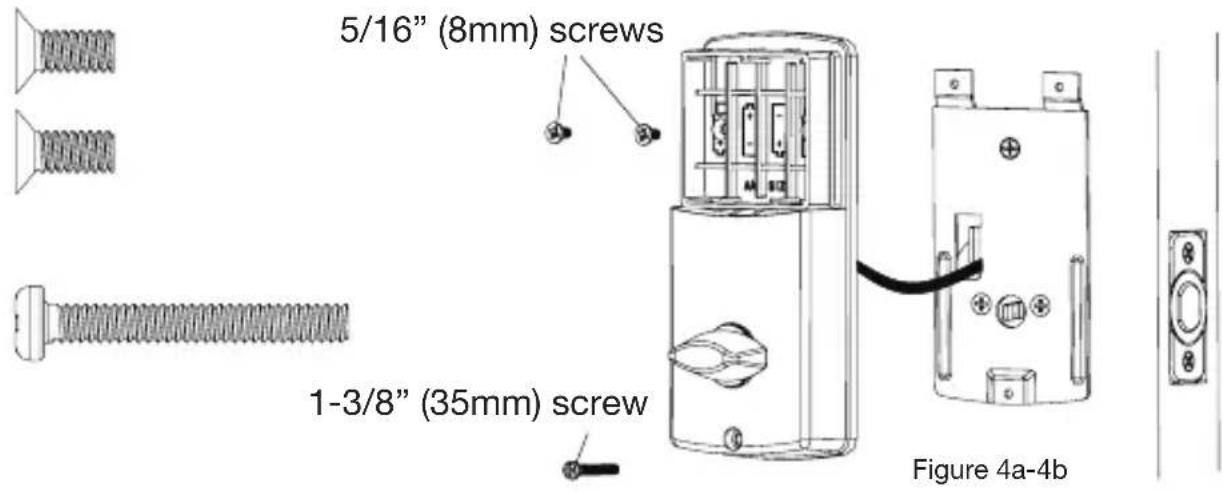
4. ATTACH THE INTERIOR ASSEMBLY TO DOOR
a. Position the Interior Assembly over the tailpiece and push the Interior Assembly against the door (Figure 4a).
b. Using two 5/16" (8mm) screws and one 1-3/8" (35mm) screw, attach the Interior Assembly to the Mounting Plate. DO NOT OVER TIGHTEN SCREWS (Figure 4b).

NOTE: Lock and unlock using Interior Knob to see if the latch is opening and closing easily.
5. Installing Batteries
a. Insert 4 AA high quality Alkaline batteries into the Battery Compartment in the direction noted +/- on the Compartment. The Lock will beep 2 times, the key pad will illuminate blue, and the Honeywell button will flash green twice to signify that it has received power (Figure 5a).

NOTE: Do not touch the keypad until the blue light turns off. Do not use rechargeable batteries or non-alkaline batteries.
b. Slide the Battery Cover down into the track on the Interior Assembly to cover the batteries (Figure 5b).
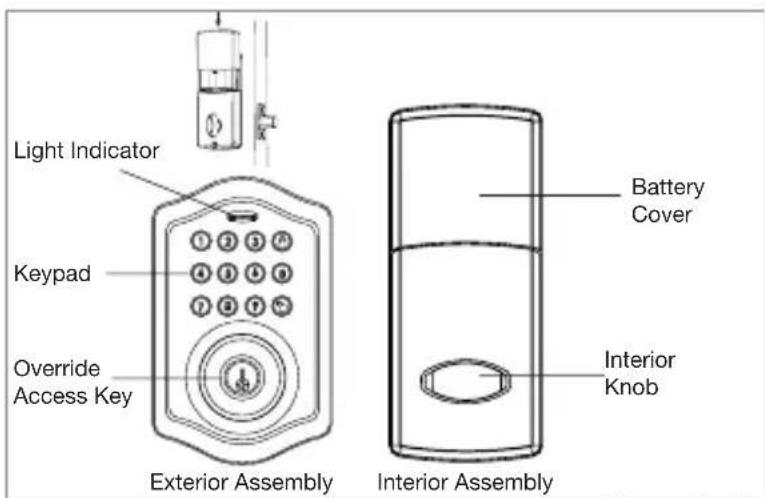
Figure 5a-5b
6. Testing Lock
With the Door Open
a. Test the Lock using the interior Knob. The bolt should move smoothly.
b. Test the lock using the Keypad. To lock press 🔒 and then press “1234” to unlock.
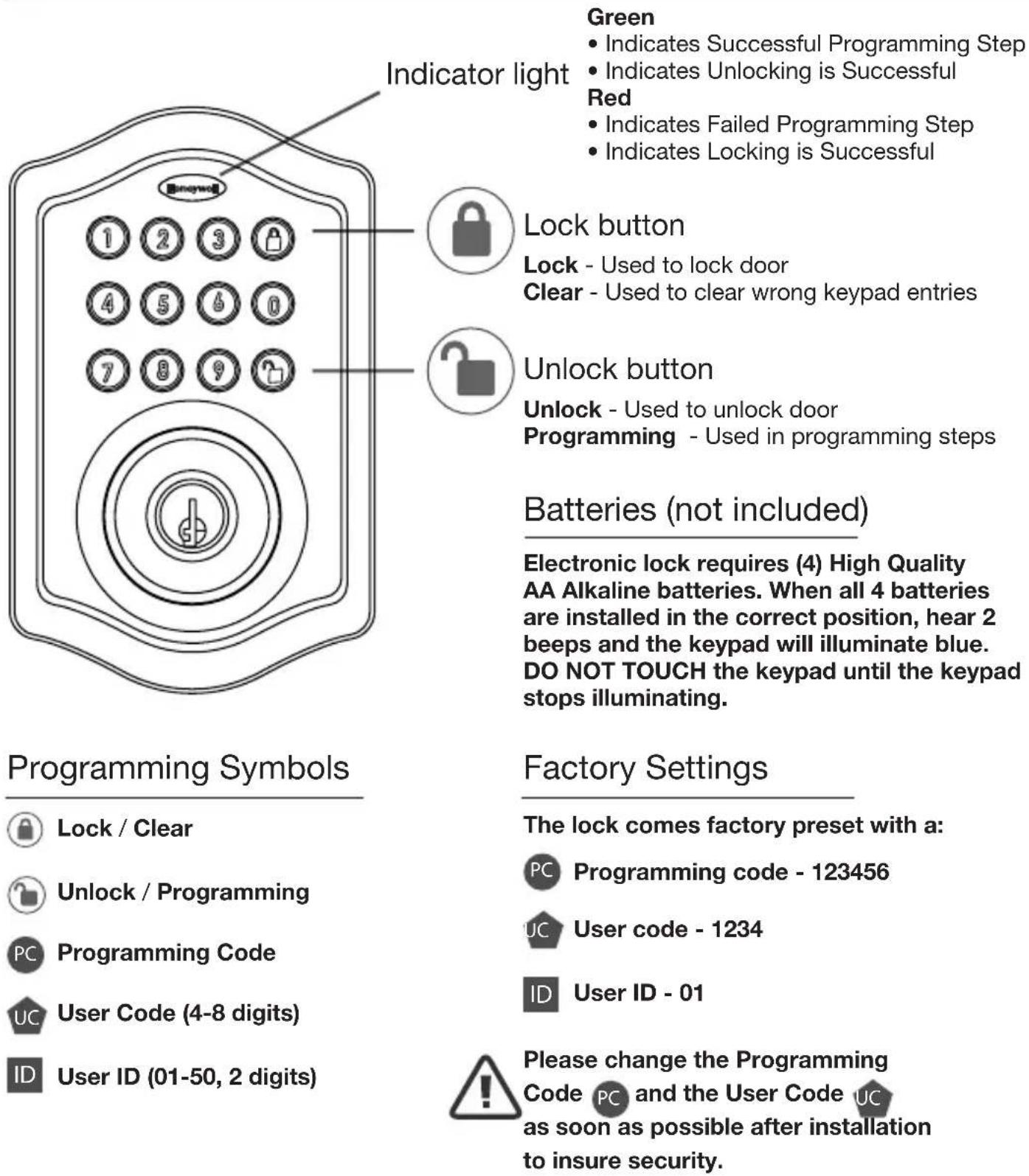
Green
• Indicates Successful Programming Step
- Indicates Unlocking is Successful
Red
• Indicates Failed Programming Step
- Indicates Locking is Successful
Lock button
Lock - Used to lock door
Clear - Used to clear wrong keypad entries
Unlock button
Unlock - Used to unlock door
Programming - Used in programming steps
Batteries (not included)
Electronic lock requires (4) High Quality AA Alkaline batteries. When all 4 batteries are installed in the correct position, hear 2 beeps and the keypad will illuminate blue. DO NOT TOUCH the keypad until the keypad stops illuminating.
Programming Symbols
Lock / Clear
Unlock / Programming
Programming Code
User Code (4-8 digits)
User ID (01-50, 2 digits)
Factory Settings
The lock comes factory preset with a:
Programming code - 123456
User code - 1234
User ID - 01
Please change the Programming
Code PC and the User Code UC as soon as possible after installation to insure security.
Programming Tips
TO UNLOCK THE LOCK
Using Keypad: Enter a valid User Code (default code is 1234) and press 📋 and hear 1 beep and lights green.
TO LOCK THE LOCK
Using Keypad: Press 🔒 and then hear 2 beeps and lights red.
Changing Programming Code
CHANGE CURRENT OR PRESET PROGRAMING CODE PC
Factory default Programming Code PC = 123456, this is the master password for your lock. All programming functions require this code. Follow the below sequence to change the Programming Code PC to your custom 6 digit combination.

flowchart
graph LR
    PC["PC"] --> A["Button icon"]
    A --> 4["4"]
    4 --> B["Button icon"]
    B --> new["new"]
    new --> PCP["PCP"]
    PCP --> G["Button icon"]
    G --> Re-enter["Re-enter"]
    Re-enter --> ●[●]
    ● --> 📋[Button icon]
Hear 1 beep and Light Indicator illuminates green
Record New and Changed Codes on Programming Record located on Page 17
Adding User Codes
TO ADD A NEW USER CODE (you can add up to 50 new user codes)
The User Code UC must be a 4-8 digit combination. Each User Code is then linked to a User ID ID (which is any number between 01-50) to identify an individual User Code UC. (User ID ID 1-9 should be entered as 01-09 so they are 2 digits).
For example: to add the User ID - 08 to User Code - 5678, enter the following:

flowchart
graph LR
    A["PC 123456"] --> B["Button icon"]
    B --> C["1 08"]
    C --> D["Button icon"]
    D --> E["ID 5678"]
    E --> F["Button icon"]
    F --> G["UCU 5678"]
    G --> H["Button icon"]
    H --> I["Re-enter ◆"]
    I --> J["Button icon"]
Hear 1 beep and Light Indicator illuminates green
NOTE: When a NEW USER CODE is set, the default factory code (1234) is deleted for safety.
Record New and Changed Codes on Programming Record located on Page 17
DELETE ONE EXISTING OR PRESET USER CODE
The unit comes with a factory User ID = 01 for User Code = 1234 .
IMPORTANT: To delete 1 User Code UC, the lock must have more than 1 User Code UC in its database.

flowchart
graph LR
    PC --> A["Button icon"] --> 2 --> B Button icon --> Existing IDI --> Re-enter["Button icon"] --> Re-enter["Button icon"]
Hear 1 beep and Light Indicator illuminates green
DELETE ALL USER CODES
IMPORTANT: this will delete the user codes but not the programming code, enter the following

flowchart
graph LR
    A["PCH"] --> B["Button icon"]
    B --> C["3"]
    C --> D["Button icon"]
    D --> E["re-enter"]
    E --> F["●"]
    F --> G["Button icon"]
Hear 1 beep and Light Indicator illuminates green
Automatic Lock Function
SET OR CANCEL AUTO LOCK
You can set the lock to automatically close after each time the lock is opened. Time value range = 20 - 900 seconds, enter the following:

flowchart
graph LR
    A["Set Auto Lock: PC"] --> B["→"]
    B --> C["5"]
    C --> D["→"]
    D --> E["Time Value"]
    E --> F["→"]
Hear 1 beep and Light Indicator illuminates green
To cancel Auto Lock set the time to 00, enter the following:

Hear 1 beep and Light Indicator illuminates green
Sound On and Off
You can “mute” or turn the “sound on” on your lock by entering the following. (Factory setting is sound on).

flowchart
graph LR
    PC["PC"] --> A["Button icon"] --> 6["6"] --> B["Button icon"] --> 1["1 or 2"] --> C["Button icon"]
    A --> D["Sound Off"]
    B --> E["Sound On"]
Sound Off (1) - Light Indicator illuminates green Sound On (2) - Hear 1 beep and Light Indicator illuminates green
Secure Lock out Period
Warning sounds and LED flashes red after 4 incorrect code attempts: Keypad shuts down for 30 seconds.
To reset the lock to the original factory settings including the Programming Code PC and all User Codes UC remove one battery for 10 seconds. Reinsert the battery and wait for a long and short beep. Press 🔒 3 times within 3 seconds. The lock will beep and the light indicator will turn green.
Low Battery Warning
Beeps and LED flashes red for 5 seconds. Please replace with good quality alkaline batteries.
Note: Romoving batteries does not erase active Programming or User Codes.
Consumer Friendly Message Guide
| Unlock / Valid programming: 1 long beep and LED illuminates green | |
| Lock: 2 short beeps and LED illuminates red | |
| Invalid Programming: 2 short beeps and LED flashes red twice | |
| Low Voltage: Beeps for 5 seconds | (7/9 times depends on operation is unlock/lock) |
| Super Low Voltage: 4 short beeps and LED ashes red four times | |
| 4 Incorrect code entry attempts: 2 short beeps and LED illuminates red each attempt | |
| Power on: 1 long beep and 1 short beep and LED illuminates green | |
| Chip Reset: 1 long beep and 1 short beep and LED illuminates green (may occur several times or once in a while) | |
| Lock Error: 3 long beeps LED ashes red three times | |
| Repeat operation after Lock Error: 2 short beeps three times LED ashes red six times | |
NOTE: When battery is under low voltage, the lock will give the (Low Battery Warning: Beeps and LED ashes red for 5 seconds). During this time your lock can still work. However once the voltage is lower than 4.3V (called Super-Low Voltage), the operation of the locking and unlocking will not work, user must replace batteries immediately.
| Issue Solution | |
| Latch Working Backwards-Lock unlocks when lock button is pushed or locks when unlock button or code is pushed. | Direction switch is set to incorrect setting.Remove the Interior Assembly and move the switch to the opposite direction.Check that your switch is set in the correct position Left or Right Handed door.If CorrectRotate Turn knob and reinstall Interior Assembly. Retest again while holding Interior Assembly in place. |
| Interior Assembly knob will not turn. | Knob or vertical tailpiece is installed in incorrect position. Remove Interior Assembly and reposition the Interior Knob. With the Deadbolt Latch retracted verify that the tailpiece is vertical. |
| Lock will not function electronically. | Check that all batteries are fresh high quality Alkaline Batteries.Check for proper polarity (+ -) of all batteries.Check that the Control Wire is attached to the Interior Assembly. |
| Lock gives error signal when opening or locking and Dead-bolt Latch will not extend or retract completely when door is closed. | Unlock door using key or interior knob. While door is open, check that the Deadbolt Latch operates smoothly. Check for proper alignment of the strike plate, adjust as needed to assure there is no binding against the Deadbolt Latch. |
| Deadbolt Latch is sticking. Installation screws of the lock may be too tight and have to be loosened.Remove Interior Assembly.Slightly loosen the Mounting Plate screws.Lock and unlock using the Key.Reattach Control Wire and Interior Assembly. | |
EMAIL: LHLPCustomerService@LHLPinc.com
WEBSITE: www.honeywellsafes.com
ADDRESS: Consumer Assistance Dept.
LH Licensed Products, Inc.860 East Sandhill Avenue Carson, CA 90746 USA
TELEPHONE: US/Canada 1-877-354-5457 (Toll Free)
Mexico 01-800-288-2872 After English voice recording stops you must then enter 800-860-1677
to complete your call. (Toll Free)
Australia 0011-800-5325-7000 (Toll Free)
Germany/New Zealand 00-800-5325-7000 (Toll Free)
Other Countries XX*-310-323-5722 (Toll Charges Apply)
XX*- Dial U.S. Country Code first
CALL CENTER HOURS: US/Canada 7am – 5pm (PST**) Mon – Fri (Subject to change)
CALL BACK HOURS: Other Countries 7am – 8pm (PST**) Mon – Fri (Subject to change)
PST**- Local time in Los Angeles, CA, USA
INTERNATIONAL CALL BACK HOURS:
If you need to speak with a consumer assistant and cannot contact us during the Call Center hours above, please send an email or leave a telephone message, including your Name, Telephone Number and the best time for us to contact you during the Call Back hours above and we will make our every effort to contact you and help answer any of your questions or concerns.
* Insert correct Country Code
** Local Time based on Los Angeles California USA
flowchart
graph TD
    A["1 Fold Here On Door Edge"] --> B["2-3/4" (70mm) Backset"]
    B --> C["3 Then Drill 1" (25mm) Hole in Center Door Edge 2" (50mm) In Depth"]
    B --> D["4 Mark For 1-3/4" (45mm) (35mm) DOOR"]
    B --> E["5 Mark Center of Hole on Door Face"]
    E --> F["6 Drill 2-1/8" (54mm) Hole"]
    F --> G["Place Top 36" (925mm) ABOVE FLOOR"]
    style A fill:#f9f,stroke:#333
    style B fill:#ccf,stroke:#333
    style C fill:#cfc,stroke:#333
    style D fill:#fcc,stroke:#333
    style E fill:#cff,stroke:#333
    style F fill:#ffc,stroke:#333
    style G fill:#fcf,stroke:#333
BACK OF TEMPLATE
Programming Record
| My Codes: Date Created | ||||||
| Programming Code | — | — | (6 digits) | — | / | / |
| User Code 01 | — | (4-8 digits) | / | / | — | — |
| User Code 02 | (4-8 digits) | / | / | — | — | — |
| User Code 03 | (4-8 digits) | / | / | — | — | — |
| User Code 04 | (4-8 digits) | / | / | — | — | — |
| User Code 05 | (4-8 digits) | / | / | — | — | — |
| User Code 06 | (4-8 digits) | / | / | — | — | — |
| User Code 07 | (4-8 digits) | / | / | — | — | — |
| User Code 08 | (4-8 digits) | / | / | — | — | — |
| User Code 09 | (4-8 digits) | / | / | — | — | — |
| User Code 10 | (4-8 digits) | / | / | — | — | — |
| User Code 11 | (4-8 digits) | / | / | — | — | — |
| User Code 12 | (4-8 digits) | / | / | — | — | — |
| User Code 13 | (4-8 digits) | / | / | — | — | — |
| User Code 14 | (4-8 digits) | / | / | — | — | — |
| User Code 15 | (4-8 digits) | / | / | — | — | — |
| User Code 16 | (4-8 digits) | / | / | — | — | — |
| User Code 17 | (4-8 digits) | / | / | — | — | — |
| User Code 18 | (4-8 digits) | / | / | — | — | — |
| User Code 19 | (4-8 digits) | / | / | — | — | — |
| User Code 20 | (4-8 digits) | / | / | — | — | — |
| User Code 21 | (4-8 digits) | / | / | — | — | — |
| User Code 22 | (4-8 digits) | / | / | — | — | — |
| User Code 23 | (4-8 digits) | / | / | — | — | — |
| User Code 24 | (4-8 digits) | / | / | — | — | — |
| User Code 25 | (4-8 digits) | / | / | — | — | — |
Lifetime Mechanical and Finish Warranty / 1 Year Limited Electronics Warranty
This product comes with a lifetime mechanical and finish warranty and a one year limited electronics warranty to the original residential consumer against defects in material and workmanship under normal use as long as the original residential purchaser occupies the residential premises upon which the product was originally installed.
ORIGINAL RESIDENTIAL CONSUMER
This warranty is not transferable, and applies to the original purchaser only, as long as the original purchaser occupies the residential premises upon which the product(s) was originally installed. Proof of purchase (original sales receipt) and ownership must accompany all warranty claims. All non-homeowner purchasers (including purchasers for industrial, commercial and business use) are not covered under the terms of this warranty.
WHAT IS NOT COVERED
This warranty is null and void if the product was used for purposes for which it was not designed. This warranty DOES NOT COVER normal wear and tear of parts or damage resulting from any of the following: negligent use, misuse or abuse of the product, or use contrary to or in violation of written instructions provided by LH Licensed Products, Inc. Further, this warranty does not cover Acts of God, such as fire, flood, hurricanes and tornadoes. This warranty DOES NOT COVER scratches, abrasions, deterioration due to the use of paints, solvents or use of cleaners containing abrasives, alcohol or other solvents, whether performed by a contractor, service company, or yourself. This warranty DOES NOT COVER product(s) used in commercial applications, used in common area applications, disassembly, repair or alteration by anyone other than LH Licensed Products, Inc., improper installation or exposure to extremes of heat or humidity. This warranty DOES NOT COVER any losses, injuries to persons or loss of property, general damages or costs, and shipping and freight expenses required to return product(s) to LH Licensed Products, Inc. LH Licensed Products, Inc. shall not be liable for any indirect, incidental or consequential damages of any nature relating to this lock. LH Licensed Products, Inc. is also not responsible for costs associated with removing or reinstalling the product.
ADDITIONAL TERMS
LH Licensed Products, Inc. does not authorize any person to create for it any obligation or liability in connection with the Product. LH Licensed Products, Inc.'s maximum liability here under is limited to the original purchase price of the Product. No action arising out of any claimed breach of this warranty by LH Licensed Products, Inc. may be brought by the original residential purchaser more than one (1) year after the cause of action has arisen.

Manufactured by:
LH Licensed Products, Inc.
860 East Sandhill Avenue
Carson, CA 90746
The Honeywell Trademark is used under license from Honeywell International Inc. Honeywell International Inc. makes no representations or warranties with respect to this product.