StepNote NM3500W - Laptop Everex - Free user manual and instructions
Find the device manual for free StepNote NM3500W Everex in PDF.


User questions about StepNote NM3500W Everex
0 question about this device. Answer the ones you know or ask your own.
Ask a new question about this device
Download the instructions for your Laptop in PDF format for free! Find your manual StepNote NM3500W - Everex and take your electronic device back in hand. On this page are published all the documents necessary for the use of your device. StepNote NM3500W by Everex.
USER MANUAL StepNote NM3500W Everex
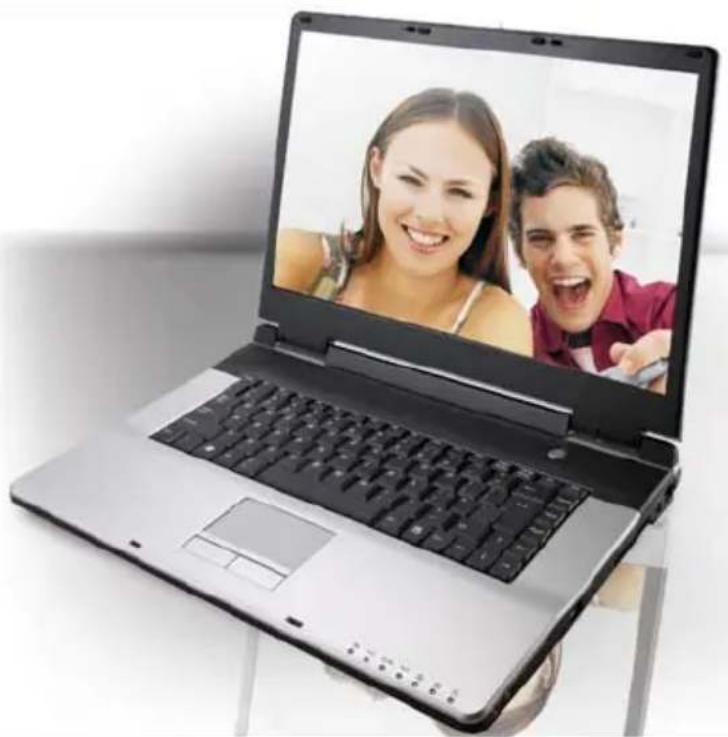
Do it All with the Everex StepNote N Series Notebook Computer. Preinstalled with Microsoft® Windows® XP Home Edition and running on the power of an Intel® Processor, the latest PCs from Everex lets you create your own CDs, surf the Internet or watch DVDs, all on a 15.4" widescreen display. StepNote: The Perfect blend of Value and Performance.
natural_image
Laptop displaying a photo of two smiling people, one with a smile and the other laughing (no text or symbols visible)
StepNote N Series Notebooks*
15.4" WXGA Widescreen Display
Microsoft® Windows® XP Home Edition
Intel® Processor
Lithium-Ion Battery
User Manual
*Covers Models NM3500W, NM3700W, NM3900W, NM4100W
Copyright ©2006All Rights Reserved - Printed in Taiwan
Notebook Computer User Guide
Original Issue: 2006/5
This manual guides you in setting up and using your new notebook computer. Information in this manual has been carefully checked for accuracy and is subject to change without notice.
No part of this manual may be reproduced, stored in a retrieval system, or transmitted, in any form or by any means, electronic, mechanical, photocopy, recording, or otherwise, without prior written permission.
Trademarks
Product names used herein are for identification purposes only and may be the trademarks of their respective companies.
Microsoft, Windows XP, and Windows Sound System are trademarks of Microsoft Corporation.
Intel ^® , Intel ^® Celeron ^® M are registered trademark of Intel Corporation.
Sound Blaster, Sound Blaster Pro are trademarks of Creative Technology.
All other brands or product names mentioned in this manual are trademarks or registered trademarks of their respective companies.
FCC Information to User
Safety and Care Instructions
No matter what your level of experience with computers, please make sure you read the safety and care instructions. This information can help protect you and your computer from possible harm.
Radio and television interference
Warning: Use the specified shielded power cord and shielded signal cables with this computer, so as not to interfere with radio and television reception. If you use other cables, it may cause interference with radio and television reception.
This equipment has been tested and found to comply with the limits for a Class B digital device, pursuant to Part 15 of the FCC Rules. These limits are designed to provide reasonable protection against harmful interference in a residential installation. This equipment generates, uses and can radiate radio frequency energy and, if not installed and used in accordance with the instructions, may cause harmful interference to radio communications.
However, there is no guarantee that interference will not occur in a particular installation. If this equipment does not cause harmful interference to radio or television reception, which can be determined by turning the equipment off and on, the user is encourage to try to correct the interference by one or more of the following measures:
- Reorient or relocate the receiving antenna
- Increase the separation between the device and receiver
- Connect the device into an outlet on a circuit different from that to which the receiver is connected.
- Consult the dealer or an experienced radio/television technician for help.
You may find helpful the following booklet, prepared by the Federal Communications Commission: Interference Handbook (stock number 004-000-00345-4). This booklet is available from the U.S. Government Printing Office, Washington, DC20402
Warning: The user must not modify or change this computer without approval. Modification could void authority to this equipment.
FCC RF Exposure
FCC RF Radiation Exposure Statement:
This Transmitter must not be co-located or operating in conjunction with any other antenna or transmitter.
This equipment complies with FCC RF radiation exposure limits set forth for an uncontrolled environment. This equipment should be installed and operated with a minimum distance of 20 centimeters between the radiator and your body.
15.247 (b)(4), the EUT meets the requirement that it be operated in a manner that ensures the public is not exposed to radio frequency energy levels in excess of the Commission's guidelines (1.1307, 1.1310, 2.1091 and 2.1093)
Canadian Department of Communications Compliance Statement
This Class B digital apparatus meets all requirement of the Canadian Interference-Causing Equipment Regulations.
Shielded Cables Notice
All connections to other computing devices must be made using shielded cables to maintain compliance with FCC regulations.
Peripheral Devices Notice
Only peripherals (input/output devices, terminals, printers, etc) certified to comply with Class B limits may be attached to this equipment. Operation with non-certified peripherals is likely to result in interference to radio and TV reception.
Optical Disk Drive Notice
The optical disk drive is Class 1 Laser Product.
Caution
Changes or modifications not expressly approved by the manufacturer may void the user's authority, which is granted by the Federal Communications Commission, to operate this computer.
Use Conditions
This part complies with Part 15 of the FCC Rules. Operation is subject to the following conditions: (1) this device may not cause harmful interference, and (2) this device must accept any interference received, including interference that may cause undesired operation.
European Notice
For the following equipment: Everex StepNote Notebook

text_image
CE !Is herewith confirmed to comply with the requirements set out in the
Council Directive on the Approximation of the Laws of the Member
States relating to Electromagnetic Compatibility (89/336/EEC), Lowvoltage
Directive (73/23/EEC) and the Amendment Directive
(93/68/EEC), the procedures given in European Council Directive 99/5/EC and 89/3360EEC.
The equipment was passed. The test was performed according to the following European standards:
EN 300 328-2 V.1.2.1 (2001-12)
EN 301 489-1 V.1.3.1 (2001-09) / EN 301 489-17 V.1.1.1 (2000-09)
EN 50371: 2002
EN 55022: 2001
EN 55024: 2001
EN 60950: 2000
EN 61000-3-2: 2000
EN 61000-3-3: 1995 + A1: 2001
802.11b Restrictions:
- European standards dictate maximum radiated transmit power of 100mW EIRP and frequency range 2.400-2.4835GHz;
- In France, the equipment must be restricted to the 2.4465-2.4835GHz frequency range and must be restricted to indoor use."
About Your Notebook Computer

natural_image
Symbol of a person sitting at a desk with a horizontal line above it, representing dining or waiting (no text or numbers present)Congratulations for having purchased your new Everex StepNote. This computer incorporates the latest in notebook designs with the newest technologies available.
About Your User Guide
natural_image
3D illustration of a layered, multi-layered book or document with blue, yellow, and green sections (no text or symbols visible)Welcome to your Everex StepNote User Guide. This manual introduces you to the basic concepts of your new computer.
Chapter 1 Introduction
Chapter 2 Getting Started
Chapter 3 Using Your Notebook Computer
Chapter 4 Multimedia Setup
Chapter 5 Connecting External devices
Chapter 6 System BIOS Setup
Chapter 7 Upgrade Options
Chapter 8 Care and Maintenance
Appendix A System Specifications and Norton Installation
Appendix B System Recovery, Driver and Norton Installation
Table of Contents
ABOUT YOUR NOTEBOOK COMPUTER....7
ABOUT YOUR USER GUIDE......8
1 INTRODUCTION....13
1.1 FEATURE HIGHLIGHT.... 14
1.2 UNPACKING THE COMPUTER 16
1.3 THE INSIDE OF THE NOTEBOOK .... 16
Notebook Status Icons .... 19
1.4 THE FRONT SIDE OF THE NOTEBOOK 21
1.5 THE REAR SIDE OF THE NOTEBOOK 21
1.6 THE LEFT SIDE OF THE NOTEBOOK....23
1.7 THE RIGHT SIDE OF THE NOTEBOOK.... 24
1.8 THE UNDERSIDE OF THE NOTEBOOK.... 25
1.9 NOTEBOOK ACCESSORIES....28
1.10 NOTEBOOK OPTIONS 29
2 GETTING STARTED 31
2.1 USING THE BATTERY PACK 32
Extending Battery Life 34
2.2 CONNECTING THE AC POWER SOURCE.... 35
2.3 STARTING YOUR COMPUTER 36
2.4 ADJUSTING THE DISPLAY CONTROLS 38
2.5 TURNING OFF YOUR COMPUTER 38
3 USING YOUR NOTEBOOK 39
3.1 STARTING YOUR OPERATING SYSTEM....40
3.2 UNDERSTANDING THE KEYBOARD FUNCTIONS...... 40
Basic Keyboard Functions 43
Cursor Control Keys 44
Screen Control Keys 45
Windows Hot Keys.... 45
Special Function Keys 45
3.3 USING THE TOUCHPAD POINTING DEVICE.... 46
3.4 CONFIGURING YOUR SCREEN DISPLAY 48
Possible Display Configurations.... 49
Changing the Display Properties under Windows.... 49
3.5 KNOWING THE POWER SAVING FEATURES 50
3.6 WORKING WITH THE BUILT-IN HDD 51
3.7 HOW TO ACCESS THE OPTICAL DRIVE.... 52
4 FUN WITH MULTIMEDIA 55
4.1 NOTEBOOK MULTIMEDIA FEATURES.... 56
4.2 AUDIO SOUND SYSTEM FEATURES 56
4.3 SETTING UP THE AUDIO DRIVER PROPERTIES 57
4.4 WINDOWS MULTIMEDIA PROGRAMS 57
4.5 RECORDING SOUNDS 58
Using an External Microphone.... 61
Using the Built-in Optical Drive.... 61
4.6 PLAYING AUDIO AND SOUND 62
Using the Windows Media Player.... 63
4.7 PLAYING VIDEO AND MPEG FILES 63
4.8 USING DVD 64
5 CONNECTING TO PERIPHERALS...... 67
5.1 USING THE USB PORT 68
5.2 USING AN EXTERNAL MONITOR PORT 69
5.3 USING THE EXTERNAL AUDIO SYSTEM 70
5.4 USING THE LAN PORT 71
5.5 USING THE WIRELESS LAN....72
5.6 USING THE MODEM PORT 72
6 CUSTOMIZING YOUR NOTEBOOK....75
6.1 RUNNING THE BIOS SETUP PROGRAM 76
6.2 USING THE MAIN MENU SETUP 78
6.2.1 Internal HDD Sub-Menu 80
6.2.2 Internal Optical Drive Sub-Menu 81
6.3 USING THE ADVANCED CMOS SETUP....82
6.4 SECURITY MENU SETUP 84
6.5 USING THE BOOT SETUP 86
6.6 HOW TO EXIT THE SETUP PROGRAM....87
6.7 HOW TO UPGRADE THE BIOS....88
7 USING OPTIONS 89
SYSTEM UPGRADE....90
7.1 MEMORY UPGRADE....90
Installing Memory Module 91
7.2 HARD DISK UPGRADE....92
7.3 WIRELESS MODULE INSTALLATION....94
8 CARING FOR YOUR NOTEBOOK 95
8.1 IMPORTANT SAFETY INSTRUCTIONS 96
8.2 CLEANING YOUR COMPUTER....98
8.3 MAINTAINING THE LCD QUALITY 99
8.4 MAINTAINING YOUR HARD DISK 99
8.5 BATTERY CARE GUIDELINES 100
8.6 WHEN YOU TRAVEL 101
APPENDIX A SYSTEM SPECIFICATION.... 103
SYSTEM SPECIFICATION.... 104
Processor Unit....104
System Memory.... 104
LCD Display.... 104
VGA System.... 104
Storage.... 105
Audio System 105
Touchpad....105
Keyboard 105
Flash BIOS 106
I/O Ports 106
Wireless devices 106
AC/DC Power Supply Adapter.... 106
Battery 106
Weight and Dimension 106
APPENDIX B SYSTEM RECOVERY, DRIVER AND NORTON INSTALLATION....107
SYSTEM RECOVERY.... 108
DEVICE DRIVERS INSTALLATION.... 111
Installing Windows XP from Optical Disk Drive.... 111
driver installation note:.... 112
Installing the Chipset Driver.... 112
Installing the VGA Device Driver 112
Installing the Audio Device Driver 113
Installing the Modem Device Driver.... 113
Installing ENE - Keyboard Controller driver 114
Installing the Wireless LAN Device Driver.... 114
Installing the LAN Device Driver.... 115
NORTON INSTALLATION 115
Technical Support.... 120
1 Introduction

natural_image
Illustration of a presenter pointing to two stylized human figures (green and teal) with a pointer, no text or symbols present.Your Everex Computer is a fully Windows® compatible portable computer. With the latest features in mobile computing and multimedia technology, this notebook is a natural choice for uses seeking portability and performance.
Your Everex StepNote N Series Notebook runs a wide variety of business, personal productivity, entertainment and professional applications and is ideal for use in the office, home and on the road.
1.1 Feature Highlight
Before we identify each part of your Everex StepNote Notebook, we will first introduce you to other notable features of your computer.
Processing Unit
- Your notebook runs on Intel® Celeron® M Dothan microprocessor that is integrated with 1MB L2 Cache. Check with your dealer on the CPU type and speed.
- Fully compatible with an entire library of PC software based on operating systems such as Windows XP.
Memory
This notebook provides two memory slots for installing DDRII SDRAM 200-pin SODIMM modules up to 2GB using 256MB, 512MB or 1024MB DDRII SDRAM modules.
Wide Screen LCD Display
Provides extraordinary 15.4"1280 x 800 (16:10) wide screen LCD display. It is the best choice for you to watch DVD movie.
Wireless LAN
IEEE 802.11b/g, Mini PCI Module (BTO)
Optical Drive
Provides the DVD Dual or DVD/CD-RW Combo.
USB 2.0
Provides three USB2.0 ports for fastest I/O data transmission.
Graphic System
Provides blazing graphics controller embedded in VIA VN800 chipset
PCI Local Bus Architecture
- 32-bit PCI Enhanced IDE optimizes the data transfer between the CPU and PATA hard disk drives. Support ultra DMA ATA-133 PIO Mode up to PIO Mode 4, bus mastering for LBA Scheme.
Audio System
Full-duplex 16-bit stereo audio system output. Sound Blaster compatible.
Flash BIOS
Flash BIOS allows you to easily upgrade the System BIOS using the Phoenix Flash utility program.
Power and System Management
- Integrated SMM (System Management Mode) on system chipset that shuts down components not in use to reduce power consumption. To execute power management, you can set up the parameter in Power Options properties by pointing your mouse to Control Panel of Windows.
- Closing the Notebook computer (lowering the cover) allows you to suspend the system operation instantly and resume at the press of the power button.
- System Password for User and Supervisor included on the BIOS SETUP Program to protect unauthorized use of your computer.
1.2 Unpacking the Computer
Your computer comes securely packaged in a sturdy cardboard shipping carton. Upon receiving your computer, open the carton and carefully remove the contents. In addition to this User Guide, the shipping carton should also contain the following items:
The Notebook Computer
☑ An AC Adapter and AC Power Cord
Li-Ion Battery Pack
☑ CD with Driver Utility and User Guide
Carefully inspect each component to make sure that nothing is missing and/or damaged. If any of these items is missing or damaged, contact Everex (see Page 120). Be sure to save the shipping materials and carton in case you need to ship the computer or store for an extended period of time.
1.3 The Inside of the Notebook
The notebook computer is compact with features on every side. First, look at the inside of the system. The following sections describe inside features.

text_image
Laptop screen diagram with numbered labels pointing to key components-
Color Widescreen LCD Display 2. Built-in Stereo Speaker
-
Keyboard 4. Touchpad Pointing Device
-
Power On/Resume Button 6. LED Indicators
• Color Widescreen LCD Display
The notebook computer comes with a color LCD that you can adjust for a comfortable viewing position. The LCD is 15.4" TFT color LCD with 1280x800 (Wide XGA with ratio 16:10) resolution panels. The features of the Color LCD Display are summarized as follows:
TFT color LCD with Widescreen 15.4" 1280x800 (Wide XGA) resolution panels.
↓ Capable of displaying 16M colors (32-bit true color).
↓ LCD display control hot-keys allows you to adjust the brightness of the LCD.
↓ Simultaneous display capability for LCD and external desktop computer monitor.
• Built-in Stereo Speaker
Integrated mini stereo speaker provides sound and audio output for your multimedia presentations or listening pleasure.
- Keyboard
Standard QWERTY-key layout and full-sized 87 keys keyboard with Windows system hot-keys, embedded numeric keypad, 6 hot keys, inverted "T" cursor arrow keys, and separate page screen control keys.
↓ Wide extra space below the keyboard panel for your wrist or palm to sit-on comfortably during typing.
- Touchpad Pointing Device
Microsoft mouse compatible with two Touchpad click buttons. The two select buttons located at each side support tapping selection and dragging functions. These buttons work like a standard computer mouse. Simply move your fingertip over the Touchpad to control the position of the cursor. Use the selection buttons below the Touchpad to select menu items.
• Power On/Resume Button
Switches the computer power on and off, or resumes whenever it is in Suspend mode.
- LED Indicators
Keeps you informed of your notebook computer's current power status and operating status. Description of the status icons appears in the latter part of this section.
NOTEBOOK STATUS ICONS
The Status LED Panel keeps you informed of the notebook's current power and operating status. Each LED is marked with an icon to designate the system status.

flowchart
graph TD
    A["Step 1: Radio icon"] --> B["Step 2: Input icon"]
    B --> C["Step 3: Database icon"]
    C --> D["Step 4: Wireless signal icon"]
    D --> E["Step 5: Lock icon"]
    E --> F["Step 6: Up/down arrow icon"]
    F --> G["Step 7: Lock icon"]
-
Power Indicator 2. Battery Charging LED
-
Drive Access 4. Wireless LAN Access
-
Caps Lock 6. Scroll Lock
-
Num Lock
- Power Indicator
Lets you know that power to the system is turned on. This LED is positioned so that you can see the power state whether the LCD panel is opened or closed.
↓ Lights green when the system is powered on.
↓ Lights green blinking when the system is in Standby mode.
↓ Lights yellow when the battery power is low.
↓ Lights orange when the battery power is critical low.
- Battery Charging LED
Lights to indicate battery in charging status.
↓ Lights orange to indicate that the battery is in charging.
↓ When the light is off, it indicates the battery is fully charged or no battery installed.
- Drive Access
When LED turns on indicates that the system is accessing the Hard Disk or Optical Disk Drive.
- Wireless LAN Access
When LED turns on indicates that the wireless LAN module is activated. When LED lights off, it indicates that the function is disabled.
- Caps Lock
When LED turns on indicates that the Caps Lock key on the keyboard is activated. When activated, all alphabet keys typed in will be in uppercase or capital letters.
- Scroll Lock
When LED turns on indicates that the Scroll Lock key on the keyboard is activated. The Scroll Lock key has different functions depending on the software you are using.
- Num Lock
When LED turns on indicates that the Num Lock key on the keyboard is activated. When activated, the embedded numeric keypad will be enabled.
1.4 The Front Side of the Notebook

natural_image
Diagram of a mechanical component with labeled parts (no text or symbols on the object itself)1. Cover Switch
- Cover Switch
The cover (LCD panel) is locked when it is closed. Slide the button right aside to release the latch for opening the cover of the computer.
1.5 The Rear Side of the Notebook
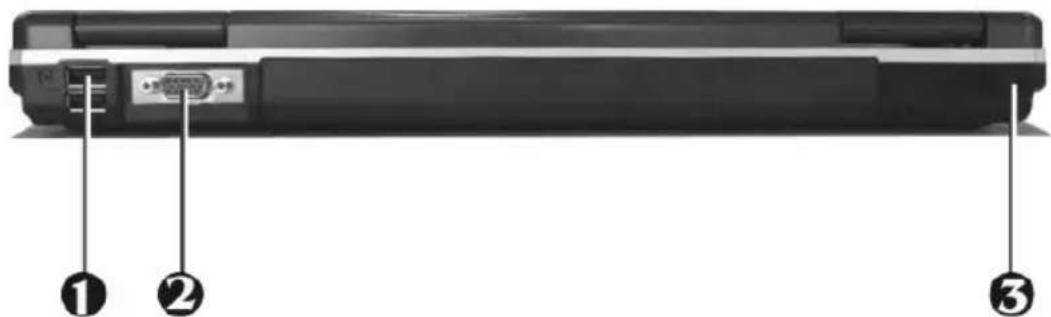
The system ports at the back of your notebook computer can connect various devices. Each port is described in detail:
text_image
Diagram of a computer rear panel with labeled ports and connectors, showing numbered annotations for identification.-
USB 2.0 Ports 2. VGA Port 3. Kensington Lock Hole
-
USB 2.0 Ports
The Universal Serial Bus (USB) port allows you to connect USB 2.0-compliant devices (for example, printers, scanners and so on) to your notebook computer. - VGA Port
Lets you attach an external monitor or projector for wider display. You can run the LCD display and the external monitor simultaneously or switch it to monitor only using the display hot-key. - Locking Device Keyhole
Lets you attach a Kensington security system or a compatible lock to physically secure your notebook computer.
1.6 The Left Side of the Notebook
The left side of your notebook computer provides the features shown in the following figure.

natural_image
Diagram of a mechanical component with two labeled parts (① and ②), no text or symbols present.1. Modem Port 2. Optical Disk Drive
- Modem Port
A 56K internal fax/data modem is installed. It keeps you connected to the outside world through phone line.
+ For electrical safety concerns, only use telephone cables rated 26AWG or higher.
When using your telephone equipment, basic safety precautions should always be followed to reduce the risk of fire, electric shock and injury to persons, including the following:
-
Do not use this product near water, for example, near a bath tub, wash bowl, kitchen sink or laundry tub, in a wet basement or near a swimming pool.
-
Avoid using a telephone (other than a cordless type) during an electrical storm. There may be a remote risk of electric shock from lightning.
- Do not use the telephone to report a gas leak in the vicinity of the leak.
- Use only the power cord and batteries indicated in this manual. Do not dispose of batteries in a fire. They may explode. Check with local codes for possible special disposal instructions.
- Optical Disk Drive
Allows you to load and start programs from a compact disc (CD) or a digital video disc (DVD) and play conventional audio CDs. It also can make CD/DVD by using CD-R/RW or DVD-R/RW.
1.7 The Right Side of the Notebook
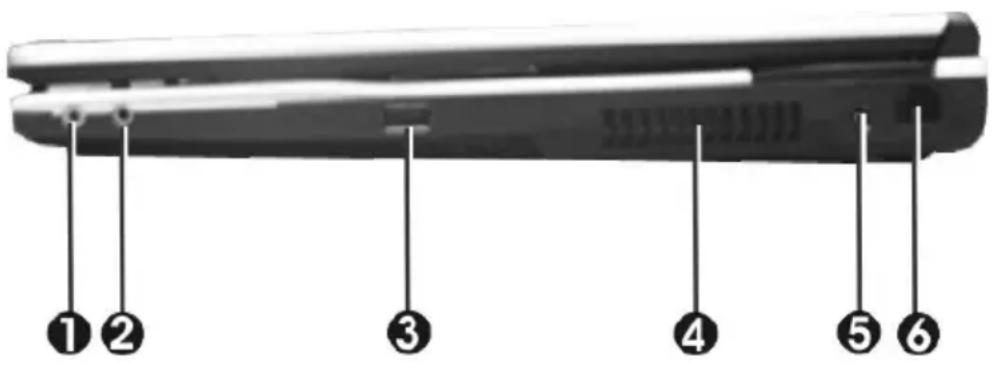
The right side of the notebook computer offers the features shown in the following figure.
text_image
Diagram of a mechanical component with six labeled parts, likely for assembly or identification.- Microphone Jack 2. Headphone Jack
- USB 2.0 Port 4. Air-Outlet Vent
- DC Power Port 6. LAN Port
Right Side Features
- Microphone Jack
Allows you to connect an external microphone for monophonic sound recording directly into your notebook computer.
• Headphone Jack (with SPDIF out)
Lets you plug in a stereo headphone, powered speaker, or earphone set with 1/8 inch phono plug for personal listening. (The SPDIF transmits digitized audio signal by optical fiber. The external audio amplifier can get the best audio quality without loss.)
- USB 2.0 Port
The Universal Serial Bus (USB) port allows you to connect USB 2.0-compliant devices (for example, printers, scanners and so on) to your notebook computer.
- Air-Outlet Vent
Emits the heat out of your computer and keeps it within operating temperature.
- DC Power Port
Lets you connect the AC power adapter in supplying continuous power to your notebook and recharging the battery.
• LAN Port
An internal 10Base-T/100Base-TX Ethernet LAN module connects your computer to other computers/networks through a local area network (LAN).
1.8 The Underside of the Notebook
The bottom of the notebook computer offers the following features.

text_image
Labeled diagram of a laptop chassis showing six numbered components for identification- Hard Disk Compartment 2. Battery Lock Latch
- Battery Bay 4. Wireless LAN Compartment
- Memory Compartment 6. Battery Release Latch
Bottom of the System
• Hard Disk Compartment
Open this cover of this compartment to replace with other Hard Disk Drive. Please refer to Chapter 7 for how to replace it.
- Battery Lock Latch
Push the latch to the right side to lock and secure the battery. This action is available to release the battery when the battery lock latch has located to unlock status at the left side.
- Battery Bay
Equipped with a choice of Lithium-Ion (Li-Ion) battery pack.
• Wireless LAN Compartment
This compartment is for installing Wireless LAN module to enable the Wireless LAN function. We strongly suggest that Wireless LAN module should be installed only by certified dealer.
• Memory Compartment
There are two SO-DIMM memory slots in the bottom side.
- Battery Release Latch
To release the battery, first locate the Battery Lock Latch at the left side in unlock status, then push the Battery Release Latch to the right end to remove the battery pack.
1.9 Notebook Accessories
AC Adapter
The AC Adapter supplies external power to your notebook computer and charges the internal battery pack simultaneously. The AC adapter has an auto-switching design that can connect to any 100VAC \~ 240VAC power outlets. Change the power cord if you are going to use your notebook in countries with different connector outlets.
When you connect the AC adapter, it charges the battery whether or not the notebook computer is powered on.
Battery Pack
Aside from the AC adapter, your computer can also be powered through the internal battery pack. The battery pack uses rechargeable Lithium-Ion (Li-Ion) battery cells that provide long computing hours when fully charged and power management enabled. You should always leave the battery inside your computer even when using the AC adapter as it also acts as a back-up power supply in case power from the AC adapter is cut off. It is also very important to have the battery pack always charged to prevent battery cell degradation.
1.10 Notebook Options
DVD/CD-RW Combo Device Pack
This device pack can write data to CD-R or CD-RW CD for you to backup the data and also can read DVD/CD title.
DVD dual (Dual Rewritable DVD combo) Device Pack
This device pack combines following two standard packs. Using the suitable media, you can make any format of CD or DVD as you want.
DVD-RW combo:
This device pack can write data to CD-R or CD-RW and DVD-R or DVD-RW media and also can read DVD/CD title. This media is commonly used on DVD video player.
DVD+RW combo:
This device pack can write data to CD-R or CD-RW and DVD+R or DVD+RW media for you to backup the data and also can read DVD/CD title. This media is commonly used on newer DVD video player.
2 Getting Started
natural_image
Illustration of a padlock with two keys, one green and one yellow, no text or symbols present.Your Notebook is designed and pre-configured for easy setup and use. This chapter describes the installation steps you should follow to get the notebook up and running as quickly as possible.
2.1 Using the Battery Pack
The notebook is designed to operate with one of the following power sources:
- With AC power using the AC adapter connected to an electrical outlet.
- With a Lithium-Ion (Li-Ion) battery pack.
You should use the AC adapter whenever it is possible, relying on the battery pack only when AC power is unavailable.
Before you use your notebook computer, install and recharge the battery pack first. The rechargeable Li-Ion battery pack allows you to operate the notebook without an external power source. When you connect the AC power adapter, the battery immediately starts to recharge. For maximum battery performance, fully discharge the battery before recharging it the first time. To do so, unplug the AC adapter, turn off power management features (through Setup and Windows), and turn on the system. Once the battery is fully discharged, plug in the AC adapter and recharge the battery.
If you do not discharge the battery completely, it fails to accept a full recharge.
+ Li-Ion battery is vulnerable, do not charge it with other power adapter, or it may cause fire or explosion.
Installing the Battery Pack
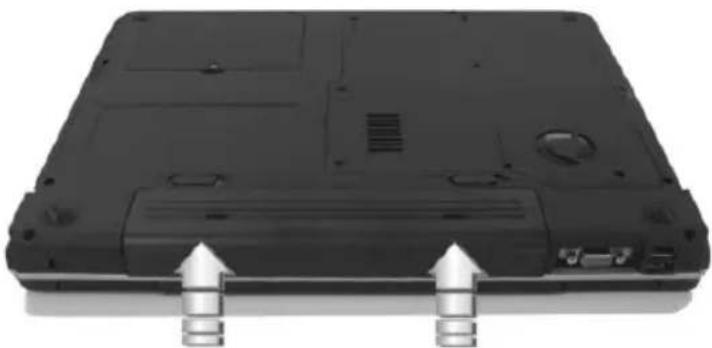
This notebook provides the most convenient way to install the battery pack into your computer. With the extended nose directed toward the compartment, insert and push the battery pack.
natural_image
Back view of a black laptop with two white arrows pointing to the front panel (no text or symbols visible)Removing the Battery Pack
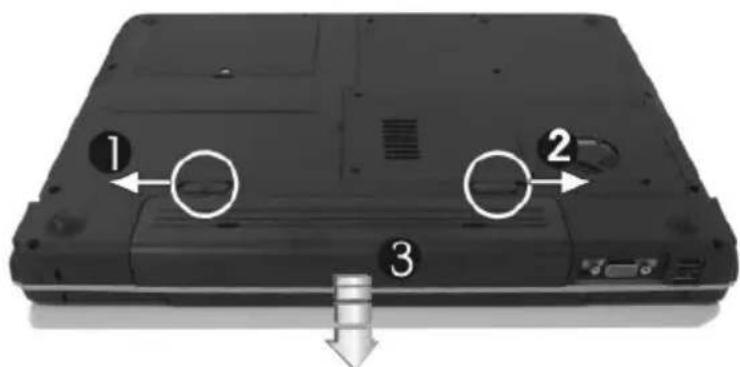
To remove the battery pack, slide the lock latch to the end of left side to unlock the battery lock latch (1), then slide the battery release latch to the end of right side to release the battery latch (2), and take out the battery pack with your finger (3) simultaneously.
text_image
Laptop front panel with numbered arrows indicating left, center, and bottom views of the lidReplacing the Battery Pack
When your notebook estimates that the battery only has enough charge to continue for a few minutes, it will alert you with a battery low warning beep. If you are consuming a lot of power by using the audio system, the hard disk drives, and optical disk drive, your notebook might run out of charge much sooner than you expect. You should always respond to the battery low indication by connecting to AC power or turning off your notebook, or suspending your notebook to disk. If you do not do so, the notebook will automatically suspend to disk and turn off. The contents of the memory will store in the hard disk drive. You will be unable to restart the notebook until you have connected to the AC adapter or installed a charged battery. To replace the battery pack, refer to the previous sections on "Installing the Battery Pack" and "Removing the Battery Pack."
- For Window XP, the suspend mode (Hibernate or Standby) can be chosen at Power Options of Windows's Control Panel)
- Be sure to save your data before replacing the battery pack or connecting the AC adapter. Failure to do so can result in data loss.
EXTENDING BATTERY LIFE
It is important to be aware of the simple things for extending the life of the system main battery while you are on the road. You should find a working place where the external lighting is not too bright and turn down the screen brightness. Also, you can choose the available mode on the Power Management item of the Control Panel in Windows.
2.2 Connecting the AC Power Source
The AC adapter provides external power source to your computer and charges the internal battery pack at the same time. The AC adapter also has an auto-switching design that can connect to any 100VAC \~ 240VAC power outlets.
To connect the power adapter:
-
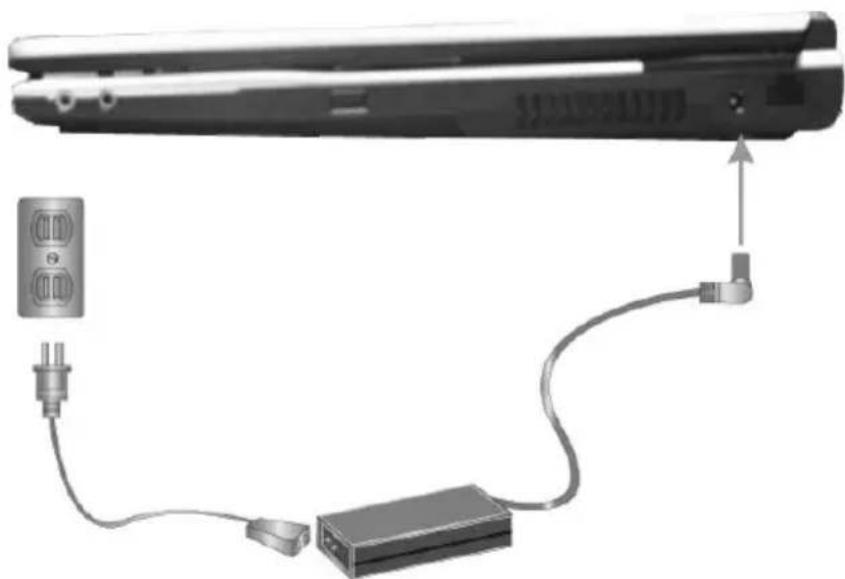
Plug the AC power cord into the power socket of the AC power adapter.
-
Plug the other end of the AC power cord to a live AC wall outlet.
natural_image
Diagram of a device cable connection showing cable routing from a battery pack to an external connector (no text or symbols present)- Plug the connector of the AC adapter to the DC-IN port found at the left side of the computer.
+ Whenever possible, it is advisable to always have the AC adapter connected to the notebook and the battery pack installed. This ensures continuous power supply and prevents any data loss incurring from sudden power breakdown.
- • For the power supply of this equipment, an approved power cord has to be used.
• Make sure the socket and any extension cord(s) you use can support the total current load of all the connected devices. - Before cleaning the computer, make sure it is disconnected from any external power supplies (i.e. AC adapter).
2.3 Starting Your Computer
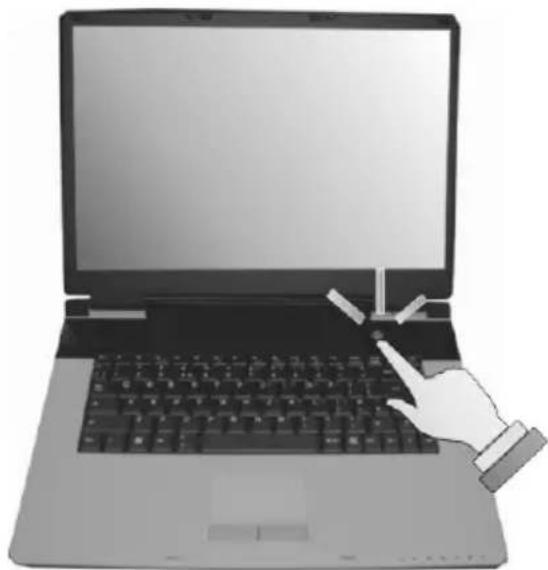
The Power/Resume button is found on the top of the base unit. Press the Power/Resume button to start your computer and check that if the Power LED turns on.
natural_image
Illustration of a hand interacting with a laptop keyboard (no text or symbols visible)After a few seconds, the computer's display will turn on and your computer will begin to execute the Power On Self Test or POST to check if all system components are running properly. Any error found during the test will be displayed on the screen and may generate short beep sound as well.
After the test, the screen will also display a message "press
After the test has completed, your computer will start to search and boot up the operating system from your hard drive. The notebook computer normally comes with a Windows operating system pre-installed in your hard drive. Consult the Windows manual on how to use the program. If not, contact your dealer for assistance.
2.4 Adjusting the Display Controls
The LCD brightness adjustment is controlled by
The Brightness hot-key control adjusts the brightness on the LCD. The brightness hot-key control will not set the LCD completely dark or bright; it provides sufficient lighting to the LCD to match the external lighting of the surrounding. The brighter the room, the more you need to increase the brightness of the LCD.
2.5 Turning off Your Computer
If you are not going to use the computer for a while, it is best to turn off the power of the computer. Before turning off the power, you need to first close all application programs and shut down the operating system.
After turning off the computer, make it a habit to leave the LCD panel open for a while whenever used for an extended period of time. This allows the inside parts of the computer to cool off. Closing the panel will force the heat up against the LCD screen, which may degrade the LCD when done regularly. More importantly, never close the LCD panel for a long period of time when computer is on and power saving features are disabled.
3 Using Your Notebook

natural_image
Illustration of two people interacting at a desk with a laptop and documents (no text or symbols visible)This chapter describes how to operate the standard built-in features of the Everex StepNote. If you are unfamiliar with personal computers or the Microsoft® Windows® operating system, in addition to this chapter, we recommend reading the Windows® Help and Support page located on your computer.
3.1 Starting Your Operating System
The operating system is the software foundation for your computer. It is the platform for all your software application programs to run on. The most popular operating system today is Microsoft® Windows®. The StepNote computer comes with an operating system pre-installed and needs only to be setup and configured during initial use.
3.2 Understanding the Keyboard Functions
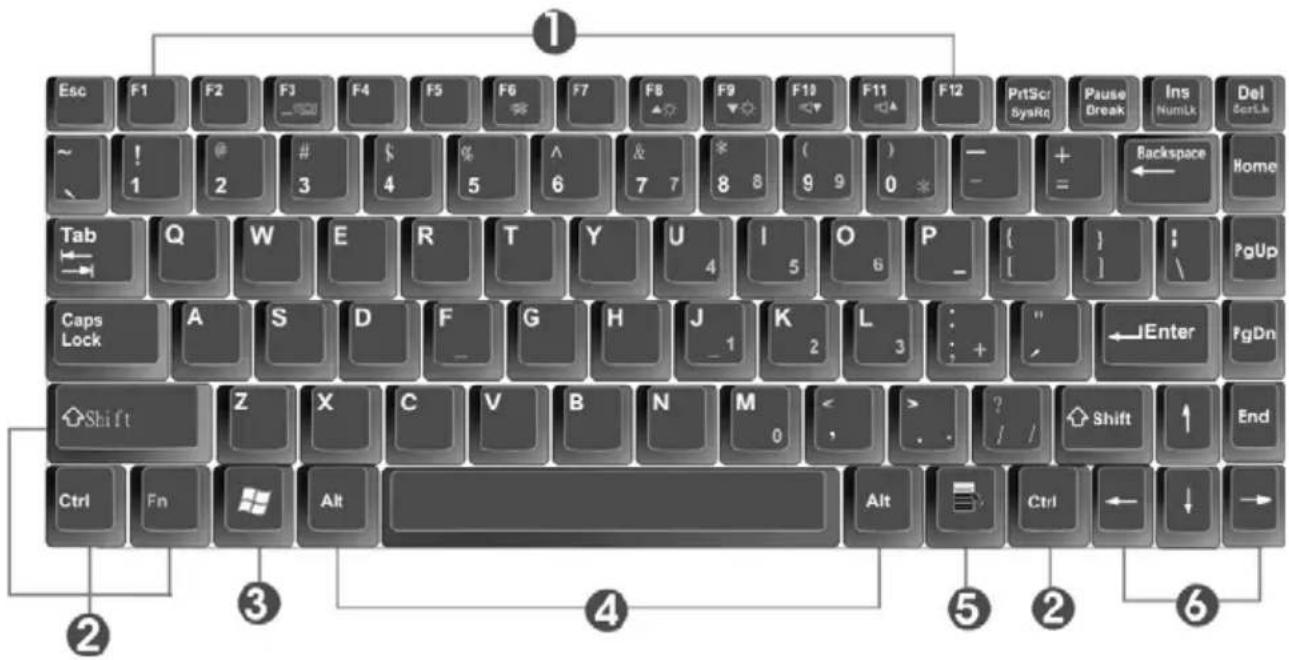
Your notebook computer is equipped with an 87 keys keyboard that provides all the functionality of a full-sized 101 or 102-key keyboard. Aside from the standard typewriter-layout keyboard of your computer, there are a number of extra features and function controls on the built-in keyboard including Windows system hot keys.
text_image
Esc F1 F2 F3 F4 F5 F6 F7 F8 F9 F10 F11 F12 PrtScr Pause Ins Del ~ ! @ # § % A & * ( ) - + Backspace Home 1 2 3 4 5 6 7 8 9 0 * - = ← Home Tab Q W E R T Y U I O P { } PgUp Caps Lock A S D F G H J K L : " ←Enter PgDn Shift Z X C V B N M < , ? / / Shift ↑ End Ctrl Fn Alt Alt Ctrl ← ↓ → ② ③ ④ ⑤ ② ⑥-
Function Keys 2. Control Keys
-
Windows Start Menu Key 4. Control Keys
-
Windows Shortcut Key 6. Cursor Control Keys
Keyboard
Key features and operations are described below:
- Function Keys
Function keys are application-driven, like F1 through F12 can be found on the keyboard. These keys work together with the Fn key to activate special functions. Some keys (printed in blue on keypad) are preprogrammed with dual functions.
- Control keys — Ctrl, Alt, Fn, and Shift are controls used in conjunction with other keys to change their functions. To use control keys, press and hold the control key while pressing another key. For example, "Press Ctrl-C" means to hold down the Ctrl key and type the letter C. Key combinations work especially to the application you are running.
- Windows keys
Use the following two keys to facilitate your work:
↓ Start Menu key Displays the Start menu.
Shortcut/Application key Provides quick access to shortcut menus. This key acts like a right mouse button.
- Cursor Control keys
Cursor control keys let you position the cursor on the screen where you want. In the screen, the cursor is a blinking underline, block, or vertical bar depending on the application. The cursor indicates where the next text typed is inserted.
- Typewriter keys
Typewriter keys (also called alphanumeric keys) are used to enter text and characters. Keys with blue print on them behave differently when combined with control keys.
BASIC KEYBOARD FUNCTIONS
| Keypad Function Description | |
 | key. Execute a command. Within many text editing application programs, thekeyinserts a hard carriage return, just like what ordinary typewriter does. |
 | key. Press this key to cancel or escape from a command or function. |
 | key. Known as the Insert key. Press this key to toggle the keyboard data entry from insert to type over mode. |
 | key. Known as the Print Screen key. Press this key to map the whole screen to share memory for your specific usage. |
 | key. Known as the Delete key. Press this key to delete the character to the right of the cursor, or delete marked texts or items. |
 | key. Press this key to temporarily halt execution of a command. Pressing any other key to resume execution of a command. |
 | key. Press this key to delete the character to the left of the cursor. |
 | key. Press this key in combination with alphabet letters to produce uppercase letters in typing. Use this key in combination with those two-character keys (found on the second row of the keyboard) to produce the upper marked keys. Also used in most application program in combination with other keys to execute a certain command. |
 | key. Press this key to move the cursor to the next tab stop on the right. This key works much the same as in ordinary typewriter. |
 | key. Known as the Control key. Used in most application program in combination with other keys to execute a certain command. |
 | key. Known as the Alternate key. Used in most application program in combination with other keys to execute a certain command. |
 | +key. Activates the embedded 15-key numeric keypad. The keys are color coded blue. |
 | key. Used in most application program to always activate uppercase alphabet characters. |
 | +key. Used in most application program to scroll the screen without having to move the cursor. |
CURSOR CONTROL KEYS
| Keypad Function Description | |
 | Up arrow key.Moves the cursor up one line at a time. |
 | Down arrow key.Moves the cursor down one line at a time. |
 | Left arrow key.Moves the cursor to the left one space at a time. |
 | Right arrow key.Moves the cursor to the right one space at a time. |
SCREEN CONTROL KEYS
| Keypad Function Description | |
 | key. Moves the cursor to the beginning of a screen or line. |
 | key. Moves the cursor up one screen at a time |
 | key. Moves the cursor down one screen at a time |
 | key. Moves the cursor to the end of a screen or line. |
WINDOWS HOT KEYS
| Keypad Function Description | |
 | key. Pulls up the Windows Start menu. |
 | key. Performs a mouse right-click function for Windows system. |
SPECIAL FUNCTION KEYS
The notebook has special system function keys that activate key serving dual functions. When pressed in conjunction with the
| Keypad Function Description | |
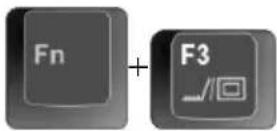 | Switches display between LCD, CRT, or LCD and CRT simultaneously. |
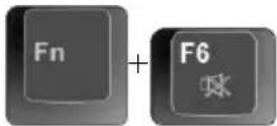 | To shut down or resume the built-in system speaker volume. |
 | Increases the brightness of LCD display incrementally. |
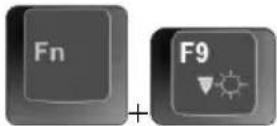 | Decreases the brightness of LCD display incrementally. |
 | Decreases the audio volume of the notebook incrementally. |
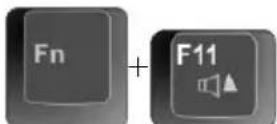 | Increases the audio volume of the notebook incrementally. |
3.3 Using the Touchpad Pointing Device
Your computer comes with a built-in Touchpad pointing device that is found on the center of the palm-rest surface.
The Touchpad offers a number of options that let you customize how it
functions. To access these options, locate the Control Panel and double click on the Mouse icon. The options let you control the size and color of the cursor, cursor speed, the accepted double-click speed, and selection button orientation.
The Touchpad works a mouse pointing device replacement that is used under Windows-based operating system. You can use the standard Microsoft driver that is compatible with the Touchpad device and is normally used under Windows-based operating system. However, if you want to utilize the added features of the Touchpad, you may want to try installing its own device driver that comes with added utilities for enhancing the function of the device.
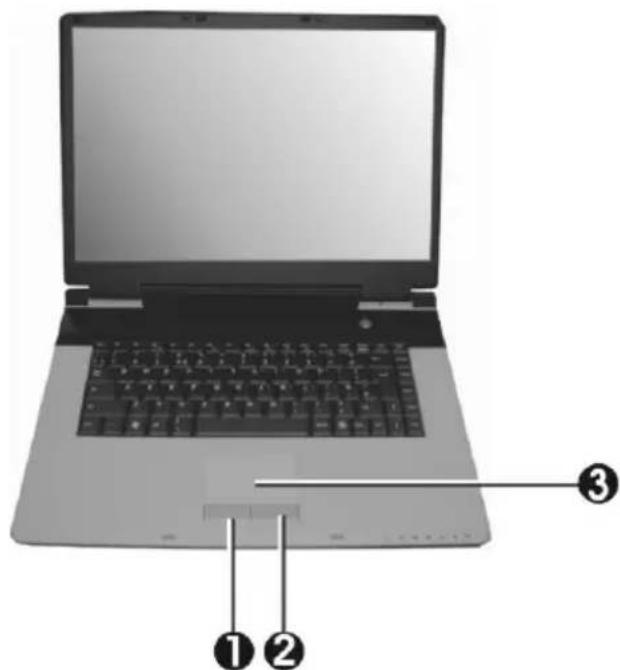
text_image
Laptop screen diagram with labeled parts showing front, back, and keyboard connections-
Left Selection Button 2. Right Selection Button
-
Touchpad
Touchpad Features
Here how to use the Touchpad pointing device:
- The rectangular surface acts like a miniature duplicate of your display screen. To move the mouse cursor, place the finger lightly on the sensor pad and move in the desired direction. If you reach the end of the pad, lift your finger and place it back down on the other side of the pad.
- To select an item, click on the item by pressing the left button control or by simply tapping on the surface once. A light, quick tap always works best. To execute an item, click the left button twice or do a quick double tap on the surface.
- To simulate holding the mouse button down (dragging an icon or selection), use the tap-and-drag gesture. This feels much like a double-click, except that the finger remains on the pad after the second tap: Tap, lift, tap, hold and move. The simulated button remains held as long as the finger remains on the pad.
- Avoid spilling any liquid on the Touchpad surface and always keep the Touchpad surface and pointing finger dry from sweat built-up. Also do not expose Touchpad to any magnetic source object.
3.4 Configuring Your Screen Display
The VGA display function of your notebook is based on a high performance AGP local bus controller and is fully VGA compatible. This controller offers a large set of extended functions and higher resolutions especially useful when you are connecting an external high-resolution and high-frequency CRT or LCD.
Please Refer to Section 5 "Installing the Notebook Device Drivers" of Chapter 2 in this manual for the procedures on how to install the VGA device driver
under Windows. After installing the VGA driver, you would then configure the display resolution or screen size to match your LCD display panel. This notebook computer model provides Wide screen 15.4" 1280x800 (Wide XGA) resolution panels. You would also probably want to set the amount of color output to display sharper images and photos.
POSSIBLE DISPLAY CONFIGURATIONS
The table below shows you the possible display resolution you can set when using either the LCD display or the external monitor (CRT):
| Display Possible Resolution | Maximum Colors | |
| Widescreen15.4” WXGA LCD | 1280x800(Maximum Resolution) | 16 million colors |
| CRT Only 800x600 | 1024x7681152 x 7681280x1024 | 16 million colors16 million colors16 million colors16 million colors |
+ 65,536 or 64K colors is also equivalent to 16-bit high color while 16 million or 16M colors is equivalent to 32-bit true color.
+ You can use the
CHANGING THE DISPLAY PROPERTIES UNDER WINDOWS
To change the display properties of your screen under Windows system, just right-click on the desktop area and select Properties or go to the Control Panel and click on the Display icon. The Display Properties dialog box will appear on
your screen. Click on the Settings tab to set your desired configuration. Make sure to follow the configuration table above.
+ If you cannot configure the display properties, change the display driver first as mentioned on Section 5 "Installing the Notebook Device Drivers" of Chapter 2 in this manual. Consult your dealer for the latest Windows VGA driver.
3.5 Knowing the Power Saving Features
Aside from its superior performance, one of the great features in your notebook computer is the ability to conserve power. Your computer is designed to incorporate intelligent and advanced power management functions that turn off power of most components when system is idle or not in use. This feature not only gives you longer battery life but also cools the systems and components as well. For more information on how to control the power management features of your computer, refer to the Power Options function in Control Panel of Windows.
The definitions of Standby Mode, Hibernation Mode, and Shutdown are depicted as follows:
Standby Mode
Standby Mode is mainly for power saving. When the Standby Mode is activated, your display and hard drive are shut down and all open applications and documents are stored in RAM (Random Access Memory). This allows your notebook to wake up quickly, but a low level of power is required to maintain this suspended state. How quickly your system powers down into Standby mode is up to you by setting proper times in Power Options of Control Panel in Window. While the notebook is in Standby mode, the LED
of power indicator flashes. To resume your working again, you can press the power button to return your work to the screen where you left off.
Hibernation Mode
In Hibernation mode, all system devices are powered down and the contents of RAM are stored on your hard drive. Hibernate mode uses less power than Standby mode, but takes a bit longer time to resume. When your notebook goes into hibernation, Windows saves your entire desktop state before powering down your computer. You don't need to save and close each document before you put your notebook into hibernation. When you press power button again, system will bring your notebook out of hibernation. You'll find your applications and documents open on your desktop exactly as you left them.
+ Hibernation is enabled by default. To verify that Hibernation is enabled, Click Start, point to Settings, and then click Control Panel. Choose Power Options icon, then click on the Hibernate tab. IF the chock box of Enable Hibernate is selected, the Hibernation mode is enabled.
Shutdown
All power has been turned off from the notebook. This means that no power including external AC power source and battery power source will be consume by the notebook.
3.6 Working with the Built-in HDD
Your notebook computer is equipped with a built-in large capacity 2.5 inch hard disk drive where you store and run your computer's operating system and application software programs.
+ If you wish to replace your hard disk, contact Everex (see page 120) for more information about upgrading your computer.
3.7 How to Access the Optical Drive
Your system ships with an optical disk drive installed on the left side of your computer. You would normally use the drive for installing operating system and software application programs.
To insert and remove a disc on the drive:
-
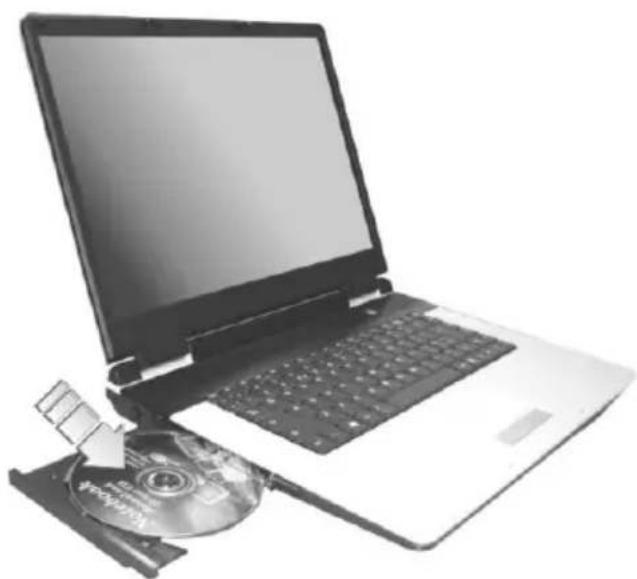
Make sure the computer is turned on. Press the eject button found on the door cover of the optical drive. The DVD/CD tray mechanism will pop-out slightly and slowly pull out the whole length of the tray.
-
Place the disc on top of the DVD/CD tray with the label side facing up. Gently press the compact disc onto the center spindle to secure the disc.
natural_image
Laptop with CD inside and a partially open disc, no visible text or symbols- To remove the disc, press on the center spindle and pull up the disc from the side until the disc snaps out of the spindle lock.
+ If the eject function is disabled by software or a power failure occurs, the Emergency Eject Hole allows you to manually remove a CD from the reader.
- To close the optical drive, simply push the CD tray inside. The optical drive LED will activate when the disc is detected. Wait until the LED has turned off and then start to read the disc.
How to care for Optical Disks (CDs, DVDs, etc.)
When you handle CDs and DVDs, pay attention to the following guidelines:
• Always pick up the disk by its edges.
- Avoid scratching or soiling either side of the disk.
- Do not write with the hard ball-point pen or apply labels on either side of the disk.
- Keep the disk away from direct sunlight or high temperatures.
- Clean fingerprints or dust from the disk by wiping it with a soft cloth.
The above points also apply to other optical storage media.
+ The optical drive is a Class 1 Laser Product.
4 Fun with Multimedia

natural_image
Illustration of a gray square electronic device with circular top and side ports, enclosed in a circular frame (no text or symbols)This chapter describes how to make full use of the multimedia features available on your Everex computer. You will learn how to adjust and alter the built-in sound system and use the optical disk drive to view and create multimedia files.
4.1 Notebook Multimedia Features
Your notebook computer is rich in multimedia features that make your computing fun, comfortable, exciting and easy. Your computer is well able to perform all multimedia tasks through the following:
- Intel® Celeron® M Processor Dothan
- Up to 2GB DDRII SDRAM
• DVD/CD-RW Combo or DVD Dual (Optional) - Integrated VIA VN800 graphics engine.
• 16-bit Audio Sound System with built-in speaker and microphone.
4.2 Audio Sound System Features
Your computer has a built-in 16-bit stereo sound controller that allows you to record, store, and playback voice, music and other sound effects with built-in mixer controls. An integrated full-duplex microphone and mini-speaker also allows you to record and playback sound anytime and anywhere.
On the left side of your computer, you will find the audio ports that include the following:
- External 1/8-inch microphone jack that connects external microphone for recording purpose.
- Earphone or headphone jack for personal listening.
• Sound volume adjust by K/B hot-key
4.3 Setting up the Audio Driver Properties
Your StepNote computer comes with Microsoft® Windows® pre-installed, and does not need additional audio driver setup. If you wish to customize the audio properties of our computer, visit the Windows® Help and Support document located on your computer
4.4 Windows Multimedia Programs
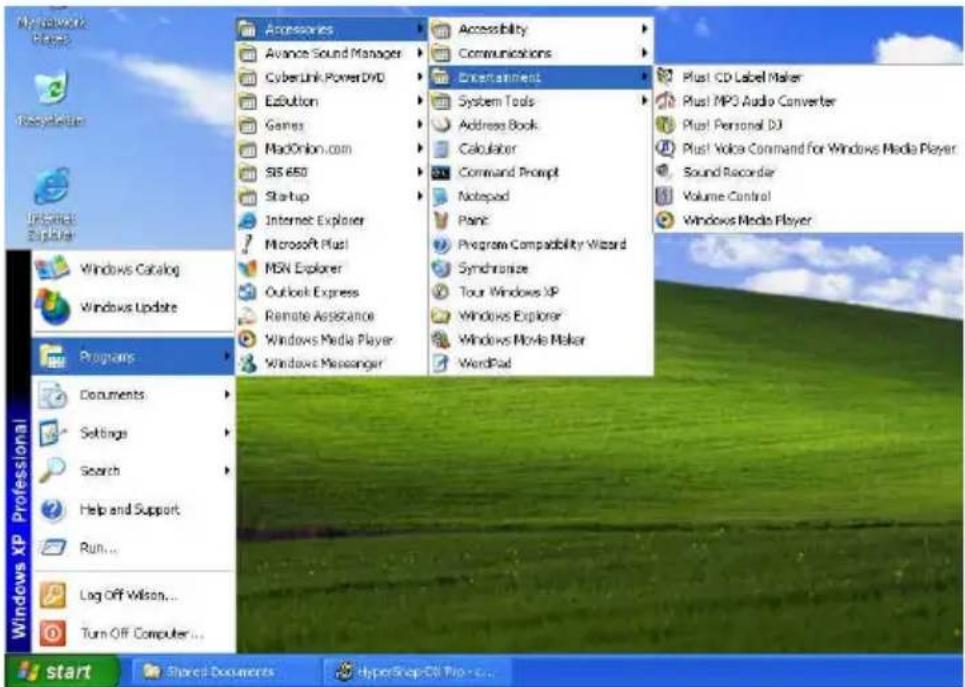
Windows provides several multimedia programs that you can run with the built-in features of your computer. Pointing the Start button, Programs, Accessories, then Entertainment, you will find the Multimedia programs group. (The section below use Window XP as examples)
text_image
MyNetwork Play2 RecycleBar Business Explorer Windows Catalog Windows Update Programs Documents Settings Search Help and Support Run... Log Off Wilson... Turn Off Computer... Accessories Avance Sound Manager CyberLink Power DVD ExButton Games MacOnion.com SIS 650 Startup Internet Explorer Microsoft Plus1 MSN Explorer Outlook Express Remote Assistance Windows Media Player Windows Messenger Accessibility Communications Entertainment System Tools Address Book Calculator Command Prompt Notepad Plant Program Compatibility Wizard Synchronize Tour Windows XP Windows Explorer Windows Movie Maker WordPad Plus! CD Label Maker Plus! MPO Audio Converter Plus! Personal DJ Plus! Voice Command for Windows Media Player Sound Recorder Volume Control Windows Media Player Windows XP Professional start Shared Documents HyperSnap-69 Pro-68...Figure 4-1 Entertainment Programs Group
The standard multimedia components are as follows:
- Windows Media Player - for playing sound, video and animation files
• Sound Recorder - for recording sounds and playback
• Volume Control - for adjusting the volume of mixer
+ For more information on how to operate these multimedia components, run the program and click on the Help menu.
4.5 Recording Sounds
Your computer allows you to record voice and other sounds in several ways and stores them as files on your hard disk. These voice or sound files can then be played back through the internal speaker or earphone jack using an external speaker, headphone, or earphone set. You can also use the files as voice annotations on many applications for more real presentation. This section will describe briefly how you can record sounds under Windows operating system.
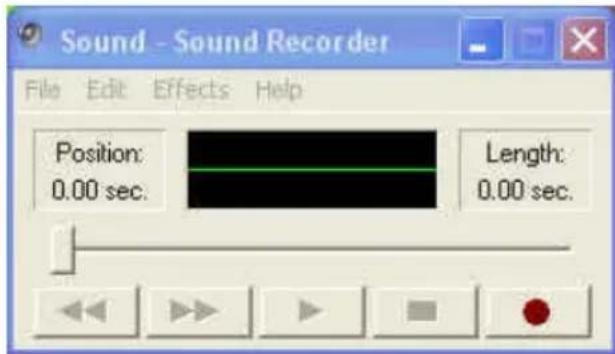
To record sounds, you need to run the Sound Recorder program from the Multimedia program groups. The control buttons of the Sound Recorder are simple to understand which comprise of the Fast Rewind, Fast Forward, Play, Stop, and Record buttons. Click the Help menu on how to operate the Sound Recorder.
text_image
Sound - Sound Recorder File Edit Effects Help Position: 0.00 sec. Length: 0.00 sec.Figure 4-2 Sound Recorder
The Sound Recorder also allows you to record sound from different input audio source like the following:
• From the external microphone
• From the Optical drive
Since you could record sound from different input sources, you must first set the proper audio input recording device under the Recording Control panel. To do this:
- Double-click on the Volume Control on the taskbar or click Start button, then point to Programs, Accessories, Entertainment and then click on Volume Control.
- Click Properties in the Options main menu.
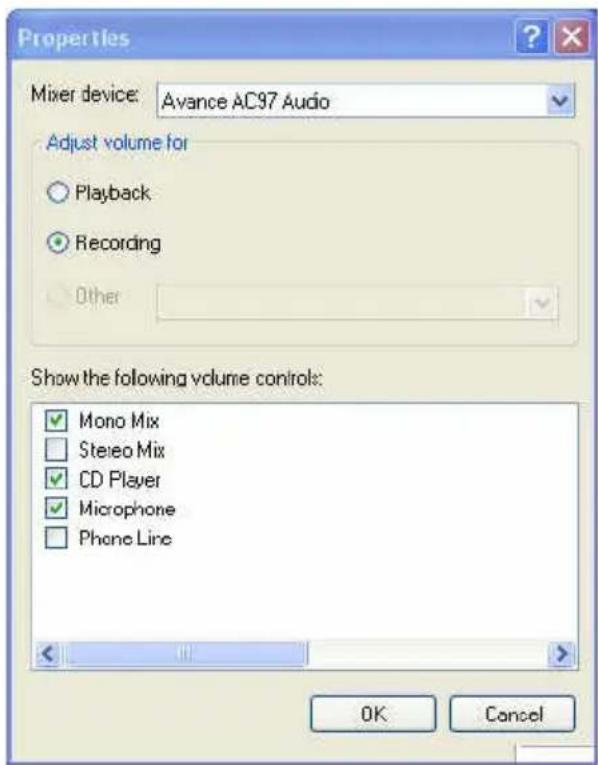
- Click the round button for Recording and tick off each component that list in the "Shows the following Volume Controls" box.
text_image
Properties Mixer device: Avance AC97 Audio Adjust volume for ○ Playback ● Recording Other Show the following volume controls: ✓ Mono Mix □ Stereo Mix ✓ CD Player ✓ Microphone □ Phone Line OK CancelFigure 4-3 Audio Properties
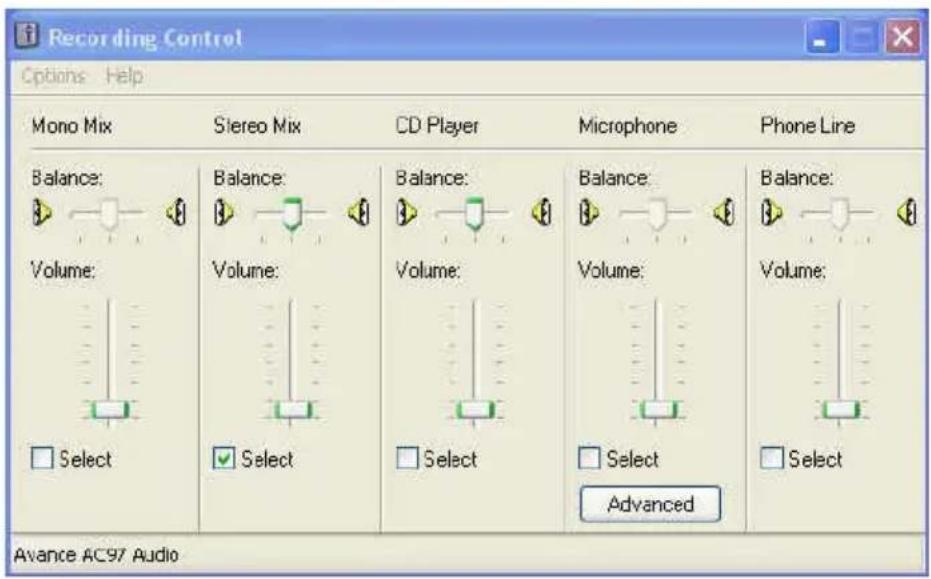
- Click OK and the Recording Control dialog box will appear. Here, you will select the input device for the recording source. If you want to record from the optical drive with audio music, you must click on CD Player.
text_image
Recording Control Options Help Mono Mix Stereo Mix CD Player Microphone Phone Line Balance: Volume: Select Balance: Volume: Select Balance: Volume: Select Balance: Volume: Select Balance: Volume: Select Advanced Avance AC97 AudioFigure 4-4 Recording Volume Control
USING AN EXTERNAL MICROPHONE
Your computer allows you to connect an external microphone for high quality recording. The external microphone jack is found on the left side of your computer. Use only microphone with 1/8-inch mini-jack connector. Follow the same procedure for recording voice.
USING THE BUILT-IN OPTICAL DRIVE
You would normally use the optical drive for recording audio music from the Audio CD. Follow these steps:
- Activate CD Player volume on the Recording Control as discussed earlier.
- Run the Sound Recorder program.
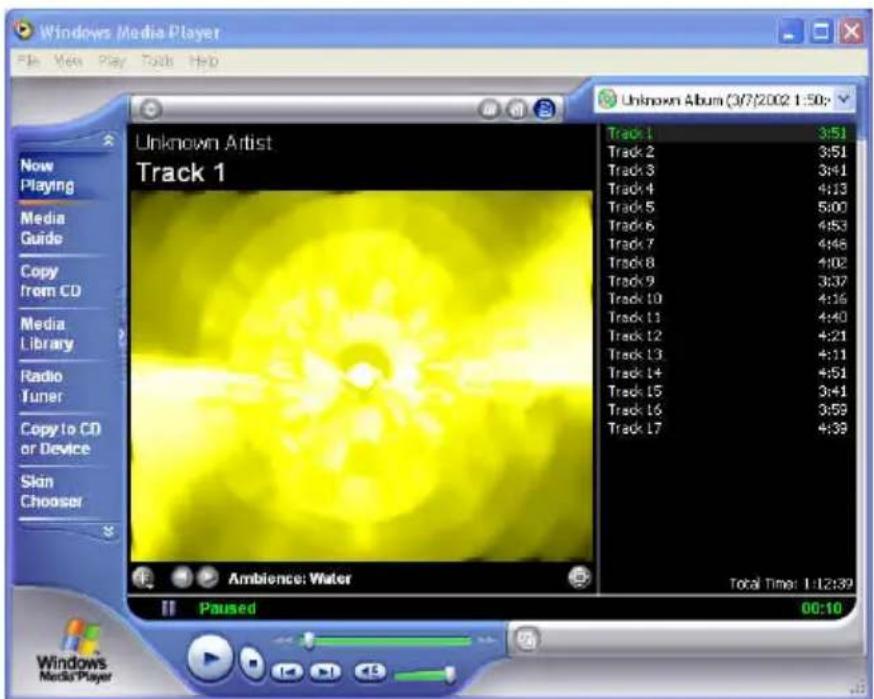
- Insert the audio CD into the optical drive. Unless you have disabled the CD auto-insertion notification for supporting Suspend mode, the CD Player should automatically run after you have inserted an audio compact disc and will start playing the audio CD.
text_image
Windows Media Player File View Play Tools Help Unknown Album (3/7/2002 1:50): Track 1 Track 1 3:51 Track 2 3:51 Track 3 3:41 Track 4 4:13 Track 5 5:00 Track 6 4:53 Track 7 4:46 Track 8 4:02 Track 9 3:32 Track 10 4:16 Track 11 4:40 Track 12 4:21 Track 13 4:11 Track 14 4:51 Track 15 3:41 Track 16 3:59 Track 17 4:39 Ambience: Water Total Time: 1:12:39 Paused 00:10Figure 4-5 Play Audio CD by Windows Media Player
- Select the starting point where you want to start recording.
- Switch to the Sound Recorder and press the Record button.
- Switch immediately to the Windows Media Player and press the Play button. You can adjust the volume control so you can also hear the music while in recording.
4.6 Playing Audio and Sound
Your computer has built-in one speaker to playback audio and sound. You can also adjust the volume manually by adjusting the volume control hotkeys found on the keyboard.
For more quality sound output, you can choose to connect an external amplified speaker or earphone from headphone jack. Always minimize the volume first before placing the phone set to your ear.
The easiest way to playback multimedia media files is to run the Windows Media Player. Follow these steps:
- Click on Start, point to Programs, Accessories, and then Entertainment.
- Click on Windows Media Player to start program.
- Click on the File menu and select the file you want to play.
- When the file is recognized and open, click on the Play button to start playback.
4.7 Playing Video and MPEG Files
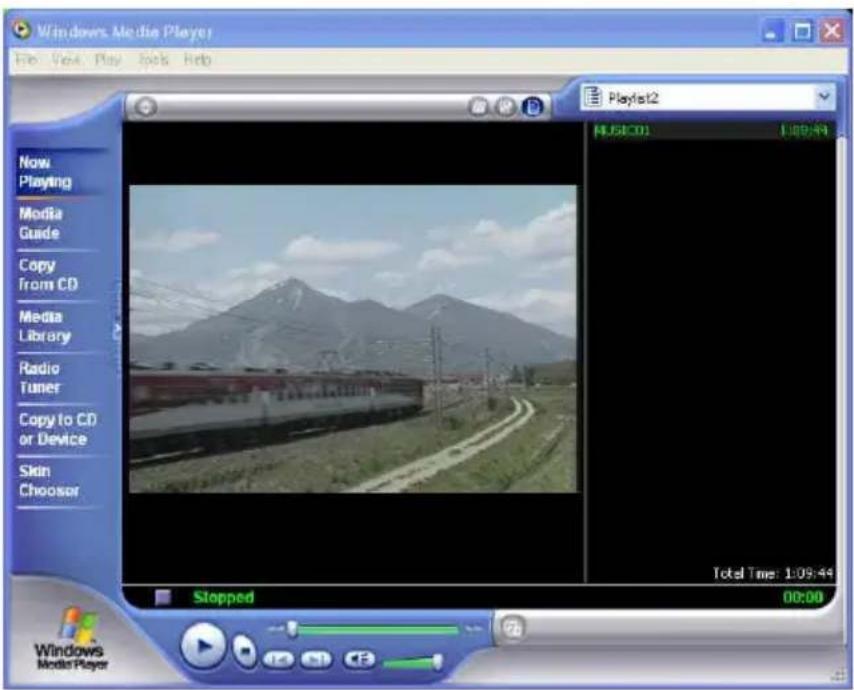
Your computer is capable of running video motion files as well as MPEG (Motion Picture Expert Group) files on CD, DVD, or CD-RW. By using software MPEG program, you can watch real full-motion picture on your computer. You can also run the Windows Media Player under the Entertainment programs group as well to show all media device programs.
text_image
Windows Media Player File Edit Play Tools Help Now Playing Media Guide Copy from CD Media Library Radio Tuner Copy to CD or Device Skin Chooser Playt12 4:50:01 1:09:44 Total Time: 1:09:44 Stopped 00:00 Windows Media PlayerFigure 4-6 Windows Media Player
4.8 Using DVD
DVD is the breakthrough in superb full-motion picture playback. One disc can contain at least 4.7GB of information, capable of holding one full-length movie with soundtracks, subtitles, and different languages. Much more, the DVD-ROM drive of your computer is backward compatible with CD-ROM drive so it allows you to use any CD as well. It also works the same as the CD-ROM.
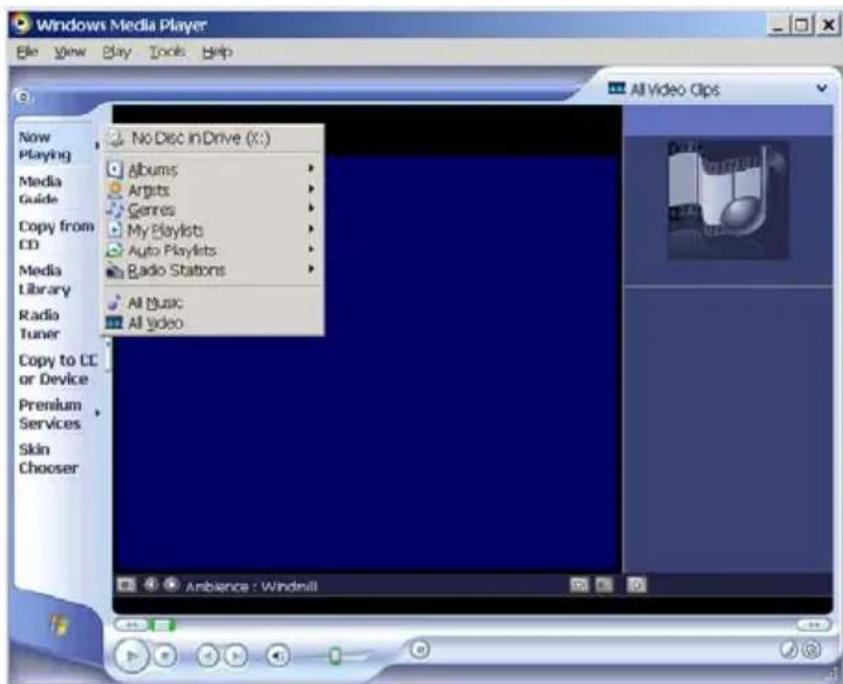
To playback DVD titles, you would need a software MPEG-2 program and the DVD-ROM drive at least. Your Notebook computer has installed Windows XP for operation system and its Windows Media Player supports DVD's playback..
You can use Windows Media Player to watch DVDs on your Notebook computer. Like a conventional DVD player, by using the Player, you can skip to specific titles and chapters, play sequences in slow motion, gain access to special features, and switch audio and caption languages. In addition to these conventional DVD player tasks, you can also retrieve information about each disc from the Internet.
text_image
Windows Media Player File View Play Tools Help Now Playing Media Guide Copy from CD Media Library Radio Tuner Copy to CC or Device Premium Services Skin Chooser No Disc in Drive (X:) Albums Articts Genres My Playlists Auto Playlets Radio Stations All Music All Video Ambience : WindmillFigure 4-7 To play a DVD
On the Play menu, point to DVD, VCD or CD Audio, and then click the drive that contains the DVD. In the Playlist pane, click a DVD title, or chapter name, if appropriate.
To eject a disc, on the Play menu, click Eject. To play a selected title in a DVD repeatedly, on the Play menu, click Repeat. A check mark appears next to the command to indicate it is turned on.
4.9 Using Rewritable Optical Disk Drive
DVD/CD-RW Combo Device Pack
This device pack can write data to CD-R or CD-RW CD for you to backup the data and also can read DVD/CD title.
DVD dual (Dual Rewritable DVD combo) Device Pack
This device pack combines following two standard packs. Using the suitable media, you can make any format of CD or DVD as you want.
DVD-RW combo:
This device pack can write data to CD-R or CD-RW and DVD-R or DVD-RW media and also can read DVD/CD title. This media is commonly used on DVD video player.
DVD+RW combo:
This device pack can write data to CD-R or CD-RW and DVD+R or DVD+RW media for you to backup the data and also can read DVD/CD title. This media is commonly used on newer DVD video player.
+ Please pay attention to the copyright of the software or data you want to backup. Backup or distribute the software or data might be illegal according the restriction of the law.
5 Connecting to Peripherals
natural_image
Illustration of two computer monitors with a cable, no text or symbols presentThis chapter describes how you attach additional peripheral devices to your notebook*. The Everex StepNote allows you to add a printer or mouse; connect an external monitor and keyboard, or other compatible peripheral device. Use of additional devices is described in this chapter.
* Additional peripheral devices sold separately
5.1 Using the USB Port
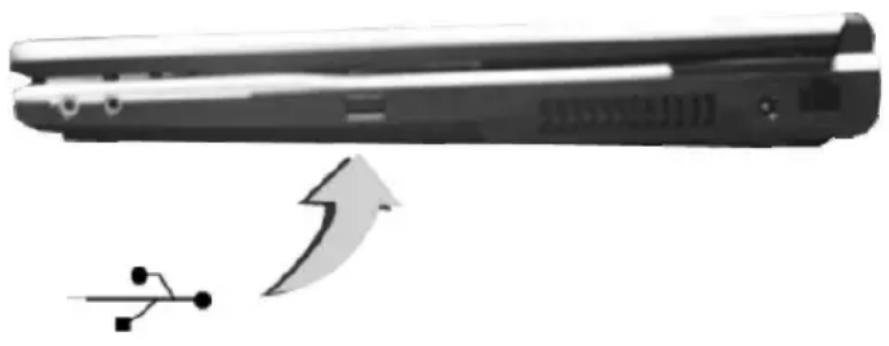
USB (Universal Serial Bus) is a hardware interface that enables you to connect multiple devices (such as printers, mice, keyboards, storage devices, joysticks, digital cameras, and video conference cameras, etc.) to your notebook computer, and up to 127 devices can be attached. Besides, USB's hot swap capability allows everything to be plugged in and unplugged without turning the system off.
Microsoft, HP, Compaq, Intel, Agere, NEC and Philip are seven core members of USB-IF to have worked on USB 2.0 standardization. USB 2.0 offers data transfer rate up to 480Mbps (megabits per second) compared to USB 1.1 devices, which transfer at speeds of 12Mbps. So, you could know that USB 2.0 can transfer data between the computer and its peripherals 40 times faster than USB 1.1. However, USB 2.0 is fully backward compatible, you will be able to use a USB 1.1 device in a USB 2.0 compliant system.
natural_image
Diagram of a mechanical component with an arrow indicating direction, no visible text or symbols+ Depending on your operational requirements, you may need to disable other ports in order to release system resource for the USB port.
+ The USB bus distributes 0.5 amps (500 milliamps) of power through each port. For the purpose of power saving, please disconnect your USB device while not in use.
5.2 Using an External Monitor Port
Your computer has a 15-pin Monitor port for supporting any external CRT or LCD color monitor. You need a display signal cable (usually provided with the monitor). One end of the cable must have a 15-pin connector for the system.
To connect an external monitor:
- Turn off your computer and make sure the monitor power switch is turned off.
+ The notebook computer must be powered off or suspended while the monitor is being connected. Although you can connect the external Monitor without power off the computer and the external monitor, however, it is harmful to both devices and it shortens the life of these devices.
-
Connect the connector cable of the monitor to the VGA port at the back of your computer. Secure the cable connection with the screws provided.
-
Connect the monitor power cable and plug it into a properly grounded wall outlet.
-
Turn on the power of the monitor.
-
Turn on your computer. Both the LCD panel and the monitor screen will show the display. Your computer is set at default to run at simultaneous display mode.
-
If you only want to show the display on the external monitor or projector and shut off the LCD display, you can use the
+ hot-key to switch display type between LCD and external monitor. Keep pressing the hot-key until you get the display to external monitor only.

natural_image
Illustration of a computer monitor connected to a physical device via an arrow (no text or symbols present)+ Refer to Chapter 3 regarding the possible External CRT resolutions and how to change the display properties.
5.3 Using the External Audio System
At the left side of your computer, you will find the built-in audio ports. You can connect Microphone jacks, earphone or powered speaker.
To connect to a audio jack:
-
Locate the audio port (Microphone, Headphone) that you want to use to the target device.
-
Plug the jack into the port on the left side of the system.
+ If you use external speaker and experience the sound distortion or feedback, please lower the volume. Some factors is caused by too close locating the microphone and speaker from each other, moving away the external audio option from the unit may also help.
5.4 Using the LAN Port
This notebook comes with an internal 10Base-T/100Base-TX LAN module that connects your computer to other computers/networks through a local area network (LAN) and supports data transfer rates at 10Mbps and can be up to 100Mbps. The 10Base-T standard also called Twisted Pair Ethernet is connected with RJ-45 connectors. The 100Base-TX is based on the older Ethernet standard. Because it is 10 times faster than Ethernet, it is often referred to as Fast Ethernet.
The built-in LAN module provides a standard RJ-45 connector.
To connect the twisted-pair cable to your LAN port:
-
Locate the twisted-pair cable in the accessories box in notebook shipping carton. Each end of the cable has a RJ-45 connector.
-
Connect one end of the cable into the network wall outlet or HUB.
-
Connect the other end of the cable into the computer RJ-45 LAN port.

natural_image
Close-up of a black electronic device with a curved cable and arrow indicating motion (no text or symbols)5.5 Using the Wireless LAN
Wireless LAN is the major breakthrough in computer communication technology. It lets user connect to the LAN environment without using any wire to traditional RJ-45 jack. User can enjoy the wireless connection within the range of Access Point (AP) of LAN.
Access Point (AP) is the wireless transmission and receiving device, it generally connects to the server of a LAN environment or act as a LAN hub with wireless connection. Access point can be set in an office environment, airport, major railway station, etc. that depends on the construction of each country. In most case, you probably can use it at office, please consult with the network department of your company for more details.
This computer integrates built-in 802.11 b/g wireless LAN module. IEEE 802.11b standard supports 11 Mbps wireless connection speed. However, IEEE 802.11g supports 54Mbps wireless connection speed, and is backward compatible with the slower 802.11b. Wireless LAN module is similar to LAN module. You need to install software driver before using it. Please refer to chapter 2.5 on how to install the driver.
5.6 Using the Modem Port
This notebook comes equipped with a 56K internal fax/data modem that allows you to communicate with others via fax, email, or to connect to an online service or bulletin board.
The built-in fax/data modem provides on standard phone connector.
To connect the analog phone cable to your modem:
-
Locate the analog phone cable in the accessories box in notebook shipping carton. Each end of the cable has a RJ-11 connector.
-
Connect one end of the cable into a standard wall outlet.
-
Connect the other end of the cable into the computer modem port.

natural_image
Diagram of a mechanical component with a curved wire and arrow indicating motion (no text or symbols)+ The speed of data transmission is dependent on the quality of telephone lines. Digitally terminated lines improve the speed of data transmission. Contact your service provider for more information.
+ The analog phone cable is an industry standard cable. Longer cables are available at your local electronics store.
6 Customizing Your Notebook
natural_image
3D rendering of a retro-style laptop with a blue screen and keyboard (no text or symbols visible)Your computer uses the Phoenix BIOS Setup program allowing your system configuration to be altered to best suit your computing needs: User-adjustable options include system time and date, disk drive configuration and password setup.
BIOS information stored in the CMOS RAM will remain permanent unless changed. Default factory settings are used top optimize performance of your notebook computer and do not need further alteration to operate your computer. Use caution when changing any BIOS settings.
6.1 Running the BIOS Setup Program
Your computer is setup and pre-configured. The computer's BIOS (Basic Input-Output System) Setup program may be used to change system configuration information such as the current date and time, or your hard disk drive type. The Setup program can be accessed when you power on the system and pressing the
The settings that you specify within the Setup program are recorded in a special area memory called the CMOS RAM. This memory is backed up by a battery so that is will not be erased when you turn off or reset the system. Whenever you turn on the computer, the system will read the settings stored in the CMOS RAM and compare them to the equipment check conducted during the Power On Self Test (POST). If an error occurs, an error message will be displayed on the screen, and you will then be prompted to run the Setup Program.
As the POST (Power-On Self Test) executes during the boot up process, the screen will display the following message:
Press to Enter SETUP
Press the
On the BIOS Setup program, you will find the following parts on the screen:
- Item Specific Help
The right side of the screen. This area describes each parameter and its available settings.
- Menu Bar
The top line of the screen. Each of the five selections displays its own screen.
- Parameters
The left side of the screen. This area lists the parameters and their current settings.
• Key Status Bar
The bottom part of the screen. These lines display the keys available to move the cursor, select a particular function and so forth.
To exit the BIOS Setup program, simply press the
6.2 Using the Main Menu Setup
| Phoenix BIOS Setup Utility | |||||
| Main | Advanced | Security | Boot | Exit | |
| Item Specific HelpSystem Time: [07 54 :32 ]System Date: [05/17/2005] orselectsPrimary Master [FUJITSU MHT2040AT-(PM)]Secondary Master [_NEC DVD+/-RW ND-6650A-SSystem Memory: 640 KBExtended Memory: 65535 KBCPU Type: Celeron ® M processorCPU Speed: 1500 MHzCache RAM 1024KBBIOS Version: A.3F-8034-8A20 | |||||
| ,field | |||||
- System Time
Allows you to change the system time using the hour:minute:second format of the computer.
Enter the current time for reach field and use the
You can also change the system time from your operating system.
- System Date
Allows you to set the system date using the month/date/year format. Enter the current time for reach field and use the
You can also change the system time from your operating system.
- Primary Master
This field displays various parameters for the hard disk drive. If type [Auto] is selected, the system automatically sets these parameters. If type [User] is selected, Cylinders, Heads and Sectors and other value can be edited.
- Secondary Master
This field is for information only as the BIOS automatically detects the optical drive.
- System Memory
This field reports the amount of base (or conventional) memory found by the BIOS during Power-On Self-Test (POST).
- Extended Memory
This field reports the amount of extended memory found by the BIOS during Power-On Self-Test (POST).
- CPU Type
This field reports the CPU type information detected by the BIOS during Power-On Self-Test (POST).
- CPU Speed
This field reports the CPU speed information detected by the BIOS during Power-On Self-Test (POST).
- Cache RAM
This field reports the CPU L2 Catch information detected by the BIOS during Power-On Self-Test (POST).
- BIOS Version
This field is for information only as the BIOS displays the BIOS version during the Power-On Self-Test (POST).
6.2.1 INTERNAL HDD SUB-MENU
| Phoenix BIOS Setup Utility | ||||||
| Main | Advanced | Security | Boot | Exit | ||
| Primary Master: [FUJITSU MHT2040AT-(PM)] Item | Specific Help | |||||
| Type: [Auto]LBA FormatTotal Sector: 117210240 drive installed at thisMaximum Capacity: 60012 MB connection.Auto = autotypes Hard-Multi-Sector Transfers: [Disabled]LBA Mode Control: [Enabled] CD-ROM = a CD-ROM32 Bit I/O: [Disabled] drive is installed here.Transfer Mode: [FPIO 4 / DMA 2] ATAPI Removable=Ultra DMA Mode: [Mode 5] removable disk drive isinstalled here. | ||||||
| F1 | Help | ↑↓ | Select Item | -/+ | Change Values | F9 Setup Defaults |
| Esc | Exit | ←--> | Select Menu | Enter | Select ▶ Sub-Menu | F10 Save and Exit |
Use the Type field to select the drive type installed. You can select different drive types as CD-DVD, User, Auto or None by pressing
during power on. Set this option to None when your computer is not installed any devices. Press
6.2.2 INTERNAL OPTICAL DRIVE SUB-MENU
| Phoenix BIOS Setup Utility | |||||
| Main | Advanced | Security | Boot | Exit | |
| Secondary Master: [NEC DVD+/-RW ND-6650A-(SM) Item Specific Help | |||||
| Type: [Auto]Multi-Sector Transfers: [Disabled] drive installed at thisLBA Mode Control: [Disabled] Connection.32 Bit I/O: [Disabled] Auto = autotypes Hard-Transfer Mode: [FPIO 4 / DMA 2] disk drive installed here.Ultra DMA Mode: [Mode 2] CD-ROM = a CD-ROMdrive is installed here. | User you enter = parameters of hard-disk | ||||
| ATAPI Removable=removable disk drive is installed here. | |||||
| F1 Help ↑↓ Select Item -/+ Change Values F9 Setup DefaultsEsc Exit ←--> Select Menu Enter Select ▶ Sub-Menu F10 Save and Exit | |||||
Use the Type field to select the drive type installed. You can select different drive types by pressing
6.3 Using the Advanced CMOS Setup
| Phoenix BIOS Setup Utility | ||||||
| Main | Advanced | Security | Boot | Exit | ||
| Item Specific Help | ||||||
| Quiet Boot Select boot screenSummary Screen [Disabled] Using options:UMA Frame Buffer Size [64MB] - Logo screenLegacy USB Support [Enabled]LAN Boot Control: [Disabled] [Disabled]- POST screenExecute-Disable Bit Capability [Disabled] | [Enabled] | |||||
| F1 | Help | ↑↓ | Select Item | -/+ Change Values | F9 Setup Defaults | |
| Esc | Exit | ←--> | Select Menu | Enter Select ▶ Sub-Menu | F10 Save and Exit | |
- Quiet Boot Lets you specify the boot screen to Logo screen or POST screen by choosing Disabled or Enabled, respectively.
- Summary Screen Displays system configuration on boot.
- UMA Frame Buffer Size Lets you reserve memory space [32MB]/[64MB]/[128MB] for UMA frame buffer for video devices. The default value is [32MB].
- Legacy USB Support Enable or disable the USB Bus support when in connection with USB device.
- LAN Boot Control: Lets you specify Enabled or Disabled for booting the notebook from Network or not.
- Execute-Disable Bit Capability When disabled, forces the Execute-Disable Bit Capability extended feature bit to always return 0. When disabled, forces the Execute-Disable Bit Capability extended feature bit to always return 0.
6.4 Security Menu Setup
| Phoenix BIOS Setup Utility | |||||||
| Main Advanced Security Boot Exit | |||||||
| Item Specific Help | |||||||
| Supervisor Password Is: ClearUser Password Is: Clear Supervisor Password controls access to the Set Supervisor Password [Enter] setup Set User Password [Enter] Password on boot [Disabled] Fixed disk boot sector [Normal] | utility. | ||||||
| F1 Help ↑↓ Select Item -/+ Change Values F9 Setup Defaults Esc Exit ←--> Select Menu Enter Select ▶ Sub-Menu F10 Save and Exit | |||||||
• Supervisor Password Is
Set/Clear selections show that the notebook is under controlled by Supervisor Password or not.
- User Password Is
Set/Clear selections show that the notebook is under controlled by User Password or not.
- Set Supervisor Password
Supervisor password gives you the authority in accessing the setup utility. You also need to enter this password in system booting and resuming from suspend mode. When you press
- Set User Password
This field is only available when Supervisor Password has set. Enter the user password when boot the system or resume from suspend mode. But if the Write Protect is set in the Fixed disk boot sector field, you should enter a supervisor password to access the fixed disk when boot the system or resume from suspend mode.
- Password on Boot
If you set this field to Enabled, your computer will always ask for the password every time you boot your computer.
• Fixed Disk Boot Sector
If you set this field to Write Protect, the write protect boot sector on hard disk will protect against viruses. In this situation, only the supervisor can access the Boot Sector of fixed disk.
6.5 Using the Boot Setup
This item allows you to set the search drive sequence where the system will try to boot up first.
| Phoenix BIOS Setup Utility | |||||
| Main | Advanced | Security | Boot | Exit | |
| Boot Device priority | Item Specific Help | ||||
| 1: USB Floppy Drive2: USB Storage Disk Keys used to view or3: CD-RW/DVD-ROM configure devices:4: Hard Drive Up or Down arrows5: Boot from LAN Select a device. | |||||
| <+> and <-> movesthe device up or down. | |||||
| F1 | Help | ↑↓ Select Item | -/+ Change Values | F9 | Setup Defaults |
| Esc | Exit | ←--> Select Menu | Enter Select ▶ Sub-Menu | F10 | Save and Exit |
This page allows you to set the search drive sequence where the system will try to boot up first.
To select the boot device, you can use the up or down arrow key, then press <+> to move up the device in the list or press <-> to move down the device in the list. To exit from this menu, press
6.6 How to Exit the Setup Program
There are two choices to escape from the Setup program.
| Phoenix BIOS Setup Utility | |||||
| Main | Advanced | Security | Boot | Exit | |
| Item Specific HelpExit Saving ChangesExit Discarding ChangesLoad Setup Defaults changes to CMOS.Discard ChangesSave Changes | |||||
| Exit System Setup and save your | |||||
| F1 Help ↑↓ Select Item F5/F6 Change Values F9 Setup DefaultsEsc Exit ←--> Select Menu Enter Execute Command F10 Save and Exit | |||||
- Exit Saving Changes
Saves all changes to CMOS while running the BIOS setup program and exit from the system setup program. -
Exit Discarding Changes
Allows you to discard all changes made while running the BIOS setup program and exit from the system setup program. -
Load Setup Defaults Lets you load the default values for all setup items.
- Discard Changes Reverts to previously selected settings.
- Save Changes Saves Setup data to CMOS.
6.7 How to Upgrade the BIOS
Your computer uses EPROM Flash BIOS chip that allows you to easily upgrade the BIOS program. When you update the BIOS, any customized settings you made are lost.
To upgrade the BIOS:
- Put in the BIOS Update data into the USB device.
- Power on the system with the USB device inserted in the USB port.
- On the DOS prompt, type the following command.
A:>Phlash XXXXXX.ROM (BIOS filename) or A:>XXXXXX.BAT (Batch file for BIOS file) Press
Flash memory has been successfully programmed, press any key to restart the system. If the system does not restart, turn it off, then turn on again.
- Press any key to restart this system.
Contact your dealer for the latest BIOS update file.
7 Using Options
natural_image
Exterior view of a silver compact electronic device with a circular cutout (no text or symbols visible)This chapter describes the advanced features and expandable architecture in your notebook. For additional system specifications, upgrades and available accessories visit www.everex.com
System Upgrade
This section provides some steps in doing system upgrade for your notebook computer. The upgrade procedures include the following:
7.1 Memory Upgrade
Your notebook computer offers 200-pin SODIMM (Small Outline Dual Inline Memory Module) with at least 256MB DDRII-SDRAM. The memory compartment is located inside your computer. The table below lists the possible combinations of different memory module and memory size.
- Please contact dealer for changing or adding DDRII-SDRAM module. It is not available for users to change it by themselves.
| Based Memory Installing Memory Total | ||
| 256 MB 0 MB | 256 MB | |
| 256 MB 256 MB | 512 MB | |
| 256 MB 512 MB | 768 MB | |
| 256 MB 1024 MB | 1280 MB | |
| 512 MB 0 MB | 512 MB | |
| 512 MB 256 MB | 768 MB | |
| 512 MB 512 MB | 1024 MB | |
| 512 MB 1024MB | 1536 MB | |
| 1024MB | 0 | MB |
| 1024MB | 256 MB | 1280 MB |
| 1024MB | 512 MB | 1536 MB |
| 1024MB | 1024MB | 2048 MB |
1024 MB
INSTALLING A MEMORY MODULE
Your computer comes with standard 256 MB, 512MB or 1024MB of synchronous DDRII SDRAM. You can increase system memory to a maximum of 2048 MB, by installing two small outline double inline memory modules (SO-DIMMs).
256MB, 512MB And 1024MB memory modules may be used to upgrade your computer memory.
To install the memory module:
- Make sure the system is powered off, the battery also is removed and that no peripheral devices are attached.
- Turn the computer upside-down and locate the screw that secures the DIMM door at the underside of the notebook.

natural_image
Laptop back panel with ventilation ducts and indicator lights (no text or symbols visible)-
Remove the screws and open the DIMM cover by your finger.
-
Locate the memory module into the empty memory module sockets. (Your system comes with one memory module already installed in the socket.)
+ Avoid touching the exposed components inside the system. Doing so may damage the system.
-
Insert the connector of the memory module into the socket. Make sure the notch of the memory module fits the nose of the socket.
-
Hold the memory module at a 30-degree angle and push its connector into the memory socket of the notebook.
-
Press down on the edge of the memory module until the locking tabs on both sides is locked.
-
Put the DIMM door back and secure the screw on the DIMM door.
-
Turn the system over.
To remove a memory module, push the locking tabs aside from the memory module until the module pops up. Then, remove the memory module.
*Everex recommends using only Everex approved upgrades and accessories. Use of non-approved Everex memory modules are not guaranteed compatible with the StepNote line of computers and are not covered under the Everex Standard Warranty Agreement. Visit www.everex.com to view the complete line of approved accessories.
7.2 Hard Disk Upgrade
Your notebook computer offers one 2.5" format, 9.5mm height hard disk. If the volume does not fit your need or it become inoperable, you can upgrade it by replacing with new hard disk. Please do the following steps to change it.
- Remove the screw and open the cover by lifting its upper side cover.
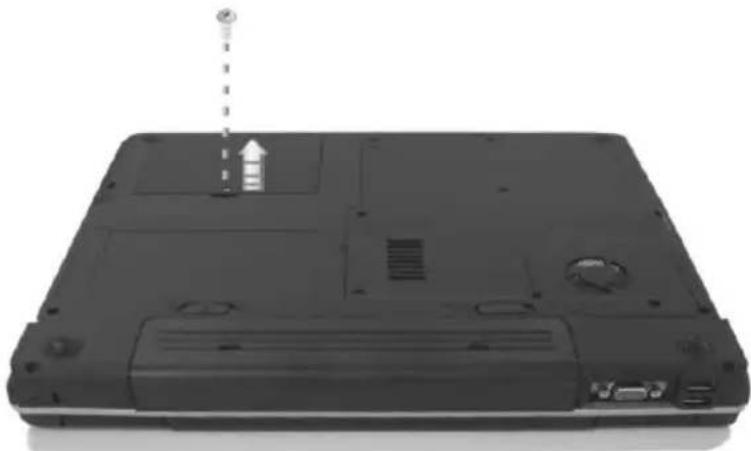
natural_image
Black laptop back with ventilation slots and a small sensor antenna (no visible text or symbols)-
Take out the hard disk from the compartment by finger carefully
-
Remove the connector from the hard disk gently.
-
Remove the crane screws located at each side of the hard disk.
-
Rotate and tighten the crane screws to the new hard disk.
-
Attach the connector to the new hard disk precisely.
-
Place the hard disk back to the compartment.
-
Cover the lid, then rotate and tighten the screws.
-
Set the boot device as optical drive and Primary Master as Auto on BIOS setup menu. Please refer to Chapter 6 about the setting of BIOS setup menu. Then, boot the system by using WinXP CD-ROM and the system will detect the hard disk automatically and prompt you how to format the new disk.
+ Please tighten the screws located at each side of the hard disk before operating the hard disk. Any vibration may cause damage for the running hard disk.
+ Please contact Everex before attempting to change the hard disk drive. Damage caused by improper HDD installation will void the Everex Standard Warranty Agreement
7.3 Wireless Module Installation
This computer uses mini-PCI wireless LAN module at the bottom of this notebook for wireless connection.
+ Please contact Everex before adding or changing the wireless module. Any damage that caused by improper installation of the wireless module will void the Everex Standard Warranty Agreement
8 Caring for Your Notebook

natural_image
Illustration of a businessman in a blue suit holding a briefcase (no text or symbols)Your Everex StepNote is a fully IBM compatible personal computer with the latest features in mobile computing and multimedia technology. If properly cared for and maintained, the performance and reliability of the computer can be greatly prolonged.
8.1 Important Safety Instructions
This section provides detailed information about how to maintain a safe working environment while using the notebook computer. You can maintain its condition and performance by following these guidelines. Please read it carefully to ensure maximum safety.
- Before cleaning the notebook computer, make sure it is disconnected from any external power supplies (i.e. AC adapter, car adapter and so on).
- When cleaning, do not use liquid or sprayed detergent for cleaning. Instead, use moisture sheet or a cloth for cleaning.
- The socket-outlet shall be installed near the notebook computer and shall be easily accessible.
- Please keep the notebook computer from humidity.
- Lay the notebook computer on a reliable surface when installing. A drop or fall may cause injury.
- The openings on the enclosure are for air convection hence the notebook computer can be protected from overheating. DO NOT COVER THE OPENINGS.
- Be careful of using power supply. The notebook computer has specific power requirements.
- Use only a power adapter approved for use with this notebook computer.
- The power adapter may have a 2-prong plug. This is an important safety feature. A compatible outlet is required. If it is not available, find a qualified electrician to install one.
- While unplugging the power cord, disconnect it by the plug head, not by its wire.
- Make sure the socket and any extension cords you may use can support the total current load of all the connected devices.
- Though your AC adapter is suitable for universal international voltage, it still requires a stable and continual power supply. Make sure the voltage of the power source when connect the notebook computer to the power outlet. If your are unsure of your local power specifications, consult your dealer or local power company.
- Place the power cord in such a way that people can not step on it. Do not place anything over the power cord.
- All cautions and warnings on the notebook computer should be noted.
- If the notebook computer is not in use for a long time, disconnect it from mains to avoid possible damage by transient over-voltage.
- Never pour any liquid into openings as this may cause fire or electrical shock.
- Never open the body of notebook computer. For safety reason, the notebook computer should only be opened by qualified service personnel.
- If one of the following situations arises, have the notebook computer checked by service personnel:
The power cord or plug is damaged.
Liquid has penetrated into the notebook computer.
The notebook computer has been exposed to moisture.
The notebook computer has not worked well or you can not get it work according to user's manual.
↓ The notebook computer has dropped and damaged.
The notebook computer has obvious sign of breakage.
- Do not leave this notebook computer in an environment unconditioned. Storage temperature above 60^ C ( 140^ F) may damage the notebook computer.
- An approved power cord has to be used for the notebook computer's power supply. For a rated current up to 6A and an equipment weight more than 3 kg, a power cord not lighter than H05VV-F, 2G, 0.75mm ^2 , has to be used.
- To avoid any damage happened to the internal device, you should first disconnect the AC adapter and remove the battery pack from the notebook when replacing any internal device.
The sound pressure level at the operator's position according to IEC 60704-1 is equal or less than 70dB(A).
8.2 Cleaning Your Computer
When it is necessary to clean the plastic case and keyboard, use a soft, lint-free cloth, slightly dampened with a mild detergent solution or use the contents of any commercially available computer cleaning kit.
Never use alcohol, petroleum-based solvents, or harsh detergents to clean the notebook. Also never spray any liquids directly on the computer case, keyboard, or screen. If the liquid-crystal display (LCD) screen has become smeared or dusty, clean the screen by first applying a mild glass cleaner to a soft, clean, lint-free cloth, and gently wipe the glass. Never apply liquids directly on the screen surface. Moreover, do not use paper towels to clean the display screen. Paper can scratch the display screen matte.
8.3 Maintaining the LCD Quality
When it comes to screen problems, heat plays a significant role. After a typical working session, users routinely close the notebook the cover. The display surface - no matter what type it is - and the components inside the computer radiate heat; when you close the cover, you trap the heat against the screen. To help prolong the life of your computer, leave the cover open for ten minutes while the heat disperses.
You should also enable the power management of your computer to turn off the LCD power and display when the system is inactive for some time.
Adding a screen saver also helps prolong the life of your notebook screen.
Follow the safety guidelines mentioned earlier and how to clean your computer.
8.4 Maintaining Your Hard Disk
Losing your data has the same consequences as a system break down. Users must make it a habit of doing hard disk maintenance every week or so. Here is some maintenance you could do:
• Always back up your data files from your hard disk.
- Install the virus detecting program to monitor virus that could tamper your files.
- Use SCANDISK occasionally to correct any errors found in the directory and File Allocation Table. This will also free up space from any unused sectors.
- Never move or raise the computer while the hard disk is being accessed, most especially don't jar the hard disk as this may cause a hard disk crash.
- Use hard disk maintenance programs like Disk Defragmenter of Windows. These reorganize your hard disk by eliminating fragmentation and improving your hard disk access time.
- Install a system password in your computer so others won't be able to use the hard disk.
8.5 Battery Care Guidelines
The battery pack furnished with the computer requires reasonable care and handling to ensure efficient operation and maximum life. There is a risk of fire and chemical burn if the battery pack is handled improperly.
To ensure that the battery pack endures normal life cycle, always observe the following precautions when handling the battery pack:
- Handle batteries carefully. Do not try to disassemble, crush, puncture, open, drop, mutilate, short external contacts, disposed of in water or fire, or expose it to temperatures higher than 60 C.
- Recharge batteries only as described in this manual and only in ventilated areas. Never use an external charger other than the one supplied with your computer.
- Do not leave batteries in hot locations for more than a day or two.
- Do not leave your battery in your computer for longer than 1 month without plugging in the power adapter.
- Do not leave battery in storage for more than 2 months without recharging it to prevent over discharge. Over discharge will hurt the battery
- Dispose dead battery properly to protect the environment. The batteries contain hazardous chemicals and should not be thrown out with household or office trash.
- You should always discharge your battery before recharging it on either of these two conditions: first, this is the first time you start to use your battery; second, you had not charge the battery for more than 2 months. To discharge the battery, please execute the "Battery Refresh" function in the BIOS Setup Utility.
8.6 When You Travel
For safety and convenience when traveling, please follow these instructions:
- Back up all needed files on your hard disk before traveling.
- Recharge your battery overnight to ensure full battery power before you leave.
- Don't forget to bring along the AC adapter and extra battery pack.
- Try to bring backup software as well.
- Check the voltage rating and the outlet type of your destination. If the power cord of the adapter is different, then you need to purchase a suitable one. Consult your dealer.
- Carry your computer in its carrying case or in a briefcase. Never check-in the computer as a luggage.
- Remember to apply those power saving features and techniques to save battery power.
APPENDIX A System Specification

natural_image
Simple line drawing of a box with documents and a paper box (no text or symbols)This appendix provides technical specifications for the Everex StepNote computer. Depending on the specific Everex model, specifications may vary.
System Specification
PROCESSOR UNIT
- Intel® Celeron® M Processor Dothan
- Above 1.3 GHz CPU
• 1MB integrated L2 cache for the processor
SYSTEM MEMORY
- Two 200-pin memory slots
- User-upgradeable to maximum 2GB using 200-pin SODIMM 256MB, 512MB or 1024MB modules
- DDRII -533 SDRAM modules
LCD DISPLAY
• 15.4" WXGA (16:10) Color TFT LCD, 1280x800
• Maximum 16M true colors on all LCD display
VGA SYSTEM
- Integrated VIA VN800 graphic engine
• Simultaneous LCD and external monitor (CRT) display - Maximum 16 million colors on LCD display at 1280x800 resolution for 15.4" LCD
- Maximum 16 million colors on external monitor or projector at 1280x1024 resolution (Non-Interlaced)
STORAGE
- 2.5" Format 9.5mm High PATA HDD Module; Bus Mastering, Ultra DMA ATA-133 Support for LBA Scheme
• Enhanced IDE bootable DVD/CD-RW Combo drive module - Optional DVD Dual drive
AUDIO SYSTEM
• Full-duplex 16-bit stereo speaker with wavetable support
• H/W Audio Sound Blaster 16 compatible
• Built-in one speaker
• Audio input jacks for microphone (MIC)
• Audio output jack for external speaker or headphone (Line-Out)
• Digitized audio SPDIF port for high quality signal transmission.
• Sound volume adjust by K/B Hot-Keys
TOUCHPAD
Integrated Touchpad (Serial/USB mouse) pointing device with 2 click buttons
KEYBOARD
Full-sized 87-keys keyboard with Windows systems hot-keys, inverted T-cursor keys, 6 hot keys, 12 function keys, and embedded numeric keypad
FLASH BIOS
512K Flash ROM BIOS for easy BIOS upgrade
I/O PORTS
- 1 x 15-pin VGA port
• 1 x TV-Out Port (S-Video)
• 3 x Universal Serial Bus (USB 2.0) - 1 x LAN port
- 1 x Modem port
WIRELESS DEVICES
IEEE 802.11b/g, Mini PCI 802.11b/g Wireless LAN Solution
AC/DC POWER SUPPLY ADAPTER
Universal auto-switching (100V\~240V) 65W adapter, 20 Volt
BATTERY
Rechargeable 3 or 6 Cells Li-ion battery pack with Smart Battery function
WEIGHT AND DIMENSION
• 357(W) x 271(D) x 24 \~ 39(H) mm
• Approximately 3.18 kg
APPENDIX B System Recovery, Driver and Norton Installation

natural_image
Illustration of hands typing on a laptop keyboard with a pixelated screen (no text or symbols)Appendix B provides information on how to install the Driver Utility, Norton Internet Security 2006, and how to restore the software and operating system of your computer back to the original factory settings.
In the system recovery section, you will learn how to recover all files to your system with or without formatting the user partition.
Follow the step-by-step instructions carefully and exercise caution to avoid data loss.
System Recovery
- Power on the system and place the recovery CD into Optical Disk Drive.
- Press "F2" to display the BIOS Setup Utility, then choose "Boot" from the main menu. Change the first boot-up device to "CD-ROM/DVD-ROM".
- Press "F10" to confirm the setup parameters.
- When the recover screen appears, press "R" to start System Recovery. (Figure 1)
- Press "F" to start Full Recovery process.
- Confirm the full recovery then press "Y" to continue.
+ FULL RECOVERY WILL PERMANENTLY ERASE ALL DATA ON THE HARD DISK DRIVE, CONFIRM BEFORE PROCEEDING.
Press'R'to start System Recovery.
Press'H'to boot from Hard Disk.
Press'Q'to Quit!
If no input in 6s, system will be boot in the harddisk
Press'F'to start Full Recovery, in this case
    all the data on you harddisk will be destroyed.
Press'Q'to quit
You have chosen full recovery.
Dangerous! This operation will erase all the data on your harddisk,
including your own files. Only use this option when others cannot
solve your problem.
Please confirm if you want to continue(Y/N):_
(Figure 1)
- The recovery system tool will start running. (Figure 2)
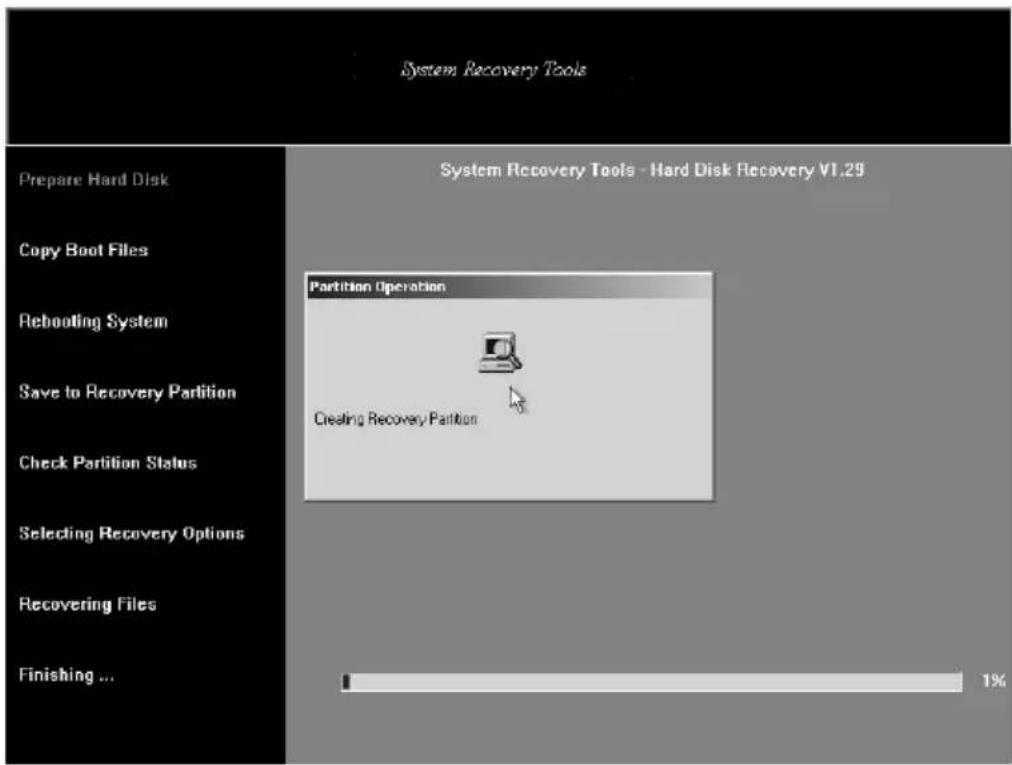
text_image
System Recovery Tools Prepare Hard Disk Copy Boot Files Rebooting System Save to Recovery Partition Check Partition Status Selecting Recovery Options Recovering Files Finishing ... System Recovery Tools - Hard Disk Recovery VT.29 Partition Operation Creating Recovery Partition 1%(Figure 2)
- While rebooting the system, press "H" (boot from Hard Disk) to continue the recovery process. (Figure 3)
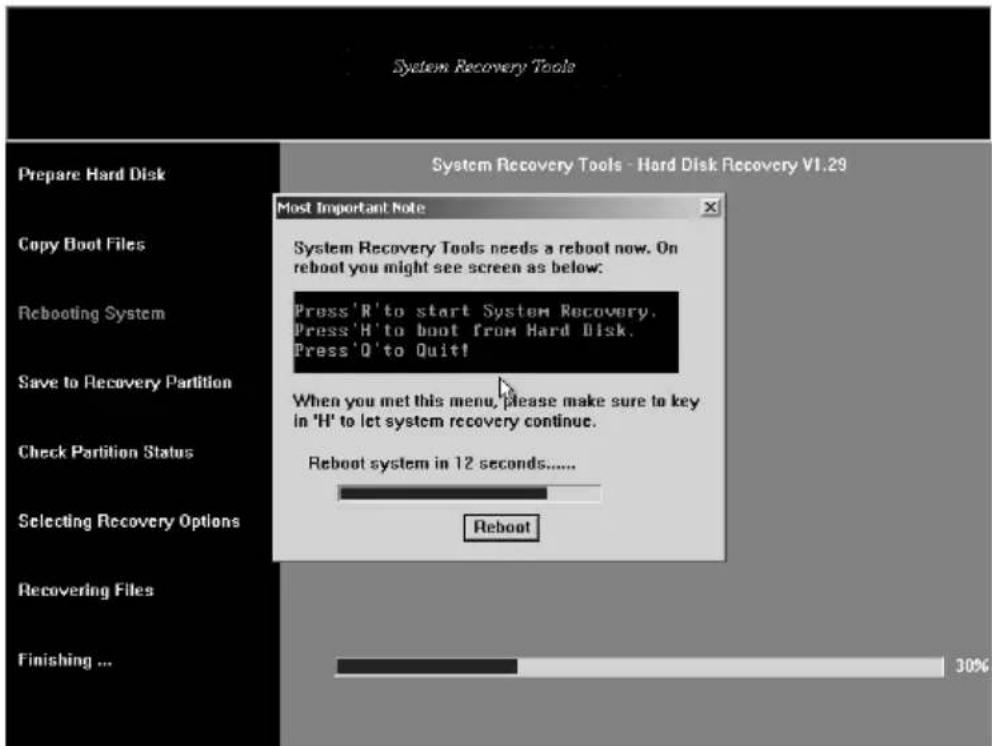
text_image
System Recovery Tools Prepare Hard Disk System Recovery Tools - Hard Disk Recovery V1.29 Most Important Note Copy Boot Files System Recovery Tools needs a reboot now. On reboot you might see screen as below: Rebooting System Press 'R' to start System Recovery. Press 'H' to boot from Hard Disk. Press 'Q' to Quit! Save to Recovery Partition When you met this menu, please make sure to key in 'H' to let system recovery continue. Check Partition Status Reboot system in 12 seconds...... Selecting Recovery Options Reboot Recovering Files Finishing ... 30%(Figure 3)
- For the finish stage of the Recovery process, a CRC verification confirmation screen will be displayed. This step ensures all files in the Recovery CD are fully restored to your hard disk without loss.
+ You may decide to perform this checking by selecting "Yes" or "No". (Figure 4)
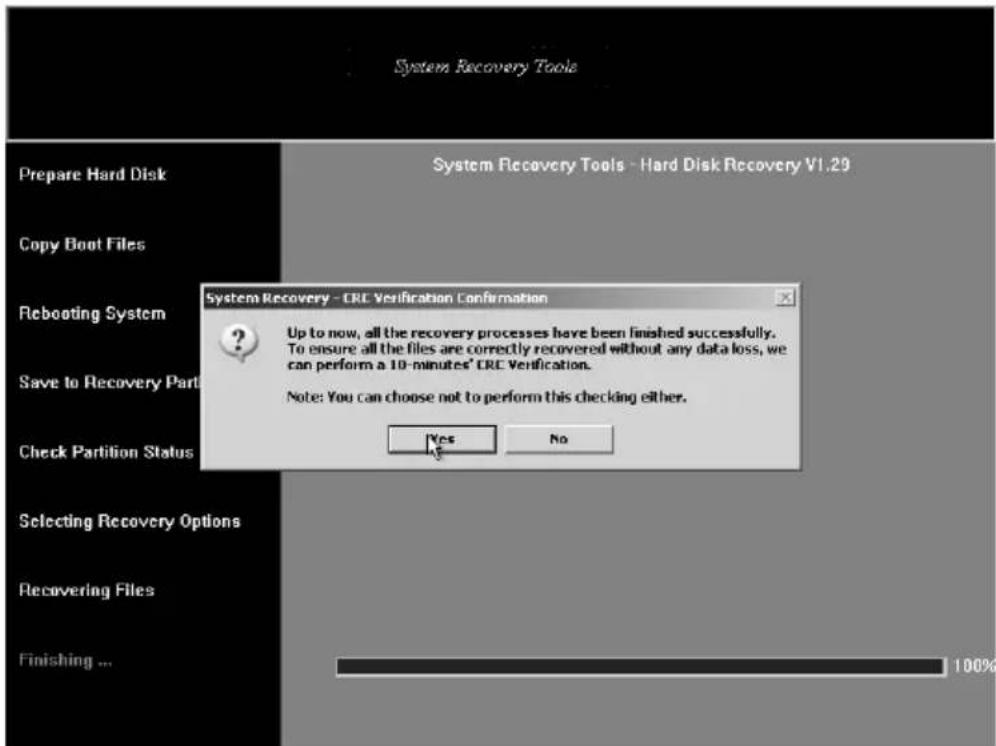
text_image
System Recovery Tools Prepare Hard Disk Copy Boot Files Rebooting System Save to Recovery Part Check Partition Status Selecting Recovery Options Recovering Files Finishing ... System Recovery - CRC Verification Confirmation Up to now, all the recovery processes have been finished successfully. To ensure all the files are correctly recovered without any data loss, we can perform a 10-minutes' CRC Verification. Note: You can choose not to perform this checking either. Yes No(Figure 4)
Device Drivers Installation
If you already have an operating system installed into your notebook computer, it is best to install the needed device drivers for using the built-in devices of your computer. Before installing the drivers, check with your dealer first if they have already installed all the drivers along with the operating system. If not, follow the procedures below:
INSTALLING WINDOWS XP FROM OPTICAL DISK DRIVE
To install Windows XP directly from your optical disk drive, please go to Boot menu of BIOS setup menu. Use arrow key to select "CD-ROM Drive", then use "+" or "-" to move it to the top. Go to Exit menu and select "Exit Saving Changes". Accordingly, insert the Windows XP installation CD into
optical disk drive with following the instructions on the screen to finish the installation.
DRIVER INSTALLATION NOTE:
+ Please be notified that whenever you install the driver utility, it should be install the CHIPSET Driver first.
INSTALLING THE CHIPSET DRIVER
Your notebook computer uses the advanced chipset. Installing the driver to enhance the stability and performance.
Installing Chipset device driver for Windows XP
- Click the Start button, then point to Run. The Run dialog box appears.
- Click the Browse button and specify the directory as "E:\Drivers\WinXP\Chipset\Setup.exe".
- Click "OK" to execute the setup program. The Setup box appears.
- Click "Next" continuously to install this driver when screen displays this command.
- Click "Yes" to accept the License Agreement.
- Click "Next" twice to continue the installation.
- Tick the option "Yes, I want to restart my computer now.", and press "OK" to restart your system.
INSTALLING THE VGA DEVICE DRIVER
Following is the procedure for installing the Video Accelerator 3D Adapter VGA driver to your computer:
Installing VGA device driver for Windows XP
- Click the Start button, then point to Run. The Run dialog box appears.
- Click the Browse button and specify the directory as.
"E:\Drivers\WinXP\VGA\Setup.exe". - Click "OK" to execute the setup program. The Setup box appears.
- Press "Finish" to complete the installation.
INSTALLING THE AUDIO DEVICE DRIVER
Your notebook computer uses the Realtek Audio controller.
Installing Audio device driver for Windows XP
- Click the Start button, then point to Run. The Run dialog box appears.
- Click the Browse button and specify the directory as.
"E:\Drivers\WinXP\Audio\Setup.exe"
where the audio driver is located. - Click "OK" to implement the setup program to install this driver.
- Click "Next" to continue the following steps.
- Tick the option "Yes, I want to restart my computer now.",
and press "Finish" to restart your system.
INSTALLING THE MODEM DEVICE DRIVER
Please follow the procedures below for installing the Modem driver:
Installing Modem driver for Windows XP
-
Click the Start button, then point to Run. The Run dialog box appears.
-
Click Browse button and navigate to the directory as "E:\Drivers\WinXP\Modem\ssetup.exe"
- Click "OK" to implement the setup program to install this driver.
- Click "OK" to install the modem driver.
INSTALLING ENE - KEYBOARD CONTROLLER DRIVER
Installing ENE- Keyboard Controller driver for Windows XP
- Click the Start button, then point to Run. The Run dialog box appears.
- Click the Browse button and specify the directory as. "E:\Drivers\WinXP\KBC\Setup.exe".
- Click "OK" to implement the setup program to install this driver.
- Click "Next" to execute the setup program.
- Tick the option "Restart Windows now.", and press Finish to restart your system.
INSTALLING THE WIRELESS LAN DEVICE DRIVER
Please follow the procedures below for installing the Mini PCI Adapter driver:
Installing Wireless LAN driver for Windows XP
- Click the Start button and then click Run. The Run dialog box appears.
- Click Browse button and specify the directory as
"E:\Drivers\Winxp\Wireless LAN\setup.exe" - Click "OK" to implement the setup program to install this driver.
- Click "Next" twice to continue the installation.
INSTALLING THE LAN DEVICE DRIVER
Please follow the procedures below for installing the LAN driver:
Installing LAN driver for Windows XP
- Click the Start button, then point to Run. The Run dialog box appears.
- Click the Browse button and specify the directory as.
"E:\Drivers\Winxp\LAN\WinSetup.exe "
- Click "OK" to implement the setup program to install this driver.
Click "OK" to complete the installation.
Norton Installation
Norton Internet Security 2006 Installation
The installation process will initiate at the first launch of Windows desktop. If you wish to manually start the installation process, please execute
C:\Apps\NIS2006\SymSetup.exe
- Click "Yes" to continue.

text_image
Norton Internet Security 2006 Installation Please press Yes to install Norton Internet Security 2006. Don't shutdown or unplug power cord! Yes No- Click "Start Scan" to check your computer
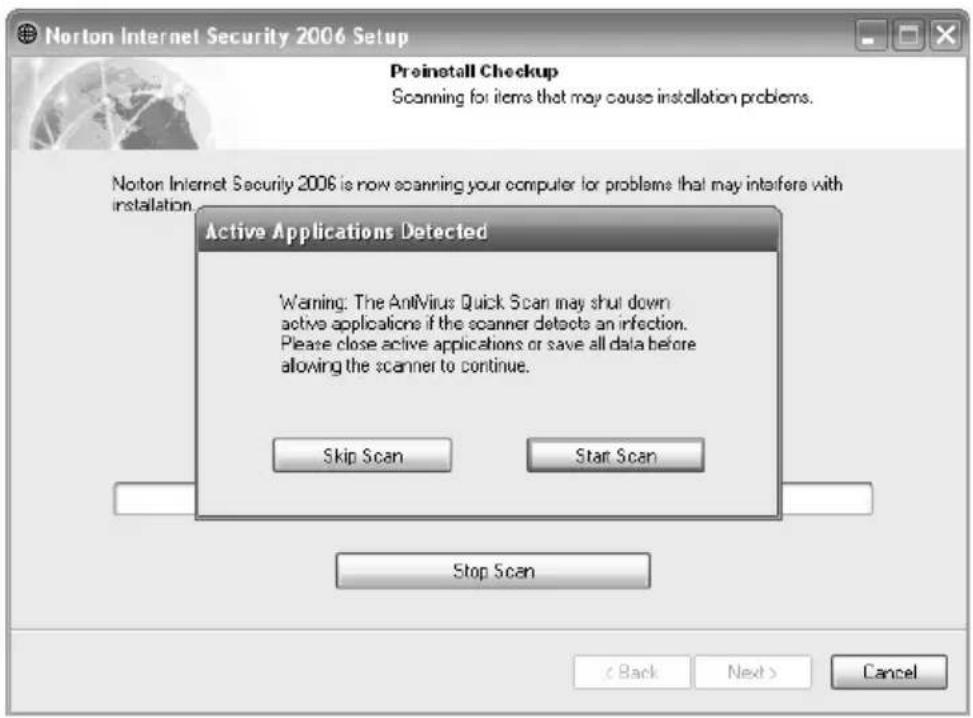
text_image
Norton Internet Security 2006 Setup Preinstall Checkup Scanning for items that may cause installation problems. Noton Internet Security 2006 is now scanning your computer for problems that may interfere with installation. Active Applications Detected Warning: The Antivirus Quick Scan may shut down active applications if the scanner detects an infection. Please close active applications or save all data before allowing the scanner to continue. Skip Scan Start Scan Stop Scan < Back Next > Cancel- Click "View Details" to see the complete results of the scan

text_image
Norton Internet Security 2006 Setup Preinstall Checkup Scanning for items that may cause installation problems. Norton Internet Security 2006 has completed scanning. Click View Details to see the complete results of the scan. Click Next to continue the installation. Integrity Scanner Completed AntVirus Quick Scan Completed View Details < Back Next > Cancel4. Scan Results

text_image
Norton Internet Security 2006 Setup Preinstall Checkup Scanning for items that may cause installation problems. Preinstall Scan Results ---- Preinstall Scan Results ---- Access rights scan summary: 11 folders scanned 15 registry entries scanned Summary: Number of Infections Found: 0 Number of Files Repaired: 0 Number of Files Quarantined: 0 Details NOTE: This log has been saved to: C:\Documents and Settings\asd\Local Settings\Temp\PreScan.log OK < Back Next > Cancel- Click "Next" to continue.
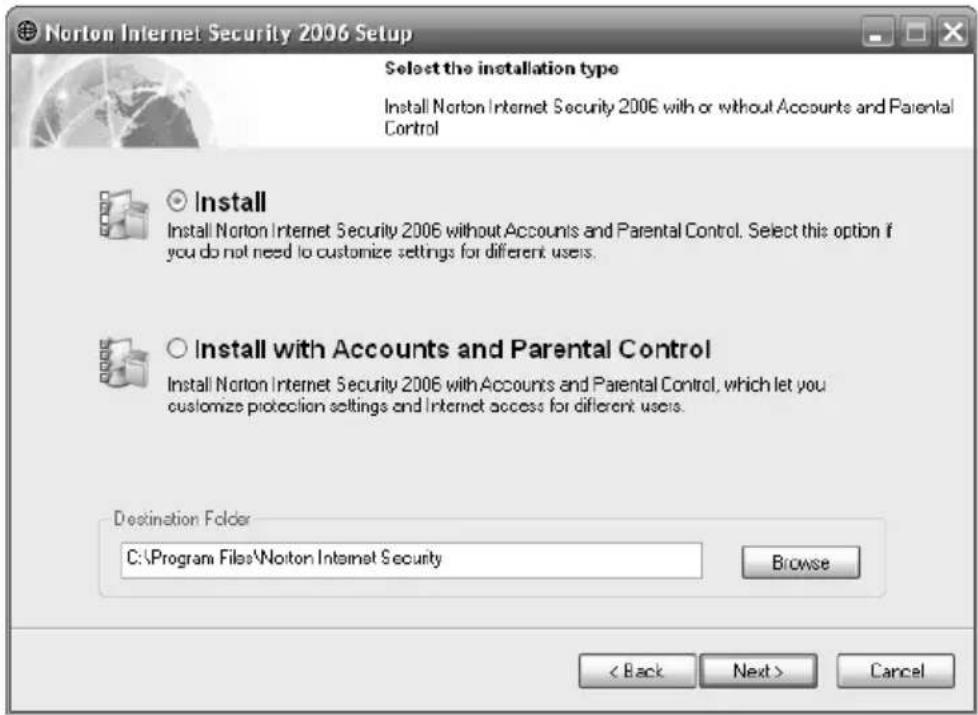
text_image
Norton Internet Security 2006 Setup Select the installation type Install Norton Internet Security 2006 with or without Accounts and Parental Control Install Install Norton Internet Security 2006 without Accounts and Parental Control. Select this option if you do not need to customize settings for different users. Install with Accounts and Parental Control Install Norton Internet Security 2006 with Accounts and Parental Control, which let you customize protection settings and Internet access for different users. Destination Folder C:\Program Files\Notton Internet Security Browse < Back Next > Cancel- System now executes the installation.
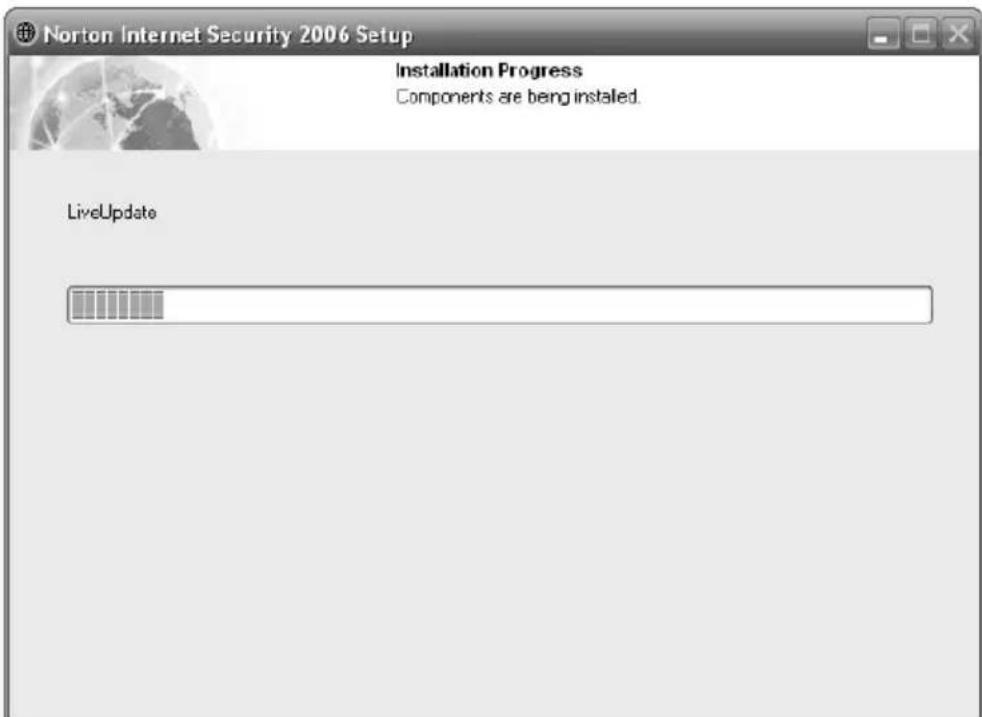
text_image
Norton Internet Security 2006 Setup Installation Progress Components are being installed. LiveUpdate- When the installation completes, click "Finish" to restart the computer.
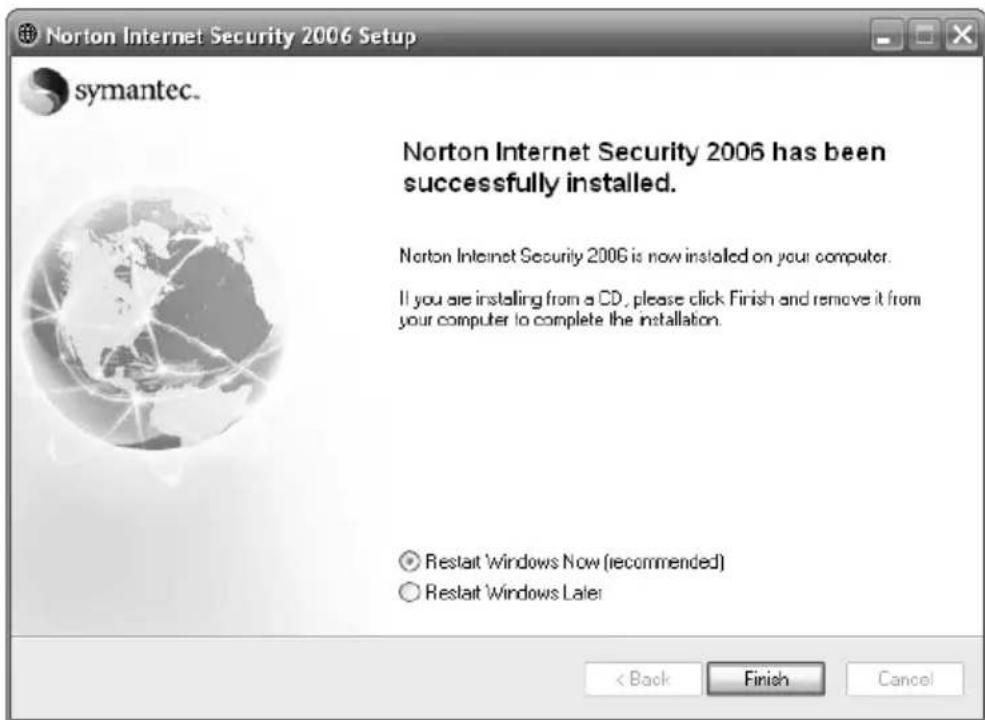
text_image
Norton Internet Security 2006 Setup symantec. Norton Internet Security 2006 has been successfully installed. Norton Internet Security 2006 is now installed on your computer. If you are installing from a CD, please click Finish and remove it from your computer to complete the installation. Restart 'Windows Now (recommended) Restart 'Windows Later < Back Finish CancelTECHNICAL SUPPORT
■ For the latest Drivers and Support Documents or to chat online with a Live Technician visit www.everex.com
■ To contact Technical Support via email, send your User Name, Model, Serial Number and a brief Description of the issue at hand to techsupport@cvcrex.com
- To register your product visit www.everex.com or simply email your User Name (first and last), Model (NM3500W, NM3900W, etc.) and Serial Number to customerservice@everex.com. Please use “Product Registration – NMXXXX” as your email subject.
■ To speak with an Everex Technical Support Representative call our 24-Hour response team at 1-866-850-8835 (toll-free)
Please complete the following information before contacting Everex Technical Support:
User Name : ____
Model (NM3500W, NM3900W, etc.): ____
Serial Number : ____
Problem Description:
Everex Systems, Inc., 440 Mission Court, #250, Fremont CA 94539,