MacroMaster KB170 - Keyboard Genovation - Free user manual and instructions
Find the device manual for free MacroMaster KB170 Genovation in PDF.


| Product Type | Programmable Macro Keyboard |
| Brand | Genovation |
| Model | MacroMaster KB170 |
| Number of Keys | 170 programmable keys |
| Interface | USB 2.0 |
| Dimensions (L x W x H) | 17.7 x 5.9 x 1.2 inches (450 x 150 x 30 mm) |
| Weight | 2.2 lbs (1.0 kg) |
| Power Supply | USB bus-powered (5V DC) |
| Cable Length | 6 ft (1.8 m) |
| Key Switch Type | Membrane with tactile feedback |
| Backlighting | None |
| Programmability | Onboard macro recording and software configuration |
| Compatible Operating Systems | Windows, macOS, Linux (limited) |
| Main Functions | Customizable macro keys, media controls, application shortcuts |
| Additional Features | Dedicated software for advanced programming, key mapping, and profiles |
| Cleaning and Maintenance | Use a soft, dry cloth. Avoid liquids and abrasives. |
| Safety Precautions | Keep away from moisture. Do not disassemble. Use only with USB certified ports. |
| Spare Parts Availability | Keycaps and USB cable replaceable through manufacturer |
| Warranty | 1 year limited warranty |
| Package Contents | Keyboard, USB cable, quick start guide, software CD (or download) |
Frequently Asked Questions - MacroMaster KB170 Genovation
User questions about MacroMaster KB170 Genovation
0 question about this device. Answer the ones you know or ask your own.
Ask a new question about this device
Download the instructions for your Keyboard in PDF format for free! Find your manual MacroMaster KB170 - Genovation and take your electronic device back in hand. On this page are published all the documents necessary for the use of your device. MacroMaster KB170 by Genovation.
USER MANUAL MacroMaster KB170 Genovation
natural_image
Close-up of a black computer keyboard with illuminated keys and a blue-lit keyboard (no text or symbols visible)MacroMaster KB170 User Guide
Revision 1.30 December 2017 For Microsoft Windows
WARRANTY REPAIR SERVICE AND LICENSE
Genovation, Incorporated ("Genovation") warrants this product to be in good working order and free of defects in materials and workmanship under normal use for a period of one year from the date of purchase. Any implied warranties, including warranties of merchantability and fitness for a particular purpose, are limited in duration to a period of thirty (30) days from date of purchase. Any abuse including opening the case will void the warranty. Your sole remedy and Genovation's entire liability for this product will be repair or replacement as provided for above, or at Genovation's option, the refund of your purchase price. A RETURN MATERIAL AUTHORIZATION (RMA) number is absolutely required before returning a product. Any shipment received without an RMA will be returned unopened. Please contact Customer Service for instructions before returning any product. Genovation makes software available and licenses its use to you for world wide for use.
FCC CERTIFICATION
This product has been certified to comply with FCC, EC, TUV and other test standards. See label on the product for confirmation.
FCC CERTIFICATION REQUIRED STATEMENT WARNING:
This equipment has been certified to comply with the limits for a Class B Computing Device, pursuant to Subpart J of Part 15 of the FCC rules. Only peripherals (computer, computer input/output devices, terminals, printers, etc.) certified to comply with the Class B limits may be attached to this device. Operation with non-certified peripherals is likely to result in interference to radio and TV reception.
NOTE: This equipment generates and uses radio frequency energy and if not installed and used properly, that is, in strict accordance with the manufacturer's instructions, may cause interference to radio and television reception. It has been type tested and found to comply with the limits for Class B computing devices in accordance with the specifications in Subpart J of part 15 of the FCC Rules, which are designed to provide reasonable protection against such interference in a particular installation. If this equipment does cause interference to radio or television reception, which can be determined by turning the equipment off or on, the user is encouraged to try to correct the interference by one or more of the following measures:
- Reorient the receiving antennas
○ Relocate the computer with respect to the receiver - Move the computer away from the receiver
- Plug the computer and receiver into different circuits
If necessary, the user should consult the dealer or an experienced radio/television technician for additional suggestions. The user may find the following booklet prepared by the Federal Communications Commission helpful: "How to identify and Resolve Radio-TV Interference Problems". This booklet is available from the U.S. Government Printing Office, Washington, DC 20402. (Stock #004-000-00345-4).
TECHNICAL SUPPORT
If you require technical support or if you wish to make suggestions about the product, don't hesitate to contact us. We can be reached Monday though Friday from 7:30 AM to 11:00 AM and from 11:30 AM to 3:30 PM Pacific Time. If the customer support lines are busy or if you are calling after hours, leave a message or send a FAX or E-MAIL and a representative will respond, typically within 24 hours.
VOICE NUMBER: (949) 833-3355 ext. 115
FAX NUMBER: (949) 833-0322
EMAIL: support@genovation.com
WEB: http://www.genovation.com
FORUM: http://www.genovation.com/forum/
POST: Genovation, Inc.
17741 Mitchell North
Irvine, CA
92614
USA
CONTENTS
1: Installation and Quick Start Guide .... 5
Before You Begin 5
Install Software 6
Install Hardware 7
Launch MacroMaster 8
Open File 9
Download File to KB170 9
Test Programmable Key Section 10
Restoring Factory Defaults 11
Un-Installing and Re-Installing....11
2: Using MacroMasterKBxx 13
Running MacroMasterKBxx 13
Creating and Saving your first CKD file 15
The Shaded Keys 16
Correcting Mistakes 17
Key Codes 17
Modifiers 19
Inserting Delays 20
Two-Level Programming (Layers) 21
Copy and Paste Key Macros 23
KB170 Properties 24
Double Size Keys 25
Keycap Labels 25
Key Blockers 26
Uninstalling/Removing MacroMaster Completely 26
Customization Is Standard....27
3: Advanced Topics ...... 28
LED Programming 28
Multimedia and More Keys 29
Macro Modes 30
Modes: Separate Up Codes.... 31
Modes: Macro 33
Modes: Literal 33
Rapid Reconfiguration 35
Flash Drive Reprogramming 40
TMode USB Reprogramming 41
Reflashing the Firmware 42
4: Technical Specifications....47
A: Appendix 49
Scan Code Table 49
1: Installation and Quick Start Guide
Before You Begin
Your KB170 Programmable Backlit Keyboard package should include the following items:
○ A Quick Start page
○ Product/Installation CD or link to download
○ KB170 USB keyboard
○ Double size keycaps (2) and keycap puller
Features
- 66 backlit programmable keys (top three rows) with a programmable LED
- Full 104-key backlit keyboard (bottom keyboard section)
- Great for any repetitive keystrokes and text
- Saves all your hot-keys, shortcuts and URLs
○ Increases speed and productivity while reducing typos - Adds speed and fun to gaming
- Useful for CAD, online trading, multimedia or any other advanced software
○ One-touch control of email, password and login info
Hardware
The KB170 keyboard is designed to connect to any USB port. Once programmed, the keyboard will work with any computer or operating system that supports USB human interface devices.
The KB170 supports USB boot protocol. This enables the KB170 to boot a PC and to navigate the BIOS screens.
Software
The MacroMasteKBxx.exe Windows application is a program is designed to work with computers running Microsoft Windows operating systems.
The KB170 keyboard includes emulated flash drive drag-n-drop file copy in order to program/deploy the keyboard on any OS (assuming that MacroMasterKBxx has been used previously to create a .BIN data file).
Install Software
If you have a Genovation CD, insert the CD into the target computer's CD drive. If the Installation program does not start immediately, navigate to the CD using Explorer and run Setup.exe. If you downloaded the software, unzip the file if required and then run Setup.exe.
If you see a User Account Control dialog or a warning, such as ^2 :
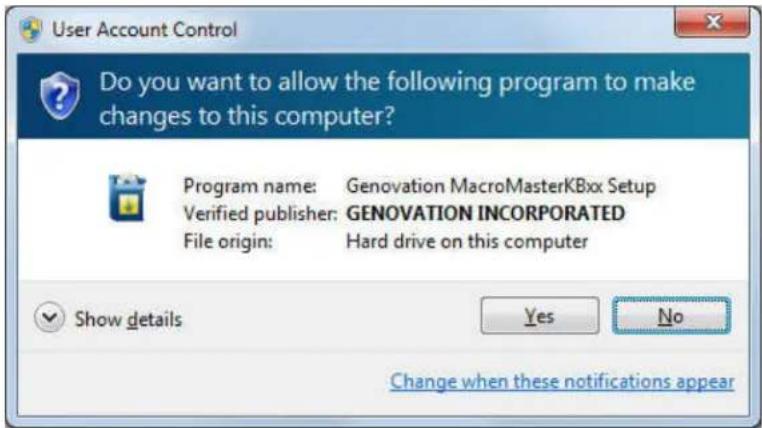
Click on Allow or Yes as necessary. Once Setup begins you should see the following screen:
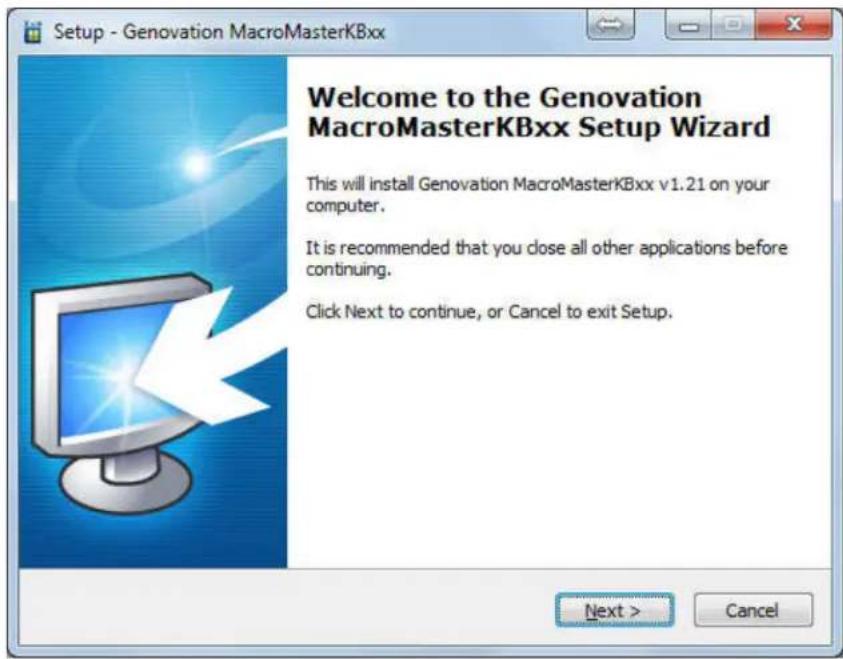
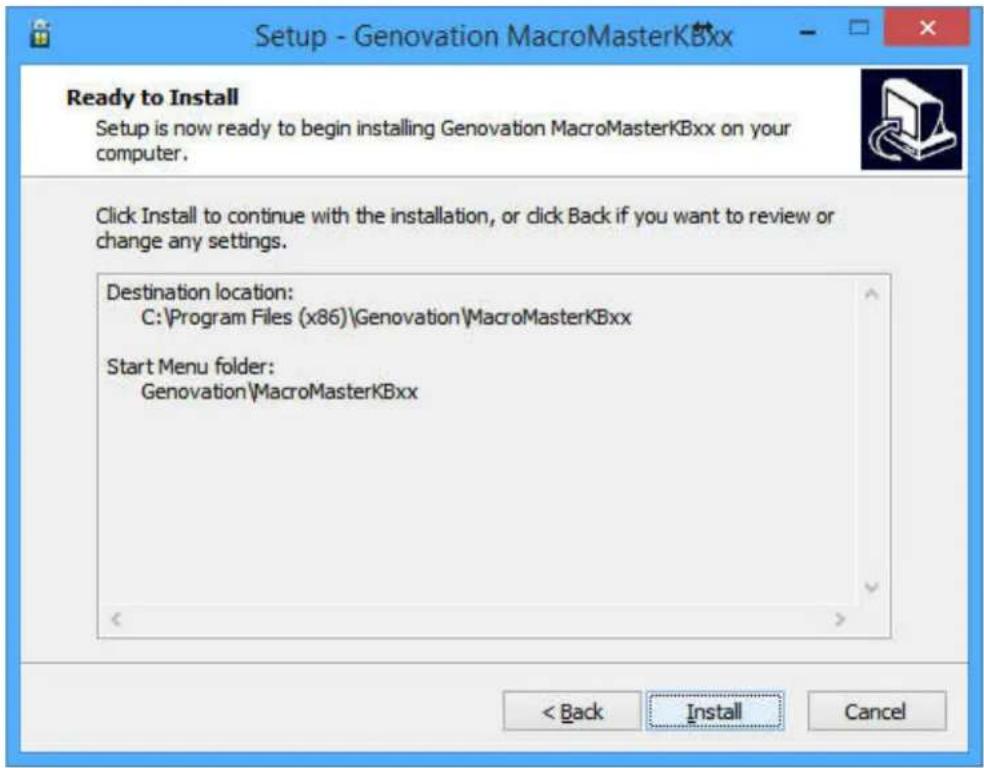
Click on Next as required and choose the path you would like to use for storing the PC applications. Click on Install to copy the files to your computer from the CD. Click on Finish when prompted.
The following files will be installed on your computer:
| File | Description |
| MacroMasterKBxx.pdf | This document. |
| MacroMasterKBxx.exe | Keyboard macro creator/editor (redefinition application). |
| KBxxLoad.exe Downloader utility for the keyboard. | |
| KeyTest.exe Keyboard testing application. | |
| Getting Started.pdf Quick start guide. | |
| \Macro_Files\*.ckd Sample Custom Key Definition (.ckd) files. | |
| \Keycap_Labels\*.* Pages for printing custom keycap labels. | |
The Setup procedure will create the necessary icons on your Start Menu.
Install Hardware
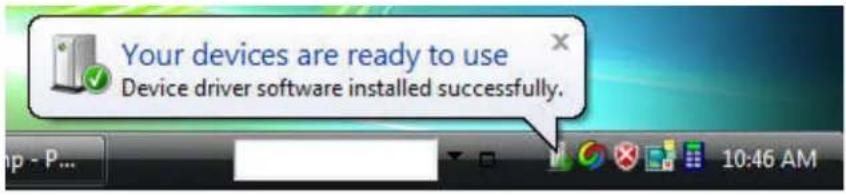
You may plug in new hardware at any time. If you have not already plugged in your KB170 keyboard, do so now. You should see a few notifications on the bottom right corner of the screen as the automated install proceeds:
Launch MacroMaster
If you have not started your MacroMaster application, do so now. Click on:
Start >> Programs >> Genovation >> MacroMasterKBxx >> MacroMasterKBxx
You should see a screen similar to the following:
![Genovation MacroMasterKBxx (KB170) New Open Save Save As Properties Download Test Help Key Labels Level 1 Level 2 Key Codes for Key 1, Level 1 This macro can auto-repeat Mode: Auto Sense (Default) Description: Length of key data = 3 of 220 0 1 Enter Reveal Codes: Erase Selected Erase All Right-click a programmable key (below) to set its key options. Esc F13 F14 F15 F16 F17 F18 F19 F20 F21 F22 F23 F24 LED1 Media... More... F1 F2 F3 F4 F5 F6 F7 F8 F9 F10 F11 F12 Print Scrn Scroll Lock Pause Delay Delay = 200ms 11 2@ 3# 4$ 5% 6^ 7& 8* 9(0) - =+ Backspace Ins Home PgUp Num / Tab Q W E R T Y U I O P [{} ] / Caps A S D F G H J K L :: " Enter Shift Z X C V B N M ,< ,> /? Shift ↑ Ctrl Alt Ctrl ← ↓ → 0 . To enter macro data: Light keys can be typed or mouse-clicked. Shaded keys, if required, must be mouse-clicked. U:\Genovation\MacroMasterKBxx\Macro_Files\DefaultKB170.ckd](/content/2026/05/1043035/images/585be13cfda169d4b1e0b1eab35e9728de8bc89cadf26c4c3c5341fca1938cb7.jpg)
Open File
The picture above shows that the file DefaultKB170.ckd is opened for editing. You should open that file now, following these steps.
- Click on the Open button at the top right. The open file dialog appears.
- Click on the file named DefaultKB170.ckd and then click the Open button.
This file contains a few keyboard simple keys that can be used to verify the correct operation of your keyboard and software installation.
Download File to KB170
Click on the Download button, located near the middle of the toolbar. This will launch the KBxxLoad.exe utility that will in turn copy the DefaultKB170.ckd file to the keyboard in Standard Keyboard Mode ^3 .
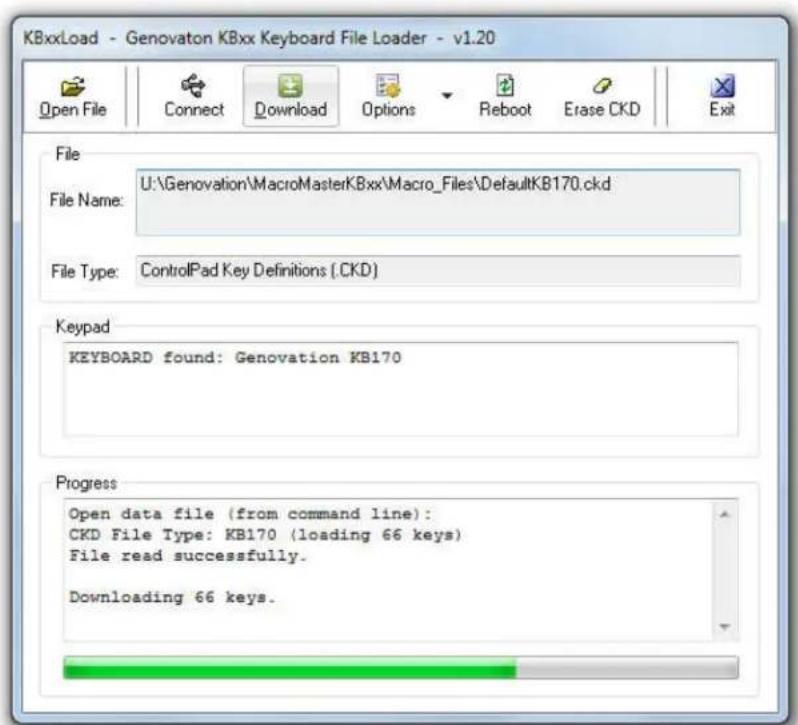
Test Programmable Key Section
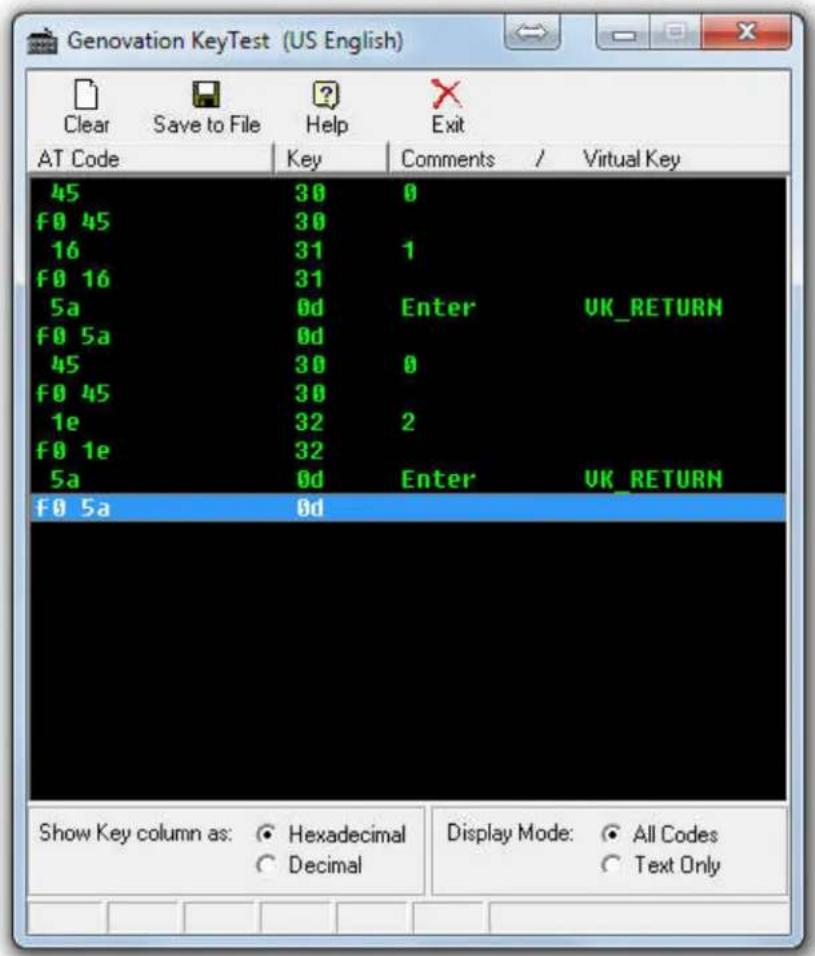
After the download is complete they keyboard will reboot. Click on the Test button. This will launch the KeyTest.exe utility that can by used to test the operation of your keyboard and the correctness of your macros.
Type on the programmable keys (top 3 rows) of your KB170. You should see the data that is programmed into the keyboard appearing in the KeyTest panel. Click on Exit to close KeyTest when you are finished with it.
Congratulations, your installation is complete!
Restoring Factory Defaults
At any time your KB170 can be returned to factory defaults. You must use the KBxxLoad.exe PC application to do this.
METHOD 1:
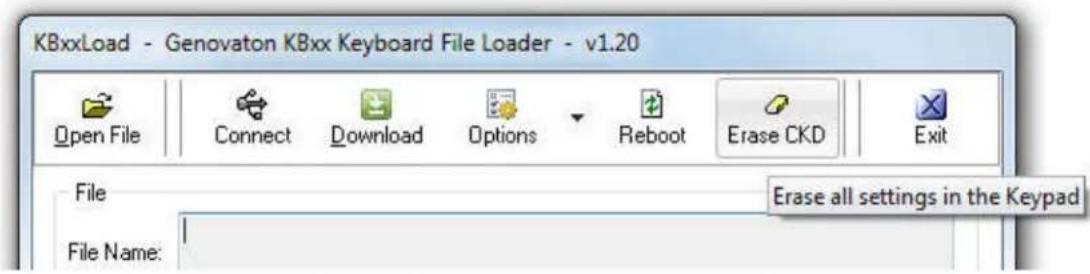
Along the top line of the downloader program you will see a button called Erase CKD. With your keyboard plugged in and identified by the downloader program, click this button to erase the keyboard settings.
METHOD 2:
Though not technically the same as erasing the KB170, you can download the default values to the KB170. Using KBxxLoad, download the DefaultKB170.ckd file to the keyboard. Here are the factory default key values:
Default KB170 key table:
| 01 Enter | 02 Enter | 03 Enter | 04 Enter | 05 Enter | 06 Enter | ... | 21 Enter | 22 Enter |
| 23 Enter | 24 Enter | 25 Enter | 26 Enter | 27 Enter | 28 Enter | ... | 43 Enter | 44 Enter |
| 45 Enter | 46 Enter | 47 Enter | 48 Enter | 49 Enter | 50 Enter | ... | 65 Enter | 66 Enter |
In addition Key Rollover is set to 2 and the LED is set to show the state of Caps Lock.
Un-Installing and Re-Installing
It's a quick and simple matter to remove, re-install or upgrade MacroMaster. To un-install MacroMaster, click on:
Start >> Programs >> Genovation >> MacroMasterKBxx >> Uninstall MacroMasterKBxx
Or use Add/Remove Programs from within the Control Panel.
The un-installer will NOT remove any macro files you have created. If you are not installing a newer version, you may delete the macro files and directories manually.
If you are installing a newer version (upgrading), your personal macro files will be saved for you.
Note: As per Microsoft's requirement, MacroMasterKBxx places the data files in the user's documents area rather than in the Program Files area.
2: Using MacroMasterKBxx
Running MacroMasterKBxx
To program the KB170 key codes or change the keyboard properties use the MacroMaster application. To begin, click on the following (or similar):
Start >> Programs >> Genovation >> MacroMasterKBxx >> MacroMasterKBxx
![Genovation MacroMasterKBxx (KB170) New Open Save Save As Properties Download Test Help Key Labels Level 1 Level 2 Key Codes for Key 1, Level 1 This macro can auto-repeat Mode: Default (Auto Sense) Description: Length of key data = 1 of 220 a Reveal Codes: Erase Selected Erase All Right-click a programmable key (below) to set its key options. Esc F13 F14 F15 F16 F17 F18 F19 F20 F21 F22 F23 F24 LEDL Media... More... F1 F2 F3 F4 F5 F6 F7 F8 F9 F10 F11 F12 Print Scm Scroll Lock Pause Delay Delay = 200ms 11 2@ 3# 4$ 5% 6^ 7& 8° 9( 0) - =+ Backspace Ins Home PgUp Num / Tab Q W E R T Y U I O P [{ ] \/ Caps A S D F G H J K L :: " Enter Del End PgDn Shift Z X C V B N M < .-> /? Shift Up 4 5 6 7 8 9 * 1 2 3 Ent Ctrl Ctrl Opt Left Down To enter macro data: Light keys can be typed or mouse-clicked. Shaded keys, if required, must be mouse-clicked. Ctrl Alt Ctrl To enter macro data: Light keys can be typed or mouse-clicked. Shaded keys, if required, must be mouse-clicked. Untitled.ckd Modified](/content/2026/05/1043035/images/80ff27c9b627d3177b1087f9b8c614adf0a90478ffac40a530f0c9acc088c5b8.jpg)
The title bar contains the name of the application and the status bar at the bottom shows the name of the file that is opened.
If the file has been changed but not saved, "Modified" appears on the bottom right of the status bar. This will go away once the file is saved or a new file is loaded.
The top row of buttons access the major functions of the program.

In the center of the screen is the Virtual Programmable Key Section. It is a series of squares that represent the programmable keys at the top of the physical KBxx keyboard.

Above this is a grid of rectangles. This is the Key Macro Editor. It holds the data associated with each key in the Virtual Programmable Key Section.
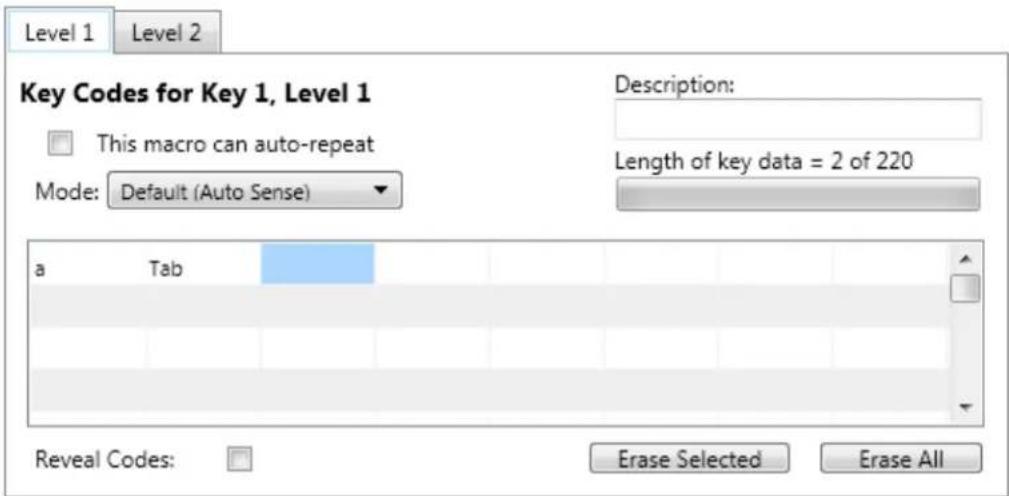
Every time you select a new virtual programmable key, a new set of grid cells is available to fill with keyboard data.
The bottom of the screen shows a rendition of a PC keyboard. Its purpose is for macro creation, and resemblance to the bottom of the KB170 is only coincidental. This virtual keyboard has additional “keys” such as F13 to F24. Both this virtual one and your real keyboard will play a role in macro creation.
![Esc F13 F14 F15 F16 F17 F18 F19 F20 F21 F22 F23 F24 LED1 Media... More... F1 F2 F3 F4 F5 F6 F7 F8 F9 F10 F11 F12 Print Scrn Scroll Lock Pause Delay Delay = 200ms ^ ~ 1 ! 2 @ 3 # 4 $ 5% 6 ^ 7 & 8 * 9 ( 0 ) - _ = + Backspace Ins Home PgUp Num / * - Tab Q W E R T Y U I O P [ { ] } \ / Caps A S D F G H J K L ; : " Enter Del End PgDn 7 8 9 + Shift Z X C V B N M ,< .> /? Shift ↑ 4 5 6 1 2 3 Ent Ctrl Alt Alt Ctrl ← ↓ → 0 . To enter macro data: Light keys can be typed or mouse-clicked. Shaded keys, if required, must be mouse-clicked.](/content/2026/05/1043035/images/e36c95fce28d81ae15809f6d4859cd010faf8917b5045974ef7fe8803a1ca57f.jpg)
This Virtual PC Keyboard can be used to place the data into the grid by mouse clicking on the keys shown. You may also type the data in on your actual hardware PC keyboard (light keys only, the shaded keys must be clicked if you need their specific key codes).
Creating and Saving your first CKD file
The file type used by MacroMaster is a .CKD file. CKD stands for Custom Key Definition file. The file is simply a collection of key macros. Its contents are arranged in standard INI file format. To start a new project, click New at the top left. This will provide a completely blank template with no keys assigned.
- Select a key to program. Click on one of the programmable keys. Note that whenever you select a new key, the Key Data Editor reflects the key number, for example:
Key Codes for Key 2, Level 1
Each programmable key can contain about 220 bytes of macro data.
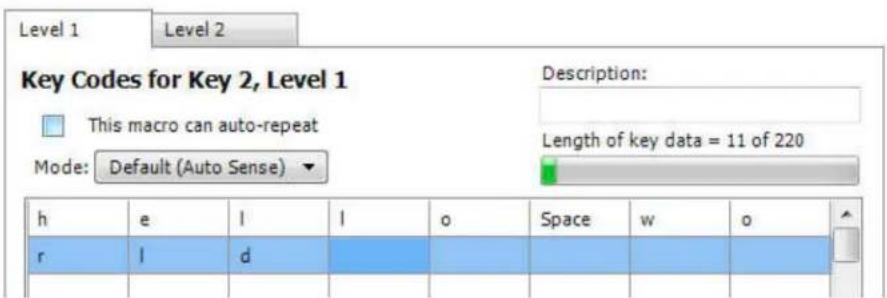
- Enter some key data. Try typing in the phrase "hello world" (without the quotes). You should see something like the following.
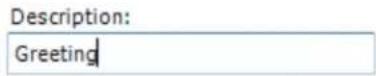
- Provide a description. Although it's optional you should consider typing in a short description for your macro. For example:
- Select repeat mode. If you want the macro to repeat over and over when you hold the programmable key down, click the repeat checkbox:
This macro can auto-repeat
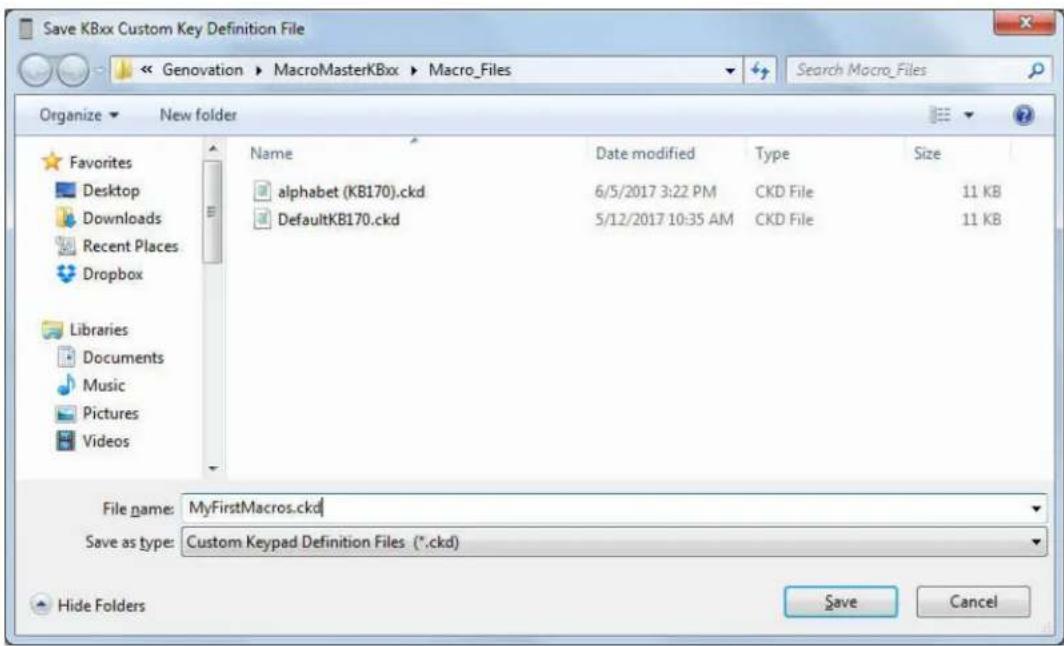
- Save the file. Once you are happy with your macro, save the file by clicking on the Save As button at the top left. Name the file something appropriate like MyFirstMacros.ckd and click Save.
Congratulations, you have completed your first macro! It's only one key, but you now understand the basics of macro programming.
The Shaded Keys
MacroMaster's Virtual PC Keyboard (the bottom section) has keys that are standard light gray color and keys that are darker gray.
The light gray keys can be used to enter macro data directly by typing on your real PC keyboard (assuming your hardware PC keyboard has the keys) or by clicking them with your mouse.
The dark gray keys can be used to enter macro data only by clicking the virtual keys with the mouse. The dark gray keys on your real PC keyboard retain their original function. For instance, the arrow keys allow you to navigate the cells in the black grid.
Correcting Mistakes
If you make a mistake while entering your key macro data, there are several ways to correct it.
- If you want to erase only one cell in the grid, double-click the mouse on that cell. Remember to select the cell at the end of the macro before you begin typing again. The dark blue box cell always indicates where new data will go.
- If you want to erase only one cell in the grid, use the Backspace key on your PC keyboard. Recall that this is a dark gray key on the virtual keyboard so it does not generate a macro entry.
- You can erase the codes in the selected cell by clicking on the Erase Selected button.
- For a given macro, if you want to start over, click on the Erase All button. This operation only affects the current Level.
Key Codes
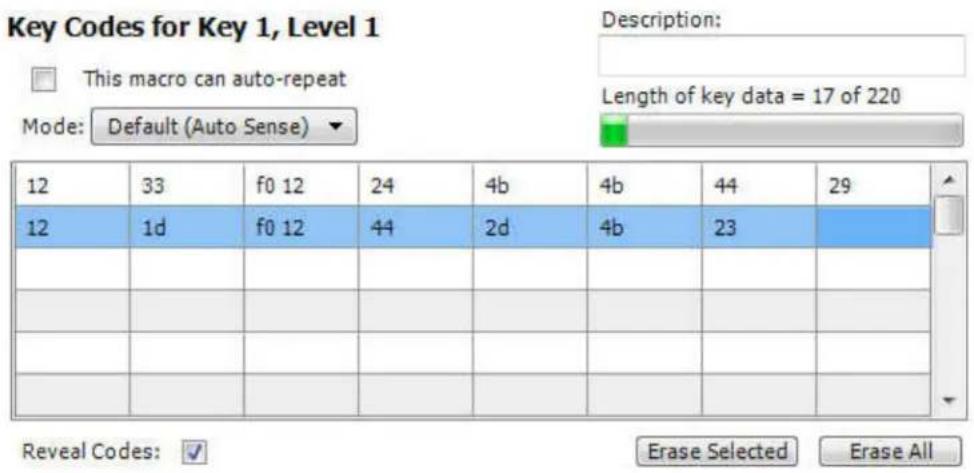
The macro you created at the start of this section is very simple. Each square in the black grid contains exactly one byte. You can reveal the underlying codes at any time by checking the box Reveal Codes located under the grid.
MacroMaster displays the codes in AT scan code format (see Appendix). The KB170 internally uses these codes (as does the PC) since they allow the most flexibility and power when creating your macros.
To return to the original (text) view, uncheck the Reveal Codes box.
Geek Mode On!
Although you may not be aware of it, the KB170 generates (but does not store) three bytes for each of the cells in the grid above. When you press a key, a "make" code is generated. For an h key the KB170 (or PC keyboard) sends the byte 33 to the PC. The PC interprets this as "h key is pressed". When you release the h key, the KB170 (or PC keyboard) sends a "break" code. For the h key this would be the two-byte pair F0 33. The PC interprets this as "h key is released".
If you press and hold the h key, the KB170 (or PC keyboard) generates a series of make codes. This is what causes a key to repeat.
Your KB170 "compresses" standard alphanumeric key data into one byte. This way your h key only takes up one byte instead of three (the 33 alone instead of the 33 make plus the F0 33 break).
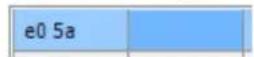
Now, some keys on the PC keyboard require more than one byte (the extended keys). These are also compressed by the KB170, but generally take only 2 bytes instead of the uncompressed 5 bytes they would normally require. For instance the Enter key on the PC's numeric keypad looks
Ent(KP) like this in text mode and like this is hex mode. The break code for that key would be E0 F0 5A.
Geek Mode Off!
Modifiers
The modifier keys (Shift, Ctrl, Alt and Win) are different again. The KB170 doesn't compress modifiers since it's required to know when they go down and later when they go back up.
When used with alphanumeric keys to create uppercase letters or symbols (for example), you must create at least three cells:
- The first is the modifier make. When you click on one of the modifier keys, the key "sticks" down. The data entered in the cell has a "Dn" appended to it to indicate that it represents the down (make) code.
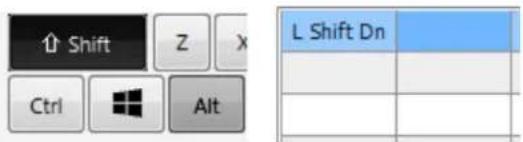
- Enter the alphanumeric data you want "modified" (shifted).
- Click on the modifier that is stuck in the down position. This will release the modifier.
As an example, to create "Hello World!" you would use the shift modifier three times. The first to capitalize the H, the second to capitalize the W, and the third to create the exclamation mark on the 1 key.
| L Shift Dn | H | L Shift Up | e | l | l | o | Space |
| L Shift Dn | W | L Shift Up | o | r | l | d | L Shift Dn |
| ! | L Shift Up |
NOTE: Be careful not to leave a modifier in the stuck down position. This can cause your PC to become stuck in the shifted/modified state. It is a common mistake for KB170 novices. If you manage to create a stuck key on your PC, try the following steps:
-
Press the same key that is stuck down on your regular PC keyboard. This can cause the PC to release the key. For the modifiers, simply press each of the left and right modifier keys once.
-
If the above fails, try unplugging and re-plugging your keyboard. This will cause the PC to reset its keyboard status.
Always test your macros using the TEST application first.
SEE ALSO:
There are other ways to use modifiers in combination with each other or alone. Refer to the advanced topic, Macro Modes, later in this document.
Inserting Delays
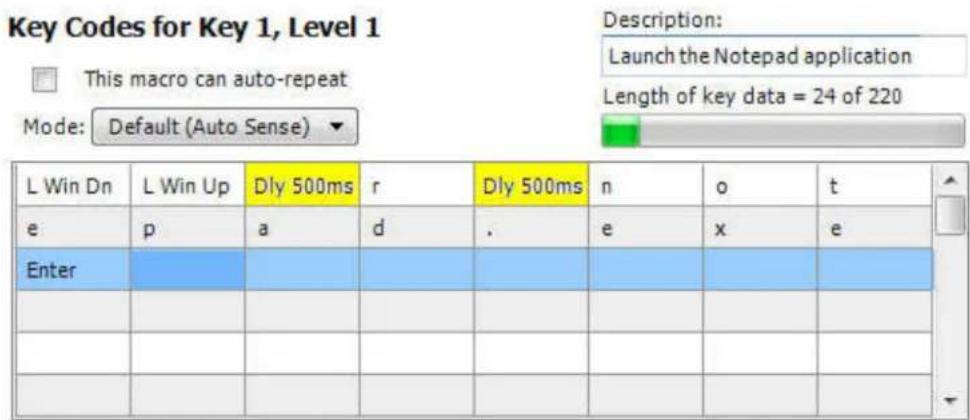
The KB170 can rapidly send a long series of keystrokes to the PC. At times the PC, no matter how fast, will be unable to keep up. To give the PC a breather, you can insert delays between your keystrokes. An example of where this is useful is when launching programs from the Windows Run command. If you wanted to launch Notepad.exe on XP by strictly typing,
one could press and release the Windows key, followed by r for Run notepad.exe and finally Enter to activate the OK button.
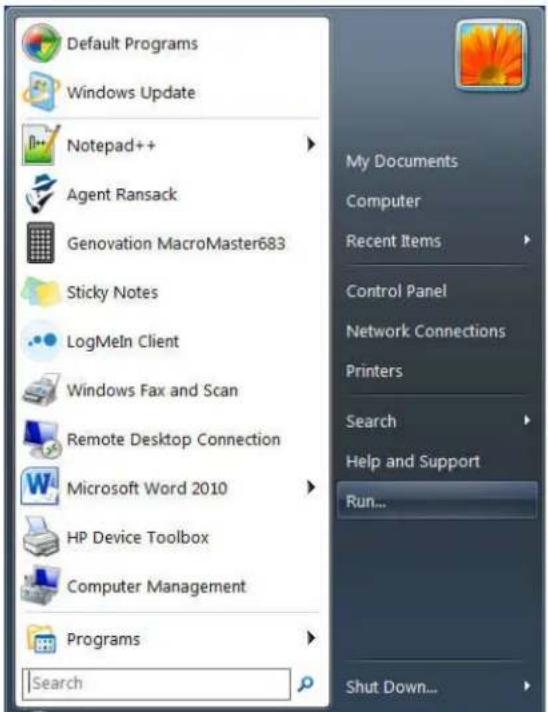
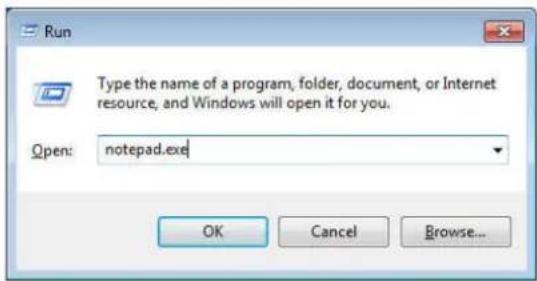
Compared to your KB170, it may take your PC quite a while to perform some of these steps. Inserting delays will make the operation successful every time.
To the right of MacroMaster's virtual PC keyboard is a Delay button and time length slider. The delay amount is adjustable over a range of 4ms to 500ms (half a second
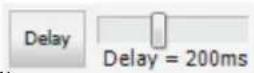
using the slider. Moving the slider tells you how long the inserted delay will be. The default is 200ms (one fifth of a second). Click the Delay button to pause the KB170 for that amount of time. If you need extremely long delays, click it several times in a row.
For our notepad example above (for an XP machine), the finished macro might look like this:
Two-Level Programming (Layers)
On your PC keyboard, the number keys 1 through 9 are also used for symbols !@#\$%^&*(). As you know, these symbols are accessed using the Shift key. Similarly, your KB170 supports two "levels" or "layers" per programmable key.
There are approximately 220 bytes of storage available for each programmable key on your KB170. If you only use Level 1 for a given key, you may use all 220 bytes for that Level 1 macro on that key. If you use Level 2 then the macro space is split in half. In that case both Level 1 and Level 2 can have 110 bytes.
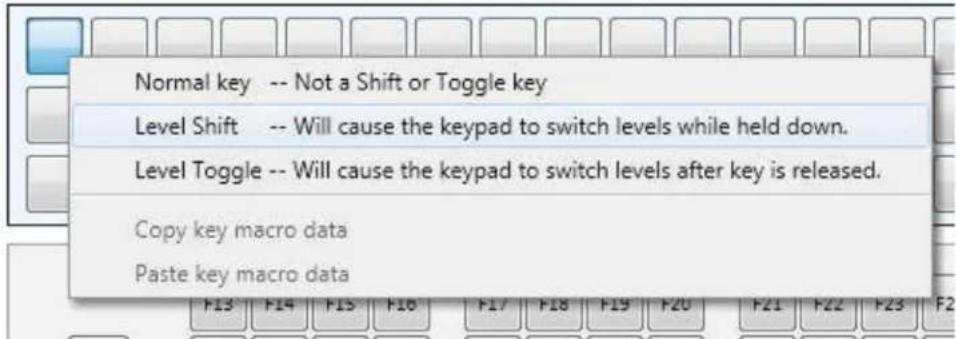
In order to use the second level on your KB170, you must first assign an access key to switch levels (a level shift and/or level toggle key) and you must fill in the data for both levels.
- Assigning the 2^nd level access key. Choose a key on MacroMaster's programmable section by clicking it as normal. Then right-click that key. Select whether you want the level access to be Shift (requires that you hold the shift key down) or Toggle (the level switches back and forth every time you press the toggle key).
Right-click a programmable key (below) to set it:
- Fill in the 2^nd level data. Click on the Level 2 tab that is located right above the words Key Codes for Key 1, Level 1. The words should change to Key Codes for Key X, Level 2. You now have access to a new grid of 111 bytes for your 2^nd level macro.
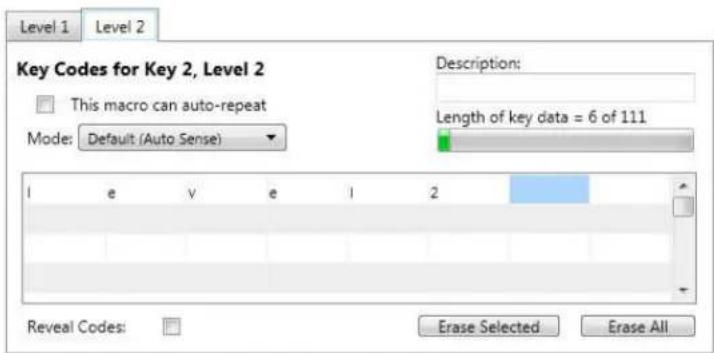
Right-click a programmable key (below) to set its key options.

You may have up to two level shifts and toggles. The keys that perform the level shift/toggle function may also contain macros, but it's not very common.
The next section describes how to assign an LED indicator so that you can see which level is active.
NOTE: To use a level shift key, a minimum of 2-key rollover must be programmed via the KB170 Properties panel since the shift level key must be pressed and held along with another key to access that key's second level macro. See the next section for information regarding Key Rollover.
Copy and Paste Key Macros
You can copy a key macro from one key/level to another key level if you need to duplicate or move some macro data. First, left-click on the source key as usual to make it the active key. Make sure to choose the correct level too. Now, right-click on the same key to bring up the key menu. Choose Copy key macro data from the menu.
Right-click a programmable key (below) to set its key options.
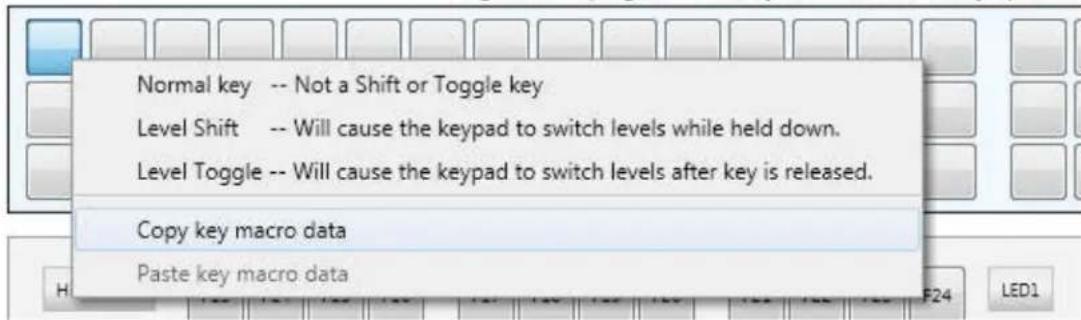
Select a new destination key and level for the copied macro. Right-click to bring up the key menu. This time choose Paste key macro data.
Right-click a programmable key (below) to set its key options.
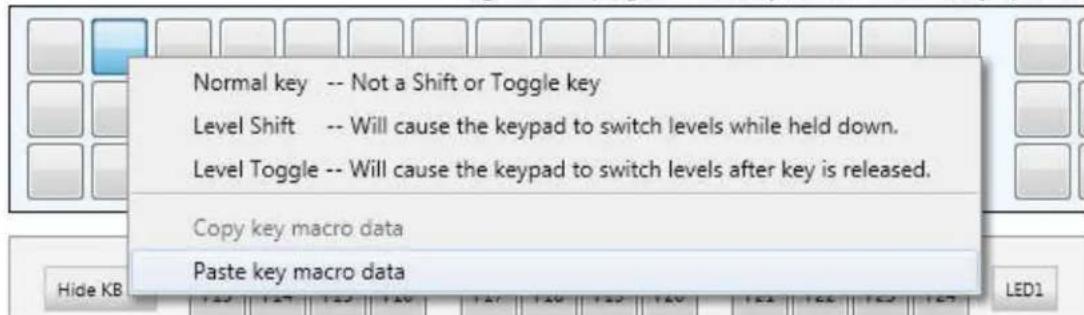
The source macro will overwrite the key data at the destination but will not disturb the source key.
Note that you can also edit the CKD files by hand using Notepad if you are so inclined.
KB170 Properties
There are several global settings for the KB170 programmable section that can be modified to suit your application.
Click on the Properties button.
This will open up the Properties panel:
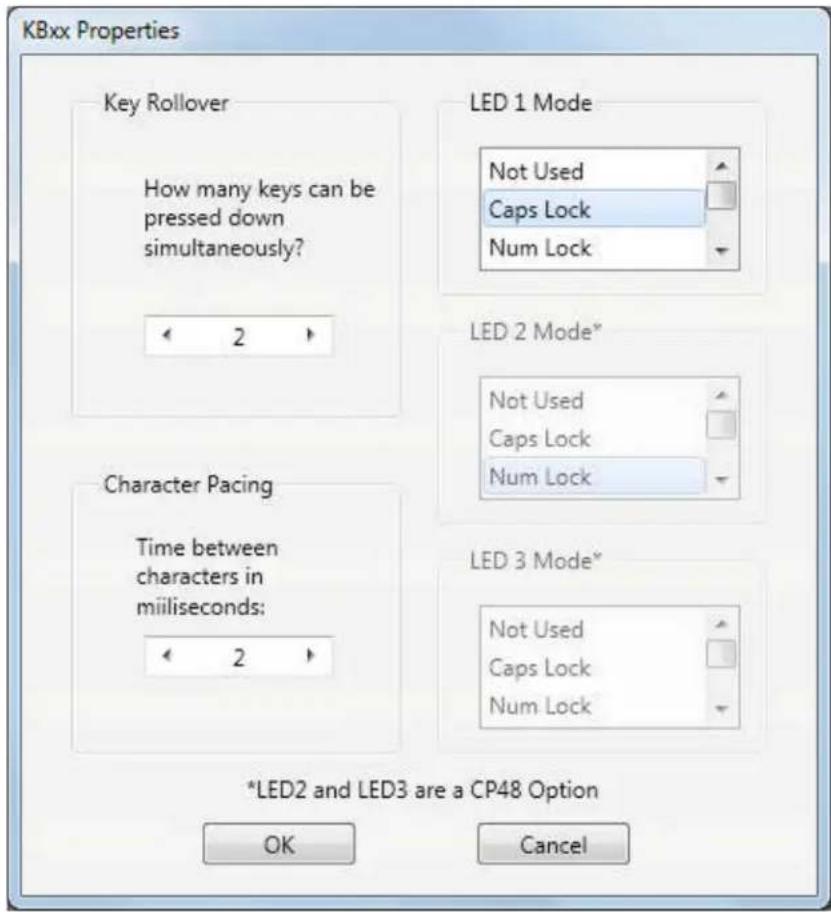
- Key Rollover. This parameter controls how many programmable keys may be pressed at the same time and be accepted by the KB170 programmable section. For most control applications, 1-key rollover is recommended. If the KB170 programmable section is used for higher speed data entry or you are using two levels, then 2-key rollover may be preferable.
- 1-Key: When one key is held down, the programmable section will recognize no other key(s).
- 2-Key or more: Two (or more) keys pressed and held at the same time will be recognized by the KB170 programmable section. Keys beyond the rollover number will be ignored. A minimum of two-key rollover is required when using a shift level access key or double size keys.
The KB170 keyboard has diode-per key technology allowing for up to 6 keys down at a time with no ghosting (phantom keys).
-
Inter-Character Pacing. This parameter inserts a short pause between all bytes sent to the PC. The range for this parameter is 0ms to 20ms. It has the effect of slowing down the typing slightly in case you are working with a slow PC.
-
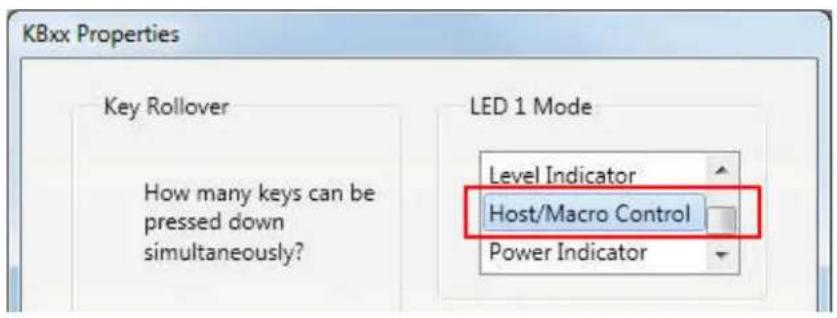
LED Function. You may select one of 5 functions for the programmable LED on your KB170. The default setting is for the LED to show the state of Caps Lock. You may assign the LED to duplicate one of the PC's internal LED states (Caps Lock, Num Lock or Scroll Lock) or you may assign it to illuminate when the KB170's own 2^nd level is active (Level Indicator). Finally, you may also control the LED from within a macro or from the Host PC or simply use it for a power indicator or leave it off entirely. The 2^nd and 3^rd LEDs are CP48-only special order options.
Double Size Keys
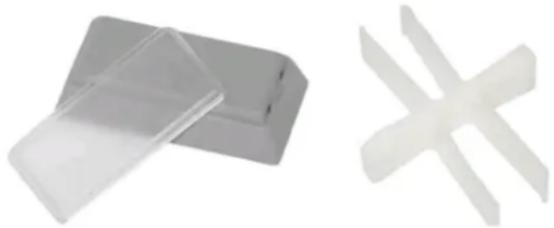
Genovation sells an accessory kit for those who wish to utilize double size keys.
natural_image
Two plastic components: a translucent rectangular block and a three-bladed X-shaped pin (no text or symbols visible)When programming double size keys it is recommended to program only one of the two keys that are combined into the double size key.
Keycap Labels
Click on the Key Labels button
The KB170 programmable keys have clear lenses that allow for labels to be inserted under the lens to indicate the key function. Several templates are provided for Word, Paint and Excel in the "Keycap Files" folder. Text, images or icons may be inserted in the template. The resulting file can be printed and saved. The labels can then be cut with scissors and placed under the lens caps. Don't overlap the edge of the key tops with the paper (this can stress the lens cap). The KB170 utilizes the "larger size" relegendable keys.
Key Blockers
If you have unused keys you can install a Key Blocker in that position instead of leaving an empty keycap. This gives your KB170 a polished look and you can also use the blockers to partition the programmable section into functional areas visually. Contact Genovation for an accessory Key Blocker Kit.
IMPORTANT: When you install a Key Blocker, your key will permanently pressed down. It is important for you to make sure that both layers of a blocked key have no macro data on them (using MacroMaster). The keyboard is designed to completely ignore keys that have no data assigned to them.
Uninstalling/Removing MacroMaster Completely
Before you uninstall the application you should backup and remove any .CKD files or keycap labels you have created.
This will allow the uninstaller to completely remove the MacroMaster application and all folders.
Once you have done that, click on the following (assumes default installation path):
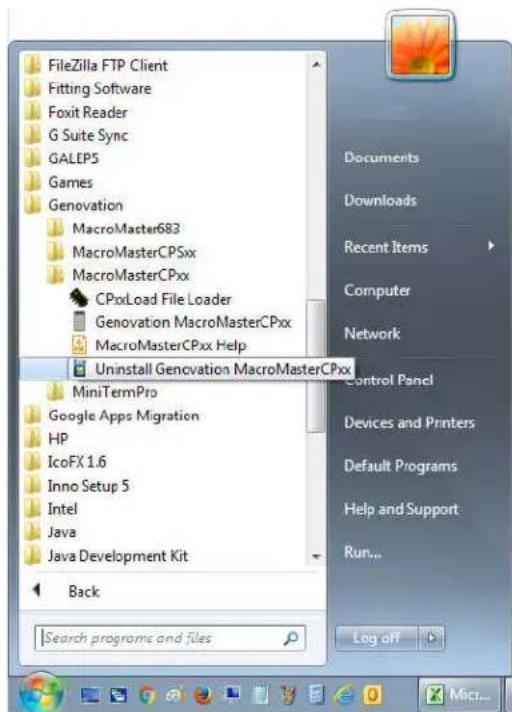
Start >> Programs >> Genovation >> MacroMasterKBxx >> Uninstall MacroMasterKBxx
Or you can use the Control Panel to uninstall the program.
Customization Is Standard
The KBxx product line has been designed with customization in mind. Contact our sales or technical support staff for full-custom or semi-custom variations of our products.
3: Advanced Topics
LED Programming
The LED state can be controlled from within a macro or from a special application running on the Host PC.
Macro LED Control:
To insert an LED state code in a macro, click the LED1 key.
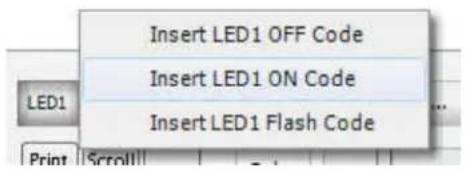
In the pop-up list are the three choices for controlling the LED from within a macro.
If you are using more than one LED state in a given macro you should also insert some delays so that the LED is visible. If you are using separate keys to turn the LED on and off, then no delay is required.
| LED1 On | Dly 500m: | Dly 500m: | LED1 Off |
Host LED Control:
Controlling the LED from the Host PC over USB will require application software on the PC side to control the LED state (on, off or flashing). Some C language demonstration programs are available from Genovation that show how to control the LED from a PC. A sample application is included that allows
Turn LED On Turn LED Off Flash LED Exit
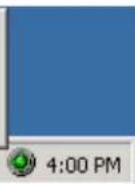
control of the LED from the system tray using a mouse or from a completely different application (using messaging to the supplied system tray application). A DLL is also provided.
You can send a message to the supplied tray icon application using the form shown here:
// Lparam: 06 = flash the led, 05 = turn it on, 04 = turn it off.
HANDLE_Wnd;
Wnd = FindWindow(NULL, "Genovation ControlPadLED");
if(Wnd)
    PostMessage(Wnd, WM_APP+0x0683, (WPARAM)0x00E4, (LPARAM)0x0006);
Alternatively, using the demonstration tray application as a guide, you can create your own application that accesses the LED over USB directly.
Multimedia and More Keys
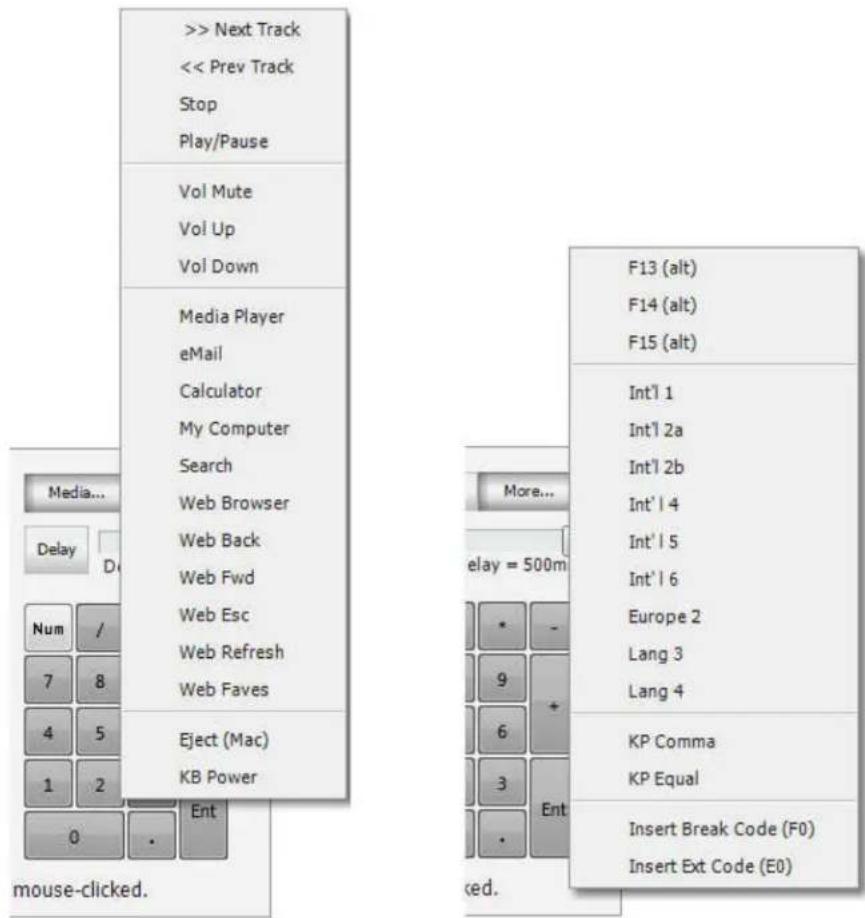
The KB170 fully supports the following multimedia keys.
| PS/2 | USB | Comment |
| E0 4D 00B5 | Scan Next Track | |
| E0 15 00B6 | Scan Previous Track | |
| E0 3B 00B7 | Stop | |
| E0 34 00CD | Play/Pause | |
| E0 23 00E2 | Mute | |
| E0 32 00E9 | Volume Up | |
| E0 21 00EA | Volume Down | |
| E0 50 0183 | Media Select | |
| E0 48 018A | ||
| E0 2B 0192 | Calculator | |
| E0 40 0194 | My Computer | |
| E0 10 0221 | Web Search | |
| E0 3A 0223 | Web Browser/Home | |
| E0 38 0224 | Web Back | |
| E0 30 0225 | Web Forward | |
| E0 28 0226 | Web Stop | |
| E0 20 0227 | Web Refresh | |
| E0 18 022A | Web Favourites | |
| E0 3B 00B7 | USB Eject* |
* Not all operations are available on all operating systems.
And these keys as well:
| PS/2 | USB | Comment |
| 0F 67 Keypad = | |
| 6D 85 Keypad, (Brazil Keypad.) | |
| 51 87 Int'l 1 (Ro) | |
| 13 88 Int'l 2 (a: Katakana/Hiragana) | |
| 6A 89 Int'l 2 (b: Yen) | |
| 64 8A Int'l 4 (Henkan) | |
| 67 8B Int'l 5 (Muhenkan) | |
| 27 8C Int'l 6 (PC9800 Keypad,) | |
| 63 92 Lang 3 (Katakana) | |
| 62 93 Lang 4 (Hiragana) | |
| 61 64 Europe 2 |
Not all operations are available on all operating systems.
In order to insert a one of these keys into a macro, select the key, select the cell and then click on either the Media... button or the More... button. Click on the desired special key from the list.
Macro Modes
The KB170 plays back macros for the keys in one of three modes. Every macro can have its own mode and the setting is adjusted via the Mode drop down box:
Key Codes for Key 1, Level 1
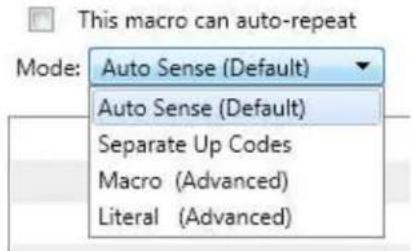
Note that the three modes are Separate Up Codes, Macro Mode and Literal Mode.
The first item on the list, AutoSense (Default) is not a unique mode in itself. The AutoSense setting actually tells MacroMaster to choose one of the next two modes for you automatically (Separate Up Codes or Macro Mode). Normally MacroMaster will make the correct decision for you, but there are times you may want to override this setting and specify one of the three modes yourself.
If you find that your macro is not operating as you intended, you may have to dig under the hood a little to either select the correct mode and/or modify some of the codes in your macro. The following section describes the three modes in detail.
Modes: Separate Up Codes
This mode is used to generate combinations of keys or individual keys that may be used in combination with other keys. In this mode your macro supplies the standard code for:
○ All modifier key make codes (only)
○ Alphanumeric make codes only
In this mode the make codes are all played at once on KB170 key down (and repeats if enabled). On KB170 key up, the macro is rewound to the beginning and this time the break codes are generated. For musicians this is like a “chording” style. If you had a macro containing the letters t h and e, then it would be realized as: t make, h make, e make, ...repeat(s)... t break, h break, e break.
This is not common for the PC because it allows multiple alphanumeric keys to be pressed all at once (which can have its uses, though rare). It works well for true single keys or modifiers or for combinations of modifiers, etc.
If you only have a single key in your macro, this is the best way to implement it. The "AutoSense (Default)" feature of MacroMaster selects this automatically when it detects a macro that is a single key.
Geek Mode On!
Not technical enough for you yet? The CPxx uses the standard USB keyboard report for widest compatibility. This report allows for up to 6 regular keys to be held down at once in addition to the modifier keys. So you could create a macro that holds these keys all down at once: abcdef. As well you could have any combination of Shift, Ctrl and Alt.
Let's say you created a macro using Separate Up Codes that contains the characters 12345Enter. In this case you would find ALL of these characters repeat (depends somewhat on the PC's OS too). So you would see something like:
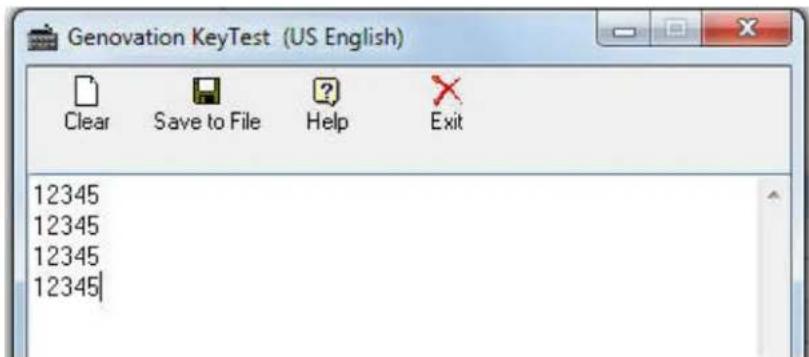
You can't see the ENTER key, but because 12345 appears over and over on a separate line, it is obviously working.
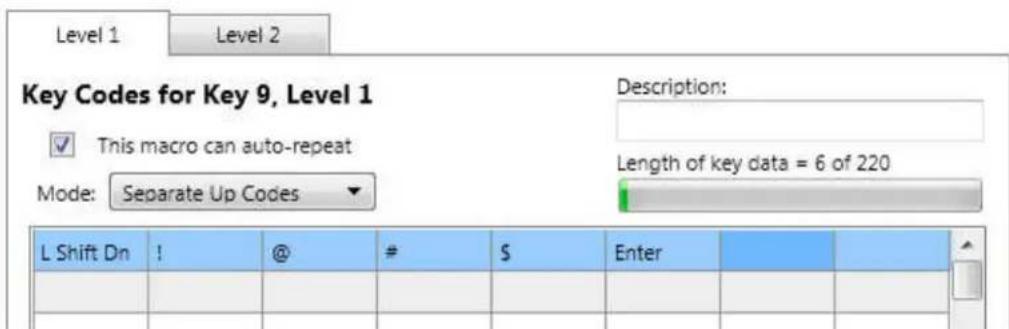
Another thing to be careful of is the modifiers. Since this macro mode synthesizes the up codes when you release the key, you should not include the up codes for the modifiers. Here is an example that repeats the keys !@#\$Enter.
Geek Mode Off!
Modes: Macro
This mode is used to emulate normal typing, such as entering a string of characters. Or more accurately, the typing that a “two-fingered peck and poke” typist would do. In this mode your macro supplies the standard code for:
- All modifier key make and break codes
○ Alphanumeric make codes only
When the keyboard plays the macro back, the modifier codes are played literally but the alphanumeric codes are “uncompressed” to create make codes followed by break codes. The alphanumeric codes are played one at a time. For our earlier Hello World example the keyboard would generate the following keys: shift make, h make, h break, shift break, e make, e break, etc...
All of the operations described above happen on the KB170 key down (and repeats, if enabled). Nothing happens when you release the key on your KB170.
The “AutoSense (Default)” feature of MacroMaster selects this automatically when it detects a macro that has more than a single key.
Modes: Literal
In this mode you know exactly what you want, byte-for-byte. In this mode your macro supplies:
- Everything
The macro is played literally on KB170 key down (and repeats). Nothing happens on KB170 key up.
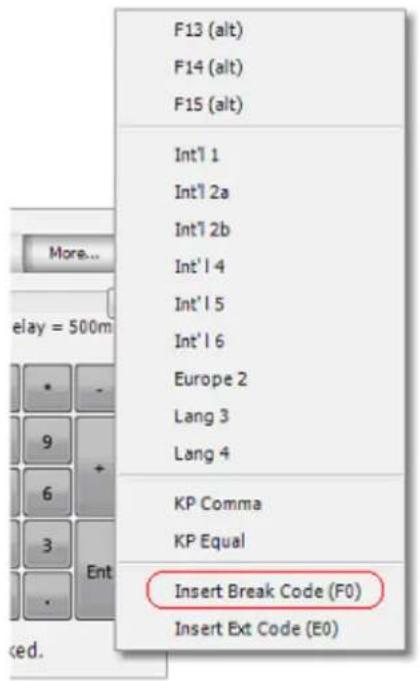
There are two ways to edit the codes literally. The first method is to edit the CKD (INI) file by hand. You will need to look at the key table in the appendix to enter the correct codes. The second method is to use MacroMaster, though it may have some limitations since there is no “hex editor”. The most important tool here is the “Manually Insert a break code” operation. This is selected by clicking on the More... key.
As a simple example, here is the literal macro for "Hi" (not including the quotes):
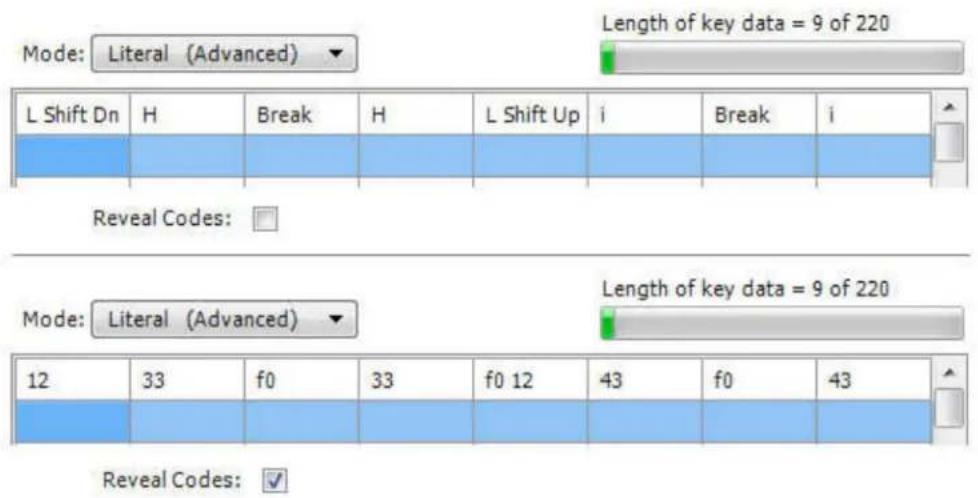
It is shown as text on top and again in hex codes on bottom. Remember that all of the break codes must be present too. So for each key you will have make code, F0, make code. The CKD file entry for this macro looks like this:
Level_1_Codes = 1233f033f01243f043
Rapid Reconfiguration
If you would like to have several keyboard layouts defined, and quickly switch between them, then follow the steps below to create a shortcut for each layout.
○ Build your keyboard layout with MacroMaster and test it with your KB170.
○ Create a new shortcut in a handy location. For instance right-click on the desktop, and choose New followed by Shortcut.
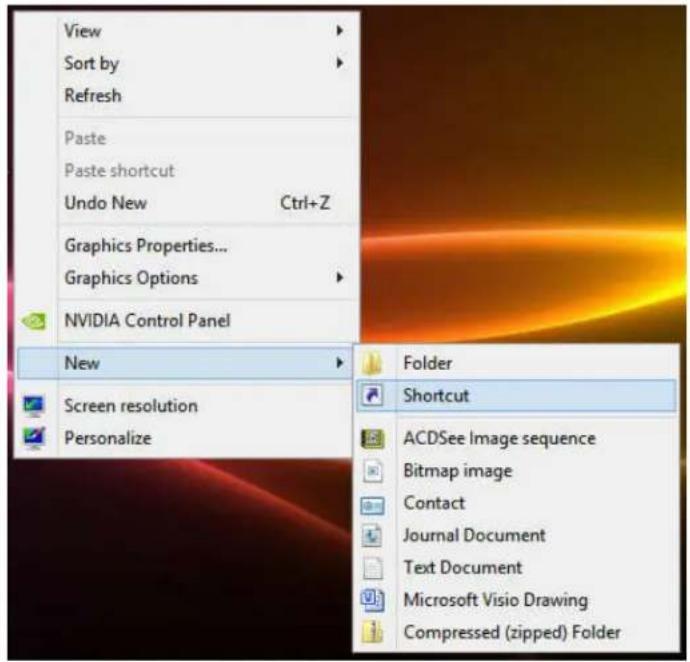
○ Browse to the MacroMaster program folder and choose KBxxLoad.exe. The location will normally be
C:\Program Files\Genovation\MacroMasterKBxx\KBxxLoad.exe
or
C:\Program Files (x86)\Genovation\MacroMasterKBxx\KBxxLoad.exe
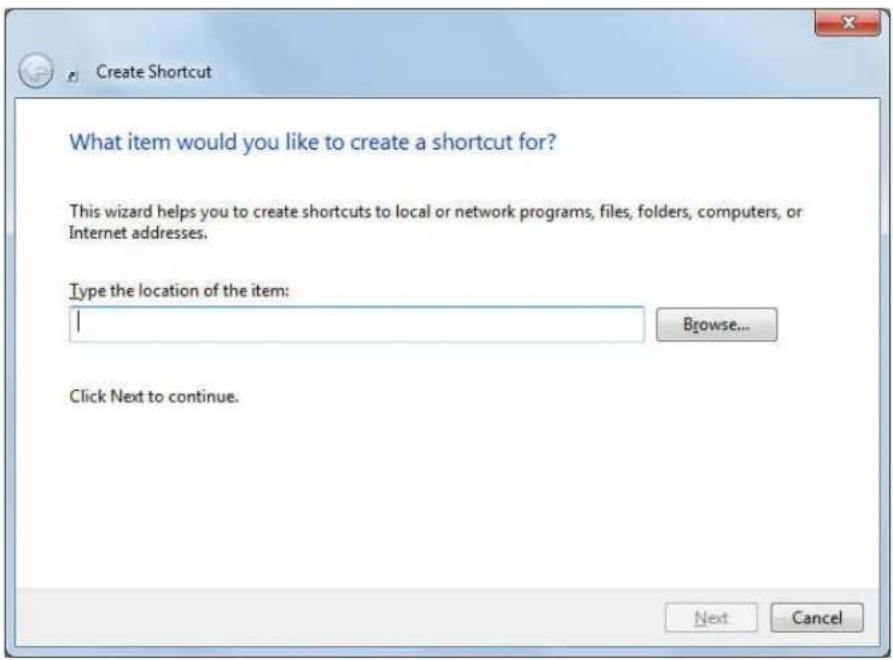
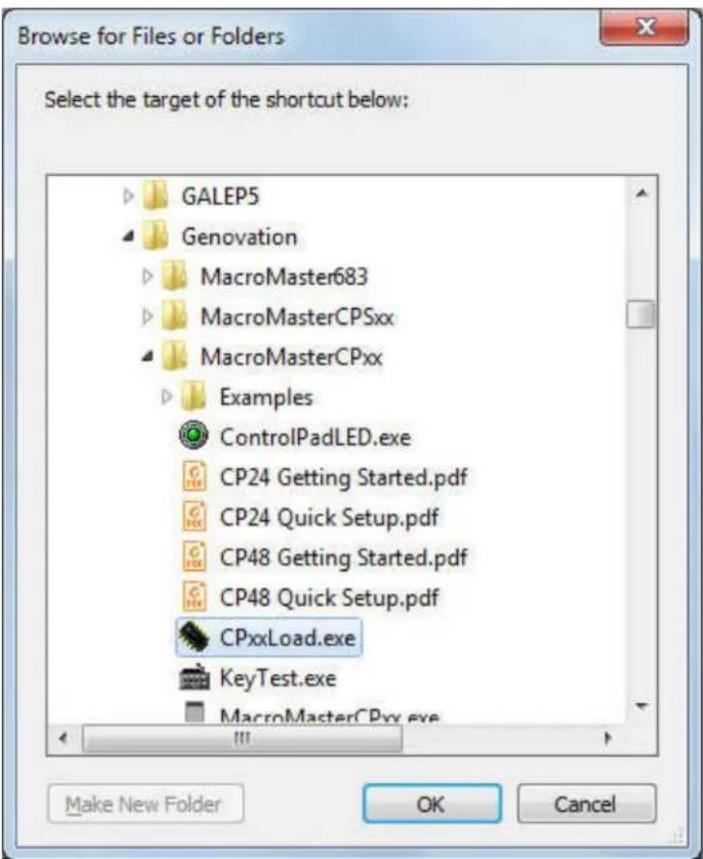
- Click on OK and then Next.
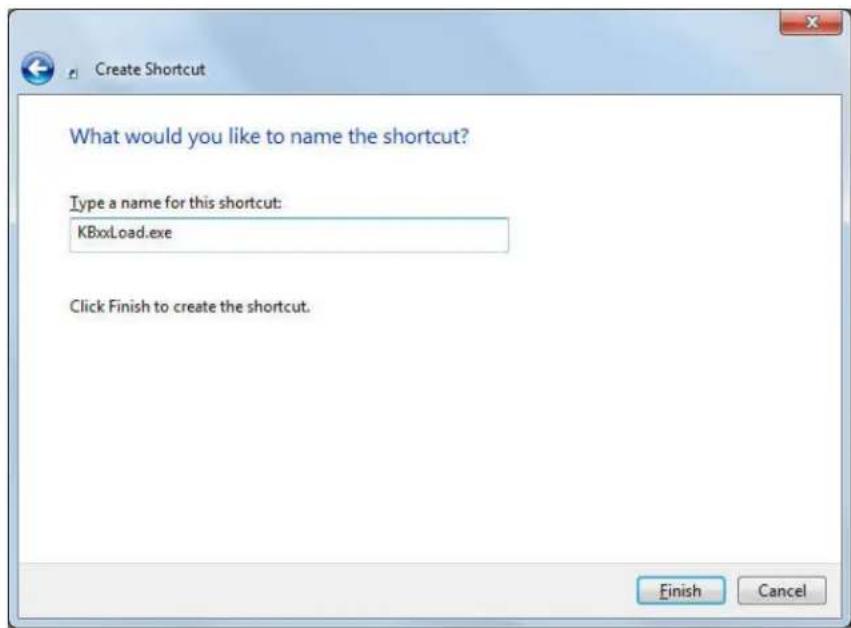
○ Change the name to a suitable name for the shortcut (what the KB170 will be used to control), for instance MusicPlayer.
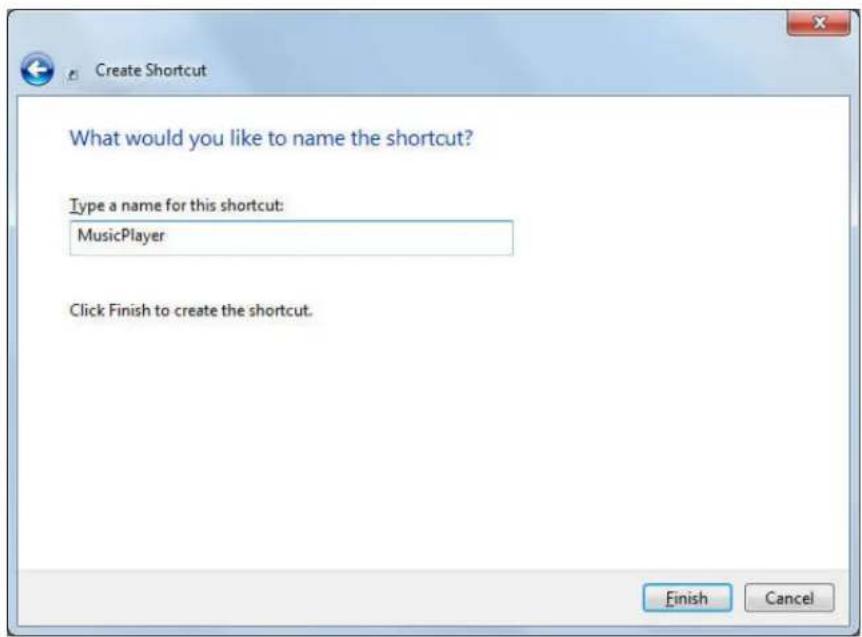
- Click Finish. You should now have a new shortcut called MusicPlayer.
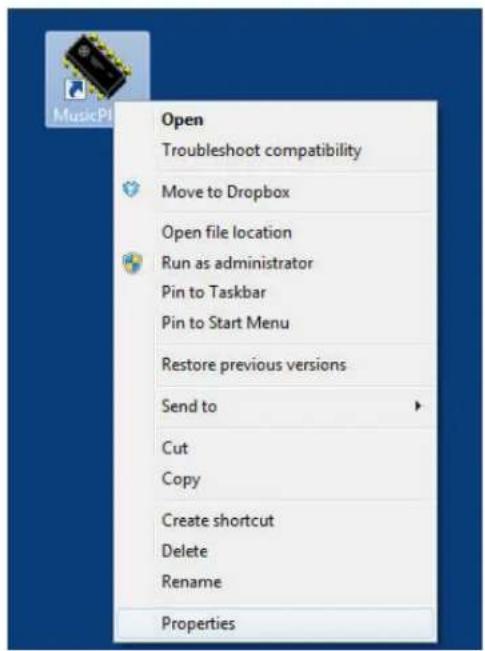
- Next we have to tell the shortcut which file to download. Right click on the new shortcut and click on Properties.
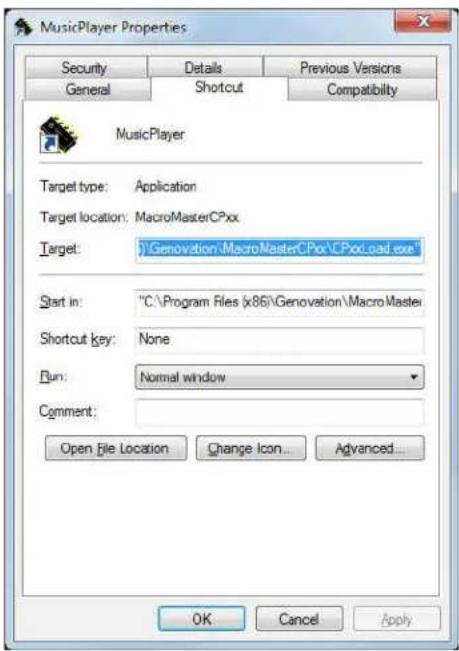
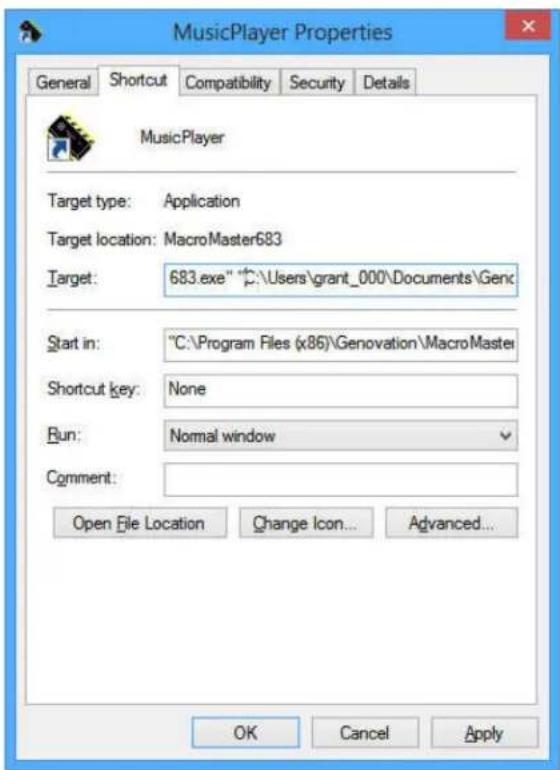
- You need to edit the Target line to append the file that needs to be downloaded. This will be the name of your custom key definition file, but you need to include the path and quotes such as:
"C:\Users\YourName\Documents\Genovation\MacroMasterKBxx\Macro_Files\MultiMediaKeys.ckd"
or
"\SERV1\Users\UserName\My Documents\Genovation\MacroMasterKBxx\Macro_Files\MultiMediaKeys.ckd"
or
"C:\Documents and Settings\UserName\My Documents\ Genovation\MacroMasterKBxx\Macro_Files\MultiMediaKeys.ckd"
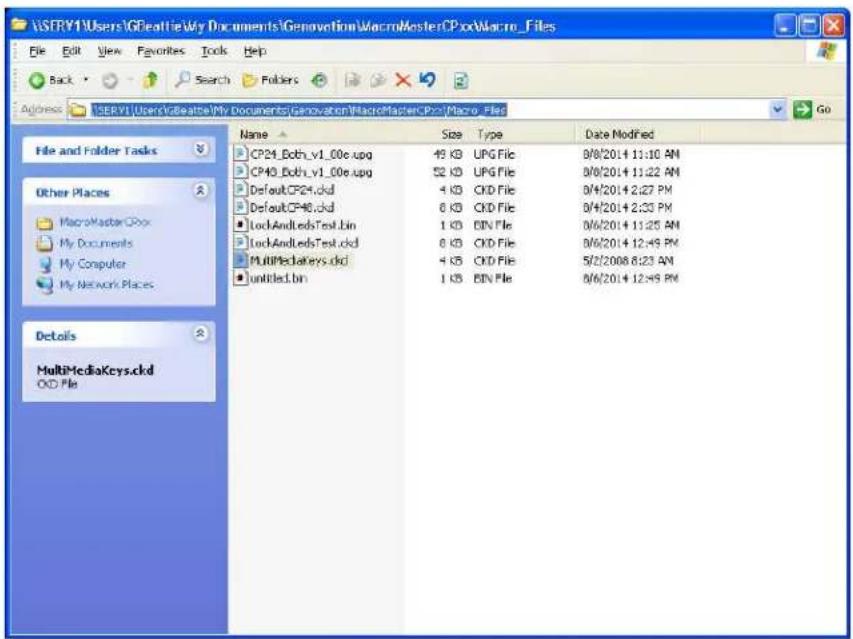
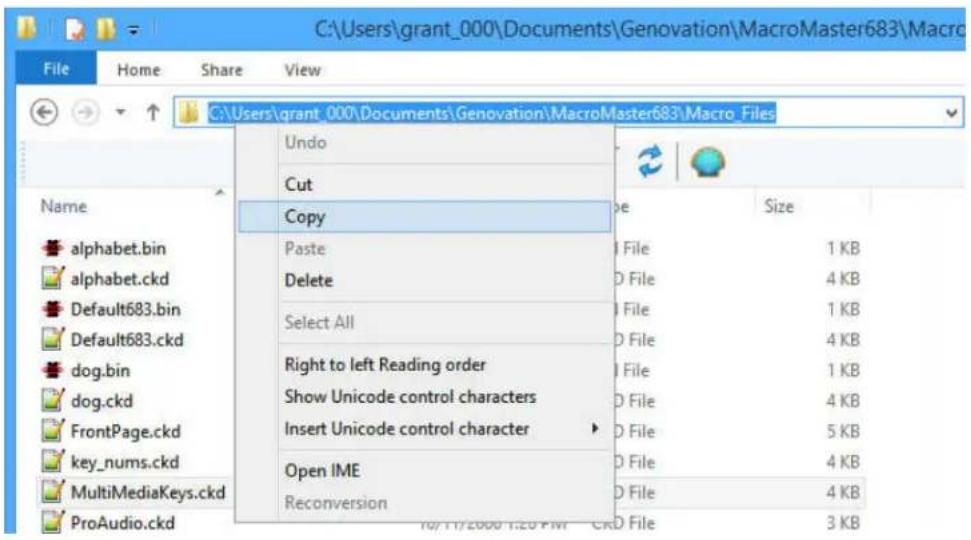
If you click on the folder icon in the address bar you can see the path and then copy it. You will still need to add the filename at the end and surround the whole thing in quotes. Make sure there is a space between the EXE part and the CKD part.
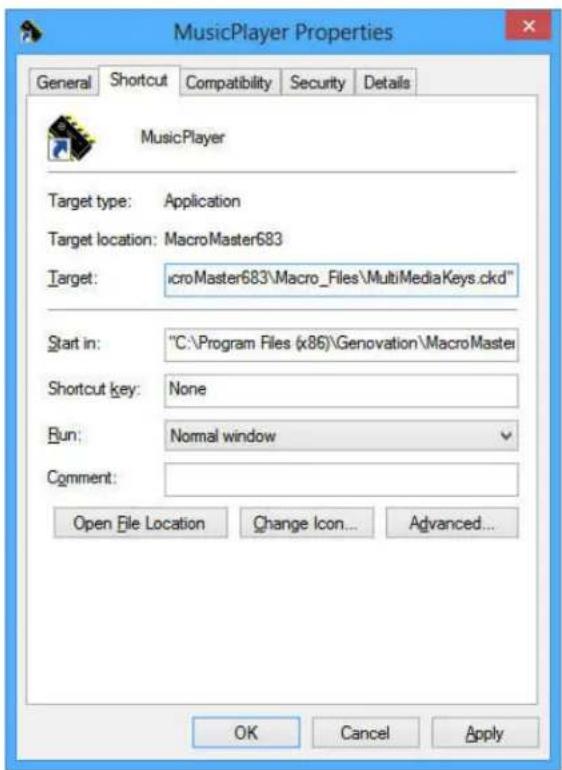
○ Finally, click on OK.
Now your shortcut is complete. When you double-click on it, KBxxLoad will launch and it will send the MultiMediaKeys.ckd file to the KB170. After the download is complete the KB170 will reboot so wait a few moments while the PC re-initializes the connection.
Flash Drive Reprogramming ^5
If you have already created your key definition file, you can use File Copy to send a .BIN file to your keyboard. This technique requires using the rear panel switch to place the keyboard in "USB Flash Drive" configuration ^6 .
Move the rear panel switch from Keyboard operation to USB Flash Drive Mode. You will see the light flicker and eventually turn solid red. The first time you do this your computer will display the new USB device balloon. Once the LED becomes solid red, you should have a new disk drive called CONTROLPAD available to you.
The rest may be done totally manually or with the guided assistance of KBxxLoad.
Manually: You can copy your .BIN file from your Macro Files directory to the root of the CONTROLPAD drive. Note that it must be the .BIN file, not the .CKD file.
Guided: Using the Options menu, choose the Download BIN via Flash Drive Copy item.
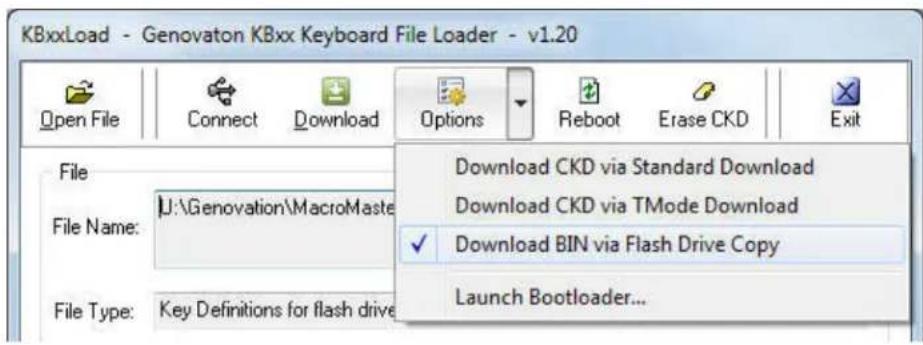
Next, click the Download button on the top toolbar.
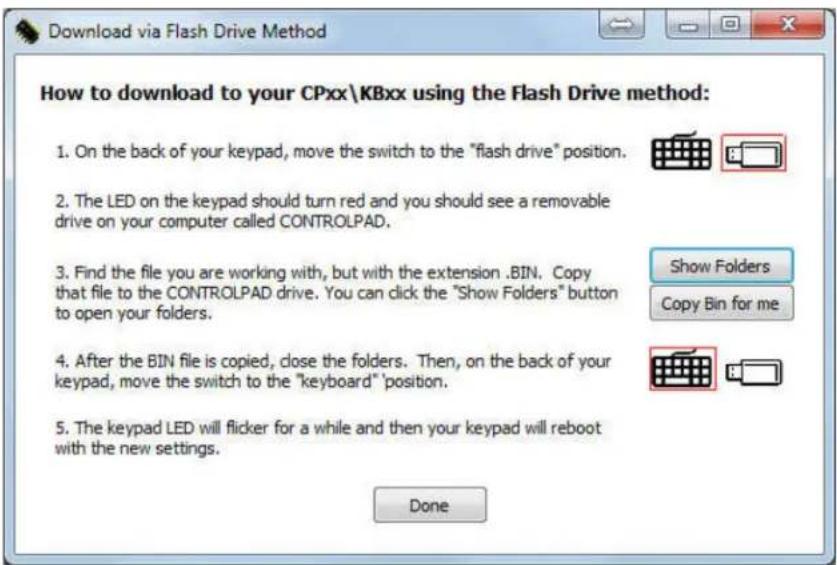
Follow the instructions on screen to copy the .BIN file. Alternatively you can try the buttons on the right side of the form to do it for you.
Once the file has been copied over, move the switch back to the Keyboard position. It may take a while for the keyboard to process the .BIN file, and as it does so you may see the LED flickering blue/red. Once processing is complete, the keyboard will resume normal operation with your new definitions installed.
TMode USB Reprogramming ^7
This is a variation of the standard downloader, but here the rear panel switch is used to place the KB170 into an alternate USB mode.
Move the rear panel switch from Keyboard operation to USB TMode. You will see the light flicker and eventually turn solid violet. The first time you do this your computer will display the new USB device balloon and take some time.
Using the Options menu, choose the Download CKD via TMode item.
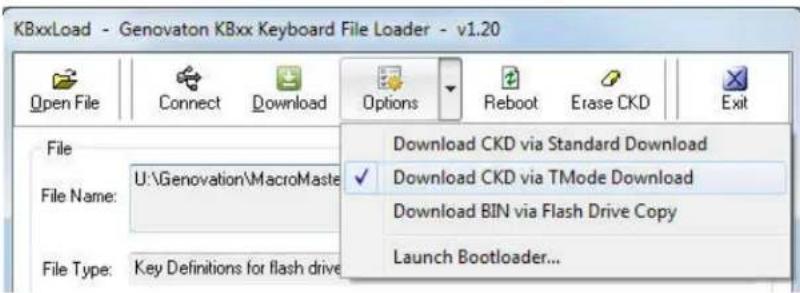

Next, click the Download button on the top toolbar.
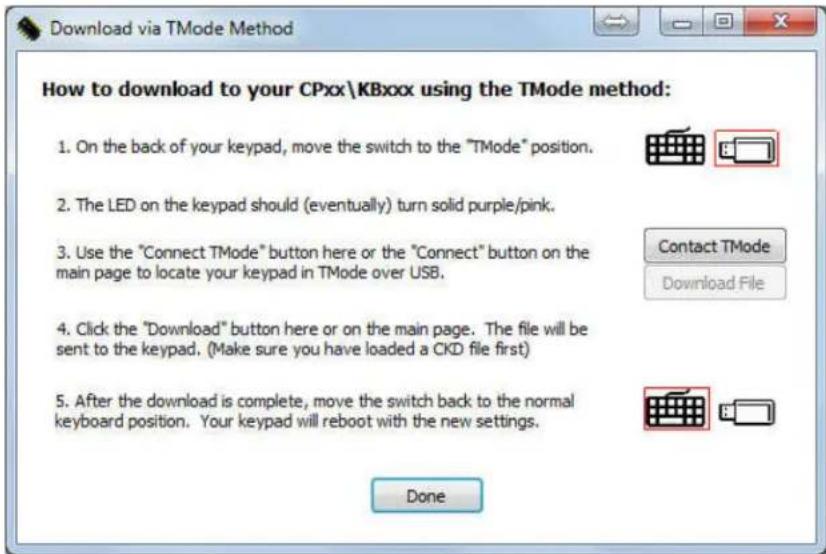
Follow the steps described in order to:
- “Connect” (confirm communication) with the keyboard in the correct mode, and then
- Download the file.
Once the file has been downloaded, move the rear panel switch back to the Keyboard position. The keyboard will reboot with your new definitions installed.
Reflashing the Firmware
The operating system code in the KB170 can be updated over USB starting in either the USB Standard Mode or the USB TMode configuration. Either of these two modes is capable of launching the bootloader inside the KB170 to do the actual update.
Begin by launching the downloader utility program (KBxxLoad.exe). Click on
Start >> Programs >> Genovation >> MacroMasterKBxx >> KBxxLoad
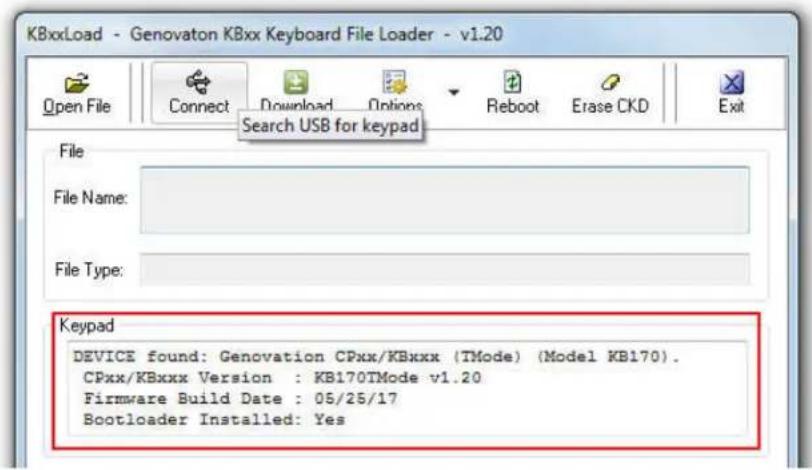
The downloader opens. With the keyboard connected in either mode, click on the Connect button. You should see some information about your keyboard.
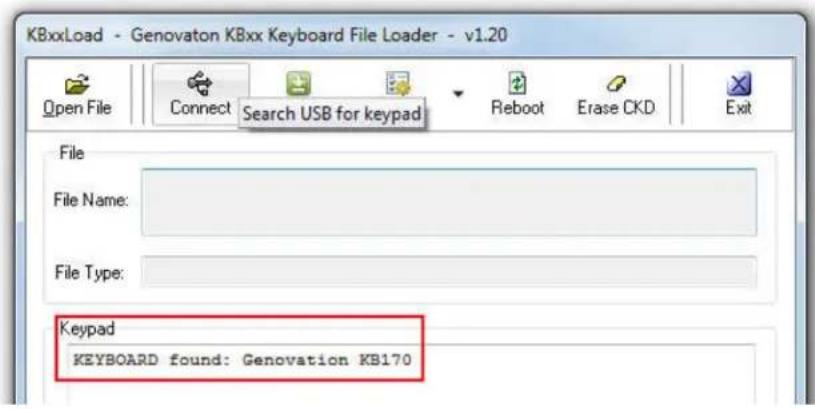
USB Standard Mode is shown above, USB TMode below.
Click on Open File. Change the File Type to Firmware Upgrade (*.upg).

Navigate to the location of your UPG firmware upgrade file. Select the file and click on OK. The file will be loaded.
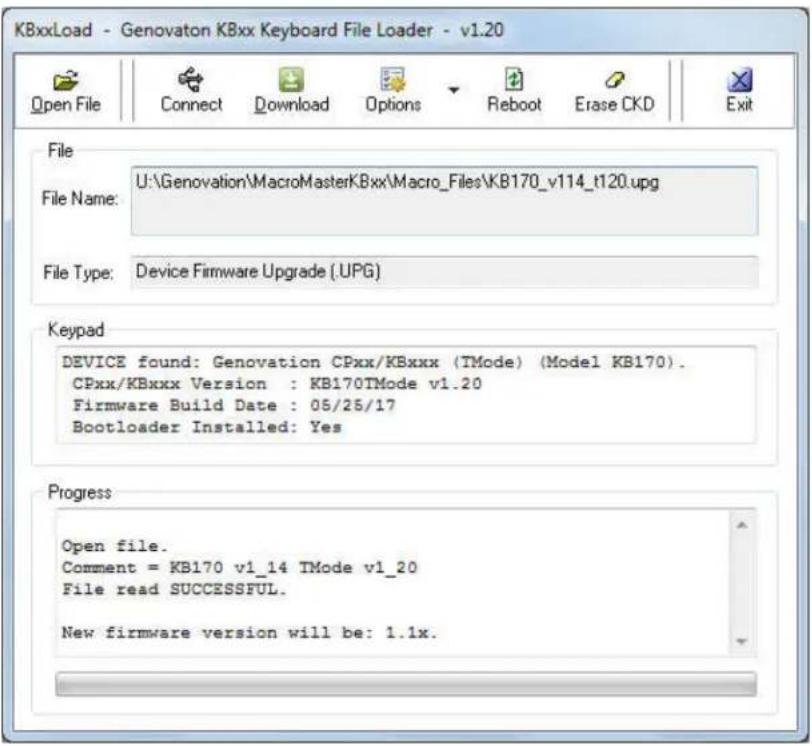
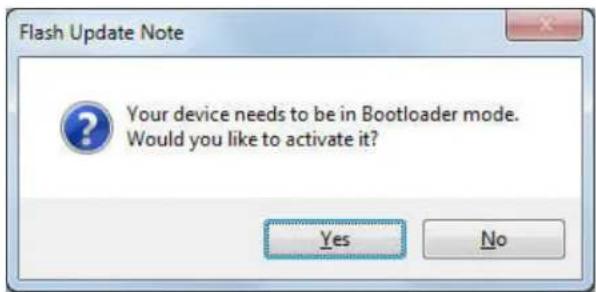
Click on Download. First, the keypad will need to be switched over to "bootloader" mode. Click on Yes.
After a few moments (please wait!) more information about the keypad is retrieved.
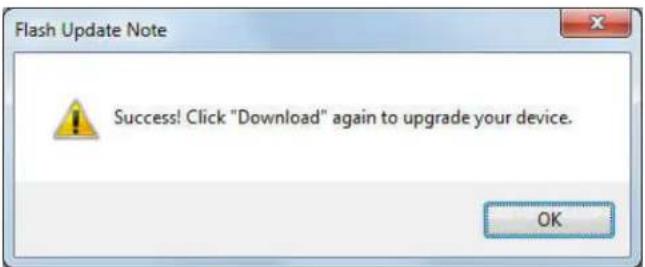
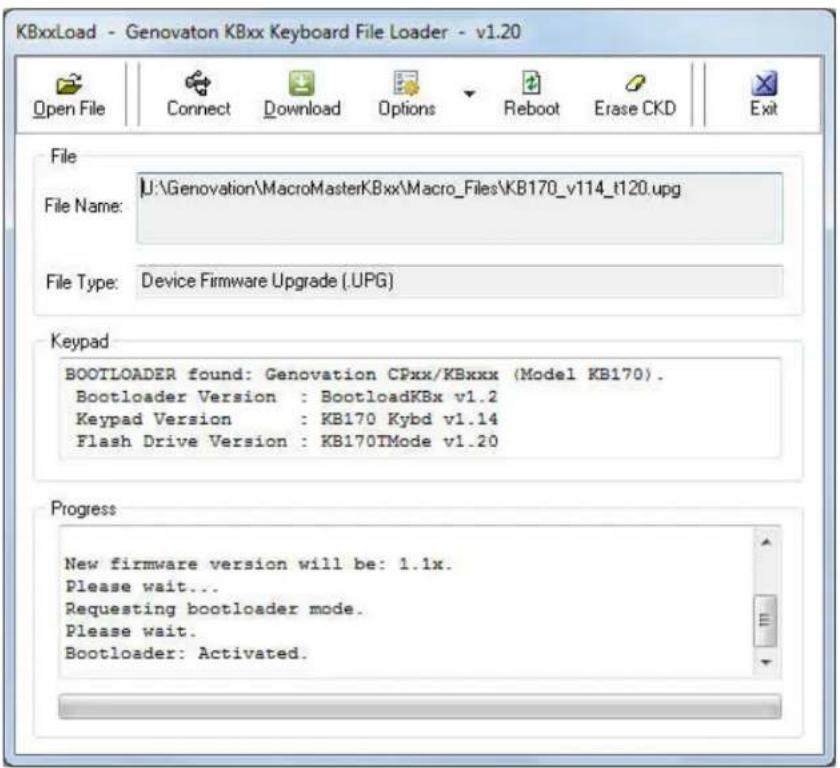
Finally you will need to click on Download some time. Do not interrupt it.
Download again. This process will take
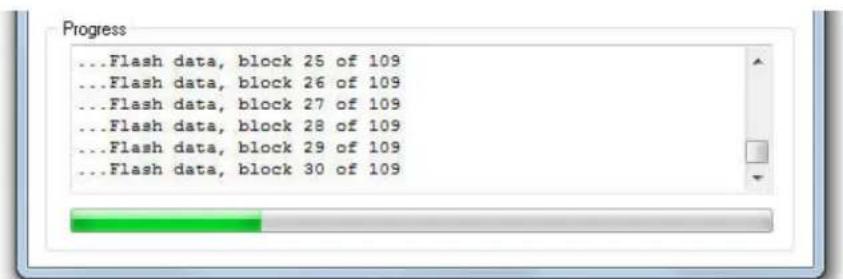
When it is finished you will see the SUCCESS message.
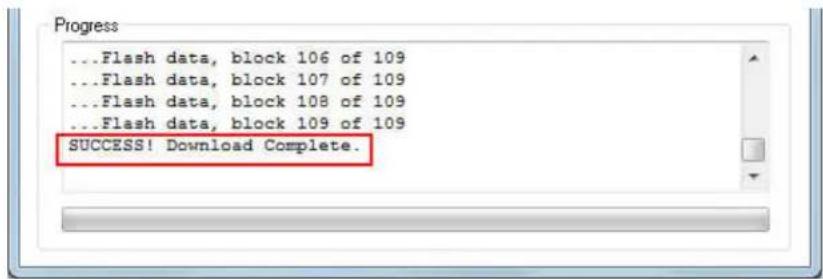
After the keypad reboots you may begin using it. You may find it necessary to re-download your CKD file after a firmware upgrade.
4: Technical Specifications
| CP24 | CP48 | KB170 | |
| Number of Keys | 24 relegendable mounted on an industrial strength metal sub panel. | 48 relegendable mounted on an industrial strength metal sub panel. | 66 relegendable mounted on an industrial strength metal sub panel. |
| Key Type Gold | Gold plated industrial quality Cherry MX key switches. Travel 3.5 mm (0.14"). Operating force is 0.686N (79gf). Life 5 X 10^7 Cycles. | Gold plated industrial quality Cherry MX key switches. Travel 3.5 mm (0.14"). Operating force is 0.686N (79gf). Life 5 X 10^7 Cycles. | Gold plated industrial quality Cherry MX key switches. Travel 3.5 mm (0.14"). Operating force is 0.686N (79gf). Life 5 X \( 10^7 Cycles. |
| USB Port USB | 1.0, 1.1, 2.0 and 3.0 compatible. HID keyboard and multimedia. USB Flash drive mode. | USB 1.0, 1.1, 2.0 and 3.0 compatible. HID keyboard and multimedia. USB Flash drive mode. | USB 1.0, 1.1, 2.0 and 3.0 compatible. HID keyboard and multimedia. USB Flash drive mode. |
| USB Hub No | No Yes – One free port | available | |
| PS/2 Keyboard Port | PS/2 version available as special order only. | No No | |
| RS232 Serial Port | USB virtual serial and true DB9 RS232 version are available. | USB virtual serial and true DB9 RS232 version are available. | n/a |
| Power Bus-powered. No external power supply required. | Bus-powered. No external power supply required. | Bus-powered. No external power supply required. | |
| Number of programmable LEDsLED Modes | 1 (dual color) 1 (dual color)2 (single color) - optional | 1 (dual color) | |
| CapsLock, NumLock, Level, Host/Macro, ScrollLock, Power | CapsLock, NumLock, Level, Host/Macro, ScrollLock, Power | CapsLock, NumLock, Level, Host/Macro, ScrollLock, Power | |
| Temperature 0C to 70C (32F to 158F) | 0C to 70C (32F to 158F) | 0C to 70C (32F to 158F) | |
| Dimensions TBD TBD TBD | |||
| Weight TBD | Ibs. shipping weight | TBD Ibs. shipping weight | TBD Ibs. shipping weight |
| Macro Storage | Two levels, 110 bytes per level, 220 bytes per key | Two levels, 110 bytes per level, 220 bytes per key | Two levels, 110 bytes per level, 220 bytes per key |
| Level shift keys | 0, 1 or 2 assignable. 0, | 1 or 2 assignable. 0, 1 or 2 | assignable. |
| Level toggle keys | 0, 1 or 2 assignable. 0, | 1 or 2 assignable. 0, 1 or 2 | assignable. |
| Rollover** 1 to 6** 1 to 6** | |||
| Storage Type | High reliability Flash High reliability EEPROM | High reliability EEPROM | |
| Endurance | 100,000 write cycles 100,000 write cycles 100,000 write cycles | ||
| Data Retention | 100 years 100 years 100 years | ||
| Program Method | MacroMasterCPxx application | MacroMasterCPxx application | MacroMasterKBxx application |
| Download Method | Windows:CPxxLoad.exeAll OS's: .BIN file copy (drag n drop) | Windows:CPxxLoad.exeAll OS's: .BIN file copy (drag n drop) | Windows:KBxxLoad.exe |
| Driver Requirement | None (uses OS native drivers) | None (uses OS native drivers) | None (uses OS native drivers |
| MacroMaster OS | Microsoft Windows (XP or newer)Mac OSX | Microsoft Windows (XP or newer)Mac OSX | Microsoft Windows (XP or newer) |
| Keypad OS Will boot PC in standalone mode | USB hardware supports all OS types (Win, Mac, Linux) | USB hardware supports all OS types (Win, Mac, Linux) | USB hardware supports all OS types (Win, Mac, Linux) |
| Yes | Yes | Yes | |
** The CPxx/KBxx itself has n-key rollover and you can hold as many keys down as you like (as set by the Properties panel). The USB keyboard report supports up to 6 keys down plus any combination of modifiers down.
A: Appendix
Scan Code Table
All values are hexadecimal AT (PS/2) scan codes.
| Function Make Code(s) Break Codes | ||
| F9 01 F0 01 | ||
| F5 03 F0 03 | ||
| F3 04 F0 04 | ||
| F1 05 F0 05 | ||
| F2 06 F0 06 | ||
| F12 07 F0 07 | ||
| F13 (new) 08 F0 08 | ||
| F10 09 F0 09 | ||
| F8 0A F0 0A | ||
| F6 0B F0 0B | ||
| F4 0C F0 0C | ||
| TAB 0D F0 0D | ||
| `~ 0E | F0 0E | |
| Keypad = | 0F | F0 0F |
| Function Make Code(s) Break Codes | ||
| F14 (new) 10 F0 10 | ||
| L Alt | 11 F0 11 | |
| L Shift | 12 F0 12 | |
| Int'l 2 (a) | 13 F0 13 | |
| L Ctrl | 14 F0 14 | |
| q Q 15 F0 15 | ||
| 1! 16 F0 16 | ||
| F15 (new) 18 F0 18 | ||
| z Z 1A F0 1A | ||
| s S | 1B F0 1B | |
| a A | 1C F0 1C | |
| w W | 1D F0 1D | |
| 2 @ 1E F0 1E | ||
| Function Make Code(s) Break Codes | ||
| F16 20 F0 20 | ||
| c C | 21 F0 21 | |
| x X 22 F0 22 | ||
| d D 23 F0 23 | ||
| e E 24 F0 24 | ||
| 4 $ 25 F0 25 | ||
| 3 # 26 F0 26 | ||
| Int'l 6 27 F0 27 | |
| F17 28 F0 28 | |
| Space 29 F0 29 | |
| v V 2A F0 2A | |
| f F 2B F0 2B | |
| t T 2C F0 2C | |
| r R 2D F0 2D | |
| 5 % 2E F0 2E | |
| F13 (old) 2F F0 2F | |
| Function Make Code(s) Break Codes | |
| F18 30 F0 30 | |
| n N 31 F0 31 | |
| b B 32 F0 32 | |
| h H 33 F0 33 | |
| g G 34 F0 34 | |
| y Y 35 F0 35 | |
| 6^ 36 F0 36 | |
| F14 (old) 37 F0 37 | |
| F19 38 F0 38 | |
| m M 3A F0 3A | |
| j J 3B F0 3B | |
| u U 3C F0 3C | |
| 7 & 3D F0 3D | |
| 8 * 3E F0 3E | |
| F15 (old) 3F F0 3F | |
| Function Make Code(s) Break Codes | |
| F20 40 F0 40 | |
| ,< 41 F0 41 | |
| k K 42 F0 42 | |
| i I 43 F0 43 | |
| o O 44 F0 44 | |
| 0 ) 45 F0 45 | |
| 9 ( 46 F0 46 | |
| F21 48 F0 48 | |
| .> 49 F0 49 | |
| /? 4A F0 4A | |
| l L 4B F0 4B | |
| ; : 4C F0 4C | |
| p P 4D F0 4D | |
| - _ 4E F0 4E | |
| Function Make Code(s) Break Codes | |
| F22 50 F0 50 | |
| Int'l 1 51 F0 51 | |
| “ “ 52 F0 52 | |
| [ { 54 F0 54 | |
| = + 55 F0 55 | |
| F23 57 F0 57 | |
| Caps Lock 58 F0 58 | |
| R Shift 59 F0 59 | |
| Enter 5A F0 5A | |
| ] } 5B F0 5B | |
| \ | 5D F0 5D | |
| F24 5F F0 5F | |
| Function Make Code(s) Break Codes | |
| Europe 2 | 61 F0 61 |
| Lang 4 | 62 F0 62 |
| Lang 3 | 63 F0 63 |
| Int’l 4 | 64 F0 64 |
| Backspace 66 F0 66 | |
| Int’l 5 | 67 F0 67 |
| Keypad 1 | 69 F0 69 |
| Int’l 2 (b) | 6A F0 6A |
| Keypad 4 | 6B F0 6B |
| Keypad 7 | 6C F0 6C |
| Keypad , | 6D F0 6D |
| Function Make Code(s) Break Codes | |
| Keypad 0 | 70 F0 70 |
| Keypad . | 71 F0 71 |
| Keypad 2 | 72 F0 72 |
| Keypad 5 | 73 F0 73 |
| Keypad 6 | 74 F0 74 |
| Keypad 8 | 75 F0 75 |
| Escape 76 F0 76 | |
| Num Lock 77 F0 77 | |
| F11 78 F0 78 | |
| Keypad + | 79 F0 79 |
| Keypad 3 | 7A F0 7A |
| Keypad - | 7B F0 7B |
| Keypad * | 7C F0 7C |
| Keypad 9 | 7D F0 7D |
| Scroll Lock | 7E F0 7E |
| Function Make Code(s) Break Codes | |
| F7 | 83 F0 83 |
| Function Make Code(s) Break Codes | |
| R Alt | E0 11 E0 F0 11 |
| R Ctrl | E0 14 E0 F0 14 |
| L Win | E0 1F E0 F0 1F |
| R Win | E0 27 E0 F0 27 |
| App | E0 2F E0 F0 2F |
| Power | E0 37 E0 F0 37 |
| Keypad / E0 4A | E0 F0 4A | |
| Keypad Enter E0 | 5A E0 F0 5A | |
| Wake E0 5E | E0 F0 5E | |
| End E0 69 | E0 F0 69 | |
| Left E0 6B | E0 F0 6B | |
| Home E0 6C | E0 F0 6C | |
| Insert E0 70 | E0 F0 70 | |
| Delete E0 71 | E0 F0 71 | |
| Down E0 72 | E0 F0 72 | |
| Right | E0 74 E0 F0 74 | |
| Up | E0 75 E0 F0 75 | |
| Page Down | E0 7A E0 F0 7A | |
| Page Up | E0 7D E0 F0 7D | |
| Media Function | Make Code(s) | Break Codes |
| Search | E0 10 E0 F0 10 | |
| Prev Track | E0 15 E0 F0 15 | |
| WWW Favorites | E0 18 E0 F0 18 | |
| Eject (mac) | E0 1A E0 F0 1A | |
| WWW Refresh | E0 20 E0 F0 20 | |
| Volume Down | E0 21 E0 F0 21 | |
| Mute | E0 23 E0 F0 23 | |
| WWW Stop | E0 28 E0 F0 28 | |
| App 1 (Calc) | E0 2B E0 F0 2B | |
| WWW Forward | E0 30 E0 F0 30 | |
| Volume Up | E0 32 E0 F0 32 | |
| Play/Pause | E0 34 E0 F0 34 | |
| WWW Back | E0 38 E0 F0 38 | |
| WWW Home | E0 3A E0 F0 3A | |
| Stop | E0 3B E0 F0 3B | |
| App 2 (My PC) | E0 40 | E0 F0 40 |
| E0 48 E0 F0 48 | ||
| Next Track | E0 4D E0 F0 4D | |
| Media Select | E0 50 | E0 F0 50 |
Pause/Break and PrintScreen/SysRq use custom codes internally and are fully supported over USB.
Additional information can be found in "translate.pdf" (courtesy of Microsoft) and "Hut1_12.pdf" (courtesy of USB.org).