GR Limited Edition - Camera RICOH - Free user manual and instructions
Find the device manual for free GR Limited Edition RICOH in PDF.


| Product Type | Digital Compact Camera |
| Model | GR Limited Edition |
| Brand | Ricoh |
| Sensor | 24.2 MP APS-C CMOS |
| Lens | 18.3mm (28mm equivalent) f/2.8 |
| Dimensions | 109.4 x 61.9 x 33.2 mm |
| Weight | Approx. 257 g (with battery and memory card) |
| Power Source | Rechargeable Li-ion battery DB-110 |
| Battery Life | Approx. 200 shots (CIPA standard) |
| Display | 3.0-inch TFT LCD, approx. 1,037,000 dots |
| Image Stabilization | SR (Shake Reduction) sensor-shift |
| Shutter Speed | 1/4000 to 30 sec, Bulb |
| ISO Sensitivity | 100 - 102400 (expandable) |
| Storage Media | SD/SDHC/SDXC memory card (UHS-I compatible) |
| Connectivity | USB-C, HDMI micro (Type D), Wi-Fi, Bluetooth |
| Main Functions | Full manual control, RAW capture, built-in ND filter, macro mode, interval composite, multiple exposures |
| Care and Cleaning | Clean lens with soft dry cloth; remove battery when storing; use a blower for dust |
| Safety | Do not disassemble; avoid exposure to high temperatures; use only specified battery and charger |
| Spare Parts and Repairability | Authorized service centers only; genuine Ricoh spare parts recommended |
| General Information | Limited edition with unique finish and accessories; check manual for detailed specifications |
Frequently Asked Questions - GR Limited Edition RICOH
User questions about GR Limited Edition RICOH
0 question about this device. Answer the ones you know or ask your own.
Ask a new question about this device
Download the instructions for your Camera in PDF format for free! Find your manual GR Limited Edition - RICOH and take your electronic device back in hand. On this page are published all the documents necessary for the use of your device. GR Limited Edition by RICOH.
USER MANUAL GR Limited Edition RICOH
The serial number may be found on the bottom of the camera.
Before You Begin
Read this section before use.
It covers the names of the parts and how to prepare the camera for use.
First Steps
Read this section before using your camera for the first time.
It covers the basic operations for using your camera for the first time, including how to turn on the camera, take pictures, and play back images.
Advanced Operations
Read this section when you want to learn more about the different camera functions.
It covers all shooting and playback functions and describes how to customize the camera settings and use it with a computer.
Checking the Package Contents
Before using your digital camera, confirm that the package contains the items listed below.
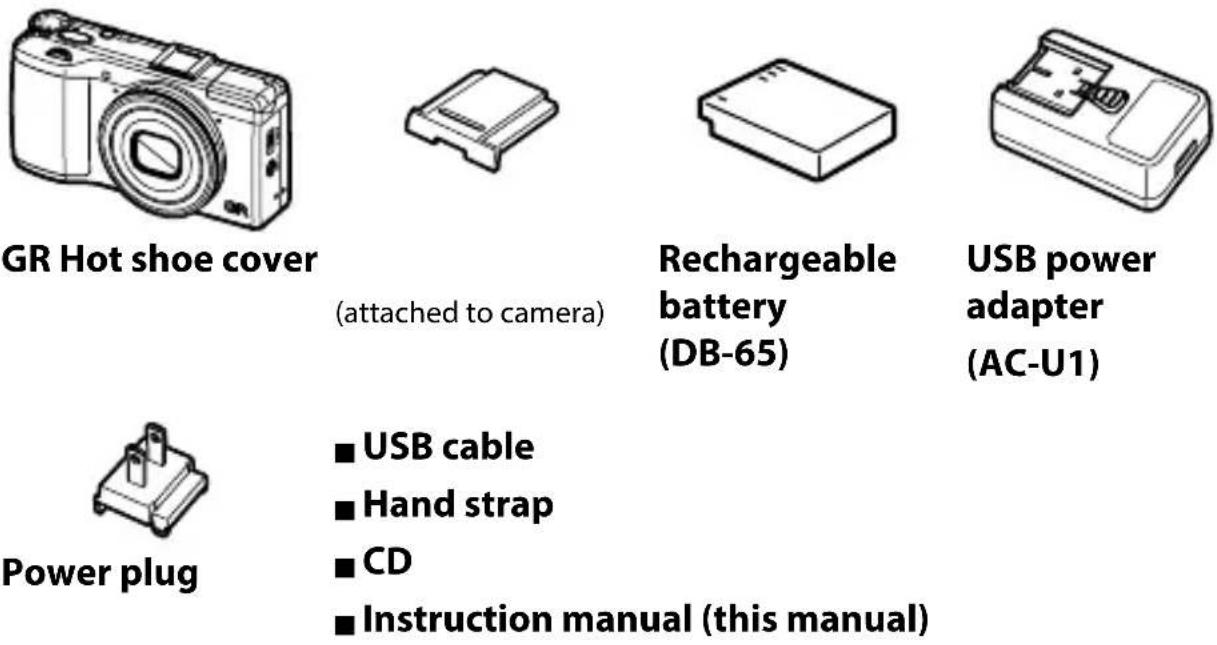
(attached to camera)
■USB cable
■ Hand strap
CD
■ Instruction manual (this manual)
Please complete the user registration
Thank you for purchasing a PENTAX RICOH IMAGING product.
In order to provide you with the best customer support and service experience for the product you have purchased, we ask you to complete the user registration.
Visit the following Web site to complete the user registration.
https://login.pentax.jp/customer/menu.aspx
Registered users will be notified by e-mail about important customer support information, such as firmware version updates, etc.
Introduction
This instruction manual provides information on how to use the shooting and playback functions of this camera and related precautions.
Thoroughly read this instruction manual to make the best use of the functions available with this camera unit. Be sure to keep this instruction manual for future reference.
PENTAX RICOH IMAGING CO., LTD.
| Safety precautions Read all | safety precautions thoroughly to ensure safe use. |
| Test shots | Take test shots to ensure that the camera is working properly before taking photos on important occasions. |
| Copyright Reproduction or | alteration of copyrighted documents, magazines, and other materials, other than for personal, home, or other similarly limited purposes, without the consent of the copyright holder, is prohibited. |
| Exemption from liability PENTAX RICOH IMAGING CO., LTD. assumes no liability for failure to record or display images as a result of product malfunction. | |
| Warranty This camera is ma | manufactured to local specifications. The warranty supplied with this product is valid within Japan. Should the product fail or malfunction while outside of the country, the manufacturer assumes no responsibility for servicing the product locally or bearing any expenditure incurred thereby. |
| Radio interference Operating | this product in the vicinity of other electronic equipment may adversely affect both the camera and the other device. Interference is particularly likely if the camera is used in close proximity to a radio/TV receiver. In such case, take the following measures.Keep the camera as far away as possible from the radio/TV receiverReorient the antenna of the radio/TV receiverUse a different wall outlet |
This publication may not be reproduced in whole or in part without PENTAX RICOH IMAGING's express written permission.
© 2013 PENTAX RICOH IMAGING CO., LTD.
PENTAX RICOH IMAGING reserves the right to change the contents of this document at any time without prior notice.
Every effort has been made to ensure the accuracy of the information in this document. Should you nevertheless notice any errors or omissions, we would be grateful if you would notify us at the address listed on the back cover of this booklet.
Microsoft, Windows, Windows 7 ^® , Windows 8 ^® , and Internet Explorer are registered trademarks of Microsoft Corporation in the United States of America and other countries.
Macintosh and Mac OS are registered trademarks of Apple Inc. in the United States of America and other countries.
Adobe, the Adobe logo, and Adobe Reader are trademarks of Adobe Systems Incorporated.
The SDXC logo is a trademark of SD-3C, LLC.
This product incorporates DNG technology with the permission of Adobe Systems Incorporated.
The DNG logo is a trademark or registered trademark of Adobe Systems Incorporated.
HDMI, the HDMI logo, and High-Definition Multimedia Interface are trademarks or registered trademarks of HDMI licensing, LLC in the United States and/or other countries.
SILKYPIX is a registered trademark of Ichikawa Soft Laboratory.
Eye-Fi, Eye-Fi connected, and the Eye-Fi logo are registered trademarks of Eye-Fi, Inc.
All other trade names mentioned in this document are the property of their respective owners.
AVC Patent Portfolio License
This product is licensed under the AVC Patent Portfolio License for the personal use of a consumer or other uses in which it does not receive remuneration to:
(i) Encode video in compliance with the AVC standard ("AVC video") and/or
(ii) Decode AVC video that was encoded by a consumer engaged in a personal activity and/or was obtained from a video provider licensed to provide AVC video.
No license is granted or shall be implied for any other use.
Additional information may be obtained from MPEG LA, LLC.
See http://www.mpegla.com.
Announcement on the Use of BSD-Licensed Software
This product includes software licensed under the BSD License. BSD license is a form of license which permits the redistribution of the software provided that it is clearly stated that use is unwarranted, and a copyright notice and a list of licensing conditions are provided. The following contents are displayed based on the abovementioned licensing conditions and are not for the purpose of restricting your use of the product, etc.
Tera Term
Copyright (c) T.Teranishi.
Copyright (c) TeraTerm Project.
All rights reserved.
Redistribution and use in source and binary forms, with or without modification, are permitted provided that the following conditions are met:
- Redistributions of source code must retain the above copyright notice, this list of conditions and the following disclaimer.
- Redistributions in binary form must reproduce the above copyright notice, this list of conditions and the following disclaimer in the documentation and/or other materials provided with the distribution.
- The name of the author may not be used to endorse or promote products derived from this software without specific prior written permission.
THIS SOFTWARE IS PROVIDED BY THE AUTHOR" AS IS" AND ANY EXPRESS OR IMPLIED WARRANTIES, INCLUDING, BUT NOT LIMITED TO, THE IMPLIED WARRANTIES OF MERCHANTABILITY AND FITNESS FOR A PARTICULAR PURPOSE ARE DISCLAIMED. IN NO EVENT SHALL THE AUTHOR BE LIABLE FOR ANY DIRECT, INDIRECT, INCIDENTAL, SPECIAL, EXEMPLARY, OR CONSEQUENTIAL DAMAGES (INCLUDING, BUT NOT LIMITED TO, PROCUREMENT OF SUBSTITUTE GOODS OR SERVICES; LOSS OF USE, DATA, OR PROFITS; OR BUSINESS INTERRUPTION) HOWEVER CAUS ON ANY THEORY OF LIABILITY, WHETHER IN CONTRACT, STRICT LIABILITY, OR TORT (INCLUDING NEGLIGENCE OR OTHERWISE) ARISING IN ANY WAY OUT OF THE USE OF THIS SOFTWARE, EVEN IF ADVISED OF THE POSSIBILITY OF SUCH DAMAGE.
Safety Precautions
Warning Symbols
Various symbols are used throughout this instruction manual and on the product to prevent physical harm to you or other people and damage to property. The symbols and their meanings are explained below.

Danger
This symbol indicates matters that may lead to imminent risk of death or serious injury if ignored or incorrectly handled.

Warning
This symbol indicates matters that may lead to death or serious injury if ignored or incorrectly handled.

Caution
This symbol indicates matters that may lead to injury or physical damage if ignored or incorrectly handled.
Sample Warnings

The symbol alerts you to actions that must be performed.

The symbol alerts you to prohibited actions.
The Ⓧ symbol may be combined with other symbols to indicate that a specific action is prohibited.
Sample Warnings
Do not touch Do not disassemble
Observe the following precautions to ensure safe use of this unit.

Danger

- Do not attempt to disassemble, repair or alter the equipment yourself. The high-voltage circuitry in the equipment poses significant electrical hazard.

- Do not attempt to disassemble, alter or directly solder the battery.

- Do not put the battery in a fire, attempt to heat it, use it in a high temperature environment such as next to a fire or inside a car, or abandon it. Do not put it into water or the sea or allow it to get wet.

- Do not attempt to pierce, hit, compress, drop, or subject the battery to any other severe impact or force.

- Do not use a battery that is significantly damaged or deformed.

- Do not connect the positive (+) and negative (-) poles of the battery with a wire or other metallic item. Also, do not carry or store together with metal objects such as ballpoint pens and necklaces.
| Do not charge the battery with a charger from another manufacturer. Also, do not use the battery with any camera except the cameras compatible with the DB-65. | |
| Discontinue use immediately in the event of abnormalities such as smoke, unusual odors, or excessive heat being emitted. Contact your nearest dealer or service center for repair. | |
| If the battery fluid leaks and gets into your eyes, immediately wash your eyes thoroughly with tap water or other clean water without rubbing, and seek medical attention immediately. |
Warning

- Turn off the power immediately in the event of abnormalities such as smoke or unusual odors being emitted. Remove the battery as soon as possible, being careful to avoid electric shocks or burns. If you are drawing power from a household electrical outlet, be sure to unplug the power cord from the outlet to avoid fire or electrical hazards. Contact the nearest service center at your earliest convenience. Discontinue use of the equipment immediately if it is malfunctioning.

- Turn off the power immediately if any metallic object, water, liquid or other foreign object gets into the camera. Remove the battery and memory card as soon as possible, being careful to avoid electric shocks or burns. If you are drawing power from a household electrical outlet, be sure to unplug the power cord from the outlet to avoid fire or electrical hazards. Contact the nearest service center at your earliest convenience. Discontinue use of the equipment immediately if it is malfunctioning.

- Avoid any contact with the liquid crystal inside the picture display, should the monitor be damaged. Follow the appropriate emergency measures below. - SKIN: If any of the liquid crystal gets on your skin, wipe it off and rinse the affected area thoroughly with water, then wash well with soap. - EYES: If it gets in your eyes, wash your eyes with clean water for at least 15 minutes and seek medical advice immediately. - INGESTION: If any of the liquid crystal is ingested, rinse the mouth out thoroughly with water. Have the person drink a large amount of water and induce vomiting. Seek medical assistance immediately.

- Follow these precautions to prevent the battery from leaking, overheating, igniting or exploding. - Do not use a battery other than those specifically recommended for the equipment. - Do not carry or store together with metal objects such as ballpoint pens, necklaces, coins, hairpins, etc. - Do not put the battery into a microwave or high pressure container. - If leakage of battery fluid or a strange odor, color change, etc. is noticed during use or during charging, remove the battery from the camera or battery charger immediately and keep it away from fire.
 | ● Please observe the following in order to prevent fire, electrical shock or cracking of the battery while charging. · Use only the indicated power supply voltage. Also avoid the use of multi-socket adapters and extension cords. · Do not damage, bundle or alter power cords. Also, do not place heavy objects on, stretch or bend power cords. · Do not connect or disconnect the power plug with wet hands. Always grip the plug section when disconnecting a power cord. · Do not cover equipment while charging. |
 | ● Keep the battery and SD memory card used in this equipment out of the reach of children to prevent accidental ingestion. Consumption is harmful to human beings. If swallowed, seek medical assistance immediately. |
 | ● Keep the equipment out of the reach of children. |
 | ● Do not touch the internal components of the equipment if they become exposed as a result of being dropped or damaged. The high-voltage circuitry in the equipment could lead to an electric shock. Remove the battery as soon as possible, being careful to avoid electric shocks or burns. Take the equipment to your nearest dealer or service center if it is damaged. |
 | ● Do not use the equipment in wet areas as this could result in fire or electric shock. |
 | ● Do not use the equipment near flammable gases, gasoline, benzene, thinner or similar substances to avoid the risk of explosion, fire or burns. · Do not use the equipment in locations where usage is restricted or prohibited as this may lead to disasters or accidents. |
 | ● Wipe off any dust that accumulates on the electrical plug as this may lead to fire. |
 | ● To avoid the risk of fire, electric shock or injury, do not use the battery charger with commercially available electronic transformers when traveling abroad. |
 | ● To avoid the risk of fire or electric shock, use only the indicated power supply voltage. |
 | ● Do not damage, bundle or alter power cords. Also, to avoid damaging power cords and the risk of fire or electric shock, do not place heavy objects on, stretch or bend power cords.Do not connect or disconnect the power plug with wet hands. Both operations pose the risk of electric shock. |
| Always grip the plug section when disconnecting a power cord. Do not pull the power cord. This can damage the power cord and result in fire or electric shock. | |
| If any metallic object, water, liquid or other foreign object gets into the camera, immediately remove the power cord from the outlet and contact a service center for repair. Failure to observe these precautions could result in fire or electric shock.If an abnormality such as an unusual sound or smoke is emitted from the equipment, immediately remove the power cord from the outlet and contact your nearest dealer or service center for repair. Discontinue use of the equipment immediately if it is malfunctioning. | |
| Do not attempt to disassemble the equipment yourself. The high-voltage circuitry in the equipment could lead to an electric shock. | |
| Do not use in bathrooms or similar areas, as this can result in fire or electric shock. | |
| Do not touch the power cords during a lightning storm. This poses a risk of electric shock. | |
| Keep the battery out of the reach of children. | |
| If the battery does not finish charging after the prescribed charging time, discontinue charging. | |
| Do not put the battery into a microwave or high pressure container. | |
| If the battery leaks or emits an unusual odor, immediately move it away from any sources of fire. |

Caution
 | ● Contact with fluid leaking from a battery can lead to burns. If part of your body comes in contact with a damaged battery, rinse the area with water immediately. (Do not use soap.)If a battery starts to leak, remove it immediately from the equipment and wipe the battery chamber thoroughly before replacing it with a new bat-tery. |
 | ● Plug the power cords securely into the electrical outlets. Loose cords pose a fire hazard. |
 | ● Do not allow the camera to get wet. In addition, do not operate it with wet hands. Both situations pose the risk of electric shock. |
 | ● Do not fire the flash at drivers of vehicles, as this may cause the driver to lose control and result in a traffic accident. |

- Remove the power cords from the outlets before cleaning the equipment.
- Remove the power cords from the outlets when not in use.

- Do not cover equipment while charging, as this can result in fire.
- Do not short the terminals or metal contacts on the power cords, as this can result in fire.
- Do not use the equipment in wet areas or areas subject to oil smoke as this could result in fire or electric shock.
Safety Precautions for Accessories
When using optional products, carefully read the instructions provided with the product before using that product.
Table of Contents
Introduction....1
Table of Contents 8
Before You Begin 13
Parts of the Camera....14
Using the Dial and Lever....16
Picture Display....18
Getting Ready 23
First Steps 31
Basic Shooting 32
Taking Photographs with Auto Settings....32
Self-Timer 34
Checking the Camera Level and Tilt....35
Playing Back Images....37
Using the Menu....38
Advanced Operations 39
1 Various Shooting Functions 40
Shooting with a set aperture value and shutter speed ....40
Using Aperture Preview....44
Using the ND Filter 44
Exposure settings 45
Using exposure compensation....45
Setting the ISO speed....46
Dynamic range correction....48
Selecting a metering method ....49
Setting a still image format....50
Setting the focus....51
Selecting a focusing method....51
Shooting close-ups (Macro Mode) 53
Using the AF button....54
Setting Focus Assist and AE/AFTarget 56
Shooting with a single press of the shutter release button (Full Press Snap)....58
Setting the White Balance 59
Setting the Color Temperature....61
Setting the White Balance....61
Shooting Continuously....62
Shooting Continuously....62
Shooting Consecutively with Different Settings (Auto Bracket)......63
Shooting While Merging Images Together (Multiple Exposure Shooting)....64
Shooting Pictures Automatically at Set Intervals (Interval Shooting)....66
Shooting Star Trails (Interval Composite)....67
Using the Flash 69
Setting the Flash Mode....69
Adjusting the Intensity of the Flash 70
Setting the Flash Intensity for Manual Flash....71
Setting the Timing for Firing the Flash....71
Shooting Photos with Unique Atmosphere....72
Effect....72
Image Settings....73
Other Shooting Functions....76
Adding the Date to Still Images....76
Shooting Movies....76
Setting the Movie Format....76
Shooting Movies 78
Playing Back Movies....79
Clipping Movies....80
2 Playback Functions 81
Displaying Images in Thumbnail View 81
Displaying Images in a Slide Show....81
Displaying Images in Enlarged View....82
Organizing Files....83
Deleting Files....83
Setting Protection....85
Copying the Images in Internal Memory to a Card....87
Correcting and Processing Images....87
Reducing the Size of Images....87
Trimming Images 88
Correcting Skewed Images....89
Correcting Brightness and Contrast (Level Compensation)....90
Correcting the White Balance....92
Correcting Color Moire 92
Developing RAW Files 93
Viewing Images with an AV Device....94
Setting DPOF....95
Setting DPOF for Multiple Still Images....96
Selecting the Images to Transfer....97
3 Changing Camera Settings 99
Customizing the Camera 99
Registering Shooting Settings (My Settings)....99
Shooting Images in My Settings Mode....102
Editing My Settings....103
Registering Functions to the ADJ. Lever....105
Registering Functions to the Fn1/Fn2/Effect Buttons 107
Changing Other Settings....109
Adjusting the Brightness of the Picture Display 109
Setting the Information Displayed in Shooting Mode 110
Setting the Operation Sounds ....111
Changing File Names....111
Resetting the File Numbers....112
Setting the Copyright Notice....113
Checking the Firmware Version....113
4 Menus 114
Shooting Menu....114
Playback Menu 117
Key Custom Options Menu 118
Setup Menu 120
5 Downloading Images to Your Computer 122
Using Images on a Computer....122
Windows....122
Macintosh....122
Saving Images to PC 123
Installing the Software....124
Trouble Shooting....125
Error messages....125
Camera Troubleshooting....126
Specifications....130
Storage Capacity 133
Optional Accessories....134
Conversion lens, hood, and adapter 134
External Flash 135
Using the Camera Abroad 137
Precautions for Use 138
Camera Care and Storage....140
Warranty Policy....141
NOTICES 142
Index....144
Before You Begin
This covers the names of parts and how to prepare the camera for use.
Parts of the Camera....14
Using the Dial and Lever ...... 16
Picture Display 18
Getting Ready 23
Parts of the Camera
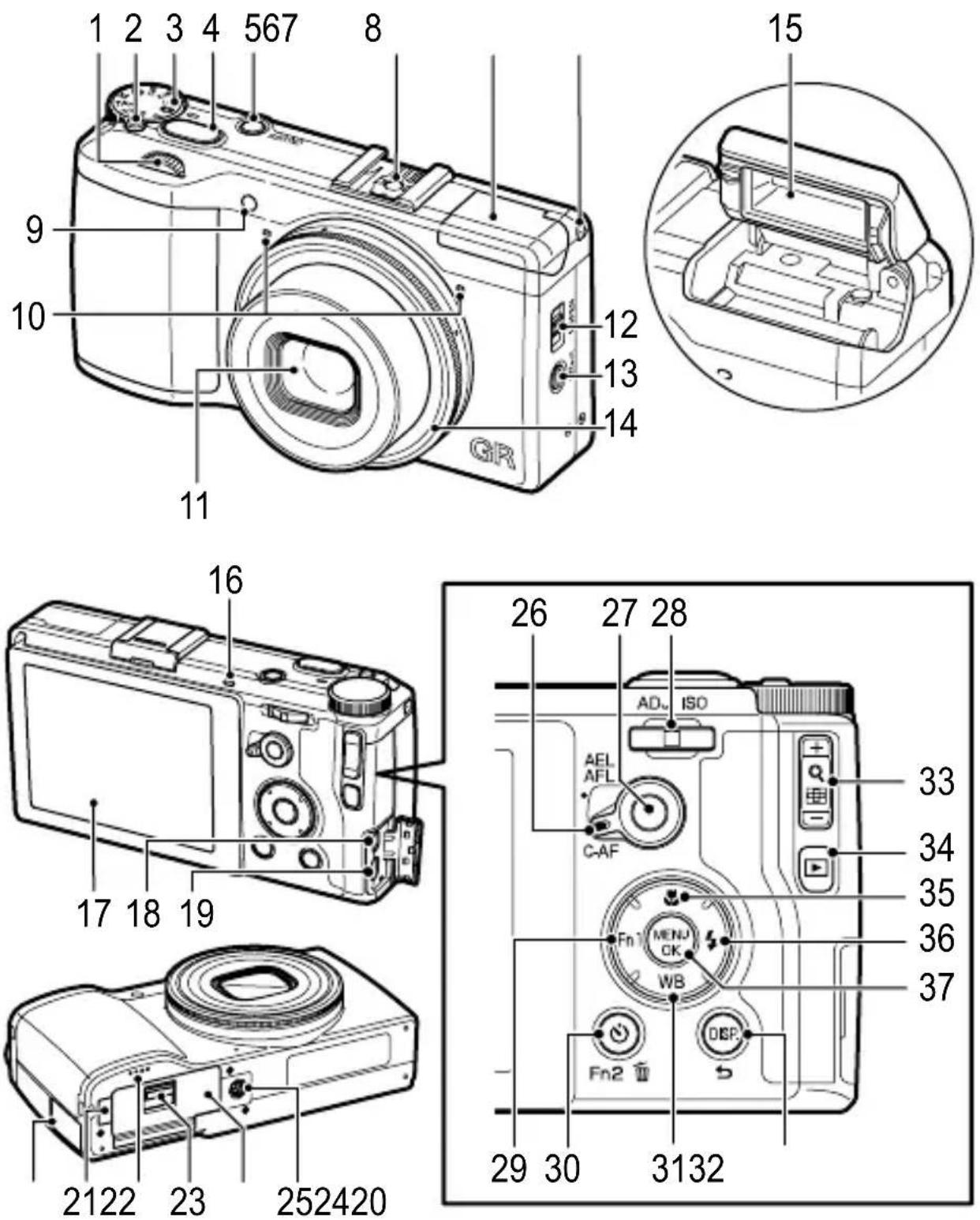
1 Up-down dial....P. 17
2 Mode dial lock release button ......P. 16
3 Mode dial....P. 16
4 Shutter release button ......P. 32
5 POWER button P. 28
6 Hot shoe.....P. 135
7 Flash cover P. 69
8 Strap eyelet ....
9 AF auxiliary light....P. 34, 120
10 Microphone....—
11 Lens ........—
12 ⬆ OPEN Switch ......P. 32
13 (aperture preview)/Effect button P. 44, 107
14 Ring cap....P. 134
15 Flash P. 32
16 Auto focus/flash lamp....P. 32, 33
17 Picture display....P. 18
18 USB/AV OUT terminal....P. 26, 94 123
19 HDMI cable Terminal (Type D) ......P. 94
20 Terminal cover.....P. 26, 123
21 DC power cable cover ....—
22 Speaker....—
23 Release lever....P. 23
24 Battery/card cover.....P. 23
25 Tripod screw hole ....—
26 AF function switching lever....P. 54
27 AF button....P. 54
28 ADJ./ISO lever.....P. 17, 105
29 Fn1 (function 1)/◀ button......P. 107
30 ⚙ (self-timer)/Fn2 (function 2)/
(delete) button.....P. 34, 83, 107
31 WB (white balance)/▼ button......P. 59
32 DISP./button....P. 21, 35, 110
33 +/— button....P. 81, 82
34 ▶ ( playback) button ......P. 37
35 (macro)/▲ button....P. 53
36 ↘ (flash)/▶ button.....P. 69
37 MENU/OK button....P. 38
Using the Dial and Lever
Mode Dial
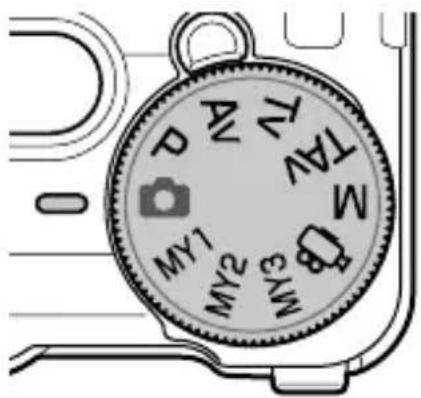
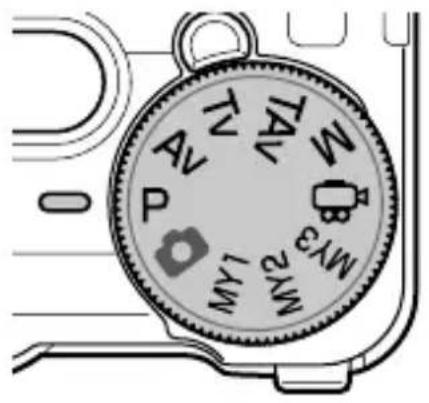
You can change the shooting mode with the mode dial.
Press the mode dial lock release button (①) and rotate the mode dial (②).
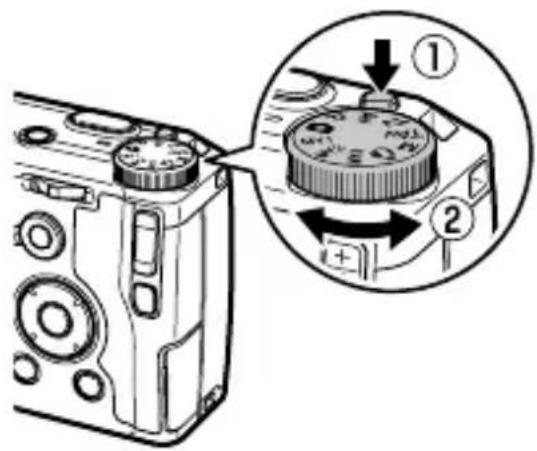
Av: Aperture priority mode (P. 40)
You set the aperture, and the camera adjusts the shutter speed automatically.
P: Program shift mode (P. 40)
You can choose from combinations of aperture and shutter speed.
: Auto shooting mode (P. 32)
Automatically sets the optimal aperture and shutter speed depending on the subject.
MY1/MY2/MY3: My Settings mode (P. 102)
You can shoot with the settings registered to [Reg. My Settings].
Tv: Shutter priority mode (P. 40)
You set the shutter speed, and the camera adjusts the aperture automatically.
TAv: Shutter/aperture priority mode (P. 40)
You set the shutter speed and aperture, and the camera adjusts the ISO Setting automatically.
M: Manual exposure mode (P. 40)
Allows you to manually set the aperture value and shutter speed.
: Movies (P. 76)
You can record movies.
Up-down dial/ADJ. lever
Use the up-down dial and ADJ. lever in place of the ▲▼◀▶ buttons and to set the exposure. (P. 41)
Up-down dial
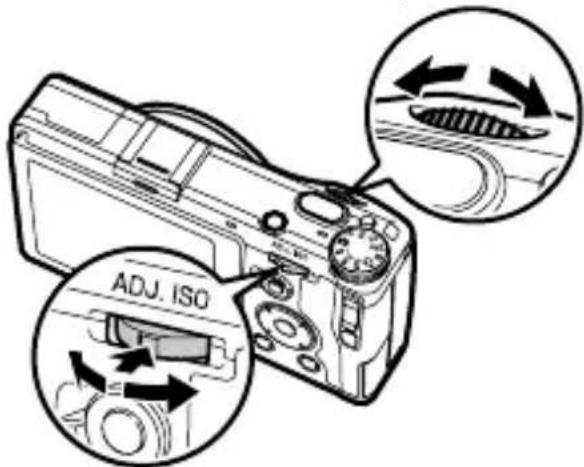
ADJ. lever
| Operation Description | ||
| Up-down dial Rotate left or right | Replaces the ▲▼ buttons. Changes the aperture/shutter speed. | |
| ADJ. lever | Press left or right | Replaces the ◀▶ buttons. Changes the aperture/shutter speed/ISO Setting. |
| Push in the middle | Calls assigned function (P. 106) | |

Note
- You can change the functions of the up-down dial and ADJ. lever. (P. 41, P. 82)
Picture Display
Shooting display
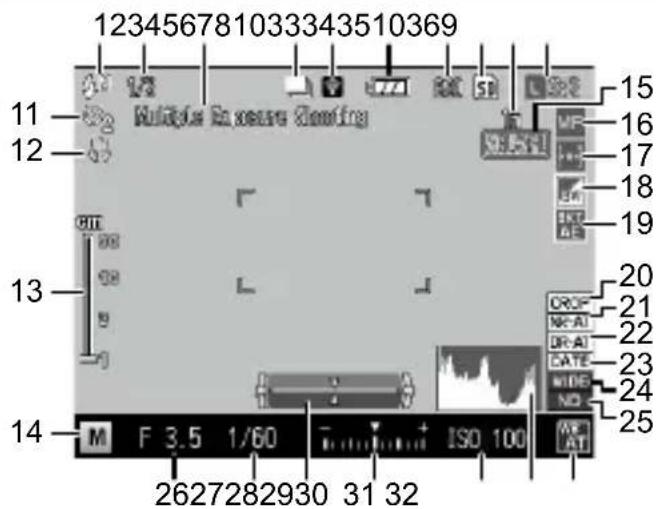
Still image mode
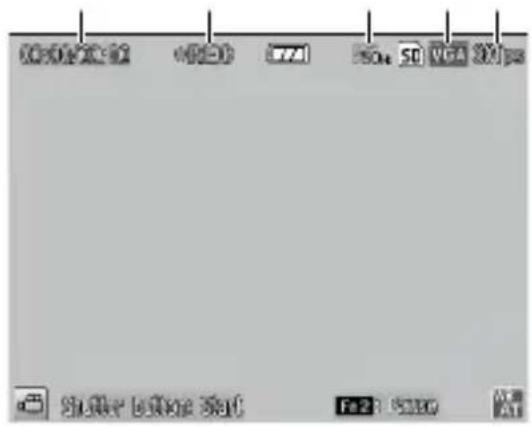
Movie mode
1 Flash mode.....P. 69
2 Flash compensation/manual flash amount P. 70, 71
3 Multiple exposure shooting/Interval shooting/Interval composite.....P. 64, 66, 67
4 Continuous....P.62
5 Eye-Fi connection....P. 20
6 Battery level.....P. 20
7 Number of exposures remaining .....P. 133
8 Data storage location....P. 25
9 Snap focus distance.....P. 52
10 Format/size, Aspect ratio ......P. 50, 77
11 Self-timer.....P.34
12 Macro mode....P. 53
13 Focus bar/Depth of field.....P. 52
14 Shooting mode....P. 40
15 Auto exposure lock/Auto focus lock.....P. 54
16 Focus mode....P.51
17 Metering....P. 49
18 Image setting/Effect ......P. 72
19 Auto bracket ......P. 63
20 Crop to 35 mm P. 50
21 Noise reduction....P. 47
22 Dynamic range compensation.... P. 48
23 Date imprint.....P.76
24 Conversion lens....P. 114
25 ND filter.....P. 44
26 Aperture.....P. 41
27 Shutter speed....P. 41
28 Level indicator.....P. 21, 35
29 Exposure indicator/Exposure compensation P. 41, 45
30 ISO Setting....P. 46
31 Histogram....P. 21, 110
32 White balance mode....P. 59
33 Recording time/Remaining recording time P. 133
34 Recording....P.78
35 Reduce fluorescent flicker .....P. 77
36 Frame rate.....P. 77

Note
- The maximum number that can be displayed for the number of exposures remaining is "9999".
Playback display
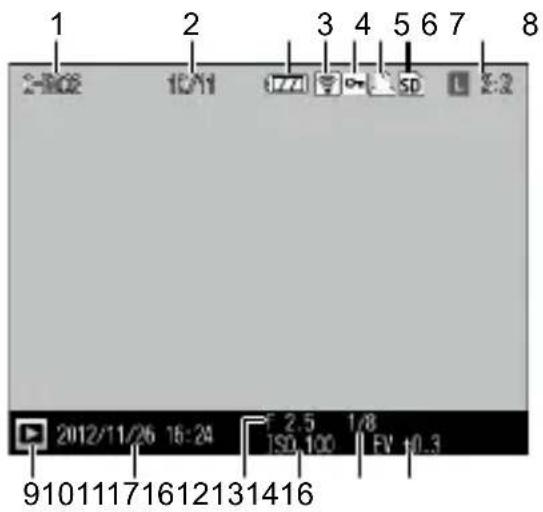
Still image mode
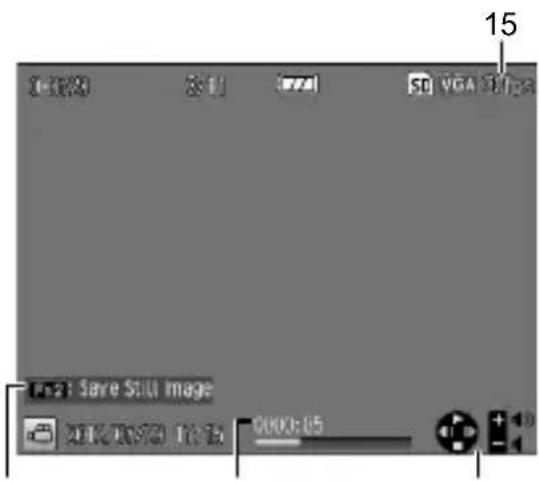
Movie mode
10 Date of recording......—
11 Aperture.....P. 41
12 ISO Setting....P. 46
13 Shutter speed P. 41
14 Exposure compensation....P. 45
15 Frame rate.....P.77
16 Operation guide....—
17 Length:elapsed time....P. 79
Battery Level Indicator
| Icon Status | |
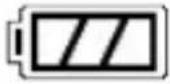 | Battery fully charged. |
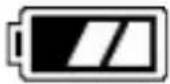 | Battery partially charged. Recharging the battery is recommended. |
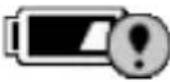 | Low battery. Recharge the battery. |
Eye-Fi Connection
When using an Eye-Fi card (P. 24), the connection status is displayed in the shooting and playback modes.
| Icon Status | |
 | Not connected |
 | Connecting |
 | Waiting for data transfer |
 | Transferring |
 | Connection terminated |
 | Transferred images |
| [037W] | Eye-Fi card information acquisition errorTurn the camera off and on. If the issue still persists, there may be something wrong with the card. |
Changing the Display
Use the DISP. button to change the information displayed on the picture display.
Shooting Mode
Select from the following displays in shooting mode:
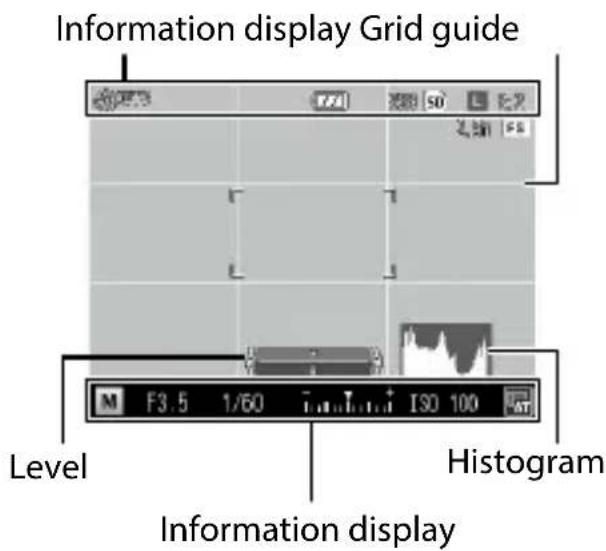
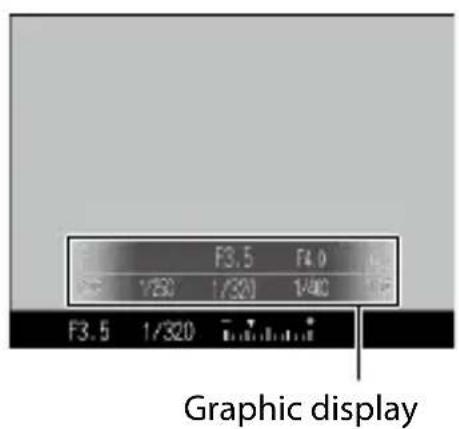
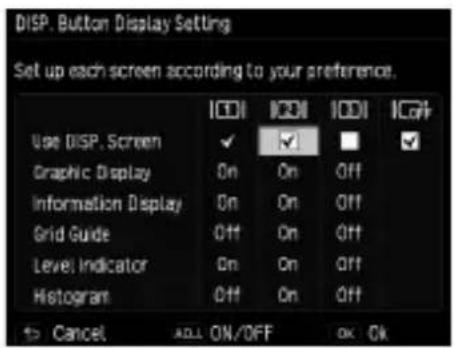
You can specify the information displayed each time the DISP. button is pressed in [DISP. Button Display Setting] on the [Setup] menu. (P. 110)

Note
- When [Information Display Mode] on the [Setup] menu is set to [On], information is displayed on the picture display in the following cases even when the picture display is turned off. After the information is displayed and operations are performed for several seconds, or when the shutter release button is half-pressed, the information display disappears.
- When the Fn1 button, 🎨 button, Ⓧ button, or Effect button is pressed
• When the mode dial or up-down dial is rotated - When the ADJ. lever is pressed
- When the ↩ OPEN switch is pressed to raise the flash, or the flash cover is closed
Playback Mode
Normal indicator display Detailed information display
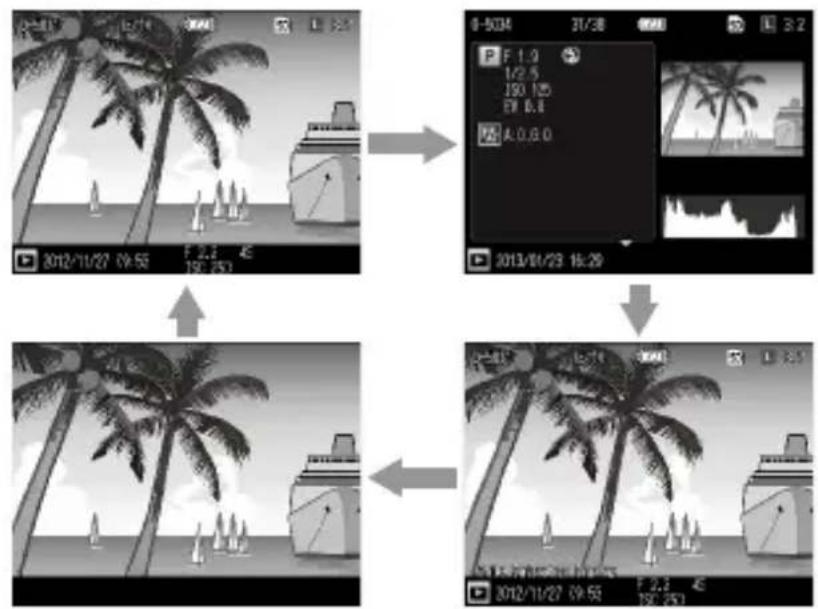
flowchart
graph TD
    A["2012/11/27 79:55"] --> B["2013/01/23 16:29"]
    B --> C["2012/11/27 79:55"]
    C --> D["2013/01/23 16:29"]
No indicator display White saturation display

Note
- If [On] is selected for [White Saturation Display] in the [Setup] menu, the white saturation areas of the image flash in black in the Highlights display. When this is set to [Off] (default setting), the white saturation display is not shown.
- The pages of the detailed information display can be switched using the ▲▼ buttons.

Caution
• The detailed information display and white saturation display are not shown when recording movies.
• The white saturation display is not shown when connected with an HDMI cable.
Getting Ready
Prepare the camera for use.
Inserting the Battery and a Memory Card
Be sure the camera is off before inserting or removing the battery and memory card.
SD memory cards, SDHC memory cards, and SDXC memory cards can be used with this camera. ("Memory card" refers to these memory cards in this guide.)
1 Slide the release lever on the bottom of the camera toward OPEN to open the battery/ card cover.
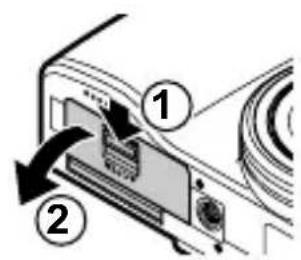
2 Make sure the memory card is facing the right way and then push the card all the way in until it clicks.
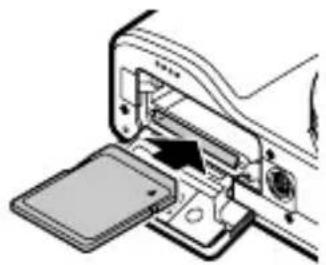
natural_image
Diagram of a device's internal structure showing a door, panel, and socket (no text or symbols)To remove it, press in the memory card and then release your hand.
3 Insert the battery.
Use the battery to press the latch and insert the battery all the way into the battery compartment.
To remove the battery, press and slide the latch.
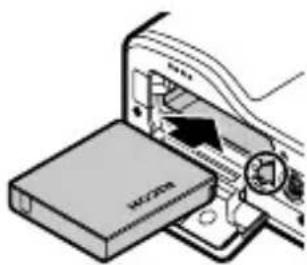
natural_image
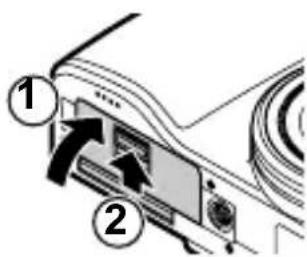
Diagram of a device being inserted into a folder, showing internal components and a magnified view (no text or symbols)4 Close the battery/card cover and slide the release lever in the opposite direction of OPEN to lock it in place.
Eye-Fi Cards
- This camera is compatible with Eye-Fi cards (X2 Series), SD memory cards with built-in wireless LAN functionality. For more information on Eye-Fi cards, visit the Eye-Fi Website (http://www.eyefi.co.jp).
- When using an Eye-Fi card, the following settings are displayed in the [Setup] menu.
| Eye-Fi Connection Settings [Off] | : Disables the wireless LAN function for operation as a normal SD memory card.[On (Auto)]: Transfers all unsent images.[On (Selected)]: Transfers only selected images. Specify the images to send (up to 20 images) with [Eye-Fi Transfer Selected Images] in the [Playback] menu. You can also reduce the size of images and transfer them. You can easily access the [Eye-Fi Transfer Selected Images] screen by pressing the Effect button in the playback mode.(P. 98) |
| Eye-Fi Connection Display Displays the SSID for the wireless LAN. | |
• Movies cannot be transferred.
- Cannot transfer the images while recharging the battery.
- If the selected images cannot be properly transferred, the "EYERICOH" folder may remain on the camera. This folder will be deleted the next time the camera is turned on.
- When using a card from a different manufacturer with a similar function, the above menu items and status icons may not be displayed. Operations cannot be guaranteed for cards that are not supported.
- This product is not guaranteed to work with all Eye-Fi card features (including wireless transfer). If any issues arise with an Eye-Fi card, contact the card manufacturer. Eye-Fi cards are approved for use in the country of purchase only. To confirm whether the use of the card is approved in a given country, contact the card manufacturer.
Data Storage Location
Pictures taken with this camera can be recorded to the internal memory or a memory card. When a memory card is not set in the camera, data is recorded to the internal memory.

Caution
- Pictures will not be recorded to the internal memory when a memory card is inserted, even if the memory card is full.
- If the number of files stored in a memory card exceeds 10000, files with a small folder/file number cannot be played back. However, they are not deleted or lost.

Note
- You can copy all data stored in the internal memory to a memory card. (P. 87)
- Movie recording time and the storage capacity varies depending on the memory card. (P. 133)
- When using a new memory card or a memory card used with another device, be sure to format the memory card with this camera. Format memory cards with [Format [Card] in the [Setup] menu.
Charging the Battery
Charge the rechargeable battery (DB-65) using the included USB cable and USB power adapter (AC-U1) with included Power plug before use.
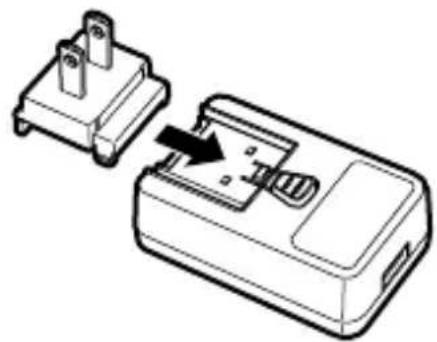
1 Insert the Power plug to the USB power adapter.
Insert it until it clicks into place.
natural_image
Diagram of a device with two pins inserted into a housing, showing a close-up of the internal components (no text or symbols present)2 Open the terminal cover, and connect the USB cable to the USB/AV OUT terminal.
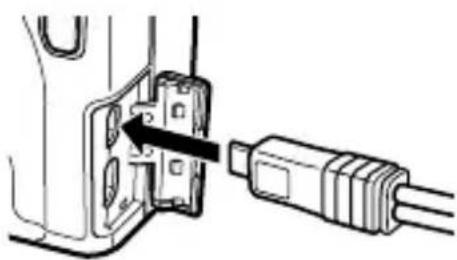
natural_image
Diagram showing a connector being inserted into a cable, with no visible text or symbols3 Connect the USB cable to the USB power adapter.
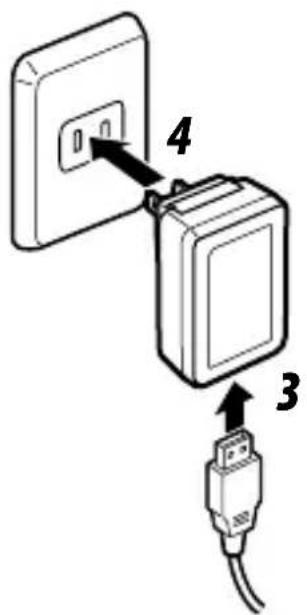
4 Plug the USB power adapter into a power outlet.
The auto focus/flash lamp turns on and charging starts.
Depending on the battery level, the charging time differs. An exhausted battery will be fully recharged in about three hours (at 25^ C).
The auto focus/flash lamp turns off and charging stops. Unplug power adapter from the power outlet.

Storage capacity
• Approximately 290 shots can be taken when the battery is fully charged.
- This is based on tests conducted according to CIPA standards under the following conditions: temperature 23^ C ( 73^ F); picture display on; 10 shots taken with 30 seconds between shots and the flash fired with every other shot; and the cycle repeated after the camera has been turned off and then on again.
- The storage capacity is for reference. For long periods of use, it is recommended that you carry spare batteries.

Caution
• Use only genuine rechargeable batteries (DB-65).
- If the auto focus/flash lamp blinks during charging, the USB power adapter or battery has a problem. Unplug the USB power adapter from the power outlet and remove the battery.
- The battery may become very hot immediately after operation. Turn the camera off and leave it to cool down sufficiently before removing the battery.

Note
- You can also charge the battery by connecting the camera to a computer using the USB cable. An exhausted battery will be fully recharged in about 5 hours. (P. 123)
• DB-65 can be recharged with the optional battery charger (BJ-6). (Recharging time: 2.5 hours)
Turning the Camera On and Off
Press the POWER button to turn the camera on.
The POWER button lights, and then the auto focus/flash lamp blinks for several seconds.
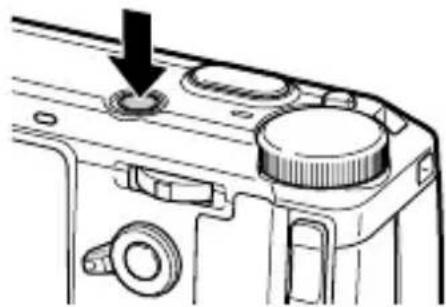
natural_image
Mechanical component diagram showing a knob and adjustment knob (no text or symbols)When the POWER button is pressed again, the power turns off. (If the date is not set, [0] is displayed.)
RICOH
Using the Camera in Playback Mode
Press and hold the ▶ button for at least one second to turn the camera on in playback mode.
Press the ▶ button again to turn the camera off.
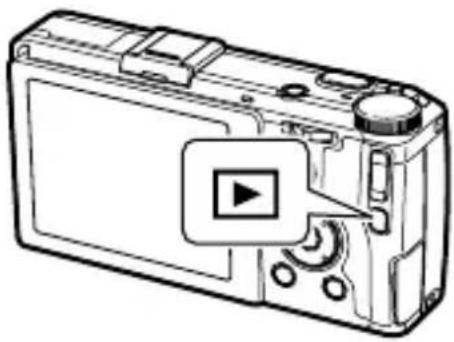
natural_image
Line drawing of a digital camera with a play button overlay (no text or symbols)• To save battery power, you can set the following functions in the [Setup] menu.
| Operation When the setting is disabled | ||
| Auto Power Off | The camera will turn off automatically if no operations are performed during the set time. You can set or a certain number of minutes up to 30 minutes.To resume operation, turn the camera on again. | When recording movies or during continuous shootingthis During [Off]ple exposure shooting, interval shooting, or interval compositeDuring playback movies or slide showDuring processingDuring image transfer with an Eye-Fi cardWhen connected to a computer |
| Sleep | The camera dims the display automatically if no operations are performed during the set time. You can set this to [Off] or a certain number of minutes up to 30 minutes. | When recording movies or during continuous shootingDuring multiple exposure shooting, interval shooting, or interval compositeDuring playbackWhen connected to an AV or HDMI cable |
| LCD Auto Dim | The camera dims the display automatically if the camera is not moved within five seconds. You can select [On] or [Off]. | |
• The power indicator lamp can be set to [On] or [Off] in [Power Button Lamp] in the [Setup] menu.
Setting the Date and Time
When the power is turned on for the first time, the [Date Settings] screen appears.
1 Set the year, month, day, hour, minute, and date format.
Press ◀▶ to select an item, and press ▲▼ to change the value.
To cancel the setting press the ↩ button.
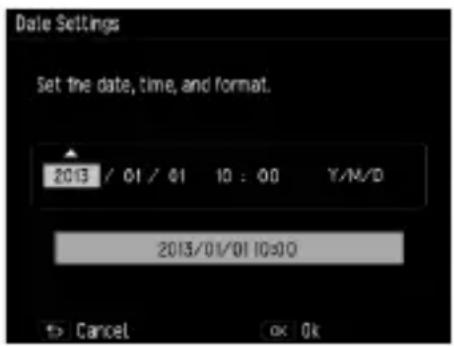
2 Press MENU/OK.
A confirmation screen appears.
3 Press MENU/OK.
The date is set.
Note
- If the battery is removed for about five days, the date and time settings will be lost. To retain the date and time settings, insert a battery with sufficient power for at least two hours, and then remove the battery.
• The set date and time can be changed in [Date Settings] in the [Setup] menu. - The language displayed for the menus and messages can be changed in [Language/言語].
First Steps
Read this section before using your camera for the first time.
Basic Shooting......32
Playing Back Images 37
Using the Menu....38
Basic Shooting
Now you are ready.
Taking Photographs with Auto Settings
1 Turn the mode dial to 📷.
Press the mode dial lock button and rotate the mode dial.
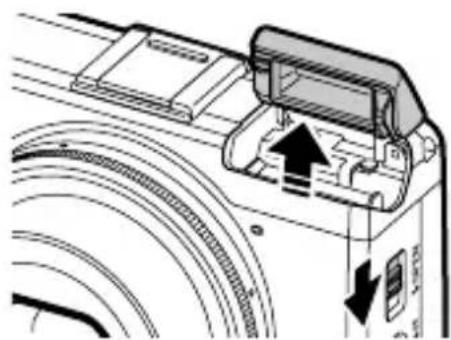
2 To use the flash, slide the ↕OPEN switch down.
The flash opens.
The auto focus/flash lamp blinks while the flash charges. Once the flash is charged, the lamp turns off and the camera is ready to shoot.
natural_image
Diagram of a camera module with directional arrows indicating motion or movement (no text or symbols present)The flash will not fire when the flash cover is closed.
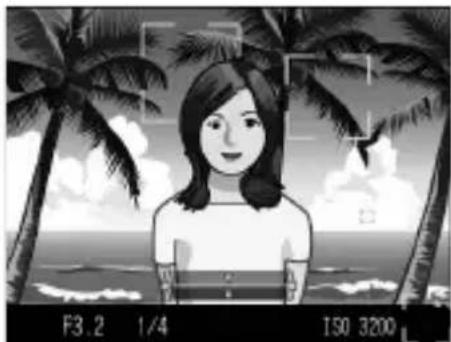
3 Half-press the shutter release button.
Frame your subject in the center of the picture display and press the shutter release button halfway to set focus and exposure.
If the camera is able to focus, the focus frames (up to nine) that contain objects that are in focus are shown in green.
natural_image
Black-and-white illustration of a woman with palm trees and ocean waves in the background (no text or symbols)4 Full-press the shutter release button.
The photograph you have just taken will be displayed in the picture display and recorded.
Focus
- The autofocus/flash lamp and the frame color show whether the subject is in focus.
Auto focus/flash lamp
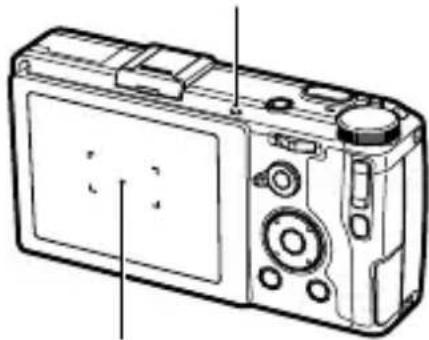
natural_image
Line drawing of a digital camera with visible ports and buttons (no text or symbols)Frame
| Focus status Frame Color Auto focus/flash lamp | |
| Camera has not yet focused. White Off | |
| Subject in focus Green On (green) | |
| Camera unable to focus. Red (blinks) Blinks (green) |
- The camera cannot focus or a subject may not be in focus even if focus frames are displayed in green in the following cases.
- Objects that lack contrast (the sky, a white wall, the hood of a car, etc.)
• Flat objects with only horizontal lines - Fast-moving objects
- Objects that are poorly lit
- Objects with bright reflections or backlighting
• Flickering objects, such as fluorescent lights.
• Point light sources (light bulbs, spotlights, or LEDs)
If the camera is unable to focus, lock focus on another object at the same distance from the camera as your subject, then recompose the photograph and take the picture.

Note
• In mode, pictures are taken with the following settings:
• ISO Setting [AUTO-HI]
• Noise reduction [AUTO]
• Exposure metering [Multi]
• Focus [Face recognition priority AF]
- Auto Macro
• White balance [Multi-pattern AUTO]
- Flash [Auto]
The settings cannot be changed for the above functions.
- Choose how long a picture is displayed in the picture display after shooting. Select [OFF], [0.5s], [1s], [2s], [3s], or [HOLD] in [LCD Confirm.] in the [Setup] menu. When set to [Hold], the image remains displayed until the next time you half-press the shutter release button.
- Keep the shutter release button half-pressed after shooting, holds the focus, aperture, shutter speed,
ISO, and white balance settings. The shooting conditions are not held in the following cases:
- Self-timer
• Interval timer shooting - Interval composite
mode
Self-Timer
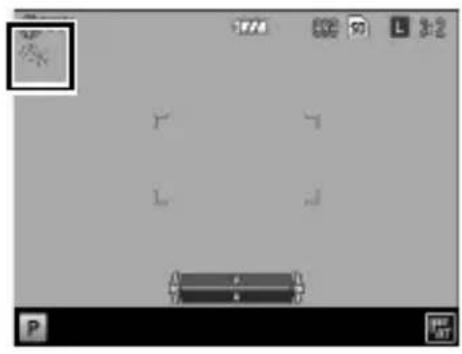
The self-timer can be set to two seconds or a custom setting. A setting of two seconds is useful for preventing camera shake. With [Custom Self-Timer], you can set the storage capacity and the shooting interval.
1 Press the ⏻ button.
The Self-timer setting screen appears.
Pressing the Ⓧ button switches between [Self-Timer 2 Sec], [Custom Self-Timer], and [Self-Timer Off].
2 Take a picture.
The AF auxiliary light lights when the self-timer starts.
Note
- The camera remains in self-timer mode even after the image is shot. To cancel the self-timer, change the self-timer setting to [Self-Timer Off].
- When the self-timer is set to [Self-Timer 2 Sec], the AF auxiliary light does not light.
- When [Custom Self-Timer] is set, the following items are set in [Custom Self-Timer] in the [Shooting] menu.
| Number of shots 1 to 10 (Default is 2.) |
| Shooting interval 5 to 10 sec. (Default is 5 sec.) |
- When the number of shots is two or more, the focus is fixed at the position of the first shot.
- The ⚙ button is used as the Fn2 button. The self-timer cannot be used when a function other than the self-timer is registered with [Fn2 Button Setting] (P. 107) in the [Key Custom Options] menu.
• [Custom Self-Timer] cannot be selected when the focus is set to [Subj. Tracking].
Checking the Camera Level and Tilt
This camera has a built-in level indicator that can be used to indicate the level and tilt of the camera on the picture display. You can check for the horizontal level and tilt in the forward-backward direction.
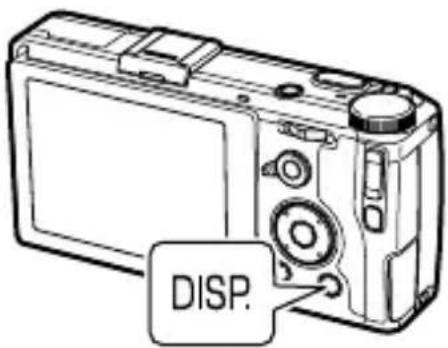
1 Press and hold the DISP. button.
The menu is displayed.
2 Press the ▲▼ buttons to select a setting.
| Off Indicators are not displayed. |
| Level + Tilt Displays the level and tilt indicators. (Default setting) |
| Level Displays only the level indicator. |
3 Press MENU/OK.
The indicator is displayed on the shooting screen.
The level is indicated with a vertical line, and the tilt is indicated with a horizontal line. Yellow indicates the camera is not level or is tilted, and green indicates that the camera is level or is not tilted.
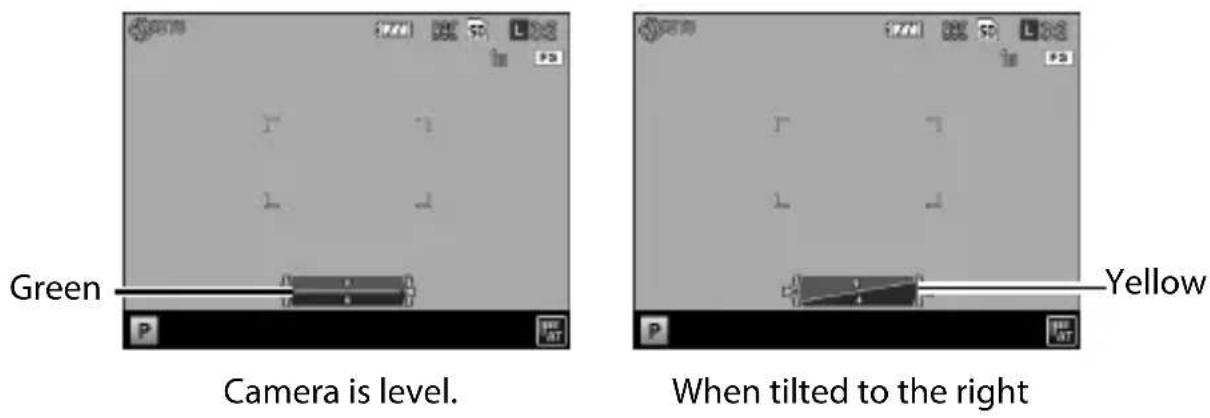
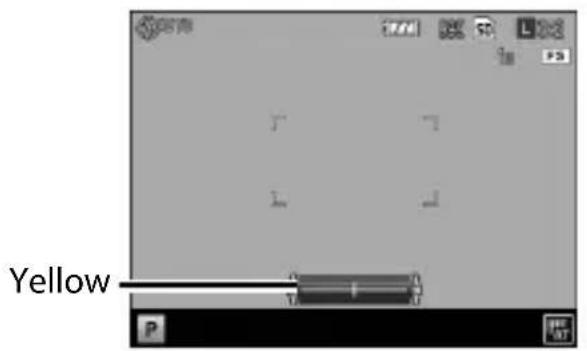
When tilted forward
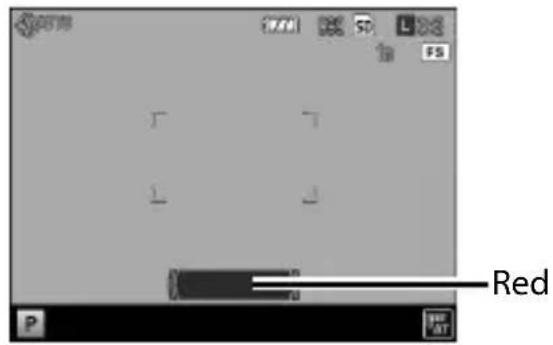
Camera is rotated too far forward or backward or unable to measure tilt.

Note
- The indicators are displayed only when [Level Indicator] is set to [On] in the [DISP. Button Display Setting] in the [Setup] menu. (P. 110)
- The indicators can also be set in [Level Setting] in the [Setup] menu. You can use [Level (Tilt) Calibration] in the [Setup] menu to set the current camera tilt as the reference setting.

Caution
- The level indicator does not operate when the camera is upside down, movies are being recorded, or during interval shooting.
- The level function becomes less accurate when the camera is moving or when shooting in an environment subject to movement, such as on a amusement ride.
- Use this function as reference to see if images are level when shooting. The accuracy cannot be guaranteed when using the camera as a level.
Playing Back Images
Images can be viewed in the picture display.
1 Press the ▶ button.
The camera switches to playback mode and the last still image you took is displayed.
natural_image
Line drawing of a digital camera with a play button overlay (no text or symbols)2 Press the ◀▶ buttons to change the displayed image.
You can perform the following operations:
| ◀ button Back one photo | |
| ▶ button Ahead one photo | |
| Press and hold ◀▶ buttons Fast Forward | |
To switch the camera back to shooting mode, press the ▶ button again.

Note
- You can select the display order from [File Numbers] or [Sht. Date/Time] in [Playback Order Options] in the [Setup] menu.
- When using an Eye-Fi card, if [Eye-Fi Connection Settings] in the [Setup] menu is set to [On (Selected)], you can transfer the images by pressing the Effect button in the playback mode. (P. 98)

Auto Rotate
- When [Auto Rotate] is set to [On] in the [Setup] menu, images are rotated automatically according to the camera orientation.
-
Images shot with [Continuous Mode] and [Auto Bracket] are rotated automatically according to the orientation of the first image.
• Auto Rotate does not work in the following cases: -
When playing back movies
In Grid View - When playing back images shot with the camera tilted too far forward or backward
• During [Skew Correct Mode]
• During enlarging images
• During [Slide show] playback
• When playing back images on AV equipment
Using the Menu
1 Press MENU/OK.
The menu is displayed.
The menu that is displayed first varies depending on the mode when the button is pressed.
To change the menu, press the ◀ button, use the ▲▼ buttons to select a tab, and then press the ▶ button.
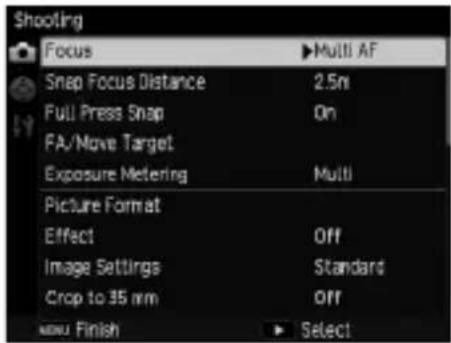
2 Press the ▲▼ buttons to select an item.
Pressing the +/- button moves the cursor to the head of the menu delimiter (horizontal line).
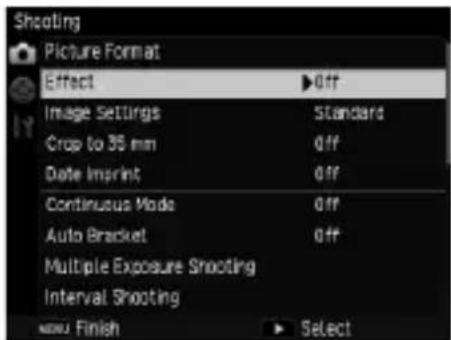
3 Press the ▶ button.
The options are displayed.
4 Press the ▲▼ buttons to select an option.
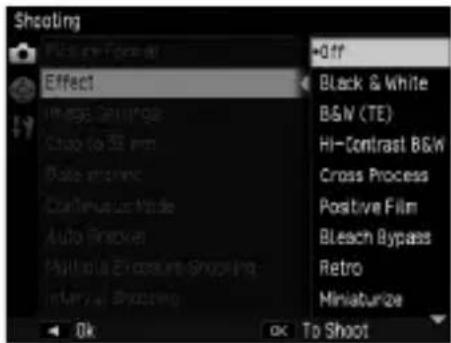
5 Press the MENU/OK button, or press the ◀ button and then the MENU/OK button.
The setting is set.
Note
- For details of the menus, see "Menus" (P. 114).
Advanced Operations
Read this section when you want to learn more about the different camera functions.
1 Various Shooting Functions....40
2 Playback Functions......81
3 Changing Camera Settings .....99
4 Menus....114
5 Downloading Images to Your Computer ....122
6 Appendices ......125
1 Various Shooting Functions
Select a shooting mode to match the scene.
| Mode Purpose Page | ||
| For easy shooting P. 32 | ||
| P/Av/Tv/TAv/M For shooting with a set aperture value and shutter speed P. 40 | ||
| For shooting movies P. 78 | ||
| MY1/MY2/MY3 For registering favorite settings P. 102 |
Shooting with a set aperture value and shutter speed
Set an aperture value or shutter speed when shooting. The following values can be set. The exposure is automatically adjusted in all modes except for M mode.
Yes: Can be set No: Automatically set by camera
| Mode Aperture value Shutter speed ISO Setting | |||
| PProgram Shift | *1 | *1 Yes | |
| AvAperture Priority | Yes | No | Yes |
| TvShutter Priority | No | Yes | Yes |
| TAvShutter/Aperture Priority Mode | Yes | Yes | No |
| MManual Exposure | Yes | Yes | Yes |
*1 Allows you to select the combination of aperture value and shutter speed.
1 Set the mode dial to P/Av/Tv/TAv/M.
The symbol for the selected shooting mode and the set value will be displayed on the shooting screen.
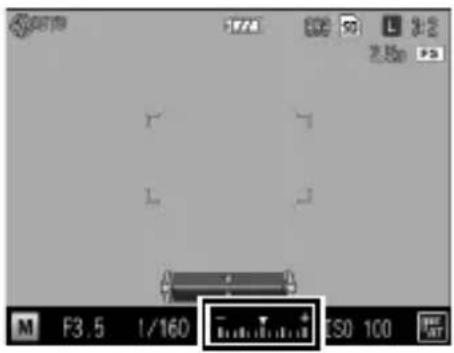
In M mode, the exposure indicator will be displayed.
2 Rotate the up-down dial to change a value.
The following values will be changed.
| Mode Up-down Dial ADJ. Lever | |
| Av Aperture value | — |
| Tv Shutter speed | — |
| TAv/M | Aperture value Shutter speed |
When in M mode, the exposure is correct when the indicator is in the center. When the exposure value is in the range of -2EV to +2EV, the indicator changes according to the exposure value. The indicator will turn orange when the values are outside this range.
3 Shoot.
Note
- The functions for the up-down dial and ADJ. lever when in TAv/M modes can be switched in [M/TAv Mode Dial Setting] within the [Key Custom Options] menu.
- When a slow shutter speed has been set, images will not be displayed on the picture display during shooting.
- If the following functions have been set in the [Shooting] menu, and the correct exposure cannot be obtained for the aperture value/shutter speed set in Av/Tv/TAv modes, the camera will automatically adjust the settings to obtain the correct exposure.
• Av [Auto Aperture Shift]
• Tv [Auto Shutter Speed Shift]
• TAv [Shutter/Aperture Auto Shift]
(Selects from [Aprtr Priority] or [Shttr Priority)
- In M mode, the + / - button cannot be used for exposure compensation. When the + / - button is pressed, the exposure will be automatically adjusted to approach the correct exposure. In the [Key Custom Options] menu, you can select the priority value in [One Press M Mode].
| Aperture Priority | For locking the aperture value and adjusting the shutter speed |
| Shutter Priority | For locking the shutter speed and adjusting the aperture value |
| Program | For adjusting both the aperture value and shutter speed |
• The ISO speed will be locked to [AUTO] when in TAv mode.
• ISO speeds [AUTO] and [AUTO-HI] cannot be set in M mode.

Caution
- When the picture display is set to off, the aperture value and shutter speed cannot be changed. If [Information Display] is set to [ON] in the [Setup] menu, these values can be changed.
- Using a long shutter speed will result in a noisy image. When [Slow Shutter Speed NR] is set in the [Shooting] menu, noise reduction processing will be carried out depending on the combination of the ISO speed and shutter speed settings. However, it will take some time to record the processed image.
| ISO Setting Shutter speed at the start of processing | |
| ISO 100 – ISO 3200 8 seconds or more | |
| ISO 3201 – ISO 25600 | 4 seconds or more |
- The program diagram in P mode is shown below. The guide for possible shift in a particular aperture value and shutter speed combination will change depending on the exposure value (Ev). (The example shows when the ISO speed has been set to [ISO 100].)
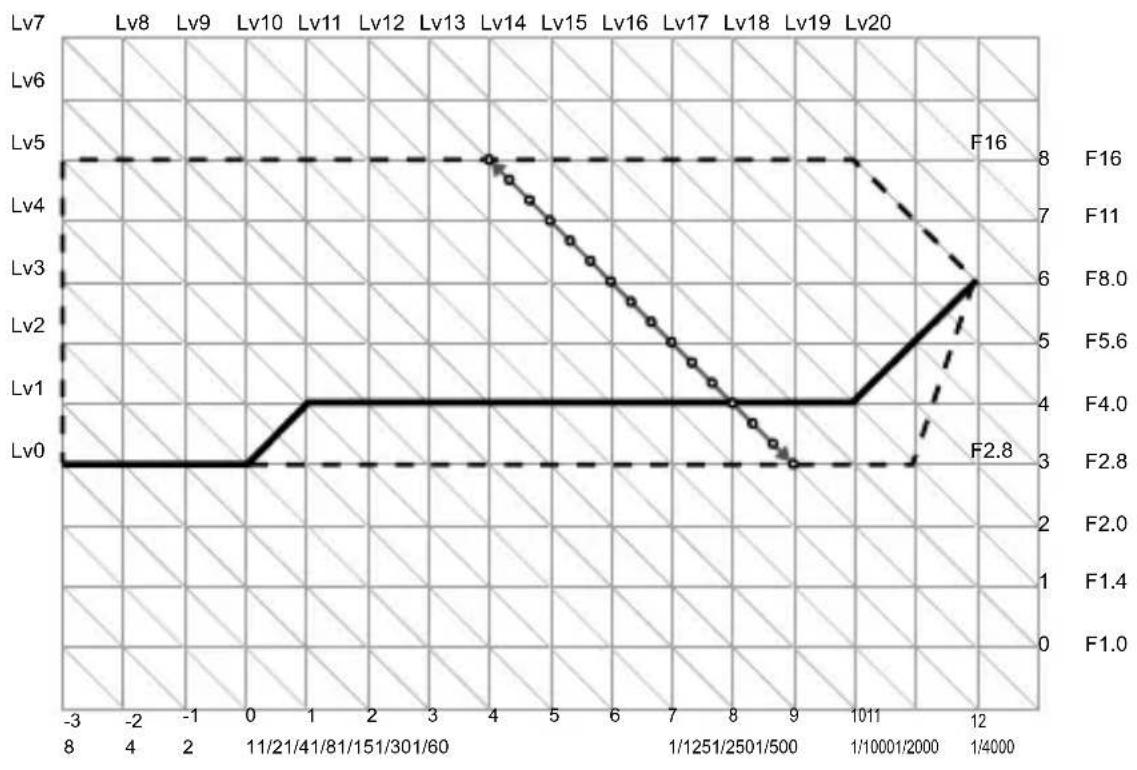
line
| Time | F16 | F2.8 | | ---------- | ---- | ---- | | 1/4/000 | 8.0 | 6.0 | | 1/10001/2000 | 8.0 | 5.0 | | 9 | 4.0 | 3.0 | | 8 | 4.0 | 3.0 | | 7 | 4.0 | 3.0 | | 6 | 4.0 | 3.0 | | 5 | 4.0 | 3.0 | | 4 | 4.0 | 3.0 | | 3 | 4.0 | 3.0 | | 2 | 4.0 | 3.0 | | 1 | 4.0 | 3.0 | | 0 | 4.0 | 3.0 | | -1 | 4.0 | 3.0 | | -2 | 4.0 | 3.0 | | -3 | 4.0 | 3.0 |
Bulb/Time
- You can select between B (Bulb) and T (Time) for the shutter speed when in M mode. When using B, the image will continue to be exposed while the shutter release button is pressed, and will end when the shutter release button is released. When using T, the exposure will begin once the shutter release button is pressed, and will end when it is pressed a second time.
• In either mode, the camera automatically stops shooting once the limit has been reached.
| ISO Setting | Longest Shutter Speed |
| ISO 100–ISO 3200 | 320 sec. |
| ISO 3201–ISO 25600 | 32 sec. |
• Operation is also possible using the optional cable switch (CA-2).
• The following functions are not available:
- Self Timer
- Interval Shooting
• Continuous Shooting
- Interval Composite
- Auto Bracket
• One Press M Mode
- When using B/T, and [Continuous] is set in the [Shooting] menu, B/T will be canceled, and the shutter speed limit will be set for continuous shooting. If [Continuous] is set first, B/T cannot be set.
Using Aperture Preview
Press and hold the ➕ button during the shutter release button is pressed halfway or using the AE lock, the camera will switch to Aperture Preview. The aperture value set when shooting will operate, and you can check the depth of field. When you release the ➕ button, Aperture Preview will be canceled.

Caution
- In Aperture Preview, the shutter release button cannot be pressed all the way, and the aperture value cannot be changed.
- When using the flash, the actual aperture value may differ from the aperture preview.
• This function is not available in mode.

Note
- When [Auto Bracket] has been set in Tv mode, the Aperture Preview will be displayed according to the set exposure compensation requirements.
• [Auto Bracket] settings [AE-BKT 1/3EV] and [AE-BKT 1/2EV] will not be reflected. - Because Aperture Preview is used for checking the depth of field, it may not function properly with AE.
Using the ND Filter
In the [Shooting] menu, you can choose whether or not to always use the camera's internal ND filter in [ND Filter].
| Off | Operations differ from [ND Filter Settings] in the [Setup] menu.[AUTO]: The ND Filter is used when the exposure is outside the linked range. The ND Filter filter is also used if an icon is displayed on the shooting screen when the shutter release button is pressed halfway.[MANUAL]: ND Filter is not used. |
| On | ND Filter is always used. An icon will be displayed on the shooting screen. |

Note
- When [ND Filter Settings] has been set to [AUTO], the ND Filter will not be used in P/M modes.
- In the [Key Custom Options] menu, if [ND Filter] is set in [Set Fn Button], the ND Filter can be switched ON/OFF using a button only. (P. 107)
Exposure settings
Using exposure compensation
1 Set a value using the +/- button.
Settings can be made in the range from -4.0 EV to +4.0 EV.
You can also shoot without making further adjustments.
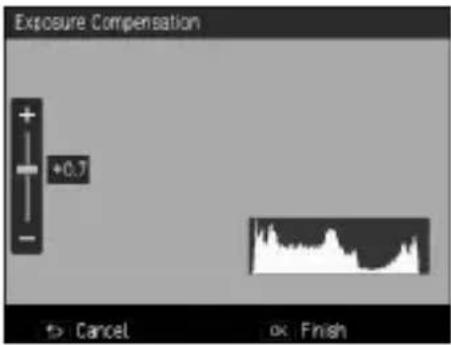
2 Press the MENU/OK button.
The shooting screen will reappear, and the setting appears on the screen.
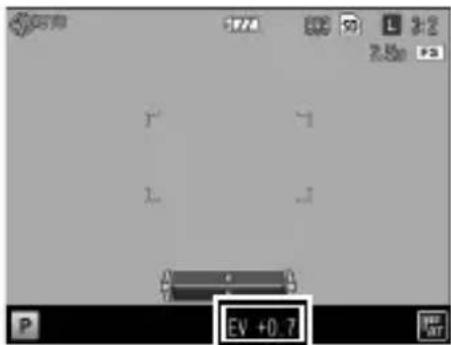
Caution
• This function is not available in M or ⚙ modes.
Note
• In the [Shooting] menu, settings can also be made in [Exposure Compensation].
Setting the ISO speed
In the [Shooting] menu, the ISO speed can be set in [ISO Setting/NR].
| AUTO | In ISO 100 – ISO 800, the camera automatically adjusts sensitivity according to brightness, the distance to the subject, macro settings, and the format. |
| Auto-Hi (high sensitivity auto) | The sensitivity can be set higher than in [AUTO].• In the [Setup] menu, the maximum ISO speed, and the ISO speed for switching shutter speeds can be set in [ISO AUTO-HI Settings]. |
| ISO 100 – ISO 25600 Sensitivity is set to the selected ISO value. | |

Note
- In the [Setup] menu, ISO speed setting steps can be selected from [1EV] and [1/3EV] in [ISO Speed Step Settings]. Depending on settings, the following ISO speeds can be selected.
| ISO Speed Step Settings Selectable ISO speeds | |
| 1EV ISO 100/ISO 200/ISO | 400/ISO 800/ISO 1600/ISO 3200/ISO 6400/ISO12800/ISO 25600 |
| 1/3EV ISO 100/ISO 125/ISO | 160/ISO 200/ISO 250/ISO 320/ISO 400/ISO 500/ISO640/ISO 800/ISO 1000/ISO 1250/ISO 1600/ISO 2000/ISO 2500/ISO 3200/ISO 4000/ISO 5000/ISO 6400/ISO 8000/ISO 10000/ISO 12800/ISO 16000/ISO 20000/ISO 25600 |
- In [AUTO] and [Auto-Hi], the ISO speed will be displayed on the screen when the shutter release button is pressed halfway. The displayed ISO speed may differ from the actual setting when the flash is used.
• Images shot with a higher sensitivity may appear grainy.
• If the flash is used in [AUTO], the top ISO speed will be increased up to the equivalent of ISO 1600. - If [Dynamic Range Correction] is set in the [Shooting] menu, the ISO speeds that can be set are limited. (P. 48)
- In the [Key Custom Options] menu, [ISO] can be registered to use in [ADJ. Lever Setting] or [Set Fn Button]. (P. 105, P. 107) [ADJ .Lever Setting 1] is registered as the default setting.
- In the [Key Custom Options] menu, if [ADJ. Direct ISO Control] is set to [On], you can change the ISO speed simply by moving the ADJ. lever left or right in P/Av/Tv modes.
Reducing noise
You can reduce the amount of noise in still images.
1 In the [Shooting] menu, select [ISO Setting/NR], and then press the ▶ button.
The [ISO Setting/Noise Reduction] screen will appear.
2 Press the ▲▼ button to select [Noise Reduction] and then press the ▶ button.
3 Press the ▲▼ button to select [Off], [Auto], or [Manual].
When [Off] or [Auto] have been selected, proceed to step 5.
4 Press the ▲▼◀▶ button to specify the ISO speed to apply from [Strong], [Medium], or [Weak].
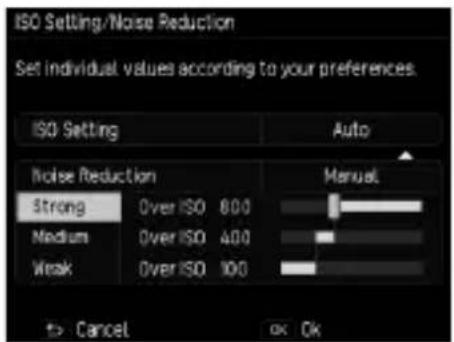
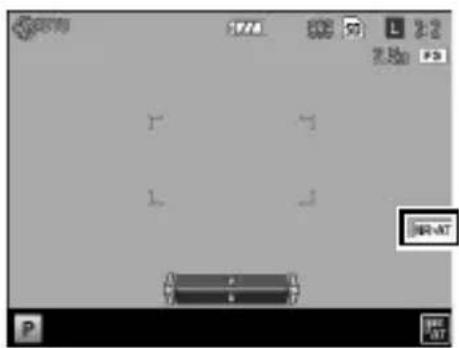
5 Press the MENU/OK button. The [Shooting] menu will reappear. The symbol appears on the shooting screen.
Caution
- When noise reduction is set, it may take longer than normal to record images.
Dynamic range correction
In the [Shooting] menu, you can use [Dynamic Range Correction] to expand an images gradation, making sure the bright and dark portions of an image are clearly visible. You can select from [Off], [Auto], [Weak], [Medium], and [Strong].
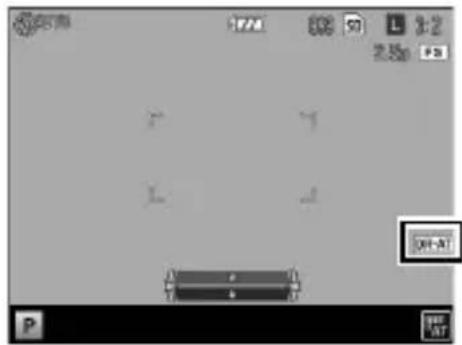
A symbol will appear on the screen when dynamic range correction has been set.

Caution
- When dynamic range correction has been set, available ISO speeds will be limited.
| Setting ISO Speed Step Settings [1EV] ISO Speed Step Settings [1/3EV] | ||||
| Min. Max. | Min. Max. | |||
| AUTO ISO 200 ISO 6400 ISO 320 ISO 8000 | ||||
| Weak ISO 200 ISO 12800 ISO 160 ISO 16000 | ||||
| Medium ISO 200 ISO 12800 ISO 200 ISO 12800 | ||||
| Strong ISO 200 ISO 6400 ISO 320 ISO 8000 | ||||
- When dynamic range correction is set, the ISO sensitivity will work in [Auto] when it is set to [AUTO-HI].
-
When set to [Strong], noise tends to occur more easily in images.
• In the following situations, Dynamic Range Correction cannot be set. -
Continuous
• Multiple Exposure Shooting - Interval Shooting
- Interval Composite
- When the shooting location is too bright or too dark, dynamic range correction may not be effective.

Note
- When using dynamic range correction, it is recommended to set metering to [Multi]. (P. 49)
- In the [Key Custom Options] menu, [D Range Correction] can be registered to use in [ADJ. Lever Setting] or [Set Fn Button]. (P. 105, P. 107)
Selecting a metering method
In the [Shooting] menu, set [Exposure Metering].
| Multi The camera meters exposure in 484 areas of the frame. [Default Setting] | |
 Center Center | The entire image is metered, with emphasis on the center, to determine the exposure value.Use this when the brightness of the center and surroundings are different. |
 Spot Spot | The center of the image is metered to determine the exposure value. Use this setting when you want to use the brightness at the center. This is useful if there is a marked difference in contrast or backlighting. |
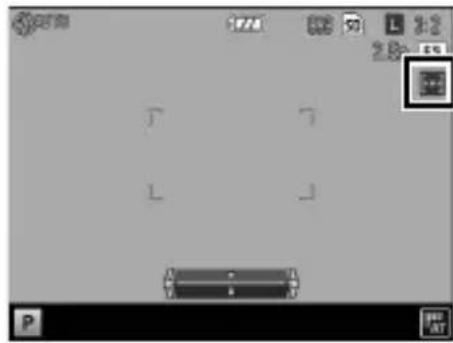
If you select the setting [Center] or [Spot], a symbol appears on the shooting screen.

Note
• Metering is locked to [Multi] in the following situations.
• When the focus is set to [Subject-tracking AF]
In mode
- When the AE/EF/AE target moves, metering is locked to [Spot].
- In the [Key Custom Options] menu, [Expo. Metering] can be registered to use in [ADJ. Lever Setting] or [Set Fn Button]. (P. 105, P. 107) [ADJ. Lever Setting 5] is registered as the default setting.
Setting a still image format
In the [Shooting] menu, the still image format, size, and aspect ratio can be selected in [Still Image Format].
| Format/Size RAW : | Records a L sized RAW file (DNG format).RAW+ : Records a RAW file simultaneously with a L sized JPEG file.L : 16M (3:2)M : 10M (3:2)S : 5M (3:2)XS : 1M (3:2) |
| Aspect ratio 3:2/4:3/1:1 |

Note
- When the aspect ratio is set to [3:2] or [1:1], black bands may appear at the lower side or right and left sides of the picture display.
- In the [Key Custom Options] menu, [Image Size] and [Aspect Ratio] can be registered to use in [ADJ. Lever Setting] or [Set Fn Button]. (P. 105, P. 107) At default settings, [Image Size] is registered to [ADJ. Lever Setting 2], and [Aspect Ratio] is registered to [ADJ. Lever Setting 3]. In the [Key Custom Options] menu, if [JPEG > RAW] and [JPEG > RAW+] are set in [Set Fn Button], the file format can be switched using a button only.
- In the [Shooting] menu, if [Crop to 35 mm] is set to [On], the normal 28mm angle of view will change to 35mm, and the screen display will also change. In this case, L cannot be selected, and RAW files will be recorded as M. In the [Key Custom Options] menu if [Crop to 35 mm] is set in [Set Fn Button], 28mm/35mm can be switched using a button only. (P. 107)

Shooting RAW images
- In the [Playback] menu, RAW files can be manipulated in [RAW Development] or using the included software: SILKYPIX Developer Studio 3.0 LE for PENTAX RICOH IMAGING. (P. 93, P. 122)
-
The following functions will not be reflected in RAW files. In the [Playback] menu, [Effect] and [Dynamic Range Correction] can be converted to JPEG format to reflect effects in [RAW Development].
-
Effect
• Dynamic Range Correction - Date Imprint
When RAW+ is set, the functions mentioned above will only be reflected in JPEG files.
Setting the focus
Selecting a focusing method
In the [Shooting] menu, set [Focus].
| Multi AF | Measures the distances from 9 AF areas and focuses to the nearest AF area. This prevents the center of the picture display from becoming out of focus and enables you to shoot with a minimum number of out-of-focus pictures. [Default Setting] |
| Spot AF Focuses on the area in the center of the frame. | |
| Pinpoint AF Focuses on a smaller area than Spot AF. | |
| Subject-tracking AF | Tracks the subject and continually focuses.When the shutter release button is pressed halfway, the subject inside the frame in the center of the picture display is set as the target to be tracked, and a green target symbol appears. When a tracking target cannot be found, the frame flashes red.Automatic tracking will be canceled after shooting, or in the following cases.When the tracking target moves out of the frameWhen the shutter is released |
| MF (Manual Focus) | Focuses manually. (P. 52) |
| S Snap | Fixes the focus to the set distance. (P. 52) |
| ∞ (Infinity) | Fixes the focus distance at infinity. This is useful for shooting distant scenes. |

Note
- In the [Key Custom Options] menu, [Focus] can be registered to use in [ADJ. Lever Setting] or [Set Fn Button]. (P. 105, P. 107) [ADJ. Lever Setting 4] is registered as the default setting.
When the following functions are set to [Set Fn Button], the focus can be switched using a button only.
• Multi AF/Spot AF
• Multi AF/Pinpoint AF
- AF/MF
• AF/Snap
• AF/Subject Tracking
• In [Subject Tracking AF], the following functions are not available.
• Self-Timer [Custom Self]
• Interval timer shooting
- Interval Composite
• FA/Move Target
Focusing manually
If the camera fails to focus automatically, you can focus manually.
Manual focus enables shooting at a fixed distance.
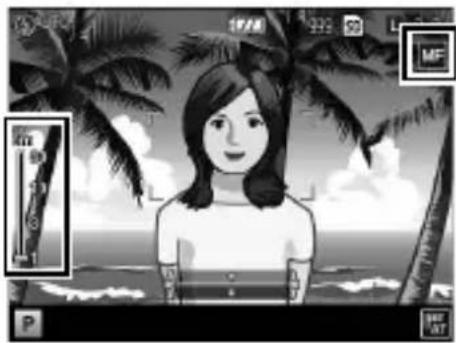
1 In the [Shooting] menu, select [MF] in [Focus].
A symbol and the focus bar will appear in the shooting screen.
In P/Av/TAv/M modes, and when using Interval Composite, a depth of field approximation will appear.
2 While holding the ▲ button, adjust the focus with the Up-down Dial.
Fixing the focus to the set distance (Snap)
1 In the [Shooting] menu, select [Snap Focus Distance], and then press the ▶ button.
2 Press the ▲▼ button to select a distance, and then press the ◀ button.
Distances can be selected from [1m], [1.5m], [2m], [2.5m], [5m], and [] .
3 Press the MENU/OK button.
4 In the [Shooting] menu, select [Snap] in [Focus].
The camera will focus on the set distance.
To change the distance, hold the ▲button and turn the Up-down Dial.
Note
- In the [Key Custom Options] menu, [Snap Focus Distance] can be registered to use in [ADJ. Lever Setting] or [Set Fn Button]. (P. 105, P. 107)
Shooting close-ups (Macro Mode)
You can approach the subject up to 10 cm (shooting range: approx. 12 x 8 cm) away from the end of the lens to shoot.
1 Press the ⏻ (▲) button in shooting mode. appears on the shooting screen.
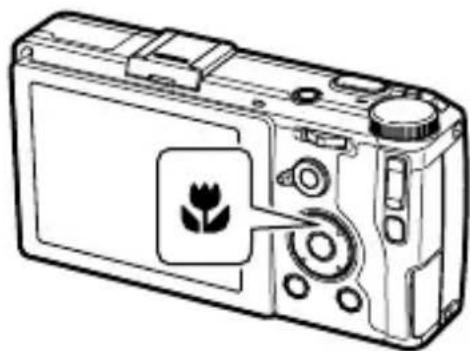
natural_image
Line drawing of a digital camera with a flower icon on the screen (no text or symbols)2 Shoot. To cancel macro mode, press the 🎨 button again.
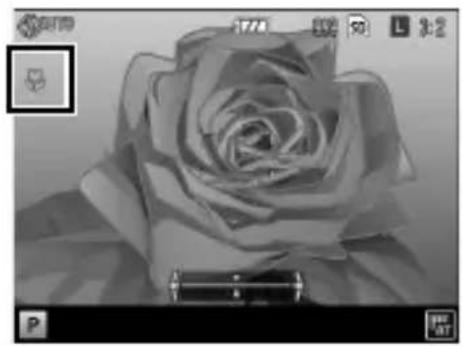
natural_image
Monochrome close-up of a rose with soft shading and no visible text or symbolsNote
- The focus will operate as [Spot AF] or [Pinpoint AF].
Caution
- When the focus is set to [MF], the 🎨 button is deactivated, and macro mode is not available.
- In mode Auto Macro is set, and the button is deactivated.
Using the AF button
When the AF button is used, AE Lock or AF Lock are available in place of pressing the shutter release button halfway.
You can use the AF Function Switching Lever to switch the AF button's function.
AF Function Switching Lever
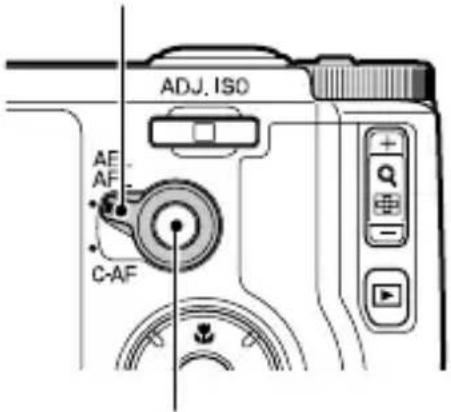
AF button
Using AEL/AFL with the AF Function Switching Lever
These functions operate following the [AEL/AFL Setting] in the [Key Custom Options] menu.
| [AEL/AFL Setting] | [Focus] setting AF button lock operation | |
| AFL Multi AF/Spot AF | Pinpoint AF | Follows the [Focus] setting to focus and then locks the focus |
| Subject Tracking AF/MF/Snap/∞ | Focuses using [Multi AF] and then locks the focus | |
| AEL/AFL Multi AF/Spot | AF/Pinpoint AF | Sets AE Lock, and follows the [Focus] setting to focus and then locks the focus |
| Subject Tracking AF/MF/Snap/∞ | Sets AE Lock, and focuses using [Multi AF] and then locks the focus | |
| AEL Sets AE Lock | ||
In the [Key Custom Options] menu, you can set whether or not to maintain the lock even when you release the button in [AEL/AFL Lock Setting].
| Off Locks only | while the button is pressed |
| On Press the button to lock the focus, then press it again to cancel | |

Note
- When AF Lock cannot be set, or when AF Lock is canceled, the focus will move to the position set in [Focus].
- When the focus is locked with the AF button, the AE/AF lock position will not change even when the shutter release button is pressed halfway.
Using C-AF with the AF Function Switching Lever
While the AF button is pressed, Continuous AF will be active, continuously focusing on the subject, regardless of the [Focus] setting.
If the shutter release button is pressed all the way while pressing the AF button, continuous shooting will be carried out following the [C-AF Continuous Setting] in the [Key Custom Options] menu. Continuous shooting will end once the AF button is released.
| Off Continuous shooting | will only be available when [Continuous] is set in the [Shooting] menu. |
| AF Priority While the shutter | release button is held, the camera will shoot continuously while focusing for each shot. |
| Frame Speed Priority | Pictures continue to be taken for as long as you hold down the shutter release button. The focus is fixed. (P. 62) |

Caution
• Continuous AF is not available while shooting movies.

Note
• A green frame will appear when the camera has finished focusing. The focus sound will not be played.
- If the [Focus] is set to [MF], the focus can be locked when the AF button is released. It is easier to operate when placing your index finger on the shutter release button, and using your thumb for the AF button.
Setting Focus Assist and AE/AF Target
Without moving the camera you can meter a specific spot on the subject using buttons only, and activate the focus lock. This function is useful for shooting on a tripod.
You can enlarge part of the screen and emphasize outlines and contrast to make it easier to focus.
1 In the [Shooting] menu, select [FA/Move Target], and then press the ▶ button.
The target setting screen will appear.
2 Set the target position and size.
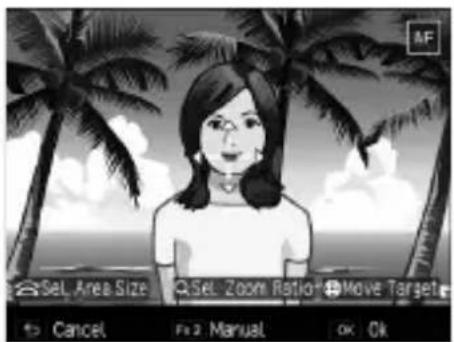
The following operations are available.
| ▲▼◀▶ buttons | Moves the target. |
| Up-down Dial Portion is | magnified: Changes the display area. Whole is magnified: Changes the size of the focus assist area when the magnification is the same ratio. |
| +/- button | Changes the magnification factor: 2x/4x/8x |
3 For detailed settings, press the Fn2 button.
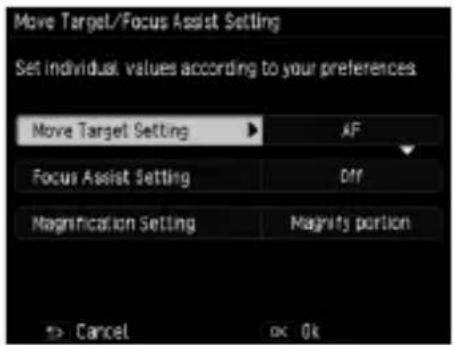
The following settings are available.
| Move Target Setting Specifies the target to move from AE/AF, AF, and AE. | |
| Focus Assist Setting Intensifies the outlines and contrast inside the area, making it easier to adjust the focus.[MODE1] Emphasizes contrast and outlines[MODE2] Emphasizes outlines[MODE3] Black and white reversal of MODE1[MODE4] Black and white reversal of MODE2 | |
| Magnification Setting Specifies the magnification area.[Magnify portion]: Magnifies the target area and overlays the display on the background. You can check the focus while overall composition.[Magnify whole]: The target area is magnified full-screen, and the target can be moved while magnified. This function allows you to check the focus more closely than with [Magnify portion]. |
If you press the OK button, the screen in step 2 will reappear.
4 Press the MENU/OK button. The shooting screen reappears.
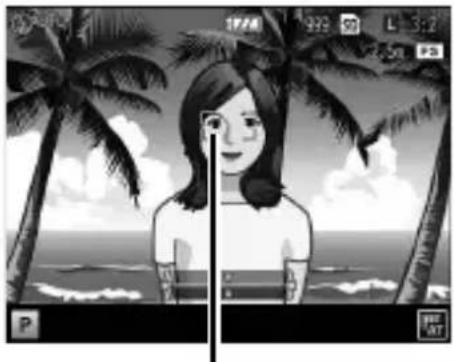
natural_image
Black-and-white illustration of a girl sitting on a chair with palm trees and ocean in the background (no text or symbols)Target

Caution
• In the following situations, Focus Assist/Move Target cannot be set.
• When the focus is set to [Subject-tracking AF]
- In mode and mode

Note
• If [Focus] is changed to [Subject Tracking AF], the target position will be reset.
- When the focus is set to [MF], [Move Target Setting] will work in AE/MF, MF, or AE.
- When [Magnification Setting] is set to [Magnify whole], the target can be moved while magnified. You can change the magnification factor with the +/— button.
- In the [Key Custom Options] menu, [FA/Move Target] can be registered to use with [Set Fn Button]. (P. 107) This function is registered to Fn1 button as the default setting.
Shooting with a single press of the shutter release button (Full Press Snap)
When pressing the shutter release button halfway AF operates, however, pressing the shutter release button all the way will quickly capture an image at the set focal distance. This function is called Full Press Snap. The camera will focus at the distance set in [Snap Focus Distance] in the [Shooting] menu (P. 52).
In the [Shooting] menu, this is set in [Full Press Snap].
| Off Operates | the same way as AF. |
| On | When using Full Press Snap, the camera will focus at the distance set in [Snap Focus Distance]. |
| Auto-Hi ISO | When using Full Press Snap, the camera will focus at the distance set in [Snap Focus Distance] and shoot with the ISO sensitivity set to [Auto-Hi]. |

Caution
• Full Press Snap is not available in the following modes.
- Macro
- Self-Timer
In mode

Note
- Even when [Full Press Snap] is set to [ON], the camera will focus at the setting in [Focus] when the shutter release button is pressed halfway.
Setting the White Balance
Make adjustments to the white balance so that white subjects will appear white under any kind of light.
[Multi-P AUTO] is set by default. If the white balance is not how you thought it would be when shooting an object of a single color or when shooting under multiple light sources, you can change the setting.
| AUTO | The camera adjusts white balance automatically. |
| Multi-P AUTO | When multiple light sources are mixed together, such as sunlight/shade and flash, the camera automatically optimizes the white balance to match each of the separate areas of light. [Default setting] |
| Outdoors | Use when shooting in daylight under clear skies. |
| Shade | Use when shooting in shade. |
| Cloudy | Use when shooting in daylight under cloudy skies. |
| Incandescent 1 | Use with incandescent lighting. |
| Incandescent 2 | Incandescent 2 leaves a shots a little redder than Incandescent 1. |
| Daylight Fl. | Use with fluorescent daylight. |
| Neutral White Fl. | Use with fluorescent neutral white. |
| Cool White Fl. | Use with fluorescent cool white. |
| Warm White Fl. | Use with fluorescent warm white. |
 Detail Detail | Specifies the color temperature. (P. 61) |
 Manual Manual | Adjust the white balance manually. (P. 61) |
1 Press the WB (▼) button in shooting mode.
The [White Balance] screen appears.
2 Select the setting with the ▲▼ button.
If no corrections are required, proceed to step 6.
See P. 61 for [Details] [Manual].
3 Press the Fn2 button.
The [White Balance Compensation] screen appears.
4 Make point adjustments with the ▲▼◀▶ buttons
Press the ↩ button to reset. If the ↩ button is pressed, the correction will be canceled.
5 Press the MENU/OK button.
The screen in step 2 returns.
6 Press the MENU/OK button.
The shooting screen returns, and a mark appears.
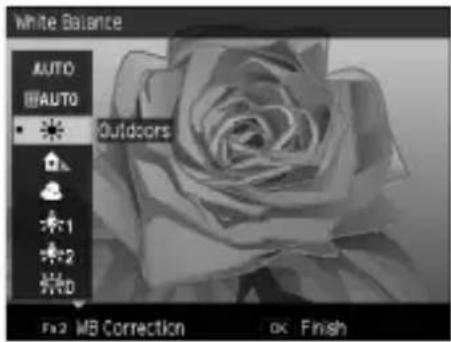
![WB Compensation [Outdoors] A:4, G:1 Reset OK Ok](/content/2026/05/1042991/images/6a7d3dfd98b1c97a1e5fc0313cd325f5eb48d32e774c780020b0f217d8d240ee.jpg)
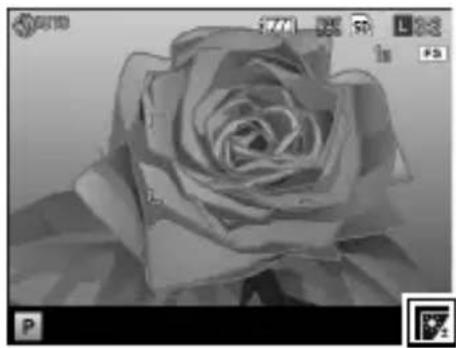
natural_image
Black and white close-up of a rose, no visible text or symbols
Note
• You can set the white balance from [White Balance] in the [Shooting] menu.

Caution
• The white balance may not be adjusted correctly for a subject that is mostly dark.
- When shooting with the flash, the white balance may not be adjusted correctly if [Auto] or [Multi-P AUTO] is not selected.
Setting the Color Temperature
1 Select [Detail] under White Balance, and then press the Fn2 button.
The [White Balance Detailed Settings] screen appears.
2 Set the value with the ▲▼ buttons.
Values from 2500 K to 10000 K can be set. If the Fn2 button is pressed, the white balance can be corrected. If the Fn2 button is pressed again, the screen returns to the color temperature settings.
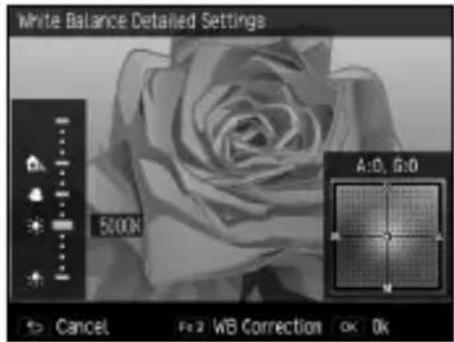
3 Press the MENU/OK button.
The [White Balance] screen returns.
4 Press the MENU/OK button.
The shooting screen returns.
Setting the White Balance
1 Select [Manual] for white balance.
2 Aim the camera at a white subject, such as a sheet of paper, under the light where you will be shooting.
3 Press the Fn2 button.
The white balance will be measured.
4 Press the MENU/OK button.
The shooting screen returns.

- If the Fn2 button is pressed while the flash is being fired, the white balance can be measured when the flash fires.
Shooting Continuously
The continuous shooting functions are as follows.
| Continuous Continues to take pictures for as long as you hold down the shutter release button. | P. 62 |
| Auto Bracket Takes three images with varying exposure, white balance, effects, dynamic range, or contrast. | P. 63 |
| Multiple Exposure Merges multiple images together. P. 64 | |
| Interval Shoots automatically at a fixed interval. P. 66 | |
| Interval Composite Merges a series of continuous images in such a way that the bright areas remain. | P. 67 |

Caution
- Of the functions described above, only Auto Bracketing and Interval can be used in combination. The other functions cannot be set at the same time.
Shooting Continuously
Set [Continuous] in the [Shooting] menu.
Pictures continue to be taken for as long as you hold down the shutter release button. The autofocus is fixed in the first frame.
When Continuous is set, a mark will appear on the shooting screen.
Set [Continuous] to [Off] when you wish to return to normal shooting.
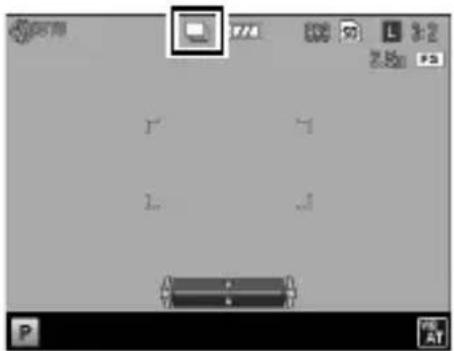

Caution
• The flash cannot be used with this function.
- If the [Effect] in the [Shooting] menu is set to [High Contrast B&W], [Miniaturize], or [High Key], continuous shooting is not possible.

Note
• If the white balance is set to [Multi-P AUTO], the white balance will work in [Auto].
- Continuous shooting can also be done by holding the AF button down while fully pressing the shutter release button. See "Using the AF button" (P. 54).
• The maximum number of shots that can be taken in a single burst is 999.
- If the last four digits of the file number taken during continuous shooting exceed [9999], a separate folder is created in the SD memory card and successive pictures taken are stored in this folder.
- If the number of files stored in a memory card exceeds 10000, files with a small folder/file number cannot be played back. However, they are not deleted or lost.
- [Continuous] can be registered and used in the [Key Custom Options] menu under [ADJ. Lever Setting] or in [Set Fn Button]. (P. 105, P. 107)
Shooting Consecutively with Different Settings (Auto Bracket)
In the [Auto Bracket] settings in the [Shooting] menu, three shots will be taken with differing values for things like exposure or white balance.
| AE-BKT 1/3EVAE-BKT 1/2EV | Takes images at different exposures in 1/3-EV or 1/2-EV steps from -2.0 EV to +2.0 EV. |
| WB-BKT | Three images (an image with more red than the currently set white balance, an image at the current white balance, and a more bluish image) are automatically recorded. |
| WB-BKTPreset | Takes three images with different white balance. Selects the white balance for the second and third shots, respectively. |
| Effect-BKT | Takes three images with different effects. Selects the effects for the second and third shots, respectively. |
| DR-BKT | Takes images with the Dynamic Range Compensation set to Off, Weak, and Strong. |
| CONTRAST-BKT | Takes images with different contrasts. |

Caution
• The flash cannot be used with this function.
• [AE-BKT 1/2EV] cannot be selected in Tv mode.
- When Effect setting in the [Shooting] menu is set to [Miniaturize], [AE-BKT 1/3EV], [AE-BKT 1/2EV], and [DR-BKT] cannot be used.

Note
- When [AE-BKT 1/3EV], [AE-BKT 1/2EV], or [DR-BKT] is selected and the white balance is set to [Multi-P AUTO], the white balance will work in [Auto].
- [Auto Bracket] can be registered and used in the [Key Custom Options] menu under [ADJ. Lever Setting] or in [Set Fn Button]. (P. 105, P. 107)
Shooting Continuously with Varied Exposure Values
1 In the [Shooting] menu, under [Auto Bracket], select either [AE-BKT 1/3EV] or [AE-BKT 1/2EV], and then press the ▶ button.
The [AE Bracketing Settings] screen appears.
2 Select from the first through third shot with the ◀▶ buttons, and then set the exposure value with the ▲▼ buttons.
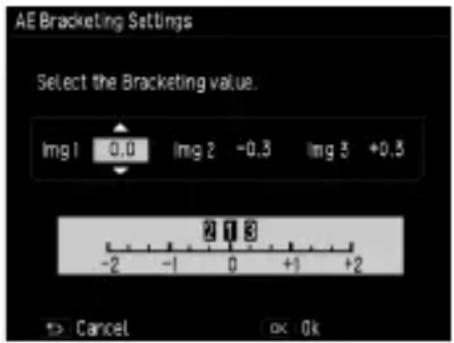
3 Press the MENU/OK button. The [Shooting] menu returns.
Shooting While Merging Images Together (Multiple Exposure Shooting)
Shoots images and merges them together. Up to a maximum of five images can be merged.
1 In the [Shooting] menu, select [Multiple Exposure Shooting], and then press the ▶ button.
The [Multiple Exposure Shooting] screen appears.
2 Select items with the ▲▼ buttons, and then set the selected item to [On] or [Off].
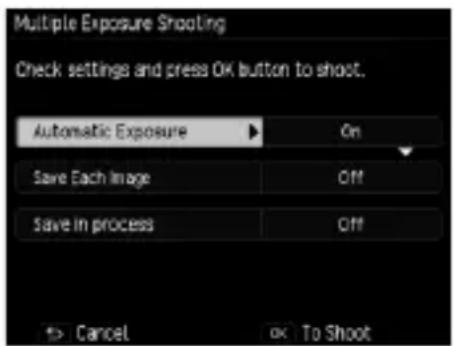
| Automatic Exposure | [Off]: The exposure value is not adjusted.[On]: The exposure value is adjusted to match the number of merged. |
| Save Each Shot | [Off]: Saves only the final merged image.[On]: Saves all of the unmerged images. |
| Save Images In Progress | [Off]: Saves only the final merged image.[On]: Saves the image with each merge. |
3 Press the MENU/OK button.
[Multiple Exposure Shooting] appears on the shooting screen.
4 Shoot the first image.
5 To shoot the next image, select [Next shot >], and then press the MENU/OK button.
To retake the shot, select [Retake shot].
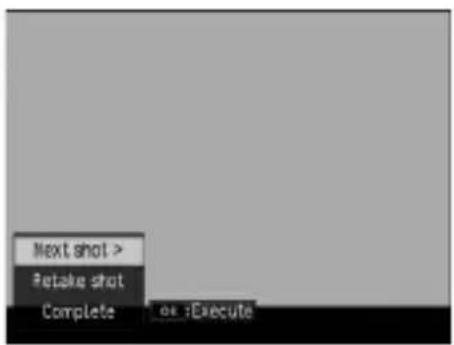
6 Shoot the next image.
Repeat steps 5 through 6.
To return to the previous merged image, select [Retake shot]. To end multiple exposure shooting, select [Complete].
When shooting ends after the fifth image is taken or when [Complete] is selected, the merged image is saved.
Note
- If [Multi Exposure] is set in the [Set Fn Button] in the [Key Custom Options] menu, you can start multiple exposure shooting simply by using the buttons. (P. 107)
Caution
• [Crop to 35 mm] is not available during the multiple exposure shooting.
Shooting Pictures Automatically at Set Intervals (Interval Shooting)
Shoots pictures automatically at fixed intervals.
1 In the [Shooting] menu, select [Interval Shooting], and then press the ▶ button.
The [Interval Shooting] screen appears.
2 Select minutes/seconds with the ◀▶ buttons, and then set the interval value with the ▲▼ buttons.
You can set the shooting interval from among 1 second, 2 seconds, or between 5 seconds and 1 hour (in 5-second increments).
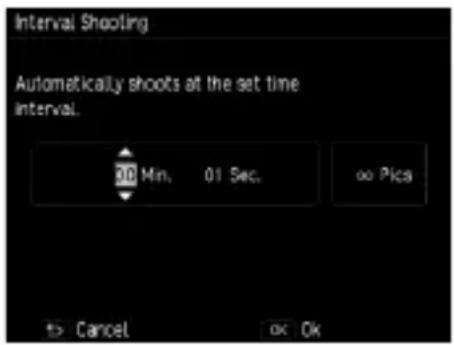
3 Select the number of shots with the ◀▶ buttons, and then set the value with the ▲▼ buttons.
Values from 1 to 99 or can be set.
4 Press the MENU/OK button.
[Interval Shooting] appears on the screen.
5 Press the shutter release button to shoot the picture.
A picture is taken every time the fixed interval elapses.
6 Press MENU/OK to end shooting when all the desired photographs have been taken.
Caution
- Depending on the [Shooting] menu settings, the time until the next picture can be taken may be longer than the time set for interval shooting.
• The self-timer cannot be used with interval shooting.
• Interval Shooting cannot be set when the focus is set to [Subject-tracking AF].
Note
• Interval Shooting is canceled if the power is turned off.
• Charge the battery before shooting.
• A card with sufficient available memory or a high speed memory card is recommended.
Shooting Star Trails (Interval Composite)
Merges a series of continuous images taken at fixed intervals in such a way that the bright areas remain. Use when you want to record the trails of light formed by stars or the moon by shooting a fixed position in nightscapes.
1 Mount the camera on a tripod.
2 Set the mode dial to Av/Tv/TAv/M, and then try taking a shot.
Set the aperture value/shutter speed/focus/ISO sensitivity/white balance, and then check the composition. This exposure will be maintained as shots are merged.
3 On the [Shooting] menu, select [Interval Composite].
The settings from step 2 will be carried over.
4 Select items with the ▲▼ buttons, and then change their settings.
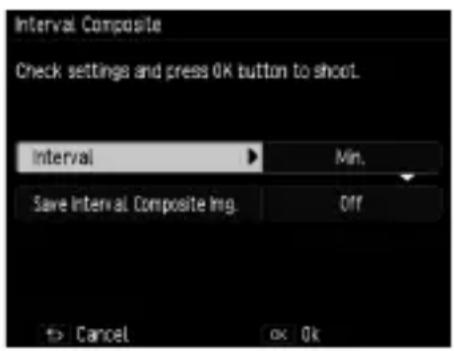
| Interval Sets the shooting interval from the shortest value up to 60 minutes. | |
| Save Interval Composite Img. | Sets how the images are saved.[Off]: Saves only the merged image.[Save Each Shot]: Saves all of the unmerged images.[Save Images In Progress]: Saves each image at the point it is merged. |
5 Press the MENU/OK button.
[Interval Composite] appears on the shooting screen.
6 Full-press the shutter release button.
The first shot will be taken, and additional shots will be taken continuously at the interval specified.
To check the images being merged, half-press the shutter release button. If the shutter release button is pressed all the way, the images merged up to that point will be saved as is, and Interval Composite shooting will continue with a new image.
7 Press MENU/OK to end shooting when all the desired photographs have been taken.
The merged image will be saved.

Caution
• If pressing the MENU/OK button while taking a shot, the shot will not be merged.
• The flash cannot be used with this function.
• The ISO sensitivity cannot be set to higher than [ISO 1600].
• The shutter speed cannot be set to longer than 60 seconds.
• Interval Composite cannot be used when the focus is set to [Subj. Tracking].
- If [Slow Shutter Speed NR] is set to [On] in the [Shooting] menu, and noise reduction is being applied (P. 42), light trails will not be continuously connected.

Note
• The values of the following settings will be fixed when the first image is taken.
• ISO sensitivity when set to [AUTO] or [AUTO-HI]
• White balance value when set to [Auto].
• AF operations will only be done for the first shot.
• The self-timer can only be used for the first shot.
- If shooting the light trails of stars, setting the focus to [] and the [Interval] to [Min.] will yield clear shots. Also, when taking test shots, check that the stars appear as points of light. Those points of light will be recorded as light trails when merged.
- If shooting in a dark location, the optional external viewfinder (GV-1/GV-2) can be convenient.
Using the Flash
Setting the Flash Mode
 Auto Auto | The flash fires automatically when the subject is poorly lit or backlit. [Default setting] |
 Flash On Flash On | The flash always fires. |
 Flash Synchro. Flash Synchro. | The flash fires with the shutter speed slowed. Use when taking nightscape shots that include people. Use of a tripod is recommended to prevent blur. |
 Manual Flash Manual Flash | The flash output is set under [Manual Flash Amount] in the (P. 71) |
 Red-Eye Flash AUTO Red-Eye Flash AUTO | Reduces “red-eye” in portraits taken with the flash. |
 Red-EyeFl Red-EyeFl  n n | Forces the flash to fire while reducing the red-eye phenomenon. |
| [RK28X]eFlash Synchro. | The flash fires in slow synchro while reducing the red-eye phenomenon. |
1 Slide the 4 Open switch downward. The flash pops up.
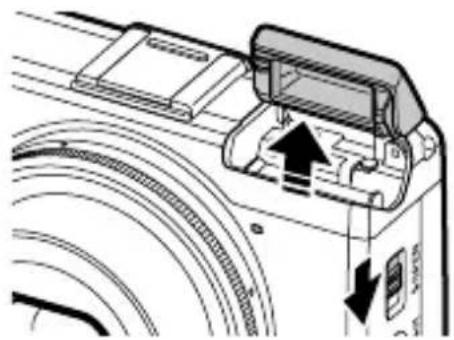
natural_image
Diagram of a camera module with directional arrows indicating motion or movement (no text or symbols present)2 Press the ↓ (▶) button.
The flash mode settings screen appears.
3 The display can be changed with the ◀▶ buttons.
A symbol appears on the shooting screen.
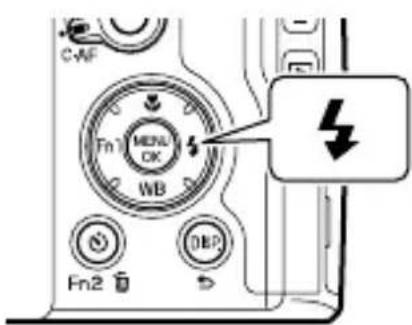

Note
• The flash mode cannot be changed when the flash cover is closed.
- If the ISO sensitivity is set to [AUTO], the range the light from the flash will reach is from approximately 20 cm to 3.0 m from the end of the lens.
- The flash fires a pre-flash to increase the AE accuracy. The pre-flash does not fire when set to [Manual Flash].
- The flash intensity can be adjusted under the [Flash Exposure Compensation] settings in the [Shooting] menu. (P. 70)

Caution
• The flash does not fire in the following situations:
• Continuous Shooting
- Auto Bracketing
- Interval Composite
mode
- Do not raise the flash if using an external flash, conversion lens, or hood.
Adjusting the Intensity of the Flash
Adjusts the intensity of the flash.
1 In the [Shooting] menu, select [Flash Exposure Compensation], and then press the ▶ button.
The [Flash Exposure Compensation] screen appears.
2 Set the value with the +/− button.
You can set the intensity from -2.0 EV to +2.0 EV in increments of 1/3 EV.
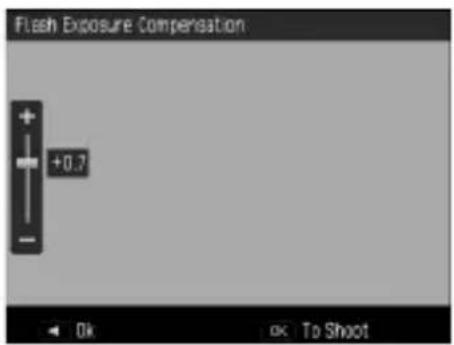
3 Press the MENU/OK button.
The value that was set appears on the screen.
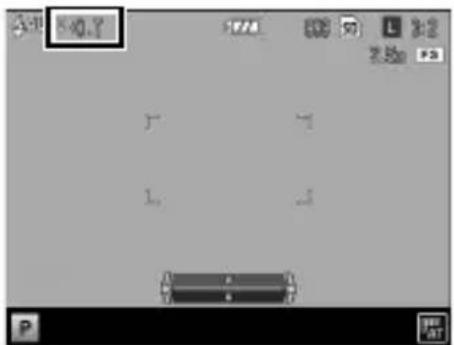

Note
- When the flash mode is set to [Manual Flash], the value set for [Flash Exposure Compensation] is invalid.
- [Flash Comp.] can be registered and used in the [Key Custom Options] menu under [ADJ. Lever Setting] or in [Set Fn Button]. (P. 105, P. 107)
Setting the Flash Intensity for Manual Flash
Sets the intensity of the internal flash if the flash mode is set to [Manual Flash].
1 In the [Shooting] menu, select [Manual Flash Amount], and then press the ▶ button.
2 Select the value with the ▲▼ buttons.
You can select from among the following fractions of the maximum flash intensity: [Full], [1/1.4], [1/2], [1/2.8], [1/4], [1/5.6], [1/8], [1/11], [1/16], [1/22], [1/32], and [1/64].
3 Press the MENU/OK button.
If the flash is set to [Manual Flash], the value set is shown on the shooting screen.
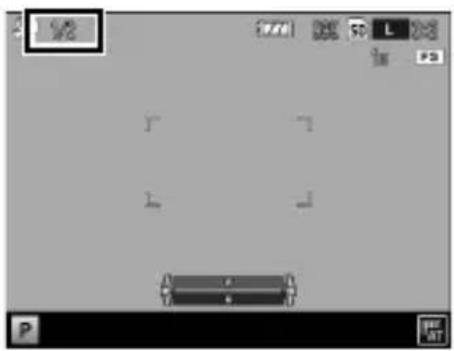
natural_image
Pure graphical interface with no text, numbers, or symbols
Note
- [Flash Amount] can be registered and used in the [Key Custom Options] menu under [ADJ. Lever Setting] or in [Set Fn Button]. (P. 105, P. 107)
Setting the Timing for Firing the Flash
You can select the timing at which the flash fires in the [Shooting] menu's [Flash Synchro Settings].
| 1st Curtain The flash fires immediately after the exposure starts. [Default setting] | |
| 2nd Curtain | The flash fires just before the exposure ends. When shooting a subject in motion at a low shut-ter speed, this makes it possible to express the subject's motion as a trail of light. |
Shooting Photos with Unique Atmosphere
Takes images with varied saturation and contrast.
Effect
Changes things like the hue for distinctive images.
 Black & White Black & White | Creates a black and white picture.The [Contrast], [Sharpness], and [Vignetting] can be set. |
 B&W (TE) B&W (TE) | Adds tint to black-and-white images.The [Toning Effect], [Saturation], [Contrast], [Sharpness], and [Vignetting] can be set. |
 High Contrast B&W High Contrast B&W | Takes shots with stronger contrast than [Black & White]. Makes it possible to take images with a grainy feel, such as that created by using ultra-high-sensitivity film in a film camera or by push processing film at the development stage. The [Contrast], [Sharpness], and [Vignetting] can be set. |
 Cross Process Cross Process | Takes images with tones that differ from the actual colors.The [Hue], [Saturation], [Contrast], [Sharpness], and [Vignetting] can be set. |
 Positive Film Positive Film | Takes highly saturated images like those taken with positive film.The [Saturation], [Contrast], [Sharpness], and [Vignetting] can be set. |
 Bleach Bypass Bleach Bypass | Takes images with low saturation and high contrast.The [Hue], [Saturation], [Contrast], [Sharpness], and [Vignetting] can be set. |
 Retro Retro | Takes images that look like old photos.The [Saturation], [Contrast], [Sharpness], and [Vignetting] can be set. |
 Miniaturize Miniaturize | Takes pictures that make the landscape look as if it has been miniaturized.The [Toning Effect], [Saturation], [Contrast] and [Sharpness] can be set, as can the position and range of blurring in the image. (P. 75) |
 High Key High Key | Takes images with a bright atmosphere.[Saturation] can be set. |
Image Settings
Takes images with modulated saturation, contrast, sharpness, and vignetting.
 Vivid Vivid | Increases the contrast, sharpness, and saturation beyond [Standard] for an image quality that feels solid. |
 Standard Standard | Normal image quality. This is selected when the image settings are turned off. [Default setting] |
 Setting 1/2 Setting 1/2 | Sets the [Saturation], [Contrast], [Sharpness], and [Vignetting]. |
1 In the [Shooting] menu, select [Effect] [Image Settings], and then press the ▶ button.
2 Select the setting with the ▲▼ buttons.
If selecting [Vivid] or [Standard], proceed to step 5.
3 Press the ▶ button.
4 Select the item with the ▲▼ buttons, and then set the value with the ◀▶ buttons.
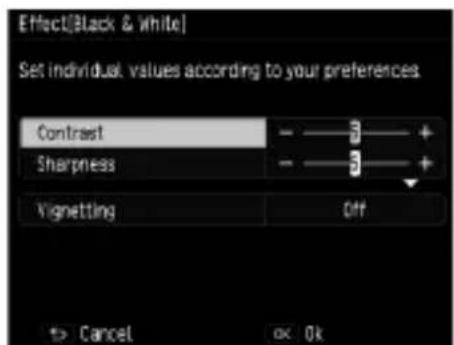
![Image Settings[Setting1] Set individual values according to your preferences Vividness Contrast Sharpness Vignetting Off Cancel OK](/content/2026/05/1042991/images/7add63d3458cb4307a91383483f9c82f0cf18b7f96777d449f492fab391ad9c0.jpg)
Image Settings [Setting 1] Effect [Black & White]
5 Press the MENU/OK button. The [Shooting] menu returns. A symbol appears on the shooting screen.
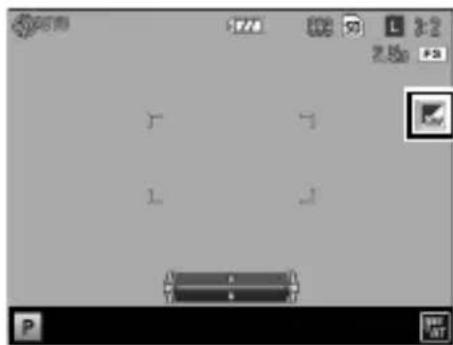
natural_image
Pure graphical interface with no text, numbers, or symbols visible
Caution
• If an [Effect] is set, the [Image Settings] are invalidated.
• [Vignetting] cannot be set in mode.
- Settings made in [Effect] and [Image Settings] are not applied to RAW images.
• [Effect] cannot be used with the following functions.
| Function Effect | |
| Movie High Contrast B&W/Miniaturize/High Key | |
| Multiple Exposure Shooting/Interval Composite | Miniaturize |
• Depending on the effects that have been set, the following functions may be disabled.
| Effect Disabled Function | |
| High Contrast B&W Continuous | |
| High Contrast B&W/Cross Process/Positive Film/Bleach Bypass/Retro/Miniaturize | Focus: [Subject-tracking AF] |
| Miniaturize Continuous/Auto Bracket | [AE-BKT 1/3EV], [AE-BKT 1/2EV], and [DR-BKT] |

Note
- [Effect] [Image Settings] can be registered and used in the [Key Custom Options] menu under [ADJ. Lever Setting] or in [Set Fn Button]. (P. 105, P. 107) By default, [Effect] is registered to the Effect button.
Shooting with Miniaturize
Takes images that give the impression that they are close-ups of a miniature. This mode is effective when shooting from a high vantage point while looking down at a diagonal angle.
1 In the [Shooting] menu, select [Effect] > [Miniaturize], and then press the ▶ button.
The [Effect] > [Miniaturize] screen appears.
2 Press the ▲▼◀▶ buttons to change the settings, and then press the MENU/OK button.
3 Press the MENU/OK button.
The Miniaturize shooting screen appears.
The areas outside of the unblurred focus area are shown in a semi-transparent gray.
4 Press the Fn2 button.
The screen for setting the position and range of blurring appears.
5 Move the position of the focus area with the ▲▼ buttons.
Change the vertical/horizontal orientation of the focus area by pressing the Fn2 button while this screen is shown.
6 Set the width of the focus area with the ◀▶ buttons.
7 Press the MENU/OK button.
The shooting screen returns.
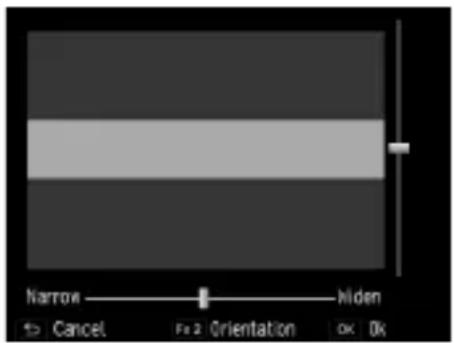
Note
- The amount of blurring in the image shown on the confirmation screen immediately after the shot is taken will differ slightly from that of the actual image.
Other Shooting Functions
Adding the Date to Still Images
If [Date] or [Time] is selected in the [Date Imprint] area of the [Shooting] menu, either the date (Year/Month/Day) or the date and time (Year/Month/Day Hour:Minute) will be imprinted on the lower-right corner of still images.
An indicator is displayed in the bottom right corner of the shooting screen when date imprint is on.
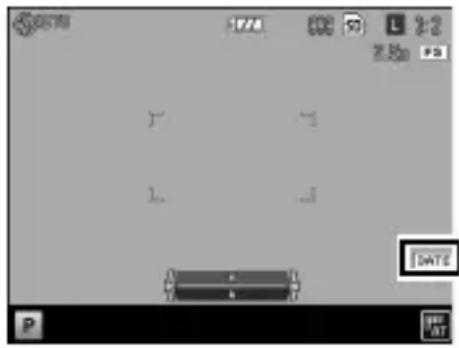

Caution
- Date imprint is not available if the date and time have not been set. Please set the date and time beforehand. (P. 30)
• The date can not be imprinted on RAW files or movies.
• The date imprinted in an image cannot be deleted.
Shooting Movies
Allows you to shoot movies with sound. Movies are recorded as MOV files.
Setting the Movie Format
1 Turn the mode dial to 📁.
The camera goes into movie mode.
2 Press the MENU/OK button.
The movie mode [Shooting] menu is displayed.
3 Select [Movie Format], and then press the ▶ button.
4 Use the ▲▼◀▶ buttons to select [Still Image Size] and [Frame Rate].
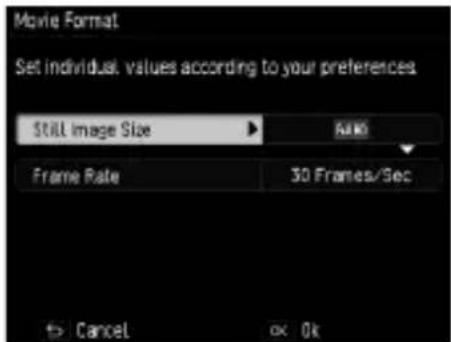
The following settings can be made. The frame rates that can be selected depend on the still image size.
| Still Image Size | Frame Rate (frames/second) | ||||
| 60 50 30 25 24 | |||||
| FullHD(1920×1080) N N Y Y | Y | ||||
| HD(1280×720) Y Y Y | Y Y | ||||
| VGA(640×480) N N Y Y Y | |||||
5 Press the MENU/OK button.
The [Shooting] menu returns.

Note
- [Frame Rate] can be registered and used in the [Key Custom Options] menu under [Set Fn Button]. (P. 107)
- The screen may flicker if shooting under fluorescent lighting. The amount of flickering can be minimized by setting the power frequency for your region in the [Reduce Fluorescent Flicker] area of the [Shooting] menu shown in movie mode.
Shooting Movies
1 Turn the mode dial to 📋.
2 Press the shutter release button.
Movie shooting starts.
While shooting, the “●REC” indicator blinks, and the recording time and time remaining are shown.
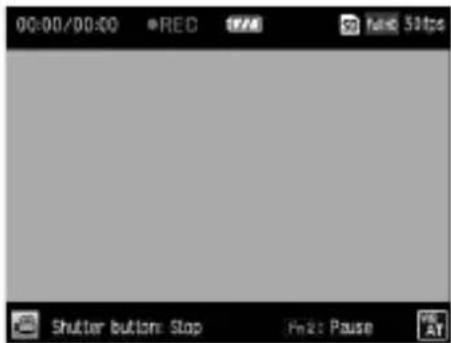
3 Press the shutter release button again. Shooting ends.
Caution
• If the camera is operated while shooting, the operation sounds will also be recorded.
• The following functions cannot be used in mode.
- Flash
• FA/Move Target
Note
- If the Fn2 button is pressed while shooting, recording will be paused. If the Fn2 button is pressed again, recording will resume.
• Each movie can be a maximum of 25 minutes long or up to 4 GB in size. - The maximum recording time per shooting depends on the size of your SD memory card (P. 133). Shooting may also end even before this length of time is reached.
- The amount of time remaining is calculated based on the amount of memory available and may not diminish at an even rate.
- Please use an SD memory card of Speed Class 6 or higher for shooting movies.
• Charge the battery before shooting.
Playing Back Movies
1 Press the ▶ button.
The camera goes into playback mode.
2 Select a movie with the ◀▶ buttons.
Movies are indicated by a 📋 icon.
The first frame of the movie is displayed as a still image.
3 Press the ▲ button.
Playback starts.
A progress indicator and the elapsed time are shown.
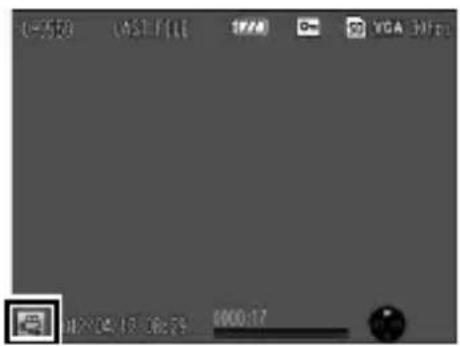
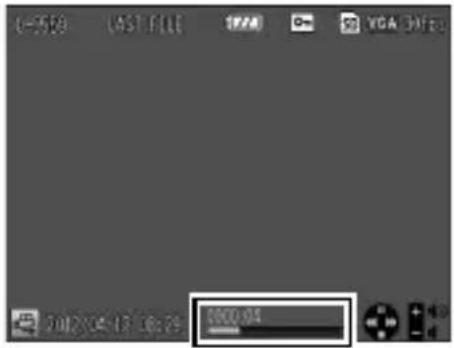
The following operations can be performed.
| Pause/resume ▲ button | |
| Stop ▼ button | |
| Adjust Volume +/— button | |
| Slow Playback/Slow Rewind ◀▶ buttons while playback is paused | |
| Fast Forward/Rewind ◀▶ buttons during playback | |
| Save Still Image Fn2 button while playback is paused | |

Note
- If the Fn2 button is pressed while playback is paused, the still image being shown can be saved as a JPEG file.
• The Fast Forward/Rewind speed switches each time the button is pressed. - QuickTime is required to play back movies that have been transferred to a computer.
Clipping Movies
The unnecessary parts at the beginning or end of a movie can be deleted, and the movie can be saved as a new file.
1 Bring up the movie to be edited in playback mode, and then press the MENU/OK button.
The [Playback] menu appears.
2 Select [Clip Movie File], and then press the ▶ button.
The [Clip Movie File] screen appears.
3 Press the ADJ. lever to select either the beginning or the end.
The point highlighted in yellow indicates which has been specified.
If the Fn2 button is pressed while this screen is shown, an explanation of the operations appears. Pressing the Fn2 button again brings back the previous screen.
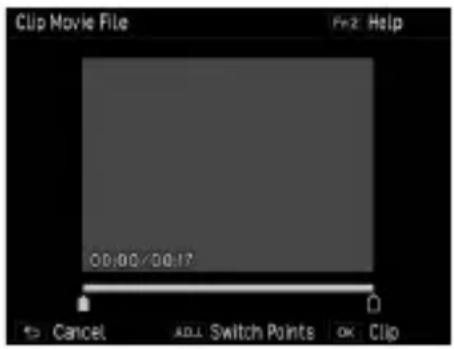
4 Use the ◀▶ buttons or press the ADJ. lever to move the point to be deleted.
The yellow point moves. You can specify 1-second units.
5 Press the MENU/OK button.
A new movie file is saved with the unnecessary parts deleted.
2 Playback Functions
Displaying Images in Thumbnail View
Pressing the Q (+)/☐ (-) button in playback mode displays multiple images in thumbnail view.
20-frame view 81-frame view
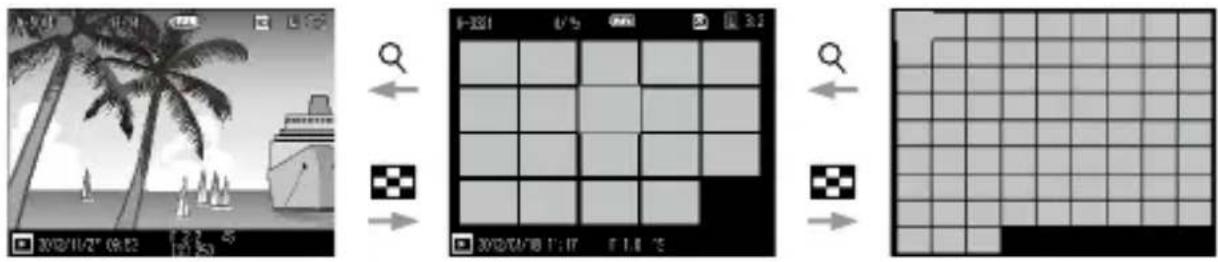
flowchart
graph LR
    A["Search"] --> B["Grid Selection"]
    B --> C["Pixel Grid Transformation"]
    C --> D["Final Output"]
The following operations are possible.
▲▼◀▶ button Selects an image.
ADJ. Lever Displays the selected image in single image view.
DISP. button Changes between single image selection and page selection.
Displaying Images in a Slide Show
You can display shot images sequentially.
Select [Slide Show] in the [Playback] menu and then press the ▶ button to start a slide show.
If you want to stop the slide show in progress, press any button. The slide show is displayed repeatedly until stopped.

Note
• Each still image is displayed for three seconds.
- In the case of a movie, all of the frames of the movie are played back and then the next image is displayed.
Displaying Images in Enlarged View
You can display still images enlarged.
The following operations are possible.
| Q(+) button/Turn the up-down dial right | Enlarges the image. |
| ☐(—) button/Turn the up-down dial left | Reduces the image. |
| ▲▼◀▶ buttons Moves the | area to display enlarged. |
| ADJ. Lever | Press: The image is enlarged in one go to the magnification (4x, 8x, or 16x) set in [One Press Zoom Ratio] in the [Setup] menu.Push down left or right: Displays the previous or next image in enlarged view (returns to actual size in the case of a movie). |
| MENU/OK Button | In enlarged view: Enlarges the image to the magnification set in [One Press Zoom Ratio]. |
| DISP. button Information display on → information display off | |

Note
- If you set [Target Zoom Play] in the [Setup] menu to [On], the image is enlarged centering on the position the target shifted to during shooting.
• The maximum magnification of enlarged view differs depending on the size of the image.
• Movies cannot be enlarged. - The functions of the up-down dial and ADJ. lever during playback mode can be changed in [Play Mode Dial Options] in the [Key Custom Options] menu.
| Up-down Dial ADJ. Lever | ||
| Setting 1 [default setting] | Enlarged view Next/previous enlarged frame | |
| Setting 2 Moves enlarge position up/down Moves enlarge position left/right | ||
Organizing Files
Deleting Files
Deleting One File
1 Display the image to delete in playback mode.
2 Press the 📋 button.
3 Use the ▲▼ buttons to select [Delete One].
You can change the file with the ◀▶ buttons.
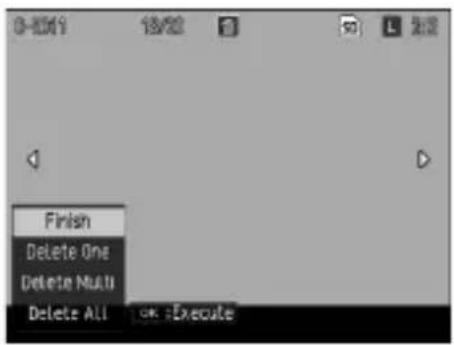
4 Press the MENU/OK button.
The file is deleted.
To delete another file, repeat steps 3 to 4.
To end the process, select [Cancel].
Deleting All Files
1 Press the ⏻ button in playback mode.
2 Use the ▲▼ buttons to select [Delete All] and then press the MENU/OK button.
The deletion confirmation screen appears.
3 Use the ▶ button to select [Yes] and then press the MENU/OK button.
Deleting Multiple Files Simultaneously
1 Press the ⏻ button in playback mode.
When in 20-frame or 81-frame view, go to step 3.
2 Select [Delete Multi] and then press the MENU/OK button.
3 Select [Sel. Indiv.] or [Sel. Range] and then press the MENU/OK button.
4 Use the ▲▼◀▶ buttons to select files and then press the MENU/OK button.
If you selected [Sel. Range], select only the file that is the starting point of the range.
The trash symbol is displayed in the upper left corner of the file.
Pressing the ADJ. lever switches between [Sel. Indiv.] and [Sel. Range].
If you selected [Sel. Indiv.], go to step 6.
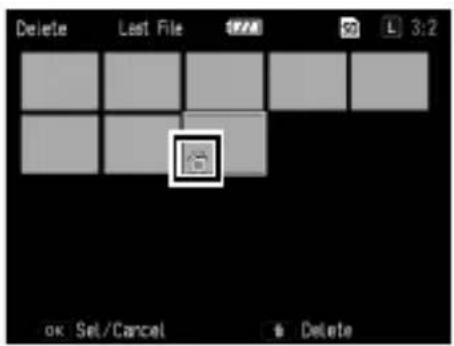
5 Use the ▲▼◀▶ buttons to select the file that is the ending point of the range and then press the MENU/OK button.
Repeat steps 4 to 5 to specify all of the ranges. If you selected a file by mistake, you can deselect it by pressing the ADJ. lever to return to the screen for deleting one file at a time,
selecting the file, and pressing the MENU/OK button.
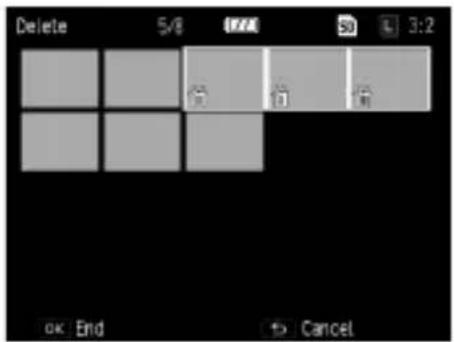
6 Press the 📋 button.
The deletion confirmation screen appears.
7 Use the ▶ button to select [Yes] and then press the MENU/OK button.
A message appears to indicate processing is being performed, and then the thumbnail view screen reappears when deleting is complete.

Note
• A folder cannot be deleted.
Setting Protection
You can protect files to prevent them from being deleted accidentally.

Caution
• If you select [Format] in the [Setup] menu, protected images will also be deleted.
Setting Protection for One File
1 Display the image to protect in playback mode and then press the MENU/OK button.
The [Playback] menu appears.
2 Select [Protect] and then press the ▶ button.
3 Use the ▲▼ buttons to select [1 File].
You can change the file with the ◀▶ buttons.
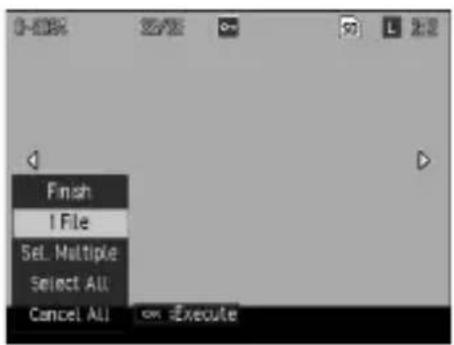
4 Press the MENU/OK button.
Protection is set and the symbol appears on the playback screen.
Performing the same operation for the protected image will cancel protection.
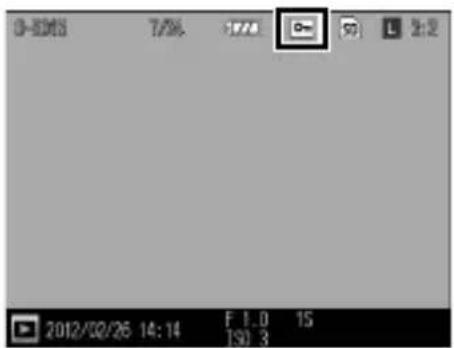
Setting/Canceling Protection for All Files
1 Select [Protect] in the [Playback] menu and then press the ▶ button.
2 Select [Select All] or [Cancel All] and then press the MENU/OK button.
Setting Protection for Multiple Files Simultaneously
1 Select [Protect] in the [Playback] menu and then press the ▶ button.
When in 20-frame or 81-frame view, go to step 3.
2 Select [Sel. Multiple] and then press the MENU/OK button.
3 Select [Sel. Indiv.] or [Sel. Range] and then press the MENU/OK button.
4 Use the ▲▼◀▶ buttons to select files and then press the MENU/OK button.
If you selected [Sel. Range], select only the file that is the starting point of the range.
When canceling protection, press the MENU/OK button again.
Pressing the ADJ. lever switches between [Sel. Indiv.] and [Sel. Range].
If you selected [Sel. Indiv.], go to step 6.
5 Use the ▲▼◀▶ buttons to select the file that is the ending point of the range and then press the MENU/OK button.
Repeat steps 4 to 5 to specify all of the ranges.
If you select files with protection already set, protection will be canceled.
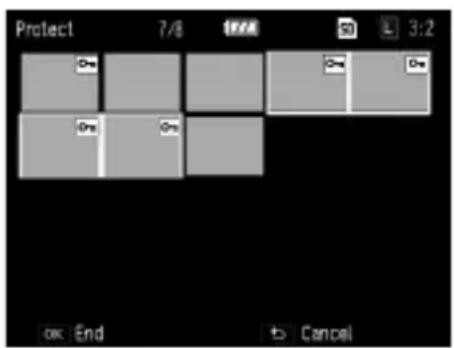
6 Press the Fn2 button.
A message appears to indicate processing is being performed, and then the thumbnail view screen reappears when the setting is complete.
7 Press the MENU/OK button.
The [Playback] menu reappears.
Copying the Images in Internal Memory to a Card
You can copy the still images and movies stored in internal memory memory card.
1 Insert a memory card.
2 Select [Copy to Card from Internal Memory] in the [Playback] menu and then press the ▶ button.
A message appears to indicate processing is being performed, and then the thumbnail view screen reappears when copying is complete.

Caution
- If there is not enough space available on the copy destination memory card, a message indicating that there is insufficient space appears.
• Copying from a memory card to internal memory is not possible.
Correcting and Processing Images
You can correct and process shot images and then save them as new images.

Caution
- Only JPEG files that were shot with this camera can be corrected and processed. Raw files, movies, and still images saved from movies cannot be corrected and processed.
• If you correct and process images repeatedly, image quality will deteriorate.
Reducing the Size of Images
[Resize] in the [Playback] menu reduces still images to S or XS.
Trimming Images
You can trim the edges of images and then save the images.
1 Display the image to trim in playback mode and then press the MENU/OK button.
The [Playback] menu appears.
2 Select [Trim] and then press the ▶ button.
3 Specify the range to trim.
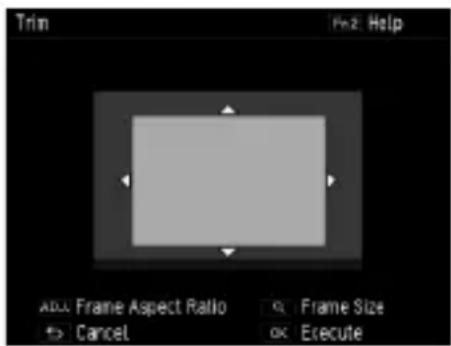
The following operations are possible.
| +/- button Changes the trimming size. | |
| ▲▼◀▶ button Moves the trimming frame. | |
| ADJ. Lever Changes the aspect ratio of the trimming frame (4:3/3:2/1:1). | |
| Fn2 button Displays the operating procedure. |
4 Press the MENU/OK button.
The trimmed image is saved as a new image.

Note
- The image size after trimming differs depending on the size of the original image and the size of the trimming frame.
Correcting Skewed Images
Correct images of rectangular objects such as message boards and business cards shot at an angle so that the images appear as if they were shot from the front.
1 Display the image to correct in playback mode and then press the MENU/OK button.
The [Playback] menu appears.
2 Select [Skew Correct Mode] and then press the ▶ button.
A message appears to indicate processing is being performed, and then up to five areas recognized as correction targets are indicated by orange frames. If an area could not be detected, an error message appears.
3 Use the ◀▶ buttons to select a correction area.
To cancel correction, press the ↩ button.
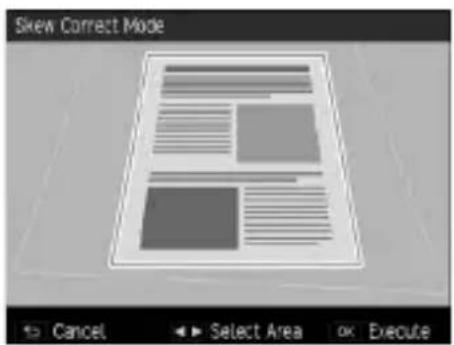
4 Press the MENU/OK button.
Screw correction is performed for the selected area and then the portions outside the frame are trimmed.
Note
• The time for skew correction increases with image size.
Correcting Brightness and Contrast (Level Compensation)
You can correct the brightness and contrast of shot still images.
1 Display the image to correct in playback mode and then press the MENU/OK button.
The [Playback] menu appears.
2 Select [Level Compensation] and then press the ▶ button.
3 Select [AUTO] or [MANUAL] and then press the ▶ button.
The original image is displayed on the top left, and the corrected image on the right.
If you select a file that cannot be corrected, an error message appears and then the [Playback] menu reappears.
If you selected [AUTO], go to step 6.
4 Use the ADJ. lever to switch the histogram points.
The points at the left side, center, and right side are switched.
The histogram indicates the number of pixels on the vertical axis, and the shadows, midtones, and highlights from left to right on the horizontal axis.
If you press the Fn2 button while this screen is displayed, the operating procedure appears.
Pressing the Fn2 button again redisplays the original screen.
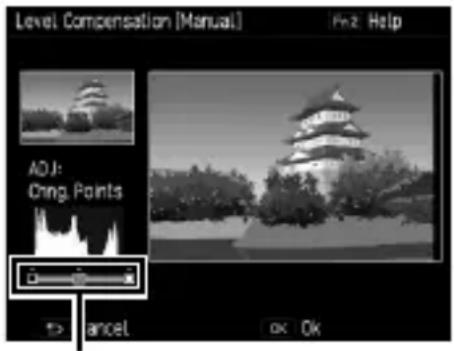
Points
5 Use the ◀▶ buttons to adjust the positions of the points.
6 Press the MENU/OK button.
A message appears to indicate processing is being performed, and then the corrected image is saved as a new image.
Adjusting the Overall Brightness
- Move the mid-point to the left to increase the overall brightness, and move it to the right to increase the overall darkness.
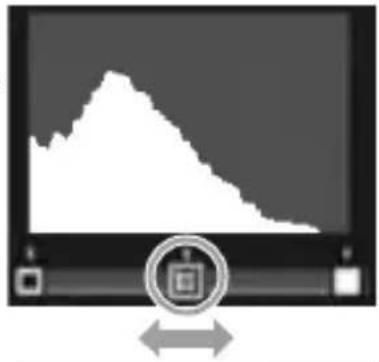
natural_image
Computer monitor displaying a white area chart with an arrow pointing to it, no visible text or symbols on the screen or surroundings.Correcting an Overexposed or Underexposed Image
- If the image is overexposed, move the left side point to the right until it lines up with the left edge of the histogram.
- If the image is underexposed, move the right side point to the left until it lines up with the right edge of the histogram.
- In this state, you can move the mid-point left or right to adjust the overall brightness.
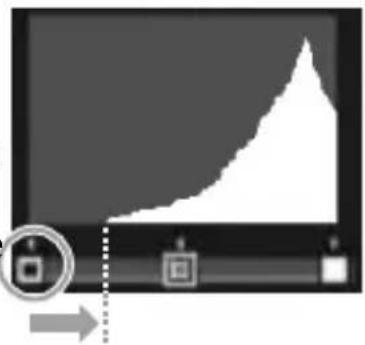
When overexposed
Increasing the Contrast
- In an image lacking in contrast, the histogram peaks will be concentrated at the center. Move the left and right points until they line up with both edges of the histogram respectively to make the bright and dark areas of the image stand out.
- In this state, you can move the mid-point left or right to adjust the overall brightness.
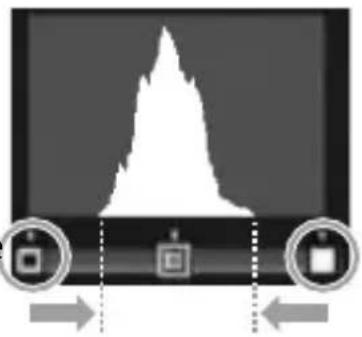
flowchart
graph TD
    A["Input Box 1"] --> B["Process Step"]
    C["Input Box 2"] --> B
    B --> D["Output Box 3"]
Correcting the White Balance
You can correct the color tones of still images.
1 Display the image to correct in playback mode and then press the MENU/OK button.
The [Playback] menu appears.
2 Select [White Balance Compensation] and then press the ▶ button.
The [White Balance Compensation] screen appears.
3 Use the ▲▼◀▶ buttons to adjust the positions of the points.
To reset the white balance, press the ↻ button. Pressing the ↻ button again cancels correction.
If you press the Fn2 button while this screen is displayed, the operating procedure appears. Pressing the Fn2 button again redisplays the original screen.
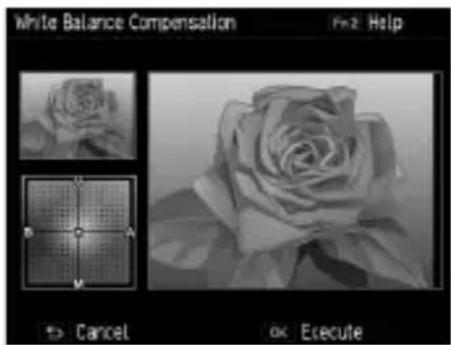
4 Press the MENU/OK button.
A message appears to indicate processing is being performed, and then the corrected image is saved as a new image.
Correcting Color Moire
You can reduce color interference caused by regular overlapping patterns in still images.
1 Display the image to correct in playback mode and then press the MENU/OK button.
The [Playback] menu appears.
2 Select [Color Moire Correction] and then press the ▶ button.
3 Use the ▲▼ buttons to select [Weak], [Medium], or [Strong] and then press the MENU/OK button.
A message appears to indicate processing is being performed, and then the corrected image is saved as a new image.
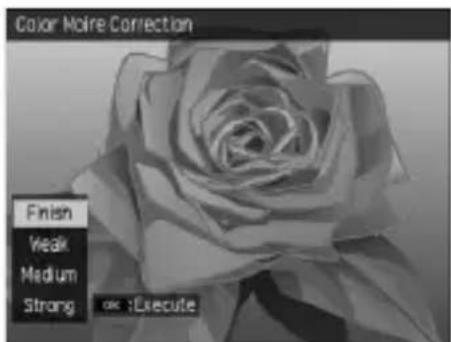

Caution
• Some images may not be able to be corrected properly.
• If you perform color moire correction, color loss or color bleeding may occur.
Developing RAW Files
Convert RAW files into JPEG format and then save them as new files. You can configure settings such as the white balance and effect, and then save the files.
1 Display a RAW image in playback mode and then press the MENU/OK button.
The [Playback] menu appears.
2 Select [RAW development] and then press the ▶ button.
The [RAW development] screen appears.
3 Use the ▲▼ buttons to select a parameter and then press the ▶ button.
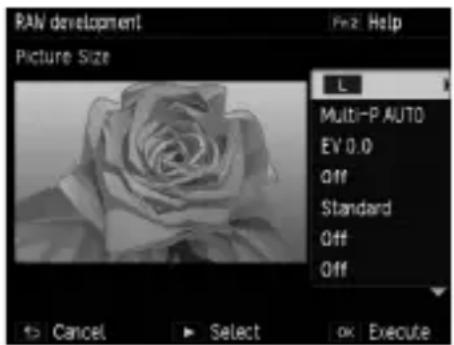
You can configure the following settings.
• Picture size • Dynamic range correction
- White balance
- Color moire correction
- Brightness correction • Noise reduction
• Effect • Color space settings
• Image settings
4 Use the ▲▼ buttons to select a setting and then press the ◀ button.
With [White Balance], you can perform white balance correction by pressing the ▶ button.
With [Effect] and [Image Settings], press the ▶ button to set the advanced settings.
5 When you have finished configuring all of the settings, press the MENU/OK button.
A new JPEG file is saved.

Note
• The settings that were set at the time of shooting are initially selected.
- [Multi-P AUTO] or [Manual] of [White Balance] can only be selected if it was set at the time of shooting.
- For [Dynamic Range Compensation] and [Noise Reduction], select from [Off], [Weak], [Medium], and [Strong].
Viewing Images with an AV Device
You can connect the camera to a TV or other AV device to play back images on the device.
Purchase an optional cable that is compatible with the video input terminal(s) of the device to be connected.
| AV Device Terminal(s) Cable Camera Terminal | |
| Video terminals AV cable (AV-1) | USB and AV OUT terminal |
| HDMI terminal HDMI cable (HC-1) | HDMI micro output terminal |
1 Connect the cable to the video input terminal of the AV device.
2 Make sure that the camera power is off.
3 Open the camera terminal cover and connect the cable.
USB and AV OUT terminal
Connect the cable to either the USB and AV OUT terminal or the HDMI micro output terminal.
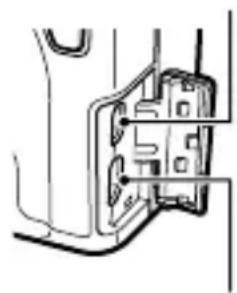
natural_image
Pure mechanical assembly diagram without any text, numbers, or symbolsHDMI micro output terminal
4 Switch the input of the AV device to the input with the camera connected.
For details, refer to the user guide for the AV device.
5 Press the POWER button on the camera.

Caution
• The picture display is off while the camera is connected with an AV cable or HDMI cable.
• The audio of the video is output from the AV device. Adjust the volume on the AV device.
• The white saturation display is off while the camera is connected with an HDMI cable.

Note
- When connecting with an AV cable, confirm the video format of the AV device. AV devices in Japan are set to the NTSC format (used in Japan and elsewhere). If the device you want to connect to uses the PAL format (used in Europe and elsewhere), then you may need to set [PAL] in [Video Out Mode] of the [Setup] menu before connecting the device. The default setting varies depending on the country or region where you purchased the camera.
• The view switches to single frame view when an HDMI cable is connected or disconnected. - The resolution is set to [AUTO] during HDMI output. If the resolution of the images displayed on the AV device is low, change the setting in [HDMI Output] of the [Setup] menu.
Setting DPOF
You can order prints of the still images stored in the memory card at a store with a print service.
1 Display the image to set in playback mode and then press the MENU/OK button.
The [Playback] menu appears.
2 Select [DPOF] and then press the ▶ button.
3 Select [1 File] or [Select All].
If you selected [1 File], use the ◀▶ buttons to select a file.
Selecting [Cancel All] cancels the DPOF setting for all files.
4 Press the MENU/OK button.
DPOF is set and the symbol appears on the playback screen.
Caution
• DPOF cannot be set in the following cases.
- RAW files
- Movie files
• Images stored in internal memory
• Memory card is locked.
Setting DPOF for Multiple Still Images
Specify multiple images and the number of copies from thumbnail view.
1 Press the — button in playback mode.
The screen changes to 20-frame view.
2 Select [DPOF] in the [Playback] menu and then press the ▶ button.
3 Use the ◀▶ buttons to select a still image to print and then use the ▲▼ buttons to specify the number of copies.
A symbol indicating the DPOF setting appears.
To cancel the setting, specify [0] for the number of copies.
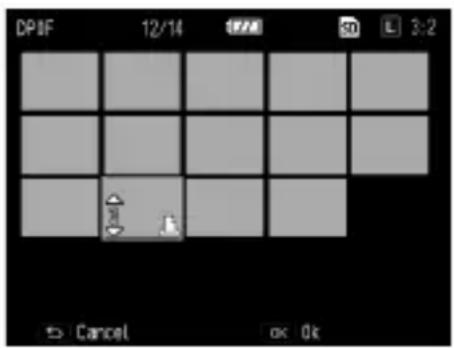
4 Press the MENU/OK button.
A message appears to indicate processing is being performed, and then 20-frame view reappears when the setting is complete.
Selecting the Images to Transfer
When using an Eye-Fi card, you can transfer just selected images.
1 Set [Eye-Fi Connection Settings] in the [Setup] menu to [On (Selected)].
2 Turn the power off and then back on.
3 Select [Eye-Fi Transfer Selected Images] in the [Playback] menu and then press the ▶ button.
The screen changes to 20-frame view.
4 Use the ◀▶ buttons to select an image to transfer and then press the MENU/OK button.
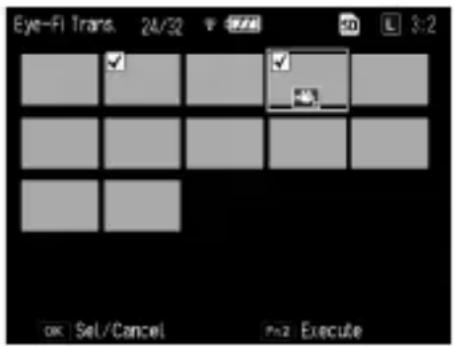
5 Press the Fn2 button.
The [Select Image Size] screen appears.
6 To change the size, press the ▶ button and select a size.
You can select XS or S.
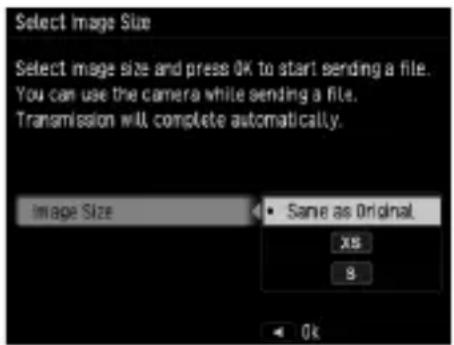
7 Press the MENU/OK button.
The selected image is transferred.
Caution
• The following files cannot be transferred.
- Movie files
• Images files in formats which are not supported by Eye-Fi cards
• Image files with a folder number of over 200
- You can access the screen in step 6 by pressing the Effect button in the single-frame view of the playback mode, and transfer the displayed image.
Customizing the Camera
You can change the functions of the Fn buttons and ADJ. lever, and register settings to MY1/MY2/MY3 of the mode dial.
Registering Shooting Settings (My Settings)
You can register the current camera settings as My Settings so that you can easily recall and shoot with the desired settings.
Settings can be registered to the following.
| MY1/MY2/MY3 | Register settings to MY1/MY2/MY3 of the mode dial. |
| My Settings BOX | Six sets of settings can be registered to the camera.To use the settings, assign them to [MY1], [MY2], and [MY3] in [Recall My (P. 101). A name came can be assigned to registered settings. (P. 104) |
The following items can be registered.
Camera settings
- Shooting mode
• Aperture value and shutter speed when Av/Tv/TAv/M mode - Self-timer
• Focus position for MF - Macro
- Flash
[Shooting] menu
- Other than [Multiple Exposure Shooting], [Interval Shooting], [Interval Composite], [Aperture Auto Shift], [Shutter Auto Shift], [Shutter/Aperture Auto Shift], [Switch Shooting Mode], and [Restore Defaults]
[Key Custom Options] menu
- Set Fn1 Button/ Set Fn2 Button/ Effect Button Setting
[Setup] menu
• ISO Step Setting • Level Setting
• ISO Auto-High Settings • Grid Guide Display Options
1 Set the functions to register.
2 Select [Reg. My Settings] in the [Key Custom Options] menu and then press the ▶ button.
The Reg. My Settings screen appears.
3 Select the location to register the settings and then press the MENU/OK button.
If you select [MY1], [MY2], or [MY3], the tings are registered to the mode dial.
![Reg. My Settings Choose a destination. [MY 1] [MY 2] [MY 3] My Settings Box Cancel OK Ok](/content/2026/05/1042991/images/e6b7c426a2735db48e6e78511fb54564c294ce20680e4d276e1c64ce420d00ef.jpg)
To save the settings to My Settings BOX, select [My Settings BOX], press the ▶ button, and select the number to which to register the settings.
If you select an unregistered location, the settings are registered with the current date and time as the name.
![Save My Settings (Box) Choose a destination from boxes 1-6. [1] [2] [3] [4] [5] [6] Cancel OK Ok](/content/2026/05/1042991/images/c1c4ee9abc3c9b59408564490954475e3d5bf2d9205a4117056dbd0305215016.jpg)
If you select a location that already has a name, the name setting screen appears. If you select [Yes], the settings are registered under the current name. If you select [No], the settings are registered with the current date and time as the name.
The settings are registered, and then the [Key Custom Options] menu reappears.
Recalling Settings Registered as My Settings
The settings registered to [My Settings BOX] can be assigned to MY1/MY2/MY3 of the mode dial.
1 Select [Recall My Settings] in the [Key Custom Options] menu and then press the ▶ button.
The [Recall My Settings] screen appears.
2 Use the ▲▼ buttons to select the location on the dial to assign the settings and then press the ▶ button.
![Recall, My Settings (Box) Box settings can be copied to each dial. [MY 1] [MY 2] [MY 3] Cancel Execute](/content/2026/05/1042991/images/889e0aada4901ad17ed047fc4d8ccfacec601188cdbe4cf3ecada4b01999ae08.jpg)
3 Select the My Settings BOX number with the My Settings registered and then press the MENU/OK button.
The selected My Settings item is registered to the mode dial and then the [Key Custom Options] menu reappears.
![Recall My Settings (Box) Choose the settings to be copied. [1] [2] [3] [4] [5] [6] => Cancel OK Ok](/content/2026/05/1042991/images/323b7b150fd0dce4d03563f47041fa7976d4196bc442fc312bd2c0a438130b22.jpg)
Caution
- The settings registered to [My Settings BOX] are not cleared when the internal memory is formatted.
Shooting Images in My Settings Mode
1 Turn the mode dial to MY1/MY2/MY3. Shooting becomes possible with the settings of My Settings.
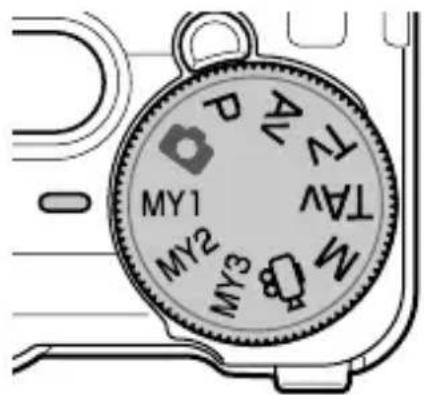
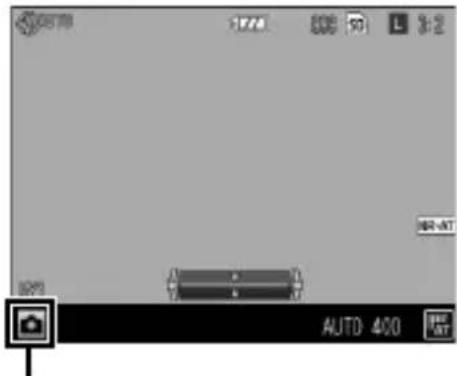
Symbol for registered shooting mode
2 To temporarily change the shooting mode, select [Switch Shooting Mode] in the [Shooting] menu.
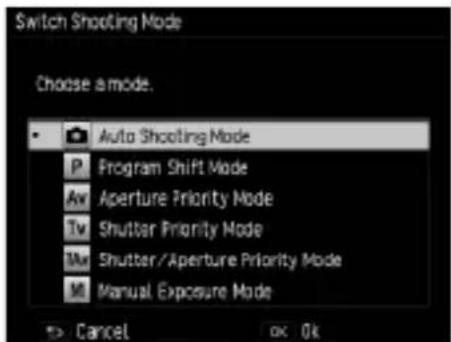

Note
- The settings changed in My Settings Mode are restored to the settings registered for the original MY1/MY2/MY3 if the mode is changed or the power is turned off.
- When the shooting mode registered to MY Settings is mode 📋, step 2 cannot be performed.
Editing My Settings
You can edit the settings registered as My Settings.
1 Select [Edit My Settings] in the [Key Custom Options] menu and then press the ▶ button.
The [Edit My Settings] screen appears.
2 Select the My Settings item you want to edit and then press the ▶ button.
![Edit My Settings Settings can be changed. [MY 1] [MY 2] [MY 3] My Settings Box Cancel Execute](/content/2026/05/1042991/images/1e895cf5816ec5efad081597db890d010120dc428baa3a90b09e6e56299a07fe.jpg)
To edit a My Settings item saved to My Settings BOX, go to My Settings Box, press the ▶ button and select a number.
A list of settings appears.
3 Use the ▲▼ buttons to select a setting you want to edit and then press the ▶ button.
Use the ▲▼ buttons to change the setting.
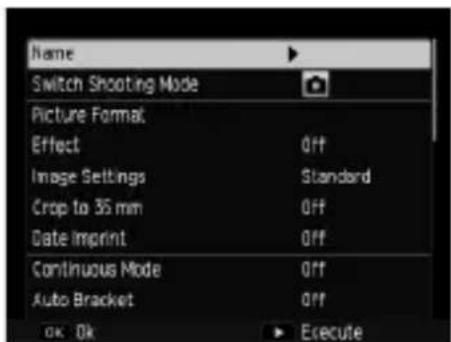
4 Press the ◀ button to confirm the setting.
Repeat steps 3 and 4.
5 Press the MENU/OK button.
The changes are saved and the [Key Custom Options] menu reappears.
Changing the Name of a My Settings Item
1 Select [Name] in the screen of step 3 on P. 103 and then press the ▶ button.
The [Name] screen appears and the current name is displayed in the text input area. If you want to specify a new name, go to step 3.
![Text input area Name (Roman) A B C D E F G 1 2 3 [Delete] H I J K L M N 4 5 6 [Space] Q P Q R S T U 7 8 9 0 / - * V W X Y Z ! ? # # % : . , = ( ) < > [ ] & " " " * ^ +/- Shift +/- Cancel Adj. Set OK OK](/content/2026/05/1042991/images/753e43802161050ec2015a5e37095401f9ca4c1e7500017c80ea95392684362e.jpg)
Character selection area
2 Use the ◀▶ buttons to move the cursor to the position you want to edit.
3 Press the ▼ button.
The cursor moves to the character selection area.
4 Use the ▲▼◀▶ buttons to select a character and then press the MENU/OK button.
The character is inserted at the position of the cursor in the text input area. Select [Delete] to delete a character, and [Space] to insert a space.
You can enter up to 16 full width katakana and up to 32 half width alphanumeric characters. The character type can be changed with the Fn2 button.
5 Press the ADJ. lever.
The name is registered.
- If the settings of [MY1], [MY2], and [MY3] are assigned in [Recall My Settings] and the settings of My Settings BOX are edited, the changes are also applied to the settings of [MY1], [MY2], and [MY3]. If the settings of [MY1], [MY2], and [MY3] are directly edited, the changes are not applied to the settings of My Settings BOX. Furthermore, if the settings of My Settings BOX are subsequently edited, the changes are not applied to the settings of [MY1], [MY2], and [MY3].
- The name of the My Settings item is displayed when the mode dial is turned to MY1/MY2/MY3.
- You can delete My Settings registrations with [Delete My Settings] of the [Key Custom Options] menu.
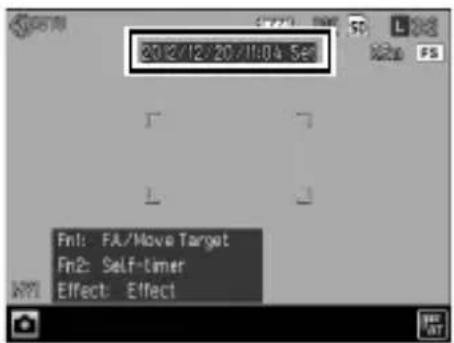
Registering Functions to the ADJ. Lever
You can register shooting functions to the ADJ. lever so that you can easily recall them by ADJ. lever operation (ADJ. mode).
The following functions can be registered.
| Function Page | |
| Off — | |
| ISO * [Default setting for ADJ. Lever Setting 1] P. 46 | |
| Picture Size * [Default setting for ADJ. Lever Setting 2] P. 50 | |
| Aspect Ratio * [Default setting for ADJ. Lever Setting 3] P. 50 | |
| Focus * [Default setting for ADJ. Lever Setting 4] P. 51 | |
| Image P. 73 | |
| Expo. Metering * [Default setting for ADJ. Lever Setting 5] P. 49 | |
| Cont. Mode | P. 62 |
| Auto Bracket | P. 63 |
| Flash Comp. | P. 70 |
| Flash Amount | P. 71 |
| Dyn Range Comp | P. 48 |
| SnapFocusDist. | P. 52 |
| Effect | P. 72 |
1 Select [ADJ. Lever Setting] in the [Key Custom Options] menu and then press the ▶ button.
The [ADJ. Lever Setting] screen appears.
2 Use the ▲▼ buttons to select any of [ADJ. Lever Setting 1] to [ADJ. Lever Setting 5] and then press the ▶ button.
3 Use the ▲▼ buttons to select the function to register and then press the ◀ button.
Repeat steps 2 and 3.
4 Press the MENU/OK button.
The [Key Custom Options] menu reappears.
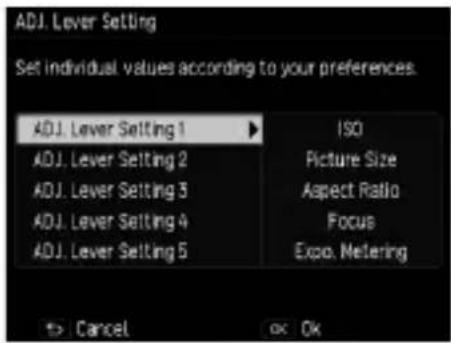
Using ADJ. Mode
1 Press the ADJ. lever in shooting mode.
The mode becomes ADJ. mode.
2 Use the ◀▶ buttons to select the function you want to set.
Any of ADJ. Lever Setting 1 to ADJ. Lever Setting 5 can be selected.
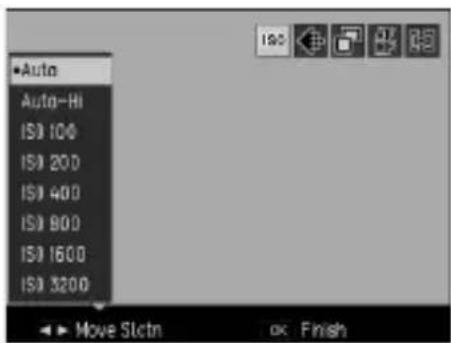
3 Use the ▲▼ buttons to select a value.
4 Press the MENU/OK button.
The selected function is set.
Registering Functions to the Fn1/Fn2/Effect Buttons
You can register functions to the Fn1/Fn2/Effect buttons so that change settings or display a function settings screen by simply pressing a button.
Any of the following functions can be registered to each of the Fn1/Fn2/Effect buttons.
| Function Page | |
| Off | — |
| 35 mm Crop P. 50 | |
| MultiAF/SpotAF P. 51 | |
| MultiAF/PinpointAF P. 51 | |
| AF/MF P. 51 | |
| AF/Snap P. 51 | |
| AF/Subj.Trckng P. 51 | |
| JPEG > RAW P. 50 | |
| JPEG > RAW+ P. 50 | |
| ND Filter P. 44 | |
| Effect * [Default setting for Effect button] | P. 72 |
| FA/Move Target * [Default setting for Fn1 button] | P. 56 |
| ISO | P. 46 |
| Picture Size | P. 50 |
| Aspect Ratio P. 50 | |
| Focus | P. 51 |
| SnapFocusDist. P. 52 | |
| Image | P. 73 |
| Expo. Metering P. 49 | |
| Cont. Mode | P. 62 |
| Multi Exposure P. 64 | |
| Auto Bracket | P. 63 |
| Flash Comp. | P. 70 |
| Flash Amount | P. 71 |
| Dyn Range Comp | P. 48 |
| Self-timer * [Default setting for Fn2 button | P. 34 |
| Frame Rate (Movies) | P. 76 |
1 Select [Set Fn1 Button], [Set Fn2 Button], or [Effect Button Setting] in the [Key Custom Options] menu and then press the ▶ button.
2 Use the ▲▼ buttons to select the function to register and then press the ◀ button.
The function is registered and the [Ke tom Options] menu reappears.
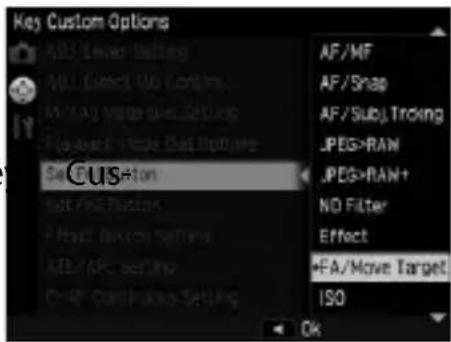

Note
- When the power is turned on or the mode dial is turned, the current Fn1/Fn2/Effect button functions are displayed. If [Fn Button Settings] in the [Setup] menu is set to [Off], the functions are not displayed.
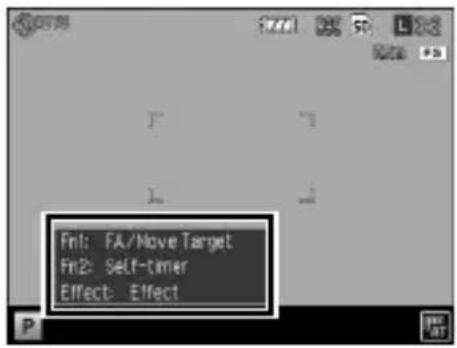
Changing Other Settings
Adjusting the Brightness of the Picture Display
You can adjust the brightness of the picture display.
1 Select [LCD Brightness] in the [Setup] menu and then press the ▶ button.
2 Select [Auto] or [Manual]. If you selected [Auto], the [Setup] menu reappears.
3 Press the ▶ button.
The [LCD Brightness] screen appears.
4 Use the ▲▼ buttons to adjust the brightness.
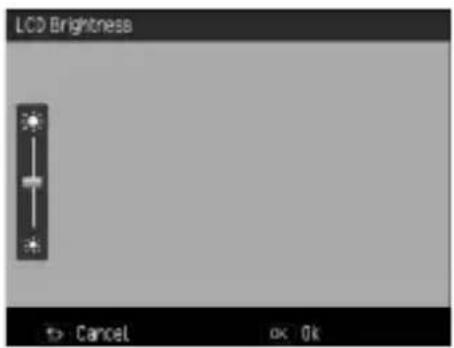
5 Press the MENU/OK button. The [Setup] menu reappears.
Setting the Information Displayed in Shooting Mode
You can set the information displayed for each number of presses of DISP. button in shooting mode.
1 Select [DISP. Button Display Setting] in the [Setup] menu and then press the ▶ button.
The [DISP. Button Display Setting] screen appears.
2 Use the ◀▶ buttons to set [Use DISP. Screen].
☐1 to ☐3 to indicate the number of button presses, and ☐Off indicates the picture display is off.
3 Use the ADJ. lever to enable or disable a setting.
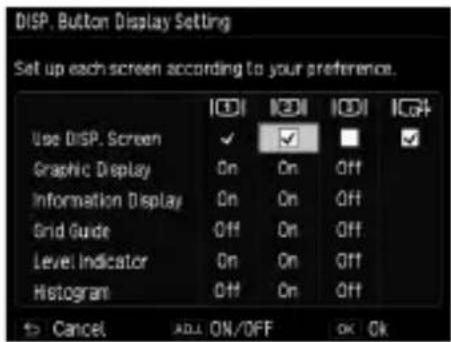
A setting without a check mark is disabled (the information is not displayed). For the setting in the diagram, there are three display patterns for when the DISP. button is pressed. |☐|1 cannot be disabled.
4 Use the ▲▼◀▶ buttons to select a display item and then use the ADJ. lever to turn it ON/OFF.
| Graphic Display Displays the values that can be set at the bottom of the screen while the aperture and shutter speed are being changed. | |
| Information Display Displays symbols for the shooting mode, settings, etc. | |
| Grid Guide Displays guidelines for shooting.Select the type of grid in [Grid Guide Display Options] of the [Setup] menu. | |
| Level Indicator Displays an indicator for confirming camera tilt. | |
| Histogram Displays a histogram. |
5 Press the MENU/OK button.
The [Setup] menu reappears.
Setting the Operation Sounds
You can set the camera operation sounds in [Operations Sounds] and [Volume Settings] of the [Setup] menu.
There are the following three camera operations sounds.
| Shutter sound The sound played when the shutter release button is pressed. | |
| Focus sound The sound played when the shutter release button is half-pressed and the camera is focused on the subject. | |
| Warning sound | The sound played when an attempt is made to perform an operation that cannot be performed. |
You can select [All] or [Shutter Sounds] in [Operation Sounds].
The camera operation sounds can be set to OFF/■□□ (Low volume)/
■■□(Medium volume)/■■■ (High volume) in [Volume Settings].
Changing File Names
You can change the first two characters of file names.
1 Select [Change File Name] in the [Setup] menu and then press the ▶ button.
The [Change File Name] screen appears.
2 Use the ▲▼ buttons to select a character.
You can enter a half width alphanumeric character (uppercase only).
3 Press the ▶ button and then select the second character in the same way.
4 Press the MENU/OK button.
The file name is registered, and then the [Setup] menu reappears.
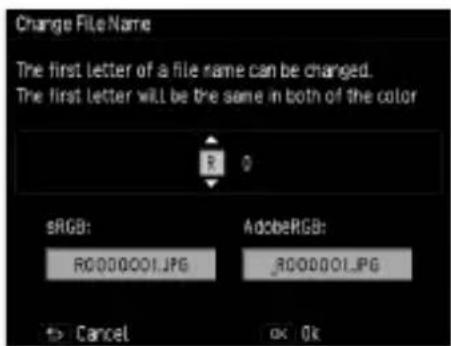
Note
- When [Color Space Set] in the [Setup] menu is set to [AdobeRGB], only the very first character is applied.
Resetting the File Numbers
A file name of "R0" and a 6-digit sequential number (010001 to 999999) is assigned to each shot image automatically (R0010001.JPG to R0999999.JPG). Even if you insert a new memory card, the sequential numbering of file names is continued from the last card.
To reset the sequential numbers, select [Reset File Number] in the [Setup] menu.

Note
- When [Color Space Set] in the [Setup] menu is set to [AdobeRGB], an underbar is used at the beginning of the file name.
- The folder numbers are 100 to 999, and the recording of files begins from the maximum folder number. When the file number exceeds R0**9999, the next folder is created and the file number becomes R0**0001. When the folder number is 999, no more files can be stored if R0**9999 is exceeded.
• If a memory card is not inserted, the file numbers of the internal memory are reset.
Setting the Copyright Notice
You can set a copyright notice to be written as Exif data when images are shot.
1 Select [Copyright notice] in the [Setup] menu and then press the ▶ button.
The [Copyright notice] screen appears.
2 Press the ▼ button.
The cursor moves to the character selection area.
3 Use the ▲▼◀▶ buttons to select a character and then press the MENU/OK button.
![Copyright notice A B C D E F G 1 2 3 [Delete] H I J K L M N 4 5 6 [Space] 0 P Q R S T U 7 8 9 0 / - + V W X Y Z t ? @ # % : . . - ( ) < > [ ] & . * * ' - 4 ^ Fix2 Shift ALL Set -> Cancel OK Ok](/content/2026/05/1042991/images/38aa663047ae280bee322c137a99ac59356103812ae870fb916c43c63550b1d2.jpg)
You can enter up to 46 half width alphanumeric characters and symbols. The character type can be changed with the Fn2 button.
4 Press the ADJ. lever.
The copyright notice is registered, and then the [Setup] menu reappears.
Note
- A copyright notice that has been written to an image can be checked in the detailed information displayed in the playback screen.
Checking the Firmware Version
You can view the camera firmware version in [Confirm Firmware Version] of the [Setup] menu. When there is a firmware file in the memory card, you can update the firmware.
For information on version updates, check the PENTAX RICOH IMAGING website (http://www.ricoh.com/r_dc/support/).
The camera functions are mainly set with the menus.
The following menus are available. (The underlined settings are the default settings.)
Shooting Menu
Use this menu to set the shooting settings. This menu is displayed in shooting mode. The options that can be selected vary depending on the position of the mode dial.
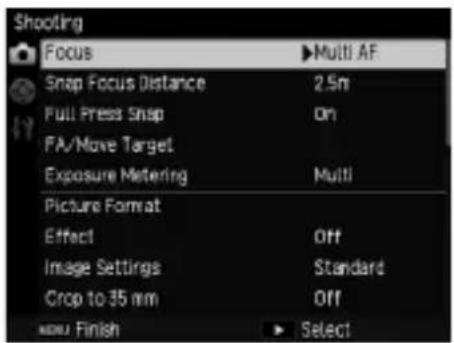
| Menu option Settings Page | ||
| Focus | Multi AF, Spot AF, Pinpoint AF, Subj. Tracking AF, MFP, 51 Snap,∞ (Infinity) | P. 51 |
| Snap focus distance | 1 m, 1.5 m, 2 m, 2.5 m, 5 m,∞ (Infinity) P. 52 | |
| Full Press Snap | Off, On, Auto-Hi ISO P. 58 | |
| FA/Move Target | Move Target Setting: AE/AF, AF, AEFocus Assist Setting: Off, MODE1, MODE2, MODE3, MODE4Magnification Setting: Magnify portion, Magnify whole | P. 56 |
| Exposure Metering | Multi, Center, Spot P. 49 | |
| Picture Format | Format/Size: RAW, RAW+, L, M, S, XSAxpect ratio:3:2, 4:3, 1:1 | P. 50 |
| Movie Format*1 | Still Image Size: FullHD, HD, VGAFrame Rate: 60Frames/sec., 50Frames/sec., 30Frames/sec., 25Frames/sec., 24Frames/sec. | P. 76 |
| Effect | Off, B&W, B&W (TE), High Contrast B&W, Cross Process, Positive Film, Bleach Bypass, Retro, Miniaturize, High Key | P. 72 |
| Image Settings | Vivid, Standard, Setting 1, Setting 2 P. 73 | |
| Crop to 35 mm | Off, On P. 50 | |
| Date Imprint | Off, Date, Time P. 76 | |
| Continuous Mode | Off, Continuous P. 62 | |
| Auto Bracket | Off, AE-BKT 1/3EV, AE-BKT 1/2EV, WB-BKT, WB-BKT Preset, Effect-BKT, DR-BKT, CONTRAST-BKT | P. 63 |
| Multiple Exposure Shooting | Automatic Exposure: Off, OnSave Each Image: Off, OnSaving Image: Off, On | P. 64 |
| Interval Shooting | 00 Min. 01 Sec. to 60 Min. 00 Sec. 1 to∞ (Infinity) | P. 66 |
| Interval Composite*2 | Interval: 00 Min. 01 Sec to 60 Min.Save Interval Composite Img.: Off, Save Each Image, Saving Image | P. 67 |
| Custom | pictures: 1 to 10 (2)Interval: 5 to 10 Sec. (5 Sec.) | P. 34 |
| White Balance | Auto, Multi-P AUTO, Outdoors, Shade, Cloudy, Incandescent 1, Incandescent 2, Daylight Fl., Neutral White Fl., Cool White Fl., Warm White Fl., Detail, Manual | P. 59 |
| ISO Setting/NR | ISO Setting: Auto, Auto-Hi, ISO 100 to ISO 25600Noise Reduction: Off, Auto, Manual | P. 46 |
| Exposure Compensation | +4.0, +3.7, +3.3, +3.0, +2.7, +2.3, +2.0, +1.7, +1.3, +1.0, +0.7, +0.3, 0.0, -0.3, -0.7, -1.0, -1.3, -1.7, -2.0, -2.3, -2.7, -3.0, -3.3, -3.7, -4.0 | P. 45 |
| ND Filter | Off, On P. 44 | |
| Dynamic Range Compensation | Off, Auto, Weak, Medium, Strong P. 48 | |
| Slow Shutter Speed NR | Off, On P. 42 | |
| Auto Aperture Shift*3 | Off, On P. 42 | |
| Shutter Speed Auto Shift*4 | Off, On P. 42 | |
| Shutter/Aperture Auto Shift*5 | Off, Aperture Priority, Shutter Priority P. 42 | |
| Flash Exposure Compensation | +2.0, +1.7, +1.3, +1.0, +0.7, +0.3, 0.0, -0.3, -0.7, -1.0, -1.3, -1.7, -2.0 | P. 70 |
| Manual Flash Amount | Full, 1/1.4, 1/2, 1/2.8, 1/4, 1/5.6, 1/8, 1/11, 1/16, 1/22, 1/32, 1/64 | P. 71 |
| Flash Synchro Settings | 1st Curtain, 2nd Curtain P. 71 | |
| Reduce Fluorescent Flicker*1 | Off, 50 Hz, 60 Hz P. 77 | |
| Switch Shooting Mode*6 | ®, P, Av, Tv, TAv, M P. 102 | |
| Restore Defaults — P. 121 |
*1 This setting can be displayed only when the mode dial is set to 📄.
*2 This setting can be displayed only when the mode dial is set to Av, Tv, TAv, or M.
*3 This setting can be displayed only when the mode dial is set to Av.
*4 This setting can be displayed only when the mode dial is set to Tv.
*5 This setting can be displayed only when the mode dial is set to TAv.
*6 This setting can be displayed only when the mode dial is set to MY1, MY2, or MY3.
Playback Menu
This menu is displayed in playback mode. Use this menu to manage and correct images.
| Menu option Page | |
| RAW Development P. 93 | |
| Level Compensation P. 90 | |
| White Balance Compensation P. 92 | |
| Color Moire Correction P. 92 | |
| Trim P. 88 | |
| Resize P. 87 | |
| Skew Correction P. 89 | |
| Clip Movie File P. 80 | |
| Slide Show P. 81 | |
| Protect P. 85 | |
| DPOF P. 95 | |
| Copy to Card from Internal Memory P. 87 | |
| Eye-Fi Transfer Selected Images*1 | P. 97 |
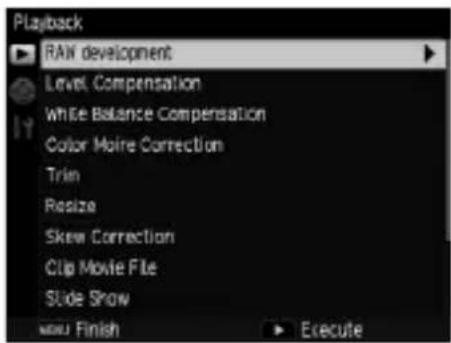
*1 This is displayed only when using an Eye-Fi card and [Eye-Fi Connection Settings] is set to [On (Selected)] in the [Setup] menu.
Key Custom Options Menu
Use this menu to register frequently shooting settings and change the functions of buttons and levers.
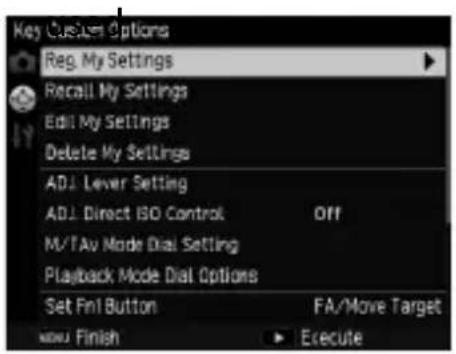
| Menu option Settings Page | ||
| Reg. My Settings MY1/MY2/MY3: My Settings Box (1 to 6) P. 99 | ||
| Recall My Settings — P. 101 | ||
| Edit My Settings — P. 103 | ||
| Delete My Settings — P. 105 | ||
| ADJ. Lever Setting | Off, ISO [ADJ. Lever Setting 1], Picture Size [ADJ. Lever Setting 2], Aspect Ratio [ADJ. Lever Setting 3], Focus, [ADJ. Lever Setting 4], Image, Expo. Metering [ADJ. Lever Setting 5], Cont.Mode, Auto Bracket, Flash Comp., Flash Amount, Dyn Range Comp, SnapFocusDist., Effect | P. 105 |
| ADJ. Direct ISO Control | On, Off P. 46 | |
| M/TAv Mode Dial Settings | Setting1, Setting2 P. 41 | |
| Playback Mode Dial Settings | Setting1, Setting2 P. 82 | |
| Set Fn1 Button | Off, 35 mm Crop, MultiAF/SpotAF, MultiAF/PinpointAF, AF/MF, AF/Snap, AF/Subject Trckng, JPEG>RAW, JPEG>RAW+, ND Filter, Effect [Effect Button Setting], FA/Move Target [Fn1 Button Setting], ISO, Picture Size, Aspect Ratio, Focus, SnapFocusDist., Image, Expo. Metering, Cont. mode, Multi Exposure, Auto Bracket, Flash Comp., Flash Amount., Dyn Range Comp, Self-timer [Fn2 Button Setting], Frame Rate | P. 107 |
| Set Fn2 Button | ||
| Effect Button Setting | ||
| AEL/AFL Setting | AFL, AEL/AFL, AEL P. 54 | |
| C-AF Continuous Setting | Off, AF Priority, Shutter Priority P. 54 | |
| AEL/AFL Lock Keep Setting | Off, On P. 54 | |
| One Press M Mode | Aperture Priority, Shttr Priority, Program P. 42 | |
| Restore Defaults [Key Custom Options] | — P. 121 | |
Setup Menu
Use this menu to set the general operations of the camera.
![Setup Format [Card] Format [Internal Memory] Reset File Number Change File Name RO Copyright notice LCD Brightness Auto Operation Sounds All Volume Settings Auto Power Off 5Min. MENU: Finish Execute](/content/2026/05/1042991/images/f415142c9ae0140c78ce7bdc2a039e4f24846f330d8891023ae3007a475ad14d.jpg)
| Menu option Settings Page | ||
| Format [Card] — P. 25 | ||
| Format [Internal Memory] — — | ||
| Reset File Number — P. 112 | ||
| Change File Name R0 P. 111 | ||
| Copyright notice — P. 113 | ||
| LCD Brightness | Auto, Manual P. 109 | |
| Operation sounds | All, Shutter Sounds P. 111 | |
| Volume Settings | Off, Low, Medium, High P. 111 | |
| Auto Power Off | Off, 1 to 30 Min. (5 Min.) P. 29 | |
| Sleep Mode | Off, 1 to 30 Min. | P. 29 |
| LCD Auto Dim | On, Off | P. 29 |
| Power Button Lamp | On, Off | P. 29 |
| ISO Step Setting | 1EV, 1/3 EV | P. 46 |
| ISO Auto-High Settings | Max. ISO: AUTO 200, AUTO 400, AUTO 800, AUTO 1600,AUTO 3200, AUTO 6400, AUTO 12800, AUTO 25600Change Shutter Speed: Auto, 1/2, 1/4, 1/8, 1/15, 1/30,1/60, 1/125, 1/250 | P. 46 |
| ND Filter | Auto, Manual P. 44 | |
| AF Auxiliary Light | On, Off | — |
| Level Setting | Off, Level + Tilt, Level | P. 36 |
| Level (Tilt) Calibration | Restore Defaults, Calibration | P. 36 |
| Conversion Lens | Off, Wide | — |
| Color Space Setting | sRGB, AdobeRGB | — |
| LCD Confirmation Time | Off, 0.5 Sec., 1 Sec., 2 Sec., 3 Sec., Hold P. 33 | |
| Grid Guide Display Options | Grid 1, Grid 2, Grid 3 P. 110 | |
| DISP. Button Display Setting Use DISP. Screen, Graphic Display, Information Display, Grid Guide, Level Indicator, Histogram | P. 110 | |
| Information Display Mode | On, Off P. 42 | |
| Fn Button Settings | On, Off P. 108 | |
| Auto Rotate | On, Off P. 37 | |
| White Saturation Display | On, Off P. 22 | |
| One Press Zoom Ratio | 4×, 8×, 16× P. 82 | |
| Target Zoom Play | On, Off P. 82 | |
| Playback Order Options | File Numbers, Sht. Date/Time P. 37 | |
| Date Settings — P. 30 | ||
| Language/言語*1 | English, Japanese P. 30 | |
| Video Out Mode*1 | NTSC, PAL P. 95 | |
| HDMI Output | Auto, 1080i, 720P, 480P P. 95 | |
| Store Menu Cursor Position | On, Off P. 121 | |
| Confirm Firmware Version — P. 113 | ||
| Eye-Fi Connection Settings*2 | Off, On (Auto), On (Selected) P. 24 | |
| Eye-Fi Connection Display*2 | — P. 24 | |
*1 The default setting varies depending on the country or region.
*2 This is displayed only when using an Eye-Fi card.

Note
- The [interval shooting] and [Custom Self-Timer] settings are reset to their defaults when the camera is turned off. The settings are retained for all other functions.
- The options set in the [Shooting] menu can be restored to the default settings by using [Restore Defaults] in the [Shooting] menu.
- The options set in the [Key Custom Options] menu can be restored to the default settings by using [Restore Defaults]. The settings registered with [Reg. My Settings] are not restored to the default settings.
- When [Store Menu Cursor Position] is set to [On] in the [Setup] menu, the cursor position of the option last selected is remembered, and that option is displayed first when the menu is next displayed.
Using Images on a Computer
You can transfer recorded still images and movies to a computer by necting the camera to the computer with a USB cable. You can also use the SILKYPIX Developer Studio 3.0 LE for PENTAX RICOH IMAGING software supplied with the camera to convert RAW files.
The following are the computer system requirements for connecting the camera to the computer and using the supplied software.
Windows
| Operating systems Windows 8 (32- and 64-bit), Windows 7 (32- and 64-bit), Windows Vista (32- and 64-bit), Windows XP Home Edition Service Pack 3/Professional 32-bitMust have administrator privileges to install.Can be operated as a 32-bit application on 64-bit systems. | |
| CPU | Intel Pentium compatible processor (Pentium IV or Athlon XP or faster recommended)Supported multi-core processors: Intel Core i7/i5, Core 2 Quad/Duo, AMD Phenom II X6/X4, Athlon II X4/X2 |
| RAM | 1 GB or more (2 GB or more recommended) |
| Free disk space | For installation and startup: 100 MB or moreImage file size: Approx. 10 MB per file |
| Display resolution | 1024 × 768 pixels, 24-bit full color or greater |
Macintosh
| Operating systems Mac OS X | 0.8/10.7/10.6/10.5 |
| CPU | Intel or PowerPC processor |
| RAM | 1 GB or more (2 GB or more recommended) |
| Free disk space | For installation and startup: 100 MB or moreImage file size: Approx. 10 MB per file |
| Display resolution | 1024 × 768 pixels, 24-bit full color or greater |
Saving Images to PC
Use the supplied USB cable to connect the camera to a computer.
1 Turn off the camera.
2 Open the terminal cover, and connect one end of the USB cable to the USB/AV OUT terminal on the camera and the other end to the computer.
The camera turns on and "Connecting to PC....." appears on the monitor for 10 sec.
The camera is recognized by the computer as a removable disk.
The file of the memory card is displayed when the memory card is set.
When the card is not set, the file of the internal memory is displayed.
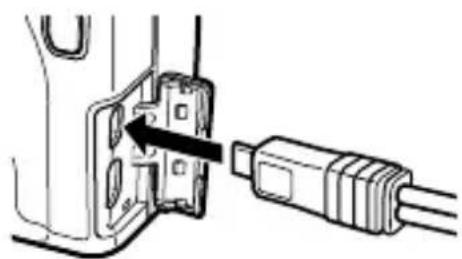
natural_image
Diagram of a cable connector being inserted into a socket (no text or symbols present)3 Copy and save images to PC.
4 Disconnect the USB cable from the computer when saving is complete.
5 Disconnect the USB cable from the camera.
The camera will turn off automatically.
Note
• The battery is charged when the camera is connected to the computer.
- If the battery level is low, it may take some time until the camera is recognized by the computer.
Caution
• Do not disconnect the USB cable during image transfer.
Installing the Software
The supplied CD contains the SILKYPIX Developer Studio 3.0 LE for PENTAX RICOH IMAGING software. You can use SILKYPIX Developer Studio to convert and adjust the color of RAW files and save the file in JPEG or TIFF format.

Note
- If the operating system of the computer has multiple user accounts, log in with administrator privileges before installing the software.
1 Turn the computer on and insert the supplied CD into the CD/DVD drive on the computer.
The [Software Installer] screen is displayed.
2 Click [SILKYPIX Developer Studio 3.0 LE for PENTAX RICOH IMAGING].
For Macintosh, follow the on-screen instructions for the next steps.
3 Select a language on the language selection screen, and click [OK].
4 When the InstallShield Wizard screen appears, click [Next].
Follow the on-screen instructions for the next steps.

Note
• For detailed operations of the software, see Help in SILKYPIX Developer Studio.
Trouble Shooting
Error messages
If an error message is displayed, take the steps listed below.
| Error message Solution Page | ||
| Insert card No memory card inserted. | Insert card. P. 23 | |
| Set camera clock. Camera clock not set. Set camera clock. P. 30 | ||
| File Number Over Limit | The file number limit has been exceeded. Reset the file numbers or use another card. | P. 112 |
| Unmatched File The camera cannot display this file. Check the file contents on your computer, and then delete the file. | — | |
| Protected You are trying to delete a protected file. P. 85 | ||
| Card Is Write- Protected. Card is locked. Unlock card. — | ||
| Print settings cannot be set for this file. | Print settings cannot be set for this file. P. 95 | |
| Insufficient Memory/ Capacity short | Insufficient memory to store additional files. Delete existing files or use a new card. | P. 83 |
| Maximum number of images selected for printing. — | ||
| Format internal memory. | You must format the internal memory. Select [Format [Internal Memory] in the [Setup] menu. | — |
| Format card. | The card is not formatted. Format card in camera. | P. 25 |
| Card Error Format card. If, after doing so, the error message still appears, the card may be faulty. Do not use the card. | P. 25 | |
| Writing Data | Writing file to memory. Wait until writing finishes. | — |
| No File | No files available for playback. | — |
| Cannot Record | Memory is full. Use another card or remove card and use internal memory. | — |
| The file cannot be sent. | The file cannot be transferred using an Eye-Fi card. | P. 97 |
Camera Troubleshooting
Power Supply
| Problem Cause Solution | on Page | ||
| The camera does not turn on. | Battery is exhausted or not inserted. | Correctly insert the battery or charge the battery. | P. 23P. 26 |
| Battery is incompatible. Use a compatible | battery. — | ||
| Battery is not inserted in correct orientation. | Insert in correct orientation. P. 23 | ||
| The camera turns off during use. | Camera has turned off automatically to save power. | Turn the camera back on. P. 28 | |
| Battery is exhausted. Charge the battery. | P. 26 | ||
| Battery is incompatible. Use a compatible | battery. — | ||
| The camera does not turn off. | Camera malfunction. Remove and reinsert the battery. P. 23 | ||
| Low battery indicator displayed or camera turns off when battery has charge remaining. | Battery is incompatible. Use a compatible | battery. — | |
| Battery cannot be charged. | Battery has reached end of charging life. | Replace with a new battery. | — |
| Battery is quickly exhausted. | Ambient temperature is very high or very low. | — | — |
| Poor lighting requires extensive use of flash. | — | — | |
Shooting
| Problem Cause Solution | on Page | ||
| No picture is taken when shutter release button is pressed. | Battery is exhausted. Charge the battery. | P. 26 | |
| Camera is off or not in shooting mode. Press POWER button to turn camera on, or press ▶ to select shooting mode. | P. 28 | ||
| Memory card is not formatted. Format card. | P. 25 | ||
| Memory card is full. Load a new card, or delete unwanted files. | P. 83 | ||
| Memory card has reached end of working life. | Insert new card. — | ||
| Flash is charging. Wait until the Auto Focus/Flash lamp stops blinking. | — | ||
| Card is locked. Unlock card. — | |||
| Memory card contacts are dirty. Clean with soft, dry cloth. — | |||
| Cannot view photos after shooting. | Display time is too short. | Choose longer display time. | P. 33 |
| Picture display is blank. | Picture display is dark. | Adjust picture display brightness. | P. 109 |
| Picture display is off. | Press DISP. to turn picture display on. | P. 21 | |
| AV or HDMI cable is connected. | Disconnect the cable. P. 94 | ||
| Camera unable to focus in autofocus mode. | Lens is dirty. Clean with soft, dry cloth. | — | |
| Subject is not at center of frame. | Use focus lock. | — | |
| Subject not suitable for autofocus. | Use focus lock or manual focus. | P. 52 | |
| Subject is too close. | Use macro mode or move away from the subject. | P. 53 | |
| Pictures are blurred. | Camera moved during shooting. | Hold the camera with your elbows pressed against your body. Use a tripod. | — |
| When shooting in a dark place, the shutter speed slows down and pictures become easily blurred. | Use the flash. Raise the ISO setting. | P. 69 P. 46 | |
| Flash does not fire. Flash will not charge. | Flash is not raised. | Slide ⬇ OPEN switch down to raise flash. | P. 69 |
| Flash cover is not fully open. | Do not obstruct flash cover. | P. 69 | |
| One of the following functions is preventing flash operation:• Movie recording• Continuous shooting• Auto Bracket• Interval composite | To shoot with the flash, change the settings or mode. | P. 69 | |
| Battery is exhausted. Charge the battery. | P. 26 | ||
| Flash does not illuminate subject. | Subject is more than 3.0 m/9.8 ft. from camera. | Move closer to subject. | — |
| The subject is dark. | Increase flash output. | P. 70 | |
| Flash output is too low. | Increase flash output. | P. 70 | |
| Flash cover is not fully open. | Do not obstruct flash cover. | P. 69 | |
| Photos are too bright. | Flash output is too high. | Adjust the light intensity of the flash. Move away from subject. Use different light source. | P. 70 |
| Picture display is too bright. | Adjust picture display brightness. | P. 109 | |
| Photos are too dark. Subject is poorly lit. Open the flash. P. 69 | |||
| Picture display is too dark. Adjust picture display brightness. P. 109 | |||
| Colors are unnatural. Camera unable to adjust white balance for shooting conditions using auto white balance. | Include white object in photo or choose another white balance option. | P. 59 | |
| Picture display brightness changes during focusing. | Ambient lighting is poor or differs from that used for autofocus. | This is normal and does not indicate a malfunction. | — |
| Vertical streaks (“smear”) pear in photos. | Subject is bright. This is normal and does not indicate a malfunction. | — | |
| Level indicators are not displayed. | [Level Setting] is set to [Off]. Change | [Level Setting] to enable level indicator display. | P. 35 |
| Level indicators are hidden. | Use [DISP. Button Display Setting] to change the display setting. | P. 110 | |
| Camera is upside down. | Hold the camera in the correct orientation. | — | |
| Photo is not level although level indicator showed that camera was level. | Camera was moving when photo was taken. | Do not take pictures from moving objects. | — |
| Subject is not level. | Straighten subject. | — | |
Playback/Deletion
| Problem Cause Solution | on Page | ||
| Photo information not displayed. | Indicators are hidden. | Press DISP. to display indicators. | P. 22 |
| Cannot play pictures back, or picture screen is not displayed on an AV device. | AV or HDMI cable incorrectly connected. | Reconnect cable. P. 94 | |
| The [Video Out Mode] setting is rect. | Choose another video mode. | P. 95 | |
| Cannot view pictures on memory card, or picture screen is not displayed. | Card was not formatted in camera. | Insert a card that has been formatted in camera and contains pictures recorded with camera. | — |
| Memory card contains pictures that were not recorded normally. | Insert a card with pictures that were recorded normally. | — | |
| Memory card contacts are dirty. | Clean with soft, dry cloth. | — | |
| Card malfunction. | Insert another card. If there is no problem, the camera is okay. There may be something wrong with the card, so do not use it. | — | |
| The picture display turned off. | Battery is exhausted. | Charge the battery. | P. 26 |
| Camera has turned off automatically to save power. | Turn the camera back on. | P. 28 | |
| Cannot delete file. | File is protected. | Remove protection. P. 85 | |
| Card is locked. | Unlock card. | — | |
| Cannot format card. | Card is locked. | Unlock card. | — |
Miscellaneous
| Problem Cause Solution | Page | ||
| Cannot insert memory card. Card | is not in correct orientation. Insert in correct orientation. P. 23 | ||
| Camera controls have no effect. | Battery is exhausted. Charge the battery. P. 26 | ||
| Camera malfunction. Turn camera off and then on again. P. 28 | |||
| Remove and reinsert the battery. P. 23 | |||
| Date is incorrect. Clock is not set correctly. Set clock to correct date and time. P. 30 | |||
| Date has been reset. | Battery was removed. | If the battery is removed for more than about five days, the date setting will be lost. Make the settings again. | P. 30 |
| Pictures are not displayed on AV device. | The [Video Out Mode] setting is incorrect. | Choose another video mode. | P. 95 |
| AV or HDMI cable incorrectly connected. | Reconnect cable. | P. 94 | |
| AV device is not tuned to VIDEO IN channel. | Tune AV device to VIDEO IN channel. | — | |
Specifications
Camera
| Effective pixels Approximately 16.2 million pixels | ||
| Image sensor APS-C CMOS (approximately 16.9 million total pixels) | ||
| Lens Focal length | 18.3mm (equivalent to | 28 mm on a 35-mm camera) |
| Aperture (f-number) f | 2.8 - f/16 | |
| Focus range (from lens) | Approx. 30 cm to ∞ (from the front edge of the lens) | |
| Approx. 10cm to ∞ (Macro shooting, from the front edge of the lens) | ||
| Construction 7 elements in 5 groups (2 aspherical lens elements with 2 surfaces) | ||
| Focus modes | Multi AF (Contrast AF method), Spot AF (Contrast AF method), Subject tracking AF, MF, Snap, ∞ (focus lock, with AF auxiliary light), Face recognition priority (only in Auto mode), Continuous | |
| Shutter speed | Still images | B (Bulb), T (Time), 300, 240, 120, 60, 30, 25, 20, 15, 13, 10, 8, 6, 5, 4, 3.2, 2.5, 2, 1.6, 1.3, and 1 – 1/4000 s (upper and lower limits vary according to shooting and flash modes) |
| Movies 1/60 – 1/2000 s | ||
| Exposure control | Metering | TTL metering in multi (484-segment), center-weighted, and spot modes with auto-exposure lock |
| Mode Program AE, Aperture priority AE, Shutter priority AE, Shutter/Aperture priority AE, Manual exposure | ||
| Exposure compensation | Manual (+4.0 to -4.0EV in increments of 1/3EV); Auto Bracket (-2.0EV to +2.0EV, 1/3EV or 1/2 step) | |
| Exposure link range 1.8 EV to 17.8 EV (link range for automatic ISO converted based on the EV for ISO 100; Auto shooting mode, Center-weighted light metering) | ||
| ISO sensitivity (Standard Output Sensitivity) | Auto, AUTO-HI, ISO 100 - 25600 | |
| White balance | Auto, Multi-P AUTO, Outdoors, Shade, Cloudy, Incandescent 1, Incandescent 2, Day-light FI., Neutral White FI., Cool White FI., Warm White FI., Manual, Details, White Balance Bracket Function | |
| Flash | Mode Flash On, Auto, | AUTO Red-Eye Flash, Slow Synchro, Red-Eye Flash On, Red-Eye Slow Synchro, Manual Flash |
| Guide number | 5.4 (ISO 100 equivalent) | |
| Flash | Range (built-in flash) | Approx. 20 cm – 3.0 m (ISO Auto) |
| Flash Compensation | ±2.0 EV, 1/3 EV steps | |
| Charging time | Approx. 5 seconds when using a rechargeable battery | |
| Picture display | 3.0" transparent LCD, approx. 1,230,000 pixels (640 × 4 × 480 = 1,228,800), with protective cover | |
| Shooting mode | Auto shooting mode, Program shift mode, Aperture priority mode, Shutter priority mode, Shutter/Aperture priority mode, Manual exposure mode, Movie, My Settings Mode | |
| Image size (pixels) | Still images L (16) | MB equivalent) 4928 × 3264, 4352 × 3264,3264 × 3264M (10 MB equivalent) 3936 × 2608, 3488 × 2608,2608 × 2608S (5 MB equivalent) 2912 × 1936, 2592 × 1936,1936 × 1936XS (1 MB equivalent) 1280 × 864, 1152 × 864,864 × 864Clip movie file 1920 × 1080, 1280 × 720,640 × 480 |
| Movies 1920 × 1080, | 1280 × 720, 640 × 480 | |
| Recording Media | SD/SDHC memory card, SDXC memory card (UHS-I), Eye-Fi card (X2 series), internalmemory (approx. 54 MB) | |
| File format Still images JPEG (Exif ver. 2.3)* | 1, RAW (DNG) | |
| Movies MOV (Video: MPEG-4 AVC/H.264, Audio: LinearPCM) | ||
| Other Major Shooting Functions | Continuous shooting, Self-timer (shutter release delay of approx. 2 s or Custom),Interval shooting (1 s, 2 s, and intervals of 5 s to 1 h in increments of 5 s)*2, Effectbracket, Dynamic range bracket, Contrast bracket, Color space setting, FA/Move Target,Dynamic range compensation, Multiple exposure shooting, Interval composite, Niserereduction, Histogram, Grid Guide, Depth-of-field indicator, Electronic level indicator | |
| Other Major Playback Functions | Auto Rotate, Grid View, Enlarged Display (up to 16×), Slideshow, Resize, Skew CorrectMode, Level Compensation, White Balance Compensation, Trim, DPOF Setting, ColorMoire Correction, RAW Development, Clip Movie File, Save still image from movie | |
| External Interface | AV/USB output terminal (High-Speed USB, video output, audio output (monaural)),HDMI output terminal | |
| Video Signal Format NTSC, PAL switchable | ||
| Power Supply One DB-65 rechargeable battery (3.7V) | ||
| Battery life*4 | Based on CIPA standard: Approx. 290 pictures | |
| Dimensions (W × H × D) 117 mm (W) × | 61 mm (H) × 34.7 mm (D) (excluding projecting parts) | |
| Weight Camera (excluding battery, memory card, and strap): approx. 215 gBattery and strap: approx. 30 g | ||
| Tripod screw hole | 1/4-20UNC | |
| Date storage time | Approx. 5 days | |
| Operating temperature | 0°C to 40°C | |
| Operating humidity | 90% or less | |
| Storage temperature | -20°C to 60°C | |
*1 Compatible with DCF and DPOF. DCF (Design rule for Camera File system) is a JEITA standard. (Full compatibility with other devices is not guaranteed.)
*2 Flash off.
*3 Mass Storage is supported under 64-bit versions of Windows XP, Windows Vista, Windows 7, Windows 8, and Mac OS X 10.1.2–10.8.
*4 The number of remaining shots is based on the CIPA standard and may vary depending on usage conditions.
AC-U1 USB power adapter
| Power Supply AC 100 - 240 V (50/60 Hz), 0.2 A | |
| Output voltage DC 5.0 V, 1000 mA | |
| Operating temperature 10°C to 40°C | |
| Dimensions (W × H × D) 42.5 mm × 22 mm × 66.5 mm (excluding Power plug) | |
| Weight Approx. 40 g (excluding Power plug) | |
DB-65 rechargeable battery (Lithium-Ion battery)
| Nominal voltage 3.6V | |
| Rated capacity 1250 mAh (Min.), 1275 mAh, (Typ.) | |
| Operating temperature 0°C to 40°C | |
| Dimensions (W × H × D) 35.3 × 40.3 × 9.4 mm | |
| Weight Approx. 27 g | |
Storage Capacity
The following table shows the approximate number of images and recording time (in seconds) that can be recorded in the internal memory and onto a memory card in various formats.
| Format Internal | memory | 1 GB 2 GB | 4 GB 8 GB | 16 GB | 32 GB | |||||
| Still images | RAW | 3:2 2 | 39 79 155 3 | 17 624 1257 | ||||||
| 4:3 2 39 79 | 155 317 624 | 1257 | ||||||||
| 1:1 2 39 79 | 155 317 624 | 1257 | ||||||||
| L | 3:2 6 | 121 246 481 | 982 1935 3899 | |||||||
| 4:3 7 137 27 | 78 544 1111 | 2188 4408 | ||||||||
| 1:1 10 181 | 368 719 1468 | 2892 5825 | ||||||||
| M | 3:2 10 | 187 382 74 | 6 1522 2999 | 6041 | ||||||
| 4:3 11 211 | 429 839 1712 | 3374 6796 | ||||||||
| 1:1 15 279 | 567 1109 2263 | 4457 8978 | ||||||||
| S | 3:2 18 | 334 680 13 | 29 2710 5339 | 10754 | ||||||
| 4:3 21 373 | 754 1475 3008 | 5925 11934 | ||||||||
| 1:1 27 486 | 982 1919 3915 | 7712 15534 | ||||||||
| XS | 3:2 78 | 1383 2813 | 5498 11212 | 22086 44484 | ||||||
| 4:3 85 1484 | 2947 5759 | 11746 23138 | 46602 | |||||||
| 1:1 105 184 | 4 3641 7115 | 14509 28582 | 57567 | |||||||
| Movies | FIMHD | 30 | frames/sec. | 36 318 638 | 1277 2555 511 | 2 10226 | ||||
| 25 frames/sec. | 43 384 770 | 1542 3086 617 | 4 12349 | |||||||
| 24 frames/sec. | 44 400 802 | 1606 3213 642 | 8 12857 | |||||||
| HD | 60 | frames/sec. | 40 332 665 | 1331 2664 533 | 0 10661 | |||||
| 50 frames/sec. | 45 381 763 | 1527 3056 611 | 3 12228 | |||||||
| 30 frames/sec. | 61 528 1058 | 2118 4239 847 | 9 16959 | |||||||
| 25 frames/sec. | 71 627 1255 | 2511 5023 | 10048 20098 | |||||||
| 24 frames/sec. | 74 653 1307 | 2616 5234 | 10469 20939 | |||||||
| VCA | 30 | frames/sec. | 78 801 1603 | 3207 6417 | 12835 25671 | |||||
| 25 frames/sec. | 95 947 1895 | 3793 7587 | 15175 30353 | |||||||
| 24 frames/sec. | 95 983 1967 | 3936 7873 | 15748 31497 | |||||||

Note
- The figures for movies are the total length that can be recorded. The maximum recording time per shooting is 25 minutes or the equivalent of 4 GB.
- Depending on the subject, the number of pictures that can be taken may differ from the number of exposures remaining.
• Capacity varies with shooting conditions and the make of memory card. - The quality of images recorded to the internal memory is lower than that of images recorded to a memory card.
Optional Accessories
Conversion lens, hood, and adapter
Remove the ring cap before attaching a conversion lens (GW-3) or the lens hood and adapter (GH-3).
Removal
Turn the camera off and rotate the cap counterclockwise until it can be removed.
Attachment
With the camera turned off, align the marking on the ring cap (②) with the marking on the camera body (①), and turn the ring cap clockwise until it clicks.
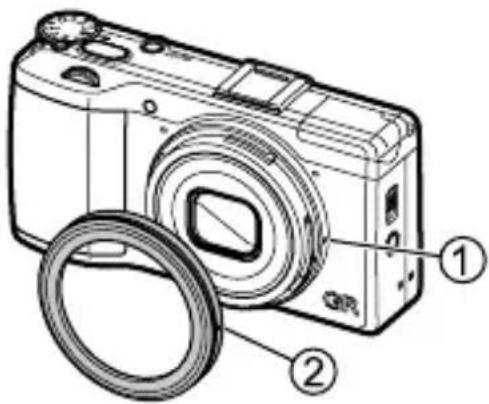

Note
- Set [Conversion Lens] to [Wide] in [Setup] menu when using the conversion lens.
External Flash
An optional GF-1 TTL flash unit can be connected to the camera hot shoe and used as a TTL auto exposure flash.
1 Close the flash cover.
2 Remove the hot shoe cover from the hot shoe of the camera.
3 Turn the camera and the optional flash unit off and attach the flash to the camera hot shoe.
4 Turn the flash and camera on.
Caution
- Do not raise the built-in flash when using the external flash as this can result in injury or damage.
• Turn the external flash off before removing it from the camera. - Use the external flash at ranges that exceed the range of the built-in flash. Shooting at a short distance with an external flash may result in over-exposure of the subject.
Note
- If the optional flash unit icon is not displayed, turn the GF-1 and camera off and then remove and reattach flash.
- Press the ↗(▶) button to change the flash mode. (P. 69) To fire the flash manually, do so from the GF-1. The flash fires with every shot; flash output is fixed at the level selected for [Manual Flash Amount] in the [Shooting] menu. (P. 71)
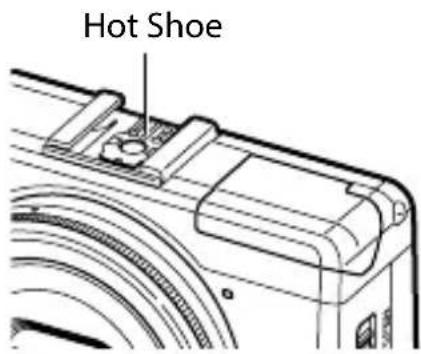
Other Flash Units
1 Attach the flash unit to the hot shoe.
2 Turn on the camera, turn the mode dial to Av, TAv, or M, and set the aperture.
3 Set the ISO sensitivity to a value other than [Auto] or [AUTO-HI].
4 Turn on the external flash, set it to Auto, and set the aperture and ISO sensitivity to the same values on the camera.
Caution
- Use only flash units with one signal terminal, which must be an X-contact with a positive voltage of no more than 20 V.
- A flash signal is output to the X-contact of the hot shoe regardless of the flash setting. Stop operation of the flash unit from the flash unit itself.
- Exposure may not be appropriate even when the aperture and ISO sensitivity of the external flash are the same as those of the camera. If so, change the aperture and ISO sensitivity of the flash.
• Use an external flash with a lighting angle that covers the angle of view of the shooting lens.
Using the Camera Abroad
Using the AC-U1 USB Power Adapter and BJ-6 Battery Charger
These products are for use with currents of 100–240 V and 50 or 60 Hz. Before travelling, purchase a travel adapter for connection to the type of outlets used at your destination. Do not use these products with electrical transformers, as this could damage the camera.
Warranty
This product was manufactured for use in the country of purchase, and the warranty is not valid in other countries. Should the product fail or malfunction while out of the country, the manufacturer assumes no responsibility for servicing the product locally or bearing any expenditure incurred thereby.
Television Playback
An AV cable can be used to connect the camera to televisions and monitors equipped with a video input terminal. The camera supports the NTSC and PAL video formats. Before connecting the camera to a video device, select the appropriate video output mode.
Precautions for Use
Camera
- This product was manufactured for use in the country of purchase, the warranty is not valid in other countries. Should the product fail or malfunction while out of the country, the manufacturer assumes no responsibility for servicing the product locally or bearing any expenditure incurred thereby.
- Do not drop the camera or subject it to physical shocks. When carrying the camera, be careful that it does not strike other objects. Particular care is required to protect the lens and picture display.
- The flash may overheat if fired many times in succession. Do not use the flash more than necessary. Do not use the flash in close contact with your body or other objects. Failure to observe these precautions could result in burns or fire.
- Using the flash unit in close proximity to your subject's eyes could cause temporary visual impairment. Particular care should be observed when photographing infants. Do not direct the flash at the operator of a motor vehicle.
- Batteries may become hot with extended use. Wait for batteries to cool before removing them from the camera.
• The picture display may be difficult to read in direct sunlight. - You may notice that picture display varies in brightness or contains pixels that do not light or that are always lit. This is common to all LCD monitors and does not indicate a malfunction.
- Do not apply force to the picture display.
- Abrupt changes in temperature may cause condensation, resulting in visible condensation inside the lens or camera malfunction. This can be avoided by placing the camera in a plastic bag to slow the temperature change, and removing it only after the air in the bag has reached the same temperature of its surroundings.
- To prevent damage to the product, do not insert objects into the holes in the microphone and speaker coverings.
- Keep the camera dry and avoid handling it with wet hands. Failure to observe these precautions could result in product malfunction or electric shock.
• Take a test shot to ensure that the camera is functioning properly before using it on important occasions such as travel or weddings. We recommend that you keep this manual and spare batteries at hand.

Avoiding Condensation
- Condensation is particularly likely to occur if you move to an area with a sharply different temperature, if humidity is high, in a cold room after the heater has come on, or where the camera is exposed to cold air from an air conditioner or other device.
AC-U1 USB Power Adapter
• Use the USB cable contained in the package.
- Do not subject the power adapter to severe impact or force.
- Do not use in extreme high or low temperatures or areas subject to vibration.
- Do not use in an area subject to direct sunlight or high temperature.
- Unplug the power cord from the power outlet after charging, Otherwise, fire can result.
- Do not allow other metallic objects to come in contact with the connectors or contacts of the rechargeable battery as this can result in a short.
- The operating temperature range is 10^ C to 40^ C. Charging takes longer at temperatures below 10^ C.

Caution
• Use of other batteries can damage the power adapter.
• Recycle used batteries in a recycle box at your local electronics store or supermarket.
DB-65 Rechargeable Battery
• This is a lithium-ion battery.
- The battery is not fully charged at the time of purchase, so be sure to charge the battery before use.
- Do not open or damage the battery as this can result in fire or injury. In addition, do not heat the battery above 60°C or subject the battery to fire.
- Due to the battery characteristics, the battery usage time may be shortened when used in a cold environment, even if the battery is fully charged. warm by placing it in a pocket or have a backup battery ready.
- When not in use, be sure to remove the battery from the camera or the battery charger. A small amount of current can leak from the battery even when the power is off, creating excessive discharge and making the battery unusable. If the battery is removed for more than five days, the date and time settings will be lost. In this case, reset the date and time.
- If the battery will not be used for a long time, charge the battery for 15 minutes once a year before storing.
- Store in a dry, cool place with an ambient temperature between 15°C and 25°C. Avoid storing in extreme high or low temperatures.
• After charging the battery, do not immediately charge it again.
- Charge the battery at an ambient temperature between 10°C and 40°C. Charging the battery at a high temperature can deteriorate the battery. Charging at a low temperature may prevent full charging.
- If the battery usage time becomes very short even when fully charged, the battery has reached the end of its useful life. Replace with a new battery. Be sure to use a replacement battery recommended by PENTAX RICOH IMAGING.
• The recharge time with the AC-U1 is approximately 3 hours (at 25^ C).
Camera Care and Storage
Caring for the Camera
- Photographs can be affected by fingerprints and other foreign matter on the lens. Avoid touching the lens with your fingers. Remove dust or lint with a blower from a camera supply store, or gently clean the lens with a soft, dry cloth. Clean the picture display by wiping it with a soft cloth dampened with a small amount of any monitor cleaner that does not contain organic solvents.
- Clean the camera thoroughly after using it at the beach or handling cosmetics. Do not expose the camera to volatile substances such as thinner, benzene, or pesticides. Failure to observe this precaution could result in damage to the camera or its finish.
- In the unlikely event of malfunction, visit a PENTAX RICOH IMAGING Repair Center.
• The camera contains high-voltage circuits. Do not disassemble. - The picture display is easily scratched, avoid touching it with hard objects.
Storage
- Do not store the camera where it will be exposed to: extreme heat or humidity, large changes in temperature or humidity, dust, dirt, or sand, severe vibration, prolonged contact with chemicals, including mothballs and other insect repellent, or with vinyl or rubber products, strong magnetic fields (for example, in the vicinity of a monitor, transformer, or magnet).
- Remove the batteries if the product will be left unused for a long period of time.
Before Cleaning
- Turn the camera off and remove the battery.
Warranty Policy
All PENTAX RICOH IMAGING cameras purchased through authorized bona fide photographic distribution channels are guaranteed against defects of material or workmanship for a period of twelve months from date of purchase. Service will be rendered, and defective parts will be replaced without cost to you within that period, provided the equipment does not show evidence of impact, sand or liquid damage, mishandling, tampering, battery or chemical corrosion, operation contrary to operating instructions, or modification by an unauthorized repair shop. The manufacturer or its authorized representatives shall not be liable for any repair or alterations except those made with its written consent and shall not be liable for damages from delay or loss of use or from other indirect or consequential damages of any kind, whether caused by defective material or workmanship or otherwise; and it is expressly agreed that the liability of the manufacturer or its representatives under all guarantees or warranties, whether expressed or implied, is strictly limited to the replacement of parts as hereinbefore provided. No refunds will be made on repairs by nonauthorized PENTAX RICOH IMAGING service facilities.
Procedure During 12-month Warranty Period
Any PENTAX RICOH IMAGING which proves defective during the 12-month warranty period should be returned to the dealer from whom you purchased the equipment or to the manufacturer. If there are no representatives of the manufacturer in your country, send the equipment to the manufacturer, with postage prepaid. In this case, it will take a considerable length of time before the equipment can be returned to you owing to the complicated customs procedures required. If the equipment is covered by warranty, repairs will be made and parts replaced free of charge, and the equipment will be returned to you upon completion of servicing. If the equipment is not covered by warranty, regular charges of the manufacturer or of its representatives will apply. Shipping charges are to be borne by the owner.
If your PENTAX RICOH IMAGING was purchased outside of the country where you wish to have it serviced during the warranty period, regular handling and servicing fees may be charged by the manufacturer's representatives in that country. Notwithstanding this, your PENTAX RICOH IMAGING returned to the manufacturer will be serviced free of charge according to this procedure and warranty policy. In any case, however, shipping charges and customs clearance fees to be borne by the sender. To prove the date of your purchase when required, please keep the receipt or bills covering the purchase of your equipment for at least a year. Before sending your equipment for servicing, please make sure that you are sending it to the manufacturer's authorized representatives or their approved repair shops, unless you are sending it directly to the manufacturer. Always obtain a quotation for the service charge, and only after you accept the quoted service charge, instruct the service station to proceed with the servicing.
- This warranty policy does not affect the customer's statutoryrights.
- The local warranty policies available from PENTAX RICOH IMAGING distributors in some countries can supersede this warranty policy. Therefore, we recommend that you review the warranty card supplied with your product at the time of purchase, or contact the PENTAX RICOH IMAGING distributor in your country for more information and to receive a copy of the warranty policy.
CE
The CE Mark is a Directive conformity mark of the European Union.
NOTICES
INFORMATION TO THE USER
USA FCC Part 15 Class B
This equipment has been tested and found to comply with the limits for a Class B digital device, pursuant to part 15 of the FCC Rules. These limits are designed to provide reasonable protection against harmful interference in a residential installation. This equipment generates, uses and can radiate radio frequency energy and if not installed and used in accordance with the instructions, may cause harmful interference to radio communications. However, there is no guarantee that interference will not occur in a particular installation. If this equipment does cause harmful interference to radio or television reception, which can be determined by turning the equipment off and on, the user is encouraged to try to correct the interference by one or more of the following measures:
• Reorient or relocate the receiving antenna.
- Increase the separation between the equipment and receiver.
- Connect the equipment into an outlet on a circuit different from that to which the receiver is connected.
- Consult the dealer or an experienced radio/TV technician for help. 15.105B)
Changes or modifications not expressly approved by the party responsible for compliance could void the user's authority to operate the equipment. (FCC 15.21)
Properly shielded and grounded cables and connectors must be used for connections to host computer in order to comply with FCC emission limits. (FCC 15.27)
COMPLIANCE INFORMATION STATEMENT
Product Name: DIGITAL CAMERA
Model Number: GR
This device complies with Part 15 of the FCC Rules.
Operation is subject to the following two conditions:
(1) This device may not cause harmful interference, and
(2) This device must accept any interference received, including interference that may cause undesired operation.
PENTAX RICOH IMAGING AMERICAS CORPORATION
Located at: 633 17th Street, Suite 2600 Denver, Colorado 80202 U.S.A.
Phone: 800-877-0155 FAX: 303-790-1131
IMPORTANT SAFETY INSTRUCTIONS—SAVE THESE INSTRUCTIONS
DANGER–TO REDUCE THE RISK OF FIRE OR ELECTRIC SHOCK, CAREFULLY FOLLOW THESE INSTRUCTIONS.
Index
Numbers
1st Curtain (Flash).... 71
2nd Curtain (Flash).... 71
A
ADJ. ISO direct change 46
ADJ. Lever.... 17
ADJ Lever Setting 105
ADJ. Mode 106
AE/AF Target 56
AEL/AFL Lock Setting.... 54
AEL/AFL Setting 54
AE Lock 54
AF Auxiliary Light 15.120
AF Button 54
AF Function Switching Lever.... 54
Aperture Auto Shift 42
Aperture Preview Mode 44
Aperture Priority Mode 42
Aperture Value.... 40
Aspect Ratio 50
Auto Bracket.... 63
Auto Focus/Flash Lamp 26.32.33
Auto-Hi 46
Auto Power Off 29
Auto Rotate.... 37
Auto Shooting Mode.... 32
Auto Shutter Speed Shift 42
AV Device 94
Av Mode.... 40
B
Battery 23.26
Battery/Card cover 23
Battery Level Indicator.... 20
Black and White (Effect) 72
Bleach Bypass (Effect) 72
Brightness 90
Bulb 43
C
C-AF Continuous Setting 55
Camera Care 140
Change File Name 111
Charge 26
Clip Movie File 80
Close-Ups 53
Cloudy (White Balance).... 59
Color Moire Correction.... 92
Color Space Setting 120
Color Temperature 61
Confirm Firmware Version.... 113
Connecting the Camera to PC...... 123
Continuous AF 55
Continuous Mode 62
Contrast.... 72.90
Contrast Bracketing 63
Conversion Lens.... 134
Copy Notice.... 113
Correction 87
Crop to 35 mm.... 50
Cross Process (Effect).... 72
Customize 99
Custom Self-Timer 34
D
Date and Time Setting 30
Date Imprint 76
DC Power Cable Cover 15
Default Settings 114
Delete 83
Delete My Settings.... 105
Depth of Field 52
Detailed Information Display.... 22
DISP. Button 21
DISP. Button Display Setting...... 110
Display My Settings Name 104
DNG 50
DPOF 95
Dynamic Range Bracketing 63
Dynamic Range Expansion Effect...... 49
E
Edit My Settings.... 103
Effect 72
Effect Bracketing.... 63
Effect Button 108
Enlarged View 82
Error Messages 125
Exif Data.... 113
Exposure Bracketing.... 64
Exposure Compensation 45
External Flash.... 135
Eye-Fi Cards 24
Eye-Fi Connection 20
F
FA/Move Target 56
Flash 69
Flash Exposure Compensation.... 71
Flash On (Flash) 69
Flash Synchro Settings 71
Fluorescent (White Balance).... 59
Fn1/Fn2/Effect Buttons 107
Fn Button Setting Display.... 108
Focus 51
Focus Assist.... 56
Focus Bar 52
Format 25
Format/Size 50
Forward-Backward Direction 35
Frame Rate.... 77
Full Press Snap 58
G
Graphic Display 21.110
Grid Guide 21.110
H
HDMI Micro Output Terminal...... 15.94
HDMI Output.... 95
High Contrast B&W (Effect) 72
High Key (Effect) 72
Histogram.... 21.90.110
Hot Shoe 15.135
|
Image Settings 73
Incandescent (White Balance) 59
Infinity (Focus) 51
Information Display 21.110
Information Display Mode 21
Installation 124
Internal Memory 25.87
Interval Composite 67
Interval Shooting.... 66
ISO Setting 46
ISO Speed 46
ISO Speed Step Setting 46
K
Key Custom Options Menu.... 118
L
Language/N 30
LCD Auto Dim 29
LCD Confirm. 33
LED Brightness 109
Level 21.35.110
Level Compensation.... 90
Level Indicator Calibration 36
Level Setting.... 36
Level (Tilt) Calibration.... 36
Lock Release button 16
M
Macintosh.... 122
Macro 53
Manual Exposure Mode 40
Manual Flash Amount.... 71
Manual Flash (Flash) 69.71
Manual Focus 52
Manual White Balance 61
Memory Card 23
Menu 38.114
MENU/OK button 38
Metering 49
MF 52
Micro HDMI Output Terminal...... 15.94
Microphone 15
Miniaturize (Effect).... 75
M Mode.... 41
Mode Dial 16
Movies 76
M/TAv Mode Dial Setting.... 41
Multi AF (Focus) 51
Multi Exposure Shooting 64
Multi-P AUTO (White Balance) 59
MY1/MY2/MY3 99
My Settings.... 99
My Settings Mode 102
N
ND Filter 44
Noise Reduction 47
Normal Indicator Display 22
NR.... 47
0
One Press M Mode 42
Operation Sounds 111
Optional Accessories.... 134
Outdoors (White Balance).... 59
P
Parts of the Camera 14
Picture Display.... 18
Pinpoint AF 51
Playback.... 37.81
Playback Menu 117
Playback Mode 28
Playback Mode Dial Setting...... 82
Playback Order Options 37
P Mode 40
Positive Film (Effect) 72
Power 28
POWER button.... 28
Power Indicator Lamp.... 29
Power Plug 26
Preview.... 44
Processing 87
Program Diagram 43
Program Shift 40
Program Shift Mode 40
Protect 85
R
RAW 50
RAW Development.... 93
Recall My Settings.... 101
Rechargeable Battery.... 23.26
Red-eye Reduction (Flash) 69
Reduce Fluorescent Flicker 77
Reg. My Settings 100
Release Lever 23
Reset File Number 112
Resize 87
Shade (White Balance) 59
Sharpness.... 73
Shooting Menu 114
Shooting Mode 40
Shutter/Aperture Auto Shift 42
Shutter/Aperture Priority Mode...... 40
Shutter Speed 40
Shutter Speed Priority Mode (S)...... 40
SILKYPIX Developer Studio 124
Skew Correction.... 89
Sleep 29
Slide Show.... 81
Slow Shutter Speed NR 42
Slow Synchro (Flash) 69
Snap (focus) 52
Snap Focus Distance 52
Software.... 124
Speaker 15
Specifications.... 130
Spot AF (Focus) 51
Still Image Format 50
Still Image Size.... 77
Storage 140
Storage Capacity 27.133
Store Menu Cursor Position.... 121
Strap Eyelet.... 15
Subject Tracking AF (focus).... 51
Switch Shooting Mode.... 102
T
Target 56
Target Zoom Play 82
TAV Mode 40
Terminal Cover 26.94
Thumbnail View 81
Tilt 35
Time.... 43
Tracking AF (Focus) 51
Trimming 88
Tripod Screw Hole 15
TV 94
Tv Mode 40
U
Up-down Dial.... 17
USB/AV OUT terminal..... 15.26.94.123
USB Cable 26.123
USB Power Adapter.... 26
V
Video Format.... 95
Vignetting 73
Vivid (Image Settings).... 73
Volume Settings.... 111
W
Warranty 137
White Balance 59
White Balance Bracketing.... 63
White Balance Correction.... 92
White Saturation Display 22
Windows.... 122
Wireless LAN 24
PENTAX RICOH IMAGING CO., LTD.
| 2-35-7, Maeno-cho, Itabashi-ku, Tokyo 174-8639, JAPAN(http://www.pentax.jp) | |
| PENTAX RICOH IMAGING FRANCE S.A.S. (European Headquarters) | 112 Quai de Bezons, B.P. 204, 95106 Argenteuil Cedex, FRANCE(HQ - http://www.pentax.eu)(France - http://www.pentax.fr) |
| PENTAX RICOH IMAGING DEUTSCHLAND GmbH | Julius-Vosseler-Strasse 104, 22527 Hamburg, GERMANY(http://www.pentax.de) |
| PENTAX RICOH IMAGING UK LTD. | PENTAX House, Heron Drive, Langley, Slough, Berks SL3 8PN, U.K.(http://www.pentax.co.uk) |
| PENTAX RICOH IMAGING AMERICAS CORPORATION | 633 17th Street, Suite 2600, Denver, Colorado 80202, U.S.A.(http://www.pentaximaging.com) |
| PENTAX RICOH IMAGING CANADA INC. | 1770 Argentina Road Mississauga, Ontario L5N 3S7, CANADA(http://www.pentax.ca) |
| PENTAX RICOH IMAGING CHINA CO., LTD. | 23D, Jun Yao International Plaza, 789 Zhaojiabang Road, Xu Hui District, Shanghai, 200032, CHINA(http://www.pentax.com.cn) |
http://www.pentax.jp/english
PENTAX RICOH IMAGING CO., LTD.
March, 2013
Printed in China
EN USA GB GB AE AE

*L766 2971*