RackStation RS28221RP+ - Server SYNOLOGY - Free user manual and instructions
Find the device manual for free RackStation RS28221RP+ SYNOLOGY in PDF.


User questions about RackStation RS28221RP+ SYNOLOGY
0 question about this device. Answer the ones you know or ask your own.
Ask a new question about this device
Download the instructions for your Server in PDF format for free! Find your manual RackStation RS28221RP+ - SYNOLOGY and take your electronic device back in hand. On this page are published all the documents necessary for the use of your device. RackStation RS28221RP+ by SYNOLOGY.
USER MANUAL RackStation RS28221RP+ SYNOLOGY
Synology NAS RS2821RP+
Hardware Installation Guide
Table of Contents
Chapter 1: Before You Start
Package Contents 3
Synology RS2821RP+ at a Glance 4
System Modes and LED Indicators 6
Other LED Indicators 8
Hardware Specification 9
Spare Parts 10
Optional Accessories 10
Safety Instructions 11
Chapter 2: Hardware Setup
Tools and Parts for Drive Installation 12
Install Drives 12
Install Memory Modules 14
Install PCIe Add-in Cards 17
Install and Remove Rail Kits 18
Expansion Unit Deployment and Topology 20
Start up Your Synology NAS 21
Chapter 3: System Maintenance
Replace System Fan 22
Replace Power Supply Unit (PSU) 23
Chapter 4: Install DSM on Synology NAS
Install DSM with Web Assistant 24
Learn More 24
Before You Start
Synology NAS RS2821RP+ is an enterprise server consisting of both system hardware and the software operating system, DiskStation Manager (DSM). This manual will guide you through all configuration aspects of your RS2821RP+, including the hardware components, setup procedures, and system maintenance.
Note: All images below are for illustrative purposes only, and may differ from the actual product.
Package Contents
| Main unit x 1 AC power cord x 2 | |
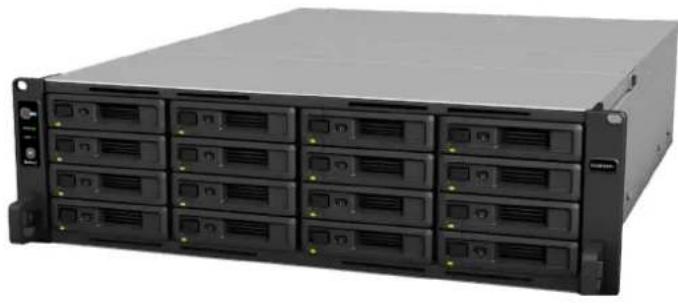 | 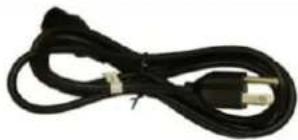 |
| Screws for 2.5" drives x 68 | |
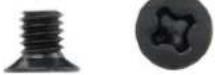 | |
| Screws for 3.5" drives x 68 | |
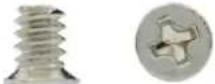 |
Synology RS2821RP+ at a Glance
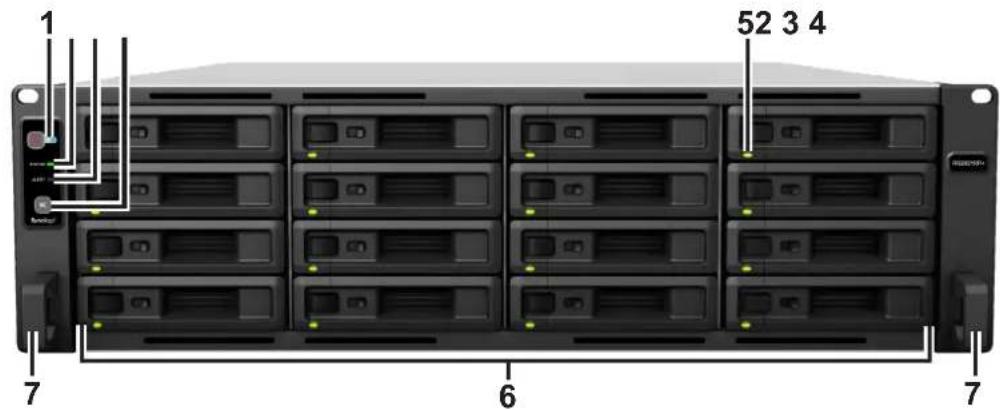
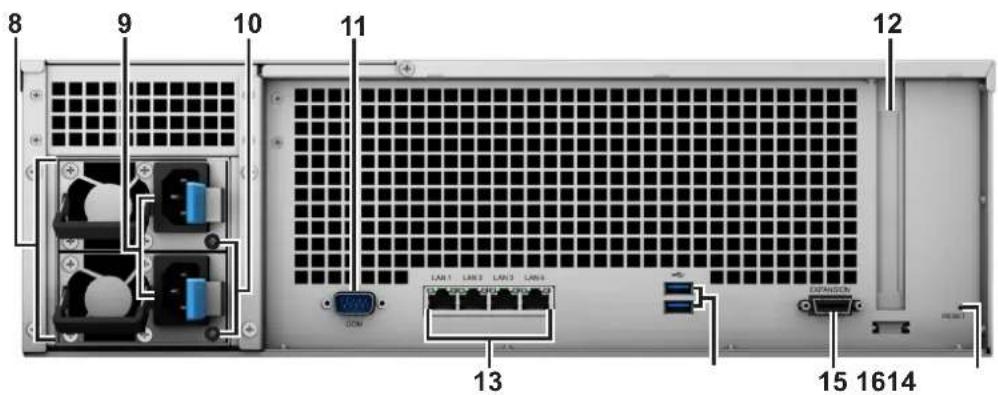
| No. | Article Name Location | Description | |
| 1 | POWER Button and Indicator | Frontdrives (hard) | 1. Press to power on your Synology NAS.2. To power off your Synology NAS, press and hold until you hear a beep sound and the Power LED starts blinking. |
| 2 | STATUS Indicator | Displays the status of the system. For more information, see "System Modes and LED Indicators". | |
| 3 | ALERT Indicator | Displays warnings regarding fan or temperature. For more information, see "Other LED Indicators". | |
| 4 | Beep Off Button | Press to deactivate the beep that sounds when a malfunction occurs. | |
| 5 | DRIVE Status Indicator | Displays the status of drives. For more information, see "Other LED Indicators". | |
| 6 | Drive Tray Install | disk drives or solid state drives) here. | |
| 7 | Rail Kit Release Tab | Push in and hold to release your Synology NAS from the rail kit lock. ^1 | |
| 8 | PSU Fan | port is used for manufacturing only. | Disposes of excess heat and cools the PSU. |
| 9 | Power Port Connect power cord here. | ||
| 10 | PSU Indicator | Displays the status of the power supply unit (PSU). For more information, see "Other LED Indicators". | |
| 11 | Console Port This | ||
| 12 | PCI Express Expansion Slot | Supports the addition of PCIe network interface cards. | |
| 13 | 1GbE RJ-45 Port Connect RJ-45 Back | network cable here. | |
| 14 | USB 3.2 Gen 1 Port | Connect external drives or other USB devices to the Synology NAS here. | |
| 15 | Expansion Port Connect to Synology Expansion Unit ^2 here. | ||
| 16 | RESET Button | 1. Press and hold until you hear a beep sound to restore the IP address, DNS server, and password for the admin account to default.2. Press and hold until you hear a beep, then press and hold again until you hear three beeps to return the Synology NAS to “Not Installed” status so that DiskStation Manager (DSM) can be reinstalled. |
System Modes and LED Indicators
System Modes and Definitions
There are 7 system modes in Synology NAS. The System modes and their definitions are as below:
| System mode Definition | |
| Powering on | Synology NAS is powering on and performing hardware initialization, such as hardware reset or BIOS initialization. |
| Shutting down | Synology NAS is shutting down as a result of pressing the power button or operation in DSM. |
| DSM not ready | DSM is not ready for use. This could either be:• Synology NAS is powered on, but DSM is not properly installed.• Synology NAS is currently powering on and initializing services necessary for DSM to fully function.• The attached UPS device has insufficient power; DSM stops all services to prevent data loss (enters safe mode). |
| DSM is ready for use | DSM is fully functioning and users can sign in. |
| Hibernation Synology NAS has been idle for a while and is now in Hibernation mode. | |
| Application | Certain packages/services (e.g., USB Copy and Find me service) while in operation will control the actions of the LED. After the operation is complete, the LED indicator will return to its normal state. |
| Powered off Synology NAS is powered off. | |
Identify System Modes
You can identify the system mode through the POWER and STATUS LED indicators. Please refer to below table for more details.
| System mode | LED Indicator | ||
| POWER STATUS | |||
| Blue Green Orange | |||
| Powering on Blinking Off | Off | ||
| Shutting down | Blinking | Static Off | |
| DSM not ready | Static | Blinking Off | |
| DSM is ready for use | Static Static | Off | |
| Hibernation | Static Off Off | ||
| Application | Static | Switching | |
| Powered off | Off Off Off | ||
Transitions between System Modes
To better understand the transition between system modes, please refer to below examples:
- Powered on with no DSM installed:
Powered off > Powering on > DSM not ready - Powered on with DSM installed: Powered off > Powering on > DSM not ready > DSM is ready for use
- Enter hibernation then wake up from hibernation: DSM is ready for use > Hibernation > DSM is ready for use
- Shutdown Synology NAS: DSM is ready for use > Shutting down > Powered off
- Power failure with UPS attached: DSM is ready for use > DSM not ready (due to power failure, DSM enters safe mode) > Shutting down > Powered off > Powering on (power has recovered, DSM will reboot) > DSM not ready > DSM is ready for use
Other LED Indicators
| LED Indicator Color | Status Description | ||
| DRIVE status | Green | Static Drive ready and idle | |
| Blinking Accessing drive | |||
| Red Static Drive error/Port disabled | 1 | ||
| Off No internal Drive | |||
| ALERT | Orange Blinking System error | 2 | |
| Off System normal | |||
| PSU Indicator | Green Static | Power supply unit normal | |
| Orange Static | Power supply unit fail/No power supply | ||
| Off | Power supply unit off | ||
| Rear 1GbE LAN(on left side of jack) | Green | Static | Network connected |
| Blinking | Network active | ||
| Off | No network | ||
| Rear 1GbE LAN(on right side of jack) | Green | Static | 1 Gbps connected |
| Orange | 100 Mbps connected | ||
| Off | 10 Mbps connected/No network | ||
Note:
1 Please try to restart your Synology NAS or re-insert the drives, then run the HDD/SSD manufacturer's diagnostic tool to check the health status of the drives. If you can sign in to DSM, please run the built-in S.M.A.R.T. test to scan the drives. If the problem remains unresolved, please contact Synology Technical Support for help.
2 If the ALERT LED continuously blinks orange, this indicates there are system errors such as fan failure, system overheating, or volume degrade. Please sign in to DSM for detailed information.
Hardware Specification
| Item RS2821RP+ | |
| Compatible Drive Type 3.5"/2.5" SATA x 16 | |
| Maximum Drive Bays with Expansion Unit | 28 (RX1217/RX1217RP x 1) |
| External Port | • USB 3.2 Gen 1 x 2• Infiniband x 1 |
| LAN Port • 1GbE RJ-45 x 4 | |
| PCIe Slot Gen3 x8 slot (x4 link) x 1 | |
| Size (H x W x D) (mm) | • 132.3 x 430.5 x 624.5• 132.3 x 482 x 656.5 (with server ears) |
| Weight (kg) 17.1 | |
| Supported Client | • Windows 7 onwards• macOS 10.12 onwards |
| File System | • Internal: Btrfs, ext4• External: Btrfs, ext4, ext3, FAT32, NTFS, HFS+, exFAT ^1 |
| Supported RAID Type | • Basic • JBOD • RAID 0 • RAID 1 • RAID 5• RAID 6 • RAID 10 • Synology Hybrid RAID (2-Disk Fault Tolerance) |
| Agency Certification | • FCC Class A • CE Class A • BSMI Class A• EAC • VCCI • CCC • RCM • KC • UL • RoHS Compliant |
| HDD Hibernation Yes | |
| Scheduled Power On/Off Yes | |
| Wake on LAN Yes | |
| Language Localization | • English • Deutsch • Français • Italiano • Español • Dansk • Norsk • Svensk• Nederlands • Русский • Polski • Magyar • Português do Brasil • Português Europeu• Türkçe • Český • 日本語 • 한국어 • İtvı • 繁體中文 • 筒体中文 |
| Environment Requirement | • Line voltage: 100 V to 240 V AC• Frequency: 50/60 Hz• Operating Temperature: 32 to 95°F (0 to 35°C)• Storage Temperature: -5 to 140°F (-20 to 60°C)• Relative Humidity: 5% to 95% RH |
Note: Model specifications are subject to change without notice. Please refer to Synology's official website for the latest information.
Spare Parts
Visit Spare Parts if you need to replace system fans, disk trays, or power supply units.
| Model Name Picture Description | ||
| Cable MiniSAS_INT_3 Internal MiniSA | 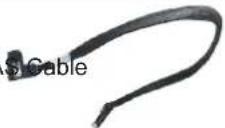 | |
| Disk Tray (Type R7) 3.5"/2.5" Drive T | 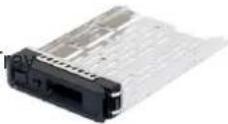 | |
| FAN 80*80*32_7 System Fan 80*80 | 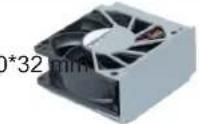 | |
| PSU 550W-RP Module_1 Redundant P: | 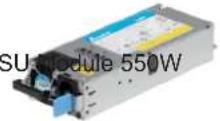 | |
| PSU 550W-RP SET_1 Redundant PSI | 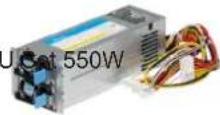 | |
Optional Accessories
With Synology accessories, you can customize your expansion unit to fit different business environments without worrying about compatibility and stability. Visit Synology Products Compatibility List for more information.
Safety Instructions
 | Keep away from direct sunlight and away from chemicals. Make sure the environment does not experience abrupt changes in temperature or humidity. |
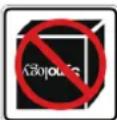 | Place the product right side up at all times. |
 | Do not place near any liquids. |
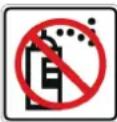 | Before cleaning, unplug the power cord. Wipe with damp paper towels. Do not use chemical or aerosol cleaners. |
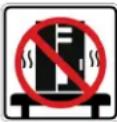 | To prevent the unit from falling over, do not place on carts or any unstable surfaces. |
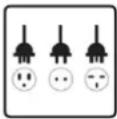 | The power cord must plug in to the correct supply voltage. Make sure that the supplied AC voltage is correct and stable. |
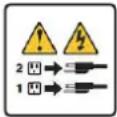 | To remove all electrical current from the device, ensure that all power cords are disconnected from the power source. |
 | Risk of explosion if battery is replaced with an incorrect type. Dispose of used batteries appropriately. |
Hardware Setup
Tools and Parts for Drive Installation
Please prepare below tools and parts before setting up your Synology NAS:
• A screwdriver
- At least one 3.5" or 2.5" SATA drive (please visit Synology Products Compatibility List for compatible drive models)
Warning: If you install a drive that contains data, the system will format the drive and erase all existing data. Please back up any important data before installation.
- Rail mounting kit (please see the Optional Accessories section to find out the suitable rail kit for cabinet installation)
Warning: We suggest mounting your Synology NAS on a cabinet before installing any drives since the heavy weight will increase the installation difficulty.
Install Drives
Please follow the steps below for drive installation:
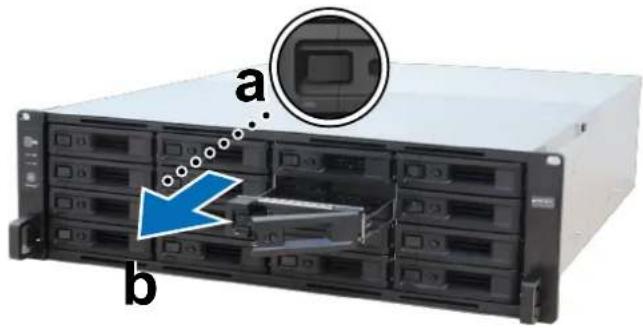
1 Open the drive tray.
natural_image
Front view of a server rack with labeled components (a and b), showing internal storage racks and a close-up inset of a device (no text or symbols on the rack itself)a Press the small button located on the left side of the drive tray handle. The drive tray handle pops out.
b Pull the drive tray out by its handle as shown above.
2 Install drives:
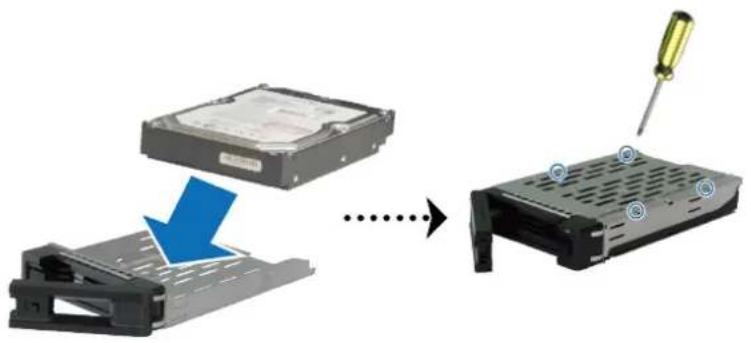
- For 3.5" drives: Place the drive in the drive tray. Turn the tray upside down and tighten screws into the four spots indicated below to secure the drive in place.
natural_image
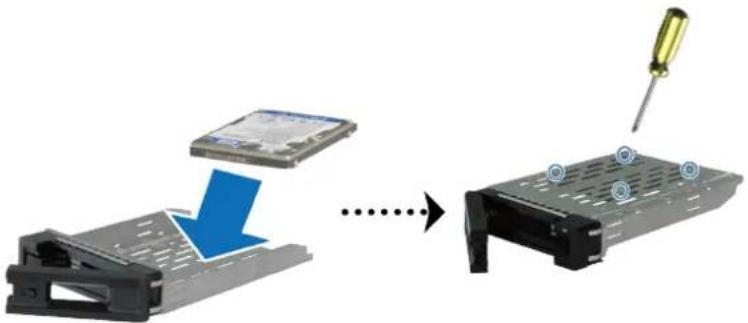
Diagram showing a computer hard drive being processed from a battery pack, with a screwdriver inserted (no text or symbols present)- For 2.5" drives: Place the drive in the drive tray. Turn the tray upside down and tighten screws into the four spots indicated below to secure the drive in place.
natural_image
Diagram showing a computer floppy disk being inserted into a hard drive, with a screwdriver inserted (no text or symbols present)3 Insert the loaded drive tray into the empty drive bay.
natural_image
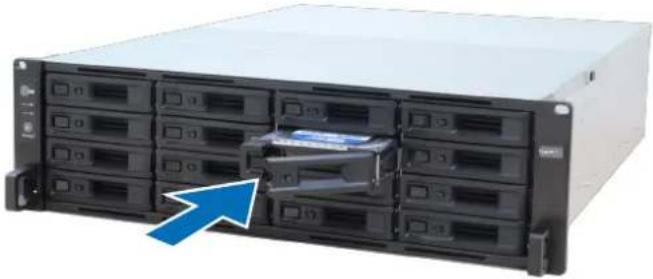
Front view of a rack-mounted server unit with multiple drive bays and a blue arrow pointing to a portion of the rack (no visible text or labels)Note: Make sure that the drive tray is completely inserted. Otherwise, the drive might not function properly.
4 Push the handle inward to secure the drive tray.
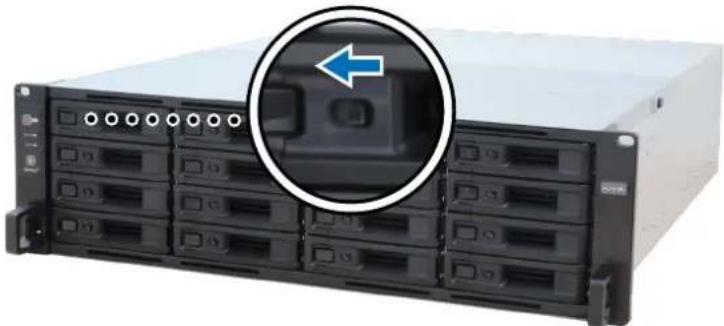
5 Push the switch to the left on the drive tray handle to lock the drive tray.
natural_image
Front view of a server rack with multiple ports and a highlighted internal component (no visible text or symbols)6 Repeat the steps above to install the other drives you have prepared.
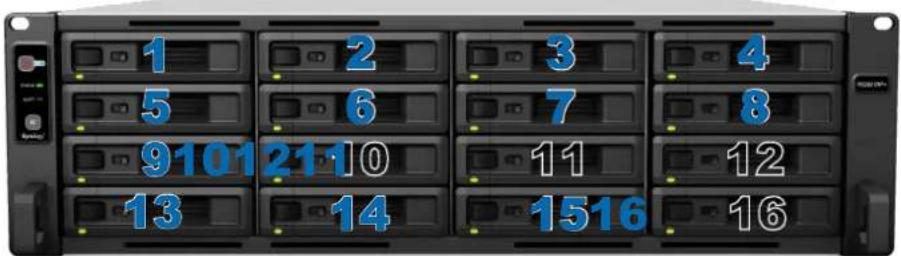
7 Drives are numbered as shown below.
Note: If you plan to create a RAID volume, we recommend installing drives of identical size to make the best use of drive capacity.
Install Memory Modules
Optional Synology memory modules are designed to expand the memory of your Synology NAS. Follow the steps below to install, check, or remove a memory module on your Synology NAS.
The following table shows the memory configuration for best practice:
| U27 U28 Total Memory | |
| 4 GB - 4 GB | |
| 4 GB 4 GB 8 GB | |
| 8 GB 8 GB 16 GB | |
| 16 GB 16 GB 32 GB |
Note: No product warranty or technical support will be provided by Synology if a non-Synology memory module is used for memory upgrade. A list of Synology-compatible memory modules can be found here.
To install the RAM module
1 Shut down your RS2821RP+. Disconnect all cables connected to your RS2821RP+ to prevent any possible damage.
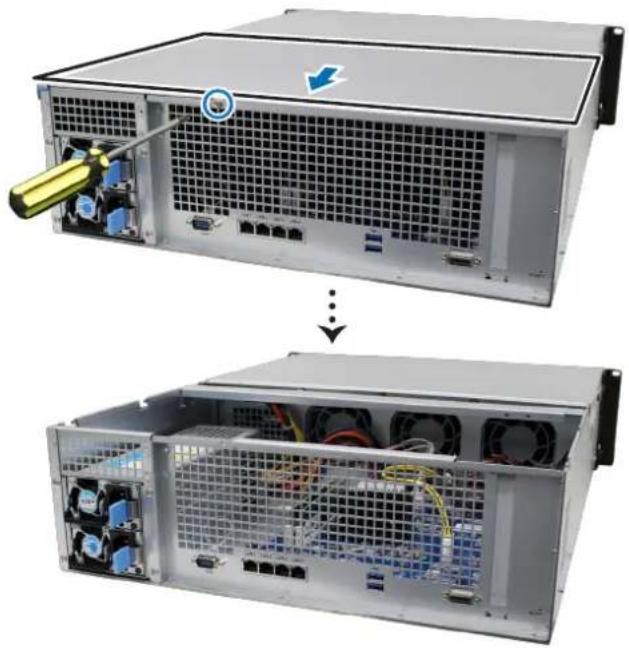
2 Remove the screw on the back of you RS2821RP+. Slide open the rear top cover, then lift it up and put it aside.
natural_image
Two views of a server rack showing internal components and a warning icon (no text or symbols)Note: When you remove the rear top cover, sensitive internal components are exposed. Avoid touching anything other than the memory assembly when removing or adding memory.
3 The memory slots are labeled as below.
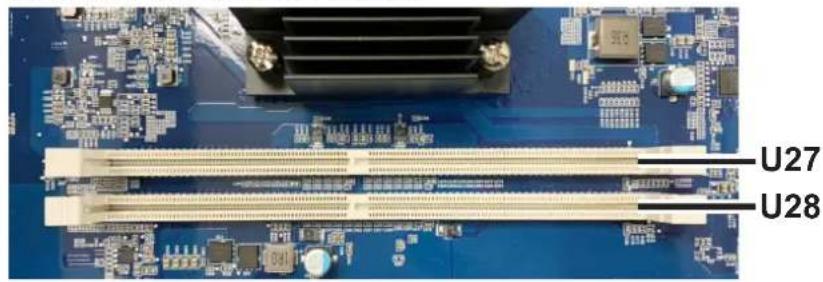
4 Insert the new memory module in the slot:
a Push the retaining clips on the slot out to the sides.
b Align the notch on the gold edge of the module with the notch in the memory slot.
c Apply firm and even pressure to push down the memory module. The retaining clips will snap into position when the module is inserted correctly.
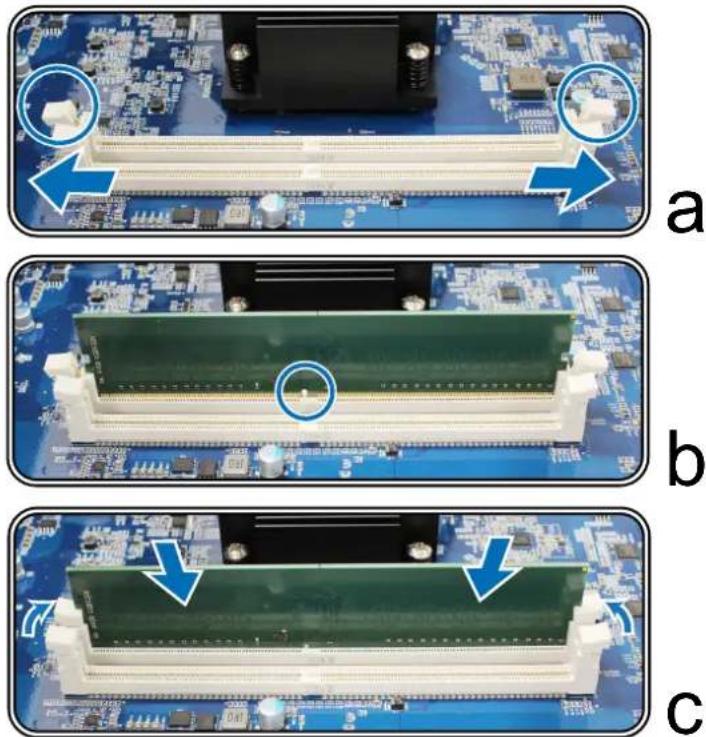
Note: Hold the memory module by its edges and avoid touching the gold connectors.
5 Place the rear top cover back and slide it into secure position:
a Align the hexagons at the side of the rear top cover with the slots on the chassis' edge, place it back and push it to slide it back into position.
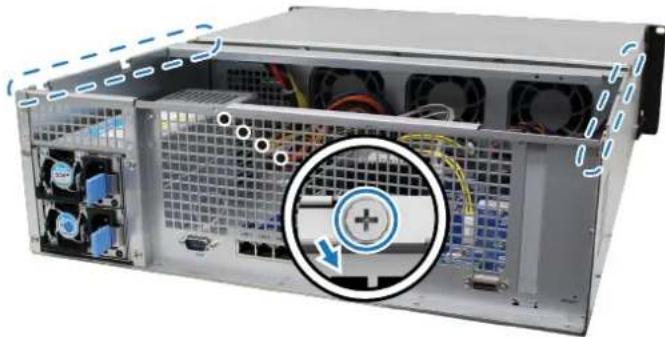
natural_image
Internal view of a server rack with ventilation grilles and drive bays, showing a magnified circular detail highlighting a component (no text or symbols visible)b Put back and fasten the screw you removed in step 2.
To confirm that your RS2821RP+ recognizes the new memory capacity
1 Install DiskStation Manager (DSM). Please see "Install DSM on Synology NAS" for more information.
2 Sign in to DSM as admin or a user belonging to the administrators group.
3 Go to Control Panel > Info Center and check Total Physical Memory.
If your Synology NAS does not recognize the memory or does not start up successfully, please make sure that the memory module is installed correctly.
To remove the RAM Module
1 Follow step 1 and 2 of the "To install the RAM module" section to shut down your RS2821RP+, disconnect the cables, and then remove the rear top cover as described above.
2 Cut the cable tie before removing the memory module. (The pre-installed memory module is cable-tied to prevent it from loosening during delivery.)
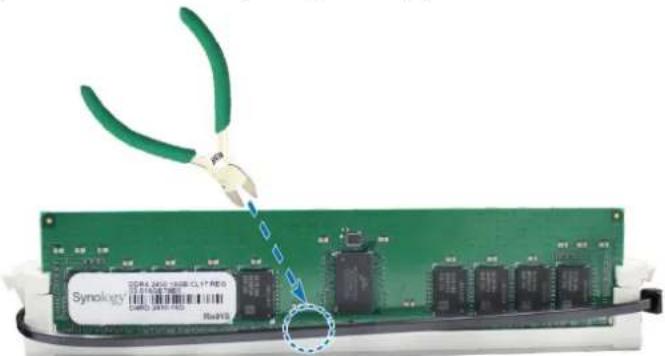
Note: Avoid touching any components on the motherboard when cutting the cable tie.
3 Push the retaining clips on the slot out to the sides. The memory module will pop out of the slot.
4 Follow step 5 of the "To install the RAM module" section to fasted the top cover back in place.
Install PCIe Add-in Cards
RS2821RP+ provides one PCIe slot for optional add-in card expansion, allowing network interface card to be installed.
To install network interface cards
1 Shut down your RS2821RP+. Disconnect all cables connected to your RS2821RP+ to prevent any possible damages.
2 Open your RS2821RP+ by following step 2 of the "To install the RAM module" section.
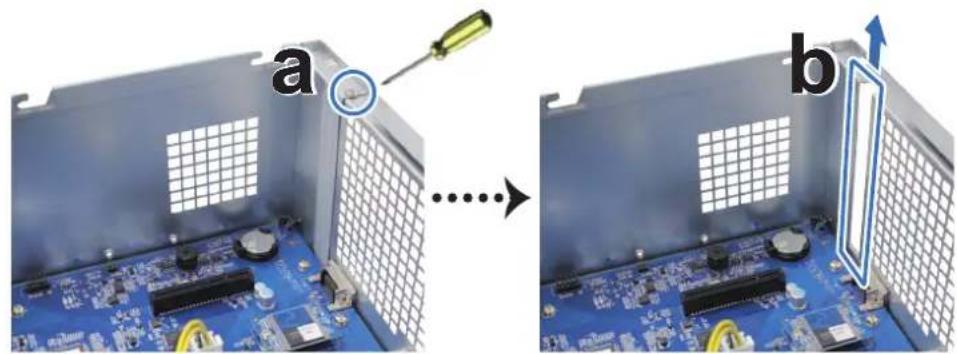
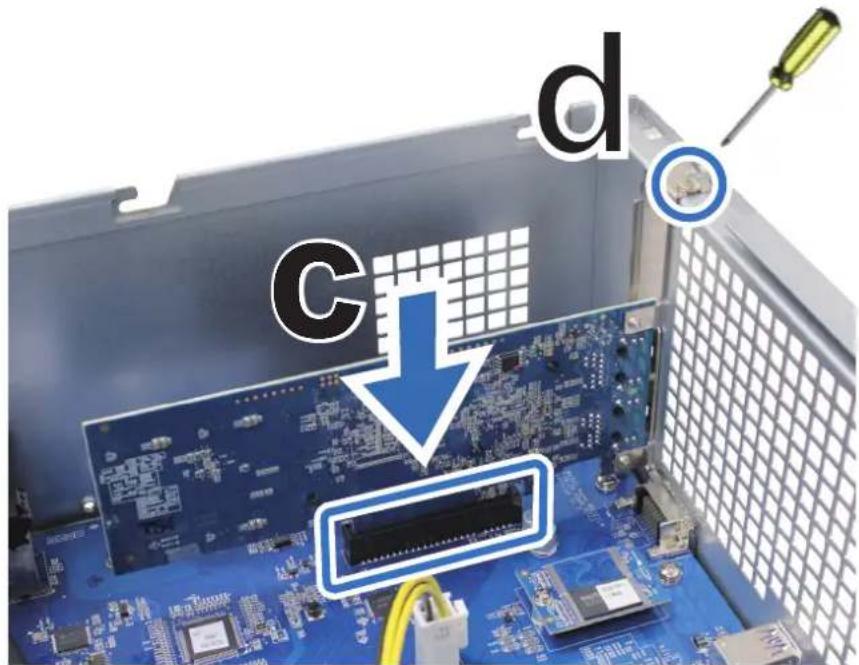
3 Install the network interface card:
a Remove the screw that secures the expansion slot's cover.
b Lift the expansion slot's cover.
natural_image
Two views of a blue computer motherboard with screwdriver and grid patterns, showing structural change (no text or symbols)c Align the card's connector with the expansion slot, and insert the card into the slot.
Note: Confirm that the connector is fully inserted. Otherwise, the network interface card might not be able to function properly.
d Put back and fasten the screw that you removed in step 3-a to secure the newly inserted card in place.
4 Replace the rear top cover by following step 5 of the "To install the RAM module" section.
Here we use RKS1317 as an example to illustrate how to install or remove the rail kits. For more information about the rail kit installation, please refer to the Quick Installation Guide that comes with the rail kit.

natural_image
Side view of a mechanical component with labeled front and rear sections (no text or symbols on the part itself)To install the rail kit
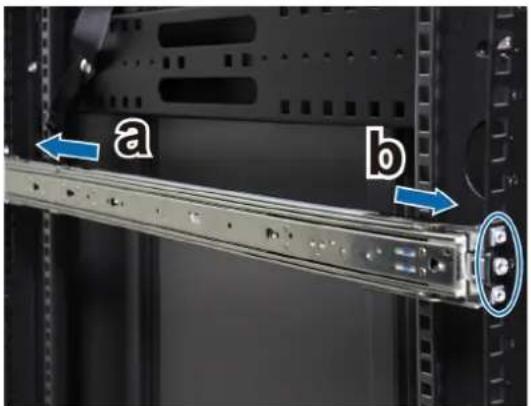
1 To install the rail kit to the rack:
a Attach the rear end of the rail kit assembly to the rack.
b Slide the front latch outwards and insert the brackets into the rack holes.
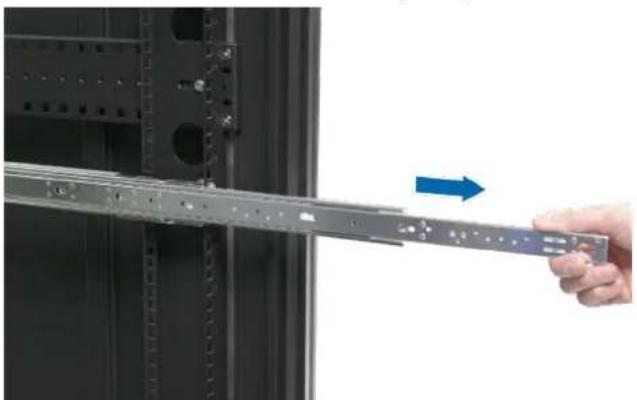
2 Extend the inner rail from the assembly and pull it out.
natural_image
Hand holding a metallic rack with a blue arrow indicating direction (no text or symbols visible)3 Align the fixing holes of the inner rail to the attachment points on the side of the chassis. Slide the inner rail away from the front panel to attach it to the chassis.
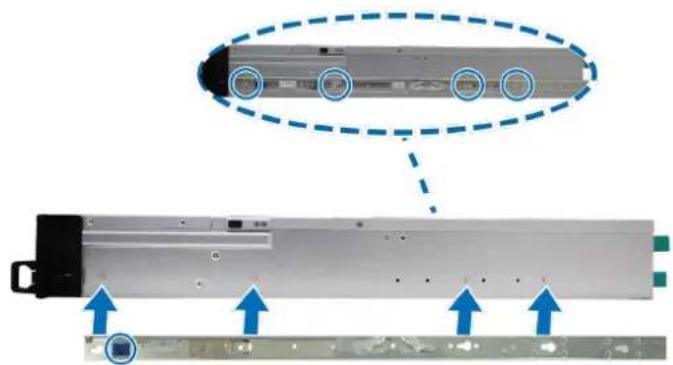
natural_image
Diagram showing a computer monitor with three circular components and an open rear panel, no text or symbols present.4 With the help of another person, carefully align the inner rail to the outer rail assembly.
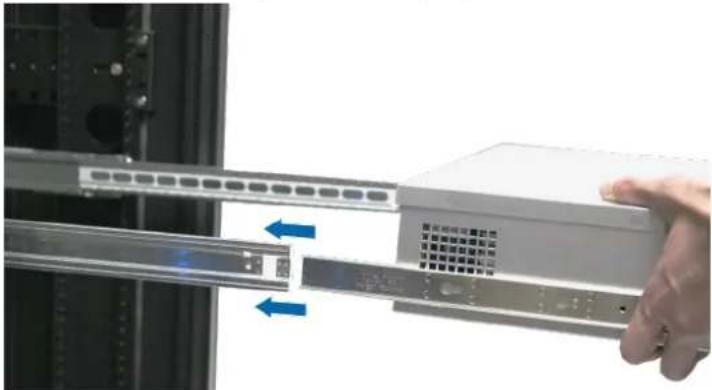
natural_image
Hand holding a server rack with blue directional arrows indicating data transfer or movement (no text or symbols visible)5 Pull and hold the blue front latch of the inner rail to unlock the inner rail. Push the chassis into the rack. Use the cage nuts and screws enclosed with the rail kit package to secure the chassis to the rack if necessary.
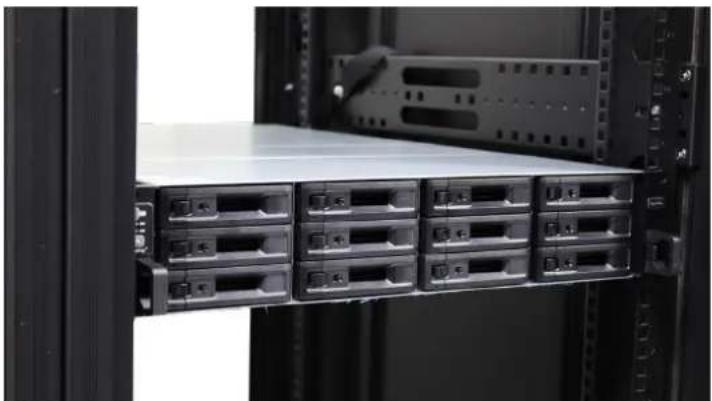
natural_image
Server rack with multiple drive bays mounted on a black server cabinet (no visible text or labels)To remove the rail kit
1 To remove the chassis from the rack, press the rail kit release tabs on the ear holders inward and pull the chassis out of the rack.
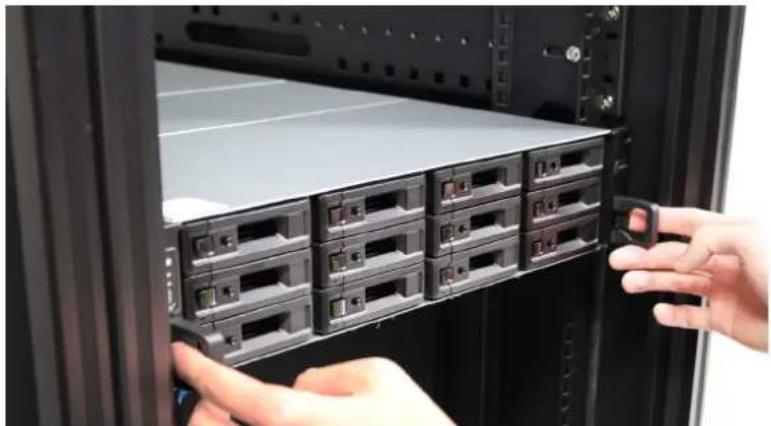
natural_image
Close-up of hands inserting a rack into a server rack unit (no visible text or labels)2 With the help of another person, carefully remove the chassis from the rack. Then, slide the inner rail attached to the chassis toward the front panel of the chassis to detach it.
Expansion Unit Deployment and Topology
RS2821RP+ supports RX1217/RX1217RP (12-bay) expansion units, providing seamless storage expansion whenever needed. This section will guide you through how to connect the expansion units to your Synology NAS.
To connect RX1217/RX1217RP with RS2821RP+
1 Here we use RX1217 as an example to illustrate how to connect to the expansion unit. Connect one end of the expansion cable to the expansion port of the RS2821RP+ and the other to the expansion port of the expansion unit.
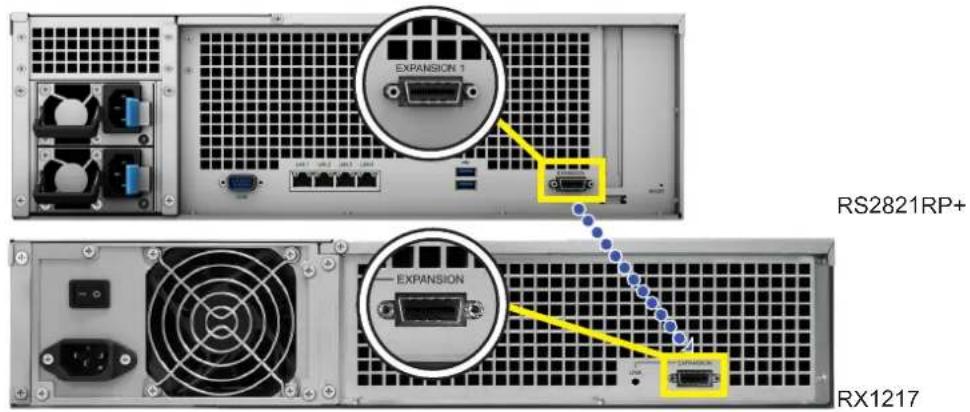
2 Connect the power cords:
a For RX1217, connect one end of power cord to a power port on the RX1217, and the other to a power outlet. Press the PSU switch located on the back panel to switch the PSU on.
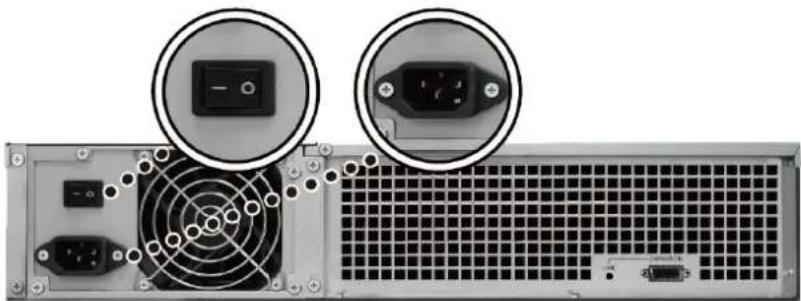
natural_image
Back view of a server rack with two close-up insets showing internal components (no text or symbols visible)b For RX1217RP, connect one end of both power cords to a power port on the RX1217RP, and the other to a power outlet.
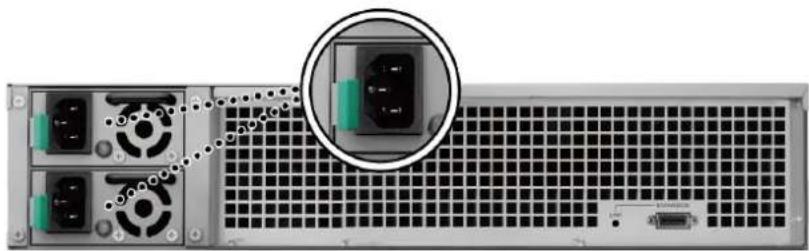
natural_image
Back view of a server rack with ports and a highlighted internal component (no text or symbols visible)Note: Your RX1217RP comes equipped with a redundant power supply system, allowing two power cords to be connected. The system may be powered on with only one power cord, but we recommend using two power cords to avoid unexpected power failures.
Note:
- Once the Synology NAS is powered on/off, your expansion unit will automatically power on/off if it is connected correctly.
- Do not remove the expansion cable while the host device is still powered on. Doing so may result in data loss.
Start up Your Synology NAS
1 Connect one end of each power cord to the power ports located on the back of the RS2821RP+ and the other end to a power outlet.
2 Connect at least one LAN cable to one of the LAN ports and the other end to your switch, router, or hub.
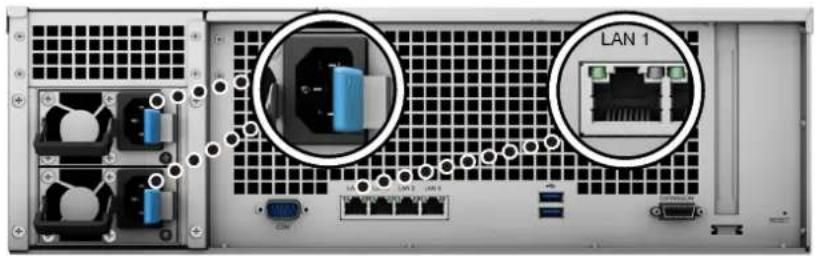
natural_image
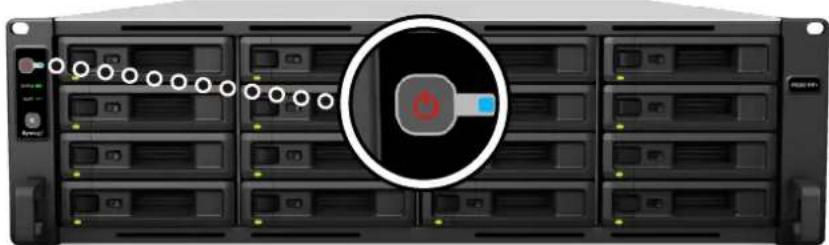
Front view of a server rack with labeled LAN 1 ports and internal components (no readable text beyond labels)3 Press the power button to turn on the RS2821RP+.
natural_image
Front view of a server rack with multiple racks and a highlighted indicator light (no text or symbols)Congratulations! Your Synology NAS is now online and detectable from a network computer.
System Maintenance
Replace System Fan
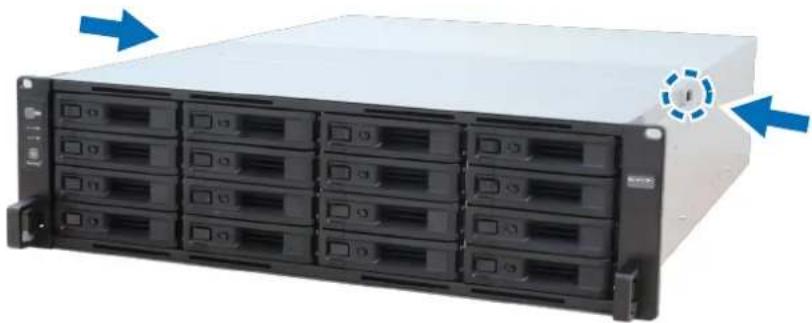
If a system fan malfunctions, please see the instructions below to open the RS2821RP+ and replace the malfunctioning fan.
1 Press the small buttons located on the sides of the RS2821RP+.
natural_image
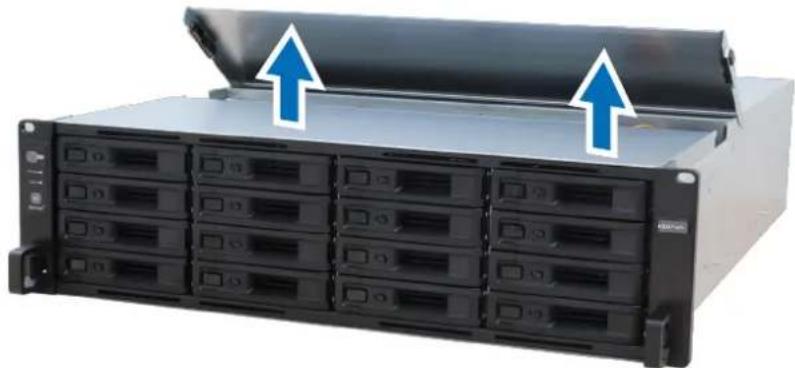
Front view of a rack-mounted server with multiple drive bays and two blue directional arrows indicating orientation (no text or symbols visible)2 Lift to remove the fan cover.
natural_image
Front view of a black server rack with multiple drive bays and a top-mounted tower (no visible text or labels)3 Fans are numbered as shown below:
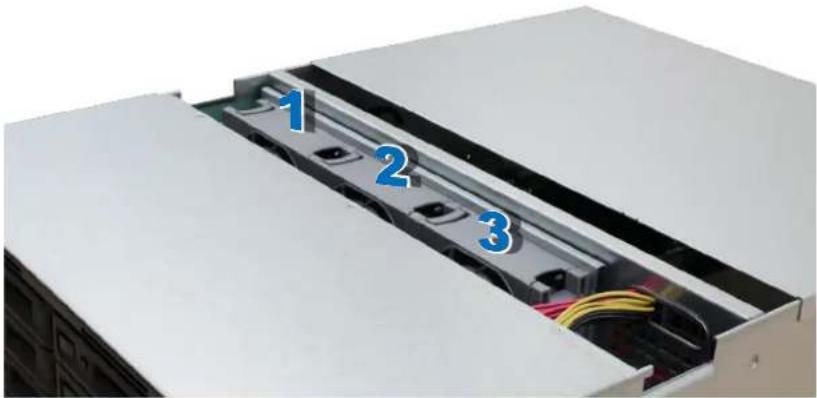
4 Find the malfunctioning fan. Lift up the fan to remove it.
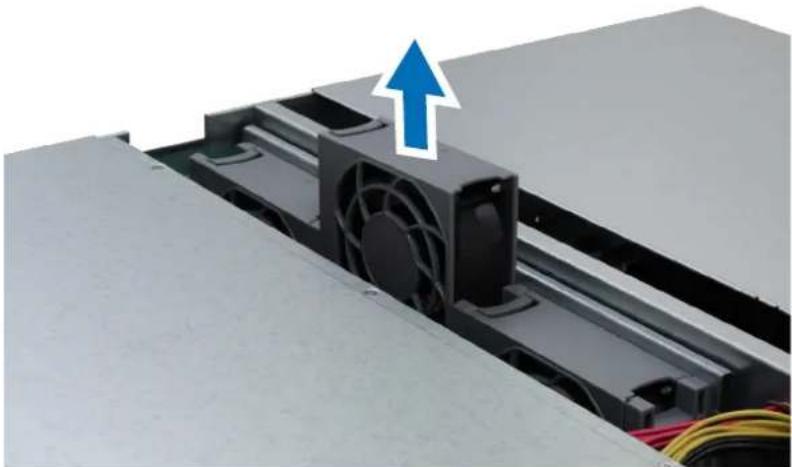
natural_image
Close-up of a computer drive with a blue upward arrow indicating motion or direction (no text or symbols visible)5 Prepare a new fan and slide it into the the RS2821RP+. Make sure that the fan is aligned properly, as shown below.
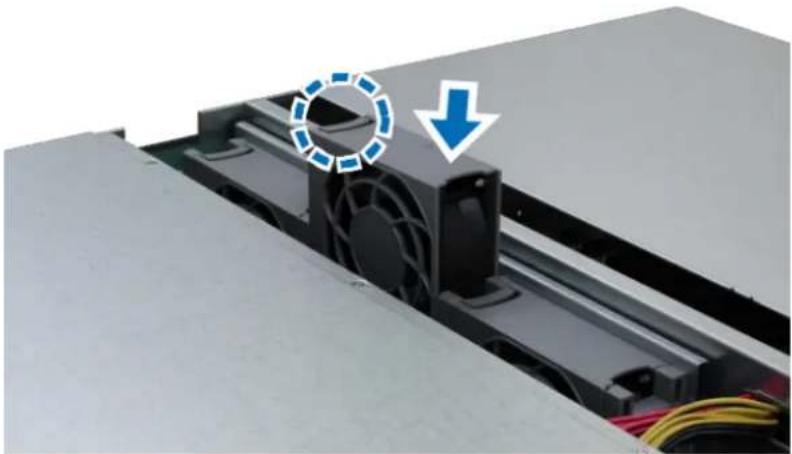
natural_image
Close-up of a server rack with cooling fan and cable, showing a blue circular arrow indicating rotation (no text or symbols)Replace Power Supply Unit (PSU)
If a PSU or its fan malfunctions, please see the instructions below to replace the malfunctioning PSU.
1 Unplug the power cord from the PSU that is to be replaced.
Note: By pressing the Beep Off button, you can silence the long beep when it sounds.
2 On the rear panel, push the lever of the PSU inward as shown.
3 Pull the PSU out of the RS2821RP+.
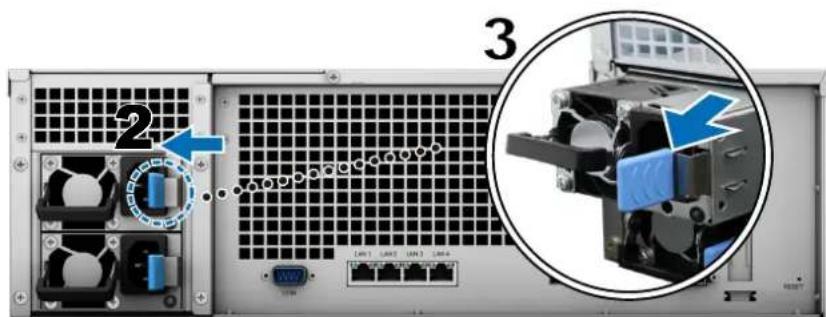
natural_image
Back panel of a server rack with labeled components and a magnified inset showing internal components (no readable text or symbols)4 Prepare a new PSU. Insert it into the empty slot until you hear a click.
Install DSM on Synology NAS
After hardware setup is completed, please install DiskStation Manager (DSM) – Synology's browser-based operating system – on your RS2821RP+.
Install DSM with Web Assistant
Your RS2821RP+ comes with a built-in tool called Web Assistant that helps you download the latest version of DSM from the Internet and install it on your RS2821RP+. To use Web Assistant, please follow the steps below.
1 Power on the your RS2821RP+.
2 Open a web browser on a computer connected to the same network as the RS2821RP+.
3 Enter either of the following into the address bar of your browser:
a find.synology.com
b synologynas:5000
4 Web Assistant will be launched in your web browser. It will search for and find the Synology NAS within the local network. The status of the RS2821RP+ should be Not Installed.
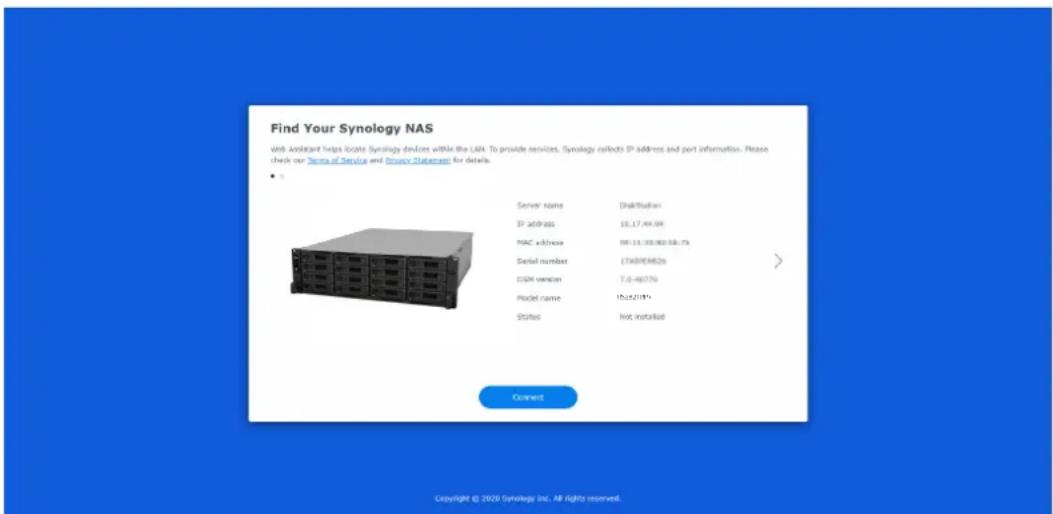
5 Click Connect to start the setup process and follow the onscreen instructions.
Note:
- The Synology NAS must be connected to the Internet to install DSM with Web Assistant.
- Recommended browsers: Chrome, Firefox.
- Both the Synology NAS and the computer must be in the same local network.
6 If you accidentally leave the installation process before it is finished, login to the DSM as admin (default administrative account name) with the password left blank.
Learn More
Your RS2821RP+ is now ready for action. For more information or online resources about your RS2821RP+, please visit Synology's official website, which contains step-by-step tutorials and frequently asked questions.
SYNOLOGY, INC.
END USER LICENSE AGREEMENT
IMPORTANT-READ CAREFULLY: THIS END USER LICENSE AGREEMENT ("EULA") IS A LEGAL AGREEMENT BETWEEN YOU (EITHER AN INDIVIDUAL OR A LEGAL ENTITY) AND SYNOLOGY, INC. ("SYNOLOGY") FOR THE SYNOLOGY SOFTWARE INSTALLED ONTO THE SYNOLOGY PRODUCT PURCHASED BY YOU (THE "PRODUCT"), OR LEGALLY DOWNLOADED FROM WWW.SYNOLOGY.COM, OR ANY OTHER CHANNEL PROVIDED BY SYNOLOGY ("SOFTWARE").
YOU AGREE TO BE BOUND BY THE TERMS OF THIS EULA BY USING THE PRODUCTS CONTAINING THE SOFTWARE, INSTALLING THE SOFTWARE ONTO THE PRODUCTS OR DEVICE CONNECTED TO THE PRODUCTS. IF YOU DO NOT AGREE TO THE TERMS OF THIS EULA, DO NOT USETHE PRODUCTS CONTAINING THE SOFTWAREOR DOWNLOAD THE SOFTWARE FROM WWW.SYNOLOGY.COM, OR ANY OTHER CHANNEL PROVIDED BY SYNOLOGY.INSTEAD, YOU MAY RETURN THE PRODUCT TO THE RESELLER WHERE YOU PURCHASED IT FOR A REFUND IN ACCORDANCE WITH THE RESELLER'S APPLICABLE RETURN POLICY.
Section 1. Limited Software License. Subject to the terms and conditions of this EULA, Synology grants you a limited, non-exclusive, non-transferable, personal license to install, run and use one copy of the Software loaded on the Product or on your device connected to the Product solely relating to your authorized use of the Product.
Section 2. Documentation. You may make and use a reasonable number of copies of any documentation provided with the Software; provided that such copies will only be used for internal business purposes and are not to be republished or redistributed (either in hard copy or electronic form) to any third party.
Section 3. Backup. You may make a reasonable number of copies of the Software for backup and archival purposes only.
Section 4. Updates. Any software provided to you by Synology or made available on the Synology website at www.synology.com ("Website") or any other channel provided by Synology that updates or supplements the original Software is governed by this EULA unless separate license terms are provided with such updates or supplements, in which case, such separate terms will govern.
Section 5. License Limitations. The license set forth in Sections 1, 2 and 3 applies only to the extent that you have ordered and paid for the Product and states the entirety of your rights with respect to the Software. Synology reserves all rights not expressly granted to you in this EULA. Without limiting the foregoing, you shall not authorize or permit any third party to: (a) use the Software for any purpose other than that in connection with the Product; (b) license, distribute, lease, rent, lend, transfer, assign or otherwise dispose of the Software; (c) reverse engineer, decompile, disassemble or attempt to discover the source code of or any trade secrets related to the Software, except and only to the extent that such conduct is expressly permitted by applicable law notwithstanding this limitation; (d) adapt, modify, alter, translate or create any derivative works of the Software; (e) remove, alter or obscure any copyright notice or other proprietary rights notice on the Software or Product; or (f) circumvent or attempt to circumvent any methods employed by Synology to control access to the components, features or functions of the Product or Software. Subject to the limitations specified in this Section 5, you are not prohibited from providing any services hosted by Synology NAS server to any third party for commercial purpose.
Section 6. Open Source. The Software may contain components licensed to Synology under the GNU General Public License ("GPL Components"), currently available at http://www.gnu.org/licenses/gpl.html. The terms of the GPL will control solely with respect to the GPL Components to the extent that this EULA conflicts with the requirements of the GPL with respect to your use of the GPL Components, and, in such event, you agree to be bound by the GPL with respect to your use of such components.
Section 7. Audit. Synology will have the right to audit your compliance with the terms of this EULA. You agree to grant Synology a right to access to your facilities, equipment, books, records and documents and to otherwise reasonably cooperate with Synology in order to facilitate any such audit by Synology or its agent authorized by Synology.
Section 8. Ownership. The Software is a valuable property of Synology and its licensors, protected by copyright and other intellectual property laws and treaties. Synology or its licensors own all rights, titles and interests in and to the Software, including but not limited to copyright and any other intellectual property rights.
Section 9. Limited Warranty. Synology provides a limited warrant that the Software will substantially conform to Synology's published specifications for the Software, if any, or otherwise set forth on the Website, for a period required by your local law. Synology will use commercially reasonable efforts to, in Synology's sole discretion, either correct any such nonconformity in the Software or replace any Software that fails to comply with the foregoing warranty, provided that you give Synology written notice of such noncompliance within the warranty period. The foregoing warranty does not apply to any noncompliance resulting from any: (w) use, reproduction, distribution or disclosure not in accordance with this EULA; (x) any customization, modification or other alteration of the Software by anyone other than Synology; (y) combination of the Software with any product, services or other items provided by anyone other than Synology; or (z) your failure to comply with this EULA.
Section 10. Support. During the period specified in the Section 9, Synology will make available to you the support services. Following the expiration of the applicable period, support for Software may be available from Synology upon written
request.
Section 11. Disclaimer of Warranties. EXCEPT AS EXPRESSLY SET FORTH ABOVE, THE SOFTWARE IS PROVIDED "AS IS" AND WITH ALL FAULTS. SYNOLOGY AND ITS SUPPLIERS HEREBY DISCLAIM ALL OTHER WARRANTIES, EXPRESS, IMPLIED OR STATUTORY, ARISING BY LAW OR OTHERWISE, INCLUDING BUT NOT LIMITED TO ANY IMPLIED WARRANTIES OF MERCHANTABILITY, FITNESS FOR A PARTICULAR PURPOSE OR USE, TITLE AND NONINFRINGEMENT, WITH REGARD TO THE SOFTWARE. WITHOUT LIMITING THE FOREGOING, SYNOLOGY DOES NOT WARRANT THAT THE SOFTWARE WILL BE FREE OF BUGS, ERRORS, VIRUSES OR OTHER DEFECTS.
Section 12. Disclaimer of Certain Damages. IN NO EVENT WILL SYNOLOGY OR ITS LICENSORS BE LIABLE FOR ANY INCIDENTAL, INDIRECT, SPECIAL, PUNITIVE, CONSEQUENTIAL OR SIMILAR DAMAGES OR LIABILITIES WHATSOEVER (INCLUDING, BUT NOT LIMITED TO LOSS OF DATA, INFORMATION, REVENUE, PROFIT OR BUSINESS) ARISING OUT OF OR RELATING TO THE USE OF OR INABILITY TO USE THE SOFTWARE OR OTHERWISE UNDER OR IN CONNECTION WITH THIS EULA OR THE SOFTWARE, WHETHER BASED ON CONTRACT, TORT (INCLUDING NEGLIGENCE), STRICT LIABILITY OR OTHER THEORY EVEN IF SYNOLOGY HAS BEEN ADVISED OF THE POSSIBILITY OF SUCH DAMAGES.
Section 13. Limitation of Liability. SYNOLOGY'S AND ITS SUPPLIERS' LIABILITY ARISING OUT OF OR RELATING TO THE USE OF OR INABILITY TO USE THE SOFTWARE OR OTHERWISE UNDER OR IN CONNECTION WITH THIS EULA OR THE SOFTWARE IS LIMITED TO THE AMOUNT ACTUALLY PAID BY YOU FOR THE PRODUCT REGARDLESS OF THE AMOUNT OF DAMAGES YOU MAY INCUR AND WHETHER BASED ON CONTRACT, TORT (INCLUDING NEGLIGENCE), STRICT LIABILITY OR OTHER THEORY. The foregoing disclaimer of warranties, disclaimer of certain damages and limitation of liability will apply to the maximum extent permitted by applicable law. The laws of some states/jurisdictions do not allow the exclusion of implied warranties or the exclusion or limitation of certain damages. To the extent that those laws apply to this EULA, the exclusions and limitations set forth above may not apply to you.
Section 14. Export Restrictions. You acknowledge that the Software is subject to U.S. export restrictions. You agree to comply with all applicable laws and regulations that apply to the Software, including without limitation the U.S. Export Administration Regulations.
Section 15. Termination. Without prejudice to any other rights, Synology may terminate this EULA if you do not abide by the terms and conditions contained herein. In such event, you must cease use of the Software and destroy all copies of the Software and all of its component parts.
Section 16. Assignment. You may not transfer or assign your rights under this EULA to any third party, except for that pre-installed in the Products. Any such transfer or assignment in violation of the foregoing restriction will be void.
Section 17. Applicable Law. Unless expressly prohibited by local law, this EULA is governed by and construed in accordance with the laws of the country, in accordance with which Synology Inc. was organized without regard to any conflict of law principles to the contrary.
Section 18. Dispute Resolution. Any dispute, controversy or claim arising out of or relating to this EULA will be resolved exclusively and finally by arbitration conducted by three neutral arbitrators in accordance with the procedures of the Arbitration Law and related enforcement rules of the country in which Synology Inc. was organized. In such cases, the arbitration will be limited solely to the dispute between you and Synology. The arbitration, or any portion of it, will not be consolidated with any other arbitration and will not be conducted on a class-wide or class action basis. The arbitration shall take place in Taipei and the arbitration proceedings shall be conducted in English or, if both parties so agree, in Mandarin Chinese. The arbitration award shall be final and binding on the parties and may be enforced in any court having jurisdiction. You understand that, in the absence of this provision, you would have had a right to litigate any such dispute, controversy or claim in a court, including the right to litigate claims on a class-wide or class-action basis, and you expressly and knowingly waive those rights and agree to resolve any disputes through binding arbitration in accordance with the provisions of this Section 18. Nothing in this Section shall be deemed to prohibit or restrict Synology from seeking injunctive relief or seeking such other rights and remedies as it may have at law or equity for any actual or threatened breach of any provision of this EULA relating to Synology's intellectual property rights.
Section 19. Attorneys' Fees. In any arbitration, mediation, or other legal action or proceeding to enforce rights or remedies under this EULA, the prevailing party will be entitled to recover, in addition to any other relief to which it may be entitled, costs and reasonable attorneys' fees.
Section 20. Severability. If any provision of this EULA is held by a court of competent jurisdiction to be invalid, illegal, or unenforceable, the remainder of this EULA will remain in full force and effect.
Section 21. Entire Agreement. This EULA sets forth the entire agreement of Synology and you with respect to the Software and the subject matter hereof and supersedes all prior and contemporaneous understandings and agreements whether written or oral. No amendment, modification or waiver of any of the provisions of this EULA will be valid unless set forth in a written instrument signed by the party to be bound thereby.
SYNOLOGY, INC.
LIMITED PRODUCT WARRANTY
THIS LIMITED WARRANTY ("WARRANTY") APPLIES TO THE PRODUCTS (AS DEFINED BELOW) OF SYNOLOGY, INC. AND ITS AFFILIATES, INCLUDING SYNOLOGY AMERICA CORP, (COLLECTIVELY, "SYNOLOGY"). YOU ACCEPT AND AGREE TO BE BOUND BY THE TERMS OF THIS WARRANTY BY OPENING THE PACKAGE CONTAINING AND/OR USING THE PRODUCT. PLEASE BE ADVISED THAT THIS LIMITED WARRANTY DOES NOT APPLY TO THE SOFTWARE CONTAINED IN THE PRODUCTS WHICH SHALL BE SUBJECT TO ITS END USER LICENSE AGREEMENT, AND THAT SYNOLOGY RESERVES THE RIGHT TO MAKE ADJUSTMENTS AND/OR MODIFICATION TO THIS PRODUCT WARRANTY FROM TIME TO TIME WITHOUT PROVIDING PRIOR NOTICE TO YOU. IF YOU DO NOT AGREE TO THE TERMS OF THIS WARRANTY, DO NOT USE THE PRODUCT. INSTEAD, YOU MAY RETURN THE PRODUCT TO THE RESELLER WHERE YOU PURCHASED IT FOR A REFUND IN ACCORDANCE WITH THE RESELLER'S APPLICABLE RETURN POLICY. PLEASE NOTE THAT SYNOLOGY'S WARRANTY SUPPORTS ARE NOT AVAILABLE IN EVERY COUNTRY, AND THAT SYNOLOGY MAY REFUSE TO PROVIDE THIS LIMITED WARRANTY SUPPORTS TO YOU IF YOU REQUEST SUCH SUPPORTS NOT AT THE COUNTRY AT WHICH THE PRODUCT WAS ORIGINALLY PURCHASED. THE COUNTRY AT WHICH THE PRODUCT WAS ORIGINALLY PURCHASED SHALL BE DETERMINED BASED ON THE SYNOLOGY'S INTERNAL RECORDS.
Section 1. Products
(a) "Products" refer to New Products or Refurbished Products.
(b) "New Product" means the Synology-branded hardware product and Synology-branded accessories contained in the original packaging Customer bought from an authorized Synology distributor or reseller. You may see our "New Product" at Product Support Status.
(c) "Refurbished Product" means all Synology products which have been refurbished by Synology's affiliate or an authorized Synology distributor or reseller, not including those sold as "as is" or with "no warranty" by anyone.
(d) Other definition: "Customer" means the original person or entity purchasing the Product from Synology or an authorized Synology distributor or reseller; "Online Store" means an online shop operated by Synology or Synology's affiliate;
"Software" means the Synology proprietary software that accompanies the Product when purchased by Customer, is downloaded by Customer from the Web Site, or is pre-installed on the Product by Synology, and includes any firmware, associated media, images, animations, video, audio, text and applets incorporated into the software or Product and any updates or upgrades to such software.
Section 2. Warranty Period
(a) "Warranty Period": The warranty period commences on the purchase date is shown on the purchase receipt or invoice to be presented by Customer and ending at the day after the end of the Warranty Period for each New Product. You may see the Warranty Period for each New Product at Product Support Status. For the Refurbished Product or repaired parts, it's the remainder of the warranty period of the product they are replacing, or ninety (90) days from the date the product was replaced or repaired, whichever is longer; except for those sold as "as is" or with "no warranty" by any stores. Without presenting such purchase receipt or invoice, the warranty period shall commence on the date of manufacture based on our internal record.
(b) "Extended Warranty Period": For Customer purchasing EW201/EW202 optional service for applicable Products specified in Section 1 (b), the Warranty Period specified in Section 2 (a) of the applicable Product registered with EW201/EW202 optional service will be extended by two years. You may see the applied model at Extended Warranty.
(c) "Immediate termination of Warranty Period": As to the Synology drive product, its warrant period will terminate immediately upon either of following situations occurs: (a) for solid-state drive, its lifespan wear-out indicator is equal to or exceeds the limit specified in the "product specifications" of the drive attached with the purchased product; (b) for all drive products, its temperature record is equal to or exceeds the operating temperature limit of the drive, which is specified in the "product specifications" attached with the purchased product.
Section 3. Limited Warranty and Remedies
3.1 Limited Warranty. Subject to Section 3.2, Synology warrants to the Customer that each Product (a) will be free of material defects in workmanship and (b) under normal use will perform substantially in accordance with Synology's published specifications for the Product during the Warranty Period. Such limited warranty does not apply to the Software contained in the product or purchased by Customer which shall be subject to the accompanying end user license agreement provided with the Product. Synology provides no warranty to Refurbished Product sold as "as is" or with "no warranty". (c) This Limited Warranty is NOT transferable and applies only to the customers who directly purchase products from Synology's affiliate, the resellers, and distributor that Synology authorized. The warranty set forth in Section 3 will terminate upon Customer's sale or transfer of the Product to a third party.
3.2 Exclusions. The foregoing warranties and warranty obligations do not apply to any Product that (a) has been installed or used in a manner not specified or described in the Product, specifications, or its related documents, or in any way misused, abused, or damaged; (b) has been damaged caused by accident, fire, liquid contact, earthquake, other external factor or product use in improper environment; (c) has been disassembled without authorization from Synology; or (d) with cosmetic damage caused by normal wear and tear or otherwise due to the normal aging of the Product, including but not limited to scratches, dents and broken plastic on ports unless failure has occurred due to a defect in materials or
workmanship; (e) serial number has been removed or defaced from Product, resulting in not able to identify; (f) has been damaged or out of order because Customer fails to implement any correction, modification, enhancement, improvement or other update made available to Customer by Synology, or because Customer implements, installs or uses any correction, modification, enhancement, improvement or other update made available by any third party; (g) has been damaged, out-of-order, or incompatible due to installation or use with items not provided by Synology other than the hardware, software or other accessory for which the Product is designed.
Please note that each of the above situations shall be subject to the inspection and verification of the product's appearance and functions by Synology.
3.3 Warranty Support and Exclusive Remedy. If Customer gives notice of noncompliance with any of the warranties set forth in Section 3.1 within the applicable Warranty Period in the manner set forth below, then, upon verification of the noncompliance by Synology, Synology will, at Synology's option: (a) use commercially reasonable efforts to repair the Product, (b) provide technical support, or (c) replace the noncomplying Product or part thereof upon return of the complete Product in accordance with Section 3.4 The foregoing sets forth Synology's entire liability and Customer's sole and exclusive remedy for any breach of warranty under Section 3.1 or any other defect or deficiency in the Product. Customer will reasonably assist Synology to diagnose and validate any nonconformity with the Product. Please note that the warranty support does not apply to rescue of the data stored in Synology Product or its backup. Customer shall make a backup copy of the stored data before it returns the Product to Synology, Synology may weed up all information or data in the Product while it performs the warranty services and shall not be responsible or liable for any data loss therein.
3.4 Return. Any Product return by Customer under Section 3.3 must be made in accordance with Synology's then-current return procedures with the purchase receipt or invoice. You may see more information about the return procedure at How do I make a warranty claim for my Synology product? For warranty claims, the Customer must return the complete Product to Synology in accordance with this Section 3.4. Any returned Product that (a) has been disassembled (except under the direction of Synology); or (b) serial number has been removed or defaced from Product, resulting in not able to identify, or (c) was damaged on the way of return due to improper packaging (including but not limited to scratches and deformation), will be refused and returned to Customer at Customer's expense. Any Product must be returned in the same condition as it was received from Synology to the address designated by Synology, freight pre-paid, in packaging sufficient to protect the contents thereof. Customer is responsible for insurance and risk of loss/damage with respect to returned items until they are properly received by Synology.
3.5 Replacement of New Product or Refurbished Product by Synology. If Synology elects to replace any Product under this Warranty set forth in Section 3.1, then Synology will ship a replacement Product at Synology's expense via the shipping method selected by Synology after receipt of the nonconforming Product returned in accordance with Section 3.4 and validation by Synology that the Product does not conform to the warranty. Before the shipment of the Refurbished Product to the Customers, they have been verified to strictly comply with Synology's quality standard. Please note that part of the Refurbished Products would be with certain stain, scratches, or other minor wear and tear. In some countries, Synology may at its own discretion apply the Synology Replacement Service to certain Products, through which Synology will ship a replacement Product to Customer before its receipt of the nonconforming Product returned by Customer ("Synology Replacement Service").
3.6 Disclaimer of Warranties. THE WARRANTIES, OBLIGATIONS, AND LIABILITIES OF SYNOLOGY AND THE REMEDIES OF CUSTOMER SET FORTH IN THIS WARRANTY ARE EXCLUSIVE AND IN SUBSTITUTION FOR, AND CUSTOMER HEREBY WAIVES, RELEASES AND DISCLAIMS, ALL OTHER WARRANTIES, OBLIGATIONS AND LIABILITIES OF SYNOLOGY AND ALL OTHER RIGHTS, CLAIMS AND REMEDIES OF CUSTOMER AGAINST SYNOLOGY, EXPRESS OR IMPLIED, ARISING BY LAW OR OTHERWISE, WITH RESPECT TO THE PRODUCT, ACCOMPANYING DOCUMENTATION OR SOFTWARE AND ANY OTHER GOODS OR SERVICES DELIVERED UNDER THIS WARRANTY, INCLUDING, BUT NOT LIMITED TO ANY: (A) IMPLIED WARRANTY OF MERCHANTABILITY OR FITNESS FOR A PARTICULAR PURPOSE OR USE; (B) IMPLIED WARRANTY ARISING FROM COURSE OF PERFORMANCE, COURSE OF DEALING, OR USAGE OF TRADE; (C) CLAIM OF INFRINGEMENT OR MISAPPROPRIATION; OR (D) CLAIM IN TORT (WHETHER BASED ON NEGLIGENCE, STRICT LIABILITY, PRODUCT LIABILITY OR OTHER THEORY). SYNOLOGY MAKES NO GUARANTEE AND SPECIFICALLY DISCLAIMS ANY WARRANTY THAT THE DATA OR INFORMATION STORED ON ANY SYNOLOGY PRODUCT WILL BE SECURE AND WITHOUT RISK OF DATA LOSS. SYNOLOGY RECOMMENDS THAT CUSTOMER TAKES APPROPRIATE MEASURES TO BACK UP THE DATA STORED ON THE PRODUCT. SOME STATES/JURISDICTIONS DO NOT ALLOW LIMITATIONS ON IMPLIED WARRANTIES, SO THE ABOVE LIMITATION MAY NOT APPLY TO CUSTOMER.
Section 4. Limitations of Liability
4.1 Force Majeure. Synology will not be liable for, or be considered to be in breach of or default under this Warranty on account of, any delay or failure to perform as required by this Warranty as a result of any cause or condition beyond its reasonable control (including, without limitation, any act or failure to act by Customer).
4.2 Disclaimer of Certain Damages. IN NO EVENT WILL SYNOLOGY OR ITS SUPPLIERS BE LIABLE FOR THE COST OF COVER OR FOR ANY INCIDENTAL, INDIRECT, SPECIAL, PUNITIVE, CONSEQUENTIAL OR SIMILAR DAMAGES OR LIABILITIES WHATSOEVER (INCLUDING, BUT NOT LIMITED TO LOSS OF DATA, INFORMATION, REVENUE,
PROFIT OR BUSINESS) ARISING OUT OF OR RELATING TO THE USE OR INABILITY TO USE THE PRODUCT, ANY ACCOMPANYING DOCUMENTATION OR SOFTWARE AND ANY OTHER GOODS OR SERVICES PROVIDED UNDER THIS WARRANTY, WHETHER BASED ON CONTRACT, TORT (INCLUDING NEGLIGENCE), STRICT LIABILITY OR OTHER THEORY EVEN IF SYNOLOGY HAS BEEN ADVISED OF THE POSSIBILITY OF SUCH DAMAGES.
4.3 Limitation of Liability. SYNOLOGY'S AND ITS SUPPLIERS' LIABILITY ARISING OUT OF OR RELATING TO THE USE OR INABILITY TO USE THE PRODUCT, ANY ACCOMPANYING DOCUMENTATION OR SOFTWARE AND ANY OTHER GOODS OR SERVICES PROVIDED UNDER THIS WARRANTY IS LIMITED TO THE AMOUNT ACTUALLY PAID BY CUSTOMER FOR THE PRODUCT REGARDLESS OF THE AMOUNT OF DAMAGES CUSTOMER MAY INCUR AND WHETHER BASED ON CONTRACT, TORT (INCLUDING NEGLIGENCE), STRICT LIABILITY OR OTHER THEORY. The foregoing disclaimer of certain damages and limitation of liability will apply to the maximum extent permitted by applicable law. The laws of some states/jurisdictions do not allow exclusion or limitation of certain damages. To the extent that those laws apply to the Product, the exclusions and limitations set forth above may not apply to Customer.
Section 5. Miscellaneous
5.1 Proprietary Rights. The Product and any accompanying Software and documentation provided with the Product include proprietary and intellectual property rights of Synology and its third party suppliers and licensors. Synology retains and reserves all right, title, and interest in the intellectual property rights of the Product, and no title to or ownership of any intellectual property rights in or to the Product, any accompanying Software or documentation and any other goods provided under this Warranty is transferred to Customer under this Warranty. Customer will (a) comply with the terms and conditions of the Synology end user license agreement accompanying any Software furnished by Synology or an authorized Synology distributor or reseller; and (b) not attempt to reverse engineer any Product or component thereof or accompanying Software or otherwise misappropriate, circumvent or violate any of Synology's intellectual property rights.
5.2 Assignment. Customer will not assign any of its rights under this Warranty directly, by operation of law or otherwise, without the prior written consent of Synology.
5.3 No Additional Terms. Except as expressly permitted by this Warranty, neither party will be bound by, and each party specifically objects to, any term, condition or other provision that conflicts with the provisions of this Warranty that is made by the other party in any purchase order, receipt, acceptance, confirmation, correspondence or otherwise, unless each party specifically agrees to such provision in writing. Further, if this Warranty conflicts with any terms or conditions of any other agreement entered into by the parties with respect to the Product, this Warranty will prevail unless the other agreement specifically references the sections of this Warranty that it supersedes.
5.4 Applicable Law. Unless explicitly prohibited by local law, this Warranty is governed by the laws of the State of Washington, U.S.A. for the Customers residing within the United States; and by the laws of the Republic of China (Taiwan) for Customers not residing within the United States, without regard to any conflict of law principles to the contrary. The 1980 U.N. Convention on Contracts for the International Sale of Goods or any successor thereto does not apply.
5.5 Dispute Resolution. Any dispute, controversy or claim arising out of or relating to this Warranty, the Product or services provided by Synology with respect to the Product or the relationship between Customers residing within the United States and Synology will be resolved exclusively and finally by arbitration under the current commercial rules of the American Arbitration Association, except as otherwise provided below. The arbitration will be conducted before a single arbitrator, and will be limited solely to the dispute between Customer and Synology. The arbitration, or any portion of it, will not be consolidated with any other arbitration and will not be conducted on a class-wide or class action basis. The arbitration shall be held in King County, Washington, U.S.A. by submission of documents, by telephone, online or in person as determined by the arbitrator at the request of the parties. The prevailing party in any arbitration or legal action occurring within the United States or otherwise shall receive all costs and reasonable attorneys' fees, including any arbitration fee paid by the prevailing party. Any decision rendered in such arbitration proceedings will be final and binding on the parties, and judgment may be entered thereon in any court of competent jurisdiction. Customer understands that, in the absence of this provision, Customer would have had a right to litigate any such dispute, controversy or claim in a court, including the right to litigate claims on a class-wide or class-action basis, and Customer expressly and knowingly waives those rights and agrees to resolve any disputes through binding arbitration in accordance with the provisions of this Section 5.5. For Customers not residing within the United States, any dispute, controversy or claim described in this section shall be finally resolved by arbitration conducted by three neutral arbitrators in accordance with the procedures of the R.O.C. Arbitration Law and related enforcement rules. The arbitration shall take place in Taipei, Taiwan, R.O.C., and the arbitration proceedings shall be conducted in English or, if both parties so agree, in Mandarin Chinese. The arbitration award shall be final and binding on the parties and may be enforced in any court having jurisdiction. Nothing in this Section shall be deemed to prohibit or restrict Synology from seeking injunctive relief or seeking such other rights and remedies as it may have at law or equity for any actual or threatened breach of any provision of this Warranty relating to Synology's intellectual property rights.
5.6 Attorneys' Fees. In any arbitration, mediation, or other legal action or proceeding to enforce rights or remedies under
this Warranty, the prevailing party will be entitled to recover, in addition to any other relief to which it may be entitled, costs and reasonable attorneys' fees.
5.7 Export Restrictions. You acknowledge that the Product may be subject to U.S. export restrictions. You will comply with all applicable laws and regulations that apply to the Product, including without limitation the U.S. Export Administration Regulations.
5.8 Severability. If any provision of this Warranty is held by a court of competent jurisdiction to be invalid, illegal, or unenforceable, the remainder of this Warranty will remain in full force and effect.
5.9 Entire Agreement. This Warranty constitutes the entire agreement, and supersedes any and all prior agreements, between Synology and Customer related to the subject matter hereof. No amendment, modification or waiver of any of the provisions of this Warranty will be valid unless set forth in a written instrument signed by the party to be bound thereby.
FCC Declaration of Conformity
This device complies with Part 15 of the FCC Rules. Operation is subject to the following two conditions: (1) this device may not cause harmful interference, and (2) this device must accept any interference received, including interference that may cause undesired operation.