
iH402 - Clock IHOME - Free user manual and instructions
Find the device manual for free iH402 IHOME in PDF.


| Product Type | Dual USB Charging / Dual Alarm Clock with Removable Power Bank |
| Brand | iHome |
| Model | iH402 |
| Power Source | AC Adaptor (included); Backup: 2 AA batteries (not included) |
| USB Charging Output | 1 Amp (standard USB port on unit and power bank) |
| Power Bank Capacity | Removable iPB2 cell, charges via unit or micro USB |
| Alarms | 2 Independent Alarms with Snooze (adjustable 1-29 min) |
| Display | LED with dimmer (off, low, medium, high) |
| Daylight Saving Time | Slide switch (±1 hour) |
| Dimensions (approx) | 5.5 x 3.5 x 3.2 inches |
| Weight (with power bank) | 12.5 oz |
| Material | Plastic body |
| Battery Backup Type | 2 AA alkaline (maintains time/alarm during power loss) |
| Charging Cable | Micro USB to USB (for power bank and device charging) |
| Control Buttons | Clock Set, Alarm 1/2, -/+, Snooze/Dimmer, Alarm Reset, Eject |
| Safety Features | Lithium battery warnings, surge protection, FCC compliant |
| Cleaning Instructions | Soft cloth with mild soap and water; avoid strong cleaners |
| Warranty | 90 days limited (USA) |
| Customer Service | 1-800-288-2792 |
| Included Accessories | iH402 unit, iPB2 power bank, USB cable, AC adaptor, user guide |
Frequently Asked Questions - iH402 IHOME
User questions about iH402 IHOME
0 question about this device. Answer the ones you know or ask your own.
Ask a new question about this device
Download the instructions for your Clock in PDF format for free! Find your manual iH402 - IHOME and take your electronic device back in hand. On this page are published all the documents necessary for the use of your device. iH402 by IHOME.
USER MANUAL iH402 IHOME
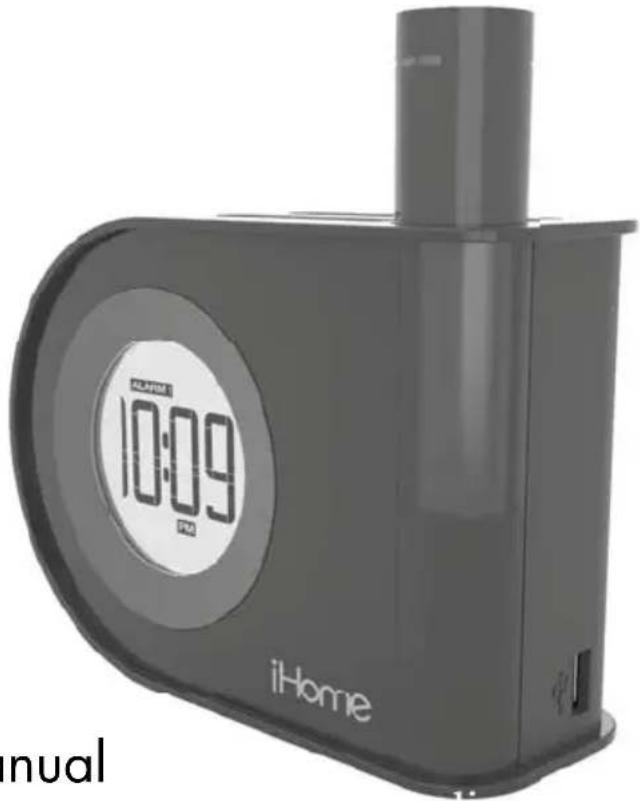
Dual USB charging / dual alarm clock with removable iPB2 power bank

CHARGE
POWER
BANK
BEFORE
USE
instruction manual

Questions? Contact Customer Service at 1-800-288-2792
Table of Contents
What's in the Box....1
Product Care 1
Controls Overview 2
Display....3
Installing and Replacing Backup Batteries 3
Set Up 4
Charging and Using the iPB2 Power Bank 4-5
Charging Devices Using the USB Port 6
Setting the Time 7
Setting and Using Alarms 8-10
Dimmer....11
Battery Cautions & Tips....11
Safety Information 12
Troubleshooting....13
Warranty Information 14
What's in the Box
This product ships with the following items. Make sure all are present.

1. iH402 Alarm Clock

2. Removable iPB2 Power Bank Cell
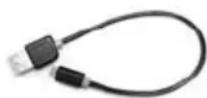
3. USB Charging Cable

4. AC Adaptor
5. User Guide
Product Care
- Place the unit on a level surface away from sources of direct sunlight or excessive heat.
- Keep product and removable battery cell away from moisture
- Protect your furniture when placing your unit on a natural wood and lacquered finish. A cloth or other protective material should be placed between it and the furniture.
- Clean your unit with a soft cloth moistened only with mild soap and water. Stronger cleaning agents, such as thinner or similar materials can damage the surface of the unit.
Controls Overview
Top Panel
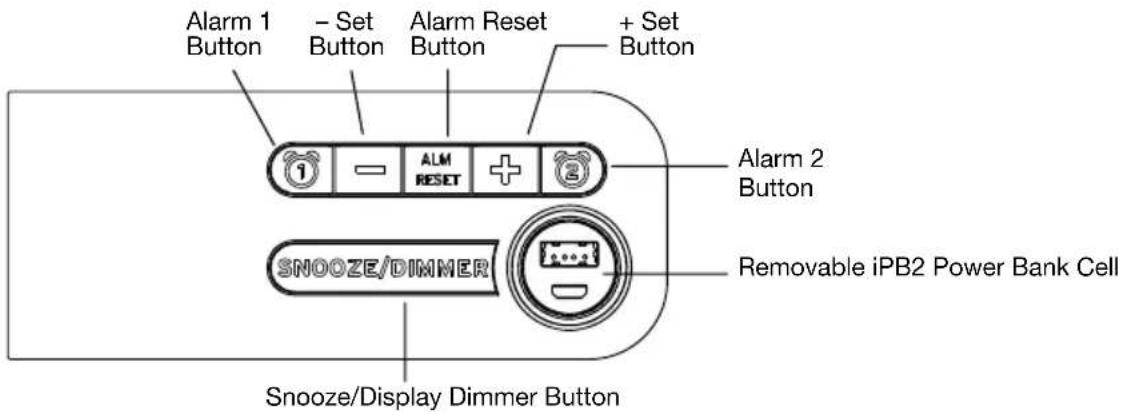
Rear Panel
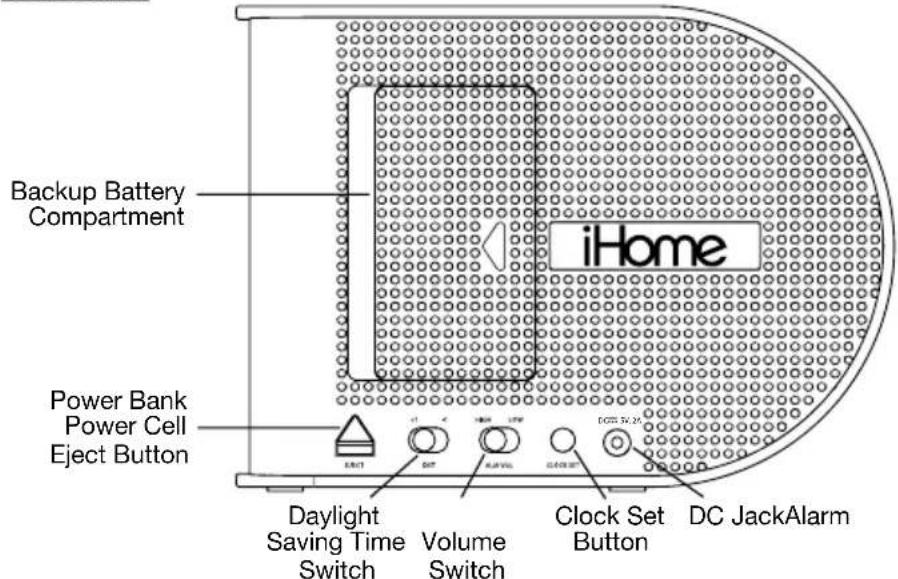
Side Panel

Display
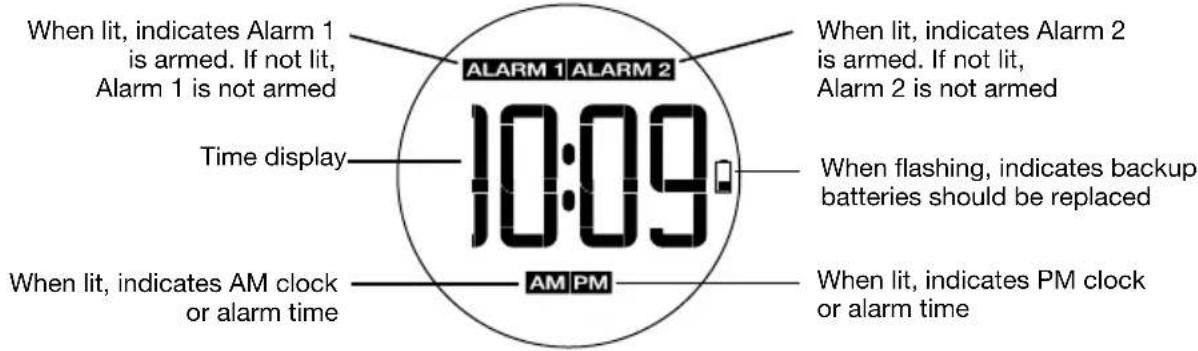
Installing and Replacing Backup Batteries
Your new iHome Clock includes a battery backup system that will maintain the time and alarm settings during a temporary power interruption.
natural_image
Simple line drawing of a wall-mounted power outlet connected to a terminal block (no text or symbols)
- Keep unit connected to AC power when changing batteries to avoid losing your settings.
- Press on the battery door and slide to open and remove the battery door.
- Check the correct polarity (+/-) markings in the battery compartment and install two "AA" batteries (not included) to match the markings.
- Replace the battery door.
NOTE: With batteries installed, the display backlight will turn off during a power failure but the clock will continue to run and maintain your alarm settings.
Set Up
Connecting AC Adaptor to Power Source
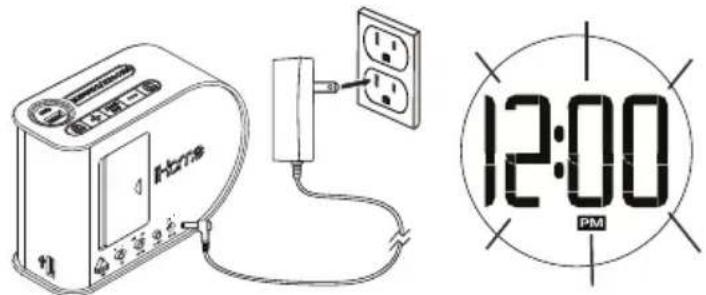
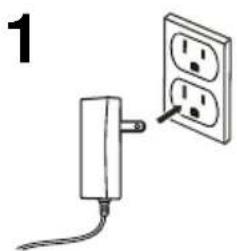
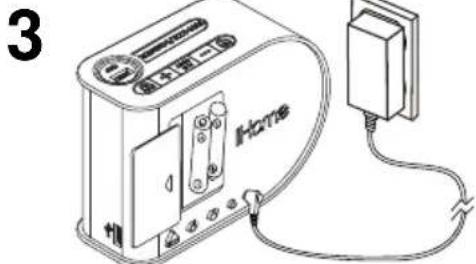
Connect the included AC adaptor to the DC Jack located on the back of the unit. Connect the AC adaptor plug into a working wall outlet that is not controlled by a wall switch. The unit does not operate on batteries (the battery back up system maintains clock settings during power failures).
Charging and Using the Power Bank
CHARGING THE iPB2 POWER BANK IN THE UNIT
Follow these steps to charge the iPB2 portable power bank:
- Ensure that the iH402 is connected to an AC outlet
- Insert the iPB2 (as shown), making sure that the iPB2's iHome name is facing forward.
- Press down gently on iPB2 until it locks into place.
- The battery charge LED on the iPB2 flashes blue when the iPB2 is charging, and it turns solid blue when it is fully charged.
- Press the Eject Button located on the back of the unit to release the iPB2 from the unit.
The iPB2 can be used to charge your phone or other USB powered devices. It does not power the iH402.
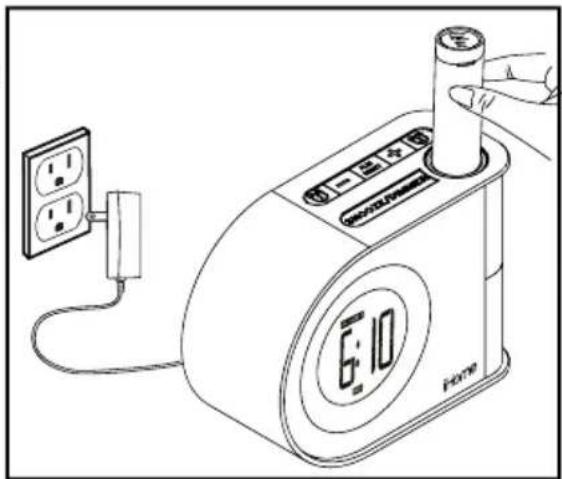
Note: The iPB2 must be charged for at least 3 hours before first use.
Caution: Only charge the iPB2 in the iH402.4 Do not try to insert an iHome K-Cell or other power bank
CHARGING THE iPB2 POWER BANK VIA USB (POWER BANK NOT IN UNIT)
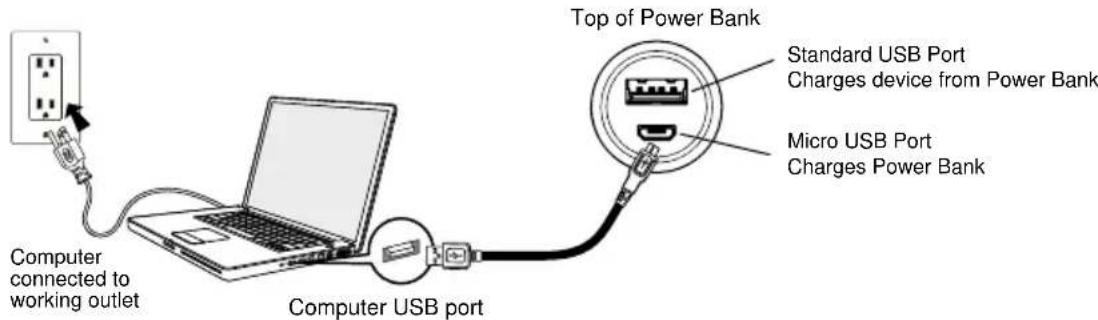
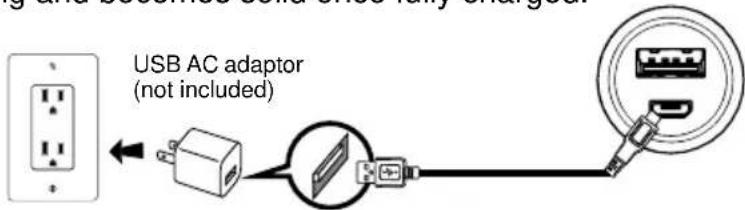
Connect the included micro USB cable to the micro USB Charging Port on the top of the iPB2 Power Bank and connect the other standard USB plug to a computer, USB AC adaptor (not included) or other USB power source. The Battery Charge LED on the Power Bank flashes blue while it is charging and becomes solid once fully charged.
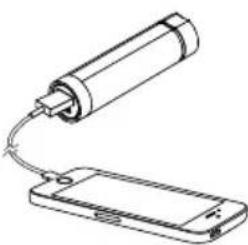
USING THE POWER BANK TO CHARGE DEVICES
natural_image
Line drawing of a battery connected to a smartphone (no text or symbols)Connect the USB cable plug included with your device to the standard USB Charging Port on the top of the iPB2 Power Bank and connect the other end to the device you wish to charge. To charge an Android or Windows phone you may use the USB-to-micro USB cable supplied with this model. To charge an Apple IOS iPhone or iPod, with either Lightning or 30-pin connector, use the charging cable that was supplied with your Apple device. Monitor charging status on your device.
Charging Devices Using the USB Port

Unit must be connected to working outlet to charge devices via the USB Port.
Connect the USB cable plug included with your device to the standard USB Charging Port on the right side of the iH402 and connect the other end to the device you wish to charge. To charge an Android or Windows phone you may use the USB-to-micro USB cable supplied with this model. To charge an Apple IOS iPhone or iPod, with either Lightning or 30-pin connector, use the charging cable that was supplied with your Apple device. Monitor charging status on the device. Some devices require higher output USB. If device does not charge, use charger that came with device.
Lithium Battery Warning
The iPB2 Power Bank supplied with this unit uses a built-in Lithium battery
- Lithium batteries can explode or cause burns if disassembled, shorted, recharged, exposed to water, fire, or high temperatures & not handled appropriately
- Do not place loose batteries in a pocket, purse, or other container containing metal objects. Do not store with hazardous or combustible materials.
- Store in cool, dry, ventilated area. Keep Power Bank away from moisture.
- Follow applicable laws and regulations for transport and disposal.
Setting the Time
1
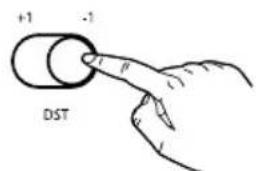

By default, the Daylight Saving Time (DST) Switch is set to -1 for Standard Time. To add an hour for daylight saving time, slide the DST Switch located on the back of the unit to the +1 position (left). Slide back when Standard Time resumes.
2


Press and hold the Clock Set Button located on the back of the unit until the time flashes on the display and a beep sounds.
3
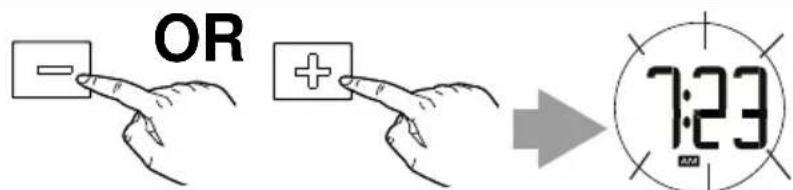
Press and release the – or + Set Button to adjust the clock to the current time (press and hold for rapid adjustment). NOTE: Make sure to set the correct AM or PM time. AM/PM indicators appear just below the time display.
4

Press and release the Clock Set Button to complete clock setting. 2 confirmation beeps will sound.
Setting and Using Alarms
This unit has two independent alarms, Alarm 1 and Alarm 2. Each is set and operates in the same way. Instructions below show Alarm 1. Follow the same method to set Alarm 2.
1
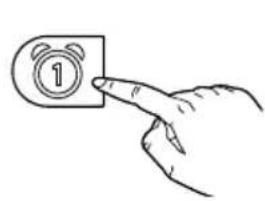
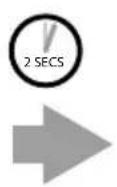

Press and hold the Alarm 1 Button until current alarm time flashes on the display and a beep sounds.
2


natural_image
Hand pointing at a medical cross symbol (no text or labels)

Press and release the – or + Set Button to adjust the clock to the desired alarm time (press and hold for rapid adjustment). NOTE: Make sure to set the correct AM or PM time. AM/PM indicators appear just below the time display.
3
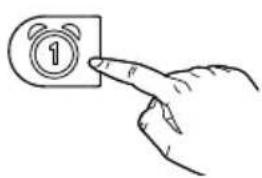


Press and release the Alarm 1 Button to complete setting Alarm 1.2 beeps confirm alarm is armed.
SELECTING YOUR ALARM VOLUME
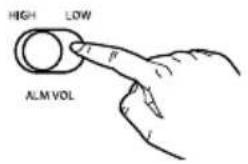
This unit features a High/Low Alarm Volume Switch located on back of the unit. Set to High if you are a sound sleeper, or to Low if you wake more easily.
RESETTING AN ALARM TO COME ON THE NEXT DAY
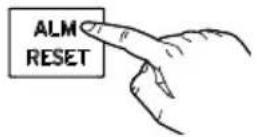
To silence any sounding alarm and reset it come on the next day at the same time, press and release the Alarm Reset Button. The alarm icon will remain on the display.
CANCELING/DISARMING AN ALARM

Press and release the related Alarm Button to cancel a currently set or sounding alarm. The related alarm indicator will disappear from the display. To re-arm an alarm, press and release the alarm button again.
SNOOZE

Press and release the Snooze/Dimmer Button when the alarm sounds to silence it for 9 minutes. Snooze can be used several times during alarm.
PROGRAMMING SNOOZE
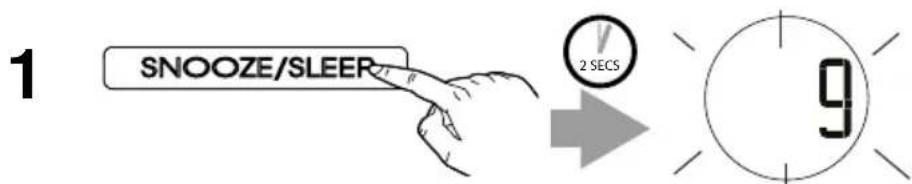
To program snooze for a longer or shorter duration, press and hold the Snooze/Dimmer Button during normal operation (when the alarm is NOT sounding). The snooze duration will flash on the display and a beep will sound.
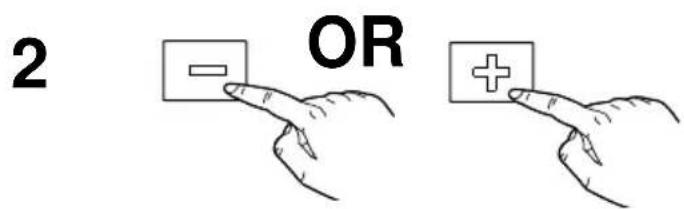
Press and release the - or + Set Button to adjust the snooze duration time from 1 up to 29 minutes. Press the Snooze/Dimmer Button to confirm. 2 beeps will sound.
Dimmer
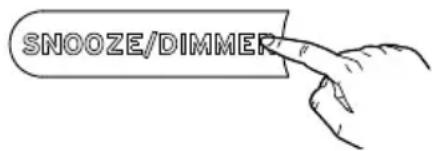
Press and release the Snooze/Dimmer Button during normal operation (when alarm is not sounding) to cycle display brightness settings, including OFF.
Battery Cautions and Tips
- Only use the recommended/supplied batteries or equivalent.
- Use alkaline batteries for longer life.
- Do not mix old and new batteries, and do not mix alkaline, carbon-zinc or rechargeable nickel-cadmium batteries.
- Insert batteries with proper polarity (+/−) as indicated.
- Remove exhausted batteries from product.
- Recharge rechargeable batteries under adult supervision.
- Do not attempt to recharge non-rechargeable batteries.
- Do not open batteries or heat them beyond normal ambient temperatures.
- To prevent battery leakage or damage remove batteries from a product if it will not be used for a month or longer.
- Use extreme caution handling leaking batteries (avoid direct contact with eyes and skin). If battery leakage comes in contact with eyes, IMMEDIATELY flush the eye with lukewarm and gently flowing water for at least 30 minutes. If skin contact occurs, wash skin with clear water for at least 15 minutes. Seek medical attention if any symptoms occur.
- Store in cool, dry, ventilated area away from hazardous or combustible material.
- Do not dispose of batteries in the household trash or fire.
- Follow applicable laws and local regulations for the disposal and transportation of batteries.
IMPORTANT SAFETY INSTRUCTIONS
When used in the directed manner, this unit has been designed and manufactured to ensure your personal safety. However, improper use can result in potential electrical shock or fire hazards. Please read all safety and operating instructions carefully before installation and use, and keep these instructions handy for future reference. Take special note of all warnings listed in these instructions and on the unit.
-
Water and Moisture – The unit should not be used near water. For example: near a bathtub, washbowl, kitchen sink, laundry tub, swimming pool or in a wet basement.
-
Ventilation – The unit should be situated so that its location or position does not interfere with its proper ventilation. For example, it should not be situated on a bed, sofa, rug or similar surface that may block ventilation openings. Also, it should not be placed in a built-in installation, such as a bookcase or cabinet, which may impede the flow of air through the ventilation openings.
-
Heat – The unit should be situated away from heat sources such as radiators, heat registers, stoves or other appliances (including amplifiers) that produce heat.
-
Power Sources – The unit should be connected to a power supply only of the type described in the operating instructions or as marked on the appliance.
-
Power-Cable Protection – Power supply cables should be routed so that they are not likely to be walked on or pinched by items placed upon or against them. It is always best to have a clear area from where the cable exits the unit to where it is plugged into an AC socket.
-
Cleaning – The unit should be cleaned only as recommended. See the Maintenance section of this manual for cleaning instructions.
-
Objects and Liquid Entry – Care should be taken so that objects do not fall and liquids are not spilled into any openings or vents located on the product.
-
Attachments – Do not use attachments not recommended by the product manufacturer.
-
Lightning and Power Surge Protection – Unplug the unit from the wall socket and disconnect the antenna or cable system during a lightning storm or when it is left unattended and unused for long periods of time. This will prevent damage to the product due to lightning and power-line surges.
-
Overloading – Do not overload wall sockets, extension cords, or integral convenience receptacles as this can result in a risk of fire or electric shock.
-
Damage Requiring Service – The unit should be serviced by qualified service personnel when:
A. the power supply cable or plug has been damaged.
B. objects have fallen into or liquid has been spilled into the enclosure.
C. the unit has been exposed to rain.
D. the unit has been dropped or the enclosure damaged.
E. the unit exhibits a marked change in performance or does not operate normally.
-
Periods of Nonuse – If the unit is to be left unused for an extended period of time, such as a month or longer, the power cable should be unplugged from the unit to prevent damage or corrosion.
-
Servicing – The user should not attempt to service the unit beyond those methods described in the user's operating instructions. Service methods not covered in the operating instructions should be referred to qualified service personnel.
Troubleshooting
1. The unit does not power ON.
The unit is not connected to AC outlet, the AC outlet has no power, or is controlled by a wall switch that is "OFF". Check AC outlet and wall switch.
2. Alarm does not come on
The alarm time AM or PM incorrectly set, Alarm was OFF, etc. Check alarm settings.
3. Low battery indicator is flashing.
Batteries have not been installed correctly in the battery compartment or the batteries may be weak or exhausted. Try replacing batteries.
4. iPB2 Power Bank will not charge other devices
The iPB2 Power Bank is not fully charged or is not connected properly to the device. Make sure Power Bank is charged, and that you are using USB charging cables known to be good. Device may require 2.1 amp USB charging. This unit provides 1 amp USB charging.
5. iPB2 Power Bank cell does not charge up
The iPB2 Power Bank cell is not seated correctly in the unit, AC adaptor is not connected properly
6. Unit doesn't respond (locked up or frozen).
The unit may need to be reset. To do so, unplug the unit from power source and remove the backup batteries. Let unit stand for 2 minutes. Re-install backup batteries and connect unit to power source. You will need to reset the clock and any other settings.
FCC Information
This device complies with Part 15 of the FCC Rules, operation is subject to the following two conditions: (1) This device may not cause harmful interference, and (2) this device must accept any interference received, including interference that may cause undesired operation.
- Warning: Changes or modifications to this unit not expressly approved by the party responsible for compliance could void the user's authority to operate the equipment.
• NOTE: This equipment has been tested and found to comply with the limits for a Class B digital device, pursuant to Part 15 of the FCC Rules.
These limits are designed to provide reasonable protection against harmful interference in a residential installation. This equipment generates, uses and can radiate radio frequency energy and, if not installed and used in accordance with the instructions, may cause harmful interference to radio communications.
However, there is no guarantee that interference will not occur in a particular installation. If this equipment does cause harmful interference to radio or television reception, which can be determined by turning the equipment off and on, the user is encouraged to try to correct the interference by one or more of the following measures:
- Reorient or relocate the receiving antenna.
- Increase the separation between the equipment and receiver.
- Connect the equipment into an outlet on a circuit different from that to which the receiver is connected.
- Consult the dealer or an experienced radio/TV technician for help.
CAN ICES-3 (B)/NMB-3(B)
Limited 90 day Warranty
iHome Products, a division of SDI Technologies Inc. (hereafter referred to as SDI), warrants this product to be free from defects in workmanship and materials, under normal use and conditions, for a period of one (90) days from the date of original purchase.
Should this product fail to function in a satisfactory manner, it is best to first return it to the store where it was originally purchased. Should this fail to resolve the matter and service still be required by reason of any defect or malfunction during the warranty period, SDI will repair or, at its discretion, replace this product without charge. This decision is subject to verification of the defect or malfunction upon delivery of this product to the Factory Service Center authorized by SDI Customer Service. The product must include proof of purchase, including date of purchase. An out-of-warranty fee for service will be charged for units that are received without proof of purchase.
Before returning this product for service, please first replace the batteries (if applicable) with fresh ones, as exhausted or defective batteries are the most common cause of problems encountered.
If service is still required:
-
Call SDI Customer Service at 1-800-288-2792 for Return Authorization and for the address of the Factory Service Center.
-
Remove the batteries (if applicable) and pack the unit in a well padded, heavy corrugated box. SDI is not responsible for damage that occurs during shipping to the Factory Service Center.
-
Enclose a photocopy of your sales receipt, credit card statement, or other proof of the date of purchase, if within the warranty period. Also include your name and address information, a brief description for why the unit is being returned, and the return authorization number. No unit can be processed without a return authorization number.
-
Write the return authorization number on the side of the shipping package and send the unit prepaid and insured to the Factory Service Center address authorized by SDI Customer Service.
Disclaimer of Warranty
NOTE: This warranty is valid only if the product is used for the purpose for which it was designed. It does not cover (i) products which have been damaged by negligence or willful actions, misuse or accident, or which have been modified or repaired by unauthorized persons; (ii) cracked or broken cabinets, or units damaged by excessive heat; (iii) damage to digital media players, CD's or tape cassettes (if applicable); (iv) the cost of shipping this product to the Factory Service Center and its return to the owner.
This warranty is valid only in the United States of America and does not extend to owners of the product other than to the original purchaser. In no event will SDI or any of its affiliates, contractors, resellers, their officers, directors,
shareholders, members or agents be liable to you or any third party for any consequential or incidental damages, any lost profits, actual, exemplary or punitive damages. (Some states do not allow limitations on implied warranties or exclusion of consequential damages, so these restrictions may not apply to you.) This warranty gives you specific legal rights, and you may also have other rights which vary from state to state.
Your acknowledgment and agreement to fully and completely abide by the above mentioned disclaimer of warranty is contractually binding to you upon your transfer of currency (money order, cashier's check, or credit card) for purchase of your SDI product.
© 2015 SDI Technologies, Inc. All rights reserved
Questions? Visit www.ihome.com
iH402_051315_A
Printed in China 1-800-288-2792 Toll Free
- Table of Contents
- What's in the Box
- Product Care
- Installing and Replacing Backup Batteries
- Set Up
- Connecting AC Adaptor to Power Source
- Charging and Using the Power Bank
- CHARGING THE iPB2 POWER BANK IN THE UNIT
- CHARGING THE iPB2 POWER BANK VIA USB (POWER BANK NOT IN UNIT)
- USING THE POWER BANK TO CHARGE DEVICES
- Charging Devices Using the USB Port
- Unit must be connected to working outlet to charge devices via the USB Port.
- Lithium Battery Warning
- Setting the Time
- 1
- 2
- 3
- 4
- Setting and Using Alarms
- SELECTING YOUR ALARM VOLUME
- RESETTING AN ALARM TO COME ON THE NEXT DAY
- CANCELING/DISARMING AN ALARM
- SNOOZE
- PROGRAMMING SNOOZE
- Dimmer
- Battery Cautions and Tips
- IMPORTANT SAFETY INSTRUCTIONS
- Troubleshooting
- The unit does not power ON.
- Alarm does not come on
- Low battery indicator is flashing.
- iPB2 Power Bank will not charge other devices
- iPB2 Power Bank cell does not charge up
- Unit doesn't respond (locked up or frozen).
- FCC Information
- Limited 90 day Warranty
Brand : IHOME
Model : iH402
Category : Clock