
Traffic Assist Z 101 - Browser BECKER - Free user manual and instructions
Find the device manual for free Traffic Assist Z 101 BECKER in PDF.


| Product Type | Personal Navigation Device (PND) |
| Brand | Becker |
| Model | Traffic Assist Z 101 |
| Dimensions (WxHxD) | 125.3 x 82.4 x 17.6 mm |
| Weight | 168 g |
| Processor | 400 MHz, CISC architecture |
| Display | 4.3-inch touch-screen, 24-bit color depth, 16.7 million colors, low reflection |
| Internal Memory | 2 GB ROM, 64 MB SD-RAM |
| External Memory | microSD card slot, supports up to 4 GB (FAT32 formatted) |
| USB Interface | USB Client 2.0, Mini USB |
| Headphone Output | 3.5 mm stereo socket |
| Internal Speaker | 1.8 W max |
| Power Supply | 5V DC via USB; car adapter 12/24V 0.5A; optional AC adapter 100-240V 0.2A 50-60Hz |
| Battery | Integrated rechargeable lithium-ion, maintenance-free |
| Navigation Features | European maps pre-installed, lane info, split-screen, turn-by-turn, route list, TMC dynamic routing |
| GPS Antenna | Integrated; external antenna connection available (optional) |
| TMC Antenna | Included; for traffic message reception |
| Included Accessories | Unit holder, TMC antenna, USB cable, 12/24V car power adapter, DVD with installer and maps |
| Mounting | Windshield suction mount with adjustable bracket |
| Touch Screen Calibration | Available in settings if response becomes imprecise |
| Reset | Reset button on top of unit |
| Operating Temperature | Not specified; avoid prolonged exposure to temperatures above +70°C |
| Languages Supported | Multiple European languages selectable |
Frequently Asked Questions - Traffic Assist Z 101 BECKER
User questions about Traffic Assist Z 101 BECKER
0 question about this device. Answer the ones you know or ask your own.
Ask a new question about this device
Download the instructions for your Browser in PDF format for free! Find your manual Traffic Assist Z 101 - BECKER and take your electronic device back in hand. On this page are published all the documents necessary for the use of your device. Traffic Assist Z 101 by BECKER.
USER MANUAL Traffic Assist Z 101 BECKER
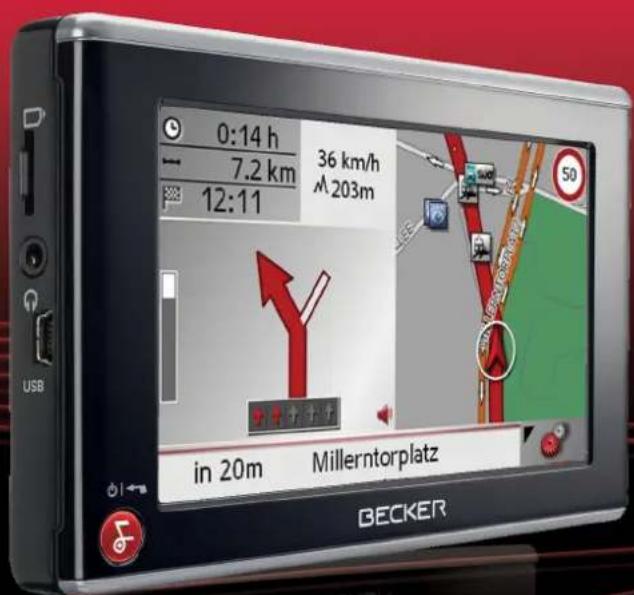
Becker Traffic Assist Z 101
→ 2 GB INTERNAL MEMORY → 4.3" TOUCH-SCREEN →
→ EUROPEAN NAVIGATION → LANE INFO → SPLIT-SCREEN →
→ TURN-BY-TURN → ROUTE LIST → TMC-FUNCTION →

BECKER
Operating instructions

INDEX
→D
→GB
→ F
→1
→ E
→ NL
Index 2
Safety information 4
The Traffic Assist 6
Use 6
Navigation 6
Unpacking the Traffic Assist 6
Checking the delivery 6
Delivery contents 7
Complaints procedure 7
Handling the packaging 7
Description of unit 7
Traffic Assist - basic unit 8
Cable for power supply from
cigarette lighter 8
Battery 8
USB connection cable 8
Unit bracket 8
Map data 8
Accessories 9
Mains power supply unit 9
External GPS antenna 9
Headset 9
Information about
documentation 9
Quick start guide 9
Operating instructions 9
Registration 10
Repairs 10
Emissions and disposal 10
Overview Traffic Assist 11
General operation 14
Maintenance and care 14
Battery quality declaration 15
Display quality declaration 15
Start-up 15
Power supply 15
Using the battery 16
Connecting to the cigarette lighter 16
Connecting to socket 17
Connecting up to power supply 17
TMC antenna 17
GPS-antenna 17
Unit antenna 17
Connecting up external
antenna 18
Memory card 18
Inserting memory card 18
Ejecting memory card 18
Unit bracket 19
Fitting the unit bracket 19
On the windscreen 20
Adjusting the unit bracket 20
Adding the Traffic Assist 20
Removing the Traffic Assist 20
Switching the Traffic Assist on/off 20
Switching on 20
Switching off 21
Basic information about the
touch screen 22
Operation 22
Calibration 22
Basic information about the menus 22
Entries made with the entry menu 22
Entering characters 23
Adopting suggestions 23
Scrolling through the lists 23
Special characters and umlauts 24
Entering numbers 24
Switching between upper and
lower case 24
Deleting characters 25
Inserting spaces 25
The Becker key 25
Transferring files 25
Installation program 25
Transferring using the USB port 26
Transferring maps 26
Faults 26
Navigational mode 27
What is navigation? 27
Rapid access 28
Structure of rapid access 28
Destination input menu and
map display 28
The list of destinations 28
Icons used 29
Operating rapid access 29
Starting using an existing destination 29
Scrolling in the destinations memory 29
Displaying or editing destination 29
Change to map display 30
INDEX

Displaying current position 31
Opening the Destination input menu 31
The Destination input menu 31
Configuration of the Destination
input menu 31
Address 31
Point of interest 31
Settings 31
Destination input menu: Address 32
Selecting a country 32
Select address and start 32
Cancelling navigation 38
Destination input menu:
Point of interest 38
Point of interest: Near GPS position 38
Point of interest: nationwide 39
Destination input menu: Settings 41
The Route info key 41
The Routing options key 43
The Speed key 44
The Brightness key 44
The Energy key 45
The Volume key 45
The Tones key 46
The Format key 46
The Time Zone key 46
The Language key 47
The Information key 47
The Automatic on/off key 48
The Calibration key 48
The Factory settings key 48
What is dynamic route guidance? 49
Displaying TMC messages on the map 49
Using TMC 50
Reading a message 50
Display the relevant road in the map 51
Updating announcements 51
Map display 51
Map layout 51
Map display without driving guidance 51
Entire map with route guidance 52
Spilt screen with route guidance 53
Route guidance with arrow display 53
Using the map display 54
Repeat the last voice prompt 54
Changing the announcement volume 54
Map zooming 54
Map display with toolbar 55
The Navi options button 55
Displaying/editing directions 56
The Map options button 57
The POI along route button 58
The TMC button 59
The Day / Night button 59
Specialist words 60
Keywords 62
Technical Data 64
NOTICE 65
EU Declaration of Conformity 65
Disposal of the unit 66
Disposal of the battery 67
Duty to supply information according to battery legislation (BattV) 67
Removing the battery 67
The information and data contained in these documents are subject to change without prior notice.
No part of these documents may be reproduced or transmitted for any purpose without express written permission from HARMAN/BECKER Automotive Systems GmbH. All technical information, drawings etc. are subject to copyright law.
© Copyright 2008, HARMAN/BECKER Automotive Systems GmbH
All rights reserved.
→ D
→GB
→ F
→ |
→ E
→ NL
⚠ Safety information
- The unit may only be operated if the traffic situation allows for this and if you are absolutely certain that you yourself, your fellow passengers or other road users will not be put at risk, encumbered or disturbed by this.
- The rules of applicable road traffic acts must be observed at all times. Destinations may only be input when the vehicle is stationary.
- The navigational system is only an aid. The data/details provided may in some cases be incorrect. The driver must always decide whether to follow the details given or not. We accept no liability for the navigational system issuing incorrect details. As a result of traffic routing changes and deviating data, inaccurate or incorrect instructions may be given. Drivers should always pay attention to the actual road signs and traffic control. In particular, the navigational system cannot be used as a means of orientation in cases of poor visibility.
- The unit may only be used for its intended purpose. The volume of the navigational system should be set so that noises outside the vehicle can still be heard.
- The unit should be switched off immediately if faults occur (e.g. development of smoke or smells).
- For safety reasons, the unit may only be opened by a specialist. Please contact your local stockist if you require repairs.
SAFETY INFORMATION
- The mains voltages (V) indicated on the mains charger, the car charger adapter and the unit must not be exceeded. Failure to observe this can result in destruction of the unit and the charger as well as explosion of the rechargeable battery.
- Never open the unit or the rechargeable battery. Any modification to the unit is also impermissible and renders the type approval invalid.
- Use only genuine BECKER original accessories. This will ensure that all the relevant regulations are complied with and damage to health and property is avoided. Dispose of defective units and the rechargeable battery according to the applicable legal requirements.
- No warranty is granted in the case of improper use. These safety instructions also apply to genuine BECKER original accessories.

THE TRAFFIC ASSIST
Use
The Traffic Assist is a high-performance PND (Personal Navigation Device) for use in vehicles. The unit should be protected from dampness and dirt.
natural_image
Exterior view of a modern office building (no signage)Navigation
Thanks to GPS = Global Positioning System, you no longer need to spend hours searching through road atlases.
Once outside buildings, the receiver antenna integrated in the unit gives you continuous access to navigational possibilities. Depending on reception, you may not be able to use the navigational function inside buildings. When used in vehicles, you may not be able to adequately receive GPS data depending on how the Traffic Assist is installed. In such cases, you will have to connect up an external antenna (does not fall within the scope of supply).
The Traffic Assist with TMC is equipped with TMC, which gives you the option of receiving traffic announcements via the TMC antenna provided. Traffic announcements are transmitted when the TMC is active.
Unpacking the Traffic Assist
Note:
Your Traffic Assist is supplied in stable packaging. Do not unpack the unit in full if you discover any serious damage to the packaging or its content. If this happens, please contact your local stockist.
Checking the delivery
Before the Traffic Assist is started up, the delivery should be checked to ensure that it is complete and in the correct condition (see also page 11).
→ Carefully unpack the content of the package and check it.
THE TRAFFIC ASSIST
Delivery contents

natural_image
Product line of a handheld electronic device with labeled components including monitor, connectors, and cable (no text or symbols visible)1 Traffic Assist
2 Unit holder
3 TMC antenna
4 USB cable
5 12 V/24 V car power adapter for cigarette lighter socket
6 DVD with installer for map data, actual map data and operating instructions (not illustrated).
Complaints procedure
Please contact your local stockist if you have any complaints. The unit can also be sent directly to Harman/Becker in its original packaging.
Handling the packaging
Keep the original packaging in a dry place, at least for the warranty period.
Note:
The packaging should be disposed of correctly in accordance with national disposal guidelines. The packaging must not be burnt. Depending on the country to which the unit is supplied, it may be possible for local stockists to accept packaging.
Description of unit
The Traffic Assist consists of the basic unit Traffic Assist and the accessories included in the delivery.
You will find photos of the individual parts under:
• "Overview Traffic Assist" on page 11
Note:
The basic unit and accessories must not be opened or modified in any way.

THE TRAFFIC ASSIST
→D
→ GB
→ F
→ |
→ E
→ NL
Traffic Assist - basic unit
The basic unit contains all the electronics:
- an integrated GPS antenna,
- a TMC receiver for the reception of traffic messages,
- a touchscreen,
- an integrated loudspeaker for the output of messages during navigation.
On the sides of the unit, there are also various connections and ports.
You will find more details of the unit under:
- See "Technical Data" on page 64.
Cable for power supply from cigarette lighter
This cable allows the unit to be connected up to the car's cigarette lighter.
The power supply must satisfy the following requirements:
• DC current 12/24 volts 0.5 amps
Battery
When depleted, the integrated rechargeable battery can be recharged by connecting the Traffic Assist to the power supply. For this purpose, connect the unit via a car power adapter to a 12/24 V socket in a vehicle or via the optional mains power supply unit to the 230 V mains.
Note:
You can charge the Traffic Assist via the car charger cable included in the scope of delivery or via the optionally-available mains power supply unit.
When the Traffic Assist is connected to a PC, it is supplied with power via the PC and does not consume battery power.
USB connection cable
The USB connection cable can be used to connect the unit to a standard personal computer by means of the USB port. However, to use the data on the PC, you will first have to install the free "Active Sync" software from Microsoft®.
Unit bracket
The Traffic Assist can be mounted in the vehicle using the unit bracket.
Map data
The map data for navigation is pre-installed in a 2 GB internal memory.
Accessories
Mains power supply unit
This power supply allows connection of the Traffic Assist to a mains outlet.
Requirements for power supply:
Alternating current
• 100-240 V
0.2 Amps
50-60 Hertz
External GPS antenna
You can use an external antenna to improve reception in vehicles where only limited GPS reception is available (not included in the scope of supply). Please contact your local stockist for more information.
Details of the connection can be found under "Connecting up external antenna" on page 18.
Headset
Commercially available headphones with a 3.5 mm jack or suitable adapter can be connected to the Traffic Assist (not included).
⚠️ Danger!
Prevention of damage to hearing

The use of headphones or earphones over a relatively long period of time at a high volume may cause permanent damage to your hearing.
Conformity with the limits for sound pressure laid down in the standard NF EN 50332-1:2000 as required by French Article L. 5232-1 is guaranteed.
Note:
Headphones must not be used while driving. Comply with the local national laws and regulations.
Information about documentation
Quick start guide
The Quick Start Guide is designed to provide a brief introduction to operating your Traffic Assist. The most important basic functions of the Traffic Assist are explained in the Quick Start Guide.
Operating instructions
A comprehensive explanation of the Traffic Assist functionalities is contained in these operating instructions.

THE TRAFFIC ASSIST
→D
→GB
→ F
→ |
→ E
→ NL
Registration
You can register your product using our software service, we will then inform you of any new updates and other news. You can register online on the Becker homepage www.mybecker.com.
The "Software update" menu item is located under "SERVICE/SUPPORT".
Repairs
The unit must not be opened if damaged. Please contact your local stockist.
Emissions and disposal
Information on emissions, electromagnetic compatibility and disposal can be found in "NOTICE" on page 65.
OVERVIEW TRAFFIC ASSIST
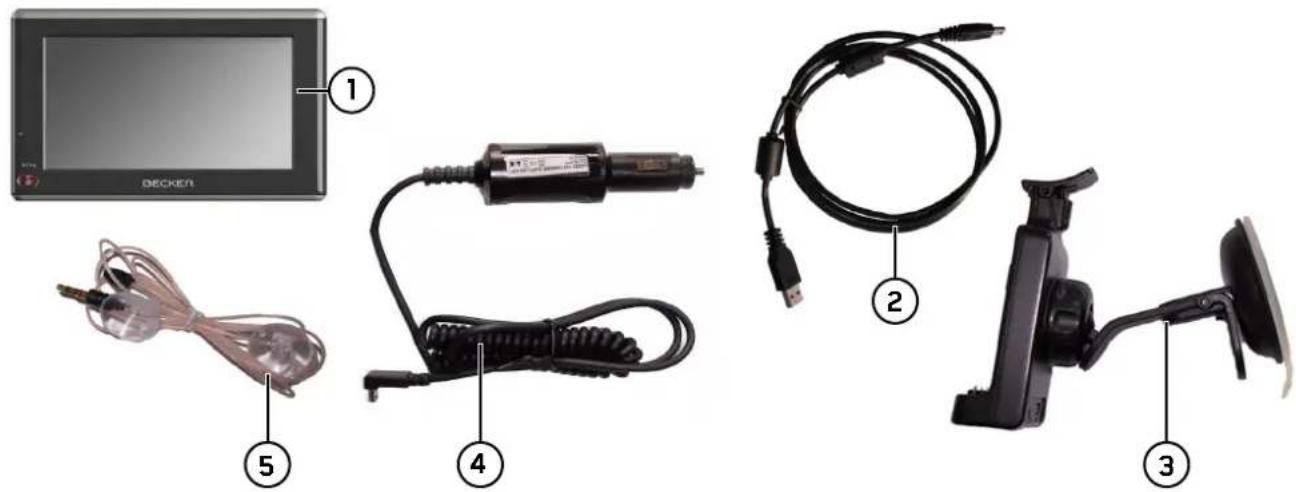
Scope of supply
1 Traffic Assist - PND (Personal Navigation Device)
2 USB connection cable
3 Unit bracket
4 Cable for power supply from car's cigarette lighter (12/24 volts)
5 TMC antenna

OVERVIEW TRAFFIC ASSIST
→D
→GB
→F
→1
→ E
→NL


Front of unit with controls and displays
1 Touchscreen with fast access
2 Touch screen key
Press = activates the corresponding key command
3 Becker key ()

Press = Back function in most applications
Press for longer = switches the Traffic Assist on and off
Rear of unit
4 Point for connecting up an external antenna (external antenna not included in the scope of supply)
OVERVIEW TRAFFIC ASSIST
→→

natural_image
Diagram of a device with three pins and a numbered circle (5) pointing to it, no text or symbols present.Left side of unit
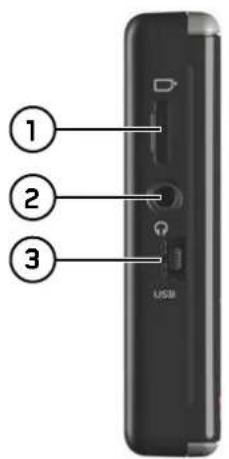
1 Micro-SD memory card slot
2 3.5 mm connection for headset/Connection socket for TMC antenna (headset not included in scope of supply)
3 Mini USB connection
Top of unit
4 Reset button
Bottom of unit
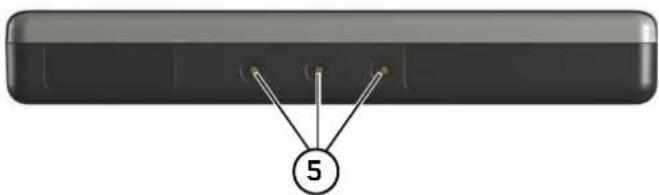
5 Contacts for connecting the carrier plate
Maintenance and care
The unit is maintenance-free.
For proper care, a commercially available cleansing fluid for electrical devices may be applied using a soft damp cloth.
⚠️ Danger!
Danger to life by electrocution. Always switch off the unit and disconnect the mains power supply unit before cleaning the unit, supplied components, or accessories.
Note:
Do not use any aggressive or abrasive substances or cloths which may damage the surface.
The unit must not be exposed to water.
Your mobile navigation system was designed and manufactured with great care and should be treated with equal care. You will enjoy your mobile navigation system for a long time to come if you observe the recommendations listed in the following:
- "Protect your mobile navigation system from water and moisture. If your unit is exposed to moisture, switch it off immediately and disconnect the power supply. Allow the unit to dry at room temperature.
- Do not operate your mobile navigation system in a dusty or dirty environment and do not store it in such an environment.
- Do not store your mobile navigation system in hot environments. High temperatures can shorten the service life of electronic components in your unit, damage the rechargeable batteries and cause certain plastics to warp or melt.
- Do not store your mobile navigation system in cold environments. During operation, when the unit warms up to operating temperature, moisture may form internally, causing damage to electronic components.
- Do not drop your mobile navigation system unit, protect it from shocks and do not shake it. Improper handling can damage components within the unit.
- Never use corrosive or aggressive chemicals, cleaning solutions or aggressive detergents for cleaning.
All the above information applies equally to the mobile navigation system, the rechargeable battery, the mains charging and car power adapters as well as all accessories. Should one of these parts not work properly, please contact your authorised dealer.
Battery quality declaration
The capacity of the rechargeable battery in your mobile navigation system decreases with every charging/discharging cycle. Improper storage at excessively high or low temperatures may also cause a gradual deterioration of capacity. Consequently, the operating time may be substantially reduced even in the case of a fully charged battery.
The rechargeable battery is designed such that it should certainly still be possible for it to be charged and discharged after 6 months of operation of your mobile navigation system.
Display quality declaration
In some cases, for technical reasons, a few discoloured dots (pixels) may be visible on the display. Some pixels may also appear brighter or darker. However, such instances do not represent a product flaw.
Start-up
Once the Traffic Assist has been unpacked and checked for damage, the unit can be started up. The individual start-up stages are:
- connect to power supply
- Switching on the unit
- Ensuring antenna reception (if navigation is desired)
Power supply
Note:
You can charge the Traffic Assist via the car charger cable included in the scope of delivery or via the optionally-available mains power supply unit.
When the Traffic Assist is connected to a PC, it is supplied with power via the PC and does not consume battery power.

GERNARAL OPERATION
→D
→GB
→F
→1
→ E
→NL
Using the battery
The internal power supply is via the integrated rechargeable battery. The rechargeable battery is maintenance-free and does not require any particular care.
Note:
Note that if the battery is completely discharged, it may take up to a minute before the device can be switched on again.
Note:
In the event of a defective battery, please contact your authorised dealer. Please do not attempt to remove the battery yourself.
Connecting to the cigarette lighter
Note:
If the cigarette lighter has just been used and is still warm, wait until this has cooled down in its mounting.
Power supplies using a vehicle battery are connected up as follows using the cable supplied for the cigarette lighter.
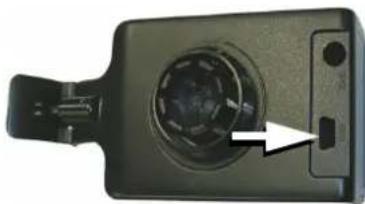
→ Hold the USB socket at the corrugated grip area and push it into the connecting socket on the Traffic Assist or into the connecting socket on the carrier plate as far as the stop, without using excessive force.
natural_image
Close-up of a black electronic device with a circular vent and a switch, no visible text or symbols
natural_image
Close-up of a hand inserting a USB into a black electronic device (no visible text or symbols)→ Plug the plug adapter into the cigarette lighter.
Note:
If the engine is switched off, using the vehicle's power supply through the cigarette lighter will slowly drain the vehicle battery! Do not therefore operate the Traffic Assist for extended periods with the engine off.
Connecting to socket
⚠️ Danger of Death!
Make sure that your hands are not damp and that the mains section is dry. Only connect the mains section to a mains supply with which such purposes are permitted.
Connecting up to power supply
Connection to the public mains grid is achieved using the optionally-available mains power supply unit. Please proceed as follows to connect to the mains:
→ Hold the USB socket at the corrugated grip area and push it into the connecting socket on the Traffic Assist or into the connecting socket on the carrier plate as far as the stop, without using excessive force.
→ Use the plug to insert the mains section in the socket.
Note:
Remove the mains section if you are not planning on using the Traffic Assist for a long time.
TMC antenna
The TMC antenna included in the accessories is used to receive traffic announcements.
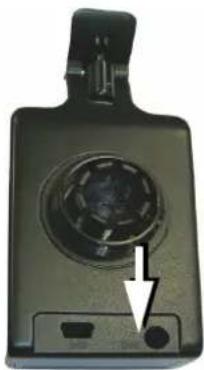
→ Push the connector of the TMC antenna into the socket provided on the back of the carrier plate without using excessive force.
natural_image
Close-up of a black electronic device with a circular vent and a small button, no visible text or symbols.Note:
The TMC antenna must be routed so that your ability to drive the vehicle is not impaired.
GPS-antenna
Unit antenna
The GPS antenna is integrated into the housing.
Note:
The integrated GPS antenna is not suitable for use in vehicles with anti-glare windows (metalised thermo-glass or metal foil, indicated by the window label - SIGLA SOL, SIGLA CHROM, SIGLA, KOOL-OF, SUNGATE, etc.) and vehicles with fine-meshed heating wires in the windows.
If this is the case, use an external GPS antenna. Please consult your local specialist dealer.

GERNARAL OPERATION
→D
→ GB
→ F
→ |
→ E
→ NL
Connecting up external antenna
To enable reception under adverse reception conditions, an external GPS antenna can be connected (not included). For this purpose, a closable connecting socket is located on the rear of the housing. If no external antenna is connected, this connection must always be closed again.

natural_image
Close-up of a black laptop keyboard with ventilation grille and a small button (no readable text or symbols)→ Open the closure by pulling gently on its upper surface.
→ Connect the external antenna using the optionally available adapter.
Memory card
Your Traffic Assist has a slot for a Micro SD memory card.
As the card data is stored on an internal memory in the Traffic Assist, the slot for a Micro SD memory card is only used for updates.

natural_image
Close-up of a black electronic device with a close-up inset showing internal components (no text or symbols visible)The card slot is located on the left side of the unit. The card slot is equipped with a spring-actuated locking and ejector mechanism.
Notes:
The memory card should only ever be inserted and ejected when the unit is switched off. If the unit is not switched off, data may be lost.
Inserting memory card
→ Remove the memory card from its packaging without touching or soiling the contact bar.
→ Hold the memory card such that the contact bar faces towards the rear of the unit.
→ Guide the memory card into the card slot.
→ Exert a little pressure and slide the memory card into the card slot until it snaps in.
Ejecting memory card
The card slot ejects the card so that you can pull it out with two fingers.
→ Use your finger to gently press the memory card against the spring force into the card slot and then release it.
The card is ejected.
→ Remove the memory card and place it in the packaging while ensuring not to touch contact bar.
Unit bracket
The Traffic Assist can be attached directly to the windscreen with the unit holder.
Note:
The Traffic Assist and unit bracket must not be exposed to long periods of direct sunlight. Temperatures inside the vehicle of +70 C and higher may damage parts of the bracket.
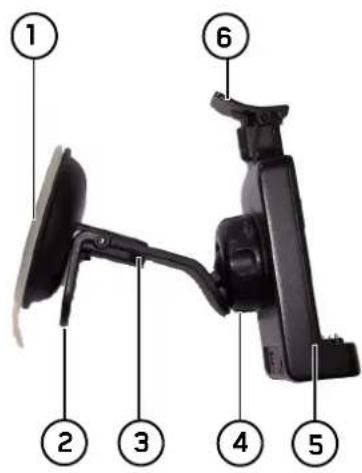
① Suction surface
② Lever
③ Base
④ Fastening screw
⑤ Carrier plate
⑥ Clip
Fitting the unit bracket
Note:
Fasten the unit holder such that your field of vision is not impaired when the Traffic Assist is installed and ensure that the unit is outside the deployment area of the airbag.
Ensure that the electrical connection cable does not hamper you from accessing the vehicle's controls.
Clean the attachment surface on the windscreen to ensure that it is clean and free of grease. Do not use greasy or soapy cleaning agents.

GERNARAL OPERATION
→D
→ GB
→ F
→ |
→ E
→ NL
On the windscreen
The unit holder can be attached directly to the windscreen via the suction mechanism.
→ Find a suitable position.
→ Press the base 3 with its suction surface 1 against the windshield.
→ Rotate the unit bracket so that the support plate is roughly in the direction of viewing required.
→ Press the lever ② downwards.
The bracket will have stuck firmly to the windscreen. It can now be set precisely.
To remove, actuate the lever again.
Adjusting the unit bracket
→ Unscrew the fastening screw 4 until the carrier plate 5 can be moved without excessive force.
→ Move the carrier plate ⑤ to the required position and hold it in this position.
→ Tighten the fastening screw 4 sufficiently so that the Traffic Assist is held securely in place when the vehicle is in motion.
Adding the Traffic Assist
→ Position the Traffic Assist with the attachment points on the bottom of the housing on the carrier plate ⑤
→ Press the Traffic Assist onto the carrier plate 5 without using excessive force until the clip 6 engages in the attachment point.
Removing the Traffic Assist
Press the clip ⑥ in the unit holder with one finger and remove the unit from the unit holder using your free hand.
Switching the Traffic Assist on/off
The unit is switched on and off using the key.

natural_image
Front view of a black rectangular electronic device labeled 'BECKER' with a white arrow pointing to it (no additional text or symbols visible)Switching on
→ Press the key for a few seconds. The unit is switched on. The manufacturer's logo appears on the touch screen.

GERNARAL OPERATION
When the Traffic Assist is started for the first time, the language selection will be displayed automatically.

Using the buttons, it is possible to scroll through the list in the direction of the relevant arrow.
→ Press the button for the required language.
The following question appears shortly thereafter: Comply with highway code

→ If you agree with this request, press the OK key.
Note:
The Traffic Assist may only be used in accordance with the applicable national road traffic act!
Switching off
You can switch the unit off at any time. If necessary, new destinations should first be saved.
→ Press the button for a few seconds.

If you do not operate any controls Traffic Assist enters sleep mode after 5 seconds.
→ Press the Shut down button to switch Traffic Assist off completely.
Note:
We recommend that you place the Traffic Assist in sleep mode in the event of short interruptions to operation (up to a week).
This significantly reduces the switch-on time and the Traffic Assist finds the satellites required for navigation much faster.
Basic information about the touch screen
The Traffic Assist is fitted with a touch screen.

Note:
To ensure that the display's surface is not damaged, you may only touch it with your fingers or a blunt, non-smearing object.
Operation
When you touch a button on the touchscreen, the button in question is briefly shown outlined in red to confirm the selection.
If you touch a button that is not active at the moment, a short signal tone sounds.
Calibration
If the touch screen starts responding im-precisely and e.g. buttons have to be touched off-centre in order to be actuated, calibration should be undertaken.
The calibration function is started from the Settings menu (see also page 48).
Basic information about the menus
During operations, you are assisted by various menus and entry windows.
Entries made with the entry menu
Some applications require entries to be made via the entry menu. The entry menu is operated in a similar way to a keypad.

The character entered on the keypad is displayed in the top line of the entry menu. The central area is used to enter characters. Help functions are provided in the right line. Descriptions of how to operate the menu are provided below.
GERNARAL OPERATION
Entering characters
Characters are entered by pressing the keys in the central area.

Once the entry is complete, the process is concluded by pressing the OK key and the entry passed on to the Traffic Assist for processing.
Adopting suggestions
When a navigation destination is entered, Traffic Assist compares the data with the stored data.
Only those letters which are still possible are available for selection. A suggestion is provided to complete the entry.
The suggestion and the non-selectable characters are shown in a lighter font. If the desired input appears in the upper display area after entering the first few letters or numbers, you can immediately accept this suggestion.
Note:
It should also be noted that in southern countries (e.g. Italy), the "prefix" (e.g. via Gran Mundo) needs to be entered afterwards (e.g. Gran Mundo_via).
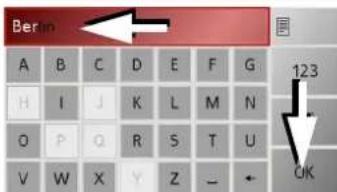
→ To accept the suggested entry, press the destination or the button OK.
Scrolling through the lists
If you have already entered some of the letters of the selection you want, you can use the selection list to display all the destinations containing the combination of letters in question.

→ To call up the selection list, press the key.
The selection list appears.

bar
| Location | Value | |---|---| | Berlin (10117), Berlin | ▲ | | Baabe (18586), Rügen, Mecklenburg-Vorpommern | 1/50 | | Baach (71384), Rems-Murr-Kreis, Baden-Württemberg | ▼ |→ Press the arrow keys on the right hand side of the screen to scroll through the list.
→ Press the destination you want. The destination is adopted and the selection list is closed.

GERNARAL OPERATION
→D
→GB
→F
→1
→E
→ NL
Special characters and umlauts
Special characters and umlauts do not have to used when entering the names of towns and streets. The Traffic Assist will change entries from AE, OE and UE if necessary.
→ If, for example, you are looking for the location "Würzburg", then simply press "WUERZBURG" or "WURZBURG". Special characters can be useful when naming destinations and routes.
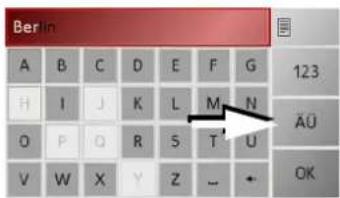
→ To change to the special character keypad, press the key. The special character keypad is displayed.

→ Enter the special character you want.
As soon as you have entered a special character, the system automatically switches back to the letters keypad.
Entering numbers
You have to change to the numerical keypad to enter numbers.
→ Press the key.
The numerical keypad is displayed.

→ To return to entering letters, press ABC.
Switching between upper and lower case
During free text entry, it is possible to switch between upper and lower case letters.
→ Press abc .
The display changes to lower case.
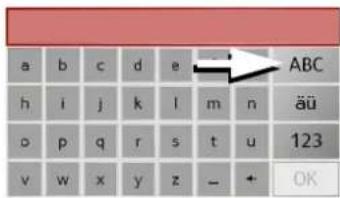
→ In order to return to upper case, press ABC.
Deleting characters
To delete the last character, use the back key.
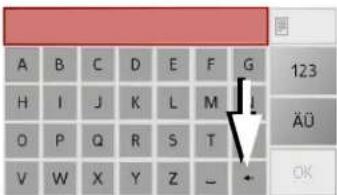
→ To delete the character last entered, press the button.
Inserting spaces
If you have an entry with two words, e.g. for names of towns, the words should be separated by a space.
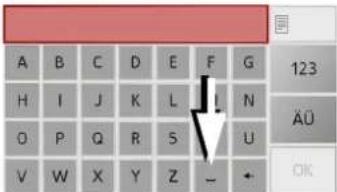
→ To enter a space, press the _key.
The Becker key
The key is integrated in the bottom left hand corner of the casing.

It has various functions:
- Pressing and holding the button switches the Traffic Assist on or off.
• depending on the menu context, if pressed briefly, you will be returned to the previous entry level.
Transferring files
Note:
Only the maps supplied in the Traffic Assist may be used. The installation or transfer of files or programs which limit or modify the function of the Traffic Assist is prohibited!
Installation program
There is a map installation program on the map DVD. Once the DVD is inserted in a personal computer's DVD drive, this program will usually start up automatically. The program guides you through the installation process.
Otherwise, you will have to start the program manually.
→ Open Windows® Explorer.
→ Select your DVD drive folder.
→ Double click on the "Setup.exe" file.

GERNARAL OPERATION
→D
→ GB
→ F
→ |
→ E
→ NL
Transferring using the USB port
The USB port is used to link the Traffic Assist directly to a personal computer.
The Microsoft® Active Sync program must be installed for transmission. Microsoft® Active Sync is contained on the DVD provided.

natural_image
Close-up of a hand inserting a USB into a black electronic device (no visible text or symbols)The link then involves several steps:
→ Switch off Traffic Assist.
→ Link the Traffic Assist and computer using the USB cable.
→ Switch on Traffic Assist again (do not press the screen after the unit is switched on).
ActiveSync automatically sets up a link to the Traffic Assist.
Transferring maps
The installation software from the DVD should be used for the transfer. This involves the following stages:
→ switch off Traffic Assist.
→ connect the Traffic Assist to the computer using the USB cable.
→ boot up the computer and insert the DVD.
→ use the installation program to transfer the map required.
→ remove the USB cable correctly.
→ switch the Traffic Assist back on. The new map is available right away.
Faults
Faults in the operating system or in unit are displayed. If the desired function cannot then be executed, the Traffic Assist should be restarted using the On/Off switch or the reset button.
If the messages reappear or the unit does not function correctly for any other reason, please contact your local stockist. You can also try to find a solution to your problem in the FAQ in the Support area on the Becker homepage (www.mybecker.com).
Note:
Never attempt to open the unit yourself. Please contact your authorised dealer if you are unable to remedy the fault.
What is navigation?
Navigation (Latin navigare = to travel by sea) is generally understood to mean finding the position of a vehicle, determining the direction of and distance from the desired destination and establishing and following a route to this destination. Navigational aids include the stars, distinct objects, a compass and satellites.
The Traffic Assist uses its GPS receiver to find the vehicle's position. (The Global Positioning System (GPS) was developed by the US military in the 1970's as a missile guidance system.
GPS is based on a total of 24 satellites circling the earth which continuously emit signals. The GPS receiver receives these signals and uses the delay of each of the signals to calculate its distance from the individual satellites. In turn, it can use this information to determine its current geographical position.
The signals of at least three satellites are needed to establish position. If four or more signals are available, height above sea level can also be calculated).
The Traffic Assist determines the direction and distance from the destination using a navigation computer and a digital street map in the internal memory.
For safety, directions to the designation are mainly provided verbally. The direction display and map diagram on the touch screen are further aids.
⚠ Safety information
- The road traffic act takes precedence in all circumstances. The navigational system is only an aid. The data/details provided may in some cases be incorrect. The driver must always decide whether to follow the details given or not.
We accept no liability for the navigational system issuing incorrect details. - When first started up, it may take up to 30 minutes before a position can be determined.
• Precedence should always be given to actual traffic signs and local traffic rules.
• The directions only relate to cars. Special recommendations and rules for other vehicles (e.g. commercial vehicles) are not taken into consideration. - Destinations may only be input when the vehicle is stationary.
Rapid access
Rapid access allows you to select from the key functions to quickly start navigation. Rapid access is illustrated below using sample destinations.

Structure of rapid access
Destination input menu and map display In fast access mode, the Destination input button is displayed in the top line, on the left.
To the right of this, you will find a key featuring a map symbol. This is used to change over to map viewing mode.
The list of destinations is shown in the lines under this.
Note:
On delivery, a few destinations (places of interest in Europe) are already stored on the unit.
The list of destinations
The list of destinations displays all the destinations available for quick selection line-by-line. If you have already entered your home address, you can start route guidance to your home address in the first line. Each line is split into two boxes. Each list box is depicted as a key. The destination is named on the right-hand key and its characteristics shown in the left-hand icon.
Note:
The last 100 destinations are automatically stored in the destinations list. Once the memory's capacity has been fully used up, the oldest destination is automatically deleted whenever a new one is entered. Important destinations can however be protected.
NAVIGATIONAL MODE
Icons used
The following icons are used in the list of destinations.
| Icon Meaning | |
 | This destination is a standard destination without any special features. |
 | This destination is protected.Once the destination memory is full, this destination is not automatically deleted. If required, this can be set manually.In the case of a protected entry, you can also determine the position using the fast access function. |
 | This destination is the current home address. |
Operating rapid access
Starting using an existing destination
Destinations already in the destinations memory are listed in the list of destinations.
→ Press the button with the desired destination to start route calculation.
The calculation is started. Once the calculation is complete, the map display appears and directions to the destination begin.
Scrolling in the destinations memory
You can use the keys to scroll through the list display in the direction indicated on the arrow.
The current list page and the total number of its contents appear between the keys.
Displaying or editing destination
Each destination in the destinations mem- ory can be displayed or edited.
→ Press the icon to the left of the destination required.
→ A selection menu appears.

| Selection Meaning | |
| Show details | All the data on the destination and the position on the map are displayed. |
| Name this entry | The destination can be renamed. |
| Delete this entry | The destination is deleted from the destination memory. |
| Protect this entry | The destination is protected against automatic deletion. This function is only available in the case of unprotected destinations. |

NAVIGATIONAL MODE
→D
→GB
→F
→1
→ E
→NL
| Unprotect this entry | Protection of the destination is disabled. This function is only available in the case of protected destinations. |
| Move this entry up | The destination is moved forwards by one position. This function is only available in the case of protected destinations. |
| Move this entry down | The destination is moved back by one position. This function is only available in the case of protected destinations. |
| Delete list All | destinations (including the protected ones) are deleted from the list. The home address is not deleted. |
Entries in the selection menu which only appear if a home address has been created:

| Selection Meaning | |
| Show details | All the data on the destination and the position on the map are displayed. |
| Set If no address | ress has been entered, selection can be made here. |
| Change The stored home address can be changed. | |
| Delete home address | The stored home address is deleted. |
Change to map display
You can change to map display from rapid access using the following key.

→ Press the key featuring the map icon. The map display and all its functions appear.

Displaying current position
You can display your current position on the map display (if GPS is available).
→ In rapid access, press the key featuring the map icon on the upper edge of the screen.

Opening the Destination input menu
The Destination input menu is opened by pressing the Destination input button.
• See "The Destination input menu" on page 31.
The Destination input menu
If fast destination selection is not required or the planned destination is not yet in the destination memory, you can enter a new destination using the Destination input menu.
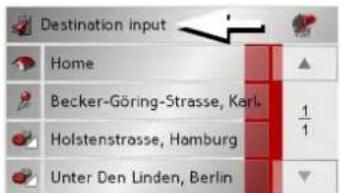
→ In fast access mode, press the Destination input button at the top edge of the screen.
The Destination input menu appears.

Configuration of the Destination input menu
Address
The various steps from selecting a destination to starting route guidance can be carried out using the Address button.
- See "Destination input menu: Address" on page 32.
Point of interest
Points of interest such as airports and ferry ports, restaurants, hotels, petrol stations or public buildings can be selected and route guidance started via the Point of interest button.
• See "Destination input menu: Point of interest" on page 38.
Settings
Various general settings for navigation and for the unit in general can be made via the Settings button.
- See "Destination input menu: Settings" on page 41.
Destination input menu: Address
A selection window for specifying the destination is opened from the Navigation menu by pressing the Address key.

→ In the Destination input menu, press the Address button.
The selection window for the address appears.
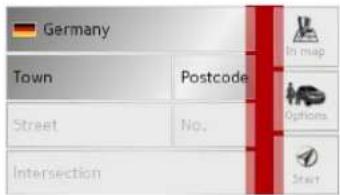
Selecting a country
The Country button offers you all the countries available on the memory card for navigation. A country is adopted automatically in the address input menu after selection. If a destination country has already been entered, it appears in the first line and is therefore active.
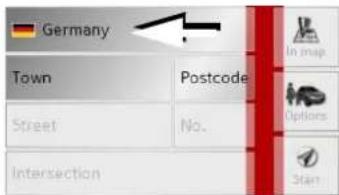
→ Press the destination Country key to access the selection list of countries.
The selection list appears.
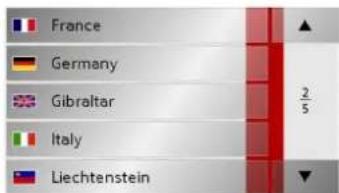
bar
| Country | Value | |---|---| | France | ▲ | | Germany | 2/5 | | Gibraltar | 2/5 | | Italy | 2/5 | | Liechtenstein | ▼ |→ Press the key of the country you want.
→ If necessary, press the arrow keys on the right-hand edge of the screen to scroll through all the destination countries available.
Select address and start
You can enter the exact destination address in the address entry screen.
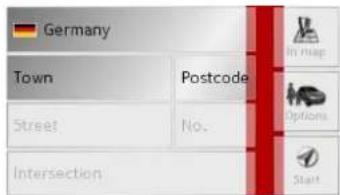
The following details can be entered in the address window:
- Town
- Postcode
• Street and building number - Intersecting roads as an aid to orientation
NAVIGATIONAL MODE

You can also:
• display the destination on the map
• define options of the drive profile
- start directions to the destination immediately.
Selecting the town
The destination town can be entered using its name or postcode. During this process, when each letter is entered a possible town is displayed and/or when each character is entered, a possible postcode is displayed. When the towns are displayed, large towns have priority over the alphabetical sequence. Example: If you enter the initial letter "K", the Traffic Assist indicates "Köln" as a possible city, and not the town which is first alphabetically. Traffic Assist rules out all impossible combinations of letters and postcodes and only activates those boxes of letters and/or characters which will produce an existing town and/or postcode (Smart speller).
→ Select between town entry and post code entry.
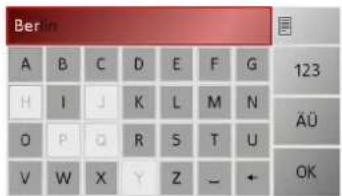
→ Consecutively enter the letters for the destination town or the numbers of the post code.
Note:
- During entry, it should be noted that in southern Europe (e.g. Italy), the "prefix" (e.g. via Gran Mundo) needs to be entered afterwards (e.g. Gran Mundo_via).
- If you enter a post code, the name of the town initially disappears in the input menu. Next, enter the name of the street names. The name of the town is then also displayed.
The OK key
The OK key can be used to transfer the destination selected into the route calculation menu. If the destination required appears in the upper edge of the display once the first letters or numbers have been entered, you can transfer the destination immediately with OK without using the list function.
→ Press the OK key to transfer your destination into the route calculation menu.
Note:
If two words have to be entered, these should be separated by a character.

NAVIGATIONAL MODE
→D
→ GB
→ F
→ |
→ E
→ NL
Using the list of towns
If you have already entered some of the letters of the town you want, you can use the list function to display all the towns containing the combination of letters in question.
→ Press the button at the top right corner of the screen in order to open the list of towns.
→ A town is selected by pressing the corresponding button.
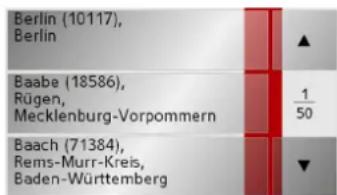
bar
| Location | Value | |---|---| | Berlin (10117), Berlin | ▲ | | Baabe (18586), Rügen, Mecklenburg-Vorpommern | 1/50 | | Baach (71384), Rems-Murr-Kreis, Baden-Württemberg | ▼ |Selecting the street
In the destination street area, the street and building number can be entered separately using a letter and numerical key panel. A possible street is displayed each time a new letter is entered.
Traffic Assist rules out all impossible combinations of letters and only activates those letter boxes which will produce an existing street.
A building number can only be selected once the street has been selected and/or if building numbers are also present in the data.
→ Press the letters of the destination street one another another.
The OK key
The OK key can be used to the destination selected into the route calculation menu. If the destination required appears in the upper edge of the display once the first letters or numbers have been entered, you can transfer the destination immediately with OK without using the list function.
→ Press the OK key to transfer your destination into the route calculation menu.
Using the list of streets
If you have already entered some of the letters of the street you want, you can use the list function to display all the streets containing the combination of letters in question.
→ Press the button at the top right corner of the screen in order to open the list of streets.
→ The street is selected by pressing the corresponding button.

You can display further information regarding the street by pressing the field to the left of the street name. This can be helpful if the street being searched for appears several times in the list.
Selecting the Intersection
After entering the destination town and road, you can enter an intersecting road in order to further limit the choice.
Note:
Instead of entering an intersecting road, you can also enter a house number. Both entries, however, are not possible simultaneously.
→ Press Intersection.
The input menu for the name of the intersecting road appears.
→ Enter the name of the intersecting road and then press OK.
The procedure is the same as for entering a road, See “Selecting the street” on page 34..
When entering an intersecting road, you can also use the road list. See “Using the list of streets” on page 35..
Selecting a house number
After entering the destination town and road, you can enter a house number in order to further limit the choice.
Note:
Instead of entering a house number, you can also enter an intersecting road. Both entries, however, are not possible simultaneously.
→ Press No.
The input menu for the house number appears.
→ Enter the house number and then press OK.
The procedure is essentially the same as for entering a road, See “Selecting the street” on page 34..
→ When entering a house number, you can also use the house number list. The procedure is essentially the same as for the road list, See “Using the list of streets” on page 35..

NAVIGATIONAL MODE
→□
→GB
→F
→1
→E
→NL
Displaying destination on the map
Once the destination has been entered, you can display it in the map of the surrounding area.
→ Press the In map key to display the destination selected on the map.
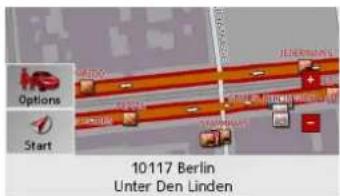
The address is displayed on the map.
The following options are available using the buttons in the right-hand section of the screen:
- Set the options for the driving profile using the Options button.
- Start route guidance directly to the selected destination using the Start button.
Options for the drive profile
You can also set your driving profile in the address entry field. Press the Options button for this purpose. The settings made here have an effect on calculation of the estimated journey times and the length of the route.
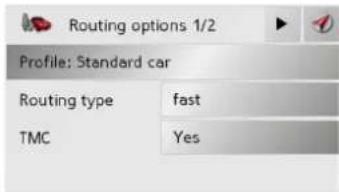
→ Select the required settings.
→ Press the button to display the other options.
| Option Meaning | |
| Profile: Select | the mode of travel by pressing the button. |
| Routing type | Select one of the options by pressing the button:optimum- the optimal route in terms of travel time and mileagefast- the fastest route in terms of travel timeshort- the shortest route in terms of mileagescenic- the most winding route. |
| TMC | Select eitherYesor No.IfYesis selected, the traffic announcements received are taken into account when the route is calculated and the route is recalculated automatically. |
NAVIGATIONAL MODE
| Option Meaning | |
| Motorways Ferries Toll roads | Select one of the options by pressing the relevant button:Permitted- the road type is taken into account during route calculation.Avoid- the road type is avoided wherever possible.Block road- the road type is not taken into account during route calculation. |
→ Press the button to start route guidance to the entered coordinates.
Starting navigation
The Start button can be used to start navigation straight away. All the data entered so far is processed in the route calculation. → Press the Start key to start navigation.
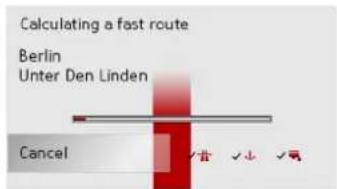
The route is calculated. The map display then appears and directions to the destination begin.
Note:
If no GPS signal is available at the time of route calculation, the following display appears.
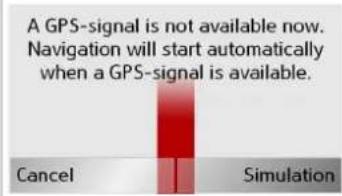
If the GPS signal is available, route calculation is started automatically. A short route to the selected destination is displayed when Simulation is pressed.
Cancelling navigation
→ Press the key

→ Press the Yes key to confirm that you want to stop.
Destination input menu: Point of interest
Points of interest, or POI for short (Point of Interest), are included in the map and can be displayed on the map. Points of interest include airports and ferry terminals, restaurants, hotels, petrol stations, public buildings etc. Points of interests can be used as navigational destinations.
Note:
Points of interest from the present surroundings can only be selected if the reception is good enough to locate their position.
You can select between:
- a nearby destination,
• a nationwide destination and - a destination in a town.
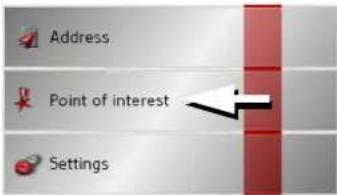
→Press the Point of interest key to display the points of interest.
The search area selection window appears.

You can now use the buttons to select the search area you want.
Point of interest: Near GPS position
→ Press theNearby GPS position button.

The following specifications are possible for searches in this point of interest window.
→ In the top button, enter the radius (in kilometres) in which a point of interest should be searched for.
→ From the All categories box, select a main category (e.g. Petrol station). Only those points of interest currently nearby are displayed.
NAVIGATIONAL MODE
→ Select the subcategory from the subsequent menu (e.g. Aral, Esso).
You will find information about scrolling in lists in the "Scrolling through the lists" on page 23 chapter.
Note:
If you do not select a subcategory, all the POIs from the main category within the selected radius are displayed.
→ Press the Point of interest button to access the input menu.
→ Select the desired POI via the input menu.
For information on working with the input menu, please refer to the section "Entries made with the entry menu" on page 22.
→ For information on scrolling in lists, please refer to the section "Scrolling through the lists" on page 23.
Note:
The Category boxes do not have to be. These are only used to restrict the list of points of interest. In large towns, this list may be very long.
Point of interest: nationwide
→ Touch the Nationwide button.
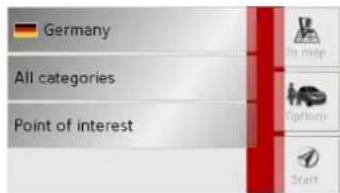
→ Select the desired country.
→ Press the All categories button.

→ Select the desired category.
→ Touch the Point of interest key to go to the entry menu.
→ Select the point of interest you want from the entry menu.
You will find information about working with the entry menu in the chapter "Entries made with the entry menu" on page 22.
You will find information about scrolling in lists in the "Scrolling through the lists" on page 23 chapter.
Note:
The Category box does not have to be completed. It is only used to restrict the list of points of interest. Depending on the map currently being used, this list may be very extensive.
Point of interest: in a town
→ Touch the In a town button.
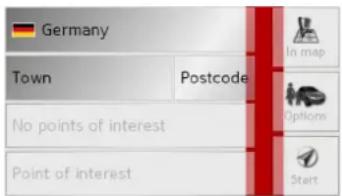
→ Select the desired country.
→ In the Town or Postcode box enter the town in which you want to search for a point of interest.
→ Press the All categories button.
→ Select a main category (e.g. Culture).
Only the categories available in the town indicated are displayed.
→ Select the subcategory from the subsequent menu (e.g. Museum).
→ Touch the Point of interest key to go to the entry menu.
→ Select the point of interest you want from the entry menu.
You will find information about working with the entry menu in the "Entries made with the entry menu" on page 22 chapter. You will find information about scrolling in lists in the "Scrolling through the lists" on page 23 chapter.
Note:
The Category boxes do not have to be completed. These are only used to restrict the list of points of interest. In large towns, this list may be very long.
Operating options in the POI input menu
Following selection of a POI, the following options are available using the buttons on the right-hand area of the screen:
- Display POIs on the map using the In map button.
- Set the options for the driving profile using the Options button.
- Start route guidance directly to the POI using the Start button.
NAVIGATIONAL MODE
Destination input menu: Settings
All the settings required for navigation and for the unit can be found in the Settings menu.
Note:
All your settings must be confirmed by pressing the OK button. Using the button, you can exit the current settings level at any time without having changed anything.

→ In the Destination input menu, press the Settings button.
This opens the Settings menu.
Structure
Various buttons are available in the setting menu:
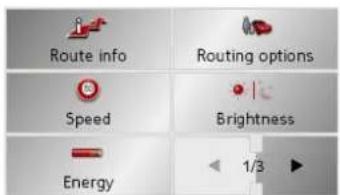
The functions of the various keys are explained below.
The Route info key
In the Route info settings window, you can set which additional information you would like displayed during route guidance.
→ Press Route info in the settings menu.
The Route info settings menu appears.
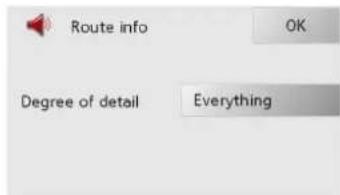
The following settings can be made depending on the settings under "The Map options button" on page 57.

NAVIGATIONAL MODE
→D
→ GB
→ F
→ |
→ E
→ NL
Setting options for the Full map setting:
| Setting Meaning | |
| Reduced • Info on the destination and waypoint not displayed• Current/ next road displayed• S i g n s n o t d i• Lane information not displayed• No speed or altitude information | |
| Only arrow display | • Info on the destination and waypoint not displayed• Current/ next road displayed• Signs displayed• Lane information displayed• No speed or altitude information |
Setting Meaning
| Full • Info on the destination and waypoint displayed• Current/ next road displayed• Signs display• Lane information displayed• Speed and altitude information displayed |
Setting options for the Split screen and Arrow only setting:
Setting Meaning
| Reduced • Info on the destination and waypoint displayed• Current/ next road displayed• S i g n s n o t d i• Lane information not displayed• Speed and altitude information displayed• Distance bar displayed |
Setting Meaning
| Full • Info on the destination and waypoint displayed• Current/ next road displayed• S i g n s d i s p l a y e d• Lane information displayed• Speed and altitude information displayed• Distance bar displayed |
Note:
Some of this information can only be displayed if it is contained in the map material.
→ Select the required setting by pressing the button several times.
s p>1 Confirm your selection by pressing the OK key.
The Routing options key
You can set your drive profile in the Routing options settings window. The settings made here have an effect on the route selection and on the calculation of the estimated journey times.
→ Press Routing options in the settings menu.
The Routing options settings menu appears.
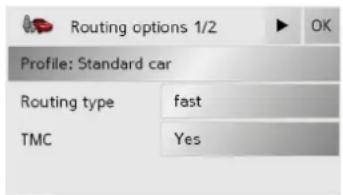
→ Select the required settings.
→ Press the button to display the other options.
| Option Meaning | |
| Profile: Select | the mode of travel by pressing the button. |
| Routing type | Select one of the options by pressing the button:optimum- the optimal route in terms of travel time and mileagefast- the fastest route in terms of travel timeshort- the shortest route in terms of mileagescenic- the most winding route. |
| TMC | Select eitherYesor No.IfYesis selected, the traffic announcements received are taken into account when the route is calculated and the route is recalculated automatically. |
| Option Meaning | |
| Motorways Ferries Toll roads | Select one of the options by pressing the relevant button:Permitted- the road type is taken into account during route calculation.Avoid- the road type is avoided wherever possible.Block road- the road type is not taken into account during route calculation. |
→ Confirm your selection by pressing the OK key.
The Speed key
Use the Speed configuration window to choose whether or not you wish to have speed limits displayed during navigation. You can also choose whether or not to receive an acoustic warning if you exceed the speed limit.
Note:
This information can only be displayed if it is contained in the map material.
→ Press Speed in the settings menu.

The Speed settings menu appears.
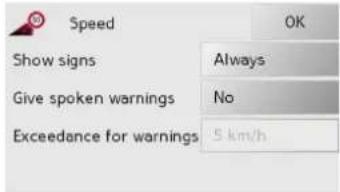
The following settings are possible.
| Setting Meaning | |
| Show signs | Select whether the speed limits should be displayed never, always or only when the limit is exceeded. |
| Give spoken warnings | Select (Yes or No) whether you want to receive a spoken warning concerning driving too quickly. |
| Exceedance for warnings | Set the level from which you want to be warned about exceeding the speed limit. |
→ Press a button and choose the setting you require.
→ Confirm your selection by pressing the OK key.
⚠ Danger!
Some of the information contained in the map material may be inaccurate due to short-term or recent changes (such as road works, for example).
Supplying information is secondary to the navigation system's main function, which is traffic monitoring and signposting.
The Brightness key
Using the following button, you can change between the day and night screen displays:


→ Push the button Brightness.
The brightness of the screen display changes from day to night display or vice versa.
The icon for the active setting is highlighted.
- Left icon: Day display
• Right icon: Night display
NAVIGATIONAL MODE

The Energy key
Your Traffic Assist may be operated using an external power supply unit or using an integrated rechargeable battery.
Note:
The current charge condition is particularly important when operating from batteries. If there is insufficient energy, then the navigational aid cannot be maintained until the destination is reached, for example.
The energy supply and its condition is visualised using the status display.
The status display can be called up using the following button.

→ Push the button Energy.
The status display is called up and the energy supply is visualised.
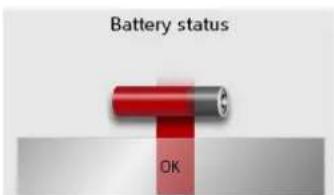
The charge condition is displayed using the level gauge. In the example, the battery still has a charge of two thirds of its capacity.
The charging operation is indicated by the mains socket symbol in the status display.
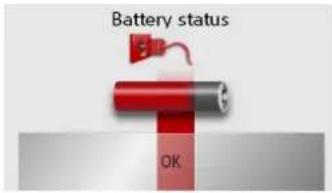
Ending the status display
By pushing the button OK the status display is ended and the setting menu appears.
The Volume key
With the Volume settings window, you can set the general volume for voice announcements for each start of the Traffic Assist, or switch off voice announcements completely. Depending on the situation, you can also adjust the volume in the map display.
→ Press Volume in the settings menu.

The Volume settings window appears.
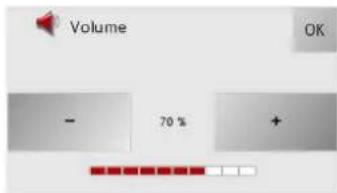
→ The required volume can be selected via the - and buttons.
→ Confirm your settings by hitting the OK key.
The Tones key
You can switch the Traffic Assist signal tones on and off. This can also be effected by clicking on the display buttons.
→ Press Tones.
Depending on the previous setting, the signal tones are switched on or off. The current setting is indicated via display of the relevant icon in colour.


- Left icon: Tones switched on
• Right icon: Tones switched off
The Format key
Using the Format configuration window, you can specify which units of measurement to use for time and distance.
→ Press Format in the settings menu.

The Format settings menu appears.

| Setting Meaning | |
| Time Press this field to toggle between the 12-hour and 24-hour clock display. | |
| Distance Press this field to toggle between the kilometre and mile display. |
→ Confirm your settings by hitting the OK key.
The Time Zone key
Set the relevant time zone for your region in the Time Zone configuration window. This is an important setting for calculating the estimated arrival times.
→ Press Time Zone in the settings menu.

The Time Zone settings menu appears.
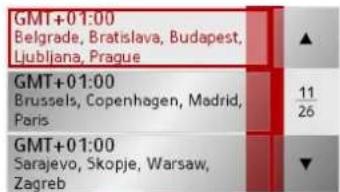
Using the buttons, it is possible to scroll through the list in the direction of the relevant arrow.
→ Press the button for the required time zone.
NAVIGATIONAL MODE
The Language key
The texts on the screen can be displayed in a variety of languages.
The following button allows selection of various different languages.

→ Push the button Language. The language selection appears.
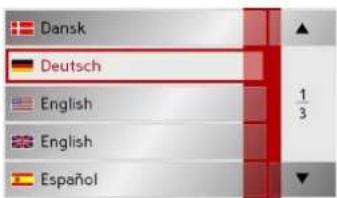
In the language selection, the available languages are shown in a list which extends over several pages. Each list area is a contact surface. The individual contact surfaces are marked with the language designation and the associated national flag.
These buttons ▲ allow page turning in the direction shown by the arrow through the pages of the list.
Note:
- If you change the language the software restarts.
- The language selection is closed by pushing the key and the setting menu then appears.
→ Push the contact area of the desired language.
The Information key
Information concerning the Traffic Assist is displayed using the following buttons.

→ Push the button Information.
The information display appears.

Please note particularly the product designation and the details of the software version. Always quote these details in the event of queries with Harman/Becker service department.
→ Press the Close button to close the information display.
The Automatic on/off key
The Traffic Assist can switch automatically to sleep mode when the vehicle ignition is switched off. Prerequisite:
- The Traffic Assist must be connected to the vehicle cigarette lighter (see also page 16).
• The cigarette lighter is de-energized after the ignition is switched off. - The relevant function can be switched on at the Traffic Assist.
→ Press Automatic on/off.
Depending on the previous setting, the function will be switched on or off. The current setting is indicated via display of the relevant icon in colour.

- Left icon: The function is switched on, the Traffic Assist does switch off automatically.
- Right icon: The function is switched off, the Traffic Assist does not switch off automatically.
The Calibration key
If the touch-screen reacts incorrectly to the touching of the screen in specific areas, calibration is required. The calibration can be started using the following button.

→ Push the button Calibration. The calibration process is started. You will be guided through the procedure by means of text instructions.
The Factory settings key
You can reset your Traffic Assist to the factory settings. All the changed settings will be reset and saved destinations will be deleted.

→ Press the Factory settings button.

→ Press the Yes button. The Traffic Assist is reset to the factory settings.
What is dynamic route guidance?
Dynamic route guidance calculates the route, while taking into account current traffic announcements.
Note:
Dynamic route guidance is not available for all countries (currently only Belgium, Germany, Denmark, France, Italy, The Netherlands, Austria, Sweden, Switzerland and Spain).
TMC reception must be available in order to activate dynamic navigation and the functions described below.
Traffic announcements are transmitted by radio stations via the TMC (Traffic Message Channel) in addition to the radio programme and are received and analysed by the navigation system. Receiving traffic announcements is free of charge.
Note:
As the traffic announcements are transmitted by radio stations, we cannot assume responsibility for the completeness or accuracy of the announcements.
Austria: The location and event code was made available by ASFINAG and BM-VIT.
A continuous check is made for the presence of relevant messages for the selected route. However, traffic problems are also shown on the map even if route guidance is deactivated.
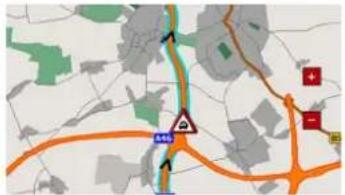
If these continuous checks determine that a traffic announcement is relevant to route guidance, the unit will automatically re-calculate a new route to the destination.
Displaying TMC messages on the map
Current TMC messages are displayed on the map graphically. Sections of the route where there are traffic problems are highlighted blue. Arrows indicating the traffic direction which is affected by the traffic problem continue to be displayed.
In addition to the coloured mark, a warning sign is displayed on the stretch of road affected.


NAVIGATIONAL MODE
→D
→GB
→F
→1
→E
→NL
Using TMC
Once you have connected the TMC antenna, your Traffic Assist will receive current traffic announcements and dynamic route calculation will be enabled (traffic jam diversion). You can also view traffic announcements directly.
To preset the TMC, See "The Routing options key" on page 43.
→ In the map display, activate the toolbar (see also page 55) and press TMC.
The message list appears.
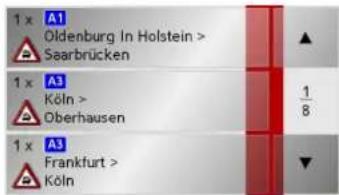
You can scroll through the list using the arrow keys on the right-hand edge of the screen.
The road number (motorway, A-road or district roads), section of road if applicable, traffic direction and the type of problem are displayed in each traffic message.
Reading a message
→ Press on the desired message in the list. The message display appears.
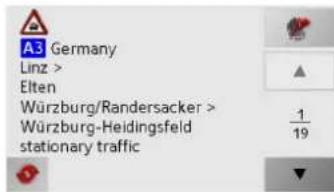
If the message text is longer than the display space available, the _button appears at the bottom right.
→ Press this button in order to view the remaining message text.
→ Press the arrow buttons scroll in the messages.
→ Press the key 📁 to return to the message list.
NAVIGATIONAL MODE
Display the relevant road in the map
→ Press the button in the message display.
The relevant road can be seen in the map.

Updating announcements
→ Press the button in the message display.
Map display
You can call the map display from various applications using the miniature map icon.
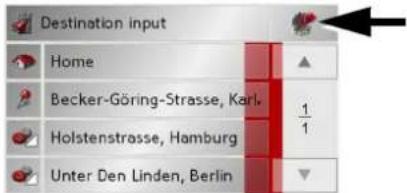
→ Select the key with the map icon. This opens the map display.
Map layout
The configuration depends upon the current operating mode of the Traffic Assist and the settings under "The Route info key" on page 41 and "The Map options button" on page 57.
Map display without driving guidance

If the navigation function has not been activated, the map display will cover virtually all of the touchscreen. An icon for switching to configuration mode with a toolbar is always displayed in the lower right-hand corner of the map.
Entire map with route guidance

1 Road to which the next driving manoeuvre leads
2 Vehicle speed and altitude above sea level
3 Route
4 Vehicle location
5 Speed limit on the road currently being driven on (display not available for all roads)
6 Traffic lane recommendation (only appears on some multi-lane roads; red arrows = recommended lanes)
Note:
Following the traffic lane recommendations allows you to perform the next driving manoeuvre without changing lanes.
7 Estimated time of arrival, remaining journey time and remaining distance to destination
8 Distance to next driving manoeuvre and currently travelled road.
9 Next driving manoeuvre
If the navigation function has been activated, the position icon will indicate your current location on the map.
Depending on which setting was made in option mode, the position icon may remain stationary while the map moves, or vice versa.
Information appears in the bottom left corner of the preview area.

natural_image
Red upward arrow symbol with a small megaphone icon nearby (no text or symbols)The distance remaining is indicated by means of the number of kilometres (or miles) below an arrow. If there are two impending driving manoeuvres in quick succession, a small arrow appears over the first manoeuvre to indicate that another one is coming up.
NAVIGATIONAL MODE
Spilt screen with route guidance

1 Speed limit on the road currently being driven on (display not available for all roads)
2 Route
3 Vehicle position
4 Road to which the next driving manoeuvre leads/ current road
5 Distance to next driving manoeuvre
6 Traffic lane recommendation (only appears on some multi-lane roads; red arrows = recommended lanes)
Note:
Following the traffic lane recommendations allows you to perform the next driving manoeuvre without changing lanes.
7 Vehicle speed and altitude above sea level
Note:
If two driving manoeuvres are to be performed in quick succession, a small arrow which indicates the second driving manoeuvre appears instead of this information.
8 Next driving manoeuvre
9 Progress bar to illustrate the distance to the next driving manoeuvre
10 Estimated time of arrival, remaining journey time and remaining distance to destination
Route guidance with arrow display

1 Speed limit on the road currently being driven on (display not available for all roads)
2 Next driving manoeuvre
3 Traffic lane recommendation (only appears on some multi-lane roads; red arrows = recommended lanes)
Note:
Following the traffic lane recommendations allows you to perform the next driving manoeuvre without changing lanes.
4 Road to which the next driving manoeuvre leads/ current road
5 Distance to next driving manoeuvre
6 Progress bar to illustrate the distance to the next driving manoeuvre
7 Vehicle speed and altitude above sea level
Estimated time of arrival, remaining journey time and remaining distance to destination.
Using the map display
Repeat the last voice prompt
During route guidance, the system announces important information, e.g. the next driving manoeuvre. The last announcement can be repeated with updated information.

natural_image
Red Y-shaped arrow symbol with speaker icon nearby (no text or labels)→ Press the preview area while route guidance is active and the toolbar deactivated.
The last announcement is repeated with updated information. The volume is also displayed.
Changing the announcement volume
The volume of announcements can be adjusted.

natural_image
Red upward arrow and speaker icon on gray background (no text or symbols)→ Press the preview area while route guidance is active and the toolbar deactivated.
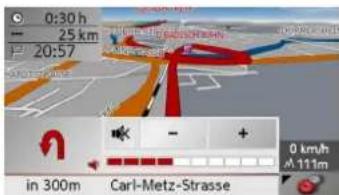
The bar display indicates the volume.
→ Press or to increase or decrease the volume.
→ Press ✪ in order to mute the announcements.
→ Press *again in order to cancel the mute function.
Warning
Always adjust the volume so that you can still hear any ambient noise while driving.
The bar display disappears again automatically after three seconds if no button is pressed.
Map zooming
The map can be zoomed into in steps via the zoom buttons.

Note:
The zoom buttons are only visible, if you switch off the function Autozoom described under "The Map options button" on page 57.
→ Press zoom in + to "zoom in on the map" and therefore to get closer to the details displayed.
→ Press zoom out - to "zoom out from the map" and therefore to obtain a larger overview.
NAVIGATIONAL MODE
Map display with toolbar
The toolbar can be activated by pressing the following button; pressing it again deactivates the toolbar:

Additional function buttons are displayed as well as the map display.

The Navi options button
Using the Navi options you can:
- cancel route guidance,
- enter a waypoint,
• call up the next destination,
• call up the route options,
• display the entire route,
• display directions and - call up the GPS status.
→ Press the Navi options button on the toolbar display.
The Navi options menu appears. You can quit the menu using the button.
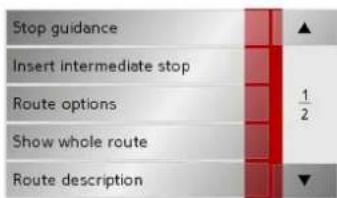
The following settings are available.
| Option Meaning | |
| Stop guidance | You can end active route guidance by pressing this button. |
| Insert intermediate stop | If route guidance is active, you can select a destination as a waypoint.You have the same options as with normal destination input. |
| Next destination | If several destinations are entered, the route to the nearest destination is calculated and the current destination is skipped(only with active route guidance). |
| Routing options | Enables route options to be changed (only with active route guidance).See "The Routing options key" on page 43. |
| Show whole route | You can display the currently calculated route on the map. You can return to route guidance by pressing the button. |

NAVIGATIONAL MODE
| Option Meaning | |
| Route description | You can have directions displayed and block individual route sections. See "Displaying/editing directions" on page 56. |
| GPS status | This function allows you to query the GPS status. Information is displayed on whether GPS reception is adequate for navigation and, if available, the current position in the form of an address. |
Displaying/editing directions
In the directions, you can have the calculated route displayed divided into sections. You also have the option of blocking individual sections and of recalculating the route without these sections.
→ Open the Options menu via the toolbar.
→ Select the menu item Route description.
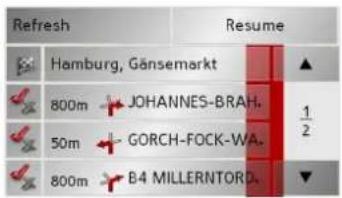
→ Press the arrow buttons ↕0 ▼ scroll through the sections.
Changes can be undone by pressing the Refresh button.
You can return to route guidance without changes by pressing the Resume button.
Blocking a route section
In order to block route sections, press the button in front of the relevant section.
A blocked section is marked using the button. The block can be cancelled by pressing this button.
→ After you have blocked the required section, press the Recalculate button.
The route is recalculated and the route guidance display appears.
NAVIGATIONAL MODE

The Map options button
Using the Map options you can:
- set the type of map display,
• determine the orientation of the map, - set the map view (2D/3D),
- switch automatic map zooming on/ off and
• influence map contents.
→ Press the Map options button on the toolbar display.
The map options are displayed.
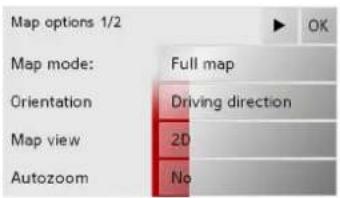
→ Press the button to display other options.
The following settings are available:
| Option Meaning | |
| Map mode | You can select the type of map to be used for route guidance:Full map- the map covers the entire display Fiscal only- only arrows are used for route guidanceSplit screen- a part of the screen displays a map and the other part displays arrows.Please also refer to the description in "Map layout" on page 51 and "The Route info key" on page 41. |
| Orientation | In the case of 2D view navigation, select whether the map should be oriented to the north or in the direction of travel as standard. |
| Map view | Select whether the standard map view is to be the 3D or the 2D view. |
| Option Meaning | |
| Autozoom If | the auto zoom function is active (Yes), the zoom depth changes in line with your speed. The scale becomes larger when you drive slowly. The scale becomes smaller when you drive faster. |
| Points of interest | If POI display is active (Yes) icons are shown on the map for points of interest. |
| Street names | If street name display is active (Yes) the street names are shown on the map. |
→ Confirm your selection by pressing the OK button.
The POI along route button
With the POI along route button, you can display available POIs along the route and set a POI as a stopover.
→ Press the POI along route button on the toolbar display.
A display of the POIs available along the route appears.

A maximum of six POIs are displayed simultaneously. The categories can be recognised by the category icons to the left of the distance information. The distance information represents the direct distance to the POIs.
The stylised road on the left indicates on which side of the road the POIs are located. The numbering of the POIs refers to the position of the POIs in the list on the right (POI No. 1 appears at the very bottom of the list).
To select a POI as a stopover:
→ Press the desired POI.
It is set as the stopover and the Traffic Assist starts route calculation to the stopover.
To set a POI category:
You can set which categories the Traffic Assist should take into account when displaying the POIs.
→ Press the POI button
The current settings are displayed.

→ Press one of the categories set, e.g. Petrol station.
The complete category list appears.
→ If necessary, scroll in the list and press one of the categories which you would like to set as a new category, e.g. Railway station.
The current setting is displayed again, the Petrol Station category has now been replaced by the Railway station category.

→ Proceed in the same manner for the other two categories as necessary.
→ Finally, press OK.
An updated display appears of the POIs available along the route, which takes into account the change in categories.
The TMC button
Press this button to display all TMC traffic announcements received from the currently selected station. See "Using TMC" on page 50.

This enables you to gain an overview of the current traffic situation.
TMC announcements concerning your route are shown at the top of the list.
→ Press the TMC button.
A list of TMC announcements opens.
→ Press the arrow buttons ▶●n ▼ the right of the screen to browse through the list.
The Day / Night button
To adapt the touchscreen to the prevailing light conditions, you can change between day design and night design.

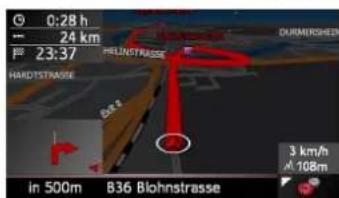
→ Press the Day / Night button on the toolbar display.
The design changes. The previous design is called up again if the button is pressed for a second time.
→→→ SPECIALIST WORDS
Active Sync
Active Sync is a Microsoft product. This is the standard synchronisation software for Windows mobile units such as your Traffic Assist. The programme can be downloaded free-of-charge from the internet.
GMT
(Greenwich Mean Time)
Central European Time
The standard time at 0 degrees of longitude (the longitude which passes through Greenwich, Great Britain). This time is used worldwide for the synchronisation of data collection.
GPS
(Global Positioning System)
GPS determines your actual geographical position by the use of satellites. It is based on 24 satellites which orbit the Earth and emit signals. The GPS receiver receives these signals and calculates the distance to each satellite from the running time differences and thus evaluates its actual current position in terms of geographical length and width. In order to determine the position, signals from at least three satellites are required, and the fourth one allows the height to be determined.
HDOP
(Horizontal Dilution Of Precision)
HDOP states the quality of the positional determination. In theory, values from 0 to 50 are possible, whereby the following applies: the smaller the value the more accurate the positioning (value 0= no deviation from the actual position). Values of up to 8 are acceptable for navigation units.
SD Card
(Secure Digital)
The Secure Digital Card was developed in 2001 by SanDisk on the basis of the older MMC standard. An SD card is a re-writable change-over storage card.
Stylus
A stylus is an input pointer which is used for the operation of touch-screens, mobile phones or PDAs.
The stylus consists basically of a plastic pointer with a softer plastic core. The sleeve is hard and can be gripped and the softer core emerges at the tip and is designed to touch the screen as softly as possible (i.e. without the danger of scratching the screen).
The stylus is more accurate than operation using the fingers, since only the thin tip touches the screen. In addition, dirty marks on the screen caused by finger prints are avoided.
SPECIALIST WORDS

TMC
(Traffic Message Channel)
Traffic announcements transmitted by most FM stations via RDS. Basis for dynamic navigation.
USB
(Universal Serial Bus)
The Universal Serial Bus (USB) is a bus sytem for interconnection of a computer with external USB peripherals for the exchange of data.
→ D

→ F
→ |
→ E
→ NL

KEYWORDS
→D
→ GB
→ F
→ |
→ E
→ NL
A
Active Sync 26, 60
D
Destination input menu ..... 28, 31 Configuration ..... 31
Destination selection Entering address .... 32 Point of interest .... 38
Destinations home address 29 protected 29 standard 29
Destinations memory 29 changing 29 scrolling 29
Display street names ..... 41 Displaying current position ..... 31 Drive profile ..... 36
E
Entering destinations .... 31 Entering address .... 32
F
Fast route 36,43
Ferry 43
G
GMT 60
GPS 60
GPS status 55
H
HDOP 60
|
Intended use 4 Intersecting road 35
L
List of destinations 28
Lists List of destinations 28 List of streets 35 List of towns 34
M
Map display .... 28 changing from rapid access .... 30 Destination displays .... 36 POIs .... 40
Map symbol key 30 Memory card 18 Motorway 37, 43
N
Navigation 27 starting 37
P
Points of interest .... 38 display on the map .... 41 nearby .... 38
R
Rapid access 29 Icons 29 Route fast 36, 43 short 36, 43 Type of 43 winding 36, 43
KEYWORDS

S
Safety information .....4, 27
SD card ....18
Selecting street....34
Selecting town ....33
Setting the volume....54
Settings
for navigation .....31, 41
Short route 36,43
Speed limit 44
Stylus....60
Switching the Traffic Assist on . . . . .20
T
Time format 46
TMC 49
Display on the map .....49
TMC antenna .....17
Toll road 37,43
Type of route .....43
Type of routing 43
U
Units of measurement .....46
USB....61
W
Warnings Speed limit ....44
Waypoint ....55
Z
Zoom 54
→ D
→GB
→ F
→ |
→ E
→ NL
→→→ TECHNICAL DATA
→D
→ GB
→ F
→ |
→ E
→ NL
- Dimensions:
(WxHxD) in mm 125,3 x 82,4 x 17,6
• Weight:
168 grams
- Processor:
400 MHz Processor CISC-architecture
- Screen:
4.3 Inch
Touch-Screen with 24 Bit colour depth
16,7 Mio Colours
Low reflection values
- Storage:
2 GB ROM
64 MB SD-RAM
- Micro SD Card Reader:
Support up to 4 GB
FAT 32 formatted
- USB Interface:
USB Client 2.0
MINI USB
- Headphone output:
3.5 mm Stereo Socket
• 1 Internal speakers:
1,8 Watt max.
• Power supply voltage:
5 Volt DC via USB connection
- AC Adapter (not included):
100 - 240 Volt
0.2 Ampere
50 - 60 Hz
Output Voltage 5Volt
Dear customer,
In conformance with current EC guidelines, any person may operate this unit. This unit conforms to the current valid European or harmonised national standards. This designation is your guarantee that the unit conforms to the applicable specifications regarding electromagnetic compatibility. This means that interference with other electrical/electronic devices caused by the unit, or interference with this unit caused by other electrical/electronic devices, is largely prevented.
The EC type-approval mark (E13) issued by Luxembourg's Road Traffic Registration Authority in accordance with European Directive ECE-R10 governing the EMC of motor vehicles in its current version authorises installation and operation of the unit in motor vehicles (classes L, M, N and O).
EU Declaration of Conformity
Harman/Becker Automotive Systems GmbH declares herewith that Traffic Assist conforms to the basic requirements of the applicable EU guidelines and in particular conforms to the basic requirements and the other relevant regulations of the R&TTE Directive 1999/5/EU.
You can find a comprehensive EU Declaration of Conformity on our website http://www.mybecker.com under the "Downloads" area for the respective product.

Z101

10 R - 02 9705
Z901

10 R - 02 9706
Disposal of the unit
Customer information on the disposal of electrical and electronic devices (private households)
In accordance with the self-imposed principles of Harman/Becker Automotive Systems GmbH, the product has been developed and made from high-quality, recyclable materials and components.
This symbol on the product and/or accompanying documents means that at the end of their life electrical and electronic products must be disposed of separately from domestic waste. Please take these products to communal collecting points or recycling centres for processing and salvage of materials. The units will be accepted there free of charge.
The proper disposal of this product helps protect the environment and prevents harmful effects on humans and the environment which could result from improper handling.
More detailed information on the nearest collecting point or the nearest recycling centre can be obtained from your local council.
For commercial customers in the European Union
Please contact your dealer or supplier if you would like to dispose of this electrical/electronic equipment.
Information on disposal in countries outside of the European Union
This symbol is only valid within the European Union.

Disposal of the battery
Duty to supply information according to battery legislation (BattV)
Batteries must not be disposed of in household waste. It is the duty of the user to return used batteries. Please only dispose of batteries via specialised dealers or at battery collection points. In this way, you make a positive contribution to environmental protection. Since 1998, German battery legislation obligates all citizens to dispose of used batteries exclusively via retail outlets or at collection points specially equipped for this purpose (statutory obligation to return). It is the duty of retail outlets and manufacturers to take back these batteries free of charge and to correctly recycle them or to dispose of them as hazardous waste (statutory obligation to take back). If you wish to return your batteries to us, please send them, with adequate postage, to the following address:
Harman/Becker Automotive Systems GmbH
- Battery recycling -
The lithium ion battery in the Traffic Assist is marked with the adjacent symbol, consisting of a crossed-out waste bin, and the type of battery used.

Lithium ion
Removing the battery
Before you hand in your old unit for disposal, the battery must first be removed.
Note:
Please note that in following the removal instructions for the battery described here, your unit may be destroyed. You should only remove the battery if your unit is obsolete and is to be handed in for disposal.

→ Completely discharge the battery (leave the unit switched on with no power supply until it automatically switches off).
→ Unscrew and remove the four housing screws using a small cross-slot screwdriver.
→ Lever off the rear of the housing 2 using a flat-blade screwdriver (levering at the slits at the side of the housing).
→ Lever off the battery (bonded to the circuit board) 3 using a flat-blade screwdriver.
→ Pull out the plug of the battery connecting cable.
Note:
Do not reconnect a unit that you have opened to the power supply.
- Becker Traffic Assist Z 101
- INDEX
- Index 2
- Safety information 4
- The Traffic Assist 6
- General operation 14
- Navigational mode 27
- ⚠ Safety information
- SAFETY INFORMATION
- THE TRAFFIC ASSIST
- Use
- Navigation
- Unpacking the Traffic Assist
- Note:
- Checking the delivery
- Delivery contents
- Complaints procedure
- Handling the packaging
- Description of unit
- Traffic Assist - basic unit
- Cable for power supply from cigarette lighter
- Battery
- USB connection cable
- Unit bracket
- Map data
- Accessories
- Mains power supply unit
- External GPS antenna
- Headset
- ⚠️ Danger!
- Information about documentation
- Quick start guide
- Operating instructions
- Registration
- Repairs
- Emissions and disposal
- OVERVIEW TRAFFIC ASSIST
- Scope of supply
- Front of unit with controls and displays
- Rear of unit
- Left side of unit
- Top of unit
- Bottom of unit
- Maintenance and care
- Battery quality declaration
- Display quality declaration
- Start-up
- Power supply
- GERNARAL OPERATION
- Using the battery
- Connecting to the cigarette lighter
- Connecting to socket
- ⚠️ Danger of Death!
- Connecting up to power supply
- TMC antenna
- GPS-antenna
- Unit antenna
- Connecting up external antenna
- Memory card
- Notes:
- Inserting memory card
- Ejecting memory card
- Fitting the unit bracket
- On the windscreen
- Adjusting the unit bracket
- Adding the Traffic Assist
- Removing the Traffic Assist
- Switching the Traffic Assist on/off
- Switching on
- Switching off
- Basic information about the touch screen
- Operation
- Calibration
- Basic information about the menus
- Entries made with the entry menu
- Entering characters
- Adopting suggestions
- Scrolling through the lists
- Special characters and umlauts
- Entering numbers
- Switching between upper and lower case
- Deleting characters
- Inserting spaces
- The Becker key
- Transferring files
- Installation program
- Transferring using the USB port
- Transferring maps
- Faults
- What is navigation?
- Rapid access
- Structure of rapid access
- The list of destinations
- NAVIGATIONAL MODE
- Icons used
- Operating rapid access
- Starting using an existing destination
- Scrolling in the destinations memory
- Displaying or editing destination
- Change to map display
- Displaying current position
- Opening the Destination input menu
- The Destination input menu
- Configuration of the Destination input menu
- Address
- Point of interest
- Settings
- Destination input menu: Address
- Selecting a country
- Select address and start
- Selecting the town
- The OK key
- Using the list of towns
- Selecting the street
- Using the list of streets
- Selecting the Intersection
- Selecting a house number
- Displaying destination on the map
- Options for the drive profile
- Starting navigation
- Cancelling navigation
- Destination input menu: Point of interest
- Point of interest: Near GPS position
- Point of interest: nationwide
- Point of interest: in a town
- Operating options in the POI input menu
- Destination input menu: Settings
- Structure
- The Route info key
- The Routing options key
- The Speed key
- ⚠ Danger!
- The Brightness key
- The Energy key
- Ending the status display
- The Volume key
- The Tones key
- The Format key
- The Time Zone key
- The Language key
- The Information key
- The Automatic on/off key
- The Calibration key
- The Factory settings key
- What is dynamic route guidance?
- Displaying TMC messages on the map
- Using TMC
- Reading a message
- Display the relevant road in the map
- Updating announcements
- Map display
- Map layout
- Entire map with route guidance
- Spilt screen with route guidance
- Route guidance with arrow display
- Using the map display
- Repeat the last voice prompt
- Changing the announcement volume
- Warning
- Map zooming
- Map display with toolbar
- The Navi options button
- Displaying/editing directions
- Blocking a route section
- The Map options button
- The POI along route button
- To select a POI as a stopover:
- To set a POI category:
- The TMC button
- The Day / Night button
- →→→ SPECIALIST WORDS
- Active Sync
- GMT
- GPS
- HDOP
- SD Card
- Stylus
- SPECIALIST WORDS
- TMC
- USB
- KEYWORDS
- A
- D
- E
- F
- G
- H
- |
- L
- M
- N
- P
- R
- S
- T
- U
- W
- Z
- →→→ TECHNICAL DATA
- Dear customer,
- EU Declaration of Conformity
- Disposal of the unit
- Disposal of the battery
- Duty to supply information according to battery legislation (BattV)
- Removing the battery
Brand : BECKER
Model : Traffic Assist Z 101
Category : Browser