E708 Q1 - Tablet Colorfly - Free user manual and instructions
Find the device manual for free E708 Q1 Colorfly in PDF.


| Product Type | Tablet |
| Brand | Colorfly |
| Model | E708 Q1 |
| Display Size | 7 inches |
| Display Resolution | 1024 x 600 pixels |
| Processor | Allwinner A31s Quad-core 1.0 GHz |
| RAM | 1 GB |
| Internal Storage | 8 GB |
| Battery Capacity | 3000 mAh |
| Operating System | Android 4.2 (Jelly Bean) |
| Front Camera | 0.3 MP |
| Rear Camera | 2 MP |
| Connectivity | Wi-Fi 802.11 b/g/n, Bluetooth 4.0 |
| Ports | microUSB, 3.5mm headphone jack |
| Weight | 300 g |
| Dimensions | 190 x 107 x 9.5 mm |
| Power Input | 5V, 2A via microUSB |
| Cleaning Instructions | Wipe with a soft, dry cloth. Avoid liquids. |
| Repairability | User-replaceable battery; other parts require professional service. |
Frequently Asked Questions - E708 Q1 Colorfly
User questions about E708 Q1 Colorfly
0 question about this device. Answer the ones you know or ask your own.
Ask a new question about this device
Download the instructions for your Tablet in PDF format for free! Find your manual E708 Q1 - Colorfly and take your electronic device back in hand. On this page are published all the documents necessary for the use of your device. E708 Q1 by Colorfly.
USER MANUAL E708 Q1 Colorfly
Thank you for purchasing our products. This built-in manual provides details including product information and product usage, helping you understand and easily operate the product. Read all materials provided with the product before using it.
NOTE: Please always back up data to your PC. In no event shall our company be liable for any personal data loss or damage arising directly or indirectly from the use of this product. Our company shall not be liable for any accidental loss caused by misunderstanding of this manual and not be liable for third party claims arising out of the use of this product.
Some functions described in this manual may be different from the actual functions of the product since our company is committed to continuously optimizing product functions and improving user experience. All content in this manual is subject to change without prior notice.
For more information, visit our official website.
Official website: http://www.colorful.cn
Contents
1 Overview....1
Appearance Description....1
2 Getting Started....2
Turning Tablet On/Off 2
Turning Screen Off....2
Reset....2
Charging and Battery 2
Storage Card (T-Flash Card) Usage....4
Input Method Setting....4
Connecting to Networks ....4
Connecting to USB Devices ....5
Connecting to a PC....5
Connecting to a TV Set....6
3 Main Screen....6
Icons on the Main Screen 6
APPS and WIDGETS Pages 7
Desktop Shortcut Creation....7
Wallpaper Changing....7
4 Settings....8
Wireless & Networks....8
Sounds....10
Display....10
Storage 10
Battery....11
Apps....11
Location access 11
Security....11
Language & input ....12
Backup & reset....12
Accounts....13
Date & time....13
Accessibility....13
Developer options....13
About tablet ....13
5 Software Installation and Uninstallation....14
Installation....14
Uninstallation....14
6 Common Applications ...... 14
Music Player ....14
Video Player....15
Camera....15
Gallery 15
File Manager....16
Email....16
Browser....16
7 FAQ....17
8 Safety and Cleaning....17
Tablet Carrying....17
Reducing Electric Shock or Tablet Damage Risks 18
Properly Using the Data Cable and Power Adapter....18
Keeping the Tablet Exterior Clean....19
Keeping the Tablet in a Safe Temperature Range....19
Storing the Tablet....19
Preventing Hearing Loss....19
Warning About High-Risk Activities....20
1 Overview
Appearance Description
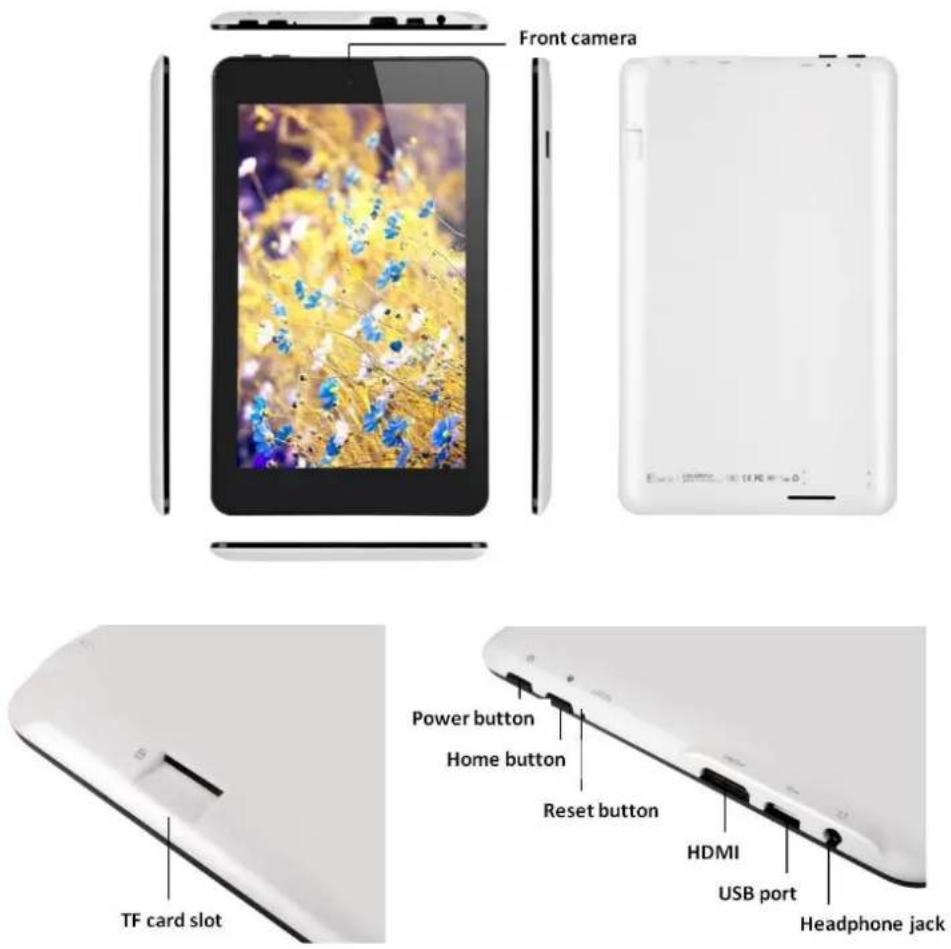
2 Getting Started
Turning Tablet On/Off
Turn tablet on
Hold down the Power button until the product logo appears.
Turn tablet off
Hold down the Power button until the confirmation dialog box appears, and tap Power off.
If the tablet is in sleep mode, wake up the tablet and hold down the Power button.
Turning Screen Off
Press the Power button for one second, and the screen is turned off. Press the Power button again to turn the screen on.
Turning the screen off can reduce power consumption.
Tips: You can go to Settings > Display to set the auto-lock interval.
Reset
When the tablet cannot be turned on or does not respond, use a pen or another tool to poke the Reset button and then press the Power button.
Charging and Battery
Charge the tablet
The methods for charging the tablet are as follows:
■ Use the included USB cable to connect to a PC for charging.
■ Use the included USB cable to connect to a power adapter and plug the power adapter to a power outlet for charging.
NOTE: It takes much more time to charge the tablet by connecting it to a PC. Charging the tablet by power adapter is recommended. If no power adapter is delivered with the tablet, use a power adapter of 5V/1.5 A.
Tips for using the battery
If you charge the battery for the first time, charge it for more than eight hours, to maximize battery life.
If the tablet has not been used for a long time or the battery power is used up, the tablet may fail to be turned on when you start to charge it. This is the normal case. Turn on the tablet after the battery is charged for more than 10 minutes.
■ Using data services consumes more power and reduces the tablet standby time.
■ The battery charging duration varies according to temperature and battery use status.
- When the battery power is insufficient, a notification message is displayed. The tablet automatically shuts down when the power is too low.
Tips for reducing power consumption
■ Turn the screen or tablet off when you do not use the tablet.
■ Set a short screen auto-lock interval.
■ Reduce the screen brightness.
■ Turn the volume down.
■ Close the WLAN connection when it is not required.
■ Disable data services when they are not required.
Storage Card (T-Flash Card) Usage
Insert a storage card
Insert a storage card into the T-Flash slot as prompted.
Browse files on the storage card
■ Start the File Manager application and select the storage card.
- Start an installed third-party file manager program and select the storage card.
Remove the storage card
To prevent data loss or damage, unmount the storage card before removing it.
Go to Settings > Storage > Unmount SD card, push the storage card towards the slot, release the storage card, and take it out.
Tips: You are advised not to perform hot-plug or hot-pull on a storage card when it is used, to prevent data loss or damage.
Input Method Setting
You can download and install your favorite input methods. After an input method is installed, you can select it.
Go to Settings > Language & input, select an installed input method, and tap 📄. The system switches to the installed input method.
Connecting to Networks
The tablet can use the Wi-Fi function, an external 3G dongle, or a USB Ethernet adapter to connect to a network. For details about how to set a network, see "Wireless & Networks" in this manual.
Connecting to USB Devices
The tablet supports OTG extension. Users can easily connect the tablet to USB devices such as mouse and keyboard by using the OTG cable.
Connecting to a PC
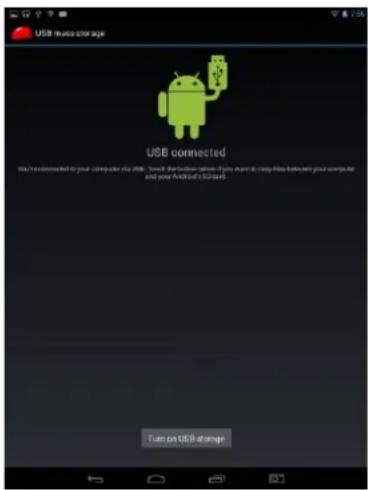
- Use the included USB cable to connect the tablet to a PC.
- When the "USB connected" dialog box is displayed, tap Turn on USB storage as shown in the following figure, and you can copy files to the PC or copy files from the PC.
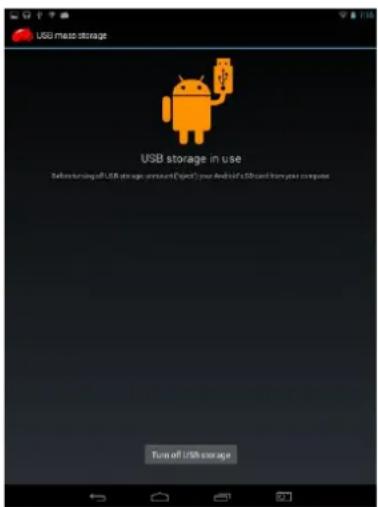
- After operations are complete, tap Turn off USB storage, as shown in the following figure.
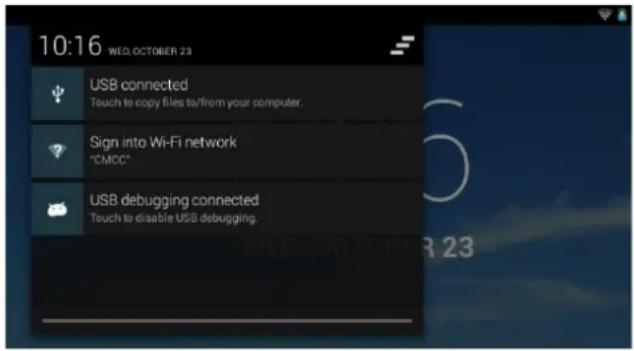
Tips: You can also tap USB connected on the notification panel to display the "USB connected" dialog box, as shown in the following figure.
NOTE: Ensure that the communication between the tablet and PC is terminated before you unplug the USB cable from the PC. Properly close the USB device to prevent data loss or damage.
Connecting to a TV Set
Use the standard HDMI cable to connect the tablet to a HD TV set. Files including audio files, video files, and pictures on the tablet can be played on the TV.
3 Main Screen
Icons on the Main Screen
| Icon | Name | Description |
 | Return | Tap this icon to the go to the previous viewed page. |
 | Home page | Tap this icon on any page to go to the Home page. |
 | Recently used | Tap this icon to view the recently used applications. |
 | Search button | Tap this icon to search. |
 | All applications | Tap this icon to view all applications. |
 | Volume -/Volume + | Tap these icons to adjust the volume. |
 | Status display | This area displays information including time, |
| network, and battery power information, and you can tap to view details. |
APPS and WIDGETS Pages
Display the APPS page
Tap 📋 the APPS/WIDGETS page appears, displaying icons of all installed applications. You can swipe left or right to view more applications.
Display the WIDGETS page
On the APP page, tap WIDGETS in APPS WIDGETS in the app left corner or swipe left.
Desktop Shortcut Creation
Create an application shortcut icon on the desktop
On the APPS or WIDGETS page, touch and hold an icon until the desktop appears, and you can drag the icon to any position on the desktop.
Delete an application shortcut icon from the desktop
- Touch and hold an icon on the desktop until a cross icon appears.
- Drag the icon to the cross icon. After the icon turns red, release the icon.
Wallpaper Changing
-
Touch and hold on blank area on the main screen. The Wallpapers, Live Wallpapers, and Gallery options are displayed. Tap an option to display the picture selection page.
-
Alternatively, go to Settings > Display and tap Wallpaper.
4 Settings
Wireless & Networks
Wi-Fi
Turn on the Wi-Fi network
- Go to Settings > WIRELESS & NETWORKS and tap ON/OFF on the right to disable or enable the Wi-Fi service.
- Tap Scan when the Wi-Fi service is enabled to view the detected Wi-Fi networks.
- Tap the required Wi-Fi network to connect to it. If a password has been set for the Wi-Fi network, enter the password in the displayed dialog box and tap Connect.
After you successfully connect to the Wi-Fi network, the Wi-Fi connection icon is displayed on the status bar.
Add a Wi-Fi network
Some Wi-Fi networks do not broadcast SSIDs. Therefore, you need to add such Wi-Fi network when you are to use it.
- Go to Settings > WIRELESS & NETWORKS and tap

upper right corner.
- Set Network SSID and Security.
- Tap Save.
Delete Wi-Fi networks
The system automatically saves connected and added Wi-Fi networks and connects the tablet to one of them when the tablet is used in the corresponding network coverage. Perform the following steps to delete a Wi-Fi network:
- Go to Settings > WIRELESS & NETWORKS and tap a connected Wi-Fi network to open it.
- Tap Forget in the displayed dialog box.
The connection information is deleted and you need to set information to connect to it next time.
Set a Wi-Fi network
- Go to Settings > WIRELESS & NETWORKS, tap , and tap Advanced.
- Select Network notification.
The system automatically notifies you of open Wi-Fi networks nearby.
- Tap Keep Wi-Fi on during sleep.
In the dialog box that appears, tap Always, Only when plugged in, or Never (increases data usage) to set whether to keep Wi-Fi connected when the tablet is in sleep mode and when to keep Wi-Fi connected. If you tap Always, the Wi-Fi network is always connected even when the tablet is in sleep mode.
Mobile networks
- Use a 3G USB Dongle to connect to the tablet when the tablet is on. The tablet automatically identifies the 3G mobile device.
- Use the tablet after the 3G signaling icon is displayed on the status bar.
Tips: There are various 3G network card brands. To ensure better network access experience, you are advised to test a 3G card before buying it.
Enable the 3G network
The 3G network is enabled by default. To disable the 3G network, perform the following steps:
- Go to Settings > WIRELESS & NETWORKS and tap More.
- Tap Mobile networks and deselect Data enabled. The 3G network is disabled.
View 3G data traffic
Go to Settings > WIRELESS & NETWORKS and tap Data usage. You can view details about the 3G card traffic.
Ethernet
- Go to Settings > WIRELESS & NETWORKS, tap More, tap Ethernet, and select Use Ethernet.
- After the network cable is properly connected, the corresponding icon indicating that the network is successfully connected is displayed on the status bar.
Tips: When the network is connected, you can tap Advanced to set the network.
Sounds
Set the volume, notification alert, touch tone, and lock tone.
Display
Display: Set items including the brightness, wallpaper, sleep, daydream, font size, accelerometer coordinate system, and screen adaption.
Smart Color: Set the smart color function. It is better for playing games, watching videos, and viewing pictures. If you select the demo mode, only half of the screen is effective and you can easily be aware of the effect.
Intelligent Backlight: Set the intelligent backlight function. If you select the demo mode, only half of the screen is effective and you can easily be aware of the effect.
Storage
View system storage status. You can select to format the SD card. After you insert an SD card or USB storage device, you can select to unmount or mount the SD card or USB storage device.
Battery
View battery power and usage.
Apps
View all installed applications. You can uninstall or move applications, or clear cache for applications. You are advised to move downloaded applications to the SD card.
Location access
This item is available only in an environment with a network connected. You can set access to your location or whether you allow applications to use Google's location service.
Security
■ Screen Security
Screen lock: By default, the screen is unlocked in slide mode; however, you can set to the pattern or password mode.
Owner info: You can set owner information to be displayed on the locked screen.
■ Encryption
After you encrypt the tablet, you must enter a numeric PIN or password to decrypt the tablet each time you power it on.
■ Passwords
You can make passwords visible.
■ Device Administration
Device administrators: View or deactivate device administrators.
Unknown sources: After you select this item, applications from non-Google electronic store can be installed.
Verify apps: After you select this item, applications to be installed are verified. Applications that may cause harm are not allowed to be installed, or a warning is displayed before you
install such applications.
■ Credential Storage
Trusted credentials: Display trusted CA certificates.
Install from SD card: Install certificates from the SD card.
Clear credentials: Remove all certificates.
Language & input
■ Language & input
Language: Set the system language.
Spell checker: Set the spelling checker.
Personal dictionary: Add words to the user dictionary.
■ Keyboard & Input Methods
Select an input method from the system built-in or third-party input methods. After selecting an
input method, tap 📄 the right to switch to it or tap Default to set it as the default input method.
■ Speech
You can set voice search and text-to-speech (TTS) output.
Backup & reset
■ Backup & Restore
Back up my data: Back up application data, Wi-Fi passwords, and other settings to Google servers.
■ Personal Data
Factory data reset: You can tap this item to restore the tablet to factory settings. If you select Erase SD card, all data in the memory device in the tablet is deleted.
■ System Upgrade
Recovery mode: Start the system in recovery mode. This can clear data or system upgrade.
Accounts
Add account: Add a Google, company, or email account.
Date & time
- Automatic date & time: indicates whether to automatically obtain time from the Internet. When you select this item, the tablet automatically obtains time from the Internet when it is connected to a network.
- Set date: After deselecting Automatic date & time, you can manually set the date.
- Set time: After deselecting Automatic date & time, you can manually set the time.
- Select time zone: After deselecting Automatic time zone, you can manually select a time zone.
- Use 24-hour format: When you select this item, the 24-hour format is used. When you deselect this item, the 12-hour format is used.
- Choose date format: You can select a date display format.
Accessibility
Set services and system items such as magnification gestures, large text, auto-rotate screen, quick boot mode, and high speed mode.
Developer options
USB debugging: By default, this item is deselected. This function is enabled only when the tablet communicates with third-party software installed on a PC.
NOTE: Disable this function when the tablet properly connects to a PC for charging or data copying.
About tablet
View information about this tablet.
5 Software Installation and Uninstallation
Installation
Download or copy the required applications to the local storage device or storage card, open File Manager, select a third-party application file, and tap Install.
Uninstallation
Perform the following operations to uninstall a third-party application:
-
Go to Settings > Apps, select an application, and tap Uninstall.
-
Open the APK installer, tap Manage, select an application, and tap Uninstall.
6 Common Applications
Music Player
Play music: On the APPS page, tap the Play Music icon to display the playlist. Tap the song to be played. The music playing page is displayed.
| Operation | Icon |
| Play/Pause |  |
| Previous/Next |  |
| Playlist |  |
| Repeat/Random |  |
| Volume |  |
Video Player
On the APPS page, tap the 4K Video Player icon to display the playlist. Tap the video to be played. When a video is played, you can touch the screen to display the play control bar.
Tips: You can select any installed video player to play videos.
Camera
Tap the Camera icon to open the photo taking and video recording page. The common functions are described as follows:
■ Photo taking: Tap 📄. The photo taken is automatically saved.
- Photo taking/Video recording: Slide 📷 on 🔍 to switch between photo taking and video recording.
■ Video recording: Tap 📋 to start or stop recording. The video recorded is automatically saved.
■ Other settings: Tap
Gallery
Tap the Gallery icon to open the gallery and tap a picture.
When viewing a picture, you can perform the following operations:
- Swipe left or right to view the previous or next picture.
- Tap ☐ to perform operations such as deleting, playing a slideshow, rotating the picture left, rotating the picture right, and cropping the picture.
- Tap to delete the picture.
Tap

are the picture through Picasa or Gmail.
File Manager
Open the File Manager application. You can manage the internal storage device, storage card, and external mobile storage devices. In the file manager, you can copy, move, rename, delete, or cut files.
- Set email: Tap the Email icon and follow the wizard to set email information. You can add external POP3 or IMAP email accounts provided by common email service providers such as Sina, Sohu, Gmail, and QQ. To manually configure email information, contact your email service provider to obtain correct account information. For example, you need to understand POP3/IMAP and corresponding server settings.
- Receive and send emails: After successfully set the email information, you can receive and send emails.
Browser
- Open a webpage: Open a browser, tap the address field, enter the URL, and tap the confirmation key (for example, the Go key) on the keyboard. The actual confirmation key varies depending on input method.
■ View a webpage: Slide your finger on the screen to browse or view other webpages. - Enlarge/Reduce a webpage: Browse a webpage, double-tap to zoom in or zoom out, or spread two fingers apart to zoom in and pinch the two fingers together to zoom out.
- More operations: Tap ☐ when you view a webpage. You can tap the options to perform corresponding operations.
7 FAQ
- What can I do when the tablet does not respond or cannot be properly started?
a) Poke the Reset button and press the Power button.
b) Check whether the tablet fails to be turned on due to insufficient power. Turn on the tablet after charging it for more than 10 minutes.
c) Contact a professional to upgrade the system.
- Why is the standby duration of the tablet too short sometimes?
a) The standby duration depends on factors including the brightness, network operations, and operation frequencies. You are advised to reduce the brightness and disable networks when they are not used.
b) The running of some third-party software may stop the tablet from entering the sleep mode, which shortens the standby duration.
- Why does the system respond slowly sometimes?
a) Too many third-party applications are installed, which occupies large memory and causes the slow response of the tablet. You are advised to uninstall unnecessary software.
b) Back up data and restore the tablet to factory settings.
- Why errors occur when I start an installed third-party application?
The Android operating system cannot compatible with some third-party software due to hardware and software restrictions. You are advised to download third-party software that is compatible with the tablet software and hardware.
8 Safety and Cleaning
Tablet Carrying
Do not drop your tablet to the floor. You can use leather cases sold by other manufacturers to protect your tablet from scratching.
WARNING: Your tablet includes damageable parts and a rechargeable battery. Do not drop, twist,
or crush the tablet, to prevent damage.
Reducing Electric Shock or Tablet Damage Risks
Keep the tablet from water and moisture while using it. Keep your tablet away from liquid sources such as rain, drinks, or washing sinks. Do not drop food or liquid to the tablet. Clean the tablet when it comes in contact with anything that may cause stains. Turn off the tablet before cleaning it. If faults occur due to anything splashed to the tablet, contact the local dealer.
WARNING: The electronic device may cause harms to humans if it is not properly used. Children must operate the tablet under adult supervision. Keep children from touching internal device parts or any cables.
Properly Using the Data Cable and Power Adapter
■ Use the power adapter provided with the tablet. Adapters for other electronic devices may look similar; however, they may pose negative impact on or even damage your tablet.
- Do not disassemble or modify the power adapter. Do not use the power adapter when it is damaged. Otherwise, electric shock or fire may be caused.
- The power adapter gives off heat when it is used. Keep the surrounding of the power adapter ventilated, and put the power adapter away after the charging is complete. Place the power adapter on a hard and flat surface, if possible, to allow the power adapter to well give off heat.
- Do not touch the power adapter with wet hands. If the power adapter comes in contact with water or other liquid, cut off the power immediately.
- Do not short-circuit the power adapter. Do not shake or mechanically vibrate the power adapter. Do not expose the power adapter to direct sunlight. Do not use the power adapter in high humidity places such as the bath room. Do not expose the power adapter to rain or moisture.
■ Do not use the power adapter near electrical appliances such as TV set and radio set.
- Hold the power adapter instead of pulling the power cord when pulling the plug. Otherwise, the power cord may be damaged.
■ Place the power adapter in a place out of children's reach, to prevent safety ricks.
- Ensure that the data cable matches the micro USB port and that the data cable is connected to the micro USB port at the correct end.
Keeping the Tablet Exterior Clean
Ensure that the tablet is turned off. Use a soft and lint-free cloth. Keep openings from moisture. Do not use cleaning products such as spray, solvents, alcohol, or abrasives.
Keeping the Tablet in a Safe Temperature Range
Use the tablet in a temperature between 0^ C and 40^ C. The use duration of the tablet may be shortened when it is used in a low temperature. Do not leave your tablet in a car. The temperature inside a parked car may exceed the safe temperature range.
The tablet gives off heat at the rear when it is used or charged. This is normal. The rear of the tablet enclosure transfers heat from the device inside to external cool air to give off heat.
The tablet has a built-in lithium battery. If not properly handled, the battery may cause fire or overheating. Do not decompose or burn the battery when the temperature exceeds 100^ C. Contact the after-sale service center to replace the battery for you.
Storing the Tablet
Place the tablet in normal temperature (a temperature between 20^ C to 25^ C is recommended). Take the following measures to maintain battery life:
■ Use the tablet to discharge it before storing it.
■ Turn off the tablet and charge it once about every six months.
Preventing Hearing Loss
Set the volume to a proper level. If tinnitus is caused, turn down the volume or stop using the tablet.
WARNING: When you use a headphone, listening to sounds at high volumes may damage your hearing permanently. After listening to music for a period, you get used to higher volumes which
sound simple but may damage your hearing. If tinnitus is caused or sounds are inaudible, stop listening and check your hearings.
Warning About High-Risk Activities
The tablet is not applicable in environments with nuclear devices, airplane navigation, or communication systems or other special scenarios. Follow related rules to ensure safe use.