Surface SV4 - Tablet MICROSOFT - Free user manual and instructions
Find the device manual for free Surface SV4 MICROSOFT in PDF.


| Product Type | Tablet |
| Brand | Microsoft |
| Model | Surface Pro 4 (SV4) |
| Operating System | Windows 10 Pro |
| Processor | 6th Gen Intel Core i5 or i7 |
| RAM | 4 GB, 8 GB, or 16 GB |
| Storage | 128 GB, 256 GB, 512 GB, or 1 TB SSD |
| Display | 12.3-inch PixelSense, 2736x1824 (267 PPI) |
| Dimensions | 292.10 x 201.42 x 8.45 mm (11.50 x 7.93 x 0.33 in) |
| Weight | 786 g (1.73 lbs) |
| Battery Life | Up to 9 hours of video playback |
| Power Supply | 36W AC adapter with USB charging |
| Cameras | 5 MP front-facing camera, 8 MP rear-facing camera with autofocus |
| Ports | Full-size USB 3.0, Mini DisplayPort, microSD card reader, 3.5mm headphone jack |
| Stylus Support | Surface Pen (sold separately) with 4096 pressure levels |
| Keyboard | Surface Pro Type Cover (sold separately) |
| Wireless | Wi-Fi 802.11ac, Bluetooth 4.0 |
| Security | Windows Hello face authentication, TPM 2.0 |
| Cleaning Instructions | Wipe with a soft, dry cloth; avoid liquids and abrasives |
| Spare Parts Availability | Surface Pro Type Cover, Surface Pen, power supply, and adapters available from Microsoft |
| Repairability | Professional repair recommended; limited user replaceable parts (SSD replaceable) |
Frequently Asked Questions - Surface SV4 MICROSOFT
User questions about Surface SV4 MICROSOFT
0 question about this device. Answer the ones you know or ask your own.
Ask a new question about this device
Download the instructions for your Tablet in PDF format for free! Find your manual Surface SV4 - MICROSOFT and take your electronic device back in hand. On this page are published all the documents necessary for the use of your device. Surface SV4 by MICROSOFT.
USER MANUAL Surface SV4 MICROSOFT
Published: October 2015
Version 1.0
Surface Surface Pro 4
© 2015 Microsoft. All rights reserved.
Microsoft, Microsoft Edge, OneNote, Outlook, PowerPoint, OneDrive, and Windows are registered trademarks of Microsoft Corporation.
Surface and Skype are trademarks of Microsoft Corporation.
Bluetooth is a registered trademark of Bluetooth SIG, Inc.
This document is provided "as-is." Information in this document, including URL and other Internet website references, may change without notice.
Surface Surface Pro 4
Contents
About this guide ....1
Meet Surface Pro 4....1
Set up your Surface Pro 4....5
CHARGE YOUR SURFACE PRO 4....5
CONNECT THE COVER....6
SET UP YOUR SURFACE PRO 4....6
The basics....6
POWER AND CHARGING 6
Check the battery level....7
Lock screen....7
Desktop taskbar....7
Make your battery last....7
TOUCH, KEYBOARD, PEN, AND MOUSE....7
Keep your Surface up to date 8
Get online......8
BROWSING TIPS....9
Accounts and signing in 9
USE THE SIGN-IN SCREEN....9
USE WINDOWS HELLO TO SIGN IN....10
SIGN OUT 10
Get to know Windows 10....10
GO TO START....10
ACTION CENTER....11
SEARCH....11
TASK VIEW AND VIRTUAL DESKTOPS....12
SETTINGS....13
Type Cover for Surface Pro 4 keyboard and touchpad....13
Storage and OneDrive....14
ONEDRIVE....14
Surface Surface Pro 4
Save files you're working on to OneDrive 15
Surface Pen and OneNote 15
SURFACE PEN (SURFACE PRO 4 VERSION) FEATURES ....15
PAIR THE PEN WITH YOUR SURFACE....16
TRY OUT FEATURES BUILT IN TO THE TOP BUTTON OF THE PEN....16
GET ACQUAINTED WITH ONENOTE....17
Send a page or share a notebook....18
Connect monitors, accessories, and other devices....19
SET UP YOUR WORKSPACE WITH SURFACE DOCK....19
CONNECT OR PROJECT TO A MONITOR, SCREEN, OR OTHER DISPLAY....20
Cameras and the Camera app ....21
VIEW PHOTOS AND VIDEOS....21
Apps on your Surface Pro 4 ....21
THE SURFACE APP 23
GET MORE APPS....24
Personalization and settings....24
WINDOWS SETTINGS....24
ACTION CENTER....24
CORTANA 25
SURFACE APP 25
SYNC YOUR SETTINGS 25
CHANGE SETTINGS IN WINDOWS APPS....25
Accessibility 25
EASE OF ACCESS OPTIONS FOR SURFACE....25
OTHER OPTIONS....26
CUSTOMIZE THE SIGN-IN SCREEN....26
Care and cleaning 27
TOUCHSCREEN CARE....27
COVER AND KEYBOARD CARE....27
POWER CORD CARE....27
Registration, repair, and warranty 28
REGISTER YOUR SURFACE....28

Microsoft
Surface Surface Pro 4
REPAIR....28
WARRANTY....28
More help....28
About this guide
This guide is designed to get you up and running with the key features of your new Surface Pro 4 and Surface Pen (Surface Pro 4 version). You'll find lots more info online at Surface.com: Go to http://www.microsoft.com/surface/support. The information on Surface.com is also available through the Surface app on your Surface Pro 4. For more info, see The Surface app later in this guide.
Meet Surface Pro 4
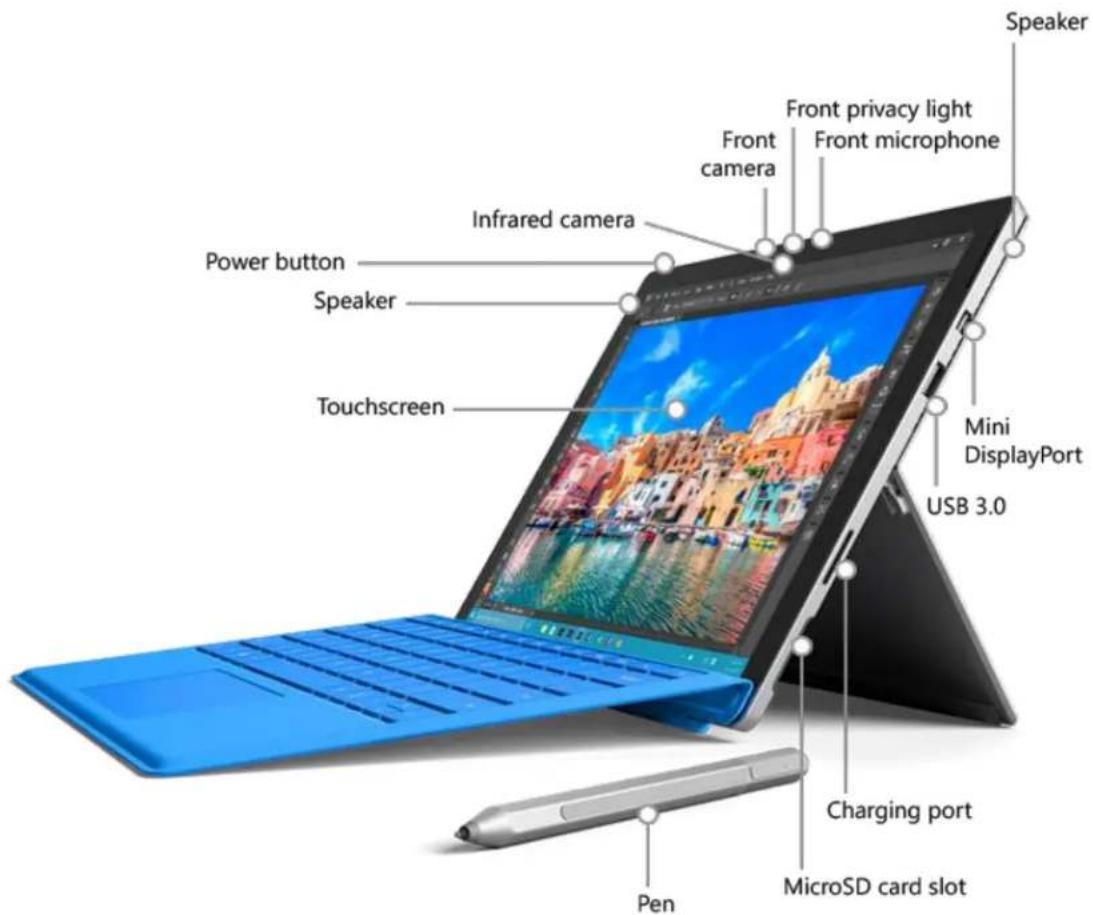
Get acquainted with the features built in to your Surface Pro 4.
text_image
Speaker Front privacy light Front microphone Front camera Infrared camera Power button Speaker Touchscreen Mini DisplayPort USB 3.0 Charging port MicroSD card slot PenHere's a quick overview of Surface Pro 4 features:
| Power button | Press the power button to turn your Surface Pro 4 on. You can also use the power button to put it to sleep and wake it when you're ready to start working again. |
| Touchscreen | Use the 12.3" display, with its 3:2 aspect ratio and 2736 x 1824 resolution, to watch HD movies, browse the web, and use your favorite apps.The new Surface G5 touch processor provides up to twice the touch accuracy of Surface Pro 3 and lets you use your fingers to select items, zoom in, and move things around. For more info, see Surface touchscreen on Surface.com. |
| Surface Pen (Surface Pro 4 version) | Enjoy a natural writing experience with a pen that feels like an actual pen. Use Surface Pen to launch Cortana in Windows or open OneNote and quickly jot down notes or take screenshots.See Using Surface Pen (Surface Pro 4 version) on Surface.com for more info. |
| Kickstand | Flip out the kickstand and work or play comfortably at your desk, on the couch, or while giving a hands-free presentation. |
| Wi-Fi and Bluetooth® | Surface Pro 4 supports standard Wi-Fi protocols (802.11a/b/g/n/ac) and Bluetooth 4.0. Connect to a wireless network and use Bluetooth devices like mice, printers, and headsets.For more info, see Add a Bluetooth device and Connect Surface to a wireless network on Surface.com. |
| Cameras | Surface Pro 4 has two cameras for taking photos and recording video: an 8-megapixel rear-facing camera with autofocus and a 5-megapixel, high-resolution, front-facing camera. Both cameras record video in 1080p, with a 16:9 aspect ratio. Privacy lights are located on the right side of both cameras.Surface Pro 4 also has an infrared (IR) face-detection camera so you can sign in to Windows without typing a password. For more info, see Windows Hello on Surface.com.For more camera info, see Take photos and videos with Surface and Using autofocus on Surface 3 and Surface Pro 4 on Surface.com. |
| Microphones | Surface Pro 4 has both a front and a back microphone. Use the front microphone for calls and recordings. Its noise-canceling feature is optimized for use with Skype and Cortana. |
| Stereo speakers | Stereo front speakers provide an immersive music and movie playback experience. To learn more, see Surface sound, volume, and audio accessories on Surface.com. |
Surface
Surface Pro 4

text_image
Back camera Back privacy light Back microphone Volume button Headset jack Magnetic storage for pen Kickstand| Ports and connectorsSoftware | Surface Pro 4 has the ports you expect in a full-feature laptop.Full-size USB 3.0 portConnect a USB accessory like a mouse, printer, Ethernet adapter, USB drive, or smartphone. For more info, see Connect a USB mouse, printer, and more on Surface.com.Surflink ConnectorWhen your battery is low, attach the included power supply to the Surflink Connector charging port. For more info, see Surface battery and power on Surface.com.If you use the Surface Dock (sold separately), you connect your Surface to the dock through the Surflink Connector to transmit power and data. For more info, see Using Surface Dock on Surface.com.MicroSD card slotUse the microSD card slot and a microSD card (sold separately) for file transfer and extra storage. For more info, see Surface storage options on Surface.com.Mini DisplayPort version 1.2Share what's on your Surface screen by connecting it to an HDTV, monitor, or projector. (Video adapters are sold separately.) For more info, see Connect Surface to a TV, monitor, or projector on Surface.com.3.5 mm headset jackPlug in your favorite headset for a little more privacy when listening to music or conference calls. For more info, see Surface sound, volume, and audio accessories on Surface.com.Cover connectorsClick in the thin, light, Type Cover for Surface Pro 4 (sold separately) so you'll always have a keyboard when you're on the go. For more info, see Type Cover on Surface.com.Windows 10 operating systemWindows 10 provides new features and many options for entertainment and productivity at school, at home, or while you're on the go.To learn more about Windows, see Get started with Windows 10 on Windows.comAppsYou can use the built-in apps featured on your Start menu and install more apps from the Windows Store. To learn more, see All about apps and get more apps on Surface.com.You can also install and use all your favorite desktop apps on your Surface Pro 4. For more info, see Install and uninstall apps on Surface on Surface.com. |
| Processor | The 6th-generation Intel Core processor provides speed and power for smooth, fast performance. |
| Memory and storage | Surface Pro 4 is available in configurations with up to 16 GB of RAM and 512 GB storage. See Surface storage on Surface.com for info on available disk space.To learn about additional storage options for Surface Pro 4, see Surface storage options on Surface.com. |
| Sensors | Six sensors— accelerometer, magnetometer, gyro, ambient light sensor, Hall effect, Wi-Fi SAR—let apps do things like track motion and determine location. |
Set up your Surface Pro 4
Charge your Surface Pro 4
- Connect the two parts of the power cord.
- Connect the power cord securely to the charging port.
- Plug the power supply into an electrical outlet.
Surface Surface Pro 4
Connect the Cover
natural_image
Computer monitor displaying a colorful cityscape with boats on water under a blue sky (no text or symbols visible)
natural_image
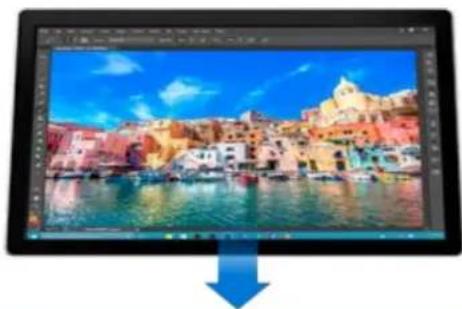
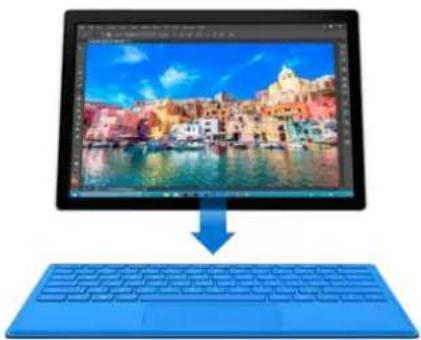
Blue keyboard with standard design (no text or symbols visible)If you have a Type Cover for Surface Pro 4 (sold separately), snap it into place and open the kickstand.
Set up your Surface Pro 4
Press the power button to turn on your Surface Pro 4. Windows starts and guides you through the setup process. For more info, see Set up your Surface on Surface.com.
The basics
Power and charging
It takes two to four hours to charge the Surface Pro 4 battery fully from an empty state. It can take longer if you're using your Surface for power-intensive activities like gaming or video streaming while you're charging it.
You can use the USB port on your Surface Pro 4 power supply to charge other devices, like a phone, while your Surface charges. The USB port on the power supply is only for charging, not for data transfer. If you want to use a USB device, plug it into the USB port on your Surface.
Surface Surface Pro 4
Check the battery level
You can check the battery level from the lock screen or the desktop:
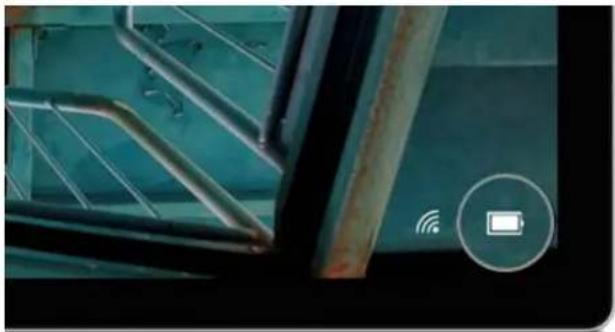
Lock screen.
When you wake your Surface, the battery status appears in the lower-right corner of the lock screen.
natural_image
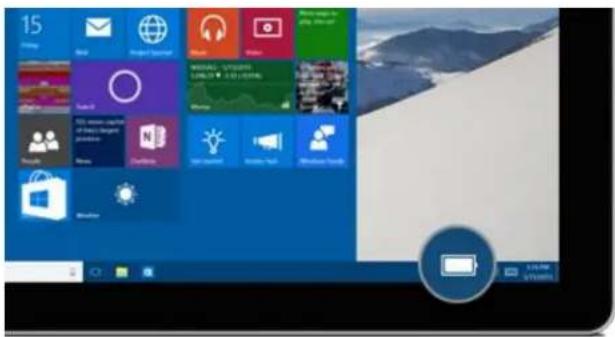
Close-up of a car's interior showing a battery icon and Wi-Fi signal, no readable text or symbols present.Desktop taskbar.
Battery status appears at the right side of the taskbar. Select the battery icon for info about the charging and battery status, including the percent remaining.
text_image
15 Help Mail Project Manager Windows Windows More help in your home Status Status History History History History History History History History History History History History History History History History History History History History History History History History History History History History History History History History History History History History History History History History History History History History History History History History History History Histology Histology Histology Histology Histology Histology Histology Histology Histology Histology Histology Histology Histology Histology Histology Histology Histology Histology Histology Histology Histology Histology Histology Histology Histology Histology Histology Histology Histology Histology Histology Histology Histology HistologyMake your battery last
For info on how to care for your battery and power supply, conserve power, and make your Surface battery last longer, see Surface battery and power on Surface.com.
Touch, keyboard, pen, and mouse
With Surface, you can easily switch between using touch, a keyboard, a mouse, or a pen.
- Touch. You can use your fingers on the touchscreen, the same as you would on a smartphone. For example, drag your finger across the screen to scroll. For demos of the gestures you can use, see The Surface touchscreen on Surface.com. You can also type on the touchscreen—see How to use the Surface touch keyboard on Surface.com.
- Type Cover keyboard and touchpad. The Type Cover for Surface Pro 4 (sold separately) clicks into place when you want to type and folds back out of the way when you want to use your Surface as a tablet. Because the Cover is perfectly sized for your Surface Pro 4, closing it puts your Surface to sleep while it protects the touchscreen. The Type Cover includes a touchpad
Surface Surface Pro 4
that supports Windows 10 gestures. For more info, see Touchpad use and settings on Surface.com.
- Surface Pen. Take notes, draw, and mark up documents using the Surface Pen that comes with your Surface Pro 4. Click the top button once to jot a quick note in OneNote, double-click to take a screen capture straight to OneNote, or hold the button down for a second or two to open Cortana. Write, draw, and tap naturally with the tip—while the tip is near the screen, Surface ignores touches from your hand. Flip the pen around to erase with the top button. A button near the tip lets you right-click without changing your grip. For more info, see Using Surface Pen (Surface Pro 4 version) on Surface.com.
- USB or Bluetooth ^® keyboard and mouse. See Connect a USB mouse, printer, and more and Add a Bluetooth device on Surface.com to learn more.
Keep your Surface up to date
Microsoft releases important updates to improve Windows software security and reliability, and system and hardware updates (also known as firmware updates) to help improve the stability and performance of your Surface hardware. For info on keeping your Surface up to date, see Install Surface and Windows updates on Surface.com.
Get online

Microsoft Edge works with Cortana to help you get the most from the Internet, and you can use your Surface Pen or touch to create Web Notes that you can save or share.
To open Microsoft Edge, select it from Start or the taskbar. Or, go to Start ☐, and select All apps > Microsoft Edge.
Surface Surface Pro 4
Browsing tips
Icons at the upper right of the Microsoft Edge window put common tasks at your fingertips.

text_image
Toolbar with icons including stars, exclamation marks, and gear symbols- Select Add to favorites and reading list ☆ to add a page to your reading list or a favorites folder.
- Select Hub ≡ to view items in your Favorites ☆, Reading list ≡, History 🔒, or Downloads ↓
- Select Reading view 📄 to clear away everything but the article you're reading. Select it again to view the entire page.
For more info, see Microsoft Edge and What is Cortana? on Windows.com
Accounts and signing in
When you set up your Surface, an account is set up for you. You can create additional accounts later for family and friends, so each person using your Surface can set it up just the way he or she likes. For more info, see All about accounts on Surface.com.
There are several ways to sign in to your Surface Pro 4:
Use the sign-in screen
- Turn on or wake your Surface by pressing the power button.
- Swipe up on the screen or tap a key on the keyboard.
- If you see your account name and account picture, enter your password and select the right arrow or press Enter on your keyboard.
- If you see a different account name, select your own account from the list at the left. Then enter your password and select the right arrow or press Enter on your keyboard.
Surface
Surface Pro 4
Use Windows Hello to sign in
Since Surface Pro 4 has an infrared (IR) camera, you can set up Windows Hello to sign in just by looking at the screen.
If you have the Surface Pro 4 Type Cover with Fingerprint ID (sold separately), you can set up your Surface sign you in with a touch.
For more info, see What is Windows Hello? on Windows.com.
Sign out
Here's how to sign out:
- Go to Start 📁, and right-click your name. Then select Sign out.
Get to know Windows 10
Here are some of the basics about Windows 10. For more info, see Get Started with Windows 10 on Windows.com.
Go to Start
Select Start ☐ the taskbar or press the Start

on your keyboard to open the Start menu.

text_image
Life at a glance Play and Explore About sound Alarms & Clock Calculator Maps Stricky Notes Page Notepad Snapping Text Recently added Email and accounts The Eyelown Settings Power All sizes Search the web and Windows- At the lower left of the Start menu, you'll find quick links to File Explorer, Settings, Power (shut down, sleep, and restart), and All apps.
- The apps you've used most often appear at the upper left.
- Your name and profile picture appear at the top of the left side. Select them to change your account settings, lock the screen, or sign out.
Tiles on Start act as quick links to apps. You can rearrange, resize, add, and remove tiles whenever you want. For more info, see Love it? Pin it on Windows.com.
Action center

text_image
Collapse Tablet mode Connect Note All settings VPN Quiet hours Location 1:17 PM 7/7/2015Swipe in from the right edge of the screen or select Action center in the taskbar to open the Action center.
Here you can adjust common settings like Wi-Fi connections or screen brightness, open OneNote, create a wireless connection to another screen, and more. If there are notifications waiting for you, they appear at the top of the Action center.
For more info, see Take action instantly on Windows.com.
Search
Search is always ready for you. Just select the search box in the taskbar and enter your question. Learn more at Search for anything, anywhere on Windows.com.
Or, go to Start ☐, and select Cortana ○. You can also open Cortana by holding down the top button on your Surface Pen for a second or two.
For more info, including tips on personalizing Cortana, see What is Cortana? on Windows.com.
Surface
Surface Pro 4
Task view and virtual desktops
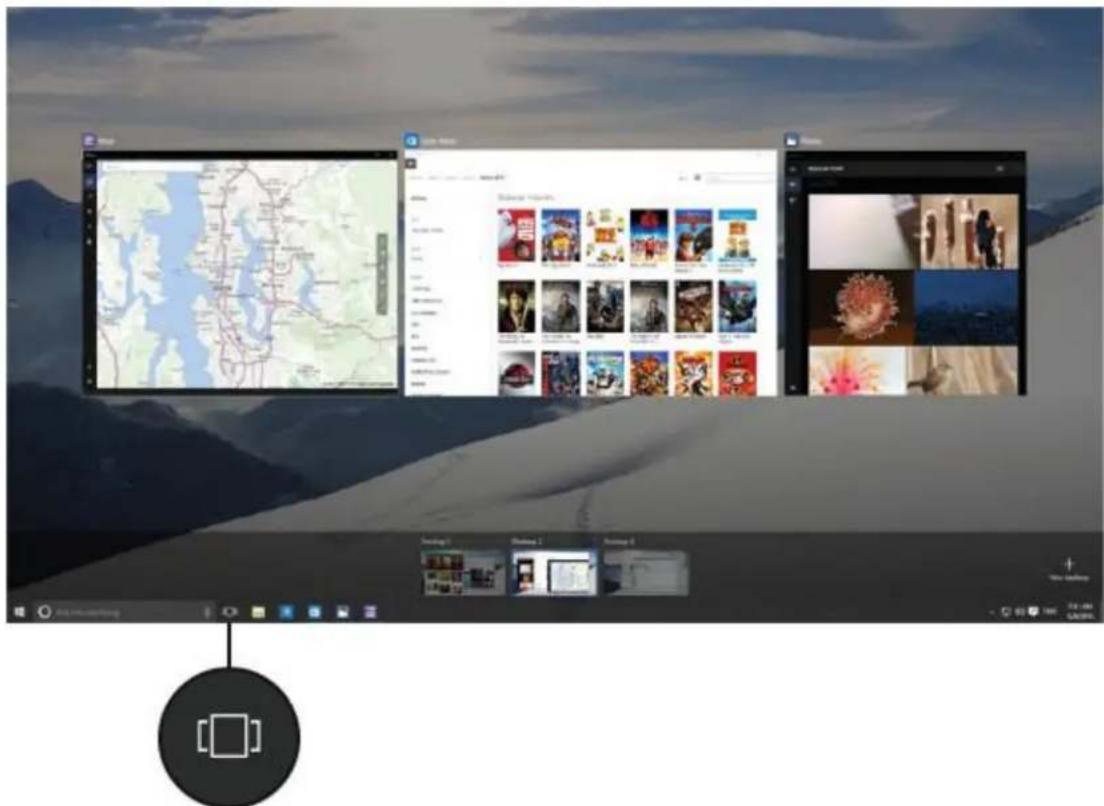
Swipe in from the left edge of the screen or select Task view ☐ from the taskbar to see all your open apps. Select an app to focus on or close an app by clicking the X in the upper-right corner of the app.
text_image
Screenshot of a macOS desktop with open applications, showing a map view and multiple video thumbnails on the right.While you're in Task view, you can create a new virtual desktop by selecting New desktop in the lower-right corner. Each virtual desktop can have its own set of open apps. To switch between desktops, open Task view and select a desktop.
For more info, see Group apps into desktops on Windows.com.
Settings
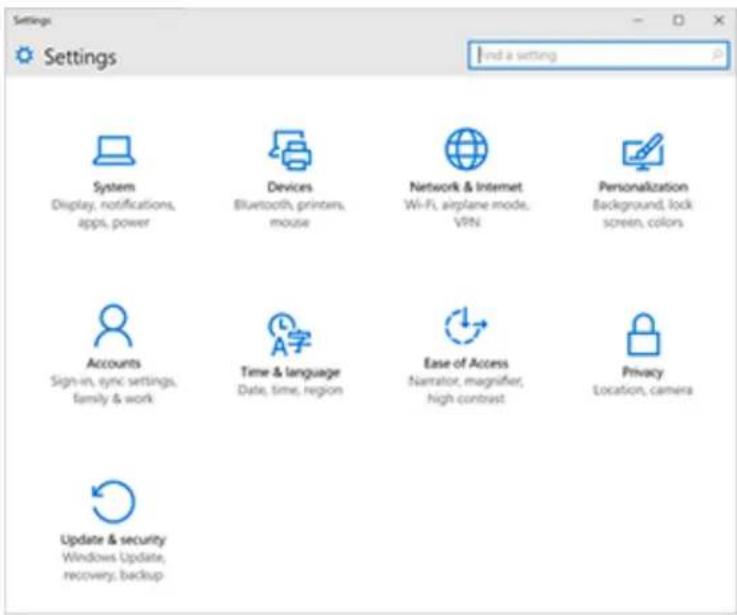
Go to Start and select Settings for access to all your settings.

text_image
Settings Find a setting Settings System Display, notifications, apps, power Devices Bluetooth, printers, mouse Network & Internet Wi-Fi, airplane mode, VPN Personalization Background, lock screen, colors Accounts Sign-in, sync settings, family & work Time & language Date, time, region Ease of Access Narrator, magnifier, high contrast Privacy Location, camera Update & security Windows Update, recovery, backupType Cover for Surface Pro 4 keyboard and touchpad
natural_image
Blue laptop with a colorful scenic village on screen, shown from its left (no text or symbols visible)The Type Cover for Surface Pro 4 clicks into place, giving you a traditional keyboard, gesture-enabled touchpad, and protective cover all in one slim package.
When you close the Cover, your Surface Pro 4 goes to sleep. Fold the Cover back to use your Surface as a tablet. While the Cover is folded back, your Surface won't detect key presses.
For more info about Type Covers, see Type Cover on Surface.com.
Surface Surface Pro 4
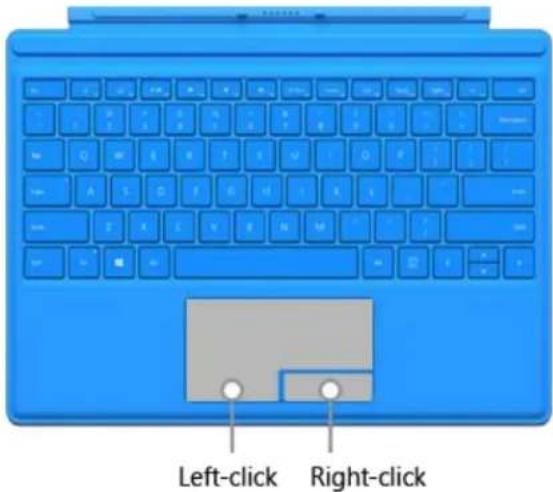
The touchpad on the Type Cover for Surface Pro 4 has right-click and left-click buttons and supports Windows 10 gestures.
For demos showing how to use the touchpad buttons, see Touchpad use and settings on Surface.com.
text_image
Left-click Right-clickStorage and OneDrive
Surface Pro 4 is available with up to 16 GB of RAM and 512 GB storage. You can extend your storage options by using OneDrive, USB drives, and microSD cards. For more info about internal and removable storage options, see Surface storage options.
OneDrive

OneDrive is online storage that comes with your Microsoft account. Save your documents, photos, and other files to the OneDrive folder on your Surface and they'll be synced to OneDrive in the cloud whenever you have an Internet connection. The copy in the cloud is available to you from any web-connected device. If you want to,
you can share some of the folders in your OneDrive with others or send someone a link to just one page.
To save space on your Surface, you can choose not to sync some of your OneDrive folders. You can still access your files on the Internet by signing into OneDrive.com, but they won't be available in File Explorer. You can add them back at any time.
Here's how to choose which folders to sync:
-
Select File Explorer in the taskbar and open the OneDrive folder.
-
Right-click any folder in OneDrive and select Choose OneDrive folders to sync to produce a list of all the folders in your OneDrive account.
-
Select the folders you want to sync to your Surface and select OK.
Save files you're working on to OneDrive
To save a file from a desktop app directly to OneDrive, choose OneDrive in the left panel of the Save As screen. Then navigate to the folder where you want to save the file.
For more info about OneDrive, see OneDrive on your PC on Windows.com.
Surface Pen and OneNote
Use the Surface Pen that comes with your Surface Pro 4 to open Cortana or OneNote, take a screenshot, or write or draw in any app that supports inking.
Surface Pen (Surface Pro 4 version) features
text_image
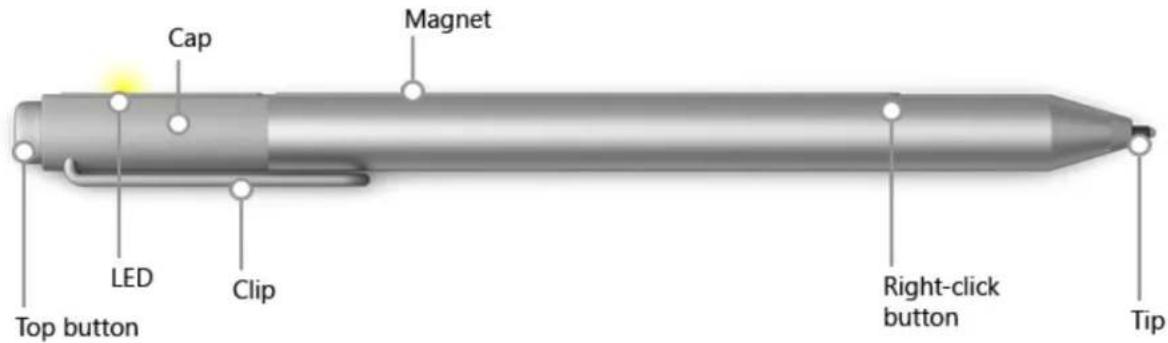
Cap Magnet LED Clip Top button Right-click button Tip| Magnetic surface | Use the magnet on the flat side of the cap to attach the Surface Pen to the side of your Surface Pro 4 or to any convenient magnetic surface. |
| LED | When the pen is in pairing mode, the LED glows white.When the battery is low, the LED glows red. |
| Top button | Bluetooth technology links your Surface Pen to your Surface:Click and hold the top button to wake up Cortana or Search, then enter your question on the screen.Click the top button to open OneNote.Double-click to take a screenshot and paste it into OneNote.To erase, flip the pen over and use the top as an eraser. |
| Right-click button | The tip end of the raised area on the flat side of the pen works as a right-click button in many apps.Hold the button down as you tap the screen. In some apps, the right-click button may behave differently. |
| Tip | Choose your favorite tip from the Pen Tip Kit (sold separately). The tips work with the Palm Block technology and multi-point sensitivity built into your Surface to let you write and draw naturally. |
For more info, see Using Surface Pen (Surface Pro 4 version) on Surface.com.
Pair the pen with your Surface
If you didn't pair the pen when you set up your Surface, you can pair it now.
- Go to Start 📁, and select Settings > Devices > Bluetooth.
- Make sure that Bluetooth is On.
If Surface Pen appears in the list of discovered devices, select it and select Remove Device.
- Hold down the top button of the pen for about seven seconds, until the light on the flat side of the pen glows white.

text_image
LED Top button- When the pen appears in the list of Bluetooth devices, select it and select Pair.
Try out features built in to the top button of the pen
The top button connects you to Windows 10 features on your Surface.
Click and hold to open Cortana or Search
When you click and hold the top button, Cortana opens (or Search opens if Cortana is not set up). Enter your question on the screen.
Click to open a Quick Note
OneNote is a great way to find, capture, organize, and share information. Click the top button on your pen while your Surface is asleep and you can jot a note or sketch immediately, without unlocking the screen. When you're using your Surface, click the top button to open OneNote.
Double-click to put a screenshot into a Quick Note
Use your Surface Pen to take a screenshot and copy it to OneNote. Here's how:
-
Display what you want to copy. It can be a web page, a photo, or anything else you see on your screen.
-
Double-click the top button on your Surface Pen.
-
Select what you want to capture in the screenshot by dragging the tip of the pen from one corner of the portion you want to capture to the opposite corner. When you lift the pen tip, your selection appears in a new page in OneNote.
Now you can mark up the screenshot with the pen, move it to any of your OneNote notebooks, or share it with others.
Get acquainted with OneNote
OneNote is a free app that you can use on any of your devices—even Mac, iOS, and Android devices. Your data is stored in the cloud and synced across all your devices.
Create as many notebooks as you need. They're all right there in OneNote. Use sections, pages, and tags to make things easy to find. Find what you need in a flash by searching one notebook or all of them.
text_image
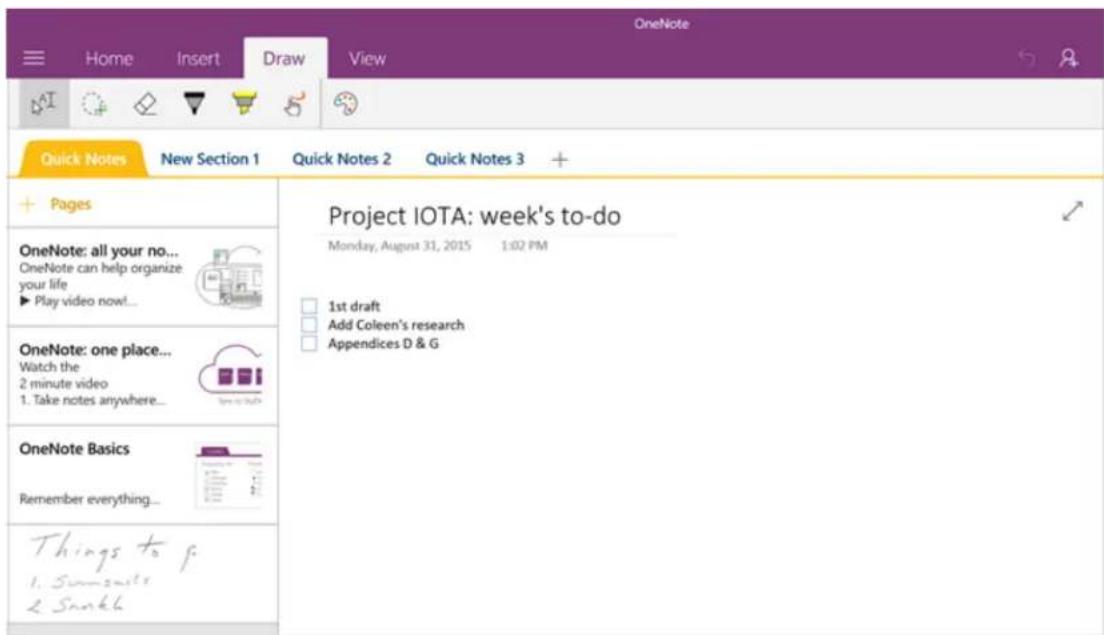
OneNote Home Insert Draw View Quick Notes New Section 1 Quick Notes 2 Quick Notes 3 + + Pages OneNote: all your no... OneNote can help organize your life ► Play video now!... OneNote: one place... Watch the 2 minute video 1. Take notes anywhere... OneNote Basics Remember everything... Things to f: 1. Summerwks 2 Snobk Project IOTA: week's to-do Monday, August 31, 2015 1:02 PM □ 1st draft □ Add Coleen's research □ Appendices D & GWhen you click the top of the pen, OneNote opens to a new Quick Note. You can move that note to any notebook and section you want.
Send a page or share a notebook
text_image
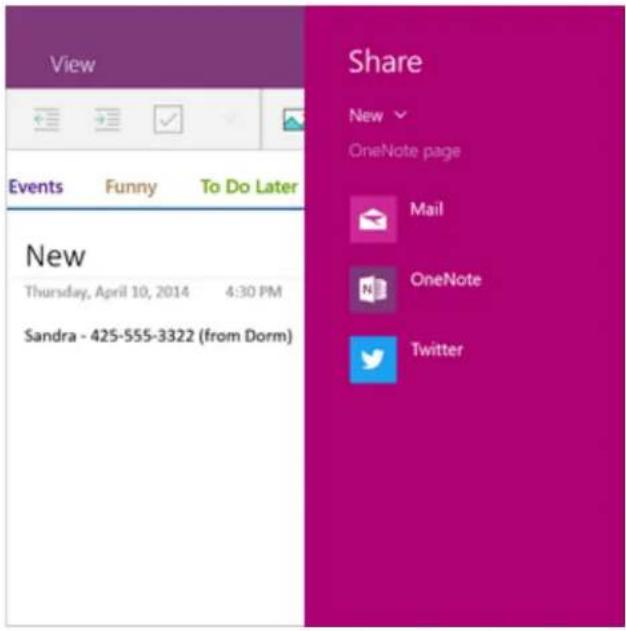
View Events Funny To Do Later New Thursday, April 10, 2014 4:30 PM Sandra - 425-555-3322 (from Dorm) Share New OneNote page Mail OneNote TwitterShare a page
Select Share in the upper-right corner to share a page in OneNote through email or social media.
text_image
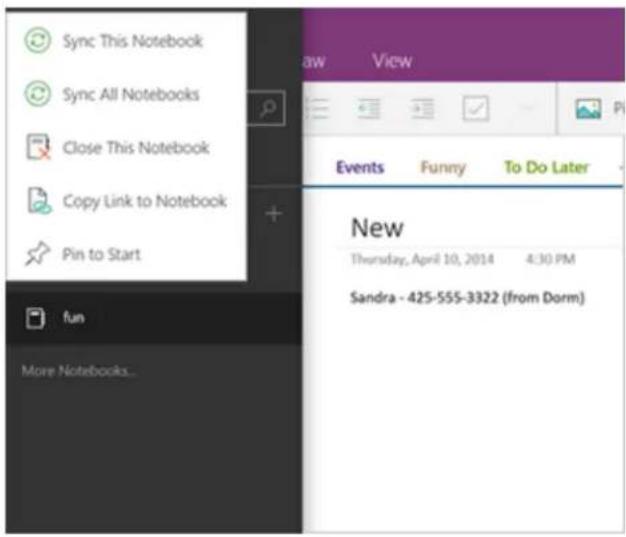
Sync This Notebook Sync All Notebooks Close This Notebook Copy Link to Notebook Pin to Start fun More Notebooks... View Events Funny To Do Later New Thursday, April 10, 2014 4:30 PM Sandra - 425-555-3322 (from Dorm)Share a notebook
To get a link to a whole notebook that you can paste into an email or file:
Select Menu in the upper-left corner to open the list of notebooks.
Right-click the notebook you want to share and select Copy Link to Notebook.
What people are able to see depends on the settings for the OneDrive folder containing the notebook. For info on setting permissions, see Share files and folders on Windows.com.
Learn more about OneNote at http://www.onenote.com/.
Connect monitors, accessories, and other devices
You can connect monitors, accessories, and other devices directly to your Surface Pro 4 using the USB port, Mini DisplayPort, or Bluetooth. Or, connect everything to a Surface Dock (sold separately). With Surface Dock, you can switch between fully connected and fully mobile with a single connector.
Set up your workspace with Surface Dock
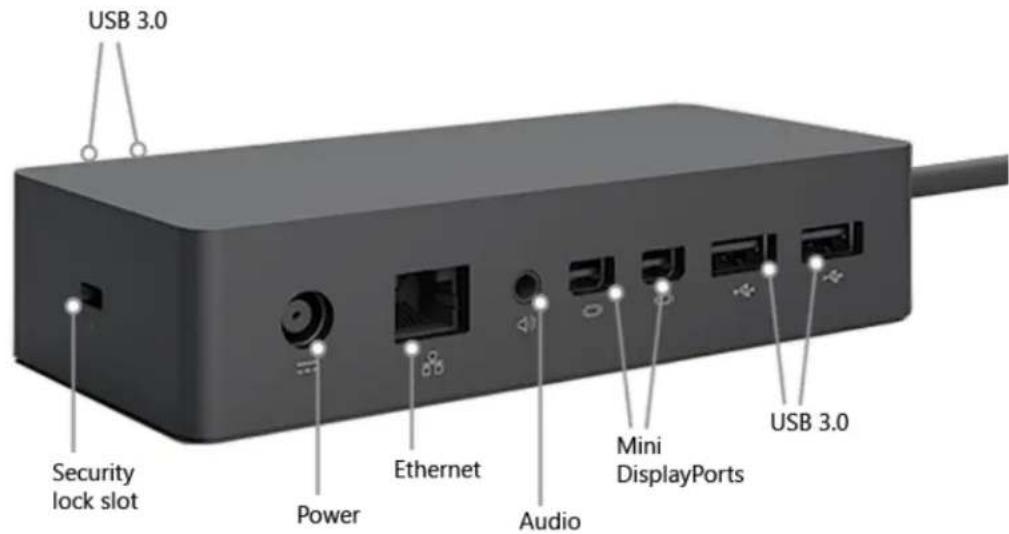
Surface Dock supports high-speed transfer of video, audio, and data. Its compact design gives you flexibility and keeps your desktop clutter-free.
text_image
USB 3.0 Security lock slot Power Ethernet Audio Mini DisplayPorts USB 3.0Here's how to get your workspace set up with Surface Dock:
-
Plug the AC end of the Surface Dock power cord into an electrical outlet or power strip, and plug the other end into the power port on Surface Dock.
-
If you want to use a wired network connection, connect a network cable to the Ethernet port on Surface Dock.
-
Connect your computer peripherals to the USB ports on Surface Dock.
-
Connect a cable from your monitor to a Mini DisplayPort on Surface Dock. If your monitor cable doesn't have a Mini DisplayPort connector, you'll need to buy another
cable or an adapter. For more info on adapters, see Connect Surface to a TV, monitor, or projector on Surface.com.
- Connect any audio accessories like speakers or headphones.
Without external speakers, you may not hear audio when you're using your Surface. If this is the case, see Troubleshoot Surface Dock on Surface.com to learn how to switch to the built-in speakers on your Surface.
Now you can connect to your monitors and peripherals with a single connection to the power port on your Surface:
- Unplug the Surface power supply and remove any attached accessories from your Surface. You can leave a microSD card in the microSD card slot.
- Connect Surface Dock to the charging port of your Surface, using the cable provided.
For more info, see Using Surface Dock on Surface.com.
Connect or project to a monitor, screen, or other display
If you don't have a Surface Dock, or when you're away from your desk, you can connect your Surface to a TV, monitor, or projector. Or, connect to an HDTV and watch movies on a big screen. There are a number of ways to connect:
- HDTV. If your TV has an HDMI port, you'll need an HDMI cable and a Mini DisplayPort to HD AV adapter or an HDMI to Mini DisplayPort cable. (Both are sold separately on Surface.com.)
- Projector or monitor. If your monitor has a DisplayPort, you can connect it to your Surface using a DisplayPort to Mini DisplayPort cable (sold separately). If your monitor doesn't have a DisplayPort or HDMI port, use a VGA cable and the Mini DisplayPort to VGA Adapter.
Note: A VGA adapter or cable is for video only. Audio will play from your Surface speakers unless you've connected external speakers. For more info about this, see Surface sound, volume, and audio accessories on Surface.com.
- Wireless. You can connect to wireless displays when Windows detects one nearby. Or, use a Microsoft Wireless Display Adapter (sold separately) to connect to a screen using Miracast.
Here's how to connect to a wireless display:
- On your Surface, swipe in from the right edge of the screen or select Action center in the taskbar.
- Select Connect, and in the list of displays, select the name of the wireless display.
For more info, see Connect Surface to a TV, monitor, or projector on Surface.com.
Cameras and the Camera app
By default, the built-in Camera app is ready to take photos, but you can switch easily between photo and video mode. To take a photo or record a video:
- Go to Start 📁, and select Camera.
- Select the on-screen Camera 📄 or Video 🏠 button to activate the camera you want to use and select the button again to take a picture or start recording video.
A small privacy light appears near the active camera when you're using it. The privacy light can't be turned off.
View photos and videos
By default, your photos and videos are saved to the Camera roll on your Surface. You can choose to save your pictures to OneDrive so you can access them from any web-connected device. For more info, see Using OneDrive on Surface.
There are several ways to look through your photos and videos:
- Camera app: Select Photos 📄 in the upper-left corner to open the Photos app and view the most recent picture or video taken. Swipe right to see others in your collection.
- Photos app: Select View collection 📄 in the upper-left corner to see other photos and videos in your collection.
- File Explorer or OneDrive app: Go to your Pictures library and open your Camera roll.
For more info, including info on changing where photos are saved and editing photos and videos, see Take photos and videos with Surface on Surface.com.
Apps on your Surface Pro 4
Here are some of the apps that come ready to go on your new Surface Pro 4.
OneNote
You can use the OneNote app on your Surface to take notes and store them in the cloud. With OneNote, you'll have your notes whenever you need them—on your computer, phone, or the web. If you have the Bluetooth-enabled Surface Pen, you can open OneNote with a click of the pen's top button. For more info, see www.onenote.com.
Surface Surface Pro 4

Mail automatically organizes your inbox. You can add multiple accounts and access them through this single point. You can also flag, archive, or delete messages by swiping to the left or right, or mark messages as read or unread. See Set up and use email to get started.

Calendar
Use Calendar to manage your busy schedule. Use the What's next view to see what's on the schedule or look at entire days, weeks, workweeks, or months.

People
The People app brings all your contacts together in a single space. See each contact's email address, phone number, website, and other information at a glance.

Microsoft Edge
Microsoft Edge gives you fast and fluid access to the Internet. Open pages in Reading View, save them to your reading list, or take notes right on the page using inking. Check out Get to know Microsoft Edge on Microsoft.com for details.

Groove Music
Groove Music lets you access your music collection and more from your Surface.

Camera
The Camera app lets you take regular photos, photo bursts, or video using either the front or back camera on your Surface. See Take photos and videos with Surface on Surface.com for how-to info.

Photos
Edit and organize your photos using the Photos app. Crop, enhance, and add effects to your images and set them to be the lock screen background.

Movies & TV
Movies & TV brings you the latest movies and TV shows as well as featured hits. It offers recommendations based on what you've watched, making it easier to find something new that you'll like. Check out Watch TV shows, movies, and videos on Surface.com to get started.
Surface
Surface Pro 4

News
News brings you the latest breaking stories as well as more in-depth coverage. You can customize the coverage to add more local information or highlight the topics you choose.

Weather
The Weather app offers hourly, daily, and 10-day forecasts as well as historical information and annual weather trends. You can also add locations, so you can see not only the information for where you are but for where you might be heading.

Money
Money not only covers the fast-moving market conditions but lets you track your portfolio, browse financial news articles, and access tools and calculators for common financial tasks.

Sports
Sports brings you scoreboards, schedules, videos, slide shows, and news headlines and stories to help you keep up to date with the world of sports and your favorite teams.

Maps
Maps lets you see your current location, zoom in for greater detail, zoom out for a bigger picture, scroll or search for new locations, get directions, and more.
The Surface app
The Surface app is pre-installed on your Surface Pro 4. Select the buttons on the left side of the app to:

Adjust pen sensitivity.

Optimize audio.

Get quick access to online help for your Surface.

View information about your Surface, like the serial number and computer name.
For info, see Install and use the Surface app on Surface.com.
Surface Surface Pro 4
Get more apps
Ready to get even more apps? You can install more apps and programs from the Windows Store, websites, or a CD or DVD. To learn more, see Install and uninstall apps on Surface on Surface.com.
For more info about the Windows Store, see Explore the Store on Microsoft.com.
Personalization and settings
Settings control nearly everything about how your Surface looks and works. By adjusting settings, you can customize your Surface to work the way you want. Here are a few different ways to find and change your settings.
Windows Settings
Windows 10 has a simpler, streamlined approach screen for adjusting your settings.
- Go to Start, and select Settings.
- Select the type of settings you want to change or view.
You can enter the setting you want to change in the Find a setting box and choose a setting from the list.
For more info, see A new look for settings on Microsoft.com.
text_image
Settings Settings Find a setting System Display, notifications, apps, power Devices Bluetooth, printers, mouse Network & Internet Wi-Fi, airplane mode, VPN Personalization Background, lock screen, colors Accounts Sign-in, sync settings, family & work Time & language Date, time, region Ease of Access Narrator, magnifier, high contrast Privacy Location, camera Update & security Windows Update, recovery, backupAction center
You can change common settings, like Airplane mode and Wi-Fi, on the fly from the Action center in the taskbar. For more info, see Take action instantly on Microsoft.com.

Surface
Surface Pro 4
Cortana
- Open Cortana ○ by selecting the search box in the taskbar.
- Ask your question and select an answer under Settings.
For more info, see What is Cortana?
Surface app
Open the Surface app to adjust settings for the Surface Pen, OneNote, and more.
For info, see Install and use the Surface app on Surface.com.
Sync your settings
To learn how to sync your settings across devices, see About sync settings in Windows 10 on Microsoft.com.
Change settings in Windows apps
You can use settings in an app to change your preferences, find help, and add accounts.
- Open the app and select Menu ≡ > Settings.
- Select Options, and make the changes you want.
Accessibility
Ease of Access features let you use your Surface the way you want. To see what features are available:
- Go to Start 📁, and select Settings > Ease of Access.
For more info about Ease of Access features, see Make your PC easier to use on Windows.com.
Ease of Access options for Surface
Your Surface offers the following features.
- Narrator: Reads the text on your screen aloud. For more info, see Hear text read aloud with Narrator on Windows.com.
- Magnifier: Enlarges your screen or parts of it to make words and images easier to see.
Surface Surface Pro 4
- High contrast: Lets you use a high-contrast theme that makes items easier to read on your Surface. To use a high-contrast theme, under Choose a theme, select any high-contrast theme, select any color to change that type of text or background color, and select Apply.
- Closed captions: Lets you control fonts and other features related to closed captions.
- Keyboard: Lets you control your Surface by using a touch keyboard.
- Mouse: Allows you to change the size and color of the mouse pointer and use the numeric keypad to control the mouse.
Other options
These options make Surface easier to use:
Play animations in Windows: To see animations whenever you open and switch apps, select On.
Show Windows background: To see a background image instead of a black background on the Desktop, select On.
Show notifications for: If notifications appear and disappear too quickly, choose a time (five, seven, 15, or 30 seconds; one or five minutes) to change how long they're visible.
Cursor thickness: If the curser is too hard to see, you can change its thickness.
Show visual feedback when I touch the screen: To see a gray animation wherever you touch the screen, select On.
Use darker, larger visual feedback (ideal for presentations): To see a larger, darker animation wherever you touch the screen, select On.
Customize the sign-in screen
Go to Start ☐, and select Settings > Ease of Access to make any of the following settings available every time your Surface starts:
- Narrator
- Magnifier
- High contrast
- Closed captions
- Keyboard
- Mouse
Care and cleaning
To keep your Surface looking and working great, follow these simple steps.
Touchscreen care
Scratches, oil, dust, chemicals, and ultraviolet light can affect the performance of your touchscreen. Here are some things you can do to help protect the screen:
- Clean it frequently. Use a soft, lint-free cloth to wipe the screen gently. You can dampen the cloth with water or an eyeglass cleaner, but don't apply liquids directly to your Surface. Don't use window cleaner or other chemical cleaners on your Surface.
- Keep it covered. Close the Cover while you're in transit or not using your Surface.
- Keep it out of the sun. Do not leave your Surface in direct sunlight for a long time. Ultraviolet light and excessive heat can damage the display.
Cover and keyboard care
The Type Cover for your Surface Pro 4 requires minimal care to function well. To clean the keyboard, wipe it with a lint-free cloth dampened in mild soap and water. Don't apply liquids directly to the Cover.
For more info about safely cleaning and caring for your Surface, see Safety and regulatory information.
Power cord care
Power cords, like any other metal wire or cable, can be weakened or damaged if repeatedly twisted or bent in the same spot. Here are some things you can do to keep your power cord from being damaged:
- Avoid twisting or pinching your power cord.
- Don't wrap your power cord too tightly, especially around the power brick. Wrap it using loose coils rather than tight angles.
- Inspect your power cord regularly, especially where it joins the power brick.
Avoid pulling on the power cord when unplugging your Surface. Gently removing the connector from the charging connector can help prevent damage to your power cord.
Registration, repair, and warranty
Register your Surface
If you haven't already registered your Surface Pro 4 and other Surface products, you can do so at microsoft.com/surface/support/register. You'll need your Microsoft account (the email address and password that you use to sign in to your Surface and to download apps from the Windows Store), and the serial number of your Surface Pro 4, Cover, or other Surface products.
For more info, see Find the serial number on Surface on Surface.com.
Repair
Before sending your Surface in for service, you can check out the Surface troubleshooting articles on Surface.com. If you can't solve the problem with troubleshooting, contact us through Surface.com.
If you continue to have a problem with your Surface, you can open a service request and send your product in for service.
Before you send your Surface in for service, see How to prepare your Surface for service. Then go to Send my Surface in for service on Surface.com, sign in with your Microsoft account, and follow the on-screen instructions.
Warranty
For warranty info, see Surface warranty and Surface warranty documents on Surface.com.
More help
For more information on how to use your Surface Pro 4, use the Surface app that's pre-installed on your new Surface or visit Surface Support on Surface.com. The Surface app connects you directly to Surface help topics on Surface.com.