Omni A1 - Receiver POLK - Free user manual and instructions
Find the device manual for free Omni A1 POLK in PDF.


| Product Type | Wireless Stereo Receiver |
| Brand | Polk |
| Model | Omni A1 |
| Dimensions (W x H x D) | 12.5 x 3.0 x 8.0 inches |
| Weight | 5.5 lbs |
| Power Output | 50W per channel (stereo) |
| Frequency Response | 20Hz - 20kHz |
| Wireless Connectivity | Wi-Fi (2.4/5 GHz), Bluetooth 4.0 |
| Audio Inputs | Optical, Aux (3.5mm), USB |
| Audio Outputs | Speaker terminals, Subwoofer pre-out |
| Supported Audio Formats | MP3, AAC, FLAC, WAV |
| Power Supply | AC 100-240V, 50/60Hz |
| Power Consumption | 30W (standby <0.5W) |
| Control | Front panel buttons, remote control, Polk app |
| Multi-room | Yes, via Polk Omni app |
| Compatible Services | Spotify Connect, Tidal, AirPlay |
| Speaker Outputs | Binding posts for 4-8 ohm speakers |
| Headphone Output | 3.5mm front panel |
| Dimensions with Packaging | 15.0 x 5.5 x 10.0 inches |
| Package Contents | Omni A1 receiver, remote, power cord, quick start guide |
Frequently Asked Questions - Omni A1 POLK
User questions about Omni A1 POLK
0 question about this device. Answer the ones you know or ask your own.
Ask a new question about this device
Download the instructions for your Receiver in PDF format for free! Find your manual Omni A1 - POLK and take your electronic device back in hand. On this page are published all the documents necessary for the use of your device. Omni A1 by POLK.
USER MANUAL Omni A1 POLK
High Performance Wireless Amplifier. Your old speaker's new best friend.
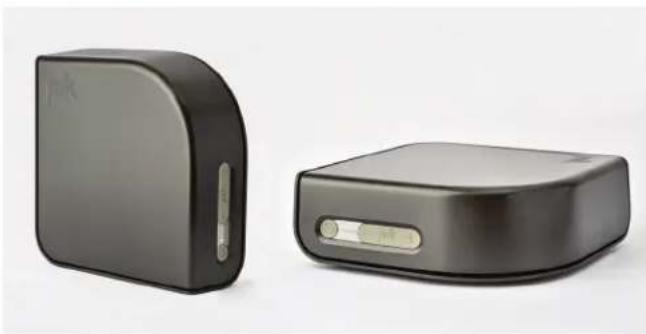
natural_image
Two black electronic devices with ports, one open and one closed, displayed against a plain white background (no text or symbols visible)Contents
What's in the Box 3
Getting Started 3
Connecting Your A1 4
Playing Music 5
Specifications 5
Technical Assistance & Contact 6
omniA1
High Performance Wireless Amplifier. Your old speaker's new best friend.
A great sounding pair of loudspeakers never goes out of style, especially in a digital world. The Omni A1 enables you to stream Polk's widely regarded signature sound wirelessly to your existing component loudspeakers. It's that simple. The Omni A1 wireless amplifier includes customized EQ settings for optimizing the performance with Polk speakers, and has a peak power rating of 75 W x 2 channels. Music lovers and vinyl collectors will enjoy the fact that the Omni A1 also includes a phone input for their tumtable.
The Polk Omni Collection
Your A1 wireless audio amplifier is part of the Polk Omni Collection, the First Great-Sounding Wireless Music System™. The A1 can be used as a stand-alone wireless speaker or as part of a family.
With the Omni Collection, you can effortlessly enjoy Polk's signature sound anywhere or everywhere in your home; Start with one and then add throughout your home. Stream your favorite music services, internet radio and your personal digital music library all from your smartphone, tablet or computer.
And because you can mix and match speakers with the open DTS Play-Fi® technology standard, future-proofing your technology has never been easier. Equipped with Polk's widely respected signature sound and a simple setup, you're ready to listen to your favorite music right out of the box.
What's In The Box
- Polk A1 amp
- Power cable
- User Guide
Getting Started
Your Home Network
In general, Wi-Fi is the wireless streaming of data over a network. Here, Wi-Fi audio is the streaming of music throughout a home network by connecting multiple speakers and/or devices together. The controller for the Polk Omni Collection is the Polk Omni App, which sends music information to each DTS Play-Fi enabled speaker or device.

natural_image
Line drawing of a single house interior with furniture and plants (no text or symbols)System Requirements
It all begins by building a wireless home network, preferably one with a high-speed Internet connection. Here's what you'll need to connect your A1 to your network:
- A Wireless Network connected to the internet with an 802.11g router or better*.
- An Android device with version 2.2 operating system or newer OR an iOS device with version 6.0 operating system or newer.
- The password for your wireless network (if required). *Router type is usually listed on the router, itself. Please call the Polk Preferred Services @ 1-800-638-7276 for further questions related to router type.
For The Best DTS Play-Fi Experience
To ensure your system is operating under the best environment possible, here are a few additional tips:
- For the fastest streaming performance, especially when connecting to multiple sociakers simultaneously, an 802.11n router or better is recommended.
- Ensure the DTS Play-Fi device is within wireless reach of your router, or that the signal is not hindered by concrete, brick, or other dense walls. The quality of your connection can be observed in the Polk Omni App by the Wireless Strength icon.
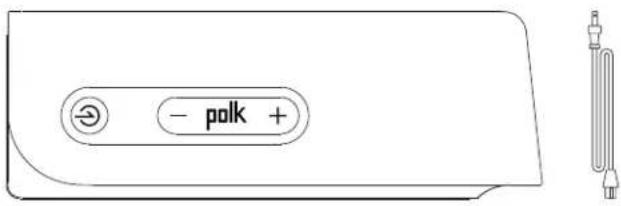
A1 Buttons Controls
| + | Volume Up |
| - | Volume Down |
| polk | Play/Pause |
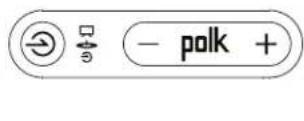
Source LED
TV/Home Theater, Turntable, Aux
Omni A1 Back Panel
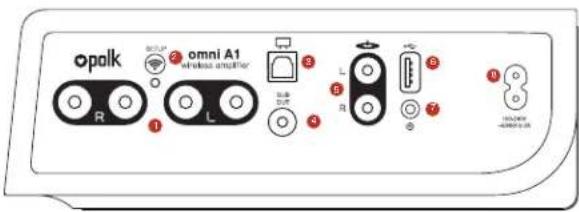
- Speaker Out—right and left channel hookups
- Wi-Fi Setup Button—to connect wirelessly to your Wi-Fi network
- OPT In—digital connection from TV
- Sub Out—wired connection to subwoofer
- Phono In—wired connection for turntable*
- USB—for firmware updates only
- AUX In—wired connection from portable device
- 100-240V—power cable connects here
*Very Important Note: The Phono In is an RIAA compensated input only. The jacks have 100 ohm termination plugs pre-installed. Whenever the Phono In is not being used, these plugs must remain installed to eliminate low-level noise from entering the line-in phono input.
Hooking Up Speakers to Your A1 Amplifier
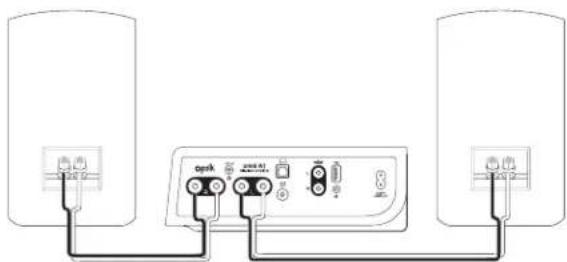
Recommended Speaker Power Ratings
Your speakers should be rated to handle at least 50W for 8 Ohm speakers, and at least 100W for 4 Ohm speakers. Do not connect speakers rated at less than 4 Ohms to the Omni A1 amplifier. If you're using speaker wire only (no banana plugs), simply loosen the binding post caps to uncover the connection hole.
Insert the stripped end of the speaker wire into the hole, then tighten the cap securely. The bare wire should be held firmly in the binding post.
If you're using banana plugs, insert the plug into the back of the binding post until a tight connection is made.
Note: Connect the red (positive +) and black (negative -) terminals from each speaker to the corresponding binding posts on the A1, identified by a red ring (+) and a black ring (-) respectively. Do not mismatch polarities, as this will result in weak, distorted sound.
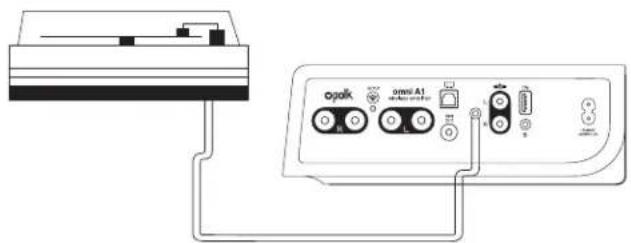
Connecting Your Turntable to the A1 Amplifier
When you connect your turntable to the A1 Amplifier, be sure and connect the ground wire at the setscrew next to the Phono In jacks.
Connecting Your A1
Wi-Fi Setup
- To ensure the easiest setup, place your A1 amp near your internet-connected wireless router. Note, when setup is complete, you can move your device anywhere you want to.
-
Connect the included power cable to the A1 and a power outlet. The device will power on automatically.
-
The white light on the back will blink quickly for about 20 seconds, after which it will begin to pulse slowly.
- The slowly pulsing light means your device is ready to connect to your Wi-Fi network. Note: if the Wi-Fi LED is not pulsing slowly, Press and hold the Wi-Fi setup button (for 8 seconds), until you hear the second tone.
-
Download the Polk Omni App from the Apple App Store or Google Play Store.
-
Launch the app and follow the instructions.

Omni App for iPhone, iPad and Android devices.

Utility App for iPhone, iPad and Android devices.
Note: to enable Wi-Fi Protected Setup (WPS) mode with a WPS compatible router, press and hold the Wi-Fi button on the A1 for 4 seconds or until the first beep. Now push the WPS button on your wireless router. The A1 will automatically connect to your network without the need to enter your password.
Wired Ethernet Connection
A hard-wired Ethernet connection can provide a faster transfer rate than a wireless connection. While Polk Omni Collection products do not have a dedicated Ethernet port, they do have a USB Port. Using an Ethernet adapter for a USB cable, you can connect your products directly to your router.
Apps
iOS device instructions
- Launch the Polk Omni app.
- The app will suggest that a new device is ready to be setup. Click on the device and hit next within the app to take you to setup instruction screens.
- Exit the Polk Omni app and go to your Settings on your iOS device.
- Select Wi-Fi. Ensure that Wi-Fi is enabled. Once enabled, choose from the list the device listed with "DTS Play-Fi" in the name.
- Once selected, exit the settings menu and return to the Polk Omni App to select your wireless network. (If password protected, enter your password)
- When your device is connected to the network, the Wi-Fi light will change from blinking to a solid white.
- You're connected! From here, feel free to rename your device with one of the preset names, create your own custom name, or skip right to enjoying music.
Android device instructions
- Launch the Polk Omni app.
- The app will automatically find your device and prompt you to set it up. Tap the "Set up" button.
- If your Wi-Fi network is protected, enter the password. The app will connect the device to the network.
- When your device is connected to the network, the Wi-Fi light will change from blinking to a solid white.
- You're connected! From here, feel free to rename your device with one of the preset names, create your own custom name, or skip right to enjoying music.
Polk Omni Utility App
For access to extended functionality, including Product Firmware Updates, Source Selection, and EQ Settings (Polk Omni A1 Amp and Omni P1 Adapt only when paired with Polk Audio speakers), download the free Polk Omni App, available from the App Store or Google Play Store.
Note: This app is not required for daily music streaming use.




Downloading the DTS Play-Fi PC App
- Visit https://Play-F1.com/windows/polk
- Click on "Download Free Version"
- Once downloaded to PC, DTS Play-Fi logo will show up in your Task Manager.
- Click on DTS Play-Fi driver
- Click on any zone to begin controlling.
Call the Polk Preferred Services @ 1-800-638-7276 to find out how to upgrade to the Premium Play-PC driver for multi-zone control capabilities.
Working with NAS Drives, PCs, and Mac Devices
The Pok Omni App is capable of recognizing any Media Server or NAS drive that is broadcasting over your home network and that's configured for open access using the DLNA protocol. Using the DTS Play-Fi Windows app, the Pok Omni Collection products will play any file capable of being played by the Windows operating system, including all music services. See "Downloading the DTS Play-Fi PC App" above to learn more..
Because OSX devices don't support DLNA, a third party software (ex. Twonky, Plex or Servio) must be downloaded for them to be visible to the network. Once downloaded, all locally stored content on OSX-based devices will show up within the Polk Omni App under "Media Server."
Where to locate your A1 Amplifier
Your Omni A1 Amplifier will be wired into a stereo pair of component loudspeakers. The proximity of your network router to your audio system is what matters, and that will be subject to the performance capabilities of your router.
Playing Music
Now that you're connected, open the Polk Omni app to begin playing music. To begin playing music, start by selecting the preferred music source. The next step is to select the device(s) from which you want to hear the music. When done, click "Next." You can now select the music you want to play. Music choices to select from include:

Your personal music library- hear all the music stored on your phone, tablet or computer through your Polk Omni products and all throughout your home.

Internet Radio- Enjoy radio stations from around the world, in virtually any genre, and all of it free. Internet Radio has 37,000 stations with popular brands like Disney, BBC, NPR, Fox News Radio, Wall Street Journal Radio and more.
Online music services- Stream the most popular online music services including Pandora and Songza. For the most updated list of music services, visit www.polkaudio.com. Services like KKBox, QQMusic and Deezer are available internationally in select countries.
Adding another speaker or component
Adding to your Polk Omni Collection is easy
The Omni Collection makes creating a whole house wireless music system as simple as pushing a button or two. Add more S2 speakers, a sound bar, an amp or adapter to an existing audio system.
- From the Omni App home page, choose "Settings."
- From the "Settings" screen, choose "Add DTS Play-Fi Device."
- Follow the app's instructions to add the device to your list.
Maximum number of rooms/zone supported:
Eight separate wireless source devices (smartphones, tablets, etc.), each with its own source, are supported simultaneously and any wireless source device can stream to 8 playback devices. Due to bandwidth limitations of most wireless networks, we do not recommend more than 16 wireless DTS Play-FI products on the Wi-Fi network at a given time. With hard-wired Ethernet connections (customary for audio/video racks or in custom installation configurations), up to 256 devices can be theoretically supported. Call the Polk Preferred Services @ 1-800-638-7276, for more information.
Primary vs. Secondary Speakers
Once inside the Polk Omni app, you will notice that when sending music to your devices, they are grouped into primary and secondary zones. The DTS Play-Fi software requires that a primary speaker be selected to create a new listening session or zone. This is designed to maximize synchronization down to one millisecond thereby eliminating any sound echo that can be found from other ecosystems.
Our recommendation for your listening environment is to always select as your primary device the DTS Play-Fi enabled product with the strongest signal strength. Note, however, that secondary speakers are connected to your primary speaker. As such, if you disable your primary speaker, any secondary speakers will likewise be temporarily disabled until a primary speakers is once again selected.
A1 Amplifier Specifications
| Width 8.62 in / 21.90 cm |
| Height 2.99 in / 7.60 cm |
| Depth 8.62 in / 21.90 cm |
| Wireless Connectivity 2.4GHz & 5.8GHz |
| Amplification Class-D Digital. Power:75 Watts x 2 |
| Outputs Left and right speaker bindingposts, LFE wired connectionto subwoofer |
| Inputs Optical, 1/8" analog, USB forfirmware updates, Phono |
| Included in Box power cable |
| Warranty 1 year |
Dual-Band Capabilities
The Polk Omni Collection products all have "dual-band" capabilities. The most standard wireless band - 2.4 GHz - can often times be congested and slow, especially in environments where you have many routers sending wireless signals (ex. mixed-use developments like apartment buildings). In these instances, the Omni Collection can also jump onto the 5 GHz band.
DTS Play-Fi Accepted File Formats:
- mp3 (MPEG Layer III)
• m4a and aac (Advanced Audio Coding) - flac (Free Lossless Audio Codec)
• wav (Waveform Audio File)
File Quality:
- Lossless file reproduction up to 16 bit/48kHz (CD Quality) and proper file handling for full compatibility with all high-resolution music up to 24bit/192k.
- Plays all format bitrates [kops]. DTS Play-Fi transmits high-resolution files, but it does down-sample them so that they can be distributed throughout a home.
Software Updates
In the spirit of improving the performance and functionality of your system, software updates will be required from time to time. To download those updates, we highly encourage you to register your Polk product during the setup process. On the home page of the app, scroll down to "Preferred Services" and follow the listed instructions.
Basic Troubleshooting
Under "Settings" on the Omni App home page, you will find a category called Troubleshooting. This link will take you to the DTS Play-Fi Knowledge Base https://Play-Fi.com/faq?support. Note that quite often an issue can be traced back to router or network performance. As always, for help answering any of your questions, please call the Polk Preferred Services @ 1-800-638-7276.
Important Note: Router speeds and ranges that a manufacturer lists are determined under ideal operating conditions. A router's signal can be affected by walls and their construction materials.
Technical Assistance
Thank you for your Polk purchase. If you have a question or comment, please feel free to call us or email us. In North America, call PolkCustomer Service 800-377-7655 (M-F, 9:00 AM-5:30 PM EST) or via email polkcs@polkaudio.com. Outside the US, call +1-410-358-3600.
Contact Us Directly
Polk
5601 Metro Drive Baltimore, MD 21215
800-377-7655 | www.polkaudio.com

5601 Metro Drive
Baltimore, MD 21215
(410) 358-3600
(800) 377-7655
www.polkaudio.com
email: polkcs@polkaudio.com
twitter: @polkaudio
Google Play is a trademark of Google Inc.
Apple and the Apple logo are trademarks of Apple Inc., registered in the U.S. and other countries. App Store is a service mark of Apple Inc.
All other trademarks are the property of their respective owners.
For DTS patents, see http://patents.dts.com. Manufactured under license from DTS, Inc. DTS, Play Fi, the Symbol, and Play Fi together in combination with the Symbol are trademarks of DTS, Inc. DTS and Play-Fi are registered trademarks of DTS, Inc. © DTS, Inc. All Rights Reserved.