10GW - Dash cam Praktica - Free user manual and instructions
Find the device manual for free 10GW Praktica in PDF.


| Product Type | Dash Cam |
| Model | 10GW |
| Brand | Praktica |
| Dimensions | Approx. 6.5 x 4.5 x 2.0 cm |
| Weight | Approx. 80 g |
| Power Supply | USB 5V / 1.5A via car charger |
| Video Resolution | Full HD 1920x1080p |
| Field of View | 170° wide-angle lens |
| Recording Mode | Loop recording, G-sensor emergency lock, parking mode |
| Storage | Micro SD card up to 32GB (Class 10 recommended) |
| Display | 2.0 inch LCD screen |
| Night Vision | Built-in IR LEDs for low-light recording |
| Battery | Built-in 200 mAh lithium battery |
| Mounting | Suction cup mount for windshield |
| Maintenance | Clean lens with soft dry cloth; format SD card regularly |
| Safety | Do not use in extreme temperatures; ensure secure mounting |
| Spare Parts | Mount, car charger cable, suction cup available |
| Repairability | User-replaceable battery and SD card; professional repair advised otherwise |
| General | User manual included (56 pages); compatible with Windows/Mac |
Frequently Asked Questions - 10GW Praktica
User questions about 10GW Praktica
0 question about this device. Answer the ones you know or ask your own.
Ask a new question about this device
Download the instructions for your Dash cam in PDF format for free! Find your manual 10GW - Praktica and take your electronic device back in hand. On this page are published all the documents necessary for the use of your device. 10GW by Praktica.
USER MANUAL 10GW Praktica
Prohibition of co-location 5
Important note 5
WEEE Notice 5
CE Regulatory Notice .... 5
Battery warning 6
Notes on Installation 6
Caution 6
1 Introduction....9
1.1 Features 9
1.2 Package Contents 9
1.3 Product Overview 10
2 Getting Started....11
2.1 Inserting the Memory Card 11
2.2 Installing in Vehicles 12
2.2.1 Mount to Windshield 12
2.2.2 Adjust the device position 13
2.3 Connecting to Power 14
2.4 LED Indicator 15
2.5 Powering the Device On / Off 16
2.5.1 Auto Power On/Off 16
2.5.2 Manual Power On/Off and Reset 16
2.5.2.1 Manual Power On 16
2.5.2.2 Power Off 16
2.5.2.3 Reset the device 16
2.6 Initial Settings 17
2.6.1 Set Automatic Record 17
2.6.2 Set the Date / Time 18
2.7 Application 19
2.7.1 Application installation 19
2.7.2 Wi-Fi connecting 19
3 Using the Car Recorder....21
3.1 Recording Videos 21
3.1.1 Record videos while driving 21
3.1.2 Emergency Recording 21
3.1.3 The Recording Screen 22
3.1.4 Add speed point 24
3.1.5 Taking Snapshot 25
3.1.6 4 GRID FUNCTION CHART in the LCD screen ... 26
3.2 Driving Safety 27
3.2.1 LDWS (Lane Departure Warning Systems) .. 27
3.2.2 FCWS (Forward Collision Warning System) ... 29
3.2.3 Front Vehicle Go 31
3.2.4 Headlight Warning 33
3.2.5 Speed Limit Alert 34
3.2.6 Driver Fatigue Alert 35
3.2.7 Parking Mode 36
3.2.8 Collision Detection 38
3.2.9 ACC/DEC Alert 39
3.3 Playing Videos and Viewing Pictures 40
3.3.1 Playing Videos and Emergency Recording .. 40
3.3.2 Viewing Pictures 41
3.3.3 The Playback Screen 42
3.3.4 Deleting Files 44
4 Adjusting the Settings......45
4.1 Using the Menu 45
4.2 Menu Items 46
5 Installing the Software....52
6 SuperCar....53
7 Specifications....54
About this Guide
The content in this document is for information purpose and is subject to change without prior notice. We have made every effort to ensure that this User Guide is accurate and complete.
However, no liability is assumed for any errors and omissions that may have occurred.
The manufacturer reserves the right to change the technical specifications without prior notice.
FCC Statement
This equipment has been tested and found to comply with the limits for a Class B digital device, pursuant to Part 15 of the FCC Rules. These limits are designed to provide reasonable protection against harmful interference in a residential installation. This equipment generates, uses and can radiate radio frequency energy and, if not installed and used in accordance with the instructions, may cause harmful interference to radio communications. However, there is no guarantee that interference will not occur in a particular installation. If this equipment does cause harmful interference to radio or television reception, which can be determined by turning the equipment off and on, the user is encouraged to try to correct the interference by one or more of the following measures:
- Reorient or relocate the receiving antenna.
- Increase the separation between the equipment and receiver.
- Connect the equipment into an outlet on a circuit different from that to which the receiver is connected.
- Consult the dealer or an experienced radio/TV technician for help.
This device complies with Part 15 of the FCC Rules. Operation is subject to the following two conditions: (1) This device may not cause harmful interference, and (2) this device must accept any interference received, including interference that may cause undesired operation.
FCC Caution: Any changes or modifications not expressly approved by the party responsible for compliance could void the user's authority to operate this equipment.
Contains FCC ID: 2ACFIWM7911B
Prohibition of co-location
This device and its antenna(s) must not be co-located or operated in conjunction with any other antenna or transmitter.
Important note
Radiation Exposure Statement: This equipment complies with FCC radiation exposure limits set forth for an uncontrolled environment. End users must follow the specific operating instructions for satisfying RF exposure compliance. This equipment should be installed and operated with minimum distance 20cm between the radiator & your body. To maintain compliance with FCC exposure compliance requirements, please follow the operating instructions as documented in this manual.
WEEE Notice
Disposal of Waste Electrical and Electronic Equipment and/or Battery by users in private households in the European Union

WEEE

Battery
This symbol on the product or on the packaging indicates that this cannot be disposed of as a household waste. You must dispose of your waste equipment and/or battery by handling it over to the applicable take-back scheme for the recycling of electrical and electronic equipment and/or battery. For more information about recycling of this equipment and/or battery, please contact your city office, the shop where you purchased the equipment or your household waste disposal service. The recycling of materials will help to conserve natural resources and ensure that it is recycled in a manner that protects human health and environment.
CE Regulatory Notice
The product herewith complies with the requirements of the Low Voltage Directive 2006/95/EC, the EMC Directive 2004/108/EC, the R&TTE Directive 1999/5/EC and the RoHS Directive 2011/65/EC.
EU Health Protection: This equipment should be installed and operated with minimum distance 20cm between the radiator & your body.
This product will meet the Basic Restriction limits of 1999/519/EC.
Battery warning
❖ Always charge using the provided system. Improper handling of the battery may result in explosion.
✿ Never dismantle or pierce the battery or allow the battery to short-circuit.
- Keep the battery out of reach of children.
Batteries may explode if exposed to naked fire. Never dispose of batteries in a fire.
- Dispose of used batteries according to local regulations.
✿ Never replace the battery on your own; have the dealer do it for you.
Notes on Installation
- This product shall be installed near the rear view mirror, at the center and top of windshield for optimal viewing.
- Make sure that the lens is within the wiping range of the windscreen wiper to ensure a clear view even when it rains.
- Do not touch the lens with your fingers. Finger grease may be left on the lens and will result in unclear videos or snapshots. Clean the lens on a regular basis.
- Do not install the device on a tinted window. Doing so may damage the tint film.
- Make sure that the installation position is not hindered by the tinted window.
- Use the products of the attached power charger only, please do not use other brand power charger, in order to avoid equipment burn or cause the battery explosion.
Caution
- Due to local laws and vehicles safety considerations, do not operate the device while driving.
- Set up time and date accurately before you use this device.
- Please use SuperCar software under the condition that Google Maps are functioning normally.
The firmware function in the device is for reference only, please follow the actual road condition.
The results of GPS positioning are only for reference, and should not affect the actual driving situation. The system also cannot ensure the positioning accuracy.
✿ GPS positioning accuracy may differ depending on weather and location such as high buildings, tunnels, undergrounds, or forests.
GPS satellite signals cannot pass through solid materials (except glass). Tinted window will also affect the performance of the GPS satellite reception.
✿ GPS reception performance on each device may differ. The system cannot determine the accuracy of the positioning results from different devices.
The values displayed in this system, such as speed and position, may be inaccurate due to the influence of surrounding environment. They are for your reference only.
The system is used only for non-commercial use, within the maximum limits permitted by applicable law. Our company does not accept any responsibility for any data loss during the operation.
- Wi-Fi Signals are unable to pass through the building. The upper limit of signal transmission is 10m.
◆ Wi-Fi Operation Channels List: Ch1\~Ch11.
The product employs wireless data communication which may interfere, or be interfered by, a near-by device.
✿ Never use this device in the vicinity of a microwave oven or at places where there is radio interference.
✿ Radio wave reception may be worsened in specific environments.
Please be advised that if another device is also using the same 2.4GHz band as this product, the processing speed of both devices may slow down.
This product gets warm when in use; this is normal.
- Improper use or operation of the product may result in damage of the product or its accessories and void the warranty.
The radio frequency (RF) generated by this RF electronic device may cause adverse effects on the operation of other
electronic devices and result in malfunctioning. Wireless transmitters and circuitry may also interfere with other electronic devices. Therefore, do observe the following precautions:
- Aircraft: Never use a radio transmitter when you are in an airplane. Please switch off the Wi-Fi function of the device.
- Vehicle: The radio frequency transmitted by this device may affect the electronic system in a motorized vehicle. Please consult the manufacturer or dealer of your vehicle on the possible effect.
- Pacemaker: In order to prevent any potential interference to a pacemaker, anyone who uses a pacemaker should be advised, that, when using this device, a minimum distance of 15cm (6 inch) should be kept between the device and the pacemaker; and never put this device in a chest pocket. In case of any doubt of interference, switch off the device immediately.
• Medical Device: If you use a personal medical device, consult the device manufacturer or your physician to confirm if your device is sufficiently shielded from the RF transmission of this device.
• Medical Facilities: Hospitals and medical institutes may use facilities that are sensitive to an external RF energy. Observe such instructions when the medical care personnel or any posted sign requests you to switch off any device that may interfere the radio frequency.
- Explosion sites or any location with a posted sign: In order to prevent interfering with an explosion activity, observe all the signage and instructions in the Explosion Area or in a zone with a “Switch Off 2-way Radios” sign by switching off devices that may interfere with the radio frequency.
Before you start using the system, it is assumed that you agree to the above statement.
1 Introduction
Thank you for purchasing this advanced Car Recorder. This device is specifically designed for real time video and audio recording when driving.
1.1 Features
• Full HD recording videos (1920x1080@30fps or 1280x720@60fps)
• 2.7" LCD color touch screen
- Wide angle lens
• Multifunction traffic safety reminder
• Automatic Emergency recording for collision detection
• Support SDHC Level 6 and above. Support up to 32GB
1.2 Package Contents
The package contains the following items. In case there is any missing or damaged item, contact your dealer immediately.
Car Recorder
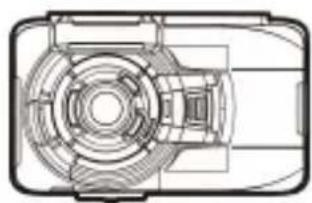
natural_image
Technical line drawing of a mechanical component with no visible text or symbolsCD-ROM Quick start guide
Bracket

natural_image
Illustration of a laboratory flask with a stopper (no text or symbols)Car adapter
natural_image
Simple concentric circle diagram with no text or symbols
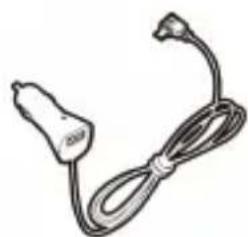
natural_image
Simple line drawing of a cord with a connector (no text or symbols)1.3 Product Overview
Top and Bottom Views
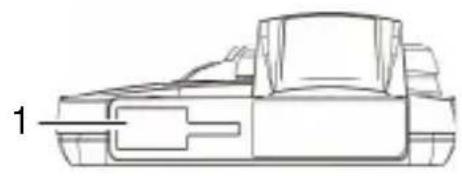
natural_image
Technical line drawing of a vehicle or tank component (no text or symbols)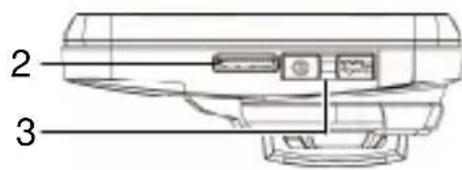
Side (Left and Right) Views
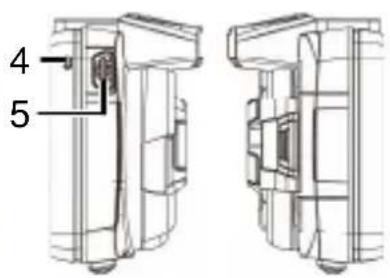
Rear View
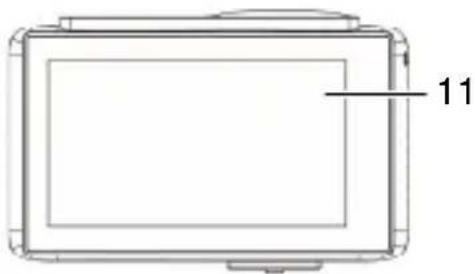
natural_image
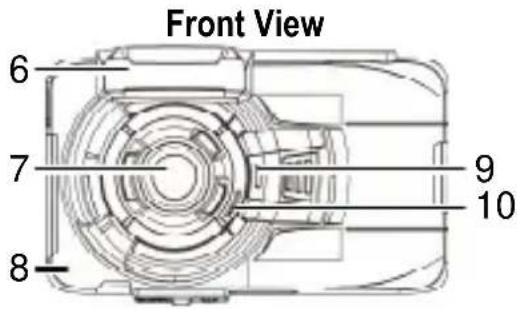
Simple line drawing of a rectangular device with a label '11' on the side (no text or symbols on the device itself)| No. | Item |
| 1 Bracket Socket 7 Wide Angle | |
| 2 Memory Card Slot | |
| 3 Power Switch 9 Speaker | |
| 4 LED Indicator 10 Microphone | |
| 5 USB / Power Connector 11 L | |
| 6 GPS Antenna | |
Lens
| No. Item | |
| s | |
| 8 | Wi-Fi Transmission Antenna |
| Touch Panel | |
2 Getting Started
2.1 Inserting the Memory Card
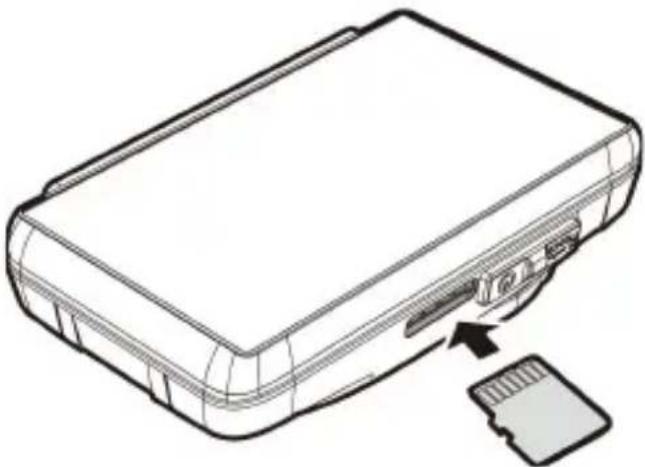
Insert memory card with the pins upward and the screen of the device facing upward too, as illustrated. Push the memory card in until a click sound is heard, indicating the card is in position.
natural_image
Line drawing of a rectangular electronic device with a USB flash drive and an attached card (no text or symbols)To remove the memory card
Push to eject the memory card out of the slot.
Note:
- Do not remove or insert the memory card when the device is turned on. This may damage the memory card.
- Please use a Class 6 or higher rating Micro SD card, max. up to 32GB. PRAKTICA 8GB Class 10 Micro SD card for this product.
- Please format the micro SD cards before the initial use.
- When removing the memory card, be careful that the card may spring out and get lost. The memory slot has this spring-out feature for easy removal of the card.
2.2 Installing in Vehicles
2.2.1 Mount to Windshield
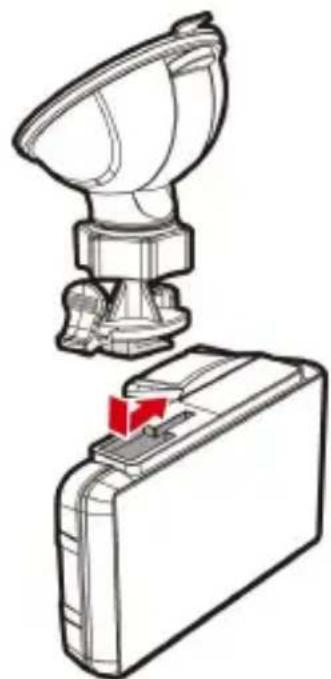
- Push the bracket into bracket slot on top of device, until a click sound is heard.
natural_image
Technical illustration of a mechanical device with a funnel and base case, showing no text or symbols.-
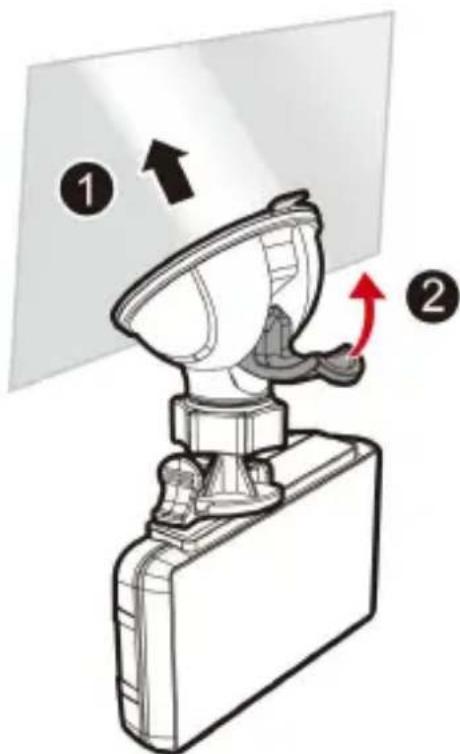
With the suction-cup laying flat, position the suction-cup on the windshield.
-
Hold the base firmly on the windshield and press down the clamp to mount the car holder to the windshield. Make sure the base is securely locked in place.
2.2.2 Adjust the device position
- Loosen the knob to swivel the device vertically or horizontally.
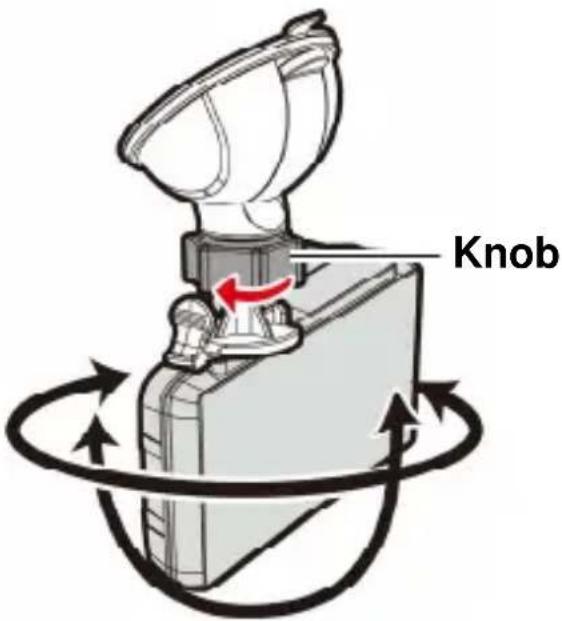
- Then tighten the knob to make sure the device is securely locked in place.
2.3 Connecting to Power
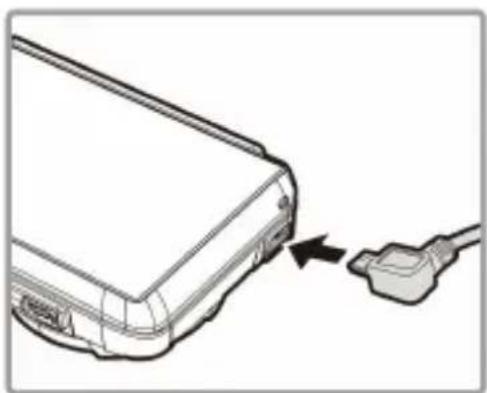
Use only the attached power connector for activating the device and charging the built-in battery.
- Connect one end of power connector to USB/Power connector port on the device.
natural_image
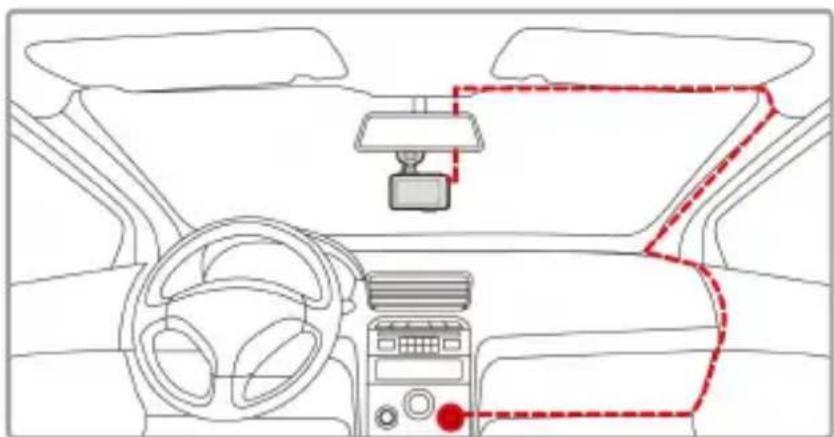
Diagram of a device with an external cable connected to a terminal block, showing a black arrow indicating direction (no text or symbols present)- Plug the other end of the car adapter to the cigarette lighter socket of your vehicle. Once the vehicle engine is started, the device automatically turns on.
natural_image
Interior view of a car dashboard and steering wheel, showing dashboard, steering wheel, and dashboard (no text or symbols)Note:
- This product shall be installed near the rear view mirror, at the center and top of windshield for optimal viewing.
- This product contains functions such as LDWS (Lane Departure Warning Systems) (3.2.1) FCWS (Forward Collision Warning System) (3.2.2) and Front Vehicle Go (3.2.3). Please refer to the alignment measures given in the individual sections during their installation for improved accuracy.
- Please connect your product to an external power source for operation, otherwise its LCD touch screen may fail to operate properly. Battery Status Indicator:
Battery Status Indicator:
| Icon Description | |
 | Full battery power. |
 | 2/3 battery power. |
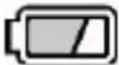 | 1/3 battery power. |
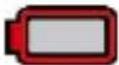 | Out of battery power. |
 | Battery is charging. |
 | Connect the car adapter to charge the battery, battery is full charged. |
Note:
Please take note if the environment temperature reaches 45^ C or above, the car adapter still can supply power to device, but it will not charge the Lithium-ion battery. This is the characteristic of Lithium-ion and is not a malfunction.
2.4 LED Indicator
| Status Explanation | LED Indicator Color |
| Power off, battery charging | Red |
| Power off, battery full charged | LED light off. |
| Power on, battery charging | Red |
| Power on, battery full charged | Green |
| Standby / Standby and screen off | Green |
| Recording/ Recording and screen off | Flash red |
2.5 Powering the Device On / Off
2.5.1 Auto Power On/Off
Once the vehicle engine is started, the device automatically turns on. If the Automatic Record function is enabled, the recording will automatically start right after the device turns on.
Please refer to Set Automatic Record (2.6.1).
2.5.2 Manual Power On/Off and Reset
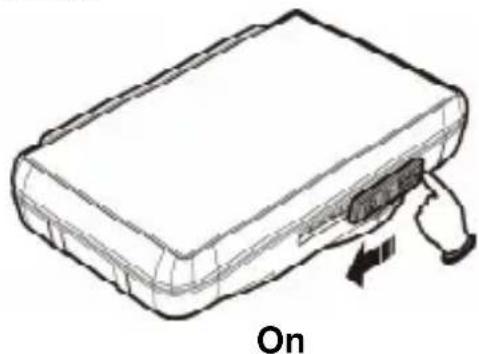
2.5.2.1 Manual Power On
Push the power switch and make sure that the power switch locks on the memory card slot.
natural_image
Line drawing of a briefcase with an arrow indicating left-hand rule, labeled 'On' below (no other text or symbols)2.5.2.2 Power Off
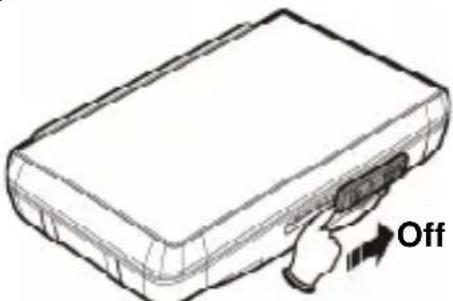
Push the power switch and make sure that the memory slot is released and the device starts power off sequence. Do not power on the device when it is in the power-off sequence, or the recorded file may become corrupt.
2.5.2.3 Reset the device
In case the device fails to function normally due to unknown causes, push the power switch and verify the memory card is in the removable state; wait for 7 seconds and push the power switch again to restart the device.
2.6 Initial Settings
Before using the device, we recommend you to enable the Automatic Record function and set up the correct Date and Time.
2.6.1 Set Automatic Record
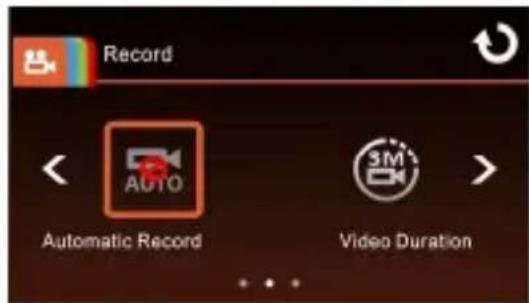
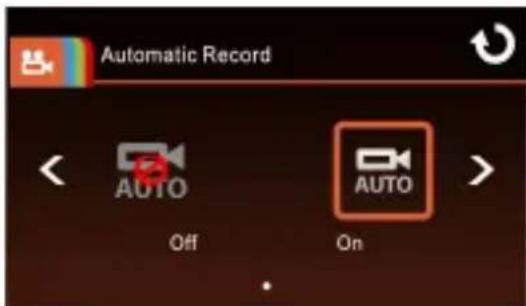
Default setting of Automatic Record is Enabled. The device will automatically start recording when powered on. In case Automatic Record is disabled, enable it by the following steps:
- Touch to enter Main Menu.
-
Touch to switchover to Record Main Menu.
-
Touch / 📋s 📋t for entering Automatic Record
function menu; touch again to select ON.


- Touch the return to Record screen.
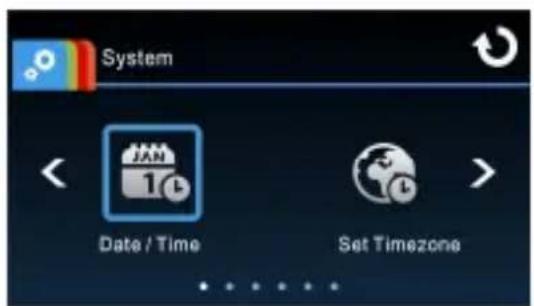
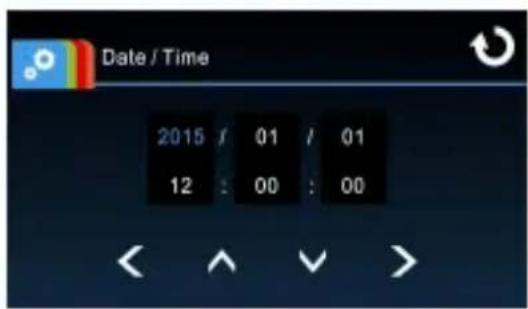
2.6.2 Set the Date / Time
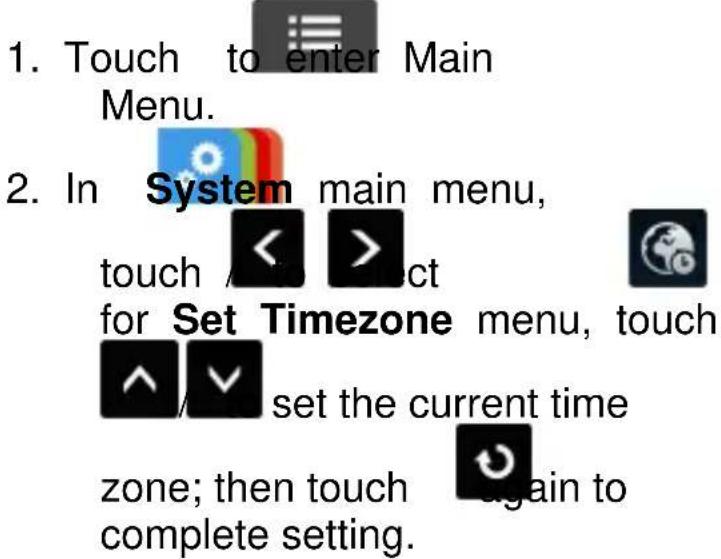
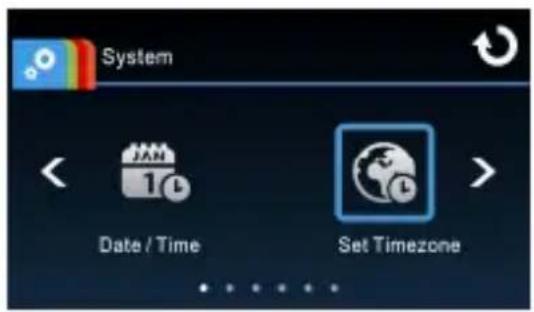
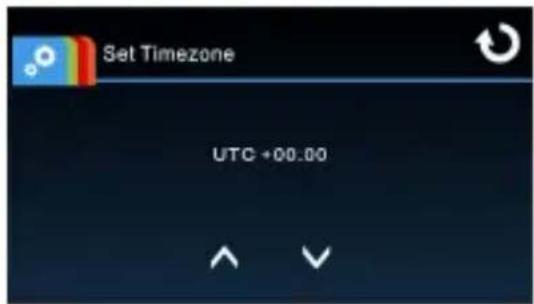
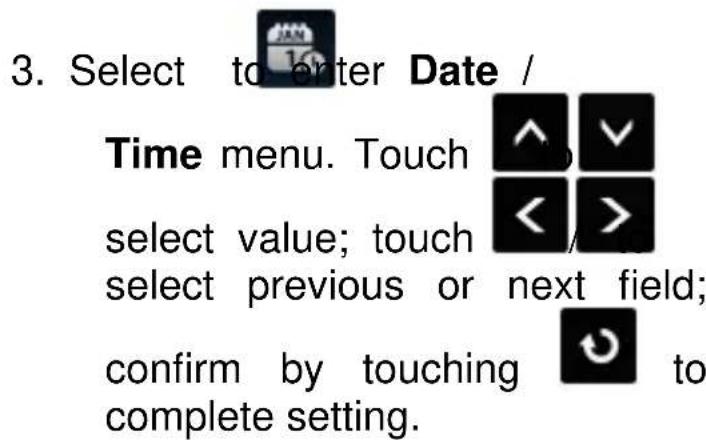
To set the correct date and time, do the following:
Note:
- If Time Sync. is on, device clock will be calibrated via satellite clock signal based on Set Timezone. Please refer to Time Sync. (4.2)
- If satellite positioning is not successful, device clock will run based on user defined time.
- Please be aware that touching ☐ during the recording process will stop the recording process and enter into main menu. Please make sure the recording can be stopped before operating menu selections.
2.7 Application
The camera allows you to connect to the mobile devices via the App. When using for the first time, install the Life Cam App for your mobile device.
2.7.1 Application installation
-
Search from Google Play or App Store for Life Cam application.
-
Install the App.

APP Layout and Features may be changed subject to different software versions. Please refer to Google Play or APP Store for update.
2.7.2 Wi-Fi connecting
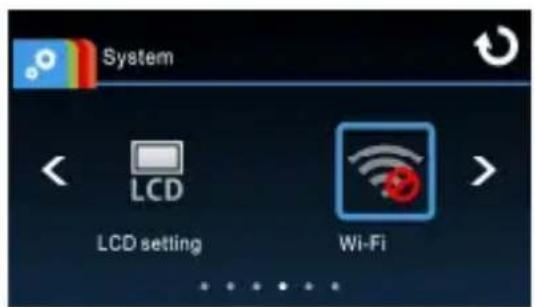
- Touch to enter Main Menu.
- Touch to switch over to System Main Menu.
- Touch / 🎨️ √️ √️ √️
for entering Wi-Fi function menu; wait for screen to display device ID and Wi-Fi password.
Note:
Wi-Fi function is dependent on the model purchased.
Device ID Wi-Fi password
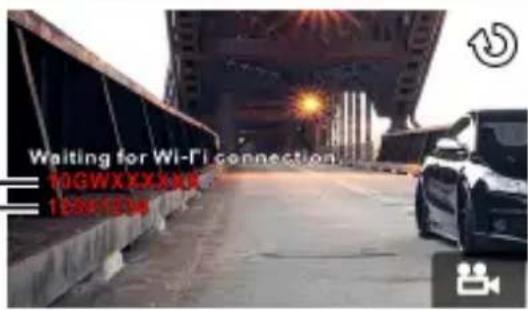
- Using Wi-Fi function of a mobile device, search for device ID from the list and select and enter Wi-Fi Password.
For iOS / Android Users:
Using the mobile device [Settings] → [Wi-Fi] → [Select device ID no.: 10GWXXXXXX] → [Enter the password] → [Connecting]
- Execute the Life Cam

- To disconnect Wi-Fi link, just exit Life Cam

Note:
- Make sure the Wi-Fi function of the equipment is activated and the mobile device is receiving Wi-Fi signal before executing the Life Cam App, or the App will be exited.
- The mobile device shall be within a maximum of a 10m distance from the equipment without any buildings in between.
- When the Wi-Fi function of the equipment is activated for 3 minutes without connecting with your mobile device, or the connection is disconnected, the equipment will automatically stop the Wi-Fi function and you will need to re-activate the Wi-Fi function.
- We suggest that you should set the correct date and time for your mobile device before using the equipment, so that the recorded video will be consistent with the date and time settings of the mobile device.
- When linking up with a mobile device, touch-control of device screen is no longer effective. Perform operations via the Life Cam Application. For operating the device again, you need to exit the Life Cam Application first. To operate the device, please quit the Life Cam program, and restart.
- The language of the Life Cam App will be consistent with that of your mobile device, it shall be the default language if it is not the built-in one
3 Using the Car Recorder
3.1 Recording Videos
3.1.1 Record videos while driving
When the vehicle engine starts up and the Automatic Record function is enabled, the device automatically turns on and starts recording.
The touch panel function will be ready 2 seconds after the Auto Recording starts.
Recording will automatically stop when the engine is switched off, or

Note:
- On some cars, the recording will continue when the engine is switched off. If this happens, please manually turn off the cigarette lighter or remove the car adapter from the cigarette lighter.
- It can be configured to save a video file for every 3 or 5 minutes of recording. Please refer to Video Duration (4.2).
- The device saves the recording in the memory card. If the memory card capacity is full, the oldest file in the memory card is overwritten.
3.1.2 Emergency Recording
Start the Emergency Recording, do the following:
- During video recording, touch

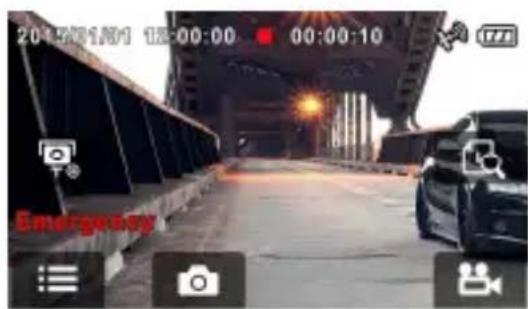
to enter emergency recording mode, the "Emergency" message will be shown immediately on the lower left corner of the screen, and the recorded file will be protected.
- Touch

again, to halt the recording.
Note:
- If the Collision Detection function is enabled and a collision is detected, the device will automatically trigger the emergency recording. Please refer to Collision Detection (4.2).
- The emergency recording file is created as a new file, which will be protected to avoid being overwritten by normal cycling recording. 8G (or above) memory card can save up to 10 emergency video files. The alert message of "Emergency files are full" will pop up on the screen when the emergency recording files are full, and the oldest emergency file will be automatically deleted when a new emergency recording file is created.
3.1.3 The Recording Screen
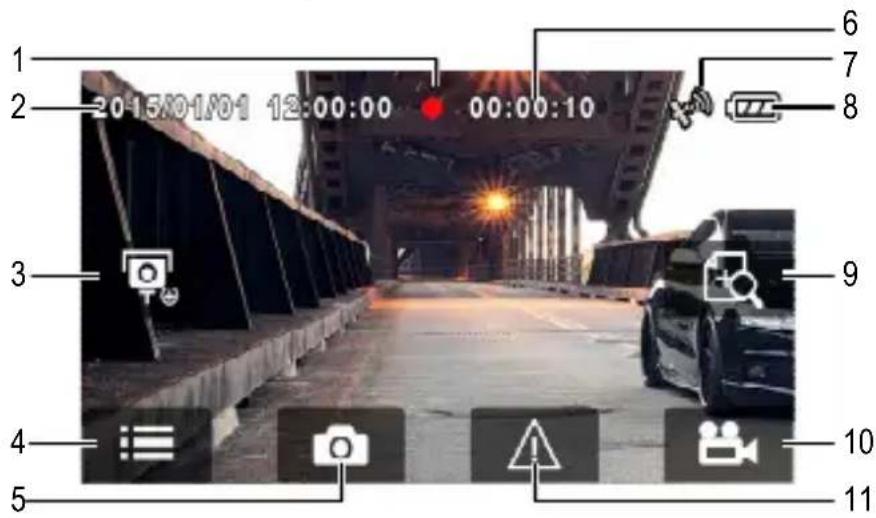
| No. | Icon Item Description | ||
| 1 |  | Recording Icon | Indicates the recording status. |
| 2 | 2015/01/01 12:00:00 | Date / Time | Indicates the current recording date and time. |
| 3 |  | Add speed point | Touch  d a speed cam point. d a speed cam point. |
| 4 |  | Menu | Touch  enter the main menu. enter the main menu. |
| 5 |  | Taking Snapshot | While recording, touch  take a photo. take a photo. |
| 6 | 00:00:10 | Recording Duration | Indicates the video current duration. |
| 7 |  | Satellite positioning icon | The  n appears on the screen when satellite positioning of the device is ready. n appears on the screen when satellite positioning of the device is ready. |
| 8 |  | Battery | Indicates the remaining battery power. |
| 9 |  | 4 GRID FUNCTION CHART in the LCD screen | Touch  iter the 4 GRID FUNCTION CHART in the LCD screen. Please refer to 4 GRID FUNCTION CHART in the LCD screen (3.1.6). iter the 4 GRID FUNCTION CHART in the LCD screen. Please refer to 4 GRID FUNCTION CHART in the LCD screen (3.1.6). |
| 10 |  | Recording | Touch  art recording,touch again to halt the recording. art recording,touch again to halt the recording. |
| 11 |  | Emergency Recording | During video recording, touchto enter emergency recording mode. Please refer to Emergency Recording (3.1.2). |
3.1.4 Add speed point
You may customize speed cam positions in this product.
-
Press to add new speed cam position during recording.
-
You can add new custom speed cam positions after GPS positioning. You can add up to 200 of them.
-
This product features a capacity of 200 speed cam positions. In case you are trying to add more than that the system prompts with message "Speed Position is full".
-
Once your car's location is determined by GPS and approaches a speed cam positions, this product produces voice and screen message alerts. The alarm screen turns red to remind you to slow down if you are driving faster than the speed limit.
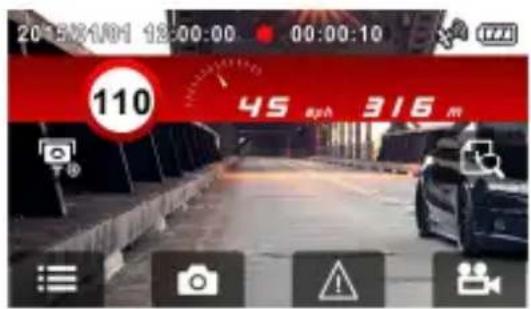
Note:
-
The speed cam prompt is disabled if this product is not connected to an external power source. It is automatically enabled once this product is turned on when connected to an external power source.
-
You may delete custom speed cam positions by selecting the Delete speed point option from the File / Position menu. Please note that all of your existing speed cam positions are deleted once the Delete speed pointoption is selected. Make sure you are ready to recreate your custom speed cam positions before running this option.
3.1.5 Taking Snapshot
You can also use this device to take snapshots of the current scene.
- Press in recording mode to take a snapshot.
- A snapshot is taken when this icon appears at center of screen.
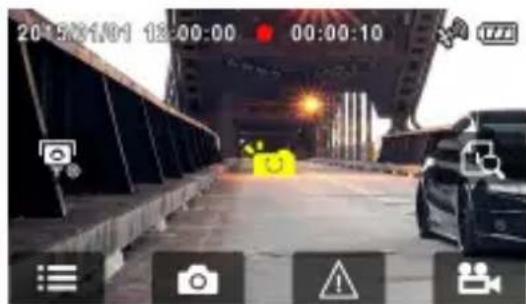
Note:
The definition of photos taken by this product when it is recording and the car is moving is subject to the speed of the target object and changes in ambient lighting. The photograph function is better used for taking still pictures in accident scenes or when the car is stopped to wait for a traffic light.
3.1.6 4 GRID FUNCTION CHART in the LCD screen

Please touch when you are recording, then you can see the 4 GRID FUNCTION CHART in the LCD screen.
Touch any point of the screen to return to Record Screen.
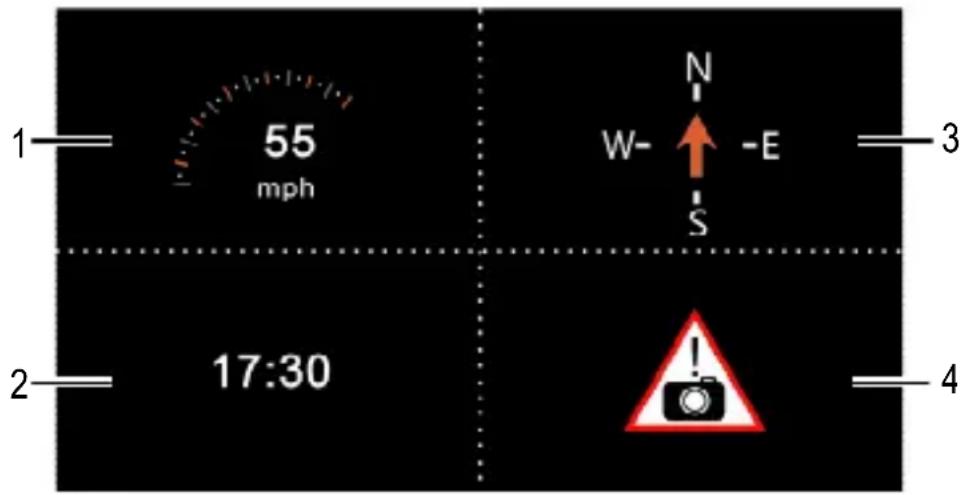
| No. | Item |
| 1 Driving Speed 3 Driving direction | |
| 2 Time 4 | |
| No. Item | |
| Speed Cam Alert | |
Note:
Driving Speed, Driving Direction and Speed Cam Alert are only applicable when satellite positioning of the device is ready; otherwise, they will be displayed in gray scale only. Satellite positioning function is dependent on the model purchased.
3.2 Driving Safety
The following driving safety function is for reference only. Drivers are advised to exercise discretion based on actual road conditions.
Note:
- The Driving Safety function is limited to triggering no more than two alarms at the same time. If a voice and alert message have been triggered, any other alarm will be ignored until either of the two is settled.
- Satellite positioning must be completed before functions such as LDWS, FCWS, Front Vehicle Go, Speed Cam Alert, Speed Limit Alert, ACC/DEC Alert, and Driving Behavior to be enabled. Be sure to check that Satellite positioning has been completed prior to using the product. Satellite positioning is dependent on the model purchased.
- The Driving Safety functions such as LDWS, FCWS, Front Vehicle Go Headlight warning, Speed Cam Alert, Speed Limit Alert, Driver Fatigue Alert, ACC/DEC Alert and Driving Behavior will be disabled, if the product doesn't connect with the external power supply.
- The detections of LDWS, FCWS and Front Vehicle Go may be inaccurate when used in rain, at night or in environments of insufficient lighting. Drivers are advised to exercise discretion based on actual road conditions.
3.2.1 LDWS (Lane Departure Warning Systems)
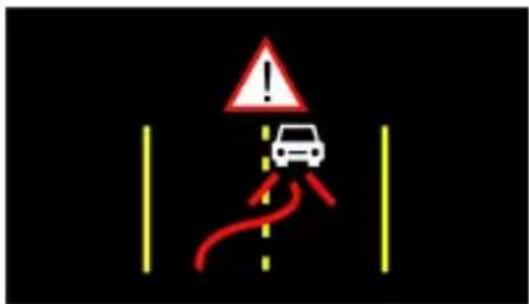
Once your car's location is determined by GPS and the LDWS function is enabled, this product produces voice and screen message alerts when you drive off of or change lanes at speeds over 50 km/h (31 mile/h).
To set the LDWS (Lane Departure Warning Systems), do the following:
- Touch Menu.

to enter Main
-
Touch to switchover to Driving Safety Main Menu.
-
Touch / secret

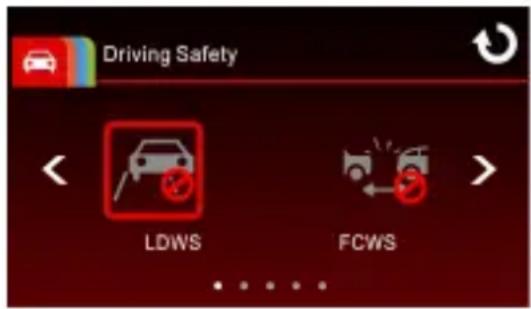
for entering LDWS function
menu, then touch again to enable the function (on).
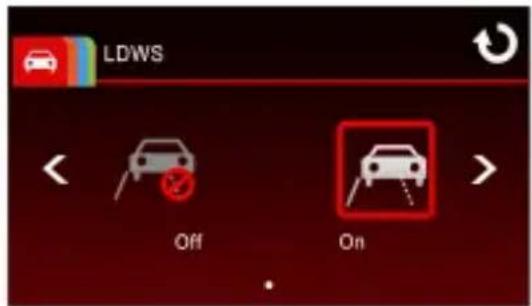
-
Touch to turn to record screen.
-
After enabling LDWS, the screen will display align icon, please adjust the camcorder so that the horizontal line and the eye level are overlapped and the slash lines are centered in the driving lane. Make sure that align icon will not be obscured (e.g. hood) during installation, it may cause misjudgment if the endpoint is obscured.
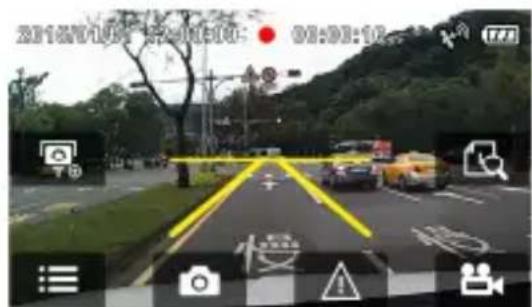
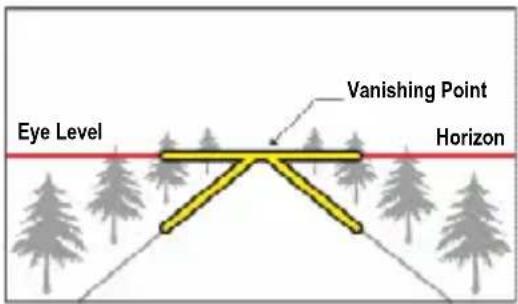
- Once your car's location is determined by GPS, this product produces voice and screen message alerts when you drive off of or change lanes at speeds over 50 ~km / h (31 mile/h).
3.2.2 FCWS (Forward Collision Warning System)
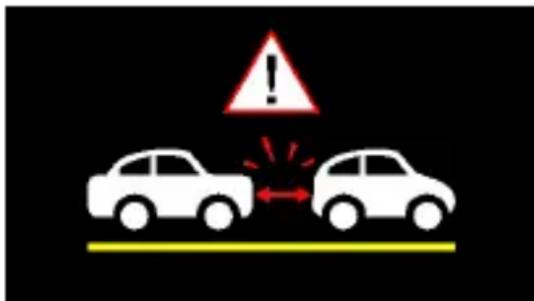
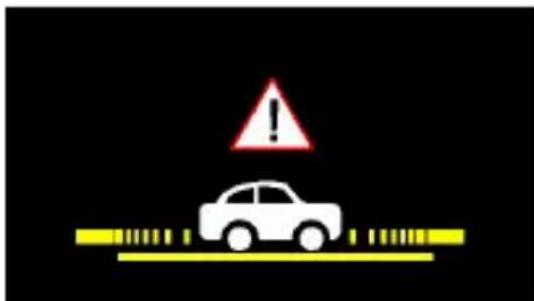
Once your car's location is determined by GPS and the FCWS function is enabled, this product produces voice and screen message alerts when you drive at speeds over 60 km/h (37 mile/h) and are less than 20m away from the car in front of you.
To set the FCWS (Forward Collision Warning System), do the following:
- Touch to enter Main Menu.
- Touch to switchover to Driving Safety Main Menu.
- Touch / [icon] is not for entering FCWS function menu, then touch [icon] again to enable the function (on).
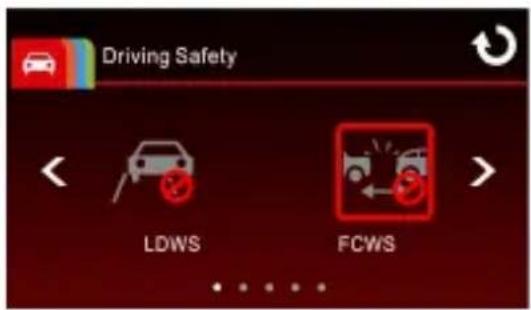
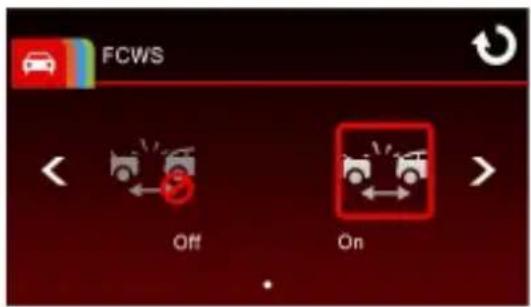
-
Touch tturn to record screen.
-
After enabling FCWS, the screen will display align icon please adjust the camcorder so that the horizontal line and the eye level are overlapped and the slash lines are centered in the driving lane. Make sure that align icon will not be obscured (e.g. hood) during installation, it may cause misjudgment if the endpoint is obscured.
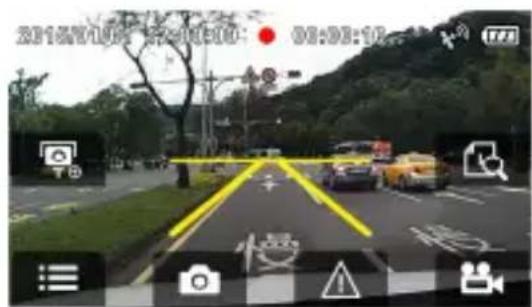
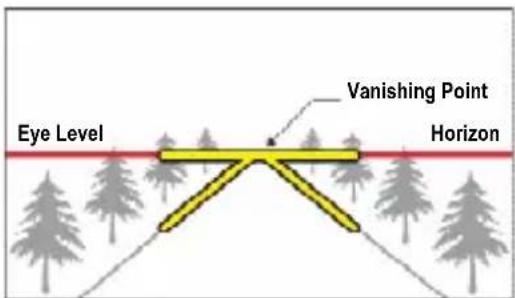
- Once your car's location is determined by GPS, this product produces voice and screen message alerts when you drive at speeds over 60 km/h (37 mile/h) and are less than 20m away from the car in front of you.
3.2.3 Front Vehicle Go
Once your car's location is determined by GPS and the Front Vehicle Go function is enabled, this product starts to detect the motion of cars in front of you after your car remains motionless for 20 seconds. It produces voice and screen message alerts when the movement of the car in front of you changes its images in the camera.
To set the Front Vehicle Go, do the following:
- Touch to enter Main Menu.
- Touch to switchover to Driving Safety Main Menu.
- Touch / <elect for entering Front Vehicle Go
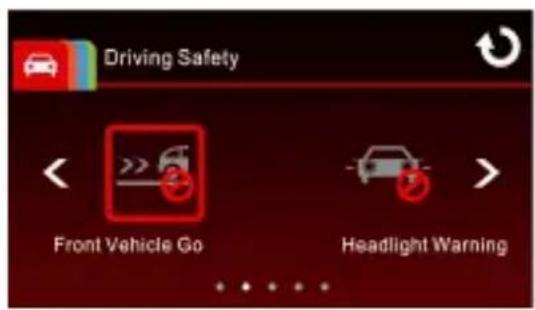
function menu, then touch again to enable the function (on).

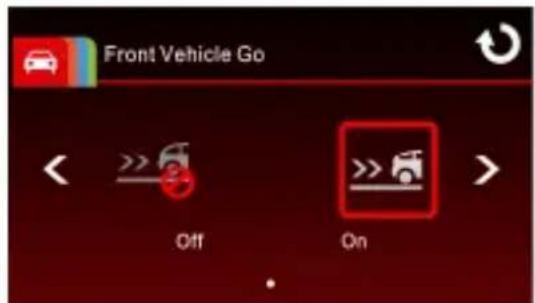
-
Touch tturn to record screen.
-
After enabling Front Vehicle Go, the screen will display align icon, please adjust the camcorder so that the horizontal line and the eye level are overlapped and the slash lines are centered in the driving lane. Make sure that align icon will not be obscured (e.g. hood) during installation, it may cause misjudgment if the endpoint is obscured.
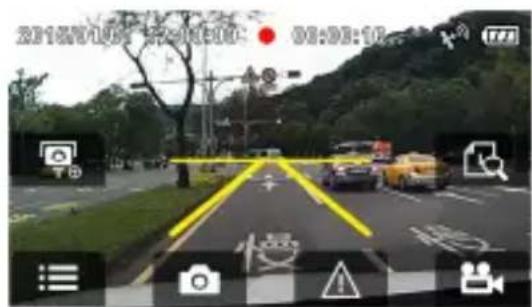
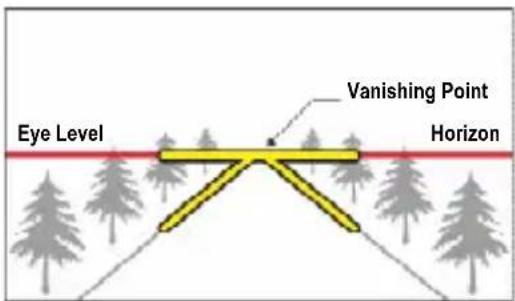
- Once your car's location is determined by GPS, this product starts to detect the motion of car in front of you after your car remains motionless for 20 seconds. It produces voice and screen message alerts when the movement of the car in front of you changes its images in the camera.
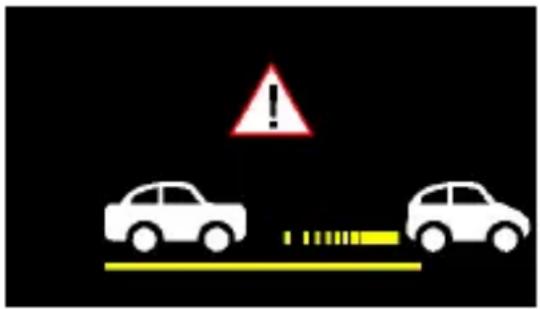
Note:
The product will recalibrate 30 seconds later after the initial alert if the Front Vehicle Go function has been activated. If the vehicle remains in a stationary mode and the product detects image changes in the front lens, the product will once again trigger the voice and screen message alerts.
3.2.4 Headlight Warning
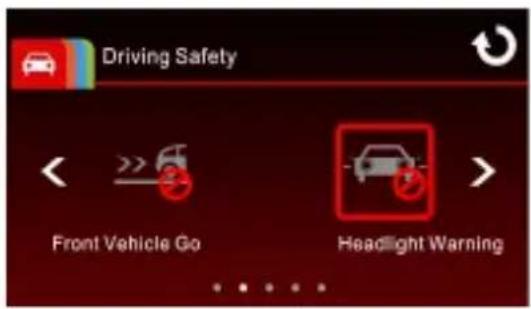
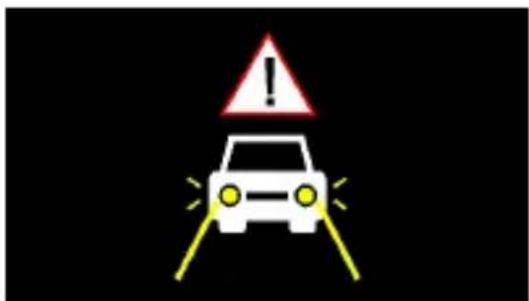
The Headlight Warning function produces voice and screen message alerts when it detects poor lighting conditions through the recording displays of this product, including driving in rainy or cloudy weather, at night, and in basements, parking lots, and tunnels.
To set the headlight warning, do the following:
-
Touch to enter Main Menu.
-
Touch to switchover to Driving Safety Main Menu.
-
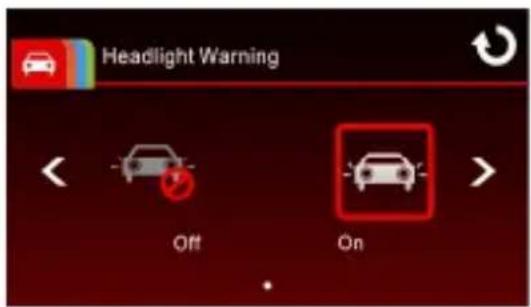
Touch /
for entering Headlight Warning function menu, then touch again to enable the function (on).

- Touch 📄 to return to record screen.
- This product produces voice and screen message alerts when it detects poor lighting conditions through its recording displays.

3.2.5 Speed Limit Alert
If the Speed Limit Alert function is enabled, this product produces voice message alerts once your car's location is determined by GPS and its running speed exceeds the set limit.
To set the Speed Limit Alert, do the following:
- Touch to enter Main Menu.
-
Touch to switchover to Driving Safety Main Menu.
-
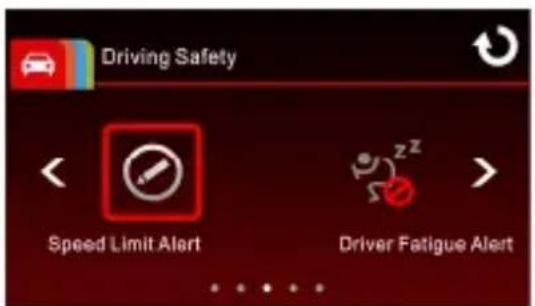
Touch / 📋s/alt for entering Speed Limit Alert menu.
-
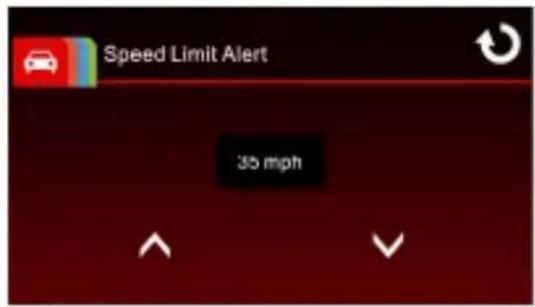
Tap the / 📄 y to set up a Speed Limit Alert to trigger this product's alarm (Off / 10 mph \~ 85 mph).
-
Touch t turn to record screen.
-
If a Speed Limit Alert is set, this product produces a voice message alert once your car's location is determined by GPS and its running speed exceeds the set limit.
3.2.6 Driver Fatigue Alert
If the Driver Fatigue Alert function is enabled, this product produces voice and screen message alerts one hour after it has begun recording and repeats the alerts every half an hour afterwards.
To set the driver fatigue alert, do the following:
-
Touch to enter main menu.
-
Touch to switch over to Driving Safety Main Menu.
-
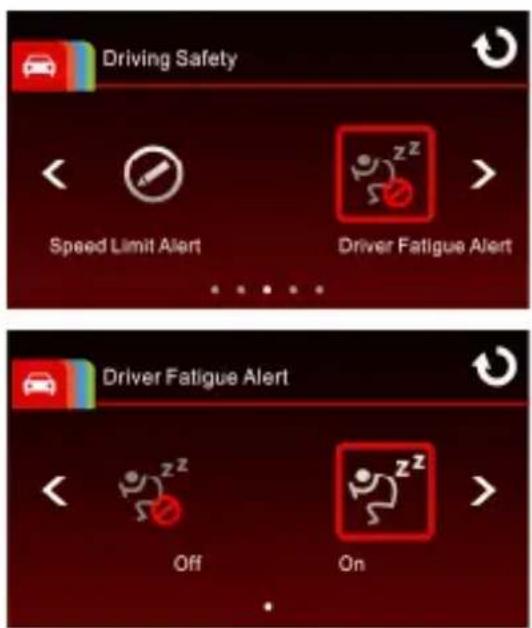
Touch / is shot for entering Driver Fatigue Alert
menu, then touch activate (on).

n to
- Touch the return to record screen.
3.2.7 Parking Mode
To monitor the vehicle when it is parked, you can activate Motion Detection or Vibration Detection.
Follow the steps below to change the settings for Parking Mode:
- Touch to enter main menu.
- Touch to switch over to Driving Safety Main Menu.
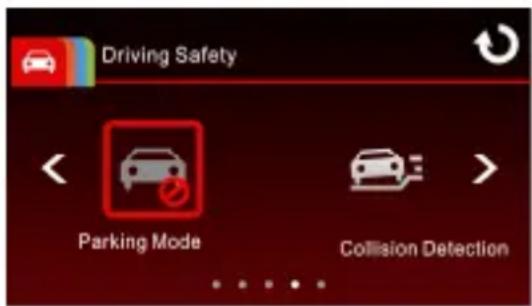
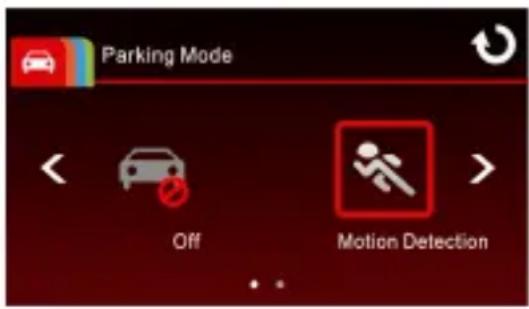
- Touch / insert for entering Parking Mode menu.
-
Touch / to config Parking Mode (Off / Motion Detection / Vibration Detection).
-
Off: No parking monitoring activated.
- Motion Detection: If disconnected from power when the device is powered on, the system alert message “Wait for 10 seconds to enter Motion
Detection, or touch screen to power off." will be displayed on the screen. This means the system will enter Motion Detection automatically in 10 seconds, when the device detects any motion in front of lens, Video Record will be activated for a duration the same as the length setting. If the screen is touched anywhere in 10 seconds, the device will be powered off instead of entering Motion Detection mode.
- Vibration Detection: If disconnected from power when the device is powered on, the system alert message “Wait for 10 seconds to enter Vibration Detection or touch screen to power off.” This means the system will enter Vibration Detection automatically in 10 seconds; when the device detects any external vibration (sensitivity approximately 48 mg) applied to the vehicle after three minutes when all passengers have alighted, Video Record will be activated
for a duration the same as the length setting and the recording will be protected. If the screen is touched anywhere in 10 seconds, the device will be powered off instead of entering Vibration Detection mode.
- Touch the return to record screen.
Note:
- When the battery is fully charged and is in good condition, Motion Detection can record continuously for about 30 minutes.
- As the device is used, the battery storage capacity will decrease gradually. This is a normal phenomenon for the battery.
3.2.8 Collision Detection
Sensitivity of the Collision Detection function is set to medium by default. This product begins emergency recording once it detects any vibrations caused by a collision. To change the settings of Collision Detection:
-
Touch to enter main menu.
-
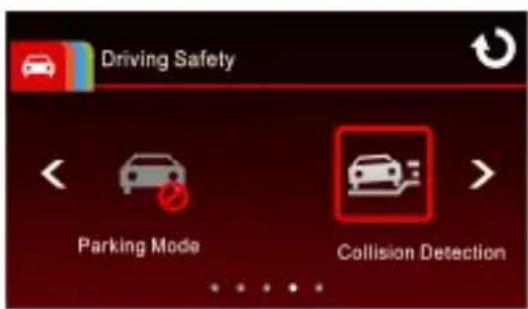
Touch to switch over to Driving Safety Main Menu.
-
Touch /
1ct for entering Collision Detection menu. -
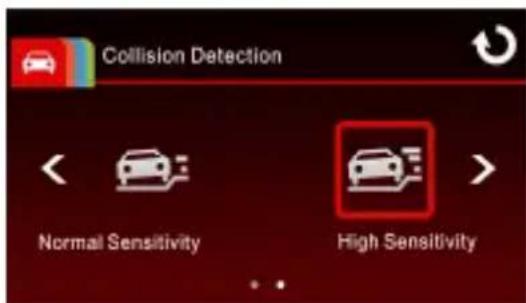
Tap the / key to change the sensitivity of this product's collision detection (Off / Low Sensitivity / Normal Sensitivity / High Sensitivity).
- Touch the return to record screen.
Note:
The emergency recording file is created as a new file, which will be protected to avoid being overwritten by normal cycling recording. 8G (or above) memory card can save up to 10 emergency video files. The alert message of “Emergency files are full” will pop up on the screen when the emergency recording files are full, and the oldest emergency file will be automatically deleted when a new emergency recording file is created.
3.2.9 ACC/DEC Alert
This product produces voice and screen message alerts if the ACC/DEC Alert function is enabled and the car accelerates 20 km/h (12.4 mile/h) in one second when driving at speeds over 80 km/h (50 mile/h) or decelerates 30 km/h (18.6 mile/h) in one second when driving at speeds under 50 km/h (31 mile/h) after position is determined by GPS.
To set the ACC / DEC alert, do the following:
-
Touch to enter Main Menu.
-
Touch to switchover to Driving Safety Main Menu.
-
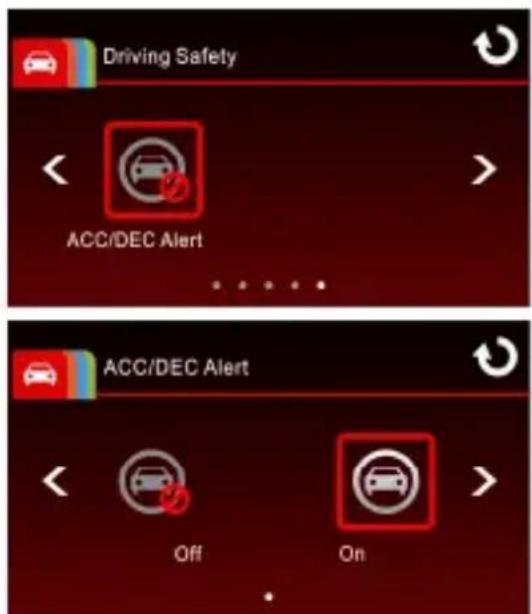
Touch / insert for entering ACC/DEC Alert
function menu, then touch again to enable the function (on).
-
Touch to return to record screen.
-
This product produces voice and screen message alerts once your car's location is determined by GPS and abruptly accelerates or decelerates.
3.3 Playing Videos and Viewing Pictures
3.3.1 Playing Videos and Emergency Recording
Playback video record files as follows:
- Touch to enter main menu.
- Touch to switch over to File / Position menu.
- Touch / to enter Video/Emergency function menu.
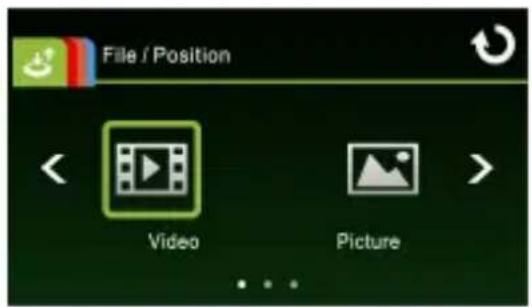
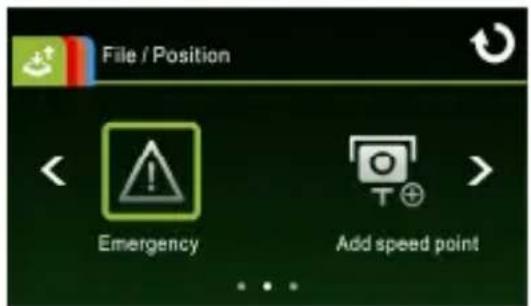
- Touch / 📄 → to required video file, touch selected preview of video to enter Playback Mode
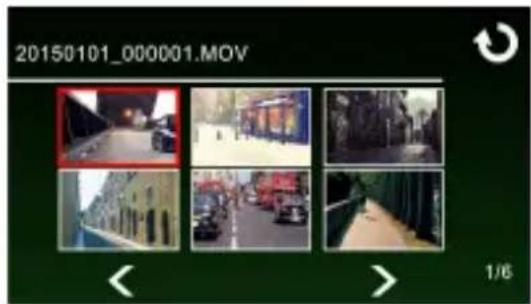
- Touch nptitively to return to Record Screen.
3.3.2 Viewing Pictures
View pictures as follows:
-
Touch to enter Main Menu.
-
Touch to switch over to File / Position main menu.
-
Touch to enter Picture function menu.
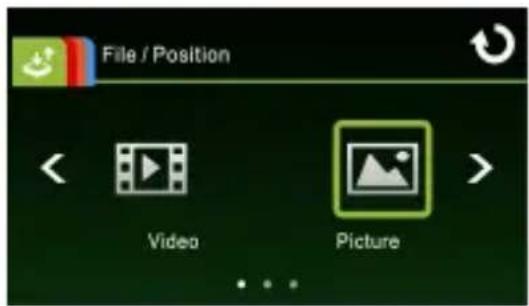
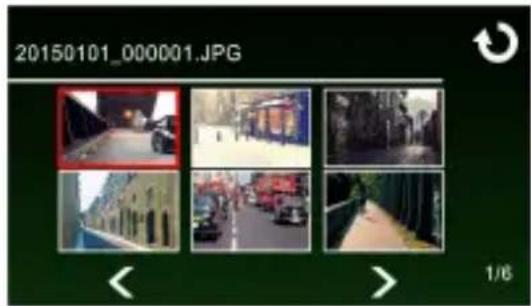
- Touch / <> to required picture files, touch selected preview of picture to enter Picture Playback Mode.
natural_image
Grid of six black-and-white street scenes with vehicles and buildings, displayed in a photo editing interface (no readable text or symbols on the scenes themselves)- Touch nptitively to return Record Screen.
3.3.3 The Playback Screen
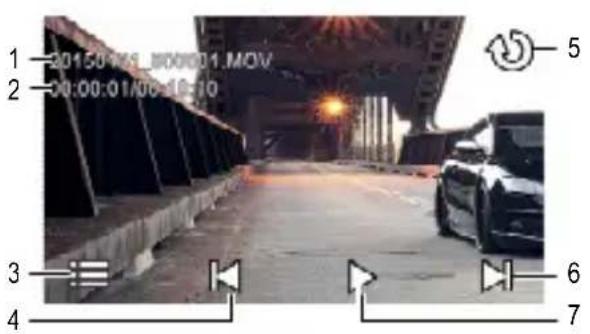
Video Playback Screen
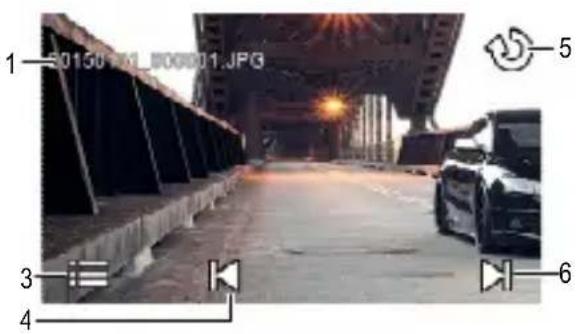
Picture Playback Screen
natural_image
Exterior view of a bridge under construction with vehicles and a camera, no visible text or symbols| No. | Icon Item Description | ||
| 1 | 20150101_00001.MOV | File Name | Indicates name of current video or picture file. |
| 2 | 00:00:01/00:00:10 | Current Duration / Video Duration | Indicates time code and duration of current video file. |
| 3 |  | Menu | Touch enter File Deletion menu. |
| 4 |  | Fast Rewind / Previous File | • Touch video or picture is not in playback will switch over to the previous file.• Touch video playback mode will reverse the playback. |
| 5 |  | Return | Touch return to preview screen of video or picture. Touch repetitively to return to record screen. |
| 6 |  | Fast forward / Next File | Touch  en video or picture is not in playback will switch over to the next file.Touch en video or picture is not in playback will switch over to the next file.Touch  video playback mode will enable fast forward playing of video. video playback mode will enable fast forward playing of video. |
| 7 |  | Playback/ Pause | Touch  , ,  y or pause the video. y or pause the video. |
3.3.4 Deleting Files
To delete file(s), do the following:
- Touch to enter Main Menu.
- Touch to switch over to File / Position main menu.
-
Touch // to enter Video/Picture/Emergency menu.
-
Touch / 📄 → to required video or picture file; touch selected preview image to enter Video/Picture Playback Mode.
-
Touch tenter File Deletion menu, select / to delete one file or all files; touch / to confirm or cancel the selection.
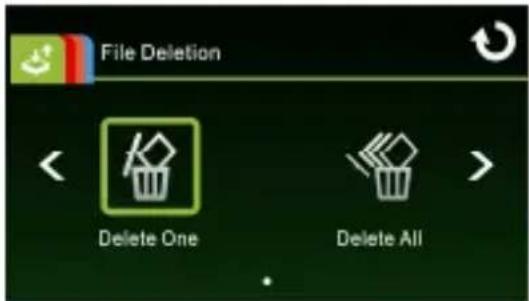
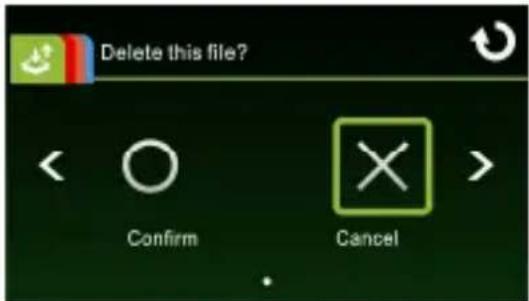
| Item Description | |
| Delete One | Delete the current file. |
| Delete All Delete all files. | |
- Touch nositively to return to Record Screen.
Note:
Deleted files cannot be recovered. Ensure the files have backup before deletion.
4 Adjusting the Settings
4.1 Using the Menu
You can customize the general settings via the on-screen display (OSD) menus.
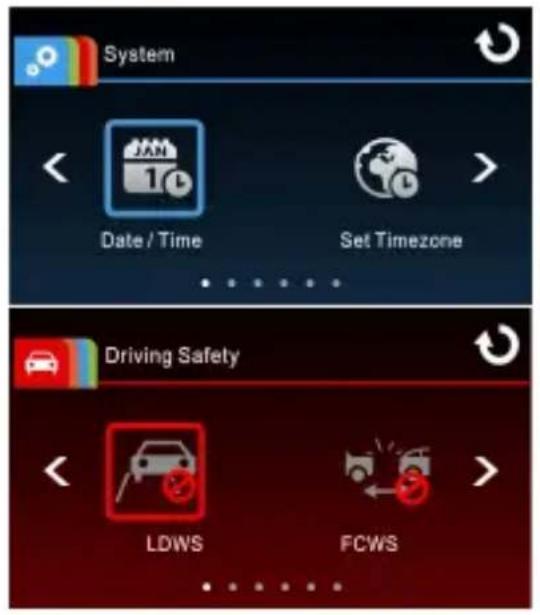
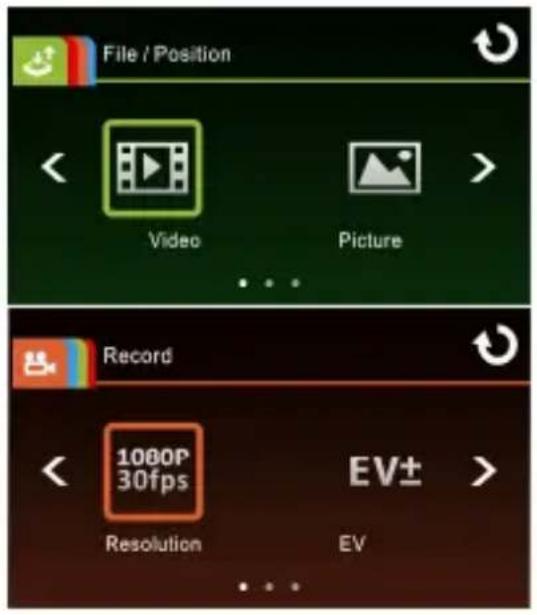
-
Touch in the record mode will stop the record and enter into Main Menu.
-
Touch /// to switch over main menus.
-
Touch / <> to function items in the respective main menu; touch a function icon to enter setting screen.
-
On completion of setting a required function item, device will return automatically to the main menu of the selected function.
-
Touch 🏻 to return to Record Screen.
4.2 Menu Items
Refer to the below table for details of main menu and function list.
| Main Menu | Function List Description Available Option | |||
| System |  | Date / Time Set the date and time. | ||
 | Set Timezone | Set the time zone you are in. | UTC -12:00 ~ UTC +12:00 | |
 | Time Sync. | When enabled, device clock will be calibrated automatically based on satellite clock of the set time zone on completion of satellite positioning. | On / Off | |
 | Beep | Enable/Disable the beep. | Off / Low / Medium / High | |
 | Language settings | Set the on-screen display menu language. | English / Español / Deutsch / Français / Português / Italiano | |
 | Distance Unit | Select the unit for distance display. | KM / MILE | |
 | LCD setting | Set LCD off time. Device screen will be off after a set time if no operation is detected during the standby or record mode. Touch any point of the touch screen will switch it on. (Recording is not affected when screen is off). | On / Off After 30 sec. / Off After 3 min. | |
 | Wi-Fi | Set Wi-Fi linkage of a mobile device. | ||
 | Satellite System | Select satellite system of the locality. | GPS / GLONASS | |
 | Recorder Format | Format the memory card inserted in the equipment. All the files in the card will be erased. | Yes / No | |
 | Default Setting | Resume the equipment to its default setting. | Yes / No | |
 | Firmware Version | Indicates the current Firmware. | ||
| File / Position |  | Video | Play / Delete a video file. | |
 | Picture | Play / delete a picture file. | ||
 | Emergency | Play / delete an emergency record file. | ||
 | Add speed point | Manually add speed points after satellite positioning, up to 200 user defined speed points can be added. | ||
 | Delete speed point | Delete all the user defined speed points from system. | ||
| Driving Safety |  | LDWS | Once your car's location is determined by GPS and the LDWS function is enabled, this product produces voice and screen message alerts when you drive off of or change lanes at speeds over 50 km/h (31 mile/h). | On / Off |
| Main Menu | Function List Description Available Option | ||
 | FCWS | When FCWS is activated after satellite positioning, device will issue a voice alert and an alarm image when vehicle speed is above 60 km/h (37 mile/h) and the distance with the front vehicle is less than 20m. | |
 | Front Vehicle Go | Once your car's location is determined by GPS and the Front Vehicle Go function is enabled, this product starts to detect the motion of the car in front of you after your car remains motionless for 20 seconds. It produces voice and screen message alerts when the movement of the car in front of you changes its images in the camera. | |
 | Headlight Warning | When Headlight is activated, device will issue a voice alert and an alarm screen reminding that insufficient brightness is sensed on the recording face. | |
  | Speed Limit AlertDriver Fatigue Alert | If the Speed Limit Alert function is enabled, this product produces voice message alerts once your car's location is determined by GPS and its running speed exceeds the set limit.If the Driver Fatigue Alert function is enabled, this product produces voice and screen message alerts one hour after it has begun recording and repeats the alerts every half an hour afterwards. | |
 | Parking Mode | Off: No parking monitoring activated.Motion Detection: If Motion Detection is activated, the device will automatically trigger recording when the device detects any motion in front. When the battery is fully charged and is in good condition, Motion Detection can record continuously for about 30 minutes.Vibration Detection: If Vibration Detection is activated, the device will automatically trigger Emergency when the device detects any external vibration applied on the vehicle after 3 minutes when all passengers have alighted from the vehicle. | |
 | Collision Detection | If Collision Detection is activated, this product begins emergency recording once it detects any vibrations caused by a collision. | |
| Main Menu | Function List Description Available Option | |||
 | ACC/DEC Alert | This product produces voice and screen message alerts if the ACC/DEC Alert function is enabled and the car accelerates 20 km/h (12.4 mile/h) in one second when driving at speeds over 80 km/h (50 mile/h) or decelerates 30 km/h (18.6 mile/h) in one second when driving at speeds under 50 km/h (31 mile/h) after position is determined by GPS. | On / Off | |
| Record |  | Resolution | Setting of video resolution. | FHD (1080P/30fps) / HD30 (720P/30fps) / HD60 (720P/60fps) |
 | EV | Set the exposure compensation. | +2.0 ~ -2.0 | |
 | Automatic Record | Setting for enabling Automatic Record after device power on. | On / Off | |
 | Video Duration | Save respective video files in a length of the selected duration. | 3 min. / 5 min. | |
 | Voice Record | Setting for activating audio in the video. | On / Off | |
 | Time Stamp | Setting for the indication of date and time stamp on the picture or video recorded. | On / Off | |
 | WDR | The WDR function compensates for and optimises dim areas in poor external lighting environments. | On / Off | |
Note:
The Driving Safety functions such as LDWS, FCWS, Front Vehicle Go, Headlight warning, Speed Cam Alert, Speed Limit Alert, Driver Fatigue Alert, ACC/DEC Alert and Driving Behavior will be disabled, if the product doesn't connect with the external power supply.
5 Installing the Software
- Place the attached CD ROM into the CD player.
- If the CD does not execute automatically, please use Windows File Manager to execute the Install_CD.exe file in the CD.
The following screen will be shown up.
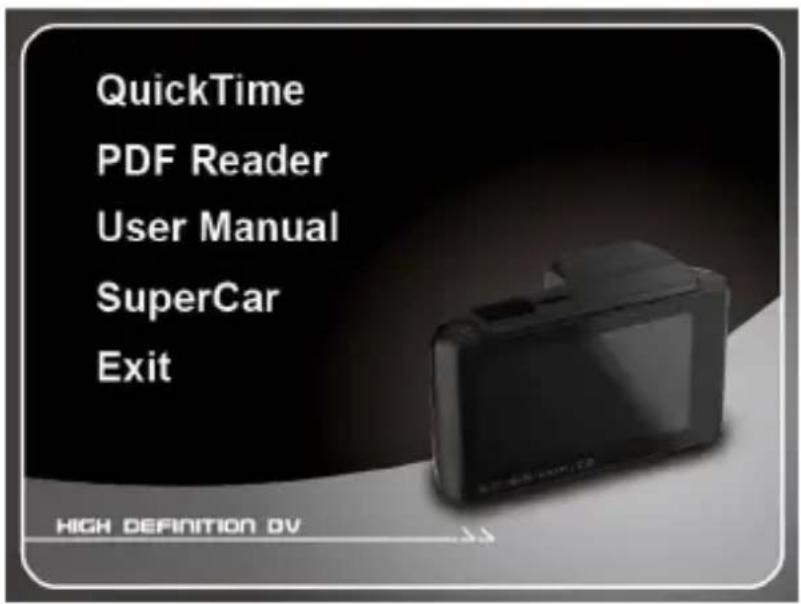
- Press the [Menu] item to start the installation process according to the instructions on-screen.
6 SuperCar
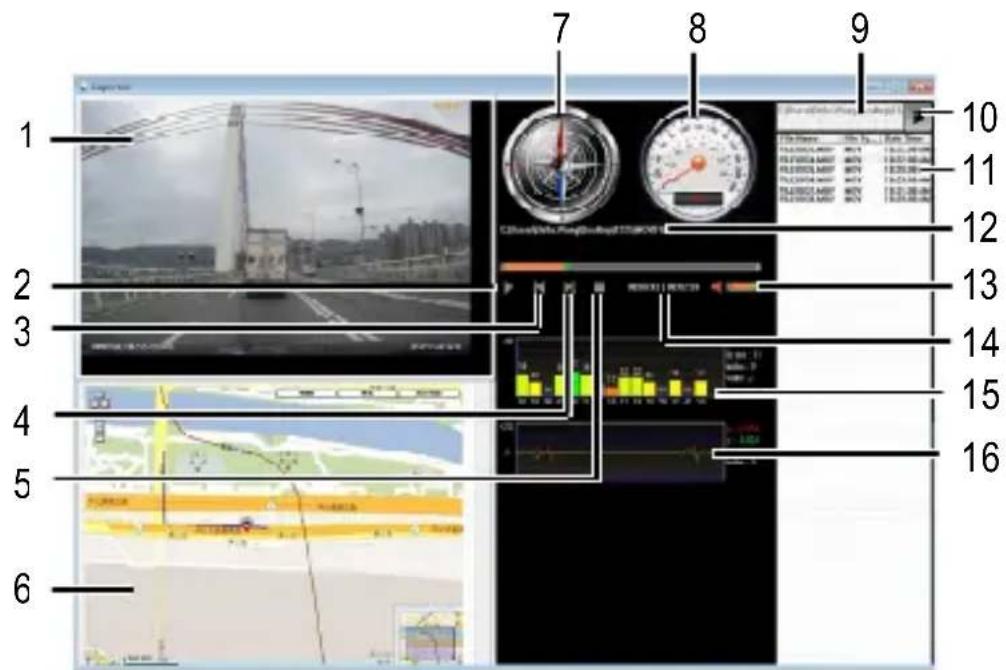
| No. | Item No. Item |
| 1 Video Player 9 File Path | |
| 2 Play / Pause 10 Browser File | |
| 3 Previous 11 File List | |
| 4 Next 12 File Name | |
| 5 Stop 13 Volume | |
| 6 Google Map | |
| 7 Compass 15 Signal Noise Ra | |
| 8 Speed Meter 16 G-Sensor | |
| 14 | Current Duration / Total Duration |
| tio (SNR) | |
Note:
- To display the route on Google Maps, please make sure the internet is connected before starting the video playback.
- Video files (MOV / TS) and GPS/G-Sensor files (NMEA) must be stored in the same folder before starting the playback.
- The SuperCar software is only applicable to a Windows operating system.
7 Specifications
| Item Description | |
| Image sensor 1/2.7" CMOS sensor | |
| Effective pixels | 1920 (H) x 1080 (V) |
| Storage media | Support Micro SDHC Class 6, max. 32GB. PRAKTICA 8GB Class 10 Mico SD Card is recommended for this product. |
| LCD display 2.7" LCD color TFT touch screen | |
| Lens | Wide Angle Fixed Focus lens F2.0, f=3.4mm |
| Focus range 1.5m~Infinity | |
| Satellite System | GPS / GLONASS (Satellite Positioning feature varies depending on the model) |
| Wi-Fi | 802.11 b/g/n (The wireless network feature varies depending on the model) |
| Movie Clip | Resolution: FHD (1080P/30fps); HD30 (720P/30fps); HD60 (720P/60fps) |
| Format: MOV | |
| Still image (Snapshot) | Resolution: 2M (1920 x 1080) |
| Format: JPEG | |
| Shutter | Electronic shutter Auto:1/2 ~1/2000 sec. |
| G-Sensor 3-Axis G-Force sensor | |
| ISO Auto | |
| White Balance Auto | |
| Microphone | Yes |
| Speaker | Yes |
| Interface | Mini USB |
| Battery | Built-in 470mAh Li-polymer rechargeable |
| Operating Temperature | 0° ~ 50°C |
| Operating Humidity | 20 ~ 70% RH |
| Storage Temperature | -20° ~ 80°C |
| Dimensions 80 x 30.3 x 51.2 mm | |
| Weight Approx. 82g (without memory card) | |
Built-in IEEE 802.11 n Wi-Fi module: WN7911B-WM
| Frequency range | 2412~2462MHz |
| Channel List | Ch1~Ch11 |
Contains FCC ID: 2ACFIWM7911B
Copyright © 2015
All rights reserved.
All other marks, products or company names mentioned in this guide are trademarks of their respective companies.