DAC Box DS - Audio/video converter PRO-JECT - Free user manual and instructions
Find the device manual for free DAC Box DS PRO-JECT in PDF.


| Product Type | Digital-to-Analog Converter (DAC) |
| Brand | Pro-Ject Audio Systems |
| Model | DAC Box DS |
| Category | Audio/Video Converter |
| Dimensions (W x H x D) | 103 x 36 x 107 mm |
| Weight | 500 g |
| Power Supply | External AC adapter (12V DC, 500 mA) |
| Inputs | USB (Type B), Optical (Toslink), Coaxial (RCA) |
| Outputs | Analog RCA (L/R), Optical (Toslink passthrough) |
| Supported Sample Rates | Up to 24-bit / 192 kHz (USB and coaxial), 24-bit / 96 kHz (optical) |
| DAC Chip | Burr-Brown PCM1793 |
| Frequency Response | 20 Hz - 20 kHz (±0.5 dB) |
| Signal-to-Noise Ratio | > 110 dB |
| Total Harmonic Distortion + Noise | < 0.002% |
| Channel Separation | > 100 dB |
| Output Voltage | 2 V RMS (unbalanced) |
| Supported Operating Systems | Windows, macOS, Linux (USB audio class 1 or 2) |
| Power Consumption | < 5 W |
| Standby Power Consumption | < 0.5 W |
| Housing Material | Aluminum |
| Color | Black / Silver |
| Accessories Included | USB cable, power adapter, user manual |
| Clean & Maintenance | Wipe with a soft, dry cloth; do not use solvents. Keep away from dust and moisture. |
| Safety | Operate only with supplied power adapter. Do not open device; risk of electric shock. Keep away from children. |
| Spare Parts & Repairability | Contact Pro-Ject authorized service centers for replacement parts. Device is not user-serviceable. |
Frequently Asked Questions - DAC Box DS PRO-JECT
User questions about DAC Box DS PRO-JECT
0 question about this device. Answer the ones you know or ask your own.
Ask a new question about this device
Download the instructions for your Audio/video converter in PDF format for free! Find your manual DAC Box DS - PRO-JECT and take your electronic device back in hand. On this page are published all the documents necessary for the use of your device. DAC Box DS by PRO-JECT.
USER MANUAL DAC Box DS PRO-JECT
thank you for purchasing a Pro-Ject Audio Systems DAC Box DS.
In order to achieve maximum performance and reliability you should study these instructions for use carefully.


Warning of a hazard for the user, the unit or possible misuse
Important notice
Safety instructions

AC outlet voltages vary from country to country. Before connecting to the mains, make sure that the voltage in your area meets the voltage requirements printed on the power supply.
The power supply is used to disconnect the unit from the mains. Make sure that the power supply is easier accessible at all times. Never handle the device, the power supply while your hands are wet or damp.
Avoid letting liquids enter the device or the power supply. Never place any item containing liquid, such as a flower vase on or near the device. Never spill any liquid on the device or the power supply.
Never place any naked flame sources, such as lighted candles on or near the device. The product shall be used in damp or wet locations, next to a bathtub, sink, swimming pool or any other similar condition
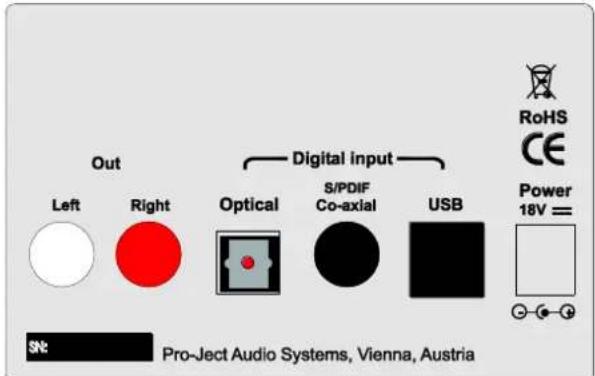
Connectors
text_image
Out Left Right Optical S/PDIF Co-axial USB Digital input RoHS CE Power 18V= SN: Pro-Ject Audio Systems, Vienna, Austria
Make all connections, except the connection to the computer, whilst the unit is disconnected from the power supply. Connect the unit to the mains and switch it on before connecting it to the computer.
Take care to connect the left and right channels correctly. The right channel is usually marked red, the left channel black or white.
Never use any other power supply than the one supplied with the unit.
Connection to the amplifier
Connect the Out socket to a line input (such as AUX) on your amplifier.
Inputs
Sources with an digital output such as a CD player can be connected to the digital inputs (coaxial and optical). A computer can be connected to the USB input.

The DAC supports PCM (LPCM) format only. The DAC does not work with audio formats like DTS ^™ or Dolby ^® Digital. If the DAC is used with a TV satellite/cable receiver or a TV sets with an integrated satellite/cable receiver, make sure that in the set-up menu of your receiver/TV set, the format of the digital signal, relayed to the digital output used is set to PCM.
Connecting to a Computer
Connect the USB-input of the DAC (unit must be switched on) to a free USB-socket on your computer and turn it on/make sure it is powered on. The DAC will be automatically recognised by the computer.
* For Windows ^® operating systems a 24Bit/192kHz driver (supplied on CD) has to be installed. Mac OS ^® operating systems support 24Bit/192kHz as a standard.

Please note: Connection should be made to an USB-socket of your computer directly. Connecting to USB-hubs or switches can cause problems.
Mains power connection
Connect the low voltage plug from the power supply to the Power 18V DC socket before connecting the power supply to the mains.
Front panel controls
text_image
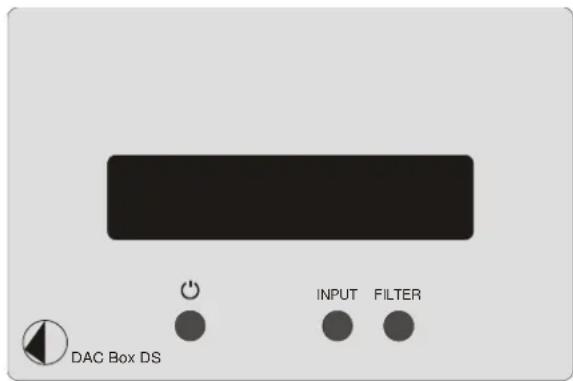
DAC Box DS INPUT FILTERTo switch on from standby or to standby
Will toggle the DAC between its fully operational status and standby.
Input selector
Pressing INPUT repeatedly selects the digital inputs in turns. The selected input and the sampling frequency of the input signal will be shown on the display.
Filter
FILTER will toggle between the two filters available. The selected filter will be shown on the display.
24Bit/192kHz driver (Windows® operating systems only)
* For Windows ^® operating systems a 24Bit/192kHz driver has to be installed. Insert the included CD into the drive of you PC and follow the instructions.
After installing the 24Bit/192kHz driver, some setting have to be done.
For example - Windows 7 ^® operating system:
→ Control Panel → Hardware and Sound → Sound → Playback: select Project DAC DS USB 2.0 Audio Out
→ Properties → Supported Formats: make sure nothing is assigned → Level → Sound: setting must be 100
→ Enhancements: disable all enhancements → Advanced → Default Format: set to studio quality 24/192
DSD playback
Playback of DSD files (.dff, .dsf) is possible over USB. Player capable of playing DSD files is required in your computer. Setup guide is available on our website http://www.box-designs.com
Firmware updates
We strongly recommend to check our website http://www.box-designs.com for firmware updates. Always use the last release of the firmware for the best performance.
Technical specifications Pro-Ject DAC Box DS
Line-level output: 1 pair RCA/phono sockets
Output voltage: 2Vrms
Digital outputs: 1 x coaxial (S/PDIF),
1 x optical (TOSlink
1 x USB (B socket).
^® ,
USB input: digital serial data protocol USB 2.0
THD: <0,01%
Operating systems: Windows XP
^® , Windows VISTA ^® , Windows 7 ^® , Windows 8 ^® , Mac
OS®
D/A converter: Burr Brown PCM1792. 24Bit/192kHz, 8-times oversampling
Supported audio format: PCM (LPCM), DoP (DSD over PCM), No support for formats like
Dolby
® Digital or DTS
Sampling rates
Coaxial input and USB input: 44,1kHz, 48kHz, 88,2kHz, 96kHz, 176,2kHz and 192kHz
Optical input:
44,1kHz, 48kHz, 88,2kHz and 96kHz
DSD support
DSD64, DSD128
Outboard power supply:
18V/500mA DC; suitable for your country's mains supply
Power consumption:
350mA DC, <1W in standby
Dimensions W x H x D (D with sockets):
103 × 72 × 144 (150)mm
Weight:
1.010g without power supply
Service
Should you encounter a problem which you are not able to alleviate or identify despite the above information, please contact your dealer for further advice. Only if the problem cannot be resolved there, the unit should be sent to the responsible distributor in your country.
Warranty

The manufacturer accepts no responsibility for damage caused by not adhering to these instructions for use. Modification or changes to any part of the product by unauthorized persons release the manufacturer from any liability over and above the lawful rights of the customer.
Copyright, trademarks
Pro-Ject Audio Systems is a Registered Trademark of H. Lichtenegger.
This guide was produced by: Pro-Ject Audio Systems
Copyright © 2015. All rights reserved.
The information was correct at the time of going to press. The manufacturer reserves the right to make changes to the technical specification without prior notice as deemed necessary to uphold the ongoing process of technical development.
Windows ^® , Windows XP ^® , Windows Vista ^® , Windows 7 ^® Windows 8 ^® are trademarks of the Microsoft group of companies. Mac ^® and Mac OS ^® are trademarks of Apple Inc., registered in the U.S. and other countries. TOSlink ^® is a registered trademark of Toshiba corporation. Dolby ^® is a registered trademark of Dolby Laboratories. DTS ^™ is a registered trademark of DTS, Inc..