LM506 - Network card / adapter LM Technologies - Free user manual and instructions
Find the device manual for free LM506 LM Technologies in PDF.


| Product Type | Network Card / Adapter |
| Brand | LM Technologies |
| Model | LM506 |
| Interface | PCI Express x1 |
| Data Transfer Rate | Up to 1 Gbps |
| Connector Type | RJ45 |
| Chipset | Realtek RTL8111H |
| Dimensions (L x W x H) | 120 mm x 80 mm x 20 mm |
| Weight | 85 g |
| Power Consumption | 2.5 W (typical) |
| Operating Voltage | 3.3 V (via PCIe slot) |
| Supported Operating Systems | Windows, Linux, macOS |
| Wake-on-LAN | Supported |
| Jumbo Frame Support | Up to 9K bytes |
| LED Indicators | Link/Activity |
| Compliance | IEEE 802.3, 802.3u, 802.3ab |
| Operating Temperature | 0°C to 70°C |
| Storage Temperature | -20°C to 80°C |
| Humidity | 10% to 90% non-condensing |
| Warranty | 2 years |
Frequently Asked Questions - LM506 LM Technologies
User questions about LM506 LM Technologies
0 question about this device. Answer the ones you know or ask your own.
Ask a new question about this device
Download the instructions for your Network card / adapter in PDF format for free! Find your manual LM506 - LM Technologies and take your electronic device back in hand. On this page are published all the documents necessary for the use of your device. LM506 by LM Technologies.
USER MANUAL LM506 LM Technologies
Bluetooth USB Micro Adapter
Windows XP
User's Manual
Bluetooth Networking Overview
Bluetooth wireless technology lets you make short-range (within a distance of 10 meters) wireless connections between your computer and other Bluetooth enabled devices, eliminating the need for cables. Because Bluetooth communications are broadcast over the air, Bluetooth devices exchange PIN codes and encryption to verify identity and provide security against the interception of sensitive data. Bluetooth functionality on your computer is enabled by the Bluetooth network adapter that is installed on your computer.
Types of Bluetooth enabled devices you can use with your Bluetooth enabled computer include:
•Audio headsets and headphones
- Human interface devices such as a mouse, keyboard, or game controller
- Mobile phones
- Other computers
•Smartphones and PDAs
•Media players
- Digital cameras
- Printers
When you pair with another Bluetooth enabled device, your computer discovers the services that the device provides. These services determine the things you can do with the device. Here are some of the potential things you can do with various Bluetooth enabled devices:
Audio headsets
- Use for Internet telephone calls and instant messaging.
- Listen to audio or use for voice playback or recording.
- Listen to music.
Mobile phones
- Use your phone to connect your computer to the Internet.
- Use your computer as a speakerphone for your mobile phone.
Computers
- Play audio stored on or played from your computer through another computer.
- Play audio stored on another computer through your computer.
- Send Personal Information Manager (PIM) items to another computer.
- Receive PIM items from another computer.
- Back up Contacts and Calendar folders from another computer to your computer.
- Restore the backed-up Contacts and Calendar folders to the other computer.
- Synchronize Contacts, Calendars, Mail, and Notes folders.
- Send data, text, pictures, music, and other files to another computer.
- Receive data, text, pictures, music, and other files from another computer.
Smartphones, PDAs
- Play audio stored on your smartphone or PDA through your computer.
- Send Personal Information Manager (PIM) items to your smartphone or PDA.
- Receive PIM items from your smartphone or PDA.
- Back up Contacts and Calendar folders on your smartphone or PDA to your computer.
- Restore the backed-up Contacts and Calendar folders to your smartphone or PDA.
- Synchronize Contacts, Calendars, Mail, and Notes folders.
- Send data, text, pictures, music, and other files to your smartphone or PDA.
- Receive data, text, pictures, music, and other files from your smartphone or PDA.
Media players
- Play audio stored on your media player through your computer.
Digital cameras
- Download pictures to your computer.
Other
- Use a Bluetooth enabled wireless mouse, keyboard, or game controller.
- Print to a Bluetooth enabled printer.
- Print to a standard printer that is physically connected to a Bluetooth enabled computer.
With your Bluetooth enabled computer, you also can:
- Turn the Bluetooth adapter on and off.
• Control how Bluetooth technology works on your computer. - Send files and folders to another Bluetooth enabled device.
- Send a web page from Microsoft Internet Explorer to another Bluetooth enabled device.
- Send a web image from Microsoft Internet Explorer to another Bluetooth enabled device.
- Send files from Microsoft Office applications to another Bluetooth enabled device.
- Access files on another Bluetooth enabled device.
- Allow other Bluetooth enabled devices to access your Bluetooth Exchange Folder.
- Establish a virtual serial port connection with another Bluetooth enabled device.
• Make a network connection to another Bluetooth enabled device or a local area network.
For step-by-step instructions for these and other operations, see How Do I...?
To change the default settings that control how Bluetooth works on your computer, see Control How Bluetooth Technology Works On My Computer.
If you are having difficulty using other Bluetooth devices with your computer, see Troubleshooting.
Terminology
audio headset
A wearable hands-free audio device that has a speaker and a microphone. Some audio headsets can be used both for telephone calls and for listening to high-quality stereo audio. Other types of audio headsets can be used only for telephone calls and for voice playback and recording.
authentication
A Bluetooth security feature that is used to verify identity. During the initial authentication process, the Bluetooth device that initiates the connection requires the remote device to supply a Bluetooth PIN code.
BDA
Bluetooth Device Address (assigned by the manufacturer)
Bluetooth device
Bluetooth enabled hardware such as a computer, printer, fax machine, mouse, keyboard, mobile phone, headset, headphones, camera, or PDA.
Bluetooth Exchange Folder
The highest-level folder on a Bluetooth enabled computer to which another Bluetooth device has access. Devices that have been granted access to Bluetooth Exchange Folder also have access to all subfolders contained within that folder and all files in those subfolders.

NOTICE: By default, Bluetooth Exchange Folder is placed in My Documents. If you relocate Bluetooth Exchange Folder, do not place it in the root directory or a system folder. Relocating Bluetooth Exchange Folder to the root directory or a system folder creates the potential for remote devices being able to harm the operating system on your computer.
Bluetooth Exchange Folder is used to store received files. The location and name of the folder can be specified on the Share tab of Bluetooth Configuration. If you change the location or name of the folder, the path is automatically updated. If you select Save to folder as the place to store received PIM items, received PIM items are also stored in Bluetooth Exchange Folder.
Bluetooth security code
A secret key that is exchanged between your Bluetooth enabled computer and other Bluetooth enabled devices each time they connect to verify identity and encrypt the data that is exchanged. The key is initially exchanged during the pairing process. Also referred to as a passkey, password, passcode or PIN code.
Bluetooth wireless technology
Bluetooth wireless technology is a standards-based that allows short-range (within a distance of 10 meters) wireless communication between Bluetooth enabled devices, eliminating the need for cables.
Dynamic Host Control Protocol
A protocol used by a server to assign an Internet Protocol (IP) address to a connecting device.
encryption
Encryption translates data into an unreadable format using a secret key or password. Decrypting the data requires the same key or password that was used to encrypt it.
HCI
Host Controller Interface
Human Interface Device (HID)
An input device such as a mouse, keyboard, or game controller that sends user input to a computer.
internet telephony
A technology that uses the Internet to place and receive telephone calls.
link key
An internally generated unique security key that is exchanged by paired devices as proof of identity before a connection is established. Link keys are generated automatically when two devices pair.
paired devices
Bluetooth enabled devices must be paired before they can establish a secure (authenticated and encrypted) connection. Paired devices share a unique link key, which is exchanged automatically each time they connect.
PDA
personal digital assistant
PIM
Personal Information Manager. An application, such as Microsoft® Outlook®, that is used to manage contacts, send and receive mail, create notes, and schedule events and tasks.
Secure Connection
A Bluetooth feature that requires the exchange of a passkey or link key between two Bluetooth enabled devices each time you attempt to connect one with the other. All data exchanged over the Bluetooth connection is encrypted. Depending on how you set authorization options, authorization might also be required.
shortcut
An icon that provides quick access to the device control panel (see Use the Services of Other Bluetooth Enabled Devices).
taskbar notification area
The area on the Windows taskbar that displays the time. The Bluetooth icon is usually located here.
Getting Started
First, make sure that your Bluetooth adapter is working and is turned on (see Check the Working Condition and Status of My Bluetooth Adapter).
Next, open My Bluetooth Places either by clicking the Start button, pointing to All Programs, and clicking My Bluetooth Places, or by right-clicking the Bluetooth icon in the notification area, and then clicking Explore My Bluetooth Places.
In My Bluetooth Places, you can:
Find the Bluetooth enabled devices that are within range (see Find Available Bluetooth Enabled
• Devices).
- Pair with a Bluetooth enabled device (see Pair with a Bluetooth Enabled Device).
Use the services of other Bluetooth enabled devices (see Use the Services of Other Bluetooth
- Enabled Devices).
Connect a Bluetooth wireless mouse or game controller (see Connect a Bluetooth Wireless Mouse,
• Keyboard, or Game Controller).
- Remove pairing (see Pair with a Bluetooth Enabled Device).
Control how Bluetooth technology works on your computer (see Control How Bluetooth
•Technology Works On My Computer).
See which Bluetooth enabled devices your computer is paired with and connected to (see See
- Which Bluetooth Enabled Devices My Computer Is Paired With and Connected To).
- Display the properties of a Bluetooth enabled device (see Display the Device Properties).
Disconnect a Bluetooth wireless mouse, keyboard, or game controller (see Connect a Bluetooth
- Wireless Mouse, Keyboard, or Game Controller).
Check the Working Condition and Status of My Bluetooth Adapter
The appearance of the Bluetooth icon (located in the taskbar notification area) indicates the working condition and status of your Bluetooth adapter:
The adapter is working and is turned on.
The adapter is either not working or is turned off.
The adapter is working and this computer is connected to another Bluetooth enabled device.
If the appearance of the Bluetooth icon indicates that the Bluetooth adapter is either not working or is turned off, right-click the Bluetooth icon 📄, and then click Start the Bluetooth Device. If this command is not available, the adapter has been turned off with a hardware switch on your computer and must be turned on with the hardware switch. Check the manual that came with your computer for information about the location of the switch and for instructions on how to use it.
Find Available Bluetooth Enabled Devices
You can find available Bluetooth enabled devices from My Bluetooth Places. The icon, name, and Bluetooth address for each found Bluetooth device are displayed in the right pane.

NOTE: Before a Bluetooth device can be found (available), it must be within range and set to be discoverable. For information about how to set a particular device to be discoverable, check the user guide that came with the device.
To find available Bluetooth devices:
-
Right-click the Bluetooth icon 📋, and then click Explore My Bluetooth Places.
-
In My Bluetooth Places under Bluetooth Tasks, click View devices in range.

NOTE: If the Folders pane is visible when you open My Bluetooth Places, you must close the Folders pane to view Bluetooth Tasks, Other Places, and Details in the left pane of My Bluetooth Places.
You can specify whether to have the icons displayed as tiles, in a row, in a list, or with details, such as the device name, Bluetooth Device Address, type, and additional information. You can also specify whether to group the icons according to categories, such as phones and modems, computers, audio devices, and so on.
To select a view:
- Right-click in any blank area in the right pane, point to View, and then click one of the following:
- Tiles. Shows the device icon, name, type, Bluetooth Device Address (BDA)
- Icons. Shows the device icon and name in a row.
- List. Shows the device icon and name in a column.
Details. Shows the device icon, name, Bluetooth Address, type, and status (paired,
- connected)
To show the device icons and information grouped according to the type of device:
- Right-click in any blank area in the right pane, point to View, and then click Show in Groups.
Display the Device Properties
In My Bluetooth Places, click the name of the device, and then under Bluetooth Tasks, click Display device properties.
Pair with a Bluetooth Enabled Device
You can pair with a Bluetooth enabled device from My Bluetooth Places or from the Bluetooth icon located in the taskbar notification area.
To pair from My Bluetooth Places:
- Right-click the Bluetooth icon 📋, and then click Explore My Bluetooth Places.
In My Bluetooth Places under Bluetooth Tasks, click Add a Bluetooth Device and follow the onscreen instructions provided by Bluetooth Setup Wizard. After you select a device, the wizard handles the pairing process, and when finished, optionally opens a control panel that displays the services that 2.the device provides.
To pair from the Bluetooth icon:
Right-click the Bluetooth icon 📋, click Add a Bluetooth Device and follow the onscreen instructions provided by Bluetooth Setup Wizard. After you select a device, the wizard handles the pairing process, and when finished, optionally opens a control panel that displays the services that the device provides.
After you have paired your computer with a Bluetooth device, you can begin using the device (see Use the Services of Other Bluetooth Enabled Devices).
To remove pairing:
- In My Bluetooth Places, click the name of the paired device.
- Under Bluetooth Tasks, click Remove Pairing.
-or-
- Right-click the name of the paired device, and then click Unpair Device.
Connect a Bluetooth Wireless Mouse, Keyboard, or Game Controller
You can connect a Bluetooth wireless mouse, keyboard, or game controller from My Bluetooth Places or from the Bluetooth icon located in the taskbar notification area.
To connect from My Bluetooth Places:
- Right-click the Bluetooth icon 📋, and then click Explore My Bluetooth Places.
In My Bluetooth Places under Bluetooth Tasks, click Add a Bluetooth Device and follow the onscreen 2.instructions provided by Bluetooth Setup Wizard.
To connect from the Bluetooth icon:
Right-click the Bluetooth icon 📀, click Add a Bluetooth Device and follow the onscreen •instructions provided by Bluetooth Setup Wizard.

NOTE:
- The setup process for a Bluetooth wireless keyboard involves pairing with your computer. To conserve battery power, the Bluetooth wireless mouse, keyboard, or game controller goes to sleep after a specified period of inactivity. To wake up the mouse or game controller, move it around or click any of the controls. To wake up the keyboard, press any key.
After you have made the connection, you can begin using your wireless mouse, keyboard, or game controller.
To disconnect:
- In My Bluetooth Places, click the name of the device.
- Under Bluetooth Tasks, click Disable.
-or-
- In the notification area, click the Bluetooth icon

-
In the pop-up menu, click the type of Human Interface Device you want to disconnect.
-
In Bluetooth Connection Status on the General tab, click Disconnect.
Automatically Authorize Access to the Bluetooth Services on My Computer
Whenever you start to use a Bluetooth service on a Bluetooth enabled device, the device sends an access authorization request to your computer. By default, you must manually authorize access each time such requests are received. If you want, you can automatically authorize a Bluetooth device to access one or more of the Bluetooth services that are provided by your computer.
To automatically authorize access to a service:
- In the right pane of My Bluetooth Places, click the name of the paired device.
- Under Bluetooth Tasks, click Display device properties.
- In Device Properties, click the Authorization tab.
On the Authorization tab, click the check boxes next to the services you want to automatically 4.authorize the device to use.
The settings you make here automatically update the settings on the device control panel, and vice versa (see also Use the Services of Other Bluetooth Enabled Devices).
See Which Bluetooth Enabled Devices My Computer Is Paired With and Connected To
You can see which Bluetooth enabled devices your computer is paired with and connected to from My Bluetooth Places.
1.Right-click the Bluetooth icon, and then click Explore My Bluetooth Places.
Check the appearance of device icons displayed in the right pane. The appearance of each device icon indicates whether your computer is paired with, not paired with, or connected to the device. 2. See Table 1. Device Icons for examples.
Also, you can determine which Bluetooth enabled devices your computer is paired with by right-clicking the Bluetooth icon and pointing to Bluetooth Devices.
Table 1. Device Icons
| Type of Device | Icon Indicating Type of Device, Paired Status, and Connection Status | ||
| Not Paired | Paired | Connected | |
| Audio Gateway | [022X] | [072K] | [8034] |
| Audio Headset |  |  | [3X03] |
| Headphones |  |  | [0752] |
| Camera | [YYC] |  |  |
| Desktop |  | [03TZ] |  |
| Keyboard |  |  |  |
| Mouse | [XXHT] |  |  |
| Modem |  |  | [28T4] |
| Network Access Point |  |  | [CXXY] |
| Laptop |  |  | [0X43] |
| PDA | |||
| Printer | |||
| Cellular Phone/Smartphone | |||
| Unknown Device | |||

NOTE: The term that is displayed for a particular type of device might not exactly match the term used in the table.
Change the Name and Type of My Computer
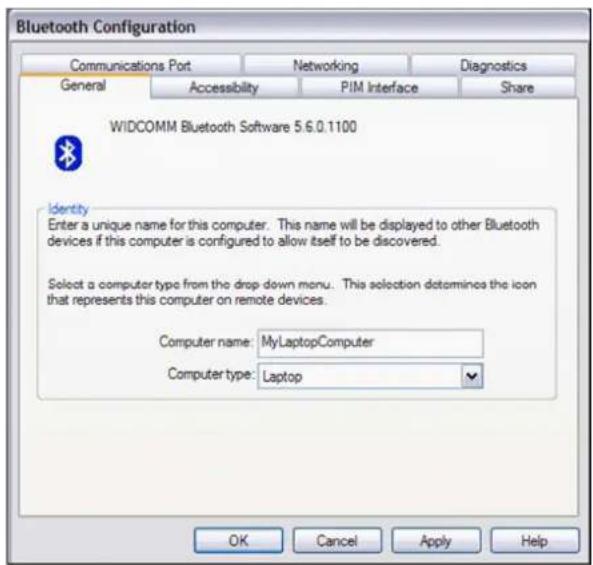
When your computer is set to let other Bluetooth enabled devices discover it, (see Enable or Prevent Discovery of My Computer), the assigned computer name identifies the computer to other Bluetooth enabled devices that are within range. The assigned computer type determines the type of icon that is used to represent your computer. You can change both the computer name and computer type in case the default name and type assignments are unsuitable.
To change the computer name or type:
- Right-click the Bluetooth icon 🖼 in the taskbar notification area, and then click Bluetooth Configuration.
In Bluetooth Configuration click the General tab, and then type a new computer name or computer type 2. in the respective spaces provided.
Enable or Prevent Discovery of My Computer

NOTE: Because of corporate security policies, it might not be possible to change this particular Bluetooth setting. If so, contact your IT administrator for more information or if you have any questions.
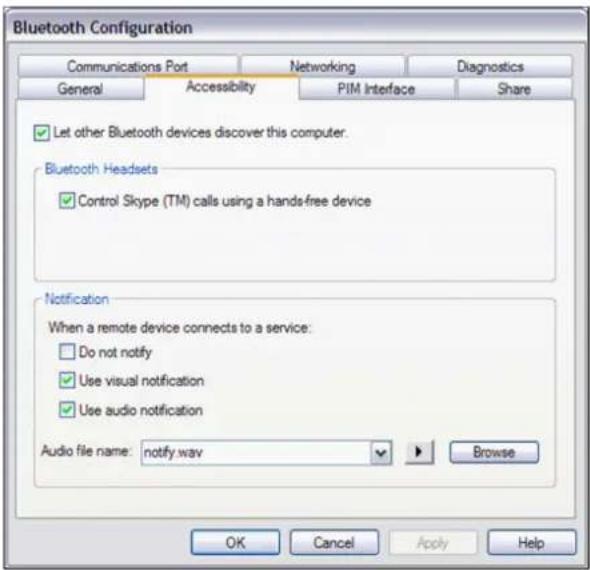
To enable your computer to be discovered by other Bluetooth enabled devices:
- Right-click the Bluetooth icon in the taskbar notification area, and then click Bluetooth Configuration.
- In Bluetooth Configuration, click the Accessibility tab.
- Select the Let other Bluetooth devices discover this computer check box.

NOTE: If you later clear the Let other Bluetooth devices discover this computer check box, devices that have previously connected to this computer can still do so.
To prevent your computer from being discovered by other Bluetooth enabled devices:
- Clear the Let other Bluetooth devices discover this computer check box.
Control Skype™ Calls Using a Hands-free Device
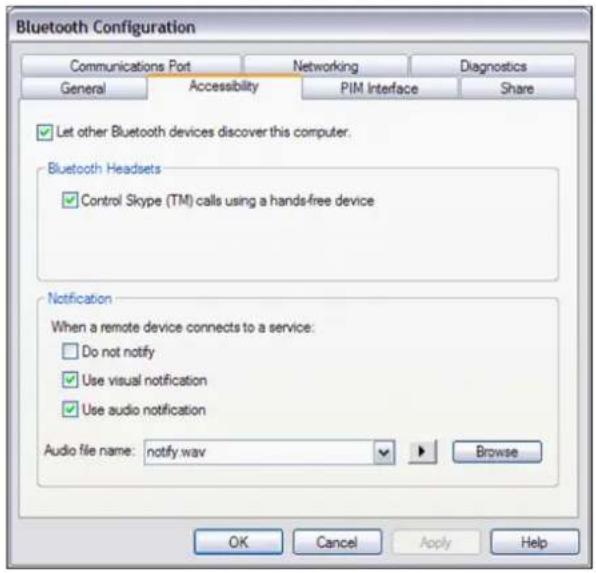
- Right-click the Bluetooth icon in the taskbar notification area, and then click Bluetooth Configuration.
- In Bluetooth Configuration, click the Accessibility tab.
- Under Bluetooth Headsets, select the Control Skype calls using a hands-free device check box.
Specify the Type of Notice I Receive When a Remote Device Connects to My Computer
-
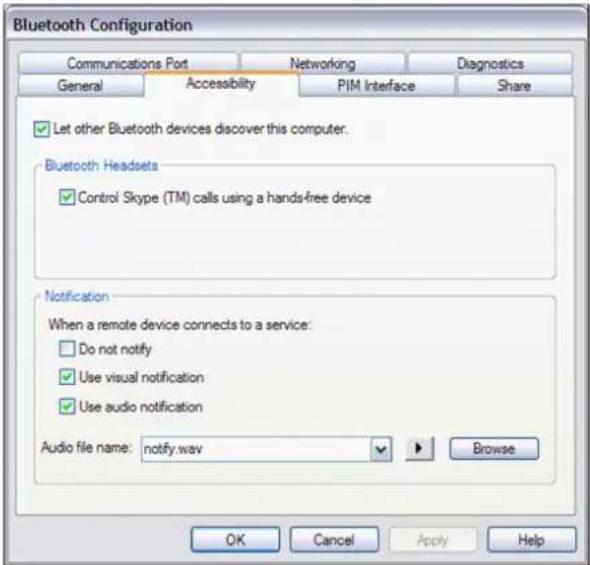
Right-click the Bluetooth icon 📊 in the taskbar notification area, and then click Bluetooth Configuration.
-
In Bluetooth Configuration, click the Accessibility tab.
To specify not to be notified:
- Under Notification, select the Do not notify check box.
To specify a visual notification:
- Under Notification, select the Use visual notification check box.
To specify an audio notification:
- Under Notification, select the Use audio notification check box.
The default audio file that is played when you receive an audio notification is the notify.wav file. If you want to use a different audio file, click the arrow in the Audio file name list, and then select a file from the list of available files. To preview the sound, click the button to the left of the Browse button. If you have .wav audio files stored in a location other than the Windows\Media folder, click Browse, navigate to the folder where the audio files are stored, click the name of the file you want to use, and then click Open. When finished, click Apply.
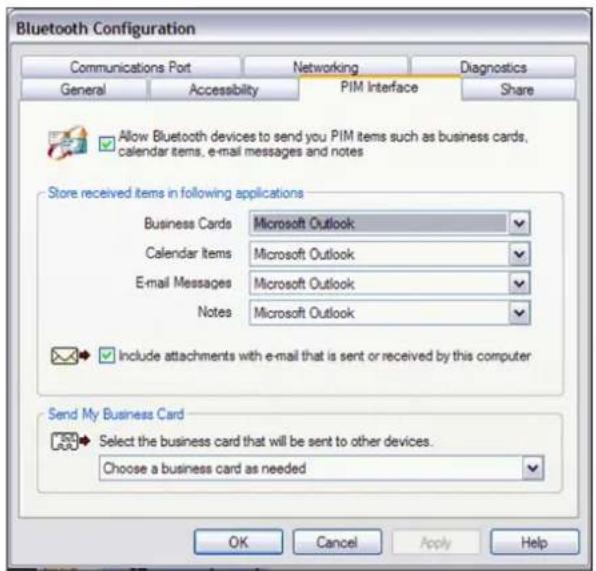
Set Rules for Sending and Receiving PIM Items
On the PIM Interface tab, you can specify whether you want to allow other Bluetooth enabled devices to send you PIM items such as business cards, calendar items, messages, and notes. You can also specify where to store received items, whether to include attachments with mail that you send and receive, and which business card to send.
To view or change existing settings:
-
Right-click the Bluetooth icon in the taskbar notification area, and then click Bluetooth Configuration.
-
In Bluetooth Configuration, click the PIM Interface tab.
To allow other Bluetooth enabled devices to send you PIM items:
Select, the Allow Bluetooth devices to send you PIM items such as business cards, calendar items, mail, and notes check box. If you do not want to allow this, clear the check •box.
If you elect to allow other Bluetooth enabled devices to send you PIM items, you can accept all, some, or none of the different types of PIM items. If you do not want to accept a particular type of PIM item, under Store received items in the following places, click the arrow next to the item, and then select Do not accept.
If you are using Outlook Express, all accepted PIM items are stored in Outlook Express. If you are using Microsoft Outlook, you can store received items either in the respective Microsoft Outlook folders or to a folder of your choosing.
To save PIM items to Microsoft Outlook, click the arrow next to the item, and then select
•Microsoft Outlook.
To save PIM items to a folder of your choosing, click the arrow next to the item, and then select
- Save to folder.
NOTE: The folder in the path designated as the Bluetooth exchange folder location on the Share tab is the folder where received PIM items are stored.
To include attachments in mail that you send or receive:
Under Store received items in the following places, select the Include attachments with mail sent or received by this computer check box. If you do not want to include attachments,
- clear the check box.
Under Send my business card, you can specify whether to send your business card, and if so, which one.
If you do not want to send your business card, click the arrow, and then select Never send my
- business card.
- If you want to send the same card every time, select Always send the same business card. If you want to be able to select which business card to send each time you send one, select
- Select a business card as needed.
Set Rules for Sharing Files and Equipment
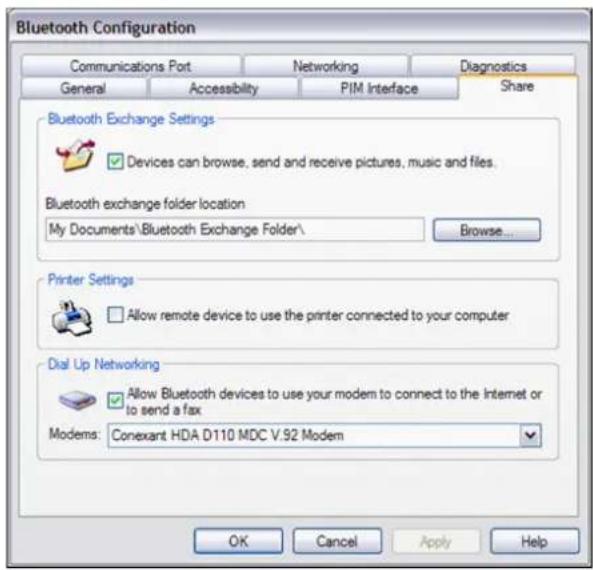
On the Share tab, you can specify whether your computer can share files with other Bluetooth enabled devices and whether other Bluetooth enabled devices can share your printer and modem.
To view or change existing settings:
- Right-click the Bluetooth icon in the taskbar notification area, and then click Bluetooth Configuration.
- In Bluetooth Configuration, click the Share tab.
To allow your computer to share files with other Bluetooth enabled devices:
Under Bluetooth Exchange settings, select the Devices can browse, send, and receive •pictures, music, and files check box. If you do not want to allow this, clear the check box.
By default, received files are stored in Bluetooth Exchange Folder, which is located in My Documents.
To store incoming files in a folder and location of your choosing:
Under Bluetooth Exchange settings, click Browse, and then browse to an existing folder or make a new one. See also Use the Services of Other Bluetooth Enabled Devices.
Notice: If you relocate Bluetooth Exchange Folder, do not place it in the root directory or a system folder. Relocating Bluetooth Exchange Folder to the root directory or a system folder creates the potential for remote devices being able to harm the operating system on your computer.
To allow other Bluetooth enabled devices to use your printer:
Under Printer settings, select the Allow remote device to use the printer connected to •your computer check box.
To allow other Bluetooth enabled devices to use your modem:
Under Dial-up networking, select the Allow Bluetooth devices to use your modem to connect to the Internet or to send a fax check box. If your computer is connected to multiple modems, in the Modems list, select the modem you want to share.
Add or Delete a Communications Port
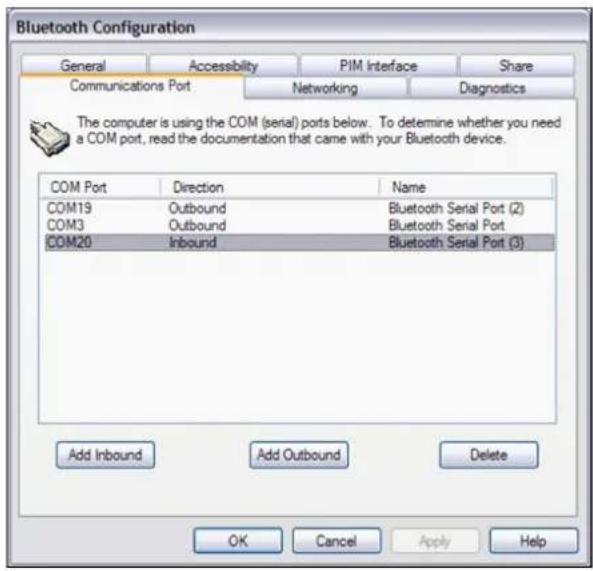
On the Communications Port tab, you can add or delete a communications port.
To view, add, or delete a communications port:
-
Right-click the Bluetooth icon 🖱️ in the taskbar notification area, and then click Bluetooth Configuration.
-
In Bluetooth Configuration, click the Communications Port tab.
To add a communications port:
Click either Add Inbound or Add Outbound. An inbound communications port is used by other Bluetooth enabled devices to create a communications link to this computer. An outbound communications port is used by this computer to create a communications link with another Bluetooth enabled device.
To delete a communications port:
- In the list, click to select the communications port you want to delete, and then click Delete.
Select the Type of Network Connections to Offer
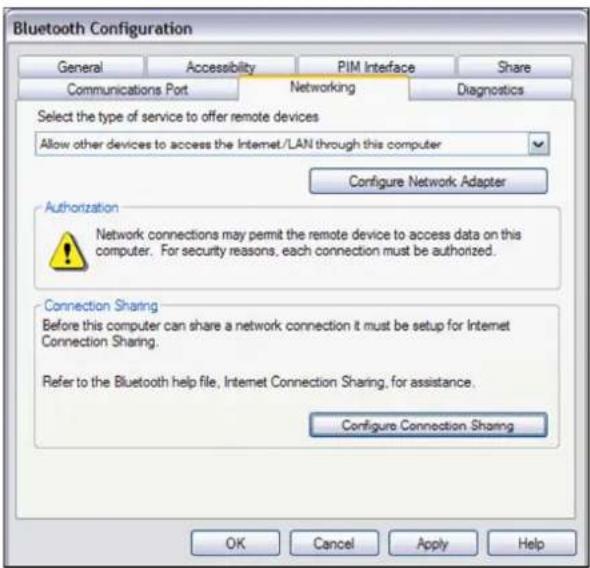
On the Networking tab, you can select the type of network connections you want to offer to other Bluetooth enabled devices.
To view or change existing settings:
-
Right-click the Bluetooth icon 📋 in the taskbar notification area, and then click Bluetooth Configuration.
-
In Bluetooth Configuration, click the Networking tab.
In the Select the type of service to offer remote devices list, select the type of network connection you want 3. to offer.
If you select the type of network connection that allows other devices to connect to the Internet/LAN through this computer, you must enable Windows Internet Connection Sharing on this computer. To initiate this process, click Configure Connection Sharing. If you need assistance, go to Windows Help and Support Center and search on Enable Internet Connection Sharing.
Manage My Local Bluetooth Adapters
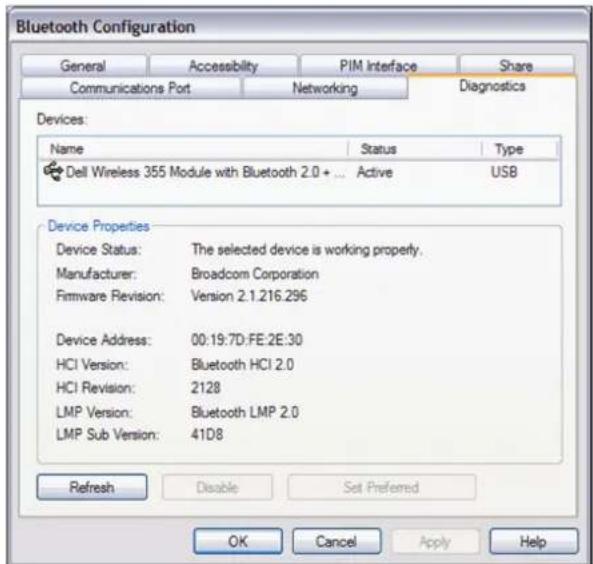
On the Diagnostics tab, you can view the name, type, and status of each Bluetooth adapter that is installed on this computer. If there is more than one Bluetooth adapter installed, you must designate which one to use. To conserve battery power, you can disable the inactive adapters. Also, you can view the properties of each adapter. The following adapter properties are displayed:
Device status. Indicates that the adapter is operating properly, or that there is a
•problem/conflict
- Manufacturer. The company that manufactured the adapter.
- Firmware Revision. The manufacturer's firmware version number.
Device Address. The Bluetooth Device Address assigned to the adapter when it was
• manufactured
HCI Version. The version number of the Bluetooth specification with which the Host Controller
- Interface complies.
HCI Revision. The revision number of the Bluetooth specification with which the Host Controller
- Interface complies.
LMP Version. The version number of the Bluetooth specification with which the Link Manager
- Protocol complies.
LMP Sub Version. The sub version number of the Bluetooth specification with which the Link
- Manager Protocol complies.
To manage local Bluetooth adapters:
-
Right-click the Bluetooth icon in the taskbar notification area, and then click Bluetooth Configuration.
-
In Bluetooth Configuration, click the Diagnostics tab.

NOTE:
- Only one Bluetooth adapter can be active at a time.
If you disable the active adapter or change its status to inactive, you must redo pairing with
•the other Bluetooth enabled devices.
To query the active adapter and update the data displayed in Device properties:
- On the Diagnostics tab, click Refresh.
To disable or enable a particular Bluetooth adapter:
- On the Diagnostics tab, click the name of the adapter, and then click either Disable or Enable.
To specify which Bluetooth radio device you prefer to use:
- On the Diagnostics tab, click the name of the adapter, and then click Set Preferred.

NOTE:
If you enable a Bluetooth adapter, and another Bluetooth adapter is set as Active (Preferred), the status of the enabled adapter is automatically set to Inactive, which means that it is
- available for use, but it is not the preferred adapter.
If you enable a Bluetooth adapter, and no other Bluetooth adapter has been set to Active
• (Preferred), the status of the enabled adapter is automatically set to Active.
When a Bluetooth adapter is plugged in or unplugged while Bluetooth Configuration is
- open, click Refresh to update the displayed information.
- If you do not intend to use an adapter, you can disable it to conserve battery power.
Turn Bluetooth On and Off
There may be times, such as when you are flying on a commercial aircraft, when you want to leave your computer on but are required to turn the Bluetooth adapter off. If your Bluetooth adapter is plugged into a USB port on your computer, you can turn off the adapter just by physically removing it. Similarly, it you want to turn it back on, just plug it in. If your Bluetooth adapter is embedded in your computer, however, you must turn the adapter on and off.
The Start/Stop the Bluetooth Device command (if available), enables you to turn the Bluetooth adapter on or off. By default, the Bluetooth adapter is on unless you turn it off.
To turn the adapter on and off:
Right-click the Bluetooth icon 📋 in the taskbar notification area, and then click either Start the •Bluetooth Device or Stop the Bluetooth device.
-or-
If this command is not available, right-click the Bluetooth icon 📀 in the taskbar notification area, and then click Bluetooth Configuration. On the Diagnostics tab, select the adapter in the •Devices list, and then click Enable or Disable.
-or-
If the Bluetooth adapter is not detected, it is likely that the adapter has been turned off with a hardware switch. Check the manual that came with your computer for information about the location of the hardware switch and for instructions on how to use it.
Use the Services of Other Bluetooth Enabled Devices
The services of Bluetooth enabled devices that you have paired with are displayed on the device control panel.
To open the device control panel:
If you have not already done so, pair with the device you want to use (see Pair with a Bluetooth Enabled 1.Device).
In My Bluetooth Places, select the Bluetooth enabled device you want to use, and then under Bluetooth 2.Tasks, click Control Device.
-or-
- In the right pane of My Bluetooth Places, double-click the device icon.
-or-
Right-click the Bluetooth icon 🧆 in the taskbar notification area, point to Bluetooth Devices, and then click the name of the device.
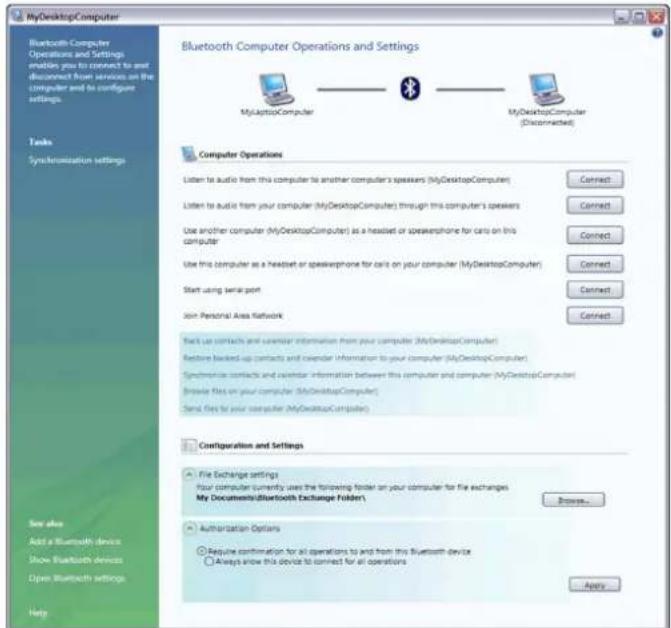
The operations that you can perform with a specific Bluetooth enabled device are listed under Device Operations. These operations correspond with the services that the device provides.

NOTE: Because of corporate security policies, some expected operations might not be available because the corresponding device services have been disabled by the IT administrator. Contact your IT administrator for more information or if you have any questions.
A Connect button is provided for those operations in which it is desirable for the connection to persist until you decide to disconnect. When the connection is made, a green check mark is displayed next to the Bluetooth icon image, the label on the button changes to Disconnect, and the description of the operation changes to indicate the reverse of what was originally stated.
Operations that do not need a persistent connection are listed under those that do. To perform any of these operations, click anywhere in the description of the operation.
Under Settings, you can view and change the settings that control the interaction between the device and your computer.
Under File Exchange Settings, you can change the location of the folder where files are stored for file exchanges between your computer and other Bluetooth enabled devices. To do so, click Browse. By default, the folder is named Bluetooth Exchange Folder, and it is located in My
- Documents. See also Set Rules for Sharing Files and Equipment.
Under Authorization Options, you can specify whether to always allow the device to connect to your computer for all operations, or to require that you authorize each connection before it can be made. The settings you make here automatically update the settings on the Authorization tab of Device Properties, and vice versa (see also Automatically Authorize Access to the Bluetooth
• Services on My Computer).
The following illustration shows the control panel for a Bluetooth enabled computer.
Play Audio Stored on One Bluetooth Enabled Computer Through Another Bluetooth Enabled Computer
To play audio stored on your computer through another Bluetooth enabled computer:
If you have not already done so, pair with the Bluetooth enabled computer you want to use (see Pair 1. with a Bluetooth Enabled Device).
In My Bluetooth Places, select the computer you paired with, and then under Bluetooth Tasks, click Control 2.Device.
-or-
- In the right pane of My Bluetooth Places, double-click the device icon.
-or-
If it is available, right-click the Bluetooth icon in the taskbar notification area, point to
- Bluetooth Devices, and then click the name of the computer.
Under Computer Operations under 🎨 Music and Audio, click the Connect button opposite Play audio stored on my 3.computer through the (Device Name) computer.
Now, whenever the connection is active and you play audio stored on your computer, the audio will play through the other computer.
To play audio stored on another Bluetooth enabled computer through your computer:
If you have not already done so, pair with the Bluetooth enabled computer you want to use (see Pair 1. with a Bluetooth Enabled Device).
In My Bluetooth Places, select the computer you paired with, and then under Bluetooth Tasks, click Control 2.Device.
-or-
- In the right pane of My Bluetooth Places, double-click the device icon.
-or-
If it is available, right-click the Bluetooth icon in the taskbar notification area, point to
- Bluetooth Devices, and then click the name of the computer.
Under Computer Operations\ Music and Audio, click the Connect button opposite Play audio stored on the (Device 3.Name) computer through my computer.
Now, whenever the connection is active and you play audio stored on the other computer, the audio will play through your computer.
Play Audio Stored on My Bluetooth Enabled Smartphone, PDA, or Media Player Through My Computer
If you have not already done so, pair with the Bluetooth enabled smartphone, PDA, or media player 1. you want to use (see Pair with a Bluetooth Enabled Device).
In My Bluetooth Places, select the player you paired with, and then under Bluetooth Tasks, click Control 2.Device.
-or-
- In the right pane of My Bluetooth Places, double-click the device icon.
-or-
If it is available, right-click the Bluetooth icon in the taskbar notification area, point to
- Bluetooth Devices, and then click the name of the Bluetooth player.
Under Device Type Operations\ Music and Audio, click the Connect button opposite Play audio stored on 3.the (Device Name) Device Type through my computer.
Now, whenever the connection is active and you play audio stored on your smartphone, PDA, or media player, the audio will play through your computer.
Use a Bluetooth Audio Headset for Internet Telephone Calls and Instant Messaging
Your Bluetooth enabled computer supports the use of a Bluetooth audio headset with various internet telephony and instant messaging services, including those provided by Skype™, Avaya®, Vonage®, AOL Instant Messenger™, Google Talk™, Yahoo! Messenger™, and MSN Messenger.
To use a Bluetooth audio headset for telephone calls:
If you have not already done so, pair with the Bluetooth audio headset you want to use (see Pair with 1.a Bluetooth Enabled Device).
In My Bluetooth Places, select the audio headset you paired with, and then under Bluetooth Tasks, click 2.Control Device.
-or-
- In the right pane of My Bluetooth Places, double-click the device icon.
-or-
If it is available, right-click the Bluetooth icon in the taskbar notification area, point to
- Bluetooth Devices, and then click the name of the device.
- Under Headset Operations\ headset and Speakerphone, click the Connect button.
You can now use your Bluetooth audio headset to place or receive a phone call using an Internet telephony service or during an instant messaging session.
To use a Bluetooth audio headset with Skype:
You can begin using Skype as soon as you are connected to your audio headset. Skype automatically recognizes your headset, adjusts Audio In and Audio Out settings to use a Bluetooth Hands-free Audio device, and routes calls to your headset. You can use the button on your headset to accept or reject a call, place a call on hold, hang up, or redial a number.

NOTE: You must first configure Bluetooth to enable the headset to control Skype calls. See Control Skype™ Calls Using a Hands-free Device.
To use a Bluetooth audio headset with Avaya IP Softphone:
- After you have connected to your audio headset, start Avaya IP Softphone.
- On the Audio menu, click Audio Tuning Wizard.
- Set Bluetooth Hands-free Audio as the primary playback and recording device.
- Click Finish.
Calls are now automatically routed to your audio headset. You can use the button on your device to accept or reject a call, put a call on hold, hang up, or redial a number.
To use a Bluetooth audio headset with other internet telephony or instant messenger applications:
After you have connected to your audio headset, start your internet telephony or instant messenger 1.application.
Adjust the playback (audio output) and recording (audio input) settings in the application to use 2. Bluetooth hands-free audio.

NOTE: The Bluetooth software sets the audio quality based on the audio characteristics of the headset.
Use a Bluetooth Audio Headset for Listening to Music or for Voice Playback and Recording
If you have not already done so, pair with the Bluetooth audio headset you want to use (see Pair with 1.a Bluetooth Enabled Device).
In My Bluetooth Places, select the audio headset you paired with, and then under Bluetooth Tasks, click 2.Control Device.
-or-
- In the right pane of My Bluetooth Places, double-click the device icon.
-or-
If it is available, right-click the Bluetooth icon in the taskbar notification area, point to •Bluetooth Devices, and then click the name of the device.
-
Under Headset Operations\Headset and Speakerphone, click the Connect button.
-
Under Settings, select the type of hands-free device you are using.
Now when you play audio on your computer, you can listen with your Bluetooth audio headset.

NOTE:
When you connect to your audio headset, the Bluetooth software automatically configures the •input/output or recording/playback settings of the voice application.
The Bluetooth software sets the audio quality based on the audio characteristics of the headset.
Access Files on Another Bluetooth Enabled Device
If the other Bluetooth enabled device is not another computer, enable the File Transfer service on the other device (refer to the manual that came with the other Bluetooth enabled device for 1.instructions). If it is another computer, skip to step 2.
If you have not already done so, pair with the Bluetooth enabled device (see Pair with a Bluetooth 2.Enabled Device).
In My Bluetooth Places, select the device you paired with, and then under Bluetooth Tasks, click Control 3.Device.
-or-
- In the right pane of My Bluetooth Places, double-click the device icon.
-or-
If it is available, right-click the Bluetooth icon in the taskbar notification area, point to
- Bluetooth Devices, and then click the name of the device.
Under Device Type Operations\ File Transfer, click the Browse the files on the (Device Name) Device 4.Type.
Windows Explorer opens the Folders pane of My Bluetooth Places where you can now access the files on the other Bluetooth enabled device.
In My Bluetooth Places in the Folders pane, click the name of the other Bluetooth enabled device. The 5.folder containing the files stored on the other device are displayed in the right pane.
Allow Other Bluetooth Enabled Devices to Access My Bluetooth Exchange Folder
See Set Rules for Sharing Files and Equipment.
Use My Computer as a Speakerphone for a Bluetooth Enabled Mobile Phone

NOTE: Your computer must be equipped with a microphone.
If you have not already done so, pair with the Bluetooth enabled mobile phone you want to use (see 1. Pair with a Bluetooth Enabled Device).
In My Bluetooth Places, select the mobile phone you paired with, and then under Bluetooth Tasks, click 2.Control Device.
-or-
- In the right pane of My Bluetooth Places, double-click the device icon.
-or-
- If it is available, right-click the Bluetooth icon 📋 in the taskbar notification area, point to
Bluetooth Devices, and then click the name of the mobile phone.
Under Phone Operations\ headset and Speakerphone, click the Connect button opposite Use this computer as 3.a speakerphone for calls from the (Device Name) phone.
You can now use your computer as a speakerphone for your mobile phone.

NOTE: If you have not set up your computer to automatically authorize devices you have paired with to connect to your computer for this operation, you must manually acknowledge each authorization request sent by the device. Otherwise, the device will not be able to connect. See Automatically Authorize Access to the Bluetooth Services on My Computer and Use the Services of Other Bluetooth Enabled Devices.
Set Up My Computer to Receive Pictures, Music, and Files Sent From a Bluetooth Enabled Device
See Set Rules for Sharing Files and Equipment.
Send Files and Folders to Another Bluetooth Enabled Device
If you have not already done so, pair with the Bluetooth enabled device to which you want to send 1.files or folders (see Pair with a Bluetooth Enabled Device).
In My Bluetooth Places, select the device you paired with, and then under Bluetooth Tasks, click Control 2.Device.
-or-
- In the right pane of My Bluetooth Places, double-click the device icon.
-or-
If it is available, right-click the Bluetooth icon in the taskbar notification area, point to
- Bluetooth Devices, and then click the name of the device.
To send files:
Under Device Type Operations\ File Transfer, click Send files to the (Device Name)
- Device Type and follow the onscreen instructions in Bluetooth FTP Wizard.
To send folders:
- Open Windows Explorer and browse to where the folder you want to send is located.
Copy or drag the folder to the destination device name that is displayed in the right pane of My 2. Bluetooth Places.

NOTE: If you have not set up your computer to automatically authorize devices you have paired with to connect to your computer for this operation, you must manually acknowledge each authorization request sent by the device. Otherwise, the device will not be able to connect. See Automatically Authorize Access to the Bluetooth Services on My Computer and Use the Services of Other Bluetooth Enabled Devices.
Send Files From Microsoft Office Applications to Another Bluetooth Enabled Device
- Open the Microsoft Office file you want to send.
On the File menu, point to Send To, point to Bluetooth, and then click the name of the destination 2.device.
-or-
- Click Other, click the device name in the Select Device list, and then click OK.

NOTE: If you have not set up your computer to automatically authorize devices you have paired with to connect to your computer for this operation, you must manually acknowledge each authorization request sent by the device. Otherwise, the device will not be able to connect. See Automatically Authorize Access to the Bluetooth Services on My Computer and Use the Services of Other Bluetooth Enabled Devices.
Send a Web Page From Microsoft Internet Explorer to Another Bluetooth Enabled Device
- Open Internet Explorer and browse to the web page you want to send.
- On the toolbar, click the Send To Bluetooth icon.
- Follow the onscreen instructions in Send To Bluetooth Wizard.

NOTE: If you have not set up your computer to automatically authorize devices you have paired with to connect to your computer for this operation, you must manually acknowledge each authorization request sent by the device. Otherwise, the device will not be able to connect. See Automatically Authorize Access to the Bluetooth Services on My Computer and Use the Services of Other Bluetooth Enabled Devices.
Send a Web Image From Microsoft Internet Explorer to Another Bluetooth Enabled Device
- Open Internet Explorer and browse to the web page that has the image you want to send.
- Right-click the image, and then click Send To Bluetooth Device.
- Follow the onscreen instructions in Send To Bluetooth Wizard.
Connect to the Internet Using a Bluetooth Enabled Mobile Phone, Modem, or Other Device

NOTE: The Bluetooth enabled device must offer dial-up networking service.
If you have not already done so, pair with the Bluetooth enabled device you want to use to connect 1. to the Internet (see Pair with a Bluetooth Enabled Device).
In My Bluetooth Places, select the device you paired with, and then under Bluetooth Tasks, click Control 2.Device.
-or-
- In the right pane of My Bluetooth Places, double-click the device icon.
-or-
If it is available, right-click the Bluetooth icon in the taskbar notification area, point to
- Bluetooth Devices, and then click the name of the device.
Under Device Type Operations\ Internet and Telephone, click the Connect button opposite Use the 3.(Device Name) Device Type to connect to the Internet.

NOTE: If you have not set up your computer to automatically authorize devices you have paired with to connect to your computer for this operation, you must manually acknowledge each authorization request sent by the device. Otherwise, the device will not be able to connect. See Automatically Authorize Access to the Bluetooth Services on My Computer and Use the Services of Other Bluetooth Enabled Devices.
Make a Network Connection to Another Bluetooth Enabled Device or to a Local Area Network (LAN)
If you have not already done so, pair with the Bluetooth enabled device you want to make a network 1.connection to (see Pair with a Bluetooth Enabled Device).
In My Bluetooth Places, select the device you paired with, and then under Bluetooth Tasks, click Control 2.Device.
-or-
- In the right pane of My Bluetooth Places, double-click the device icon.
-or-
If it is available, right-click the Bluetooth icon in the taskbar notification area, point to
- Bluetooth Devices, and then click the name of the device.
Under Device Type Operations\ Personal Network and Communication, click the Connect button opposite 3.Join a personal area network.

NOTE: If you have not set up your computer to automatically authorize devices you have paired with to connect to your computer for this operation, you must manually acknowledge each authorization request sent by the device. Otherwise, the device will not be able to connect. See Automatically Authorize Access to the Bluetooth Services on My Computer and Use the Services of Other Bluetooth Enabled Devices.
Send and Receive Personal Information Manager (PIM) Items
To send PIM items:
If you have not already done so, pair with the Bluetooth enabled device to which and from which 1. you want to send PIM items (see Pair with a Bluetooth Enabled Device).
In My Bluetooth Places, select the device you paired with, and then under Bluetooth Tasks, click Control 2.Device.
-or-
- In the right pane of My Bluetooth Places, double-click the device icon. -or-
If it is available, right-click the Bluetooth icon in the taskbar notification area, point to •Bluetooth Devices, and then click the name of the device.
-
If you use Microsoft Outlook:
-
Open Outlook Mail, Contacts, Calendar, or Notes and select the items you want to send.
- On the File menu, point to Send To Bluetooth, and then click the name of the receiving device -or-
-
Drag the selected items to the device icon on the control panel of the receiving device.
-
If you use another PIM application:
-
Open your PIM application and select the items you want to send.
- Drag the selected items to the device icon on the control panel of the receiving device.
If the receiving device uses Outlook, the sent files are stored in the respective Outlook folders. If not, the sent files are stored in the device shared folder. If the sending device uses Outlook, the received
files are stored in the respective Outlook folders. If not, the received files are stored in Bluetooth Exchange Folder.
To be able to receive PIM items, follow the instructions in Set Rules for Sending and Receiving PIM Items.

NOTE: If you have not set up your computer to automatically authorize devices you have paired with to connect to your computer for this operation, you must manually acknowledge each authorization request sent by the device. Otherwise, the device will not be able to connect. See Automatically Authorize Access to the Bluetooth Services on My Computer and Use the Services of Other Bluetooth Enabled Devices.
Back Up Contacts and Calendar Folders from Another Bluetooth Enabled Device
If another Bluetooth enabled device uses a Personal Information Manager (PIM) application, you can back up the Contacts and Calendar folders from that device to your computer.
If you have not already done so, pair with the other Bluetooth enabled device that has the contacts 1. and calendar data that you want to back up (see Pair with a Bluetooth Enabled Device).
In My Bluetooth Places, select the device you paired with, and then under Bluetooth Tasks, click Control 2.Device.
-or-
- In the right pane of My Bluetooth Places, double-click the device icon.
-or-
If it is available, right-click the Bluetooth icon in the taskbar notification area, point to
- Bluetooth Devices, and then click the name of the device.
Under Device Type Operations> Backup and Synchronization, click Back up Contacts and Calendar from the 3.(Device Name) Device Type to my computer.
- In Select Backup Items, click Back Up Selected Items to accept the default selections.
-or-
If you want to back up one folder, but not the other, clear the check box for the folder that you do not want to back up, and then click Back Up Selected Items.

NOTE: If you have not set up your computer to automatically authorize devices you have paired with to connect to your computer for this operation, you must manually acknowledge each authorization request sent by the device. Otherwise, the device will not be able to connect. See
Automatically Authorize Access to the Bluetooth Services on My Computer and Use the Services of Other Bluetooth Enabled Devices.
Restore the Backed-Up Contacts and Calendar Folders of Another Bluetooth Enabled Device
If you have backed up the Contacts and Calendar folders from another Bluetooth enabled device to your computer, you can later restore the backed-up folders to the other device.
If you have not already done so, pair with the other Bluetooth enabled device to which you want to 1. restore the backed-up Contacts and Calendar folders (see Pair with a Bluetooth Enabled Device).
In My Bluetooth Places, select the device you paired with, and then under Bluetooth Tasks, click Control 2.Device.
-or-
- In the right pane of My Bluetooth Places, double-click the device icon. -or-
If it is available, right-click the Bluetooth icon in the taskbar notification area, point to •Bluetooth Devices, and then click the name of the device.
Under Device Type Operations\ Backup and Synchronization, click Restore backed-up Contacts and Calendar to 3.the (Device Name) Device Type.
In the left pane of Bluetooth Device Type Restore (Device Name), expand the backed-up folder 4. containing the files you want to restore, and then click either Calendar or Contacts.

NOTE: You cannot restore both the contacts and calendar folders at the same time. You must restore them one at a time.
In the right pane, select the check box next to the specific files you want to restore, and then click Restore. Also, you can search for particular files by typing a keyword in the text box, and then clicking. If the file is found, the backed-up folder containing the file is displayed in the left pane under Search Results. To display the found files, expand the backed-up folder, and then click the Contacts or Calendar folder, as 5.appropriate.

NOTE: If you have not set up your computer to automatically authorize devices you have paired with to connect to your computer for this operation, you must manually acknowledge each
authorization request sent by the device. Otherwise, the device will not be able to connect. See Automatically Authorize Access to the Bluetooth Services on My Computer and Use the Services of Other Bluetooth Enabled Devices.
Synchronize Contacts, Calendars, Mail, and Notes Folders
You can synchronize the Contacts, Calendars, Mail, and Notes folders on your computer with the respective folders on another Bluetooth enabled device. During synchronization, the contents of each folder on the other Bluetooth enabled device is compared with the contents of each respective folder on your computer. If an item exists on one device but not on the other, the item is added. When items match but show different dates for when they were last updated, you can choose which item to keep on each device.
To synchronize folders:
If you have not already done so, pair with the Bluetooth enabled device with which you want to 1. synchronize your Contacts, Calendars, Mail, and Notes folders (see Pair with a Bluetooth Enabled Device).
In My Bluetooth Places, select the device you paired with, and then under Bluetooth Tasks, click Control 2.Device.
-or-
- In the right pane of My Bluetooth Places, double-click the device icon. -or-
If it is available, right-click the Bluetooth icon in the taskbar notification area, point to •Bluetooth Devices, and then click the name of the device.
Under Device Type Operations\ Backup and Synchronization, click Synchronize Contacts, Calendars, Mail, and 3. Notes folders.
- In Select Folders to Synchronize, click Synchronize Selected Folders to accept the default selections.
-or-
If you want to synchronize some folders, but not others, clear the check box for those folders you do not want to synchronize, and then click Synchronize Selected Folders.

NOTE: If you have not set up your computer to automatically authorize devices you have paired with to connect to your computer for this operation, you must manually acknowledge each authorization request sent by the device. Otherwise, the device will not be able to connect. See Automatically Authorize Access to the Bluetooth Services on My Computer and Use the Services of Other Bluetooth Enabled Devices.
Print to a Bluetooth Enabled Printer
If you have not already done so, pair with your Bluetooth enabled printer (see Pair with a Bluetooth 1.Enabled Device).

NOTE: During the pairing process, you must type the PIN code for the printer. Check the manual that came with the printer for the PIN code or check the Bluetooth menu on the printer for the passkey.
- Install the Bluetooth printer on your computer and set it as the default printer.
You can now print to your Bluetooth enabled printer.
Print From Another Bluetooth Enabled Computer to the Standard Printer That Is Physically Connected to My Computer
Verify that the local printer is physically connected to your computer by a cable, is set as the default 1.printer, and is turned on.
- In My Bluetooth Places under Bluetooth Tasks, click View or modify configuration.
In Bluetooth Configuration, on the Share tab under Printer settings, select the Allow remote devices to use the 3.printer connected to your computer check box.
-
On the Bluetooth enabled computer from which you want to print:
-
Pair with your Bluetooth enabled computer (see Pair with a Bluetooth Enabled Device).
- In My Bluetooth Places, click the name of your Bluetooth enabled computer.
- Under Bluetooth Tasks, click Add printer.
• In Printer Properties, click OK.
You can now print from the other Bluetooth enabled computer to the standard printer that is physically connected to your Bluetooth enabled computer.

NOTE: If you have not set up your computer to automatically authorize devices you have paired with to connect to your computer for this operation, you must manually acknowledge each
authorization request sent by the device. Otherwise, the device will not be able to connect. See Automatically Authorize Access to the Bluetooth Services on My Computer and Use the Services of Other Bluetooth Enabled Devices.
Establish a Virtual Serial Port Connection with Another Bluetooth Enabled Device
If you have not already done so, pair with the Bluetooth enabled device with which you want to 1. establish a virtual serial port connection (see Pair with a Bluetooth Enabled Device).
In My Bluetooth Places, select the device you paired with, and then under Bluetooth Tasks, click Control 2.Device.
-or-
- In the right pane of My Bluetooth Places, double-click the device icon.
-or-
If it is available, right-click the Bluetooth icon in the taskbar notification area, point to
- Bluetooth Devices, and then click the name of the device.
Under Device Type Operations\ Personal Network and Communication, click the Connect button opposite 3.the particular type of serial port connection that you want to make.

NOTE: Different types of devices provide different types of serial port connections including multiple port connections.

NOTE:
- Unless you have a specific reason to do so, do not change the default COM port setting. If you have not set up your computer to automatically authorize devices you have paired with to connect to your computer for this operation, you must manually acknowledge each authorization request sent by the device. Otherwise, the device will not be able to connect.
See Automatically Authorize Access to the Bluetooth Services on My Computer and Use the
•Services of Other Bluetooth Enabled Devices.