diskG SSD AES 256-bit - SSD Drive iStorage - Free user manual and instructions
Find the device manual for free diskG SSD AES 256-bit iStorage in PDF.


| Product Type | External Solid State Drive (SSD) |
| Brand | iStorage |
| Model | diskG SSD AES 256-bit |
| Interface | USB 3.2 Gen 2 Type-C (up to 10 Gbps) |
| Capacity | Available in 256GB, 512GB, 1TB, 2TB |
| Encryption | Hardware AES 256-bit XTS encryption |
| Dimensions (L x W x H) | 100 x 30 x 10 mm (3.94 x 1.18 x 0.39 in) |
| Weight | 50 g (1.76 oz) |
| Power Source | Bus-powered via USB (no external adapter required) |
| Operating Temperature | 0°C to 70°C (32°F to 158°F) |
| Shock Resistance | Up to 1500G (operating) |
| Compatibility | Windows, macOS, Linux, Chrome OS, Android (with OTG) |
| Warranty | 3 years limited warranty |
| Color | Black (other colors may vary by region) |
| Material | Aluminum alloy casing with rubber bumpers |
| LED Indicator | Blue LED for power/activity |
| Cable Length | 30 cm (11.8 in) USB-C to USB-C/USB-A |
| Security Features | PIN/password protection via on-keypad (if model variant) |
| Cleaning Instructions | Wipe with dry, lint-free cloth; avoid liquids |
Frequently Asked Questions - diskG SSD AES 256-bit iStorage
User questions about diskG SSD AES 256-bit iStorage
0 question about this device. Answer the ones you know or ask your own.
Ask a new question about this device
Download the instructions for your SSD Drive in PDF format for free! Find your manual diskG SSD AES 256-bit - iStorage and take your electronic device back in hand. On this page are published all the documents necessary for the use of your device. diskG SSD AES 256-bit by iStorage.
USER MANUAL diskG SSD AES 256-bit iStorage
formerly known as diskGenie SSD
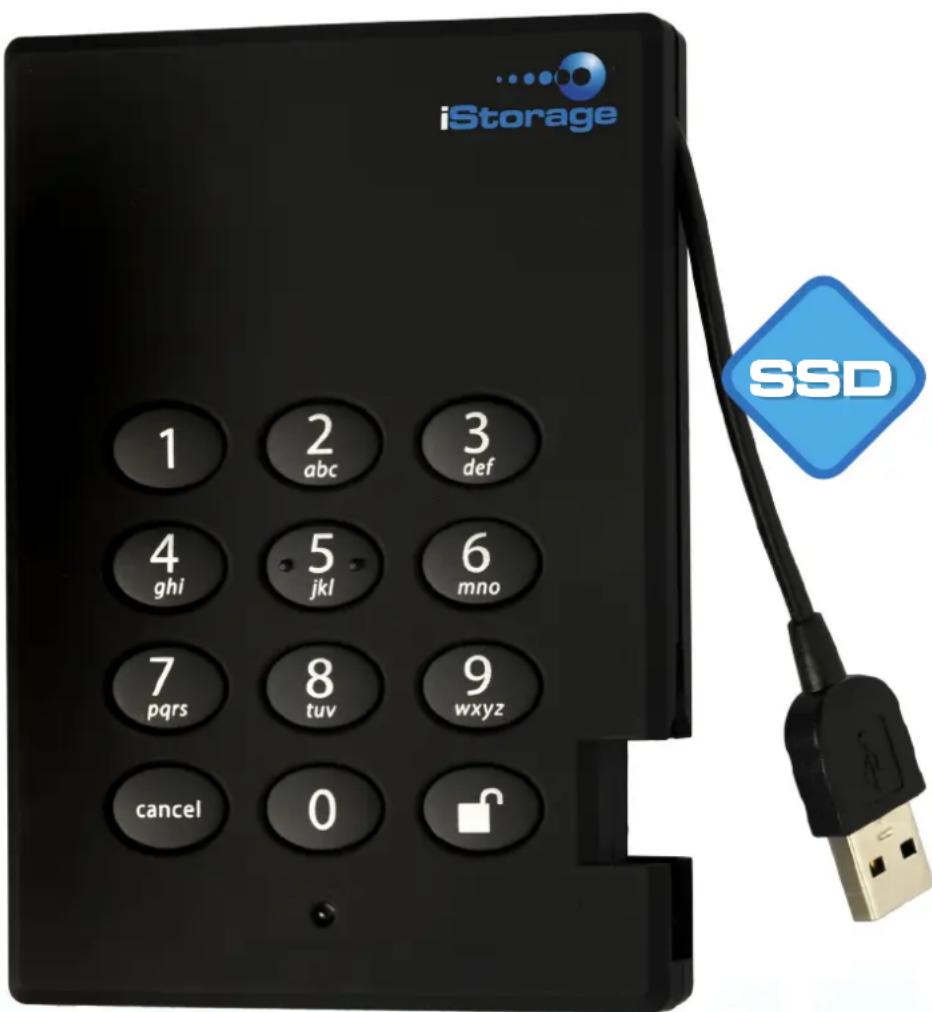
Copyright © iStorage, Inc 2009. All rights reserved.
Windows is a registered trademark of Microsoft Corporation.
All other trademarks and copyrights referred to are the property of their respective owners.
Distribution of modified versions of this document is prohibited without the explicit permission of the copyright holder.
Distribution of the work or derivative work in any standard (paper) book form for commercial purposes is prohibited unless prior permission is obtained from the copyright holder.
DOCUMENTATION IS PROVIDED AS IS AND ALL EXPRESS OR IMPLIED CONDITIONS, REPRESENTATIONS AND WARRANTIES, INCLUDING ANY IMPLIED WARRANTY OF MERCHANTABILITY, FITNESS FOR A PARTICULAR PURPOSE OR NON-INFRINGEMENT, ARE DISCLAIMED, EXCEPT TO THE EXTENT THAT SUCH DISCLAIMERS ARE HELD TO BE LEGALLY INVALID




All trademarks and brand names are the property of their respective owners.


CITRIX
Table of Contents
Introduction......4
Box contents 4
- diskG SSD Layout 5
- Connecting the diskG SSD 6
- Connecting the diskG SSD with USB Y-Cable 7
- How do I use the diskG SSD the first time? 7
- What if I forget the User Password? 7
- Entering the Standby Mode 8
- Entering the User Mode 8
- Exiting the User Mode 8
- Entering the Admin Mode 9
- Exiting the Admin Mode....9
- Changing the Admin Password .... 10
- Adding a new User Password .... 11
- Deleting the User Passwords .... 11
- Changing the User Password .... 11
- Brute Force Protection 12
- Completely resetting the diskG SSD 13
- Initializing and formatting the diskG SSD after a complete reset 13
- Hibernating, Suspending, or Logging off 15
- Troubleshooting 16
- Technical Support 20
- Warranty and RMA information 20
Introduction
Looking for an effortless way to secure your data?
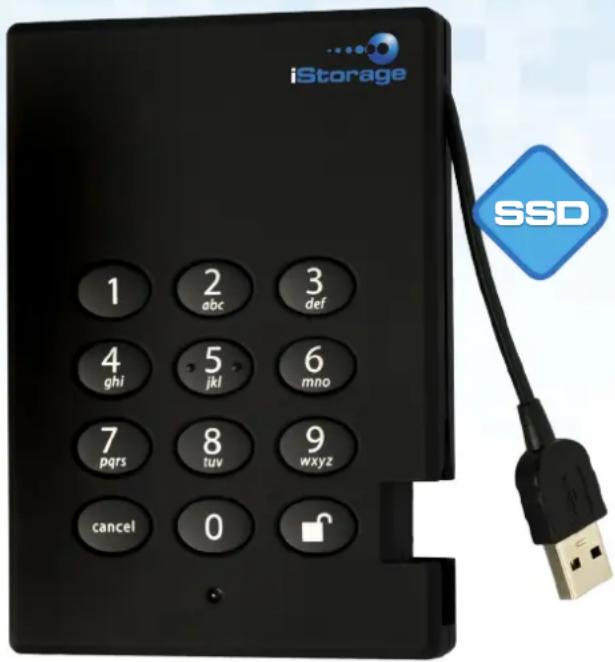
The iStorage diskG SSD is the ultimate Solid State portable drive and secure storage system. With an easy-to use keypad design and software free setup, the diskG SSD enables you to securely access the drive with your own unique PIN. Featuring AES 256-bit hardware encryption and USB 2.0 connection, the diskG SSD provides seamless real-time encryption, keeping your data safe even if the hard drive is removed from its enclosure.
Box Contents
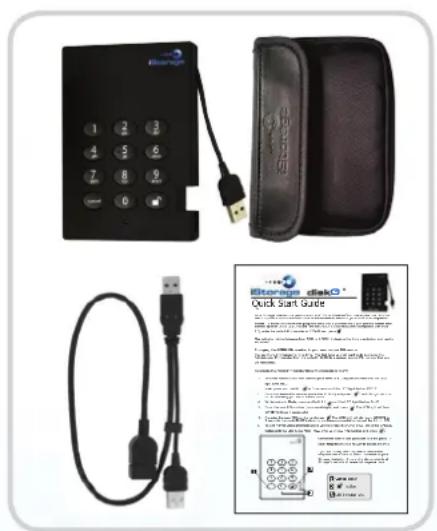
- iStorage diskG SSD drive with integrated USB cable
- Travel Pouch
- USB Y-cable
- Quick Start Guide
1. diskG SSD Layout

Cancel button


button

LED Indicator lights
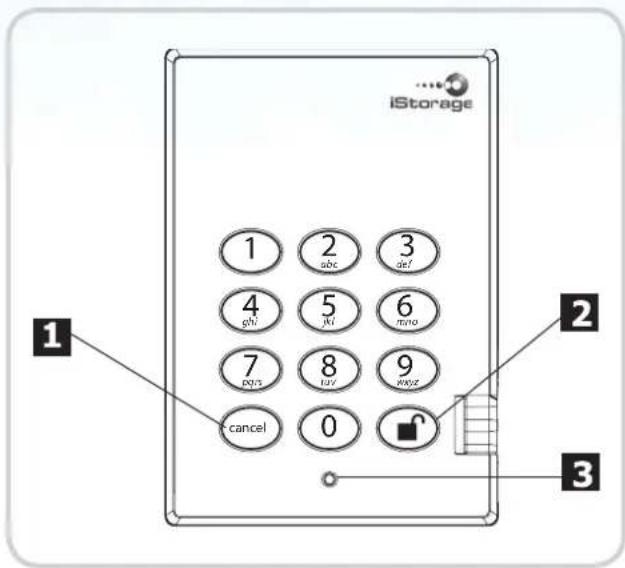
The "Cancel" button can be used to:
- Cancel current operation
- Return to the previous step when you knowingly entered a wrong password
- Exit the Admin Mode
The ■ button can be used to access the diskG SSD and it can also be used as an OK acknowledgement in the following operations:
- Entering a password
- Confirming a new password
The LED indicator light displays the following colors to indicate the various modes of operation:
- RED: Standby Mode
- BLUE: Admin Mode
- GREEN: User Mode


The LED indicator light has other display methods to indicate different status of the diskG SSD. Details are provided later in this chapter.
Be sure to review the following information before you begin to use the diskG SSD.

Attention: Use only the included cables with your diskG SSD. You might damage the drive if you use a cable not included with the diskG SSD.
2. Connecting the diskG SSD
-
Attach the integrated USB cable of the diskG SSD drive to an available USB port on your computer, as shown below.
-
The diskG SSD LED indicator light should glow RED.
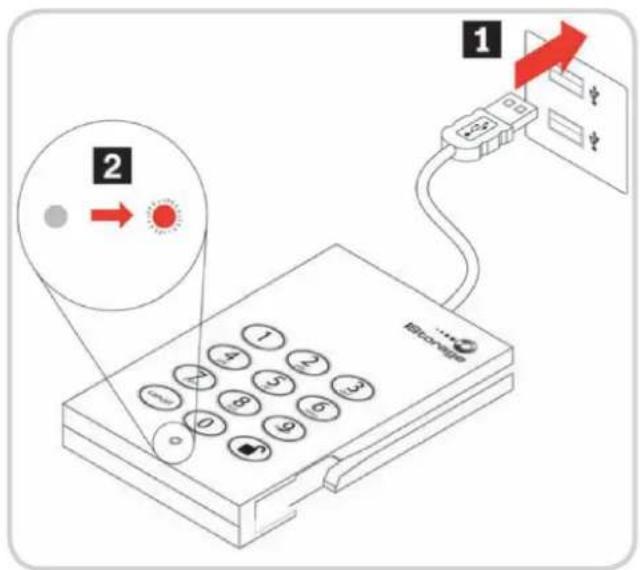

Note: If the LED Indicator light does not power, use the included USB Y-cable Refer to directions on the following page
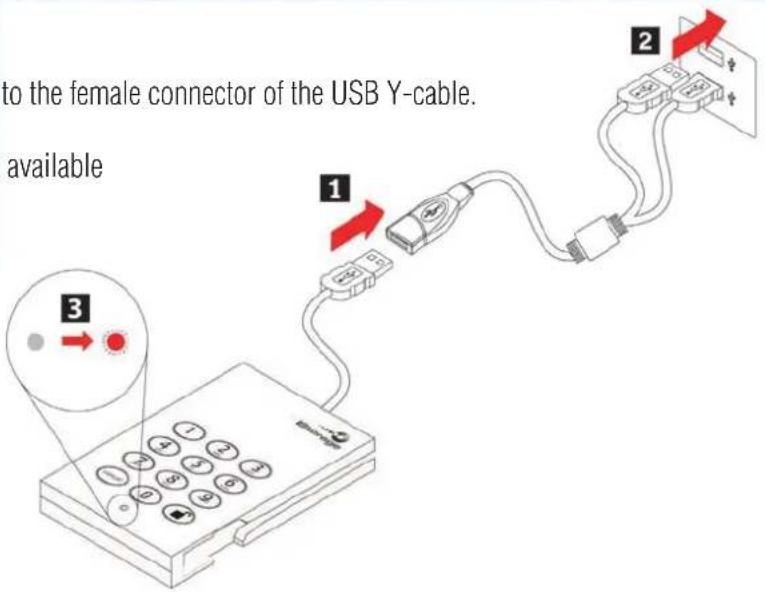
3. Connecting the diskG SSD with USB Y-cable
If the LED indicator light does not power on a single USB connection, use the included USB Y-cable.
-
Attach the diskG SSD's integrated USB cable to the female connector of the USB Y-cable.
-
Connect the two male USB connectors to two available USB ports on your computer.
-
The diskG SSD LED indicator light should glow RED.
4. How do I use the diskG SSD the first time?
You can use it in one of the following ways:
- Enter the Admin Mode with 123456 (default administrator password), and then you are able to change the Admin Password or create a User Password.
- Directly enter the Secure User Mode with 123456 (default Admin Password) to use the diskG SSD.
5. What if I forget the User Password?
Use your Admin Password to enter Admin Mode, and then create another User Password in Admin Mode.

Caution: If you forget or lose your ADMIN password there is no way to access the drive. Even an IStorage employee will be unable to help you access your data. In the event that this happens, the only way to use the drive is to do a complete reset, which will reset the encryption key making all data on the drive unrecoverable and restore the to the default Admin Password 123456.
See the Chapter "Completely Resetting the diskG SSD" for instructions.
6. Entering the Standby Mode
The Standby Mode is the default mode of the diskG SSD and is the gateway to other working modes.
To enter the Standby Mode, attach the diskG SSD to your computer. The drive automatically goes into Standby Mode and the LED indicator light turns RED. In this mode, the diskG SSD is locked. It cannot be recognized by My Computer and it does not provide either the regular functions or the encryption function. However, it enables you to enter and switch between the Admin Mode and the User Mode.

Attention: To switch between the Admin Mode and the User Mode, you are required to switch to the Standby Mode first, and then you can enter the mode of your choice.
7. Entering the User Mode
To enter the User Mode, do the following:
- Attach the diskG SSD to your computer. It enters the Standby Mode.
- Enter the User Password or the Admin Password (the default Admin Password is 123456) and press 🔍. The LED indicator light turns GREEN indicating that the drive is in the User Mode. If the LED indicator light flashes RED, you need to re-enter the correct password.
8. Exiting the User Mode
To exit the User Mode, double-click the Safely Remove Hardware icon from the Microsoft® Windows® desktop, and then remove the diskG SSD from your computer.
Attach the diskG SSD to your computer again and the LED indicator light turns RED. This indicates that you are in the Standby Mode.
9. Entering the Admin Mode

Note: The diskG SSD cannot be recognized by the operating system in the Admin Mode.
To enter the Admin Mode, do the following:
- Attach the USB cable to an available USB port on your computer. The diskG SSD goes into the Standby Mode, and the LED indicator light turns RED.
- Press and hold ☐0 for five seconds until the LED indicator light flashes RED. This indicates that you can enter the Admin Password.
- Enter the Admin Password and press ■The default Admin Password is 123456. The Secure Solid State Drive is in Admin Mode when the LED indicator light has changed to BLUE.

Note: If the LED indicator light flashes RED for a few seconds, indicating the diskG SSD has returned to the Standby Mode, go back to Step 2. This is due to one of the following conditions:
- You entered an incorrect Admin Password in Step 3.
- No activity was detected within two minutes in the Admin Mode.
10. Exiting the Admin Mode
To exit the Admin Mode, press the "Cancel" button in the Admin Mode until the LED indicator light turns RED. This indicates that you are in the Standby Mode.
11. Changing the Admin Password
This section provides information about managing your password in the Admin Mode.
You can change the Admin Password by doing the following:
- Enter Admin Mode (refer to page 9 for details).
- Press and hold 📋 + 9 until the LED indicator light flashes BLUE.
- Enter the new password and press ■The Password must be a minimum of 6 digits and a maximum of 16 digits). The LED indicator light flashes GREEN three times. See note below.
- Re-enter the new Admin Password and press ■The LED indicator light stays solid GREEN for two seconds and then solid BLUE indicating that the Admin Password has been changed successfully.

Note: If the LED indicator light flashes RED three times, this indicates that the password is less than 6 digits or more than 16 digits. Enter a password that contains 6 – 16 digits after the LED indicator light flashes BLUE intermittently.
-
If the LED indicator light flashes RED intermittently and then BLUE intermittently, go back to step 3. This is due to one of the following conditions:
-
You waited longer than 10 seconds before entering a password.
-
The new password was entered incorrectly.
-
If no activity is detected within two minutes in the Admin Mode, the diskG SSD will return to the Standby Mode.
12. Adding a new User Password
You can add a new User Password by doing the following:
- Enter the Admin Mode (refer to page 9 for details).
- Press and hold ■1 until the LED indicator light flashes BLUE intermittently.
- Enter a User Password and press ■ (a minimum of 6 digits and a maximum of 16 digits). The LED indicator light will flash GREEN three times.
- Re-enter the new User Password and press ■If the LED indicator light stays solid GREEN for two seconds and then solid BLUE, the User Password was added successfully.
13. Deleting the User Passwords
You can delete all User Passwords by doing the following:
- Enter the Admin Mode (refer to page 9 for details).
- Press and hold 7 + 8 + ■ for five seconds until the LED indicator light flashes BLUE intermittently. After the LED indicator light will flash GREEN three times and then BLUE intermittently.
- Press and hold 7 + 8 + a second time for five seconds until the LED indicator light goes on solid GREEN for two seconds and then back to solid BLUE, this indicates that the User Passwords were deleted successfully.
14. Changing the User Password
You can change the User Password by doing the following:
- Enter User Mode (refer to page 8 for details).
- Press and hold ■+1 until the LED indicator light flashes RED.
- Enter your old password and press ■ The LED indicator light will turn GREEN, then change to flashing BLUE.
- Enter the new password and press ■The Password must be a minimum of 6 digits and a maximum of 16 digits). The LED indicator light will flash GREEN three times.
- Immediately re-enter the new User Password and press ■ The LED indicator light will stay solid GREEN indicating that the User Password has been changed successfully.
15. Brute Force Protection
What is a Brute Force Attack?
A brute force attack is a method of defeating a cryptographic scheme by systematically trying a large number of possibilities; for example, a large number of the possible keys in a key space in order to decrypt a message.
In most schemes, the theoretical possibility of a brute force attack is recognized, but it is set up in such a way that it would be computationally infeasible to carry out. Accordingly, one definition of “breaking” a cryptographic scheme is to find a method faster than a brute force attack.
How does the diskG SSD protect against brute force attack?
-
With the drive locked and in the standby state the LED indicator light will be solid RED.
-
After six tries to enter the correct user or admin password the keypad will not respond and LED indicator light will turn off. The drive will need to be unplugged from the USB port and replugged. This will be repeated for each six unsuccessful attempts.
-
If the user unsuccessfully tries to unlock the drive on his 50th try the keypad will lock and the LED indicator light will begin blinking quickly. Even after unplugging and replugging in the unit, the drive will remain locked and the LED indicator light will continue to blink rapidly.
-
Here are the steps to allow the user to unlock the keypad for 50 more attempts to unlock the drive.
a. Unplug the device from the computer.
b. Push and hold the number five key and plug-in the drive.
c. The LED indicator light will be blinking, alternating RED and GREEN rapidly.
d. Enter the code 5278879.
e. The keypad will unlock and will be in the standby state with the LED indicator light solid RED, this will allow only 50 more attempts.
f. After a total of 100 attempts the drive will remain locked with the LED indicator light flashing RED quickly. You must now go through the reset process and reformat the drive to be able to use the drive again (see page 13 - Completely resetting the diskG SSD).
16. Completely resetting the diskG SSD
If you forget all the User Passwords or Admin Passwords, you can perform a complete reset to remove all the User Passwords, and restore the Admin Password to the default 123456.

Attention: Completely resetting the diskG SSD will reset the encryption key, in effect making all the data on the drive unrecoverable. You will need to partition and format the diskG SSD with disk management applications. To perform a complete reset of the drive, do the following:
- Press and hold the "Cancel" button while you attach the diskG SSD to an available USB port on your computer. The LED indicator light will flash BLUE and RED alternately.
Note: If no activity is detected for 30 seconds in this step, the diskG SSD will go into the Standby Mode.
- Press and hold "Cancel" + ☐ + 2 for 10 seconds until the LED indicator light flashes RED and BLUE intermittently, and then stops on a solid color. The LED indicator light will then turn solid GREEN for two seconds, followed by solid RED. You have successfully reset the diskG SSD.
17. Initializing and formatting the diskG SSD after a complete reset
A complete reset of the diskG SSD will erase all information and partition settings. You will need to initialize and format the diskG SSD.
To initialize your diskG SSD, do the following:
- After a complete reset, attach the diskG SSD to the computer.
- Wait 5 seconds for the computer to recognize the device.
- Enter the default User Password 123456 and press □ to enter the User Mode.
-
Right-click My Computer, and then click Manage from the Windows desktop.
-
In the Computer Manage window, click Disk Management. In the Disk Management window, the diskG SSD is recognized as an unknown device that is uninitialized and unallocated.

Note: If the Initialize Disk Wizard window opens, click Cancel.
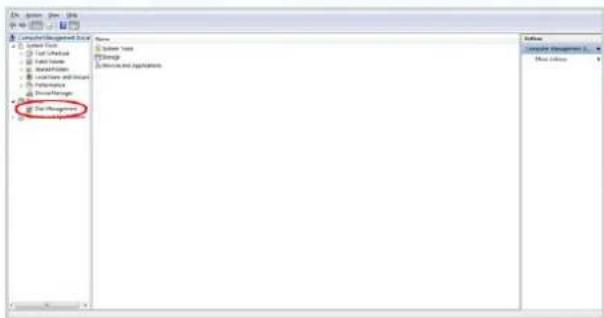
- Right-click Unknown Disk, and then select Initialize Disk.
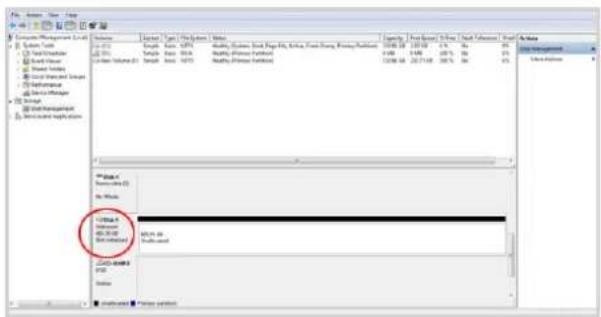
- In the Initialize Disk window, click OK.
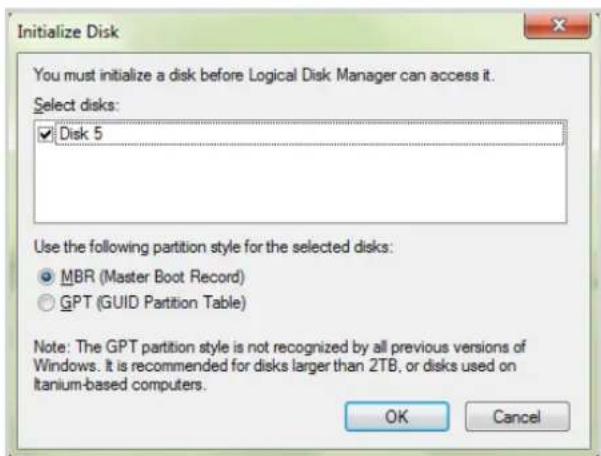
- Right-click in the blank area under the Unallocated section, and then select New Simple Volume. The Welcome to the New Simple Volume Wizard window opens.
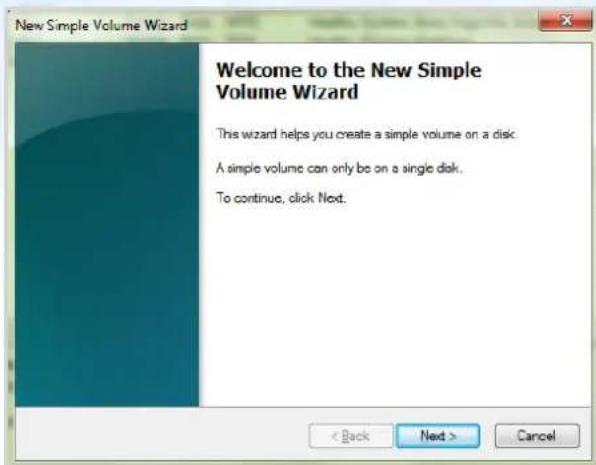
- Click Next.
- If you need only one partition, accept the default partition size and click Next.
- Assign a drive letter or path and click Next.
- Create a volume label, select Perform a quick format, and then click Next.
- Click Finish.
- Wait until the format process is complete. The diskG SSD will be recognized and it is available for use.
18. Hibernating, Suspending, or Logging off from the Operating System
Be sure to save and close all the files on your diskG SSD before hibernating, suspending, or logging off from the Windows operating system.
It is recommended that you log off the diskG SSD manually before hibernating, suspending, or logging off from your system.
To log off the diskG SSD, double-click Safely Remove Hardware on the Windows desktop and remove the diskG SSD from your computer.

Attention: To ensure the data integrity of your diskG SSD, be sure to lock or log off your diskG SSD if you are:
- away from your computer
• using the switching user function by sharing a computer with others
19. Troubleshooting
This section contains troubleshooting information for the diskG SSD. If you encounter any of the following problems when using the diskG SSD, refer to the corresponding answers.
Q: How do I use the diskG SSD the first time?
A: You can use it in one of the following ways:
- Enter the Admin Mode with 123456 (default administrator password), and then you are able to change the Admin Password or create a User Password.
- Directly enter the Secure User Mode with 123456 (default Admin Password) to use the diskG SSD.
Q: What can I do if I forget the User Password?
A: Use your Admin Password to enter Admin Mode, and then create another User Password in Admin Mode.
Q: What can I do if I forget the Admin Password?
A: There is no other way to retrieve the Admin Password except a complete reset of the diskG SSD. After a complete reset, all data will be lost and you will need to initialize, allocate and format the diskG SSD manually. Then you will be able to use the default Admin Password 123456.
Q: Why did the operating system not recognize the diskG SSD after I enter the User Mode and completely reset the computer?
A: You need to initialize, allocate and format the diskG SSD manually. For more information, refer to Initializing and formatting the Hard Drive after a complete reset in this manual.
Q: How do I use the diskG SSD without a password?
A: As a full disk encryption product, the diskG SSD can never be used without a password.
Q: What encryption algorithm is used in this product?
A: The diskG SSD uses AES 256-bit algorithm.
Q: Why could I not change my User Password which has the same digits as my Admin Password?
A: You can change it only in the Admin Mode. In the User Mode, the User Password which has the same digits is created in the Admin Mode cannot be changed or deleted.
Q: Why could I not initialize, partition or format the diskG SSD?
A: Ensure that you have administrator privileges. You can use only the administrator account to initialize, partition or format the diskG SSD in the Admin Mode.
Q: Do I require "Admin Rights" for the diskG SSD to work?
A: No, since the diskG SSD does not require any software to be installed and the encryption/decryption is performed in Hardware on the drive itself, "Admin Rights" are not required.
Q: I'm getting a continuously flashing red light what is wrong?
A: You have entered an incorrect PIN too many times and have triggered the brute force attack protection; you can reset this counter by referring to the `Brute Force Protection` section 15 of this manual. When trying again ensure you are using the correct PIN as too many lockouts are irreversible.
Q: My diskG SSD locks for no reason when connected to my computer whilst I'm using it, what is causing this?
A: The issue you are having is being caused by power saving settings on your PC or Laptop so please see below and make the appropriate changes to your computer and this will stop the diskG SSD from locking as when your computer is power saving it switches off data to the USB ports and our products see that as `Disconnect` and are designed to lock when this is detected.
Microsoft Windows
Doing the following will prevent Windows from switching off the diskG SSD, go to 'Control Panel' & 'Power Options', the easier option is to disable power saving which means stopping the computer from 'Sleeping' see below;
Choose the sleep and display settings that you want your computer to use.

On battery

Plugged in

Dim the display:
5 minutes

10 minutes


Turn off the display:
10 minutes

Never


Put the computer to sleep:
Never

Never

In addition go into `Advanced Settings` in `Power Option` to disable the following:
- Ensure the computer is set to sleep: Never (as above)
• Turn off hard disk after: 999999 Minutes
• USB selective suspend setting: Disabled
This will keep the diskG SSD connected to the computer continuously on.
![Power Options Advanced settings Select the power plan that you want to customize, and then choose settings that reflect how you want your computer to manage power. High performance [Active] Turn off hard disk after On battery: 3 Minutes Plugged in: 999999 Minutes Desktop background settings Wireless Adapter Settings Sleep USB settings USB selective suspend setting On battery: Disabled Plugged in: Disabled Power buttons and lid](/content/2026/05/1029470/images/7cec60f7337a24ce246afee76e486d9e2dd0d9c2d93a0447a8b3f8b2e4c68f10.jpg)
Apple Mac
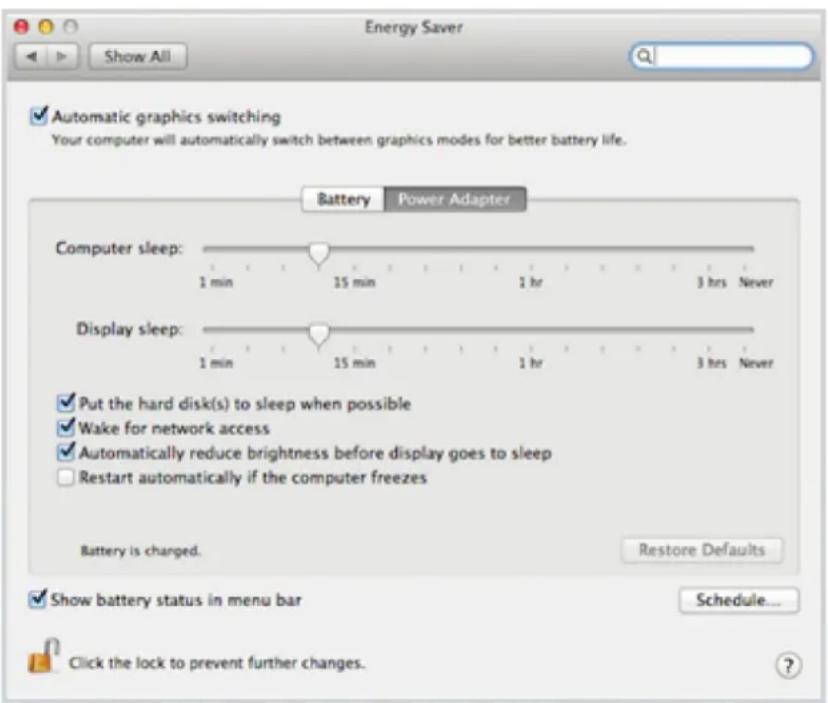
The diskG SSD keeps locking after 5-10 minutes on the Macs – This will be due the Mac's power saving as there is a setting to switch off hard drives that are idle after a fix period of time see below;
The settings in Energy Saver preferences affect what happens when your Mac is left unattended for a period of time that you specify. Disable `Put the hard disk(s) to sleep when possible` to prevent the diskG SSD going to sleep and so not locking. You will also need to stop the computer from sleeping to prevent the diskG SSD from locking.
Note For Windows 8.1 users; You will need to install a Windows update (KB2919355) as well as follow the steps on pages 18 &19. Please go to this link and choose Method 2; http://support.microsoft.com/kb/2919355. Once the download option appears select KB2919355 and then download and install.
Q: My diskG SSD locks when my computer sleeps/hibernates how can I stop this?
A: The only way to prevent this is by changing the power settings (Windows computers) of the computer so that it only switches of the monitor on hibernation/sleep and keeps power to hard drives and USB. On Apple MAC computers going to the power settings in `System Preferences` and clicking the do not suspend USB will keep the drive alive even if the MAC goes into full hibernation.
Q: The diskG SSD will not power on when connected to my computer?
A: This only happens when the computer the diskG SSD is connected to cannot provide enough power from the USB port to power the drive. This issue only appears on much older computers and/or imbedded systems like USB enabled medical equipment. It can be resolved by either trying all the USB ports on the computer or system as some ports can have less power than others or failing that use the USB Y-Power cable supplied with the diskG SSD to ensure the correct power.
Q: I want to use my diskG SSD with different Operating Systems how can that be done?
A: To make the diskG SSD universally compatible with all the most common Operating Systems and embedded systems like USB enabled medical equipment, requires the drive to be formatted using the FAT file system. This is done by using 'Disk Management' in Windows, 'Disk Utility' on MAC OS/x or MKFS in Linux.
Q: How many unique User ID's can I create?
A: The Administrator feature allows enrollment of up to ten (10) unique User ID's and one (1) Administrator. If a user forgets their PIN, the diskG SSD can be unlocked using the Admin PIN.
20. Technical Support
iStorage provides the following helpful resources for you:
iStorage's Website
http://www.istorage-uk.com
E-mail correspondence
support@istorage-uk.com
Telephone support with our Technical Support Department on +44 (0) 20 8991-6260.
iStorage's Technical Support Specialists are available from 9:00 a.m. to 5:30 p.m.
GMT - Monday through Friday.
21. Warranty and RMA information
Three Year Warranty:
iStorage offers a 3-year warranty on the iStorage diskG SSD against defects in materials and workmanship under normal use. The warranty period is effective from the date of purchase either directly from iStorage or an authorised reseller.
Disclaimer and terms of warranty:
THE WARRANTY BECOMES EFFECTIVE ON THE DATE OF PURCHASE AND MUST BE VERIFIED WITH YOUR SALES RECEIPT OR INVOICE DISPLAYING THE DATE OF PRODUCT PURCHASE.
ISTORAGE WILL, AT NO ADDITIONAL CHARGE, REPAIR OR REPLACE DEFECTIVE PARTS WITH NEW PARTS OR SERVICEABLE USED PARTS THAT ARE EQUIVALENT TO NEW IN PERFORMANCE. ALL EXCHANGED PARTS AND PRODUCTS REPLACED UNDER THIS WARRANTY WILL BECOME THE PROPERTY OF ISTORAGE.
THIS WARRANTY DOES NOT EXTEND TO ANY PRODUCT NOT PURCHASED DIRECTLY FROM ISTORAGE OR AN AUTHORIZED RESELLER OR TO ANY PRODUCT THAT HAS BEEN DAMAGED OR RENDERED DEFECTIVE: 1. AS A RESULT OF ACCIDENT, MISUSE, NEGLECT, ABUSE OR FAILURE AND/OR INABILITY TO FOLLOW THE WRITTEN INSTRUCTIONS PROVIDED IN THIS INSTRUCTION GUIDE: 2. BY THE USE OF PARTS NOT MANUFACTURED OR SOLD BY ISTORAGE; 3. BY MODIFICATION OF THE PRODUCT; OR 4. AS A RESULT OF SERVICE, ALTERNATION OR REPAIR BY ANYONE OTHER THAN ISTORAGE AND SHALL BE VOID. THIS WARRANTY DOES NOT COVER NORMAL WEAR AND TEAR.
NO OTHER WARRANTY, EITHER EXPRESS OR IMPLIED. INCLUDING ANY WARRANTY OR MERCHANTABILITY AND FITNESS FOR A PARTICULAR PURPOSE, HAS BEEN OR WILL BE MADE BY OR ON BEHALF OF ISTORAGE OR BY OPERATION OF LAW WITH RESPECT TO THE PRODUCT OR ITS INSTALLATION, USE, OPERATION, REPLACEMENT OR REPAIR. ISTORAGE SHALL NOT BE LIABLE BY VIRTUE OF THIS WARRANTY, OR OTHERWISE, FOR ANY INCIDENTAL, SPECIAL OR CONSEQUENTIAL DAMAGE INCLUDING ANY LOSS OF DATA RESULTING FROM THE USE OR OPERATION OF THE PRODUCT, WHETHER OR NOT ISTORAGE WAS APPRISED OF THE POSSIBILITY OF SUCH DAMAGES.

iStorage®
SECURING THE MAINSTREAM
© iStorage, 2011, 2012. All rights reserved.
iStorage Limited, iStorage House, 13 Alperton Lane
Perivale, Middlesex. UB6 8DH, England
Tel: +44 (0) 20 8991 6260 | Fax: +44 (0) 20 8991 6277
e-mail: info@istorage-uk.com | web: www.istorage-uk.com