carMate.5 - Hi-Fi System Promate - Free user manual and instructions
Find the device manual for free carMate.5 Promate in PDF.


User questions about carMate.5 Promate
0 question about this device. Answer the ones you know or ask your own.
Ask a new question about this device
Download the instructions for your Hi-Fi System in PDF format for free! Find your manual carMate.5 - Promate and take your electronic device back in hand. On this page are published all the documents necessary for the use of your device. carMate.5 by Promate.
USER MANUAL carMate.5 Promate
promate net Lifestyle Technology
carMate.5
Bluetooth® Multi-Function hands-free Car Kit with in-built FM Transmitter and USB Charging Port
natural_image
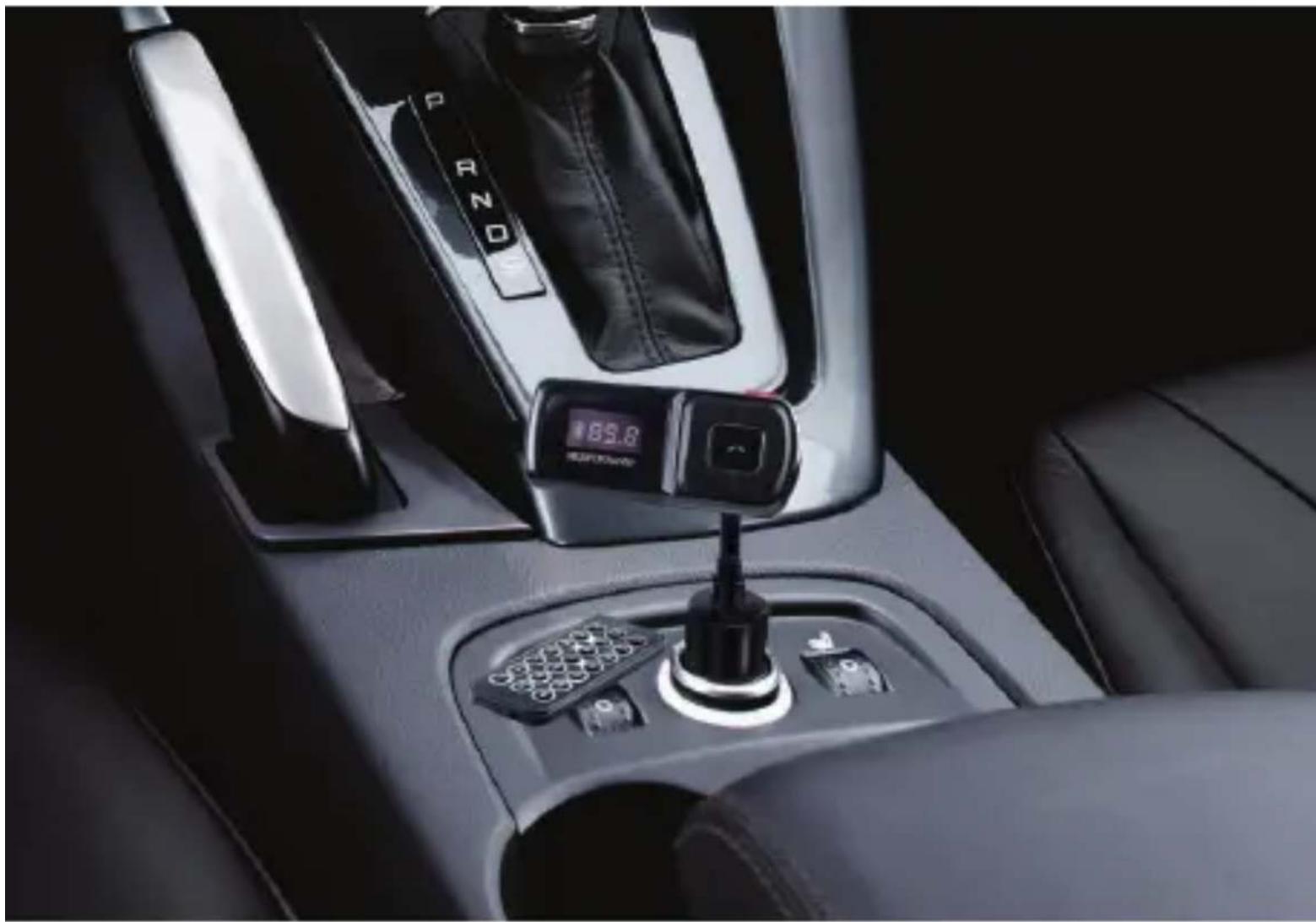
Interior view of a car gear shift lever and dashboard console (no visible text or symbols)User Guide
Introduction
carMate.5, lets you stream music and calls directly from your Bluetooth® device to your car FM stereo system. The built-in microphone provides you with an amazing hands-free function. carMate.5 also features a USB and microSD card reader that lets you stream your favorite MP3 and WMA tunes to your car's stereo system. Play music files from external devices by connecting your music device using the AUX port on carMate.5. What's more, charge your phone using the USB charging port built on this amazing device. It can be used with a wide range of devices which makes carMate.5 your true companion for the road.
Packaging Contents
- carMate.5
- AUX cable
- Extra Fuse
- IR remote
- User Guide
- Warranty Card
Specification
- Bluetooth® Version: 2.0
• FM transmitting range: 87.5-108.0 MHZ - USB Input: 12-24V
- USB Output: 5V/1A
- Input interface: Car lighter adapter
- Output interface: 1 USB charging port
• Audio Input the interface: 3.5mm stereo jack
• Supported Audio Formats: Mp3 and WMA
Features
- Wirelessly transmit calls from your Bluetooth® device to the car's FM stereo system.
- Stream music from your Bluetooth® device to car's FM stereo system
• Built-in microphone
• Supports music playback from USB and microSD card. - 3.5mm AUX jack to support playback from external audio devices.
- USB charging port for charging mobile phones and other USB chargeable devices
• Strong and elegant design with LCD frequency display - Flexible gooseneck design to provide optimum viewing angle
- With infrared remote control
• Made from ABS and polycarbonate plastic
Compatibility
carMate.5 may be paired as a handsfree with any compatible Bluetooth® enabled devices.
Precautions
Please read all safety instructions and warnings thoroughly before using this product. Improper use of this product may result in damage to this or attached products. To ensure the product functions at optimum performance, never use it in the following conditions:
- Moist or underwater conditions.
- Conditions near the heater or high-temperature service.
- Conditions with direct sunshine.
- Conditions with apt falling.
- Never dismantle the product without due permission, otherwise it may nullify the warranty clauses.
Appearance & Interface Description
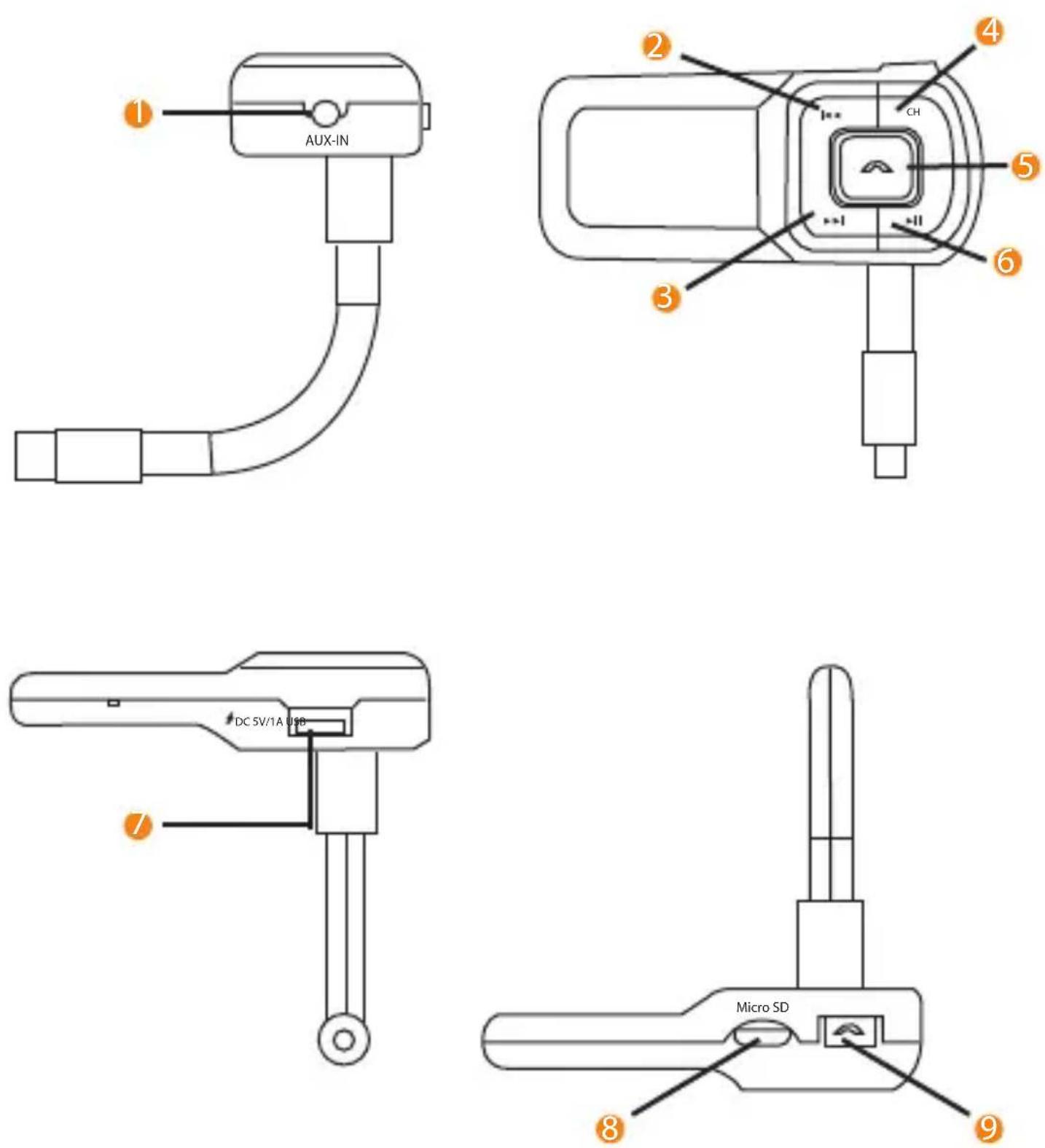
- AUX in port
- Previous button/ Volume -
- Next button / Volume +
- Frequency modulation button
- Answer call button
- Play/ Pause button
- USB charging port/ USB reader
- microSD card slot
- End Call button
Operation Instructions
1. Using FM Transmitter function:
- Plug the FM transmitter into your vehicle's cigarette lighter or power port.
- Tune your radio to an unused FM frequency, then match the same frequency of this unit by pressing the “Frequency Modulation” button and the Next or Previous button to scroll through the frequencies.
- Insert a USB flash drive or Micro SD card which containing MP3 or WAV files into USB port or memory card slot of this unit as required. It will play and transmit the first MP3 or WAV file automatically. To play or pause a track press "Play/Pause" button To skip forward or backward to the next or previous track press the "Next button" or "Previous" button.
- Line-in function: Use the provided audio cable to connect an external device to the AUX input of this unit. When using this function, please stop playback of USB or memory card, and all functions will be controlled using the external device.
2. Using the Bluetooth ^® function:
- To pair your device with carMate.5, turn on the Bluetooth® function on your device and then search for carMate.5.
- In case your phone requests a password to pair carMate.5, enter "0000"
- If a call is received the call automatically gets transferred to carMate.5 and you may use it as a handsfree.
3. Using carMate.5 as a handsfree device
- Please press the green "Answer" button on the front of carMate.5 to answer the incoming call.
- Please press the red "End Call" button on the top of carMate.5 to end a call.
4. Using the USB charging function
Using your phone's stock USB cable (not included) connect your phone to the USB charging port on carMate.5 inserted into the lighter port in your car to begin charging your phone using carMate.5.
5. Using the Menu
- In order to access the menu setting, long press the "Frequency Modulation" button.
- Settings are as follows:
a) Language
b) Contrast
c) Firmware version
d) Exit
-
Press the "Next" button to select the option and make changes
-
Press the "Play/Pause" button to exit from the menu
Quick Guide
| Operation Guide | On FM transmitter | On Remote Controller |
| Answer / hang up the call: | Press "Answer Call" button: answer the callPress "End Call" button: end the call | Press" / "button |
| Play and Pause the music: | Press "Button: Play trackPress "Button again: Pause track | Press Button |
| Adjust the Volume: | Press and hold "button: Increase VolumePress and hold "Button: Decrease Volume | Press "+" to increase the VolumePress "-" to decrease the Volume |
| Set frequency: | Press "CH" button first, then press "increase the frequencyPress "decrease the frequency | Press "CH+" button: Increase 0.1MHzPress "CH-" button: decrease 0.1MHzOr press enter the frequency what you desired, press "CH+" to confirm. |
| Choose music: | Press "Button: Play the next songPress "Button: Play the previous song | Press button: Play the next song;Press button: Play the previous song;Or press the number of the song and then press to confirm |
| Choose EQ: | Support by remote controller only | Press "EQ" button to choose your favorite Equalizer option |
| Switch folder: | Press"button first, then press and hold "CH" button to get menu list, then choose the required folder under card folder menu | Press "folder" button to switch folder |
| Make phone call It no | support by FM transmitter | Press button, input mobile number on remote control, then press button again. |
promate
promotional Lifestyle Technology