Gungnir - Game Atlus - Free user manual and instructions
Find the device manual for free Gungnir Atlus in PDF.


User questions about Gungnir Atlus
0 question about this device. Answer the ones you know or ask your own.
Ask a new question about this device
Download the instructions for your Game in PDF format for free! Find your manual Gungnir - Atlus and take your electronic device back in hand. On this page are published all the documents necessary for the use of your device. Gungnir by Atlus.
USER MANUAL Gungnir Atlus
For safe use of this product, carefully read the following section of this manual and the Precautions section of the instruction manual supplied with the PSP ^ (PlayStation ^ Portable) system before use. Retain both this software manual and the instruction manual for future reference.
WARNING: PHOTOSENSITIVITY/EPILEPSY/SEIZURES
A very small percentage of individuals may experience epileptic seizures or blackouts when exposed to certain light patterns or flashing lights. Exposure to certain patterns or backgrounds on a screen or when playing video games may trigger epileptic seizures or blackouts in these individuals. These conditions may trigger previously undetected epileptic symptoms or seizures in persons who have no history of prior seizures or epilepsy. If you, or anyone in your family, has an epileptic condition or has had seizures of any kind, consult your physician before playing. IMMEDIATELY DISCONTINUE use and consult your physician before resuming gameplay if you or your child experience any of the following health problems or symptoms:
- dizziness - disorientation
- altered vision - seizures
- eve or muscle twitches
- loss of awareness
• any involuntary movement or convulsion
RESUME GAMEPLAY ONLY ON APPROVAL OF YOUR PHYSICIAN.
Use and handling of video games to reduce the likelihood of a seizure
- Use in a well-lit area and keep a safe distance from the screen.
- Avoid prolonged use of the PSP® system. Take a 15-minute break during each hour of play.
- Avoid playing when you are tired or need sleep.
Stop using the system immediately if you experience any of the following symptoms: lightheadedness, nausea, or a sensation similar to motion sickness; discomfort or pain in the eyes, ears, hands, arms, or any other part of the body. If the condition persists, consult a doctor.
Do not use while driving or walking. Do not use in airplanes or medical facilities where use is prohibited or restricted. Set the PSP® system's wireless network feature to off when using the PSP® system on trains or in other crowded locations. If used near persons with pacemakers, the signal from the PSP® system's wireless network feature could interfere with the proper operation of the pacemaker.
Use and handling of UMD®
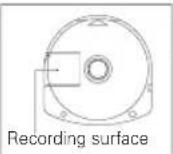
- This disc is PSP® (PlayStation®Portable) format software and is intended for use with the PSP® system only. If the disc is used with other devices, damage to the disc or to the device may result. - This disc is compatible for use with the PSP® system marked with FOR SALE AND USE IN U.S. AND CANADA ONLY. - Depending on the software, a Memory Stick Duo™ or Memory Stick PRO Duo™ (both sold separately) may be required. Refer to the software manual for full details. - If paused images are displayed on the screen for an extended period of time, a faint image may be left permanently on the screen. - Do not leave the disc in direct sunlight, near a heat source, in a car or other places subject to high heat and humidity. - Do not touch the opening on the rear of the disc (recording surface of the disc; see drawing). Also, do not allow dust, sand, foreign objects or other types of dirt to get on the disc. - Do not block the opening with paper or tape. Also, do not write on the disc. - If the
opening area does get dirty, wipe gently with a soft cloth. • To clean the disc, wipe the exterior surface gently with a soft cloth. • Do not use solvents such as benzine, commercially-available cleaners not intended for CDs, or anti-static spray intended for vinyl LPs as these may damage the disc. • Do not use cracked or deformed discs or discs that have been repaired with adhesives as these may cause console damage or malfunction. • SCE will not be held liable for damage resulting from the misuse of discs.
Ejecting the disc
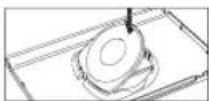
Press the right side of the disc until it is in the position shown in the drawing and then remove it. If excess force is applied this may result in damage to the disc.
Storing the disc
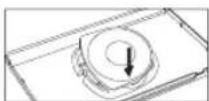
Insert the bottom side of the disc and then press on the top side until it clicks into place. If the disc is not stored properly, this may result in damage to the disc. Store the disc in its case when not in use and keep in a place out of the reach of children. If the disc is left out this may result in warping or other damage to the disc.
TABLE OF CONTENTS
Prologue 02
Characters 03
Basic Controls 06
Starting the Game — 07
Flow of Gameplay—08
Battle Deployment — 09
Battle System 11
Building Your Amy — 28
Unit Classes 32
The Art of War 35
PROLOGUE
In a distant southeast corner of the Gargan Empire was a ghetto – the Espada Slums.
There, the cursed Leonican people dwelled, feared and persecuted by those around them.
Our hero Giulio was raised as a member of the resistance movement, Esperanza.
One day, Giulio and his comrades staged a raid on an Imperial caravan.
The plan had been to take food and supplies for their impoverished people, and resistance was heavy. Who would have thought that their only prize would be an unconscious girl?
The operation was a failure, as far as the raiding party was concerned.
But unbeknownst to our heroes, this meeting marked the start of a new era, and it would change the fate of every soul in the Gargan Empire for years to come.
Gargan Empire
A populous empire ruled by the dominant Daltan race. Long ago, it is said that a Daltan wielding the Holy Lance Veronica guided his people to this land and illuminated it with Veronica's light. The Imperial Daltan lineage continues to this day.
Espada Slums
An impoverished enclave of Leonicans surrounded by a treacherous mountain range in southeast Gargania. By the Imperial decree of Emperor Wolfgang III, all people of Leonican blood were to be interned in this ghetto.
CHARACTERSPROLOGUE
Giulio
Class: Fencer
Weapons: Swords, Gungnir
An amiable boy born into the poverty of Espada. The son of a Leonican hero, he lives a life of battle for the resistance, hoping to someday live up to his father's name.
Alissa
Class: Unknown
Weapons: Unknown
She begins the story in Espada, in the custody of Esperanza. She seems to be a key figure in the civil unrest rising within the Gargan Empire...
CHARACTERS
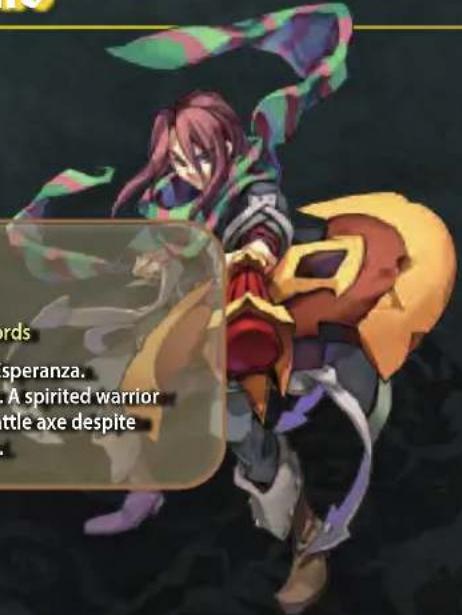
Ragnus
Class: Gladiator
Weapons: Axes, Swords
The young leader of Esperanza.
Giulio's older brother. A spirited warrior who wields a great battle axe despite his frail-looking build.
natural_image
Illustration of a fantasy character with white spiky hair and purple outfit, holding a staff (no text or symbols)Paulo
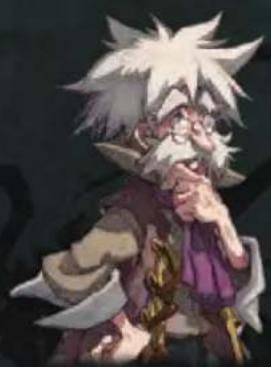
Class: Alchemist
Weapons: Rods, Grimoires
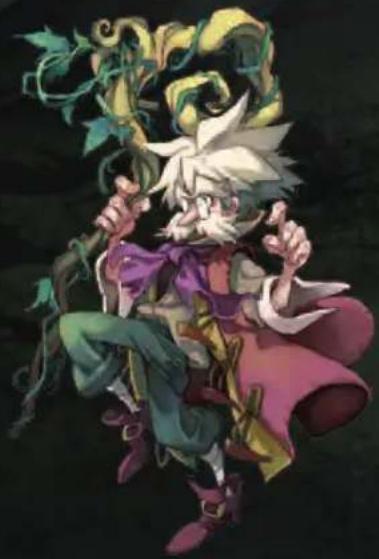
The Chief of Staff for Esperanza who once fought alongside Giulio's father, Ricardo. He serves as a father figure to Giulio, Magnus, and Fiona, who lost their parents at early ages.

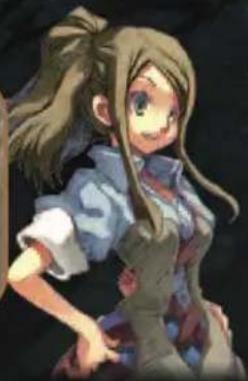
Fiona
Like her brother Giulio, Fiona was born and raised in Espada. She has the sort of personality that lets her care for anyone, but she is especially protective of her younger brother.
natural_image
Illustration of a girl with long brown hair and blue eyes, wearing a gray outfit (no text or symbols visible)Elise
Class: Valkyrie
Weapons: Bows, Rapiers
This mysterious woman appeared before Giulio along with the Magic Spear. She is a "Grimm," a Scribe for the Magic Spear, Gungnir. Her origins, though, are shrouded in mystery.
natural_image
Illustration of a character with red hair and a hat, wearing a yellow and black outfit (no text or symbols visible)Valerie
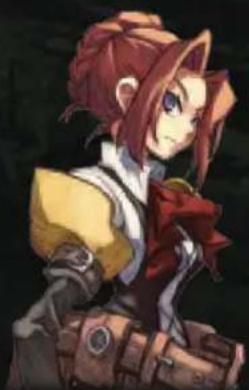
Class: Rebel
Weapons: Bowguns, Claws
A woman of the Republic Faction and daughter to its Chairman.
Though she is Daltan, she allies herself with Giulio and Esperanza to fight against the Empire.
BASIC CONTROLS
PSP® (PlayStation®Portable)
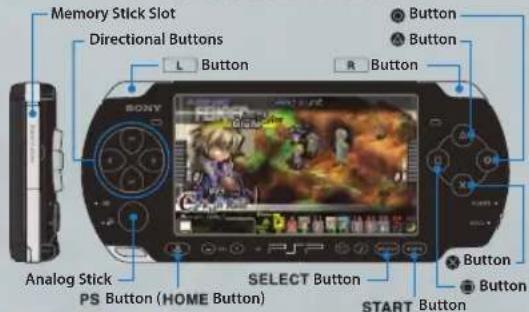
Battle Controls
Directional Buttons | Move cursor
Analog Stick Move camera
◎ Button Cancel, Display System Menu
Button Select, Advance message
Button Switch Interface, Switch sort type (Item/equipment lists)
Button Display terrain, Switch sort order (Item/equipment lists), Remove equipped item (Equip change screens)
L Button Switch character
R Button Switch character
SELECT Button | Display details
Setup Controls
Directional Buttons | Move cursor
Analog Stick None
Button Cancel, Display System Menu
Button Select, Advance message
Button Switch interface, Switch sort type (item/equipment lists)
Button Switch sort order (item/equipment lists), Remove equipped item (Forces screens)
L Button Switch character, Switch Category
R Button Switch character, Switch Category
SELECT Button Display details
* Pressing L + R + START Button simultaneously will perform a soft reset of the game.
While on any screen, press the START Button to bring up a controls guide.
STARTING THE GAMEBASIC CONTR
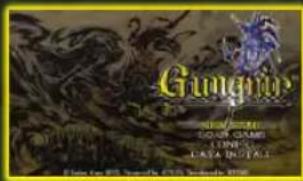
At the Title Screen, you will be presented with several options. If you wait for a few seconds, the opening cinematic will automatically replay. Press the ✗ Button to skip this movie and return to the Title Screen.
NEW GAME
Play the game from the beginning. When starting a new story, you must select a difficulty level.
BASIC
Recommended for first-time players. You can enjoy the story without having to strategize extensively.
ADVANCED Recommended for Gungnir veterans and confident players. Get the most out of your tactical-RPG experience.
LOAD GAME
Continue the game using saved data. Press the ✕ Button to select the file you would like to load.
CONFIG
Configure various game settings. Use the ↑↓ Buttons to choose an option and the ←→ Buttons to change an option.
DATA INSTALL
Install game data on a Memory Stick™ Duo or a Memory Stick™ PRO Duo. At least 38MB of free space is required.
About Saving
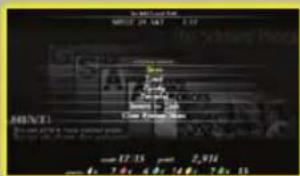
From the System Menu (p. 31), you may save your game. Use the Ⓧ Button to select a slot to save in. Selecting an existing save file will overwrite that save slot. At least 320KB of free space is required to save your game. Make sure a Memory Stick "Duo" is already inserted before saving.
*You may save up to 50 files of Story Data.
"Please do not turn off the power or remove the Memory Stick " while saving.
FLOW OF GAMEPLAY
Story events aside, your game will generally proceed as follows. Gameplay will vary according to each Scene, however.
natural_image
Illustration of three anime-style characters in dynamic poses with expressive faces (no text or symbols)Status Report
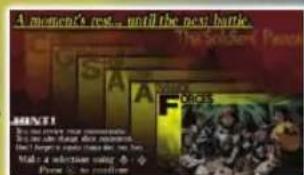
At the beginning of each Scene, you will be briefed on the current situation in Gargania.
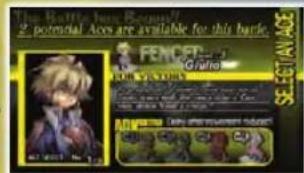
Battle Deployment
View victory conditions, choose the Ace and soldiers you want to deploy, and make last-minute equipment changes.
Battle
Your chosen characters will apply their skills in combat.
Level Clear
Fulfilling the victory conditions will win the battle. If you satisfy the defeat conditions instead, the game ends.
Army Preparation
Equip gear on your characters, buy new items, or recruit new units to your army. You can also save at this time.
BATTLE DEPLOYMENTFLOW OF GAN
Here, you may prepare to deploy your army on the battlefield.
Victory Conditions
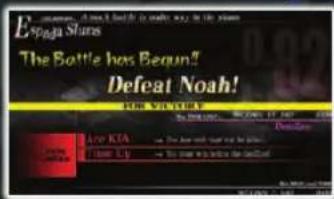
Before the battle starts, your victory and defeat conditions will be displayed, as well as your deadline for victory. Fulfilling even one of the defeat conditions or exceeding the time limit will cause a Game Over.
Select an Ace
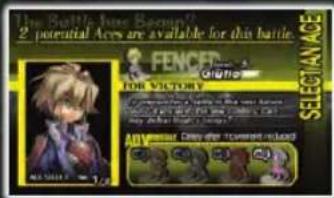
In addition to your typical soldiers, you may also choose one character to fight as an Ace in the battle. Your available Aces will change depending on the battle. Your choice of Ace will decrease certain allies' turn Delay (p. 12) to various degrees. If your Ace is defeated in battle, the game is over.
Choose Soldiers to Deploy
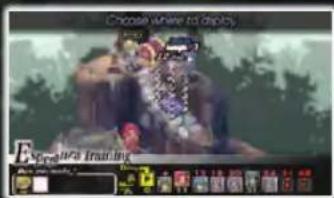
After selecting your Ace, you will deploy the rest of your forces. Use the ✗ Button to place your characters on the blue squares. You must fill every blue square available, as long as you have enough units to.
You can also use your cursor to highlight enemy characters and map objects to view information about them at this time.
BATTLE DEPLOYMENT
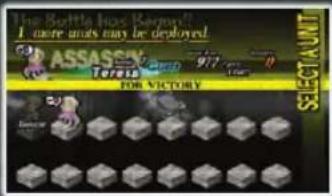
Choose the characters you wish to deploy.
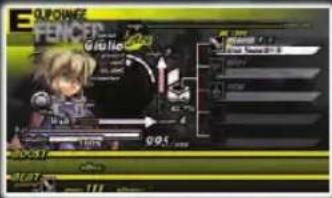
On this screen, you may change your equipment (p. 28) to suit the battlefield and enemies you will be facing.
Characters who retreated on the last map will start the battle Injured, lowering their maximum HP. To avoid being Injured, do your best to avoid getting your characters hurt too badly.
Starting the Battle
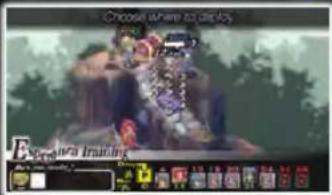
When all characters have been deployed, or all deployment slots are filled, press the ✗ Button over an empty square to begin the battle.

Move your cursor over a character or item on the map and press the SELECT Button to view detailed information about it
BATTLE SYSTEMBATTLE DEPLOYM
Fight your battle with the characters you have deployed. Basic mechanics are explained below.
Reading the Battle Screen
These are Tactics Gauges. Your own gauge is on the left, while the enemy's gauge is on the right. As you build up this gauge, new tactical options will also become available.
This is a character currently deployed on the map and its altitude. Press the Button to change the displayed information. Allied characters are highlighted in blue, while enemy characters are in red.
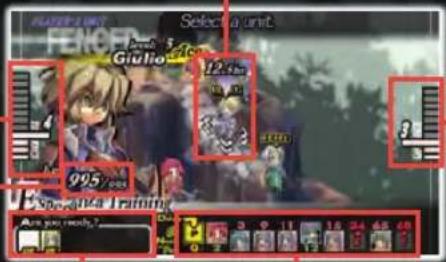
The deployed characters' Wait Times are displayed here.
This is the turn order for all characters. Pay attention to it while you plan your strategy.
Your character's status at a glance. This is only displayed when a unit is highlighted by the cursor.
System Menu
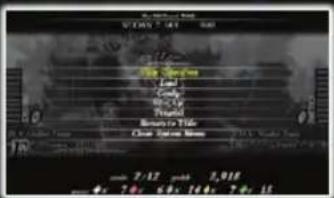
Press the Ⓐ Button when the cursor is on an empty square to open the System Menu. From here, you can view tutorial messages, surrender, and access other game functions (p. 31).
BATTLE SYSTEM
Action Sequence
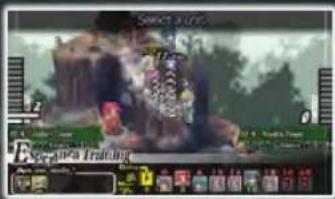
The Action Sequence of both allied and enemy characters are displayed using face icons. The icon with a number of 0 is the currently acting character.
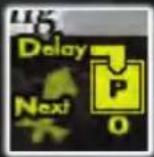
The player-controlled character will display a "P" in place of the face icon. When this icon reaches 0, you may pick any one of your characters to act.
Turn Order

The number displayed with each icon is that character's Delay. A character may take its turn when its Delay reaches 0.
Delay is accumulated based on a character's actions, such as "Move," "Wait," or "Action."

Allied characters' Walt Time icons are displayed next to the turn order. Characters with Wait Time remaining may act immediately, but will have the Walt Time number deducted as a percentage of their maximum HP as a result.
* Characters with a Walt Time of 0 will be displayed as READY.
* All HP lost will be restored after a battle is cleared.
A character's Wait Time will change depending on the weight of its equipment. Thus, It can be useful to decrease a character's Wait Time by removing unnecessary items.
Character Movement
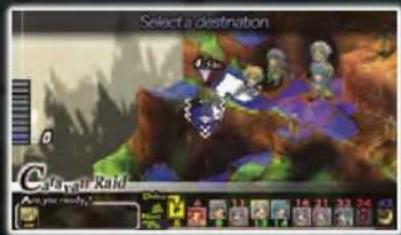
When you select your character with the cursor and press the ✗ Button, that character's movement range will be highlighted in blue squares. Use the Directional Buttons to choose the square you want to move to, and press ✗ again to confirm.

However, characters will not be able to move to a higher square if it is above their Jump Range (jmp). Furthermore, descending to a square that is out of your jmp will cause the character to fall and take damage.
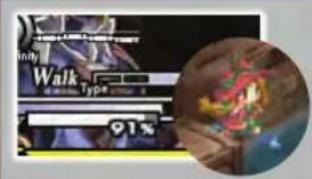
Characters can also possess different movement types. Most characters are of the "walk" type, but some (such as Witches) may have movement types like "fly," allowing them to bypass certain terrain features.
Terrain
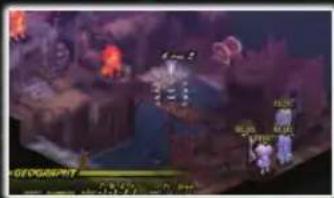
Pressing the ☐ Button when the cursor is over a free square of terrain will display information about that square. If an object is currently on the square you are viewing, you will also see the object's remaining durability and status.
| mov Whether a character can occupy this square, depending on its movement type |
| elm Elemental index modifiers (p.21) a character receives from occupying this square |
| set Whether a trap (p. 23) has been set on this square or not |
BATTLE SYSTEM
Actions
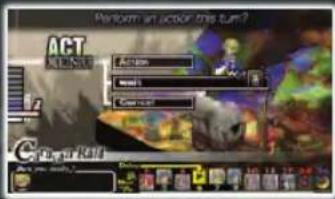
After a character moves, it can either take an Action or Wait. The Wait command will end a character's turn.
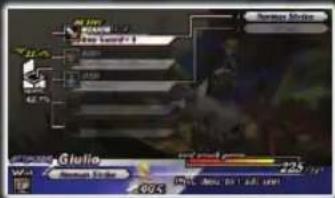
Selecting Action will display the Actions that a character can perform.
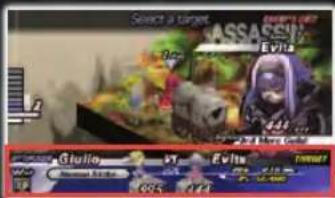
An action's target information will be displayed.
You can view the estimated damage and hit chance.
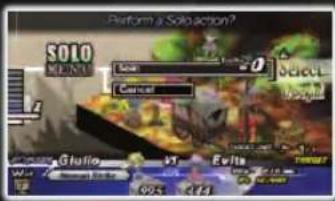
Once your target is selected, you can confirm the action. Depending on the situation, special Boost or Beat cooperative actions may be available. (see p. 15)
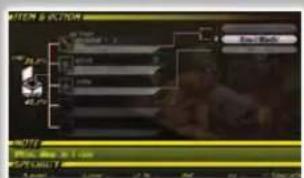
Actions have Action Numbers assigned to them. In the case of weapon-based actions, actions with the same numbers will have similar types of effects. Furthermore, numbers assigned to Specialties and Counters are also of significance.
Boost Actions
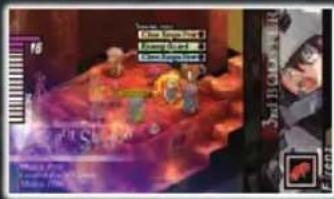
Boost Actions are a gameplay mechanic that allows allies to reinforce the acting unit. Each Boost will drain the Tactics Gauge by 1.
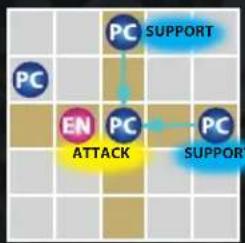
flowchart
graph TD
    A["PC"] --> B["PC SUPPORT"]
    C["EN"] --> D["PC SUPPORT"]
    D --> E["PC ATTACK"]
    style A fill:#fff,stroke:#000
    style C fill:#fff,stroke:#000
    style D fill:#fff,stroke:#000
    style E fill:#fff,stroke:#000
Allied units within a cross grid range from the current character will be able to assist. (Max 4)
* The range within which you can receive Boosts will increase with the number of Base Points you control.

: Player Character

: Enemy
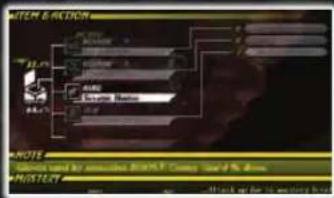
To use a Boost, you must have an Item equipped that grants a Boost Effect. Items that grant Boost Effects are mainly equipped in the Hand slot.
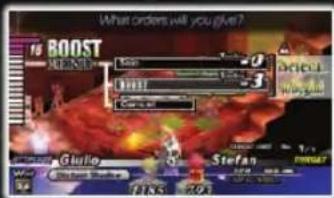
When you confirm your action, select "BOOST" to activate your Boost Action.
| Boost Effect | Equipment | Explanation |
| Melee Attack Up Power Gaunts Increases melee attack power | ||
| Opp. Guard Down Savage Hunter Decreases enemy guard rate | ||
| HP Absorb Vamp Nai | Absorb 1/3 damage dealt | |
BATTLE SYSTEM
Beat Actions Scramble
Beat Actions allow allies to attack in combination with the acting unit. Each Beat will decrease the Tactics Gauge by 2.
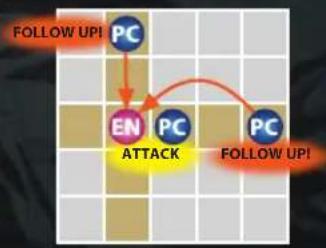
flowchart
graph TD
    A["PC"] --> B["EN"]
    B --> C["PC"]
    C --> D["PC"]
    D --> E["FOLLOW UP!"]
    style B fill:#ff0000,stroke:#333
    style C fill:#ff0000,stroke:#333
    style D fill:#ff0000,stroke:#333
    note1["FOLLOW UP!"]
    note2["ATTACK"]
    note3["FOLLOW UP!"]
Allied units within a cross grid range from the targeted enemy will be able to assist. (Max 4)
* The range within which you can do Beats will increase with the number of Base Points you control.
PC : Player Character
EN : Enemy
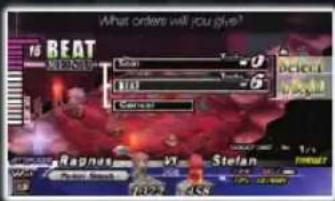
When you confirm your action, select "BEAT" to activate your Beat Action. Depending on your allies' equipment, Beat attacks may be able to inflict status effects on the enemy.
* However, if the opening attack is blocked or evaded, Beat will not activate.
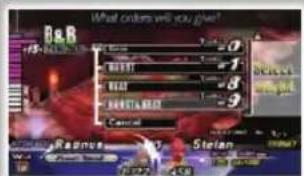
If all conditions are met, both BOOST and BEAT can be used at the same time. To do this, select "BOOST & BEAT."
Using Scramble, you can force a unit to bypass turn Delay and act immediately.
![LPG: 100% of the world's eyes [ ] [ ] [ ] [ ] [ ] [ ] [ ] [ ] [ ] [ ] [ ] [ ] [ ] [ ] [ ] [ ] [ ] [ ] [ ] [ ] [ ] [ ] [ ] [ ] [ ] [ ] [ ] [ ] [ ] [ ] [ ] [ ] [ ] [ ] [ ] [ ] [ ] [ ] [ ] [ ] [ ] [ ] [ ] [ ] [ ] [ ] [ ] [ ] [ ] [ ] [ ]](/content/2026/05/1027923/images/10d73e9cb65b95f85455a6dfd9e12cd0d1c8bf235ff1769957c994126a90499a.jpg)
Pressing the L Button while no unit has a Delay of 0 (while the clock is turning on the right side of the screen) will stop time in the game. From here, you can press the Ⓧ Button to activate Scramble and take your turn immediately.
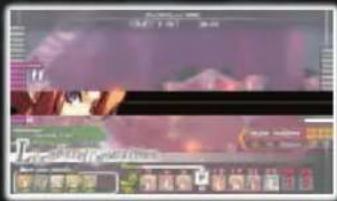
However, a unit must have a Delay of 2 or higher in order to act during a Scramble. The Tactics Gauge will be decreased by the unit's Delay +2.
Building the Tactics Gauge
As your units move, the Tactics Gauge will build up over time according to their Tac. However, using actions like Boost or Beat will rapidly decrease the gauge. All actions will be augmented as the Tactics Gauge Increases, so you may wish to keep it relatively high. You may also be able to purchase items that affect how fast your Tactics Gauge builds...
BATTLE SYSTEM
Status
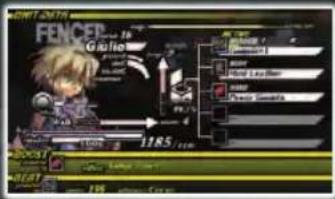
Press the ⚠ Button while the cursor is on a unit to view its status.
level A character's experience level.
jmp Jumping ability. Units with a higher jmp can reach higher and fall farther without taking damage.
mov A unit's range of movement.
h.p. Hit points (HP); when h.p. reaches 0, that unit will retreat/die.
vitality Affects maximum HP.
guard Chance that a unit will block an attack. Changes with the Tactics Gauge level.
def Affects physical damage received. Changes with the Tactics Gauge level.
m.def Affects magical damage received. Changes with the Tactics Gauge level.
counter Counter number. (See p. 24)
BOOST Increases the effect of Boost Actions.
BEAT Influences whether the target of a Beat Action will receive negative status effects.
Press the SELECT Button to view additional information on the unit.
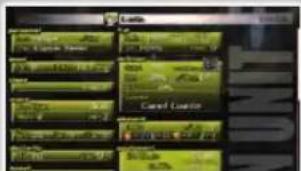
WT. A unit's Wait Time after its turn.
Del. A unit's Delay after its turn.
Tac. The maximum amount by which a unit can increase the Tactics Gauge.
Hit. Accuracy with ranged weapons, such as bows.
Cas. Percentage reduction of Cast Time (CT).
Character Progression
Over time, characters' experience points and Masteries will increase as they fight in battles.
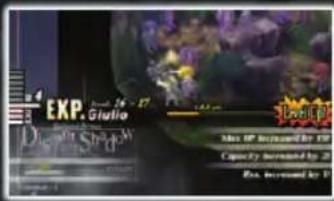
Leveling Up
When enough experience points are gained from attacking enemy units or healing friendly units, a character will Level Up. Maximum HP, item capacity (CAP), and status effect resistance will Increase.
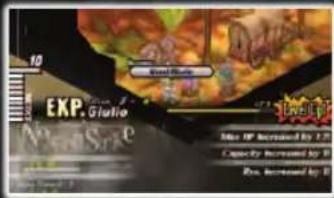
Mastery
Mastery represents a character's proficiency with various weapon types. Your Mastery of a weapon increases by 1 each time an action is taken with that weapon type, up to a maximum of 50. Higher Mastery Increases damage and unlocks new actions with that weapon type.
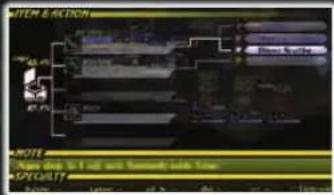
Specialty
Specialty represents a character's skill with various types of actions. All characters have a Specialty Number assigned to them, and using actions corresponding to this number will increase Specialty with that action type. The higher the Specialty is, the stronger the effect will be.
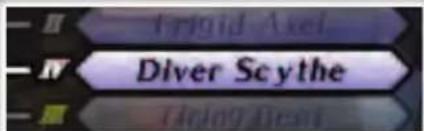
The Specialty Number is depicted next to the action name.
BATTLE SYSTEM
Death and Retreat
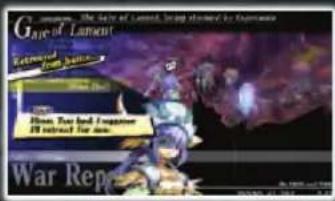
When a unit's HP reaches 0, it can either die or retreat. This will depend on the amount of damage that the character received. When a friendly unit dies, that unit will be lost forever. Withdrawn characters may be used in the next battle, but they will be injured. (See p. 10)
Looting Defeated Characters
Withdrawn units will drop one item they were carrying in the square they last occupied. Dead characters will lie in that square. Regardless, moving Into that square will allow you to pick up the dropped item or loot the item of your choice.
* It costs 4 points of the Tactics Gauge to pick up items from dead enemies.
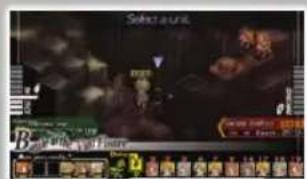
Characters will die if they drop into chasms or water-filled squares with a depth of -2.0 or deeper, no matter how much HP they have. You've been warned!
Special Terrain
Some squares on the map have special properties that can be activated if a character occupies them.
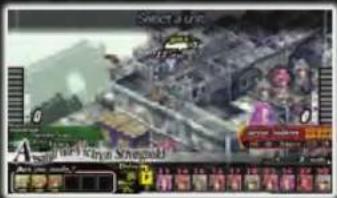
Base Points
Units occupying these squares will increase the Tactics Gauge by 2, to a maximum of 20. Also, the range within which Boost or Beat can be activated is increased when you control more Base Points.
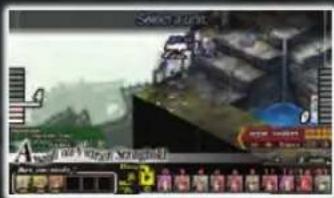
Retreat Points
Units occupying these squares can switch out with reserve units. It costs 2 Tactics Points to substitute a unit.
• Allied Retreat Points are labeled blue, while enemy Retreat Points are labeled red.
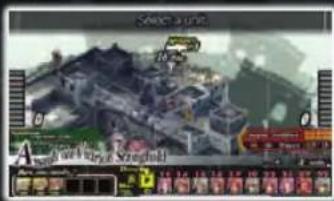
Weapon Points
Units occupying these squares can use powerful weapons located on the map. It costs 6 Tactics Points to activate these squares.
* Only certain unit classes can use map weapons. (Trickster, Alchemist, Rebel)
Elements
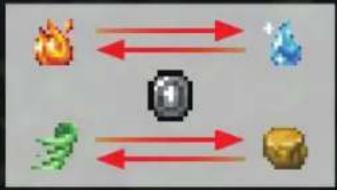
flowchart
graph TD
    A["Flame Icon"] <--> B["Water Droplet Icon"]
    C["Bird Icon"] <--> D["Coin Icon"]
    E["Coin Icon"] <--> A
There are five elemental attributes in Gungnir: Fire, Water, Air, Earth and Null. Fire/Water and Earth/Air are of opposing alignments and deal extra damage to each other.
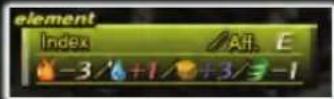
Elemental Index
A character's current elemental alignment is determined by his Elemental Index. This Index is affected by equipment and terrain type. The highest element with a score of +3 or more determines that character's alignment. (If no element is +3, the alignment will be Null.) Equipping different items and occupying different squares will change a unit's alignment, so be sure to use this to your advantage.
BATTLE SYSTEM
Status Effects
Actions and Beats can have effects that negatively affect their target's Condition. Anything can happen in the course of battle, so it would be wise to familiarize yourself should the worst come to pass.
* In the game, go to System Menu > Tutorial > Added Effects 3 (Ailment List) to view status effects.
Status Effects (example)
| Icon Condition | Explanation |
| Poison. Poisoned. Take damage over time. | |
| Sleep. Unconscious. Temporarily unable to act. | |
| Curse. Irrilcted by magic. Cannot recover HP. |
Special Attack Effects
Some actions have additional effects on either the user or the target. Powerful effects such as Knockback can be combined with the bonuses granted by Boost Actions to produce formidable results on your target.
* Special Attack Effects are displayed under an attack's statistics.
Special Attack Effects (example)
| Name | Effect |
| Knockback Pushes the target back one square.* | |
| Low HP Pow When the user is near death,damage increases dramatically. | |
| Purge Corpse Use on a Skeleton at 0 HP to permanently destroy it. | |
* Knockback can be used to push enemies off the map or into lethal terrain, killing them instantly.
Cast Time
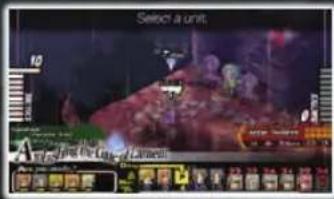
Some types of actions have an activation time, or Cast Time (CT), before they take effect. The action will activate when CT counts down to 0.
Capture
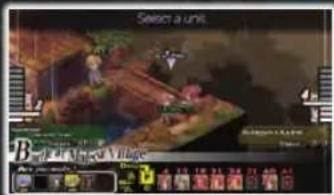
Units of the Tamer class can use their whips to restrain a target, preventing it from taking any actions.
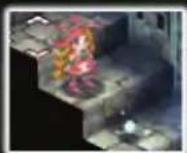
Traps
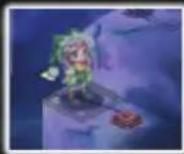
Some classes, such as Tricksters (Plt traps) or Witches (Gram traps), can create squares on the map that deal high damage to units that step on them. However, friendly units can also trigger traps. You cannot see traps set by enemy units, so be careful when fighting Tricksters and Witches!
BATTLE SYSTEM
Counters
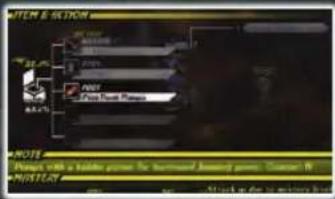
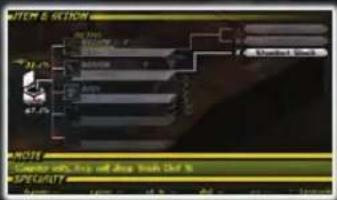
Armor Items used in the Foot slot with a Counter Number will activate a Counter ability in response to being hit by an action of that number. Counters can only be triggered when an enemy attack is blocked.
* However, attacks blocked with a shield cannot trigger a Counter.
flowchart
graph TD
    A["Device Selection"] --> B{Standard Block}
    B --> C["Configuration: 1.0, 2.0, 3.0, 4.0"]
    C --> D["SPECIALITY"]
    D --> E["Output: 100%"]
    style A fill:#f9f,stroke:#333
    style B fill:#ccf,stroke:#333
    style C fill:#cfc,stroke:#333
    style D fill:#fcc,stroke:#333
A unit equipped with a Katana-type weapon can counter any type of action, regardless of action number.
* Tamer class only
OverClock
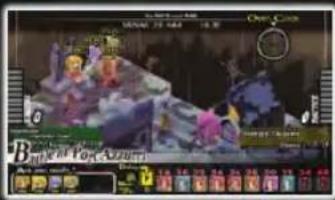
During a friendly unit's turn, when the cursor is unselected, press and hold the ✗ Button to activate Over Clock and speed up the passage of time. Over Clock is useful for passing time while waiting for an allied unit's spell to activate or for lurling an enemy into attacking your units.
Map Objects
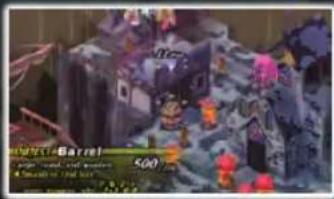
You will see various objects scattered around maps. Some can be treated as raised terrain or obstacles to block enemy movement or line of slight. Others can be broken open to reveal items inside.
* To view information about an object, press the 📄 Button while your cursor is over It.
Magic Crystals & Gems
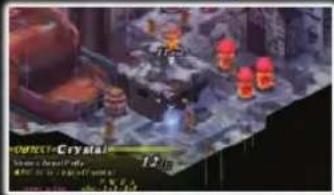
Sometimes, objects called magic crystals will appear on the map, which will break into gems if attacked. Depending on the way in which they are attacked, they will produce different types of gems. Gems are used to enhance weapons (see p. 28), so collect as many as you can.
BATTLE SYSTEM
War Gods
natural_image
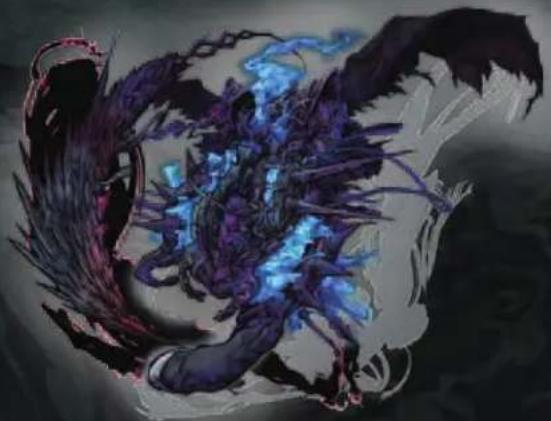
Fantasy illustration of a mythical creature with purple and blue glowing elements, no visible text or symbolsYou will be able to summon War Gods as you progress through the game. A War God may be summoned only once per map, has a long Cast Time, and has a Tactics Gauge cost of 11 or higher. However, it is one of the most powerful abilities in the game.
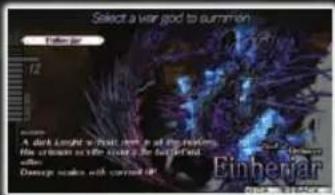
War Gods can only be summoned by using the "Ragnarok" action with the Magic Spear Gungnir. The entire map is within the effective range of the summon, but the spell makes no distinction between friend and foe, so time your summons carefully to avoid harming your own units.
* The number of Gods you can summon will increase as you progress further in the game.
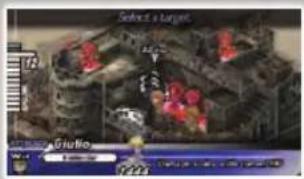
Make sure to plan your summon and position your units in advance, to avoid catching them in the area of effect.
Battle Results
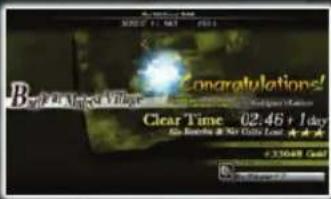
When the victory conditions are fulfilled, the results of your battle will be shown along with any money or items earned. You will also receive a Clear Rank, depicted by a number of stars. To receive a 3-star rank, you must have fulfilled the following conditions:

Did not use Retry
No units withdrawn or killed
Cleared the level quickly
Treasure
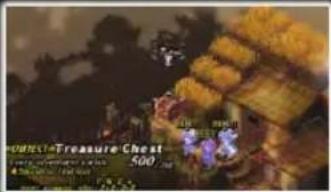
Finishing a battle with a high star rating will cause treasure chests to appear on the following map. Treasure chests can contain anything from consumable items to rare equipment.
Battle Results (Loss)

If you fail to fulfill the victory conditions or select Give Up from the System Menu during a battle, you will see a Game Over screen, along with the following options:
Retry Replay the battle with the difficulty level turned down. Keep experience already earned.
Restart Replay the battle from the beginning. Lose any experience already earned during the last attempt.
Return to Title Return to the Title Menu.
BUILDING YOUR ARMY
You will be returned to the Setup Menu after clearing a map. From here, you can access different menus to customize your army and prepare for the next battle.
* Some menus only become available after reaching certain points in the game.
Forces
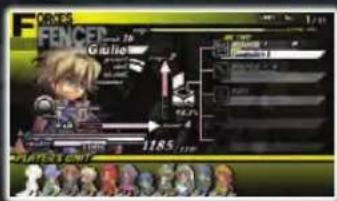
Check the status of your forces. Use the Directional Buttons to cycle characters, and the Buttons to select equipment. The × Button will allow you to change equipment. Also, the Button will quickly unequip an item.
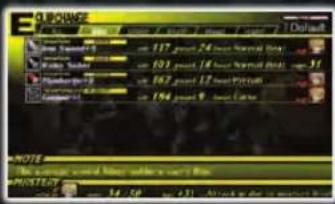
Use the Directional Buttons to select the item you wish to equip, and press the ✗ Button to confirm your selection. The L and R Buttons can be used to browse different categories of equipment, the ▲ Button sorts displayed items, and the □ Button changes between ascending and descending order.
Characters have an item capacity (CAP) that prevents them from equipping items with a total value higher than the CAP. To view a character's or Item's CAP, press SELECT.
Alchemy
Paulo can enhance weapons and create gems from the Alchemy menu.
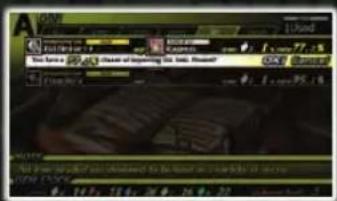
Increases the quality of weapon items. An enhanced weapon will be shown as "[weapon name] +X", where each +1 increases the attack power of the weapon by 5%. Gems are required to enhance weapons, and their requirements differ in number and element according to the weapon. Be aware that weapon enhancement can sometimes fail.
Refine
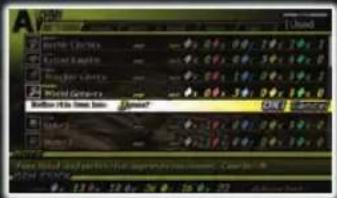
From the Refine menu, non-weapon items can be broken down into gems. Use the Directional Buttons to select an item, and ✗ to confirm. You can preview the number and type of gems that an Item can be broken down into.
Shop
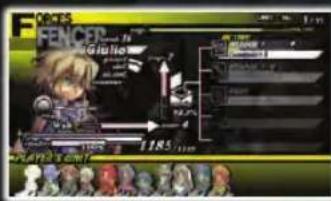
At the shop, you can purchase weapons, armor, and other items, and sell items you no longer need. Use the Directional Buttons to select an item, and press ✗ to confirm your choice. The L and R Buttons cycle between different types of items. The items on sale may change after each battle, so be sure to check back often. Also, the shop only carries one of each Item listed, so keep in mind that you cannot buy as many as you want.
BUILDING YOUR ARMY
Guild
Recruiting Mercenaries
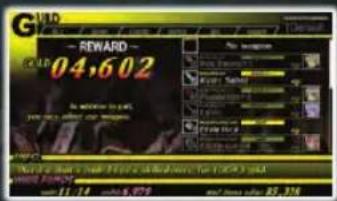
In exchange for gold and weapons, you will be able to hire units to fight in your army. Use the Directional Buttons to select the amount of payment, and the ✗ Button to confirm. Furthermore, adding a weapon to your payment will influence the class of characters that join you. (You will attract classes that can equip the selected weapon.)
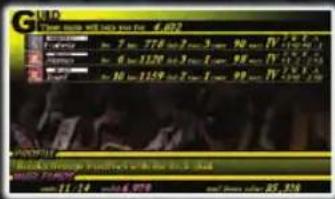
The menu will display characters that you can hire using the selected gold and weapon. Use the Directional Buttons to select a character, and the ✗ Button to add the desired unit to your forces. However, if you cancel recruitment at this point, the guild will take a service fee of 10% of your recruitment offer.
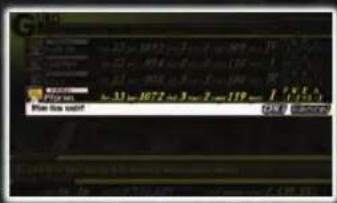
Dismissal
If you decide that you no longer want a character in your army, you can dismiss him. Use the Directional Buttons to select the unit, and press ✗ to confirm.
Camp
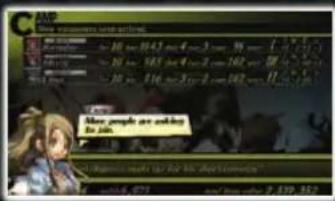
In the course of your battles, you will also attract volunteer soldiers who will fight for you of their own volition. You can recruit these characters into your army at no cost. Use the Directional Buttons to select a character, and press ✗ to recruit him.
Advance
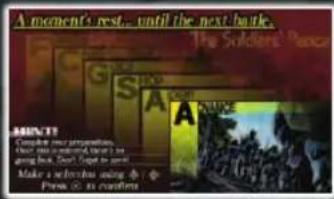
When you are finished setting up your army, you can proceed to the next map. Once you advance, you will not be able to return to the Setup Menu until you have cleared the map. It would be wise to save your game before proceeding.
System Menu
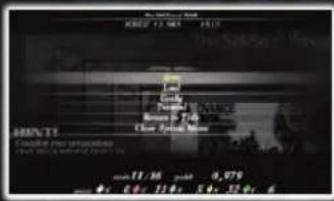
Pressing the Ⓧ Button on the Setup Menu will display the System Menu. From here, you can configure game options, view tutorials, or save your game data. Make sure to save your game before Advancing to the next battle.
natural_image
Illustration of a character with white hair and flowing hair, surrounded by green foliage and a red cape (no text or symbols)UNIT CLASSES
Fencer
Uses: Swords, Magic Spear Gungnir
Giulio's class. It is the only class that can wield Gungnir, and is an essential class that levels quickly.
Valkyrie
Uses:Bows,Rapiers
The class of the mysterious Elise, who appears to Giulio shortly after he obtains the Magic Spear Gungnlr. Valkyries are versatile units capable of both ranged and melee combat. Rapiers can only be blocked by shields, making the Valkyrie an obvious choice to initiate Beat Actions.

Gladiator
Uses: Axes, Swords
The class of Magnus, brother to Giulio. This class has no equal in terms of HP, making it the perfect frontline unit. The backbone of your army from the very beginning of the game.
Alchemist
Uses: Rods, Grimoires
The class of Paulo, the Chief of Staff within Esperanza. A magic specialist who has the ability to wield an array of attack magic (using rods) and healing magic (using grimoires). Early on, he will play a significant healing role in your army.


Rebel
Uses: Bowguns, Claws
The class of Valerie, the woman with a vendetta against the Gargan Empire. She is skilled with bowguns for mid-range combat, although she is capable with claws in close combat, as well. Claws enable the Rebel to Steal Items, making her an ideal opponent against enemies with strong equipment.
Paladin
Uses: G. Swords, Swords
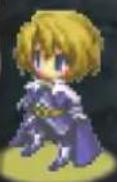
The only class capable of wielding G. Swords—swords infused with magical power. The Paladin's choice of equipment allows it to deal both magical and physical damage, making this class effective against a large variety of foes. Paladins only have a moderate amount of HP, but their ability to wield light shields lets them survive on the front line.
Knight
Uses: Swords
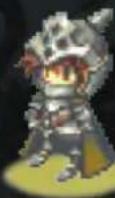
Knights are renowned for their use of massive shields, presenting an iron bulwark against the enemy. They can only equip swords, but their heavy shields boast the highest guard rates in the game. As long as you keep the enemy away from their vulnerable backsides, Knights will serve admirably as your army's protection.
Brute
Uses: Axes, Hammers
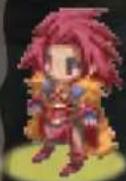
Out of all the classes, none are as tough as the Brute. Brutes wear heavy armor to block enemy attacks, but Brutes pride themselves on their vitality, knowing that no matter how much damage they take, they will never fall before their opponents. Swinging powerful axes and hammers, Brutes dominate the front lines.

Assassin
Uses: Daggers, Claws
Units of this class boast superb agility. Assassins can strike quickly and often, with low Delay penalties for movement and attack, making them ideal at responding to enemy attacks on your base. They are skilled at close combat but their constitution leaves much to be desired, so it is best to use Assassins In a hit-and-run strategy.
Trickster
Uses: Tools, Daggers
Tricksters are known to dazzle and misdirect their foes with their attacks. Their Tools deal random-but-heavy damage to their targets, and they can also set pit traps for their enemies. They are also one of the only classes that can use Siege Weapons. The Trickster's many roles make it one of the more complex classes.
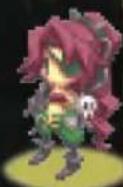
Tamer
Uses: Whips, Katanas
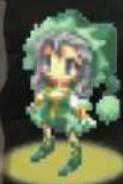
The Tamer wields whips that can hinder and disorient her foes in a variety of ways. Whips can be highly damaging in combination with Special Attack Effects, and can also be used to restrain enemies, making the Tamer suited to both attack and support roles. Katanas, which can only be used by the Tamer, deal frightening amounts of damage and can counter any attack type. A Tamer is sure to wreak havoc among her enemies.
UNIT CLASSES
Archer
Uses:Bows
Archers specialize with the bow to strike at their enemies from afar. Bows are capable of firing over obstacles that would normally block line of sight, and can hit enemies at medium and long range, making the Archer a versatile ranged unit.
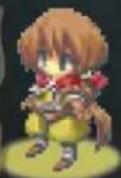
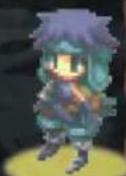
Gunner
Uses: Bowguns
Gunners fight with bowguns. Unlike bows, bowguns fire directly at the enemy, so the Gunner must have a clear line of sight to his target. However, a bowgun's attack power far surpasses that of a normal bow and is a serious threat to targets within five squares.
Thrower
Uses: Javelins
The Thrower is an offensive ranged unit that hurls spears at the enemy. Throwers are capable of indirect fire over obstacles (much like Archers), but they can also fight at close range, making them the more flexible ranged unit.
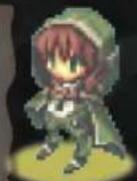

Priestess
Uses: Grimoires, Maces
The Priestess is a healing and support specialist. Healing magic from grimolres is usable only by the Priestess and Alchemist, so it would be valuable to train one in your army. Tougher than most spellcaster units, the Priestess can also swing a mace in melee if the situation calls for it.
Sorceress
Uses: Rods, Maces
The Sorceress is a purely offensive spellcaster. The array of destructive spells granted by rods, along with her short Cast Time, grants the Sorceress Incredible firepower. However, among all classes, she is the most vulnerable to physical damage, so keep her well away from potential attackers.


Witch
Uses: Brooms
Witches are highly useful classes thanks to the mobility granted by their flying brooms. While in the air, they can traverse normally unreachable paths to surprise and outflank the enemy before retreating to a safe distance. The Witch's ability to prepare Gram traps only enhances her already cunning skills.
THE ART OF WARR
Melee Attacks & Guard Rate
Frontal attacks with close-combat weapons like swords and axes are easily defended against. If I were you, I'd try to get the drop on your enemies from behind.
Enemies will probably dodge ranged attacks fired from too great of a distance. All weapons have a range that's most effective.
You don't know the optimal range of your weapon? While the cursor is on an action, press SELECT to view it.
Ranged Attacks & Evasion
natural_image
Illustration of a character with white spiky hair and purple cape, holding a sword (no text or symbols visible)Magic is convenient because it can reach enemies in a wide area, but your enemies will be able to maneuver out of the way while your mages are still casting. Timing is of the essence, so I would suggest keeping an eye on the turn order.
Magic Attacks & Cast Time
Also, equipping armor that increases the Cas. stat will shorten a spellcaster's Cast Time.
Support Actions
natural_image
Illustration of a character with spiky white hair and purple outfit, holding a staff (no text or symbols visible)Units such as Priestesses and myself can use Support Actions to heal our wounded comrades. Keep in mind that actions numbered "III" can heal multiple allies at the same time.
THE ART OF WAR (APPLICATIONS)
Beat Actions & Combos
Using Beats to have multiple units attack the same target is a great way to deal lots of damage at once. Set it up so that units wielding powerful weapons, like my Gungnlr, attack from behind to maximize your damage.
Using Terrain
Charging recklessly into enemy territory is a sure path to death and defeat. Use the battlefield to your every advantage; deploy Archers on high ground, and use Knights to control chokepoints.
Dealing with the Undead
Skeletons may seem intimidating when they rise again, no matter how many times you strike them down. But hitting them with an action with the special property "Purge Corpse" will take care of the blasted things for good.
Units have a Res. stat that represents their resistance rate against status ailments. The higher the number, the greater the protection against negative conditions such as Polson, Burn, Frozen, etc. If your units are frequently falling victim to status ailments, try equipping certain items or equipment that increase this stat.
Resisting Status Ailments
LIMITED WARRANTY
ATLUS, at its sole option, will refund, repair or replace at no charge any defective ATLUS products within ninety (90) days of purchase with proof of purchase date, so long as the defect is not caused by misuse and neglect of the purchaser. EXCEPT FOR THE FOREGOING LIMITED WARRANTY, ALL EXPRESS, IMPLIED AND STATUTORY WARRANTIES, INCLUDING WARRANTIES OF MERCHANTABILITY, FITNESS FOR A PARTICULAR PURPOSE AND NONINFRINGEMENT OF PROPRIETARY RIGHTS, ARE EXPRESSLY DISCLAIMED. ATLUS SHALL NOT BE LIABLE FOR ANY DIRECT, INDIRECT, INCIDENTAL, CONSEQUENTIAL OR OTHER DAMAGES, EVEN IF DAMAGES RESULT FROM THE USE OF ATLUS PRODUCTS IN ACCORDANCE WITH ATLUS MANUAL INSTRUCTIONS. IN SOME JURISDICTIONS, SOME OF THE FOREGOING WARRANTY DISCLAIMERS OR DAMAGE LIMITATIONS MAY NOT APPLY.
Atlus Customer Service Department / Technical Support Line: (949) 788-0353
Call this number for help in operating our products or for general product questions. Representatives are available Monday - Friday, 9:00am to 5:30pm Pacific Time. You can also reach us at service@atlus.com.

natural_image
Cartoon character with blue hat and red bow holding a gift box (no text or symbols)Join the Atlus Faithful!
Atlus Faithful is a free membership service that will give you access to breaking news, special promotions, exclusive content and more. Visit www.atlus.com/faithful and create your login and password. You'll immediately start receiving membership benefits!
Go to www.atlus.com and follow us on:


YouTube

"PlayStation", "PS" Family logo, "PSP", and "UMD" are registered trademarks of Sony Computer Entertainment Inc. Memory Stick Duo and Memory Stick PRO Duo are trademarks of Sony Corporation.
Updating the PSP ^® (PlayStation ^® Portable) system
Updating the PSP ^® system software
This UMD ^® includes the latest update data for the PSP ^® system. If a screen prompting you to update the system software is displayed when you start the UMD ^® , you must perform an update to start the software title contained on the UMD ^® .
Performing the update
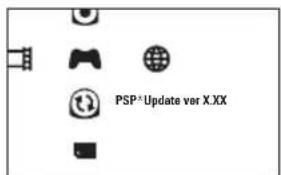
When you insert the UMD ^® , an icon (as shown on the right) is displayed under [Game] in the home menu. Select the icon, and then follow the on-screen instructions to perform the update.
Before starting the update:
- Fully charge the PSP ^® system battery.
- Connect the AC adaptor to the system and plug it into an electrical outlet.
During an update:
- Do not remove the AC adaptor, turn off the system or remove the UMD ^® .
If an update is canceled before completion, the system software may become damaged, and the system may require servicing to repair or exchange.
Checking that the update was successful
After the update has been completed, select [System Settings] under [Settings] from the home menu, and then select [System Information]. If the System Software field displays the version number of the update, the update was successful.