
AMD FirePro S7000 4GB GDDR5 - Graphic card DELL - Free user manual and instructions
Find the device manual for free AMD FirePro S7000 4GB GDDR5 DELL in PDF.


| Product Type | Professional Workstation Graphics Card |
| Model | AMD FirePro S7000 4GB GDDR5 |
| Memory Size | 4 GB GDDR5 |
| Memory Interface | 256-bit |
| Stream Processors | 1280 |
| Core Clock | 950 MHz |
| Memory Clock | 1200 MHz (4.8 Gbps effective) |
| Bus Interface | PCI Express 3.0 x16 |
| Max Power Consumption | 150 W |
| Power Connectors | 1x 6-pin PCIe |
| Form Factor | Single Slot, Full Height |
| Dimensions | 8.66 x 4.376 x 0.75 inches (220 x 111 x 19 mm) |
| Weight (Approx) | 300 g |
| Output Ports | 1x DVI-I, 1x DisplayPort 1.2 |
| Max Resolution | 4096x2160 @ 60 Hz (via DisplayPort) |
| Cooling | Passive Heatsink (requires active airflow in chassis) |
| Main Functions | 3D Rendering, CAD, Video Editing, Computational GPU |
| Maintenance | Dust removal with compressed air; avoid liquid cleaners |
| Cleaning | Use anti-static cloth; do not use solvents |
| Safety | Install in grounded system; follow ESD precautions |
| Spare Parts & Repairability | No user-serviceable parts; contact Dell support for RMA |
| Supported APIs | DirectX 11.1, OpenGL 4.4, OpenCL 1.2 |
Frequently Asked Questions - AMD FirePro S7000 4GB GDDR5 DELL
User questions about AMD FirePro S7000 4GB GDDR5 DELL
0 question about this device. Answer the ones you know or ask your own.
Ask a new question about this device
Download the instructions for your Graphic card in PDF format for free! Find your manual AMD FirePro S7000 4GB GDDR5 - DELL and take your electronic device back in hand. On this page are published all the documents necessary for the use of your device. AMD FirePro S7000 4GB GDDR5 by DELL.
USER MANUAL AMD FirePro S7000 4GB GDDR5 DELL
© 2012 Advanced Micro Devices Inc. All rights reserved.
The contents of this document are provided in connection with Advanced Micro Devices, Inc. ("AMD") products. AMD makes no representations or warranties with respect to the accuracy or completeness of the contents of this publication and reserves the right to discontinue or make changes to products, specifications, product descriptions, and documentation at any time without notice. No license, whether express, implied, arising by estoppel or otherwise, to any intellectual property rights is granted by this publication. Except as set forth in AMD's Standard Terms and Conditions of Sale, AMD assumes no liability whatsoever, and disclaims any express or implied warranty, relating to its products including, but not limited to, the implied warranty of merchantability, fitness for a particular purpose, or infringement of any intellectual property right. AMD's products are not designed, intended, authorized or warranted for use as components in systems intended for surgical implant into the body, or in other applications intended to support or sustain life, or in any other application in which the failure of AMD's product could create a situation where personal injury, death, or severe property or environmental damage may occur. AMD reserves the right to discontinue or make changes to its products at any time without notice.
Trademarks
AMD, the AMD Arrow logo, ATI, the ATI logo, AMD Athlon, AMD LIVE!, AMD Opteron, AMD Phenom, AMD Sempron, AMD Turion, AMD64, All-in-Wonder, AMD Avivo, AMD Catalyst, AMD CrossFire, AMD CrossFireX, AMD FirePro, AMD FireStream, AMD HyperMemory, AMD OverDrive, PowerPlay, AMD PowerXpress, AMD Radeon, Remote Wonder, SurroundView, Theater, The Ultimate Visual Experience, Vari-Bright, and combinations thereof are trademarks of Advanced Micro Devices, Inc.
HyperTransport is a licensed trademark of the HyperTransport Technology Consortium.
HDMI is a licensed trademark of HDMI Licensing, LLC.
PCI Express and PCIe are registered trademarks of PCI-SIG Corporation.
Linux is a registered trademark of Linus Torvalds.
DirectX, Microsoft, Windows, and Windows Vista are registered trademarks of the Microsoft Corporation in the United States and/or other jurisdictions.
OpenCL is a trademark of Apple Inc. used by permission by Khronos.
Other names are for informational purposes only and may be trademarks of their respective owners.
Dolby Laboratories, Inc.
Manufactured under license from Dolby Laboratories. Dolby and the double-D symbol are registered trademarks of Dolby Laboratories.
© 1992-1997 Dolby Laboratories, Inc. All rights reserved.
Rovi Corporation
This device is protected by U.S. patents and other intellectual property rights. The use of Rovi Corporation's copy protection technology in the device must be authorized by Rovi Corporation and is intended for home and other limited pay-per-view uses only, unless otherwise authorized in writing by Rovi Corporation. Reverse engineering or disassembly is prohibited.
Disclaimer
While every precaution has been taken in the preparation of this document, Advanced Micro Devices, Inc. assumes no liability with respect to the operation or use of AMD hardware, software or other products and documentation described herein, for any act or omission of AMD concerning such products or this documentation, for any interruption of service, loss or interruption of business, loss of anticipatory profits, or for punitive, incidental or consequential damages in connection with the furnishing, performance, or use of the AMD hardware, software, or other products and documentation provided herein. Ensure that you have the latest documentation.
Important Safety Instructions
Note: This product is for use only with compatible UL-listed personal computers that have installation instructions detailing user installation of this class of product.
Read all instructions before beginning installation. All safety and installation instructions should be read before the product is installed or operated.
Retain all instructions. Safety, installation, and operating instructions should be retained for future reference. Heed all warnings. All warnings regarding the product and its operating instructions should be obeyed.
Use appropriate grounding.
Caution:
For continued protection against the risk of electric shock and fire, install this accessory only in products equipped with a three-wire grounding plug, a plug having a third (grounding) pin. This is a safety feature. Do not remove the grounding pin of a three-pin plug.
Attach product securely. All product-securing screws or fasteners should be completely tightened in order to provide continuous bonding between the product and the PC chassis, as appropriate.
Chapter 1 Getting Started .... 1
1.1 System Requirements....1
1.2 Recording Serial Numbers....1
Chapter 2 Hardware and Software Installation .... 3
2.1 Installation Overview 3
2.2 Installing a PCI Express Graphics Card....3
2.3 Installing Graphics Drivers and Software 6
2.3.1 AMD Drivers and Software....6
2.3.2 AMD Automatic Application Detection and Configuration 6
Chapter 3 Display Configuration .....7
3.1 Baseplate Connections 7
3.2 Connecting Displays....7
3.3 Using Adapters 8
Chapter 4 Using the Control Center Software .....9
4.1 Control Center Overview 9
4.2 Starting the Control Center Software 9
Chapter 5 Reference....11
5.1 Workstation Card Troubleshooting....11
5.1.1 Computer does not boot up properly....11
5.1.2 There is no display....11
5.1.3 There are screen defects.... 12
5.1.4 The screen image is off-center or there are odd colors....12
5.1.5 The operating system warns that the graphics card isn't properly configured.... 12
5.1.6 There are bus address or interrupt conflicts....13
5.2 Workstation Customer Care....13
5.2.1 Contact Information....13
5.2.2 Disclaimer....15
5.3 Workstation Warranty Service 16
5.3.1 Shipping....16
5.3.2 Limitations....16
5.4 International Compliance Information 17
5.4.1 FCC Compliance Information (USA) 17
5.4.2 Industry Canada Compliance Statement (Canada)....18
5.4.3 CE Compliance Information (European Union) 18
5.4.4 Electrical Safety 19
5.4.5 VCCI ITE Compliance Information (Japan) 19
5.4.6 KC Certification Information (Korea) 20
5.4.7 BSMI Certification Information (Taiwan) 21
5.4.8 C-Tick (Australia and New Zealand) 22
5.4.9 Product Environmental Compliance 22
5.4.10 Waste Electrical and Electronic Equipment (WEEE) Directive Compliance (European Union) 22
Before you begin installing your new AMD FirePro™ S7000 graphics card (P/N: 102-C414xx-xx), please make sure you have the proper system requirements and have completed the required preinstallation tasks as outlined in this chapter.
1.1 System Requirements
Table 1-1 AMD FirePro™ S7000 Minimum System Requirements
| Hardware All of the following:AMD AthlonTM or Intel Pentium® 4 CPU.512 MB RAM.Motherboard with available ×16 lane PCI Express® connection slot and correct chipset driver.internet access for installation software.350-watt or better power supply with one PCIe® AUX 6-pin power connector.The AMD FireProTM S7000 has a maximum power consumption of 150 W.For an up-to-date listing of certified power supplies, see support.amd.com/us/ certified/power-supplies/Pages/listing.aspx. | |
| Operating System | Any of the following (32- or 64-bit):Windows Server® 2008R2 SP1Windows® 7Windows Vista®Linux® |
| Monitor Any of the following:DisplayPort monitor.DVI monitor. | |
| Airflow Considerations | 10 CFM measured from the heatsink outlet fins is required for adequate cooling.Anything lower can result in damaging the card. |
1.2 Recording Serial Numbers
The serial number and 102 part number on the graphics card are required for product registration and warranty (proof of purchase may be required). They are located on a sticker on the back of the graphics card and are shown in boldface and underlined in the illustration below.
Record these numbers in the space provided below and retain for future use.
- Remove the graphics card from packing.
-
Locate the white label on the back of the graphics card.
-
Record the serial number and 102 part number.
Figure 1-1 Typical Serial Number and 102 Part Number Arrangement

| 1 Serial number (S/N) |
| 2 102 part number (P/N) |
Chapter 2
Hardware and Software Installation
This chapter details how to install your graphics accelerator in your system as well as where to download associated software and drivers.
2.1 Installation Overview
Once you have determined that your system meets the minimum requirements, perform the following tasks to install your new graphics accelerator. Detailed installation instructions are provided in the following sections.
- If you are replacing an existing graphics accelerator, uninstall the old graphics driver and software.
Note: If you are using a motherboard containing an on-board graphics solution and do not intend to use it as part of a multiple monitor display, disable it. - Turn off and disconnect your computer system.
- If needed, remove any old graphics accelerator(s).
- Install the new graphic accelerator.
- Reassemble and connect your computer system and display(s).
- Start the computer system and install the AMD FirePro™ drivers and configuration software.
- Restart the computer system.
2.2 Installing a PCI Express Graphics Card
Please read all installation instructions completely before you begin.
If your computer has on-board graphics, you may need to disable it through the BIOS configuration. For more information, see your motherboard documentation.
Note: Always handle a graphics card with care when adding or removing it from your system.
- Never twist or bend your card.
- Avoid interference from the card's fan housing with mechanical hinges or clips inside your system's chassis.
-
Make sure that the PCIe® card slot-locking mechanism on the motherboard is unlocked or open before inserting or removing a card. Please consult your motherboard manual for instructions, if necessary.
-
Turn off your computer, monitor(s), and other peripheral devices.
-
Unplug the computer's power cord, and then disconnect all cables from the back of the computer.
Caution:
Wait approximately 20 seconds after unplugging the power cord before disconnecting a peripheral cable or removing a component from the motherboard to avoid possible damage to the motherboard.
- Remove the cover to your computer's case.
Note: If necessary, consult your computer's manual for help in removing the cover.
Caution:
Static electricity can seriously damage computer components. Discharge your body's static electricity by touching the power supply or the metal surface of the computer chassis before you touch any components inside your computer's case to avoid damaging them.
- Unscrew or unfasten and remove any existing graphics card from your computer, if necessary.
Caution:
Make sure the PCIe card slot-locking mechanism is unlocked or open before trying to remove a graphics card. Failure to do so may damage the card and/or the motherboard. This locking mechanism may be hidden from view by a card's fansink.
Figure 2-1 Example PCIe Card Slot-locking Mechanism

natural_image
3D mechanical component with blue base and yellow strip, red surface, and black circle highlighting a detail (no text or symbols)-
Locate the appropriate slot and, if necessary, remove the metal back-plate cover. Make sure all internal cables are clear of the slot.
-
Determine whether your graphics card is long enough to fit securely in your computer, or requires an extension bracket the hold it in place. To install an extension bracket:
a. Align the holes in the extension bracket with the holes in the end of your graphics card.
b. Screw in the extension bracket firmly.
Note: Graphics card and extension bracket may not be exactly as depicted.
Figure 2-2 Extension Bracket Attached to Graphics Card

-
Align your AMD FirePro graphics card with the PCIe slot and press it in firmly until the card is fully seated. You may need to hold open the PCIe card slot-locking mechanism with your finger when you seat the card.
-
Screw in or fasten the graphics card securely.
-
If your card requires supplementary power and must be connected directly to the power supply, locate the appropriate power connector cable (or cables) from the power supply and connect it (or them) to the graphics card's supplementary power connector(s), which are usually located in the upper corner of the card.
Note: Before installing a card that requires a supplementary power connection, make sure your existing power supply has such a connection available.
-
Make sure no internal cables are interfering with components inside the computer (for example, a cooling fan) and replace the computer cover.
-
Reconnect any cables that were disconnected during installation and plug in the computer's power cord.
-
Turn on the monitor, and then your computer.
If you have properly installed your graphics card, operating system messages will appear and the boot procedure will proceed.
Your monitor will be running in a basic (VGA) video mode. Higher refresh rates are not available at this stage of the installation. Once you have installed the AMD FirePro drivers and software, you can use the Windows®Display Properties dialog to adjust your video settings and configure multiple monitors.
Proceed to install the software and drivers for your AMD FirePro graphics card.
2.3 Installing Graphics Drivers and Software
To install or remove the drivers and software, you must be logged on as a user with administrator rights.
Drivers and configuration software, which include the Control Center software application, are provided to both operate and take advantage of all the features of the graphics accelerator.
2.3.1 AMD Drivers and Software
Drivers are small but important programs that enable an operating system to communicate with a piece of hardware, such as a graphics card.
When you install a new graphics card, you must also install the driver and configuration software the card requires to function properly.
You also need to install (or reinstall) your AMD FirePro drivers when you have reinstalled or upgraded your operating system or when you download updated drivers from AMD's Web site: support.amd.com/us/gpudownload/Pages/index.aspx.
Note: When reinstalling drivers, always uninstall any previous drivers that are on your system, even if they are for the same graphics card. Always start "fresh."
2.3.2 AMD Automatic Application Detection and Configuration
AMD FirePro drivers offer automatic application detection and configuration, which enables the graphics driver to automatically detect an application when it starts and configure the graphics driver settings for optimal performance.
This detection feature works with multiple open applications. As you switch between multiple applications, the graphics settings are always automatically configured for maximum performance for the particular application currently running.
This chapter describes how to configure displays. It also lists available display connections for your graphics accelerator.
3.1 Baseplate Connections
The following figure shows the display connections available on your graphics accelerator.
Note: Baseplate may not appear exactly as depicted.
Figure 3-1 AMD FirePro™ S7000 Baseplate Connections

3.2 Connecting Displays
The following table lists the different ways you can connect displays to your card:
| Display Configuration | Card Connection Used |
| DisplayPort display DisplayPort connection | |
| DFP (DVI) display DisplayPort connection with DisplayPort-to-DVI adapter (single- or dual-link) | |
| HDMI TM display DisplayPort connection with DisplayPort-to-HDMI adapter | |
| CRT (VGA) display DisplayPort connection with DisplayPort-to-VGA adapter | |
Note: One DisplayPort-to-DVI (single-link) adaptor is included with your AMD FirePro™ S7000 graphics card. Additional adaptors must be purchased separately.
3.3 Using Adapters
Your AMD FirePro graphics card product includes adapters to enable you to attach display types other than those included on the baseplate or cables.
Use the following procedure to attach a display using an adapter.
- Turn off your computer and monitor.
- Plug the adapter into the connection from the baseplate of your AMD FirePro product and tighten the thumbscrews (if there are any).
- Connect your display's cable to the adapter and tighten the thumbscrews (if there are any).
- Turn on your display first, then your computer.
Use the Control Center application to configure the new display, should you need to do so.
4.1 Control Center Overview
The Control Center software application contains settings for configuring and fine-tuning your AMD product. Use it to manage desktops and displays, optimize your graphics processor for enhanced 3D application and video quality, and configure your CPU for improved power savings or system performance. You can also use the performance tools in the application to monitor and manage clock speed and memory use for your graphics card to ensure that your AMD product is configured and running as efficiently as possible.
The application provides a Standard View for guided configuration and an Advanced View for quick and easy access to all available features and settings. It also provides a search feature for finding specific pages, as well as the ability to bookmark pages by pinning them within the application.
The following is a list of common configuration tasks that can be completed using the application:
- Adding and removing displays
- Rotating displays
- Setting the main (primary) display
• Duplicating and extending desktops - Arranging desktops
- Enabling and disabling 3D application and video settings
More information on the application and its available features are provided through the comprehensive Control Center help system.
Note: Feature availability varies between AMD products and operating systems.
4.2 Starting the Control Center Software
To start the Control Center software application in Windows ® , use any of the following methods:
Table 4-1 Control Center Access Routes in Windows®
| Access Route Instructions | |
| Windows Desktop 1. Right-click anywhere on the desktop.2. From the shortcut menu that appears, click the Control Center option. | |
| Windows Start Menu 1. Click Start on the Windows task bar.2. Click All Programs followed by the Control Center option. | |
| Windows Notification Area | 1. Right-click the Control Center icon in the Windows Notification Area.2. From the shortcut menu, click the Control Center option. |
| Desktop Shortcut If you chose to create a desktop shortcut to the Control Center application during the driver installation, double-click the shortcut. | |
To start the application in Linux ® , type the command amdcccle in the terminal window.
To start the application with superuser privileges, do any of the following:
- Log on as a superuser before running the command amdcccle.
- Run the command sudo amdcccle and provide the superuser password when prompted.
- Run the command amdxdg-su -c amdcccle and provide the superuser password when prompted.
Note: Certain Control Center settings can only be changed with superuser privileges.
This chapter provides notices, troubleshooting tips, and customer care, warranty, and standards-compliance information.
5.1 Workstation Card Troubleshooting
The following troubleshooting tips may help if you experience problems.
More troubleshooting information can be found using the knowledgebase on the AMD Web site at http://support.amd.com/.
5.1.1 Computer does not boot up properly.
Verify that the installation instructions were properly followed. In particular, if external power is required, make sure that the external power cable (or cables) is properly connected.
Check that the card is properly installed in your system and connected to your monitor.
If you have problems during start-up, restart your computer in Safe Mode.
Check the system configuration utility of your operating system for the interrupt assignments.
Contact AMD's Customer Care or your local technical support.
5.1.2 There is no display.
Make sure the card is seated properly in its slot. If external power is required, make sure that the external power cable (or cables) is properly connected to the card.
Make sure that the monitor cable is securely fastened to the card.
Make sure that the monitor and computer are plugged in and receiving power.
If necessary, disable any built-in graphics capabilities on your motherboard. For more information, consult your computer's manual or manufacturer.
Note:
- Some manufacturers do not allow the built-in graphics to be disabled or to become the secondary display.
- If your system has built-in graphics capabilities, make sure that you uninstall the associated driver to prevent conflicts with AMD graphics drivers.
Make sure that you selected the appropriate monitor when you installed your enhanced driver.
Make sure that the display resolution and refresh rate settings you have selected are supported by the monitor you have connected.
5.1.3 There are screen defects.
Make sure your monitor supports the resolution and horizontal (kHz) and vertical (Hz) refresh rates as required by the graphics card. Check your current resolution, refresh rate, and color depth settings in the Settings and Monitor tabs in your Display Properties dialog.
Caution:
Ensure that both the graphics card and monitor support the resolution and refresh rates you select. Incompatible resolution/refresh rate selection may result in monitor damage. Refer to your monitor's documentation for recommended resolutions and refresh rates.
5.1.4 The screen image is off-center or there are odd colors.
Try adjusting the brightness, sharpness, contrast, and color balance controls of your monitor.
Try adjusting the centering and positioning controls of your monitor to position the picture on the screen.
Set the monitor's RGB inputs (and sync switches, if this option is available) to 75 Ohms, with the sync set to external.
DFP monitor users: Make sure that the DVI plug of your monitor data cable is digital-only (DVI-D), not integrated analog/digital (DVI-I). Refer to your monitor's documentation and contact your supplier or the manufacturer of the DFP monitor for information on how to obtain a suitable data cable plug.
If you need to use DisplayPort or Mini DisplayPort adapters other than the ones included with your graphics card, make sure that you use AMD Eyefinity validated dongles. For more information, see http://support.amd.com/us/eyefinity/Pages/eyefinity-dongles.aspx.
5.1.5 The operating system warns that the graphics card isn't properly configured.
Make sure that the display resolution and refresh rate settings you have selected are supported by the monitor you have connected.
Check the driver installation and make sure that all software is correctly loaded corresponding to your operating system and applications.
Reinstall the drivers for your graphics card.
5.1.6 There are bus address or interrupt conflicts.
Make sure that the I/O and memory addresses reserved for the graphics board are not used by other hardware devices. The integrated on-board VGA controller of your AMD FirePro card uses the following addresses (hex):
• I/O Address: Standard VGA I/O: 3B0-3DF
• Memory Addresses: Video RAM: A000-BFFF, Video ROM: C000-C7FF
You cannot change the addresses of your AMD FirePro card. In case of an address conflict, try to modify the I/O address of the add-on card that causes the conflict.
To support the special graphics processor on the AMD FirePro card, the system BIOS should automatically assign a system interrupt to the slot where the card is installed. However, there may be problems if your graphics card does not receive an interrupt or a system interrupt is used for more than one device. In case of problems, check the system configuration utility of your operating system for the interrupt assignments.
5.2 Workstation Customer Care
The AMD Customer Care Web site has number of helpful resources, including a knowledgebase of FAQs, warranty services, and the AMD FirePro Workstation Graphics Web Ticket Submission Page.
The Web site is complimentary and available at all times. The address is http://support.amd.com.
5.2.1 Contact Information
If you experience difficulties with your AMD FirePro™ product, you can contact AMD Customer Care in the following ways.
The latest contact information and tips for faster service can be found on the AMD Global Technical Support page at http://support.amd.com/us/contacts/Pages/global-technical-support.aspx.
| Region | Contact Information | |
| North America (US/Canada) | 1-866-284-2093 (toll free)Monday - Thursday: 9:00AM - 5:30PM ESTFriday: 9:00AM - 3:00PM ESTEmail Web Form | |
| Europe Benelux: | 00 800-12 30 23 40 (toll free)+31-(0)20-8080942Monday - Friday: 09:00 - 18:00 CETEmail Web Form | Italy:800 877 224 (toll free)+39-0699337545Monday - Friday: 09:00 - 18:00 CETEmail Web Form |
| France:0800 908 621 (toll free)+33-(0)170618467Monday - Friday 09:00 - 18:00 CETEmail Web Form | Spain:900 99 71 21+34- 911875514Monday - Friday: 09:00 - 18:00 CETEmail Web Form | |
| Region Contact | Information | |
| Germany:49 (0) 89 4505 3199+49-(0)30-30808249Monday - Friday: 09:00 - 18:00 CETEmail Web Form | United Kingdom:+44 (0) 1276 932318+31-208080959Monday - Friday: 08:00 - 17:00 GMTEmail Web Form | |
| South America (Portuguese/ English/ Spanish) | Argentina:0800-444-1186 (toll free)+54-11- 59842576Monday - Friday: 09:00 - 18:00 (GMT-3)Email Web Form | Mexico:001-866-251-9356 (toll free)+52-55-47411322Monday - Friday: 07:00 - 16:00 (GMT-5)Email Web Form |
| Brazil:0800-891-1349 (toll free)+55-11-39587187Monday - Friday: 09:00 - 18:00 (GMT-3)Email Web Form | Peru:0800-54777+51-1-7071622Monday - Friday: 07:00 - 16:00 (GMT- 5)Email Web Form | |
| Colombia:01-800-915-6060 (toll free)+57-1-3819956Monday - Friday: 07:00 - 16:00 (GMT-5)Email Web Form | Venezuela:800-100-2512+58-212-3357437Monday - Friday: 08:00 - 17:00 (GMT-4)Email Web Form | |
| Chile:123-00-202-854 (toll free)+56-25-856972Monday - Friday: 08:00 - 17:00 (GMT-4)Email Web Form | ||
| Asia Pacific: Australia | Australia (English)1-800-307657Monday - Friday: 11:30 - 19:00 AESTEmail Web Form | Malaysia (English):1-800-807088Monday - Friday: 09:30 - 17:00 MYTEmail Web Form |
| China (Simplified Chinese / English):400-898-5645Monday - Friday: 09:30 - 17:00 BJTEmail Web Form | New Zealand (English):800450175Monday - Friday: 13:30 - 21:00 NZTEmail Web Form | |
| Hong Kong (Traditional Chinese / English):Email Web Form | Philippines (English):180011141538 (PLDT service only)Monday - Friday: 09:30 - 17:00 PHTEmail Web Form | |
| India:• +91-80-33230647-9• Monday - Friday: 09:00 - 17:00 IST• Online Warranty Request | Singapore (English):• 8001204639• Monday - Friday: 09:30 - 17:00 SST• Email Web Form | |
| Indonesia (English):• 007-803-011-0361 (Mobile: XL, Telkomsel, and M2 Only)• Monday- Friday: 09:30 - 17:00 BORT• Email Web Form | Taiwan (Chinese / English):• 00801137427• Monday - Friday: 09:30 - 17:00 TWT• Email Web Form | |
| Japan (English/Japanese):• 0066-33-812651• Monday - Friday: 10:00 - 18:00 JST• Email Web Form | Thailand (English):• 001800120666587• Monday - Friday: 08:30 - 16:00 THA• Email Web Form• Landlines: When dialing, use phone with IDD; Mobile: AIS, DTAC, and TRUE MOVE only. | |
| Korea (English):• Email Web Form | Vietnam (English):• 120 111 62 (VNPT service only)• Monday - Friday: 08:30 - 16:00 VST• Email Web Form | |
Note: Customer Care telephone support lines are closed for regional statutory holidays.
Written inquiries can be sent to:
Advanced Micro Devices Inc.
Attention: Customer Care
1 Commerce Valley Drive East
Markham, Ontario
L3T 7V9 CANADA
This service is complimentary.
5.2.2 Disclaimer
AMD Customer Care will work to resolve your issue and help you to get your product up and running. If your issue is not resolved, our technicians will determine whether the difficulty you are experiencing is the result of the product, whether your product contains a defect, and whether your product should be returned to AMD for warranty service.
AMD Customer Care is unable to assist with refunds, returns, or exchange-specific inquiries. If resolving the problem being experienced is critical to your decision to keep the product, it is your responsibility to ensure that you know and are within the period of time your reseller will allow for refunds, returns, or exchange.
AMD is not responsible for any expense incurred accessing Customer Care. It is expected that customers will review the expense associated with the available support options and will choose the method that best meets their needs and budget.
AMD Customer Care reserves the right to limit support options for products that are not registered or are at End of Life.
5.3 Workstation Warranty Service
For warranty service instructions visit http://support.amd.com/us/warranty/Pages/SupportWarrantyServices.aspx or contact one of our Customer Service Representatives.
5.3.1 Shipping
Before shipping any unit for repair, obtain an RMA number for warranty service.
When shipping your product, pack it securely, show the RMA and serial number of the product on the outside, and ship prepaid and insured.
AMD will not be held liable for damage or loss to the product in shipment.
Standard warranty service consists of repair upon receipt.
AMD reserves the right to replace the product with a serviced product at their sole discretion at any time.
You are responsible for the cost of shipping the product to AMD. AMD pays the cost of returning the product to you.
Products which are repaired under warranty are guaranteed for the remainder of the original warranty period. Repairing or exchanging a product does not start a new warranty period. If, at the time of repair, a product is already “out of warranty” or within the last 90 days of the warranty period, AMD will guarantee the repair for the full 90 days. All other terms and conditions of the original warranty apply.
5.3.2 Limitations
All warranties for this product, expressed or implied, will expire three (3) years from date of original purchase.
All accompanying cables and accessories are warranted for 90 days.
No warranties for this product, expressed or implied, shall extend to any person who purchases the product in a used condition.
The liability of AMD in respect of any defective product will be limited to the repair or replacement of such product. AMD may use new or equivalent-to-new replacement parts. Defective product will be sent in for repair or replacement only. AMD makes no other representations or warranties as to fitness for a particular purpose, merchantability or otherwise in respect of the product. No other representations, warranties or conditions, shall be implied by statute or otherwise. In no event shall AMD be responsible or liable for any damages, including but not limited to the loss of revenue or profit, arising:
- From the use of the product, as a result of any event, circumstance, action or abuse beyond the control of AMD; whether such damages be direct, indirect, consequential, special or otherwise and whether such damages are incurred by the person to whom this warranty extends or a third party
- From the loss of use of the product, as a result of any event, circumstance, action or abuse beyond the control of AMD; whether such damages be direct, indirect, consequential, special or otherwise and whether such damages are incurred by the person to whom this warranty extends or a third party.
Unauthorized repairs to an AMD board level product will void the warranty offered by AMD. AMD reserves the right to refuse to service any product which has been altered, modified, or repaired by non-AMD service personnel.
5.4 International Compliance Information
This section details the worldwide compliance information for this product, which is manufactured to be compliant in the regions where it is sold.
AMD products are either Class A or Class B compliant and are indicated accordingly on the compliance label for each product. The following regulatory information applies to Class A and Class B products.
5.4.1 FCC Compliance Information (USA)
Class A
This device complies with Part 15 of the FCC Rules. Operation is subject to the following conditions: (1) this device may not cause harmful interference and (2) this device must accept any interference received, including interference that may cause undesired operation.
Note: This equipment has been tested and found to comply with the limits for a Class A digital device, pursuant to Part 15 of the FCC Rules. These limits are design to provide reasonable protection against harmful interference when the equipment is operated in a commercial environment. This equipment generates, uses, and can radiate radio frequency energy and, if not installed and used in accordance with manufacturer's instructions, may cause harmful interference to radio communications. Operation of this equipment in a residential area is likely to cause harmful interference in which case, the user will be required to correct the interference at his own expense.
Warning:
Changes or modifications to this device not expressly approved by Advanced Micro Devices, Inc. could void the user's authority to operate the equipment.
FCC Part 15, Subpart B, Class A
Class B
This product complies with FCC Rules Part 15. Operation is subject to the following conditions:
• This device may not cause harmful interference.
- This device must accept any interference received, including interference that may cause undesired operation.
This equipment has been tested and found to comply with the limits designed to provide reasonable protection against harmful interference in a residential installation. This equipment generates, uses and can radiate radio frequency energy and, if not installed and used in accordance with manufacturer's instructions, may cause harmful interference to radio communications. However, there is no guarantee that interference will not occur in a particular installation. If this equipment does cause harmful interference to radio or television reception, which can be determined by
turning the equipment off and on, the user is encouraged to try to correct the interference by one or more of the following measures:
• Re-orient or relocate the receiving antenna.
- Increase the separation between the equipment and receiver.
- Connect the equipment to an outlet on a circuit different from that to which the receiver is connected.
- Consult the dealer or an experienced radio/TV technician for help.
The use of shielded cables for connection of the monitor to the graphics card is required to ensure compliance with FCC regulations. Changes or modifications to this unit not expressly approved by the party responsible for compliance could void the user's authority to operate this equipment.
Caution:
Changes or modifications not expressly approved by the party responsible for compliance could void the user's authority to operate the equipment.
FCC 15, Subpart B, Class B
For further compliance information:
Advanced Micro Devices, Inc.
1 AMD Place
P.O. Box 3453
Sunnyvale, CA 94088-3453
USA Tel: 408-749-4000
5.4.2 Industry Canada Compliance Statement (Canada)
Class A
This Class A digital apparatus complies with Canadian ICES-003.
This Class B digital apparatus complies with Canadian ICES-003.
5.4.3 CE Compliance Information (European Union)
Class A
Warning:
This is a Class A product. In a domestic environment this product may cause radio interference in which case the user may be required to take adequate measures.
EMC Directive 2004/108/EC
CISPR 22/EN 55022-Class A: Limits and methods of measurement of radio disturbance characteristics of Information Technology Equipment.
CISPR 24/EN 55024-Information Technology Equipment-Immunity Characteristics—Limits and Methods of Measurements
Class B
EMC Directive 2004/108/EC
CISPR 22/EN 55022—Class B: Limits and methods of measurement of radio disturbance characteristics of Information Technology Equipment.
CISPR 24/EN 55024—Information Technology Equipment—Immunity Characteristics—Limits and Methods of Measurements
5.4.4 Electrical Safety
Europe: The Low Voltage Directive-2006/95/EC
• EN 60950-1-Safety of Information Technology Equipment
USA/Canada:
- UL 60950-1 (Information Technology Equipment-Safety—Part 1: General Requirements)
- CSA C22.2 No. 60950-1 (Information Technology Equipment—Safety—Part 1: General Requirements)
International:
- IEC 60950-1 (Information Technology Equipment-Safety-Part 1: General Requirements)
To meet UL safety requirements, the computer's maximum room temperature should not exceed 40 °C.
This product complies with the PCI Express 300W Electromechanical Specification — please refer to the manufacturer for additional information. Other relevant input power data will also be available.

5.4.5 VCCI ITE Compliance Information (Japan)
Class A
This is a Class A product based on the standard of the VCCI Council. If this equipment is used in a domestic environment, radio interference may occur, in which case, the user may be required to take corrective actions.
VCCI V-3
Class B

This is a Class B product based on the standard of the VCCI Council. If this is used near a radio or television receiver in a domestic environment, it may cause radio interference. Install and use the equipment according to the instruction manual.
VCCI V-3
5.4.6 KC Certification Information (Korea)

Class A
A급 기기 (업무용 정보통신기기)
"Class A" Equipment (Business purpose info/telecommunications equipment)
As this equipment has undergone EMC registration for business purpose, the seller and/or buyer is asked to beware of this point and in case a wrongful sale or purchase has been made, it is asked that a change to household use be made.
KN22 and KN24
Class B
B급기기(가정용 방송통신기기)
"Class B" Equipment (Household purpose info/telecommunications equipment) As this equipment has undergone EMC registration for household purpose, this product can be used in any area including residential area.
KN22 and KN24
5.4.7 BSMI Certification Information (Taiwan)
Class A
警告使用者:
This is a Class A Information Product, when used in residential environment, it may cause radio frequency interference, under such circumstances, the user may be requested to take appropriate countermeasures.

D33A27
CNS13438
Class B

D33A27
CNS13438
5.4.8 C-Tick (Australia and New Zealand)

ACMA – Australian Communications and Media Authority
• Radiocommunications Act 1992 (Australia)—per notices of section 182
• AS/ NZS CISPR 22
5.4.9 Product Environmental Compliance
This product may carry a marking similar to those below that indicates its level of compliance with China RoHS standards.


For information on China RoHS, EU RoHS, or EU REACH compliance, please refer to Product Environmental Compliance on the AMD Web site.
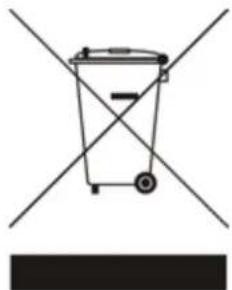
5.4.10 Waste Electrical and Electronic Equipment (WEEE) Directive Compliance (European Union)
This product was manufactured by Advanced Micro Devices, Inc.
natural_image
Simple line drawing of a trash bin with two crossed lines below, no text or symbols present.- Trademarks
- Disclaimer
- Important Safety Instructions
- Caution:
- Chapter 1 Getting Started .... 1
- Chapter 2 Hardware and Software Installation .... 3
- Chapter 3 Display Configuration .....7
- Chapter 4 Using the Control Center Software .....9
- Chapter 5 Reference....11
- System Requirements
- Recording Serial Numbers
- Chapter 2
- Hardware and Software Installation
- Installation Overview
- Installing a PCI Express Graphics Card
- Installing Graphics Drivers and Software
- AMD Drivers and Software
- AMD Automatic Application Detection and Configuration
- Baseplate Connections
- Connecting Displays
- Using Adapters
- Control Center Overview
- Starting the Control Center Software
- Workstation Card Troubleshooting
- Computer does not boot up properly.
- There is no display.
- Note:
- There are screen defects.
- The screen image is off-center or there are odd colors.
- The operating system warns that the graphics card isn't properly configured.
- There are bus address or interrupt conflicts.
- Workstation Customer Care
- Contact Information
- Disclaimer
- Workstation Warranty Service
- Shipping
- Limitations
- International Compliance Information
- FCC Compliance Information (USA)
- Class A
- Warning:
- Class B
- Industry Canada Compliance Statement (Canada)
- CE Compliance Information (European Union)
- Electrical Safety
- VCCI ITE Compliance Information (Japan)
- KC Certification Information (Korea)
- B급기기(가정용 방송통신기기)
- BSMI Certification Information (Taiwan)
- C-Tick (Australia and New Zealand)
- Product Environmental Compliance
- Waste Electrical and Electronic Equipment (WEEE) Directive Compliance (European Union)
Brand : DELL
Model : AMD FirePro S7000 4GB GDDR5
Category : Graphic card