SC6000 - Régulateur DATALOGIC - Free user manual and instructions
Find the device manual for free SC6000 DATALOGIC in PDF.


| Product Type | Temperature/Process Controller (Regulator) |
| Dimensions (W x H x D) | 48 x 48 x 90 mm (1/16 DIN) |
| Weight | Approximately 150 g |
| Power Supply | 100-240 VAC, 50/60 Hz |
| Display | Dual 4-digit LED display (red and green) |
| Input Types | Thermocouple (J, K, T, etc.), RTD (PT100), linear analog signals |
| Output Types | Relay, SSR driver, 4-20 mA analog output |
| Control Modes | On/Off, PID, Auto-tuning |
| Alarm Functions | High/low process alarm, deviation alarm, heater break alarm |
| Communication | RS-485 Modbus (optional) |
| Front Panel Rating | IP65 (splash-proof) |
| Operating Temperature | 0 to 50°C |
| Storage Temperature | -20 to 70°C |
| Mounting | Panel mount with included bracket |
| Main Functions | Temperature/process regulation, auto-tuning, alarm management, data logging |
| Maintenance and Cleaning | Wipe front panel with dry cloth; avoid solvents; periodic calibration check |
| Safety | Over-current protection, sensor break detection, manual reset for alarms |
| Spare Parts and Repairability | Replaceable relay module, terminal blocks; service by qualified technician |
| General Information | Compliant with CE, RoHS; 3-year warranty |
Frequently Asked Questions - SC6000 DATALOGIC
User questions about SC6000 DATALOGIC
0 question about this device. Answer the ones you know or ask your own.
Ask a new question about this device
Download the instructions for your Régulateur in PDF format for free! Find your manual SC6000 - DATALOGIC and take your electronic device back in hand. On this page are published all the documents necessary for the use of your device. SC6000 by DATALOGIC.
USER MANUAL SC6000 DATALOGIC
text_image
DATALOGIC SC6000 ControllerReference Manual
DATALOGIC
Datalogic Automation Srl
Via Lavino, 265
40050 - Monte S. Pietro
Bologna - Italy
SC6000 Reference Manual
Ed.: 10/2012
© 2003 – 2012 Datalogic Automation S.r.l. ♦ ALL RIGHTS RESERVED. ♦ Protected to the fullest extent under U.S. and international laws. Copying, or altering of this document is prohibited without express written consent from Datalogic Automation S.r.l.
Datalogic and the Datalogic logo are registered trademarks of Datalogic S.p.A. in many countries, including the U.S.A. and the E.U.
Genius, PackTrack, and DARP are trademarks of Datalogic Automation S.r.l. All other brand and product names mentioned herein are for identification purposes only and may be trademarks or registered trademarks of their respective owners.
Datalogic shall not be liable for technical or editorial errors or omissions contained herein, nor for incidental or consequential damages resulting from the use of this material.
REFERENCES......v
Reference Documentation....v
Services and Support ...... v
Patents....v
COMPLIANCE....vi
FCC Compliance ...... vi
Power Supply...... vi
CE Compliance....vi
GENERAL VIEW......vii
GUIDE TO INSTALLATION ix
1 INTRODUCTION .... 1
1.1 Product Description .... 1
1.2 Model Description....2
1.3 LED Indicators 2
1.4 Accessories 3
2 INSTALLATION 4
2.1 Package Contents ....4
2.2 Overall Dimensions....5
2.3 Mechanical Mounting....6
2.4 Electrical Connections 8
2.4.1 Main Interface 8
2.4.2 Auxiliary Interface 12
2.4.3 Modem Interface....12
2.4.4 Ethernet Interface 13
2.4.5 DeviceNet Interface 15
2.4.6 Profibus Interface....16
2.5 Typical Layouts....17
2.5.1 Large Synchronized Network Layout....17
2.5.2 Redundant System Layout 19
2.5.3 Standard SC6000 to Host Layout....20
2.5.4 SC6000 to Fieldbus Network Layout 23
2.6 Keypad and Display....24
2.6.1 Standard Mode 24
2.6.2 Redundancy Mode....27
2.6.3 Menu Mode....27
2.7 Auto Packtrack™ Calibration for Reading Station Using SC6000 Menu....29
2.7.1 Auto PackTrack Conditions and Limits 29
2.7.2 Auto PackTrack Parameter Descriptions....30
2.7.3 Auto PackTrack Setup 31
2.7.4 Auto PackTrack Report....34
2.7.5 AutoNet Setup Mode 35
3 SOFTWARE CONFIGURATION....36
3.1 Genius™ Installation....36
3.2 Guide to Rapid Configuration for SC6000 as Synchronized or Multidata Master.... 36
3.2.1 Genius™ Network Setup Through Master 38
3.2.2 Alternative Slave Address Assignment....42
3.3 Guide to Rapid Configuration for SC6000 as Controller Lon Old8K....42
3.4 Parameter Default Values....46
4 MAINTENANCE 51
4.1 Datalogic Automatic Replacement Procedure (DARP ™) 51
4.2 Automatic Scanner Replacement (ASR) 52
5 TROUBLESHOOTING 54
6 TECHNICAL FEATURES....56
A ALTERNATIVE CONNECTIONS REFERENCE....57
Power Supply - I/O (Power/Net Connector) 57
Extended I/O....60
GLOSSARY....63
INDEX......65
REFERENCE DOCUMENTATION
The documentation related to the SC6000 is listed below:
- PWO power supply unit
- Document about the Ethernet connectivity
- Document about the Profibus connectivity
- Guide to Installing a Redundant System
- Replacing an SC8000 Controller
• Help On-Line in PDF format
SERVICES AND SUPPORT
Datalogic provides several services as well as technical support through its website. Log on to www.automation.datalogic.com and click on the links indicated for further information:
- PRODUCTS
Search through the links to arrive at your product page which describes specific Info, Features, Applications, Models, Accessories, and Downloads including the Genius™ utility program, which allows device configuration using a PC. It provides RS232 and Ethernet interface configuration.
- SERVICE
- Overview - Warranty Extensions and Maintenance Agreements
- Sales Network Listing of Subsidiaries, Repair Centers, Partners
- Helpdesk
- Material Return Authorization
PATENTS
This product is covered by one or more of the following patents.
U.S. patents: 6,347,740 B1; 6,629,639 B2.
European patents: 851,376 B1; 1,363,228 B1.
Japanese patents: 4,033,958 B2.
FCC COMPLIANCE
Modifications or changes to this equipment without the expressed written approval of Datalogic could void the authority to use the equipment.
This device complies with PART 15 of the FCC Rules. Operation is subject to the following two conditions: (1) This device may not cause harmful interference, and (2) this device must accept any interference received, including interference which may cause undesired operation.
This equipment has been tested and found to comply with the limits for a Class A digital device, pursuant to part 15 of the FCC Rules. These limits are designed to provide reasonable protection against harmful interference when the equipment is operated in a commercial environment. This equipment generates, uses, and can radiate radio frequency energy and, if not installed and used in accordance with the instruction manual, may cause harmful interference to radio communications. Operation of this equipment in a residential area is likely to cause harmful interference in which case the user will be required to correct the interference at his own expense.
POWER SUPPLY
This product is intended to be installed by Qualified Personnel only.
CE COMPLIANCE
Warning:
This is a Class A product. In a domestic environment this product may cause radio interference in which case the user may be required to take adequate measures.
SC6000 Controller

text_image
1 2 3 4 5 SC6000 GPIO CONTROL CLOCK SPTC MOU A V SETCU DATALOGFigure A - General View
① Connector Panel
② Connector Panel Legend
③ Power On and Communication LEDs
④ LCD Display
⑤ Status LEDs
6 Programming Keypad
text_image
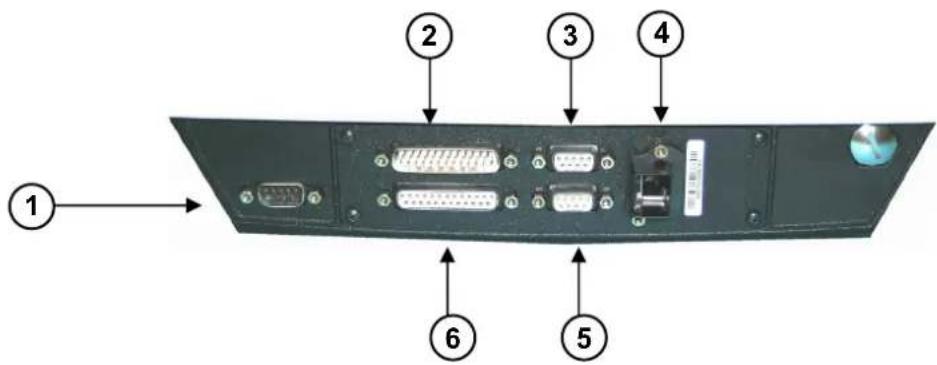
① ② ③ ④ ⑥ ⑤Figure B - SC6000-1200 Standard Model Connector Panel
① Modem Connector
② Power/Net Connector
③ Main Interface Connector
④ Ethernet Connector
⑤ Auxiliary Interface Connector
⑥ Extended I/O Connector

natural_image
Back view of a computer monitor rear panel showing multiple connected ports and a CD, with no visible text or symbols.Figure C - SC6000-1211 Profibus Model Connector Panel
① Profibus Connector

natural_image
Back panel of a computer interface showing multiple ports and connectors (no visible text or labels)Figure D - SC6000-1215 DeviceNet Model Connector Panel
① DeviceNet Connector

natural_image
Back panel of a computer monitor showing multiple ports and connectors (no visible text or labels)Figure E - SC6000-1230 Dual Ethernet Model Connector Panel
① Ethernet Connector
The following can be used as a checklist to verify all the steps necessary to complete installation of the SC6000 Controller.
1) Read all information in the section "Compliance" at the beginning of this manual.
2) Correctly mount the SC6000 using the bracket provided according to the information in par. 2.3.
3) Connect the SC6000 Controller to the PWO by means of the appropriate accessory cables (see par. 1.4).
4) Provide correct and complete system cabling through the PWO according to the signals (Lonworks, encoder P.S., etc) necessary for the layout of your application. (See subparagraphs under par. 2.4 and 2.5. See also the PWO Installation Manual).
5) Install the Genius™ configuration program onto a laptop PC from the CD-ROM provided. Configure the SC6000 Controller by connecting this PC to the SC6000 Auxiliary port.
For configuration of a cluster of DS6000 family scanners, or DS8100A/DX8200A scanners or both, see par. 3.2.
For configuration of a cluster of DS8100 or DX8200 scanners or both, see par. 3.3.
6) Execute the Backup procedure described in par. 4.1.
7) Exit the configuration program and run your application.
The installation is now complete.
1 INTRODUCTION
1.1 PRODUCT DESCRIPTION
The new SC6000 Controller offers all the necessary functions to make the phases of installation, setup, testing, and maintenance of the omni-directional reading tunnel easy and quick.
The SC6000 Controller key functions are:
- Bus Controller: cluster management and Host interface of a multisided reading tunnel based on Lonworks bus;
- DARP ^TM (Datalogic Automatic Replacement Procedure) function: automatic procedure for scanner and bus controller replacement;
- Diagnostic indications on the reading station status, simple to be detected without any PC needed. This indications, based on LEDs and display, offer to the maintenance staff all the necessary information;
- Easy remotization of all the reading station information, thanks to built-in Ethernet and fieldbus connectivity, and a dedicated 9-pin connector for Modem connection;
- Single and Redundant System configurations;
- Integration with RFID and Vision Systems; SC6000's efficiency in hybrid solutions represents a crucial competitive advantage for challenging application requirements.
- Auto PackTrack™ Calibration procedure from SC6000 Menu using the onboard Keypad and Display.
- Energy Saving allows allows turning on/off the motors and lasers of all network scanners according to the selected digital input, encoder, or communication channel. The time required to restart the system is less than 1 minute independently from the number of scanners connected. It is suggested to use this parameter for example when the conveyor is stopped for a lengthy period.
The SC6000 Controller is based on a robust alloy case divided into two parts: on the upper part there is the display, the keypad and the LEDs. The lower part contains the motherboard, the removable Compact-Flash memory, the Fieldbus boards and the connector panel.
The simple and sturdy mechanical structure makes the SC6000 Controller the ideal solution for industrial environments.
The SC6000 Controller is fully compatible both with the 6000 family and with the 8000 family (DS8100A and DX8200A) scanners. This means that the SC6000 Controller can work as a bus controller for a cluster of DS6000 family scanners, or DS8100A/DX8200A scanners or both. These slave scanner families no longer require a staggered starting sequence, therefore SC6000 starts them simultaneously.
The SC6000 Controller is also compatible with DS8100 and DX8200 (Lonworks versions). It is not possible to mix DS8100/DX8200 with 6000 family or DS8100A/DX8200A.
1.2 MODEL DESCRIPTION
The SC6000 Controller is available in versions that differ in regard to the following characteristics:
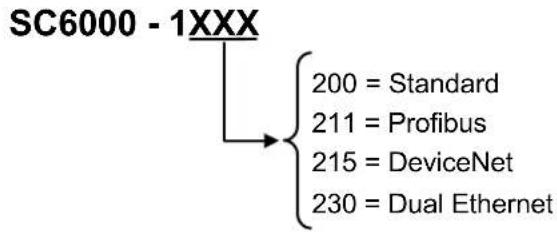
text_image
SC6000 - 1XXX 200 = Standard 211 = Profibus 215 = DeviceNet 230 = Dual Ethernet1.3 LED INDICATORS

text_image
DATALOGIC SC6000 Controller POWER ON FX GASE FX GASE ETHERNET PC PS AUX TACH NETWORK MENU ENTER CLEAR SETUP A V ① ②Figure 1 – LEDs Description
① Power ON and Communication LEDs
② Status LEDs
System Signal LEDs
| Name | Color | State | Function |
| Power ON | Green | ONOFF | SC6000 PoweredNo Power |
| Tx Data | Green | BlinkingOFF | Transmitting Data on MAINNo Data Transmission |
| Rx Data | Green | BlinkingOFF | Receiving Data on MAINNo Data Reception |
| Ethernet | Red | ONOFF | Ethernet Line ConnectedNo Ethernet Line Connected |
| PS | Yellow | ONOFF | Presence Sensor ActivePresence Sensor Not Active |
| PS Aux | Yellow | ONOFF | Presence Sensor ActivePresence Sensor Not Active |
| Tach | Yellow | BlinkingOFF | Encoder ActiveEncoder Not Active |
| Network | Red | ONOFF | Lonworks OKLonworks Error |
System Event Status LEDs
| Name | Color | State | Function |
| Warning | Red | ONBlinkingOFF | Scanner Cluster FailureScanner Cluster Warning (if enabled in Genius)Scanner Cluster OK |
| Status OK | Green | ONOFF | Controller Status OKController Failure |
1.4 ACCESSORIES
The following accessories are necessary to build a reading station based on SC6000 (the scanner-related accessories are not included):
| Name | Description | Part | Number |
| CAB – SC6003 25-pin cable SC6000 to PWO, 3m(for Extended I/O connections) | 93A051338 | ||
| CAB – SC6013 25-pin cable SC6000 to PWO, 3m(for Power/Net connections) | 93A051337 | ||
| CAB – SC6103 9-pin cable SC6000 to PWO, 3m(for Main Host and Modem connections) | 93A051294 | ||
| CAB – PWO 03 17-pin cable PWO to PWO, 3m(for redundancy) | 93A051295 | ||
| PWO-480 Power & Connect System, 480W 93ACC1767 | |||
| Modem INSYS Modem 56K 93A051294 | |||
2 INSTALLATION
To install the system follow the given procedure:
1) Select the mounting location and mount the SC6000 Controller;
2) Mount the PWO (refer to the PWO Installation Manual);
3) Proceed with system electrical connections;
4) Install the Genius™ program on the configuration PC.

NOTE
If your system requires the SC6000 to be connected to PWO refer to the Reference Documentation section for details.
2.1 PACKAGE CONTENTS
Verify that the SC6000 Controller and all the parts supplied with the equipment are present and intact when opening the packaging; the list of parts includes:
• SC6000 Controller
• Installation Quick Reference
• SC6000 Configuration CD-ROM
- Mounting brackets with knobs and washers
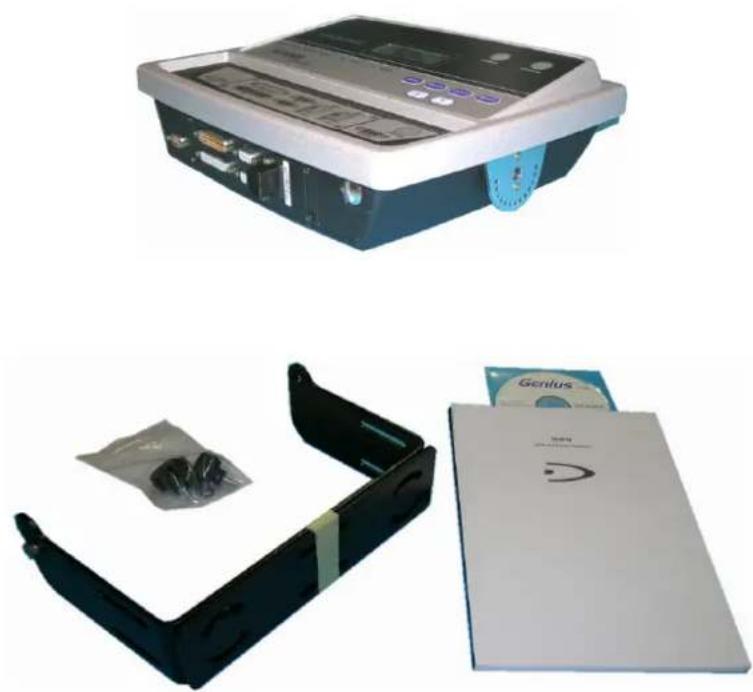
natural_image
Disassembled electronic device with open case, plastic cover, and CD card (no visible text or symbols)Figure 2 – SC6000 Package Contents
2.2 OVERALL DIMENSIONS
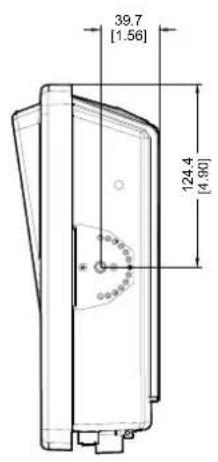
text_image
39.7 [1.56] 124.4 [4.90]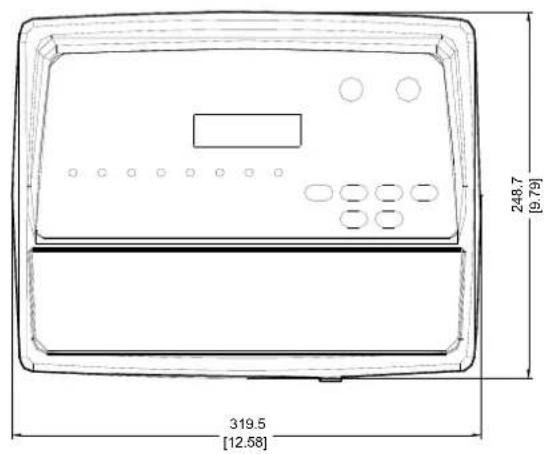
text_image
248.7 (9.79) 319.5 [12.58]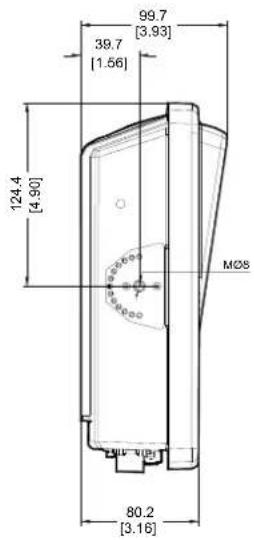
text_image
99.7 [3.93] 39.7 [1.56] 124.4 [4.90] MOS 80.2 [3.16]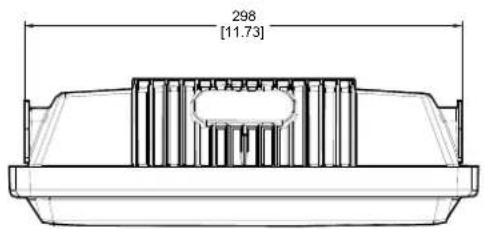
text_image
298 [11.73]mm inch
Figure 3 – SC6000 Overall Dimensions
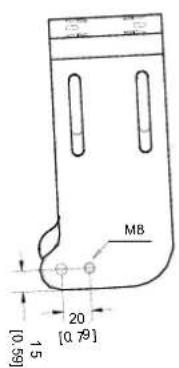
text_image
M8 [0.59] 15 20 [0.79]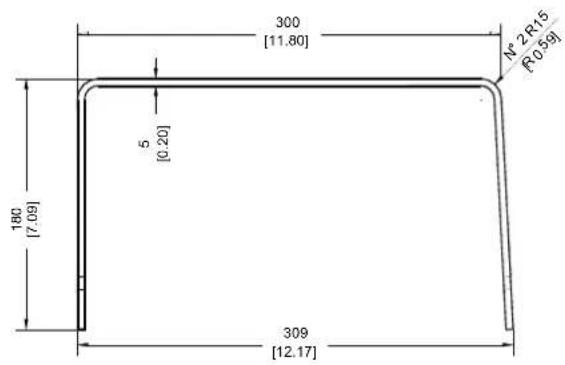
text_image
300 [11.80] N° 2 R15 R0 59 5 [0.20] 180 [7.09] 309 [12.17]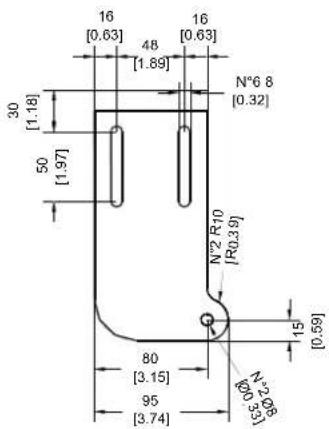
text_image
16 [0.63] 48 [1.89] 16 [0.63] N°6 8 [0.32] 30 [1.18] 50 [1.97] N°2 R10 [R0.39] 15 [0.59] 80 [3.15] 95 [3.74] N°2 0.00 15°30'00'
text_image
40 [1.57] 85 [3.35] 50 [1.97] 85 [3.35] 48 [1.89] 8 [0.33] N²φ66 [02,2] 40 [1.57] 40 [1.57]Figure 4 – ST-222 Bracket Overall Dimensions
2.3 MECHANICAL MOUNTING
To mount the SC6000 Controller on the reading station frame proceed as follows:
1 Mount the bracket on the reading station frame: the slots on the bracket will help obtain the best positioning. When working in environments characterized by strong vibrations, set the screws as close as possible to the bracket edges, see Figure 5.
2 Tighten the ST-222 bracket to the reading station frame using the screws and washers.
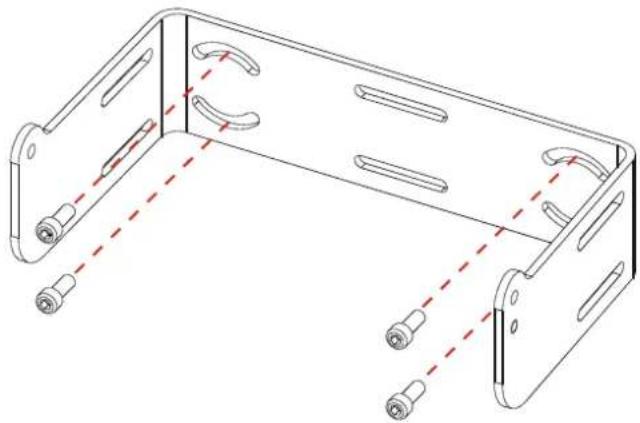
natural_image
Technical line drawing of a mechanical bracket with mounting holes and dashed red lines indicating alignment (no text or symbols)Figure 5 – Mounting the bracket on the reading station frame
3 Position the SC6000 Controller at the top of the bracket: make sure the two large round openings coincide to the ones located at the edges of the SC6000 Controller.
4 While supporting the SC6000 Controller, rotate the whole device until it is aligned for the best viewing position, then insert the set pin screw with locking washer until it inserts into one of the small positioning holes located on the terminal bracket.
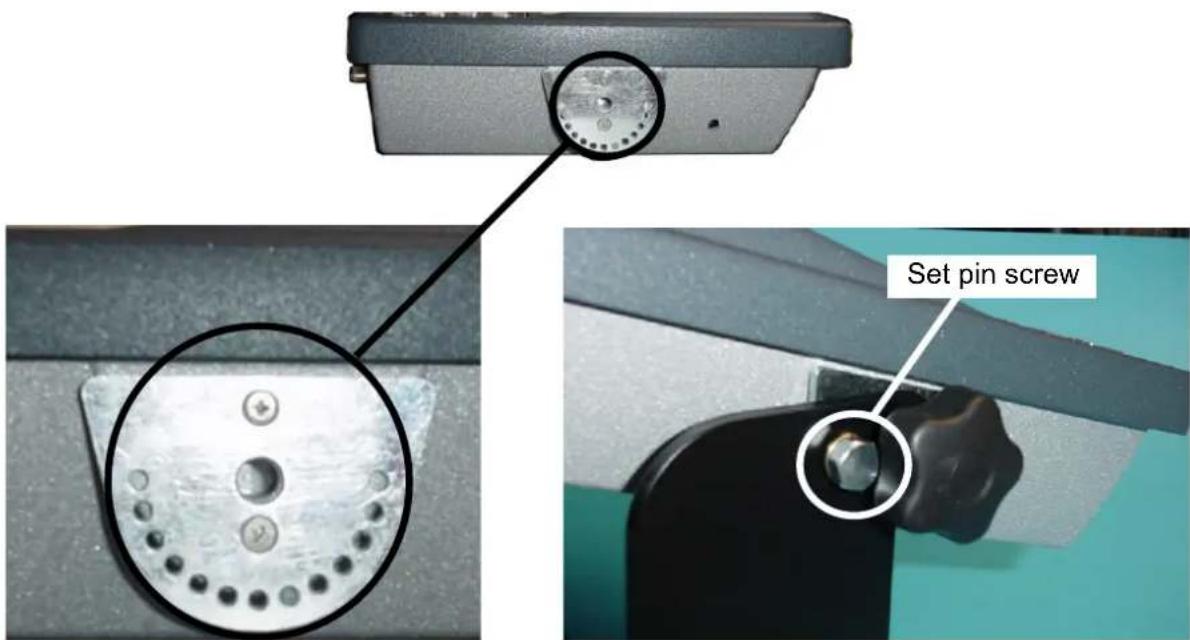
text_image
Set pin screwFigure 6 – SC6000 Controller Side View with Punched Steel Ring and Relative Set Pin Screw
The specially punched steel ring has been designed to obtain the most precise rotation possible in terms of angle calibration, steadiness and consequent absence of torque between both sides of device.
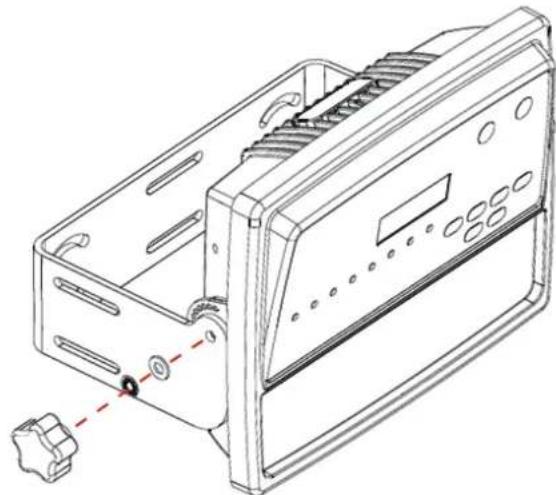
5 Place a locking washer and then a flat washer onto each knob. Tighten the SC6000 Controller to its bracket by screwing the knobs into their holes – one on each side.
natural_image
Technical line drawing of a mechanical housing with mounting holes and a red dashed alignment line (no text or symbols)Figure 7 - Mounting the SC6000 Controller on the bracket
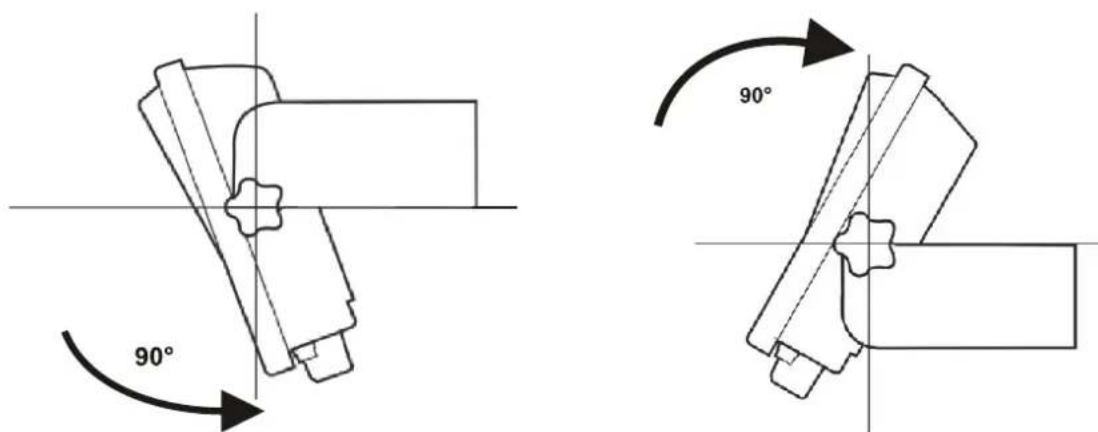
The SC6000 Controller can rotate on its mounting bracket up to 90° with respect to the mounting bracket position. See figure below for suggested positions:
text_image
90° 90°Figure 8 – Suggested Mounting Positions
2.4 ELECTRICAL CONNECTIONS
The connectors available for each scanner model are the following:
| Scanner Model C | Connector Type | |
| All models | Power/Net 25-pin male power supply, lonworks and input/output signals; see Appendix A | |
| Extended I/O 25-pin female extended I/O signals (optoisolated); see Appendix A | ||
| Main 9-pin female RS232/RS485 main serial connection | ||
| Aux 9-pin female RS232 auxiliary connection | ||
| Modem 9-pin male modem connection | ||
| Eth-1 RJ45 modular Ethernet network | ||
| - 1230 | Eth-2 RJ45 modular Ethernet network | |
| - 1211 | Profibus 9-pin female Profibus network | |
| - 1215 | DeviceNet 5-pin male DeviceNet network | |
2.4.1 Main Interface
The main serial interface is compatible with the following electrical standards:
RS232
RS485 full-duplex

CAUTION
Do not connect GND and GND_ISO to different (external) ground references. GND and GND_ISO are internally connected through filtering circuitry which can be permanently damaged if subjected to voltage drops over 0.8 Vdc.
Details regarding the connections and use of the main interface selection are given in the next paragraphs.
| 9-pin D-sub Female Connector Pinout | |||
| Pin | RS232 | RS485Full Duplex | 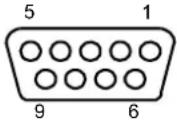 9-pin D-sub Female Connector 9-pin D-sub Female Connector |
| 2 | TX | TX485 | |
| 3 | RX | RX485 + | |
| 5 | GND_ISO | GND_ISO | |
| 7 | CTS | RX485 - | |
| 8 | RTS | TX485 - | |
RS232 Interface
The main serial interface is used for communication with the Host computer and allows both transmission of code data and controller configuration. The connections to the Host can be made as follows:
- through the PWO (in which case a CAB-SC6103 cable connects the PWO to the SC6000)
• directly to the SC6000
See also par. 2.5.1.
It is always advisable to use shielded cables. The overall maximum cable length must be less than 15 m (49.2 ft).
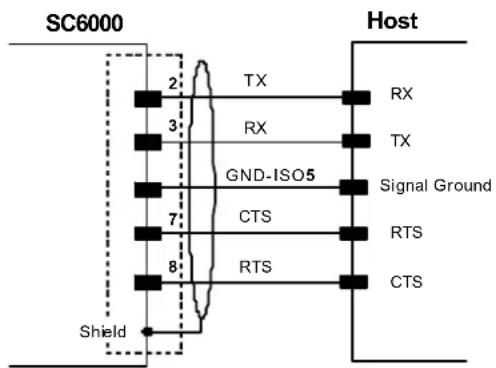
The following pins of the 9-pin connector are used for RS232 interface connection:
| Pin | Name | Function | ||
| 2 | TX | Transmit | ||
| 3 | RX | Receive | ||
| 5 | GND_ISO | Main | signal | |
| 7 | CTS | Clear to send | ||
| 8 | RTS | Request to send |
The RTS and CTS signals control data transmission and synchronize the connected devices. If the RTS/CTS hardware protocol is enabled, the SC6000 activates the RTS output to indicate a message can be transmitted. The Host must activate the CTS input to enable the transmission.

flowchart
graph LR
    subgraph SC6000
        A["2"] --> B["TX"]
        C["3"] --> D["RX"]
        E["7"] --> F["GND-ISO5"]
        G["8"] --> H["CTS"]
    end
    subgraph CAB-SC6103
        B --> I["×"]
        D --> J["×"]
        F --> K["×"]
        H --> L["×"]
    end
    subgraph PWO
        I --> M["RX"]
        J --> N["TX"]
        K --> O["Signal Ground"]
        L --> P["CTS"]
    end
    subgraph Host
        M --> Q["×"]
        N --> R["×"]
        O --> S["×"]
        P --> T["×"]
        Q --> U["×"]
        R --> V["×"]
        S --> W["×"]
    end
    X["Shield"] --> Y["Ground"]
Figure 9 - RS232 Connections: Host - PWO- SC6000
text_image
SC6000 Host TX RX TX GND-ISO5 CTS RTS CTS ShieldFigure 10 - RS232 Connections: Host - SC6000
RS485 Full-Duplex Interface
The RS485 full-duplex interface is used for non-polled communication protocols in point-to-point connections over longer distances (max 1200 m / 3940 ft) than those acceptable for RS232 communications or in electrically noisy environments. The connections to the Host can be made as follows:
- through the PWO (in which case a CAB-SC6103 cable connects the PWO to the SC6000)
- directly to the SC6000
See also par. 2.5.1.
The following pins of the 9-pin connector are used for RS485 full-duplex interface connection:
| Pin | Name | Function | ||
| 2 | TX485 + RS485 output (+) | |||
| 3 | RX485 + RS485 input (+) | |||
| 5 | GND-ISO | Main | signal | ground |
| 7 | RX485 - RS485 input (-) | |||
| 8 | TX485 - RS485 output (-) | |||
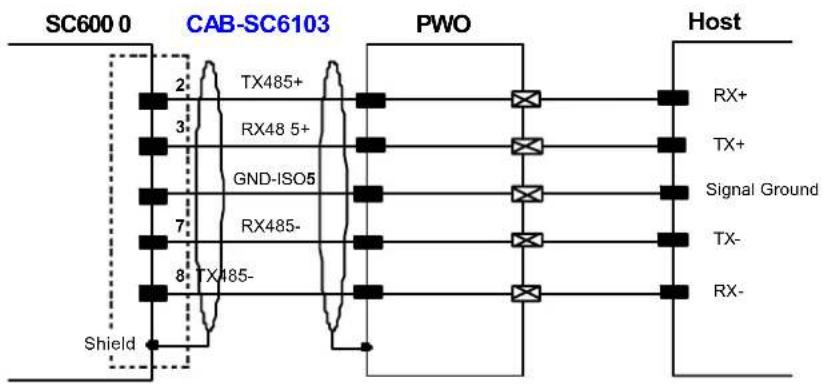
flowchart
graph LR
    subgraph SC600 0
        A["2"] --> B["TX485+"]
        C["3"] --> D["RX48 5+"]
        E["7"] --> F["GND-ISO5"]
        G["8"] --> H["TX485-"]
    end
    subgraph CAB-SC6103
        B --> I["PWO"]
        D --> I
        F --> I
        H --> I
    end
    subgraph PWO
        I --> J["Host"]
        I --> K["RX+"]
        I --> L["TX+"]
        I --> M["Signal Ground"]
        I --> N["TX-"]
        I --> O["RX-"]
    end
    subgraph Shield
        B --> P["PWO"]
        D --> P
        F --> P
        H --> P
    end
Figure 11 - RS485 Full-Duplex Interface Connections: Host - PWO- SC6000
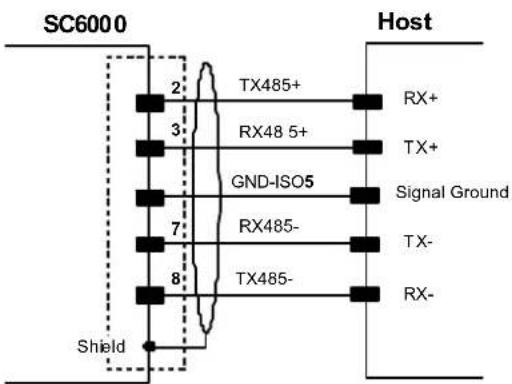
text_image
SC6000 Host TX485+ RX+ RX48 5+ TX+ GND-ISO5 Signal Ground TX- TX485- RX- ShieldFigure 12 - RS485 Full-Duplex Interface Connections: Host - SC6000

NOTE
For applications that do not use RX485 signals, do not leave these lines floating but connect them to GND-ISO as shown below.

flowchart
graph TD
    A["SC600 0"] --> B["CAB-SC6103"]
    B --> C["PWO"]
    C --> D["Host"]
    subgraph SC600 0
        E["TX485+"] --> F["RX+"]
        G["RX48 5+"] --> H["TX+"]
        I["GND-ISO5"] --> J["Signal Ground"]
        K["RX485-"] --> L["TX-"]
        M["TX485-"] --> N["RX-"]
    end
    subgraph CAB-SC6103
        O["TX485+"] --> P["RX+"]
        Q["RX48 5+"] --> R["TX+"]
        S["GND-ISO5"] --> T["Signal Ground"]
        U["RX485-"] --> V["TX-"]
        W["TX485-"] --> X["RX-"]
    end
    subgraph PWO
        Y["TX485+"] --> Z["RX+"]
        AA["RX48 5+"] --> AB["TX+"]
        AC["GND-ISO5"] --> AD["Signal Ground"]
        AE["RX485-"] --> AF["TX-"]
        AG["TX485-"] --> AH["RX-"]
    end
    subgraph Shield
        AI["Shield"] --> AJ["Ground"]
    end
Figure 13 - RS485 Full-Duplex Interface Connections Using Only TX Signals

text_image
SC6000 Host TX485+ RX+ TX+ GND-ISO5 Signal Ground TX- TX- RX- ShieldFigure 14 - RS485 Full-Duplex Interface Connections Using Only TX Signals: Host - SC6000
2.4.2 Auxiliary Interface
The auxiliary serial interface is equipped with RS232 interface connections. The interface can be enabled or disabled through the Genius™ configuration program.
The following pins of the 9-pin connector are used for RS232 interface connection:
| 9-pin D-sub Female Connector Pinout | |||
| Pin | Name | Function | 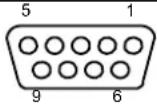 9-pin D-sub Female Connector 9-pin D-sub Female Connector |
| 2 | TX | Transmit | |
| 3 | RX | Receive | |
| 5 | GND | Ground | |
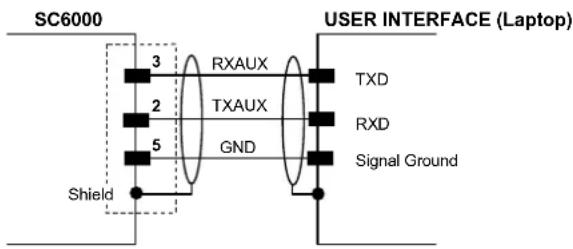
text_image
SC6000 3 RXAUX TXAUX GND Shield USER INTERFACE (Laptop) TXD RXD Signal GroundFigure 15 – RS232 Auxiliary Interface Connections
2.4.3 Modem Interface
SC6000 offers a dedicated 9-pin port for a Modem connection. The modem connection allows a Host to remotely control the reading station. The connections to modem can be made as follows:
- through the PWO (in which case the modem is installed internally to the PWO and a CAB-SC6103 cable connects the modem from the PWO to the SC6000)
- directly to the SC6000
See also par. 2.5.1.
| 9-pin D-sub Male Connector Pinout | |||
| Pin | Name | Function | |
| 1 | CD | Carrier detect |  |
| 2 | RX | Receive | |
| 3 | TX | Transmit | |
| 4 | DTR Data terminal | read y | |
| 5 | GND Ground | ||
| 6 | DSR Data set read | y | |
| 7 | RTS | Request to send | 9-pin D-sub Male Connector |
| 8 | CTS | Clear to send | |
| 9 | RI | Ring indicator | |
2.4.4 Ethernet Interface
This connector is available for all SC6000 Controller models and allows the Ethernet connection to the host.
In the SC6000-1230 Dual Ethernet there are two Ethernet connectors for secondary host connections.

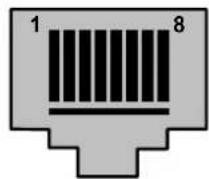
Figure 16 – SC6000 Harting RJ Industrial® Female Connector

NOTE
For Ethernet connections, always use the Harting RJ Industrial® Push Pull Ethernet connector (included in the package). This connector assures a robust connection and full IP rated protection.

Figure 17 – Harting RJ Industrial® Push Pull Male Connector
This interface and the connector pinout (see the following table) are IEEE 802.3 10 BaseT and IEEE 802.3u 100 BaseTx compliant.
| RJ45 Modular Jack Pinout | ||
| Pin | Name | Function |
| 1 TX +2 TX -3 RX +6 RX -4, 5, 7, 8 N.C. | Transmitted data (+)Transmitted data (-)Received data (+)Received data (-) | |
The Ethernet interface (NIC) can be used for TCP/IP communication with a remote or local host computer by connecting the SC6000 Controller to a LAN or directly to a host PC.
The following is an example of a connection to a LAN through a Hub using a straight through cable:
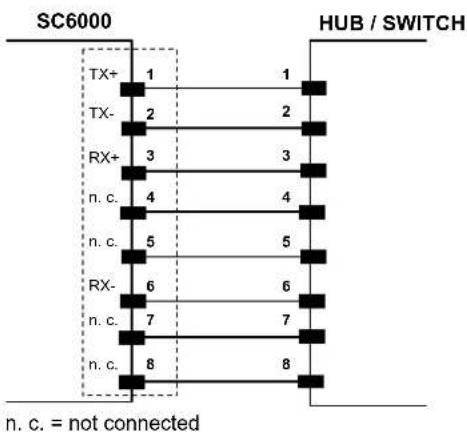
flowchart
graph TD
    A["SC6000"] --> B["TX+ 1"]
    A --> C["TX- 2"]
    A --> D["RX+ 3"]
    A --> E["n. c. 4"]
    A --> F["n. c. 5"]
    A --> G["RX- 6"]
    A --> H["n. c. 7"]
    A --> I["n. c. 8"]
    J["HUB / SWITCH"] --> K["1"]
    J --> L["2"]
    J --> M["3"]
    J --> N["4"]
    J --> O["5"]
    J --> P["6"]
    J --> Q["7"]
    J --> R["8"]
    style A fill:#f9f,stroke:#333
    style J fill:#ccf,stroke:#333
    note bottom of A: n. c. = not connected
Figure 18 – Straight Through Cable
The following is an example of direct connection to a PC using an inverted cable:

flowchart
graph TD
    subgraph SC6000
        A["TX+"] --> B["1"]
        C["TX-"] --> D["2"]
        E["RX+"] --> F["3"]
        G["n. c."] --> H["4"]
        I["n. c."] --> J["5"]
        K["RX-"] --> L["6"]
        M["n. c."] --> N["7"]
        O["n. c."] --> P["8"]
    end
    subgraph Host PC
        Q["TX+"] --> R["3"]
        S["TX-"] --> T["6"]
        U["RX+"] --> V["1"]
        W["n. c."] --> X["4"]
        Y["n. c."] --> Z["5"]
        AA["RX-"] --> AB["2"]
        AC["n. c."] --> AD["7"]
        AE["n. c."] --> AF["8"]
    end
    style SC6000 fill:#f9f,stroke:#333
    style Host PC fill:#ccf,stroke:#333
    note bottom
        n.c. = not connected
    end
Figure 19 – Inverted Cable
For further details refer to the “Ethernet Service Guide” document provided as reference documentation.
2.4.5 DeviceNet Interface
The 5-pin male connector is only available in the SC6000-1215 DeviceNet model and allows connection between the host and the controller:

text_image
4 5 3 1 2Figure 20 – DeviceNet 5-pin Male Connector
| 5-pin DeviceNet connector pinout | ||
| Pin | Name | Function |
| 2 V + 5 CAN | Supply voltage – positive pin | |
| N_L CAN bus data line – L | ||
| 1 | SHIELD | Shield |
| 4 CAN | H CAN bus data line – H | |
| 3 V - | Supply voltage – negative pin | |

NOTE
The power supplied on pin V+ and V- is used only to propagate power to the section of the DeviceNet board directly connected to the Bus. It is completely isolated from the SC6000 power, which must be supplied on pin 16 and pin 3, 4 of the 25-pin Power/Net connector.
2.4.6 Profibus Interface
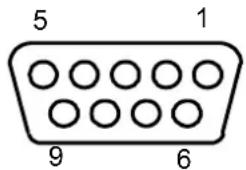
The 9-pin female Profibus connector (white) is only available in the SC6000-1211 Profibus model and allows connection between the host and the controller:
text_image
5 1 9 6Figure 21 – Profibus 9-pin Female Connector
| 9-pin D-sub Female Profibus connector pinout | ||
| Pin | Name | Function |
| 1 | Shield* Shield, protective ground resp. | |
| 2 | N.C. Not connected | |
| 3 | B-LINE (RxD/TxD-P) Received/Transmitted data-P | |
| 4 | CNTR-P** Repeater control signal | |
| 5 | DGND Data ground (M5V) | |
| 6 | +5 V Voltage plus (P5V) | |
| 7 | N.C. Not connected | |
| 8 | A-LINE (RxD/TxD-N) Received/Transmitted data | |
| 9 | CNTR-N** Repeater control signal | |
• signal is optional
** signal is optional; RS485 level
The Profibus interface is used for communication with a Host and allows expanding the networking and remote diagnostic capabilities of the controller.
For further details refer to the "Profibus_Fam6k.pdf" document provided as supplementary documentation.
2.5 TYPICAL LAYOUTS
The following typical layouts refer to system hardware configurations, but also require the correct setup of the software configuration parameters (see par. 3.2 for details).
Other layouts require the use of a specific SC6000 Controller model.
The accessories and cables indicated in the following figures are Datalogic products. We suggest their use to guarantee the correct system functioning.
2.5.1 Large Synchronized Network Layout
When building a large local Lonworks network (more than 10 scanners), an SC6000 Controller must be used together with a PWO power supply/junction box unit. In this case the SC6000 unit acts as the system master and is connected to the host through one of its interfaces.
All scanners act as slaves and are connected to the SC6000 through the PWO power supply/junction box. For DS8100A/DX8200A scanners, 4 branch connectors provide Lonworks communications between the scanners and the SC6000 unit. The last scanner on the line requires a Termination connector as well as any unused branches in the PWO unit.
The allowed maximum bus length is 65 m.
External devices such as a presence sensor and an encoder are all connected to the PWO.

flowchart
graph TD
    Host["Host"] --> HUB["HUB"]
    HUB --> SC6000["SC6000"]
    SC6000 -->|ETHERNET| CABSC6013["CAB-SC6103 Cable"]
    CABSC6013 -->|VAC INPUT| PWO["PWO"]
    CABSC6013 -->|AUX| LONWORKS["LONWORKS"]
    LONWORKS -->|CAB-81xx| DX8200A["A DX8200A"]
    LONWORKS -->|CAB-81xx| DS8100A["DS8100A"]
    LONWORKS -->|CAB-81xx| CX8100A_C["X C E G"]
    LONWORKS -->|CAB-81xx| CX8100A_D["X D"]
    LONWORKS -->|BTK-8100 Bus Return| CX8100A_D["X D X8200A"]
    LONWORKS -->|BTK-8100 Bus Return| CX8100A_F["X F DX8200A"]
    LONWORKS -->|ENCODER| PWO
    LONWORKS -->|PS PS Aux| PWO
    SC6000 -->|HUB| HUB
Figure 22 – Large Synchronized Network with DX8200A and DS8100A Scanners

text_image
E D F C B G H A SC6000 Conveyor PWOFigure 23 – Example Large Synchronized Network Reading Station
Here are a few helpful hints which can improve station performance and reduce installation time:
- Scanner distribution should alternate between odd and even branches so that the station guarantees 50% reading on all sides. See also Figure 22.
- For OEK Encoders set the parameter Operating Mode>Encoder Step = 252.
natural_image
Close-up of a circular metal dial with a red pointer and measurement markings (no readable text or symbols)
text_image
OFF ON 1 2 3 4 5 6 7 8- For Top Front and Top Back scanners (C and D in Figure 23), set the parameter Reading Parameters>Reading Condition = Skew 45°.
- For applications having regular shaped packs the default settings are sufficient, but for Airport applications, irregular shaped packs can cause PS signal glitches resulting in false "packs too short" or "packs too close" errors.

text_image
200 mmTo correct this, set the following Operating Modes parameters: Minimum Distance Between Packs = 200 mm, Minimum Pack Length = 200 mm, Window Dimension = 200 mm.
2.5.2 Redundant System Layout
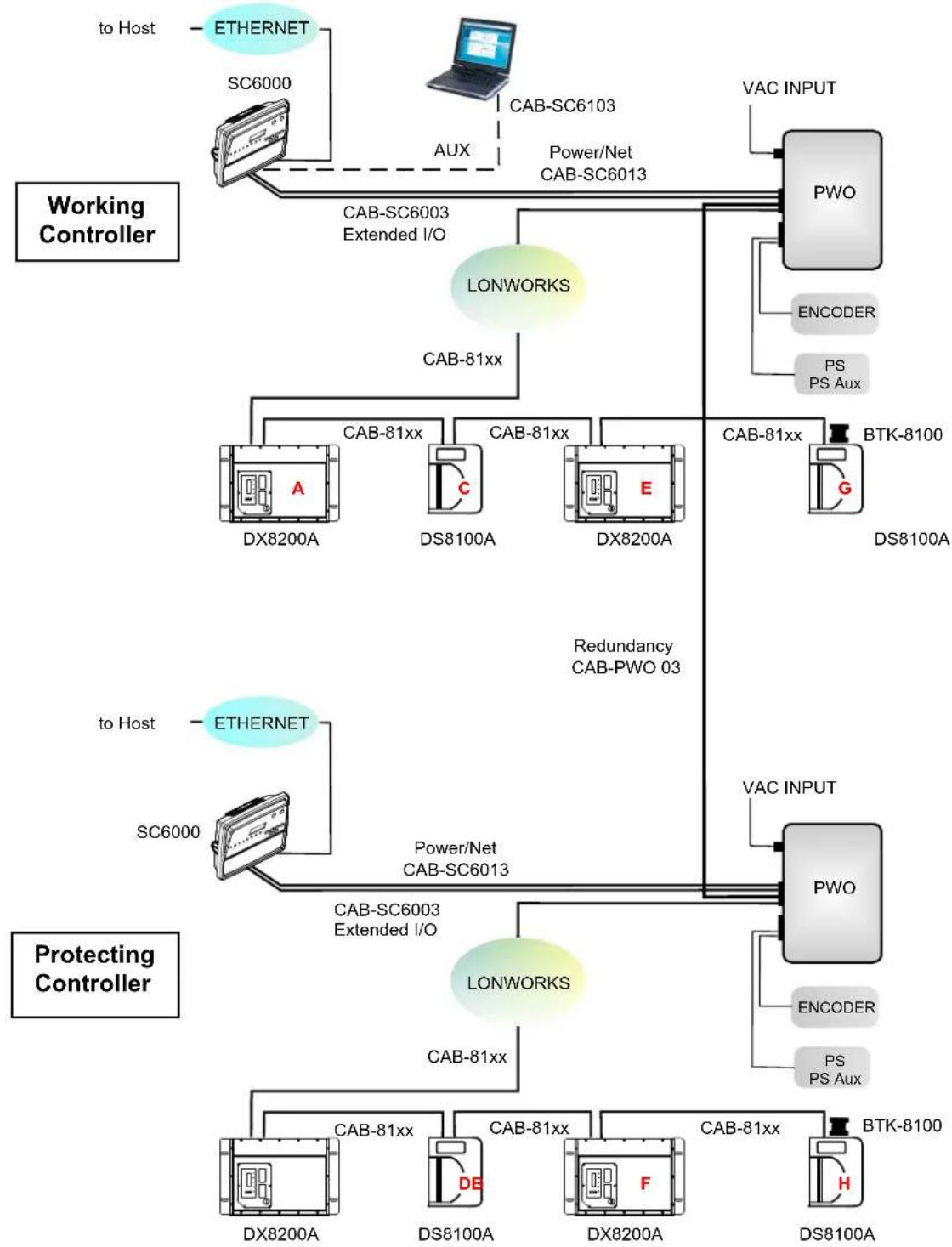
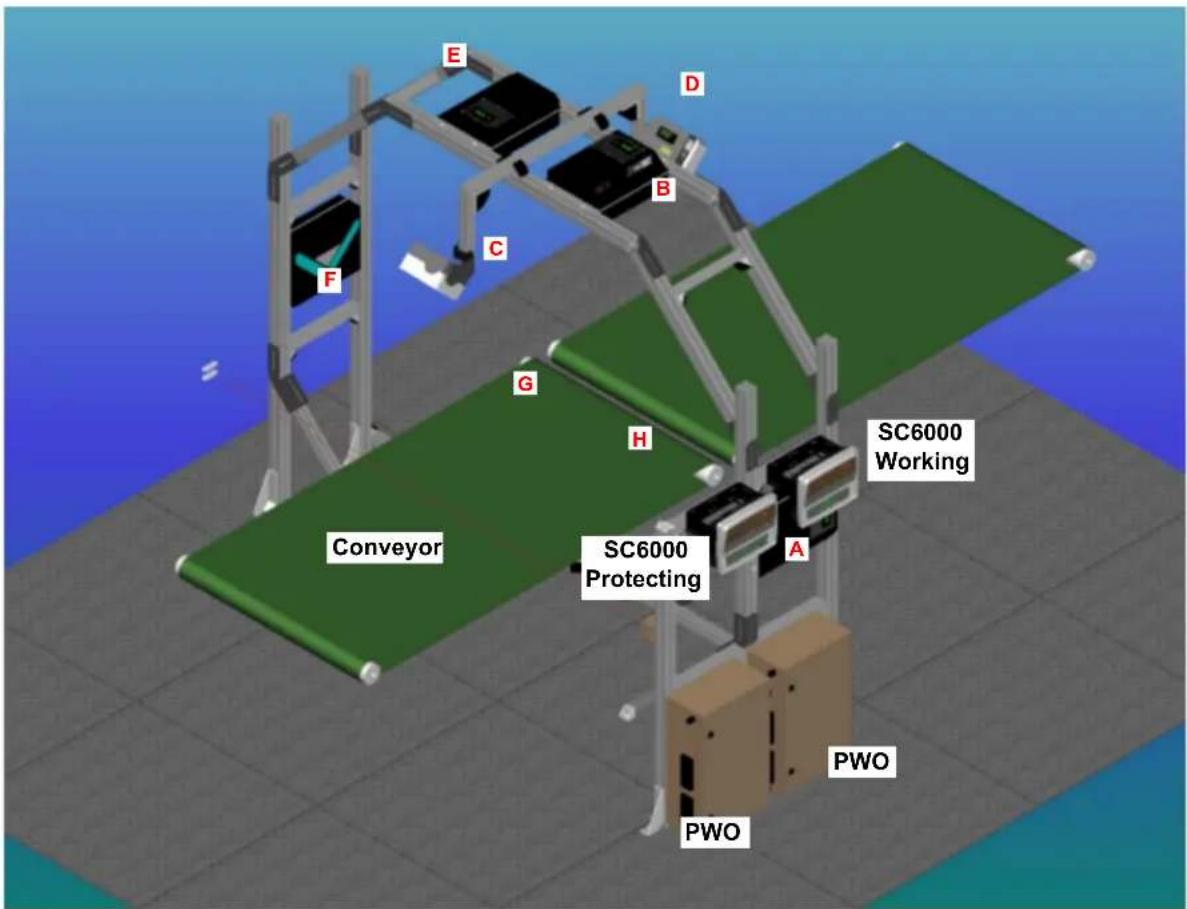
For large local Lonworks networks, a redundant system can per configured in which two SC6000 Controllers are used together with their respective PWO power supply/junction box units. The scanners are distributed equally between the PWO units. In this case one of the SC6000 Controllers is dedicated as the working or active unit while the other functions as a dedicated protecting or backup unit.
flowchart
graph TD
    subgraph_Working_Controller["Working Controller"]
        direction TB
        A["ETHERNET"] --> B["SC6000"]
        B --> C["AUX"]
        C --> D["CAB-SC6003 Extended I/O"]
        D --> E["LONWORKS"]
        E --> F["CAB-81xx"]
        F --> G["DX8200A"]
        F --> H["DS8100A"]
        F --> I["DX8200A"]
        I --> J["CAB-81xx"]
        J --> K["E"]
        K --> L["BTK-8100"]
        L --> M["G"]
        M --> N["PS PS Aux"]
        N --> O["PWO"]
        P["VAC INPUT"] --> Q["PWO"]
        Q --> R["ENCODER"]
        R --> S["PWO"]
        T["Reducancy CAB-PWO 03"] --> U["CAB-81xx"]
        U --> V["BTK-8100"]
    end

    subgraph_Protecting_Controller["Protecting Controller"]
        direction TB
        W["ETHERNET"] --> X["SC6000"]
        X --> Y["CAB-SC6003 Extended I/O"]
        Y --> Z["LONWORKS"]
        Z --> AA["CAB-81xx"]
        AA --> AB["CAB-81xx"]
        AB --> AC["DX8200A"]
        AB --> AD["DS8100A"]
        AB --> AE["DX8200A"]
        AE --> AF["CAB-81xx"]
        AF --> AG["DFT"]
        AG --> AH["BSK-8100"]
        AI["VAC INPUT"] --> AJ["PWO"]
        AJ --> AK["ENCODER"]
        AL["PS PS Aux"] --> AM["PWO"]
        AN["PS PS Aux"] --> AO["PWO"]
    end

    style Working_Controller fill:#f9f,stroke:#333
    style Protecting_Controller fill:#ccf,stroke:#333
Figure 24 - Redundant Reading Station Layout with DX8200A and DS8100A Scanners
text_image
E D B C F G H Conveyor SC6000 Working A SC6000 Protecting PWO PWOFigure 25 – Example Redundant Reading Station
2.5.3 Standard SC6000 to Host Layout
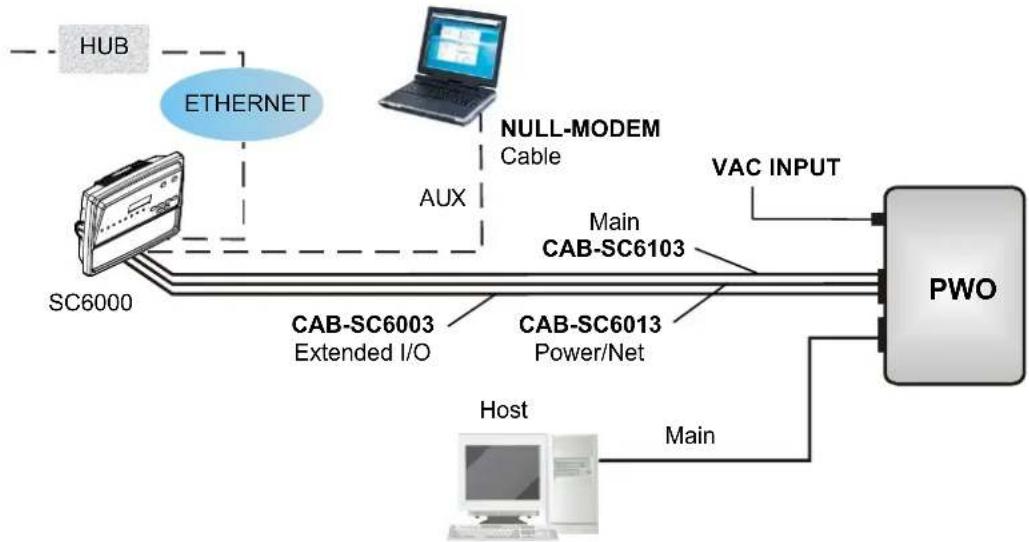
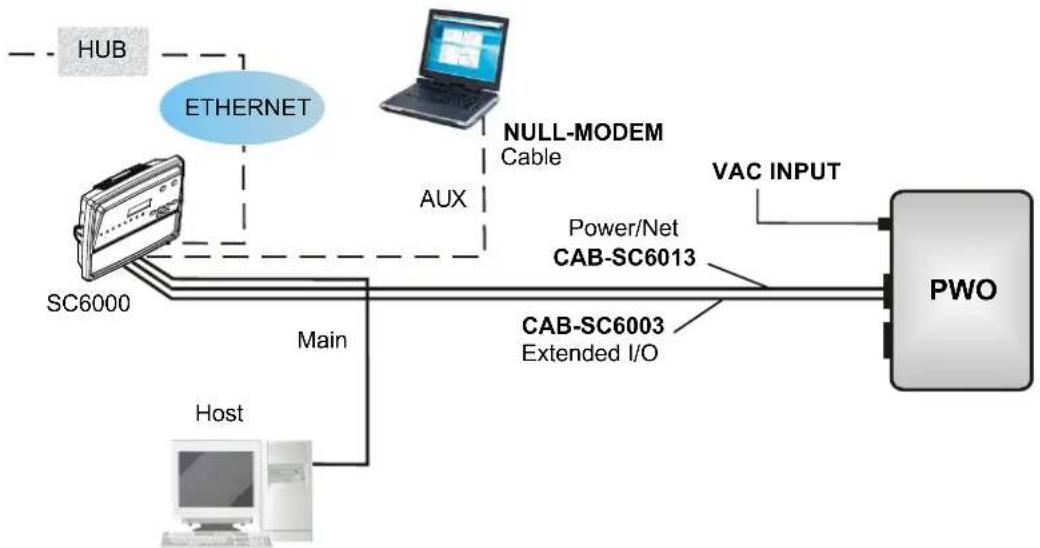
The SC6000 can be connected to the Host in several different layouts:
- Ethernet direct or through Hub;
- point-to-point on the Main interface using either RS232 or RS485 full-duplex communications to Host;
- directly to a modem for remote Host communications.

flowchart
graph LR
    Host["Host"] --> HUB["HUB"]
    HUB -->|ETHERNET| SC6000["SC6000"]
    SC6000 -->|AUX| NULL-MODEM["NULL-MODEM Cable"]
    NULL-MODEM -->|Power/Net CAB-SC6013| CAB-SC6003["CAB-SC6003 Extended I/O"]
    CAB-SC6003 -->|VAC INPUT| PWO["PWO"]
Figure 26 – Ethernet Connection
flowchart
graph LR
    HUB -->|Ethernet| SC6000
    SC6000 -->|AUX| NULL-MODEM Cable
    NULL-MODEM Cable -->|Main CAB-SC6103| PWO
    SC6000 -->|CAB-SC6003 Extended I/O| CAB-SC6013 Power/Net
    CAB-SC6013 -->|VAC INPUT| PWO
    PWO --> Host
    Host -->|Main| CAB-SC6013
Figure 27 – Main Connection through PWO
flowchart
graph LR
    HUB -->|Ethernet| Ethernet
    Ethernet -->|AUX| SC6000
    SC6000 -->|Main| Host
    Host -->|Main| SC6000
    SC6000 -->|CAB-SC6003 Extended I/O| CAB-SC6013
    CAB-SC6013 -->|VAC INPUT| PWO
    CAB-SC6013 -->|NULL-MODEM Cable| Laptop
Figure 28 – Main Connection directly to SC6000

flowchart
graph LR
    HUB -->|Ethernet| Ethernet
    Ethernet -->|AUX| CAB-SC6013["Modem"]
    CAB-SC6013 -->|CAB-SC6003 Extended I/O| CAB-SC6013
    CAB-SC6013 -->|Power/Net CAB-SC6013| PWO
    PWO -->|VAC INPUT| Power/Net
    PWO -->|Telephone line to Remote Host| PWO
    SC6000 -->|SC6000| Ethernet
    HUB -.->|HUB| Ethernet
Figure 29 – Modem Connection through PWO

flowchart
graph LR
    HUB -->|Ethernet| Ethernet
    Ethernet -->|AUX| CAB-SC6013
    CAB-SC6013 -->|VAC INPUT| PWO
    SC6000 --> Modem
    Modem --> TelephoneLine["Telephone line to Remote Host"]
    CAB-SC6003 -->|Cable| NULL-MODEM
    CAB-SC6003 -->|Extended I/O| CAB-SC6013
Figure 30 – Modem Connection directly to SC6000
2.5.4 SC6000 to Fieldbus Network Layout
The SC6000 can be connected to a Fieldbus network (Ethernet, DeviceNet, or Profibus) to communicate with a remote host (for example, remote PC connected via Internet). Connections are made directly through cables to the Fieldbus connector and do not require any converter or adapter.
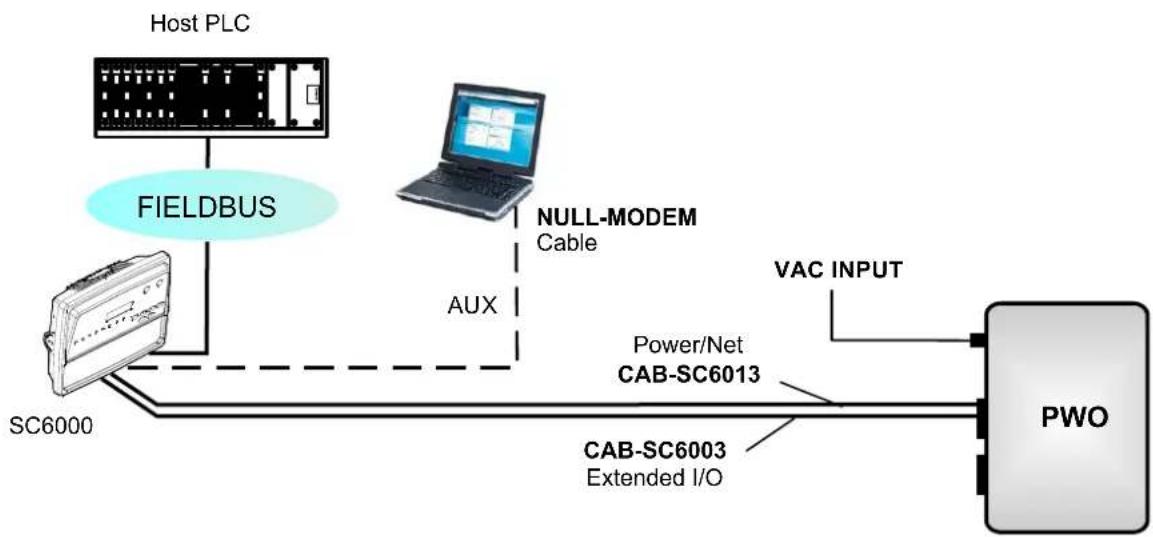
flowchart
graph LR
    A["Host PLC"] --> B["FIELDBUS"]
    B --> C["SC6000"]
    C --> D["AUX"]
    D --> E["NULL-MODEM Cable"]
    E --> F["VAC INPUT"]
    F --> G["PWO"]
    G --> H["CAB-SC6003 Extended I/O"]
    H --> I["Power/Net CAB-SC6013"]
Figure 31 – Fieldbus Network
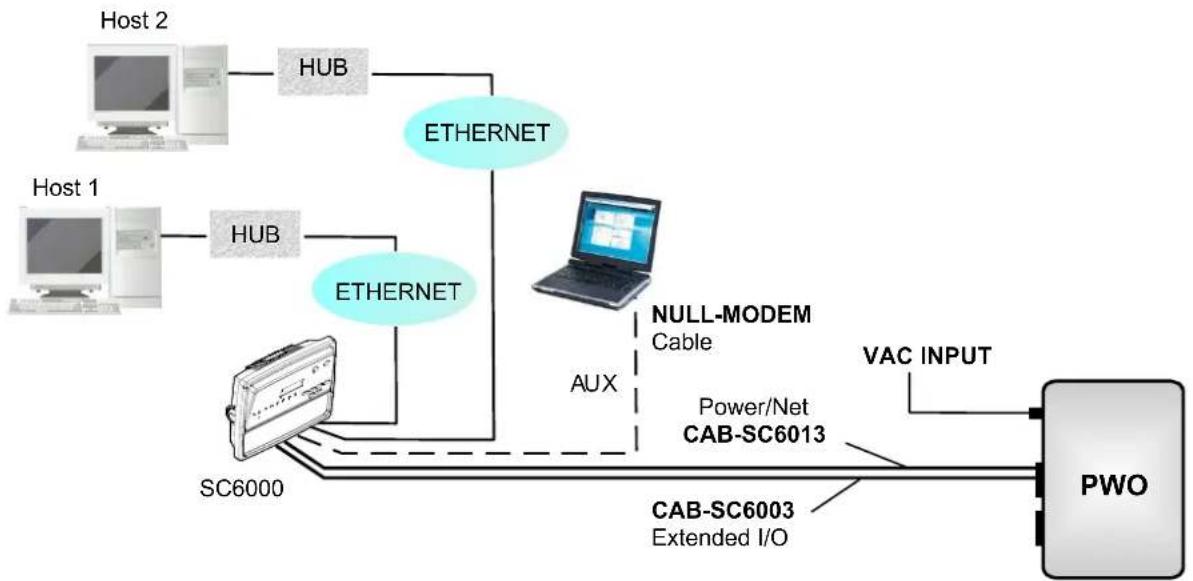
flowchart
graph TD
    Host2["Host 2"] --> HUB1["HUB"]
    Host1["Host 1"] --> HUB2["HUB"]
    HUB1 --> ETHERNET["ETHERNET"]
    HUB2 --> ETHERNET
    ETHERNET --> PC["PC"]
    PC --> SC6000["SC6000"]
    SC6000 --> CABSC6003["CAB-SC6003 Extended I/O"]
    CABSC6003 --> PWO["PWO"]
    PC --> NULLMODEM["NULL-MODEM Cable"]
    PC --> VACINPUT["VAC INPUT"]
    HUB1 --> HUB2
    HUB2 --> ETHERNET
    SC6000 -.->|dashed line| CABSC6003
    HUB1 -.->|dashed line| HUB2
    PC -.->|dashed line| AUX["AUX"]
    HUB2 -.->|dashed line| AUX
Figure 32 – Dual Ethernet Connection
2.6 KEYPAD AND DISPLAY
The SC6000 display shows different messages according to the following operating modes. Use the SC6000 keypad to scroll through the windows or navigate in the menu.
2.6.1 Standard Mode
Upon startup, the Diagnostic Mask window is visualized by default. Using the UP and DOWN arrow keys it is possible to scroll through the following windows:
1) Diagnostic Mask Window
2) Reading Performance Window
3) Reading Mask Window
4) I/O Status Window
5) Conveyor Speed
6) System Info Window
7) Last Code & Read Mask
8) Alarms
Diagnostic Mask Window (Default Window)
This window illustrates the status of each node (of each scanner of the cluster).
| S | c | a | n | * | * | * | * | * | * | * | * | |
| S | t | a | t | e | A | B | C | D | E | F | G | H |
The slave scanners are listed as letters (A, B, C, etc.) [or numbers (01, 02, 03, etc.) depending on the System Information Section>User Interface Style configuration parameter in Genius].
Above each scanner position a symbol indicates the scanner status according to the following convention:
– From the startup the node NID has not been discovered.
? At the startup of the system the NID has been discovered but the node does not answer to the master.
* The node status is OK.
! The node returns an error code to the diagnostic Laser Off.
& The node returns an error code to the diagnostic Motor Off.
% The node is in monitor mode.
Other messages can also be displayed:
| "Empty scan cluster" | No scanner has been discovered within the cluster. |
| "No slave expected" | A scanner not expected by the system configuration has been discovered. |
| "Energy Saving" | The Energy Saving feature has been activated.(see GeniusTM program Help On-Line) |
Reading Performance Window
This window displays the following data:
| P | a | c | k | o | u | t | = | 1 | 2 | 4 | 6 | 7 | ||||
| G | o | o | d | r | e | a | d | = | 1 | 2 | 4 | 6 | 7 | |||
| N | o | r | e | a | d | = | 0 | |||||||||
| M | u | l | t | i | p | l | e | r | e | a | d | = | 0 |
• Number of processed parcels
• Number of Good Reads
• Number of No Reads
• Number of Multiple Reads
Reading Mask Window
This window indicates the node that performed a reading of the codes enabled on the master.
| R | e | a | d | * | * | |||||
| m | a | s | k | A | B | C | D | E | F | G |
The following indicators are used:
* The node read a barcode enabled on the master.
I/O Status Window
This window provides data concerning the digital input/output status.
| E | N | C | = | 0 | P | S | = | 0 | P | S | A | U | X | = | 0 | ||||
| I | N | 1 | = | 1 | I | N | 2 | = | 0 | I | N | 3 | = | 0 | |||||
| O | U | T | 1 | = | 0 | O | U | T | 2 | = | 0 | O | U | T | 3 | = | 0 | ||
| O | U | T | 4 | = | 0 | O | U | T | 5 | = | 0 | O | U | T | 6 | = | 0 |
0 = Low Level Signal
1 = High Level Signal
Conveyor Speed Window
This window provides data concerning the conveyor speed.
| C | o | n | v | e | y | o | r | s | p | e | e | d | |
| x | x | ( | m | m | / | s | e | c | ) | ||||
| x | x | ( | f | t | / | m | i | n | ) |
System Info Window
This window provides information about the software release.
| S | C | 6 | 0 | 0 | 0 | 6 | K | M | a | s | t | e | r | ||||||
| R | e | I | A | P | L | _ | S | T | D | _ | 1 | . | 0 | 1 | |||||
| A | d | d | r | 1 | 7 | 2 | . | 0 | 1 | 6 | . | 0 | 1 | 1 | . | x | x | x |
For Dual Ethernet models the additional Ethernet address is also displayed.
Last Code & Read Mask
This window is available only when enabling the Last Code & Reading Mask Window parameter in Genius. It displays the following data fields
| L | a | s | t | C | o | d | e | & | R | e | a | d | M | a | s | k | ||
| > | 2 | 5 | 6 | 3 | 4 | 8 | 9 | 3 | 3 | 2 | 5 | 7 | 5 | 3 | 2 | 4 | 5 | 7 |
| > | A | D | ||||||||||||||||
| G | 1 | 0 | 0 | % | N | 0 | % | M | 0 | % | P | 0 | % |
• Last read code (shown truncated if longer than 18 digits)
• List of nodes that performed the reading
- Statistics (Good Read Rate, No Read Rate, Multiple Read Rate, Partial Read Rate) calculated on the last 100 codes or in continuous mode depending on the Last Code & Reading Mask Window parameter selection.
Alarms
Specific diagnostic alarms are available only when they are enabled through the Genius ^™ configuration program.
| No | a | l | a | r | m | s |
Up to four alarms can be displayed at a time (one per line). They are generated by the network or by the SC6000. For a list of alarms and their meaning see the Diagnostic Error Conditions page in the Help On-Line.
All alarms are ordered according to their priority (failure messages have priority over warning messages).
A failure message causes the Warning LED to light up.
If the Display Warnings as Alarms parameter is enabled in Genius™, a warning message causes the Warning LED to blink.
2.6.2 Redundancy Mode
When working in a redundant system, the SC6000 displays different windows according to its redundancy role (refer to the SC6000 Help On-Line for further details).
SC6000 Active Controller Window
The SC6000 working as active controller displays the diagnostic mask window, as if it is working in a single master network.
SC6000 Standby Controller Window
This window is displayed on the SC6000 working as standby controller. It illustrates the topology redundancy role of the controller:
- “Protecting/Standby” or “Working/Standby”
2.6.3 Menu Mode
For security purposes, the menu mode is entered by pressing the Enter and Menu keys at the same time. To navigate in the menus the keypad keys are used as follows:
Press Enter to select an item or enter a branch level.
Press Clear to exit an item without saving or return to the previous branch level.
Press the Up or Down arrow keys to scroll through a branch list.
It is possible to access the System menu, Setup parameters menu or the PackTrack menu:
| Menu | Branch | Branch | Note |
| System | |||
| Info Shows the System Info Window | |||
| Reset Reset the system (asks for confirmation) | |||
| Complete | Restore system configuration | ||
| All Slaves | Restore only all slaves configuration | ||
| Controller | Restore only SC6000 configuration | ||
| Slave ... | Restore single specific slave configuration | ||
| Complete | Backup system configuration | ||
| All Slaves | Backup only all slaves configuration | ||
| Controller | Backup only SC6000 configuration | ||
| Slave ... | Backup single specific slave configuration | ||
| Last ^1 | Codes the last 10 codes read:Up or Down to scroll through the list; one code per display screen | ||
The Backup and Restore procedures can also be performed in Genius ^™ , (see chapter 4 for details).
| Menu | Branch | Branch Note | |
| Setup Time | |||
| Set system time | Up & Down to change values, Enter to change fields, at last field Enter exits saving new values | ||
| Date | Set system date: Up & Down to change values, Enter to change fields, at last field Enter exits saving new values | ||
| Ethernet | Primary Ethernet interface | ||
| IP addr | Set IP Address | ||
| GW addr | Set Gateway Address | ||
| Net mask | Set Netmask | ||
| MAC | (add advised not to change this value) | ||
| Profibus | DeviceNet addr | DeviceNet node address (only DeviceNet models) | |
| addr Profibus | node address | (only Profibus models) | |
| Add. Ethernet IP Address | supplementary Ethernet interface (only Dual Ethernet models) | ||
| GW | addr Gateway Address | ||
| Net | mask Netmask | ||
| MAC | (add advised not to change this value) | ||
| CFlash | |||
| Format | Format the Compact Fl | flash Disk | |
| Format&Rep | Format and repair corr | upted CF | |
| Del Logs | Del log files (SC8000 compatibility) | ||
| Info | Shows CF capacity, free and used space | ||
| Lonworks | |||
| Autoset | Performs the Net-Autoset procedure: assigns random addresses to all slave nodes | ||
| Stat. | Prints Lonworks network statistics (not data), to the enabled serial port | ||
| Statistics | Reset Statistics | Resets | Statistical Counters |
The Address parameters may be set through Genius ^™ , (see chapter 3 for details).
For software versions earlier than 4.20, Statistical Counters can be reset by pressing the Setup Key.
| Menu | Branch | Default | Note |
| PackTrack | Automatic Pack | kTrack Calibration procedure for the Reading Station working in PackTrack or Continuous Operating Modes | |
| Version | 2 | Select the version number of the PCT-8000 pack | |
| Cal | XYType | XYZ calibration is forced. | |
| X | Absolute | Absolute X position is forced. | |
| X | Offset | Set the zero point of the X-axis (4 digits in mm) | |
| Sensor | 0 | Set the distance (3 digits in mm) between the photocells in the photocell array.If the system Presence Sensor and Encoder are used, set this parameter to 0. | |
| Start | Start the Auto PackTrack procedure | ||
| Z | Offset | Set a correction factor for the pack height (3 digits in mm) | |
The Auto PackTrack procedure when run from the SC6000 keypad, requires a system reset before the calibration is recognized. See the Auto PackTrack Setup procedure in par. 2.7.3. The Auto PackTrack setup may be performed in Genius™. For more details see the Help On-Line.
2.7.1 Auto PackTrack Conditions and Limits
The Conditions and Limits for Auto PackTrack Calibration are summarized here for convenience and are also integrated into the following procedure descriptions:
- The following scanners are supported by Auto PackTrack Calibration: DS6400 (*see note below), DX6400 (*see note below), DS8100A, DX8200A
- Before performing the Auto PackTrack Calibration procedure, if a system reset or power reset is performed, wait for all the scanners to be available (up to 60 sec.) before proceeding.
- Operating Mode must be either PackTrack or Continuous
- If the system Presence Sensor and Encoder are used, the correct Encoder Step value must be set and the Presence Sensor must be connected to the SC6000 PS input.
- If instead the PPA-8000 Photocell Array is used, it must be connected to the SC6000 PS and PSAUX inputs, and the Encoder, if present, must be physically disconnected.
- DX scanners which are calibrated automatically cannot be automatically replaced by DX scanners with a previous sw version (earlier than 6.80). You must either update the old scanner software prior to substitution, or complete the calibration manually, after installation, by setting the PSOffset and Direction parameters.

NOTE
The autofocus feature of DS6400 and DX6400 scanners makes Auto PackTrack Calibration difficult, therefore to assure that the procedure can correctly calibrate these scanners, it is necessary to set a fixed focus value which allows the scanner to read all the label positions useful for its calibration.
2.7.2 Auto PackTrack Parameter Descriptions
The following descriptions refer to the PackTrack menu in par. 2.6.3.
Version: the version of the PCT-8000 being used for calibration. This value can be read from the barcode labels on the PCT-8000. Each label has the value vnnn where v is the version number.
Cal Type: the XYZ calibration is forced. The coordinates for the three axes are calibrated.

NOTE
For Oscillating Mirror scanner models the scan line must be parallel to the conveyor direction and only the Y calibration will be performed, (the X and Z axes will automatically be set to zero).
X Cal: the Absolute X position is forced. The X coordinate for all scanners is relative to the precise point (PackTrack Reference Point X, Y, Z = 0).
X Offset: The X Offset moves the Absolute X coordinate (X, Y, Z=0) for all the scanners to the desired point along the X axis which will be measured in step 7 in par. 2.7.3.
Sensor: calibration will be performed either using the system Presence Sensor and Encoder (most cases), or the PPA-8000 Photocell Array, for systems where the Presence Sensor or Encoder are not present (typically Tilt-Tray or Cross-Belt applications).

NOTE
The Auto PackTrack procedure requires using the PPA-8000 Photocell Array for all systems where either the Presence Sensor or the Encoder are absent (including Continuous Operating Mode and Cargoscan applications).
If using the Presence Sensor and Encoder, the presence sensor must be connected to the SC6000 PS input and in this menu the parameter is set to 0. The Encoder Step parameter must also be set correctly.
If using the PPA-8000 you must set the Photocell distance (165 mm). The Photocell Array must be connected to the SC6000 PS and PSAUX inputs (see the relative installation manual), and the Encoder, if present, must be disconnected.
Z Offset (if necessary): for packs that are elevated above the conveyor surface (for example on tilt trays), this parameter sets an offset for the height of a pack so that Z=0 corresponds to the bottom of the pack.
2.7.3 Auto PackTrack Setup
After setting the initial parameters in the PackTrack menu the Auto PackTrack setup procedure can be started:
- Press Enter at the Start item in the PackTrack menu.
- Press Enter to confirm the action. The SC6000 sends the message to the Slave scanners and the Display shows the Wait message.
After receiving the answer from all of the Slaves, the SC6000 shows the status of each node (of each scanner of the cluster) as in the example below.
| S | c | a | n | I | I | I | U | I | I | I | I | |
| S | t | a | t | e | A | B | C | D | E | F | G | H |
The slave scanners are listed as letters only (A, B, C, etc.) independently from the selection in the System Information Section>User Interface Style configuration parameter in Genius™.
Above each scanner position a symbol indicates the scanner status according to the following convention:
| U | cannot be calibrated | not supported by scanner software version |
| U | can be calibrated | can be calibrated but the calibration procedure fails either barcode reading or verification |
| L | Lost | scanner stops responding during the procedure |
| I | Initial State | scanner ready to be calibrated |
| N | Not Verified | scanner calibrated but not verified |
| C | Calibrated | scanner is calibrated |
- At this point the SC6000 display allows to Continue or to Stop the procedure. You can switch between the previous display windows using the Up or Down arrow keys.
If there are any nodes that show as U or L, then you should Stop the procedure and correct the problem.
If the nodes respond with I, N, or C then you can Continue with the procedure. - Press Enter to Continue the procedure. The SC6000 shows message Let the parcel run.
- Place the PCT-8000 onto the moving conveyor, before the PS Line (reference point) and parallel to a conveyor edge (i.e. right-hand edge) with its arrow in the same direction as the conveyor movement. Let it pass through the reading station. The SC6000 shows the Wait message.
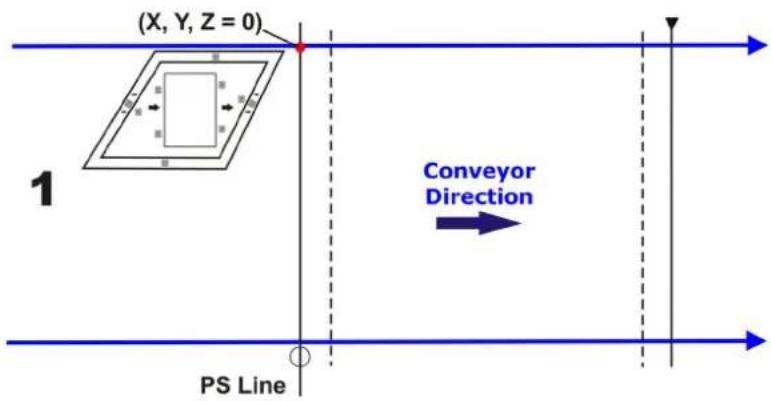
text_image
(X, Y, Z = 0) 1 PS Line Conveyor DirectionAfter elaborating the passage of the parcel, the SC6000 again shows the status of each node (of each scanner of the cluster) and then the Continue or Stop screen.
- Repeat steps 3 - 5 changing the PCT-8000 X position (i.e. always before the PS Line (reference point) and parallel to a conveyor edge but changing to the left-hand edge and/or to the center of the conveyor), until the procedure terminates.

text_image
(X, Y, Z = 0) 2 PS Line Conveyor Direction
text_image
(X, Y, Z = 0) 3 PS Line Conveyor DirectionTypically 3 passes are necessary.
- At the last step in the sequence the display prompts to place a barcode label centered onto the physical X position (X Offset) on the conveyor and then press Enter to Continue. You have 2 minutes to read the code before the procedure ends automatically.

NOTE
Be careful that the barcode is not accidentally read in the act of placing it at the desired X Offset position, and assure that it is read by only one scanner (see the figure below). After placing the barcode label on the X coordinate, you may have to pass your hand or other opaque object over it to end this step.

text_image
(X, Y, Z = 0) desired X Offset read here do not read here Conveyor Direction PS LinePressing Clear at any point will terminate the procedure without saving the Absolute X position alignment.

NOTE
Before resetting the SC6000, if desired, you can download the Auto PackTrack Report file from the SC6000 RAM by connecting it to Genius™ and using the Tools>File transfer... menu. See Help On-Line.
- Manually reset the SC6000.
2.7.4 Auto PackTrack Report
The Auto PackTrack Report file can be downloaded from the SC6000 RAM by using the Tools>File transfer... menu in Genius™. The report is divided into three sections.
The first section contains the general calibration parameters:
PARAMETERS
Calibration type XYZ X Absolute (X Offset 550)
Sensor type configured
Pack version 2 (Z Offset 0)
The second section contains for each node, the calibration table, and the final calibration state.
PACKTRACK GLOBAL CALIBRATION TABLE DX node 5
P1: X(mm) 36
P1: Y(mm) 1077
P1: Z(mm) 10
P1: Distance(mm) 36
P1: Position 1077
P2: X(mm) 715
P2: Y(mm) 1096
P2: Z(mm) 10
P2: Distance(mm) 10
P2: Position 715
P3: X(mm) 518
P3: Y(mm) 1304
P3: Z(mm) 650
P3: Distance(mm) 1096
P3: Position 10
XP1: X(mm) 36
XP1: Y(mm) 1077
XP1: Z(mm) 10
XP1: Distance(mm) 36
XP1: Position 1077
XP2: X(mm) 715
XP2: Y(mm) 1096
XP2: Z(mm) 10
XP2: Distance(mm) 10
XP2: Position 715
XP3: X(mm) 518
XP3: Y(mm) 1304
XP3: Z(mm) 650
XP3: Distance(mm) 1096
XP3: Position 10
Calibration State VERIFIED
PACKTRACK CALIBRATION TABLE DS node 6
P1: X(mm) 36
P1: Y(mm) 1077
P1: Z(mm) 10
P1: Distance(mm) 36
P1: Position 1077
P2: X(mm) 715
P2: Y(mm) 1096
P2: Z(mm) 10
P2: Distance(mm) 10
P2: Position 715
P3: X(mm) 518
P3: Y(mm) 1304
P3: Z(mm) 650
P3: Distance(mm) 1096
P3: Position 10
Calibration State VERIFIED
The last section summarizes the calibration status of each scanner.
SCANNERS STATE SUMMARY
| Scanner E | Calibrated and verified |
| Scanner F | Calibrated and verified |
| Scanner J | Calibrated and verified |
| Scanner K | Calibrated and verified |
| Scanner L | Calibrated and verified |
| Scanner M | Calibrated and verified |
| Scanner N | Calibrated and verified |
| Scanner O | Calibrated and verified |
| Scanner Q | Calibrated and verified |
| Scanner R | Calibrated and verified |
| Scanner S | Calibrated and verified |
2.7.5 AutoNet Setup Mode
A special Cluster Auto Setup Procedure (CASP ^TM ) allows automatic address assignment of the scanner cluster nodes. This operation can be performed by starting up the system while pressing the SETUP key.
Auto Setup can be performed in Genius ^™ , see Net-Autoset in par. 3.2.1.
3 SOFTWARE CONFIGURATION
3.1 GENIUS™ INSTALLATION
Genius ^™ is a Datalogic scanner configuration tool providing several important advantages:
• Multi-language version;
- Defined configuration directly stored in the device;
- Communication protocol independent from the physical interface which allows the device to be considered as a remote object to be configured and monitored.
To install Genius™, proceed as follows:
1) Turn on the PC that will be used for configuration (Windows: NT, XP, Vista or 7);
2) Insert the Genius ^TM CD-ROM;
3) Wait for the CD to autorun and follow the installation procedure.
When running Genius™, the procedure for setting the parameters is supported by a help online, which is displayed in an HTML browser. It can be selected from the Configuration Help option available in the Help menu. In addition, a context-sensitive help can be enabled by pressing the
3.2 GUIDE TO RAPID CONFIGURATION FOR SC6000 AS SYNCHRONIZED OR MULTIDATA MASTER
This configuration is valid when the network is composed only of DS6000, DS8100A and/or DX8200A slave scanners.
- Run Genius™ from the configuration PC. The following window appears asking to select the configuration mode.
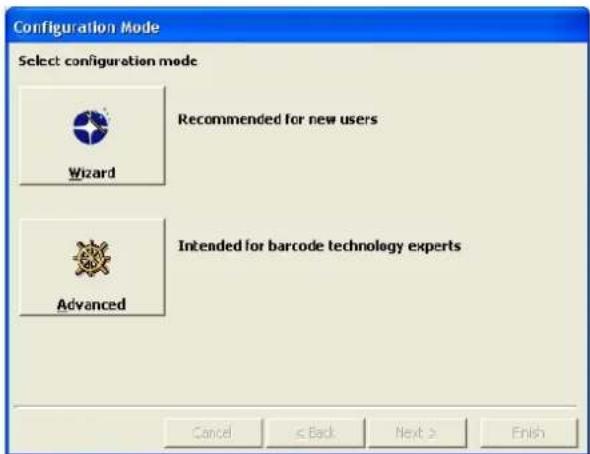
text_image
Configuration Mode Select configuration mode Wizard Recommended for new users Advanced Intended for barcode technology experts Cancel < Back Next > FinishFigure 33 – Genius™ Wizard Opening Window
Select Advanced. The Wizard option is not currently available for SC6000.
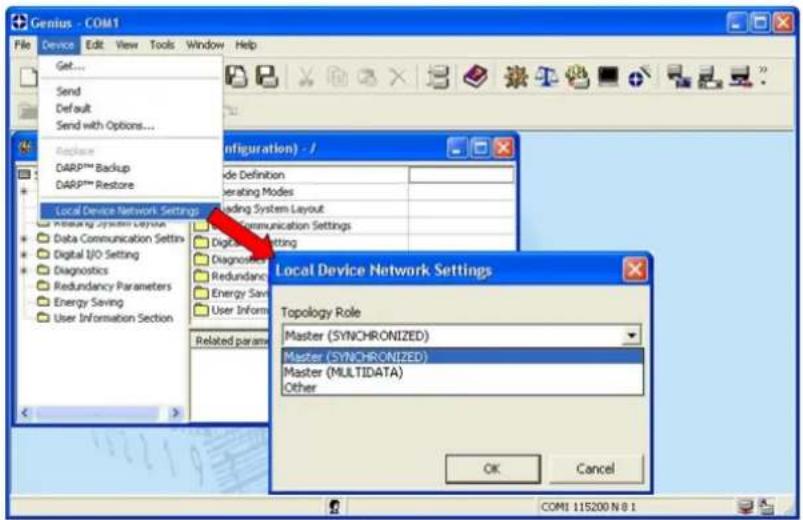
- From the Device Menu select Local Device Network Settings and configure your SC6000 as Master (SYNCHRONIZED is the default value), as shown in the figure below:
text_image
Gentius - COM1 File Device Edit View Tools Window Help Get... Send Default Send with Options... Replace DARP™ Backup DARP™ Restore Local Device Network Settings Data Communication Settings Digital I/O Setting Diagnostics Redundancy Parameters Energy Saving User Information Section Configuration) / Mode Definition Operating Modes Loading System Layout Communication Settings Digital Marketing Diagnosis Redundancy Energy Save User Inform Related param Local Device Network Settings Topology Role Master (SYNCHRONIZED) Master (SYNCHRONIZED) Master (MULTIDATA) Other OK Cancel COM1 115200 N 0 1Figure 34 – Local Device Network Settings
The following dialog box appears asking whether to send the updated configuration to the Local Device or not:
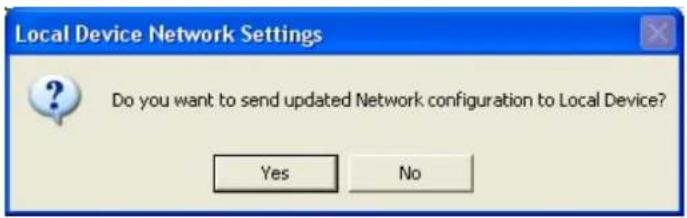
text_image
Local Device Network Settings Do you want to send updated Network configuration to Local Device? Yes No- Click the "Yes" button, then click on the icon available on the Toolbar to make the "Devices" area appear next to the Parameter Explorer window. By repeatedly clicking the icon this area will be displayed or hidden.

text_image
Genius - COM1 File Device Edit View Tools Window Help Devices 0 - SC6000-1200 Parameter Compiler - (New Configuration) - 7 Code Definition Operating Modes Reading System Layout Data Communication Settings Digital I/O Setting Diagnostics Redundancy Parameters Energy Saving User Information Section Code Definition Operating Modes Reading System Layout Data Communication Settings Digital I/O Setting Diagnostics Redundancy Parameters Energy Saving User Information Section Related parameters COM1 115200 N 8 1Figure 35 – View Device Configuration
Each device is indicated by the following graphical objects:

- check box allowing to select/deselect a specific device to perform the desired operations (i.e. program downloading);
- icon representing the device status;
-
a label reporting information transmitted by the device when connected (the device address, generated errors, device description).
-
Then, proceed with the Network Setup (par. 3.2.1).
-
Configure the SC6000 and Slave Scanner parameters according to your application using the configuration window in Genius™ for each device. The main steps are:
-
Configure the PackTrack parameters
- Select the codes to be read
- Set-up the communication parameters
-
Define data formatting parameters
-
Send the configuration to the Slave Scanners from the Send command in the Device Menu.
-
Perform a DARP™ backup by clicking the relative icon in the Device Network area.
3.2.1 Genius™ Network Setup Through Master
Network Setup allows configuring your Local Lonworks Network through the Master using Genius™.
Three different procedures are available to define the number of network slave scanners, their label and address according to two main conditions:
| Condition | Available | Procedure | Feature |
| Unknown Slave Addresses | Net-Autoset | automatically assigns random addresses to slave or Stand Alone scanners. | |
| Known Slave Addresses | Network Wizard | customizes the network (slave label and address definition and physical identification of a specific slave within network), updates configuration to a file and makes it ready to be sent to the Master. | |
| Express Network Setup | automatically performs all the operations of the Network Wizard apart from the physical identification of a specific slave scanner. | ||

NOTE
The Network Setup procedure as described requires Genius™ software version 1.06 or later. In addition, the Net-Autoset procedure requires scanner software version 6.40 or later.
Proceed with the network setup by using one of the icons available on the Tool Bar according to the procedure to follow:

= Net-Autoset procedure

= Network Wizard procedure

= Express Network Setup procedure
Net-Autoset
This procedure is to be used when all scanner addresses and labels are unknown (typically when configuring the network for the first time or whenever a network reconfiguration is required).
By clicking the icon or selecting the "Net_Autoset" option from the right-click menu, the Net-Autoset procedure is started allowing automatic assignment of random addresses to all slave or Stand Alone scanners connected within the network. Once the procedure has been completed, it is possible to:
• define customized addresses and labels through the Network Wizard;
• display the scanner default labels through the Express Network Setup.
Express Network Setup
Before performing this procedure, a Lonworks address must be assigned to each slave scanner. The most practical method is through the Net-Autoset procedure. See par. 3.2.2 for alternative address assignment methods.
Once all addresses have been assigned, the Express Network Setup is to be used when all scanner addresses and labels do not need to be modified.
By clicking on the icon or by choosing the related option from the right-click menu, the procedure is started which automatically performs the following operations:
- opening the wizard;
- polling the network to discover connected scanners;
- transferring all scanners found to the "Requested Devices" area of the wizard where your network customization is defined;
- saving the new network configuration;
Once the procedure has been completed, a dialog box will appear asking whether to send the configuration to the Master. Choose the "Yes" option to start this procedure.
Network Wizard
Before performing this procedure, a Lonworks address must be assigned to each slave scanner. The most practical method is through the Net-Autoset procedure. See par. 3.2.2 for alternative address assignment methods.
Once all addresses have been assigned, the Network Wizard is to be used when one or more scanner addresses and labels need to be modified.
1. Click on the

button to open the Network Wizard dialog box:

text_image
Network Wizard Requested Devices 0 - DS6400-100-011 Current Devices 0 - DS6400-100-011 1 - DS6500-105-010 Autodetect OK Cancela. if the slave scanners have already been configured and wired to the network, click on the Autodetect button to start a polling procedure of the current network. All slave scanners found will be represented in the "Current Devices" area. Then, select the
desired slave scanner from the "Current Devices" area and click on the icon (or drag and drop) to transfer it to the "Requested Devices" area where your network customization is defined. The following dialog box will appear allowing (if necessary) to change the slave address ("Available Device" field) and label ("Description" field):

text_image
New Device Available Devices #1 Description DS6500-105-010 OK Cancelb. if the slave scanners have not been configured and wired to the network, click on the

icon to add a new device defining its address and model. The added slave user will be displayed in the "Requested Devices" area. This option in any cases that all slave scanners have their address set before the network can be on.
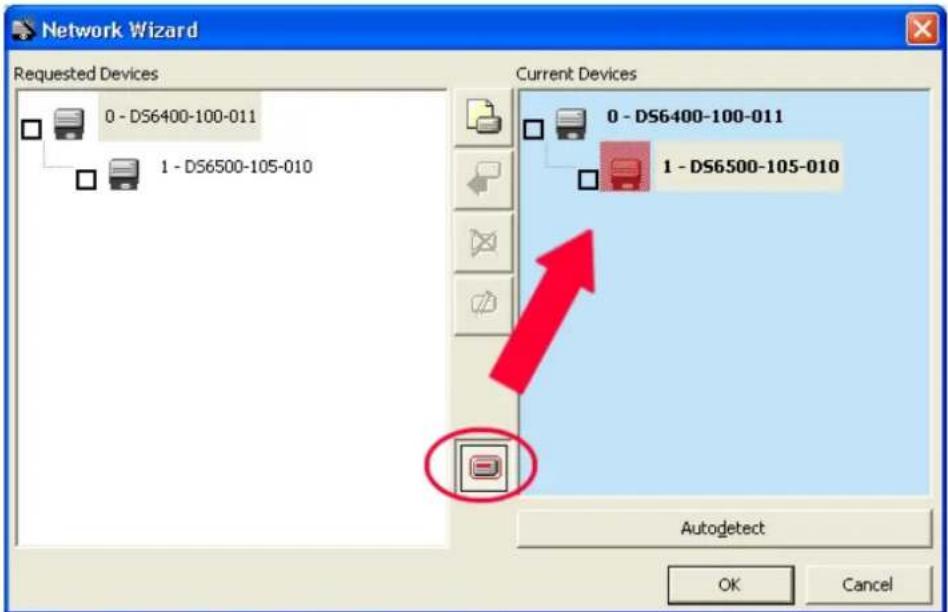
- If desired, select a slave scanner within the "Current Devices" area and click on the

licon (or select the "Show Device" option from the right-click menu) to make the g box appear as follows:
text_image
Network Wizard Requested Devices 0 - DS6400-100-011 1 - DS6500-105-010 Current Devices 0 - DS6400-100-011 1 - DS6500-105-010 Autodetect OK CancelThe "Show Device" option is particularly useful after the Net-Autoset procedure or whenever it is necessary to know which address is assigned to a specific slave scanner. Indeed, it activates the following signals which physically indicate the scanner corresponding to the one selected, in particular:
- in Network Wizard the icon corresponding to the selected slave scanner starts blinking red;
-
in the Physical Network all slave scanner lasers turn off except the one of the selected scanner which turns on.
-
If desired, select the transferred/added slave scanner within the "Requested Devices"
area and click on the _ icon to customize the scanner label and address.
- Once your network has been customized, close the network wizard. Before closure, the program will show a dialog box asking whether to send the new configuration to the Master. Choose the "Yes" option to start this procedure.
3.2.2 Alternative Slave Address Assignment
As alternatives to Network Setup through the Master, each Slave scanner can be assigned an address through the following methods:
- random address assignment from SC6000 to all slaves in the network by performing the CASP™ procedure as described in par. 0:
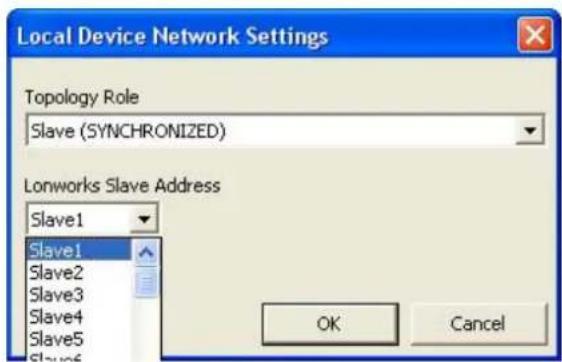
- address setting through the Local Device Network Settings item in the Device Menu with the slave scanner connected locally to Genius™:
text_image
Local Device Network Settings Topology Role Slave (SYNCHRONIZED) Lonworks Slave Address Slave1 Slave1 Slave2 Slave3 Slave4 Slave5 Slave6 OK Cancel- manual address setting through slave scanner keyboard (see par. "Internal Net" in the relative Scanner Reference Manual for details);
3.3 GUIDE TO RAPID CONFIGURATION FOR SC6000 AS CONTROLLER LON OLD8K
This configuration is valid when the network is composed of DS8100 or DX8200 slave scanners.
1) Connect to each scanner Debug port and set a Lonworks Node address which must be different and consecutive (i.e. 1, 2, 3, 4, etc.).
2) Make all the necessary PackTrack parameter settings.
3) Run Genius™ from the configuration PC. The following window appears asking to select the configuration mode.

text_image
Configuration Mode Select configuration mode Wizard Recommended for new users Advanced Intended for barcode technology experts Cancel < Back Next > FinishFigure 36 – Genius™ Wizard Opening Window
Select Advanced. The Wizard option is not currently available for SC6000.
4) From the Device Menu select Local Device Network Settings and configure your SC6000 as Other, as shown in the figure below:
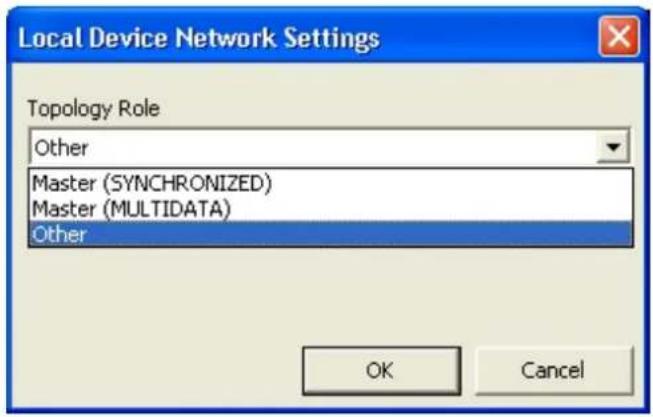
text_image
Local Device Network Settings Topology Role Other Master (SYNCHRONIZED) Master (MULTIDATA) Other OK CancelFigure 37 – Local Device Network Settings
5) From the Reading System Layout folder and configure the following parameters:
Device Assignment = Controller Lon Old8K
Number of Slaves = according to your application
Check the Modify Lon Slave Configuration

text_image
Genius - COM1 File Device Edit View Tools Window Help Parameters Explorer - (New Configuration) - /Layout SC6000-1200 Code Definition Operating Modes Reading System Layout Lonworks Slaves Common Par Data Communication Settings Digital I/O Setting Diagnostics Energy Saving User Information Section Device Assignment Controller Lon Old8k Lon Noise Threshold 0 Number of LonWorks Slaves 12 Modify Lon Slave Configuration Lonworks Slaves Common Parameters Related parameters /Cluster/TopRole /Comms/SerAux/PTSource /Comms/SerAux/SerAux /Operating/Selection COM1 115200 N 8 1Figure 38 - SC6000 Device Assignment Configuration
6) Configure the Common Slave Scanner parameters according to your application using the Lonworks Slave Common Parameters branch in the Reading System Layout folder.
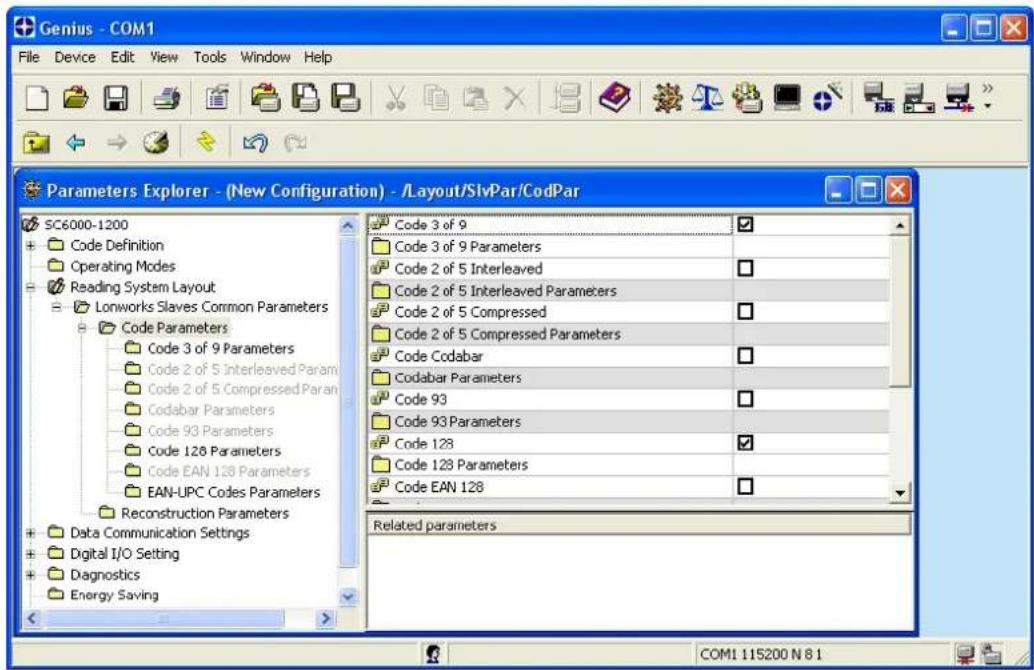
text_image
Genius - COM1 File Device Edit View Tools Window Help Parameters Explorer - (New Configuration) - /Layout/SlvPar/CodPar SC6000-1200 Code Definition Operating Modes Reading System Layout Lonworks Slaves Common Parameters Code Parameters Code 3 of 9 Parameters Code 2 of 5 Interleaved Param Code 2 of 5 Compressed Paran Codabar Parameters Code 93 Parameters Code 128 Parameters Code EAN 128 Parameters EAN-UPC Codes Parameters Reconstruction Parameters Data Communication Settings Digital I/O Setting Diagnostics Energy Saving Code 3 of 9 Code 3 of 9 Parameters Code 2 of 5 Interleaved Code 2 of 5 Interleaved Parameters Code 2 of 5 Compressed Code 2 of 5 Compressed Parameters Code Codabar Codabar Parameters Code 93 Code 93 Parameters Code 128 Code 128 Parameters Code EAN 128 Related parameters COM1 11S200 N 8 1Figure 39 – Common Slave Scanner Code Selection Configuration
7) Configure the SC6000 parameters according to your application using the various configuration folders. The main steps are:
- Configure the PackTrack parameters in the Operating Modes folder

text_image
Genius - COM1 File Device Edit View Tools Window Help Parameters Explorer - (New Configuration) - /Operating SC6000-1200 Code Definition Operating Modes Reading System Layout Data Communication Settings Digital I/O Setting Diagnostics Energy Saving User Information Section Operating Mode Selection Packtrack Physical Encoder Encoder Step (hundredths of millimeter) 400 PS Line (mm) 0 Presence Sensor Input PS Presence Sensor Input Level Active Closed Distance from PS Line to Tx Line (mm) 2500 Transmission Edge Trailing Max Number of Packs 10 Minimum Distance Error Behaviour Compose Minimum Distance Between Packs (mm) 30 Minimum Pack Length Error Behaviour Discard Item Minimum Pack Length (mm) 50 Related parameters /Cluster/TopRole COM1 115200 N 8 1- Selecting the codes to be read in the Code Definition folder (they must be the same as those set for the slave scanners)

text_image
Genius - COM1 File Device Edit View Tools Window Help Parameters Explorer - (New Configuration) - /Codes 5C6000-1200 Code Definition Code Label Settings#1 Code Label Settings#2 Code Label Settings#3 Code Label Settings#4 Code Label Settings#5 Code Label Settings#6 Code Label Settings#7 Code Label Settings#8 Code Label Settings#9 Code Label Settings#10 Operating Modes Reading System Layout Data Communication Settings Digital I/O Setting Diagnostics Energy Saving User Information Section Code Combination No Read Message No Read String (max, 128 chars) Partial Read Is Treated As Multi Filters Code Label Settings#1 Code Label Settings#2 Code Label Settings#3 Code Label Settings#4 Code Label Settings#5 Code Label Settings#6 Code Label Settings#7 Code Label Settings#8 Single Label Global No Read Message- Set-up the communication and data formatting parameters in the Data Communications settings folder
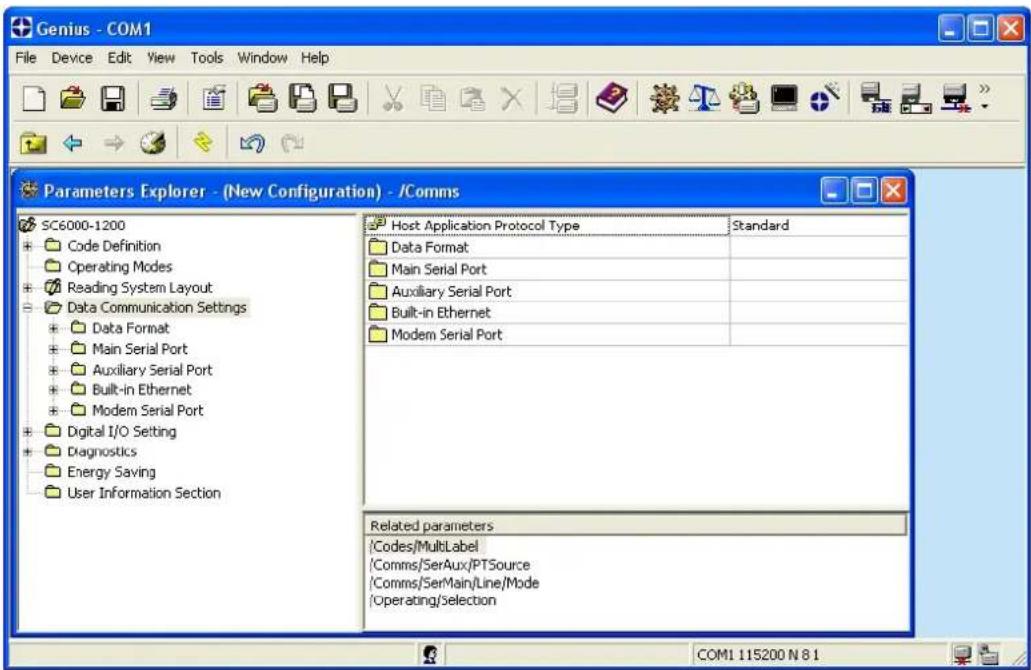
text_image
Genius - COM1 File Device Edit View Tools Window Help Parameters Explorer - (New Configuration) - /Comms SC6000-1200 Code Definition Operating Modes Reading System Layout Data Communication Settings Data Format Main Serial Port Auxiliary Serial Port Built-in Ethernet Modem Serial Port Digital I/O Setting Diagnostics Energy Saving User Information Section Host Application Protocol Type Standard Data Format Main Serial Port Auxiliary Serial Port Built-in Ethernet Modem Serial Port Related parameters \Codes/MultiLabel \Comms/SerAux/PTSource \Comms/SerMain/Line/Mode \Operating/Selection COM1 115200 N 8 18) Send the configuration to the Slave Scanners from the Send command in the Device Menu.
3.4 PARAMETER DEFAULT VALUES
The following table contains the list of the factory default settings for the SC6000 Controller. Genius™ also allows checking the parameter default values by selecting the “Compare parameters” option available in the Tools menu and comparing the current SC6000 configuration to the default one.
| Parameter | Default | Setting |
| Code Definition | ||
| Code Combination Single Label | ||
| No Read Message Global No Read Message | ||
| No Read String (128 characters max) | ||
| Partial Read is Treated As Partial Read | ||
| Multi Filters Disabled (unchecked) | ||
| Code Label Settings#1 | ||
| Enable Enabled (checked) | ||
| Code Symbology Interleaved 2 of 5 | ||
| Label Length 8 | ||
| Min Code Position 0 | ||
| Max Code Position 255 | ||
| CheckDigit Disabled (unchecked) | ||
| Pattern Match String (200 char. max) NULL | ||
| Code Label Settings#2 | ||
| Enable Enabled (checked) | ||
| Code Symbology Code39 | ||
| Label Length Variable | ||
| Minimum Label Length 1 | ||
| Maximum Label Length 60 | ||
| Min Code Position 0 | ||
| Max Code Position 255 | ||
| CheckDigit Disabled (unchecked) | ||
| Pattern Match String (200 char. max.) NULL | ||
| Operating Modes | ||
| Operating Mode Selection | PackTrack | |
| Physical Encoder | Enabled (checked) | |
| Encoder Step | 400 | |
| PS Line | 0 | |
| Presence Sensor Input | PS | |
| Presence Sensor Input Level | Active Closed | |
| Distance from PS Line to Tx Line | 2500 | |
| Transmission Edge | Trailing | |
| Max Number of Packs | 10 | |
| Minimum Distance Error Behaviour | Compose | |
| Minimum Distance between Packs | 30 | |
| Minimum Pack Length Error Behaviour | Discard Item | |
| Minimum Pack Length | 50 | |
| Window Dimension | 15 | |
| Encoder Delay Error Behaviour | Safe Resync | |
| Operating ModesMax Encoder Delay for Code 400Max Consecutive Delayed Codes 3Max Safe Resync for Node 3BidirectionalEncoder Divided by 2 Disabled (unchecked)Beam Shutter Triggered Disabled (unchecked)Protocol Index Disabled (unchecked)Hybrid System Disabled | Disabled | (unchecked) |
| Reading System LayoutEnable Automatic Replacement (D.A.R.P) Enabled (checked) | ||
| Data Communication SettingsHost Application Protocol Type Standard | ||
| Data FormatHeader TX Start With DataTermination After No Read Message Enabled (checked)Code Identifier DisabledStandard ParametersHeader StringDisabled (unchecked)Code PositionDisabled (unchecked)Code Direction Identifier EnableTermination StringDisabled (unchecked)Data Packet SeparatorsVariable LengthCode Field Length SettingMultidataAddress TxDisabled (unchecked) | (checked)Disabled (unchecked)Disabled (unchecked)Variable LengthDisabled (unchecked) | |
| Main Serial PortData TXHeartbeatParametersMain Port Communication ModeMain Port Electrical InterfaceHandshakeBaud Rate9600ParityData Bits8Stop Bits | Enabled (checked)DisableStandardRS232NoneNone81 | |
| Auxiliary Serial PortData TXHeartbeatPass ThroughParametersBaud Rate115200ParityData Bits8Stop Bits | Enabled (checked)DisableDisabled (checked)None81 | |
| Built-in Ethernet PortLineParameters | ||
| Status Enabled (checked) | ||
| Eth_speed Auto | ||
| DHCP Disabled (unchecked) | ||
| IP_address 172.16.11.221 | ||
| IP_netmask 255.255.0.0 | ||
| IP_gateway 127.0.0.1 | ||
| IP_dns1 127.0.0.1 | ||
| IP_dns2 127.0.0.1 | ||
| Services | All | disabled |
| Modem Serial PortData Tx Disabled (unchecked)ParametersBaud Rate 38400Modem Enabled Disabled (unchecked) | ||
| Digital I/O SettingsDigital Input Lines SettingsDebouncing for Input 1, 2 and 3 5 msDebouncing for Encoder 500 μsDebouncing for PS and PSAUX 5 msPS Active Level (Overridden by Op. Mode)PSAUX Active Level (Overridden by Op. Mode)Input 1 Active Level (Overridden by Op. Mode)Input 2 Active Level (Overridden by Op. Mode)Input 3 Active Level (Overridden by Op. Mode) | Active ClosedActive ClosedActive ClosedActive ClosedActive Closed | |
| Digital Output Lines SettingOutput 1UseLine StateActivation EventAlternative Activation EventDeactivation EventAlternative Deactivation EventActivate on ErrorDeactivate when Errors RecoveredDeactivation Timeout (ms) | LocalNormally OpenComplete ReadMultiple ReadTimeoutNoneDisabled (unchecked)Disabled (unchecked)50 | |
| Output 2UseLine StateActivation EventAlternative Activation EventDeactivation EventAlternative Deactivation Event | LocalNormally OpenNo ReadPartial ReadTimeoutNone | |
| Parameter | Default | Se |
| Output 2Activate on Error Disabled (unchecked)Deactivate when Errors Recovered Disabled (unchecked)Deactivation Timeout (ms) 50 | ||
| Output 3UseLine State Normally OpenActivation Event NoneAlternative Activation Event NoneDeactivation Event NoneAlternative Deactivation Event NoneActivate on Error Disabled (unchecked)Deactivate when Errors Recovered Disabled (unchecked) | Local | |
| Output 4UseLine State Normally OpenActivation Event NoneAlternative Activation Event NoneDeactivation Event NoneAlternative Deactivation Event NoneActivate on Error Disabled (unchecked)Deactivate when all Errors Recovered Disabled (unchecked) | Local | |
| Output 5UseLine State Normally OpenActivation Event NoneAlternative Activation Event NoneDeactivation Event NoneAlternative Deactivation Event NoneActivate on Error Disabled (unchecked)Deactivate when Errors Recovered Disabled (unchecked) | Local | |
| Output 6UseLine State Normally OpenActivation Event NoneAlternative Activation Event NoneDeactivation Event NoneAlternative Deactivation Event NoneActivate on Error Disabled (unchecked)Deactivate when Errors Recovered Disabled (unchecked) | Local | |
| RelaysRelay 1Line State Normally OpenActivation Event NoneAlternative Activation Event None | ||
Setting
| Parameter | Default | Se |
| Relays | ||
| Relay 1Deactivation Event NoneAlternative Deactivation Event NoneActivate on Error Disabled (unchecked)Deactivate when Errors Recovered Disabled (unchecked) | ||
| Relay 2Line State Normally OpenActivation Event NoneAlternative Activation Event NoneDeactivation Event NoneAlternative Deactivation Event NoneActivate on Error Disabled (unchecked)Deactivate when Errors Recovered Disabled (unchecked) | ||
| Relay 3Line State Normally OpenActivation Event NoneAlternative Activation Event NoneDeactivation Event NoneAlternative Deactivation Event NoneActivate on Error Disabled (unchecked)Deactivate when Errors Recovered Disabled (unchecked) | ||
| System Information SectionUser Interface Style StandardShow Last Code Window Disabled (unchecked)Last Code & Reading Mask Window Statistics on Last 100 CodesD.A.R.P. Scanner Compatibility Check Enabled (checked) | ||
| DiagnosticsPkTr Debug Msg Tx Disabled (unchecked)Enable | Disabled | |
| Redundancy ParametersReds Functionality Disabled (unchecked)Topology Redundancy Role Master Alone | ||
| Energy SavingEnergy Saving Configuration | Disabled (unchecked) |
(unchecked)
4 MAINTENANCE
4.1 DATALOGIC AUTOMATIC REPLACEMENT PROCEDURE (DARP ^TM )
When SC6000 is used as a SYNCHRONIZED or MULTIDATA Master (Topology Role parameter), a DARP ^™ backup procedure must be performed to automatically manage scanners and SC6000 replacement in case of failure (DARP ^™ Restore). Once the system configuration has been completed as described in par. 3.2, launch the DARP ^™ backup by one of the following methods:
Using Genius:
Click on the DARP ^™ backup icon in the Device Network area. You will be prompted to select the desired backup option (complete, all scanners, controller, or each single scanner).
Using the SC6000 keypad:
- Press the
and - Use the
keys to move within the menu items; - In the
menu choose and select the desired backup option (complete, all scanners, controller, or each single scanner).
The SC6000 Controller will store the complete system configuration on the Compact Flash card.
If a slave scanner has to be replaced, the corresponding configuration (node address, code configuration, PackTrack™ configuration, etc.) is automatically downloaded by the SC6000 into the new scanner at the next system startup.

NOTE
All replacement scanners must be set to the factory default values.
In case of SC6000 failure, the complete system configuration can be recovered from the Compact Flash of the damaged SC6000: by simply installing the old Compact Flash in the new SC6000, the system configuration is automatically restored and the reading station is ready to start working again.

CAUTION
Before removing the Compact Flash card, switch the SC6000 Controller off.
In case of SC6000 failure proceed as follows:
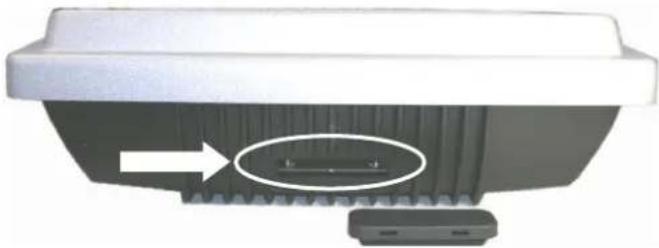
natural_image
Close-up of a mechanical component with a highlighted section and arrow indicator (no text or symbols)Figure 40 - Removing the Compact Flash
- Disconnect the device
- Remove the rubber cover of the Compact Flash slot using a screwdriver
- Remove the Compact Flash
- Connect a new SC6000 to the system
- Insert the Compact Flash card

CAUTION
Make sure not to insert the Compact Flash card upside down. Carefully insert it in the guides, so that it will not fall inside the device. Gently push it into the slot.
6. Start up the system
The system configuration is automatically restored and the reading station is ready to start working again.
4.2 AUTOMATIC SCANNER REPLACEMENT (ASR)
When SC6000 is used in a network of DS8100 or DX8200 scanners, (Topology Role parameter = Other; Device Assignment parameter = Controller Lon Old8K), an ASR backup procedure must be performed to automatically manage scanners and SC6000 replacement in case of failure (ASR Restore).

NOTE
In order for the ASR procedure to work on DS8100 or DX8200 slave scanners, they must have been installed according to the procedure in par. 3.3.
Once the system configuration has been completed, launch the ASR backup by one of the following methods:
Using Genius:
Click on the ASR backup item in the Device Menu. You will be prompted to select the desired backup option (complete, all slaves, controller).
Using the SC6000 keypad:
- Press the
and - Use the
keys to move within the menu items; - In the
menu choose and select the desired backup option (complete, all scanners, controller).
The SC6000 Controller will store the complete system configuration on the Compact Flash card.
If a slave scanner has to be replaced, the corresponding configuration (node address, code configuration, PackTrack™ configuration, etc.) is automatically downloaded by the SC6000 into the new scanner at the next system startup.

NOTE
All replacement scanners must be set to the factory default values.

NOTE
If the SC6000 controller replaces an SC8000 controller within the network, (Topology Role parameter = Other; Device Assignment parameter = Controller Lon SC8000), refer to the "Replacing SC8000 with SC6000-PWO.pdf" document for details.
5 TROUBLESHOOTING

NOTE
Before contacting your local Datalogic office or Datalogic Partner or ARC, it is suggested to save the device configuration to a *.ddc file by means of the Genius™ software configuration program and check the exact device model and serial number.
| TROUBLESHOOTING GUIDE | |
| Problem | Suggestion |
| Power On:the “Power On” LED is not lit. | Is power connected?If using a power adapter, is it connected to PWO 25-pin cable? |
| On Line Mode 1:the "PS" LED is not lit (when external trigger activates). | Check carefully if you are referring to the 25-pin connector of the PWO.Is sensor connected to PWO PS input?Is power supplied to photo sensor? |
| On Line Mode 1:the "PS" LED is correctly lit but nothing happens (no reading results). | Is the software configuration consistent with the application condition (operating mode, etc.)?In the GeniusTM software configuration program select the OPERATING MODES folder and check for related parameters. |
| Serial On Line Mode:the reader is not triggered (no reading results). | In the GeniusTM program select the OPERATING MODE folder and check if serial on line is enabled as “On Line options” parameter value.Are the Start-Stop strings correctly assigned?Is the serial trigger source correctly connected and configured)? |
| On Line Mode and Serial On Line Mode:the reader does not respond correctly to the expected external signal end. | In the GeniusTM software configuration program select the OPERATING MODES folder and check the “Reading Phase Timeout” parameterization. |
| Communication (Main / Aux):the device is not transmitting anything to the host. | Is serial Main / Aux cable connected?Is wiring correct?If using the Main RS232 or RS485 interface, is the reference ground connected to GND_ISO? Be careful that it is not completely different from GND power ground.Are serial host settings equivalent to serial device setting?When using the Main interface, Tx Data and Rx Data LEDs must be lit during data transfer. |
| Communication (Ethernet):the Ethernet LED is not lit. | Verify the HUB connection.Verify Genius^TM settings (see par. 3.4). |
| Communication:data do not appear on the terminal. | In the Genius^TM program enable the DATA COMMUNICATION SETTINGS/MAIN-AUXILIARY PORT\DATA TX parameter. |
| Communication:data transferred to the host are incorrect, corrupted or incomplete. | In the Genius^TM program select the DATA COMMUNICATION SETTINGS/DATA FORMAT folder and check for HEADER, TERMINATOR, SEPARATOR and FILL CHAR values.Check the CODE FIELD LENGTH value.Are the COM port parameters correctly assigned? |
| How do I obtain my units’ serial numbers? | The device serial number is printed on a label that is affixed on the bottom of SC6000 Controller.The serial number is also displayed when connecting the device through the Genius^TM program.Serial numbers consist of 9 characters: one letter, 2 numbers, another letter followed by 5 numbers. |
6 TECHNICAL FEATURES
| ELECTRICAL FEATURES | ||
| Supply Voltage 10 to 30 VdcPower Consumption 6.5 W typical | 800 mA to 300 mA max. (including startup current) | |
| Communication Interfaces | Main (isolated) Modem | |
| RS232RS485 full-duplex | RS232 | |
| Auxiliary | ||
| RS232 | ||
| Other | ||
| LonworksEthernet | 1.25 Mb/s100 Mb/s | |
| Model-Dependent Communication Interfaces | Ethernet (dual)DeviceNetProfibus | 100 Mb/sup to 500 Kb/sup to 12 Mb/s |
| Inputs (optocoupled NPN or PNP) | Encoder, PS, PS Aux, 3 polarity insensitive optocoupled inputs | |
| Outputs (optocoupled) 6 optocoupled outputs, 3 relay control outputs | ||
| USER INTERFACE | ||
| LCD Display 4 lines by 20 characters LCD | ||
| Keypad | 6 keys | |
| LED Indicators Power ON | TX dataRX dataEthernetPS | PS AuxTACHNetworksControllerScanners |
| SOFTWARE FEATURES | ||
| Configuration Modes GeniusTM utility program | ||
| Parameter Storage Non-volatile extractable FLASH card | ||
| ENVIRONMENTAL FEATURES | ||
| Operating Temperature 0° to +50 °C (+32° to +122 °F)Storage Temperature -20° to +70 °C (-4° to +158 °F)Humidity 90% non condensing | ||
| Vibration ResistanceEN 60068-2-6 14 mm @ 2 to 10 Hz; 1.5 mm @ 13 to 55 Hz;2 g @ 70-200 Hz; 2 hours on each axis | ||
| Shock ResistanceEN 60068-2-27 | 30 g; 11 ms;3 shocks on each axis | |
| Protection Class EN 60529 | IP64* | |
| PHYSICAL FEATURES | ||
| Mechanical Dimensions | 320 x 250 x 90 mm (12.6 x 9.84 x 3.54 in) | |
| Weight | 3.3 kg. (7.26 lb) | |
* sealed connectors required, including the Harting RJ Industrial® Push Pull Ethernet connector.
A ALTERNATIVE CONNECTIONS REFERENCE
POWER SUPPLY - I/O (POWER/NET CONNECTOR)
The PWO supplies 24 VDC.
| 25-pin D-Sub Female Connector Pinout | |||
| Pin | Name Function | ||
| 1 | REL1 Relay output control | 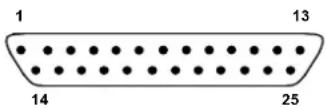 25-pin Male D-sub Connector 25-pin Male D-sub Connector | |
| 2 | REL3 | Relay output control | |
| 3 | GND | Ground | |
| 4 | GND | Ground | |
| 5 | ENCODER A | Encoder (Tach) | |
| 6 | PS_AUX A Presence sensor aux. | ||
| 7 | PS A | Presence r senso | |
| 8 | SYS_ENC_I/O System signal | ||
| 9 | RES | Reserved | |
| 10 | RES | Reserved | |
| 11 | SHIELD_OUT Lonworks | ||
| 12 | LON_OUT B Lonworks | ||
| 13 | LON_OUT A Lonworks | ||
| 14 | REL2 | Relay output control | |
| 15 | RES | Reserved | |
| 16 | VS | Supply voltage | |
| 17 | ENCODER B Encoder (Tach) | ||
| 18 | PS_AUX B Presence sensor aux | ||
| 19 | PS B Presence senso r | ||
| 20 | SYS_I/O | System signal | |
| 21 | RES | Reserved | |
| 22 | RES | Reserved | |
| 23 | SHIELD_IN Lonworks | ||
| 24 | LON_IN B Lonworks | ||
| 25 | LON_IN A Lonworks | ||
Pin references with the denomination A and B are polarity insensitive signals.
Power
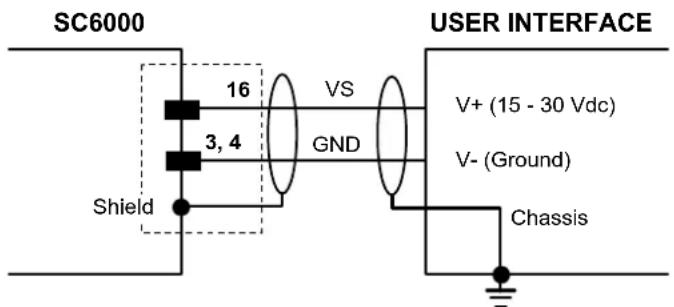
text_image
SC6000 16 3, 4 Shield VS GND USER INTERFACE V+ (15 - 30 Vdc) V- (Ground) ChassisFigure 41 – Power Supply Connection
Lonworks

text_image
SC6000 USER INTERFACE LON_IN A 25 25 LON A LON_IN B 24 24 LON B SHIELD_IN 23 23 SHIELD LON_OUT A 13 13 LON A LON_OUT B 12 12 LON B SHIELD_OUT 11 11 SHIELDFigure 42 – SC6000 Lonworks Connection
PS/PS AUX/Encoder
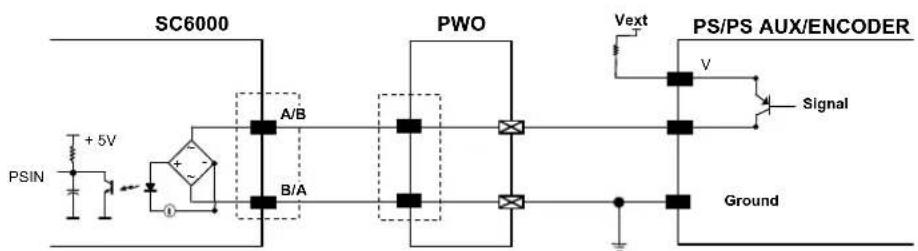
text_image
SC6000 PWO Vext PS/PS AUX/ENCODER A/B B/A V Signal Ground PSIN +5VFigure 43 - PNP Command Input with Electrical Isolation
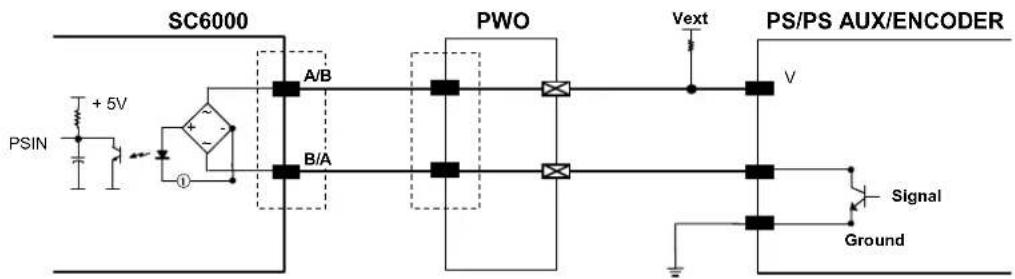
text_image
SC6000 PWO Vext PS/PS AUX/ENCODER A/B B/A V Signal Ground PSIN + 5VFigure 44 - NPN Command Input with Electrical Isolation
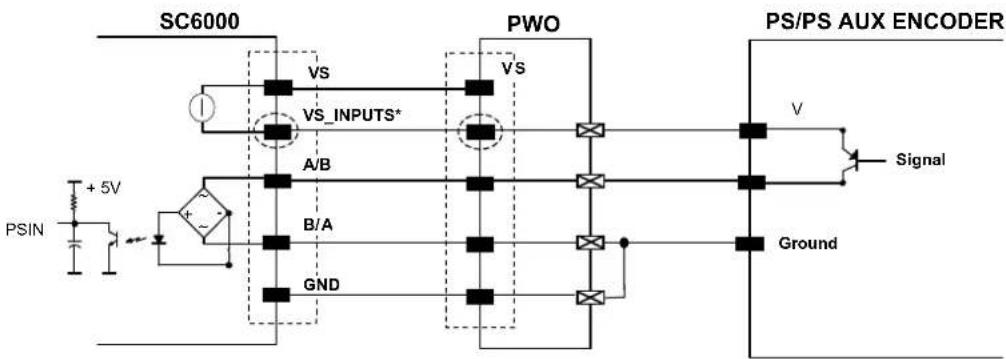
text_image
SC6000 PWO PS/PS AUX ENCODER VS VS VS_INPUTS* A/B B/A GND V Signal Ground +5V PSIN*VS_INPUTS is connected through the 25-pin Extended I/O connector. If this connector is not used, VS_INPUTS must be wired from one of the scanner terminals inside PWO, see the PWO Reference Manual for details.
Figure 45 - PNP Command Input Using System Power
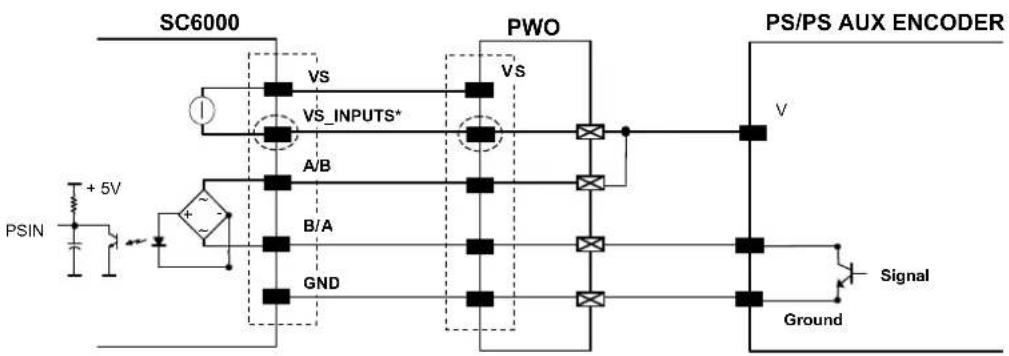
text_image
SC6000 PWO PS/PS AUX ENCODER VS VS VS_INPUTS* A/B B/A GND V + 5V PSIN Signal Ground*VS_INPUTS is connected through the 25-pin Extended I/O connector. If this connector is not used, VS_INPUTS must be wired from one of the scanner terminals inside PWO, see the PWO Reference Manual for details.
Figure 46 - NPN Command Input Using System Power
EXTENDED I/O
| 25-pin D-Sub Male Connector Pinout | ||
| Pin | Name Function | |
| 1 VS_OUTPUTS Power for outputs2 IN1 A Input signal 1 - polarity insensitive3 IN2 A Input signal 2 - polarity insensitive4 IN3 A Input signal 3 - polarity insensitive5 GND Ground6 OUT1+ Configurable digital output 1 - positive pin7 OUT2+ Configurable digital output 2 - positive pin8 OUT3+ Configurable digital output 3 - positive pin9 VS_INPUTS Power for inputs10 OUT4+ Configurable digital output 4 - positive pin11 OUT5+ Configurable digital output 5 - positive pin12 OUT6+ Configurable digital output 6 - positive pin13 GND Ground14 GND Ground15 IN1 B Input signal 1 - polarity insensitive16 IN2 B Input signal 2 - polarity insensitive17 IN3 B Input signal 3 - polarity insensitive18 GND Ground19 OUT1- Configurable digital output 1 - negative pin20 OUT2- Configurable digital output 2 - negative pin21 OUT3- Configurable digital output 3 - negative pin22 GND Ground23 OUT4- Configurable digital output 4 - negative pin24 OUT5- Configurable digital output 5 - negative pin25 OUT6- Configurable digital output 6 - negative pin |  25-pin Female D-sub Connector 25-pin Female D-sub Connector | |
Inputs
All inputs are optocoupled.

text_image
SC6000 PWO USER INTERFACE Vext V Signal Ground A/B B/A PSIN + 5VFigure 47 – PNP Command Input with Electrical Isolation
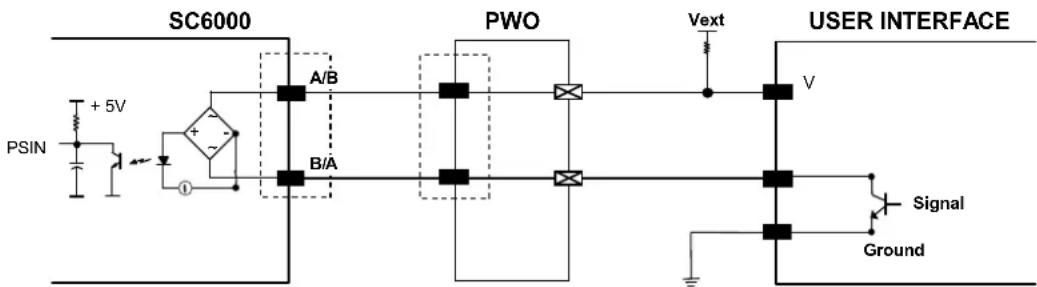
text_image
SC6000 PSIN + 5V A/B B/A PWO Vext USER INTERFACE V Signal GroundFigure 48 - NPN Command Input with Electrical Isolation
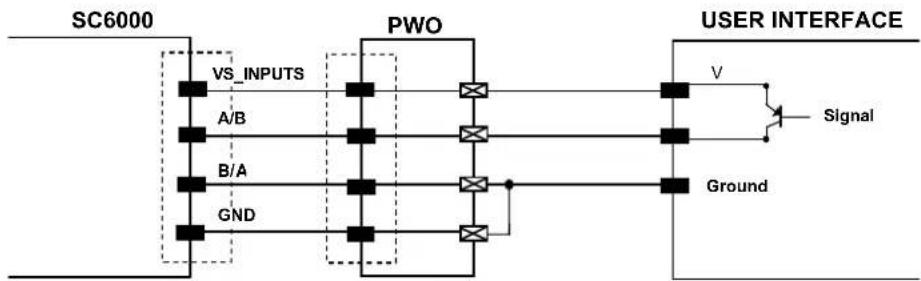
flowchart
graph TD
    A["SC6000"] --> B["VS_INPUTS"]
    A --> C["A/B"]
    A --> D["B/A"]
    A --> E["GND"]
    B --> F["PWO"]
    C --> F
    D --> F
    E --> F
    F --> G["USER INTERFACE"]
    G --> H["Signal"]
    H --> I["V"]
    I --> J["Ground"]
Figure 49 - PNP Command Input Using System Power
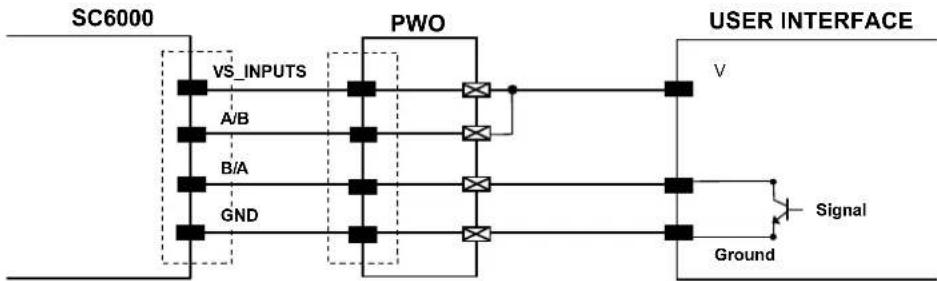
flowchart
graph TD
    A["SC6000"] --> B["VS_INPUTS"]
    A --> C["A/B"]
    A --> D["B/A"]
    A --> E["GND"]
    F["PWO"] --> G["Switch"]
    G --> H["Ground"]
    I["USER INTERFACE"] --> J["V"]
    J --> K["Signal"]
    K --> L["Ground"]
Figure 50 - NPN Command Input Using System Power
Isolation between the command logic and the scanner is maintained by powering the inputs with an external supply voltage (Vext). For convenience, the inputs can be powered using the VS_INPUTS signal on the SC6000 (pin 9). In this case, however, the device is no longer electrically isolated. The VS_INPUTS signal on the Extended I/O connector is short-circuit protected.
The electrical features of these inputs are:
Maximum voltage 30 V
Maximum current 10 mA
Outputs
Six general purpose outputs are available.
| Pin | Name | Function |
| 6 | OUT 1+ | Configurable digital output 1 – positive pin |
| 19 | OUT 1- | Configurable digital output 1 – negative pin |
| 7 | OUT 2+ | Configurable digital output 2 – positive pin |
| 20 | OUT 2- | Configurable digital output 2 – negative pin |
| 8 | OUT 3+ | Configurable digital output 3 – positive pin |
| 21 | OUT 3- | Configurable digital output 3 – negative pin |
| 10 | OUT 4+ | Configurable digital output 4 – positive pin |
| 23 | OUT 4- | Configurable digital output 4 – negative pin |
| 11 | OUT 5+ | Configurable digital output 5 – positive pin |
| 24 | OUT 5- | Configurable digital output 5 – negative pin |
| 12 | OUT 6+ | Configurable digital output 6 – positive pin |
| 25 | OUT 6- | Configurable digital output 6 – negative pin |
The function of all six outputs can be defined by the user.
Refer to Genius™ Help On-Line for further details.
By default, OUT1 is associated with COMPLETE READ event, which activates when the code has been read correctly. In case the reader has been programmed to read several codes within the same reading phase, the event activates when all codes have been read.
OUT2 is associated with NO READ event, which activates when no code has been read.
OUT3 - OUT6 are associated with NONE, which means that the output is always in line state.
Isolation between the command logic and the SC6000 is maintained by powering the outputs with an external supply voltage (Vext). For convenience, the outputs can be powered using the VS_OUTPUTS signal on the SC6000 (pin 1). In this case, however, the device is no longer electrically isolated. The VS_OUTPUTS on the Extended I/O connector is short-circuit protected.
The electrical features of these outputs are:
Collector-emitter voltage 30 V Max.
Collector current 130 mA Max.
Saturation voltage (VCE) 1 V at 10 mA Max.
Maximum power dissipation 90 mW at 50°C (Ambient temperature).
The limit requested by the maximum power dissipation is more important than that of the maximum collector current: if one of these outputs is continuously driven, the maximum current must not be more than 40 mA although 130 mA may be reached in pulse conditions.

text_image
SC6000 PWO USER INTERFACE Vext V Signal GroundFigure 51 - Open Collector Output Connection with Electrical Isolation
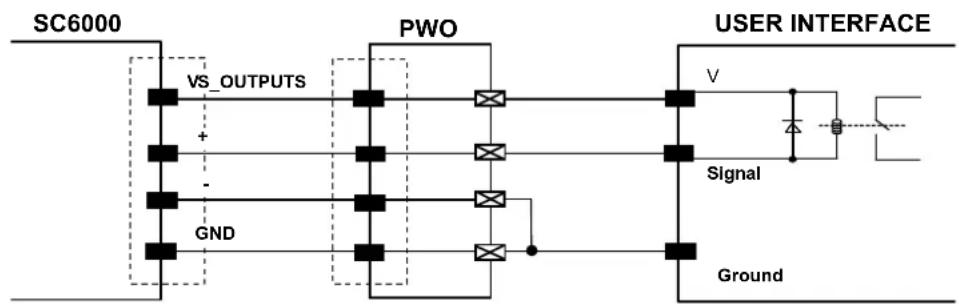
flowchart
graph TD
    A["SC6000"] --> B["VS_OUTPUTS"]
    B --> C["PWO"]
    C --> D["Ground"]
    D --> E["USER INTERFACE"]
    E --> F["Signal"]
    style A fill:#f9f,stroke:#333
    style B fill:#ccf,stroke:#333
    style C fill:#cfc,stroke:#333
    style D fill:#fcc,stroke:#333
    style E fill:#ffc,stroke:#333
    style F fill:#cff,stroke:#333
Figure 52 - Open Collector Output Connection Using System Power
Barcode
A pattern of variable-width bars and spaces which represents numeric or alphanumeric data in machine-readable form. The general format of a barcode symbol consists of a leading margin, start character, data or message character, check character (if any), stop character, and trailing margin. Within this framework, each recognizable symbology uses its own unique format.
Barcode Label
A label that carries a barcode and can be affixed to an article.
Baud Rate
A unit used to measure communications speed or data transfer rate.
EEPROM
Electrically Erasable Programmable Read-Only Memory. An on-board non-volatile memory chip.
Full Duplex
Simultaneous, two-way, independent transmission in both directions.
Host
A computer that serves other terminals in a network, providing services such as network control, database access, special programs, supervisory programs, or programming languages.
Interface
A shared boundary defined by common physical interconnection characteristics, signal characteristics and meanings of interchanged signals.
LED (Light Emitting Diode)
A low power electronic device that can serve as a visible or near infrared light source when voltage is applied continuously or in pulses. It is commonly used as an indicator light and uses less power than an incandescent light bulb but more than a Liquid Crystal Display (LCD). LEDs have extremely long lifetimes when properly operated.
Parameter
A value that you specify to a program. Typically parameters are set to configure a device to have particular operating characteristics.
Protocol
A formal set of conventions governing the formatting and relative timing of message exchange between two communicating systems.
RS232
Interface between data terminal equipment and data communication equipment employing serial binary data interchange.
RS485
Interface that specifies the electrical characteristics of generators and receivers for use in balanced digital multipoint systems such as on a Multidrop line.
Scanner
A device that examines a printed pattern (barcode) and either passes the uninterpreted data to a decoder or decodes the data and passes it onto the Host system.
Serial Port
An I/O port used to connect a scanner to your computer, identifiable by a 9-pin or 25-pin connector.
Signal
An impulse or fluctuating electrical quantity (i.e.: a voltage or current) the variations of which represent changes in information.
Symbol
A combination of characters including start/stop and checksum characters, as required, that form a complete scannable barcode.
Trigger Signal
A signal, typically provided by a photoelectric sensor or proximity switch, which informs the scanner of the presence of an object within its reading zone.
A
Accessories, 3
ASR, 52
Auto PackTrack™
Conditions and Limits, 29
Parameter Descriptions, 30
Report, 34
Setup Procedure, 31
C
CE Compliance, vi
Compliance, vi
Connector Pinouts, 57
D
DARP ^TM , 51
DeviceNet Interface, 15
E
Electrical Connections, 8
Ethernet Interface, 13
F
FCC Compliance, vi
G
General View, vii
Genius™ Installation, 36
Glossary, 63
Guide to Installation, ix
Guide to Rapid Configuration for SC6000 as Controller Lon Old8K, 42
Guide to Rapid Configuration for SC6000 as Synchronized or Multidata Master, 36
|
Inputs, 60
Installation, 4
Interfaces
Auxiliary, 12
Main RS232, 9
Main RS485 Full Duplex, 10
K
Keypad and Display, 24
L
LED Indicators, 2
Lonworks, 58
M
Mechanical Mounting, 6
Model Description, 2
Modem, 12
N
Network Setup, 38
0
Outputs, 61
Overall Dimensions, 5
P
Package Contents, 4
Parameter Default Values, 46
Patents, v
Power Supply, vi
Power/Net Connector, 57
Profibus Interface, 16
PS/PS AUX/Encoder, 58
R
Reference Documentation, v
s
Services and Support, v
Software Configuration, 36
T
Technical Features, 56
Troubleshooting, 54
Typical Layouts, 17
| DATALOGICTM | DECLARATION OF CONFORMITY | EC-018Rev.: 4Pag.: 1 di 1 |

Datalogic Automation S.r.l.
Via Lavino 265
40050 Monte San Pietro
Bologna - Italy
www.automation.datalogic.com
declares that the
SC6000; Universal Controller
and all its models
are in conformity with the requirements of the European Council Directives listed below:
2004 / 108 / EC EMC Directive
This Declaration is based upon compliance of the products to the following standards:
EN 55022 (CLASS A ITE), DECEMBER 2010:
INFORMATION TECHNOLOGY EQUIPMENT
RADIO DISTURBANCE CHARACTERISTICS
LIMITS AND METHODS OF MEASUREMENTS
EN 61000-6-2, SEPTEMBER 2005:
ELECTROMAGNETIC COMPATIBILITY (EMC)
PART 6-2: GENERIC STANDARDS - IMMUNITY FOR INDUSTRIAL ENVIRONMENTS
Monte San Pietro, January 26th, 2012
Paolo Morselli
Quality Manager

UNI EN ISO 9001

UNI EN ISO 14001