T5208R - Label printer Printronix - Free user manual and instructions
Find the device manual for free T5208R Printronix in PDF.


| Product Type | Industrial Label Printer |
| Model | T5208R |
| Brand | Printronix |
| Print Technology | Thermal Transfer / Direct Thermal |
| Maximum Print Width | 8.5 inches (216 mm) |
| Maximum Print Speed | 10 inches per second |
| Print Resolution | 203 dpi (8 dots/mm) |
| Dimensions (W x D x H) | 19.8 x 14.2 x 15.8 inches (503 x 361 x 401 mm) |
| Weight | 38.5 lbs (17.5 kg) |
| Power Supply | 100-240 VAC, 50/60 Hz, 5A |
| Interface | USB 2.0, Ethernet, RS-232 Serial |
| Media Sensor | Gap, Black Mark, Continuous |
| Maximum Media Width | 9.0 inches (228 mm) |
| Maximum Media Roll Diameter | 8.0 inches (203 mm) |
| Ribbon Length | 1476 feet (450 m) max |
| Operating Temperature | 40°F to 104°F (5°C to 40°C) |
| Cleaning | Use isopropyl alcohol on printhead and platen roller |
| Safety | Overcurrent protection, EMI shielding |
| Spare Parts | Printhead, platen roller, power supply, main board |
| Repairability | Modular design, serviceable by trained technicians |
| Warranty | 1 year limited warranty |
| Included Accessories | Power cord, USB cable, quick start guide |
| Languages Supported | English, French, German, Spanish, Italian |
Frequently Asked Questions - T5208R Printronix
User questions about T5208R Printronix
0 question about this device. Answer the ones you know or ask your own.
Ask a new question about this device
Download the instructions for your Label printer in PDF format for free! Find your manual T5208R - Printronix and take your electronic device back in hand. On this page are published all the documents necessary for the use of your device. T5208R by Printronix.
USER MANUAL T5208R Printronix
SL5000 ^r and T5000 ^r
RFID Smart Label and Thermal Printers
Software License Agreement
Your printer contains, among other software, Printronix operating software including, but not limited to the Embedded Configurable Operating System (the "eCos Software") as embedded software. The terms of this Agreement apply only to the eCos Software, and all other embedded software supplied with the printer. You accept the terms of this Agreement by your initial use of your printer.
1. Object Code License
Printronix grants you a nonexclusive license to use the Printronix Software, the eCos Software and all other embedded software (collectively, the "Embedded Software" or the "Software") only in conjunction with the printer. As the rightful possessor of the printer, you may make a reasonable number of copies of the Software as necessary for backup, configuration, and restoration of the printer. You must reproduce the copyright notice and any other legend of ownership on each copy of the Software you make.
You may transfer possession of the Software and its media to another party only with the transfer of the printer on which the Software is used. If you do so, you must give the other party a copy of these terms and provide all user documentation to that party. When you do so, you must destroy any copies of Software not resident in the printer.
Your license for the Software terminates when you no longer rightfully possess the printer. No other rights under this license are granted.
2. Source Code
A source code version of eCos Software is available under the terms of the Red Hat eCos Public License v1.1 at www.printronix.com. Printronix grants no rights whatsoever in the source code for the Printronix Software.
3. No Warranty
THE EMBEDDED SOFTWARE IS PROVIDED UNDER THIS LICENSE ON AN "AS IS" BASIS, WITHOUT WARRANTY OF ANY KIND, EITHER EXPRESSED OR IMPLIED, INCLUDING, WITHOUT LIMITATION, WARRANTIES THAT THE EMBEDDED SOFTWARE IS FREE OF DEFECTS, MERCHANTABILITY, FIT FOR A PARTICULAR PURPOSE OR NON-INFRINGEMENT. THE ENTIRE RISK AS TO THE QUALITY AND PERFORMANCE OF THE EMBEDDED SOFTWARE IS WITH YOU. SHOULD ANY OF THE EMBEDDED SOFTWARE PROVE DEFECTIVE IN ANY RESPECT, YOU (NOT RED HAT, PRINTRONIX, ANY OTHER CONTRIBUTOR OR ANY DISTRIBUTOR) ASSUME THE COST OF ANY NECESSARY SERVICING, REPAIR OR CORRECTION. THIS DISCLAIMER OF WARRANTY CONSTITUTES AN ESSENTIAL PART OF THIS LICENSE. NO USE OF ANY OF THE EMBEDDED SOFTWARE IS AUTHORIZED HEREUNDER EXCEPT UNDER THIS DISCLAIMER.
4. Conflicting Terms
You agree that this Agreement provides you no more rights with regards to warranty, support, indemnity or liability terms with respect to Red Hat, Inc., Printronix Inc, or any contributor to the Embedded Software than that provided by the Red Hat eCos Public License v.1.1 or any express warranty that may be made by Printronix, Inc.
5. Limitation of Liability
UNDER NO CIRCUMSTANCES AND UNDER NO LEGAL THEORY, WHETHER TORT (INCLUDING NEGLIGENCE), CONTRACT OR OTHERWISE, SHALL RED HAT, PRINTRONIX, ANY OTHER CONTRIBUTOR, OR ANY DISTRIBUTOR OF THE EMBEDDED SOFTWARE, OR ANY PART THEREOF, OR ANY SUPPLIER OF ANY OF SUCH PARTIES, BE LIABLE TO YOU OR ANY OTHER PERSON FOR ANY INDIRECT, SPECIAL, INCIDENTAL, OR CONSEQUENTIAL DAMAGES OF ANY CHARACTER INCLUDING, WITHOUT LIMITATION, DAMAGES FOR LOSS OF GOODWILL, WORK STOPPAGE, COMPUTER FAILURE OR MALFUNCTION. OR ANY AND ALL OTHER COMMERCIAL DAMAGES OR LOSSES, EVEN IF SUCH PARTY SHALL HAVE BEEN INFORMED OF THE POSSIBILITY OF SUCH DAMAGES. THIS LIMITATION OF LIABILITY SHALL NOT APPLY TO LIABILITY FOR DEATH OR PERSONAL INJURY RESULTING FROM SUCH PARTY'S NEGLIGENCE TO THE EXTENT APPLICABLE LAW PROHIBITS SUCH LIMITATION. SOME JURISDICTIONS DO NOT ALLOW THE EXCLUSION OR LIMITATION OF INCIDENTAL OR CONSEQUENTIAL DAMAGES SO THAT EXCLUSION AND LIMITATION MAY NOT APPLY TO YOU.
6. U.S. Government Users
The Embedded Software is a “commercial item,” as that term is defined in 48 C.F.R. 2.101 (Oct 1995), consisting of “commercial computer software” and “commercial computer software documentation,” as such terms are used in 48 C.F.R 12.212 (Sept. 1995). Consistent with 48 C.F.R. 12.212 and 48 C.F.R. 227.7202-1 through 227.7202-4 (June 1995), all U.S. Government End Users acquire Covered Code with only those rights set forth herein.
7. Miscellaneous
This Agreement represents the complete agreement concerning subject matter hereof. If any provision of this Agreement is held to be unenforceable. This Agreement shall be governed by California law provisions (except to the extent applicable law, if any, provides otherwise), excluding its conflict-of-law provisions.
8. Red Hat Statement With Regards to eCos Software
Part of the software embedded in this product is eCos - Embedded Configurable Operating System, a trademark of Red Hat. Portions created by Red Hat are Copyright (C) 1998, 1999, 2000 Red Hat, Inc. (http://www.redhat.com). All Rights Reserved.
THE SOFTWARE IN THIS PRODUCT WAS IN PART PROVIDED BY RED HAT AND ANY EXPRESS OR IMPLIED WARRANTIES, INCLUDING, BUT NOT LIMITED TO, THE IMPLIED WARRANTIES OF MERCHANTABILITY AND FITNESS FOR A PARTICULAR PURPOSE ARE DISCLAIMED. IN NO EVENT SHALL THE AUTHOR BE LIABLE FOR ANY DIRECT, INDIRECT, INCIDENTAL, SPECIAL, EXEMPLARY, OR CONSEQUENTIAL DAMAGES (INCLUDING, BUT NOT LIMITED TO, PROCUREMENT OR SUBSTITUTE GOODS OR SERVICES; LOSS OF USE, DATA, OR PROFITS; OR BUSINESS INTERRUPTION) HOWEVER CAUSED AND ON ANY THEORY OF LIABILITY, WHETHER IN CONTRACT, STRICT LIABILITY, OR TORT (INCLUDING NEGLIGENCE OR OTHERWISE) ARISING IN ANY WAY OUT OF THE USE OF THIS SOFTWARE, EVEN IF ADVISED OF THE POSSIBILITY OF SUCH DAMAGE.
Limited Software Product Warranty
Printronix, Inc. warrants that for ninety (90) days after delivery, the Software will perform in accordance with specifications published by Printronix, Inc. Printronix, Inc. does not warrant that the Software is free from all bugs, errors and omissions.
Remedy
Your exclusive remedy and the sole liability of Printronix, Inc. in connection with the Software is replacement of defective software with a copy of the same version and revision level.
Disclaimer of Warranties and Limitation of Remedies
-
THE PARTIES AGREE THAT ALL OTHER WARRANTIES, EXPRESS OR IMPLIED, INCLUDING WARRANTIES OF FITNESS FOR A PARTICULAR PURPOSE AND MERCHANTABILITY ARE EXCLUDED. Printronix, Inc. does not warrant that the functions contained in the Software will meet your requirements or that the operation of the Software will be uninterrupted or error free. Printronix, Inc. reserves the right to make changes and/or improvements in the Software without notice at any time.
-
IN NO EVENT WILL PRINTRONIX, INC. BE LIABLE FOR LOST PROFITS, LOST DATA, BUSINESS INTERRUPTIONS, OR ANY OTHER DIRECT, INDIRECT, INCIDENTAL OR CONSEQUENTIAL DAMAGES ARISING OUT OF THE USE OF OR INABILITY TO USE THIS PRODUCT, EVEN IF PRINTRONIX, INC. HAS BEEN ADVISED OF THE POSSIBILITY OF SUCH DAMAGES, OR ANY DAMAGES CAUSED BY THE ABUSE OR MANIPULATION OF THE SOFTWARE. SOME STATES DO NOT ALLOW THE EXCLUSION OR LIMITATION OF LIABILITY FOR CONSEQUENTIAL OR INCIDENTAL DAMAGES, SO THE ABOVE LIMITATION MAY NOT APPLY TO YOU.
- Printronix, Inc. will not be liable for any loss or damage caused by delay in furnishing a Software Product or any other performance under this Agreement.
- Our entire liability and your exclusive remedies for our liability of any kind (including liability for negligence except liability for personal injury caused solely by our negligence) for the Software Product covered by this Agreement and all other performance or nonperformance by us under or related to this Agreement are limited to the remedies specified by this Agreement.
- California law governs this Agreement.
Termination of License Agreement
This License shall continue until terminated. This license may be terminated by agreement between you and Printronix, Inc. or by Printronix, Inc. If you fail to comply with the terms of this License and such failure is not corrected within thirty (30) days after notice. When this License is terminated, you shall return to the place you obtained them, the printer and all copies of the Software and documentation.
U.S. Government Restricted Rights
Use, duplication or disclosure by the government is subject to restrictions as set forth in the Rights in Technical Data and Computer Software clause at FAR 242.227-7013, subdivision (b) (3) (ii) or subparagraph (c) (1) (ii), as appropriate. Further use, duplication or disclosure is subject to restrictions applicable to restricted rights software as set forth in FAR 52.227-19 (c) (2).
Acknowledgement of Terms and Conditions
YOU ACKNOWLEDGE THAT YOU HAVE READ THIS AGREEMENT, UNDERSTAND IT, AND AGREE TO BE BOUND BY ITS TERMS AND CONDITIONS. NEITHER PARTY SHALL BE BOUND BY ANY STATEMENT OR REPRESENTATION NOT CONTAINED IN THIS AGREEMENT. NO CHANGE IN THIS AGREEMENT IS EFFECTIVE UNLESS WRITTEN AND SIGNED BY PROPERLY AUTHORIZED REPRESENTATIVES OF EACH PARTY. BY USING THIS PRINTER, YOU AGREE TO ACCEPT THE TERMS AND CONDITIONS OF THIS AGREEMENT.
Communication Notices
This equipment has been tested and found to comply with the limits for a Class B digital device, pursuant to Part 15 of the FCC Rules. These limits are designed to provide reasonable protection against harmful interference in a residential installation. This equipment generates, uses, and can radiate radio frequency energy and, if not installed and used in accordance with the instructions, may cause harmful interference to radio communications.
However, there is no guarantee that interference will not occur in a particular installation. If this equipment does cause harmful interference to radio or television reception, which can be determined by turning the equipment off and on, the user is encouraged to try to correct the interference by one or more of the following measures:
- Reorient or relocate the receiving antenna.
- Increase the separation between the equipment and receiver.
- Connect the equipment into an outlet on a circuit different from that to which the receiver is connected.
- Consult the dealer or an experienced radio/TV technician for help.
Unauthorized changes or modifications could void the user's authority to operate the equipment.
This device complies with part 15 of the FCC Rules. Operation is subject to the following two conditions: (1) this device may not cause harmful interference, and (2) this device must accept any interference received, including interference that may cause undesired operation.
Any change or modification to this product voids the user's authority to operate it per FCC Part 15 Subpart A Section 15.21 regulations.
This product contains an intentional radiator with the following parameters: Operating Frequency:869.525 (AWID 869) or 902 to 928 MHz (AWID 915) Typical RF Power: 25 to 100 milliwatts (SL5x04 MP) or 25 to 205 milliwatts (SL5x04 C1)
Maximum RF Power: 1 Watt under abnormal conditions
Printronix SL5000 ^r and T5000 ^r

Tested To Comply With FCC Standards
FOR HOME OR OFFICE USE
Canada
This Class B digital apparatus complies with Canadian ICES-003 and RSS 210.
Operation is subject to the following two conditions: (1) this device may not cause interference, and (2) this device must accept any interference, including interference that may cause undesired operation of the device.
This device has been designed to operate with the antennas listed below, and having a maximum gain of -18 dBi. Antennas not included in this list or having a gain greater than -18 dBi dB are strictly prohibited for use with this device. The required antenna impedance is 50 ohms.
To reduce potential radio interference to other users, the antenna type and its gain should be so chosen that the equivalent isotropically radiated power (e.i.r.p.) is not more than that permitted for successful communication.
CE Notice (European Union)
Marking by the CE symbol indicates compliance of this Printronix system to the EMC Directive and the Low Voltage Directive of the European Union. Such marking is indicative that this Printronix system meets the following technical standards:
- EN 300 220-1 (2000), Electromagnetic Compatibility and Radio Spectrum Matters; Short Range Devices; Radio equipment to be used in the 25 MHz to 1000 MHz frequency range with power levels ranging up to 500 mW.
- EN 55022 — “Limits and Methods of Measurement of Radio Interference Characteristics of Information Technology Equipment.”
- EN 50082-1: 1992 — “Electromagnetic compatibility—Generic immunity standard Part 1: Residential, commercial, and light industry.”
• EN 60950 — “Safety of Information Technology Equipment.”
This printer is a Class B product for use in a typical Class B domestic environment.
CE Symbol
CE
Taiwan
乙類
Printronix® warrants to the purchaser that under normal use and service, this printer (excluding the thermal printhead) purchased hereunder shall be free from defects in material and workmanship for a period of one year from the date of shipment from Printronix. (In the United States and Canada, this period provides for onsite support service in the first 90 days of ownership, with return-to-factory service provided from the 91st day of ownership until the end of one year, costs of shipping to be borne by the purchaser.)
Consumable items such as media and ribbons are not covered under this warranty. This warranty does not cover equipment or parts that have been misused, altered, or used for purposes other than those for which they were manufactured. This warranty also does not cover loss, shipping damage, damage resulting from accident or damages resulting from unauthorized service.
THERMAL PRINTHEAD
Printronix warrants the printhead for a period of one hundred eighty (180) days, or 1,000,000 linear inches for direct thermal use, or 2,000,000 linear inches for thermal transfer use, whichever comes first. The warranty does not cover printheads that have been misused, damaged due to improper cleaning, or damaged due to use of improper ribbons or media.
SUPPLIES
For the nearest Printronix full-service distributor that carries Printronix genuine supplies, please call 1-800-733-1900 or fax (714)-368-2354. Supplies design, specification, and selection are integral to the development of any computer imaging system. Printronix's extensive manufacturing and research capabilities, along with years of experience in the design of printers and their applications, assures that you will receive the exact materials that you require to maximize the performance of your Printronix printer. For more information, call the Printronix Customer Solutions Center at (714) 368-2686 or access the Printronix website at http://www.printronix.com.
ON-SITE MAINTENANCE SERVICE
Printronix offers on-site support services in the United States and Canada. Please contact the Printronix Maintenance Contracts Group at 800-854-6463 - option 1 for detailed service agreement information.
RFID
Intended use: non-specific short range device operating in the band 869.4 to 869.95 MHz for Home and Office environment in E.E.A and Switzerland.
Wireless Ethernet
Intended use: Low Power 802.11b/g radio LAN product operating indoor in 2.4 GHz bands for Home and Office environment in E.E.A and Switzerland.
Lithium Battery
WARNING
The controller board contains a lithium battery sealed inside the real-time clock chip. Do not disassemble the chip to replace the battery. Do not dispose of the chip by incineration. Failure to comply may cause the battery to explode. Contact your local waste agency for the correct disposal procedure.
廢電池請回收
Printronix makes no representations or warranties of any kind regarding this material, including, but not limited to, implied warranties of merchantability and fitness for a particular purpose. Printronix shall not be held responsible for errors contained herein or any omissions from this material or for any damages, whether direct, indirect, incidental or consequential, in connection with the furnishing, distribution, performance or use of this material. The information in this manual is subject to change without notice.
This document contains proprietary information protected by copyright. No part of this document may be reproduced, copied, translated or incorporated in any other material in any form or by any means, whether manual, graphic, electronic, mechanical or otherwise, without the prior written consent of Printronix.
COPYRIGHT © 2008 PRINTRONIX, INC. All rights reserved.
Trademark Acknowledgements
Printronix, IGP, Auto Label Mapping, LinePrinter Plus, PGL, and PrintNet are registered trademarks of Printronix, Inc.
ThermaLine, T5000 ^r , and SL5000 ^r is a trademark of Printronix.
HP is a registered trademark of Hewlett-Packard Company.
Code V is a trademark of QMS, Inc.
QMS is a registered trademark of Quality Micro Systems, Inc.
IBM is registered trademark of International Business Machines Corp.
MS-DOS and Windows are registered trademarks of Microsoft Corporation.
Centronics is a registered trademark of Genicom Corporation.
IEEE is a registered service mark of the Institute of Electrical and Electronic Engineers, Inc.
ANSI is a registered trademark of American National Standards Institute, Inc.
EIA is a registered service mark of Electronic Industries Association.
ZPL, ZPL II, and Zebra are registered trademarks of Zebra Technologies Corporation.
TEC is a registered trademark of the Toshiba TEC Corporation.
Intermec is a registered trademark of the Intermec Technologies Corporation.
SATO is a registered trademark of SATO America, Inc.
DPL is a trademark and Datamax is a registered trademark of Datamax Technologies Corporation.
IER is a registered trademark of IER Siège
Copyright 2002, 2007, Printronix, Inc.

natural_image
Simple horizontal line with a vertical bar on the left (no text or symbols)Table of Contents
1 Introduction ...... 19
Printronix Customer Support Center.... 19
Printronix Supplies Department.... 19
Corporate Offices 20
Training Available On Printronix Products 20
Warnings And Special Information 21
Manual Conventions 21
The SL5000r/T5000r Series RFID/Label Printer.... 22
Standard Features 23
Optional Features.... 24
Thermal Printer Technology 25
The Printing Process.... 25
Dynamic Print Control 26
Thermal Consumables.... 26
Media Selection.... 26
Ribbons 26
Setting Up The Printer 27
Unpacking The Printer 27
Installation 29
2 Operation 33
Controls And Indicators 33
Power Switch 33
Control Panel 33
Powering On The Printer.... 37
Operating Modes.... 37
Media Handling Modes 37
Loading Media And Ribbon 38
Loading Roll Media 39
Loading Fanfold Media.... 46
Loading Ribbon 51
Using The Optional Internal Rewinder.... 54
Batch Rewind Mode 54
Label Peel-Off 60
Removing The Media Guide.... 63
Printing Adjustments.... 64
Printhead Pressure Adjustment 64
Printhead Pressure Block Adjustments.... 65
Positioning The Media Sensors 66
Sensing Different Media Types 71
Running Auto Calibrate 72
Running Media Profile.... 74
Running Manual Calibrate....79
Cleaning....80
Exterior 80
Interior 80
General Cleaning 80
Cleaning The Printhead, Platen Roller And Media Sensors ..... 80
3 Configuring The Printer 85
Overview....85
Setting Printer Configuration Parameters 85
Moving Within The Configuration Menu 85
Selecting A Menu Option 86
Changing Printer Settings 87
Saving A Configuration 88
Auto Save Configuration 89
Specifying A Power-Up Configuration 90
Modifying A Saved Configuration.... 91
Printing A Configuration 93
Loading A Saved Configuration 93
Menu Overview.... 94
Main Menu 95
QUICK SETUP 106
QUICK SETUP Submenus.... 107
CONFIG. CONTROL 115
CONFIG. CONTROL Submenus 116
MEDIA CONTROL.... 118
MEDIA CONTROL Submenus 119
CALIBRATE CTRL 138
CALIBRATE CTRL Submenus.... 139
PRINTER CONTROL 146
PRINTER CONTROL Submenus.... 148
EMULATIONS 160
Overview 160
COAX SETUP.... 164
TWINAX SETUP.... 167
SPC COAX SETUP 169
SPC TWINAX SETUP 170
IPDS SETUP 171
TN3270 SETUP 175
TN5250 SETUP 177
IGP/PGL SETUP 179
IGP/VGL SETUP 181
P-SERIES SETUP 183
P-SER XQ SETUP.... 185
SERIAL MATRIX SETUP 187
PROPRINTER XL SETUP.... 189
EPSON FX SETUP.... 191
Emulation Submenus 193
DIAGNOSTICS 237
DIAGNOSTICS Submenus 238
PARALLEL PORT....241
PARALLEL PORT Submenus.... 242
SERIAL PORT 245
SERIAL PORT Submenus 246
C/T PORT 253
C/T PORT Submenus 253
USB PORT 254
USB Port Submenu 254
ETHERNET PORT 255
ETHERNET PORT Submenu.... 255
ETHERNET ADDRESS 256
ETHERNET ADDRESS Submenus 257
ETHERNET PARAMS 258
ETHERNET PARAMS Submenus.... 259
WLAN ADDRESS 261
WLAN ADDRESS Submenus 262
WLAN PARAMS 263
WLAN PARAMS Submenus.... 265
KERBEROS PARAMS....269
KERBEROS PARAMS Submenus.... 269
WLAN EAP 272
WLAN EAP Submenus 272
BATTERY CONTROL.... 274
BATTERY CONTROL Submenus.... 274
PRINTER MGMT 277
PRINTER MGMT Submenus 277
DATE 278
Date Submenus 278
4 Downloading Software 279
Loading Flash Memory 279
Downloading Software With The Firmware Download Utility...... 280
Downloading Software Through The Parallel Port.... 281
Downloading Software Through The NIC 283
Downloading Software Through The NIC Using FTP 284
Downloading Software Through The USB Port 286
Downloading Software If Flash Contains Only Boot Or Corrupt Code 287
Using TrueType Fonts 288
Downloading TrueType Fonts.... 288
Printronix Windows Driver.... 289
PGL Emulation (Online) 289
Download Mode 290
PTX_SETUP 292
Labeling Applications 292
Select And Print Downloaded TrueType Fonts.... 292
5 Interfaces 293
Overview....293
Auto Switching 293
Centronics Parallel Interface.... 294
Centronics Parallel Interface Signals 295
IEEE 1284 Parallel Interface.... 295
Compatibility Mode.... 295
Nibble Mode 296
Byte Mode 296
Signals 296
Terminating Resistor Configurations.... 298
RS-232 And Optional RS-422 Serial Interfaces.... 299
RS-232 299
RS-422 300
USB 300
6 Diagnostics And Troubleshooting .... 301
Printer Tests 301
Troubleshooting Common Situations.... 301
Improving Processing Time.... 302
Data Exchange.... 302
Controlling Print Quality.... 304
Determining Printhead Wear 305
Replacing The Printhead 306
Restore The Printer To Operation 308
Solving Other Printer Problems.... 309
Printer Alarms 316
Fault Messages.... 316
A Specifications.... 345
Print Method.... 345
Media 346
Ribbon 348
Indicators And Switches.... 348
Memory 348
Media Cutter Option 349
Host Interfaces 349
Power 350
Environmental 350
Physical 351
Acoustic Specifications 351
Maximum Page Length 351
B Printer Options 353
Hardware Options.... 353
Interface Options.... 354
Supplies And Accessories 355
Genuine Printronix Thermal Transfer Ribbons.... 356
Genuine Printronix Media.... 357
Accessories.... 359
C ASCII Control Codes.... 361
D Media Cutter Installation 363
Prepare The Printer 363
Installing The Cutter.... 364
Restore The Printer To Operation 365
Removing The Media Cutter.... 365
E Media Cutter Tray Installation 367
Assembling The Media Cutter Tray 367
Installing The Media Cutter Tray.... 368
F Glossary 371
1 Introduction
Printronix Customer Support Center
IMPORTANT
Please have the following information available prior to calling the Printronix Customer Support Center:
- Model number
- Serial number (located on the back of the printer)
- Installed options (i.e., interface and host type if applicable to the problem)
- Configuration printout: See "Printing A Configuration" in the Quick Setup Guide
- Is the problem with a new install or an existing printer?
• Description of the problem (be specific) - Good and bad samples that clearly show the problem (faxing of these samples may be required)
Americas (714) 368-2686
Europe, Middle East, and Africa (31) 24 6489 311
Asia Pacific (65) 6548 4114
http://www.printronix.com/support.aspx
Printronix Supplies Department
Contact the Printronix Supplies Department for genuine Printronix supplies.
Americas (800) 733-1900
Europe, Middle East, and Africa (33) 1 46 25 1900
Asia Pacific (65) 6548 4116
or (65) 6548 4182
http://www.printronix.com/supplies-parts.aspx
Corporate Offices
Printronix, Inc.
14600 Myford Road
P.O. Box 19559
Irvine, CA 92623-9559
Phone: (714) 368-2300
Fax: (714) 368-2600
Printronix, Inc.
Nederland BV
P.O. Box 163, Nieuweweg 283
NL-6600 Ad Wijchen
The Netherlands
Phone: (31) 24 6489489
Fax: (31) 24 6489499
42 Changi South Street 1
Changi South Industrial Estate
Singapore 486763
Phone: (65) 6542 0110
Fax: (65) 6546 1588
Visit the Printronix web site at www.printronix.com
Training Available On Printronix Products
Printronix offers Product Maintenance Training Classes designed to enhance the knowledge of your service personnel. Led by Printronix' staff of highly trained, experienced instructors, these structured classes include:
- Hands-on work with the product
• Theory of operation
• Diagnosis of equipment failures - Preventive and corrective maintenance requirements and procedures.
Customized classes designed to meet your specific needs are available upon request. Call Customer Training at (714) 368-2595 or visit the Printronix website at www.printronix.com.
Warnings And Special Information
| For your safety and to protect valuable equipment, read and comply with all information highlighted under special headings: | |
| WARNING | Conditions that could harm you and damage the equipment. |
| WARNING | Achten Sie auf folgendes, um keine Personen in Gefahr zu bringen bzw. das Gerät zu beschädigen. |
| WARNING | Condiciones que pueden causar daños a personas y equipos. |
| WARNING | Conditions à respecter pour éviter tout danger corporel et dommage matériel. |
| WARNING | Condizioni che possono arrecare danni alle persone e alle apparecchiature. |
| CAUTION | Conditions that could damage the printer or related equipment. |
| IMPORTANT | Information vital to proper operation of the printer. |
| NOTE: Information and helpful tips about printer operation. |
Manual Conventions
- Operator panel keys are printed in uppercase letters.
Example: Press the PAUSE key and then press ENTER. - Operator panel keys are often shown by their symbol or icon (located on the control panel directly below the key).
Example: Press the ↕ key for ENTER. - Liquid Crystal Display (LCD) messages are printed in uppercase letters inside quotation marks (“”).
Example: When "OFFLINE" appears on the LCD, you may release the PAUSE key. - LCD fault messages display the specific fault in uppercase letters on the top line. A corrective action in upper and lowercase letters displays on the bottom line.
Example: PAPER OUT Load Paper
• Key combinations are indicated by the + (plus) symbol.
Example: Press + means Press the Up key and the Down key at the same time.
The SL5000r/T5000r Series RFID/Label Printer
NOTE: As used in this manual, the terms "T5000r" and "printer" refer to all models within the series. "SL" refers to all SmartLine RFID models.
The T5000r series consists of a family of high quality, direct thermal and thermal transfer printers specifically designed for printing labels and tags from any MS-DOS ^® , Windows ^® , ASCII, or EBCDIC (with the Coax/Twinax option) based compatible computer.
The T5000r, Smart Ready, and SmartLine series are comprised of the products detailed in Table 1.
NOTE: All 4" models are Smart Ready.
Table 1. The T5000 ^r , Smart Ready, and SmartLine Series
| Model | Max Print Speed (ips) | Printing Density (dpi) | Max Print Width (inches) |
| T5204r | 10 203 4.1 | ||
| T5204r DT* 10 | 203 4.1 | ||
| SL5204r MP2 10 | 203 4.1 | ||
| T5304r | 8 300 4.1 | ||
| T5304r DT* 8 | 300 4.1 | ||
| SL5304r | 8 300 4.1 | ||
| SL5304r MP2 8 | 300 4.1 | ||
| T5206r | 10 203 6.6 | ||
| SL5206r MP2 10 | 203 6.6 | ||
| T5306r | 8 300 6.6 | ||
| SL5306r MP2 8 | 300 6.6 | ||
| T5208r | 8 203 8.5 | ||
| T5308r | 6 300 8.5 |
* Direct Thermal only 4 inch models (no ribbon transfer support)
Standard Features
- Emulations:
- Printronix LinePrinter Plus ^ (LP+). Provides direct compatibility with Printronix P-Series printers, Epson FX-1050, Proprinter IIIXL, and Serial Matrix Printers.
- Printronix IGP ^ /PGL ^ . Provides printer system commands for text, barcodes, graphics, lines, and boxes.
- Printronix IGP ^ /VGL. Emulates the QMS Code V ^TM Version II programming language to produce on-line forms, bar codes, and alphanumeric text generation in both normal and high resolution.
- ZGL, TGL, IGL, STGL, DGL, MGL, and IEGL Interpreters: PPI/ZGL (Zebra®), PPI/TGL (TEC®), PPI/IGL (Intermec®), PPI/STGL (SATO®), PPI/DGL (Datamax®), PPI/MGL (Monarch®), and PPI/IEGL (IER®) interpreters are powerful integration tools that allow the SL5000r/T5000r to function in virtually all legacy ZPL, TEC, IPL, SATO, DPL™, MPCL II®, and IER® application environments without requiring modification to host data stream.
- Thermal Transfer and Direct Thermal Printing: On all printers (except DT models, which print only in thermal mode).
- Standard Interfaces:
- Serial: RS-232
• USB 2.0 Universal Serial Bus
- Parallel: Centronics ^ -compatible parallel, IEEE ^ 1284 compliant parallel
NOTE: The interface cable needed to connect the printer to the host device is supplied by the user.
• Bar Codes: Supports over 20 types of bar codes.
- Download: Fonts, forms, and graphics to printer memory.
- Resident Fonts: Letter Gothic Bold (#93779), Courier Bold (#93952), CG Triumvirate Bold Condensed (#92250), OCR-A (#90993), OCR-B (#91409), CG Triumverate (#92244), CG Triumverate Bold (#92248), and CG Times (#92500).
• High Resolution Printhead: For sharp graphics and text.
- Label Taken Sensor: Detects removal of labels in Tear-Off mode (and in Peel-Off mode when optional rewinder is installed).
- Tear-Off Mode: Positions the label at the tear-off position and detects its removal before printing the next label.
- Tear-Off Strip Mode: Prints a specified number of labels and positions the last label at the tear-off position.
• 32MB DRAM memory (fixed).
• 8MB Flash memory (SIMM).
- Auto Label Mapping ^ : For compatibility with programs written for Printronix line matrix printers.
- Ventless System: For operation in environments with airborne particulate matter without compromising performance.
Optional Features
Ask your authorized representative about the following enhancement options:
- Coax/Twinax Host Interface: Provides connection to a host computer system using a coaxial or twinaxial interface.
- Fonts: A selection of purchasable fonts can be loaded from the host computer into printer memory.
- GPIO (General Purpose Input/Output): Enables a T5000r printer to interface with an external device such as a label applicator system. GPIO is available as a factory option or field installable kit that also includes a mating connector for field interface, installation instructions, and operation manual.
- Internal Label Rewinder: In label peel-off mode, peels off labels one at a time before printing the next label and rewinds the liner into a discardable roll. In batch rewind mode, rewinds printed labels into a removable roll.
- IPDS: Available for coax/twinax, a NIC, or a combination of both. The printer may be ordered with this option installed and the required hardware to support it, or it can be field installed by an authorized service representative at a later date. The printer must have a coax/twinax interface or NIC, and 300 dpi printhead installed to support this field installed option.
NOTE: RFID is not supported in IPDS applications.
• Media Cutter: Automatically cuts printed media when the media exits the printer. Available for 4, 6, and 8 inch printers.
• Media Cutter Tray: Used with the media cutter option to catch and collect the cut media in a bin.
• Memory Expansion: 16MB Flash SIMM replaces standard 8MB Flash SIMM to provide additional memory for fonts, forms, and logos.
- Network Interface Card (NIC): The 10/100BaseT NIC connectivity option provides wired networks in either an internal or external option that allows you to attach the printer to a LAN (Local Area Network) instead of directly to a host computer. The PrintNet Enterprise Suite (PNE) remote management software is standard with this option.
- NIC, Wireless: This card provides wireless 802.11b/g connectivity without expensive cabling and reconfigurations required from a wired network. PNE is standard with this option.
- Online Barcode Validator: Analyzes each bar code to ensure it meets stringent scanning standards. This inspection validates the symbology specifications of both linear and PDF417 bar code images. Bad bar code labels are cancelled and good replacement labels are printed automatically.
- Power Cart: The power cart is an ergonomically designed cart with durable steel frame and battery support systems for maximum maneuverability. The combination of the wireless T5000r and the rugged power cart delivers a mobile on demand bar code printing system.
- RFID Encoder: The RFID (Radio Frequency Identification) encoder reads and writes information to smart labels (with embedded RFID tags).
NOTE: The RFID encoder is standard on the SL5000r, and optional for the T5000r.
• RS-422: Serial interface option.
- TN5250/TN3270: Enables your printer to communicate with an IBM host through a NIC using the 5250/3270 datastream. This feature allows you to use an application generated for the coax/twinax emulation to be printed through the NIC.
NOTE: RFID is not supported by TN5250/3270 applications.
For more information about printer options, see Appendix B.
Thermal Printer Technology
Quiet and fast, with excellent print quality, your multifunction thermal printer uses an inline thermal printhead. The thermal printer operates differently from a line matrix or laser printer, because the thermal printer uses a printhead with heating elements and special paper or ribbon.
The Printing Process
The thermal printhead allows two modes of operation:
- Direct Thermal
During direct thermal printing, the thermal printhead selectively heats small, rectangular thermal dots. When these contact the coated thermal paper, the dyes and developers in the coating react to the heat and develop an image. This mode of printing is generally used for short-term labeling applications.
- Thermal Transfer
During thermal transfer printing, the heated thermal dots contact a thermal ribbon. The heat reacts with the ribbon and bonds the image to the paper. This method is used especially for abrasive, long-storage applications and for specialized applications, such as in extreme environmental conditions or where tamper-proofing is required.
NOTE: Thermal transfer is not supported on 4 inch DT model printers.
Dynamic Print Control
Dynamic print control is a unique feature of your thermal printer that provides excellent print quality by preventing unevenness of print density.
Print quality largely depends on how the thermal paper or the thermal ribbon and thermal transfer paper responds to the heat of the thermal printhead. During printing, the thermal printhead must reach a set temperature in the shortest possible time. Then it must cool down to the original temperature in the shortest possible time after printing. Thus print quality is dependent on the precise control of the energy supplied to the thermal dots.
The dynamic print control is a method for predicting the quantity of heat required to print dots based on the results of the previous printing. This prevents unevenness of print density and results in the printing of narrow-ladder bar codes or vertical grid lines that are straight from the microscopic viewpoint.
Thermal Consumables
Media Selection
Since there are two print modes of operation, there are two kinds of thermal media:
- Direct thermal media
• Thermal transfer media
Direct thermal media is paper coated with special chemicals that act as an accelerator, acceptor dye, and binder. During direct thermal mode, the heat from the thermal printhead contacts the paper and causes a chemical reaction.
Thermal transfer media requires ribbon. A wide range of Printronix thermal transfer media is available, such as film or synthetic paper substitutes. Most of these media options can be die-cut for easy label applications. The wide selection of media sizes and face stocks have been tested with Printronix ribbons for print quality and usage. Consult your Genuine Printronix Supplies Catalog, call the Printronix Customer Solutions Center at (714) 368-2686, or access the Printronix web page at www.printronix.com.
NOTE: The term "media" used in this manual refers to all the different kinds of paper or tag stock that can be used in the printer.
See "Genuine Printronix Media" on page 357 for more information.
Ribbons
Printronix offers a wide range of ribbons specifically engineered to enhance printing capabilities and to prevent premature printhead wear. Therefore, you should use a Genuine Printronix Thermal Ribbon in your printer.
See “Genuine Printronix Thermal Transfer Ribbons” on page 356 for more information.
Setting Up The Printer
Unpacking The Printer
The printer is shipped in a carton and protective bag. The top lid of the carton has instructions for removing the internal packing material. Keep all packing material in case repacking is required.
CAUTION
Avoid touching the electrical connectors to prevent electrostatic discharge damage while setting up the printer. The discharge of accumulated electrostatic energy can damage or destroy the printhead or electronic components used in this device.
CAUTION
Do not place the printer on its backside during unpacking or handling, because you may damage the printer interface connector.

text_image
Frame t5cumpk1 Media Cover Tape Strips (2) Foam Pads (2)- Remove the tape strips from the media cover. Lift open the media cover.
- Remove the tape securing the foam pad to the inside of the media cover.
- Remove the foam pad between the front door and the frame.

text_image
Foam 65mmx2- Remove the foam pad between the pivoting deck and the frame.

text_image
Pivoting Deck t5ump3 Platen Foam Pad Printhead Deck Lock Lever- Open the pivoting deck by rotating the blue deck lock lever fully clockwise.
- Remove the foam pad from between the printhead and the platen (rubber roller).
- Close the pivoting deck and media cover.
Installation
The following sections will guide you through the printer installation process.
1. Place the printer on a flat level surface that allows easy access to all sides of the printer.
2. Check that the printer power switch is in the OFF (O) position.
In compliance with international safety standards, this printer has been equipped with a three-pronged power cord. When inserted in a correctly wired power outlet, the ground conductor will ensure that the printer chassis is at ground (earth) potential. Do not use adapter plugs or remove the grounding prong from the cable plug. If an extension cord is required, ensure that a three-wire cable with a properly grounded plug is used.
3. Attach the AC power cord to the AC power receptacle in the back of the printer.
4. Attach the AC power cord to a grounded (three prong) electrical outlet of the proper voltage.
CAUTION Never operate the printer while it is resting on its side or upside down.
WARNING Failure to properly ground the printer may result in electric shock to the operator.
CAUTION Verify the required voltage on the printer's model number label on the rear of the printer.
5. Attach Interface:
a. Parallel Interface
Attach a suitable parallel printer cable from the computer to the Centronics/IEEE 1284 interface connector at the back of the printer. Snap the bail locks to the Centronics connector to secure the interface cable to the printer.
b. Serial Interface
Attach a suitable serial printer cable from the computer to the DB-9 RS-232 serial interface connector at the back of the printer. For additional information on serial cable wiring, refer to "Diagnostics And Troubleshooting" on page 301.
NOTE: The printer supports simultaneous connection of the parallel, serial, and USB interfaces using the Auto Switching feature. Auto Switching is described on page 293.

text_image
Standard Interface Panel Status LEDs Parallel Interface Debug Interface Serial Interface USB Connection T6c01e1NOTE: The software turns on the amber status LED at power-up. If a hardware problem is detected at power-up the amber LED will blink continuously.
The hardware turns on the green LED at power-up. If a problem is detected with the software stored in the printer's flash memory both the amber and green LEDs will alternately blink continuously.
Under normal conditions, both LEDs remain on continuously.
If your printer is equipped with the optional Coax/Twinax optional RS-422 and optional Network Interface Card (NIC), the rear I/O panel will appear as illustrated below.
NOTE: The printer does not support simultaneous connection of the coax and twinax interfaces using the Auto Switching feature. Auto Switching is described on page 293.
Coax/Twinax, RS-422, and NIC Interface Panel
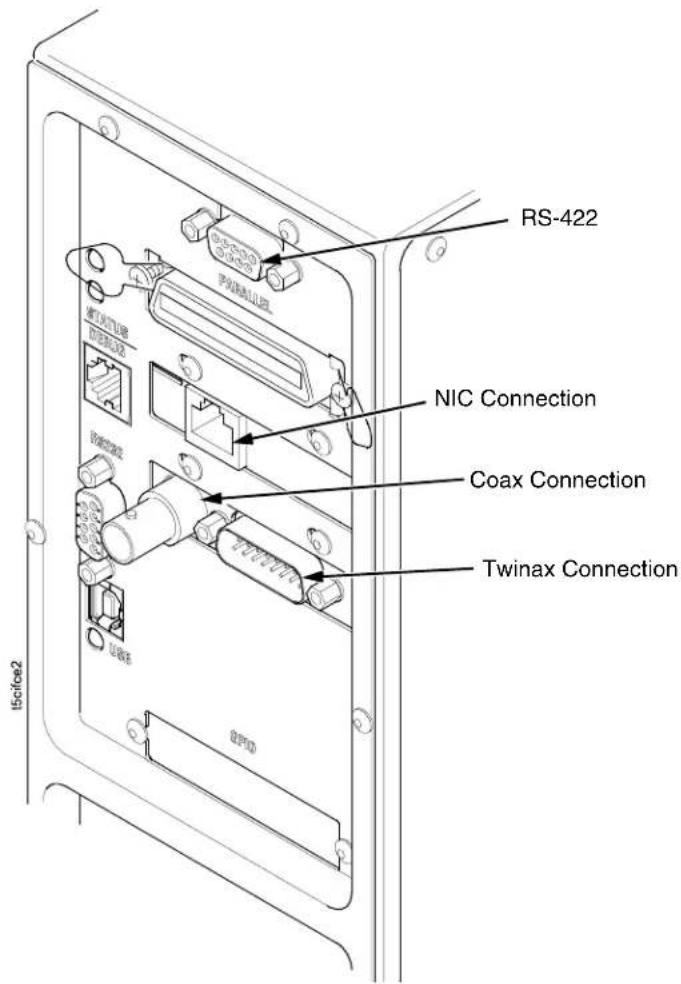
text_image
RS-422 NIC Connection Coax Connection Twinax Connection IScfe2If your printer is equipped with the optional Wireless and Optional GPIO it will appear as illustrated below.
Wireless And GPIO Interface Panel
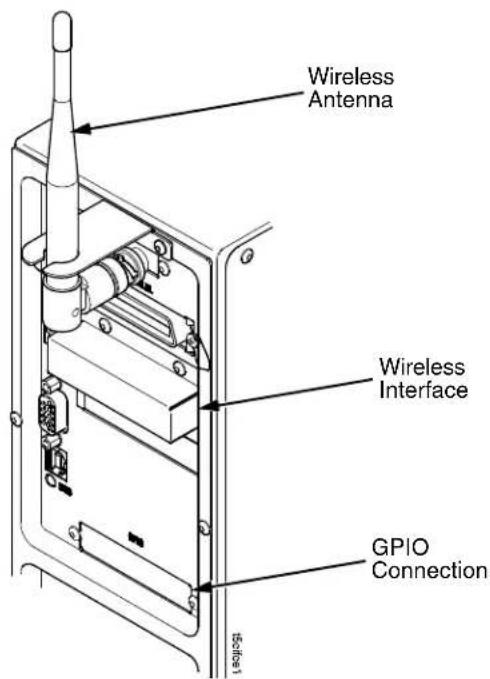
text_image
Wireless Antenna Wireless Interface GPIO Connectionc. Coax Connection
Attach a suitable coaxial cable from the computer to the coax connector located in the I/O plate in the back of the printer.
d. Twinax Connection
Attach a suitable twinax cable from the computer to the twinax connector located in the I/O plate in the back of the printer.
e. NIC Connection
Insert a suitable NIC cable from your hub or switch to the NIC connector located in the I/O panel in the rear of your printer.
2 Operation
Controls And Indicators
Power Switch
The power switch is located on the bottom back panel of the printer. To apply power, place the switch in the I (ON) position. When you first power on the printer, a series of initialization messages will appear on the Liquid Crystal Display (LCD) on the control panel.
To remove power, place the power switch in the O (OFF) position.
Control Panel
The control panel is located on the front of the printer and includes an LCD, indicators, and control keys (buttons). These are described in the following tables. (Also refer to Chapter 3.)
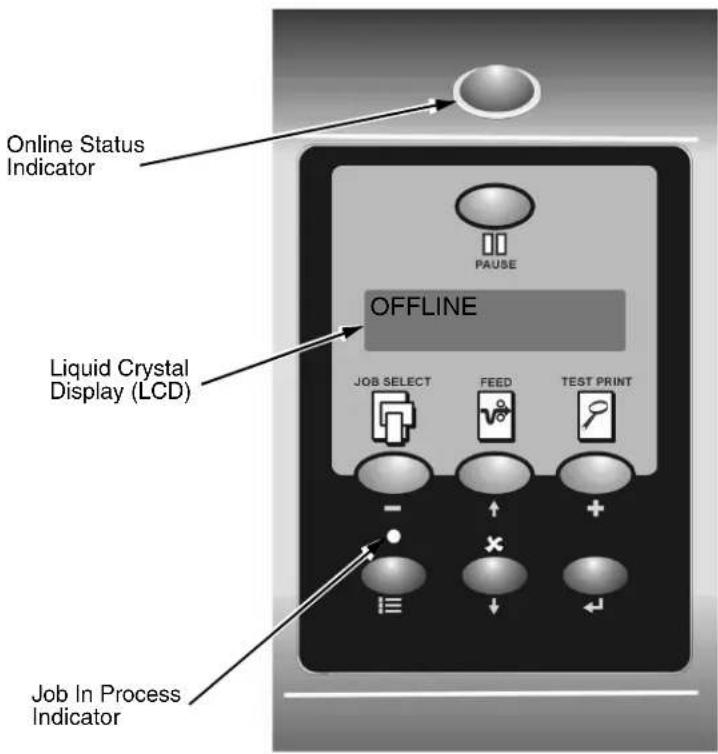
text_image
Online Status Indicator PAUSE OFFLINE Liquid Crystal Display (LCD) JOB SELECT FEED TEST PRINT - + - + - - - - - - - - - - - - - - - - - - - - - - - - - - - - - - - - - - - - - - - - - - - - - - - - - - - - - - - - - - - - - - - - - - - - - - - - - - - - - - - - - - - - - - -Status and Display Indicators
| Indicator Description | Function in Online Mode | Function in Offline Mode | Function in Menu Mode |
| Online Status Indicates when the printer is online, offline, or when there is a fault condition. | Stays lit when the printer is online, ready to print, and accept data from the host.Flashes during a fault condition. | Off when the printer is offline.Flashes during a fault condition. | Off.Flashes during a fault condition. |
| Liquid Crystal Display (LCD) | A backlighted liquid crystal display with two rows of 16 characters each. | Displays “ONLINE,” the interface type, and emulation in use.During a fault condition, displays the specific fault message and the corrective action. | Displays “OFFLINE.”During a fault condition, displays the specific fault message and the corrective action. |
| Job In Process Indicates when the printer is receiving or processing data. | Flashes when receiving data.Stays lit when data has been processed and is waiting to be printed.Off when no data is being received or when no data remains in the buffer. | Flashes when receiving data.Stays lit when data has been processed and is waiting to be printed.Off when no data is being received or when no data remains in the buffer. | None |
Control Panel Keys
| Button Description | Function in Online Mode | Function in Offline Mode | Function in Menu Mode | |
| PAUSE | PAUSE KeyToggles the printer between Online and Offline Modes. | Sets printer to Offline Mode. | Sets printer to Online Mode. | Sets printer to Offline Mode. |
| JOB SELECT- | JOB SELECT Key None DisplaysDECREMENT Key in Menu Mode | the name | and number of the last loaded configuration and allows you to load the factory and/or pre-stored printer configurations. | Scrolls left through main menus.Decrements option values within submenus. |
| FEED↑ | FEED KeyUP Key in Menu Mode | Advances the media one label length. | Advances the media one label length. | Scrolls the current menu selection one level up. |
| TEST PRINT+ | TEST PRINT KeyPressing the ↓ (ENTER) key with a Diagnostic Test displayed initiates the test. Pressing ↓ again terminates the test.INCREMENT Key in Menu Mode | None Selects the Printer | Tests menu and scrolls through the Test Print patterns.See “Printer Tests” on page 238. | Scrolls right through main menus.Increments option values within submenus. |
| CANCEL KeyWhen the CANCEL key is enabled, pressing it will clear all data in the printer buffer and prevent printing of that data.Note: The factory default = Disable. However, when the Coax/Twinax Interface option is installed, the factory default = Enable.DOWN Key in Menu Mode | None Clears all data in the printer data buffer when enabled. | Scrolls the current menu selection one level down. | ||
| MENU Key Takes the printer | Offline and selects the Menu Mode. | Selects the Menu Mode. | Scrolls between main menu selections. | |
| ENTER KeyPressing the ↓ (ENTER) key in Menu Mode selects the displayed option or value. An asterisk then appears next to the option or value indicating it has been selected.Note: If the ENTER key is locked, “ENTER SWITCH LOCKED” displays on the LCD for one second. Press the ↓ (DOWN) and ↓ (ENTER) keys at the same time to unlock the ENTER key. | None None Selects the current | menu value and displays an asterisk (*) next to the value. | ||
Powering On The Printer
When you power on the printer, it executes a self-test. During the self-test, the LCD momentarily displays the DPI resolution (203 or 300 DPI) of the installed printhead. The default power-on state is online. Once the printer has successfully initialized, the ONLINE status indicator light illuminates, and the LCD indicates the communication interface selected and the type of emulation installed.
If there is a fault during the self-test, the ONLINE status indicator flashes, and a fault message appears on the display. The alarm may also sound, if configured to do so.
Operating Modes
The current operating mode can be selected through the control panel keys or can result from routine operations such as powering on the printer.
Online: In online mode, the printer can receive and print data sent from the host. Pressing the PAUSE key toggles the printer between the online and offline modes. The ONLINE status indicator is lit in online mode.
Offline: In offline mode, you can perform operator functions such as loading media or changing ribbon. Pressing the PAUSE key toggles the printer from offline to online mode. The ONLINE status indicator is not illuminated in offline mode.
Menu: Pressing the MENU key takes the printer offline and into Menu mode. In this mode, you can navigate through all configuration and status menus and change the printer configuration.
Fault: In fault mode, a fault condition exists that must be cleared before printing can continue. The ONLINE status indicator flashes, the alarm beeps (if configured to do so), and a descriptive fault message displays.
The fault must be corrected first and then the message cleared by pressing the PAUSE key before normal printing can continue.
Media Handling Modes
Before you load media, you must decide which media handling mode to use:
- Continuous. Prints on the media and sends it out the front of the printer. When the optional internal rewinder is installed, use "Continuous" for Batch Rewind mode (see page 54).
- Tear-Off Strip. Prints on the media and sends it out the front until the print buffer is empty then positions the last label over the tear bar for removal.
-
Tear-Off. After each label is printed, the printer positions the label over the tear bar and waits for you to tear off the label before printing the next label (on-demand printing). A "Remove Label" message will display to remind you to remove the label before the next one can be printed.
-
Peel-Off. When the optional internal rewinder is installed, the printer prints and peels die-cut labels from the liner without user assistance. The label liner is wound on the rewinder. The printer waits for you to take away the label before printing the next one (on-demand printing). A "Remove Label" message will display to remind you to remove the label before the next one can be printed. For Label Peel-off information, see page 60.
- Cut. When the optional media cutter is installed, the printer automatically cuts media after each label is printed or can cut the media after a specified number of labels have been printed using a software cut command.
Once you have decided on the mode, configure the printer. See Chapter 3 for more information.
Loading Media And Ribbon
NOTE: This section describes the procedures for loading various types of media and ribbon. You can also refer to instructions on the printer itself, on a label on the inside of the media cover.
The term “media” in this manual refers to all the different kinds of paper, label, or tag stock material that can be printed on by the printer. Your thermal printer can print on continuous paper, adhesive backed labels, or non-adhesive tags packaged in roll or fanfold form.
CAUTION
DO NOT TOUCH the printhead or the electronic components under the printhead assembly. The discharge of electrostatic energy that accumulates on the surface of the human body or other surfaces can damage or destroy the printhead or electronic components used in this device.
CAUTION
Do not close the pivoting deck without label stock installed between the printhead and the platen, because debris on the platen may damage the printhead.
IMPORTANT
Adhesive backed labels that DO NOT lay flat on the liner can jam the printer. This can cause the label to peel off the liner. The exposed edges can stick to the label guides and rollers inside the printer.
If you run out of labels while printing, do not turn off the printer while reloading labels, because you can lose data.
Loading Roll Media
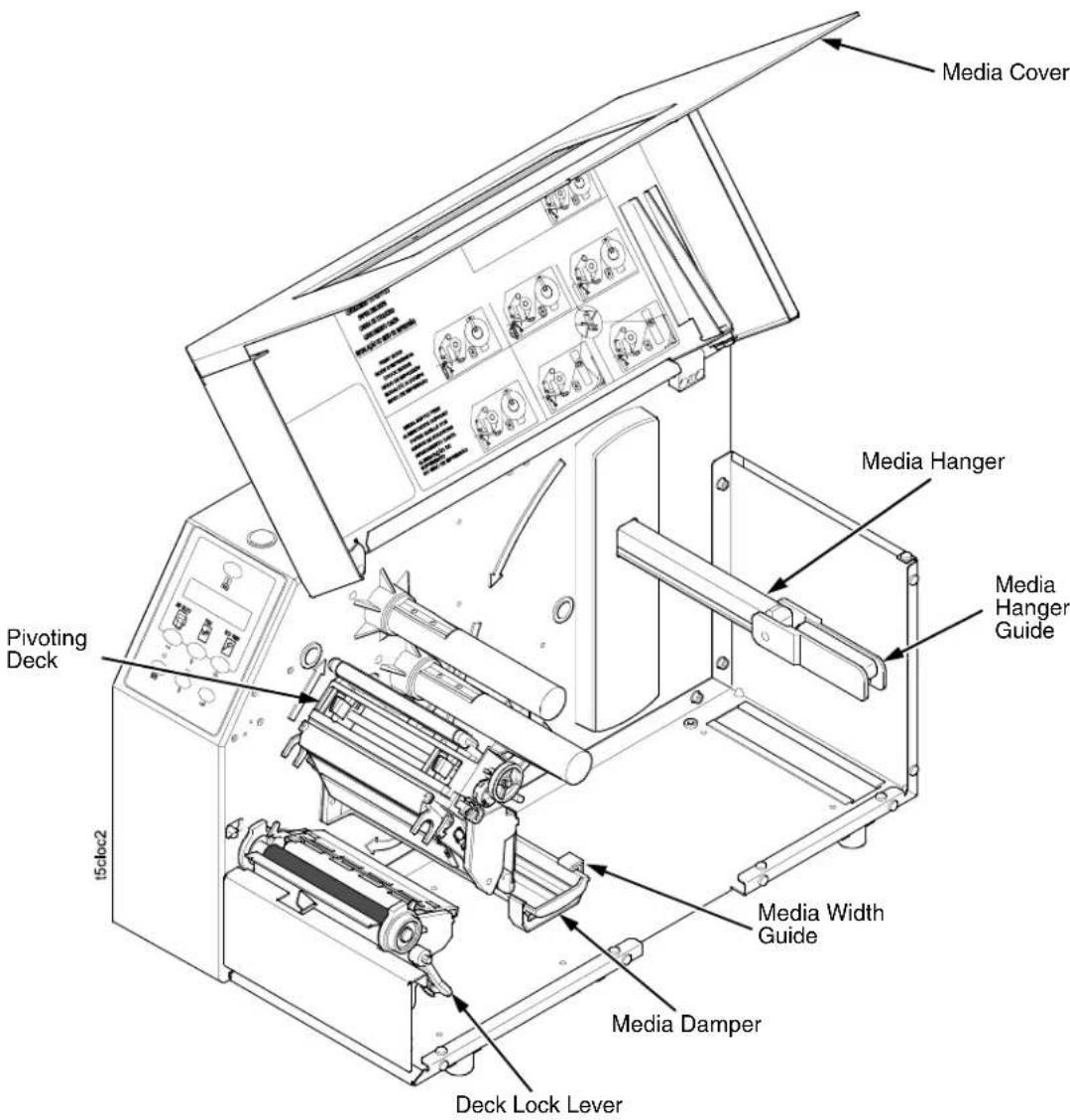
text_image
Media Cover Media Hanger Media Hanger Guide Pivoting Deck 15cloc2 Media Width Guide Media Damper Deck Lock Lever- Open the media cover.
- Slide the blue media hanger guide outward to the end of the media hanger, and flip it up horizontally.
- Open the pivoting deck by rotating the blue deck lock lever fully clockwise.
- Slide the blue media width guide close to the outside end of the media damper.

text_image
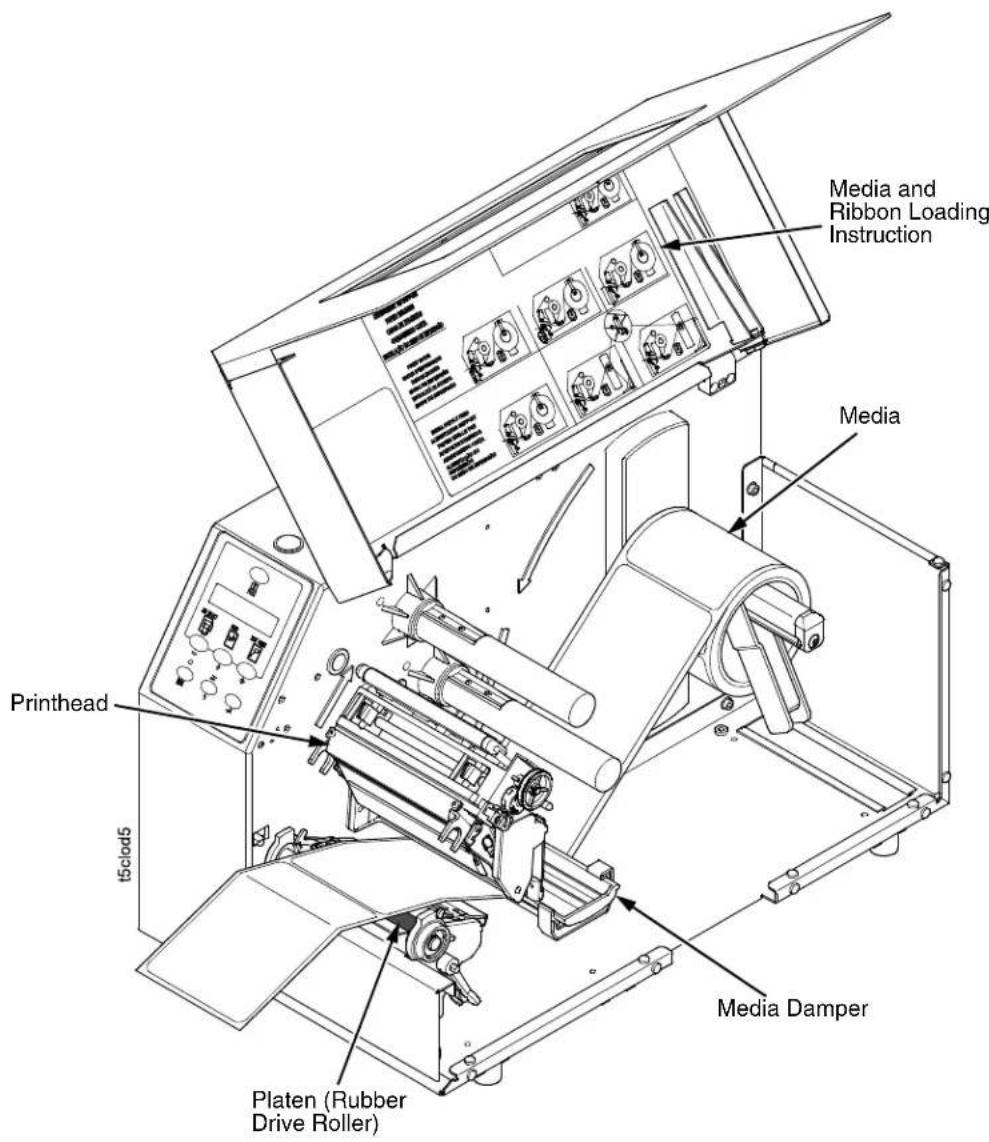
Media Roll Media Hanger Media Hanger Guide t5c10d4- Slide a roll of media onto and towards the back of the media hanger. The media feeds from the top of the roll and towards the front of the printer.
- Place the media hanger guide under the media hanger and against the lower part of the label core at a 45 degree angle (as shown). This position provides the required tension for a new label roll and the desired drag for a partial label roll.
text_image
Media and Ribbon Loading Instruction Media Printhead t5clod5 Platen (Rubber Drive Roller) Media Damper- Thread the media under the media damper and then between the platen (rubber drive roller) and the printhead.
You can also refer to the arrows on the printer frame or to the label inside the media cover for media loading instructions.

text_image
Lower Media Sensor Media Guard t5clwsen Media Sensor Handle Media Damper Media Width Guide Fixed Guide- Verify that the left (inside) edge of the media is against the fixed guide on the bottom of the media damper.
- Push the blue media width guide in until it is flush with the outer edge of the media.
- Check the horizontal position of the lower media sensor (located under the media guard), and refer to "Positioning The Media Sensors" on page 66.
text_image
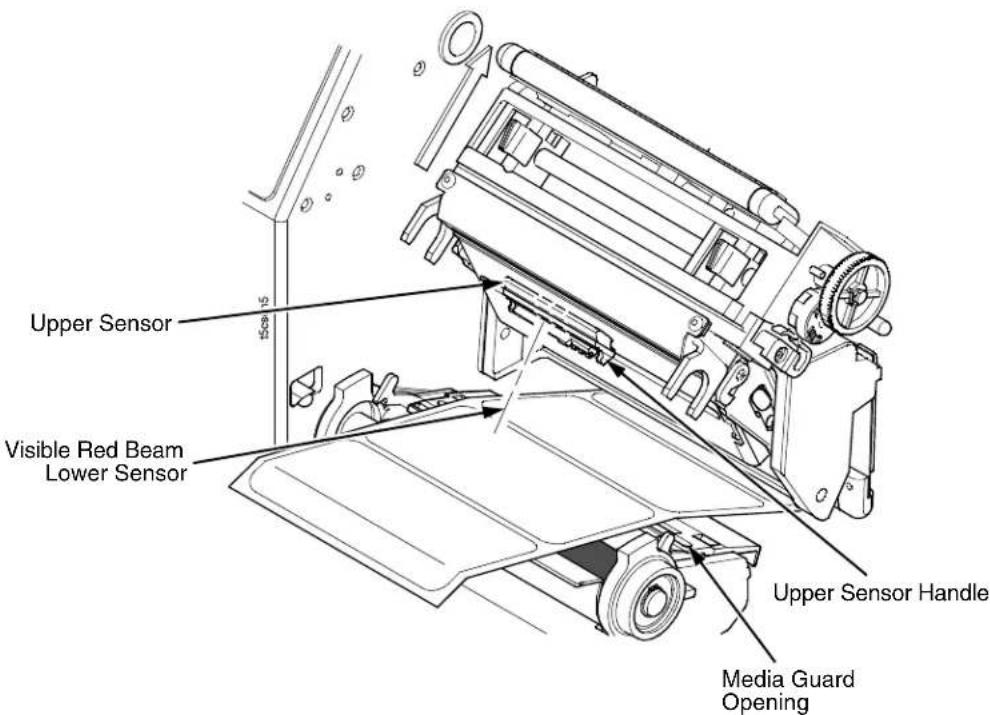
Upper Sensor Visible Red Beam Lower Sensor Upper Sensor Handle Media Guard Opening- Slide the upper sensor directly over the lower sensor.
text_image
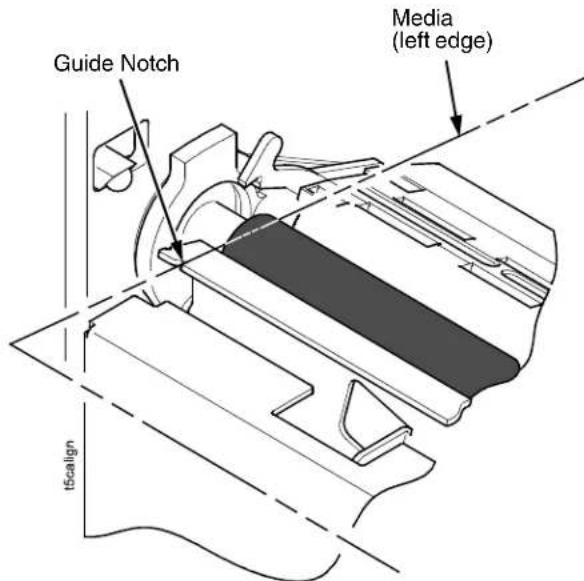
Guide Notch Media (left edge) t5scale- Align the left (inside) edge of the media with the guide notch located on the front edge of the tear bar.
text_image
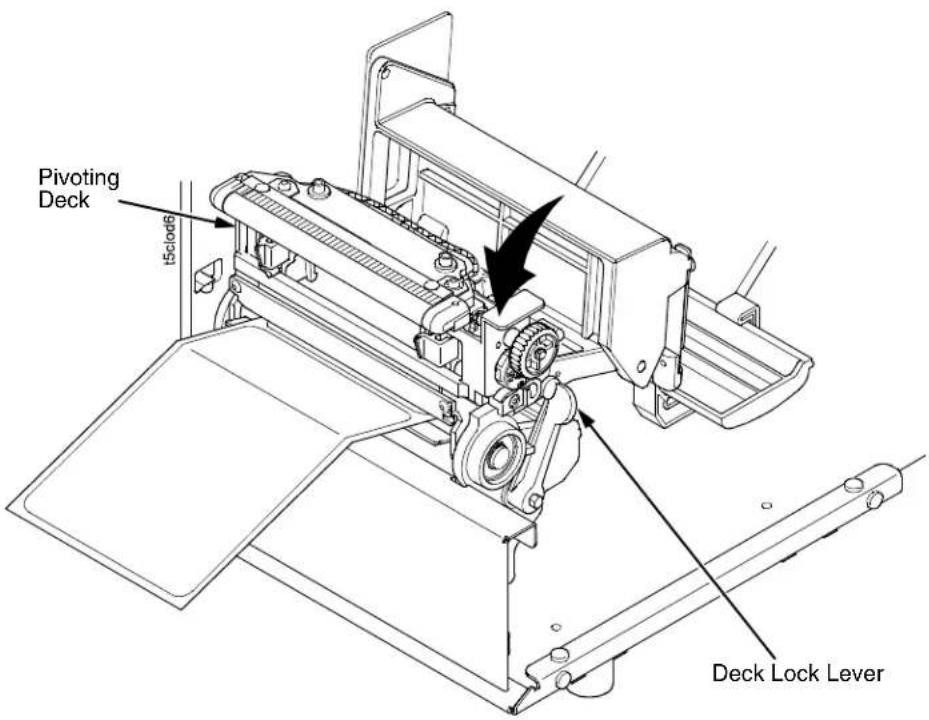
Pivoting Deck t5clod6 Deck Lock Lever- Close the pivoting deck and rotate the deck lock lever fully counterclockwise. This locks the pivoting deck and printhead assembly into the printing position.
IMPORTANT
Ensure the pivoting deck is down and locked before attempting to advance media or print. Failure to do so will cause the "PRINTHEAD UP" fault message to display.
-
Verify that Print Mode in the printer configuration menu is set for the media type installed (Direct or Transfer). The Print Mode submenu is located in the QUICK SETUP menu. See "Main Menu" on page 95 for details.
-
Verify the printhead pressure is properly set. See "Printhead Pressure Adjustment" on page 64.
-
Verify the pressure blocks are properly positioned. See "Printhead Pressure Block Adjustments" on page 65.
-
Verify the Gap/Mark Sensor selection matches the type of media installed. See "Sensing Different Media Types" on page 71.
For direct thermal operation (no ribbon required):
- If you have not run an Auto Calibrate, do so now. See “Running Auto Calibrate” on page 72.
- If you have already run an Auto Calibrate, complete the following steps:
a. Close the media cover.
b. Press the FEED key once to verify that the media advances.
c. Press the PAUSE key to place the printer online.
For thermal transfer operation (which uses a ribbon):
Complete the ribbon loading procedure (see "Loading Ribbon" on page 51).
Loading Fanfold Media
text_image
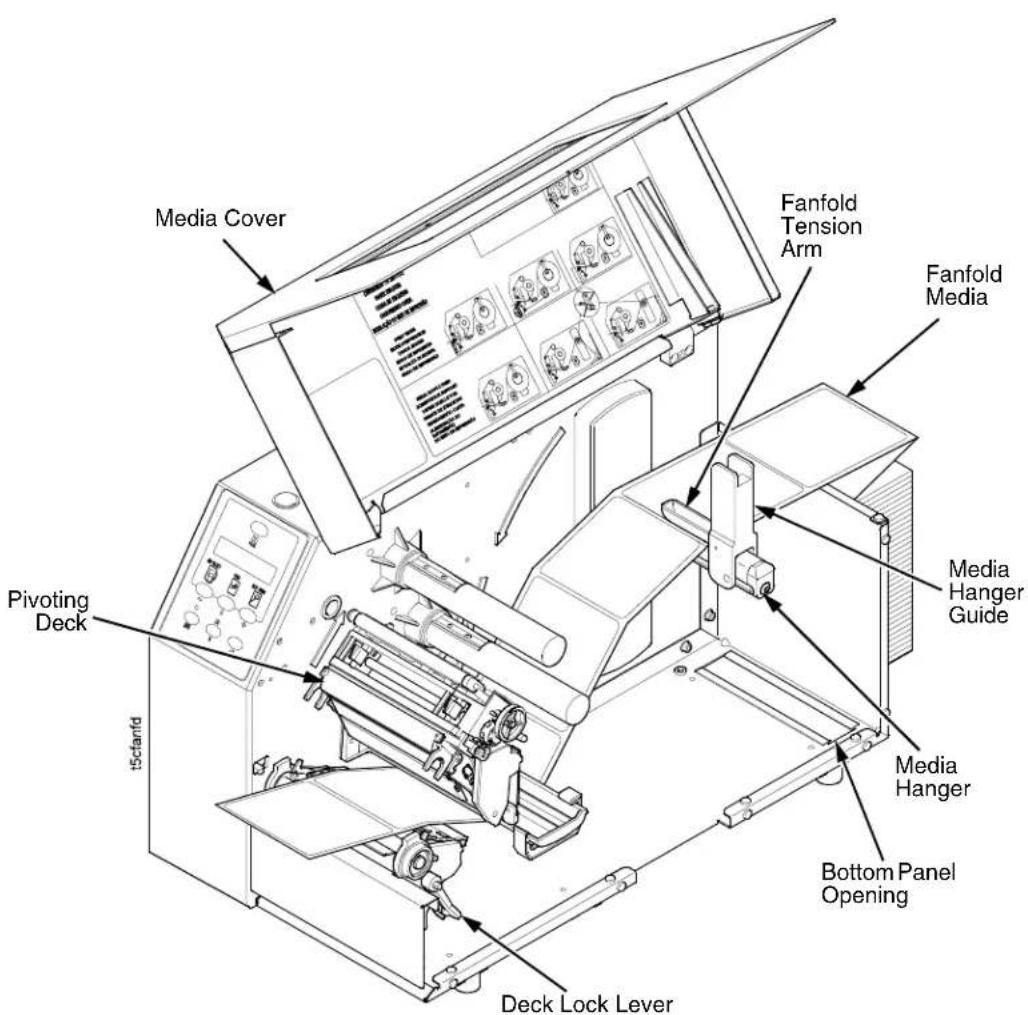
Media Cover Fanfold Tension Arm Fanfold Media Pivoting Deck t5ctanfd Media Hanger Guide Media Hanger Bottom Panel Opening Deck Lock Lever- Open the media cover.
- Slide the media hanger guide outward to the end of the media hanger and rotate it upward to a horizontal position to remove any roll media.
- Place the fanfold media either behind or beneath the printer, depending on the desired fanfold supply location. Insert the first few labels through either the rear or bottom panel opening.
- Place the media over the media hanger, flush against the back of the printer.
- Flip up the media hanger guide and slide it in against the outer edge of the fanfold media.
- Flip the fanfold tension arm down by pushing on it through the opening at the top of the media hanger guide.
- Open the pivoting deck by rotating the deck lock lever fully clockwise until the deck swings upward.
text_image
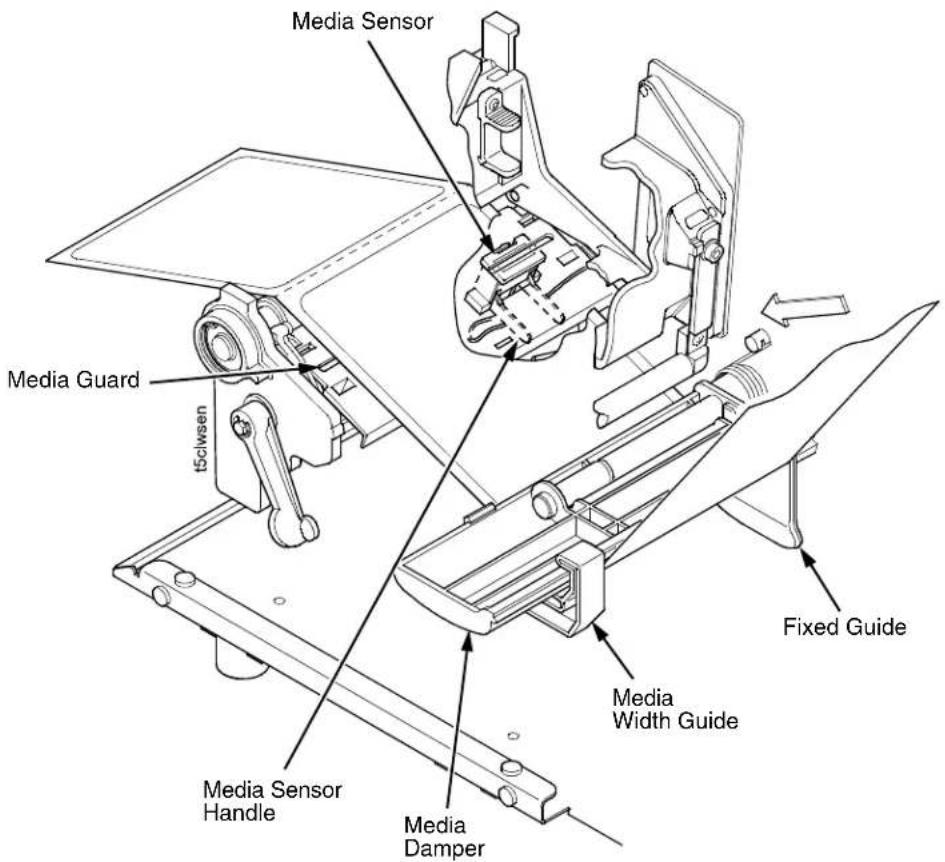
Media Sensor Media Guard t5clwsen t5clwsen Media Sensor Handle Media Damper Media Width Guide Fixed Guide-
Slide the media width guide outward to the end of the media damper.
-
Thread the media under the media damper and then between the platen (rubber drive roller) and the printhead. You can also refer to the arrows on the printer frame or to the label inside the media cover for media loading instructions.
Verify that the left (inside) edge of the media is against the fixed guide on the bottom of the media damper.
-
Slide the media width guide inward against the outer edge of the media.
-
Check the horizontal position of the lower media sensor (located under the media guard), and refer to "Positioning The Media Sensors" on page 66.
text_image
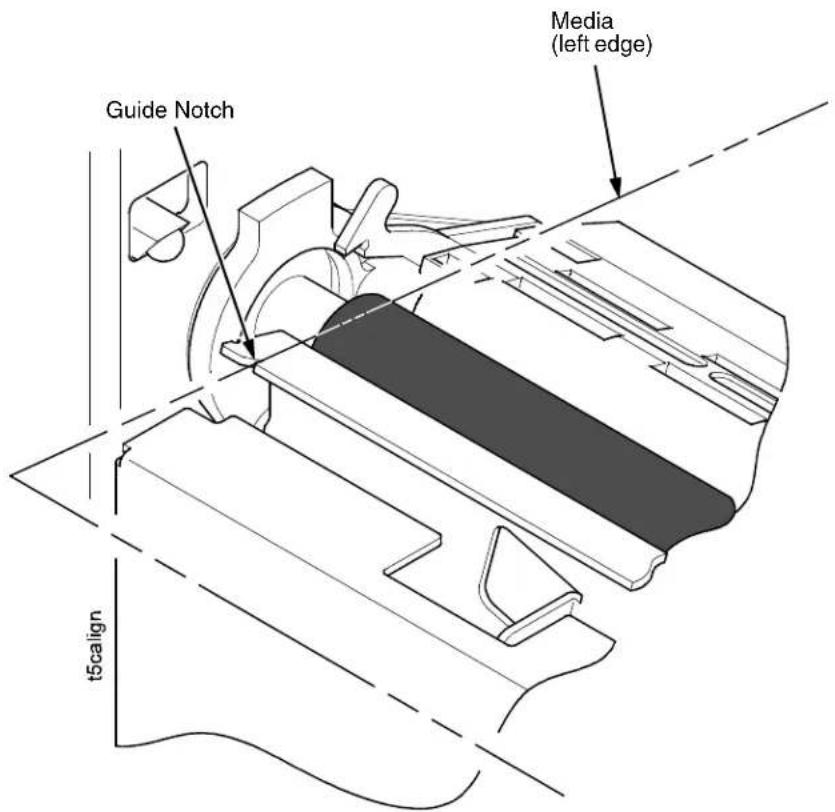
Guide Notch Media (left edge) t5align- Align the left (inside) edge of the media with the guide notch located on the front edge of the tear bar.

text_image
Pivoting Deck 15clock6 Deck Lock Lever- Close the pivoting deck and rotate the deck lock lever fully counterclockwise. This locks the pivoting deck and printhead assembly into the printing position.
IMPORTANT
Ensure the pivoting deck is down and locked before attempting to advance media or print. Failure to do so will cause the "PRINTHEAD UP" fault message to display.
-
Verify that Print Mode submenu is set for the media type installed (direct or transfer). The Print Mode submenu is located in the QUICK SETUP menu. See "Main Menu" on page 95 for more information. Also, if thermal transfer media is installed, see "Loading Ribbon" on page 51.
-
Verify the printhead pressure is properly set. See "Printhead Pressure Adjustment" on page 64.
-
Verify the pressure blocks are properly positioned. See "Printhead Pressure Block Adjustments" on page 65.
-
Verify the Gap/Mark Sensor selection matches the type of media installed. See "Sensing Different Media Types" on page 71.
For direct thermal operation (no ribbon required):
- If you have not run an Auto Calibrate, do so now. See “Running Auto Calibrate” on page 72.
- If you have already run an Auto Calibrate, complete the following steps:
a. Close the media cover.
b. Press the FEED key once to verify that the media advances.
c. Press the PAUSE key to place the printer online.
For thermal transfer operation (which uses a ribbon):
Complete the ribbon loading procedure (see "Loading Ribbon" on page 51).
Loading Ribbon
Skip this section for 4 inch DT models or when using direct thermal printing.

text_image
Ribbon Take-Up Core Ribbon Take-up Spindle Pivoting Deck Ribbon Supply Spindle Ribbon Roll Deck Lock Lever t5cmb1- Install the ribbon take-up core on the ribbon take-up spindle.
NOTE: The first ribbon take-up core comes with the printer. Thereafter, use the core from the old (used up) ribbon. - Slide the ribbon roll onto the ribbon supply spindle until it stops against the spindle flange.
- Open the pivoting deck by rotating the deck lock lever fully clockwise until the deck swings upward.

text_image
Ribbon Printhead Media Rear Ribbon Guide Roller 1506b2- Thread the end of the ribbon under the rear ribbon guide roller, then between the platen and the printhead.
You can also refer to the arrows on the printer frame or to the upper-right corner of the label inside the media cover for ribbon loading instructions.
text_image
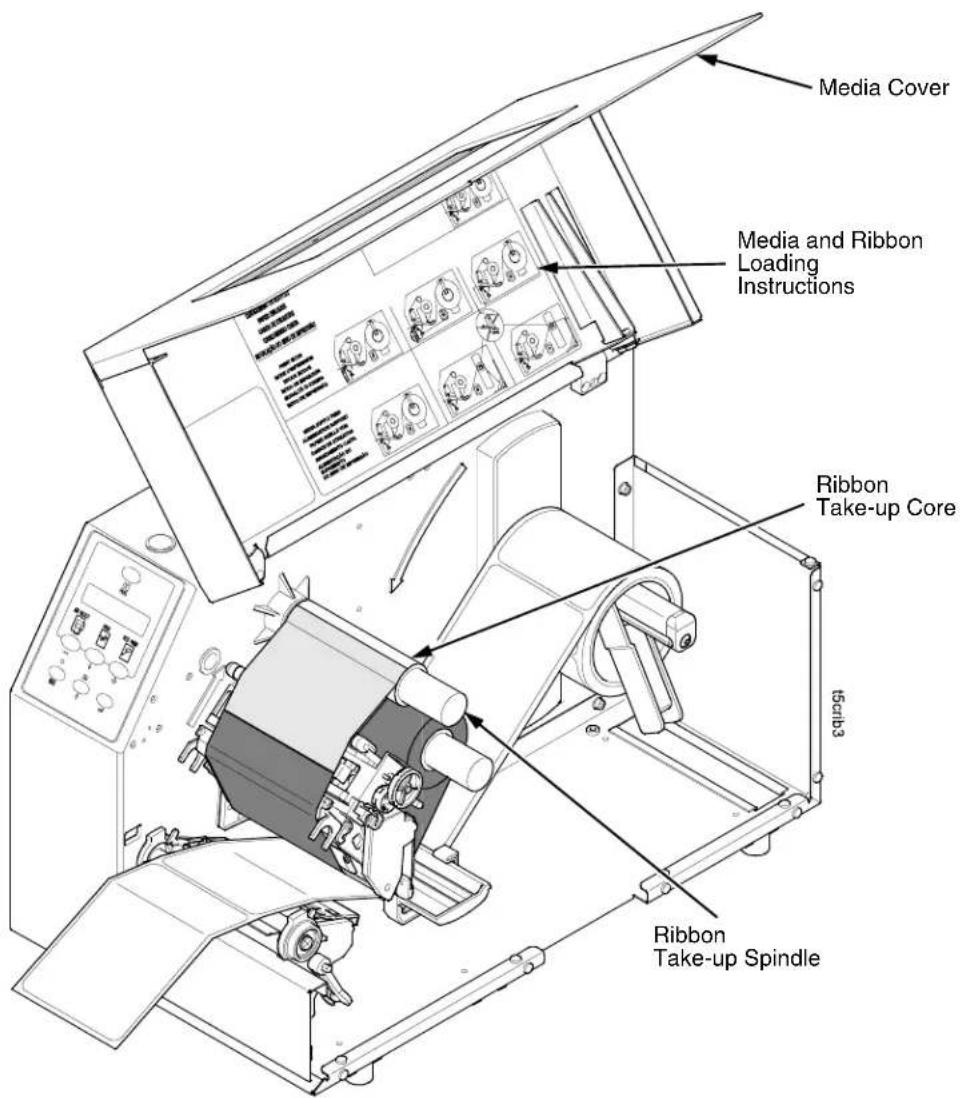
Media Cover Media and Ribbon Loading Instructions Ribbon Take-up Core t5c4b3 Ribbon Take-up SpindleIMPORTANT
Do not attach the ribbon to the ribbon take-up spindle without a fiberboard take-up core installed.
- Attach the ribbon to the ribbon take-up core on the ribbon take-up spindle using the adhesive on the ribbon leader.
- Manually rotate the spindle clockwise until the clear leader has passed the printhead.
- Close the pivoting deck and rotate the deck lock lever fully counterclockwise.
-
Verify that Print Mode (in the QUICK SETUP menu) is set for Transfer. See "QUICK SETUP" on page 106 for more information.
-
If you have not run an Auto Calibrate with this media and ribbon, do so now. See "Running Auto Calibrate" on page 72.
- Press the FEED key once to verify that the media and ribbon advance.
- Press the PAUSE key to place the printer online.
- Close the printer media cover if the rewinder is not needed.
Using The Optional Internal Rewinder
The printer can be set up to rewind labels after they have been printed (Batch Rewind Mode) or to automatically peel labels from their backing and dispense them one at a time while rewinding the liner (Peel-Off Mode). Both modes require an internal rewinder, which is available as a factory installed or a field unit option.
Batch Rewind Mode
Batch Rewind allows you to automatically rewind printed labels into a roll using the optional internal rewinder.
Configuring the Printer Menu
- Set Media Handling to "Continuous" under the QUICK SETUP menu. (See Chapter 3, "Configuring The Printer" for more information.)
- Press the PAUSE key until "OFFLINE" displays.
Installing The Media Guide
The media guide must be installed when using Batch Rewind mode.
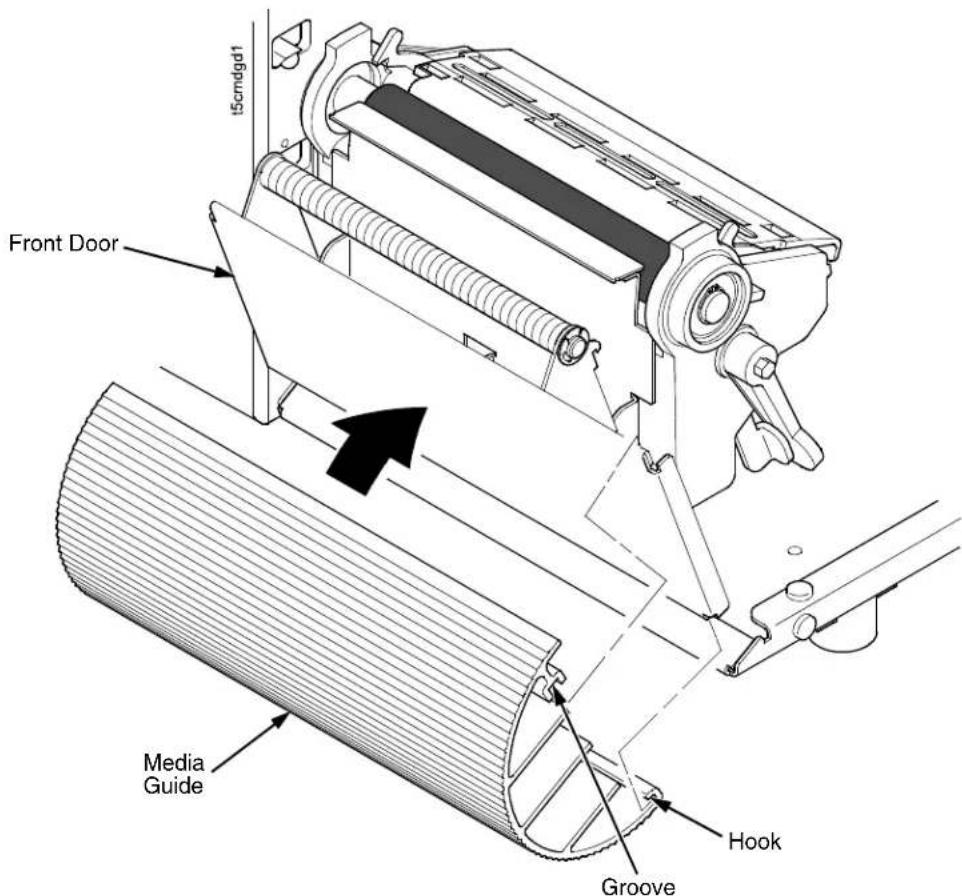
text_image
t5cmdgd1 Front Door Media Guide Hook GrooveTo install the media guide:
- Open the front door by pulling it upwards, then forward.
- The bottom of the plastic media guide is shaped like a hook and the top has a groove:
a. Hook the bottom of the media guide under the bottom edge of the front door.
b. Snap the groove on the media guide to the top edge of the front door.
- Close the front door.
Loading Media
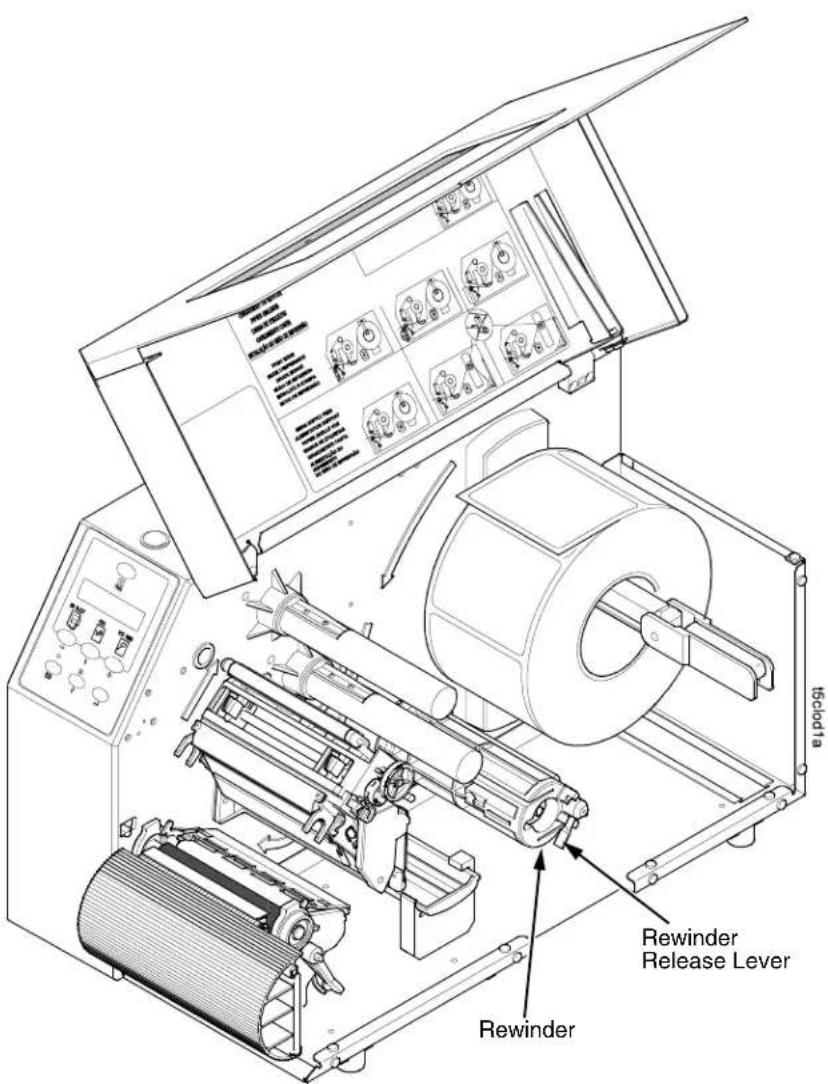
text_image
tscod1a Rewinder Release Lever Rewinder- To load media, refer to "Loading Roll Media" on page 39 and complete steps 1 through 10.

text_image
Media Media Guide Slot Rewinder Release Lever 15x1042a- Thread the media over the front of the media guide and through the opening under the front door toward the internal rewinder.
IMPORTANT If you do not complete the following step, it will be extremely difficult to remove the printed labels from the rewinder.

text_image
Back Flange Raised Ridge Slot Media or Liner Rewinder Release Lever- Turn the release lever on the rewinder counterclockwise and lock it in place. This forms a raised ridge along the width of the rewinder.
- Insert the leading edge of the media into the closest slot of the rewinder, and slide the media against the back flange.
- Hold the media edge in the slot and manually rotate the rewinder one full revolution counterclockwise until the media is taut.

text_image
Media Cover 15clod3b Deck Lock Lever- Press down on both sides of the pivoting deck and rotate the deck lock lever counterclockwise against its stop to place the printhead assembly into the printing position.
- Press the FEED key to advance the media to the next TOF (Top-of-Form) position.
- Press the PAUSE key until "ONLINE" displays.
- Close the media cover.
IMPORTANT
The rewinder supports a maximum diameter of five inches of printed labels. Exceeding this diameter can cause printed labels to rub on the bottom pan.
Removing Printed Media from the Rewinder
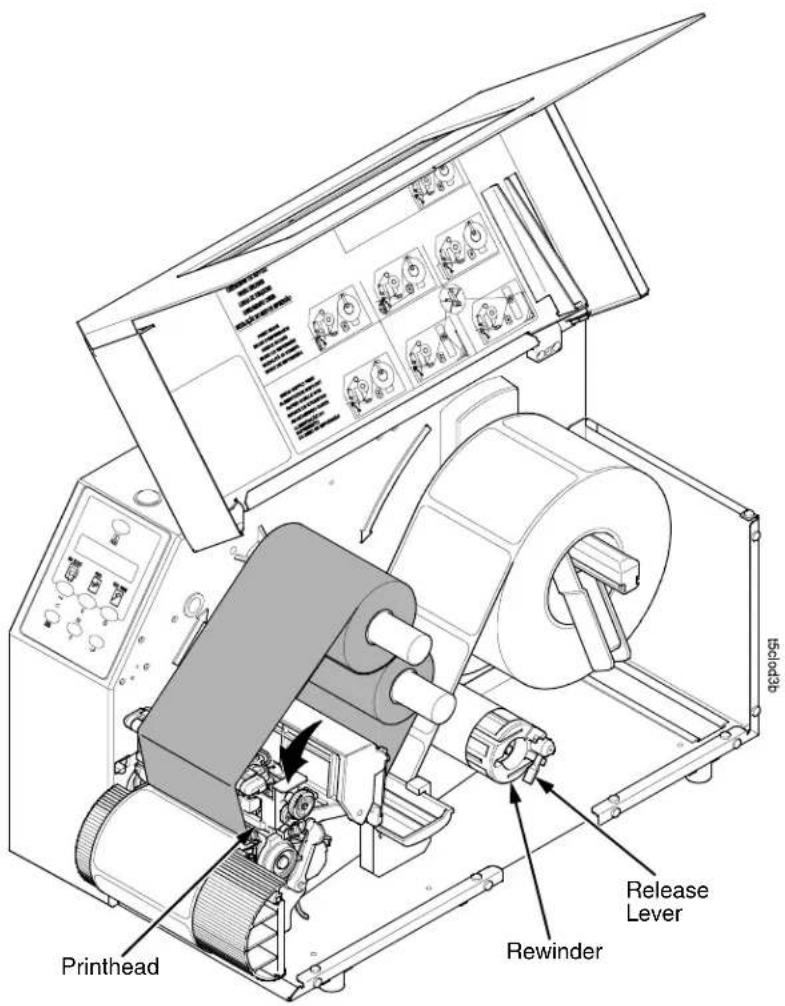
text_image
Printhead Rewinder Release Lever 150438- Open the media cover.
- Press the FEED key to advance the last printed label past the printhead, and tear the liner from behind the last printed label.
- Manually rewind the remaining printed labels onto the rewinder by turning the rewinder counterclockwise.
- Turn the release lever on the rewinder clockwise.
- Slide the roll of printed labels off the rewinder.
Label Peel-Off
You can set up the printer to automatically peel die-cut labels off their liner (backing) and dispense them one at a time while rewinding the liner.
You can install the media guide to prevent long labels from accidentally adhering to the front door assembly, but it is normally not needed when using labels less than two inches long (see "Installing The Media Guide" on page 55).
Configuring the Printer Menu
-
Set Media Handling to "Peel-Off" under the QUICK SETUP menu. (See Chapter 3, "Configuring The Printer" for more information.)
-
Press the PAUSE key until "OFFLINE" displays.
Loading Media
-
If you want to install the media guide to print long labels, do so now by completing the steps listed in "Installing The Media Guide" on page 55.
-
Open the media cover and refer to the Label Peel-Off illustration on the Ribbon and Media Loading instruction label on the inside of the cover.
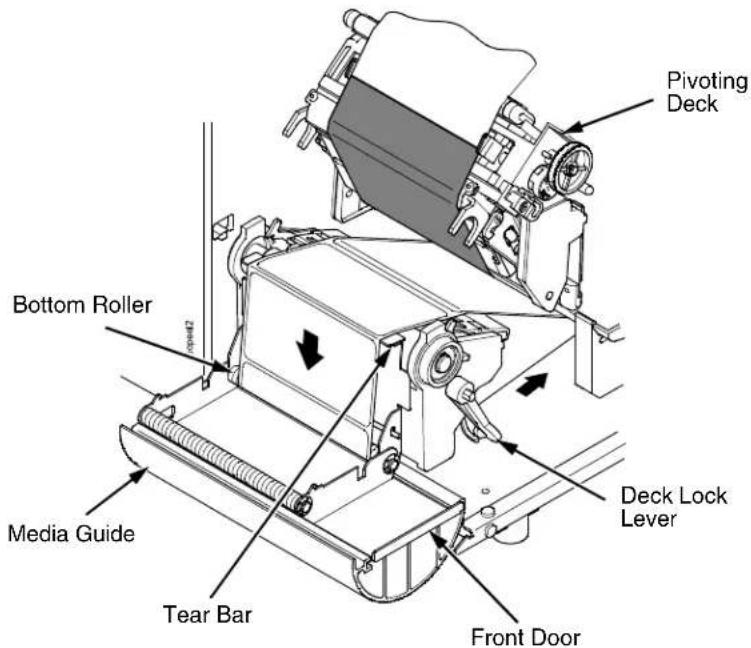
text_image
Pivoting Deck Bottom Roller Media Guide Tear Bar Deck Lock Lever Front Door-
Open the front door by pulling it upward, then forward.
-
Open the pivoting deck by rotating the deck lock lever clockwise until the deck swings upward.
-
Thread the media (label and liner) over the tear bar and around the bottom roller, then through the opening at the bottom of the front door and into the printer.

text_image
Back Flange Raised Ridge Rewinder Lever Slot LinerIMPORTANT
If you do not complete the following step, it will be difficult to remove the liner from the rewinder.
- Turn the release lever on the rewinder counterclockwise and lock it in place. This forms a raised ridge along the width of the rewinder.
- Insert the leading edge of the media into the closest slot of the rewinder, and slide the media against the back flange.
- Hold the media in the slot and rotate the rewinder one full revolution counterclockwise until the media is taut.
- Remove labels from the liner so that behind the tear bar the liner is void of labels for about 1.5 inches and below the tear bar for about 2 inches.
- Close the front door.
natural_image
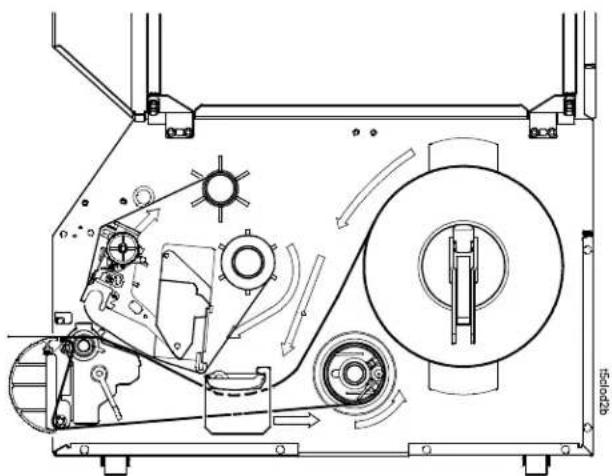
Technical line drawing of a mechanical assembly with gears, pulleys, and a central rotating component (no text or symbols)- Complete the media routing as shown above.
text_image
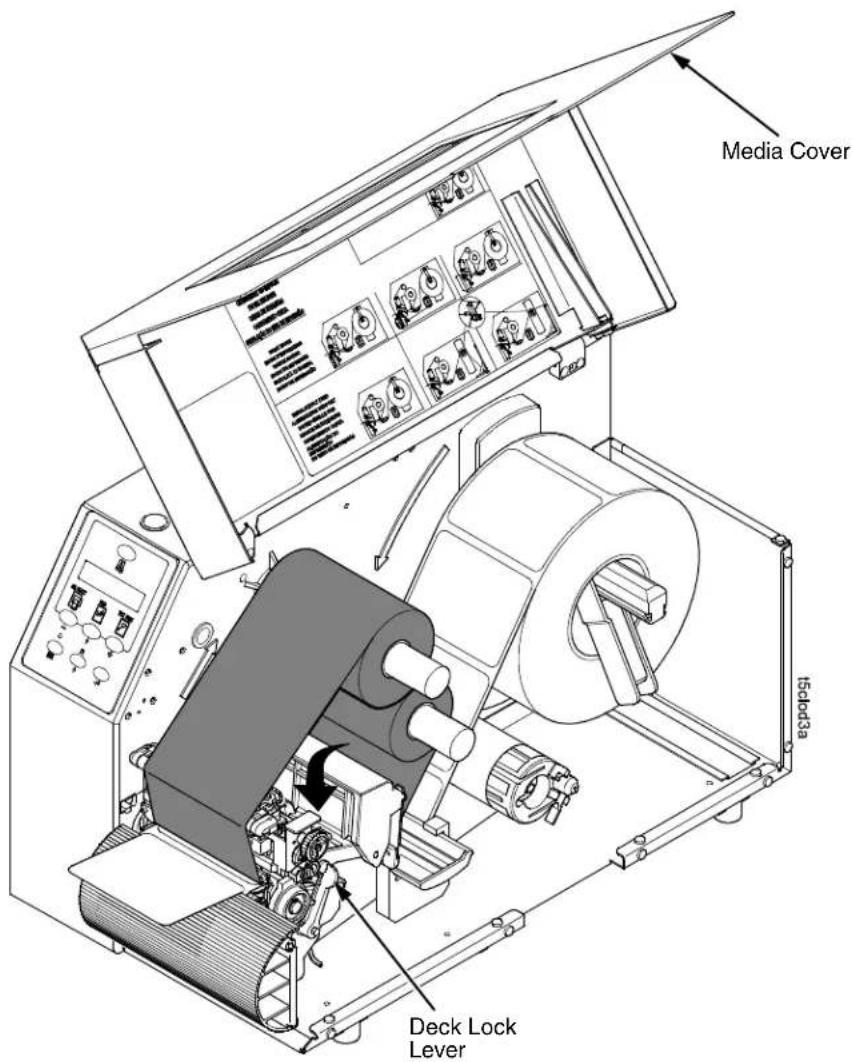
Media Cover Ischod3a Deck Lock Lever- Press down on both sides of the pivoting deck and rotate the deck lock lever fully counterclockwise.
- Press the FEED key. The label advances to the peel-off position, and "Remove Label" displays on the LCD.
- Manually remove the peeled label from the printer.
- Press the PAUSE key until "ONLINE" displays.
- Close the media cover.
IMPORTANT
The rewinder supports a maximum diameter of 5 inches of liner. Exceeding this diameter can cause the liner to rub on the bottom pan. The rewinder is designed to support the full amount of liner from a standard 8 inch diameter media roll.
Removing Label Liner from the Rewinder
- Open the media cover.
- Open the front door.
- Tear the liner at the tear bar.
- Manually rewind the remaining liner onto the rewinder by turning the rewinder counterclockwise.
- Turn the release lever on the rewinder clockwise.
- Slide the roll of label liner off the rewinder and discard.
Removing The Media Guide
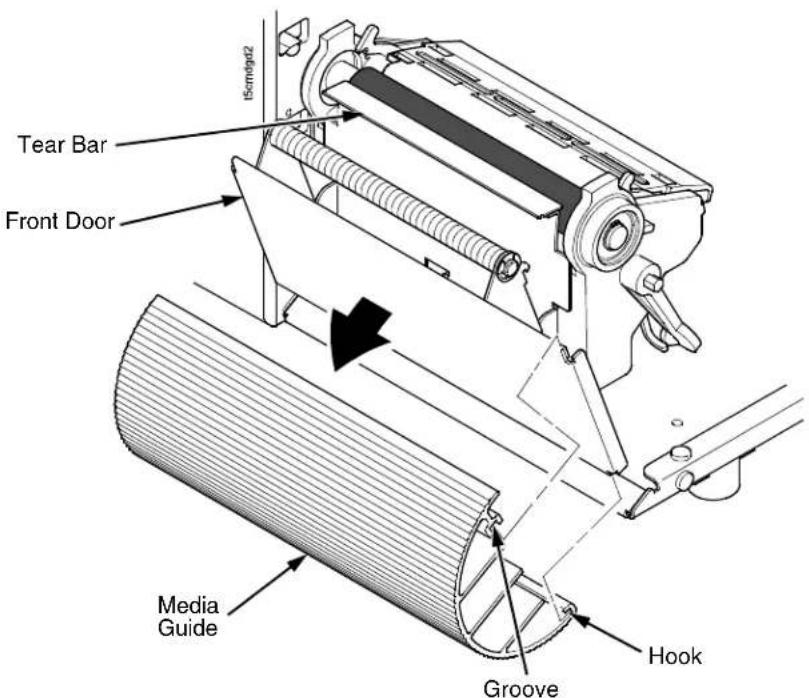
Remove the media guide from the front door when using Tear-Off or Tear-Off Strip media handling, because you will need to tear the label downward against the tear bar.
text_image
Tear Bar Front Door Media Guide Groove Hook Is5m4g42- Open the front door by pulling it upward, then forward.
- Grasp the upper right corner of the media guide and pry it off of the top of the front door.
- After removing the media guide, close the front door.
- Open the pivoting deck and load paper and ribbon normally (see "Loading Media And Ribbon" on page 38).
Printing Adjustments
Printhead Pressure Adjustment
text_image
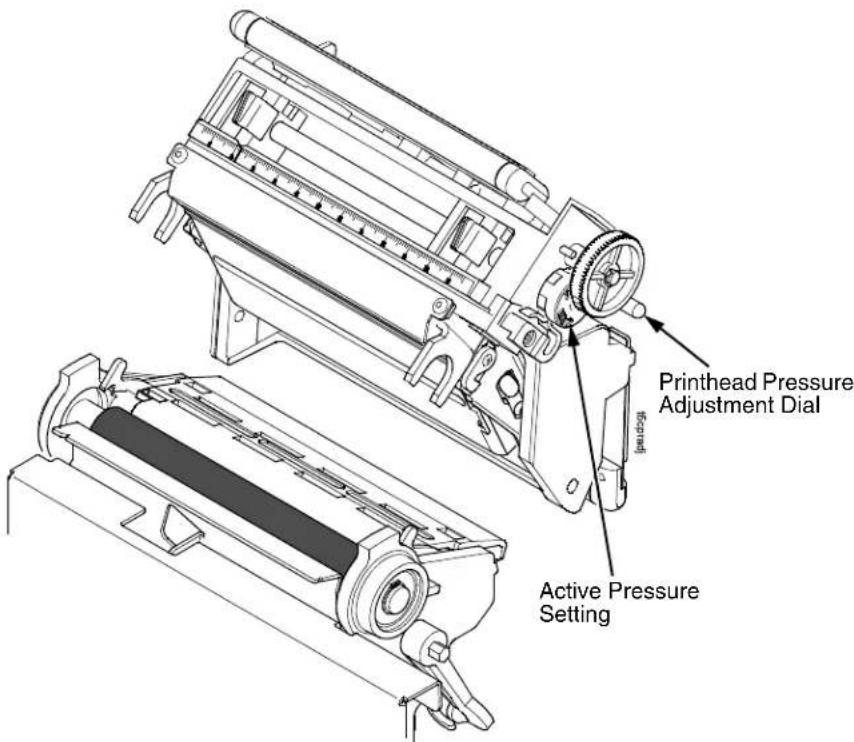
Printhead Pressure Adjustment Dial Active Pressure SettingSometimes you will need to adjust printhead pressure because of variations in media thickness and width. The printhead pressure adjustment dial is shown above. The value shown at the bottom of the dial is the active setting.
In general, adjust printhead pressure to the lowest value which produces the desired print quality. Die cut labels usually require a setting of 4, while heavy stock requires a setting of 6 to max. The numbers on the printhead pressure adjustment lever are relative only and do not indicate a specific printhead pressure or media thickness. By following this procedure, you will minimize printhead wear.
Printhead Pressure Block Adjustments
text_image
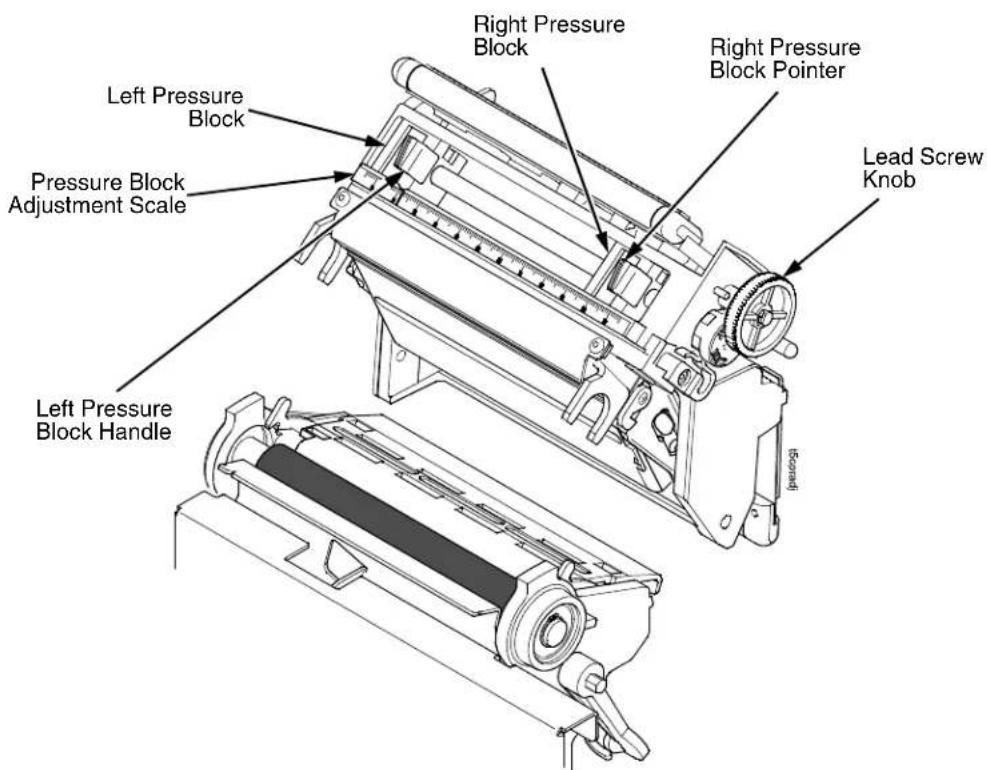
Left Pressure Block Pressure Block Adjustment Scale Right Pressure Block Right Pressure Block Pointer Lead Screw Knob Left Pressure Block HandlePrinthead pressure block adjustments are used to obtain a uniform print density across the width of the installed media under a variety of media and ribbon conditions.
Left Pressure Block
Under normal printing conditions, the left block should be set with its handle aligned with the bold mark on the pressure block adjustment scale. When using media or ribbon widths less than one-third the printer's maximum printing width, you may need to manually slide the left pressure block further to the left.
Right Pressure Block
The right pressure block should be positioned with its pointer (handle on 4 inch printer models) near the right edge of the media or ribbon in use. Turn the lead screw knob clockwise to move the block right or counterclockwise to move it left.
Check the pressure block positioning by printing the Grey test pattern:
- Press the PAUSE key until "OFFLINE" appears on the LCD.
-
Press the TEST PRINT key until "Printer Tests/Grey" displays.
-
Press the ↓ key to start the Grey test pattern. The pattern will start and continue to print.
- Press ↓ again to stop printing.
- Check the test pattern. If necessary reposition the pressure blocks to obtain a uniform print density across the media width. In most cases, only the right pressure block may need to be adjusted.
- Whenever you reposition a pressure block, run the Grey test pattern to verify the print pattern is acceptable.
Positioning The Media Sensors
Your printer is equipped with upper and lower media sensors that detect the top-of-form position on media with label length indicators (gaps, notches, holes, or black marks). These sensors also detect when a Paper Out condition exists.
The media sensors should not be placed in the path of media features that could cause false gap detection or paper out faults. Such features are dark pre-printing, rounded die-cut label corners, vertical gaps associated with side-by-side labels, and extraneous cut-outs, as shown below.

text_image
ACME PARTS Position the media sensors in either of the grey shaded areas. ACME PARTS Dark Pre-printing Vertical Gap and Rounded Die-cut Label Corners tscblsm ACME PARTS Extraneous Cut-outSensing Media with Horizontal Black Marks (Mark) or Media with No Label Length Indicators (Disable)
text_image
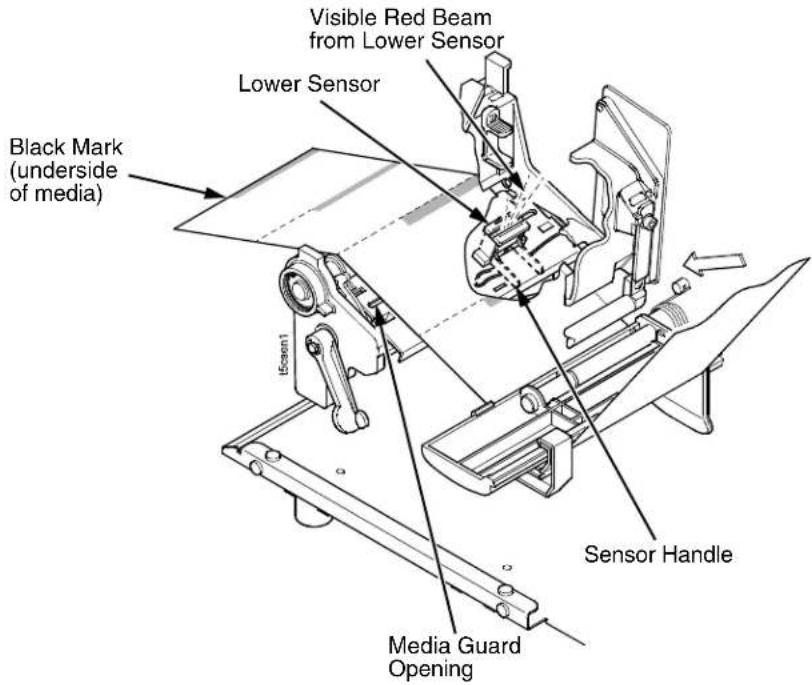
Visible Red Beam from Lower Sensor Lower Sensor Black Mark (underside of media) [Screen] Sensor Handle Media Guard OpeningSensing Media with Horizontal Black Marks
Position the lower media sensor for detecting horizontal black marks located on the underside of media, and position the upper sensor above the lower sensor to provide a consistent background.
- Check the position of the sensor by looking through the long, narrow opening in the media guard. Use the visible red light emitting from the lower sensor as a reference pointer.
- Use the sensor handle to manually position the sensor to the center of the black mark on the media.
- Select "Mark" in the Gap/Mark Sensor submenu under the CALIBRATE CTRL menu. See "Sensing Different Media Types" on page 71.
- Perform an Auto Calibrate. See "Running Auto Calibrate" on page 72.
Sensing Media with No Label Length Indicators
- When using media without label length indicators (no gaps, notches, holes, or marks) or when you want to ignore all existing length indicators, place the lower sensor in the center of the media so it can detect when a Paper Out condition exists. Also set the upper sensor above it.
- Select "Disable" in the Gap/Mark Sensor submenu under CALIBRATE CTRL. See "Sensing Different Media Types" on page 71.
- Perform an Auto Calibrate. See "Running Auto Calibrate" on page 72.
Sensing Media with Gaps, Notches, or Holes (Gap)
text_image
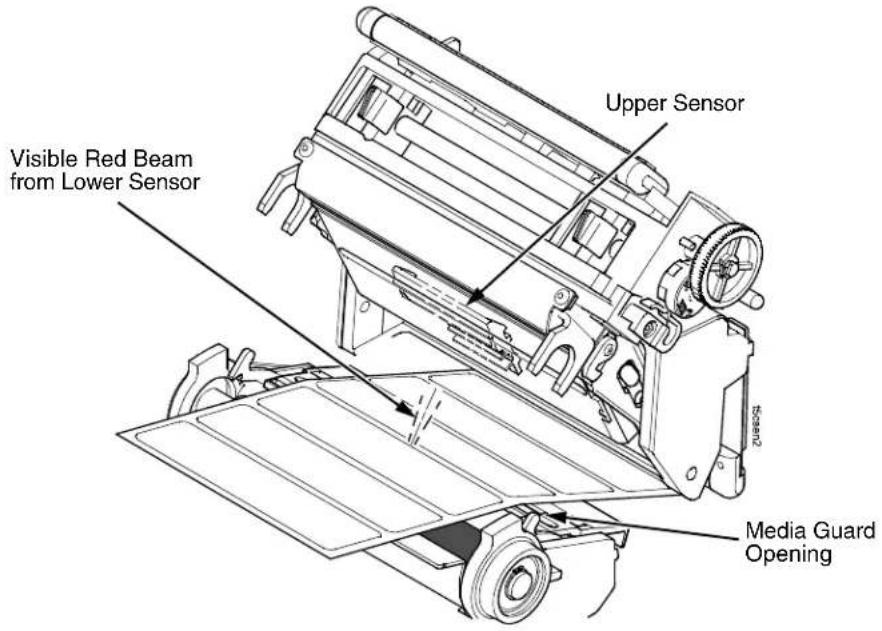
Upper Sensor Visible Red Beam from Lower Sensor Media Guard OpeningPosition the lower media sensor for detecting gaps, notches, or holes in media with a white background. Place the upper sensor above the lower sensor to provide a consistent background.
NOTE: The 4 inch SL5000r/T5000r media guard is divided into three open sensor areas. Make sure the media sensor is placed in an open area.
- Position the lower sensor directly under the center of the gap, notch, or hole.
- Check the position of the lower sensor by looking through the long, narrow opening in the media guard. Use the visible red light emitting from the lower sensor as a reference pointer.
- Use the sensor handle to manually position the sensor to the center of the gap, notch, or hole in the media.
- Select "Gap" in the Gap/Mark Sensor submenu under the CALIBRATE CTRL menu. See "Sensing Different Media Types" on page 71.
- Perform an Auto Calibrate. See "Running Auto Calibrate" on page 72.
Sensing Media with Dark Background Labels with Gaps (Advanced Gap)
text_image
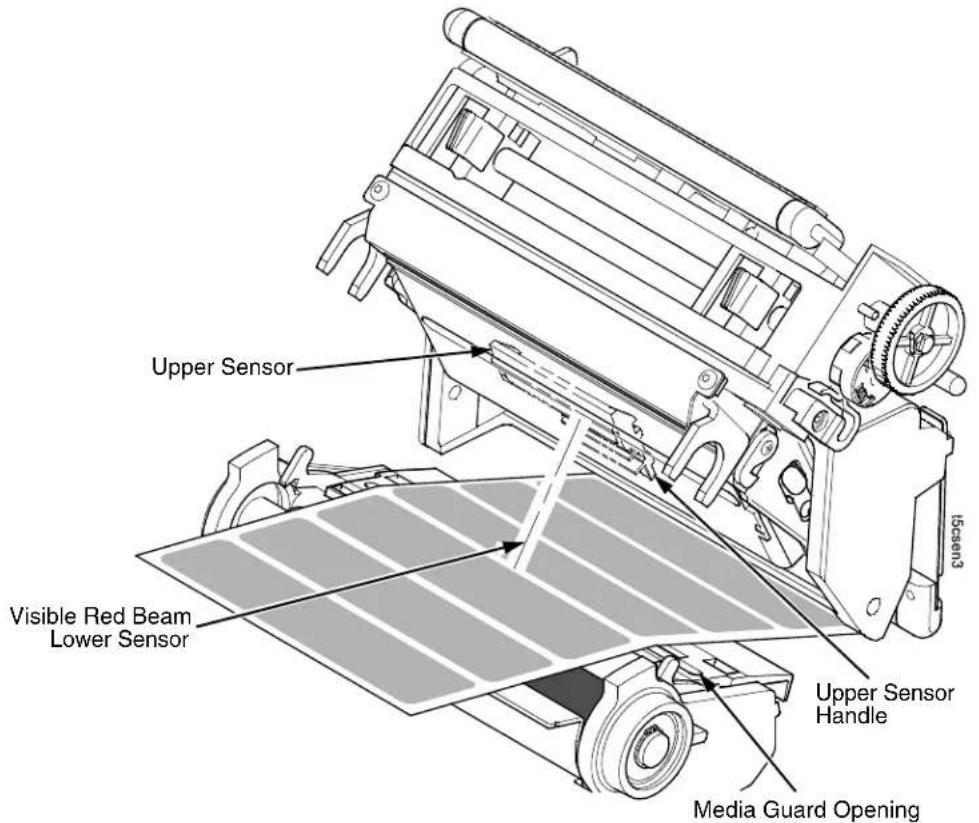
Upper Sensor Visible Red Beam Lower Sensor Upper Sensor Handle Media Guard OpeningNOTE: Ribbon is not displayed in this illustration. The upper and lower sensors are designed to function with or without ribbon installed.
The upper sensor and lower sensor are used together to detect liner gaps between die cut labels that have a black or dark background on white or clear liner.
- Position the lower sensor directly under the center of the gap, and then place the upper sensor directly over the lower sensor.
- Check the position of the lower sensor by looking through the long, narrow opening in the media guard. Use the visible red light emitting from the lower sensor as a reference pointer.
- Use the sensor handle to manually position the sensor to the center of the gap in the media. Then use the handle on the upper sensor to position it directly above the lower sensor.
NOTE: When using ribbon, you may need to slide the ribbon to one side to adjust the upper sensor.
-
Select "Advanced Gap" in the Gap/Mark Sensor submenu under the CALIBRATE CTRL menu. See "Sensing Different Media Types" on page 71.
-
Perform an Auto Calibrate. See "Running Auto Calibrate" on page 72.
Sensing Dark Background Media with Notches or Holes (Advanced Notch)

text_image
Upper Sensor Visible Red Beam Lower Sensor Black line on underside of media Upper Sensor Handle Media Guard OpeningNOTE: Ribbon is not displayed in this illustration. The upper and lower sensors are designed to function with or without ribbon installed.
The upper sensor and lower sensor are used together to detect notches or holes in media with a black or dark underside. This combination can be found on tag stock that has a black vertical line along one edge on the underside of the label, interrupted by a notch or hole used as the label length indicator.
- Position the lower sensor directly under the center of the notch or hole, and then place the upper sensor directly over the lower sensor.
- Check the position of the lower sensor by looking through the long, narrow opening in the media guard. Use the visible red light emitting from the lower sensor as a reference pointer.
- Use the sensor handle to manually position the sensor to the center of the notch or hole in the media. Then use the handle on the upper sensor to position it directly above the lower sensor.
NOTE: When using ribbon, you may need to slide the ribbon to one side to adjust the upper sensor.
-
Select "Advanced Notch" in the Gap/Mark Sensor submenu under the CALIBRATE CTRL menu. See "Sensing Different Media Types" on page 71.
-
Perform an Auto Calibrate. See "Running Auto Calibrate" on page 72.
Sensing Different Media Types
The printer's media sensors can detect the different types of label length indicators on a large variety of media types. This is accomplished by selecting the correct sensor option: Gap, Mark, Advanced Gap, Advanced Notch, or Disable under Gap/Mark Sensor in the CALIBRATE CTRL menu. Figure 9 on page 347 illustrates the different media types and label length indicators used on them.
- Press to place the printer in Menu mode.
- Press ↓ and ↓ together until "ENTER SWITCH UNLOCKED" displays.
- Press ≡ until "CALIBRATE CTRL" displays.
-
Press ↓ until "Gap/Mark Sensor/Disable*" (the currently enabled) option displays.
-
Press + or - until the option that matches the type of label length indicators on the installed media displays:
-
Mark. Select when using media that has horizontal black marks located on the underside of the label liner or tag stock.
- Gap. Select when using media with a liner space between die-cut labels or when using tag stock with notches or holes as label length indicators on white background media.
- Advanced Gap. Select when using media that has liner gaps between die cut labels with black background.
- Advanced Notch. Select when using media with notches or holes that interrupt a black vertical line on the underside of the media.
- Disable. Select when using media with no label length indicators (no gaps, notches, holes, or black marks) or when you want the printer to ignore all existing label length indicators on the installed media.
NOTE: When you select Disable, the length of each label is based on the Label Length value entered in the QUICK SETUP menu or the value sent via host software.
NOTE: If the printer detects a false PAPER OUT message when you change from Advanced Gap or Advanced Notch to Gap or Mark sensing or vice-versa, press the PAUSE key and run Auto Calibrate.
-
Press ↓ to enable the displayed option. An asterisk (*) appears next to the selection.
-
Press PAUSE until "OFFLINE" appears on the LCD.
-
Review "Calibrating The Media Sensors" on page 72.
-
Perform the Auto Calibrate procedure on page 72.
Calibrating The Media Sensors
Due to manufacturing differences in media and ribbon, the media sensors may have difficulty differentiating between the label and the liner or the label and the black mark. When this occurs, the printer may intermittently skip a label or display a fault message such as “GAP NOT DETECTED/See Manual” or “PAPER OUT/Load Paper.”
Media sensor sensitivity and reliability can be improved by changing the Gap/Mark Threshold and/or Paper Out Threshold values. You can change these values automatically by performing the Auto Calibrate or Manual Calibrate procedure in the CALIBRATE CTRL menu or change them manually by entering your own Gap/Mark Threshold or Paper Out Threshold values. (The changes take effect immediately within the current configuration menu.)
Auto or Manual Calibrate is completed successfully when the displayed Sensed Distance value correctly matches that of the installed media. When Gap is selected, the Sensed Distance should match the length from the trailing edge of one gap to the trailing edge of the next gap (or one label + one gap). When Mark is selected, the Sensed Distance should match the length from the leading edge of one black mark to the leading edge of the next black mark.
When you have completed Auto or Manual Calibrate, you can verify the new values are correct by pressing the FEED key several times. Each time you press FEED, media advances one label and stops at the correct Top-of-Form position of the next label.
Once you confirm the correct values, save them to the desired configuration menu before powering off the printer. See "Saving A Configuration" on page 88.
Running Auto Calibrate
You can initiate Auto Calibrate via the TEST PRINT key (described in detail below) or via the CALIBRATE CTRL or DIAGNOSTIC menus in Menu mode.
NOTE: Verify that the Gap/Mark Sensor option (Gap, Mark, Advanced Gap, Advanced Notch, or Disable) matches the installed media. See "Sensing Different Media Types" on page 71.
Check that the media sensors are horizontally positioned to permit sensing of the label length indicators. See “Positioning The Media Sensors” on page 66.
Make sure the Label Length value entered in the QUICK SETUP menu matches the physical length of the installed media. Entering the correct length forces the printer to advance media far enough during calibrate for long labels (so actual gaps, notches, and marks can be detected) and reduce the amount of media advanced for short labels.
If you try to do an Auto Calibrate when Peel-Off Media Handling is enabled, the LCD will display "CANNOT CALIBRATE/Disable Peel-Off." Before you can do an Auto Calibrate, you must select another media handling mode.
- Press the PAUSE key until "OFFLINE" appears on the LCD.
- Press ↓ and ↓ together until "ENTER SWITCH UNLOCKED" displays.
- Press the TEST PRINT key until "Printer Tests/Auto Calibrate" displays.
-
Press ↓. Media advances until it can accurately detect the label length indicators and then stops at the Top-of-Form position. The Sensed Distance value will then display for one second.
-
Auto Calibrate is successful when the Sensed Distance value correctly matches that of the installed media:
-
Gap/Mark Sensor = Gap, Advanced Gap, or Advanced Notch: The Sensed Distance value is the physical length of one label plus the length of one gap, notch, or hole.
- Gap/Mark Sensor = Mark: The Sensed Distance value is the physical distance from the leading edge of one black mark to the leading edge of the next.
- Gap/Mark Sensor = Disable: Not applicable. If Gap/Mark Sensor is set to Disable, the Sensed Distance value will not be updated.
If "GAP NOT DETECTED" displays, run Auto Calibrate again.
If Auto Calibrate continues to end with an incorrect Sensed Distance value displayed or a fault message displayed, run Manual Calibrate as described on page 79 or see Table 17 on page 317.
NOTE: The amount of media sampled during Auto Calibrate is based on the length of a label and transitions detected, without error, between a label and its label length indicators.
-
Press the PAUSE key until "OFFLINE" displays.
-
Press the FEED key several times. Each time you press FEED, the media advances one label length and stops.
NOTE: After a form feed, the position of the leading edge of the next label depends on the type of Media Handling mode selected under the QUICK SETUP menu. Tear-Off and Tear-Off Strip Media Handling will position the label edge at the tear bar, while Continuous will position the label edge under the printhead.
-
Press the PAUSE key until "ONLINE" displays.
-
Once the Sensed Distance value is confirmed, you will need to save it to the desired configuration menu before powering off the printer. See "Saving A Configuration" on page 88.
Running Media Profile
The Media Profile printout shows the relationship of the Paper Out Threshold and the Gap/Mark Threshold values, illustrates if and when each label length indicator is detected, and shows the difference between the label length indicators and the label. The profile printout (see Figure 1 on page 75) helps you set the thresholds for difficult media. This includes pre-printed labels, labels with poor gap/media dynamic range, and smart labels that have embedded RFID tags.
Once Media Profile is initiated, the printer will continue to advance media and print the profile in landscape orientation until you press ↩ to stop printing.
NOTE: Verify the CALIBRATE CTRL menu Gap/Mark Sensor option (Gap, Mark, Advanced Gap, Advanced Notch, or Disable) matches the installed media. See “Sensing Different Media Types” on page 71.
You will need a minimum installed label width of two inches to support the Profile printout.
Ensure the media sensors are horizontally positioned to permit sensing of the label length indicators. See “Positioning The Media Sensors” on page 66.
Ensure the Print Mode option selected in the QUICK SETUP menu matches the media installed. Select "Direct" for heat sensitive media (no ribbon required) or "Transfer" for thermal transfer media (ribbon required).
-
Press to place the printer in Menu mode.
-
Press ↓ and ↓ together until "ENTER SWITCH UNLOCKED" displays.
-
Press ≡ until "CALIBRATE CTRL" displays.
-
Press ↓ until "Media Profile/Profile Print" displays and then press ↓. (The printer will continue to print the profile until you press ↓.)
The printer will advance media and continue to print a dynamic profile image depicting the relationship of the label and any label length indicators detected.
-
Press ↓. The printer will stop printing.
-
Press the PAUSE key until "OFFLINE" displays.
NOTE: The Gap/Mark and Paper Out Threshold values shown on the Profile printout represent the last values determined from a successful Auto or Manual Calibrate or the factory default values if no Auto or Manual Calibrate was performed.
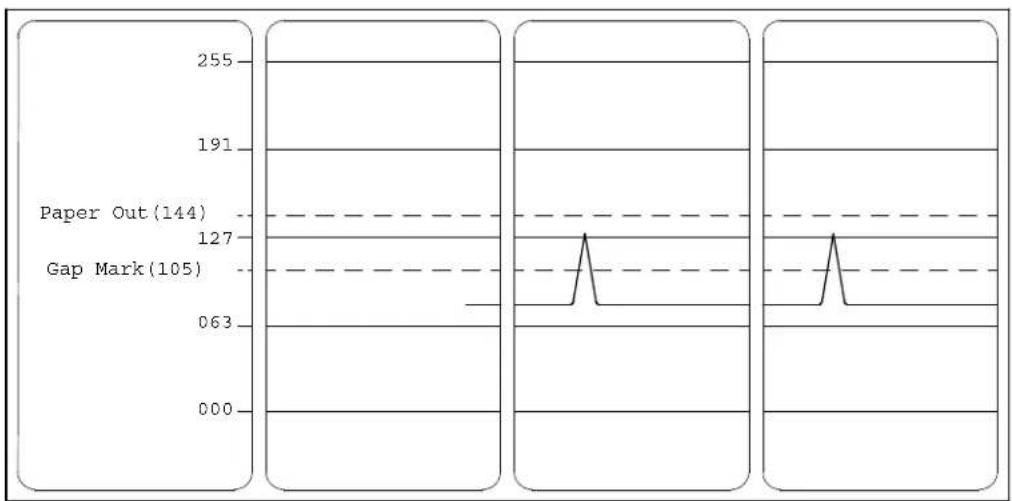
line
| Category | Value | | ------------ | ----- | | Paper Out | 144 | | Gap Mark | 105 |Figure 1. Media Profile Printout
Gap Sensing
This figure shows a Media Profile printout of a smart label where Gap/Mark Sensor is set to Gap in the CALIBRATE CTRL menu.
In this example, the gap threshold value the printer selected (represented by the Gap/Mark dotted line) is too close to the amplitude of the antenna pulse. This may cause the printer to falsely use the antenna as the gap (top-of-form).

text_image
Media Sensor Position 255 191 127 Paper Out (110) 063 Gap (052) 000 FEED Indicates Type of Gap/Mark Sensing Selected Detected Amplitude of the Antenna Detected Amplitude of the Gap 15cgapTo avoid this problem, increase the Threshold Range value to 60% or 70% in the CALIBRATE CTRL menu (the default is 50%), then run an Auto Calibrate again (Cross-Ref to Auto Calibrate).
NOTE: Any changes to Threshold Range will not take effect until you run an Auto Calibrate again.
This will raise the Gap/Mark threshold high enough so that the printer will not falsely use the antenna as the gap (top-of-form).
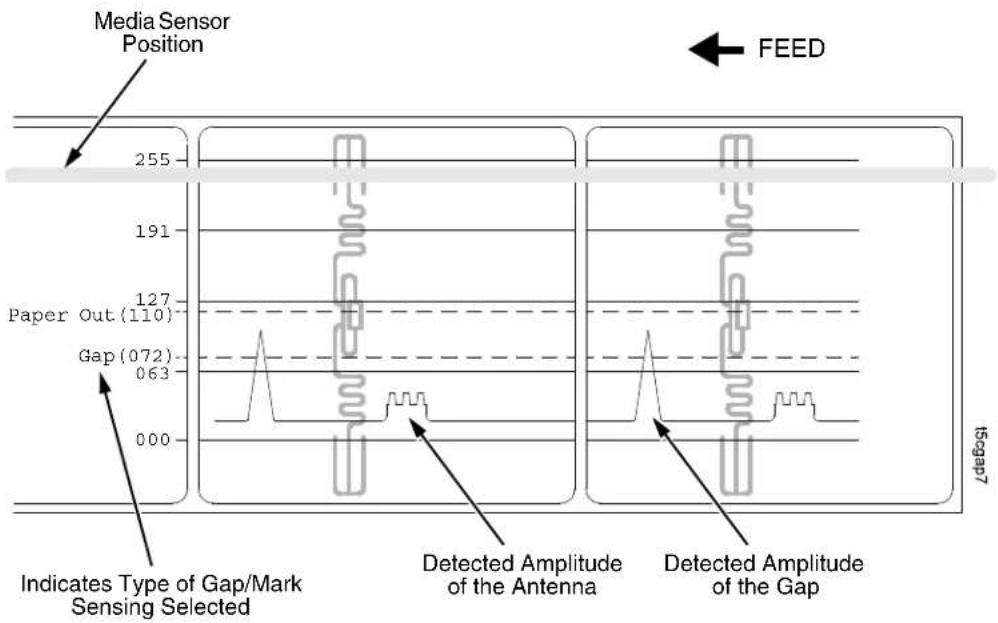
text_image
Media Sensor Position 255 FEED 191 127 Paper Out (110) Gap (072) 063 000 Indicates Type of Gap/Mark Sensing Selected Detected Amplitude of the Antenna Detected Amplitude of the Gap Tegap7Advanced Gap Sensing
This figure shows a Media Profile printout of a smart label where Gap/Mark Sensor is set to Advanced Gap in the CALIBRATE CTRL menu.
In this example, the gap threshold value the printer selected (represented by the Gap/Mark dotted line) is too close to the baseline (die cut label). If there is an increase in noise or the opacity of the liner or ribbon, the printer may falsely use the noise as the gap (top-of-form).

text_image
Media Sensor Position 255 191 127 Paper Out (075) 063 Adv. Gap (030) 000 FEED t5ggapaf5 Indicates Type of Gap/Mark Sensing Selected Detected Amplitude of the Antenna Detected Amplitude of the Gap Baseline (die cut label)To avoid this problem, increase the Threshold Range value to 60% in the CALIBRATE CTRL menu (the default is 50%), then run an Auto Calibrate again (Cross-ref to Auto Calibrate).
NOTE: Any changes to Threshold Range will not take effect until you run an Auto Calibrate again.
This will raise the Gap/Mark threshold high enough so that the printer will not falsely use the antenna or noise as the gap (top-of-form).

text_image
Media Sensor Position 255 FEED 191 127 Paper Out (075) 063 Gap (040) 000 Iscgapas Indicates Type of Gap/Mark Sensing Selected Detected Amplitude of the Antenna Detected Amplitude of the GapRunning Manual Calibrate
Manual Calibrate should be performed only when the values derived from Auto Calibrate fail to improve the media sensors' ability to sense label length indicators on the installed media. You must first enable "Admin User" in the PRINTER CONTROL menu before accessing or initializing Manual Calibrate in the CALIBRATE CTRL menu.
NOTE: Verify the Gap/Mark Sensor option (Gap, Mark, Advanced Gap, Advanced Notch, or Disable) matches the installed media. See "Sensing Different Media Types" on page 71.
Ensure the media sensors are horizontally positioned to permit sensing of the label length indicators. See “Positioning The Media Sensors” on page 66.
Ensure the Print Mode option selected in the QUICK SETUP menu matches the media installed. Select "Direct" for heat sensitive media (no ribbon required) or "Transfer" for thermal transfer media (ribbon required).
If you try to do a Manual Calibrate when Peel-Off Media Handling is enabled, the LCD will display, "CANNOT CALIBRATE/Disable Peel-Off." Before you can do a Manual Calibrate, you must select another media handling mode.
-
Press to place the printer in Menu mode.
-
Press the ↓ and ↓ keys together until "ENTER SWITCH UNLOCKED" displays.
-
Press ≡ until "PRINTER CONTROL" displays.
-
Press ↑ until "Admin User" displays, then press + until "Enable" displays.
-
Press ↓ to select Enable. An asterisk (*) appears next to "Enable."
-
Press ≡ until "CALIBRATE CTRL" displays.
-
Press ↓ until "Manual Calibrate/Run Calibrate" displays, then press the ↓.
-
Follow the instructions displayed on the LCD. Example: "REMOVE RBN&MEDIA/Press Enter" indicates that you must open the pivoting deck and remove the ribbon and media from under the printhead, close and lock the pivoting deck, and press the key.
-
During the last step of Manual Calibrate, the printer will advance the media and attempt to detect the label length indicators and stop at the Top-of-Form position. The Sensed Distance value will then display for one second. The calibrate is successful when the Sensed Distance value correctly matches that of the installed media. If "CALIBRATION FAIL/See Manual" displays, run Manual Calibrate again.
NOTE: The amount of media sampled during Manual Calibrate is based on the length of a label and the transitions detected without error, between a label and its label length indicators.
-
Press the PAUSE key until "OFFLINE" displays.
-
Press the FEED key several times. Each time you press FEED, the media advances one label length and stops.
NOTE: After a form feed, the position of the leading edge of the next label depends on the type of Media Handling mode selected under the QUICK SETUP menu. Tear-Off and Tear-Off Strip Media Handling positions the label edge at the tear bar, while Continuous positions the label edge under the printhead.
- Once the correct values are confirmed, save them to the desired configuration menu before powering off the printer. See "Saving A Configuration" on page 88.
Cleaning
Depending on the media used, the printer may accumulate residues (media dust, adhesives, etc.) as a by-product of normal printing. To maintain top printing quality, you should remove these residues by cleaning the printer periodically.
Exterior
Clean the exterior surfaces with a clean, lint-free cloth. If necessary, use a mild detergent or desktop cleaning solution.
NOTE: Do not use abrasive cleaning agents or solvents.
Interior
Clean the interior of the printer by removing any dirt and lint with a soft-bristled, non-metallic brush. Use a vacuum cleaner to remove the residue.
General Cleaning
Periodically clean all rollers, guides, and assemblies. Use low pressure air to remove dust in the printer. Use isopropyl alcohol and a cotton swab to clean any areas where media dust, adhesives, etc. have accumulated.
Cleaning The Printhead, Platen Roller And Media Sensors
NOTE: You do not need to turn off the printer before cleaning the printhead, platen roller, or media sensors.
Printhead Cleaning
As you use your printer, the printhead may become dirty which can result in poor print quality. Clean the printhead each time you install new ribbon (thermal transfer print mode) or install new media (direct thermal print mode). Clean the printhead with the cleaning pen supplied with the printer.
By keeping your printhead clean, you will help maintain its life.
Platen Roller Cleaning
Media dust and adhesive residue on the platen roller can degrade print quality and cause voids in your label image. Clean the platen roller at the same time as the printhead.
Use a small amount of isopropyl alcohol on the cloth or the cleaning pen supplied with your printer to clean the platen roller. With the pivoting deck up the platen roller can be rotated forward by hand to access and clean its entire surface area.
Media Sensor Cleaning
CAUTION
Do not use isopropyl alcohol, solvents, or abrasive agents to clean the upper or lower media sensor. They can damage sensor lens covers.
The upper and lower media sensors should be cleaned to ensure reliable TOF and Paper Out sensing. Clean the media sensors at the same time as the printhead.
The upper media sensor (located in the horizontal slot of the printhead cover) can be wiped clean using a soft cloth.
The lower media sensor, easily seen by its visible red light, is located in the horizontal slot of the media guard. Remove media dust by vacuuming or blowing air across the lens cover.

text_image
Printhead Heating Elements Pivoting Deck A Peel/Tear Door Lower Media Sensor (visible with red LED) Printhead Cover/Upper Media Sensor Platen Roller Deck Lock Lever Print Element Upper Sensor tscind- Rotate the deck lock lever clockwise to open the pivoting deck and remove any media and ribbon (if loaded) to gain access to the printhead assembly heating element area.
- Gently rub the felt tip of the cleaning pen or a cotton swab with Isopropyl alcohol across the printhead heating elements (light brown area).
- Allow the printhead to dry for one minute before reloading the media and ribbon.
- Clean the platen roller.
- Clean the upper media sensor with a soft cloth.
- Clean the lower media sensor by vacuuming or blowing air across the lens cover.
Cutter Option Cleaning
The cutter requires only periodic cleaning.
WARNING
Keep your fingers away from the cutter blades. They are sharp.
Perform the following procedure whenever too much dust or debris is visible.
- Set the printer power switch to O (Off).
- Rotate the deck lock lever fully clockwise until the deck swings upward.
- Remove the cutter top cover by loosening the two captive thumbscrews.
- Place the cutter in the down (open) position.
- Use a vacuum or can of compressed air with a nozzle around the area of the cutter blade to remove any dust or debris.
- Use a cloth with a light amount of WD-40 oil to clean adhesive from the cutter blade and upper or lower stainless steel cutter guides. Adhesive oil must be cleaned from the blade and guides with a dry cloth to prevent dust attraction.
CAUTION
Do not use isopropyl alcohol to clean the cutter blade – it dissolves oils required for lubrication.
- Place the cutter in the up (closed) position.
- Install the cutter top cover and tighten the two captive thumbscrews.
- Properly route the media through the printer and cutter.
- Close the pivoting deck and rotate the deck lock lever fully counterclockwise.
- Set the printer power switch to | (On).
- Test the printer cutting operation by pressing the TEST PRINT key and selecting one of the test patterns to print.
3 Configuring The Printer
Overview
This chapter provides information about:
- Setting, saving, modifying, and printing configurations
- Configuration menus
- Downloading emulation and operating system software
Setting Printer Configuration Parameters
Configuration parameters are set from the control panel or are retrieved from the printer's memory. The parameters define how the printer will respond to command and interface signals from the host computer.
The configuration menu structure consists of main menus and the options applicable to each menu.
NOTE: Some configurations refer to printer options that may not be present in your printer. If you select an option or feature that is not present, no action will be performed by the printer or an "OPTION NOT INSTALLED" message will display on the LCD.
Moving Within The Configuration Menu
You can move through the configuration menus using the appropriate navigation keys, as shown in Figure 2. (See “Controls And Indicators” on page 33 for more details on the function of the operator panel keys.)
You can select different options and save them as the power on default; however, you can only save them to configuration menus 1-8. The factory configuration menu can be altered, but not saved.
When the printer is online, the first line of the LCD displays "ONLINE" and the second line lists the active interface port and type of emulation.
To configure the printer:
-
Press the key to enter the printer configuration menu system. "MENU MODE/QUICK SETUP" displays on the LCD.
-
You can move through configuration main menus in two ways:
-
Press the key to move to the right.
- Press the + key to move right or the – key to move left.
NOTE: In menus with numeric ranges of more than 50 numbers, hold down the + or - key for more than 2 seconds to move through the range in increments of 5. To move in increments of 1 again, release your hold on the + or - key.
| Step Press LCD Notes | |||
| 1 |  | OFFLINE | Allows you to make configuration changes. |
| PAUSE | |||
| 2 |  | ENTER SWITCH UNLOCKED | |
| 3 MENU MODE. |  | QUICK SETUP | Enables the printer configuration menu. |
| 4 |  | Print Mode Transfer* | |
| 5 |  | Print Mode Direct | Cycles through the choices. |
| 6 | [SIGNATURE] | Print Mode Direct* | Selects the Direct transfer mode. |
Figure 2. Moving within the Configuration Menu
Selecting A Menu Option
To select an option, you need to press the ↓ key. By default, however, the ↓ key is "locked" when the printer is turned on to prevent accidental changes to the configuration menu. If you press the ↓ key when the key is locked, the message "ENTER SWITCH LOCKED" displays on the LCD for one second and the value will not be selected.
To unlock the ↓ key, press the ↓ and ↓ keys simultaneously. This toggles the ENTER/LOCK function.
- If this function is performed while the ↓ key is locked, the message "ENTER SWITCH UNLOCKED" displays for one second, and the ↓ key will be unlocked.
- If this function is performed while the ↓ key is unlocked, the message "ENTER SWITCH LOCKED" displays for one second, and the ↓ key will be locked.
When you press the ↓ key (with the ↓ key unlocked), you select the value or option that displays. An asterisk displays after the value you selected, and the configuration is changed immediately.
IMPORTANT
This change takes effect for all subsequent data and operations for the printer as soon as the ↓ key is pressed and the asterisk (*) is displayed. The configuration change(s) stay in effect only while the printer is powered on. When the power is turned off, all current configurations will be lost unless changes made to it are saved via the CONFIG. CONTROL menu.
To save configuration information permanently or to select it as the power-up default, see "Saving A Configuration" on page 88.
Changing Printer Settings
You can change (or "configure") printer settings, such as print speed or emulations, through the control panel as follows:
- Press the key until the following message displays:
MENU MODE QUICK SETUP
-
Press the ↓ key to cycle through these options:
-
Print Intensity
- Print Speed
- Print Mode
• Media Handling - Paper Feed Shift
- Label Length
- Label Width
- Ver Image Shift
- Hor Image Shift
- Orientation
- Gap/Mark Sensor
- Auto Calibrate
• Active IGP Emul - Save Config.
- Power-Up Config.
- Validator Function (if the validator option is installed. Refer to the Online Data Validator User's Manual.)
- SMT: Status (if RFID is installed. Refer to the RFID Labeling Reference manual.)
- PAA: Status (if RFID is not installed)
- When the desired submenu displays, press the + or - key to scroll through the values or options.
- Press the ↓ key to select a value. An asterisk (*) displays next to the selected value or option.
- If there are more submenu values or options you want to change, use the , , , +, and - keys to access the value and the key to select it. At any time, you may press the key to return to the Main menu.
- At any time, you may press the PAUSE key twice to exit the Configuration menu and place the printer online. Once you have finished selecting all your options, save your configuration.
IMPORTANT
If you do not save your configuration, all your new values will be lost when you power off the printer.
Saving A Configuration
You can save up to eight different configurations to meet eight unique print job requirements. These configurations are saved and stored in the printer and are not lost when the printer is turned off.
NOTE: If the Protect Configs. option is enabled, the new configuration will not be saved until the existing configuration is deleted.
Follow these steps to save a new configuration:
- Press the key until the following message displays:
MENU MODE CONFIG. CONTROL
- Press the ↓ key until the following message displays:
Save Config. 1*
- Press the + or - key to cycle through the options (1-8). Note that "Factory" is not listed, because no changes made to the factory configuration can be saved under Factory.
- When the desired number displays, press the key to select it. The following message displays briefly:
Saving Configuration
When processing is completed, the display shows:
Save Config. X^*
NOTE: If the configuration number has been previously saved and Protect Configs. = Enabled under CONFIG CONTROL, the following error message displays:
CONFIG. EXISTS Delete First
If the above occurs, see "Modifying A Saved Configuration" on page 91, step 4.
- Print your configuration and store it in a safe place for future reference. Refer to "Printing A Configuration" on page 93.
Auto Save Configuration
If you make any changes to the factory default configuration menu items, you will be prompted to save the changes to "Config #" when you place the printer online. "#" equals the next available unassigned configuration number. When prompted, press one of the following keys:
- Enter. Saves to Config 1 or the next available Config, and becomes the Power-Up config.
NOTE: If all eight Configs are assigned, you will be prompted to select which Config to overwrite.
- Pause. Changes will be implemented but saved only temporarily until deliberately saved as a new configuration or until you power off the printer. All changes will be lost when you power off the printer.
Specifying A Power-Up Configuration
You can specify any one of the nine configurations (1-8 or Factory) as the power-up configuration:
- Press the key until the following message displays:
MENU MODE CONFIG. CONTROL
- Press the ↓ key until the following message displays:
Power-Up Config. 1*
- Press the + or - key to cycle through the options (1-8 and Factory). When the desired number displays, press the ↓ key to select it. The following message displays:
Power-Up Config. X^*
NOTE: If the configuration number has not been saved previously, the following error message displays:
CONFIG. DOES NOT EXIST/Save First
If this error message displays, see "Saving A Configuration" on page 88. Once you have saved a configuration, repeat the steps in this procedure.
Modifying A Saved Configuration
You can change a saved configuration by rewriting over it. For example, you can modify Config. 1, shown below. Suppose you want to keep all the settings but you want to select the parallel Centronics interface instead of the IEEE 1284 interface.
- Load the configuration to be changed (for example, Config. 1).
a. Press the key until the following message displays:
MENU MODE CONFIG. CONTROL
b. Press the ↓ key until the following message displays:
Load Config. Factory
c. Press the + or - key to cycle through the options: Factory 1-8.
d. When the desired number displays, press the ↓ key to select it. The following message displays:
Loading Saved Configuration
Then, the following message displays when it is loaded:
Load Config. X^*
-
Move through the menu and change all the desired values. (In this example, press the :≡ key until PARALLEL PORT displays. Press the ↓ key until Port Type/IEEE 1284 displays. Press the - key until Centronics displays.)
-
Press the key to select each new value. An asterisk (*) displays.
-
Before saving the modified configuration, you must delete the original configuration if the Protect Configs. option is enabled.
a. Press the or key until the following message displays:
Delete Config. 1*
b. Press the + or - key to cycle through the options (1-8). When the desired number displays, press the ↓ key to select it. The following message displays:
Deleting Configuration
Then, the following displays when it is deleted:
Delete Config. X^*
-
Save the new configuration as described in the "Saving A Configuration" on page 88. Make sure you select the same number (e.g., Config. 1) when saving the modified configuration. The new configuration writes over the existing one.
-
Print a copy of this newest configuration and store it in a safe place. Refer to "Printing A Configuration" on page 93.
Printing A Configuration
We recommend that you print and store your configurations for future reference. The printout provides a list of the parameters that were set when you configured the printer.
To print a configuration:
- Press the key until the following message displays:
MENU MODE CONFIG. CONTROL
- Press the ↓ key until the following message displays:
Print Config. Current*
- Press the + or - key to cycle through the following printout options:
Current* Factory Power-Up All
1-8 customized configurations
- When the desired option displays, press the ↓ key. The printer prints the specified configuration.
NOTE: If the configuration you want to print has not been saved, the following message displays momentarily:
CONFIG. DOES NOT EXIST/Save First
This message indicates that no configuration menu has been saved under the configuration value you have selected and therefore cannot be printed. You must either select another configuration to print or load and then save a configuration to that configuration value first.
Loading A Saved Configuration
To use a different configuration:
- Press the PAUSE key until OFFLINE displays.
- Press the JOB SELECT key until the desired configuration displays.
- Press ↓. Loading Saved/Configuration displays.
Menu Overview

flowchart
graph LR
    A["QUICK SETUP"] --> B["RFID CONTROL¹"]
    B --> C["VALIDATOR²"]
    C --> D["CONFIG. CONTROL"]
    D --> E["MEDIA CONTROL"]

    F["CALIBRATE CTRL"] --> G["PRINTER CONTROL"]
    G --> H["SELECTED EMULATIONS"]
    H --> I["DIAGNOSTICS"]
    I --> J["PARALLEL PORT"]

    K["SERIAL PORT"] --> L["USB PORT"]
    L --> M["OPTIONAL PORTS"]
    M --> N["OPTIONAL FEATURES"]
    N --> O["PRINTER MGMT"]

    style A fill:#f9f,stroke:#333
    style F fill:#f9f,stroke:#333
    style K fill:#f9f,stroke:#333
    style L fill:#f9f,stroke:#333
    style M fill:#f9f,stroke:#333
    style N fill:#f9f,stroke:#333
Press to select the next main menu.
Press ↓ or ↑ to move within each main menu.
NOTES:
^1 This menu appears only if an RFID encoder is installed. See the RFID Labeling Reference Manual
^2 This menu appears only if a Validator is installed. See the Online Data Validator User's Manual.
Main Menu
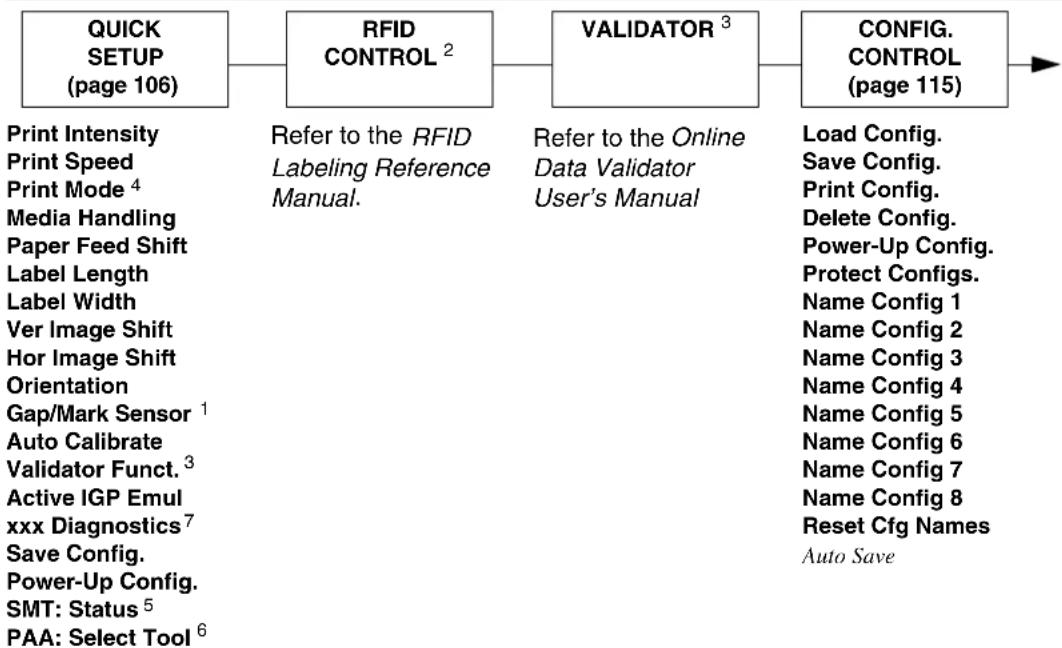
flowchart
graph LR
    A["QUICK SETUP (page 106)"] --> B["RFID CONTROL 2"]
    B --> C["VALIDATOR 3"]
    C --> D["CONFIG. CONTROL (page 115)"]

    A --> E["Print Intensity"]
    A --> F["Print Speed"]
    A --> G["Print Mode 4"]
    A --> H["Media Handling"]
    A --> I["Paper Feed Shift"]
    A --> J["Label Length"]
    A --> K["Label Width"]
    A --> L["Ver Image Shift"]
    A --> M["Hor Image Shift"]
    A --> N["Orientation"]
    A --> O["Gap/Mark Sensor 1"]
    A --> P["Auto Calibrate"]
    A --> Q["Validator Funct. 3"]
    A --> R["Active IGP Emul xxx Diagnostics 7"]
    A --> S["Save Config."]
    A --> T["Power-Up Config."]
    A --> U["SMT: Status 5"]
    A --> V["PAA: Select Tool 6"]

    B --> W["Refer to the RFID Labeling Reference Manual."]
    C --> X["Refer to the Online Data Validator User's Manual"]

    D --> Y["Load Config. Save Config. Print Config. Delete Config. Power-Up Config. Protect Configs. Name Config 1 Name Config 2 Name Config 3 Name Config 4 Name Config 5 Name Config 6 Name Config 7 Name Config 8 Reset Cfg Names Auto Save"]
Press to select the next main menu.
Press ↓ or ↑ to move within each main menu.
Press + or - to cycle through each possible option or value.
NOTES:
Italicized items are available only when you enable Admin User (under PRINTER CONTROL).
^1 Gap/Mark Sensor and Paper Out Sensor work in conjunction, as shown in Table 6 on page 138. If you change the Gap/Mark Sensor or Paper Out Sensor, you must recalibrate the media.
^2 This menu appears only if an RFID encoder is installed.
^3 This menu appears only if a Validator is installed.
^4 This menu will not appear on Direct Thermal only printers.
^5 This menu appears only if RFID is installed and there is no CST bundle in the Flash File System.
^6 This menu appears only if RFID is not installed and there is a CST bundle in the Flash File System.
^7 xxx represents the emulation name selected in the Active IGP Emul menu.
MEDIA CONTROL (page 118)
Print Intensity
Print Speed
Print Mode ^3
Media Handling
Paper Feed Shift
Label Length
Label Width
Ver Image Shift
Hor Image Shift
Orientation
Auto Map Select
Auto Label Width
Num Auto Labels
Slew Speed
Print Direction
Label Wait Time
Pre-Peel Mode
Pre-Peel Adjust
Lbl Missing Flt
Clip Page
Error Recover
Ribbon Width ^3
Display Ribbon ^3
Ribbon Low ^3
Rbn Takeup Full ^3
Units
Set Label Length
Peel Present
Peel-Off Mode
Continuous Mode
TOF Detect Fault
Ticket Save Mode
TOF Adjust Mode
TOF Adjust
Ribbon Calibrate ^3
Reverse Speed
Label Resolution ^6
CALIBRATE CTRL (page 138)
Gap/Mark Sensor ^1
Auto Calibrate
Media Profile
Sensed Distance
Gap/Mark Thresh
Paper Out Thresh
Paper Out Sensor
Manual Calibrate
Pwr Up Action
HeadClose Action
Online Auto-Cal
Gap Windowing
Gap Length
Cal in Peel Mode
Min Calib Delta
Use Label Length
Threshold Range
Dynamic Sensing
PRINTER CONTROL (page 146)
SMT: Status 4
PAA: Select Tool 5
LP+ Emulation
CTHI Emulation ^2
Active IGP Emul
xxx Diagnostics ^8
Host Interface
Power Saver Time
Pwr Save Control
Display Language
Alarm
Power-up State
Ptx Setup SFCC
Cancel Key
Ret. Status Port
Compatibility
Del Char frm Fls
Ld Char from Fls
Save Char to Fls
Del Char frm RAM
Ld Char at PwrUp
Del Set frm Flsh
Ld Set from Flsh
Save Set to Flsh
Del Set from RAM
Ld Set at PwrUp
Overwrite Files
View File List
Delete Files
Flash Avail.
Optimize&Reboot
(continued in next column)
Print File List
Auto Locking
Set Lock Key
Ptx Setup Parse
PJL Enable
Glob Mem Adjust
Max Font Buffer
Max Cache Memory
Max Cached Char
Standard Chars.
Bold Chars.
Extra Bold Char.
OCR-A Chars.
OCR-B Chars.
Tall Characters
Batch Counter
Admin User
NOTES:
Italicized items are available only when Admin User is set to Enable (in the PRINTER CONTROL menu).
^1 Gap/Mark Sensor and Paper Out Sensor work in conjunction, as shown in Table 6 on page 138. If you change the Gap/Mark Sensor or Paper Out Sensor, you must recalibrate the media.
^2 Appears only if the CTHI option is installed.
^3 This menu will not appear on Direct Thermal only printers.
^4 This menu appears only if RFID is installed and there is no CST bundle in the Flash File System.
^5 This menu appears only if RFID is not installed and there is a CST bundle in the Flash File System.
^6 Menu available if the small label printer option is installed.
^7 Menu available if CTHI option and IPDS option are not installed.
^8 xxx represents the emulation name selected in the Active IGP Emul menu.
| COAXSETUP2,3,7(page 164) | TWINAXSETUP2,3,7(page 167) | SPC COAXSETUP2,3,4(page 169) | SPC TWINAXSETUP2,3,4(page 170) |
| Primary SetsTranslation TblPA1PA2Buffer ReprintBuffer PrintCoax TypeActive Char SetSecondary SetsEarly Print CmplSCS Buffer CntrlAlt. Set 80-9FIntervention ReqCR At MPP + 1NL At MPP + 1Position Aft FFLast Char = FFNull SuppressionFF ValidityAuto Skip At EndFF After JobCR, EM, & NLTranslate TableHost OverrideFormat ControlCancel IGP/DCULead-in CharsUser-Defined St15User-Defined St25User-Defined Stp5Change CaseSet Text OrientnMax. Print Width | Primary SetsTranslation Tbl6Buffer PrintTwinax TypeActive Char SetSecondary Sets5225 World TradeCancel IGP/DCULead-in CharsUser-Defined St15User-Defined St25User-Defined Stp5Alt. Set 80-9FGraphic Chek ErrGraphic Chek CodLAC OptionLAC Approx.Set Text OrientnHost OverrideFormat ControlMax. Print Width | SPC TypeLogical Buf SizeIntervention ReqBuffer PrintTranslation TblPA1PA2Buffer ReprintNull HandlingSPC Null SuppSPC Space SuppSFCC CharUser-Defined St15User-Defined St25User-Defined Stp5NL At MPP + 1 | SPC TypeSFCC CharUser-Defined St15User-Defined St25User-Defined Stp5SPC Char SetTranslation TblBuffer Print |
NOTES:
Italicized items are available only when Admin User is set to Enable (in the PRINTER CONTROL menu).
^1 Gap/Mark Sensor and Paper Out Sensor work in conjunction, as shown in Table 6 on page 138. If you change the Gap/Mark Sensor or Paper Out Sensor, you must recalibrate the media.
^2 Appears only if the CTHI option is installed.
^3 Appears only if selected as the Port Type (under C/T PORT).
^4 Appears only if the CTHI emulation (under PRINTER CONTROL) is set to Simp Prot Conv.
^5 Appears only if the “User Defined” option in the “Lead-in Chars” menu is selected.
^6 Does not appear if IPDS is installed.
^7 Does not appear if CTHI emulation (under Printer Control) is set to Simp Prot Conv..
IPDS SETUP ^2
(page 171)
3270 SETUP ^3
(page 175)
5250 SETUP ^3
(page 177)
IGP/PGL
SETUP
(page 179)
Default Font
Default Code Pag
Code Page Subset
Emulation
Early Print Comp
Host Form Length
Null Suppression
Page Rotation
VPA Check
Expanded Fonts
Resident Fonts
XOH-SMO Support
Hexdump Mode
Print IPDS Fonts
Primary Sets
Translation Tbl
Active Char Set
Secondary Sets
Early Print Cmpl
Alt. Set 80-9F
Intervention Req
CR At MPP + 1
NL At MPP + 1
Position Aft FF
Last Char = FF
Null Suppression
FF Validity
Auto Skip At End
FF After Job
CR, EM, & NL
Host Override
Format Control
Lead-in Chars
User-Defined Stl ^4
User-Defined St2 ^4
User-Defined Stp ^4
Change Case
Set Text Orientn
Max. Print Width
Primary Sets
Translation Tbl
Active Char Set
Secondary Sets
Lead-in Chars
User-Defined Stl 4
User-Defined St2 ^4
User-Defined Stp ^4
Alt. Set 80-9F
Graphic Chek Err
Graphic Chek Cod
Set Text Orientn
Host Override
Format Control
Max. Print Width
Character Group
Standard Sets
Select LPI
Define CR Code
Define LF Code
Autowrap
Auto Uppercase
Slash 0
Select SFCC
Host Form Length
Var Form Adjust
Var Form Type
Optimized Ratio
PI Slew Range
CR Edit
Skip Cmd Prefix
Ignore Text
Power on IGP/PGL
Ext Execute Copy
Al 00 Spaces
Select SO Char
Ignore Mode
Select Char
Do FF at TOF
IGP100 Compatbl.
Expanded Font
Scalable Size
Forms Handling
PGL Normal
UPC Descenders
I-2/5 Selection
C39 Compatbl.
User-Def Ratio
Lead PDF Dist
Trunc Dyn Data
Vertical Adjust
Boundary Check
Repeat Form Opt
Preparser Port
NOTES:
Italicized items are available only when Admin User is set to Enable (in the PRINTER CONTROL menu).
^1 Appears only if Active IGP Emul is set to IGP/PGL (in the Printer Control Menu).
^2 Appears only if the IPDS emulation is installed and the correct security key is used.
^3 Appears only if the TN5250/3270 option is installed.
^4 Appears only if the “User Defined” option in the “Lead-in Chars” menu is selected.
IGP/VGL SETUP ^1 (page 181)
Select SFCC
Power-up ^X
Power-up ^F
Power-up ^PY LPI
Btm Margin Ctl
Text Length
Autoeject
Copy Count
Host Form Length
Slash 0
Repeat Form
Ignore Dots
Append Rotated
Truncate Alpha
True Vert 1/10
Absorb After ^PY
UPC Descenders
Select SO Char
Rot. Char Size
Ignore Spaces
Ignore ^Lxx Cmd.
Midline PY
Width Limit
Absorb After ^PN
Expanded Font
Auto FF at ^PN
Vertical Density 3
PDF Size Comp
C128 Mode Comp
C39 Compatbl.
Ignore Chars
Ignore Ch#1
Ignore Ch#2
Data Bit 8
Cmd Resolution
^Dnn Dot Slew
Barcode var.
Character Group
Standard Sets
Uniform Fonts
Prop Line Length
Printer PI
Host PI
Max PI 16
PPI/ZGL SETUP ^2
Refer to the Printer Protocol Interpreter (PPI) ZGL ^TM Programmer's Reference Manual.
PPI/TGL SETUP ^2
Refer to the Printer Protocol Interpreter (PPI) TGL ^TM Programmer's Reference Manual.
PPI/IGL SETUP ^2
Refer to the Printer Protocol Interpreter (PPI) IGL Programmer's Reference Manual.
NOTES:
Italicized items are available only when Admin User is set to Enable (in the PRINTER CONTROL menu).
^1 Appears only if Active IGP Emul is set to IGP/VGL (in the Printer Control Menu).
^2 Appears only if Active IGP Emul is set to PPI emulation.
^3 Appears only on 203 dpi printers.
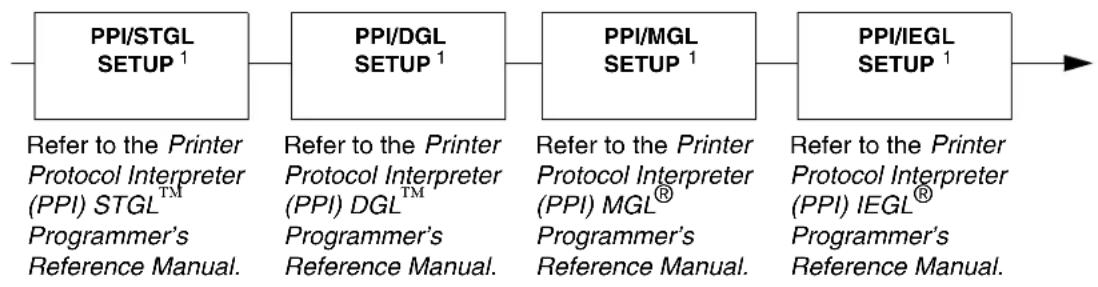
flowchart
graph LR
    A["PPI/STGL SETUP¹"] --> B["PPI/DGL SETUP¹"]
    B --> C["PPI/MGL SETUP¹"]
    C --> D["PPI/IEGL SETUP¹"]
    A --> E["Refer to the Printer Protocol Interpreter (PPI) STGL™ Programmer's Reference Manual."]
    B --> F["Refer to the Printer Protocol Interpreter (PPI) DGL™ Programmer's Reference Manual."]
    C --> G["Refer to the Printer Protocol Interpreter (PPI) MGL® Programmer's Reference Manual."]
    D --> H["Refer to the Printer Protocol Interpreter (PPI) IEGL® Programmer's Reference Manual."]
NOTES:
Italicized items are available only when Admin User is set to Enable (in the PRINTER CONTROL menu).
^1 Appears only if Active IGP Emul is set to PPI emulation.
| P-SERIES SETUP1,6(page 183) | P-SERIES XQ SETUP1,6(page 185) | SER MATRIX SETUP1,2(page 187) | PROPRINTER SETUP1,2(page 189) |
| Select CPI | Select CPI | Select CPI | Select CPI |
| Select LPI | Select LPI | Select LPI | Select LPI |
| Typeface | Typeface | Typeface | Typeface |
| Character Group | Horizontal DPI | Character Group | Character Group |
| Character Set | Vertical DPI | Character Set | Character Set |
| Primary Subset | Prop. Spacing | Primary Subset | Horizontal DPI |
| Extended Subset | Italic Print | Extended Subset | Vertical DPI |
| Horizontal DPI | Slashed Zero | Horizontal DPI | Prop. Spacing |
| Vertical DPI | Left Margin3 | Vertical DPI | Italic Print |
| Prop. Spacing | Right Margin3 | Prop. Spacing | Slashed Zero |
| Italic Print | Top Margin | Italic Print | Left Margin3 |
| Slashed Zero | Bottom Margin | Slashed Zero | Right Margin3 |
| Left Margin3 | Print Char. Set | Left Margin3 | Top Margin |
| Right Margin3 | Define CR code | Right Margin3 | Bottom Margin |
| Top Margin | Auto LF | Top Margin | Print Char. Set |
| Bottom Margin | Define LF code | Bottom Margin | Define CR code |
| Print Char. Set | Control Code 06 | Print Char. Set | Auto LF |
| Define CR code | Compressed Print | Define CR code | Define LF code |
| Auto LF | Bold | Auto LF | 20 CPI Condensed |
| Define LF code | Elong/Alt. Font | Define LF code | Bold |
| Control Code 06 | Gothic Typeface | Control Code 06 | FF valid at TOF |
| Control Code 08 | EVFU Select | Bold | Alt. Char Set |
| Bold | Upr. Case Select | Overstrike | Text Position |
| Overstrike | Slew Relative | Printer Select | Host Command |
| Select SFCC | Text Position | Alt. Set 80-9F | Reset Cmd CFG Ld |
| EVFU Select | Host Command | ESC d command | Form Length (inches)3,4 |
| Alt. Set 80-9F | Reset Cmd CFG Ld | Text Position | Form Length (mm)3,4 |
| SFCC d command | Form Length (inches)3,4 | Host Command | Form Length (lines)3 |
| PSeries Dbl High | Form Length (mm)3,4 | Reset Cmd CFG Ld | Form Width (inches)3,5 |
| FF valid at TOF | Form Length (lines)4 | Form Length (inches)3,4 | Form Width (mm)3,5 |
| Text Position | Form Width (inches)3,5 | Form Length (mm)3,4 | Form Width (char.)3 |
| Host Command | Form Width (mm)3,5 | Form Length (lines)4 | |
| Reset Cmd CFG Ld | Form Width (char.)5 | Form Width (inches)3,5 | |
| Form Length (inches)3,4 | Form Width (mm)3,5 | ||
| Form Length (mm)3,4 | Form Width (char.)5 | ||
| Form Length (lines)4 | |||
| Form Width (inches)3,5 | |||
| Form Width (mm)3,5 | |||
| Form Width (char.)5 |
NOTES:
Italicized items are available only when Admin User is set to Enable (in the PRINTER CONTROL menu).
^1 Available only when Admin User is set to Enable (in the PRINTER CONTROL menu).
^2 The presence of this menu depends on the LP+ Emulation selection (under PRINTER CONTROL).
^3 These menus do not display when CT, TN5250, or TN3270 emulation is selected.
^4 All three Form Length submenus work in conjunction. When you change the default in one submenu, the default value in the other two submenus change automatically.
^5 All three Form Width submenus work in conjunction. When you change the default in one submenu, the default value in the other two submenus change automatically.
^6 The precence of this menu depends on the LP+ Emulation selection (under PRINTER CONTROL).
| EPSON FXSETUP ^3,4,5 (page 191) | DIAGNOSTICS(page 237) | PARALLELPORT(page 241) | SERIALPORT(page 245) |
| Select CPISelect LPITypefaceCharacter GroupCharacter SetEpson SetHorizontal DPIVertical DPProp. SpacingItalic PrintSlashed ZeroLeft Margin ^5 Right Margin ^5 Top MarginBottom MarginPrint Char. SetDefine CR codeAuto LFDefine LF codePrinter Select20 CPI CondensedBoldAlt. Set 80-9FText PositionHost CommandReset Cmd CFG LdForm Length (inches) ^5,6 Form Length (mm) ^5,6 Form Length (lines) ^5 Form Width (inches) ^5,7 Form Width (mm) ^5,7 Form Width (char.) ^5 | Printer TestsTest CountSoftware BuildFeature File ^2 Hex Dump ModePrint Error LogClear Error LogFLASH InstalledDRAM InstalledPtr On TimePtr Media DistHead Print DistHead On TimeReset Head DataHead TypeHead Voltage | Port TypeData Bit 8 ^1 PI Ignored ^1 Buffer Size in KAuto TrickleTrickle TimeTimeoutReport StatusSwitch Out OnPrime SignalData Polarity ^1 Resp. Polarity ^1 Busy on Strobe ^1 Latch Data On ^1 Offline Process | Port TypeBaud RateWord LengthStop BitsParityData ProtocolBuffer Size in KTrickle TimeTimeoutReport StatusData Term ReadyRequest to SendPoll CharacterPoll ResponseIdle ResponseOne Char EnquiryPrinter StatusFraming ErrorsOffline Process |
NOTES:
Italicized items are available only when Admin User is set to Enable (in the PRINTER CONTROL menu).
^1 Available only when the Centronics option is set to Enable (in the Port Type submenu of PARALLEL PORT).
^2 Menu shown only if Feature File has been loaded.
^3 Available only when Admin User is set to Enable (in the PRINTER CONTROL menu).
^4 The presence of this menu depends on the LP+ Emulation selection (under PRINTER CONTROL).
^5 These menus do not display when CT, TN5250, or TN3270 emulation is selected.
^6 All three Form Length submenus work in conjunction. When you change the default in one submenu, the default value in the other two submenus change automatically.
^7 All three Form Width submenus work in conjunction. When you change the default in one submenu, the default value in the other two submenus change automatically.
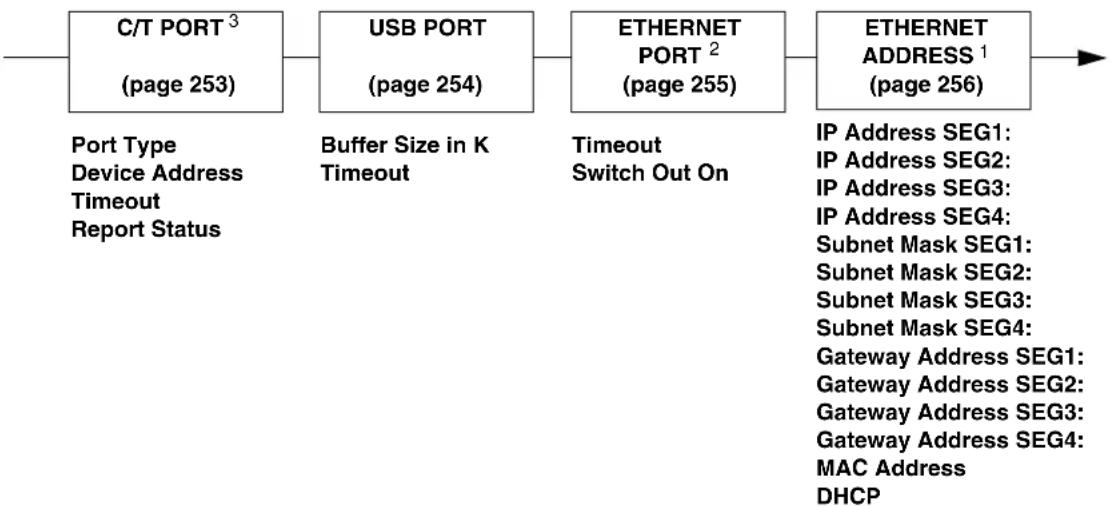
flowchart
graph LR
    A["C/T PORT³ (page 253)"] --> B["USB PORT (page 254)"]
    B --> C["ETHERNET PORT² (page 255)"]
    C --> D["ETHERNET ADDRESS¹ (page 256)"]

    A -->|Port Type\nDevice Address\nTimeout\nReport Status| E
    B -->|Buffer Size in K\nTimeout| F
    C -->|Timeout\nSwitch Out On| G
    D --> H["IP Address SEG1:\nIP Address SEG2:\nIP Address SEG3:\nIP Address SEG4:\nSubnet Mask SEG1:\nSubnet Mask SEG2:\nSubnet Mask SEG3:\nSubnet Mask SEG4:\nGateway Address SEG1:\nGateway Address SEG2:\nGateway Address SEG3:\nGateway Address SEG4:\nMAC Address\nDHCP"]
NOTES:
^1 Appears only if a Network Interface Card (NIC) is installed.
^2 Appears only if the Ethernet Option is installed.
^3 Appears only if CTHI option is installed.
| ETHERNET PARAMS^9 (page 258) | WLAN ADDRESS^8 (page 261) | WLAN PARAMS^1 (page 263) | |
| NetBIOS ProtocolASCII Data PortIPDS Data Port^10 Keep Alive TimerEthernet SpeedJob ControlOffline Process | IP Address SEG1:IP Address SEG2:IP Address SEG3:IP Address SEG4:Subnet Mask SEG1:Subnet Mask SEG2:Subnet Mask SEG3:Subnet Mask SEG4:Gateway Address SEG1:Gateway Address SEG2:Gateway Address SEG3:Gateway Address SEG4:MAC AddressDHCP | Signal StrengthOperation Mode^7 SSID Name(01-15)SSID Name(16-30)SSID Name(31-32)Reset SSID NameMin Xfer RateChannel ^7 Antenna ^6 Ant. Diversity ^7 Preamble ^7 Power MgmtTransmit PowerInternat. ModeAuth MethodDefault WEP KeyWEP Key 1 FormatWEP Key 1 WidthWEP Key 1 BYTE1:WEP Key 1 BYTE2:WEP Key 1 BYTE3:WEP Key 1 BYTE4:WEP Key 1 BYTE5:WEP Key 1 BYTE6: ^4 WEP Key 3 BYTE7: ^4 WEP Key 3 BYTE8: ^4 WEP Key 3 BYTE9: ^4 WEP Key 3 BYTE10: ^4 WEP Key 3 BYTE11: ^4 WEP Key 3 BYTE12: ^4 WEP Key 3 BYTE13: ^4 WEP Key 4 FormatWEP Key 4 WidthWEP Key 4 BYTE1:WEP Key 4 BYTE2:WEP Key 4 BYTE3:WEP Key 4 BYTE4:WEP Key 4 BYTE5: | WEP Key 2 BYTE1:WEP Key 2 BYTE2:WEP Key 2 BYTE3:WEP Key 2 BYTE4:WEP Key 2 BYTE5:WEP Key 2 BYTE6: ^3 WEP Key 2 BYTE7: ^3 WEP Key 2 BYTE8: ^3 WEP Key 2 BYTE9: ^3 WEP Key 2 BYTE10: ^3 WEP Key 2 BYTE11: ^3 WEP Key 2 BYTE12: ^3 WEP Key 2 BYTE13: ^3 WEP Key 3 FormatWEP Key 3 WidthWEP Key 3 BYTE1:WEP Key 3 BYTE2:WEP Key 3 BYTE3:WEP Key 3 BYTE4:WEP Key 3 BYTE5:WEP Key 3 BYTE6: ^4 WEP Key 3 BYTE7: ^4 WEP Key 3 BYTE8: ^4 WEP Key 3 BYTE9: ^4 WEP Key 3 BYTE10: ^4 WEP Key 3 BYTE11: ^4 WEP Key 3 BYTE12: ^4 WEP Key 3 BYTE13: ^4 WEP Key 4 FormatWEP Key 4 WidthWEP Key 4 BYTE1:WEP Key 4 BYTE2:WEP Key 4 BYTE3:WEP Key 4 BYTE4:WEP Key 4 BYTE5: |
NOTES:
^1 Appears only if a Wireless Option is installed.
^2 Appears only if “WEP Key 1 Width” is set to 128 Bits.
^3 Appears only if “WEP Key 2 Width” is set to 128 Bits.
^4 Appears only if “WEP Key 3 Width” is set to 128 Bits.
^5 Appears only if “WEP Key 4 Width” is set to 128 Bits.
^6 Appears only if a Symbol LA-5127 802.11 b/g RF card is installed.
^7 Appears only if 802.11b only RF card is installed.
^8 Appears only if a Wireless Option is installed.
^9 Appears only if a Network Interface Card (NIC) is installed.
^10 Appears only if the IPDS emulation is installed and the correct security key is used.
WEP Key 4 BYTE6: ^5
WEP Key 4 BYTE7: ^5
WEP Key 4 BYTE8: ^5
WEP Key 4 BYTE9: ^5
WEP Key 4 BYTE10: ^5
WEP Key 4 BYTE11: ^5
WEP Key 4 BYTE12: ^5
WEP Key 4 BYTE13: ^5
Default WEP Key
Reset WEP Keys
WPA Mode ^6
WPA Cipher 6
WPA P-Phs (01-15) ^6
WPA P-Phs (16-30) ^6
WPA P-Phs (31-32) ^6
Reset WPA P-Phs ^6
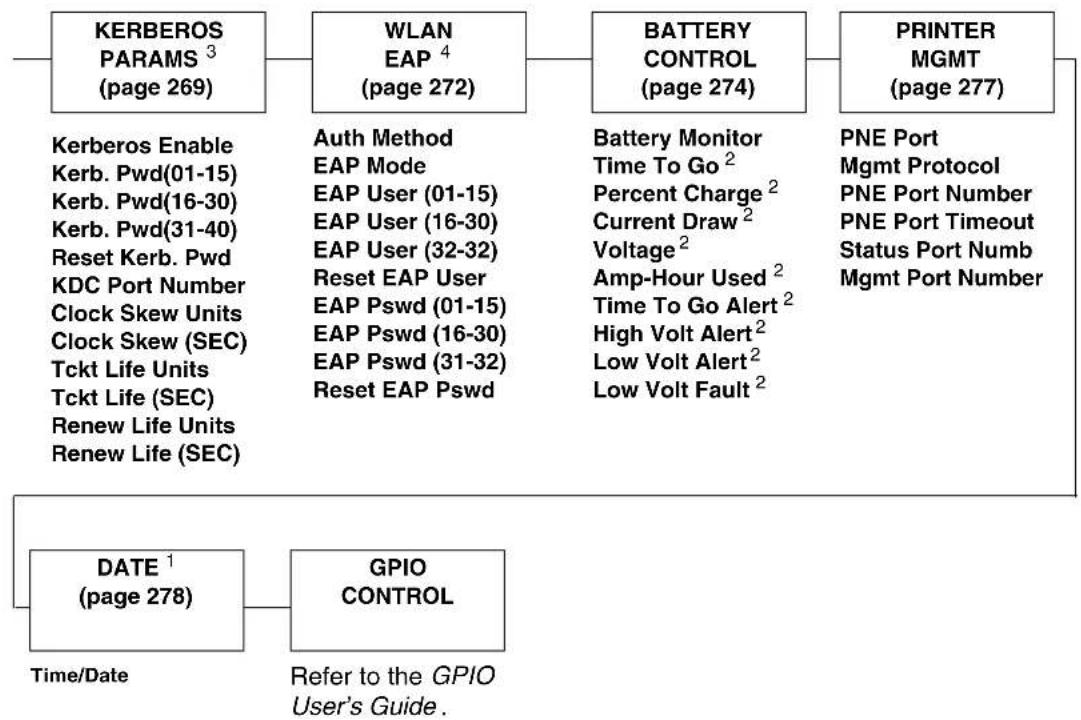
flowchart
graph TD
    A["KERBEROS PARAMS³ (page 269)"] --> B["WLAN EAP⁴ (page 272)"]
    B --> C["BATTERY CONTROL (page 274)"]
    C --> D["PRINTER MGMT (page 277)"]

    A --> E["KERberos Enable\nKerb. Pwd(01-15)\nKerb. Pwd(16-30)\nKerb. Pwd(31-40)\nReset Kerb. Pwd\nKDC Port Number\nClock Skew Units\nClock Skew (SEC)\nTckt Life Units\nTckt Life (SEC)\nRenew Life Units\nRenew Life (SEC)"]

    B --> F["Auth Method\nEAP Mode\nEAP User (01-15)\neEAP User (16-30)\neEAP User (32-32)\nReset EAP User\nEAP Pswd (01-15)\neEAP Pswd (16-30)\neEAP Pswd (31-32)\nReset EAP Pswd"]

    C --> G["Battery Monitor\nTime To Go²\nPercent Charge²\nCurrent Draw²\nVoltage²\nAmp-Hour Used²\nTime To Go Alert²\nHigh Volt Alert²\nLow Volt Alert²\nLow Volt Fault²"]

    D --> H["PNE Port\nMgmt Protocol\nPNE Port Number\nPNE Port Timeout\nStatus Port Numb\nMgmt Port Number"]

    I["DATE¹ (page 278)"] --> J["GPIO CONTROL"]
    J --> K["Refer to the GPIO User's Guide."]

    style A fill:#f9f,stroke:#333
    style B fill:#f9f,stroke:#333
    style C fill:#f9f,stroke:#333
    style D fill:#f9f,stroke:#333
    style I fill:#ccf,stroke:#333
    style J fill:#ccf,stroke:#333
Notes:
^1 Appears only if the Real Time Clock option is installed.
^2 Available only when Battery Monitor is set to Enable (in the BATTERY CONTROL menu). Functional only when the printer is connected to a power cart, via serial interface, and the cart has an ICP (Intelligent Control Panel) option.
^3 Appears only if a Symbol LA4121 RF card is installed.
^4 Appears only if a Cisco card is installed.
QUICK SETUP
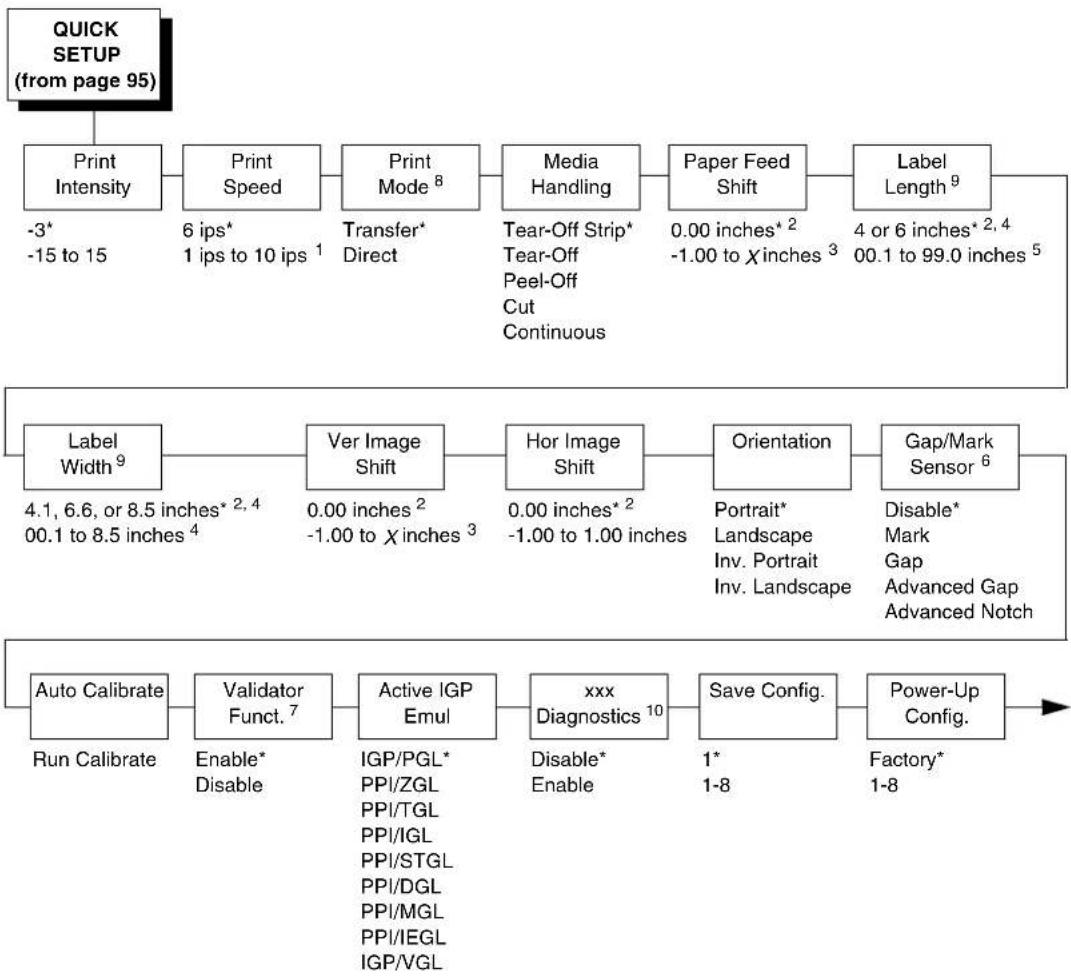
flowchart
graph TD
    A["QUICK SETUP (from page 95)"] --> B["Print Intensity"]
    B --> C["Print Speed"]
    C --> D["Print Mode 8"]
    D --> E["Media Handling"]
    E --> F["Paper Feed Shift"]
    F --> G["Label Length 9"]
    G --> H["Label Width 9"]
    H --> I["Ver Image Shift"]
    I --> J["Hor Image Shift"]
    J --> K["Orientation"]
    K --> L["Gap/Mark Sensor 6"]
    L --> M["Auto Calibrate"]
    M --> N["Validator Funct. 7"]
    N --> O["Active IGP Emul"]
    O --> P["xxx Diagnostics 10"]
    P --> Q["Save Config."]
    Q --> R["Power-Up Config."]

    style A fill:#f9f,stroke:#333
    style H fill:#ccf,stroke:#333
Notes:
* = Factory Default
^1 Maximum value depends on the printer model width (4, 6, or 8 inches) and printhead (203 or 300 dpi).
^2 You can change the unit value from inches to millimeters under Units (in MEDIA CONTROL) when Admin User is enabled.
^3 Based on the current value setting for the Label Length (in QUICK SETUP), up to a maximum of 12.80 inches.
^4 Maximum value depends on the width of the printer model (see Appendix A, “Specifications”).
^5 Maximum value depends on model width and size of DRAM installed (see Appendix A, “Specifications”).
^6 Gap/Mark Sensor and Paper Out Sensor work in conjunction, as shown in Table 6 on page 138. If you change the Gap/Mark Sensor or Paper Out Sensor, you must recalibrate the media.
^7 Appears only if a validator is installed.
^8 This menu will not appear on Direct Thermal only printers.
^9 Resolution changes based on “Label Resolution” menu under MEDIA CONTROL if Small Label Printer is installed.
^10 xxx represents the emulation name selected in the Active IGP Emul menu.
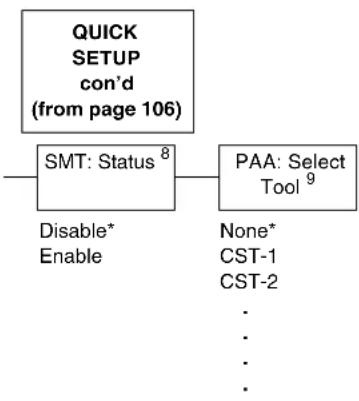
flowchart
graph TD
    A["QUICK SETUP con'd (from page 106)"] --> B["SMT: Status 8"]
    B --> C["PAA: Select Tool 9"]
    B --> D["Disable* Enable"]
    C --> E["None* CST-1 CST-2"]
Notes:
^* = Factory Default
^8 Appears only if RFID is installed and there is no CST bundle in the Flash File System.
^9 Appears only if RFID is not installed and there is a CST bundle in the Flash File System.
QUICK SETUP Submenus
Print Intensity
This option specifies the level of thermal energy from the printhead to be used for the type of media and ribbon installed.
Large numbers imply more heat (thermal energy) to be applied for each dot. This has a significant effect on print quality. The print intensity and speed must match the media and ribbon type to obtain the best possible print quality and barcode grades.
The range is from -15 to +15.
The factory default is -3.
Print Speed
This option specifies the speed in inches per second (ips) at which the media passes through the printer while printing.
The range is from 1 to 10 ips (in increments of 1 ips).
The factory default is 6 ips.
NOTE: The maximum print speed varies based on maximum printer width and dot per inch (dpi) resolution of the printhead installed (203 or 300 dpi). See Table 18 on page 345.
Print Mode
This option specifies the type of printing to be done.
• Transfer. Indicates Thermal Transfer printing (ribbon installed).
- Direct. Indicates Direct Thermal printing (no ribbon) and requires special heat sensitive media.
The factory default is Transfer.
Media Handling
This option specifies how the printer will handle the media (labels or tag stock).
- Tear-Off Strip. Printer prints on the media and sends it out the front until the print buffer is empty, then positions the trailing edge of the last label over the tear bar for removal.
- Tear-Off. After each label is printed, the printer positions the label over the tear bar and waits for you to tear off the label before printing the next one (on-demand printing). A "Remove Label" message will display to remind you to remove the label before the next one can be printed.
- Peel-Off. Prints and peels die-cut labels from the liner without assistance. The printer waits for you to take away the label before printing the next one (on-demand printing). When the optional internal rewinder is installed with liner attached, a "Remove Label" message will display to remind you to remove the label before the next one can be printed.
- Cut. When the optional media cutter is installed, it automatically cuts media after each label is printed or after a specified number of labels have been printed when a software cut command has been issued. It cuts continuous roll paper, labels, or tag stock.
- Continuous. Printer prints on the media and sends it out the front. See "Continuous Mode" on page 135 for more information.
The factory default is Tear-Off Strip.
Paper Feed Shift
This option represents the distance to advance (+ shift) or pull back (− shift) the stop position of a label when Tear-Off Strip, Tear-Off, Peel-Off, or Cut media handling option is enabled. The allowable range is -0.50 inches to the current Label Length value setting, up to a maximum of 12.80 inches, in .01 inch increments.
The factory default is 0.00 inches.
Label Length
This option specifies the user-selected Label Length in inches or millimeters. In most applications, the user-selected Label Length will match the physical label length. Physical label length is the actual label length of the media installed.
When setting label length, consider the following:
Label Length can also be manually entered via the control panel MEDIA CONTROL menu or sent via host computer using the appropriate software command.
A Host Forms Length (Label Length) value sent from the host computer will override and change the manually entered Label Length value in the QUICK SETUP or MEDIA CONTROL menu.
- Physical Label Length is the actual measurable length of the label. The following list of different media types explains how the physical label lengths are determined:
- Die-cut labels – measurable length of the removable label (leading edge to trailing edge). This does not include the liner material or gap.
- Tag Stock with notches or holes – measurable length from the trailing edge of one notch or hole to the leading edge of the next notch or hole.
- Tag Stock with black marks on underside – measurable length from the leading edge of one black mark to the leading edge of the next black mark.
- Continuous media (no label length indicators) – measurable length should be within ± 1-2% the Label Length value entered in the QUICK SETUP, MEDIA CONTROL menu, or the value sent via host software command.
- Logical Label Length (Host Forms Length) is the length that a user or programmer bases his printable image on. In most cases this length should be slightly less than the Physical Label Length. This allows the entire image to be printed within the boundaries of the label length indicators (gaps, notches, holes, or black marks).
When the Logical Label Length is greater than the Physical Label Length and Clip Page = Enable (in the MEDIA CONTROL menu), the printer will clip the bottom portion of the image that exceeds the Physical Label length. In this case, the printable data that was not printed will be lost.
When the Logical Label Length is greater than the Physical Label Length and Clip Page = Disable, the printer will continue to print the image onto the next physical label and ignore the gap or mark based on the label length value set in the QUICK SETUP or MEDIA CONTROL menu.
When the Logical Label Length is less than the Physical Label Length, the printer will print the entire image and leave blank space the remaining length of the physical label as it advances to the Top-of-Form of the next label. This is true regardless of the Clip Page setting.
The allowable Label Length range is 00.1 to 99.0 inches (2.5 - 2514.6mm). The factory defaults are listed below:
Table 2. Factory Default Label Length
| Printer | Inches mm Lines | |
| T5X04 | 6 152.4 36 | |
| T5X06 | 4 101.6 24 | |
| T5X08 | 6 152.4 36 |
Maximum Label Length range is dependent on the Label Width value selected, printhead installed (203 or 300 DPI). See Appendix A for specifications.
NOTE: See "Set Label Length" on page 134.
Label Width
This option specifies the physical width of the image to be printed. The value can be specified in inches or millimeters depending on the setting of the Units submenu under the MEDIA CONTROL menu. The allowable range in inches is 00.1 to the maximum print width of the printer. The allowable range in millimeters is 2.5 to the maximum width of the printer.
Ver Image Shift
This option specifies the amount to shift an image vertically up (-) or down (+) for precise positioning on the label. The actual height of the image is not affected by this parameter. The allowable range is -1.00 inches to the current Label Length value setting, up to a maximum of 12.80 inches, in .01 inch increments.
The factory default value is 0.00 inches.
Hor Image Shift
This option specifies the amount to shift an image horizontally left (-) or right (+) for precise positioning on the label. The actual width of the image is not affected by this parameter. The allowable range is -1.00 to +1.00 inches in .01 inch increments.
The factory default value is 0.00 inches.
Orientation
This menu item selects the image orientation to be used when printing the label.
- Portrait. Portrait refers to vertical page orientation, where the height of a page is greater than its width. The top edge of the image is parallel to the leading edge of the media. The following illustration is an example, with the operator viewing the front of the printer.
NOTE: Portrait orientation applies to PGL and VGL emulations. This is regarded as Inverse Portrait using PPI/ZGL.

text_image
FEED 4 inches 6 inches The top edge of the image is parallel to the leading edge of the media. Leading Edge- Landscape. Landscape refers to horizontal orientation, where the width of a page is greater than its height. The top edge of the image is the left edge of the media. The following illustration is an example, with the operator viewing the front of the printer.
NOTE: Landscape orientation applies to PGL and VGL emulations. This is regarded as Inverse Landscape using PPI/ZGL.
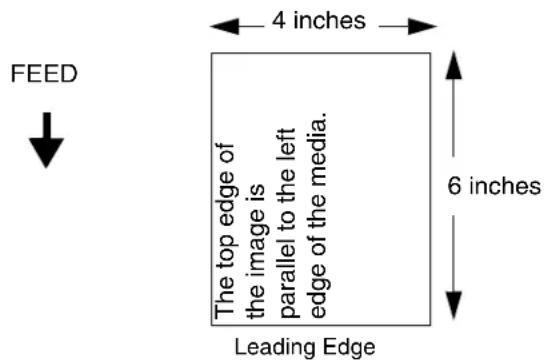
text_image
FEED 4 inches The top edge of the image is parallel to the left edge of the media. 6 inches Leading Edge- Inv. Portrait. Inverse Portrait refers to vertical page orientation, where the height of a page is greater than its width. The top edge of the image is parallel to the trailing edge of the media. The following illustration is an example, with the operator viewing the front of the printer.
NOTE: Inverse Portrait orientation applies to PGL and VGL emulations. This is regarded as Portrait using PPI/ZGL.
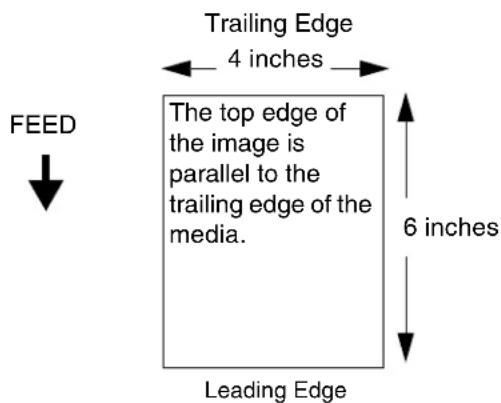
text_image
Trailing Edge 4 inches The top edge of the image is parallel to the trailing edge of the media. 6 inches FEED Leading Edge- Inv. Landscape. Inverse Landscape refers to horizontal orientation, where the width of a page is greater than its height. The top edge of the image is the right edge of the media (the left edge of the image is the trailing edge of the media). The factory default is Portrait. The following illustration is an example, with the operator viewing the front of the printer.
NOTE: Inverse Landscape orientation applies to PGL and VGL emulations. This is regarded as Landscape using PPI/ZGL.

text_image
FEED 4 inches The top edge of the image is parallel to the right edge of the media. 6 inches Leading EdgeGap/Mark Sensor
The available options specify the sensor type needed for detecting the Top-of-Form position on media with label length indicators (gaps, notches, holes, or black marks).
- Disable. Select when using media with no label length indicators (no gaps, notches, holes, or black marks), or when you want the printer to ignore all existing label length indicators on the installed media.
NOTE: When you select Disable, the length of each label is based on the Label Length value entered in the QUICK SETUP or MEDIA CONTROL menu or the value sent via host software.
- Mark. Select when using media that has horizontal black marks located on the underside of the label liner or tag stock. The Top-of-Form position is the leading edge of the black mark.
- Gap. Select when using media with a liner space between die-cut labels or when using tag stock with notches or holes as label length indicators on white background media. The Top-of-Form position is the leading edge of the die cut label (trailing edge of the gap, notch, or hole).
- Advanced Gap. Select when using media that has liner gaps between die cut labels with a dark or black background. The Top-of-Form position is the leading edge of the die cut label (trailing edge of the gap, notch, or hole).
- Advanced Notch. Select when using media with notches or holes that interrupt a black vertical line on the underside of the media. The Top-of-Form position is the leading edge of the die cut label (trailing edge of the gap, notch, or hole).
The factory default is Disable.
Auto Calibrate
This feature is used to improve the sensitivity and reliability of the Media Sensor in detecting gaps, notches, holes, or black marks on the installed media, as well as a paper out condition.
Auto Calibrate can also be initiated from the TEST PRINT key, the CALIBRATE CTRL menu, or the DIAGNOSTIC menu. Press the ↓ key with "Auto Calibrate" displayed. The printer will then advance media the distance needed to accurately detect the label length indicators, then stop at the Top-of-Form position and momentarily display the Sensed Distance. The process takes a few seconds to complete. The end result will be a change to the Gap/Mark Threshold, Paper Out Threshold, and Sensed Distance values that the printer will use. The changes in values take effect immediately within the current configuration menu.
Auto Calibrate is completed successfully when the Sensed Distance displayed correctly matches that of the installed media. When Gap is selected, the Sensed Distance should match the length from the trailing edge of one gap to the trailing edge of the next gap (one label + one gap). When Mark is selected, the Sensed Distance should match the length from the leading edge of one black mark to the leading edge of the next black mark.
Auto Calibrate supports label lengths up to 24 inches.
Validator Funct.
This menu appears only if a validator is installed.
- Enable. The printer will command the validator to begin scanning and errors will be reported. The counters will be incremented while the validator is enabled.
- Disable. The printer will not command the validator to begin scanning and no errors will be reported. The counters will not be incremented while the validator is disabled.
NOTE: If you save a configuration with the validator enabled, then power down and power up, and the validator is not connected or not functioning, the error message "Validator not communicating" will display briefly. The Validator menu will not display.
If the validator is installed, the default is Enable.
Active IGP Emulation
See page 150 for more details.
xxx Diagnostics
See page 151 for more details.
Save Config.
This option allows you to save up to eight unique configurations to meet different print job requirements. This eliminates the need to change the parameter settings for each new job. The configurations are stored in memory and will not be lost if you turn off the printer. If the Protect Configs. parameter is enabled, the new configuration will not be saved unless the existing configuration has been deleted first. The factory default configuration cannot be changed. See “Saving A Configuration” on page 88 for details.
The factory default is 1.
Power-Up Config.
You can specify any one of nine configurations (1-8 saved custom configurations or Factory) as the power-up configuration.
The factory default is Factory.
SMT:Status
You can enable or disable SMT functionality.
PAA: Select Tool
You can set the PAA:Select Tool to None (the default), CST-1, or CST-2. Refer to the PrintNet Enterprise Suite User's Manual.
CONFIG. CONTROL
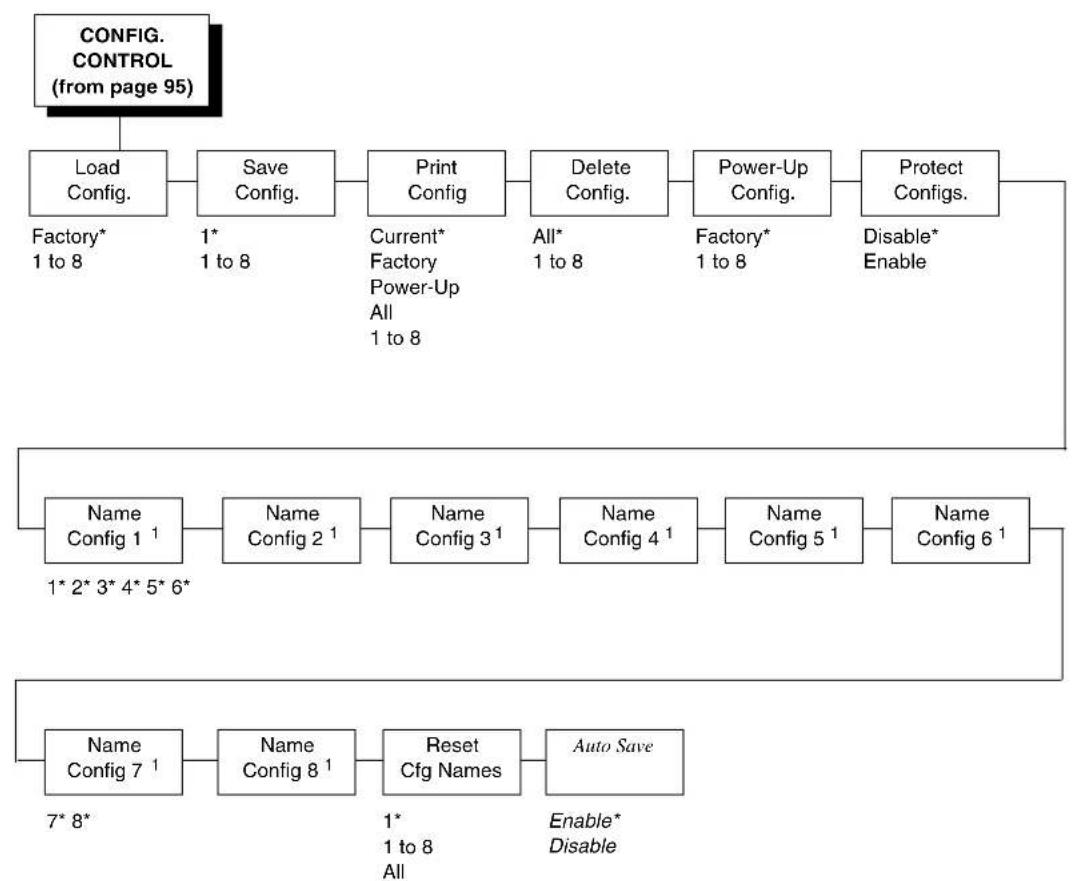
flowchart
graph TD
    A["CONFIG. CONTROL (from page 95)"] --> B["Load Config."]
    B --> C["Save Config."]
    C --> D["Print Config"]
    D --> E["Delete Config."]
    E --> F["Power-Up Config."]
    F --> G["Protect Configs."]
    G --> H["Name Config 1 1"]
    H --> I["Name Config 2 1"]
    I --> J["Name Config 3 1"]
    J --> K["Name Config 4 1"]
    K --> L["Name Config 5 1"]
    L --> M["Name Config 6 1"]
    M --> N["Name Config 7 1"]
    N --> O["Name Config 8 1"]
    O --> P["Reset Cfg Names"]
    P --> Q["Auto Save"]
    style A fill:#f9f,stroke:#333
    style H fill:#ccf,stroke:#333
    style N fill:#ccf,stroke:#333
Notes:
* = Factory Default
Italicized items are available only when Admin User is set to Enable (in the PRINTER CONTROL menu).
^1 This menu allows a 15 character string.
CONFIG. CONTROL Submenus
Load Config.
The printer can store up to eight configurations in memory. This parameter allows you to select and load a specific configuration.
The factory default is Factory.
Save Config.
This option allows you to save up to eight unique configurations to meet different print job requirements. This eliminates the need to change the parameter settings for each new job. The configurations are stored in memory and will not be lost if you turn off the printer. If the Protect Configs. parameter is enabled, the new configuration will not be saved unless the existing configuration has been deleted first. The factory default configuration cannot be changed. See “Saving A Configuration” on page 88 for details.
The factory default is 1.
Print Config.
This option is used to print a listing of various stored printer configurations. We recommend you store printouts of your configurations in a safe place for quick referral.
The options are Current (the factory default), Factory, Power-Up, All, and 1 to 8.
Delete Config.
You can delete one or all of your eight customized configurations. The factory default configuration cannot be deleted.
The factory default is All.
Power-Up Config.
You can specify any one of nine configurations (1-8 saved custom configurations or Factory) as the power-up configuration.
The factory default is Factory.
Protect Configs.
You can specify whether or not a new configuration should overwrite an existing configuration when you activate the Save Configs. parameter. When disabled (default), the new configuration will overwrite the existing configuration. When enabled, the new configuration will not overwrite the existing configuration, and the message "CONFIG. EXISTS / Delete First" displays.
The options are Disable (the factory default) and Enable.
Name Config (1-8)
You may specify a 15-character name which can be used to refer to a configuration. The name you enter for a configuration will be used in the Load Config., Save Config., Print Config., Delete Config., and Power-Up Config. menus. The names can only be cleared by using the Reset Cfg Names menu.
When you move into the Name Configs. menu, the top line of the display shows the current configuration name. The second line of the display is initially the same as the top line. You can modify the second line of the display without affecting the top line until the ↓ key is pressed, which sets the modified name as the current selection.
Press ↑ or ↓ to cycle through the values available for that character at the cursor location. Press + to move to the next character to be modified. Press – to go back to a character you have already modified. Continue until you have entered the name you want to give to this configuration, then press ↓ to save. The name you entered will now represent this configuration on the printer's front panel. To exit this menu without saving, press any key other than ↓. The configuration name will revert to the last saved value.
The factory default is 1.
Reset Cfg Names
You can reset specific configuration names back to the default value of the configuration number.
The options are 1 to 8 and All. The factory default is 1.
Auto Save
- Enable (factory default). When a change has been made to a Config. menu, this option automatically prompts the user to save or not save the change to a Config #.
If you are currently in the Factory Config. menus and make a change, pressing Enter saves to Config 1 or the next available Config. and becomes the Power-Up Config. If the Current Config is Config 1 and a menu change is made, pressing Enter will save the change to Config 1.
- Disable. The printer will not prompt you to save any changes made.
MEDIA CONTROL
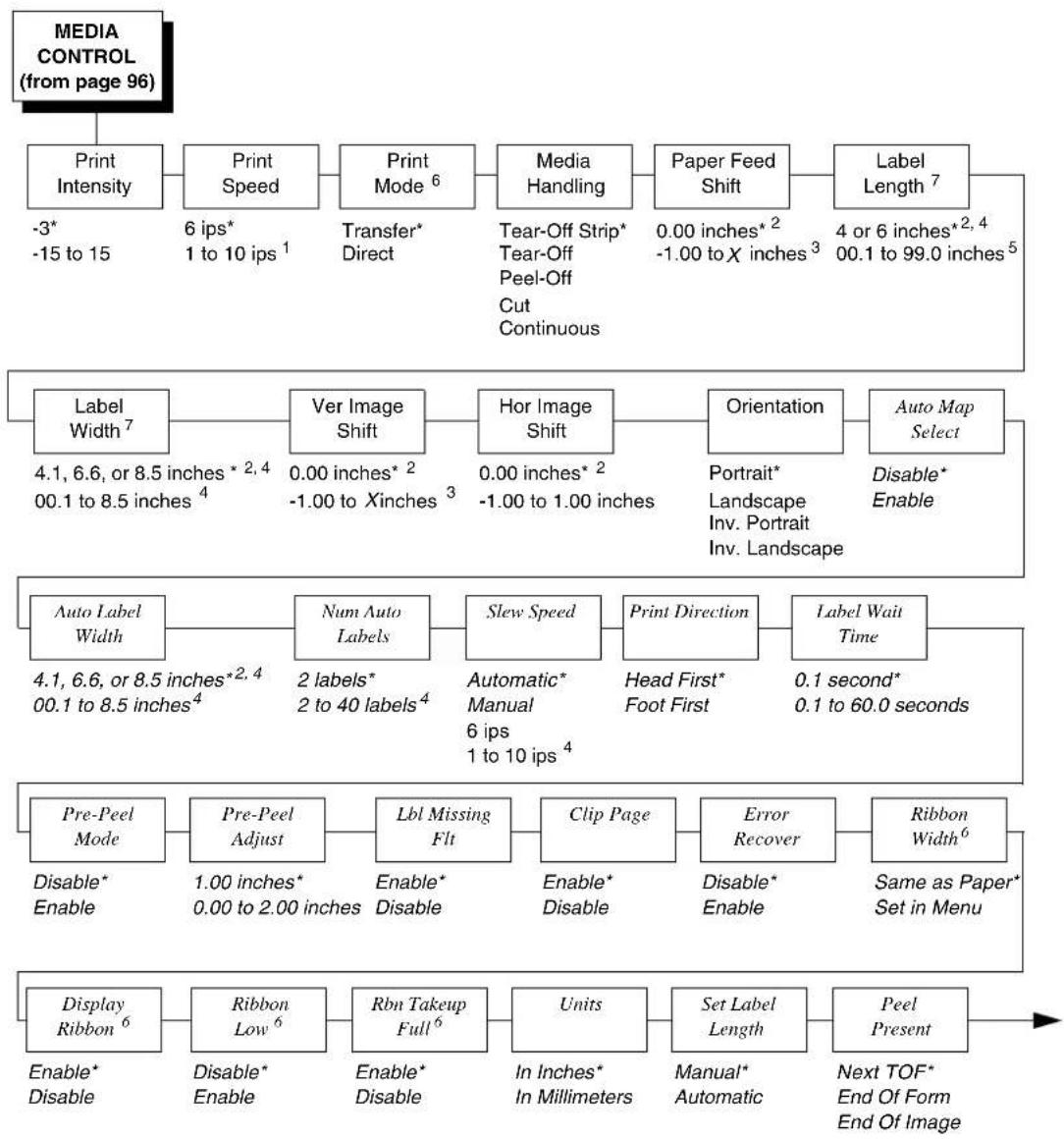
flowchart
graph TD
    A["MEDIA CONTROL (from page 96)"] --> B["Print Intensity"]
    B --> C["Print Speed"]
    C --> D["Print Mode 6"]
    D --> E["Media Handling"]
    E --> F["Paper Feed Shift"]
    F --> G["Label Length 7"]
    G --> H["Label Width 7"]
    H --> I["Ver Image Shift"]
    I --> J["Hor Image Shift"]
    J --> K["Orientation"]
    K --> L["Auto Map Select"]
    L --> M["Auto Label Width"]
    M --> N["Num Auto Labels"]
    N --> O["Slew Speed"]
    O --> P["Print Direction"]
    P --> Q["Label Wait Time"]
    Q --> R["Pre-Peel Mode"]
    R --> S["Pre-Peel Adjust"]
    S --> T["Lbl Missing Flt"]
    T --> U["Clip Page"]
    U --> V["Error Recover"]
    V --> W["Ribbon Width 6"]
    W --> X["Display Ribbon 6"]

    style A fill:#f9f,stroke:#333
    style H fill:#ccf,stroke:#333
Notes:
* = Factory Default
Italicized items are available when Admin User is set to Enable (in the PRINTER CONTROL menu).
^1 Maximum value depends on the width of the printer model and printhead.
^2 You can change the unit value from inches to millimeters under Units (in MEDIA CONTROL) when Admin User is enabled.
^3 Based on the current value setting for Label Length (in MEDIA CONTROL) up to a maximum of 12.80 inches.
^4 Maximum value depends on the width of the printer model (see Appendix A, “Specifications”).
^5 Maximum value depends on model width and size of DRAM installed (see Appendix A, “Specifications”).
^6 This menu will not appear on Direct Thermal only printers.
^7 Resolution changes based on "Label Resolution" menu under MEDIA CONTROL if Small Label Printer option is installed.

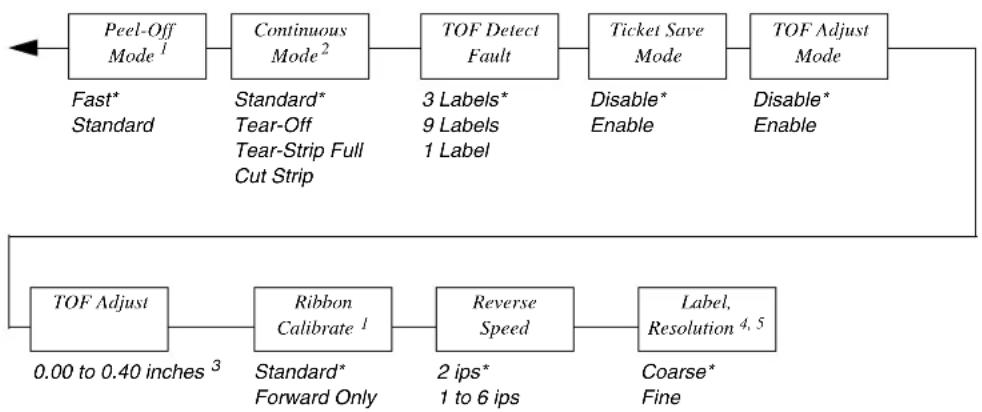
flowchart
graph LR
    A["Peel-Off Mode¹"] --> B["Continuous Mode²"]
    B --> C["TOF Detect Fault"]
    C --> D["Ticket Save Mode"]
    D --> E["TOF Adjust Mode"]
    E --> F["TOF Adjust"]
    F --> G["0.00 to 0.40 inches³"]
    G --> H["Ribbon Calibrate¹"]
    H --> I["Reverse Speed"]
    I --> J["Label, Resolution⁴,⁵"]

    A -->|Fast* Standard| A
    B -->|Standard* Tear-Off Tear-Strip Full Cut Strip| B
    C -->|3 Labels* 9 Labels 1 Label| C
    D -->|Disable* Enable| D
    E -->|Disable* Enable| E

    H --> K["Standard* Forward Only"]
    I --> L["2 ips* 1 to 6 ips"]
    J --> M["Coarse* Fine"]
Notes:
* = Factory Default
Italicized items are available only when Admin User is set to Enable (in the PRINTER CONTROL menu).
^1 The Peel-Off option under Media Handling must be enabled for this menu to function.
^2 The Continuous option under Media Handling must be enabled for this menu to function.
^3 In increments of 0.01 inch.
^4 Default is “Fine” on Small Label Printer.
^5 Menu available only if Small Label Printer option is installed.
MEDIA CONTROL Submenus
Print Intensity
This option specifies the level of thermal energy from the printhead to be used for the type of media and ribbon installed.
Large numbers imply more heat (thermal energy) to be applied for each dot. This has a significant effect on print quality. The print intensity and speed must match the media and ribbon type to obtain the best possible print quality and barcode grades.
The range is from -15 to +15.
The factory default is -3.
Print Speed
This option specifies the speed in inches per second (ips) at which the media passes through the printer while printing.
The range is from 1 to 10 ips (in increments of 1 ips).
The factory default is 6 ips.
NOTE: The maximum print speed varies based on maximum printer width and dot per inch (dpi) resolution of the printhead installed (203 or 300 dpi). See Table 18 on page 345.
Print Mode
This option specifies the type of printing to be done.
• Transfer. Indicates Thermal Transfer printing (ribbon installed).
- Direct. Indicates Direct Thermal printing (no ribbon) and requires special heat sensitive media.
The factory default is Transfer.
Media Handling
This option specifies how the printer will handle the media (labels or tag stock).
- Tear-Off Strip. Printer prints on the media and sends it out the front until the print buffer is empty, then positions the last label over the tear bar for removal.
- Tear-Off. After each label is printed, the printer positions the label over the tear bar and waits for you to tear off the label before printing the next one (on-demand printing). A "Remove Label" message will display to remind you to remove the label before the next one can be printed.
- Peel-Off. Prints and peels die-cut labels from the liner without assistance. The printer waits for you to take away the label before printing the next one (on-demand printing). When the optional internal rewinder is installed with liner attached, a "Remove Label" message will display to remind you to remove the label before the next one can be printed. See "Peel-Off Mode" on page 135 and "Peel Present" on page 134 for more information.
NOTE: The Tear-Off and Peel-Off options are not allowed if the cutter is installed. The error message "INCOMPATIBLE WITH CUTTER" displays.
- Cut. When the optional media cutter is installed, it automatically cuts media after each label is printed or after a specified number of labels have been printed when a software cut command has been issued. It cuts continuous roll paper, labels, or tag stock.
NOTE: The Cut option is not allowed if the cutter is not installed. The error message "OPTION NOT INSTALLED" displays.
- Continuous. Printer prints on the media and sends it out the front. See “Continuous Mode” on page 135 for more information.
The factory default is Tear-Off Strip.
Paper Feed Shift
This option represents the distance to advance (+ shift) or pull back (− shift) the stop position of a label when Tear-Off Strip, Tear-Off, Peel-Off, or Cut media handling option is enabled. The allowable range is -1.00 inches to the current Label Length value setting, up to a maximum of 12.80 inches, in .01 inch increments.
The factory default is 0.00 inches.
Label Length
This option specifies the user-selected Label Length in inches or millimeters. In most applications, the user-selected Label Length will match the physical label length. Physical label length is the actual label length of the media installed.
When setting label length, consider the following:
Label Length can be manually entered via the control panel MEDIA CONTROL menu or sent via host computer using the appropriate software command.
A Host Forms Length (Label Length) value sent from the host computer will override and change the manually entered Label Length value in the MEDIA CONTROL menu.
- Physical Label Length is the actual measurable length of the label. The following list of different media types explains how the physical label lengths are determined:
- Die-cut labels – measurable length of the removable label (leading edge to trailing edge). This does not include the liner material or gap.
- Tag Stock with notches or holes – measurable length from the trailing edge of one notch or hole to the leading edge of the next notch or hole.
- Tag Stock with black marks on underside – measurable length from the leading edge of one black mark to the leading edge of the next black mark.
- Continuous media (no label length indicators) – measurable length should be within ± 1-2% the Label Length value entered in the MEDIA CONTROL menu or the value sent via host software command.
- Logical Label Length (Host Forms Length) is the length that a user or programmer bases his printable image on. In most cases this length should be slightly less than the Physical Label Length. This allows the entire image to be printed within the boundaries of the label length indicators (gaps, notches, holes, or black marks).
When the Logical Label Length is greater than the Physical Label Length and Clip Page = Enable (in the MEDIA CONTROL menu), the printer will clip the bottom portion of the image that exceeds the Physical Label length. In this case, the printable data that was not printed will be lost.
When the Logical Label Length is greater than the Physical Label Length and Clip Page = Disable, the printer will continue to print the image onto the next physical label and ignore the gap or mark based on the label length value set in the MEDIA CONTROL menu.
When the Logical Label Length is less than the Physical Label Length, the printer will print the entire image and leave blank space the remaining length of the physical label as it advances to the Top-of-Form of the next label. This is true regardless of the Clip Page setting.
The allowable Label Length range is 00.1 to 99.0 inches (2.5 - 2514.6mm) The factory defaults are listed below:
Table 3. Factory Default Label Length
| Printer | Inches mm Lines | |
| T5X04 | 6 152.4 36 | |
| T5X06 | 4 101.6 24 | |
| T5X08 | 6 152.4 36 |
Maximum Label Length range is dependent on the Label Width value selected, printhead installed (203 or 300 DPI), and the amount of DRAM installed in the printer. See Appendix A for specifications.
NOTE: See "Set Label Length" on page 134.
Label Width
This option specifies the physical width of the image to be printed. The value can be specified in inches or millimeters depending on the setting of the Units submenu under the MEDIA CONTROL menu. The allowable range in inches is 00.1 to the maximum print width of the printer. The allowable range in millimeters is 2.5 to the maximum width of the printer.
The default value depends on model width and size of DRAM installed.
Ver Image Shift
This option specifies the amount to shift an image vertically up (-) or down (+) for precise positioning on the label. The actual height of the image is not affected by this parameter. The allowable range is -1.00 inches to the current Label Length value setting, up to a maximum of 12.80 inches, in .01 inch increments.
The factory default value is 0.00 inches.
Hor Image Shift
This option specifies the amount to shift an image horizontally left (-) or right (+) for precise positioning on the label. The actual width of the image is not affected by this parameter. The allowable range is -1.00 through +1.00 inches in .01 inch increments.
The factory default value is 0.00 inches.
Orientation
This menu item selects the image orientation to be used when printing the label.
- Portrait. Portrait refers to vertical page orientation, where the height of a page is greater than its width. The top edge of the image is parallel to the leading edge of the media. The following illustration is an example, with the operator viewing the front of the printer.
NOTE: Portrait orientation applies to PGL and VGL emulations. This is regarded as Inverse Portrait using PPI/ZGL.

text_image
FEED 4 inches 6 inches The top edge of the image is parallel to the leading edge of the media. Leading Edge- Landscape. Landscape refers to horizontal orientation, where the width of a page is greater than its height. The top edge of the image is the left edge of the media. The following illustration is an example, with the operator viewing the front of the printer.
NOTE: Landscape orientation applies to PGL and VGL emulations. This is regarded as Inverse Landscape using PPI/ZGL.
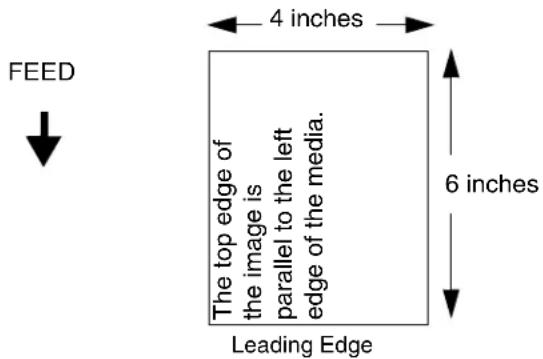
text_image
FEED 4 inches The top edge of the image is parallel to the left edge of the media. 6 inches Leading Edge- Inv. Portrait. Inverse Portrait refers to vertical page orientation, where the height of a page is greater than its width. The top edge of the image is parallel to the trailing edge of the media. The following illustration is an example, with the operator viewing the front of the printer.
NOTE: Inverse Portrait orientation applies to PGL and VGL emulations. This is regarded as Portrait using PPI/ZGL.
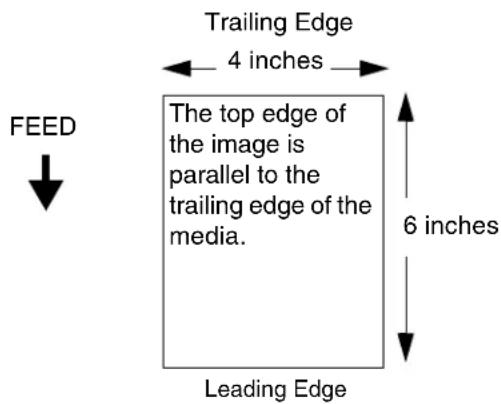
text_image
Trailing Edge 4 inches The top edge of the image is parallel to the trailing edge of the media. FEED 6 inches Leading Edge- Inv. Landscape. Inverse Landscape refers to horizontal orientation, where the width of a page is greater than its height. The top edge of the image is the right edge of the media (the left edge of the image is the trailing edge of the media). The factory default is Portrait. The following illustration is an example, with the operator viewing the front of the printer.
NOTE: Inverse Landscape orientation applies to PGL and VGL emulations. This is regarded as Landscape using PPI/ZGL.
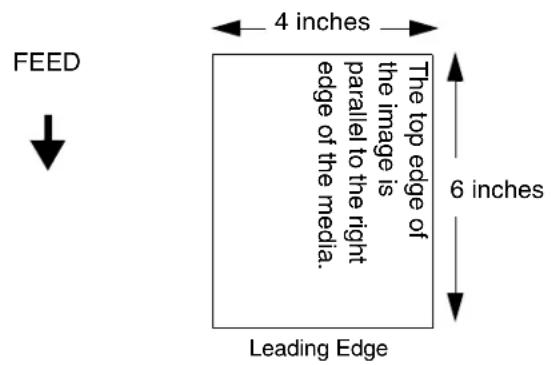
text_image
FEED 4 inches The top edge of the image is parallel to the right edge of the media. Leading Edge 6 inchesAuto Map Select
This option specifies the maximum print width to be used by the application. The IGP/Auto Label Mapping ^® feature allows backward compatibility of programs written for P5000 line-matrix printers using the Printronix PGL graphics language. It allows the printer to print two-up (or other multi-up) labels. Instead of printing multiple labels across the printer, it prints the leftmost label and the rightmost label, so the printout will be twice as long but half as wide.
When enabled, the printer will automatically reposition the horizontally adjacent labels to a vertically adjacent position, or a combination of horizontal and vertical positions based on the values selected under the Auto Label Width and Num Auto Labels menu items.
When disabled, excess data in any program sent to the printer with horizontally adjacent labels that exceed the physical page width of the printer will be clipped or wrapped depending upon the setting of the Autowrap menu option.
The options are Disable (the factory default) and Enable.
Examples
All of the examples below assume that the logical form length is set to the label length.
Example 1: Simple Case
Problem: A file has been constructed with two horizontally adjacent 4" labels for a printer with a physical width of 8". The user now wants to use this file with a printer that has a 4" physical width.
Solution: The user sets Auto Label Width to 4" (the width of the label), configures the Num Auto Labels to 2, and enables the Auto Label Mapping feature.
Printer Operation: The printer will print the first (leftmost) 4" label first. Once the first label has been completed, the printer will print the second 4" label. These labels will appear vertically adjacent on the form.
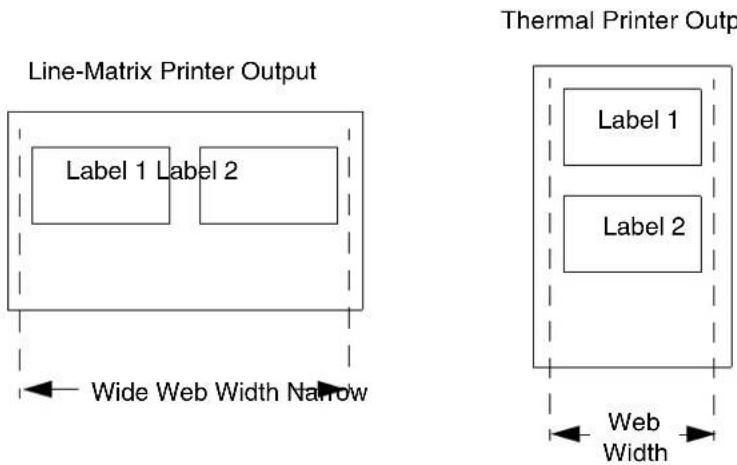
flowchart
graph TD
    subgraph_Line-Matrix_PrinterOutput["Line-Matrix Printer Output"]
        A["Label 1 Label 2"] --> B["Wide Web Width Narrow"]
    end
    subgraph_ThermalPrinterOutput["Thermal Printer Output"]
        C["Label 1"] --> D["Web Width"]
        E["Label 2"] --> D
    end
Example 2: Uneven Number Case
Problem: A file has been constructed with three horizontally adjacent 2" labels. The user now desires to use this file with a printer that has a 4" physical width.
Solution #1: The user sets Auto Label Width to 4" (the width of two labels), configures the Num Auto Labels to 2, and enables the Auto Label Mapping feature.
Printer Operation for Solution #1: The printer will print the first two labels at the same time. These first two labels will be horizontally adjacent. Once these labels have been completed, the printer will print the remaining 2" labels along with a blank 2" label.
File Contents:
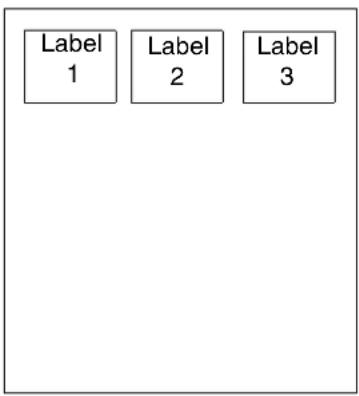
text_image
Label 1 Label 2 Label 3Print Output:

text_image
Label 1 Label 2 Label 3 Blank LabelSolution #2: The user sets Auto Label Width to 2", configures the Num Auto Labels to 3, and enables the Auto Label Mapping feature.
Printer Operation for Solution #2: The printer will print the first 2" label by itself, the second 2" label by itself, and finally, the last 2" label by itself.

text_image
Label 1 Label 2 Label 3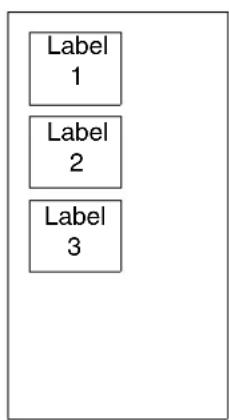
text_image
Label 1 Label 2 Label 3Example 3: Past Maximum File Width
Problem: A file has been constructed with three horizontally adjacent 4" labels. The user now desires to use this file with a printer that has a 8" physical width. The user should have used a solution similar to one of the solutions in the section above, but the user erroneously enters an Auto Label Width of 12" and a Num Auto Labels of 3.
Printer Operation: Maximum Num Auto Labels = (20"/12") = 1.67 rounded up to 2. The printer will automatically reduce the Num Auto Labels to 2.
Example 4: Blank Label Case
Problem: A file exists with two horizontally adjacent 4" labels. The user now wants to use this file with a printer that has a 4" physical width. The user decides to set the Num Labels to 3 and the Label Width to 4" despite the fact that these values are not optimum.
Printer Operation: The maximum Num Auto Labels = (20"/4") = 5. The selected value of 3 is legal. After the file is sent, the printer will begin by printing the first 4" width label. Once that label is complete, it will print the second 4" width label. Finally, once both of those labels have been printed, the printer will print a blank 4" label.
File Contents:
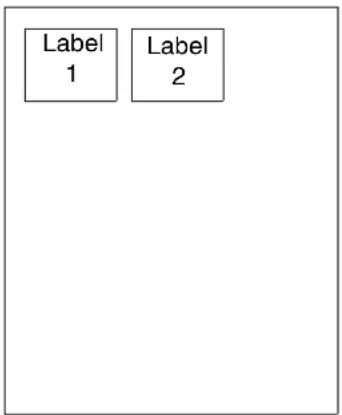
text_image
Label 1 Label 2Print Output:

text_image
Label 1 Label 2 Blank LabelAuto Label Width
The width of a single label to be printed or the maximum width of the media that will be used for the print file. The value is selectable from 00.1 inch through the maximum print width of the printer.
NOTE: The maximum Auto Label Width value will be limited to the current MEDIA CONTROL/Label Width value selected in the configuration menu.
The default value depends on model width and size of DRAM installed.
Num Auto Labels
The desired number of labels to be printed vertically adjacent on the form. The value is selectable with a range of 2 through 40 (T5X04), 2 through 21 (T5X06) and 2 through 17 (T5X08).
The factory default is 2.
Slew Speed
The speed at which the printer moves media without actually printing on it.
- Automatic. Always the same as the print speed (see "Print Speed" on page 107).
- Manual. Allows you to set the slew speed. The maximum speed depends on your printer model (see Table 18 on page 345).
The slew speed can be set to Automatic, Manual, 6 ips, or 1 to 10 ips.
The factory default is Automatic.
Print Direction
This option determines the basic print image orientation.
NOTE: Print Direction will not change the orientation of any print test patterns in the DIAGNOSTIC menu.
Print Direction has two options:
- Head First
- Foot First
For example, with Portrait orientation, when you select Head First, the top-of-form will come out of the printer first. Conversely, when you select Foot First, the bottom-of-form will come out first.
FEED

natural_image
Empty white square with a small black symbol '∀' in the bottom-right corner (no text or labels)Head First

text_image
AFoot First
Print Direction and Orientation are two independent options that can be combined to produce the following results depending on the Active IGP Emulation:
Table 4. Head First
| Print Direction Option | Orientation Option | Result in Active IGP Emulations (IGP/PGL or IGP/VGL) |
| Head First Portrait | Portrait | |
| Head First Landscape | Landscape | |
| Head First Inv. | Portrait Inv. Portrait | |
| Head First Inv. | Landscape Inv. Landscape |
Table 5. Foot First
| Print Direction Option | Orientation Option | Result in Active IGP/ZGL Emulation |
| Foot First Portrait | Portrait | |
| Foot First | Landscape | Inv. Landscape |
| Foot First | Inv. Portrait Inv. Portrait | |
| Foot First | Inv. Landscape | Landscape |
The factory default is Head First when IGP/PGL or IGP/VGL is enabled.
The factory default is Foot First when PPI/ZGL is enabled.
Label Wait Time
When Media Handling is set to Tear-Off Strip or Continuous, and Continuous Mode is set to Tear Strip Full, Label Wait Time specifies the number of seconds after printing stops that the printer will wait before it advances media to the tear bar position.
When Media Handling is set to Peel-Off or Tear-Off, Label Wait Time specifies the number of seconds the printer will wait after a label is removed from the peel/tear bar before starting to print the next label.
The range is 0.1 to 60.0 seconds, and the factory default is 0.1 second.
Pre-Peel Mode
- Disable.
- Enable. When Media Handling = Peel-Off and Peel-Off Mode = Standard, enabling Pre-Peel Mode adds a forward and reverse motion to each label prior to printing. The added forward pre-peel motion temporarily breaks the die cut label from the liner, and the reverse motion places the label back on the liner prior to printing, peeling, or dispensing the label. Pre-Peel Mode is usually enabled only when using die cut labels with an aggressive adhesive that makes automatic label removal from the liner difficult.
The factory default is Disable.
Pre-Peel Adjust
When Pre-Peel Mode = Enable, Pre-Peel Adjust represents the selectable distance that the label advances during Pre-Peel Mode. The Pre-Peel Adjust distance selected is automatically used when Pre-Peel Mode is enabled.
The range is from 0.00 to 2.00 inches in .01 inch increments. The factory default is 1.00 inch.
Lbl Missing Flt
Allows the Label Taken Sensor to first detect the presence of a label at the tear bar for Peel and Tear Off Media Handling Mode only.
- Enable. The printer generates a fault condition if a missing label is encountered.
- Disable. The printer does not generate a fault condition if a missing label is encountered.
The default is Enable.
Clip Page
This option determines how the printer handles images that are too large for one physical page length when using gap or black mark media.
- Enable. When the user-selected page length is greater than the physical page length, the printer clips the excess data to fit the physical page. The excess data is lost. The media sensor constantly looks for the gap, notch, hole, or black mark and when detected, uses it as the Top-of-Form position for the next label and clips any remaining data from the label being printed.
- Disable. When the user-selected page length (logical length) is greater than the physical page length dictated by the gap, notch, hole, or black mark on media, the printer continues to print the remaining excess data onto the next physical page.
The media sensor looks for the gap, notch, hole, or black mark only after the media has advanced the distance specified by the Label Length value in the MEDIA CONTROL menu or by the Host Forms Length value sent via the software. Any gaps, notches, holes, or black marks that exist prior to reaching the Label Length or Host Forms Length value are ignored.
When Clip Page is set to Disable, Mark and Gap media sensing reliability can be improved and the sensor problems described below can be fixed:
- The image starts to print at an erroneous distance from the top-of-form, especially towards the end of a roll where the media is severely curled or scalloped.
- The image is incorrectly positioned as a result of the media sensor triggering off of a dark, pre-printed image on the label or multiple gaps within the label.
- The printer starts to print one label and then another all on the same physical label, especially at the end of a roll where the media is severely curled.
- An occasional blank label appears within a print job (in between printed labels).
When Clip Page is set to Disable, the printer ignores any pre-printed dark marks or multiple gaps on a label that could mistakenly be detected as the next top-of-form position based on the specified Label Length value. The Label Length option is in the MEDIA CONTROL menu.
NOTE: When Clip Page = Disable, the correct Label Length value must be entered. If the value is too long, the printer will ignore the actual gap or mark it needs to detect. When using Gap sensing, the Label Length value is equal to the physical length of a die cut or removable label. When using Mark sensing, the Label Length value is the physical distance from the leading edge of one black mark to the leading edge of the next black mark.
The factory default for Clip Page is Enable.
Error Recover
This option determines how the printer handles data that was printing when an error occurred.
- Disable. The printer will not reprint the label that was printing when the error condition occurred.
- Enable. The printer reprints the label that was printing when the error condition occurred.
The factory default is Disable.
Ribbon Width
When Same As Paper is selected, the printer automatically adjusts the ribbon operating parameters to match the installed media width. In those cases where the media width is less than the installed ribbon width, the Set In Menu option should be selected. After selection, the ribbon width is set to the proper value by pressing the ↓ key and choosing the actual ribbon width using the + and - keys. The chosen width is then selected by pressing the ↓ key. The factory default is Same As Paper.
Display Ribbon
When enabled and the printer online, 1 to 4 asterisks will display on the LCD indicating the approximate amount of ribbon remaining on the supply spindle:
$$ \begin{array}{l} \text { Online Rbn } ^ { * } = 4 7 0 \text { to } 6 2 5 \mathrm{m} \ ^ { * } = 3 1 4 \text { to } 4 6 9 \mathrm{m} \ ^ { } = 1 5 7 \mathrm{tp} 3 1 3 \mathrm{m} \ ^ {*} = 1 \text { to } 1 5 6 \mathrm{m} \ \end{array} $$
The options are Enable (the factory default) and Disable.
Ribbon Low
When enabled and the amount of ribbon remaining on the supply spindle is approximately 75 to 50 meters or less, the Online status indicator flashes and "Ribbon Low" displays on the second line of the LCD. A Ribbon Low warning message will not prevent printing.
The options are Disable (the factory default) and Enable.
NOTE: The Display Ribbon option must be set to Enable for the warning to display.
Rbn Takeup Full
This enables or disables a fault message to display for a Ribbon Takeup Full condition.
The options are Enable (the factory default) and Disable.
Units
This item selects either millimeters or inches as the unit of measure.
The options are In Inches (the factory default) and In Millimeters.
Set Label Length
This feature selects whether the Sensed Distance value derived from an Auto or Manual Calibrate will be used to set the Label Length value in the MEDIA CONTROL menu (and the QUICK SETUP menu).
- Manual. The Sensed Distance value derived from an Auto or Manual Calibrate will not override or change the Label Length value.
- Automatic. When an Auto or Manual Calibrate is performed, the Sensed Distance value derived from either calibrate will override and change the Label Length value. If no Auto or Manual Calibrate is performed, the current Label Length value will be used.
The factory default is Manual.
NOTE: When Set Label Length = Automatic and Gap/Mark Sensor = Gap, Advanced Gap, or Advanced Notch, the printer will subtract the Gap Length value (in the CALIBRATE CTRL menu) from the Sensed Distance value obtained when the Auto or Manual Calibrate was performed.
Setting the label length to "Automatic" sets the "Use Label Length" menu to "Disable" in the CALIBRATE CTRL menu.
Peel Present
This feature allows you to select which part of a label gets presented to the peel bar. The options include:
- Next TOF. Media is moved to next TOF after image printing before presenting media to the peel-off position. This option is for standard labels where the gap/mark length is less than the printhead to peel bar distance (about 1/2 inch).
- End Of Form. Media is moved to the end of form after image printing before presenting media to the peel-off position. This option is for labels that have wide gaps that result in labels falling off the peel bar. This setting works with non-mark media where the end of form is not the same as the next TOF. This setting is useful for die cut labels where the physical bottom of the label can be detected by the media sensor.
- End Of Image. Image prints and media moves to peel-off position. This option is for labels that have wide gap/marks that result in labels falling off the peel bar. This selection is intended for cases where presenting the next TOF or end of form still results in labels falling off the peel bar. This menu selection works best if the length of the image printed matches the physical length of the label.
The factory default is Next TOF.
IMPORTANT
"End of Image" printing is affected by the "Clip Page" option (under MEDIA Control). See "Clip Page" on page 131 for more details.
Peel-Off Mode
When Peel-Off Media Handling mode (see page 120) is enabled, this feature allows selection of two different media motions for automatic label peel-off.
- Fast. Reverse and forward media motion distance in Peel-Off mode is reduced, providing faster throughput. Primarily used for label lengths less than 2 inches long.
- Standard. Provides standard reverse and forward media motion distance in Peel-Off mode to ensure sufficient rewinder tension.
The factory default is Fast.
Continuous Mode
Allows selection of special media modes when Continuous Media Handling mode (see page 120) is selected.
- Standard. Labels are printed and sent out the front. The cross perforation following the last printed label is not aligned at the tear bar. No auto feeding of a blank label should exist between print jobs, but you may need to press the FEED key to move approximately .80 inches of the last printed label from under the printhead. If performed, this feed causes a blank label at the beginning of the next print job.
- Tear-Off. Same as Standard, but the cross perforation following the last printed label is aligned at the tear bar. No blank label is needed to remove the last printed label. No blank label should exist between print jobs. A no print zone, .80 inches long, exists from the leading edge of each printed label. This option supports label lengths 2.50 inches or longer.
- Tear Strip Full. Same as Standard, but the cross perforation following the last printed label is automatically aligned at the tear bar once the print buffer is empty for a period of Tear-Strip Time. (Media does not get aligned at tear bar until Tear-Strip Time expires.) When printable data is again detected, a blank label is automatically fed, resulting in one blank label between each print job. This option supports label lengths 2.50 inches or longer. Shorter label lengths cause two or more blank labels to be automatically fed at the beginning of each print job.
- Cut Strip. When Media Handling is set to Continuous and a cutter is installed, Cut Strip will use the respective host interface Timout menu setting to determine the End Of Job (EOJ) and cycle the cutter. That is, the cutter will be cycled when there is no more data being received from the host. The cut will not be done for printing that is not initiated by the host such as form feeds and test printing or if the host interface is not set to Auto Switching.
The factory default is Standard.
TOF Detect Fault
Allows selection of three different TOF (Top-of-Form) detection faults.
NOTE: The correct Label Length value, equal to the physical length of the installed label, must be entered in the QUICK SETUP or MEDIA CONTROL menu.
- 3 Labels. The printer displays a Gap Not Detected fault and stops printing when media has advanced a distance equal to three or more times the Label Length value set in menu.
- 9 Labels
• 1 Label
The factory default is 3 Labels.
Ticket Save Mode
This option determines the action of the media for Continuous (std), Tear-Off, Tear-Off Strip and Cut Media Handling Modes after the printer is first powered up or after the printhead has been opened and then closed. When enabled, this option eliminates wasting label(s) or ticket stock when the printer advances media to search for the next TOF position.
- Enable. The printer will assume that media is at the TOF position after cycling power or after the printhead is opened and then closed. When a print job is sent it is printed without advancing media to search for the next TOF position.
NOTE: The user must ensure that media is at the correct TOF position (cross perforation, liner gap, notch or mark at the tear bar edge) before cycling power or before closing and locking the pivoting deck. In addition, media must be calibrated and the correct Media Handling Mode, Label Length and Gap/Mark Sensor selected and saved as the Power-Up Config. Option applies to .5 inch or longer label lengths only.
- Disable. The printer assumes that the media is not at the correct TOF position after cycling power or after the printhead is opened and then closed and advances media until the next gap, notch or mark is detected by the Media Sensor(s). When print data is sent, printing begins only after the next TOF is detected, resulting in one or more blank labels being advanced.
The factory default is Disable.
NOTE: When set to Enable, Online Auto-Cal and Head-Auto-Cal will automatically be set to Disable. The printer will not reset any settings to Enable when Ticket Save Mode is later disabled.
TOF Adjust Mode
- Enable. This option enables the "TOF Adjust" distance set using the TOF Adjust menu (see TOF Adjust below).
- Disable. his option disables the "TOF Adjust" distance set using the TOF Adjust menu (see TOF Adjust below).
The factory default is Disable.
TOF Adjust
This option sets the distance from the Top Of Form (TOF) that is left blank (unprinted) after a label has been removed in Tear-Off strip or Tear-Off mode. Normally printing is done starting at TOF, but when this mode is enabled the start position for printing can be adjusted from 0.00 to 0.40 inches from TOF (in increments of 0.01 inch). This adjustment can be helpful if a die cut label sticks to the platen by means of jagged edges created during a poor die cut label removal using the tear bar. By controlling how much blank space there is from TOF, you can control how much the media is called back after it is torn off.
Ribbon Calibrate
Determines the amount of ribbon remaining by performing a forward or reverse move. The options include:
• Standard. Normal forward and reverse ribbon calibration.
• Forward Only. Forward only ribbon calibration.
The factory default is Standard.
NOTE: When GPIO Print & Apply is set to Enable, Ribbon Calibrate is set to Forward Only. This automatic setting of the Ribbon Calibrate menu occurs only once per power cycle and only if the menu is changed with the control panel.
Reverse Speed
This option sets the speed at which the media moves in reverse direction.
The range is 1 to 6 ips (in increments of 1 ips). The factory default is 2 ips.
NOTE: Speeds above 2 ips may cause ribbon smudging depending on ribbon and media.
Label Resolution
Selects the resolution for setting Label Length and Label Width submenus. The options include:
- Coarse. Uses 0.10 inch or 1.0 mm increments for setting the Label Length and Label Width based on the Units menu selection.
- Fine. Uses 0.01 inch or 0.1 mm increments for setting the Label Length and Label Width based on the Units menu selection.
The factory default is Coarse.
NOTE: The factory default is Fine when the Small Label Printer option in installed.
CALIBRATE CTRL
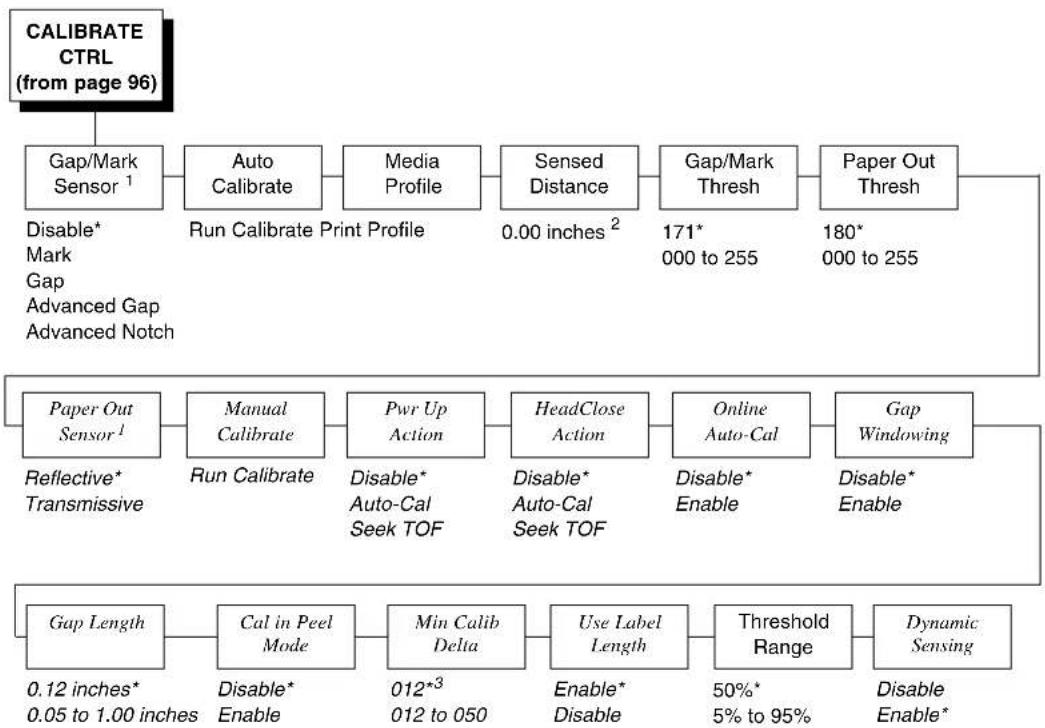
flowchart
graph TD
    A["CALIBRATE CTRL (from page 96)"] --> B["Gap/Mark Sensor¹"]
    B --> C["Auto Calibrate"]
    C --> D["Media Profile"]
    D --> E["Sensed Distance"]
    E --> F["Gap/Mark Thresh"]
    F --> G["Paper Out Thresh"]
    G --> H["Paper Out Sensor¹"]
    H --> I["Manual Calibrate"]
    I --> J["Pwr Up Action"]
    J --> K["HeadClose Action"]
    K --> L["Online Auto-Cal"]
    L --> M["Gap Windowing"]
    M --> N["Gap Length"]
    N --> O["Cal in Peel Mode"]
    O --> P["Min Calib Delta"]
    P --> Q["Use Label Length"]
    Q --> R["Threshold Range"]
    R --> S["Dynamic Sensing"]

    style A fill:#f9f,stroke:#333
    style B fill:#ccf,stroke:#333
    style C fill:#cfc,stroke:#333
    style D fill:#fcc,stroke:#333
    style E fill:#cff,stroke:#333
    style F fill:#ffc,stroke:#333
    style G fill:#fcc,stroke:#333
    style H fill:#ffc,stroke:#333
    style I fill:#cfc,stroke:#333
    style J fill:#cfc,stroke:#333
    style K fill:#cfc,stroke:#333
    style L fill:#cfc,stroke:#333
    style M fill:#cfc,stroke:#333
    style N fill:#cfc,stroke:#333
    style O fill:#cfc,stroke:#333
    style P fill:#cfc,stroke:#333
    style Q fill:#cfc,stroke:#333
    style R fill:#cfc,stroke:#333
    style S fill:#cfc,stroke:#333
Notes:
* = Factory Default
Italicized items are available only when you enable Admin User (in the PRINTER CONTROL menu).
^1 Gap/Mark Sensor and Paper Out Sensor work in conjunction, as shown below:
Table 6
| When you select an option in Gap/Mark Sensor... | Paper Out Sensor defaults to... |
| Disable Reflective | |
| Mark Reflective | |
| Gap Reflective | |
| Advanced Gap Transmissive | |
| Advanced Notch Transmissive |
If you change the Gap/Mark Sensor or Paper Out Sensor, you must recalibrate the media.
^2 When Admin User is enabled (in the PRINTER CONTROL menu), you can change the unit value to millimeters: Under the Units submenu (in the MEDIA CONTROL menu), enable the “In Millimeters” option.
^3 When Gap/Mark Sensor = Disable, Gap, or Mark, the default is 12. When Gap/Mark Sensor = Advanced Gap or Advanced Notch, the default is 20.
CALIBRATE CTRL Submenus
Gap/Mark Sensor
The available options specify the sensor type needed for detecting the Top-of-Form position on media with label length indicators (gaps, notches, holes, or black marks).
- Disable. Select when using media with no label length indicators (no gaps, notches, holes, or black marks), or when you want the printer to ignore all existing label length indicators on the installed media.
NOTE: When you select Disable, the length of each label is based on the Label Length value entered in the MEDIA CONTROL menu or the value sent via host software.
- Mark. Select when using media that has horizontal black marks located on the underside of the label liner or tag stock. The Top-of-Form position is the leading edge of the black mark.
- Gap. Select when using media with a liner space between die-cut labels or when using tag stock with notches or holes as label length indicators on white background media. The Top-of-Form position is the leading edge of the die cut label (trailing edge of the gap, notch, or hole).
- Advanced Gap. Select when using media that has liner gaps between die cut labels with black background. The Top-of-Form position is the leading edge of the die cut label (trailing edge of the gap, notch, or hole).
- Advanced Notch. Select when using media with notches or holes that interrupt a black vertical line on the underside of the media. The Top-of-Form position is the leading edge of the die cut label (trailing edge of the gap, notch, or hole).
The factory default is Disable.
Auto Calibrate
This feature is used to improve the sensitivity and reliability of the Media Sensors in detecting gaps, notches, holes, or black marks on the installed media, as well as a paper out condition.
NOTE: Prior to running Auto Calibrate you must enter the physical length of the installed media in the QUICK SETUP or MEDIA CONTROL menu. Selecting the correct Label Length forces Auto Calibrate to increase media advancement for long labels (to detect actual gaps, notches, or marks) and decrease advancement for short labels.
You can initiate Auto Calibrate from the TEST PRINT key, the CALIBRATE CTRL menu, or the DIAGNOSTIC menu. When "Auto Calibrate" displays on the LCD, press the ↓ key. The printer advances media the distance needed to accurately detect the label length indicators, then stops at the Top-of-Form position, and momentarily displays the Sensed Distance. This process takes a few seconds to complete and results in changes to the values the printer uses for Gap/Mark Threshold, Paper Out Threshold, and Sensed Distance. These value changes take effect immediately within the current configuration menu.
Auto Calibrate is completed successfully when the Sensed Distance displayed correctly matches that of the installed media. When Gap is selected, the Sensed Distance should match the length from the trailing edge of one gap to the trailing edge of the next gap (one label + one gap). When Mark is selected, the Sensed Distance should match the length from the leading edge of one black mark to the leading edge of the next black mark.
Auto Calibrate supports label lengths up to 24 inches.
Media Profile
This feature provides a graphical printout showing the relationship of the Paper Out Threshold and the Gap/Mark Threshold. The profile printout assists you in setting the thresholds for difficult media. This includes pre-printed labels, and labels with poor gap/media dynamic range.
When selected, the printer will advance media and print the media profile along the length of each label. The printer will continue to print the profile until you press ↘.
The factory default is Print Profile.
Sensed Distance
This value (in inches) represents the distance that was sensed between the TOF of one label to the TOF of the next label. With gapped media installed, the distance equals the physical label length plus one gap, notch, or hole (trailing edge of one gap, notch, or hole to the trailing edge of the next gap, notch, or hole). With black mark media installed, the distance equals the leading edge of one black mark to the leading edge of the next. This value is automatically determined only after successful completion of Auto or Manual Calibrate and cannot be changed manually.
The factory default is 0.00 inches.
Gap/Mark Thresh
This menu item sets a value that, when exceeded by the output of the media sensor, is recognized by the printer as a gap (or black mark). When Auto or Manual Paper Calibrate is performed, the value displayed is equal to the gap/mark threshold value set by this procedure. If running the procedure does not provide a reliable Top-Of-Form detection, e.g., when using unusual media, the Gap/Mark Thresh value can be manually set to the desired value.
The range is from 000 to 255, and the factory default is 171.
Paper Out Thresh
This menu item selects a value that, when exceeded by the output of the media sensor, is recognized by the printer as a paper out condition. When Auto or Manual Calibrate is performed, the value displayed is equal to the paper out threshold value set by this procedure. If running the procedure does not provide a reliable paper out detection, e.g., when using non-standard media, the Paper Out Thresh value can be manually set to the desired value.
The range is from 000 to 255, and the factory default is 180.
Paper Out Sensor
Selects which type of media sensing, Reflective or Transmissive, will be used to detect a paper out condition. The printer automatically selects the type of sensing based on the Gap/Mark sensing selected (see Table 6 on page 138).
NOTE: Whenever you select Transmissive, you must position the upper media sensor directly over the lower media sensor (see "Positioning The Media Sensors" on page 66).
The factory default is Reflective.
Manual Calibrate
Manual Calibrate is another method of improving the printer's media sensing and is only used when Auto Calibrate has failed or the Gap/Mark Threshold or Paper Out Threshold values derived from Auto Calibrate do not improve the media sensors' gap or mark sensing capability.
To initiate Manual Calibrate, press ↓ when "Manual Calibrate" displays under the CALIBRATE CTRL menu. You will then be prompted for the remaining steps.
Example: "REMOVE RBN&MEDIA/Press Enter" or "LOAD RBN ONLY/Press Enter" etc.
During the last stage of Manual Calibrate, the printer uses the statically derived values, advances media, stops at the Top-of-Form position, and momentarily displays the Sensed Distance. This process takes longer than Auto Calibrate, and the end result is a change to the Gap/Mark Threshold, Paper Out Threshold, and Sensed Distance values that the printer will use. These value changes take effect immediately within the current configuration menu.
Manual Calibrate is completed successfully when the displayed Sensed Distance correctly matches that of the installed media. When Gap is selected, the Sensed Distance should match the length from the trailing edge of one gap to the trailing edge of the next gap (or one label + one gap). When Mark is selected, the Sensed Distance should match the length from the leading edge of one black mark to the leading edge of the next black mark.
Manual Calibrate supports label lengths up to 24 inches.
Pwr Up Action
- Disable. No movement at power up.
- Auto-Cal. When the printer is first powered on, it will complete its initialization and self-tests and then perform an Auto Calibrate. Once the Auto Calibrate is complete, the printer will momentarily display the Sensed Distance determined by the Auto Calibrate.
- Seek TOF. Assumes user has already calibrated media and used gap/ mark sensor. This moves the media to TOF (Top of Form) at power up. Seek TOF will not be performed if the Gap/Mark Sensor is set to Disable or if the Ticket Save Mode is set to Enable.
The factory default is Disable.
HeadClose Action
Selects whether the printer performs a selected action after a print head open fault condition is cleared.
- Disable. No media motion after a print head open fault condition is cleared.
- Auto-Cal. Performs a media calibration every time the print head open fault condition is cleared.
- Seek TOF. Moves the media to TOF (Top Of Form) when the printhead is closed. The media should already be calibrated using Gap/Mark sensor.
NOTE: A seek to TOF will not occur if Gap/Mark Sensor is set to Disable or Ticket Save Mode is set to Enable.
The factory default is Disable.
NOTE: If Ticket Save Mode is enabled, you will not be able to set HeadClose Action to Auto-Cal or Seek TOF. A temporary message, "Disable/Ticket Save Mode" will display.
NOTE: If there is data pending (data in buffer) when the head open fault is cleared, Auto-Cal and Seek TOF are ignored.
Online Auto-Cal
NOTE: Online Auto-Cal will not function when the validator is enabled or when Error Recover (under MEDIA CONTROL) is enabled (see page 132).
The options for Online Auto-Cal are:
- Disable.
- Enable. Whenever the printer is brought online, it automatically performs an Auto Calibrate (see "Auto Calibrate" on page 139). Once the Auto Calibrate is complete, the printer momentarily displays the Sensed Distance determined by the Auto Calibrate and then resumes printing any pending jobs.
NOTE: If using the Online Auto-Cal feature, you must first enable it prior to printing any data.
NOTE: If Ticket Save Mode is enabled, you will not be able to set Online Auto-Cal to Enable. A temporary message, "Disable/Ticket Save Mode" will display.
The factory default is Disable.
Gap Windowing
This feature compensates for any early falling edges or spurious peaks and troughs that may appear within the gap length in media. These edges or peaks and troughs can cause unreliable detection of the leading edge of the next label (top-of-form). Use Gap Windowing to resolve the following problems:
- Loss of one or more complete (serialized) labels.
- Start of an image printed in the middle of a gap, especially with fanfold, perforated media.
- Top part of an image lost when printing in head-first orientation.
The options for Gap Windowing are Disable and Enable:
- Disable. When the leading edge of a gap is detected, the printer continuously looks for the leading edge of the next label and uses it as the TOF position. Perforations or unusual media discrepancies within the gap can cause inaccurate TOF detection.
- Enable. When the leading edge of a gap is detected, the printer ignores the first 90% of the gap length value specified in the Gap Length menu option. The result is that cross perforations or unusual media discrepancies within the gap are filtered out, allowing the printer to reliably detect the actual leading edge of the next label and use it as the TOF position.
The factory default is Disable.
Gap Length
Gap Length is the actual length (height) of a label gap measured in .01 inch increments. The range is 0.05 to 1.00 inches.
NOTE: You must enter the correct Gap Length. If the Gap Length is too long, the image will shift down from the leading edge (TOF) of the label.
The factory default is 0.12 inches.
Cal in Peel Mode
This option allows you to perform a calibration (Auto Calibrate or Pwr Up Auto-Cal) in Peel-Off Media Handling mode.
- Disable. The printer will not permit calibration and a "CANNOT CALIBRATE/Disable Peel-Off" message will briefly display. Additionally, if "Pwr Up Auto-Cal" is enabled, the printer will not perform calibration at power up.
- Enable. Auto Calibrate can be performed from the front panel, and if the Pwr Up Auto-Cal option is enabled, calibration will be performed at power up.
NOTE: Calibration in Peel-Off mode does not stop and wait for you to remove peeled labels. Therefore, be prepared to remove the labels as they are automatically peeled.
The factory default is Disable.
Min Calib Delta
Minimum Calibrate Delta changes the minimum threshold value the sensor(s) require to detect the difference between the label and a gap, notch, hole or black mark. This allows bolder gaps (such as notches or holes) to be used as the TOF while intermediate gaps (liner) can be ignored. Increasing the Min Calib Delta makes the sensor(s) less sensitive to intermediate gaps and noise. Decreasing the Min Calib Delta makes the sensor(s) more sensitive for detecting gaps on low contrast media, where there is very little difference between the label and the gap (liner).
The range is from 012 to 050.
NOTE: When Gap/Mark Sensor = Disable, Gap, or Mark, the default is 12. When Gap/Mark Sensor = Advanced Gap or Advanced Notch, the default is 20.
Use Label Length
Determines whether or not the Label Length value set in the QUICK SETUP or MEDIA CONTROL menu is used during Auto Calibrate.
- Enable. The Label Length value set in the QUICK SETUP or MEDIA CONTROL menu is used in the calibrate algorithm. This causes the Auto Calibrate process to advance media the minimum distance required to detect the true gap, notch, hole, or black mark used for TOF (Top-of-Form) sensing. This resolves problems where the sensor(s) may mistake high noise levels or preprinted images within the label as the gap, notch, hole, or black mark that could result in a sensed distance value much shorter than the actual label length. Example: A 0.2 inch calibrated Sensed Distance with a 3.0 inch long label installed.
NOTE: Setting the Label Length value less than half the actual length of the label in use will result in erroneous Sensed Distance values when Auto Calibrate is performed.
- Disable. Auto Calibrate relies exclusively in its ability to detect varying transitions between labels and gaps, notches, holes, or black marks while advancing media during the calibrate process to determine Sensed Distance. The amount of media advanced is based on the number of transitions detected.
The factory default is Enable.
NOTE: Although the “Use Label Length” keeps its value (enable/disable) at all times, it will always be disabled when “Set Label Length” is set to “Automatic”. The correct setting will take effect when “Set Label Length” is set to manual. Based on the setting on the “Set Label Length” menu in the Media Control menu, the “Use Label Length” menu will be ignored (disabled).
Threshold Range
This option allows the user to select the optimal threshold range for the label stock in use. The printer defaults to using a threshold range of 50% of the positive going pulse (see Media Profile) that represents each gap, notch or mark detected after doing an Auto or Manual Calibrate. The printer then detects anything within the label with that threshold range as TOF. While this range is ideal for most medias, some labels with a preprinted image, liner gap or inlay can confuse the media sensor(s) causing a false TOF detection. In most cases this can be resolved by selecting a higher threshold range so the printer will only trigger on the true TOF (gap, notch or mark) position.
NOTE: A new threshold range will not take affect until an Auto or Manual Calibrate is successfully performed. A Media Profile should be run after a Calibrate to visually verify that the new range is the best possible selection.
The range is: 5% to 95% in 5% increments
The factory default is 50%.
Dynamic Sensing
Disable. Uses a fixed media sensor threshold.
Enable. Continuously adjusts the media sensor's threshold to compensate for changing environmental factors such as temperature, label/liner contrast, ribbon darkness, etc.
The factory default is Enable.
PRINTER CONTROL
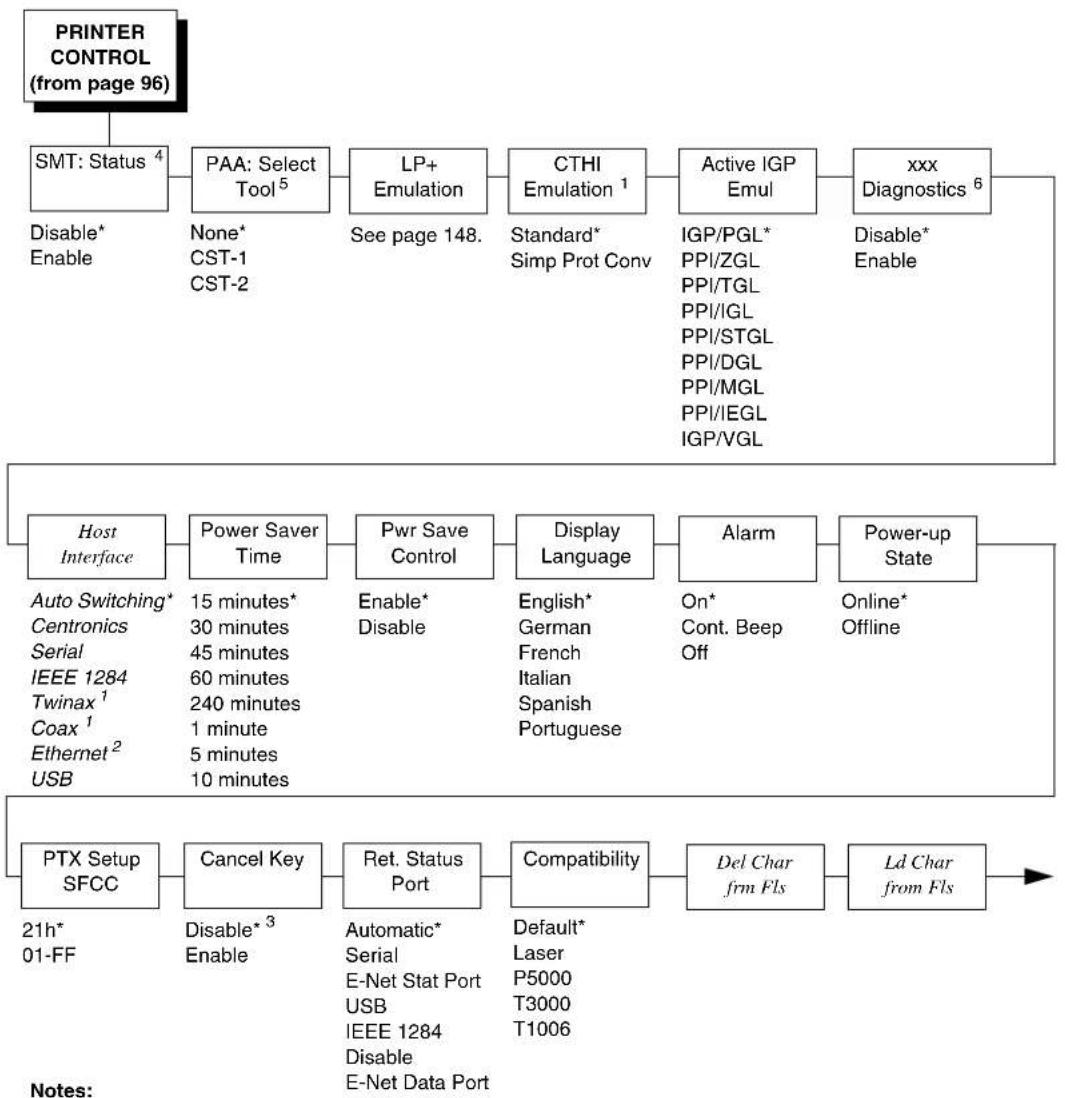
flowchart
graph TD
    A["PRINTER CONTROL (from page 96)"] --> B["SMT: Status 4"]
    B --> C["Disable* Enable"]
    B --> D["PAA: Select Tool 5"]
    D --> E["None* CST-1 CST-2"]
    D --> F["LP+ Emulation"]
    F --> G["See page 148."]
    F --> H["CTHI Emulation 1"]
    H --> I["Standard* Simp Prot Conv"]
    I --> J["IGP/PGL* PPI/ZGL PPI/TGL PPI/IGL PPI/STGL PPI/DGL PPI/MGL PPI/IEGL IGP/VGL"]
    H --> K["Active IGP Emul"]
    K --> L["Disable* Enable"]
    K --> M["xxx Diagnostics 6"]

    N["Host Interface"] --> O["Power Saver Time"]
    O --> P["Enable* Disable"]
    P --> Q["Display Language"]
    Q --> R["Alarm"]
    R --> S["On* Cont. Beep Off"]
    R --> T["Power-up State"]

    U["PTX Setup SFCC"] --> V["Cancel Key"]
    V --> W["Ret. Status Port"]
    W --> X["Compatibility"]
    X --> Y["Del Char frm Fls"]
    Y --> Z["Ld Char from Fls"]

    style A fill:#f9f,stroke:#333
    style Z fill:#ccf,stroke:#333

    subgraph Inputs
        direction TB
        A
        B
        C
        D
        E
        F
        G
        H
        I
        J
        K
        L
        M
        N
        O
        P
        Q
        Q
        R
        S
        T
        U
        V
        W
        X
        Y
        Z
    end

    Note1["21h* 01-FF"] --> V
    Note2["Disable* Enable"] --> V
* = Factory Default
Italicized items are available only when you enable Admin User (in the PRINTER CONTROL menu).
^1 Appears only if the CT emulation is installed.
^2 Appears only if Ethernet is installed.
^3 When Coax/Twinax interface is installed, the factory default is Enable.
^4 Appears only if RFID is installed and there is no CST bundle in the Flash File System.
^5 Appears only if RFID is not installed and there is a CST bundle in the Flash File System.
^6 xxx represents the emulation name selected in the Active IGP Emul menu.
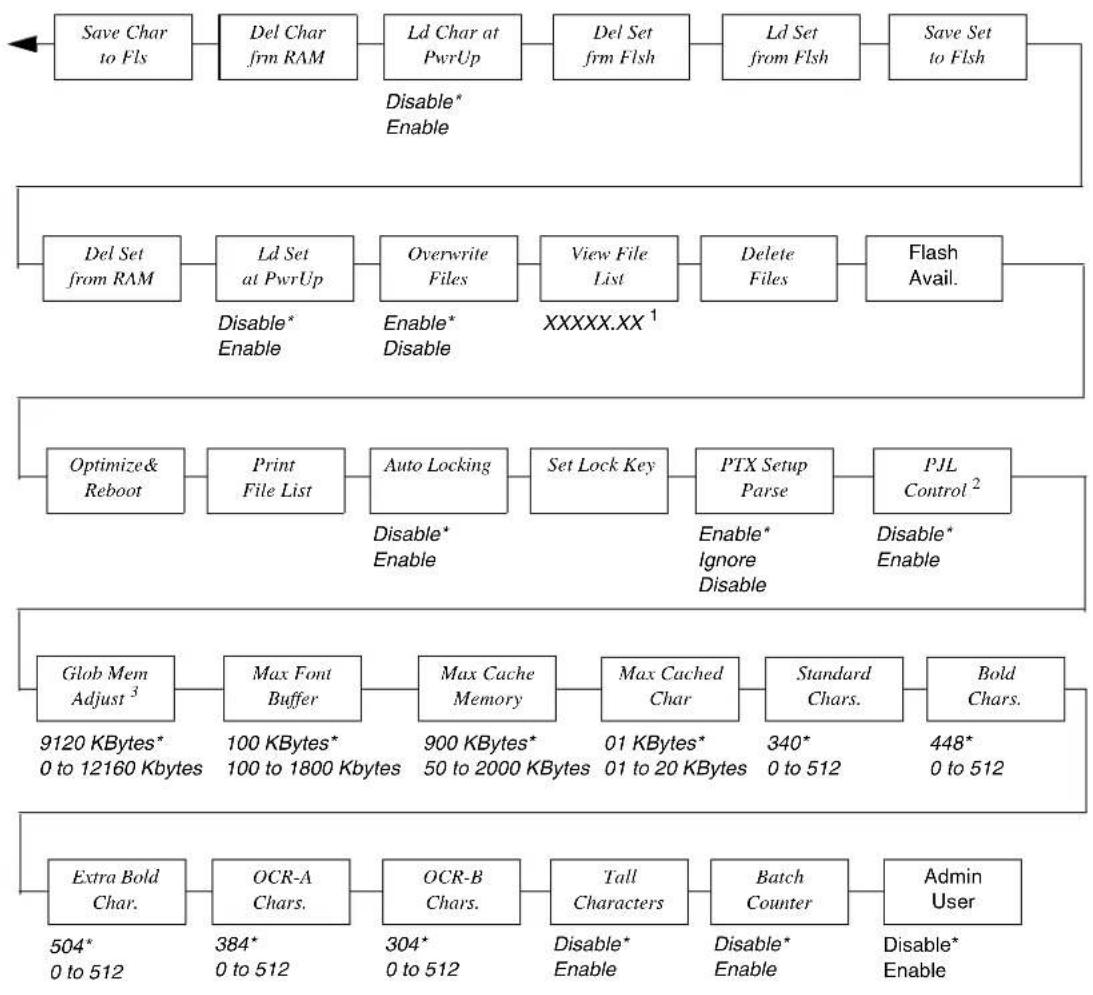
flowchart
graph TD
    A["Save Char to Fls"] --> B["Del Char frm RAM"]
    B --> C["Ld Char at PwrUp"]
    C --> D["Del Set frm Flsh"]
    D --> E["Ld Set from Flsh"]
    E --> F["Save Set to Flsh"]

    G["Del Set from RAM"] --> H["Ld Set at PwrUp"]
    H --> I["Overwrite Files"]
    I --> J["View File List"]
    J --> K["Delete Files"]
    K --> L["Flash Avail."]

    M["Optimize& Reboot"] --> N["Print File List"]
    N --> O["Auto Locking"]
    O --> P["Set Lock Key"]
    P --> Q["PTX Setup Parse"]
    Q --> R["PJL Control 2"]

    S["Glob Mem Adjust 3"] --> T["Max Font Buffer"]
    T --> U["Max Cache Memory"]
    U --> V["Max Cached Char"]
    V --> W["Standard Chars."]
    W --> X["Bold Chars."]

    Y["Extra Bold Char."] --> Z["OCR-A Chars."]
    Z --> AA["OCR-B Chars."]
    AA --> AB["Tall Characters"]
    AB --> AC["Batch Counter"]
    AC --> AD["Admin User"]

    style A fill:#f9f,stroke:#333
    style G fill:#f9f,stroke:#333
    style M fill:#f9f,stroke:#333
    style S fill:#f9f,stroke:#333
    style Y fill:#f9f,stroke:#333
Notes:
* = Factory Default
Italicized items are available only when you enable Admin User (in the PRINTER CONTROL menu).
^1 You cannot change this value; it is a display only item.
^2 Does not appear if CT or IPDS is installed.
^3 Not available on P7000 H-Series printers.

flowchart
graph LR
    A["LP+ Emulation (from page 146)"] --> B["P-Series*"]
    B --> C["P-Series XQ"]
    C --> D["Serial Matrix"]
    D --> E["Proprinter XL"]
    E --> F["Epson FX"]
    style A fill:#f9f,stroke:#333
    style B fill:#ccf,stroke:#333
    style C fill:#cfc,stroke:#333
    style D fill:#fcc,stroke:#333
    style E fill:#cff,stroke:#333
    style F fill:#ffc,stroke:#333
Notes:
* = Factory Default
PRINTER CONTROL Submenus
SMT: Status
See "Software Migration Tools (SMT)" in the RFID Labeling Reference Manual.
- Disable (factory default). The printer disables the use of the Software Migration Tools functionality.
- Enable. The printer enables the use of the Software Migration Tools functionality.
The factory default is Disable.
PAA: Select Tool
Refer to the PrintNet Enterprise Suite User's Manual.
- Disable. The printer disables the use of PAA functionality.
- Enable. The printer enables the use of PAA functionality.
The factory default is Disable.
LP+ Emulation
This item selects the line or dot matrix printer to be emulated by the printer.
• P-Series (see page 183)
• P-Series XQ (see page 185)
• Serial Matrix (see page 187)
• Proprinter XL (see page 189)
- Epson FX (see page 191)
The factory default is P-Series.
CTHI Emulation
This item appears only when the CTHI option is installed.
CTHI Emulation selects the operation of the CTHI option as either a standard or simple protocol converter.
- Standard
With a standard coax interface, the printer emulates the following IBM coax printer models:
• 3287 Models 1 and 2
• 4234 Model 1
With a standard twinax interface, the printer emulates the following IBM twinax printer models:
• 4234 Model 2
• 5225 Models 1, 2, 3, and 4
The standard Coax/Twinax emulation selection will only be available if Coax or Twinax is selected from the HOST INTERFACE menu.
NOTE: For more information, consult the Coax/Twinax Programmer's Reference Manual.
- Simp Prot Conv (Simple Protocol Converter)
The Simple Protocol Converter (SPC) option allows those who use add-on coax or twinax protocol converters to produce the same output on a Printronix thermal printer with the Coax/Twinax (CTHI) capability as done using a non-CT printer with the third party converter interfaces. The SPC gives the printer the operational ability to connect to any PC or network system supporting parallel or serial interfaces, and to three different IBM host systems.
- System 3x
- AS/400*
• 327x Control Units
The SPC will support the same models as Printronix standard Twinax printers.
The printer emulations supported by the SPC are Twinax 5225 and Coax 3287. The SPC also provides a range of interfaces available in your thermal printer: Centronics, serial, coax, and twinax. Also supported are Epson, Proprinter XL, P-Series, Serial Matrix, VGL, and PGL emulations.
The SPC has the ability to handle multiple print jobs concurrently through coax/twinax and parallel and serial interfaces. This is accomplished through the Auto Switching feature (see "Auto Switching" on page 293). Because of hardware restrictions, coax and twinax cannot be selected together.
For more information, refer to the Coax/Twinax Programmer's Reference Manual for the Simple Protocol Converter Option.
The factory default is Standard.
Host Interface
This option allows you to send print jobs through any interface with auto-switching selected as host interface. It also allows a particular interface from the menu to be selected.
The options are Auto Switching, Centronics, Serial, IEEE 1284, Twinax, Coax, Ethernet and USB.
NOTE: The Twinax and Coax options appear only if the CT emulation is installed. The Ethernet option appears only if Ethernet is installed.
The factory default is Auto Switching.
Active IGP Emul
This function allows you to activate any IGP emulation listed in the menu. The choices are IGP/PGL, PPI/ZGL, PPI/TGL, PPI/IGL, PPI/STGL, PPI/DGL, PPI/MGL, PPI/IEGL, and IGP/VGL. See page 23 for descriptions of each emulation. The default is IGP/PGL.
There are two methods for selecting the desired emulation:
- Select the emulation under the Active IGP Emulation menu option and save it as Power-up Config.
- Send a host command to switch the emulation automatically (see the appropriate Programmer's Reference Manual for details).
xxx Diagnostics
This menu sets the error reporting capability of the printer for emulation XXX (PGL, ZGL, TGL, IGL, STGL, DGL, MGL, IEGL, and VGL). XXX corresponds to the selected option of the Active IGP Emul menu.
For PGL, the options are as follows:
- On (default). Full error checking reported. Any element that falls off the current page is reported as an error.
- Debug Mode. Puts the printer in debug mode whenever a form is defined in CREATE mode. Each line of the CREATE form will be printed along with an error if one has occurred.
- Fault. Allows you to halt the printer if a PGL error occurs. If you select this option, the PGL error prints on the paper, the message "IGP/PGL Error" displays on the front panel, and the printer goes offline. You must clear the error before the printer can resume normal operation.
- Host. Full error checking reported. Error messages are sent back to the host through the port based on the menu "Ret. Status Port" instead of being printed on paper.
- Off. There is no error checking. Graphic elements such as alpha, line, barcodes, etc., will be clipped if they are beyond the page boundaries.
For VGL, the options are as follows:
- Enable All. Full error checking and report.
- Disable (default). No error checking and report.
- Error Msgs. Command syntax is checked and error messages printed when command parameters are incorrect.
- Error Markers. Prints the following error markers for those elements that print beyond the page boundaries:
for elements that begin off the right side of the page.
<< for elements that begin at the indicated position but end off the page.
◆ for elements where the starting position of the command contains an error other than an off-page error. - Offpage Errors. Reports errors for elements that start or end beyond the right edge of the page.
- Barcode Errors. An error message will print when invalid barcode data is encountered.
For ZGL, TGL, IGL, STGL, DGL, and MGL, the options are as follows:
- Disable (default). Full error checking and report.
- Enable. No error checking and report.
Power Saver Time
The time interval you specify for this parameter sets the amount of idle time before the printer goes into Power Saver mode.
Pressing any key removes the power saver message from the control panel. Sending a print job to the printer also turns off power saver mode.
The options are 1, 5, 10, 15, 30, 45, 60, and 240 minutes.
The factory default is 15 minutes.
Pwr Save Control
Pwr Save Control allows you to enable and disable Power Saver mode. If enabled, the menu for Power Saver Time is in effect.
The options are Enable (the factory default) and Disable.
Display Language
This parameter chooses the language that will appear on the LCD: English, German, French, Italian, Spanish, or Portuguese.
The factory default is English.
Alarm
- On. An audible alarm sounds (3 beeps) when a fault occurs, such as a paper jam.
- Cont. Beep. A continuous audible alarm sounds when a fault occurs, which can be stopped by pressing CLEAR.
- Off. No audible alarm sounds.
The factory default is On.
Power-up State
• Online. The printer powers up in the online state.
- Offline. The printer powers up in the offline state. This selection must be saved as a power-up configuration to be used.
The factory default is Online.
Ptx Setup SFCC
Allows you to choose the hex value of the ASCII character you wish to use as the SFCC for the PTX SETUP command. Valid hex values are 01-FF.
The factory default value is hex 21, which corresponds to the “!” character.
Cancel Key
- Disable.
- Enable. When enabled, the x key may be used in offline mode to clear all data in the print buffer, and deleted data will not be printed.
The factory default is Disable. When the Coax/Twinax interface is installed, the factory default is Enable.
Ret. Status Port
This option selects the port for the Return Status Commands (i.e., \~STATUS (PGL) and \~HS (PPI/ZGL)) to send the status data back to the Host. The options are Automatic (factory default), Serial, E-NET Stat Port, USB, IEEE 1284, Disable, and E-NET Data Port.
Compatibility
This parameter allows you to make T5000 series thermal printers compatible with other printers.
When trying to preserve compatibility with respect to barcodes, you may not always be able to make them equal in size. This is due to the various dot-per-inch differences between printer types. When an exact match cannot be made, the barcode is reduced in size so that the form bounds will not be compromised and the barcode will be readable.
- Default. Use for optimum performance.
- Laser. Forces the output to correspond with the Printronix laser line of printers.
- P5000. Forces the output to correspond with the P5000 line of line matrix printers.
- T3000. Forces the output to correspond with the T3000 line of thermal printers.
- T1006. Forces the output to correspond with the T1006 line of thermal printers.
The factory default is Default.
Del Char frm Fls
This option deletes downloaded character(s) from flash memory.
Ld Char from Fls
This option loads downloaded character(s) from flash memory.
Save Char to Fls
This option saves downloaded character(s) to flash memory.
Del Char frm RAM
This option deletes downloaded character(s) from RAM.
Ld Char at PwrUp
This option loads downloaded character(s) from flash memory at Power Up. The options are Disable (the factory default) and Enable.
Del Set frm Flsh
This option deletes downloaded overlay set(s) from flash memory.
Ld Set from Flsh
This option loads downloaded overlay set(s) from flash memory.
Save Set to Fish
This option saves downloaded overlay set(s) to flash memory.
Del Set from RAM
This option deletes the downloaded overlay set(s) from RAM.
Ld Set at PwrUp
This option loads the downloaded overlay set from flash memory at Power Up.
The options are Disable (the factory default) and Enable.
Overwrite Files
This allows you to prevent files from being overwritten by disabling the overwrite function.
The options are Enable (the factory default) and Disable.
View File List
Displays the list of files in the file system. Pressing ↓ displays the file size.
Delete Files
Allows you to delete files in the file list. Contact your administrator for assistance.
Flash Avail.
The amount of flash available for the user to save or download files into flash.
Optimize&Reboot
Reclaims flash space from deleted flash files. After pressing ↓ wait for the printer to reboot.
Print File List
Prints a summary of the files stored in flash memory and several statistics on File System usage.
Auto Locking
- Disable. The ← (ENTER) key must be locked manually.
- Enable. The printer automatically locks the ↓ key five minutes after the last control panel key press.
The factory default is Disable.
Set Lock Key
Normally, to lock or unlock the printer menu, the ↓ and ↓ keys are pressed at the same time. The Set Lock Key parameter lets you choose different keys to lock or unlock the printer menu. You may choose almost any group of keys as the new lock and unlock keys. You cannot use the ↓ key or any key combinations which are already used for another function. There is no limit to how many keys can be selected.
To set the new lock key:
- Go to the PRINTER CONTROL main menu and select "Set Lock Key."
- Press ↓. The display reads, "Select a new lock key."
- Press the combination of keys that you want to be the new lock key. Make sure you press all keys selected at the same time.
- If the selection is valid, the display will read, "Enter the new lock key again." Press the same combination of keys a second time. If the selection is invalid, the display will read, "Invalid key selection." Return to step 2 and start over.
- If the new lock key combination is entered again correctly, the display will read, "Lock key has been changed." If it was entered incorrectly, the display will read, "Validation failed." Start over at step 1.
- After entering the new lock combination successfully, press the PAUSE key to put the printer back online.
NOTE: The new lock combination will remain even if the printer is powered off and back on.
Ptx Setup Parse
- Enable. Will parse and execute the PTX SETUP commands.
- Ignore. Will parse the PTX SETUP commands but not act on them.
- Disable. Will not parse the PTX SETUP commands so they will print out as text.
The factory default is Enable.
PJL Control
- Enable. Will parse and execute the PJL commands.
- Disable. Will not parse the PJL commands; they will not print out as text. The factory default is Enable.
Glob Mem Adjust
This menu allows you to adjust the ratio of global memory allocated to label size versus PGL forms, fonts, and logos. For example, when using short labels, you can allocate more memory to forms, fonts, and logos by increasing the Glob Mem Adjust value.
The amount of installed DRAM is 32 (MB). The range is from 0 to 12160 KBytes and the default is 9120 KBytes.
NOTE: Due to the large amount of memory required for font support, the global memory adjust option is not available for P7000 H-Series printers.
Max Font Buffer
The maximum amount of DRAM allocated to store the global font information of any resident and downloaded scalable font (e.g. Intellifont, TrueType).
Each font contains its own global font information that is required for all character generation from that font. Some fonts may require more font buffer memory than others to generate characters. Insufficient font buffer memory causes characters to be missing on the page and prints blank. If a font needs more memory for character generation, increase the Max Font Buffer value to allow the printer to print the missing character.
The range is from 100 to 1800 Kbytes, and the factory default is 100 Kbytes.
Max Cache Memory
The Maximum Cache Memory option specifies the size of the memory block that can be allocated to the font cache. The font cache stores bitmaps that are created on demand from the font outlines stored on the printer flash. The cache allows the printer to print scalable fonts at optimum speed.
To calculate the memory requirement, use this equation:
| horizontalresolution x | verticalresolution x | averagecharacterheight(inches) x | averagecharacterwidth(inches) x | # of charactersto be cached |
8
The allowable range is 50 KBytes through 900 KBytes in 50-KByte increments.
The factory default is 900 KB.
NOTE: For most applications, the default settings for font memory are acceptable. Therefore, do not change the defaults unless your application requires an uncommon memory configuration.
Max Cached Char
The Maximum Cached Characters option specifies the size of the largest character that can be stored in the font cache. To calculate the memory requirement, use this equation:
| horizontal resolutionx | vertical resolutionx | averagecharacter height(inches) x | character width(inches) |
8
For example, with a print head that prints at 203 dpi you would use the following formula:
$$ \frac {2 0 3 \times 2 0 3 \times 1 \times 1}{8} = 5, 1 5 1 $$
Therefore, select a value that is equal to or greater than 5,151. The closest available value is 6 KBytes.
The allowable range is 1 KByte through 20 KBytes, in 1-KByte increments.
The factory default is 01 KBytes.
NOTE: For most applications, the default settings for font memory are acceptable. Therefore, do not change the defaults unless your application requires an uncommon memory configuration.
Standard Chars.
This menu entry permits you to adjust the thickness or font weight of standard text fonts.
The factory default is 340 and the range is from 0 to 512.
Bold Chars.
This menu entry permits you to adjust the thickness or font weight of bold text fonts. This menu will not take effect unless you save it in a configuration and the printer is powered up with that configuration.
The factory default is 448 and the range is from 0 to 512.
Extra Bold Char.
This menu entry permits you to adjust the thickness or font weight of extra bold text fonts.
The factory default is 504 and the range is from 0 to 512.
NOTE: For most applications, the default settings for font memory are acceptable. Therefore, do not change the defaults unless your application requires an uncommon memory configuration.
OCR-A Chars.
Character weight adjustment of resident OCR-A characters.
The factory default is 384 and the range is from 0 to 512.
OCR-B Chars.
Character weight adjustment of resident OCR-B characters.
The factory default is 304 and the range is from 0 to 512.
Tall Characters
Increases the point height of resident Intellifont characters.
- Enable. Increases the point height of resident Intellifont characters approximately 10%.
- Disable. Standard resident font character point height is maintained.
The factory default is Disable.
Batch Counter
Displays the number of pages remaining in a print job.
- Enable. The # Pages remaining to be printed will display on the second line of the control panel LCD. This feature is supported in PGL and PPI/ZGL only. The PGL Execute command to support this feature is: \~EXECUTE;NAME;(#Pages). The PPI/ZGL Execute command is: ^PQ(#Pages).
NOTE: If the correct execute command is absent from the print file, "0 Pages" will continually display on the control panel LCD.
- Disable. The # Pages remaining to be printed will not display. Instead, the Active emulation and interface will display on the second line of the control panel LCD.
The factory default is Disable.
Admin User
- Disable. When disabled this function does not permit access to submenus which would not normally be changed by a typical user.
- Enable. When enabled, this function permits access to submenus which would not normally be changed by a typical user.
The factory default is Disable.
EMULATIONS
Overview
This section covers the following emulations:
- Coax (page 164)
- Twinax (page 167)
- SPC Coax (page 169)
- SPC Twinax (page 170)
- IPDS (page 171)
• TN3270 (page 175)
• TN5250 (page 177) - IGP/PGL (page 179)
- IGP/VGL (page 181)
- PPI/ZGL (Refer to the Printer Protocol Interpreter (PPI) ZGL Programmer's Reference Manual.)
- PPI/TGL (Refer to the Printer Protocol Interpreter (PPI) TGL Programmer's Reference Manual.)
- PPI/IGL (Refer to the Reference Manual.) Printer Protocol Interpreter (PPI) IGL Programmer's
- PPI/STGL (Refer to the Printer Protocol Interpreter (PPI) STGL Programmer's Reference Manual.)
- PPI/DGL (Refer to the Printer Protocol Interpreter (PPI) DGL Programmer's Reference Manual.)
- PPI/MGL (Refer to the Printer Protocol Interpreter (PPI) MGL Programmer's Reference Manual.)
- PPI/IEGL (Refer to the Printer Protocol Interpreter (PPI) IEGL Programmer's Reference Manual.)
• P-Series (page 183)
• P-Series XQ (page 185) - Serial Matrix (page 187)
• Proprinter XL (page 189) - Epson FX (page 191)
You can select emulation default parameters directly from the control panel, or by control codes as explained in the appropriate Programmer's Reference Manual.
IMPORTANT
BEFORE you reconfigure an emulation, print a configuration sheet to see all current settings.
Standard C/T Interface
With a standard coax interface, the printer emulates the following IBM coax printer models:
• 3287 Models 1 and 2
• 4234 Models 1
With a standard twinax interface, the printer emulates the following IBM twinax printer models:
• 4234 Model 2
• 5225 Models 1, 2, 3, and 4
NOTE: The standard Coax/Twinax emulation selection will only be available if coax or twinax is selected from the C/T PORT menu.
For more information, refer to the Coax/Twinax Programmer's Reference Manual.
Simple Protocol Converter
The Simple Protocol Converter (SPC) option allows those who use third party add-on coax or twinax protocol converters to produce the same output on a Printronix thermal printer with the Coax/Twinax (CTHI) capability as done using a non-CT printer with the third party converter interfaces.
The SPC gives the printer the operational ability to connect to any PC or network system supporting parallel or serial interfaces and to three different IBM host systems:
- System 3x
• AS/400
• 327X Control Units
The SPC will support the following third party models for Twinax: MODE 219, MODE IBM, and MODE P5000.
The printer emulations supported by the SPC are Twinax 5225 and Coax 3287. The SPC also provides a range of interfaces available in your thermal printer: Centronics, Serial, Coax, and Twinax. Also supported are Epson, Proprinter XL, P-Series, Serial Matrix, VGL, and PGL emulations.
The SPC has the ability to handle multiple print jobs concurrently through coax/twinax and parallel and serial interfaces. This is accomplished through the Auto Switching feature. Because of hardware restrictions, coax and twinax cannot be selected together.
IGP/PGL
The PGL emulation is the software based Printronix Graphics Language (PGL) for the Printronix thermal printer family. It is based upon, and compatible with, the IGP-100/200/400 board. It includes the following features:
On-Line Form and Label Generation makes it easy to create forms or labels with a “preprinted” look for each application. PGL programs control all graphic functions, dramatically reducing host computer programming and processing time.
Graphic capabilities include boxes, vertical and horizontal lines with user-selectable thickness, logos, and special alphanumeric print features. Forms and graphic designs can be duplicated horizontally and vertically.
Alphanumeric data can appear as prepositioned "fixed" information (entered when the form is created), be overlayed onto the form (positioned in a specific location after the form is created), or may be dynamically merged with the form.
Selectable Bar Codes provide you with the appropriate bar code for your application using standard wide-to-narrow ratios. A wide selection of bar codes are available: Code 39, Interleaved 2 of 5, UPC-A, UPC-E, MSI A through D, Code 128 Subset A, B, and C, EAN/UCC-128, EAN 8, EAN 13, POSTNET, PostBar, USPS Intelligent Mail, Royal Mail, and PDF417. UPC and EAN bar codes can specify add-on data.
Expanded and Compressed Character Print attract attention where needed. Alphanumeric height and width are controlled independently for a wide range of character sizes up to 113 times the standard character size (up to 11.3 inches wide and tall). Compressed print sizes of 12, 13, 15, and 17 characters per inch (cpi) are available.
Logos are created using alphanumeric commands and add many print and shading features for a “customized” appearance to forms, reports, and labels.
Rotated Alphanumerics permit new concepts in form design. Normal, expanded, and compressed character strings can be rotated 90 degrees clockwise or counterclockwise, or they can be printed upside down.
Reversed Print permits highlighting and contrasting by printing white characters on a dark background.
Automatic Increment/Decrement Capability allows batch form processing. You can identify individual numeric and bar code data fields, which includes automatic increment or decrement functions.
Scaling Capability permits graphic elements, such as corners or boxes, to retain their physical shapes and sizes when printed in a horizontal and vertical density other than the base density of 60 x 72 dpi.
Multinational Character Sets provide 32 international character sets, each 96 characters in length. This feature also allows you to create your own character sets using characters defined and stored in memory.
Extended Character Sets provide 33 extended character sets, also containing 96 characters in length. These are also stored in memory.
IGP/VGL
The VGL Graphics language is a software emulation designed for the thermal printer. The VGL emulation of the QMS Code V Version II programming language produces on-line forms, bar codes, and alphanumeric text generation. It includes the following features:
On-Line Form and Label Generation makes it easy to create forms or labels with the “preprinted” look for each application. VGL programs control all graphics functions, dramatically reducing host computer programming and processing time. Graphics capabilities include boxes, vertical and horizontal, solid and dashed lines with a variety of thickness, logos, and special alphanumeric print features.
Variable Bar Codes allow the bar code for your application to print with standard or user-defined ratios in vertical or horizontal orientations. Available bar codes are: Codabar, Code 39, Code 93, Code 128 with Subsets A, B, and C, and Code EAN/UCC 128, EAN 8, EAN 13, Interleaved 2 of 5, MSI, UPC-A, UPC-E, POSTNET, PostBar, USPS Intelligent Mail, Royal Mail, and UPC Shipping. POSTNET is available only in the horizontal direction. A dark print mode is included for darker, high-contrast bar codes. The IBARC bar code command prints bar codes in four orientations: horizontal, rotated 90, rotated 180, or rotated 270 degrees.
Expanded and Compressed Print draws attention where needed.
Alphanumeric height and width are controlled independently for a tremendous range of character sizes up to 9.9 inches wide and tall. Several compressed print sizes are available: 12, 13.33, 15, 17.65, and 20 cpi (characters per inch), permitting up to 170 columns in an 8.5 inch printed area (20 cpi).
Rotated Alphanumerics permit new concepts in form design. Normal, expanded, and compressed character strings can be rotated 90 degrees clockwise, counterclockwise, or printed upside down.
Logos are easily created using alphanumeric commands and a variety of print and shading features, providing a “customized” appearance for forms, reports, and labels. The registered trademark, copyright, TUV, GS-Mark, UL, and CSA symbols are provided as standard designs on the VGL, and you can also define custom symbols.
Reverse and Shaded Print permit highlighting and contrasting by printing white characters on a dark background or white characters on a gray, shaded background. Various levels or patterns of gray shading and reverse printing may combine with the many other print features to create distinctive designs.
Automatic Increment/Decrement Capability allows batch form processing. Individual alphabetic, numeric, and bar code data fields can be identified and automatically incremented or decremented by any amount, beginning from a specified reference point.
Standard Character Sets provide you with many different character sets. Based on the Multinational Character Set, you may create your own character sets using characters defined and stored in flash memory.
P-Series, P-Ser XQ, Ser Matrix, Proprinter, and Epson FX
These menus are available only when you enable Admin User (under the PRINTER CONTROL menu).
COAX SETUP
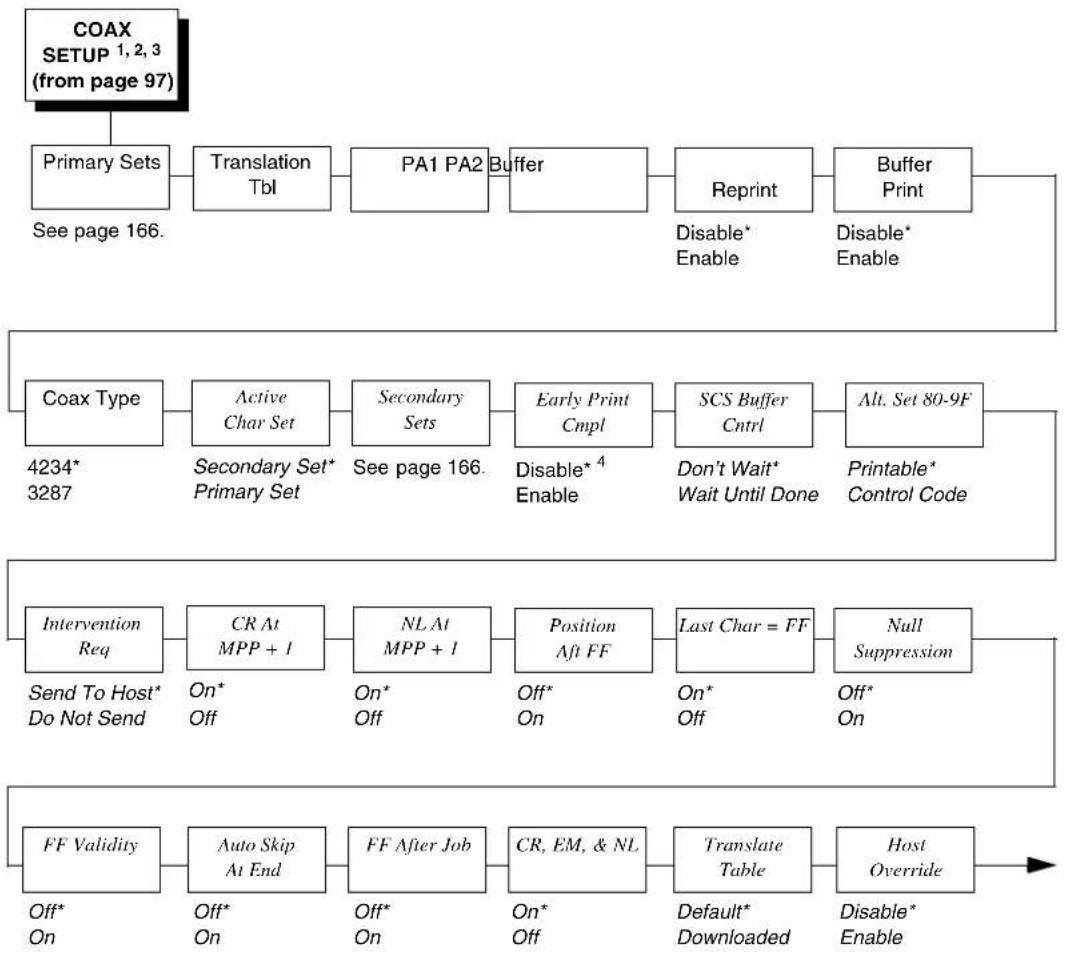
flowchart
graph TD
    A["COAX SETUP 1,2,3 (from page 97)"] --> B["Primary Sets"]
    B --> C["Translation Tbl"]
    C --> D["PA1 PA2 Buffer"]
    D --> E["Reprint"]
    E --> F["Buffer Print"]
    F --> G["Coax Type"]
    G --> H["Active Char Set"]
    H --> I["Secondary Sets"]
    I --> J["Early Print Cmpl"]
    J --> K["SCS Buffer Cntrl"]
    K --> L["Alt. Set 80-9F"]
    L --> M["Intervention Req"]
    M --> N["CR At MPP + I"]
    N --> O["NL At MPP + I"]
    O --> P["Position Aft FF"]
    P --> Q["Last Char = FF"]
    Q --> R["Null Suppression"]
    R --> S["FF Validity"]
    S --> T["Auto Skip At End"]
    T --> U["FF After Job"]
    U --> V["CR, EM, & NL"]
    V --> W["Translate Table"]
    W --> X["Host Override"]
    X --> Y["End"]

    style A fill:#f9f,stroke:#333
    style Y fill:#ccf,stroke:#333

    subgraph Inputs
        B -->|See page 166.| C
        D -->|Disable* Enable| E
        F -->|Disable* Enable| E
        G -->|4234* 3287| H
        H --> I
        I --> J
        J --> K
        K --> L
        L --> M
        M --> N
        N --> O
        O --> P
        P --> Q
        Q --> R
        R --> S
        S --> T
        T --> U
        U --> V
        V --> W
        W --> X
        X --> Y
    end
Notes:
* = Factory Default
Italicized items are available only when you enable Admin User (in the PRINTER CONTROL menu).
^1 This menu appears only if the CTHI option is installed.
^2 This menu appears only if Port Type (under C/T PORT) is set to Coax.
^3 This menu appears only if the CTHI emulation (under PRINTER CONTROL) is set to Standard.
^4 When in SPC Mode, the default is Enable.

flowchart
graph LR
    A["Format Control"] --> B["Cancel IGP/DCU"]
    B --> C["Lead-in Chars"]
    C --> D["User Defined St1 1"]
    D --> E["User Defined St2 1"]
    E --> F["User Defined Stp 1"]
    F --> G["Change Case"]
    G --> H["Set Text Orientin"]
    H --> I["Max. Print Width"]

    style A fill:#f9f,stroke:#333
    style B fill:#f9f,stroke:#333
    style C fill:#f9f,stroke:#333
    style D fill:#f9f,stroke:#333
    style E fill:#f9f,stroke:#333
    style F fill:#f9f,stroke:#333
    style G fill:#ccf,stroke:#333
    style H fill:#ccf,stroke:#333
    style I fill:#ccf,stroke:#333

    note1["Disable* Enable"]
    note2["Enable* Disable"]
    note3["User Defined Set 1 <%>*<br>Set 2 →$ Set 3 _%_"]
    note4["5F* 40 to FF"]
    note5["5F* 40 to FF"]
    note6["5B* 40 to FF"]

    subgraph COAX_SETUP
        direction TB
        direction_TB1["Downward arrow"]
        direction_TB2["Upward arrow"]
    end
Notes:
* = Factory Default
Italicized items are available only when you enable Admin User (in the PRINTER CONTROL menu).
^1 This menu appears only if you select the “User Defined” option in the “Lead-in Chars” menu.
Coax Setup - Primary Sets and Secondary Sets
COAX
SETUP
(from page 164)
Primary Sets Secondary
0037 English US*
0037 Eng Nether
0285 English UK
0273 Austr/Germ
0274 Belg. Old
0275 Brazilian
0260 Canad Fren
0277 Danish
0287 Danish Alt
0278 Finnish
0288 Finn. Al
0297 French
0500 Internat 5
0280 Italian
0281 Japan. Eng
0282 Portuguese
0284 Span Speak
0289 Span. Alt
0500 Swiss Bil
0500 Belg. New
0803 Hebrew Old
0424 Hebrew
0892 OCR A
0893OCR B
0420 Arabic
0880 Cyril. Old
0423 Greek Old
875 Gr New Euro
0871 Icelandic
0290 Japan Kata
0870 Latin 2
0838 Thai
1026 Turkish
0890 Yugos. Old
1097 Farsi
1025 Cyrillic
0905 Turk. Old
0256 Intern. 1
0924 Euro Lat-9
1140 Euro Eng.
1141 Euro Aust.
1142 Euro Dan.
1143 Euro Finn.
1144 Euro Ital
1145 Euro Span
1146 Euro UK
1147 Euro Fren.
1148 Euro Swiss
1149 Euro Ice.
Sets
English US*
English UK
Austrian/German
German (Alt)
Belgian
Brazilian
Canadian French
Danish/Norweg.
Danish (Alt)
Finnish/Swedish
Finnish (Alt)
French
International
Italian
Japanese Eng.
Japanese Katak.
Portuguese
Portug. (Alt)
Spanish
Spanish (Alt)
Spanish Speak.
Swiss Fren/Ger
Old Hebrew
Hebrew
Farsi/Latin
Greek Old
Greek New
Arabic
Turkish
Turkish Old
Latin 2/ROECE
Yugoslavian
Notes:
* = Factory Default
Although these options are listed vertically here, use your plus (+) and minus (-) keys to cycle through the options when you are operating your printer.
TWINAX SETUP
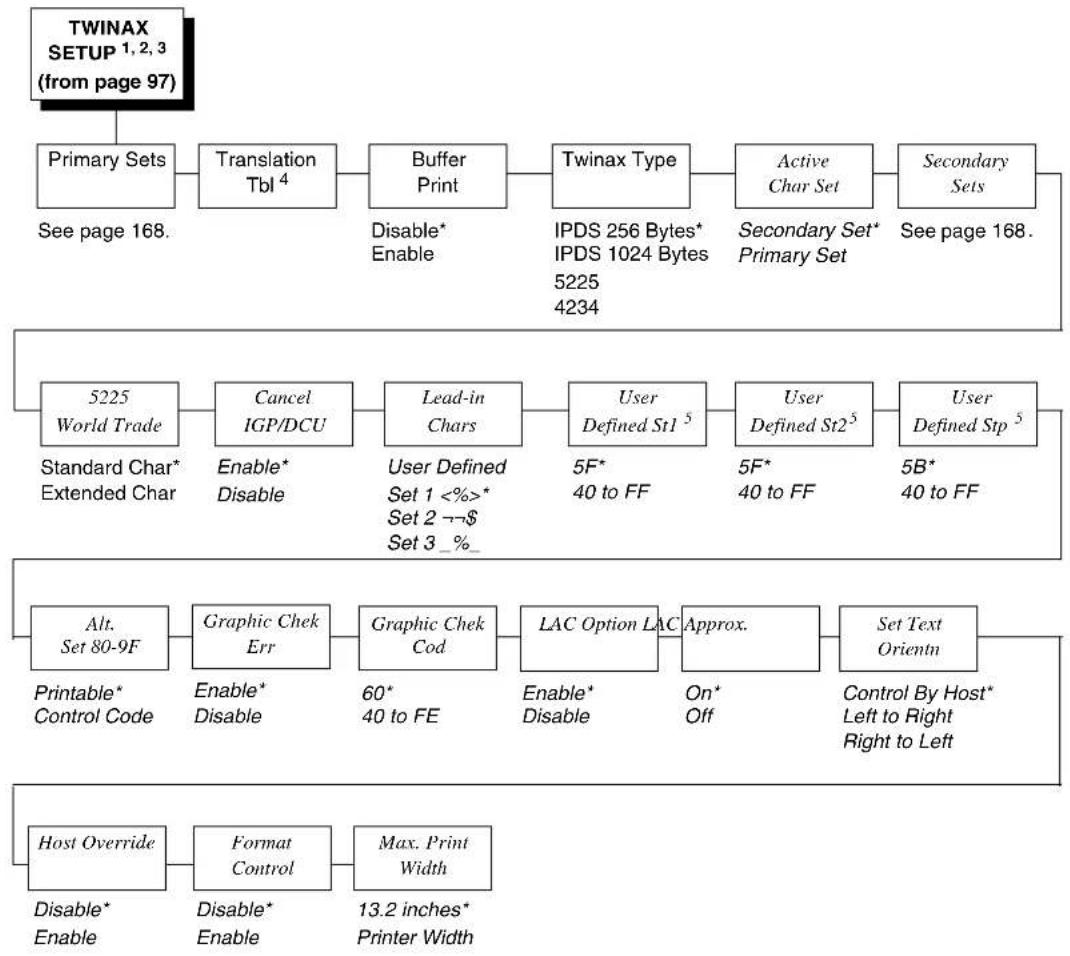
flowchart
graph TD
    A["TWINAX SETUP 1,2,3 (from page 97)"] --> B["Primary Sets"]
    B --> C["Translation Tbl 4"]
    C --> D["Buffer Print"]
    D --> E["Twinax Type"]
    E --> F["Active Char Set"]
    F --> G["Secondary Sets"]
    G --> H["See page 168."]

    I["5225 World Trade"] --> J["Cancel IGP/DCU"]
    J --> K["Lead-in Chars"]
    K --> L["User Defined St1 5"]
    L --> M["User Defined St2 5"]
    M --> N["User Defined Stp 5"]
    N --> O["5B* 40 to FF"]

    P["Alt. Set 80-9F"] --> Q["Graphic Chek Err"]
    Q --> R["Graphic Chek Cod"]
    R --> S["LAC Option LAC"]
    S --> T["Approx."]
    T --> U["Set Text Orientn"]
    U --> V["Control By Host* Left to Right Right to Left"]

    W["Host Override"] --> X["Format Control"]
    X --> Y["Max. Print Width"]

    Z["Standard Char* Extended Char"] --> AA["Enable* Disable"]
    AA --> AB["User Defined Set 1 <%> * Set 2 →$ Set 3_%"]
    AB --> AC["5F* 40 to FF"]
    AC --> AD["5F* 40 to FF"]
    AD --> AE["5B* 40 to FF"]

    AF["Printable* Control Code"] --> AG["Enable* Disable"]
    AG --> AH["60* 40 to FE"]
    AH --> AI["Enable* Disable"]
    AI --> AJ["On* Off"]

    AK["Disable* Enable"] --> AL["Disable* Enable"]
    AL --> AM["13.2 inches* Printer Width"]
Notes:
* = Factory Default
Italicized items are available only when you enable Admin User (in the PRINTER CONTROL menu).
^1 This menu appears only if the CTHI option is installed.
^2 This menu appears only if Port Type (under C/T PORT) is set to Twinax.
^3 This menu appears only if the CTHI emulation (under PRINTER CONTROL) is set to Standard.
^4 This menu does not appear if the IPDS emulation is installed.
^5 This menu appears only if you select the "User Defined" option in the "Lead-in Chars" menu.
Twinax Setup - Primary Sets and Secondary Sets
TWINAX
SETUP
(from page 167)
Primary Sets Secondary
0037 English US*
0037 Eng Nether
0500 Swiss Bil
0500 Belg. New
0273 Austr/Germ
0274 Belg. Old
0275 Brazilian
0260 Canad Fren
0277 Danish
0278 Finnish
0297 French
0280 Italian
0281 Japan. Eng
0282 Portuguese
0284 Span Speak
0285 English UK
0892 OCR A
0893 OCR B
0424 Hebrew
0803 Hebrew Old
0420 Arabic
0880 Cyril. Old
0423 Greek Old
875 Gr New Euro
0871 Icelandic
0290 Japan Kata
0870 Latin 2
0838 Thai
1026 Turkish
0890 Yugos. Old
1097 Farsi
1025 Cyrillic
0256 Intern. 1
1112 Balt Mult
0924 Euro Lat-9
1122 Estonian
1140 Euro Eng.
1141 Euro Aust.
1142 Euro Dan.
1143 Euro Finn.
1144 Euro Ital.
1145 Euro Span.
1146 Euro UK
1147 Euro Fren.
1148 Euro Swiss
1149 Euro Ice.
0500 Internat 5
Sets
English US*
Austrian/German
Belgian
Brazilian
Canadian French
Danish/Norweg.
Finnish/Swedish
French
Italian
Japanese Eng.
Japanese Katak.
Portuguese
Spanish
Spanish Speak.
English UK
Old Hebrew
Hebrew
Farsi/Latin
Greek Old
Greek New
Arabic
Turkish
Latin 2/ROECE
Yugoslavian
Multinational
Notes:
* = Factory Default
Although these options are listed vertically here, use your plus (+) and minus (-) keys to cycle through the options when you are operating your printer.
SPC COAX SETUP
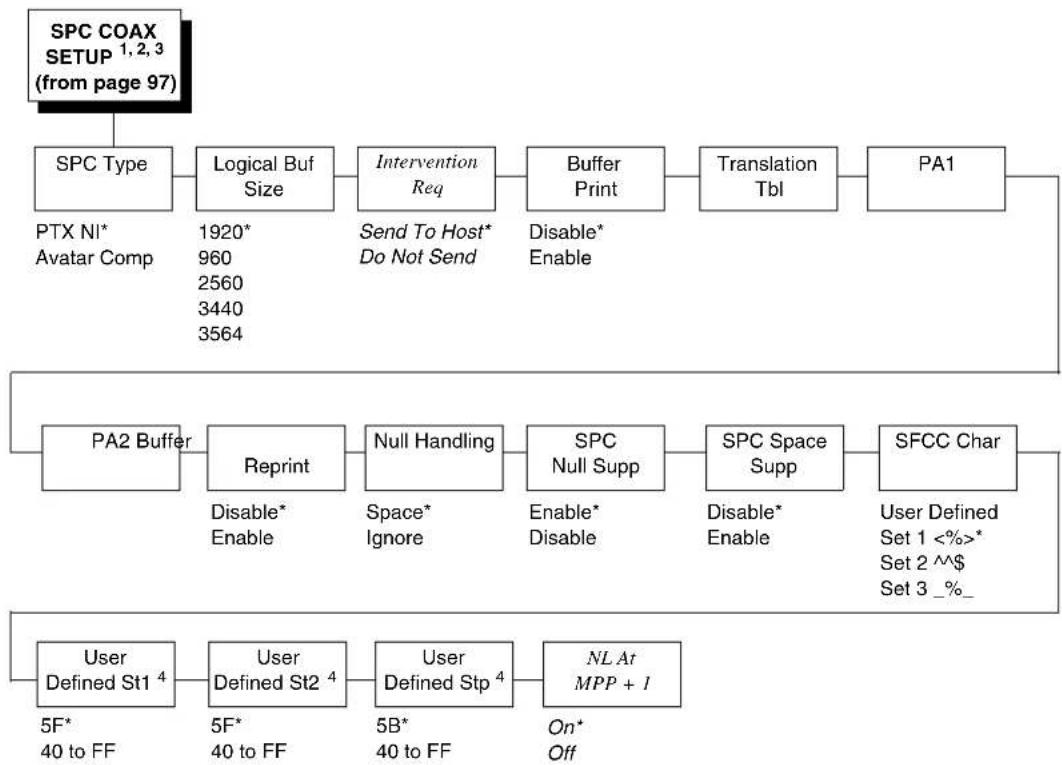
flowchart
graph TD
    A["SPC COAX SETUP 1,2,3 (from page 97)"] --> B["SPC Type"]
    B --> C["Logical Buf Size"]
    C --> D["Intervention Req"]
    D --> E["Buffer Print"]
    E --> F["Translation Tbl"]
    F --> G["PA1"]
    G --> H["PA2 Buffer"]
    H --> I["Reprint"]
    I --> J["Null Handling"]
    J --> K["SPC Null Supp"]
    K --> L["SPC Space Supp"]
    L --> M["SFCC Char"]
    M --> N["User Defined St1 4"]
    N --> O["User Defined St2 4"]
    O --> P["User Defined Stp 4"]
    P --> Q["NL At MPP + I"]
    A --> R["PTX NI* Avatar Comp"]
    A --> S["1920* 960 2560 3440 3564"]
    H --> T["Disable* Enable"]
    I --> U["Disable* Enable"]
    J --> V["Space* Ignore"]
    K --> W["Disable* Enable"]
    L --> X["Disable* Enable"]
    M --> Y["User Defined Set 1 <%>*<br>Set 2 ^$ Set 3 _%_"]
    N --> Z["5F* 40 to FF"]
    O --> AA["5F* 40 to FF"]
    P --> AB["5B* 40 to FF"]
    Q --> AC["On* Off"]
Notes:
* = Factory Default
Italicized items are available only when you enable Admin User (in the PRINTER CONTROL menu).
^1 This menu appears only if the CTHI option is installed.
^2 This menu appears only if Port Type (under C/T PORT) is set to Coax.
^3 Appears only if CTHI emulation (under PRINTER CONTROL) is set to Simp Prot Conv.
^4 This menu appears only if you select the “User Defined” option in the “Lead-in Chars” menu.
SPC TWINAX SETUP

flowchart
graph TD
    A["SPC TWINAX SETUP 1,2,3 (from page 97)"] --> B["SPC Type"]
    B --> C["SFCC Char"]
    C --> D["User Defined St1 4"]
    D --> E["User Defined St2 4"]
    E --> F["User Defined Stp 4"]
    F --> G["SPC Char Set"]
    H["Translation Tcl"] --> I["Buffer Print"]
    I --> J["Disable* Enable"]
    K["MODE PTX NI* MODE 219 MODE P5000 MODE IBM"] --> L["User Defined Set 1 <%>*<br>Set 2 ^$ Set 3 _%_"]
    M["5F* 40 to FF"] --> N["5F* 40 to FF"]
    O["5B* 40 to FF"] --> P["5B* 40 to FF"]
    Q["0500 Internat 5* 0037 English US 0273 Austr/Germ 0274 Belg. Old 0275 Brazilian 0260 Canad Fren 0277 Danish 0278 Finnish 0297 French 0280 Italian 0281 Japan. Eng 0290 Japan Kata 0282 Portuguese 0284 Span Speak 0285 English UK"] --> G
Notes:
* = Factory Default
^1 This menu appears only if the CTHI option is installed.
^2 This menu appears only if Port Type (under C/T PORT) is set to Twinax.
^3 Appears only if CTHI emulation (under PRINTER CONTROL) is set to Simp Prot Conv.
^4 This menu appears only if you select the “User Defined” option in the “Lead-in Chars” menu.
IPDS SETUP
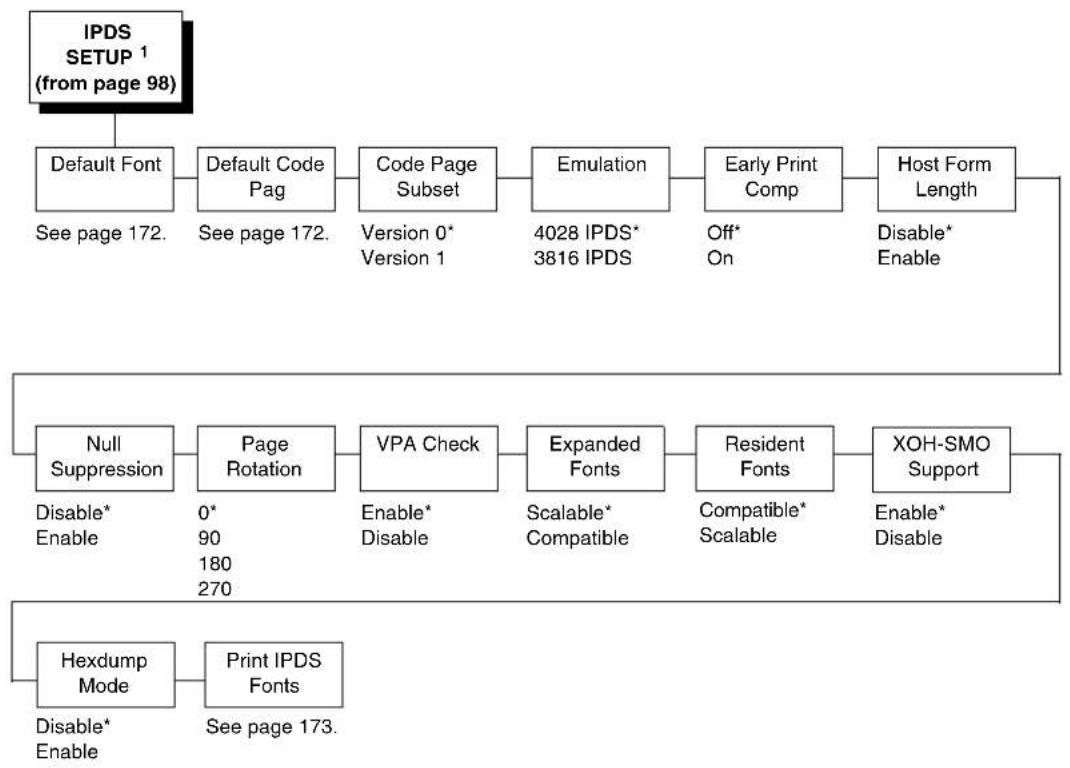
flowchart
graph TD
    A["IPDS SETUP 1 (from page 98)"] --> B["Default Font"]
    B --> C["Default Code Pag"]
    C --> D["Code Page Subset"]
    D --> E["Emulation"]
    E --> F["Early Print Comp"]
    F --> G["Host Form Length"]
    G --> H["Disable* Enable"]
    I["Null Suppression"] --> J["Page Rotation"]
    J --> K["VPA Check"]
    K --> L["Expanded Fonts"]
    L --> M["Resident Fonts"]
    M --> N["XOH-SMO Support"]
    O["Hexdump Mode"] --> P["Print IPDS Fonts"]
    P --> Q["Disable* Enable"]
    style A fill:#f9f,stroke:#333
    style I fill:#ccf,stroke:#333
Notes:
* = Factory Default
^1 This menu appears only if the IPDS emulation and correct security key is installed.
IPDS Setup - Default Font and Default Code Pag
IPDS
SETUP
(from page 171)
Default
Font
Courier 10*
Prestige 10
Courier it 10
OCRA
APL 12
Courier 12
Prestige 12
Courier it 12
Prestige it 12
Boldface PSM
Courier 15
Courier 17.1
Gothic 20
Times Roman 6
Times Roman 8
Times Roman 10
Times Roman 12
Times Roman B10
Times Roman B12
Times Roman B14
Times Roman B18
Times Roman B24
Times Roman I10
Times Roman I12
Times RomanBI10
Times RomanBl12
OCRB
Default Code
Pag ^2
English/USA/Can*
English/US/Intl
Internat. Set 1
Symbols Set 7
Canadian/French
Austrian/German
Belgian Old
Brazilian
Canada (French)
Danish/Norw.
Finnish/Swedish
Italian
Japanese Eng.
Portuguese
Spanish Speak.
English (UK)
Aust/Germ. (ALT)
Dan/Norw. (ALT)
Fin/Swed. (ALT)
Spanish (ALT)
Katakana
French Azerty
Graphic Escape
Int. Typographic
Arabic
Greek
Hebrew
PC
Internat. Set 5
Hebrew ALT
PC-Multilingual
Latin 2/ROECE
Icelandic
Cyrillic Old
OCR A
OCR B
DCF
US Text Subset
Turkish Latin 5
Euro US/Can.
Euro Aust/Germ.
Euro Dan/Norw.
Euro Fin/Swed.
Euro Italian
Euro Spanish
Euro UK/Ireland
Euro French
Euro Internat.
Euro Icelandic
Notes:
* = Factory Default
Although these options are listed vertically here, use your plus (+) and minus (-) keys to cycle through the options when you are operating your printer.
^1 Refer to page 206 for a more detailed description of this submenu.
^2 Refer to page 206 for a more detailed description of this submenu.
IPDS Setup - Print IPDS Fonts
This feature allows you to print a list of all resident fonts currently available in the active IPDS emulation (4028 or 3816).
| T5308Resident IPDS Fonts4028 Emulation | ||||||
| FONTSTYLE | FGID | FONTWIDTH | CPI | PTSIZE | PRINTSAMPLE | |
| Hex | Deci | |||||
| OCR B | 0003 | 3 | 144 | 10 | ABCDEFGHIJKLMNOPQRSTUVWXYZ | |
| Courier | 000b | 11 | 144 | 10 | ABCDEFGHIJKLMNOPQRSTUVWXYZ | |
| Prestige Pica | 000c | 12 | 144 | 10 | ABCDEFGHIJKLMNOPQRSTUVWXYZ | |
| Courier Italic | 0012 | 18 | 144 | 10 | ABCDEFGHIJKLMNOPQRSTUVWXYZ | |
| OCR A | 0013 | 19 | 144 | 10 | ABCDEFGHIJKLMNOPQRSTUVWXYZ | |
| Courier Bold | 002e | 46 | 144 | 10 | ABCDEFGHIJKLMNOPQRSTUVWXYZ | |
| APL | 004c | 76 | 120 | 12 | ABCDEFGHIJKLMNOPQRSTUVWXYZ | |
| Courier | 0055 | 85 | 120 | 12 | ABCDEFGHIJKLMNOPQRSTUVWXYZ | |
| Prestige Elite | 0056 | 86 | 120 | 12 | ABCDEFGHIJKLMNOPQRSTUVWXYZ | |
| Courier Italic | 005c | 92 | 120 | 12 | ABCDEFGHIJKLMNOPQRSTUVWXYZ | |
| Prestige Elite Bold | 006f | 111 | 120 | 12 | ABCDEFGHIJKLMNOPQRSTUVWXYZ | |
| Prestige Elite Italics | 0070 | 112 | 120 | 12 | ABCDEFGHIJKLMNOPQRSTUVWXYZ | |
| Document PSM | 009f | 159 | 120 | PS | ABCDEFGHIJKLMNOPQRSTUVWXYZ | |
| Prestige PSM | 00a4 | 164 | 120 | PS | ABCDEFGHIJKLMNOPQRSTUVWXYZ | |
| Prestige elite | 00dd | 221 | 96 | 15 | ABCDEFGHIJKLMNOPQRSTUVWXYZ | |
| Courier | 00df | 223 | 96 | 15 | ABCDEFGHIJKLMNOPQRSTUVWXYZ | |
| Courier | 00fe | 254 | 84 | 17.1 | ABCDEFGHIJKLMNOPQRSTUVWXYZ | |
| Prestige Elite | 0100 | 256 | 84 | 17.1 | ABCDEFGHIJKLMNOPQRSTUVWXYZ | |
| Gothic Text | 0119 | 281 | 72 | 20 | ABCDEFGHIJKLMNOPQRSTUVWXYZ | |
| Letter Gothic Bold | 0194 | 404 | SC | ABCDEFGHIJKLMNOPQRSTUVWXYZ | ||
| Courier Bold | 01a4 | 420 | SC | ABCDEFGHIJKLMNOPQRSTUVWXYZ | ||
| Times Roman | 1637 | 5687 | 40 | TYPO | 6 | ABCDEFGHIJKLMNOPQRSTUVWXYZ |
| Times Roman | 1637 | 5687 | 53 | TYPO | 8 | ABCDEFGHIJKLMNOPQRSTUVWXYZ |
| Times Roman | 1637 | 5687 | 67 | TYPO | 10 | ABCDEFGHIJKLMNOPQRSTUVWXYZ |
| Times Roman | 1637 | 5687 | 80 | TYPO | 12 | ABCDEFGHIJKLMNOPQRSTUVWXYZ |
| Times Roman Bold | 164b | 5707 | 67 | TYPO | 10 | ABCDEFGHIJKLMNOPQRSTUVWXYZ |
| Times Roman Bold | 164b | 5707 | 80 | TYPO | 12 | ABCDEFGHIJKLMNOPQRSTUVWXYZ |
| Times Roman Bold | 164b | 5707 | 93 | TYPO | 14 | ABCDEFGHIJKLMNOPQRSTUVWXYZ |
| Times Roman Bold | 164b | 5707 | 120 | TYPO | 18 | ABCDEFGHIJKLMNOPQRSTUVWXYZ |
| Times Roman Bold | 164b | 5707 | 160 | TYPO | 24 | ABCDEFGHIJKLMNOPQRSTUVWXYZ |
| Times Roman Italic | 16b7 | 5815 | 67 | TYPO | 10 | ABCDEFGHIJKLMNOPQRSTUVWXYZ |
| Times Roman Italic | 16b7 | 5815 | 80 | TYPO | 12 | ABCDEFGHIJKLMNOPQRSTUVWXYZ |
| Times Roman Bold Ital. | 16cb | 5835 | 67 | TYPO | 10 | ABCDEFGHIJKLMNOPQRSTUVWXYZ |
| Times Roman Bold Ital. | 16cb | 5835 | 80 | TYPO | 12 | ABCDEFGHIJKLMNOPQRSTUVWXYZ |
Figure 3. IPDS Fonts - 4028 Emulation Sample Printout
IPDS Setup - Print IPDS Fonts (cont.)
| T5308Resident IPDS Fonts3816 Emulation | ||||||
| FONTSTYLE | FGID | FONTCWIOTH | CPI | PTSIZE | PRINTSAMPLE | |
| Hex | Deci | |||||
| OCR B | 0003 | 3 | 144 | 10 | ABCDEFGHIJKLMNOPQRSTUVWXYZJabcdefghijklmnopqrstuvwxyz0123456789 | |
| Orator | 0005 | 5 | 144 | 10 | ABCDEFGHIJKLMNOPQRSTUVWXYZJabcdefghijklmnopqrstuvwxyz0123456789 | |
| Courier | 000b | 11 | 144 | 10 | ABCDEFGHIJKLMNOPQRSTUVWXYZJabcdefghijklmnopqrstuvwxyz0123456789 | |
| Prestige Pica | 000c | 12 | 144 | 10 | ABCDEFGHIJKLMNOPQRSTUVWXYZJabcdefghijklmnopqrstuvwxyz0123456789 | |
| Courier Italic | 0012 | 18 | 144 | 10 | ABCDEFGHIJKLMNOPQRSTUVWXYZJabcdefghijklmnopqrstuvwxyz0123456789 | |
| OCR A | 0013 | 19 | 144 | 10 | ABCDEFGHIJKLMNOPQRSTUVWXYZJabcdefghijklmnopqrstuvwxyz0123456789 | |
| Arabic Kateb | 0021 | 33 | 144 | 10 | ABCDEFGHIJKLMNOPQRSTUVWXYZJabcdefghijklmnopqrstuvwxyz0123456789 | |
| Gothic Text | 0028 | 40 | 144 | 10 | ABCDEFGHIJKLMNOPQRSTUVWXYZJabcdefghijklmnopqrstuvwxyz0123456789 | |
| Katakana Gothic | 002c | 44 | 144 | 10 | ABCDEFGHIJKLMNOPQRSTUVWXYZJabcdefghijklmnopqrstuvwxyz0123456789 | |
| Gothic Text | 0042 | 66 | 120 | 12 | ABCDEFGHIJKLMNOPQRSTUVWXYZJabcdefghijklmnopqrstuvwxyz0123456789 | |
| Gothic Text Italic | 0044 | 68 | 120 | 12 | ABCDEFGHIJKLMNOPQRSTUVWXYZJabcdefghijklmnopqrstuvwxyz0123456789 | |
| Script | 0054 | 84 | 120 | 12 | ABCDEFGHIJKLMNOPQRSTUVWXYZJabcdefghijklmnopqrstuvwxyz0123456789 | |
| Courier | 0055 | 85 | 120 | 12 | ABCDEFGHIJKLMNOPQRSTUVWXYZJabcdefghijklmnopqrstuvwxyz0123456789 | |
| Prestige Elite | 0056 | 86 | 120 | 12 | ABCDEFGHIJKLMNOPQRSTUVWXYZJabcdefghijklmnopqrstuvwxyz0123456789 | |
| Letter Gothic | 0057 | 87 | 120 | 12 | ABCDEFGHIJKLMNOPQRSTUVWXYZJabcdefghijklmnopqrstuvwxyz0123456789 | |
| Prestige Italic | 0070 | 112 | 120 | 12 | ABCDEFGHIJKLMNOPQRSTUVWXYZJabcdefghijklmnopqrstuvwxyz0123456789 | |
| Boldface Italic PSM | 009b | 155 | 120 | PS | ABCDEFGHIJKLMNOPQRSTUVWXYZJabcdefghijklmnopqrstuvwxyz0123456789 | |
| Essay PSM | 00a0 | 160 | 120 | PS | ABCDEFGHIJKLMNOPQRSTUVWXYZJabcdefghijklmnopqrstuvwxyz0123456789 | |
| Essay Italic PSM | 00a2 | 162 | 120 | PS | ABCDEFGHIJKLMNOPQRSTUVWXYZJabcdefghijklmnopqrstuvwxyz0123456789 | |
| Arabic Yasmin PSM | 00a6 | 166 | 120 | PS | ABCDEFGHIJKLMNOPQRSTUVWXYZJabcdefghijklmnopqrstuvwxyz0123456789 | |
| Arabic Expanded PSM | 00a9 | 169 | 120 | PS | ABCDEFGHIJKLMNOPQRSTUVWXYZJabcdefghijklmnopqrstuvwxyz0123456789 | |
| Essay Light PSM | 00ad | 173 | 120 | PS | ABCDEFGHIJKLMNOPQRSTUVWXYZJabcdefghijklmnopqrstuvwxyz0123456789 | |
| Document PSM | 00af | 175 | 120 | PS | ABCDEFGHIJKLMNOPQRSTUVWXYZJabcdefghijklmnopqrstuvwxyz0123456789 | |
| Gothic Text | 00cc | 204 | 108 | 13 | ABCDEFGHIJKLMNOPQRSTUVWXYZJabcdefghijklmnopqrstuvwxyz0123456789 | |
| Serif Text | 00e5 | 229 | 96 | 15 | ABCDEFGHIJKLMNOPQRSTUVWXYZJabcdefghijklmnopqrstuvwxyz0123456789 | |
| Gothic Text | 00e6 | 230 | 96 | 15 | ABCDEFGHIJKLMNOPQRSTUVWXYZJabcdefghijklmnopqrstuvwxyz0123456789 | |
| Courier | 00f4 | 244 | 288 | 5 | ABCDEFGHIJKLMNOPQRSTUVWXYZJabcdefghijklmnopqrstuvwxyz0123456789 | |
| Courier | 00fc | 252 | 84 | 17 | ABCDEFGHIJKLMNOPQRSTUVWXYZJabcdefghijklmnopqrstuvwxyz0123456789 | |
| Courier Super/Subscr. | 00fe | 254 | 84 | 17 | ABCDEFGHIJKLMNOPQRSTUVWXYZJabcdefghijklmnopqrstuvwxyz0123456789 | |
| Arabic Kateb | 0109 | 265 | 180 | 8 | ABCDEFGHIJKLMNOPQRSTUVWXYZJabcdefghijklmnopqrstuvwxyz0123456789 | |
| Gothic Text | 0119 | 281 | 72 | 20 | ABCDEFGHIJKLMNOPQRSTUVWXYZJabcdefghijklmnopqrstuvwxyz0123456789 | |
| Gothic Text | 0122 | 290 | 54 | 27 | ABCDEFGHIJKLMNOPQRSTUVWXYZJabcdefghijklmnopqrstuvwxyz0123456789 | |
| Letter Gothic Bold | 0194 | 404 | SC | ABCDEFGHIJKLMNOPQRSTUVWXYZJabcdefghijklmnopqrstuvwxyz0123456789 | ||
| Courier Bold | 01a4 | 420 | SC | ABCDEFGHIJKLMNOPQRSTUVWXYZJabcdefghijklmnopqrstuvwxyz0123456789 | ||
| Sonoran Serif | 1137 | 4407 | 54 | TYPO | 8 | ABCDEFGHIJKLMNOPQRSTUVWXYZJabcdefghijklmnopqrstuvwxyz0123456789 |
| Sonoran Serif | 1137 | 4407 | 66 | TYPO | 10 | ABCDEFGHIJKLMNOPQRSTUVWXYZJabcdefghijklmnopqrstuvwxyz0123456789 |
| Sonoran Serif | 1137 | 4407 | 78 | TYPO | 12 | ABCDEFGHIJKLMNOPQRSTUVWXYZJabcdefghijklmnopqrstuvwxyz0123456789 |
| Sonoran Serif Bold | 114b | 4427 | 66 | TYPO | 10 | ABCDEFGHIJKLMNOPQRSTUVWXYZJabcdefghijklmnopqrstuvwxyz0123456789 |
| Sonoran Serif Bold | 114b | 4427 | 108 | TYPO | 12 | ABCDEFGHIJKLMNOPQRSTUVWXYZJabcdefghijklmnopqrstuvwxyz0123456789 |
| Sonoran Serif Bold | 114b | 4427 | 162 | TYPO | 24 | ABCDEFGHIJKLMNOPQRSTUVWXYZJabcdefghijklmnopqrstuvwxyz0123456789 |
| Sonoran Serif Italic | 11b7 | 4535 | 66 | TYPO | 10 | ABCDEFGHIJKLMNOPQRSTUVWXYZJabcdefghijklmnopqrstuvwxyz0123456789 |
Figure 4. IPDS Fonts - 3816 Emulation Sample Printout
TN3270 SETUP
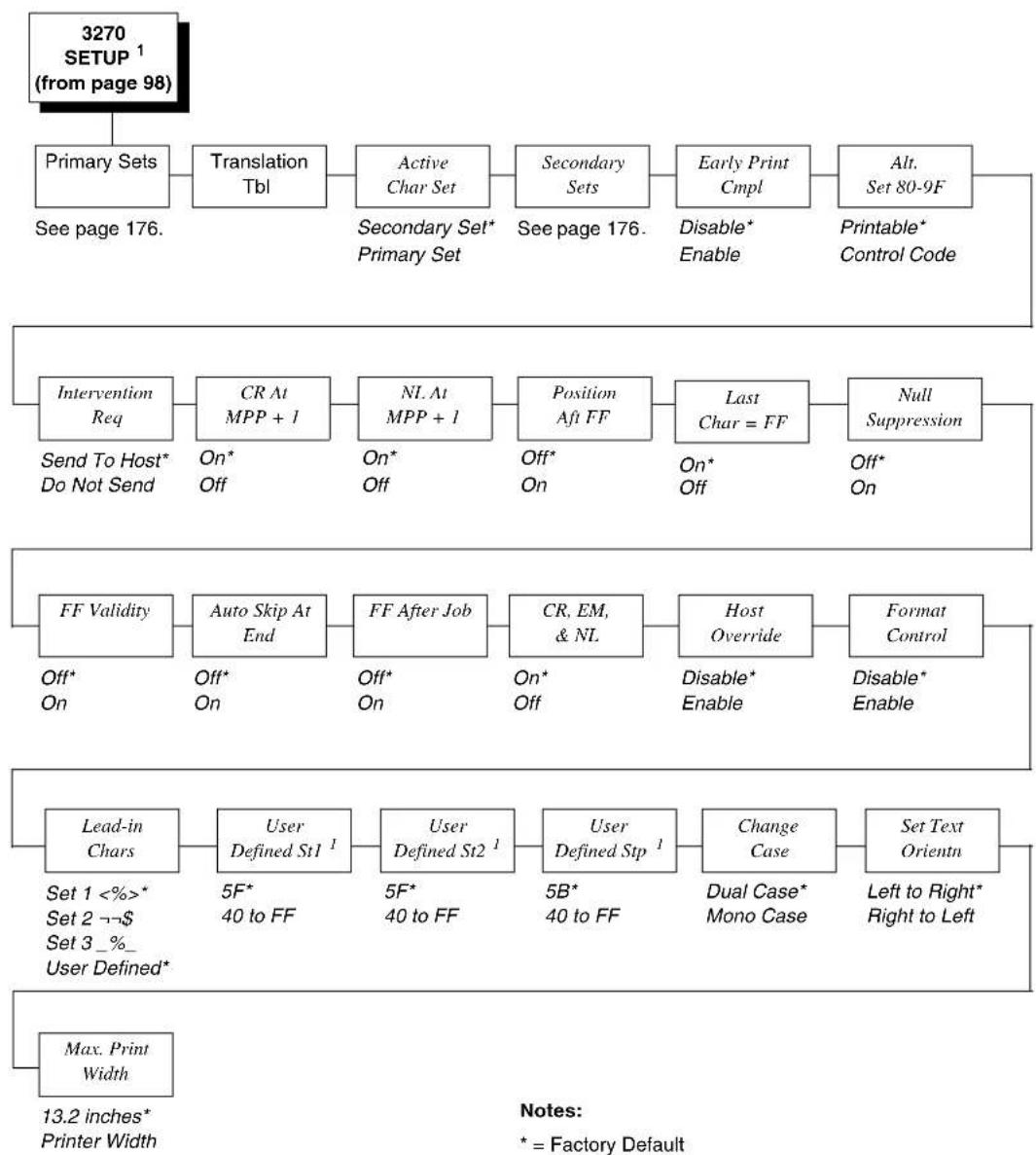
flowchart
graph TD
    A["3270 SETUP 1 (from page 98)"] --> B["Primary Sets"]
    B --> C["See page 176."]
    C --> D["Translation Tbl"]
    D --> E["Active Char Set"]
    E --> F["Secondary Set* Primary Set"]
    F --> G["See page 176."]
    G --> H["Early Print Cmpl"]
    H --> I["Disable* Enable"]
    I --> J["Alt. Set 80-9F"]
    J --> K["Printable* Control Code"]

    L["Intervention Req"] --> M["Send To Host* Do Not Send"]
    M --> N["CR At MPP + 1"]
    N --> O["On* Off"]
    O --> P["NL At MPP + 1"]
    P --> Q["On* Off"]
    Q --> R["Position Aft FF"]
    R --> S["On* Off"]
    S --> T["Last Char = FF"]
    T --> U["Null Suppression"]

    V["FF Validity"] --> W["Off* On"]
    W --> X["Auto Skip At End"]
    X --> Y["FF After Job"]
    Y --> Z["On* Off"]
    Z --> AA["CR, EM, & NL"]
    AA --> AB["Host Override"]
    AB --> AC["Format Control"]
    AC --> AD["Disable* Enable"]

    AE["Lead-in Chars"] --> AF["Set 1 <%>*<br>Set 2 →$ <br>Set 3_% User Defined*"]
    AF --> AG["User Defined St1 1"]
    AG --> AH["5F* 40 to FF"]
    AH --> AI["User Defined St2 1"]
    AI --> AJ["5B* 40 to FF"]
    AJ --> AK["User Defined Stp 1"]
    AK --> AL["Change Case"]
    AL --> AM["Dual Case* Mono Case"]
    AM --> AN["Set Text Orientn"]
    AN --> AO["Left to Right* Right to Left"]

    AP["Max. Print Width"] --> AQ["13.2 inches* Printer Width"]
    AQ --> AR["Notes: * = Factory Default"]
Italicized items are available only when you enable Admin User (in the PRINTER CONTROL menu).
^1 This menu appears only if the TN5250/TN3270 option and the correct security key is installed.
TN3270 Setup - Primary and Secondary Sets
3270
SETUP
(from page 175)
Primary Sets Secondary
0037 English US*
0037 Eng Nether
0285 English UK
0273 Austr/Germ
0274 Belg. Old
0275 Brazilian
0260 Canad Fren
0277 Danish
0287 Danish Alt
0278 Finnish
0288 Finn. Alt
0297 French
0500 Internat 5
0280 Italian
0281 Japan. Eng
0282 Portuguese
0284 Span Speak
0289 Span. Alt
0500 Swiss Bil
0500 Belg. New
0803 Hebrew Old
0424 Hebrew
0892 OCR A
0893 OCR B
0420 Arabic
0880 Cyril. Old
0423 Greek Old
875 Gr New Euro
0871 Icelandic
0290 Japan Kata
0870 Latin 2
0838 Thai
1026 Turkish
0890 Yugos. Old
1097 Farsi
1025 Cyrillic
0905 Turk. Old
0256 Intern. 1
0924 Euro Lat-9
1140 Euro Eng.
1141 Euro Aust.
1142 Euro Dan.
1143 Euro Finn.
1144 Euro Ital.
1145 Euro Span.
1146 Euro UK
1147 Euro Fren.
1148 Euro Swiss
1149 Euro Ice.
Sets
English US*
English UK
Austrian/German
German (Alt)
Belgian
Brazilian
Canadian French
Danish/Norweg.
Danish (Alt)
Finnish/Swedish
Finnish (Alt)
French
International
Italian
Japanese Eng.
Japanese Katak.
Portuguese
Portug. (Alt)
Spanish
Spanish (Alt)
Spanish Speak.
Swiss Fren/Ger
Old Hebrew
Hebrew
Farsi/Latin
Greek Old
Greek New
Arabic
Turkish
Turkish Old
Latin 2/ROECE
Yugoslavian
Notes:
* = Factory Default
Although these options are listed vertically here, use your plus (+) and minus (-) keys to cycle through the options when you are operating your printer.
TN5250 SETUP

flowchart
graph TD
    A["5250 SETUP¹ (from page 98)"] --> B["Primary Sets"]
    B --> C["Translation Tcl"]
    C --> D["Active Char Set"]
    D --> E["Secondary Sets"]
    E --> F["Lead-in Chars"]
    F --> G["User Defined St1²"]
    G --> H["User Defined St2²"]
    H --> I["User Defined Stp²"]
    I --> J["Alt. Set 80-9F"]
    J --> K["Graphic Chek Err"]
    K --> L["Graphic Chek Cod"]
    L --> M["Set Text Orientn"]
    M --> N["Host Override"]
    N --> O["Format Control"]
    O --> P["Max. Print Width"]

    style A fill:#f9f,stroke:#333
    style B fill:#ccf,stroke:#333
    style H fill:#cfc,stroke:#333
    style N fill:#fcc,stroke:#333
Notes:
* = Factory Default
Italicized items are available only when you enable Admin User (in the PRINTER CONTROL menu).
^1 This menu appears only if the TN5250/TN3270 option and the correct security key is installed.
^2 This menu appears only if you select the “User Defined” option in the “Lead-in Chars” menu.
TN5250 Setup - Primary and Secondary Sets
5250
SETUP
(from page 177)
Primary Sets Secondary
0037 English US*
0037 Eng Nether
0500 Swiss Bil
0500 Belg. New
0273 Austr/Germ
0274 Belg. Old
0275 Brazilian
0260 Canad Fren
0277 Danish
0278 Finnish
0297 French
0280 Italian
0281 Japan. Eng
0282 Portuguese
0284 Span Speak
0285 English UK
0892 OCR A
0893 OCR B
0424 Hebrew
0803 Hebrew Old
0420 Arabic
0880 Cyril. Old
0423 Greek Old
875 Gr New Euro
0871 Icelandic
0290 Japan Kata
0870 Latin 2
0838 Thai
1026 Turkish
0890 Yugos. Old
1097 Farsi
1025 Cyrillic
0256 Intern. 1
1112 Balt Mult
0924 Euro Lat-9
1122 Estonian
1140 Euro Eng.
1141 Euro Aust.
1142 Euro Dan.
1143 Euro Finn.
1144 Euro Ital.
1145 Euro Span.
1146 Euro UK
1147 Euro Fren.
1148 Euro Swiss
1149 Euro Ice.
0500 Internat 5
Sets
English US*
Austrian/German
Belgian
Brazilian
Canadian French
Danish/Norweg.
Finnish/Swedish
French
Italian
Japanese Eng.
Japanese Katak.
Portuguese
Spanish
Spanish Speak.
English UK
Old Hebrew
Hebrew
Farsi/Latin
Greek Old
Greek New
Arabic
Turkish
Latin 2/ROECE
Yugoslavian
Multinational
Notes:
* = Factory Default
Although these options are listed vertically here, use your plus (+) and minus (-) keys to cycle through the options when you are operating your printer.
IGP/PGL SETUP
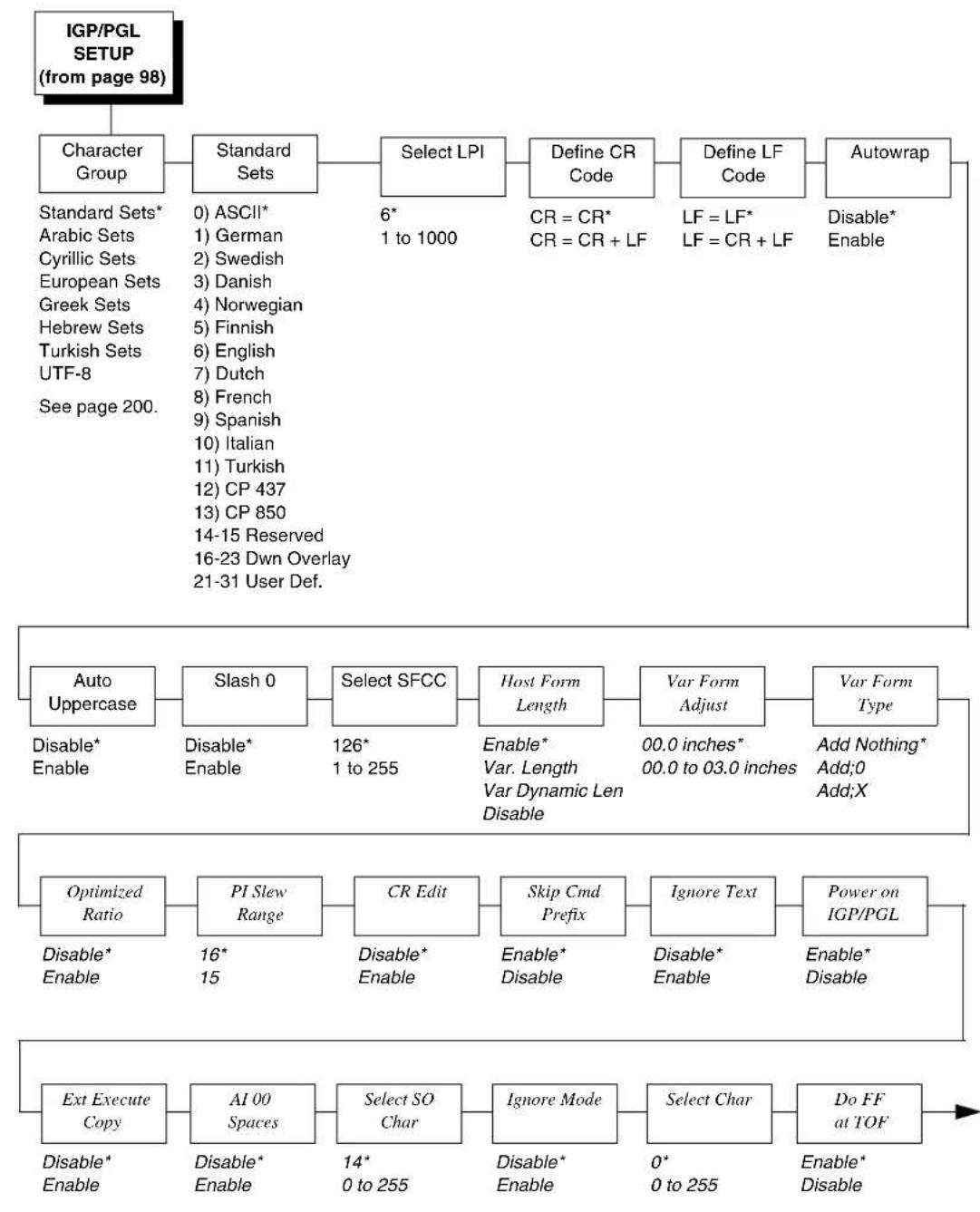
flowchart
graph TD
    A["IGP/PGL SETUP (from page 98)"] --> B["Character Group"]
    B --> C["Standard Sets"]
    C --> D["Select LPI"]
    D --> E["Define CR Code"]
    E --> F["Define LF Code"]
    F --> G["Autowrap"]
    G --> H["Auto Uppercase"]
    H --> I["Disable* Enable"]
    H --> J["Disable* Enable"]
    H --> K["Disable* Enable"]
    H --> L["Disable* Enable"]
    H --> M["Disable* Enable"]
    H --> N["Disable* Enable"]
    H --> O["Disable* Enable"]
    H --> P["Disable* Enable"]
    H --> Q["Disable* Enable"]
    H --> R["Disable* Enable"]
    H --> S["Disable* Enable"]
    H --> T["Disable* Enable"]
    H --> U["Disable* Enable"]
    H --> V["Disable* Enable"]
    H --> W["Disable* Enable"]
    H --> X["Disable* Enable"]
    H --> Y["Disable* Enable"]
    H --> Z["Disable* Enable"]
    H --> AA["Disable* Enable"]
    H --> AB["Disable* Enable"]
    H --> AC["Disable* Enable"]
    H --> AD["Disable* Enable"]
    H --> AE["Disable* Enable"]
    H --> AF["Disable* Enable"]
    H --> AG["Disable* Enable"]
    H --> AH["Disable* Enable"]
    H --> AI["Disable* Enable"]
    H --> AJ["Disable* Enable"]
    H --> AK["Disable* Enable"]
    H --> AL["Disable* Enable"]
    H --> AM["Disable* Enable"]
    H --> AN["Disable* Enable"]
    H --> AO["Disable* Enable"]
    H --> AP["Disable* Enable"]
    H --> AQ["Disable* Enable"]
    H --> AR["Disable* Enable"]
    H --> AS["Disable* Enable"]
    H --> AT["Disable* Enable"]
    H --> AU["Disable* Enable"]
    H --> AV["Disable* Enable"]
    H --> AW["Disable* Enable"]
    H --> AX["Disable* Enable"]
    H --> AY["Disable* Enable"]
    H --> AZ["Disable* Enable"]
    H --> BA["Disable* Enable"]
    H --> BB["Disable* Enable"]
    H --> BC["Disable* Enable"]
    H --> BD["Disable* Enable"]
    H --> BE["Disable* Enable"]
    H --> BF["Disable* Enable"]
    H --> BG["Disable* Enable"]
    H --> BH["Disable* Enable"]
    H --> BI["Disable* Enable"]
    H --> BJ["Disable* Enable"]
    H --> BK["Disable* Enable"]
    H --> BL["Disable* Enable"]
    H --> BM["Disable* Enable"]
    H --> BN["Disable* Enable"]
    H --> BO["Disable* Enable"]
    H --> BP["Disable* Enable"]
    H --> BQ["Disable* Enable"]
    H --> BR["Disable* Enable"]
    H --> BS["Disable* Enable"]
    H --> BT["Disable* Enable"]
    H --> BU["Disable* Enable"]
    H --> BV["Disable* Enable"]
    H --> BW["Disable* Enable"]
    H --> BX["Disable* Enable"]
    H --> BY["Disable* Enable"]
    H --> BZ["Disable* Enable"]
    H --> CA["Disable* Enable"]
    H --> CB["Disable* Enable"]
    H --> CC["Disable* Enable"]
    H --> CD["Disable* Enable"]
    H --> CE["Disable* Enable"]
    H --> CF["Disable* Enable"]
    H --> CG["Disable* Enable"]
    H --> CH["Disable* Enable"]
    H --> CI["Disable* Enable"]
    H --> CJ["Disable* Enable"]
    H --> CK["Disable* Enable"]
    H --> CL["Disable* Enable"]
    H --> CM["Disable* Enable"]
    H --> CN["Disable* Enable"]
    H --> CO["Disable* Enable"]
    H --> CP["Disable* Enable"]
    H --> CQ["Disable* Enable"]
    H --> CR["Disable* Enable"]
    H --> CS["Disable* Enable"]
    H --> CT["Disable* Enable"]
    H --> CU["Disable* Enable"]
    H --> CV["Disable* Enable"]
    H --> CW["Disable* Enable"]
    H --> CX["Disable* Enable"]
    H --> CY["Disable* Enable"]
    H --> CZ["Disable* Enable"]
    H --> DA["Disable* Enable"]
    H --> DB["Disable* Enable"]
    H --> DC["Disable* Enable"]
    H --> DD["Disable* Enable"]
    H --> DE["Disable* Enable"]
Notes:
* = Factory Default
Italicized items are available only when you enable Admin User (in the PRINTER CONTROL menu).
IGP/PGL
SETUP
(from page 179)

flowchart
graph TD
    A["IGP100 Compatbl."] --> B["Expanded Font"]
    B --> C["Scalable Size"]
    C --> D["Forms Handling"]
    D --> E["PGL Normal"]
    E --> F["UPC Descenders"]

    subgraph I-2/5 Selection
        G["Leading Zero* Trailing Space X2 DPD Modulo 7 CD"]
    end

    subgraph Vertical Adjust
        H["0 Dots* -20 to 20 dots"]
        I["Enable* Enable"]
        J["Enable* Enable"]
        K["Enable* Enable"]
        L["Enable* Enable"]
        M["Preparser Port"]
    end

    A --> B --> C --> D --> E --> F
    G --> H
    I --> J
    K --> L
    M --> M
Notes:
* = Factory Default
Italicized items are available only when you enable Admin User (in the PRINTER CONTROL menu).
IGP/VGL SETUP

flowchart
graph TD
    A["IGP/VGL SETUP (from page 99)"] --> B["Select SFCC"]
    B --> C["Power-up ^X"]
    C --> D["Power-up ^F"]
    D --> E["Power-up ^PY"]
    E --> F["LPI"]
    F --> G["Btm Margin Ctl"]
    G --> H["LP+ Menu* VGL Text Length"]

    I["Text Length"] --> J["Autoeject"]
    J --> K["Copy Count"]
    K --> L["Host Form Legnth"]
    L --> M["Slash 0"]
    M --> N["Repeat Form"]
    N --> O["UPC Descenders"]

    P["Ignore Dots"] --> Q["Append Rotated"]
    Q --> R["Truncate Alpha"]
    R --> S["True Vert 1/10"]
    S --> T["Absorb After ^PY"]
    T --> U["Select SO Char"]
    U --> V["Rot. Char Size"]
    V --> W["Ignore Spaces"]
    W --> X["Ignore ^Lxx Cmd"]
    X --> Y["Midline PY"]
    Y --> Z["Width Limit"]

    AA["Absorb After ^PN"] --> AB["Expanded Font"]
    AB --> AC["Auto FF at ^PN"]
    AC --> AD["Vertical Density¹"]
    AD --> AE["PDF Size Comp"]
    AE --> AF["C128 Mode Comp."]

    style A fill:#f9f,stroke:#333
    style I fill:#ccf,stroke:#333
    style P fill:#cfc,stroke:#333
    style AA fill:#fcc,stroke:#333
Notes:
* = Factory Default
^1 Appears only on 203 dpi printers.

flowchart
graph TD
    A["C39 Compatbl."] --> B["Ignore Chars"]
    B --> C["Ignore Ch#1"]
    C --> D["Ignore Ch#2"]
    D --> E["Data Bit 8"]
    E --> F["Cmd Resolution"]
    G["^Dnn Dot Slew"] --> H["Barcode var."]
    H --> I["Character Group"]
    I --> J["Standard Sets"]
    J --> K["Uniform Fonts"]
    K --> L["Prop Line Length"]
    M["Printer PI"] --> N["Host PI"]
    N --> O["Max PI 16"]

    style A fill:#f9f,stroke:#333
    style G fill:#f9f,stroke:#333
    style M fill:#f9f,stroke:#333
P-SERIES SETUP
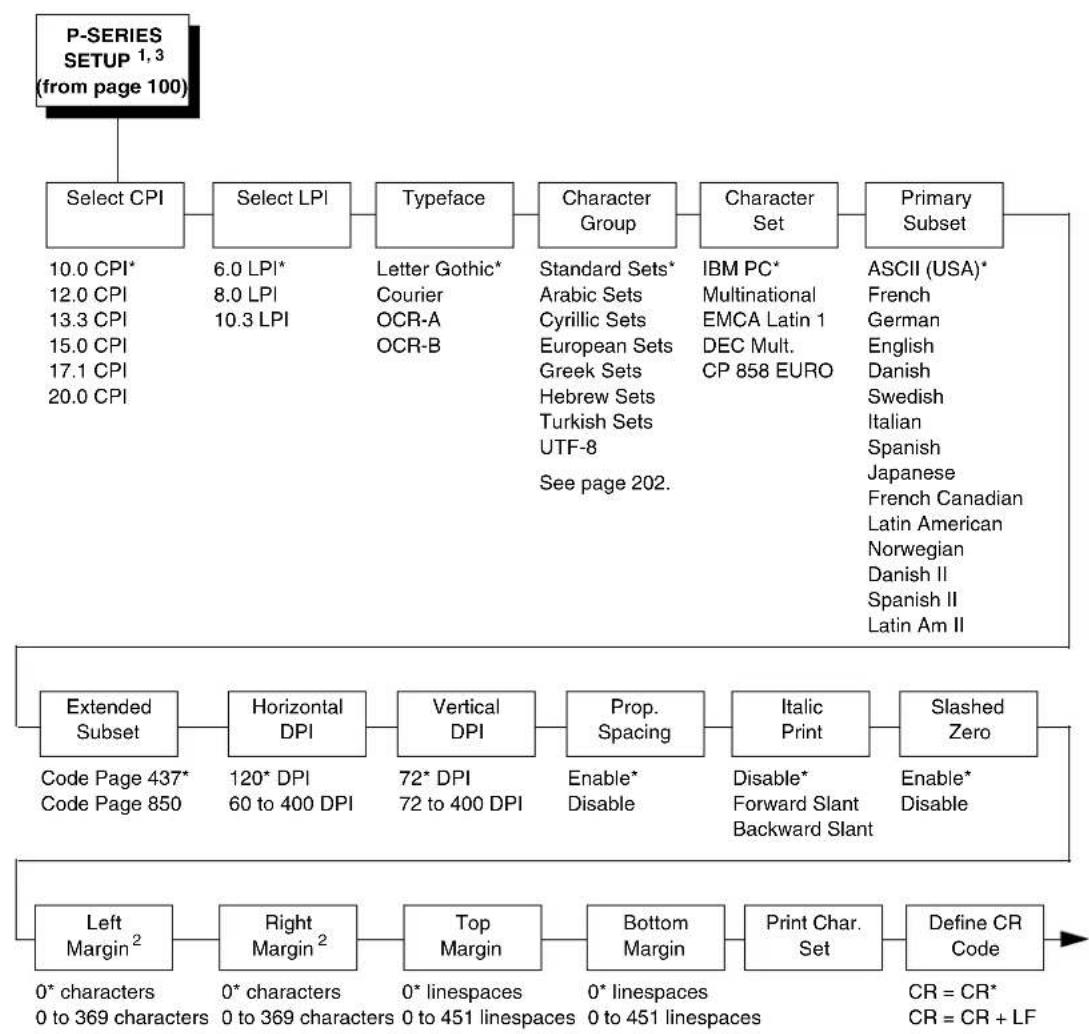
flowchart
graph TD
    A["P-SERIES SETUP 1.3 (from page 100)"] --> B["Select CPI"]
    B --> C["Select LPI"]
    C --> D["Typeface"]
    D --> E["Character Group"]
    E --> F["Character Set"]
    F --> G["Primary Subset"]

    B --> H["10.0 CPI*"]
    B --> I["12.0 CPI"]
    B --> J["13.3 CPI"]
    B --> K["15.0 CPI"]
    B --> L["17.1 CPI"]
    B --> M["20.0 CPI"]

    C --> N["6.0 LPI*"]
    C --> O["8.0 LPI"]
    C --> P["10.3 LPI"]

    D --> Q["Letter Gothic*"]
    D --> R["Courier"]
    D --> S["OCR-A"]
    D --> T["OCR-B"]

    E --> U["Standard Sets*"]
    E --> V["Arabic Sets"]
    E --> W["Cyrillic Sets"]
    E --> X["European Sets"]
    E --> Y["Greek Sets"]
    E --> Z["Hebrew Sets"]
    E --> AA["Turkish Sets"]
    E --> AB["UTF-8"]
    E --> AC["See page 202."]

    F --> AD["IBM PC*"]
    F --> AE["Multinational"]
    F --> AF["EMCA Latin 1"]
    F --> AG["DEC Mult."]
    F --> AH["CP 858 EURO"]

    G --> AI["ASCII (USA)*"]
    G --> AJ["French"]
    G --> AK["German"]
    G --> AL["English"]
    G --> AM["Danish"]
    G --> AN["Swedish"]
    G --> AO["Italian"]
    G --> AP["Spanish"]
    G --> AQ["Japanese"]
    G --> AR["French Canadian"]
    G --> AS["Latin American"]
    G --> AT["Norwegian"]
    G --> AU["Danish II"]
    G --> AV["Spanish II"]
    G --> AW["Latin Am II"]

    H --> AX["Extended Subset"]
    H --> AY["Horizontal DPI"]
    H --> AZ["Vertical DPI"]
    H --> BA["Prop. Spacing"]
    H --> BB["Italic Print"]
    H --> BC["Slashed Zero"]

    AX --> BD["Code Page 437*"]
    AX --> BE["Code Page 850"]

    AZ --> BF["120* DPI"]
    AZ --> BG["60 to 400 DPI"]

    AZ --> BH["72* DPI"]
    AZ --> BI["72 to 400 DPI"]

    BA --> BJ["Enable* Disable* Disable* Enable* Disable* Disable* Disable* Disable* Disable* Disable* Disable* Disable* Disable* Disable* Disable* Disable* Disable* Disable* Disable* Disable* Disable* Disable* Disable* Disable* Disable* Disable* Disable* Disable* Disable* Disable* Disable* Disable* Disable* Disable* Disable* Disable* Disable* Disable* Disable* Disable* Disable* Disable* Disable* Disable* Disable* Disable* Disable* Disable* Disable* Disable* Disable* Disable* Disable* Disable* Enable* Enable*<br>    <br>    BC --> BD<br>    BC --> BE<br>    BC --> BH<br>    BC --> BJ<br>    BC --> BI<br>    BC --> BJ<br>    <br>    AD --> BK[Left Margin²"]

    AE --> BL["Right Margin²"]

    AF --> BM["0* characters 0 to 369 characters 0 to 369 characters 0 to 451 linespaces 0 to 451 linespaces CR = CR*<br>CR = CR + LF"]

    BG --> BH

    BH --> BH
Notes:
* = Factory Default
^1 This menu is available only when you enable Admin User (under PRINTER CONTROL).
^2 This menus does not appear when the CT, TN5250, or TN3270 emulation is selected.
^3 This menu appears only if the emulation is selected in the LP+ Emulation submenu.
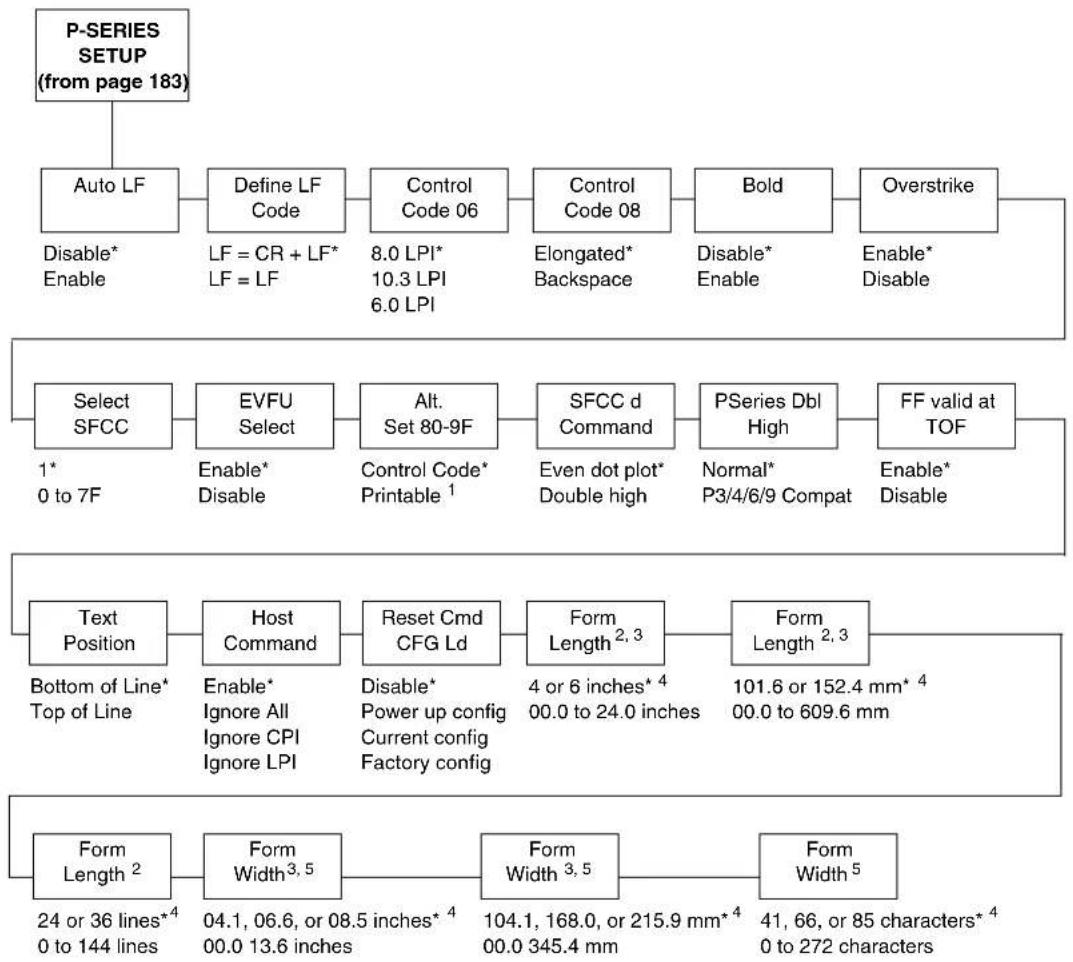
flowchart
graph TD
    A["P-SERIES SETUP (from page 183)"] --> B["Auto LF"]
    B --> C["Define LF Code"]
    C --> D["Control Code 06"]
    D --> E["Control Code 08"]
    E --> F["Bold"]
    F --> G["Overstrike"]
    B --> H["Select SFCC"]
    H --> I["EVFU Select"]
    I --> J["Alt. Set 80-9F"]
    J --> K["SFCC d Command"]
    K --> L["PSeries Dbl High"]
    L --> M["FF valid at TOF"]
    M --> N["Text Position"]
    N --> O["Host Command"]
    O --> P["Reset Cmd CFG Ld"]
    P --> Q["Form Length 2,3"]
    Q --> R["Form Length 2,3"]
    R --> S["Form Width 5"]
    S --> T["Form Width 3,5"]
    T --> U["Form Width 3,5"]
    U --> V["Form Length 2"]
    V --> W["Bottom of Line* Top of Line"]
    W --> X["Text Position"]
    X --> Y["Text Length 2"]

    style A fill:#f9f,stroke:#333
    style B fill:#ccf,stroke:#333
    style C fill:#cfc,stroke:#333
    style D fill:#fcc,stroke:#333
    style E fill:#cff,stroke:#333
    style F fill:#ffc,stroke:#333
    style G fill:#fcc,stroke:#333
    style H fill:#ffc,stroke:#333
    style I fill:#cfc,stroke:#333
    style J fill:#cfc,stroke:#333
    style K fill:#cfc,stroke:#333
    style L fill:#cfc,stroke:#333
    style M fill:#cfc,stroke:#333
    style N fill:#cfc,stroke:#333
    style O fill:#cfc,stroke:#333
    style P fill:#cfc,stroke:#333
    style Q fill:#cfc,stroke:#333
    style R fill:#cfc,stroke:#333
    style S fill:#cfc,stroke:#333
    style T fill:#cfc,stroke:#333
Notes:
* = Factory Default
^1 When the CTHI option is installed, the factory default is Printable.
^2 All three Form Length submenus work in conjunction. When you change the default in one submenu, the default values in the other two submenus change automatically.
^3 This menu does not display when the CT, TN5250, or TN3270 emulation is selected.
^4 The factory default value depends on the width of the printer model.
^5 All Form Width submenus work in conjunction. When you change the default in one submenu, the default values in the other two submenus change automatically.
P-SER XQ SETUP

flowchart
graph TD
    A["P-SER XQ SETUP 1,3 (from page 100)"] --> B["Select CPI"]
    B --> C["Select LPI"]
    C --> D["Typeface"]
    D --> E["Horizontal DPI"]
    E --> F["Vertical DPI"]
    F --> G["Prop. Spacing"]
    G --> H["Italic Print"]
    H --> I["Slashed Zero"]
    I --> J["Left Margin 2"]
    J --> K["Right Margin 2"]
    K --> L["Top Margin"]
    L --> M["Bottom Margin"]
    M --> N["Print Char. Set"]
    N --> O["Define CR Code"]
    O --> P["Auto LF"]
    P --> Q["Define LF Code"]
    Q --> R["Control Code 06"]
    R --> S["Compressed Print"]
    S --> T["Bold"]
    T --> U["Elong/Alt. Font"]
    U --> V["Gothic Typeface"]
    V --> W["EVFU Select"]
    W --> X["Upr. Case Select"]

    style A fill:#f9f,stroke:#333
    style H fill:#ccf,stroke:#333
    style M fill:#cfc,stroke:#333
Notes:
* = Factory Default
^1 This menu is available only when you enable Admin User (under PRINTER CONTROL).
^2 This menu does not display when the CT, TN5250, or TN3270 emulation is selected.
^3 The presence of this menu depends on the LP+ Emulation selection (under PRINTER CONTROL).

flowchart
graph LR
    A["P-SER XQ SETUP (from page 185)"] --> B["Slew Relative"]
    B --> C["Text Position"]
    C --> D["Host Command"]
    D --> E["Reset Cmd CFG Ld"]
    E --> F["Form Length 1,2"]
    F --> G["Form Length 1,2"]
    G --> H["Form Width 4"]
    H --> I["Form Width 4"]

    B -->|1 to 15 lines* 1 to 16 lines| B
    C -->|Bottom of Line* Top of Line| C
    D -->|Enable* Ignore All Ignore CPI Ignore LPI| D
    E -->|Disable* Power up config Current config Factory config| E
    F -->|4 or 6 inches* 00.0 to 24.0 inches| F

    G -->|101.6 or 152.4 mm * 3 00.0 to 609.6 mm| G
    H -->|24 or 36 lines* 3 0 to 144 lines| H
    I -->|04.1, 06.6, or 08.5 inches* 3 00.0 to 13.6 inches| I
    J["Form Width 4"] --> K["Form Width 4"]
    K --> L["Form Width 4"]
Notes:
* = Factory Default
^1 All three Form Length submenus work in conjunction. When you change the default in one submenu, the default values in the other two submenus change automatically.
^2 This menu does not display when the CT, TN5250, or TN3270 emulation is selected.
^3 The factory default value depends on the width of the printer model.
^4 All three Form Width submenus work in conjunction. When you change the default in one submenu, the default values in the other two submenus change automatically.
SERIAL MATRIX SETUP

flowchart
graph TD
    A["SERIAL MATRIX SETUP 1,3 (from page 101)"] --> B["Select CPI"]
    B --> C["Select LPI"]
    C --> D["Typeface"]
    D --> E["Character Group"]
    E --> F["Character Set*"]
    F --> G["Primary Subset*"]

    B --> H["10.0 CPI*"]
    B --> I["12.0 CPI"]
    B --> J["13.3 CPI"]
    B --> K["15.0 CPI"]
    B --> L["17.1 CPI"]
    B --> M["20.0 CPI"]

    C --> N["6.0 LPI*"]
    C --> O["8.0 LPI"]
    C --> P["10.3 LPI"]

    D --> Q["Letter Gothic*"]
    D --> R["Courier"]
    D --> S["OCR-A"]
    D --> T["OCR-B"]

    E --> U["Standard Sets*"]
    E --> V["Arabic Sets"]
    E --> W["Cyrillic Sets"]
    E --> X["European Sets"]
    E --> Y["Greek Sets"]
    E --> Z["Hebrew Sets"]
    E --> AA["Turkish Sets"]
    E --> AB["UTF-8"]
    E --> AC["See page 202."]

    F --> AD["IBM PC*"]
    F --> AE["Multinational"]
    F --> AF["ECMA Latin 1"]
    F --> AG["DEC Mult."]
    F --> AH["CP 858 EURO"]

    G --> AI["ASCII (USA)*"]
    G --> AJ["French"]
    G --> AK["German"]
    G --> AL["English"]
    G --> AM["Danish"]
    G --> AN["Swedish"]
    G --> AO["Italian"]
    G --> AP["Spanish"]
    G --> AQ["Japanese"]
    G --> AR["French Canadian"]
    G --> AS["Latin American"]
    G --> AT["Norwegian"]
    G --> AU["Danish II"]
    G --> AV["Spanish II"]
    G --> AW["Latin Am II"]

    H --> AX["Extended Subset"]
    H --> AY["Horizontal DPI"]
    H --> AZ["Vertical DPI"]
    H --> BA["Prop. Spacing"]
    H --> BB["Italic Print"]
    H --> BC["Slashed Zero"]

    AX --> BD["Code Page 437*"]
    AX --> BE["Code Page 850"]

    AZ --> BF["120* DPI"]
    AZ --> BG["60 to 400 DPI"]

    BA --> BH["72* DPI"]
    BA --> BI["72 to 400 DPI"]

    BA --> BJ["Enable*"]
    BA --> BK["Disable"]

    BB --> BL["Disable*"]
    BB --> BM["Forward Slant Backward Slant"]

    BC --> BN["Disable*"]
    BC --> BO["Enable"]

    BC --> BP["Left Margin²"]

    BC --> BQ["Right Margin²"]

    BC --> BR["Top Margin"]

    BC --> BS["Bottom Margin"]

    BC --> BT["Print Char. Set"]

    BP --> BU["0* characters\n0 to 369 characters"]

    BQ --> BV["0* characters\n0 to 369 characters"]

    BR --> BW["0 linespaces* \n0 to 451 linespaces"]

    BS --> BX["0 linespaces* \n0 to 451 linespaces"]

    BT --> BY["0 linespaces* \n0 to 451 linespaces"]
Notes:
* = Factory Default
^1 This menu is available only when you enable Admin User (under PRINTER CONTROL).
^2 This menu does not display when the CT, TN5250, or TN3270 emulation is selected.
^3 The presence of this menu depends on the LP+ Emulation selection (under PRINTER CONTROL).
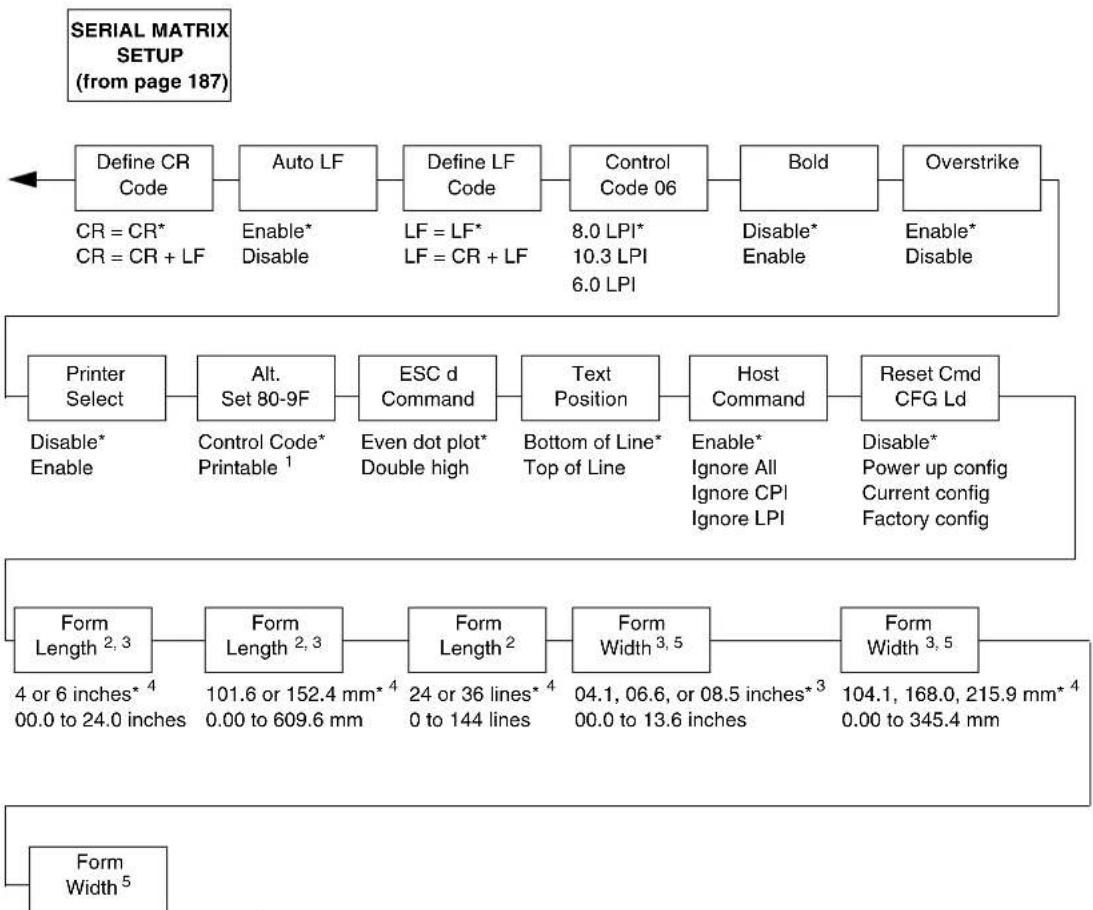
flowchart
graph TD
    A["Define CR Code\nCR = CR* \nCR = CR + LF"] --> B["Auto LF\nEnable* \nDisable"]
    B --> C["Define LF Code\nLF = LF* \nLF = CR + LF"]
    C --> D["Control Code 06\n8.0 LPI* \n10.3 LPI\n6.0 LPI"]
    D --> E["Bold\nDisable* \nEnable"]
    E --> F["Overstrike\nEnable* \nDisable"]

    G["Printer Select\nDisable* \nEnable"] --> H["Alt. Set 80-9F\nControl Code* \nPrintable¹"]
    H --> I["ESC d Command\nEven dot plot* \nDouble high"]
    I --> J["Text Position\nBottom of Line* \nTop of Line"]
    J --> K["Host Command\nEnable* \nIgnore All\nIgnore CPI\nIgnore LPI"]
    K --> L["Reset Cmd CFG Ld\nDisable* \nPower up config\nCurrent config\nFactory config"]

    M["Form Length²,³\n4 or 6 inches*⁴\n00.0 to 24.0 inches"] --> N["Form Length²,³\n101.6 or 152.4 mm*⁴\n0.00 to 609.6 mm"]
    N --> O["Form Length²\n24 or 36 lines*⁴\n0 to 144 lines"]
    O --> P["Form Width³,⁵\n04.1, 06.6, or 08.5 inches*³\n00.0 to 13.6 inches"]
    P --> Q["Form Width³,⁵\n104.1, 168.0, 215.9 mm*⁴\n0.00 to 345.4 mm"]

    R["Form Width⁵"] --> S
41, 66 or 85 characters ^4
0 to 272 characters
Notes:
* = Factory Default
^1 When the CTHI option is installed, the factory default is Printable.
^2 All three Form Length submenus work in conjunction. When you change the default in one submenu, the default values in the other two submenus change automatically.
^3 This menu does not display when the CT, TN5250, or TN3270 emulation is selected.
^4 The factory default value depends on the width of the printer model.
^5 All three Form Width submenus work in conjunction. When you change the default in one submenu, the default values in the other two submenus change automatically.
PROPRINTER XL SETUP
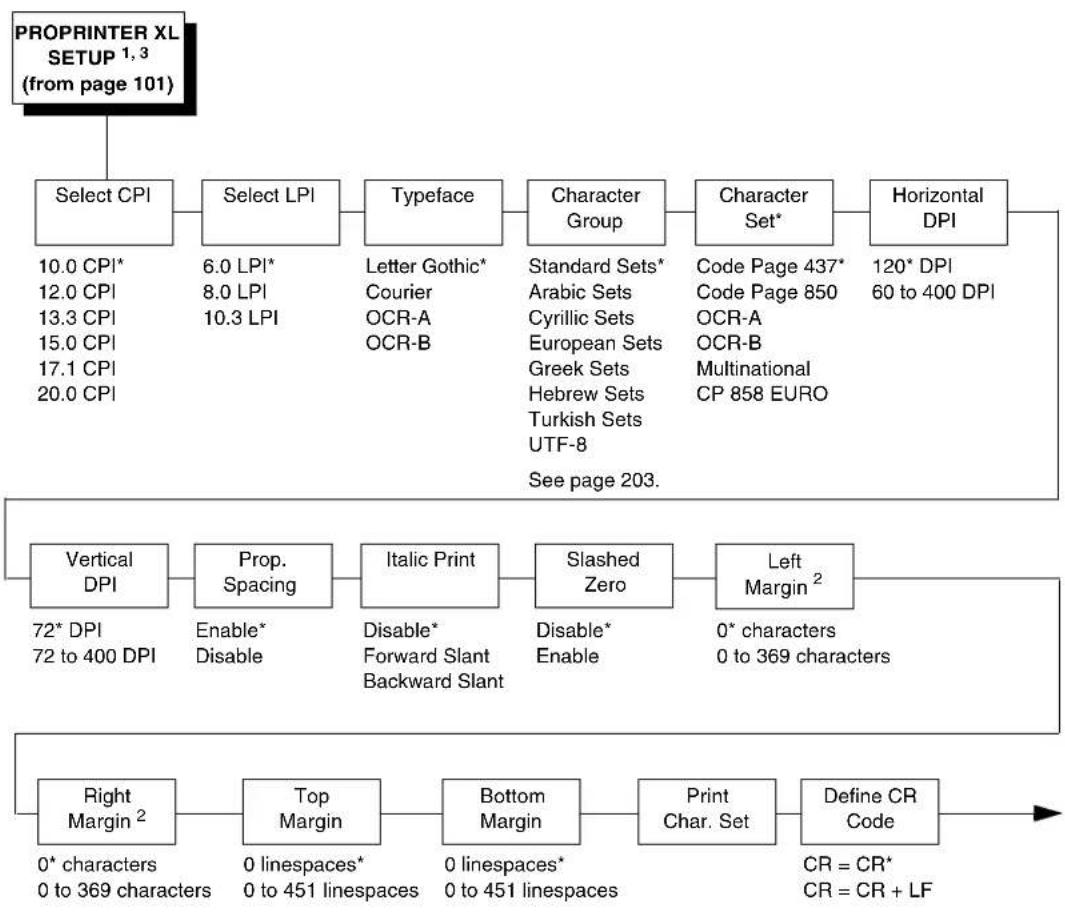
flowchart
graph TD
    A["PROPRINTER XL SETUP 1,3 (from page 101)"] --> B["Select CPI"]
    B --> C["Select LPI"]
    C --> D["Typeface"]
    D --> E["Character Group"]
    E --> F["Character Set*"]
    F --> G["Horizontal DPI"]

    B --> H["10.0 CPI*"]
    B --> I["12.0 CPI"]
    B --> J["13.3 CPI"]
    B --> K["15.0 CPI"]
    B --> L["17.1 CPI"]
    B --> M["20.0 CPI"]

    C --> N["6.0 LPI*"]
    C --> O["8.0 LPI"]
    C --> P["10.3 LPI"]

    D --> Q["Letter Gothic*"]
    D --> R["Courier"]
    D --> S["OCR-A"]
    D --> T["OCR-B"]

    E --> U["Standard Sets*"]
    E --> V["Arabic Sets"]
    E --> W["Cyrillic Sets"]
    E --> X["European Sets"]
    E --> Y["Greek Sets"]
    E --> Z["Hebrew Sets"]
    E --> AA["Turkish Sets"]
    E --> AB["UTF-8"]

    F --> AC["Code Page 437*"]
    F --> AD["Code Page 850"]
    F --> AE["OCR-A"]
    F --> AF["OCR-B"]
    F --> AG["Multinational"]
    F --> AH["CP 858 EURO"]

    G --> AI["120* DPI"]
    G --> AJ["60 to 400 DPI"]

    H --> AK["Vertical DPI"]
    AK --> AL["Prop. Spacing"]
    AL --> AM["Italic Print"]
    AM --> AN["Slashed Zero"]
    AN --> AO["Left Margin²"]

    AK --> AP["72* DPI"]
    AK --> AQ["72 to 400 DPI"]

    AL --> AR["Enable*"]
    AL --> AS["Disable"]

    AM --> AT["Disable* Forward Slant Backward Slant"]

    AN --> AU["Disable* Enable"]

    AO --> AV["0* characters 0 to 369 characters"]

    AO --> AW["0* characters 0 to 369 characters"]

    AO --> AX["0 linespaces* 0 to 451 linespaces"]

    AO --> AY["0 linespaces* 0 to 451 linespaces"]

    AO --> AZ["Print Char. Set"]

    AO --> BA["Define CR Code"]

    BA --> BB["CR = CR* CR = CR + LF"]
Notes:
* = Factory Default
^1 These menus are available only when you enable Admin User (under PRINTER CONTROL).
^2 This menu does not display when the CT, TN5250, or TN3270 emulation is selected.
^3 The presence of this menu depends on the LP+ Emulation selection (under PRINTER CONTROL).

flowchart
graph TD
    A["PROPRINTER XL SETUP (from page 189)"] --> B["Auto LF"]
    B --> C["Define LF Code"]
    C --> D["20 CPI Condensed"]
    D --> E["Bold"]
    E --> F["FF valid at TOF"]
    F --> G["Alt. Char Set"]
    G --> H["Text Position"]
    H --> I["Host Command"]
    I --> J["Reset Cmd CFG Ld"]
    J --> K["Form Length 1,2"]
    K --> L["Form Length 1,2"]
    L --> M["Form Width 1"]
    M --> N["Form Width 2,4"]
    N --> O["Form Width 2,4"]
    O --> P["Form Width 4"]

    subgraph Text Position
        H
        I
        J
        K
        L
        M
    end

    subgraph Form Width 1
        M
        N
        O
        P
    end

    style A fill:#f9f,stroke:#333
    style G fill:#ccf,stroke:#333
Notes:
* = Factory Default
^1 All three Form Length submenus work in conjunction. When you change the default in one submenu, the default values in the other two submenus change automatically.
^2 This menu does not display when the CT, TN5250, or TN3270 emulation is selected.
^3 The factory default value depends on the width of the printer model.
^4 All three Form Width submenus work in conjunction. When you change the default in one submenu, the default values in the other two submenus change automatically.
EPSON FX SETUP
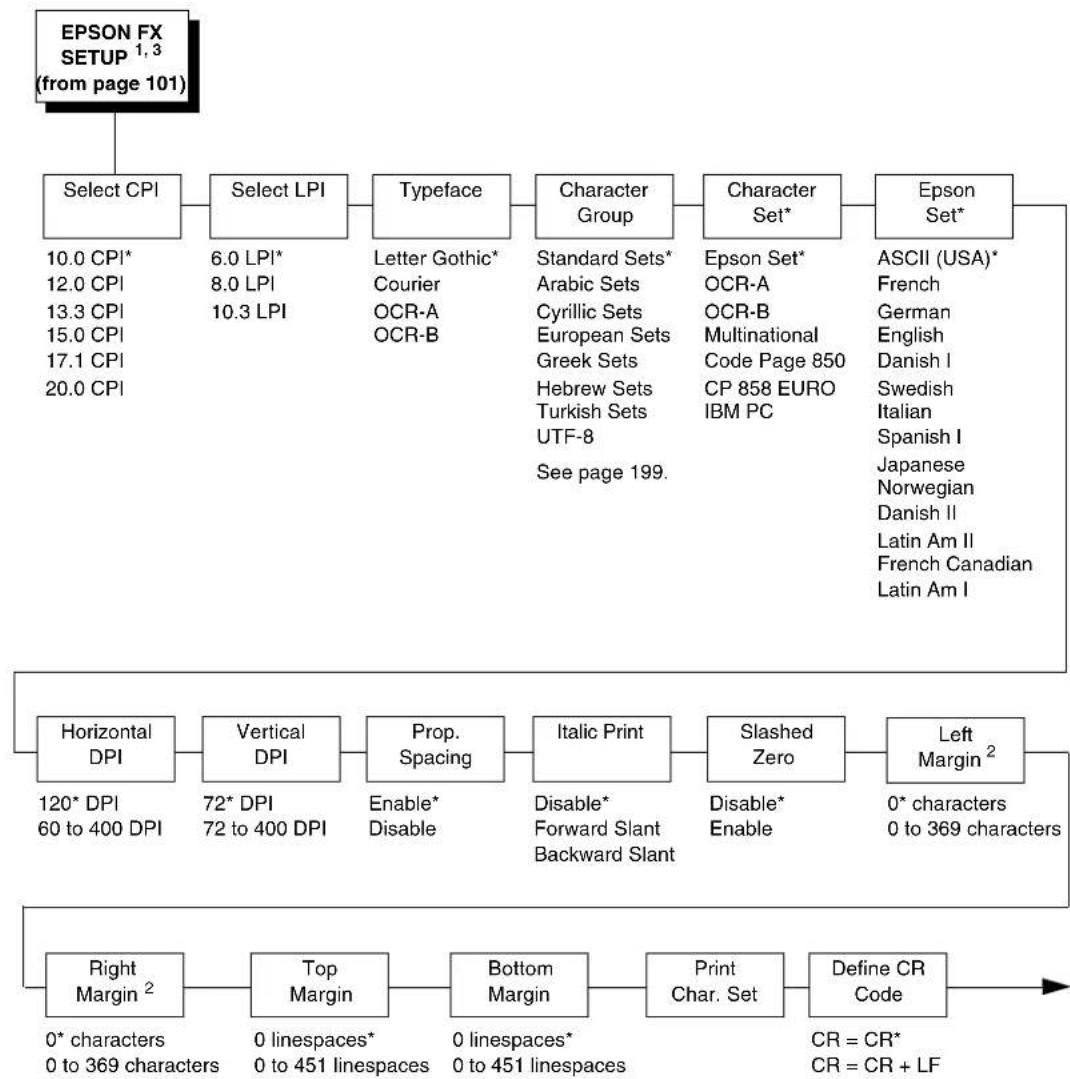
flowchart
graph TD
    A["EPSON FX SETUP 1,3 (from page 101)"] --> B["Select CPI"]
    B --> C["Select LPI"]
    C --> D["Typeface"]
    D --> E["Character Group"]
    E --> F["Character Set*"]
    F --> G["Epson Set*"]

    B --> H["Horizontal DPI"]
    H --> I["Vertical DPI"]
    I --> J["Prop. Spacing"]
    J --> K["Italic Print"]
    K --> L["Slashed Zero"]
    L --> M["Left Margin²"]

    M --> N["Right Margin²"]

    B --> O["Select CPI"]
    C --> P["Select LPI"]
    D --> Q["Character Group"]
    E --> R["Character Set*"]
    F --> S["Epson Set*"]

    subgraph Horizontal DPI
        H
        I
        J
        K
        L
        M
    end

    subgraph Vertical DPI
        H
        I
        J
        K
        L
    end

    subgraph Prop. Spacing
        J
        K
        L
        M
    end

    subgraph Italic Print
        K
        L
        M
    end

    subgraph Slashed Zero
        L
        M
    end

    subgraph Left Margin²
        M
        N
    end

    style A fill:#f9f,stroke:#333
    style B fill:#ccf,stroke:#333
    style C fill:#cfc,stroke:#333
    style D fill:#fcc,stroke:#333
    style E fill:#cff,stroke:#333
    style F fill:#ffc,stroke:#333
    style G fill:#fcc,stroke:#333
    style H fill:#ffc,stroke:#333
    style I fill:#cfc,stroke:#333
    style J fill:#fcc,stroke:#333
    style K fill:#cfc,stroke:#333
    style L fill:#fcc,stroke:#333
    style M fill:#ffc,stroke:#333
    style N fill:#cfc,stroke:#333
    style O fill:#fcc,stroke:#333
Notes:
* = Factory Default
^1 This menu is available only when you enable Admin User (under PRINTER CONTROL).
^2 This menu does not display when the CT, TN5250, or TN3270 emulation is selected.
^3 The presence of this menu depends on the LP+ Emulation selection (under PRINTER CONTROL).

flowchart
graph TD
    A["EPSON FX SETUP (from page 191)"] --> B["Auto LF"]
    B --> C["Define LF Code"]
    C --> D["Printer Select"]
    D --> E["20 CPI Condensed"]
    E --> F["Bold"]
    F --> G["Alt. Set 80-9F"]
    G --> H["Text Position"]
    H --> I["Host Command"]
    I --> J["Reset Cmd CFG Ld"]
    J --> K["Form Length 2,3"]
    K --> L["Form Length 2,3"]
    L --> M["Form Width 2"]
    M --> N["Form Width 3,5"]
    N --> O["Form Width 3,5"]
    O --> P["Form Width 4"]

    subgraph Text Position
        H1["Bottom of Line* Top of Line"]
        I1["Enable* Ignore All Ignore CPI Ignore LPI"]
    end

    subgraph Host Command
        I2["Enable* Ignore All Ignore CPI Ignore LPI"]
        J2["Disable* Power up config Current config Factory config"]
    end

    subgraph Reset Cmd CFG Ld
        J2
        K
        L
        M
        N
        O
    end

    subgraph Form Length 2
        M1["24 or 36 lines* 4 0 to 144 lines"]
        M2["Form Width 3,5"]
        N1["04.1, 06.6, or 08.5 inches* 4 00.0 to 13.6 inches"]
        N2["104.1, 168.0, 215.9 mm* 4 0.00 to 345.4 mm"]
        N3["41, 66 or 85 characters* 4 0 to 272 characters"]
    end
Notes:
* = Factory Default
^1 When the CTHI option is installed, the factory default is Printable.
^2 All three Form Length submenus work in conjunction. When you change the default in one submenu, the default values in the other two submenus change automatically.
^3 This menu does not display when the CT, TN5250, or TN3270 emulation is selected.
^4 The factory default value depends on the width of the printer model.
^5 All three Form Width submenus work in conjunction. When you change the default in one submenu, the default values in the other two submenus change automatically.
Emulation Submenus
NOTE: The following descriptions are grouped together for all emulations and are listed in alphabetical order. The emulations do not include PPI/ZGL, PPI/TGL, PPI/IGL, PPI/STGL, PPI/DGL, PPI/MGL, and PPI/IEGL. See individual Programmer's Reference Manuals for more information.
^Dnn Dot Slew
- Low Resolution. Sets the dot slew command dot values to be interpreted as 60 dpi P-Series dots.
- High Resolution. Sets the dot slew command dot values to be interpreted as print engine dots.
The factory default is Low Resolution.
20 CPI Condensed
Compressed print characters are narrower than the normal character set. This is helpful for applications where you need to print the maximum amount of information on a page.
- Enable. Prints about 60% of the width of normal characters when compressed print is chosen by the host computer.
- Disable. Does not compress print widths, even if condensed print is chosen by the host.
The factory default is Enable.
5225 World Trade
The 5225 emulation has a standard multinational character set that serves as a base and 14 extended world trade character set assortments.
The options are Standard Char (the factory default) and Extended Char.
Absorb After ^PN
- Disable. The paper motion line terminators that immediately follow the ^PN command are sent to the printer and processed.
- Enable. The paper motion line terminators that immediately follow the ^PN command are ignored.
The factory default is Disable.
Absorb After ^PY
- Absorb Motion. The paper motion line terminator immediately following the graphics ^PY command will be ignored.
- Absorb All. The system ignores all the data following ^PY until a host generated terminator is detected and ignored.
- Disable. System terminators following a graphics command are sent to the printer and result in paper motion.
The factory default is Absorb Motion.
Active Char Set
Selects which group of character sets (Primary or Secondary) will be active.
The factory default is Secondary Set.
AI 00 Spaces
This option is designated for EAN/UCC-128 barcodes whose application identifier (AI) is 00.
- Disable. The printable data field is printed with the AI enclosed in parentheses. This is the standard EAN/UCC-128 format.
- Enable. The printable data field is printed with the UCC fields separated by spaces. This option is IGP-X00 compatible.
The factory default is Disable.
Alt. Char Set
- Set 1. Interprets data in the range of hex 80 through hex 9F as a control code.
- Set 2. Prints data in the range of hex 80 through hex 9F.
The factory default is Set 1.
Alt. Set 80-9F (P-Series, Serial Matrix, Epson FX)
- Control Code. Interprets data in the range of hex 80 through hex 9F as a control code.
- Printable. Prints data in the range of hex 80 through hex 9F.
The factory default is Control Code. However, when the CTHI option is installed, the factory default is Printable.
Alt. Set 80-9F (Coax, Twinax, TN3270, TN5250)
- Printable. Prints data in the range of hex 80 through hex 9F.
- Control Code. Interprets data in the range of hex 80 through hex 9F as a control code.
The factory default is Printable.
Append Rotated
- Disable. Logos and alphanumeric strings are treated as separate elements.
- Enable. Appends logos to an alphanumeric string rotated in a clockwise, counterclockwise, or inverted orientation.
The factory default is Disable.
Auto FF at ^PN
When enabled, an FF will be generated automatically to slew to the end of form when the ^PN command is encountered and when the current vertical position is not at the top-of-form.
The options are Disable (the factory default) and Enable.
Auto LF (P-Series, P-Series XQ)
This option defines the printer action when print data is received past the forms width setting.
- Disable. Discards any data past the forms width.
- Enable. Performs an automatic carriage return and line feed when data is received past the forms width.
The factory default is Disable.
Auto LF (Serial Matrix, Proprinter XL, Epson FX)
This option defines the printer action when print data is received past the forms width setting.
- Enable. Performs an automatic carriage return and line feed when data is received past the forms width.
- Disable. Discards any data past the forms width.
The factory default is Enable.
Auto Skip at End
Specifies whether to perform an automatic form feed at the end of a print buffer. If form feed is the last character in the print order, the form feed function is supplied by the Auto Skip At End option.
- Off. Sets the printer to print at print position 1 of the next line.
- On. Sets the printer to print at print position 1 of the first line of the next form.
The factory default is Off.
Auto Uppercase
This parameter enables the printer to print text in all uppercase when using the ALPHA command.
- Disable. The printer will print text in upper and lowercase.
- Enable. The printer will print text in uppercase only.
The factory default is Disable.
Autoeject (VGL)
Determines paper handling upon exiting the VGL Repeated Form and Dynamic Form commands.
- Disable. Holds the print position at the bottom of the form.
- Enable. Issues a form feed after the last form is printed so all pages will be physically printed.
The factory default is Disable.
Autowrap
This parameter determines if text will wrap to the next line when the line of text exceeds the right margin.
- Disable. Truncates the text beyond the right margin until a CR or CR + LF is received.
- Enable. Automatically inserts a CR + LF after a full print line.
The factory default is Disable.
Barcode var.
This command only applies for IBARC barcode command format.
- Low Resolution. Sets barcode ratio dot values to be interpreted as line matrix printer dots (60 x72).
- High Resolution. Sets barcode ratio dot values to be interpreted as print engine dots (300 x 300 or 203 x 203).
The factory default is Low Resolution.
Bold
- Disable. Text is printed normally.
- Enable. Text is printed with a heavy line thickness.
The factory default is Disable.
Bottom Margin
Defined in linespaces, starting from line zero at the bottom of the page and incrementing from the bottom up.
The range is 0-451 linespaces, and the factory default is 0 linespaces.
Boundary Check
This option turns on or off the page boundary check for all print elements.
- Enable. When enabled, an out of bound error is reported if the print element is out of the page boundary.
- Disabled. When disabled, no out of bound error is reported. The out of bound print element prints over the page boundary.
The factory default is Enable.
Btm Margin Ctl
Determines the page's bottom margin. If this option is set to VGL Text Length, then text length changes the bottom margin value in the LP+ Emulation submenu as follows: bottom = physical page length-top margin-text length. If the option is set to LP+ Menu, then a change in text length has no effect, and the bottom margin setting in the LP+ Emulation menu will be used, although the new text length value still shows in the menu.
The options are LP+ Menu (the factory default) and VGL Text Length.
Buffer Print
- Disable. The printer will print normally.
- Enable. The printer prints the EBCDIC data and control codes received from the host as hex values.
NOTE: Use of this parameter may alter print attributes set by the host computer. A power cycle may be required after changing Buffer Print from enable to disable.
The factory default is Disable.
Buffer Reprint
This option is valid only when the printer is printing in Coax SCS mode. When the ENTER key is pressed, "Buffer Reprint Enabled" displays and an Intervention Required status is sent to the host. Pressing ENTER again cancels the Buffer Reprint function and displays "Buffer Reprint Disabled" on the LCD.
C39 Compatbl.
This menu makes the old method of decoding C39 alternative character set compatible with the new.
- Enable. Matches the old method of decoding.
- Disable. Uses the current way of decoding.
The factory default is Disable.
C128 Mode Comp.
The menu is for compatibility of the old build in auto mode switch.
- Enable. Matches the old build on the auto mode switch.
- Disable. Uses auto mode switch.
The factory default is Disable.
Cancel IGP/DCU
- Enable. Cancels all buffers when a job is put on hold from the host or when the CANCEL key is pressed.
- Disable. Does not cancel any internal buffer in the printer when a job is put on hold from the host, or when the CANCEL key is pressed.
The factory default is Enable.
Change Case
Specifies the font as Mono or Dual Case. This option is available only in Coax non-SCS mode. The host will be notified of the change when the printer is put online. Mono Case prints the same as Dual Case if the character set is one of the following “right to left” sets: Katak, Hebrew, Old Hebrew, and Farsi.
SCS (Systems Network Architecture Character String) Mode is controlled by the host computer.
The options are Dual Case (the factory default) and Mono Case.
Character Group and Character Sets (Epson FX)
(From page 191.) This menu item selects the character set used by the printer. The available character sets are shown below.
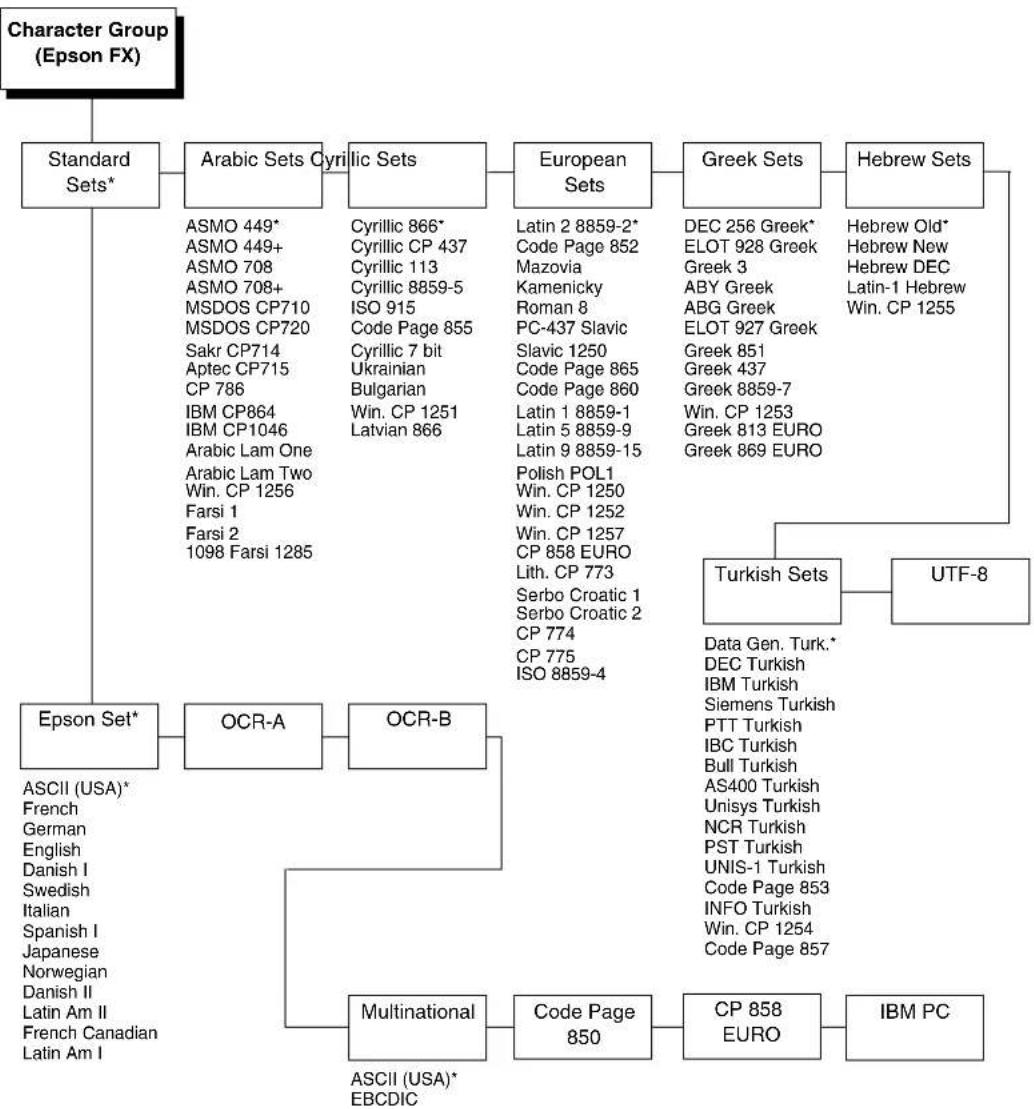
flowchart
graph TD
    A["Character Group (Epson FX)"] --> B["Standard Sets*"]
    A --> C["Epson Set*"]
    A --> D["OCR-A"]
    A --> E["OCR-B"]
    A --> F["Multinational"]
    A --> G["Code Page 850"]
    A --> H["CP 858 EURO"]
    A --> I["IBM PC"]

    B --> B1["ASMO 449*"]
    B --> B2["ASMO 449+"]
    B --> B3["ASMO 708"]
    B --> B4["ASMO 708+"]
    B --> B5["MSDOS CP710"]
    B --> B6["MSDOS CP720"]
    B --> B7["Sakr CP714"]
    B --> B8["Aptec CP715"]
    B --> B9["CP 786"]
    B --> B10["IBM CP864"]
    B --> B11["IBM CP1046"]
    B --> B12["Arabic Lam One"]
    B --> B13["Arabic Lam Two"]
    B --> B14["Win. CP 1256"]
    B --> B15["Farsi 1"]
    B --> B16["Farsi 2"]
    B --> B17["1098 Farsi 1285"]

    C --> C1["Cyrillic 866*"]
    C --> C2["Cyrillic CP 437"]
    C --> C3["Cyrillic 113"]
    C --> C4["Cyrillic 8859-5"]
    C --> C5["ISO 915"]
    C --> C6["Code Page 855"]
    C --> C7["Cyrillic 7 bit"]
    C --> C8["Ukrainian"]
    C --> C9["Bulgarian"]
    C --> C10["Win. CP 1251"]
    C --> C11["Latvian 866"]

    D --> D1["Latin 2 8859-2*"]
    D --> D2["Code Page 852"]
    D --> D3["Mazovia"]
    D --> D4["Kamenicky"]
    D --> D5["Roman 8"]
    D --> D6["PC-437 Slavic"]
    D --> D7["Slavic 1250"]
    D --> D8["Code Page 865"]
    D --> D9["Code Page 860"]
    D --> D10["Latin 1 8859-1"]
    D --> D11["Latin 5 8859-9"]
    D --> D12["Latin 9 8859-15"]
    D --> D13["Polish POL1"]
    D --> D14["Win. CP 1250"]
    D --> D15["Win. CP 1252"]
    D --> D16["Win. CP 1257"]
    D --> D17["CP 858 EURO"]
    D --> D18["Lith. CP 773"]
    D --> D19["Serbo Croatic 1"]
    D --> D20["Serbo Croatic 2"]
    D --> D21["CP 774"]
    D --> D22["CP 775"]
    D --> D23["ISO 8859-4"]

    E --> E1["Turkish Sets"]
    E --> E2["UTF-8"]

    F --> F1["Data Gen. Turk.*"]
    F --> F2["DEC Turkish"]
    F --> F3["IBM Turkish"]
    F --> F4["Siemens Turkish"]
    F --> F5["PTT Turkish"]
    F --> F6["IBC Turkish"]
    F --> F7["Bull Turkish"]
    F --> F8["AS400 Turkish"]
    F --> F9["Unisys Turkish"]
    F --> F10["NCR Turkish"]
    F --> F11["PST Turkish"]
    F --> F12["UNIS-1 Turkish"]
    F --> F13["Code Page 853"]
    F --> F14["INFO Turkish"]
    F --> F15["Win. CP 1254"]
    F --> F16["Code Page 857"]

    G --> G1["Greek Sets"]
    G --> G2["DEC 256 Greek*"]
    G --> G3["ELOT 928 Greek"]
    G --> G4["Greek 3"]
    G --> G5["ABY Greek"]
    G --> G6["ABG Greek"]
    G --> G7["ELOT 927 Greek"]
    G --> G8["Greek 851"]
    G --> G9["Greek 437"]
    G --> G10["Greek 8859-7"]
    G --> G11["Win. CP 1253"]
    G --> G12["Greek 813 EURO"]
    G --> G13["Greek 869 EURO"]
Notes:
^* = Factory Default.
To access the desired basic character set, use the + and - keys. To select the set, press the ↓ key.
After you have selected the basic set, access the subset selection menu by pressing the ↓ key. Once in the subset menu, access the desired subset by pressing the + and - keys and select it by pressing the ↓ key. The Epson subset is accessed and selected in the same manner.
Character Group and Character Sets (IGP/PGL)
(From page 179.) This menu item selects the character set used by the printer. The available character sets are shown below.
| Character Group (IGP/PGL) | |||||
| Standard Sets* | Arabic Sets | Cyrillic Sets | European Sets | Greek Sets | |
| 0) ASCII* | ASMO 449* | Code Page 866* | Latin 2 8859-2* | DEC 256 Greek* | |
| 1) German | ASMO 449+ | Cyrillic CP 437 | Code Page 852 | ELOT 928 Greek | |
| 2) Swedish | ASMO 708 | Cyrillic 113 | Mazovia | Greek 3 | |
| 3) Danish | ASMO 708+ | Cyrillic 8859-5 | Kamenicky | ABY Greek | |
| 4) Norwegian | MS DOS CP710 | ISO 915 | Roman 8 | ABG Greek | |
| 5) Finnish | MS DOS CP720 | Code Page 855 | PC-437 Slavic | ELOT 927 Greek | |
| 6) English | Sakr CP714 | Cyrillic 7 Bit | Slavic 1250 | Greek 851 | |
| 7) Dutch | Aptec CP715 | Ukrainian | Code Page 865 | Greek 437 | |
| 8) French | CP 786 | Bulgarian | Code Page 860 | Greek 8859-7 | |
| 9) Spanish | IBM CP864 | Win. CP 1251 | Latin 1 8859-1 | Win. CP 1253 | |
| 10) Italian | IBM CP1046 | Latvian 866 | Latin 5 8859-9 | Greek 813 EURO | |
| 11) Turkish | Arabic Lam One | CP 1048 | Latin 9 8859-15 | Greek 869 EURO | |
| 12) CP 437 | Arabic Lam Two | Polish POL1 | |||
| 13) CP 850 | Win. CP 1256 | Win. CP 1250 | |||
| 14-15) Reserved | Farsi 1 | Win. CP 1252 | |||
| 16-23) Dwn Overlay | Farsi 2 | Win. CP 1257 | |||
| 24-31) User Def. | 1098 Farsi 1285 | CP 858 EURO | |||
| Lith. CP 773 | |||||
| Serbo Croatic 1 | |||||
| Serbo Croatic 2 | |||||
| CP 774 | |||||
| CP 775 | |||||
| ISO 8859-4 | |||||
| Hebrew Sets | Turkish Sets | UTF-8 |
Hebrew Old*
Hebrew New
Hebrew DEC
Latin-1 Hebrew
Win. CP 1255
Data Gen. Turk.*
DEC Turkish
IBM Turkish
Siemens Turkish
PTT Turkish
IBC Turkish
Bull Turkish
AS400 Turkish
Unisys Turkish
NCR Turkish
PST Turkish
UNIS-1 Turkish
Code Page 853
INFO Turkish
Win. CP 1254
Code Page 857
Azeri
Notes:
^* = Factory Default.
To access the desired basic character set, use the + and - keys. To select the set, press the ↓ key. After you have selected the basic set, access the subset selection menu by pressing the ↓ key. Once in the subset menu, access the desired subset by pressing the + and - keys and select it by pressing the ↓ key.
Character Group and Character Sets (IGP/VGL)
(From page 182.) This menu item selects the character set used by the printer. The available character sets are shown below.
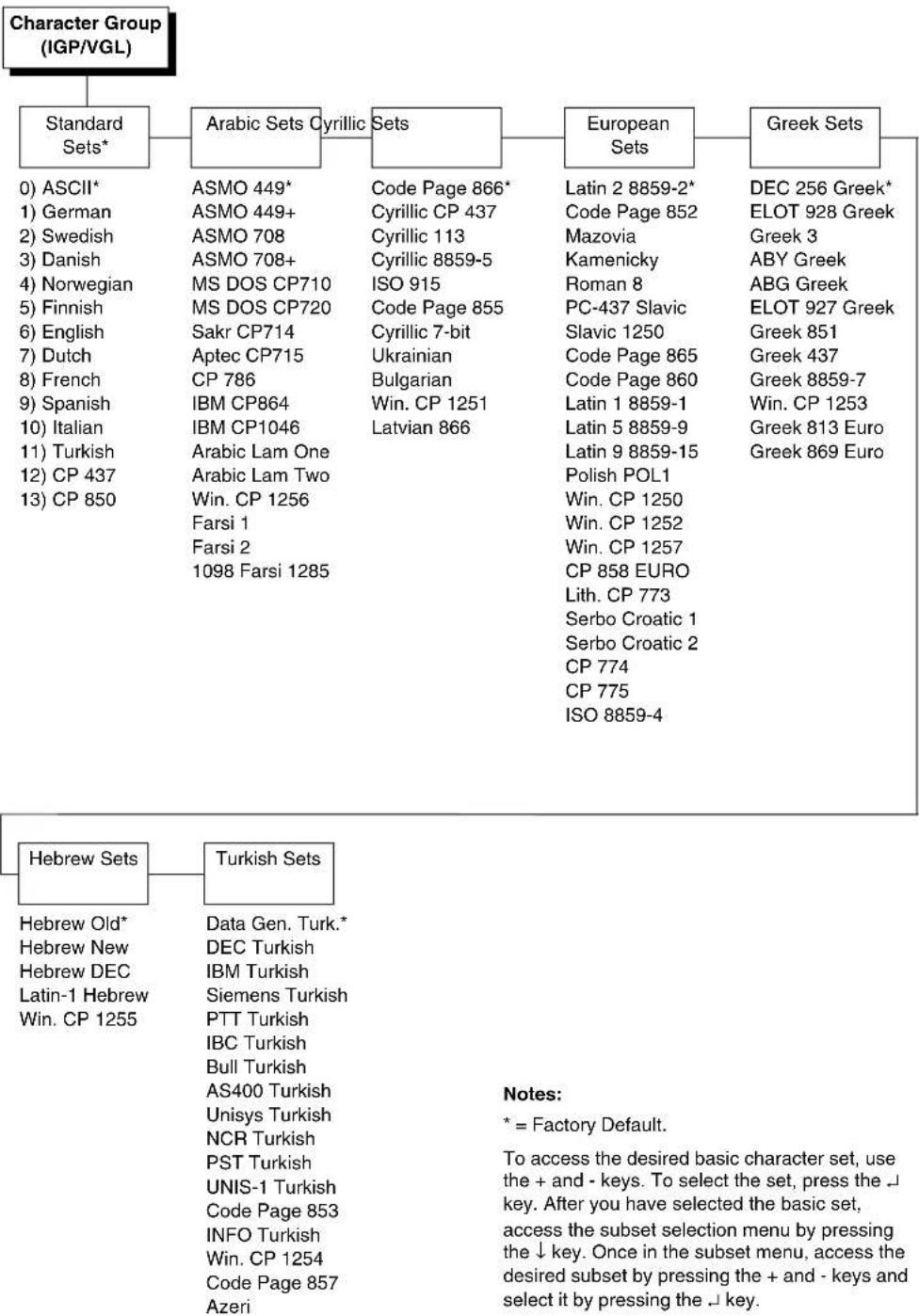
flowchart
Character group classification flowchart showing Standard Sets, Arabic Sets, European Sets, and Greek Sets with their respective codes and identifiers.Character Group and Character Sets (P-Series, Serial Matrix)
(From page 183, page 187.) This menu item selects the character set used by the printer. The available character sets are shown below.
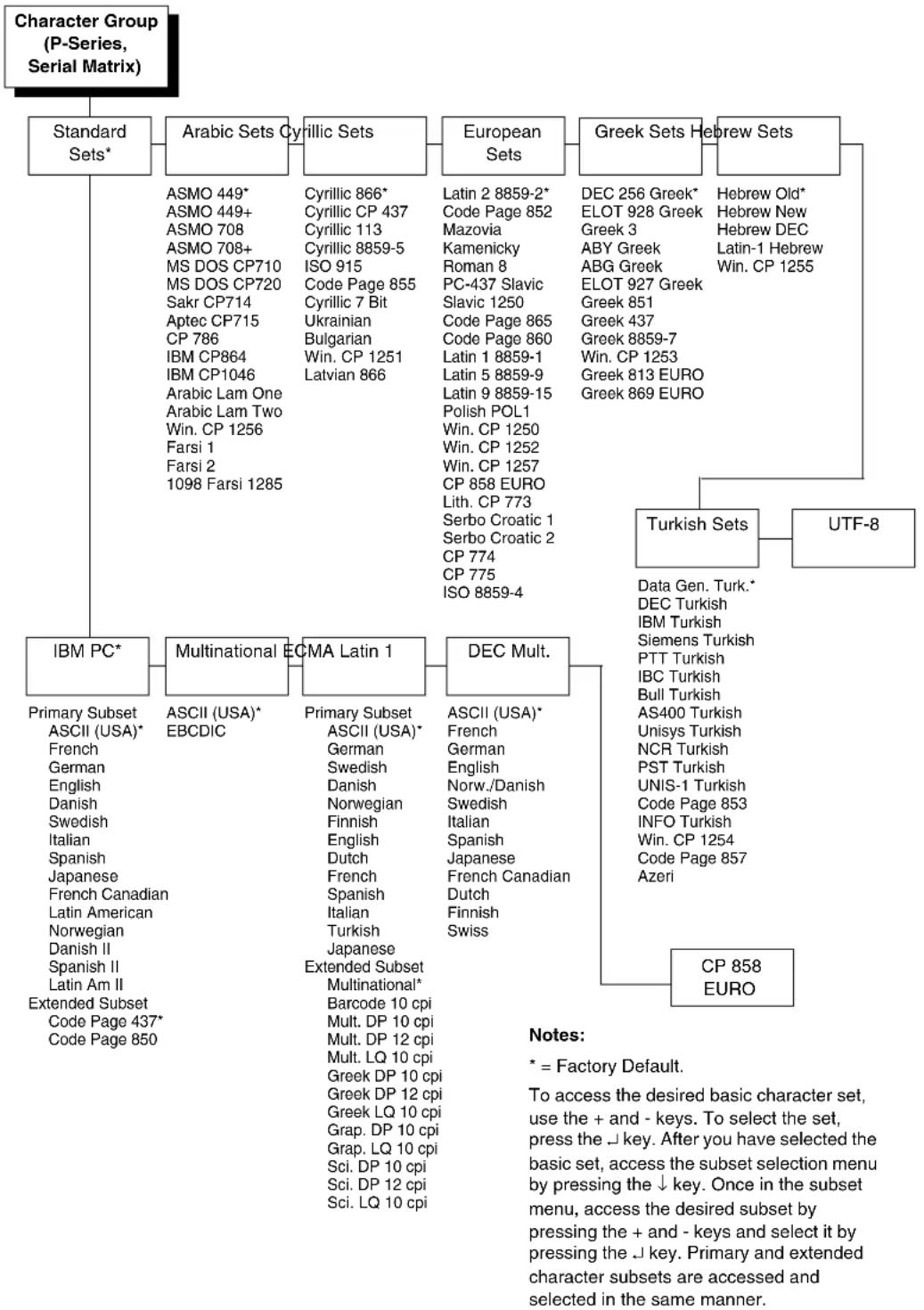
flowchart
```mermaid
graph TD
    A["Character Group (P-Series, Serial Matrix)"] --> B["Standard Sets*"]
    A --> C["Arabic Sets"]
    A --> D["Cyrillic Sets"]
    A --> E["European Sets"]
    A --> F["Greek Sets"]
    A --> G["Hebrew Sets"]

    B --> B1["ASMO 449*"]
    B --> B2["ASMO 449+"]
    B --> B3["ASMO 708"]
    B --> B4["ASMO 708+"]
    B --> B5["MS DOS CP710"]
    B --> B6["MS DOS CP720"]
    B --> B7["Sakr CP714"]
    B --> B8["Aptec CP715"]
    B --> B9["CP 786"]
    B --> B10["IBM CP864"]
    B --> B11["IBM CP1046"]
    B --> B12["Arabic Lam One"]
    B --> B13["Arabic Lam Two"]
    B --> B14["Win. CP 1256"]
    B --> B15["Farsi 1"]
    B --> B16["Farsi 2"]
    B --> B17["1098 Farsi 1285"]

    C --> C1["Cyrillic 866*"]
    C --> C2["Cyrillic CP 437"]
    C --> C3["Cyrillic 113"]
    C --> C4["Cyrillic 8859-5"]
    C --> C5["ISO 915"]
    C --> C6["Code Page 855"]
    C --> C7["Cyrillic 7 Bit"]
    C --> C8["Ukrainian"]
    C --> C9["Bulgarian"]
    C --> C10["Win. CP 1251"]
    C --> C11["Latvian 866"]

    D --> D1["Latin 2 8859-2*"]
    D --> D2["Code Page 852"]
    D --> D3["Mazovia"]
    D --> D4["Kamenicky"]
    D --> D5["Roman 8"]
    D --> D6["PC-437 Slavic"]
    D --> D7["Slavic 1250"]
    D --> D8["Code Page 865"]
    D --> D9["Code Page 860"]
    D --> D10["Latin 1 8859-1"]
    D --> D11["Latin 5 8859-9"]
    D --> D12["Latin 9 8859-15"]
    D --> D13["Polish POL1"]
    D --> D14["Win. CP 1250"]
    D --> D15["Win. CP 1252"]
    D --> D16["Win. CP 1257"]
    D --> D17["CP 858 EURO"]
    D --> D18["Lith. CP 773"]
    D --> D19["Serbo Croatic 1"]
    D --> D20["Serbo Croatic 2"]
    D --> D21["CP 774"]
    D --> D22["CP 775"]
    D --> D23["ISO 8859-4"]

    E --> E1["DEC 256 Greek*"]
    E --> E2["ELOT 928 Greek"]
    E --> E3["Greek 3"]
    E --> E4["ABY Greek"]
    E --> E5["ABG Greek"]
    E --> E6["ELOT 927 Greek"]
    E --> E7["Greek 851"]
    E --> E8["Greek 437"]
    E --> E9["Greek 8859-7"]
    E --> E10["Win. CP 1253"]
    E --> E11["Greek 813 EURO"]
    E --> E12["Greek 869 EURO"]

    F --> F1["Turkish Sets"]
    F --> F2["UTF-8"]

    G --> G1["Data Gen. Turk.*"]
    G --> G2["DEC Turkish"]
    G --> G3["IBM Turkish"]
    G --> G4["Siemens Turkish"]
    G --> G5["PTT Turkish"]
    G --> G6["IBC Turkish"]
    G --> G7["Bull Turkish"]
    G --> G8["AS400 Turkish"]
    G --> G9["Unisys Turkish"]
    G --> G10["NCR Turkish"]
    G --> G11["PST Turkish"]
    G --> G12["UNIS-1 Turkish"]
    G --> G13["Code Page 853"]
    G --> G14["INFO Turkish"]
    G --> G15["Win. CP 1254"]
    G --> G16["Code Page 857"]
    G --> G17["Azeri"]

    H["IBM PC*"] --> H1["Multinational ECMA Latin 1"] --> H2["DEC Mult."]

    I["Primary Subset"] & J["ASCII (USA)*"] & K["EBCDIC"] & L["Primary Subset"] & M["ASCII (USA)*"] & N["German"] & O["Swedish"] & P["Danish"] & Q["Norwegian"] & R["Finnish"] & S["English"] & T["Dutch"] & U["French"] & V["Spanish"] & W["Italian"] & X["Turkish"] & Y["Japanese"] & Z["Extended Subset"] & AA["Multinational*"] & AB["Barcode 10 cpi"] & AC["Multi. DP 10 cpi"] & AD["Multi. DP 12 cpi"] & AE["Mult. LQ 10 cpi"] & AF["Greek DP 10 cpi"] & AG["Greek DP 12 cpi"] & AH["Greek LQ 10 cpi"] & AI["Graph. DP 10 cpi"] & AJ["Graph. LQ 10 cpi"] & AK["Sci. DP 10 cpi"] & AL["Sci. DP 12 cpi"] & AM["Sci. LQ 10 cpi"]

Notes:
* = Factory Default.
To access the desired basic character set,
use the + and - keys. To select the set,
press the ↓ key. After you have selected the
basic set, access the subset selection menu
by pressing the ↓ key. Once in the subset
menu, access the desired subset by
pressing the + and - keys and select it by
pressing the ↓ key. Primary and extended
character subsets are accessed and
selected in the same manner.
Notes:
* = Factory Default.
To access the desired basic character set,
use the + and - keys. To select the set,
press the ↓ key. After you have selected the
basic set, access the subset selection menu
by pressing the ↓ key. Once in the subset
menu, access the desired subset by
pressing the + and - keys and select it by
pressing the ↓ key. Primary and extended
character subsets are accessed and
selected in the same manner.
Character Group and Character Sets (Proprinter XL)
(From page 189.) This menu item selects the character set used by the printer. The available character sets are shown below.

flowchart
graph TD
    A["Character Group (Proprinter XL)"] --> B["Standard Sets*"]
    A --> C["Arabic Sets"]
    A --> D["Cyrillic Sets"]
    A --> E["European Sets"]
    A --> F["Greek Sets"]
    A --> G["Hebrew Sets"]
    B --> H["Code Page 437*"]
    C --> I["Code Page 850"]
    D --> J["OCR-A OCR-B"]
    E --> K["Turkish Sets"]
    F --> L["UTF-8"]
    G --> M["CP 858 EURO"]
    H --> N["ASMO 449* ASMO 449+ ASMO 708 ASMO 708+ MS DOS CP710 MS DOS CP720 Sakr CP14 Aptec CP715 CP 786 IBM CP 864 IBM CP 1046 Arabic Lam One Arabic Lam Two Win. CP 1256 Farsi 1 Farsi 2 1098 Farsi 1285"]
    I --> O["ASCO 850"]
    J --> P["Cyrillic 866* Cyrillic CP 437 Cyrillic 113 Cyrillic 8859-5 ISO 915 Code Page 855 Cyrillic 7 Bit Ukrainian Bulgarian Win. CP 1251 Latvian 866"]
    K --> Q["Latin 2 8859-2* Code Page 852 Mazovia Kamenicky Roman 8 PC-437 Slavic Slavic 1250 Code Page 865 Code Page 860 Latin 1 8859-1 Latin 5 8859-9 Latin 9 8859-15 Polish POL1 Win. CP 1250 Win. CP 1252 Win. CP 1257 CP 858 EURO Lith. CP 773 Serbo Croatic 1 Serbo Croatic 2 CP 774 CP 775 ISO 8859-4"]
    L --> R["DEC 256 Greek* ELOT 928 Greek Greek 3 ABY Greek ABG Greek ELOT 927 Greek Greek 851 Greek 437 Greek 8859-7 Win. CP 1253 Greek 813 EURO Greek 869 EURO"]
    M --> S["Data Gen. Turk.* DEC Turkish IBM Turkish Siemens Turkish PTT Turkish IBC Turkish Bull Turkish AS400 Turkish Unisys Turkish NCR Turkish PST Turkish UNIS-1 Turkish Code Page 853 INFO Turkish Win. CP 1254 Code Page 857 Azeri"]
    N --> T["ASCII (USA)* EBCDIC"]
Notes:
* = Factory Default.
To access the desired basic character set, use the + and - keys. To select the set, press the ↓ key. After you have selected the basic set, access the subset selection menu by pressing the ↓ key. Once in the subset menu, access the desired subset by pressing the + and - keys and select it by pressing the ↓ key. Character subsets are accessed and selected in the same manner.
Character Set (P-Series, Serial Matrix, Proprinter, Epson FX)
This item allows selection of the character set to be used by the printer.
Printing UTF-8 Encoded Unicode Text
Normally, to print multinational characters on a printer, the user needs to select a character set that contains the correct characters. Character sets are groups of 256 locations; the first 128 locations are occupied by the ASCII set, and the locations in the upper half are reserved for graphics, symbols, or multinational characters. For example, to print Cyrillic, the user would select a Cyrillic set. To print Italian, the user would select a different set.
Unicode allows any character to be selected without switching character sets because it specifies a different number for every character in all languages. Thus Unicode has become the standard for multinational printing.
UTF-8 is a popular encoding of Unicode in which the first 128 characters are still occupied by the ASCII set. This makes it backwards compatible with older applications which use only ASCII data. It also allows the printing of all Unicode characters.
UTF-8 encoded Unicode can be enabled on the printer from the front panel or from a host command in the LP+, PGL, or ZGL emulation.
Cmd Resolution
- Low Resolution. Sets a low command resolution mode.
• High Resolution. Sets a high command resolution mode.
The factory default is Low Resolution.
Coax Type
This parameter defines the printer emulation, as follows:
• 4234
• 3287
After the emulation has been changed, a POR status is sent to the host.
The factory default is 4234.
Code Page Subset
This item allows you to select the desired version of the following code pages - 037,273, 274, 275, 277, 278, 280, 281, 282, 284, 285, 297, 500, and 871.
The options are Version 0 (the factory default) and Version 1.
Compressed Print
Controls which host command sets compressed printing.
- Char 01 SOH
- Char 03 ETX
- Char 09 HT
The factory default is Char 01 SOH.
Control Code 06
Control Code 06 defines the function of ASCII code 06 hex (ACK). You can select an alternate line spacing of 6.0, 8.0, or 10.3 LPI.
The options factory default is 8.0 LPI.
Control Code 08
Control Code 08 defines the function of ASCII code 08 hex (BS). You can define the code to output an Elongated character or a Backspace. The factory default is Elongated.
Copy Count
Determines the number of identical copies of each physical page that will be printed.
The range is 1-999, and the factory default is 1.
CR at MPP+1
MPP is Maximum Print Position, which is also known as line length. This option controls a carriage return at the end of a print line and at MPP+1.
- On. Produces a carriage return to the first print position of the next line.
- Off. Produces a carriage return to the first print position of the current line.
The factory default is On.
CR Edit
This parameter determines if a carriage return will be followed by a line feed.
- Disable. The printer ignores all carriage returns that are not followed by line feeds.
- Enable. The printer processes all carriage returns, even for those that are not followed by line feeds.
The factory default is Disable.
CR, EM, & NL
CR (Carriage Return), EM (Error Message), & NL (New Line) specify that the printer treat the CR, EM, and NL control codes either as spaces or as control codes.
- On. Treats the CR, EM, and NL commands as control codes.
- Off. Treats the CR, EM, and NL commands as spaces.
The factory default is On.
Data Bit 8
- Enable. The PI line is not passed directly from host to printer; all 8 bits are used for data bits, and characters in the hex 80-FF range can be accessed.
- Disable. When the host PI line is enabled, data bit 8 internally indicates PI line status. To use the PI line, disable data bit 8, and enable the Host PI configuration option (under the PI Ignored option).
NOTE: Data bit 8 is interpreted as either data bit 8 or PI signal, but never both. When enabled as data bit 8, data bit 8 has priority over the PI signal, and all data above hex 7F is used to access character data and not to interpret PI line data.
Conversely, when data bit 8 is disabled and the PI signal is used, data bit 8 of the data is reserved for use as the PI function, and you cannot access characters in the hex 80-FF range. Therefore, to access characters in the hex 80-FF range, data bit 8 must be enabled.
The factory default is Enable.
Default Code Pag
This item allows you to select the desired default codepage to be used when IPDS is not activating a Code Page ID. Refer to the IPDS Programmer's Reference Manual for a list of the code pages.
The factory default is English/USA/Can.
Default Font
This item allows you to select the desired default resident font to be used when IPDS is not activating a Font Global ID. Refer to the IPDS Programmer's Reference Manual for a list of the fonts.
The factory default is Courier 10.
Define CR code
This option controls the action of the printer when it receives a Carriage Return code (0D hex) from the host computer. If this feature is enabled, each time the printer receives a carriage return, it inserts an additional Line Feed code (0A hex) into the data stream. Do not use this feature if the host computer sends line feeds to the printer.
NOTE: For this menu to take effect in PGL, PGL Normal needs to be set to PGL Menu.
- CR = CR. Does not insert an extra line feed after each carriage return.
- CR = CR + LF. Inserts an extra line feed after each carriage return. The next print position will be print position 1 of the next line.
The factory default is CR = CR.
Define LF code (PGL, Serial Matrix, Proprinter XL, Epson FX)
This parameter forces the printer to insert an automatic Carriage Return code into the data stream whenever a Line Feed code occurs. This can be used in most installations, but it is required if the host computer does not send carriage returns to the printer.
NOTE: For this menu to take effect in PGL, PGL Normal needs to be set to PGL Menu.
- LF = LF. Does not perform an automatic carriage return. The next print position will be at the current print character position on the next line.
- LF = CR + LF. Performs an automatic carriage return. The next print position will be print position 1 of the next line.
The factory default is LF = LF.
Define LF code (P-Series, P-Series XQ)
- LF = CR + LF. Forces an automatic carriage return with each Line Feed command received. The next print position is position 1 of the next line.
- LF = LF. Does not perform an automatic carriage return when a Line Feed command is received. The next print position will be the current print position on the next line.
The factory default is LF = CR + LF.
Do FF at TOF
Determines whether the printer, with media already set at the TOF (Top-of-Form) position, will advance media to the next TOF position upon receipt of an FF command.
- Enable. The printer will advance media from the present TOF position to the next TOF position upon receipt of an FF command, causing a blank form.
- Disable. The printer will not advance media from the present TOF position to the next TOF position upon receipt of an FF command.
The factory default is Enable.
Early Print Cmpl (Coax, TN3270)
Early Print Complete capability allows the printer to send print (order) complete status to the host before the printer is actually done printing all data. This option is valid only when the printer is in DSC/DSE mode.
- Disable. The printer will suppress the Early Print Complete response until all printing is complete.
- Enable. The printer will send an acknowledgement to the host when it is able to accept more data.
NOTE: When an Early Print Complete is enabled and an error occurs, there may be data loss.
The factory default is Disable.
Early Print Comp (IPDS)
This parameter allows you to choose when to send a Print Complete to the Controller.
- Off. Print Complete is sent if the page is printed completely.
- On. Print Complete is sent immediately. The next page will be created. This improves the print performance when starting the next page, but degrades error recovery.
The factory default is Off.
Elong./Alt. Font
Controls which host command sets elongated (double high) fonts and extended character set.
- ELNG=BS (hex 08) FONT=SO (hex 0E)
- ELNG=SO FONT=BS
The factory default is EIng=BS Font=SO.
Emulation
This item allows you to select the desired IPDS emulation, either 4028 IPDS or 3816 IPDS.
The factory default is 4028 IPDS.
Epson Set
This item allows you to select the Epson character subset used by the printer. The options are listed on page 199.
The factory default is ASCII (USA).
ESC d command
This item is for backward compatibility.
- Even dot plot. This option interprets the ESC d command as even dot plot.
- Double high. This option interprets the ESC d command as double high. Select this option for backward compatibility.
The factory default is Even dot plot.
EVFU Select
Controls how the printer handles vertical formatting.
- Enable. Selects P-Series compatible Electronic Vertical Format Unit (EVFU).
- Disable. Disables all EVFU processing.
The factory default is Enable.
Expanded Font (PGL)
Expanded font allows you to print characters in different sizes with specified parameters and to select which font face to use.
- Scalable. Uses scalable fonts.
- Block. Uses block fonts.
- Alt Block 1. Uses alternative block fonts with a different character set.
The factory default is Scalable.
Expanded Font (VGL)
Expanded font allows you to print characters in different sizes with specified parameters and allows you to select block or non-block font face.
- Scalable. Uses Gothic font as default. Other font faces can be selected by using the IFONT command.
- Block. Uses Block font.
The factory default is Scalable.
Expanded Fonts (IPDS)
This option specifies which algorithm is used for expanding a character string in Write Graphics.
- Compatible. A resizing and smoothing algorithm will be performed on the bitmapped font.
- Scalable. A substitution will be done to a scalable outline font. Using Scalable will increase performance and quality, however, the substitution will only be done for Latin 1 characters of resident bitmapped fonts, and the type is limited to Courier and Gothic. A scalable font cannot be selected directly, and an LF3 format cannot be downloaded.
The factory default is Scalable.
Ext Execute Copy
- Disable. Dynamic data, overlay data, etc. are not allowed if the optional Form Count parameter (number of forms to print) is specified as part of the Execute command. (This setting is IGP-100 compatible.)
- Enable. Dynamic data, overlay data, etc. are allowed within a form where the Form Count parameter is specified in the Execute command. In this case, the same form is printed for whatever the Form Count is. Incremental data is not incremented since the printing page is the same. The overlay data is only printed with the first form and not on subsequent forms, and each form is printed on a separate page.
The factory default is Disable.
Extended Subset
This item allows selection of the desired extended character subset used by the printer.
The options are Code Page 437 (the factory default) and Code Page 850.
FF After Job
Determines the print position after an operator-initiated local copy (print screen function).
- Off. Performs an automatic new line command after completing a print buffer (unless a new line, form feed, or carriage return command was the last one executed). The printer is set to print at print position 1 of the next line.
- On. Performs an automatic form feed command unless a form feed was the last one executed. The printer is set to print at print position 1 of the first line on the next form.
The factory default is Off.
FF valid at TOF
The FF valid at TOF option determines whether the printer will perform a Form Feed when the host sends a Form Feed command, if the printer is at the top of form.
- Enable. Performs a form feed when the host sends a Form Feed command and the printer is at the top of form.
- Disable. Will not perform a form feed when the host sends a Form Feed command and the printer is at the top of form.
The factory default is Enable.
FF Validity
Determines if the position of a Form Feed (FF) command affects its execution.
- Off. Performs a form feed only if it occurs at the first print position in a line or at Maximum Print Position +1. An FF command at any other position is recognized as a blank.
- On. Allows the printer to perform an FF command anywhere in the data stream.
The factory default is Off.
Form Length (in.)
Form length is the number of lines that can be printed on a label. You can set forms length in inches.
The factory default is shown in Table 3 on page 122.
Form Length (lines)
Form length is the number of lines that can be printed on a label. You can set forms length as a function of the current LPI (lines per inch).
The factory default is shown in Table 3 on page 122.
Form Length (mm)
Form length is the number of lines that can be printed on a label. You can set forms length in millimeters.
The factory default is shown in Table 3 on page 122.
Form Width (char.)
The forms width can be specified as a function of the current CPI (characters per inch). The forms width set should not exceed the actual paper width.
The factory default is the maximum printing width divided by the selected number of characters per inch.
Form Width (in.)
In this submenu, form width is specified in inches. The form width set should not exceed the actual paper width.
The factory default is the maximum printing width.
Form Width (mm.)
In this submenu, form width is specified in millimeters. The form width set should not exceed the actual paper width.
The factory default is the maximum printing width.
Forms Handling
This submenu allows the user to handle the form in the following ways:
- Disable (the default). No effect.
- Auto Eject. Automatically ejects a page at the end of the job to spill out the last page.
- Auto TOF. Automatically does a form feed (FF) at the end of each form to the next top of form.
Format Control
Enables the printer to reflect the same spacing as CTPC model printers after absolute and relative move commands are executed.
- Disable (the default). Reflects distance, generated by the VGL feature, PGL feature, and Hex Transparent control code sequence, in the new position (after horizontal and vertical tabs are executed).
- Enable. Does not reflect distance, generated by the VGL feature, PGL feature, and Hex Transparent control code sequence, in the new position (after horizontal and vertical tabs are executed).
Gothic Typeface
Controls which host command sets high speed printing.
- Char 02 STX
- Char 03 ETX
- Char 09 HT
The factory default is Char 02 STX.
Graphic Chek Cod
Specifies the replacement character to print in place of any unprintable character that is received from the host. Choose a hex character from 40 through FE. The character becomes the printer default when:
- The printer is powered off and then powered on.
- An SGEA command specifies to use the operator panel default.
- The Graphic Chek Err parameter is disabled.
The range is 40 through F4, and the factory default is 60.
Graphic Chek Err
Allows overriding of the host setting for the SGEA (Set Graphic Error Action) command. For more information about the SGEA command, refer to the Coax/Twinax Programmer's Reference Manual.
- Enable. The host setting for the SGEA used by the printer. If the SGEA command is requested to stop on graphic errors, the printer will stop when a graphic error is detected.
- Disable. Ignores the SGEA command from the host. The printer does not stop when an error is detected; instead, it substitutes the character selected in the Graphic Chek Code parameter.
The factory default is Enable.
Hexdump Mode
Hexdump mode allows you to place the printer into the "hex dump" mode, in which the printer outputs a hexadecimal data stream. The purpose of hexdump mode is to see exactly what data is received by the printer, in order to debug forms, for example.
When enabled, the hexdump mode translates all host interface data to its hexadecimal equivalent, then prints the hex code and its printable symbol, if one exists. Figure 5 shows a partial example of a hex dump.
After the printer enters hexdump mode, all characters it prints (including any in the printer's input buffer) are printed in two forms: as a two-symbol hexadecimal code and as the character's printable symbol (if it has one). A non-printable code is printed as a period [.] symbol. Up to 16 characters can be printed per line of hexdump printout. While the printer is in hexdump mode, it does not act upon any control codes, other than to print their hexadecimal equivalents.
The 16 characters printed per line on the hexdump are formatted so that the 16 printable symbols are printed in columns 1 through 16. The 17th column is blank. Column 18 contains either a p (PI line active) or a blank (PI not active). Columns 19 and 20 contain the hexadecimal code for the first character, followed by a blank. The PI line condition and hexadecimal code for the second character are printed in columns 22, 23, and 24, followed by a blank. The third through 16th characters are printed in a similar manner. The hexadecimal code for the 16th character is printed in columns 78, 79, and 80.
NOTE: Values will vary based on printhead width.
Subsequent printing observes the current setting for skip-over perforation, form length, and top-of-form position parameters.
IMPORTANT
You must have a minimum of 4.1 inches of media installed and have Label Width set to 4.1 inches. If not, the hexdump data will be truncated and lost.
If a fault occurs while printing a hexdump, the printer reverts to the normal fault state. When the fault is cleared, the printer resumes printing the hexdump (either a partial line with a form feed or nothing at all). Top-of-Form remains unaffected.
| .The Impact Prin | 09 | 54 | 68 | 65 | 20 | 49 | 6D | 70 | 61 | 63 | 74 | 20 | 50 | 72 | 69 | 6E |
| ter Emulation pr | 74 | 65 | 72 | 20 | 45 | 6D | 75 | 6C | 61 | 74 | 69 | 6F | 6E | 20 | 70 | 72 |
| ints in one-up.. | 69 | 6E | 74 | 73 | 20 | 69 | 6E | 20 | 6F | 6E | 65 | 2D | 75 | 70 | 2C | 0A |
| .two-up, and fou | 09 | 74 | 77 | 6F | 2D | 75 | 70 | 2C | 20 | 61 | 6E | 64 | 20 | 66 | 6F | 75 |
| r up page window | 72 | 20 | 75 | 70 | 20 | 70 | 61 | 67 | 65 | 20 | 77 | 69 | 6E | 64 | 6F | 77 |
| s.... | 73 | 2E | 0C | 0D | 0A |
Figure 5. Sample Hex Dump
To begin a hex dump, first place the printer offline and enable the Hex Dump Mode option from the control panel. Next, place the printer online. Finally, send data to the printer from the host computer. Any data received from the host is "dumped" to the printout.
To cancel a hex dump, first place the printer offline. Then, disable the Hex Dump Mode option from the control panel. The paper may then be advanced to the next Top-of-Form.
The options are Disable (the factory default) and Enable.
Horizontal DPI
This feature enables the thermal printer to print images as close as possible to the same size as those originally programmed for a line matrix or laser printer by selecting a horizontal resolution that matches that of the printer that the file was originally generated for.
Although the range allows a selection of up to 400 dpi, the T5000 is capable of printing up to 203 dpi (T5204, T5206, T5208) and 300 dpi (T5304, T5306, T5308) horizontal resolution.
The range is 60-400 dpi, and the factory default is 120 dpi.
Host Command
This item allows you to select certain host commands to be ignored by the printer.
The options are Enable, Ignore All, Ignore CPI, and Ignore LPI.
The factory default is Enable (all host commands accepted by the printer).
Host Form Length (PGL)
Determines how the physical label length (see Label Length under the MEDIA CONTROL menu) is affected upon receiving an EXECUTE command.
- Enable. The physical label length will change to match the form length (specified in CREATE command). The physical label size remains at the new setting until another EXECUTE command is received, or the PRINTER CONTROL menu settings are changed.
- Var. Length. The physical label length is the longest print element defined in CREATE mode plus the setting of "Var Form Adjust." Works with CREATE;NAME;0
- Var Dynamic Len. The physical label length will change to the longest print element defined in EXECUTE mode plus the setting of "Var Form Adjust." Works with CREATE;NAME;0
- Disable. Forms printed in EXECUTE mode do not change the physical label size. Therefore, the size of the form (defined in CREATE mode) must fit within the current label dimensions, or errors may occur.
The factory default is Enable.
NOTE: Changing the form length via the EXECUTE command changes the LP+ Emulation logical dimensions.
The difference between Var. Length and Var Dynamic Len is as follows:
With CREATE;NAME;0, and the following parameters,
- 10 dynamic fields defined in CREATE mode (AF0, AF1,...,AF9) with different positions
- three dynamic fields are used in EXECUTE mode (provided with data)
when Var. Length is selected, the label length is based on the longest printed element among the 10 dynamic fields defined in CREATE mode.
When Var Dynamic Len is selected, the label length is based on the longest printed element among the three dynamic fields defined in EXECUTE mode.
If there is static data in the form, the static data position is taken into consideration when determining the longest printed element.
Host Form Length (IPDS)
Enables or disables changing the form length by the host.
- Disable. The host is unable to change the form length.
- Enable. The host may change the form length.
The factory default is Disable.
Host Form Length (VGL)
Sets the printer page size.
- Enable. Sets the printer label size equal to Label Length from the host form length command. (For more information, refer to the IGP/VGL Programmer's Reference Manual.)
- Disable. Sets the printer label size equal to the Label Length set in the front panel under the PRINTER CONTROL menu.
The factory default is Enable.
Host Override
Determines whether the printer accepts certain commands sent by the host, or continues to use the current operator panel settings.
- Disable. Allows these host commands to override operator panel settings: line length, forms length, lines per inch (LPI), characters per inch (CPI), print quality, and text orientation. Note the information appearing on the message display may not match the data stream setting. No values will change upon initial selection of the Disable option.
- Enable. The operator panel settings override the host commands.
The factory default is Disable.
Host PI
- Disable. The host does not send PI signals.
- Enable. The host sends PI signals. The Data Bit 8 configuration option must be disabled to transmit the PI line to the printer.
The factory default is Disable.
I-2/5 Selection
This option is added to be compatible with a special IGP-X00 customization. Usually, if Interleaved 2/5 bar codes have an odd number of digits, a leading zero is inserted in front of the data. However, this special IGP-X00 customization gives you the option of adding a space character at the end of the bar code instead.
- Leading Zero. A leading zero is inserted in front of the data.
- Trailing Space. A space is inserted at the end of the data instead of a leading zero.
- X2 DPD. When selected, I-2/5 bar code with a magnification X2 will use the specially configured ratios 3:3:6:5 rather than 3:6:9:12 for compatibility issues.
- Modulo 7 CD. The I-2/5 bar code uses a modulo 7 check digit instead of the default modulo 10 check digit.
The factory default is Leading Zero.
Ignore Ch#1
Specifies character 1 for the character filtering option. Valid decimal values are from 0 through 255.
The factory default is 0.
Ignore Ch#2
Specifies character 2 for the character filtering option. Valid decimal values are from 0 through 255.
The factory default is 0.
Ignore Chars
- Disable. Character filtering is not enabled.
- Char 1. Character 1 will be filtered. Select the option "Ignore ch#1" to specify character 1.
- Char 2. Character 2 will be filtered. Select the option "Ignore ch#2" to specify character 2.
- Char 1&2. Characters 1 & 2 will be filtered. Select the options "Ignore ch#1" and "Ignore ch#2" to specify values for these characters.
The factory default is Disable.
Ignore Dots
- Disable. The VGL expects position values to be specified in tenth inches and dot rows.
- Enable. Causes the VGL to expect position values to be specified in only 1/10ths of an inch. If the dot position is also given, it is treated as text.
The factory default is Disable.
Ignore ^Lxx Cmd.
- Disable. The factory default.
- Enable. The Form Length commands ^Lxx and ^Hxx will be ignored, and the form length will be determined by the "Form Length" menu in the LP+ menu.
The factory default is Disable.
Ignore Mode
This parameter instructs the IGP to ignore the character selected under the Select Character menu.
- Disable. The IGP does not ignore any characters.
- Enable. The IGP ignores the character specified in the Select Character menu.
The factory default is Disable.
Ignore Spaces
- Disable. Trailing spaces are not deleted from alphanumeric elements in a graphics pass.
- Enable. Trailing spaces are deleted from alphanumeric elements in a graphics pass.
The factory default is Disable.
Ignore Text
- Disable. When disabled, text in normal mode will be printed. Attributes to be printed depend on the PGL Normal menu setting.
- Enable. When enabled, any line of text (non-PGL commands) in normal mode will be ignored.
The factory default is Disable.
IGP100 Compatibl.
This parameter forces the output to correspond with IGP-100 printer output in cases where there are differences.
The options are Disable (the factory default) and Enable.
Intervention Req
- Send To Host. The printer sends a signal to the host computer when a printer fault or hold mode time-out occurs.
NOTE: If you select Send To Host, make sure the Error Recover option (under MEDIA CONTROL) is set to Disable. If Error Recover is not set to Disable, Intervention Req will not work properly.
- Do Not Send. No signal will be sent to the host computer.
The factory default is Send To Host.
Italic Print
- Disable. Text is printed normally.
• Forward Slant. Text is printed with a forward slant. - Backward Slant. Text is printed with a backward slant.
The factory default is Disable.
LAC Approx.
This item controls whether or not the LAC Approximation is used. (See the Coax/Twinax Programmer's Reference Manual.)
When set to On, then Approximation is used. When set to Off, Approximation is not used, and incoming data will print as is. The factory default is On.
LAC Option
Allows the host system to load alternate character images into the printer. This may be used for designing graphics, bar codes, and charts, or for printing in foreign languages.
- Enable. Prints the LAC character as defined.
- Disable. Ignores the LAC definition from the host and prints from the currently selected character set.
The factory default is Enable.
Last Char = FF
Determines the print line position when a Form Feed (FF) command is the last code encountered in the print buffer.
- On. Moves to the first print position on the second line of the next form.
- Off. Moves to the first print position on the first line of the next form.
NOTE: This option is ignored if Auto Skip At End is on.
If configured as a 3287, and a form feed occurs in the middle of a print buffer, the printer defaults to the first print position on the second line of the next form, regardless of the setting of this option.
The factory default is On.
Lead PDF Dist
Adjusts the leading and trailing character spacing distance of the PDF for UPC/EAN barcodes.
The range is 0.01-0.10 inches in 0.01 inch increments, and the factory default is 0.10 inches.
Lead-in Chars
You can enable additional printer features which are not accessible through standard coax emulations. To access these features, send text commands in the data stream. The commands must have a start and end code. Three sets (each containing a start and end code) are available:
- User Defined
- Set 1 start code: < % end code: >
- Set 2 start code: end code: \$
- Set 3 start code: _% end code: _
The factory default is User Defined.
Left Margin
Set in characters. Character zero is defined as the far left edge of the page, and column numbering increments from left to right.
The range is 0-369 characters, and the factory default is 0 characters.
Logical Buf Size
Refers to the size of the printer buffer, which should be set the same as the host screen (buffer) size. If the host screen size is unknown, use 1920.
The options are 960, 1920, 2560, 3440, and 3564.
The factory default is 1920.
LPI
This item selects the number of lines printed per inch.
The range is 6-10, and the factory default is 6.
Max PI 16
- Enable. A paper slew of 0-15 will move 1-16 lines.
- Disable. A paper slew of 1-15 will move 1-15 lines. A paper slew of 0 will always move 1 line.
The factory default is Enable.
Max. Print Width
Set the maximum print width the printer will print when using a C/T or TN5250 host interface. Set for 13.2 inches when printing files larger than the width of the printer. All data exceeding the width of the maximum Printer Width will be truncated.
- 13.2 inches
- Printer Width (the maximum width of the printer)
The factory default is 13.2 inches.
Midline PY (includes ^PN)
- Disable. The Graphics mode Enabled command, ^PY, must be the first three characters of a line.
- Enable. The ^PY or ^PN can occur anywhere in a line.
The factory default is Disable.
NL at MPP+1
Specifies the linespacing action when the streamline exceeds the rightmost print position and text continues from the leftmost print position on a new line.
- On (the default). Moves to the first print position two lines down from the current position.
- Off. Moves to the first print position of the next print line.
Null Handling
This item allows the printer to either treat nulls as blank spaces or ignore them. If nulls are ignored, the print position does not move.
- Space (the default). Treats nulls as spaces.
- Ignore. Ignores nulls.
Null Suppression (Coax, TN3270)
This item allows the printer to either treat nulls as blank spaces or ignore them. If nulls are ignored, the print position does not move.
- Off (the default). Ignores nulls.
- On. Treats nulls as spaces.
Null Suppression (IPDS)
- Disable (the default). When disabled, an exception is generated when the IPDS data stream contains an 0x00.
- Enable. When enabled, this option ignores the EBCDIC value 0x00 in the IPDS data stream.
Optimized Ratio
This option selects different bar code ratios for certain bar codes including Code 39 and Interleaved 2 of 5. It is included for compatibility with the IGP-X00 printers.
- Disable (the default). Use standard bar code ratios.
- Enable. Select the alternate bar code ratios.
Overstrike
Overstrike determines the action required when a line is printed over a previous line because a carriage return was received without a line feed.
- Enable (the default). Prints the second line on top of the first line.
- Disable. Replaces the characters from the first line with the second line.
PA1
PA1 is only valid when the printer is in the offline state and the coax Systems Network Architecture Character Set (SCS) data stream is active. This function displays the "PA1 ENABLED" message when the ENTER key is pressed, and sends a special operator request to the host when the printer is put back online. Refer to the Coax/Twinax Programmer's Reference Manual for more information about SCS.
NOTE: Selecting PA1 again ("PA1 DISABLED" appears on the operator panel) or selecting PA2 will reset the pending PA1 function.
PA2
PA2 is only valid when the printer is offline and the coax SCS data stream is active. This function displays the "PA2 ENABLED" message when the ↓ key is pressed, and sends a special operator request to the host when the printer is put back online.
NOTE: Selecting PA2 again ("PA2 DISABLED" appears on the operator panel) or selecting PA1 will reset the pending PA2 function.
Page Rotation
This option rotates the physical IPDS page.
The options are 0, 90, 180, and 270.
The factory default is 0.
PDF Size Comp
This option is for compatibility of the font size of the barcode printable data field on the old build.
- Enable. Matches the font size of the old build.
- Disable. Uses the normal font size.
The factory default is Disable.
PGL Normal
This option determines whether PGL passes the text data in Normal mode according to LP+ or whether PGL will print the text data itself.
- LP+ Menu (the default). PGL will pass the text data to LP+ only in the default setting state (6 LPI, default character set, and font attribute).
• PGL Menu. PGL will always print the text data itself.
PI Slew Range
You can specify how many lines the paper will feed.
• 15. A paper slew of 1-15 will move 1-15 lines. A paper slew of 0 will move 1 line.
• 16 (the default). A paper slew of 0-15 will move 1-16 lines.
Position Aft FF
Allows you to select the location of the print position after a Form Feed command is sent.
- Off (the default). Sets the printer to print at position 2 of the first print line on the next form.
- On. Sets the printer to print at print position 1 of the first print line on the next form.
Power on IGP/PGL
You can set the IGP/PGL feature so that it is enabled or disabled when the printer is powered on.
- Enable (the default). The IGP/PGL is enabled when the printer is powered on. (The IGP/PGL feature is initialized in the Normal mode.)
- Disable. The IGP/PGL is disabled when the printer is powered on. (The IGP/PGL feature is initialized to the Quiet mode.)
Power-up ^F
- Disable (the default).
- Enable. Selects free format mode as the power-up default, and selects the graphics mode ^PY as the power-up default. Free format causes the VGL to ignore carriage returns, line feeds, and all characters below 20 hex sent from the host.
Power-up ^PY
- Disable (the default).
- Enable. Selects the graphics mode ^PY as the power-up default.
Power-up ^X
- Disable (the default).
- Enable. Selects the ignore mode as the power-up default, and selects the graphics mode ^PY as the power-up default. All characters are ignored until a ^A command is received.
Preparser Port
Allows you to send preparer commands to the printer through any port.
- Disable (the default). Not using the Preparser command.
- Enable. The preparer command can be accepted from any port.
Primary Subset
This item allows selection of the desired primary character subset used by the printer. The factory default is ASCII (USA).
Print Char. Set
Selecting this item by pressing the ↓ key causes the printer to print the currently selected character set.
Printer PI
- Disable (the default). The LP+ Emulation is configured with the PI line disabled.
- Enable. The LP+ Emulation is configured with the PI line enabled.
Printer Select
- Disable (the default). Ignores the ASCII DC1 and DC3 control codes.
- Enable. Disables the printer when a DC1 control code is received, and enables the printer when a DC3 control code is received.
Prop Line Length
- Enable (the default). The position of the next graphic element will be determined by the physical length of a text string (when using a proportional spaced font).
- Disable. The position of the next graphic element will be determined as if the font was monospaced (all characters had the same specified width).
Prop. Spacing
Each printed character is contained inside a character cell. The width of the character cell includes the character and the space around the character.
- Enable (the default). The width of each character cell varies with the width of the character. For example, [i] takes less space to print than [m]. Using proportional fonts generally increases the readability of printed documents, giving text a typeset appearance.
- Disable. Each character cell is printed with the same width. Each column in the printed text will line up.
PSeries Dbl High
This menu option allows printing compatibility between the current and older models of Printronix printers.
- Normal (the default). This is normal Double High printing for current model printers.
- P3/4/6/9 Compat. Where older printers printed two dot rows higher, this option allows for compatibility by raising the print two dot rows to match the current models dot row value (two dot rows lower).
Repeat Form
When enabled, this menu speeds up the label printing for repeated form. This only applies to forms where the entire form is enclosed in the ^IREPV...^IREPE command.
- Enable (the default). Speeds up the processing of repeated forms for PGL, thereby resulting in increased printer throughput. This option provides no speed benefit for forms that are unrelated to one another and should be disabled under those circumstances.
- Disable. Should be selected when subsequent forms are unrelated to one another.
Repeat Form Opt
- Enable (the default). Speeds up the processing of repeated forms for PGL, thereby resulting in increased printer throughput. This option provides no speed benefit for forms that are unrelated to one another and should be disabled under those circumstances.
- Disable. Should be selected when subsequent forms are unrelated to one another.
Reset Cmd CFG Ld
When the printer receives a host data stream reset command (ESC@ or ESC[K]) in addition to resetting printer variables, the selected configuration is loaded.
- Disable (the default). The active emulation parameters are loaded when the reset command is executed.
- Power up config. The power-up configuration is loaded when the reset command is executed.
- Current config. The currently selected configuration is loaded when the reset command is executed.
- Factory config. The factory installed configuration is loaded when the reset command is executed.
Resident Fonts
This option selects either a bit-mapped font ("Compatible") or a scalable font ("Scalable") as the default font.
- Compatible (the default). Selects a bit-mapped font as default.
- Scalable. Selects a scalable font as default.
Ret. Status Port
This option selects the port for the Return Status Commands (i.e., \~STATUS (PGL) and \~HS (PPI/ZGL)) to send the status data back to the Host. The options are Serial (factory default), E-NET Stat Port, USB, IEEE 1284, Disable, and E-NET Data Port.
Right Margin
Set in characters. Character zero is defined as the far right edge of the page, and column numbering increments from right to left.
The range is 0-369 characters, and the factory default is 0 characters.
Rot. Char Size
- Adjusted. Rotated (clockwise/counterclockwise), expanded characters have a different size than an unrotated character with the same size parameters.
- Not Adjusted. Rotated, expanded characters will be the same size as unrotated characters with the same size parameters.
The factory default is Adjusted.
Scalable Size
This option determines whether scalable characters are sized based on normal scaling or based on the size of block characters. If the option Block is set, then the scalable character are made to be the same size as block characters in the old IGP-X00 printers.
The options are Normal (the factory default) and Block.
SCS Buffer Cntrl
This option functions like the Early Print Complete feature ("Early Print Cmpl (Coax, TN3270)" on page 208) but is for SCS only.
- Don't Wait. The printer does not wait until the buffer is printed before sending the print complete back to the host.
- Wait Until Done. The printer waits until the buffer has printed before sending the print complete back to the host.
NOTE: If set to Wait Until Done, printer speed may be reduced.
The factory default is Don't Wait.
Select Char
Instructs the IGP which decimal character (0-255) to ignore from the host.
The range is 0-255, and the factory default is 0.
Select CPI
This item selects the characters per inch (CPI) value.
The options are 10.0, 12.0, 13.3, 15.0, 17.1, and 20.0 CPI.
The factory default is 10.0 CPI.
Select LPI
This is the number of lines to be printed per inch. For example, at 6 lpi there is 1/6 inch from the top of one print line to the top of the next print line.
The options are 6.0, 8.0, and 10.3 LPI.
The factory default is 6.0 LPI.
Select SFCC (PGL)
You can specify which decimal code (1-255) will be used as the Special Function Control Code (SFCC). The SFCC denotes that the following data is a PGL command.
The range is 1-255, and the factory default is 126.
Select SFCC (P-Series)
This P-Series feature allows you to select an ASCII code which defines the Special Function Control Code (SFCC) command code value. The factory default value is hex 01, but the P-Series options allow selection of any value ranging from hex 00 through hex 7F. This powerful feature permits the SFCC code to be assigned a value compatible with the application environment where the P-Series jobs originate. The most commonly used values include the following:
- SOH (01 hex)
- ESC (1B hex)
- ETX (03 hex)
- Circumflex (5e hex) - also called caret (^)
- Tilde (7F hex) - (\~)
NOTE: Non-Printable ASCII code values range from hex 00 through hex 1F and also include hex 7F. Printable ASCII code values range from hex 20 through hex 7E. If a printable code value is chosen to define the SFCC code value, you must ensure that the printer data stream will not contain the same code value in printable text. Otherwise text containing the character for the SFCC control code value may be incorrectly processed as an SFCC command causing print errors.
The range is 0-7F, and the factory default is 1.
Select SO Char
Allows you to specify a decimal code from 0 through 255 to be used in place of SO (Shift Out) as the control code which allows access for the alternate set of control function characters. See the description of the Code 128 barcodes in the PGL Programmer's Reference Manual for details.
The range is 0-255, and the factory default is 14.
Set Text Orientn (Coax, Twinax)
Specifies the direction in which characters are printed on the page. This allows the printer to print languages which are printed right to left instead of left to right.
- Control By Host (the default). Allows printers configured as a 4234 to use the "Set Text Orientation" command from the host.
- Left to Right.
- Right to Left. When you select a right to left language, the host will be notified of print direction changes when the printer is put online.
Set Text Orientn (TN3270, TN5250)
Specifies the direction in which characters are printed on the page. This allows the printer to print languages which are printed right to left instead of left to right.
- Left to Right (the default).
- Right to Left. When you select a right to left language, the host will be notified of print direction changes when the printer is put online.
Select SFCC (IGP/VGL)
This option selects the Special Function Control Code. The default value is the caret ^ (decimal 94). Valid values are 17 through 255. Run a configuration printout to determine the currently selected SFCC.
The range is 17-255, and the factory default is 94.
SFCC Char (SPC Coax, SPC Twinax)
Determines what character is printed when an EBCDIC Logical Not character (Hex 5F) is received from the host.
- User Defined* (the default)
- Set 1 <%>
- Set 2 \~\$
- Set 3_%
SFCC d command
This menu option is for backward compatibility.
- Even dot plot (the default). This option interprets the SFCC d command as even dot plot.
- Double high. This option interprets the SFCC d command as double high. Select this option for backward compatibility.
Skip Cmd Prefix
Stands for Skip Command Prefix. This parameter determines if the printer will print any data before a PGL command is received.
- Enable (the default). The printer ignores all data before a PGL command.
- Disable. The printer will print all data before a PGL command.
Slash 0
This parameter allows you to print the numeral "0" with or without the slash. This option applies to all character sets except OCR A and OCR B.
- Disable (the default). Zero is printed without a slash.
- Enable. Zero is printed with a slash.
Slashed Zero
This parameter allows you to print the numeral "0" with or without the slash. This option applies to all character sets except OCR-A and OCR-B.
- Disable (the default). Zero is printed without a slash.
- Enable. Zero is printed with a slash.
Slew Relative
"Slewing" is rapid vertical paper movement. This parameter determines the number of lines slewed (either 1-15 lines or 1-16 lines) when an EVFU Slew Relative command is received.
The options are 1-15 lines (the default) and 1-16 lines.
SPC Char Set
Allows you to select the print language character set. See page 170 for the options.
The default is 0500 Internat 5.
SPC Null Supp
SPC Null Supp stands for SPC Null Suppression.
- Disable (the default). Ignores nulls. The print position does not move.
- Enable. Treats nulls as blank spaces.
SPC Space Supp
This option is only available in Coax SPC emulation and is used in LU3/DSC/DSE mode only.
- Disable (the default). Treats nulls and spaces normally.
- Enable. If the entire line consists of spaces and nulls, the line will be discarded.
SPC Type (SPC Coax Setup)
- PTX NI (Printronix Non-impact) (the default). This option causes the printer to not line wrap at 132 characters.
- Avatar Comp. This option causes the printer to line wrap at 132 characters despite the current print density allowing more characters per line.
SPC Type (SPC Twinax Setup)
Allows you to select a convertor which mimics a specific type of external protocol convertor:
• MODE PTX NI (the default) for Printronix non-impact
- MODE 219 for Model 219 protocol converter
- MODE P5000 for Printronix protocol converter
• MODE IBM for the IBM protocol converter
Standard Sets
This item allows you to select various character sets available from the "Character Group" item.
The options are Standard, Arabic, Cyrillic, European, Greek, Hebrew, and Turkish Sets.
The factory default is Standard Sets.
Text Length
Text Length is the printable length on the page below the top margin. The range is 1-255, and the factory default is 66.
Text Position
Specifies where the text will be positioned in the line space.
- Top of Line. Text is positioned at the top of the line space.
- Bottom of Line (the default). Text is positioned as if it were at the bottom of a 6 lpi line space. The following example shows both Top of Line and Bottom of Line text positions:
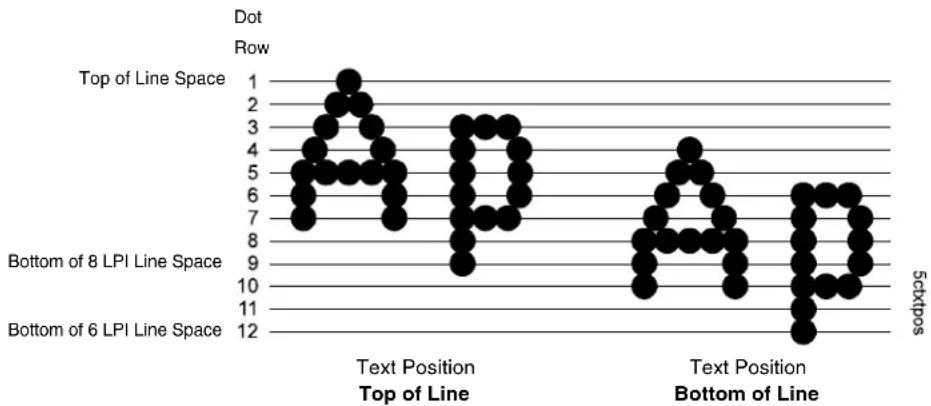
scatter
| Row | Top of Line | Bottom of LPI Line Space | | --- | --- | --- | | 1 | 1 | 7 | | 2 | 2 | 8 | | 3 | 3 | 9 | | 4 | 4 | 10 | | 5 | 5 | 11 | | 6 | 6 | 12 | | 7 | 7 | 10 | | 8 | 8 | 9 | | 9 | 9 | 8 | | 10 | 10 | 7 | | 11 | 11 | 6 | | 12 | 12 | 5 |Top Margin
Defined in linespaces, starting from line zero at the top of the page and incrementing from the top down.
The range is 0-451 linespaces, and the factory default is 0 linespaces.
Translate Table
- Default (the default). The option is disabled. The table is not stored in the real translation table until the option is enabled.
- Downloaded. The option is enabled. The LU3 Translation Table is loaded from the buffer into the permanent table.
Translation Tbl (Coax, TN3270)
Prints SCS and DSC/DSE tables of the coax interface's current character set. This operation is valid only when the coax interface is selected as the current interface.
Translation Tbl (SPC Coax)
Prints a table of the coax interface's current character set. This operation is valid only when the coax interface is selected.
Translation Tbl (SPC Twinax)
Prints a table of the twinax interface's current character set. This operation is valid only when the twinax interface is selected.
Translation Tbl (TN5250, Twinax)
Prints a table of the twinax interface's current character set. This operation is valid only when the twinax interface is the current interface.
True Vert 1/10
- Disable (the default). When disabled and in High Resolution, a vertical line's length in one inch and 1/10 inch increments is interpreted as 70/72 inch and 7/72 inch respectively.
- Enable. When enabled, a vertical line's length is interpreted exactly, which is 72/72 inch in one inch increments.
Trunc Dyn Data
This submenu allows the user to truncate the dynamic data up to the maximum data length specified in Create Mode.
- Disable (the default). If the dynamic data exceeds the maximum data length, an error will report.
- Enable. If the dynamic data exceeds the maximum data length, the data truncates.
Truncate Alpha
- Enable (the default). Prevents the printing of Error 48 (Element Off Page Error) if alphanumeric data, including spaces, extends beyond the right side of the form.
- Disable.
Twinax Type
This parameter defines the printer emulation as follows:
• IPDS 256 Bytes (the default)
• IPDS 1024 Bytes
• 5225
• 4234
After the emulation has been changed, a POR status is sent to the host.
Typeface
- Letter Gothic (the default). Letter Gothic is a non-proportional font where all of the characters take up the same amount of space when printed.
- Courier. Courier is a non-proportional (monospaced) font where all characters take up the same amount of space when printed.
- OCR-A / OCR-B. Optical character recognition fonts printing at 120 dpi horizontally and 144 dpi vertically. Both fonts print only at 10 cpi.
Uniform Fonts
- Disable (the default). The typeface selected while in Extended Graphics Mode will be cancelled when the graphics pass is complete.
- Enable. The typeface selected while in Extended Graphics Mode will also be used in Standard Graphics Mode and Normal Mode.
UPC Descenders (PGL)
This parameter allows you to print bar code descenders when human readable data is not presented in the UPC/EAN bar codes.
- Always (the default). UPC/EAN bar codes are printed with descenders, even if there is no human readable data.
- Never. UPC/EAN bar codes are printed without descendants if the PDF command is present.
- Only With PDF. UPC/EAN bar codes are printed with descendants only when the PDF command is presented.
UPC Descenders (VGL)
- Enable (the default). UPC/EAN bar codes are printed with descendants, even if there is no human readable data.
- Disable. UPC/EAN bar codes are printed without descendants if there is no human readable data.
Upr. Case Select
Controls how the printer handles lowercase characters it receives from the host computer. When enabled, all characters are printed in uppercase.
- Disable (the default). Prints lowercase characters received from the host computer as lowercase; prints uppercase characters received from the computer as uppercase.
- Enable. Prints lowercase characters received from the host computer as their corresponding uppercase equivalents; prints uppercase characters received from the computer as uppercase.
User-Def Ratio
This option allows you to ignore the user-defined barcode ratio and replace it with the default ratio (X1).
- Enable (the default). Allows the user-defined barcode ratio.
- Disable. The user-defined barcode ratio will be replaced with the default ratio (X1).
User-Defined St1 (Start Code 1)
This option allows you to define your own value (in ASCII characters) for the User Defined option in the Lead-in Chars menu. "St1" specifies Start Code 1. See "Lead-in Chars" on page 219 for additional information.
The range is 40 - FF, and the factory default is 5F.
User-Defined St2 (Start Code 2)
This option allows you to define your own value (in ASCII characters) for the User Defined option in the Lead-in Chars menu. "St2" specifies Start Code 2. See "Lead-in Chars" on page 219 for additional information.
The range is 40 - FF, and the factory default is 5F.
User-Defined Stp (Stop Code)
This option allows you to define your own value (in ASCII characters) for the User Defined option in the Lead-in Chars menu. "Stp" specifies Stop Code. See "Lead-in Chars" on page 219 for additional information.
The range is 40 - FF, and the factory default is 5B.
Var Form Adjust
This specifies an amount (in tenths of inches) to add to the length of variable-length forms. Variable-length forms use a semicolon at the end of the CREATE command: \~CREATE;
Typically, variable-length forms are determined by the elements within the form. The longest form element becomes the overall form length. This option allows an additional space to be added to the form length.
The range is 00.0 to 03.0 inches, and the factory default is 00.0 inches.
Var Form Type
- Add Nothing (the default). When selected, no action is taken.
- Add ;0. When selected, the form length ends at the longest printed element. (Same as \~CREATE;filename;0)
- Add ;X. When selected, the form length is the same as the physical page length (the Label Length menu under MEDIA CONTROL). (Same as \~CREATE;filename;X)
Vertical Adjust
This option is to adjust printer dpi to expand or shrink the vertical position of graphic elements and the height of the vertical line. The default is 0 dots. The adjustment range is from -20 dots to 20 dots with respect to the current printer dpi.
Vertical Density
This option is to adjust printer dpi to expand and shrink the vertical position or the height of the graphic elements. The option is only available for 203 dpi printers. The default is 203 dpi. The adjustment range is from 195 to 210 dpi.
Vertical DPI
This feature enables the thermal printer to print images as close as possible to the same size as those originally programmed for a line matrix or laser printer by selecting a vertical resolution that matches that of the printer that the file was originally generated for.
Although the range allows a selection of up to 400 dpi, the thermal printer is capable of printing up to 203 dpi (T5204, T5206, T5208) and 300 dpi (T5304, T5306, T5308) vertical resolution.
The range is 72-400 DPI, and the factory default is 72 DPI.
VPA Check
- Enable (the default). The printer checks for dots that fall outside the intersection of the logical and physical pages. If dots fall outside the area, the printer reports an error to the host if the IPDS Exception Handling Control command setting requires error reporting.
- Disable. The printer does not report dots outside the valid printable area.
Width Limit
When enabled, the system will limit the length and width for expanded characters to a limit shown in Table 7, which shows the maximum width allowed for a specific height in the range of 00 through 40 (0.0 through 4.0 inches).
The factory default is Disable.
Table 7. Width Limit Table
| Height Param. | Max. Width Allowed | Height Param. | Max. Width Allowed |
| 00 99 21 | 51 | ||
| 01 99 22 | 53 | ||
| 0 | 2 | 3 | 2 |
| 0 | 3 | 6 | 2 |
| 0 | 4 | 8 | 2 |
| 05 11 26 | 63 | ||
| 06 13 27 | 66 | ||
| 07 16 28 | 68 | ||
| 08 18 29 | 71 | ||
| 09 21 30 | 73 | ||
| 10 23 31 | 76 | ||
| 11 26 32 | 78 | ||
| 12 28 33 | 81 | ||
| 13 31 34 | 83 | ||
| 14 33 35 | 86 | ||
| 15 36 36 | 88 | ||
| 16 38 37 | 91 | ||
| 17 41 38 | 93 | ||
| 18 43 39 | 96 | ||
| 19 46 40 | 98 | ||
| 20 48 |
XOH-SMO Support
This option allows the user to disable reporting of XOH-SMO support in the STM reply.
This feature has been added because some hosts will not send an IPDS XOH-SMS to a printer that reports it is a Continuous Forms printer, and also supports XOH-SMO.
- Enable. The printer reports that it has support for XOH-SMO.
- Disable. The printer does not report that it has support for XOH-SMO.
The factory default is Enable.
DIAGNOSTICS
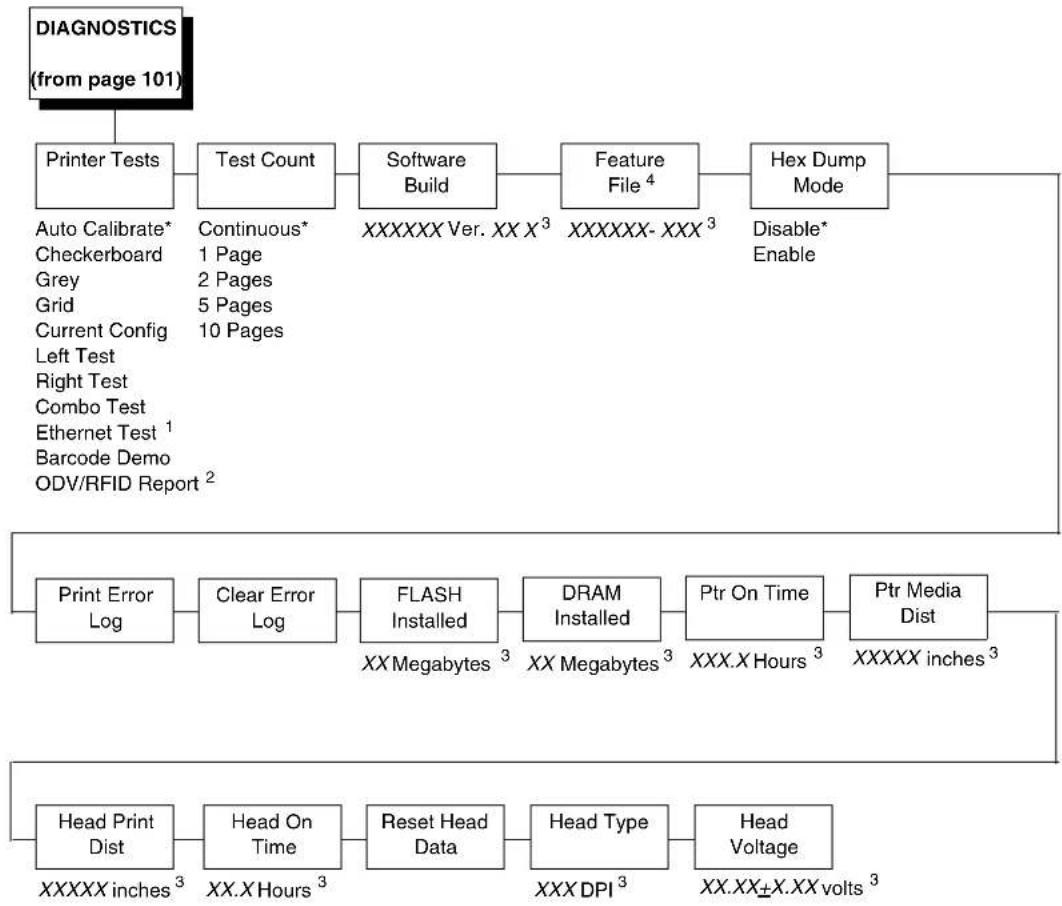
flowchart
graph TD
    A["DIAGNOSTICS (from page 101)"] --> B["Printer Tests"]
    B --> C["Test Count"]
    C --> D["Software Build"]
    D --> E["Feature File 4"]
    E --> F["Hex Dump Mode"]
    F --> G["Disable* Enable"]
    H["Print Error Log"] --> I["Clear Error Log"]
    I --> J["FLASH Installed XXMegabytes 3"]
    J --> K["DRAM Installed XX Megabytes 3"]
    K --> L["Ptr On Time XXX.X Hours 3"]
    L --> M["Ptr Media Dist XXXXXX inches 3"]
    N["Head Print Dist XXXXXX inches 3"] --> O["Head On Time XX.X Hours 3"]
    O --> P["Reset Head Data XXX DPI 3"]
    P --> Q["Head Type XXX.XX±X.XX volts 3"]
* = Factory Default
^1 Appears only if the Ethernet Interface adapter is installed.
^2 Appears only if the validator and/or RFID encoder is installed.
^3 You cannot change this value; it is a display only item.
^4 The menu appears only if a feature file has been downloaded to the printer.
DIAGNOSTICS Submenus
Printer Tests
The printer tests below allow you to check for proper printer operation and print quality:
- Auto Calibrate (the default). Senses paperout, perforation, gap, or mark, and calibrates the printer for the currently installed media.
- Checkerboard. This pattern helps identify marginal printhead elements, quality of edge sharpness, and uneven print quality.
- Grey. This pattern helps identify burned out printhead elements and uneven print quality.
- Grid. This pattern helps identify edge sharpness and uneven print quality.
- Current Config. Prints the current printer configuration and helps identify the text print quality. Also prints Printhead statistical data in the header.
- Left Test. Prints a pattern containing a series of ladder-type bar code symbols, starting with four and decrementing by one symbol on each print until a single symbol prints on the left side. This pattern helps identify ribbon wrinkle problems.
- Right Test. Prints a pattern containing a series of ladder-type bar code symbols, starting with four and decrementing by one symbol on each print until a single symbol prints on the right side. This pattern helps identify ribbon wrinkle problems.
• Combo Test. Prints a combined left test and right test. - Ethernet Test. This item appears only if the Network Interface Card (NIC) adapter is installed. Prints the NIC statistics stored on the NIC adapter.
- Barcode Demo. Prints text and barcodes with the barcodes positioned at the left and right margins of the standard label media supplied with the printer. The test automatically produces output for 4, 6, and 8 inch printers at 203 dpi and 300 dpi.
- ODV/RFID Report. This item appears only if the validator and/or RFID encoder is installed. Prints a report of the validation and/or RFID statistics since the printer was turned on or since the last data reset.
Once you have selected the desired test pattern, press ↓ to start printing. If the Test Count option (below) is set to Continuous (the default), press ↓ again to stop printing.
Test Count
This item selects the number of times the selected test pattern will be printed.
The options are Continuous (factory default), 1 Page, 2 Pages, 5 Pages, and 10 Pages.
Software Build
This is the reference number which includes the program file part number and revision number of the software installed in the printer, e.g., 358186 V1.07G.
Feature File
Displays the part number only when a feature file has been installed.
Hex Dump Mode
- Disable (factory default).
- Enable. The printer prints out data sent from the host in hexadecimal format.
Also see page 213.
Print Error Log
Prints the current log of errors. Most non-routine faults (RIBBON FAULT, PRINT HEAD HOT) are stored in the error log.
Clear Error Log
Clears entries in the error log.
FLASH Installed
Displays the amount of FLASH memory installed in megabytes.
DRAM Installed
Displays the amount of DRAM installed in megabytes.
Ptr On Time
Displays the cumulative time in hours the printer has been powered on. This value is set to zero at the factory after burn-in testing.
Ptr Media Dist
Displays the cumulative number of inches the printer has moved media. This value is set to zero at the factory after burn-in testing.
Head Print Dist
Displays the length of media actually printed since the last Reset Head Data operation. This value is set to zero at the factory after burn-in testing.
Head On Time
Displays the time that power has been applied to the printhead since the last Reset Head Data operation. This value is set to zero at the factory after burn-in testing.
Reset Head Data
Resets all printhead statistics values (Head Prt Dist and Head On Time) to zero.
Head Type
Displays the printhead type installed in dots per inch (203 dpi or 300 dpi).
Head Voltage
Displays the applied printhead voltage.
PARALLEL PORT

flowchart
graph TD
    A["PARALLEL PORT (from page 102)"] --> B["Port Type"]
    B --> C["Data Bit 8²"]
    C --> D["PI Ignored²"]
    D --> E["Buffer Size in K"]
    E --> F["Auto Trickle"]
    F --> G["Trickle Time"]
    G --> H["Timeout"]
    H --> I["Report Status"]
    I --> J["Switch Out On"]
    J --> K["Prime Signal"]
    K --> L["Data Polarity²"]
    L --> M["Resp. Polarity²"]
    M --> N["Busy on Strobe²"]
    N --> O["Latch Data On²"]
    O --> P["Offline Process²"]

    style A fill:#f9f,stroke:#333
    style B fill:#ccf,stroke:#333
    style H fill:#cfc,stroke:#333
    style N fill:#fcc,stroke:#333
Notes:
* = Factory Default
Italicized items are available only when Admin User is enabled (in the PRINTER CONTROL menu).
^1 Available only when E-Net Adapter is installed.
^2 Available only when the Centronics option is enabled (in the Port Type submenu of PARALLEL PORT).
PARALLEL PORT Submenus
Port Type
This menu item selects the type of printer parallel port interface to be used with the host.
The options are IEEE 1284 (the default), Disable, Centronics, and Ethernet.
NOTE: The Ethernet option is available only if E-Net Adapter is installed. When E-Net Adapter is installed, the IEEE 1284 and Centronics options do not display.
Data Bit 8
- Enable (the default). The PI line is not passed directly from host to printer; all 8 bits are used for data bits, and characters in the hex 80-FF range can be accessed.
- Disable. When the host PI line is enabled, data bit 8 internally indicates PI line status. To use the PI line, disable data bit 8, and enable the Host PI configuration option (under the PI Ignored option).
NOTE: Data bit 8 is interpreted as either data bit 8 or PI signal, but never both. When enabled as data bit 8, data bit 8 has priority over the PI signal, and all data above hex 7F is used to access character data and not to interpret PI line data.
Conversely, when data bit 8 is disabled and the PI signal is used, data bit 8 of the data is reserved for use as the PI function, and you cannot access characters in the hex 80-FF range. Therefore, to access characters in the hex 80-FF range, data bit 8 must be enabled.
PI Ignored
The PI (Paper Instruction) signal is used to control vertical paper motion.
- Enable (the default). Ignores the PI signal and treats the data as characters or control codes.
- Disable. Causes the printer to interpret the eight data lines as VFU commands when the PI signal is true.
Buffer Size in K
This option configures the amount of memory allocated for the Ethernet buffer. The range is 1-16 Kbytes, in 1-Kbyte increments.
The factory default is 16 Kbytes.
Auto Trickle
This feature is used to prevent a host computer from "timing out" because the parallel interface is "busy" for too long.
- Enable (factory default). When the printer's buffers are almost full, the printer begins to trickle data in from the host (at the rate set in the Trickle Time menu) until the buffers start to empty out.
- Disable. The Auto Trickle feature is not used.
Trickle Time
When the printer is printing data from a host and a second print job is received by the printer from a different host, Trickle Time prevents the second host from timing out while it is waiting for its data to be printed. In order to support this feature, the port has to be able to accept data from the host and store it for future use.
For example, if the printer is printing a job from the serial port, and then receives a second print job from the parallel port, the data from the parallel port will "trickle" bit by bit into the printer buffer to prevent a timeout error from being sent back to the host connected to the parallel port.
The selected value is the time that the printer waits before getting the next byte of data from the host. The Trickle Time value should be less than the host time out value, but not too much shorter or else the printer fills up its buffer too fast. This function is not applicable for C/T hotport.
The options are 1/4, 1/2, 1, 2, 4, 8, and 16 seconds and Off.
The factory default is 1/4 second.
Timeout
This is the value used by the printer to time out from the current port and check the other selected port types for data to print. When the printer has not received data from the host after a certain period of time, it needs to time out in order to service the other ports.
The range is 1-60 seconds, and the factory default is 10 seconds.
Report Status
- Disable (factory default). When a fault occurs on the printer, only the active port reports the fault to the host.
- Enable. The port will report any fault even when it is not the current active port.
Switch Out On
- Data Timeout (factory default). Allows Autoswitching when no data has been received for the selected Time Out period.
- Session Close. Allows Autoswitching only when the Network Socket is closed. If the Ethernet Adapter is not installed the Network Socket is always reported as closed and this menu option is ignored.
Prime Signal
- Disable (factory default). The parallel port will not perform a warm start (reboot) if the host asserts the Prime Signal.
- Enable. The parallel port will perform a warm start (reboot) if the host asserts the Prime Signal.
Data Polarity
The Data Polarity parameter must be set to match the data polarity of your host computer.
- Standard (factory default). Does not expect the host computer to invert the data.
- Inverted. Expects the data received on the data lines from the host computer to be inverted. Ones become zeros and vice versa.
Resp. Polarity
The Response Polarity parameter must be set to match the response polarity of your host computer.
- Standard (factory default). Does not invert the response signal.
- Inverted. Inverts the response signal sent to the host computer.
Busy on Strobe
- Enable (factory default). Asserts a busy signal after each character is received.
- Disable. Asserts a busy signal only when the print buffers are full.
Latch Data On
Specifies whether the data is read on the leading or trailing edge of the data strobe signal.
The options are Leading (factory default) and Trailing.
Offline Process
- Disable (factory default). When set to disable, the printer does not process parallel/network data while offline.
- Enable. When set to enable, the printer continues to process (but not print) the current network/parallel job while the printer is offline until the printer's buffer is full.
SERIAL PORT

flowchart
graph TD
    A["SERIAL PORT (from page 102)"] --> B["Port Type"]
    B --> C["Baud Rate"]
    C --> D["Word Length"]
    D --> E["Stop Bits"]
    E --> F["Parity"]
    F --> G["Data Protocol"]

    subgraph Buffer Size in K
        H["16* 1-16"] --> I["Trickle Time"]
        I --> J["Timeout"]
        J --> K["Report Status"]
        K --> L["Data Term Ready"]
        L --> M["Request to Send"]

    end

    subgraph Poll Character
        N["00 Hex* 00-FF Hex"] --> O["Poll Response"]
        O --> P["Idle Response"]
        P --> Q["One Char Enquiry"]
        Q --> R["Printer Status"]
        R --> S["Framing Errors"]
    end

    subgraph Offline Process
        T["Disable* Enable"] --> U["Disable* Enable"]
        U --> V["Disable* Enable"]
        V --> W["Enable* Enable"]
        W --> X["Enable* Enable"]
    end

    A --> H
    A --> T
Notes:
* = Factory Default
Italicized items are available only when you enable
Admin User (in the PRINTER CONTROL menu).
SERIAL PORT Submenus
Port Type
This item allows you to select the type of printer serial port interface, RS-232 or RS-422, to be used with its host. The serial port can also be disabled.
The factory default is RS 232.
Baud Rate
Sets the baud rate of the serial interface in the printer. Baud rate is the speed at which serial data is transferred between the host computer and the printer. The options for the RS-232 and RS-422 interfaces are 600, 1200, 2400, 4800, 9600, 19200, 38400, 57600, and 115200 Baud.
NOTE: If you select a baud rate that is greater than 19200 and you experience data loss, you may need to lower the baud rate or use RS-422. You also may need to increase the Buffer Size in K parameter to improve performance.
The factory default is 9600.
Word Length
Sets the length of the serial data word. The length of the data word can be set to 7 or 8 bits and must match the corresponding data bits setting in the host computer.
The factory default is 8.
Stop Bits
Sets the number of stop bits in the serial data word. Either 1 or 2 stop bits can be selected. The setting must match the corresponding stop bit setting in the host computer.
The factory default is 1.
Parity
The options are Odd, Even, Mark, Sense, or None. The setting must match the corresponding parity setting in the host computer.
The factory default is None.
Data Protocol
You can select one of the following serial interface protocols to meet the host interface requirements.
- XON / XOFF (the default). The printer controls the flow of communication from the host by turning the transmission on and off. In some situations, such as when the buffer is full or the timing of signals is too slow or too fast, the printer will tell the host to stop transmission by sending an XOFF character. An XOFF character is sent when the number of empty bytes in the buffer is less than or equal to 25 percent of the buffer size. If the host keeps sending data after an XOFF is sent, the printer firmware will continue to send an XOFF for every 16 characters received. When cleared, the printer will resume receiving data (XON). The data does not have any End of Text codes; XON / XOFF is a non-block protocol.
- ETX / ACK. End of Text / Acknowledge. The host controls the flow of communication to the printer by sending a block of data and ending the block with an End of Text (ETX) signal. When the printer receives the ETX signal, it will acknowledge the ETX, thereby acknowledging it has received the entire block of data.
- ACK / NAK. ACK means acknowledge; the device acknowledges it has accepted a transmission. NAK means negative acknowledge; the device did not receive the transmission.
- Series1 1 Char. The printer controls the flow of communication from the host by turning the transmission on and off using response characters sent to the host. If the number of valid bytes in the buffer reaches 75 percent of the buffer size, the online or offline and buffer full response character is sent. If the buffer is completely full, an online or offline buffer full response is sent every time a character is sent from the host. Whenever the printer state changes to online or offline, the appropriate response character is sent. If the idle response option is enabled, the printer will send a response character every two seconds while the number of valid bytes in the buffer is less than 75 percent of the buffer size. If a poll character is received (configurable from the Poll Character xx Hex option on the front panel from hex 0 through FF), the printer will send a response character n milliseconds later (configurable from the Poll Character xx MS on the front panel from 0 through 30). This n milliseconds is called the poll delay. The poll character will be removed from the input data stream and will not be processed. This may cause problems with the transmission of binary data (e.g., control codes, bit image, etc.). If a poll delay is started due to the receipt of a poll character and another poll character is received, the second poll character has no effect and is removed from the input data stream. If a transition (from buffer full to empty or online to offline) occurs during a poll delay, the new printer state will be sent at the end of the poll delay.
The response characters are described below.
| Printer State Response | |
| Online and Buffer Empty CR | |
| Online and Buffer Full 3 | |
| Offline and Buffer Empty 0 | |
| Offline and Buffer Full 2 | |
- Series1 2 Char. This protocol behaves exactly the same as the Series 1 Char except there is a two-character response to the host. The response characters are described in the following table:
| Printer State Response | |
| Online and Buffer Empty 1 CR | |
| Online and Buffer Full 3 CR | |
| Offline and Buffer Empty 0 CR | |
| Offline and Buffer Full 2 CR |
- DTR. The printer controls the data flow by sending this hardware signal to the host. If there is enough room in the printer buffer, the printer will send a high signal; if the buffer is full, the printer will send a low signal. DTR tells the host if it is safe to send more data. (If the host sends data during an unsafe condition, data will be lost.) DTR is not available when RS-422 is selected.
Buffer Size in K
This option configures the amount of memory allocated for the serial port buffer. The range is 1-16 Kbytes, in 1-Kbyte increments.
NOTE: If you select a baud rate that is 19200 or greater, you may need to increase the Buffer Size in K parameter from the default to 16 Kbytes to improve performance.
The factory default is 16.
Trickle Time
When the printer is printing data from a host and a second job is received by the printer from a different host, Trickle Time prevents the second host from timing out while it is waiting for its data to be printed. In order to support this feature, the port has to be able to accept data from the host and store it for future use.
For example, if the printer is printing a job from the serial port and then receives a second print job from the parallel port, the data from the parallel port will "trickle" bit by bit into the printer buffer to prevent a timeout error from being sent back to the host connected to the parallel port.
The selected value is the time that the printer waits before getting the next byte of data from the host. The Trickle Time value should be less than the host time out value, but not too much shorter or else the printer fills up its buffer too fast. This function is not applicable for C/T hotport.
The options are 1/4, 1/2, 1, 2, 4, 8, and 16 seconds and Off.
The factory default is 1/4 sec.
Timeout
This is the value used by the printer to time out from the current port and check the other selected Port Types for data to print. When the printer has not received data from the host after a certain period of time, it needs to time out in order to service the other ports.
The range is from 1 to 60 seconds, and the factory default is 10 seconds.
Report Status
When a fault condition occurs in the printer, normally only the active port reports the fault to the host. With this menu item enabled, the port will report any fault even when it is not the current, active port.
The options are Disable (the factory default) and Enable.
Data Term Ready
Stands for Data Terminal Ready. This configuration is part of hardware flow control and determines when the Data Terminal Ready (DTR) signal is generated. This signal indicates if the printer is ready to receive data.
• True (the default). Continuously asserts the DTR signal.
- On-Line and BNF (buffer not full). Asserts the DTR signal when the printer is online and the internal serial buffer is not full.
- Off-Line or BF (buffer full). Asserts the DTR signal when the printer is offline or the internal serial buffer is full.
- On-Line. Asserts the DTR signal when the printer is online.
- False. Never asserts the DTR signal.
Request to Send
This configuration is part of hardware flow control and determines when the Request to Send (RTS) signal is generated. This signal indicates whether or not the printer is ready to receive data.
- On-Line and BNF (factory default). Asserts the RTS signal when the printer is online and the internal serial buffer is not full.
- Off-Line or BF. Asserts the RTS signal when the printer is offline or the internal serial buffer is full.
- On-Line. Asserts the RTS signal when the printer is online.
- False. Never asserts the RTS signal.
- True. Continuously asserts the RTS signal.
Poll Character
This option is for the Series1 protocol. Whenever the printer receives this character, it sends a response to the host indicating the current state of the printer (see Series1 protocol).
The range is 00-FF Hex, and the factory default is 00 Hex.
Poll Response
This option is for the Series1 protocol. After receiving a poll character, the printer will wait the poll response time in milliseconds before sending the response.
The range is from 0 to 30 ms, and the factory default is 0 ms.
Idle Response
This option is for the Series1 protocol.
- Disable (factory default).
- Enable. The printer sends a response character every two seconds while the number of valid bytes in the buffer is less than 75 percent of the buffer size.
One Char Enquiry
The One Char Enquiry mode uses the Poll Character to detect a request from the host and sends a response back to the host. This option also allows you to turn on and off this feature.
Table 8. One Char Enquiry Response Characters
| Printer State Response (hex) | |
| Online and Buffer Not Full 22 | |
| Online and Buffer Full 23 | |
| Offline and Buffer Not Full 20 | |
| Offline and Buffer Full 21 | |
The Poll Character is removed from the data stream. If the Data Protocol is set to ETX/ACK, ACK/NAK, or Series1, One Char Enquiry is automatically disabled.
The options are Disable (the default) and Enable.
Printer Status
- Disable. Printer status ignored.
• ENQ/STX (see Table 9). - ENQ (see Table 10).
When enabled, the printer will respond to an ENQ character by sending a status byte to the host. The type of status byte is determined by a Front Panel Menu selection. The selections allowed are ENQ/STX and ENQ. The ENQ is removed from the data stream.
Table 9. ENQ/STX Status Byte
| Bit Printer Status | |
| 0 Set when the printer is not online or the buffer is full. | |
| 1 Set when the printer is offline. | |
| 2 Clear during a paper out or RibbonMinder fault. | |
| 3 Always set. | |
| 4 Set during a Head Open fault. | |
| 5 Set during a buffer overflow fault. | |
| 6 Set during a parity or framing error fault. | |
| 7 Always clear. |
Table 10. ENQ Status Byte
| Bit Printer Status | |
| 0 Set when the label has printed. | |
| 1 Set when the label is presented. | |
| 2 Set while the printer is online. | |
| 3 Always set. | |
| 4 Set printing in the batch mode. | |
| 5 Set during a Ribbon fault. | |
| 6 Set during a Paper Out fault. | |
| 7 Set during a Head Open fault. |
The factory default is Disable.
Framing Errors
These are possible errors that can occur when serial interface settings of the printer do not match those of the host computer.
- Enable (factory default). If a framing error occurs, a fault message will display on the control panel.
- Disable. If a framing error occurs, a fault message will not display on the control panel.
Offline Process
- Disable (default). When set to disable, the printer does not process serial data while offline.
- Enable. When set to enable, the printer continues to process (but not print) the current serial job while the printer is offline until the printer's buffer is full.
C/T PORT
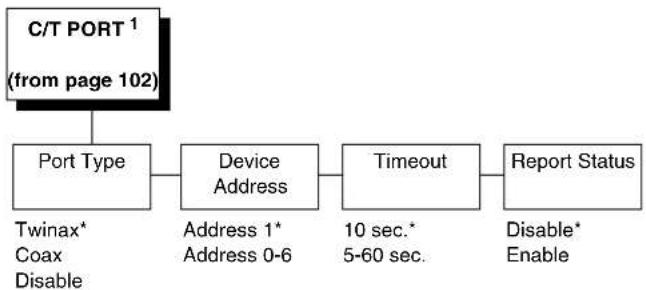
flowchart
graph LR
    A["C/T PORT¹ (from page 102)"] --> B["Port Type"]
    B --> C["Device Address"]
    C --> D["Timeout"]
    D --> E["Report Status"]
    B --> F["Twinax* Coax Disable"]
    C --> G["Address 1* Address 0-6"]
    D --> H["10 sec.* 5-60 sec."]
    E --> I["Disable* Enable"]
Notes:
* = Factory Default
^1 This menu appears only if the CTHI option is installed.
C/T PORT Submenus
Port Type
This item selects the desired active CTHI interface and appears only when the CTHI option is installed.
The factory default is Twinax.
Device Address
Allows you to set the device address from 0 through 6. The host directs data and commands on the twinax line to a specific device based on its unique device address. After the address has been changed, a Power On Reset (POR) status is sent to the host.
The factory default is 1.
Timeout
This item allows you to set the time that the printer, when it has not received data from its host, will begin to service all other host ports looking for data to print.
The range is from 5 to 60 seconds, and the factory default is 10 seconds.
Report Status
When a fault condition occurs in the printer, normally only the active port reports the fault to the host. With this item enabled, the port will report any fault even when it is not the current, active port.
The options are Disable (the factory default) and Enable.
USB PORT
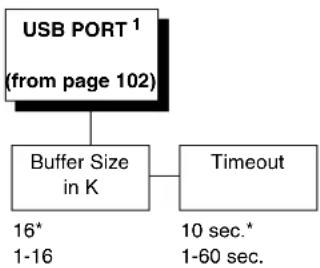
flowchart
graph TD
    A["USB PORT¹ (from page 102)"] --> B["Buffer Size in K"]
    B --> C["Timeout"]
    B --> D["16* 1-16"]
    B --> E["10 sec.* 1-60 sec."]
Notes:
* = Factory Default
^1 This menu appears only if the USB option is installed.
USB Port Submenu
Buffer Size in K
This option configures the amount of memory allocated for the serial port buffer. The range is from 1 to 16 Kbytes, in 1-Kbyte increments.
The factory default is 16.
Timeout
This item allows you to set the time that the printer, when it has not received data from its host, will begin to service all other host ports looking for data to print.
The range is from 1 to 60 seconds, and the factory default is 10 seconds.
ETHERNET PORT
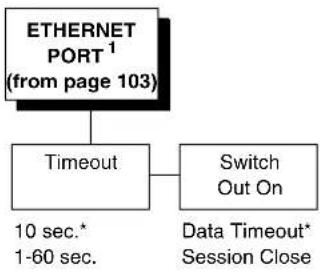
flowchart
graph TD
    A["ETHERNET PORT¹ (from page 103)"] --> B["Timeout"]
    B --> C["Switch Out On"]
    B --> D["10 sec.* 1-60 sec."]
    C --> E["Data Timeout* Session Close"]
Notes:
* = Factory Default
^1 This menu appears only if the Ethernet option is installed.
ETHERNET PORT Submenu
Timeout
This item allows you to set the time that the printer, when it has not received data from its host, will begin to service all other host ports looking for data to print.
The range is from 1 to 60 seconds, and the factory default is 10 seconds.
Switch Out On
- Data Timeout (factory default). Allows Autoswitching when no data has been received for the selected Time Out period.
- Session Close. Allows Autoswitching only when the Network Socket is closed. If the Ethernet Adapter is not installed the Network Socket is always reported as closed and this menu option is ignored.
ETHERNET ADDRESS
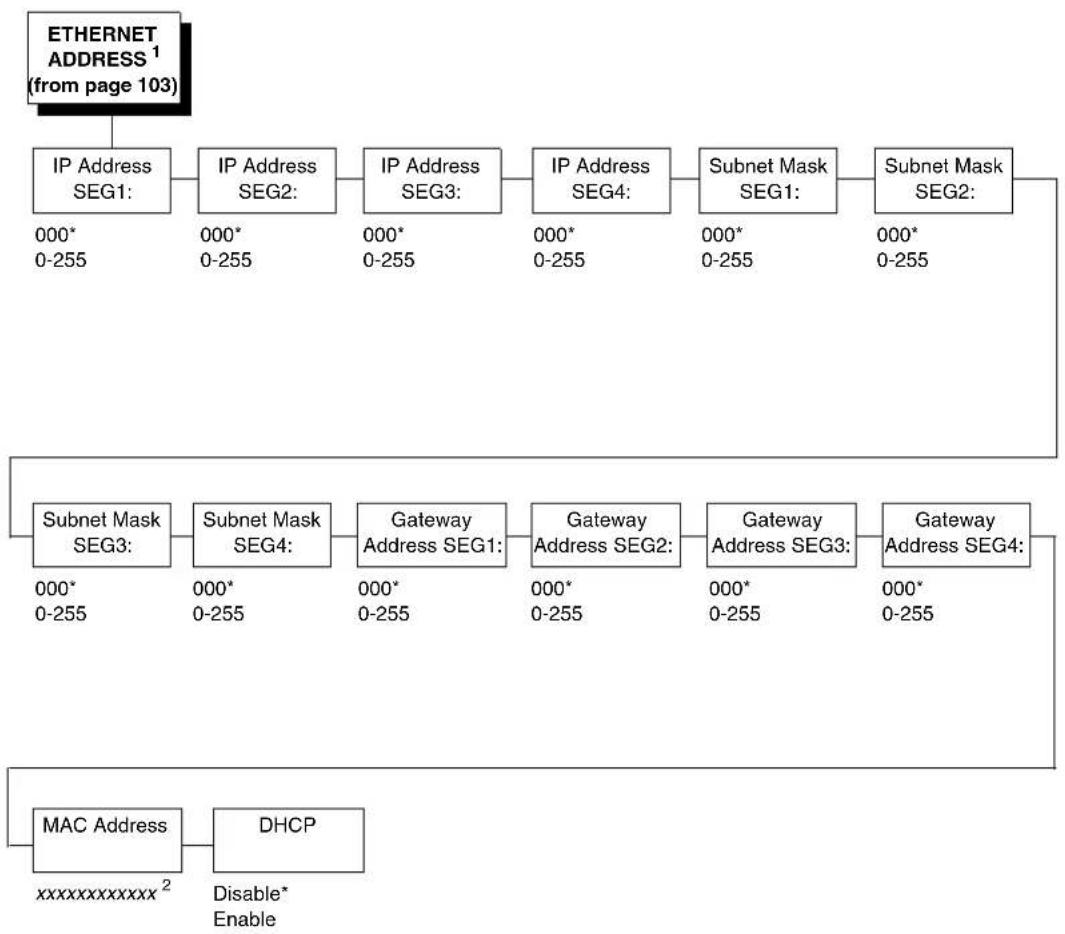
flowchart
graph TD
    A["ETHERNET ADDRESS¹ (from page 103)"] --> B["IP Address SEG1:"]
    B --> C["IP Address SEG2:"]
    C --> D["IP Address SEG3:"]
    D --> E["IP Address SEG4:"]
    E --> F["Subnet Mask SEG1:"]
    F --> G["Subnet Mask SEG2:"]
    G --> H["Subnet Mask SEG3:"]
    H --> I["Subnet Mask SEG4:"]
    I --> J["Gateway Address SEG1:"]
    J --> K["Gateway Address SEG2:"]
    K --> L["Gateway Address SEG3:"]
    L --> M["Gateway Address SEG4:"]
    M --> N["DHCP Enable"]
    N --> O["Disable*"]
    O --> P["MAC Address xxxxxxxxxxxx²"]
Notes:
* = Factory Default
^1 This menu appears only if an Network Interface Card (NIC) is installed.
^2 You cannot change this value; it is a display only item.
ETHERNET ADDRESS Submenus
IP Address
This item allows you to set the IP Address for the TCP/IP protocol in four three-digit segments (SEG1 through SEG4). If the IP Address is assigned by Bootp, ARP or DHCP, it is dynamic and read-only.
The factory defaults for the SEG1 through SEG4 are 000, 000, 000, and 000.
NOTE: The printer reboots when it is placed online.
Subnet Mask
This item allows you to set the Subnet Mask for the TCP/IP protocol in four three-digit segments (SEG1 through SEG4). If the Subnet Mask is assigned by Bootp, Arp or DHCP, it is dynamic and read-only.
The factory defaults for the SEG1 through SEG4 are 000, 000, 000, and 000.
NOTE: The printer reboots when it is placed online.
Gateway Address
This item allows you to set the Gateway Address for the TCP/IP protocol in four three-digit segments (SEG1 through SEG4). If the Gateway Address is assigned by Bootp, ARP or DHCP, it is dynamic and read-only.
The factory defaults for the SEG1 through SEG4 are 000, 000, 000, and 000.
NOTE: The printer reboots when it is placed online.
MAC Address
This item is the Manufacturer's Assigned Number, and is unique for each NIC. It is read-only.
DHCP
You can enable/disable the DHCP protocol using this option, but consult your administrator for the appropriate setting.
The options are Disable (the factory default) and Enable.
NOTE: The printer reboots when it is placed online.
ETHERNET PARAMS

flowchart
graph TD
    A["ETHERNET PARAMS¹ (from page 103)"] --> B["NetBIOS Protocol"]
    B --> C["ASCII Data Port"]
    C --> D["IPDS Data Port³"]
    D --> E["Keep Alive Timer"]
    E --> F["Ethernet Speed"]
    F --> G["Job Control"]
    G --> H["Offline Process"]
    H --> I["Disable* Enable"]
    B --> J["Enable* Disable"]
    C --> K["9100* 0-65535²"]
    D --> L["5001* 0-65535²"]
    E --> M["3 Minutes* 2-10 Minutes"]
    F --> N["Auto Select* 10 Half Duplex 10 Full Duplex 100 Half Duplex 100 Full Duplex"]
    G --> O["Standard* Enhanced Off"]
Notes:
* = Factory Default
^1 This menu appears only if an Network Interface Card (NIC) is installed.
^2 Set the port number that works with your host system.
^3 This menu appears only if the IPDS emulation is installed.
ETHERNET PARAMS Submenus
NetBIOS Protocol
- Enable (the default). The NIC will respond to the NetBIOS protocol.
- Disable. The NIC does not recognize the NetBIOS protocol.
ASCII Data Port
This option allows you to set the port number for ASCII print jobs. The data port number needs to match your host system setting.
The range is 0 - 65535, and the factory default is 9100.
IPDS Data Port (IPDS emulation only)
This option allows you to set the port number for IPDS print jobs.
The range is 0 - 65536, and the factory default is 5001.
Keep Alive Timer
This is the time that the Keep Alive Timer will run. Keep in mind that with the Keep Alive Timer on, the tcp connection will stay connected even after the print job has terminated.
The range is 2-10 minutes, and the factory default is 3 minutes.
Ethernet Speed
This menu appears only if a 10/100Base-T Network Interface Card (NIC) is installed.
The Ethernet Speed menu has five different speed modes to allow compatibility with different systems and networks:
- Auto Select (the default). Tells the 10/100Base-T NIC to perform an auto detection scheme and configure itself to be 10 Half Duplex, 10 Full Duplex, 100 Half Duplex, or 100 Full Duplex.
- 10 Half Duplex. Tells the 10/100Base-T NIC to communicate at 10 Megabits per second using half duplex.
- 10 Full Duplex. Tells the 10/100Base-T NIC to communicate at 10 Megabits per second using full duplex.
- 100 Half Duplex. Tells the 10/100Base-T NIC to communicate at 100 Megabits per second using half duplex.
- 100 Full Duplex. Tells the 10/100Base-T NIC to communicate at 100 Megabits per second using full duplex.
Job Control
- Standard (factory default). The NIC waits for the entire job to be received before it indicates the job is done.
- Enhanced. The NIC waits for the entire job to be printed before it indicates the job is done.
- Off. There is no synchronization between the NIC and the printer.
NOTE: For detailed information about using the NIC, refer to the Network Interface Card User's Manual.
Offline Process
- Disable (the default). When set to disable, the printer does not process parallel/network data while offline.
- Enable. When set to enable, the printer continues to process (but not print) the current network/parallel job while the printer is offline until the printer's buffer is full.
WLAN ADDRESS
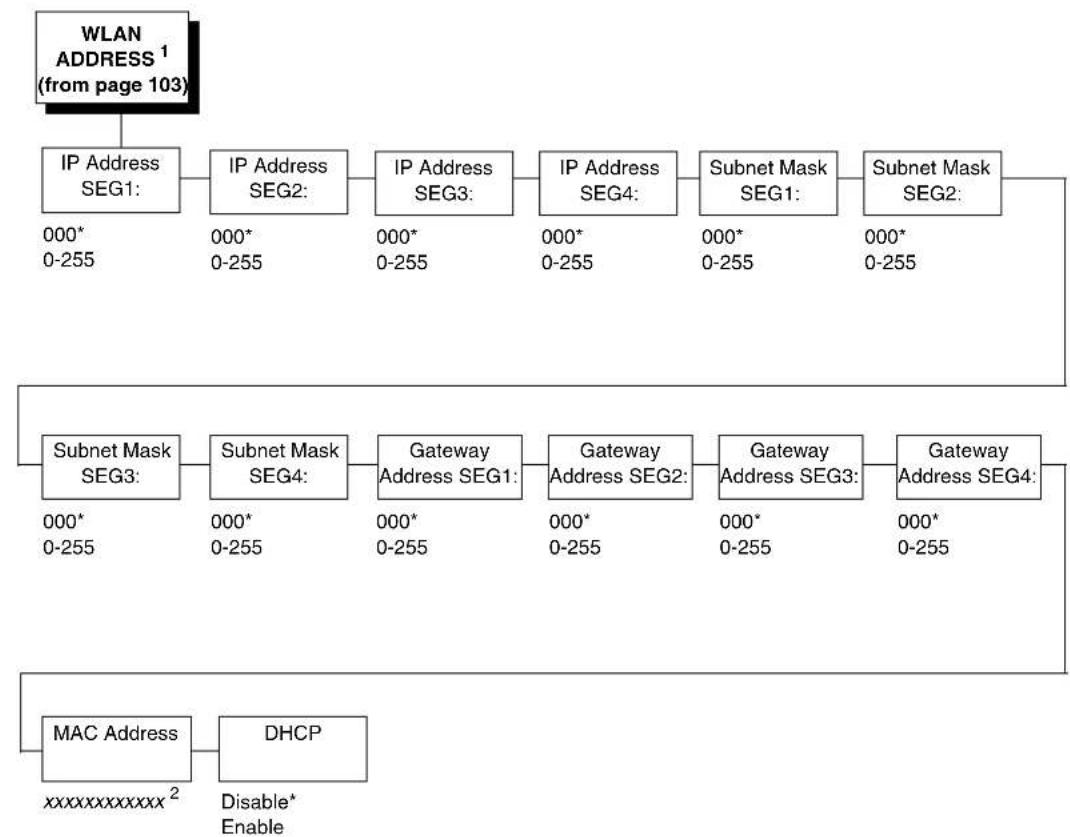
flowchart
graph TD
    A["WLAN ADDRESS¹ (from page 103)"] --> B["IP Address SEG1: 000* 0-255"]
    B --> C["IP Address SEG2: 000* 0-255"]
    C --> D["IP Address SEG3: 000* 0-255"]
    D --> E["IP Address SEG4: 000* 0-255"]
    E --> F["Subnet Mask SEG1: 000* 0-255"]
    F --> G["Subnet Mask SEG2: 000* 0-255"]
    G --> H["Subnet Mask SEG3: 000* 0-255"]
    H --> I["Subnet Mask SEG4: 000* 0-255"]
    I --> J["Gateway Address SEG1: 000* 0-255"]
    J --> K["Gateway Address SEG2: 000* 0-255"]
    K --> L["Gateway Address SEG3: 000* 0-255"]
    L --> M["Gateway Address SEG4: 000* 0-255"]
    M --> N["MAC Address xxxxxxxxxxxx²"]
    N --> O["DHCP Disable* Enable"]
Notes:
* = Factory Default
^1 This menu appears only if a Wireless Option is installed.
^2 You cannot change this value; it is a display only item.
WLAN ADDRESS Submenus
IP Address
This item allows you to set the IP Address for the TCP/IP protocol in four three-digit segments (SEG1 through SEG4). If the IP Address is assigned by Bootp, ARP or DHCP, it is dynamic and read-only.
The factory defaults for the SEG1 through SEG4 are 000, 000, 000, and 000.
NOTE: The printer reboots when it is placed online.
Subnet Mask
This item allows you to set the Subnet Mask for the TCP/IP protocol in four three-digit segments (SEG1 through SEG4). If the Subnet Mask is assigned by Bootp, Arp or DHCP, it is dynamic and read-only.
The factory defaults for the SEG1 through SEG4 are 000, 000, 000, and 000.
NOTE: The printer reboots when it is placed online.
Gateway Address
This item allows you to set the Gateway Address for the TCP/IP protocol in four three-digit segments (SEG1 through SEG4). If the Gateway Address is assigned by Bootp, ARP or DHCP, it is dynamic and read-only.
The factory defaults for the SEG1 through SEG4 are 000, 000, 000, and 000.
NOTE: The printer reboots when it is placed online.
MAC Address
This item is the Manufacturer's Assigned Number, and is unique for the NIC and the Wireless option. It is read-only.
DHCP
You can enable/disable the DHCP protocol using this option, but consult your administrator for the appropriate setting.
The options are Disable (the factory default) and Enable.
NOTE: The printer reboots when it is placed online.
WLAN PARAMS
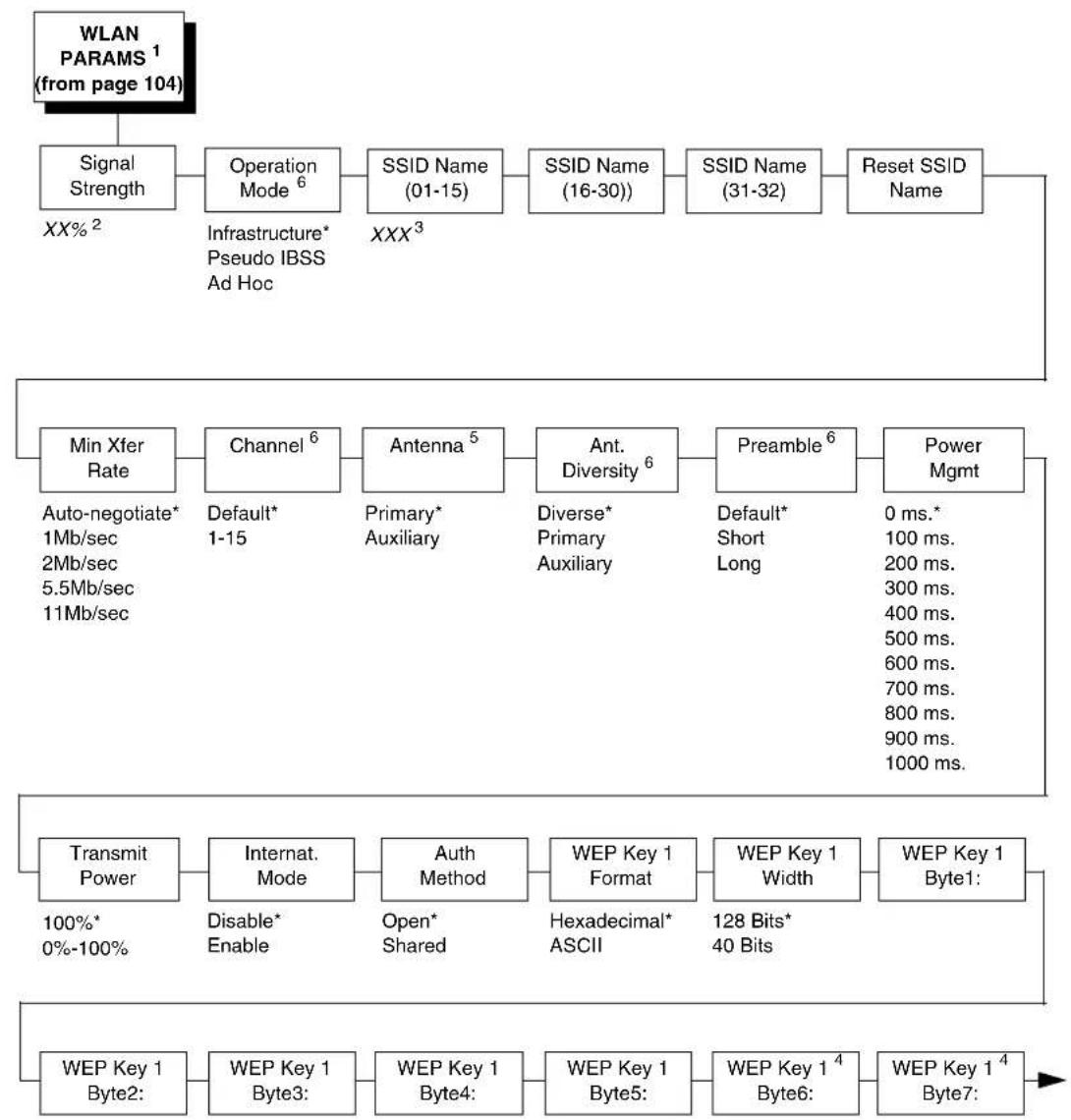
flowchart
graph TD
    A["WLAN PARAMS¹ (from page 104)"] --> B["Signal Strength"]
    B --> C["Operation Mode⁶"]
    C --> D["SSID Name (01-15)"]
    D --> E["SSID Name (16-30)"]
    E --> F["SSID Name (31-32)"]
    F --> G["Reset SSID Name"]
    G --> H["Min Xfer Rate"]
    H --> I["Channel⁶"]
    I --> J["Antenna⁵"]
    J --> K["Ant. Diversity⁶"]
    K --> L["Preamble⁶"]
    L --> M["Power Mgmt"]
    M --> N["Transmit Power"]
    N --> O["Internat. Mode"]
    O --> P["Auth Method"]
    P --> Q["WEP Key 1 Format"]
    Q --> R["WEP Key 1 Width"]
    R --> S["WEP Key 1 Byte1"]
    S --> T["WEP Key 1 Byte2"]
    T --> U["WEP Key 1 Byte3"]
    U --> V["WEP Key 1 Byte4"]
    V --> W["WEP Key 1 Byte5"]
    W --> X["WEP Key 1 Byte6"]
    X --> Y["WEP Key 1 Byte7"]

    style A fill:#f9f,stroke:#333
    style T fill:#f9f,stroke:#333

    subgraph Signal Strength
        B
        C
        D
        E
        F
        G
        H
        I
        J
        K
        L
        M
        N
        O
        P
        Q
        R
        S
        T
        U
        V
        W
        X
        Y
    end

    %% Infrastructure* Pseudo IBSS Ad Hoc
    %% Auto-negotiate* 1Mb/sec 2Mb/sec 5.5Mb/sec 11Mb/sec
    %% Default* 1-15
    %% Primary* Auxiliary
    %% Diverse* Primary Auxiliary
    %% Short Long
    %% Default* Short Long
    %% 0 ms.* 100 ms.
    %% 200 ms. 300 ms.
    %% 400 ms. 500 ms.
    %% 600 ms. 700 ms.
    %% 800 ms. 900 ms.
    %% 1000 ms.
Notes:
* = Factory Default
^1 This menu appears only if a Wireless Option is installed.
^2 You cannot change this value; it is a display only item.
^3 A 1-32 character, case-sensitive string. Characters can be alphanumeric, symbols, or spaces.
^4 This menu appears only if “WEP Key 1 Width” is set to 128 Bits.
^5 Appears only if a Symbol LA-5127 802.11 b/g RF card is installed.
^6 Appears only if 802.11b only RF card is installed.

flowchart
graph TD
    A["WLAN PARAMS (from page 263)"] --> B["WEP Key 1 4 Byte8:"]
    B --> C["WEP Key 1 4 Byte9:"]
    C --> D["WEP Key 1 4 Byte10:"]
    D --> E["WEP Key 1 4 Byte11:"]
    E --> F["WEP Key 1 4 Byte12:"]
    F --> G["WEP Key 1 4 Byte13:"]
    B --> H["WEP Key 2 Format"]
    H --> I["Hexadecimal* ASCII 128 Bits* 40 Bits"]
    I --> J["WEP Key 2 BYTE5:"]
    J --> K["WEP Key 2 4 BYTE6:"]
    K --> L["WEP Key 2 4 BYTE7:"]
    L --> M["WEP Key 2 4 BYTE8:"]
    M --> N["WEP Key 2 4 BYTE9:"]
    N --> O["WEP Key 2 4 BYTE10:"]
    O --> P["WEP Key 2 4 BYTE11:"]
    P --> Q["WEP Key 2 4 BYTE12:"]
    Q --> R["WEP Key 2 4 BYTE13:"]
    R --> S["Hexadecimal* ASCII Hexadecimal* 128 Bits* 40 Bits"]
    R --> T["WEP Key 3 Format"]
    T --> U["WEP Key 3 Width"]
    U --> V["WEP Key 3 BYTE1:"]
    V --> W["WEP Key 3 BYTE3:"]
    W --> X["WEP Key 3 BYTE7:"]
    W --> Y["WEP Key 3 BYTE8:"]
    Y --> Z["WEP Key 3 BYTE9:"]
    Z --> AA["WEP Key 3 BYTE10:"]
    AA --> AB["WEP Key 3 BYTE11:"]
    AB --> AC["WEP Key 3 BYTE12:"]
    AC --> AD["WEP Key 3 BYTE13:"]
    AD --> AE["WEP Key 3 BYTE4:"]
    AE --> AF["Hexadecimal* ASCII Hexadecimal* 128 Bits* 40 Bits"]
    AE --> AG["WEP Key 4 BYTE1:"]
    AG --> AH["WEP Key 4 BYTE2:"]
    AH --> AI["WEP Key 4 BYTE3:"]
    AI --> AJ["WEP Key 4 BYTE4:"]
Notes:
* = Factory Default
^4 This menu appears only if “WEP Key 1 Width” is set to 128 Bits.
WLAN
PARAMS
(from page 264)
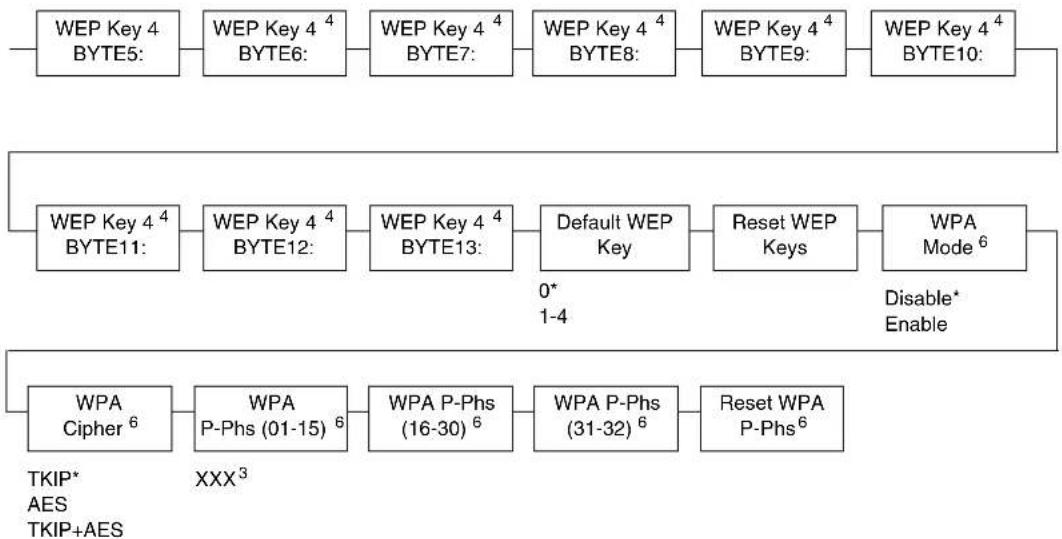
flowchart
graph TD
    A["WEP Key 4 BYTE5:"] --> B["WEP Key 4⁴ BYTE6:"]
    B --> C["WEP Key 4⁴ BYTE7:"]
    C --> D["WEP Key 4⁴ BYTE8:"]
    D --> E["WEP Key 4⁴ BYTE9:"]
    E --> F["WEP Key 4⁴ BYTE10:"]
    G["WEP Key 4⁴ BYTE11:"] --> H["WEP Key 4⁴ BYTE12:"]
    H --> I["WEP Key 4⁴ BYTE13:"]
    I --> J["Default WEP Key"]
    J --> K["Reset WEP Keys"]
    K --> L["WPA Mode⁶"]
    M["WPA Cipher⁶"] --> N["WPA P-Phs (01-15)⁶"]
    N --> O["WPA P-Phs (16-30)⁶"]
    O --> P["WPA P-Phs (31-32)⁶"]
    P --> Q["Reset WPA P-Phs⁶"]
    R["0* 1-4"] --> J
    S["Disable* Enable"] --> L
    T["TKIP* AES TKIP+AES"] --> M
Notes:
* = Factory Default
^3 A 1-32 character, case-sensitive string. Characters can be alphanumeric, symbols, or spaces.
^4 This menu appears only if “WEP Key 1 Width” is set to 128 Bits.
^6 This menu appears only if a Symbol LA5127 RF card is installed.
WLAN PARAMS Submenus
Signal Strength
This menu displays the strength of the wireless signal.
NOTE: This is a display value only and cannot be changed.
Operation Mode
Allows you to select the way the Wireless option communicates:
- Infrastructure (the default). The Wireless option must go through an Access Point.
- Pseudo IBSS. Proprietary, peer-to-peer communication (without an Access Point). The two peers must be specific to one manufacturer.
- Ad Hoc. Standard, peer-to-peer communication (without an Access Point). The two peers can be from different manufacturers.
SSID Name
A 1-32 character, case-sensitive string that identifies the Extended Service Set Identification (ESS_ID) network the unit is part of. (ESS_ID is also called NET_ID.) These characters can be alphanumeric, symbols, or spaces.
Reset SSID Name
Allows you to reset the SSID name.
Min Xfer Rate
Allows you to set the minimum speed at which the Wireless Option will accept a connection (in millions bits per second). The options are Auto-negotiate, 1Mb/sec., 2Mb/sec., 5.5Mb/sec., and 11Mb/sec.
The factory default is Auto-negotiate.
Channel
Allows you to select the RF channel.
The options are Default (the factory default) and 1-15.
Ant. Diversity (802.11b only) or Antenna (802.11b/g)
The RF antenna to use:
- Diverse (the default). Select when you want to use the antenna with the best reception. (802.11b only)
- Primary. Select when you want to use the Primary antenna on the RF card. (802.11b and 802.11 b/g) Default setting for 802.11b/g.
- Auxiliary. Select when you want to use the Auxiliary antenna on the RF card. (802.11b and 802.11 b/g)
Preamble
The length of the preamble in transmit packets.
- Default (the default). The Wireless option automatically determines the length.
- Short. For newer printers which can handle higher transfer rate speeds.
- Long. For older printers, which cannot handle higher transfer rate speeds.
Power Mgmt
This allows you to set power-save mode and sleep time. A value specifying the sleep time in milliseconds will be provided. If set to zero, power-save mode will be disabled.
The range is 0-1000 ms., and the factory default is 0 ms.
Transmit Power
The power level as a percentage of full power.
The range is 0 - 100%, and the factory default is 100%.
Internat. Mode
When enabled, the Wireless option adapts to international frequency requirements in Europe.
The options are Disable (the factory default) and Enable.
Auth Method
The wireless authentication scheme.
- Open (the default). This option allows all devices that have the authentication algorithm number for open system to authenticate.
- Shared. This option enables a four step authentication process using secure or encrypted text by means of WEP.
Default WEP Key
This feature enables you to encrypt (scramble) information for security purposes. With this feature, you can set up to four encryption keys, in either ASCII or hexadecimal format, and in either 40 or 128 bits. (The more bits you choose, the more difficult it will be to decode the information.)
NOTE: None of the WEP Key Configuration menus display on the configuration printout.
WEP Key Format
Allows you to format the WEP keys in ASCII or hexadecimal code.
The factory default is Hexadecimal.
WEP Key Width
This is the encryption strength. The options are 40 Bits and 128 Bits; 40 bits are weaker and 128 bits are stronger.
NOTE: If you select 40 bits, the WEP Key BYTE6 through WEP Key BYTE13 menus will not display.
The factory default is 128 bits.
WEP Key BYTE1 through BYTE13
These are the individual characters of the encryption key.
Reset WEP Keys
Allows you to reset all four WEP keys (WEP Key 1 through WEP Key 4) at one time.
WPA Mode
Selects the WPA wireless security mode.
- Disable (the default). WPA security is disabled.
• Personal. Selects personal or pre-shared key mode for WPA security.
WPA Cipher
Selects the WPA wireless security cipher setting. Options include:
- TKIP (the default)
• AES
• TKIP+AES
WPA P-Phs
Allows you to set the individual bytes of the WPA passphrase.
Reset WPA P-Phs
Allows you to reset all 32 bytes of the WPA passphrase at once.
KERBEROS PARAMS
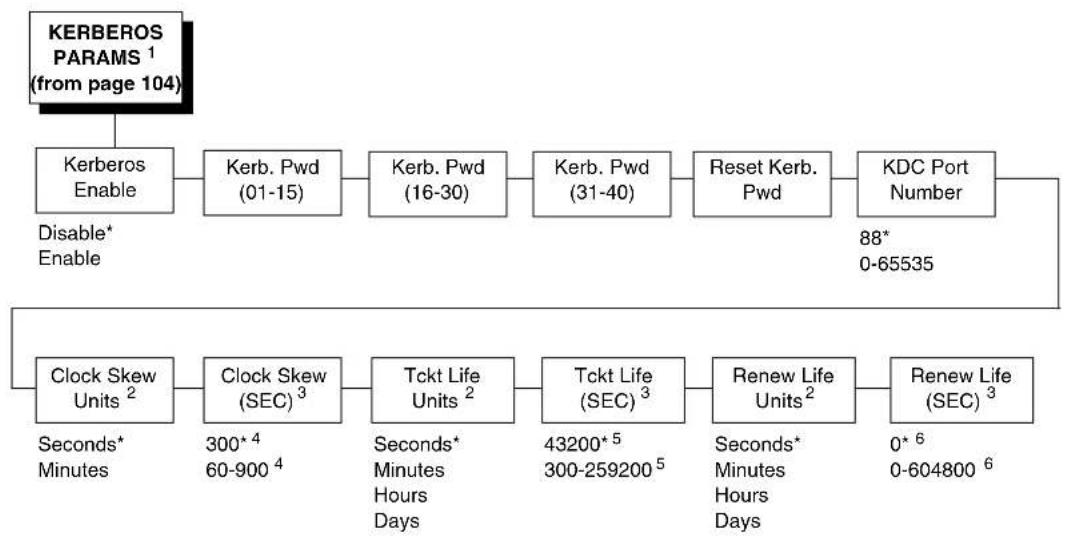
flowchart
graph TD
    A["KERBEROS PARAMS¹ (from page 104)"] --> B["Kerberos Enable"]
    B --> C["Kerb. Pwd (01-15)"]
    C --> D["Kerb. Pwd (16-30)"]
    D --> E["Kerb. Pwd (31-40)"]
    E --> F["Reset Kerb. Pwd"]
    F --> G["KDC Port Number"]
    G --> H["Clock Skew Units²"]
    H --> I["Clock Skew (SEC)³"]
    I --> J["Tckt Life Units²"]
    J --> K["Tckt Life (SEC)³"]
    K --> L["Renew Life Units²"]
    L --> M["Renew Life (SEC)³"]
    N["Disable* Enable"] --> B
    O["88* 0-65535"] --> G
    P["Seconds* Minutes"] --> H
    Q["300* 4 60-900 4"] --> I
    R["Seconds* Minutes Hours Days"] --> J
    S["43200* 5 300-259200 5"] --> K
    T["Seconds* Minutes Hours Days"] --> L
    U["0* 6 0-604800 6"] --> M
Notes:
* = Factory Default
1 This menu displays only if a Symbol LA4121 RF card is installed.
2.3 These two menus work in conjunction. Whatever submenu name is selected in the first menu will display on the second menu. For example if you select Minutes, (MIN) will display in the name of the second menu.
4 The factory default and values depend on the unit selected in the Clock Skew Units menu. See "Clock Skew (SEC)" on page 270 for more information.
5 The factory default and values depend on the unit selected in the Tckt Life Units menu. See "Tckt Life (SEC)" on page 271 for more information.
^6 The factory default and values depend on the unit selected in the Renew Life Units menu. See “Renew Life (SEC)” on page 271 for more information.
KERBEROS PARAMS Submenus
Kerberos Enable
- Disable (the default). Disables Kerberos authentication in the wireless network interface.
- Enable. Enables Kerberos authentication in the wireless network interface.
Kerb. Pwd(01–15)
First 15 characters of the Kerberos password (maximum number of characters is 40).
Kerb. Pwd(16–30)
Characters 31 to 40 of the Kerberos password (maximum number of characters is 40).
Kerb. Pwd(31–40)
Characters 31 to 40 of the Kerberos password (maximum number of characters is 40).
Reset Kerb. Pwd
Resets Kerberos password to an empty string.
KDC Port Number
KDC (Key Distribution Center) port number is the 2-byte UDP/TCP port used for Kerberos Communication.
The range is 0-65535, and the factory default is 88.
Clock Skew Units
The options are Seconds and Minutes, and the factory default is Seconds.
Clock Skew (SEC)
Sets the maximum allowable amount of time in seconds (SEC) or minutes (MIN), as specified by the Clock Skew Units, that Kerberos authentication will tolerate before assuming that a Kerberos message is invalid.
• Seconds: The range is 60-900, and the default is 300.
- Minutes: The range is 1-15, and the default is 5.
NOTE: Whatever submenu is selected in Clock Skew Units will display on the Clock Skew (SEC) menu. For example, if you select Minutes, the Clock Skew (SEC) menu name will change to Clock Skew (MIN).
Tckt Life Units
Ticket lifetime unit in Seconds, Minutes, Hours, or Days.
The factory default is Seconds.
Tckt Life (SEC)
Sets the maximum allowable amount of time in Seconds (SEC), Minutes (MIN), Hours (HR), or Days (DAY), as specified by the Tckt Life Units, that a ticket obtained from the Kerberos server is valid before getting a new one.
• Seconds: The range is 300-259200, and the default is 43200.
• Minutes: The range is 5-4320, and the default is 720.
• Hours: The range is 1-72, and the default is 12.
• Days: The range is 1-3, and the default is 1.
NOTE: Whatever submenu is selected in Tckt Life Units will display on the Tckt Life (SEC) menu. For example, if you select Hours, the Tckt Life (SEC) menu name will change to Tckt Life (HR).
Renew Life Units
Renew lifetime unit in Seconds, Minutes, Hours, or Days.
The factory default is Seconds.
Renew Life (SEC)
Sets the maximum allowable amount of time in Seconds (SEC), Minutes (MIN), Hours (HR) or Days (DAY), as specified by the Renew Life Units, before warning that a new Kerberos password is needed.
• Seconds: The range is 0-604800, and the default is 0.
- Minutes: The range is 0-10080, and the default is 0.
• Hours: The range is 0-168, and the default is 0.
• Days: The range is 0-7, and the default is 0.
NOTE: Whatever submenu is selected in Renew Life Units will display on the Renew Life (SEC) menu. For example, if you select Days, the Renew Life (SEC) menu name will change to Renew Life (DAY).
WLAN EAP
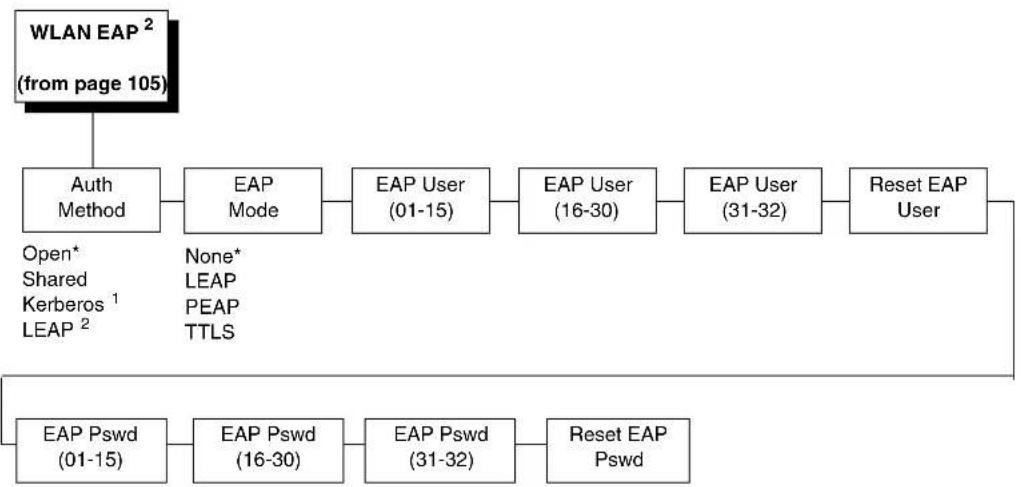
flowchart
graph TD
    A["WLAN EAP² (from page 105)"] --> B["Auth Method"]
    B --> C["EAP Mode"]
    C --> D["EAP User (01-15)"]
    D --> E["EAP User (16-30)"]
    E --> F["EAP User (31-32)"]
    F --> G["Reset EAP User"]
    G --> H["EAP Pswd (01-15)"]
    H --> I["EAP Pswd (16-30)"]
    I --> J["EAP Pswd (31-32)"]
    J --> K["Reset EAP Pswd"]
    B --> L["Open* Shared Kerberos¹ LEAP²"]
    C --> M["None* LEAP PEAP TTLS"]
Notes:
* = Factory Default
^1 This option appears only if a Symbol 4121 radio card is installed.
^2 This menu appears only if a Cisco Aironet 350 radio card is installed.
WLAN EAP Submenus
Auth Method
This feature allows the user to select the authentication method used for the wireless network interface.
- Open (the default). Selects open authentication.
- Shared. Selects shared key authentication.
- Kerberos. Selects Kerberos authentication (for use when a Symbol 4121 RF card is installed).
- LEAP. Selects LEAP authentication (for use with a Cisco Aironet 350 RF card installed).
EAP Mode
- None (default). EAP authentication is disabled.
- LEAP. Selects Cisco LEAP authentication.
• PEAP. Selects PEAP authentication.
• TTLS. Selects TTLS authentication.
EAP User (01-15)
The first 15 characters of the EAP user name (maximum number of characters is 32).
EAP User (16-30)
Characters 16 to 30 of the EAP user name (maximum number of characters is 32).
EAP User (31-32)
Characters 31 to 32 of the EAP user name (maximum number of characters is 32).
Reset EAP User
Resets the EAP user name to an empty string.
EAP Pswd (01-15)
The first 15 characters of the EAP password (maximum number of characters is 32).
EAP Pswd (16-30)
Characters 16 to 30 of the EAP password (maximum number of characters is 32).
EAP Pswd (31-32)
Characters 31 to 32 of the EAP password (maximum number of characters is 32).
Reset EAP Pswd
Resets the EAP password to an empty string.
BATTERY CONTROL
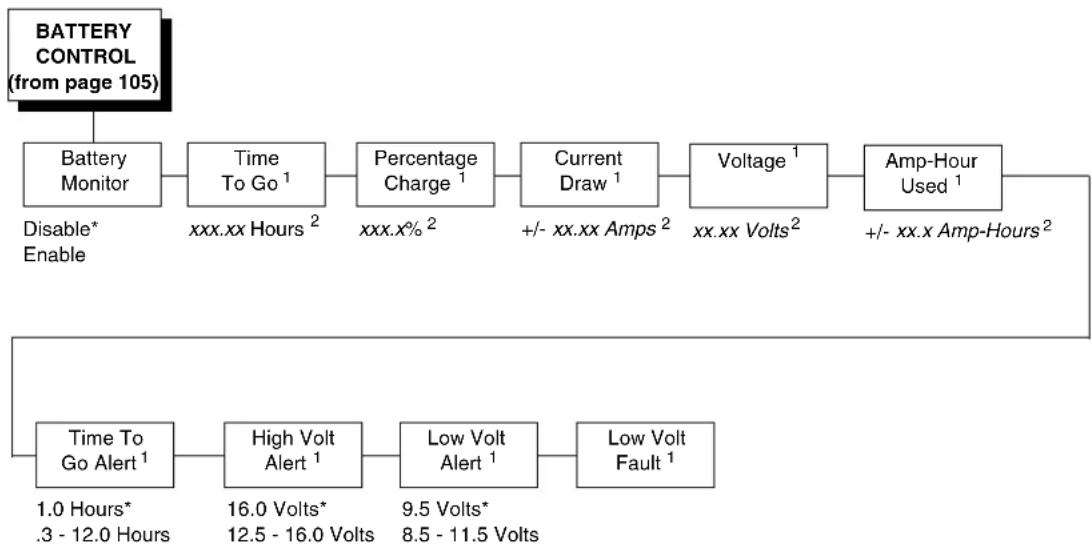
flowchart
graph TD
    A["BATTERY CONTROL (from page 105)"] --> B["Battery Monitor"]
    B --> C["Time To Go¹"]
    C --> D["Percentage Charge¹"]
    D --> E["Current Draw¹"]
    E --> F["Voltage¹"]
    F --> G["Amp-Hour Used¹"]
    G --> H["Time To Go Alert¹"]
    H --> I["High Volt Alert¹"]
    I --> J["Low Volt Alert¹"]
    J --> K["Low Volt Fault¹"]
    C --> L["Disable* Enable"]
    F --> M["+/- xx.xx Amps²"]
    G --> N["+/- xx.x Amp-Hours²"]
    H --> O["1.0 Hours* .3 - 12.0 Hours"]
    I --> P["16.0 Volts* 12.5 - 16.0 Volts"]
    J --> Q["9.5 Volts* 8.5 - 11.5 Volts"]
Notes:
* = Factory Default
^1 Available only when Battery Monitor is set to Enable (in the BATTERY CONTROL menu). Functional only when the printer is connected to a power cart, via serial interface, and the cart has an ICP (Intelligent Control Panel) option.
^2 You cannot change this value; it is a display only item.
BATTERY CONTROL Submenus
Battery Monitor
- Disable (the default). When set to Disable, the other Battery Control menus do not display. The Serial Port is restored to normal use, and the Serial Port menu displays.
- Enable. When set to Enable, the other Battery Control menus display. The Serial Port is reserved for monitoring the power cart, and the Serial Port menu does not display.
When Battery Monitoring has been enabled and the printer is online, the second line of the LCD message displays the time remaining as "Batt xxx.xx Hrs."
The factory default is Disable.
Time To Go
This displays the Time to Go status on the LCD in hundredths of an hour.
NOTE: This menu is available only when you select "Enable" in the Battery Monitor submenu. When the power cart charger is connected to an AC outlet, the Time To Go will be 0.00 Hours. This message updates approximately every two minutes.
Percent Charge
This displays the Charge Percentage in tenths of a percent.
NOTE: This menu is available only when you select "Enable" in the Battery Monitor submenu.
Current Draw
This displays the Current Draw in hundredths of an amp.
NOTE: This menu is available only when you select "Enable" in the Battery Monitor submenu.
Voltage
This displays the Voltage in hundredths of a volt.
NOTE: This menu is available only when you select "Enable" in the Battery Monitor submenu.
Amp-Hour Used
This displays the Amp-Hour Used in tenths of an amp hour.
NOTE: This menu is available only when you select "Enable" in the Battery Monitor submenu.
Time To Go Alert
This allows you to set the minimum Time to Go value for determining when a "RECHARGE BATTERY" warning occurs. When the printer receives a status from the battery that is less than the value of the Time To Go menu, the "RECHARGE BATTERY" warning displays on the LCD.
The range is .3 - 12.0, and the factory default is 1.0 Hours.
NOTE: This menu is available only when you select "Enable" in the Battery Monitor submenu.
High Volt Alert
This allows you to set the maximum voltage for determining when a "BATT HIGH VOLT" warning occurs. When the printer receives a status from the battery that is greater than the value of the High Volt menu, the "BATT HIGH VOLT" warning displays on the LCD.
The range is 12.5 - 16.0 Volts, and the factory default is 16.0 Volts.
NOTE: This menu is available only when you select "Enable" in the Battery Monitor submenu.
Low Volt Alert
This allows you to set the minimum voltage for determining when a “BATT LOW VOLT” warning displays on the LCD. When the printer receives a status from the battery that is less than the value of the Low Volt menu, the “BATT LOW VOLT” warning displays on the LCD.
The range is 8.5 - 11.5 Volts, and the factory default is 9.5 Volts.
Low Volt Fault
A Low Voltage Fault occurs when the printer receives a status from the battery that is 1.0 VDC less than the value of the Low Volt menu. In addition to the "BATT LOW VOLT" warning, the Online Status Indicator flashes, the printer sounds a beeping alarm, stops printing, and goes offline.
The operator can press the PAUSE key to attempt to clear the fault, but printing cannot continue unless the battery is recharged.
NOTE: This menu is available only when you select "Enable" in the Battery Monitor submenu.
PRINTER MGMT

flowchart
graph LR
    A["PRINTER MGMT (from page 105)"] --> B["PNE Port"]
    B --> C["Mgmt Protocol"]
    C --> D["PNE Port Number"]
    D --> E["PNE Port Timeout"]
    E --> F["Status Port Numb"]
    F --> G["Mgmt Port Number"]

    B --> H["Ethernet* Disable Serial"]
    C --> I["UCP* PXML"]
    D --> J["3001* 1023 - 65535"]
    E --> K["100 Seconds* 1 - 255 Seconds"]
    F --> L["3006* 1023 - 65535"]
    G --> M["3007* 1023 - 65535"]
    note right of A
        * = Factory Default
PRINTER MGMT Submenus
PNE Port
This menu selects which port the printer expects PNE to connect to, via Ethernet or Serial. The factory default is Ethernet only if the NIC is installed.
Mgmt Protocol
Since PXML and UCP management protocols share the same Ethernet Port, only one can be active at a time. This menu selects the active Management Protocol Interface, either PXML or UCP. The factory default is UCP.
PNE Port Number
This menu selects the port number the printer expects PNE to connect through. The factory default is 3001 and the range is from 1023 to 65535.
PNE Port Timeout
If PNE has not communicated to the printer within a timeout period, the PNE session closes. The factory default is 100 seconds. The range is from 1 to 255 seconds.
Status Port Numb
This menu selects the port number the printer sends the emulation status. The factory default is 3006 and the range is from 1023 to 65535.
Mgmt Port Number
This menu selects the port number the printer expects the PXML or UCP to connect through. The factory default is 3007 and the range is from 1023 to 65535.
DATE

flowchart
graph LR
    A["DATE 1,2 (from page 105)"] --> B["Hour"]
    B --> C["Minute Year"]
    C --> D["2099* 2000 - 2099"]
    D --> E["Month"]
    E --> F["Day"]
    B --> G["00* 00 - 23"]
    C --> H["00* 00 - 59"]
    D --> I["Jan* Jan - Dec"]
    E --> J["01* 01 - 31"]
Notes:
* = Factory Default
^1 This menu appears only if the real time clock option is installed.
^2 Updates the set parameters only if the real time clock NOVRAM option is installed.
Date Submenus
Hour
This option allows you to set the hour. The factory default is 00 and the range is from 00 to 23 hours.
Minute
This option allows you to set the minutes. The factory default is 00 and the range is from 00 to 59 minutes.
Year
This option allows you to set the year. The factory default is 2099 and the range is from the year 2000 to 2099.
Month
This option allows you to set the month. The factory default is Jan and the range is from Jan to Dec.
Day
This option allows you to set the day. The factory default is 01 and the range is from 01 to 31 days.
4 Downloading Software
Loading Flash Memory
Flash memory is contained in a SIMM (single in-line memory module) located on the controller PCBA. Printer control languages (the "emulations") and printer operating system software are loaded into flash memory at the factory, but there are occasions when you may have to download this software:
- You have replaced the controller PCBA
- You have replaced flash memory
- The customer needs to upgrade printer software
- The customer needs different emulation software
- The customer buys the PGL or VGL graphics language, the CT option, the IPDS option, or the ethernet NIC (network interface card) option after the printer is installed
Emulation and operating system software are included as files on a CD that comes with the printer. You will copy the appropriate file from the CD to a computer's hard disk, then download the file from the computer into printer memory.
IMPORTANT
When downloading emulation and operating system software to the printer, all other optional fonts, customer-supplied logos, setup files, feature files, and TIFF files will be erased. You will then need to reload those files. Before starting a download procedure, be sure that you have all the necessary files on hand.
You can download software through the serial, parallel, USB, or ethernet port of the printer, and you can do it four ways:
- You can download software through any printer port except USB by using the Firmware Download Utility included on the CD that comes with the printer. (See page 280.)
- You can use a command prompt session to download software through the parallel port. (See page 281.)
- If the printer has the NIC installed, you can download software through the ethernet port. (See page 284.)
- You can use a command prompt session to download software through the USB port. (See page 286.)
Downloading Software With The Firmware Download Utility
The Firmware Download Utility (FDU) allows you to download program files into the printer with an easy to use graphical interface. The FDU is a utility program included on the CD that comes with the printer. It can be used on computers running the Windows or UNIX ^® (such as Linux ^® or Solaris ^™ ) operating systems. With the FDU, you can choose the printer port through which to download software, configure the port, and initiate the download.
The FDU is a Java™-based program, so you need the Java 2 Platform, Standard Edition (J2SE™) Java Runtime Environment (JRE) installed on your computer. The Windows version of the J2SE JRE is included on the CD that comes with the printer in the form of an executable file. Copy this file to your computer and double-click it; it will self-extract and install the J2SE JRE on your computer.
NOTE: If you have a Linux or Solaris system, you can download the J2SE JRE for your system from http://java.sun.com/j2se.
If you have another UNIX system, see your system administrator.
Conditions for use of the included Java Software are set forth in the Sun Microsystems Binary Code License Agreement (http://java.com/en/download/license.jsp). In the event of any conflicting terms, the Binary Code License Agreement controls.
- Make a configuration printout of all saved configurations. See page 93.
- Set the printer power switch to O (Off).
- Disconnect the data (signal) cable(s) from the printer interface connectors.
- Connect a printer data cable to the parallel, serial, or ethernet port of the computer you will use to download the software.
- Connect the printer data cable to the appropriate I/O port of the printer.
- On the printer control panel, press and hold down the and keys. Without releasing the keys, power the printer on. When you see "B01: STATUS" on the on the LCD, release the keys.
- Wait until you see "PROGRAM DOWNLOAD" on the LCD before doing the next step. This can take about a minute to appear, depending on the emulations and interfaces installed in the printer.
- On your computer, create a directory named download at the root level of the hard drive (e.g., C:\download on a Windows computer).
-
Insert the printer emulation software CD into your computer's CD drive.
-
Copy the FDU.jar file from the CD to your computer.
-
Open the readme.txt file on the CD. There are two emulation sets with corresponding part number files from which to choose: CT / IPDS / IGP / ZGL / TGL / IGL / STGL / DGL / MGL / IEGL TN / IGP / ZGL / TGL / IGL / STGL / DGL / MGL / IEGL Both emulation sets include the LP+ emulation. They are offered in two file formats: .exe and .prg. You can use either format with the FDU.
-
Identify which emulation set you want to download into the printer and note the filename that corresponds to that emulation. The filename is a six digit number plus .exe or .prg. For example: 123456.exe or 123456.prg This is the file you will download into the printer.
- Copy the file to the download directory you created in step 8.
- Double-click the FDU.jar file (for command line prompt users, type java -jar fdu.jar
). It will launch in its own window. Use the FDU to enter the emulation part number, to select the I/O connection and its corresponding settings, and to initiate the download.
IMPORTANT
Do not interrupt the downloading process once it has started. Interrupting a download will leave the flash memory on the controller PCBA incompletely loaded, and the printer may not boot up.
- When the new software has successfully downloaded into flash memory and the printer has reset itself, set the printer power switch to O (Off).
- Remove the CD from your computer and store it with the printer.
- If required, reconnect the data input cable(s) to the printer.
- Set the printer power switch to I (On).
- Using the configuration printout(s) you made in step 1, page 280, restore the printer configurations.
Downloading Software Through The Parallel Port
- Make a configuration printout of all saved configurations. See page 93.
- Set the printer power switch to O (Off).
- Disconnect the data (signal) cable(s) from the printer interface connectors.
- Connect a parallel data printer cable to the LPT1 port of a computer running the Windows (95, 98, Me, NT, 2000, XP, Server 2003, or Vista) operating system.
- Connect the data cable to the appropriate I/O port of the printer.
- On the printer control panel, press and hold down the :≡ and ↓ keys. Without releasing the keys, power the printer on. When you see "B01: STATUS" on the on the LCD, release the keys.
- Wait until you see "PROGRAM DOWNLOAD" on the LCD before proceeding. This can take about a minute to appear, depending on the emulations and interfaces installed in the printer.
- Using Windows Explorer, create a directory named download at the root level of your C: hard drive (C:\download).
-
Insert the printer emulation software CD into your computer's CD drive.
-
Open the readme.txt file on the CD. There are two emulation sets with corresponding part number files from which to choose: CT / IPDS / IGP / ZGL / TGL / IGL / STGL / DGL / MGL / IEGL TN / IGP / ZGL / TGL / IGL / STGL // DGL / MGL / IEGL Both emulation sets include the LP+ emulation. They are offered in two file formats: .exe and .prg. Use .exe files to download through the parallel port.
- Identify which emulation set you want to download into the printer and note the filename that corresponds to that emulation. The filename is a six digit number plus .exe. For example: 123456.exe This is the file you will download into the printer.
- Copy the file to the download directory you created in step 8.
- Start a command prompt session. (The Start Menu icon is usually labeled MS-DOS® Prompt or Command Prompt.)
- At the command prompt type:
c:
cd \download - Enter the following command:
filename.exe -pb
where filename.exe is the file name you noted in step 11. This command takes the file on the hard drive and copies it as a binary file into the flash memory on the printer controller board.
IMPORTANT
Do not interrupt the downloading process once it has started. Interrupting a download will leave the flash memory on the controller PCBA incompletely loaded, and the printer may not boot up.
While the file is copied into memory, the printer LCD informs you of the download process and status.
- When the new software has successfully downloaded into flash memory and the printer has reset itself, set the printer power switch to O (Off).
- Remove the CD from the host computer and store it with the printer.
- If required, reconnect the data input cable(s) to the printer.
- Set the printer power switch to I (On).
- Using the configuration printout(s) you made in step 1 on page 281, restore the printer configurations.
Downloading Software Through The NIC
IMPORTANT
To download software through the NIC, you need the IP Address of the printer and the flash memory must contain basic printer code. If the flash memory was replaced, or if a download was interrupted (e.g., by a power outage), you must download software through the parallel port. (See "Downloading Software If Flash Contains Only Boot Or Corrupt Code" on page 287.)
- Make a configuration printout of all saved configurations. See page 93.
- Set the printer power switch to O (Off).
- Connect the ethernet cable to the printer interface.
- Set the printer power switch to I (On).
- Wait until you see "ONLINE" on the LCD before doing the next step. This can take about a minute to appear, depending on the emulations and interfaces installed in the printer.
-
Using Windows Explorer, create a directory named download at the root level of your C: hard drive (C:\download).
-
Insert the printer emulation software CD into your computer's CD drive.
-
Open the readme.txt file on the CD. There are two emulation sets with corresponding part number files from which to choose: CT / IPDS / IGP / ZGL / TGL / IGL / STGL / DGL / MGL / IEGL TN / IGP / ZGL / TGL / IGL / STGL // DGL / MGL / IEGL Both emulation sets include the LP+ emulation. They are offered in two file formats: .exe and .prg. Use .exe files to download through the NIC.
-
Identify which emulation set you want to download into the printer and note the filename that corresponds to that emulation. The filename is a six digit number plus .exe. For example: 123456.exe This is the file you will download into the printer.
-
Copy the file to the download directory you created in step 6.
-
Start a command prompt session. (The Start Menu icon is usually labeled MS-DOS® Prompt or Command Prompt.)
-
At the command prompt type: c:
cd \download -
Enter the following command: filename.exe -n xxx.xxx.xxx.xxx
where filename.exe is the file name you noted in step 9 and xxx.xxx.xxx.xxx is the IP address of the printer. This command takes the file on the hard drive and copies it as a binary file into the flash memory on the printer controller board.
NOTE: If the software does not download, use the Firmware Download Utility (page 280).
IMPORTANT
Do not interrupt the downloading process once it has started. Interrupting a download will leave the flash memory on the controller PCBA incompletely loaded, and the printer may not boot up.
While the file is copied into memory, the printer LCD informs you of the download process and status.
- When the new software has successfully downloaded into flash memory and the printer has reset itself, set the printer power switch to O (Off).
- Remove the CD from the host computer and store it with the printer.
- If required, reconnect the data input cable(s) to the printer.
- Set the printer power switch to | (On).
- Using the configuration printout(s) you made in step 1 on page 283, restore the printer configurations.
Downloading Software Through The NIC Using FTP
IMPORTANT
To download software through the NIC, you need the IP Address of the printer and the flash memory must contain basic printer code. If the flash memory was replaced, or if a download was interrupted (e.g., by a power outage), you must download software through the parallel port. (See "Downloading Software If Flash Contains Only Boot Or Corrupt Code" on page 287.)
- Make a configuration printout of all saved configurations. See page 93.
- Set the printer power switch to O (Off).
- Connect the ethernet cable to the printer interface.
- On the printer control panel, press and hold down the :≡ and ↓ keys. Without releasing the keys, power the printer on. When you see "B01: STATUS" on the on the LCD, release the keys.
- Wait until you see "PROGRAM DOWNLOAD" on the LCD before proceeding. This can take about a minute to appear, depending on the emulations and interfaces installed in the printer.
-
Using Windows Explorer, create a directory named download at the root level of your C: hard drive (C:\download).
-
Insert the printer emulation software CD into your computer's CD drive.
-
Open the readme.txt file on the CD. There are two emulation sets with corresponding part number files from which to choose: CT / IPDS / IGP / ZGL / TGL / IGL / STGL / DGL / MGL / IEGL TN / IGP / ZGL / TGL / IGL / STGL // DGL / MGL / IEGL Both emulation sets include the LP+ emulation. They are offered in two file formats: .exe and .prg. Use .prg files to download through the NIC using FTP.
-
Identify which emulation set you want to download into the printer and note the filename that corresponds to that emulation. The filename is a six digit number plus .prg. For example: 123456.prg This is the file you will download into the printer.
-
Copy the file to the download directory you created in step 6.
-
Start a command prompt session in Windows. (The Start Menu icon is usually labeled MS-DOS Prompt or Command Prompt.)
-
At the command prompt type:
c:<Enter>
cd \download<Enter>
- Start the FTP (file transfer protocol) program by typing:
ftp xxx.xxx.xxx.xxx<Enter>
where xxx.xxx.xxx.xxx is the IP Address of the printer.
- Log in to the printer by typing:
root<Enter>
You are given a password prompt.
NOTE: The default is no password. If the FTP program requires a password, contact the system administrator.
-
At the password prompt, press
. -
Once logged in, type the following sequence at the command prompt to download the filename.prg file to the printer:
cd dest<Enter>
cd d1prn<Enter>
bin<Enter>
put filename.prg<Enter>
where filename.prg is the file name you noted in step 9.
IMPORTANT
Do not interrupt the downloading process once it has started. Interrupting a download will leave the flash memory on the controller PCBA and NIC incompletely loaded, and the printer may not boot up.
- When the download is complete, exit the FTP program by typing:
quit
- When the new software has successfully downloaded into flash memory and the printer has reset itself, set the printer power switch to O (Off).
- Remove the CD from the host computer and store it with the printer.
- If required, reconnect the data input cable(s) to the printer.
- Set the printer power switch to | (On).
- Using the configuration printout(s) you made in step 1 on page 284, restore the printer configurations.
Downloading Software Through The USB Port
Normally the host communicates with the printer's USB port with a Windows driver. The Windows driver cannot be used to transfer a program file to the printer.
To download software through the USB Port, perform the following steps:
-
Using Windows Explorer, create a directory named download at the root level of your C: hard drive (C:\download).
-
Insert the printer emulation software CD into your computer's CD drive.
-
Open the readme.txt file on the CD. There are two emulation sets with corresponding part number files from which to choose: CT / IPDS / IGP / ZGL / TGL / IGL / STGL / DGL / MGL / IEGL TN / IGP / ZGL / TGL / IGL / STGL // DGL / MGL / IEGL Both emulation sets include the LP+ emulation. They are offered in two file formats: .exe and .prg. Use .prg files to download through the USB.
-
Identify which emulation set you want to download into the printer and note the filename that corresponds to that emulation. The filename is a six digit number plus .prg. For example: 123456.prg This is the file you will download into the printer.
-
Copy the file to the download directory you created in step 1.
-
Make the printer sharable on the host PC. This is done through the printer's Properties\Sharing tab. Make note of the printer's shared name.
-
Start a command prompt session. (The Start Menu icon is usually labeled MS-DOS Prompt or Command Prompt.)
-
At the command prompt type: NET USE LPT1\Comp_Name\Shared_Name /Persistent:YES
where Comp_Name is the computer name found in the computer's System Properties\Computer Name tab and Shared_Name is the printer's shared name found in the printer's Properties\Sharing tab. This command should be all on the same line. It redirects output on LPT1 to the shared printer. -
To check status of connection type: Net View \Comp_Name
where Comp_Name is the computer name found in the computer's System Properties\Computer Name tab. Now the printer is ready. -
To use the COPY command to send the program file to the printer type: COPY /b filename.prg lpt1:
where filename.prg is the file name you noted in step 4. -
To stop using LPT1 for USB, type: NET USE LPT1 /DELETE
Downloading Software If Flash Contains Only Boot Or Corrupt Code
If the flash memory contains only boot code (e.g., if it is new), or if a download was interrupted (e.g., by a power outage), you must download software through the printer's parallel port using the three-key initialization sequence covered in this section.
- Make sure the printer's parallel port is available. In some configurations, you may have to remove an external NIC. If you need to re-install the Centronics® I/O cable and connector, contact your support facility.
- Set the printer power switch to O (Off).
- Disconnect the data (signal) cable(s) from the printer interface connectors.
- Connect a parallel data printer cable to the LPT1 port of a computer running the Windows (95, 98, Me, NT, 2000, XP, Server 2003, or Vista) operating system.
- Connect the data cable to the Centronics port of the printer.
- On the printer control panel, press and hold down the :≡ , ↓, and ↓ keys. Without releasing the keys, power the printer on. When you see "B20: STATUS 00% / DOWNLOAD MODE" on the LCD, release the keys.
- Using Windows Explorer, create a directory named download at the root level of your C: hard drive (C:\download).
- Insert the printer emulation software CD into your computer's CD drive.
- Open the readme.txt file on the CD. There are two emulation sets with corresponding part number files from which to choose: CT / IPDS / IGP / ZGL / TGL / IGL / STGL / DGL / MGL / IEGL TN / IGP / ZGL / TGL / IGL / STGL // DGL / MGL / IEGL Both emulation sets include the LP+ emulation. They are offered in two file formats: .exe and .prg. Use .exe files to download through the parallel port.
- Identify which emulation set you want to download into the printer and note the filename that corresponds to that emulation. The filename is a six digit number plus .exe. For example: 123456.exe This is the file you will download into the printer.
- Copy the file to the download directory you created in step 7.
- Start a command prompt session. (The Start Menu icon is usually labeled MS-DOS Prompt or Command Prompt.)
-
At the command prompt type: c:
cd \download -
Enter the following command:
filename.exe -pb
where filename.exe is the file name you noted in step 10. This command takes the file on the hard drive and copies it as a binary file into the flash memory on the printer controller board.
-
After the software successfully downloads into flash memory, the printer will reset itself.
-
If you have an external NIC:
a. Set the printer power switch to O (Off).
b. Connect the external NIC to the parallel port.
c. Connect the ethernet cable to the NIC.
d. Starting at step 4, page 284, repeat the "Downloading Software Through The NIC Using FTP" procedure. (In other words, use the two-key method to download software again.) This ensures that all necessary code downloads into printer memory.
Using TrueType Fonts
TrueType fonts allow you to customize the look of your forms and labels. You are able to download TrueType fonts purchased from various sources into your printer. The fonts are available for purchase on websites such as www.fonts.com and www.myfonts.com.
The following sections discuss how to:
- download TrueType fonts (see below)
- select and print TrueType fonts (see page 292).
Downloading TrueType Fonts
You can download TrueType fonts to your printer by using any of the following:
• Printronix Windows Driver
• PGL Emulation (Online)
- Download Mode (after adding a header)
- PTX_SETUP
- Labeling Applications
Once a TrueType font is downloaded, it will be stored in the Flash File System as a resident font. Regardless of printer power cycles, the downloaded font will stay in the printer until the user deletes it. The user can find the list of all printer resident fonts under PRINTER CONTROL ▶ View File List after enabling Admin User in the Printer Control menu. To delete a downloaded font from the Flash File System, the user should select the font under PRINTER CONTROL ▶ Delete File List and then select Optimize & Reboot.
NOTE: A “?” will be added in front of the selected file name to indicate that the file has been deleted. The deleted file name will not be removed from the “View File List” and “Delete File List” until the user selects Optimize & Reboot.
Printronix Windows Driver
A TrueType font can be downloaded from a PC through the Printronix Windows Driver.
- Load the Printronix Windows driver provided with your printer on the Manuals and Utilities CD on Windows 2000/NT/XP/Server 2003/Vista.
- Once the printer driver is installed on the PC, right-click the printer driver and select Properties.
- Click the TT Font Download tab to access all the available system TrueType fonts.
- Select the TrueType font(s) from the Available System TrueType Fonts pane you want to download.
- Click the Download button to download font(s) to the printer while it is online.
PGL Emulation (Online)
A TrueType font can be downloaded by creating a file that appends a PGL command to the font and then sending that file to the printer. Use the PGL FONTLOAD command:
\~FONTLOAD;FontName;FontSize;DISK where
FontName - TrueType font name, e.g. arial.ttf FontSize - TrueType font size, e.g. file size for arial.ttf DISK - Specify the download location to Flash
For example:
\~FONTLOAD;arial.ttf;60548;DISK Insert binary data of arial.ttf here... END
After the file is created, it can be copied to the appropriate I/O port of the printer while the printer is online, just like any other print file (for example: copy/b filename.ext 1pt1).
Download Mode
To download a TrueType font to the printer through Download mode, first add a header to the font, then place the printer in Download mode and download the font.
Adding A Header
A TrueType font can be converted to a downloadable format by appending a header to the font file using the cnvt2fls.exe utility.
- Start a Command prompt window.
- Copy cnvt2fls.exe and addtthdr.bat from your startup CD to your working directory.
- In your working directory, include the TrueType font file in .ttf format (e.g., arial.ttf).
- Convert the TrueType font file .ttf to a downloadable format .dwn with the following command: addtthdr (filename without extension).
Example: addtthdr arial This creates the file arial.dwn.
- Put the printer in download mode as described in "Downloading A Font In Download Mode" on page 290, and send the downloadable font file (e.g., arial.dwn) to the printer through the appropriate I/O port of the printer.
Downloading A Font In Download Mode
- Set the printer power switch to O (Off).
- Connect a parallel data cable to the LPT1 port or a serial cable to the COM1 port of a computer running the Windows (95, 98, Me, NT, 2000, XP, Server 2003, or Vista) operating system.
NOTE: You can connect the cable to the LPT2 port on the computer if the LPT1 port is already in use. The download commands are different if you use this port, as described in the notes after step 10.
-
Verify that the data cable is connected to the appropriate I/O port on the printer and to the host computer.
-
Power on the computer and allow it to boot up.
-
On the printer control panel, press and hold down the :≡ and ↓ keys. Without releasing the keys, power the printer on. Continue holding down the :≡ and ↓ keys.
-
When you see "B01 STATUS" on the LCD, release the :≡ and ↓ keys.
-
Wait until you see "PROGRAM DOWNLOAD" on the LCD before proceeding. This can take about a minute to appear, depending on the emulations and interfaces installed in the printer.
-
Start a command prompt session. (The Start Menu icon is usually labeled MS-DOS Prompt or Command Prompt.)
-
Make note of the file name with the .dwn extension of each file you want to download to the printer.
-
At the command prompt type:
copy /b filename.dwn LPT1<Enter>
(where filename.dwn is file name you noted in step 9.)
NOTE: If you are loading the file using the LPT2 port on the computer, type the following command:
copy /b filename.dwn LPT2<Enter>
(where filename.dwn is a file you noted in step 9.)
If you are loading the file using the serial port on the computer, type the following commands:
mode COM1:9600,N,8,1,P<Enter>
copy /b filename.dwn COM1<Enter>
(where filename.dwn is a file you noted in step 9.)
The 9600 baud rate is the only selection some systems can use. The baud rate information entered in the above commands must match the Baud Rate setting (in the SERIAL PORT menu) saved in the Power-Up Config.
You can download the fonts one at a time by entering one file name per the copy command or you can copy multiple files in one copy command.
To download one file at a time, enter the following at the command prompt:
copy /b filename.dwn LPT1
To download multiple files, enter the following at the command prompt, for example:
copy /b filename1.dwn+filename2.dwn+...LPT1
-
While the font file is copied into the flash memory, the printer LCD informs you of the download process and status. After the new file successfully downloads into memory, the printer resets itself and goes online.
-
To verify that the fonts have been downloaded:
NOTE: Admin User must be set to Enable in the PRINTER CONTROL menu. See page 147.
a. Perform a configuration printout.
— OR —
b. Select PRINTER CONTROL ▶ View File List. The new file names will appear with the same part number file name you downloaded, but with an .ttf extension.
NOTE: The font typefaces cannot be selected via the printer control panel. They can only be selected via a software command from the host.
- Press the PAUSE key to place the printer online and return the printer to normal operation.
PTX\_SETUP
PTX_SETUP can be used to download TrueType fonts into the file system. Please see the PTX_SETUP chapter in the PGL Programmer's Reference Manual for details.
Example:
!PTX SETUP
FILE_IO-CAPTURE; "ARIAL.TTF".
PTX_END
Arial TrueType font binary data
NOTE: Do not add any LF/FF at the end of the binary data
!PTX SETUP
FILE_IO-CAPTURE;””.
PTX_END
Labeling Applications
A TrueType font can be downloaded through several labeling applications, such as Codesoft, Loftware, and Bartender. Please contact the appropriate company for more details.
Select And Print Downloaded TrueType Fonts
After downloading the TrueType font using any of the above methods, the user can access the downloaded TrueType font by using the FONT;NAME command as described in the PGL Programmer's Reference Manual.
For Example:
\~CREATE;FORM
FONT;NAME ARIAL.TTF
ALPHA
10;10;2;2;\01234\
STOP
END
\~EXECUTE;FORM;1
The font can also be chosen and printed through LP+ using the TrueType Font Selection superset command as described in the LinePrinter Plus Emulation Programmer's Reference Manual.
For example:
SSCC arial.ttf;
where SSCC is the superset control code for the current LP+ emulation.
You can also choose and print the font using the PPI/ZGL protocol converter.
5 Interfaces
Overview
This chapter describes the host interfaces provided with the printer. The printer interface is the point where the data line from the host computer plugs into the printer. The interface processes all communications signals and data to and from the host computer. Plus, with the Auto Switching feature, you can configure the printer to accept several interfaces at the same time.
In addition to descriptions for the multi-line interfaces, this chapter also provides instructions for configuration of terminating resistors for the parallel interfaces.
Auto Switching
This feature gives the printer the ability to handle multiple data streams sequentially. With Auto Switching, the printer can service hosts attached to the serial, parallel, USB, coax and twinax ports as if they were the only interface connected.
For example, if the host computer sends one print job to the RS-232 serial port and a separate print job to the IEEE 1284 parallel port, the printer's Auto Switching is able to handle both jobs, in the order they were received, without the user having to reconfigure the selected interface between jobs.
Standard Host Interfaces
- Centronics parallel
• IEEE 1284 parallel bidirectional - Serial Port (RS-232)
• USB 2.0 Universal Serial Bus
Optional Host Interfaces
- Coax / Twinax
- Ethernet 10/100Base-T
- Wireless NIC
- RS-422
Centronics Parallel Interface
Table 11. Centronics Interface Connector Pin Assignments
| Input Signals Output Signal Pin Signal Signal Pin | Signals Miscellaneous Pin | ||
| DATA LINE 1 | 2 | ACKNOWLEDGE | 10 |
| Return | 20 | Return | 28 |
| DATA LINE 2 | 3 | ONLINE | 13 |
| Return | 21 | Return | 28 |
| DATA LINE 3 | 4 | FAULT | 32 |
| Return | 22 | Return | 29 |
| DATA LINE 4 | 5 | PAPER EMPTY | 12 |
| Return | 23 | Return | 28 |
| DATA LINE 5 | 6 | BUSY | 11 |
| Return | 24 | Return | 29 |
| DATA LINE 6 | 7 | ||
| Return | 25 | ||
| DATA LINE 7 | 8 | ||
| Return | 26 | ||
| DATA LINE 8 | 9 | ||
| Return | 27 | ||
| DATA STROBE | 1 | ||
| Return | 19 | ||
| PAPER INSTRUCTION | 15 | ||
| Return | 29 | ||
| PRIME | 31 | ||
| Return | 30 | ||
NOTE: The length of the data cable from the host computer to the printer must not exceed 15 feet (5 meters).
Centronics Parallel Interface Signals
Table 12. Centronix Parallel Interface Signals
| Signals Purpose | |
| Data Lines 1 through 8 | Provide eight standard or inverted levels from the host that specify character data, plot data, or a control code. Data Line 8 allows access to the extended ASCII character set. You may enable or disable this line via the Data Bit 8 parameter on the Centronics Parallel submenu. |
| Data Strobe Carries a low | true, 100 ns minimum pulse from the host that clocks data into the printer. |
| Acknowledge A low true | pulse from the printer indicating the character or function code has been received and the printer is ready for the next data transfer. |
| Online A high true level from the printer to indicate the printer is ready for data transfer and the PAUSE key on the control panel has been activated. When the printer is in online mode, it may accept data from the host. | |
| Paper Empty (PE) A high | true level from the printer to indicate the printer is in a paper empty or paper jam fault. |
| Busy A high true level from the printer to indicate the printer cannot receive data. | |
| Prime A high true level from the host to indicate the printer should perform a warm start (printer is reset to the power-up configuration values). | |
| Paper Instruction (PI) Carries a VFU signal from the host with the same timing and polarity as the data line. | |
| Fault A low true level from the printer indicates a printer fault. | |
IEEE 1284 Parallel Interface
The IEEE 1284 supports three operating modes, which are determined by negotiation between the printer and the host.
Compatibility Mode
This mode provides compatibility with Centronics-like host I/O (see Table 11). Data is transferred from the host to the printer in 8-bit bytes over the data lines.
Compatibility Mode can be combined with Nibble and Byte Modes to provide bidirectional communication.
Nibble Mode
Eight bits equals one byte. When a byte of data is sent to the printer, the eight bits are sent over eight data lines.
Some devices cannot send data over their eight data lines. To bypass this, the IEEE 1284 permits data to be sent as half a byte over four status lines. (Half a byte equals one nibble.) Two sequential four-bit nibbles are sent over the lines.
Data is transferred from printer to host in four-bit nibbles over the status lines, and the host controls the transmission.
Byte Mode
The printer and host send data to each other along eight data lines (one bit per line).
If bidirectional communication is supported by the printer and the host, the host will take control of the data transfer.
Signals
Table 13 lists each of the signals associated with the corresponding pins on the IEEE 1284 interface. Descriptions of the signals follow.
Table 13. IEEE 1284 Signals
| Pin Source of Data | Type of Mode | |||
| Compatible Nibble Byte | ||||
| 1 Host nStrobe HostClk Host/Clk | ||||
| 2 Host/Printer Data 1 (LSB) | ||||
| 3 Host/Printer Data 2 | ||||
| 4 Host/Printer Data 3 | ||||
| 5 Host/Printer Data 4 | ||||
| 6 Host/Printer Data 5 | ||||
| 7 Host/Printer Data 6 | ||||
| 8 Host/Printer Data 7 | ||||
| 9 Host/Printer Data 8 (MSB) | ||||
| 10 Printer nAck PtrClk PtrClk | ||||
| 11 | Printer | Busy PtrBusy PtrBusy | ||
| Pin | Source of Data | Type of Mode | ||
| Compatible Nibble | Byte | |||
| 12 Printer | PError AckDataReq AckDataReq | |||
| 13 Printer | Select Xflag Xflag | |||
| 14 Host nAutoFd Host Busy HostAck | ||||
| 15 Not Defined | ||||
| 16 Logic Grid | ||||
| 17 Chassis Grid | ||||
| 18 Printer | Peripheral Logic High | |||
| 19 Signal | Ground (nStrobe) | |||
| 20 Signal | Ground (Data 1) | |||
| 21 Signal | Ground (Data 2) | |||
| 22 Signal | Ground (Data 3) | |||
| 23 Signal | Ground (Data 4) | |||
| 24 Signal | Ground (Data 5) | |||
| 25 Signal | Ground (Data 6) | |||
| 26 Signal | Ground (Data 7) | |||
| 27 Signal | Ground (Data 8) | |||
| 28 Signal | Ground (PError, Select, nAck) | |||
| 29 Signal | Ground (Busy, nFault) | |||
| 30 Signal | Ground (nAutoFd, nSelectIn, nInit) | |||
| 31 Host nInit | ||||
| 32 Printer | NFault nDataAvail aDataAvail | |||
| 33 Not Defined | ||||
| 34 Not Defined | ||||
| 35 Not Defined | ||||
| 36 Host nSelectIn 1284 Active 1284 | Active | |||
NOTE: The length of the data cable from the host computer to the printer should not exceed 32 feet (10 meters).
Host Clock / nWrite. Driven by the host. Data is transferred from the host to the printer. When the printer sends data, two types are available. If it is Nibble Mode, the signal is set high. If it is Byte Mode, the signal is set low.
Data 1 through Data 8. These pins are host-driven in Compatibility Mode and bidirectional in Byte Mode. They are not used in Nibble Mode. Data 1 is the least significant bit; Data 8 is the most significant bit.
Printer Clock / Peripheral Clock / Interrupt. Driven by the printer. A signal from the printer indicating the character or function code has been received and the printer is ready for the next data transfer.
Printer Busy / Peripheral Acknowledge / nWait. Driven by the printer. Indicates the printer cannot receive data. (Data bits 4 and 8 in Nibble Mode.)
Acknowledge Data Request / nAcknowledge Reverse. Driven by the printer. Indicates the printer is in a fault condition. (Data bits 3 and 7 in Nibble Mode.)
Xflag. Driven by the printer. A high true level indicating the printer is ready for data transfer and the printer is online. (Data bits 2 and 6 in Nibble Mode.)
Host Busy / Host Acknowledge / NDStrobe. Driven by the host. Activates auto-line feed mode.
Peripheral Logic High. Driven by the printer. When the line is high, the printer indicates all of its signals are in a valid state. When the line is low, the printer indicates its power is off or its signals are in an invalid state.
nReverse Request. Driven by the host. Resets the interface and forces a return to Compatibility Mode idle phase.
nData Available / nPeripheral Request. Driven by the printer. Indicates the printer has encountered an error. (Data bits 1 and 5 in Nibble Mode.)
1284 Active / nASTrobe. Driven by the host. A peripheral device is selected.
Host Logic High. Driven by the host. When set to high, the host indicates all of its signals are in a valid state. When set to low, the host indicates its power is off or its signals are in an invalid state.
nInit. Resets init interface from the host.
Terminating Resistor Configurations
The factory equips the printer with terminating resistors that are used for parallel interface configurations suitable for most applications. The 1K ohm pull-down resistor pack is located at RP1 and the 470 ohm pull-up resistor pack is located at RP2 on the Controller PCBA.
If the values of these terminating resistors are not compatible with the particular interface driver requirements of your host computer, call your printer service representative.
RS-232 And Optional RS-422 Serial Interfaces
NOTE: The RS-232 and RS-422 serial interface circuit characteristics are compatible with the Electronic Industry Association Specifications EIA®-232-E and EIA-422-B.
The RS-232 and RS-422 serial interfaces enable the printer to operate with bit serial devices that are compatible with an RS-232 controller. The input serial data transfer rate (in baud) is selectable from the printer's control panel. Baud rates of 600, 1200, 2400, 4800, 9600, 19200, 38400, 57600, and 115200 are available.
NOTE: If you select a baud rate that is greater than 19200, you may need to use RS-422 to prevent data loss. You may also need to increase the Buffer Size in K parameter to improve performance.
The length of the data cable from the host computer to the printer must not exceed 50 feet (15 meters) for RS-232 or 4000 feet (1220 meters) for RS-422. (A copper conductor, twisted-pair telephone cable with a shunt capacitance of 16 pF/foot [52.5 pF/meter] terminated in a 100 ohm resistive load must be used for the RS-422.)
RS-232
Table 14. RS-232 Serial Interface Connector (9 Pin) Assignments
| Input Signals Output Signal Pin Signal Pin | Signals Miscellaneous | |
| Receive Data (RXD) 2 Transmit Status | & Control 3 Chassis/TSignal Ground 5Data (TXD) | |
| Clear To Send (CTS) 8 Request To Send (RTS) 7 | ||
| Data Set Ready (DSR) 6 Data Termina | Ready (DTR) 4 | |
| Data Carrier Detect (DCD) 1 |
Received Data (RXD). Serial data stream to the printer.
Transmitted Data (TXD). Serial data stream from the printer for transmitting status and control information to the host. Subject to protocol selection.
Request To Send (RTS). Control signal from the printer. Subject to configuration.
Clear To Send (CTS). Status signal to the printer indicating the host is ready to receive data/status signals from the printer.
Data Set Ready (DSR). Status signal to the printer indicating the host is in a ready condition.
Data Carrier Detect (DCD). Status signal to the printer. The ON condition is required for the printer to receive data.
Data Terminal Ready (DTR). Control signal from the printer. Subject to configuration.
RS-422
NOTE: The RS-422 serial interface connector is optional.
Table 15. RS-422 Serial Interface Connector (9 Pin) Assignments
| Input Signals Output Signal Pin Signal Pin | Signals Miscellaneous | |
| - Receive Data (-RXD) 1 - Transmit Data (-TXD) 3 Chassis/Signal Ground + Receive Data (+RXD) 6 + Transmit Data (+TXD) 8 | 5 |
NOTE: ±RXD and ±TXD form signal and return paths of a differential line signal.
+RXD, -RXD. Serial data stream differentially received by printer.
+TXD, -TXD. Differentially driven serial data stream for transmitting status and control information to the host. Subject to protocol selection.
USB
Menus
The Universal Serial Bus (USB) port is part of Auto Switching and is active when the Host Interface menu is set to Auto Switching. It can also be selected as the only Host Interface under the Host Interface menu by selecting USB. The Host Interface menu is only available when the Admin User menu is enabled.
A top level USB Port menu with two submenus is also available:
- Buffer Size in K - the input buffer size used by the USB port. The range is from 1 to 16. The default is 16.
- Timeout - the Hotport Timeout value used to determine when the port is inactive. The range is from 1 to 60 seconds. The default is 10 seconds.
6 Diagnostics And Troubleshooting
Printer Tests
A sequence of automatic tests is performed during printer power-up. If any faults are detected at that time, a fault message will display.
Before setting the printer for online operation, run the Test Print program. The Test Print program has a number of tests which allow you to check for proper printer operation and print quality.
You can enable the Test Print program from the TEST PRINT key or the DIAGNOSTICS menu. For more information, see page 238.
NOTE: Before attempting to print test labels, you must set up the printer for the type of media installed. See the MEDIA CONTROL menu on page 118 for more information.
Troubleshooting Common Situations
Occasionally, situations occur that require some troubleshooting skill.
Possible problem situations and potential solutions are listed in this section. While not every conceivable situation is addressed here, you may find some of these tips helpful. Contact a qualified service technician for problems that persist or are not covered in this section.
Improving Processing Time
Before looking at solutions for decreasing processing time and increasing throughput, it may help to understand what happens during processing. When the printer receives a format command, it enters the label formatting mode. Label formatting requires time to process the label data into the printer buffers.
The time required varies, depending on the complexity of the label format and on the size of the area being printed. Once the data has been mapped into memory, the printer will start printing as many labels as requested by the quantity command. In most cases, there is no delay between labels, however, when using Automatic Label Peel-Off or Tear-Off media handling, the printer stops between each label and waits for the label to be removed.
Data Exchange
Many things can cause data loss or communications problems. This section suggests some ways to isolate these problems and determine their cause.
Handshaking
Handshaking is the exchange of signals between two computers (or a computer and a peripheral input or output device) to indicate the status of the data being transferred. In the serial mode, the printer uses both hardware and software handshaking and transmits both forms simultaneously when the input buffer is full.
The printer can be used with either serial or parallel host interfaces. Parallel interfaces are usually straightforward, with no special settings required. Serial interfaces; however, have a variety of possible communication parameter settings. The two methods of handshaking that can be used, hardware and software, are explained below.
- Hardware Handshaking
This electrical signal is controlled by the logic state on pin 20 of the serial interface connector J2 (at the back of the printer). The signal will go high when the printer is ready to receive data. The signal will go low when the printer is in the busy state, which indicates that the printer input buffer is full and can no longer receive data.
- Software Handshaking
XON and XOFF are software signals that control serial data flow between the printer and the host system. When the printer input buffer is full, the printer transmits an XOFF (CTRL S) character that signals the host to stop sending data. When memory space becomes available in the input buffer, the printer sends an XON (CTRL Q) character, which tells the host that the printer is ready to receive more data.
If the printer appears to have communication problems, the self-test configuration test labels (see page 238) and character hex dump mode (see page 239) should be checked. The tests can help identify printer configuration errors that can cause problems.
Both of these test procedures are covered in this chapter. Configuration items to check include the following:
- Check that the data string being sent to the printer contains the correct information.
- Verify that the correct host interface port is being used and that the communication parameters match those of the host (e.g., baud rate, parity, etc.).
- Verify that the correct interface cable is installed between the host and the printer.
Interfacing
The printer will not function properly with an incorrectly wired cable or the wrong interface cable installed. If the cable is suspect, contact Printronix or your authorized service representative.
When the printer is first powered up, it will reset itself to the communication default parameters. The parameters are listed in the following table:
| PARAMETER DEFAULT VALUE | |
| Baud 9600 | |
| Data Bits 8 | |
| Parity NONE | |
| Stop Bits | 1 |
The printer interface configuration settings may be entered from the control panel. See Chapter 3, "Configuring The Printer" for complete instructions.
Controlling Print Quality
Three factors have the greatest effect on print quality:
• The amount of heat applied by the printhead (print intensity)
• The speed at which media is moving under the printhead (print speed)
• The amount of printhead pressure.
For example, low-cost direct thermal media often has very high reaction temperatures, which means that it takes a great deal of heat to make a clear image. Resin ribbons and film media may require higher print intensity for a quality image.
The printer provides two ways to increase the heat:
- Running the printer slower by changing the print speed via the host or the MEDIA CONTROL menu.
- Setting the print intensity to a higher value with the Print Intensity function, accessed via the host or through the MEDIA CONTROL menu. This causes more heat to be transferred into the media, thereby generating a darker image.
Proper printhead pressure adjustment will affect print quality. To adjust pressure, rotate the printhead pressure adjustment dial (see Figure 6). For more information, refer to "Printhead Pressure Adjustment" on page 64.
Also, the printhead should be cleaned frequently to ensure that foreign material does not accumulate on the printhead and interfere with heat transfer. If smears, voids, or white lines appear in the printed form, the printhead should be cleaned with a printhead cleaning pen (see Figure 6).
The cleaning should be done as a matter of routine whenever you install a new ribbon (thermal transfer mode) or when you install new media (direct thermal mode).
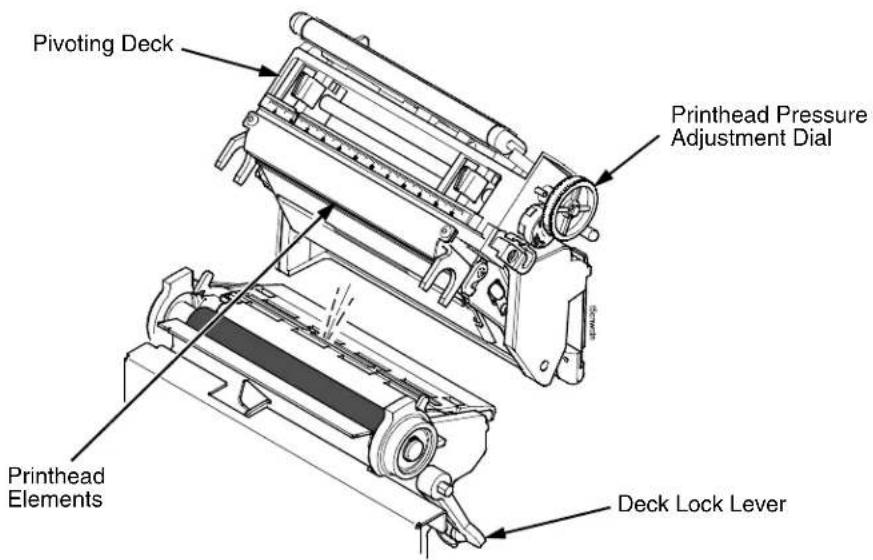
text_image
Pivoting Deck Printhead Pressure Adjustment Dial Printhead Elements Deck Lock LeverFigure 6. Cleaning the Printhead
Determining Printhead Wear
The most common signs of a worn printhead are fixed vertical streaks that are always the same size and in the same place on the printout. To determine if vertical streaks are caused by a worn printhead, follow these methods:
- Clean the printhead thoroughly with the printhead cleaning pen. Test again for vertical streaks.
- Remove the printhead (see page 306) and examine it for contamination or damage such as scratches, dents, or other marks on the light brown area containing the heating elements. Clean and install it, then test again for vertical streaks.
- Load an alternate roll of media. Test again for vertical streaks.
- Load an alternate roll of ribbon. Test again for vertical streaks.
If after performing all these tests you still see fixed vertical streaks, you must replace the printhead.
Replacing The Printhead
WARNING
- Set the printer power switch to O (Off).
Always unplug the printer power cord from the printer or power outlet before doing any installation procedure. Failure to remove power could result in injury to you and damage the equipment. When applicable, you will be instructed to apply power.
- Unplug the printer power cord from the printer or the AC power source.
- Remove the ribbon and media (e.g., paper, label, or tag stock material).
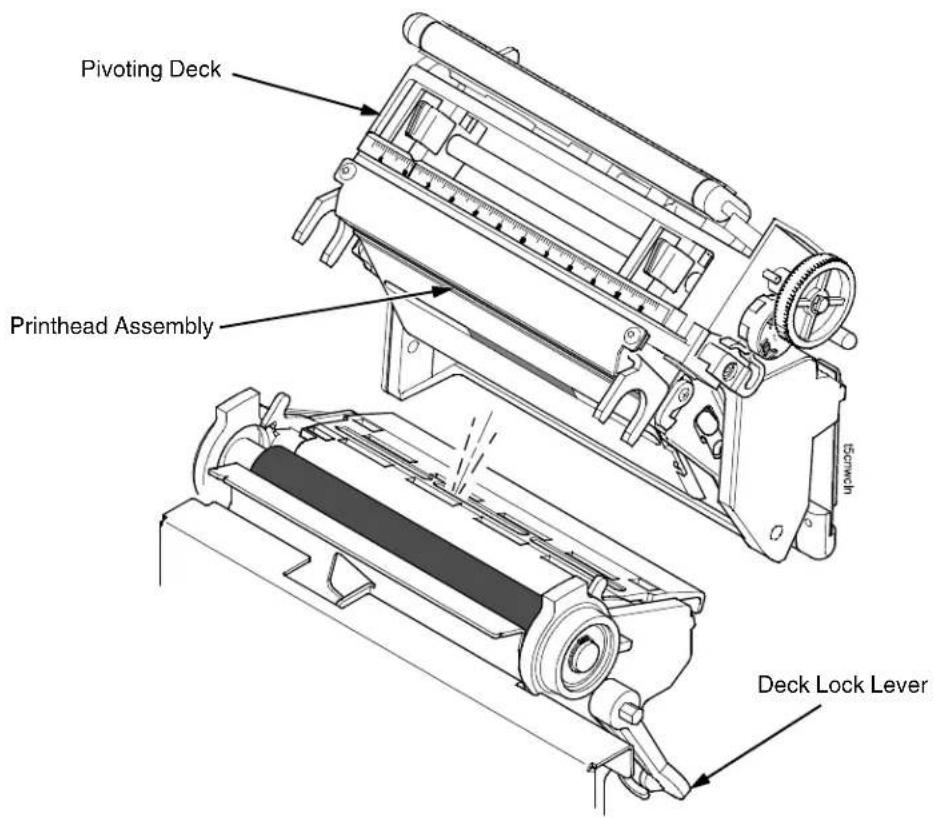
text_image
Pivoting Deck Printhead Assembly Deck Lock LeverFigure 7. Opening the Pivoting Deck
CAUTION
Oils from your hands can damage the light brown area (heating elements) of the printhead. Do not touch the light brown area when you handle the printhead assembly.
- Open the pivoting deck by rotating the deck lock lever fully clockwise. The pivoting deck will swing upward, exposing the bottom of the printhead assembly.
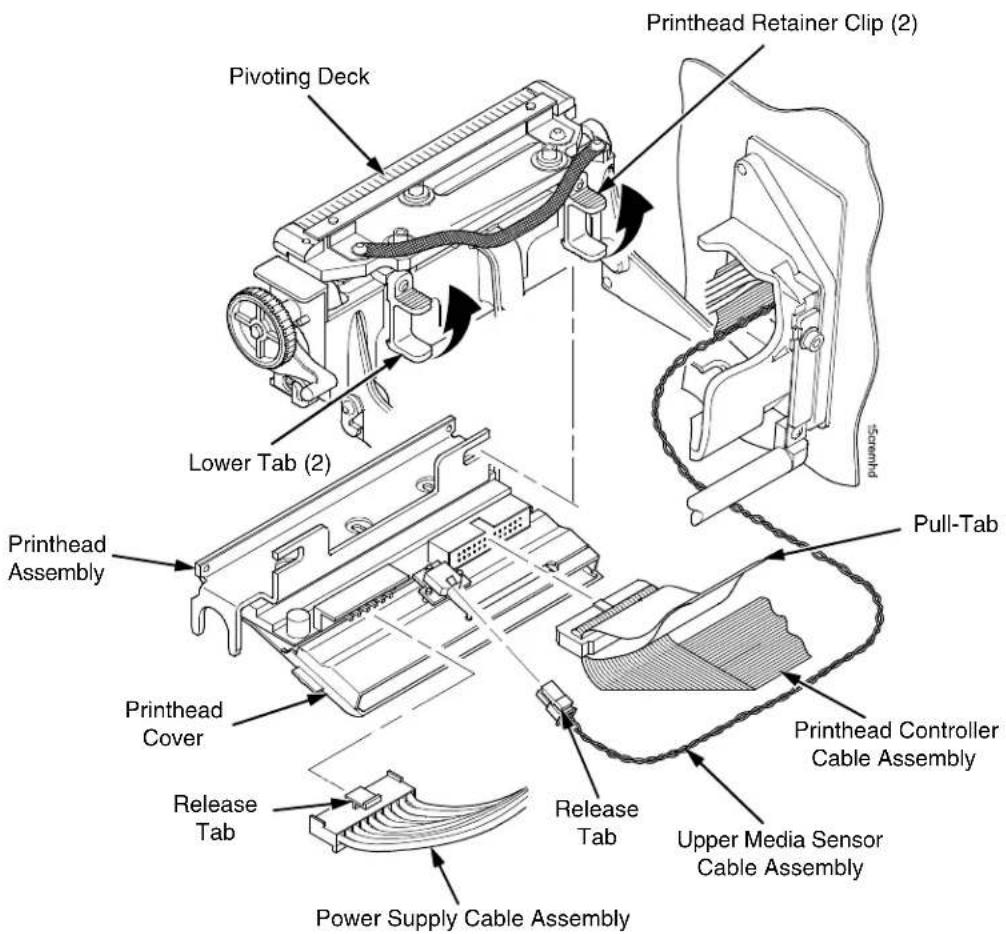
text_image
Pivoting Deck Printhead Retainer Clip (2) Lower Tab (2) Printhead Assembly Printhead Cover Release Tab Power Supply Cable Assembly Pull-Tab Printhead Controller Cable Assembly Release Tab Upper Media Sensor Cable AssemblyFigure 8. Replacing the Printhead Assembly
CAUTION
To prevent electrostatic damage to electronic components, ground yourself by touching an unpainted part of the printer frame before handling and installing the printhead.
- Touch an unpainted part of the printer frame before touching the printhead.
- Behind the pivoting deck, gently pull the lower tabs of the retainer clips upward to release the printhead assembly. (You only need to pull the tabs a small amount to release the printhead assembly.)
- Hold the printhead assembly by the printhead cover as it is released.
- Push the release tab down on the power supply cable assembly and remove the cable from the printhead assembly.
- Use the pull-tab to remove the printhead controller cable assembly from the printhead assembly.
- Push the release tab down on the upper media sensor cable assembly and remove the cable from the printhead assembly.
NOTE: The upper media sensor cable assembly connects in the middle for 4 inch models, on the left side for 6 inch models (Figure 8), and on the right side for 8 inch models.
- Position the new printhead assembly below the pivoting deck and connect the printhead controller, power supply, and upper media sensor cable assemblies.
NOTE: You may need to gently pull the lower tabs of the retainer clips upward to install the printhead assembly.
- Slide the printhead assembly upward into the pivoting deck until the retainer clips snap it in place. Make sure that the cable assemblies do not extend past the printhead cover and into the media or ribbon path.
Restore The Printer To Operation
- Inspect the light brown area of the printhead for smudges or fingerprints. If necessary, gently clean the light brown area with a soft, lint-free cloth (or a cotton swab) moistened with isopropyl alcohol, or use a Cleaning Pen (P/N 203502-001).
- Install the ribbon and media (e.g., paper, label, or tag stock material).
- Close the pivoting deck and rotate the deck lock lever fully counterclockwise. (Figure 7.)
- Close the media cover.
- Plug the AC power cord into the printer and the power source.
- Set the printer power switch to | (On).
- Press to place the printer in Menu mode.
- Press the ↓ and ↓ keys at the same time until "ENTER SWITCH UNLOCKED" displays.
- Press until "DIAGNOSTICS" displays.
- Press ↓ until "DIAGNOSTICS/Reset Head Data" displays.
- Press ↓ to select "Reset Head Data." The message "RESETTING/HEAD DATA" displays. (This sets the Head Print Distance and Head On Time values to zero.)
- Test printer operation and check print quality by selecting the Diagnostics → Printer Tests menu and printing one of the test patterns. (Refer to page 238.)
Solving Other Printer Problems
Table 16. Printer Problems and Solutions
| Symptom Solution/Explanation | |
| Communications Failures. 1. Check the interface cable.2. Check the configuration to ensure the correct interface is enabled.3. Verify the printer is receiving data by viewing the Job In Process indicator on the control panel. | |
| CONTROL PANEL | |
| LCD message display is illuminated and the printer appears to be working, but nothing is printing. | 1. Verify that the active emulation set on the control panel matches the emulation data sent to the printer.2. Verify that the SFCC selection on the control panel matches the SFCC utilized within the emulation data that is sent to the printer.3. Verify that the labels are the correct type (direct or thermal transfer).4. If using direct thermal media, check that the media is loaded with the direct thermal side facing up.5. Check that the transfer ribbon is correctly routed. Route transfer ribbon with ink side down as it passes under the printhead.6. Check that the printhead assembly is properly closed by making sure the printhead latch is fully engaged.7. Verify that the ribbon and media are compatible; incompatibility can cause extremely light printing. Match the ribbon to the type of media being used.8. Check the used sections of ribbon for a printed image. Often times when ribbon and media are incompatible, the image can be seen on the ribbon but it will not transfer to the media.9. Check that the Print Intensity is correct. Set the Print Intensity in the MEDIA SETUP menu or via the host software.10. Check that the Label Width parameter value does not exceed the width of the media installed. Set the Label Width in the MEDIA SETUP menu.11. Run the Checkerboard test print pattern from the DIAGNOSTICS menu. Note: Any imbalance of the print on the page. The printhead pressure may need adjustment.12. Remove the printhead completely and re-install it ensuring the cables are correctly seated. |
| LCD message display is illuminated and the printer appears to be working, but nothing prints and “Invalid Data” displays. | This message informs the user that the printer has received data, but no valid commands were found. This typically occurs when an incorrect emulation or SFCC was selected. This message will continue to display until new data is received or when the printer is put offline.1. If the emulation and SFCC are correct, additional diagnostic information can be obtained by selecting the desired option under the “xxx Diagnostics” menu, found under the Emulations menu.2. Afer selecting the desired option, rerun the job to obtain the additional diagnostic information. |
| ONLINE status indicator is flashing. | 1. Check the LCD for a specific fault message. Press the PAUSE key, and if a fault message displays, refer to the LCD Message Troubleshooting table on page 317.2. Check for an Out-of-Media condition or missing labels in the middle of a roll. Load the correct media.3. Check that the ribbon and label stock are correctly routed. Load ribbon and label stock correctly. |
| Power Failures | |
| Printer fails to turn on, the display is not backlit, and the fan is not running. | 1. Check that the printer AC power cord is correctly attached to the printer and to the AC power outlet.2. Have a qualified electrician test the AC wall outlet for the correct power range. Locate the printer in an area that has the correct power range.3. Check the AC power cord. Replace a damaged AC power cord or one that you suspect may be bad.4. Call your authorized service representative. |
| PRINT QUALITY | |
| Label(s) did not get printed within a multi label print job.A portion of the printed image was clipped off and the beginning of the next label was printed on the same physical label. | If the serial interface is being used, verify that the correct data protocol is selected to match the host interface protocol.If Clip Page = Enable in the MEDIA CONTROL menu, the printer may have falsely detected a gap, hole, or black mark and then clipped (discarded) the remaining printable data for the label. To fix this:Perform Auto Calibrate. See “Running Auto Calibrate” on page 72.Decrease Gap Threshold value by 2 or 3 increments.See “Gap/Mark Thresh” on page 140.Set Clip Page to Disable. Set Label Length to correct physical length value. See “Clip Page” on page 131. |
| Media moves, but no image prints in ONLINE mode. | Make sure the J402 power supply cable has a good connection to the right side of the printhead.Place the printer offline and print the Checkerboard diagnostic test pattern (see page 238). If the pattern prints, there is a communication problem between the host computer and the printer. |
| Media moves, but no image prints in Direct Thermal mode. | Media is not the type for direct thermal printing. Install direct thermal media.Direct thermal media is installed wrong side up. Reinstall the media with the correct side facing the printhead. |
| Media and ribbon move, but no image prints in Thermal Transfer mode. | Print the Checkerboard diagnostic test pattern and check that the image appears on the used portion of ribbon. If the image is on the ribbon, the ribbon may be installed with the transfer side against the printhead, instead of against the media.The ribbon may be designed for another model printer.The ribbon may not be compatible with the media. |
| When narrow media is installed, the media moves but no image prints. | Verify the Label Width value in the QUICK SETUP or MEDIA CONTROL menu agrees with the width of the installed media. Too large a value will start the image too far to the right and off the media. |
| Printing is faded or of poor quality. | 1. Clean the printhead.2. Check that both latches on the pivoting deck are closed and latched. Close the printhead by pressing down on both sides of the pivoting deck and rotating the deck lock lever fully counterclockwise.3. Verify that the head pressure adjustment dial is properly set. Try increasing the pressure.4. Verify that the Print Speed and Print Intensity values are correct. Adjust Print Speed and Print Intensity in the QUICK SETUP menu, MEDIA CONTROL menu, or via host software. |
| Print is light on the left or right side of the label. | Check if the pressure blocks are set for the width of the media being used. Set each block near the edge of the media. |
| Prints strange characters instead of the correct label format. | 1. If the printer serial interface is being used, check that the printer serial baud rate setting matches the baud rate of the host computer. Reset the printer via software, or turn the printer off and then on.2. Check if the printer serial host interface is set for 8 data bits but the transmitting device is set for 7 data bits (or vice-versa). Check the current setting by viewing it on the LCD, and use the SERIAL PORT menu to adjust the settings, if necessary.3. If the printer parallel interface is being used, make sure the parallel interface terminating resistors are correct for the host computer drivers. |
| • Start of image is printed an erroneous distance from the top-of-form.• The printer starts to print one label and then another, all within the same physical label. | 1. Make sure the Label Length value matches the actual physical length of the label installed and the run on Auto Calibrate (see page 72).These symptoms could be caused by:• severely curled labels near the end of a media roll• the media sensor triggering off of a dark, preprinted image on the label• multiple gaps within the physical label.2. In the MEDIA CONTROL menu, set Clip Page to Disable.3. Run a Media Profile (see page 74).4. If the Media Profile printout shows that preprinted images or an RFID antenna tag has an amplitude approaching the Gap/Mark Threshold level, position the lower media sensor to avoid the image or increase the Threshold Range percent value in the Calibrate CTRL menu. Run Auto Calibrate again and Media Profile to verify there is an improvement. |
| Loss of one or more serialized labels within a print job.Start of image is printed in the middle of the gap.The top part of the image is lost when printing with Head First orientation selected. | In the CALIBRATE CTRL menu, set Gap Windowing to Enable.Set Gap Length to equal the physical gap length of the media installed. The range is 0.05 to 1.00 inches.The likely cause of these symptoms is that Clip Page = Enable and a cross-perforation, radical fold or flaw in the liner has caused the media sensor to detect this as the leading edge (TOF) of the new label or end of label (EOF), or both. |
| Smears or voids in printed image. | Clean the printhead.Make sure the printhead temperature (Print Intensity) is not too high. Change the Print Intensity value in the QUICK SETUP or MEDIA CONTROL menu. (See “Print Intensity” on page 119.)Verify that the printhead pressure blocks are positioned correctly to match the media width installed. (See “Printhead Pressure Block Adjustments” on page 65.)Make sure the printhead pressure dial is set properly for the media thickness installed.Skin oils can adhere to the surface of label stock, causing fingerprints which inhibit thermal transfer. Wipe label stock with a cloth, or remove a few feet of labels to expose a clean area. Handle labels by the edges.Check that the media has not been mishandled before or during installation in the printer. Soiled media or media with fingerprints will prevent proper ribbon transfer.Check that media has not been installed inside out.Surfaces on both sides may look identical but can produce big differences in print quality.Make sure the correct ribbon and media combination are being used. Use the correct ribbon type.Check the ribbon for creases or folds across its surface. Smooth out the ribbon to remove any creases.Reduce the Print Speed value through the QUICK SETUP menu, MEDIA CONTROL menu, or via host software.If using ribbon (Transfer Print mode), do not use direct thermal media. |
| PRINTER OPERATION | |
| Advances several labels when FEED key is pressed. | 1. Check that labels are loaded correctly. (See “Loading Media And Ribbon” on page 38.)2. Check that the Label Length (in the QUICK SETUP menu, MEDIA CONTROL menu, or sent by the host computer) agrees with the length of the media installed. Although gaps, holes, notches, or black marks are used to establish the Top-of-Form position, a larger page length will override the gap and skip a page or more if Clip Page (in the MEDIA CONTROL menu) is set to Disable. Set Page Length to match the media being used.3. Check that the printer is optimized to detect the type of media installed. Perform Auto Calibrate for gapped and black mark media. (See “Running Auto Calibrate” on page 72.)4. Adjust the media sensor horizontally to detect gaps, holes, notches, or narrow width black marks. (See “Positioning The Media Sensors” on page 66.)5. If the problem persists, run the Media Profile printout to see if the label length indicators are being sensed.6. Run Manual Calibrate. (See “Running Manual Calibrate” on page 79.) |
| Pivoting deck is difficult to close and lock when heavy tag stock media is installed. | 1. Set the printhead pressure adjustment dial to the MIN position.2. Close the pivoting deck and lock the deck lock lever.3. Position the printhead pressure adjustment dial to the desired head pressure setting. |
| Print is too small or too large. Ensure the proper printhead is installed (203 or 300 dpi). | |
| • Print quality is good, but the printer skips every other label.• An occasional blank label occurs within a print job, but no labels are lost. | 1. Make sure that the label is not formatted too close to the top edge of the form. Leave white space equal to eight dot rows at the top of the label. 300 dpi = .0264 inches. 203 dpi = .04 inches.2. Check that Clip Page = Enable in the MEDIA CONTROL menu. Clip Page = Enable causes any printable data to be clipped off and lost once the next TOF position (transmissive gap, notch, hole, or reflective mark) is detected. Clip Page = Disable allows the printer to ignore a gap or mark. The printer looks for the gap or mark after the specified Label Length is first reached. |
| RIBBON | |
| Printer advances media, but the ribbon does not advance. | 1. Make sure the ribbon is installed correctly.2. A poor ribbon/media combination can cause insufficient friction between the media and ribbon. Verify that the correct ribbon and media are being used.3. The printhead pressure may not be set high enough. Set the pressure higher.4. There may be adhesive on the printhead. Clean the printhead.5. Verify that Print Mode in the QUICK SETUP or MEDIA CONTROL menu is set for Transfer and not Direct Thermal. |
| Printer cuts (melts) through the transfer ribbon. | 1. Verify that Print Intensity is set to the proper level in the QUICK SETUP or MEDIA CONTROL menu.2. Verify that Print Mode in the QUICK SETUP or MEDIA CONTROL menu is set for Transfer and not Direct Thermal. |
| Printing stops and the ONLINE status indicator flashes. | 1. Check that the media sensor is clean and undamaged.2. Check that the gap between the bottom of a label and the top of the next label is at least 0.100 inch. Use only labels and tag stock approved for this printer.3. Inspect for a jammed label. Remove the jammed label.4. Check that the transfer ribbon and label stock are routed correctly. |
| Narrow width ribbon breaks frequently. | The Ribbon Width value in the MEDIA CONTROL menu is set too large, which causes too great a ribbon take-up and ribbon supply spindle torque. Reduce the Ribbon Width value to decrease the torque on the ribbon spindles. The Ribbon Width value should be very close to the Label Width value.To reduce the torque further, set Ribbon Length (in the MEDIA CONTROL menu) from Save As Paper to Set In Menu. Then set a value less than the installed ribbon width. |
| Wide width ribbon does not take up properly. The ribbon moves past the platen assembly. | The Ribbon Width value in the MEDIA CONTROL menu is set too narrow for the ribbon installed. Set the Ribbon Width value to match the width of the ribbon installed. This will increase the torque on the ribbon take-up spindle. |
Printer Alarms
The printer has built-in alarms that monitor printer status and media stock conditions. Alarm messages display indicating the present status of the printer and media stock levels. The alarms also indicate if the printer electronics detect an error condition.
Fault Messages
If a fault condition occurs in the printer, the status indicator on the control panel flashes on and off and the message display indicates the specific fault. Fault messages are summarized in Table 17.
Displayed faults fall into one of two categories:
- Operator correctable
• Field service required
Operator-Correctable Fault Messages
For the operator-correctable faults, follow the suggested corrective action under the solution section of the table. After correcting the displayed fault, press the PAUSE key to clear the error message and status indicator and resume printing. If the fault message reappears, power off the printer and wait 15 seconds before powering on the printer again. If the error condition persists, contact your authorized service representative.
Fault Messages Requiring Field Service Attention
If a fault is not correctable by the operator, the fault message is followed by an asterisk (*). This usually indicates that an authorized service representative is needed. You should try two steps to clear the fault before calling your authorized service representative:
- Set the printer power switch to O (off), wait 15 seconds, then turn the printer on again. Run your print job again. If the message does not appear, it was a false indication and no further attention is required.
- If the message reappears, press the PAUSE key. If the message goes away, it was a false indication and no further attention is required. If the message reappears, call your authorized service representative.
Table 17. LCD Message Troubleshooting
| Displayed Message | Can User Correct? | Explanation Solution | |
| 06 HOST REQUEST Yes | Status message: in CT emulation, the host computer or printer controller requires attention. | Not a printer problem. | |
| 08 HOLD PRINT TIMEOUT | Yes Status message: in CT emulation, the printer was offline more than 10 minutes and the “Intervention Required” parameter is set to “Send to Host.” | Press PAUSE to put the printer online. | |
| 15 COMM CHECK Yes/No Communication Check: a message that appears in the CT emulation meaning the line is not active on a twinax interface. | 1. Check your network for proper operation.2. Try a different cable from a known good device.3. If the problem persists, contact your authorized customer service representative. | ||
| 22 INVALID ADDR Yes | Invalid Address: poll time-out on the twinax interface indicating the unit address is not recognized by printer. | Have the system administrator make sure the printer address is correct. | |
| 27 CU TIMED OUT Yes | Controller Unit Timed Out: the printer was not enabled for one minute or more on a coax interface. | Check the cable connection and host system. (Refer to the line problem determination procedures, as recommended by the host system.) | |
| 28 CU NOT ENAB Yes | Controller Unit Not Enabled. Poll time-out-error. The printer was not polled for one minute across a coax interface. | Check the cable connection and host system. (Refer to the line problem determination procedures, as recommended by the host system.) | |
| 33 HEAD OPEN TIMEOUT | Yes Status | message in the CT emulation: The printer was offline more than 10 minutes, and the "Intervention Required" parameter is set to "Send to Host." | Close and latch the printhead. Press PAUSE to put the printer online. |
| 40V POWER FAIL Yes | +40 VDC: an | internal power failure. | Power off the printer for 15 seconds, then power back on. If the problem persists, contact your authorized customer service representative. |
| 203 DPI Head Installed | Yes Normal | power-up message. The printer is running its initialization routine and indicating DPI resolution of the installed printhead. | No action required. |
| 300 DPI Head Installed | Yes Normal | power-up message. The printer is running its initialization routine and indicating DPI resolution of the installed printhead. | No action required. |
| Ambient light Validator failure | Yes Ambient | light is compromising proper scanning.NOTE: The Validator scanning laser cannot work properly in a room with excessive ambient light, including direct sunlight. | 1. Minimize the ambient light around the validator. This may require moving the printer to a darker area of the room.2. Press the PAUSE key to clear the fault message. |
| BAD VFU CHANNEL Yes | The user tried to use an undefined VFU channel. | Use defined channels. | |
| BAR CODE IMPROPER Data Format | Yes Data validation error: improper data format. | Fix application so it sends data in the correct bar code format. | |
| BAR CODE QUIET Zone too small | Yes Data validation error: Quiet Zone error. | 1. Fix application.2. Disable Quiet Zone Error reports. | |
| BATT HIGH VOLT Yes | This is the High Volt Alert that can be set by the user (factory default = 16.0 Volts). This fault detection is only supported when the ICP (Intelligent Control Panel) option is connected to the printer serial port and Battery Monitor = Enable in the BATTERY CONTROL menu. | 1. Raise the value in the High Volt Alert option in the BATTERY CONTROL menu.2. If High Volt Alert = 16.0 Volts and the fault message remains, call your authorized service center. | |
| BATT LOW VOLT Yes | This is the Low Volt Alert that can be set by the user (factory default = 8.5 Volts). This fault detection is only supported when the ICP (Intelligent Control Panel) option is connected to the printer serial port and Battery Monitor = Enable in the BATTERY CONTROL menu. | 1. Plug the power cart cable into an AC receptacle to recharge the battery.2. If recharging the battery fails to clear the fault, replace the battery or batteries. | |
| BUFFER OVERFLOW | Yes Host sent data after the printer buffer was full (serial interface). | 1. Make a configuration printout.2. Verify that the printer matches the host serial interface configuration settings for Data Protocol, Baud Rate, Data Bits, Stop Bits, Parity, Data Terminal Ready, and Request to Send.7. Set printer serial interface parameters to match those of the host. | |
| BUFFER OVERRUN Yes | Receive overrun (serial interface). | 1. Make a configuration printout.2. Verify that the printer matches the host serial interface configuration settings for Data Protocol, Baud Rate, Data Bits, Stop Bits, Parity, Data Terminal Ready, and Request to Send.3. Set the printer serial interface parameter to match those of the host. | |
| Calibration warning | Yes The validator has detected that it needs calibration. This is a reminder message and does not halt printing. | Press the PAUSE key to clear the message. Perform the calibration procedure described in the Validator User's Manual. | |
| CALIBRATION FAIL See Manual | Yes Calibration values derived from Manual Calibrate were not acceptable. | Run Manual Calibrate again. | |
| CANNOT CALIBRATE Disable Peel-Off | Yes Run Calibrate was attempted with Peel-Off Media Handling selected.NOTE: You can perform Auto Calibrate in Peel-Off mode if Cal in Peel Mode = Enable. Be prepared to catch labels during Auto Calibrate. | 1. Select another Media Handling option in the QUICK SETUP or MEDIA CONTROL menu.2. Enable Cal in Peel Mode in the CALIBRATE CTRL menu.NOTE: Admin User must = Enable. | |
| Checksum Failure Yes | The validator detected that the barcode fails checksum or is missing the checksum digit. | Verify that the checksum digit exists in the barcode and that it is the correct value. | |
| CLEARING PROGRAMFROM FLASH | Yes Emulation software successfully loaded into printer RAM and the checksum matched. The old program is now being deleted from flash memory. | No action required. | |
| CONTRAST TOO LOWCheck media | Yes Data validation error: symbol contrast. | 1. Adjust heat or change media.2. Disable symbol contrast error reports. | |
| CUTTER FAULTJam or Cut Fail | Yes 1. Cutter assembly is not in the closed position.2. Cutter option was not able to complete a full cut cycle due to a jam.3. Cutter PCBA detected current overload and opened circuit breaker on cutter PCBA. | 1. Place the cutter assembly in the closed (up) position.2. Clear obstruction from the cutter assembly.3. Insure media thickness is within specification. Wait a few minutes for the cutter circuit breaker to automatically reset. Press PAUSE to clear the fault message and resume printing. | |
| DEACTIVATINGHOST SERIAL | Yes Normal message that displays when you set Battery Monitor = Enable in the BATTERY CONTROL menu. | No action required. | |
| DIAGNOSTICS PASSED | Yes The printer passed its memory and hardware initialization tests. | No action required. | |
| DIRECT THERMALRemove Ribbon | Yes This is the normal reminder message when you change the Print Mode setting from Transfer to Direct in the QUICK SETUP or MEDIA CONTROL menu. | 1. Remove ribbon from the ribbon supply and ribbon take-up spindles in the printer.2. If ribbon is required for printing, change the Print Mode back to Transfer. | |
| DO NOT POWER OFF | No This is a | standard warning message that displays while the printer is downloading software. | Do not power off the printer until downloading is complete. |
| DOWNLOADING TO VALIDATOR | Yes Normal | message when the printer is downloading emulation software with a validator option installed.NOTE: Many software builds contain updates to the Validator option. | No action required.NOTE: The validator software update can be verified in the F/W Revision menu option of the VALIDATOR menu. Shown as: Example X326 |
| E00 EXE @ ADDR0 See User Manual | Yes An illegal | or unsupported instruction was attempted in the application program. | 1. Cycle Power. Run the print job again. If the message appears, load the latest emulation software.2. Cycle power. Run the print job again. If the message appears, record the display message and send it to your next higher support facility. |
| E01A TYPE 0x40 See User Manual | Yes An illegal | or unsupported instruction was attempted in the application program. | 1. Cycle Power. Run the print job again. If the message appears, load the latest emulation software.2. Cycle power. Run the print job again. If the message appears, record the display message and send it to your next higher support facility. |
| E01B TYPE 0x60 See User Manual | Yes An illegal | or unsupported instruction was attempted in the application program. | 1. Cycle Power. Run the print job again. If the message appears, load the latest emulation software.2. Cycle power. Run the print job again. If the message appears, record the display message and send it to your next higher support facility. |
| E02 MACHINE CHK See User Manual | Yes An illegal | or unsupported instruction was attempted in the application program. | 1. Cycle Power. Run the print job again. If the message appears, load the latest emulation software.2. Cycle power. Run the print job again. If the message appears, record the display message and send it to your next higher support facility. |
| E03A DSI HASH L See User Manual | Yes An illegal | or unsupported instruction was attempted in the application program. | 1. Cycle Power. Run the print job again. If the message appears, load the latest emulation software.2. Cycle power. Run the print job again. If the message appears, record the display message and send it to your next higher support facility. |
| E03B DSI HASH S See User Manual | Yes An illegal | or unsupported instruction was attempted in the application program. | 1. Cycle Power. Run the print job again. If the message appears, load the latest emulation software.2. Cycle power. Run the print job again. If the message appears, record the display message and send it to your next higher support facility. |
| E03C DSI BAT PL See User Manual | Yes An illegal | or unsupported instruction was attempted in the application program. | 1. Cycle Power. Run the print job again. If the message appears, load the latest emulation software.2. Cycle power. Run the print job again. If the message appears, record the display message and send it to your next higher support facility. |
| E03D DSI BAT PS See User Manual | Yes An illegal | or unsupported instruction was attempted in the application program. | 1. Cycle Power. Run the print job again. If the message appears, load the latest emulation software.2. Cycle power. Run the print job again. If the message appears, record the display message and send it to your next higher support facility. |
| E03E DSI CXIWX See User Manual | Yes An illegal | or unsupported instruction was attempted in the application program. | 1. Cycle Power. Run the print job again. If the message appears, load the latest emulation software.2. Cycle power. Run the print job again. If the message appears, record the display message and send it to your next higher support facility. |
| E03F DSI CXOWX See User Manual | Yes An illegal | or unsupported instruction was attempted in the application program. | 1. Cycle Power. Run the print job again. If the message appears, load the latest emulation software.2. Cycle power. Run the print job again. If the message appears, record the display message and send it to your next higher support facility. |
| E03G DSI ECXIWX See User Manual | Yes An illegal | or unsupported instruction was attempted in the application program. | 1. Cycle Power. Run the print job again. If the message appears, load the latest emulation software.2. Cycle power. Run the print job again. If the message appears, record the display message and send it to your next higher support facility. |
| E03H DSI ECXOWX See User Manual | Yes An illegal | or unsupported instruction was attempted in the application program. | 1. Cycle Power. Run the print job again. If the message appears, load the latest emulation software.2. Cycle power. Run the print job again. If the message appears, record the display message and send it to your next higher support facility. |
| E04A ISI NO TRA See User Manual | Yes An illegal | or unsupported instruction was attempted in the application program. | 1. Cycle Power. Run the print job again. If the message appears, load the latest emulation software.2. Cycle power. Run the print job again. If the message appears, record the display message and send it to your next higher support facility. |
| E04B ISI DIRECT See User Manual | Yes An illegal | or unsupported instruction was attempted in the application program. | 1. Cycle Power. Run the print job again. If the message appears, load the latest emulation software.2. Cycle power. Run the print job again. If the message appears, record the display message and send it to your next higher support facility. |
| E04C ISI PROTEC See User Manual | Yes An illegal | or unsupported instruction was attempted in the application program. | 1. Cycle Power. Run the print job again. If the message appears, load the latest emulation software.2. Cycle power. Run the print job again. If the message appears, record the display message and send it to your next higher support facility. |
| E06 NOT ALIGNED See User Manual | Yes An illegal | or unsupported instruction was attempted in the application program. | 1. Cycle Power. Run the print job again. If the message appears, load the latest emulation software.2. Cycle power. Run the print job again. If the message appears, record the display message and send it to your next higher support facility. |
| E07 ILLEGAL INS See User Manual | Yes An illegal | or unsupported instruction was attempted in the application program. | 1. Cycle Power. Run the print job again. If the message appears, load the latest emulation software.2. Cycle power. Run the print job again. If the message appears, record the display message and send it to your next higher support facility. |
| E08 FLOATINGPNT See User Manual | Yes An illegal | or unsupported instruction was attempted in the application program. | 1. Cycle Power. Run the print job again. If the message appears, load the latest emulation software.2. Cycle power. Run the print job again. If the message appears, record the display message and send it to your next higher support facility. |
| E-NET INIT Yes Ethernet is initializing. No action required. | |||
| E-NET READY Yes Ethernet has finished initializing. | No action required. | ||
| E-NET RESET Yes Ethernet interface is being reset. | No action required. | ||
| EC SOFTWARE FAIL See Manual | Yes/No Engine control software failure. | Power off the printer for 15 seconds, then power back on. If the problem persists, contact your authorized customer service representative. | |
| ENTER to Stop Yes Normal message when a test print pattern that will run continuously has been enabled. | Press the ENTER key to stop printing the test pattern. | ||
| ERROR: DC PROGRAM NOT VALID | Yes/No The | printer cannot find the data controller program or the validation checksum is corrupt. | Power off the printer for 15 seconds, then power back on. If the problem persists, contact your authorized customer service representative. |
| ERROR: DRAM AT ADDRESS XXXXXXXX | Yes/No The | printer found a defective memory location. | Power off the printer for 15 seconds, then power back on. If the problem persists, contact your authorized customer service representative. |
| ERROR: FLASH DID NOT PROGRAM | Yes/No The | printer encountered an error trying to program flash memory. | Power off the printer for 15 seconds, then power back on. If the problem persists, contact your authorized customer service representative. |
| ERROR: IPDS needs 300 DPI Head | Yes The printer has detected a 203 DPI printhead installed with IPDS software downloaded. IPDS software only supports the 300 DPI printhead. | Power off the printer and replace the 203 DPI printhead with a 300 DPI printhead. | |
| ERROR: NO DRAM DETECTED | Yes/No The | printer could not find any DRAM. | Power off the printer for 15 seconds, then power back on. If the problem persists, contact your authorized customer service representative. |
| ERROR: PROGRAM NEEDS MORE DRAM | Yes/No The | program exceeds the memory limitations of the printer. | Download a smaller program. |
| ERROR: PROGRAM NEEDS MORE FLASH | Yes/No The | printer requires more flash memory in order to run the downloaded program. | Power off the printer for 15 seconds, then power back on. If the problem persists, contact your authorized customer service representative. |
Table 17. LCD Message Troubleshooting (continued)
| Displayed Message | Can User Correct? | Explanation Solution |
| ERROR: PROGRAM NOT COMPATIBLE | Yes The printer is not compatible with the downloaded program. | Power off the printer for 15 seconds, then power back on. If the problem persists, contact your authorized customer service representative. |
| ERROR: PROGRAM NOT VALID | Yes The printer does not see a program in flash memory. | Power off the printer for 15 seconds, then power back on. If the problem persists, contact your authorized customer service representative. |
| ERROR: SECURITY KEY NOT DETECTED | Yes/No The security key is not present or has failed. | Power off the printer for 15 seconds, then power back on. If the problem persists, contact your authorized customer service representative. |
| ERROR: SHORT AT ADDRESS XXXX | Yes/No Hardware failure in DRAM or Main PCBA controller circuitry. | Power off the printer for 15 seconds, then power back on. If the problem persists, contact your authorized customer service representative. |
| ERROR: WRITING TO FLASH | Yes/No Hardware or software fault in flash memory. | Power off the printer for 15 seconds, then power back on. If the problem persists, contact your authorized customer service representative. |
| ERROR: WRONG CHECKSUM | Yes/No The printer received the complete program but the checksum did not match. The data may have been corrupted during download. | Power off the printer for 15 seconds, then power back on. If the problem persists, contact your authorized customer service representative. |
| ERROR OCCURRED FLUSHING QUEUES | Yes An interim message displays while the printer discards host data it cannot use because a fault condition exists. While this message displays, the asterisk (*) rotates. | Wait. When the asterisk (*) stops rotating, a different fault message will appear; troubleshoot the final message. |
Table 17. LCD Message Troubleshooting (continued)
| Displayed Message | Can User Correct? | Explanation Solution | |
| FAN WARNING Yes The printer detected that the power supply fan did not rotate for at least 45 seconds when it is was supposed to. NOTE: This is a warning message and will not halt printing. When too high of internal temperature is detected, based on its source, the printer will stop printing and display a PWR SUPPLY HOT, PRINTER HOT or PRINT HEAD HOT message. | 1. Verify that the fan rotates when the printer is first powered up and when the printer moves media or prints.2. Call your authorized service representative. | ||
| FILE EXISTS Enable Overwrite | Yes The printer operator tried to save a file using the name of an existing stored file. | Enter the PRINTER CONTROL menu and enable the Overwrite Files feature to overwrite the existing file. | |
| FILE SYS FULL Add Flash | Yes/No Insufficient flash memory available to store file. | Install a larger flash memory SIMM. For additional flash, contact your authorized service representative. | |
| FILE SYS FULL Delete Files | Yes Insufficient flash memory available to store file. | Enter the PRINTER CONTROL menu. Use Delete Files to delete unwanted files. | |
| FILE SYS FULL Optimize & Reboot | Yes Insufficient flash memory available to store file. | Enter the PRINTER CONTROL menu and use the Optimize & Reboot feature. | |
| FILE SYS INVALID Optimize&Reboot | Yes/No File system not detected or flash was corrupted. | Enter the PRINTER CONTROL menu and use the Optimize & Reboot feature. | |
| FILE SYS WRITE Check Flash | Yes/No Problem writing to flash memory. | Power off the printer for 15 seconds, then power back on. If the problem persists, contact your authorized customer service representative. | |
| FPGA FILE NOT FOUND | Yes/No The | program file was not downloaded successfully. | 1. Download the program file again.2. If the message reappears, contact your authorized customer service representative. |
| FRAMING ERROR Yes | Serial framing error over a serial interface. | Match the serial interface settings of the printer to those of the host computer. | |
| GAP NOT DETECTED See Manual | Yes The printer is set for Gap or Mark sensing, but a gap, notch, or black mark is not being detected.The lower media sensor is not positioned correctly.When Advanced Gap or Advanced Notch is selected, the upper media sensor is not positioned above the lower media sensor.Gap/Mark Threshold is set too high or Paper Out Threshold is set too low. | 1. Check that the setting of the Gap/Mark Sensor in the CALIBRATE CTRL menu matches the installed media.2. Check the position of the lower and upper media sensors. (See “Positioning The Media Sensors” on page 66.)3. Clean the sensor assembly and paper path.4. Run Auto Calibrate to improve the sensor’s ability to detect the media in use.5. Run the Media Profile printout in the CALIBRATE CTRL menu.6. Run Manual Calibrate. (See “Running Manual Calibrate” on page 79.)7. Manually change the Gap/ Mark Threshold and/or Paper Out Threshold values. | |
| GRF CHK ERROR PRESS PAUSE | Yes In the CT emulation over a twinax interface, the printer received a non-printable character. | Press the PAUSE key twice. | |
| H00: PCI SLOT ?See User Manual | No The controller board is not communicating with a PCI card. This could indicate a bad PCI card, poor connection, or problem in the PCI bus. | Call your authorized service representative. | |
| H01: PCI J24 No The controller board is not communicating with the PCI card in PCI slot J24 or J25.This could indicate a bad PCI card, poor connection, or problem in the PCI bus. | Call your authorized service representative. | ||
| H02: PCI J25 No The controller board is not communicating with the PCI card in PCI slot J24 or J25.This could indicate a bad PCI card, poor connection, or problem in the PCI bus. | Call your authorized service representative. | ||
| Half Speed Mode Yes The printhead or power supply is approaching a hot state. Half Speed Mode helps the cooling process and should permit completion of print jobs.Half Speed Mode helps prevent a PRINT HEAD HOT or PWR SUPPLY HOT fault, which will stop the printer. | 1. Allow printer to continue printing. Full speed will resume automatically when a lower printhead or power supply temperature is achieved.2. Let the printer cool down.Full speed will be restored when printing is resumed.3. Lower Print Intensity and Print Speed to reduce frequency of Half Speed Mode. | ||
| HEAD POWER FAIL Yes/No Printhead lost power. 1. Replace the printhead.2. Power off the printer for 15 seconds, then power back on again. If the problem persists, contact your authorized customer service representative. | |||
| IGP/PGL ERROR Yes | Appears when the "Fault" option is selected from Error Report in the front panel. | Deselect "Fault" from Error Report on the front control panel. | |
| INSUFFICIENT RAM Reboot/Add RAM | Yes/No Not enough RAM memory available for a printer function. | 1. Power off the printer for 15 seconds, then power back on again.2. If the message reappears, increase the Glob Mem Adjust size in the PRINTER CONTROL menu and reboot the printer.3. If the message reappears, replace the controller PCBA. Write down the message and return it with the defective board. | |
| LABEL MISSING Check Paper Path | Yes The Label Taken Sensor did not detect the label present over the tear bar with Tear-Off or Peel-Off Media Handling mode enabled.The label was removed before the printer stopped printing or before the LCD "Remove Label" message displayed.The label slipped behind the platen roller.The label wrapped around the platen roller.Tear-Off or Peel-Off Media Handling mode was mistakenly selected. | 1. Press the PAUSE key to continue printing and then wait for the LCD "Remove Label" message before removing the label.2. Open the pivoting deck, reinstall the label, close the deck, press the PAUSE key, and continue printing.3. Open the pivoting deck and remove wrapped labels from the platen. Clean all adhesive from the platen. Reinstall labels, close the deck, press the PAUSE key, and continue printing.4. Select the correct Media Handling mode in the QUICK SETUP menu. | |
| LOADING PROGRAMFROM PORT XX% | Yes The new emulation program is loading into printer RAM. XX% indicates how much of the program has loaded. | No action required. | |
| LOADING PROGRAM INTO FLASH | Yes A program is getting loaded into flash. | No action required. | |
| MENU MODE QUICK SETUP | Yes Normal message that displays when you first press the MENU key to place tje printer in Menu mode when no validator option is installed. | No action required. | |
| INCOMPATIBLE WITH CUTTER | Yes Tear-Off or Peel-Off Media Handling selection was attempted with the cutter option still installed. These modes require that the front door assembly be installed to use the Label Taken Sensor. | 1. Select a different Media Handling Mode.2. Power off the printer and remove the cutter option, install the front door assembly, power on the printer and select Tear-Off or Peel-Off Mode. | |
| NON VOLATILE MEMORY FAILED | Yes/No The | printer assigns a certain amount of simulated NVRAM for storage of saved configurations. Large emulations reduce the amount of space available for saving configurations, which means that sometimes fewer than eight configurations can be saved. If this message appears when saving a configuration, it means the printer is out of memory. Previously saved configurations will still be available, but the one that was “saved” when the message appeared is not in memory. If this message appears at power-up, it means the flash memory is defective. | 1. If the message appears at power-up, call your authorized customer service representative.2. If the message appears while saving a configuration, the printer is out of memory and will not save that or subsequent configurations. (Previously saved configurations are still okay.)3. Limit the number of saved configurations to seven. |
| OPTION NOT INSTALLED | Yes If the printer is powered on with the cutter enabled in the Media Handling menu, but the cutter itself is open (in the down position, or the cutter upper enclosure is removed) the printer cannot detect the cutter. When using the cutter, the printer must be powered on with the cutter in the up position and the cutter upper enclosure installed. | 1. Check that the cutter option is installed, connected in the up position and the upper enclosure installed before powering on the printer.2. Install the cutter option or change to the correct Media Handling option in the QUICK SETUP menu.3. If the error persists, contact your authorized customer service representative. | |
| OVERALL GRADE FAIL | Yes Overall | data validation failure: decodeability, percent decode, defects, modulation, EC Min, Rmin, and/or symbol contrast. | 1. Press Pause to clear the message.2. Adjust the parameter that is causing the failure. Run a Scan Report to see which parameter failed.3. Lower the Overall Grade to a point where the worst parameter grade will be above the Overall Grade threshold. |
Table 17. LCD Message Troubleshooting (continued)
| Displayed Message | Can User Correct? | Explanation Solution |
| PAPER OUTLoad Paper | Yes The printer does not sense media:Media was not installed or has run out.A break in media has occurred.Media was not routed or installed correctly.The media sensor is not positioned correctly.Media is installed correctly, but the sensor is not detecting it.Gap/Mark Threshold value may be set too high and/or Paper Out Threshold may be set too low.The printer detected a false PAPER OUT when changing from Advanced Gap or Advanced Notch to Gap or Mark sensing or vice-versa. | 1. Install media. If a break occurred, reinstall the media. Press the PAUSE key to clear the fault message. Check the media installation procedures on page 38.2. Verify the lower media sensor is properly positioned under the media. If Advanced Gap or Advanced Notch is selected, verify the upper media sensor is positioned above the lower media sensor. Run Auto Calibrate to improve the ability of the sensor to detect the installed media.3. Check if the Gap/Mark Threshold is too high or the Paper Out Threshold is too low. Lower the Gap/Mark Threshold or raise the Paper Out Threshold value.4. If using media with no gaps or black marks, perform Auto Calibrate to establish a valid Paper Out Threshold.5. If the printer detected a false PAPER OUT when changing from Advanced Gap or Advanced Notch to Gap or Mark sensing or vice-versa, press the PAUSE key and run Auto Calibrate. |
Table 17. LCD Message Troubleshooting (continued)
| Displayed Message | Can User Correct? | Explanation Solution | |
| PAPER OUT TIMEOUT | Yes In the CT emulation with a coax interface, a time-out message is sent to the host if paper is not loaded within 10 minutes after PAUSE was pressed to clear a paper out fault. | Load media and run a print test. If the message persists, contact your authorized service representative. | |
| PARITY ERROR Yes Parity error (serial interface). | Check your serial host interface parameter settings. If necessary, change them so they match the settings of the attached host. | ||
| POOR SCANNING Check Head&Heat | Yes Data validation failure: The ratio between bar code elements is too small. | Adjust heat/speed/pressure. | |
| POOR SCANNING Check media | Yes Data validation failure: The bar code is only good in small bands that are difficult to scan. | Check for ribbon wrinkle. Roll wrinkled area onto take-up spindle. | |
| POOR SCANNING Inspect head | Yes/No Data validation failure: Defects failure; blemishes with the bar code are detected. | 1. Check paper and ribbon to make sure they are clean, unwrinkled, and installed properly.2. Clean printhead.3. If message persists, replace the printhead. | |
| POWER SAVER MODE | Yes This is a status message. The printer is in low-energy idle state, the fan and higher voltages are off, and only +5Vdc logic circuits are active. | No action required. | |
| PRINT HEAD COLD See Manual | Yes Printer | is in a cold environment or connector P401 has become dislodged from the back of the printhead. | 1. Reseat P401 on printhead.2. Change the printhead.3. Place printer in a warmer location.4. If problem persists, contact your authorized service representative. |
| PRINT HEAD HOT See Manual | Yes/No The | printhead has become overheated. | 1. Allow the printhead to cool down for 5 minutes, then press PAUSE. Resume printing.2. If possible, reduce print intensity.3. If problem persists, contact your authorized service representative. |
| PRINT HEAD UP Close Print Head | Yes Printhead | is not closed and completely latched. | Close and latch the printhead pivoting deck. |
| PRINTER HOT See Manual | Yes/No The | printer has detected higher than usual temperatures on the controller PCBA. | 1. Determine that the fan is operating and that all air vents are unobstructed.2. Power off the printer for 15 seconds, then power the printer back on.3. Move the printer to a cooler location.4. If the problem persists after moving the printer to a cooler location, contact your authorized customer service representative. |
| PRINTER UNDER REMOTE CONTROL | Yes Indicates | that PNE has control of the printer. | Press any key on the printer. |
| PWR SUPPLY HOT See Manual | Yes Power | supply is hot. 1. Determine | that the fan is operating and that all air vents are unobstructed.2. Move the printer to a cooler area.3. If the problem persists, contact your authorized customer service representative. |
| RBN TAKEUP FULL Remove Used Rbn | Yes The ribbon | takeup spool is full. | Empty the takeup spool.If the takeup spool is not full, try re-threading the ribbon.Disable Rbn Takeup Full in the MEDIA CONTROL menu. |
| REACTIVATING HOST SERIAL | Yes Normal | message that displays when you set Validator Funct. = Disable in the VALIDATOR menu or Battery Monitor = Disable in the BATTERY CONTROL menu. | No action required. |
| RECHARGE BATTERY | Yes This is | the Time To Go Alert you can set (factory default = 1.0 Hour). This fault detection is only supported when the ICP (Intelligent Control Panel) option is connected to the printer serial port and Battery Monitor = Enable in the BATTERY CONTROL menu. | Plug the power cart cable into an AC receptacle to recharge the battery.If recharging the battery fails to clear the fault, replace the battery or batteries. |
| Remove Label Yes | A label was detected at the front of the printer by the Label Taken Sensor. This is the normal reminder message when Peel-Off or Tear-Off Media Handling has been selected.A label was removed, but the “Remove Label” message remained.The incorrect Media Handling mode was selected. | 1. Remove the label from the front of the printer to allow the next label to print.2. Verify that a front door assembly is installed on the printer and that it is properly closed. Ensure that no debris is obstructing the door mirror or the Label Taken Sensor.3. In the QUICK SETUP or MEDIA CONTROL menu, change Media Handling to the correct selection. | |
| RESETTING PLEASE WAIT | Yes Printer | finished loading the program into flash memory and is automatically resetting itself. | No action required. |
| RESTORING BOOT CODE | Yes Normal | download initialization message. | No action required. |
| RIBBON BROKEN Reload Ribbon | Yes Ribbon | is broken between the ribbon take up spindle and the printhead. | Reattach ribbon. |
| RIBBON FAULT Timeout | Yes In the CT | emulation with a coax interface, the ribbon has not moved for 10 minutes after PAUSE was pressed to clear a ribbon fault. | 1. Clean the printer.2. Power off, wait 15 seconds, then power back on again. If the message persists, contact your authorized customer service representative. |
| RIBBON LOAD BAD Reload Ribbon | Yes Ribbon | was incorrectly loaded on the take-up or supply spindle. | 1. Reload the ribbon correctly. For ribbon loading instructions, see page 51. |
| Ribbon Low Yes 1. The supply spool is getting low.2. If there is a large amount of ribbon still on the supply spool, then the Ribbon Low message is being displayed falsely. | 1. Replace ribbon.2. Disable Ribbon Low in the MEDIA CONTROL menu. | ||
| RIBBON OUT Load Ribbon | Yes 1. The ribbon supply spool is empty.2. The ribbon has broken. | 1. Replace ribbon.2. Reinstall ribbon. | |
| SECURITY CODE VIOLATION | Yes The software being used is not correct for the printer. | 1. Load the correct software.2. Power off the printer for 15 seconds, then power back on again. If the problem persists, contact your authorized customer service representative. | |
| SECURITY VIOLATION | Yes The security key is missing. | Install the security key. | |
| SOFTWARE ERROR*Recycle Power | Yes/No 1. Application software tried to perform an illegal printer function.2. There are damaged logic circuits on the controller PCBA. | 1. Recycle the printer power. If possible, print a job that has previously worked.2. If the problem persists, contact your authorized service representative. | |
| Speed Exceeds Validator Limit | Yes The Print Speed or Slew Speed value is above 6 IPS as the power-up default with the validator option installed, or the user attempted to increase Print Speed or Slew Speed above 6 IPS. | Change the Print Speed or Slew Speed value in the MEDIA CONTROL menu to 6 IPS or less when using the validator option, and save the new value as the power-up default. | |
| Displayed Message | Can User Correct? | Explanation Solution | |
| TESTING HARDWARE PLEASE WAIT | Yes Normal | power-up message. Printer is running its initialization routine. | 1. No action required.2. If the printer does not complete initialization and continues displaying this message when the CT emulation is installed, the expansion CT board may not be connected to the controller PCBA. |
| Unscannable: xx Missing Codes | Yes Data validation error: missing barcode. | Check the paper and ribbon for cleanliness, wrinkles, etc., or an obstructed validator beam. If there is no validator beam at all, or if the LED is not flashing as barcodes pass through the validator beam, recycle validator power. If the problem persists, contact your service representative.NOTE: xx represents the number of missing barcodes (on the form) that caused the warning/fault to be declared. | |
| Validator not communicating | Yes The Val dator Funct. = Enable in the VALIDATOR menu, but when the printer was first powered up it could not communicate with the validator. | Check that the validator signal cable is securely connected to the validator unit. | |
| WAITING FOR PROGRAM DOWNLOAD | Yes Normal | message when the printer is powered up while holding down both the MENU key and the DOWN arrow key in preparation to download software to the printer. | 1. Complete the downloading software procedure. See “Downloading Software” on page 279.2. Exit this procedure by cycling printer power. |
| Displayed Message | Can User Correct? | Explanation Solution | |
| WIRELESS ADAPTER NOT COMPATIBLE | No The type | of wireless card is incompatible with the printer software. | The PCMCIA radio card that you installed may be incompatible with the dual NIC interface in the printer. Verify the approved brand and model number of the radio card with your printer service provider and install the correct version. If using the correct radio card does not resolve this problem, call your service provider for further support. |
A
Specifications
Print Method
Table 18. Printing Specifications
| T5204SL5204 | T5304SL5304 | T5206 T5306 | T5208 T5308 | |||
| Print Resolution (dpi) | 203 300 203 | 300 203 300 | ||||
| Min. Dot Size (sq. in) | .005(.127 mm) | .0033(.083 mm) | .005(.127 mm) | .0033(.083 mm) | .005(.127 mm) | .0033(.083 mm) |
| Bar Code Modulus (mils)Picket FenceLadder | 5 - 12710 -127 | 3.3 - 11010 - 110 | 5 - 12710 - 127 | 3.3 - 11010 - 110 | 5 - 12710 - 127 | 3.3 - 11010 - 110 |
| Max. Print Speed (ips) | 10 8 10 8 8 6 | |||||
| Max. Slew Speed (ips) | 10 8 10 8 8 6 | |||||
| Max. Print Width (in.) | 4.1(104.1 mm) | 4.1(104.1 mm) | 6.6(167.6 mm) | 6.6(167.6 mm) | 8.5(215.9mm) | 8.5(215.9mm) |
| Flash Memory (MB) Standard | 8 | 8 | 8 | 8 | 8 | 8 |
| Flash Memory (MB) Maximum | 16 16 16 16 | 16 16 | ||||
| DRAM (MB) Standard/Max | 32 32 32 32 | 32 32 | ||||
| Max. Print Length (in.) at max.width, std. DRAM ^(1,2) | 99(2515 mm) | 97(2464 mm) | 99(2515 mm) | 62(1575 mm) | 99(2515 mm) | 48(1219 mm) |
| NOTES:1. These figures are approximate and depend upon the active emulation.2. These values may not be supported at maximum throughput. | ||||||
Media
Table 19. Media - General Information
| Type: Roll-fed, die-cut continuous or fanfold labels, tags or tickets;most direct thermal or thermal transfer materials. | |
| Supply Roll: 8 inch (203 mm) | maximum diameter on 1.5-inch (37.5 mm) to 3-inch (76 mm) diameter cores. |
| Internal Rewinder: Accepts up to a 5-inch diameter roll of label backing. | |
| Label Material: Thermal transfer plain-coated papers, vinyl, Mylar, metallized paper, non-woven fabric, fine woven fabric, thermal-visible light scannable paper, infrared scannable paper, thermal ticket/tag stock, thermally-sensitive plastic stock. | |
| Media Sensing: Horizontally | moveable sensor assembly. When set to Gap, the assembly detects die-cut labels on liner media and notches and holes in tag stock. When set to Mark, it senses a black mark on the underside of tag or label stock. When set to Advanced Gap, it detects liner gaps between die cut labels with a dark background. When set to Advanced Notch, it detects notches or holes that interrupt a dark or black area on the underside of the media. When set to Disable, it senses no label indicators or ignores all existing label length indicators on the installed media. |
| Label Taken Sensor: Detects when a printed label is at the printer exit throat. Used only for Tear-Off and Peel-Off Media Handling modes. | |
| Automatic Label Peel-Off: Peels and presents label to the operator, one at a time.Automatic Label Peel-Off is supported only when the internal rewinder is installed. (The internal rewinder is a factory- or field-installed option.) | |
I. Tag Specification (Mark Sensing)
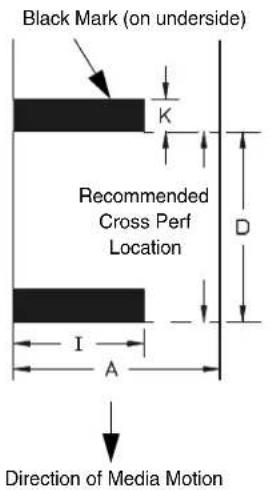
text_image
Black Mark (on underside) K Recommended Cross Perf Location D I A Direction of Media MotionII. Tag Specification (Gap Sensing)
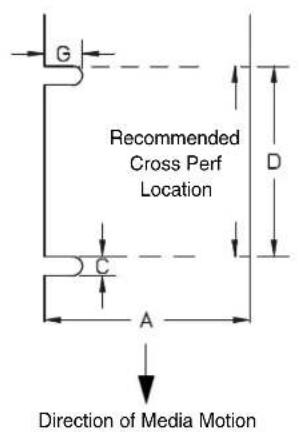
text_image
G Recommended Cross Perf Location C A D Direction of Media MotionIII. Label Specification (Gap Sensing)

text_image
G E D C A B Direction of Media MotionFigure 9. Media Dimensions
Table 20. Media Specifications
| T5X04SL5X04 MP2 | T5X06SL5X06 MP2 | T5X08 | |
| A Label Width Range 0.75 -4.5 in. | 19.1-114.3 mm | 2.0-6.8 in.50.8-172.7 mm | 3.0-8.75 in.76.2-222.3 mm |
| B Backing Width Range 0.75-4.5 in. | 19.1-114.3 mm | 2.0-6.8 in.50.8-172.7 mm | 3.0-8.75 in.76.2-222.3 mm |
| C Min. Gap/Hole/Notch Height 0.10 in. | 2.54 mm | 0.10 in.2.54 mm | 0.10 in.2.54 mm |
| K Min. Refl. Mark Height 0.10 in. | 2.54 mm | 0.10 in.2.54 mm | 0.10 in.2.54 mm |
| I Min Refl. Mark Width 0.5 in. | 12.7 mm | 0.5 in.12.7 mm | 0.5 in.12.7 mm |
| E Media Thickness Range .0025-.010 in. | .0635-.254 mm | .0025-.010 in. .0635-.254 mm | .0025-.010 in. .0635-.254 mm |
| G Width of Inter-label gap/hole 0.25-0.50 in. | 6.35-12.7 mm | 0.25-0.50 in.6.35-12.7 mm | 0.25-0.50 in.6.35-12.7 mm |
| D Media Length RangeContinuous/Batch Mode 0.25 in. (6.35mm) - 99 in. (2515mm) | |||
| Tear-Off Strip Mode 0.25 in. (6.35mm) - 99 in. (2515mm) | |||
| Tear-Off Mode 1 in. minimum (25.4 mm) - 99 in. (2515 mm) | |||
| Peel-Off Mode | 1 in. minimum (25.4 mm) - 99 in. (2515 mm)(1) | ||
| Cut Mode | 1 in. minimum (25.4 mm) - 99 in. (2515 mm) | ||
| These figures are approximate and depend upon the active emulation and application.(1) 1.5 inch with validator support. | |||
Ribbon
Table 21. Ribbon Specifications
| T5X04SL5X04 MP2 | T5X06SL5X06 MP2 | T5X08 | |
| Ribbon Width Range 0.75-4.5 in.19 -114.3 mm | 2.0-6.8 in.50.8-172.7 mm | 3.0-8.75 in.76.2-222.25 mm | |
| Max. Ribbon Length (m) 625 625 625 | |||
| Max Ribbon Roll Diameter | 3.60 in. 3.60 in. | 3.60 in. | |
Indicators And Switches
Table 22. Indicators and Switches
| Indicator Lights: ONLINE, Job-In-Process | |
| Switches: POWER | |
| Keys: PAUSE, JOB S | SELECT/ - (Decrement), FEED/ (Up), TEST PRINT/+ (Increment), :Menu), × (Cancel)/ (Down), (Enter) |
| Message Display: 2-row | 16-characters per row for error messages, print status, and recalling stored formats |
Memory
Table 23. Memory Specifications
| Flash Memory (standard) 8MB | SIMM plugged into Controller PCBA |
| Flash Memory (optional) 16MB | SIMM plugged into Controller PCBA |
| DRAM (standard) | 32MB SIMM plugged into Controller PCBA |
Media Cutter Option
Cutters are designed to cut tags and label liner. Avoid cutting through the adhesive backed portion of any media.
Cutter
The cutter is designed to cut tags and label liner.
Table 24. 4, 6, and 8 inch Models
| Typical Life > 1,000,000 cuts | |
| Warranty 500,000 cuts | |
| Environment Same specifications as printer | |
| Cutting Method Rotating single-edged blade | |
| Media Thickness Range 0.0025 to 0.010 in. (0.064 to 0.254 mm) | |
| Media Width Range Same range as printer | |
| Media Length Range 1.00 to 99 in. (25.4 to 2515 mm) | |
Host Interfaces
Table 25. Host Interface Characteristics
| 1. Serial RS-232 or RS-422 at 600, 1200, 2400, 4800, 9600, 19200, 38400, 57600, or 115200 baud.2. Parallel (Centronics compatible) or IEEE 1284 bi-directional.3. USB 2.0The RS-232 and optional RS-422 host interfaces shall have the following characteristics: | |
| Word Length: Selectable 7-bit or 8-bit data format | |
| Handshaking: XON/XOFF (in receive mode only) and CTS/DTR | |
| Input Buffer: Selectable from 1k through 16 kbytes. XOFF is transmitted and DTR goes low when buffer is equal to or less than 25% of full. XON is transmitted and DTR goes high when buffer is 25% above empty. Characters are transmitted with no parity from the printer |
Power
Table 26. Power Source and Grounding
| Power Source: 115 or 230 | VAC 50/60Hz switching power supply. |
| Grounding: Unit must be connected to a properly grounded receptacle. | |
Table 27. Power Consumption
| 4 inch printers 6 inch printers 8 inch printers | ||||||
| 203 dpi10 ips | 300 dpi8 ips | 203 dpi10 ips | 300 dpi8 ips | 203 dpi8 ips | 300 dpi6 ips | |
| Energy Star(Power Saver Mode) 24 Watts | Watts 24 Watts | Watts 24 Watts | Watts 24 Watts | Watts | ||
| Standby 50 Watts 50 Watts | Watts 50 Watts | Watts 50 Watts | 50 Watts | |||
| 25% Print Density | 142 Watts | 143 Watts | 205 Watts | 175 Watts | 213 Watts | 212 Watts |
| 50% Print Density | 234 Watts | 235 Watts | 360 Watts | 300 Watts | 375 Watts | 373 Watts |
Environmental
Table 28. Environmental Information
| Operating Temperature: 41° | F to 104° F (5°C to 40°C) |
| Storage Temperature: | -40°F to 150°F (-40°C to 60°C) |
| Operating Humidity: | 20% to 85%, non-condensing |
| Storage Humidity: | 5% to 85% non-condensing |
| Ventilation: | Free air movement |
| Dust: | Non-conducting, non-corrosive |
Physical
Table 29. Physical Dimensions
| T5X04SL5X04 MP2 | T5X06SL5X06 MP2 | T5X08 | |
| Outside Dimensions (in.) 13H x 11.7W x20.5D | 13H x 13.4W x20.5D | 13H x 15.4W x20.5D | |
| Weight (lbs/kg) 36.6 lbs. (16.6 kg)37.2 lbs. (16.87 kg) | 40 lbs. (18.14 kg)40.6 lbs. (18.42 kg) | 43 lbs. (19.5 kg) | |
| Add 1.75" D with media guide installedAdd 7.5" D and 6" H for validator optionAdd 1.4" D for media cutter option | |||
Acoustic Specifications
Table 30. T5000 Acoustic Noise Levels per ISO 9296
| T5X04SL5X04 MP2 | T5X06SL5X06 MP2 | T5X08 | |
| Printing @ 6 IPS 68 dBA | 62 dBA 62 dBA | ||
| Standby: 37 dBA 37 dBA | 37 dBA |
Maximum Page Length
The maximum page length allowed is dependent on the following factors:
- The DPI of the printhead. 300 DPI uses more memory than 203 DPI, therefore, 300 DPI printers have a smaller maximum page length than 203 DPI printers.
- The value of "Label Width" (under the QUICK SETUP or MEDIA CONTROL menu). As this value increases, the maximum page length decreases.
- The value of "Glob Mem Adjust" (under the PRINTER CONTROL menu). As this value increases, page memory and the maximum page length decreases. Note that this menu item is independent of a configuration (that is, it does not need to be saved under a configuration number), and the printer must be rebooted for it to take effect.
Also be aware that a maximum page length is based on the ability of the printer to reserve at least one page at the specified length. However, the printer needs two pages to achieve full throughput. Therefore, maximum page lengths less than 99 inches should be divided in half when considering throughput. Maximum page lengths at 99 inches can achieve full throughput at higher values than 49.5 inches.
B Printer Options
Options are offered with the printer to enhance its capabilities and to provide a large degree of application flexibility. A description of the option complement is given below. Field-installable options include installation instructions.
Hardware Options
Media Cutter
The printer may be ordered with a cutter mechanism installed (for cutting tags and label liner), or the option can be installed by an authorized service representative at a later date. Once installed, the printer can be configured to automatically cut media after each or a specified number of labels is printed.
Internal Rewinder
The internal rewinder supports Peel-Off and Batch Rewind Media Handling modes. The printer can be ordered with a rewinder or it can be field installed at a later date by an authorized service representative.
Media Cutter Tray
This option is used exclusively with the media cutter option to collect cut labels or tag stock. This option can be field installed by the operator.
Memory Expansion
The printer internal Flash memory can be upgraded from a 8MB SIMM to a 16MB SIMM, providing additional memory for forms, logos, and fonts.
The printer can be ordered with the memory option installed or it can be field installed by an authorized service representative at a later date.
Online Data Validator
This option provides the capability for verifying printed barcode quality during the printing process.
The printer may be ordered with the Online Barcode Validator installed, or the option can be field installed by an authorized service representative.
Real Time Clock (RTC)
The RTC is a clock chip with internal battery. The clock keeps track of the year, month, day, hour, minute and second values. It will continue to operate when the printer is off.
NOTE: To preserve the battery, the clock will not run when it leaves the factory; it will start running when it is set for the first time.
Graphic languages can use the RTC values to program fields in labels to indicate the date and/or time. This is useful for printing production and expiration dates.
Interface Options
Coax/Twinax Host Interface
The coax/twinax host interface option mounts inside the printer and functions as a protocol converter to allow the direct connection of the printer to a host computer that uses either a coax or a twinax data interface. The printer may be ordered with the coax/twinax option installed, or it can be field installed by an authorized service representative.
Network Interface Card (NIC)
This option permits placing the printer on a LAN rather than attaching it directly to a host system. It is mounted inside the printer. The printer may be ordered with a NIC installed, or it can be field installed by an authorized service representative.
Wireless NIC (802.11b wireless)
The Wireless NIC provides 802.11b connectivity. The card provides wireless connectivity without expensive cabling and reconfigurations required from a wired network. PNE (standard with the wireless NIC), is a printer management tool.
IPDS for Use with Twinax Host Interface
This option supports the Intelligent Printer Data Stream (IPDS) language to allow direct connection of the printer to an IBM host computer that uses the twinax data interface. The printer may be ordered with this option installed and the required hardware to support it, or it can be field installed by an authorized service representative at a later date. The printer must have a Coax/Twinax interface and a 300 DPI Printhead installed to support this field installed option.
IPDS for Use with a NIC
This option supports the IPDS language to allow a LAN connection. The printer may be ordered with this option and the required hardware to support it, or it can be field installed by an authorized service representative. The printer must have a NIC and a 300 DPI Printhead installed to support this field installed option.
IPDS for Use with a NIC and Twinax Host Interface
This option supports the IPDS language to allow a LAN connection as well as a direct connection of the printer to an IBM host computer that uses the twinax data interface. This option is applicable to non SL printers. The printer may be ordered with this option installed and the required hardware to support it, or it can be field installed by an authorized service representative. The printer must have a NIC, Coax/Twinax interface and a 300 DPI printhead installed to support this field installed option.
General Purpose Input/Output (GPIO)
GPIO is both hardware and software. The hardware is the actual IO board to be mounted in the printer, and the software is the GPIO Manager which is part of PNE. The GPIO hardware is a printed circuit board containing optically isolated inputs and outputs as well as relays. The GPIO software is both a printer resident GPIO event parser and a PC-based GPIO manager that allows the user to define how the general purpose IO hardware should behave for the given application.
RS-422
An optional serial interface that enables the printer to operate with bit serial devices that are compatible with an RS232 controller. The printer may be ordered with an RS-422 serial interface installed or it can be installed by an authorized service representative at a later date.
Supplies And Accessories
The best printing solution is achieved when the printer, ribbon, and media are matched to the application requirements. The use of Genuine Printronix Thermal Media and Ribbons will ensure optimum image quality, consistent bar code performance, and extended life of the printhead.
Please refer to the Printronix Media Selection Guide for details concerning the application suitability for all media and ribbon products. To obtain a copy of this guide, or for any other questions concerning Genuine Printronix Thermal Supplies, please call:
| Americas: (800) 733-1900 Fax: (714) 368-2354 | ||
| Europe, Middle East,Africa: | (33) 1-46-25-1900 Fax: | (33) 1-46-25-1919 |
| Asia: (65) 548-4116 Fax: | (65) 546-1588 |
Or visit our website at www.printronix.com.
Genuine Printronix Thermal Transfer Ribbons
The following is a list of Genuine Printronix Thermal Transfer ribbons:
Printronix Wide Spectrum Wax Ribbon 8300
Provides superior print quality for coated and uncoated paper and tag stocks.
Printronix Wax Resin Blend Ribbon 8500
Provides excellent high speed print quality with premium durability performance on a wide range of thermal transfer receptive papers and films.
Printronix Flood-Coat Specialty Wax Resin Blend Ribbon 8550
Designed for use on spot-coated and flood-coated labels. With this ribbon, the need for protective varnishes on flood-coated labels is eliminated, which can reduce the cost of labels.
Printronix Specialty Resin Ribbon 8600
A premium resin formula for excellent image and scuff resistance, while achieving premium print quality on a wide range of synthetic films and coated papers.
Printronix Harsh Environment Resin Ribbon 8700
Provides the highest heat, chemical, and abrasion resistance for use with high-end synthetic facestocks. When used with the proper polyester media, meets UL/CSA regulatory requirements.
Printronix Gasoline Resistant Specialty Resin Ribbon 8770
Designed for high temperature and solvent resistance applications using synthetic facestocks media such as polypropylene, polyethylene, and polyester.
All ribbons are available in widths of: 2.36" (60mm), 3.15" (80mm), 4.33" (110mm), 5.12" (130mm), 6.00" (152.4mm), 6.70" (171mm), and 8.67" (220mm).
Genuine Printronix Media
Printronix provides a wide variety of sizes, colors, and shapes of labels and tags readily available to meet all of your labelling needs. The Printronix Expanded Die Library details hundreds of label sizes and configurations which are quickly obtainable through the Printronix custom order system without the typical added costs and delays associated with the creation and tooling of a special die to match your requirements.
| Genuine Printronix ThermalLine Media | ||
| ThermalLine Media Type | Description Typical Applications | |
| Media 110 Premium coated thermal transfer paperPermanent acrylic adhesive | Compliance shipping, general warehouse, address,AIAG, LOGMARS, product ID, hardware parts supply | |
| Media 120R Premium coated thermal transfer paperRemovable adhesive | Temporary product ID, pricing, point of sale, shelf marking labels which can be cleanly removed | |
| Media 180T 7.0 mil coated thermal transfer papertagstock | Retail hangtag, warehouse bin and pouch inserts, inventory control, work in process, general purpose tag | |
| Media 210 Economy direct thermal paperPermanent acrylic adhesive | Short life deli, grocery, shipping, work in process | |
| Media 220 Premium direct thermal paperPermanent acrylic adhesive | Compliance shipping, general warehouse, address,AIAG, LOGMARS, product ID | |
| Media 270 Infra-Red scannable direct paperPermanent acrylic adhesive | Infra-red scannability for overnight shipping and grocery environments | |
| Media 280T | 7 mil direct thermal paper tagstock | Economical ticket and tag stock for general retail and industrial use |
| Media 410 3.3 mil direct thermal filmPermanent acrylic adhesive | Excellent moisture resistance and tear strength for applications such as baggage tags, etc. | |
| Media 510 4.0 mil white thermal transfer polyolefinPermanent acrylic adhesive | Durable satin finish for chemical pails and drums and general outdoor and industrial use | |
| Media 520 Smudge proof white thermal transferpolyolefinPermanent acrylic adhesive | Outdoor exposures especially chemical drums, etc. provides a markable soundproof topcoat | |
| Media 580T 8.5 mil smudge proof thermal transferPoly tagstock | Outdoor nursery, lumberyard, and industrial environment hangtag and insert tag | |
| Media 700's 2.0 mil polyester labelstock thermal transferWhite, bright & matte chrome | UL/CSA compliant nameplate labels, harsh environment and laboratory labels | |
Besides the standard roll label configuration, Genuine Printronix ThermaLine labels are also available in fanfold configurations.
| Type Media (Stock) Ribbon Features Typical Applications | ||||
| Direct Thermal Paper Label Tag Synthetic Label | Not Used Low cost. | Ease of use.Low environmental durability.Limited label life.Will fade and/or discolor when exposed to heat, sunlight, or chemicals. | Shipping.Inventory tracking. | |
| Thermal Transfer Paper Label Tag | Printronix Wide Spectrum Wax | Lowest cost thermal transfer combination.Most commonly used.Low environmental durability.Low abrasion resistance.Longer life than direct thermal. | Shipping.Inventory tracking.Product labeling.Compliance labeling. | |
| Thermal Transfer Paper Label Tag Synthetic Label Tyvek® and Valeron ® | Printronix Wax Resin Blend | Mid-range wax resin performance and characteristics at economy wax prices.Darker, razor-sharp, smudge-proof images. | Same as economy applications with advantage of supporting Polypropylene, Polyethylene, Polyolefin, and Valeron media. | |
| Thermal Transfer Paper Label Tag Synthetic Label | Printronix Specialty Resin | Better environmental durability.Better abrasion resistance than wax.More expensive than wax.Good aesthetic appearance. | Retail applications where labels are handled.Excellent for most applications.Compliance labeling. | |
| Thermal Transfer Synthetic Label Printronix Harsh Environment Resin | High environmental durability.High physical durability.Excellent aesthetic appearance.Most expensive label/tag combination. | High temperature environments.Medical applications.Outdoor environments.Environments with chemicals.Compliance labeling. | ||
Accessories
Field installable accessories available for your thermal printer are listed below. Contact your authorized supplier for more details.
- Coax/Twinax Host Interface
- GPIO
- Internal Rewind Kit
• Media Cutter (4, 6, and 8 inch)
• Media Cutter Tray (used with a Media Cutter option)
• Memory Expansion 16 MB Flash SIMM
• Network Interface Card (10/100 Base-T)
• Online Barcode Validator - Print Cart
- RFID Encoder
- RS-422
- Scalable Fonts
-
Wireless NIC
-
Maintenance Manual
• LP+ Programmer's Reference Manual - IGP/PGL Programmer's Reference Manual
- IGP/VGL Programmer's Reference Manual
• C/T Programmer's Reference Manual
• Network Interface Card User's Manual
• PrintNet Enterprise Suite User's Manual
C
ASCII Control Codes
| Char Dec Hex Char Dec Hex Char Dec Hex Char Dec Hex | |||||||||||
| NUL 0 | 00 32 20 | @ 64 40 | ` 96 60 | ||||||||
| SOH 1 | 01 ! 33 | 21 A 65 | 41 a 97 61 | ||||||||
| STX 2 | 02 + 34 | 22 B 66 | 42 b 98 62 | ||||||||
| EXT 3 | 03 # 35 | 23 C 67 | 43 c 99 63 | ||||||||
| EOT 4 | 04 S 36 | 24 D 68 | 44 d 100 | 64 | |||||||
| ENQ 5 | 05 % | 37 25 | E 69 45 | e 101 65 | |||||||
| ACK 6 | 06 & 38 | 26 F | 70 46 | f 102 66 | |||||||
| BEL | 7 07 + | 39 27 G | 71 47 g | 103 67 | |||||||
| BS | 8 08 ( | 40 28 H | 72 48 h | 104 68 | |||||||
| HT | 9 09 ) | 41 29 I | 73 49 i 10 | 05 69 | |||||||
| LF | 10 | 0A | * | 42 | 2A | J | 74 | 4A | j | 106 | 6A |
| VT | 11 | 0B | + | 43 | 2B | K | 75 | 4B | k | 107 | 6B |
| FF | 12 | 0C | , | 44 | 2C | L | 76 | 4C | l | 108 | 6C |
| CR | 13 | 0D | - | 45 | 2D | M | 77 | 4D | m | 109 | 6D |
| SO | 14 | 0E | . | 46 | 2E | N | 78 | 4E | n | 110 | 6E |
| SI | 15 | 0F | / | 47 | 2F | O | 79 | 4F | o | 111 | 6F |
| DLE 16 | 10 0 48 | 30 P 80 | 50 p 112 | 70 | |||||||
| DC1 17 | 11 1 49 | 31 Q 81 | 51 q 113 | 71 | |||||||
| DC2 18 | 12 2 50 | 32 R 82 | 52 r 114 | 72 | |||||||
| DC3 19 | 13 3 51 | 33 S 83 | 53 s 115 | 73 | |||||||
| DC4 | 20 | 14 | 4 | 52 | 34 | T | 84 | 54 | t | 116 | 74 |
| NAK 21 | 15 5 53 | 35 U 85 | 55 u 117 | 75 | |||||||
| SYN 22 | 16 6 54 | 36 V 86 | 56 v 118 | 76 | |||||||
| ETB | 23 | 17 | 7 | 55 | 37 | W | 87 | 57 | w | 119 | 77 |
| CAN | 24 18 | 8 56 38 X | 88 58 x | 120 78 | |||||||
| EM | 25 | 19 | 9 | 57 | 39 | Y | 89 | 59 | y | 121 | 79 |
| SUB | 26 | 1A | : | 58 | 3A | Z | 90 | 5A | z | 122 | 7A |
| ESC | 27 | 1B | ; | 59 | 3B | [ | 91 | 5B | { | 123 | 7B |
| FS | 28 | 1C | < | 60 | 3C | \ | 92 | 5C | l | 124 | 7C |
| GS | 29 | 1D | = | 61 | 3D | ] | 93 | 5D | } | 125 | 7D |
| Char | Dec | Hex | Char | Dec | Hex | Char | Dec | Hex | ||||||
| RS | 30 | 1E > 62 | 3E ^ 94 | 5E ~ 126 | 7E | |||||||||
| US | 31 | 1F ? 63 | 3F _ 95 | 5F 127 | 7F |
NOTE: For the hardware handshake XON/XOFF commands:
XON = Ctrl Q (DC1)
XOFF = Ctrl S (DC3)
D Media Cutter Installation
Prepare The Printer

text_image
Screw (2) Peel/Tear Assembly Lower Support Assembly Peel/Tear DoorFigure 1. Peel/Tear Assembly
- Set the printer power switch to O (Off).
- Open the peel/tear door by pulling it upward, then forward.
- Using the appropriate metric hex key, remove the two screws attaching the peel/tear assembly to the lower support assembly.
NOTE: Keep the two screws you have removed; you will use them to attach the cutter assembly to the lower support assembly.
Installing The Cutter
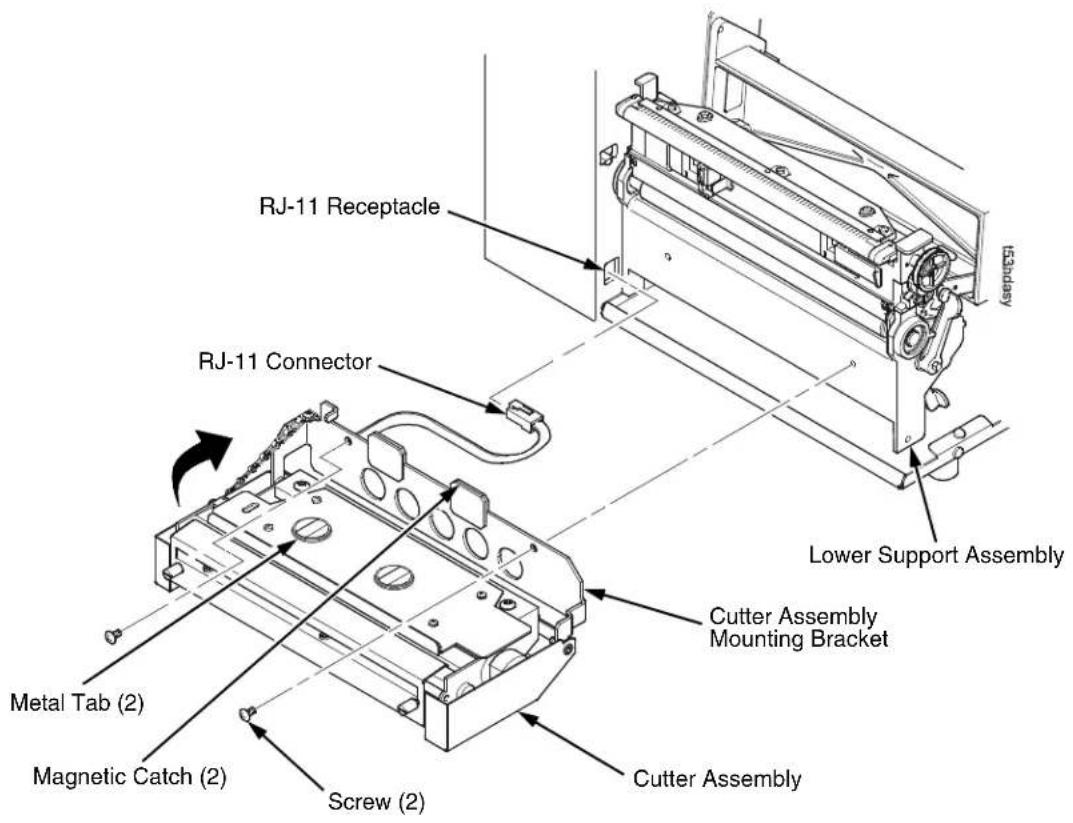
text_image
RJ-11 Receptacle RJ-11 Connector Metal Tab (2) Magnetic Catch (2) Screw (2) Cutter Assembly Mounting Bracket Lower Support Assembly Cutter Assembly 153daisyFigure 2. Cutter Assembly
- Plug the RJ-11 connector into the RJ-11 receptacle.
- Pull the metal tabs from the magnetic catches and swing open the cutter assembly mounting bracket from the cutter assembly.
WARNING
The cutter blades are sharp. Keep your fingers away from the cutter blades.
- Place the cutter assembly in position.
- Install the two screws using the appropriate metric hex key.
- Place the cutter assembly into the up (closed) position.
NOTE: The printer cannot detect the presence of the cutter unless the cutter is in the up (closed) position and the cutter top cover is installed when the printer is powered on.
Restore The Printer To Operation
NOTE: The printer cannot detect the presence of the cutter unless the cutter is in the up (closed) position and the cutter top cover is installed when the printer is powered on.
- Set the printer power switch to I (ON).
- Press to place the printer in Menu Mode.
- Press the ↓ and ↓ keys at the same time until "ENTER SWITCH UNLOCKED" appears on the printer display.
- Press until "MEDIA CONTROL" displays.
- Press ↓ until "Media Handling" displays.
- Press + or - until the "Cut" option displays.
- Press to select "Cut." An asterisk (*) displays next to "Cut."
- Relock the ↓ key by pressing ↓ and ↓ at the same time, then press PAUSE to put the printer back online.
- If the bar code validator is installed, adjust the validator beam. (See the Online Data Validator User's Manual).
- Make sure any media sticking out of the platen goes in the cutter entrance slot.
- Test the printer cutting operation and print quality by selecting the Diagnostics → Printer Tests menu and printing one of the test patterns. (Refer to "DIAGNOSTICS" on page 237.)
- To save the configuration parameters, refer to "Saving A Configuration" on page 88.
Removing The Media Cutter
- Set the printer power to O (OFF).
- Pull the cutter assembly to the down (open) position.
- Using the appropriate metric hex key, remove the two screws securing the cutter bracket to the lower support assembly.
- Unplug the RJ-11 connector from the RJ-11 receptacle.
- Remove the media cutter from the printer.
- Install the front door assembly on the printer lower support assembly.
E Media Cutter Tray Installation
Assembling The Media Cutter Tray

text_image
Cutter Tray Bin Flanges (4) Slots Cutter Tray BaseFigure 1. Attaching the Cutter Tray Bin to the Cutter Tray Base
- Align the flanges of the cutter tray bin with the slots in the cutter tray base.
- Push the flanges into the slots, then push the cutter tray bin downward to secure it.
- Attach the cutter tray bin in a position so that the labels will not interfere with cutter operation. (For longer labels, attach the cutter tray bin to a lower position; for shorter labels, attach it to a higher position.)
Installing The Media Cutter Tray

natural_image
Technical line drawing of a mechanical device with a rectangular base and control panel (no text or symbols)Figure 2. Placing the Media Tray Cutter in Position
- Position the output area of the printer adjacent to the edge of the supporting table or stand.
- Open the media cover and slide the lip of the media cutter tray over the lip of the printer base pan.
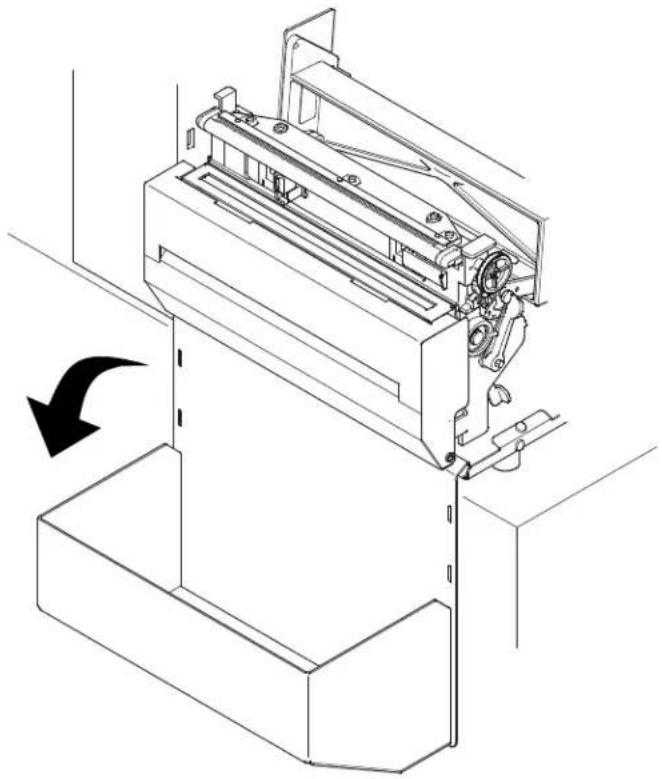
natural_image
Technical line drawing of a mechanical device with an arrow indicating rotation or assembly (no text or symbols present)Figure 3. Installing the Media Cutter Tray
-
Rotate the media cutter tray into position with the tray resting against the table.
-
Close the media cover.
F Glossary
Baud (rate) Baud Rate is the number of information bits that can
be transmitted between the printer and the computer in one second. For example, one baud equals one bit per second in a series of binary signals. Both the printer and the computer must be configured to the same baud rate.
BIT Binary digIT. A digit in the binary number system,
represented by a 0 or a 1. A bit is the smallest unit of storage in a digital computer.
Boot-up The start-up procedure which causes a computer
operating system to be loaded into main memory.
Buffer An area of storage into which data is read or written
temporarily during data transfers.
Coax Coaxial cable. A type of cable with a single wire
surrounded by insulation and a braided shield.
Configuration Refers to the operating properties that define how the
printer responds to signals and commands received from the host computer at the printer interface. These properties are called configuration parameters and are set to match the operating characteristics of the host computer system.
Continuous Media Media comprised of one continuous length without a
gap, notch, hole, or black mark to establish a predetermined label or tag length. With this media type, the Host Form Length or user-selected Label Length sets the desired length of each label.
Continuous Media
Handling Mode A media handling mode that advances media in the
forward direction only.
Controller An independent functional logic unit in a data
processing system that controls data paths between one or more units of peripheral equipment.
Data Bits Binary information sent to the printer; a character set grouping containing letters, digits, and punctuation marks to be printed.
Default A value, parameter, attribute, or option that is assigned by a program or system when another has not been specified by the user.
Diagnostic Pertaining to the detection and isolation of a printer malfunction or mistake.
Direct Thermal
Media Media coated with special chemicals that act as an accelerator, acceptor dye, and binder. In Direct Thermal mode, the heat from the selected rectangular elements in the thermal printhead makes direct contact with the media (no ribbon is used) and causes a chemical reaction that creates the image on the media.
Direct Thermal
Printing A printing method in which no ribbon is used to transfer data from the printhead to the media to create an image. The thermal printhead selectively heats small rectangular elements which make direct contact with the coated media.
DRAM Dynamic Random Access Memory. Can be read from or written to at any time. DRAM is volatile: whatever is in DRAM is lost when power is turned off.
EPROM Erasable Programmable Read Only Memory. Programs, instructions, and routines permanently stored in the printer that cannot be written to. Files in EPROM are not lost when power is turned off. (Resident fonts are fonts permanently stored in EPROM and available at any time, via software commands.)
Fanfold Media Media supplied in a fanfold stack instead of a roll format.
Flash Memory Nonvolatile memory. See Nonvolatile Memory.
Font A collection of printing characteristics for printing alphanumeric characters, all of which combine to produce a distinctive style of print.
Host Computer The computer that stores, processes, and sends data to be printed, which communicates directly with the printer. The term “host” is used to indicate the controlling computer, since modern printers are themselves microprocessor-controlled computer systems.
IGP/PGL Intelligent Graphics Printing software for the Printronix Graphics Language, designated for Printronix printers. IGP/PGL provides online forms, barcodes, and many alphanumeric text-generation capabilities and is compatible with earlier versions of Printronix IGP protocol and programming.
Interface The hardware component used to link two devices by common physical interconnection, signal, and functional characteristics.
IPS The speed at which the media is printed based on a rate of Inches-Per-Second.
Label Liner (backing) The material labels are attached to during their manufacturing process. Attachment is usually accomplished with an adhesive. After printing, labels can be easily removed from the liner and the liner discarded or recycled.
Label Taken Sensor A sensor located at the front of the printer to detect the presence of a label extended out the front of the printer. The sensor is used only during Peel-Off and Tear-Off Media Handling to sense a label and then detect its removal prior to printing the next label.
Media Material onto which data is printed by the printer. The types of media supported by the printer are die-cut labels or tag stock, supplied in roll or fanfold format. Media is further described by the type of sensing used to detect the Top-of-Form position based on the label length indicators used. Transmissive (Gap) media uses a liner gap, notch, or hole between labels, and Reflective (Mark) media uses a horizontal black mark located on the underside of the tag stock or label liner. Continuous media (with no label length indicators) uses no sensing method, and the operator determines which label length is desired.
Media Sensor The sensor used to detect the presence of media in the paper path as well as the gap, notch, or hole position of Transmissive media or the horizontal black mark on Reflective media.
Memory See RAM, Nonvolatile Memory, DRAM, and Flash Memory.
Nonvolatile Memory Nonvolatile memory stores variables that must be preserved when the printer is turned off, such as configuration parameters and printer usage statistics. Nonvolatile memory is preserved because RAM is housed on the controller board, which contains an independent, battery-operated power supply. When printer power is turned off, the battery supplies the power needed to keep stored data active. Nonvolatile memory also includes storage in disk.
NVRAM Acronym of Nonvolatile Random-Access Memory. See Nonvolatile Memory.
Parity (check) Parity checking is the addition of a non-data bit to data, resulting in the number of "1 bits" being either always even or always odd. Parity is used to detect transmission errors. Parity represents value in the check digit of the received or transmitted data.
PCBA Printed Circuit Board Assembly. A PCB with components (ICs, resistors, capacitors, etc.) installed.
PPI Printer Protocol Interpreter.
Port A data channel used for receiving data from or transmitting data to one or more external devices.
Protocol The rules and conventions that govern communication between a printer and a host computer. A protocol includes codes for printing text and graphics and codes instructing the printer to perform special operations.
RAM Random-Access Memory. Also called “main memory” or “working memory.” It is the active memory of the printer into which programs are loaded. RAM is saved to volatile memory because data in RAM is lost when power is turned off or interrupted.
Reflective Sensing Use of the lower media sensor only to transmit and receive infrared light off the underside of media to detect gaps, notches, holes, or horizontal black marks used for determining the Top-of-Form position on labels or for indicating a Paper Out condition.
Resolution A measure expressing the number of component units in a given range used to create an image; in printing, expressed as the number of dots per inch (dpi) horizontally and vertically.
RFID Encoder The RFID (Radio Frequency Identification) encoder programs smart labels (tags with embedded inlays).
Roll Media Media supplied in a roll format, usually wound on a 1-inch or 3-inch cardboard core. The T5000 media hanger assembly accepts both core sizes.
Sensed Distance Gap/Mark Sensor = Gap, Advanced Gap, or Advanced Notch: The Sensed Distance value is the physical length of one label plus the length of one gap.
Gap/Mark Sensor = Mark: The Sensed Distance value is the physical distance from the leading edge of one black mark to the leading edge of the next.
Slew Vertical paper movement.
Stop Bits The signal which indicates the end of a character or element.
Thermal Transfer
Media Media specifically designed to work with a ribbon for image transfer. In Thermal Transfer mode, compatibility between the ribbon and the media is critical in producing a high quality, long lasting image.
Thermal Transfer
Printing A printing method in which the printhead presses a specially coated ribbon against the media. The printhead elements react with the ribbon and bond the image to the media.
Transmissive
Sensing Use of the upper media sensor to transmit infrared light through the top of media which is then received by the lower media sensor to detect gaps, holes, or notches for determining the Top-of-Form position on labels or for indicating a Paper Out condition.
Twinax Twinaxial. A type of cable with two wires surrounded by insulation and a braided shield.
Index
Symbols
^Dnn Dot Slew option, 193
Numerics
06 HOST REQUEST fault message, 317
08 HOLD PRINT TIMEOUT fault message, 317
1284 parallel interface, 295
15 COMM CHECK fault message, 317
20 CPI Condensed option, 193
203 DPI fault message, 318
22 INVALID ADDR fault message, 317
27 CU TIMED OUT fault message, 317
28 CU NOT ENAB fault message, 317
300 DPI fault message, 318
33 HEAD OPEN Timeout fault message, 318
40V POWER FAIL fault message, 318
5225 World Trade option, 193
A
Absorb After ^PN option, 193
Absorb After ^PY option, 194
Accessories, 355
ACK / NAK, 247
Acoustic noise levels, 351
Active Char Set option, 194
Active IGP Emul option, 150
Active IGP Emulation option, 114
Admin User option, 155, 159
Advanced gap, 71
Advanced notch, 71
AI 00 Spaces option, 194
Alarm option, 152
Alarm, printer, 316
Alt. Char Set option, 194
Alt. Set 80-9F option (Coax, Twinax, TN3270, TN5250), 195
Alt. Set 80-9F option (P-Series, Serial Matrix, Epson FX), 194
Ambient light Validator failure fault message, 318
Amp-Hour Used option, 275
Ant. Diversity option, 266
Antenna option, 266
Append Rotated option, 195
ASCII Data Port option, 259
Auth Method option, 267
Auth Method, WLAN EAP menu, 272
Auto Calibrate option, 113, 139
Auto calibrate, running, 72
Auto FF at ^PN option, 195
Auto Label Width option, 128
Auto LF option (P-Series, P-Series XQ), 195
Auto LF option (Serial Matrix, Proprinter XL, Epson FX), 195
Auto Locking option, 155
Auto Map Select option, 125
Auto Save Configuration, 89
Auto Save option, 117
Auto Skip at End option, 196
Auto switching, 293
Auto Trickle option, 243
Auto Uppercase option, 196
Autoeject option (VGL), 196
Autowrap option, 196
B
BAD VFU CHANNEL fault message, 318
BAR CODE IMPROPER Data Format fault message, 318
BAR CODE QUIET Zone too small fault
message, 319
Barcode var. option, 196
Batch Counter option, 159
Batch Rewind mode, 54
BATT HIGH VOLT fault message, 319
BATT LOW VOLT fault message, 319
BATTERY CONTROL
menu, 274
submenus, 274
Battery Monitor option, 274
Baud Rate option, 246
Bold Chars. option, 158
Bold option, 197
Bottom Margin option, 197
Boundary Check option, 197
Btm Margin Ctl option, 197
BUFFER OVERFLOW fault message, 319
BUFFER OVERRUN fault message, 320
Buffer Print option, 197
Buffer Reprint option, 197
Buffer Size in K option (Parallel Port), 242
Buffer Size in K option (Serial), 248
Buffer Size in K option (USB), 254
Busy on Strobe option, 244
Busy signal, Centronics parallel interface, 295
Byte mode, 296
C
C/T PORT
menu, 253
submenus, 253
C128 Mode Comp. option, 198
C39 Compatbl. option, 198
Cable length
Centronics parallel interface, 294
IEEE 1284 parallel, 297
RS-232 interface, 299
RS-422 interface, 299
serial, 299
Cal in Peel Mode option, 143
CALIBRATE CTRL
menu, 138
submenus, 139
Calibrating media sensors, 72
CALIBRATION Warning fault message, 320
Calibration warning fault message, 320
Cancel IGP/DCU option, 198
Cancel Key option, 153
CANNOT CALIBRATE Disable Peel-Off fault message, 320
Centronics
acknowledge signal, 295
busy signal, 295
data lines 1 through 8 signals, 295
data strobe signal, 295
interface signals, 295
online signal, 295
Paper Empty signal, 295
Paper Instruction (PI) signal, 295
parallel interface, 294
pin assignments, 294
Change Case option, 198
Changing printer settings, 87
Channel option, 266
Character Group option (Epson FX), 199
Character Group option (PGL), 200
Character Group option (Proprinter XL), 203
Character Group option (P-Series, Serial Matrix), 202
Character Set option, 204
Checksum Failure fault message, 320
Cleaning
cutter option, 83
exterior, 80
general, 80
interior, 80
media sensor, 81
platen roller, 81
printhead, 80
the printer, 80
Clear Error Log option, 239
Clear To Send (CTS) signal, RS-232 serial interface, 299
CLEARING PROGRAM FROM FLASH fault
message, 321
Clip Page option, 131
Clock Skew (SEC) option, 270
Clock Skew Units option, 270
Cmd Resolution option, 204
COAX SETUP menu, 164
Coax Type option, 204
Coax/twinax host interface, 354
Code Page Subset option, 204
Communication
Centronics parallel, 294
Dataproducts Long Lines, 294
IEEE 1284 parallel (bidirectional), 295
Compatibility mode, IEEE 1284 interface, 295
Compatibility option, 153
Compressed Print option, 205
CONFIG. CONTROL
menu, 115
submenus, 116
Configuration menu
moving within, 85
moving within (ill.), 86
overview, 94
Configurations
loading saved, 93
modifying saved, 91
printing, 93
saving, 88
specifying power-up, 90
Configuring the printer, 85
Continuous Mode option, 135
Continuous, media handling, 37
CONTRAST TOO LOW Check media fault
message, 321
Control Code 06 option, 205
Control Code 08 option, 205
Control panel, 33
Control panel keys, 35
Controlling print quality, 304
Controls, 33
Copy Count option, 205
CR at MPP+1 option, 205
CR Edit option, 205
CR, EM, & NL option, 206
Create And Send Download File
Download Mode, 290
Online (PGL Only), 289
CSC, 19
CTHI, 354
CTHI Emulation option, 149
Current Draw option, 275
Customer Support Center, 19
Cut, media handling, 38
Cutter, 349
CUTTER FAULT Check Cutter fault message, 321
Cutter Option, cleaning, 83
D
Dark background labels with gaps, 69
Dark background media with notches or holes, 70
Data Bit 8 option, 206, 242
Data Carrier Detect (DCD) signal, RS-232 serial
interface, 299
Data exchange, 302
Data lines 1 through 8 signal, Centronics parallel
interface, 295
Data Polarity option, 244
Data Protocol option, 247
Data Set Ready (DSR) signal, RS-232 serial
interface, 299
Data strobe signal, Centronics parallel
interface, 295
Data Term Ready option, 249
Date
submenu, 278
DATE menu, 278
Day option, 278
DEACTIVATING HOST SERIAL fault message, 321
Default Code Pag option, 206
Default Font option, 206
Default WEP Key option, 267
Define CR code option, 207
Define LF code option (PGL, Serial Matrix,
Proprinter XL, Epson FX), 207
Define LF code option (P-Series, P-Series XQ), 207
Del Char frm Flsh option, 153
Del Char frm RAM option, 154
Del Set frm Flsh option, 154
Del Set from RAM option, 154
Delete Config option, 116
Delete Files option, 154
Device Address option, 253
DHCP option, 257, 262
Diagnostic tests, 238
DIAGNOSTICS
menu, 237
submenus, 238
Diagnostics, 301
DIAGNOSTICS PASSED fault message, 321
Direct thermal printing, 25
DIRECT THERMAL Remove Ribbon fault message, 321
Display indicators, 34
Display Language option, 152
Display Ribbon option, 133
Do FF at TOF option, 208
DO NOT POWER OFF fault message, 322
Download File
Download Mode, 290
Online (PGL Only), 289
Downloading Software
Firmware Download Utility, 280
Flash contains Boot Code, 287
NIC, 283
NIC and FTP, 284
Parallel Port, 281
Serial Port, 280
USB Port, 286
DOWNLOADING TO VALIDATOR fault
message, 322
Downloading TrueType Fonts, 288
DRAM Installed option, 239
DTR, 248
Dual NIC, 354
Dynamic print control, 26
Dynamic Sensing option, 145
E
E00 EXE @ ADDR0 message, 322
E01A TYPE 0x40 message, 322
E01B TYPE 0x60 message, 322
E02 MACHINE CHK message, 323
E03A DSI HASH L message, 323
E03B DSI HASH S message, 323
E03C DSI BAT PL message, 323
E03D DSI BAT message, 324
E03E DSI CXIWX message, 324
E03F DSI CXOWX message, 324
E03G DSI ECXIWX message, 324
E03H DSI ECXOWX message, 325
E04A ISI NO TRA message, 325
E04B ISI DIRECT message, 325
E04C ISI PROTEC message, 325
E06 NOT ALIGNED message, 326
E07 ILLEGAL INS message, 326
E08 FLOATINGPNT message, 326
EAP Mode, WLAN EAP menu, 272
EAP Pswd (01-15), WLAN EAP menu, 273
EAP Pswd (16-30), WLAN EAP menu, 273
EAP User (01-15), WLAN EAP menu, 273
EAP User (16-30), WLAN EAP menu, 273
EAP User (31-32), WLAN EAP menu, 273
Early Print Cmpl option (Coax), 208
Early Print Comp option (IPDS), 208
EC SOFTWARE FAIL fault message, 326
Elong./Alt. Font option, 208
Emulation option, 209
Emulation submenus, 193
Emulations overview, 160
E-NET INIT fault message, 326
E-NET READY fault message, 326
E-NET RESET fault message, 326
ENTER to Stop fault message, 327
Environmental information, 350
Epson Set option, 209
ERROR DC PROGRAM NOT VALID fault
message, 327
ERROR DRAM AT ADDRESS XXXXXXXX fault
message, 327
ERROR FLASH DID NOT PROGRAM fault
message, 327
ERROR IPDS needs 300 DPI Head fault
message, 327
ERROR NO DRAM DETECTED fault
message, 327
ERROR OCCURRED FLUSHING QUEUES fault
message, 328
ERROR PROGRAM NEEDS MORE DRAM fault
message, 327
ERROR PROGRAM NEEDS MORE FLASH fault
message, 327
ERROR PROGRAM NOT COMPATIBLE fault
message, 328
ERROR PROGRAM NOT VALID fault
message, 328
Error Recover option, 132
ERROR SECURITY KEY NOT DETECTED fault
message, 328
ERROR SHORT AT ADDRESS XXXX fault
message, 328
ERROR WRITING TO FLASH fault message, 328
ERROR WRONG CHECKSUM fault message, 328
ESC d command option, 209
ETHERNET ADDRESS
menu, 256
submenus, 257
ETHERNET PARAMS
menu, 258
submenus, 259
Ethernet Speed option, 259
ETX / ACK, 247
EVFU Select option, 209
Exchange, data, 302
Expanded Font option (PGL), 209
Expanded Font option (VGL), 209
Expanded Fonts option (IPDS), 210
Ext Execute Copy option, 210
Extended Subset option, 210
Extra Bold Char. option, 158
F
FAN WARNING fault message, 329
Fanfold media, 46
Fault, 295
Fault message
06 HOST REQUEST, 317
08 HOLD PRINT TIMEOUT, 317
15 COMM CHECK, 317
203 DPI, 318
22 INVALID ADDR, 317
27 CU TIMED OUT, 317
28 CU NOT ENAB, 317
300 DPI, 318
33 HEAD OPEN Timeout, 318
40V POWER FAIL, 318
Ambient light Validator failure, 318
BAD VFU CHANNEL, 318
BAR CODE IMPROPER Data Format, 318
BAR CODE QUIET Zone too small, 319
BATT HIGH VOLT, 319
BATT LOW VOLT, 319
BUFFER OVERFLOW, 319
BUFFER OVERRUN, 320
CALIBRATION Warning, 320
Calibration warning, 320
CANNOT CALIBRATE Disable Peel-Off, 320
Checksum Failure, 320
CLEARING PROGRAM FROM FLASH, 321
CONTRAST TOO LOW Check media, 321
CUTTER FAULT Check Cutter, 321
DEACTIVATING HOST SERIAL, 321
DIAGNOSTICS PASSED, 321
DIRECT THERMAL Remove Ribbon, 321
DO NOT POWER OFF, 322
DOWNLOADING TO VALIDATOR, 322
EC SOFTWARE FAIL, 326
E-NET INIT, 326
E-NET READY, 326
E-NET RESET, 326
ENTER to Stop, 327
ERROR DC PROGRAM NOT VALID, 327
ERROR DRAM AT ADDRESS XXXXXXXXX, 327
ERROR FLASH DID NOT PROGRAM, 327
ERROR IPDS needs 300 DPI Head, 327
ERROR NO DRAM DETECTED, 327
ERROR OCCURRED FLUSHING QUEUES, 328
ERROR PROGRAM NEEDS MORE DRAM, 327
ERROR PROGRAM NEEDS MORE FLASH, 327
ERROR PROGRAM NOT COMPATIBLE, 328
ERROR PROGRAM NOT VALID, 328
ERROR SECURITY KEY NOT DETECTED, 328
ERROR SHORT AT ADDRESS XXXX, 328
ERROR WRITING TO FLASH, 328
ERROR WRONG CHECKSUM, 328
FAN WARNING, 329
FILE EXISTS Enable Overwrite, 329
FILE SYS INVALID Optimize&Reboot, 329
FILE SYS WRITE Check Flash, 329
FILE SYSTEM FULL Add Flash, 329
FILE SYSTEM FULL Delete Files, 329
FILE SYSTEM FULL Optimize & Reboot, 329
FPGA FILE NOT FOUND, 330
FRAMING ERROR, 330
GAP NOT DETECTED See Manual, 330
GRF CHK ERROR PRESS PAUSE, 330
Half Speed Mode, 331
HEAD POWER FAIL, 331
IGP/PGL ERROR, 332
INCOMPATIBLE WITH CUTTER, 333
INSUFFICIENT RAM Reboot/Add RAM, 332
LABEL MISSING Check Paper Path, 332
LOADING PROGRAM FROM PORT XX%, 333
LOADING PROGRAM INTO FLASH, 333
MENU MODE QUICK SETUP, 333
NON VOLATILE MEMORY FAILED, 334
OPTION NOT INSTALLED, 334
OVERALL GRADE FAIL, 335
PAPER OUT Load Paper, 336
PAPER OUT TIMEOUT, 337
PARITY ERROR, 337
POOR SCANNING Check Head&Heat, 337
POOR SCANNING Check media, 337
POOR SCANNING Inspect head, 337
POWER SAVER MODE, 337
PRINT HEAD COLD See Manual, 338
PRINT HEAD HOT, 338
PRINT HEAD UP Close Print Head, 338
PRINTER HOT, 338
PRINTER UNDER REMOTE CONTROL, 338
PWR SUPPLY HOT, 339
RBN TAKEUP FULL Remove Used Rbn, 339
REACTIVATING HOST SERIAL, 339
RECHARGE BATTERY, 339
Remove Label, 340
RESETTING PLEASE WAIT, 340
RESTORING BOOT CODE, 340
RIBBON BROKEN Reload Ribbon, 340
RIBBON FAULT Timeout, 340
RIBBON LOAD BAD Reload Ribbon, 340
Ribbon Low, 341
RIBBON OUT Load Ribbon, 341
SECURITY CODE VIOLATION, 341
SECURITY VIOLATION, 341
SOFTWARE ERROR Recycle Power, 341
Speed Exceeds Validator Limit, 341
TESTING HARDWARE PLEASE WAIT, 342
Unscannable xx Missing Codes, 342
Validator not communicating, 342
WAITING FOR PROGRAM DOWNLOAD, 342
WIRELESS ADAPTER NOT COMPATIBLE, 343
Fault Message Troubleshooting Table, 317
Fault messages, 316
E00 EXE @ ADDR0, 322
E01A TYPE 0x40, 322
E01B TYPE 0x60, 322
E02 MACHINE CHK, 323
E03A DSI HASH L, 323
E03B DSI HASH S, 323
E03C DSI BAT PL, 323
E03D DSI BAT, 324
E03E DSI CXIWX, 324
E03F DSI CXOWX, 324
E03G DSI ECXIWX, 324
E03H DSI ECXOWX, 325
E04A ISI NO TRA, 325
E04B ISI DIRECT, 325
E04C ISI PROTEC, 325
E06 NOT ALIGNED, 326
E07 ILLEGAL INS, 326
E08 FLOATINGPNT, 326
Fault Message Troubleshooting Table, 317
H00: PCI SLOT ?, 331
H01: PCI J24, 331
H02: PCI J25, 331
operator-correctable, 316
requiring field service attention, 316
Fault mode, 37
Feature File option, 239
FF After Job option, 210
FF valid at TOF option, 211
FF Validity option, 211
FILE EXISTS Enable Overwrite fault message, 329
FILE SYS INVALID Optimize&Reboot fault message, 329
FILE SYS WRITE Check Flash fault message, 329
FILE SYSTEM FULL Add Flash fault message, 329
FILE SYSTEM FULL Delete Files fault message, 329
FILE SYSTEM FULL Optimize & Reboot fault message, 329
Firmware Download Utility, downloading software, 280
Flash Avail. option, 154
Flash Contains Boot Code, downloading software, 287
FLASH Installed option, 239
Flash Memory, load, 279
Fonts, 24
Downloading TrueType, 288
TrueType, 288
Form Length (lines) option, 211
Form Width (char.) option, 211
Form Width (in.) option, 212
Form Width (mm.) option, 212
Format Control option, 212
Forms Handling option, 212
Forms Length (in.) option, 211
Forms Length (mm) option, 211
FPGA FILE NOT FOUND fault message, 330
FRAMING ERROR fault message, 330
Framing Errors option, 252
G
Gap, 71
Gap Length option, 143
GAP NOT DETECTED See Manual fault message, 330
Gap Windowing option, 143
Gap/Mark Sensor option, 112, 139
Gap/Mark Thresh option, 140
Gaps, 68
Gateway Address option, 257, 262
General Purpose Input/Output (GPIO) option, 355
Glob Mem Adjust option, 156
Gothic Typeface option, 212
Graphic Chek Cod option, 213
Graphic Chek Err option, 213
GRF CHK ERROR PRESS PAUSE fault message, 330
H
H00: PCI SLOT ? message, 331
H01: PCI J24 message, 331
H02: PCI J25 message, 331
Half Speed Mode fault message, 331
Handshaking, 302
hardware, 302
software, 302
Hardware options, 353
Head On Time option, 240
HEAD POWER FAIL fault message, 331
Head Print Dist option, 239
Head Type option, 240
Head Voltage option, 240
HeadClose Action option, 142
Hex Dump Mode option, 239
Hexdump mode option, 213
High Volt Alert option, 276
Holes, 68
Hor Image Shift option, 110, 123
Horizontal black marks, 67
Horizontal DPI option, 214
Host Command option, 214
Host Form Length option (IPDS), 215
Host Form Length option (PGL), 215
Host Forms Length option (VGL), 216
Host interface characteristics, 349
Host Interface option, 150
Host Override option, 216
Host PI option, 216
Hour option, 278
|
I-2/5 Selection option, 216
Idle Response option, 250
IEEE 1284
interface, 295
operating modes, 295
Ignore ^Lxx Cmd. option, 217
Ignore Ch#1 option, 217
Ignore Ch#2 option, 217
Ignore Chars option, 217
Ignore Dots option, 217
Ignore Mode option, 217
Ignore Spaces option, 218
Ignore Text option, 218
IGP/PGL, 162
IGP/PGL ERROR fault message, 332
IGP/PGL SETUP menu, 179
IGP/VGL, 163
IGP/VGL SETUP menu, 181
IGP100 Compatibl. option, 218
Improving processing time, 302
INCOMPATIBLE WITH CUTTER fault
message, 333
Indicators, 33
Indicators and switches, 348
Installing the media guide, 55
Installing the printer, 29
INSUFFICIENT RAM Reboot/Add RAM fault
message, 332
Interface options, 354
Interfaces, 293
Centronics parallel, 294
Dataproducts Long Lines, 294
IEEE 1284, 295
Interfacing, 303
Internal rewinder, 24, 54, 59, 353
Internat. Mode option, 267
Intervention Req option, 218
IP Address option, 257, 262
IPDS Data Port option, 259
IPDS for use with PrintNet 10/100 Base-T (UTP
Ethernet) and twinax host interface, 355
IPDS for use with PrintNet 10/100 Base-T (UTP
Ethernet) interface, 354
IPDS for use with twinax host interface, 354
IPDS SETUP menu, 171
Italic Print option, 218
J
Job Control option, 260
Job In Process indicator, 33
K
KDC Port Number option, 270
Keep Alive Timer option, 259
Kerb. Pwd(01–15) option, 269
Kerb. Pwd(16–30) option, 270
Kerb. Pwd(31–40) option, 270
Kerberos Enable option, 269
KERBEROS PARAMS
menu, 269
submenus, 269
L
Label Length option, 109, 121
LABEL MISSING Check Paper Path fault
message, 332
Label Peel-Off, 60
Label Resolution option, 137
Label Wait Time option, 130
Label Width option, 110, 122
Labeling Applications, 292
Labels, printing test, 301
LAC Approx. option, 218
LAC Option option, 219
Last Char = FF option, 219
Latch Data On option, 244
Lbl Missing Flt option, 131
LCD, 33
LCD Fault Message Troubleshooting Table, 317
Ld Char at PwrUp option, 154
Ld Char from Fls option, 153
Ld Set at PwrUp option, 154
Ld Set from Flsh option, 154
Lead PDF Dist option, 219
Lead-in Chars option, 219
Left Margin option, 220
Left pressure block, 65
Liquid Crystal Display (LCD), 33
Load Config. option, 116
Load saved configuration, 93
Loading Flash Memory, 279
Loading media, 38
fanfold, 46
roll, 39
LOADING PROGRAM FROM PORT XX% fault
message, 333
LOADING PROGRAMINTO FLASH fault
message, 333
Loading ribbon, 38, 51
Logical Buf Size option, 220
Low Volt Alert option, 276
Low Volt Fault option, 276
LP+ Emulation option, 149
LPI option, 220
M
MAC Address option, 257, 262
Main configuration menu, 95
Manual Calibrate option, 141
Manual calibrate, running, 79
Manual conventions, 21
Mark, 71
Max Cache Memory option, 157
Max Cached Char option, 157
Max Font Buffer option, 156
Max PI 16 option, 220
Max. Print Width option, 220
Media, 26, 357
fanfold, 46
general information, 346
loading, 38
Printronix, 357
roll, 39
MEDIA CONTROL
menu, 118
submenus, 119
Media cutter, 24, 353, 363
installing, 363
Media cutter tray, 24, 353, 367
installing, 367
Media dimensions, 347
Media guide
installing, 55
removing, 63
Media handling modes, 37
continuous, 37
cut, 38
peel-off, 38
tear-off, 37
tear-off strip, 37
Media Handling option, 108, 120
Media profile, 74
Media Profile option, 140
Media sensing
dark background media with notches or holes, 70
with dark background labels with gaps, 69
with gaps, notches, or holes, 68
with horizontal black marks, 67
Media sensor, 66
calibrating, 72
disable, 71
gap, 71
mark, 71
positioning, 66
Media Sensor, cleaning, 81
Media specifications matrix, 347
Memory expansion, 353
Memory expansion (for non-IPDS printers only), 24
Memory specifications, 348
Menu mode, 37
MENU MODE QUICK SETUP fault message, 333
Menu options, selecting, 86
Menu overview, 94
Mgmt Port Number option, 277
Mgmt Protocol option, 277
Midline PY (includes ^PN) option, 220
Min Calib Delta option, 144
Min Xfer Rate option, 266
Minute option, 278
Modifying saved configurations, 91
Month option, 278
N
Name Config (1-8) option, 117
NetBIOS Protocol option, 259
Network Interface Card, 24
Network Interface Card (NIC), 354
Nibble mode, 296
NIC and FTP, downloading software, 284
NIC, downloading software, 283
NL at MPP+1 option, 221
NON VOLATILE MEMORY FAILED fault
message, 334
Notches, 68
Null Handling option, 221
Null Suppression option (Coax, TN3270), 221
Null Suppression option (IPDS), 221
Num Auto Labels option, 129
0
OCR-A Chars. option, 158
OCR-B Chars. option, 158
Offline mode, 37
Offline Process option, 244, 252, 260
One Char Enquiry option, 251
Online Auto-Cal option, 142
Online barcode validator, 25
Online data validator, 353
Online mode, 37
Online signal, Centronics parallel interface, 295
Online Status indicator, 33
Operating modes, 37
Operation Mode option, 265
Optimize&Reboot option, 155
Optimized Ratio option, 221
OPTION NOT INSTALLED fault message, 334
Optional features, 24
Optional host interfaces, 293
Options
dual NIC, 354
fonts, 24
hardware, 353
internal label rewinder, 24
internal rewinder, 353
IPDS, 24
media cutter, 24, 353
media cutter tray, 24, 353
memory expansion, 353
memory expansion (for non-IPDS printers only), 24
network interface card, 24
NIC, 24
online barcode validator, 25, 353
power cart, 25
PPI/TGL, 23
PPI/ZGL, 23
printer, 353
TN5250/TN3270, 25
twinax/coax host interface, 24
Orientation option, 111, 123
OVERALL GRADE FAIL fault message, 335
PAA Select Tool option, 114
Page Rotation option, 222
Paper Empty (PE) signal, Centronics parallel
interface, 295
Paper Feed Shift option, 108, 121
Paper Instruction (PI) signal, Centronics interface, 295
PAPER OUT Load Paper fault message, 336
Paper Out Sensor option, 141
Paper Out Thresh option, 140
PAPER OUT TIMEOUT fault message, 337
Parallel interfaces, Centronics, 294
PARALLEL PORT
menu, 241
submenus, 242
Parallel Port, downloading software, 281
PARITY ERROR fault message, 337
Parity option, 246
PDF Size Comp option, 222
Peel Present option, 134
Peel-Off option, 135
Peel-Off, media handling, 38
Percent Charge option, 275
PGL Normal option, 222
Physical dimensions, 351
PI Ignored option, 242
PI Slew Range option, 222
Pin assignments, Centronics parallel interface, 294
Platen Roller, cleaning, 81
PNE, 24
PNE Port Number option, 277
PNE Port option, 277
PNE Port Timeout option, 277
Poll Character option, 250
Poll Response option, 250
POOR SCANNING Check Head&Heat fault message, 337
POOR SCANNING Inspect head fault message, 337
POR option, 253
Positioning the media sensor, 66
Power Cart, 25
Power consumption, 350
Power Mgmt option, 266
Power on IGP/PGL option, 223
Power On Reset option, 253
POWER SAVER MODE fault message, 337
Power Saver Time option, 152
Power source and grounding, 350
Power switch, 33
Powering on the printer, 37
Power-on, 37
Power-up ^F option, 223
Power-up ^PY option, 223
Power-up ^X option, 223
Power-Up Config. option, 114, 116
Power-up configuration, specifying, 90
Power-up State option, 152
PPI/TGL, 23
PPI/ZGL, 23
Preamble option, 266
Pre-Peel Adjust option, 131
Pre-Peel Mode option, 131
Primary Subset option, 223
Prime Signal option (Parallel Port), 244
Print Char. Set option, 224
Print Config. option, 116
Print Direction option, 129
Print Error Log option, 239
Print File List option, 155
PRINT HEAD COLD See Manual fault message, 338
PRINT HEAD HOT fault message, 338
PRINT HEAD UP Close Print Head fault message, 338
Print Intensity option, 107, 119
Print Mode option, 108, 120
Print quality, 304
Print Speed option, 107, 120
Printer
alarms, 316
changing settings, 87
configuration parameters, 85
dynamic print control, 26
installation, 29
interfaces, 293
model specifications, 22
options, 353
printer tests, 238
printhead replacement, 306
problems and solutions, 309
self-test, 301
set-up, 27
the printing process, 25
warranty, 9
PRINTER CONTROL
menu, 146
submenus, 148
PRINTER HOT fault message, 338
PRINTER MGMT, 277
submenus, 277
Printer PI option, 224
Printer Select option, 224
Printer Status option, 251
Printer tests
auto calibrate, 238
barcode demo, 238
checkerboard, 238
combo test, 238
current config., 238
Ethernet test page, 238
grey, 238
grid, 238
left test, 238
right test, 238
validator report, 238
Printer Tests option, 238
PRINTER UNDER REMOTE CONTROL fault
message, 338
Printhead
cleaning, 80
determining wear, 305
pressure adjustment, 64
pressure block adjustments, 65
replacement, 306
Printhead pressure adjustment, 64
Printhead pressure block adjustments, 65
Printing
a configuration, 93
adjustments, 64
specifications, 345
test labels, 301
PrintNet Enterprise Suite, 24
Printronix media, 357
Printronix Windows Driver, 289
Processing time, improving, 302
Prop Line Length option, 224
Prop. Spacing option, 224
Protect Configs. option, 116
PSeries Dbl High option, 224
Ptr Media Dist option, 239
Ptr On Time option, 239
Ptx Setup Parse option, 156
Ptx Setup SFCC option, 152
PTX_SETUP, 292
Pwr Save Control option, 152
PWR SUPPLY HOT fault message, 339
Pwr Up Action option, 141
Q
QUICK SETUP
menu, 106
submenus, 107
R
Rbn Takeup Full option, 133
RBN TAKEUP FULL Remove Used Rbn fault
message, 339
REACTIVATING HOST SERIAL fault
message, 339
Real time clock, 354
Received Data (RD) signal
RS-232 serial interface, 299
RS-422 serial interface, 300
RECHARGE BATTERY fault message, 339
Remove Label fault message, 340
Removing media from the rewinder, 59
Removing the media guide, 63
Renew Life (SEC) option, 271
Renew Life Units option, 271
Repeat Form Opt option, 225
Repeat Form option, 225
Request to Send option, 250
Reset Cfg Names option, 117
Reset Cmd CFG Ld option, 225
Reset EAP Pswd, WLAN EAP menu, 273
Reset EAP User, WLAN EAP menu, 273
Reset Head Data option, 240
Reset Kerb. Pwd option, 270
Reset SSID Name option, 266
Reset WEP Keys option, 267
Reset WPA P-Phs option, 268
RESETTING PLEASE WAIT fault message, 340
Resident Fonts option, 225
Resistors, configuration, 298
Resp. Polarity option, 244
RESTORING BOOT CODE fault message, 340
Ret. Status Port option, 153, 225
Rewinder, 24, 353
removing printed media from, 59
using, 54
Ribbon, 26
loading, 38, 51
Printronix, 356
Ribbon 8300, 356
Ribbon 8500, 356
Ribbon 8550, 356
Ribbon 8600, 356
Ribbon 8700, 356
Ribbon 8770, 356
specifications, 348
RIBBON BROKEN Reload Ribbon fault
message, 340
Ribbon Calibrate option, 137
RIBBON FAULT Timeout fault message, 340
RIBBON LOAD BAD Reload Ribbon fault
message, 340
Ribbon Low fault message, 341
Ribbon Low option, 133
RIBBON OUT Load Ribbon fault message, 341
Ribbon specifications, 348
Ribbon Width option, 133
Right Margin option, 226
Right pressure block, 65
Roll media, 39
Rot. Char Size option, 226
RS-232 serial interface
Clear To Send (CTS), 299
Data Carrier Detect (DCD), 299
Data Set Ready (DSR), 299
Received Data (RD), 299
Request To Send (RTS), 299
Transmitted Data (TD), 299
RS-422 option, 355
RS-422 serial interface
received data (RD), 300
transmitted data (TD), 300
Running auto calibrate, 72
Running manual calibrate, 79
Running media profile, 74
s
Save Char to Fls option, 153
Save Config. option, 114, 116
Save Set to Flsh option, 154
Save, auto, 89
Saving new configurations, 88
Scalable Size option, 226
SCS Buffer Cntrl option, 226
SECURITY CODE VIOLATION fault message, 341
SECURITY VIOLATION fault message, 341
Select Char option, 226
Select CPI option, 226
Select LPI option, 227
Select SFCC option, 228
Select SFCC option (PGL), 227
Select SFCC option (P-Series), 227
Select SO Char option, 227
Selecting a menu option, 86
Self-test, printer, 301
Sensed Distance option, 140
Sensing different media types, 71
SERIAL PORT
menu, 245
submenus, 246
Serial Port, downloading software, 280
Series1 1 Char, 247
Series1 2 Char, 248
Set Label Length option, 134
Set Lock Key option, 155
Set Text Orientn option, 228
Setting printer configuration parameters, 85
Setting up the printer, 27
SFCC Char option (SPC Coax, SPC Twinax), 228
SFCC d command option, 228
Signal Strength option, 265
Signals, Centronics parallel interface, 295
Simple Protocol Converter, 149, 161
Skip Cmd Prefix option, 229
Slash 0 option, 229
Slashed Zero option, 229
Slew Relative option, 229
Slew Speed option, 129
SMT option, 148
SMT Status option, 114
Software Build option, 239
SOFTWARE ERROR Recycle Power fault message, 341
Software handshaking, 302
Software, downloading, 279
Solving printer problems, 309
SPC, 161
SPC Char Set option, 229
SPC COAX SETUP menu, 169
SPC Null Supp option, 229
SPC TWINAX SETUP menu, 170
SPC Type option (SPC Coax Setup), 230
SPC Type option (SPC Twinax Setup), 230
Specifications, 345
acoustic noise levels, 351
cutter, 349
environmental information, 350
host interface, 349
indicators and switches, 348
media, 346
media dimensions, 347
memory, 348
physical dimensions, 351
power, 350
power consumption, 350
printer model, 22
printing, 345
ribbon, 348
Specifying a power-up configuration, 90
Speed Exceeds Validator Limit fault message, 341
SSID Name option, 266
Standard C/T Interface, 161
Standard Chars. option, 158
Standard features, 23
Standard host interfaces, 293
Standard Sets option, 230
Status and Display Indicators matrix, 34
Status indicators, 34
Status Port Numb option, 277
Stop Bits option, 246
Subnet Mask option, 257, 262
Supplies Department, 19
Switch Out On option, 243, 255
T
Tall Characters option, 158
Tckt Life (SEC) option, 271
Tckt Life Units option, 270
Tear-Off strip, media handling, 37
Tear-Off, media handling, 37
Technical support, 19
Terminating resistor configuration, 298
Test Count option, 238
Test labels, printing, 301
TESTING HARDWARE PLEASE WAIT fault
message, 342
Text Length option, 230
Text Position option, 230
Thermal consumables, 26
Thermal printer series product line, 22
Thermal printer technology, 25
Thermal transfer printing, 25
Thermal transfer ribbons, 356
Threshold Range option, 145
Ticket Save Mode option, 136
Time processing, improving, 302
Time To Go Alert option, 275
Time To Go option, 275
Timeout option
(C/T Port), 253
Training classes for T5000, 20
Translate Table option, 231
Translation Tbl option (Coax), 231
Translation Tbl option (SPC Coax), 231
Translation Tbl option (SPC Twinax), 231
Translation Tbl option (TN3270, TN5250,
Twinax), 232
Transmit Power option, 267
Transmitted Data (TD) signal
RS-232 serial interface, 299
RS-422 serial interface, 300
Trickle Time (Serial) option, 249
Trickle Time option (Parallel Port), 243
Troubleshooting, 301
control panel, 309
Fault Message Troubleshooting Table, 317
fault messages, 316
LCD Messages, 317
power failures, 310
print quality, 311
printer operation, 314
printer problems and solutions, 309
ribbon, 315
True Vert 1/10 option, 232
TrueType Fonts, 288
TrueType Fonts, Downloaded, 292
Trunc Dyn Data option, 232
Truncate Alpha option, 232
TWINAX SETUP menu, 167
Twinax Type option, 232
Twinax/coax host interface, 24
Typeface option, 232
U
Unicode, 204
Uniform Fonts option, 233
Units option, 133
Unpacking the printer, 27
Unscannable xx Missing Codes fault message, 342
UPC Descenders option (PGL), 233
UPC Descenders option (VGL), 233
Upr. Case Select option, 233
USB, 300
USB PORT, 254
USB Port, downloading software, 286
Use Label Length option, 144
User-Def Ratio option, 233
User-Defined St1 (Start Code 1) option, 234
User-Defined St2 (Start Code 2) option, 234
User-Defined Stp (Stop Code) option, 234
Using Downloaded TrueType Fonts, 292
Using the internal rewinder, 54
UTF-8, 204
v
Validator Funct. option, 113
Validator not communicating fault message, 342
Var Form Adjust option, 234
Var Form Type option, 234
Ver Image Shift option, 110, 122
Vertical Adjust option, 234
Vertical Density option, 235
Vertical DPI option, 235
View File List option, 154
Voltage option, 275
VPA Check option, 235
W
WAITING FOR PROGRAM DOWNLOAD fault
message, 342
Warranty information, 9
WEP Key BYTE1 through BYTE13 option, 267
WEP Key Format option, 267
WEP Key Width option, 267
Width Limit option, 235
Windows Driver, 289
WIRELESS ADAPTER NOT COMPATIBLE fault
message, 343
WLAN ADDRESS
menu, 261
submenus, 262
WLAN EAP
menu, 272
WLAN EAP menu
Auth Method, 272
EAP Mode, 272
EAP Pswd (01-15), 273
EAP Pswd (16-30), 273
EAP User (01-15), 273
EAP User (16-30), 273
EAP User (31-32), 273
Reset EAP Pswd, 273
Reset EAP User, 273
WLAN PARAMS
menu, 263
submenus, 265
Word Length option, 246
WPA Cipher option, 268
WPA Mode option, 268
WPA P-Phs option, 268
X
XON / XOFF, 247
xxx Diagnostics option, 151
Y
Year option, 278