
SH14BK/1TB - External hard drive ADATA - Free user manual and instructions
Find the device manual for free SH14BK/1TB ADATA in PDF.


| Brand | ADATA |
| Model | SH14BK/1TB |
| Product Type | External Hard Drive |
| Storage Capacity | 1 TB |
| Interface | USB 3.0 SuperSpeed (5 Gbps) |
| Power Source | USB Bus Power |
| Dimensions (W x H x L) | 122.2 x 82.8 x 19.9 mm |
| Weight | Approximately 190 g |
| Color | Black |
| Preformatted File System | FAT32 (supports up to 4 GB per file; can be converted to NTFS) |
| Supported Operating Systems | Windows 2000/XP/Vista/7, Mac OS X 10.6+, Linux Kernel 2.6.31+ |
| LED Indicators | Standby (solid), Read/Write (blinking), No Power (off) |
| Included Accessories | USB Cable, Quick Start Guide |
| Warranty | 3 years |
| Safety Precautions | Keep away from magnets, children, and heavy objects; do not bend cable; use on flat surface |
| Cleaning Instructions | Do not use cleaning fluids; do not spray cleaner directly; wipe with dry cloth |
| Repairability / Spare Parts | No user-replaceable parts; contact ADATA support for service |
| Data Backup Recommendation | Always back up important data before formatting or any operation |
| Optional Accessory | USB Y-cable for low-power USB ports |
| Certifications | CE, VCCI, FCC, BSMI |
Frequently Asked Questions - SH14BK/1TB ADATA
User questions about SH14BK/1TB ADATA
0 question about this device. Answer the ones you know or ask your own.
Ask a new question about this device
Download the instructions for your External hard drive in PDF format for free! Find your manual SH14BK/1TB - ADATA and take your electronic device back in hand. On this page are published all the documents necessary for the use of your device. SH14BK/1TB by ADATA.
USER MANUAL SH14BK/1TB ADATA
SH14 External Hard Drive User's Manual

Introduction
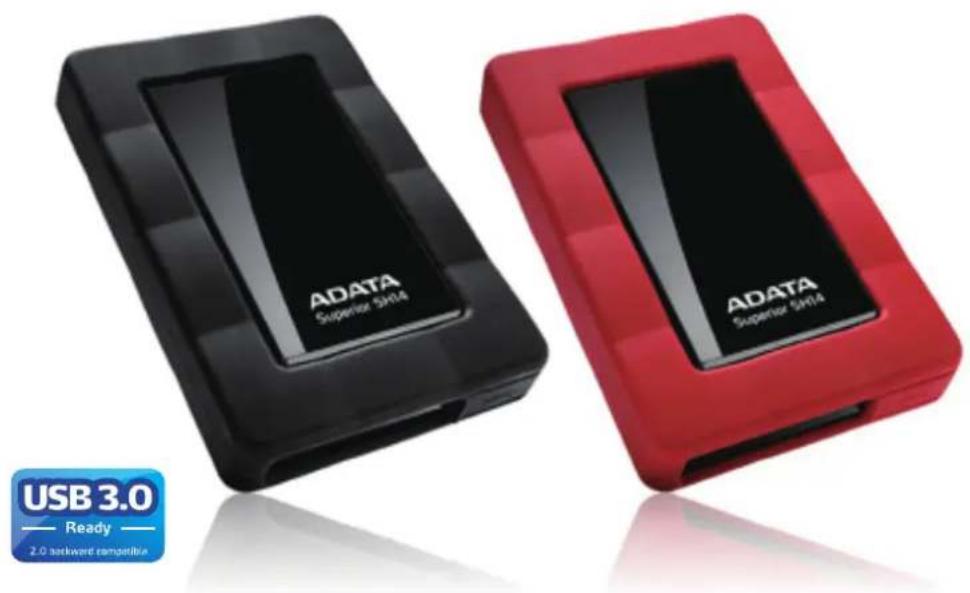
The SH14 is a high-performance External Hard Drive that supports USB 3.0.
Unlike conventional desktop disk drives, the SH14 External Hard Drive makes it possible for you to instantaneously add greater storage capacity to your system without having to take the computer apart.
This means that your SH14 External Hard Drive comes fully partitioned and formatted for your use and you can instantly access the drive by simply plugging it into your computer through a USB port.
ADATA External Hard Drives come preformatted as FAT32 for best file accessibility among different operating systems (Windows, Linux, Mac, etc.). However, FAT32 has a limitation that only supports file sizes of less than 4GB. You can reformat your ADATA External Hard Drive to NTFS format on your first use.
Alternately, you can use "Convert
NOTE: It is highly recommended to back up your data before formatting the HDD.
Read Me First
About this Manual
Your product comes with a Quick Start Guide and a downloadable User's Manual. Following the instructions and precautions of this Manual will ensure easier and more enjoyable use of your SH14 External Hard Drive.
Quick Start Guide
A Start Guide is provided with the purchase of SH14 External Hard Drive. The Quick Start Guide explains product components and provides simple instructions on how to install the product.
User's Manual
The User's Manual contains detailed information about features and instructions on using your SH14 External Hard Drive.
Using this Manual
Carefully read and understand the “Handling Precautions” section before using the product. Failure to follow all the instructions as outlined in the Handling Precautions section could result in injury or damage to your SH14 External Hard Drive.
Refer to the Troubleshooting section first if you experience a problem with the product.
Software and user's manuals are available for download at the ADATA website
(http://www.adata.com.tw/index.php?action=product&cid=2).
The content of this User's Manual may change without prior notice for product improvement purposes.
Table of Contents
Read Me First
About this Manual 2
Quick Start Guide 2
User's Manual 2
Using this Manual 2
Handling Precautions
Requires rated USB BUS Power 4
Installation Related 5
Data Cable Usage 5
Magnets 6
Always back up your Important Data 6
Cleaning the product 6
Custody Related 7
Safely Remove Hardware 7
Specifications
System Requirements 8
Components 8
Overview 8
Connecting your SH14
Installation 9
Windows 10
Table of Contents
Using your SH14
Copying/Moving Files 11
Removable Disk Method 11
Safely Removing your SH14 14
SH14 Software
Software download 15
Troubleshooting
FAQ 15
Appendix
Product Certifications 16
FCC 16
Warranty Information 17
Handling Precautions User's
The following information serves to ensure user's safety and prevent damage to devices.
Carefully read the information provided and use your product correctly.
Requires rated USB BUS Power
SH14 must use the USB Bus Power. Please connect to the USB Port supplied with the rated USB BUS Power.
SH14 External Hard Drive User's Manual
Installation Related

natural_image
Line drawing of a desktop computer tower with monitor, keyboard, and drive unit (no text or symbols)Use the product on a flat surface.


natural_image
Illustration of a person sitting on a stool with a book placed on top, no text or symbols presentDo not sit on the product and do not place heavy objects on the product.
Product case or connector can be damaged and may cause breakage.
Data cable Usage

natural_image
Two identical electronic devices with USB connectors, shown in line and layout (no text or symbols)Use Standardized data cable.
Use of non-standard cables may increase incorrect operation and may cause a malfunction.
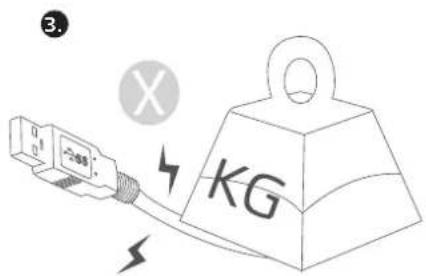
Do not severely bend the data cable and do not place heavy objects on the data cable.
If the data cable is damaged, it may cause a malfunction.

Do not unplug the data cable by jerking the cable. This may damage connector on the product and cause a problem with the product.
SH14 External Hard Drive User's Manual
Magnets
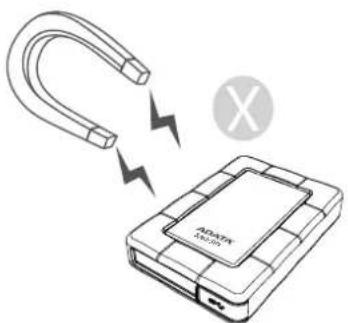
Magnetic objects can cause various types of damage to the HDD, including data damage. Keep magnets and magnetic objects away from the External Hard Drive.
Always Backup your Important Data Cleaning the product

The External Hard Drive manufacturer does not guarantee data stored in the External Hard Drive and will not assume responsibility for any magnetic or material damage incurred during data recovery.
Backup: Storing the original and a copy on two or more separate and accessible storage media.

Never use cleaning fluid or similar chemicals. Do not spray cleaner directly on the product. It may cause discoloration and deformation of the product.
Custody Related

natural_image
Cartoon illustration of a baby holding a book, with a circular symbol containing an 'X' (no text or symbols on the drawing itself)In order to prevent injury and loss, keep the product and accessories out of the reach of children.
Safely Remove Hardware
Always use the SAFELY REMOVE HARDWARE feature before shutting down the HDD or disconnecting the USB cable and power cable.
1MB=1,000,000bytes / 1GB=1,000,000,000bytes
Actual accessible capacity may vary from advertised capacity due to formatting and partitioning of the hard drive, as well as due to your computer's operating system.
SH14 External Hard Drive User's Manual
Specifications
| Category | SH14 |
| Interface | SuperSpeed USB 3.0 |
| Transfer Rate | 5Gb/s |
| Power | USB Bus Power |
| Hard Disk Capacity | 500G / 750G / 1TB |
| Dimensions (WxHxL) | 122.2 x 82.8 x 19.9 mm |
| Color | Black / Red |
| Format System | FAT 32 |
System Requirements
PC: Windows 2000 / XP / Vista / 7
Macintosh: Mac OS X 10.6 or Later / Linux Kernel 2.6.31 or Later
Upgrade your operating system to the latest version to enjoy better performance and reliability.
Components


natural_image
Line drawing of a rectangular electronic device with grid pattern and 'ADATE' branding on the cover (no readable text or symbols beyond branding)SH14 USB-Cable Quick Start Guide


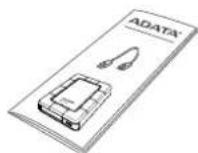
※When you purchase a SH14 External Hard Drive, make sure that all components have been included in your product package.
Overview

LED Description
1) Standby Status: ON
2) Read/Write: BLINKING
3) NO POWER: OFF
※ Some computers supply limited USB bus power. If your drive doesn't power on after connecting the USB cable, you may need to purchase a USB Y-cable from retailers or online shops.
Connecting your SH14
Installation
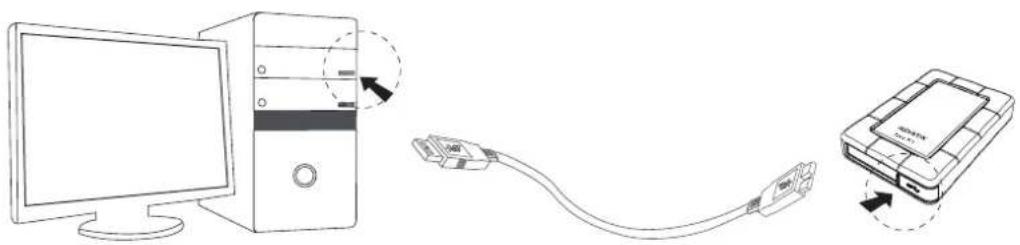
Verify that the computer meets the minimum system requirements as outlined in #System Requirements. Insert the USB cable to the desktop/laptop computer as shown in Figures 1 and 2:
Figure 1. Connecting to a Desktop Computer
natural_image
Line drawing showing connection between a desktop computer tower and an attached device (no text or symbols present)Your SH14 External Hard Drive will automatically activate once connected to the computer.
For sufficient and stable power source, it's recommended to connect your SH14 External Hard Drive to USB ports on the back panel of the computer.
Figure 2. Connecting to a Laptop Computer

natural_image
Line drawing showing a laptop connected to an AOS card via cable, with no text or symbols present.Your SH14 External Hard Drive will automatically activate once connected to the computer.
It's recommended to connect the supplied USB Y cables to 2 USB ports for sufficient and stable power source.
SH14 External Hard Drive User's Manual
Windows
When you connect the SH14 External Hard Drive to the computer a small icon will appear in the system tray at the lower right corner of the screen.
Figure 3. System Tray indicating an External Hard Drive

Figure 4. In the Windows Explorer, you will see a new ADATA drive
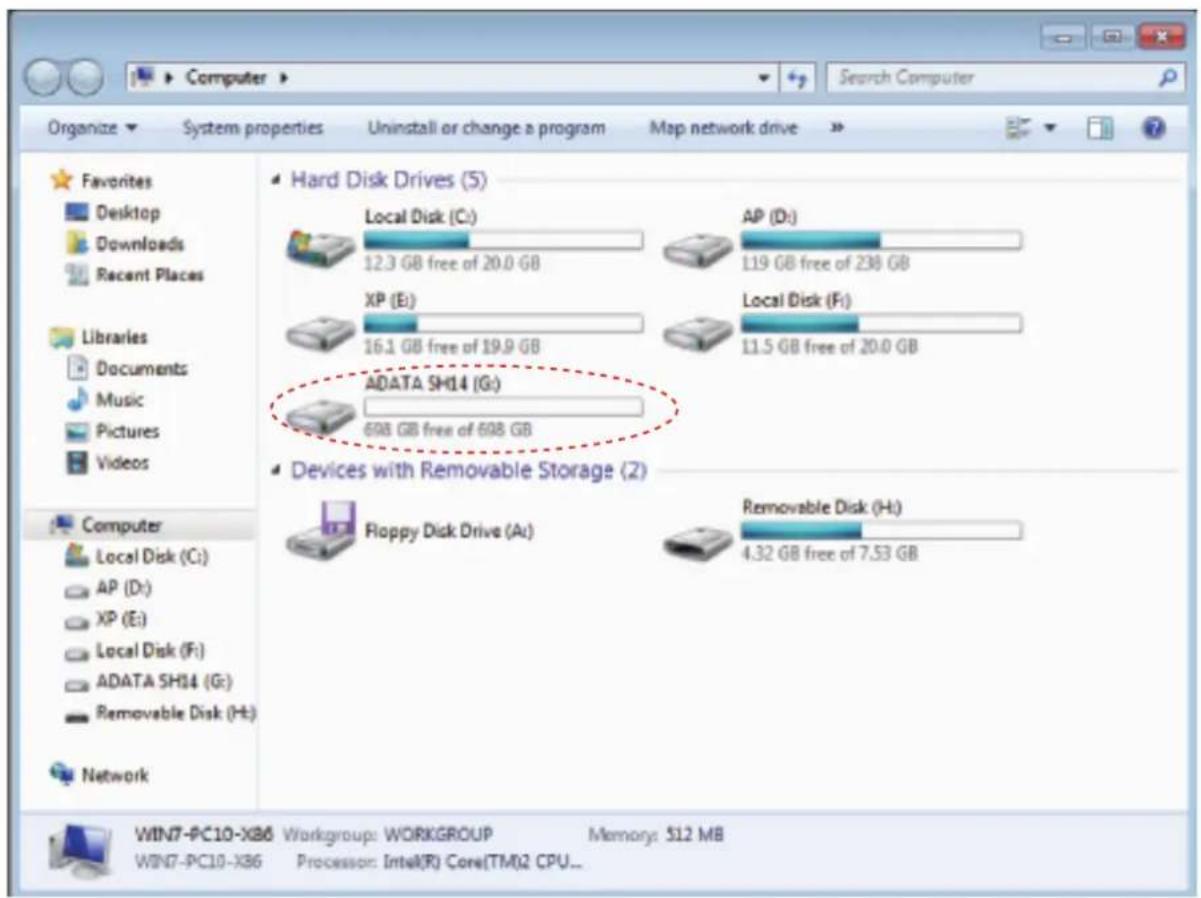
You are now ready to use the ADATA SH14 External Hard Drive
Using your SH14
Copying / Moving Files
Now that you have successfully installed your new SH14 External Hard Drive, you copy or move files or whole folders from your new SH14 to your computer and vice-versa
*It is important to understand the difference between Copy and Move
Copy: is to make a duplicate folder or file and store it so that you have two copies.
Move: is to take folder or file from one location and put it into another.
WHEN YOU MOVE A FOLDER OR FILE, YOU NO LONGER HAVE A BACKUP COPY.
Copy and paste files from the computer to the SH14 External Hard Drive (Removable Disk Method)
Removable Disk Method
For the Purposes of this manual, we will make a copy of the Temp folder on the C drive of your computer and copy it to the SH14 External Hard Drive.
From the Windows Desktop click:
Start → Open Windows Explorer
Figure 5. Getting to the Windows Explorer

From the Windows Explorer, you will see various drive letters; your C drive is your local Hard Drive.
The SH14 will most likely be the E drive, however it may be any drive letter.
For the purposes of this manual, we will assume that the SH14 is the G drive. As well, for practice copying folders and files, we will copy the Temp folder onto the SH14.
From the Open Windows Explorer screen Click Local Disk C
From the right-hand pane:
Right-click the Temp folder

Click Copy
SH14 External Hard Drive User's Manual
Figure 6. When you Right-Click on a file or folder, you get another menu.

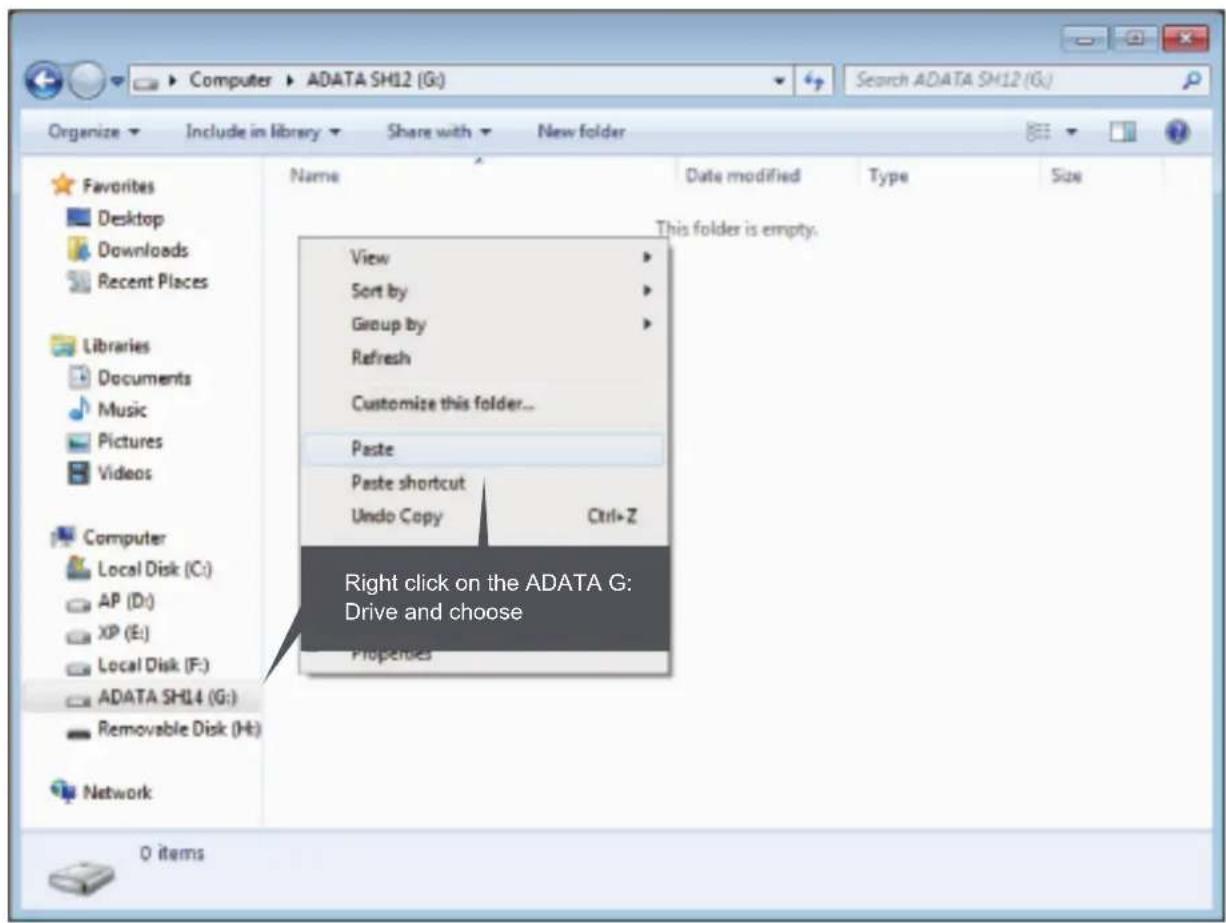
Now, we will copy the Temp folder from the Local C drive, to the ADATA G drive. From the left pane in the Windows
Explorer: Right Click ADATA G drive

SH14 External Hard Drive User's Manual
Figure 7. Using a Right-Click again, we can paste the Temp file onto the SH14 drive
NOTE: Detaching the USB cable while file transfer is progress can damage your computer and/or SH14 External Hard Drive. If you need to disconnect the USB cable, wait for the transfer process to complete first and then disconnect using the "Safely Remove Hardware" option.
Safely Removing your SH14
For Windows
Verify that the computer meets the minimum system requirements as outlined in # System Requirements. Insert the USB cable to the desktop/laptop computer as shown in Figures 1 and 2:
Figure 8. The taskbar is located at bottom-right of the screen.
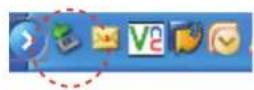
Figure 9. The ‘Safely Remove Hardware’ prompt will list every device that is attached to your system.
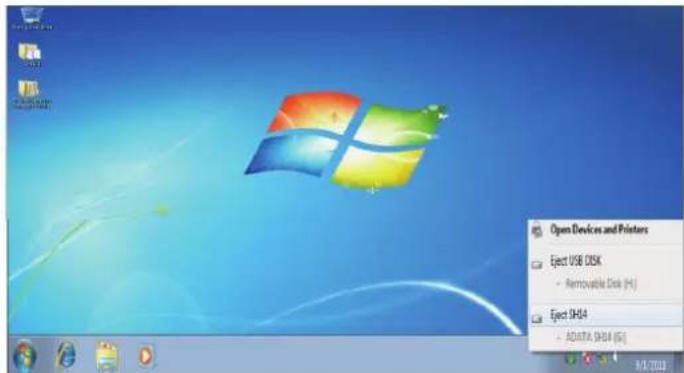
Click "ADATA ex-HDD USB device"
Figure 10. This prompt will list all of the Mass Storage Devices like your Local Hard drive and your Hard drive

When you see the "Safe To Remove Hardware" message, you may safely remove the device from the system
SH14 Software Download
ADATA provides several software options for your use with our External Hard Drive. For more information, please visit
http://www.adata-group.com/?action=ss_main&page=ss_software
Troubleshooting
Check the USB cable connection.
■ Check the LED Light on the HDD.
■ Check the power supply to SH12 External Hard Drive.
Ticking noise is an indication of insufficient power.
■ If the drive is not being recognized, try plugging it into a different USB port.
Online Customer Service of FAQ
For frequently asked questions, please visit ADATA website at
http://www.adata-group.com/faq
Product Certifications
CE (European Union/Community)
VCCI (Voluntary Control Council for Interference by Information)
FCC (Federal Communications Commission)
BSMI (Bureau of Standards, Metrology and Inspection)
This marking on the product, accessories or literature indicates that the product and its electronic accessories (e.g. charger, headset, USB cable) should not be disposed of with other household waste at the end of their working life. To prevent possible harm to the environment or human health from uncontrolled waste disposal, please separate these items from other types of waste and recycle them responsibly to promote the sustainable reuse of material resources.
Household users should contact either the retailer where they purchased this product, or their local government office, for details of where and how they can take these items for environmentally safe recycling.
Business users should contact their supplier and check the terms and conditions of the purchase contract.
This product and its electronic accessories should not be mixed with other commercial wastes for disposal.
FCC
| CAUTION: Changes or modifications not expressly approved by the part responsible for compliance could void the user's authority to operate the equipment | |
| Class B | NOTE: This equipment has been tested and found to comply with the limits for a Class B digital device, pursuant to part 15 of the FCC Rules. These limits are designed to provide reasonable protection against harmful interference when the equipment is operated in a residential installation. This equipment generates uses and can radiate radio frequency energy and, if not installed and used in accordance with the instructions manual, may cause harmful interference to radio communications, However, there is no guarantee that interference will not occur in a particular installation. If this equipment does cause harmful interference to radio or television reception, which can be determined by turning the equipment off and on, the user is encouraged to try to correct the interference by one or more of the following measures:-Reorient or relocate the receiving antenna.- Increase the separation between the equipment and receiver.- Connect the equipment into an outlet on a circuit different from that to which the receiver is connected.- Consult the dealer or an experienced radio/TV technician for help. |
Warranty Information
The following limited warranty applies to the ADATA External Hard Drive but does not supersede regional and national laws and regulations.
Warranty Policy:
ADATA provides replacement or repair services to our customers for defective products within the applicable warranty period.
LIMITED WARRANTY:
Please note that ADATA is not responsible for providing free repairs if the product defect is caused by any of the following factors:
(1) Damage caused by natural calamity or any inappropriate usage.
(2) Product has been repaired or taken apart by unauthorized technicians.
(3) The warranty label is altered, damaged or missing.
(4) Product serial number does not conform to our original system or the label has been damaged.
(5) Products purchased from unauthorized agents. This limited warranty covers only repairs or replacements of ADATA products. ADATA is not liable for any loss of data or any cost incurred from determining the source of system problems, removing, servicing or installing ADATA products.
Duration of Warranty:
ADATA provides a three-year warranty term to our HDD products.
Additional Remark:
ADATA under no circumstance will be responsible for the information or data stored in the ADATA products claimed by warranty. ADATA recommends for Customers to back up data in advance before sending their products for warranty service.
Online Customer Service:
For frequently asked questions, please visit ADATA website at http://www.adata-group.com/faq.
For any other support or suggestions, please leave a message at http://www.adata-group.com/support
SH14 External Hard Drive User's Manual
Copyright ADATA Technology reserves all copyrights to the content of this manual. Copyright laws prohibit reproduction of this manual in part or whole by any third party without the explicit consent of ADATA Technology. ADATA Technology does not assume any patent responsibility for the use of information contained in this manual.
Disclaimer This User's Manual has been subjected to thorough reviews and verifications to ensure accuracy of its content and contains information that's pertinent to the model and series it describes at the time of publication. However, content of this manual and/or product specifications are subject to change without prior notice and with no direct or indirect liability on ADATA's part concerning such change.
Disclaimer This User's Manual has been subjected to thorough reviews and verifications to ensure accuracy of its content and contains information that's pertinent to the model and series it describes at the time of publication. However, content of this manual and/or product specifications are subject to change without prior notice and with no direct or indirect liability on ADATA's part concerning such change.
ADATA Technology Co., Ltd.
HEAD OFFICE: 2F, No.258, Lian Cheng Rd., Chung Ho Dist. New Taipei City 235.Taiwan
Tel: +886-2-8228-0886 FAX :+886-2-8227-1103



- SH14 External Hard Drive User's Manual
- Introduction
- Read Me First
- About this Manual
- Quick Start Guide
- User's Manual
- Using this Manual
- Table of Contents
- Handling Precautions
- Specifications
- Connecting your SH14
- Using your SH14
- SH14 Software
- Troubleshooting
- Appendix
- Handling Precautions User's
- Requires rated USB BUS Power
- Installation Related
- Data cable Usage
- Magnets
- Always Backup your Important Data Cleaning the product
- Custody Related
- Safely Remove Hardware
- System Requirements
- Components
- Overview
- LED Description
- Installation
- Windows
- Copying / Moving Files
- Removable Disk Method
- Safely Removing your SH14
- For Windows
- SH14 Software Download
- Online Customer Service of FAQ
- Product Certifications
- Warranty Information
- Warranty Policy:
- LIMITED WARRANTY:
- Duration of Warranty:
- Additional Remark:
- Online Customer Service:
Brand : ADATA
Model : SH14BK/1TB
Category : External hard drive