Pure Black X79N - Motherboard SAPPHIRE - Free user manual and instructions
Find the device manual for free Pure Black X79N SAPPHIRE in PDF.


| Product Type | Motherboard |
| Brand | Sapphire |
| Model | Pure Black X79N |
| Chipset | Intel X79 |
| Socket | LGA 2011 |
| Form Factor | ATX (12.0 x 9.6 in / 30.5 x 24.4 cm) |
| Memory Support | 4 x DDR3 DIMM, Quad-Channel, up to 64 GB (non-ECC, unregistered) |
| Expansion Slots | 3 x PCIe 3.0 x16 (x16/x8/x4), 2 x PCIe 2.0 x1 |
| Storage Interfaces | 2 x SATA 6 Gb/s, 4 x SATA 3 Gb/s, 1 x mSATA (shared with SATA2) |
| USB Ports | 4 x USB 3.0 (2 back panel, 2 via header), 8 x USB 2.0 (4 back panel, 4 via headers) |
| LAN | 1 x Gigabit Ethernet (Realtek RTL8111E) |
| Audio | 7.1-Channel HD Audio (Realtek ALC898) |
| Power Connectors | 1 x 24-pin ATX, 1 x 8-pin EPS 12V |
| Weight | Approximately 1.2 kg (2.65 lbs) |
| BIOS | AMI UEFI BIOS with support for GPT, Secure Boot |
| Key Features | Black PCB design, Premium capacitors, Dual BIOS, Support for Intel Core i7 LGA 2011 processors |
| Maintenance & Cleaning | Use compressed air to remove dust; avoid liquid cleaners near components |
| Safety | Handle with ESD protection; unplug power before installation or removal |
| Spare Parts & Repairability | CMOS battery replaceable; refer to service manual for other components; check warranty before repairs |
Frequently Asked Questions - Pure Black X79N SAPPHIRE
User questions about Pure Black X79N SAPPHIRE
0 question about this device. Answer the ones you know or ask your own.
Ask a new question about this device
Download the instructions for your Motherboard in PDF format for free! Find your manual Pure Black X79N - SAPPHIRE and take your electronic device back in hand. On this page are published all the documents necessary for the use of your device. Pure Black X79N by SAPPHIRE.
USER MANUAL Pure Black X79N SAPPHIRE
natural_image
Abstract blue logo with white curved lines forming a stylized 'S' shape (no text or symbols)SAPPHIRE
User's Manual
Sapphire Pure Black X79N
Intel X79 / LGA 2011 Mainboard
TRADEMARK
All products and company names are trademarks or registered trademarks of their respective holders.
These specifications are subject to change without notice.
Manual Revision 1.0
November 14, 2011
Federal Communications Commission (FCC) Statement
This device has been tested and found to comply with the limits for a Class B digital device, pursuant to Part 15 of FCC Rules. These limits are designed to provide reasonable protection against harmful interference in a residential installation. This equipment generates, uses and can radiate radio frequency energy and, if not installed and used in accordance with instructions contained in this manual, may cause harmful interference to radio and television communications. However, there is no guarantee that interference will not occur in a particular installation.
If this product does cause harmful interference to radio or television reception, which can be determined by turning the equipment off and on, the user is encouraged to try to correct the interference by one or more of the following measures:
- Reorient or relocate the receiving antenna.
- Increase the separation between the equipment and receiver.
- Connect the product into an outlet on a circuit different from that to which the receiver is connected.
- Consult the dealer or an experienced radio/TV technician for help.

Note1: Connecting this device to peripheral devices that do not comply with Class B requirements, or using an unshielded peripheral data cable, could also result in harmful interference to radio or television reception
Note2: The user is cautioned that any changes or modifications not expressly approved by the party responsible for compliance could void the user's authority to operate this product.
Note3: To ensure that the use of this product does not contribute to interference, it is necessary to use shielded I/O cables
CE: Radiation of EN 55022 & Immunity of EN 55024
Waste Electrical and Electronic Equipment (WEEE) Statement
To protect the global environment, this product must be sent to separate collection facilities for recovery and recycling.

DISPOSAL
Do not dispose of this product as unsorted municipal waste. Collect such waste separately for special treatment.
Table of Contents
Chapter 1 Introduction ...... 1
1-1 Mainboard Specifications .... 1
1-2 Package Contents 4
1-3 Mainboard Layout 5
Chapter 2 Installation ......9
2-1 Before You Begin 9
2-2 Installing the I/O Shield 9
2-3 Securing to the Chassis 9
2-4 Installing the CPU and Cooler 10
2-5 Installing System Memory 11
Memory configurations 12
Memory Installation 12
2-6 Installing Expansion Cards 13
2-7 Connecting Cables 15
Connecting Power Supply Cables 15
Connecting Serial ATA (SATA) Cables 16
Connecting to the Internal Headers and Connectors 17
Front Panel Header 17
USB2.0 Headers 18
USB3.0 Headers 18
CFPA Header 19
S/PDIF Header 19
Serial Port Header 19
2-8 Diagnostics LED 21
2-9 LED Status Indicators 21
2-10 Onboard Buttons 21
Clear CMOS Button 22
Reset and Power Button 22
2-11 Dual BIOS Switch 23
Chapter 3 Configuring the BIOS ....24
3-1 Select Boot Device 24
3-2 Enter BIOS Setup 24
3-3 Main Menu 26
3-4 Performance Menu 27
CPU Configuration 29
Memory Configuration 30
Voltage Configuration 32
3-5 Advanced Menu 34
ACPI Settings 35
CPU Configuration 36
CPU Information 37
SATA Configuration 38
USB Configuration 39
Super IO Configuration 40
Serial Port 0 Configuration 40
H/W Monitor 41
Smart Fan Configuration 42
Onboard Device Configuration 43
3-6 Chipset Menu 45
3-7 Boot Menu 46
3-8 Security Menu 47
3-9 Save & Exit Menu 48
Chapter 4 Driver Installation ....50
4-1 Driver Install 50
4-2 TRIXX Utility 51
4-3 Hardware monitor gadget 52
4-4 S_BIOS Flash Utility 53
Chapter 5 POST Code 58
Chapter 1 Introduction
1-1 Mainboard Specifications
CPU
Supports Intel® Core i7 3900 and 3800 series processor in LGA2011 package
Supports Intel® Turbo Boost technology, Hyper-Threading technology
Chipset
Intel® X79 with NVIDIA nF200 PCI-E bridge
System Memory
Four 240-pin DDR3 SDRAM DIMM sockets
Supports 1.5v DDR3-1066/1333/1600+ DIMMs with quad channel architecture
Supports x16 and x8 DIMMs, non-ECC, unbuffered DIMMs
Supports up to 32GB system memory
USB Ports
From Intel® X79 chipset:
- Ten USB 2.0 ports (six at rear panel, four onboard headers), supporting transfer speed up to 480Mbps
From Asmedia USB 3.0 controller:
- Six USB 3.0 ports (four at rear and two onboard headers) backward compatible with USB 2.0, supporting transfer speeds up to 4.8Gbps
Supports wake-up from S1, S3 and S4 modes
▶ Support power charge function
- Front panel 2 USB 3.0 ports also support power charge function under S5 mode
SATA Ports
From Intel® X79 chipset:
- Two SATA3 ports with 6Gb/s data transfer rate and four SATA2 ports with 3Gb/s data transfer rate
- Supports RAID 0, 1, 10 and 5 functions
- Supports AHCI (Advanced Host Controller Interface)
From Marvell 88SE9128 controller:
- Two SATA3 ports with 6Gb/s data transfer rate with RAID 0 and 1
- Supports AHCI (Advanced Host Controller Interface)
From Marvell 88SE9172 controller:
- Two eSATA3 ports at rear port
- Supports AHCI (Advanced Host Controller Interface)
Onboard LAN
Dual Gigabit Ethernet from Marvell 88E8057 Gigabit controller
Bluetooth
Atheros AR3011 is a highly integrated, all-CMOS, single chip with Bluetooth® 2.1 + EDR supported
Onboard Audio
Supports 8-channel High-Definition audio from Realtek ALC892 codec
Supports rear panel Optical S/PDIF output
Supports Jack-detection function
Expansion Slots
➢ Six PCI-Express 2.0 x16 slots with PCI-E Slot Disable/Enable Jumper
PCI-E slot 1 and PCI-E slot 2 are PCI-E Gen3 ready
Supports ATI ^ CrossFireX ^TM Technology
* Please refer to detail configuration at 2-6 Installing Expansion Cards
I/O
Onboard Fintek F71889A LPC bus I/O controller
Supports Hardware Monitoring for fan speed, CPU and system temperature
Back Panel I/O Ports
➢ 1 x PS/2 Keyboard/Mouse port
➢ 6 x USB 2.0 ports
1 x Coaxial S/PDIF Out connector
▶ 1 x Optical S/PDIF Out connector
1 x Bluetooth
2 x eSATA ports
2 x RJ45 LAN ports
4 x USB 3.0 ports
6 Audio jacks
Internal I/O Connectors
▶ 1 x 24-pin ATX power connector
➢ 1 x 8-pin ATX 12V power connector
➢ 1 x 6-pin PCI-E power connector
➢ 4 x SATA3 connectors (two from Intel X79 chip and two from Marvell 88SE9128 chip)
4 x SATA2 connectors
4 x USB2.0 headers
2 x USB3.0 headers
1 x Front Panel header
1 x S/PDIF header
1 x Front Audio header
1 x Serial Port header
▶ 1 x 4-pin CPU Fan header
5 x 3-pin Fan header
BIOS
➤ 64Mb SPI Flash with AMI based BIOS
➢ User Friendly graphics interface QBIOS (Quick Control UEFI BIOS)
S_BIOS easily update and back up at BIOS control panel
➢ Supports ACPI (Advanced Configuration and Power Interface)
Dual BIOS switch with on board indicator LEDs
Special Features
Onboard diagnostic 7-Segment LED with CPU temperature display
Onboard buttons include Clear CMOS, RESET and POWER
Supports CPU Power Vcore Load-line adjust function
Supports Windows based OC utility "Trixx" and Win7 HW monitor gadget tool
USB power charge utility supports all USB ports under Windows 7
➢ Server Grade Digital 6+1 phase power (Vcore and Vsa)
➢ Vtt 2 and VDIMM 2+2 phase power design
Form Factor
➢ ATX form factor of 305mm x 245mm
Operating systems:
Supports Windows Vista and Windows 7
1-2 Package Contents
Your Sapphire mainboard comes with the following accessories.
| 1. Mainboard | 2. I/O Shield |
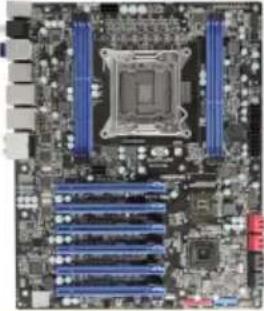 |  |
| 3. Quick Installation Guide | 4. Driver CD |
 |  |
| 5. USB3.0 Front Panel Cable (Optional) | 6. SATA Data Cable *8 |
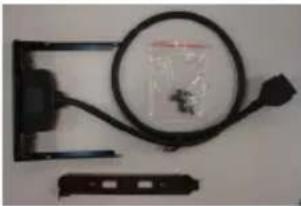 |  |
1-3 Mainboard Layout
The following figure shows the location of components on the mainboard. See following page for description.
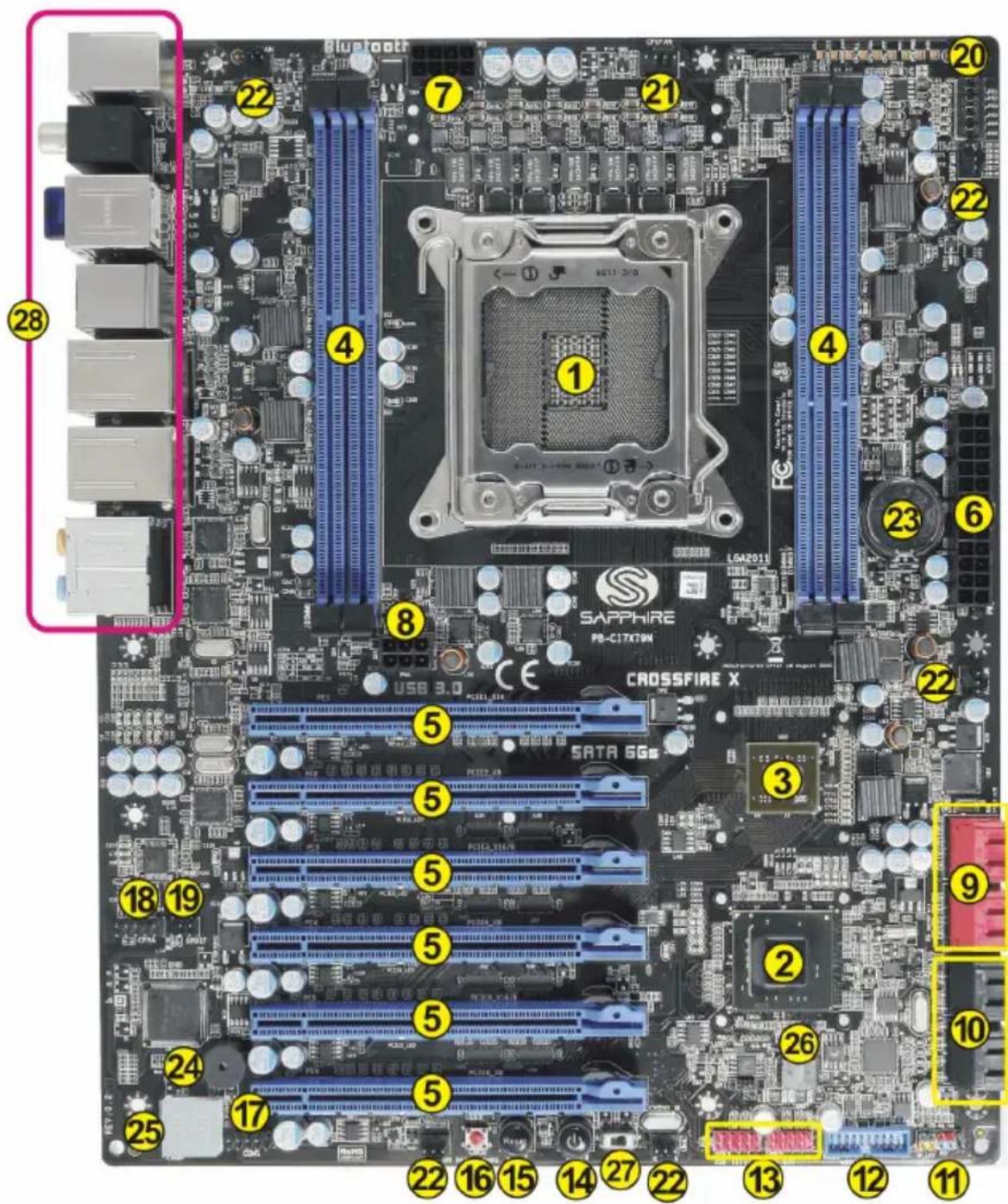
| Item | Component description |
| 1 | CPU Socket 2011 |
| 2 | Intel X79 Chip |
| 3 | NVIDIA nF200 Chip |
| 4 | DDR3 DIMM Slots 1-4 |
| 5 | PCI-E 2.0 x 16 Slot * 6 |
| 6 | 24-Pin ATX Power Connector |
| 7 | 8-pin ATX_12V Power Connector |
| 8 | 6-pin PCI-E Power Connector |
| 9 | SATA3 Connectors *4 |
| 10 | SATA2 Connectors *4 |
| 11 | Front Panel Header |
| 12 | USB 3.0 Header *2 |
| 13 | USB 2.0 Header *4 |
| 14 | Power Button |
| 15 | Reset Button |
| 16 | Clear CMOS Button |
| 17 | Serial port Header |
| 18 | Front Panel Audio Header |
| 19 | S/PDIF Header |
| 20 | PCI-E Slot Control Jumper |
| 21 | CPU Fan Header |
| 22 | 3 - pin Fan Header * 5 |
| 23 | Mainboard Battery |
| 24 | PC Speaker |
| 25 | Debug LED Display |
| 26 | 64Mb SPI Flash |
| 27 | Dual BIOS Switch |
| 28 | Back Panel Connectors (see below for detail) |
I/O Back Panel
The I/O back panel for this mainboard is shown below. When installing the mainboard into the computer case, use the bundled I/O shield to protect this back panel.
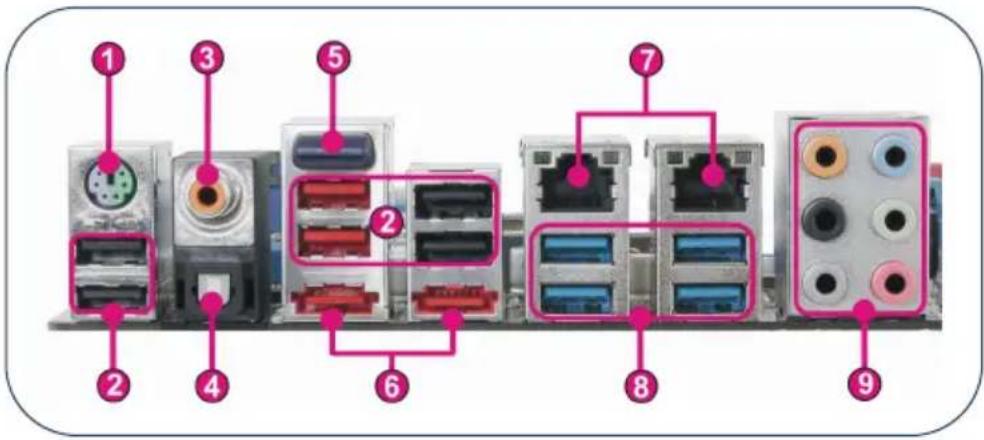
- PS/2 Keyboard/Mouse Port
This connector is used for a keyboard or mouse. You can plug a PS/2 keyboard or mouse directly into this connector.
- USB 2.0 Ports (six)
The mainboard provides an OHCI (Open Host Controller Interface) Universal Serial Bus root for attaching USB devices such as a keyboard, mouse or other USB-compatible devices. Supports data transfer rates up to 480Mb/s.
- Coaxial S/PDIF-Out
This SPDIF (Sony & Philips Digital Interconnect Format) connector is used for digital audio transmission to external speakers/amplifier through a coaxial cable.
- Optical S/PDIF-Out
This SPDIF (Sony & Philips Digital Interconnect Format) connector is used for digital audio transmission to external speakers/amplifier through an optical fiber cable.
- Bluetooth
Bluetooth wireless technology is an interface intended for wireless control/data communication
- eSATA Port (two)
The eSATA (External SATA) port provides connection to eSATA hard drives.
7. Dual LAN Ports with LEDs
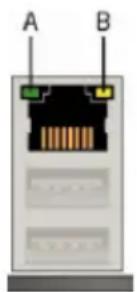
The mainboard provides two standard RJ-45 jacks for connecting to a Local Area Network (LAN). Two LEDs are built into the RJ-45 LAN connector.
These LEDs indicate the status of the LAN.
natural_image
Diagram of a USB port with labeled ports A and B, showing internal structure (no text or symbols beyond labels)| LED | LED Color | LED state | Indicates |
| A | Green | Off | LAN link is not established |
| On | LAN link is established | ||
| Blinking | LAN activity is occurring | ||
| B | N/A | Off | 10 Mb/s data rate |
| Green | On | 100 Mb/s data rate | |
| Yellow | On | 1000 Mb/s data rate |
8. USB 3.0 ports (four)
USB 3.0 ports are backward compatible with USB 2.0 devices. Supports data transfer rates up to 4.8Gb/s (SuperSpeed).
9. Audio ports
This mainboard provides 2, 6 or 8 channel audio. It is easy to differentiate between the audio functions by referring to the color of the jacks.
| Ports 2 channel 6 channel | 8 channel | ||
| Blue | Line-In | Line-In | Line-In |
| Lime Line-Out Front Stereo-Out | Front Stereo-Out | ||
| Pink | Min-In | Min-In | Min-In |
| Orange | -- | Center/Subwoofer | Center/Subwoofer |
| Black -- | Rear | Stereo-Out Rear | Stereo-Out |
| Gray | -- | -- | Side Stereo-Out |
Chapter 2 Installation
2-1 Before You Begin
Please take note of all precautions before you install anything on to the mainboard or change any of the mainboard settings.
Turn off the power to your system and discharge your body's static electric charge by touching a grounded surface—for example, the metal surface of the power supply—before performing any hardware procedure.
The manufacturer assumes no liability for any damage, caused directly or indirectly, by improper installation of any components by unauthorized service personnel. If you do not feel comfortable performing the installation, consult a qualified computer technician.
Damage to system components, the mainboard, and injury to you may result if power is applied during installation.
2-2 Installing the I/O Shield
The mainboard comes complete with an I/O shield. When installed in the chassis, the shield blocks radio frequency transmissions, protects internal components from dust and foreign objects, and promotes correct airflow within the chassis.
Install the I/O shield before installing the mainboard in the chassis. Place the shield inside the chassis. Press the shield into place so that it fits tightly and securely. If the shield does not fit, obtain a properly sized shield from the chassis supplier.
2-3 Securing to the Chassis
When installing the mainboard, you have to secure the mainboard into the chassis by fastening with nine screws. Please refer to your chassis manual for instructions.
2-4 Installing the CPU and Cooler
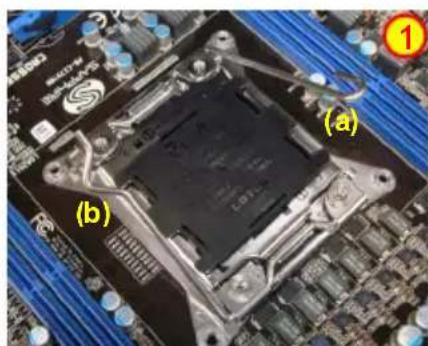
Follow the steps below to install the CPU & cooler correctly.
-
Open the hinge lever (a) then fully open the active lever (b).
-
Open the load plate by pushing down on the hinge lever to raise the load plate and Grasp the tab.
-
Open load plate to fully open position.
-
Remove the protective socket cover from the socket. Do not touch the CPU socket contacts to avoid damaging.

Note:
Do not discard the protective socket cover. Be sure to always replace the cover unless the CPU is installed.
natural_image
Close-up of a computer motherboard with labeled components (a) and (b), no readable text or symbols beyond labels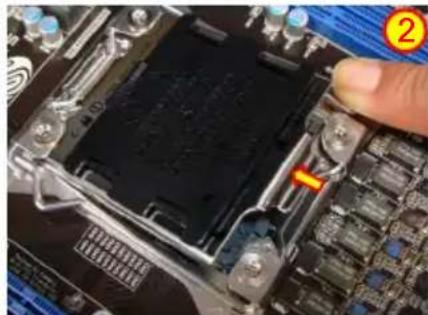
natural_image
Close-up of a computer motherboard with a highlighted CPU socket and a finger pointing to the component (no visible text or symbols)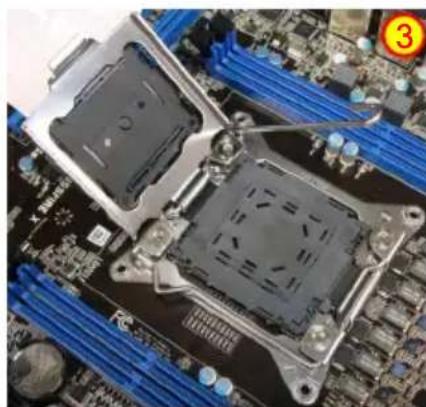
natural_image
Close-up of two CPU monitors on a motherboard with blue CPU slots and a highlighted component (no text or symbols visible)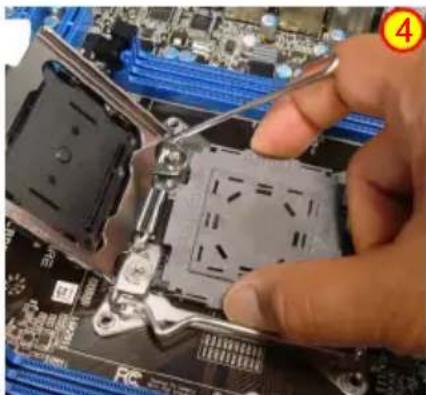
natural_image
Close-up of hands installing a CPU socket into a motherboard with a tool (no visible text or symbols)-
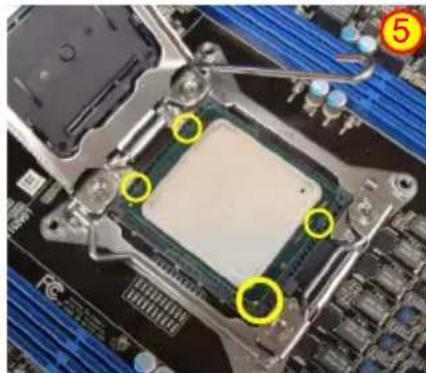
Align the CPU pin one (small triangle marking) and CPU notches. Place CPU straight down without tilting or sliding it.
-
Close the load plate and close the active lever (b) then close the hinge lever (a).

Note:
Apply some thermal paste onto the surface of the CPU for better heat dispersion.
-
To install the fan cooler, align the four holes on the CPU socket. Fasten the cooler onto the nut with four screws. If in doubt, always refer to the CPU cooler manual for further instructions.
-
Connect the 4-wire fan cable to the 4-pin CPU FAN header on the mainboard.
natural_image
Close-up of a computer motherboard with a central processor and surrounding hardware (no visible text or symbols)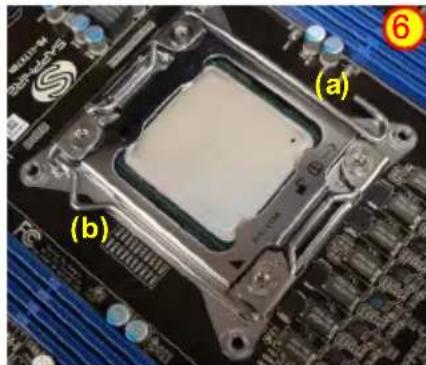
natural_image
Close-up of a computer processor's center with labeled components (a) and (b), showing circuit board and motherboard (no readable text or symbols beyond labels)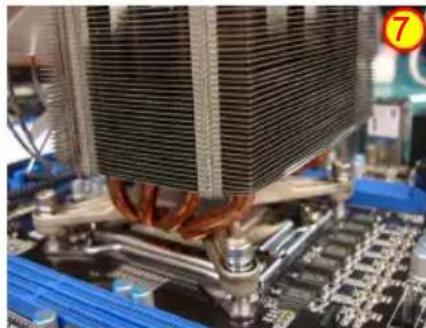
natural_image
Close-up of a CPU cooling tower with visible cooling fins and cooling mechanism (no text or symbols)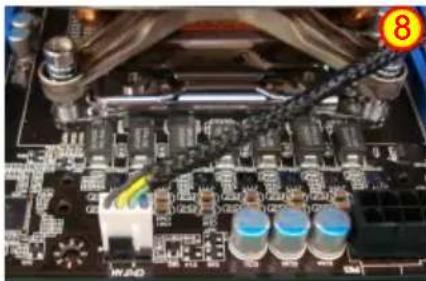
natural_image
Close-up of a computer motherboard with visible circuitry and components (no readable text or symbols)Note:
Pictures are for installation reference only, actual boards may be slightly different.
2-5 Installing System Memory
This mainboard has four 240-pin DIMM sockets for DDR3 memory. These slots support 1GB, 2GB, 4GB and 8GB DDR3 DIMMs up to max. 32GB
Make sure that you install memory modules of the same type and density in the different channel DIMM slots for Dual-Channel mode.
There must be at least one memory bank populated to ensure normal operation and you can insert the memory module into any of the DIMM slots.
Memory configurations
Use the following the recommendations for installing memory.
| Location\DIMM Quantity | 1 DIMM(Single Channel) | 2 DIMMs(Dual Channel) | 3 DIMMs(Triple Channel) | 4 DIMMs(Quad Channel) |
| DIMM#1 | V | V | V | V |
| DIMM#2 | -- | -- | V | V |
| DIMM#3 | -- | V | V | V |
| DIMM#4 | -- | -- | -- | V |
("V" = Memory installed, "--" = No memory installed)
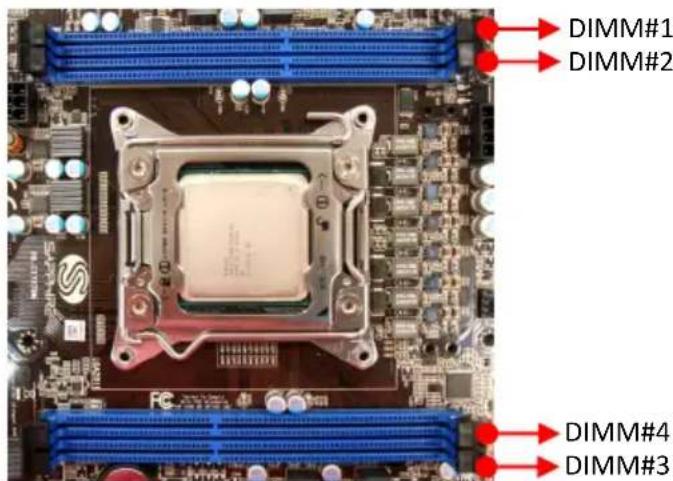
Memory Installation
DDR3 and DDR2 memory modules are physically different. Please only install DDR3 DIMMs in this mainboard.
To install the DIMM, follow these steps:
-
Pull both clips on either side of the slot outwards. Align the DIMM module with the slot.
-
Press modules straight down until the plastic clips close and the module fits tightly into the DIMM slot. Push clips inwards to make sure they are in place and the memory is securely fitted.
2-6 Installing Expansion Cards
The mainboard provides six PCI Express 2.0 x16 slots that comply with the PCI Express specifications. The PCI-E slot 1 and 2 are PCI-E Gen3 ready.
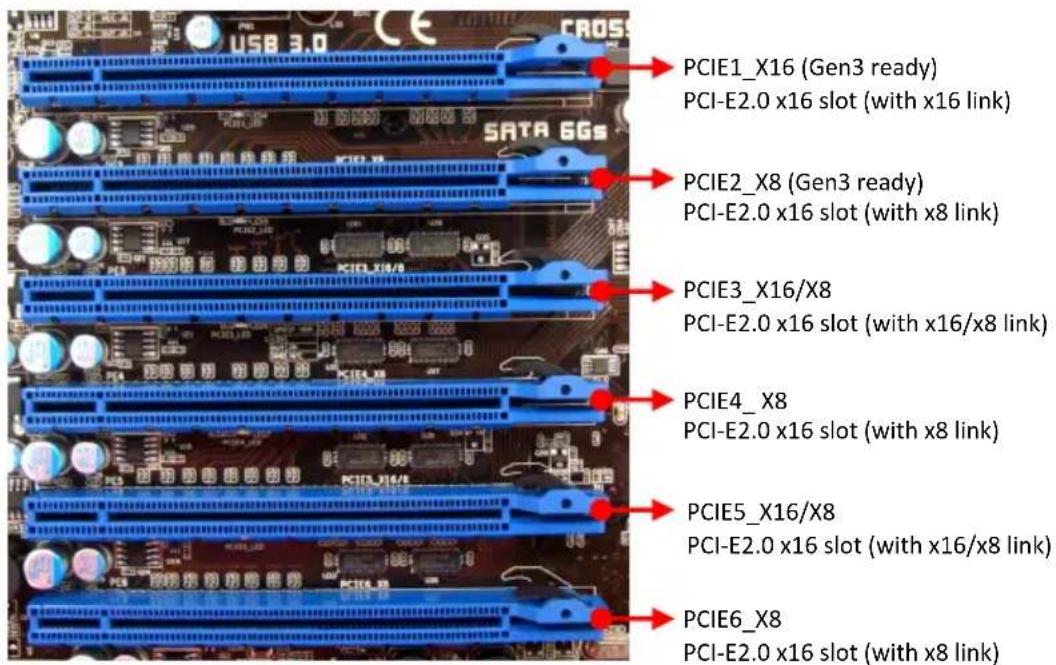
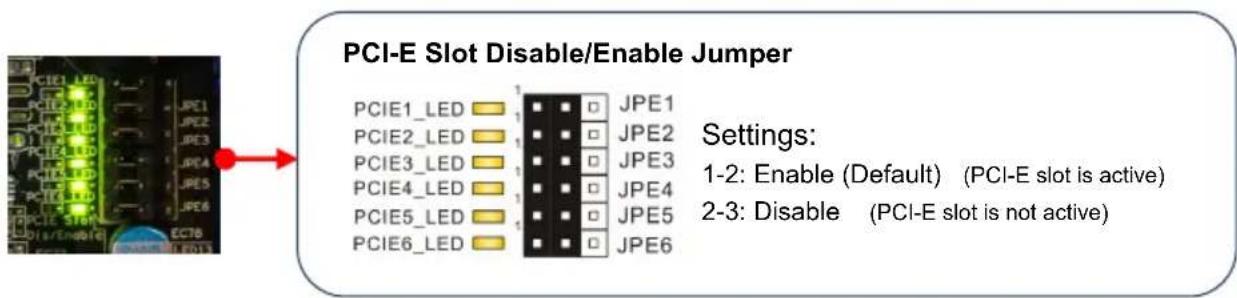
These PCI-E slots with LED indicating the activity status. When the PCI-E slot is powered on, the LED is on.
Note:
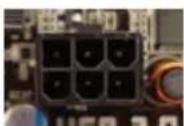
When installing multiple graphic cards in PCIE3 to PCIE6, you must connect power supply to 6-pin PCI-E power connector to ensure sufficient power supply to the PCI-E slots, otherwise they don't work.
This motherboard has a special PCI-E slot control jumper, allows you to quickly enable or disable specific PCI-E slot action, do not remove the PCI-E slot. This jumper also with LED indicates the activity status of accordingly PCI-E slot.
Please refer to PCI Express card configuration table.
| Slot Channel Bandwidth | ||
| PCIE1 | CPU x16 | G2 x16 (Gen3 ready) |
| PCIE2 | CPU x8 | G2 x8 (Gen3 ready) |
| PCIE3 | nF200 CHA x16/x8 | G2 x16/x8 |
| PCIE4 | nF200 CHA x8 | G2 x8 |
| PCIE5 | nF200 CHB x16/x8 | G2 x16/x8 |
| PCIE6 | nF200 CHB x8 | G2 x8 |
The design of this motherboard supports AMD CrossFireX ^TM technology for support of multiple graphic cards. Please refer to the location of slots and recommended configuration table for PCI-E operating mode to get the best performance possible.
| Recommended configuration table | |||
| Slot location VGA card | PCIE1_x16 | PCIE3_x16/x8 | PCIE5_x16/x8 |
| 1 VGA card x 16 | |||
| 2 VGA cards x16 | x16 | ||
| 3 VGA cards x16 x1 | 6 x16 | ||
Installing a PCI Express card:
- Place the card in an available PCI Express slot and press down on the card until it is completely seated in the slot. If the card is not seated properly, it could cause a short across the pins.
- Secure the card's metal bracket to the back panel of the chassis with a screw.
2-7 Connecting Cables
This section takes you through all the necessary connections on the mainboard.
Connecting Power Supply Cables
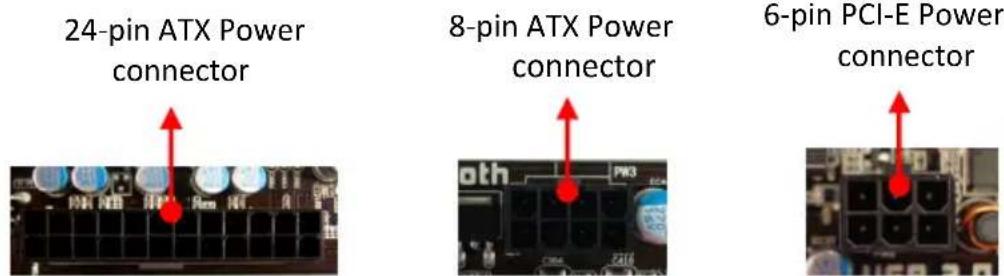
• 24-pin ATX Power
PW2 is the main power supply connector. Make sure that the power supply cable pins are properly aligned with the connector on the mainboard. Firmly plug the power supply cable into the connector and make sure it is secure.
Note:
If you'd like to use 20-pin ATX power supply, please plug in your power supply cable aligned with pins 1 & 13. The 24-pin main power connector is backwardly compatible with ATX power supplies with 20-pin connectors.
• 8-pin ATX 12V Power
PW3, the 8-pin ATX 12V power connector, is used to provide power to the CPU. Align the power plug to the connector and press firmly until seated.
- 6-pin PCI-E Power
PW1, the 6-pin PCI-E power connector, is used to provide extra 12V power for PCI-E slots PCIE3 to PCIE6. When installing multiple graphic cards in PCIE3 to PCIE6, you must connect power supply here to ensure sufficient power supply to the PCI-E slots, otherwise they won't work.
Connecting Serial ATA (SATA) Cables
SATA cables support the Serial ATA protocol. Each cable can be used to connect one SATA drive to the mainboard.
The S1 to S3 connectors are controlled by the Intel X79 chip and support RAID 0, 1, 10, 5 functions.
S1 works at speeds of up to 6 Gb/s, S2 and S3 works at speeds of up to 3 Gb/s.
The S6 connectors are controlled by the Marvell 88SE9128 chip and work at speeds of up to 6 Gb/s.
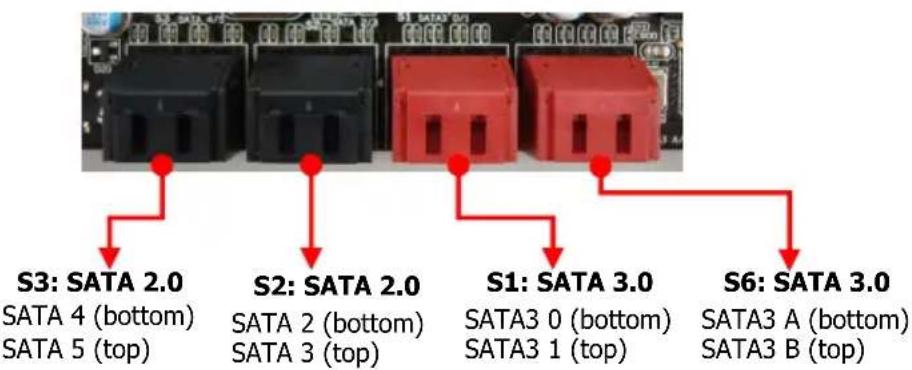
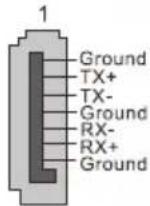
Attach one end of the SATA cable to one of the SATA connectors on board and attach the other end of the cable to the SATA drive
Connecting to the Internal Headers and Connectors
Front Panel Header
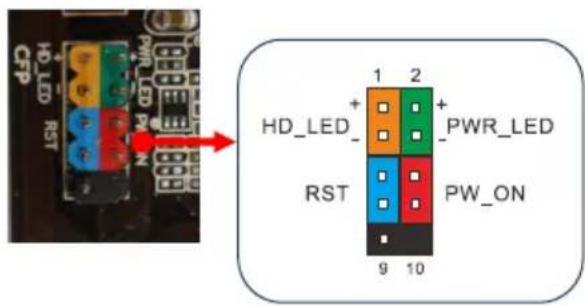
The front panel header on this motherboard is used to connect the front panel switches and LEDs.
PWR\_LED
Attach the front panel power LED cable to these two pins of the connector. The Power LED indicates the system's status.
| System Status | Power LED indicates |
| On The LED is on | |
| Off The LED is off | |
| S1 The LED is on | |
| S3 The LED will blink | |
| S4 The LED is off | |
PW\_ON
Attach the power button cable from the case to these two pins. Pressing the power button on the front panel turns the system on and off rather than using the onboard button.
HD\_LED
Attach the hard disk drive indicator LED cable to these two pins. The HDD indicator LED indicates the activity status of the hard disks.
RESET
Attach the Reset switch cable from the front panel of the case to these two pins. The system restarts when the RESET switch is pressed.
| Header | Pin | Signal |
| HD_LED | 1 | HD_PWR |
| 3 | HD Active | |
| PWRLED | 2 | PWR LED+ |
| 4 | PWR LED- | |
| RESET | 5 | Ground |
| 7 | RST BTN | |
| PWRSW | 6 | PWR BTN |
| 8 | Ground | |
| No Connect 9 | +5V | |
| Empty | 10 | Empty |
USB2.0 Headers
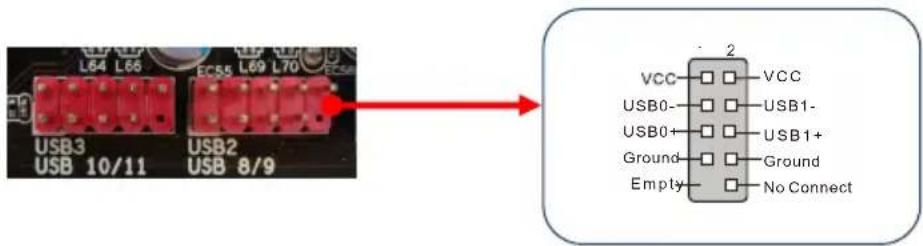
This mainboard contains four (4) USB 2.0 ports that are exposed on the rear panel of the chassis. This mainboard also contains four 10-pin onboard header connectors that can be used to connect to eight (8) external USB 2.0 devices.
Refer to the following steps:
-
Secure the bracket to either the front or rear panel of your chassis (not all chassis are equipped with the front panel option).
-
Connect the cable(s) to the USB 2.0 header on the mainboard.
USB3.0 Headers
This mainboard contains Two (2) USB 3.0 ports that are exposed on the rear panel of the chassis. This mainboard also contains one onboard header connectors that can be used to connect to two (2) external USB 3.0 devices.
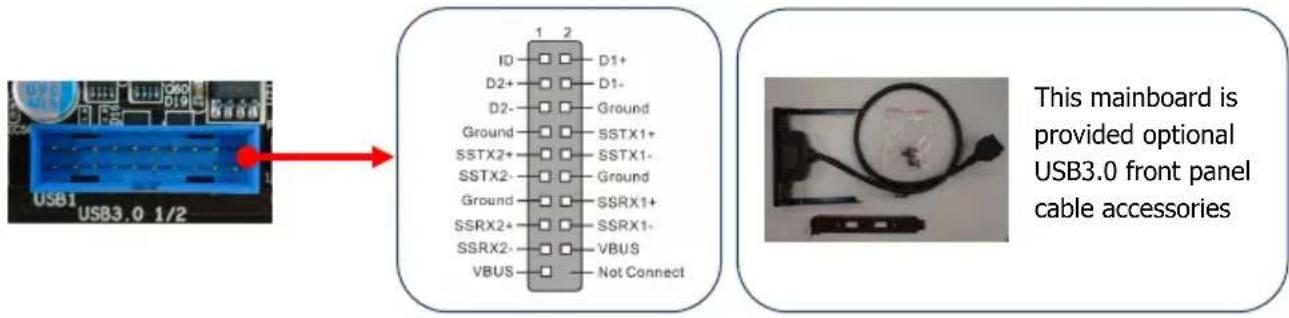
For real panel, refer to the following steps:
- Secure the bracket to rear panel of your chassis.
- Connect the cable(s) to the USB 3.0 header on the mainboard.
For front panel, refer to the following steps:
- Remove the cover plate from the selected drive bay.
- Push the USB3.0 cable into the drive bay. Align the screw holes with the appropriate holes in the drive bay and tighten the mounting screws.
- Connect the USB3.0 connector of cable to the USB3.0 header on the mainboard.
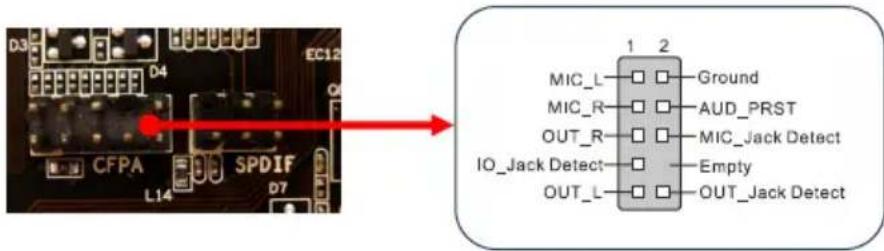
CFPA Header
This header allows you to connect the front panel audio. The audio connector supports HD audio standard.
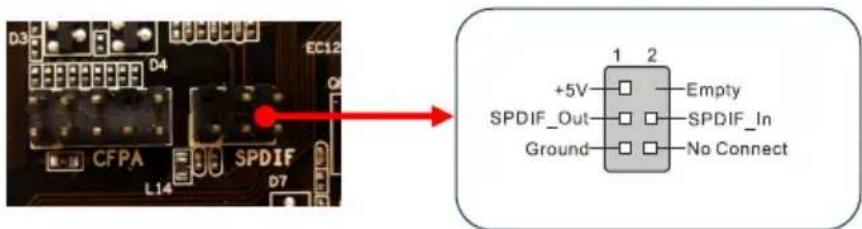
S/PDIF Header
This header is used to connect S/PDIF (Sony & Philips Digital Interconnect Format) interface for digital audio transmission.
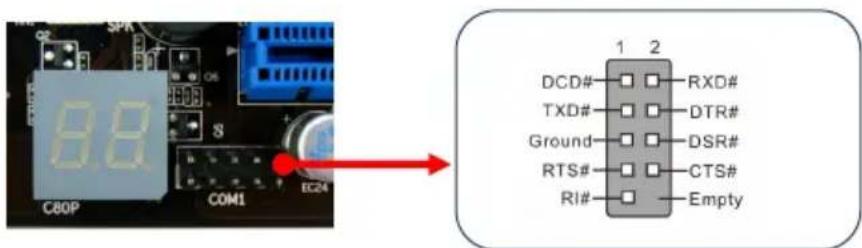
Serial Port Header
The Serial port header (COM1) can provide one serial port via an optional COM port cable.
Fan Headers
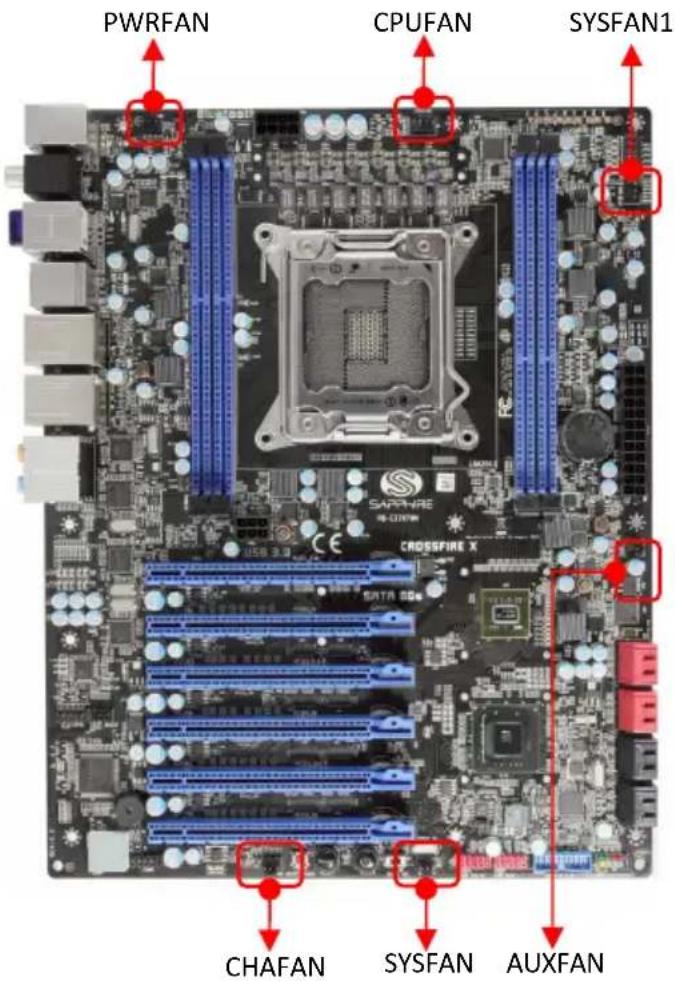
There are six fan headers (CPUFAN, SYSFAN, SYSFAN1, PWRFAN, CHAFAN, AUXFAN) on the motherboard. Three of these fans (CPUFAN, PWRFAN, CHAFAN) can be speed detected/controlled and displayed in the Hardware Health Configuration section of the CMOS Setup. The fans are automatically turned off after the system enters S3, S4 or S5 mode.
CPUFAN
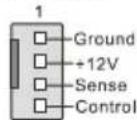
Note:
The CPU fan cable can be either a 3-pin or a 4-pin connector.
Connect a 3-pin connector to pins 1, 2, and 3 on the mainboard connector.
PWRFAN / CHAFAN
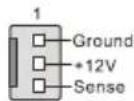
SYSFAN / SYSFAN1 / AUXFAN
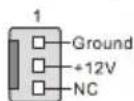
2-8 Diagnostics LED
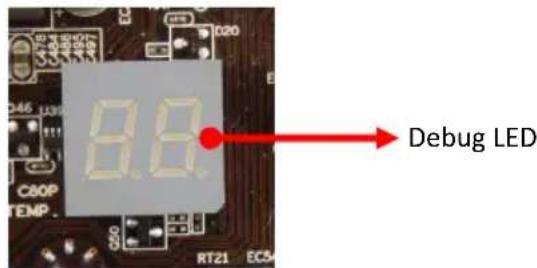
This mainboard provides a two-digit POST code to show why the system may be failing to boot. It is useful during a troubleshooting situation. This Debug LED will also display the current CPU temperature after the system has fully booted into the operating system.
Please find a list of debug codes at the end of this manual.
2-9 LED Status Indicators
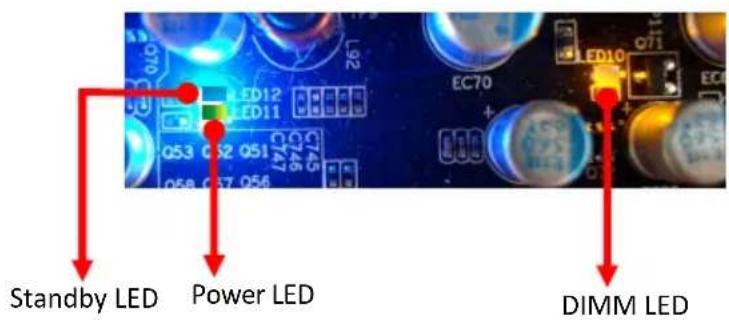
This mainboard provides three LEDs to indicate the system's status.
- DIMM LED (LED10, Yellow): When the Memory slot is functional: This LED is on.
• POWER LED (LED11, Green): When the System is powered on: This LED is on. - STANDBY LED (LED12, Blue): When the System is in Standby Mode: This LED is on. This LED will remain on as long as the motherboard is receiving constant power.
2-10 Onboard Buttons
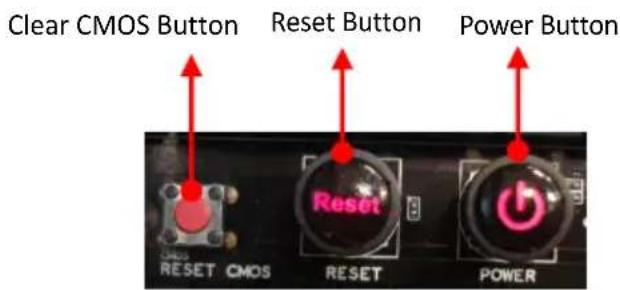
These onboard buttons include Clear CMOS, RESET and POWER, which allow you to easily clear the CMOS, reset the system and turn on/off the system.
Clear CMOS Button
The mainboard uses the CMOS RAM to store some of the system configuration. The CMOS can be cleared by pressing the Clear CMOS button.
Reset and Power Button
These onboard buttons allow you to easily turn on/off the system and allow for easy debugging and testing of the system during troubleshooting situations.
The Reset button with LED indicates the activity status of the hard disk drives and will blink accordingly.
The Power button with LED indicates the system's status. When the system is powered on, the LED blinks red.
2-11 Dual BIOS Switch
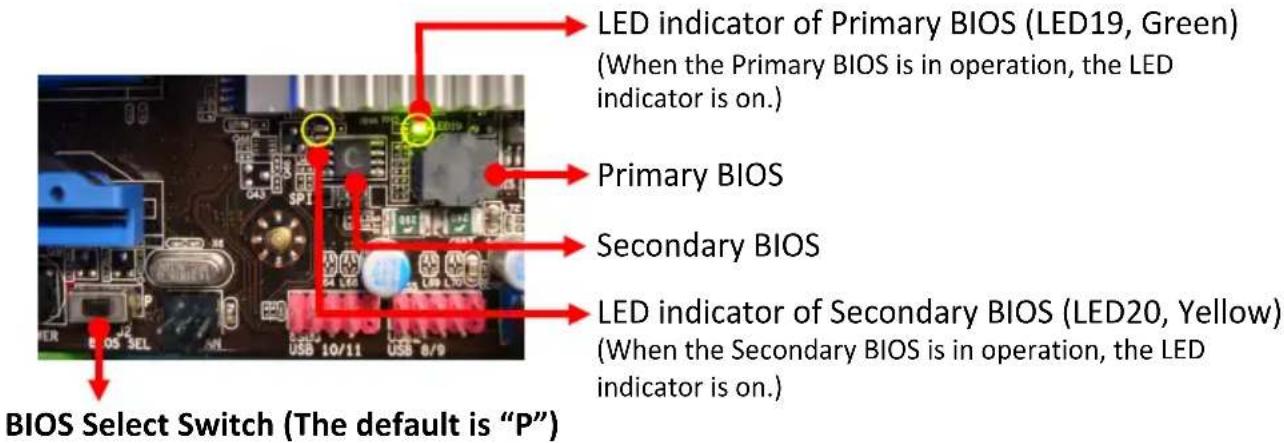
This mainboard includes dual onboard BIOS, (Primary and Secondary BIOS), When the primary BIOS is corrupted or has failed, you can use the secondary BIOS to take over on the next system boot to ensure normal system operation.
• To enable the secondary BIOS, please refer to the following steps:
- Turn off the system power.
- Change the BIOS select switch from "P" to "S" position.
- Turn on the system power.
- Recover BIOS:
If the primary (secondary) BIOS is corrupted or failed, you can use the USB pen drive or AMI Windows flash utility to do flashing BIOS process to recover the primary (secondary) BIOS.
Recover primary BIOS steps:
- Enable the secondary BIOS following steps 1-3 above to power on the system.
- Change the BIOS select switch from "S" to "P" position before flashing BIOS.
- Flash the BIOS using either USB pen drive under DOS or AMI Windows flash utility under Windows.
Recover secondary BIOS steps:
- Enable the primary BIOS following steps 1-3 above to power on the system, except move the BIOS select switch from "S" to "P" position.
- Change the BIOS select switch from "P" to "S" position before flashing BIOS.
- Flash the BIOS using either USB pen drive under DOS or AMI Windows flash utility under Windows.
- Change the BIOS select switch from "S" to "P", back to the original default.
You also can use S_BIOS Flash Utility to flash BIOS. Please refer to "4-4 S_BIOS Flash Utility" section for detail.
Chapter 3 Configuring the BIOS
This chapter provides information on the BIOS Setup program and allows you to configure the system for optimum use.
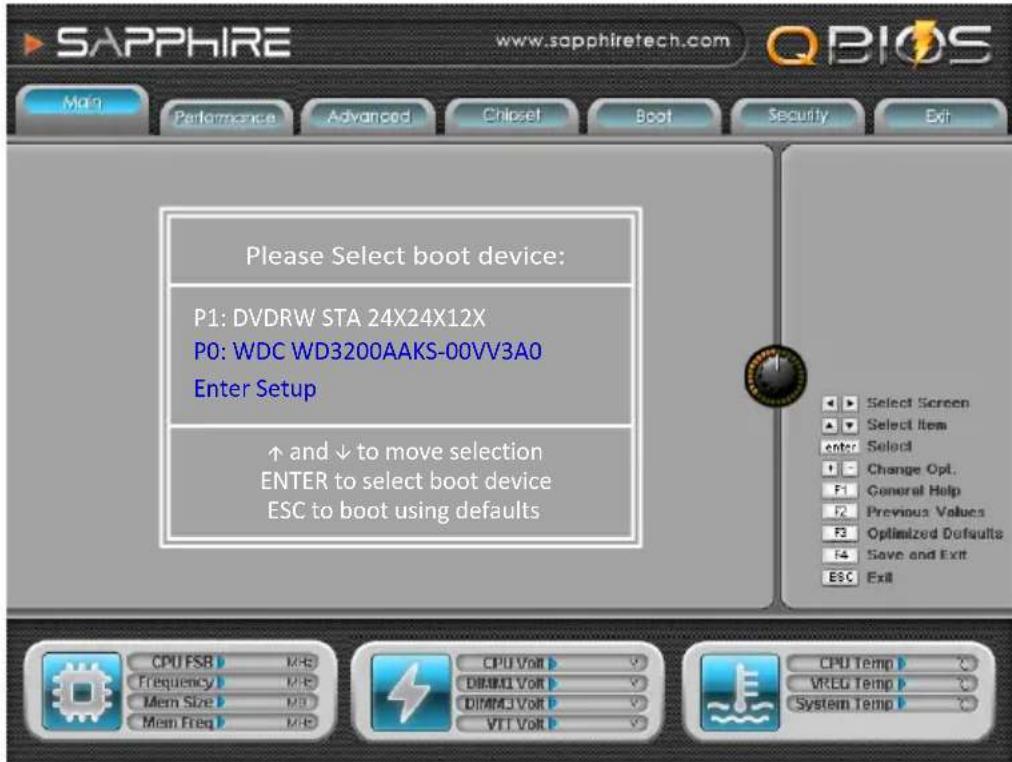
3-1 Select Boot Device
Select Boot Device Menu allows you to set the first boot device without entering BIOS Setup.
During Power On Self Test (POST), you can press the
3-2 Enter BIOS Setup
The BIOS is the communication bridge between hardware and software. Correctly setting the BIOS parameters is critical to maintain optimal system performance.
Use the following procedure to change BIOS settings.
- Power on the computer.
- Press the
orkey when the following message briefly shows
upon the bottom of the display during Power On Self Test (POST).
Press F1 to continue, DEL to enter Setup.
Pressing Del takes you to the BIOS Setup Utility.
Note1: It is strongly recommended that you do not change the default BIOS settings. Changing some settings could damage your computer.
Note2: The BIOS options in this manual are for reference only. BIOS screens in manuals are usually the first BIOS version when the board is released and may be different from your purchased motherboard. Users are welcome to download the latest BIOS version from our official website
ControlKeys
Please check the following table for the function description of each Controlkey. You can also use the mouse to click your required item.
| Control Key(s) Function Description | |
| ← / → Moves cursor left or right to select Screens | |
| ↑ / ↓ Moves cursor up or down to select items | |
| + / - To change option for the selected items | |
| To bring up the selected screen | |
| To display the General Help Screen | |
| To load previous values for all the settings | |
| To load optimal default values for all the settings | |
| To save changes and exit the SETUP UTILITY | |
| To jump to the Exit Screen or exit the current screen |
3-3 Main Menu
When entering the BIOS Setup Utility, the main menu screen appears. This main menu includes the system overview and displays the basic system configuration, such as BIOS information, memory size and system date/time.
![SAPPHIRE www.sapphiretech.com QBIOS Main Performance Advanced Chipset Boot Security Exit BIOS Information BIOS Vendor American Megatrends Core Version 4.6.4.1 Compliance UEFI 2.1 Project Version SAX79 0.52 x64 Build Date and Time 11/09/2011 11:38:13 Memory Information Total Memory 8192 MB (DDR3) System Date [Wed 11/09/2011] System Time [13:33:51] Access Level Administrator Set the Date. Use Tab to switch between Data Select Screen Select Item Enter Select Change Opt. General Help Previous Values Optimized Defaults Save and Exit Exit CPU FSB 100 MFZ Frequency 3341 MFZ Mem Size 8192 MB Mem Freq 1600 MFZ CPU Volt 1.128 V DIMM1 Volt 1.512 V DIMM3 Volt 1.512 V VIT Volt 1.048 V CPU Temp 55 °C VREG Temp 60 °C System Temp 40 °C](/content/2026/05/1027308/images/efd7bd6b305476d074711bed3617619763b9c0f293500c88e5826b39ebeaf0a7.jpg)
BIOS Information
This field displays the current BIOS version, build date and ID information etc..
Memory Information
Displays current system memory size.
System Date
Allows you to set the system date. The format is
[Day] Weekday from Sun. to Sat., this is automatically displayed by BIOS.
[Month] The month from 1 to 12.
[Date] The date from 1 to 31 can be keyed by numeric function keys.
[Year] The year can be adjusted by users.
System Time
Allows you to set the system time. The time format is
Access Level
This item is used to limit the user access level.
3-4 Performance Menu
The Performance menu allows you to specify your settings for CPU, memory, voltage control and overclocking. Press
![SAPPHIRE www.sapphiretech.com QBIOS Main Preformance Advanced Chipset Boot Security Exit HD6850 1G OverClock [Enabled] CPU Host Clock (Mhz) 100 Gear Ratio [1.000] ► CPU Configuration ► Memory Configuration ► Voltage Configuration Select Screen Select Item Enter Select Change Opt. F1 General Help Previous Values Optimized Defaults Save and Exit ESC Exit CPU FSB 100 MHz Frequency 3341 MHz Mem Size 8192 MHz Mem Freq 1600 MHz CPU Volt 1.128 Y VDIMM Volt 1.512 Y NB Volt 1.512 Y +12 Volt 1.048 Y CPU Temp 55 °C NB Temp 60 °C System Temp 40 °C](/content/2026/05/1027308/images/8ee23d33d3f6f3e8bb35890ef0d0c2e1aa655f0d1467c7bd67fa4c496186eb85.jpg)
HD6850 1G OverClock
Allow you to enable the overclock function for HD6850 VGA card.
Options: Enabled, Disabled.
If you use 2G memory of VGA card, the BIOS item will be shown "HD6850 2G OverClock". The default GPU clock is 800MHz, it will go to 820MHz after overclocking.
This item will only appear when using the Sapphire HD 6850 Black Diamond Edition VGA card and coming models.
Note:
This function doesn't support overclocking, when using CrossFireX technology to support multiple graphic cards.
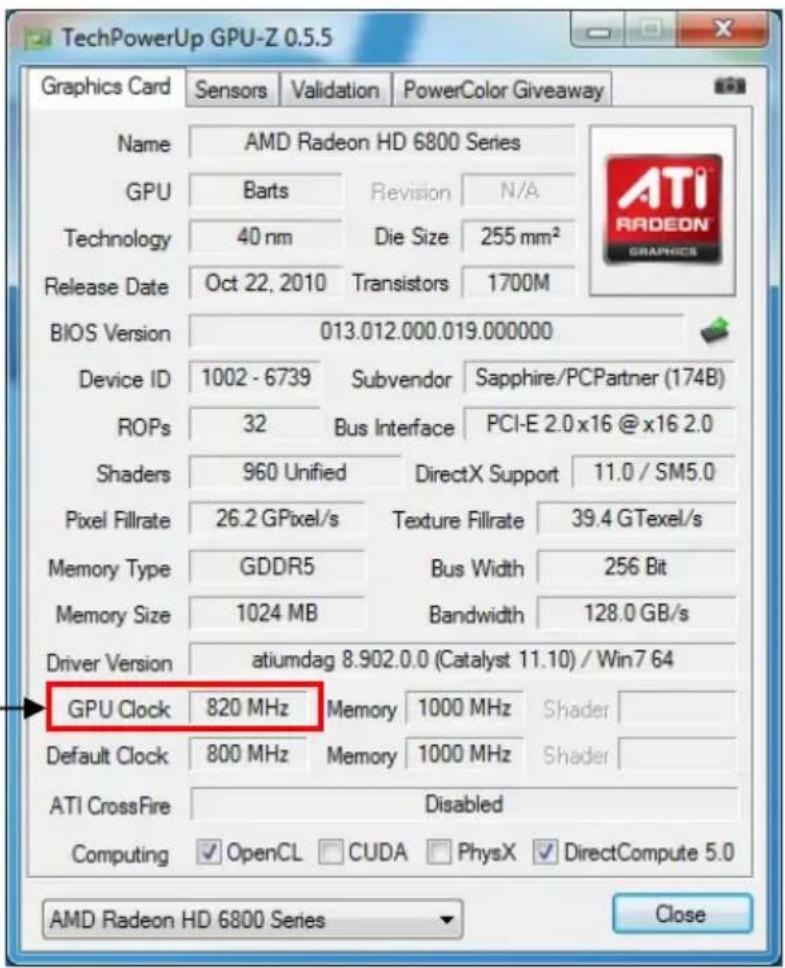
After overclocking, the GPU Clock is 820 MHz.
CPU Host Clock (Mhz)
This item allows you to select the CPU host clock (in MHz).
Options: 100 \~ 110.
Gear Ratio
This item allows you to select the Gear Ratio.
Options: 1.000, 1.250, 1.667, 2.500.
▶ CPU Configuration
![SAPPHIRE www.sapphiretech.com QBIOS Performance Non Turbo Ratio Override 33 Enhanced Intel SpeedStep Technology [Enabled] CPU C6 Report [Enabled] Turbo Mode [Enabled] 1 Core Ratio Limit 39 2 Core Ratio Limit 39 3 Core Ratio Limit 37 4 Core Ratio Limit 37 5 Core Ratio Limit 36 6 Core Ratio Limit 36 Non Turbo Ratio Override Select Screen Select Item enter Select Change Opt. F1 General Help F2 Previous Values F3 Optimized Defaults F4 Save and Exit E5C Exit CPU FSB 100 MHz Frequency 3341 MHz Mem Size 8192 MHz Mem Freq 1600 MHz CPU Volt 1.128 V DIMM1 Volt 1.512 V DIMM3 Volt 1.512 V VTT Volt 1.048 V CPU Temp 55 °C VREG Temp 61 °C System Temp 40 °C](/content/2026/05/1027308/images/f2d56a70c078053e0f2611df6ec244e5a9d99247efaa43592d4d14c54703d94d.jpg)
This is used to select the Ratio or Multiplier of the CPU, this varies depending on what CPU you have.
Enhanced Intel SpeedStep Technology
Enables the Intel ^® SpeedStep technology (EIST).
Options: Enabled, Disabled.
CPU C6 report
Enable/Disable CPU C6 (ACPI C3) report to OS
Options: Enabled, Disabled.
Turbo Mode
Enables the processor cores to run faster than marked frequency in specification condition.
Options: Enabled, Disabled.
1/2/3/4/5/6 Core Ratio Limit
Displays the 1/2/3/4/5/6 core ratio limit of CPU.
▶ Memory Configuration
![SAPPHIRE www.sapphiretech.com QBIOS Performance XMP Profile 1 Supported XMP Profile 2 Not Supported DDR SPD Type [Standard SPD] Memory Current Status Speed 1600 tCL, tRCD, tRP, tRAS, tWR 9, 9, 9, 28, 12 tRFC, tWTR, tRRD, tRTP, tFAW 128, 6, 5, 6, 24 Memory Frequency (MHz) [1333 MHz (100*1.33)] Memory Timing Setting [Auto] DDR SPD Type MHz Select Screen Select Item Enter Select Change Opt. F1 General Help F2 Previous Values F3 Optimized Defaults F4 Save and Exit ESC Exit CPU FSB 100 MHz Frequency 3341 MHz Mem Size 8192 MS Mem Freq 1600 MHz CPU Volt 1.128 Y DIMM1 Volt 1.512 Y DIMM3 Volt 1.512 Y VTT Volt 1.048 Y CPU Temp 55 °C VREG Temp 61 °C System Temp 40 °C](/content/2026/05/1027308/images/8dbef7727bdfe0fa6b4404962f7f178880cd89342d03f6e6ae65f9bd5fda42a9.jpg)
XMP Profile 1/2
These items display the current status of the X.M.P support information.
DDR SPD Type
Allows the BIOS to read the SPD data on memory module to enhance memory performance or select manually configuring timings.
Options: Standard SPD, User defined.
Memory Frequency (MHz)
Allows you to select the system memory Frequency.
Options: 1067 MHz (100*1.06), 1333 MHz (100*1.33), 1600 MHz (100*1.60), 1867 MHz (100*1.86), 2133 MHz (100*2.13), 2400 MHz (100*2.40).
Memory Timing Setting
Setting to [Auto] enables timings to be determined by BIOS based on the SPD.
Setting to [Manual] allows users to configure the DRAM timings.
CAS# Latency (tCL)
Set the CAS latency time.
Options: Auto(9), 3 \~ 15.
RAS# to CAS# Delay(tRCD)
Set the RAS to CAS Delay time for Read/Write commands to the same bank.
Options: Auto(9), 3 \~ 15.
Row Precharge Time(tRP)
Set the Row Precharge time. This is the Precharge-to-Active or
Auto-to-Refresh of the same bank.
Options: Auto(9), 3 \~ 15.
RAS# Active Time(tRAS)
Set the minimum RAS# active time.
Options: Auto(28), 9 \~ 63.
Write Recovery Time(tWR)
Set the internal Write to Read recovery time.
Options: Auto(12), 3 \~ 31.
Row Refresh Cycle Time(tRFC)
Set the minimum refresh recovery time.
Options: Auto(128), 15 \~ 255.
Write to Read Delay(tWTR)
Set the internal Write to Read command delay.
Options: Auto(6), 3 \~ 31.
Active to Active Delay(tRRD)
Set the Row Active to Row Active delay.
Options: Auto(5), 4 \~ 15.
Read CAS# Precharge(tRTP)
Set the Read to Precharge delay.
Options: Auto(6), 4 \~ 15.
Four Active Windows Delay(tFAW)
Set the Four Active Windows Delay.
Options: Auto(24), 4 \~ 63.
▶ Voltage Configuration
![SAPPHIRE www.sapphiretech.com QBIOS Performance Voltage Configuration Loadline Control [Enabled] Internal CPU PLL Overvoltage [Disabled] CPU VCORE [+000mV] CPU VSA [[+000mV]] DIMM 1/2 Voltage [Auto] DIMM 3/4 Voltage [Auto] CPU VTT [Auto] PCH [Auto] CPU PLL [Auto] PCH_PBG [Auto] CPU PWM Frequency [620KHz] DIMM1/2 PWM Frequency [330KHz] DIMM3/4 PWM Frequency [330KHz] VTT PWM Frequency [330KHz] Loadline Control Select Screen Select Item enter Select Change Opt. f1 General Help f2 Previous Values f3 Optimized Defaults f4 Save and Exit ESC Exit CPU FSB 100 MHz Frequency 3341 MHz Mem Size 8192 MHz Mem Freq 1600 MHz CPU Volt 1.128 V DIMM1 Volt 1.512 V DIMM3 Volt 1.512 V VTT Volt 1.048 V CPU Temp 55 °C VREG Temp 61 °C System Temp 40 °C](/content/2026/05/1027308/images/c84be2f29542f0e2e6287a065440579a313a446ae6e8812bb8ec06f772aed0af.jpg)
Loadline Control
Loadline Control function is a safety measure to protect the CPU.
Options: Enabled, Disabled.
Internal CPU PLL Overvoltage
Allows you to enable the Internal CPU PLL Overvoltage.
Options: Enabled, Disabled.
CPU VCORE
Allows you to adjust the CPU Vcore voltage.
Options: +000mv \~ +800mV in 10mV increments.
CPU VSA
Allows you to adjust the CPU VSA Voltage.
Options: +000mv \~ +630mV in 10mV increments.
DIMM 1 / 2 Voltage
Allows you to adjust the DIMM1 and DIMM2 Slots voltage.
Options: Auto, 1.10V \~2.50V in 0.01V.
DIMM 3 / 4 Voltage
Allows you to adjust the DIMM3 and DIMM4 Slots voltage.
Options: Auto, 1.10V \~2.50V in 0.01V.
CPU VTT
Allows you to adjust the CPU VTT voltage.
Options: Auto, 1.050V \~2.000V in 0.025V increment
PCH
Allows you to adjust the Intel PCH VCore Voltage.
Options: Auto, 1.10V \~1.72V in 0.01 increments.
CPU PLL
Allows you to adjust the CPU PLL VCore Voltage .
Options: Auto, 1.050V \~2.800V in 0.025V.
PCH\_PBG
Allows you to adjust the Intel PCH_PBG VCore Voltage.
Options: Auto, 1.500V \~2.800V in 0.025V.
CPU PWM Frequency
Allows you to adjust the CPU PWM Frequency.
Options: 620KHz, 950KHz.
DIMM1/2 PWM Frequency
Allows you to adjust the DIMM1/2 PWM Frequency.
Options: 330KHz, 500KHz.
DIMM3/4 PWM Frequency
Allows you to adjust the DIMM3/4 PWM Frequency.
Options: 330KHz, 500KHz.
VTT PWM Frequency
Allows you to adjust the VTT PWM Frequency.
Options: 330KHz, 500KHz.
3-5 Advanced Menu
The Advanced menu items allow you to change the settings for the CPU, USB and other system devices. Press
![SAPPHIRE www.sapphiretech.com Main Performance Advanced Chipset Boot Security Exit Legacy OpROM Support Launch PXE OpROM [Disabled] Launch Storage OpROM [Enabled] ACPI Settings CPU Configuration Onboard Device SATA Configuration USB Configuration Super IO Configuration H/W Monitor Onboard Device Configuration Enables or disable Boot option for legacy network devices Select Screen Select item Enter Select Change Opt. General Help Previous Values Optimized Defaults Save and Exit Exit CPU FSB 100 MHz Frequency 3341 MHz Mem Size 8192 MHz Mem Freq 1600 MHz CPU Volt 1.128 V DIMMI Volt 1.512 V DIMM3 Volt 1.512 V VTT Volt 1.048 V CPU Temp 55 °C VREG Temp 61 °C System Temp 40 °C](/content/2026/05/1027308/images/f8c973377b7f8fa7e8cca9f97ce68e6a16b91a554ba040427ca1bfe507e4ba2b.jpg)
Launch PXE OpROM
Enables the Boot option for legacy network devices.
Options: Enabled, Disabled.
Launch Storage OpROM
Enables the Boot option for mass storage devices with option ROM.
Options: Enabled, Disabled.
▶ ACPI Settings
![SAPPHIRE www.sapphiretech.com QBIOS Advanced ACPI Settings Enable Hibernation [Enabled] ACPI Sleep State [S3 (Suspend to RAM)] EuP Function [Enabled] Restore AC Power Loss [Power Off] Enables or Disables system ability to Hibernate (OS/S4 Sleep Sate). This option may be not effective with some OS. Select Screen Select Item enter Select Change Opt. F1 General Help Previous Values F3 Optimized Defaults Save and Exit ESC Exit CPU FSB 100 MHz Frequency 3341 MHz Mem Size 8192 MHz Mem Freq 1600 MHz CPU Volt 1.128 V DIMM1 Volt 1.512 V DIMM3 Volt 1.512 V VTT Volt 1.048 V CPU Temp 55 °C VREG Temp 61 °C System Temp 40 °C](/content/2026/05/1027308/images/289f7165f18175d3dfed6600d13e47b7d09fa3f7ca2e1ada1bd42794cf59b8d8.jpg)
Enable Hibernation
Enables system ability to Hibernate (OS/S4 Sleep Sate). This option may be not effective with some OS.
Options: Enabled, Disabled.
ACPI Sleep State
Selects the power saving modes for ACPI function.
Options: Suspend Disabled, S1 (CPU Stop Clock), S3 (Suspend to RAM).
EuP Function
Enables the EuP (Energy Using Products) function, allows BIOS to switch off some power at S5 state to get system ready for the EuP requirement to reduce power consumption.
Options: Enabled, Disabled.
Restore on AC Power Loss
Enables your computer to automatically restart or return to its last operating status after power returns from a power failure.
Options: Power off, Power on, Last State.
▶ CPU Configuration
![SAPPHIRE www.sapphiretech.com QBIOS Advanced CPU Configuration CPU Information CPU Speed 3300 MHz 64-bit Supported Hyper-threading [Enabled] Active Processor Cores [All] Limit CPUID Maximum [Disabled] Execute Disable Bit [Enabled] Hardware Prefetcher [Enabled] Adjacent Cache Line Prefetch [Enabled] Intel Virtualization Technology [Enabled] CPU Configuration Select Screen Select Item Enter Select Change Opt. General Help Previous Values Optimized Defaults Save and Exit Exit CPU FSB 200 MHz Frequency 3027 MHz Mem Size 8192 MHz Mem Freq 1332 MHz CPU Volt 1.352 V DIMM1 Volt 1.479 V DIMM3 Volt 1.104 V VIT Volt 11.880 V CPU Temp 50 °C VREG Temp 49 °C System Temp 30 °C](/content/2026/05/1027308/images/4eff477a49f6e47ee8b10f8b830a0dca13d5f7ae68f79c202317f9102d14be1d.jpg)
Hyper-threading
This item enables the Intel Hyper-Threading technology.
Options: Enabled, Disabled.
Active Processor Cores
Use this item to select the number of cores to enable in each processor package.
Options: All, 1, 2, 3, 4, 5.
Limit CPUID Maximum
We recommend leaving it disabled, unless you are using a very old OS or experiencing problems related to CPU identification/compatibility.
Options: Enabled, Disabled.
Execute Disable Bit
When this function is disabled, it forces the XD feature flag to always return to zero (0).
Options: Enabled, Disabled.
Hardware Prefetcher
This item enables L2 Cache (Mid Level Cache) stream prefetcher for tuning performance of the specific application.
Options: Enabled, Disabled.
Adjacent Cache Line Prefetch
This item enables Adjacent Cache Line Prefetch function.
Options: Enabled, Disabled.
Intel Virtualization Technology
When this function is enabled, it allows a VMM to utilize the additional hardware capabilities provided by Intel Virtualization Technology.
Options: Enabled, Disabled.
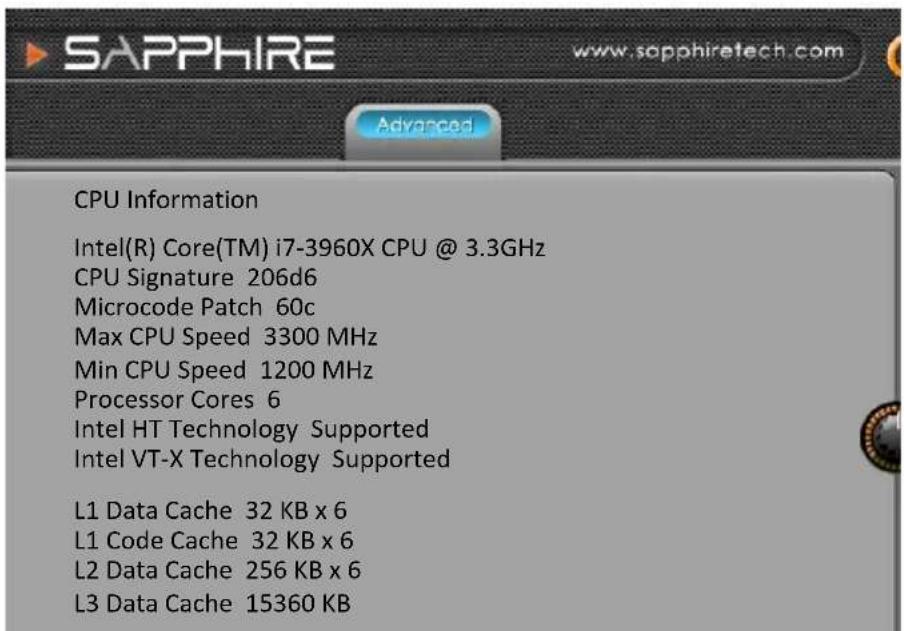
▶ CPU Information
Displays the CPU related information.
▶ SATA Configuration
![SAPPHIRE www.sapphiretech.com QBIOS Advanced SATA Configuration SATA Port0 WDC WD5000AAKX SATA Port1 Not Present SATA Port2 Not Present SATA Port3 Not Present SATA Port4 Not Present SATA Port5 Not Present SATA Mode [AHCI Mode] Port 0 Hot Plug [Disable] Port 1 Hot Plug [Disable] Port 2 Hot Plug [Disable] Port 3 Hot Plug [Disable] Port 4 Hot Plug [Disable] Port 5 Hot Plug [Disable] (1)IDE Mode. (2) AHCI Mode. (3) RAID Mode. Select Screen Select Item Enter Select Change Opt. F1 General Help F2 Previous Values F3 Optimized Defaults F4 Save and Exit ESC Exit CPU FSB 100 MHz Frequency 3341 MHz Mem Size 8192 MHz Mem Freq 1600 MHz CPU Volt 1.128 V DIMM1 Volt 1.512 V DIMM3 Volt 1.512 V VTT Volt 1.048 V CPU Temp 55 °C VREG Temp 61 °C System Temp 40 °C](/content/2026/05/1027308/images/93cd10fc81ebd0a8a48b74dac44dca0bed60b7f0ced08cc48d2949ad8ad10734.jpg)
SATA Port0 \~ SATA Port5
This filed show SATA ports connection state.
SATA Mode
Allows you to set the onboard Serial SATA type.
Options: Disabled, RAID Mode, AHCI Mode, IDE Mode.
- IDE Mode: Use the SATA hard disk drivers as Parallel ATA storage devices.
- RAID Mode: Create a RAID 0, 1, 0+1, 5 configuration
- AHCI Mode: Use the AHCI (Advanced Host Controller Interface) to enable advanced SATA features for improved performance with NCQ and Hot-plug features
Port 0 Hot Plug \~ Port 5 Hot Plug
Allows you to enable the SATA port hot plug support.
Options: Enabled, Disabled.
USB Configuration
![SAPPHIRE www.sapphiretech.com QBIOS Advanced USB Configuration USB Devices: 1 Keyboard, 1 Mouse USB3.0 Support [Enabled] USB Hardware delays and time-outs: USB transfer time-out [1 sec] Device reset time-out [20 sec] Device power-up delay [Auto] Enable/Disable USB3.0 (XHCI) Controller Support. Select Screen Select Item Enter Select Change Opt. F1 General Help F2 Previous Values F3 Optimized Defaults F4 Save and Exit ESC Exit CPU FSB 100 MHz Frequency 3341 MHz Mem Size 8192 MS Mem Freq 1600 MHz CPU Volt 1.128 V DIMM1 Volt 1.512 V DIMM3 Volt 1.512 V VTT Volt 1.048 V CPU Temp 55 °C VREG Temp 61 °C System Temp 40 °C](/content/2026/05/1027308/images/8b6eebde5a496f5ab370ce957cdcca2697222647245303e18a7c704aaff0d48a.jpg)
USB3.0 Support
Enables USB3.0 (XHCI) controller support.
Options: Enabled, Disabled.
USB transfer time-out
The time-out value for control, bulk, and interrupt transfers.
Options: 1 sec, 5 sec, 10 sec, 20 sec.
Device reset time-out
Sets USB mass storage devices start unit command time-out.
Options: 10 sec, 20 sec, 30 sec, 40 sec.
Device power-up delay
Maximum time the device will take before it properly reports itself to the Host controller. 'Auto' uses default values; for a Root port it is 100ms, for a Hub port the delay is taken from Hub descriptor.
Options: Auto, Manual.
▶ Super IO Configuration
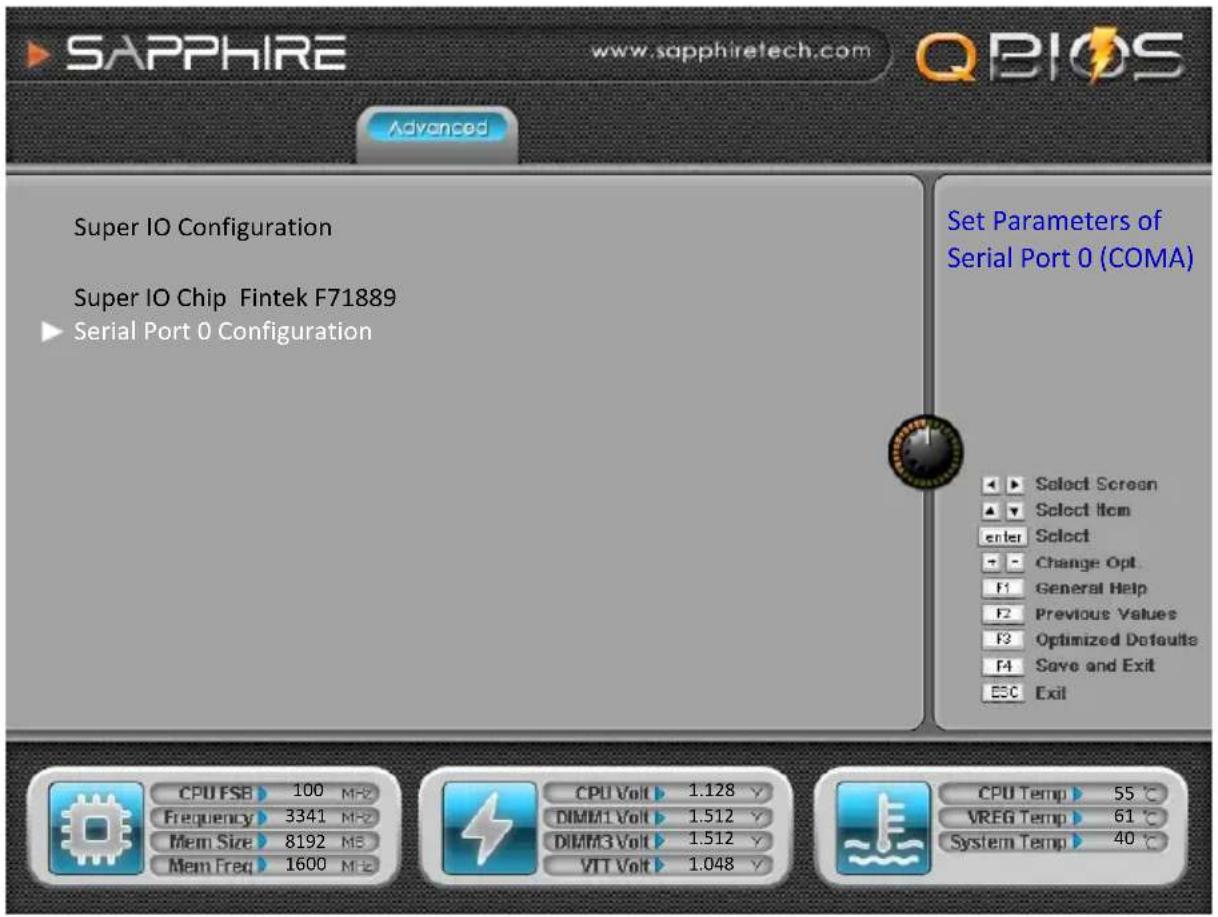
▶ Serial Port 0 Configuration
Serial Port
Enables the Serial Port support.
Options: Enabled, Disabled.
Change Settings
Select an optimal setting for super I/O device.
Options: Auto, IO=3F8H; IRQ=4; IO=3F8h; IRQ=3,4,5,6,7,10,11,12;
IO=2F8h; IRQ=3,4,5,6,7,10,11,12; IO=3E8h; IRQ=3,4,5,6,7,10,11,12;
IO=2E8h; IRQ=3,4,5,6,7,10,11,12;
H/W Monitor
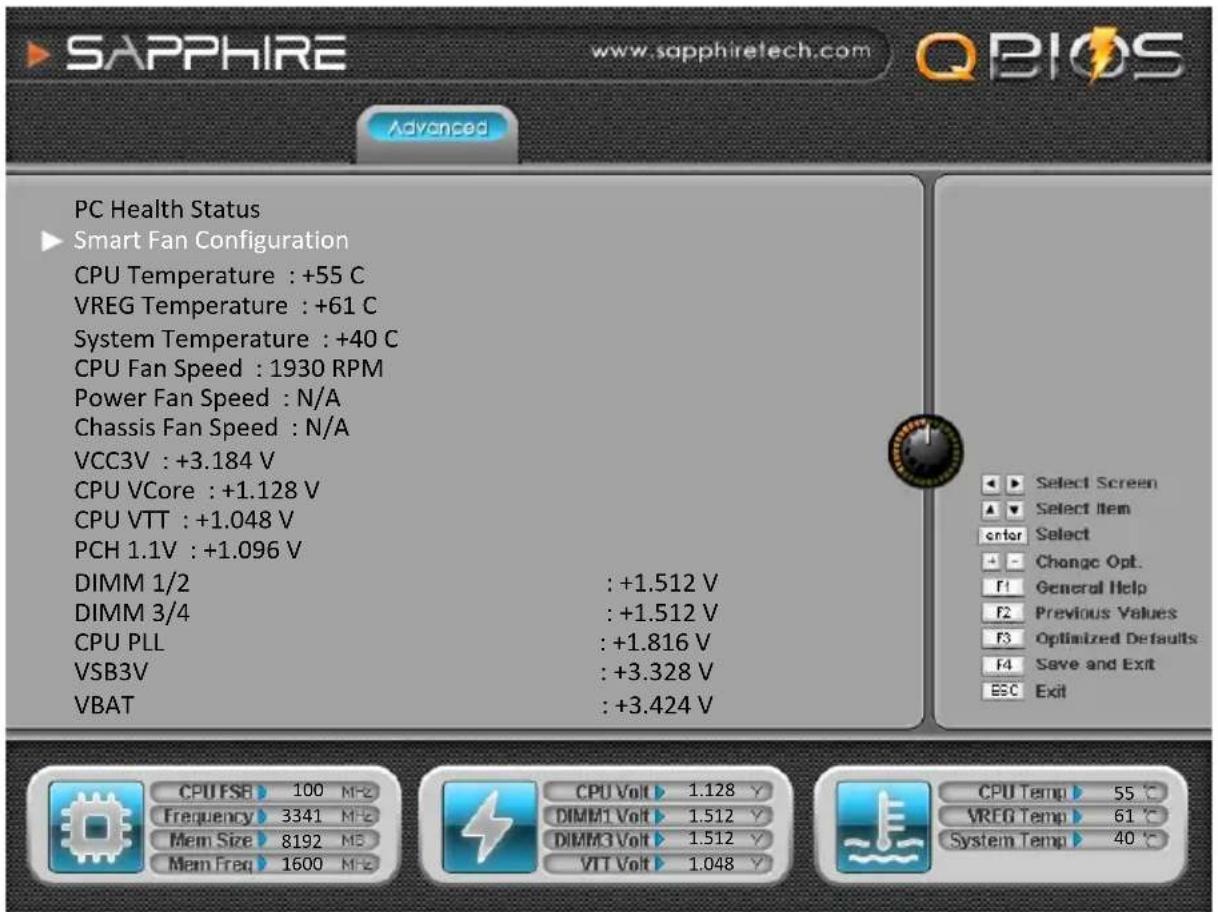
CPU / VREG/ System
Displays the current CPU, onboard regulator and system temperature.
CPU /Power /Chassis Fan Speed
Displays the current CPU, Power and Chassiss Fan Speed
VCC3V/CPU VCore/CPU VTT/PCH 1.1V/DIMM 1/2/ DIMM 3/4 /CPU PLL/VSB3V/VBAT
The current voltages are automatically detected and displayed by the system.
Note:
Due to the length limit, the memory voltage of description has been shortened.
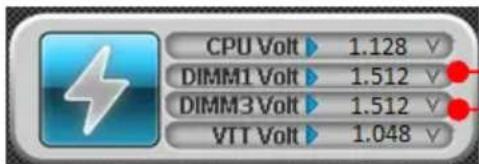
It means DIMM1 and DIMM2 Voltage.
It means DIMM3 and DIMM4 Voltage.
▶ Smart Fan Configuration
![SAPPHIRE www.sapphiretech.com Advanced SmartFan Configuration CPU Fan Type [PWM FAN (4 pin)] CPU Fan Mode Setting [SmartFan] Temperature Limit of Highest 060 Temperature Limit of Lowest 030 Fan Highest setting 100 Fan Lowest setting 050 Power Fan Mode Setting [SmartFan] Temperature Limit of Highest 060 Temperature Limit of Lowest 030 Fan Highest setting 100 Fan Lowest setting 050 Chassis Fan Mode Setting [SmartFan] Temperature Limit of Highest 060 Temperature Limit of Lowest 030 Fan Highest setting 100 Fan Lowest setting 050](/content/2026/05/1027308/images/4ba6620cbe2cf3dae745a2eb2449978125afcf77bbc2dd7c2eb68f283edf89d7.jpg)
CPU Fan Type
Allows you to select the CPU Fan type.
Options: PWM FAN (4 pin), Linear FAN (3 pin)
CPU Fan Mode Setting
This item controls the speed of the various fans on the motherboard.
Choose [SmartFan] when you want the speed of the fans automatically controlled based on temperature. To set the fan speed to a constant rate, select [Manual Mode] and then enter the speed from 0% to 100%.
Set the desired speed for the Power and Chassis fans from 0% to 100%. The system defaults to 100%.
Onboard Device Configuration
![SAPPHIRE www.sapphiretech.com QBIOS Advanced Marvell 88SE9128 SATA3 Controller (SATA3 A/B) [Auto] Gigabit Ethernet Controller (LAN1) [Auto] Gigabit Ethernet Controller (LAN2) [Auto] eSATA Controller (BP) [Auto] USB3.0 Controller (BP) [Auto] USB3.0 Controller (BP) [Auto] USB3.0 Controller (FP) [Auto] Azalia HD Audio [Enabled] Bluetooth C80P Show CPU Temperature [Enabled] [Enabled] Enabled/Disabled SATA A/B Port Select Screen Select Item enter Select Change Opt. F1 General Help F2 Previous Values F3 Optimized Defaults F4 Save and Exit ESC Exit CPU FSB 100 MF2 Frequency 3341 MF2 Mem Size 8192 MB Mem Freq 1600 MHz CPU Volt 1.128 Y DIMM1 Volt 1.512 Y DIMM3 Volt 1.512 Y VTT Volt 1.048 Y CPU Temp 55 °C VREG Temp 61 °C System Temp 40 °C](/content/2026/05/1027308/images/d4dcfd419ae46051f31db27d4ce11045c5c5b9bc5c0f193462c609c7f5cd8c79.jpg)
Marvell 88SE9128 SATA3 Controller (SATA3 A/B)
Enables the onboard Marvell SATA3 controller (SATA3 A/B).
Options: Auto, Enabled, Disabled.
Gigabit Ethernet Controller (LAN1/LAN2)
Enables the onboard Giga Lan 1 / 2 function for LAN.
Options: Auto, Enabled, Disabled
eSATA Controller (BP)
Enables the onboard eSATA controller of back panel.
Options: Auto, Enabled, Disabled.
USB3.0 Controller (BP)
Enables the onboard one of two USB 3.0 controller of back panel.
Options: Auto, Enabled, Disabled.
USB3.0 Controller (BP)
Enables the onboard one of two USB 3.0 controller of back panel.
Options: Auto, Enabled, Disabled.
USB3.0 Controller (FP)
Enables the onboard USB 3.0 controller of front panel.
Options: Auto, Enabled, Disabled.
Azalia HD Audio
Enables the onboard High Definition Audio controller.
Options: Enabled, Disabled.
Bluetooth
Enables Bluetooth function.
Options: Enabled, Disabled.
C80P Show CPU Temperature
Enables the onboard POST Port LED to display CPU temperature.
Options: Enabled, Disabled.
3-6 Chipset Menu
The chipset menu items allow you to change the advanced chipset settings. Press
![SAPPHIRE www.sapphiretech.com QBIOS Main Performance Advanced Chipset Bool Security Exit Intel(R) VT-d [Disabled] Intel(R) I/OAT [Disabled] Enable/Disable Intel(R) Virtualization Technology for Directed I/O. Select Screen Select Item Enter Select Change Opt F1 General Help F2 Previous Values F3 Optimized Defaults F4 Save and Exit ESC Exit CPU FSB 100 MF2 Frequency 3341 MF2 Mem Size 8192 MS Mem Freq 1600 MF2 CPU Volt 1.128 v DIMM1 Volt 1.512 v DIMM3 Volt 1.512 v VIT Volt 1.048 v CPU Temp 55 °C VREG Temp 61 °C System Temp 40 °C](/content/2026/05/1027308/images/6700298256ae06d020d29d0898e0fb25ba11910e3ae6e3fb3d23bacc30051da3.jpg)
Intel(R) VT-d
Enables the Intel (R) Virtualization Technology for directed I/O.
Options: Enabled, Disabled.
Intel(R) I/OAT
Enables the Intel (R) I/O Acceleration Technology (I/OAT).
Options: Enabled, Disabled.
3-7 Boot Menu
The Boot menu is used to configure the boot settings and the boot priority.
![SAPPHIRE www.sapphiretech.com QBIOS Main Performance Advanced Chipset Boot Security Exit Boot Configuration Setup Prompt Timeout 1 Bootup NumLock State [On] Boot Option Priorities Boot Option #1 [P2: ST3250318AS] Boot Option #2 [P4: PIONEER DVD-RW...] CD/DVD ROM Drive BBS Priorities Hard Drive BBS Priorities Number of seconds to wait for setup activation key. 65535(0xFFFF) means indefinite waiting. Select Screen Select Item Enter Select Change Opt F1 General Help Previous Values Optimized Defaults Save and Exit ESC Exit CPU FSB 100 MF2 Frequency 3341 MF2 Mem Size 8192 MF2 Mem Freq 1600 MF2 CPU Volt 1.128 V DIMM1 Volt 1.512 V DIMM3 Volt 1.512 V VIT Volt 1.048 V CPU Temp 55 °C VREG Temp 61 °C System Temp 40 °C](/content/2026/05/1027308/images/39964803af302c41d7f3261fa477c7ef15c3558f99645c621cdc25557c2bedfa.jpg)
Setup Prompt Timeout
This is used to set an additional time the POST should wait for the operator to press the key to enter setup. The time is entered in seconds.
Bootup NumLock State
Selects the state of the keyboard's numlock function after POST.
Options: On, Off.
Boot Option Priorities
These options are used to form the boot order and are dynamically generated.
CD/DVD ROM Drive BBS Priorities
Allows configure the boot order for a specific CD/DVD ROM device class.
Hard Drive BBS Priorities
Allows configure the boot order for a specific Hard Drive device class.
3-8 Security Menu
The Security menu allows you to change the system security settings.
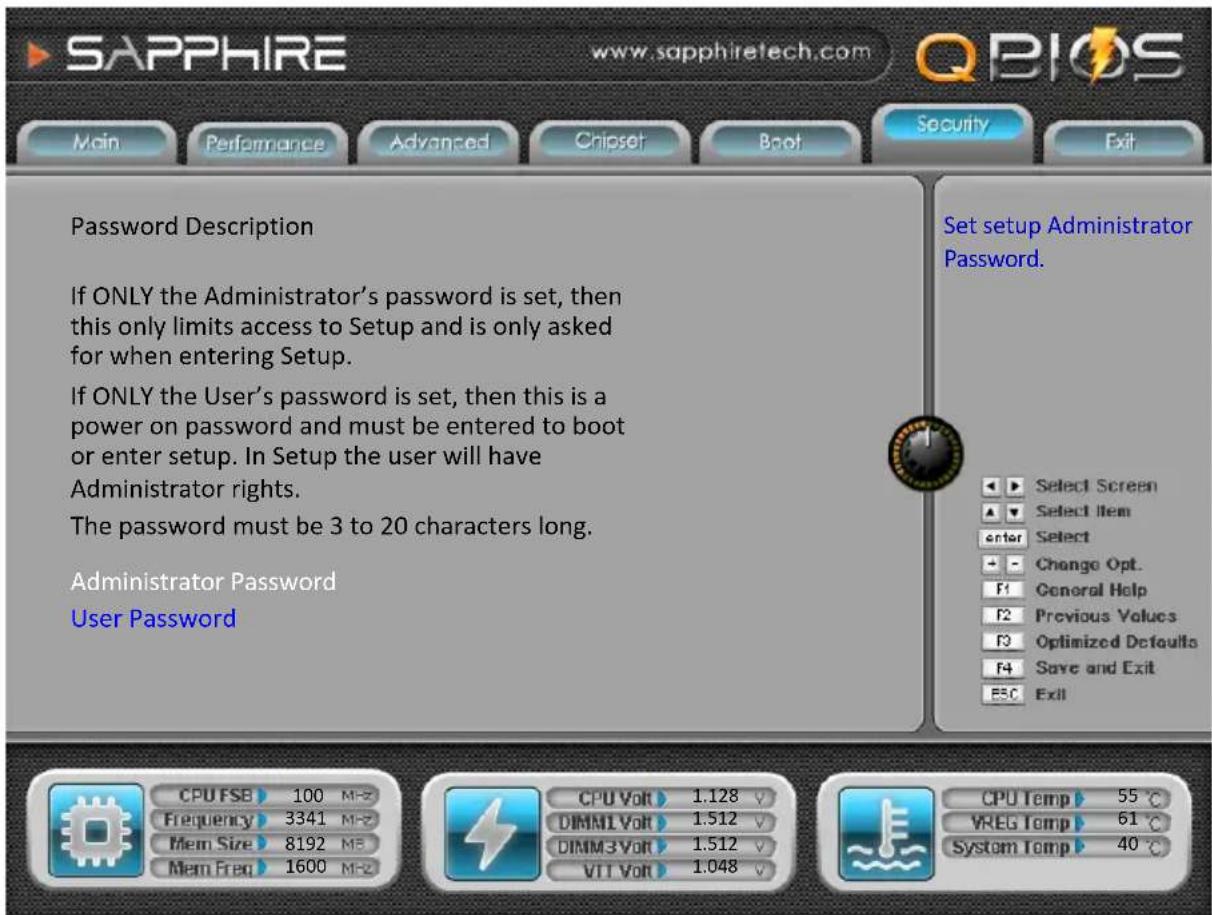
Administrator Password
This function is used to set, change or delete the Administrator password. If there is already a password installed, the system asks for this first. To clear a password, simply enter nothing and acknowledge by pressing Return. To set a password, enter it twice and acknowledge by pressing Return. The password must be 3 to 20 characters long.
User Password
This function is used to set, change or delete the User password. If there is already a password installed, the system asks for this first. To clear a password, simply enter nothing and acknowledge by pressing Return. To set a password, enter it twice and acknowledge by pressing Return. The password must be 3 to 20 characters long.
3-9 Save & Exit Menu
The Save & Exit menu allows you to load the optimal default values for BIOS, and save or discard your changes to the BIOS items.
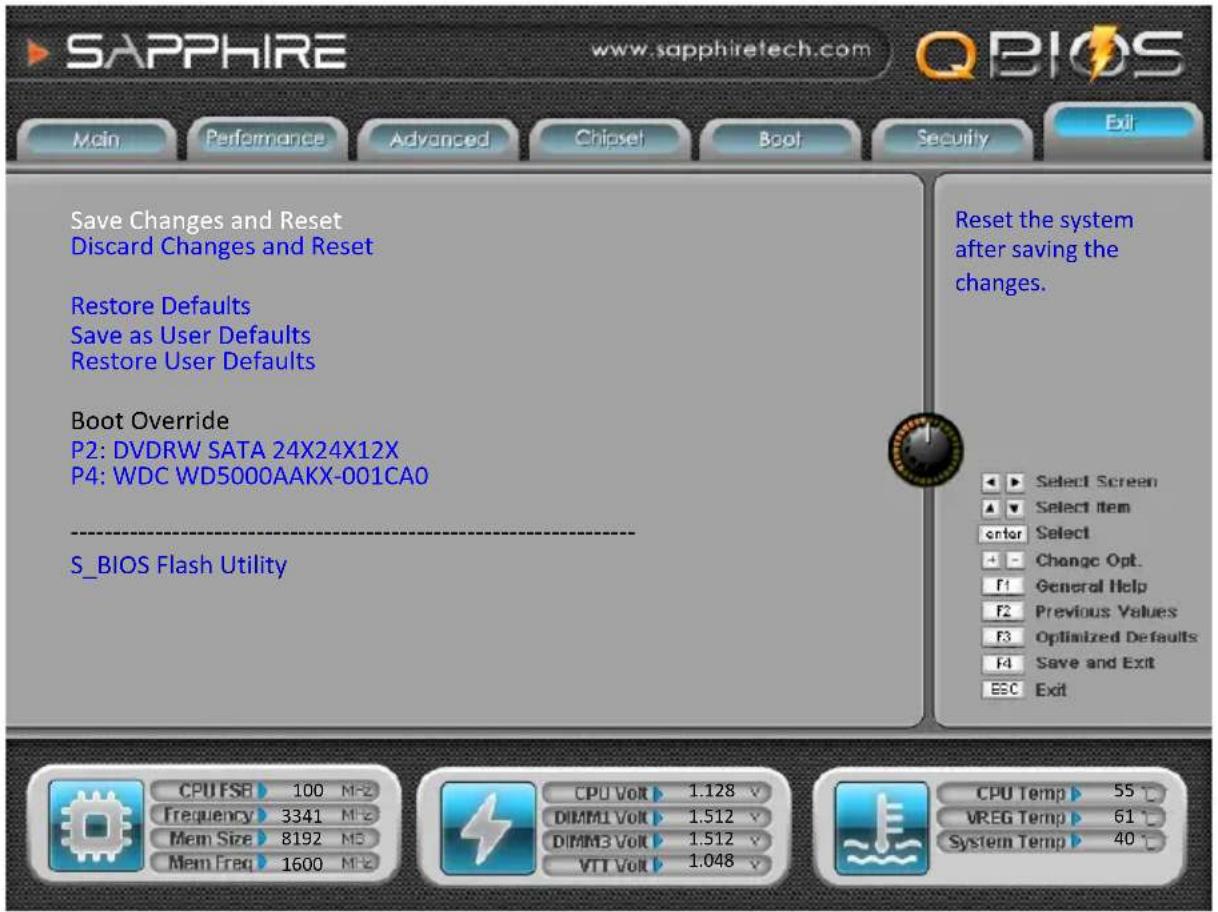
Save Changes and Reset
This resets system after saving the changes.
Discard Changes and Reset
This resets system without saving the changes.
Restore Defaults
The restore defaults are the factory settings of this motherboard.
Save as User Defaults
This is used to save all current settings as user default. The current setup state can later be restored using Restore User Defaults.
This is used to restore all tokens to settings previously stored by Save as User Defaults.
Boot Override
This group of functions includes a list, each of them corresponding to one device within the boot order. Select a drive to immediately boot that device regardless of the current boot order.
S\_BIOS Flash Utility
This utility allows you to update the system BIOS in embedded BIOS. Please refer to "4-4 S_BIOS Flash Utility" for details.
Chapter 4 Driver Installation
After the operating system has been installed, you need to install drivers for this mainboard.
The support CD that came with the motherboard contains necessary drivers and useful utilities that enhance the motherboard features.
4-1 Driver Install
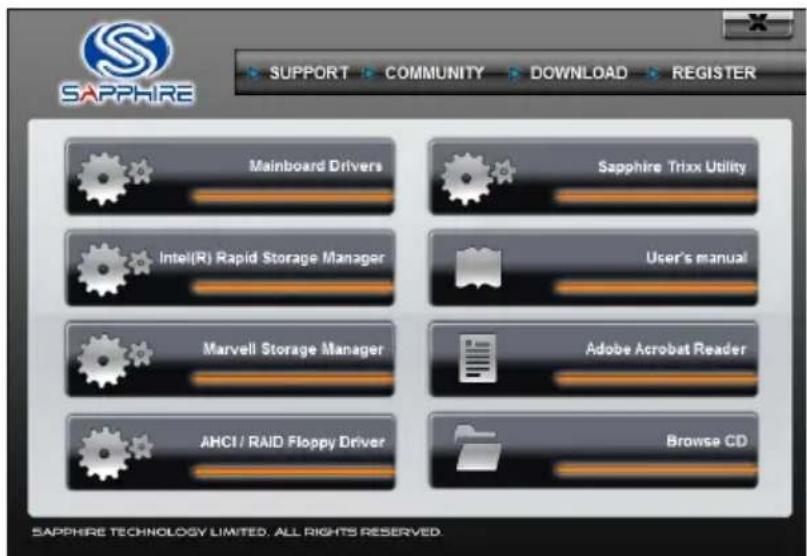
Insert the bundled driver CD into your optical drive and the main menu will be displayed on your PC screen. Click each item button and select the item you want to install.
4-2 TRIXX Utility
TRIXX is a simple and easy-to-use utility that allows users to adjust system settings for overclocking in a Windows environment. The TRIXX utility includes three configurations for frequency, voltage and hardware monitoring. To install TRIXX Utility, run it from the Sapphire Utility page from the bundled DVD. A TRIXX Utility shortcut will be created on the Desktop.  \* Actual adjustment options will be different with the picture4-3 Hardware monitor gadget
This Hardware monitor gadget directly appears in windows screen after TriXX installation is completed. It can be used to help keep track of temperatures of CPU, System and fan speed of CPU, System and voltages of CPU, System. 4-4 S\_BIOS Flash Utility
This mainboard provides a BIOS update tool. The S\_BIOS allows you to update the system BIOS without having to enter MS-DOS or Windows environment. Embedded in the BIOS, the S\_BIOS is simple and easy-to-use utility to flash BIOS. Note: To Flash Secondary BIOS, need to change the BIOS select switch position. Please refer to "2-11 Dual BIOS Switch" section on page 23 for details. Refer to the following steps for S\_BIOS Flash.Setp1:
Enter BIOS setup screen, select "S\_BIOS Flash Utility" item from "Exit" tab. Setp2:
The S-BIOS flash utility allows you to: - Update BIOS form Drive (please refer to setp3) - Save BIOS to Drive (please refer to setp6) Setp3:
To Update BIOS form Drive, select the BIOS update file and pressSetp4:
The update BIOS processing screen appears. Setp5:
The BIOS update is completed. Please press any key to restart the system. Setp6:
Save BIOS to Drive, allows you to save the current BIOS file. If the BIOS file stored in USB device, please must first insert USB device before turning on the system. Setp7:
To Save BIOS to Drive, Select the stored location and pressSetp8:
After saving BIOS file is completed. SelectChapter 5 POST Code
This chapter provides the Aptio POST Codes List for the mainboard during the BIOS pre-boot process. The POST Codes are displayed on the Debug LED readout located directly onboard the mainboard. Please refer to following "boot phases", which may apply to various status code & checkpoint descriptions: ◆ Security (SEC) – initial low-level initialization ◆ Pre-EFI Initialization (PEI) – memory initialization ◆ Driver Execution Environment (DXE) – main hardware initialization \- Boot Device Selection (BDS) – system setup, pre-OS user interface & selecting a bootable device (CD/DVD, HDD, USB, Network, Shell...) Checkpoint Ranges| Status Code Range Description |
| 01 – 0B SEC execution |
| 0C – 0F SEC errors |
| 10 – 2F PEI execution up to and including memory detection |
| 30 – 4F PEI execution after memory detection |
| 50 – 5F PEI errors |
| 60 – 8F DXE execution up to BDS |
| 90 – CF BDS execution |
| D0 – DF DXE errors |
| E0 – E8 S3 Resume (PEI) |
| E9 – EF S3 Resume errors (PEI) |
| F0 – F8 Recovery (PEI) |
| F9 – FF Recovery errors (PEI) |
Standard Checkpoints
♦ SEC Phase| Status Code | Description |
| 00 | Not used |
| Progress Codes | |
| 01 Power | on. Reset type detection (soft/hard). |
| 02 AP | initialization before microcode loading |
| 03 North | Bridge initialization before microcode loading |
| 04 South | Bridge initialization before microcode loading |
| 05 OEM | initialization before microcode loading |
| 06 | Microcode loading |
| 07 AP initialization after microcode loading | |
| 08 North | Bridge initialization after microcode loading |
| 09 South | Bridge initialization after microcode loading |
| OA OEM | initialization after microcode loading |
| OB | Cache initialization |
| SEC Error Codes | |
| OC – 0D Reserved for future AMI SEC error codes | |
| OE | Microcode not found |
| OF Microcode not loaded | |
| Status Code | Description |
| Progress Codes | |
| 10 | PEI Core is started |
| 11 | Pre-memory CPU initialization is started |
| 12-14 | Pre-memory CPU initialization (CPU module specific) |
| 15 | Pre-memory North Bridge initialization is started |
| 16 | Pre-Memory North Bridge initialization (North Bridge module specific) |
| 17 | Pre-Memory North Bridge initialization (North Bridge module specific) |
| 18 | Pre-Memory North Bridge initialization (North Bridge module specific) |
| 19 | Pre-memory South Bridge initialization is started |
| 1A | Pre-memory South Bridge initialization (South Bridge module specific) |
| 1B | Pre-memory South Bridge initialization (South Bridge module specific) |
| 1C | Pre-memory South Bridge initialization (South Bridge module specific) |
| 1D-2A | OEM pre-memory initialization codes |
| 2B | Memory initialization. Serial Presence Detect (SPD) data reading |
| 2C | Memory initialization. Memory presence detection |
| 2D | Memory initialization. Programming memory timing information |
| 2E | Memory initialization. Configuring memory |
| 2F | Memory initialization (other). |
| 30 | Reserved for ASL (see ASL Status Codes section below) |
| 31 | Memory Installed |
| 32 | CPU post-memory initialization is started |
| 33 | CPU post-memory initialization. Cache initialization |
| 34 | CPU post-memory initialization. Application Processor(s) (AP) initialization |
| 35 | CPU post-memory initialization. Boot Strap Processor (BSP) selection |
| 36 | CPU post-memory initialization. System Management Mode (SMM) initialization |
| 37 | Post-Memory North Bridge initialization is started |
| 38 | Post-Memory North Bridge initialization (North Bridge module specific) |
| 39 | Post-Memory North Bridge initialization (North Bridge module specific) |
| 3A | Post-Memory North Bridge initialization (North Bridge module specific) |
| 3B | Post-Memory South Bridge initialization is started |
| 3C Post-Memory South Bridge initialization (South Bridge module specific) | |
| 3D Post-Memory South Bridge initialization (South Bridge module specific) | |
| 3E Post-Memory South Bridge initialization (South Bridge module specific) | |
| 3F-4E OEM post memory initialization codes | |
| 4F DXE IPL is started | |
| PEI Error Codes | |
| 50 Memory initialization error. Invalid memory type or incompatible memory speed | |
| 51 Memory initialization error. SPD reading has failed | |
| 52 Memory initialization error. Invalid memory size or memory modules do not match. | |
| 53 Memory initialization error. No usable memory detected | |
| 54 Unspecified memory initialization error. | |
| 55 Memory not installed | |
| 56 Invalid CPU type or Speed | |
| 57 CPU mismatch | |
| 58 CPU self test failed or possible CPU cache error | |
| 59 CPU micro-code is not found or micro-code update is failed | |
| 5A Internal CPU error | |
| 5B reset PPI is not available | |
| 5C-5F Reserved for future AMI error codes | |
| S3 Resume Progress Codes | |
| E0 S3 Resume is stared (S3 Resume PPI is called by the DXE IPL) | |
| E1 S3 Boot Script execution | |
| E2 Video repost | |
| E3 OS S3 wake vector call | |
| E4-E7 Reserved for future AMI progress codes | |
| S3 Resume Error Codes | |
| E8 S3 Resume Failed | |
| E9 S3 Resume PPI not Found | |
| EA S3 Resume Boot Script Error | |
| EB S3 OS Wake Error | |
| EC-EF Reserved for future AMI error codes | |
| Recovery Progress Codes | |
| F0 Recovery condition triggered by firmware (Auto recovery) | |
| F1 Recovery condition triggered by user (Forced recovery) | |
| F2 Recovery process started | |
| F3 Recovery firmware image is found | |
| F4 Recovery firmware image is loaded | |
| F5-F7 Reserved for future AMI progress codes | |
| Recovery Error Codes | |
| F8 Recovery PPI is not available | |
| F9 Recovery capsule is not found | |
| FA Invalid recovery capsule | |
| FB - FF Reserved for future AMI error codes | |
| Status Code | Description |
| 60 DXE Core is started | |
| 61 | NVRAM initialization |
| 62 Installation of the South Bridge Runtime Services | |
| 63 CPU DXE initialization is started | |
| 64 CPU DXE initialization (CPU module specific) | |
| 65 CPU DXE initialization (CPU module specific) | |
| 66 CPU DXE initialization (CPU module specific) | |
| 67 CPU DXE initialization (CPU module specific) | |
| 68 PCI host bridge initialization | |
| 69 North Bridge DXE initialization is started | |
| 6A North Bridge DXE SMM initialization is started | |
| 6B North Bridge DXE initialization (North Bridge module specific) | |
| 6C North Bridge DXE initialization (North Bridge module specific) | |
| 6D North Bridge DXE initialization (North Bridge module specific) | |
| 6E North Bridge DXE initialization (North Bridge module specific) | |
| 6F North Bridge DXE initialization (North Bridge module specific) | |
| 70 South Bridge DXE initialization is started | |
| 71 South Bridge DXE SMM initialization is started | |
| 72 South Bridge devices initialization | |
| 73 South Bridge DXE Initialization (South Bridge module specific) | |
| 74 South Bridge DXE Initialization (South Bridge module specific) | |
| 75 South Bridge DXE Initialization (South Bridge module specific) | |
| 76 South Bridge DXE Initialization (South Bridge module specific) | |
| 77 South Bridge DXE Initialization (South Bridge module specific) | |
| 78 ACPI module initialization | |
| 79 CSM initialization | |
| 7A - 7F Reserved for future AMI DXE codes | |
| 80 - 8F OEM DXE initialization codes | |
| 90 Boot Device Selection (BDS) phase is started | |
| 91 Driver connecting is started | |
| 92 PCI Bus initialization is started | |
| 93 PCI Bus Hot Plug Controller Initialization | |
| 94 PCI Bus Enumeration | |
| 95 PCI Bus Request Resources | |
| 96 PCI Bus Assign Resources | |
| 97 Console Output devices connect | |
| 98 Console input devices connect | |
| 99 Super IO Initialization | |
| 9A USB initialization is started | |
| 9B USB Reset | |
| 9C USB Detect | |
| 9D USB Enable | |
| 9E - 9F Reserved for future AMI codes | |
| A0 IDE initialization is started | |
| A1 | IDE Reset |
| A2 | IDE Detect |
| A3 | IDE Enable |
| A4 SCSI initialization is started | |
| A5 | SCSI Reset |
| A6 | SCSI Detect |
| A7 | SCSI Enable |
| A8 | Setup Verifying Password |
| A9 Start of Setup | |
| AA Reserved for ASL (see ASL Status Codes section below) | |
| AB Setup Input Wait | |
| AC Reserved for ASL (see ASL Status Codes section below) | |
| AD Ready To Boot event | |
| AE | Legacy Boot event |
| AF Exit Boot Services event | |
| B0 Runtime Set Virtual Address MAP Begin | |
| B1 Runtime Set Virtual Address MAP End | |
| B2 Legacy Option ROM Initialization | |
| B3 | System Reset |
| B4 | USB hot plug |
| B5 PCI bus hot plug | |
| B6 | Clean-up of NVRAM |
| B7 Configuration Reset (reset of NVRAM settings) | |
| B8 - BF Reserved for future AMI codes | |
| C0 - CF OEM BDS initialization codes | |
| DXE Error Codes | |
| D0 | CPU initialization error |
| D1 North Bridge initialization error | |
| D2 | South Bridge initialization error |
| D3 Some of the Architectural Protocols are not available | |
| D4 PCI resource allocation error. Out of Resources | |
| D5 No Space for Legacy Option ROM | |
| D6 No Console Output Devices are found | |
| D7 No Console Input Devices are found | |
| D8 | Invalid password |
| D9 Error loading Boot Option (Load Image returned error) | |
| DA Boot Option is failed (Start Image returned error) | |
| DB Flash update is failed | |
| DC Reset protocol is not available | |