SNMP NMC Card - Network card / adapter BlueWalker - Free user manual and instructions
Find the device manual for free SNMP NMC Card BlueWalker in PDF.


| Product Type | SNMP Network Management Card |
| Brand | BlueWalker |
| Model | SNMP NMC Card |
| Dimensions (L x W x H) | 100 x 70 x 20 mm |
| Weight | 150 g |
| Power Supply | 5V DC via USB or PoE (IEEE 802.3af) |
| Power Consumption | 2.5 W max |
| Network Interface | 10/100/1000 Mbps RJ-45 Ethernet |
| Management Protocols | SNMP v1/v2c/v3, HTTP/HTTPS, Telnet/SSH, DHCP |
| Compatibility | BlueWalker UPS systems and third-party SNMP devices |
| LED Indicators | Power, Link/Activity, Status |
| Operating Temperature | 0°C to 40°C |
| Humidity Range | 10% to 90% non-condensing |
| Software Features | Web-based management, email alerts, event logging, remote shutdown |
| Included Accessories | RJ-45 Ethernet cable, quick start guide, installation CD |
| Warranty | 2 years |
Frequently Asked Questions - SNMP NMC Card BlueWalker
User questions about SNMP NMC Card BlueWalker
0 question about this device. Answer the ones you know or ask your own.
Ask a new question about this device
Download the instructions for your Network card / adapter in PDF format for free! Find your manual SNMP NMC Card - BlueWalker and take your electronic device back in hand. On this page are published all the documents necessary for the use of your device. SNMP NMC Card by BlueWalker.
USER MANUAL SNMP NMC Card BlueWalker
Network Management Card
User Manual
Network Management Card
Contents
Contents 2
Chapter 1 Overview 3
1.1 NMC package contents 4
1.2 NMC CD Resources 4
1.3 Features 4
1.4 NMC Applications 5
Chapter 2 NMC parameters setting via serial COM port \_\_\_\_ 6
2.1 Configure NMC via serial COM port 6
Chapter 3 NMC&UPS management via web browser 10
3.1 NMC Parameters setting via web browser 10
3.1.1 NMC System menu 10
3.1.2 Date and Time menu 10
3.1.3 Email Notification menu 11
3.1.4 SNMP TRAP Receivers menu 12
3.1.5 Firmware Upload menu 13
3.1.6 File Management menu 13
3.1.7 System Log menu 13
3.1.8 Reboot system menu 14
3.2 UPS monitoring via web browser 15
3.2.1 UPS Status menu 15
3.2.2 UPS Alarm menu 15
3.2.3 UPS Parameters menu 15
3.2.4 UPS Powered Devices Menu 16
3.2.5 UPS Identification menu 16
3.2.6 UPS Log menu 17
3.2.7 Event Log menu 17
3.3 UPS control via web browser 18
3.3.1 UPS Battery Test menu 18
3.3.2 UPS Battery Test Schedule menu 19
3.3.3 UPS Control menu 19
3.3.4 UPS Shutdown Schedule menu 20
3.3.5 UPS Shutdown menu 20
3.3.6 UPS Configuration menu 21
Chapter 4 NMC & UPS management via SNMP 23
Chapter 5 NMC Utility - Find NMC in the LAN 24
Network Management Card
Chapter 1 Overview
NMC (Network Management Card) can receive the status information of UPS, and also can send commands to control UPS. User can manage UPS with NMC via web browser or via network management software which supports SNMP protocol.
Once UPS output is abnormal or other events are touched off, NMC will protect server or client operating system being shut down safely by working with system protect software (SPS) that can be installed on various operating system. The conditions include: UPS output abnormal, UPS battery low, UPS overload, over temperature, schedule shutdown, etc. User can set the condition, once the event is touched off, NMC will inform SPS of the event and SPS will shut down operating system safely according to the setting of SPS.
Note: NMC is short for Network Management Card in the following description.
Network Management Card
1.1 NMC package contents
- NMC with mounting bracket, packaged with ESD bag.
- RJ45 to DB9 converter cable.
- Quick Installation Guide.
- NMC CD-ROM.
1.2 NMC CD Resources
NMC CD-ROM contains NMC Utility, Quick Installation Guide, User Manual, MIB files, System Protect Software for various OS, and NMC firmware upgrade SOP.
- NMC Utility --- for searching NMC in LAN and linking to web of the card
- Quick Installation Guide --- for describing how to configure NMC
- User Manual --- for NMC function introduction and settings
- MIB files --- for SNMP monitoring use
- System Protect Software --- for protecting server or client operating system shutdown safely
- NMC firmware upgrade SOP --- for describing how to upgrade NMC firmware
1.3 Features
- UPS management by network connection through RJ45 connector
User can monitor UPS status and control UPS via web browser on the internet.
- UPS and NMC configuring via SNMP protocol
User can configure parameters of NMC and control UPS via SNMP protocol on a network management station.
• RTC function supporting
- Standard MIB (RFC1628.mib) and user-defined MIB (EPPC.mib)
• EMP (Environment Monitoring Probe) supporting
- SSL supporting
- Operating system shutdown safely
System Protect Software can protect server or client operating system shutdown safely.
- Redundant UPS input shutdown
If there is more than one UPS supply power to server, user can configure the redundant UPS input shutdown function of SPS (System Protect System), SPS will shut down server safely when the last one UPS can't supply power.
Network Management Card
1.4 NMC Applications
NMC is kind of SNMP (Simple Network Management Protocol) manager to communicate UPS via Ethernet, it provides access information and send commands for the UPS. NMC supports two communicating protocols which are SNMP and HTTP for application. Through NMS (Network Management Station) or web browser user can access UPS information via Ethernet directly, meanwhile user can manage both UPS and NMC parameters as well.
NMC provides an application program which named SPS (System Protect Software) for multi-servers shutdown purpose. The program provides shutdown function for different operating systems when shutdown events are appearing on UPS. Shutdown events are configurable by user. The shutdown software will proceed the automatic shutdown orderly to prevent the abnormal shut-off of the clients or servers.
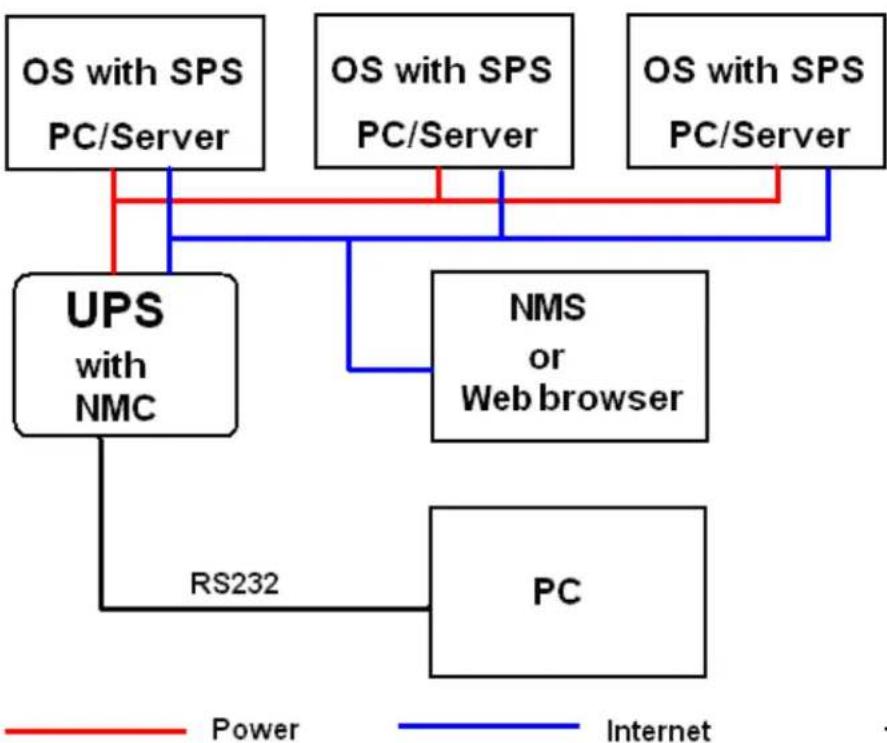
flowchart
graph TD
    A["OS with SPS\nPC/Server"] --> B["UPS\nwith NMC"]
    C["OS with SPS\nPC/Server"] --> B
    D["OS with SPS\nPC/Server"] --> B
    B --> E["NMS\nor\nWeb browser"]
    E --> F["RS232"]
    F --> G["PC"]
    style A fill:#f9f,stroke:#333
    style C fill:#f9f,stroke:#333
    style D fill:#f9f,stroke:#333
    style B fill:#ccf,stroke:#333
    style E fill:#cfc,stroke:#333
    style G fill:#fcc,stroke:#333
    linkStyle 0 stroke:#ff0000,stroke-width:2px
    linkStyle 1 stroke:#ff0000,stroke-width:2px
    linkStyle 2 stroke:#ff0000,stroke-width:2px
    linkStyle 3 stroke:#ff0000,stroke-width:2px
    linkStyle 4 stroke:#ff0000,stroke-width:2px
    linkStyle 5 stroke:#ff0000,stroke-width:2px
    linkStyle 6 stroke:#ff0000,stroke-width:2px
NMS — Network Management Station
SPS — System Protect Software
Network Management Card
Chapter 2 NMC parameters setting via serial COM port
There are two methods for NMC parameters setting: one is via serial COM port, the other is via web browser. It offers basic parameters setting through a serial COM port for NMC configuration such as IP Configuration, Pass Through, Reset Configuration to default, Restart and Password. In this section, it particularly introduces the parameters setting via serial COM port.
2.1 Configure NMC via serial COM port
- Prepare a computer (with Microsoft Windows XP or later version)
- Insert NMC into UPS's intelligent slot exactly.
- Tighten NMC with screw.
- Connect the serial port of computer with NMC via RJ45 to DB9 converter cable, the cable is supplied in NMC package.
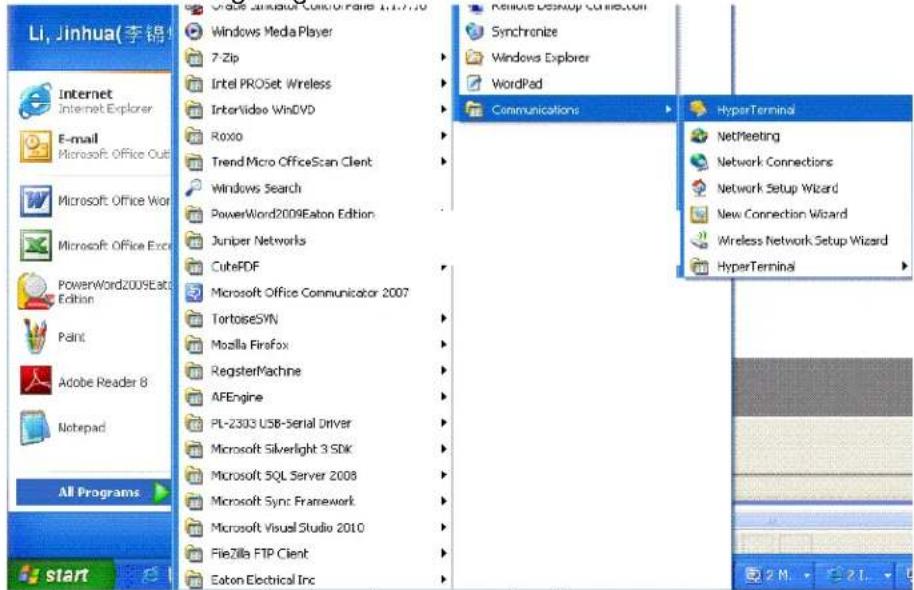
- On the computer with Microsoft Windows (XP or later version, supporting Hyper Terminal), select Hyper Terminal from start→all programs, refer to the following diagram.
text_image
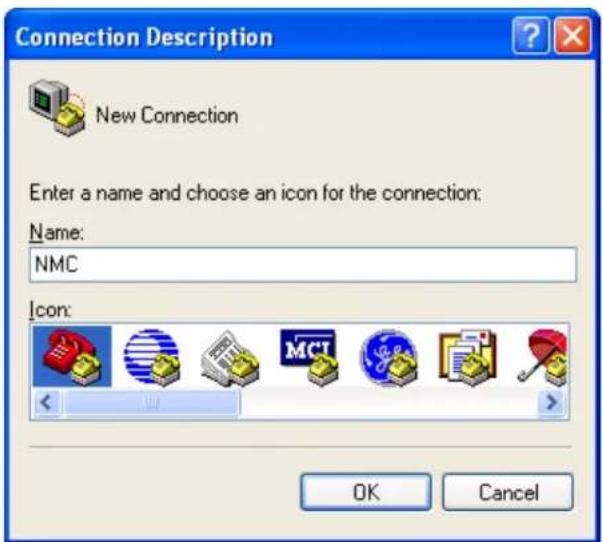
Li, Jinhua(李锦) Internet Internet Explorer E-mail Microsoft Office Out Microsoft Office Work Microsoft Office Exer PowerWord2009Eaton Edition PowerWord2009Eaton Edition Paint Adobe Reader 8 Notepad All Programs start Oracle Linkator Control Panel 1.1.7.7.0 Windows Media Player 7-Zip Intel PROSet Wireless InterVideo WindVD Roxxo Trend Micro OfficeScan Client Windows Search PowerWord2009Eaton Edition Juniper Networks CubePDF Microsoft Office Communicator 2007 TortoiseSYN Mozilla Firefox RegisterMachine AFEngine PL-2303 USB-Serial Driver Microsoft Silverlight 3 SDK Microsoft SQL Server 2008 Microsoft Sync Framework Microsoft Visual Studio 2010 FileZilla FTP Client Eaton Electrical Inc Remote Desktop Connect.com Synchronize Windows Explorer WordPad Communications HyperTerminal NetMeeting Network Connections Network Setup Wizard New Connection Wizard Wireless Network Setup Wizard HyperTerminal- Input a name and select the connection icon.
Network Management Card
text_image
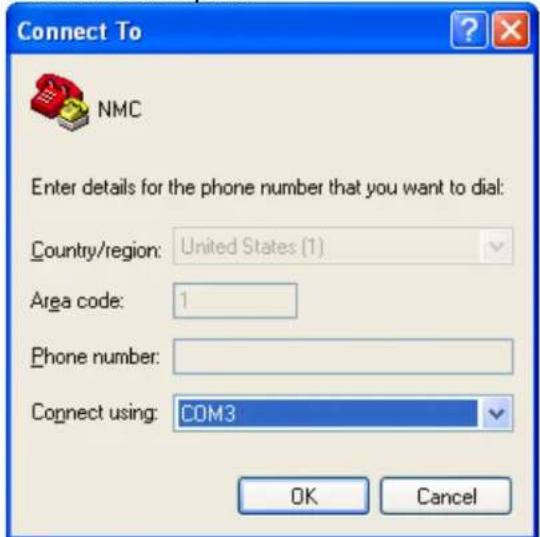
Connection Description New Connection Enter a name and choose an icon for the connection: Name: NMC Icon: OK Cancel- Select the correct connection port.
text_image
Connect To NMC Enter details for the phone number that you want to dial: Country/region: United States (1) Area code: 1 Phone number: Connect using: COM3 OK Cancel- Configure the parameters of the serial port: 9600 bps, 8 bits, None parity, 1 stop bit and None flow control.
Network Management Card
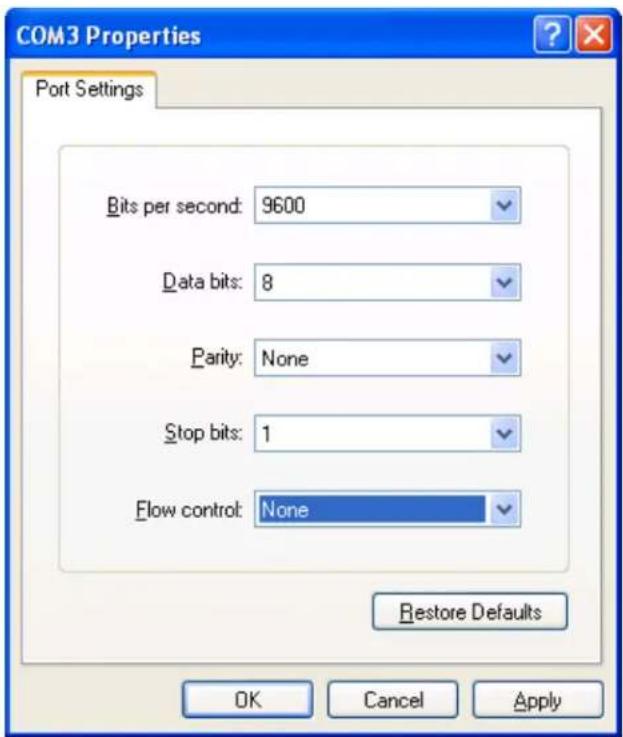
text_image
COM3 Properties Port Settings Bits per second: 9600 Data bits: 8 Parity: None Stop bits: 1 Flow control: None Restore Defaults OK Cancel Apply- Please turn on UPS and waiting NMC start successfully, there will be some information shown on the hyper terminal interface. Refer to the following diagram, input NMC password, the default password of NMC is password

text_image
NMC Version X.X.X.X Network Management Card Configure Menu Password:_- After inputting the NMC password, all main menus will be shown on the hyper terminal interface, refer to the following diagram.
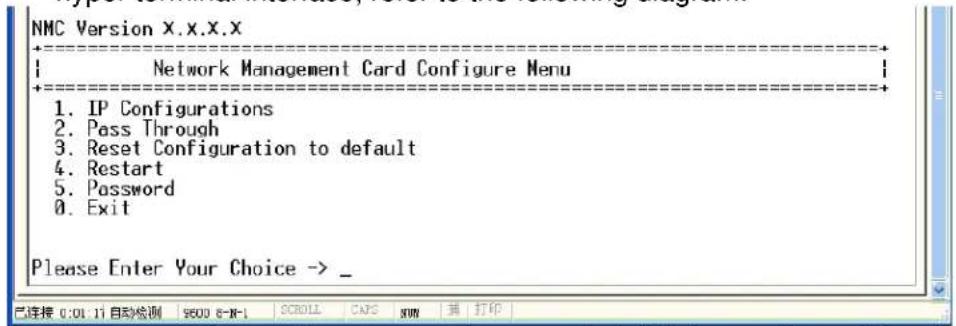
text_image
NMC Version X.X.X.X Network Management Card Configure Menu 1. IP Configurations 2. Pass Through 3. Reset Configuration to default 4. Restart 5. Password 0. Exit Please Enter Your Choice -> _- Basing on the main menus, please select "1" to configure IP address, gateway, subnet mask and DHCP, refer to the following diagram.
Network Management Card
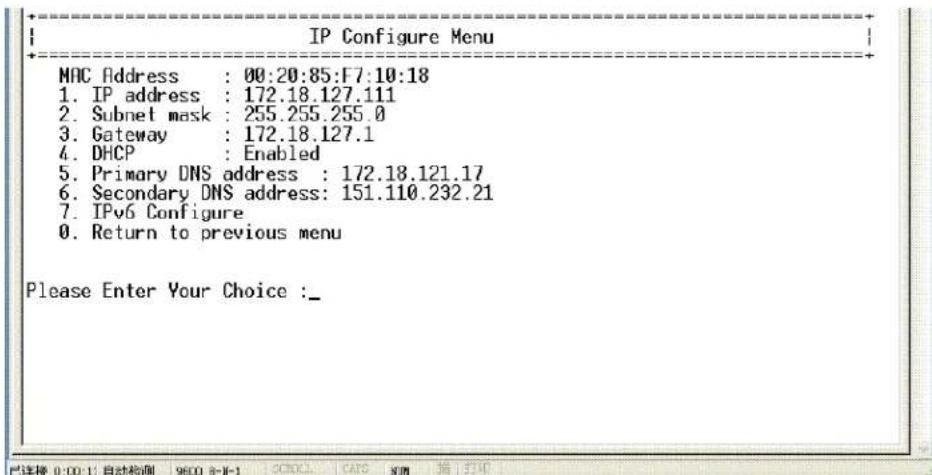
text_image
IP Configure Menu MAC Address : 00:20:85:F7:10:18 1. IP address : 172.18.127.111 2. Subnet mask : 255.255.255.0 3. Gateway : 172.18.127.1 4. DHCP : Enabled 5. Primary DNS address : 172.18.121.17 6. Secondary DNS address: 151.110.232.21 7. IPv6 Configure 0. Return to previous menu Please Enter Your Choice :_- Basing on the main menus, please select "2" to send command to UPS, the function is just for double checking UPS reply data correctly or not.
- Basing on the main menu, please select "3" to configure NMC parameters to default value.
- Basing on the main menus, please select "4" to restart NMC.
- Basing on the main menus, please select "5" to modify NMC password.
- Basing on the main menus, please select "0" to exit main menus
Chapter 3 NMC&UPS management via web browser
In this section, it particularly introduces how to configure NMC, manage UPS and monitor UPS parameters via web browser.
3.1 NMC Parameters setting via web browser
Please Note: Before implementing the NMC setting for all configuring parameters, user has to become NMC administrator first. While configure parameters for NMC via web browser, there will be a pop-up dialog to ask the name and password of NMC administrator. Only NMC password can be changed, regarding to change password by serial COM port, please refer to the item 15 of the section 2.1.
3.1.1 NMC System menu
NMC system menu can be accessed by Settings→NMC System. In this menu it offers configuring for DHCP function, default is enabled; NMC IP address; SNMP version; SMTP function; UPS description; UPS location; NMC web language change function and data log interval. Please refer to the following diagram 3.1.1.
Please Note: NMC must restart via Reboot System menu after changed IP address via web browser to make IP setting active immediately.
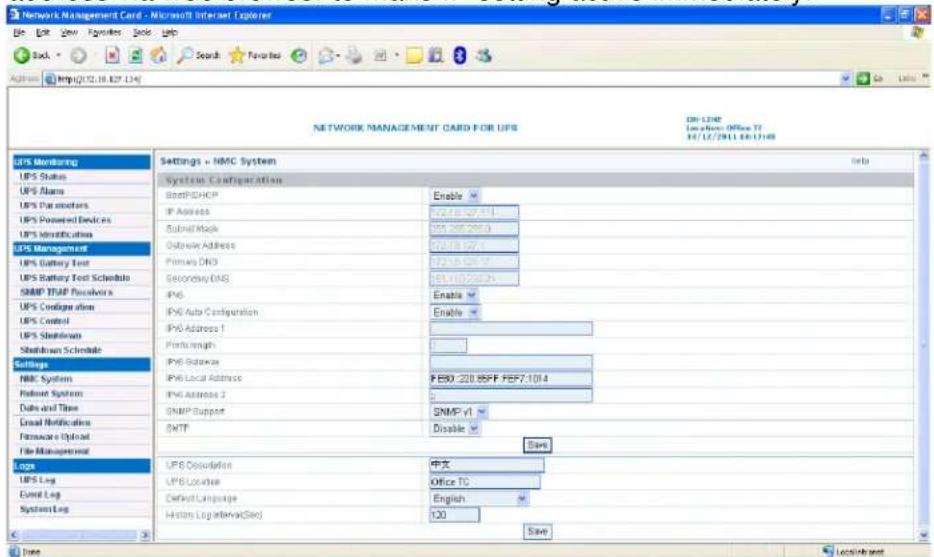
text_image
Network Management Card - Microsoft Internet Explorer File Edit View Favorites Save Help Back Search Favorites Help http://102.10.127.134 NETWORK MANAGEMENT CARD FOR UPS HCP-1242 Location: Office T: 01/12/2011.10.12.134 UPS Monitoring UPS Status UPS Alarm UPS Parameters UPS Powered Devices UPS Identification UPS Management UPS Battery Test UPS Battery Test Schedule SNMP TRAP Reservoirs UPS Configuration UPS Control UPS Shutdown Shutdown Schedule Settings HMC System Rohort System Data and Time Email Notifications Hardware Options File Management Lops UPS Log Event Log System Log Settings + HMC System System Configuration BootCHOP Enable IP Address 12.0.00.00.00.00.00.00.00.00.00.00.00.00.00.00.00.00.00.00.00.00.00.00.00.00.00.00.00.00.00.00.00.00.00.0 IP Address 12.0.00.00.00.00.00.00.00.00.00.00.00.00.00.00.00.00.00.00.00.0 Subunit Mask 85.266.266.266.266.266.266.266.266.266.266.266.266.266.266.266.266.266.266.266.266.266.266.2 Gateway Address 85.118.118.118.118.118.118.118.118.118.118.118.118.118.118.118.1 Primary DNO 85% 85% 85% 85% 85% 85% 85% 85% 85% 85% 85% 85% 85% 85% 85% 85% 85% 85% 85% 85% 85% 85% 85% 85% 85% 85% Secondary DAS 85% 85% 85% 85% 85% 85% 85% 85% 85% 85% 85% 85% 85% 85% 85% 85% 85% 85% IPG Enable IPG Auto Configuration Enable IPG Address 1 Portlength IPG Basecase IPG Local Address PBB-229,95PF PBB7,1014 IPG Address 2 SNMP Support SNMP V1 Disable Save SNTP Save UPS Consolidation 中文 UPS Location Office TC Default Language English History Log interval(Site) 133 Save Time Local/StartDiagram 3.1.1
3.1.2 Date and Time menu
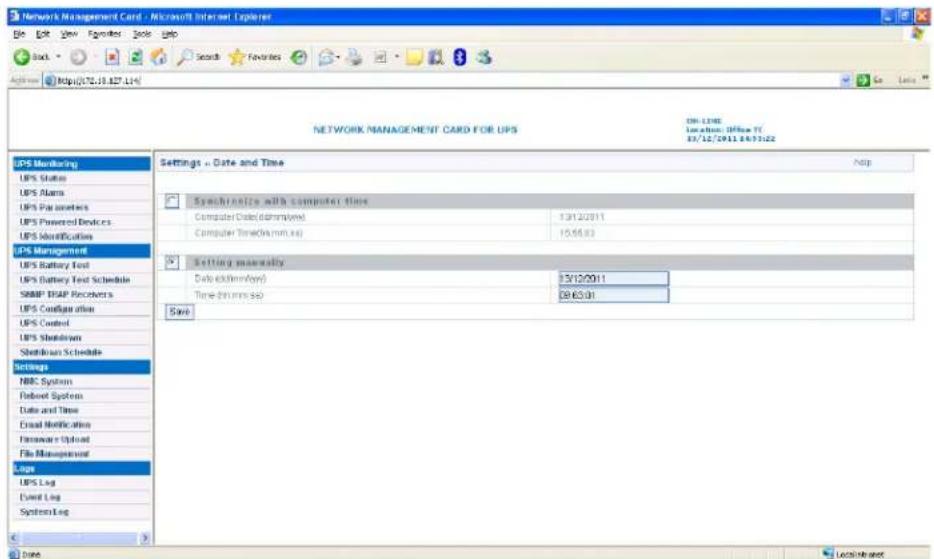
Date and Time menu can be accessed by Settings→Date and Time. There are two methods for configuring NMC date and time: one is configure the date and time of NMC same as user's computer, the other is inputting data and time manually. Please refer to the following diagram 3.1.2.
Network Management Card
text_image
NETWORK MANAGEMENT CARD FOR UPS DNS-LIME Location: Office TC 07/12/2011 04/31/2022 Settings - Date and Time Synchronize with computer time Computer Date(0thmm SE) 131/2011 Computer Time(0.5mm SE) 15:56:83 Setting metadata Date(0thmm SE) 12/12/2011 Time(0.5mm SE) 09:03:31 Save UPS Monitoring UPS Status UPS Name UPS Parameters UPS Powered Devices UPS Identification UPS Management UPS Battery Test UPS (Battery Test Schedule) SNMP T&P Recruiters UPS Configuration UPS Control UPS Standstill Shelftrain Schedule Settings NBC System Reboot System Date and Time Cnsual Notification Hardware Option File Management Loge UPS Log Event Log System Log DateDiagram 3.1.2
3.1.3 Email Notification menu
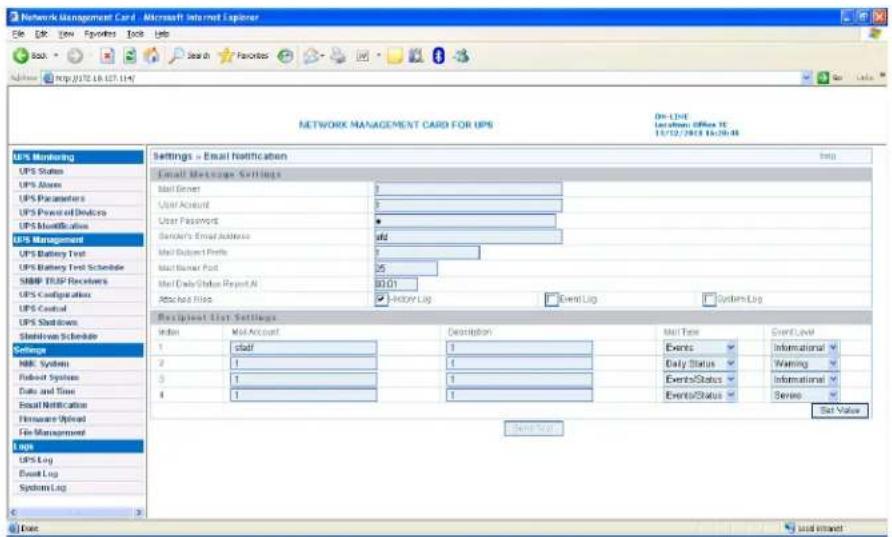
Email Notification menu can be accessed by Settings→ Email
Notification. NMC will send an Email to user when UPS event happens.
Email Message Setting, there are columns which Mail Server, User Account, User Password, Sender's Email address, Mail Subject Prefix, Mail Server Port, Mail Daily Report At and Attached File must be input according to what user wants to define.
Recipient List Settings, four Email receiver address can be configured at most; user can input description for each Email address. The functions of Mail Type and Event Level are as following.
Email Type:
- None: It means that NMC won't send any Email to the mail account when event happens on UPS.
- Events: It means that NMC will send an Email when to the mail account when event happens on UPS.
- Daily status: It means that NMC will send UPS daily logs reports to the mail account and the delivery time is configured by "Mail Daily Report At" column. Note: user is able to select History Log, Event Log and System Log report by tick Attached File column.
- Events/Status: It means that NMC will send an event report to the mail account when event happens on UPS and meanwhile NMC will send the daily logs reports as well.
Event Level:
- Information: It means that NMC will send an Email to the mail account once event happens on UPS.
- Warning: It means that NMC will send an Email to the mail account once warning event happens on UPS.
- Severe: It means that NMC will send an Email to the mail account once severe event happens on UPS.
Refer to the following diagram3.1.3.
Network Management Card
text_image
Network Management Card - Microsoft Internet Explorer File Edit View Favorites Tools Help http://www.16.127.114/ NETWORK MANAGEMENT CARD FOR UPS On: 1345 Used by: Office 16. 11/12/2018 16:20:48 UPS Monitoring UPS Status UPS Access UPS Parameters UPS Power of Devices UPS Modification UPS Management UPS Battery Test UPS Battery Test Schedule SMBP TRIP Receivables UPS Configuration UPS Control UPS Shutdowns Shenzhen Schedule Settings NBK System Pushout Systems Date and Time Email Notification Hardware Upload File Management UPS UPS Log Event Log System Log Settings > Email Notification Email Message Settings Mail Address Mail Account User Password Gender's Email Address Mail Subject Profile Mail Number Post Mail Date Status Report A Attached Risk Addy Log Event Log System Log Recipient List Settings Index Mail Account Description Mail Type Event Level 1 staff 1 Events International 2 1 Daily Status Warning 3 1 EventStatus International 4 1 EventStatus Server Send Text Set Value Date Local InvertDiagram 3.1.3
3.1.4 SNMP TRAP Receivers menu
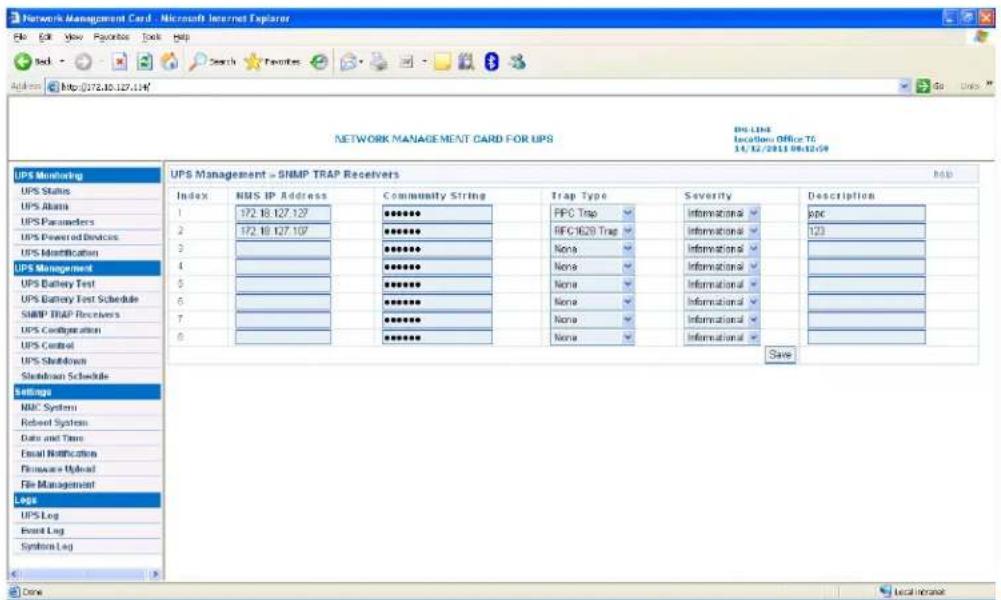
SNMP trap receivers menu can be assessed by UPS Management→SNMP TRAP Receivers. In this menu, the columns NMS IP address, Trap Type, Severity and Description are configured by user's demand. The default of Community Strings column is "public", and it can't change by anyone. Trap type support two trap types which are RFC1628 Trap and EPPC Trap.
Severity:
- Information: It means that NMC will send a trap message to the NMS IP address once event happens on UPS.
- Warning: It means that NMC will send a trap message to the NMS IP address once warning event happens on UPS.
- Severe: It means that NMC will send a trap message to the NMS IP address once severe event happens on UPS.
User can input description for each NMS IP address in description column.
Refer to the following diagram 3.1.4.
text_image
Network Management Card - Microsoft Internet Explorer File Edit View Favorites Tools Help Add to http://172.10.127.114/ Address http://172.10.127.114/ NETWORK MANAGEMENT CARD FOR UPS UPS LIST Location Office 76 14/12/2013 08:02:09 UPS Monitoring UPS States UPS Atlas UPS Parameters UPS Powered Devices UPS Identification UPS Management UPS Battery Test UPS Battery Test Schedule SNMP TRAP Receivers UPS Configuration UPS Control UPS Shutdown Shutdown Schedule Settings NBC System Rebeet System Date and Time Email Notification Browse Upload File Management LogS UPS Log Event Log System Log Date UPS Management = SNMP TRAP Receivers Index NMS IP Address Community String Trap Type Severity Description 1 172.18.127.127 PPC Trap Information spc 2 172.18.127.107 RFC-1629 Trap Information 123 3 ****** None Information 4 ****** None Information 5 ****** None Information 6 ****** None Information 7 ****** None Information 8 ****** None Information 9 ****** None Information 10 ****** None Information 11 ****** None Information 12 ****** None Information 13 ****** None Information 14 ****** None Information 15 ****** None Information 16 ****** None Information 17 ****** None Information 18 ****** None Information 19 ****** None Information 20 ****** None Information 21 ****** None Information 22 ****** None Information 23 ****** None Information 24 ****** None Information 25 ****** None Information 26 ****** None Information 27 ****** None Information 28 ****** None Information 29 ****** None Information 30 ****** None Information 31 ****** None Information 32 ****** None Information 33 ****** None Information 34 ****** None Information 35 ****** None Information 36 ****** None Information 37 ****** None Information 38 ****** None Information 39 ****** None Information 40 ****** None Information 41 ****** None Information 42 ****** None Information 43 ****** None Information 44 ****** None Information 45 ****** None Information 46 ****** None Information 47 ****** None Information 48 ****** None Information 49 ****** None Information 50 ****** None Information 51 ****** None Information 52 ****** None Information 53 ****** None Information 54 ****** None Information 55 ****** None Information 56 ****** None Information 57 ****** None Information 58 ****** None Information 59 ****** None Information 60 ****** None Information 61 ****** None Information 62 ****** None Information 63 ****** None Information 64 ****** None Information 65 ****** None Information 66 ****** None Information 67 ****** None Information 68 ****** None Information 69 ****** None Information 70 ****** None Information 71 ****** None Information 72 ****** None Information 73 ****** None Information 74 ****** None Information 75 ****** None Information 76 ****** None Information 77 ****** None Information 78 ****** None Information 79 ****** None Information 80 ****** None Information 81 ****** None Information 82 ****** None Information 83 ****** None Information 84 ****** None Information 85 ****** None Information 86 ****** None Information 87 ****** None Information 88 ****** None Information 89 ****** None Information 90 ****** None Information 91 ****** None Information 92 ****** None Information 93 ****** None Information 94 ****** None Information 95 ****** None Information 96 ****** None Information 97 ****** None Information 98 ****** None Information 99 ****** None Information 100 ****** SaveDiagram 3.1.4
3.1.5 Firmware Upload menu
Firmware upload menu can be accessed by Settings→Firmware Upload. This menu offers upload NMC firmware via web browser. When user is going to upload NMC firmware, user has to become administrator of NMC first. The default name is "root", and the default password is "password" for login as administrator. Regarding upload NMC firmware procedure, please refer to the file NMC Firmware Upgrade SOP.pdf for detail information.
3.1.6 File Management menu
NMC file management menu can be accessed by Settings→File Management. The function of this menu is uploading files for the same configuration for different NMC. Only confsnmp.cfg (about NMC parameters) and confups.cfg (about UPS parameters set by NMC) these two files are available for application. After uploaded files NMC has to reboot immediately to make new configuration active. Regarding to reboot NMC system via web browser, please refer to section 3.1.8 and for reboot NMC system via serial COM port, please refer to item 14 in section 2.1. Furthermore it also can reboot NMC system manually by pull-out and push-in NMC from the Intelligent slot of UPS.
Note: Once .cfg file is deleted, and then reboots NMC system. The configuration of NMC system and UPS will be back to the default setting.
If user would like to save .cfg and .csv file on local computer, it can be achieved by click the file name directly.
3.1.7 System Log menu
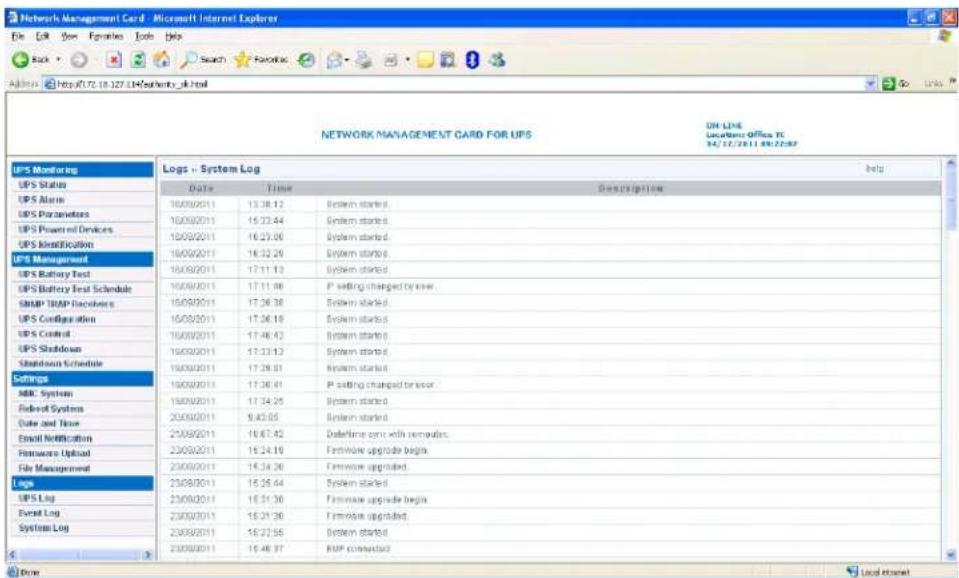
NMC system log menu can be accessed by Logs→System Log. The menu allows user to view NMC system logs. Please refer to diagram 3.1.7.
Network Management Card
text_image
Network Management Card - Microsoft Internet Explorer File Edit View Favorites Tools Help Back Search Favorites Address https://www.10.127.14/Healthcare.uk.html NETWORK MANAGEMENT CARD FOR UPS ON LIME Location: Office 16 14/12/2011 09:25:07 UPS Monitoring UPS Status UPS Alarm UPS Parameters UPS Powered Devices UPS Monitoring UPS Management UPS Battery Test UPS Battery Test Schedule SNMP DBP Deliveries UPS Configuration UPS Control UPS Shutdown Shutdown Schedule Settings MBC System Redund Systems Date and Time Email Notification Hardware Upload File Management Logs UPS Log Event Log Systems Log Logs -- System Log Date Time Description 16/09/2011 13:38:12 System started. 16/09/2011 15:23:44 System started. 16/09/2011 16:23:06 System started. 16/09/2011 16:22:26 System started. 16/09/2011 17:11:13 System started. 16/09/2011 17:11:06 P setting changed by user. 16/09/2011 17:26:38 System started. 16/09/2011 17:26:18 System started. 16/09/2011 17:46:42 System started. 16/09/2011 17:23:12 System started. 16/09/2011 17:28:01 System started. 16/09/2011 17:26:41 P setting changed behavior. 16/09/2011 17:34:25 System started. 20/09/2011 9:45:05 System started. 21/09/2011 16:67:42 Dataframe sync with computers. 22/09/2011 15:24:16 Firmware upgrade begin. 23/09/2011 15:34:26 Firmware upgraded. 23/09/2011 15:25:44 System started. 23/09/2011 15:31:36 Firmware upgrade begin. 23/09/2011 15:31:36 Firmware upgraded. 23/09/2011 15:22:55 System started. 23/09/2011 15:48:37 RHP connected Done Local InterestDiagram 3.1.7
3.1.8 Reboot system menu
NMC reboot system menu can be accessed by Setting→Reboot System. The menu offers a function for user to reboot NMC system if it is necessary. When user is going to reboot NMC system, user has to become administrator of NMC first. The default name is "root" and the default password is "password" for login as administrator.
3.2 UPS monitoring via web browser
3.2.1 UPS Status menu
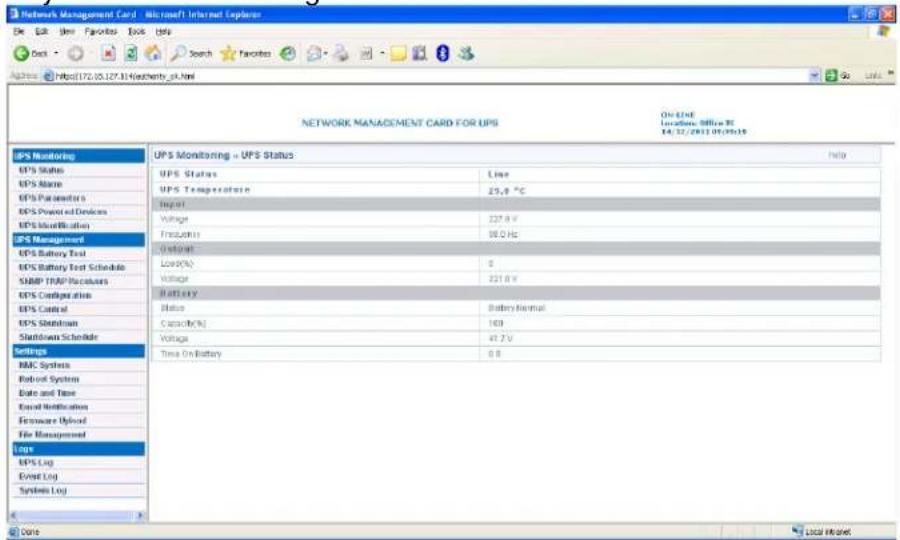
UPS status menu can be accessed by UPS Monitoring→UPS Status. User can view real-time operating status of the UPS from the web page directly. Please refer to diagram 3.2.1.
text_image
Network Management Card - Microsoft Internet Explorer De Edit View Favorites Tools Help Address https://172.05.127.31/authentry.pl.html NETWORK MANAGEMENT CARD FOR UPS On LINE Locations: Office 81 04/12/2013 05:09:19 UPS Monitoring = UPS Status UPS Status Line UPS Temperature 25.0 °C Input Voltage 227.0 V Frequency 58.0 Hz Output Load(%) 0 Voltage 221.0 V Battery Status Battery Normal Capacity (%) 169 Voltage 41.7 V Time On Battery 0.0 UPS Management Loge UPS Log Event Log Systems Log Core Local NetworkDiagram 3.2.1
3.2.2 UPS Alarm menu
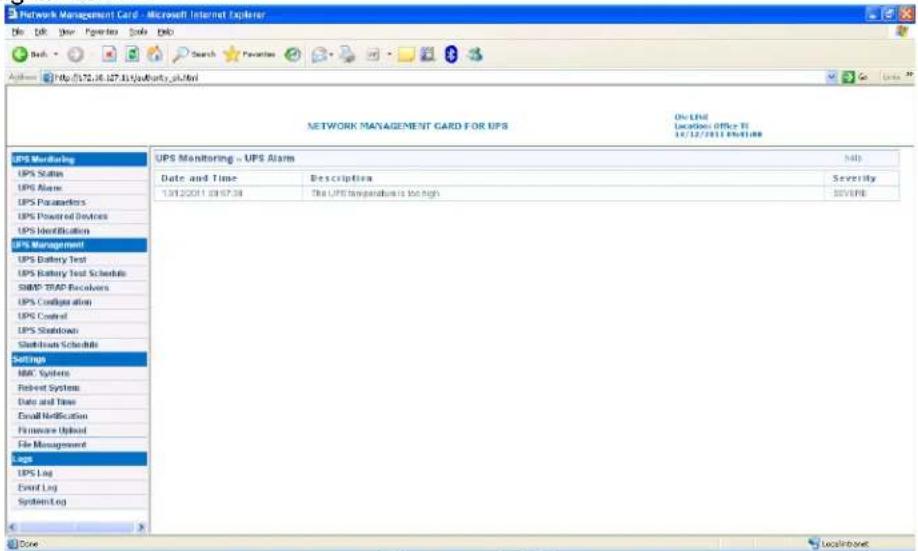
UPS Alarm menu can be accessed by UPS Monitoring→UPS Alarm. User can view the current warning of UPS on the interface. Please refer to diagram 3.2.2.
text_image
Network Management Card - Microsoft Internet Explorer File Edit View Favorites Tools Help Bench Search Favorites http://172.06.107.13/jauthority.pl.html NETWORK MANAGEMENT CARD FOR UPS On Line Location: Office 51 11/12/2011 09:51:00 UPS Monitoring - UPS Alarm Date and Time Descriptions Severity 13/12/2011 09:57:34 The UPS temperature is too high SEV/PE Settings MAC Systems Robert System Date and Time Email Notification Firmware Upload File Management Loga UPS Log Event Log System Log Done LocalInboxDiagram 3.2.2
3.2.3 UPS Parameters menu
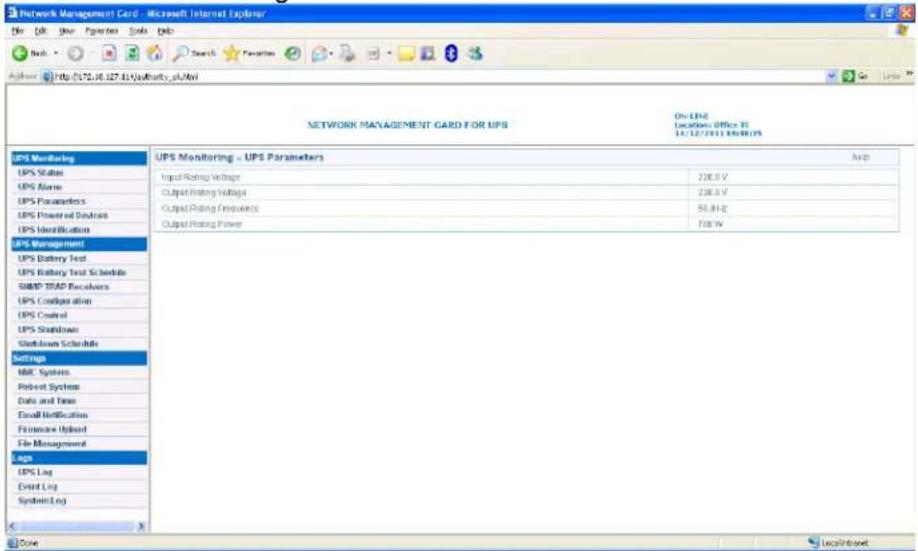
UPS Parameters menu can be accessed by UPS Monitoring→UPS Parameters. User can view the rating parameters of UPS on the interface. Such as rating output voltage, rating output frequency, rating output power,
different parameters shown on the interface is depended on different UPS type. Please refer to diagram 3.2.3.
text_image
Network Management Card - Microsoft Internet Explorer File Edit View Favorites Tools Help Back Search Favorites Address http://12.16.127.13/jauthority.pl/Arvi NETWORK MANAGEMENT CARD FOR UPS On LIME Location Office 11 11/12/2011 09:00:05 UPS Monitoring UPS Parameters Help Input Rating Voltage 200.0 V Output Rating Voltage 200.0 V Output Rating Frequency 50.0 Hz Output Rating Power 700.0 V UPS Monitoring UPS Parameters Help UPS Status UPS Active UPS Parameters UPS Powered Devices UPS Identification UPS Management UPS Battery Test UPS Battery Test Schedule SIMP TRAP Recovers UPS Configuration UPS Control UPS Shutdown Shutdown Schedule Settings MAC System Reboot System Data and Time Email Notification Firearm Update File Management LPS UPS Log Event Log System Log Done LocalInDbtDiagram 3.2.3
3.2.4 UPS Powered Devices Menu
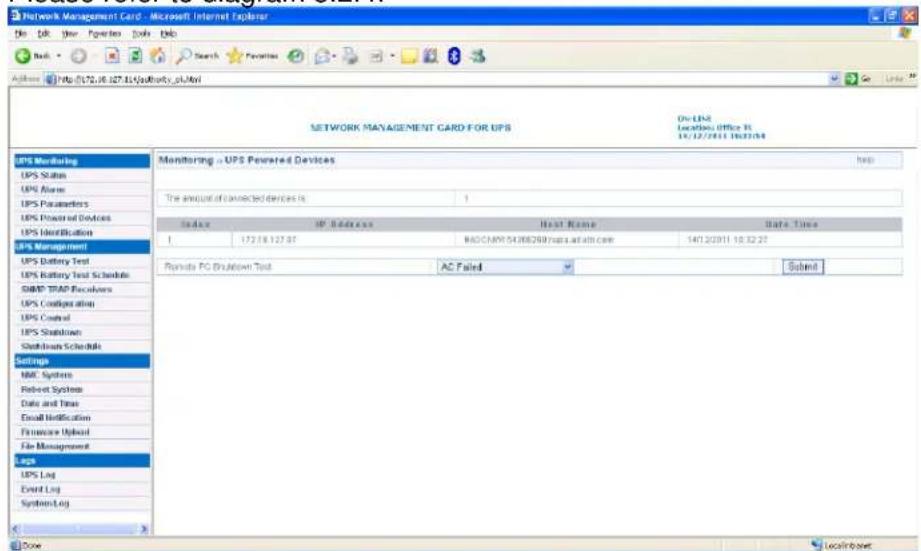
UPS Powered Devices menu can be accessed by UPS Monitoring→UPS Powered Devices. The table shows the amount of computers with SPS (System Protect Software) connected with NMC. Once UPS output is abnormal, NMC will send shutdown command to the computer with SPS, and computer will be shut down safely by SPS.
User can test remote computer with SPS shutdown function by configure test event.
Please refer to diagram 3.2.4.
text_image
Network Management Card - Microsoft Internet Explorer File Edit View Favorites Tools Help Back Search Favorites http://172.06.127.814/publicity.pl/Myi NETWORK MANAGEMENT CARD FOR UPS ON-LINE Locations Office 31 15/12/2011 18:37:54 UPS Monitoring UPS Status UPS Name UPS Parameters UPS Powered Devices UPS Identification UPS Management UPS Battery Test UPS Battery Test Schedule SNMP TRAP Recyclers UPS Configuration UPS Control UPS Shutdown Startbox Schedule Settings NMC Systems Robert System Date and Time Email Notification Finance Upload File Management Laps UPS Log Event Log System Log Dose LocalBoostDiagram 3.2.4
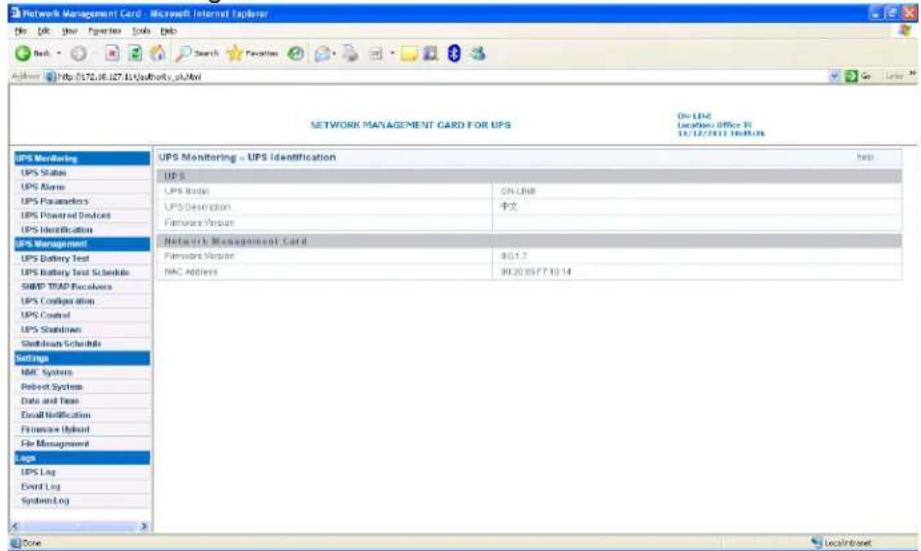
3.2.5 UPS Identification menu
UPS Identification menu can be accessed by UPS Monitoring→UPS Identification. There will be UPS type, UPS description (refer to section
3.1.1), UPS firmware version, NMC firmware version and MAC address. Please refer to diagram 3.2.5.
text_image
Network Management Card - Microsoft Internet Explorer File Edit View Insert Tools Help Back Search Favorites Address Http://172.06.127.85/MyWorkv3a1/01 NETWORK MANAGEMENT CARD FOR UPS On Line Location Office 11/12/2011 https:UPS UPS Monitoring UPS Status UPS Name UPS Parameters UPS Powered Devices UPS Identification UPS Management UPS Battery Test UPS Battery Test Schedule SNMP TRAP Recovers UPS Configuration UPS Control UPS Switchset Startload Schedule Settings MAC System Robert System Data and Data Email Notification Finance Alert File Management Laps UPS Log Event Log System Log UPS Monitoring - UPS Identification UPS UPS Model ON-LNR UPS Description 中文 Firmware Version Network Management Card Firmware Version 90.1.7 MAC Address 90.20 05/F7.10.14 Done LocalInvertDiagram 3.2.5
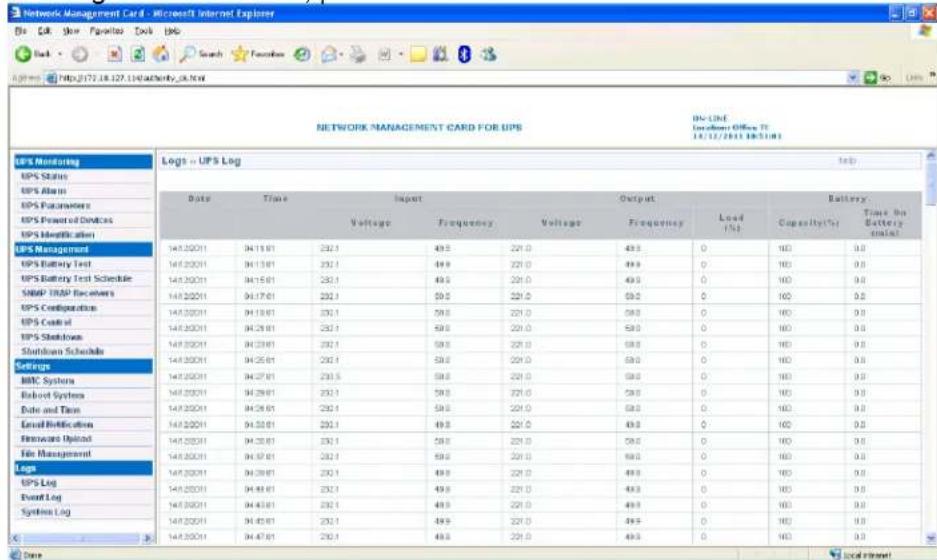
3.2.6 UPS Log menu
UPS Log menu can be accessed by Logs→UPS Log. There are two hundred latest data logs shown on the interface at most. Please refer to diagram 3.2.6. User can export upsdata.csv file to view more data logs from file management interface, please refer to section 3.1.6.
text_image
NETWORK MANAGEMENT CARD FOR UPS UPS Monitoring UPS Status UPS Alarm UPS Parameters UPS Power of Devices UPS Identification UPS Management UPS Battery Test UPS Battery Test Schedule SNAP TRAP Receivers UPS Configuration UPS Cash at UPS Shutdown Shutdown Schedule Settings MWC System Robert System Date and Time Email Notifications Hardware Update File Management Logs UPS Log Event Log System Log Data Logs = UPS Log Data Time Input Output Battery Voltage Frequency Voltage Frequency Load (%) Capacity(%) Time no Battery (ms) 148.2001 04.15.01 232.1 49.5 221.0 49.5 0 100 0.0 148.2001 04.15.01 232.1 49.5 221.0 49.5 0 100 0.0 148.2001 04.15.01 232.1 49.5 221.0 49.5 0 100 0.0Diagram 3.2.6
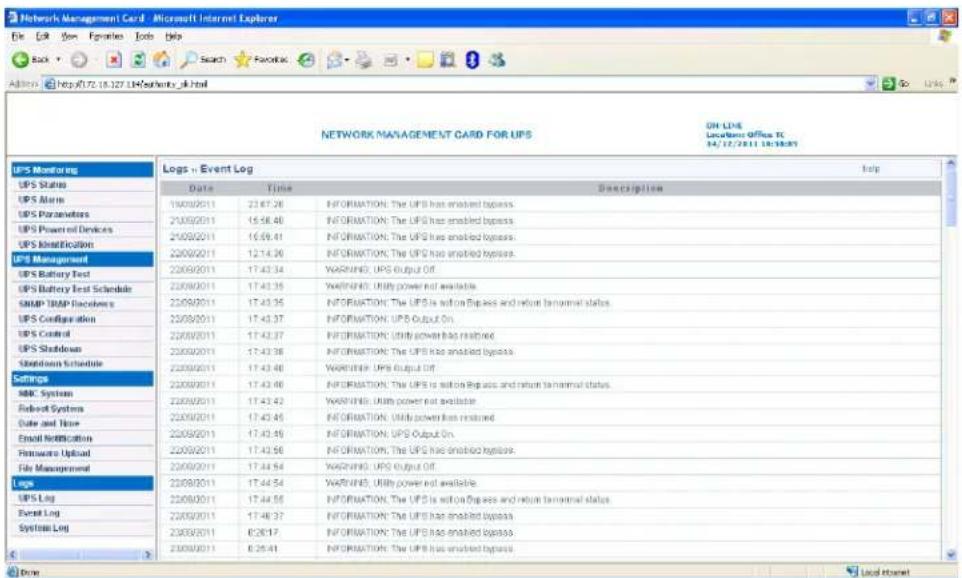
3.2.7 Event Log menu
Event Log menu can be accessed by Logs→Event Log. There are two hundred latest event logs shown on the interface at most. Please refer to diagram 3.2.7. User can export upsevent.csv file to view more event logs from file management interface, please refer to section 3.1.6.
Network Management Card
text_image
Network Management Card: Microsoft Internet Explorer File Edit View Favorites Tools Help Back Search Favorites Address https://0.72-18.327.14/Security_6.html NETWORK MANAGEMENT CARD FOR UPS ON UPS Location Office 16 04/12/2011 18:38:05Y UPS Monitoring UPS Status UPS Alarm UPS Parameters UPS Power of Devices UPS Identification UPS Management UPS Battery Test UPS Battery Test Schedule SNMP / DBP Recyclers UPS Configuration UPS Control UPS Shutdown Shutdown Schedule Settings MNC System Robust Systems Date and Time Email Notification Hardware Upload File Management logs UPS Log Event Log Systems Log Logs - Event Log Date Time Description 19/09/2011 23:47:26 INFORMATION: The UPS has enabled bypass. 21/09/2011 15:58:48 INFORMATION: The UPS has enabled bypass. 21/09/2011 15:59:41 INFORMATION: The UPS has enabled bypass. 22/09/2011 12:14:26 INFORMATION: The UPS has enabled bypass. 22/09/2011 17:43:34 WARNING: UPS Output Off. 22/09/2011 17:43:35 WARNING: Utility power not available. 22/09/2011 17:43:35 INFORMATION: The UPS is action bypass and return tanormal status. 22/09/2011 17:43:37 INFORMATION: UPS Output On. 22/09/2011 17:43:37 INFORMATION: Utility power not restored. 22/09/2011 17:43:38 INFORMATION: The UPS has enabled bypass. 22/09/2011 17:43:40 WARNING: UPS Output Off. 22/09/2011 17:43:40 INFORMATION: The UPS is action bypass and return tanormal status. 22/09/2011 17:43:43 WARNING: Utility power not available. 22/09/2011 17:43:45 INFORMATION: Utility power not restored. 22/09/2011 17:43:46 INFORMATION: UPS Output On. 22/09/2011 17:43:56 INFORMATION: The UPS has enabled bypass. 22/09/2011 17:44:54 WARNING: UPS Output Off. 22/09/2011 17:44:54 WARNING: Utility power not available. 22/09/2011 17:44:55 INFORMATION: The UPS is action bypass and return tanormal status. 22/09/2011 17:46:37 INFORMATION: The UPS has enabled bypass. 22/09/2011 0:26:17 INFORMATION: The UPS has enabled bypass. 22/09/2011 0:26:41 INFORMATION: The UPS has enabled bypass.Diagram 3.2.7
3.3 UPS control via web browser
Please Note: Before implementing the NMC setting for all configuring parameters, user has to become NMC administrator first. While configure parameters for NMC via web browser, there will be a pop-up dialog to ask the name and password of NMC administrator. Only NMC password can be changed, regarding to change password by serial COM port, please refer to the item 15 of the section 2.1.
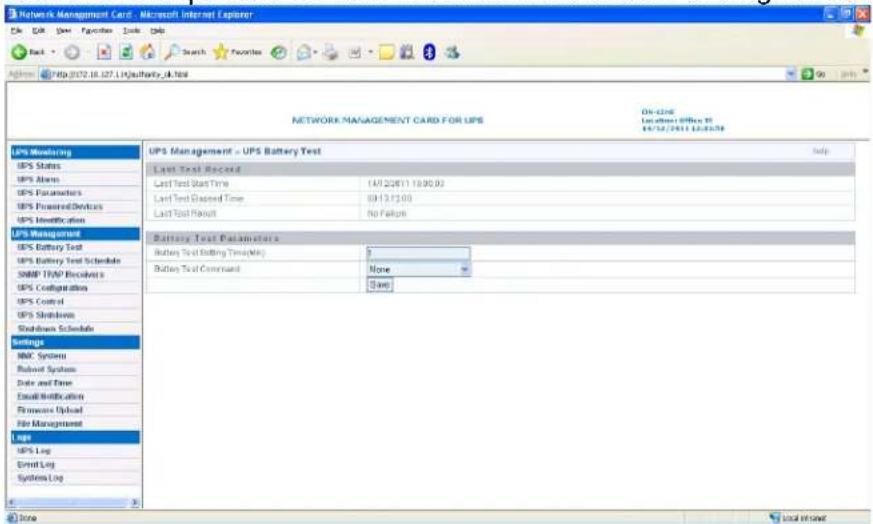
3.3.1 UPS Battery Test menu
UPS Battery Test menu can be accessed by UPS Management→UPS Battery Test. UPS battery latest test result and test time are shown on the interface. User can configure "Quick Battery Test", "Test Until Battery Low", "Timed Test", "Cancel Test" and "Clear Test Information". For some offline UPS, UPS can't support "Test Until Battery Low" and "Timed Test" function, the function is depended on UPS firmware. Please refer to diagram 3.3.1.
text_image
Network Management Card - Microsoft Internet Explorer File Edit View Favorites Tools Help Back Search Favorites Address: http://012.18.127.1.hj/safety_6k104 NETWORK MANAGEMENT CARD FOR UPS ON-2nd Locations Office 15 06/12/2011 12:09:09 UPS Monitoring UPS Status UPS Abame UPS Parameters UPS Powered Devices UPS Identification UPS Management UPS Battery Test UPS Battery Test Schedule SNMP TNP Received UPS Configuration UPS Control UPS Shutdown Shutdown Schedule Settings NMC Systems Routset System Date and Time Email Modification Fireworks Upload File Management Laps UPS Log Event Log Systems Log UPS Management Test Parameters Battery Test Setting Time(MK) Battery Test Command None SaveDiagram 3.3.1
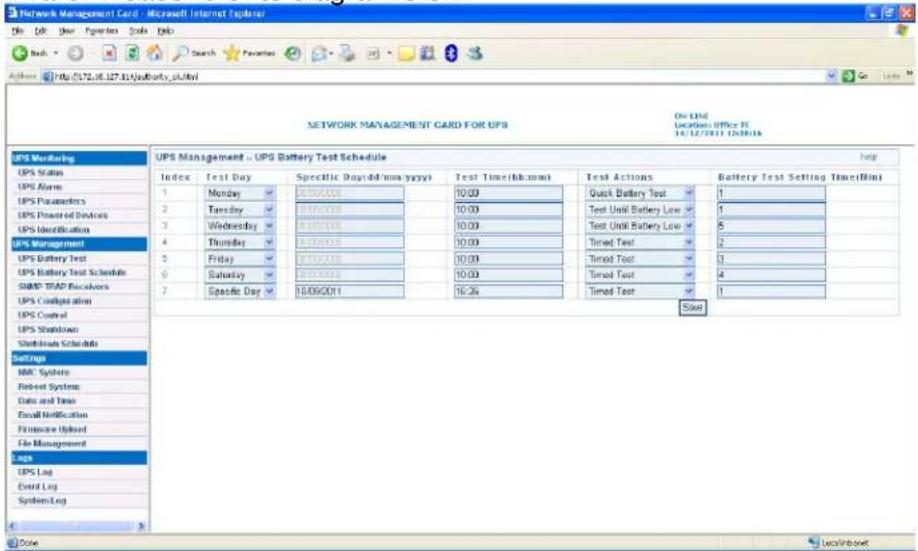
3.3.2 UPS Battery Test Schedule menu
UPS Battery Test Schedule menu can be accessed by UPS Management→UPS Battery Test Schedule. User can configure schedule test on specific day or weekly day. User can configure "Quick Battery Test", "Test Until Battery Low" and "Timed Test". "Battery Test setting Time" is for "Timed Test" function. For some offline UPS, UPS can't support "Test Until Battery Low" and "Timed Test" function, the function is depended on UPS firmware. Please refer to diagram 3.3.2.
text_image
Network Management Card - Microsoft Internet Explorer File Edit View Insert Tools Help Search Favorites Access http://12.06.127.15/Authority.pl.html NETWORK MANAGEMENT CARD FOR UPS On LIME Location: Office 14 14/12/2011 12/2018 UPS Modifying UPS Status UPS Name UPS Parameters UPS Powered Devices UPS Identification UPS Management UPS Battery Test UPS Battery Test Schedule SNMP TRAP Receivers UPS Configuration UPS Control UPS Shutdown Shutdown Schedule Settings MAC System Robust System Data and Time Email Notification Firearmware Upload File Management UPS UPS Log Event Log System Log UPS UPS Management - UPS Battery Test Schedule Index Test Day Specific Day(d4/min y/yy) Test Time(Nc:mm) Test Actions Battery Test Setting Time(min) 1 Monday 30:00:00 10:00 Quick Battery Test 1 2 Tuesday 30:00:00 10:00 Test Unit Battery Low 1 3 Wednesday 30:00:00 10:00 Test Unit Battery Low 5 4 Thursday 30:00:00 10:00 Timed Test 2 5 Friday 30:00:00 10:00 Timed Test 3 6 Saturday 30:00:00 10:00 Timed Test 4 7 Specific Day 10/09/2011 16:36 Timed Test 1 Slow Date LocalInboxtDiagram 3.3.2
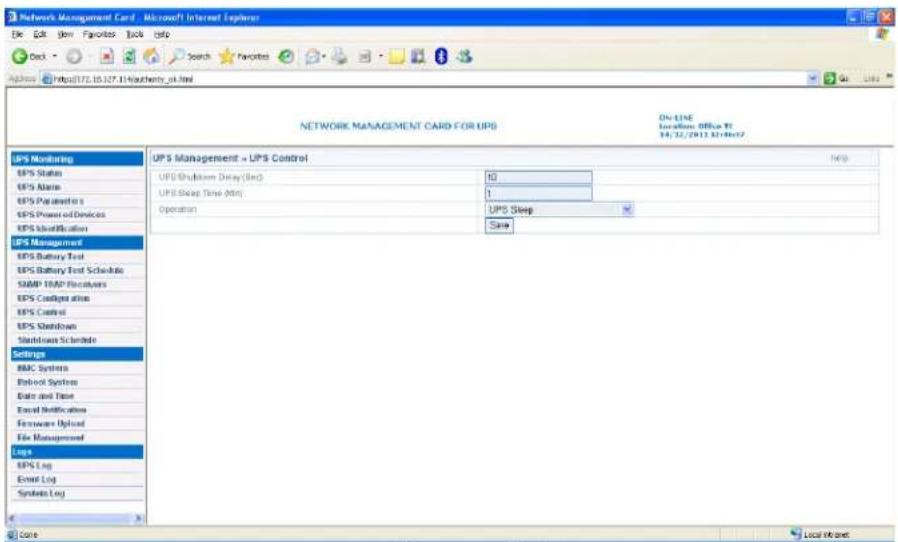
3.3.3 UPS Control menu
UPS Control menu can be accessed by UPS Management→UPS Control. User can control UPS output on or off on the interface, please refer to diagram 3.3.3.
When selecting "UPS turn off" item, NMC will send shutdown command to UPS, UPS will shut down output once the delay time has run out. When selecting "UPS Sleep" item, NMC will send shutdown command to UPS, UPS will shut down output once the delay time has run out, and UPS will turn on output once the UPS sleep time has run out. When selecting "UPS Turn on / Cancel shutdown" item, NMC will send cancel shutdown command to UPS, and UPS will turn on output.
Network Management Card
text_image
Network Management Card - Microsoft Internet Explorer File Edit View Favorites Tools Help Back Search Favorites Address https://172.15.107.11/macherty.pl.html NETWORK MANAGEMENT CARD FOR UPS DN-136 Location: Office Rd 14/32/2013 12:06:27 UPS Monitoring UPS Status UPS Name UPS Parameters UPS Power of Devices UPS Identification UPS Management UPS Battery Test UPS Battery Test Schedule SNMP TRAP Receivers UPS Configuration UPS Control UPS Shutdown Shutdown Certificate Settings MAC System Bluetooth System Data and Time Email Notifications Hardware Upload File Management Loge UPS Log Event Log System Log Core Local InflowDiagram 3.3.3
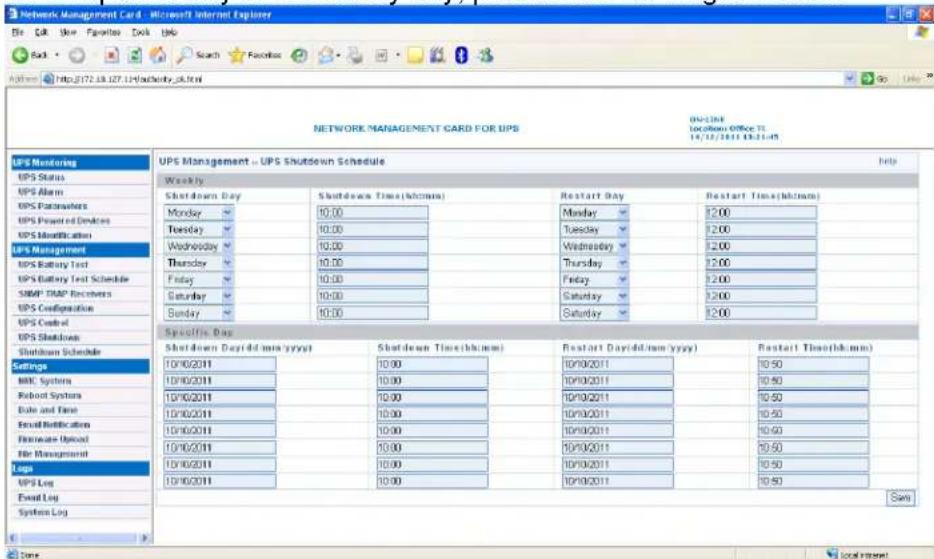
3.3.4 UPS Shutdown Schedule menu
UPS Shutdown Schedule menu can be accessed by UPS Management→UPS Shutdown Schedule. User can control UPS output on or off on specific day or on weekly day, please refer to diagram 3.3.4.
text_image
Network Management Card - Microsoft Internet Explorer File Edit View Favorites Tools Help Search Favorites Address: http://17.18.107.14/chaptery.nl.html NETWORK MANAGEMENT CARD FOR UPS ON-LINK 10/01/2011 Office 31 16/12/2011 13:21:45 UPS Monitoring UPS Status UPS Alarm UPS Parameters UPS Presented Devices UPS Identification UPS Management UPS Battery Test UPS Battery Test Schedule SNMP TRAP Receivers UPS Configuration UPS Code of UPS Shutdown Shutdown Schedule Settings MRC Systems Robot Systems Date and Time Email Notification Filerate Upload File Management Log UPS Log Event Log System Log UPS Management -- UPS Shutdown Schedule Weekly Shutdown Day Shutdown Time(hk:mm) Monday 10:00 Tuesday 10:00 Wednesday 10:00 Thursday 10:00 Friday 10:00 Saturday 10:00 Sunday 10:00 Restart Day Restart Time(hk:mm) Monday 2:00 Tuesday 2:00 Wednesday 2:00 Thursday 2:00 Friday 2:00 Saturday 2:00 Saturday 2:00 Specific Day: Shutdown Day(9 dmm yyy) 10/10/2011 10:00 10/10/2011 10:50 10/10/2011 10:00 10/10/2011 10:50 10/10/2011 10:00 10/10/2011 10:50 10/10/2011 10:00 10/10/2011 10:49 10/10/2011 10:00 10/10/2011 10:50 10/10/2011 10:00 10/10/2011 10:50 10/10/2011 10:00 10/10/2011 10.50 10/10/2011 10:33 10/19/2011 10:53 StartDiagram 3.3.4
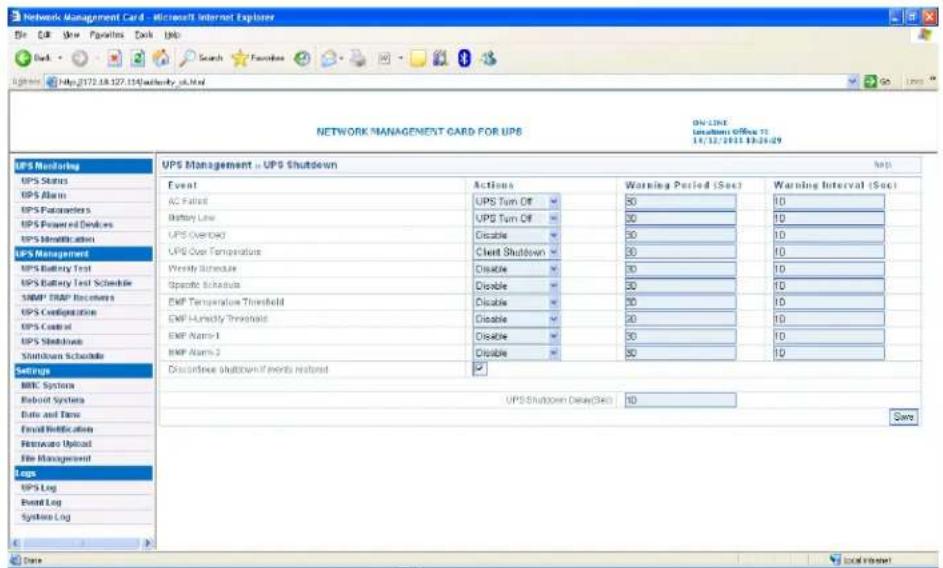
3.3.5 UPS Shutdown menu
UPS Shutdown menu can be accessed by UPS Management→UPS Shutdown. Please refer to diagram 3.3.5. When the selected event happens, NMC will inform the computer installed with SPS (System Protect System) of the event and send the shutdown command to the computer. Here, the computer installed with SPS is the computer shown on UPS powered devices interface (refer to section 3.2.4).
Action type:
- Disable: It means that NMC will do nothing even the event happens on UPS.
Network Management Card
- Warning: It means that NMC will inform the computer installed with SPS of the event once the shutdown condition happens.
- Client Shutdown: It means that NMC will inform the computer installed with SPS of the event and send shutdown command to the computer once the shutdown condition happens.
- "UPS Turn Off" means that NMC will inform the computer installed with SPS of the event, send shutdown command to the computer, and also send shutdown command to UPS once the shutdown condition happens, when the delay time has run out, UPS will shut down output. The default value of delay time is 120 seconds.
Warning period means the overall time the warning will be repeatedly once event happens. Warning interval means that NMC will inform the event to the computer installed with SPS every short period once event happens. N= (Warning period / Warning interval) +1, N means the warning times.
Please Note: for client shutdown setting information, please refer to System Protect Software User Manual.pdf
text_image
Network Management Card - Microsoft Internet Explorer File Edit Show Favorites Tools Help Back Search Favorites http://172.18.127.154/authority_36.html LN-2002 Location Office 75 14/12/2011 19:29:29 UPS Monitoring UPS Stories UPS Alarm UPS Parameters UPS Powered Devices UPS Identification UPS Management UPS Battery Test UPS Battery Test Schedule SNMP TRAP Recipients UPS Configuration UPS Control UPS Switchbase Switchbox Schedule Settings MHC Systems Eboot Systems Date and Time Email Notification Remote Upload File Management Logs UPS Log Event Log Systems Log UPS Management -- UPS Shutdown Event Actions Warning Period (Sec) Warning Interval (Sec) AC Default UPS Turn Off 50 10 Battery Line UPS Turn Off 50 10 UPS Overload Disable 50 10 UPG Over Temperature Closet Shutdown 50 10 Weekly Schedule Disable 50 10 Specific Schedule Disable 50 10 EMF Temperature Threshold Disable 50 10 EMF Luminosity Threshold Disable 50 10 EMF Alarm-1 Disable 50 10 EMF Alarm-2 Disable 50 10 Discordance Shutdown Events restored UPS Shutdown Delay(Dec) 10 Save Date Local PostDiagram 3.3.5
3.3.6 UPS Configuration menu
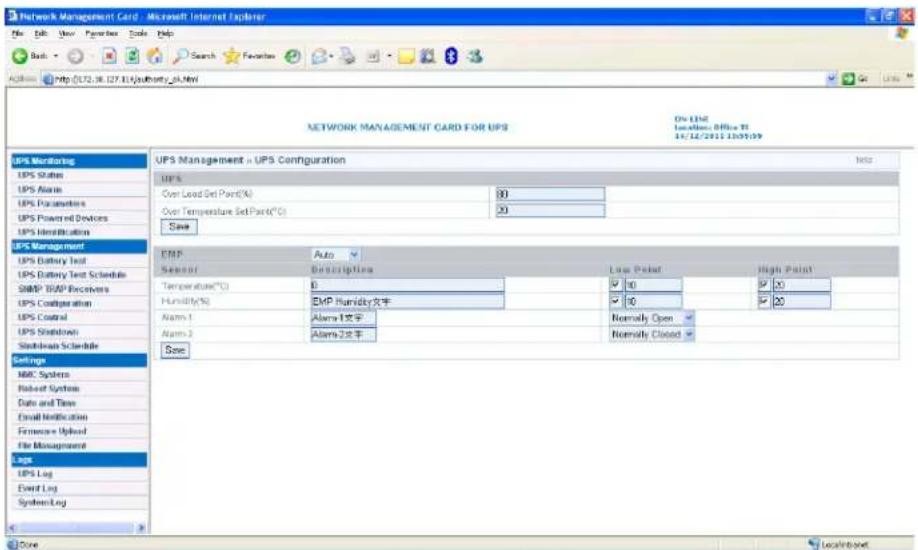
UPS Configuration menu can be accessed by UPS Management→UPS Configuration. User can configure the limited point of UPS overload and over-temperature. User can configure the limited point of EMP temperature value and humidity value. User also can configure the warning setting of EMP: "Normally open", "Normally closed" or "Not used". Refer to the following diagram 3.3.6.
Network Management Card
text_image
Network Management Card - Microsoft Internet Explorer File Edit View Favorites Tools Help Back Search Favorites http://12.16.127.131/journalzsl.html NETWORK MANAGEMENT CARD FOR UPS On LINE Location Office 91 10/12/2021/10/09/29 UPS Monitoring UPS Status UPS Alarm UPS Parameters UPS Powered Devors UPS Identification UPS Management UPS Battery Test UPS Battery Test Schedule SNMP TAP Requirements UPS Configuration UPS Control UPS Shutdown Shutdown Schedule Settings NBC System Robert System Data and Time Email Notification Firmware Upload File Management Laps UPS Log Event Log System Log Core UPS Management = UPS Configuration UPS Over Load Set Part(%) 30 Over Temperature Set Part(°C) 20 Save EMP Auto Sensor Description Line Point High Point Temperature(℃) 0 10 20 Humidity(%) EMP Humidity文字 10 20 Alarm-1 Alarm-1文字 Normally Open Alarm-2 Alarm-2文字 Normally Closed SaveDiagram 3.3.6
Chapter 4 NMC & UPS management via SNMP
Please note: if user wants to use NMC via SNMP protocol, please make sure IP address and Gateway of NMC correct. Please refer to section 2.1 or section 3.1.1 for IP address and Gateway settings.
NMC support SNMP protocol, user can manage NMC and UPS via SNMP NMS (Network Management Station). Load the NMC MIB to the database of SNMP NMS, and user can read or configure the parameters of NMC and UPS. The read community strings is "public", and the write community strings is "private." NMC support two type MIB: one is RFC1628.mib, the other is EPPC.mib. MIB files can be found in NMC CD-ROM packaged with NMC.
Furthermore, NMC can be monitored by Winpower software via SNMP protocol. For more detail information, please refer to the user manual of Winpower.
Chapter 5 NMC Utility - Find NMC in the LAN
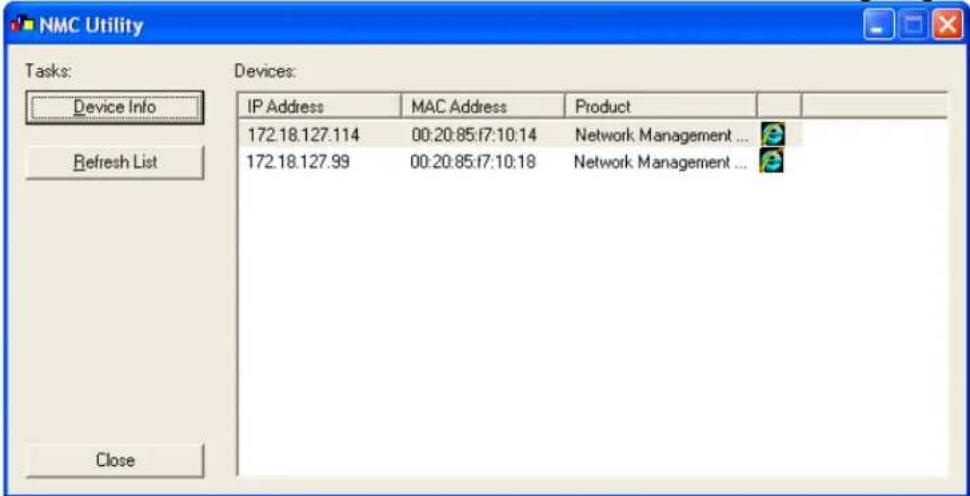
Via NMC Utility, user can find NMC automatically and quickly in the LAN. User can link to the web of NMC. Please refer to the following diagram.
text_image
NMC Utility Tasks: Device Info Refresh List Close Devices: IP Address MAC Address Product 172.18.127.114 00:20:85:17:10:14 Network Management ... 172.18.127.99 00:20:85:17:10:18 Network Management ...NMC Utility can be found in NMC CD-ROM packaged with NMC, NMC Utility supports Windows XP / Windows 7.