SLP-D223 - Label printer Bixolon - Free user manual and instructions
Find the device manual for free SLP-D223 Bixolon in PDF.


| Brand | Bixolon |
| Model | SLP-D223 |
| Product Type | Label Printer |
| Print Method | Direct Thermal / Thermal Transfer |
| Resolution | 203 dpi (8 dots/mm) |
| Print Speed | Up to 5 ips (127 mm/s) |
| Max Print Width | 4.09 inches (104 mm) |
| Max Print Length | 11 inches (279 mm) |
| Supported Media Width | 0.75 to 4.65 inches (19 to 118 mm) |
| Connectivity | USB 2.0, Serial (RS-232), Ethernet (optional) |
| Power Supply | AC 100-240V, 50/60Hz, 1.5A |
| Power Consumption | Operating: 50W max, Standby: 5W |
| Dimensions (W x D x H) | 7.9 x 6.7 x 6.3 inches (200 x 170 x 160 mm) |
| Weight | 3.3 lbs (1.5 kg) |
| Operating Temperature | 41°F to 104°F (5°C to 40°C) |
| Humidity | 20% to 85% non-condensing |
| Supported Labels | Continuous, die-cut, fanfold, roll |
| Ribbon (for Thermal Transfer) | 1-inch core, max 300 ft (90 m) |
| Maintenance | Clean print head and platen roller with isopropyl alcohol |
| Included Accessories | Power adapter, USB cable, quick start guide |
| Safety Certifications | FCC, CE, UL, RoHS |
Frequently Asked Questions - SLP-D223 Bixolon
User questions about SLP-D223 Bixolon
0 question about this device. Answer the ones you know or ask your own.
Ask a new question about this device
Download the instructions for your Label printer in PDF format for free! Find your manual SLP-D223 - Bixolon and take your electronic device back in hand. On this page are published all the documents necessary for the use of your device. SLP-D223 by Bixolon.
USER MANUAL SLP-D223 Bixolon
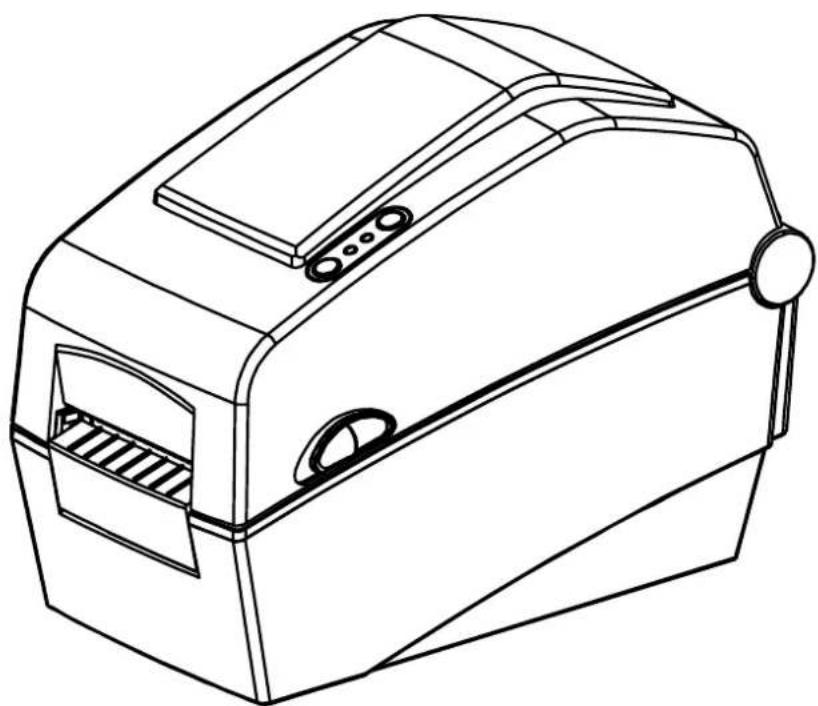
User's Manual Label Printer
Rev. 1.01
SLP-D220 / D220E
SLP-D223 / D223E
natural_image
Line drawing of a portable food delivery box with handle and side panel (no text or symbols)Table of Contents
※ Manual Information & Usage Precautions....3
- Content Confirmation....7
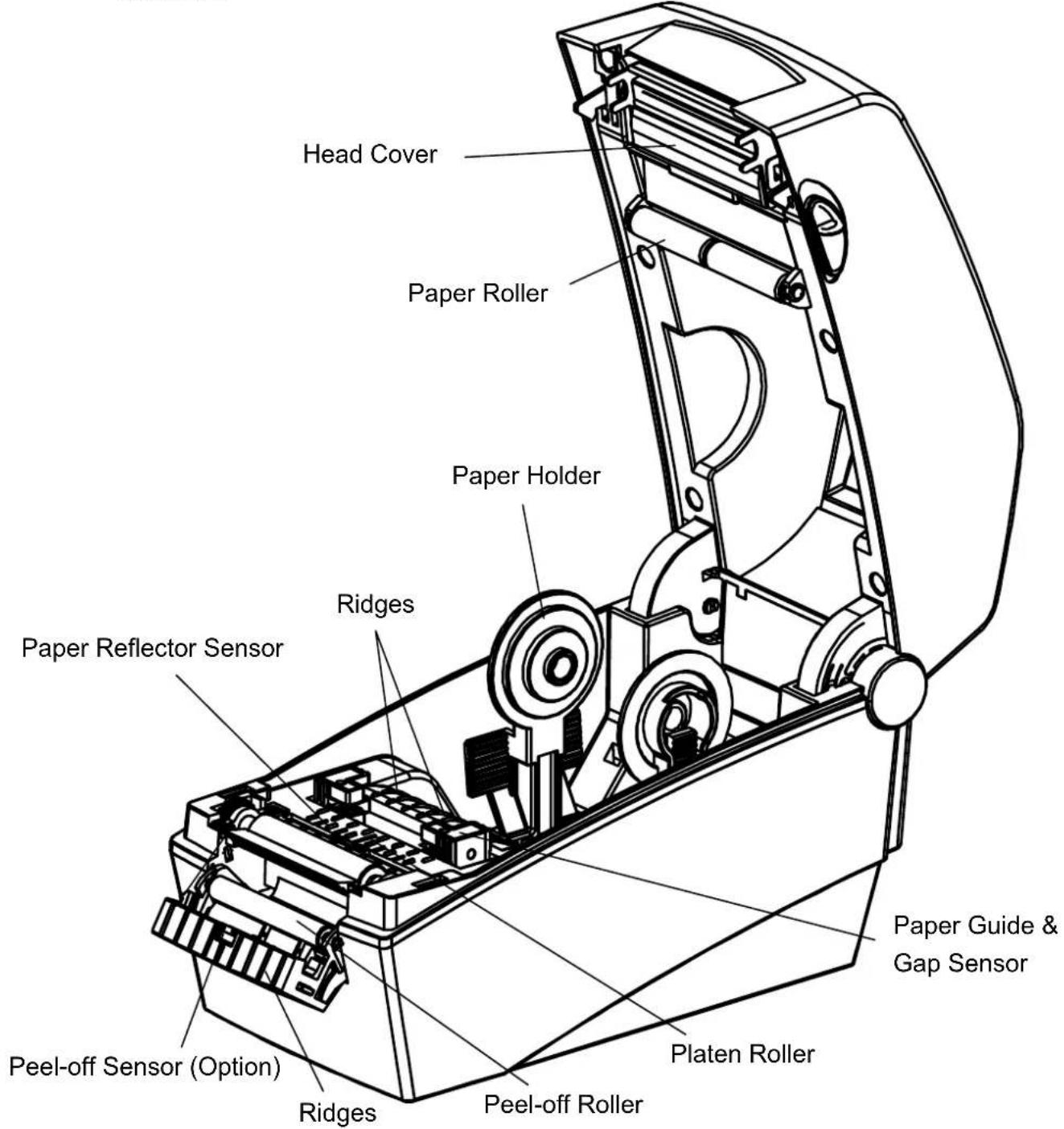
- Product Part Names....8
- Installation & Usage....10
3-1 Power Connection .... 10
3-2 Interface Cable Connection 11
3-3 Paper Installation....12
3-4 LED Display....13
3-5 Test printing 14
-
Self-Test....15
-
Detailed features....16
5-1 Printer Settings with Dip switches....16
5-2 Printer Settings with Utility Program 18
5-3 Pause/Cancel 19
5-4 Gap Sensor Auto-Calibration 20
5-5 Gap Sensor Manual-Calibration 21
5-6 The Peel-Off 22
5-7 Using Fan-Fold Paper....24
- Cleaning Head......25
6-1 Cleaning Head....25
6-2 Cleaning Sensors, Roller or/and Paper Path 26
- Appendix......27
7-1 Specifications....27
7-2 Certification....28
7-3 Label Types 28
■ Manual Information
This user manual contains basic information for product usage as well as for emergency measures that may be required.
※ The following separate manuals provide more detailed content on various technological issues and areas.
1. Windows Driver Manual
This manual provides information on the installation instructions and main functions of the Windows Driver.
2. Unified Label Printer Utility Manual
This manual provides information on the usage of software for function selection of this product, operating condition modification, etc.
The following functions are available.
1) Firmware Downloader
2) Factory Font Downloader
3) Soft-Font (or Downloadable-font) Downloader
4) PCX File Downloader
5) User Setting Manager
6) File Transfer Manager
7) SLCS Tester
3. Programming (SLCS) Manual
This manual provides information on label printer commands.
4. True Font Downloader Manual
This manual provides information on the usage of the font downloader that can download True Fonts and facilitate their usage as Device Fonts.
5. Ethernet interface Manual
This manual provides information on the configuration and usage of Ethernet interface.
6. Label design program Manual
This manual provides information on the usage of the Windows PC program that can make labels by adding text, graphics, or barcodes at desired positions.
We at BIXOLON maintain ongoing efforts to enhance and upgrade the functions and quality of all our products. In following, product specifications and/or user manual content may be changed without prior notice.
■ Safety Precautions
In using the present appliance, please keep the following safety regulations in order to prevent any hazard or material damage.

WARNING
Violating following instructions can cause serious injury or death.
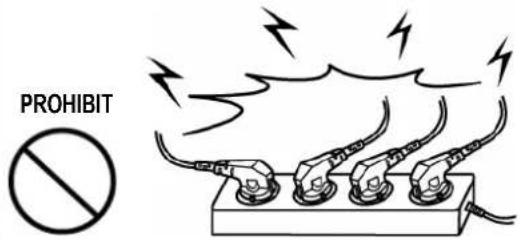
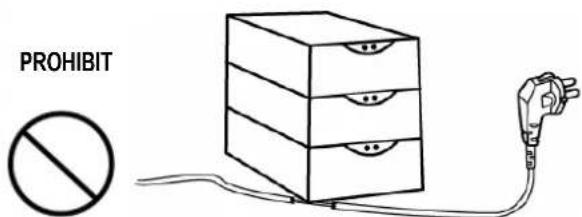
Do not plug several products in one multi-outlet.
• This can provoke over-heating and a fire.
- If the plug is wet or dirty, dry or wipe it before usage.
- If the plug does not fit perfectly with the outlet, do not plug in.
- Be sure to use only standardized multi-outlets.
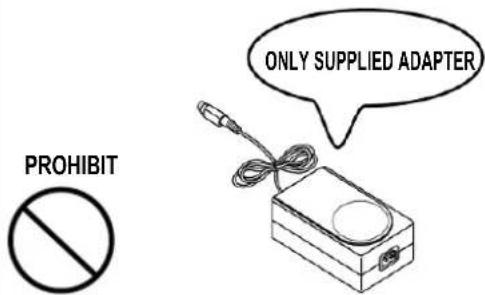
You must use only the supplied adapter.
- It is dangerous to use other adapters.
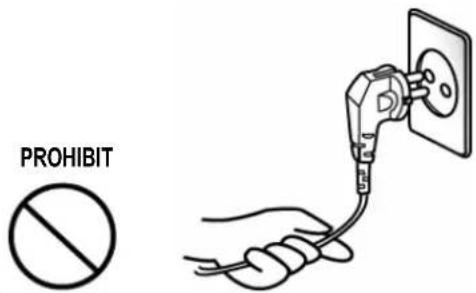
Do not pull the cable to unplug.
- This can damage the cable, which is the origin of a fire or a breakdown of the printer.
Keep the plastic bag out of children's reach.
• If not, a child may put the bag on his head.

Do not plug in or unplug with your hands wet.
- You can be electrocuted.
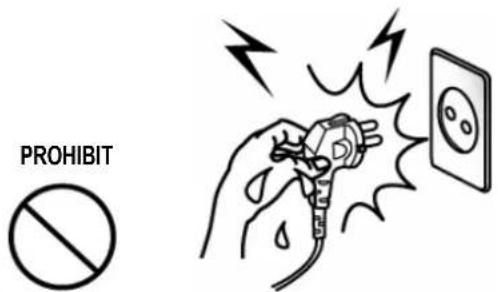
Do not bend the cable by force or leave it under any heavy object.
• A damaged cable can cause a fire.

CAUTION
Violating following instructions can cause slight wound or damage the appliance.
If you observe a strange smoke, odor or noise from the printer, unplug it before taking following measures.
- Switch off the printer and unplug the set from the mains.
• After the disappearance of the smoke, call your dealer to repair it.
TO UNPLUG


Keep the desiccant out of children's reach.
- If not, they may eat it.
PROHIBIT


natural_image
Cartoon illustration of a baby wearing a cap and holding a small object (no text or symbols)Install the printer on the stable surface.
- If the printer falls down, it can be broken and you can hurt yourself.
PROHIBIT


Use only approved accessories and do not try to disassemble, repair or remodel it for yourself.
- Call your dealer when you need these services.
- Do not touch the blade of auto cutter.
DISASSEMBLING
PROHIBITED


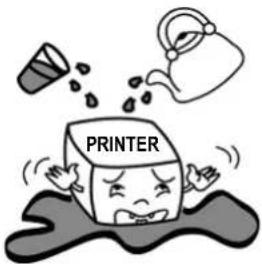
Do not let water or other foreign objects in the printer.
- If this happened, switch off and unplug the printer before calling your dealer.
PROHIBIT

Do not use the printer when it is out of order. This can cause a fire or an electrocution.
- Switch off and unplug the printer before calling your dealer.
TO UNPLUG


■ Other Precautions
The copyright for this user manual and various other manuals is property of the BIXOLON Co., Ltd. Any copying or conversion into electronic firm and saving of this material without the express written permission of BIXOLON Co., Ltd. is strictly prohibited.
Use of the information contained in this manual is not subject to any patent liability. This manual has been prepared with utmost care and attention to detail but may contain certain errors and/or omissions.
BIXOLON Co., Ltd. is not legally liable for any damages resulting from the use of the information in this manual.
BIXOLON Co., Ltd. and its affiliates are not legally liable (United States excluded) for any damages, loss, costs, and/or expenses that result from the breakdown, malfunction, and/or misuse of the product due to violation or neglect of the operation and maintenance information and instructions provided by the BIXOLON Co., Ltd., as well as from the unauthorized alteration, repair, and/or modification of the product by the user and/or third party.
BIXOLON Co., Ltd. is not legally liable for any damages and/or issues resulting from the use of options and/or parts that are not authentic BIXOLON products or authorized products.
1. Content Confirmation
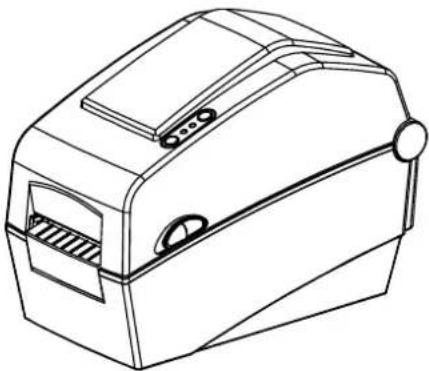
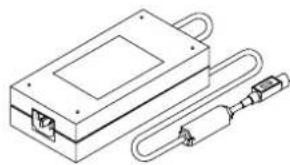
The following items should all be contained in the printer package.
Contact the dealer from which the purchase was made if any item is damaged and/or missing.
natural_image
Line drawing of a mechanical device with handle and side panel (no text or symbols)SLP-D220/ D223
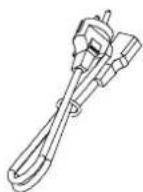
Power Cord AC Adapter
natural_image
Technical line drawing of a rectangular electronic device with a U-shaped connector and a separate cylindrical component (no text or symbols)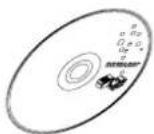
CD
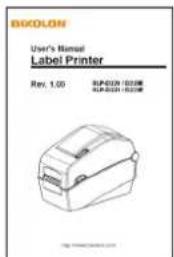
User's
※ Optional items

natural_image
Pure electrical circuit lines without any symbolsRS-232C(Serial) Cable

USB Cable
2. Product Part Names
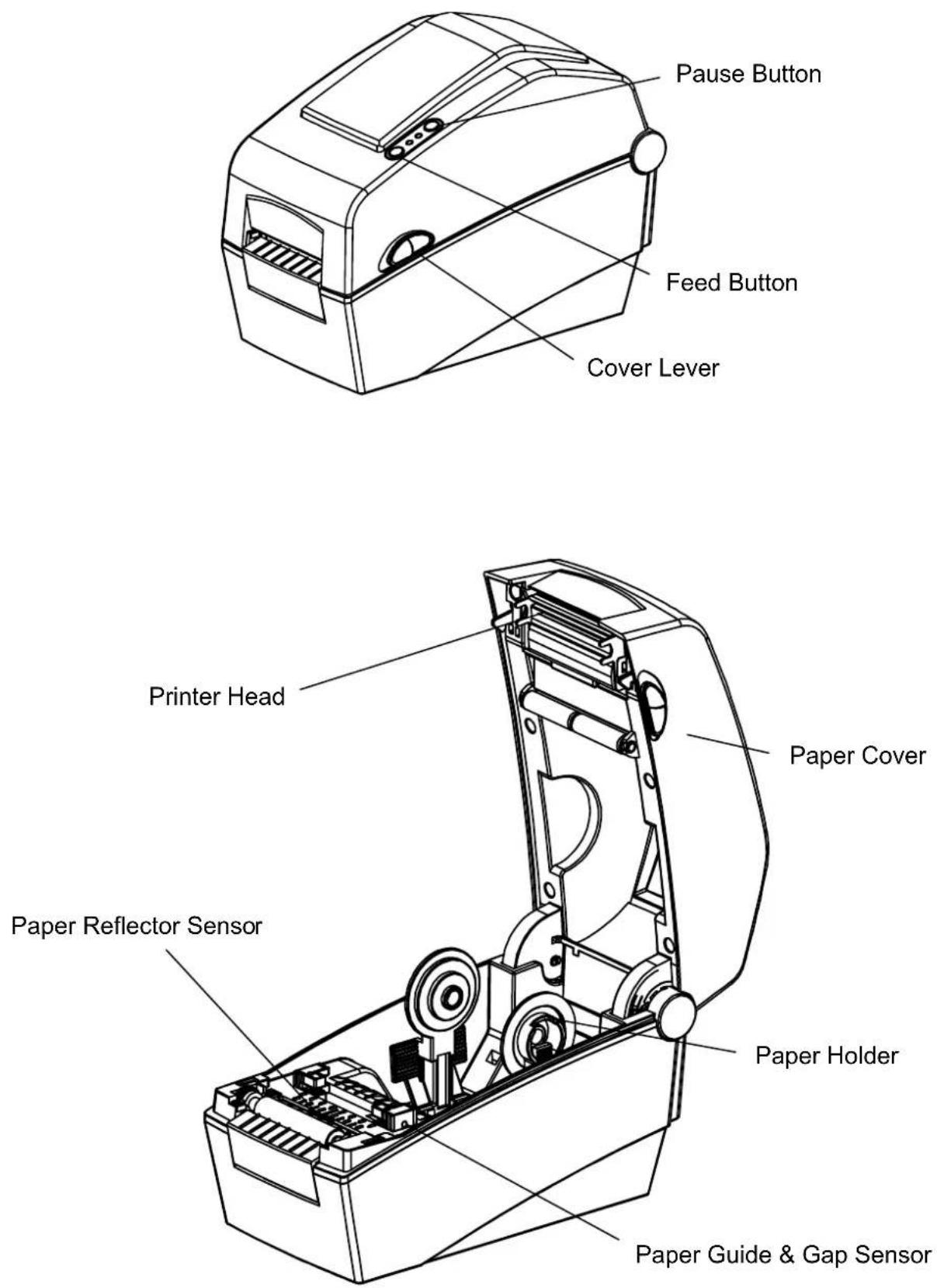
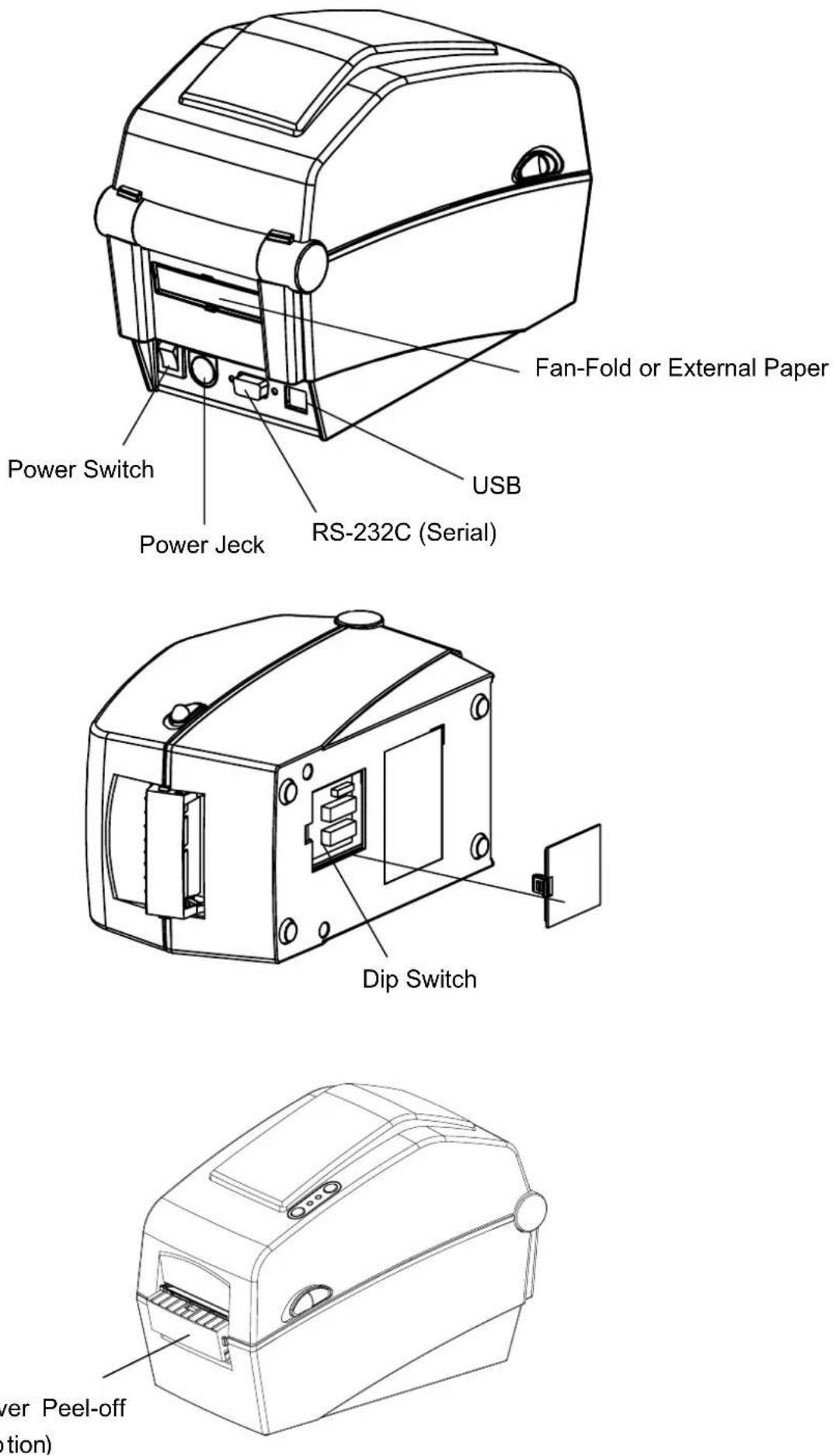
3. Installation & Usage
3-1 Power Connection
Connect power to the printer as shown below.
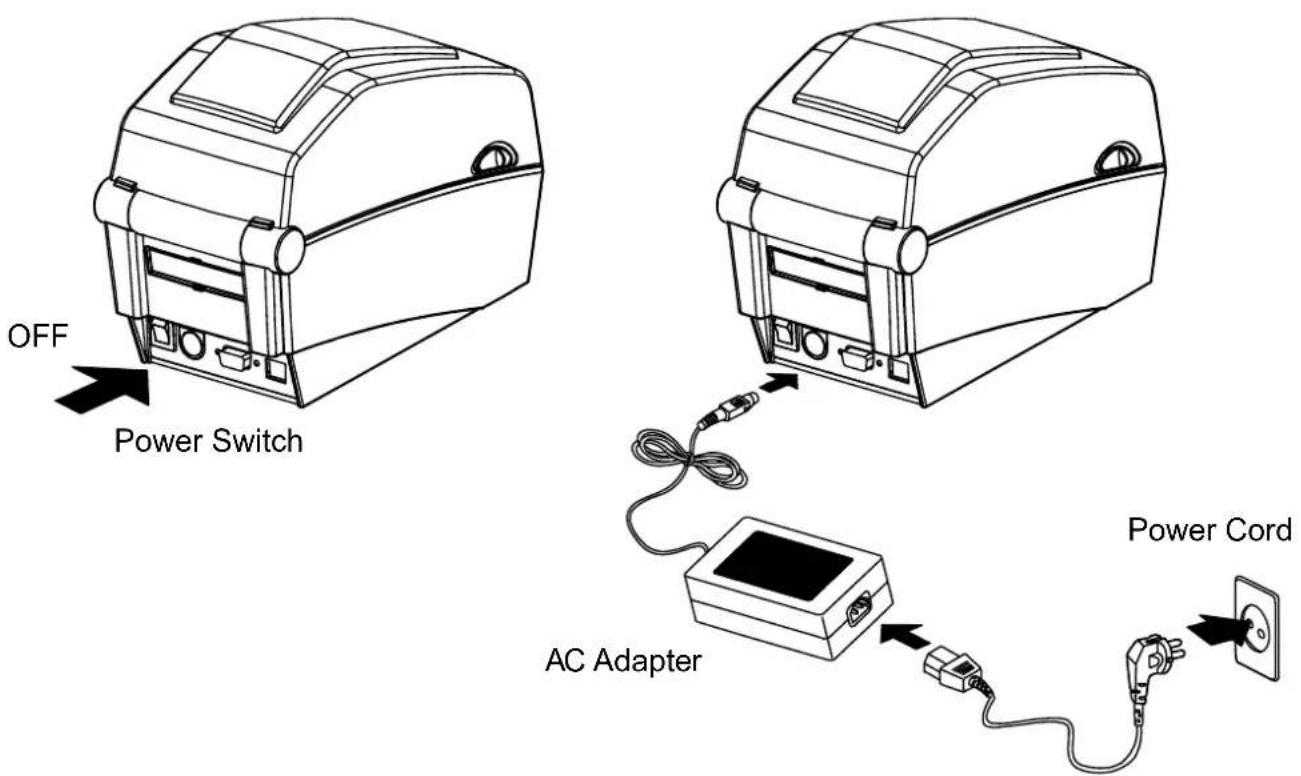
1) Turn off the printer power switch.
2) Check to see that the AC adapter voltage matches that of the power source.
3) Connect the AC adapter jack to the printer power connector.
4) Connect the power jack to the AC adapter.
5) Connect the power cord to a power source/outlet.
3-2 Interface Cable Connection
Connect the interface cable as shown below.
This printer supports the following communications interface standards.
- RS-232C (Serial)
- USB
- Ethernet (exclusively for SLP-D220E, D223E)
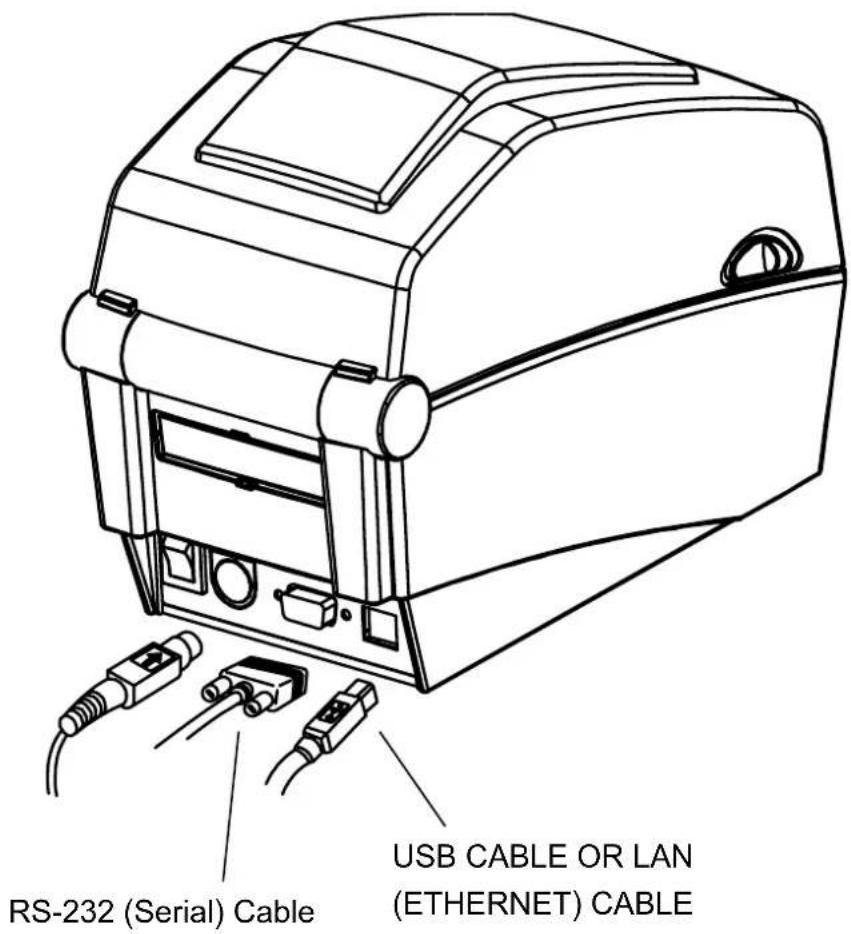
1) Turn off the power switch.
2) Connect the communication cable to the printer communication port.
- For a Serial cable, secure by tightening the screws on both sides.
- Connect USB cable when using USB interface.
- Connect LAN cable when using Ethernet interface.
3-3 Paper Installation
1) Open the Paper Cover.
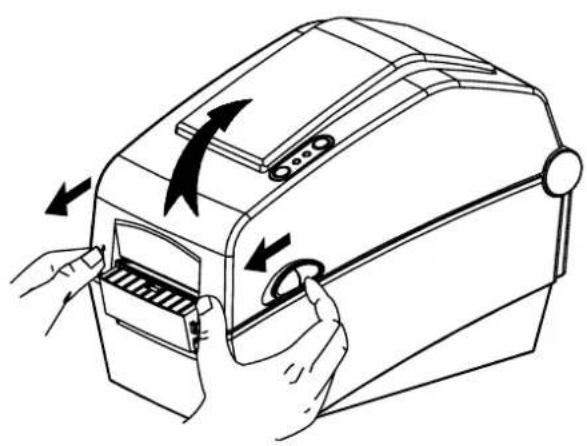
natural_image
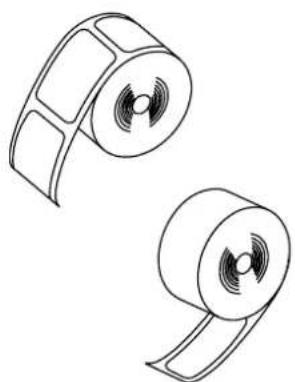
Line drawing of a computer device with hands operating the door and scroll (no text or symbols)3) Whether the paper label is wound inwards or outwards, its printing surface must face up.
2) Spread the paper holder and insert paper as shown.
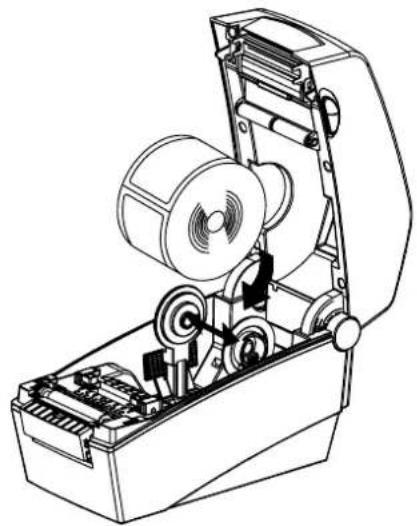
natural_image
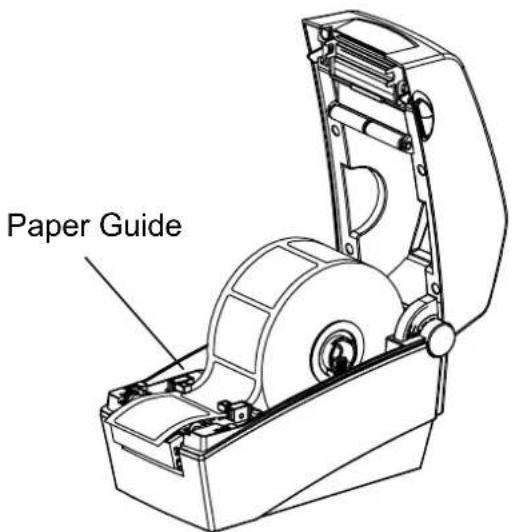
Technical line drawing of an open mechanical device with gears and a motor (no text or symbols)4) Adjust the paper guide to the width of the paper.
natural_image
Two circular mechanical components with spiral blades and central slots, shown in line drawing style (no text or symbols)5) Close the Paper Cover until a click sound is heard.
3-4 LED Display
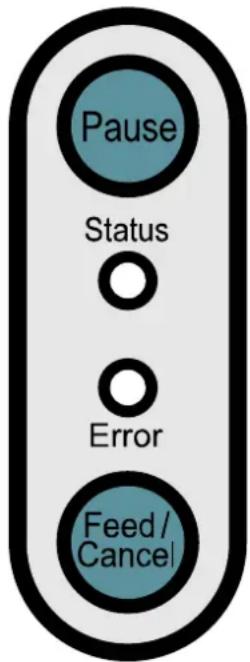
Pause : During print jobs, this button can be used to temporarily cease printing and/or again to resume printing.
Status : The current printer status can be viewed. (Refer to table)
Error : The current printer status can be viewed. (Refer to table)
Feed/Cancel : Paper feed or cancel the print job.
[The current printer status can be viewed via the printer's LED display.]
| LED Type | Printer Status | |
| Status Error | ||
| Green On Green On | Normal status, on standby to receive date from the host (e.g. PC) | |
| Red On Red Blinking Paper cover opened | ||
| Red On Orange Blinking No paper | ||
| Red On Green Blinking | Print stoppage due to TPH (print head) overheating (Printing resumes automatically after a certain period of time if the temperature of TPH drops) | |
| Off | Red | On standby for user button input for automatic sensor level correction |
| Green Blinking | Red On | Print stoppage after input of Pause button, Press Pause button again to resume printing |
| Green On Red Blinking | Print cancellation after input of Cancel button, Press Cancel button to return to standby mode, all data received deleted in Cancel mode | |
| Green On Off Power Save mode activated | ||
* Power Save Mode*
When the printer is not used, the Power Save mode is activated to save power.
If the printer is not used for more than 180 seconds, it enters the Power Save mode.
If a print command or external input is given, the Power Save mode is deactivated.
3-5 Test printing
3-5-1 Printing using Windows driver
1) Install the Windows driver. Refer to the "Windows driver manual" in the CD for the installation procedure.
2) Set the "port" of Windows driver to the appropriate interface to be used. Refer to the "Ethernet interface user's manual" in the CD when using Ethernet interface.
3) Print the test page using the "Print test page" function of Windows driver.
3-5-2 Printing using label design program
- The label design program is included in the separate CD.
1) Install the label design program.
2) Refer to the "Label Design Program Manual" included in the CD and set the interface.
3) Print the test page after designing a label.
4. Self-Test
The self-test checks whether the printer has any problems.
(Users cannot perform this procedure if using the printer's label peel-off option.)
If the printer does not function properly, contact an authorized dealer.
The self-test checks the following;
1) Make sure that the paper roll has been installed properly.
2) Turn on the power while holding down the FEED button. The self-test begins.
3) The self-test prints the current printer status, which provides the control ROM version and the DIP switch settings.
4) After the self-test results are printed out:
- No button input within 2 seconds: Normal Print Mode
- Button pressed once within 2 seconds: Hex Dump Mode
- Button pressed twice within 2 seconds: Line Print Mode
* The BXL-POS command set is used in Line Print Mode.
Received data is printed in sequence similar to a receipt printer.
5. Detailed features
5-1 Printer Settings with Dip switches
The following functions can be selected using the dip switches.
- Print Speed, Print Density, Paper Select
- Back Feed, Paper Sensor Operation
- Serial Communication Speed and Busy Status
The dip switches are located on the bottom of the printer.
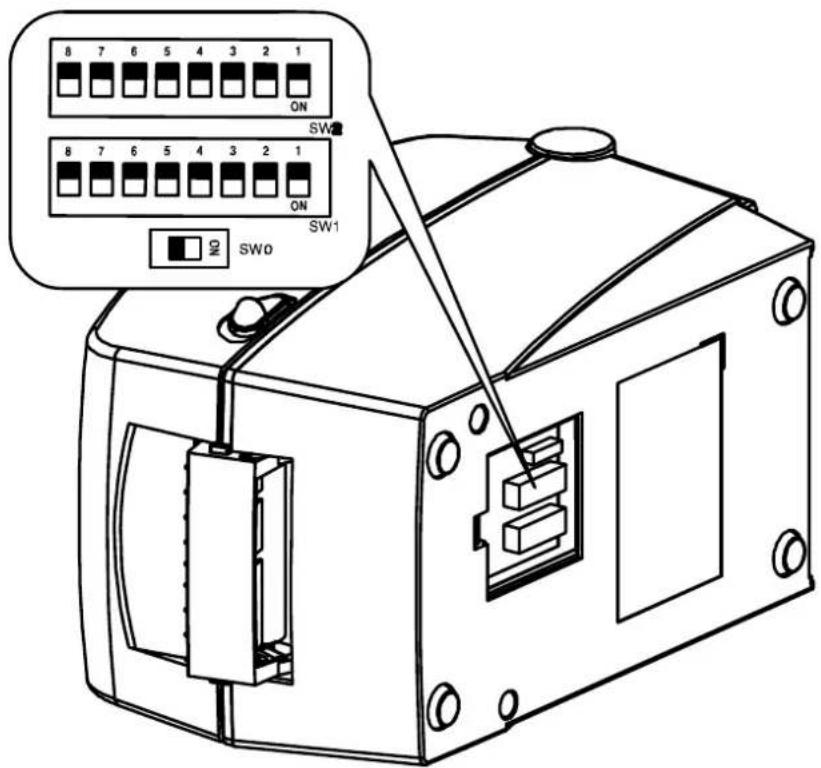
Follow these steps when changing dip switch settings:
1) Turn the printer power switch off.
2) Turn the printer upside down and remove the dip switch cover on the bottom.
3) Flip the dip switches using tweezers or another narrow-ended tool. Switches are off when up and on when down following the figure.
4) New settings take effect when the printer is turned back on.
※ CAUTION
- Make sure if the dip switch cover is closed prior to operating
[Table 0] DIP Switch 0 (only for SLP-D220E and D223E)
| Function Description | ||
| during power save mode | Off | Disable Ethernet when Power Save Mode is enabled Ethe |
| On | Enable Ethernet when Power Save Mode is enabled | |
[Table 1] Dip Switch 1
| No | Functions Details | ||||
| 1-1 | Speed Selection | Off | 5.0 | ||
| On | 6.0 | ||||
| 1-2 | Density Selection | 4 3 2 Density | |||
| Off | Off | Off | 6 | ||
| Off | Off | On | 8 | ||
| Off | On | Off | 10 | ||
| 1-3 | Off | On | On | 12 | |
| On | Off | Off | 14 | ||
| 1-4 | On | Off | On | 16 | |
| On | On | Off | 18 | ||
| On | On | On | 20 | ||
| 1-5 | Exhibition Selection | Off | Normal Mode | ||
| On | Demo Mode | ||||
| 1-6 | Media Selection | Off | Label Paper | ||
| On | Thermal Continuous Paper | ||||
| 1-7 | No Use | Default --- off | |||
| 1-8 | Back Feed Option | Off | Back Feeding Enable | ||
| On | Back Feeding Disable | ||||
[Table 2] Dip Switch 2
| No | Functions Details | |||
| 2-12-2 | Baud RateSelection | 2 | 1 | Baud Rate |
| Off | Off | 9,600 bps | ||
| Off | On | 19,200 bps | ||
| On | Off | 57,600 bps | ||
| On | On | 115,200 bps | ||
| 2-3 | Media Detection | Off | Detect Gap | |
| On | Detect Black Mark- Dip S/W 1-6 OFF: Reverse Side Black Mark | |||
| 2-4 | No Use | Default --- off | ||
| 2-5 | Emulation | Off | SLCS,EPL,ZPL | |
| On | DPL | |||
| 2-6 | Busy Condition | Off | Receive Buffer Full | |
| On | *Offline*Receive Buffer Full | |||
| 2-7 | Paper End Sensor Status | Off | Enable | |
| On | Disable | |||
| 2-8 | Long Label Split Printing | Off | Disable | |
| On | Enable | |||
5-2 Printer Settings with Utility Program
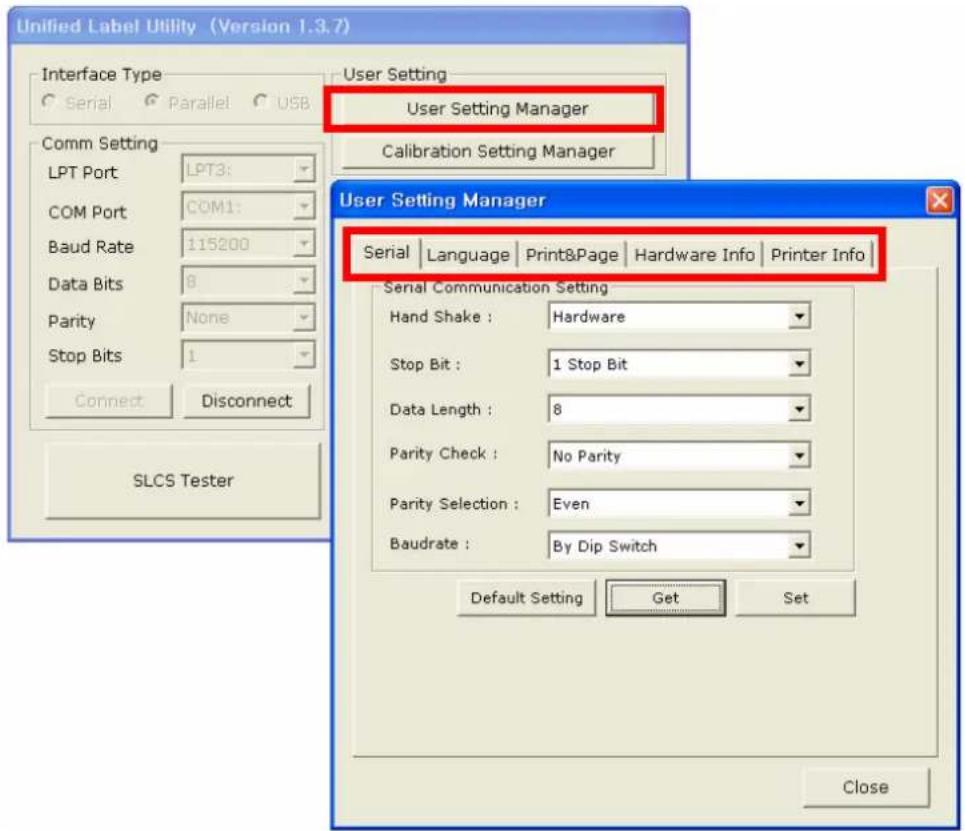
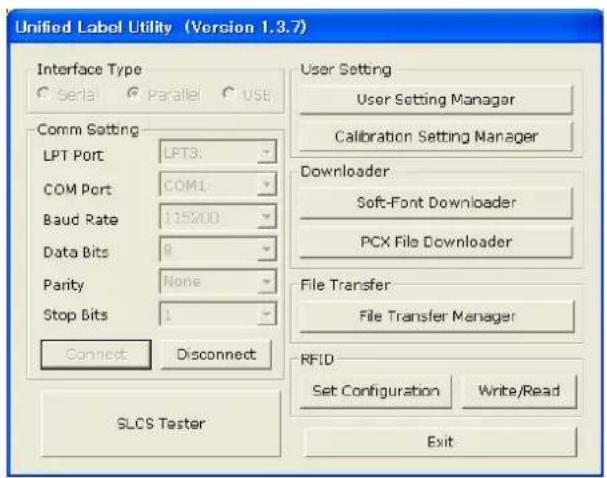
The printer settings utility program offered by the manufacturer can be used to change a variety of basic printer settings. The basic settings set via the utility override printer command settings. Thus, users wishing to use command settings to control the printer should not change the basic settings via the utility.
Run the BIXOLON United Label Printer Utility from the enclosed CD and click the User Setting Manager button.
1) Serial Communications Settings
Handshake, Stop Bit, Data Bit, Parity, Baud Rate, etc. can be set.
2) Language Selection
Code Page and International Character Set can be set.
3) Basic Ribbon Size & Print Density Settings
Paper Width and Length, Left/Right Margins, Print Density, Label length measurement function, etc. can be set.
4) Hardware Information Storage
For user management of equipment, the hardware version, serial number, ID, etc. can be saved and/or confirmed via command.
5-3 Pause/Cancel
During multiple-page print jobs, the Pause and Cancel button can be used to temporarily cease printing and cancel the print job altogether, respectively.
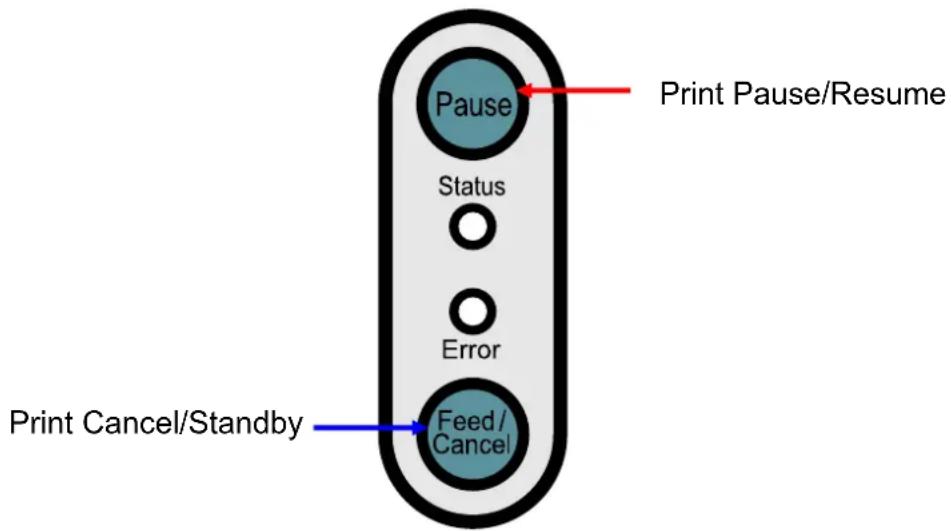
5-3-1 Pause/Resume Function
1) When printing labels, pressing the Pause button will result in the temporary stoppage of printing after the currently printed label is completed, and a change in the LED status.
- Status LED: Green Blinking
- Error LED: Red On
2) While the print job is paused, press the Pause button again to resume printing.
5-3-2 Print Cancellation
1) During label printing and/or pause mode, pressing the Cancel button enters the print cancellation mode.
2) The following processes occur in the print cancellation mode.
- All label printing cancelled
- All data received in the printer communications buffer deleted.
- All received data deleted.
3) The LED status in the print cancellation mode can be as follows.
- Status LED: Green On
- Error LED: Red Blinking
4) While in the print cancellation mode, press the Cancel button again to return to print standby mode.
5-4 Gap Sensor Auto-Calibration
Gap sensor auto-calibration is used when the printer does not detect a gap on the label paper correctly. Generally a printer is set to detect most gap types, but sometimes detection fails and paper continues to be fed without stopping when special paper is used. In such cases, use the gap sensor auto-calibration function to facilitate proper detection.
1) Check to see that the paper is aligned correctly.
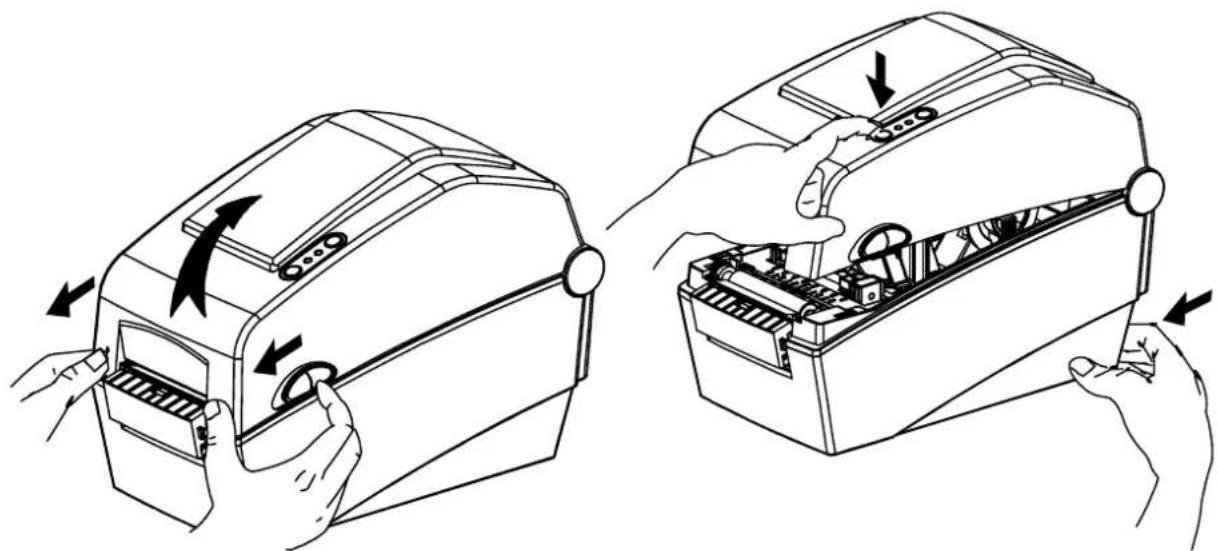
2) Open the paper cover and turn on the printer while holding down the paper feed button. - The green LED blinks.
natural_image
Line drawing showing two hands assembling a device into a box, with arrows indicating motion (no text or symbols present)3) Close the paper cover.
- An information message is printed and the red LED turns on.
4) Press the paper feed button.
① Once
- The LED color changes to orange.
- The previous gap sensor correction value is erased and reset to its default value.
② Twice (for automatic sensor calibration)
- The LED color changes to green.
- The gap sensor auto-calibration is performed as 2\~3 pages of paper are fed continuously.
③ Three times (for automatic sensor calibration and the label length setting)
- The LED color changes to green.
- The gap sensor auto-calibration and label length measurement are performed while slowly feeding 4\~5 pages of paper.
5) Gap sensor auto-calibration is complete.
5-5 Gap Sensor Manual-Calibration
Manual-calibration of media detection can be used when the printer cannot detect a media gap (or black mark) even after auto-calibration has been executed.
Users can calibrate sensor parameters in detail by using the utility program provided by the manufacturer.
The utility can be obtained from the enclosed CD or downloaded from the Internet via the BIXOLON website www.bixolon.com
Please make sure the printer is connected and execute the utility program. Please the Calibration Setting Manager Button after setting the interface type.
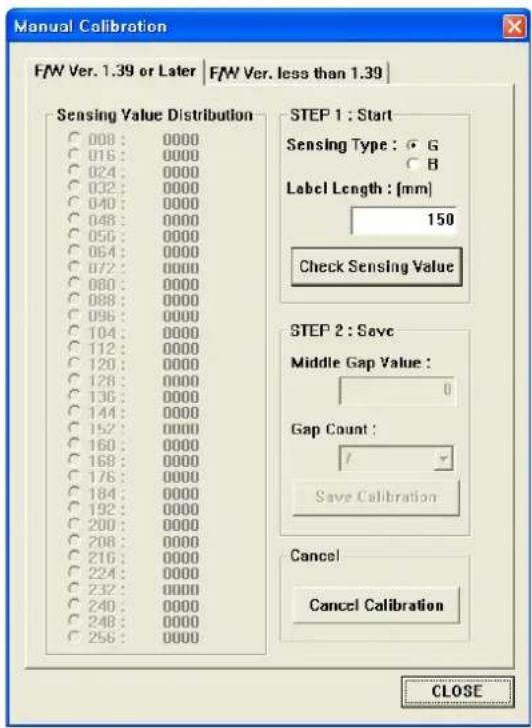
1) Select the sensing type and input the label length by millimeter and click on "Check Sensing Value" tap. Then printer starts to calibrate.
2) Printer will print the scanned values after calibration and the values will appear on the Screen.
3) Optimal sensing values will appear in black bold letters on the left of the utility screen and select one of the values and click on "Save Calibration"
4) If chosen value does not work properly, please try the other values among the black bold letters.
5) To go back to the initial value, please click on "Cancel Calibration"
5-6 The Peel-Off
As a function that is used to peel-off labels, it is used only with label paper.
1) Open the paper cover.
2) Open the label peel-off cover and set the peeler switch to the ON position.
- Check to see that the LED has turned on.
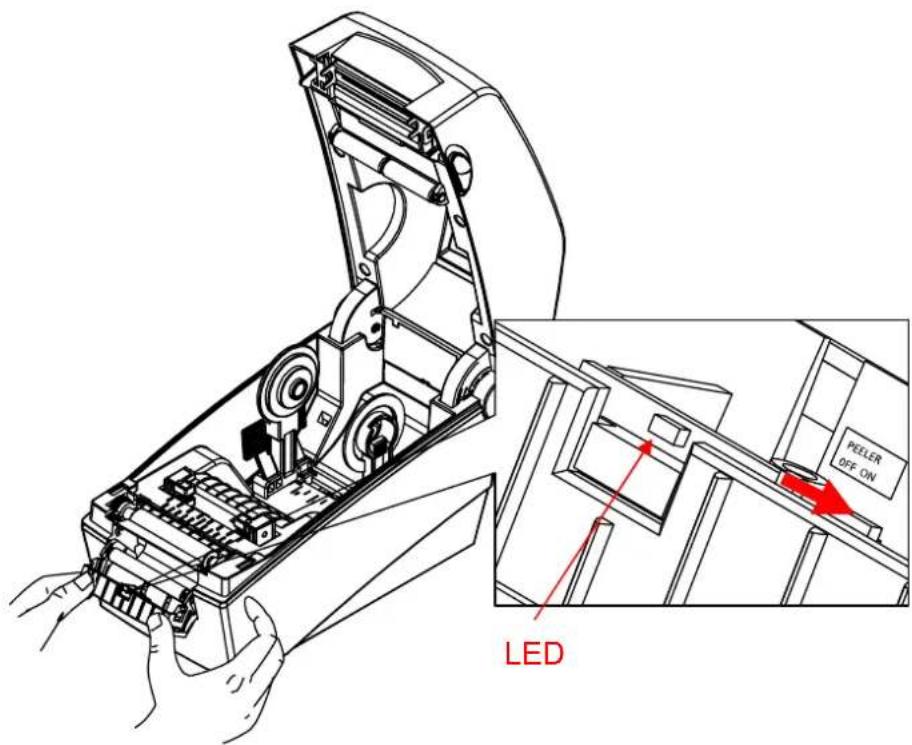
3) Remove one sheet of the label paper, and insert the paper as shown in the image below. - Prior to removing a label, the peeler switch must be set to the ON position.
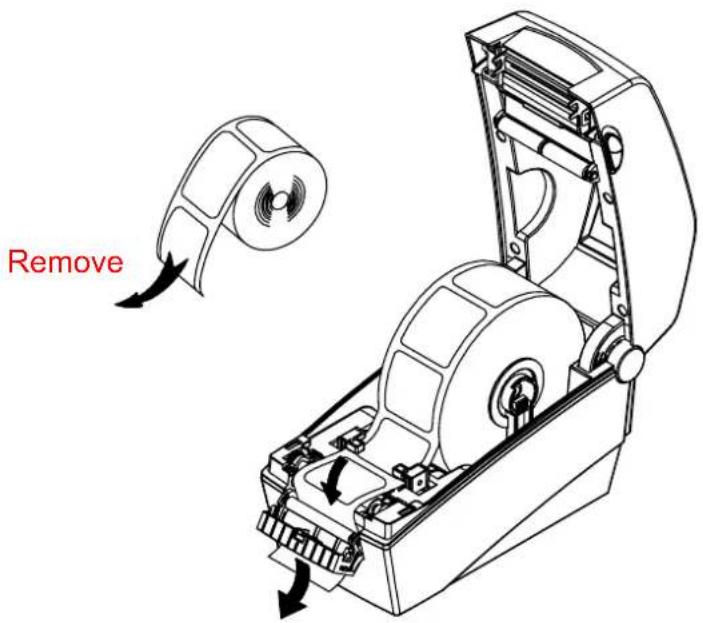
4) Adjust the paper guides and close the label peel-off cover.
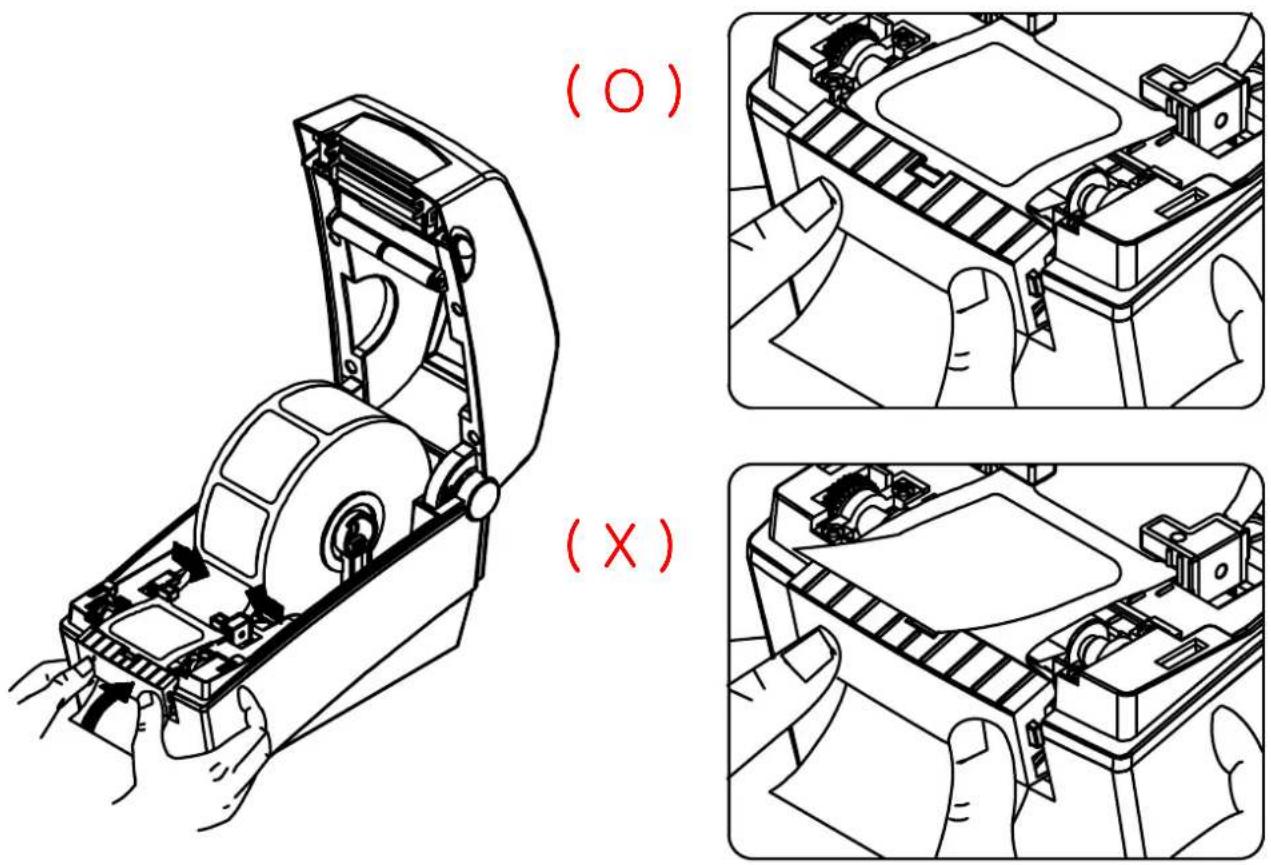
5) Close the Paper Cover until a click sound is heard.
5-7 Using Fan-Fold Paper
Supplying paper to the printer externally is done as follows.
5-7-1 Printer Preparation
Remove the rear paper supply cover on the back side of the printer with a knife or other cutting instrument.
※ CAUTION
- Take care not to injure the hands and/or any other part of the body when performing this step.
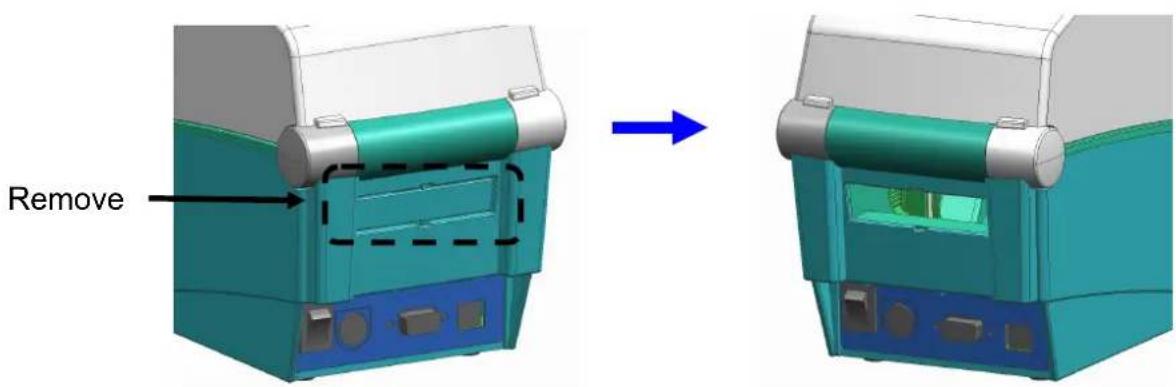
5-7-2 When Using Pan-Fold Paper
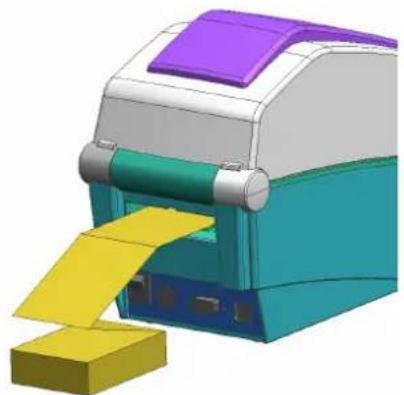
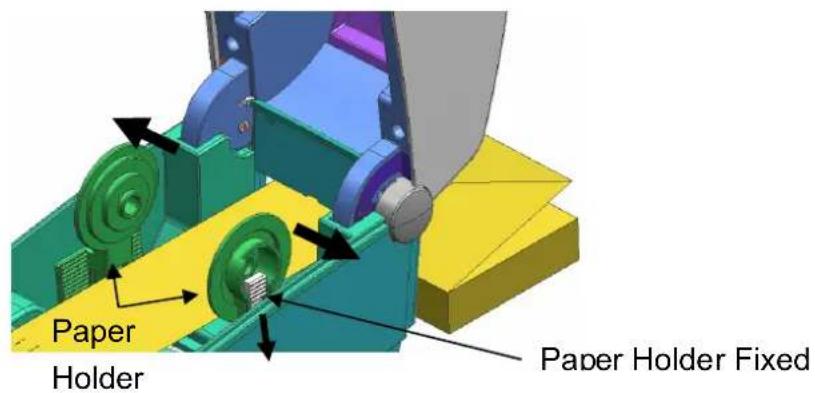
1) Insert the paper through the slot on the rear of the printer.
natural_image
3D rendering of a mechanical device with colored components and a yellow paper clip (no text or symbols visible)2) Adjust the paper holders and guides to the width of the paper.
6. Cleaning Head
Printing quality might be degraded by dust, foreign substance, adhesive substance, or other pollution materials stuck in the printer head or inside the printer.
When dirty, clean the print head as follows:
※ CAUTION
- Make sure to turn the printer power off prior to cleaning.
- As the print head gets very hot during printing, if intending to clean the print head, turn the printer power off and wait approximately 2\~3 minute before commencement.
- When cleaning the print head, take care not to touch the heated portion of the print head.
→ Printer Head is susceptible to damage from static electricity, etc. - Take care not to allow the print head to become scratched and/or damaged in any way.
6-1 Cleaning Head
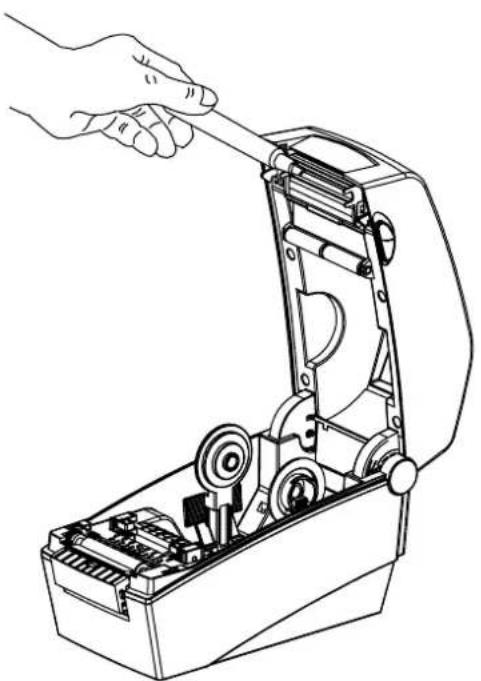
1) Open the paper cover and use the cleaning pen to clean the printer head in a direction from the center to the outside.
2) After cleaning the head, do not use the printer until the alcohol used for cleaning evaporates completely (1\~2 min) and the printer has completely dried.
※ Perform the cleaning process each time the paper roll is replaced to prevent print quality deterioration.
natural_image
Line drawing of a hand using a tool to switch an open mechanical device (no text or symbols present)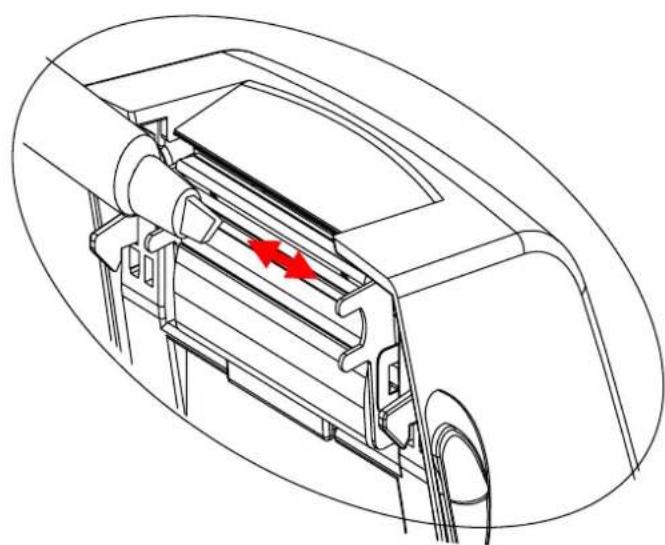
natural_image
Technical line drawing of a car air intake manifold with red directional arrows indicating flow or movement (no text or symbols)6-2 Cleaning Sensors, Roller or/and Paper Path
1) Open the paper cover and ribbon assembly, and remove the paper and ribbon.
2) Remove any dust or foreign substance using dry cloth or cotton swab.
3) Soak the cloth or cotton swab in alcohol for medical use and use it to remove adhesive foreign substances or other pollution materials.
4) After cleaning the parts, do not use the printer until the alcohol evaporates completely (1\~2 min) and the printer has completely dried
※ Clean the parts when there is a degradation of performance in printing quality or paper detection.
Rev. 1.01
7. Appendix
7-1 Specifications
| Item Description | ||
| Printer | Printing Method Direct Thermal Printing | |
| Dot Density | SLP-D220: 203 dpi (8 dot/mm)SLP-D223: 300 dpi (11.8 dot/mm) | |
| Printing Width Max | 54 mm | |
| Printing Speed | SLP-D220: 152 mm/sec (6ips)SLP-D223: 100 mm/sec (4ips) | |
| Paper | Width 15 ~ 60 mm | |
| Roll | Max 130mm | |
| Core 12.5 ~ 38.1mm (0.5 ~ 1.5") | ||
| AC Adapter | Input Voltage AC | 100~240V |
| Frequency | 50/60 Hz | |
| Output Voltage DC | 24V | |
| Usage Conditions | Temperature | 0 ~ 45 (Operating)°C-20 ~ 60 °C (Storage) |
| Humidity(except for paper) | 10 ~ 80 % RH (Operating)10 ~ 90 % RH (Storage) | |
※ Note
- Printing speed can vary depending on the data transmission speed and combination of control commands.
- This equipment is indoor use and all the communication hiring are limited to inside of the building.
- The switch is the disconnecting device. Turn off switch from any hazard.
7-2 Certification
1) EMC & Safety Standards
• Europe: CE EMC,CB-Scheme:IEC60950-1, GS: EN60950-1: 2001
• North America: FCC rules parts 15B
WARNING
Use of an unprotected interface cable with this printer conflicts with EMC standards. Users should only use cables approved by BIXOLON.
2) CE Mark
• EMC Directive 89/336/EEC
EN55002:1994+A1:1995+A2:1997
EN55024:1998+A1:2001+A2:2003
EN61000-3-2:2000
EN61000-3-3:1995+A1:2001
EN6100-4-2:1995+A1:1998+A2:2001
EN6100-4-3: 2002+A1:2002
EN6100-4-4:2004
EN6100-4-5:1995+A1:2001
EN6100-4-6:1996+A1:2001
EN6100-4-8:1993+A1:2001
EN6100-4-11:1994+A1:2001
- Low Voltage Directive 73/23/EEC Safety: EN60950-1:2001
3) WEEE (Waste Electrical and Electric Equipment)
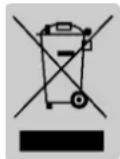
This mark shown on the product or its literature indicates that the corresponding item should not be discarded at the end of its working life with other household waste. To prevent possible harm to the environment or human health from uncontrolled waste disposal, please separate marked items from other types of waste and recycle them responsibly to promote the sustained reuse of material resources. Household users should contact either the retailer where they purchased this product, or their local government office for details of where and how they can conduct environmentally safe recycling of such items. Commercial users should contact their suppliers and check the terms and conditions of purchase contracts. This product should not be combined with other commercial waste for disposal.
7-3 Label Types
The label types used with this printer are as follows.
• DIP Switch Labels: PP
- Other Labels: PET